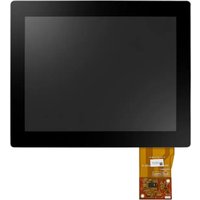
IDK-1110R-23SVA1E - LCD Screen Advantech - Free user manual and instructions
Find the device manual for free IDK-1110R-23SVA1E Advantech in PDF.


Pick your language and provide your email: we'll send you a specifically translated version.
| Product Type | 10.4" TFT LCD Display Module |
| Display Size | 10.4 inches |
| Resolution | 800 x 600 (SVGA) |
| Brightness | 350 cd/m² |
| Touchscreen Type | Resistive |
| Dimensions (W x H x D) | 265.0 x 196.5 x 12.5 mm |
| Weight | 0.8 kg |
| Power Supply | 12V DC, 0.8A |
| Power Consumption | 9.6W typical |
| Video Input | VGA, DVI-D |
| OSD Controls | Brightness, Contrast, Auto Adjust, etc. |
| Operating Temperature | 0°C to 50°C |
| Storage Temperature | -20°C to 60°C |
| Humidity Range | 10% to 90% non-condensing |
| Maintenance | Clean with soft, dry cloth; avoid liquids |
| Safety Precautions | Use specified power adapter; follow ESD procedures |
| Spare Parts / Repairability | Contact Advantech support; no user-serviceable parts |
| General Information | Industrial display kit with resistive touch; RoHS compliant |
Frequently Asked Questions - IDK-1110R-23SVA1E Advantech
How do I connect the display to my computer?
Connect the display to your computer using a VGA or DVI cable. Ensure the power adapter is plugged in and the display is turned on. If using touch, connect the USB interface for touch input.
What is the native resolution of the IDK-1110R-23SVA1E?
The native resolution is 800 x 600 pixels (SVGA). For best image quality, set your computer to this resolution.
How do I calibrate the touchscreen?
Touch calibration can be performed using the software provided by Advantech or the operating system's touch settings. For Windows, go to Control Panel > Tablet PC Settings > Calibrate. For Linux, use the evdev or usbtouchscreen driver.
What power adapter does the display require?
The display requires a 12V DC power adapter with a minimum current of 0.8A. Use only the adapter provided or a compatible one to avoid damage.
How do I clean the display safely?
Turn off the display and unplug it. Clean the screen with a soft, lint-free cloth slightly dampened with water or a mild cleaner. Avoid spraying liquid directly onto the screen.
Can I mount this display on a VESA arm?
Yes, the display has a 75mm x 75mm VESA mounting pattern. Use standard VESA screws to attach it to a compatible arm or bracket.
Is the display compatible with all operating systems?
The display functions as a standard monitor and is compatible with Windows, Linux, and other operating systems that support VGA/DVI output. Touch drivers may need to be installed for touch functionality.
What should I do if the display shows no picture?
Check that the power adapter is connected and the power LED is on. Verify the video cable is securely attached to both the display and the computer. Try a different input source or cable. If still no picture, reset the display by unplugging it for 30 seconds.
How do I adjust the brightness or contrast?
Use the OSD (On-Screen Display) buttons located on the display. Press the Menu button, navigate using arrow keys, and adjust brightness, contrast, and other settings from there.
Where can I find the user manual or technical support?
The user manual is available for free download from notice-facile.com or the Advantech website. For technical support, contact Advantech's customer service or visit their support page.
User questions about IDK-1110R-23SVA1E Advantech
0 question about this device. Answer the ones you know or ask your own.
Ask a new question about this device
No questions yet. Be the first to ask one.
Download the instructions for your LCD Screen in PDF format for free! Find your manual IDK-1110R-23SVA1E - Advantech and take your electronic device back in hand. On this page are published all the documents necessary for the use of your device. IDK-1110R-23SVA1E by Advantech.
USER MANUAL IDK-1110R-23SVA1E Advantech


Manual assistant
Powered by Anthropic
Waiting for your message
Product information
Brand : Advantech
Model : IDK-1110R-23SVA1E
Category : LCD Screen