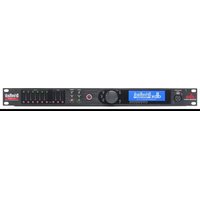
DriveRack VENU360-B - Audio processor DBX - Free user manual and instructions
Find the device manual for free DriveRack VENU360-B DBX in PDF.


Pick your language and provide your email: we'll send you a specifically translated version.
| Product Type | Digital System Processor (Crossover, EQ, Limiter) |
| Brand | DBX |
| Model | DriveRack VENU360-B |
| Inputs | 3 x XLR (balanced) |
| Outputs | 6 x XLR (balanced) |
| Digital Audio Specs | 24-bit / 96 kHz conversion |
| Frequency Response | 20 Hz – 20 kHz, ±1 dB |
| Dynamic Range | >113 dB (A-weighted) |
| Crossover Types | Butterworth, Linkwitz-Riley, Bessel (up to 24 dB/oct) |
| EQ | 28-band graphic EQ per output, parametric EQ (6 bands) per channel |
| Limiting | PeakStopPlus™, RMS, standard limiters |
| Delay | Up to 2 seconds per output (in steps of 0.1 ms) |
| Special Features | Auto-EQ, Advanced Feedback Suppression (AFS), Subwoofer Synthesis, pink noise generator |
| Power Supply | 100-240 V AC, 50/60 Hz, 25 W (IEC inlet) |
| Dimensions (W x H x D) | 482.6 x 44.5 x 203.2 mm (1U rackmount) |
| Weight | 4.5 kg |
| Included Accessories | Power cord, user manual, rack ears |
| Software | DriveRack VENU360 PC/Mac software (free download) |
| Expected Lifetime | 10+ years with proper maintenance |
| Cleaning Instructions | Wipe with a dry, soft cloth; do not use liquid or aerosol cleaners |
Frequently Asked Questions - DriveRack VENU360-B DBX
How do I set up the DriveRack VENU360-B for my PA system?
First, connect your mixer outputs to the three XLR inputs (A, B, C). Connect your speakers to the six XLR outputs (1–6). Power on the unit and use the front panel to navigate to the Wizard for guided setup. Select your speaker configuration and crossover frequencies.
What is the default crossover frequency for subwoofers?
The default crossover frequency depends on the preset. Many presets set the subwoofer crossover to 80 Hz, but you can adjust it from 20 Hz to 20 kHz in the crossover menu.
How do I use Auto-EQ?
Connect a measurement microphone (not included) to the MIC jack on the front. Go to Auto-EQ menu and select the number of measurement points. The unit will produce pink noise and adjust the EQ automatically based on the readings.
Can I control the VENU360-B via software?
Yes, download the DriveRack VENU360 software from the DBX website. Connect the unit to your computer via USB (micro-B port on the back). The software allows full control and real-time adjustments.
How do I update the firmware?
Download the latest firmware file from the DBX support page. Connect the unit via USB, launch the DriveRack VENU360 software, go to Firmware Update in the Utilities menu, and select the file. Do not power off during the update.
What does AFS (Advanced Feedback Suppression) do?
AFS automatically detects and suppresses feedback frequencies. It creates fixed or dynamic notch filters to stop howling while preserving sound quality. You can enable it per output in the AFS menu.
Why is there no sound from the outputs?
Check that the input source is active and the XLR cables are properly connected. Verify that all outputs are not muted in the Output Mutes menu. Also ensure the master volume is not turned down.
How do I save a custom preset?
Adjust all settings as desired, then press the Preset button, select Save, choose a user preset slot (1-50), and name it. You can recall it later via the presets menu.
What is the difference between the VENU360 and VENU360-B?
The VENU360-B is the black version of the standard VENU360. Internally they are identical; only the chassis color differs.
Can I use the VENU360-B with a subwoofer array?
Yes, the VENU360-B supports subwoofer steering and cardioid subwoofer arrays using delay and polarity inversion. Consult the manual for advanced subwoofer configurations.
User questions about DriveRack VENU360-B DBX
0 question about this device. Answer the ones you know or ask your own.
Ask a new question about this device
No questions yet. Be the first to ask one.
Download the instructions for your Audio processor in PDF format for free! Find your manual DriveRack VENU360-B - DBX and take your electronic device back in hand. On this page are published all the documents necessary for the use of your device. DriveRack VENU360-B by DBX.
USER MANUAL DriveRack VENU360-B DBX
Manual assistant
Powered by Anthropic
Waiting for your message
Product information
Brand : DBX
Model : DriveRack VENU360-B
Category : Audio processor