ManualGo.com
CL32PD2100 - TV HITACHI - Free user manual and instructions
Find the device manual for free CL32PD2100 HITACHI in PDF.


Download the instructions for your TV in PDF format for free! Find your manual CL32PD2100 - HITACHI and take your electronic device back in hand. On this page are published all the documents necessary for the use of your device. CL32PD2100 by HITACHI.
USER MANUAL CL32PD2100 HITACHI
X832136-02-02.qxd 11/19/01 10:44 AM Page 2 rh {” Dear HITACHI customer \ [ Congratulations on your purchase of the very latest state of the art television 7 from HITACHI. At Hitachi we pride ourselves on producing high quality televisions with outstanding picture and audio capabilities. Together with our reputation for superior reliability, you should enjoy many years of trouble free operation from your TV. \ 7 L Important \ Please read this Users Guide thoroughly, especially the Safety à Notes on Pages 4 & 5. Mis-use may cause damage to your plasma television, which could shorten its lifespan, or cause injury to yourself. Should you encounter any difficulty in the set-up or operation of your television, firstly refer to the Trouble Shooting Guide at the rear of this manual. In the unlikely event of a problem occurring with your plasma TV, switch off at the mains sockets, pull out the plugs, and contact your dealer immediately. Under no circumstances remove the rear cover of your plasma screen or the casing of your Audio Visual Control (AVC) unit. Never guess or take any chances with electrical equipment of any kind - it is better to be safe than sorry! | LL D. [ TruBass \ [ TruBass and the (@)° symbol are trademarks of SRS Labs, Inc. \ \ TruBass technology is incorporated under license from SRS Labs, Inc. / [” Software Notice à L | / It is prohibited for the end user of this product to copy, reverse engineer or à reverse compile the software included therein, save to the extent permitted by N law. D. [ Plasma Screen \ {__ Afterthe plasma screen has been on for any length of time, you will notice à \ that the screen becomes warm. Please note that this is normal. 7 [ Caution à
[_ To prevent scratching or damaging the plasma screen face, do not knock à or rub the surface with sharp or hard objects. Clean the screen with a soft cloth moistened with warm water and dry with a soft cloth. À mild soap may be used Ne if the screen is extremely dirty. Do not use harsh or abrasive cleaners! )
4 The television illustrated throughout this manual is the CL32PD2100. Other D models differ in appearance, but controls and functions remain the same.
contents | safety aspects television safety battery safety and installation. rear socket and scart details. set-Up plasma screen, AVC unit and equipment connection . front control panel details... ss 10 handset controls programme tuning television/VCR operation. Teletext fUNCTIONS seen tuning in TV set up and automatic tuning procedure . manual tuning procedure programme sort programme name change and download viewlink customer I.D. password change WNDOVLHOER programme, sound and vision adjustment picture controls. NICAM and stereo sound controls . audio and TruBass controls Oo OR television features sleep timer and on screen display . wide screen viewing Teletext operation sisi other equipment other equipment connection . signal source entry other features language and installation programme download and demo mode screen saver, screen wipe & no signal shutdown PC mode information trouble shooting guide guarantee HITACHI environmental notice technical data... /” Please Note D
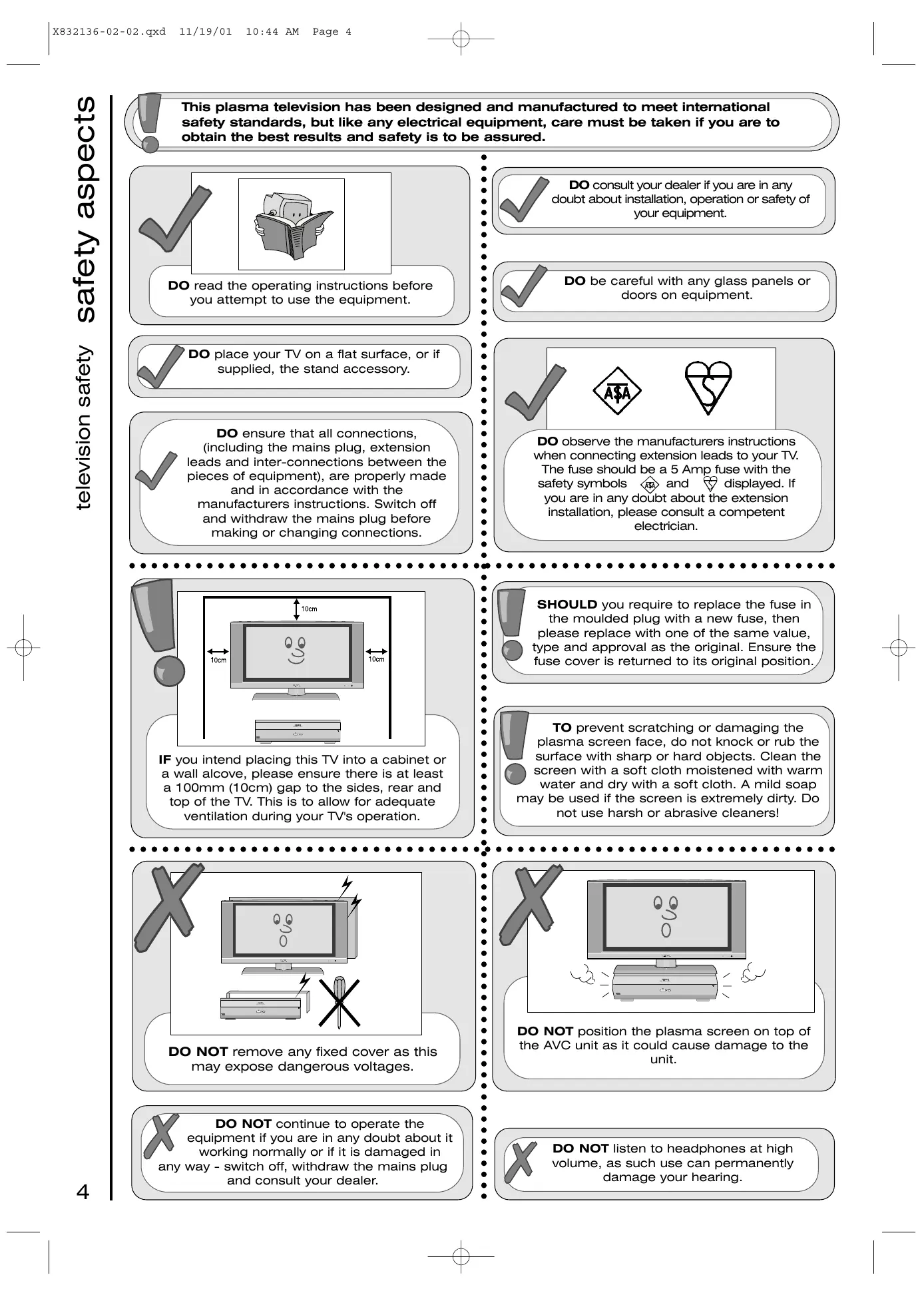
X832136-02-02.qxd television safety safety aspects 11/19/01 10:44 AM Page 4 This plasma television has been designed and manufactured to meet international safety standards, but like any electrical equipment, care must be taken if you are to obtain the best results and safety is to be assured.
| DO read the operating instructions before you attempt to use the equipment. DO place your TV on a flat surface, or if supplied, the stand accessory. DO ensure that all connections, (including the mains plug, extension leads and inter-connections between the pieces of equipment), are properly made and in accordance with the manufacturers instructions. Switch off and withdraw the mains plug before making or changing connections.
| DO consult your dealer if you are in any doubt about installation, operation or safety of | your equipment. doors on equipment. 8 V. DO observe the manufacturers instructions when connecting extension leads to your TV. The fuse should be a 5 Amp fuse with the safety symbols and ( displayed. ff you are in any doubt about the extension installation, please consult a competent electrician. DO be careful with any glass panels *)
IF you intend placing this TV into a cabinet or a wall alcove, please ensure there is at least a 100mm (10cm) gap to the sides, rear and top of the TV. This is to allow for adequate \ ventilation during your TV's operation.
SHOULD you require to replace the fuse in the moulded plug with a new fuse, then please replace with one of the same value, type and approval as the original. Ensure the fuse cover is returned to its original position. screen with a soft cloth moistened with warm water and dry with a soft cloth. A mild soap may be used if the screen is extremely dirty. Do
TO prevent scratching or damaging the plasma screen face, do not knock or rub the ® surface with sharp or hard objects. Clean the not use harsh or abrasive cleaners! Sons cese
DO NOT remove any fixed cover as this | may expose dangerous voltages.
DO NOT position the plasma screen on top of the AVC unit as it could cause damage to the DO NOT continue to operate the equipment if you are in any doubt about it | working normally or if it is damaged in | any way - switch off, withdraw the mains plug and consult your dealer. CORRE EEEEEE EE EEEEEEEEEEEE CEE EEE EEE EEE EEE PEEEE EEE SE EEE EE EEE EEE EEE EEE EEELEIEEE DO NOT listen to headphones at high volume, as such use can permanently damage your hearing. unit.
NEVER let anyone, especially children, push anything into holes, slots, or any other opening in the case - this could result in a fatal electrical shock. Under NO circumstances remove the rear cover of your plasma screen or the casing of your Audio Visual Control (AVC) unit! DO NOT lie the plasma screen flat. ) impaired performance. If you wish to extend the lead, obtain an appropriate extension lead or consult your dealer.
DO NOT cut off the fitted mains plug as it may contain a special radio interference filter, the removal of which could lead to DO NOT use makeshift stands and NEVER fix legs with wood screws - to ensure complete safety, always fit the manufacturers approved stand or legs with the fixings provided according to the instructions. Sonore soon sense eee ceeenseceessssesesscceessecene
DO NOT place objects filled with liquids, e.g. DO NOT obstruct the ventilation of the a vase, on, or close to the equipment, to equipment, for example with curtains or soft avoid spillages into the inside of the furnishings. Overheating will cause damage apparatus. DA and shorten the lifespan of your equipment. 4 D DO NOT place hot objects such as candles or nightlights on, or close to equipment. High . h temperatures can melt plastic and lead to DO NOT slow slectrel sdprent to be fires. exposed to rain or moisture.
DO NOT leave equipment switched on when it is unattended unless it is specifically stated that it is designed for unattended operation or has a stand-by ode. Switch off using the switch on the
equipment and show your family how to do this. Make special arrangements for infirm or handicapped people. equipment of any kind - better to be safe than sorry! NEVER guess or take chances with electrical itis
television safety safety aspects
X832136-02-02.qxd 11/19/01 battery safety and installation safety aspects 10:44 AM Page 6 Take care to fit your batteries correctly, observing the plus ‘+’ and minus ‘-’ marks on the battery and appliance. Incorrect fitting can cause leakage, or in extreme cases, fire or explosion. Remove dead batteries from equipment, and all batteries from equipment that is to be left for long periods of time without any use. Otherwise the batteries may leak and cause damage. Ne 7 Replace the whole set of batteries at one time, taking care not to mix old and new batteries of different types, since this can result in leakage, or in extreme cases, fire or explosion. N 2 Never dispose of batteries in fire as this can cause an explosion. Respect the environment - always dispose of batteries in an environmentally friendly] manner. Ne 7 Comes | [LL] Store unused batteries in their packaging and away from metal objects which may cause a short circuit resulting in leakage, or in extreme cases, fire or explosion.
NN 7 Never attempt to recharge ordinary batteries, either in a charger or by applying heat to them. They may leak, cause fire or even explode. Rechargeable NiCAD batteries and chargers can be purchased from any good High Street electrical retailer. \C D
[battery installation
Remove cover of handset by lifting up the cover at the recess. Insert batteries into handset as shown and replace cover. Replace the batteries with the equivalent ‘AA type. fr | 1. When inserting the batteries make sure the polarities are correct, that is, ‘+’ to ‘+’, ‘-’ to ‘—.
Discard old batteries safely, following the battery safety guidelines.
X832136-02-02.qxd 11/19/01 10:45 AM Page 7 audio output (RCA) VGA input Link Socket Mains Socket These sockets can be Use this to connect to This should be This should be used to connect to your computer if connected to your connected to the Mains external amplifier or Hi- desired. plasma screen via Supply via the supplied Fi system. the link lead. Mains Lead. CONTROL (AVC) UNIT AV1 scart input | AVA4 scart input AV2 scart input Use this to connect Use this to connect Use this socket to digital video digital video connect ordinary VHS, broadcasting equipment, broadcasting S-VHS or Hig home entenennent equipment and home equipment to your TV. systems an entertainment (Connect VCR to AV1 players etc. to your TV. systems to your TV. for Viewlink). RF aerial socket Output sockets (SVHS monitor out & video out) This should be permanently connected to an RF source - i.e your aerial antenna. These sockets can be used to connect to external equipment to supply a picture only, (no menus or Text), e.g. to a video projector.
00.00...) PLASMA SCREEN kr e-ccoccooossooossocssosesee
Mains Socket This should be SUBWOOFER ©+ VDEOIN © connected to the Mains © ICE Supply via the supplied Mains Lead. SubWoofer Link Socket test button ; ï Use this button if you wish to test the This socket can be gris sonia Peur functionality of the plasma screen without the used to connect a AVC Unit via the link AVC unit being attached. Press and hold this SubWoofer speaker.* lead. button for more than 5 seconds and a test picture will be displayed on the screen. *If this product is used with an active SubWoofer, it is possible to change its frequency by adjusting the LPF (Low Pass Filter) control on the Subwoofer speaker. This will enable you to select the most suitable sound performance. important note on installation D
If you intend placing this TV into a cabinet or wall alcove, please ensure there is N\ at least a 100mm (10cm) gap to the sides, rear and top of the television. This is to allow for adequate ventilation. @ Do not allow soft furnishings, such as curtains to be draped over the TV whilst in operation. Never place the TV onto a carpet during normal operation - this could obstruct ventilation slots on the base of the TV. Always place the TV on a flat surface, or if supplied, the stand accessory. Failure to observe the above guidelines could result in serious overheating of your TV, or \ even, in extreme cases, fire. D
rear socket and scart details Fan
X832136-02-02.qxd 11/19/01 10:45 AM Page 8 rh ( TV Setup \ IMPORTANT! When connecting the @ mains lead to your Plasma screen, please ensure that you always use the Mains Lead with the WHITE SLEEVING. AERIAL plasma screen, AVC unit and equipment connection set-Up ([SCART LEADS * (optional) ) RF LEADS (1 SUPPLIED) |) Connect the LINK LEAD between the * Scart leads should be fitted Plasma Screen and AVC Unit. between your TV and other equipment to enhance your picture and sound quality. Scart leads are essential if you have a stereo TV and VCR and wish to obtain stereo sound from your equipment. These leads can be purchased from your Hitachi . . dealer or any good High Street Connect the Mains lead with NO electrical retailer. Sleeving to the AVC Unit. LI Connect the Mains lead with the WHITE SLEEVING to the Plasma Screen.
Connect aerial connection lead to the Digibox ‘in’ socket marked = Connect Digibox ‘out’ to VCR ‘in’ socket marked = .
Connect VCR ‘out’ to TV ‘in’ socket marked æ .
VHS video equipment f | should be connected to the AV1 scart socket located at] the rear of your TV. A dedicated programme number may be assigned to AV1, allowing you easier access to external equipment viewing. How to assign an AV signal to dedicated programme numbers is explained in signal source entry section. plasma screen, AVC unit and equipment connection set-Up
PLASMA SCREEN on/off button Fnracen . nn nn, TV mode light This will be green when your TV is on and red when in standby mode. infra-red lens This is for reading commands sent from your remote control handset. (Underside of plasma screen). Use this to switch the plasma screen on and off. (When switched off using this button the screen consumes no power - unlike when in standby mode). poessssssssssee
AUDIO VISUAL CONTROL (AVC) UNIT
front control panel details television controls door panel To use the controls, pull down gently where shown.
volume buttons headphone socket This will be green when your TV is on and red when in standby mode. Used to increase ‘+’, or decrease ‘-’ your TV's sound . Used with headphones (3.5mm stereo jack Standby button Use this to switch the AVC unit into Standby Mode. (To plug required). HITACHI
AUDIO VISUAL CONTROL
turn the unit off completely, switch off at the mains). AV button programme buttons
audio/video sockets Used to select a signal source for external equipment. Used to change the TV channel up ‘+’ or down ‘-
This socket is for use with external equipment. These sockets are for use with external equipment.
X832136-02-02.qxd 11/19/01 10:45 AM Page 11 c /” The handset controls shown below are \ | used when programming your TV andto | \__ adjust the sound and picture features. _/ accept
cursor up CD | 4 D This button is used to confirm a : | highlighted Use this button to selection. move the menu } selection box up. Ne 2 Ne 2 Once cursor right ae Use this button à to move the menu selection box right. cursor left N DA 4 U\ Use this button to move the menu >» selection box left. le e — menu [ This button is \ used to enter the main menu. This is where your TV's features options are } | displayed. | cursor down D —___ 7 [ Use this button \ to move the menu XD exit selection box down. [7 Thisbuttonis used to return to the previous on screen menu you were viewing, or to cancel a \ selection. 7 CD frequency [ This allows you à to directly input known broadcasting / CH or nn \'frequency numbers. / televi [ Press this UN button to leave the menu you are on and return to normal TV operation.
number/letter buttons 4 These number buttons can also be used to enter letters, which !N\ [e»}) (2) (3) are required for some features e.g. programme name change etc. To enter letters: Press the number key twice for the first D (>) (a) corresponding letter (written above the key), three times for the second etc. (7) €» (Co Example: Press number key 2, twice for ‘A’, three times for ‘B' and Ne four times for ‘C’. DA Co2 ec» (cn 2 programme tuning handset controls
[The handset controls \ shown here are used when your TVis in normal operation. CK) sound noaisR [7 Thisbutton [ Used to switch \ your TV in and out of NI standby mode. D [ This button \ allows you to switch between the various wide screen features allows you to switch the TV's sound on and \ : off. D DOD \crrecord 4 Press both N\ buttons simultaneously to record what is being viewed (only available if VCR is Viewlink compatible -see of your TV (see wide screen \| viewing section). / VCR/stop CvenJ D 4 Press both \ buttons simultaneously to stop recording (only available if VOR is Viewlink compatible - \see viewlink section) & 2? television/VCR operation handset controls volume controls [ Used to à increase ‘+’ or decrease ‘- your TV's volume. KL 7 time (©) d Use this button à to display the current | time on screen. Ne 7 VCR Operation \ iewlink section). / programme controls 4 Used to change à channels either up | NS or down ‘-. D CD frequency [ This allows you \ to directly input | known broadcasting CH or \ frequency numbers. à (©) AV select [ Used to select \ a signal source for À external equipmen
Press this button to view the current | TV status. ]
Your handset incorporates controls for operation of HITACHI Video Cassette Recorders. These controls are PLAY, STOP, REWIND, FAST FORWARD, PAUSE, STANDBY, PROG +/-, and MENU. To PLAY : Press the VCR and Play buttons on your handset simultaneously. D <> To STOP : Press the VCR and Stop buttons on your handset simultaneousiy. D «> To REWIND : Press the VCR and Rewind buttons on your handset simultaneously. To FAST FORWARD : Press the VCR and Fast Forward buttons on your handset simultaneously. To PAUSE : Press the VCR and Pause buttons on your handset simultaneousiy. D
To enter STANDBY : Press the VCR And Standby buttons on your Handset Simultaneously. (eme) To change PROG +/- : Press the VCR And Prog+/- buttons on your Handset Simultaneously. D To enter the MENU : Press the VCR And Menu buttons on your Handset Simultaneously. © © Fan
X832136-02-02.qxd 11/19/01 teletext [ Press this button to use the Teletext services. \ 7 swap @D 4 In teletext mode \ - views the previous page. In TV mode - returns from your current viewing channel to the previous one. Ne 7 index [ à Pressing this button will take you to the index. Ne 7 reveal . N\ Used in Teletext | mode to show hidden information eg. quiz 10:45 AM Page 13
[ The handset N\ controls shown here are used when you are operating Teletext. pages answers. |
update [ Restores TV à picture whilst the TV is looking for the entered Teletext page.| D) colours TV eg en — \ [ ” (red, green, | yellow, blue) On certain pages in teletext, these will have coded instructions ie. a shortout to a | teletext page or title. | AU? PE PE PF, O television 4 Press this \ button to return to normal TV operations when in the teletext \ mode. \ DA hold
[ Use this to ‘freeze’ the teletext page on display to prevent the page changing (press again to continue). Ne 7 expand 4 Use this button \ to expand the size of the teletext page on section for details of Teletext services See ‘Teletext operation’
\C view. D subtitles [ Use this to \ access a subtitle service directly rather than through a teletext service (subject to subtitle service broadcasting). Ne / Teletext functions handset controls
X832136-02-02.qxd 11/19/01 10:45 AM Page 14 . connecting to the mains socket Important - If you have not already done so, please read the television safety @) section before connecting your television and external equipment. ing in insert plug... and switch on important note on VCR and satellite \ Do not switch your TV on until all external equipment is connected. If you have a Video Cassette Recorder or a Satellite receiver connected to this TV please ensure that they are switched on before automatic tuning begins. In the case of a VCR, if it is not Viewlink compatible, insert a pre-recorded tape and begin playback of your equipment. If it is [@ Viewlink compatible leave VCR in Standby. (See viewlink section of this manual for details). With a Satellite receiver select Sky News. These measures ensure that all your external equipment is tuned in during the autotune procedure. important note - on-screen help ) When using the menus of your Television, extra on screen help will be displayed in this window. TV set-up and automatic tuning procedure tUNn To make your programme tuning easier, HITACHI have installed an automatic tuning procedure to find the programmes. Switch your Plasma screen and AVC (Audio Visual Control) unit on. The first screen ©) ©) se) ©) viewed will ask you to choose the language of Language PES © © nv) your TV's display. Use the # LEFT/RIGHT cursor buttons to choose your language.
X832136-02-02.qxd 11/19/01 CD connection lead. If you are satisfied all ee 16 x external equipment has ee s 8 6 10:45 AM Page 15
(3) Once highlighted, accept selection. ( The next screen viewed will ask you to insert your aerial been connected, press the OK button on your handset and AUTOTUNE will begin. Next, the country screen requires you to select the country in which you will be watching your TV. Use the LEFT/RIGHT buttons to adjust. Country }O UK Once the country of choice is viewed, press the OK button to continue. Your TV will now search through the frequencies, storing them in order. Programme Progress — Please wait.
Programme Download PLEASE NOTE : If your VCR is Viewlink compatible, your TV will now download A the programme information - see viewlink section of this manual.
rogramme 1 Progress — Please wait. ing in TV set-up and automatic tuning procedure tUn
As well as an automatic tuning procedure your HITACHI television also allows you to input roadcast frequencies through a number of different entry methods. Follow the steps below and choose one of the 4 entry methods to input broadcast frequencies. ing in Follow the steps below to tune in your VCR if it was not found during Autotune. See VCR should be tuned into Programme OC. programme sort section to move to channel 0. Press the MENU button. The MAIN MENU appears. Picture Audio Press the cursor DOWN button to select INSTALL. e highlighted, cept select Onc
manual tuning procedure tun Features Linstai Press the cursor DOWN button to select MANUAL SETUP. Language GEnglish Installation Manual Setup /Progamme Download Customer ID Once highlighted, accept selection. Use the cursor keys to move the > selection bar over the programme frequency required to be adjusted. Video 582.18 BBC1 EX BBC2 495.18 Once highlighted, accept the selection to ITV 566.50 change the frequency. The selection bar CH4 519.18 will turn blue. It is now ready to change. SNS ses
entry method 2 Ifthe CH key CRD is pressed, you can enter a two digit channel number (CH) Nideo s52 12 using buttons 0 - 9 on your BBC1 BBC2 495.18 handset. ITV 566.50 CH4a 51918 CH5 _53525 entry method 3 Ifthe CH key CD is pressed again, you can enter a two digit S-band number using buttons O - 9 on your handset. Video 582.18
entry method 4 00 Video 582.18 Ifthe CH CC» key is pressed again, you can Lee Et ore manually input a five digit frequency (if known) using LS GW, ES buttons 0 - 9 on your handset. Xe Xe) 05 CHS 53525 SOC Once the method of entry has been decided upon and the new frequency or channel entered, this can then be stored in the TV’'s memory by pressing the OK button. If you have a Viewlink compatible video, press the AV key 5) to transfer any information changes to your VCR. (a) To return to normal TV operation, press the TV button on your handset. CC»
Press the MENU button. MAIN MENU appears. CD Picture Features to select INSTALL. Once highlighted, accept selection. (Es ) nu Language GEnglish Press the cursor DOWN button Installation to = MANUAL SETUP. nual Setup FProgamme Download =) eme Once highlighted, accept selection. Use the UP/DOWN cursor keys to select the programme you wish to move. OC Video 582.18 BBC2 495.18 OOo D (æ) M, Én 7 cHS _535.25 Install 2 Press the cursor DOWN button ) # Once highlighted, accept selection. Press the ‘0’ digit on your handset and you will see the text within your chosen selection turn red. Your selection is hidden. Press the ‘0’ button again to ‘unhide’ the selection. If a hidden channel is be viewed, you can achieve this by entering the channel number with the handset digits O to 9. Using the UP/DOWN buttons again you can move Video 582.18 : du BBC2 495 18 the selection to occupy a new position of your es TV See:50 choice: CH4 519.18 Note: Using the P+/P- buttons for movement will TD RÉ D make selections in multiples of 8. SAT 519.18 Once this has been done, accept selection To Vides eZ 15 and the chosen programme will now occupy its new D CR NE ition. R atifn ai 02 ITV 566.50 position. Repeat if necessary. [A 88c1 47125 When a channel has been selected, you also have the option to ‘hide’ a programme - this makes your TV skip the hidden channel when the UP/DOWN program controls are used to change channels.
X832136-02-02.qxd 11/19/01 10:45 AM Page 19 . ...notes on programme name change Programme name change can be very useful if you connect external equipment to your television. For example, if you have a games machine connected, you can name the allocated channel ‘GAME’, making it easier to find. Press the MENU button. The {main Menu “NN ee des X MAIN MENU appears. Picture OO nul © © Features ver | CD Press the cursor DOWN button Install — © to select INSTALL. Once = highlighted, accept selection. (EC Language GEnglish Installation Press the cursor DOWN button to select MANUAL SETUP. Once highlighted, accept selection. Manual Setup Progamme Download Customer ID Use the cursor keys to move the selection bar over the NAME required to be adjusted. 00 Video 582.18 02 BBC2 495.18 03 ITV 566.50 04 CH4 51918 05 CHS 535.25 00OQ0OE Once highlighted, accept selection to start editing name. æ ee © 9 | É (2) Press the LEFT/RIGHT cursor keys to select the character you wish to change. 00 Video 582.18 o1 47125 02 BBC2 495.18 05 IV 566.50 (7) Press the UP/DOWN cursor keys or 0-9 number keys * BE SES to edit the name. *The number buttons on your handset can also be used to enter letters. mere) To enter letters: Press the number key twice for the first corresponding letter (written oc above the key), three times for the second etc. UrYsto) .g.: Pi 1ber key 2, twil ‘A’, th ti for ‘B'and il “C’. e.g.: Press number key 2, twice for ‘A’, three times for ‘B’ and four times for lotete Press OK key to confirm change or X key @D to cancel change and restore previous rame. information changes to your VCR. (9) To return to normal TV operation, press the TV button on your handset. (©) notes on programme download N\ If you have a Viewlink compatible video, press the AV key ee) to transfer any ) Programme download can be useful, if, for any reason you have to change your VCR. Providing you have a viewlink compatible VCR, this feature enables the user to download the preset programmes from the TV which saves having to tune-in the new VCR. See ‘viewlink’ feature for details.
ing in tun programme name change and download
What is Viewlink? D The Viewlink function allows the direct communication between your TV and a Viewlink compatible VCR*, enabling features such as downloading of tuning information from the TV to the VCR, making TVWideo setup easier. ing in To use Viewlink functions. \
1. A Viewlink compatible VCR is necessary. *
2. The VCR must be connected to the AV1 socket on the TV by a fully wired scart cable.
- A Viewlink compatible VCR means a Hitachi VCR with the viewlink logo, or a VCR with one of the following logos: viewlink_ {un “Q-Link” “Data Logic” “Easy Link” “Megalogic” “Smartlink” “TV Link” (a trademark of Panasonic Corporation) (a trademark of Metz Corporation) (a trademark of Philips Corporation) (a trademark of Grundig Corporation) (a trademark of Sony Corporation) (a trademark of JVC Corporation) These VCR's may support some or all of the features described - refer to the VCR instruction manual. Viewlink features Preset Download N This function enables a download of tuning information from the TV to the VCR e.g. programme order/name etc. This helps to ensure that correct recordings are made. The Preset Download function automatically begins when initial setup is complete of AUTOTUNE or the AV key (1) is pressed whilst in MANUAL SETUP. This function can also be started from the VCR - refer to VCR instruction manual. displayed, the download was not performed correctly. PLEASE NOTE: |f “No Viewlink compatible VCR found” is f | Before trying to download again, ensure the following: e The VCRis turned ON; (@) e The VCR is connected to the AV1 socket; | e The scart cable is fully wired; e The VCRis Viewlink compatible.
Direct TV Recording à What You See Is What You Record - This will allow the immediate | recording of the programme currently being viewed on the TV. To Record - Press the VCR and record buttons Len © on your _ handset simultaneously. A message will appear on the screen | | showing what is being recorded, or if it is not possible to record. | | (Examples are shown below and on the opposite page). No Viewlink Compatible VCR Found | = ou The television is trying to communicate with a Viewlink compatible | | VCR, and cannot find one. Feature Not Supported by VCR The television is trying to get the VCR to perform a function the VCR does not support. VCR Not Recording - No Tape The VCR cannot record because there is no tape inserted. VCR Is Currently Playing
The VCR cannot record because it is currently playing a tape.
X832136-02-02.qxd 11/19/01 10:45 AM Page 21 . ( Viewlink features - continued ) JE TV Recording - continued à VCR Recording From TV VCR Recording from VCR Tuner The VCR is recording from the televisions The VCR is recording from its own tuner, tuner. If the channel is changed on the using a frequency sent by the television, i.e. television, it will affect the recording. not one of the VCRSs own preset channels. However, menus and OSD's will not affect The television can be switched off and the recording. recording will not be affected. VCR Recording Preset VCR Recording from VCR External The VCR is recording one of its own The VCR is recording from one of its AV channels. The television can be switched off connections. The television can be switched and recording will not be affected. off and recording will not be affected. Tape Is Write Protected VCR Has No Signal To Record The VCR cannot record because the tape There is no signal on the selected VCR input write protect tab is missing. (VCR tuner or external AV connection). VCR Is Already Recording VCR Has Tape Problems The VCR cannot record because it is already : There is a problem with the tape in the VCR recording. (tape tangled, faulty, snapped etc.). VCR Not Recording The VCR cannot record because of a problem other than listed. To Stop Recording - Press the VCR and Stop buttons Len] D on your handset simultaneously. Recording will stop. To operate via the VCR - refer to VCR instruction manual. properly by the VCR's tuner, even though you can view that channel on the TV. However, some VCR's can use the TV'’s output to record a TV channel. For details, refer to your VCR \L @ instruction manual. il PLEASE NOTE: Generally, the VCR cannot record a TV channel that cannot be received TV Auto Power On If you insert a tape and press ‘PLAY’ on the VCR whilst the TV is in ‘Standby' mode, the TV will automatically switch ON and select AV1 so that you can view the tape. VCR Auto Power Standby N\ If the TV is switched into ‘Standby’ mode, the VCR will also switch into ‘Standby’ mode, providing the VCR is not in operation. (If rewinding a tape, the VCR will not switch into ‘Standby’ until rewinding has stopped.) VCR Image View If the TV'is in ‘Standby’ mode, and a VCR menu is operated, the TV will automatically switch ON ) and the images from AV1 terminal will be displayed on screen.
notes on Customer I.D. N\ The Customer 1.D. feature allows the user to enter a personal security code and address information into the television's memory, so that in the unfortunate event of theft, it will help the Police trace the owner. Please follow the steps below. Press the MENU button. The MAIN MENU appears. Picture Audio Features Press the cursor DOWN button to select INSTALL. Once highlighted, accept selection. Linstait Press the cursor DOWN Language OEngiish button to select CUSTOMER Daaten 1.D. Once highlighted, accept CRIE selection. Progamme Download Customer ID ENTER PASSWORI d highlighte ne Paname Name Address (5) Press O.K. to accept Postsode eee, e) selection. Change Password O © © © PLEASE NOTE: No other selection is available at this point.
6 Enter ‘1234’ on handset - this password is preset at the factory. So Le Xe Xe) Cox (7) Press O.K. to accept selection. (=) Press the cursor DOWN button to select NAMI Once highlighted, accept selection. Serial Number Enter Password Name Press the LEFT/RIGHT cursor keys to select each character and UP/DOWN cursor keys, or 0-9 number Change Password keys * to change each character (maximum of 16). Address Postcode *The number buttons on your handset can also be used to enter letters. LG To enter letters: Press the number key twice for the first corresponding letter (written (@œ@@@ above the key), three times for the second etc. OC e.g.: Press number key 2, twice for ‘A’, three times for ‘B’ and four times for ‘C’. XXe)
X832136-02-02.qxd 11/19/01 10:45 AM Page 23 . Press O.K. to complete. (&) PLEASE NOTE : After do) you have changed your change your address and postcode. If you make a mistake, or wish to cancel the change of address, address etc., please see Repeat steps 6, 7 and 8 to highlight and ‘password change’ section press X key e® on your handset. of this manual before returning to normal TV operation. ...notes on Changing your Password
@ We recommend that the user changes the password to one of their own choice once all personal details have been entered. Please see below for instructions. Whilst still in CUSTOMER I.D. menu, press the cursor down button to select CHANGE PASSWORD. Once highlighted, accept selection. Serial Number Enter Password Name Address Postcode Change Password ‘ENTER PASSWORD" will be highlighted. Press O.K. to accept selection. MR SMITH 1 HIGH STREET GP3 5PX Change Password Enter Password
Enter your chosen 4 digit password using the change each character. LEFT/RIGHT cursor keys to select each character and UP/DOWN cursor keys, or 0-9 number keys * to
*The number buttons on your handset can also be used to enter letters. mexe) To enter letters: Press the number key twice for the first corresponding letter (written @ ©@@ above the key), three times for the second etc. e.g.: Press number key 2, twice for ‘A’, three times for ‘B' and four times for ‘C’.
oo) Press O.K. to complete. kw (5) To return to normal TV operation, press the TV button on your handset. PASSWORD IMPORTANT]! For future reference, write your password in the box provided and keep in a safe place!
X832136-02-02.qxd 11/19/01 10:45 AM Page 24 . For picture and sound values, moving the cursor left will decrease values, whilst moving the cursor right will increase values. Press the MENU button to obtain MAIN MENU. [Picture | Audio Features The MAIN MENU highlights the PICTURE option automatically - press OK to select. Install Select the picture control to be, adiusted by using the UP/ | Se? DOWN cursor buttons. [contrast | Brightness Colour Sharpness ted, adjust the More chosen controls by pressing the Q Ô LEFT/RIGHT cursor buttons. To select MORE options, use the UP/DOWN buttons to highlight selection and then press OK to confirm. Contrast Brightness ) Eu More Select the picture control to be adjusted by using the UP/DOWN cursor buttons. Once highlighted, adjust the chosen controls by pressing the Auto Contrast > LEFT/RIGHT cursor buttons (for explanation see below). Zen = White Balance G COOL © programme, sound and vision adjustment Noise Reduction € LOW © (8) The values changed will remain until they are next altered. Black Stretch Press the TV button on your handset to return to normal TV ul operation. {Auto Contrast à This control automatically adjusts the brightness of your picture to avoid saturation (bright picture). [CTI à ( Colour Transient improvement - This control lets you improve the clarity of your television's colour edges. picture controls White Balance NORMAL - gives an equally balanced spectrum of colour , WARM - exaggerates the RED tones of your picture, ) and COOL - exaggerates the BLUE tones of your picture. Noise Reduction Helps reduce the noise interference visible on your television, especially in weaker signal reception areas. Select OFFLOW/MID/HIGH to compensate for noisy pictures. Black Stretch à
(ee This control tums all dark grey parts of the picture black. D
LTI Luminance Transient Improvement - this improves the sharpness of your television’s picture so it appears less biurred. Hue à ( This control allows you to adjust the colour of your television’s picture when viewing NTSC si
notes on NICAM features | NICAM is a method for transmitting and receiving stereo sound. If your TV is unable to receive NICAM because of the wrong geography, climate etc., or when NICAM in not transmitted in your location it will produce a monaural sound source. 4 stereo \ This effect produces NICAM digital stereo sound from your TV. Use this mode for the majority of TV viewing. When selected the stereo symbol appears. Use the GD button on your handset to switch to stereo. [ wide stereo \ This effect enhances NICAM digital stereo by forcing a wide area of sound from the TV. Use this mode when viewing action movies or sports events to obtain spatialising acoustic performance. Use the (CS) button on your handset to switch to wide stereo.
monaural n In this mode the TV produces a single \ sound source. Some stereo signals can be poor in adverse weather conditions, and mono should be selected to avoid poor sound. Use the Gr button on your handset to switch to mono. /____ pseudo stereo \ This creates an ambient sound from mono signals imitating that of stereo sound. Use the (CS) button on your handset to switch to pseudo stereo sound. Note: Pseudo stereo is only available in monaural transmissions. programme, sound and vision adjustment Nicam and stereo sound controls
3 Once highlighted, accept selection. Select the control to be adjusted by using the UP/DOWN cursor buttons. Volume Balance Mute TV Speakers Treble Bass TruBass Once highlighted, adjust the chosen controls by pressing the LEFT/RIGHT cursor buttons. programme, sound and vision adjustment 2 F volume control à ë This control is used to increase, or decrease the sound from your TV's speakers. This also sets the 5 volume at switch-on. )
S balance ) G « This control is used to adjust balance of sound from left to right and vice versa. ) mute TV speakers à F This option is used to switch your television's internal speakers ON or OFF. The headphone and ) rear RCA outputs are not affected. treble à F This control is used to increase, or decrease the treble sound from your TVs speakers. ) bass à F This control is used to increase, or decrease the bass sound from your TVs speakers. )
X832136-02-02.qxd 11/19/01 10:45 AM Page 27 . TruBass a TruBass takes advantage of the ability of the human ear to be able to distinguish between two different tones. By using this ability, TruBass reproduces bass sound which sometimes cannot be heard. The options are OFF/LOW/MED/HIGH. Adjust this control to suit your personal taste. In the AUDIO menu, select the TRUBASS option using the UP/DOWN cursor buttons. Volume Balance Mute TV Speakers Once highlighted, adjust the control by pressing the LEFT/RIGHT cursor buttons. (Options are OFF/LOW/MED/HIGH) PLEASE NOTE : If the volume level is high, low frequency sound may be distorted. In this case, TruBass should be set to LOW or OFF. If a subwoofer speaker is connected to the TV, Trubass should be set to OFF. O © © © et | To return to normal TV operation press the TV button on your handset. TruBass programme, sound and vision adjustment
X832136-02-02.qxd 11/19/01 10:45 AM Page 28 . sleep timer and on screen display television features
notes on Sleep Timer N\ This feature is used to automatically place your TV into standby mode after a set number of minutes - use the RIGHT/LEFT cursor buttons to set the timer between 5 and 120 minutes. When the timer has only a minute left this will be shown on the screen as a countdown from 59 seconds to zero, after which your TV's status will be standby. Press the MENU button to ED obtain MAIN MENU. =) « æ Picture O © ) [®) Press the cursor DOWN button Audio to select FEATURES. [Features (2) À Instait 3 Once highlighted, accept selection. Use UP/DOWN cursor buttons to select option to adjust. Sleep Timer Horeo Foso © NORMAL © Default Zoom © PANORAMIC © Sereen Saver 1 Screen Wipe Demo Mode ‘7 8 9 “ on your handset. æ) © se © (6) To return to normal TV operation press the TV button [_ notes on O.S.D. (On Screen Display) This feature is used to choose whether the On Screen Display (O.S.D.) appears on screen, or to select the amount of time it appears on-screen, in normal TV viewing. Please see below for details. REPEAT STEPS 1 TO 4 ABOVE. Sleep Timer GoFF © © NORMAL © © PANORAMIG ©
Use LEFT/RIGHT buttons to adjust the O.S.D. options i.e. OFF/NORMAL/FAST. Deme Mode NORMAL O.S.D. appears for a few seconds on programme change, volume etc. O.S.D. disappears faster on programme change, volume etc. O.S.D. does not appear on programme change, volume etc. (6) To return to normal TV operation press the TV button on your handset. (©)
X832136-02-02.qxd 11/19/01 10:45 AM Page 29 . notes on wide screen features Various broadcast stations now transmit movies and programmes in true wide screen format. Your TV detects these signals and automatically switches your TV to the correct viewing format. However, some broadcasters do not transmit this automatic sensing signal, and so your TV will not recognize which format is being transmitted. Your viewing format can be selected manually by simply pressing the key on your handset to scroll through the viewing format options. See the examples below for the available viewing formats. 16:9 This broadcast is a wide screen picture format. WIDESCREEN This type of picture fills the entire TV screen. C16:9L : ES 48 14:91 The 14:9L format is the medium between the 4:3 and 16:9 ratio signals.
The 4:3 broadcast signal gives black bars to the sides of the screen which is consistent with screen compression. 14:9 ZOOM notes on auto mode | The Auto format is also one which can be selected manually. Auto mode automatically detects various screen formats that are transmitted in either conventional (4:3) or wide screen (16:9 or 14:9) format. After detecting which signal is being transmitted, the TV will automatically switch to the correct screen ratio.
features ISION wide screen viewing telev
..notes on Default features Your TV also has default features which can control the viewing format of your TV's picture. ) See below for entry into and adjustment of these features. notes on Default Zoom \ Various broadcast stations now transmit WSS (Wide Screen Signals) which identify the picture format movies and programmes are broadcast in. Your TV can detect these Wide Screen Signals and automatically switch to the correct format. However, some broadcasters do not transmit WSS, and so your TV will not recognize which format is being transmitted. Therefore, DEFAULT ZOOM is used to choose your picture requirements when a Wide Screen Signal has not been sent or has not been detected. (> 468 | ax)
X832136-02-02.qxd 11/19/01 10:45 AM Page 31 ..notes on Teletext \ | Teletext is an on screen information magazine and it is entered by 7 Î | pressing the teletext button on your handset - a page similar to the | | one below will appear. Select the topic you want to view by entering a | three digit number on your handset corresponding to the page number | eg. press 1, 0, 1 for the News Headliines. Alternately, press a coloured button which relates to one of the topics at the bottom of the screen (the Fastext service), e.g. press the green button on your handset for the sport magazine. D | | . i time | | magazine page magazine Dame date | | number | magazine title HIRIC = | l1YX 2) Us) page contents OO Fastext/favourite ages [ notes on favourite pages \ [7 Your TVis capable of storing up to four of your favourite Teletext À pages - maybe the sports page, cookery page or gardening page - the | | choice is yours. These are accessedi, like Fastext, by pressing the colour \ coded buttons on your handset. Follow the steps below to enter your / \ favourite pages. DA Enter Telextext by pressing the Teletext button. PI00 CEEFRH 2 100 Wed 19 Mor 15:49/06 Enter favourite page mode by pressing the GE CEEFRARH \ MENU button (this allows you to swap SESFAM AT-A-GIANCE PRESS HOLD _/_ between Fastext and favourite page mode). Ête HEUS ERTAR
Press a colour coded key you wish to use as a favourite page. 7 x e [ 4 N Enter the 3-digit page number using the eee favourite page box Ne D 0-9 buttons on your handset. Once this number has been entered, press and hold the same colour coded button until the favourite page box turns white, then returns to its original colour. » Repeat if necessary using a different coloured key, or press the MENU button to return to 6 \ \C DA normal Teletext viewing. 7 To return to normal TV operation press the TV button on your handset.
features ISION telev Teletext operation
camcorder | Connecting a camcorder to your TV is easy. First, identify the type of camcorder and its connecting sockets. If it is a standard 8mm type camera then this is likely to have 'RCA' type sockets. |f you have an S-VHS or Hi8 camera you may have an S-VHS socket. Open the front control panel door and connect your equipment as detailed here. Switch your TV on and press the TV/AV button on your handset until AV3 is displayed on your TV screen. (If you are using an S-VHS socket, your TV will automatically switch to AV3). Now begin playback operation of your equipment. Alternatively, you could allocate an individual channel number for your camcorder equipment - see signal source entry. video in audi right Use this in conjunction with a standard 8mm camera or digital camera to see the picture from your equipment. Use this socket, along with audio in left to obtain sound from your external equipment through your TV’'s speakers. HITACHI
other equipment connection Other equipment audio in left headphone connection S-VHS socket To use headphones with your TV insert the headphone jack plug (3.5mm) into the Use this socket with an S-VHS or Hi8 camera to view your recordings. Use this socket, along with audio in right to obtain sound from your external equipment through your TV's corresponding socket. speakers. PLEASE NOTE: Do not connect a camera to the S-VHS/Hi8 socket and the Video in socket at the same time - fit one ® or the other! connecting to the mains socket Important - Please read television safety before connecting your television and external equipment. If digital video broadcasting equipment, computer equipment, DVD or video games are to be connected to this TV, use the AV2 or AVA4 socket located on the rear of your TV for RGB input. (Please see page 7). PLEASE NOTE: Prolonged use of computer equipment or games on this TV may cause | permanent damage to your plasma screen. To avoid such damage, reduce the brightness and contrast to an acceptable level and limit the duration of use of computer equipment.
X832136-02-02.qxd 11/19/01 10:45 AM Page 33 . notes on signal source entry \ Each piece of external equipment connected to your TV must have its own input socket. It would also be easier, and more organized, if the external equipment connected also had its own programme number. Signal Source entry allows you to tell the allocated program what equipment is connected to which socket. This would make the switching between normal operation and the connected equipment much smoother. For example, if you want to connect a games machine to your TV -
1. connect to socket AV2 via a scart lead.
2. give your games machine an empty programme number of its own.
3. if desired change this programme name.
4. give this programme the correct AV signal source.
Customer ID rogamme Download eys to move the selection bar over the AV required to be adjusted.
Once highlighted, accept selection. ie 582.18 (D) = Select your method of signal source entry using the UP/DOWN cursor buttons.
AV1 is the signal source used when connecting a LE 0 VCR through a scart lead to the AV1 socket at the rear of your TV. For 566.50 convenience, programme 0 is best used for your VCR. ES
ipmen l source entry Other equ signal
© option 2 € AV2 is the signal source used when connecting SE Q external equipment such as home entertainment 495.18 — systems and Set Top Boxes/Decoders through a scart ste =) lead to the AV2 socket at the rear of your TV. 535.25 En n © option 3 S PE AV3 is the signal source used when connecting O ee ls temporary equipment like a camcorder through the 51918 audio/video sockets at the front of your TV.
[es o option 4 5 AVA is the signal source used when connecting O digital video broadcasting equipment or home [2] entertainment systems through a scart lead to the AV4 G socket at the rear of your TV. 535.25 [es (2) option 5 s8218 Au Lun PC is the signal source used when connecting ne | to a Personal Computer.
535.25 Please see the ‘PC Mode’ section for details.
option 6 DES is the signal source used when connecting n el an external decoder, to descramble signals from the aerial 495.18 (i.e. Canal +), through a scart lead to the AV1 socket at the FE rear of your TV. 535.25 notes on RF signal source | RF is the signal source used for standard television broadcasting and this should be used as the setting for 58218 normal TV programmes. This source GE appears blank. 566.50 s1918 Once the signal source for each relevant programme number has been decided, this can be stored in your TVs memory by pressing the OK button. To return to normal TV operation press the TV button © on your handset.
X832136-02-02.qxd 11/19/01 10:45 AM Page 35 . Language This enables you to change the language of the On Screen Displays. Please see below for details. ) Press the MENU button. The MAIN MENU appears. Features Linstan Press the cursor DOWN button to select LANGUAGE. Press the cursor DOWN Picture button to select INSTALL. Audio 3 Once highlighted, accept ED selection. | Language English l'instailation Manual Setup Adjust to your chosen language using the LEFT/RIGHT cursor buttons. Progamme Download Customer ID œ © © To return to normal TV operation press the TV button on ©) your handset. {__ Installation \ This enables you to repeat the Autotune installation if required, e.g. if you move house etc. ) important note on Installation N\ Do not switch your TV on until all external equipment is connected. If you have a Video Cassette Recorder or a Satellite receiver connected to this TV please ensure that they are switched on before automatic tuning begins. In the case of a VCR, ffit is not Viewlink compatible, insert a pre-recorded tape and begin playback of your equipment. If it is Viewlink compatible leave VCR in Standby. (See viewlink section of this manual for details). With a © Satellite receiver select Sky News. These measures ensure that all your external equipment is tuned in during the autotune procedure. (1) REPEAT STEPS 1 - 3 ABOVE. Language GEnglish Installation Press the cursor DOWN button to select CA (4) rs0r DOWN bu amua Satur Progamme Download Customer ID Once highlighted, accept selection. this manual, and follow the instructions, starting from STEP 4 and continuing through to STEP 7. { Please now turn to ‘automatic tuning procedure’, found in the ‘tuning in’ section of
other features language and installation
X832136-02-02.qxd 11/19/01 10:45 AM Page 36 . other features programme download and demo mode
[ Programme Download \ C" you have purchased a Viewlink compatible VCR, select this feature ) to download the programme listings from your TV to the new VCR.
REPEAT STEPS 1 - 3 AS
PREVIOUS. Language English Press the cursor DOWN Installation button to select Manual Setui PROGRAMME ms enEss DOWNLOAD. Faustomer ID Your TV will now download And = the programme information. Please wait. To return to normal TV operation press the TV button on your handset. sonores seeeeseereseecesseceue {_ Demo Mode \ Ç This enables you to have a brief overview of the features available on your television. ) (1) Press the MENU button to obtain MAIN MENU. { mainmenu Picture (2) Press the cursor DOWN button to select FEATURES. ) —— sen (3) Once highlighted, accept selection. (4) Press the cursor DOWN button to select DEMO MODE (D) nb NN Default Zoom © PANORAMIC © (5) Once highlighted, accept selection. Use LEFT/RIGHT buttons to adjust the DEMO MODE options, i.e. ON/OFF. Screen Saver e 1 € The TV will now demonstrate the features and On Screen Displays available on your TV. PLEASE NOTE: This is a demonstration only - no settings are changed during this demonstration! (8) To return to normal TV operation, press the TV button on your handset. ©
X832136-02-02.qxd 11/19/01 10:45 AM Page 37 . {_ Screen Saver \ This feature moves the picture around the screen in small amounts, at set intervals, to reduce persistence. This is where stationary objects, such as screen logos, leave a slight image visible after they should have disappeared. Press the MENU button to obtain MAIN MENU. Picture Press the cursor DOWN button Audio to select FEATURES. LFeatures l'install Once highlighted, accept selection. Press the cursor DOWN button to select SCREEN (4) SAVER. TD Sleep Timer osp Default Zoom creer Saver Once highlighted, use LEFT/RIGHT buttons to adjust the Screen Wipe options i.e. 1, 2, or 8 :- Demo Mode OPTION 1 0 minutes Ô OPTION 2 0 minutes OPTION 3 = 60 minutes © oFF © © NORMAL © © PANORAMIC ©
(6) To return to normal TV operation, press the TV button on your handset. sonores seeeeeseeceeseeece {_ Screen re \ facility please see below. This feature is used to remove any persistence that can occur with stationary pictures. To operate me) 1 Enter the FEATURES menu as above. Press the cursor 2) Sleep Timer DOWN button to select SCREEN WIPE. oso Default Zoom Sereen Saver © oFF © © NORMAL © © PANORAMIG © (3) The screen will now turn white. Leave the set like this for approx. 10 minutes. ) (4) To return to normal TV operation, press the TV button on your handset.
No Signal Shutdown N\ If your TV signal is lost for more than approx. 20 seconds, your screen will automatically switch into ‘Power Saving’ mode. The LED's on the front of the plasma screen and the AVC unit will both turn yellow. The picture will reappear immediately a signal is received.
other features I! shutdown ignal Î dnos screen saver, screen wipe an
[_ PC Mode N\ [ This enables you to connect your home computer, or laptop computer, to your TV to use the plasma ) \C screen as a display. 7 important note on Installation UN Switch off your Plasma screen and AVC Unit before connecting or disconnecting any UN external equipment. Do not switch them on until all external equipment is connected @ correctly. - ? / PC Setup @a 5 PC AUDIO LEAD b >| RGB LEAD*
- Itis recommended that you use an interface cable (TP-RGBVG) to connect between the AVC unit and your PC. (Not supplied). Connect the PC AUDIO LEAD between the PC and AVC Unit. Connect the
between the PC 6 and AVC Unit. Once all equipment has been connected correctly and switched on, press D the AV button on your handset until ‘PC’ is displayed on the screen. Once you have entered PC Mode, whatever is being displayed on your PC monitor, (or laptop screen), will be displayed on your plasma screen. You can now setup the screen to suit your viewing preferences. D. /” selecting the view mode ) { You can now select your preferred view mode. There are 3 modes of display to choose - PC FULL, PC \ \ NORMAL and PC REAL. Press the 16:9 button on your handset once. ‘PC FULL! will be displayed on the screen. Press the 16:9 button again and PC NORMAL will be displayed, and press again and PC REAL will be displayed. Please see opposite for details on each of these modes.
PC FULL This mode fits the image to the full screen size. PC NORMAL This mode fits the image to a 4:3 screen size. PC REAL [This mode gives the image the same shape as it is displayed on a computer monitor.* not available. *Please Note: This format is only available for True VGA e.g. 640 x 480 - OK, 800 x 600 -
(1) Press the MENU button. The PC SETUP 1 menu appears.
setting menu options Use these menus to set the contrast, brightness, vertical and horizontal shift etc. Please follow the steps below. PC SETUP 1 We recommend that you use the AUTO option. Highlight AUTO and press the OK button on your handset. You should not, under normal circumstances, need to adjust the other controls, but if you do, please see the following. Press the UP/DOWN cursor buttons to select each option and the LEFT/RIGHT cursor buttons to change. Please see below for details on each of these options. PC SETUP 2 PC SETUP 1 Once you have altered the options, highlight PC SETUP 2 and press the LEFT/RIGHT cursor buttons.
PC SETUP 2 for details on each of these opti You will now enter the PC SETUP 2 menu. Press the UP/DOWN cursor buttons to select each option and the LEFT/RIGHT cursor buttons to change. Please see below ons. PC SETUP 2 Once you have altered the options, press the TV button to return to normal PC Mode. SETUP OPTIONS Vertical Moves the picture up or down. Horizontal Moves the picture left or right. Shift Use this control to remove any PHS Use this control to remove any vertical interference. horizontal interference. STD Use this control to return the Picture This control makes the picture current setting to shipping Enhancement clearer. condition. [as] Contrast & Same as for TV operation PCL This determines the input level to Brightness Please Note : The settings you the AVC unit from your computer. choose for PC mode will remain This is normally set to O.7V but if when you return to normal TV the picture appears saturated, (tool operation. bright), select 1.0V
other features PC mode
( Recommended signal à e This AVC unit has the following input signals already stored. _)
{_ answers \ [_ questions \ Why won't my TV switch on? Why doesn't my remote control handset work? Check that the plasma screen and the AVC unit are connected together correctly. Check that both plugs are connected to the socket and switched on, check fuse and make sure TV is not in standby mode (see below). Make sure there are no obstructions between the handset and the TVS infra-red lens, or the batteries may be exhausted - replace the whole set of batteries. problem identification possible reason | rome
Connection of aerial lead to the TV is poor. Corroded or poor aerial connections. Aerial has moved position. Adverse weather conditions. Transmitter problems. Aerial has moved position. TV not tuned correctly. Adverse weather conditions. Transmitter problems. AV Input not set correctly. Interference from electrical or mechanical motors, fluorescent lights, portable radios etc. intermittent interference
TV may be in AV mode. Picture/sound controls set to minimum. = L— no picture or sound
DOCS Make new connection and/or change aerial plug. Make new connections or renew lead. Re-align aerial. None. Check with local Operator. Re-align aerial. Re-tune or fine tune TV. None. Check with local Operator. Check what external equipment is connected and check its scart AV status. Check devices for shielding and renew if necessary or move further from TV. Press the AV button @ or © to buttons on your handset to return to normal TV mode. Check picture/sound controls (go to MAIN MENU). Press one of the TV in standby or power save buttons @D to ©: mode. (@) Se) ®) If a problem still continues after referring to this guide contact your dealer immediately. Under NO circumstances remove the rear cover of your plasma screen or the casing of your Audio Visual Control (AVC) unit.
02.qxd 11/19/01 10:46 AM Page 42 rh Suarantee Thank You for purchasing this Hitachi Television. In the unlikely event that this product should develop a fault, we undertake to repair or replace any part of the product which fails due to a manufacturing defect within 12 months of the date of purchase provided that...
1. the product has been installed and used only in accordance
With the instructions supplied with the product.
2. the product has not been repaired, maintained, or modified by
any person other than a Hitachi authorized dealer.
3. the product serial number has not been removed or altered.
«this guarantee does not apply to a product acquired second hand or for commercial or communal use. «this guarantee does not cover the replacement of exhausted batteries, the adjustment of user controls, or aerial alignment. *any parts replaced under this guarantee shall become the property of Hitachi Home Electronics (Europe) Ltd. «please note that evidence of the date of purchase will be required before any service under this guarantee is carried out. 4 à Use the boxes provided below to record your TV’s Model and Serial Number - these are found on the rating plate located on the rear of the TV. Also, record where and when you purchased this T.V. This information will help any future queries you may have and should be used in all correspondence with Hitachi service centres.
MODEL SERIAL DEALER/STORE DATE
NUMBER PURCHASED Ne D This guarantee does not affect your statutory rights. In all cases of difficulty please consult your Hitachi dealer.
X832136-02-02.qxd 11/19/01 10:46 AM Page 43 rh HITACHI Environmental Notice Hitachi are signatories to the commitment made by the consumer electronics industry on reducing energy consumption by televisions and video recorders on standby. Even though your TV has a low power consumption, you can reduce waste to zero if you switch off the set at the mains after use. Your TV should certainly be switched off overnight or when you are away from home. Other factors should also be considered when operating your TV. Reducing volume settings to sensible levels can reduce power consumption as well as reducing noise pollution, and reducing contrast can provide a more pleasing picture as well as reducing power consumption. Hitachi Home Electronics (Europe) Ltd. manufacturing site in Wales is a BSI Registered Company, and has been assessed to ISO 9001 Quality Management Standard, certificate FM32366. Your television has been manufactured under the Environmental Quality Management Standard IS014001, certificate EMS 36168. The paper used for this Users Guide has been produced from sustainable forests, part of Hitachi’s on going commitment to the global environment. information HITACHI environmental notice