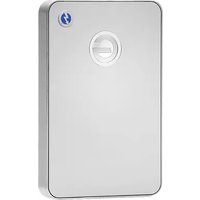
RAID with Thunderbolt - External hard drive G-TECHNOLOGY - Free user manual and instructions
Find the device manual for free RAID with Thunderbolt G-TECHNOLOGY in PDF.
Pick your language and provide your email: we'll send you a specifically translated version.
| Product Type | External Hard Drive with RAID |
| Brand | G-Technology |
| Model | RAID with Thunderbolt |
| Connectivity | Thunderbolt (up to 20 Gbps) |
| RAID Levels Supported | 0, 1, 5, 10, JBOD |
| Drive Bays | 4 (3.5-inch SATA) |
| Maximum Capacity | Up to 24 TB (with 6 TB drives) |
| Dimensions (H x W x D) | 9.5 x 7.5 x 6.3 inches (241 x 191 x 160 mm) |
| Weight | 5.0 lbs (2.27 kg) |
| Power Supply | External AC adapter, 100-240V |
| Cooling | Built-in temperature-controlled fan |
| Enclosure Material | Aluminum with heat-dissipating fins |
| Compatibility | Mac and Windows (reformatting required for Windows) |
| Software Included | RAID Manager utility |
| Warranty | 3 years limited |
| Maintenance | Keep vents clear; clean exterior with dry cloth |
| Security | No hardware encryption; software-based password protection available |
| Repairability | Not user-serviceable; contact G-Technology support |
Frequently Asked Questions - RAID with Thunderbolt G-TECHNOLOGY
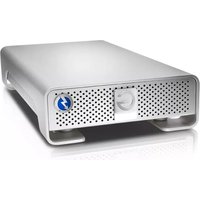
How do I set up the G-Technology RAID with Thunderbolt for the first time?
Connect the drive to your computer via the Thunderbolt cable. Then use the included RAID Manager software to configure the RAID level (e.g., RAID 0 for speed, RAID 1 for redundancy). Format the volume using Disk Utility (Mac) or Disk Management (Windows).
Can I use this drive with both Mac and Windows?
Yes, but the drive comes preformatted for Mac OS Extended (HFS+). For Windows use, you'll need to reformat to exFAT or NTFS. Note that reformatting erases all data.
What is the difference between Thunderbolt and USB?
Thunderbolt offers faster speeds (up to 20 Gbps) and can daisy-chain devices, while USB typically maxes at 10 Gbps (USB 3.1 Gen 2). This drive uses Thunderbolt only; no USB port is present.
How do I change the RAID configuration?
Open the RAID Manager application. Select the drive, choose a new RAID level, and apply. Important: Changing RAID will erase all data on the drive. Backup first.
What should I do if the drive is not recognized by my computer?
Ensure the Thunderbolt cable is firmly connected. Try a different Thunderbolt port. Restart your computer. If still not recognized, check in System Information (Mac) or Device Manager (Windows). Update Thunderbolt drivers.
Is the drive hot-swappable?
No, the drive is not hot-swappable. Always power off the system before connecting or disconnecting the Thunderbolt cable to avoid data corruption.
Can I replace a failed hard drive myself?
The enclosure is not user-serviceable. Opening it voids the warranty. Contact G-Technology support for repair or replacement options.
How do I monitor drive health?
Use RAID Manager to check drive status and S.M.A.R.T. health. The software will alert you if a drive is failing. Regular backups are recommended.
What is the noise level of this device?
The built-in fan produces a low hum during operation. In quiet environments, it's audible but not intrusive. The drive may also emit occasional clicking from read/write activity.
How long is the warranty and what does it cover?
G-Technology offers a 3-year limited warranty. It covers defects in materials and workmanship. It does not cover damage from misuse, modification, or accidental drops.
User questions about RAID with Thunderbolt G-TECHNOLOGY
0 question about this device. Answer the ones you know or ask your own.
Ask a new question about this device
No questions yet. Be the first to ask one.
Download the instructions for your External hard drive in PDF format for free! Find your manual RAID with Thunderbolt - G-TECHNOLOGY and take your electronic device back in hand. On this page are published all the documents necessary for the use of your device. RAID with Thunderbolt by G-TECHNOLOGY.