
Note Air 2 Plus - E-reader Onyx - Free user manual and instructions
Find the device manual for free Note Air 2 Plus Onyx in PDF.


| Product Type | E-reader / E-ink Tablet |
| Brand | Onyx |
| Model | Note Air 2 Plus |
| Display | 10.3-inch E Ink Carta 1250 |
| Resolution | 1872 x 1404 pixels (227 PPI) |
| Processor | Qualcomm Quad-core 1.8 GHz |
| RAM | 4 GB |
| Storage | 64 GB (microSD slot available) |
| Operating System | Android 11 (customized) |
| Connectivity | Wi-Fi 802.11 a/b/g/n/ac, Bluetooth 5.0 |
| Ports | USB-C (OTG support) |
| Battery | 3700 mAh; up to weeks of typical use |
| Dimensions | 249 x 176 x 5.8 mm (9.8 x 6.9 x 0.23 in) |
| Weight | 420 g (14.8 oz) |
| Front Light | Adjustable warm and cold light with brightness control |
| Stylus | Wacom electromagnetic resonance (EMR) stylus, no charging required |
| Supported Formats | PDF, EPUB, MOBI, TXT, DOC, HTML, CBZ, CBR, etc. |
| Audio | Built-in speaker and microphone for note recording and voice |
| Cleaning | Use a soft, dry microfiber cloth; avoid liquids and abrasives |
| Safety | Do not expose to water, extreme heat, or drop; use only supplied accessories |
| Spare Parts & Reparability | Replacement stylus tips and USB cables available; professional repair recommended for internal issues |
| General Information | Includes user manual, USB-C cable, stylus, and quick start guide; warranty period varies by region |
Frequently Asked Questions - Note Air 2 Plus Onyx
User questions about Note Air 2 Plus Onyx
0 question about this device. Answer the ones you know or ask your own.
Ask a new question about this device
Download the instructions for your E-reader in PDF format for free! Find your manual Note Air 2 Plus - Onyx and take your electronic device back in hand. On this page are published all the documents necessary for the use of your device. Note Air 2 Plus by Onyx.
USER MANUAL Note Air 2 Plus Onyx
BOOX NoteAir2
Mighty E-ink Tablet
User Manual
Contents
- Standard Accessories....3
- Safety Guide......4
- Product Views....6
- Main Interface....9
- Library....27
- Reader.... 39
- Store 87
- Notes......90
- Storage....118
- Apps....122
- Settings.... 158
- Specifications....180
- Declaration....181
1. Standard Accessories
(1) BOOX NoteAir2 x1 (2) Stylus Pen x1 (3) Type-C Cable x1 (4) Quick Start Guide x1 (5) Warranty Sheet x1
Optional Accessories (purchased separately)
(1) Adapter (2) Protective case
(Note: The E-books in the following illustration are not pre-stored)
2. Safety Guide
Please read the Safety Guide carefully before you start to use the device. Contact your BOOX retailer if you have any technical problems, or you do dial our official service line at 4008-400-014 or 4008-860-830.

Screen protection
The device is equipped with an E-ink screen, which is very fragile. Please have no shocking, squeezing, pressing against the screen, or dropping the device from a higher place. If the screen is already broken, stop using it and contact a professional or other qualified staff to replace the screen you. Please don’t dismantle the device without our permission.

Standard accessories
Only the battery, adapter, and other accessories meeting our standard safety rules can be used for the device. For details, please refer to Product Specification. We will not be responsible for any damage caused by incompatible accessories.

Stay away from liquids
The device is not waterproof. Don’t expose the device to a humid environment or use it in the rain. Please keep it away from any corrosiv liquids.

Don't dismantle the device
Please don't dismantle the device in case of any damage.
Inappropriate battery model may cause explosion. Please contact official after-sale team for battery replacement if needed. Users shall undertake the responsibility and deal with the obsolete battery if users replace batteries themselves.

Using environment
The using environment of the device is 0° C-50° C .
3. Product Views
Front View
Left-side View
Button Function
| Power/sleep Button | Press the power button to turn on the deviceLong-press the power button f2rsecs, then select “Power off” in the menu to turn off the devicePress the power button and release quickly to let the device goes into sleep modePress it again to wake upLong-press for 10 secs to force shutdown |
| Microphone | Record voiceRecognize speech |
| Type-C Port | Connect the device with PC to transfer data or charg device.Support Type-C earphoneSupport OTG USB drive |
4. Main Interface
The main interface contains a system bar, content area, and function area. The function area contains certain modules.
Double-click icons in function area can return to the main page of the specific module.

System Bar

This section displays the current state of the device, including: Time, Notification, Refresh Mode, Wi-Fi Connection, Battery Usage. It is only for status indication.
Split Mode (default):
Pull down "Notification Center" from the left side and pull down Control Panel from the right side.
Classic Mode:
Pull down both Notification Center and Control Panel at the same time.
Notification Panel
This center contains information such as USB connection notifications and third-party push notifications. Tap a notification to jump to the corresponding app.

Control Panel
This panel contains Date and Time, Wi-Fi, Bluetooth, E Ink Center (swipe up from the screen bottom to call it out), Brightness adjustment, and Volume adjustment. The above-mentioned items are permanent and cannot be removed or edited.
Screen orientation, Hand Touch On/Off, Screencast, Screen Record, Split Screen, BooxDrop, and Feedback are optional items. You can edit them.

E Ink Center
Open it from Control Panel or swipe up from the bottom to open it. This section includes Dark Color Enhancement, Light Color Filter, Refresh Modes (System), Shortcuts, etc.

Refresh Modes
The system-level Refresh Mode takes precedence over the application Refresh Mode. That is: when the system is set to Normal Mode, the application uses its own refresh settings; when the system is set to other modes, the applications will use the system's refresh mode.
There are 4 Refresh Modes:
Normal Mode (Default): Good display effect, suitable for ordinary text reading.
Speed Mode: Slight ghosting and aliasing effect, suitable for thumbing through eBooks with text and images.
A2 Mode: Slightly heavier ghosting and aliasing effect, suitable for browsing images and text by quick sliding.
X Mode: Heaviest ghosting and aliasing effect accompanying detail loss, suitable for browsing websites and video playback.
Use A2 Mode by default for scrolling
After you change the Refresh Mode, you can change contrast for a better
display effect.
The color model does not support X Mode.
Dark Color Enhancement
You can deepen the darker color of the page to black, which is generally used to enhance the foreground color, or the light-color page that needs to be darkened such as color icons, PDFs with poor scanning quality, etc.

Light Color Filter
This can dilute the lighter-color page to white. It is generally used to bleach the background color;

Wi-Fi Setting
When using at the first time, you should enter into the Wi-Fi setting interface to get a accessible connection. Then click the icon to turn on/the auto connection.
Bluetooth Setting
When using for the first time, you should enter into the Bluetooth setting interface to match a device you want. The matched earphone, page turn can be auto-connected by clicking the icon. Certain devices do not support auto connection after disconnected.
Rotation
Easily change the orientation of the screen by clicking the direction you want.
Function Area
The function area includes Library, Store, Note, Storage, Apps, and Settings.
The default Homepage is Library. Double-tap the Navigation Ball to return to the Homepage.
Users can go to Settings / More Settings to set any of the other functions pages as a default Homepage.
Content Area
The contents are sorted by time by default. The contents include the following items.
Library
All books in supported format from internal storage are displayed here.
The scanning path can be modified via Library Settings.
Store
Enter into an online eBook store. Users can view more book information and make a purchase. Purchased books will be added to the list of Library.
Note
Users can create a new note here, create folders for sort management, export note files to third-party apps.
Storage
All folders from internal storage will be displayed here. Users can manage documents and folders from the page.
Apps
All third-party apps are displayed here. Users are allowed to manage or optimize the apps.
Settings
The list of system settings helps to manage the device.
ScreenCast
- This only supports Windows10. Win7/XP and MacOS are not supported currently.
- Please make sure that the computer itself supports the screencast function, which can be checked in the computer system settings:
System-Projecting to this PC.
Please pay attention to the 4 related settings, which will affect the result of searching the computer on the device side and the confirmation of the connection request;
This computer can support the state of screen projection

This computer does not support screen projection

- Please make sure that the computer and your BOOX are in the same Wi-Fi environment.
If a desktop computer is connected to Wi-Fi via wireless network card, please confirm whether it is supported in step 2.
Some computer configurations and wireless network cards do not support this function;
- On the device side, select screencast from the system drop-down list. Then the automatic search will start, and the name of the computer will be shown when found.

- In the search window, select the found computer. If there are multiple supported computers, click Settings to enter the list of supported computers. Then select the computer that you want to project to from the list.
- After you select the computer that you want to project to, the computer will pop up a notice to confirm whether to accept the projecting request;
- After you confirm it, it will automatically connect and the screen will be mirrored successfully;

If the "Unable to view protected content on this device" appears on the screen, the connection may be unsuccessful. Please disconnect the device, and request the screencast connection again.

- When the devices are connected, please tap the system bar of the device - Screencast again, and select "disconnect". The computer can disconnect the connection.
If the computer supports screencast but cannot receive the request, please restart the computer and try to reconnect again and check whether the computer configuration rejects the request (see step 2).
Screen Record
Long press the Recording button on the screen to enter the Screen Recording settings. You can customize Resolution, Image Quality, Screen
Orientation, Sound Source, etc.;
When you use Screen Recording for the first time, you are recommended to adjust the relevant settings first.

Tap the Screen Record icon to open the floating window of screen recording. Tap the "Start" icon to start recording and tap the Close icon to stop recording;
After you stop recording, a thumbnail will be displayed in the upper right corner, and you can tap it to play or share; long press the floating window to drag it around on the screen. The floating window will not be recorded into the video.
After the Screen Record is enabled, the floating window will always stay on the upper layer of the screen. You can create new screen recordings continuously. If you need to close it, you can manually tap X to close it.
The Recordings' format is MP4 and the save path is:
Storage/Movies/Captures

5. Library
The library only displays E-book documents in supported formats in the storage. Book cover thumbnail is displayed by default. E-books are sorted by the creation time.
On the upper right working area of the Library, users can search, create new bookshelf, manage books in bulk, check Reading Statistics, pop up the drop-down menu (including Filter, Refresh Library, Scan Covers, Library Setting, Switch to List View)...etc.

Library Display Switch
Click on these icons to switch the library display. By default, it auto-scans and loads all the supported documents in specified paths, sorted by a specified way.
Another one is to display the content based on the structure of storage. The icons change after clicking on it.

Filter & Sort
By default, it shows all books in descending order.

Refresh Library
“Refresh Library” gets all documents in supported formats scanned and rebuild library list. This function does not delete the reading history.
Create Sub-library
It helps to manage books by file manager.

Library Settings
It supports custom scan path. You can set a certain storing path as Automatic Scan.
After the scan path is set, the Library will be reloaded. The books that are not in the scan path will be removed. If you need to read the books, you can find the original file in the storage.

Sub-library Attribute
Long-press on sub-library cover to view more information about sub-library. To delete or rename sub-library are allowed. When deleting sub-library, the containing books will be moved to Library and will not be deleted with the sub-library.
E-book Attribute
Long-press on book cover to view more information about E-book name, author, format, size, reading progress, book detail (only available for the E-books of Store), open way, Lock, rename, move (to sub-library) and delete. One E-book only can be added to one Sub-library.
As for the books purchased from the Store, it is allowed to view book detail by jumping to the Store page.

Clear settings including: clear password default settings, clear reading data, Clear Cache, Clear book Cover.

Lock (Reading Password)
User can add (reading) Password to lock each file in order to protect personal reading data.
The Password is used to open the file, but it only applies to the same device and NeoReader. If you copy and export the file to other devices or Apps, the Password will become invalid.
You can use the same Password as the Screen Lock. Or you can set a different digits Password.

Digits Password only supports one Password. After you have set the digit Password, you do not need to set another digits Password and only need to add the Lock.
Reading Password supports individual setting or setting in bulk (setting in bulk is to add Locks). Currently it does not support adding Passwords to files directly.
If you choose to use this Password Setting by default, you can add Password to other files quickly and do not need to re-select the Add Let Option every time after the Password is set for the first time.
Reading Statistics
This page includes the Reading Time of Today, The Books that Have Been Read, The Books that Have Been Finished, Total Time, Highlights and Annotations, and Recently Finished Books;
The average reading time this week is based on 7 days and calculates the average daily reading time during the week;

Average Reading Time Distribution includes the reading time of all days since Reading Statistics is turned on.
Under Reading Statistics, only highlights and annotations can be jumped to and the books that recently have been finished can be opened. Other data is only for analysis purpose.
The reading data of each device can only be available on the same device. You cannot check the statistics of this device on another device.
Share (Third-party App)
This supports sharing files through third-party App. The sharing path is automatically obtained according to the installed Apps.

6. Reader
Tap any E-book cover to open an E-book. Full-screen reading without showing status bar is set by default.
To pull down from the top of the screen can call out the status bar.
To tap on the center of the screen can call out the menu bar for switching among different documents or other functions

Floating Toolbar
You can choose to activate the Floating Toolbar for the first time when you open a file. Or you can go to Settings / Floating Toolbar Settings to enable it and customize the function buttons in the Floating Toolbar.

The Floating Toolbar includes: Hide, Scribble, Enable Palm Rejection, Menu, Prev Page, Next Page, Cancel (Progress).
Long press on the Floating Toolbar, you can drag it around on the screen. You can expand or contract the Toolbar to the edge to avoid covering any text on the screen. When you need it, just swipe from either side of the edge to the other side to expand it.
When the page is zoomed in, the Floating Toolbar would automatically expand proportionally in order to manage the zoomed-in page better.
Under zooming status, single tap on the screen is set for turning sub-pages of each page (each original page will require several time page-turns to be completed). But tapping the virtual page-turn buttons of the Floating Toolbar is set for turning the whole original page.

You can disable the Floating Toolbar by going to Settings – General Settings. When it is contracted to the edge, you can swipe from either side of the edge to the center of the screen to expand it.

When palm rejection is enabled from the Floating Toolbar, it only applies to the reading document. The Floating Toolbar still supports hand touch, but it can remove the interference of hand when you write on the reading document.
Word Menu
Long-press on the word to pop up dictionary dialog for look-ups.
English word recognition and look-ups are supported.
Through the drop-down list on the top right of the dialog, the dictionary can be switched to others.
Users can download and install the dictionary themselves. Put dictionary file on the path root directory\dicts\xxx (e.g., Storage\dicts\English-French), or download dictionary online directly.
Storage\dicts\English-French), or download dictionary online directly.
The dictionary is available for use after installation.
Tap on any position out of the dialog to exit the dialog.

Long press on any word and drag to select the text you want to mark. The highlight is set by default for selected text. Users can switch among highlight, underline, and others. The color highlight can be black or grey. The mark setting remains after a change. The marks before the change will not be affected.

Tap on any position out of the dialog to exit the dialog.
Choose "Annotation" to pop out a text box to add notes if needed.
OCR (Beta Version)
Only supports pages in image formats PDF, CBR, CBZ, DJVU, and PNG. Recognize one page only each time.
Choosing horizontal or vertical according to the document layout can improve the recognition accuracy.
Recognize 5 times a day when you are not logged in to your ONYX account.
Recognize 10 times a day when you are logged in to your ONYX account.

You can long-press text to add annotation and lookup dictionary on the recognized pages.
If some individual characters are not recognized correctly, you can switch to the original text in the annotation pop-up window to correct them, and manually modify the recognized text content (Do not change the original page text).

Pages recognized by OCR show the recognition mark in the upper right corner, and the recognized pages can be viewed in the
Directory-Bookmark, which is convenient for quick locating and jumping. Tapping the recognition icon again will clear the OCR content.
Scribble Toolbar
The Scribble Toolbar is floating on the screen. You can long press it and drag it around.
The stylus is in handwriting state by default, and you can switch it on in the top Toolbar.
The Scribble Toolbar needs to be called through the reading menu on the bottom or called from the collapsible Floating Toolbar.

Brushes and Erasers
When in erasing state, you need to manually switch back to handwriting state to continue writing.
Colors
Only black, gray, and white colors can show their original colors on BOC. Other colors are shown in black on BOOX and will be shown in their original colors when exported to PC.
Embed PDF
The handwritten contents on the PDF will be automatically embedded into the original file when you exit the PDF file. You can view and edit them with other apps such as Adobe acrobat, WPS, and Chrome on PC. When copying the embedded files to other BOOX, you still can view and edit files.
Embed PDF:
You can manually save the files in the Scribble Toolbar when the files are still open.
Save as PDF :
allows you to export in a new PDF file and keep the files with same handwritten content.

Non-PDF files do not support data embedment. You can only check relevant data on BOOX devices. When the files are copied or moved to other locations, they are identified as different files without relevant data. But changing file names do not impact the existing data.
PDF files with embedded data
A. Changing file names, copying or moving to a different location will not impact the recognition of the embedded data. B. When the PDF files with embedded data are divided into multiple PDF files using other tools on PC, the new files will be identified as different files and will not import the embedded data C. When the PDF files with embedded data are edited and saved using other tools on PC, the files will identified as different files and will not import the embedded data. D. When multiple PDF files are merged into one file using other tool on PC, the new files will be identified as different files and will no import embedded data.
Note: If your BOOX is in handwriting state when it is connected to PC USB, please disconnect USB connection to make sure data update normal. You can connect BOOX to a PC again via USB when PDF files are saved
PDF files without embedded data
When a new PDF document is opened, it will automatically detect and import the local existing data according to the document ID and storage path.
For example: after you delete 123.pdf with embedded data from the local and put the original 123.pdf file (without data) back, there are the following situations:
A. If you put the file back to the same saving path, the existing embedded data will be automatically imported. B. If you put it back to a different saving path, the existing embedded data will not be imported. C. If you change the file name and put it back to the same saving path, the existing embedded data will not be imported. D. If you put another file with the name 123.pdf to the same saving path, the existing embedded data will not be imported.
Handwriting recognition
Double-tap the handwritten text or shapes to start AI Recognition.
In the state where hand touch is disabled, double-tap can also be used to initiate the AI Recognition.
The text and shapes with 0.5cm spacing and straight lines with 0.3cm spacing can be recognized as one content area. If the spacing exceeds either of the two spacings, the content will be recognized as a different content area.

The boxes or lines near the text can be converted into underline and highlight after being double-tapped. That offers great convenience to add highlights to the converted content.
If users do not want it to be converted into highlights, you can disable this function from Handwriting recognition settings. The handwriting content will be only converted into images.

Converted to adding Bookmarks
Use stylus to click the upper right corner to add a bookmark. This area does not support page-turn by stylus.

Page-turns
Users can use the stylus to tap the 3 corners of the content area for turning pages. This offers convenience to page-turn when hand touch is disabled.
This function is on by default.

Bottom Menu Bar (PDF format)
This bar includes settings for TOC, Progress, Layout, Contrast, and Navigation Split-Views.
TOC
TOC contains Table of Contents, Bookmarks, Annotations, and Scribbles.
TOC supports a three-level hierarchy. The current level is underlined. Tap any level to jump to the corresponding page.
Tap anywhere outside the TOC to exit.

Bookmarks
Without opening the menu, bookmark the current page by tapping a tag in the top right corner of the screen. Tap it again to remove the bookmark.
Bookmarks can be viewed under Doc > Bookmark, where users can delete them.
Tap any bookmark to jump to the corresponding page.
Annotations
All highlighted, underlined, or annotated content will be listed under Doc > Notes for further searching, editing, and deleting.
Tap any item in the list to jump to the corresponding page or content.
All contents on the Annotation page can be exported in TXT format.
Exported files are saved in the directory Storage\Note\ (with the same name as the source file).
Scribble
All scribble and sidenote can be viewed under the page of Doc-scribble for further searching and deleting.
Jump to the corresponding page by tapping any of the pages.
All scribble contents can be exported in Png format and saved under the same directory folder Storage\Note\ (same name as the source file).
Progress
It displays the chapter name (book name if no chapter), page progress, last/next chapter, page number, slideshow, undo, and redo.
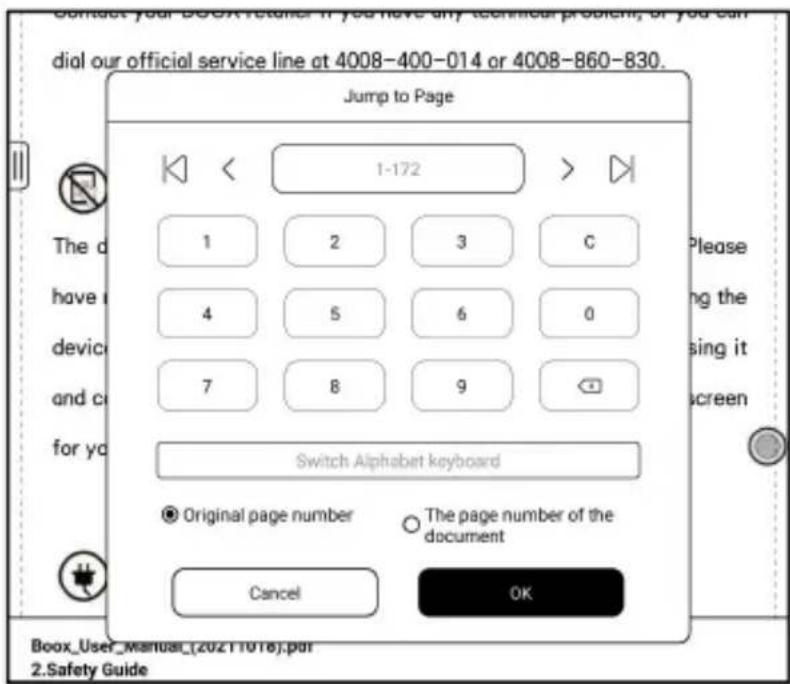
Tap on the page number to enter a quick-flip interface. Click the page numbers again and input number to jump to the page directly.
PDF files support for searching and using the files’ own page number (custom page number type)
Format
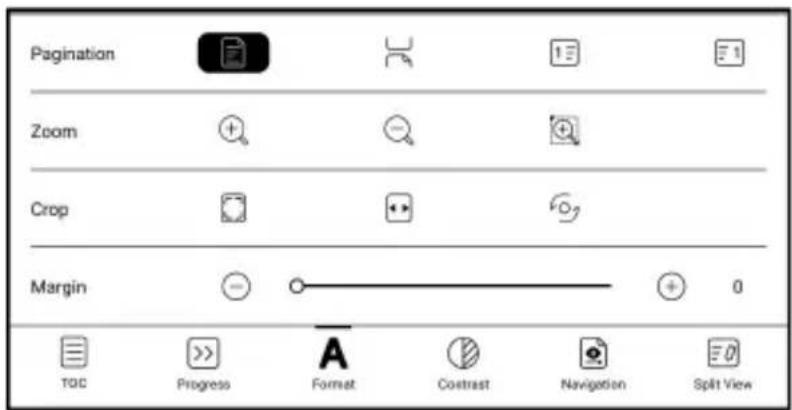
This includes settings of Paging, Zoom, Crop, and Margin.
Pagination:
There are options of Single page, Double-page 1, and Double-page 2. Double-page mode only supports horizontal screen.
Zoom:
Zoom in, zoom out, and partial zoom are supported. Users can also pinch fingers together or apart to zoom out or in on the reading pages.
When a single page exceeds the display area of the screen after zooming you can long press and drag the display area around. Single tap is to turn sub-pages. You need to use the virtual page-turn buttons to turn the
original whole page;
Crop:
Auto-crop according to the margin set by users.
Margin:
The empty space at the sides of book content for auto crop.
Margin:
The default reserved blank area during automatic cropping. You can manually modify the automatic cropping area.
Contrast

Embolden only applies to text in PDF.
Sharpen Image can sharpen the images.
Watermark Whitening can whiten the light-colored images or background in the pages.
Dark Color Enhancement applies darker display to either the whole pages or text only.
Navigation
Navigation allows users to have options of Reset, Comic Mode, Article Mode, and More Settings including Crop, Split, and Subpage Order.
Comic Mode: the screen will be divided into four subpages and the reading order is upper right - upper left - bottom right - bottom left.
Article Mode: the screen will be divided into four subpages and the reading order is upper left - bottom left - upper right - bottom right.

More settings
Manually adjust the settings of area cropping, page split, and subpage order.
Crop: Manually select the cropping area for single or double pages.
Split: Split the pages into specified subpages in different ways.
Order: Decide the initial position and reading order for subpages.

Reflow
Reflow now supports both scanned and text versions.
Reflow is only available for PDF/DJVU/CBR/CBZ documents.
Scan Type
Reflow allows users to further customize the layout of documents including: Line Spacing, Margin, Text Direction, Font Size, Columns, and Skew Correction (for italic documents).

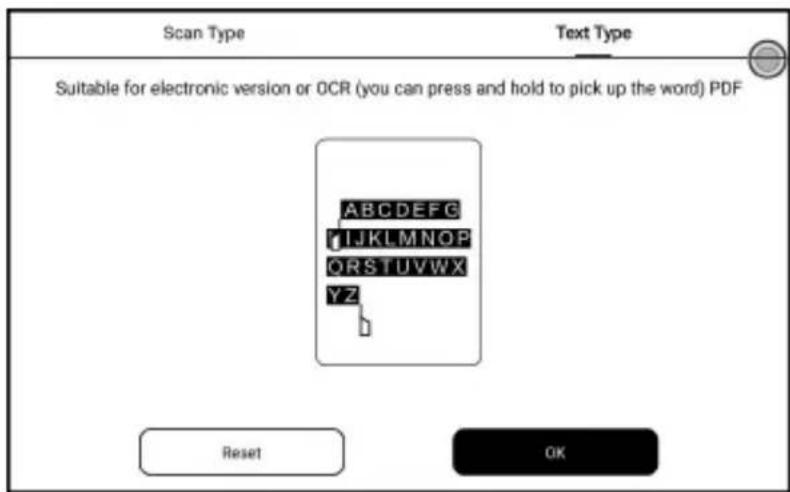
Text Type
Applicable to the digital PDFs or PDFs that have been recognized by OCR (you can press and hold to look up words) PDF. The reflowed files can use the features of flow documents.
Split View
It allows to respectively open current document, two different documents or one document & Note at the same time, Split-View (Doc & Translation).
Split-View now supports both Horizontal Mode and Vertical Mode. You can swap sides of the two windows.

Current Doc (same doc)
The two documents are totally independent. Users can respectively turn pages and save them.
The scribble, highlight, annotation, bookmark would be synchronized to each other after page refresh.

Different Docs
Choose a document different from the current document.

Similar to the Current Doc, these two documents can be respectively operated. The display is also swappable. For PDF document, please try to swap them if part of them is not writable.

Doc & Note
Likewise, they are swappable.
And the Note will be created with a name same as the document. It associates with the document and can be edited in Note app.
Every document can only have an associated note. Changing the name of the note does not affect the association.

Split-View (Doc & Translation)
This supports Baidu Translate and Bing Translate and provides full page translation.
This also supports multiple target languages;
Your BOOX needs to stay connected with internet;
Some translation engines have a limit on the number of words per day.
Please see the tips on the translation page for details.
Bottom Menu (other formats)
This includes settings of TOC, Progress, Format, Contrast, and Split View and supports flow formats such as EPUB, TXT, MOBI, AZW3.
V2 Engine
Some flow formats (ePub, mobi, azw3, txt, word, jeb, html) use V2 engine by default. Go to Reading Settings/Other Settings to switch to NeoRead. V2 engine supports the original layout of the document, including font, line spacing, margin, graphic typesetting, indentation, etc.

After switching to the V2 engine, the document will be closed automatically, and the V2 engine will be used when you reopen the files. If you need to switch back to NeoReader, you can cancel the V2 engine and reopen the document.
V2 engine does not support syncing data from NeoReader such as Bookmarks, Annotations, and Handwritten notes.
Progress
The document needs to be paginated again after switching to V2 engine, font and spacing adjustment. You can check the pagination progress in the reading Menu>Progress. After the progress bar is loaded, it means the pagination is completed. You can drag the progress bar to jump pages after the pagination is completed.

Format
The settings include Font Face, Display and Spacing.
Loading font face in the directory Storage\fonts is supported.
The settings for font size, font face, contrast, bold, spacing work on all newly opened documents, but not on the documents before setting.

Screenshot
Diagonally tap on two corners of the screen to capture the screen in PNG format. This function is only available on the reading page.
The screenshot will be saved locally, or shared by scanning a QR code. The save path is Storage\Screenshots.

Refresh
Tap the hamburger menu located at the upper right corner to choose Refresh and other related settings of refresh.
Regular refresh and partial refresh are by default.
When scrolling the page, speed mode is by default.

Settings
There are General Settings, Touch Settings, TTS Settings, Export Settings, Screenshot Settings, Floating Toolbar Settings, Other Settings, and Version Name.
| < Settings Global Settings > |
| PDF Settings > |
| Touch Settings > |
| TTS Settings > |
| Export Settings > |
| Screenshot Settings > |
| Floating Toolbar Settings > |
| Handwriting Recognition Setting > |
| Other Settings > |
| BOOT: New Reader Version Number 33855 - 9118d471ff4 (33855) |
General Settings
There are Enable page close reminder, Enable system status bar, Enable reader status bar, Enable multiple documents, Show file borderline, Enable Floating Toolbar, Show hyperlink, Show bookmark position, Apply certain options to all documents, and Annotation Font Size Setting.

Touch Settings
Users are able to customize the touch settings for different areas. There are six default touch modes that can be chosen, and users can customize more.

TTS Settings
The built-in Baidu TTS is set by default. English is supported. A network connection is required at first use.
Switching to a third-party TTS system is allowed. The built-in TTS settings are not synchronized with the system TTS settings. The system TTS settings work on the third-party TTS by default.

Export Settings
The default storage path is Storage\Note.
The export files can also be saved to the same directory as the source.

Floating Toolbar Settings
This page offers General Settings of Floating Toolbar, Scribble Settings, and Handwriting Recognition Settings.

General Settings
It is enabled by default and can be turned off manually. After disabled, it can no longer be called out.
It can be customized whether the indicator is displayed after it is collapsed. Call out the Floating Toolbar by swiping from the screen edge. The Toolbar's size, display style, and function buttons are customizable. Custom function buttons support up to 11 in horizontal style and up to 10 in vertical style.
Press and hold the function button icon to display the definition of the function button.

Scribble Toolbar Settings
The Toolbar's size, display style, and function buttons are customizable.

Handwriting Recognition Settings
It is enabled by default and can be disabled manually. After disabled, it no longer supports double-tap recognition.
The underline can be recognized as highlight first. It is enabled by default, and it can be turned off. After it is turned off, it is only recognized as an image.
You can set the recognition of hand-drawn symbols as adding bookmarks. It is disabled by default and can be manually enabled. After enabling, double-tap recognition of the symbol will automatically convert to adding bookmarks.

Other Settings
This settings page includes “Open ePUB documents with V2 engine”, “Enable Pinch-to-Zoom”, and “Enable Turn pages by swipes”.
When “Turn pages by swipes” is disabled, you can only turn pages by tapping on the screen. This can avoid accidental page-turning when you are taking handwritten notes.

7. Store
In non-Chinese languages, the Store offers free publications and E-books from the Internet.

Category
Books can be filtered according to different categories.

Book Detail
Click a book cover to open the book detail. For specific book information, click “Full Edition Download” to download the book, and then you can see this book cover in the Library.

8. Notes
This includes Recent Notepads, Local Notepads, and Reading Notes.
Recent Notepads include the 12 Notepads that have been opened recently, including local notepads and reading notes.
The Reading Notes include the notes created under Split View when you are reading books.

Cloud Sync (in bulk)
Notes Cloud Sync requires logging in to an Onyx Account.
Sync in the background. After you are logged in to ONYX account, the notes will be automatically synced from and to Cloud when you exit a Notepad.
Sync in bulk, including Notes list, all Notes. Users can manually sync all notes in bulks.
Cloud Sync includes two-way sync between Cloud end and BOOX device When there is any change to the Notes on either end, the other end will sync all the changes.
The deleted Notepads can be recovered within 10 days from website trash bin. If you delete the notepads by mistake, you can recover them from the trash bin, which will be emptied after 10 days.
After Notes are synced, users can check the synced notes from push.boox.com by logging in the same Onyx Account.
Currently PDF templates cannot be synced and only PNG templates can be synced.
Other accounts Sync
When third-party accounts are bound, the notes will be automatically synced when you exit a Notepad. Alternatively, you can sync notes by tapping the Sync icon on the top bar.
Third-party accounts only support one-way sync and do not support syncing notes back to BOOX devices. You do not need to log in to ON account.
Sync Results
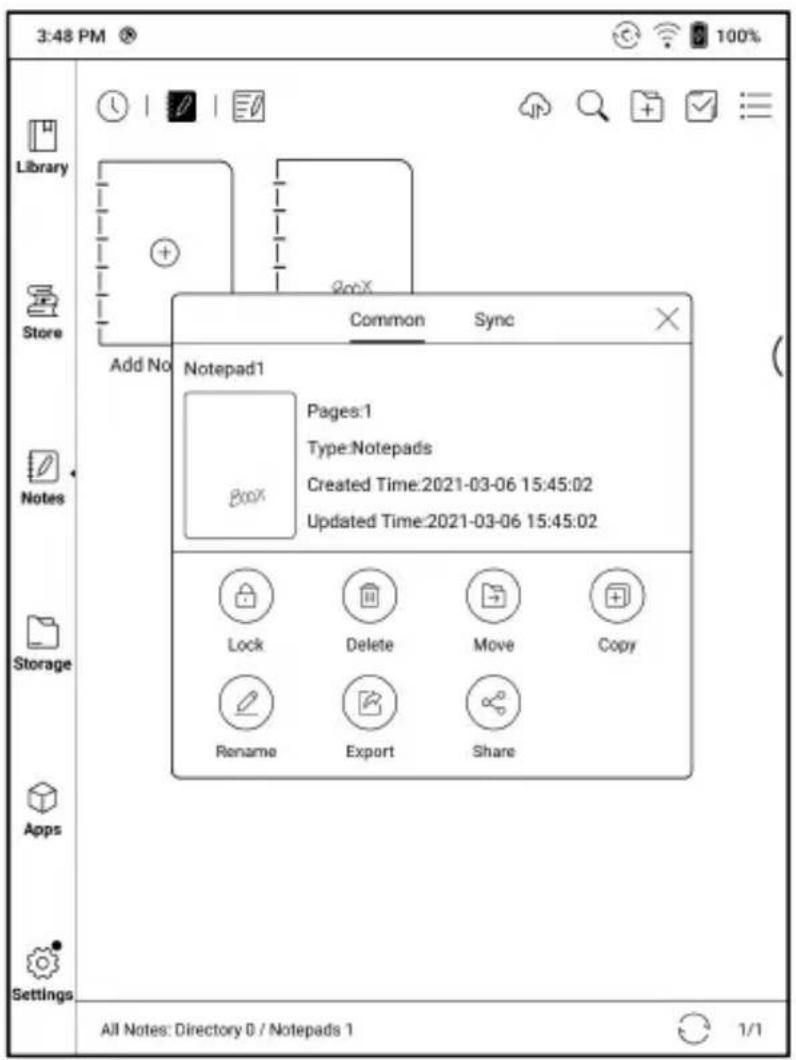
Long press the cover of the Notepad to pop up the Property Window and check the synced accounts and sync result list.
Tap the sync icon to sync again for the accounts with abnormal sync.

More Options
This includes Sort By, List Mode, Sync Settings, and Option Settings.

Notes Sync Setting
This includes ONYX Cloud Notes and export to other accounts.
When you export the Notes to third-party Accounts, the Notepads will be in PDF format and cannot be edited.
If you export your notes to other bound accounts, the notes will be automatically synchronized to other bound cloud accounts of yours when you exit the Note. The sync icon is only applicable for the ONYX cloud sync.

Backup and Recover
It supports backup and recovery of notes locally and does not support Cloud backup.
Note: The action Recovery will recover the backup data, which will overwrite the current data. Please be careful.

Settings
These are general settings for Stylus Calibration, Account Sync and Backup, AI recognition, Notepad password settings, Show Erasing Trace, Auto-turn on Wi-Fi to sync Notes, Auto-generate PDF documents after exiting Note, Auto refresh after lifting stylus.
If this device is bound with third-party accounts for file sync, and Wi-Fi is connected, the Note files will be auto-uploaded to the accounts with PDF or PNG attachment.
If “auto-turn on Wi-Fi to sync Notes” is enabled for notes sync, the device will connect with Wi-Fi automatically and sync notes to the Cloud when exiting the Note app. If it is disabled, users need to sync to account manually by clicking an upload icon on book covers.
For the “Auto refresh after lifting stylus”, the display would refresh when users lift stylus away from the screen, making the strokes smoother.
Notepad Password Settings
This password is only used for protecting files on the device, not encrypting files. So, the password does not work out of the device. Now this function does not support multiple passwords for one file.
This function supports specific passwords, which are available for all note files. Users can also set a specific password for a single file. Adding and removing passwords are allowed here.
The specific password can be different from the system password.
Separate numeric password allows you to choose whether to add locks to new notepads. If you cancel this option, the new notepads will not be automatically added locks. You need to add them manually later.

The note file has no cover thumbnail after locking.
Long-press the note file to remove and add password in the dialog.
Scribble Interface
Files can be saved automatically and manually when quitting the Note.
Tap on the page number to jump to the specified page quickly.

Layers
This supports template layer, 5 custom layers, hiding and adjusting layer order.
Hidden layers will not be displayed during export and recognition;
Templates can only be added at the template layer, and the template layer cannot be deleted;
You can add 5 custom layers to the inserted images

Templates
The settings of Templates include Scaling, Original image splice, Stretch to cover all, Original size and Fit canvas.
It is recommended to write after the template style is determined to avoid changes in the templates after writing.

Canvas Editor
The default canvas size is 1x1, same as the screen size.
The canvas size can be adjusted to 1x2, 2x1, 2x2 or custom size.
The max canvas size is 2x2. You can customize the canvas size within the max size. You can adjust the canvas size by dragging the canvas.
Canvas adjustment base is located at upper left corner. Drag left or downwards to expand the canvas.
When you switch from the large canvas to the small canvas, the strokes outside the canvas range will not be displayed, but will not be cleared. If the strokes can be redisplayed after you switch back to the large canvas. Canvas Adjustment will cut the redundant blank part of the canvas based on the outermost strokes position.

Horizontal Notepad
The notepad orientation is synchronized with the system rotation direction. When the system is switched to the horizontal screen, the notepads are synchronized to the horizontal screen. The created notepad under the vertical mode will retain its vertical size. The canvas size can be manually adjusted;
The newly created notepad in horizontal mode directly uses the canvas size 1x1;

Brushes
You can add 5 custom brushes. You can set type, color, and line width to each brush. Double tap the icon to expand the secondary menu for more options.

Fit to Canvas and Fit to Screen
When the canvas is larger than the screen (1x1), you can go to Toolbar / Zoom to adjust the canvas size to "Fit-to-canvas" or "Fit-to-screen". Fit-to-canvas: the canvas will be automatically expanded to fit the whole screen. When the canvas is larger than screen, you can long press the canvas to pan it around.
Fit to screen: the canvas will zoom out to fit to screen. You cannot write on the grey area.

Custom Toolbar
Besides the default tools like scribble, erase, fullscreen, select, users can add, remove, adjust other tools on the toolbar.

Erase
In the state of stroke erasing, you need to switch to the brush first and then write.
For the “erase all”, you do not need to switch back to the brush.
Lasso
In the Lasso mode, circle an area on the screen, then users can zoom, move, duplicate and remove the selected area.

Text Input
Users are allowed to key in words on the note by a Bluetooth keyboard. The input box can be moved everywhere.
Users can adjust the font, line spacing, bolding, underline, italic, copy and delete.

Stylus touch for icons is desensitized by default, so it is better to use your fingers to adjust the position of the Navigation Ball;
when using full-screen, tap the square icon to exit full-screen mode.
Insert a Recording
After tapping the Recording icon, the Recording will start immediately.
The recording progress bar will be shown on the top Toolbar. You can
pause the recording. You can take notes while recording.
After stopping the recording, you can save or delete the recording directly.
You cannot restore the recording after you choose to delete it.
The recording window is floating on the screen. You can long press it and
drag it around on the screen.


You can insert more than 1 recording on one notepad page.
Check all recordings at Toolbar/More/Recordings. You can only play recordings in current notepad. You cannot export recordings to PDF to use.
If recordings are saved to local storage, you can export recordings in MI

Insert Image
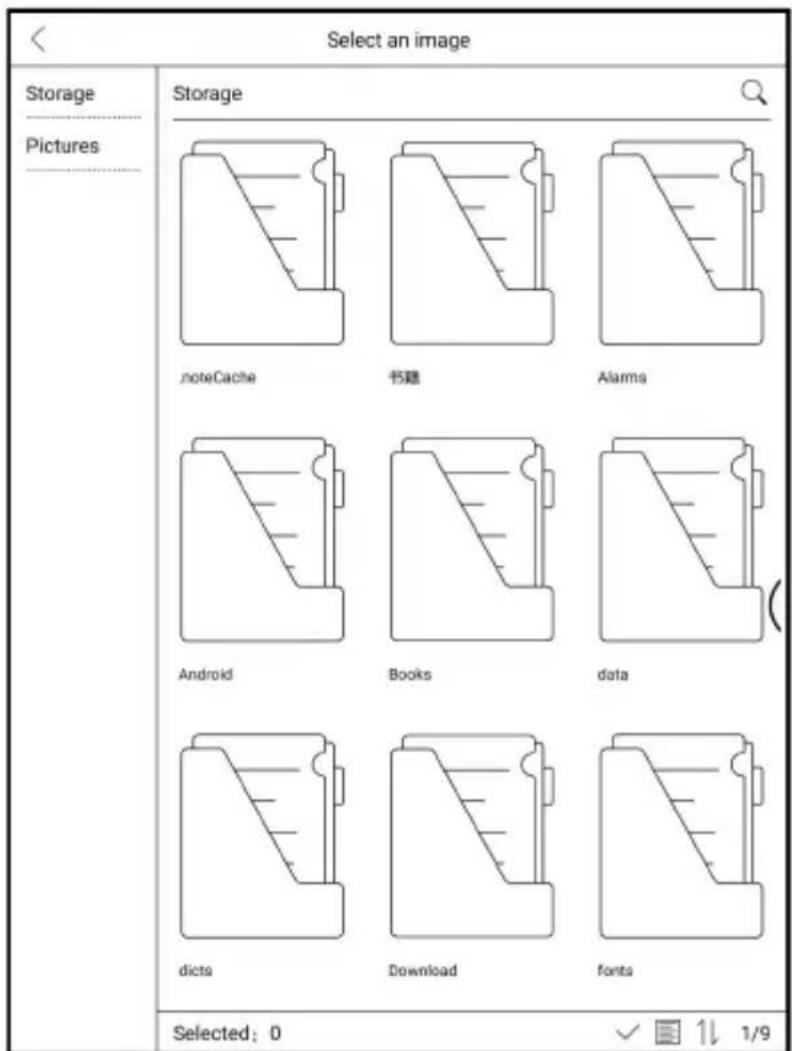
Users can remove, zoom, duplicate the images inserted from the local.
Select the image and then edit.
AI Recognition
Click the icon “AI” to switch to recognize the handwriting text. English is supported. To download the corresponding language package is required for other language recognition.
This function contains original recognition and reflow recognition.
Original recognition only does conversion but not changes the position o words, while reflow recognition reflows words after conversion. Users need to manually add space, line break and font size.

The text flows automatically after reflow. Users can manually make space newline, and font size after that.
The accuracy of recognition depends on how normal the handwriting is.
AI recognition works based on the handwriting. If the handwriting content changes, please re-enter the function to let it convert once again. For saving the converted content, please export it.

Share
This supports sharing all pages (PDF format) and the current page (PNG format);
Supports scanning code sharing of Onyx account and sharing through third-party apps;

Full screen mode of Notes
When you switch to full-screen mode, you can choose whether to display the Floating Toolbar.
When it is collapsed, you can call it out by swiping from the screen edge.
Note: The full-screen mode is an independent note-taking mode. If you exit, you will exit the Notepad directly. If you need a non-full-screen mode, you can switch on the Toolbar;

The default Floating Toolbar only includes Fullscreen, Pen, Color, Eraser, Collapse, and More. You can tap the “More” icon to customize the icons on the Floating Toolbar.

Floating Toolbar Settings
The Toolbar's size, display style, and function icons can be customized.

9. Storage
Recent Files
This section includes Shortcuts and Recently Updated Files, which are sorted in reverse order by time.
All Storage
This section includes Storage path and Categories. Files will be classified according to the file formats, but the original storage location of the file will not be changed;


Long-press the folder to pop up Property Window and choose "Set as Shortcut", which offers quick access to open it.

OTG External Disk
OTG is supported. Users can connect the device with USB drive through Type-C cable. The device will detect USB drive afterwards.
The OTG feature would consume more power since it supplies power to USB drive.
It supports analog and digital Type-C earphones (You can use 3.5mm audio jack converter);

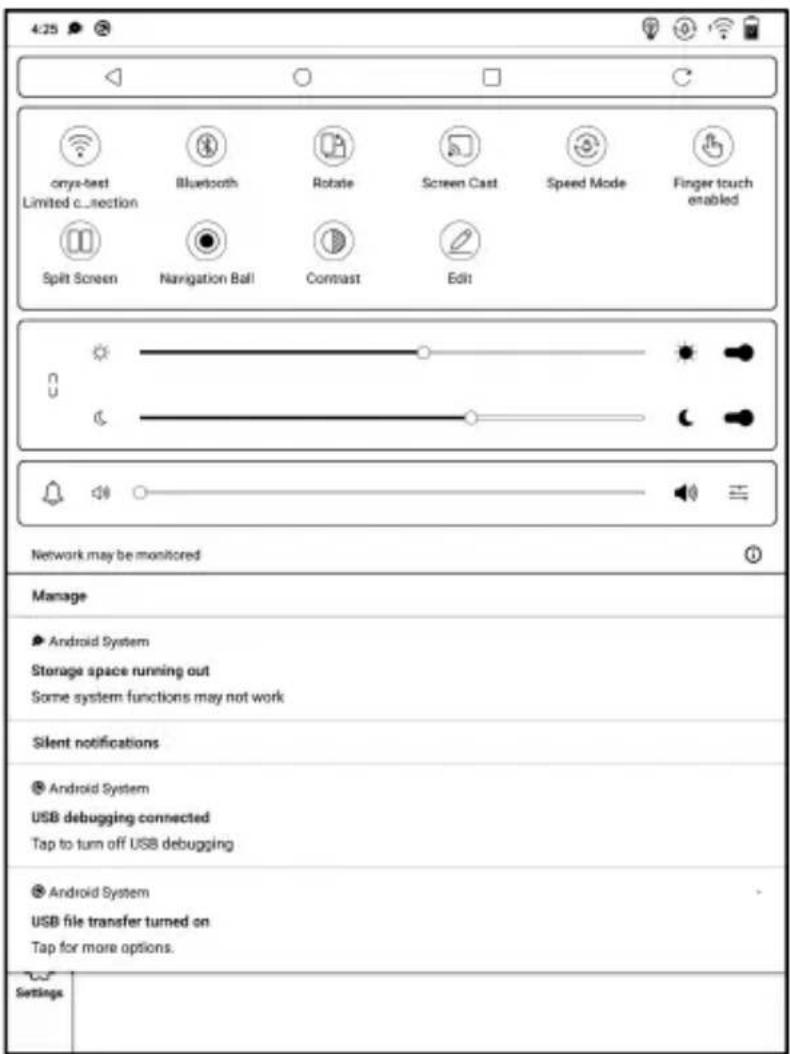
Low storage space warning
Please reserve at least 300M of available storage space to ensure the normal operation of the system and saving related data;
When it is lower than 300M, a warning icon will be displayed in the sys bar, indicating that the storage space is insufficient;
10. Apps
All installed apps are sorted by name by default. You can also sort them time and manually.
Long press an app to pop up options of Uninstall, Manage, Optimize, and Add to a group

App Management
This page includes USB Debugging Mode, Application Info, Location Settings, Auto-start Settings, Refresh Mode Settings, Freeze Settings, Automatically update the Optimization config of third-party apps, Fill in available space automatically, Enable Google Play.

Auto-start Settings
Only applicable to device auto-start. After it is enabled, the applications may take up more storage space and consume more power.
Apps need to monitor the system start. After apps are installed, you need to tap the app icon to start it once.
After it starts successfully, it only runs in the background and will not show in recent running tasks.

Refresh Mode Settings
This allows you to set the refresh modes of third-party apps in bulk.

Freeze Settings
You can obtain the optimization settings of third-party apps with one click and freeze all apps in the background with one click for a better use experience and saving power.

Enable Google Play
If you want to use Google Play, you need to enable Google suite by the following steps:
- Connect to internet. Go to Apps, drop down the menu on upper right corner, select Application Management > Enable Google Play

- Tap “OK” when asked “Do you want to go to the activation page to enable Google Play?” .Then log in your Google account. A note will pop saying “This device is not verified by Google”.


- Go back to App Management page and tap GSF ID. You will go to GS ID application page. Tick Human-machine Authentication and tap “Sign up”. (Google frame ID is automatically obtained and you do not need to enter.)

- When you sign up successfully, there will be a note saying “The device has been registered”

- When the device is connected to internet, Google Play will automatically download the latest version.
Please wait for 10–15 minutes for the Google server to return the verification result
(Due to different regions and network conditions, the actual time to pass certification may vary)
- Without restarting, open Application Management > Google settings > log in to the Google account.


- If it jumps to the login page here, it means it has passed. You can restart the device after logging in to the account.
B. If it does not jump to the protection mechanism page, it means it still hasn't passed. Please wait a bit longer and try again.

- If you wait too long and it still shows that the device is not verified by Google, it means the verification has not passed. Please start again from step 3.
App Optimization
Display

DPI: Adjust the interface size of the app. The default value is 350.
If some content of the app interface has been cropped, you can reduce the DPI value.
If the overall interface size of the app is too small, you can increase the DPI value.
If you've adjusted the DPI value to the minimum, and some content of some app interfaces such as Kobo is still cropped, you can choose to use the app's default DPI.
Bold Font: Embolden fonts of titles, menus, and body text.
Cloud Optimization: Some apps are specifically optimized, and you can retrieve the cloud optimization configuration to obtain better results than local optimization.
Reset All: Reset all modified configurations to the original configurations.
Optimization Switch: When it is turned off, some optimization effects will be canceled, but it won't reset the configurations.
Bleach

Add strokes to text: The text and background on the same layer will not be visible after being bleached together. This setting will add strokes to text and make the text visible.
Icon Color: This darkens the colors of small color icons in the Menu.
Cover Color: This darkens the colors of big cover icons.
![graph LR A["Printer"] --> B["Folder"] style A fill:#f9f,stroke:#333 style B fill:#bbf,stroke:#333](/content/2026/06/1401504/images/7e083de21e1ea725b74eb3317953261a83a273db0c13260b33e6dd4ca05de28b.jpg)
Background Color: This bleaches the background colors.
It is recommended to use it along with Font Color Enhancement and Icon Color. Otherwise, the text and small icons on the background may be hardly seen.
Refresh

Refresh Mode: This sets the refresh mode for individual apps. Normally the default refresh mode is Speed Mode.
Only when system's refresh mode is Normal Mode, the app's refresh mode will take effect.
When system's refresh mode is set to Speed\A2\X Mode, the system mode has priority. And the app's refresh mode will not take effect.
Full Refresh Frequency: In app, fully refresh the screen by the number of tapping in order to reduce ghosting.
The actual number of taps is related to the app's configuration. Sometimes a single tap may have several consecutive responses. E.g, you've set 20 times, but full refresh may be initiated after 15 taps.
Animation Filter: Filter the animation of turning pages in the app. Time indicates the duration of the animation effect to be filtered. Generally, the page animation is about 200 ms;
Others

Full refresh when turning pages: When the main function bar in the app is switched, full refresh is performed to reduce ghosting.
Switching some app function bar does not actually switch the pages, so full refresh would not be performed.
Webpage Font Size: Adjust the font size of the web view embedded in app. When adjusting DPI does not work, try to adjust the font size of the webpage;
Webpage Text Color: When the adjustment of the bleaching does not work, you can try to adjust the color of the webpage;
Embolden Webpage Text: When Bold Font under Display tab does not work, try to embolden the text on the webpage;
Allow the app to run in the background:
For apps that need to run continuously in the background, such as Alarm Notifications, Downloads, Time statistics and other apps, you can allow them to run in the background. But the continuous running in the background may increase power consumption!
Scribble

Only optimize handwriting speed for apps with handwriting function.
Currently, it supports OneNote, Evernote, WPS. More handwriting apps support will be added in the future;
The time to refresh after lifting stylus: Handwriting will be refreshed to app's original brush configuration (including brush type, line width, pressure sensitivity, etc.) within the specified time after the pen is lifted.
When refreshing the handwriting, you cannot continue writing, please continue to write after refreshing is complete;
If you need to write continuously to reduce the interruption caused by refresh, you can set the longer refresh time;
Hand touch may interfere with the writing of the stylus. It is recommended to enable Palm Rejection to avoid canvas moving or zooming resulting in interruption of handwriting or abnormal display.
Navigation Ball
Navigation Ball is a circular ball that floats above all the apps on the screen. Its buttons can be customized.
Single click on the ball to expand and collapse the navigation menu.
It requires turning off and on again after the new button settings.
The Navigation Ball by default is in Fan-shaped style. You can choose other display styles (Horizontal Style, Vertical Style) from Navigation Setting.
You can also adjust the transparency of the Navigation Ball.
This supports setting as a resident button. After being set as a resident button, the button will always be floating on the top layer.

The 9 buttons can be set as multiple common functions including system operation, app switching, app optimization, and so on.

The app optimization can be called out in an app through the Navigation Ball, for real-time review after optimization.
Dictionary
If users use dictionary apps for the first time, they will be asked to download the dictionary package to local.
This function requires a network connection.
Word pronunciation needs a dictionary file that comes with voice files; currently TTS is not supported.

Users can install dictionaries themselves by putting the dictionary files to the designated directory Storage\dicts.
Please save the files under a folder, e.g., dicts\English-English Dictionary.

For the preferred dictionary settings, users can select up to 20 preferred dictionaries. Users will be asked to select again if the selected number is
less than 1 or more than 20.
After dictionaries are installed, users can look up new words in the search bar. Switch between different dictionaries by tapping a corresponding dictionary title on the bottom.
The search result is in terms of the related dictionary. If the word is unfound, try to use other dictionaries.
Looked-up words can be added to Vocabulary.
Users can divide the Vocabulary into groups. The words will be saved in the specified group once the group is selected.
BOOXDrop
Connect your BOOX with PC or mobile phone. You can send files to your BOOX from PC or BOOX Assistant app, or save files on your BOOX to PC or mobile phone.
Instruction:
- Open BooxDrop from Apps page or drop-down Control Panel


- Open a browser on your PC
2.1 Without login: Make sure your BOOX and PC are in the same network. Enter the IP address on your BOOX to the browser on your PC.
BooxDrop does not disconnect automatically. If you want to disconnect it, please do it manually or switch it off from Control Panel.

2.2 Logged in to ONYX Account: log in to push.boox.com. You can see connected devices on Push page. Click it to open.

- When you open the web browser on your PC, it will automatically confirm whether your PC and BOOX are in the same Wi-Fi network. If not, the page cannot be opened. Please connect to the same Wi-Fi.
- When web end and your BOOX are connected successfully, you can load files and contents from your BOOX on your PC.
- Send to BOOX: Select files from your PC and send to BOOX. The sent files are automatically classified into the corresponding directory according to the format types.

Recent Files: include all files and are sorted by time
Library: Books/xxx.epub (This includes all supported eBook formats in the Library)
Pictures: Pictures/xxx.png
Music: Music/xxxx.mp3
Videos: Movies/xxxx.mp4
Downloads: Download/xxx.xxx
Internal Storage: Transfer the selected directories.
- Save to Computer: Select the files on BOOX and save them to computer.
Records
You can only check the transfer history on BOOX devices.
PushRead
From the Subscription section of push.boox.com or BOOX Assistant, you can enter a webpage address, push it to your BOOX, and read the page in HTML format.
To use PushRead for the first time, you need to bind the same ONY account on the website push.boox.com and your BOOX.
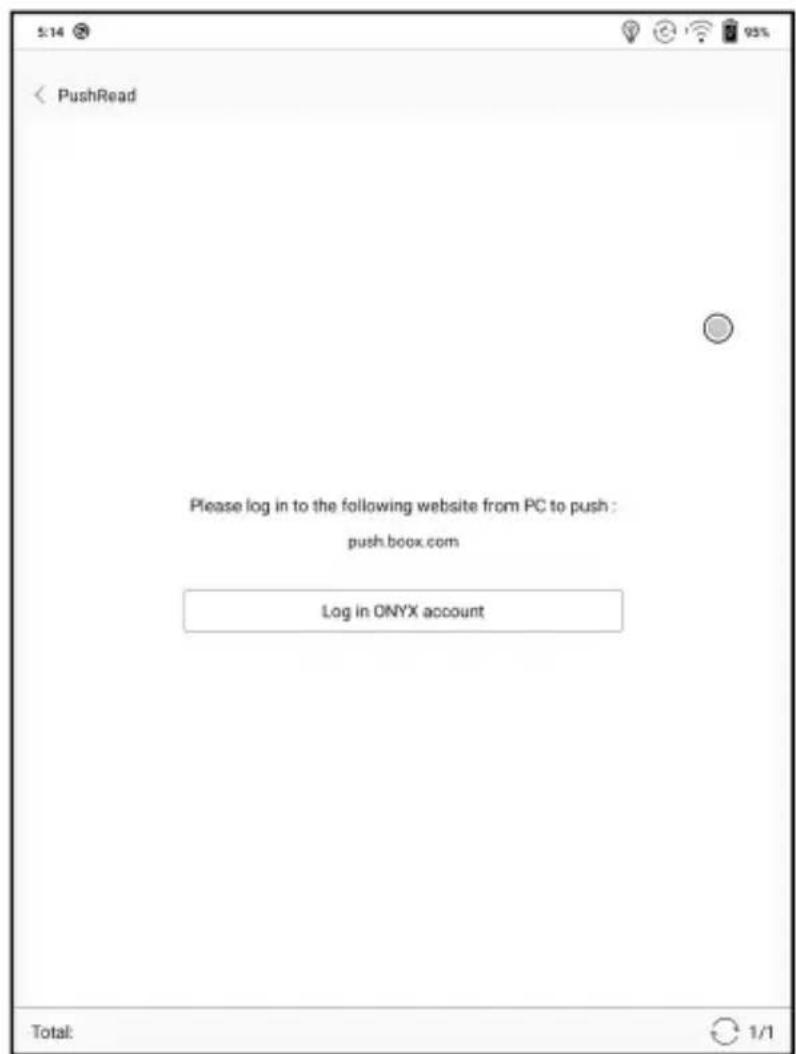
You need to connect your BOOX with Wi-Fi to download the pushed URLs for the first time. After loading once, it can be read offline later. The layout of the content page defaults to Browsing Mode (the layout of the original web page), and you can choose to switch between Browsing Mode and Reading Mode from the More Menu.
The Reading Mode is a single page mode; tap the page to turn the page directly.

There are some usual third-party apps provided here. These apps are free versions from developers and their compatibility is not verified as fully compatible with the system. Paid app downloads are not supported for now.
Users can choose to delete the installation package automatically after apps are installed.

Screensaver
The screensaver and shutdown image can be customized. The shutdown image only supports image formats.
Screensaver style
The Image Screensaver is the default.
The screensaver supports Image Screensaver, Poem Screensaver, Words Screensaver, Calendar Screensaver, Clock Screensaver, and Transparent Screensaver.
The clock, text, and Bottom Status Bar can be added to the other screensavers aside from the Transparent Screensaver.
Clock refresh intervals are customizable. After the clock is added to a screensaver, a certain frequency of refreshing the screen will be retained in the standby state, and automatic shutdown timing cannot be supported.

In Image Screensaver, when a single picture is selected, the screensaver is a fixed picture. When multiple pictures are selected, the screensaver will be shown in carousel format.
The Bottom Status Bar can display the battery status and lock screen status.
Calendar Memo
The Calendar Memo can display the notes and reading records under the current date. You can open the notes or documents directly by tapping the records.
You can add handwritten notes as a memo, which can be set as a screensaver. Please go to Screensaver / Calendar Screensaver Setting for more details.
The content of Calendar Memo temporarily does not support synchronization.
| Sun | Mon | Tue | Wed | Thu | Fri | Sat |
| 28 | 1 | 2 | 3 | 4 | 5 | 6 |
| 7 | 8 | 9 | 10 | 11 | 12 | 13 |
| 14 | 15 | 16 | 17 | 18 | 19 | 20 |
| 21 | 22 | 23 | 24 | 25 | 26 | 27 |
| 28 | 29 | 30 | 31 | 1 | 2 | 3 |
| 4 | 5 | 6 | 7 | 8 | 9 | 10 |
| Today's Notes Today's Reading | Memo 1/1> | |||||
| Notepad1 Mar 5, 2021 3:55:58 PM | ||||||
After logging in to the ONYX account, you can use the mail function to send the contents of the Memo to the designated mailbox as a PDF attachment.

Split Screen
This supports apps split-screen. You can select Split-Screen from the system drop-down bar when an application is opened, and then select a document, a notepad, or other application that you want to open on the other side of your screen.
The system interface does not support enabling Split-Screen directly.
You need to start an application before enabling it.
The applications that do not support Split-Screen will prompt "This application does not support Split-Screen" when split screen is enabled. There are 2 modes available: Vertical and Horizontal. You can swap sides of the apps.

When in split-screen mode, the left screen (or the top screen) will be the main screen. And the secondly opened app will be on the right screen (or lower screen). You can swap apps' sides.
In Split-screen mode, exit Split-screen mode from the system drop-down menu.

Only main screen supports Optimization>Refresh Settings. The refresh settings of the app on the secondary screen will not take effect.
The Optimization > Display settings of both apps on both screens are in effect.
11. Settings
You can manage ONYX accounts, check device model, and manage system global settings.

ONYX Account
You can manage multiple accounts and switch them. Select accounts from the list. Only account information is kept and login state is not maintained. After switching to a different account, you need to log in again.
If you log in to different accounts with different servers, please change the server as well when switching accounts.

ONYX account included: BooxDrop, Reading Statistics, PushRead, Send to E-mail.

Account Link: After the main account is logged in, you can associate two other login methods sharing the same ONYX account. Mobile and E-mail accounts support unbinding, and WeChat accounts do not support unbinding.

About Device
It contains model name, Android version, MAC address and firmware version.
Click the model number for more information, including Capacitive Touch Version, VCom, Other information, Factory Reset, etc.
Note: To run the function of factory reset would remove all of the user data. Please make a data backup first.

Languages & Input
Users can set system language, keyboard and input method and TTS on this page;
Users can set languages of the system and virtue keyboard. The system has an Android keyboard by default. Users can install third-party Apps for more input methods.

ONYX Keyboard
Typing, handwriting input and voice input are available for ONYX keyboard, and network connection is necessary for first time.
English is the default language of the handwriting input and users need to download the corresponding language package first if they want to use handwriting input for other languages.

Handwriting Input Language Packages
| 16:30 | ||
| < Handwriting recognition package | ||
| English (United States) | ● | |
| Chinese (China) | ○ | |
| Chinese (China Hong Kong) | 22.65M | ↓ |
| Chinese (China Taiwan) | 24.19M | ↓ |
| English (United Kingdom) | 8.46M | ↓ |
| English (Canada) | 8.52M | ↓ |
| Russian (Russia) | 8.17M | ↓ |
| Japanese (Japan) | 16.38M | ↓ |
| Korean (South Korea) | 15.95M | ↓ |
| French (Canada) | 7.8M | ↓ |
| French (France) | 8.14M | ↓ |
| German (Germany) | 7.01M | ↓ |
| German (Austria) | 5.87M | ↓ |
| Afrikaans (South Africa) | 8.35M | ↓ |
| Total:59 | 1/3 | |
Voice Input
Long press the Space button on the ONYX keyboard to enable the voice input first. Only English, Mandarin, Cantonese, and Sichuanese are supported.

Date & Time
Users can choose either auto setting or manual setting for date and time. When the device is connected with internet, it will automatically set data and time according to local time zone. Manual setting requires to set time zone, date and time, and users can select their preferred time and date display format;
Power
Users can set screen auto sleep timeout, Power off timeout, Delay disconnection when the device goes to sleep mode, Battery usage, Battery percentage, Auto-sleep when closing the cover, etc.
Network
This is for Wi-Fi, VPN, Bluetooth setting. When Wi-Fi is connected, users can browse webs and download books via the internet on the device.
Wi-Fi Settings
Slide Wi-Fi On, then available networks will be listed. Users can choose network, then input password to connect with internet.
After Wi-Fi is connected successfully at the first time, the device will save Wi-Fi information automatically. Users only need to turn on Wi-Fi on notification bar if using the same WIFI next time.
Click the “+” button at the top right of the Wi-Fi page, users could manually connect to other network which is not listed, such as 802.1xEA

Bluetooth Settings
Turn on Bluetooth, you can search for nearby Bluetooth devices and then send connection requests.
Bluetooth needs to be paired before use. Currently only support the eReader to receive documents, send documents from Boox eReader to other devices is not supported.

VPN Setting
- When the VPN is turned on for the first time, the system requires to a password. This password needs to be used only for screen unlock or when the factory settings are restored.
System Bar
You can customize the pull-down menu. The pull-down menus from the left and right sides are different. The left pull-down is the Notification Center, and the right pull-down is the Control Panel.

Other accounts
You can manage other accounts including Google, Dropbox, OneNote, etc.
These accounts are only used for syncing notes.

Password
You can set a 4-16 digit screen-lock password.
The Android 11 models do not support resetting the password, so please keep the password properly by yourself.

System Display
System Font size
Support to adjust the system font size. The default is the standard font size, and you can set a total of 4 sizes: small, standard, large, extra-large.
size, you can set a total of 4 sizes: small, standard, large, extra-large;

The default Homepage is Library. You can set any of the other Function pages as the Homepage. You can return to the Homepage by tapping the homepage icon from the dropdown notification center.
The default Homepage is Library. You can set any of the other Function pages as the Homepage. You can return to the Homepage by tapping the homepage icon from the dropdown notification center.
System full screen refresh frequency
The system performs one full refresh every 5 operations.
The Library and Notes will be automatically refreshed once more due to the loading list, and the actual number of operations will be one less than the set number.
Function Area displays icons only.
The text under the Function icon can be hidden.
Enable Book Store.
The built-in book store can be turned off, but cannot be uninstalled or removed.
Gesture Manager.
You can customize 3 gestures for the bottom and 2 gestures for the sides. The default functions for the Bottom include: Back, Back Home,
Multitasking Switching, etc. Swipe up from the bottom to use them.
The default functions for the sides are Volume +/- and Frontlight +/-. Long press the sides to slide up and down to adjust.

Support modification to other functions.

Server.
The server is allocated according to the system language by default. The Chinese language system uses the Asia server, and the other language systems use US server.
After manually selecting the server, it will no longer be automatically matched according to the system language.
Please choose the server in your area. This will avoid the slow network connection which impacts the use of some specific functions (including bookstore, synchronization, application market, OTA detection and other functions that require networking).
Firmware Update
Users can get the Model number, Android version, Build number and update check. Upgrade checks the local package first then online package with a network connection. Upgrade pause and breakpoint download are allowed. Please ensure the device has more than 30% power and sufficient capacity before the update.
Update History
Check Update History and the changelog of every update.
Feedback
FAQ
If having any problems, you can directly find the questions in the FAQ, quickly locate and solve the problems.
Submit Feedback
Welcome to submit any technical problem or advice to us.
This function collects system information for problem judgment. And Ony shall never disclose users' device information.
The related logs will be cleared after the device shuts down. If you need to send feedback after the device is off, please enable Save Logs to lock in Feedback so that you can send related logs after restarting the device
12. Specifications
| NoteAir2 | |
| Processor | 2.0GHz*4 + 1.8GHz*4 |
| RAM | 3G LPDDR4X |
| OS | Android 11 |
| Storage | 32G |
| Screen | E-ink display with Regal refresh |
| Screen Size | 10.3 inch |
| Resolution | 1404*1872 |
| Touch | Stylus + Capacitive touch |
| Front Light | Support |
| Wireless | WIFI (2.4G+5G) + Bluetooth (5.0) |
| Battery | 3000 mAh |
| USB | Type-C (support USB OTG) |
| Others | Mic, Dual Speaker |
| Size | 229.4X195.4X5.8mm |
| Weight | ≤420 g (battery included) |
| Operating Temperature | 0°C-50°C |
| Book Formats | PDF, EPUB, TXT, DJVU, HTML, FB2, DOC, MOBI, CHM, etc. |
| Image Formats | PNG, JPG, BMP |
| Audio Formats | WAV, MP3 |
| Apps | Third party APP installation is supported |
| Browser | Support |
| Language | Multi-language supported |
| FirmwareUpdate | Locally update and OTA update are available |
| Certification | CE、RoHS、CCC、FCC、SRRC、TELEC |
13. Declaration
Onyx International Inc. reserves the right to modify the content of the Quick Start Guide and User Manual without further notice.
For more information, please visit our website at www.boox.com.


- BOOX NOTEAIR
- CONTENTS
- STANDARD ACCESSORIES
- SAFETY GUIDE
- SCREEN PROTECTION
- STAY AWAY FROM LIQUIDS
- DON'T DISMANTLE THE DEVICE
- USING ENVIRONMENT
- PRODUCT VIEWS
- BUTTON FUNCTION
- MAIN INTERFACE
- SYSTEM BAR
- NOTIFICATION PANEL
- CONTROL PANEL
- E INK CENTER
- REFRESH MODES
- DARK COLOR ENHANCEMENT
- LIGHT COLOR FILTER
- WI-FI SETTING
- BLUETOOTH SETTING
- ROTATION
- FUNCTION AREA
- CONTENT AREA
- LIBRARY
- STORE
- NOTE
- STORAGE
- APPS
- SETTINGS
- SCREENCAST
- SCREEN RECORD
- LIBRARY DISPLAY SWITCH
- FILTER & SORT
- REFRESH LIBRARY
- CREATE SUB-LIBRARY
- LIBRARY SETTINGS
- SUB-LIBRARY ATTRIBUTE
- E-BOOK ATTRIBUTE
- LOCK (READING PASSWORD)
- READING STATISTICS
- SHARE (THIRD-PARTY APP)
- READER
- FLOATING TOOLBAR
- WORD MENU
- OCR (BETA VERSION)
- SCRIBBLE TOOLBAR
- BRUSHES AND ERASERS
- COLORS
- EMBED PDF
- PDF FILES WITH EMBEDDED DATA
- PDF FILES WITHOUT EMBEDDED DATA
- HANDWRITING RECOGNITION
- CONVERTED TO ADDING BOOKMARKS
- PAGE-TURNS
- BOTTOM MENU BAR (PDF FORMAT)
- TOC
- BOOKMARKS
- ANNOTATIONS
- SCRIBBLE
- PROGRESS
- FORMAT
- PAGINATION
- ZOOM
- CONTRAST
- NAVIGATION
- MORE SETTINGS
- REFLOW
- SCAN TYPE
- TEXT TYPE
- SPLIT VIEW
- CURRENT DOC (SAME DOC)
- DIFFERENT DOCS
- DOC & NOTE
- SPLIT-VIEW (DOC & TRANSLATION)
- BOTTOM MENU (OTHER FORMATS)
- V2 ENGINE
- SCREENSHOT
- REFRESH
- GENERAL SETTINGS
- TOUCH SETTINGS
- TTS SETTINGS
- EXPORT SETTINGS
- FLOATING TOOLBAR SETTINGS
- SCRIBBLE TOOLBAR SETTINGS
- HANDWRITING RECOGNITION SETTINGS
- OTHER SETTINGS
- CATEGORY
- BOOK DETAIL
- NOTES
- CLOUD SYNC (IN BULK)
- OTHER ACCOUNTS SYNC
- SYNC RESULTS
- MORE OPTIONS
- NOTES SYNC SETTING
- BACKUP AND RECOVER
- NOTEPAD PASSWORD SETTINGS
- SCRIBBLE INTERFACE
- LAYERS
- TEMPLATES
- CANVAS EDITOR
- HORIZONTAL NOTEPAD
- BRUSHES
- FIT TO CANVAS AND FIT TO SCREEN
- CUSTOM TOOLBAR
- ERASE
- LASSO
- TEXT INPUT
- INSERT A RECORDING
- INSERT IMAGE
- AI RECOGNITION
- SHARE
- FULL SCREEN MODE OF NOTES
- RECENT FILES
- ALL STORAGE
- OTG EXTERNAL DISK
- LOW STORAGE SPACE WARNING
- APP MANAGEMENT
- AUTO-START SETTINGS
- REFRESH MODE SETTINGS
- FREEZE SETTINGS
- ENABLE GOOGLE PLAY
- APP OPTIMIZATION
- DISPLAY
- BLEACH
- OTHERS
- NAVIGATION BALL
- DICTIONARY
- BOOXDROP
- INSTRUCTION
- RECORDS
- PUSHREAD
- SCREENSAVER
- SCREENSAVER STYLE
- CALENDAR MEMO
- SPLIT SCREEN
- ONYX ACCOUNT
- ABOUT DEVICE
- LANGUAGES & INPUT
- ONYX KEYBOARD
- HANDWRITING INPUT LANGUAGE PACKAGES
- VOICE INPUT
- DATE & TIME
- POWER
- NETWORK
- WI-FI SETTINGS
- BLUETOOTH SETTINGS
- VPN SETTING
- OTHER ACCOUNTS
- PASSWORD
- THE DEFAULT HOMEPAGE IS LIBRARY. YOU CAN SET ANY OF THE OTHER FUNCTION PAGES AS THE HOMEPAGE. YOU CAN RETURN TO THE HOMEPAGE BY TAPPING THE HOMEPAGE ICON FROM THE DROPDOWN NOTIFICATION CENTER
- SERVER
- FIRMWARE UPDATE
- UPDATE HISTORY
- FEEDBACK
- FAQ
- SUBMIT FEEDBACK
- SPECIFICATIONS
- DECLARATION
Brand : Onyx
Model : Note Air 2 Plus
Category : E-reader