
4 5G - Smartphone FAIRPHONE - Free user manual and instructions
Find the device manual for free 4 5G FAIRPHONE in PDF.


| Product Type | Smartphone |
| Model | Fairphone 4 5G |
| Brand | Fairphone |
| Dimensions | 162 x 75.5 x 10.5 mm |
| Weight | 225 g |
| Display Size | 6.3 inches |
| Display Type | IPS LCD, 1080 x 2340 pixels |
| Processor | Qualcomm Snapdragon 750G |
| RAM | 6 GB / 8 GB |
| Internal Storage | 128 GB / 256 GB |
| Battery Capacity | 3905 mAh (user-replaceable) |
| Charging | 20W fast charging |
| Rear Camera | 48 MP (main) + 48 MP (ultrawide) |
| Front Camera | 25 MP |
| Operating System | Android 11 (upgradable to Android 13) |
| Connectivity | 5G, Wi-Fi 6, Bluetooth 5.1, NFC, USB-C |
| Security | Side-mounted fingerprint sensor, face unlock |
| Water/Dust Resistance | IP54 (splash and dust resistant) |
| Modularity | User-replaceable modules (battery, camera, display, etc.) |
| Materials | 100% recycled plastics, fair trade components |
| Repairability Score | 10/10 (iFixit) |
| Included Accessories | USB-C cable, SIM tool, Quick Start Guide |
Frequently Asked Questions - 4 5G FAIRPHONE
User questions about 4 5G FAIRPHONE
0 question about this device. Answer the ones you know or ask your own.
Ask a new question about this device
Download the instructions for your Smartphone in PDF format for free! Find your manual 4 5G - FAIRPHONE and take your electronic device back in hand. On this page are published all the documents necessary for the use of your device. 4 5G by FAIRPHONE.
USER MANUAL 4 5G FAIRPHONE
THIS IS YOUR USER GUIDE.
FAIRPHONE USER GUIDE TABLE OF CONTENTS
This quick overview will get you up and running in no time! But if you'd like some extra guidance, in-depth information or super technical details, visit www.fairphone.com/support.
Your Fairphone is here! Let's get started. 4
Meet your new Fairphone. 6
What's in the box? 10
What you won't find in the box 11
Basic functions 13
Have a break 21
Helpful advice 22
Glossary and useful icons 24
Health & safety information 26
Declaration of conformity 33
Contact us! We'll always get back to you. 35
YOUR FAIRPHONE IS HERE! LET'S GET STARTED
1) Open up your Fairphone
That's what we do: Open up stuff. Understand it. So you should be able to open up your phone, too. Take a look under the back cover and figure out what's inside. Our first batch of kickstarters (10,185 of you!) should find a personal limited-edition message hidden somewhere.
2) Take out the battery
It contains lithium and cobalt, two minerals on our longterm roadmap from places that are still unknown to us. Buying this phone contributes to further research in ethical trade projects to get there. Please read the battery label for instructions on how to use/not use, replace or dispose of it.
3) Insert one or two SIM cards
Dual SIM capability makes Fairphone two phones in one. Use a single phone for personal and work purposes, or use one SIM at home and another abroad. It's very simple to switch between networks. Find out more on page 15. If you don't have a SIM card yet, you can skip this step and still start your phone.
4) Put the battery back in
You need a bit of power to watch something special.
5) Start your Fairphone!
Press and hold the on/off button.
6) Watch the introduction movie
Learn more about using your phone with this quick tutorial.
7) Charge your phone
Unless you've ordered it, the charger is not included., although you have probably already got one in a drawer. Find out more on page 11.
MEET YOUR NEW FAIRPHONE. ON THE OUTSIDE.


SIM cards not included. You are free to choose your operator. MicroSD card not included. Remember you can use one up to 64 GB.
AND ALL THE FUN STUFF INSIDE.
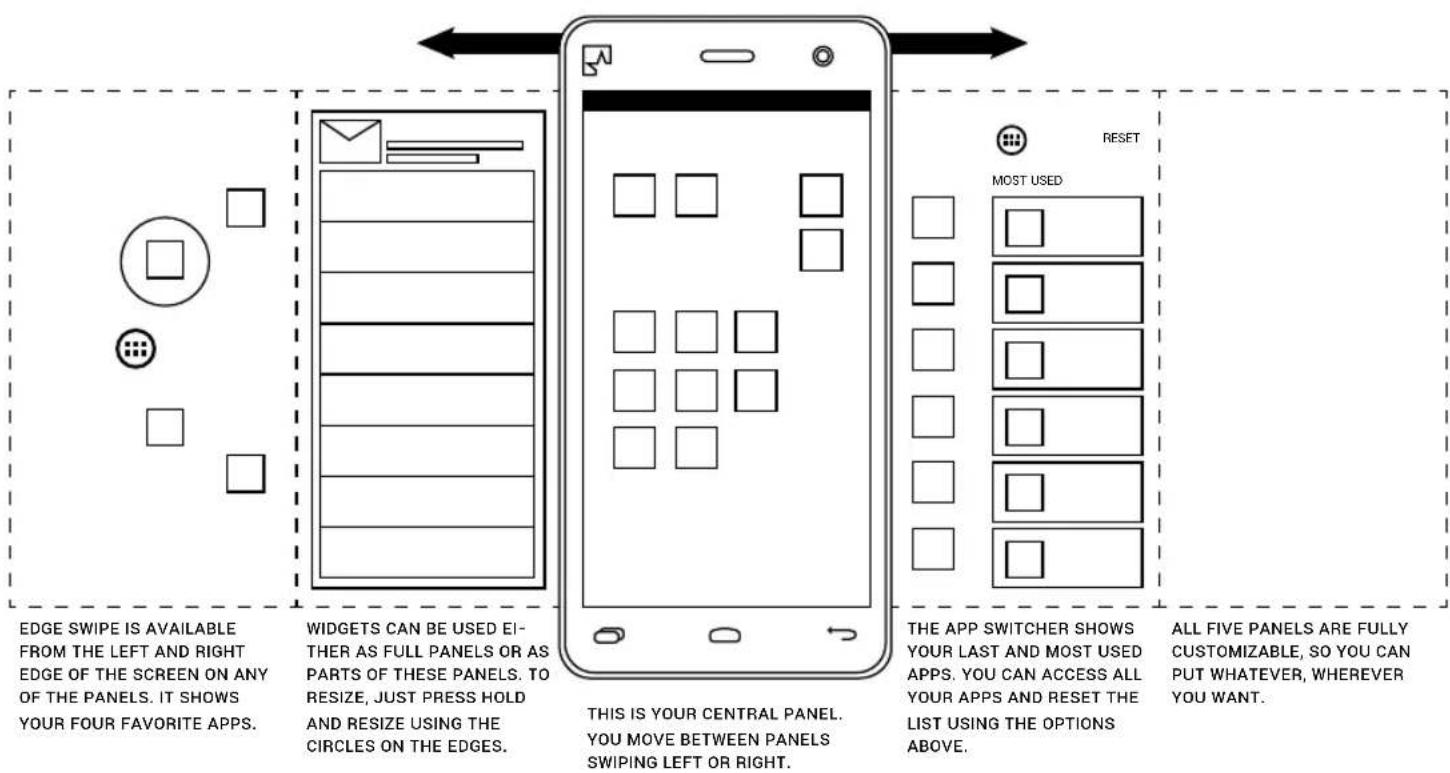
flowchart
graph LR
    A["EDGE SWIPE"] --> B["WIDGETS CAN BE USED EITHER AS FULL PANELS OR AS PARTS OF THESE PANELS. TO RESIZE, JUST PRESS HOLD AND RESIZE USING THE CIRCLES ON THE EDGES."]
    B --> C["THIS IS YOUR CENTRAL PANEL. YOU MOVE BETWEEN PANELS SWIPING LEFT OR RIGHT."]
    C --> D["THE APP SWITCHER SHOWS YOUR LAST AND MOST USED APPS. YOU CAN ACCESS ALL YOUR APPS AND RESET THE LIST USING THE OPTIONS ABOVE."]
    D --> E["RESET"]
    E --> F["ALL FIVE PANELS ARE FULLY CUSTOMIZABLE, SO YOU CAN PUT WHATEVER, WHEREVER YOU WANT."]
WHAT'S IN THE BOX? IN THE BOX
Simply put, your Fairphone – and that's about it.
You'll also find some postcards and of course this user guide, but the essential and more advanced information is also available online: www.fairphone.com/support.
WHAT YOU WON'T FIND
1. Power adapter and USB cable.
Unless you ordered it separately, the power adapter and a USB cable are not included.
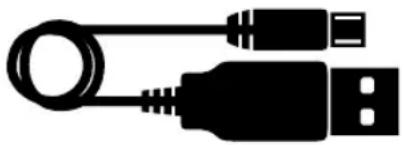
A USB cable is a connecting cable for both charging and data transfer. You can connect the cable to your Fairphone with a standard USB MicroB connector. This format is commonly used for phones, navigation systems and certain cameras.
natural_image
Silhouette of a USB cable with two connectors (no text or symbols)You should use a charger with a nominal output of 5 Volts and 1 Ampere (or 1000 mA). Chargers with a USB port will normally meet these specifications.
You can charge your phone either by connecting your data cable to your computer's USB port, or by plugging a dedicated charger into a power outlet.
Find out more about why we left out the charger and data cable at www.fairphone.com/faq.
2. Voice & data plan
This phone is SIM lock-free and not tied to any specific provider. We like to call it consumer freedom of choice.
To call, text or access data on the go, you need to set up a plan with the provider of your choice, or buy a prepaid SIM card.
If you have been using a microSIM, you will need to request a regular SIM card from your provider or make your own Mini(or micro)-SIM adapter. Visit www.fairphone.com/support to find out how.
BASIC FUNCTIONS
We've pre-installed the Android OS and a few helpful extras, but your Fairphone is still pretty much a blank page. Customize to your heart's content with 16GB of internal memory for your movies, music and apps. If you prefer your information in digital format, you can also find everything online on our website.
Home screen
Quickly tap the power button on the top of the phone to turn on the screen. Tap on the lock icon 📁 and then swipe your finger to the right and press the unlock icon 🔒. You're now at the Home screen!
Throughout the next pages, we'll explain the various elements that make up your home area.

flowchart
graph TD
    A["手机"] --> B["移动应用界面"]
    B --> C["用户界面"]
    C --> D["用户界面"]
    D --> E["用户界面"]
    style A fill:#f9f,stroke:#333
    style B fill:#ccf,stroke:#333
    style C fill:#cfc,stroke:#333
    style D fill:#fcc,stroke:#333
    style E fill:#ffc,stroke:#333
1) Home panels
The Home area is made up of 5 vertical panels which you can access by swiping your finger to the left or to the right. The center panel contains a collection of the most useful Android apps like phone, messages, calendar, camera and browser.
- Change the location of any of the apps by gently holding them down with your finger and dragging them to the panel of your choice.
- Delete apps by holding them down with your finger and dragging them to the top of the screen.
- Add apps to the Home panels using the All Apps and Widgets function ⚙, holding them down and placing them wherever you like.

2) App Launcher
Hold your finger on the right or left side of the screen and swipe it horizontally to quickly access your 4 favorite apps. The App Launcher comes pre-installed with the following 4 apps:

- Phone This is the basic calling function. If you've inserted two SIM cards, you can pick which you want to use from the pull-down menu at the top of the screen before making your call.

- Message This is the basic text messaging function. If you've inserted two SIM cards, you can pick which you want to use from the pull-down menu at the top of the screen.
- Camera Launch the camera to take a picture. Click the icons on the bottom of the screen to switch between the front and rear camera or make a video.

- Browser This is the basic android browser for accessing the web.
In addition, you'll find

- All Apps and Widgets function Use this to add apps or widgets to any of the Home panels.
Using and editing apps in the App Launcher
To change the apps in the App Launcher, press and hold one of the apps to activate the edit option (see previous page). In the edit mode, you will see three columns. The two on the left show all your apps (which you can scroll up and down). The one on the right shows your 4 favorite apps. To edit these, just drag a new app to the top.

3) App Switcher/Recent Apps
You'll find the App Switcher pre-installed on the first panel to the right. Here you can quickly see and access your top 5 recently used and most frequently used apps.
If you don't see any apps listed, it's just because you haven't used your phone much yet! Click on a few apps, and look at the App Switcher again later.
Adding apps and widgets to Home panels
Add apps and widgets to the Home panels using the All Apps and widgets function ⚙️. Widgets are in the second tab at the top of the screen.
Rearrange widgets by pressing down and dragging them to the location of your choice on the Home screen panels.
Resize widgets by pressing down and releasing. Then use the blue dots to shrink or expand the display size.
Delete apps and widgets by holding them down with your finger and dragging them to "Remove" at the top of the screen.
4) Pull-down menu
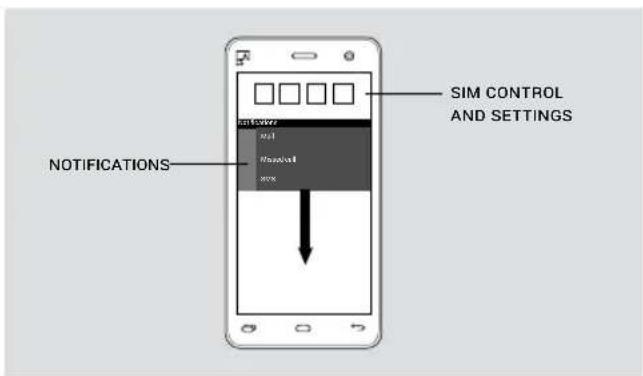
Swipe your finger down from the top of the screen to see the pull-down menu. Here you'll find:
- Recent notifications
- A selection of the most useful settings and on/off controls like volume, Wi-Fi and airplane mode.
- Dual SIM control (depending on which app you're using): Switch between SIM cards (if you've inserted two).

natural_image
Simple line drawing of a smartphone front panel with two buttons and an arrow indicating left button (no text or symbols)5) Buttons
At the bottom of your fairphone, there are three buttons:

- Settings Button Quick Access to the most frequently used settings. Options change depending on which app or screen you're on.

- Home button Go back to the Home screen. Press and hold to switch between active apps.

- Back button Press to return to the previous screen.
6) Lock Screen & Peace of Mind widget
The Peace of Mind widget appears on the lock screen. You can lock your screen by shortly pressing the on/off button.
The Peace of Mind widget lets you disconnect from the world and enjoy a bit of silence. Slide the bar up to determine how long you'd like to be left alone (up to 6 hours).
When this function is activated, you won't receive phone calls, messages, e-mails or status updates. But you can still access content offline.
7) Mood background
The mood background uses color to indicate the amount of power left in your battery. This is the default setting. If you want to change the background on your phone, press the Settings button at the bottom of the screen and press Wallpaper. Now choose an image or wallpaper from your own gallery.
HAVE A BREAK
Let's see how much we've learned with this guide (us writing it, you reading it). Here's a little game until we get to the glossary. Link the icons to their descriptions, and try not to cheat!

Go back to the Home screen

Send and share content

Search within apps

Access settings

Show all apps and widgets

Return to the previous screen
HELPFUL ADVICE
Choose Language
Go to System Settings and scroll to 'Personal' where you will find 'Language and Input'. Press Language and choose your language from the list.
Adding apps and content to your phone
Your Fairphone acts just like a USB storage device. You don't need to create any accounts or download any programs to add content to your Fairphone. Simply connect it to your computer with your data cable, and drag & drop your pictures, music, apps and more into the appropriate folders (i.e.the folder called music).

To purchase and download apps, you can use the Google Play store . You can find this icon in all your apps. Follow the instructions in the store. Google Play Story is the default store, but there are alternative stores where you can download apps. For more information, visit www.fairphone.com/support.
Battery-saving tips
To save the life of your battery, disconnect from any service that you are not using. An overview of these services can be found in the pull down-menu. Bluetooth, wireless and location services (like GPS) are services that need a lot of power and that you might choose to disconnect.
You may also consider decreasing the time your screen is on. Please use the screen timeout option, which can also be found in the pull-down menu
USEFUL ICONS
When using your Fairphone, you'll come across a number of helpful icons. What you can actually do when you click on each icon depends on which screen, function or app you're viewing. Here are a few of the most commonly used icons:

Access apps & widgets* and add to the home panels
Send and share content with contacts or online
Adjust the settings and preferences
Search within apps
Attach files to messages, mails, and so on.
Don't forget to take out the trash!
* Widget is a fancy word for tools or content that you can add, arrange and remove from the Home panels. Widgets display useful information at a glance without having to launch an app. Consider the analogy that and icon is a door to the app, while the widget acts more like a shop window.
HEALTH & SAFETY INFORMATION
Electrical safety
Please do not open or alter the original hardware of your device. This might sound contradictory to our philosophy, but we must warn you that if you open your device or try to manipulate its original form, you may incur electrical risks. This is why the battery, and the battery alone, is easily accessible by removing the metallic back cover.
Your Fairphone contains a lithium-ion battery. Do not use this battery at temperatures above 55 degrees Celsius. You can find out more by reading the label on the battery itself.
Battery performance decreases over time. If you need to replace the battery, because its performance has decreased, be sure it is identical to the type originally included with your Fairphone. If you need help finding the right battery, visit www.fairphone.com/support. Please dispose of your batteries properly using the services available in your area (not in the regular trash).
Only charge your device using the type of data cable or charger explained in this guide in (output 5V, 1A, USB 2.0). If you ordered a charger directly from our website, it is produced by our supplier Salcomp and meets the recommended specifications and security requirements. You can also buy a charger in most of electronics shops.
Use your charger in close distance to your phone - with an easily accessible socket-outlet - between 20 and 50 degrees Celsius.

Hearing precautions
Your Fairphone is capable of operating at high volumes.
To prevent hearing damage, listen or talk at lower volumes whenever possible, and limit your exposure to the highest volume range.
SAR (specific absorption rate)
The current information about exposure radio-frequency electromagnetic fields and their absorption can be contradictory and confusing. Consumers are exposed to these fields from a range of household devices, including mobile phones.
At the moment, no direct correlation has been found between exposure to radio-frequency electromagnetic fields and consumer health. However, the lack of long-term studies warrants further research into potential links between mobile phone use and cancer risks. The World Health Organization (WHO) has several studies in progress. You can learn more at http://www.who.int/mediacentre/factsheets/fs193/en/.
The best way to avoid exposure to radio-frequency electromagnetic fields is to use hands-free headsets. At Fairphone we're very open to discussion on this topic, and will eventually address it on our website and with our online community.
SAR is measured in lab facilities. The SAR measured with our beloved Fairphone is: (ADD NUMBER)
CE
Regulations: Protecting you and the environment
The CE logo on your Fairphone means that it complies with these 3 European directives:
1. Radio and Telecommunication Terminal Equipment
Directive (R&TTE: 1999/5/EC): This defines the rules for putting phones on the market and into service. It ensures that the communication frequencies used by our phone follow the unified European standards.
2. Electromagnetic Compatibility Directive (2004/108/
EC): This limits devices' electromagnetic emissions and guarantees that disturbances and interference between devices are kept to a minimum and you can use several devices (computer, phone, TV) simultaneously.
Low Voltage Directive (2006/95/EC): This ensures the electrical safety of our device.

WEEE stands for Waste from Electrical and Electronic
Equipment. WEEE is an EU directive that aims to reduce the impact of this type of waste and optimize its disposal, collection, reuse, recycling and recovery in line with strict environmental and health standards.
Learn more: http://europa.eu/legislation_summaries/environment/waste_management/l21210_en.htm
At Fairphone this means that we've registered with the respective authorities, enrolled in take-back schemes and paie a fee for every Fairphone that we introduce into the market.
This enables collection and treatment of electronic scrap by public waste disposal authorities.
On top of that, we have included a shipping label in your order so that you can easily send any old phone you have at home for recycling.
Our registration number for the WEEE directive is (ADD NUMBER). We hope you enjoy your Fairphone until the end of its usable life. But when it's time to dispose of your phone, please follow the options outlined by WEEE, or download a shipping label from our website.
RoHS
The Restriction of Hazardous Substances Directive 2002/95/EC, RoHS, short for Directive on the restriction of the use of certain hazardous substances in electrical and electronic equipment, was adopted in February 2003 by the European Union and restricts the use of six hazardous materials in the manufacture of various types of electronic and electrical equipment. These materials are: lead (was used in paints), mercury and cadmium (formerly used in batteries), hexavalent chromium (formerly used in coatings), polybrominated bipheyls (PBB) and polybrominated diphenyl ethers (PBDE) (flame retardants) in Electrical and Electronic Equipment (EEE).
In June of 2011 the European Union Parliament and Council passed Directive 2011/65/EU. Our products are tested to comply with this directive.
REACH
Registration, Evaluation, Authorization and Restriction of Chemicals (REACH) is a European Union Regulation from 2006. It controls the use of chemicals in the production of mobile phones and the impacts that they have in human health and environment.
Our products are tested to comply with this regulation and suppliers need to deliver documentation about the substances used in their products.
End user license agreement
Please visit our website at www.fairphone.com/support.
Warranty
Small summary to be added. You can find the full details on our website.
CONTACT US! WE'LL ALWAYS GET BACK TO YOU.
Fairphone
Piet Heinkade 181 A
1019 HC Amsterdam
The Netherlands
Tel: +31 (0)20 557 98 54
Email: info@fairphone.com for General Enquiries
Web: www.fairphone.com
KvK: 55901964 (Chamber of Commerce)
VAT: 8519.04.270.B.01
FCC statement
This device complies with part 15 of the FCC rules. Operation is subject to the following two conditions: (1) this device may not cause harmful interference, and (2) this device must accept any interference received, including interference that may cause undesired operation.
NOTE: The manufacturer is not responsible for any radio or TV interference caused by unauthorized modifications or changes to this equipment. Such modifications or changes could void the user's authority to operate the equipment.
NOTE: This equipment has been tested and found to comply with the limits for a Class B digital device, pursuant to part 15 of the FCC Rules. These limits are designed to provide reasonable protection against harmful interference in a residential installation. This equipment generates uses and can radiate radio frequency energy and, if not installed and used in accordance with the instructions, may cause harmful interference to radio communications. However, there is no guarantee that interference will not occur in a particular installation. If this equipment does cause harmful interference to radio or television reception, which can be determined by turning the equipment off and on, the user is encouraged to try to correct the interference by one or more of the following measures:
- Reorient or relocate the receiving antenna.
- Increase the separation between the equipment and receiver.
-Connect the equipment into an outlet on a circuit different from that to which the receiver is connected.
-Consult the dealer or an experienced radio/TV technician for help.
The SAR limit of USA (FCC) is 1.6 W/kg averaged over one gram of tissue. Device types FP1 (FCC ID: 2AA2QFP1V1) has also been tested against this SAR limit. The highest SAR value reported under this standard during product certification for use when properly worn on the body is 1.160 W/kg and for head is 0.354 W/kg. Simultaneous RF exposure is 1.337 W/Kg.. This device was tested for typical body-worn operations with the back of the handset kept 10mm from the body. To maintain compliance with FCC RF exposure requirements, use accessories that maintain a 10mm separation distance between the user's body and the back of the handset. The use of belt clips, holsters and similar accessories should not contain metallic components in its assembly. The use of accessories that do not satisfy these requirements may not comply with FCC RF exposure requirements, and should be avoided.
- FAIRPHONE USER GUIDE TABLE OF CONTENTS
- YOUR FAIRPHONE IS HERE! LET'S GET STARTED
- 1) Open up your Fairphone
- 2) Take out the battery
- 3) Insert one or two SIM cards
- MEET YOUR NEW FAIRPHONE. ON THE OUTSIDE.
- AND ALL THE FUN STUFF INSIDE.
- WHAT'S IN THE BOX? IN THE BOX
- WHAT YOU WON'T FIND
- Power adapter and USB cable.
- Voice & data plan
- BASIC FUNCTIONS
- Home screen
- 1) Home panels
- 2) App Launcher
- Using and editing apps in the App Launcher
- 3) App Switcher/Recent Apps
- Adding apps and widgets to Home panels
- 4) Pull-down menu
- 5) Buttons
- 6) Lock Screen & Peace of Mind widget
- 7) Mood background
- HAVE A BREAK
- HELPFUL ADVICE
- Choose Language
- Adding apps and content to your phone
- Battery-saving tips
- USEFUL ICONS
- HEALTH & SAFETY INFORMATION
- Electrical safety
- Hearing precautions
- SAR (specific absorption rate)
- CE
- Regulations: Protecting you and the environment
- Radio and Telecommunication Terminal Equipment
- Electromagnetic Compatibility Directive (2004/108/
- WEEE stands for Waste from Electrical and Electronic
- RoHS
- REACH
- End user license agreement
- Warranty
- CONTACT US! WE'LL ALWAYS GET BACK TO YOU.
- FCC statement
Brand : FAIRPHONE
Model : 4 5G
Category : Smartphone