
Symphonic Instrument - Music Software MOTU - Free user manual and instructions
Find the device manual for free Symphonic Instrument MOTU in PDF.


| Product Type | Software Instrument (Virtual Synthesizer/Sampler) |
| Platform | Windows and macOS |
| Format | VST, AU, AAX, Standalone |
| Sample Library Size | Approximately 25 GB |
| Sample Resolution | 24-bit, 44.1 kHz / 48 kHz |
| Number of Instruments | Over 1,500 orchestral and world instrument patches |
| Articulations | Multiple articulations including legato, staccato, pizzicato, tremolo |
| Effects | Reverb, EQ, compression, convolution reverb |
| MIDI Support | Full MIDI control, velocity layers, keyswitches |
| System Requirements (Minimum) | Intel Core i5, 8 GB RAM, 30 GB free disk space, graphics card supporting 1280x800 |
| License Type | iLok or machine authorization |
| Activation | Single user license, up to 3 installations |
| User Manual | PDF format, 96 pages |
| Updates | Free updates within major version |
| Customer Support | Online knowledge base, email support |
| Maintenance | Occasional hard drive defragmentation, backup of library |
| Safety | No physical hazards; software security via authorized activation |
Frequently Asked Questions - Symphonic Instrument MOTU
User questions about Symphonic Instrument MOTU
0 question about this device. Answer the ones you know or ask your own.
Ask a new question about this device
Download the instructions for your Music Software in PDF format for free! Find your manual Symphonic Instrument - MOTU and take your electronic device back in hand. On this page are published all the documents necessary for the use of your device. Symphonic Instrument by MOTU.
USER MANUAL Symphonic Instrument MOTU
MOTU Symphonic Instrument
User Guide
MOTU
1280 Massachusetts Avenue
Cambridge, MA 02138
Business voice: (617) 576-2760
Business fax: (617) 576-3609
Technical support: (617) 576-3066
Tech support fax: (617) 354-3068
Tech support email: techsupport@motu.com
Web site: www.motu.com
About the Mark of the Unicorn License Agreement and Limited Warranty on Software
TO PERSONS WHO PURCHASE OR USE THIS PRODUCT: carefully read all the terms and conditions of the "click-wrap" license agreement presented to you when you install the software. Using the software or this documentation indicates your acceptance of the terms and conditions of that license agreement.
Mark of the Unicorn, Inc. ("MOTU") owns both this program and its documentation. Both the program and the documentation are protected under applicable copyright, trademark, and trade-secret laws. Your right to use the program and the documentation are limited to the terms and conditions described in the license agreement.
Reminder of the terms of your MOTU software license
This summary is not your license agreement, just a reminder of its terms. The actual license can be read and printed by running the installation program for the software. That license agreement is a contract, and clicking "Accept" binds you and MOTU to all its terms and conditions. In the event anything contained in this summary is incomplete or in conflict with the actual click-wrap license agreement, the terms of the click-wrap agreement prevail.
YOU MAY: (a) use the enclosed program on a single computer; (b) physically transfer the program from one computer to another provided that the program is used on only one computer at a time and that you remove any copies of the program from the computer from which the program is being transferred; (c) make copies of the program solely for backup purposes. You must reproduce and include the copyright notice on a label on any backup copy.
YOU MAY NOT: (a) distribute copies of the program or the documentation to others; (b) rent, lease or grant sublicenses or other rights to the program; (c) provide use of the program in a computer service business, network, time-sharing, multiple CPU or multiple user arrangement without the prior written consent of MOTU; (d) translate, adapt, reverse engineer, decompile, disassemble, or otherwise alter the program or related documentation without the prior written consent of MOTU.
MOTU warrants to the original licensee that the disk(s) on which the program is recorded be free from defects in materials and workmanship under normal use for a period of ninety (90) days from the date of purchase as evidenced by a copy of your receipt. If failure of the disk has resulted from accident, abuse or misapplication of the product, then MOTU shall have no responsibility to replace the disk(s) under this Limited Warranty.
THIS LIMITED WARRANTY AND RIGHT OF REPLACEMENT IS IN LIEU OF, AND YOU HEREBY WAIVE, ANY AND ALL OTHER WARRANTIES, BOTH EXPRESS AND IMPLIED, INCLUDING BUT NOT LIMITED TO WARRANTIES OF MERCHANTABILITY AND FITNESS FOR A PARTICULAR PURPOSE. THE LIABILITY OF MOTU PURSUANT TO THIS LIMITED WARRANTY SHALL BE LIMITED TO THE REPLACEMENT OF THE DEFECTIVE DISK(S), AND IN NO EVENT SHALL MOTU OR ITS SUPPLIERS, LICENSORS, OR AFFILIATES BE LIABLE FOR INCIDENTAL OR CONSEQUENTIAL DAMAGES, INCLUDING BUT NOT LIMITED TO LOSS OF USE, LOSS OF PROFITS, LOSS OF DATA OR DATA BEING RENDERED INACCURATE, OR LOSSES SUSTAINED BY THIRD PARTIES EVEN IF MOTU HAS BEEN ADVISED OF THE POSSIBILITY OF SUCH DAMAGES. THIS WARRANTY GIVES YOU SPECIFIC LEGAL RIGHTS WHICH MAY VARY FROM STATE TO STATE. SOME STATES DO NOT ALLOW THE LIMITATION OR EXCLUSION OF LIABILITY FOR CONSEQUENTIAL DAMAGES, SO THE ABOVE LIMITATION MAY NOT APPLY TO YOU.
About the Ultimate Sound Bank License Agreement
DO NOT USE THIS PRODUCT UNTIL YOU HAVE READ THIS LICENSE AGREEMENT. BY USING THIS PRODUCT YOU ACCEPT THIS LICENSE AGREEMENT.
- License Grant. USB grants to you, subject to the following terms and conditions, a non-exclusive, nontransferable right to use each authorized copy of the enclosed product. The enclosed product is the property of USB and is licensed to you only for use as part of a musical performance. This license expressly forbids resale or other distribution of these Sounds or their derivatives, either as they exist on disc, reformatted for use in another digital sampler, or mixed, combined, filtered, resynthesized or otherwise edited, for use as sounds, samples, multisamples, wavetables, programs or patches in a sampler, microchip or any hardware or software sample playback device. You cannot sell them or give them away for use by others in their sampling or sample playback devices.
- Protection of Software. You agree to take all reasonable steps to protect this product and any accompanying documentation from unauthorized copying or use. You agree not to modify the enclosed product to circumvent any method or means adopted or implemented by USB to protect against or discourage the unlicensed use of copying of the enclosed product.
- Ownership. As between you and USB, ownership of, and title to, the enclosed digitally recorded sounds (including any copies) will be held by USB. Copies are provided to you only to enable you to exercise your rights under the license. Only this license is purchased by you.
- Term. This Agreement is effective from the date you open this package, and will remain in full force until termination. This Agreement will terminate if you break any of the terms or conditions of this Agreement. Upon termination you agree to destroy and return to USB all copies of this product and accompanying documentation.
- Restrictions. Except as expressly authorized in this Agreement, you may not rent, sell, lease, sublicense, distribute, transfer, copy, reproduce, display, modify or time share the enclosed product or documentation.
Update Policy
In order to be eligible to obtain updates of the program, you must complete and return to MOTU the Mark of the Unicorn Purchaser Registration Card found at the beginning of the MOTU Symphonic Instrument User Guide.
Copyright Notice
Copyright ©2006, 2005 by Mark of the Unicorn, Inc. All rights reserved. No part of this publication may be reproduced, transmitted, transcribed, stored in a retrieval system, or translated into any human or computer language, in any form or by any means whatsoever, without express written permission of Mark of the Unicorn, Inc., 1280 Massachusetts Avenue, Cambridge, MA, 02138, U.S.A.
Digital Performer, MOTU, Mark of the Unicorn and the unicorn silhouette logo are trademarks of Mark of the Unicorn, Inc.
All other trademarks are property of their respective owners.
Contents
5 About the MOTU Symphonic Instrument
9 Installation
13 QuickStart Guide
15 The MOTU Symphonic Instrument Application
19 The MOTU Symphonic Instrument Plug-in
37 The MOTU Symphonic Instrument Window
55 The Instruments
73 Troubleshooting
79 Glossary
91 Resources
93 Index
CHAPTER 1 About the MOTU Symphonic Instrument
The MOTU Symphonic Instrument (MSi) is a universal orchestral instrument plug-in for Macintosh and Windows. The MOTU Symphonic Instrument supports all major audio plug-in formats on both platforms (MAS, VST, RTAS, DXi and Audio Units).
A world class orchestra at your fingertips
The MOTU Symphonic Instrument is an easy-to-use plug-in that contains everything you need to create complete orchestral recordings, from solo instruments and small ensembles to full orchestral masterpieces. Quality and variety abound in a massive 8GB library of sounds from world class orchestras and musicians, recorded with pristine audio fidelity and careful attention to detail. Instrument categories include strings, brass woodwinds (in solo, ensemble and tutti configurations), orchestral percussion, choirs, pipe organs, historical instruments and concert grand pianos, including a Steinway D and Yamaha C7.
Universal plug-in or stand-alone operation
The MOTU Symphonic Instrument operates both as a stand-alone application and as a plug-in inside a host audio/MIDI sequencer application such as Digital Performer, Pro Tools, Logic Pro, SONAR, Cubase, Live and virtually any major audio software program for Windows XP and Mac OS X.
As a stand-alone application, the MOTU Symphonic Instrument turns your Mac or PC into a streamlined orchestra instrument powerhouse with 64 parts, disk streaming, 17 independent audio output pairs and 8GB of orchestra sounds. Stand-alone operation also allows you to use the Symphonic Instrument with music software applications that do not host 3rd-party instrument plug-ins. Stand-alone operation is virtually
identical to plug-in operation, except for a few additional settings for audio/MIDI input and output.
As a plug-in, the MOTU Symphonic Instrument can be used as a flexible, state-of-the-art sound source directly within your projects. You can save all MOTU Symphonic Instrument settings with the project for instant and total recall. Since all MOTU Symphonic Instrument settings are saved with your host application session, you enjoy the highest degree of convenience and speed because there is no separate application or associated documents to manage.
Collaborate across platforms
Because the MOTU Symphonic Instrument supports every major audio production platform, you can effortlessly move from one platform to another — or collaborate with colleagues who use different audio software. For example, you could compose and track a project in Digital Performer, Logic Pro or Nuendo and then move to Pro Tools for mixing. Simply save a MOTU Symphonic Instrument multi (a snapshot of all its settings) in DP, Logic Pro or Nuendo and then load it into the MOTU Symphonic Instrument running in Pro Tools. All settings are exactly preserved, and the MOTU Symphonic Instrument is ready to go.
Operation at a glance
The MOTU Symphonic Instrument displays all editing and performance parameters in one window, showing you everything in one glance, without the need to flip through different pages or dig through menus. Adjust your sound quickly and intuitively. There are no hidden screens, obscure menus or 'helper applications' to launch.
Real acoustic spaces
To further enhance the stunning realism of your compositions, the MOTU Symphonic Instrument includes a built-in convolution reverb processor to produce the most realistic room ambiences available. From directly in the MOTU Symphonic Instrument window, you can audition and choose authentic acoustic spaces, from orchestra sound stages to renowned concert halls to majestic cathedrals.
Flexible multi-timbral performance
Each instance of the Symphonic Instrument supplies 64 different parts (instruments), 64 MIDI channels and 17 separate output pairs. Each part has its own unique volume, pan, etc. Each part can receive MIDI data from one of 64 separate MIDI channels, giving up as many as 64 different instruments to play simultaneously. Simple stacks can be created by assigning two or more parts to the same MIDI channel. If 64 separate instruments are not enough, you can open another instance of the plug-in inside your software — as many MOTU Symphonic Instrument plug-ins as your host software and CPU resources permit.
Powerful synthesis engine
The central section of the MOTU Symphonic Instrument window shows an amplitude envelope, filters, velocity response curves and LFO. These parameters let you carefully shape the sound of each instrument, and they can be controlled independently for each of the plug-ins sixteen parts. The award-winning UVI-Engine that powers the MOTU Symphonic Instrument delivers virtually unlimited polyphony (256 voices per preset) and ultra-low latency.
Disk streaming
Disk streaming, which can be enabled or disabled independently for each of the 64 instruments, is a process where large samples (instrument sounds) are only loaded from the hard drive into RAM for playback when they are actually triggered, rather
than being loaded in their entirety beforehand. Streaming conserves large amounts of RAM, allowing you to load more instruments simultaneously and free up your RAM resources for other plug-ins and applications. Streaming also significantly speeds up the time it takes for instruments to load, especially instruments with large sample sets.
Compatibility with MachFive
If you own MachFive, the universal sampler, and you prefer the convenience of consolidated sound library access via MachFive, you can access the MOTU Symphonic Instrument sounds directly from the soundbank and preset menus in MachFive. Once loaded, you can take full advantage of MachFive's sophisticated layering and stacking features to create elaborate MOTU Symphonic Instrument combinations, for live performance or complex MIDI sequencing.
Quick Reference
The MOTU Symphonic Instrument is a 64-part multitimbral instrument. The Parts section shows 64 parts in four tabs of 16 parts each. Each part can load a different instrument and receive on a separate MIDI channel. 64 MIDI channels are available if your host software supports multiple banks of MIDI channels for instrument plug-ins. Otherwise, 16 MIDI channels are available. Click the name of the part to view its settings to the right of the parts list, including the ADSR amplitude envelope, LFO and other settings. You can also load, save and view 'multis', which are a snapshot of the entire MSI window, including all presets and reverb settings.
These settings apply to the currently selected (highlighted) part in the part list to the left. Each part has its own settings. Click the part first to view and change its settings.
The Master Section provides global settings (that affect all instruments) for volume and tuning.

Click the Expert Mode button to access key switch programming, disk streaming settings, and output assignments for each part.
This portion of the window shows the additional settings for each instrument. To view an instrument's settings here, click the name of the part in the list above. An ADSR amplitude envelope is provided, for controlling the contour of the instrument. There are two filters, an LFO and MIDI note-on velocity response settings for fine-tuning how the instrument responds to MIDI data.
Use the on/off button to enable the convolution reverb, and then choose the desired space from the menu. Use the controls to the right to adjust the sound of the space. If you have a slow computer, try using the "fast reverb", which is a modeled reverb that uses much less processing power than the convolution reverbs.
CHAPTER 2 Installation
Thank you for purchasing the MOTU Symphonic Instrument.
Package Contents 9
Please Register your software 9
On-line registration....9
Macintosh System Requirements.... 10
Windows System Requirements.... 10
Install the MSI.dat file first 11
Getting started 11
Familiarity with your computer 11
Visit motu.com for software updates 11
About your iLok USB Smartkey 11
Technical support.... 11
PACKAGE CONTENTS
Your MOTU Symphonic Instrument package includes:
■ MOTU Symphonic Instrument installer CD-ROM disc
■ MOTU Symphonic Instrument soundbank DVD-R disc
■ MOTU Symphonic Instrument USB iLok SmartKey
■ MOTU Symphonic Instrument User Guide with tear-out registration card
PLEASE REGISTER YOUR SOFTWARE
MOTU can only provide customer service and technical support to registered users. Therefore, it is very important for you to register your software immediately after purchase. To do so, follow the directions below that apply to you:
Method of purchase How to register:
| If you purchased the MOTU Symphonic Instrument | Fill in and mail the registration card found at the beginning of the MOTU Symphonic Instrument User Guide. Leave the rest of the cardboard page in the manual for your future reference. |
If you purchased an upgrade from earlier version of the MOTU Symphonic Instrument You are already registered and no further action is necessary.
ON-LINE REGISTRATION
You can also register on-line at:
http://www.motu.com/techsupport/register
MACINTOSH SYSTEM REQUIREMENTS

The MOTU Symphonic Instrument requires the following Macintosh system:
■ A G4/500MHz Power Macintosh or faster; a G4/800MHz or faster is recommended. Dual-processor machines are also highly recommended.
- A minimum of 512 MB (megabytes) of RAM is required. However, since the MOTU Symphonic Instrument loads samples into the computer's RAM, add as much RAM as possible to your computer; at least 1024MB (1GB) is highly recommended.
■ Mac OS X version 10.3.9 or later; Tiger (Version 10.4) or higher is recommended.
■ A large hard drive (preferably at least 40 GB).
Due to the large size of the MSI.dat file (the file that holds all the sounds), the hard drive must be HFS+ (Mac OS Extended) formatted (journaled or unjournaled). If you experience trouble copying the dat file to your hard drive, see “When I try to copy the “MSI.dat” file to my hard drive, I get an error message and it won’t copy successfully. What should I do?” on page 73.
■ At least one free USB port for the iLok key.
WINDOWS SYSTEM REQUIREMENTS

The MOTU Symphonic Instrument requires the following Windows system:
■ An 800 MHz Pentium III-based PC compatible
- A minimum of 512 MB (megabytes) of RAM is required. However, since the MOTU Symphonic Instrument loads samples into the computer's RAM, add as much RAM as possible to your computer; at least 1024MB (1GB) is highly recommended.
Windows XP.
■ An Open GL-compatible video card with the latest graphics drivers.
■ An audio sequencer software package. The following versions are recommended: Cubase SX 2.0 or higher, Logic Audio 5.5.1 or higher (Logic 4.xx is NOT recommended), Pro Tools LE/TDM 6.1 or higher (Pro Tools LE/TDM 6.0 is NOT recommended) or SONAR 3 or higher.
■ A large hard drive (preferably at least 40 GB).
Due to the large size of the MSI.dat file (the file that holds all the sounds), the hard drive must be NTFS formatted. If you experience trouble copying the dat file to your hard drive, see “When I try to copy the “MSI.dat” file to my hard drive, I get an error message and it won’t copy successfully. What should I do?” on page 73.
■ At least one free USB port for the iLok key.
INSTALL THE MSI.DAT FILE FIRST
The MOTU Symphonic Instrument ships with two discs: the Soundbank DVD and the plug-in Installer CD. For a smooth installation, follow these simple steps, in the order given below:
1 Insert the Soundbank DVD and drag the MSI.dat file anywhere to your hard drive.
IMPORTANT: Do not rename it; leave the name unchanged.
2 After the copy is complete, eject the DVD.
3 Insert the MOTU Symphonic Instrument Installer CD.
4 Double-click the Install MSI icon.
5 Follow the directions the installer gives you.
6 Connect your MOTU Symphonic Instrument USB iLok SmartKey to any available USB port.

natural_image
Close-up of a transparent plastic key inserted into a black keyboard, no visible text or symbols
natural_image
Close-up of a computer tower with visible network cables and connectors (no readable text or symbols)Figure 2-1: The MOTU Symphonic Instrument requires the USB iLok SmartKey (included).
GETTING STARTED
Follow the directions in the next few chapters of this guide to successfully install and begin using the MOTU Symphonic Instrument.
FAMILIARITY WITH YOUR COMPUTER
This manual assumes that you are familiar with using your computer. If not, please review your computer's user guide before proceeding.
VISIT MOTU.COM FOR SOFTWARE UPDATES
Software updates are periodically posted on our web site, so check our web site for the latest updates at www.motu.com.
ABOUT YOUR ILOK USB SMARTKEY
The MOTU Symphonic Instrument will not run unless it detects that your iLok SmartKey is plugged into any available USB port on your computer. If you wish to transfer the authorization in your MOTU Symphonic Instrument iLok to another iLok, or if you have questions about your iLok, visit www.ilok.com for further information, or contact MOTU Technical Support (as explained on page 77).
TECHNICAL SUPPORT
If you have questions, please review this manual carefully first. You can reach MOTU tech support as follows:
■ 24-hour on-line tech support database with search engine: www.motu.com
■ Tech support email: techsupport@motu.com
■ Tech support fax: 617.354.3068
■ Tech support phone (9am - 6pm EST): 617.576.3066
■ Downloads: www.motu.com
CHAPTER 3 QuickStart Guide
Open the MOTU Symphonic Instrument
1 After MOTU Symphonic Instrument installation, launch your audio sequencer.
2 Open the MOTU Symphonic Instrument in the usual fashion, either the stand-alone application on your hard drive or the plug-in from within your audio sequencer.
Choose a preset
3 Before you can begin using the MOTU Symphonic Instrument, you need to go to the Part section (as shown below in Figure 3-1) to load an instrument preset into a part in the MOTU Symphonic Instrument's part list.
If the preset menu is empty, then the MOTU Symphonic Instrument has lost the location of the MSI.datfile. See “When I try to choose a preset, the preset menu is empty. Why is it empty?” on page 73

Figure 3-1: Choosing an instrument.
Set up MIDI input to the instrument
4 By default, part 1 receives on MIDI channel 1, as shown above (Figure 3-1). Send MIDI to the MOTU Symphonic Instrument in the usual fashion for a virtual instrument or plug-in in your
host software. (You'll see the MOTU Symphonic Instrument as a destination in your MIDI output menus.)
Check the audio output assignment
5 The MOTU Symphonic Instrument track has an audio output assignment. Make sure that it is assigned to the appropriate audio output in your system (the headphone outs, main outs, or whatever you are using for listening).
Play the instrument
6 Try playing your MIDI controller. You should now hear the sound of the instrument you chose back in step 3.
7 If you hear it, congratulations! You are now ready to use the MOTU Symphonic Instrument.
If you don't hear anything
8 Check to see if the MIDI light to the left of the instrument is blinking when you play notes on your MIDI controller. If it blinks, then MIDI is OK. If not, check your MIDI cables and software settings again.
9 Check the audio output assignment for the track on which the MOTU Symphonic Instrument is instantiated. Make sure it is assigned to your headphones, main speakers, or whatever you are listening to.
What is saved with your sequencer project
When you save your sequence, the MOTU Symphonic Instrument is also saved in the exact state you left it, including all chosen presets (instruments) and settings for each part.
CHAPTER 4 The MOTU Symphonic Instrument Application
OVERVIEW
The MOTU Symphonic Instrument is supplied in two forms:
■ As a stand-alone application
■ As a plug-in
This chapter explains how to use the Symphonic Instrument stand-alone application. For information about operating it as a plug-in, see chapter 5, “The MOTU Symphonic Instrument Plug-in” (page 19).
Stand-alone operation.... 15
Preferences.... 15
Audio device tab.... 16
Routing tab 16
MIDI Devices tab.... 17
File menu 18
The MOTU Symphonic Instrument can operate as a stand-alone instrument application, independent of a plug-in host, turning your Mac or PC into a streamlined orchestra instrument powerhouse with 64 parts, disk streaming, 16 independent audio outputs and 8GB of orchestra sounds. Stand-alone operation also allows you to use the Symphonic Instrument with Make Music Finale 2006 and other music software applications that do not host 3rd-party instrument plug-ins.
Running the stand-alone version
The stand-alone version of the Symphonic Instrument can be found in your Applications folder. On Windows, it can also be found under the Start menu>Programs>MOTU Just double-click it to launch it.
Stand-alone operation is identical to plug-in operation as described in chapter 6, “The MOTU Symphonic Instrument Window” (page 37), with the exception of the additional stand-alone settings described in this chapter.
PREFERENCES
The stand-alone version of the Symphonic Instrument has a few basic settings that can be found in File menu> Preferences:

Preferences (Windows XP)

Figure 4-1: The stand-alone version preferences.
AUDIO DEVICE TAB
The Audio Device tab preferences (Figure 4-1) let you make several audio hardware device settings.
Interface (Windows only)
Choose the desired Windows audio driver for the audio interface you are using for the Symphonic Instrument. If your audio device provides both MME and ASIO driver support, you are free to choose either driver for the MOTU Symphonic Instrument, as there will be little, if any, difference in regards to either operation or performance.
Output device
Choose the desired audio hardware from the Output Device menu (Figure 4-1). If you do not see the desired hardware device in the menu, be sure that you have correctly installed its driver and that it is otherwise functioning properly, independently of the Symphonic Instrument. For example, can you access the hardware from the system software (Mac OS X or Windows XP) and other audio applications?
Sample Rate
Choose the desired Sample Rate (Figure 4-1) for playback. The choices in this menu are provided by your audio hardware driver, and the setting you choose here is the sample rate your hardware will be set to. 44.1 kHz is the standard rate for audio compact discs. The Symphonic Instrument samples are all provided in 16-bit resolution at 44.1kHz, but if you choose to operate at a different sample rate, they are sample-rate converted on the fly to match the rate you've chosen.
Buffer size (Mac)
Output Latency (Windows)
This setting is crucial for managing your computer's processing resources. In general, settings of 256, 128 or 64 samples produce better latency performance. But lower settings place higher demand on your computer's processor.
ASIO Config (Windows only)
Click the ASIO config button to open the ASIO driver configuration window. Consult your audio hardware documentation for details about the settings in this window for configuring your hardware's ASIO driver.
Refresh Audio Devices
If you make changes to your audio device configuration (outside of the Symphonic Instrument), click the Refresh Audio Devices button (Figure 4-1) to see those changes reflected in the Symphonic Instrument Audio Devices tab.
ROUTING TAB
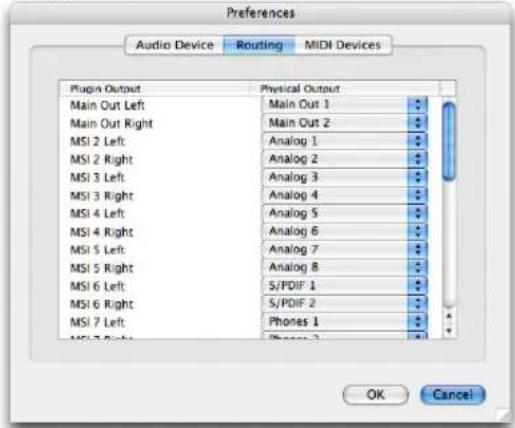
The stand-alone version of Symphonic Instrument provides 17 independent stereo outputs (a main out pair, plus 16 additional separate output pairs numbered 2 through 17) to which you can freely assign each part (instrument), as explained in “Outputs” on page 54.
The Routings tab (Figure 4-2) provides a way for you to map each Symphonic Instrument output to a physical output connector on your audio hardware. For example, you might map the Symphonic Instrument's "Main Out Left/Right" output pair to the headphone output of your MOTU 828mkII audio interface, as demonstrated below in Figure 4-2.
The connectors you see in the Physical Output menus (Figure 4-2) are provided by your hardware and its software driver. If you do not see the desired hardware device outputs in the menus, be sure that you have correctly installed its driver and that it is otherwise functioning properly, independently of the Symphonic Instrument. For example, can you access the hardware from the system software (Mac OS X or Windows XP) and other audio applications?
Routing (Mac OS X)
Routing (Windows XP)

Figure 4-2: Mapping stand-alone version outputs to the physical connectors on your audio hardware.
MIDI DEVICES TAB
The MIDI Devices tab (Figure 4-3) lets you configure how external MIDI sources are mapped to the Symphonic Instrument's 64 MIDI channels (four banks of 16 channels each).
MIDI Devices (Mac OS X)

MIDI Devices (Windows XP)

Figure 4-3: MIDI devices.
As defined by the MIDI specification, MIDI channels are supplied in banks of 16 channels. For example, one MIDI cable carries 16 MIDI channels. On multiport MIDI interfaces, such as the MOTU MIDI Express XT, each MIDI port also carries its own set of 16 MIDI channels.
This means that there is no such thing as MIDI channel 17, 18, 19, etc. So how does the Symphonic Instrument provide 64 MIDI channels? The answer is: by dividing them into four banks of 16 channels each: Bank A, Bank B, Bank C and Bank D. Each bank represents one MIDI cable — or MIDI port on a MIDI interface. The MIDI Devices tab (Figure 4-3) lets you map external MIDI sources to each bank. These sources could be any of the following:
■ A MIDI IN port on a MIDI interface that is connected to the computer
■ A “virtual” MIDI cable from MIDI software running concurrently with the Symphonic Instrument (such as Digital Performer or Finale)
■ A USB MIDI controller (a keyboard controller that is connected directly to the computer via a USB cable)
■ An audio interface that also supplies one or more MIDI IN ports (such as the MOTU 828mkII or Traveler)
When any of these devices are “on line” (that is, they are connected to your computer with their drivers properly installed — or in the case of MIDI software programs, they are running simultaneously with the Symphonic Instrument), they will display their available MIDI ports in the four MIDI port menus shown in Figure 4-3.
You can choose any source you wish for each bank. If you choose the same source for two or more banks, just be aware that you will trigger the same MIDI channel on both banks. For example, if you assign your controller to both Port A and Port B, and it transmits on MIDI channel 1, you will trigger any Symphonic Instrument parts that are assigned to either channel A1 or B1. To make channel A1 and B1 independent from one another, assign them to different sources in the MIDI Devices tab.
Refresh MIDI Devices
If you make changes to your MIDI device configuration (outside of the Symphonic Instrument), click the Refresh MIDI Devices button (Figure 4-3 on page 17) to see those changes reflected in the Symphonic Instrument MIDI Devices tab.
FILE MENU
The File menu for the stand-alone version of the Symphonic Instrument provides Load and Save commands. These are the same as clicking the Load Multi and Save Multi buttons above the part list in the Symphonic Instrument window.
CHAPTER 5 The MOTU Symphonic Instrument Plug-in
OVERVIEW
The MOTU Symphonic Instrument is supplied in two forms:
■ As a stand-alone application
■ As a plug-in
This chapter provides basic setup and operation instructions for each supported plug-in format, with specific explanations for a variety of popular host audio software applications. After reading the first two sections (for all users), turn to the section that applies to you.
For information about operating the stand-alone application, see chapter 4, "The MOTU Symphonic Instrument Application" (page 15).
When operating the MOTU Symphonic Instrument as a plug-in inside a host audio program, you can open — or instantiate — the MOTU Symphonic Instrument on two or more tracks at a time. We refer to each independently operating MOTU Symphonic Instrument as an instance of the MOTU Symphonic Instrument. For example, you could say that it is possible to open multiple instances of the MOTU Symphonic Instrument in a project. Each one opens as a separate window and operates independently.
For all users
Conserving CPU resources....20
Managing latency 20
MAS
Digital Performer (Mac OS X) 22
RTAS
Pro Tools / RTAS (Mac OS X)....23
Pro Tools / RTAS (Windows) 25
HTDM
Pro Tools / HTDM (Windows) 26
Audio Units
Logic Pro (Mac OS X) 26
Other Audio Unit hosts (Mac OS X) 29
VST
Cubase SX and Nuendo (Mac OS X) 30
Cubase SX and Nuendo (Windows) 32
DXi
SONAR 3 and other DXi hosts 34
CONSERVING CPU RESOURCES
Regardless of your host application, the MOTU Symphonic Instrument provides several settings that are crucial for managing your computer's precious processing (CPU) resources. Another setting, generally referred to as hardware buffer size, can also dramatically impact MOTU Symphonic Instrument performance. This last setting is not in the MOTU Symphonic Instrument; instead, you'll find it either in your host application or in your audio hardware driver configuration settings.
The Polyphony setting
The Polyphony setting (see “Polyphony (Poly)” on page 42) lets you control the maximum allowed number of stereo notes that can be played simultaneous by a part. The upper limit is 256. This setting can be adjusted individually for each part. Keep it as low as possible to conserve CPU bandwidth. For further details, see page 42.
Other ways to optimize MOTU Symphonic Instrument performance
Here are three additional ways you can optimize MOTU Symphonic Instrument performance:
- The filter requires processing bandwidth, so disable the filter (click the Off button) when not using it.
- Long envelope times can increase the polyphony count — without being obvious. Make sure your amplitude envelope is set as short as necessary. For details, see “Amplitude Envelope” on page 43.
- The MOTU Symphonic Instrument's built-in convolution reverb will increase the CPU load. Reverb is a very CPU-intensive effect, with longer reverb tails producing the heaviest CPU load. See "Reverb" on page 46 for ways to optimize reverb performance.
Hardware buffer size
A third crucial setting for managing your system's resources is the hardware buffer size. This setting is discussed more specifically for each host application later in this chapter. In general, under Mac OS X, this setting is managed by (and found in) your host audio software. Under Windows, some host audio applications, such as SONAR, control this setting, and you'll find it in the host software. For other Windows applications, such as Cubase and Pro Tools, it is managed by the audio hardware driver and is usually found in the driver configuration software for your audio hardware. In general, settings of 256, 128 or 64 samples produce better latency performance. But lower settings place higher demand on your computer's processor.
MANAGING LATENCY
Latency is a term we use to refer to the very small delay that can occur between when a MIDI note is played and the resulting MOTU Symphonic Instrument sound is triggered. The discussion below explains how to best reduce — and in some cases completely eliminate — latency. However, regardless of which host application you use, there are two general situations that you should be aware of in which latency may be an issue:
■ During live MIDI input
■ During MIDI track playback
Live MIDI input
Live input latency can occur when you play your MIDI controller to trigger sounds “live” in the MOTU Symphonic Instrument, as demonstrated below in Figure 5-1. The most important setting to control live input latency, regardless of your host application, is the “Hardware buffer size” on page 20. Lower hardware buffer settings (512 samples or below) make live input latency almost inaudible. The lower the setting, the more accurate live playing will feel. However, lower settings place
higher demand on the computer, so if you are placing high demands on the MOTU Symphonic Instrument, you may not want to go much lower than 512 samples. If you can live with a little “sponginess” when playing live parts, you could even set the buffer size to 1024 samples. This will give you even better MOTU Symphonic Instrument performance.
It is important to note that live input latency has no effect whatsoever on the accuracy with which the MIDI data is recorded. This is only a monitoring issue (i.e. what you hear when you play live).
MIDI track playback
MIDI sequencers store streams of MIDI data in their tracks. When you play back the sequence, this MIDI data is sent to the MOTU Symphonic Instrument (and other MIDI instruments) to trigger sounds. The question is: how much time elapses between when a MIDI data event is played from the track and when the MOTU Symphonic Instrument plays the sample being triggered? This period of time, if any, could be referred to as MIDI playback latency.
The latest versions of the host applications described in this chapter all have ways to completely eliminate MIDI playback latency for virtual instruments like the MOTU Symphonic Instrument: their MIDI track playback is extremely accurate — even sample-accurate in some cases. (Host applications either send the MIDI data a little early or cue up the MOTU Symphonic Instrument's audio playback a little early so that it plays exactly when the MIDI note plays.) For a few host applications, however, this period of time is affected by the “Hardware buffer size” on page 20: the higher the buffer size, the longer the playback latency. The following sections explain which applications are affected by this setting with regard to MIDI track playback. As with live input latency, lower buffer settings result in more accurate playback, but at the expense of increased processing load on your computer.

flowchart
graph LR
    A["MIDI Controller"] -->|MIDI Cable| B["Laptop"]
    B -->|the MOTU Symphonic Instrument audio output| C["Audio Output"]
    A --> D["Hand with Keyboard Icon"]
Figure 5-1: Latency during live MIDI input. You press a key on your controller keyboard. The note gets sent to the MOTU Symphonic Instrument, which then plays a note in response to the received MIDI data. Latency is the time it takes between when you play the note and then hear it. High latency feels "spongy". In other words, notes seem to play consistently a little late. Live input latency has no effect whatsoever on the accuracy with which the MIDI data is recorded. This is only a monitoring issue (i.e. what you hear when you play live).
DIGITAL PERFORMER (MAC OS X)
For Digital Performer (version 4.1 or later), the MOTU Symphonic Instrument operates as a standard MAS instrument plug-in. For complete details about running instrument plug-ins in Digital Performer, refer to your DP documentation. Here is a brief overview of how to use the MOTU Symphonic Instrument in DP. For best performance, use DP Version 4.12 or later. To update, visit www.motu.com.
Installation for DP
The MOTU Symphonic Instrument Installer places the MOTU Symphonic Instrument plug-in in the MAS plug-ins folder:
/Library/Audio/Plug-ins/MAS/
Calling up the MOTU Symphonic Instrument on an instrument track
The MOTU Symphonic Instrument is accessed from an instrument track in Digital Performer's Mixing Board. To create a new instrument track with the MOTU Symphonic Instrument already instantiated on it, choose Project menu> Add Track> Instrument Track> MOTU Symphonic Instrument. To instantiate the MOTU Symphonic Instrument on an existing instrument track, just choose it from the topmost insert menu.
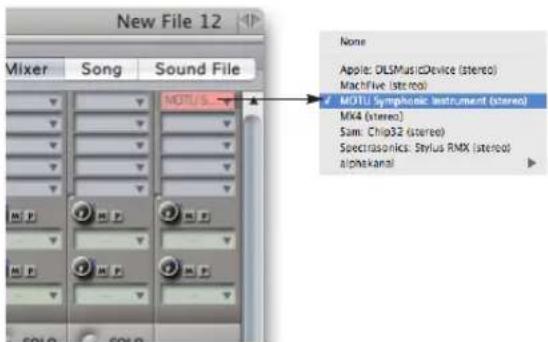
Figure 5-2: Opening the MOTU Symphonic Instrument on an instrument track in Digital Performer.
Working with multiple instances of the MOTU Symphonic Instrument
You can open as many instances of the MOTU Symphonic Instrument in Digital Performer as your computer's processing resources will allow. Keep in mind that the MOTU Symphonic Instrument operates as a 64-part multitimbral instrument, so each instance of the MOTU Symphonic Instrument is capable of playing 64 different instruments (triggered from 64 different MIDI channels).
Initiating MOTU Symphonic Instrument operation
Before you can begin using the MOTU Symphonic Instrument, you need to choose a preset for at least one part. For details, see chapter 3, "QuickStart Guide" (page 13).
Specifying audio output
By default, the MOTU Symphonic Instrument sends the output of all 64 parts to the audio output assignment of the instrument track on which it is instantiated. But it also supplies multiple independent outputs, which let you send parts to different destinations in the Digital Performer mixing environment, including the separate outputs on your audio hardware. For details, see “Outputs” on page 54.

Figure 5-3: In Digital Performer, the MOTU Symphonic Instrument sends audio to the track's audio output assignment. In this example, the instrument track is being played on the main outs of an 828mkll FireWire audio interface.
MIDI I/O
MIDI I/O between the MOTU Symphonic Instrument and Digital Performer is handled by Mac OS X's built-in MIDI services (CoreMIDI).
When you first instantiate a MOTU Symphonic Instrument plug-in, the MOTU Symphonic Instrument publishes 64 MIDI channels to Digital Performer. (Each instance of the MOTU Symphonic Instrument publishes its own set of 16 channels.) These MIDI channels appear in the output assignment menus of DP's MIDI tracks.
To send MIDI data from a DP track to a MOTU Symphonic Instrument part, assign the MIDI track to any MOTU Symphonic Instrument MIDI channel and then assign that channel to the part (as explained in “MIDI channel” on page 38).
The MOTU Symphonic Instrument must be instantiated in the project before you'll see its MIDI channels displayed in the MIDI output menus in DP.
Near sample-accurate MIDI playback
In regard to “Managing latency” on page 20, DP’s MIDI track playback (the timing between MIDI tracks in Digital Performer and the audio being triggered in the MOTU Symphonic Instrument) is accurate to within one sample. In other words, MOTU Symphonic Instrument audio will never trigger more than one sample earlier or later than the exact sample location prescribed by the MIDI data event triggering the sample. This is because both DP and the MOTU Symphonic Instrument take advantage of Mac OS X’s MIDI time-stamping features. This allows DP to accurately pre-cue MIDI data for playback. The MOTU Symphonic Instrument plays back in DP with the tightest timing possible.
Reducing live input latency
In regard to “Managing latency” on page 20, you can minimize live input latency with the MOTU Symphonic Instrument by keeping Digital Performer’s Buffer Size setting as low as possible. This setting is found in the Setup menu> Configure Audio System> Configure Hardware Driver. Try values of 256 samples or lower, if your computer can handle them. Lower settings produce higher processing demands on your computer's CPU resources.
PRO TOOLS / RTAS (MAC OS X)
For Pro Tools LE on Mac OS X, the MOTU Symphonic Instrument operates as a standard RTAS plug-in. For complete details about running RTAS plug-ins in Pro Tools LE, refer to your Pro Tools documentation. Here is a brief overview of how to use the MOTU Symphonic Instrument in Pro Tools LE.
Installation for Pro Tools/Mac OS X
The MOTU Symphonic Instrument Installer places the MOTU Symphonic Instrument plug-in in here:
/Library/Application Support/Digidesign/Plug-ins
Calling up the MOTU Symphonic Instrument on an audio track
The MOTU Symphonic Instrument is accessed from the insert menus of any audio track in Pro Tools LE. Just choose it from the insert menu and it will open as a plug-in. In Pro Tools 6.7 or higher, you can alternately use an aux track for Symphonic Instrument. In Pro Tools 7 or higher, you can use a dedicated instrument track.

Figure 5-4: Opening the MOTU Symphonic Instrument plug-in in Pro Tools LE.
Working with multiple instances of the MOTU Symphonic Instrument
You can open as many instances of the MOTU Symphonic Instrument in Pro Tools LE as it — and your computer's processing resources — will allow. Keep in mind that the MOTU Symphonic Instrument operates as a 64-part multitimbral instrument, so each instance of the MOTU Symphonic Instrument is capable of playing 64 different instruments (triggered from 64 different MIDI channels).
Initiating MOTU Symphonic Instrument operation
Before you can begin using the MOTU Symphonic Instrument, you need to choose a preset for at least one part. For details, see chapter 3, "QuickStart Guide" (page 13).
Specifying audio output
By default, the MOTU Symphonic Instrument sends the output of all 64 parts to the audio output assignment of the instrument track on which it is instantiated. But it also supplies multiple independent outputs, which let you send parts to different destinations in the Pro Tools LE mixing environment, including the separate outputs on your audio hardware. For details, see “Outputs” on page 54.
MIDI I/O
To send MIDI data from a Pro Tools MIDI track to a MOTU Symphonic Instrument part, assign the MIDI track to any MOTU Symphonic Instrument MIDI channel and then assign that channel to the part (as explained in “MIDI channel” on page 38).
The MOTU Symphonic Instrument must be instantiated in the session before you'll see its MIDI channels displayed in the MIDI output menus in Pro Tools (Figure 5-5) below.
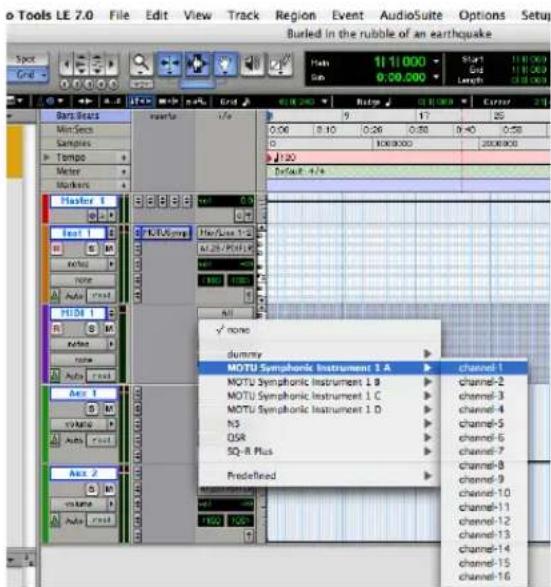
Figure 5-5: Assigning a Pro Tools MIDI track to a MOTU Symphonic Instrument MIDI channel.
Reducing buffer latency
In regard to “Managing latency” on page 20, you can minimize both live MIDI input latency and MIDI track playback latency by keeping your Pro Tools DA E Buffer Size setting as low as possible. Consult your Pro Tools manual for details about adjusting the DAE buffer size. Lower settings produce higher processing demands on your computer’s CPU resources.
PRO TOOLS / RTAS (WINDOWS)
For Pro Tools LE, the MOTU Symphonic Instrument operates as a standard RTAS plug-in. For complete details about running RTAS plug-ins in Pro Tools LE, refer to your Pro Tools documentation. Here is a brief overview of how to use the MOTU Symphonic Instrument in Pro Tools LE.
Calling up the MOTU Symphonic Instrument on an audio track
The MOTU Symphonic Instrument is accessed from the insert menus of any audio track in Pro Tools LE. Just choose it from the insert menu and it will open as a plug-in.

Figure 5-6: Opening the MOTU Symphonic Instrument plug-in in Pro Tools LE.
Working with multiple instances of the MOTU Symphonic Instrument
You can open as many instances of the MOTU Symphonic Instrument in Pro Tools LE as it — and your computer's processing resources — will allow. Keep in mind that the MOTU Symphonic Instrument operates as a 64-part multitimbral instrument, so each instance of the MOTU Symphonic Instrument is capable of playing 64 different instruments (triggered from 64 different MIDI channels).
Initiating MOTU Symphonic Instrument operation
Before you can begin using the MOTU Symphonic Instrument, you need to choose a preset for at least one part. For details, see chapter 3, “QuickStart Guide” (page 13).
Specifying audio output
By default, the MOTU Symphonic Instrument sends the output of all 64 parts to the audio output assignment of the instrument track on which it is instantiated. But it also supplies multiple independent outputs, which let you send parts to different destinations in the Pro Tools LE mixing environment, including the separate outputs on your audio hardware. For details, see “Outputs” on page 54.
MIDI I/O
To send MIDI data from a Pro Tools MIDI track to a MOTU Symphonic Instrument part, assign the MIDI track to any MOTU Symphonic Instrument MIDI channel and then assign that channel to the part (as explained in “MIDI channel” on page 38).
The MOTU Symphonic Instrument must be instantiated in the session before you'll see its MIDI channels displayed in the MIDI output menus in Pro Tools (Figure 5-7) below.
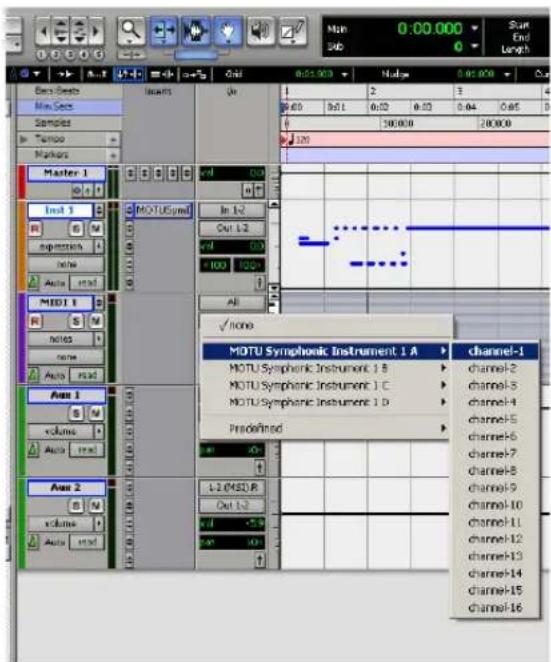
Figure 5-7: Assigning a Pro Tools MIDI track to a MOTU Symphonic Instrument MIDI channel.
Reducing buffer latency
In regard to “Managing latency” on page 20, you can minimize both live MIDI input latency and MIDI track playback latency by keeping your Pro Tools DAE Buffer Size setting as low as possible. Consult your Pro Tools manual for details about adjusting the DAE buffer size. Lower settings produce higher processing demands on your computer’s CPU resources.
PRO TOOLS / HTDM (WINDOWS)
For Pro Tools HD 6.x, the MOTU Symphonic Instrument operates as a standard HTDM plug-in, RTAS plug-in or both. For Pro Tools HD 7 and above, the Symphonic Instrument operates as an RTAS instrument. For HTDM operation, consult your Pro Tools 6.x documentation. For RTAS operation, see:
■ "Pro Tools / RTAS (Mac OS X)" on page 23
■ "Pro Tools / RTAS (Windows)" on page 25
LOGIC PRO (MAC OS X)
For Logic Pro 6 or higher running under Mac OS X, the MOTU Symphonic Instrument operates as a standard AU plug-in.
Installation for Logic Pro (Mac OS X)
The MOTU Symphonic Instrument Installer places the MOTU Symphonic Instrument AU plug-in in the Components plug-in folder:
/Library/Audio/Plug-ins/Components/
Opening the MOTU Symphonic Instrument on an instrument track
In Logic Pro, create an audio instrument track. Then open a stereo MOTU Symphonic Instrument on the instrument track.

Figure 5-8: Opening the MOTU Symphonic Instrument on a Logic Pro instrument track (from the track settings panel in this example).
Working with multiple instances of the MOTU Symphonic Instrument
You can open as many instances of the MOTU Symphonic Instrument in Logic Pro as your computer's processing resources will allow. Keep in mind that the MOTU Symphonic Instrument operates as a 16-part multitimbral instrument, so each instance of the MOTU Symphonic Instrument is capable of playing 16 different instruments (triggered from 16 different MIDI channels).
Initiating MOTU Symphonic Instrument operation
Before you can begin using the MOTU Symphonic Instrument, you need to choose a preset for at least one part. For details, see chapter 3, “QuickStart Guide” (page 13).
Specifying audio output
By default, the MOTU Symphonic Instrument sends the output of all 64 parts to the audio output assignment of the instrument track on which it is instantiated. But it also supplies multiple independent outputs, which let you send parts to different destinations in the Logic mixing environment, including the separate outputs on your audio hardware. For details, see “Outputs” on page 54.
MIDI I/O
MIDI I/O between the MOTU Symphonic Instrument and Logic Pro 6 is handled by Mac OS X's built-in MIDI services (CoreMIDI). When you first instantiate a MOTU Symphonic Instrument plug-in and choose a preset, the MOTU Symphonic Instrument publishes 16 MIDI channels to CoreMIDI and Logic Pro. (Each instance of the MOTU Symphonic Instrument publishes its own set of 16 channels.) These MIDI channels will automatically become available in Logic Pro on the MOTU Symphonic Instrument's instrument track. No extra preparation is necessary.
The MOTU Symphonic Instrument must be instantiated in your Logic Pro session before you'll see its MIDI channels displayed in the MIDI output menus in Logic Pro.
In the MOTU Symphonic Instrument instrument track (or any other tracks assigned to the MOTU Symphonic Instrument instrument object), each MIDI data event is tagged with a MIDI channel. Use Logic Pro's list editor to assign existing notes to a MIDI channel, and then assign that same MIDI channel to the desired part (or parts) in the MOTU Symphonic Instrument (as explained in “MIDI channel” on page 38). Any notes in the instrument track that match a part’s MIDI receive channel in the MOTU Symphonic Instrument will play that part. The same is true for any new data recorded, or live data that is ‘patched through’ to the MOTU Symphonic Instrument from your controller keyboard. In this scenario, make sure the MOTU Symphonic Instrument track channel (in the track settings panel) is set to All.
You can also route data from other MIDI tracks to the MOTU Symphonic Instrument by assigning the track to the MOTU Symphonic Instrument audio instrument, as demonstrated below, and tag all notes in the track to the necessary MIDI channel for the MOTU Symphonic Instrument:

Figure 5-9: Assigning a Logic Pro MIDI track to the MOTU Symphonic Instrument audio instrument, which in this example is Audio Instrument 1.
You could also achieve multi-timbral operation by creating a multi-instrument in Logic Pro's environment:

Figure 5-10: Creating a multi instrument in Logic Pro's environment.
Enable each MIDI channel and route it in the environment to the MOTU Symphonic Instrument instrument track:

Figure 5-11: Enabling the channels of the MOTU Symphonic Instrument multi-instrument and routing it to the MOTU Symphonic Instrument multi-instrument track.
Then, you can assign MIDI tracks to the individual MOTU Symphonic Instrument multi-instrument MIDI channels via the multi-instrument sub-menu:

Figure 5-12: Assigning a MIDI track to the MOTU Symphonic Instrument multi-instrument channels.
Latency
In regard to “Managing latency” on page 20, Logic Pro’s I/O Buffer Size setting (as shown below in Figure 5-13) has no effect on either live MIDI input latency or MIDI track playback, as Logic Pro has other ways of managing them. In general, the MOTU Symphonic Instrument will perform as well as any other virtual instrument that you use in Logic Pro.

Figure 5-13: Logic Pro's I/O Buffer Size setting.
OTHER AUDIO UNIT HOSTS (MAC OS X)
For Mac OS X audio/MIDI applications that support Audio Units (AU) plug-ins, the MOTU Symphonic Instrument operates as a standard AU plug-in. The AU host application must also support MIDI sequencing and Mac OS X's built-in MIDI services (CoreMIDI) to send MIDI data to the MOTU Symphonic Instrument. The MOTU Symphonic Instrument sounds are triggered by MIDI data received from the host application.
Installation for AU hosts
The MOTU Symphonic Instrument Installer places the MOTU Symphonic Instrument AU plug-in in the Components plug-in folder:
/Library/Audio/Plug-ins/Components
Calling up the MOTU Symphonic Instrument on an audio track
The MOTU Symphonic Instrument is accessed in an Audio Unit host application in the standard fashion as an AU plug-in.
Working with multiple instances of the MOTU Symphonic Instrument
You can open as many instances of the MOTU Symphonic Instrument in your host application as it — and your computer’s processing resources — will allow. Keep in mind that the MOTU Symphonic Instrument operates as a 16-part multitimbral instrument, so each instance of the MOTU Symphonic Instrument is capable of playing 16 different instruments (triggered from 16 different MIDI channels).
Initiating MOTU Symphonic Instrument operation
Before you can begin using the MOTU Symphonic Instrument, you need to choose a preset for at least one part. For details, see chapter 3, “QuickStart Guide” (page 13).
Specifying audio output
By default, the MOTU Symphonic Instrument sends the output of all 64 parts to the audio output assignment of the instrument track on which it is instantiated. But it also supplies multiple independent outputs, which let you send parts to different destinations in your host software's mixing environment, including the separate outputs on your audio hardware. For details, see "Outputs" on page 54.
MIDI I/O
MIDI I/O between the MOTU Symphonic Instrument and an AU plug-in host application is handled by Mac OS X's built-in MIDI services (CoreMIDI). When you first instantiate a MOTU Symphonic Instrument plug-in, it publishes 16 MIDI channels to CoreMIDI. (Each instance of the MOTU Symphonic Instrument publishes its own set of 16 channels.) These MIDI channels should automatically appear in the MIDI output assignment menus in your host application.
To send MIDI data from a MIDI track in your host application to a MOTU Symphonic Instrument part, assign the MIDI track to any MOTU Symphonic Instrument MIDI channel and then assign that channel to the part (as explained in "MIDI channel" on page 38).
Reducing buffer latency
In regard to “Managing latency” on page 20, the hardware buffer size may or may not impact live MIDI input latency and MIDI track playback: it depends on the host software. Consult the documentation for your host software for information about using virtual instruments.
CUBASE SX AND NUENDO (MAC OS X)
For Cubase SX or Nuendo running on Mac OS X, the MOTU Symphonic Instrument operates as a standard VST instrument (VSTi).
Installation for Cubase or Nuendo (Mac OS X)
The MOTU Symphonic Instrument Installer places the MOTU Symphonic Instrument VST OS X plug-ins here:
/Library/Audio/Plug-Ins/VST
Opening a MOTU Symphonic Instrument VSTi
Go to the VST Instruments rack and choose the MOTU Symphonic Instrument in a slot, as shown below:
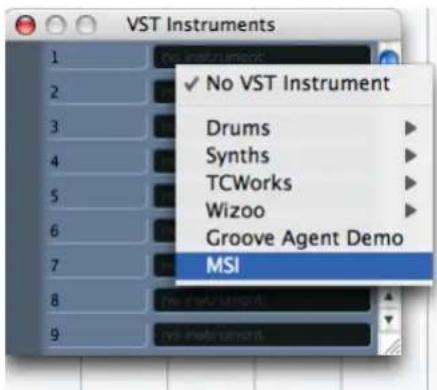
Figure 5-14: Opening the MOTU Symphonic Instrument in the VST Instruments window.
Working with multiple instances of the MOTU Symphonic Instrument
You can open as many instances of the MOTU Symphonic Instrument in the VST Instruments rack as Cubase or Nuendo — and your computer's processing resources — will allow. Keep in mind that the MOTU Symphonic Instrument operates as a 16-part multitimbral instrument, so each instance of the MOTU Symphonic Instrument is capable of playing 16 different instruments (triggered from 16 different MIDI channels).
Initiating MOTU Symphonic Instrument operation
Before you can begin using the MOTU Symphonic Instrument, you need to choose a preset for at least one part. For details, see chapter 3, “QuickStart Guide” (page 13).
Setting up audio outputs
Use the Device Setup window to enable VST outputs as usual. Then, add the desired output busses in the VST Connections window (Devices menu). For complete information about setting up audio outputs for VST instruments, refer to your Cubase or Nuendo manual.
Once you've set up the desired output bus, go to the Mixing Board and assign the MOTU Symphonic Instrument output (MSI) to the desired output bus:

Figure 5-15: Assigning the MOTU Symphonic Instrument output to the desired output bus.
MIDI I/O
MIDI I/O between the MOTU Symphonic Instrument and Cubase or Nuendo is handled by VST. When you first instantiate a MOTU Symphonic Instrument plug-in, the MOTU Symphonic Instrument publishes 16 MIDI channels to Cubase or Nuendo. (Each instance of the MOTU Symphonic Instrument publishes its own set of 16 channels.) These MIDI channels automatically appear in the output assignment menus of Cubase or Nuendo's MIDI tracks:

Figure 5-16: Assigning a MIDI track to the MOTU Symphonic Instrument and choosing a MIDI channel.
The MOTU Symphonic Instrument must be opened in your Cubase or Nuendo project before you'll see its MIDI channels displayed in the MIDI output menus in Cubase or Nuendo.
To send MIDI data from a MIDI track to a MOTU Symphonic Instrument part, assign the MIDI track to any MOTU Symphonic Instrument MIDI channel and then assign that channel to the part (as explained in “MIDI channel” on page 38).
Reducing buffer latency
In regard to “Managing latency” on page 20, Cubase and Nuendo provide ways to manage virtual instrument playback timing (consult your user guide for details). You can minimize live input latency with the MOTU Symphonic Instrument by keeping their Audio Buffer Size setting as low as possible. This setting is found in the Device Setup window under the VST Instruments list item. Try values of 256 samples or lower, if your computer can handle them. Lower settings produce higher processing demands on your computer’s CPU resources.

Figure 5-17: Setting the Audio Buffer Size in Cubase SX or Nuendo.
CUBASE SX AND NUENDO (WINDOWS)
For Cubase SX or Nuendo, the MOTU Symphonic Instrument operates as a standard VST instrument (VSTi).
Opening a MOTU Symphonic Instrument VSTi
Go to the VST Instruments rack and choose the MOTU Symphonic Instrument in a slot in the usual fashion, as shown below:
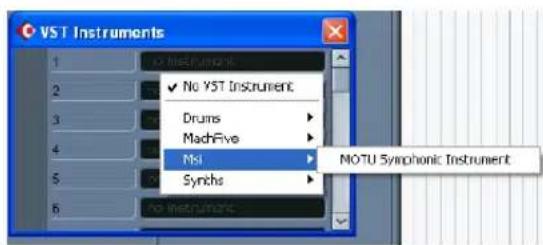
Figure 5-18: Opening the MOTU Symphonic Instrument in the VST Instruments window.
Working with multiple instances of the MOTU Symphonic Instrument
You can open as many instances of the MOTU Symphonic Instrument in the VST Instruments rack as Cubase or Nuendo — and your computer's processing resources — will allow. Keep in mind that the MOTU Symphonic Instrument operates as a 16-part multitimbral instrument, so each instance of the MOTU Symphonic Instrument is capable of playing 16 different instruments (triggered from 16 different MIDI channels).
Initiating MOTU Symphonic Instrument operation
Before you can begin using the MOTU Symphonic Instrument, you need to choose a preset for at least one part. For details, see chapter 3, “QuickStart Guide” (page 13).
Setting up audio outputs
Use the Device Setup window to enable VST outputs as usual. Then, add the desired output busses in the VST Connections window (Devices
menu). For complete information about setting up audio outputs for VST instruments, refer to your Cubase or Nuendo manual.
Once you've set up the desired output bus, go to the Mixing Board and assign the MOTU Symphonic Instrument output (MSI) to the desired output bus:
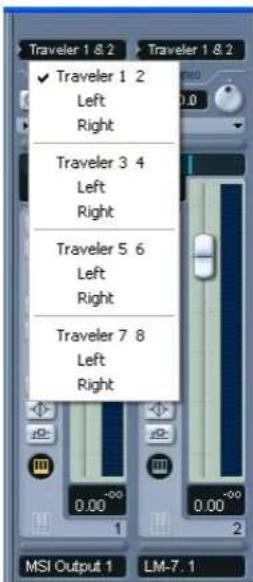
Figure 5-19: Assigning the MOTU Symphonic Instrument output to the desired output bus.
MIDI I/O
MIDI I/O between the MOTU Symphonic Instrument and Cubase or Nuendo is handled by VST. When you first instantiate a MOTU Symphonic Instrument plug-in, the MOTU Symphonic Instrument publishes 16 MIDI channels to Cubase or Nuendo. (Each instance of the MOTU Symphonic Instrument publishes its own set of 16 channels.) These MIDI channels automatically appear in the output assignment menus of Cubase or Nuendo's MIDI tracks:

Figure 5-20: Assigning a MIDI track to the MOTU Symphonic Instrument and choosing a MIDI channel.
The MOTU Symphonic Instrument must be opened in your Cubase or Nuendo project before you'll see its MIDI channels displayed in the MIDI output menus in Cubase or Nuendo.
To send MIDI data from a MIDI track to a MOTU Symphonic Instrument part, assign the MIDI track to any MOTU Symphonic Instrument MIDI channel and then assign that channel to the part (as explained in “MIDI channel” on page 38).
Reducing buffer latency
In regard to “Managing latency” on page 20, Cubase and Nuendo provide ways to manage virtual instrument playback timing (consult your user guide for details). You can minimize live input latency with the MOTU Symphonic Instrument by keeping your audio hardware Audio Buffer Size setting as low as possible. To access this setting, click the Control Panel button in the Device Setup window under the VST Multitrack list item, as shown below in Figure 5-21. Try values of 256 samples or lower, if your computer can handle them. Lower settings produce higher processing demands on your computer’s CPU resources.
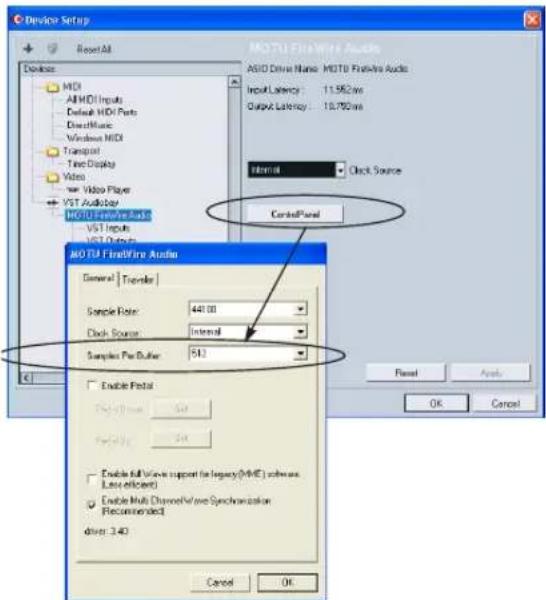
Figure 5-21: Setting the Audio Buffer Size in Cubase SX or Nuendo.
SONAR 3 AND OTHER DXi HOSTS
For SONAR 3 and other DXi host applications, the MOTU Symphonic Instrument operates as a standard DXi instrument.
Opening a MOTU Symphonic Instrument DXi
To open the MOTU Symphonic Instrument in SONAR, go to the Insert menu and then choose it from the DXi Synth sub-menu. Or you can go to the View menu and open the Synth Rack. In the Synth Rack window, click the Insert DXi Instrument button. In either case, if the Ask This Every Time option is checked, the DXi Synth Options window appears (Figure 5-22). Click OK.

Figure 5-22: Opening the MOTU Symphonic Instrument in SONAR.
Working with multiple instances of the MOTU Symphonic Instrument
You can open as many instances of the MOTU Symphonic Instrument in as SONAR (or other DXi host) — and your computer's processing resources — will allow. Keep in mind that the MOTU Symphonic Instrument operates as a 16-part multitimbral instrument, so each instance of the MOTU Symphonic Instrument is capable of playing 16 different instruments (triggered from 16 different MIDI channels).
Initiating MOTU Symphonic Instrument operation
Before you can begin using the MOTU Symphonic Instrument, you need to choose a preset for at least one part. For details, see chapter 3, “QuickStart Guide” (page 13).
Setting up audio outputs
In addition, each MOTU Symphonic Instrument output that you wish to use needs to be assigned to a SONAR audio track input. If you enabled one or both of the audio output options in the DXi Synth Options window (Figure 5-22), SONAR has already done this step for you. If not, then choose the MOTU Symphonic Instrument from the input menu of an audio track.
MIDI I/O
When you first instantiate a MOTU Symphonic Instrument plug-in, it publishes 16 MIDI channels to the DXi host. (Each instance of the MOTU Symphonic Instrument publishes its own set of 16 channels.) These MIDI channels automatically appear in the output assignment menus of SONAR or other DXi host's MIDI tracks:

Figure 5-23: Assigning a MIDI track to the MOTU Symphonic Instrument and choosing a MIDI channel.
The MOTU Symphonic Instrument must be opened in your SONAR or DXi host project before you'll see its MIDI channels displayed in the MIDI output menus in the host application.
To send MIDI data from a MIDI track to a MOTU Symphonic Instrument part, assign the MIDI track to any MOTU Symphonic Instrument MIDI channel and then assign that channel to the part (as explained in “MIDI channel” on page 38). If you enabled the MIDI Source Track option in the DXi Synth Options window (Figure 5-22), SONAR has already done this step for you.
Reducing buffer latency
In regard to “Managing latency” on page 20, SONAR provides ways to manage virtual instrument playback timing (consult your user guide for details). You can minimize live input latency with the MOTU Symphonic Instrument by keeping the Buffer Size setting as low as possible. This setting is found in the Audio Options window under the General tab, as shown below in
Figure 5-24. Lower settings produce higher processing demands on your computer's CPU resources.

Figure 5-24: Setting the Audio Buffer Size in SONAR.
CHAPTER 6 The MOTU Symphonic Instrument Window
OVERVIEW
The MOTU Symphonic Instrument window is comprised of four sections, as shown below in Figure 6-1. This chapter covers each section in detail.
Part List 38
Master Section 41
Part Parameters....42
Reverb 46
MIDI automation....50
MIDI Modulation....50
Expert Mode....51
Keyswitching....51
Streaming....52
Outputs....54

Figure 6-1: The MOTU Symphonic Instrument window.
PART LIST
The MOTU Symphonic Instrument is a multitimbral instrument that provides 64 different parts. Each part can have its own MIDI channel and preset (sound). Each instance of the MOTU Symphonic Instrument that you call up in your host software can play back 64 different parts.
Part list tabs
The Part list provides 64 parts, which can be accessed by clicking the part list tabs shown below:

Figure 6-2: Part list tabs.
The part list
Each tab displays one bank of 16 parts in the part list (parts 1-16, 17-32, etc.) To access a part, simply click the tab that displays it. From there, you can assign a MIDI channel and choose the instrument (preset) for the part, as described later in this chapter.
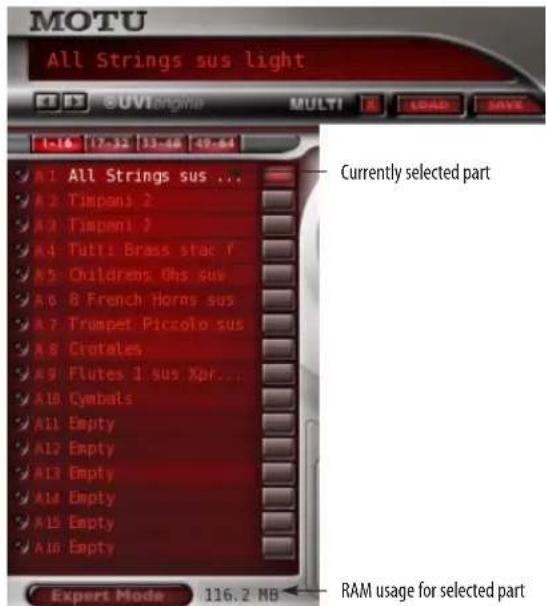
Figure 6-3: The Part list.
Part controls
Each part has the following controls:

Figure 6-4: A MOTU Symphonic Instrument part.
MIDI activity LED
The MIDI activity LED (Figure 6-4) lights up when the part receives MIDI data.
MIDI channel
Press the MIDI channel menu for a part (Figure 6-4) to choose the desired MIDI receive channel for the part.
Four banks of MIDI channels
To support its 64 parts, the MOTU Symphonic Instrument provides 64 separate MIDI channels, divided into four banks of 16 channels each: Bank
A, B, C and D. MIDI channels in Bank A are designated as A1, A2, A3, A4, etc. up to A16. Similarly, channels in Bank B are designated as B1, B1, B2, B3, etc. and so on for banks C and D as well. When you choose MIDI channels for the MOTU Symphonic Instrument in your host software or in the part list (as shown in Figure 6-4 on page 38), you will always see them presented in this fashion (bank letter plus MIDI channel number). You can use any MIDI channel you wish for any of the Symphonic Instrument's 64 parts. Parts (as many as you wish) can also share any MIDI channel.
This feature is supported by the stand-alone, MAS and RTAS/HTDM versions of the Symphonic Instrument. As of this writing, the VST, Audio Unit (AU) and DXi standards do not support multiple banks of MIDI channels. If you are using Symphonic Instrument in one of these plug-in formats, and you need more than 16 parts, open a second instance of the plug-in.
Creating instrument "stacks"
With 64 available MIDI channels, you can assign each part to its own MIDI channel, if you wish. But you can also assign multiple parts to the same channel to easily create layers (“stacks”), where all instruments that share the same MIDI channel play exactly the same notes.
Preset menu
The Preset menu (Figure 6-4) lets you choose any preset (instrument) in the MOTU Symphonic Instrument library. Each part can be loaded with its own unique preset. You can also load the same preset on two or more parts, if you would like to use the same instrument playing different notes, for example.
To access presets, double-click the preset menu. The preset browser appears:

Figure 6-5: Double-click to access the preset browser.
Preset browser
To use the browser (Figure 6-5), simply click the instrument category and sub-categories you wish. To choose (load) a preset, double-click it. Or click it once to select it and click OK. To clear a preset so that the part is empty, click the Empty button. To leave the current preset setting unchanged, click Cancel.
Tip for Mac OS X users: you can use the arrow keys on your computer keyboard to navigate through the preset browser and select items in the same fashion as the Mac OS file browser.
Clicking a part to view its settings
The settings in the MOTU Symphonic Instrument window control the currently selected part. To select a part, click its name so that its text is displayed in white, as demonstrated in Figure 6-3 on page 38. Portions of the MOTU Symphonic Instrument window that display part-specific information do so for the currently selected part. This includes the Part Parameter section.
Mute button
Click the Mute button (Figure 6-4) to temporarily silence the part.
Soloing
You can solo a part by option/alt-clicking its mute button. To unmute all parts, option- or alt-click again.
Preset display
For your convenience, the preset for the currently selected part (see “Clicking a part to view its settings” above) is displayed above the part list (Figure 6-6). This indicates at a glance which part is currently selected for the portions of the MOTU Symphonic window that apply to the currently selected part:

Figure 6-6: The preset menu.
Next/previous preset buttons
Click these buttons to scroll through the list of presets in the menu for the currently selected part.
RAM usage for the current preset
The RAM Usage display (Figure 6-3 on page 38) shows how much RAM is being used by the currently selected part in the Part List. To view the total memory currently used by all parts (and the Symphonic Instrument altogether), click the word Multi next to the Clear Multi button (Figure 6-3). This helps you keep track of how much memory in your computer is being used for the sounds loaded into the MOTU Symphonic Instrument. It is important to never use more RAM than your computer has available, as this means that the instruments won't be able to play properly.
Loading and saving multis
A multi is like a “snapshot” of the MOTU Symphonic Instrument window. It saves the entire window in its current state, including all presets currently loaded, and the current reverb settings, if any. Multis are a powerful and convenient way to transfer MOTU Symphonic Instrument settings to other projects, clients, colleagues, and even other host applications.
Multis can be saved anywhere you wish on your hard drive.
Saving a multi
To save a multi:
1 Set up the MOTU Symphonic Instrument window the way you would like to save it.
2 Click the Save button (Figure 6-6).
3 Type in a name for the multi and save it in the usual fashion anywhere you wish.
Loading a multi
To load a multi from disk:
1 Click the Load button (Figure 6-6).
2 Use the standard navigation features of your computer to locate the saved multi on your hard drive and open it.
The existing settings in the MOTU
Symphonic Instrument window are completely replaced by the loaded multi, so if you care about them, save them as their own multi before loading another multi.
Clearing a Multi
The Clear Multi button (Figure 6-6) quickly clears all of the currently loaded presets (sounds) from the part list. It also clears the current reverb setting and turns off the reverb altogether. This feature is meant to provide you with a convenient way to "start from scratch" with one click.
Viewing the name of the multi that was last loaded
To view the name of the multi that was last loaded, press on the word multi to the left of the Clear Multi button (Figure 6-6). Click again to return to the current preset name.
Default multi
The stand-alone version of the Symphonic Instrument (chapter 4, “The MOTU Symphonic Instrument Application” (page 15)) supports a default multi feature which is designed to automatically load your preferred multi as soon as the application is launched. To use this feature:
1 Create a multi as usual.
2 Name the multi Default.msip.
3 Save the multi (or an alias of the multi) in the folder where the stand-alone Symphonic Instrument application resides:
Platform Location
Mac /Applications/MOTU Symphonic Instrument
Windows /Program files/MOTU/MSI
This feature is particularly useful if you have a standard template of instruments, and you would like that template to be loaded and ready as soon as the stand-alone application is opened.
MASTER SECTION
The Master Section provides general settings that affect the entire plug-in as a whole (all parts).

Figure 6-7: The Master Section.
Scroll wheel support
The knobs in the Master Section can be adjusted with the scroll wheel on your mouse, if it has one. The same is true for all parameters and knobs in the MOTU Symphonic Instrument window.
Global volume
The Volume setting in the Master section serves as a global master volume setting for the entire MOTU Symphonic Instrument plug-in. It is applied as a final, additional gain stage for all MOTU Symphonic Instrument parts.
Tune
The Tune knob is a global tuning stage for the MOTU Symphonic Instrument window. It is applied to the entire plug-in as a whole, in addition to any other instrument-specific tuning adjustments that have been made. For example, you could tune the MOTU Symphonic Instrument to reference A at 442 Hz (instead of 440). The range is from 436 Hz to 444 Hz.
If you have multiple MOTU Symphonic Instrument plug-ins instantiated in your software, this global tune setting affects each plug-in separately.
PART PARAMETERS
The Part Parameters section of the MOTU Symphonic Instrument window (Figure 6-8) provides settings for the currently selected part (see “Clicking a part to view its settings” on page 39).

Figure 6-8: The Part Parameters section.
Polyphony (Poly)
The Polyphony setting (Figure 6-8) determines how many stereo notes the currently selected part can play simultaneously. For example, a setting of 12 lets you play 12 stereo notes. The maximum settings is 256 stereo notes (per part). Note that this is a per part setting, and it controls the currently selected part.
Caution: higher polyphony settings demand more of your host computer's processing power. For example, if you set the polyphony to 64 voices and played only 12 notes, the MOTU Symphonic Instrument would require much more computer processing power than it would when playing those same 12 notes with a polyphony setting of 12. Try to keep the polyphony setting as low as possible — only use what you know you'll need for the part. This setting is one of the most significant ways of optimizing MOTU Symphonic Instrument CPU usage and managing your computer's processing resources.
Mono mode
Click the Mono Mode button (Figure 6-8) to make the currently selected part play like a monophonic synth, where only one note can play at a time. Each new note played replaces any currently sustaining notes, with a degree of glide between them (see below). Mono mode is ideal for solo instruments.
Glide
The Glide knob (Figure 6-8) controls the length of the portamento transition between notes in Mono Mode. The range is from 20 ms (milliseconds) to 10 seconds.
Reverb (Rev)
The Reverb slider (Figure 6-8) lets you control how much reverb is being applied to the currently selected part. This part-specific setting lets you apply more reverb to some parts and less (or no) reverb to others.
Part volume and pan
The part volume and pan knobs (Figure 6-7) control the volume and pan for the currently selected part.
Volume range is from - 144 to +6 dB.
When you mute a part, it no longer expends system resources.
Volume and pan for each part are saved with multis and the host application session document. This gives you a great deal of flexibility when mixing and saving more complex multi-timbral or multi-layered multis.
Both volume and pan can be automated with the standard MIDI controllers #7 (volume) and #10 (pan), although you can use any controller you wish, as explained in “MIDI automation” on page 50.
Amplitude Envelope
The amplitude envelope (Figure 6-9) lets you control the attack (A), decay (D), sustain (S) and release (R) characteristics of the instrument on the currently selected part.

natural_image
Close-up of a camera lens with a circular screen displaying abstract patterns (no readable text or symbols)Figure 6-9: The Amplitude Envelope.
The attack, decay and release parameters are time-based parameters (a length of time), while the sustain parameter is a level (volume) parameter. When a note is played, the envelope generator begins to rise to its full level at the rate set by the attack parameter. Upon reaching peak attack level, it begins to fall at the rate set by the decay parameter down to the volume level set by the sustain parameter. The envelope remains at the sustain level as long as the note sustains. When the note stops, level returns to zero at the rate set by the release parameter.
Below is a summary:
Envelope stage unit range
| Attack (A) msec 10msec to 10 seconds |
| Decay (D) msec 10msec to 10 seconds |
| Sustain (S) percent zero to 1 (full scale) |
| Release (R) msec 10msec to 10 seconds |
LFO
The LFO section (Figure 6-10) lets you apply modulation effects such as vibrato, tremolo and timbre changes to the instrument.
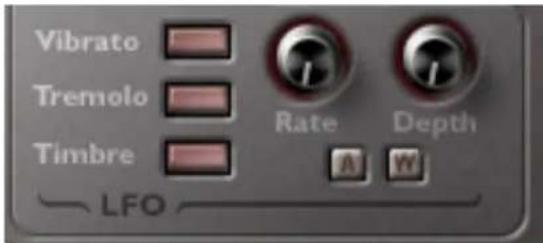
Figure 6-10: The LFO section.
Vibrato, tremolo and timbre
Enable the type of LFO modulation you would like to apply by clicking its button (Figure 6-10) to illuminate it. You can apply any combination of all three modulation types:
LFO modulation type Modulates
| Vibrato Pitch | |
| Tremolo Amplitude | |
| Timbre | Cutoff frequency of the LFO's multimode filter |
Rate and depth
Rate (Figure 6-10) controls the speed of the LFO oscillation in hertz (cycles per second) from zero to 15.00 Hz. Depth (Figure 6-10) controls how much the LFO affects the instrument sound. If mod wheel is assigned to control depth, the depth knob setting becomes the maximum value for when the mod wheel is all the way up. For example, if the Depth knob is set to 0.50, then moving the mod wheel all the way up sets the depth to 0.50.
A and W
The Aftertouch (A) and Mod Wheel (W) buttons give you external control over the LFO depth from your controller keyboard. To enable external control via one or both of these types of data, simply enable (illuminate) the corresponding button. You can enable both at the same time.
Filter
The filter section (Figure 6-11) provides several filter types for shaping the sound of the instrument.

Figure 6-11: The Filter section.
Filter Type
Choose the type of filter you wish to apply by clicking its button (Figure 6-11). The MOTU Symphonic Instrument provides the following filter types:
Filter type Label
| High Pass HP |
| Low Pass LP |
Band Pass BP
Cutoff (Cutoff Frequency)
Turn the Cutoff knob (Figure 6-11) to modify the cutoff frequency of the filter. The cutoff frequency can be automated by sending a MIDI controller to the MOTU Symphonic Instrument, as explained in "MIDI automation" on page 50.
Reso (Resonance)
Resonance (Figure 6-11) emphasizes the cutoff frequency. Higher resonance values can significantly boost gain, so you may need to attenuate the volume of the instrument (part) to achieve a clean sound. Resonance can be
automated by sending a MIDI controller to the MOTU Symphonic Instrument, as explained in "MIDI automation" on page 50.
Velocity
Velocity (Figure 6-11) allows you to control the cutoff frequency with MIDI note-on velocity. This control has a range from -1 to +1. If you wish the cutoff frequency to be fixed, set this control to zero (0). Negative values (below zero) lower the cutoff frequency the harder you strike a key. Positive values (above zero) raise the cutoff frequency the harder you strike a key. To hear an example of how this control can be used, try loading the Tutti Strings Sustained preset and choose the band-pass (BP) filter type. Now set the velocity control to zero (12 o'clock position). Play a note, striking the key at various velocities. Now try the same thing with the velocity knob to around -0.3 (around 10 o'clock) and again at +0.3 (around 2 o'clock). This will give you a good sense of the effect that this control has over the cutoff frequency.
Filter envelope
The MOTU Symphonic Instrument provides a separate envelope for filter modulation. Think of the filter envelope (Figure 6-11) as a hard-wired control signal for the filter cutoff frequency. It provides the following conventional 4-stage controls:
Stage Name Unit of measurement
| A Attack time Milliseconds | ||
| D | Decay time | Milliseconds |
| S | Sustain level | Percent of filter cutoff frequency |
| R | Release time | Milliseconds |
Env (Envelope Depth)
The Envelope Depth knob (Figure 6-11) is like a valve that governs the amount of envelope control signal you want to apply to the filter. Positive envelope depth values open up the filter relative to the cutoff frequency; negative values close (invert)
it. A value of +1.00 applies the envelope in full, and -1.00 applies the envelope in full, but completely inverted.
Pitch settings
The pitch settings (Figure 6-12) let you modify the pitch reference for the currently selected part.
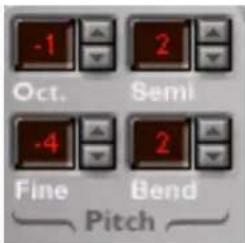
Figure 6-12: The Pitch settings.
Octave
The Octave setting (Figure 6-12) transposes incoming MIDI notes for the part (or preset) in increments of one octave.
Semi-tone and Fine tune
The Semi-tone and Fine-Tune settings
(Figure 6-12) transpose the part in semitones and cents, respectively. This is audio transposition (not MIDI). The Fine Tune range is from -100 to +100 cents (one semitone).
Bend
The Bend setting (Figure 6-12) controls the pitch bend range for the part. The range is from zero to 24 semitones (two octaves).
Velocity curve
Click the desired note-on velocity response curve (Figure 6-13).

Figure 6-13: The velocity response curves.
The flat line option plays all struck notes at the same velocity. By default, the velocity value is 127, but the Flat velocity curve can be set to any value from 1-127. All notes played by the part will then be played at the note-on velocity that you specify. To edit this value, double-click the Flat velocity button. You can then type in a velocity from your computer keyboard, or you can play a note on your MIDI controller. Click anywhere outside of this text box, or press Enter, to confirm the value.
Choose the linear curve for a 1-to-1 response curve (all notes are played at the velocity at which the key is struck). This is the normal response for MIDI data.
The exponential curve produces medium velocity values, which result in a lower volume than in linear mode. This curve is well-suited for soft keyboards that send high velocity values with a light touch.
The logarithmic curve produces higher velocity values that result in a higher volume than linear mode. This curve is good for piano-action keyboards that need hard hitting to send high velocity values.
EQ section
The EQ section (Figure 6-14) provides basic high and low tone control for the instrument (part). The center frequency for the High band is 6kHz. For the Low band it is 120Hz.
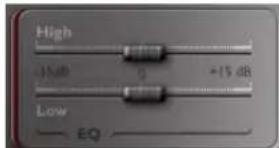
Figure 6-14: The EQ section.
REVERB
The reverb section (Figure 6-15) lets you play your orchestra sounds in an acoustic space of your choosing.

Figure 6-15: The Reverb section.
Turning reverb on/off
Use the on/off button to enable or disable the reverb for global use within the plug-in. Turn it off if you are not using it, as you do not want to waste your computer's valuable processing resources.
Applying reverb to each part
To apply reverb to a part, turn up the reverb slider (Figure 6-8 on page 42) for the part as explained in "Reverb (Rev)" on page 42. Each part has its own unique reverb slider setting, which allows you to apply different amounts of reverb to each part, or even disable it completely for some parts.
Reverb menu
Choose the desired acoustic space from the reverb menu (Figure 6-15). There are two types of reverbs provided in the menu: fast reverbs and convolution reverbs (Figure 6-16). These two types are discussed in the following sections.
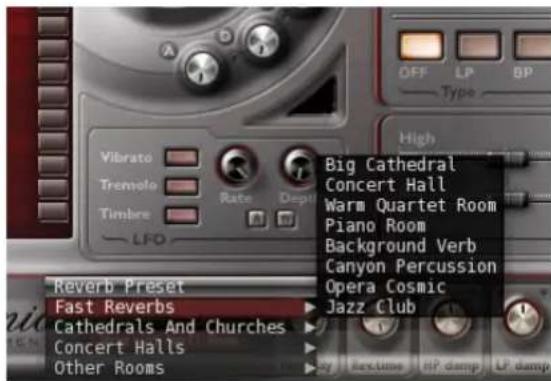
Figure 6-16: The reverb menu.
Fast Reverbs
If your computer cannot handle the convolution reverb acoustic spaces, try using the Fast Reverbs (Figure 6-16). These are non-convolution (synthesized) reverbs that place a negligible load on your host computer.
Fast reverb settings
Fast reverbs have the following settings:
Fast
reverb
setting Unit Range Explanation
| Reverb time | sec 0-10 Reverb time (Figure 6-15) controls the length of the reverb tail (the portion of the sound as it trails off to silence). Longer reverb times make your music sound like it is in a larger space; shorter times sound like a smaller space. The maximum allowed time varies and depends on the specific acoustic space you have chosen. | ||
| LP Damp | -0-1 A low pass filter that reduces high frequencies as you increase the LP damp setting. | ||
| Wet dB -∞ to 6 A signal with no reverb applied to it is commonly referred to as being dry. Therefore, a signal that is being processed with reverb is referred to as being wet. The Wet setting (Figure 6-15) does what its name implies: it controls the amount (volume) of the treated (wet) signal. If you want more reverb, turn up this setting; if you want less reverb, turn it down. | |||
| Direct | dB | -∞ to 6 | Direct (Figure 6-15) controls the volume of the original dry (unprocessed) signal. This allows you to precisely control the amount of the original dry signal is mixed in with the wet (processed) signal. |
Fast reverb presets
The fast reverb sub menu provides several presets shown in Figure 6-16. You can choose a preset and use it as is, or change its settings to create your own customized reverb sound.
Convolution reverbs
The MOTU Symphonic Instrument is equipped with convolution (sampled) reverb. Convolution is a process where the characteristics of a real acoustic space are directly sampled, such as a church, concert hall, theater, or even outdoor spaces. The resulting impulse response (IR) consists of an audio file that holds the actual sound decay characteristics of the acoustic space. By
sophisticated signal processing, that impulse response can then be applied to any audio material, making it sound exactly as if it were being heard in the acoustic environment captured by the impulse response.
Convolution reverb is the most realistic type of reverb ever developed because it faithfully reproduces the actual characteristics of real acoustic spaces. As a result, it requires intense processing. Therefore, when you choose a convolution reverb preset, be mindful of the amount of processing demands it imposes on your computer.
To use a convolution reverb, choose it from one of the three convolution reverb sub-menus shown in Figure 6-16 on page 46: Cathedrals and Churches, Concert Halls or Other Rooms.
Computer performance
Because of the intensive processing required to produce a convolution reverb in real time, a fast PC or Apple Power Mac G5 computer is highly recommended when using the convolution reverbs. The processing demands of convolution reverb can be reduced by the following techniques:
- Shorter reverb times require less processing power. Choose shorter reverbs (reverb times are listed on page 49). You can also simply turn down the reverb (see “Reverb time (0-100%)" in the next section).
- Raise the buffer size of your hardware as explained in “Hardware buffer size” on page 20.
■ Employ the CPU conservation techniques discussed in “Conserving CPU resources” on page 20.
■ If your host audio application has a track freeze or bounce-to-disk feature, you can use it to “print” CPU-intensive MOTU Symphonic Instrument tracks and then take them off line.
Convolution Reverb settings
Here is a brief summary of the reverb settings for convolution reverbs.
PreDelay (Figure 6-15) is the amount of time before you hear the very first reflections. For example, if you are in a large room, it takes longer for the first reflections return. PreDelay is useful for clarifying the original sound. For example, if you apply a larger amount of predelay to an instrument, the reflections won't start until after a note has been played.
To conserve CPU bandwidth, try to keep the predelay setting to 40 msec or longer. Shorter predelay times impose a much larger hit on the computer's processor.
Reverb time (0-100%)
Reverb time (Figure 6-15) controls the length of the reverb tail (the portion of the sound as it trails off to silence). Longer reverb times make your music sound like it is in a larger space; shorter times sound like a smaller space.
The maximum allowed time varies and depends on the specific acoustic space you have chosen.
Longer reverb times cause your computer to work harder. So you can conserve computer resources by choosing shorter reverb times.
HP damp (-1 to +1)
HP damp (Figure 6-15) is a high pass filter that reduces low frequencies as you increase the HP damp setting. Positive values damp high frequencies, while negative values expand high frequencies.
LP damp (-1 to +1)
LP damp (Figure 6-15) is a low pass filter that reduces high frequencies as you increase the LP damp setting. Positive values damp low frequencies, while negative values expand low frequencies.
Spread (-1 to +1)
Spread (Figure 6-15) controls the stereo imaging of the reverb. If you turn this control down, the reverb effect will become mono.
Wet (-∞ to +6dB)
A signal with no reverb applied to it is commonly referred to as being dry. Therefore, a signal that is being processed with reverb is referred to as being wet. The Wet setting (Figure 6-15) does what its name implies: it controls the amount (volume) of the treated (wet) signal. If you want more reverb, turn up this setting; if you want less reverb, turn it down. Also be sure that the reverb slider (Figure 6-8 on page 42) is turned up for the parts on which you wish to hear reverb.
Direct (-∞ to +6dB)
Direct (Figure 6-15) controls the volume of the original dry (unprocessed) signal. This allows you to precisely control the amount of the original dry signal that is mixed in with the wet (processed) signal.
Saving reverb settings as part of a multi
If you make changes to the reverb settings and wish to save the current reverb settings for use in other projects, you can save them as part of a multi. See “Loading and saving multis” on page 40.
Convolution reverb presets
Real acoustic spaces across Europe were carefully selected and recorded to compliment the MOTU Symphonic Instrument sound library. A wide variety of spaces are provided, and each space can be fine-tuned even further by adjusting the reverb settings. These reverbs were captured in cathedrals, and churches, chapels theaters and other locations.
Each preset is listed with its maximum reverb time. Remember, the longer the reverb time, the more processing it requires, and the greater the demand placed on your computer.
Cathedrals and Churches Length
| Cathedral Hall 10.698 sec |
| Big Chapel Hall 10.461 sec |
| Huge Church 11.216 sec |
| Cathedral Organ 13.411 sec |
| Bright Cathedral 10.698 sec |
| Church Organ Hall 10.461 sec |
| Mystic Canyon 11.216 sec |
| Requiem Room 13.411 sec |
| Church Reflections 6.329 sec |
| Small Chapel 6.343 sec |
Concert Halls
| Majestic Room 6.232 sec | |
| Concert Hall 6.097 sec | |
| Warm Ambiance 6.045 sec | |
| Bright Concert Hall 6.232 sec | |
| Open Opera Space | 6.097 sec |
| Symphonic Hall | 6.045 sec |
| Concert Half | 6.331 sec |
| Large Ensemble Room | 6.378 sec |
| Other Rooms | |
| Small Concert Hall | 2.494 sec |
| Warm and Small Room | 2.468 sec |
| Pink Concert Room | 2.494 sec |
| Capital Hall | 2.468 sec |
| Small Concert Room | 2.792 sec |
| Close Piano Room | 2.818 sec |
| Quartet Room | 2.792 sec |
| Wood Ambiance | 2.818 sec |
MIDI AUTOMATION
You can send MIDI continuous controller data to any MOTU Symphonic Instrument knob or slider to control it remotely from your MIDI controller or automate it from recorded controller data in a MIDI track in your audio sequencer.
To assign a MIDI controller to a knob or slider, control-click it, or if you have a right mouse button, right-click it. A window appears:

Figure 6-17: Assigning a MIDI controller to a control to automate it.
Send the desired controller from your keyboard. As you move it, the controller data type is accepted and the window is dismissed.
To remove a controller, control-click or right-click the control and choose the None option (Figure 6-17).
Automation is assigned per part
When you assign a MIDI controller as described above, it is connected to the control for the currently selected part (see “Clicking a part to view its settings” on page 39). This gives you the maximum amount of flexibility, allowing you to control multiple parts simultaneously.
MIDI automation examples
Here are a few examples of how you could use MIDI automation to control the MOTU Symphonic Instrument.
Controlling the volume of each instrument To control the volume of each instrument individually, perhaps from a MIDI controller device with faders on it, click the name of an instrument to highlight it (Figure 6-3 on page 38), control-click or right-click its volume knob (Figure 6-8 on page 42) and then move the desired fader on your controller to complete the assignment (Figure 6-17).
Repeat this procedure for each instrument.
Controlling the timbre of an instrument MIDI automation is an ideal way to have hands-on, real-time dynamic control over the timbre of an instrument. Here are just a few examples:
■ Control the rate and depth of both vibrato and tremolo in the LFO section to quickly and easily produce incredibly realistic vibrato, especially for solo instruments.
■Control the attack parameter (in the ADSR amplitude section) to achieve dynamic control of an instrument's articulations in real time.
Default MIDI controllers
By default, MIDI controller numbers 7, 10 and 11 are assigned to part volume, pan and expression.
MIDI MODULATION
MIDI Modulation is an extension of the Symphonic Instrument's MIDI automation capabilities discussed in the previous section. MIDI Modulation works as a real time control that modulates a parameter's value without changing the preset setting itself. It can either add to or subtract from the parameter's current value, while at the same time preserving the preset's original value for the parameter.
This feature is available for non-voice-specific parameters, such as volume, pan and filter cutoff frequency. Option/alt-right click (or option-control-click with a single-button Mac mouse) to
bring up the MIDI Modulation window.
Alternately, you can shift-right click (or shift-control-click with a single-button Mac mouse) to bring up the MIDI Modulation window.
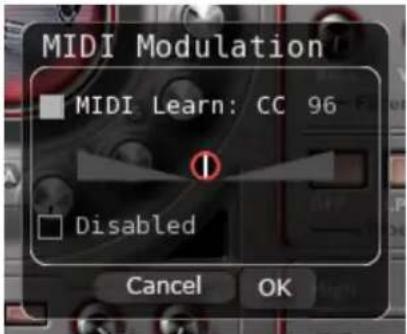
Figure 6-18: MIDI Modulation.
The MIDI Modulation window (Figure 6-18) looks very much like the MIDI Control window (Figure 6-17 on page 50), except this window also has a slider. For a negative modulation value, drag the slider to the left; for a positive value, drag the slider to the right. Now send the desired controller for your keyboard, and the window is dismissed.
This is useful to provide an extra degree of control and variance over the details of your Symphonic Instrument sounds. For example, try using MIDI Modulation to modify the filter cut-off frequency. You can also use it to create crossfades between different controls. For example, you could assign two parts to respond to the same MIDI channel: modulate volume on one part with Expression (CC 11) and drag the slider to the right, and modulate volume on the other part with Expression and drag the slider to the left. The result is that you could crossfade between the two parts by moving your expression controller.
EXPERT MODE
Click the Expert Mode (Figure 6-19) button to access the Expert Mode settings, which can then be further accessed via three buttons at the top of the Expert Mode pane: Keyswitch (Figure 6-20), Streaming (Figure 6-21) and Outputs (Figure 6-22).

Figure 6-19: Expert Mode.
KEYSWITCHING
The Keyswitch settings (Figure 6-20) allow you to load multiple presets into two or more parts and then dynamically play and mute them from your MIDI controller using key switching, note range, velocity range or any combination of the three. This powerful feature gives you a great deal of real-time control over the instruments you are playing from your controller.
Setting up parts for keyswitching
Load the instruments you would like to include for use. Then assign them all to the transmit MIDI channel you will use to control them from your MIDI controller. They should all share this same transmit channel. For example, in Figure 6-20 all parts are assigned to MIDI channel A1, which is the transmit channel for the MIDI controller being used. Then click the Expert Mode button to program the Keyswitch settings for each part.
The Keyswitch settings
The Keyswitch settings are displayed in 16 rows, one for each part. For example, in Figure 6-20 the fourth row corresponds to Part 4, which is currently loaded with the Celli sus preset. Make the
Key Range, Velocity Range and/or Key Switch setting as desired for each part. You can use any combination of the three settings for each part.
To enable a setting, click the check box next to it, so that the check box is filled in. An empty box means that the setting is disabled (not used).
To change a note-on velocity number or pitch with the mouse, drag up or down. To change it from your MIDI controller, double-click it to make it turn red, and then play your MIDI controller to enter the desired velocity value or note pitch.
Key Range
The Key Range determines the note range over which the instrument will play.
Velocity Range
The Velocity Range determines the MIDI note-on velocity range that will trigger the instrument.
Key Switch
The Key Switch determines the MIDI note that can be played to toggle the instrument on and off. Note that multiple instruments can have key switches, allowing you turn them on and off either independently or in groups for instant stacks.
STREAMING
Disk streaming (Figure 6-21) allows you to load very large presets (that consist of a large amount of audio sample data) into the Symphonic
Instrument, even if the samples are larger than the amount of free memory (RAM) available in your computer. Rather than loading the entire sample set into RAM, the Symphonic Instrument reads (streams) the sample from the hard drive as the preset is being played. This allows the Symphonic Instrument to play combinations of presets that add up to a gigabyte (GB) of sample data or more.
Memory requirements and recommendations
Disk streaming is not a “cure all” for running the Symphonic Instrument on a computer that has lower amounts of memory installed. The minimum RAM required to run the Symphonic Instrument is still 256MB, and it is still strongly recommended that you install at least 512MB. Optimum performance will be achieved with 1GB of RAM or more. The streaming feature allows you to play much larger samples, but it doesn’t necessarily squeeze more samples into less RAM.

Figure 6-20: Key switching.
Disk performance
The disk streaming performance can be heavily affected by the speed of the hard drive on which the msi.dat file resides. For streaming, the faster the hard drive is, the better. You should use at least a 7200RPM drive.
If you are using the Symphonic Instrument in a host application such as Digital Performer, Pro Tools or Logic, and you are also recording and playing disk tracks in the host software, you should strongly consider placing the msi.dat file on its own, separate hard drive. If your host software is recording and playing audio files while the Symphonic Instrument is attempting to stream samples from the same hard drive, the hard drive can quickly be pushed beyond its performance limits. If the disk tracks are playing from one hard drive, and the Symphonic Instrument is streaming from another separate drive, you are much less likely to encounter disk performance issues.
Enabling streaming
Disk streaming can be enabled in the Symphonic Instrument on a part by part basis. For example, you could turn on streaming for Parts 1-16, but leave it turned off for parts 17 through 32. Streaming can be enabled on as many parts as you like, up to all 64 parts.
To enable streaming for a part in the Expert mode Streaming settings (Figure 6-21 on page 53), click the check box to the right of the part.
Streaming settings
There are two streaming preferences that allow you to optimize steaming performance for your computer.
Preload Time
The Preload Time (Figure 6-21 on page 53) is the amount of each sample preloaded into RAM when the preset is first loaded.
Lower values require less RAM overall, but increase the load on the host computer processor and the hard drive. Don't use very small values because this causes many small samples to be streamed unnecessarily. The result is unnecessary strain on your computer.
If you would like to place a limit on the minimum size of the samples to be streamed, use this setting. Samples that are smaller than the Sample preload size will not be streamed.
In situations where a preset consists of a large number of very large samples, and you have lots of extra RAM installed in your computer, a higher

Figure 6-21: Streaming.
sample preload size can actually allow you to play more parts because the processor and hard drive strain will be lower.
Ring Buffer Size
The Ring Buffer Size (Figure 6-21 on page 53) is the number of samples reserved for each voice after streaming has begun and the sample is being played. Lower values can sometimes help eliminate dropouts and similar artifacts, but lower values also increase the load on the host computer processor and the hard drive. Higher values reduce processor strain, but require more memory.
OUTPUTS
The Output settings (Figure 6-22) let you assign each part to one of 17 possible stereo output pairs (main outs plus 16 stereo aux outputs). Each output pair can be assigned to (or routed by your host audio software to) a pair of physical outputs on your audio hardware. This provides you with a great deal of flexibility in sub-mixing the Symphonic Instrument's 64 parts. For example, in Figure 6-22 the strings and harp (parts 1-5, plus part 12) are being sub-mixed to the main outs; the woodwinds (parts 6-8) are being submixed to MSi output 2; the brass (parts 9-11) are being sub-mixed to MSi output 6 and the percussion (parts 13-16) are being sub-mixed to MSi output 10.
The list of stereo pairs that you see in each Outputs menu depends on the situation in which you are running the Symphonic Instrument.
Multiple outputs and stand-alone operation
If you are running the Symphonic Instrument as a stand-alone application, the output menu displays a main out pair, plus 16 additional separate output pairs, numbered 2 through 17. To learn how to map these output pairs to the physical outputs on your audio hardware, see chapter 4, “The MOTU Symphonic Instrument Application” (page 15) and “Outputs” on page 54.
Multiple outputs and plug-in operation
If you are running the Symphonic Instrument as a plug-in, the output menu displays whatever outputs are made available to the plug-in by your host software. For example, in Digital Performer, you will see pairs of busses, as supplied by Digital Performer's current studio configuration (Setup menu). Your host software allows you to map the busses to the physical outputs on your audio hardware.

Figure 6-22: Outputs.
CHAPTER 7 The Instruments
OVERVIEW
The MOTU Symphonic Instrument includes an instrument library that contains over 8 GB of world-class orchestral instrument sounds. The library includes a wide variety of instruments. This chapter provides an overview of the supplied instruments and presets.
Instrument descriptions....56
Placement....56
Preset size....56
Note ranges....56
Playing techniques....58
Brass ensemble 59
Brass solo 59
Classical Guitar....60
Harp....61
Historical instruments....62
Mallet....63
Percussions 63
Pianos....64
Pipe organs — Baroque....65
Pipe Organs — Romantic 66
Saxophones....67
Strings Ensemble....67
Strings Solo 69
Tutti Orchestra....69
Voices....70
Woodwinds Ensemble 71
Woodwinds Solo 72
INSTRUMENT DESCRIPTIONS
Brief descriptions of each instrument can be found alphabetically in Appendix B, “Glossary” page (79).
PLACEMENT
When creating a full orchestra ensemble, keep in mind the traditional placement on stage for each instrument, as shown below in Figure 7-1. Use the individual part volume and pan controls (Figure 6-7 on page 41) to control pan (left-to-right placement) and volume (front-to-back placement). By experimenting with different amounts of pan and volume for each instrument, and by choosing the desired acoustic space (“Reverb” on page 46), you can create incredibly realistic ensemble sounds.
PRESET SIZE
Each instrument preset consists of samples that are loaded into your computer's memory (RAM). This chapter lists the size of each preset to give you an idea of how much RAM is being used on your computer to load each preset.
NOTE RANGES
Each instrument in the orchestra has a note range prescribed by the lowest note it can play and the highest note it can play. In some cases, notes can be played beyond what is considered to be the conventional note range for the instrument. For example, low brass instruments can play pedal notes in the extreme low register of the instrument. However, the conventional note range for the instrument does not take these extreme pitches into account. Figure 7-2 on page 57 shows the conventional pitch range for each instrument. Each MOTU Symphonic Instrument preset has a specific note range of samples, as listed next to the preset on the following pages of this chapter.
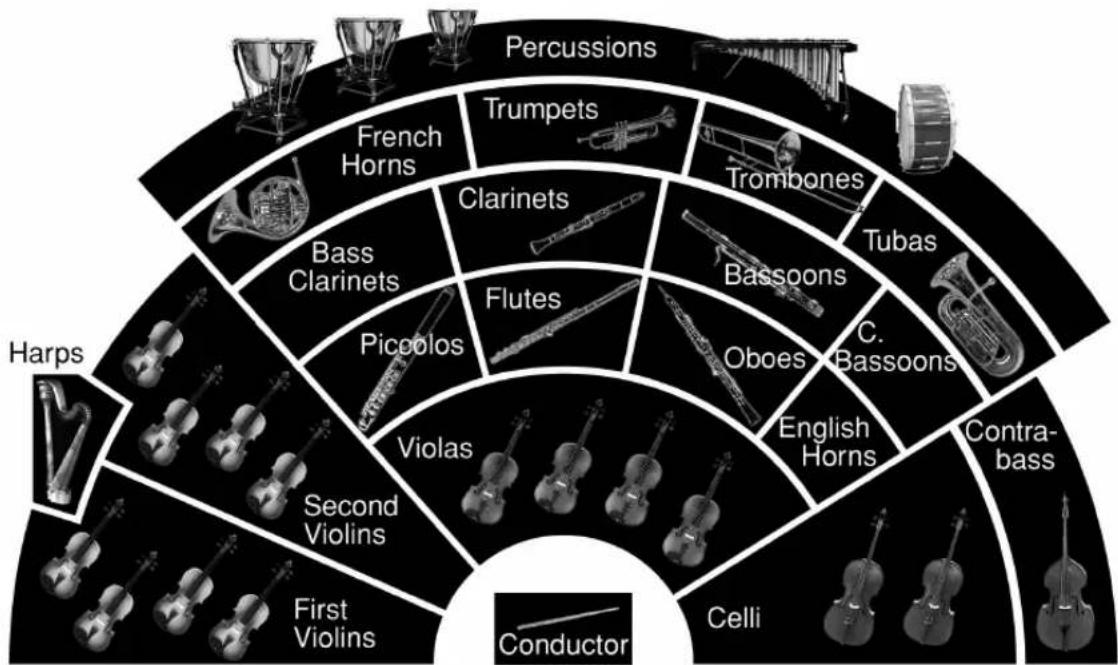
Figure 7-1: Conventional instrument placement in an orchestra.

bar
| Instrument | Label | | ----------------- | ------------- | | middle C | D4 | | middle C | piccolo | | middle C | C7 | | middle C | B2 | | middle C | flute | | middle C | Eb6 | | middle C | Bb2 | | middle C | oboe | | middle C | Ab5 | | middle C | E2 | | middle C | english horn | | middle C | A4 | | middle C | D2 | | middle C | Bb clarinet | | middle C | C6 | | middle C | Bb0 | | middle C | bassoon | | middle C | D4 | | middle C | Ab2 | | middle C | alto saxaphone| | middle C | E5 | | middle C | F1 | | middle C | french horn | | middle C | F4 | | middle C | G2 | | middle C | Bb trumpet | | middle C | D5 | | middle C | E1 | | middle C | trombone | | middle C | D4 | | middle C | G0 | | middle C | bass trombone| | middle C | F3 | | middle C | G1 | | middle C | timpani | | middle C | C0 | | middle C | C1 | | middle C | C2 | | middle C | C3 | | middle C | C4 | | middle C | C5 | | middle C | C6 | | middle C | C7 | | middle C | double bass | | middle C | G3 | | middle C | E0 | | middle C | cello | | middle C | D5 | | middle C | B6 | | middle C | violin | | middle C | E5 | | middle C | double bass | | middle C | G1 | | middle C | G2 | | middle C | c2 | | middle C | B2 | | middle C | Bb2 | | middle C | Bb0 | | middle C | Bassoon | | middle C | D4 | | middle C | Eb6 | | middle C | Eb0 | | middle C | Bassoon | | middle C | D2 | | middle C | Bb clarinet | | middle C | Bb0 | | middle C | Bassoon | | middle C | D4 | | middle C | Eb0 | | middle C | Bassoon | | middle C | Eb0 | | middle C | Bassoon | | middle C | Bassoon | | middle C | Bassoon | | middle C | Bassoon | | middle C | Bassoon | | middle C | Bassoon | | middle C | Bassoon | | middle C | Bassoon | | middle C | Bassoon | | middle C | Bassoon | | middle C | Bassoon | | middle C | Bassoon |PLAYING TECHNIQUES
Not only does the MOTU Symphonic Instrument provide a wide range of orchestral instruments, it also provides a wide variety of playing styles and techniques. Here is a brief overview.
Universal techniques
| Sustain (Sus) The instrument plays with a normal attack and holds the note for as long as you hold down the key. For most instruments, the sustain samples have been recorded at piano, mezzo forte and forte volume levels, which are accessed via note-on velocity. The harder you strike a key, the louder the volume. | |
| Vibrato (Vib) Slight and rapid variation in pitch imparted to a sustained note to add warmth and expressiveness. | |
| Staccato (Stac) A short note played in a separated fashion from other notes. | |
| Marcato (Marc) Similar to staccato, except that the note is played with a sharp, emphatic attack. | |
| Trill half tone (Trill HT) | The player rapidly alternates between a note and the note a half step above it. Trills can produce dramatic or joyful effects and are very difficult to reproduce with separate notes. Therefore, many instruments in the MOTU Symphonic collection provide dedicated trill presets. Trills express many intense emotions at all volume levels. They can be particularly intense when played fortissimo in the middle range of the instrument. Trills can also express much more “lightness” when played pianissimo on the higher notes. |
| Trill whole tone (Trill Tone) | Same as above, except that an interval of a whole step is played. |
| Mix Combines several playing techniques in one preset. For example, sustained strings and marcato strings might be provided together in one preset, where soft velocities produce sustained notes and hard velocities produce marcato notes. | |
Growl A wind instrument technique where the player distorts the tone of the instrument with changes to their embouchure or by fluttering their tongue as they play the note.
String techniques
| Tremolo A rapid back and forth bowing of the same note. | |
| Pizzicato (Pizz) The string is plucked with the index finger, creating a short, percussive note.More percussive than melodic. | |
| Snapped pizzicato(Pizz Snap) | The string is plucked hard enough that the string snaps against the fingerboard of the instrument, creating a much more percussive effect. |
| Spiccato up/down The Italian word for clearly articulated. A short note played with a slight uplifting of the bow — or “bouncing bow”. Can be performed as an up bow or a down bow action. | |
| Glissando up/down(Gliss) | The player slides their finger along the string without an intended target note. |
| Détaché A changing of bow direction for each successive note. | |
| Run A chromatic or diatonic series of notesplayed in rapid succession. These useful presets provide realistic transitions between notes. | |
| Noise An ensemble effect where each musicianplays open strings, as if tuning their instruments before a performance. | |
| Brass techniques | |
| Glissando up/down(Gliss) | For brass, a glissando (gliss) is a cascade of notes that slides chromatically or diatonically from one note to another. In most cases, gliss samples are provided in octaves (from the root note to the note an octave above or below). |
| Swell up/down Similar to glissando, except that the end note is usually not clearly heard. Instead the gliss effect trails off as it goes up or down. | |
| Trombone glissup/down | Because trombones have a continuous slide, their glissandos consist of a smooth slide in tone up or down, rather than a cascade of individual notes. |
| Mute | A mute is placed in the bell of the brass instrument to significantly modify its tone. |
BRASS ENSEMBLE
The Brass Ensemble bank provides unison performances of the various orchestra brass sections, including French horns, trombones and trumpets. These presets provide the sound of the entire section playing the same notes in unison. Both staccato and sustained variations are provided. For each instrument (French Horns, Trombones and Trumpets), two different sections of four players each were recorded in order to provide a more broad variety of sounds. For the French Horns, an additional section of eight players was recorded for that big Hollywood orchestra French Horn sound.
French Horns Size Note range
| 001 4 French Horns stac 6.62MB B0-C4 |
| 002 4 French Horns stac f 3.52MB B0-C4 |
| 003 4 French Horns sus 163.29MB B0-C4 |
| 004 4 French Horns sus f 66.71MB B0-C4 |
| 005 4 French Horns sus light 84.22MB B0-C4 |
| 006 8 French Horns stac 5.40MB B0-C4 |
| 007 8 French Horns stac f 2.91MB B0-C4 |
| 008 8 French Horns sus 152.72MB B0-C4 |
| 009 8 French Horns sus f 67.14MB B0-C4 |
| 010 8 French Horns sus light 83.35MB B0-C4 |
| 011 Xtra French Horns stac 4.95MB B0-C4 |
| 012 Xtra French Horns sus 22.73MB B0-C4 |
Trombones
| 013 TroMBones stac 5.50MB C1-C4 | ||
| 014 TroMBones stac no room 0.79MB C1-C4 | ||
| 015 TroMBones sus | 22.19MB C1-C4 | |
| Trumpets | ||
| 016 Trumpets 1 stac | 30.42MB | A2-A#4 |
| 017 Trumpets 1 stac no room | 3.17MB | A2-A#4 |
| 018 Trumpets 1 sus 92.36MB | A2-A#4 | |
| 019 Trumpets 1 sus accent | 90.71MB | A2-A#4 |
| 020 Trumpets 1 sus accent light | 47.51MB | A2-A#4 |
| 021 Trumpets 2 stac | 4.41MB | A2-A#4 |
| 022 Trumpets 2 sus 16.27MB | A2-A#4 | |
BRASS SOLO
The Brass Solo bank provides individual brass instruments playing on their own by world class virtuoso instrumentalists. The French Horn up/down preset provides glissando up and down. For the most realistic possible sound, all of these samples are recorded in mono.

| Flugel Horn | Size | Note Range |
| 023 Flugel Horn stac | 1.67MB | E2-B4 |
| 024 Flugel Horn sus | 32.43MB | E2-B4 |
| French Horn | ||
| 025 French Horn stac | 0.60MB | C1-C4 |
| 026 French Horn sus | 30.20MB | C1-C4 |
| 027 French Horn up down | 1.77MB | E1-F3 |
| Trombone | ||
| 028 Trombone 1 stac | 0.56MB | E1-E4 |
| 029 Trombone 1 sus | 36.06MB | E1-E4 |
| 030 Trombone 2 Mute stac | 0.59MB | E1-E4 |
| 031 Trombone 2 Mute sus | 31.94MB | E1-E4 |
| Trombone Bass | ||
| 032 Bass Trombone stac | 2.34MB | B0-B3 |
| 033 Bass Trombone sus | 23.19MB | B0-B3 |
| Trumpet | ||
| 034 Trumpet 1 stac | 0.58MB | F3-B4 |
| 035 Trumpet 1 sus f | 10.56MB | F3-B4 |
| 036 Trumpet 1 sus p | 11.71MB | F3-B4 |
| 037 Trumpet 1 trill half tone | 4.98MB | F3-B4 |
| 038 Trumpet 2 stac | 4.93MB F3-C5 | |
| 039 Trumpet 2 sus | 14.01MB F3-C5 | |
| 040 Trumpet 3 stac | 3.77MB | C3-D#5 |
| 041 Trumpet 3 sus | 20.55MB | C3-D#5 |
| 042 Trumpet 4 Mute stac | 0.38MB | G2-B4 |
| 043 Trumpet 4 Mute sus | 30.96MB | G2-B4 |
| Trumpet Piccolo | ||
| 044 Trumpet Piccolo stac | 0.29MB | F3-D#5 |
| 045 Trumpet Piccolo sus | 18.21MB | F3-D#5 |
| Tuba | ||
| 046 Tuba stac | 1.96MB | D0-D3 |
| 047 Tuba sus | 47.96MB | D0-D3 |
| 048 Tuba sus f | 24.88MB | D0-D3 |
CLASSICAL GUITAR
Two very different classical guitars are provided. Classical Guitar 1 is a custom made instrument played with finger and nail. It can be used for a variety of classical guitar styles.
With its more organic sound, it is well-suited for the Spanish/gypsy style. Classical Guitar 2 is more appropriate for contemporary classical styles.
Both presets provide a variety of playing techniques, in addition to the normal plucked single string. In the Harmonics preset, the player lightly holds their finger against the string at a point that causes the string to vibrate in sections when it is plucked. The result is that the string plays its root pitch, accompanied by the ringing sound of harmonic frequencies above the root, especially the octave above the root. In the Pizzicato preset, the player plucks a muted string, so that it does not sustain. In the Sul Ponti preset, the player plucks the string on the bridge of the guitar. In the Sul Tasto preset, the player plucks the strings on the finger board. In the Tap FX preset, the player taps the wooden body of the guitar in a variety of ways.
Guitar 1 Size Note Range
| 049 Classical Gtr 1 Complete 74.14MB E1-B4 | |
| 050 Classical Gtr 1 Finger 54.38MB E1-B4 | |
| 051 Classical Gtr 1 Nail 57.20MB E1-B4 | |
| Guitar 2 | |
| 052 Classical Gtr 2 42.96MB E1-B4 | |
| 053 Classical Gtr 2 harm 29.38MB E1-C4 | |
| 054 Classical Gtr 2 pizz | 7.16MB E1-E3 |
| 055 Classical Gtr 2 sponti | 34.03MB E1-B4 |
| 056 Classical Gtr 2 stasto | 39.46MB E1-B4 |
057 Classical Gtr 2 Tap FX 33.44MB C1-F4
HARP
Two different harp instruments, each with a distinctly unique sound, are provided. Harp 1 is soft and emotional, a truly unique sound. Harp 2 has a more bright, conventional sound s variety of musical styles.

In addition, a variety of playing styles are provided, including single plucked notes, glissandos, cascades and chords. The glissandos, cascades and chords are supplied in a variety of scale modes. When you choose a preset, be sure to play a variety of notes to fully investigate the playing techniques offered by the preset, as they are not always the same on each note.
For the glissandos, cascades and chords, only notes from the first to fourth octaves are played, as extremely low and high notes are rarely used for these playing techniques.
The harp is primarily a diatonic instrument, as chromatic playing can only be achieved by using the harp's pedals. Several variations of major and minor modes are provided in the harp presets.
Harp 1 Size Note Range
| 058 Harp 1 sus 49.15MB E0-D#6 | ||
| Harp 1 Glissando | ||
| 059 Harp 1 Glissando Chords 33.08MB C3-D4 | ||
| 060 Harp 1 Glissando Maj 19.06MB C3-A3 | ||
| 061 Harp 1 Glissando Maj 6+9 33.49MB C3-D4 | ||
| 062 Harp 1 Glissando Maj 7 | 19.02MB | C3-G#3 |
| 063 Harp 1 Glissando Maj 7 sus | 34.09MB C3-D4 | |
| 064 Harp 1 Glissando Min | 23.26MB C3-A3 | |
| 065 Harp 1 Glissando Min 6 | 33.20MB C3-D4 | |
| 066 Harp 1 Glissando Min 7 | 32.44MB C3-D4 | |
| Harp 2 | ||
| 067 Harp 2 sus 41.22MB | C0-F6 | |
| 068 Harp 2 sus Pret de la Table | 13.03MB | C0-F6 |
| Harp 2 Cascade | ||
| 060 Harp 2 Cascade Dim7 10.85MB | C3-A#3 | |
| 070 Harp 2 Cascade Maj | 13.42MB C3-C#4 | |
| 071 Harp 2 Cascade Maj7 | 2.88MB C3-D3 | |
| Harp 2 Chords | ||
| 072 Harp 2 Chords Dim7 2.70MB | C3-E3 | |
| 073 Harp 2 Chords Maj | 4.16MB | C3-G#3 |
| 074 Harp 2 Chords Maj Triad | 2.02MB | C3-D#3 |
| 075 Harp 2 Chords Maj7 | 3.39MB C3-G3 | |
| 076 Harp 2 Chords Min | 0.93MB C3-C#3 | |
| 077 Harp 2 Chords Min Triad | 2.02MB | C3-D#3 |
| 078 Harp 2 Chords Min11 | 1.53MB | C3-D#3 |
| 079 Harp 2 Chords V7 | 1.81MB C3-D3 | |
| Harp 2 Glissando | ||
| 080 Harp 2 Glissando Dim7 | 6.40MB | C3-A#3 |
| 081 Harp 2 Glissando Maj A | 34.55MB | C1-B5 |
| 082 Harp 2 Glissando Maj B | 31.16MB | C1-G#5 |
| 083 Harp 2 Glissando Maj7 2.90MB | C3-E3 | |
HISTORICAL INSTRUMENTS
One of the most unique soundbanks included with the MOTU Symphonic Instrument, the historical instruments can add and extra level of authenticity to your classical compositions and recordings. Of particular interest are the extensive harpsichord presets, one of the most extensive harpsichord sample collections ever created. A wide variety of harpsichords were carefully multi-sampled, and many presets even include the authentic, mechanical sound made by these instruments when releasing each note.
Crumhorn Size Note Range
| 084 Alto Shawn 7.54MB F3-C5 |
| 085 Crumhorn Alto 8.65MB F3-A4 |
| 086 Crumhorn Bass 8.82MB F1-A#2 |
| 087 Crumhorn Soprano 7.32MB C3-E3 |
088 Crumhorn Tenor 8.58MB C2-E3
Harpsichord Size Note Range
| 089 Flamand Harpsichord 77.99MB F0-F5 | ||
| 090 French Harpsichord 55.26MB F0-F5 | ||
| 091 Grand Harpsichord | 74.15MB F0-F5 | |
| 092 Grand Harpsichord 16 | 5.10MB F0-F5 | |
| 093 Grand Harpsichord 16_8 20.45MB F0-F5 | ||
| 094 Harpsichord 8 stop | 14.83MB F0-F5 | |
| 095 Harpsichord buff stop 15.16MB F0-F5 | ||
| 096 Piano Forte | 67.71MB F0-F5 | |
| Lute | ||
| 097 Arch Lute | 13.62MB | G0-G4 |
| 098 Renaissance Lute | 8.08MB | D1-G4 |
| Recorder | ||
| 099 Baroque Rec Alto | 16.90MB | E3-E5 |
| 100 Baroque Rec Soprano | 17.55MB B3-C6 | |
| 101 Baroque Rec Tenor | 12.72MB | D2-D4 |
| 102 Renaissance Rec Alto | 13.35MB F2-F4 | |
| 103 Renaissance Rec Bassinett | 10.70MB F1-C3 | |
| 104 Renaissance Rec Great Bass | 9.25MB F0-D2 | |
| 105 Renaissance Rec Quart Bass | 10.55MB | C1-G2 |
| 106 Renaissance Rec Soprano | 13.45MB | C3-C5 |
| 107 Renaissance Rec Tenor | 13.01MB | C2-C4 |
| Treble Cornett | ||
| 108 Cornet stac | 5.54MB | A2-C#5 |
| 109 Cornet sus | 38.32MB | A2-C#5 |
| 110 Treble Cornett | 11.91MB | A2-C#5 |
| Viol | ||
| 111 Viol 1 Bass | 18.84MB | A0-A3 |
| 112 Viol 1 Tenor | 17.91MB | G1-D4 |
| 113 Viol 1 Treble | 16.45MB | D2-A4 |
| 114 Viol 2 f8.98MB | A0-A4 | |
| 115 Viol 2 mf | 9.90MB | A0-A4 |
| 116 Viol 2 Mute | 7.06MB | A0-A4 |
| 117 Viol 2 Pizz | 4.13MB | A0-A4 |
MALLET
The Mallet presets provide notes played individually for a variety of mallet instruments, as well as a number of glissando effects. Shieldmayer and Mustel instruments were recorded under the very best conditions to achieve an extremely clean and detailed sound.

Celesta and Glock Size Note Range
| 118 Celesta 1 125.72MB C1-F6 |
| 119 Celesta 1 light 66.72MB C1-F6 |
| 120 Celesta 2 102.07MB C1-C6 |
| 121 Celesta 2 light 52.60MB C1-C6 |
| 122 Celesta 3 9.82MB C1-C5 |
| 123 Glockenspiel 1 69.72MB G3-D6 |
| 124 Glockenspiel 2 5.19MB C1-C6 |
Marimba
| 125 Marimba 1 27.78MB C2-C6 | |
| 126 Marimba 1 Gliss 0.62MB | C3-D3 |
| 127 Marimba 2 | 8.88MB C2-C6 |
| 128 Marimba 2 Gliss 0.62MB | C3-D3 |
Tubular Bells
| 129 Tubular Bells 1 | 58.22MB C3-F4 |
| 130 Tubular bells 2 | 5.42MB C3-F4 |
Vibraphone
| 131 Vibraphone 1 | 61.57MB | F2-F5 |
| 132 Vibraphone 2 | 13.40MB | F2-F5 |
| 133 Vibraphone FX | 63.12MB | F1-F4 |
Xylophone
| 134 Xylophone 1 | 28.31MB C4-C7 | |
| 135 Xylophone 1 Gliss | 1.21MB | C3-D3 |
| 136 Xylophone 2 | 0.88MB F3-C7 | |
| 137 Xylophone 2 Gliss | 1.21MB | C3-D3 |
PERCUSSIONS
The percussion bank provides a comprehensive and memory-efficient collection of orchestra percussion instruments, several different types of gongs and timpani. The Basic
Percussions menu preset provides a wide variety of orchestra percussion sounds, each assigned to a different key across the keyboard.
| Bells-Cowbells | Size | Note Range |
| 138 Bell | 6.66MB | C3-C3 |
| 139 Bell Tree | 13.12MB | C3-F3 |
| 140 Cowbell 1 | 3.58MB | C3-G3 |
| 141 Cowbell 2 | 3.18MB C3-D3 | |
| 142 Cowbells Raw | 15.95MB | C3-E4 |
| 143 Crotales | 54.91MB | F2-F4 |
| 144 Valday bell | 14.21MB | C3-A4 |
| 145 Waterbells | 1.45MB | C3-C5 |
| Gongs-Cymbals | ||
| 146 Cymbals | 11.43MB | C3-B3 |
| 147 Cymbals FX | 39.18MB | C3-E4 |
| 148 Gong 1 | 43.14MB | C3-A3 |
| 149 Gong 2 Long | 32.39MB | C3-G3 |
| 150 Gong 3 Small | 9.14MB | C3-E3 |
| 151 Misc Gongs | 11.99MB | C3-B3 |
| 152 X-otic Gongs 31.31MB | C3-F4 | |
| Gran Cassa-Snares | ||
| 153 All Snares | 9.88MB | C3-C7 |
| 154 Gran cassa | 2.48MB | C3-E3 |
| 155 Snares | 1.65MB | C3-B3 |
| 156 Snares Fla Low 0.95MB | C3-F3 | |
| 157 Snares Fla Speed | 1.21MB | C3-G3 |
| 158 Snares Rimshot 1.38MB | C3-G3 | |
| 159 Snares Roll | 3.39MB | C3-F3 |
| 160 Snares without TiMBre | 1.31MB | C3-F3 |
| Long-Metal | ||
| 161 Bowl | 5.34MB C3-D3 | |
| 162 Flexoton | 2.61MB | C3-B3 |
| 163 Flexoton Long | 3.29MB | C3-F3 |
| 164 Metals Percussions | 6.86MB | C3-G4 |
| 165 Rainstick | 11.36MB | C3-G4 |
| 166 Windchimes | 7.75MB | C3-G4 |
Miscellaneous Size Note Range
| 167 Bongos 4.70MB C3-G4 | |
| 168 Castanets 0.55MB C3-F6 | |
| 169 Claves 1 0.10MB C3-C4 | |
| 170 Claves 2 0.61MB C3-F3 | |
| 171 Cuicas 0.22MB C3-G4 | |
| 172 Guiros 0.40MB C3-C5 | |
| 173 Rachet 3.72MB C3-E3 | |
| 174 Temple Block High 1.56MB C3-F3 | |
| 175 Temple Block Low 1.93MB C3-F3 | |
| 176 Toys Percussions | 8.61MB C3-E5 |
| 177 Woodblock | 0.27MB C3-F4 |
Shakers
| 178 Shakers 1 | 0.28MB C3-B4 |
| 179 Shakers 2 | 0.28MB C3-B4 |
| 180 Shakers 3 | 0.73MB C3-B4 |
| 181 Shakers 4 | 0.78MB C3-B4 |
| 182 Shakers 5 | 0.23MB C3-B4 |
| 183 Shakers 6 | 0.32MB C3-B4 |
| 184 Shakers 7 | 0.39MB C3-B4 |
| 185 Shakers 8 | 0.33MB C3-B4 |
| 186 Shakers Rolls | 3.75MB C3-E4 |
TaMBourine
| 187 TaMBourinc 1 | 0.63MB C3-B4 |
| 188 TaMBourine 2 | 1.43MB C3-B4 |
| 189 TaMBourine 3 | 0.46MB C3-F3 |
| 190 TaMBourine Vel | 0.66MB C3-G3 |
| 191 TaMBourines 3 Up-Down | 2.73MB C3-A3 |
Timpani
| 192 Timpani 1 | 6.19MB F2-F3 |
| 193 Timpani 2 | 15.47MB G2-G3 |
| 194 Timpani 2 f | 7.92MB G2-G3 |
| 195 Timpani 2 roll | 4.35MB G2-F3 |
| 196 Timpani 2 roll-hit | 5.51MB G2-F3 |
Triangle
| 197 Triangle 1 | 0.39MB C3-C5 |
| 198 Triangle 2 | 1.12MB C3-C5 |
| 199 Triangle 3 | 9.43MB C3-F3 |
PIANOS
Two beautiful concert grand pianos are provided: A Yamaha C7 and a Steinway B. These piano recordings represent state-of-the-art piano sampling, both in terms of the quality of the sound and the efficient use of memory.
| Pianos | Size | Note Range |
| 200 Concert Piano | 225.64MB | A-1-C7 |
| 201 Concert Piano bright | 144.86MB | A-1-C7 |
| 202 Concert Piano light | 114.86MB | A-1-C7 |
| 203 German Piano | 233.80MB | A-1-C7 |
| 204 German Piano bright | 147.84MB | A-1-C7 |
| 205 German Piano light | 123.57MB | A-1-C7 |
PIPE ORGANS — BAROQUE
The pipe organs are organized into two major categories: Baroque (chamber) organs and Romantic (cathedral) organs.

A wide variety of baroque organ sounds are provided, each with a variety of stop configurations. These instruments were recorded in European churches and preserve the sound of the acoustics of the church in addition to the sound of the instrument itself.
Combination Size Note Range
| 206 Gedackt 8-4 5.08MB C0-C6 | |
| 207 Gedackt 8-4-2 4.57MB C0-C6 | |
| 208 Gedackt 8-4-Nazar 7.00MB C0-C6 | |
| 209 Gedeckt 16-2 4.78MB C0-C6 | |
| 210 Gedeckt 8-2 4.09MB C0-C6 | |
| 211 Gedeckt 8-4-1 5.20MB C0-C6 | |
| 212 Gedeckt 8-Flageolet 5.31MB C0-C6 | |
| 213 Gedeckt 8-Flute 4 4.15MB C0-C6 | |
| 214 Qunt16-Montre8-Flute8 7.69MB C0-C6 | |
| 215 Viol 8-4 4.76MB C0-C6 | |
| 216 Viol 8-4-2 7.02MB C0-C6 | |
| 217 Viol-Gedeckt 8 | 3.96MB C0-C6 |
| 218 Viol-Octava-Nazar-3rd | 5.35MB C0-C6 |
| Flue Stops | Size | Note Range |
| 219 Cornet | 12.96MB C0-C6 | |
| 220 Gedackt 4 Great Organ | 7.86MB C0-C6 | |
| 221 Gedackt 4 Swell | 2.60MB C0-C6 | |
| 222 Gedackt 8 Great Organ | 3.42MB C0-C6 | |
| 223 Gedeckt 8 | 4.03MB C0-C6 | |
| 224 Octava | 5.56MB C0-C6 | |
| 225 Open Diapason-Gedackt 8 | 6.84MB C0-C6 | |
| 226 Principal | 5.99MB C0-C6 | |
| 227 Quintaten 2.53MB C0-C6 | ||
| 228 Salicional | 5.21MB C0-C6 | |
| 229 Unda Maris | 8.57MB C0-C6 | |
| Pedal | ||
| 230 Foundation 16-8-4 | 2.96MB C0-C4 | |
| 231 Pedal-16-8 | 4.65MB C0-C4 | |
| 232 Pedal-16-8-4 | 2.96MB C0-C4 | |
| 233 Pedal-16-8-Posaume | 4.16MB C0-C4 | |
| 234 Pedal-Clarion | 5.15MB C0-C4 | |
| 235 Pedal-Posaume | 5.23MB C0-C4 | |
| 236 Pedal-Tutti | 6.88MB C0-C4 | |
| 237 Posaume 16-Sub Bass | 3.81MB C0-C4 | |
| Reeds | ||
| 238 Cromhorn | 11.97MB C0-C6 | |
| 239 Trompette | 8.66MB C0-C6 | |
| 240 Viejas | 9.78MB C0-C6 | |
| 241 Vox Humana | 5.87MB C0-C6 | |
| Tutti | ||
| 242 Plein Jeux 16 Great Organ 15.75MB C0-C6 | ||
| 243 Plein Jeux 16-Trompette 9.84MB C0-C6 | ||
| 244 Plein Jeux Great Organ | 16.79MB C0-C6 | |
| 245 Plein Jeux-Trompette | 3.08MB C0-C6 | |
| 246 Tutti Great Organ | 10.06MB C0-C6 | |
PIPE ORGANS — ROMANTIC
The romantic organs are larger cathedral organs recorded across Europe. These instruments provide organ sounds on a more grand scale and sound especially authentic with the cathedral reverb settings.

Chords and Special Size Note Range
| 247 Chords Medium 24.29MB C1-B4 | |
| Maj C1-B1 | |
| Min C2-B2 | |
| 7th C3-B3 | |
| Dim C4-B4 | |
| 248 Chords Soft 47.78MB C1-B4 | |
| Maj C1-B1 | |
| Min C2-B2 | |
| 7th C3-B3 | |
| Dim C4-B4 | |
| 249 Chords Tutti 41.84MB C1-B4 | |
| Maj C1-B1 | |
| Min C2-B2 | |
| 7th C3-B3 | |
| Dim C4-B4 | |
| 250 Church Noises 2.29MB C3-C4 | |
| 251 Tutti Chords 7th-9th 17.57MB C1-B4 | |
| 7th C1-B2 | |
| 7+th C3-B3 | |
| 9th C4-B4 | |
| 252 Tutti Chords Maj-Min | 8.91MB C1-C3 |
| Maj C1-B1 | |
| Min C2-B2 | |
253 Tutti Octaves 4.98MB C1-C4
| Combination | Size | Note Range |
| 254 Flute-Gambe Swell | 12.18MB | C0-C6 |
| 255 Flute-Gedeckt | 12.53MB | C0-C6 |
| 256 Foundation 16-8 8.36MB | C0-C6 | |
| 257 Foundation 8-4 12.65MB | C0-C6 | |
| 258 Foundation 8-4-1 | 46.97MB | C0-C6 |
| 259 Foundation 8-4-2 | 11.71MB | C0-C6 |
| 260 GaMBle 18-8-4 | 11.93MB | C0-C6 |
| 261 Gedeckt 8-2 2.79MB | C0-C6 | |
| 262 Soft Church Organ | 51.71MB | C0-C6 |
| Flue Stops | ||
| 263 Cornet | 2.55MB | C0-C6 |
| 264 Cornet Great Organ | 2.00MB | C0-C6 |
| 265 Foundation 8 | 13.98MB | C0-C6 |
| 266 Gedackt | 48.51MB | C0-C6 |
| 267 Gedeckt 8 | 11.20MB | C0-C6 |
| 268 Unda Maris 10.89MB | C0-C6 | |
| Pedal | ||
| 269 Pedal-2 | 3.86MB | C1-B4 |
| 270 Pedal-32-16-8 | 6.10MB | C1-B4 |
| 271 Pedal-Plein Jeux | 35.84MB | C1-B4 |
| 272 Pedal-Soft | 29.38MB | C1-B4 |
| 273 Pedal-Trombone | 30.33MB | C1-B4 |
| 274 Pedal-Tutti | 11.36MB | C1-B4 |
| Reeds | ||
| 275 Clarinet | 7.65MB | C0-C6 |
| 276 Clarion | 7.53MB | C0-C6 |
| 277 Trombone 16 | 20.55MB | C0-C6 |
| 278 Trompette | 2.96MB | C0-C6 |
| 279 Trompette Swell | 55.79MB | C0-C6 |
| 280 Vox Humana | 47.47MB | C0-C6 |
| Tutti | ||
| 281 Huge Tutti 12.00MB | C0-C6 | |
| 282 Medium Church Organ | 46.71MB | C0-C6 |
| 283 Plein Jeux | 51.83MB | C0-C6 |
| 284 Tutti Church Organ 50.04MB | C0-C6 | |
| 285 Tutti Reed | 15.75MB | C0-C6 |
SAXOPHONES
Due to itsl relative youth as a musical instrument, compared to its classical instrument bretheren, the Saxophone was not used in the classical music repertoire. However, contemporary classical music adopted the saxophone as its popularity grew in the 20th century. Therefore, it has been included in the MOTU Symphonic Instrument library to provide complete instrumentation, even for contemporary classical repertoire.

Saxophones Size Note Range
| 286 Sax Alto 13.59MB C2-D5 |
| 287 Sax Alto growls 24.00MB C2-D5 |
| 288 Sax Baritone 18.16MB C1-D4 |
| 289 Sax Bass 3.78MB G#0-C2 |
| 290 Sax Soprano 19.19MB F2-D#5 |
| 291 Sax Tenor 14.81MB G#1-E4 |
| 292 Sax Tenor Growls 17.58MB G#1-E4 |
293 Sax Tenor Subtones 6.11MB G#2-G#3
STRINGS ENSEMBLE
The String Ensemble bank provides unison performances of the various orchestra string sections, including violins, violas, celli and basses. These presets provide the sound of the entire section playing the same notes in unison. A variety of playing styles and techniques are provided. See “Playing techniques” on page 58. In addition, these recordings were made with each section placed in its proper position on stage. Therefore, when you combine them, the are spread across the stereo field in a manner that is true to their actual position on stage.

The Violin 1 and Violin 2 presets are similar but different. The Violin 2 presets have a slightly different sound, and they are panned a little further to the right (as prescribed by the second violin section placement on stage as shown in Figure 7-1 on page 56).
The combination presets are special presets that use all of the sections in one preset, all performing the same playing technique.
All Strings Size Note Range
| 294 All Strings marc 16.47MB E0-C#6 |
| 295 All Strings pizz 21.29MB E0-C#6 |
| 296 All Strings pizz snap 14.92MB E0-C#6 |
| 297 All Strings sus 265.30MB E0-C#6 |
| 298 All Strings sus f 129.83MB E0-C#6 |
| 299 All Strings sus light 134.08MB E0-C#6 |
| 300 All Strings trem 88.05MB E0-C#6 |
Celli
| 301 Celli marc 4.92MB C1-E4 | |
| 302 Celli pizz snap 4.44MB C1-E4 | |
| 303 Celli run down 6.19MB C1-B6 | |
| Maj C1-B2 | |
| Min C3-B6 | |
| 304 Celli run up | 5.96MB C1-B6 |
| Maj C1-B2 | |
| Min C3-B6 | |
| 305 Celli sus | 37.66MB C1-E4 |
| 306 Celli sus f | 19.78MB C1-E4 |
| 307 Celli trem | 18.88MB C1-E4 |
| 308 Celli trill half tone | 15.79MB C1-E4 |
| 309 Celli trill tone 14.75MB C1-E4 | |
| 310 Celli xFX-gliss 5.44MB | C3-C4 |
Contrabass
| 311 Contrabass marc 3.34MB | E0-G2 | |
| 312 Contrabass pizz | 10.64MB | E0-G2 |
| 313 Contrabass pizz snap | 3.21MB | E0-G2 |
| 314 Contrabass run up-down | 4.21MB | C0-B5 |
| Up Maj | C0-E1 | |
| Up Min | F1-B2 | |
| Down Maj | C3-E4 | |
| Down Min | F4-B5 | |
| 315 Contrabass sus 25.44MB | E0-G2 | |
| 316 Contrabass sus f | 11.99MB | E0-G2 |
| 317 Contrabass trem 12.95MB | E0-G2 | |
| 318 Contrabass xFX-gliss | 5.80MB | C3-B4 |
Violas
| 319 Violas marc | 3.79MB | C2-C5 |
| 320 Violas pizz | 3.95MB | C2-C5 |
| 321 Violas pizz snap 2.02MB | C2-C5 | |
| 322 Violas run maj | 3.85MB | C2-B5 |
| Dwn | C2-B3 | |
| Up | C4-B5 | |
| 323 Violas run min | 3.88MB | C2-B5 |
| Dwn | C2-B3 | |
| Up | C4-B5 | |
| 324 Violas spic | 8.39MB | C2-C5 |
| 325 Violas sus | 29.30MB | C2-C5 |
| 326 Violas sus vib 12.33MB | C2-C5 | |
| 327 Violas trem | 17.63MB | C2-C5 |
| 328 Violas trill half tone | 11.95MB | C2-C5 |
| 329 Violas trill tone | 13.23MB | C2-C5 |
| Xtra Open Strings | Size | Note Range |
| 330 Violas Open marc | 1.51MB | A1-C4 |
| 331 Violas Open piz | 1.73MB | A1-C4 |
| 332 Violas Open piz snap | 1.20MB | A1-C4 |
| 333 Violas Open spic 2.17MB | A1-C4 | |
| 334 Violas Open sus 9.67MB | A1-C4 | |
| 335 Violas Open trem 5.19MB | A1-C4 | |
| 336 Violas Open xFX gliss | 5.43MB | A0-C6 |
| Dwn | A0-E3 | |
| Up | F3-C6 | |
| 337 Violas Open xFX noise 1 | 3.67MB | C0-C7 |
| 338 Violas Open xFX noise 2 | 2.19MB | C0-C7 |
| Violins 1 | ||
| 339 Violins 1 marc | 5.92MB | G2-D6 |
| 340 Violins 1 pizz | 4.88MB | G2-D6 |
| 341 Violins 1 pizz snap | 2.92MB | G2-D6 |
| 342 Violins 1 run down | 5.90MB | C0-C5 |
| Maj C0-B2 | ||
| Min | C3-C5 | |
| 343 Violins 1 run up 6.36MB | C0-C5 | |
| Maj C0-B2 | ||
| Min | C3-C5 | |
| 344 Violins 1 spic | 7.89MB | G2-D6 |
| 345 Violins 1 sus | 37.26MB | G2-D6 |
| 346 Violins 1 sus f | 16.77MB | G2-D6 |
| 347 Violins 1 trem | 23.11MB | G2-D6 |
| 348 Violins 1 trill half tone | 17.96MB | G2-D6 |
| 349 Violins 1 trill tone | 17.08MB | G2-D6 |
| 350 Violins 1 xFX gliss | 10.21MB | C3-D4 |
| Violins 2 | ||
| 351 Violins 2 marc | 5.70MB | G2-D6 |
| 352 Violins 2 pizz | 4.88MB | G2-D6 |
| 353 Violins 2 pizz snap | 2.82MB | G2-D6 |
| 354 Violins 2 run down | 5.73MB | C0-C5 |
| Maj C0-B2 | ||
| Min | C3-C5 | |
| 355 Violins 2 run up 6.20MB | C0-C5 | |
| Maj C0-B2 | ||
| Min | C3-C5 | |
| 356 Violins 2 spic | 7.46MB | G2-D6 |
| 357 Violins 2 sus | 36.82MB | G2-D6 |
| 358 Violins 2 sus f | 16.58MB | G2-D6 |
| 359 Violins 2 trem | 22.66MB | G2-D6 |
| 360 Violins 2 trill half tone | 17.59MB | G2-D6 |
| 361 Violins 2 trill tone | 16.60MB | G2-D6 |
| 362 Violins 2 xFX gliss | 10.00MB | C3-D4 |
STRINGS SOLO
The Strings Solo bank provides individual string instruments in a variety of playing techniques. See “Playing techniques” on page 58. In addition, they were recorded in mono to provide the most auth

Cello Size Note Range
| 363 Cello marc 1.49MB C0-C4 | ||
| 364 Cello pizz 2.10MB C0-C4 | ||
| 365 Cello sus 34.26MB C0-C4 | ||
| 366 Cello sus f 23.15MB C0-C4 | ||
| Contrabass | ||
| 367 Contrabass marc 1.84MB E0-G2 | ||
| 368 Contrabass sus 36.98MB E0-G2 | ||
| 369 Contrabass sus f 18.85MB E0-G2 | ||
| Viola | ||
| 370 Viola marc | 2.31MB C2-C5 | |
| 371 Viola pizz | 1.87MB C2-C5 | |
| 372 Viola stac 1.91MB C2-C5 | ||
| 373 Viola sus | 40.03MB C2-C5 | |
| 374 Viola sus f | 24.46MB C2-C5 | |
| Violin | ||
| 375 Violin marc | 1.60MB | G2-D6 |
| 376 Violin pizz | 1.38MB | G2-D6 |
| 377 Violin stac | 1.52MB | G2-D6 |
| 378 Violin sus | 39.11MB | G2-D6 |
| 379 Violin sus f | 26.35MB | G2-D6 |
TUTTI ORCHESTRA
Tutti is a conventional musical term used to describe the sound of multiple instruments all playing the same notes in unison. The Orchestra bank provides tutti ensemble

performances for brass, strings and the entire orchestra playing together. These presets sound big and, when employed judiciously in a musical score, can be used effectively for emphasis.
A string quartet provides a nice intermediate sound between the solo strings and the full strings (and full orchestra). The Orchestra Run and Orchestra Tremolo presets are also noteworthy.
| Brass | Size Note Range | |
| 380 Tutti Brass stac 16.99MB | E1-E4 | |
| 381 Tutti Brass stac f 8.84MB | E1-E4 | |
| 382 Tutti Brass sus | 33.01MB | E1-E4 |
| 383 Tutti Brass sus f | 16.98MB | E1-E4 |
| Orchestra | ||
| 384 Tutti Orchestra run | 4.11MB C3-C4 | |
| 385 Tutti Orchestra stac | 13.42MB | C2-E4 |
| 386 Tutti Orchestra stac f | 7.40MB C2-E4 | |
| 387 Tutti Orchestra sus | 27.83MB | C2-E4 |
| 388 Tutti Orchestra sus f | 11.97MB | C2-E4 |
| 389 Tutti Orchestra trem | 12.61MB | C2-E4 |
| Strings | ||
| 390 Tutti Strings marc | 10.01MB | C2-G5 |
| 391 Tutti Strings pizz 8.54MB | C2-G5 | |
| 392 Tutti Strings sus | 59.41MB | C2-G5 |
| 393 Tutti Strings sus f | 29.84MB | C2-G5 |
| 394 Tutti Strings trem | 28.88MB | C2-G5 |
| 395 Tutti Strings xFX gliss | 5.82MB C3-C4 | |
| 396 Tutti Strings xtra Chords | 25.90MB | C3-G4 |
| 397 Tutti xQuartet sus | 28.68MB E2-C5 | |
VOICES
Recorded in Moscow and in Europe, The Voices soundbank contains an exclusive and extensive library of human choirs. Male, female and children's choirs are supplied with a variety of vowel sounds, including ah (as in the word all), eh (as in the word every), ih (as in the word if) and oh (as in the word old). Both male and female soloist voices are included.

Childrens Choirs Size Note Range
| 398 Childrens Aahs 39.13MB A2-C5 | |
| 399 Childrens Aahs f 19.32MB A2-C5 | |
| 400 Childrens Aahs Stac 2.60MB A2-C5 | |
| 401 Childrens Eehs 35.13MB A2-C5 | |
| 402 Childrens Eehs f 17.11MB A2-C5 | |
| 403 Childrens Eehs Stac 2.27MB A2-C5 | |
| 404 Childrens Iihs 34.49MB A2-C5 | |
| 405 Childrens Iihs f 17.57MB A2-C5 | |
| 406 Childrens Iihs stac 2.40MB A2-C5 | |
| 407 Childrens Oohs | 39.66MB A2-C5 |
| 408 Childrens Oohs f | 19.25MB A2-C5 |
| 409 Childrens Oohs stac 2.31MB A2-C5 | |
Female Choirs
| 410 Female Aahs | 16.31MB A2-C5 |
| 411 Female Eehs | 21.76MB A2-C5 |
| 412 Religious Fem Aahs | 21.98MB A2-C5 |
| 413 Religious Fem Aahs soft | 22.35MB A2-C5 |
| 414 Religious Fem Oohs | 21.81MB A2-C5 |
Male Choirs
| 415 Male Aahs | 21.49MB C1-C4 |
| 416 Male Oohs | 18.92MB C1-C4 |
Mixed Choirs
| 417 Mixed Choirs Aahs 1 | 59.25MB C1-C4 |
| 418 Mixed Choirs Aahs 1 f | 28.73MB C1-C4 |
| 419 Mixed Choirs Aahs 1 stac | 4.51MB C1-C4 |
| 420 Mixed Choirs Aahs 2 | 21.26MB C1-C4 |
| 421 Mixed Choirs Eehs | 16.29MB C1-C4 |
| 422 Mixed Choirs Iihs | 44.03MB C1-C4 |
| 423 Mixed Choirs Iihs f | 22.37MB C1-C4 |
| 424 Mixed Choirs Iihs stac | 4.08MB C1-C4 |
| 425 Religious Mix Aahs | 34.60MB C1-C5 |
| 426 Religious Mix Oohs | 32.11MB C1-C5 |
Xtra Soloist
| 427 Female Soprano 1 | 24.92MB | C1-C5 |
| 428 Female Soprano 2 | 23.64MB | C1-C5 |
| 429 Male Tenor 1 | 32.15MB | C0-B5 |
| Aah p | C0-B2 | |
| Aah f | C3-B5 | |
| 430 Male Tenor 2 | 31.51MB | C0-B5 |
| Ooh p | C0-B2 | |
| Ooh f | C3-B5 |
WOODWINDS ENSEMBLE
The Woodwinds Ensemble bank provides unison performances of the various orchestra woodwind sections, including clarinets, flutes and oboes. These presets provide the
sound of the entire section playing the same notes in unison. Both sustained and staccato playing styles are provided. See “Playing techniques” on page 58. The clarinet and oboe sections consists of three players each, while the flute presets consist of two different sections of four players each.
Clarinets Size Note Range
| 431 Clarinets stac 5.73MB F2-C5 | |
| 432 Clarinets stac no room 0.63MB F2-C5 | |
| 433 Clarinets sus 20.93MB F2-C5 | |
| Flutes | |
| 434 Flutes 1 stac 4.90MB C3-C6 | |
| 435 Flutes 1 sus 145.05MB C3-C6 | |
| 436 Flutes 1 sus f 90.69MB C3-C6 | |
| 437 Flutes 1 sus light 79.64MB C3-C6 | |
| 438 Flutes 1 sus no vib 44.79MB C3-C6 | |
| 439 Flutes 1 sus Xpressiv 40.67MB C3-C6 | |
| 440 Flutes 1 trill half 38.57MB C3-C6 | |
| 441 Flutes 1 trill whole | 36.19MB C3-C6 |
| 442 Flutes 2 stac 5.57MB C3-C6 | |
| 443 Flutes 2 stac no room | 0.50MB C3-C6 |
| 444 Flutes 2 sus | 18.62MB C3-C6 |
| Oboes | |
| 445 Oboes stac | 4.56MB C3-F4 |
| 446 Oboes sus | 15.69MB C3-F4 |
WOODWINDS SOLO
The Woodwinds Solo bank provides individual woodwind instruments in a variety of playing techniques. See "Playing techniques" on page 58. Again, the solo instruments here were recorded provide the most authentic so

Alto Flute Size Note Range
| 447 Alto Flute stac 0.78MB G2-G5 |
| 448 Alto Flute sus 54.86MB G2-G5 |
| 449 Alto Flute trill tone 9.94MB G2-G5 |
| Bass Clarinet |
| 450 Bass Clarinet stac 1.88MB A1-F5 |
| 451 Bass Clarinet sus 44.47MB A1-F5 |
| 452 Bass Clarinet trill half tone 7.53MB A1-F5 |
| 453 Bass Clarinet trill tone 8.54MB A1-F5 |
Bass Flute
| 454 Bass Flute | 8.22MB | B1-E5 |
| Bassoon | ||
| 455 Bassoon stac | 0.96MB | A1-C5 |
| 456 Bassoon sus | 68.97MB | A1-C5 |
| 457 Bassoon sus f | 33.94MB | A1-C5 |
| 458 Bassoon trill half tone | 7.99MB | A1-C5 |
| 459 Bassoon trill tone 9.53MB | A1-C5 | |
| Clarinet | ||
| 460 Clarinet stac | 3.88MB | D2-F5 |
| 461 Clarinet sus | 62.59MB | D2-F5 |
| 462 Clarinet sus f 43.66MB | D2-F5 | |
| 463 Clarinet trill half tone | 10.88MB | D2-F5 |
| 464 Clarinet trill tone | 20.64MB | D2-F5 |
| Contra Bassoon | ||
| 465 Contra Bassoon stac | 0.85MB A1-F4 | |
| 466 Contra Bassoon sus | 33.01MB A1-F4 | |
English Horn
Size Note Range
| 467 English Horn stac 0.32MB | F3-F5 | |
| 468 English Horn sus | 27.10MB | F3-F5 |
| 469 English Horn trill half | 4.53MB | F3-F5 |
| 470 English Horn trill tone | 3.32MB | F3-F5 |
Flute
| 471 Flute stac | 0.46MB | E3-C6 |
| 472 Flute sus | 50.06MB | E3-C6 |
| 473 Flute sus f | 34.61MB | E3-C6 |
| 474 Flute trill half tone | 14.21MB | E3-C6 |
| 475 Flute trill tone | 12.78MB | E3-C6 |
Oboe
| 476 Oboe 1 stac | 0.30MB | C3-C5 |
| 477 Oboe 1 sus | 27.77MB | C3-C5 |
| 478 Oboe 1 sus f | 17.10MB | C3-C5 |
| 479 Oboe 1 trill half tone | 4.96MB | C3-C5 |
| 480 Oboe 1 trill tone | 4.51MB | C3-C5 |
| 481 Oboe 2 | 19.02MB | B2-C5 |
| 482 Oboe 3 stac | 3.67MB | B2-E5 |
| 483 Oboe 3 sus | 10.55MB | B2-E5 |
| 484 Oboe 4 Baroque in C 16.33MB | B2-D5 | |
| 485 Oboe 4 Baroque Ornament | 8.13MB | C3-C5 |
Oboe d'Amore
| 486 Ob Amore 1 stac | 0.54MB A2-D5 |
| 487 Ob Amore 1 sus | 40.74MB A2-D5 |
| 488 Ob Amore 1 trill half tone | 4.45MB A2-D5 |
| 489 Ob Amore 1 trill tone | 5.99MB A2-D5 |
| 490 Ob Amore 2 sus | 15.47MB A2-D5 |
Piccolo
| 491 Piccolo stac | 0.46MB | C4-C7 |
| 492 Piccolo sus | 31.58MB | C4-C7 |
| 493 Piccolo sus f | 21.93MB | C4-C7 |
| 494 Piccolo trill half tone | 11.12MB | C4-C7 |
| 495 Piccolo trill tone | 8.38MB | C4-C7 |
APPENDIX A Troubleshooting
OVERVIEW
MOTU Symphonic Instrument FAQ....73
Improving performance....75
General troubleshooting 75
MIDI troubleshooting.... 76
Audio troubleshooting 77
Preventing Catastrophe 77
Technical support....77
MOTU SYMPHONIC INSTRUMENT FAQ
When installing the MOTU Symphonic Instrument, should I install that huge .dat file? The MOTU Symphonic Instrument ships with 8 gigabytes (GB) of included sounds. All of these sounds are stored in the .dat file, so for the MOTU Symphonic Instrument to be of any use, you must also install this file on your hard drive. You can place it on any available drive. The faster the hard drive, the better, as sounds will load faster.
Where should I put my the MOTU Symphonic Instrument "MSI.dat" file? Can I change its location later?
It doesn't matter where you put the MSI.dat file on your hard drive. The only thing that matters is that there is a Mac OS X alias or Windows shortcut to it, with exactly the same name, in the same folder or directory as the MOTU Symphonic Instrument Plug-in itself. To find the MOTU Symphonic Instrument plug-in, search for 'MSI.bundle' on the Mac or 'MSI.dll' on Windows (without the quotes).
When I try to copy the "MSI.dat" file to my hard drive, I get an error message and it won't copy successfully. What should I do?
First, make sure that you have enough free disk space; the MSI.dat file is nearly 8 GB. Next, check the format of your hard drive. The MSI.dat file cannot be copied to a FAT32 formatted hard drive, as the FAT32 format has a 4 GB file size limit.
For Macs, you should copy the MSI.dat file to a hard drive formatted as Mac OS Extended (also called HFS+) or Mac OS Extended (Journaled). To check the format of your drive, go to /Applications/ Utilities and launch Disk Utility. Select the drive from the list on the left, and check the Format item in the info strip along the bottom of the window. Mac OS Extended (Journaled) is the default drive format for OS X.
For Windows, you should copy the MSI.dat file to a hard drive formatted as NTFS. To check the format of your drive, go to My Computer, right-click the drive, and choose Properties. In the Properties window, check the File system item. NTFS is the default file system for Windows XP.
When I try to choose a preset, the preset menu is empty. Why is it empty?
If the preset menu is empty, then the MOTU Symphonic Instrument has lost the location of the MSI.dat file. This is the file in which the MOTU Symphonic Instrument stores all of its sounds. If this happens, quit your host application. Search your hard drive for “MSI.dat”. When you find it, make a Mac OS X alias or Windows shortcut for it, place the alias or shortcut in the same folder as the MSi plug-in, and make sure that the alias is renamed to ‘MSI.dat’ with no extra text. (Its name must exactly match the MSI.dat file name.) To find the MOTU Symphonic Instrument plug-in, search for ‘MSI.bundle’ on the Mac or ‘MSI.dll’ on Windows (without the quotes). If you continue to have difficulty with empty preset menus, try placing the MSI.dat file itself in the same folder or directory as the MSI.bundle or MSI.dll.
How do I make the MOTU Symphonic Instrument work in my sequencer?
The MOTU Symphonic Instrument is an audio instrument plug-in. You will call up the MOTU Symphonic Instrument in your sequencer on an audio track, aux track, or instrument track, depending on how your sequencer handles virtual instruments. Always use a mono track if you have the choice. The MOTU Symphonic Instrument provides mono or stereo output, depending on how you configure the track output.
To get MIDI into the MOTU Symphonic Instrument, you need a MIDI track (or instrument Track). The MIDI or instrument track must be record-enabled in order to receive MIDI from an external source into the MOTU Symphonic Instrument. For complete setup details, see chapter 5, “The MOTU Symphonic Instrument Plug-in” (page 19).
I have an instrument sound chosen in the part list, but I don't hear anything.
If you are playing notes from an external controller, make sure the MIDI track or instrument track in your host software is record-enabled. For other MIDI troubleshooting tips, see “MIDI troubleshooting” on page 76.
The MOTU Symphonic Instrument's MIDI activity LEDs are flashing, so it's receiving MIDI data successfully, but I still don't hear any sound.
Be sure you are playing within the instrument's note range. If you are not sure what the note range is, try playing some notes through the entire range of the keyboard. If you still don't hear any sound, it's time to check audio. See “Audio troubleshooting” on page 77.
When I play on my keyboard, there's a delay before I hear a note.
In order to get the fastest possible response from the MOTU Symphonic Instrument, you'll need to set the sample buffer of your audio hardware driver to a low number. Experiment with this setting to get the best response and computer performance. For complete details, see “Managing latency” on page 20. Also refer to the section in chapter 5, “The MOTU Symphonic Instrument Plug-in” (page 19) that refers to your host software.
How do I get the MOTU Symphonic Instrument to send each part to a different audio output?
The MOTU Symphonic instrument sends the audio output of all 64 parts to the output of the track on which it is instantiated. If you need to send different instruments to different outputs, open multiple instances of the MOTU Symphonic Instrument on different tracks and assign each track to a unique output. Then choose the sounds for that instance that you would like to hear on that output. If you own MachFive, you can also load MSi sounds into individual parts in MachFive, which allows you to then assign each part to a different audio output (as long as your host audio application supports this feature).
Why am I unable to import samples into the MOTU Symphonic Instrument?
The MOTU Symphonic Instrument does not import other sounds. It only plays the sounds that are included (in the .dat file). If you would like to import and play sounds from other libraries, use MachFive, MOTU's universal sampler, which has extensive sample import capabilities.
When I move the cutoff frequency knob for the Filter, nothing happens.
Make sure the envelope depth in the filter section is set to a value where you can actually hear the envelope. For example, if you have set the depth to a value of 1 and the attack of the envelope is 0.00, the filter will have no effect at all. See “Env (Envelope Depth)” on page 44.
Why is the output of the MOTU Symphonic Instrument distorted?
It is possible for the MOTU Symphonic Instrument to output more than unity gain. This can happen if you layer presets, or in some cases, if you use filter
resonance that adds gain. Keep an eye on the output level of the MOTU Symphonic Instrument track and attenuate that signal if it gets too hot.
How do I record the audio output of the MOTU Symphonic Instrument?
Some sequencers, such as Digital Performer (or later) and Logic Pro 6 (or later), have a freeze function that renders the output of the MOTU Symphonic Instrument as an audio file. If your sequencer doesn't have this feature, bus the output of the MOTU Symphonic Instrument track to another audio track, and record the audio output of the MOTU Symphonic Instrument onto that track. Here is a step by step procedure for Pro Tools 6:
1 Create a new stereo audio track (not the one where the MOTU Symphonic Instrument is used) and name it Record MSI.
2 Route the MOTU Symphonic Instrument track to an unused bus (e.g.: Bus 1-2).
3 Select Bus 1-2 as the input pair for your Record MSi track.
4 Record-arm the Record MSi track, and start recording.
If you wish to hear the MOTU Symphonic Instrument while recording, select auto-input monitor in the Operations menu.
That's it! The MOTU Symphonic Instrument audio output will be recorded into the new track.
Everything is working fine, except that intermittently, samples don't play for no apparent reason. Why?
Check your polyphony setting for the part. If you're sure the part has more than enough voices, make sure that all of the notes being played actually fall within the instrument's note range, as most instruments do not play the entire range of the keyboard. Next, check how many samples have you loaded into the MOTU Symphonic Instrument. As a general rule of thumb, you shouldn't load more than about 70% of the total amount of RAM your computer has (±10%). For example, if your computer is equipped with 1 GB, don't load more than around 700 MB of samples into the MOTU Symphonic Instrument. Consult chapter 7, "The Instruments" (page 55) for the size of each preset.
Note to Mac OS X users: because of Mac OS X's built-in memory management features, there is potentially an unlimited amount of "virtual RAM", but when Mac OS X runs out of real RAM, it starts caching the overflow to disk. This can wreak havoc on the MOTU Symphonic Instrument performance. Unfortunately, Mac OS X doesn't provide any means for applications to know — or report to the user — that it has run out of real RAM, so there is no way for the MOTU Symphonic Instrument to alert you if Mac OS X is caching the MOTU Symphonic Instrument samples to disk. Therefore, if you are loading lots of presets, you need to keep an eye on how much RAM they use up. There are third-party utilities available that can help you keep tabs on your RAM usage.
IMPROVING PERFORMANCE
See “Conserving CPU resources” on page 20 and “Managing latency” on page 20 for tips on how to to get the best performance from the MOTU Symphonic Instrument.
GENERAL TROUBLESHOOTING
Troubleshooting is always simplest and most effective when the exact problem can be specified clearly and concisely. If you are surprised by an error message or by seemingly erratic behavior in the program, take a moment to jot down the relevant details: exactly what the error message said (including any error ID numbers), what actions were done on-screen just before the problem occurred, what kind of file you were working with, how you recovered from the problem, and any
unusual conditions applying during the occurrence of the problem. This may not enable you to solve the problem at once, but will greatly aid in isolating the problem should it reoccur.
If the problem you are encountering seems inconsistent, try to determine what the necessary pattern of actions are that will cause it to occur. Genuine bugs in application software like the MOTU Symphonic Instrument are almost always consistent in their manifestation: the same set of actions under the same conditions invariably brings about the same results. Determining the exact cause of a bug often requires experiments which replicate the problem situation with one factor changed: choosing a different (smaller) preset, opening the MOTU Symphonic Instrument in a different host application, etc.
If the problem is truly inconsistent, then it is likely to be a hardware problem: a faulty hard drive, a failing computer motherboard, a loose connection, etc.
Isolate the problem...
One of the best troubleshooting techniques is to try to isolate the problem. If you can whittle down a complicated setup or scenario to a much simpler case, chances are you'll zero in on the problem more quickly. For example, you could try running the MOTU Symphonic Instrument in a different host application to see if the problem persists. If it does, it may have to do with the actual samples, presets, and/or performances being used.
Simplify your setup...
One of the most common causes of problems is a conflict with other software in the system. Run the MOTU Symphonic Instrument by itself, with no other plug-ins or virtual instruments, and see if the problem you are having still happens.
Check the 'Read Me First'...
It's human nature to blow right past the Read Me First, but you'll probably be glad you took the time. If you experience problems with the MOTU Symphonic Instrument, check the Read Me notes that ship with the current version you are using.
If you cannot open a particular MOTU Symphonic Instrument project or session in your host application...
First try opening other existing files, or a new file, to be sure the MOTU Symphonic Instrument is working at all. If other files work fine, try temporarily removing the MOTU Symphonic Instrument plug-in, or disable audio in your host application. If other files also exhibit similar behavior, then you know that the problem is not specific to one file.
MIDI TROUBLESHOOTING
The most important tool for tracking down MIDI input problems is the MIDI Activity LEDs for each part. If there is a hardware problem, or if your channel assignments are wrong, the problem should be apparent by looking at the MIDI LEDs.
In order for external MIDI to get to the MOTU Symphonic Instrument, the MIDI track or Instrument track must be record-enabled. A quick test to determine whether MIDI is reaching the track is to hit record and tap a few notes on your controller. If no MIDI appears in the track, check that your controller and MIDI interface are set up properly. If MIDI data does show up in the track, and your sequencer uses a separate MIDI and audio track for virtual instruments, make sure the MIDI track output is assigned to the MOTU Symphonic Instrument and is assigned to a part that has a preset sound ready to go.
If the MOTU Symphonic Instrument is unable to play any MIDI data...
Does your host software receive MIDI data from your MIDI controller? Does MIDI play back successfully to other MIDI instruments? If the
answer is no to either question, double-check your cable connections and MIDI controller settings. See if your controller registers in the MIDI system management software on your computer, if any (Audio MIDI Setup on Mac OS X).
If you are trying to play the MOTU Symphonic Instrument from your MIDI controller, make sure that the MOTU Symphonic Instrument MIDI track or instrument track in your host software is record-enabled.
Often only A/B tests will reveal the source of the problem. It may be necessary to switch your MIDI cables, and if possible, to try using a different MIDI interface or synthesizer for input/output. The easiest way to test if MIDI data is actually getting to the MOTU Symphonic Instrument is to look at the MIDI activity LEDs in the Parts section.
AUDIO TROUBLESHOOTING
In order for audio to be heard from the MOTU Symphonic Instrument, the output of the audio, aux, or instrument track in your host software must be sent to an output that is connected to speakers or headphones. Can you play back any pre-recorded audio? That's always a good way to check that the rest of the audio system is set up correctly. In some cases, a sequencer requires an available voice for the MOTU Symphonic Instrument playback. Make sure all outputs and voice assignments are correct for the MOTU Symphonic Instrument track.
If you still don't hear sound, check the following things:
■ Make sure the volume is turned up on the part you are playing, as well as the MOTU Symphonic Instrument's global volume setting.
■ Make sure that the appropriate faders are up in your host application.
■ Make sure you have cables connected to the correct plugs on the outputs of your audio hardware.
PREVENTING CATASTROPHE
Keep up-to-date backups of your MOTU Symphonic Instrument projects, so that you always have copies of the most recent work you have done. Almost any software problem is survivable as long as you have kept backups of your work.
Keep plenty of free space on your hard drives. This will prevent the computer from running out of disk space.
TECHNICAL SUPPORT
We are happy to provide customer support to our registered users. If you haven't already done so, please take a moment to complete the registration card in the front of the manual and send it in to us, or visit motu.com to register on line. When we receive your card, you'll be properly registered for technical support.
Registered users who are unable, with their dealer's help, to solve problems they are encountering with the MOTU Symphonic Instrument may contact our technical support department in one of the following ways:
■ Technical support phone: (617) 576-3066
■ Tech support fax: (617) 354-3068
■ Tech support email: techsupport@motu.com
■ Web site (for information, tech support database and downloads): www.motu.com
Technical support is staffed Monday through Friday 9 AM to 6 PM, Eastern Time.
If you decide to contact technical support, please have your MOTU Symphonic Instrument manual at hand, and be prepared to provide the following information to help us solve your problem as quickly as possible:
- The serial number of the program. This is printed on the cardboard page (at the front of the manual) which holds the registration card. (If you purchased the MOTU Symphonic Instrument as an upgrade, your manual won't have this cardboard page. Instead, MOTU will have notified you separately of your serial number.) Be sure to retain this page in the manual for your reference. You must be able to supply this number to receive technical support.
■The version of the MOTU Symphonic Instrument you are working with. This is displayed in the lower right corner of the MOTU Symphonic Instrument window.
■ The system software you are using to run the computer.
■ The host application software you are using to run the MOTU Symphonic Instrument.
■ A brief explanation of the problem, including the exact sequence of actions which cause it, and the contents of any error messages which appear on the screen. It is often very helpful to have brief written notes to refer to.
■ The pages in the manual which refer to the parts of the program which you are having trouble with.
We're not able to solve every problem immediately, but a quick call to us may yield a suggestion for a problem which you might otherwise spend hours trying to track down.
Our technical support telephone line is dedicated to helping registered users solve their problems quickly. In the past, many people have also taken the time to write to us with their comments,
criticism and suggestions for improved versions of our software. We thank them. If you have features or ideas you would like to see implemented in our music software, we'd like to hear from you. Please send email to suggestions@motu.com, or write to the MOTU Symphonic Instrument Development Team, MOTU Inc., 1280 Massachusetts Avenue, Cambridge, MA 02138.
Although we do not announce release dates and features of new versions of our software in advance, we will notify all registered users immediately by mail as soon as new releases become available. If you move or otherwise change your mailing address, please send us a note with your change of address so that we can keep you informed of future upgrades and releases.
APPENDIX B Glossary
A capella: Vocal or choral music performed without instrumental accompaniment.
Acoustic bass: See Double bass.
Aftertouch: A type of continuous MIDI data that is generated by some controller keyboards when you press and hold down a key. A continuous stream of data events is generated by varying how hard you press on the key. By pressing harder, you generate higher aftertouch values; by pressing softer, you generate lower aftertouch values.
Amplitude envelope: Also see Envelope. Modulates the volume of a sample over time according to the settings of each envelope stage. Three of the four stages in the MOTU Symphonic Instrument envelope are specified in units of time, and the sustain stage is specified in level (amplitude). See “Amplitude Envelope” on page 43 for further details.
Alto: In a 4-part vocal chorus, the alto part is the second highest part, usually a female voice singing in the range from G below the treble clef to C in the treble clef. For instruments, the alto version of an instrument has a range lower than that of the treble or soprano, such as the alto saxophone.
Appoggiatura: Italian: to lean against. Also referred to as a leaning note. A note of embellishment usually one step above (sometimes one step below) the main note. It's duration is usually one-half of the duration of the note it is embellishing.
Arpeggio: Notes from a chord played consecutively, one after the other, in the order in which they occur in the chord.
Attack: The first stage of the amplitude envelope (see amplitude envelope above).
Audio Units (AU): A standard Mac OS X plug-in format. Programs like Digital Performer and Logic Pro can host AU plug-ins.
Automation: The process of changing a plug-in parameter over time and storing those changes so that they can be faithfully reproduced during playback of a MIDI sequence.
Baritone: A male singing voice in the middle of the note range, between bass and tenor. Usually a baritone has a range of the low G in the bass clef to an F above the bass clef. For instruments, the baritone version of an instrument has a note range between tenor and bass, such as the baritone saxophone.
Baritone horn: A valved brass instrument in the tuba family, pitched in B flat and with a similar note range as the trombone.
Baritone sax: A member of the saxophone family, made of brass with a tapered bore. It has a single reed similar to a clarinet and a fingering system based on the oboe.
Baroque: A style of artistic expression from the 17th century (c. 1600-1750) that is generally characterized by the use of complex forms, bold ornamentation, and the juxtaposition of contrasting elements to impart a sense of drama, movement, and tension. Some of the main composers of this era include Giovanni Gabrieli, Claudio Monteverdi, Antonio Vivaldi, Dominico Scarlatti, Johann Sabastian Bach and George Frederick Handel.
Bass: In a 4-part vocal chorus, the bass part is the lowest part. For instruments, the bass version of an instrument has the lowest note range.
Bass clarinet: A member of the clarinet family with a low range. The written range is from D1 to D3.
Bass flute: A member of the flute family that plays in the bass register.
Bass Trombone: A brass instrument similar to the trombone, but with extra tubing known as an “F attachment” that ads to the instrument’s lower note range.
Bassoon: A member of the double-reed woodwind instrument family made up of a large U-shaped wooden tube connected to the mouthpiece by a thin metal tube and a note range two octaves lower than that of the oboe.
Bend: The process of changing the pitch of a note smoothly, or the range over which such a change can occur.
Bow: A tool made of wood and horsehair used to set the strings of a bowed string instrument, such as a violin, in vibration.
Bowing: The art of using the bow. The term also refers to the marks used to instruct the player as to which direction the bow should be moved across the strings.
Brass instruments: The family of wind instruments which are made of a brass or silver tube (either cylindrical bore or conical bore) that flares into a bell at the end, have cupped mouthpieces similar to that of a trumpet, and usually have valves or slides. The members of this family include the trumpet, horn, trombone, tuba and related instruments.
Buffer: A small portion of computer memory that is used to temporarily store audio data as it is being moved or processed. Larger buffer sizes can increase system latency. See “Managing latency” on page 20.
Bus: A connection from one point in a mixing environment to another.
Cadenza: An ornamental passage performed near the end of a composition, usually improvised, and usually performed by a soloist.
Cascade: A playing technique for harp in which the strings of the instrument are strummed in a circular motion while tuned to a certain scale, creating a tonal wash of sound.
Celesta: A keyboard instrument invented in Paris in 1886 which resembles a miniature upright piano with hammers that strike steel plates producing a tone similar to that of a glockenspiel.
Celeste: An organ stop with two ranks of pipes important in 19th century French organs.
Cello/Celli: The bass member of the violin family tuned an octave below the viola.
Cents: A unit of measurement for pitch transposition. There are 100 cents in a semitone and twelve semitones in a octave. 50 cents is a quarter of a tone.
Chamber orchestra: A small orchestra usually with one player for each part.
Choir: An ensemble of singers or instruments of the same class or type, such as a brass choir.
Chromatic: Related to all of the twelve tones of the chromatic scale (between octaves).
Clarinet: A single-reed woodwind instrument consisting of a cylindrical tube with a moderately flared bell and a note range from D below middle C upward for 3 1/2 octaves.
Classical: Music, musical styles or musical instruments which date from the late 18th and early 19th centuries. The chief composers of this style of music are Haydn, Mozart, and early Beethoven. This music flourished chiefly in Vienna, and is characterized by its periodic structure, and the expanded and developed length as compared to that of the Baroque.
Coloratura: A form of embellishment in which the player quickly plays scales, trills and/or arpeggios as if in a virtuoso performance.
Contralto: See Alto.
Contrabass: See double bass.
Contrabassoon: A member of the double-reed woodwind instrument family with a note range an octave lower than that of the bassoon.
CoreAudio: The term used to refer collectively to the built-in audio services provided by Mac OS X.
CoreMIDI: The term used to refer collectively to the built-in MIDI services provided by Mac OS X.
Cornet: A valved brass instrument resembling a trumpet in design and range but having a shorter, partly conical tube and less brilliant tone.
CPU: Central Processing Unit. A chip at the heart of a personal computer that does all of calculations necessary to make the computer run.
Crumhorn: A Medieval and Renaissance double-reed woodwind instrument consisting of a J-shaped, curved boxwood tube and having a pierced cap covering the reed. The sound of the crumhorn is much harsher than that of an oboe, resembling more closely that of the bagpipe with a buzzing, squawking sound. The crumhorn was made in a variety of sizes from treble to bass.
Cubase: A cross-platform audio sequencer application produced by Steinberg.
Cutoff frequency: The frequency above or below which a digital signal processing filter is applied.
DAE buffer size: Also see buffer. DAE stands for Digidesign Audio Engine. This is the hard disk recording engine “guts” of Pro Tools.
Decay: The second stage of the amplitude envelope (see amplitude envelope on page 79).
Détaché: A playing technique for strings in which the bow changes direction for each successive note.
Diatonic: Related to the major or minor scale, which is made up of five whole steps and two half steps.
Digital Performer: A digital audio workstation and MIDI sequencer application produced by MOTU, Inc.
Double bass: The largest and lowest-pitched of the stringed instruments tuned in fourths. The double bass differs from the rest of the instruments in its family because it is a descendant of the viola da gamba family rather than of the viola da braccio. It has sloping shoulders and four strings, with a range from C below the bass clef to B-flat in the treble clef. Through the use of harmonics, it can reach the G above B-flat. The bow of this instrument is comparatively short, and the strings are rather thick, producing a rich, deep sound. This instrument is also called contrabass and bass viol.
Double bassoon: See Contrabassoon.
Down bow: A bowing technique in which the bow arm is moved away from the body.
DP: Digital Performer. See Digital Performer.
Dry: A sound to which no reverb has yet been applied.
DXi: A Windows plug-in format for SONAR and other host audio applications.
Effects: Signal processing applied to an audio signal. Example: reverb.
Embouchure: The position of the lips and mouth when playing a wind instrument.
English horn: A member of the double-reed woodwind instrument family similar to the oboe but with a longer wooden tube and a range a fifth lower than that of the oboe.
Envelope: A modulation profile that changes over time, applied to an audio signal. For example, in samplers, amplitude envelopes are applied to samples to produce more dynamic-sounding notes, with distinct attack, sustain and release characteristics.
EQ: Equalization. The process of modifying (boosting or cutting) the frequency characteristics of a sound. The most common form of EQ are the tone controls on home and car stereo systems. The MOTU Symphonic Instrument provides basic low and high EQ tone control for each part. Further tone control can be applied via third-party EQ processing products.
Euphonium: A brass instrument smaller than but resembling a tuba and having a range from B flat below the bass staff upward for three octaves.
Fagott: The German term for bassoon.
Filter: An audio signal processor that modifies an incoming signal in some way. The MOTU Symphonic Instrument provides a filter to help you shape each instrument to suit your specific needs. See “Filter” on page 44.
Filter modulation: The process of changing the filter cutoff frequency over time. For details, see “Filter envelope” on page 44.
Fine-tune: A pitch control setting that allows you to change pitch in cents (a hundredth of a semitone). Also see cents.
Flugel horn: A valved brass instrument resembling - and with the same range as - a cornet but having a larger bore.
Flute: A member of the woodwind instrument family that is made up of a cylindrical tube which is stopped at one end and which has a side hole over which air is blown to produce musical tones, with keys that cover holes to change pitch. The note range is from middle C upward for three octaves.
French horn: A circular valved brass instrument having a conical bore, a funnel-shaped mouthpiece, and a usual range from B below the bass clef upward to the F on the top line of the treble clef. This is a transposing instrument in F, so those sounded pitches would be written a fifth higher.
Frequency: The rate at which an audio signal oscillates. Also see cutoff frequency.
Gain: Volume, amplitude.
Glide: The short, continuous transition between two different pitches.
Glissando: A playing technique in which there is a glide between one pitch and another. Depending on the instrument, the glide can either be smooth, as in the case with a violin or trombone, or it can be a cascade of notes, as with a trumpet or flute.
Gong: A disk-shaped percussion instrument that produces a resounding tone when struck with a usually padded hammer.
Grace Note: A short note played leading into, or temporarily out of, a root note.
Guitar: A flat-bodied stringed instrument with a long fretted neck and usually six strings plucked with a pick or with the fingers.
Half step: A pitch interval that is equal to one 12th of an octave. Also referred to as a semitone.
Hardware buffer size: The size of a small amount of computer memory used to transfer digital audio data to and from external audio hardware. See “Hardware buffer size” on page 20.
Harmonics: High notes that are achieved on stringed instruments when the performer lightly places a finger exactly in the middle of the vibrating string (or at another evenly spaced division of the string's length), which causes the string to vibrate in two or more sections.
Harp: A plucked stringed instrument of ancient origin consisting of a resonator, an arched or angled neck that may be supported by a post, and 47 strings of graded length that are perpendicular to the soundboard. The harp is diatonic, but it has a system of pedals which allow the key to be changed by changing the tuning of certain notes by up to two semitones.
Harpsichord: A stringed instrument resembling a grand piano but usually having two keyboards and two or more strings for each note and producing tones by the plucking of strings with plectra. It was most popular in the Renaissance and Baroque eras, eventually being eclipsed in the classical era by the piano.
High Pass Filter: A signal processor that allows frequencies above its threshold to go through and mutes frequencies below its threshold.
Historical instruments: Authentic instruments from the era in which they were first produced and/or most commonly played.
HP Damp: A high pass filter reduces low frequencies in sound passed through it.
HPF: See High Pass Filter.
HTDM: A plug-in format for Pro Tools. HTDM plug-ins are native plug-ins (ones that run on the host computer, not in external hardware of some kind) that can operate seamlessly within the Pro Tools TDM virtual mixing environment. HTDM plug-ins can be used in the same signal path as hardware-based TDM plug-ins.
Instance: An instantiated MOTU Symphonic Instrument plug-in (see Instantiate below).
Instantiate: Specifically in regards to the MOTU Symphonic Instrument, this term refers to the process of opening the MOTU Symphonic Instrument within a host application for operation within the host.
Insert: A point in a signal chain where an additional signal path loop (out and then back in again) can be added. More specifically, in the MOTU Symphonic Instrument, an insert is a place where an effect can be added.
I/O buffer size: See Buffer.
Kettledrum: A drum made of a metal, bowl-shaped shell over which parchment is stretched. This drum has a definite pitch that can be adjusted by adjusting the tension of the parchment. The modern orchestral timpani are kettledrums.
Key follow: The amount of keyboard tracking that can be applied to a filter. For details, see “Velocity” on page 44.
Layer: Multiple samples (instruments or sounds) that are played simultaneously by the same note.
Latency: a very short delay that can occur between when a MIDI note is played and the resulting MOTU Symphonic Instrument sound is triggered. See “Managing latency” on page 20 for further information.
Legato: A playing style that consists of a playing a series of notes in a smooth and connected fashion.
LFO: See Low Frequency Oscillator.
Logic Pro: A digital audio workstation and MIDI sequencer application produced by Apple.
Low Frequency Oscillator: A low frequency signal that is used as a control signal for a signal processor (such as a filter).
Low Pass Filter: A signal processor that allows frequencies below its threshold to go through and mutes frequencies above its threshold.
LP Damp: A low pass filter reduces high frequencies in sound passed through it.
LPF: See Low Pass Filter.
Lute: stringed instrument having a large pear-shaped body, a vaulted back, a fretted fingerboard, and a head with tuning pegs which is often angled backward from the neck.
MachFive: MOTU's universal sampler plug-in.
Mallet: A term that refers collectively to pitched percussion instruments such as the vibraphone and xylophone.
Marcato: A similar playing style to staccato (page 87), except that the note is played with a sharp, emphatic attack.
Marimba: A xylophone that historically originated in southern Africa and Central America with resonators beneath each bar. Versions of the marimba can have a range of up to seven octaves, but the modern standard is four octaves (C1 to C4) or four-and-a-third octaves (A1 to C4). Notes played on the marimba sound in the same octave as the written notation.
MAS: A plug-in format for Digital Performer.
Medieval: The music from a period of about 500 AD until about 1430 AD. Sometimes the period is divided into two periods, the early middle ages (500-1100) and the late middle ages or Gothic Period (1100-1450).
MIDI: Musical Instrument Digital Interface. A command and control protocol for electronic musical instruments and software.
Modulation: The process of modifying a signal over time.
Mod wheel: Modulation Wheel. A type of continuous MIDI controller data, named after the most common device used to generate it: a circular shaped lever on a MIDI controller keyboard. When you move a mod wheel, it generates a continuous stream of MIDI data (on a scale from zero to 127) that can be used to smoothly change something over time. For example, mod wheel can be used to control the MOTU Symphonic Instrument's LFO depth parameter, an effective way to create realistic vibrato.
Mono: One channel.
Mordent: The alternation of a note with the note just above it or below it.
Multi-timbral: Producing (or the ability to produce) more than one type of instrument or sound at a time.
Mute: To attenuate or completely silence a sound. Also, a device placed on or in an instrument to change its timbre.
Node: The point on a vibrating surface, such as a string, where the wave divides itself into parts, producing harmonics.
Note-on/off velocity: A parameter of MIDI note data event that specifies the strength of the attack and release of the note.
Nuendo: A cross-platform audio sequencer application produced by Steinberg.
Oboe: A double-reed woodwind instrument with a conical tube, a brilliant penetrating tone, and a range from B flat below middle C upward for over 2 1/2 octaves. The oboe has a warm, reedy, almost squawking sound.
Oboe d'amore: A member of the oboe family, most popular during the Baroque era, with a soprano / alto range, from G-sharp below middle C to C-sharp above the treble clef, but notated a minor third above that. The sound is somewhat gentler than that of the oboe, and its lower notes are dark, full, and rich.
Octave: A frequency that is higher or lower by a factor of 2. For example, the A above middle C is 440 Hz. An octave higher is 880 Hz. Two octaves higher is 1760 Hz. Spans seven diatonic degrees, or eleven semitones.
Off-velocity: See Note-on/off velocity.
On-velocity: See Note-on/off velocity.
Orchestra: A group of musicians consisting mostly of string players, but also often including woodwinds, brass and percussion.
Organ: A wind instrument consisting of sets of pipes that make sound by compressed air blown over an opening in the pipe and controlled by keyboards to produce a variety of musical effects. Also referred to as a pipe organ.
Organ stop: The device, usually a lever, that activates the registers of an organ.
Part: One of 64 independent “instruments” available in the MOTU Symphonic Instrument. Each part can have its own MIDI receive channel, sample (instrument or sound), volume, pan, effects and other settings. In some applications, each part can even have its own audio output.
Pedal: For a piano, the sustain pedal raises the dampers on the strings and allows the sound of the piano to be sustained. The soft pedal softens the volume of the piano's sound. For an organ, pedals are a keyboard played by the feet of the performer. For a harp, the pedal raises the pitch of selected strings up by two half steps (semitones).
Percussion: A class of orchestra instruments that are characterized by being struck, hit, tapped, shaken, plucked, scraped or banged to produce a sound or tone. All instruments such as drums and bells fall into this category. Percussion instruments may be further divided into those instruments that produce a definite pitch and those that do not. Some whistles are also included in this category of instruments because they tend to be considered sound effects rather than serious instruments.
Performance: A “snapshot” of the MOTU Symphonic Instrument window that saves all settings (except for the actual raw audio data) as a single document on disk.
Period instruments: See Historical instruments.
Piano: A musical instrument having steel wire strings that sound when struck by felt-covered hammers operated from a keyboard.
Piccolo: A member of the flute family that is much smaller than an ordinary flute and whose range is an octave higher than the flute.
Piccolo trumpet: A small trumpet that sounds an octave above the regular trumpet and an octave above its written music. The piccolo trumpet today is commonly pitched in B-flat but can be found in the keys of A, F, and G.
Pipe organ: See Organ.
Pitch bend: A type of continuous MIDI controller data that can be used to smoothly change something (usually the pitch of a sustaining note) over time.
Pizzicato: A playing technique for string players in which the string is plucked with the index finger, creating a short, percussive note. This effect is more percussive than melodic.
Plug-in: A piece of software that operates within a host application.
Polyphony: The characteristic of sounding two or more notes at the same time. More specifically, this MOTU Symphonic Instrument setting determines the maximum number of notes a part can play simultaneously. See “Polyphony (Poly)” on page 42.
Portamento: A controlled slide from one pitch to another.
Predelay: The amount of time before you hear the very first reflections produced by an acoustic space (or reverb) when a sound is produced in the space.
Preset: A reference to a sample, along with a set of additional characteristics, such as effects settings.
Pro Tools: A cross-platform audio workstation application produced by Digidesign.
Quartet: A small ensemble consisting of four players.
Quintet: A small ensemble consisting of five players.
RAM: Random Access Memory. This is the portion of a computer where data is temporarily stored during the computer's operation. When you restart or shut off the computer, RAM is flushed. The MOTU Symphonic Instrument loads samples from your computer's hard disk into RAM to play them.
Rate: The speed at which an LFO oscillates, usually measured in hertz (cycles per second).
Recorder: A baroque and renaissance wind instrument, ranging from soprano to bass, that is characterized by a conical tube, a whistle mouthpiece, and eight finger holes.
Reed: A thin piece of cane, plastic, or metal used as the principal vibrating source many instruments. The clarinet family represents a single reed instrument, where the reed vibrates against the mouthpiece of the instrument. The oboe family represents a double reed instrument, where two reeds vibrate against each other.
Release: The fourth stage of the amplitude envelope (see amplitude envelope on page 79).
Release velocity: See note-off velocity.
Resonance: A boost in amplitude around the cutoff frequency. Also see cutoff frequency.
Reverb: The audible reflections of a sound within the acoustic space in which it occurs.
Romantic: A style of music from the 19th century that emphasizes subjective emotional qualities and freedom of form. Major Romantic composers include: Frédéric Chopin, Franz Liszt, Robert Schumann, Richard Wagner, Johannes Brahms, Hector Berlioz, Franz Schubert and others.
Rubato: A performance technique common in Romantic compositions where the performer tastefully stretches, slows, or hurries the tempo as she/he sees fit, thus imparting flexibility and emotion to the performance.
RTAS: A plug-in format for Pro Tools.
Sample: In regards to the MOTU Symphonic Instrument, this term has two meanings. 1. The amplitude of an audio signal at a specific point in time. 2. A digitized recording of sound of any length.
Saxophone: A single-reed woodwind instrument of several types ranging from soprano to bass and characterized by a conical metal tube and finger keys.
Semitone: A pitch interval that is equal to one 12th of an octave. Also referred to as a half step.
Shawm: A popular Medieval and Renaissance instrument, in use from the 13th to the 17th century, with a widely conical bore and made of wood. It has a double reed and a particularly loud, rough, nasal tone. The shawm was made in seven sizes and preceded the oboe.
Snapped pizzicato: A playing technique for string players in which the string is plucked hard enough with the finger that the string snaps against the fingerboard of the instrument, creating a much more percussive effect.
Snare drum: A drum with two heads and snares (rawhide strings) stretched across the lower head.
Solo: A single performer. Or a musical passage to be played by a single performer.
SONAR: An audio workstation application for Windows produced by Cakewalk.
Soprano: In a 4-part vocal chorus, the soprano part is the highest part. For instruments, the soprano version of an instrument has the highest range, such as the soprano saxophone.
Sordino: Muted.
Spiccato: A “bouncing bow” playing technique for string players in which a short note is played with a slight up lifting of the bow. Can be played with either an up bow or down bow.
Spread: The degree to which a stereo signal is panned to the left and right channels.
Staccato: A short note played in a separated fashion from other notes.
Stack: Multiple samples (instruments or sounds) that are played simultaneously by the same note.
String instruments: Any musical instrument that produces sound by means of vibrating strings. The strings are under appropriate tension, and are set into vibration by being plucked, strummed, struck or bowed.
Sus Pret de la Table: A playing technique for harp in which the musician plays near the top of the strings (near the frame), instead of in the middle, resulting in a different timbre.
Sustain: The third stage of the amplitude envelope (see amplitude envelope on page 79). This term is also used to name MOTU Symphonic Instrument presets to identify those presets in which the instrument plays a normal attack and holds the note for as long as you hold down the key.
Symphonic orchestra: A large orchestra that includes a full compliment of brass, woodwinds, strings, and percussion.
Tenor: In a 4-part vocal chorus, the tenor part is the next to lowest part. It is also considered to be the highest natural adult male singing voice. For instruments, the tenor instrument has the range next lower than that of the alto version, such as the tenor saxophone.
Threshold: A specific frequency, amplitude or other audio signal characteristic that is used as a trigger.
Timbre: The sonic characteristic of a pitched sound.
Timpani: A set of two or more kettledrums.
Trigger: Something that initiates something else. For example, a MIDI note-on event can trigger a sample.
Tremolo: A slight, rapid oscillation in the amplitude (volume) of a sound.
Trill: When a player rapidly alternates between a note and the note a half or whole step above it or below it.
Trombone: A brass instrument consisting of a long cylindrical metal tube with two turns and having a movable slide or valves for varying the tone and a usual range one octave lower than that of the trumpet. The trombone was not used in the orchestra until the 18th century. The first prominent symphonic use was in Ludwig van Beethoven's Symphony #5. The modern family includes the Alto Trombone, Tenor Trombone, Bass Trombone and Contrabass Trombone.
Trompette: The French word for Trumpet.
Trumpet: A valved brass instrument having a cylindrical tube with two turns. The trumpet is pitched in the soprano range and has a normal chromatic range from F-sharp below middle C to C above the treble clef. Experienced performers are able to extend the upper range, often to the G above the high C (or higher). The trumpet in C is a non-transposing instrument, the trumpet in B-flat has the same written range, but sounds a step lower.
Tuba: A large valved low-pitched brass instrument usually oval in shape and having a conical tube, a cup-shaped mouthpiece and a very wide bell to help produce the extremely low notes characteristic of the instrument. The tuba family includes the euphonium, sousaphone, C and B-flat tubas and others. The modern orchestral tuba has a range of D two octaves below the bass clef to G above middle C.
Tune: For the MOTU Symphonic Instrument, the Tune control provides a way to adjust the overall tuning reference for the plug-in.
Turn: An ornament or embellishment in which the player plays notes just above and below the root note in successive order.
Tutti: When all voices or instruments play together in unison.
Up bow: A bowing technique in which the bow arm is moved toward the body.
Velocity curve: Also see note-on/off velocity. The response characteristic of the MOTU Symphonic Instrument to note-on velocities. Several velocity curves are provided that change how the MOTU Symphonic Instrument responds to how hard you strike the keys on your controller keyboard (or other MIDI controller).
Vibraphone: A percussion instrument resembling the xylophone but having metal bars and motor-driven resonators for sustaining the tone and producing a vibrato.
Vibrato: Slight and rapid variation in pitch imparted to a sustained note to add warmth and expressiveness.
Viol: A bowed stringed instrument chiefly of the 16th and 17th centuries made in treble, alto, tenor, and bass sizes and distinguished from members of the violin family especially in having a deep body, a flat back, sloping shoulders, usually six strings, a fretted fingerboard, and a low-arched bridge.
Viola: A member of the violin family that is intermediate in size, between the violin and cello, tuned a fifth below the violin. The range of the viola is from C below middle C to A an octave above the treble clef.
Viola d'amore: A tenor viol with seven gut strings and seven wire strings.
Viola da gamba: A Renaissance instrument resembling the violin and the bass member of the viol family having a range similar to the cello. It has seven strings, “C” shaped sound holes in the body, a wider neck and sloping shoulders. This instrument had a softer, duller sound than that of the violin, and was produced in different sizes from treble to bass. The true ancestor of the modern violin, however, was the viola da braccio, or “arm viol”.
Viola da braccio: The family of stringed instruments from which the violin evolved. These instruments originated in the early Renaissance, and developed alongside the viola da gamba family, eventually overshadowing the de gamba family due to its tonal characteristics.
Violin: A bowed stringed instrument of soprano range. The modern violin has four strings tuned to G,D, A, and E' and a range of G below middle C to E two octaves above the treble clef. The violin is one of the most popular orchestral instruments since the Classical era. All the descendants of the viola da braccio family (the violin, viola, and cello) have four strings that are played with a bow. The back and belly of the instruments are longer than the neck and are slightly bulged with "f" shaped sound holes. The necks are fretless and the fingerboards extend down far over the body.
Violincello: See Cello.
Virtual instrument: Software that produces sounds in a similar fashion to real acoustic or electronic instruments.
VST: A plug-in format for Cubase, Nuendo and other applications.
Wet: A sound to which reverb has been applied.
Wind ensemble: An instrumental ensemble consisting of woodwind, brass and percussion instruments.
Woodwind instruments: Instruments made of wood and sounded by means of air. The clarinet and oboe families fall into this category, as do the saxophone and the flute families. Although the saxophone is made of brass, it is derived from the wooden clarinet and sounded by a reed, so it is
considered to be a woodwind instrument.
Similarly, the flute is made of metal (usually silver), but since it is derived from a wooden ancestor, it is also considered to be a woodwind instrument.
Xylophone: A percussion instrument consisting of a series of wooden bars graduated in length to produce the musical scale, supported on belts of straw or felt, and sounded by striking with two small wooden hammers.
Zither: A stringed instrument consisting of a wooden frame across which are stretched approximately thirty strings. Five of these strings, above a fretted fingerboard, are used for the melody. The rest of the strings are used for harmony and are not fretted.
APPENDIX c Resources
There are many useful resources available for learning about composing and arranging for orchestra. Here are just a few:
■http://www.scena.org/lsm/sm8-3/init_musique_en.htm
■http://www.musicworks-atlanta.com/Guide-to-MIDI-Orchestration-Orchestra-sections.html
■http://www.petethomas.co.uk/composition-hints.html
■http://www.hberlioz.com/Scores/BerliozTreatise.html
■http://www.musique.umontreal.ca/personnel/Belkin/e.index.html
■http://www.music.vt.edu/musicdictionary/
A
A capella 79
Acoustic bass 79
Acoustic space 46
ADSR 43, 44
Aftertouch 79
Alto 79
Amplitude envelope 43
Appoggiatura 79
Arpeggio 79
Attack 43,79
Attack time 44
AU 79
Audio
troubleshooting 76
Audio output
Cubase/Nuendo 30, 32
Digital Performer 22
Logic Pro (Audio Units) 27
Others (Audio Units) 29
Pro Tools LE 24, 25
SONAR 34
Audio Units 79
latency 29
Logic Pro setup 26
MOTU Symphonic Instrument au- dio output 29
MOTU Symphonic Instrument
MIDI input 29
opening MOTU Symphonic Instrument 29
Others setup 29
plug-in location 26, 29
Authorization
transferring 11
Automation 50, 79
B
Bach, Johann Sabastian 79
Backup copies of files 77
Bandwidth
conserving 20,42
Baritone 79
horn 79
sax 79
Baroque 79
Bass 80
clarinet 80
flute 80
Trombone 80
Bassoon 80
Beethoven 81, 88
Bend 80
Bend range
parts/presets 45
Berlioz, Hector 87
Bow 80
Bowing 80
Brahms, Johannes 87
Brass
instruments 80
Brass Ensemble bank 59
Brass Solo bank 59
Buffer 80
Buffer size 20, 23, 24, 26, 28, 31, 33
Bus 80
C
Cadenza 80
Cascade 80
Cathedrals and Churches 47
Celesta 80
Celeste 80
Cello/Celli 80
Cents 80
Chamber orchestra 80
Choir 80
Chopin, Frédéric 87
Chromatic 80
Clarinet 81
Classical 81
Coloratura 81
Concert Halls 47
Contrabass 81
Contralto 81
Convolution reverb 46, 47
CoreAudio 81
CoreMIDI 22, 27, 29, 81
Cornet 81
CPU 81
conserving resources 20, 42
Crumhorn 81
Cubase 81
Audio Buffer Size 31, 33
latency 31, 33
MOTU Symphonic Instrument audio output (VST) 30, 32
MOTU Symphonic Instrument
MIDI input 31, 33
opening MOTU Symphonic Instrument 30, 32
OSX setup 30, 32
setup 32
Customer support 9, 77
contacting 11
registering MOTU Symphonic In-
strument 9
Cutoff frequency 44, 81
D
DAE Buffer Size 81
Decay 43, 81
Decay time (envelope) 44
Détaché 81
Diatonic 81
Digital Performer 5,81
Buffer Size 23
MOTU Symphonic Instrument audio output 22
MOTU Symphonic Instrument
MIDI input 22
opening MOTU Symphonic Instru-
ment 22
setup 22
Direct 47, 48
Disks
keeping enough free space 77
Double bass 81
Double bassoon 81
Down bow 81
DP
Buffer Size 23
defined 82
latency 23
MOTU Symphonic Instrument audio output 22
MOTU Symphonic Instrument
MIDI input 22
opening MOTU Symphonic Instru-
ment 22
setup 22
Dry 82
Dual-processor machines 10
DXi 82
SONAR setup 34
E
Effects 82
conserving bandwidth 20
Embouchure 82
Empty button 39
English horn 82
Envelope 82
attack time 44
decay time 44
depth (amplitude) 44
modulation 44
release time 44
sustain level 44
Envelopes
conserving polyphony 20
EQ 46,82
Error messages 75, 76
Errors
file 76
system 75, 78
Euphonium 82
Expert Mode 7, 51
F
Fagott 82
Files
errors 76
Filter 82
conserving bandwidth 20
cutoff frequency 44
modulation
envelope depth 44
velocity 44
resonance 44
section 44
type 44
Filter modulation 82
Fine 45
Fine-tune 82
parts/presets 45
Flugel horn 82
Flute 82
French horn 82
Frequency 82

Gabrieli, Giovanni 79
Gain 82
Getting started 13
Glide 82
Glide Time 42
Glissando 83
Gong 83
Grace Note 83
Growl 58
Guitar 83

Half step 83
Handel, George Frederick 79
Hardware buffer size 20, 23, 24, 26, 28, 31, 33, 83
Harmonics 83
Harp 83
Harpsichord 83
Haydn 81
High Pass Filter 83
Historical instruments 83
HP Damp 48, 83
HPF 83
HTDM 83
operation 26
operation OSX 26

I/O buffer size 20, 23, 24, 26, 28, 29, 31, 33
iLok
installing 11
transferring authorization 11
Impulse response 47
Insert 83
Installation 9, 11
Instance 83
Instantiate 83
defined 19
Instruments
browsing 39
IR 47

Kettledrum 84
Key follow 84

Latency 20, 84
compensation 21
Cubase/Nuendo 31, 33
Digital Performer 23
Logic Pro 28
Others (Audio Units) 29
Pro Tools 24, 26
SONAR 35
Layer 84
Legato 84
LFO 43,84
depth 43
rate 43
Liszt, Franz 87
Live input latency 20
Logic Pro 5, 84
Audio Unit plug-in 26
I/O Buffer Size 29
latency 28
MOTU Symphonic Instrument au-
dio output (Audio
Units) 27
MOTU Symphonic Instrument
MIDI input 27
opening MOTU Symphonic Instru-
ment 26
OSX setup 26
Low Frequency Oscillator 84
Low Pass Filter 84
LP Damp 84
LP damp 48
LPF 84
Lute 84

MachFive 84
Mallet 84
Marcato 84
Marimba 84
MAS 84
DP operation 22
plug-in location (OS X) 22
Master Section 41
Master section
Tune 41
Volume 41
Medieval 84
MIDI 84
activity LED 38
controllers (automating with) 50
input
Cubase/Nuendo 31, 33
Digital Performer 22
Logic 27
Others (Audio Units) 29
Pro Tools 24, 25
SONAR 34
playback latency 21
timing accuracy 20, 21
Cubase/Nuendo 31, 33
Digital Performer 23
Logic 28
Others (Audio Units) 29
Pro Tools 24, 26
SONAR 35
Mod wheel 84
Modulation 84
envelope 44
envelope depth 44
velocity 44
Mono 85
Mono mode
parts/presets 42
Monteverdi, Claudio 79
Mordent 85
MOTU Symphonic Instrument
installation 9
multi-timbral operation
Audio Units 29
Cubase/Nuendo 30, 32
Digital Performer 22
Logic 26
Pro Tools LE 24, 25
SONAR 34
opening
in Audio Units host 29
in Cubase 30, 32
in DP 22
in Logic Pro 26
in Nuendo 30, 32
in Pro Tools 23, 25
overview 5
plug-in overview 19
system requirements 10
updates 11
version number 78
window 37-46
Mouse wheel support 41
Mozart 81
Multis 40
Multi-timbral 85
Multi-timbral operation
Audio Units 29
Cubase/Nuendo 30, 32
Digital Performer 22
Logic Pro 26
Pro Tools LE 24, 25
SONAR 34
Mute 85
parts 42

Node 85
Note
On velocity curves 45
Note-on/off velocity 85
Nuendo 85
Audio Buffer Size 31, 33
latency 31, 33
MOTU Symphonic Instrument au-
dio output (VST)30, 32
MOTU Symphonic Instrument
MIDI input31, 33
opening MOTU Symphonic Instru-
ment 30, 32
OSX setup 30, 32
setup 32

Oboe 85
d'amore 85
Octave 85
parts/presets 45
Off-velocity 85
On-velocity 85
Optimizing performance 20, 42
Organ 85
stop 85
Other Rooms 47
Output
Cubase/Nuendo 30, 32
DP 22
Logic (Audio Units) 27
Logic Pro (Audio Units) 29
Pro Tools LE 24, 25
SONAR 34

Packing list 9
Pan
parts 42
Part 85
Parts 38-40
audio output
Cubase/Nuendo 30, 32
Digital Performer 22
Logic Pro (Audio Units) 27
Others (Audio Units) 29
Pro Tools LE 24, 25
SONAR 34
automating 50
Bend range 45
fine-tune 45
Glide Time 42
MIDI activity LED 38
MIDI input
Cubase/Nuendo 31, 33
Digital Performer 22
Logic Pro 27
Others (Audio Units) 29
Pro Tools 24, 25
SONAR 34
mono mode 42
mute 42
note-on velocity curves 45
octave 45
pan 42
Parameters 42-45
polyphony 42
preset browser 39
preset menu 39
preset select buttons 40
selecting 39
volume 42
Pedal 85
Percussion 85
Performance 86
Performances
loading 40
saving 40
Period instruments 86
Piano 86
Piccolo 86
trumpet 86
Pipe organ 85
Pitch bend 86
Pizzicato 86
Plug-in 86
Plug-in formats
supported formats 5
Polyphony 20, 86
maximum allowed 6
setting (parts/presets) 42
Portamento 86
PreDelay 48, 86
Preset 86
Presets
Bend range 45
browser 39
fine-tune 45
Glide Time 42
menu 39
mono mode 42
note-on velocity curves 45
octave 45
polyphony 42
select buttons 40
Pro Tools 5, 86
MOTU Symphonic Instrument au-
dio output (LE) 24, 25
opening MOTU Symphonic Instrument 23, 25
Pro Tools HTDM
OSX setup 26
setup 26
Pro Tools LE
latency 24, 26
MOTU Symphonic Instrument
MIDI input 24, 25
OS9 setup 23
setup 25

Quartet 86
QuickStart Guide 13
Quintet 86

RAM 86
recommendations/requirements 10
Rate 86
Recorder 86
Reed 86
Registration 9
card 78
number 78
Registration card 9
Release 43, 86
Release time (envelope) 44
Release velocity 86
Resonance 44, 87
Reverb 40, 46, 87
Direct 47, 48
LP damp 48
PreDelay 48
spread 48
time 47, 48
wet 47, 48
Romantic 87
RTAS 87
plug-in location (OS X) 23
Pro Tools LE operation 25
Pro Tools LE operation OS9 23
Rubato 87

Sample 87
Sample-accurate timing 23
Saxophone 87
Scarlatti, Dominico 79
Schubert, Franz 87
Schumann, Robert 87
Scroll wheel support 41
Semi 45
Semitone 87
Serial number 78
Shawm 87
SmartKey
installing 11
transferring authorization 11
Snapped pizzicato 87
Snapshots (multis) 40
Snare drum 87
Solo 87
brass 59
strings 69
woodwinds 72
SONAR 87
latency 35
MOTU Symphonic Instrument au-
dio output (DXi) 34
MOTU Symphonic Instrument
MIDI input 34
setup 34
Soprano 87
Sordino 87
Spiccato 87
Spread 48, 87
Staccato 87
Stack 87
String Ensemble bank 67
String instruments 87
Strings Solo bank 69
Sul Ponti 60
Sul T'asto 60
Sus Pret de la Table 88
Sustain 43, 88
Sustain level (envelope) 44
Symphonic orchestra 88
System
errors 75, 78
requirements 10
troubleshooting 76

Technical support 11, 77
contacting 11
Tenor 88
Threshold 88
Timbre 43, 88
Time-stamping 23
Timpani 88
Tremolo 43, 88
Trigger 88
Trill 88
Trombone 88
Trompette 88
Troubleshooting 77-78
Audio 77
error messages 75, 78
file errors 76
MIDI activity LED 38
system errors 75, 78
Trumpet 88
'Tuba 88
Tune 88
Tune setting (master section) 41
Turn 88
Tutorial (QuickStart Guide) 13
Tutti 88
Tutti Orchestra 55

Up bow 89
Updates 11

Velocity 44
Velocity curve 89
Version numbers
MOTU Symphonic Instrument 78
Vibraphone 89
Vibrato 43,89
Viol 89
Viola 89
d'amore 89
da braccio 89
da gamba 89
Violin 89
Violincello 89
Virtual instrument 89
Vivaldi, Antonio 79
Volume
global (master section) 41
parts 42
VST 89
Cubase/Nuendo setup 30, 32
plug-in location (Cubase/Nuendo
OS X) 30

Wagner, Richard 87
Wet 47, 48, 89
Whistles 85
Wind ensemble 89
Windows
basic knowledge is required 11
Woodwind instruments 89
Woodwinds Ensemble bank 71
Woodwinds Solo bank 72

Xylophone 90

Zither 90

- MOTU Symphonic Instrument
- User Guide
- About the Mark of the Unicorn License Agreement and Limited Warranty on Software
- Reminder of the terms of your MOTU software license
- About the Ultimate Sound Bank License Agreement
- Update Policy
- Copyright Notice
- Contents
- CHAPTER 1 About the MOTU Symphonic Instrument
- A world class orchestra at your fingertips
- Universal plug-in or stand-alone operation
- Collaborate across platforms
- Operation at a glance
- Real acoustic spaces
- Flexible multi-timbral performance
- Powerful synthesis engine
- Disk streaming
- Compatibility with MachFive
- Quick Reference
- CHAPTER 2 Installation
- PACKAGE CONTENTS
- PLEASE REGISTER YOUR SOFTWARE
- ON-LINE REGISTRATION
- MACINTOSH SYSTEM REQUIREMENTS
- WINDOWS SYSTEM REQUIREMENTS
- INSTALL THE MSI.DAT FILE FIRST
- GETTING STARTED
- FAMILIARITY WITH YOUR COMPUTER
- VISIT MOTU.COM FOR SOFTWARE UPDATES
- ABOUT YOUR ILOK USB SMARTKEY
- TECHNICAL SUPPORT
- CHAPTER 3 QuickStart Guide
- Open the MOTU Symphonic Instrument
- Choose a preset
- Set up MIDI input to the instrument
- Check the audio output assignment
- Play the instrument
- If you don't hear anything
- What is saved with your sequencer project
- CHAPTER 4 The MOTU Symphonic Instrument Application
- OVERVIEW
- Running the stand-alone version
- PREFERENCES
- AUDIO DEVICE TAB
- Interface (Windows only)
- Output device
- Sample Rate
- Buffer size (Mac)
- Output Latency (Windows)
- ASIO Config (Windows only)
- Refresh Audio Devices
- ROUTING TAB
- MIDI DEVICES TAB
- Refresh MIDI Devices
- FILE MENU
- CHAPTER 5 The MOTU Symphonic Instrument Plug-in
- CONSERVING CPU RESOURCES
- The Polyphony setting
- Other ways to optimize MOTU Symphonic Instrument performance
- Hardware buffer size
- MANAGING LATENCY
- Live MIDI input
- MIDI track playback
- DIGITAL PERFORMER (MAC OS X)
- Installation for DP
- Calling up the MOTU Symphonic Instrument on an instrument track
- Working with multiple instances of the MOTU Symphonic Instrument
- Initiating MOTU Symphonic Instrument operation
- Specifying audio output
- MIDI I/O
- Near sample-accurate MIDI playback
- Reducing live input latency
- PRO TOOLS / RTAS (MAC OS X)
- Installation for Pro Tools/Mac OS X
- Calling up the MOTU Symphonic Instrument on an audio track
- Reducing buffer latency
- PRO TOOLS / RTAS (WINDOWS)
- PRO TOOLS / HTDM (WINDOWS)
- LOGIC PRO (MAC OS X)
- Installation for Logic Pro (Mac OS X)
- Opening the MOTU Symphonic Instrument on an instrument track
- Latency
- OTHER AUDIO UNIT HOSTS (MAC OS X)
- Installation for AU hosts
- CUBASE SX AND NUENDO (MAC OS X)
- Installation for Cubase or Nuendo (Mac OS X)
- Opening a MOTU Symphonic Instrument VSTi
- Setting up audio outputs
- CUBASE SX AND NUENDO (WINDOWS)
- SONAR 3 AND OTHER DXi HOSTS
- Opening a MOTU Symphonic Instrument DXi
- CHAPTER 6 The MOTU Symphonic Instrument Window
- PART LIST
- Part list tabs
- The part list
- Part controls
- MIDI activity LED
- MIDI channel
- Four banks of MIDI channels
- Creating instrument "stacks"
- Preset menu
- Preset browser
- Clicking a part to view its settings
- Mute button
- Soloing
- Preset display
- Next/previous preset buttons
- RAM usage for the current preset
- Loading and saving multis
- Saving a multi
- Loading a multi
- Clearing a Multi
- Default multi
- Platform Location
- MASTER SECTION
- Scroll wheel support
- Global volume
- Tune
- PART PARAMETERS
- Polyphony (Poly)
- Mono mode
- Glide
- Reverb (Rev)
- Part volume and pan
- Amplitude Envelope
- LFO
- Vibrato, tremolo and timbre
- Rate and depth
- A and W
- Filter
- Filter Type
- Cutoff (Cutoff Frequency)
- Reso (Resonance)
- Velocity
- Filter envelope
- Env (Envelope Depth)
- Pitch settings
- Octave
- Semi-tone and Fine tune
- Bend
- Velocity curve
- EQ section
- REVERB
- Turning reverb on/off
- Applying reverb to each part
- Reverb menu
- Fast Reverbs
- Fast reverb settings
- Fast
- Fast reverb presets
- Convolution reverbs
- Computer performance
- Convolution Reverb settings
- Reverb time (0-100%)
- HP damp (-1 to +1)
- LP damp (-1 to +1)
- Spread (-1 to +1)
- Wet (-∞ to +6dB)
- Direct (-∞ to +6dB)
- Saving reverb settings as part of a multi
- Convolution reverb presets
- MIDI AUTOMATION
- Automation is assigned per part
- MIDI automation examples
- Default MIDI controllers
- MIDI MODULATION
- EXPERT MODE
- KEYSWITCHING
- Setting up parts for keyswitching
- The Keyswitch settings
- Key Range
- Velocity Range
- Key Switch
- STREAMING
- Memory requirements and recommendations
- Disk performance
- Enabling streaming
- Streaming settings
- Preload Time
- Ring Buffer Size
- OUTPUTS
- Multiple outputs and stand-alone operation
- Multiple outputs and plug-in operation
- CHAPTER 7 The Instruments
- INSTRUMENT DESCRIPTIONS
- PLACEMENT
- PRESET SIZE
- NOTE RANGES
- PLAYING TECHNIQUES
- BRASS ENSEMBLE
- BRASS SOLO
- CLASSICAL GUITAR
- HARP
- HISTORICAL INSTRUMENTS
- MALLET
- PERCUSSIONS
- PIANOS
- PIPE ORGANS — BAROQUE
- PIPE ORGANS — ROMANTIC
- SAXOPHONES
- STRINGS ENSEMBLE
- STRINGS SOLO
- TUTTI ORCHESTRA
- VOICES
- WOODWINDS ENSEMBLE
- WOODWINDS SOLO
- APPENDIX A Troubleshooting
- MOTU SYMPHONIC INSTRUMENT FAQ
- Where should I put my the MOTU Symphonic Instrument "MSI.dat" file? Can I change its location later?
- When I try to copy the "MSI.dat" file to my hard drive, I get an error message and it won't copy successfully. What should I do?
- When I try to choose a preset, the preset menu is empty. Why is it empty?
- How do I record the audio output of the MOTU Symphonic Instrument?
- Everything is working fine, except that intermittently, samples don't play for no apparent reason. Why?
- IMPROVING PERFORMANCE
- GENERAL TROUBLESHOOTING
- Isolate the problem...
- Simplify your setup...
- Check the 'Read Me First'...
- If you cannot open a particular MOTU Symphonic Instrument project or session in your host application...
- MIDI TROUBLESHOOTING
- If the MOTU Symphonic Instrument is unable to play any MIDI data...
- AUDIO TROUBLESHOOTING
- PREVENTING CATASTROPHE
- APPENDIX B Glossary
- APPENDIX c Resources
- A
- B
- C
- D
- E
- F
Brand : MOTU
Model : Symphonic Instrument
Category : Music Software