Tripod T92UWH - Projection screen Elite Screens - Free user manual and instructions
Find the device manual for free Tripod T92UWH Elite Screens in PDF.


| Product Type | Projection Screen |
| Brand | Elite Screens |
| Model | Tripod T92UWH |
| Diagonal Size | 92 inches (234 cm) |
| Aspect Ratio | 16:9 |
| Screen Surface | Matte White with black backing |
| Gain | 1.0 |
| Viewing Angle | 160° (80° left/right) |
| Screen Material | Fiberglass-reinforced PVC |
| Frame Type | No frame (tab-tensioned) |
| Mounting Type | Tripod stand (freestanding) |
| Operation | Manual pull-down with locking mechanism |
| Screen Height (approx.) | 115 cm (45.3 inches) |
| Screen Width (approx.) | 203 cm (80 inches) |
| Overall Height with Stand | Up to 210 cm (82.7 inches) adjustable |
| Weight | Approximately 12 kg (26.5 lbs) |
| Color | Black casing, white screen surface |
| Material (Stand) | Aluminum alloy with steel brackets |
| Cleaning | Use a soft dry cloth; mild soap for stubborn stains |
| Storage | Store in a cool, dry place; retract screen fully |
| Safety | Keep away from children; ensure tripod legs are locked |
| Spare Parts | Contact Elite Screens for replacement parts |
Frequently Asked Questions - Tripod T92UWH Elite Screens
User questions about Tripod T92UWH Elite Screens
0 question about this device. Answer the ones you know or ask your own.
Ask a new question about this device
Download the instructions for your Projection screen in PDF format for free! Find your manual Tripod T92UWH - Elite Screens and take your electronic device back in hand. On this page are published all the documents necessary for the use of your device. Tripod T92UWH by Elite Screens.
USER MANUAL Tripod T92UWH Elite Screens
natural_image
Abstract black logo design with three horizontal stripes and a stylized 'S' shape (no text or symbols)ELITE SCREENS
Tripod Portable Projection Screen
Tripod Series / Tripod Pro Series
USER'S GUIDE
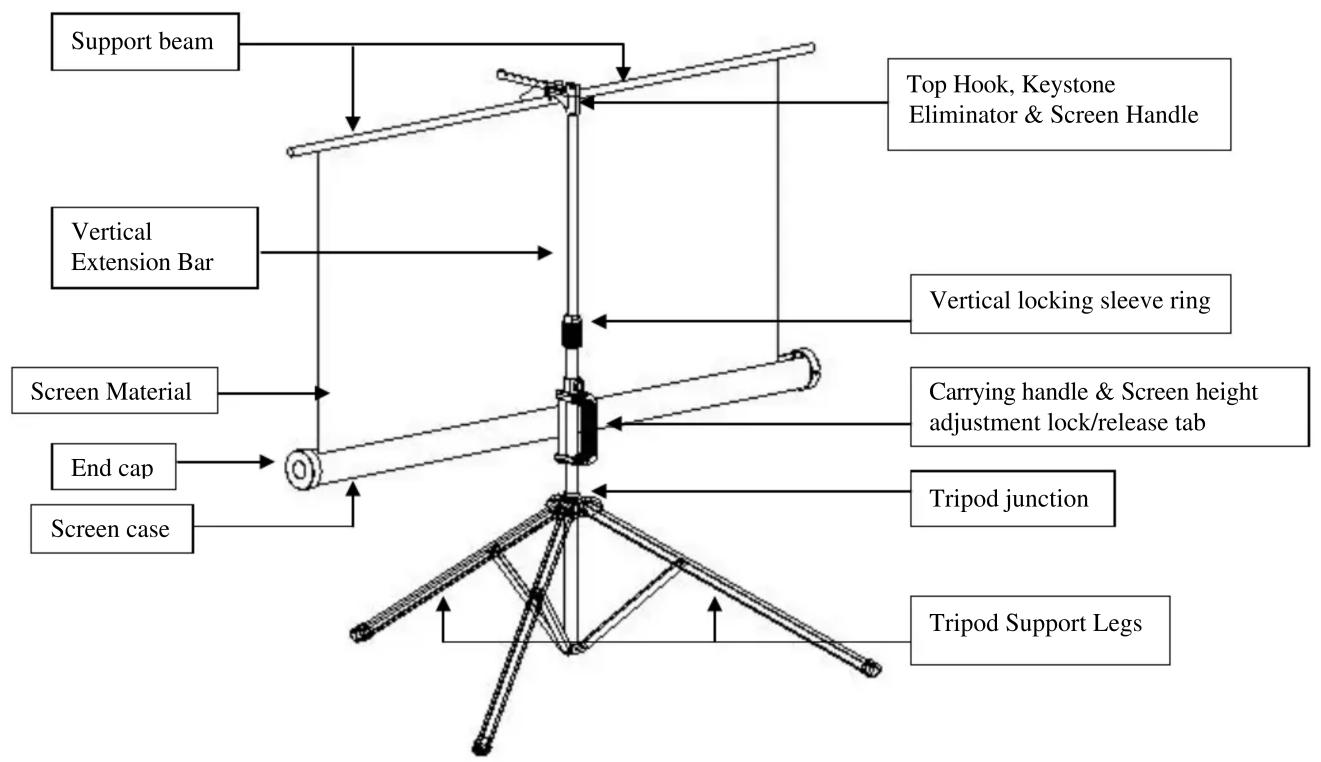
Tripod Screen Parts Identification
flowchart
graph TD
    A["Support beam"] --> B["Top Hook, Keystone Eliminator & Screen Handle"]
    C["Vertical Extension Bar"] --> B
    D["Screen Material"] --> E["Carrying handle & Screen height adjustment lock/release tab"]
    F["End cap"] --> G["Tripod junction"]
    H["Screen case"] --> I["Tripod Support Legs"]
    J["Vertical locking sleeve ring"] --> B
    K["Carrying handle & Screen height adjustment lock/release tab"] --> G
    L["End cap"] --> M["Tripod junction"]
Using the Screen
A. Setting up the screen:
Follow the steps below and Fig. 1 & 2.
- Place the screen in an upright position (fig.1) with the legs toward the ground.
-
Deploy the Tripod Support legs by pushing down on the Tripod Junction.
-
Turn the tripod's screen casing in a 90-degree horizontal position so that the screen casing is now parallel to the ground with the screen handle facing the bottom of the top hook.
- Completely extend the legs as much as possible so they are stable and position them away from objects that may interfere with their balance. DO NOT stand the tripod on an unstable platform to avoid an injury should the tripod screen collapse.

B. Preparing the tripod screen for projection:
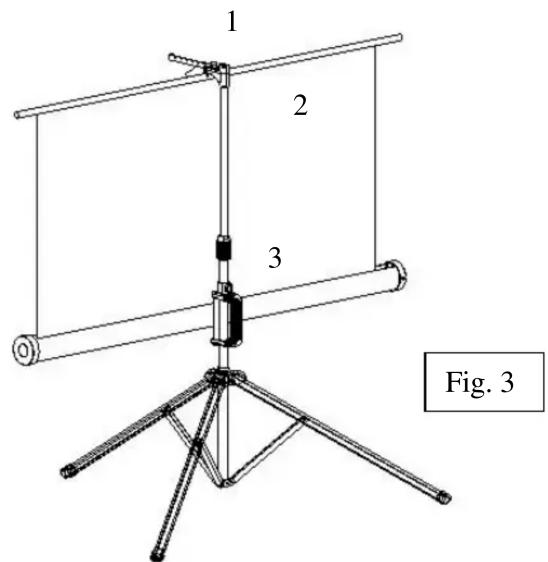
Follow the steps below and Fig. 3.
- Pull the screen handle up vertically and hook the screen handle on the Top Hook.
*Note: Use the Keystone Eliminator to prevent “Keystone Effect” from occurring. Keystone Effect is caused when a projector presents its image at a downward angle causing a trapezoid-shaped image to appear on the screen. The Keystone Eliminator is designed to eliminate that effect by sloping the screen forward. - Twist the Vertical Locking Sleeve Ring counterclockwise to unlock the current position of the Vertical Extension Bar and raise it as necessary to the desired height.
- Pull the Screen Height Adjustment Lock/Release tab out (to the left) located just above the Carrying Handle to raise or lower the bottom of the. Once the desired height has been set, push the tab in to lock the position in place.
C. Disassembling the screen:
Follow the steps below and Fig. 4.
- Unlock the Adjustment Handle by pulling the locking tab to the left and slowly slide the handle all the way down to bring down the position of the screen's case.
- Hold the Extension Bar and twist the Vertical Locking Sleeve Ring counter-clockwise to unlock and release the position of the extension bar. Once the extension bar has been brought all the way down, unhook the screen material from the Top Hook and slowly retract the screen back into the case.
* Note: It is very important to remember to hold the extension bar first and then unlock the sleeve to prevent the extension bar from slamming and damaging the screen.
- Turn the screen's case vertically clockwise and insert the Top Hook's bottom pin to lock into the screen's end cap hole.
- Close the tripod legs by pushing them in. Lastly, tighten the Vertical Locking Sleeve Ring by twisting it clockwise.

Fig. 4
Note:
To ensure the screen is stable, extend the tripod's legs as much as possible.
- Do not fold the screen or allow any sharp objects to touch the screen’s surface.
- Clean the screen surface often when needed.
- Careful use will extend the lifetime of this product.
For more information, technical support or your local Elite Screens contact, please visit www.elitescreens.com
Brand : Elite Screens
Model : Tripod T92UWH
Category : Projection screen