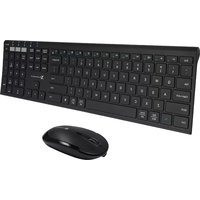
X9RFBTACECB - Keyboard X9 Performance - Free user manual and instructions
Find the device manual for free X9RFBTACECB X9 Performance in PDF.


| Product Type | Wireless Keyboard |
| Brand | X9 Performance |
| Model | X9RFBTACECB |
| Connectivity | RF 2.4 GHz or Bluetooth |
| Interface | USB Nano Receiver |
| Dimensions (L x W x H) | 440 x 130 x 25 mm |
| Weight | 500 g |
| Power Source | 2 x AAA batteries (not included) |
| Battery Life | Up to 12 months |
| Number of Keys | 104 |
| Multimedia Keys | 12 dedicated keys |
| Operating Range | Up to 10 m |
| Compatibility | Windows, macOS, Linux |
| Color | Black |
| Material | ABS plastic |
| Features | Low-profile keys, spill-resistant design |
| Included Accessories | USB receiver, 2 x AAA batteries, user manual |
| Maintenance | Clean with a soft, dry cloth |
| Safety | Do not expose to liquids or extreme temperatures |
| Repairability | Keycaps removable for cleaning; no user-serviceable internal parts |
| Warranty | 1 year limited warranty |
Frequently Asked Questions - X9RFBTACECB X9 Performance
User questions about X9RFBTACECB X9 Performance
0 question about this device. Answer the ones you know or ask your own.
Ask a new question about this device
Download the instructions for your Keyboard in PDF format for free! Find your manual X9RFBTACECB - X9 Performance and take your electronic device back in hand. On this page are published all the documents necessary for the use of your device. X9RFBTACECB by X9 Performance.
USER MANUAL X9RFBTACECB X9 Performance

natural_image
Simple line drawing of a computer mouse with a black internal component (no text or symbols)For Three Devices - PC, Smartphones & Tablets
Performance
Table of Contents
Introduction 1
Package Contents 1
System Requirements / Technical Support 1
Product Information 1
Hardware Basics 3
fn Key, Fn Lock Mode and Shortcuts 4
RF connection with keyboard and mouse 5
Pairing the keyboard with Windows PC 6
Pairing the keyboard with iPhone/iPad 7
Pairing the keyboard with Android Smartphones and Tablets 7
Introduction
Thank you for purchasing the X9RFBTACECB Bluetooth and RF wireless keyboard and mouse for PC, iPhone, iPad, Android Smartphones and Tablets. One-touch quick switching allows you to type and switch between three devices seamlessly. Whether it is doing work with a computer, sending messages on a smartphone, or enjoying videos on a tablet, it is truly the only keyboard that you need for all your applications. The keyboard utilizes thin keycaps with a sensitive and responsive touch which provides a more comfortable and faster typing experience. It is designed with many features and flexibility to help improve your productivity. Both keyboard and mouse have built-in Lithium-Ion rechargeable battery so it saves you hassles and money in changing batteries.
Before you begin using this product, be sure to read this user's guide in its entirety.
Package Contents
• RF and Bluetooth keyboard and mouse
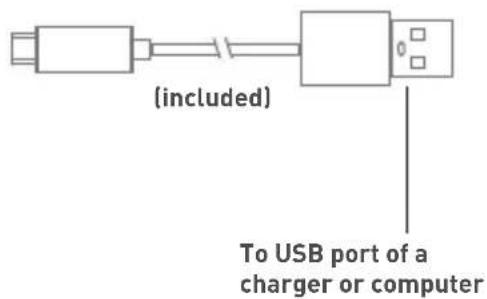
- Charging cable
- Keyboard User's Guide
System Requirements
- Windows 7/8/10/11 or Chrome OS PC with USB-A port available and/or Bluetooth host
- iPhone, iPad/Pro and iPad mini
- Most Andriod devices (Smartphones and Tablets)
- iOS 5.0 and above; Android OS 3.0 and above
Product Information
Technical Support
Please E-mail us at techsupport@x9performance.com, or call us at 1-909-230-6888 Monday to Friday, 8:30AM to 5:30PM, Pacific Standard Time
Product Information
This manual is furnished under license and may be used or copied only in accordance with the terms of such license.
Except as permitted by such license, no part of this publication may be reproduced, stored in a retrieval system, or transmitted, in any form or any means, electronic, mechanical, recording, or otherwise, including translation to another language or format, without the prior written permission of X9 Performance.
The content of this manual is furnished for informational use only, is subject to change without notice, and should not be construed as a commitment by X9 Performance. X9 Performance assumes no responsibility or liability for any errors or inaccuracies that may appear in this book.
X9 Performance is a trademark of the Mace Group, Inc. All other product names, trademarks and registered trademarks in this document are the property of their respective holder.
Copyright® 2022 by X9 Performance
FCC Information
This device complies with part 15 of the FCC Rules. Operation is subject to the following two conditions: (1) this device may not cause harmful interference and (2) this device must accept any interference received, including interference that may cause undesired operation.
Warranty
X9 Performance warrants that this product will be free from defects in title, materials and manufacturing workmanship for one year from the date of purchase. If the product is found to be defective then, as your sole remedy and as the manufacturer's only obligation, X9 Performance will repair or replace the product. This warranty shall not apply to products that have been subject to abuse, misuse, abnormal electrical or environmental conditions, or any condition other than what can be considered as normal use.
Warranty Disclaimers
X9 Performance makes no other warranties, express, implied or otherwise, regarding the product, and specifically disclaims any warranty for merchantability or fitness for a particular purpose. The exclusion of implied warranties is not permitted in some states and the exclusions specified herein may not apply to you. This warranty provides you with specific legal rights. There may be other rights that you have which vary from state to state.
Limitation of Liability
The liability of X9 Performance arising from this warranty and sale shall be limited to a refund of the purchase price. In no event shall X9 Performance be liable for costs of procurement of substitute products or services, or for any lost profits, or for any consequential, incidental, direct or indirect damages, however caused and on any theory of liability, arising from this warranty and sale. These limitations shall apply not withstanding any failure of essential purpose of any limited remedy. V1.1.
Hardware Basics

natural_image
Line drawing of a desktop computer setup with monitor, keyboard, mouse, and smartphone (no text or symbols)

Important Note: Both keyboard and mouse are designed to enter sleep mode to conserve battery, if not active for a while. In this case, please tap on space key, click on mouse button to wake them up.
f n Key, Fn Lock Mode and Shortcuts
1 On/Off switch Channel Bluetooth B2 In 2tator
3
4 Channel RF IndicatorChannel Bluetooth B1 Indicator
5 Caps Lock Indicator 6 Charging Indicator(Red: charging; Green: full)
7 - Press the channel key briefly to select the channel
- Pairing: For the first time pairing to a Bluetooth device, press and hold down B1 or B2 key for 2-3 seconds until the channel LED flashes quicker to put keyboard into pairing mode
8 Fn Lock key
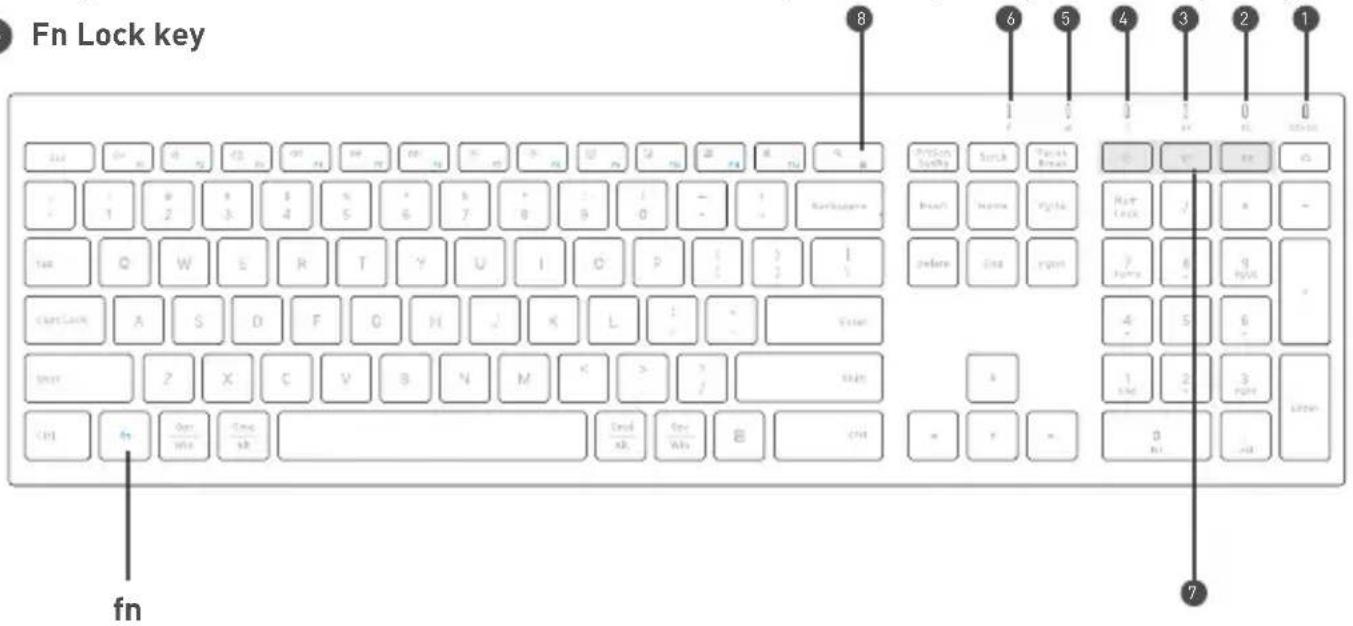
Fn Lock Mode (Function Key Mode: F1 through F12)
Press fn and Fn lock key to switch the top row keys between Function key mode and shortcut mode.
Shortcut Mode and Keys
Below are the description of all 14 shortcut keys. 12 blue colored shortcut keys require (1) pressing fn key simultaneously to work when keyboard is in Fn Lock mode, or (2) pressing top row key itself to work when keyboard is in shortcut mode. Pressing fn and Fn Lock keys toggles between Function key mode and shortcut mode of the keyboard.
F1: Mute
F7: Dim the display brightness
F2: Volume down
F8: Brighten the display brightness
F3: Volume up
F9: Select all
F4: Previous track
F10: Copy
F5: Play/pause
F11: Paste
F6: Next track
F12: Cut
Two additional shortcuts: Search/Fn lock and Home(near OFF/ON switch)
More about mode
In either Shortcut mode or Fn Lock mode, you can also press fn key with one of top row key simul taneously to perform the secondary function without switching mode.
RF connection with keyboard and mouse
- Please find the included USB RF receiver dongle inside the mouse bottom compartment, it can support both mouse X9RFBTDYNABAT and keyboard X9RFBTACE. To use the RF channel to connect them to your computer, plug the USB RF receiver dongle into your computer or device.
- Within 5 seconds, turn on and bring the mouse a few inches nearby the USB dongle, press the push button consecutively to select the RF channel, the mouse should connect to the RF receiver automatically and work. The RF channel LED blinks in red once every few seconds to indicate it is currently the active channel in use.
- Within 10 seconds, turn on and bring the keyboard a few inches nearby the USB dongle, press the RF channel key until the RF channel LED is showing green color, the keyboard should connect to the RF receiver automatically and work.
IMPORTANT NOTE: only if you have followed the above RF Connection Instruction several times already but couldn't get the keyboard to work, or if you lost the original USB RF dongle and get a new dongle from us, you can resync the dongle and keyboard with procedures below. (Resync of mouse and keyboard can be done separately and independently, you only need to resync the non-working one)
- Login to your computer. Unplug the USB RF dongle from the computer first.
- Turn on the keyboard, press the RF channel key, see its LED in solid green.
- On the keyboard, press and hold down Esc and = keys together for 3 seconds, until you see RF channel LED flashes in green.
- Immediately plug the USB RF dongle into your computer, bring the keyboard very close to the USB RF dongle(within 6 inches).
- Once the keyboard finds and syncs with the USB dongle successfully, its LED will become solid green.
- Keyboard is ready to use. If it does not work, sync has probably failed, please repeat and finish step 1 to 5 within 20 seconds, try until it works.
Pairing the keyboard with your Windows PC
- Press an unused Bluetooth channel key B1 or B2 briefly to select a channel and see its LED flashes blue slowly, then press and hold the channel key down for 2-3 seconds until you see its LED flashes blue faster to indicate that pairing mode has started.
- In Windows 10, for example, open the Settings from the Windows menu or by pressing Win and I keys. Then click to open Devices icon.
- Under Devices, select Bluetooth & other devices. Click on Add Bluetooth and other devices, select Bluetooth to add this keyboard. Make sure the keyboard Bluetooth channel LED is still flashing and discoverable.
- Once you see the Bluetooth Keyboard X9RFBTACE appears, double click on it to connect. Please wait for the driver to install automatically, Windows will notify you when the keyboard is ready to use.
Pairing the keyboard with iPad/iPhone
- Press an unused Bluetooth channel key B1 or B2 briefly to select a channel and see its LED flashes blue slowly, then press and hold the channel key down for 2-3 seconds until you see its LED flashes blue faster to indicate that pairing mode has started.
- Bring your iPad or iPhone near by the keyboard. Open up "setting" then Bluetooth".
- Turn on Bluetooth, under the "Bluetooth" menu, it will auto search for the new Bluetooth devices....
- Once it finds and displays the keyboard model X9RFBTACE, click on it to select and pair.
- After pairing is successfully completed, it will show "X9RFBTACE.... connected". It is ready to be used with your iPad or iPhone.
Pairing the keyboard with your Android Smartphones and Tablets
- Press an unused Bluetooth channel key B1 or B2 briefly to select a channel and see its LED flashes blue slowly, then press and hold the channel key down for 2-3 seconds until you see its LED flashes blue faster to indicate that pairing mode has started.
- In Android device, open Settings, then open "Connected devices" to find Bluetooth. Touch Bluetooth line to enter Bluetooth screen, make sure the Bluetooth is turned on, then touch on "Pair new device", your Android device starts searching for a new device.
- Make sure the keyboard Bluetooth channel LED is still flashing blue(in pairing mode), once you see the keyboard model X9RFBTACE appears, select it and it will automatically pair to your Android device. You can see "Connected" status for the keyboard.
Please note that if you are using a different version of system, the procedure may differ from the above instruction.
- Table of Contents
- Introduction
- Package Contents
- System Requirements
- Product Information
- Technical Support
- FCC Information
- Warranty
- Warranty Disclaimers
- Limitation of Liability
- Hardware Basics
- f n Key, Fn Lock Mode and Shortcuts
- Fn Lock Mode (Function Key Mode: F1 through F12)
- Shortcut Mode and Keys
- More about mode
- RF connection with keyboard and mouse
- Pairing the keyboard with your Windows PC
- Pairing the keyboard with iPad/iPhone
- Pairing the keyboard with your Android Smartphones and Tablets
Brand : X9 Performance
Model : X9RFBTACECB
Category : Keyboard