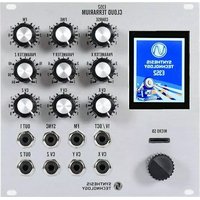
E352 Cloud Terrarium - Electronic musical instrument Synthesis Technology - Free user manual and instructions
Find the device manual for free E352 Cloud Terrarium Synthesis Technology in PDF.


| Product Type | Eurorack Synthesizer Module |
| Brand | Synthesis Technology |
| Model | E352 Cloud Terrarium |
| Category | Wavetable Oscillator / Voice Module |
| Width | 20 HP |
| Depth | 30 mm (approx.) |
| Weight | 150 g (approx.) |
| Power Consumption | +12V: 100 mA, -12V: 40 mA |
| Power Connector | Eurorack 10-pin ribbon cable |
| Audio Outputs | 2 (Main and Sub, 1V/oct tracking) |
| CV Inputs | Pitch, Morph, Wave X, Wave Y, Modulation, Sync |
| Sample Rate | 96 kHz |
| Bit Depth | 24-bit |
| Wavetable Storage | 64 banks, 64 waves per bank (4096 total slots) |
| Firmware Update | Via USB (micro-B) or SD card |
| Supported File Formats | WAV (16/24-bit, 44.1-96 kHz) |
| Display | 128x64 OLED |
| Construction | PCB with aluminum front panel |
| Maintenance & Cleaning | Use a soft, dry cloth. Avoid liquids and abrasive cleaners. |
| Safety | Do not expose to moisture or extreme temperatures. Unplug power before cleaning. |
| Spare Parts & Repairability | Contact Synthesis Technology for replacement parts. Module is user-serviceable with basic soldering skills. |
Frequently Asked Questions - E352 Cloud Terrarium Synthesis Technology
User questions about E352 Cloud Terrarium Synthesis Technology
0 question about this device. Answer the ones you know or ask your own.
Ask a new question about this device
Download the instructions for your Electronic musical instrument in PDF format for free! Find your manual E352 Cloud Terrarium - Synthesis Technology and take your electronic device back in hand. On this page are published all the documents necessary for the use of your device. E352 Cloud Terrarium by Synthesis Technology.
USER MANUAL E352 Cloud Terrarium Synthesis Technology
E352 Cloud Terrarium
www.synthtech.com/eurorack/e352
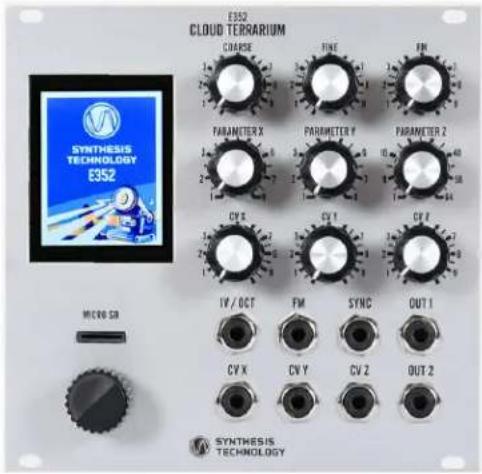
What is the E352?
The Synthesis Technology E352 is a dual output, wavetable VCO that replaces the older E340 Cloud Generator and the E350 Morphing Terrarium, while adding over 36 new features.
Shipping with all 192 waves of the E350, it also allows 26 User Defined banks (a bank is a 8x8 matrix of 64 individual waves) which are easily loaded using the free WaveEdit application and a uSD card. The WaveEdit program supports PC/Mac/Linux and has a full toolbox for importing, drawing and creating wavetables. The uSD card needs to be FAT32 formatted, 32GB size or smaller (no speed requirement). The card is not required for normal operation, only to load files into the E352.
The large color TFT screen is used to select the modes and parameters, using a "shallow" menu: only 1 page is below another page. The menu items are selected by rotating the encoder left or right (to go 'back' or 'forward') and then 'clicking' the encoder knob. SynthTech modules come with a lifetime warranty. Support is primarily via the SynthTech Modular Group on Facebook.
Watch the tutorial video
Go to the link at the top of this sheet and watch the overview videos. This will touch on all the different modes of the E352 and show you the 'shallow' menu system.
MAIN MENU

The Main Menu is like a table of contents. The encoder is used to highlight the function, and the encoder knob is 'clicked' (like a mouse) to go to that page. The color scheme is customizable.
There are 16 presets to store the setting of the module. These presets are separate from the 26 USR banks, which are loaded using the File menu. You can only read from the uSD card, patches cannot be saved to it. Patches and USR banks are stored internally in the E352.
The green dot in the lower right turns red (default) when the memory is being written. Do not power off when this is active.
Please check the link above for the latest firmware version (currently V1.6).
Controls and Jacks
There are 3 CVs that are assigned, based on what mode you are in. Each CV (called X, Y and Z) has a dedicated 'offset' or PARAMETER and an external CV in (-5V to +5V range) with a dedicated attenuator.
It is important to note, just like on all SynthTech modules, the attenuated CV is *added* to the PARAMETER knob position. If a PARAMETER knob is at 12:00 (straight up), then a -5V to +5V unattenuated CV input will swing that X/Y/Z value "end-to-end" or minimum to maximum. This is exactly the same as having no CV into the jack, and turning the panel knob end-to-end.
The 2 outputs (OUT1 and OUT2) are determined by the Mode in the Settings menu. SYNC is used to hard sync the VCO or to trigger Sample Player. SYNC resets the waveform to its lowest voltage point.
Settings
The Settings menu is where the 'mode' of the E352 is selected and the options for that 'mode' are programmed. Each setting has a unique way the 3 Parameter CVs (PARM X, Y and Z) are used within that mode. The Mode Help screen will show how all the CVs and Outputs are mapped.
Morphing Modes

Morphing is the smooth transition ('blending') from adjacent wavetables within the Bank's 8x8 grid. If you picture a chess board with 8 rows and 8 columns, this is how the wavetables are stored in a Bank. The 'X direction' is within a row. The 'Y direction' is within a column, and 'Z direction' scans the entire bank end-to-end (from the first to the last wavetable).
Menu item Phs Interp (Phase Interpolation) can be set to Off and Glitch can be set to 1 of 3 intensities to simulate older wavetable synths (like the PPG) that do not smoothly morph. This also allows a specific wavetable to be indexed, without any morphing from the adjacent wavetable.
The E352 ships with 3 Banks of wavetables that were originally in the E350 Morphing Terrarium (ROM A, ROM B, and ROM C). In addition, standard 'analog VCO' waves can be selected (sine, saw, etc) as well as 26 USR banks created by the free WaveEdit application. The File menu page is used to load in User Banks and individual wavetables. The frequency is set to 1 of 3 ranges, and there is an additional 'Zero' range to allow an external CV (up to 10KHz) to phase modulate a wavetable for distortion, limiting, and
compression effects. There are 2 other Morphing modes: with a Wavefolder (Morph+WFId) and with a 0-360deg phase shift between the outputs (Morph+Phs). See Mode Help for how the controls are mapped for these modes.
Cloud Mode
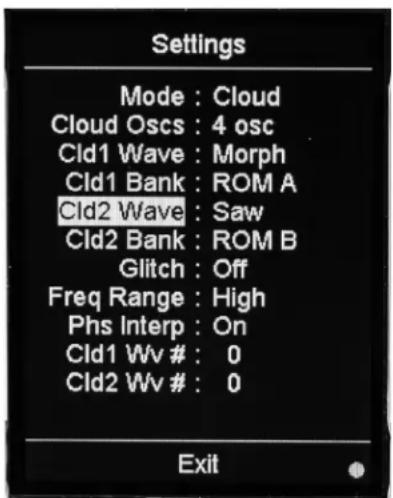
A 'Cloud' is 2, 4, or 8 VCOs that are detuned from each other. When a Sawtooth is used, the old term was a 'supersaw' effect. The E352 can use any waveform or wavetable for the Cloud. Each output can have a different waveshape being 'clouded', but the 2 outputs share the same controls.
The 3 parameters are mapped as follows:
- X – Spreads each VCO from the 'root' frequency
- Y – adds filtered noise (Chaos) to the Spread amount
- Z – the bandwidth of the filtered noise
If you select 'Morph' for a Wave type, the Wv # (0-63) selects which wavetable within the Bank is being 'clouded'. Wave # 0 is the first Row (0) at the first Column (0).
Morphing Clouds Mode

The Cloud+Morph mode adds the ability to Z Morph the Bank at the same time the Cloud algorithm detunes the VCO cluster.
The 3 parameters are mapped as follows:
- X - Spread
- Y – Chaos, which is now the filtered noise amount + BW combined
- Z – Morph the wavetable Bank 'start-to-finish'
This setting can have very dramatic effects, especially using slow LFOs into Spread and Morph CVs.
For all Morph modes, the Freq Range is as follows:
• High: 10Hz to 10KHz
• Mid: 0.1Hz to 165Hz
- Low: 1 cycle in 13min to 0.1Hz
2-Operator FM Mode (revised in V1.6)

The 2-op FM uses a Carrier Wave (originally a Sine) that is FM modulated at audio rates by the Modulation Wave (also a Sine in the original implementation). The E352 allows either Sines or wavetables to be used for a much wider variety of sounds.
Since there are 2 outputs, the Mode will output the FM-modulated result on OUT 1, and the selected Carrier Wave on OUT 2.
The 3 parameters are mapped as follows:
• X: FM Index ('depth') 0 - 314%
• Y: quantized frequency Ratio of Modulator to Carrier (1/8 to 8)
- Z: Morphing if 'Morph' is the selected Mod Wave/Car Wave
V1.6 adds Z morphing to both Carrier and Modulation, either via the Z Parameter/CV IN, or a fixed value from 0-99%
A typical patch is to envelope FM Index to get "percussive" drums and mallet sounds.
Noise
Each output can be 1 of 8 types of noise. The noise can be low-pass filtered by a 4-pole ladder filter with resonance. The noise selection table is quantized (no morphing between types).
Each noise type has different harmonic content as follows:
- White: full bandwidth noise
- Pink: slightly filtered noise
- Clocked: 'digital noise' used in old gaming consoles
- Crackle: narrow pulses spaced infrequently
The 3 parameters are mapped as follows:
• X: noise type for OUT1
• Y: noise type for OUT2
• Z: if a filtered noise, the resonance
The COARSE/FINE and 1V/Oct controls the cutoff frequency of the filter (10Hz to 10.3KHz).
Detuning Mode (revised in V1.6)

The signal at OUT2 is detuned from the signal at OUT1 by either a fixed amount from a table or 'smoothly' by a variable CV.
Each output can have its own wavetable or standard shape, and can be Z Morphed. The outputs have the same frequency range.
Smooth Mode: continuously variable detuning, from Wide (+-2.5 octaves) to Narrow (+-1.25 octaves)
Fixed Intervals: the outputs are in fixed "musical ratios" by PARAM X:
- 4th - 5th -Octaves
- 12 Tone steps
• Harmonics (1 st -8 th ) - Sub+Harmonics from 1/8, 1/4, 1/2 , 1, 2, 3, ...16
The last selection is Unison + Phase shifter. The 2 outputs are no longer detuned, but there is a variable 0-360deg phase shift by applying a CV. Mix the 2 outputs together when using this mode for best effect.
Morph + Blend
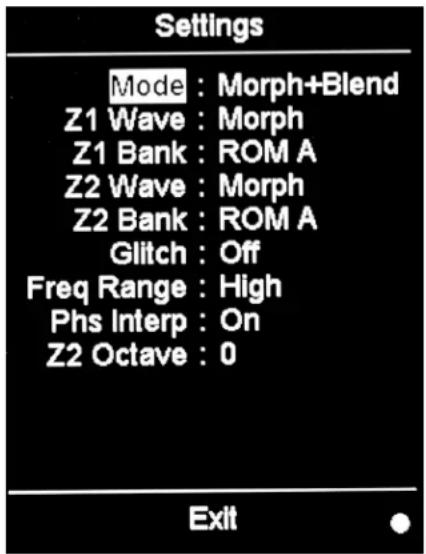
This mode provides 2 Z-morphed outputs which can be mixed/blended/cross-faded. This is a new mode in V1.6
The PARAM X control/CV is the mix amount, PARAM Y controls Z Morph of the first wave, and PARAM Z controls Z morph of the second wave. OUT1 always has the 'straight' first wave output, and OUT2 is the mixture/blend/cross-fade of the 2 waves.
An Octave Shift setting lets you add +-3 octaves of pitch shift applied to the second wave.
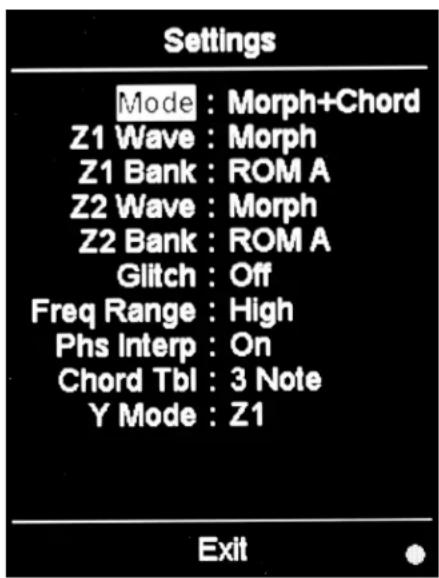
Morph + Chord (new in V1.6)
Provides 3 or 4 note chords selected from factory tables (up to 64 chords per table). The chord is selected by PARAM X. Morphing of the OUT1 is set by PARAM Z. The PARAM Y is programmable as follows:
- Z1 – allows separate Z morphing of OUT1 and OUT2
- Spread – spreads the pitch offsets of the notes in the chord
- Chord 2 – separate chord selection of each output
- GridXY – provides 8x8 indexing into the chord table
V1.6 contains the following 4 chord tables:
• 3-note contains 64 chords of 3 notes, spanning 1 octave
- 4 -note contains 60 chords of 4 notes, spanning 3/4th octave
- Harmonic – contains 64 chords of 4 notes in Just Intonation
- Stradella – contains 64 chords of 3 notes from accordians
Sample Player Mode
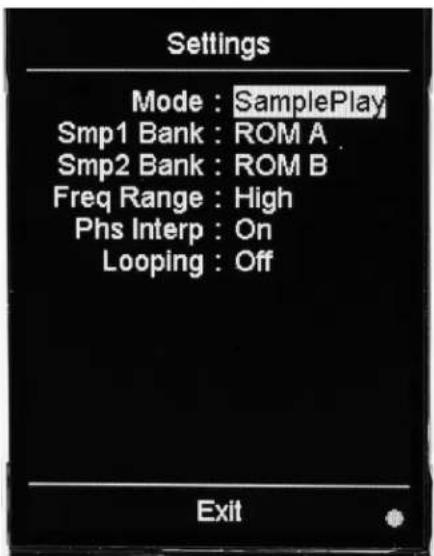
The Sample Player treats the loaded Bank as 1 giant sample playback file. The file must be created by WaveEdit (if not using a ROM Bank) and then loaded to the uSD card using Save Bank. This will write the correct file size (33KB and WAV format) the E352 can read.
Using the File menu, you can select a Bank from the uSD card and load into a USR Bank. The uSD card can be removed once data is loaded into USR banks.
The sample can be either Looped (On) or 1-shot (Off), triggered by a rising SYNC signal. The SYNC can be a Gate, Trigger, LFO, Envelope or any other signal. A valid SYNC is a voltage rising through 0.65V.
Playback of the sample file is controlled as follows:
• X: Starting point for the sample played via OUT1
• Y: Starting point for the sample played via OUT2
• Z: length (0-100% of the file) that Start 1 plays
The 2 Start pointers are independent of each other, but both play the same length (number of samples). This allows, for example, 1 sample file to have 2 different samples (each 50% of the total length). Setting Start 1 at '0' and Start 2 at halfway and the Length at 50%, will play the 2 samples at once each loop/SYNC trigger. You can also overlap the Start pointers (Start 2 can be 'first').
However, the Length is governed by Start 1 as follows:
- If Start 1's playback length hits the end of the sample file, this will reset the Start 1 pointer back to the beginning. If there are more samples to be played in the Start 2 section, they will not be heard.
- If the section of the sample file using Start 2 is shorter than the Length, the OUT2 signal will be 0V until Start 1 section is finished playing. The Start 1 section will always play for the set Length.
Waves/Lissajous/Visual Display/Eye Candy (revised in V1.6)


Waves - not to be confused with a 'real-time oscilloscope', this display shows the data in the corresponding wavetable of each output (or tabular data for Noise and Sample Player). The display will not reflect FM or frequency changes. The 'Expanded' view shows more vertical detail. In the lower-left corner,
there will be a H/M/L shown for High/Mid/Low frequency range. A long encoder press jumps back to the Settings page.
Lissajous figure – sometimes called a 'X-Y Plot', this is a real-time display of the OUT1 data plotted on the X axis (left-to-right) and OUT2 data plotted on the Y axis (up/down). Due to the screen resolution, the figure may not be continuous but seen as a series of individual dots. The OUT1 and OUT2 wavetables need to be different, either in phase or in waveshape, otherwise only a diagonal line appears.
Visual Displays – this is a graphic visualization of the 3 CV inputs plotted as various grids (Morph modes) or the real-time spectra when in FM mode. A long encoder press jumps back to the Settings page.
Eye Candy – like the 'color organs' of the '70s, this maps the 3 CV inputs into different displays/patterns/shapes. There are several to choose from. No telling what you may find here. A long encoder press jumps back to the Settings page. By popular demand, Moses is still present.
File Menu
A FAT32-formatted uSD card must be inserted into the holder (label 'up') before you can access data from the File menu page. The display will show the file names in MSDOS 8.3 format. Longer names can be used, but will not be displayed in their entirety. There are 2 types of files shown: .BIN (binary files, usually firmware updates) and .WAV (Microsoft WAVE format). The E352 can load in only 2 specific WAV files (best created using WaveEdit):
1) a single wavetable of 256 words
2) a bank of 64 wavetables
The firmware checks the length of the WAV file and then decides during a LOAD operation which type will be loaded. You can then select the USR bank (A-Z) or which position in a user bank (1-64). Writing/saving to the uSD card is not supported. A long encoder press jumps to the 'Exit' option (you don't have to scroll all the way to end of the file directory to exit after loading).
Frequency Page (revised in V1.6)
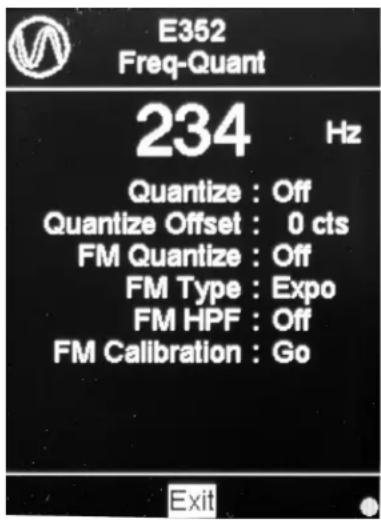
The top display shows the frequency of OUT1, based on a single-cycle wave or wavetable. Note that wavetables can have multiple zero-crossings and hence a higher frequency than displayed (for example, the first row of ROMA sine harmonics).
At lower frequencies (L range) the display shows the period of the output.
The Quantizer has 3 controls:
Quantize: turns the 12-steps/oct quantizer on/off.
Offset: -103 to +102 cents offset from the main output, only when the Quantizer is On. This is a 'super-fine tuning' mode so you can dial in the pitch once quantized.
FM Quantize: the quantizer can also be optionally applied to the FM In CV.
FM Type: Expo is standard 1V/Oct exponential. There are 3 Linear FM (TZFM) ranges: Low, Medium, and High. These select how many Hertz a 1V change will FM the VCO. The VCO is TZ (thru-Zero) in the 3 Linear ranges. Note the High range is very wide (over 8KHz).
FM HPF: adds a selectable High-Pass Filter (HPF) to the FM CV input to reduce/eliminate frequency offsets in Linear mode (it is also applied in Expo mode). The 3 corner frequencies are 0.1Hz, 1Hz, and 10Hz. These HPFs are 1-pole slope and will have an associated "settling time" when a step in FM CV is applied. Applying the HPF may cause a small change in the pitch: this is proving the offset is being removed.
FM Calibration: when in Linear FM mode, there will be an offset in pitch from EXPO mode. If this is annoying, select 'Go' and the E352 will quickly run an internal calibration to reduce this offset (it may not be able to 100% cancel it out). Be sure there no CV plugged into the FM In jack when running the calibration routine.
Colors
The E352 allows various text, backgrounds, and other elements to be one of 512 available colors. There are a few factory presets to choose a 'theme', or you can create your own. The colors are selected by mixing the RGB amounts, and the result is shown in a preview window.
Patches (revised in V1.6)

There are 16 patch memories in the E352. The patches are saved in internal FLASH, not on the uSD card. You cannot load a patch from the uSD card into the E352.
Saving – this stores all of the menu settings, from every menu page, into internal memory. The positions of the panel controls are NOT saved. Patch memory cannot be 'write protected' so follow the prompts. The naming is a scrolling alphabet/numbers.
Loading - the current 'state' of the E352 is replaced by the data in the patch memory location. This operation is fast (less than 200ms) but not instantaneous. The only mechanism to load a patch is with the encoder selection: there is no "load patch using a CV" function.
Reset Live – instantly over-rides the current Mode and places the E352 into the 'Factory Default' state (Morph, Sine waves on bout outputs, Expo mode and High frequency range).
Mode Help
This screen has 2 parts:
1 – the current VCO Mode is shown, and the mapping of the 3 CV parameters (X/Y/Z), the 1V/Oct input, and what the 2 outputs are, well.....outputting.
2 - the lower-left corner 'WaveTbls' (Wave Tables) will display the filename associated with the 26 USR wave banks.
About Screen

The top portion of the About screen will show the current firmware revision and build date/time. After 5 seconds, this area then will scroll a 'credits' list.
The ADC Input Status is a debugging tool if you ever suspect the E352 is 'broken'. The values shown for the 5 inputs are read from their respective panel controls and added to any CV applied to a jack/attenuator. The voltages detected are scaled over a -100 to +99 range.
There is a built-in A440 tuning output when selected.
Importing Using WaveEdit (USR Banks)
The Bank file used in Sample Player does not have a 'sample rate' associated with it like a standard sampler. The file length is fixed at 16K 16bit words + the WAV header. This will be reported (based on the OS) as either 32KB or 33KB length. Although many samplers/DAWs/libraries are WAV format, they are a variable length with a specific sample rate. This is why WaveEdit is used to properly format the files.
WaveEdit runs on Windows, Mac and Linux and is available at www.synthtech.com/waveedit
Step 1: Load the sample WAV file into the edit buffer using the Browse... tab. Note in this example, the file size is much larger than 33KB. WaveEdit resamples the file in order to fit the desired length.

Step 2: Normalized the sample for maximum dynamic range (click Normalize tab)
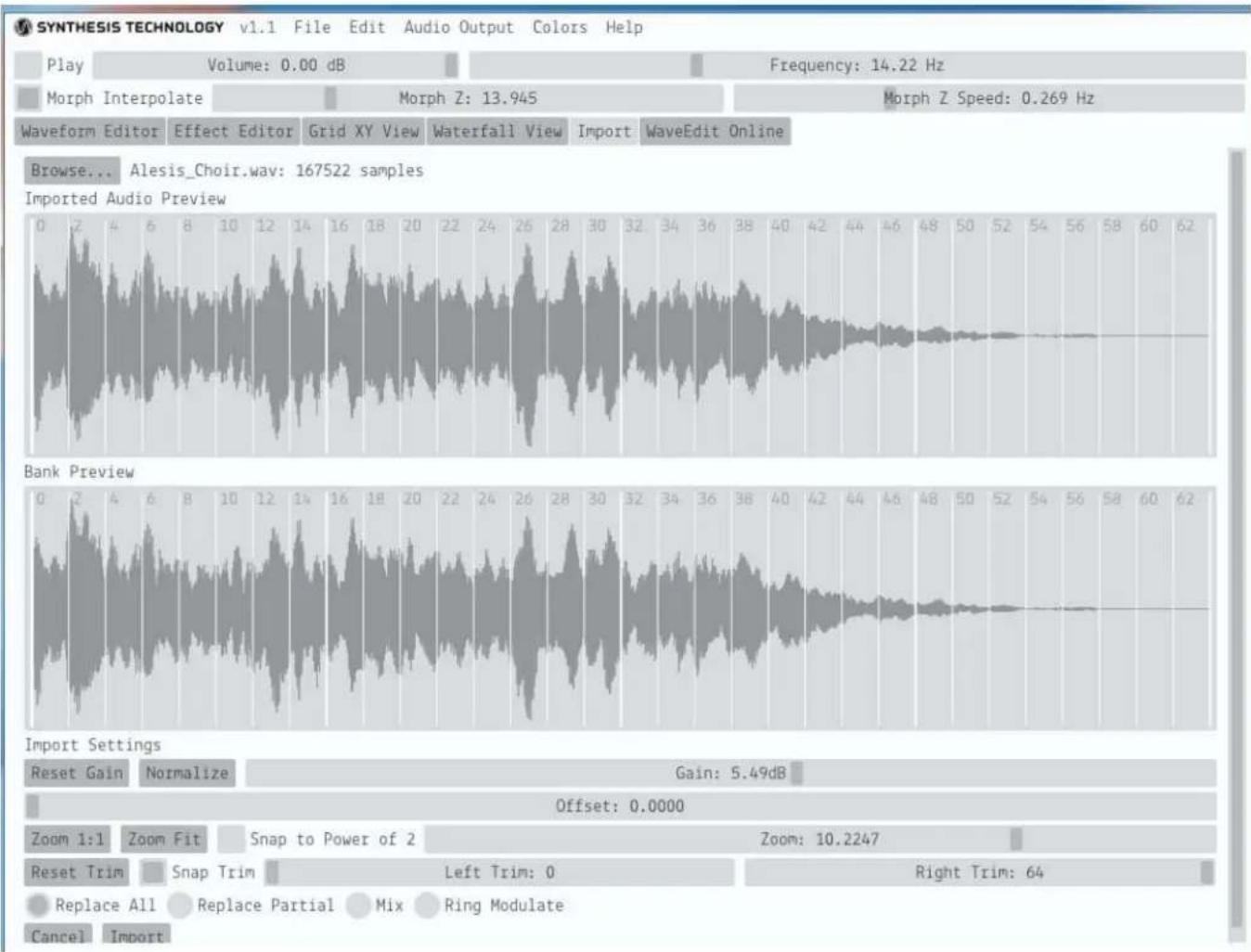
Step 3: Note the 2 preview panes are "edit buffers". In order to actually save the final sample file, click the Import tab at the very bottom left corner. Then you can Save Bank As... to your computer/uSD card. Note that the file system in the E352 uses the old MSDOS 8.3 file naming format. Longer file names will be displayed in a truncated version. Flute1.wav is valid, but Flute_Sample_1.wav will have a truncated name.

When you click the Import tab, the screen shows the Bank data, and then use Save Bank As...

Power Requirement: +12V @ 65ma, -12V @24ma.
Size: 26HP width, 0.85in (21.6mm) deep.
Version 1.6 - June 12, 2021


- E352 CLOUD TERRARIUM
- WHAT IS THE E352
- WATCH THE TUTORIAL VIDEO
- MAIN MENU
- CONTROLS AND JACKS
- SETTINGS
- CLOUD MODE
- MORPHING CLOUDS MODE
- 2-OPERATOR FM MODE (REVISED IN V1.6)
- NOISE
- DETUNING MODE (REVISED IN V1.6)
- MORPH + BLEND
- MORPH + CHORD (NEW IN V1.6)
- SAMPLE PLAYER MODE
- WAVES/LISSAJOUS/VISUAL DISPLAY/EYE CANDY (REVISED IN V1.6)
- FILE MENU
- FREQUENCY PAGE (REVISED IN V1.6)
- COLORS
- PATCHES (REVISED IN V1.6)
- MODE HELP
- ABOUT SCREEN
- IMPORTING USING WAVEEDIT (USR BANKS)
Brand : Synthesis Technology
Model : E352 Cloud Terrarium
Category : Electronic musical instrument