
XERIA GV 6263 HIFI - VCR GRUNDIG - Free user manual and instructions
Find the device manual for free XERIA GV 6263 HIFI GRUNDIG in PDF.


| Product type | VHS Hi-Fi stereo VCR |
| Brand | Grundig |
| Model | Xeria GV 6263 HIFI |
| Dimensions (W x H x D) | 430 x 95 x 330 mm |
| Weight | 4.5 kg |
| Power supply | 220-240 V, 50 Hz |
| Power consumption | 25 W operation, 5 W standby |
| Supported tape formats | VHS (PAL/SECAM) |
| Number of heads | 4 rotating heads |
| Audio system | Hi-Fi stereo with Dolby noise reduction |
| Main functions | Recording, playback, still frame, slow motion, visual search, programmable timer |
| Connections | SCART inputs, RF antenna, audio/video outputs (SCART, RCA) |
| Maintenance and cleaning | Clean the heads regularly with a cleaning cassette; dust the unit with a soft cloth |
| Safety | Protection against power surges; do not expose to moisture; unplug before cleaning |
| Spare parts and repairability | Parts available from authorized dealers; repair possible by a qualified technician |
| General information | Grundig VCR from the Xeria series, optimized for recording and playback of VHS cassettes with Hi-Fi sound |
Frequently Asked Questions - XERIA GV 6263 HIFI GRUNDIG
User questions about XERIA GV 6263 HIFI GRUNDIG
0 question about this device. Answer the ones you know or ask your own.
Ask a new question about this device
Download the instructions for your VCR in PDF format for free! Find your manual XERIA GV 6263 HIFI - GRUNDIG and take your electronic device back in hand. On this page are published all the documents necessary for the use of your device. XERIA GV 6263 HIFI by GRUNDIG.
USER MANUAL XERIA GV 6263 HIFI GRUNDIG
Packing contents Special features of your video recorder
Set-up and safety
Overview
The front of the video recorder
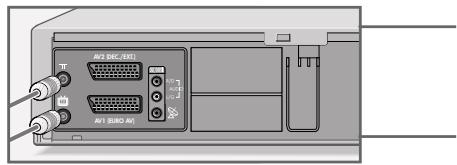
The back of the video recorder
The remote control
The display on the video recorder
The OSD display on the television
Connection and preparation
Placing batteries in the remote control
Connection options
Connecting the rooftop antenna or cable connection and the television
Connecting the GRUNDIG satellite receiver and the television
Connecting the GRUNDIG VCR-SAT module and the television
Switching the video recorder on and off (energy-saving mode)
Tuning
Tuning the video recorder and the television
Tuning television stations
Tuning television stations with the Megalogic function
Tuning television station with the automatic station search
Playback
Basic playback functions Additional playback functions Continuous playback
Search functions
Zero setting Finding recordings using the Video Index Search System (VISS)
Recording
The recording options The Video Programming System (VPS/PDC)
Recording - immediate
Recording television programs from the antenna or the cable connection
Recording television programs from the satellite receiver
Entering the switch-off time
Seamless compilation of recordings (Assemble)
32
Recording - delayed
- by entering the ShowView number
- by entering the data for the required television program
Checking, modifying or deleting recording information
Interrupting recording stand-by mode
Reactivating recording stand-by mode - controlled by a satellite receiver
40
Copying
Connection and preparation
Recording from external devices
42
Using a decoder
Decoder operation with television stations from the antenna or the cable system
Recording PAY TV programs
46
Audio playback
HiFi audio playback
Audio dubbing
48
Special settings
Sorting, deleting and renaming television stations
Re-tuning television channels
Skipping television stations
Setting new television stations from the antenna or the cable system
Tuning new television stations
Switching the station on the video recorder on and off
Setting new television stations from the VCR-SAT module
Automatically tuning television stations from the VCR-SAT module
56
Setting the date and time
Automatically updating the time and date
Setting the time and date manually
57
Special features
Selecting special features in the MODE menu
Selecting special features in the SERVICE menu
61
Parental lock
Television remote control
63
Information
Rectifying minor problems
Technical data
GRUNDIG Service (page 67 F)
Packing contents
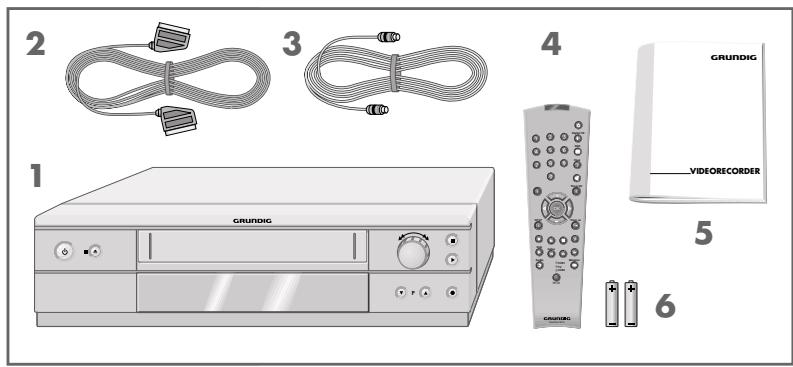
Video recorder GV 6263 HiFi
2 EURO-AV cable
3 Antenna cable
4 Remote control
5 Operating manual
6 2 batteries, 1.5V , micro type
Special features of your video recorder
The recording options
- Immediate recording, in which you select the required channel on the video recorder and start recording immediately.
- Delayed recording using the ShowView number.
- Delayed recording by entering the time and channel of the programme you want to record (if you do not know the ShowView number).
- Delayed recording by entering the data in the TIMER menu of a Grundig television with the Megalogic function.
ShowView* recording
This function makes recording child's play. Find the program in your TV guide, enter the code number and the video recorder is programmed automatically.
GRUNDIG Megalogic
Megalogic options:
-- Receiving television stations from the television set - in the same order, see page 19.
- Starting playback on the video recorder automatically selects the video channel position on the television (page 22).
- The television station currently being shown on the television screen is immediately recorded after the start of the recording (page 29).
- You can enter the data for a program in the TIMER menu of the television, and the television then controls the recording of the video recorder. The video recorder can be switched off (power-saving mode) during this procedure.
This video recorder is designed to receive, record and play back video and audio signals.
Any other use is expressly prohibited.
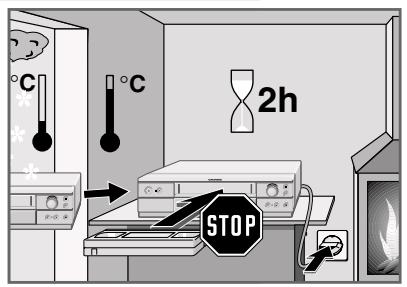
If the video recorder is subject to sudden changes in temperature, for example if it is brought in from the cold to a warm room, connect it to the mains supply and let it stand for at least two hours before you insert a video cassette.
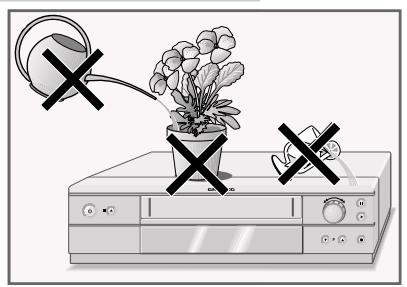
The video recorder is designed for use in dry rooms. If you do use it in the open, please ensure that it is protected from moisture, such as rain or water splashes. Do not expose the video recorder or cassettes to moisture.
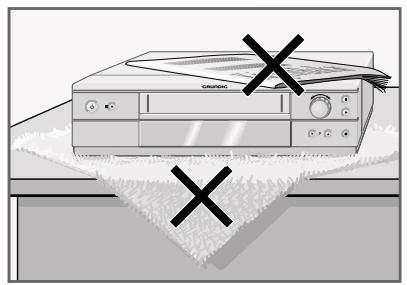
Place the video recorder on a hard, level surface. Do not place any objects (newspapers, for example) on top of the video recorder or any cloth or similar items underneath it.
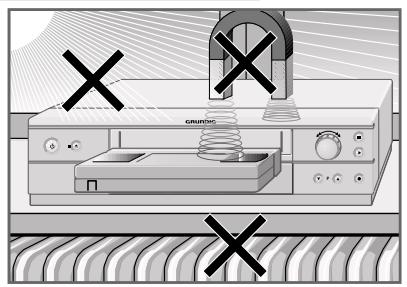
Do not place the video recorder near heating units or in direct sunlight, as this will impair cooling. Keep the video recorder away from devices which generate magnetic fields, such as loudspeakers.
Do not insert any foreign objects into the video tape compartment, as this may damage its precision mechanics.
Do not place any vessels such as vases on the video recorder as they may spill liquid and present an electrical safety risk.
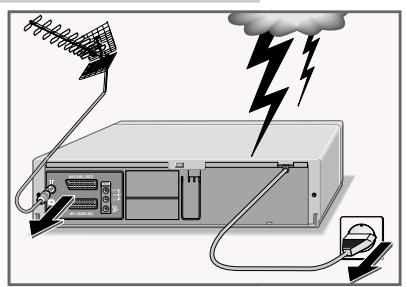
Thunderstorms present a danger to all electrical devices. Even when the video recorder is switched off it can be damaged by a lightning strike to the mains or antenna cable. Always disconnect the mains and antenna plugs during a storm.
Do not open the video recorder casing under any circumstances. The manufacturer accepts no liability for damage resulting from improper handling.
The front of the video recorder


Switches the video recorder in and out of stand-by mode (in stand-by mode the time is displayed; in power-saving mode there is no display).


Terminates all drive functions;
ejects the cassette.
VIDEO IN
Camcorder video input (socket located behind the cover panel).
L AUDIO IN R
Left and right camcorder audio inputs (sockets located behind the cover panel).

Turn knob to the left - during playback: reverse search; when stopped: fast rewind.
Turn knob to the right - during playback: forward search; when stopped: fast forward.

Pause during recording, freeze-frame during playback.

Starts playback.


Selects the next channel down.


Selects the next channel up.

Starts recording.
The back of the video recorder
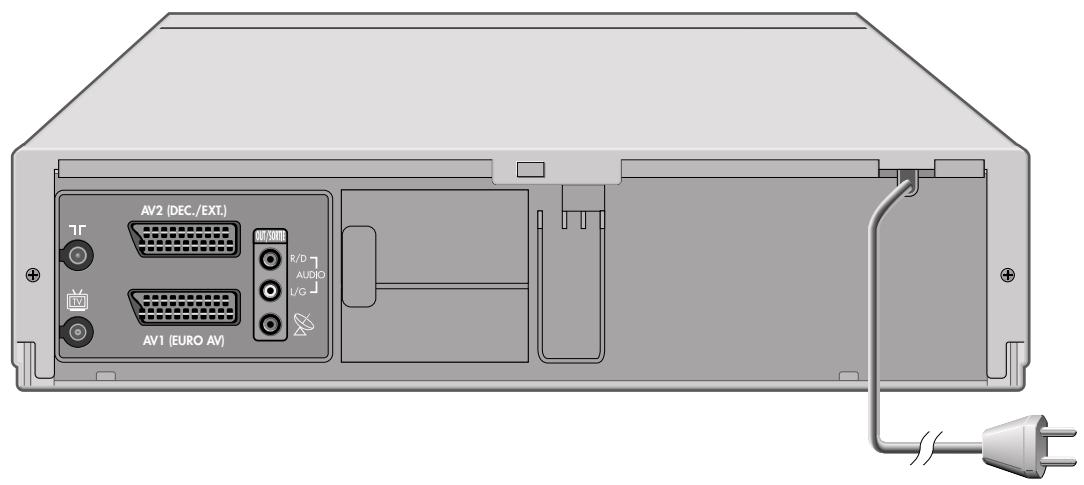
T
Antenna input jack
(for the rooftop antenna).
TV
Antenna output jack
(to the television).
AV2 (DEC./EXT.)
Euro-AV (Scart) socket
(to an external device).
AV1 (EURO AV)
Euro-AV (Scart) socket
(to the television).
OUT/SORTIE
Audio outputs to the HiFi system.
R/D AUDIO L/G
SAT control jack for the Grundig
VCR-SAT module and satellite
receiver.
Mains cable for wall socket.
The remote control
The following section describes the most important features of the remote control. See the relevant chapters in this manual for information on how to operate the remote control.
Point the remote control at the video recorder.
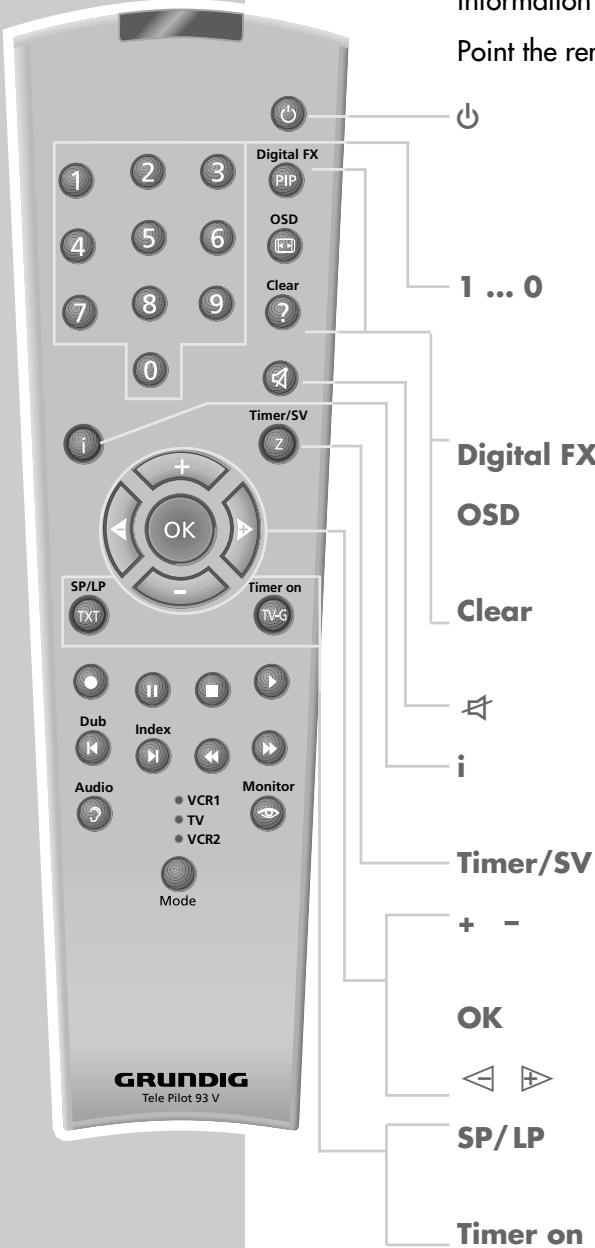
Pressing once switches the video recorder to stand-by mode;
pressing again switches off the video recorder (power-saving mode).
Switch the video recorder on from stand-by;
numeric keys for various inputs, 0 selects channel positions R / , R / or C .
Key has no function.
Activates/deactivates the function and playing time displays on the television screen.
Delete data, activates settings, sets the playing time indicator to 0:00:00
Switches off the sound on a Grundig television.
Switches between the main menu and the TV image.
Activates ShowView recording.
Select channels, + up, - down; Select various menu functions.
Calls up, confirms and saves data.
Select various functions in the menus.
Switches between standard and long play mode (select playing time before recording).
Press briefly to activate TIMER-recording; press and hold down (ca. 3 seconds) to deactivate TIMER recording.
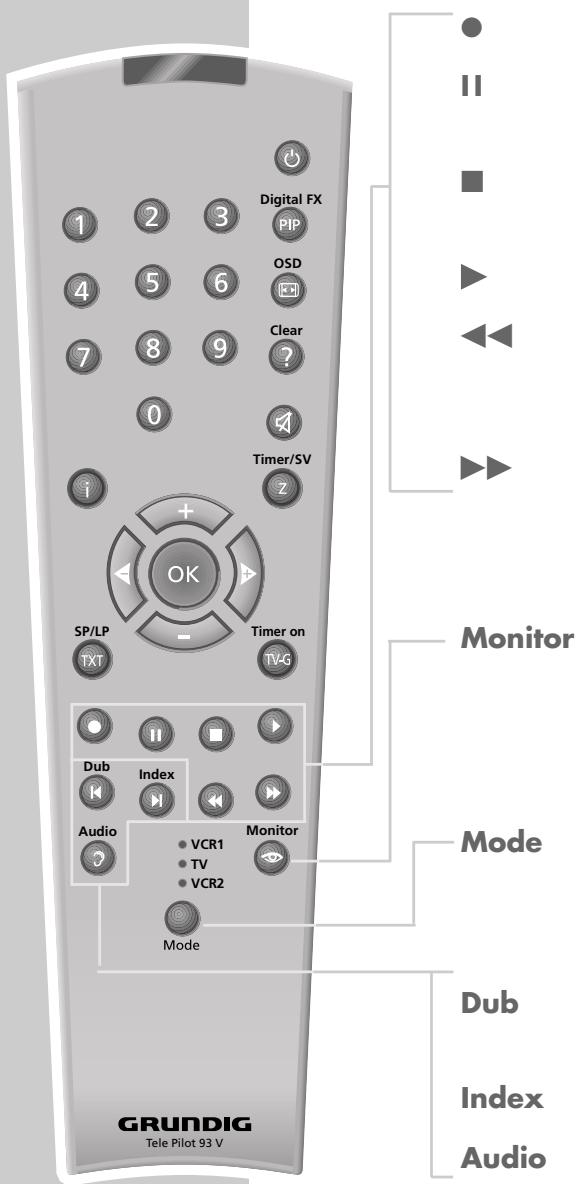
Starts recording.
Pause during recording, freeze-frame during playback.
Terminates all drive functions and switches the video recorder to "Stop".
Starts playback.
Reverse search during playback;
Fast rewind in "Stop" mode;
selects the direction of the INDEX search function.
Forward frame search during playback;
Tape advance in "Stop" mode;
selects the direction of the INDEX search function and the zero setting function.
Switches off the switch voltage of the EURO-AV socket.
This deactivates the AV channel position on the television and activates the previously selected channel position (Monitor mode).
Switches the remote control from video recorder operation (» VCR 1 «) to TV operation (» TV «, see the options described on Page 62) or to the operation of an additional video recorder (» VCR 2 «).
Selects the Dubbing function; displays the menus on a blue background.
Activates the INDEX search functions.
Selects the audio channel for recording and playback.
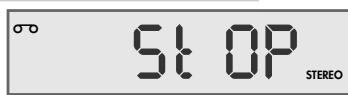
The display on the video recorder

Cassette inserted.
Playback.
VIDEO PIN-8 switch voltage activated.
Illuminates when a TIMER is programmed; flashes when a TIMER is programmed but not activated.
Recording.
STEREO Stereo or two-channel sound transmission.
-0:00:00 Shows various functions and conditions:
| Display | Function | Display | Function |
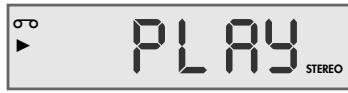
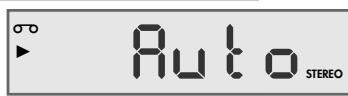
| Auto | Auto-tracking; | PLAY | Playback; |
| RSr | Recording, controlled by the switch-timer of a satellite receiver; | PSE | Recording pause; |
| rE | Rewind tape; | ||
| CRSS | No tape inserted; | rEC | Recording; |
| Cont | Continuous playback; | SECU | Parental lock activated; |
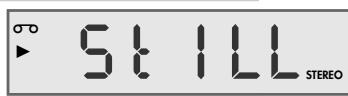
| dub | Audio dubbing; | Still | Freeze-frame during playback; |
| FF | Fast forward tape; | SLO | Slow motion; |
| FSF | Forward frame search; | STOP | Stop playback/recording; |
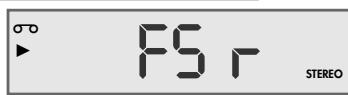
| FSr | Backwards frame search; |
The OSD display on the television
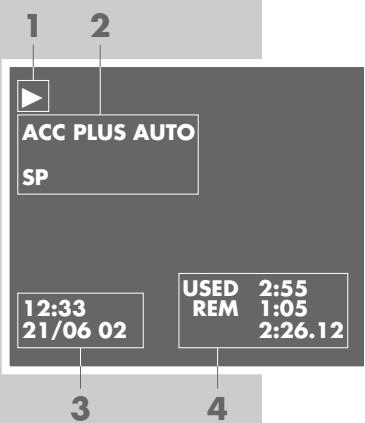
1 Playback
Forward frame search or tape advance
Backward frame search or tape rewind
Freeze-frame
Slow motion or frame advance
Record
Pause in recording
2 ACC PLUS AUTO
END OF TAPE
A.DUB
SP LP
INTRO-SCAN:
INDEX-SEARCH:
GOTO 0: 00:00
Sharpness
End of tape reached
Dubbing function
Standard or long-playing mode
Search function
Search function
Zero setting
3 12:33 Time
21/06 02 Date
4 USED Elapsed playing time
REM
2:26.12
Remaining playing time
Tape display in hours, minutes and seconds
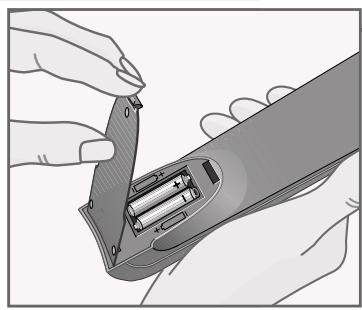
Inserting batteries in the remote control
1 Open the battery compartment by pressing the tab and removing the lid.
2 When inserting the batteries (micro type, for example LR03 or AAA, 2 × 1,5V ), observe the polarity designation on the battery compartment.
Note:
If the video recorder no longer reacts properly to remote control commands the batteries may be flat. Always remove flat batteries. No liability is accepted for damage resulting from leaking batteries.
Environmental note
Batteries, including those which are heavy metal-free, may not be disposed of with household waste. Please dispose of used batteries in an environmentally sound way, for example at public collection points. Find out about the legal regulations which apply in your area.
Connection options
The following sections explain how to connect the video recorder. If you are using a rooftop aerial or a cable connection, follow the example in the first section
or
Read the second section if you are using a Grundig satellite receiver. Here, you can also connect a rooftop antenna
or
Skip to the third section if you are using a Grundig VCR-SAT module.
Note:
If your television is equipped with Megalogic functions, the video recorder and television set must be connected with the EURO-AV cable provided, see step 3 on page 12 or step 8 on page 14 or step 7 on page 16.
If the video recorder is connected to a television set with a 16:9 format, observe the setting in the section, "Operation with a format 16:9 television" on page 58.
If the video recorder and television are connected using a EURO-AV (Scart) lead, and Channel 21 is occupied by a television station where you live, you must switch off the station on the video recorder. See the chapter entitled "SPECIAL SETTINGS, Switching the station on the video recorder on and off".
Connecting the rooftop antenna or cable connection and the television
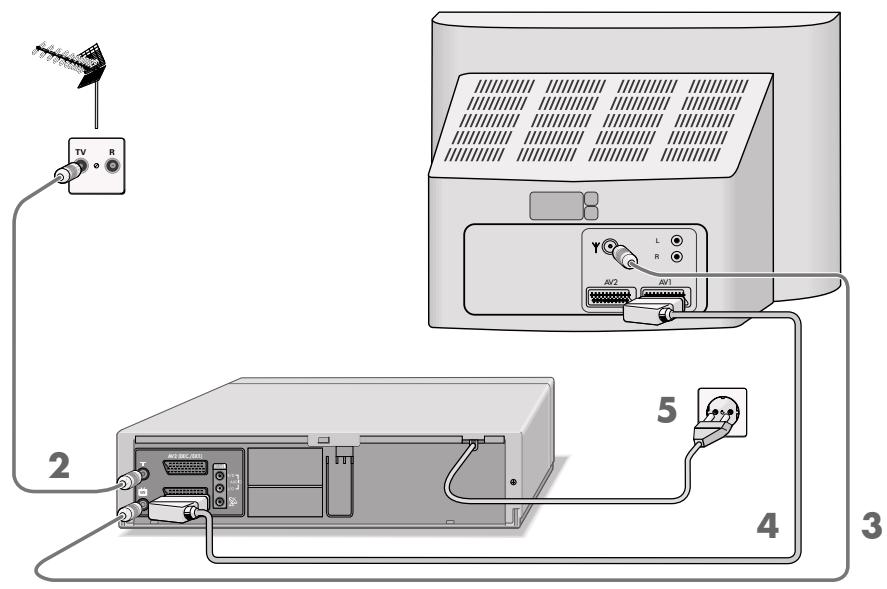
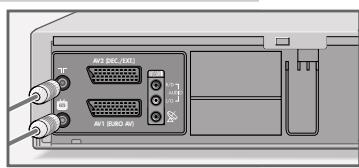
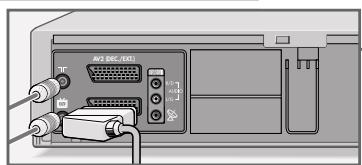
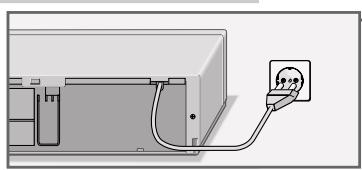
1 Switch off the television.
2 Plug the antenna cable of the rooftop antenna into the antenna socket on the video recorder.
3 Plug the antenna cable supplied into the TV « socket on the video recorder and the antenna socket on the television set.
4 Plug the EURO-AV (Scart) cable supplied into the «AV1 (EURO AV)« socket on the video recorder and the AV 1 socket on the television.
- Stereo sound can only be played back on a stereo television set if this connection is used.
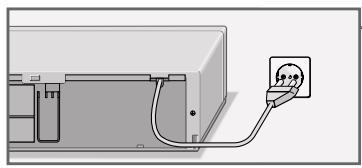
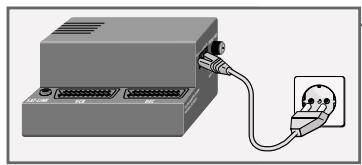
5 Insert the power cord plug in the socket.
- The video recorder is now in stand-by mode.
Caution:
The only way to disconnect the video recorder from the mains supply is to pull the plug.
Connecting the Grundig satellite receiver and the television set
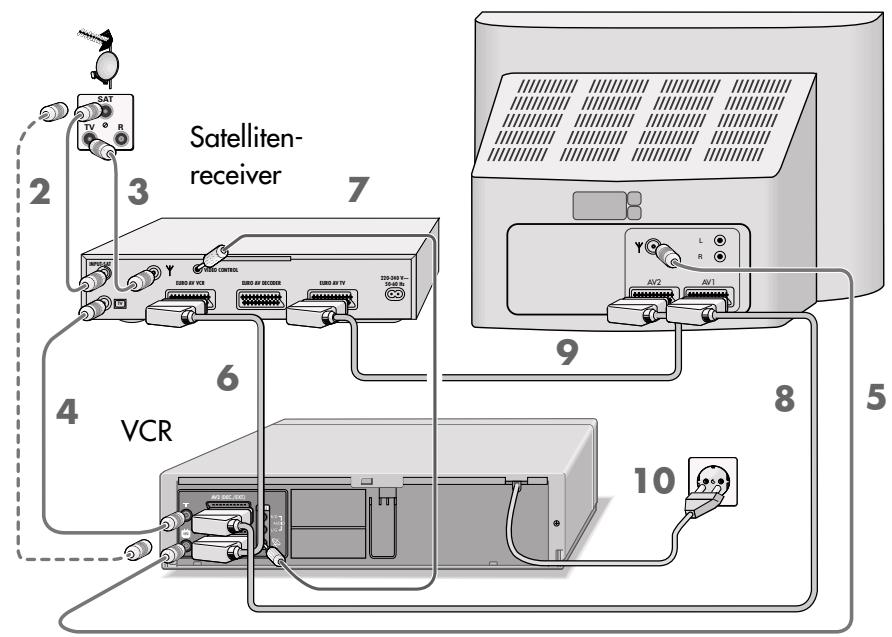
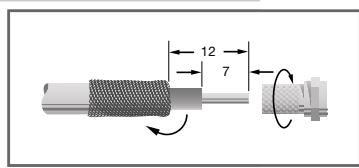
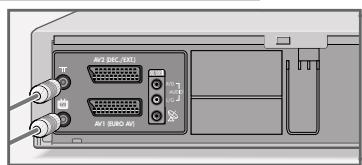
1 Switch off the television and the satellite receiver.
2 Plug the satellite antenna cable into the corresponding antenna socket (INPUT-SAT) on the satellite receiver.
3 Plug the rooftop antenna cable (TV) into the corresponding antenna socket () on the satellite receiver.
4 Plug the antenna cable supplied into the «¬Γ« socket on the video recorder and the corresponding socket (TV) on the satellite receiver.
5 Plug a standard antenna cable into the TV « socket on the video recorder and the antenna socket on the television set.
Note:
If the satellite receiver has no input socket for the rooftop antenna, plug the antenna into the socket on the video recorder.
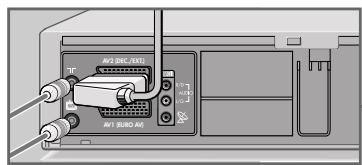
6 Plug a standard EURO-AV (Scart) cable into the «AV2 (DEC./EXT.)« socket on the video recorder and the «VCR« socket on the satellite receiver.
Note:
Alternatively, a PAY-TV decoder can be connected to the AV2 (DEC./EXT.)1 socket.
If a VCR-SAT module is installed in this socket, connect the PAY-TV decoder to the decoder socket of the satellite receiver.
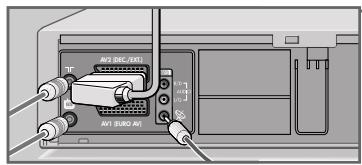
7 Plug a standard cinch cable into the « socket on the video recorder and the «VIDEO CONTROL« (control line) socket on the satellite receiver.
Note:
If the satellite receiver does not have a socket for the "control function", it cannot be controlled by the video recorder when programming recordings.
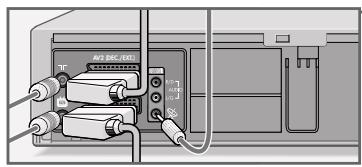
Plug the EURO-AV (Scart) cable supplied into the «AV1 (EURO AV)« socket on the video recorder and the AV 1 socket on the television.
- This connection provides better picture and sound quality during playback.
- Stereo sound can only be played back on a stereo television set if this connection is used.
Plug a standard EURO-AV (Scart) cable into the «TV« socket on the satellite receiver and the AV 2 socket on the television.
10 Insert the power cord plug in the socket.
- The video recorder is now in standby mode.
11 Connect the satellite receiver to the mains supply.
Caution:
The only way to disconnect the video recorder from the mains supply is to pull the plug.
Note:
After you have set the television channels, you must adjust the «AV2 (DEC./EXT.)« socket of the video recorder to the satellite receiver. For how to make this setting see the chapter "SPECIAL FEATURES, Setting the EURO-AV2 socket on the video recorder for the satellite receiver".
Instructions on connecting other devices, such as another video recorder, a decoder or a hi-fi system, can be found starting on page 40.
Connecting the GRUNDIG VCR-SAT module and the television
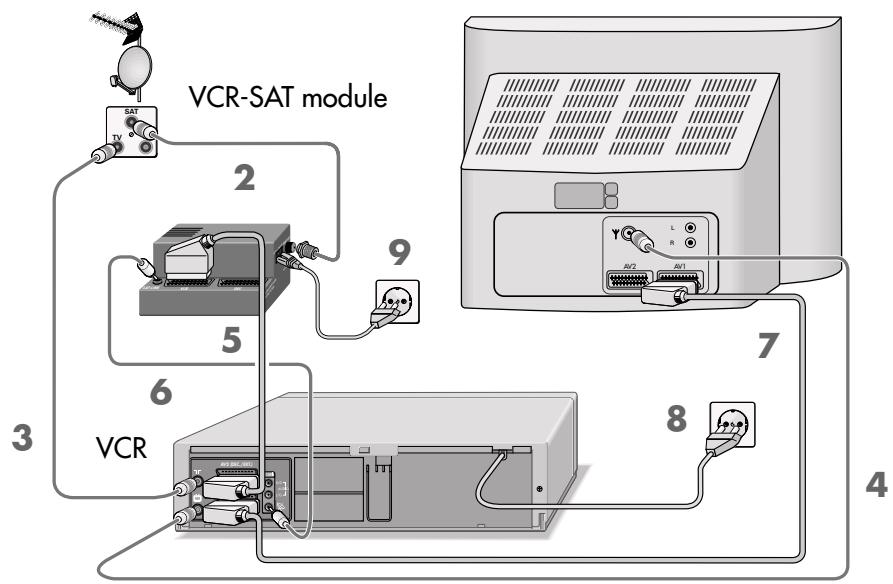
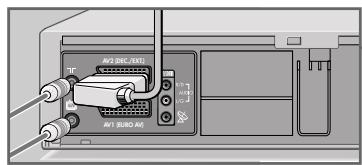
Switch off the television and the VCR-SAT module.
2 Plug the satellite antenna cable into the corresponding antenna socket (INPUT-SAT) on the VCR-SAT module.
3 Plug the antenna cable of the rooftop antenna into the antenna socket on the video recorder.
4 Plug the antenna cable supplied into the «TV« socket on the video recorder and the antenna socket on the television set.
5 Connect the «AV2 (DEC./EXT.)« socket on the video recorder and the «VCR« socket on the VCR-SAT module using a standard EURO-AV (Scart) cable.
Note:
The »AV2 (DEC./EXT.)« socket can also be used for connecting a PAY-TV decoder.
If a VCR-SAT module has been connected to this socket, connect the PAY-TV decoder to the «DEC« socket on the VCR-SAT module.
In this case, the decoder can only be used for television stations supplied by the VCR-SAT module.
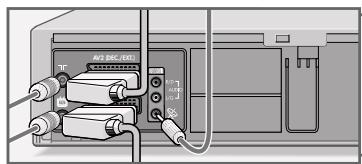
6 Connect the « socket on the video recorder and the SAT-LINK« (control line) socket on the VCR-SAT module using a standard cinch cable.
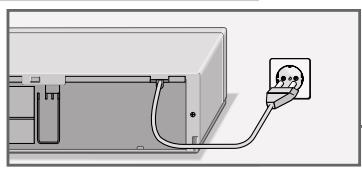
7 Plug the EURO AV (Scart) cable supplied into the «AV1 (EURO AV)« socket on the video recorder and the AV 1 socket on the television.
- Stereo sound can only be played back on a stereo television set if this connection is used.
8 Insert the power cord plug into the socket. - The video recorder is now in standby mode.
9 Connect the VCR-SAT module to the mains supply.
Caution:
The only way to disconnect the video recorder and the VCR-SAT module from the mains is to pull the plug.
Switching the video recorder on and off (power save mode)
Press 1 ... 0 to switch on the video recorder.
2 Press the button to switch the video recorder to stand-by mode.
- The video recorder is now in stand-by mode and the display shows the current time - at a reduced brightness level.
3 Press to switch off the video recorder.
- The video recorder is now switched off, the time is no longer visible in the display (power-saving mode).
Note:
You cannot switch off the video recorder if you have set it to record programs later.
The video recorder automatically switches to power-saving mode:
- at the end of a recording;
- when all TIMER recordings have been carried out;
- when the end of the tape has been reached;
- when it has been stopped for longer than 1 Minute.
Tuning the video recorder and the television
You do not need to do this if the video recorder and the television are connected via a EURO-AV (Scart) cable.
1 Switch on the television.
2 Select the AV channel position on the television set for recorder playback via the antenna cable.
3 Tune the television to a free channel in the UHF band between channel 21 and channel 69. A free channel is one which does not carry a signal from a television station (you can only see and hear static).
- Many televisions display the channel number.
4 Store the free channel position on the television.
Note:
When the device is switched on for the first time, «Ruta« flashes in the video recorder display. Keep pressing «i« until «--;--» appears in the display.
Press to switch the video recorder to stand-by mode, and then press and hold down
- The display on the video recorder, for example CH 21«.
6 Set the channel using P on the video recorder.
- The test picture of the video recorder appears on the television screen.
7 If the quality of the test picture is OK, press OK to save the setting.
- The video switches to stand-by.
Note:
If the quality of the test picture is unsatisfactory, or if the picture quality of other channels has deteriorated, then you should find another free channel on the television and repeat at the setting from steps 3 to 7.
You can switch off the station on the video recorder. Fore more information see the "Switching the station on the video recorder on and off" on Page 52.
Setting television channels
The video recorder has its own receiver unit. It can receive and record from television stations independently of the television. This means you must tune the television stations on the video recorder.
There are 99 channel positions available, which can be assigned as required to television stations received via the antenna, cable connection or satellite receiver.
The options:
- If you have a Grundig television with the Megalogic function, the video recorder takes over the television stations from the television – in the same order. If a satellite receiver is connected, this function cannot be used.
- You can tune television channels using an automatic search.
- You can tune the television channels manually if you know the channel numbers of the stations you wish to select. This setting is described in the "SPECIAL SETTINGS" section on page 51. There you will also find other settings such as sorting, deleting and naming television channels.
During this setting the clock is automatically updated. However, this is only possible if channel position 1 is occupied by a station with teletext.
If a VCR-SAT module or a satellite receiver with a SAT control socket is connected to the video recorder, the stations received through the VCR-SAT module or the satellite receiver are saved in the station list, in addition to the stations received through the antenna or the cable connection.
Note:
The VCR-SAT module or satellite receiver must be connected before the settings are made, see page 13 or 15.
Note on recording television programs with the Megalogic function:
If the video recorder is connected to a television set with Megalogic functions, this setting transfers the programs stored in the television to the video recorder.
This transfer does not take place if you select SAT CONTROL ON in the SAT RECEIVER menu.
Tuning television channels with the Megalogic function
The television and the video recorder must be connected with a EURO-AV (Scart) cable (PIN-10 occupied).
AUTO INSTALLATION
PRESS OK KEY TO START.
AUTOMATISCHE EINSTELLUNG
ZUM START DIE OK-TASTE
DRUCKEN.
OK :EINGABE INFO:ENDE
SPRACHE ENGLISH DANSK DEUTSCH SVENSKA FRANCAIS SUOMI ITALIANO ESPANOL NEDERLANDS PORTUGUES < > WAHLEN OK :EINGABINFO:ENDE
COUNTRY A I B N DK P FIN E D S NL CH F OTHERS GB
A <>:SELECT OK :ENTER INFO:EXIT
PLEASE WAIT PR 1 -MEGALOGIC-
Preparation
Switch on the television.
Select the channel position «AV« on the television for the video recorder.
Setting
1 When the device is first operated, the menu AUTO INSTALLATION« appears automatically.
Hint:
If the AUTO INSTALLATION« menu does not appear on the screen: press P « and P « simultaneously on the video recorder until the menu appears.
2 Press OK to begin the setting.
- The SPRACHE (LANGUAGE) menu appears.
3 Select the language using the + - < 一 > « buttons and then press OK to confirm.
- The COUNTRY menu appears.
4 Select the country you are in using the + - < > « buttons.
Note:
If your country is not shown in the COUNTRY menu, select the line OTHERS .
5 Press OK to confirm the country.
-A menu appears on the screen asking if all the cables have been connected to the video recorder. Check that they are before continuing.
6 Press OK to start the Megalogic function.
- The television transmits the television stations in the same order as the video recorder.
- The Ruto display flashes on the video recorder.
- After the transmission is completed the «CLOCK« display appears; check the time and date.
7 Conclude the setting by pressing i
Setting television channels using the automatic search
Preparation
Switch on the television.
Select the channel position «AV« on the television for the video recorder.
| AUTO INSTALLATION |
| PRESS OK KEY TO START. |
| AUTOMATISCHE EINSTELLUNG |
| ZUM START DIE OK-TASTE |
| DRUCKEN. |
| OK :EINGABE INFO:ENDE |
| SPRACHE | |
| ENGLISH | DANSK |
| DEUTSCH | SVENSKA |
| FRANÇAIS | SUOMI |
| ITALIANO | ESPANOL |
| NEDERLANDS | PORTUGUES |
| - - - - - - - - - - - - - - - - - - - - - - - - - - - - - - - - - - - - - - - - - - - - - - - - - - - - - - - - - - - - - - - - - - - - - - - - - - - - - - - - - - - - - - - - - - - - - - - - - - - - - | |
| ^^^-:WÄHLEN OK :EINGABE INFO:ENDE | |
| COUNTRY | |
| A | I |
| B | N |
| DK | P |
| FIN | E |
| D | S |
| NL | CH |
| F | OTHERS |
| GB | |
| ∧∨ | < >:SELECT |
| OK :ENTER | INFO:EXIT |
| SAT RECEIVER | |
| SAT CONTROL | OFF |
| OK :ENTER | < >:CHANGE INFO:EXIT |
Automatic tuning
When the device is first switched on, the AUTO INSTALLATION menu appears automatically.
Hint:
If the «AUTO INSTALLATION« menu does not appear on the screen: press «P« and «P « on the video recorder simultaneously until the menu appears.
2 Press OK to begin the setting.
- The SPRACHE (LANGUAGE) menu appears.
3 Press + - < to select the language and press OK to confirm.
- The COUNTRY menu appears.
4 Press + - < to select the country you are in.
Note:
If your country is not shown in the «COUNTRY« menu, select «OTHERS».
5 Press OK to confirm the country.
-A menu appears on the screen asking if all the cables have been connected to the video recorder. Check that they are before continuing.
6 Press OK to go the next setting.
- The SAT RECEIVER menu appears.
7 If no VCR-SAT module or satellite receiver with a SAT control socket is connected to the video recorder, select the SAT CONTROL OFF setting by pressing or and continue the setting at step 8.
If a VCR-SAT module or a satellite receiver with a SAT control socket is connected, press or to select SAT CONTROL ON.
-A menu appears asking you to connect the VCR-SAT module or the satellite receiver to the video recorder.
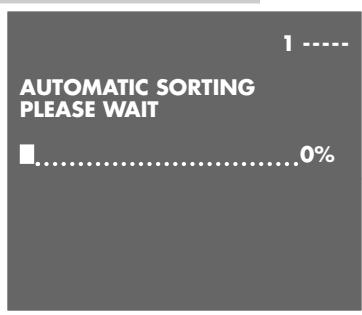
8 Press OK to start the automatic search.
- The video recorder searches all channels for television stations, then sorts and saves them. The automatic search may take several minutes.
- The Ruto ^次 display flashes on the video recorder.
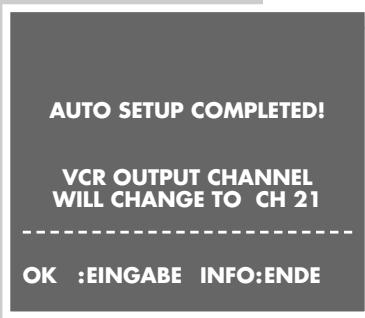
- When the transmission is completed the message AUTO SETUP COMPLETED appears on the screen along with the number of the output channel, followed by the MOVE display.
Note:
If the video recorder and the television are not connected with a Scart cable, you need to repeat the setting on page 17 and set the channel shown in the menu on the television (for example, CH 21).
9 You can sort the television channels using the «MOVE« menu. For information on how to do this see the "SPECIAL SETTINGS" section on page 48.
10 Press OK to confirm the setting.
- The CLOCK display appears - check the time and date.
11 Quit the setting with i
Preparation
Switch on the television.
Select the channel position AV on the television for the video recorder.
Insert a recorded video tape into the compartment with the window facing upwards until it is automatically drawn in.
- The video recorder display contains the following symbol: (= tape symbol).
Note:
If you put a cassette with the protection tab removed into the video recorder, playback starts automatically.
Basic playback functions
Press to start playback.
- Display on the video recorder: PLAR, information is displayed briefly on the television screen.
-
Ruta« flashes briefly in the video recorder display; during this time the tracking position of the tape is automatically adjusted.
Note:
If the video recorder is connected to a television with Megalogic functions, the television switches on after playback is started from operating position stand-by and automatically switches to program position «AV«.
2 To switch to freeze-frame/pause press II.
Press repeatedly to advance the picture frame by frame.
3 Reverse/forwards search, press or on the remote control during playback.
Press several times to change the playback speed; or
during playback turn the knob on the device to the left or to the right and hold it.
4 To stop playback, press .
5 To eject the cassette, press on the video recorder.
Note:
Your video recorder automatically switches to power-saving mode when:
- the freeze-frame function is selected for longer than 5 minutes;
- the video recorder is stopped for longer than one minute.
Additional playback functions
Calling up information
Press the OSD button to call up information.
- Display on the television screen:
the channel position;
the date and the time;
and shortly thereafter:
»USED « the elapsed playing time on the tape;
REM《 the remaining playing time;
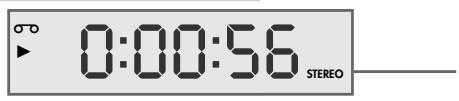
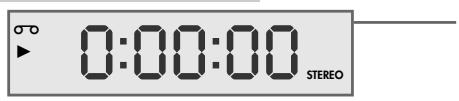
0:00:00 « the tape counter in hours, minutes and seconds.
-
You can call up this information successively on the video recorder display by pressing OK.
-
The tape counter can be set to 0:00:00 by pressing
》Clear<
2 Switch off the information display by pressing OSD .
Fast forward/rewind
Press to stop the tape.
2 Press to rewind, fast forward with on the remote control; or
turn the knob on the device to the left or right.
Double playback speed
Press during playback.
2 Press again to return to normal playback speed.
Slow motion
1 During freeze-frame (playback/pause) press and briefly hold down II .
2 Press to alter the slow-motion speed.
3 Press to return to normal playback speed.
Frame-by-frame playback
1 During freeze-frame (playback/pause) press repeatedly.
2 Press to return to normal playback speed.
Improving the quality of the freezeframe/ slow motion image
1 In freeze-frame/slow motion mode (playback/pause) press on the video recorder or + or - on the remote control to adjust the image according to your taste.
2 Press to return to normal playback.
Note:
The video stops the freeze-frame function after a certain period of time.
Eliminating picture disturbances (unwanted lines)
1 During playback, use + and - to improve the picture quality as you see it.
- Your setting is retained until you remove the cassette.
2 If you press P « simultaneously on the video recorder it switches to medium tracking.
Setting the picture sharpness (ACC Plus)
The sharpness of the picture can be adjusted to your individual taste.
1 During playback you can adjust the picture quality by pressing (softer) or (sharper).
2 To return to the medium setting, hold down the Clear button until you see the menu on the screen.
Playing back NTSC recordings
During playback of NTSC recordings (transmissions following the American television norm) the video recorder automatically switches over to this system.
Note:
A perfect freeze-frame is not possible during NTSC playback.
There may be some picture disturbances on NTSC long play recordings.
Selecting the audio track
You can select the audio signal you want to hear when playing tapes recorded with stereo or two-channel broadcasts:
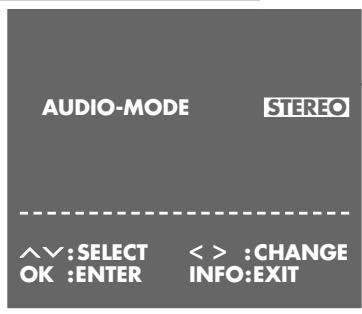
1 During playback, call up the menu by pressing «Audio«.
2 Select the audio signal using or and press OK to confirm.
- Displays on the screen:
STEREO = stereo; L = left sound channel or language of the left sound channel; R = right sound channel or language of the right sound channel;
MONO = mono.
3 Press i to exit the Audio menu.
Continuous playback
This function plays back the contents of the tape up to tape position 0:00:00 . At that point, the video recorder automatically rewrites the cassette to the start and begins playback again.
Activating continuous playback
Press to start playback and OSD to see the tape counter.
2 At the required position on the tape, press Clear to reset the tape counter to 0:00:00 .
3 Press i to open the main menu. - The main menu appears.
4 Select the SERVICE line using >> + << or - and then press OK to confirm.
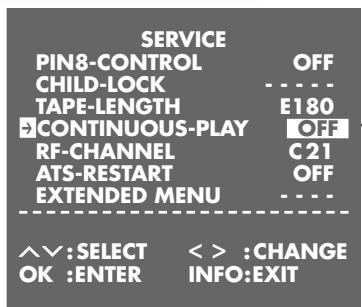
- The SERVICE menu appears.
5 Select the CONTINUOS-PLAY line using + or -
6 Press or to activate continuous playback (display ON) and press OK to confirm. The video recorder automatically rewrites the tape to the beginning and starts playback there. The buttons on the device and the remote control (except the button) are disabled during continuous playback.
Deactivating continuous playback
1 Open up the SERVICE< menu by pressing the i< button.
2 Press or to deactivate continuous playback (display OFF) and press OK to confirm.
Zero setting
With this search system the video recorder can automatically rewind to position 0:00:00 on the tape.
1 Press to start playback.
2 Press OSD to select the tape counter.
3 Press Clear at the required point on the tape to set the tape counter to 0:00:00 .
4 To rewind to the zero position on the tape, press Index during playback and then press 0 .
- The video recorder rewinds the tape to the zero position and then resumes playback.
Finding recordings using the Video Index Search System (VISS)
With this search system you can quickly find the exact beginning of each recording you make. The necessary "markers" are automatically set each time you make a recording with this video recorder.
1 Press »Index«.
2 Select the desired "bookmark" (point on the tape) with
- Display: INDEX SEARCH《The video recorder automatically winds the tape to the selected point on the tape and begins playback there;
or
The video recorder winds the tape to the next "bookmark", switches briefly to playback mode, then winds the tape to the next "bookmark".
Note:
If you want the playback to resume, press
Recording options:
Immediate recording, in which you select the required station on the video recorder and start recording immediately.
2 Delayed recording using ShowView numbers.
3 Delayed recording by entering the date, time and channel of the programme you want to record if you do not know the ShowView number.
4 Delayed recording by entering the data in the TIMER menu of a Grundig television with the Megalogic function. You can find information on using this option in the operat
ting manual that came with your television set.
With recording options 2 and 3 you can set the video to record up to six programmes as much as a year in advance, or record programmes at the same time every day or week.
The Video Programming System (VPS/PDC)
This system guarantees successful recording when you set the VCR in advance to tape a broadcast.
Many television stations broadcast a supplementary signal (VPS/PDC signal) which indicates the start and duration of each individual television programme. When you are programming the video recorder, it is therefore important to enter the times when it is to switch on and off to the nearest minute. If television programmes are changed or re-scheduled, then special VPS/PDC times which must be entered instead of the scheduled times are detailed in the television guides.
In the case of television stations which do not transmit a VPS/PDC signal, recording depends solely on the times set for the video recorder to switch on and off. This is regardless of whether you confirm or delete the VPS/PDC signal when you program the video recorder.
If you use a rotating dish and enter the recording data for television programs from different satellite positions, you can only program the VPS signal for the television program of one satellite position, otherwise the motor of the rotating satellite dish may become overloaded.
Recording television programs from the antenna or the cable connection
Preparation
Switch on the television.
Select the channel position «AV« on the television for the video recorder.
Insert a video cassette with sufficient playing time and the tab intact (i.e. not erase-protected) into the compartment until it is automatically drawn in.
- The video recorder display contains the following symbol: (tape symbol).
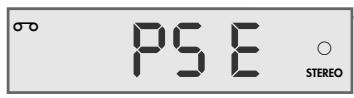
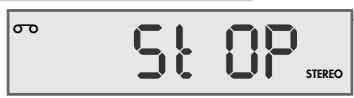
Operation
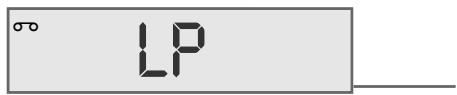
1 If necessary select long play mode by pressing SP/LP. - The video recorder display reads LP.
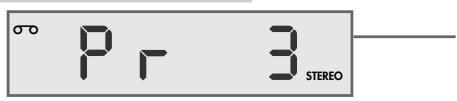
2 Before recording select the television station by pressing + - P 0 9
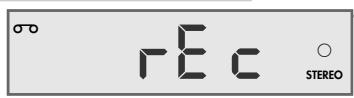
3 To start recording, press and briefly hold it down.
Note:
If the video recorder is connected to a television set with Megalogic functions, the television programme appearing on the screen can be recorded by pressing . It is not necessary to select the channel position on the video recorder.
4 Press II to temporarily interrupt recording.
Note:
During a pause in recording you can switch to another television channel.
5 To finish recording, press .
6 To rewind the tape, press , to fast forward press on the remote control;
or
turn the knob on the device to the left or right.
7 To eject the cassette, press « on the video recorder.
Recording television programs from the satellite receiver
Preparation
Switch on the television.
Select the channel position AV on the television for the video recorder.
Insert a video cassette with sufficient playing time and the tab intact (i.e. not erase-protected) into the compartment until it is automatically drawn in.
- The video recorder display contains the following symbol: (tape symbol).
Operation
Switch on the satellite receiver.
2 Select the required satellite station on the satellite receiver.
3 Select the channel position AV on the video recorder by pressing 0 and select the channel position by pressing = .
-Display: E2<.
4 Start recording by pressing and holding down
5 Press to end the recording.
82
Entering the recording stop time
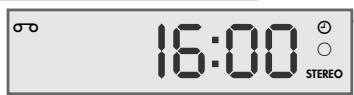
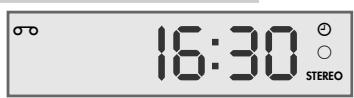
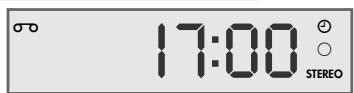
1 During the recording, press to advance the recording stop time in 30 minute increments;
or
press + or - to enter the stop time to the nearest minute.
- The stop time is only displayed on the television screen.
- The video recorder shows the TIMER display 1 and shuts off when this time is reached.
Seamless compilation of recordings-(Assemble)
This function enables you to make recordings without periods of interference between them.
The precondition for this is that the previous recording was made at the same tape speed (SP or LP) as the new recording.
During playback, locate the end of the scene after which the new recording should start and press at this position on the tape.
2 Press to pause the video recorder.
3 Select the television channel using + - or P or enter 0 ... 9 and start the new recording by pressing
... by entering the ShowView number
The time and date on the video recorder must be accurate.
The ShowView numbers for television programmes are printed in the TV guides.
If all the TIMER positions are occupied you must delete one.
To do this, see the section entitled "Deleting recording data" on Page 38.
Preparation
Switch on the television and select the channel position «AV« on the television for the video recorder.
Insert a video cassette with sufficient playing time and the erase-protection tab intact into the compartment until it is automatically drawn in.
If the video recorder is on recording stand-by, this must be interrupted by pressing and holding down the «Timer on« button.
Example
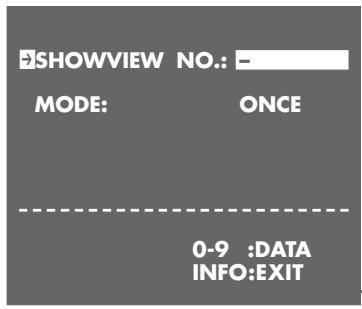
Press Timer/SV to begin the setting.
- The SHOWVIEW menu appears.
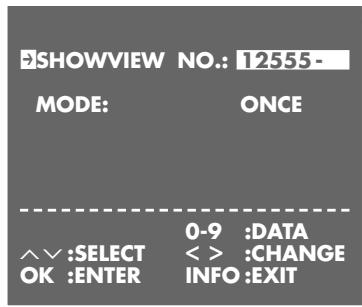
2 Enter the ShowView number for the programme you want to record using 0 9
Notes:
If you type in an incorrect number, you can delete the ShowView number space by space by pressing
If you want to record the programme at the same time every day or week, select MODE by pressing = and select the function you require (ONCE WEEKLY DAILY) with
The "daily" function cannot be used for recording on Saturdays or Sundays.
3 Press OK to confirm the ShowView number.
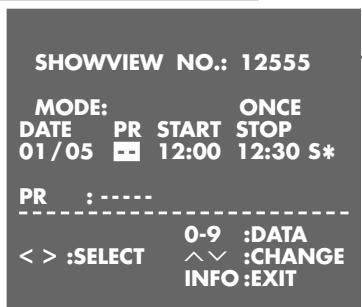
- The current recording data appears on the screen.
Note:
The first time you set the recorder to tape a programme on a television channel PR is highlighted in the menu.
The video recorder must first "learn" the channel positions on which the individual stations have been stored.
Enter the two-digit channel number (e.g. 03 ) using the 0 9 buttons.
You no longer need to select the channel when you subsequently record broadcasts on that station.
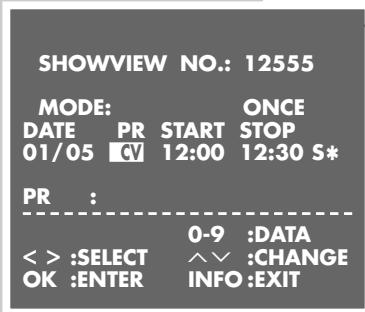
4 If you are recording the audio/video signal from an external device rather than one of the television stations, select AV 1 «, AV 2 «, or CV « as the channel by pressing + or - .
Recording from a satellite receiver:
If a television station from a connected satellite receiver is programmed, use + or - to select the channel position AV2 and select the desired television station on the satellite receiver. The satellite receiver must be switched on up to the selected recording time and must remain on for the duration of the TIMER recording.
(This is not necessary for the Grundig VCR-SAT module or for many Grundig satellite recievers with a SAT control line.)
SHOWVIEW NO.: 12555
MODE: ONCE DATE PR START STOP 01/05 03 12:00 12:30S*
SP/LP/A: TAPE SPEED
<>:SELECT ∧:CHANGE OK :ENTER INFO :EXIT
SHOWVIEW NO.: 12555
MODE: ONCE DATE PR START STOP 01/05 03 12:00 12:30 S
VPS/PDC*:ON -OFF
<>:SELECT ∧:CHANGE OK :ENTER INFO :EXIT
SHOWVIEW NO.:
MODE: ONCE
0-9 :DATA INFO:EXIT
5 Select the tape speed if necessary by pressing to select S and then set it using + or -
S is standard play mode; L is long play mode;
A is automatic mode.
- In automatic mode the video recorder compares the remaining playing time with the length set for the recording and automatically selects long play mode if necessary.
Note:
Automatic mode is not available for TIMER recordings with VPS/PDC.
6 Switch off VPS/PDC (if it is not required) by pressing to select and then + or - to switch off VPS. - * in the display denotes VPS recording.
7 Save the recording data by pressing OK <<
- The »SHOWVIEW« menu reappears on the screen.
8 For further recordings, repeat the procedure from step 2 or terminate the function by pressing i.
9 Press « Timer on« to switch the VCR to recording stand-by. - The video recorder display now shows the time and the TIMER symbol «. The video recorder is now in recording stand-by mode.
Note:
The TIMER recording in progress can be prematurely stopped by pressing «Timer on« on the remote control or « on the video recorder.
… by entering the data for the required television program
Employ this method of recording if you do not know the Show-View numbers for the television programs.
Notes:
The time and date on the video recorder must be accurate. If all the TIMER positions are occupied you must delete one. To do this, see the section entitled "Deleting recording data" on Page 38.
Operation can be interrupted at any time using the i button.
Preparation
Switch on the television.
Select the channel position «AV« on the television for the video recorder.
Insert a video cassette with sufficient playing time and the tab intact (i.e. not erase-protected) into the compartment until it is automatically drawn in.
If the video recorder is on recording stand-by, this must be interrupted by pressing and holding down the «Timer on« button.
Example
Note:
Enter the date, channel, start and finish time by pressing + or - . Press to jump to the next entry.
The example describes how to enter the data using the numerical buttons 0 9
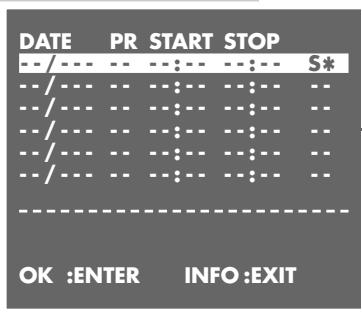
Press i to begin the setting.
- The main menu appears.
2 Highlight the TIMER line by pressing OK
- The TIMER menu appears.
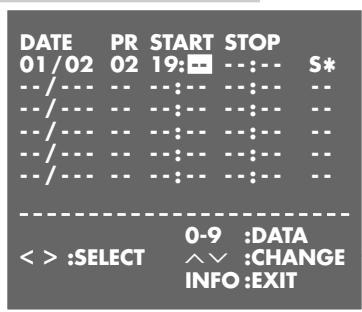
3 Press OK to begin entering data.
- The current date is displayed.
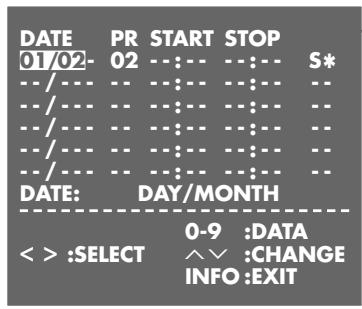
4 Confirm the date (DATE) by pressing , or enter the desired date in four digits with 0 9 .
5 If you want to record the programme daily or weekly, press + or - to select D (daily) or W (weekly). - in the display means that it is a once-only recording.
Press to confirm the setting.
Note:
You cannot use the "daily" function for recording on Saturdays and Sundays.
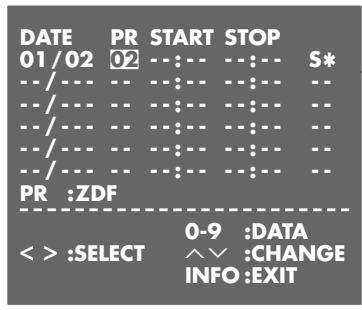
6 Enter the two-digit channel number (PR) using the 0 9 buttons.
Note:
If you are recording the audio/video signal from an external device rather than one of the television stations select AV 1 «, AV 2 «, or CV « as the channel by pressing + or = .
Recording from a satellite receiver:
If a television station from a connected satellite receiver is programmed, use + or - to select the channel position AV2 and select the desired television station on the satellite receiver. The satellite receiver must be switched on up to the selected recording time and must remain on for the duration of the TIMER recording.
(This is not necessary for the Grundig VCR-SAT module or for many Grundig satellite recievers with a SAT control line.)
7 Enter the time to start recording (START) as four digits with 0 9
8 Enter the time when the recording finishes (STOP) as four digits with 0 ... 9
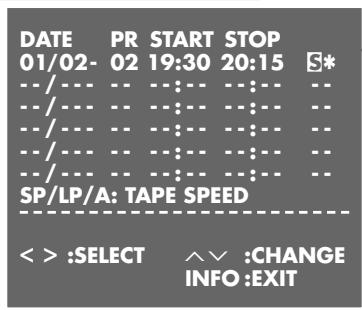
9 Set the tape speed using + or - if necessary:
S is standard play mode;
L is long play mode;
A is automatic mode.
- In automatic mode the video recorder compares the remaining playing time with the length set for the recording and automatically selects long play mode if necessary.
Note:
Automatic mode is not available for TIMER recordings with VPS/PDC.
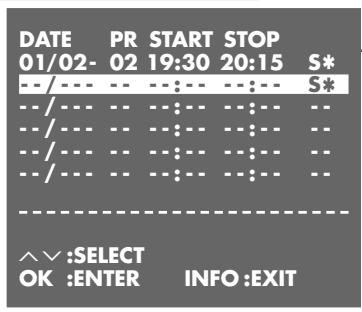
10 Switch off VPS/PDC (if it is not required) by pressing to select and then + or - to switch off VPS. - in the display denotes VPS recording.
11 Save the recording data by pressing OK. - The «TIMER« menu is displayed on the screen.
12 For further recordings, repeat the procedure from step 3, or terminate the function by pressing «i«.
13 Press « Timer on« to switch the VCR to recording stand-by.
- The video recorder display now shows the time and the TIMER symbol «. The video recorder is now in recording stand-by mode.
Note:
The TIMER recording in progress can be prematurely stopped by pressing Timer on « on the remote control or » ▲ « on the video recorder.
Checking, modifying or deleting recording information
Preparation
Switch on the television.
Select the channel position AV on the television for the video recorder.
Calling up the TIMER menu
1 If the video recorder is in recording stand-by mode, press and hold down Timer on.
2 Press 1 ... 0 to switch on the video recorder.
3 Press i to open the main menu.
Note:
Select the function you require in the «TIMER« menu. For information on using these functions see the following sections, each time starting from Step 1.
Checking recording data
1 Highlight the TIMER line by pressing OK
- The TIMER menu appears and you can check the recording data.
2 Press «i« to quit the «TIMER« menu.
3 Press Timer on to switch the VCR to recording stand-by.
- The video recorder display now shows the time and the TIMER symbol 1 . The VCR is in recording stand-by mode.
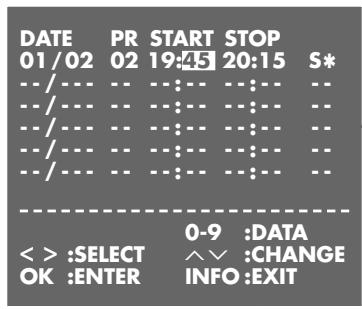
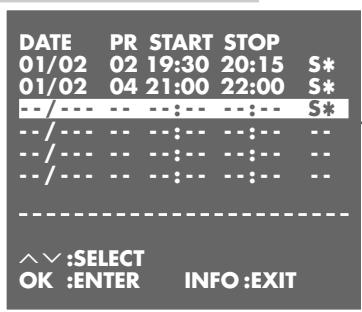
Modifying recording data
1 Highlight the TIMER line by pressing OK
- The TIMER menu appears.
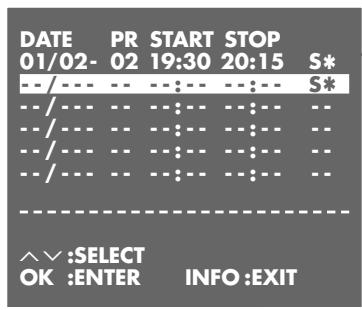
2 Press + or - to select the required item in the TIMER menu and then OK to highlight it.
- The selected TIMER position is moved to the last line of the menu.
3 Select the required recording data using or and edit it using +, - or 1 0 .
4 Press OK to save the recording data.
5 Press i\~ to quit the TIMER\~ menu.
6 Press Timer on to switch the VCR to recording stand-by.
- The video recorder display now shows the time and the TIMER symbol . The VCR is in recording stand-by mode.
Deleting recording data
1 Highlight the TIMER line by pressing OK. - The TIMER menu appears.
2 Select the TIMER item in question with + or - and press Clear to delete it.
3 Press i\~ to quit the TIMER\~ menu.
4 If several TIMER items have been programmed, press «Timer on« to switch the VCR to recording stand-by. - The video recorder display now shows the time and the TIMER symbol «. The VCR is in recording stand-by mode.
Interrupting recording stand-by mode
If you have set the VCR to record programs and want to use it while it is in record stand-by mode.
1 Press and briefly hold down « Timer on«. - The TIMER symbol « disappears.
2 Press 1 ... 0 to switch on the video recorder.
3 Use the video recorder as required.
Note:
Five minutes before the TIMER recording starts you will see the following message on the screen: TIMER RECORDING TO START SOON.
You can hide this message by pressing i
Reactivating recording stand-by mode
1 Insert a video cassette with sufficient playing time and the erase-protection tab intact into the tape compartment, and then press «Timer on«.
- The video recorder display now shows the time and the TIMER symbol 1 . The VCR is in recording stand-by mode.
... controlled by a satellite receiver
If a satellite receiver is connected to the «AV2 (DEC./EXT.)« socket on the video recorder, and the receiver has a switch timer, you can use it to control video recording.
Insert a cassette with enough playing time and the erase-protection tab intact into the tape compartment of the video recorder.
2 Program the TIMER off the satellite receiver and then switch it to stand-by.
3 Press 0 and then - to select the channel R2
4 Switch off the video recorder by pressing
5 To prepare recording stand-by, press and briefly hold it down.
- Video recorder dispay: R5r and the current time.
- The video recorder is in recording stand-by mode. Recording is controlled by the satellite receiver.
6 Exit the function by pressing
Note:
You cannot select this type of recording if you have already programmed recordings using the «TIMER« menu.
... from another video recorder, a DVD player or a camcorder
Connection and preparation
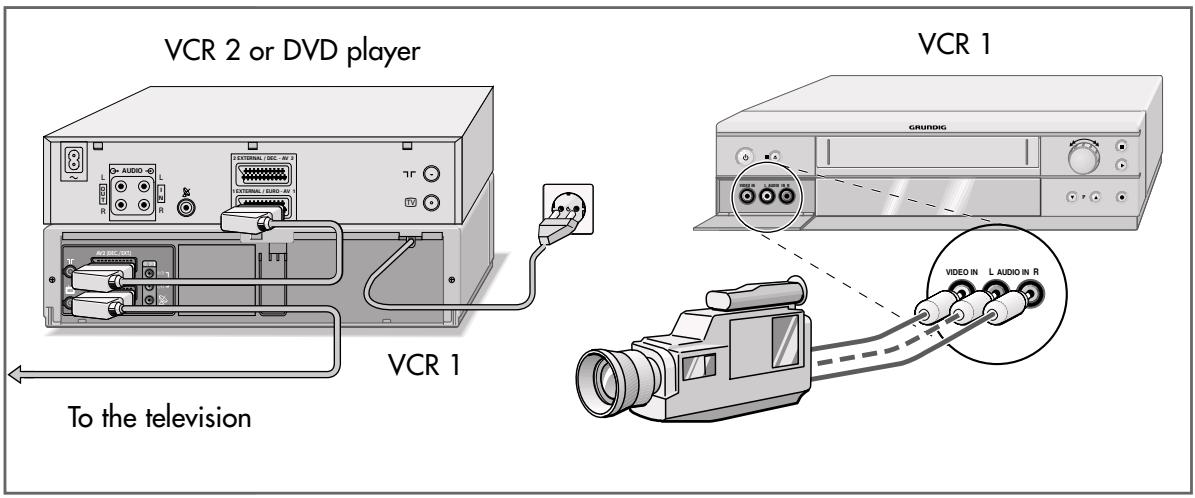
Connecting a camcorder
Connect the «L AUDIO IN R« (audio signal) and «VIDEO IN« (video signal) jacks on the front of the video recorder to the appropriate sockets on the camcorder using a standard Cinch cable.
Connecting another video recorder or a DVD player
Connect the »AV2 (DEC./EXT.)« socket on the video recorder to the corresponding socket on the other video recorder or the DVD player using a standard EURO-AV (Scart) cable.
Setting the EURO-AV2 socket on the video recorder
1 Call up the main menu by pressing i
- The main menu appears.
2 Select the MODE line using + or - and activate by pressing OK.
- The MODE menu appears.
3 Select the AV2-IN line using + or - .
4 Select AV2-IN using or and press OK to confirm.
Recording from external devices
Preparation
Switch on the television.
Select the channel position «AV« on the television for the video recorder.
Put the DVD or video cassette that you want to copy into the DVD player, playback VCR or camcorder.
Insert a cassette with enough playing time and the erase-protection tab intact into the tape compartment of the recording VCR.
Recording
1 On the recording VCR, select the channel for the other video recorder or the DVD player by pressing 0 and then = to select R ,
or
select the channel position for the camcorder by pressing 0 and then - to select
2 Start recording by pressing and briefly holding down the button on the recording VCR and simultaneously pressing the Play button on the playback device.
3 To finish recording, press .
Decoder operation with television stations from the antenna or the cable system
A decoder is necessary when the video recorder receives encoded programmes from a privately operated station.
Ask for the decoder at your authorized dealer's.
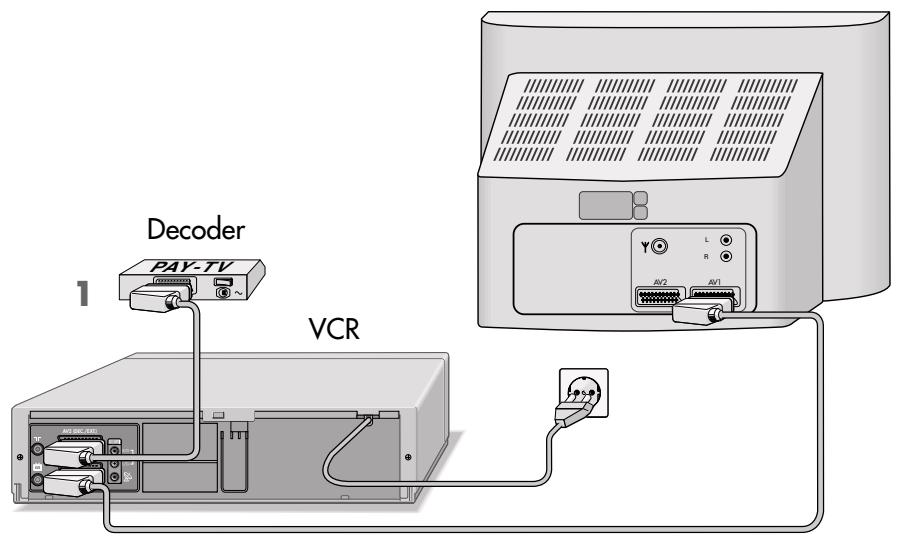
Connection
1 Connect the »AV2 (DEC./EXT.)« socket on the video recorder to the appropriate socket on the decoder using a EURO-AV (Scart) cable.
Setting the channel position for a decoder
Press i to call up the main menu.
2 Select the MODE line using >> + << or - < and activate by pressing OK.
3 Select the AV2-IN line using + or - and then press to select the DECODER setting.
4 Press OK to save the setting.
5 Press i to open the main menu.
6 Select the INSTALL line using + or - and then press OK to confirm.
OSD-MODE
VCR NO.
16:9
NTSC PB
AUTO POWER OFF
AV2-IN
COLOR
A
OK :ENTER
<
INFO:EXIT
7 Highlight the CHANNEL SELECTION line by pressing OK.
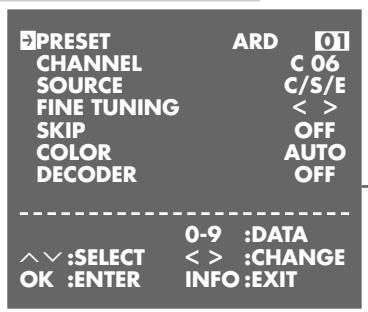
8 Highlight the CHANNEL PRESET line by pressing OK. - The CHANNEL PRESET menu appears on the screen, and the PRESET line is highlighted.
9 Using or select the channel for which the decoder is necessary.
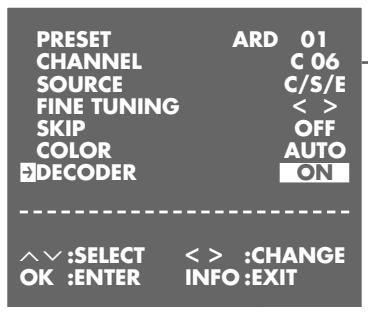
10 Select the DECODER line using + or - and then press < to select the ON setting.
11 Press OK to save the setting for this channel position.
12 Press i to finish the setting.
Recording PAY TV programs
Preparation
Select the channel position «AV« on the television for the video recorder.
Insert a cassette with enough playing time and the erase-protection tab intact into the tape compartment of the video recorder.
Recording
Before recording select the PAY TV station using + or - P 0 9
2 Start recording by pressing and holding down - The PAY TV programme is recorded.
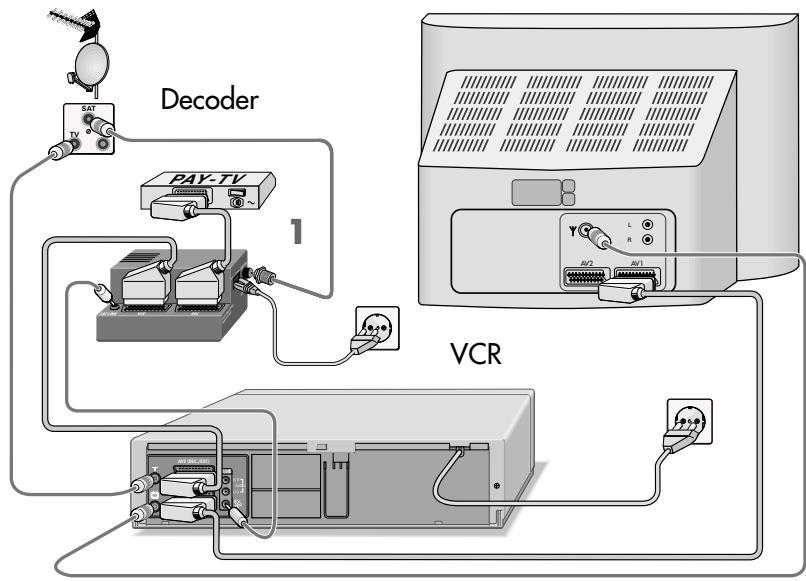
Decoder operation with television stations from the VCR-SAT module
A decoder is necessary when the video recorder receives encoded programs from a privately operated station. The decoder can only be used for television stations received through the VCR-SAT module.
Ask for the decoder at your dealer's.
VCR-SAT module
Connection
1 Connect the PAY TV decoder to the decoder socket of the VCR-SAT module with a EURO-AV cable.
Setting the channel position for a decoder
Press i< to call up the main menu.
2 Select MODE by pressing >> + << or - and then press OK to activate it.
3 Select the AV2-IN line using + or - and then press + to select the DECODER setting.
4 Press OK to save the setting.
Press i to call up the main menu.
OSD-MODE
VCR NO.
16:9
NTSC PB
AUTO POWER OFF
AV2-IN
COLOR
:SELECT
OK :ENTER
OFF
T
AUTO
PAL TV
OFF
DECODER
AUTO
12x - 1 > 0
<
INFO:EXIT
6 Select the INSTALL line using + or - and then press OK to confirm.
7 Highlight the CHANNEL SELECTION line by pressing OK.
8 Highlight the «CHANNEL PRESET« line by pressing « OK «.
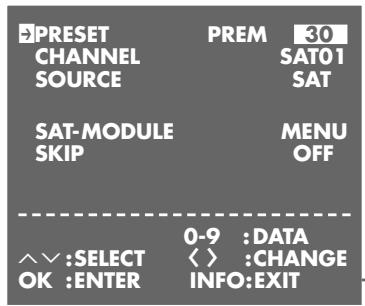
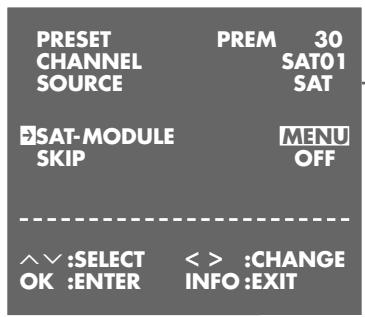
9 Select the PRESET line with >> + << or >> - << and enter the desired channel position, where the satellite station requiring the decoder is located, with >> < or >> > > < .
10 Select SAT-MODULE by pressing >> + << or - and then press < or > MENU to activate it.
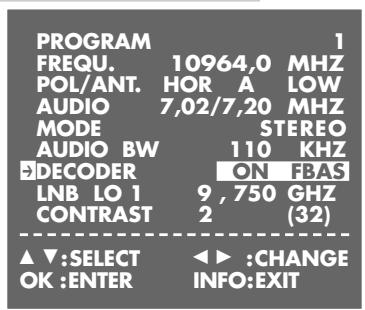
11 Select the DECODER line with >> + << or >> = << and using < or > select ON BB LINor ON BB PALor ON FBAS. - The setting depends on the decoder used.
12 Press OK to save the setting for that station.
13 Quit the setting with i
Recording PAY TV programs
Preparation
Select the channel position AV on the television for the video recorder.
Insert a cassette with enough playing time and the erase-protection tab intact into the tape compartment of the video recorder.
Recording
Before recording, select the PAY TV station using + or - 或 P 或 0 9
2 Start recording by pressing and holding down - The PAY TV program is recorded.
The video recorder has two different sound recording and playback systems.
- The HiFi track, for stereo and two-channel recordings.
- The mono track, for sound playback on mono video recorders and for audio dubbing.
HiFi audio playback
Connection
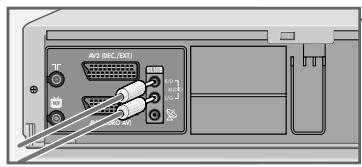
1 Connect the AUDIO OUT R L sockets on the back of the video recorder and the corresponding input sockets on the HiFi system using a standard cinch cable.
Preparation
Switch on the HiFi system.
Put a recorded tape in the video recorder.
HiFi audio playback
Press to start audio playback.
2 Press to end audio playback.
Selecting the audio track
Switch on the television and select the channel position «AV« on the television for the video recorder.
2 During playback, call up the Audio menu by pressing «Audio«.
3 Select the audio signal using or and press OK to confirm.
- On-screen display:
STEREO = stereo; L = left; R = right;
»MONO« = mono.
4 Press «i« to exit the Audio menu.
AUDIO-MODE STEREO
AV:SELECT <> :CHANGE OK :ENTER INFO:EXIT
Audio dubbing
You can provide recorded images with a new audio track.
Connection
1 Connect the «L AUDIO IN R« sockets on the front of the video recorder and the corresponding output sockets on the HiFi or Surround Sound system using a standard Cinch cable.
Preparation
Switch on the television.
Select the channel position «AV« on the television set for recorder playback.
Insert the desired tape.
Operation
During playback, find the point on the tape where the dubbing is to begin, and press at this tape position.
2 Set the external audio source to playback and press «Dub« to start dubbing.
- The original soundtrack remains on the HiFi audio track, the new soundtrack is recorded on the Mono audio track.
3 End dubbing with ■ .
Note:
To listen to the new soundtrack, press «Audio« until «L« disappears from the video recorder display.
Sorting, deleting and renaming television stations
Note:
If the video recorder is connected to a television with Megalogic functions, the settings on pages 48 to 54 are not possible.
Preparation
Switch on the television.
Select the channel position AV on the television for the video recorder.
Calling up the main menu
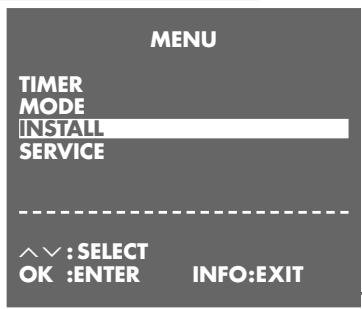
Press i to call up the main menu.
- The main menu appears.
2 Select the INSTALL line using + or - and activate by pressing OK.
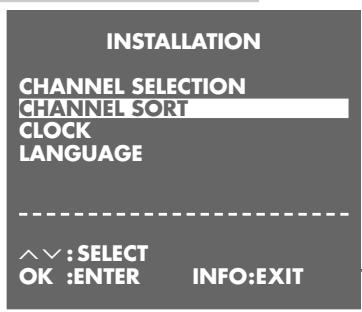
- The INSTALLATION menu appears.
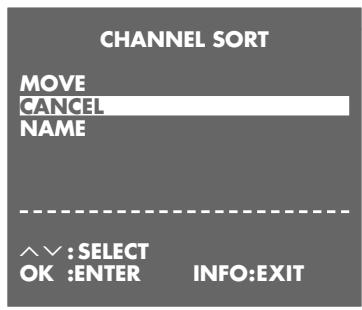
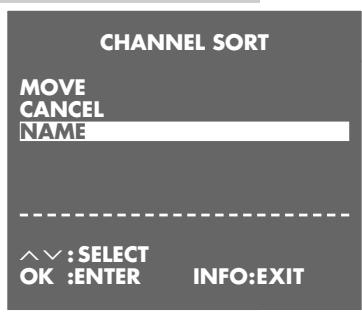
3 Select the CHANNEL SORT line with >> + << or >> = << and activate by pressing OK.
- The CHANNEL SORT menu appears.
Notes:
Select the function you require in the CHANNEL SORT menu. For information on using these functions see the following sections, each time starting from Step 1.
The current television programme appears in the background. If this makes it difficult to see the menu, press Dub and the menu will appear on a blue background.
Sorting television channels
1 Highlight the MOVE line by pressing OK. - The MOVE menu appears.
2 Press the + - < buttons to select the station you want to move and then press OK to highlight it.
3 Select the station with which you want to replace the highlighted station using the + - < « buttons and press OK « to confirm.
4 Press to conclude the setting.
Deleting television stations from the list
1 Select the CANCEL line using >> + << or >> - << and activate by pressing OK.
- The CANCEL menu appears.
2 Press the + - < « buttons to select the station you want to delete and then press OK« to highlight it.
3 Press Clear to delete the station.
4 Press i to finish.
Entering names for television stations
1 Select the NAME line using + or - and press OK to confirm.
- The NAME menu appears.
2 Select the station you want to enter a name for using + - < and press OK to confirm.
3 Press + or - to enter characters, and < or > to move to the next position. The name can contain up to five characters.
4 Press OK to save the setting.
5 Press i to conclude the setting.
Re-tuning television channels
The ATS search procedure can be redone, which may be helpful if you change your place of residence. Please note that all saved television stations will be deleted in the process.
Press i to call up the main menu.
2 Select the SERVICE line with + or - and activate it by pressing OK.
3 Select the ATS-RESTART\ll line with + or -
4 Select the START display with or and press OK to confirm.
- Further operation is identical to that described in the section "Automatic tuning", on page 20, starting at step 2.
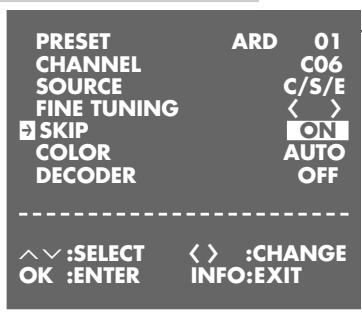
Skipping television stations
When you are selecting television stations using the + or - buttons, this function enables you to skip one or more stations.
The channel positions can still be selected with the 0 9 buttons.
Preparation
Switch on the television.
Select the channel position AV on the television for the video recorder.
Setting
Press i to call up the main menu.
2 Select the «INSTALL« line using «+« or «-« and activate by pressing «OK «.
3 Highlight the CHANNEL SELECTION line by pressing OK.
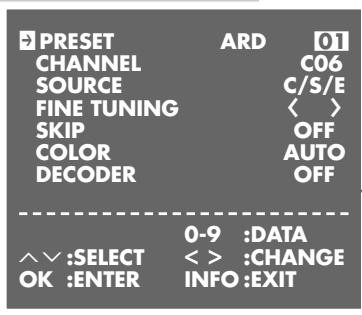
4 Highlight the CHANNEL PRESET line by pressing OK. - The station tuning menu appears on the screen, and the PRESET line is highlighted.
5 Using or , or 0 9 , select the station you want to skip.
6 Select the SKIP line using + or - .
7 Select ON by pressing
8 Press OK to save the setting for that station.
9 Press i to conclude the setting.
Note:
If you later decide that you do not want to skip the station, repeat the setting and at Step 7 select OFF by pressing
Setting new television stations from the antenna or the cable system
Preparation
Switch on the television.
Select the channel position »AV« on the television for the video recorder.
Setting
Press i to call up the main menu.
2 Select the INSTALL line using + or - and activate by pressing OK.
3 Highlight the CHANNEL SELECTION line by pressing OK.
4 Highlight the CHANNEL PRESET line by pressing OK.
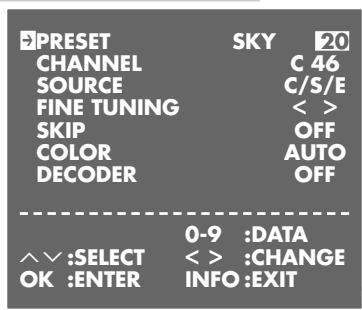
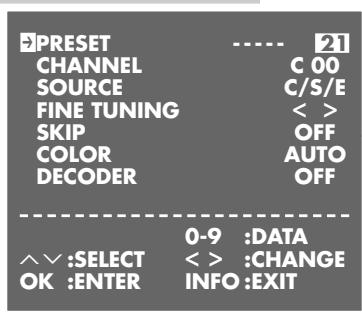
Note:
If the television picture makes it difficult to see the menu, press Dub and it will appear on a blue background.
5 Press 0 9 to select the channel number for the new television station.
6 Select the COLOR line by pressing >> + << or - and select the required television system ( PAL , MESECAMor AUTO) with < or >
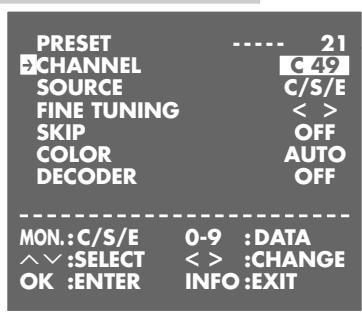
7 Select the CHANNEL line with + or -
Switch from normal channels (display: C ) to special/ hyperband channels (display: S ) or special channels (display: E ) and back by pressing Monitor
8 Enter the two-digit channel number using the 0 9 buttons; or start an automatic search by pressing or
9 Fine tune the station if necessary by pressing + or - to select FINE TUNING and then pressing < or >
10 Select the »SKIP« line using «+« or «-« and then press «» to select «OFF«.
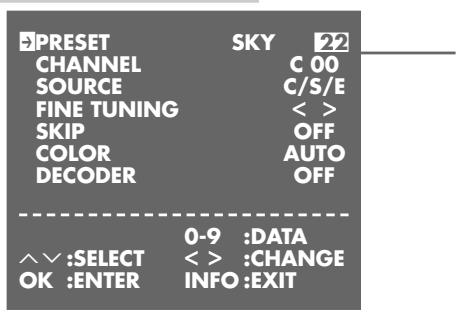
11 Press OK to save the setting for that station.
- The cursor jumps to the
PRESETline and the next channel position is displayed.
Note:
To tune to more stations repeat steps 5 to 11.
12 Press i\~ to finish the setting.
Switching the station on the video recorder on and off
If there are a lot of stations which your video recorder can receive in the UHF band between channels 21 and 69, it may lead to picture impairment when using the recorder.
If the station on the video recorder is switched off, the video recorder and the television must be connected with a EURO-AV (Scart) cable (see "Connection and preparation" on Page 12, 13 or 15).
Switching off the station on the video recorder
Press i to call up the main menu.
2 Select the SERVICE line with + or - and activate it by pressing OK .
- The SERVICE menu appears.
3 Select the RF-CHANNEL« line with »+ « or »-«.
4 Switch off the station on the video recorder with or (display, for example OFF ) and confirm with OK .
Switching on the station on the video recorder
Press i to call up the main menu.
2 Select the SERVICE line with + or - and activate it by pressing OK .
- The SERVICE menu appears.
3 Select the RF-CHANNEL« line with + or -
4 Switch on the station on the video recorder with or (display, for example C 21 ) and confirm with OK .
Setting new television stations from the VCR-SAT module
Preparation
Switch on the television.
Select the channel position AV on the television for the video recorder.
Setting
Press i to call up the main menu.
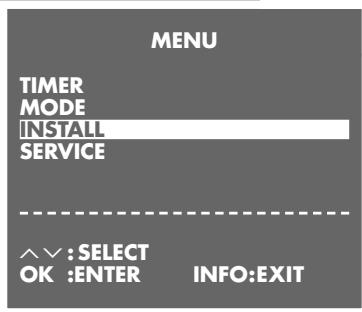
2 Select the INSTALL line using + or - and activate by pressing OK.
3 Highlight the CHANNEL SELECTION line by pressing OK.
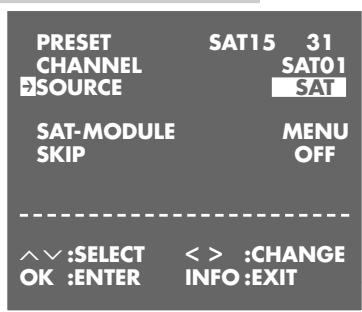
4 Highlight the CHANNEL PRESET line by pressing OK.
Note:
If the television picture makes it difficult to see the menu, press Dub and it will appear on a blue background.
5 Select the desired channel position, where a new satellite station is to be set, with the or buttons.
6 Select the SOURCE line using + or - and then press < or > to select the SAT display.
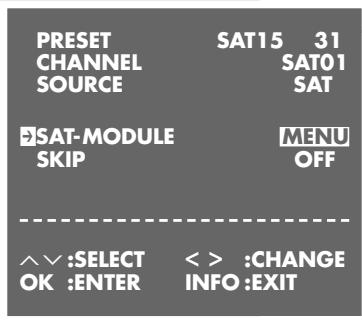
7 Select (\gg) SAT-MODEL by pressing (>> + <<) or (>> = <<) and then press (>> < \ll) or (>> > > > > > > > > > > > > > > > > > > > > > > > > > > > > > > > > > > > > > > > > > > > > > > > > > > > > > > > > > > > > > > > > > > > > > > > > > > > > > > > > > > > > > > > > > > > > > > > > > > > >
- A menu with the data of the selected satellite station appears on the screen.
The FREQU. line is marked. - The menu offers the following settings for the satellite station.
PROGRAM
15
Number of the selected satellite station.
FREQU.
109640.0 MHZ
Station frequency of the satellite station.
| PROGRAM DFREQU. POL/ANT. AUDIO MODE AUDIO BW DECODER LNB LO 1 CONTRAST | 10964.0 HOR A 7,02/7,20 STEREO 110 9,750 2 | 15 MHZ LOW MHZ KHZ OFF GHZ (32) |
| ▲▼:SELECT OK :ENTER | ▲▼:CHANGE INFO:EXIT | |
POL/ANT. HOR A LOW
LNB settings:
Polarisation HOR (horizontal) VER (vertical);
Satellite selection A (for example, ASTRA) or B (for
example,Eutelsat);
LOW = lower frequency band;
HIGH = upper frequency band.
AUDIO 7.02/720 MHZ
Left/right audio frequency.
MODE STEREO
Select the audio type (STEREO, MONO, 50μS, 75μS, J17).
Set the sound to obtain optimal sound quality.
AUDIO BW 110 KHZ
Band width setting.
Set the sound to obtain optimal sound quality.
DECODER OFF
Decoder for coded satellite stations on/off.
LNB LO1 9,750 GHz
Oscillator frequency of the satellite receiver (LNB).
CONTRAST 2 (32)
Set the picture contrast of the selected satellite station.
Set to obtain optimal picture quality.
8 Enter the frequency directly with 0 ... 9 or change the frequency step-by-step with or or Press Index until the "new" satellite station appears on the screen.
9 Select the station data you wish to modify with + or - and enter the new data directly with 0 9 or change with < or >
Note:
To go back to the previous menu - without saving the modifications - press
10 Save changes with OK .
- The video recorder automatically switches back to the previous menu display and automatically selects its next channel position.
11 Quit the setting with i
Automatically tuning television stations from the VCR-SAT module
Use this automatic search if you connect a VCR-SAT module some time after initial installation.
For information on connecting the VCR-SAT module, see pages 15 and 16.
Preparation
Switch on the television.
Select the AV channel on the television for the video recorder.
Tuning
Press i to open the main menu.
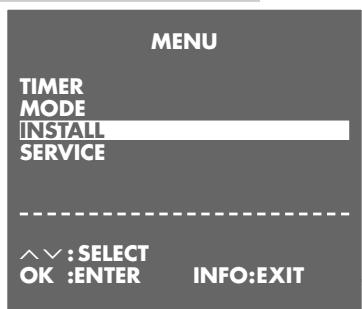
2 Select INSTALL by pressing >> + << or - < and press OK to confirm.
3 Select CHANNEL SELECTION and press OK to confirm.
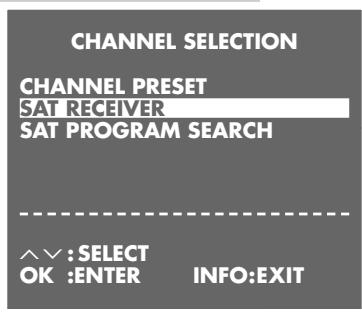
4 Select » SAT RECEIVER« by pressing » + « or »-« and press » OK « to confirm.
5 In the « SAT RECEIVER« menu, press « or « to select «SAT CONTROL ON«.
When the message CONNECTED appears, press OK to confirm the setting.
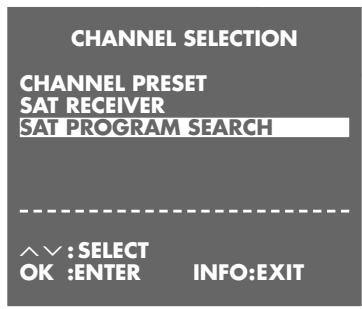
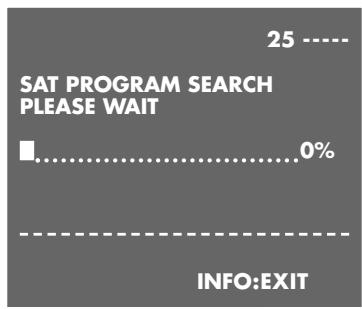
6 Select SAT PROGRAM SEARCH by pressing + or - and press OK to start the search.
- The video recorder searches for all satellite television stations and then saves them. The automatic search may take several minutes.
Note:
If all 99 channels are full, the video displays a message and the search is not started.
Delete any TV stations you do not need. For information on how to do this see the "SPECIAL SETTINGS" section on page 49.
7 Press i to finish the setting.
Automatically updating the time and date
If channel number 1 on the video recorder is tuned to a station with teletext, the video recorder uses this to automatically update its internal clock.
The update takes place daily between 3 A.M. and 6 A.M., thus enabling the video recorder to recognise the switches to and from daylight saving time.
Setting the time and date manually
Switch on the television and select the channel position AV on the television for the video recorder.
2 Press i to open the main menu.
3 Select the INSTALL line with + or - and then press OK to confirm.
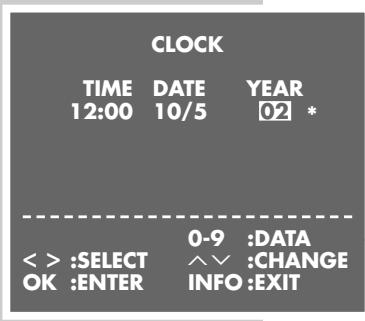
4 Select the CLOCK line using + or - and then press OK to confirm.
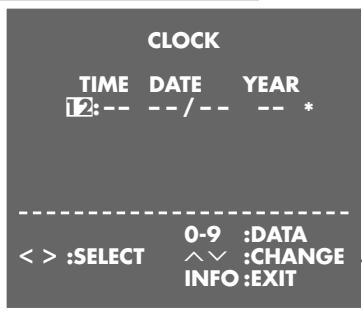
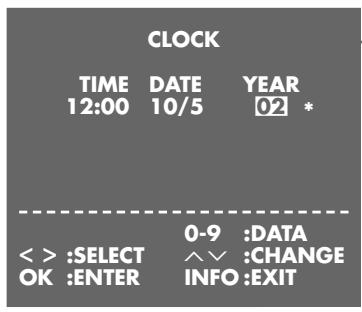
- The CLOCK menu appears with the TIME item highlighted.
5 Enter the time as four digits using 0 ... 9
6 Enter the date as four digits using 0 9
7 Enter the year as two digits using 0 ... 9
Note:
- * in the menu means that the clock is updated automatically. To disable this function highlight * using and then press + or - to switch it off ( - appears in the display).
8 Press OK to conclude the setting.
Selecting special features in the »MODE« menu
Switch on the television and select the channel position AV on the television for the video recorder.
2 Press 0 9 to switch on the video recorder.
3 Press i to open the main menu.
4 Select the MODE line using >> + << or - and then press OK to confirm. The MODE menu appears.
5 Select the function you require from the MODE menu. For further information on these functions see the following sections, each beginning with Step 1.
OSD-MODE
VCR NO.
16:9
NTSCPB
AUTO POWER OFF
AV2-IN
COLOR

:SELECT
:ENTER

:CHANGE
INFO:EXIT
OSD-MODE
VCR NO.
16:9
NTSC PB
AUTO POWER OFF
AV2-IN
COLOR

:SELECT
:ENTER

:CHANGE
INFO:EXIT
OSD-MODE
VCR NO.
16:9
NTSC PB
AUTO POWER OFF
AV2-IN
COLOR
OFF
1
AUTO
PAL TV
OFF
AV2-IN
AUTO

:SELECT
:ENTER

:CHANGE
OK
:ENTER
INFO:EXIT
OSD-MODE
VCR NO.
16:9
NTSCPB
AUTO POWER OFF
AV2-IN
COLOR
OFF
1
AUTO
PAL TV
OFF
AV2-IN
AUTO

:SELECT
:ENTER

:CHANGE
INFO:EXIT
OSD - On Screen Display
1 Select the OSD-MODE line using + or -
2 Select OFF , AUTO or ON by pressing or and then press OK to confirm.
3 Conclude the setting by pressing i
Automatic power off
If the automatic switch-off function is activated the video recorder automatically switches to power-saving mode after 3 hours.
1 Select the AUTO POWER OFF line using + or -
2 Select 3 HR or OFF by pressing < 一 一 一 一 一 and then press OK to confirm.
NTSC playback
This setting enables you to select the colour standard for video playback on the television connected to the «AV1 (EURO AV)« socket. Select the PAL-TV setting for a PAL television set or NTSC for a Multinorm television set.
1 Select the NTSC PB line using + or -
2 Select PAL-TV by pressing or NTSC (= Multi-norm) by pressing and then press OK to confirm.
Video recorder operation level
You can use your remote control to operate two GRUNDIG video recorders independently of one another. Ask your dealer which GRUNDIG video recorders are suitable.
To avoid interference between the two video recorders you need to set the operation level on the GV 6263.
1 Select the VCR NO. line using + or -
2 Select 2 (or 1) with or and then press OK to confirm.
3 Conclude the setting by pressing i. - The GV 6263 is set to secondary operating level. To operate the GV 6263 you must now keep pressing Mode until the VCR 2 indicator lights up. You can then - within 20 seconds - select the function you require.
Operation with a format 16:9 television
For this function, the input sockets of the video recorder must be correctly adapted.
OSD-MODE
VCR NO.
16:9
NTSC PB
AUTO POWER OFF
AV2-IN
COLOR
OFF
1
AUTO
PAL TV
OFF
AV2-IN
AUTO
:SELECT
OK :ENTER
< :CHANGE
INFO:EXIT
OSD-MODE
VCR NO.
NTSC PB
AUTO POWER OFF
AV2-IN
COLOR
OFF
1
PAL TV
OFF
AV2-IN
AUTO
SELECT
OK :ENTER
< :CHANGE
INFO:EXIT
1 Select the 16:9 line using + or -
2 Select AUTO with or and confirm with OK .
3 Conclude the setting by pressing i
Setting the EURO-AV2 socket on the video recorder for the satellite receiver
Press i to call up the main menu.
- The main menu appears.
2 Select the MODE line using + or - and activate by pressing OK.
- The MODE menu appears.
3 Select the AV2-IN line using + or -
4 Select AV2-IN using or and press OK to confirm.
Selecting special features in the «SERVICE« menu
Switch on the television and select the channel position AV on the television for the video recorder.
2 Press 0 ... 9 to switch on the video recorder.
3 Press i to open the main menu.
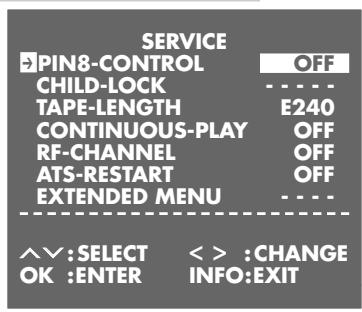
4 Select the SERVICE line using >> + << or >> - << and then press OK to confirm.
- The SERVICE menu appears.
5 Select the function you require from the « SERVICE« menu. For further information on these functions see the following sections, each beginning with Step 1.
Activating the remote control of the GRUNDIG television set for the video recorder
If your video recorder is enclosed in a cabinet unit and its remote control therefore cannot be used, the video recorder can be operated with the remote control from the television set. This can be done only when the television and video recorder are connected via the »AV1 (EURO AV)« socket.
1 Select the PIN 8-CONTROL< line with + or -
2 Select ON with < < 口 or and confirm with OK.
3 Conclude the setting by pressing i
Entering the cassette length
After a cassette has been inserted, the video recorder measures the cassette running time and, after a few seconds, displays the running time in hours and minutes. Depending on the tape position, the remaining playing time (display 0:00) and the elapsed playing time (display u 0:00) are displayed. Tapes with a length shorter than 240 minutes are correctly displayed when the cassette length E 180 is set (basic setting). For all other cassette types (including E180, E240, E260 and E300), the running time must be manually entered.
1 Select the TAPE-LENGTH line with + or - .
2 Select the required cassette length by pressing or and then press OK to confirm.
3 Conclude the setting by pressing i
Automatically switching off the satellite receiver by switching the video recorder on/off
When you make timer recordings with satellite television stations, the video recorder switches off the video recorder at the end of the timer recording. You can activate or deactivate this control.
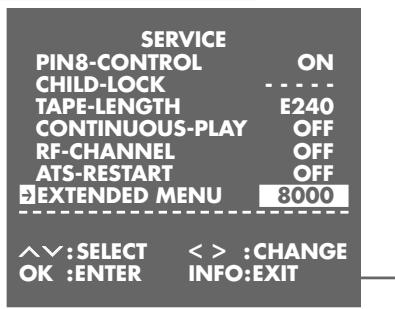
1 Select the EXTENDED MENU line with + or -
2 Select the EXTENDED MENU by using 0 ... 9 to enter the number 8000.
3 Select the SAT-STANDBY line using + or -
4 Select ON or OFF with or and then press OK to confirm.
Press i to terminate the setting.
Switching the Megalogic function on/off
You can switch off the Megalogic function. This can be useful when you often use your video recorder with different television sets. This prevents the Megalogic function from transferring the television stations from the television sets onto your video recorder.
1 Select the EXTENDED MENU line with + or -
2 Call up the «EXTENDED MENU« by using «0 … 9 « to enter the number 8000.
3 Select the MEGALOGIC-LOAD line with + or -
4 Select ON or OFF with or and then press OK to confirm.
Press i to terminate the setting.
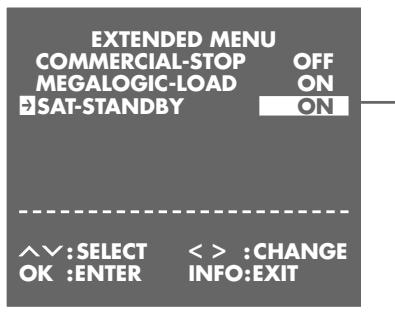
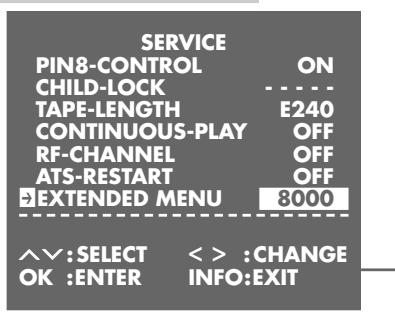
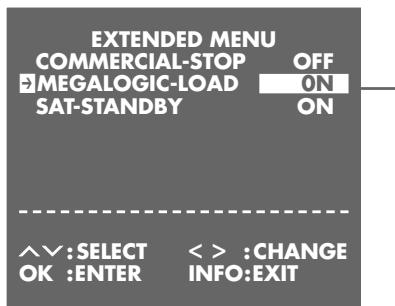
The parental lock allows you to bar access to all functions of the video recorder.
Activating the parental lock
Press i to call up the main menu. - The main menu appears.
2 Select the SERVICE line with >> + << or >> - << and activate it by pressing OK .. The SERVICE menu appears.
3 Select the CHILD-LOCK line with + or -
4 Enter the five-digit security code with 0 ... 9 « and press OK « to confirm.
- The display LOCKED « appears on the television screen, all functions of the video recorder are locked.
Switching off the parental lock
Press i to call up the SERVICE menu.
2 Enter the five-digit security code with buttons 0 ... 9 « and press »OK « to confirm. - The parental lock is deactivated.
Note:
If you have forgotten the code number, press the buttons , < , = , + , OK in succession to deactivate the parental lock.
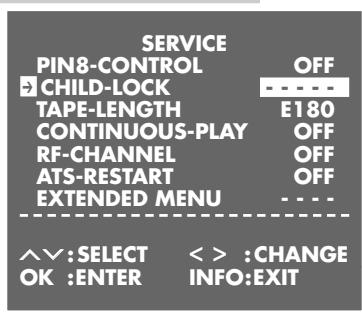
TELEVISION REMOTE CONTROL
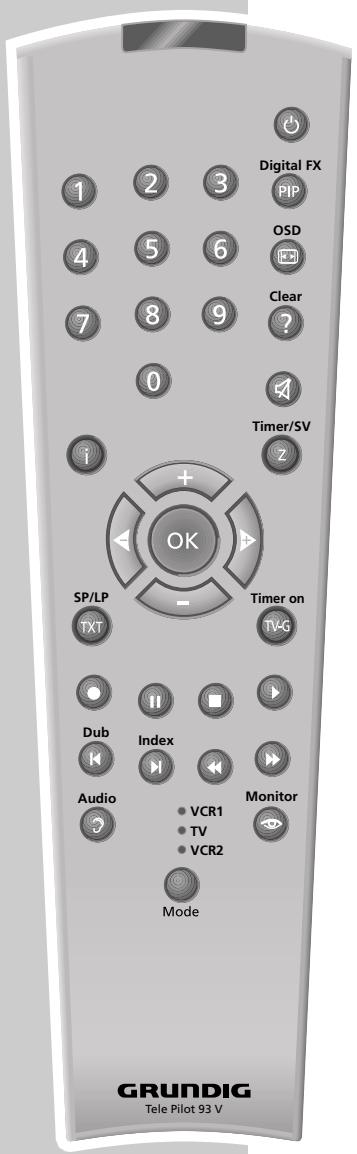
You can also operate GRUNDIG televisions with the video recorder remote control. The functions available to you depend on the model of the GRUNDIG television.
Point the remote control directly at the TV.
Note:
Point the remote control at the television and keep pressing the Mode button until the TV indicator lights up. The remote control switches to TV mode for 20 seconds.
Switches off the television set (stand-by).
1 ... 0 Switches the television on out of stand-by mode; selects the television channel directly; 0 selects the channel position R .
In teletext operation: for entering the three-figure page number.
PIP In television mode: Inset picture in main picture.
Switches the picture format.
? Calls up the concise TV help menu.
Switches the sound on or off (mute).
i Calls up the "DIALOG CENTER" or switches to menu mode.
Z Switches between the two most recently selected channels (zapping).
Volume setting, - lower, + higher.
In menu mode: - cursor left, + cursor right.
OK Activates functions, calls up data, confirms and saves data.
-
- Select TV channels, + up, - down.
In menu mode: + cursor up, - cursor down.
TXT Switches from TV mode to teletext mode and back.
TV-G Switches the TV Guide on and off again.
Dub In teletext mode: Returns to the previous page.
Index In teletext mode: Jumps to the next page.
In teletext mode: Switches to the next theme.
In teletext mode: Switches to the next chapter.
Calls up the sound menu.
Calls up the screen menu.
Rectifying minor problems
| Problem | Cause | Remedy |
| The video recorder does not show the time or draw in the cassette. | The mains plug has been pulled or there is a faulty contact. | Plug in the mains cable or use another socket. |
| »----« appears instead of the time on the video recorder. | The video recorder has not been set with the current time. | Set the time and date. |
| You can not record television programs (you can only see static on the screen). | Antenna cable is not connected. | Connect the antenna cable. |
| The video recorder has not been tuned to the station you want to record from. | Tune the channel. | |
| The station is currently not transmitting or the antenna is defective. | Check whether the channel is transmitting by selecting it on the television or asking your neighbours. | |
| Recording not possible. | The cassette is erase protected (the tab has been broken off). | Stick adhesive tape over the opening on the back of the cassette. |
| A TIMER recording did not take place. | The ShowView number or the date was not correct. | |
| The VPS/PDC time was incorrectly entered for recordings programmed with VPS/PDC. | ||
| Recording stand-by was not activated. | Press the »Timer on« button. | |
| The quality of the playback image is poor. | The video recorder and television have not been tuned to each other. | Tune the video recorder and the television (see Page 13). |
| The tracking position is badly adjusted. | During playback, adjust the picture with »+« or «- to obtain the best possible image. | |
| The video heads are worn. | Consult your specialist dealer. | |
| The remote control is not working. | The batteries in the remote control are flat. | Replace the batteries. |
| You are not pointing the remote control at the video recorder. | Point the remote control at the video recorder. |
Technical data
This video recorder complies with the safety norms DIN EN 60065 (VDE 0860) and therefore the international safety regulations IEC 60065. The product conforms to the requirements in the directives 89/336/EEC and 73/23/EEC.
Playback standard: CCIR, PAL B/G, 625 lines CCIR, MESEC B/G, 625 lines
System:VHS
Mains voltage: 220-240 V, 50 Hz
Weight: approx. 2.8 kg
Power consumption:
- Recording: approx. 13 W
- Stand-by: ≤ 4 W
- Power save mode: ≤ 3 W
Operating position: horizontal
Ambient temperature: +10°C to +35°C
Relative humidity: up to 80% Rewind time:
normally 60 seconds for E 180 cassettes
Audio input sockets L AUDIO IN
R:
2 Cinch
Video input socketVIDEO IN: Cinch Audio output sockets L AUDIO OUT R:2 Cinch
2 Euro AV sockets: 21 pin (DIN/EN 50049)
SAT control socket: Cinch Antenna input socket: coaxial B, input 75 Ω (DIN 45325)
Antenna output socket: coaxial S, output 75Ω
- Set-up and safety
- Overview
- Connection and preparation
- Tuning
- Playback
- Search functions
- Recording
- Recording - immediate
- Recording - delayed
- Copying
- Using a decoder
- Audio playback
- Special settings
- Setting the date and time
- Special features
- Parental lock
- Television remote control
- Information
- Packing contents
- Special features of your video recorder
- The recording options
- ShowView* recording
- GRUNDIG Megalogic
- The front of the video recorder
- VIDEO IN
- L AUDIO IN R
- The back of the video recorder
- The remote control
- The display on the video recorder
- The OSD display on the television
- Inserting batteries in the remote control
- Note:
- Environmental note
- Connection options
- Connecting the rooftop antenna or cable connection and the television
- Caution:
- Connecting the Grundig satellite receiver and the television set
- Connecting the GRUNDIG VCR-SAT module and the television
- Switching the video recorder on and off (power save mode)
- Tuning the video recorder and the television
- Setting television channels
- The options:
- Note on recording television programs with the Megalogic function:
- Tuning television channels with the Megalogic function
- Preparation
- Setting
- Hint:
- Setting television channels using the automatic search
- Automatic tuning
- Basic playback functions
- Additional playback functions
- Calling up information
- Fast forward/rewind
- Double playback speed
- Slow motion
- Frame-by-frame playback
- Improving the quality of the freezeframe/ slow motion image
- Eliminating picture disturbances (unwanted lines)
- Setting the picture sharpness (ACC Plus)
- Playing back NTSC recordings
- Selecting the audio track
- Continuous playback
- Activating continuous playback
- Deactivating continuous playback
- Zero setting
- Finding recordings using the Video Index Search System (VISS)
- Recording options:
- The Video Programming System (VPS/PDC)
- Recording television programs from the antenna or the cable connection
- Operation
- Recording television programs from the satellite receiver
- Entering the recording stop time
- Seamless compilation of recordings-(Assemble)
- ... by entering the ShowView number
- Example
- Notes:
- Recording from a satellite receiver:
- … by entering the data for the required television program
- Checking, modifying or deleting recording information
- Calling up the TIMER menu
- Checking recording data
- Modifying recording data
- Deleting recording data
- Interrupting recording stand-by mode
- Reactivating recording stand-by mode
- ... controlled by a satellite receiver
- Connecting a camcorder
- Connecting another video recorder or a DVD player
- Setting the EURO-AV2 socket on the video recorder
- Recording from external devices
- Decoder operation with television stations from the antenna or the cable system
- Connection
- Setting the channel position for a decoder
- Recording PAY TV programs
- Decoder operation with television stations from the VCR-SAT module
- HiFi audio playback
- Audio dubbing
- Sorting, deleting and renaming television stations
- Calling up the main menu
- Sorting television channels
- Deleting television stations from the list
- Entering names for television stations
- Re-tuning television channels
- Skipping television stations
- Setting new television stations from the antenna or the cable system
- Switching the station on the video recorder on and off
- Switching off the station on the video recorder
- Switching on the station on the video recorder
- Setting new television stations from the VCR-SAT module
- PROGRAM
- 15
- FREQU.
- MHZ
- POL/ANT. HOR A LOW
- AUDIO 7.02/720 MHZ
- MODE STEREO
- AUDIO BW 110 KHZ
- DECODER OFF
- LNB LO1 9,750 GHz
- CONTRAST 2 (32)
- Automatically tuning television stations from the VCR-SAT module
- Automatically updating the time and date
- Setting the time and date manually
- Selecting special features in the »MODE« menu
- OSD - On Screen Display
- Automatic power off
- NTSC playback
- Video recorder operation level
- Operation with a format 16:9 television
- Setting the EURO-AV2 socket on the video recorder for the satellite receiver
- Selecting special features in the «SERVICE« menu
- Activating the remote control of the GRUNDIG television set for the video recorder
- Entering the cassette length
- Automatically switching off the satellite receiver by switching the video recorder on/off
- Switching the Megalogic function on/off
- Activating the parental lock
- Switching off the parental lock
- Technical data
Brand : GRUNDIG
Model : XERIA GV 6263 HIFI
Category : VCR