
Stadium - Hi-Fi System ION - Free user manual and instructions
Find the device manual for free Stadium ION in PDF.


| Product Type | Portable Bluetooth Hi-Fi System |
| Model | Stadium |
| Brand | ION |
| Dimensions (W x H x D) | 13.8 x 17.7 x 13.8 inches (35 x 45 x 35 cm) |
| Weight | 14.3 lbs (6.5 kg) |
| Power Output | 100W RMS |
| Bluetooth Version | 5.0 |
| Bluetooth Range | Up to 100 feet (30 meters) |
| Battery Type | Rechargeable lithium-ion |
| Battery Life | Up to 10 hours at moderate volume |
| Charging Time | 4 hours |
| Inputs | 3.5mm AUX, USB, MicroSD, FM antenna |
| Radio | FM with preset memory |
| Speaker Configuration | 2-way: 1 x 8" woofer, 1" tweeter |
| Enclosure Type | Bass-reflex ported |
| LED Lighting | Multicolor party lights with patterns |
| Handle | Retractable telescopic handle and wheels |
| Water Resistance | IPX2 (splash resistant) |
| Frequency Response | 50 Hz – 20 kHz |
| Included Accessories | Remote control, AC adapter, user manual |
| Cleaning | Wipe with a soft, dry cloth; avoid liquids |
| Safety Note | Do not expose to rain or moisture; keep away from heat sources |
| Repairability | Contact ION support for service; some parts available online |
Frequently Asked Questions - Stadium ION
User questions about Stadium ION
0 question about this device. Answer the ones you know or ask your own.
Ask a new question about this device
Download the instructions for your Hi-Fi System in PDF format for free! Find your manual Stadium - ION and take your electronic device back in hand. On this page are published all the documents necessary for the use of your device. Stadium by ION.
USER MANUAL Stadium ION
Appendix English (34)
Quickstart Guide (English)
Introduction
Thank you for purchasing the Stadium. At ION, your entertainment is as important to us as it is to you. That's why we design our products with one thing in mind—to make your life more fun and more convenient. Questions, comments, suggestions? Let us know at ionaudio.com/support or on Facebook™. We'd love to hear from you.
Box Contents
Stadium
Microphone with Cable
1/8" (3.5 mm) Stereo Audio Cable
Power Cable (2-pin IEC)
Quickstart Guide
Safety & Warranty Manual
Support
For the latest information about this product (documentation, technical specifications, system requirements, compatibility information, etc.) and product registration, visit ionaudio.com.
For additional product support, visit ionaudio.com/support.
Rechargeable Batteries
Rechargeable lead-acid batteries are the same type used in automobiles. As with your car battery, how you use this battery has a significant impact on its lifespan. With proper use and treatment, a lead-acid battery can last for years. Here are some recommendations for getting the longest life from the internal battery.
General Usage Fully charge the battery before using it.
Charge the battery completely after each use.
Storage For best product longevity, do not store at exceedingly hot (greater than 90° F/ 32° C) or exceedingly cold (less than 32° F/ 0° C) temperatures.
It is acceptable to leave your sound system plugged in. This will not overcharge the battery.
If you leave the battery level low and do not charge it for 6 months, it may permanently lose capacity.
Repair If the battery fails to charge, check your fuse near the power cable input. If your fuse is intact and it still will not charge, contact ION Audio at ionaudio.com.
Disposal Bring the unit to a recycling center or dispose of in accordance with local ordinances.
Setup
Getting Started
- Make sure all items listed in the Box Contents are included in the box.
- Read the Safety & Warranty Manual before using the product.
- Make sure the battery is completely charged prior to first use for maximum battery life.
- For optimal performance, place Stadium in the center of the room so it is unobstructed by walls, furniture, etc.
- Ensure the Master Volume on Stadium is at zero.
- Turn on Stadium.
- Connect your music player with an audio cable or Bluetooth (see Operation > Connecting a Bluetooth Device for more details on this).
- Adjust the volume on your music player and on Stadium as needed.
- Turn off Stadium when not in use.
Connection Diagram
Items not listed under Introduction > Box Contents are sold separately.

Tablet, MP3 player, etc.
Power
Features
-
Power Button: Press and hold this button for 3 seconds to power Stadium on and off. Please note that while Stadium is connected to a power source, it does not need to be powered on to charge the battery. When the power is on, the display will show the decimal icon or your current radio station.
-
Radio Selector: This button sets the radio to AM or FM or turns the radio off.
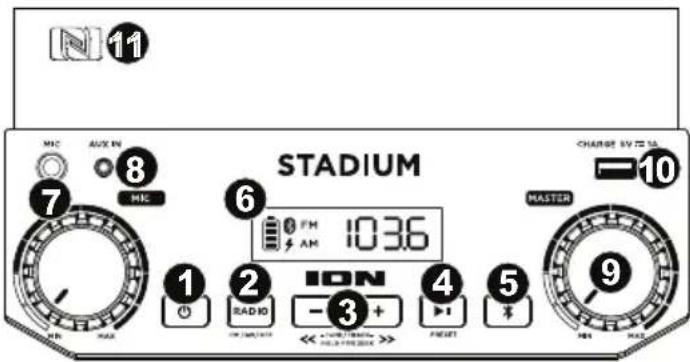
- Tune/Track Buttons (-/+): Tap these buttons to tune in a radio station or go to the previous/next track on a Bluetooth-connected device. To "seek" (jump to the next available station), hold either button down for a few seconds until it starts to seek a station. The unit will remember the last station it was on and start at that station when powered off and on again.
Note: With some apps, pressing the Track – button or Track + button may go to another playlist or music genre.
-
Play/Pause/Preset: Press to play or pause a track from a connected Bluetooth device. In Radio Mode, press and release this button to select a previously saved preset station. See the section Using the Radio for more details on saving and recalling presets.
-
Bluetooth Button: Tap the Bluetooth button to disconnect a paired Bluetooth device.
Press and hold this button to disable (or enable) the voice prompts.
- Display: Displays the current radio station, battery status, and Bluetooth status.
- Battery Indicator: With the battery indicator, when the power cable is connected, movement of the battery segments shows the battery is charging. When fully charged, all battery segments will be lit without blinking. When the power cable is disconnected, the battery segment shows the level of the battery. If a front panel button is not pressed within 60 seconds, the battery level indicator will turn off (to save energy). The battery level indicator will reappear when any button is pressed. Also, when the battery gets to the lowest battery icon segment, the battery level indicator will turn back on.
- Bluetooth Icon: The Bluetooth icon will be lit solid when a device is paired to Stadium. The Bluetooth icon will be off when in pairing mode.
- Lightning Bolt Icon: The lightning bolt icon will illuminate when the power cable is connected to wall power.
- Power Indicator: The power indicator (radio display decimal point) will be lit when Stadium is powered on. The power indicator will not be lit when Stadium is powered off.
-
Microphone Input with Volume Control (1/4"): Connect a 1/4" (6.35 mm) microphone to this input.
-
Auxiliary Input (1/8"): This stereo 1/8" (3.5 mm) input can be used to connect a CD player, MP3 player, or other audio source.
-
Master Volume Control: This adjusts the speaker's main mix volume, which includes the Microphone Input, Auxiliary Input, Radio, and the audio of a paired Bluetooth device.
-
USB Charging Port: Connect your device's charge cable here to charge it. USB charging only functions when the unit's power is turned on.
Note: To charge smartphones and tablets faster, put the device's screen to sleep.
- NFC (near-field communication): Touch and briefly hold your supported and enabled device to the NFC logo to pair the device. See Pairing a Bluetooth Device Using NFC for more information.
- Power Cable Input (rear panel): Insert the included power adapter here to charge the unit. The Lightning Bolt icon illuminates when the power adapter is connected. Please note that when the power adapter is connected, the battery will still charge while the unit is in use.
Operation
Connecting a Bluetooth Device
- Turn on your Bluetooth device.
- Power on Stadium and it will automatically go into pairing mode to search for Bluetooth devices. You will know you are in pairing mode when the Bluetooth icon is off. *
- Navigate to your Bluetooth device's setup screen, find "Stadium" and connect.
Note: If your Bluetooth device prompts for a pairing code, enter "0000".
- The Bluetooth icon will be lit solid when a device is "paired" to Stadium. *
Note: Users should consider updating their OS if experiencing trouble with pairing or playing music.
- Tap the Bluetooth button to disconnect a paired Bluetooth device. *
- To connect to another Bluetooth device, repeat Steps 3-4.
Note: Maximum range will be achieved when using devices with Bluetooth 4.0.
* Tip: If you would like to disable (or enable) the voice prompts, press and hold the Bluetooth button.
Pairing a Bluetooth Device Using NFC
NFC (near-field communication) allows data exchange from devices, such as pairing, by gently bumping them together. Check in your device's manual to see if this feature is supported.
To use NFC to pair with Stadium:
- In order to use NFC, your device must be turned on and unlocked.
- Enter your device's Settings menu and check that NFC is turned On (one time step).
- Power on Stadium.
- Touch and briefly hold your device to the NFC logo located on Stadium's top panel.
- Follow the pairing instructions that appear on your phone. If a passcode is required, enter "0000".
- To unpair, gently bump your device against the NFC logo.
Using the Radio
Selecting a Radio Station:
- Press the Radio button to choose FM/AM.
- Select a radio station using the Tune -/+ buttons.
Note: If there is poor AM reception, disconnect AC power for optimal AM radio reception. To further adjust AM reception, move the entire unit.
Saving a preset:
- Press the Radio button to choose FM/AM and select a radio station that you want to save to a preset location using the - / + buttons.
- Press and hold Play/Pause for 3 seconds. A preset number will appear on the screen.
- Use the -/+ buttons to select which preset you want to save it to.
- Press Play/Pause to confirm. "SAVE" will appear on the screen.
Selecting a preset:
Press Play/Pause to cycle through the saved presets.
Troubleshooting
If the sound is distorted: Try lowering the volume control of your sound source, musical instrument, or microphone. Also, try to reduce the overall volume of Stadium using the Master Volume knob.
If there is too much bass: Try adjusting the tone or EQ control on your sound source to lower the bass level. This will allow you to play the music louder before clipping (distortion) occurs.
If there is a high-pitched whistling noise when using microphones: This is probably feedback. Point the microphone away from the speaker.
If there is poor AM reception: Disconnect AC power for optimal AM radio reception. To further adjust AM reception, move entire unit.
If you can't hear the microphone over the music volume: Turn down the music volume from your source.
If you can't play music from a flash drive: The USB port is only for charging USB devices.


- QUICKSTART GUIDE (ENGLISH)
- INTRODUCTION
- BOX CONTENTS
- SUPPORT
- RECHARGEABLE BATTERIES
- SETUP
- GETTING STARTED
- CONNECTION DIAGRAM
- FEATURES
- OPERATION
- CONNECTING A BLUETOOTH DEVICE
- PAIRING A BLUETOOTH DEVICE USING NFC
- TO USE NFC TO PAIR WITH STADIUM
- USING THE RADIO
- SELECTING A RADIO STATION
- SAVING A PRESET
- SELECTING A PRESET
- TROUBLESHOOTING
Brand : ION
Model : Stadium
Category : Hi-Fi System