
DVD-S48 - DVD player PANASONIC - Free user manual and instructions
Find the device manual for free DVD-S48 PANASONIC in PDF.


| Product Type | DVD Player |
| Brand | Panasonic |
| Model | DVD-S48 |
| Dimensions (W x D x H) | 430 x 249 x 45 mm |
| Weight | 2.4 kg |
| Power Supply | AC 110-240 V, 50/60 Hz |
| Power Consumption | 15 W (standby: <1 W) |
| Disc Playback | DVD Video, DVD-R/RW, DVD+R/RW, CD, CD-R/RW, MP3, JPEG |
| Video Output | Composite, S-Video, Component (Y/Pb/Pr), HDMI |
| Audio Output | Analog stereo, Digital optical, Coaxial |
| Audio Decoding | Dolby Digital, DTS (2-channel downmix) |
| Progressive Scan | Yes |
| Remote Control | Included (batteries not included) |
| Laser Type | Class 1 laser product |
| Operating Temperature | 5°C to 35°C |
| Operating Humidity | 5% to 85% |
| Accessories | Remote control, AV cable, User manual |
| Maintenance | Clean with soft, dry cloth; lens cleaning disc recommended |
| Safety | Do not open casing; no user-serviceable parts inside |
| Spare Parts Availability | Contact Panasonic service center for parts |
Frequently Asked Questions - DVD-S48 PANASONIC
User questions about DVD-S48 PANASONIC
0 question about this device. Answer the ones you know or ask your own.
Ask a new question about this device
Download the instructions for your DVD player in PDF format for free! Find your manual DVD-S48 - PANASONIC and take your electronic device back in hand. On this page are published all the documents necessary for the use of your device. DVD-S48 by PANASONIC.
USER MANUAL DVD-S48 PANASONIC
DVD-S68
If you have any questions, contact
In the U.S.A. and Puerto Rico:
1-800-211-PANA (7262)
In Canada: 1-800-561-5505
U.S.A. and Puerto Rico:
The warranty can be found on page 14.
Please register via the Internet at:
www.Panasonic.com/register
Canada:
The warranty can be found on page 15.
Dear customer
Thank you for purchasing this product.
For optimum performance and safety, please read these instructions carefully.
Before connecting, operating or adjusting this product, please read the instructions completely.
Please keep this manual for future reference.
IMPORTANT SAFETY INSTRUCTIONS
Read these operating instructions carefully before using the unit. Follow the safety instructions on the unit and the applicable safety instructions listed below. Keep these operating instructions handy for future reference.
1) Read these instructions. 2) Keep these instructions. 3) Heed all warnings. 4) Follow all instructions. 5) Do not use this apparatus near water. 6) Clean only with dry cloth. 7) Do not block any ventilation openings. Install in accordance with the manufacturer's instructions.
8) Do not install near any heat sources such as radiators, heat registers, stoves, or other apparatus (including amplifiers) that produce heat.
9) Do not defeat the safety purpose of the polarized or grounding-type plug. A polarized plug has two blades with one wider than the other. A grounding-type plug has two blades and a third grounding prong. The wide blade or the third prong are provided for your safety. If the provided plug does not fit into your outlet, consult an electrician for replacement of the obsolete outlet.
10) Protect the power cord from being walked on or pinched particularly at plugs, convenience receptacles, and the point where they exit from the apparatus.
11) Only use attachments/accessories specified by the manufacturer.
12) Use only with the cart, stand, tripod, bracket, or table specified by the manufacturer, or sold with the apparatus. When a cart is used, use caution when moving the cart/apparatus combination to avoid injury from tip-over.
13) Unplug this apparatus during lightning storms or when unused for long periods of time.
14) Refer all servicing to qualified service personnel. Servicing is required when the apparatus has been damaged in any way, such as power-supply cord or plug is damaged, liquid has been spilled or objects have fallen into the apparatus, the apparatus has been exposed to rain or moisture, does not operate normally, or has been dropped.


CAUTION
RISK OF ELECTRIC SHOCK DO NOT OPEN

CAUTION: TO REDUCE THE RISK OF ELECTRIC SHOCK, DO NOT REMOVE SCREWS.
NO USER-SERVICEABLE PARTS INSIDE.
REFER SERVICING TO QUALIFIED SERVICE PERSONNEL.

The lightning flash with arrowhead symbol, within an equilateral triangle, is intended to alert the user to the presence of uninsulated "dangerous voltage" within the product's enclosure that may be of sufficient magnitude to constitute a risk of electric shock to persons.

The exclamation point within an equilateral triangle is intended to alert the user to the presence of important operating and maintenance (servicing) instructions in the literature accompanying the appliance.
WARNING
Unit
- To reduce the risk of fire, electric shock or product damage,
- Do not expose this unit to rain, moisture, dripping or splashing.
- Do not place objects filled with liquids, such as vases, on this unit.
- Use only the recommended accessories.
- Do not remove covers.
- Do not repair this unit by yourself. Refer servicing to qualified service personnel.
AC power supply cord
- Install this unit so that the power cord can be unplugged from the socket outlet immediately if any problem occurs.
CAUTION
Unit
- This unit utilizes a laser. Use of controls or adjustments or performance of procedures other than those specified herein may result in hazardous radiation exposure.
Placement
- To reduce the risk of fire, electric shock or product damage,
- Do not install or place this unit in a bookcase, built-in cabinet or in another confined space. Ensure this unit is well ventilated.
- Do not obstruct this unit's ventilation openings with newspapers, tablecloths, curtains, and similar items.
- Do not place sources of naked flames, such as lighted candles, on this unit.
Batteries
- Danger of explosion if battery is incorrectly replaced. Replace only with the type recommended by the manufacturer.
- When disposing the batteries, please contact your local authorities or dealer and ask for the correct method of disposal.
- Mishandling of batteries can cause electrolyte leakage and may cause a fire.
- Do not mix old and new batteries or different types at the same time.
- Do not heat or expose to flame.
- Do not leave the battery(ies) in a car exposed to direct sunlight for a long period of time with doors and windows closed.
- Keep the AAA R03 batteries out of reach of children to prevent swallowing.
- Do not take apart or short circuit.
- Do not recharge alkaline or manganese batteries.
- Do not use batteries if the covering has been peeled off.
- Remove batteries if you do not intend to use the remote control for a long period of time. Store in a cool, dark place.
THE FOLLOWING APPLIES ONLY IN THE U.S.A.
FCC Note:
This equipment has been tested and found to comply with the limits for a Class B digital device, pursuant to Part 15 of the FCC Rules. These limits are designed to provide reasonable protection against harmful interference in a residential installation. This equipment generates, uses and can radiate radio frequency energy and, if not installed and used in accordance with the instructions, may cause harmful interference to radio communications. However, there is no guarantee that interference will not occur in a particular installation. If this equipment does cause harmful interference to radio or television reception, which can be determined by turning the equipment off and on, the user is encouraged to try to correct the interference by one or more of the following measures:
- Reorient or relocate the receiving antenna.
- Increase the separation between the equipment and receiver.
- Connect the equipment into an outlet on a circuit different from that to which the receiver is connected.
- Consult the dealer or an experienced radio/TV technician for help.
Any unauthorized changes or modifications to this equipment would void the user's authority to operate this device.
This device complies with Part 15 of the FCC Rules. Operation is subject to the following two conditions: (1) This device may not cause harmful interference, and (2) this device must accept any interference received, including interference that may cause undesired operation.
Responsible Party:
Panasonic Corporation of North America One Panasonic Way, Secaucus, NJ 07094
Support Contact:
Panasonic Consumer Electronics Company Telephone No.: 1-800-211-PANA (7262)
Table of contents General Information
Getting started
IMPORTANT SAFETY INSTRUCTIONS ...... 2
General Information 4
Accessories 4
Inserting the batteries 4
Region codes 5
Playable medias 5
Unit and disc care 5
Disc handling precautions 5
Connections......6
Control guide 8
Operations
Playback....9
USB REC 10
HDMI CEC protocol 10
Changing the player settings 11
SYSTEM....11
LANGUAGE....11
AUDIO 11
VIDEO 12
OTHER 12
Reference
Specifications 12
Troubleshooting 13
Limited Warranty
(Only for U.S.A. and Puerto Rico) 14
Limited Warranty (Only for Canada)...... 15
Accessories
□ 1 Audio/Video cable (K2KA6BA00004)
□ 1 Remote Control (N2QAYA000014)
☐ 2 Batteries for remote control
(Only for Canada)
The enclosed Canadian French label sheet corresponds to the English display on the front and back side of the unit.
NOTE
- Product numbers correct as of December 2010. These may be subject to change.
- Only for U.S.A. and Puerto Rico: To order accessories, refer to “Accessory Purchases (United States and Puerto Rico)” on page 14. Only for Canada: To order accessories, call the dealer from whom you have made your purchase.
Inserting the batteries
Insert so the poles (+ and −) match those in the remote control.
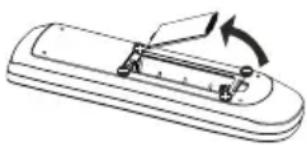
R03, AAA
(Alkaline or manganese batteries)
The model number and serial number of this product can be found on either the back or the bottom of the unit. Please note them in the space provided below and keep for future reference.
MODEL NUMBER
SERIAL NUMBER
Region codes
DVD-Video
This unit plays DVD-Video marked with labels containing the region number "1" or "ALL".
Example:

Playable media
You can play back the following media:
DVD Video (DVD-Video format)
| DVD-R | DVD-Video format*1, |
| DVD-R DL | JPEG*2*3, MP3*4, DivX*5*6*7*8 |
DVD-RW (DVD-Video format)*1
+RW (Video)*1
+R
+R DL
| CD-Audio | CD-DA, | Video | CD, |
| Super Video CD | |||
CD-R, CD-DA, JPEG*2*3, MP3*4,
CD-RW, Video CD, Super Video CD, DivX*5*6*7*8
USB: MP3*4, JPEG*2*3, DivX*5*6*7*8
*1 Finalizing is necessary. *2 The file extension has to be '.JPG' or '.JPEG'. *3 Files that have been altered, edited or saved with computer picture editing software may not be displayed. *4 The file extension has to be '.mp3'. *5 Model for Canada only. *6 The file extension has to be '.DIVX,' '.divx,' '.AVI,' or '.avi'. *7 (Only for Canada) Certified to the DivX Home Theater Profile V3.0. GMC (Global Motion Compensation) not supported. *8 (Only for Canada) Subtitle text file is not supported.
NOTE
- It may not be possible to play the media in some cases due to the type of media, the condition of the recording, the recording method, and how the files were created.
(For USB devices)
- This unit does not guarantee connection with all USB devices. • This unit does not support USB device charging.
- FAT12, FAT16 and FAT32 file systems are supported. • This unit supports USB2.0 High Speed.
Unit and disc care
Clean this unit with a soft, dry cloth.
- Never use alcohol, paint thinner or benzine to clean this unit.
- Before using chemically treated cloth, read the instructions that came with the cloth carefully.
- Cleaning of the lens is generally not necessary although this depends on the operating environment.
- Do not use commercially available lens cleaners as they may cause malfunction.
Clean discs
- Wipe with a damp cloth and then wipe dry.

Disc handling precautions
- Handle discs by the edges to avoid inadvertent scratches or fingerprints on the disc.
- Do not attach labels or stickers to discs.
- Do not use record cleaning sprays, benzine, thinner, static electricity prevention liquids or any other solvent.
- Do not use the following discs: – Discs with exposed adhesive from removed stickers or labels (rented discs etc.). – Discs that are badly warped or cracked.
- Irregularly shaped discs, such as heart shapes.
- The digital audio content side of a DualDisc does not meet the technical specifications of the Compact Disc Digital Audio (CD-DA) format so playback may not be possible.
Connections
Before making any connections we suggest you temporarily disconnect all the units from AC power.
- Do not place the unit on amplifiers/receivers or equipment that may become hot. The heat can damage the unit.
- Do not connect video signals through a video recorder. Due to copy guard protection the picture may not be displayed properly.
DVD-S48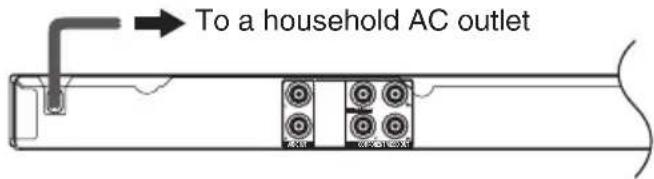
DVD-S68

NOTE for AC power supply cord
- This unit consumes a small amount of AC power even when turned off. In the interest of power conservation, if you will not be using this unit for an extended period of time, it can be disconnected.
NOTE for HDMI (DVD-S68 only)
- AUDIO terminals become impossible to use according to the kind of the cable that you use.
NOTE for COMPONENT VIDEO OUT
- Set "Video" to "Progressive" (→ page 11).
DVD-S48
VIDEO OUT
Connect terminals of the same color.
COMPONENT VIDEO OUT
Connect terminals of the same color.
DVD-S68
VIDEO OUT
Connect terminals of the same color.
COMPONENT VIDEO OUT
Connect terminals of the same color.
HDMI
With HDMI compatible amplifier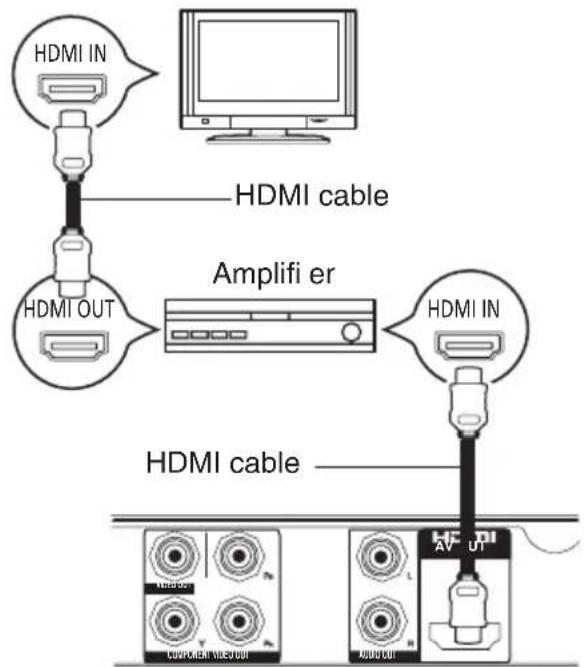

① POWER ⏻, POWER ⏻/I
Press to switch the unit from on to standby mode or vice versa. In standby mode, the unit is still consuming a small amount of power.
DISPLAY
Displays information on TV screen during playback
OPEN/CLOSE ▲
Opens/closes the disc tray
② 0-9, ≥10
To select title/chapter/track numbers etc.
e.g., 5: 5
15: ≥10 → 1 → 5
SEARCH MODE
Starts to select the point
- Press ◀▶ to select the item.
- Press 0 to 9 to specify the location.
- Press OK.
③ TOP MENU
Shows Top menu
MENU
- Shows Menu
- Sets PBC of VCD equipped with Playback Control (PBC) function to On/Off
▲ ▼ ◀ ▶
- Selects items, input position, etc.
- For moving the display position of enlarged images
- For rotating JPEG images
OK
Confirms menu selection
SETUP
Enters or exits the system setup menu
(→ page 11)
RETURN ↩
Returns to the previous display
④ SKIP,
- Skips to previous title/chapter/track or next title/chapter/track
- Switches the MENU page of VCD equipped with Playback Control (PBC) function
SEARCH, ◀◀, ▶▶
Starts fast reverse or fast forward
STOP ■, ■
Stops playback
PLAY/PAUSE ▶/II
Starts or pauses playback

Starts playback
FRAME II
Plays Video frame by frame
⑤ REPEAT
Selects various repeat mode
Selectable modes differ depending on the type of contents.
REP DIR plays all the same type of files in the selected folder repeatedly.
A-B REPEAT
Repeats playback from point A to B on a media SLOW
Starts slow motion playback
CANCEL
Clear the input information
⑥ SUBTITLE
Shows the subtitle and selects different subtitle RANDOM/ANGLE
Starts random playback/Switches the camera angle AUDIO
Changes soundtracks
ZOOM
Changes zoom ratio
PROGRAM
Sets the playback order
- Press ▲▼◀▶ to select the item.
- Press 0 to 9 to specify the order. To cancel: Press CANCEL.
- Press ▲▼◀▶ to select PLAY.
To clear the whole program: Press ▲▼◀▶ to select CLEAR.
- Press OK.
USB
Switches to the USB mode / Returns to the disc mode
USB REC
Performs USB REC
⑦ Disc tray
When inserting a media, ensure that it is facing the right way up.
⑧ USB port
Connects a USB device
① Turn on the TV and select the correct video input. ② Press POWER ⏻. ③ Place a disc or connect a USB device.

- If this unit is not switched to the USB mode when connecting the USB device, press USB and press ◀▶ to select the item.
④ Press ▲▼◀▶ to select the item and press OK.
- Depending on the disc, playback may start automatically.
(JPEG only)
- When you press PLAY/PAUSE ▶/II instead of OK, you can start the slide show.
Stopping playback
Press STOP ■.
→ The stopped position is memorized.
Resume play function
Press PLAY/PAUSE ▶/II to restart from this position.
→ The position is cleared if the tray is opened or you press STOP ■ several times to display ‘■’ on TV’s display.
NOTE
- Screen saver will start automatically if the media playback is stopped and the menu is closed for about 5 minutes.
- The player will automatically switch to Power Standby mode if you do not press any buttons for about 25 minutes after the media has stopped playing. (DVD-S48) Video images of the copyright-protected DivX® contents stored on a USB device cannot be output. (DVD-S68) Video images of the copyright-protected DivX® contents stored on a USB device can be output only through the HDMI output terminal.
ABOUT DIVX VIDEO (Only for Canada)
- DivX® is a digital video format created by DivX, Inc. This is an official DivX Certified® device that plays DivX video. Visit divx.com for more information and software tools to convert your files into DivX video.
ABOUT DIVX VIDEO-ON-DEMAND (Only for Canada)
- This DivX Certified® device must be registered in order to play purchased DivX Video-on-Demand (VOD) movies. To obtain your registration code, locate the DivX VOD section in your device setup menu. Go to vod.divx.com for more information on how to complete your registration.
- You can only play DivX videos that were rented or purchased with the DivX registration code of this DVD player. For details, Changing the player settings > OTHER (→ page 12).
Regarding DivX VOD content that can only be played a set number of times (Only for Canada)
- Some DivX VOD content can only be played a set number of times. When you play this content, the remaining number of plays is displayed.
USB REC HDMI CEC protocol
You can copy audio files (CD-DA) from a CD to a USB device in MP3 format.
1 Connect the USB device. 2 Play an audio CD. 3 During play, press USB REC. 4 Press ◀▶ to select "YES", and press OK.
| USB REC | ||
| OPTIONS | ||
| OPTIONS | Speed | Normal |
| TRACKS | Bitrate | 128kbps |
| START | Create ID3 tag | YES |
| QUIT | Storage | USB |
| OK | ||
5 Press ▲▼◀▶ to select "TRACKS".
- In the default setting, all tracks are checked.
- To remove each check mark, select the track by pressing ▲▼◀▶, and press OK.
- To clear all the check marks, select the check mark at the top and press OK.

6 Press ▲▼◀▶ to select "START", and press OK to begin copying.
- You can change to preferred settings in the "OPTIONS" menu.
- To exit the menu, select "QUIT", and then press OK.
(DVD-S68 only)
The DVD player supports HDMI CEC (Consumer Electronics Control) protocol.
Panasonic does not guarantee 100% interoperability with all HDMI CEC devices.
- Set HDMI CEC to "On" (→ page 11).
One Touch Play
When a video disc is placed in the unit and you press POWER ⏻, it turns on the TV, then disc play starts.
System Standby
When you turn off the TV, all connected HDMI CEC devices switch to standby mode simultaneously.
Control with TV's remote control
The ability to control “Playback Control”, “Disc Menu Control” and “Device Select”.
For details, see the Operating Instructions for your TV.
Change the unit's settings if necessary. The settings remain intact even if you switch the unit to standby.
① Press SETUP. ② Press ▲▼ to select the menu, and press ▶. ③ Press ▲▼ to select the item, and press ▶ to confirm your selection. ④ Press ▲▼ to select the settings, and press OK.
- To return to the previous menu, press ◀.
- To exit, press SETUP.
Operation methods other than the above procedure may be displayed. In that case, follow the on-screen instructions.
Depending on the type of media, this unit's settings may be disabled.
SYSTEM
TV System
⇒ This menu contains the options for selecting the color system that matches the connected TV.
NTSC
⇒ It will change the video signal of PAL content and output it to NTSC format.
PAL
⇒ It will change the video signal of NTSC content and output it to PAL format.
PAL60
⇒ It will change the video signal of NTSC content and output it to PAL 60 format.
Auto
⇒ Select this if the connected TV is compatible with both NTSC and PAL.
Screen Saver
⇒ This setting enables the Screen Saver to activate. The screen saver will start automatically if media playback is stopped for about 5 minutes.
Video
⇒ This sets the output method of this unit according to the television to which it is connected.
Resolution (DVD-S68 only)
⇒ Select a video resolution that is compatible with the TV display capability. Selecting Auto can automatically select the best resolution.
HDMI CEC (DVD-S68 only)
⇒ When connecting this unit with the TV via the HDMI cable, linked operations with a connected device are possible.
TV Type
Set the TV Type on the DVD player according to the TV you have connected.
4:3PS
16:9 aspect images are enlarged in full screen with the both sides cut.
4:3LB
16:9 aspect images are displayed with black bands on top and bottom.
16:9
4:3 aspect images are displayed in the center of the screen.
16:9Full
4:3 aspect images are stretched to right and left.
LANGUAGE
OSD
This switches the language for display menu.
Audio
This switches the language for output audio.
Subtitle
This switches the language for subtitles.
Menu
This switches the language for the disc menu.
AUDIO
Audio Out (DVD-S68 only)
This sets the audio output method when connected to the "HDMI AV OUT" terminal.
Bitstream
When the connected equipment supports Dolby Digital.
PCM
When the connected equipment does not support Dolby Digital.
Dynamic Range
Adjusts for clarity even when the volume is low by compressing the range between the lowest and highest sound levels.
Changing the player settings
VIDEO
Brightness
This adjusts the brightness.
Contrast
This adjusts the contrast.
Hue
This adjusts the color tone.
Saturation
This adjusts the saturation.
Sharpness
This adjusts the sharpness of the image outline.
OTHER
Rating
This sets the playback limitation level for DVD video discs. Selecting "8 No Limit" can play all discs.
Password
The password is required when setting or canceling the playback limitation or restoring the unit to the factory default. When doing this for the first time, key in "0000". If you forget your old four-digit password, key in "0000".
(Only for Canada)
DivX(R) VOD
DivX VOD (Video On Demand) registration code allows you to rent and purchase movies using the DivX VOD service from the internet. For more information, visit Web Site: http://vod.divx.com.
Black Level
Adjusting the black level control to the desired setting for picture enhancement.
Default
This restores the unit to the factory default settings.
Specifications
Signal system: NTSC/PAL
Operating temperature range:
+5 °C to +35 °C (+41 °F to +95 °F)
Operating humidity range:
20 % to 80 % RH (no condensation)
Video output:
Output level: 1.0 Vp-p (75 Ω)
Output connector: Pin jack (1 system)
Component video output: (480p/480i: 60 Hz)
(576p/576i: 50 Hz)
Y output level: 1.0 Vp-p (75 Ω)
PB output level: 0.7 Vp-p (75 Ω)
PR output level: 0.7 Vp-p (75 Ω)
Output connector:
Pin jack (Y: green, PB: blue, PR: red) (1
Audio output:
Output level: 2 Vrms (1 kHz, 0 dB)
Output connector: Pin jack
Number of connectors: 2 channel: 1 system
USB slot:
USB2.0: 1 system
[DVD-S68] HDMI AV output:
Output format: 480p/576p/1080i/720p/1080p
Output Connector: Type A (19 pin)
- This unit supports "HDMI CEC" function.
LASER Specification
Class I LASER Product:
Wave Length:
770 to 800 nm (CD)/645 to 660 nm (DVD)
Power supply: AC 120 V, 60 Hz
Power consumption: Approx. 12 W
Power consumption in standby mode:
Less than 1 W
Dimensions (W x D x H):
[DVD-S48] 360 mm x 209 mm x 38 mm
(Approx. 14 3/16" x 8 7/32" x 1 1/2")
[DVD-S68] 430 mm x 209 mm x 38 mm
(Approx. 16 15/16" x 8 7/32" x 1 1/2")
Mass (Weight):
[DVD-S48] Approx. 1.41 kg (3.11 lbs)
[DVD-S68] Approx. 1.56 kg (3.44 lbs)
Specifications are subject to change without notice.
Before requesting service, make the following checks. If you still need assistance, please contact us.
• U.S.A. and Puerto Rico: See page 14. • Canada: See page 15.
To reset
Images from this DVD player do not appear on the television.
You forget your password.
⇒ Reset the DVD player to the factory defaults.
1) Press POWER ⏻/l on the DVD player to turn it on. 2) Press OPEN/CLOSE ▲ to open the disc tray. 3) Press and hold ■ and ▶ on the DVD player at the same time for more than 5 seconds with the tray open.
All the settings return to the factory preset.
No picture./No sound.
⇒ Check the video connection between the DVD player and the TV. ⇒ Turn on your TV and set to the correct in channel for the DVD player.
Remote control does not work.
Aim the remote control directly at the sensor on the front of the DVD player.
The screen is distorted. Noise occurs.
Check if the TV System setting is correct.
Discs cannot be played back.
Check for any scratches or smudges on the disc. If the disc is dirty, clean the disc.
Not able to select some items in the setup/system menu.
Press STOP twice before selecting the setup/system menu. Depending on the disc availability, some menu items cannot be selected.
When the following messages appear on the unit's display.

(LOAD)
Loading the media. Wait a moment.

(STOP)
Stopping the playback.

There is no disc, or a disc that cannot be played has been inserted.

(OPEN)
The tray is open.

(TITLE)
The disc title is displayed.
Press ▲▼◀▶ to select the title, then press OK.

(NOUSB)
There is no USB device in USB mode.
Limited Warranty (Only for U.S.A. and Puerto Rico)
Panasonic Consumer Electronics Company, Division of Panasonic Corporation of North America One Panasonic Way, Secaucus, New Jersey 07094
Panasonic Blu-ray and DVD Products Limited Warranty
Limited Warranty Coverage (For U.S.A. and Puerto Rico Only)
If your product does not work properly because of a defect in materials or workmanship, Panasonic Consumer Electronics Company (referred to as "the warrantor") will, for the length of the period indicated on the chart below, which starts with the date of original purchase ("warranty period"), at its option either (a) repair your product with new or refurbished parts, (b) replace it with a new or a refurbished equivalent value product, or (c) refund your purchase price. The decision to repair, replace or refund will be made by the warrantor.
| Product or Part Name Parts Labor | ||
| Blu-ray Disc Player 1 year 90 days | ||
| Blu-ray Home Theater System 1 year 1 year | ||
| DVD Player 1 year 90 days | ||
| DVD Recorder 1 year 90 days | ||
| Rechargeable Batteries (pack), DVD-RAM Disc (defective exchange) | 10 days Not | Applicable |
During the "Labor" warranty period there will be no charge for labor. During the "Parts" warranty period, there will be no charge for parts. This Limited Warranty excludes both parts and labor for non-rechargeable batteries, antennas, and cosmetic parts (cabinet). This warranty only applies to products purchased and serviced in the United States or Puerto Rico. This warranty is extended only to the original purchaser of a new product which was not sold "as is".
Mail-In Service
For assistance in the U.S.A. and Puerto Rico in obtaining repairs, please ship the product prepaid to:
Panasonic Exchange Center
4900 George McVay Drive
Suite B
McAllen, TX 78503
panacare@us.panasonic.com
When shipping the unit, carefully pack, include all accessories, and send it prepaid, adequately insured and preferably in the original carton. If Lithium Ion batteries are shipped by air the package must be labeled "Contains Lithium Ion Battery (No lithium metal)". Damaged batteries are prohibited from shipment by US Mail. Batteries must be securely packed in a manner to prevent short-circuiting and a package cannot contain more than 3 Lithium Ion batteries. Include a letter detailing the complaint, a return address and provide a daytime phone number where you can be reached. A valid registered receipt is required under the Limited Warranty.
IF REPAIR IS NEEDED DURING THE WARRANTY PERIOD, THE PURCHASER WILL BE REQUIRED TO FURNISH A SALES RECEIPT/PROOF OF PURCHASE INDICATING DATE OF PURCHASE, AMOUNT PAID AND PLACE OF PURCHASE. CUSTOMER WILL BE CHARGED FOR THE REPAIR OF ANY UNIT RECEIVED WITHOUT SUCH PROOF OF PURCHASE.
Limited Warranty Limits And Exclusions
This warranty ONLY COVERS failures due to defects in materials or workmanship, and DOES NOT COVER normal wear and tear or cosmetic damage. The warranty ALSO DOES NOT COVER damages which occurred in shipment, or failures which are caused by products not supplied by the warrantor, or failures which result from accidents, misuse, abuse, neglect, mishandling, misapplication, alteration, faulty installation, set-up adjustments, misadjustment of consumer controls, improper maintenance, power line surge, lightning damage, modification, introduction of sand, humidity or liquids, commercial use such as hotel, office, restaurant, or other business or rental use of the product, or service by anyone other than a Factory Service Center or other Authorized Servicer, or damage that is attributable to acts of God.
THERE ARE NO EXPRESS WARRANTIES EXCEPT AS LISTED UNDER "LIMITED WARRANTY COVERAGE".
THE WARRANTYOR IS NOT LIABLE FOR INCIDENTAL OR CONSEQUENTIAL DAMAGES RESULTING FROM THE USE OF THIS PRODUCT, OR ARISING OUT OF ANY BREACH OF THIS WARRANTY. (As examples, this excludes damages for lost time, travel to and from the servicer, loss of or damage to media or images, data or other memory or recorded content. The items listed are not exclusive, but for illustration only.)
ALL EXPRESS AND IMPLIED WARRANTIES, INCLUDING THE WARRANTY OF MERCHANTABILITY, ARE LIMITED TO THE PERIOD OF THE LIMITED WARRANTY.
Some states do not allow the exclusion or limitation of incidental or consequential damages, or limitations on how long an implied warranty lasts, so the exclusions may not apply to you. This warranty gives you specific legal rights and you may also have other rights which vary from state to state. If a problem with this product develops during or after the warranty period, you may contact your dealer or Service Center. If the problem is not handled to your satisfaction, then write to the warrantor's Consumer Affairs Department at the addresses listed for the warrantor.
PARTS AND SERVICE, WHICH ARE NOT COVERED BY THIS LIMITED WARRANTY, ARE YOUR RESPONSIBILITY.
Customer Services Directory (United States and Puerto Rico)
Obtain Product Information and Operating Assistance; locate your nearest Dealer or Service Center; purchase Parts and Accessories; or make Customer Service and Literature requests by visiting our Web Site at:
http://www.panasonic.com/help or, contact us via the web at:
http://www.panasonic.com/contactinfo You may also contact us directly at: 1-800-211-PANA (7262), Monday-Friday 9 am-9 pm; Saturday-Sunday 10 am-7 pm, H
For hearing or speech impaired TTY users, TTY: 1-877-833-8855
Accessory Purchases (United States and Puerto Rico)
Purchase Parts, Accessories and Instruction Books online for all Panasonic Products by visiting our Web Site at: http://www.pstc.panasonic.com Or, send your request by E-mail to: npcparts@us.panasonic.com You may also contact us directly at: 1-800-332-5368 (Phone) 1-800-237-9080 (Fax Only) (Monday – Friday 9 am to 9 pm, EST.) Panasonic Service and Technology Company 20421 84th Avenue South, Kent, WA 98032 (We accept Visa, MasterCard, Discover Card, American Express, and Personal Checks)
For hearing or speech impaired TTY users, TTY: 1-866-605-1277
As of November 2009
Panasonic Canada Inc.
5770 Ambler Drive, Mississauga, Ontario L4W 2T3
PANASONIC PRODUCT – LIMITED WARRANTY
EXCHANGE PROGRAM
Panasonic Canada Inc. warrants this product to be free from defects in material and workmanship under normal use and for a period as stated below from the date of original purchase agrees to, at its option either (a) repair your product with new or refurbished parts, (b) replace it with a new or a refurbished equivalent value product, or (c) refund your purchase price. The decision to repair, replace or refund will be made by Panasonic Canada Inc.
Panasonic Portable / Clock Radio (without Tape, CD, MD) One (1) year
Panasonic Audio Product One (1) year
Panasonic DVD Product One (1) year
Accessories including rechargeable batteries Ninety (90) days
This warranty is given only to the original purchaser, or the person for whom it was purchased as a gift, of a Panasonic brand product mentioned above sold by an authorized Panasonic dealer in Canada and purchased and used in Canada, which product was not sold “as is”, and which product was delivered to you in new condition in the original packaging.
IN ORDER TO BE ELIGIBLE TO RECEIVE WARRANTY SERVICE HEREUNDER, A PURCHASE RECEIPT OR OTHER PROOF OF DATE OF ORIGINAL PURCHASE, SHOWING AMOUNT PAID AND PLACE OF PURCHASE IS REQUIRED
LIMITATIONS AND EXCLUSIONS
This warranty ONLY COVERS failures due to defects in materials or workmanship, and DOES NOT COVER normal wear and tear or cosmetic damage. The warranty ALSO DOES NOT COVER damages which occurred in shipment, or failures which are caused by products not supplied by Panasonic Canada Inc., or failures which result from accidents, misuse, abuse, neglect, mishandling, misapplication, alteration, faulty installation, set-up adjustments, misadjustment of consumer controls, improper maintenance, power line surge, lightning damage, modification, introduction of sand, humidity or liquids, commercial use such as hotel, office, restaurant, or other business or rental use of the product, or service by anyone other than a Authorized Servicer, or damage that is attributable to acts of God.
Dry cell batteries are also excluded from coverage under this warranty.
THIS EXPRESS, LIMITED WARRANTY IS IN LIEU OF ALL OTHER WARRANTIES, EXPRESS OR IMPLIED, INCLUDING ANY IMPLIED WARRANTIES OF MERCHANTABILITY AND FITNESS FOR A PARTICULAR PURPOSE. IN NO EVENT WILL PANASONIC CANADA INC. BE LIABLE FOR ANY SPECIAL, INDIRECT OR CONSEQUENTIAL DAMAGES RESULTING FROM THE USE OF THIS PRODUCT OR ARISING OUT OF ANY BREACH OF ANY EXPRESS OR IMPLIED WARRANTY.(As examples, this warranty excludes damages for lost time, travel to and from the Authorized Servicer, loss of or damage to media or images, data or other memory or recorded content. This list of items is not exhaustive, but for illustration only.)
In certain instances, some jurisdictions do not allow the exclusion or limitation of incidental or consequential damages, or the exclusion of implied warranties, so the above limitations and exclusions may not be applicable. This warranty gives you specific legal rights and you may have other rights which vary depending on your province or territory.
CONTACT INFORMATION
For product information and operation assistance, please contact:
Our Customer Care Centre: Telephone #: 1-800-561-5505
Fax #: (905) 238-2360
Email link: "Support → contact us → email" on www.panasonic.ca
For defective product exchange within the warranty period, please contact the original dealer or our Customer Care Centre.
“DVD Logo” is a trademark of DVD Format/Logo Licensing Corporation.
Manufactured under license from Dolby Laboratories. Dolby and the double-D symbol are trademarks of Dolby Laboratories.
HDMI, the HDMI Logo, and High-Definition Multimedia Interface are trademarks or registered trademarks of HDMI Licensing LLC in the United States and other countries.
DivX®, DivX Certified®, and associated logos are trademarks of DivX, Inc. and are used under license.
This item incorporates copy protection technology that is protected by U.S. patents and other intellectual property rights of Rovi Corporation. Reverse engineering and disassembly are prohibited.
MPEG Layer-3 audio coding technology licensed from Fraunhofer IIS and Thomson.
The recording and playback of content on this or any other device may require permission from the owner of the copyright or other such rights in that content. Panasonic has no authority to and does not grant you that permission and explicitly disclaims any right, ability or intention to obtain such permission on your behalf. It is your responsibility to ensure that your use of this or any other device complies with applicable copyright legislation in your country. Please refer to that legislation for more information on the relevant laws and regulations involved or contact the owner of the rights in the content you wish to record or playback.




(Only for Canada)
(DVD-S68 only)

As an ENERGY STAR® Partner*, Panasonic has determined that this product meets the ENERGY STAR® guidelines for energy efficiency.
* For Canada only: The word "Participant" is used in place of the word "Partner".
-If you see this symbol-
Information on Disposal in other Countries outside the European Union

This symbol is only valid in the European Union. If you wish to discard this product, please contact your local authorities or dealer and ask for the correct method of disposal.
Panasonic Consumer Electronics Company, Division of Panasonic Corporation of North America
One Panasonic Way, Secaucus,
New Jersey 07094
http://www.panasonic.com
Panasonic Canada Inc.
5770 Ambler Drive
Mississauga, Ontario
L4W 2T3
www.panasonic.ca



- IF YOU HAVE ANY QUESTIONS, CONTACT
- DEAR CUSTOMER
- IMPORTANT SAFETY INSTRUCTIONS
- CAUTION
- RISK OF ELECTRIC SHOCK DO NOT OPEN
- WARNING
- UNIT
- AC POWER SUPPLY CORD
- PLACEMENT
- BATTERIES
- THE FOLLOWING APPLIES ONLY IN THE U.S.A
- FCC NOTE
- TABLE OF CONTENTS GENERAL INFORMATION
- GETTING STARTED
- GENERAL INFORMATION
- CONNECTIONS
- CONTROL GUIDE
- OPERATIONS
- PLAYBACK
- USB REC
- HDMI CEC PROTOCOL
- CHANGING THE PLAYER SETTINGS
- REFERENCE
- SPECIFICATIONS
- TROUBLESHOOTING
- LIMITED WARRANTY
- (ONLY FOR U.S.A. AND PUERTO RICO)
- LIMITED WARRANTY (ONLY FOR CANADA)
- ACCESSORIES
- (ONLY FOR CANADA)
- NOTE
- INSERTING THE BATTERIES
- R03, AAA
- REGION CODES
- DVD-VIDEO
- PLAYABLE MEDIA
- UNIT AND DISC CARE
- CLEAN THIS UNIT WITH A SOFT, DRY CLOTH
- CLEAN DISCS
- DISC HANDLING PRECAUTIONS
- NOTE FOR AC POWER SUPPLY CORD
- NOTE FOR HDMI (DVD-S68 ONLY)
- NOTE FOR COMPONENT VIDEO OUT
- DVD-S
- DISPLAY
- OPEN/CLOSE ▲
- SEARCH MODE
- MENU
- OK
- SETUP
- RETURN ↩
- PLAY/PAUSE ▶/II
- FRAME II
- A-B REPEAT
- CANCEL
- ZOOM
- PROGRAM
- USB
- STOPPING PLAYBACK
- RESUME PLAY FUNCTION
- ABOUT DIVX VIDEO (ONLY FOR CANADA)
- ABOUT DIVX VIDEO-ON-DEMAND (ONLY FOR CANADA)
- REGARDING DIVX VOD CONTENT THAT CAN ONLY BE PLAYED A SET NUMBER OF TIMES (ONLY FOR CANADA)
- USB REC HDMI CEC PROTOCOL
- ONE TOUCH PLAY
- SYSTEM STANDBY
- CONTROL WITH TV'S REMOTE CONTROL
- SYSTEM
- TV SYSTEM
- NTSC
- PAL
- AUTO
- SCREEN SAVER
- VIDEO
- RESOLUTION (DVD-S68 ONLY)
- HDMI CEC (DVD-S68 ONLY)
- TV TYPE
- PS
- LB
- FULL
- LANGUAGE
- OSD
- AUDIO
- SUBTITLE
- AUDIO OUT (DVD-S68 ONLY)
- BITSTREAM
- PCM
- DYNAMIC RANGE
- BRIGHTNESS
- CONTRAST
- HUE
- SATURATION
- SHARPNESS
- OTHER
- RATING
- PASSWORD
- DIVX(R) VOD
- BLACK LEVEL
- DEFAULT
- OPERATING TEMPERATURE RANGE
- OPERATING HUMIDITY RANGE
- VIDEO OUTPUT
- COMPONENT VIDEO OUTPUT: (480P/480I: 60 HZ)
- AUDIO OUTPUT
- USB SLOT
- [DVD-S68] HDMI AV OUTPUT
- LASER SPECIFICATION
- CLASS I LASER PRODUCT
- POWER CONSUMPTION IN STANDBY MODE
- DIMENSIONS (W X D X H)
- MASS (WEIGHT)
- TO RESET
- IMAGES FROM THIS DVD PLAYER DO NOT APPEAR ON THE TELEVISION
- YOU FORGET YOUR PASSWORD
- NO PICTURE./NO SOUND
- REMOTE CONTROL DOES NOT WORK
- THE SCREEN IS DISTORTED. NOISE OCCURS
- DISCS CANNOT BE PLAYED BACK
- NOT ABLE TO SELECT SOME ITEMS IN THE SETUP/SYSTEM MENU
- LIMITED WARRANTY (ONLY FOR U.S.A. AND PUERTO RICO)
- PANASONIC BLU-RAY AND DVD PRODUCTS LIMITED WARRANTY
- LIMITED WARRANTY COVERAGE (FOR U.S.A. AND PUERTO RICO ONLY)
- MAIL-IN SERVICE
- IF REPAIR IS NEEDED DURING THE WARRANTY PERIOD, THE PURCHASER WILL BE REQUIRED TO FURNISH A SALES RECEIPT/PROOF OF PURCHASE INDICATING DATE OF PURCHASE, AMOUNT PAID AND PLACE OF PURCHASE. CUSTOMER WILL BE CHARGED FOR THE REPAIR OF ANY UNIT RECEIVED WITHOUT SUCH PROOF OF PURCHASE
- LIMITED WARRANTY LIMITS AND EXCLUSIONS
- THERE ARE NO EXPRESS WARRANTIES EXCEPT AS LISTED UNDER "LIMITED WARRANTY COVERAGE
- ALL EXPRESS AND IMPLIED WARRANTIES, INCLUDING THE WARRANTY OF MERCHANTABILITY, ARE LIMITED TO THE PERIOD OF THE LIMITED WARRANTY
- CUSTOMER SERVICES DIRECTORY (UNITED STATES AND PUERTO RICO)
- ACCESSORY PURCHASES (UNITED STATES AND PUERTO RICO)
- PANASONIC CANADA INC
- PANASONIC PRODUCT – LIMITED WARRANTY
- EXCHANGE PROGRAM
- IN ORDER TO BE ELIGIBLE TO RECEIVE WARRANTY SERVICE HEREUNDER, A PURCHASE RECEIPT OR OTHER PROOF OF DATE OF ORIGINAL PURCHASE, SHOWING AMOUNT PAID AND PLACE OF PURCHASE IS REQUIRED
- LIMITATIONS AND EXCLUSIONS
- CONTACT INFORMATION
- INFORMATION ON DISPOSAL IN OTHER COUNTRIES OUTSIDE THE EUROPEAN UNION
Brand : PANASONIC
Model : DVD-S48
Category : DVD player