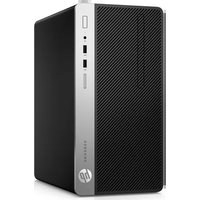
USER MANUAL Prodesk 400 G5 MT HP
© Copyright 2017 HP Development Company, L.P.
Windows is either a registered trademark or trademark of Microsoft Corporation in the United States and/or other countries.
Intel and Core are trademarks of Intel Corporation in the U.S. and other countries.
The information contained herein is subject to change without notice. The only warranties for HP products and services are set forth in the express warranty statements accompanying such products and services. Nothing herein should be construed as constituting an additional warranty. HP shall not be liable for technical or editorial errors or omissions contained herein.
First Edition: June 2017
Document Part Number: 937232-001
Table of contents
1 Introduction....1
Warnings and cautions .... 1
Your responsibilities .... 1
System requirements 2
2 Installing the memory module in your computer .... 3
Models with M.2 connectors 3
Models without M.2 connectors 4
3 Installing the Intel Optane software 6
Installing the Intel RST software and driver 6
Installing the Intel RST driver into the operating system Recovery image 6
4 Using the Optane memory application 8
Initialization errors 8
Statistics page 8
5 Using Intel Optane memory with the Intel Rapid Storage Technology driver 9
Enabling Intel Optane memory 9
Disabling Intel Optane memory 9
6 Troubleshooting 10
1 Introduction
Optane memory is an M.2 module that is meant to boost system performance when used with a SATA storage device (hard drive) on 7th Generation Intel® Core™ processor-based computers. For detailed information on Intel Optane memory, go to www.intel.com/support/optane-memory.
Warnings and cautions

WARNING! Any surface or area of the equipment marked with this symbol indicates the presence of an electric shock hazard. To reduce the risk of injury from electric shock, do not open any enclosed area marked with this symbol.

WARNING! To reduce the risk of serious injury, read the Safety & Comfort Guide. It describes proper workstation setup, and proper posture, health, and work habits for computer users. The Safety & Comfort Guide also provides important electrical and mechanical safety information. This guide is located at http://www.hp.com/ergo and on the documentation CD (if one is included with the product).

CAUTION: Any surface or area of the equipment marked with this symbol indicates the presence of a hot surface or hot component. If this surface is contacted, the potential for injury exists. To reduce the risk of injury from a hot component, allow the surface to cool before you touch it.

IMPORTANT: Static electricity can damage the electronic components of the computer. Before beginning these procedures, be sure you discharge static electricity by briefly touching a grounded metal object.

IMPORTANT: To prevent damage to the computer, observe the following Electrostatic Discharge (ESD) precautions while performing the system parts removal and replacement procedures:
• Work on a static-free mat. - Wear a static strap to ensure that any accumulated electrostatic charge is discharged from your body to the ground. - Create a common ground for the equipment you are working on by connecting the static-free mat, static strap, and peripheral units to that piece of equipment.

NOTE: HP accessories are for use in HP computer products. They have been extensively tested for reliability and are manufactured to high quality standards.
Your responsibilities
You are responsible for determining whether the product is appropriate for your use and will interface with other equipment without malfunction or damage. You are also responsible for backing up data before installing any product and for regularly backing up data after installing the product. HP is not liable for any damage to equipment or data loss resulting from the use of any product. To determine the compatibility of this product with your computer or workstation, view QuickSpecs at http://www.hp.com/go/productbulletin.
System requirements
Intel 7th Generation Core i3, i5, or i7 processors Intel Rapid Storage Technology (Intel RST) driver, Version 15.5 or later - Operating system: Windows® 10 Spring 2017 Creator's Update (1703) or later installed on a supported storage device

IMPORTANT: Only Windows 10 Spring 2017 Creator's Update (1703) or later is supported.
- A supported backend (slow media system disk) storage device connected to the Intel AHCI controller off the chipset with Windows 10 64-bit installed, formatted for the GUID partition table (GPT), and at least 5 MB of continuous, unallocated space at the end of the boot volume HP BIOS Version 02.06 or newer

NOTE: To locate the latest BIOS for your product, go to http://www.hp.com/support.
• BIOS configured for Optane The Intel Optane memory module populated in an M.2 connector

IMPORTANT: Intel Optane memory does not support self-encrypting or Federal Information Processing Standard (FIPS) 140-2 drives.
2 Installing the memory module in your computer
The procedure to install the module differs depending on your computer model. If you need help preparing your computer model for this installation, refer to the documentation provided with the computer, or go to http://www.hp.com/support to locate the manual for your model.
Models with M.2 connectors

NOTE: If there are two M.2 connectors on the system board, install the memory module in the second M.2 connector to avoid potential electromagnetic interference.
Install the module onto the system board.
- Locate the supported M.2 connector on your system board. The connector is labeled SSD.
- If necessary, install the screw standoff into the hole near the connector.

- Insert the module into the M.2 connector (1).
- Rotate the module downward (2), and then install the screw (3).

Models without M.2 connectors
Install the module into a PCIe carrier card, and then install the carrier card in the x4 expansion slot.

IMPORTANT: Do not install the carrier card into the x16 expansion slot.
- Install the module into a PCIe carrier card:
a. Insert the module into the M.2 connector (1), and then insert the screw into the slot in the module (2).
IMPORTANT: Be sure that the slot in the screw is facing the module so that the screw inserts fully onto the module.
b. Rotate the module downward (3), and then tighten the screw (4).

- Insert the PCIe carrier card into the computer expansion slot (1), and then install the screw into the carrier card bracket (2).

3 Installing the Intel Optane software
This section describes the process of installing the Intel Optane memory software and driver on a computer.
You must use the Setup Utility to enable Optane memory. After enabling Optane in the Setup Utility, you must enable it in the Intel RST software.

NOTE: The system board requires a BIOS update to Version 02.06 or later before the Intel Optane memory and software driver package can be installed. To locate the latest BIOS for your product, go to www.hp.com/support, and follow the on-screen instructions to find your product and locate downloads.
To enable Intel Optane in the Setup Utility:
- Go to the Setup Utility by restarting the computer and repeatedly pressing F10 to enter setup.
- Select Advanced > System Options, and then select Configure Storage Controller for Intel Optane.

NOTE: You can configure Optane memory programmatically with BiosConfigUtility.exe or WMI BIOS Settings commands.
- Restart the computer.

IMPORTANT: Once you install the Intel Optane System Accelerator, reverting back to a BIOS version older than 02.06 will disable your Intel Optane System Accelerator and could keep your system from booting.
Installing the Intel RST software and driver
This section provides an overview of steps to install and set up Intel Optane memory with the Intel RST user interface.

IMPORTANT: Update BIOS to Version 02.06 or later before installing the software and driver.
- Go to http://www.hp.com/support, and select the most recent Intel Rapid Storage Technology software and driver.
- Run setupRST.exe and install the defaults.
- Restart the computer.
- From the Windows desktop, launch the Intel RST user interface, and then click the Intel Optane Memory tab. The Status page opens.
- Click Enable.
- After the enable process is complete, reboot the computer.
After the system restarts, installation continues in safe mode. When installation is complete, the system again restarts. You can now use the Intel Optane memory application.
Installing the Intel RST driver into the operating system Recovery image
The current Microsoft Intel Rapid Storage Technology driver does not support Intel Optane memory. Therefore, if the operating system image is damaged (for example, by hard drive corruption, file corruption,
missing files) and enters the Windows Recovery process, the operating system recovery image/tools must contain the Intel Rapid Storage Technology driver Version 15.5 or later. You can insert this driver into the operating system Recovery image/tools before you install Intel Optane.
Requirements:
• Windows Assessment and Deployment Kit (ADK) installed • Windows 10 64-bit image - Windows 10 Spring 2017 Creator's Update (1703) Intel Rapid Storage Technology software and driver, Version 15.5 or later, available from www.hp.com/support • USB flash drive for installation
To install the driver:
- Create a bootable USB flash drive from the Windows 10 operating system image.
- Create a temporary working directory on the local computer (for example, C:\Win10USB).
- In the working directory, create three subdirectories named Windows, Winre, and Drivers.
- Extract the Intel Rapid Storage Technology driver to the Drivers subdirectory.
- From the Windows 10 USB flash drive, copy the install.wim file from the Sources directory on the flash drive to the working directory (for example, C:\Win10USB).
- Close all folders and File Explorer.
- Open a command prompt as Administrator and change to the working directory (for example, cd C:\Win10USB).
- Determine which index number to modify based on the installed version of Windows 10. Choose the index that matches the Windows 10 version.
To determine the index, run the command dism /get-wiminfo /wimfile:install.wim.

IMPORTANT: This example modifies Index 2. You can repeat steps to modify additional versions.
- Modify the install.wim file by running the following commands:
- Mount the Windows Image: dism /mount-image /imagefile:install.wim /index:2 /mountdir:windows
- Add the Intel Rapid Storage Technology drivers to the Windows image: dism /image:windows /add-driver /driver:drivers /forceunsigned /recurse
- Mount the Windows Recovery Image: dism /mount-image /imagefile:c:\Win10USB\windows\windows\system32\recovery\winre.wim /Index:1 /mountdir:winre
- Add the Intel Rapid Storage Technology driver to the Windows Recovery Image: dism /image:winre /add-driver /driver:drivers /forceunsigned /recurse
- Unmount the Windows Recovery Image: dism /unmount-wim /mountdir:winre /commit
- Unmount the Windows Image: dism /unmount-wim /mountdir:windows /commit
- Copy the updated install.wim file in the working directory back to the Sources directory on the USB flash drive
4 Using the Optane memory application
Initialization errors
You can open the application by selecting Intel Optane Memory on the Start menu.
This section includes examples of errors that could occur if your computer is not ready to enable Intel Optane memory.
| Error Cause and solution |
| Your System is Intel Optane Memory Ready No Intel Optane memory modules are detected on your computer. Please insert a module and try again. |
| Error Initializing Intel Optane Memory There is a pending restart for this product. Please restart before running the application. |
| Error Initializing Intel Optane Memory | The Intel Optane memory application was not installed correctly. Please repair or reinstall the application. |
| Your System is Not Intel Optane Memory Ready | Your system is not fully compatible with Intel Optane memory. |
| Intel Optane Memory is Disabled If more than one Intel Optane memory module is installed, select the module to use, and then click Enable. |
Statistics page
To display statistics, Intel Optane memory must be enabled.
The Optimization schedule will be shown for only 32 GB or larger memory modules.
5 Using Intel Optane memory with the Intel Rapid Storage Technology driver
Enabling Intel Optane memory
To enable Intel Optane memory using the Intel Rapid Storage Technology application, open the Intel Rapid Storage Technology application, and then click the Intel Optane memory tab.

NOTE: The Intel Optane memory tab displays only in the software for Intel Rapid Storage Technology Version 15.5 or later.
- Click Enable.
- Select a compatible fast drive, and then click Yes. The compatible drive option displays only if more than one Intel Optane memory module is installed in the computer.
- After the enable process is complete, click Reboot to restart the computer.
IMPORTANT: The computer must be restarted, not shut down. Shutdown may cause incorrect display of drive volumes.
Disabling Intel Optane memory

IMPORTANT: Do not disable Optane memory in BIOS unless you first disable the feature in the Intel RST application.
Before removing the SATA storage device being accelerated by the memory or removing the memory module from the system, you must disable Intel Optane memory.
To disable Intel Optane memory using the Intel Rapid Storage Technology application:

IMPORTANT: Do not remove the Intel Rapid Storage Technology driver after disabling Intel Optane memory.
- Open the Intel Rapid Storage Technology application, and then click the Intel Optane memory tab.
- Click Disable, and then click Yes to confirm.
- After the disable process is complete, click Reboot to restart the computer.
IMPORTANT: The computer must be restarted, not shut down. Shutdown may cause incorrect display of drive volumes.
6 Troubleshooting
This section includes examples of errors that could occur during installation of the Intel Optane memory software and driver. For more information and help on these errors, please contact support at www.hp.com/support.
| Error Cause and solution |
| Unsupported CPU Intel Optane memory requires a 7th generation Intel Core processor or later. |
| Unsupported Chipset Intel Optane memory requires a supported Intel 200 Series Chipset or later. |
| Unsupported Operating System Intel Optane memory requires Windows 10 64-bit Spring 2017 Creator's Update (1703) or later. |
| Unsupported BIOS Intel Optane memory requires BIOS Version 02.06 or later. |
| Unsupported BIOS mode Intel Optane memory requires BIOS Version 02.06 or later. |
| Unsupported System Drive An MBR system drive partition table is not supported. To resolve this issue, change the system drive partition table type to GPT, and then reinstall the operating system. |
| Unsupported System Drive The last partition cannot be resized because it is blocked for resizing. |
| Unsupported System Drive Last Partition The last partition cannot be resized because it does not have enough free space. |
| Intel Rapid Storage Technology is Already Installed | To resolve this issue, uninstall the Intel Rapid Storage Technology user interface and then install the Intel Optane memory application. |
| Error Checking System Compatibility The installation failed to check for chipset compatibility.- or -The installation failed to check for the drive partition table.- or -The installation failed to check the available space on the last partition of the system drive. |
| Intel Optane Memory is Currently Disabled You tried to uninstall the Intel Optane memory application with Intel Optane memory enabled. To uninstall the Intel Optane memory application, open the application and disable Intel Optane memory before uninstalling the Intel Optane memory application. |