
PlayStation 4 Slim - Consoles SONY - Free user manual and instructions
Find the device manual for free PlayStation 4 Slim SONY in PDF.
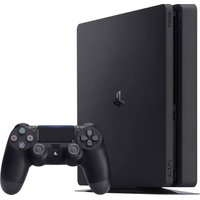


| Product Type | Home video game console |
| Model | PlayStation 4 Slim (CUH-2000 series) |
| Dimensions | Approx. 265 × 39 × 288 mm |
| Weight | Approx. 2.1 kg |
| Power Supply | AC 100–240 V, 50/60 Hz, 165 W |
| Processor | AMD Jaguar x86-64 (8 cores) |
| Graphics | AMD Radeon-based GPU (1.84 TFLOPS) |
| Memory | 8 GB GDDR5 |
| Storage | 500 GB (or 1 TB) internal hard drive (replaceable) |
| Optical Drive | Blu-ray/DVD drive (reads BD-ROM, DVD-ROM) |
| Connectivity | HDMI 1.4 out, USB 3.0 × 2, Ethernet (10BASE-T/100BASE-TX/1000BASE-T), Wi-Fi 802.11 b/g/n, Bluetooth 4.0 |
| Main Functions | Play games, stream movies/TV, browse internet, use apps (Netflix, YouTube, Spotify), Blu-ray playback, remote play |
| Controller | DualShock 4 (wireless, touchpad, motion sensor, light bar) |
| Operating Temperature | 5 °C to 35 °C |
| Storage Temperature | -20 °C to 60 °C |
| Maintenance & Cleaning | Wipe with a soft dry cloth; do not use solvents. Ensure ventilation holes are unobstructed. |
| Safety Warnings | Do not block vents; use only the supplied AC adapter; keep away from liquids; do not disassemble (except HDD upgrade). |
| Spare Parts & Repairability | Internal HDD is user-replaceable (2.5" SATA). Other components require professional service. Support for replacement parts via Sony. |
Frequently Asked Questions - PlayStation 4 Slim SONY
User questions about PlayStation 4 Slim SONY
0 question about this device. Answer the ones you know or ask your own.
Ask a new question about this device
Download the instructions for your Consoles in PDF format for free! Find your manual PlayStation 4 Slim - SONY and take your electronic device back in hand. On this page are published all the documents necessary for the use of your device. PlayStation 4 Slim by SONY.
USER MANUAL PlayStation 4 Slim SONY
Welcome to the World of PlayStation
Get your PS4 up and running with this handy Quick Start Guide.

Quick Start Guide
English
CUH-1216A / CUH-1216B 7026984
Getting started
1 Connect to your TV.
Follow the steps below to connect your system to your TV.
Below to connect your PlayStation®4
![graph TD A["AC IN connector HDMI OUT port HDMI input port"] --> B["AC power cord"] B --> C["HDMI cable"] C --> D["AC Portugal"] style A fill:#f9f,stroke:#333 style B fill:#ccf,stroke:#333 style C fill:#cfc,stroke:#333 style D fill:#fcc,stroke:#333](/content/2026/06/1327150/images/8781eb247589323e7b25ee62997861bc50dae41652f115f614c1437b7f931e7a.jpg)
Using a PlayStation® Camera? Find out how to set it up in its instruction manual.
2 Connect to a LAN cable (sold separately).
No Wi-Fi connection? You can use a LAN cable to connect your PS4™ system to the Internet instead.
To connect your PS4™ system to the Internet via Wi-Fi, do not connect a LAN cable.
Rear view![graph TD A["LAN port"] --> B["LAN cable (sold separately)"] B --> C["Router Internet connected device such as a modem"] C --> D["To the Internet"]](/content/2026/06/1327150/images/0e046c5898849324b3415ae8cabe42bdd9ef2b56b02dbf5c87a421ee09ab2992.jpg)
We recommend connecting your PS4™ system to the Internet to get the most out of it.
3 Turn on your TV, and then change the TV channel to HDMI™. 4 Turn on your PS4™ system by pressing the (power) button.
The power indicator will blink blue, before turning white.

If you can't get a picture when the PS4™ system is turned on (the power indicator will turn white), simply press the (power) button for at least 7 seconds (until the system beeps twice) to turn off the power, and then turn on the power again.
5 Connect your DUALSHOCK®4 wireless controller to your PS4™ system using the USB cable, and then press the (PS) button.
The controller will be registered (paired), and turn on.
Front view![graph LR A["Game Controller"] -->|USB port| B["USB Cable"] B --> C["PS Button"]](/content/2026/06/1327150/images/5b236d4d2a0c9dfd8f34c0d72c0dfbf5ef1421d6f797c9913980102207598ea3.jpg)
- You'll need to register the controller in some situations, such as when you use the controller for the first time, or when you use the controller on another PS4™ system.
- Once you've registered the controller, you can disconnect the USB cable and use the controller wirelessly.
Setting the parental control
Some PS4™ content may not be suitable for your child. Most PS4™ content is rated by an independent ratings body.
To ensure your child only has access to suitably rated content, just set the correct parental control before you first let your child play. You can set the parental controls in 📋 (Settings) in the function screen > [Parental Controls] > [Restrict Use of PS4 Features] > [Application]. Use the tables below for guidance on how the Parental Control Setting relates to different age groups.
You can restrict access to Blu-ray Disc™ and DVD video content, and to the Internet Browser, from 📋 (Settings) in the function screen > [Parental Controls] > [Restrict Use of PS4 Features]. Restricting access to the Internet Browser will not prevent launch of some applications that use the Internet.
Regardless of the Parental Control Settings, you should monitor your child's activity on the PS4™ system. You can override the Parental Control Settings at any time to allow an older child or adult to play.
Europe, Africa and India
| Player's Age | Under 3 | 3-6 7-11 | 12-15 16-17 | 18 and over | ||
| PS4TM Parental Control Setting | 123579 | |||||
| Highest game age rating |  |  |  |  |  |
Germany
| Player's Age Under 6 | 6-11 | 12-15 | 16-17 | 18 and over | ||
| PS4TM Parental Control Setting | 1 | 3 | 5 | 7 | 9 | |
| Highest game age rating |  |  |  |  |  | |
Portugal
| Player's Age | Under 4 | 4-5 6-11 | 12-15 16-17 | 18 and over | |
| PS4TM Parental Control Setting | 1 2 3 5 7 9 | ||||
| Highest game age rating |  |  |  |  |
For more information on parental controls and age ratings, please visit eu.playstation.com/parents or go to the Settings section of the User's Guide.
Using the screen

Function screen
Access several features here, including your current Trophy details, new notifications, Friends, and Settings.

Up button Down button

Home screen
Content area
Access your games and other content. All content is listed from left to right in order of the most recently accessed.

Up button Down button

Content info screen
Access the latest information about the currently selected content.
Playing games
1 Insert a disc.
The game will appear in the content area of the home screen.
Front view

2 Select the game to start playing.
Quitting a game
Press and hold the (PS) button, and then select [Close Application].
Returning to the home screen from a game
To return to the home screen without quitting a game, press the
(PS) button.
To resume playing the game, select it from the content area.
Removing a disc
Press the (eject) button.
Front view

Go to (PlayStation ®Store)
Now that you've got a PS4™ system, it's time to head over to see what's available at PlayStation®Store.
PlayStation®Store has a wide variety of downloadable content, some of which you can't get anywhere else. You'll find games to suit every taste, as well as game add-ons that make your games even more fun to play, plus free demos and much, much more. And you can even begin playing your games before they've finished downloading.
Sharing your gaming experience
When using some of the PS4™ system's online services, you can upload screenshots and video clips of gameplay from a game, and broadcast (stream) your gameplay. Press the SHARE button, and then follow the screens to use this feature.

Sign in to PlayStation™ Network
Expand your enjoyment of your PS4™ system with
PlayStation™ Network. When you sign in to PlayStation™ Network, you can use a wide variety of features and services.
To sign in to PlayStation™ Network, you must have a Sony
Entertainment Network account and an Internet connection.
Creating an account is free. You can also use an account on the
PS4™ system that was created using another device, such as a
PlayStation®3 system or a PlayStation®Vita system.
PlayStation®Store and PlayStation™ Network subject to terms and country and language restrictions, see eu.playstation.com/legal for details.
Users are responsible for Internet service fees. Users must be 7 years or older and users under 18 require parental consent.
Additional age restrictions may apply. Charges apply for some content and/or services. Service availability is not guaranteed.
If you do not have an SEN account
Select (Settings) > [PlayStation™ Network/Account
Management] > [Sign In to PlayStation™ Network] from the function screen, and then follow the screens to create an account.
If you already have an SEN account
Select (Settings) > [PlayStation™ Network/Account Management] > [Sign In to PlayStation™ Network] from the function screen, enter your sign-in ID and password, and then select [Sign In].
Management] > [Sign In to PlayStation™ Network] from the function screen, enter your sign-in ID and password, and then select [Sign In].
To create a sub account for users under a certain age, you must first create a master account for a parent or guardian.
Charging
To use your controller wirelessly, you must first charge its battery. Press and hold the ⏻(PS) button and the controller's battery charge level will be shown on-screen.
To use your controller wirelessly, you must first charge its battery. Press and hold the ⏻ (PS) button and the controller's battery charge level will be shown on-screen.
1 Turn on your PS4™ system (the power indicator will light up white), or set it to rest mode (the power indicator will light up orange). 2 Connect your controller to your PS4™ system with the USB cable.

To charge your controller when in rest mode, you must first checkmark the [Supply Power to USB Ports] option in ⚙️ (Settings) > [Power Saving Settings] > [Set Functions Available in Rest Mode].
Connect the mono headset to your controller for in-game voice chat.
Connect the mono headset to your controller for in-game voice chat.

You can use up to 4 controllers at the same time.
When you press the Ⓞ(PS) button on a controller for which registration has been completed, a colour will be assigned to that user and the light bar will light up in their own colour, depending on the order in which they join in. The first user is blue, the second is red, the third is green and the fourth is pink.
When you press the Ⓞ (PS) button on a controller for which registration has been completed, a color will be assigned to that user and the light bar will light up in their own color, depending on the order in which they join in. The first user is blue, the second is red, the third is green, and the fourth is pink.
Turning off the power

Caution
If you disconnect the AC power cord while the power indicator is lit or blinking, data might be lost or corrupted, or the system might become damaged. You must disconnect the AC power cord only once the power is turned off completely. Be sure to read the "Turning off the power completely" section below.
Entering rest mode
You can charge the controller from a USB port and remain signed in to PlayStation™ Network while in rest mode.
Select ⏻ (Power) from the function screen, and then select [Power Options] > [Enter Rest Mode]. The picture will disappear, and the power indicator will blink white before turning orange.
To exit rest mode, press the ⏻ (PS) button.
Turning off the power completely
Select (Power) from the function screen, and then select [Turn Off PS4]. The picture will disappear, and the power indicator will blink white before turning off.
Power indicator status
| White | The power is on |
| Orange | Rest mode |
| Unlit The power is off |
Further information
User's Guide
The User's Guide contains more information about what your PS4™ system can do – including how to adjust settings, how long to charge the controller for and how to use each function. Select
(Settings) > (User's Guide) from the function screen.
You can also view the User's Guide by visiting:
eu.playstation.com/help/ps4/manuals/
You must have an Internet connection to view the User's Guide.
Safety Guide
The Safety Guide contains information about how to safely use your PS4™ system, and information about specifications. Be sure to read it before using the system.
" ", "PlayStation", "PSA", "DUALSHOCK", "AOXO" and " " are registered trademarks or trademarks of Sony Computer Entertainment Inc.
"SONY" and "◇" are registered trademarks of Sony Corporation. "Sony Entertainment Network" is a trademark of the same company.
The terms HDMI and HDMI High-Definition Multimedia Interface, and the HDMI Logo are trademarks or registered trademarks of HDMI Licensing LLC in the United States and other countries.
"Blu-ray Disc™" and "Blu-ray™" are trademarks of the Blu-ray Disc Association.
Design and specifications are subject to change without notice.
Information about system functionality and images published in this document may vary from those for your system, depending on the system software version in use. Also, the illustrations and screen images used in this guide may vary from the actual product.
The information contained in this manual is subject to change without notice.

- WELCOME TO THE WORLD OF PLAYSTATION
- GETTING STARTED
- CONNECT TO YOUR TV
- CONNECT TO A LAN CABLE (SOLD SEPARATELY)
- CONNECT YOUR DUALSHOCK®4 WIRELESS CONTROLLER TO YOUR PS4™ SYSTEM USING THE USB CABLE, AND THEN PRESS THE (PS) BUTTON
- SETTING THE PARENTAL CONTROL
- USING THE SCREEN
- FUNCTION SCREEN
- HOME SCREEN
- CONTENT AREA
- CONTENT INFO SCREEN
- PLAYING GAMES
- INSERT A DISC
- SELECT THE GAME TO START PLAYING
- QUITTING A GAME
- RETURNING TO THE HOME SCREEN FROM A GAME
- REMOVING A DISC
- GO TO (PLAYSTATION ®STORE)
- SHARING YOUR GAMING EXPERIENCE
- SIGN IN TO PLAYSTATION™ NETWORK
- IF YOU DO NOT HAVE AN SEN ACCOUNT
- IF YOU ALREADY HAVE AN SEN ACCOUNT
- CHARGING
- TO USE YOUR CONTROLLER WIRELESSLY, YOU MUST FIRST CHARGE ITS BATTERY. PRESS AND HOLD THE ⏻(PS) BUTTON AND THE CONTROLLER'S BATTERY CHARGE LEVEL WILL BE SHOWN ON-SCREEN
- CONNECT THE MONO HEADSET TO YOUR CONTROLLER FOR IN-GAME VOICE CHAT
- YOU CAN USE UP TO 4 CONTROLLERS AT THE SAME TIME
- TURNING OFF THE POWER
- CAUTION
- ENTERING REST MODE
- TURNING OFF THE POWER COMPLETELY
- FURTHER INFORMATION
- USER'S GUIDE
- SAFETY GUIDE
Brand : SONY
Model : PlayStation 4 Slim
Category : Consoles