
SE-S084C - External DVD Burner SAMSUNG - Free user manual and instructions
Find the device manual for free SE-S084C SAMSUNG in PDF.


| Product Type | External DVD Burner |
| Brand | Samsung |
| Model | SE-S084C |
| Dimensions (W x D x H) | 14.1 x 14.1 x 1.5 cm (5.55 x 5.55 x 0.59 in) |
| Weight | 0.2 kg (7.05 oz) |
| Power Supply | USB bus-powered (5V, 1.5A max) |
| Interface | USB 2.0 (compatible with USB 1.1) |
| Read Speed (DVD-ROM) | 8x max |
| Write Speed (DVD±R) | 8x max |
| Write Speed (DVD±RW) | 6x max |
| Write Speed (CD-R) | 24x max |
| Write Speed (CD-RW) | 16x max |
| Supported Disc Formats | DVD±R/RW, DVD-RAM, CD-R/RW, CD-ROM |
| Buffer Memory | 2 MB |
| Buffer Underrun Protection | Yes (Samsung SAT) |
| Operating System Compatibility | Windows, macOS, Linux |
| Software Included | Nero Express or similar burning software |
| Material | Plastic casing |
| Cable Length | 0.5 m (1.64 ft) |
| Operating Temperature | 5°C to 45°C (41°F to 113°F) |
Frequently Asked Questions - SE-S084C SAMSUNG
User questions about SE-S084C SAMSUNG
0 question about this device. Answer the ones you know or ask your own.
Ask a new question about this device
Download the instructions for your External DVD Burner in PDF format for free! Find your manual SE-S084C - SAMSUNG and take your electronic device back in hand. On this page are published all the documents necessary for the use of your device. SE-S084C by SAMSUNG.
USER MANUAL SE-S084C SAMSUNG
Samsung's OMS (Optical Media Solution) Customer Support Website (http://www.samsung-ODD.com) offers the latest versions of firmware for ODD products, user instructions and product information.
Select Langi English


The Statement of Warranty
http://www.samsung.com
http://www.samsung-ODD.c
Main Page
Safety Precautions
Safety Precautions
During Installing
During Operating
Others
RoHS & WEEE
Features
Exterior
System Requirements
Features
Install the External DVD Writer
Installing Drive
Removing USB Converter cable
Device Driver
Checking USB 2.0 and Installing USB Driver
Firmware Update
Confirming the Installation of Device Driver
How To Use External DVD Writer
How to Use the Drive
How to Use DVD±R/RW and Other Discs
MAGIC SPEED
How to use the TruDirect
Storing/Cleaning
Storing the Disc
Cleaning the Disc
When the LED Blinks
Troubleshooting
Troubleshooting
Caution: Possible Errors
Specifications
Important to read and understand at all times

 Warning Warning | This symbol indicates explanations about extremely dangerous matters. If users ignore this symbol and handle the device the wrong way, serious injury or death could result. |
 Caution Caution | This symbol indicates explanations about dangerous matters. If users ignore this symbol and handle the device the wrong way, damage to home or property could result. |
 | Important to read and understand at all times |
 | Do not disassemble |

Always make sure that the disc does not have a crack before use. If the disc has a crack (especially around the center hole), it is recommended to make a copy immediately and use the copy instead. When a cracked disc is used continuously, the size of the crack is likely to grow and this will eventually result in irreparable damage to the disc.
Installation
!

natural_image
Simple line drawing of a person lying on the ground with steam rising (no text or symbols)Do not drop the drive, and protect it from severe shocks.
- It can damage the drive or cause it to malfunction.
!

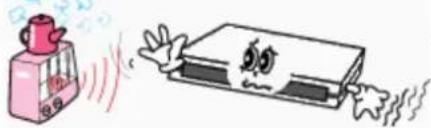
Do not place the drive in direct sunlight.

!

natural_image
Cartoon illustration of a sad, angry object resembling a computer monitor with a smokestack emitting vapor (no text or symbols)Avoid low-or high-temperature environments.
!
natural_image
Illustration of a pink fire extinguisher next to a cartoon-style illustration of a fire extinguisher with steam and a distressed face (no text or symbols)Avoid high-humidity environments.
Operating

natural_image
Illustration of a person reacting to a large object with a pink explosion effect, surrounded by smaller objects (no text or symbols)Handle with caution to prevent damage from an external shock.

- Do not drop the drive, and protect it from severe shocks. - It can damage the drive or cause it to malfunction.

natural_image
Cartoon illustration of a hand holding a large paper with a surprised expression and a blue exclamation mark (no text or symbols)Do not move the drive while in operation. Make sure to close all working programs before attempting to open and always use the open button.

Do not insert a pin into the emergency eject hole while in operation.

Do not use cracked, distorted or damaged discs. In particular, a disc with a crack on the inner tracks may break while in use.
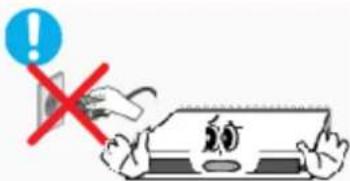
- Do not disconnect the power cord while the drive is working. - This may result in an operational error.
natural_image
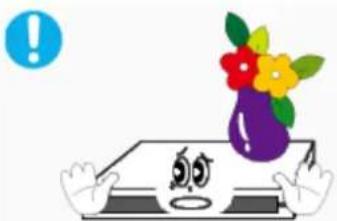
Cartoon illustration of a character with a book and a vase, no text or symbols presentDo not put any heavy things on the drive.
■ Always check to be sure the disc is not cracked before use. If you find a crack on the disc (especially around the center hole), make a copy of the disc immediately and use the copy instead. Continued use of a cracked disc will cause the crack to become bigger, resulting in irreparable damage to the disc.
Do not use low-quality discs (illegal, scratched, damaged, etc.).
Samsung is not responsible for any loss resulting from the use of such discs.
Others

natural_image
Cartoon illustration of a character holding a large box with a surprised expression, next to a water droplet and flowers (no text or symbols)Never allow food particles or foreign substances to enter the drive casing.
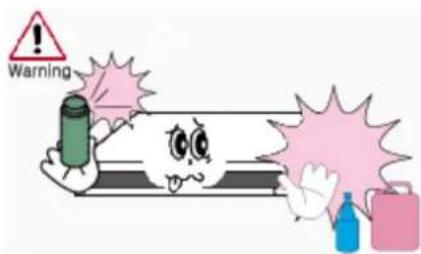
To protect against the risk of fire, do not spill such liquids as alcohol and benzene on the drive.
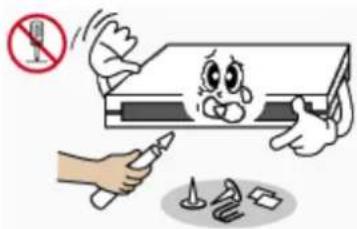
Do not disassemble, attempt to repair or modify the device without an express approval as directed in the manual. - To reduce the risk of damage, electric shock and fire.
RoHS

Samsung Eco-mark The Samsung's own Eco mark helps consumers to easily understand that Samsung develops eco-friendly products. This mark represents Samsung's continuous effort to develop eco-friendly products.
RoHS (Restriction of the use of certain hazardous substances in electrical and electronic equipment) The RoHS, the environmental regulation announced by European Union, restricts the use of lead, mercury, cadmium, hexavalent chromium, PBB, and PBDE in products put on the market in The European Union after July 1, 2006.
WEEE
Correct Disposal of This Product (Waste Electrical & Electronic Equipment)
(Applicable in the European Union and other European countries with separate collection systems)

This mark shown on the product or its literature, indicates that it should not be disposed with other household wastes at the end of its working life. To prevent possible harm to the environment or human health from a uncontrolled waste disposal, please separate this from other types of wastes and recycle it responsibly to promote the sustainable reuse of material resources.
Household users should contact either the retailer where they purchased this product, or their local government office, for details of where and how they can take this item for environmentally safe recycling.
Business users should contact their supplier and check the terms and conditions of the purchase contract. This product should not be mixed with other commercial wastes for disposal.
Front

natural_image
Back panel of a black electronic device with labeled ports (1, 2, 3), no visible text or symbols beyond labels-
LED
-
Eject Button
-
Emergency Eject Hole
- Design and specifications are subject to change without prior notice.
Back

natural_image
Back view of a black electronic device with a port and labeled pin (1), no visible text or symbols beyond the label.- USB Interface Port
Components
Quick installation Guide
Application Software & User Manual CD
(Software: Nero Express 7 Essentials, InCD5, Nero Vision Essentials, Nero ShowTime Essentials, Nero BackItUp Essentials, Nero Recode Essentials, TruDirect)
2 Port Usb Cable
Eject Pin
- The type of accessories varies depending on a product model. and some accessories described herein are subject to change without notice.
System Requirements
You need to have an IBM-compatible PC with the following specifications.
Item Description
| OS | Microsoft Windows 2000(SP4)/XP(SP 1.0 or higher)/Vista |
| CPU | Pentium4 2.0GHz or above |
| RAM | 512Mbytes or greater |
| Interface | USB 2.0 Interface connector |
The drive's performance may not be able to achieve its maximum performance according to the PC system environment.
Features
Versatile Multimedia Features
DVD-R : Read / Write DVD-RW : Read / Write / Rewrite allowed
DVD+R : Read / Write DVD+RW : Read / Write / Rewrite allowed
DVD-ROM : Read DVD+R Dual : Read / Write
DVD-R Dual : Read / Write CD-R : Read / Write
CD-RW : Read / Write / Rewrite allowed Supports Read ( playback) for various types of discs
DVD-RAM : Read/ Write/ Rewrite allowed
See table below for details
Soort disk Writable Rewritable Read
Writable : write once, read many times.
Rewritable : write data one or more times.
▲UP
DVD Recommended Disc Types
DVD-R Media
Taiyo-Yuden, TDK, MKM, Hitachi, Maxell, FujiFilm, PVC, Panasonic, RiTEK, CMC, UNIFINO
DVD-RW Media
TDK, MKM, JVC, PVC, RiTEK, CMC
DVD+R Media
RICOH, Taiyo-Yuden, MKM, RiTEK, CMC, Prodisc, Optdisc
DVD+RW Media
RICOH, MKM, RiTEK, CMC
DVD±R Dual
MKM
DVD-RAM
Maxell, Taiyo-Yuden
CD Recommended Disc Types
CD-R Media
Taiyo-Yuden, RICOH, MKM, Hitachi, Maxell, FujiFilm, RiTEK(Phtharo), CMC, Pioneer, Princo, TDK
CD-RW Media
RICOH, MKM, RiTEK, CMC
HS CD-RW Media
RICOH, MKM, CMC
US CD-RW Media
MKM
Buffer underrun free technology
What is " buffer underrun free technology "? A technology to prevent "buffer underrun" errors in which the data transmission speed is not as fast as the data writing speed when data is being recorded on a disc.
Reading / Recording Speed
Format / Speed
Read Write
DVD-RAM PCAV 5X PCAV 5X
DVD-R CAV 8X PCAV 8X
DVD-RW CAV 8X ZCLV 6X
DVD-R DL CAV 8X ZCLV 6X
DVD+R CAV 8X PCAV 8X
DVD+RW CAV 8X ZCLV 8X
DVD+R DL CAV 8X ZCLV 6X
DVD-ROM CAV 8X -
CD-R CAV 24X PCAV 24X
CD-RW CAV 24X
ZCLV 24X
CD-ROM CAV 24X
▲UP
Installing Drive
1. Connect the necessary cables, then turn on the drive
- Connect the USB cable to the drive 's USB connector.

natural_image
Black electronic device with a cable inserted into a housing, showing a cable to the right (no text or symbols visible)2. Connect the other end of the of the USB cable to your computer.
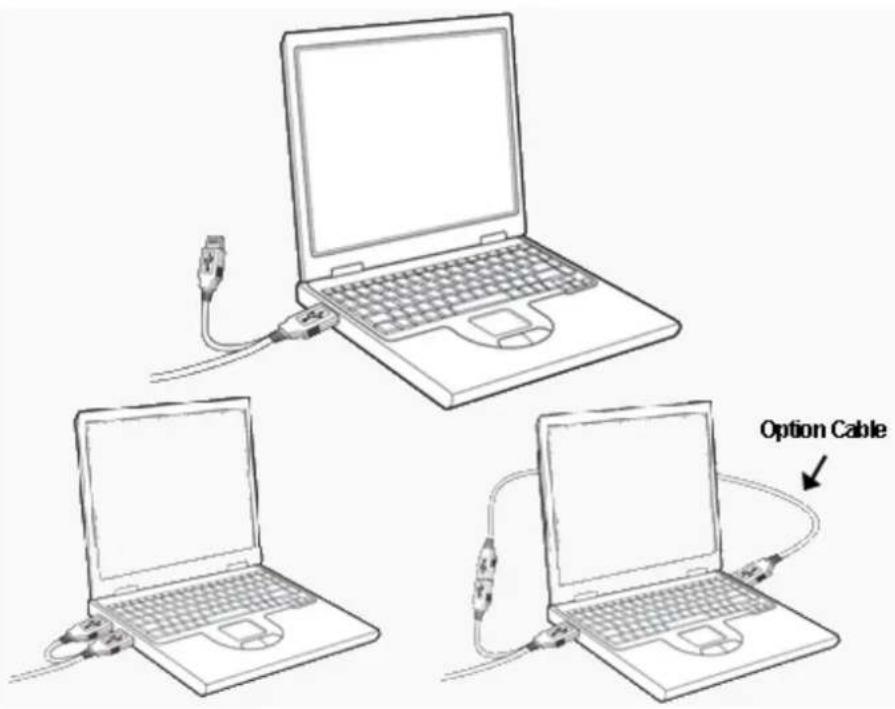
- Normal operation is not guaranteed if using the USB HUB or unspecified cables.
- PCs with insufficient USB bus power may not work properly if using a single-port USB bus power. To avoid this, use two ports in conjunction for power enhancement.

If your computer is not equipped with a USB connector, install a USB interface card.
Removing USB Converter Cable
This drive uses Plug & Play function designed for Windows. Follow the procedures below to use a USB converter cable.
- Close all the software programs which are currently being used.
- Click the icon at the right bottom of the screen as shown in the picture.



- Disconnect the USB converter cable.

Do not disconnect the USB converter cable while the drive is in operation or the computer is getting started.

Checking USB 2.0 and Installing USB Driver
Checking USB 2.0
In order to use this drive at the speed of USB2.0 on PCs not supporting USB 2.0, you need to install USB 2.0 adapter card. Otherwise, this drive will operate by connecting USB 1.1, but within the speed range of USB 1.1. You can check the type of USB 2.0 adapter card for your PC as follows.
Windows 2000/XP/Vista
Right-click on My Computer icon on your desktop and select properties. Then, click on Hardware tab and Device Manager Button in order, and then check the information. If a yellow "exclamation point" appears next to Universal Serial Bus Controller, contact the card or PC manufacturer.
UP
Firmware Update
- Go to http://www.samsung-ODD.com
- Click Firmware on the menu bar (in the upper right-hand corner).
- Click Firmware Downloads. Check for your drive model and start downloading.
▲UP
Confirming the Installation of Device Driver
Confirming Using [Device Manager]
Windows 2000

- Click [Start] - [Settings] - [Control Panel] - [System]
- Click on the [Hardware] tab in the System Properties window and then click on the [Device Manager] tab.
- Click DVD-W drive in the Device Manager window.
1 in the left picture appears if the driver is installed properly.
Windows XP
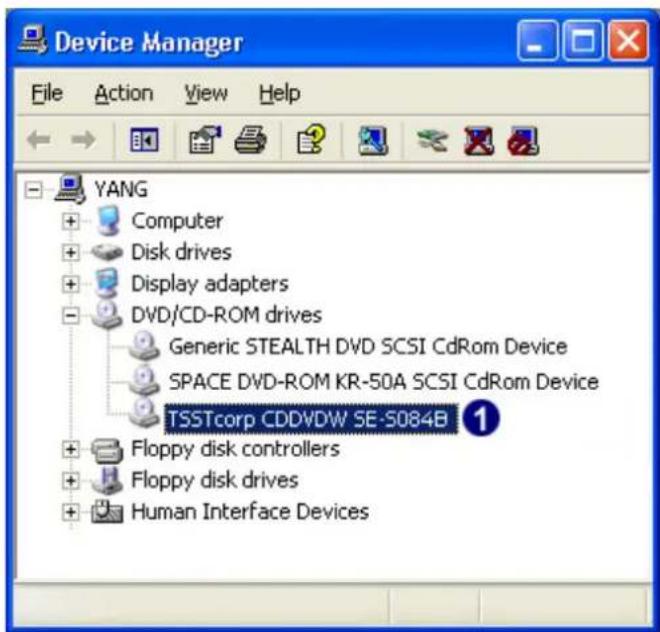
- Go to [Start] - [Settings] - [Control Panel] - [Performance and Maintenance]
- Click [System] icon in the Performance and Maintenance window.
- Click [Hardware] tab in the System Properties window.
- Click the [Device Manager] button.
1 in the left picture appears if the driver is installed properly.
Windows Vista

- Click [Start] - [Control Panel] - [System] - [Device Manager].
- Click DVD-W drive in the Device Manager window.
1 in the left picture appears if the driver is installed properly.
How to Use the Drive
When the LED is Green, do not turn the PC off or remove the External DVD Writer as it may cause damage in the drive.
How to Use a Horizontally Installed Drive
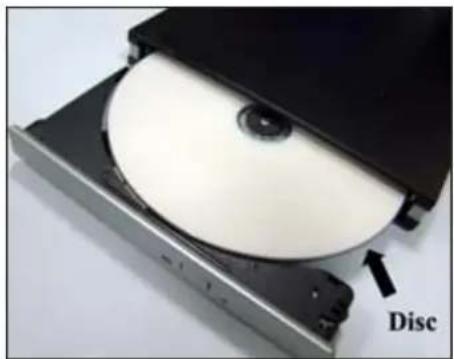
You can use 3.15 Inch or 4.72 Inch (8cm or 12cm) disc.
The drive cannot read the disc properly if any part of the disc is placed outside the tray guiding line.

- Do not use the external drive vertically.
natural_image
Close-up of a CD or DVD disc with an arrow pointing to it, showing white disc and black casing (no text or symbols on the disc itself)▲UP
How to Use DVD±R/RW and Other Discs

The External DVD Writer allows writing DVD±RW discs using Nero Express and enables "packet writing" (high-speed recording) using InCD.
The drive also allows writing DVD±R discs using Nero Express.

Caution
Unauthorized copying of DVD or software titles is illegal and the individuals that make illegal copies will be held responsible for any copyright infringement.
Using low-quality discs may lengthen the recording time or not supporting due to reduction in double speed.
You can use the External DVD Writer to playback music CDs, CD-ROM, CD-R/RW, or DVD-ROM discs, like a CD-ROM drive or a DVD-ROM drive. If your computer recognizes the [CD-ROM] icon designated to the External DVD Writer as the 'E:' drive, insert a CD-ROM or a DVD-ROM disc and access the 'E:' drive.
if you want to use this product to play a commercial DVD-Video title("DVD title")
■ Most of DVD titles in the market adopt the Dolby sound system.
You are required to install software that supports Dolby decoding on your PC before you can play a DVD title using the DVD writer purchased.
How to obtain commercial software supporting Dolby decoding
Visit the website of Nero: http://www.nero.com
(You can use other compliant software if you want to.)
DVD Region Protection Coding (RPC):
The RPC feature is supported on DVD players and is used with DVD-video discs (such as movies). Currently, the motion picture industry has divided the world into different regions or zones that correspond to the regional markets into which the motion picture industry releases movies. Simply put, RPC codes are placed on movies marketed throughout the world, based on the region of the world in which they are being sold. These RPC codes help control and prevent pirating of new movies into other motion picture regions prior to their true release dates within those markets.
The External DVD Writer supports RPCphase II. In the RPC-2 mode, the local code can be changed by users. RPC-2 is selected by default for the External DVD Writer.
You can change the region code up to five times via an MPEG application.
Please contact your dealer or local SAMSUNG representative if you wish to change the local code more than five times.
What is a MAGIC SPEED?
MAGIC SPEED is a program that supports user to select at his or her discretion the reading speed of CD disc between two modes offered by drive: Maximum Speed Mode (Max Mode) and Silent Mode.
Development Background
ODD products launched nowadays are providing a high reading speed.
With the increased reading speed, faster data processing has become possible. However, high rotation speed often causes louder noise, and it is more possible to crash the cracked or bent discs. Against this backdrop, our Company has developed a speed-down algorithm and applied this technology to newly-launched products to provide safer and more comfortable environments for PC users.
※ What is Speed-down Algorithm?
It establishes a safer disc reading speed in operating the device in order to prevent possible disc crashes in using CDs with cracks in starting. In addition, for customers who want to play CDs at its maximum speed, MAGIC SPEED program offers the function of selecting reading speed, so that customers can set the speed as they want. (Recording speed will run at recordable speed without limit)
What Are MAGIC SPEED Mode and How to Use
MAGIC SPEED Mode
● Max Mode: Setting reading speed to its maximum level provided by drive.
- Silent Mode: Setting reading speed to a stable low speed.
- Any mode set by Magic Speed will be reset to "Low nosie mode" when the PC restarts, so please check the current mode if you want to use "The maximum speed mode" and change the settings where necessary.
Caution: A disc with crack may be crashed in playing with Max Mode. We recommend you to use such disc in Silent Mode, or make a copy immediately before use.
How to Use MAGIC SPEED
- First, install MAGIC SPEED program registered on our website.
● On MAGIC SPEED tray icon, select right-click to execute the program. - Select the mode you want to use on Program Execution Window and select "settings". Then, reading speed of the drive will run in selected mode.
- Select "Close" to exit Program Execution Window.
In this occasion, reading speed will be run in the set speed if there is no separate mode change or program exit.
※ We recommend you to use "Max Mode" for data copy or disc copy, and "Silent Mode" for normal operation.
※ Other functions
▶ To disable Auto Run
This is a default program that automatically runs in every PC booting.
If you want to quit this auto run function, deselect the auto run item selected on tray icon menu.
Where Can I Download MAGIC SPEED?
Visit our website for customer support (URL:http://www.samsung-ODD.com), and select Firmware → MAGIC SPEED.
How to use the TruDirect
- Connect the Video/Audio devices to your computer before you start TruDirect.
Camcoder, Digital Camera, Webcam...


IEEE 1394 USB Composite

natural_image
Line drawing of a desktop computer setup with monitor, keyboard, tower, and cable (no text or symbols)- Click the TruDirect Program Shortcut on your Desktop of Windows.

natural_image
Exterior view of a silver rectangular electronic device (no visible text or symbols)
- Make the DVD title from Live Video, Photo Files, Video Files.

- Play DVDs made with TruDirect on your DVD player or PC.



ΔUP

This part of the manual is to prevent damages or data loss. Read carefully and use the device properly.
Storing the Disc
Do not place it under the direct sunlight.
Place it so that it sits on its side on a flat surface.
Do not scratch or place a label on the disc.
Handle the disc with caution to prevent damage from external shock.
Do not expose it to severe temperature fluctuations.
(Exposure to such environment may cause congealing.)

natural_image
Simple line drawing of a child with an umbrella and sun in the background (no text or symbols)
This part of the manual is to prevent damages or data loss. Read carefully and use the device properly.
Cleaning the Disc
Do not touch the surface of the disc.
Place your fingers on the edge of the disc to hold.
- Clean the disc lightly with soft cotton cloth, starting from the center and move to the edge of the disc.
Use only disc-cleaning liquids. Do not use benzene, paint thinner, or any other solvents.

natural_image
Illustration of three hand gestures: spiral, circular, and segmented (no text or symbols)
If the disc surface becomes dirty with fingerprints, foreign substances or dust, the disc may not function properly.
▲UP
When the LED blinks
LED Meaning
| Disc Lead-In | Green: Blinks every 0.3 seconds. |
| Writing | Green: Blinks every 0.3 seconds. |
| Reading | Green: Blinks every 0.3 seconds. |
| Audio Playback [Analog Mode] | Green: Blinks every 0.3 seconds. |
| Audio Playback [Digital Mode] | Green: Blinks every 0.3 seconds. |
| Standby | Off |
| No Disc | Off |

The indicator light turns off when the drive is not in use (standby) after disc lead-in.
▲UP
Troubleshooting
Problem Meaning / Solution
| The eject key is not working properly. | See if the Drive is on.If the disc still won't eject with the power-on, remove USB cable, Power cord and insert an eject pin into the emergency eject hole to open. |
| The PC is not working properly. | See if the drive is properly connected to the PC.See if the floppy disc remains in the PC. |
| The drive is not working properly. | See if the drive is connected properly to the PC.See if the device drive program has been installed properly. |
| No sound is heard from an audio CD. | Check that the sound card is operational.Check the condition of the CD and wipe the surface of the CD clean before use. |
| The computer doesn't recognize the drive. | USB cable is not connected properly between the computer USB port and the drive.Ensure that both connectors of the USB cable is properly connected to the USB ports on the computer and the drive.Can be an OS problem. Try to reinstall the Windows OS program. |
| The system dosen't read the disc. | See if the system detects the drive.Make sure you use the types of discs that are supported by the drive.See if the LED turns into green.Make sure you inserted the disc with the label facing up.Make sure you are using the right program for disc playback.See if the disc is clean.See if any congealing has occurred.Make sure the region code of the drive matches the disc number. |
You can confirm the use of software at the site of our customer support.
Address: www.samsung-ODD.com
- See "Support > Download center > User Manual".
Caution: Possible Errors
External DVD Writer record data on the disc by applying laser light onto the surface of the disc, and therefore writing errors may occur if you use a damaged disc, for example. Be sure to eliminate the following error-causing elements before you start writing:
* The following settings are recommended for all External DVD Writer:
- Avoid a situation that requires multitasking, and remove turn off the screen saver.
A buffer underrun may occur if the system multitasks while the External DVD Writer CD-RW drive is writing/erasing.
- Block any outside attempt to access the host PC during a writing session.
An error may occur if another user accesses the printer connected to his/her the system via the network during a writing session.
- Disable the CD auto-run feature of the CD.
- Inserting an auto-run-enabled CD in to another drive connected to the same system during a writing/erasing session may cause an error.
- It is recommended that you use the image file format when you write a large number of small-sized files.
When there are a large number of small-sized files to write, the system's transfer rate drops and the Superlink feature works at a more frequent rate, resulting in lower writing quality.
If you are doing a CD-to-CD write, it is not necessary to check to see if you have available space on your hard disc beforehand.
However, in the case of image files, it is recommended that you be sure you have at least twice the amount of space needed for the data on your hard disc, as image files are copied to the hard disc before they are copied to the CD.
- Do not use more than one type of writing software.
Before you install a writing program, be sure to first uninstall existing versions of the program or other writing program(s) and reboot the system first.
(The Windows operating system may be damaged if you install the Korean version while the English version remains on the system.)
Use only the writing software provided by Samsung. You may experience writing errors if you use with other writing programs.
The write speed for a disc can be restricted if:
- The disc has bad properties data, and or there are other discs with different properties available under the same ID.
The drive's write strategy is set in a way that the drive examines to examine the disc properties and determines the optimal write conditions for those properties.
For example, many disc makers do not bother to insert property information distinguishing 48X discs from 32X discs. Since the two types of discs have the same properties data, although they actually have different properties, it is often impossible to respond to the situation with a single write strategy. In order to ensure stable writing, it is necessary to downgrade the write speed.
If discs from two different disc makers have the same write speed according to the labels, but actually have different write speeds, it is necessary to downgrade the write speed to ensure stable writing.
- Samsung's Standards for Write Speed Restriction.
Standards 1
Write speed is downgraded for the sake of write stability, if high-speed discs available in the market have particularly bad properties data, or there are low-speed discs available under the same ID.
Standards 2
Speed-restricted discs go through further examination and adjustments later. If high-speed discs are available under the same ID with as low-speed discs (speed restricted at present), the speed restriction is removed when the low-speed counterparts become no longer unavailable in the market under the same ID.

You may experience lower write quality in case if you use disc products by some disc makers which that are not registered with the product's firmware.
Therefore, it is recommended that you use only discs by recommended companies. Even, and even if the write session is completed successfully, check the write quality before you put the disc in storage, especially in case of an important data backup.
Specifications
| Category | SE-S084BExternal DVD Writer | |||
| DISC | DVD :DVD-R, DVD-RW, DVD+R, DVD+RW, DVD-ROM, DVD-Video, DVD+R (Dual), DVD-R (Dual), DVD-RAM | |||
| Usable Discs | CD : CD-ROM, CD-R, CD-RW, CD-DA, CD+E(G)CD-MIDI, CD-TEXT, CD-ROM XA, Mixed Mode CD CD-I, CD-I Bridge (Photo-CD, Video-CD), Multisession CD (Photo-CD, CD-EXTRA, Portfolio) | |||
| Interface Support | Disc Diameter 4.72 Inch or 3.15 Inch (120mm or 80mm) | |||
| ACCESS TIME(Random) | Interface Port USB 2.0CD-ROM 160ms (Random) | |||
| DVD-ROM 160ms (Random) | ||||
| Disc Labeling Time | Media Type | Setting | Titles | The entire label area(including graphics) |
| CD Media Best | Less than 3:30 min | Less than 28:00 min | ||
| DVD Media Best | Less than 3:30 min | Less than 30:00 min | ||
| Data Transfer Speed(Max) | Format/Speed | Read | Write | |
| DVD-RAM | PCAV 5X PCAV 5X | |||
| DVD-R | CAV 8X PCAV 8X | |||
| DVD-RW | CAV 8X ZCLV 6X | |||
| DVD-R DL | CAV 8X ZCLV 6X | |||
| DVD+R | CAV 8X PCAV 8X | |||
| DVD+RW | CAV 8X ZCLV 8X | |||
| DVD+R DL | CAV 8X ZCLV 6X | |||
| DVD-ROM | CAV 8X - | |||
| CD-R | CAV 24X PCAV 24X | |||
| CD-RW | CAV 24X | ZCLV 24X | ||
| CD-ROM | CAV 24X | - | ||
| Buffer Memory | 2MB | |||
| Drive Installation | Horizontal | |||
| Operating Environment | Temperature | 41°F ~ 104 °F (5°C ~ 40°C) | ||
| Humidity | 10% ~ 80% (RH) | |||
| Size(Width x Height x Length) | 141 X 19 X 157mm | |||
| Weight | 370g | |||

Note
Do not support DVD-R for Authoring.
Cannot playback or record on both sides of a dual layer disc simultaneously.
The read/write capacity of the supported discs depends on the condition of the disc and the recording format of the drive. Therefore, the read/write quality may not be perfect.
Severe vibration or external impact may decrease the quality of printed images. Please firmly place the product onto the PC before use.
In case of disc identification error message, thoroughly clean the surface of the disc where the label is presented and then start printing.
The quality of the printed image cannot be ensured if printing an image on the area which is already used for printing.
For more information on the writing and duplicating the Lightscribe disk label, install Nero software and refer to the HELP section.

FCC information to the user
This equipment has been tested and found to comply with the limits for a class B digital device. pursuant to part 15 of the FCC rules.
These limits are designed to provide reasonable protection against harmful interference in a residential installation. this equipment generates.
Uses and can radiate radio frequency energy and, if not installed and used in accordance with the instructions, may cause harmful interference to radio communications. However, there is no guarantee that interference will not occur in a particular installation.
If this equipment does cause harmful interference to radio or television reception Which can be determined by turning the equipment off and on. The user is encouraged to try to correct the interference by one or more of the following measures.
▶ Reorient or relocate the receiving antenna.
Increase the separation between the equipment and receiver.
Connect the equipment into an outlet on a circuit different from that to which the receiver is connected.
Consult the dealer or an experienced radio TV technician for help.
CAUTION
Change or modifications not expressly approved by the manufacturer responsible for compliance could void the user's authority to operate the equipment.

Laser Standard
The product specifications above may be changed to improve device performance without prior notice.
▲UP



- Main Page
- Safety Precautions
- Features
- Install the External DVD Writer
- Device Driver
- How To Use External DVD Writer
- Storing/Cleaning
- Troubleshooting
- Specifications
- Installation
- Operating
- Others
- RoHS
- WEEE
- Correct Disposal of This Product (Waste Electrical & Electronic Equipment)
- Front
- Back
- Components
- System Requirements
- Versatile Multimedia Features
- See table below for details
- ▲UP
- DVD Recommended Disc Types
- CD Recommended Disc Types
- Buffer underrun free technology
- Reading / Recording Speed
- Installing Drive
- Connect the necessary cables, then turn on the drive
- Connect the other end of the of the USB cable to your computer.
- Removing USB Converter Cable
- Checking USB 2.0 and Installing USB Driver
- Checking USB 2.0
- Windows 2000/XP/Vista
- Firmware Update
- Confirming the Installation of Device Driver
- Confirming Using [Device Manager]
- Windows 2000
- Windows XP
- Windows Vista
- How to Use the Drive
- How to Use a Horizontally Installed Drive
- How to Use DVD±R/RW and Other Discs
- DVD Region Protection Coding (RPC):
- What is a MAGIC SPEED?
- Development Background
- What Are MAGIC SPEED Mode and How to Use
- MAGIC SPEED Mode
- How to Use MAGIC SPEED
- Where Can I Download MAGIC SPEED?
- How to use the TruDirect
- Storing the Disc
- Cleaning the Disc
- When the LED blinks
- Caution: Possible Errors
- The write speed for a disc can be restricted if:
- Note
- FCC information to the user
- CAUTION
- Laser Standard
Brand : SAMSUNG
Model : SE-S084C
Category : External DVD Burner