
CIGBU - Garage door CHAMBERLAIN - Free user manual and instructions
Find the device manual for free CIGBU CHAMBERLAIN in PDF.


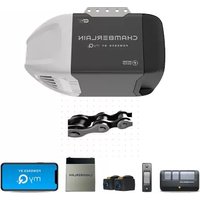
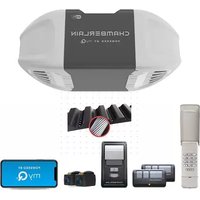
| Product Type | Garage Door Opener |
| Brand | Chamberlain |
| Model | CIGBU |
| Drive Type | Chain Drive |
| Motor Power | 1/2 HP |
| Voltage | 120V AC, 60Hz |
| Maximum Door Weight | 250 lbs (113 kg) |
| Maximum Door Height | 7 ft (2.13 m) |
| Rail Length | 8 ft (2.44 m) |
| Dimensions (Opener Unit) | 12 x 10 x 6 in (30.5 x 25.4 x 15.2 cm) |
| Weight (Opener Unit) | 20 lbs (9 kg) |
| Remote Control Frequency | 315 MHz |
| Number of Remotes Included | 2 |
| Security Features | Security+ 2.0 rolling code, obstruction detection |
| Backup Battery Compatible | Yes (sold separately) |
| Smart Home Compatible | myQ® app (requires bridge) |
| Lighting | Integrated LED (60W equivalent) |
| Warranty | 1 year |
| Maintenance | Lubricate chain and rollers annually |
| Cleaning | Wipe with damp cloth; do not use solvents |
| Spare Parts Availability | Remote controls, sensors, rails, motor assembly |
| Repair Difficulty | Moderate; professional installation recommended |
Frequently Asked Questions - CIGBU CHAMBERLAIN
User questions about CIGBU CHAMBERLAIN
0 question about this device. Answer the ones you know or ask your own.
Ask a new question about this device
Download the instructions for your Garage door in PDF format for free! Find your manual CIGBU - CHAMBERLAIN and take your electronic device back in hand. On this page are published all the documents necessary for the use of your device. CIGBU by CHAMBERLAIN.
USER MANUAL CIGBU CHAMBERLAIN
This User's Guide will help you get the most from your Chamberlain® MyQ® enabled products when using a smartphone, tablet, or computer to monitor and control your garage door opener, gate operator, light controls, or other MyQ® enabled products.
1
CONNECT & CREATE
- See the “Chamberlain MyQ® Quick Start Guide” for instructions for the connection of your Chamberlain® Internet Gateway to the Internet. You MUST use a computer for this step; you cannot create an account from a mobile device. Go to www.mychamberlain.com to create an account and connect the Internet Gateway.
- You must have a valid email address to create a Chamberlain® MyQ® account. Enter your information and click submit, an email will be sent to you to confirm your valid email address. If you do not get a confirm email, check your spam email folder or try creating the account again, being careful to spell the email address correctly.
- When the Chamberlain® Internet Gateway powers up, the GREEN LED and BLUE LED will blink four times to indicate a correct power connection and reset of the Internet Gateway. After power up, the LEDs will indicate the status of the Chamberlain® Internet Gateway. Refer to the “tips” section for details regarding the LED indicators.
- If the GREEN LED is off after connecting the Chamberlain® Internet Gateway to your router, check the Ethernet cable connection to your router. It must be in the LAN port,
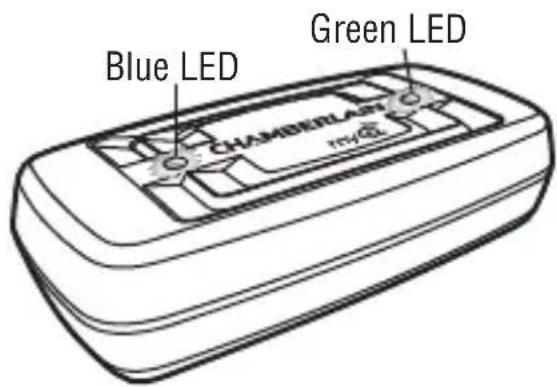
(normally numbered 1 – 4). If the GREEN LED is still off, try another port on your router. If you still cannot get a solid GREEN LED, contact Chamberlain® Technical Support at technical.support@chamberlain.com or at 1-800-528-9131.
If you have additional questions or problems after reviewing this User's Guide, please contact Chamberlain® Technical Support at: technical.support@chamberlain.com or at 1-800-528-9131.
natural_image
MyQ app icon with wireless signal symbol and house icon (no text or symbols beyond logo design)2 REGISTER CHAMBERLAIN® INTERNET GATEWAY & ADD DEVICES
Once you have successfully created your Chamberlain® MyQ® account, you must add the Chamberlain® Internet Gateway to the account. It is easy to do from a computer; this can also be done from an internet enabled smartphone or tablet. See section 3 for downloading the MyQ® app and sections 5 and 6 for using the app.
- To add the Chamberlain® Internet Gateway to your account, the GREEN LED on the Internet Gateway must be on continuously. If the GREEN LED is off, see Section 1, Connect & Create. The Chamberlain® Internet Gateway must have an internet connection for the website or phone to find it.
- In the www.mychamberlain.com website, add the Chamberlain Internet Gateway. Click on “Manage Places” to add the Internet Gateway. If this is the first Chamberlain Internet Gateway connected to the account, the screen will already be at the step of “Register Gateway”. You will need the SERIAL NUMBER from the bottom label of the Internet Gateway. The serial number is a series of ten characters, 0 – 9 or a – f. Be sure to use the correct characters (e.g., a zero “0” instead of an “O”) and keep the character spacing correct (XXXX-XXX-XXX). If this is the second Chamberlain Internet Gateway to be added, just click on “Manage Places>Add New Place”. For instructions on how to complete this step with the MyQ app, see sections 5 and 6.
- Name the Chamberlain ® Internet Gateway (e.g., “123 Main Street” or “Home Sweet Home”). Click “Save and Close” to complete this step.
- You can add MyQ ® devices like the garage door opener, gate operator, lights, or other accessories from the “Manage Places” page, or you can download the MyQ ® app and add any MyQ ® device from a smartphone or tablet. To add the garage door opener or other devices, click on “Manage Places>Add New Device” and follow the steps.
Once you click ADD you have 3 minutes to go to the garage door opener or device and press it's learn button. To add a gate operator ensure that the gate is closed. Give the operator an OPEN command. Within 30 seconds, when the gate is at the open limit press and release the reset button 3 times (on primary gate). The Chamberlain® Internet Gateway will pair to the operator.
Once a device is programmed, it will appear on the screen. You can then name the device (e.g., left garage door, table lamp, etc.).
3
GETTING A SMARTPHONE APP
If you have an older OS, the phone or tablet will not be able to locate the MyQ® app. You may need to upgrade the phone's OS to be able to find, download, and use the MyQ® app.
Smartphone apps are available for Apple® and Android™ devices:
• Apple® iPhone®, iPad®, and iPod Touch®
- Visit the Apple App Store SM from your Apple device to download the MyQ® app (search for “MyQ” by The Chamberlain Group, Inc.).
- Android™ smartphones and tablets
- Visit Google Play from your smartphone to download the MyQ® app (search for "MyQ" by The Chamberlain Group, Inc.).
- BlackBerry®, Windows, and other smartphones
- You can access your MyQ ® account to monitor and control your garage door opener, gate operator, and other MyQ ® accessories on other smartphones by pointing your phone's browser to www.mychamberlain.com/mobile.
- Bookmark this page for later use.
- The mobile website has the same functionality as the smartphone apps.
natural_image
Line drawing of a smartphone with four circular buttons on the front panel (no text or symbols)After the app is installed on your smartphone, you can add a new device to your account by following the instructions for your smartphone in Sections 5 – 6.

4 CHANGING MyQ® APP SECURITY SETTINGS
You can change the SECURITY SETTINGS of the MyQ® app to allow quicker access to your devices and account. The default security setting for the app is at the highest level: you must enter your email and password credentials every time to launch the app or to access and change your account settings. The security settings apply to each individual phone, so each phone tied to the same account must be configured separately. These settings do not affect the web page login. A four-Digit PASSCODE can be created in place of your email and password credentials. See “Creating a Passcode” below.
Default MyQ® App Security Settings
- Launching App – high security is initially set to ON. You must enter your email and password credentials every time the app is launched. Setting this to OFF allows the app to launch without requiring your credentials or a 4-digit passcode.
- Accessing Account – high security is initially set to ON. You must enter the email & password credentials every time you want to access your account settings. Setting this to OFF lets you access your account settings without requiring your credentials or a 4-digit passcode.
- Opening Door/Gate – high security initially set to OFF. If you turn it ON, you must enter your email and password credentials or a 4-digit passcode every time you want to use the app to open your door or gate. Setting this to OFF lets you open your door or gate without requiring your credentials or a 4-digit passcode. It is strongly recommended that if you turn OFF the security settings for launching the app, you set this function to ON and create a 4-digit passcode for opening the door or gate. This prevents anyone from using your phone to get into your garage.
Creating a Passcode
You can create a 4-digit PASSCODE within the MyQ® app that automatically replaces your email and password credentials. You may want to use the same code as your outside keypad for ease of use.
- The passcode is four characters (numbers or letters, depending on your smartphone).
- When you create your 4-digit passcode, the app will ask for the passcode twice.
- If you use the “Account > Logout” function on the smartphone, your passcode will be automatically deleted; restarting the app will require the creation of a new passcode.
- See the section on your smartphone (Apple or Android) for specific instructions on how to create a 4-digit passcode.
5 APPLE APP CONTROLS
Controlling a device
(a garage door opener, gate operator, light etc.)
Go to Places
- Swipe left or right to select a device (to see more than one door, gate or light).
- Tap the door or gate image to open/close door or gate.
- Tap the light image to turn a light on/off.
- If a device is grayed out, it is currently unavailable (e.g., if a light control was unplugged)
Security settings
(see section 4 for details)
Go to Accounts > My Account > Security
- Set security for launching app.
- Set security for accessing account.
- Set security for opening garage door.
If security is set to ON, you must enter email and password, or 4-digit passcode.
Setting a 4-digit passcode
Go to Accounts > My Account > Passcode
- Enter a 4-digit passcode; you must enter this twice.
The 4-Digit passcode now replaces email and password for security.
The 4-Digit passcode is deleted if you logout; restarting the app will require the creation of a new passcode.
Add/delete/rename a device
(a garage door opener, gate operator, light etc.)
Go to Places; tap the gear in the upper left corner of the screen
To Add:
- Tap the Chamberlain ® Internet Gateway name
- Tap Add New Device

To Delete:
- Tap the Chamberlain ® Internet Gateway name
- Tap Edit
- Tap the “-” (minus sign)
To Rename:
- Tap the Chamberlain ® Internet Gateway name
- Tap Edit
- Tap the device's name and enter a new name
Add/delete/rename a Chamberlain® Internet Gateway
Go to Places; tap the gear in the upper left corner of the screen
To Add:
- Tap the “+” (plus)
To Delete:
- Tap the “-” (minus)
To Rename:
- Tap the Chamberlain ® Internet Gateway name
- Tap Edit
- Tap the Internet Gateway name and enter a new name
Logging out
- A logout requires an email and password to restart the app.
- A logout will delete the passcode; restarting the app will require the creation of a new passcode.
6
Controlling a device
(a garage door opener, gate operator, light etc.)
Go to Places tab
Swipe right or left to select a device (to see more than one door, gate or light)
- Tap the door or gate image to open/close door or gate.
- Tap the light image to turn a light on/off.
- If a device is grayed out, it is currently unavailable (e.g., if a light control was unplugged)
Security settings
(see section 4 for details)
Go to Account tab
Tap "My Account"
Tap Security
- Set security for launching app.
- Set security for accessing account.
- Set security for opening garage door.
Tap "Done" to save settings.
If security is set to ON, you must enter email and password, or 4-digit passcode. A logout will delete the passcode; restarting the app will require the creation of a new passcode.
Setting a passcode
Go to Account tab
Tap "My Account"
Tap "Passcode"
- Enter a 4-digit passcode (PIN); you must enter this twice.
The 4-Digit passcode now replaces email and password for security.
Add/delete/rename a device
(a garage door opener, gate operator, light etc.)
Go to Places tab
Menu button > Manage Places
natural_image
Android smartphone displaying a generic Android robot icon on its screen (no text or symbols)Select your place (Chamberlain ® Internet Gateway )
To Add:
- Menu button > Add New Device
- Then follow instructions
To Delete:
- Press and hold device name
- Tap "Delete Device"
To Rename:
- Tap device's name
- Rename, then select "Save" to save changes
Add/delete/rename a Chamberlain® Internet Gateway
Go to Places tab
Menu button > Manage Places
To Add:
- Menu button > Add New
- Then follow instructions
To Delete:
- Press and hold places name
- Tap "Delete Gateway"
To Rename:
- Press and hold places name
- Tap "Edit"
- Rename, then select "Save" to save changes
Logout
Go to Account tab
Menu button > Log Out
A logout requires an email and password to restart the app. A logout will delete the passcode; restarting the app will require the creation of a new passcode.
7 ALERTS
The alert feature allows MyQ® users to receive an electronic notification (alert) when a certain event occurs (e.g. the garage door opens or closes). An alert can be enabled, edited, or disabled with any internet enabled computer or smartphone. Multiple alerts can be enabled for any garage door opener, gate operator, or light control. An alert can be received on an internet enabled smartphone or computer from anywhere in the world.
Event Options:
• Door or gate opens/closes
- Door or gate remains open for an extended period of time
- Light turns on/off
Event Settings:
- All times and all days
- Specific days of the week (e.g. weekends only)
- Specific time (e.g. 8:00 am to 6:00 pm)

natural_image
Black triangular warning symbol with exclamation mark (no text or numbers)Alert Options:
- Email – An alert will be sent to the MyQ® account email address
- Push Notification – An alert will be sent to each smartphone/tablet with the MyQ® app installed that has logged into the MyQ® account at least once. NOTE: Push notifications can be enabled/disabled through the smartphone or tablet settings.
- An email and push notification simultaneously
Event History
Whenever the designated event occurs the event history will display the event, including the time and day of the occurrence. The event history can be deleted.
Tips
What do the LEDs on the Chamberlain® Internet Gateway signify?
- The GREEN LED must be on continuously after power and network connections are completed (NOTE: The LED may blink intermittently with data traffic c).
- GREEN LED Off – The router is not providing an IP address to the Chamberlain® Internet Gateway. Check your router settings and internet connections.
- GREEN LED flashing steadily On & Off – The Chamberlain® Internet Gateway has an IP address, but is not accessing the Internet. Check your router settings and internet connections.
- GREEN LED On Solid – The Chamberlain® Internet Gateway has an IP address and is connected to the Internet.
- The BLUE LED indicates the Chamberlain® Internet Gateway has programmed at least one device like a garage door opener, gate operator, or other MyQ® enabled product. The blue LED does not indicate if devices are connected; it only indicates that the Internet Gateway has “programmed” one device to its memory.
- The YELLOW LED indicates the Chamberlain® Internet Gateway is in the “Add New Device” or learn mode, otherwise the LED will remain off.
Changing MyQ® App Security Settings
- You can change the SECURITY SETTINGS of the My® app for quicker access to your devices and your account. The default security setting for the app is high. If desired, you can lower the Security Settings of the app.
See Section 4.
IMPORTANT NOTE: The MyQ® app is designed to work with Android™ smartphones and select Android™ tablets. Full functionality of the MyQ® app on Android™ tablets may not be available.


- 1
- CONNECT & CREATE
- REGISTER CHAMBERLAIN® INTERNET GATEWAY & ADD DEVICES
- 3
- GETTING A SMARTPHONE APP
- CHANGING MyQ® APP SECURITY SETTINGS
- Creating a Passcode
- APPLE APP CONTROLS
- Controlling a device
- Security settings
- Setting a 4-digit passcode
- Add/delete/rename a device
- Add/delete/rename a Chamberlain® Internet Gateway
- Logging out
- 6
- Setting a passcode
- Logout
- ALERTS
- Event Options:
- Event Settings:
- Alert Options:
- Event History
- Tips
Brand : CHAMBERLAIN
Model : CIGBU
Category : Garage door