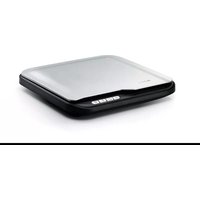
AVA5 PLUS - Scanner AVISION - Free user manual and instructions
Find the device manual for free AVA5 PLUS AVISION in PDF.


Pick your language and provide your email: we'll send you a specifically translated version.
| Product Type | Document Scanner |
| Model | AVA5 PLUS |
| Brand | Avision |
| Scanning Element | CIS (Contact Image Sensor) |
| Light Source | LED |
| Optical Resolution | 600 dpi |
| Scan Speed (A4, B&W, 300 dpi) | Up to 30 ppm |
| Document Size | Up to 216 x 356 mm (legal) |
| Dimensions (W x D x H) | 320 x 180 x 170 mm |
| Weight | 2.5 kg |
| Power Supply | AC Adapter (Input: 100-240V, Output: 24V DC, 1.5A) |
| Power Consumption (Scanning) | 12 W (typical) |
| Interface | USB 2.0 High-Speed |
| Daily Duty Cycle | Up to 2,000 scans |
| Functions | Scan to PDF, JPEG, TIFF; scan to email, cloud, USB; automatic document feeder (ADF) |
| Maintenance | Clean scanner glass and ADF rollers regularly; use cleaning sheet |
| Safety | Use only supplied power adapter; do not open cover while scanning; keep away from moisture |
| Spare Parts & Repairability | Replacement ADF roller kit available; contact Avision support for service |
| General Information | User manual available at notice-facile.com; 96 pages; supports multiple languages |
Frequently Asked Questions - AVA5 PLUS AVISION
How do I install the scanner driver?
Download the latest driver from Avision's official website or use the CD included. Run the installer and follow on-screen instructions. Connect the scanner via USB when prompted.
How can I clean the scanner glass?
Use a soft lint-free cloth slightly dampened with water or a mild glass cleaner. Wipe the glass gently and dry with a dry cloth. Do not spray liquid directly onto the scanner.
What paper sizes are supported?
The AVA5 PLUS supports A4, A5, A6, B5, letter, legal, and custom sizes up to 216 x 356 mm. It can also scan business cards and ID cards.
Why is the scanner not feeding paper?
Check that the paper is properly loaded and not curled. Clean the ADF rollers with a damp cloth or use a cleaning sheet. Ensure the paper size is correctly set in the scanning software.
Can I scan directly to a USB flash drive?
Yes, the AVA5 PLUS has a USB host port. Insert a USB drive, place the document in the ADF, and press the Scan to USB button. Scanned images are saved as PDF or JPEG.
How do I scan a double-sided document?
The scanner supports automatic duplex scanning. Simply load the document in the ADF and select 'Duplex' or '2-sided' in the scanning software. The scanner will flip the page automatically.
What is the maximum scan resolution?
The optical resolution is 600 dpi. The scanner can interpolate up to 1200 dpi. Higher resolutions produce larger file sizes; for text, 300 dpi is typically sufficient.
Why are there vertical lines on my scanned images?
Vertical lines often indicate dirt or debris on the CIS sensor or glass. Clean the scanner glass and the white calibration strip. If lines persist, the sensor may be damaged and require service.
Is the AVA5 PLUS compatible with macOS?
Yes, drivers are available for Windows and macOS. Check the Avision website for the latest macOS driver. Some scanning software may also be supported via TWAIN or SANE.
How do I troubleshoot a connection error?
Ensure the USB cable is securely connected. Try a different USB port. Restart the scanner and computer. If the issue persists, reinstall the driver or update to the latest version.
User questions about AVA5 PLUS AVISION
0 question about this device. Answer the ones you know or ask your own.
Ask a new question about this device
No questions yet. Be the first to ask one.
Download the instructions for your Scanner in PDF format for free! Find your manual AVA5 PLUS - AVISION and take your electronic device back in hand. On this page are published all the documents necessary for the use of your device. AVA5 PLUS by AVISION.
USER MANUAL AVA5 PLUS AVISION
Manual assistant
Powered by Anthropic
Waiting for your message
Product information
Brand : AVISION
Model : AVA5 PLUS
Category : Scanner