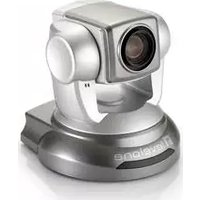
FCS-1041 - Surveillance Camera LEVELONE - Free user manual and instructions
Find the device manual for free FCS-1041 LEVELONE in PDF.


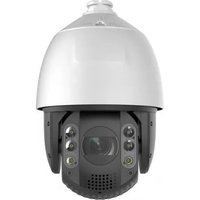
| Product Type | Surveillance Camera |
| Brand | LevelOne |
| Model | FCS-1041 |
| Image Sensor | 1/2.9" Progressive Scan CMOS |
| Resolution | 2 Megapixels (1920 x 1080) |
| Lens Type | Fixed, 4mm focal length |
| Night Vision | IR LEDs up to 30m |
| Compression | H.265 / H.264 / MJPEG |
| Network Interface | 10/100 Mbps Ethernet (PoE) |
| Power Supply | PoE (IEEE 802.3af) or 12V DC |
| Power Consumption | Max 6W |
| Dimensions (W x D x H) | 70 x 70 x 130 mm |
| Weight | 320 g |
| Operating Temperature | -10°C to 50°C |
| Weatherproof Rating | IP67 (outdoor) |
| Motion Detection | Supported via software |
| Audio Support | Built-in microphone |
| Edge Storage | MicroSD slot up to 128GB |
| Compatibility | ONVIF Profile S, Web browser |
| Installation | Wall or ceiling mount |
Frequently Asked Questions - FCS-1041 LEVELONE
User questions about FCS-1041 LEVELONE
0 question about this device. Answer the ones you know or ask your own.
Ask a new question about this device
Download the instructions for your Surveillance Camera in PDF format for free! Find your manual FCS-1041 - LEVELONE and take your electronic device back in hand. On this page are published all the documents necessary for the use of your device. FCS-1041 by LEVELONE.
USER MANUAL FCS-1041 LEVELONE
LevelOne IP Camera
Wired/Wireless Network Camera
Quick Installation Guide
English Ελληνικά
Deutsch Svenska
This guide covers only the most common situations. All detail information is described in the user manual.
Viewing System Requirements
● OS: Windows 2000, XP, VISTA, Windows 7
- Browser: IE 6.0 or above, Firefox, Chrome, Safari
NOTE:
All the captured images of installation mentioned in this user manual are based on Windows 7 operating system. For installation on other Windows OS, e.g. Windows XP, all the procedures remain the same.

Figure 1-1

Figure 1-2

Figure 1-3

Figure 1-4

Figure 1-5

Figure 1-6
Figure 1-7
![graph TD A["Internet"] --> B["Cable/DSL Modem"] B --> C["Router"] C --> D["PC"] E["Search Camera"] --> F["Setup Camera"] G["About us"] --> H["User Icon"]](/content/2026/06/1292910/images/e65090ef8e3ea9aa6cb2707de90912996c0f122f2b4815e624476d1e4ffdcf44.jpg)
Figure 1-8

Figure 1-9

Figure 1-10
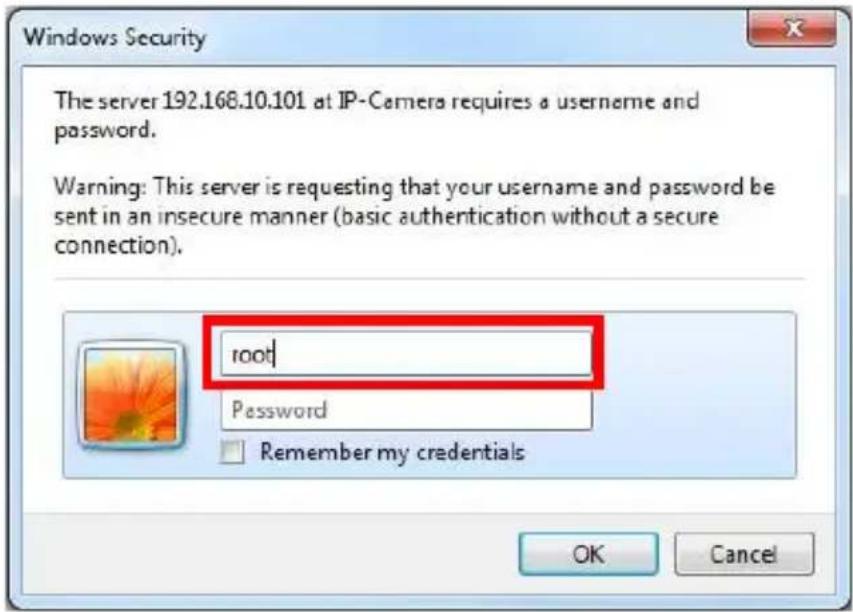
Figure 2-1

Figure 2-2

Figure 2-3

Figure 3-1
English
Using the Software CD to configure the camera
■ Power on your PC and insert the CD-ROM.
■ The setup page should load automatically. If it does not, please select your CD-ROM drive manually to open the setup page.
■ Select "Install Software" → "CamFinder". (Figure 1-1 \~ 1-2)
■ Click "Next" to start the installation. (Figure 1-3 \~ 1-5)
- Click on "Finish" to complete the software installation. (Figure 1-6)
■ Run "CamFinder". (Figure 1-7 \~ 1-9)
■ The CamFinder will show MAC address and an IP Address of available LevelOne Network Cameras. Highlight the MAC address and double click to link to the selected device. (Figure 1-10)
■ Enter "root" for the name, and leave the password blank. (Figure 2-1)
■ The following screen would appear automatically. Click "Install" and proceed. (Figure 2-2)
■ Congratulations, you can use the camera through the network to view the video.(Figure 2-3)
Installing IP CamSecure
Click "IP CamSecure" and follow the onscreen instruction or refer to the user's manual to complete installation. (Figure 3-1)
Deutsch
Using the Software CD to configure the camera



Brand : LEVELONE
Model : FCS-1041
Category : Surveillance Camera