
AVIC-Z130BT - GPS Navigator PIONEER - Free user manual and instructions
Find the device manual for free AVIC-Z130BT PIONEER in PDF.


| Product Type | GPS Navigator with DVD Receiver |
| Brand | Pioneer |
| Model | AVIC-Z130BT |
| Display Size | 7.0-inch WVGA (800x480) Touchscreen |
| Dimensions (W x H x D) | 178 x 100 x 165 mm |
| Weight | 2.8 kg |
| Power Supply | 12V DC (10A max) |
| Map Coverage | Preloaded maps of USA & Canada with TMC traffic |
| Audio Playback | DVD, CD, MP3, WMA, AAC, DivX, WMV |
| Bluetooth | Hands-free calling and audio streaming (A2DP, HFP) |
| Navigation Features | Voice guidance, 3D landmarks, Lane guidance, Speed limit info |
| SiriusXM Ready | Yes (requires SXV200 tuner) |
| Rear Camera Input | Yes (compatible with backup cameras) |
| Smartphone Integration | AppRadio Mode (for select Android/iOS apps) |
| Remote Control | Included (wired or wireless) |
| USB Ports | 1 x USB (front, for iPod/iPhone and USB storage) |
| Audio Outputs | 6-channel preamp (front, rear, subwoofer) with 4V |
| Equalizer | 13-band graphic EQ with time alignment |
| Installation Size | 2-DIN (double-DIN) |
| Maintenance | Clean screen with soft dry cloth; avoid solvents |
Frequently Asked Questions - AVIC-Z130BT PIONEER
User questions about AVIC-Z130BT PIONEER
0 question about this device. Answer the ones you know or ask your own.
Ask a new question about this device
Download the instructions for your GPS Navigator in PDF format for free! Find your manual AVIC-Z130BT - PIONEER and take your electronic device back in hand. On this page are published all the documents necessary for the use of your device. AVIC-Z130BT by PIONEER.
USER MANUAL AVIC-Z130BT PIONEER
This HD Radio receiver enables:
PSD
HD2/HD3
Digital Sound
iTunes Tagging
SUPER TUNER III D
Contents
ThankyouforbuyingthisPioneerproduct.
Pleasereadthroughtheseoperatinginstructionsssoyouwillknowhowtooperate yourmodelproperly.Afteryouhavefinishedreadingtheinstructions,keepthismanualinasafeplaceforfuturereference.

Important
Thescreensshownintheexamplesmaydiffer fromactualscreens. Actualscreensmaybechangedwithoutnotice forperformanceandfunctionimprovements.

Introduction
Manualoverview9
-Howtousethismanual9
-Conventionsusedinthismanual9
-Termsusedinthismanual9
Noticeregardingvideoviewing10
NoticeregardingDVD-Videoviewing10
NoticeregardingMP3fileusage10
iPodcompatibility10
Mapcoverage11
ProtectingtheLCDpanelandscreen11
Notesoninternalmemory11
-Beforeeremovingthevehicle battery11
- Datasubjecttoerasure11

Basicoperation
Checkingpartnamesandfunctions12
-Protectingyourproductfromtheft14
AdjustingtheLCDpanelangle15
Insertingandejectingadisc15
-Insertingadisc(forAVIC-Z130BT)15
-Ejectingadisc(forAVIC-Z130BT)16
-Insertingadisc(forAVIC-X930BTand AVIC-X9310BT)16
-Ejectingadisc(forAVIC-X930BTand AVIC-X9310BT)16
InsertingandejectinganSDmemory card16
-InsertinganSDmemorycard(forAVIC-Z130BT)16
-EjectinganSDmemorycard(forAVIC-Z130BT)17
-InsertinganSDmemorycard(forAVIC-X930BTandAVIC-X9310BT)18
-EjectinganSDmemorycard(forAVIC-X930BTandAVIC-X9310BT)18
PluggingandunpluggingaUSBstorage device19
-PlugginginaUSBstoragedevice19
-UnpluggingaUSBstoragedevice19
ConnectinganddisconnectinganiPod19
-ConnectingyouriPod20
-DisconnectingyouriPod20
Startupandtermination20
Onfirst-timestartup20
Regularstartup21

Howtousethenavigationmenuscreens
Screenswitchingoverview22
Whatyoucandooneachmenu23
ShortcutMenu23
-Selectingtheshortcut23
-Removingashortcut24
Operatinglistscreens(e.g.POllist)24
Operatingtheon-screenkeyboard24

Howtousethemap
Howtoreadthemapscreen25
-Enlargedmapoftheintersection26
-Displayduringfreewaydriving27
Typesoftheroadstoredinthemap database27
Operatingthemapscreen27
-Changingthescaleofthemap27
-Switchingthemaporientation28
-Scrollingthemaptothepositionyou wanttosee28
-Viewinginformationaboutaspecified location28
-Usingshortcutmenusonthemap29
Switchingtheviewmode30

Eco-friendlydrivingfunctions
Checkingtheeco-friendlydrivingstatus32
DisplayingEcoDriveLevelguidance33
Suddenstartalert33
06 Searchingforandselectingallocation
Thebasicflowofcreatingyourroute34
Searchingforalocationbyaddress35
-Searchingforacitynamefirst35
-Findingthelocationbyspecifyingthe housenumber36
Settinguparoutetoyourhome37
SearchingforPointsofInterest(POI)37
-SearchingforPOIsbypreset categories37
-SearchingforaPOldirectlyfromthe nameofthefacilities37
-SearchingforanearbyPOI38
-SearchingforPOIsaroundthe destination38
-SearchingforPOIsaroundthecity38
Selectingdestinationfrom"Favorites"39
SearchingforPOIsbyusingthedataonthe SDmemorycard40
Selectingalocationyousearchedfor recently40
Searchingforalocationbycoordinates40
07 Afterthelocationisdecided
Settingaroutetoyourdestination42
-Displayingmultipleroutes42
08 Checkingandmodifyingthecurrent route
Displayingtherouteoverview43
Modifyingtheroutecalculation conditions43
-Itemsthatuserscanoperate43
Checkingthecurrentitinerary44
Editingwaypoints45
-Addingawaypoint45
-Deletingawaypoint45
-Sortingwaypoints46
Cancelingtherouteguidance46
09 Registeringandeditinglocations
Storingfavoritelocations47
-Registeringalocationby "Favorites"47
-Registeringalocationbyscroll mode47
Editingregisteredlocations47
-Editingthefavoritelocationinthe list47
-Editingyourhome48
-Sortingthefavoritelocationsinthe list48
-Deletingafavoritelocationfromthe list49
Exporting and importing favorite locations49
-Exportingfavoritelocations49
-Importingfavoritelocations49
Deleting the destination history from the list50
10 Usingtrafficinformation
Checkingalltrafficinformation51
Checkingtrafficinformationonthe route52
Howtoreadtrafficinformationonthe map52
Viewingthetrafficflow52
Settinganalternativeroutetoavoidtraffic congestion53
-Checkingfortrafficcongestion automatically54
-Checkingtrafficinformation manually54
Selectingtrafficinformationtodisplay55
SelectingpreferredRDS-TMCservice providermanually55
11 RegisteringandconnectingaBluetooth device
Preparingcommunicationdevices56
RegisteringyourBluetoothdevices56
-SearchingfornearbyBluetooth devices56
-PairingfromyourBluetooth devices57
-SearchingforaspecifiedBluetooth device58
-Deletingaregistereddevice59
ConnectingaregisteredBluetoothdevice manually59
-Settingforpriorityconnecting60
12 Usinghands-freephoning
Displayingthephonemenu61
Makingaphonecall61
-Directdialing61
-Makingacallhomeeasily62
-Callinganumberinthephone book62
-Dialingfromthehistory63
-Dialingafavoritelocation63
-Dialingafacility'sphonenumber63
-Dialingfromthemap64
Receivingaphonecall64
—Answeringanincomingcall64
Transferringthephonebook65
-Deletingregisteredcontacts66
Changingthephonesettings66
-Editingthedevicename66
-Editingthepassword66
-StoppingBluetoothwave transmission67
-Echocancelingandnoise reduction67
—Answeringacallautomatically67
-Settingtheautomaticrejection function67
-Clearingmemory68
-UpdatingtheBluetoothwireless technologysoftware68
Notesforhands-freephoning69
13 BasicoperationsoftheAVsource
DisplayingtheAVoperationscreen70
-Selectingasource70
Operatinglistscreens(e.g.iPodlist screen)70
-SwitchingbetweentheAVoperation screenandthelistscreen70
-Selectinganitem71
-Returningtothepreviousdisplay71
14 Usingtheradio(FM)
Startingprocedure72
Readingthescreen72
Usingthetouchpanelkeys73
-Storingandrecallingbroadcast frequencies73
Operatingbyhardwarebuttons74
Usingadvancedfunctions74
-Storingthestrongestbroadcast frequencies74
-Tuninginstrongsignals74
15 Usingtheradio(AM)
Startingprocedure76
Readingthescreen76
Usingthetouchpanelkeys77
-Storingandrecallingbroadcast frequencies77
Operatingbyhardwarebuttons78
Usingadvancedfunctions78
-Storingthestrongestbroadcast frequencies78
-Tuninginstrongsignals78
16 HDRadio™ reception
HDRadiobroadcasting80
Startingprocedure80
Readingthescreen81
Usingthetouchpanelkeys82
-Storingandrecallingbroadcast frequencies83
Operatingbyhardwarebuttons83
Switchingthedisplay83
-Scrollingthedetailedinformation84
StoringsonginformationontoaniPod(iTunes Tagging)84
Usingadvancedfunctions84
-Storingthestrongestbroadcast frequencies85
-Switchingtheseekmode85
-Tuninginstrongsignals85
-Switchingthereceptionmode85
17 PlayingaudioCDs
Startingprocedure87
Readingthescreen87
Usingthetouchpanelkeys88
Operatingbyhardwarebuttons89
Usingadvancedfunctions89
18 PlayingmusicfilesonROM
Startingprocedure90
Readingthescreen90
Usingthetouchpanelkeys92
Operatingbyhardwarebuttons93
Usingadvancedfunctions93
19 PlayingaDVD-Video
Startingprocedure95
Readingthescreen95
Usingthetouchpanelkeys96
-Resuming playback(Bookmark)97
-Searchingforaspecificscene and starting playbackfromaspecified time98
-Directnumbersearch98
-OperatingtheDVDmenu98
-UsingDVDmenubytouchpanel keys98
-Frame-by-frame playback99
-Slowmotionplayback99
Operatingbyhardwarebuttons99
Usingadvancedfunctions99
20 PlayingaDivXvideo
Startingprocedure101
Readingthescreen101
Usingthetouchpanelkeys102
-Frame-by-frame playback103
-Slowmotionplayback103
-Starting playback from aspecified time104
Operatingbyhardwarebuttons104
Usingadvancedfunctions104
21 DVD-VideoorDivXsetup
DisplayingDVD/DivX®Setupmenu105
Settingthetop-prioritylanguages105
Settingtheangleicondisplay105
Settingtheaspectratio106
Settingtheparentallock106
-Settingthecodenumberand level106
Settingtheautoplay107
SettingthesubtitlefileforDivX107
LanguagecodechartforDVDs108
22 Playingmusicfiles(fromUSBorSD)
Startingprocedure109
Readingthescreen109
Usingthetouchpanelkeys(Music)111
Operatingbyhardwarebuttons112
Usingadvancedfunctions112
23 Playingvideofiles(fromUSBorSD)
Startingprocedure113
Readingthescreen113
Usingthetouchpanelkeys(Video)114
-Searchingforaspecificscene and starting playbackfromaspecified time115
Operatingbyhardwarebuttons115
Usingadvancedfunctions115
24 UsinganiPod(iPod)
Startingprocedure116
Readingthescreen116
Usingthetouchpanelkeys118
Operatingbyhardwarebuttons120
Startingthevideoplayback120
Narrowingdownasongorvideowiththe list120
OperatingthefunctionsfromyouriPod121
PlayingMusicSphere122
-Startingprocedure122
-Readingthescreen122
-Usingthetouchpanelkeys122
Usingadvancedfunctions122
25 UsingPandora®
Startingprocedure124
Readingthescreen124
Usingthetouchpanelkeys126
Operatingbyhardwarebuttons126
26 UsingAhaRadio
Startingprocedure127
Readingthescreen128
Usingthetouchpanelkeys129
FunctionscoupledwithAhaRadioandthe navigationsystem130
-DisplayingPOIsobtainedwithAha Radio130
27 UsingtheBluetoothaudioplayer
Startingprocedure131
Readingthescreen131
Usingthetouchpanelkeys133
Operatingbyhardwarebuttons133
Usingadvancedfunctions134
28 UsingtheXMtuner
Startingprocedure135
Readingthescreen135
Usingthetouchpanelkeys137
-SelectinganXMchanneldirectly138
-DisplayingtheRadiolD138
-Storingandrecallingbroadcast stations139
-Selectingachannelfromthelist139
- Using "MyMix" function 139
Operatingbyhardwarebuttons140
Usingadvancedfunctions140
-Settingthememorized songs140
29 UsingtheSIRIUSTuner
Startingprocedure141
Readingthescreen141
Usingthetouchpanelkeys142
-SelectingaSIRIUSchannel directly143
-DisplaytheRadiolD143
-Storingandrecallingbroadcast stations143
-Usingthesongalertfunction144
-Usingthe"InstantReplay" function144
Operatingbyhardwarebuttons145
Usingadvancedfunctions145
—Settingthememorized songs145
-UsingtheGameAlertfunction145
-DisplayingGameInformation146
30 UsingAVinput
Readingthescreen147
UsingAV1147
UsingAV2147
Usingthetouchpanelkeys147
31 Usingtheexternalunit(EXT1,EXT2)
Startingprocedure148
Readingthescreen148
Usingthetouchpanelkeys149
32 Customizingpreferences
Displayingthescreenfornavigation settings150
Checkingtheconnectionsofleads150
Checkingsensorlearningstatusanddriving status151
-Clearingstatus151
Usingthefuelconsumptionfunction152
-Inputtingthefuelconsumption informationforcalculatingthefuel cost152
-Calculating the fuel consumption 152
-Exportingthedataoffuelcost information153
Recordingyourtravelhistory154
Usingthedemonstrationguidance154
Registeringyourhome154
Correcting the current location 155
Changingtheeco-functionsetting155
Displayingthescreenformapsettings156
Settingtheauto-zoomdisplay156
Settingthedetailedcitymap156
Settingthebarriergraphicforcitymap157
Displayingthetrafficnotificationicon157
DisplayingtheBluetoothconnection icon158
Settingthecurrentstreetnamedisplay158
Settingthedisplayoficonsoffavorite locations158
Displayingthe3Dlandmarks158
Displayingthefuelconsumption information159
DisplayingPOlonthemap159
-DisplayingpreinstalledPOIsonthe map159
-DisplayingthecustomizedPOIs160
Changingtheviewmode161
Settingthemapcolorchangebetweenday andnight161
Changingtheroadcolor161
Changingthesettingofnavigation interruptionscreen161
Selectingthe"QuickAccess"menu162
Displayingthescreenforsystem settings162
-Customizingtheregionalsettings163
-SettingtheVolumeforGuidanceand Phone165
-Changingthepreinstalledsplash screen165
-Changingtothesplashscreenstored intheSDmemorycard165
-Settingforrearviewcamera166
-Adjustingtheresponsepositionsofthe touchpanel(touchpanel calibration)167
-Settingtheilluminationcolor167
-Checkingtheversioninformation168
Selectingthevideoforreardisplay168
Adjustingthepicture169
DisplayingthescreenforAVsystem settings170
-Settingvideoinput1(AV1)170
-Settingvideoinput2(AV2)171
-Changingthewidescreenmode171
-Settingtherearoutput171
-Switchingthemuting/attenuation timing172
-Switchingthemuting/attenuation level172
-Acquiring/CatalogingiPodmusic information173
-DisplayingyourDivXVODregistration code174
-DisplayingyourDivXVOD deregistrationcode174
DisplayingthescreenforAVsound settings174
-Usingbalanceadjustment175
-Usingtheequalizer175
-Adjustingtheequalizercurve automatically(AutoEQ)177
-Usingsoniccentercontrol179
-Adjustingloudness180
-Usingsubwooferoutput180
-Usingthehighpassfilter180
-Adjustingsourcelevels180
-Enhancingbass(BassBooster)181
Replicatingthesettings181
Turningoffthescreen181
33 Operating your navigationsystem with voice
ToEnsureSafeDriving182
Basicsofthevoiceoperation182
-Flowofthevoiceoperation182
-Startingthevoiceoperation182
-Howtousethevoiceoperation183
Availablebasicvoicecommands185
-Basiccommands185
—VoiceoperationfortheiPod185
-VoiceoperationforAVsource(other thaniPod)186
-Voicecommandsrelatedtohands-free phoning187
Tipsforthevoiceoperation188
34 Otherfunctions
Settingtheanti-theftfunction189
-Settingthepassword189
-Enteringthepassword189
-Deletingthepassword189
- Conditions likely to cause noticeable positioning errors 204
Routesettinginformation206
-Routesearchspecifications206
Handlingandcareofdiscs206
-Built-indriveandcare207
-Ambientconditionsforplayinga disc207
Playablediscs207
-DVD-VideoandCD207
-AVCHDrecordeddiscs208
-PlayingDualDisc208
-DolbyDigital208
Detailedinformationforplayablemedia208
-Compatibility208
-Mediacompatibilitychart211
Bluetooth215
AbouttheSATRADIOREADYLogo215
HDRadio™ Technology216
SDandSDHClogo216
WMA/WMV216
DivX216
AAC217
Detailed information regarding connected
iPoddevices217
-iPodandiPhone217
-iTunes217
UsingApp-basedConnectedContents217
-Pandora218
-AhaRadio218
UsingtheLCDscreencorrectly218
-HandlingtheLCDscreen218
-Liquidcrystaldisplay(LCD) screen218
-MaintainingtheLCDscreen218
-LED(light-emittingdiode) backlight219
Displayinformation220
-DestinationMenu220
- PhoneMenu220
-SettingsMenu221
-NaviSettingsmenu221
-SystemSettingsmenu222
-MapSettingsmenu222
-BluetoothSettingsmenu223
-AVSystemSettingsmenu223
-AVSoundSettingsmenu224
Glossary225
Specifications228
Manualoverview
Beforeusingthisproduct,besuretoread ImportantInformationfortheUser(aseparate manual)whichcontainswarnings,cautions, andotherimportantinformationthatyou shouldnote.
Thescreenexampleshowninthismanual aretheonesforAVIC-Z130BT.Ifyouuseadifferentmodel,thescreensthatappearmaydifferfromtheexamplesinthemanual.
Howtousethismanual
Findingtheoperationprocedurefor whatyouwanttodo
When you have decided what you want to do, you can find the page you need from the contents.
Finding the operation procedure from amenuname
If you want to check the meaning of an item displayed on the screen, you will find the necessary page from the display information at the end of the manual.
Glossary
Usetheglossarytofindthemeaningsof terms.
Conventionsusedinthismanual
Beforemovingon, takeafewminutestoread the following information about the conventions used in this manual. Familiarity with these conventions will help you greatly as you learn how to use your new equipment.
- ButtonsonyournavigationsystemaredescribedinALLCAPITAL,BOLDlettering: e.g.)
HOMEbutton, MODEbutton.
- Menuitems, screentitles, and functional components are described in bold with doublequotationmarks";
e.g.)
"DestinationMenu" screenor "AV Source" screen
- Touchpanelkeysthatareavailableonthe screenaredescribedinboldinbrackets[]: e.g.) [Destination],[Settings].
- Extrainformation, alternatives and other notes are presented in the following format: e.g.)
□Ifthehomelocationhasnotbeenstored yet,setthelocationfirst.
- Functionsofotherkeysonthesamescreen areindicatedwith■atthebeginningofthe description: e.g.)
■Ifyoutouch[OK],theentryisdeleted.
- References are indicated likethis: e.g.)
Fordetailsoftheoperations,referto Screenswitchingoverviewonpage22.
Termsusedinthismanual
"Frontdisplay" and "Reardisplay"
In this manual, the screen that is attached to the body of this navigation unit will be referred to the "Front display". Any additional screen that is commercially available and can be connected to this navigation unit will be referred to the "Reardisplay".
"Videoimage"
"Videoimage" in this manual indicates moving images of DVD-Video, DivX ^® , iPod, and any equipment that is connected to this system with an RCAable, such as general-purpose AVequipment.
"Externalstoragedevice(USB,SD)"
TheSDmemorycard, SDHCmemorycard, microSDcard, microSDHCcard and USB memory device are collectively referred to as the "external storage device (USB, SD)". If it indicates the USB memory only, it is referred to as the "USB storage device".
"SDmemorycard"
TheSDmemorycard, SDHCmemorycard, microSDcardandmicroSDHCcardarecollectivelyreferredtoasthe"SDmemory card".
Noticeregardingvideo viewing
Remember that use of this system for commercial or public viewing purposes may constitute an infringement on the author's rights as protected by the Copyright Law.
NoticeregardingDVD-Videoviewing
ThisitemincorporatescopyprotectiontechnologythatisprotectedbyU.S.patentsandotherintellectualpropertyrightsofRoviCorporation.Reverseengineeringanddisassemblyareprohibited.
NoticeregardingMP3file usage
Supplyofthisnavigationsystemconveysonly alicenseforprivate,non-commercialuseand doesnotconveyalicensenorimplyanyright tousethisproductinanycommercial(i.e.revenue-generating),realtimebroadcasting(terrestrial,satellite,cableand/oranyother media),broadcasting/streamingviainternet, intranetsand/orothernetworksorinother electroniccontentdistributionsystems,such
aspay-audiooraudio-on-demandapplications.Anindependentlicenseforsuchuseis required.Fordetails,pleasevisit http://www.mp3licensing.com.
iPodcompatibility
ThisproductsupportonlythefollowingiPod modelsandiPodsoftwareversions.Others maynotworkcorrectly.
- iPodtouchfourthgeneration:Ver.4.1
- iPodtouchthirdgeneration:Ver.4.1
- iPodtouchsecondgeneration:Ver.4.1
- iPodtouchfirstgeneration:Ver.3.1.3
- iPodclassic120GB:Ver.2.0.1
- iPodclassic160GB(2009):Ver.2.0.4
- iPodclassic80GB:Ver.1.1.2
- iPodclassic160GB(2007):Ver.1.1.2
- iPodwithvideo:Ver.1.3
- iPodnanosixthgeneration:Ver.1.0
- iPodnanofifthgeneration:Ver.1.0.2
- iPodnanofourthgeneration:Ver.1.0.4
- iPodnanothirdgeneration:Ver.1.1.3
- iPodnanosecondgeneration:Ver.1.1.3
- iPodnanofirstgeneration:Ver.1.3.1
- iPhone4:Ver.4.1
- iPhone3GS:Ver.4.1
- iPhone3G:Ver.4.1
- iPhone:Ver.3.1.3
In this manual, iPod and i Phone will be referred to as iPod.
□Whenyouusethisnavigationsystemwith aPioneerUSBinterfacecableforiPod(CD-IU51V)(soldseparately),youcancontrolan iPodcompatiblewiththisnavigationsystem.
☐Operationmethodsmayvarydependingon theiPodmodelsandthesoftwareversion ofiPod.
☐Dependingonthesoftwareversionofthe iPod,itmaynotbecompatiblewiththis equipment. FordetailsaboutiPodcompatibilitywith thisnavigationsystem,refertotheinformationonourwebsite.
Mapcoverage
Fordetailsaboutthemapcoverageofthisnavigationsystem, refertotheinformationon ourwebsite.
ProtectingtheLCDpanel andscreen
☐Donotallowdirectsunlighttofallonthe LCDscreenwhenthisproductisnotbeing used.Extendedexposuretodirectsunlight canresultinLCDscreenmalfunctiondue totheresultinghightemperatures.
□When using acellular phone, keep the antenna of the cellular phone away from the LCD screen to prevent disruption of the video in the form of spots, colored stripes, etc.
☐ToprotecttheLCDscreenfromdamage,be suretotouchthetouchpanelkeyswith yourfingeronlyandgentlytouchthe screen.
Notesoninternalmemory
Beforeeremovingthevehicle battery
If the battery is disconnected, discharged, the memory will be erased and must bere programmed.
☐ Somedataremains.BesuretoreadSetting itemstobedeletedfirst.
- Fordetails, refertoSettingitemstobe deletedonpage191.
Datasubjecttoerasure
The information is erased by disconnecting they yellow lead from the battery (or removing the battery itself).
☐ Somedataremains.BesuretoreadSetting itemstobedeletedfirst.
- Fordetails, refertoSettingitemstobe deletedonpage191.
Checkingpartnamesandfunctions
Thischaptergivesinformationaboutthenamesofthepartsandthemainfeaturesusingthebuttons.

AVIC-Z130BT (with the LCD panel closed)

AVIC-Z130BT(withtheLCDpanelopen)

AVIC-X930BT, AVIC-X9310BT
①button
- Pressthe buttontoactivatevoiceoperations.
Fordetails, referto Chapter33.
- Pressandholdthe 📋 buttonoswitch theAVsourcetomute.
Tocancelthemuting, pressandholdit again.
②VOL(+/-)button
PresstoadjusttheAV(AudioandVideo) sourcevolume.
③HOMEbutton
- PresstheHOMEbuttontodisplaythe "TopMenu" screen.
- PresstoswitchbetweentheClassic MenuandtheShortcutMenuwhilethe "TopMenu"isdisplayed.
Fordetails, refertoWhatyoucando oneachmenuonpage23.
- Pressandholdtoturnoffthescreendisplay.
④MODEbutton
- Presstoswitchbetweenhemapscreen andtheAVoperationscreen.
- Presstodisplaythemapscreenwhile thenavigationfunctionscreenisdisplayed.
- Pressandholdtodisplaythe"Picture Adjustment" screen.
- Fordetails, refertoAdjusting the picture on page 169.
⑤TRKbutton
Presstoperformmanualseektuning, fast forward, reverse and track search controls.
Fordetails, refertothedescriptions from Chapter14toChapter31.
⑥▲button
⑦LCDscreen
⑧Disc-loadingslot
Insertadisctoplay.
- Fordetails, referto/inserting and rejecting adisconpage15.
⑨SDcardslot
Fordetails, refertoInserting and dejecting an SDmemorycardon page 16.
⑩Multi-control(Volumeknob//MUTE)
- RotatetoadjusttheAV(Audio and Video)sourcevolume.
- PressthecenterofMulti-controltoheartherouteguidance.
- PressandholdthecenterofMulti-controltomutetheAV(AudioandVideo) source.Tocancelthemuting,pressand holditagain.
⑪Frontpanel
⑫ Detachbutton
Presstoremovethefrontpanelfromthenavigationsystem.
- Fordetails, refertoRemovingthefront panelonthispage.
Protectingyourproductfromtheft
☐ThisfunctionisavailableforAVIC-X930BT andAVIC-X9310BT.
Thefrontpanelcanbedetachedfromthenavigationsystemtodiscouragetheft,asdescribedbelow.

CAUTION
- Donotexposethefrontpaneltoexcessive shockordisassembleit.
- Nevergripthebuttonstightlyoruseforce whenremovingorattaching.
- Keepthefrontpaneloutofreachofsmallchildrentopreventthemfromputtingitintheir mouths.
• Afterremovingthefrontpanel, keepitina safeplacesoitisnotscratchedordamaged. - Keepthefrontpaneloutofdirectsunlightand hightemperatures.
- When removing or attaching the front panel, doso after turning the ignitions switchoff (ACCOFF).
Removingthefrontpanel
☐Thenavigationsystemcannotbeoperated whilethefrontpanelisremovedfromthe navigationsystem.
1PressandholdtheDetachbutton,and slideitdown.

natural_image
Illustration of a hand inserting a component into a wall, with a red arrow indicating direction (no text or symbols)Whenyoureleaseyourfinger,thebottomof thefrontpanelseparatesslightlyfromthenavigationsystem.
2Gentlygripthebottomofthefront panelandslowlypullitoutward.
natural_image
Illustration of hands using a tool to adjust or install a component, no text or symbols presentFrontpanel
Attachingthefrontpanel
1Slidethefrontpanelallthewayinto thenavigationsystem.
Makesurethefrontpanelissecurelyconnectedtothemountinghooksofthenavigationsystem.
2Pushthelowerpartofthefrontpanel untilyouhearaclick.
If you fail to successfully attach the front panel to the navigation system, try again but be careful not to force it at the platform could be damaged.
AdjustingtheLCDpanelangle
ThisfunctionisavailableforAVIC-Z130BT only.

WARNING
When opening, closing and adjusting the angle of the LCD panel, be careful not to get your fingers caught.

CAUTION
DonotopenorclosetheLCDpanelbyforce.This maycause malfunction.
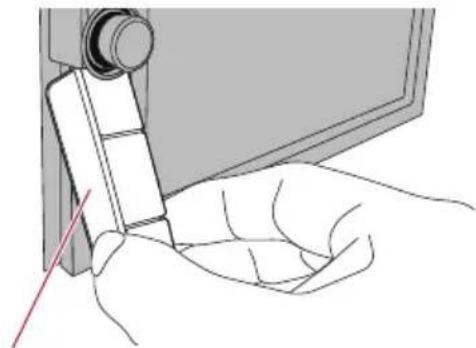
1Pressthe▲button.
The "MonitorSetup" screenappears.
2Touch


3Touch.

☐TheadjustedangleoftheLCDpanelwillbe memorizedandtheLCDpanelwillautomaticallyreturntothatanglethenexttimethe LCDpanelisopenedorclosed.
Insertingandejectingadisc Insertingadisc(forAVIC-Z130BT)

WARNING
- Whenopening, closing and adjusting the angle of the LCD panel, be careful not to get your fingers caught.
- DonotusewiththeLCDpanelleftopen.If LCDpanelisleftopen,itmayresultininjury intheeventofanaccident.

CAUTION
- DonotopenorclosetheLCDpanelbyforce. Thismaycause malfunction.
- Donotoperatethisnavigationsystemuntil theLCDpanelcompletelyopensorcloses.If thisnavigationsystemisoperatedwhilethe LCDpanelisopeningorclosing,theLCD panelmaystopatthatangleforsafety.
- Donotplaceaglassoracanontheopen LCDpanel.Doingsomaybreakthisnavigationsystem.
- Donotinsertanythingotherthanadiscinto thedisc-loadingslot.
1Pressthe▲button.
The "MonitorSetup" screenappears.
2Touch[Open].

TheLCDpanelopens, andthedisc-loading slotappears.
3Insertadiscintothedisc-loadingslot.

Thediscisloaded, and the LCD panel closes.
Ejectingadisc(forAVIC-Z130BT)
1Pressthe▲button.
The "MonitorSetup" screenappears.
2Touch[DiscEject].

TheLCDpanelopens, and the discisejected.
3Removethedisc, and press the ▲ button.
TheLCDpanelcloses.
Insertingadisc(forAVIC-X930BTandAVIC-X9310BT)
- Insertadiscintothedisc-loadingslot.

natural_image
Front view of a microwave oven with a CD-ROM cover and a red upward arrow indicating orientation (no text or symbols)□Donotinsertanythingotherthanadisc intothedisc-loadingslot.
Ejectingadisc(forAVIC-X930BT andAVIC-X9310BT)
1Pressthe▲button.
Thetouchpanelkeysforejectingthemedia appear.
2Touch[DiscEject].

Thediscisejected.

Insertingandejectingan SDmemorycard

CAUTION
- EjectinganSDmemorycardduringdata transfercandamagetheSDmemorycard.Be suretoejecttheSDmemorycardbythepro-ceduredescribedinthismanual.
- Ifdatalossorcorruptionoccursonthesto-ragedeviceforanyreason,itisusuallynot possibletorecoverthedata.Pioneeraccepts noliabilityfordamages,costsorexpenses arisingfromdatalossorcorruption.
- DonotinsertanythingotherthanSDmemory cards.
☐ThissystemisnotcompatiblewithMultiMediaCard(MMC).
□CompatibilitywithallSDmemorycardsis notguaranteed.
ThisunitmaynotachieveoptimumperformancewithsomeSDmemorycards.
InsertinganSDmemorycard (forAVIC-Z130BT)

CAUTION
- Donotpressthe▲buttonwhenanSDmemorycardisnotfullyinserted.Doingsomaydamagethecard.
- Donotpressthe▲buttonbeforeanSDmemorycardhasbeencompletelyremoved.Doing somaydamagethecard.
Basicoperation
1Pressthe▲button.
The "MonitorSetup" screenappears.
2Touch[SDInsert].
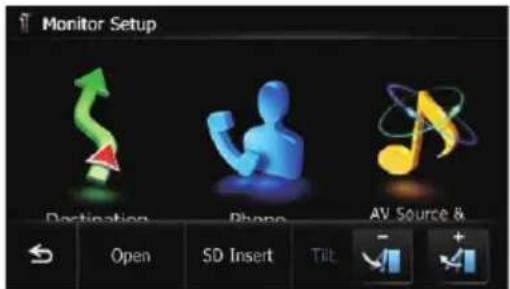
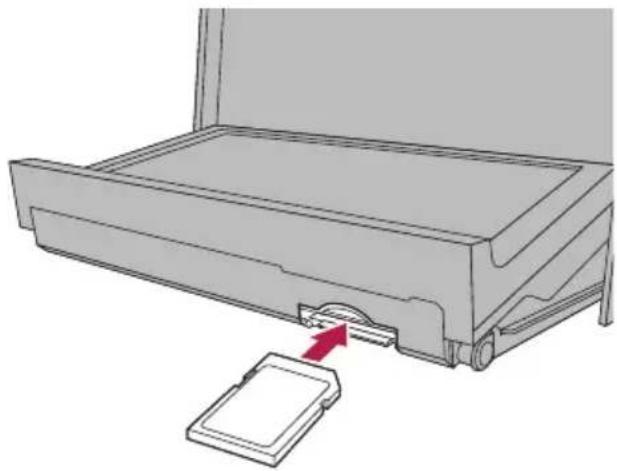
TheLCDpanelopens, and the SD cardslotappears.
3InsertanSDmemorycardintotheSD cardslot.
Insertitwiththelabelsurfacefacingtotheup-sideandpressthecarduntilitclicksandcompletelylocks.
natural_image
Diagram of a device with a red arrow pointing to a component, showing no text or symbols.4Pressthe▲button.
TheLCDpanelcloses.
□Ifdatarelatedtomapdata,suchascustomizedPOldata,isstoredontheSDmemorycard,thenavigationsystemrestarts.
EjectinganSDmemorycard (forAVIC-Z130BT)
1Pressthe▲button.
The "MonitorSetup" screenappears.
2Touch[EjectSD].
![Monitor Setup Press [Eject SD] before ejecting SD card. Otherwise, SD card may be damaged.](/content/2026/06/1292122/images/afe871abbff9e3a16736a357406d98f0ddcb1ff1e97df5e932e595c2e0d51d35.jpg)
TheLCDpanelopens.
3PressthemiddleoftheSDmemory cardgentlyuntilitclicks.
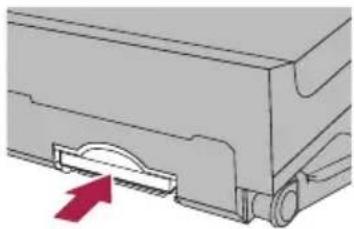
natural_image
Mechanical component diagram showing a bracket with a red arrow indicating direction (no text or symbols)4PulltheSDmemorycardoutstraight.

natural_image
Mechanical component with a red arrow indicating a downward motion (no text or symbols present)5Pressthe▲button.
TheLCDpanelcloses.
WhenyouejecttheSDmemorycardby touching[EjectSD],themodelinformation thatyouareusingwillbeautomatically storedintotheSDmemorycard. TheutilityprogramAVICFEEDSwilluse thisinformationtorecognizethemodel thatyouuse.
Whenthedatarelatedtomapdatais stored
ThisdescriptionisforAVIC-Z130BT.
If data related to map data, such as customized POI data, is stored on the SD memory card, operating procedures are slightly different.
1Pressthe▲buttonandthentouch [EjectSD].
2Touch[Yes].

Thenavigationsystemrestarts, and then the LCDpanelopens.
3EjecttheSDmemorycard.
4Pressthe▲button.
TheLCDpanelcloses.
InsertinganSDmemorycard(for AVIC-X930BTandAVIC-X9310BT)
- InsertanSDmemorycardintotheSD cardslot.
InserttheSDmemorycardwiththeterminal contactsfacingdown,andpressthecarduntil itclicksandlockscompletely.

natural_image
Diagram showing a device being inserted into a container with a red arrow indicating direction (no text or symbols present)□Ifdatarelatedtomapdata,suchascustomizedPOldata,isstoredontheSDmemorycard,thenavigationsystemrestarts.
EjectinganSDmemorycard(for AVIC-X930BTandAVIC-X9310BT)
1Pressthe▲button.
Thetouchpanelkeysforejectingthemedia appear.
2Touch[EjectSD].
![Press [Eject SD] before ejecting SD card. Otherwise, SD card may be damaged.](/content/2026/06/1292122/images/3c710875c9cceee47970e0993dc4177e5c06e22770141807a15b62bcd72c172e.jpg)
AmessagepromptingyoutoremovetheSD memorycardappears.
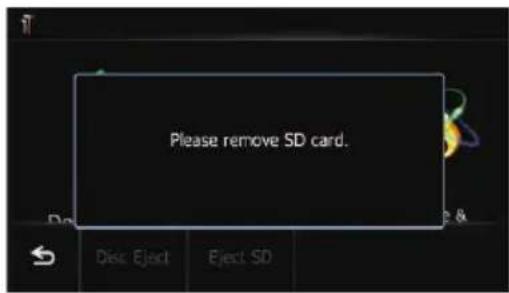
3PressthemiddleoftheSDmemory cardgentlyuntilitclicks.

natural_image
Diagram of a mechanical component with a circular feature and a red arrow indicating direction (no text or symbols)4PulltheSDmemorycardoutstraight.
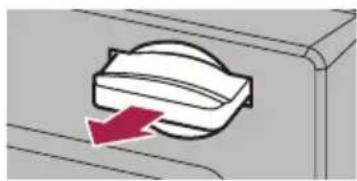
natural_image
Diagram showing a mechanical component with a red arrow indicating direction (no text or symbols)Whenthedatarelatedtomapdatais stored
ThisdescriptionisforAVIC-X930BTandAVIC-X9310BT.
Basicoperation
Ifdatarelatedtomapdata,suchascustomizedPOldata,isstoredontheSDmemory card,operatingproceduresareslightlydifferent.
1Pressthe▲buttonandthentouch [EjectSD].
2Touch[Yes].

Thenavigationsystemrestarts, and a message prompting y out o remov the SD memory card appears.

3EjecttheSDmemorycardwhilethe messageisdisplayed.
EjecttheSDmemorycardbeforetouching [OK].
4Touch[OK].
Thenavigationsystemrestarts.
Pluggingandunplugginga USBstoragedevice

CAUTION
- Topreventdatalossanddamagetothesto-ragedevice,neverremoveitfromthisnaviga-tionsystemwhiledataisbeingtransferred.
- Ifdatalossorcorruptionoccursonthesto-ragedeviceforanyreason,itisusuallynot
possibletorecoverthedata.Pioneeraccepts noliabilityfordamages,costsorexpenses arisingfromdatalossorcorruption.
PlugginginaUSBstoragedevice
●PlugaUSBstoragedeviceintotheUSB andmini-jackconnector.
USBandmini-jackconnector

- CompatibilitywithallUSBstoragedevices isnotguaranteed.
ThisnavigationsystemmaynotachieveoptimumperformancewithsomeUSBstoragedevices.
■ConnectionviaaUSBhubisnotpossible.
UnpluggingaUSBstoragedevice
●PullouttheUSBstoragedeviceafter checkingthatnodataisbeingaccessed.

Connecting and disconnectinganiPod

CAUTION
- Topreventdatalossanddamagetothesto-ragedevice,neverremoveitfromthisnaviga-tionsystemwhiledataisbeingtransferred.
- Ifdatalossorcorruptionoccursonthesto-ragedeviceforanyreason,itisusuallynot possibletorecoverthedata.Pioneeraccepts noliabilityfordamages,costsorexpenses arisingfromdatalossorcorruption.
ConnectingyouriPod
UsingtheUSBinterfacecableforiPodenablesyoutoconnectyouriPodtothenavigationsystem.
☐AUSBinterfacecableforiPod(CD-IU51V) (soldseparately)isrequiredforconnection.
☐ FordetailsaboutiPodcompatibilitywith thisnavigationsystem, refertotheinformationonourwebsite.
□ConnectionviaaUSBhubisnotpossible.
1 Check that no USB storage device is connected.
2ConnectyouriPod.

DisconnectingyouriPod
● PullouttheUSBinterfacecableforiPod aftercheckingthatnodataisbeingaccessed.
Startupandtermination
1Starttheenginetobootupthesystem.
Afterashortpause,thesplashscreencomes onforafewseconds.
☐ ToprotecttheLCDscreenfromdamage, be suretotouchthetouchpanelkeyswith yourfingeronlyandgentlytouchthe screen.
2Turnoffthevehicleenginetoterminatethesystem.
Thenavigationsystemisalsoturnedoff.

Onfirst-timestartup
Whenyouusethenavigationsystemforthe firsttime,selectthelanguagethatyouwantto use.
1Starttheenginetobootupthesystem.
Afterashortpause,thesplashscreencomes onforafewseconds.
2Touchthelanguagethatyouwantto useonthescreen.

3Touchthelanguagethatyouwantto useforthevoiceguidance.
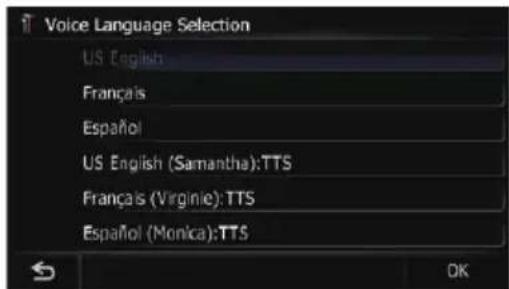
Thenavigationsystemwillnowrestart.
Basicoperation
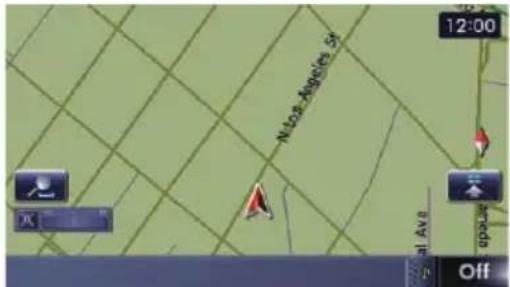
4Readthedisclaimercarefully,checking itsdetails,andthentouch[OK]ifyou agree-totheconditions.

Themapscreenappears.

Regularstartup
● Starttheenginetobootupthesystem.
Afterashortpause,thesplashscreencomes onforafewseconds.
☐ Thescreenshownwilldifferdependingon thepreviousconditions.
☐Whenthereisnoroute,thedisclaimerappearsafterthenavigationsystemreboots. Readthedisclaimercarefully,checkingits details,andthentouch[OK]ifyouagreeto theconditions.
□Iftheanti-theftfunctionisactivated,you mustenteryourpassword.
Readthedisclaimercarefully,checkingits details,andthentouch[OK]ifyouagreeto theconditions.
Screenswitchingoverview

flowchart
graph TD
    A["① Destination"] -->|HOME| B["② Shortout Settings"]
    B --> C["③ Phone Maps"]
    C --> D["④ AV Source & Contents"]
    D --> E["⑤ Settings Menu"]
    E --> F["⑥ I-10 E/San Bernardino Fwy E"]
    F --> G["MODE"]
    G --> H["⑥ Mobile"]
    H --> I["⑦ I-10 E/San Bernardino Fwy E"]
    I --> J["⑧ Mode"]

Whatyoucandooneach menu
① TopMenu
PresstheHOMEbuttontodisplaythe"Top Menu"screen.
Thisisthestartingmenutoaccessthedesired screensandoperatethevariousfunctions. There are two types of the "Top Menu" screen.

ClassicMenu

ShortcutMenu
□Inthismanual,ClassicMenuwillbereferred to as "Top Menu".
②DestinationMenu
Youcansearchforyourdestinationonthis menu.Youcanalsocheckorcancelyourset routefromthismenu.
③PhoneMenu
Youcanaccessthescreenthatisrelatedto hands-freephoning.
④AVoperationscreen
Thisisthescreenthatnormallyappearswhen youplaytheAVsource.
⑤SettingsMenu
Youcanaccessthescreentocustomizesettings.
⑥Mapscreen
Youcanusethisccreentocheckthecurrent vehiclepositioninformationandroutetothe destination.
ShortcutMenu
Registeringyourfavoritemenuitemsinshort-cutsallowsyoutoquicklyjumptotheregisteredmenuscreenbyasimpletouchontheShortcutMenuscreen.
Selectingtheshortcut
☐Upto15menuitemscanberegisteredin shortcuts.
1PresstheHOMEbuttonrepeatedlyto displaytheShortcutMenuscreen.
Whenyouusethenavigationsystemforthe firsttimeornoitemsaresetonshortcut,a messagewillappear.Touch[Yes]topro-ceedtonextstep.
2Touch[Shortcut].

TheShortcutselectionscreenappears.
3Touchthetabontherightedgeorscroll thebartodisplaytheiconthatyouwant tosettoshortcut.

4Touchandholdtheiconthatyouwant toaddtoshortcut.
Howtousethenavigationmenuscreens
5Movetheicontotheleftsideofthe screen, and thenreleaseit.
Theselecteditemisaddedtoshortcut.

Removingashortcut
1Touchandholdtheiconoftheshortcut youwanttoremove.
2Movetheicontotherightsideofthe screen, and thenreleaseit.
Operatinglistscreens(e.g. POllist)
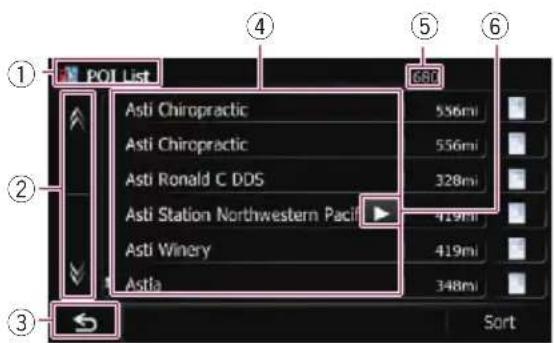
①Screentitle
②
Touchingontvescrollbarscrolls throughthelistandallowsyoutoviewthere-mainingitems.
③
The previous screen returns.
④Listeditems
Touchinganitemonthelistallowsyoutonarrowdowntheoptionsandproceedtothenext operation.
⑤Numberofpossiblechoices
□Ifthereare10000ormorepossible choices, "****" isdisplayed.
⑥
Ifallofthecharacterscannotbedisplayed withinthedisplayedarea,touchingthekeyto therightoftheitemallowsyoutoseeremainingcharacters.
Operatingtheon-screen keyboard
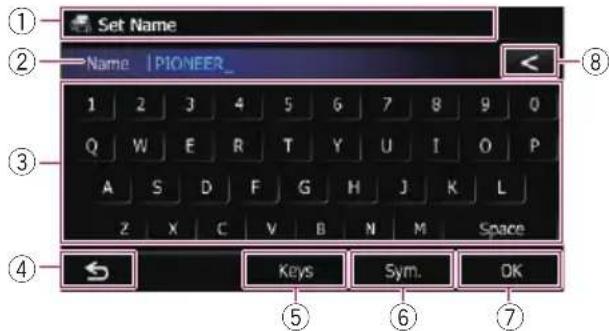
①Screentitle
Thescreentitleappears.
②Textbox
Displaysthecharactersthatareentered.If thereisnotextinthebox,aninformative guidewithtextappears.
③Keyboard
Touchthekeystoenterthecharacters.
④
The previous screen returns.
⑤Keys
Switchestheon-screenkeyboardlayout.
⑥Sym., Others, 0-9
Youcanenterothercharactersofalphabet. Youcanalsoentertextwithmarkssuchas[&] or[+]ornumbers.
Touchtotoggletheselection.
□ Even if you use any of "A", "Ä", "Å", "Æ", thedisplayedresultisthesame.
⑦OK
Confirmstheentryandallowsyoutoproceed tothenextstep.
⑧
Delete the input text one letter at a time, beginning at the end of the text. Continuing to touch the button deletes all of the text.
Mostoftheinformationprovidedbyyournavigationsystemcanbeseenonthemap.Youneedtobe-comefamiliarwithhowinformationappearsonthemap.
Howtoreadthemapscreen
Thisexampleshowsanexampleofa2Dmapscreen.

Informationwithanasterisk(*)appears onlywhentherouteisset.
☐Dependingontheconditionsandsettings, someitemsmaynotbedisplayed.
①Nameofthestreettobeused(ornextguidancepoint)*
②Nextdirectionoftravel*
Asyougetclosertotheguidancepoint,the coloroftheitemchangestogreen.
□Touchingthisitemenablesyoutohear thenextguidanceagain.
☐Youcanselectbetweenewdisplayand non-display.
Fordetails, refertoDisplayingman-euversonpage159.
③Distancetotheguidancepoint*
Showsthedistancetothenextguidance point.
☐Touchingthisitemenablesyoutohear thenextguidanceagain.
④SecondManeuverArrow*
Showsteturningdirectionafternextguidancepointandthedistancetothere.
- Fordetails, refertoDisplayingmaneu-versonpage159.
⑤Mapcontrol
Touching 📷 displaystouchpanelkeysfor changingthemapscaleandthemaporientation.
⑥Currentposition
Indicate the current location of your vehicle. The apexofthetriangular mark indicates your orientation and the display moves automatically as you drive.
☐Theapexofthetriangulararmarkisthe propercurrentpositionofthevehicle.
⑦Eco-Meter
Displaysagraphcomparingthepastaverage fuelmileageandtheaveragefuelmileage sincethenavigationsystemwaslaststarted.
Fordetails, refertoDisplaying the fuel consumption information on page 159.
⑧Streetname(orcityname)thatyourvehicleistravelingalong
Fordetails, refertoSetting the current streetnamedisplayonpage158.
⑨ExtensiontabfortheAVinformationbar
TouchingthistabopenstheAVinformation barandenablesyoutobrieflyviewthecurrent statusontheAVsource.Touchingitagainretractsthebar.
⑩ShortcuttotheAVoperationscreen
TheAVsourcecurrentlyselectedidisshown. TouchingtheindicatordisplaytheAVoperationscreenofthecurrentsourcedirectly.
☐Dependingonthesourcecurrentlychosen,animageisdisplayed.
⑪QuickAccessicon
Displaysthe"QuickAccess"menu.
- Fordetails, refertoUsingshortcut menusonthemaponpage29.
⑫Maporientationindicator
- When "Northup" is selected, is displayed.
- When "Headingup" is selected, displayed.
☐Theredarrowindicatesnorth.
- Fordetails, referto Switching themaporientation on page 28.
⑬Currentroute*
Theroutecurrentlysetishhighlightedincolor onthemap.Ifawaypointissetontheroute, therouteafterthenextwaypointishhigh-lightedinanothercolor.
⑭Directionline*
The direction towards your destination (next waypoint, or the position of a cursor) is indicated with a straight line.
⑮Multi-Infowindow
EachtouchofMulti-Infowindowchangesthe displayinformationasfollows.
- Distancetothedestination(ordistancetowaypoint)*
• Estimated time of arrival at your destination or waypoint*
Theestimatedtimeofarrivalisanideal valuecalculatedbasedonthevalueset for"AverageSpeed"andtheactual drivingspeed.Theestimatedtimeofar-
rivalisonlyareferencevalue, and does not guarantee arrival at that time.
- Traveltimetoyourdestinationor waypoint*
⑯Currenttime
Meaningofguidanceflags

Destination
Thecheckeredflagindicatesyour destination.

Waypoint
The blueflags indicate your way-points.

Guidancepoint
Thenextguidancepoint(nextturningpoint,etc.)isshownbyayellowflag.
Enlargedmapoftheintersection
When "Close Up View" in the "Map Settings" screenis"On",anenlargedmapoftheintersectionappears.

- Fordetails, refertoSettingtheauto-zoom displayonpage156.
Displayduringfreewaydriving
In certain location so the freeway, lane information is available. Themap indicates there-commended lanetobe into easily maneuver then next guidance.
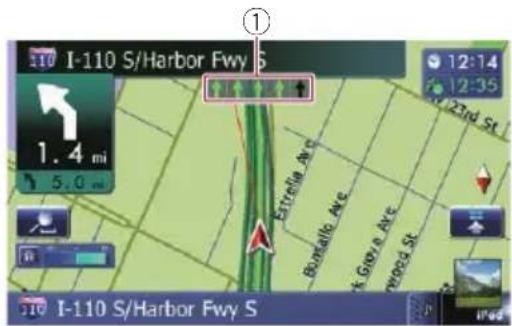
Whiledrivingonthefreeway,freewayexit numbersandfreewaysignsmaybedisplayed inthevicinityofinterchangesandexits.

①Laneinformation
②Freewayexitinformation
Displaysthefreewayexit.
③Freewaysigns
Theseshowtheroadnumberandgivedirectionalinformation.
□Ifthedatafortheseitemsisnotcontained inthebuilt-inmemory,theinformationis notavailableeveniftherearethesignson theactualroad.
Typesoftheroadstoredin themapdatabase
Roadsincludedintherouteguidance
TurnbyTurnRoutableRoadscontainfullattributedataandcanbeusedforfullRouteGuidance.PioneerNavigationwilldisplayfull
routeguidance, including turn-by-turnvoice directions and arrowicons.
Roadswithoutturn-by-turn instructions
Routableroads(theroutedisplayedandhigh-lightedinviolet)haveonlybasicdataandcan onlybeusedtoplotanavigableroute.Pioneer Navigationwillonlydisplayanavigableroute onthemap(onlythearrivalguidanceforthe destinationorawaypointisavailable).Please reviewandobeyalllocaltrafficrulesalongthe highlightedrouteforyoursafety. Noturn-by-turndirectionswillbedisplayedon theseroads.
Nonroutableroads(pinkcolorroad)
Mapdisplayispossible, but it cannot be used for route calculation. Pleasereviewandobey all local traffic rules along this route. (Foryour safety.)
Operatingthemapscreen Changingthescaleofthemap
Youcanchangethemapscalebetween25 yardsand1000miles(25metersand2000 kilometers).
1Displaythemapscreen.
2Touch

onthemapscreen.

andwiththemapscaleappear.

3Touchortochangethemap
scale.
□Ifyoudonotoperatethefunctionforafew seconds,thetouchpanelkeysformapdisplaycontroldisappear.
■Ifyoutouchthedirectscalekey, themapis changed to these selectedscaled directly.
Switchingthemaporientation
Youcanswitchhowthemapshowsyourvehicle'sdirectionbetween"Headingup"and "Northup".
- Headingup: Themapdisplayalwaysshowsthevehicle's directionasproceedingtowardthetopof thescreen.
- Northup:
Themapdisplayalwayshasnorthatthe topofthescreen.
☐Themaporientationisfixedat"Northup"whenthemapscaleis25miles(50kilometers)ormore.
☐Themaporientationisfixedat"Heading up"whenthe3Dmapscreenisdisplayed.
1Displaythemapscreen.
2Touch

onthemapscreen.

orappears.
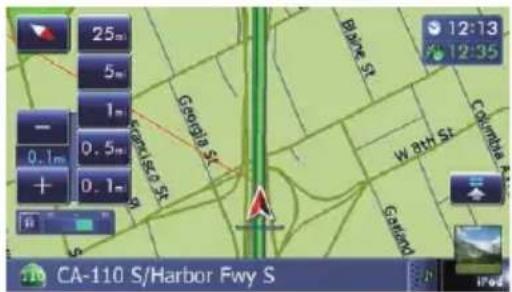
3Touchortoswitchthevehicle's direction.
Eachtimeyoutouchthekeychangesthesetting.
□Ifyoudonotoperatethefunctionforafew seconds,thetouchpanelkeysformapdisplaycontroldisappear.
Scrollingthemaptothe positionyouwanttosee
1Displaythemapscreen.
2Touchanddragthemapinthedesired directionoscroll.
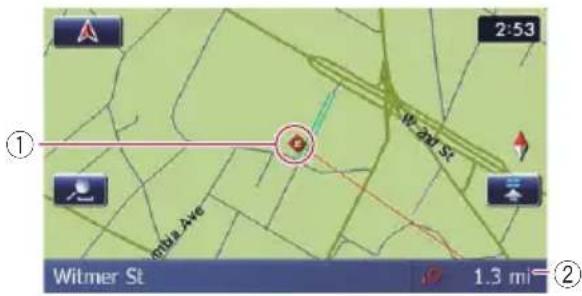
①Cursor
②Distancefromthecurrentposition
Positioning the cursor to the desired location results displaying in a brief informational overview about the location at the bottom of screen, with the street name and other information for this location. (The information shown varies depending on the position.)
☐ Thescrollingincrementdependsonyour dragginglength.
■Ifyoutouch rentposition. A, themapreturnstothecurrentposition.
☐PressingMODEbuttonreturnsthemapto thecurrentposition.
Viewinginformationabouta specifiedlocation
Aniconappearsatregisteredplaces(homelocation,specificplaces,Favoritesentries)and placeswherethereisaPOliconortrafficinformationicon.Piacethescrollcursorover theicontoviewdetailedinformation.
1Scrollthemapandmovethescrollcur- sortotheiconyouwanttoview.
2Touch.

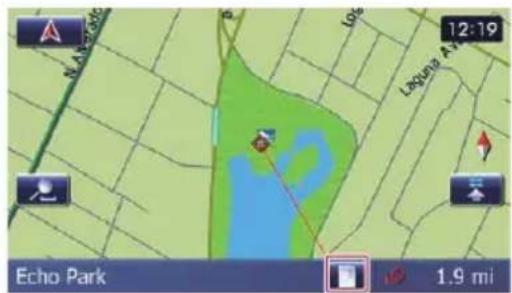
The "InformationList" screenappears.
3Touchtheitemthatyouwanttocheck thedetailedinformation.
Informationforaspecifiedlocationappears.

Theinformationshownvariesaccordingtothe location.(Theremaybenoinformationforthat location.)
- Fordetails, refertoSettingthedisplayof iconsoffavoritelocationsonpage158.
- Fordetails, refertoDisplayingPOlonthe maponpage159.
- Fordetails, refertoHowtoreadtrafficinformationonthemaponpage52.
☐Touching[Call]enablesyoutocallthepositionifatelephonenumberisavailable. (Pairingwithcellularphonefeaturing Bluetoothwirelesstechnologyisrequired.)
- Fordetails, referto Dialing from themap on page 64.
Usingshortcutmenusonthemap
"QuickAccess" menu allows you to perform various tasks, such as route calculation for the location indicated by the cursor or registering allocation in "Favorites", faster than using the navigation menu.
Youcancustomize"QuickAccess"displayed onscreen.The"QuickAccess"describedhere arepreparedasthedefaultsetting.
For details, refer to Selecting the "Quick Access"menuonpage162.
Itemsmarkedwithanasterisk(*) cannot beremovedfromthe"QuickAccess" menu.
●Whenthemapisdisplayed,touch


QuickAccessmenu
:RouteOptions\*
Displayedwhenthemapisnotscrolled. This itemcanbeselectedonlyduringrouteguidance.
You can modify the conditions for route calculation and recalculate the current route.
Fordetails, refertoModifyingtheroutecalculationconditionsonpage43.
Destination\*
Displayedwhenthemapissrolled.Setthe routetotheplacesspecifiedwiththecursor.
:Registration
Registerinformationonthelocationindicated bythecursorto"Favorites".
Fordetails, referto Registering allocation by scrollmodeonpage47.
:VicinitySearch
FindPOIs(PointsOfInterest)inthevicinityof thecursor.
- Fordetails, refertoSearchingforanearby PO/online38.
OverlayPOI
Displaysiconsforsurroundingfacilities(POI) onthemap.
- Fordetails, refertoDisplayingPOlonthe maponpage159.
Volume
Howtousethemap
Displays the "Volume Settings" screen.
Fordetails, refer to Setting the Volume for Guidance and Phone on page 165.

:Contacts
Displaysthe"ContactsList"screen.
- Fordetails, refertoCallinganumberinthe phonebookonpage62.
Close
Hidesthe"QuickAccess"menu.

Switchingtheviewmode
Varioustypesofscreendisplayscanbese- lectedfornavigationguidance.
1Displaythe"MapSettings"screen.
- Fordetails, refertoDisplayingthescreenfor mapsettingsonpage156.
2Touch[ViewMode].
The"ViewMode" screenappears.
3Touchthetypethatyouwanttoset.
Youcanselectthefollowingtypes:
- 2DView(default):
Displaysanormalmap(2Dmap).
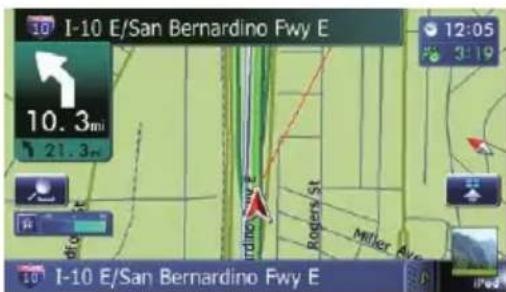
•3DView:
Displaysamapwithanantennaview(3D map).

- StreetView:
Informationonthenextfourguidance pointsclosesttothecurrentlocationappearinorderfromtoptobottomontheleft sideofthescreen.Thefollowinginformationisdisplayed.

—Nameofthenextroutetobetakenby thevehicle
—Arrowindicatingthedirectionofthevehicle
—Distancetotheguidancepoints
☐Thismodeisavailablewhentherouteis set.
•RearView:
Displaystherearviewimageontheleft sideofthescreenandthemapontheright sideofthescreen.

Thismodeisavailablewhentherear viewcamerasettingissetto"On".
- Fordetails,refertoSettingforrearview cameraonpage166.
• EcoGraph:
Displaysagraphforeco-drivingontheleft sideofthescreenandthemapontheright sideofthescreen.
Howtousethemap

Fordetails, refer to Checking the eco-friendly driving status on then next page.
This navigation system is equipped with the co-friendly driving function that can be used to estimate whether you are driving in an environmentally friendly way.
Thischapterdescribesthesefunctions.
- Thefuelmileagecalculatedisbasedona theoreticalvaluedeterminedfromvehicle speedandpositioninformationfromthe navigationsystem.Thefuelmileagedisplayedisonlyareferencevalue,anddoes notguaranteethemileagedisplayedcanbe obtained.
- Theeco-friendly driving functions are an estimate of the real time fuel consumption to average fuel consumption ratio and is not an actual value.
- Theeco-friendly driving functions and calculation stake into consideration the location of the GPS position and speed of the vehicle in determining a value.
Checkingtheeco-friendly drivingstatus
This functionestimates approximate fuel mile-agebased on your driving, compare that with your average fuel mileage in the past, and display the results in a graph.
Thegraphappearswhenthemapdisplayis setto"EcoGraph".
1Displaythe"MapSettings"screen.
- Fordetails, refertoDisplayingthescreenfor mapsettingsonpage156.
2Touch[ViewMode].
The "ViewMode" screenappears.
3Touch[EcoGraph].
The "EcoGraph" screenappears.

①EcoScore
Theresultofthecomparisonofyourpast averagefuelmileageandcurrentaverage fuelmileageappearsasavaluefrom
0.0Pts(points)to10.0Pts.Thehigherthe value,thebetterthefuelmileagewhen comparedtopastrouteguidance.
Thegreengaugeindicatesthecurrent score, and the gray gauge indicatesthe bestscoretodate.
The "EcoScore" is updated every 5 minutes.
Thisisnotdisplayedwhen"EcoScore" issetto"Off"orwhennorouteisset.
②BestScore
Displaysthebestscoretodate.
Thisisnotdisplayedwhen"EcoScore" issetto"Off"orwhennorouteisset.
③Averagefuelmileagecomparisongraph
Displaysacomparisonoftheaveragefuel mileageuptothepointthenavigationsystemwaslaststopped(pastaveragefuel mileage)andthecurrentaveragefuelmileage. Thedisplayisupdatedevery3seconds. Themorethevaluemovesinthe directionof+, thebetterthefuelmileage. Therearethreedifferentgraphbars.
• Total
A comparison of the past average fuel mileage and the average fuel mileage of the current drive.
• :OrdinaryRoad
A comparison of the past average fuel mileage and the average fuel mileage for 90 seconds in the past, while the vehicle is driving on an ordinary road.
• :Freeway
Eco-friendlydrivingfunctions
A comparison of the past average fuel mileage and the average fuel mileage for 90 seconds in the past, while the vehicle is driving on a freeway.
④Animalicons
Thenumberofdisplayedanimaliconsincreasesordecreasesaccordingtothevalue of"EcoScore".
This is not displayed when "Eco Score" issetto "Off" or whennorouteisset.
Evenifyousethe"EcoGraph"function immediatelyafteryoustartusingthenavigationsystemforthefirsttime, maybe displayedandthefunctionmaynotbeavailable.
For details, refer to Troubleshooting on page 193.
☐Thedisplaysettingscanbechanged.
- Fordetails, refertoChangingtheeco-functionsettingonpage155.
DisplayingEcoDriveLevel guidance
Thisnavigationsystemisequippedwiththe "EcoDriveLevel"functionthatestimateshow wellyouhavedriveninanenvironmentally friendlyway.
Thepointsof"EcoDriveLevel"changeaccordingto"EcoScore"whenthevehiclereachesthedestination.Whenacertainnumberofpointsisreached,thelevelincreasesandamessageappears.

Asthelevelincreases, atreeiconchanges fromayoungtreetoabigtree.
Thisisnotdisplayedwhen"EcoDrive Level" is set to "Off".
Fordetailsoftheoperation,refertoChangingtheeco-functionsettingonpage 155.
Suddenstartalert
If the speed of the vehicle exceeds 25.5 mph (41 km/h) within 5 seconds from the time it is started, am message appears and awarning soundbeeps.

Fordetailsoftheoperation,refertoChangingtheeco-functionsettingonpage 155.

CAUTION
Forsafetyreasons,theseroute-settingfunctions arenotavailablewhileyourvehicleisinmotion. Toenablethesefunctions,youmuststopina safeplaceandputontheparkingbrakebefore settingyourroute.
Someinformationregardingtrafficregulationsdependsonthetimewhentheroute calculationisperformed. Thus, the information may not correspond with a certain traffic regulation when your vehicle actually passe through the location in question. Also, the information on the traffic regulations provided will be for a passenger vehicle, and not for a truck or other delivery vehicles. Always follow the actual traffic regulations which driving.
Thebasicflowofcreating yourroute
1 Parkyourvehicleinasafeplaceandapply theparkingbrake.
2 Displaythe"DestinationMenu"screen.
Fordetailsoftheoperations,referto Screenswitchingoverviewonpage22.
3 Selectthemethodofsearchingforyour destination.
4 Entertheinformationaboutyourdestinationtocalculateroute.
5 Confirmthelocationonthemap.
Fordetails, refertoSettingarouteto yourdestinationonpage42.
6 Thenavigationsystemcalculatestheroute toyourdestination, and thenshowsthe routeonthemap.
7 Checkanddecidetheroute.
Fordetails, refertoSettingarouteto yourdestinationonpage42.
⑧Yournavigationsystemsetstherouteto yourdestination, and themapofyoursurroundingsappears.
9Releasetheparkingbrake,driveinaccordancewithnavigationguidance.


Searchingforalocationby address
Themostfrequentlyusedfunctionis"Address",inwhichtheaddressisspecifiedand thedestinationissearched.
Youcanselectthemethodofsearchingfora locationbyaddress.
- Searchingforacitynamefirst
• Findingthelocationbyspecifyingthe housenumber
Searchingforacitynamefirst
☐Depending on thesearch results, some steps may be skipped.
□Whenyouentercharacters,thesystemwill automaticallysearchthedatabaseforall possibleoptions.Onlythecharactersyou enterareactive.
□Ifthesearchcandidatesnumberreaches 20orless,thescreenautomatically changestothesearchresultscreen.
1Displaythe"DestinationMenu"screen.
- Fordetailsoftheoperations,refertoScreen switchingoverviewonpage22.
2Touch[Address].

3Touchthekeynextto"Country"toselectthecountry.
If the destination is in another country, change the country setting.
☐Oncethecountryhasbeenselected,you onlyhavetochangecountrieswhenyour destinationisoutsideofthecountryyouse-lected.
4Touchthekeynextto"State"and touchthedesiredstate,province,orterritoryonthelist.
If the location that you want to search for in another state, province, or territory, this changesthe areasetting.
☐Oncethestate, province, orterritory has been selected, you only haveto change states, provinces, orterritories when your destination is outside of the state, province, orterritory you selected.
5Touch[City].

6Enterthecitynameandthentouch [OK].

The"SelectCity" screenappears.
7Touchthedesiredcityname.
The "StreetName" screenappears.
■Ifyoutouch, the geographiccenter of the city appear on themapscreen.
Searchingforandselectingallocation
8Enterthestreetnameandthentouch [OK].

The "StreetSelection" screenappears.
9Touchthestreetyouwant.
10Enterthehousenumberandthen touch[OK].

The "HouseNumberSelection" screenappears.
11Touchthedesiredhousenumberrange.
Thesearchedlocationappearsonthemap screen.
For the subsequent operations, refer to Setting a routet your destination on page 42.
Findingthelocationby specifyingthehousenumber
☐Depending on thesearch results, some steps may be skipped.
□Whenyouentercharacters,thesystemwill automaticallysearchthedatabaseforall possibleoptions.Onlythecharactersyou enterareactive.
□Ifthesearchcandidatesnumberreaches 20orless,thescreenautomatically changestothesearchresultscreen.
1Displaythe"AddressSearch"screen.
2Touch[House#].
The "EnterHouseNumber" screenappears.
3Enterthehousenumberandthen touch[OK].

The "EnterStreetName" screenappears.
4Enterthestreetnameandthentouch [OK].
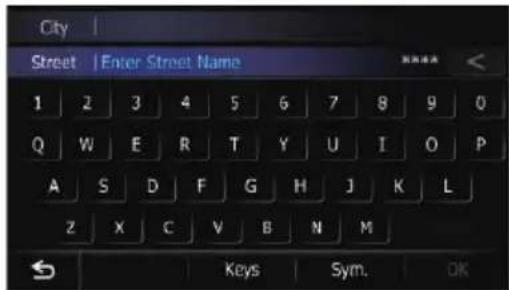
The "StreetSelection" screenappears.
5Touchthestreetyouwant.
The "EnterCityName" screenappears.
6Enterthecitynameandthentouch [OK].

The"SelectCity" screenappears.
7Touchthedesiredcityname.
The "HouseNumberSelection" screenappears.
Searchingforandselectingallocation
If the housenumberyouhaveenteredisnot found, amessageappears. In that case, all housenumberrangesarelistedaftertouching [Yes].
■ Ifyoutouch, the geographiccenter of the city appear on themapscreen.
8Touchthedesiredhousenumberrange.
Thesearched location appears on themap screen.
Forthesubsequentoperations, refertoSettingaroutetoyourdestinationonpage 42.
Settinguparoutetoyour home
If your homelocation is stored, therout to your home can be calculated by touching a single key.
1Displaythe"DestinationMenu"screen.
- Fordetailsoftheoperations,refertoScreen switchingoverviewonpage22.
2Touch[ReturnHome].
□Ifyouhavenotregisteredyourhomelocation,amessageappears.Touch[Register] tostartregistration.
Fordetails, refertoRegistering your homeonpage154.
SearchingforPointsof Interest(POI)
Informationaboutvariousfacilities(PointsOf Interest–POI),suchasgasstations,parking lotsorrestaurants,isavailable.Youcan searchforaPOIbyselectingthecategory(or enteringthePOIName).
SearchingforPOlsbypreset categories
YoucansearchforPOIswithasingletouch fromthepresetcategory.
1Displaythe"DestinationMenu"screen.
- Fordetailsoftheoperations,refertoScreen switchingoverviewonpage22.
2Touch[POI].
3Touchthedesiredcategory.
Presetcategories

The "POIList" screenappears.
4TouchthePOIyouwant.
Thesearchedlocationappearsonthemap screen.
- For the subsequent operations, refer to Setting a rout to your destination on page 42.
SearchingforaPOIdirectly fromthenameofthefacilities
□Ifthesearchcandidatesnumberreaches 20orless,thescreenautomatically changestothesearchresultscreen.
1Displaythe"DestinationMenu"screen.
Fordetailsoftheoperations,refertoScreen switchingoverviewonpage22.
2Touch[POI].
The "POISearch" screenappears.
3Touch[SpellName].
4EnterthePOInameandthentouch [OK].
The "POIList" screenappears.
■ If you changetheregiontosearch, touch the statecodekeyanddisplay the "StateList" screen to changethesetting.
Statecodekey
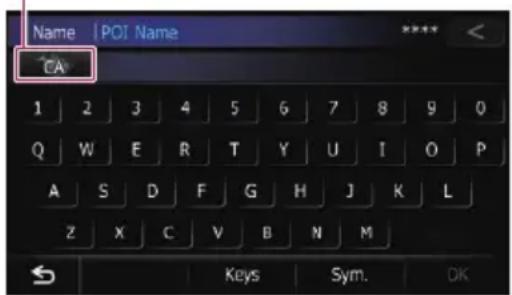
If the destination is in another country, touch [Country] to changethe country setting when the "StateList" screen is displayed.
□Oncetheregionhasbeenselected, you only havetochangeitwhenyourdestinationisoutsideoftheregionyouselected.
5TouchthePOIyouwant.
Thesearchedlocationappearsonthemap screen.
■Ifyoutouch[Sort],theorderofPOlcanbe sorted.
☐Currentorderisindicatedontheupper rightofthescreen.

Sortstheitemsinthelistinorderbydistancefromthevehicleposition.

Sortstheitemsinthelistalphabetically.
For the subsequent operations, refer to Settingaroutetoyourdestinationonpage42.
SearchingforanearbyPOI
YoucansearchforPOIsinyoursurroundings.
1Displaythe"DestinationMenu"screen.
- Fordetailsoftheoperations,refertoScreen switchingoverviewonpage22.
2Touch[POI].
The "POISearch" screenappears.
3Touch[NearMe].
POIsaredividedintoseveralcategories.
4Touchthecategoryyouwant.
The "POIList" screenappears.
☐ If there are more detailed categories within these selected category, repeat this step as many times as necessary.
5TouchthePOIyouwant.
Thesearchedlocationappearsonthemap screen.
- For the subsequent operations, refer to Settingaroutetoyourdestinationonpage42.
SearchingforPOIsaroundthe destination
☐Thisfunctionisavailablewhentherouteis set.
1Displaythe"DestinationMenu"screen.
- Fordetailsoftheoperations,refertoScreen switchingoverviewonpage22.
2Touch[POI].
The "POISearch" screenappears.
3Touch[NearDestination].
POIsaredividedintoseveralcategories.
4Touchthecategoryyouwant.
The "POIList" screenappears.
If there are more detailed categories within these selected category, repeat this step as many times as necessary.
5TouchthePOIyouwant.
Thesearchedlocationappearsonthemap screen.
- Forthesubsequentoperations,refertoSettingaroutetoyourdestinationonpage42.
SearchingforPOIsaroundthecity
YoucansearchforPOIsaroundaspecified city.
Searchingforandselectingalocation
□Ifthesearchcandidatesnumberreaches 20orless,thescreenautomatically changestothesearchresultscreen.
1Displaythe"DestinationMenu"screen.
- Fordetailsoftheoperations,refertoScreen switchingoverviewonpage22.
2Touch[POI].
The "POISearch" screenappears.
3Touch[AroundCity].
4Enterthecitynameandthentouch [OK].
The "SelectCity" screenappears.
■ If you changetheregiontosearch, touch the statecodekeyanddisplay the "StateList" screen to changethesetting.
Statecodekey

If the destination is in another country, touch
[Country]tochangethecountrysettingwhen the"StateList"screenisdisplayed.
☐Oncetheregionhasbeenselected, you only havetochangeitwhenyourdestinationisoutsideoftheregionyouselected.
5Touchthedesiredcityname.
The "POIList" screenappears.
■ Ifyoutouch, the geographiccenter of the city appear on themapscreen.
6Touchthecategoryyouwant.
POIsaredividedintoseveralcategories.
7TouchthePOIyouwant.
Thesearchedlocationappearsonthemap screen.
Forthesubsequentoperations, refertoSettingaroutetoyourdestinationonpage 42.
Selectingdestinationfrom "Favorites"
Storing locations you visit frequently saves time and effort.
Selectinganitemfromthelistprovidesan easywaytospecifytheposition.
Thisfunctionisnotavailableifnolocations have been registered in "Favorites".
- Fordetails, refertoStoringfavoritelocations onpage47.
1Displaythe"DestinationMenu"screen.
Fordetailsoftheoperations,refertoScreen switchingoverviewonpage22.
2Touch[Favorites].
Thesearchedlocationappearsonthemap screen.
Forthesubsequentoperations,refertoSettingaroutetoyourdestinationonpage 42.
SearchingforPOIsbyusing thedataontheSDmemory card
CreatingacustomizedPOlispossibleby usingtheutilityprogramAVICFEEDSwhichis availableseparately,onyourPC.(AVICFEEDS willbeavailableonourwebsite.)Storingthe customizedPOIproperlyandinsertingtheSD memorycardenablesthesystemtousethe dataforsearches.
1StoretheitemintotheSDmemorycard byusingtheAVICFEEDS.
2InsertanSDmemorycardintotheSD cardslot.
Fordetailsoftheoperation, referto/insertingandejectinganSDmemorycardon page16.
3Displaythe"DestinationMenu"screen.
- Fordetailsoftheoperations,refertoScreen switchingoverviewonpage22.
4Touch[AVICFEEDS].
The "SelectPOI" screenappears.
5Touchtheitemyouwant.
6TouchthePOIyouwant.
Thesearchedlocationappearsonthemap screen.
- Forthesubsequentoperations, refertoSettingaroutetoyourdestinationonpage 42.
Selectingalocationyou searchedforrecently
The place that you have yet as destination or waypoint in the past area automatically stored in "History".
□IfnolocationisstoredinDestinationHistory,youcannotselect[History].(Ifyou performaroutecalculation,youcanselect[History].)
□“History”canstoreupto100locations.If theentriesreachthemaximum,thenew entryoverwritestheoldestone.
1Displaythe"DestinationMenu"screen.
Fordetailsoftheoperations,refertoScreen switchingoverviewonpage22.
2Touch[History].
Thesearchedlocationappearsonthemap screen.
- Forthesubsequentoperations,refertoSettingaroutetoyourdestinationonpage 42.
Searchingforalocationby coordinates
Enteringalatitudeandlongitudepinpoints thelocation.
1Displaythe"DestinationMenu"screen.
- Fordetailsoftheoperations,refertoScreen switchingoverviewonpage22.
2Touch[Coordinates].
Searchingforandselectingalocation
3Touch[East]or[West],andthenenter thelongitude.

ToenterW50°1'2.5"forexample,touch [West],[0],[5],[0],[0],[1],[0],[2],and[5].
4Touch[North]or[South],andthen enterthelatitude.
To enter N 5°1'2.5" for example, touch [North], [0], [5], [0], [1], [0], [2], and [5].
5Touch[OK].
Thesearched location appear on themap screen.
- Forthesubsequentoperations, refertoSettingaroutetoyourdestinationonthenext page.
Settingaroutetoyour destination
1Searchforalocation.
= For details, refer to Chapter 6.
After searching for the destination, the Location confirmation screen appears.
2Touch[OK].
Locationconfirmationscreen

The destination is set, and then route calculation starts.
When the route calculation is completed, Route confirmation screen appears.
# If you press the MODEbutton during route calculation, the calculation is canceled and the map screen appears.
# If you touch [Scroll], the map display is changed to the scroll mode. In the scroll mode, you can display the location more precisely to register it, or make settings.
# If you touch [Waypoint], the location is added to the "WaypointsList" screen.
□If a destination is not set, [Waypoint] is not available.
3Touch[OK].
Routeconfirmationscreen

Sets the displayed route as your route, and starts the route guidance.
①Travel time to your destination
②Distance to the destination
③Estimated fuel cost to your destination
= For details, refer to Inputtingthefuel consumptioninformationforcalculating thefuelcoston page 152.
④Route calculation condition
# If you touch ☑, the message confirming whether to cancel the calculated route appears. If you touch [Yes], the calculated route is canceled and the map screen appears.

①MultipleRoute
= For details, refer to Displaying multiple routes on this page.
②Options
= For details, refer to Modifyingtheroute calculationconditions on the next page.
③Profile
= For details, refer to Checking the current itinerary on page 44.
④Waypoints
= For details, refer to Editingwaypointson page 45.
Displayingmultipleroutes
You can select a desired route from multiple route options. Calculated routes are shown in different colors.
☐If you set waypoints, you cannot display multiple routes.
1Touch[MultipleRoute]ontheRoute confirmationscreen.
Multiple route options appear.
2Touch
![PIONEER AVIC-Z130BT - 1Touch[MultipleRoute]ontheRoute confirmationscreen. - 1](/content/2026/06/1292122/images/4a62950c91cfd004770d28e53eb37d978477565ded9f62064b8403fe2ce11144.jpg)
Another route is displayed.
3Touch[OK].
Route confirmation screen appears.
![PIONEER AVIC-Z130BT - 3Touch[OK]. - 1](/content/2026/06/1292122/images/e3977d13fbd15db823af13e021b03f7303a7e4096084e722c30fb0398547a888.jpg)
Checkingandmodifyingthecurrentroute
Displayingtherouteoverview
1PresstheHOMEbuttontodisplaythe "TopMenu" screen.
2Touch[Destination].
The "DestinationMenu" screenappears.
3Touch[RouteOverview].
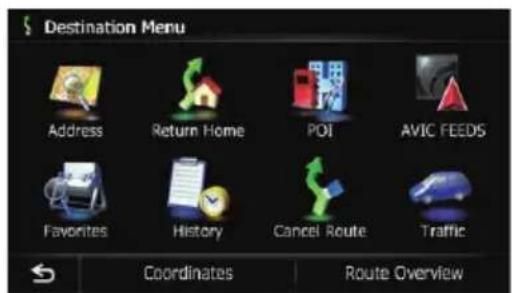


①Options
- Fordetails,refertoModifyingtheroute calculationconditionsonthispage.
②Profile
- Fordetails, referto Checking the current itinerary on then next page.
③Waypoints
- Fordetails, refertoEditingwaypointson page45.
☐ "RouteOverview"isactiveonlywhenthe routeisset.
4Touch[OK].
Modifyingtheroute calculationconditions
You can modify the conditions for route calculation and recalculate the current route.
1Displaythe"RouteOverview"screen.
Fordetails, refertoDisplayingtheroute overviewonthispage.
2Touch[Options].
3Touchthedesireditemstochangethe routecalculationconditionsandthen touch[OK].
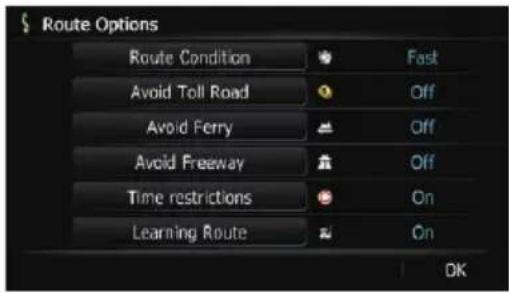
Therouteisrecalculated, and the Routecon- firmationscreenappears.
Itemsthatuserscanoperate
Settingsmarkedwithanasterisk(*)showthat thesearedefaultorfactorysettings.
RouteCondition
Thissettingcontrolshowtheroutes should be calculated by taking into account the time, distance or main road.
Determines which condition takes priority for route calculation.
Fast*:
Calculatesaroutewiththeshortesttraveltime toyourdestinationasapriority.
Short:
Calculatesaroutewiththeshortestdistance toyourdestinationasapriority.
MainRoad:
Calculatesaroutethatpassesmajorarterial roadsasapriority.
AvoidTollRoad
Thissettingcontrolswhethertollroads(includingtollareas)shouldbetakenintoaccount.
Off*:
Checkingandmodifyingthecurrentroute
Calculatesaroutethatmayincludetollroads (includingtollareas).

On:
Calculatesaroutethatavoidstollroads(includingtollareas).
☐Thesystemmaycalculatearoutethatin- cludestollroadsevenif"On"isselected.
AvoidFerry
Thissettingcontrolswhetherferrycrossings shouldbetakenintoaccount.

Off\*:
Calculatesaroutethatmayincludeferries.

On:
Calculatesaroutethatavoidsferries.
☐Thesystemmaycalculatearoutethatin-cludesferriesevenif"On"isselected.
AvoidFreeway
Thissettingcontrolswhetherfreewaysmaybe includedintheroutecalculation.

Off\*:
Calculatesaroutethatmayincludefreeways.

On:
Calculatesaroutethatavoidsfreeways.
☐Thesystemmaycalculatearoutethatin-cludesfreewaysevenif"On"isselected.
Timerestrictions
Thissettingcontrolswhetherstreetsor bridgesthathavetrafficrestrictionsduringa certaintimeshouldbetakenintoaccount.
□Ifyouwanttosetyourroutetoavoidraised drawbridges,select"On".

On\*:
Calculatesaroutewhileavoidingstreetsor bridgeswithtrafficrestrictionsduringacertaintime.

Off:
Calculatesaroutewhileignoringtrafficrestrictions.
☐Thesystemmaycalculatearoutethatin-cludesstreetsorbridgesthataresubjectto trafficrestrictionsduringacertaintime evenif"On"isselected.

CAUTION
If the timed difference is not set correctly, then navigation system cannot consider traffic regulations correctly. Set the timed difference correctly.
→Fordetails, refer to Setting the timed difference on page 163.
LearningRoute
Thesystemlearnsthetravelhistoryofyourvehicleforeachroad.
Thissettingcontrolswhetherornotthetravel historyshouldbetakenintoaccount.

On\*:
Calculatesaroutewiththetravelhistorytaken intoaccount.

Off:
Calculatesaroutewithoutthetravelhistory takenintoaccount.
Clear:
Clearsthecurrenttravelhistory.
Checking the current itinerary
Youcanchecktheroutedetails.
1Displaythe"RouteOverview"screen.
- Fordetails, refertoDisplayingtheroute overviewon thepreviouspage.
2Touch[Profile].
The"RouteProfile" screenappears.
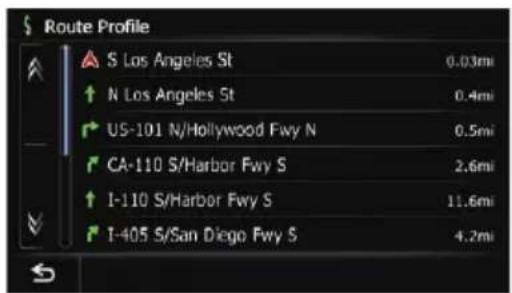
![PIONEER AVIC-Z130BT - 2Touch[Profile]. - 2](/content/2026/06/1292122/images/b6979244600e8e8528604a7089c73d34b43bed9d0bfd238b955f950a3aac9dbf.jpg)
Checkingandmodifyingthecurrentroute
Editingwaypoints
Youcaneditwaypoints(locationsyouwantto visitonthewaytoyourdestination)andrecal-culatetheroutesothatitpassesthrough theselocations.
Addingawaypoint
Upto5waypointscanbeset, and waypoints and finaldestination can be sorted automatically or manually.
1Displaythe"RouteOverview"screen.
- Fordetails, refertoDisplayingtheroute overviewonpage43.
2Touch[Waypoints].
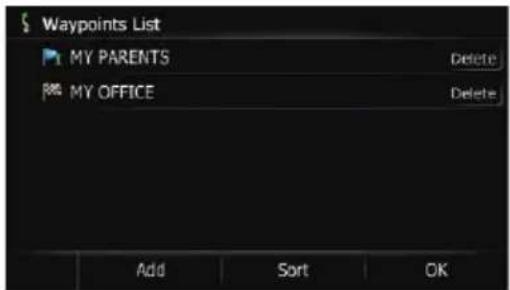
The "WaypointsList" screenappears.
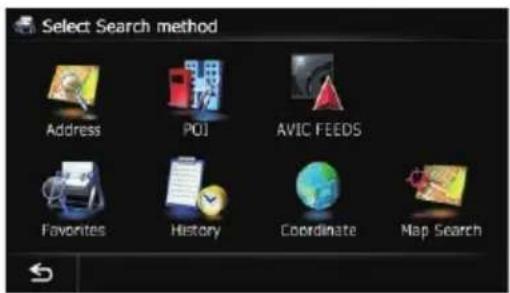
3Touch[Add].
The "SelectSearchmethod" screenappears.
4Searchforalocation.
Fordetails, referto Chapter 6.
5Touch[OK].

6Touch[OK]onthe"WaypointsList" screen.

Therouteisrecalculated, and the Routecon- firmationscreenappears.
If you set waypoints, you cannot display multiplieroutes.
Deletingawaypoint
Youcandeletewaypointsfromtherouteand thenrecalculatetheroute.(Youcandelete successivewaypoints.)
1Displaythe"RouteOverview"screen.
- Fordetails, refertoDisplayingtheroute overviewonpage43.
2Touch[Waypoints].
The "WaypointsList" screenappears.
3Touch[Delete]nexttothewaypoint thatyouwanttodelete.
Thetouchedwaypointwillbedeletedfromthe list.
4Touch[OK]onthe"WaypointsList" screen.
Therouteisrecalculated, and the Routecon- firmationscreenappears.
5Touch[OK].
Themapofthecurrentpositionappears.
Checkingandmodifyingthecurrentroute
Sortingwaypoints
Youcansortwaypointsandrecalculatethe route.
□Youcannotsortwaypointsthatyouhaveal-readypassed.
1Displaythe"RouteOverview"screen.
- Fordetails, refertoDisplayingtheroute overviewonpage43.
2Touch[Waypoints].
The "WaypointsList" screenappears.
3Touch[Sort].
The "SortWaypoints" screenappears.
4Touchthewaypointordestination.

Puttheminthedesiredorder.
■Ifyoutouch[Automatic], thedestination and waypointsaresorted in the order of an arest waypoint from the current location in the direct antennapath.
■Ifyoutouch[Clear],waypointsortiscanceled.
5Touch[OK].
The "WaypointsList" screenappears.
6Touch[OK]onthe"WaypointsList" screen.
Therouteisrecalculated, and the Routeconfirmationscreenappears.
7Touch[OK].
Themapofthecurrentpositionappears.
Cancelingtherouteguidance
If you longer need to travel to your destination, follow the steps below to cancel her route guidance.
1Displaythe"DestinationMenu"screen.
→Fordetailsoftheoperations,refertoScreen switchingoverviewonpage22.
2Touch[CancelRoute].
Amessageconfirmingthecancellationofthe currentrouteappears.
3Touch[Yes].

The current route is deleted, and a map of yours surrounding reappears.
■Ifyoutouch[Skip],thenextwaypointis skippedandanewrouteiscalculated.Allother waypointsremain. Whentheroutecalculationiscompleted,Route confirmationscreenappears.
☐[Skip]isavailableonlywhenawaypointis set.
■ Ifyoutouch[No], the previous screen returns without deleting the route.
Storingfavoritelocations
Storingyourfavoritelocationsas"Favorites" providesyouwiththeopportunitytosavethe timeandeffortofre-enteringthisinformation. Storeditemscanbemadeavailableon"Favorites"later.
Registeringalocationby "Favorites"
"Favorites" can store up to 400 locations. Homelocation is counted as one of the items in "Favorites".
1Displaythe"DestinationMenu"screen.
Fordetailsoftheoperations,refertoScreen switchingoverviewonpage22.
2Touch[Favorites].
The "Favorites" screenappears.
3Touch[Add].
The "SelectSearchmethod" screenappears.
4Searchforalocation.
Fordetailsaboutthesearchmethods, refer toChapter6.
5Whenthemapofthelocationyou wanttoregisterisdisplayed,touch[OK]. Thelocationisregistered,andthenthe"Edit Favorite"screenappears.
- Fordetails, referto Editing the favoritelocationinthelistonthispage.
6Touch[OK].
Theregistrationiscomplete.
Registeringalocationbyscroll mode
Thisfunctionisavailablewhen"Registration" is set in the "Quick Access" menu. For details, refer to Selecting the "Quick Access"menuonpage162.
1Touchanddragthescreentoscrollthe maptothepositionthatyouwanttoregister.

2Touchtodisplaythe"QuickAccess" menu.
3Touch

Thelocationisregistered, and thenthe "Edit Favorite" screenappears.
Fordetails, referto Editing the favoritelocationintheliston this page.
4Touch[OK].
Theregistrationiscomplete.
Editingregisteredlocations Editingthefavoritelocationin thelist
1Displaythe"DestinationMenu"screen.
Fordetailsoftheoperations,refertoScreen switchingoverviewonpage22.
2Touch[Favorites].
The "Favorites" screenappears.
3Touch nexttothelocationthatyou wanttoedit.
The "EditFavorite" screenappears.
4Touchtheitemthatyouwantto changethesetting.
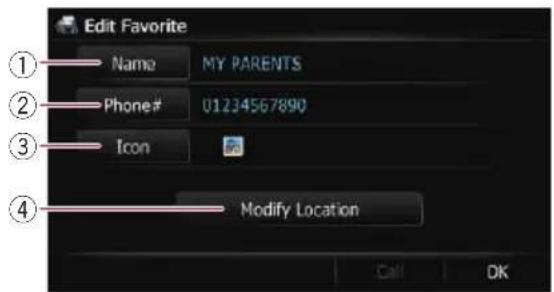
Registeringandeditinglocations
①Name
Youcanenterthedesiredname.
☐Upto17 characterscanbeinputforthe name.
②Phone#
Youcanedittheregisteredphonenumber. Todialthenumber,touch[Call].
Themaximumdigitsyoucanenterforthe phonenumberis15.
③Icon
Youcanchangethesymboldisplayedon themapand"Favorites".
④ModifyLocation
Youcanchangetheregisteredlocationby scrollingthemap.
5Touch[OK].
Theregistrationiscomplete.
Editingyourhome
When you have already registered your home, you can edit the information of your home.
1Displaythe"DestinationMenu"screen.
Fordetailsoftheoperations,refertoScreen switchingoverviewonpage22.
2Touch[Favorites].
□Homelocationisdisplayedonthetopof thelist.
3Touchnext othehomelocation.

The "EditFavorite" screenappears.
4Touchtheitemthatyouwantto changethesetting.
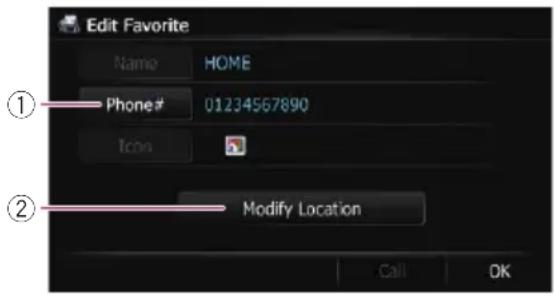
①Phone#
Todialthenumber,touch[Call].
②ModifyLocation
Youcanchangetheregisteredlocationby scrollingthemap.
☐Forhomeinformation,[Name]and[Icon]arenoteditable.
5Touch[OK].
Theregistrationiscomplete.
Sortingthefavoritelocations inthelist
1Displaythe"DestinationMenu"screen.
Fordetailsoftheoperations,refertoScreen switchingoverviewonpage22.
2Touch[Favorites].
The "Favorites" screenappears.
3Touch[Sort].
Eachtimeyoutouch[Sort]changesthesort order.
☐Currentorderisindicatedontheupper rightofthescreen.
![PIONEER AVIC-Z130BT - 3Touch[Sort]. - 1](/content/2026/06/1292122/images/6f7ac74f63790bbbc6859dab38e62ef305696e717cd94f3c8d77adb499bf26a7.jpg)
Sortstheitemsinthelistinorderbydistancefromthevehicleposition.
![PIONEER AVIC-Z130BT - 3Touch[Sort]. - 2](/content/2026/06/1292122/images/de588164d7f1fe08022467400ec78a4a0440ec959352b1e494341ad2fe8797a4.jpg)
Sortstheitemsinthelistinorderofthere- centlyuseditems.
![PIONEER AVIC-Z130BT - 3Touch[Sort]. - 3](/content/2026/06/1292122/images/ffe419d5b858b0821c01b6e73ae5f409befefb8f26b75d56fadf32f799a771eb.jpg)
Sortstheitemsinthelistalphabetically.
Deletingafavoritelocation fromthelist
1Displaythe"DestinationMenu"screen.
- Fordetailsoftheoperations,refertoScreen switchingoverviewonpage22.
2Touch[Favorites].
The "Favorites" screenappears.
3Touch[Delete].
4Selectthelocationyouwanttodelete.

Acheckmarkappearsnexttotheselectedlocation.
■Ifyoutouch[All],youcanselectallentries.If youwanttodeselectallentries,touch[None].
5Touch[Delete].
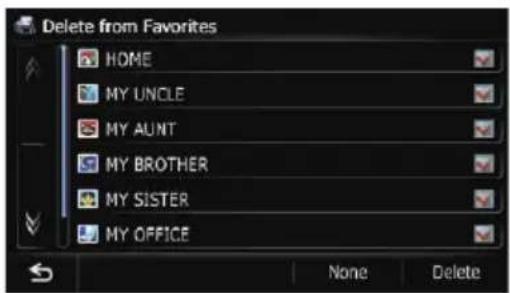
Amessagewillappearaskingyoutoconfirm thedeletion.
6Touch[Yes].

Thedatayouselectedisdeleted.
■Ifyoutouch[No], thedeletioniscanceled.

Exporting and importing favoritelocations
Exportingfavoritelocations
Youcanexportthe"Favorites"datatoanSD memorycardforeditingbyusingtheutility programAVICFEEDSwhichisavailableseparately,onyourPC.
□IfthereispreviousdataintheSDmemory card,thedataisoverwrittenwithnewdata.
1InsertanSDmemorycardintotheSD cardslot.
Fordetailsoftheoperation, referto/insertingandejectinganSDmemorycardon page16.
2Displaythe"DestinationMenu"screen.
Fordetailsoftheoperations,refertoScreen switchingoverviewonpage22.
3Touch[Favorites].
The "Favorites" screenappears.
4Touch

Dataexportstarts.
Afterthedataisexported, the completion message appears.
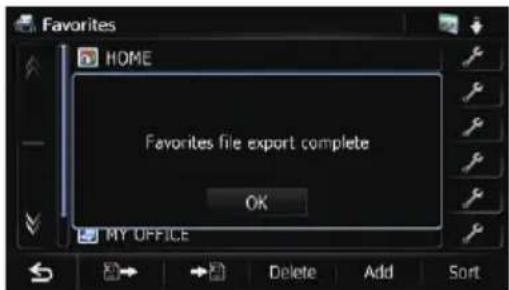
5Touch[OK].
The "Favorites" screenappears.
Importingfavoritelocations
YoucanimportthelocationsthatyouhaveeditedontheutilityprogramAVICFEEDSto"Favorites".
□Whenalocationthatisalreadyregistered in "Favorites" is imported, the location is overwritten.
1StoretheitemintotheSDmemorycard byusingtheAVICFEEDS.
Registeringandeditinglocations
2InsertanSDmemorycardintotheSD cardslot.
Fordetailsoftheoperation, referto/insertingandejectinganSDmemorycardon page16.
3Displaythe"DestinationMenu"screen.
Fordetailsoftheoperations,refertoScreen switchingoverviewonpage22.
4Touch[Favorites].
The "Favorites" screenappears.
5Touch

Themessageconfirmingwhethertoreplace thestoreditemsappears.

6Touch[Yes].
Dataimportstarts.
Afterimportingthedataisfinished,the"Favorites"screenappears.
Deletingthedestination historyfromthelist
Itemsin"History"canbedeleted.Allentries in"History"canbedeletedatonce.
1Displaythe"DestinationMenu"screen.
→Fordetailsoftheoperations,refertoScreen switchingoverviewonpage22.
2Touch[History].
The "DestinationHistoryList" screenappears.
3Touch[Delete].
The "DeletefromHistory" screenappears.
4Selectthelocationyouwanttodelete.
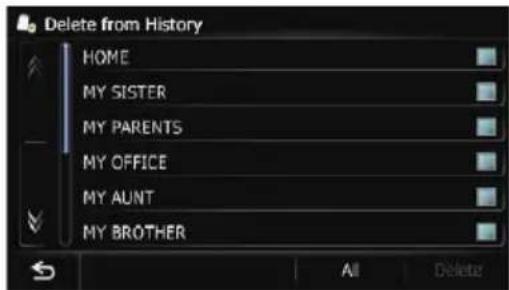
Acheckmarkappearsnexttotheselectedlocation.
■Ifyoutouch[All],youcanselectallentries.If youwanttodeselectallentries.touch[None].
5Touch[Delete].

Amessagewillappearaskingyoutoconfirm thedeletion.
6Touch[Yes].
Thedatayouselectedisdeleted.
■Ifyoutouch[No], thedeletioniscanceled.
![PIONEER AVIC-Z130BT - 6Touch[Yes]. - 1](/content/2026/06/1292122/images/2aebbedbfdecd4cf81e46add1cb64521a1bcc2c3e2c911163acc0b84e3626ccc.jpg)
☐PleasenotethatuseofthetrafficinformationfunctiononAVIC-X930BTorAVIC-X9310BTwillrequirethataseparatelysold Traffictuner(ND-TMC10)beconnected. Youcancheckreal-timetrafficinformation transmittedbytheTrafficManagementChannel(TMC)ofthereceiveddataservices(RDS) onthescreen.Suchtrafficinformationisupdatedperiodically.Whenthenavigationsystemreceivesupdatedtrafficinformation,the navigationsystemwilloverlaythetrafficinformationonyourmapandalsodisplaydetailed textinformationwhenavailable.Whenyouare travelingalongarouteandthereistrafficinformationonyourcurrentroute,thesystem willdetectitandaskyouifyouwouldliketo bererouted,orsuggestanotherrouteautomatically.
□WhenusedinNorthAmerica,thisproduct receivestrafficinformationprovidedby ClearChannelBroadcasting,Inc. ©ClearChannelBroadcasting,Inc.
☐ Thesystemacquiresthetrafficinformation upto100milesinradiusfromthevehicle position.(Ifthereisalotoftrafficinformationaroundyourvehicle,theradiuswillbe shorterthan100miles.)
☐Thenavigationsystemprovidesthefollowingfunctionsbyusingtheinformation fromRDS-TMCservice:
- Displayingalistoftrafficinformation - Displayingtrafficinformationonamap - Suggestingaroutetoavoidtrafficcongestionbyusingtrafficinformation
☐ The term "traffic congestion" in this section indicate the following types of traffic information: stop and go, stopped traffic, closed/blocked roads. This information is always taken into consideration when checking your route, and the information related with these events cannot be turned off. If you select other traffic information in [Traffic Settings], the information can be displayed in a list or on a map.
- Fordetails, refertoSelectingtrafficinformationtodisplayonpage55.
Checkingalltraffic information
Trafficinformationexcepttrafficflowinformationislistedonscreen.
1Displaythe"DestinationMenu"screen.
Fordetailsoftheoperations,refertoScreen switchingoverviewonpage22.
2Touch[Traffic].
The "Traffic Menu" screen appears.
3Touch[TrafficEvents].
The "Traffic Event List" screen appears. Thelistwithreceivedtrafficinformationis shown.
4Selectanincidentyouwanttoviewin detail.
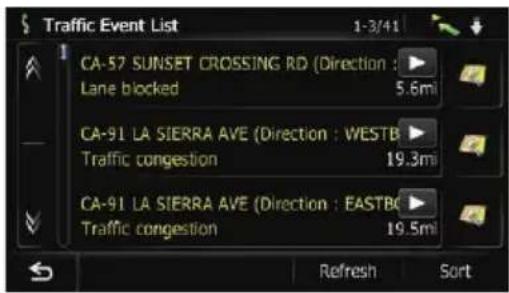
Thedetailsoftheselectedincidentaredisplayed.
Touchinganincidentyouwanttoseeallows youtoviewthedetailedinformationofthe incident.Iftheinformationcannotdisplayedononescreen.touch ortview theremaininginformation.
□Touching allowsyoutocheckthelocationonamap.(Trafficinformationwithout positionalinformationcannotbechecked onamap.)
■Ifyoutouch[Sort],thetrafficinformationcan besorted.
Eachtimeyoutouchthekeychangesthesetting.

Youcansortthetrafficinformationbydistancefromyourcurrentposition.
Whenyoutouch[TrafficEvents],thelist displayedwillbesortedaccordingtothelineardistancefromthevehiclepositiontothetrafficinformation.
Usingtrafficinformation
Whenyoutouch[TrafficonRoute].thelist displayedwillbesortedaccordingtothe distancefromthevehiclepositiontothe trafficinformation.

Youcansortthetrafficinformationinalphabeticalorder.

Youcansortthetrafficinformationaccordingtotheincident.
Thelistwillbesortedintheorderofclosed/blockedroads,trafficcongestion,accidents,roadworksandothers.
Currentorderisindicatedontheupperrightof thescreen.
■ Ifyoutouch[Refresh]whilenewtrafficinformationisreceived,currentinformationischangedandoldinformationisremoved.Thetraffic informationlistisupdatedtoreflectthenewsituation.
5Touch.

The previous screen returns.

Checkingtraffic informationontheroute
Alltrafficinformationonthecurrentrouteis displayedonscreeninalist.
1Displaythe"DestinationMenu"screen.
Fordetailsoftheoperations,refertoScreen switchingoverviewonpage22.
2Touch[Traffic].
The "Traffic Menu" screen appears.
3Touch[TrafficonRoute].
The "Traffic on Route" screen appears. Themethodforcheckingthecontentdisplayedonthescreenisthesameas"Traffic EventList"screen.
Fordetails, referto Checking all traffic information on the previous page.
Howtoreadtraffic informationonthemap
Thetrafficeventinformationdisplayedonthe mapisasfollows.
☐Alineisdisplayedonlywhenthemapscale is2.5miles(5km)orlower.
□Iconappearsonlywhenthescaleonthe mapis10miles(20km)orlower.Ifthe scaleischanged,theiconsareresizedaccordingtotheselectedscale.
Trafficeventicon
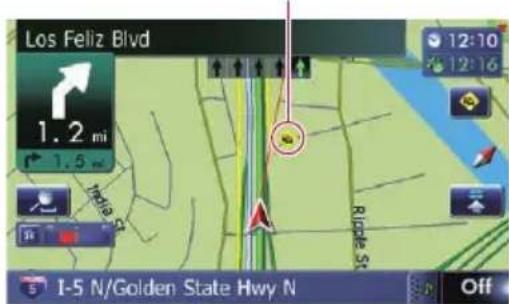
- withyellowline:
Stop-and-gotraffic
• withredline: Stoppedtraffic
• withblackline: Closed/blockedroads
• etc.: Accidents, constructions, etc.
☐Formeaningsofothericons, check them the "Traffic Type Settings" screen.
Fordetailsoftheoperations,refertoSelectingtrafficinformationtodisplayonpage 55.
Viewingthetrafficflow
Alltrafficflowinformationisdisplayedon screeninalist.
1Displaythe"DestinationMenu"screen.
Fordetailsoftheoperations,refertoScreen switchingoverviewonpage22.
2Touch[Traffic].
The "Traffic Menu" screen appears.
3Touch[TrafficFlow].
Alistwithtrafficflowinformationthathas beenreceivedisshown.Thelistissortedby distancefromyourcurrentposition. Places(streetnames)whereincidentshave occurredaredisplayedonthelist.
4Selectanincidentyouwanttoviewin detail.
Thedetailsoftheselectedincidentaredisplayed.
□Touchinganincidentyouwanttoseeallows youtoviewthedetailedinformationofthe incident.Iftheinformationcannotbeisplayedononescreen,touch ▼ortview theremaininginformation.
☐Touching allowsyoutocheckthelocationonamap.(Trafficinformationwithout positionalinformationcannotbechecked onamap.)
■Ifyoutouch[Sort],thetrafficinformationcan besorted. Eachtimeyoutouchthekeychangesthesetting.
- Youcansortthetrafficinformationbythe lineardistancefromyourcurrentposition.
• ABC. Youcansortthetrafficinformationinalphabeticalorder. - Youcansortthetrafficinformationbythe averagespeed.
Thelistwillbesortedintheorderofclosed/blockedroads,trafficcongestion,accidents,roadworksandothers.
Currentorderisindicatedontheupperrightof thescreen.
■Ifyoutouch[Refresh]whilenewtrafficinformationisreceived,currentinformationischangedandoldinformationisremoved.Thetraffic informationlistisupdatedtoreflectthenewsituation.
■Touch

Thetrafficeventinformationdisplayedonthe mapisasfollows.

Trafficflowiconandline
• Red: averagespeedin this area is slower than 15 mph (24 km/h)
- Yellow:averagespeedinthisareaisbetween15mphto45mph(24km/hto72km/h)
- Green:averagespeedinthisareaisfaster than45mph(72km/h)(Aniconwithouta linewillbedisplayed)
Settinganalternativeroute toavoidtrafficcongestion
Thenavigationsystemchecksatregularintervalswhetherornotthereisthetrafficinformationonyourroute.Ifthenavigationsystem detectsanytrafficcongestiononyourcurrent route,thesystemtriestofindabetterroutein thebackground.
The following types of traffic incidents on therout will be checked: stop and go, stopped traffic and closed/blocked roads except for closed freeway exits/entrances.
Checkingfortrafficcongestion automatically
If there is information about traffic congestion on your current route and if an alternative route can be found, then navigation system will recommend an alternative route automatically. Insuchacase, the following screen will appear.

①Differenceindistanceandtraveltimebetween theexistingrouteandnewroute.
②Distancefromthecurrentpositionofyourvehicletothepointofentryintothenewroute.
There is no action if the system cannot find any traffic congestion information on your route or the system cannot find an alternative.
1Touch[New].
Therecommendedrouteisdisplayedonthe screen.
■ Ifyoutouch[Current]whiletherecommendedrouteisdisplayed,thescreenswitches tothecurrenttroutedisplay.
2Touch[OK].
Thedisplayedrouteisset.
□Whennoselectionismade,thescreenreturnstothepreviousscreen.
Checkingtrafficinformation manually
Touchingthenotificationicononthemap screenallowsyoutochecktrafficinformation onyourroutewhiletheiconisdisplayed.The notificationiconisonlydisplayedonthenavi-
gationmapscreenifthereisanytrafficinformationonyourroute.
☐Thenotificationiconisnotavailableifyour vehicledeviatesfromtheroute.
1Set[ShowTrafficIncident]to"View".
- Fordetails, refertoDisplayingthetrafficno- tificationicononpage157.
2Displaythemapscreen.
Theiconappearswhenthesystemacquires trafficinformationonthecurrentroute.
3Touchtheiconwhiletheiconisdis- played.
Notificationicon
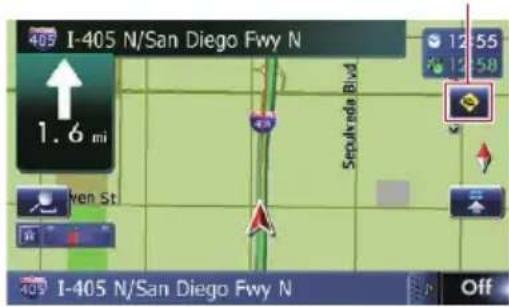
Trafficinformationonthecurrentrouteisdisplayonthemapscreen.
4Touch[Diversion]tosearchforanalternativeroute.
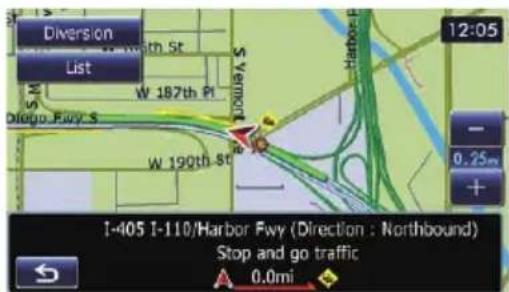
Aftertouching[Diversion],therouteisrecalculatedtakingalltrafficcongestiononyour currentrouteintoaccount.
☐[Diversion]willbeavailableonlywhenthe systemcanfindtrafficcongestion.
Usingtrafficinformation
☐Notificationiconshowsthenearesttraffic informationontheroute. However, if you touch [Diversion], theroute is recalculated by taking into account not only this information, but also all traffic congestion information ontheroute.
Fordetails, refer to Checking for traffic congestion automatically on the previous page.
- If you touch [List], the "Traffic on Route" screenappears.
■Ifyoutouch ←,themessagedisappearsand themapscreenreturns.
Selectingtraffic informationtodisplay
Therearedifferenttypesoftrafficinformation thatcanbereceivedviatheRDS-TMCservice, andyoucanselectwhichtypeswillbeincorporatedanddisplayedonyournavigationsystem.
1Displaythe"DestinationMenu"screen.
- Fordetailsoftheoperations,refertoScreen switchingoverviewonpage22.
2Touch[Traffic].
The "Traffic Menu" screen appears.
3Touch[TrafficSettings].
The "Traffic Settings" screen appears.
4Touch[DisplayedTrafficInfo].

The "Traffic Type Settings" screen appears.
5Touchthetrafficinformationitemto display.
Acheckmarkappearsnexttotheselected trafficinformation.
■ Ifyoutouch[All], youcanselectallentries. If youwanttodeselectallentries, touch[None].
6Touch[OK].

Theselectedtrafficinformationiconisadded tothescreen.
7Touch[OK].
SelectingpreferredRDS-TMC serviceprovidermanually
AdefaultpreferredTMCserviceproviderfor eachcountryhasbeenset.ThenavigationsystemtunestotheradiostationwithgoodreceptionamongthepreferredRDS-TMCservice providers.Ifyouwanttosetanotherpreferred RDS-TMCserviceprovider,youcanmanually selectonefromavailableRDS-TMCservice providers.
1Displaythe"DestinationMenu"screen.
Fordetailsoftheoperations,refertoScreen switchingoverviewonpage22.
2Touch[Traffic].
The "Traffic Menu" screen appears.
3Touch[TMCProviderSelection].
4Touchthedesiredserviceprovideron thelist.
Aftertouchingaserviceprovider,thesystem startstuningtotheselectedRDS-TMCservice provider.Whenthetuningissuccessful,the systemreturnstothemapdisplay.
RegisteringandconnectingaBluetoothdevice
If your devices feature Bluetooth ^ technology, this navigationsystem can be connected to your devices wirelessly. This section describes how to setup a Bluetooth connection.
Fordetailsabouttheconnectivitywiththede- vicesfeaturingBluetoothwirelesstechnology, refertotheinformationonourwebsite.
Preparingcommunication devices
This navigation system has been built-in function to use devices featuring Bluetooth wireless technology.
Fordetails, referto Notes for hands-free phoning on page 69.
Youcanregisterandusedevicesthatfeature thefollowingprofileswiththisnavigationsystem.
• HFP(HandsFreeProfile)
• A2DP(AdvancedAudioDistributionProfile)
□IftheregistereddevicefeaturesbothHFP andA2DP,thehands-freeconnectionis madeandthentheBluetoothaudioconnectionismade.
Iftheregistereddevicefeatureseitherprofile,thecorrespondingconnectionismade.
☐Whenthenavigationsystemisturnedoff, theBluetoothconnectionisalsodisconnected.Whenthesystemrestarts,thesystemautomaticallyattemptstoreconnect thepreviously-connecteddevice.Even whentheconnectionisseveredforsome reason,thesystemautomaticallyreconnectsthespecifieddevice(exceptwhenthe connectionisseveredduetodeviceoperation).
RegisteringyourBluetooth devices
Youneedtoregistryourdevicesfeaturing Bluetoothwirelesstechnologywhenyoucon-
nectitforthefirsttime.Atotalof5devices canberegistered.Threeregistrationmethods areavailable:
- SearchingfornearbyBluetoothdevices
• PairingfromyourBluetoothdevices - SearchingforaspecifiedBluetoothdevice
□Ifyoutrytoregistermorethan5devices, thesystemwillaskyoutoselectoneofthe registereddevicestodelete. - Fordetails, referto Deleting are registered device on page 59.
SearchingfornearbyBluetooth devices
ThesystemsearchesforavailableBluetooth devicesnearthenavigationsystem, displays theminalist, and registersthemforconnection.
1ActivatetheBluetoothwirelestechnologyonyourdevices.
ForsomeBluetoothdevices,nospecific-action isnecessarytoactivateBluetoothwireless technology.Fordetails,refertotheinstruction manualofyourdevices.
2Displaythe"SettingsMenu"screen.
Fordetailsoftheoperations,refertoScreen switchingoverviewonpage22.
3Touch[BluetoothSettings].
The "BluetoothSettings" screenappears.
4Touch[Registration].
The "NearbyDeviceList" screenappears. ThesystemsearchesforBluetoothdevices waitingfortheconnectionanddisplaythem inthelistifadeviceisfound.
☐Upto30deviceswillbelistedintheorder thatthedevicesarefound.
RegisteringandconnectingaBluetoothdevice
5WaituntilyourBluetoothdeviceappearsinthelist.


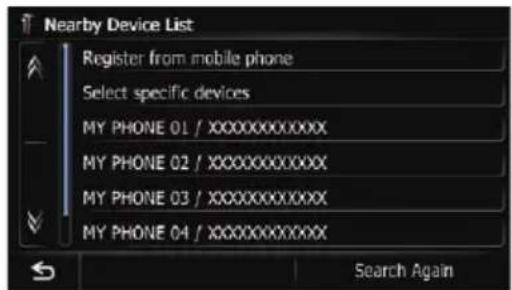
If you cannot find the Bluetooth device that you want to connect, check that the device is waiting for the Bluetooth wireless technology connection.
6TouchtheBluetoothdevicenameyou wanttoregister.


■ If you touch [Search Again], the system starts searching for Bluetooth devices waiting for connection, and display them in the list format when any devices are detected.
7Enterthepassword(thedefaultpasswordis"1111")usingtheBluetoothdevice.
Enterthepasswordwhilethemessage"Please followtheinstructionsonyourmobile phone."appears.
The device is registered in the navigation system.
After the device is successfully registered, the Bluetooth connection is established from the navigation system.
PairingfromyourBluetooth devices
YoucanregistertheBluetoothdevicebysettingthenavigationsystemtostandbymode andrequestingconnectionfromtheBluetooth device.
1ActivatetheBluetoothwirelestechnologyonyourdevices.
ForsomeBluetoothdevices,nospecific-action isnecessarytoactivateBluetoothwireless technology.Fordetails,refertotheinstruction manualofyourdevices.
2Displaythe"SettingsMenu"screen.
- Fordetailsoftheoperations,refertoScreen switchingoverviewonpage22.
3Touch[BluetoothSettings].
The "BluetoothSettings" screenappears.
4Touch[Registration].
The "NearbyDeviceList" screenappears.
5Touch[Registerfrommobilephone].
ThenavigationsystemwaitsforaBluetooth wirelesstechnologyconnection.
RegisteringandconnectingaBluetoothdevice
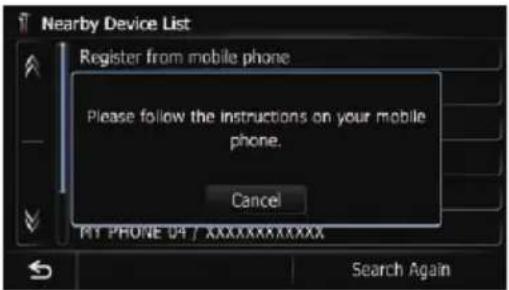
6Registerthenavigationsystemonyour Bluetoothdevice.
If your device asks you to enter a password, enter the password of then navigation system. Whenthe device is successfully registered, the connection settings are made from the device.
If registration fails, repeat the procedure from the beginning.
Searchingforaspecified Bluetoothdevice
If you cannot connect your Bluetooth device using the nearby devices search and if your Bluetooth device is found in the list, try the following method.
1ActivatetheBluetoothwirelestechnologyonyourdevices.
ForsomeBluetoothdevices,nospecific-action isnecessarytoactivateBluetoothwireless technology.Fordetails,refertotheinstruction manualofyourdevices.
2Displaythe"SettingsMenu"screen.
Fordetailsoftheoperations,refertoScreen switchingoverviewonpage22.
3Touch[BluetoothSettings].
The "BluetoothSettings" screenappears.
4Touch[Registration].
The "NearbyDeviceList" screenappears.
5Touch[Selectspecificdevices].
The "Selectspecificdevices" screenappears.
6TouchtheBluetoothdevicenametobe connected.
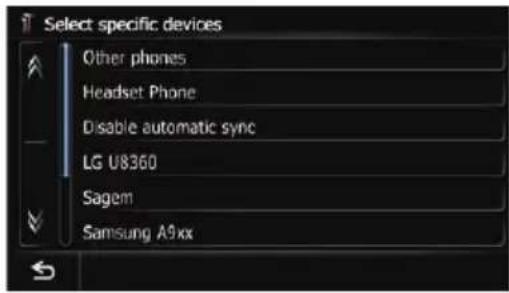
ThesystemsearchesforBluetoothdevices waitingfortheconnectionanddisplaythem inthelistifadeviceisfound.
□If you cannot find the desired device name on the list, touch [Otherphones] to search the devices available nearby.
7WaituntilyourBluetoothdeviceappearsinthelist.
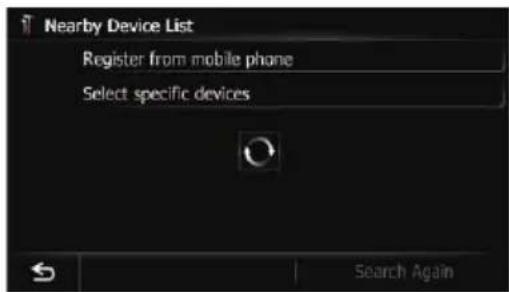


□If you cannot find the Bluetooth device that you want to connect, check that the device is waiting for the Bluetooth wireless technology connection.
RegisteringandconnectingaBluetoothdevice
8TouchtheBluetoothdevicenameyou wanttoregister.
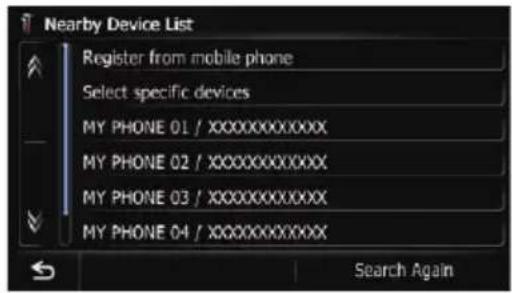


■Ifyoutouch[SearchAgain], thesystemstarts searching for Bluetooth devices waiting for connection, and display them in the list format when any devices are detected.
9Enterthepassword(thedefaultpasswordis"1111")usingtheBluetoothdevice.
Enterthepasswordwhilethemessage"Please followtheinstructionsonyourmobile phone."appears.
The device is registered in the navigation system.
After the device is successfully registered, the Bluetooth connection is established from the navigation system.
Deletingaregistereddevice
When you have already registered 5 Bluetooth devices and you want to add another one, you must first delete one of the registered devices.
☐Ifaregisteredphoneisdeleted,allthe phonebookentriesandcallhistorylists thatcorrespondtothephonewillbealso cleared.
1Displaythe"SettingsMenu"screen.
Fordetailsoftheoperations,refertoScreen switchingoverviewonpage22.
2Touch[BluetoothSettings].
The "BluetoothSettings" screenappears.
3Touch[Registration].
Amessagepromptingyoutodeletearegistereddeviceappears.
4Touch[OK].

The "DeletefromConnectionList" screen appears.
5TouchtheBluetoothdevicenamethat youwanttodelete.

The device is deleted.
![PIONEER AVIC-Z130BT - 3Touch[Registration]. - 3](/content/2026/06/1292122/images/161bb13220289dcac4d82e1bd38e109addd7dc75d0b84af8f96af645097927bd.jpg)
Connectingaregistered Bluetoothdevicemanually
Thenavigationsystemautomaticallyconnects theBluetoothdeviceselectedasthetargetof connection. However, connecttheBluetooth device manually in the following cases:
- TwoormoreBluetoothdevicesareregistered, and you want to manually select the device to be used.
- Youwanttoreconnectadisconnected Bluetoothdevice.
RegisteringandconnectingaBluetoothdevice
- Connection cannot be established automatically for somereason.
If you start connection manually, carry out the following procedure. You can also connect the Bluetooth device by having then navigation system detect it automatically.
1ActivatetheBluetoothwirelestechnologyyourdevices.
ForsomeBluetoothdevices,nospecific-action isnecessarytoactivateBluetoothwireless technology.Fordetails,refertotheinstruction manualofyourdevices.
2Displaythe"SettingsMenu"screen.
- Fordetailsoftheoperations,refertoScreen switchingoverviewonpage22.
3Touch[BluetoothSettings].
The "BluetoothSettings" screenappears.
4Touch[Connection].
The "ConnectionList" screenappears.
5Touchthenameofthedevicethatyou wanttoconnect.

The "SelectProfile" screenappears.
6Touchtheprofilethatyouwanttoconnect.
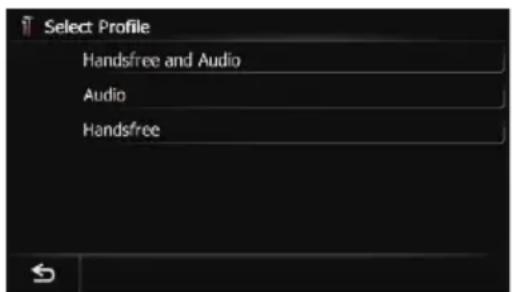
Youcanselectthefollowingprofiles:
- HandsfreeandAudio:
Connectsthedeviceasthehands-free phoneandtheBluetoothaudioplayer.
•Audio:
ConnectsthedeviceasBluetoothaudio player.
- Handsfree:
Connectsthedeviceasthehands-free phone.
Connectionstarts.
When a connection is successfully established, a connection completes message appears and them maps screen returns by touching [OK].
Tocanceltheconnectiontoyourdevice, touch[Cancel].
□Ifconnectionfails, checkwhetheryourdeviceiswaitingforaconnectionandthen retry.
Settingforpriorityconnecting
Theselecteddeviceissetforpriorityconnecting.
Andoneofthefollowingiconsisindicated nexttothedevicename.
•
Appearswhenthedeviceisregisteredso thatitwillbepreferentiallypairedwithboth thehands-freeandBluetoothaudioconnection.
•
Appearswhenthedeviceisregisteredso thatitcanbepreferentiallypairedwiththe hands-freeconnection.
•
Appearswhenthedeviceisregisteredso thatitwillbepreferentiallypairedwiththe Bluetoothaudioconnection.

CAUTION
Foryoursafety, avoid talking on the phone as much as possible while driving.
If your cellular phone features Bluetooth technology, this navigation system can be connected to your cellular phonewirelessly. Using this hands-free function, you can operate the navigation system to make or receive phone calls. You can also transfer the phonebook data stored in your cellular phoneto then navigation system. This section describes how to setup a Bluetooth connection and how to operate a cellular phone featuring Bluetooth technology on the navigation system.
Fordetailsabouttheconnectivitywiththede- vicesfeaturingBluetoothwirelesstechnology, refertotheinformationonourwebsite.
Displayingthephonemenu
Use the "PhoneMenu" if you connect the cellular phonetothenavigationsystem for utilization.
→Fordetails,refertoChapter11.
1PresstheHOMEbuttontodisplaythe "TopMenu" screen.
2Touch[Phone].
The "PhoneMenu" screenappears.

①Nameofconnectedcellularphone
②Networknameofthecellularphonecompany
③StrengthoftheBluetoothconnectionbetweenthenavigationsystemandthedevice
④Receptionstatusofthecellularphone
⑤Batterystatusofthecellularphone
![PIONEER AVIC-Z130BT - 2Touch[Phone]. - 2](/content/2026/06/1292122/images/377a80dffe34e98d5d12de741332dfa2a0f39f0a4d71cf3014e0d144607d428f.jpg)
Makingaphonecall
Youcanmakeaphonecallinmanydifferent ways.
Directdialing
1Displaythe"PhoneMenu"screen.
- Fordetails, refertoDisplaying the phone menu on this page.
2Touch[DialPad].
The "DialInput" screenappears.
3Touchthenumberkeystoenterthe phonenumber.

Thephonenumberthatwasinputdisplayed.
When the input is complete, [OK] becomes active.
■Ifyoutouch, the enterednumberisdeleted onedigitatatimefromtheendofthenumber.
Pressandholdtodeletealldigits.
■Ifyoutouch ↩, thepreviousscreenreturns.
4Touch[OK]tomakeacall.
☐Tocancelthecallafterthesystemstarts dialing,touch 📞.
5Touchtoendthecall.
Makingacallhomeeasily
Youcancallhomewithouttakingthetimeto enterthephonenumberifthephonenumber hasbeenregistered.
1Displaythe"PhoneMenu"screen.
- Fordetails, refertoDisplaying the phone menu on the previous page.
2Touch[CallHome].
Dialinghomestarts.
□Ifyouhavenotregisteredyourhomenumber,amessageappears.Touch[Register] tostartregistration.
Fordetails, refertoRegistering your homeonpage154.
Callinganumberinthephone book
Youcanselectandcallacontactfromthe phonebookentriestransferredtothenavigationsystem.
Before using this function, you need to transfer the phone book entries stored in your cellular phonetothenavigationsystem.
→Fordetails, refertoTransferring the phone book on page 65.
Searchingforacontacttocallonthe alphabettabs
1Displaythe"PhoneMenu"screen.
- Fordetails, refertoDisplaying the phone menu on the previous page.
2Touch[Contacts].
The "ContactsList" screenappears.
3Touchalphabettabs.

Thescreenjumpstothetopofthepagedis-playingtheentriesthatstartwiththeselected letterornumber.
☐Touching[#ABCDE]displaysallentriesthat startwithsymbolsornumbers.
□Touching[Others]displaysthepageincludingentriesthatarenotassignedtoanyoftheothertabs.
4Touchthedesirednameonthelist.
The "Contacts Type Selection" screen appears.
5Touchthedesiredentryonthelistto makeacall.
6Touch

toendthecall.
Callinganumberbysearchingbyname
1Displaythe"PhoneMenu"screen.
- Fordetails, refertoDisplaying the phone menu on the previous page.
2Touch[Contacts].
The "ContactsList" screenappears.
3Touch[Search].
The "ContactsNameSearch" screenappears.
Youcansearchbythenamesregisteredinthe "ContactsList" screen.
Usinghands-freephoning
4Enterthedesirednameandthentouch [OK].

The "ContactsNameSearchResults" screen appears.
5Touchthedesirednameonthelist.
The "Contacts Type Selection" screen appears.
6Touchthedesiredentryonthelistto makeacall.
7Touch

toendthecall.
Dialingfromthehistory
Themostrecentcallsmade(dialed),received andmissedarestoredinthecallhistorylist. Youcanbrowsethecallhistorylistandcall numbersfromit.
☐Eachcallhistorysaves30callsperregisteredcellularphone.Ifthenumberofcalls exceeds30,theoldestentrywillbedeleted.
1Displaythe"PhoneMenu"screen.
- Fordetails, refertoDisplaying the phone menu on page 61.
2Touch[ReceivedCalls], [DialedCalls] or [MissedCalls].
Theselectedcallhistorylistappears.
3Touchanentryonthelist.

Dialingstarts.
☐Tocancelthecallafterthesystemstarts dialing,touch 📞.
- If you touch [Detail], the "Detailed Information" screenappears.

You can check the detail of the party before making a phone call.
4Touchtoendthecall.
Dialingafavoritelocation
Youcanmakeacalltoanentrystoredinthe "Favorites"list.
1Displaythe"DestinationMenu"screen.
→Fordetailsoftheoperations,refertoScreen switchingoverviewonpage22.
2Touch[Favorites].
The "Favorites" screenappears.
3Touch nexttothelocationthatyou wanttomakeacall.
The "EditFavorite" screenappears.
4Touch[Call]tomakeacall.
☐Tocancelthecallafterthesystemstarts dialing,touch 📞.
5Touchtoendthecall.
Dialingafacility'sphonenumber
You can make acall to facilities with phone number data.
☐You cannot make acalltolocations or POIs that havenophonenumberdata.
1Displaythe"DestinationMenu"screen.
Fordetailsoftheoperations,refertoScreen switchingoverviewonpage22.
Usinghands-freephoning
2Touch[POI].
The "POISearch" screenappears.
3SearchforthePOI.
The "POIList" screenappears.
Fordetailsoftheoperation,refertoSearchingforPointsofInterest(POI)onpage37.
4Touchnext tothePOIthatyouwant tocall.
The "POllnformation" screenappears.
5Touch[Call]tomakeacall.
☐Tocancelthecallafterthesystemstarts dialing,touch
6Touchtoendthecall.
Dialingfromthemap
Youcanmakeacallbyselectingtheiconofa registeredlocationoraPOliconfromthemap screen.
☐YoucannotmakeacalltolocationsorPOIs thatavenophonenumberdata.
1Scrollthemap, and placethecursoron anicononthemap.
2Touch
The "InformationList" screenappears.
3TouchthePOIyouwant.
The "POllnformation" screenappears.
4Touch[Call]tomakeacall.
Tocancelthecallafterthesystemstarts dialing.touch
5Touchtoendthecall.
![PIONEER AVIC-Z130BT - 4Touch[Call]tomakeacall. - 1](/content/2026/06/1292122/images/ad61e0a9aae5c9ed5c0d32c29d232d5534b59278a22adebbee76dd26cb293f55.jpg)
Receivingaphonecall
Youcanperformhands-freeansweringby usingthenavigationsystem.
Answeringanincomingcall
Thesysteminformsyouthatitisreceivinga callbydisplayingamessageandproducinga ringsound.

☐Youcansetthesystemtoautomaticallyanswerincomingcalls.Ifnotsettoautomaticallyanswerincomingcalls,youwillhave toanswerthecallsmanually.
- Fordetails,refertoAnsweringacall automaticallyonpage67.
□Ifthevoiceontheotherendofthecallis tooquiettohear,youcanadjustthevolume ofthereceivedvoice.
Fordetails, refertoSettingtheVolume forGuidanceandPhoneonpage165.
☐Theregisterednameappearsifthephone numberofthereceivedcallisalreadyregisteredin"Contacts".
☐DependingonthecallerIDservice,the phonenumberofthereceivedcallmaynot bedisplayed."Unknown"appearsinstead.
1Toansweranincomingcall,touch

Theoperationmenuduringacallappears.
- If you touch [Vol -] or [Vol +], you can adjust theringtonevolume.
■Ifyoutouch anincomingcallisrejected.
Therejectedcallisrecordedinthemissedcall historylist.
- Fordetails, referto Dialing from the history on the previous page.
2Touchtoendthecall.

Thecallends.
☐Youmayhearanoisewhenyouhangup thephone.
■ If you touch [Vol -] or [Vol +], you can adjust the volumewhentalking.
■Ifyoutouch[CloseMenu],theoperation
menuduringcallisminimized.
Todisplaythemenuagain,touch


Transferring the phonebook
Youcantransfer the phonebook entries from your cellular phoneto the phonebook of the navigation system.
☐Dependingonthecellularphone, phone bookmaybecalledContacts,Business Cardorsomethingelse.
□Withsomecellularphones,itmaynotbe possibletotransfertheentirephonebook atonce.Inthiscase,transferaddresses oneatatimefromyourphonebookusing yourcellularphone.
□If you connect the cellular phone featuring auto-synchronization function, phonebook transfer or synchronization will be automatically performed.
☐A maximum of 1000 entries can be transferred per cellular phone. If the entries exceed 1000, the extra entries will not be transferred. If more than one number is registered for one person, such as workplace and home, each number may be counted separately.
□Eachentrycanholdupto5phonenumbers.
☐Depending on the cellular phonethatis connected to this navigation system via Bluetooth technology, this navigation system may not be able to display the phone book correctly. (Some characters maybe garbled.)
□Ifthephonebookinthecellularphonecontainsimagedata, thephonebookmaynot becorrectlytransferred.
☐Thetransferreddatacannotbeeditedon thenavigationsystem.
1Connectthecellularphonethathasthe phonebooktotransfer.
- Fordetails, refertoConnectingaregistered Bluetoothdevicemanuallyonpage59.
2Touch[ContactsTransfer]onthe "PhoneMenu"screen.
3Checkthatthefollowingscreenisdis- played, and operate your cellular phoneto transfer the phone book entries.

Whendatatransferisfinished, amessageaskingwhetheryouwanttotransfermoredata appears.
Touch[Yes]tocontinuethetransfer.
4Touch[No].

Thetransferreddataisimportedtothenavigationsystem.
Whenthedataissuccessfullyimported,an importcompletemessageisdisplayedandthe
"ContactsList" screenappears.
☐Itmaytaketimedependingonhowmany entrieswillbetransferred.
Deletingregisteredcontacts
1Displaythe"PhoneMenu"screen.
- Fordetails, refertoDisplaying the phone menu on page 61.
2Touch[Contacts].
The "ContactsList" screenappears.
3Touch[Delete].
The "DeletefromContacts" screenappears.
4Touchtheentryyouwanttodelete.
Acheckmarkappearsnexttotheentry.
■Ifyoutouch[All],youcanselectallentries.If youwanttodeselectallentries,touch[None].
5Touch[Delete].
Themessageconfirmingwhethertodeletethe entryappears.
6Touch[Yes].
Theentryisdeleted.
■Ifyoutouch[No], thedeletioniscanceled.
![PIONEER AVIC-Z130BT - 6Touch[Yes]. - 1](/content/2026/06/1292122/images/37e4abe9c4eb366c622526e627d13c50218237e2e2fe1229bc6136c19b29e820.jpg)
Changing the phones settings
Editingthedevicename
Youcanchangethedevicenametobedisplayedonyourcellularphone.(Defaultis "PIONEERNAVI".)
1Displaythe"SettingsMenu"screen.
Fordetailsoftheoperations,refertoScreen switchingoverviewonpage22.
2Touch[BluetoothSettings].
The "BluetoothSettings" screenappears.
3Touch[DeviceName].
Thekeyboardtoenterthenameappears.
4Touch < todeletethecurrentname, andenterthenewnamebyusingthekeyboard.

☐Upto16characterscanbeenteredforade- vicename.
5Touch[OK].
Thenameischanged.
Editingthepassword
Youcanchangethepasswordtobeusedfor authenticationonyourcellularphone.(Defaultis"1111".)
☐ Fourtoeightcharacterscanbeenteredfor apassword.
1Displaythe"SettingsMenu"screen.
Fordetailsoftheoperations,refertoScreen switchingoverviewonpage22.
2Touch[BluetoothSettings].
The "BluetoothSettings" screenappears.
3Touch[Password].
The "SetPassword" screenappears.
4Touchtoeletethecurrentpassword, and enterthenewpassword by using the keyboard.
5Touch[OK].
Thepassworddischanged.
StoppingBluetoothwave transmission
Youcanstoptransmissionofelectricwavesby turningofftheBluetoothfunction.Ifyoudo notusetheBluetoothwirelesstechnology,we recommendselecting"Off".
1Displaythe"SettingsMenu"screen.
→Fordetailsoftheoperations,refertoScreen switchingoverviewonpage22.
2Touch[BluetoothSettings].
The "BluetoothSettings" screenappears.
3Touch[BluetoothOn/Off].
Eachtouchof[BluetoothOn/Off]changes thesettingsasfollows:
- On(default):
TurnsonBluetoothfunction.
• Off:
TurnsoffBluetoothfunction.
Echocancelingandnoisereduction
When you are operating hands-free phoning in the vehicle, you may hear an undesirable echo. This function reduces the echo and noisewhile you are using hands-free phoning, and maintains acertains sound quality.
1Displaythe"SettingsMenu"screen.
→Fordetailsoftheoperations,refertoScreen switchingoverviewonpage22.
2Touch[BluetoothSettings].
The "BluetoothSettings" screenappears.
3Touch[EchoCancel].
Eachtouchof[EchoCancel]changesthesettingsasfollows:
- On(default):
Activatesechocancelingandnoisereduction.
• Off:
Deactivatesechocancelingandnoisereduction.
Answeringacallautomatically
Thenavigationsystemautomaticallyanswers incomingcallstothecellularphone,soyou canansweracallwhiledrivingwithouttaking yourhandsoffthesteeringwheel.
1Displaythe"SettingsMenu"screen.
Fordetailsoftheoperations,refertoScreen switchingoverviewonpage22.
2Touch[BluetoothSettings].
The "BluetoothSettings" screenappears.
3Touch[AutoAnswerPreference].
The "AutoAnswerPreference" screenappears.
4Touchthedesiredoption.

Onthisscreen,youcanselectthefollowing items:
- Off(default):
Noautomaticresponse.Respondmanually. - Immediately:
Answersimmediately.
• After3seconds:
Answersafterthreeseconds.
• After6seconds:
Answersaftersixseconds.
• After10seconds:
Answersaftertenseconds.
Settingtheautomaticrejection function
If this function is on, then navigation system automatically rejects all incoming calls.
1Displaythe"SettingsMenu"screen.
Fordetailsoftheoperations,refertoScreen switchingoverviewonpage22.
2Touch[BluetoothSettings].
The "BluetoothSettings" screenappears.
3Touch[RefuseAllCalls].
Eachtouchof[RefuseAllCalls]changesthe settingsasfollows:
- Off(default): Acceptsallincomingcalls.
- On: Rejectsallincomingcalls.
☐ If both “Refuse All Calls” and “Auto AnswerPreference” are activated, “Refuse AllCalls” takes priority and all incoming calls are automatically rejected.
☐ If "Refuse All Calls" is set to "On", rejected incomingcallswillnotbestoredinthe missedcalllist.
Clearingmemory
Youcanclearthememoryofeachitemthat correspondstothecconnectedcellularphone: phonebook,dialed/received/missedcallhistorylistandpresetdials.
1Displaythe"SettingsMenu"screen.
→Fordetailsoftheoperations,refertoScreen switchingoverviewonpage22.
2Touch[BluetoothSettings].
The "BluetoothSettings" screenappears.
3Touch[ClearMemory].
The "ClearMemory" screenappears.
4Touchthedesiredoption.
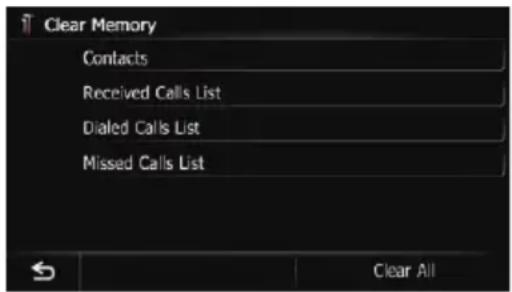
Onthisscreen,youcanselectthefollowing items:
- Contacts: Clearstheregisteredphonebook.
- ReceivedCallsList: Clearsthereceivedcallhistorylist.
- DialedCallsList: Clearsthedialedcallhistorylist.
- MissedCallsList: Clearsthemissedcallhistorylist.
■Ifyoutouch[ClearAll],allthedataiscleared thatcorrespondtotheconnectedcellularphone.
5Touch[Yes].
Dataontheselecteditemisclearedfromthis navigationsystem'smemory.
■ If you donot want to clear them memory that you have selected, touch [No].
UpdatingtheBluetooth wirelesstechnologysoftware
Updatefileswillbeavailablefordownloadin thefuture.Youwillbeabletodownloadthelat- estupdatefromanappropriatewebsiteto yourPC.
Before you download the files and install the update, read through the instructions on the website. Follow the instructions on the website for steps until [Firmwareupdate] becomes active.
1StoretheupdatedfilesintotheSD memorycard.
2InsertanSDmemorycardintotheSD cardslot.
Fordetailsoftheoperation, referto/insertingandejectinganSDmemorycardon page16.
3Displaythe"SettingsMenu"screen.
Fordetailsoftheoperations,refertoScreen switchingoverviewonpage22.
4Touch[BluetoothSettings].
The "BluetoothSettings" screenappears.
5Touch[Firmwareupdate].
The current version is displayed.

6Touch[Firmwareupdate].
Themessageconfirmingwhetherornotto starttheupdatewillappear.
7Touch[Yes].
Updatestarts.
8Waituntiltheupgradeprocessiscomplete.
Amessagewillappearaftertheupdateis complete.
9Touch[OK].
Themessagedisappears, and themapscreen returns.
10EjecttheSDmemorycard.
Notesforhands-freephoning
Generalnotes
- Connectiontoallcellularphonesfeaturing Bluetoothwirelesstechnologyisnotguaranteed.
- Theline-of-sightdistancebetweenthisnavigationsystemandyourcellularphone mustbe10metersorlesswhensending andreceivingvoiceanddataviaBluetooth technology. However, the actualtransmission distance may be shorter than the estimated distance, depending on the usage environment.
- Withsomecellularphones,theringsound maynotbeoutputfromthespeakers.
- Ifprivatemodeisselectedonthecellular phone,hands-freephoningmaybedisabled.
Registrationandconnection
- Cellularphoneoperationsvarydepending onthetypeofcellularphone. Refertothe instructionmanualthatcamewithyourcellularphonefordetailedinstructions.
- Withcellularphones, phonebooktransfer may not workevent though your phone is paired with thenavigationsystem. In that case, disconnect your phone, performpair-ing again from your phoneto thenavigationsystem, and then perform the phone booktransfer.
Makingandreceivingcalls
- Youmayhearanoiseinthefollowingsituations;
—When you answer the phone by using the button on the phone.
—Whenthepersonontheotherendof linehangsupthephone.
- If the person on the other end of the phone call can not hear the conversation dueto an echo, decrease the volume level for hands-free phoning. This may reduce the echo.
- Withsomecellularphones,evenify you presstheacceptbuttononthecellular phonewhenacallcomesin,hands-free phoningmaynotbeperformed.
- Theregisterednameappearsifthephone numberofthereceivedcallisalreadyregisteredinthephonebook.Whenonephone numberisregisteredunderdifferent names,thenamethatcomesfirstinthe phonebookisdisplayed.
- If the phonenumberofthereceivedcallis not registered in the phonebook, the phonenumberofthereceivedcallappears.
Thereceivedcallhistoryandthedialed numberhistory
- Callsmadeoreditingperformedonlyon yourcellularphonewillnotbereflectedto thedialednumberhistoryorphonebookin thenavigationsystem.
- You cannot make acall to the entry of an unknown user (nophonenumber) in there received call history.
- Ifcallsaremadebyoperatingyourcellular phone, nohistorydatawillberecordedin thenavigationsystem.
Phonebooktransfers
- If there are more than 1000 phone book entries on your cellular phone, all entries may not be downloaded completely.
- Withsomecellularphones, it may not be possible to transfer all items in the phone bookatonetime. In this case, transfer items one by one from your cellular phone.
- Depending on the cellular phone, this navigation system may not display the phone book correctly. (Some characters maybe garbled, or first and last names may be reversed.)
- If the phone book in the cellular phone contains imagedata, the phone book may not be transferred correctly. (Imagedata cannot be transferred from the cellular phone.)
- Dependingonthecellularphone, phone booktransfermaynotbeavailable.
BasicoperationsoftheAVsource
Thischapterdescribesthebasicoperationsof theAVsource.
Youcanplayorusethefollowingsourceswith yourPioneernavigationsystem.
•Tuner(HDRadiotuner)(*1)
• FM(*2)
-AM(*2)
•CD
• ROM(inMP3,AAC,WMA)
• DVD-Video
• DivX
•USB
•SD
The following sources can be played back or used by connecting an auxiliary device.
• HDRadio(HDRadiotuner)(*2)
• iPod
• Pandora
•AhaRadio
- Bluetoothaudio
•XMTuner
•SIRIUSTuner
•AVinput1(AV1)
•AVinput2(AV2)
- Externalunit1(EXT1)
- Externalunit2(EXT2)
☐(*1)AsourceavailableonlyonAVIC-Z130BT.
☐(*2)SourcesavailableonAVIC-X930BTorAVIC-X9310BT.
DisplayingtheAV operationscreen
●PresstheMODEbuttonwhenthemap screenisdisplayed.
☐TheAVoperationscreencanalsobedis-playedbytouching[AVSource&Contents] on the "Top Menu".
Selectingasource
Sourceicons
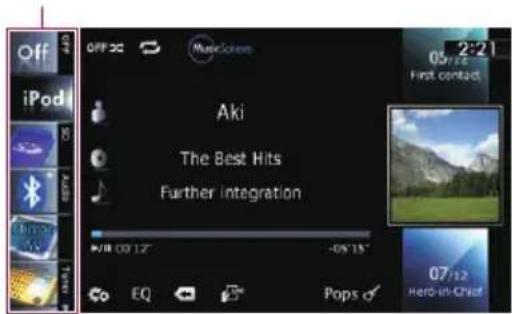
1Touch,thendraganysourceiconsupor downtodisplayadditionalsourceicons.
TheAVsourceiconswillscroll, and previously hiddeniconswillappear.
2Taptheiconofthesourceyouwantto select.
The operationscreenoftheselectedsource appears.
☐Thecurrentlyselectedsourceiconishhighlighted.
Operatinglistscreens(e.g. iPodlistscreen)
Thisdescribestheoperationswhenalist screenisdisplayed.
☐Forinformationonhowtodisplaythelist screen, refertothedescriptionswithinthe desiredsourceportionofthismanual.
SwitchingbetweentheAV operationscreenandthelist screen
The following example describes how to switch between the AV operations screen and the artist lists screen of a Pod.
BasicoperationsoftheAVsource
1Touchtheappropriatekeytodisplay thelistthatyouwant.

2Touchthekeyontherightedgeofthe screen.
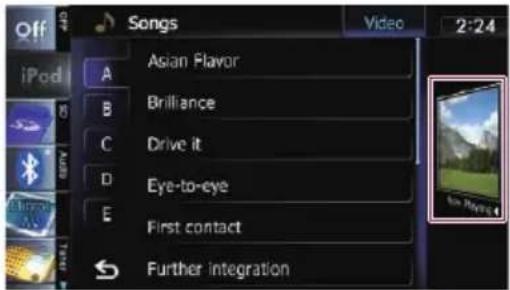
TheAVoperationscreenreturns.
Selectinganitem
1Scrollthelistbydraggingitemsupor downtodisplaytheitemyouwanttose-lect.

☐Flickingalistitemenablesyoutoquickly scrollthroughthelist.
Tostopscrolling, gentlytouchthelist.
2Taptheitem.
☐Theitemcurrentlyselectedishhighlighted.
Returningtothepreviousdisplay
● Touchto return to the previous screen.
ThisfunctionisavailableforAVIC-X930BT andAVIC-X9310BT.
Youcanlistentotheradiobyusingthenavigationsystem. Thissectiondescribesoperations forradio(FM).
Startingprocedure
1DisplaytheAVoperationscreen.
Fordetailsoftheoperations,refertoDisplayingtheAVoperationscreenonpage70.
2Tap[FM]ontheleftedgeofthescreen todisplaythe"FM"screen.
WhenthetunerhasbeenunedintoanHD Radiobroadcasting,[FM]cannotbeselected.
3Usethetouchpanelkeysonthescreen tocontroltheradio.
Fordetails, refer to Using the touch panel keysonthenextpage.
Readingthescreen

⑧Programservicenameorfrequencyindicator
Showsthefrequencyofthepresetitem.Ifthe programservicenamecanbeobtained,the programservicenameisshowninsteadofthe frequency.
⑨Presetnumberindicator
Showswhatpresetitemhasbeenselected.

①Sourceicon
Showswhichsourcehasbeenselected.
②Bandindicator
Showswhichbandtheradioistunedto:FM1 toFM3.
③Programservicenameindicator
Showstheprogramservicename(station name)ofthecurrentstation.
④Signallevelindicator
⑤Frequencyindicator
⑥STEREOindicator
Showsthatthefrequencyselecteddisbeing broadcastinstereo.
⑦Currenttime
Usingthetouchpanelkeys

①Performsmanualtuning
To tune manually, touch [I◄◄] or [►►I] briefly. The frequencies move up on down on the step at time.
Performsseektuning
Toperformseektuning,touchandhold[I◄◄] or[►►I]foraboutonesecondandthenrelease. Thetunerwillscanfrequenciesuntila broadcaststrongenoughforgoodreception isfound.
☐Youcancancelseektuningbytouching either [◀◀] or [▶▶] briefly.
☐ If you keep holding [◀◀] or [▶▶], you canskipbroadcastingfrequencies. Seektuningwillstartatthetimeyoure-leasethekeys.
②Selectsapresetchannel
Thekeyscanbeusedtoswitchpresetchannels.
Scrollbydraggingthekeysupordowntodisplaythepresetchannelyouwanttoselect, andtapthechannel.
☐Thelowerkeysandtheupperkeysappearonlywhenthepresetchannelisselected.
③Recallsequalizercurves
- Fordetails, refertoUsingtheequalizer onpage175.
④Displaysthe"Function"menu
- Fordetails, refertoUsingadvancedfunctionsonthenextpage.
⑤ SwitchesbetweentheAVoperation screenandthepresetlistdisplay
Youcanswitchthescreendisplayaccording toyourpreference.
Fordetailsoftheoperation, referto SwitchingbetweentheAVoperation screenandthelistsscreenonpage70.
⑥SelectsanFMband
Tappingthekeyrepeatedlyswitchesbetween the following FM bands: FM1, FM2, or FM3.
☐Thisfunctionisconvenientforpreparing differentpresetlistsforeachband.
Storingandrecallingbroadcast frequencies
Withatapofanyofthepresettuningkeys ("P1" to "P6"), you can easily store up to six broadcastfrequenciesforlaterrecall(also withthetapofakey).
1Selectafrequencythatyouwantto storeinmemory.
2Displaythepresetchannellist.
Fordetails, refer to Switches between the AV operations screen and the preset list display on the previous page.
3Keeptouchingapresettuningkey[P1] to[P6].
Presetlistdisplay

Fordetailsofthelistoperations,refertoOperatinglistscreens(e.g.iPodlistscreen)on page70.
Theselectedradiostationhasbeenstoredin memory.
Thenextimeyoutapthesamepresettuning key "P1" to "P6", the radio station frequencies arerecalledfrommemory.
☐Upto18FMstations, sixforeachofthe threeFMbandscanbestoredinmemory.
Operatingbyhardware buttons
PressingtheTRKbutton
Youcanmovepresetchannelsupordown.
PressingandholdingtheTRKbutton
Youcanperformseektuning.
Usingadvancedfunctions
●Touchonthe"FM"screen.
The "Function" menuappears.
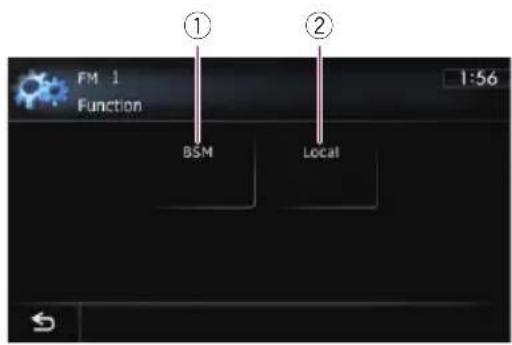
①Storesthestrongestbroadcastfrequencies
②Tunesinstrongsignals
- Fordetailsofeachfunction, refertosections below with therelativetitles.
Storingthestrongestbroadcast frequencies
BSM(beststationsmemory)letsyouautomaticallystorethesixstrongestbroadcastfrequenciesunderthepresettuningkeys"P1"to
"P6"and,oncestoredthere,youcantuneinto themwiththetouchofakey.
□StoringbroadcastfrequencieswithBSM mayreplacebroadcastfrequenciesyou havealreadysaved.
1Touch onthe"FM"screen.
The "Function" menuappears.
2Touch[BSM].
3Touch[Start]tobeginasearch.
"BSM" begins to flash. While "BSM" is flashing, the six strongest broadcast frequencies will best be red under the preset tuning keys "P1" to "P6" in order of their signal strength. Whenthisiscomplete, "BSM" stops flashing.
■ If you touch [Stop], the storage process is canceled.
Tuninginstrongsignals
Localseektuningallowsyoutotuneinonly thoseradiostationswithsufficientlystrong signalsforgoodreception.
Usingtheradio(FM)
1Touchonthe"FM"screen.
The "Function" menuappears.
2Touch[Local].
3Touch[On]toturnlocalseektuningon.
■Ifyoutouch[Off],localseektuningisturned off.
4Touch[◀Prev]or[Next▶]tosethesensitivity.
TherearefourlevelsofsensitivityforFM.
Level:1—2—3—4
☐ The level "4" setting allows reception of only the strongest stations, while lower settings let you receive weaker stations.
ThisfunctionisavailableforAVIC-X930BT andAVIC-X9310BT. Youcanlistentotheradisingthisnavigation system. Thissectiondescribesoperations forradio(AM).
Startingprocedure
1DisplaytheAVoperationscreen.
Fordetailsoftheoperations,refertoDis- playingtheAVoperationsscreenonpage70.
2Tap[AM]ontheleftedgeofthescreen todisplaythe"AM"screen.
WhenthetunerhasbeenunedintoanHD Radiobroadcasting,[AM]cannotbeselected.
3Usethetouchpanelkeysonthescreen tocontroltheradio.
- Fordetails, refertoUsingthetouchpanel keysonthenextpage.
Readingthescreen

①Sourceicon
Showswhichsourcehasbeenselected.
②Signallevelindicator
③Frequencyindicator
④Currenttime
⑤Frequencyindicator
Showsthefrequencyofthepresetitem.
⑥Presetnumberindicator
Showswhatpresetitemhasbeenselected.
Usingthetouchpanelkeys
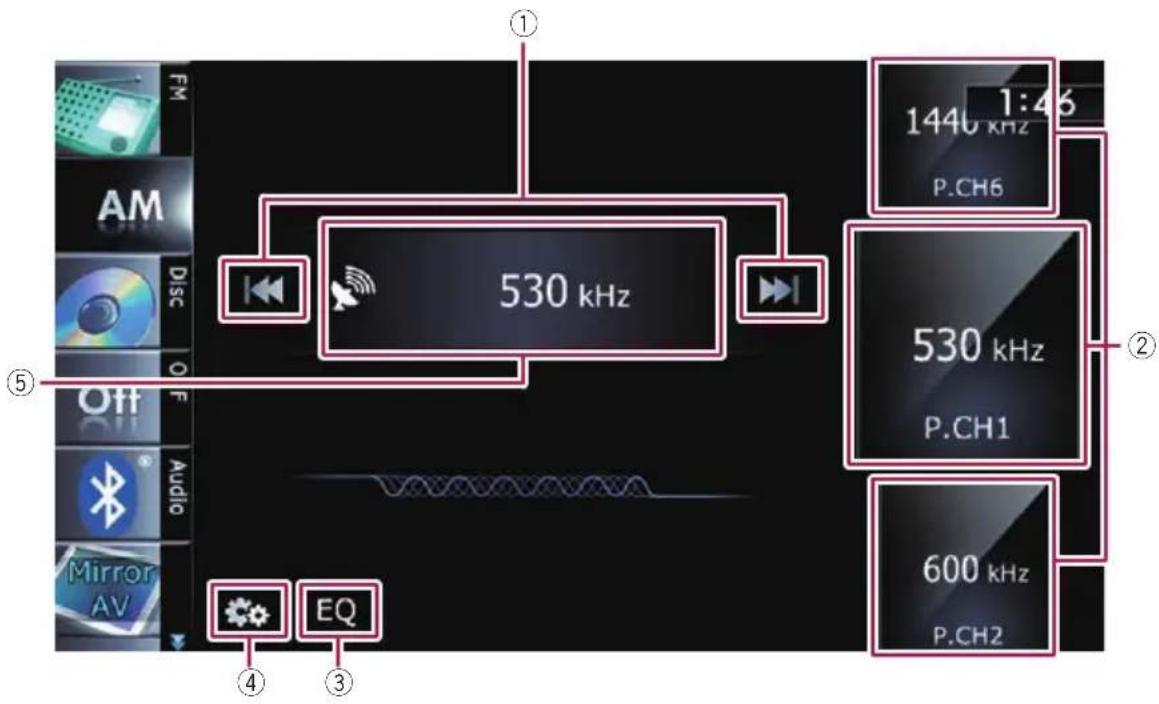
①Performsmanualtuning
To tune manually, touch [I◄◄] or [►►I] briefly. The frequencies move up on down one step at time.
Performsseektuning
Toperformseektuning,touchandhold[◀◀] or[▶▶]foraboutonesecondandthenrelease. Thetunerwillscanfrequenciesuntila broadcaststrongenoughforgoodreception isfound.
☐Youcancancelseektuningbytouching either [◀◀] or [▶▶] briefly.
☐ If you keep holding [◀◀] or [▶▶], you canskipbroadcastingfrequencies. Seektuningwillstartatthetimeyoure-leasethekeys.
②Selectsapresetchannel
Thekeyscanbeusedtoswitchpresetchannels.
Scrollbydraggingthekeysupordowntodisplaythepresetchannelyouwanttoselect, andtapthechannel.
☐Thelowerkeysandtheupperkeysappearonlywhenthepresetchannelisselected.
③Recallsequalizercurves
- Fordetails, refertoUsingtheequalizer onpage175.
④Displaysthe"Function"menu
- Fordetails, refertoUsingadvancedfunctionsonthenextpage.
⑤ SwitchesbetweentheAVoperation screenandthepresetlistdisplay
Youcanswitchthescreendisplayaccording toyourpreference.
Fordetailsoftheoperation, referto SwitchingbetweentheAVoperation screenandthelistscreenonpage70.
Storingandrecallingbroadcast frequencies
Withatapofanyofthepresettuningkeys ("P1" to "P6"), you can easily store up to six broadcastfrequenciesforlaterrecall(also withthetapofakey).
1Selectafrequencythatyouwantto storeinmemory.
2Displaythepresetchannellist.
Fordetails, referto Switches between the AV operations screen and the preset list display on the previous page.
3Keeptouchingapresettuningkey[P1] to[P6].
Presetlistdisplay

Presettuningkeys
→Fordetailsofthelistoperations,refertoOperatinglistscreens(e.g.iPodlistscreen)on page70.
Theselectedradiostationhasbeenstoredin memory.
Thenextimeyoutapthesamepreset tuning key "P1" to "P6", the radio station frequencies are recalled from memory.
Operatingbyhardware buttons
PressingtheTRKbutton
Youcanmovepresetchannelsupordown.
PressingandholdingtheTRKbutton
Youcanperformseektuning.
Usingadvancedfunctions
- Touchontne"AM"screen.
The "Function" menuappears.

①Storesthestrongestbroadcastfrequencies
②Tunesinstrongsignals
- Fordetailsofeachfunction, refertosections below with therelativetitles.
Storingthestrongestbroadcast frequencies
BSM(beststationsmemory)letsyouautomaticallystorethesixstrongestbroadcastfrequenciesunderthepresettuningkeys"P1"to"P6"and,oncestoredthere,youcantuneintothemwiththetouchofakey.
☐ StoringbroadcastfrequencieswithBSM mayreplacebroadcastfrequenciesyou havealreadysaved.
1Touch onthe"AM"screen.
The "Function" menuappears.
2Touch[BSM].
3Touch[Start]tobeginasearch.
“BSM” begins to flash. While “BSM” is flashing, the six strongest broadcast frequencies will best beored under the preset tuning keys “P1” to “P6” in order of their signal strength. When this is complete, “BSM” stops flashing.
■ If you touch [Stop], the storage process is canceled.
Tuninginstrongsignals
Localseektuningallowsyoutotuneinonly thoseradiostationswithsufficientlystrong signalsforgoodreception.
Usingtheradio(AM)
1Touchonthe"AM"screen.
The "Function" menuappears.
2Touch[Local].
3Touch[On]toturnlocalseektuningon.
■Ifyoutouch[Off],localseektuningisturned off.
4Touch[◀Prev]or[Next▶]tosethesensitivity.
TherearetwolelsofsensitivityforAM.
Level:1—2
☐ The level "2" setting allows reception of only the strongest stations, while lower settings let you receive weaker stations.
Youcanlistentotheradiobyusingthenavigationsystem. This section describes operations for HDRadioreception.
ForAVIC-X930BTandAVIC-X9310BTusers
ThisHDRadioReady ^TM receiver(thisnavigation system)isreadytoreceiveHDRadiobroadcastswhenconnectedtotheGEX-P20HD, GEX-P10HD,soldseparately.
□Fordetailsconcerningoperation,referto theHDRadiotuner'soperationmanual.
☐ AVIC-Z130BT shows "Tuner" and AVIC-X930BT or AVIC-X9310BT shows "HD
Radio"asthesourceicon.
ThischapterdescribesoperationproceduresforAVIC-Z130BT.
HDRadiobroadcasting
HDRadiobroadcastingishhighqualityaudio anddataservices.HDRadiobroadcastingis broughttoyoubyyourlocalFMorAMstations.
HDRadiobroadcastingfeaturesthefollowing:
• Highqualityaudio
- FMmulticasting
- Dataservices
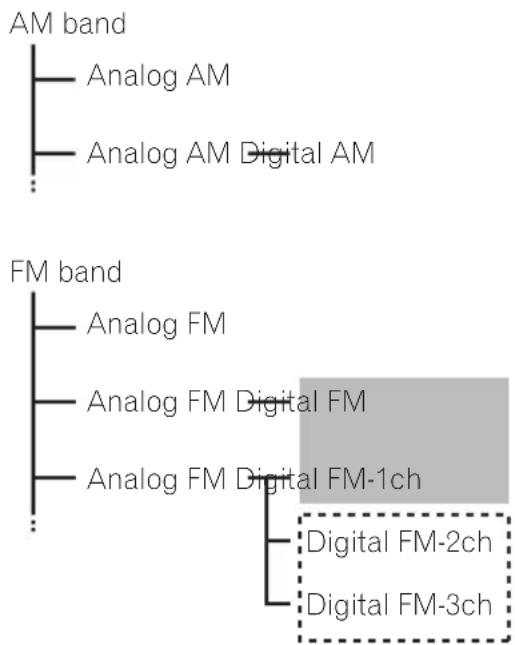
flowchart
graph TD
    A["AM band"] --> B["Analog AM"]
    A --> C["Analog AM Digital AM"]
    D["FM band"] --> E["Analog FM"]
    D --> F["Analog FM Digital FM"]
    D --> G["Analog FM Digital FM-1ch"]
    G --> H["Digital FM-2ch"]
    G --> I["Digital FM-3ch"]
: Main channel
: Sub channel
Startingprocedure
1DisplaytheAVoperationscreen.
- Fordetailsoftheoperations,refertoDis-playingtheAVoperationsscreenonpage70.
2Tap[Tuner]ontheleftedgeofthe screentodisplaythe"Tuner"screen.
3Usethetouchpanelkeysonthescreen tocontroltheradio.
Fordetails, refertoUsingthetouchpanel keysonpage82.
Readingthescreen

①Bandindicator
Showswhichbandtheradioistunedto:FM1, FM2,FM3orAM.
②Detailedinformation
- Fordetails, referto Switchingthedisplay onpage83.
③Signallevelindicator
④Frequencyindicator
⑤Signaltypeindicator
Showsthetypeofsignalcurrentlybeingreceived.Ifadigitalbroadcastingisreceived, "D" appears. Otherwise, "A" appears.
⑥Blendingmodeindicator
- Fordetails, referto Switching thereceptionmodeonpage85.
⑦Songinforeceptionindicator*
Showsthereceptionstatusofsonginformation.
IndicatorMeaning
| Appearswhenthenavigation systemreceivessonginformationandcanstoreit.TheiconisdisplayedontheoperationscreenoftheHDRadio receiver. | |
| Appearswhenthenavigation systemisstoringsonginformation.Theiconisdisplayedonallo-perationscreensofAVsources. |
⑧Songinfostatusindicator*
Showsthestatusofthesonginformation storedinthenavigationsystem.
IndicatorMeaning
| Thenumberofsonginformation itemsstoredinthenavigation systemisdisplayed. Theiconisdisplayedonallo-perationscreensofAVsources. | |
| Appearswhensonginformation istransferredtoiPod. Theiconisdisplayedonallo-perationscreensofAVsources. |
⑨Currenttime
⑩Presetnumberindicator
Showswhatpresetitemhasbeenselected.
⑪Seektypeindicator
- Fordetails, referto Switching theseek modeonpage85.
⑫Multicastingindicator
Showsthenumberofmulticastchannelsin thecurrentfrequency.
⑬Sourceicon
Showswhichsourcehasbeenselected.
Itemsmarkedwithasterisk(*)appearonly onAVIC-Z130BT.
Usingthetouchpanelkeys

①Performsmanualtuning
To tune manually, touch [I◄◄] or [►►I] briefly. The frequencies move up on down on the step at time.
Performsseektuning
Toperformseektuning,touchandhold[I◄◄] or[►►I]foraboutonesecondandthenrelease. Thetunerwillscanfrequenciesuntila broadcaststrongenoughforgoodreception isfound.
☐Youcancancelseektuningbytouching either [◀◀] or [▶▶] briefly.
□Whenananalogstationisreceived,tuningupordownisconductedwithinanalogbroadcasts.
Ifadigitalbroadcastisnotyetreceived, tuningupordowntunesintothenextor previousanalogstation.

flowchart
graph TD
    A["Analog FM"] --> B["Analog FM"]
    B --> C["Analog FM"]
    C --> D["Digital FM-1ch"]
    C --> E["Digital FM-2ch"]
    C --> F["Digital FM-3ch"]
②Selectsapresetchannel
Thekeyscanbeusedtoswitchpresetchannels.
Scrollbydraggingthekeysupordowntodisplaythepresetchannelyouwanttoselect, andtapthechannel.
☐Thelowerkeysandtheupperkeysappearonlywhenthepresetchannelisselected.
③StoressonginformationontoaniPod\*
Touchthiskeywhenreceivingthesonginformationofthesongonair,andyoucanstorethesonginformationonyouriPod.
- Fordetails, refertoStoringsonginformationtoaniPod(iTunesTagging) on the next page.
④Switchesthedisplay
- Fordetails, referto Switchingthedisplay onthispage.
⑤Recallsequalizercurves
- Fordetails, refertoUsingtheequalizer onpage175.
⑥Displaysthe"Function"menu
- Fordetails, refertoUsingadvancedfunctionsonthenextpage.
⑦ SwitchesbetweentheAVoperation screenandthepresetlistdisplay
Youcanswitchthescreendisplayaccording toyourpreference.
Fordetailsoftheoperation, referto SwitchingbetweentheAVoperation screenandthelistscreenonpage70.
⑧Selectsaband
Tapthekeyrepeatedlyuntilthedesiredband is displayed: FM1, FM2, FM3, or AM.
☐Thisfunctionisconvenientforpreparing differentpresetlistsforeachband.
□Itemsmarkedwithasterisk(*)appearonly onAVIC-Z130BT.
Storingandrecallingbroadcast frequencies
Withatapofanyofthepresettuningkeys ("Preset 1" to "Preset 6"), you can easily store uptosixbroadcastfrequenciesforlaterrecall (alsowiththetapofakey).
1Selectafrequencythatyouwantto storeinmemory.
2Displaythepresetchannellist.
Fordetails, referto Switches between the AV operations screen and the preset list display on this page.
3Keeptouchingapresettuningkey[Pre-set1]to[Preset6].
Presetlistdisplay

Presettuningkeys
- Fordetails, refer to Operating lists screens (e.g. iPod lists screen) on page 70.
Theselectedradiostationhasbeenstoredin memory.
Thenexttimeyoutapthesamepresettuning key "Preset 1" to "Preset 6", the radio station frequenciesarerecalledfrommemory.
☐Upto18FMstations, sixforeachofthe threeFM bands, aswellassixAM stations, canbestoredinmemory.
Operatingbyhardware buttons
PressingtheTRKbutton
Youcanmovepresetchannelsupordown.
PressingandholdingtheTRKbutton
Youcanperformseektuning.
Switchingthedisplay
Desiredinformationcanbedisplayed.
- Touch[Disp].
AVIC-Z130BT
Touching[Disp]repeatedlyswitchesbetween the following settings:
Channelname—Artistname—Songtitle—Programtype
AVIC-X930BT, AVIC-X9310BT
Thecontentsandorderofthesettingdisplay dependontheHDRadiotuner.
☐ Onlywhenthetunerhasbeentunedinto anHDRadiostation,canthedisplaybe changed.
☐ WhenthetunerhasbeenunedintoanHD Radiostation,defaultdisplayischanged intostationnameinsteadoffrequency.
Scrollingthedetailedinformation
Youcanturnthedetailedinformationscroll modeonandoff.
- Touchandhold[Disp].
Storingsonginformation toaniPod(iTunesTagging)
☐ThisfunctionisavailableforAVIC-Z130BT only.
Youcanstorethesonginformationtothe iPod,whenthenavigationsystemhasreceived thesonginformation.Thesongswillshowup in a playlist called "Tagged playlist" in iTunes nexttimeyousyncyouriPod.Youcandirectly buythesongsviathenavigationsystem. Dependingonwhenthesonginformationis stored,informationonthesongsbeforeand afterthesongonairmayalsobestored.Be suretoconfirmthesongbeforeyoupurchase.
☐TheiTunesTaggingfunctionisavailable duringreceptionofdigitalbroadcasts.
☐ThisfunctioncanbeoperatedwiththefollowingiPodmodels:
- iPodtouch4thgeneration
- iPodtouch3rdgeneration
- iPodtouch2ndgeneration
- iPodtouch1stgeneration
- iPodclassic
- iPodnano6thgeneration
- iPodnano5thgeneration
- iPodnano4thgeneration
- iPodnano3rdgeneration
- iPhone4
- iPhone3GS
- iPhone3G
- iPhone
☐TheversionofiTunesmustbe7.4orhigher.
Whensonginformationisreceived,
→Fordetails, referto Songinforeceptionindicator*onpage81.
2Touch[Tag].
The information on the songon air is stored in thenavigationsystem.
Whencompleted, Tag turnsoffand is displayed.
☐Thesonginformationforupto50songs canbestoredonthisnavigationsystem. Dependingonwhenthesonginformation isstored, informationfortheprevioussong orsongafterthecurrentsongmayalsobe stored.
3ConnectyouriPod.
Thesonginformationstoredinthenavigation systemistransferredtoyouriPod.
□IftheiPodisalreadyconnected,everytime youtouch[Tag],thesonginformationwill betransferredtoyouriPod. Whenthesonginformationisstoredon youriPod, disappears.
☐Whentransferofsonginformationiscompleted, theinformationstoredinthenavigationsystemwillbeautomaticallycleared.
□IfyouturnoffthenavigationsystemordisconnecttheiPodwhiletransferringsonginformationtoit,thetransfermaynot complete.
While the song information is stored in the navigation system, transfertoi Podis not possible.
Usingadvancedfunctions
- Touch 🎨 on the "Tuner" screen.
The "Function" menuappears.

①Storesthestrongestbroadcastfrequencies
②Switchestheseekmode
③Tunesinstrongsignals
④Switchesthereceptionmode
- Fordetailsofeachfunction, refertosections below with therelativetitles.
Storingthestrongestbroadcast frequencies
BSM(beststationsmemory)letsyouautomaticallystorethesixstrongestbroadcastfrequenciesunderthepresettuningkeys"Preset
1" to "Preset 6" and, once stored there, you cantune into these frequencies with the touchofakey.
1Touch onthe"Tuner"screen.
2Touch[BSM].
3Touch[Start]tobeginasearch.
"BSM" begins to flash. While "BSM" is flashing, the six strongest broadcast frequencies will best be red under the preset tuning keys
"Preset 1" to "Preset 6" in order of their signal strength. Whenthisiscomplete, "BSM" stops flashing.
☐Tocancelthestorageprocess,touch [Stop].
□StoringbroadcastfrequencieswithBSM mayreplacebroadcastfrequenciesyou havealreadyasaved.
Switchingtheseekmode
Youcanselectthemethodofseektuning.
1Touch 🎨 onthe"Tuner"screen.
2Touch[Seek]toselectthedesiredsetting.
• All:
Seeksstationsfrombothanaloganddigital broadcasting.
• HD:
Seeksfromdigitalbroadcastingonly.
If you select "HD" on this setting while [Blending] is set to "Analog", the setting on [Blending] turn to "D/AAuto" automatically.
Tuninginstrongsignals
Localseektuningallowsyoutotuneinonly thoseradiostationswithsufficientlystrong signalsforgoodreception.
1Touch onthe"Tuner"screen.
2Touch[Local].
3Touch[On]toturnlocalseektuningon.
Toturnlocalseektuningoff,touch[Off].
4Touch[◀Prev]or[Next▶]tosetthesensitivity.
TherearefourlevelsofsensitivityforFMand twolevelsforAM:
FM:1—2—3—4
AM:1—2
☐ The FM "4" (AM "2") setting allows receptionofonlythestrongeststations,while lowersettingsletyoureceiveweakerstations.
Switchingthereceptionmode
Ifadigitalbroadcastreceptionconditiongets poor, the tunerautomatically switch the analog broadcast of the same frequency level by default. If you want to prevent a frequent automatic switching, switch this setting to [Analog].
1Touch onthe"Tuner"screen.
2Touch[Blending]toswitchthereceptionmode.
•Analog: Receivesanalogbroadcastingonly.
•D/AAuto: Automatically switch the analog broadcast of the same frequency level lasted digital broadcast.
☐ If you select "Analog" on this setting while [Seek] is set to "HD", the setting on [Seek] turnsto"All" automatically.
PlayingaudioCDs
YoucanplayanormalmusicCDusingthe built-indriveofthenavigationsystem.This sectiondescribeshow.
Startingprocedure
1DisplaytheAVoperationscreen.
Fordetailsoftheoperations, refertoDis- playingtheAVoperationsscreenonpage70.
2Insertthediscyouwanttoplayinto disc-loadingslot.
PlaybackstartsfromthefirsttrackoftheCD.
Fordetails, refertoInsertingandejectinga disconpage15.
□Ifthediscisalreadyset,tap[Disc]onthe leftedgeofthescreen.
Fordetails, referto Selectingasourceon page70.
3Usethetouchpanelkeysonthescreen tocontrolthedisc.
- Fordetails, refertoUsingthetouchpanel keysonthenextpage.
Readingthescreen

①Sourceicon
Showswhichsourcehasbeenselected.
②Playbackconditionindicator
Indicate the current playback condition.
ScanningtracksofaCD
| IndicatorMeaning | |
| OFF: | Cancelsthescanplay. |
| ON: | Playsthebeginningofeach trackinthecurrentrepeatplay rangeforabout10seconds. |
Playingtracksinrandomorder
| IndicatorMeaning | |
| OFFXX | Doesnotplaytracksinrandom order. |
| ONXX | Playsalltracksinthecurrent discinrandomorder. |
Settingarepeatplayrange
| IndicatorMeaning | |
| Repeatsthecurrentdisc. | |
| Repeatsjustthecurrenttrack. | |
③Currenttrackinformation
•:Artistname
Showstheartistnameofthetrackcurrentlyplaying(whenavailable).
• Albumtitle
Showsthetitleofthealbumofthecurrenttrack(whenavailable).
- Tracktitle
Showsthetitleofthetrackcurrently playing(whenavailable).
- Playtime
Showstheelapsedplayingtimewithin thecurrenttrack.
☐ “----” is displayed if there is no corresponding information.
④Currenttime
⑤Trackinformation
- Tracknumberindicator
Showsthetracknumberandthetotal numberoftracksinthecurrentrepeat range.
- Tracktitleindicator

Usingthetouchpanelkeys

①ScanstracksofaCD
Scanplayisperformedbytouchingonlyone key.
Fordetailsoftheoperation,referto ScanstracksofaCDonthenextpage.
②Playstracksinrandomorder
Allofthetracksinthedisccanbeplayedat randombytouchingonlyonekey.
Fordetailsoftheoperation,referto Playstracksinrandomorderonthe nextpage.
③Setsarepeatplayrange
Therepeatplayrangecanbechangedby touchingonlyonekey.
Fordetails, referto Changestherepeat rangeonthenextpage.
④Selectsatracktoplay
Scrollingthekeysupordowndisplaystracks, andtappingatrackstartsplayback.
Tappingthelowerkeyduringrandomplay-backskipstothenexttrack.Tappingthe upperkeyjumpstothestartofthecurrent track.
⑤Recallsequalizercurves
- Fordetails, refertoUsingtheequalizer onpage175.
⑥Displaysthe"Function"menu
- Fordetails, refertoUsingadvancedfunctionsonthenextpage.
⑦PlaybackandPause
Touching[▶/■]switchesbetween playback and pause.
⑧Selectsatrackfromthelist
Touchingthekeydisplaysthelistwhichlets youseethelistoftracktitlesonadisc.You canplayatrackonthelistbytappingit.
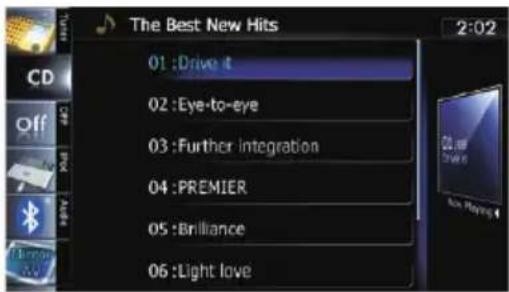
☐ “----” is displayed if there is no corresponding information.
- Fordetails, refertoOperatinglistscreens (e.g. iPodlistscreen) on page 70.
⑨Switchesthemediafiletypeplayed
Fordetails, referto Switchesthe mediafiletypeplayedonpage93.

Operatingbyhardware buttons
PressingtheTRKbutton
Youcanskiptracksforwardorbackward.
PressingandholdingtheTRKbutton
Youcanperformfastreverseorfastforward.
Usingadvancedfunctions
- Touchone"CD"screen.
The "Function" menuappears.

①Changestherepeatrange
Eachtouchof[Repeat]changesthesetting asfollows:
•Disc:Repeatsthecurrentdisc.
- Track: Repeatsjustthecurrenttrack.
□Ifyouperformtracksearchorfastforwardorreverse,trackrepeatplaybackis automatically canceled.
②Playstracksinrandomorder
Eachtouchof[Random]turnsitonoroff.
☐Ifyouturntherandomplayonwhenthe repeat play range is set to "Track", the repeatplayrangechangesto"Disc" automatically.
③ScanstracksofaCD
Eachtouchof[Scan]turnsitonoroff.Scan playletsyouhearthefirst10secondsof eachtrackontheCD.Whenyoufindthe trackyouwant,touch[Scan]toturnscan playoff.
□Afterscanningisfinished,normalplay-backofthetrackswillbeginagain.
□Ifyouturnthescanplayonwhenthere-peat play range is set to "Track", the repeatplayrangechangesto"Disc" automatically.
④Uses"SoundRetriever"function
"SoundRetriever" function automatically enhances compressed audio and restores rich sound.
Eachtouchof[SoundRetriever]changes thesettingasfollows:
- MODE 1: Activates "Sound Retriever" function.
- MODE 2: Activates "Sound Retriever" function.
- Off: Deactivates "Sound Retriever" function.
□"MODE2"hasastrongereffectthan "MODE1"andismoreeffectivewhen playingbackhighlycompressedaudio data.
PlayingmusicfilesonROM
Youcanplayadiscthatcontainscompressed audiofilesusingthebuilt-indriveofthenavigationsystem. Thissectiondescribesthese operations.
□Inthefollowingdescription,theMP3, WMA,AACfilesarecollectivelyreferred to as"Compressedaudiofile".
Startingprocedure
1DisplaytheAVoperationscreen.
Fordetailsoftheoperations,refertoDis- playingtheAVoperationscreenonpage70.
2Insertthediscyouwanttoplayinto disc-loadingslot.
PlaybackstartsfromthefirstfileoftheROM.
Fordetails, referto/inserting and ejectinga disconpage15.
□Ifthediscisalreadyset,tap[Disc]onthe leftedgeofthescreen.
Fordetails, referto Selectingasourceon page70.
3Usethetouchpanelkeysonthescreen tocontrolthedisc.
- Fordetailsconcerningoperations,referto Usingthetouchpanelkeysonpage92.

Readingthescreen

①Sourceicon
Showswhichsourcehasbeenselected.
②Playbackconditionindicator
Indicate the current playback condition.
Scanningfoldersandfiles
| IndicatorMeaning | |
| OFF: | Cancelsthescanplay. |
| ON: | Playsthefirstaudiofilesofeach folderforabout10seconds whentherepeatrangeissetto "Disc".Playsthebeginningofeach audiofileinthecurrentfolder forabout10secondswhentherepeatrangeissetto"Folder". |
Playingfilesinrandomorder
| IndicatorMeaning | |
| OFFXX | Doesnotplayfilesinrandom order. |
| ONXX | Playsallaudiofilesinthecurrentrepeatplayrangeinrandomorder. |
Settingarepeatplayrange
| IndicatorMeaning | |
| Repeatsallcompressedaudio files. | |
| Repeatsjustthecurrentfile. | |
| Repeatsthecurrentfolder. | |
③Currentfileinformation
- :Foldername
Showsthefoldernamecurrentlyplaying.
• Artistname
Showstheartistnamecurrentlyplaying (whenavailable).
• Albumtitle
Showsthetitleofthealbumofthecurrentfile(whenavailable).
- Tracktitle
Showsthetitleofthetrackcurrently playing(whenavailable).
□Ifthetitleofatrackisnotavailable, thefilenameappears.
- Playtime
Showstheelapsedplayingtimewithin thecurrentfile.
PlayingmusicfilesonROM
☐ “----” is displayed if there is no corresponding information.
④Currenttime
⑤Fileinformation
- Filenumberindicator
- Filenameindicator
- Filetypeindicator
Showsthetypeofaudiofiles.
Usingthetouchpanelkeys

①Scansfoldersandfiles
Scanplayisperformedbytouchingonlyone key.
Fordetailsoftheoperation, referto Scansfoldersandfilesonthenext page.
②Playsfilesinrandomorder
Thefilesinthecurrentrepeatplayrangecan beplayedatrandombytouchingonlyonekey.
□Ifthediscccontainsamixtureofvarious mediafiletypes,alltracksorfileswithin the current part ("CD" or "ROM") are playedrandomly.
Fordetails, referto Playsfilesinrandomorderonthenextpage.
③Setsarepeatplayrange
Therepeatplayrangecanbechangedby touchingonlyonekey.
- Fordetails, referto Changestherepeat rangeonthenextpage.
④Selectsafiletoplay
Scrollingthekeysupordowndisplaysfiles, andtappingafilestarts playback.
Tappingthelowerkeyduringrandomplay-backskipstothenextfile.Tappingtheupper keyjumpstothestartofthecurrentfile.
⑤Recallsequalizercurves
- Fordetails, refertoUsingtheequalizer onpage175.
⑥Displaysthe"Function"menu
- Fordetails, refertoUsingadvancedfunctionsonthenextpage.
⑦PlaybackandPause
Touching[▶/■]switchesbetween playback and pause.
⑧Selectsafilefromthelist
Touchingthekeydisplaysthelistwhichlets youseethelistoftracktitlesorfoldernames onadisc.
□Ifthetitleofatrackisnotavailable,the filenameappears.
Tappingafolderonthelistshowsitscontent. Youcanplayafileonthelistbytappingit.
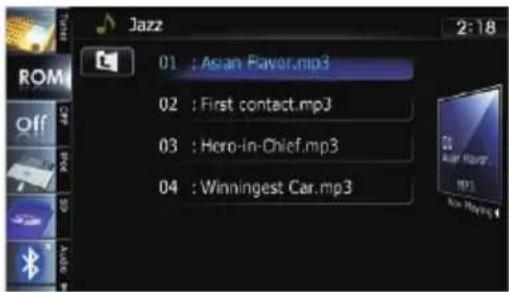
PlayingmusicfilesonROM
- Fordetails, refertoOperatinglistscreens (e.g. iPodlistscreen) on page 70.
Touching display the content of the upper folder (parent folder). If the upper most folder is listed, cannot be used.
⑨Switchesthemediafiletypeplayed
Whenplayingadiscccontainingamixtureof variousmediafiletypes,youcanswitchbetweenmediafiletypestoplay.
Tapthekeyrepeatedlytoswitchbetween the followingmediafiletypes:
CD(audiodata(CD-DA))—ROM(compressedaudiofile)—DivX(DivXvideo files)
Operatingbyhardware buttons
PressingtheTRKbutton
Youcanskipfilesforwardorbackward.
PressingandholdingtheTRKbutton
Youcanperformfastreverseorfastforward.
Usingadvancedfunctions
●Touchon the "ROM" screen.
The "Function" menuappears.

①Changestherepeatrange
Eachtouchof[Repeat]changesthesetting asfollows:
- Disc: Repeatsallcompressedaudio files.
- Track: Repeatsjustthecurrentfile.
- Folder: Repeatsthecurrentfolder.
□Ifyouselectanotherfolderduringrepeat play,therepeatplayrangechangesto "Disc".
□Ifyouperformfastreverseorfastforward during "Track", the repeat play rangechangesto"Folder".
□When "Folder" is selected, it is not possible to playback as subfolder of that folder.
□Whenplayingdiscswithcompressed audiofilesandaudiodata(CD-DA),repeatplayisperformedwithinthecurrentlyplayingdatasessionevenif"Disc" isselected.
②Playsfilesinrandomorder
Eachtouchof[Random]turnsitonoroff. Whetherandomplayisturnedon, the filesinthecurrentrepeatplayrangeare randomlyplayed.
□Ifyouturntherandomplayonwhenthe repeat play range is set to "Track", the repeatplayrangechangesto"Folder" automatically.
③Scansfoldersandfiles
Scanplayletsyouhearthefirst10seconds ofeachfile.Scanplayisperformedinthe currentrepeatplayrange.
Eachtouchof[Scan]turnsitonoroff.
Whenyoufindthefileyouwant,touch
[Scan]toturnthescanplayoff.
After completion off file or folders scanning, normal playback of the files will begin again.
□Ifyouturnthescanplayonwhenthere-peat play range is set to "Track", the repeatplayrangechangesto"Folder" automatically.
□Ifyouturnthescanplayonwhilethere-peatplayrangeissetto"Disc",scan playisperformedforonlythefirstfileof eachfolder.
④Uses"SoundRetriever"function
"SoundRetriever" function automatically enhances compressed audio and restores rich sound.
Eachtouchof[SoundRetriever]changes thesettingasfollows:
- MODE 1: Activates "Sound Retriever" function.
- MODE 2: Activates "Sound Retriever" function.
- Off: Deactivates "Sound Retriever" function.
□"MODE2"hasastrongereffectthan "MODE1"andismoreeffectivewhen playingbackhighlycompressedaudio data.
PlayingaDVD-Video
YoucanplayaDVD-Videousingthebuilt-in driveofthenavigationsystem. ThissectiondescribesoperationsforplayingaDVD-Video.
Startingprocedure
1DisplaytheAVoperationscreen.
Fordetailsoftheoperations,refertoDis- playingtheAVoperationsscreenonpage70.
2Insertthediscyouwanttoplayinto disc-loadingslot.
Thesourcechangesandthenplaybackwill start.
- Fordetails, refertoInsertingandejectinga disconpage15.
□Ifthediscisalreadyset,tap[Disc]onthe leftedgeofthescreen.
Fordetails, referto Selectingasourceon page70.
3Usethetouchpanelkeysonthescreen tocontrolthedisc.
- Fordetails, refertoUsingthetouchpanel keysonthenextpage.
Readingthescreen
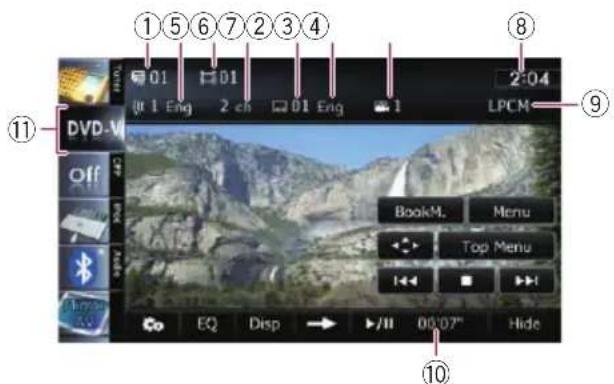
①Titlenumberindicator
Showsthetitlenumbercurrentlyplaying.
②Audiotrackindicator
Showstheaudiotracknumberandaudiolanguagecurrentlyselected.
③Chapternumberindicator
Showsthechapternumbercurrentlyplaying.
④Audiochannelindicator
Showsthecurrentaudiochanneltype, such as "Mch" (Multi-channel).
⑤ Subtitlnumberindicator
Showsthesubtitlenumbercurrentlyselected.
⑥Subtitlelanguageindicator
Showsthesubtitlelanguagecurrentlyselected.
⑦Viewingangleindicator
Showswhatviewinganglehasbeenselected.
⑧Currenttime
⑨Digitalsoundformatindicator
Showswhichdigitalsoundformat(surround soundformat)hasbeenselected.
⑩Playtimeindicator
Showstheelapsedplayingtimewithinthe currenttitle.
⑪Sourceicon
Showswhichsourcehasbeenselected.

Usingthetouchpanelkeys
Playbackscreen(page1)

Playbackscreen(page2)Playbackscreen(page3)
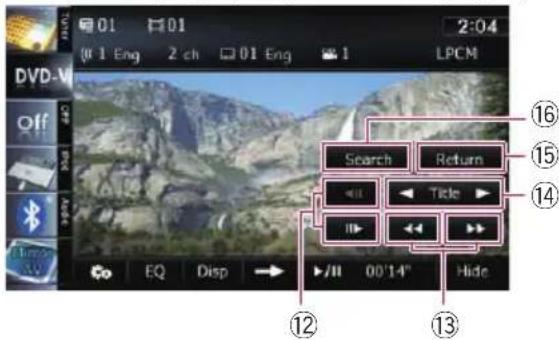

□Withsomediscs, theicon maybedis-played, meaning that the operation is invalid.
①Displaysthe"Function"menu
- Fordetails, refertoUsingadvancedfunctionsonpage99.
②Recallsequalizercurves
- Fordetails, refertoUsingtheequalizer onpage175.
③Switchesthedisplay
Touching[Disp]changestheindicationonthe informationplateasfollows: Disinformationdisplay—Repeatrangeand L/Rselectdisplay
④Switchestothenextpageoftouchpanel keys
⑤DisplaystheDVDmenukeypad
- Fordetails, refertoUsingDVDmenuby touchpanelkeysonpage98.
⑥PlaybackandPause
Touching[▶/■]switchesbetween playback and pause.
⑦Hidesthetouchpanelkeysandinformationofthecurrentvideo
Touching[Hide]showsonlythecurrentvideo.
□Ifyouwanttodisplaythetouchpanel keysandinformationofthecurrent videoagain,touchanywhereontheLCD screen.
⑧Skipsforwardorbackward
Touching[▶▶]skipstothestartofthenext chapter.Touching[I◀◀]onceskipstothe startofthecurrentchapter.Touchingittwice quicklywillskiptothepreviouschapter.
⑨Stops playback
⑩DisplaystheDVDmenu
Youcandisplaythemenubytouching[Menu] or[TopMenu]whileadiscisplaying.Touch-ingeitherofthesekeysagainletsyoustart playbackfromthelocationselectedfromthe menu.Fordetails,refertotheinstructionsprovidedwiththedisc.
⑪Resumes playback(Bookmark)
- Fordetails, referto Resuming playback (Bookmark) on this page.
⑫Frame-by-frame playback (orslow-motion playback)
- Fordetails, refertoFrame-by-frameplay-backonpage99.
- Fordetails, refertoSlowmotion playback onpage99.
⑬Fastreverseorforward
Touch and hold [◀◀] or [▶▶] to perform fast reverseorforward.
If you keep touching [◀◀] or [▶▶] for five seconds, fastreverse/fastforward continues even if you release either of these keys. Tore-sume playback at a desired point, touch
[▶/■] or opposite key of [◀◀] or [▶▶] which youtouched.
⑭Skipsthetitleforwardorbackward
Touching[▶]skipstothestartofthenexttitle. Touching[◀]skipstothestartoftheprevious title.
⑮Performsanoperation(suchasresuming) thatisstoredonthedisc
When using a DVD that has a point recorded that indicates where to return to the DVD return to the specified point and begins playback from that point.
⑯ Searchesforadesiredsceneandstarts playbackfromaspecifiedtime
Fordetails, refer to Searching for as specific scene and starting playback from a specified time on then next page.
⑰Changestheaudiotrack(Multi-audio)
Eachtouchof[Audio]switchesbetween audiotracksrecordedinthedisc.
☐DTSaudioformatcannotbeoutput,so selectanaudiotrackotherthanDTS audioformat.
□DisplayindicationssuchasMPEG-A andMchdescribetheaudiotrackrecordedontheDVD.Thisindicationmay notbethesameastheactualsound currentlyoutputfromthenavigationsystem.
⑱Changesthesubtitle(Multi-subtitle)
Eachtouchof[S.Title]switchesbetweenthe subtitlelanguagesrecordonthedisc.
⑲Changestheviewingangle(Multi-angle)
Eachtouchof[Angle]switchesbetweenviewingangles.
During playback of fasceneshot from multiple angles, the angle icon is displayed. Turn the angle icon display on or off using the "DVD/DivX® Setup" menu.
- Fordetails, refertoSettingtheangleicon displayonpage105.
Resuming playback(Bookmark)
TheBookmarkfunctionletsyouresumeplay-backfromaselectedscenethenexttimethe discisloaded.
- Touch[BookM.].
Youcanbookmarkonepointforeachofupto fivediscs.Ifyoutrytomemorizeanotherpoint forthesamedisc,theolderbookmarkwillbe overwrittenbythenewerone.
□Toclearthebookmarkonadisc,touchand hold[BookM].
Searchingforaspecificscene andstarting playbackfroma specifiedtime
Youcansearchforthesceneyouwantbyspecifyingatitleorachapter,andthetime.
☐Chaptersearchandtimesearcharenot availablewhendiscplaybackhasbeen stopped.
1Touch[Search]andthentouch[Title](title),[Chapter](chapter),[Time](time).
2Touchthekeystoinputthetargetnumberortimeandthentouch[Enter].

Fortitles,chapters
• To select 3, touch [3] and [Enter] in order.
- To select 10, touch [1] and [0] and [Enter] in order.
Fortime(timesearch)
- Toselect5minutes3seconds,touch[5], [min], [3], [sec] and [Enter] in order.
- Toselect71minutes00seconds,touch[7], [1],[min]and[Enter]inorder.
- Toselect100minutes05seconds,touch [1], [0], [0], [5], [sec] and [Enter] in order.
Tocancelaninputnumber,touch[Clear]. Tocanceltheinputnumbers,touchand hold[Clear].
Directnumbersearch
Youcanusethisfunctionwhenyouneedto enteranumericalcommandduringDVDplay-back.
1Touch[Search].
2Touch[10Key].
3Touch[0]to[9]toinputthedesired number.
4Whiletheinputnumberisdisplayed, touch[Enter].
OperatingtheDVDmenu
YoucanoperatetheDVDmenubytouching themenuitemonthescreendirectly.
☐Thisfunctioncanbeusedwhenthe keyisdisplayedonthelowerrightcornerof theLCDscreen.
☐Thisfunctionmaynotworkproperlywith someDVDdiscontent.Inthatcase,use touchpanelkeystooperatetheDVDmenu.
□Ifyoutouchthescreenwhile isdis-played,thetouchpanelkeyswillnotbedis-played.
1Touchthescreentodisplaythetouch panelkeys.
2Touch[TopMenu]or[Menu]todisplay touchpanelkeystooperatetheDVD menu.
■ Ifyoutouch, the 🧑 panelkeysfor selectingthemenuitemaredisplayed.
UsingDVDmenubytouch panelkeys
IfitemsontheDVDmenuappear,thetouch panelkeysmayoverlaythem.Ifso,selectan itemusingthosetouchpanelkeys.
1 Touch [▲], [▼], [◀] or [▶] to select the desiredmenuitem.
![PIONEER AVIC-Z130BT - Touch [▲], [▼], [◀] or [▶] to select the desiredmenuitem. - 1](/content/2026/06/1292122/images/63d967aff211a082b568a4c438f5f90796d6c3d752b9088d84b51f5667b7c913.jpg)
natural_image
Mountain landscape with a waterfall and scenic features, showing navigation buttons (Enter, Hide, Position) in the corner.□IfthetouchpanelkeysforDVDmenuselectiondisappear,touchinganywhereonthe screen,thentouch 🏠. Thetouchpanel keysaredisplayedagain.
2Touch[Enter].
Playbackstartsfromtheselectedmenuitem. Thewaytodisplaythemenudiffersdepending onthedisc.
■Ifyoutouch[Position],thedisplaypositionof touchpanelkeysischangedeachtimeyoutouch it.
■ Ifyoutouch[Hide],thetouchpanelkeysdisappearandthe iconisdisplayed.Youcan selectamenuitembytouchingit.
Frame-by-frame playback
Thisletyoumoveaheadoneframeatatime duringpause.
●Touch[1]▶duringpause.
Eachtimeyoutouch[▶],youmoveahead oneframe.
Toreturntonormal playback, touch [▶/■].
□Withsomediscs,imagesmaybeunclear duringframe-by-frame playback.
Slowmotionplayback
Thisletsyouslowdownplaybackspeed.
1Touchandhold[▶]until isdis-playedduring playback.
Theicon isdisplayed, and forwardslow motion playback begins.
☐Toreturntonormal playback,touch[▶/■].
2 Touch [◀II] or [III▶] to adjust playback speedduringslowmotionplayback.
Each time you touch [◀II] or [III▶] it changes the speed in four steps in the following order:
$$ 1 / 1 6 \leftrightarrow 1 / 8 \leftrightarrow 1 / 4 \leftrightarrow 1 / 2 $$
Thereisnosoundduringslowmotionplayback.
□Withsomediscs,imagesmaybeunclear
duringslowmotion playback.
☐Reversedslowmotion playback is not possible.
Operatingbyhardware buttons
PressingtheTRKbutton
Youcanskipchaptersforwardorbackward.
PressingandholdingtheTRKbutton
Youcanperformfastreverseorfastforward.
Usingadvancedfunctions
- Touchone "DVD-V" screen. The "Function" menuappears.

①Changestherepeatrange
Eachtouchof[Repeat]changesthesetting asfollows:
•Disc:Playsthroughoutthecurrentdisc.
- Chapter: Repeatsjustthecurrentchapter.
• Title: Repeatsjustthecurrenttitle.
□Ifyouperformchapter(title)search,fast forward,fastreverseorslowmotion playback,therepeatplayrangechanges to"Disc".
☐Thisfunctionisnotavailablewhendisc playbackhasbeenstopped.
②Selectsaudiooutput
WhenplayingDVDsrecordedwithLPCM audio,youcanswitchtheaudiooutput. Touch[L/RSelect]repeatedlyuntilthedesiredaudiooutputappearsonthedisplay.
Eachtouchof[L/RSelect]changestheset- tingsasfollows:
• L+R: Leftandright
• L: Left
•R:Right
- Mix:Mixingleftandright
☐Thisfunctionisnotavailablewhendisc playbackhasbeenstopped.
③DVDsetupadjustments
Fordetails, refertoDisplayingDVD/DivX®Setupmenuonpage105.
PlayingaDivXvideo
YoucanplayaDivXdiscusingthebuilt-in driveofthenavigationsystem. Thissectiondescribesthoseoperations.
Startingprocedure
1DisplaytheAVoperationscreen.
Fordetailsoftheoperations, refertoDis- playingtheAVoperationsscreenonpage70.
2Insertthediscyouwanttoplayinto disc-loadingslot.
Thesourcechangesandthen playbackwill start.
- Fordetails, refertoInsertingandejectinga disconpage15.
□Ifthediscisalreadyset,tap[Disc]onthe leftedgeofthescreen. - Fordetails, referto Selectingasourceon page70.
3Usethetouchpanelkeysonthescreen tocontrolthedisc.
- Fordetails, refertoUsingthetouchpanel keysonthenextpage.
Readingthescreen

①Foldernumberindicator
Showsthefoldernumbercurrentlyplaying.
② Audiotrackindicator
Showstheaudiotracknumbercurrentlyselected.
③ Filenumberindicator
Showsthefilenumbercurrentlyplaying.
④Audiochannelindicator
Showsthecurrentaudiochanneltype, such as "Mch" (Multi-channel).
⑤ Subtitlenumberindicator
Showsthesubtitlenumbercurrentlyselected.
⑥Repeatrangeindicator
Showswhichrepeatrangehasbeenselected.
→Fordetails,refertoChangestherepeat rangeonpage104.
④Audiochannelindicator
Showsthecurrentaudiochanneltype, such as "Mch" (Multi-channel).
⑤ Subtitlenumberindicator
Showsthesubtitlenumbercurrentlyselected.
⑥Repeatrangeindicator
Showswhichrepeatrangehasbeenselected.
→Fordetails,refertoChangestherepeat rangeonpage104.
⑦Currenttime
⑧Digitalsoundformatindicator
Showsthedigitalsoundformat(surround soundformat)currentlyselected.
⑨Playtimeindicator
Showstheelapsedplayingtimewithinthe currentfile.
⑩Sourceicon
Showswhichsourcehasbeenselected.
⑦Currenttime
⑧Digitalsoundformatindicator
Showsthedigitalsoundformat(surround soundformat)currentlyselected.
⑨Playtimeindicator
Showstheelapsedplayingtimewithinthe currentfile.
⑩Sourceicon
Showswhichsourcehasbeenselected.
Usingthetouchpanelkeys
Playbackscreen(page1)
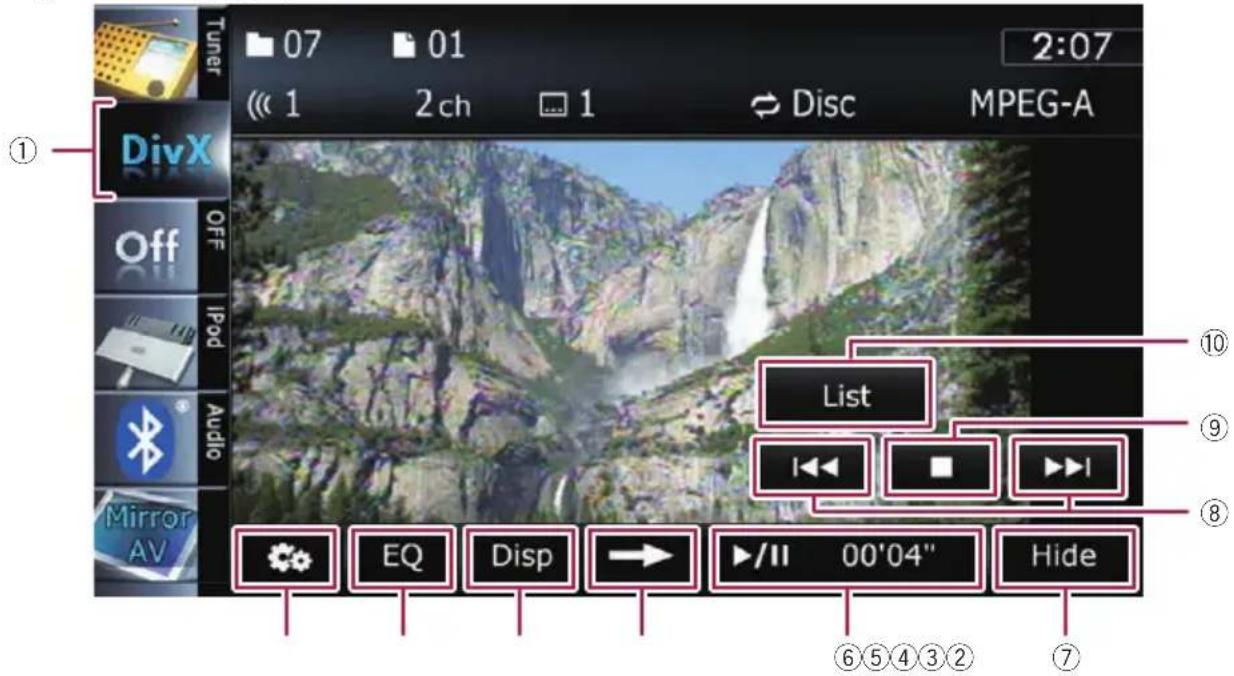
Playbackscreen(page2)

□Withsomediscs,theicon maybedisplayed,meaningthattheoperationisinvalid.
①Switchesthemediafiletypeplayed
When playing adiscccontainingamixture of variousmediafiletypes, you can switch between mediafiletypestoplay.
Tapthekeyrepeatedlytoswitchbetween the followingmediafiletypes:
CD(audiodata(CD-DA))—ROM(compressedaudiofile)—DivX(DivXvideofiles)
②Displaysthe"Function"menu
- Fordetails, refertoUsingadvancedfunctionsonpage104.
③Recallsequalizercurves
- Fordetails, refertoUsingtheequalizer onpage175.
④Switchestheinformation
Touching[Disp]changesthecontentoftheinformationpanelasfollows: Discinformationdisplay—Currentfoldernamedisplay—Currentfilenamedisplay
⑤Switchestothenextpageoftouchpanel keys
⑥PlaybackandPause
Touching[▶/■]switchesbetween playback and pause.
⑦Hidesthetouchpanelkeysandinformationofthecurrentvideo
Touching[Hide]showsonlythecurrentvideo.
□Ifyouwanttodisplaythetouchpanel keysandinformationofthecurrent videoagain,touchanywhereontheLCD screen.
⑧Skipsforwardorbackward
Touching[▶▶I]skipstothestartofthenext file.Touching[I◀◀]onceskipstothestartof thecurrentfile.Touchingittwicequicklywill skiptothepreviousfile.
⑨Stops playback
When[■]istouchedoncetostop playback, playback can be resumed from the stopped position. When[■]istouchedtwotimesto stop playback, playback return to the beginning.
⑩Selectsafilefromthelist
Touchingthekeydisplaysthelistwhichlets youfindfilenamesorfoldernamesonadisc.
□Adash(−)isdisplayedifthereisnocor- respondinginformation.
Tappingafolderonthelistshowsitscontent. Youcanplayafileonthelistbytappingit.

- Fordetails, refertoOperatinglistscreens (e.g. iPodlistscreen) on page 70.
Thecontentsofthefolderinwhichthecurrentlyplayingfileislocatedaredisplayed.
Touching 📊 displaysthecontentoftheupper folder(parentfolder).Iftheuppermostfolder islisted, 📊 cannotbeused.
⑪Frame-by-frame playback (orslow-motion playback)
- Fordetails, refertoFrame-by-frameplay-backonthispage.
- Fordetails, refertoSlowmotion playback on this page.
⑫Fastreverseorforward
Touch and hold [◀◀] or [▶▶] to perform fast reverseorforward.
If you keep touching [◀◀] or [▶▶] for five seconds, fastreverse/fastforward continues evenify you release either of these keys. Toresumepaybackatadesiredpoint, touch [▶/■] or opposite key of [◀◀] or [▶▶] which youtouched.
⑬Changesthesubtitle(Multi-subtitle)
Eachtouchof[S.Title]switchesbetweenthe subtitlelanguagesrecordonthedisc.
⑭Changesaudiotracks(Multi-audio)
Eachtouchof[Audio]switchesbetween audiotracks.
⑮ Searchesforadesiredsceneandstarts playbackfromaspecifiedtime
- Fordetails,refertoStarting playback fromaspecifiedtimeonthenextpage.
Frame-by-frame playback
Thisletsyoumoveaheadoneframeatatime duringpause.
●Touch[11▶]duringpause.
Eachtimeyoutouch[▶],youmoveahead oneframe.
Toreturntonormal playback, touch [▶/■].
□Withsomediscs,imagesmaybeunclear duringframe-by-frame playback.
Slowmotionplayback
Thisletsyouslowdownplaybackspeed.
- Touchandhold[▶]until isdis-playedduring playback.
Theicon isdisplayed, and forwardslow motion playback begins.
☐Toreturntonormal playback, touch [▶▶] or [◀◀], etc.
☐Thereisnosoundduringslowmotionplay-back.
□Withsomediscs,imagesmaybeunclear duringslowmotionplayback.
☐Reversedslowmotion playback is not possible.
Starting playback from a specified time
You can search for a desired scene by specifying the time.
□Timesearcharenotpossiblewhendisc playbackhasbeenstopped.
1Touch[Search].
2Touchthekeystoinputthetargetnumberortimeandthentouch[Enter].

- Toselect5minutes3seconds,touch[5], [min], [3], [sec] and [Enter] in order.
- Toselect71minutes00seconds,touch[7], [1], [min] and [Enter] inorder.
- Toselect100minutes05seconds,touch [1], [0], [0], [5], [sec] and [Enter] in order.
Tocancelaninputnumber,touch[Clear]. Tocanceltheinputnumbers,touchand hold[Clear].
Operatingbyhardware buttons
PressingtheTRKbutton
Youcanskipfilesforwardorbackward.
PressingandholdingtheTRKbutton
Youcanperformfastreverseorfastforward.
Usingadvancedfunctions
- Touchonthe"DivX"screen.
The "Function" menuappears.

①Changestherepeatrange
Eachtouchof[Repeat]changesthesetting asfollows:
•Disc:Playsthroughoutthecurrentdisc.
- File: Repeatsjustthecurrentfile.
- Folder:Repeatsjustthecurrentfolder.
If you select another folder during repeat play, therepeat play range changesto "Disc".
If you perform fast reverse or fast forward during "File", therepeat play range changesto "Folder".
□When "Folder" is selected, it is not possible to playback as subfolder of that folder.
Whenplayingdiscswithcompressed audiofilesandaudiodata(CD-DA), repeatplayisperformedwithinDivXvideosevenif“Disc”isselected.
②DVDsetupadjustments
Fordetails, refertoDisplayingDVD/DivX®Setupmenuonthenext page.
DVD-VideoorDivXsetup
Thischapterdescribeshowtoconfigurethe DVD-Video/DivXplayer.
DisplayingDVD/DivX®Setup menu
1PlaythediscthatcontainsDVD-Video orDivX.
2DisplaytheAVoperationscreen.
- Fordetailsoftheoperations,refertoDis-playingtheAVoperationscreenonpage70.
3Touch.

The "Function" menuappears.
4Touch[DVD/DivX®Setup].
The "DVD/DivX® Setup" screenappears.
5Touchthedesiredfunction.


Settingthetop-priority languages
Youcanassignthetop-prioritylanguagetothe top-prioritysubtitle, audioandmenuinitial playback. If these selected language is recorded on the disc, subtitles, audio and menu are displayed or output in that language.
1Displaythe "DVD/DivX®Setup" screen.
Fordetails, refertoDisplayingDVD/DivX® Setupmenuonthispage.
2Touch[SubtitleLanguage], [AudioLanguage] or [MenuLanguage].
Each linguagemenuisdisplayedandthecurrentlysetlanguageisselected.
3Touchthedesiredlanguage.
Whenyouselect"Others",alanguagecode inputdisplayisshown.Inputthefour-digit codeofthedesiredlanguagethentouch [Enter].
- Fordetails, refertoLanguagecodechartfor DVDsonpage108.
□Iftheselectedlanguageisnotrecordedon thedisc,thedefaultlanguagespecifiedon thediscisoutputanddisplayed.
☐Youcanalsoswitchthesubtitleandaudio language by touching [S.Title] or [Audio] during playback.
Even if you touch [S.Title] or [Audio] to switch the subtitle or audio language, this setting will not change.
Settingtheangleicondisplay
Youcansettheangleicontodisplayin sceneswheretheanglecanbeswitched.
1Displaythe "DVD/DivX® Setup" screen.
Fordetails, refertoDisplayingDVD/DivX® Setupmenuonthispage.
2Touch[MultiAngle].
Eachtimeyoutouchthekeychangesthesetting.
- On(default): Displaystheangleiconinsceneswherethe anglecanbeswitched.
-Off: Hidestheangleicon.
Settingtheaspectratio
Therearetwokindsofdisplays.Awidescreen displayhasawidth-to-heightratio(TVaspect) of16:9,whilearegulardisplayhasaTVaspect of4:3.Ifyouusearegularreardisplaywitha TVaspectof4:3,youcansettheaspectratio suitableforyourreardisplay.(Werecommend useofthisfunctiononlywhenyouwanttofitit tothereardisplay.)
When using aregulardisplay, select either "Letter Box" or "Panscan". Selecting "16:9" may result in an unnatural image.
1Displaythe"DVD/DivX®Setup"screen.
→Fordetails, refertoDisplayingDVD/DivX® Setupmenuonthepreviouspage.
2Touch[TVAspect].
Eachtouchof[TVAspect]changesthesetting asfollows:
• 16:9:Widescreenimage(16:9)isdisplayed asitis(initialsetting).
- LetterBox:Theimageisintheshapeofa letterboxwithblackbandsatthetopand bottomofthescreen.
- Panscan: The image is cut short at the right and left of the screen.
Whenplayingdiscsthatdonothaveapan-scansystem,thediscisplayedbackwith "LetterBox"evenifyouselect"Panscan" setting. Confirmwhetherthediscpackage bearthe 16:9 LB mark.
□Somediscsdonotenablechangingofthe TVaspect.Fordetails,refertothedisc's instructions.
Settingtheparentallock
SomeDVD-Videodiscsletyouuseparental locktosetrestrictionssothatchildrencannot watchviolentoradult-orientedscenes.You cansettheparentallocklevelinstepsasdesired.
□Whenyousetaparentallocklevelandthen playadiscfeaturingparentallock,code numberinputindicationsmaybedis-
played.Inthiscase, playbackwillbegin whenthecorrectcodenumberisinput.
Settingthecodenumberandlevel
Whenyoufirstusethisfunction,registryyour codenumber.Ifyoudonotregisteracode number,parentallockwillnotoperate.
1Displaythe"DVD/DivX®Setup"screen.
→Fordetails, refertoDisplayingDVD/DivX® Setupmenuonthepreviouspage.
2Touch[ParentalLevel].
3Touch[0]to[9]toinputafour-digit codenumber.
4Whiletheinputnumberisdisplayed, touch[Enter].
Thecodenumberisregistered, and you can now set the level.
5Touchanyof[1]to[8]toselectthedesiredlevel.
Theparentallocklevelisset.
- Level8:Playbackoftheentirediscispossible(initialsetting).
- Level7 to Level2: Playback of discs for children and non-adult oriented discsis possible.
- Level1: Only playback of discs for children is possible.
□Ifyouwanttochangetheparentallevelal-readyset,entertheregisteredcodenumber andthenselecttheparentallevel.
□Werecommendthatyoukeeparecordof yourcodenumberincaseyouforgetit.
☐Theparentallocklevelisrecordedonthe disc.Youcanconfirmitbylookingatthe discpackage,theincludedliteratureorthe discitself.Youcannotuseparentallock withdiscsthatdonotfeaturearecorded parentallocklevel.
□Withsomediscs,parentallockoperatesto skipcertainscenesonly,afterwhichnormal playbackresumes.Fordetails,refertothe disc'sinstructions.
DVD-VideoorDivXsetup
□Ifyouforgettheregisteredcodenumber, touch ▶10timesonthenumberinput screen. Theregisteredcodenumberiscanceled, lettingyouregisteranewone.
Settingtheautoplay
WhenaDVDdiscwithDVDmenuisinserted, thisunitwillcanceltheDVDmenuautomaticallyandstartplaybackfromthefirstchapterofthefirsttitle.
ThisfunctionisavailableforDVD-Video.
SomeDVDsmaynotoperateproperly. If thisfunctionisnotfullyoperable,turnthis functionoffandstartplayback.
1Displaythe"DVD/DivX®Setup"screen.
Fordetails, refertoDisplaying DVD/DivX®
Setupmenuonpage105.
2Touch[AutoPlay].
Eachtouchof[AutoPlay]changesthesettingsasfollows:
- Off(default): Deactivatetheautoplayfunction.
- On: Activate the autoplay function.
☐ When "Auto Play" is set to "On", the repeat rangeisautomaticallysetto "Disc".
Settingthesubtitlefilefor DivX
YoucanselectwhethertodisplayDivXexternalsubtitlesornot.
□IfnoDivXexternalsubtitlefilesexist,the originalDivXsubtitlesaredisplayedeven when"Custom"isselected.
1Displaythe"DVD/DivX®Setup"screen.
Fordetails, refertoDisplayingDVD/DivX® Setupmenuonpage105.
2Touch[SubtitleFile].
Touching[SubtitleFile]switchesthissetting between "Original" and "Custom".
☐Upto42characterscanbedisplayedon oneline.Ifmorethan42charactersareset, thelinebreaksandthecharactersaredisplayedonthenextline.
☐Upto126characterscanbedisplayedon onescreen.Ifmorethan126charactersare set,theexcesscharacterswillnotbedis-played.
☐TheDivXsubtitleswillbedisplayedeven whenthesubtitlefilesettingisonifnocorrespondingsubtitlefilesexist.
☐Uptothreesubtitlelinescanbedisplayed atonce.
LanguagecodechartforDVDs
| Two-letter code, inputcode | Language | Two-letter code, inputcode | Language | Two-letter code, inputcode | Language |
| aa,0101Afaria,0901Interlinguarn,1814Rundi | |||||
| ab,0102Abkhazianie,0905Interlinguero,1815Romanian | |||||
| af,0106Afrikaansik,0911Inupiaqru,1821Russian | |||||
| am, 0113 | Amharic | in, 0914 | Indonesian | rw, 1823 | Kinyarwanda |
| ar, 0118 | Arabic | is, 0919 | Icelandic | sa, 1901 | Sanskrit |
| as, 0119 | Assamese | it, 0920 | Italian | sd, 1904 | Sindhi |
| ay,0125Aymara | ja,1001Japanesesg,1907 | Sango | |||
| az, 0126 | Azerbaijani | ji, 1009 | Yiddish | sh, 1908 | Serbo-Croatian |
| ba, 0201 | Bashkir | jw, 1023 | Javanese | si, 1909 | Sinhala |
| be,0205Belarusianka,1101 | Georgiansk, 1911Slovak | ||||
| bg, 0207 | Bulgarian | kk, 1111 | Kazakh | sl, 1912 | Slovenian |
| bh, 0208 | Bihari | kl, 1112 | Kalaallisut | sm, 1913 | Samoan |
| bi, 0209 | Bislama | km, 1113 | Central Khmer | sn, 1914 | Shona |
| bn, 0214 | Bengali | kn, 1114 | Kannada | so, 1915 | Somali |
| bo, 0215 | Tibetan | ko, 1115 | Korean | sq, 1917 | Albanian |
| br, 0218 | Breton | ks, 1119 | Kashmiri | sr, 1918 | Serbian |
| ca,0301Catalan | ku,1121Kurdishss,1919Swati | ||||
| co, 0315 | Corsican | ky, 1125 | Kirghiz; Kyrgyz | st, 1920 | Sotho, Southern |
| cs, 0319 | Czech | la, 1201 | Latin | su, 1921 | Sundanese |
| cy, 0325 | Welsh | ln, 1214 | Lingala | sv, 1922 | Swedish |
| da, 0401 | Danish | lo, 1215 | Lao | sw, 1923 | Swahili |
| de, 0405 | German | lt, 1220 | Lithuanian | ta, 2001 | Tamil |
| dz, 0426 | Dzongkha | lv, 1222 | Latvian | te, 2005 | Telugu |
| ee, 0505 | Ewe | mg, 1307 | Malagasy | tg, 2007 | Tajik |
| el, 0512 | Greek | mi, 1309 | Maori | th, 2008 | Thai |
| en, 0514 | English | mk, 1311 | Macedonian | ti, 2009 | Tigrinya |
| eo, 0515 | Esperanto | ml, 1312 | Malayalam | tk, 2011 | Turkmen |
| es, 0519 | Spanish | mn, 1314 | Mongolian | tl, 2012 | Tagalog |
| et, 0520 | Estonian | mo, 1315 | Moldavian | tn, 2014 | Tswana |
| eu, 0521 | Basque | mr, 1318 | Marathi | to, 2015 | Tonga |
| fa, 0601 | Persian | ms, 1319 | Malay | tr, 2018 | Turkish |
| fi, 0609 | Finnish | mt, 1320 | Maltese | ts, 2019 | Tsonga |
| fj, 0610 | Fijian | my, 1325 | Burmese | tt, 2020 | Tatar |
| fo, 0615 | Faroese | na, 1401 | Nauru | tw, 2023 | Twi |
| fr, 0618 | French | ne, 1405 | Nepali | uk, 2111 | Ukrainian |
| fy, 0625 | Western Frisian | nl, 1412 | Dutch; Flemish | ur, 2118 | Urdu |
| ga, 0701 | Irish | no, 1415 | Norwegian | uz, 2126 | Uzbek |
| gd, 0704 | Gaelic | oc, 1503 | Occitan | vi, 2209 | Vietnamese |
| gl, 0712 | Galician | om, 1513 | Oromo | vo, 2215 | Volapuk |
| gn, 0714 | Guarani | or, 1518 | Oriya | wo, 2315 | Wolof |
| gu, 0721 | Gujarati | pa, 1601 | Panjabi; Punjabi | xh, 2408 | Xhosa |
| ha, 0801 | Hausa | pl, 1612 | Polish | yo, 2515 | Yoruba |
| hi, 0809 | Hindi | ps, 1619 | Pushto; Pashto | zh, 2608 | Chinese |
| hr, 0818 | Croatian | pt, 1620 | Portuguese | zu, 2621 | Zulu |
| hu,0821 | Hungarian | qu,1721 | Quechua | ||
| hy,0825 | Armenian | rm, 1813Romansh | |||

Playingmusicfiles(fromUSBorSD)
Youcanplaythecompressedaudiofiles storedintheexternalstoragedevice(USB, SD).
In the following description, the SD memory card and USB memory device are collectively referred to as the "external storage device (USB, SD)". If it indicates the USB memory device only, it is referred to as the "USB storage device".
Startingprocedure
1DisplaytheAVoperationscreen.
Fordetailsoftheoperations,refertoDisplayingtheAVoperationscreenonpage70.
2InserttheSDmemorycardintotheSD cardslotorplugtheUSBstoragedevice intotheUSBconnector.
- Fordetails, refertoPlugginginaUSBstoragedeviceonpage19.
Fordetails, refertoInserting and ejecting an SDmemorycardonpage16.
☐Playbackisperformedinorderoffolder numbers.Foldersareskippediftheycontainnoplayablefiles.Iftherearenoplayablefilesinfolder01(rootfolder), playback startsfromfolder02.
3Tap[USB]or[SD]ontheleftedgeof the screen to display the "USB" or "SD" screen.
4Usethetouchpanelkeysonthescreen tocontroltheexternalstoragedevice (USB,SD).
- Fordetails, refertoUsingthetouchpanel keys(Music)onpage111.
Readingthescreen

Thisunitmaynotachieveoptimumperformancewithsomeexternalstoragedevices.
☐Youcan playback the filesona USB storage device compliant with Mass Storage Class. Ford details about the USB Class, referto them anuals supplied with the USB storage device.
①Sourceicon
Showswhichsourcehasbeenselected.
②Playbackconditionindicator
Indicate the current playback condition.
Scanningfoldersandfiles
| IndicatorMeaning | |
| OFF: | Cancelsthescanplay. |
| ON: | Playsthefirstaudiofilesofeach folderforabout10seconds whentherepeatrangeissetto "Media".Playsthebeginningofeach audiofileinthecurrentfolder forabout10secondswhentherepeatrangeissetto"Folder". |
Playingfilesinrandomorder
| IndicatorMeaning | |
| OFFXX | Doesnotplayfilesinrandom order. |
| ONYXX | Playsallaudiofilesinthecurrentrepeatplayrangeinrandomorder. |
Settingarepeatplayrange
| IndicatorMeaning | |
| Repeatsallcompressedaudio filesintheselectedexternalstoragedevice(USB,SD). | |
| Repeatsjustthecurrentfile. | |
| Repeatsthecurrentfolder. | |
③Currentfileinformation
- :Foldername
Showsthefoldernamecurrentlyplaying.
• Artistname
Showstheartistnamecurrentlyplaying (whenavailable).
• Albumtitle
Showsthetitleofthealbumofthecurrentfile(whenavailable).
- Tracktitle
Showsthetitleofthetrackcurrently playing(whenavailable).
□Ifthetitleofatrackisnotavailable, thefilenameappears.
- Playtime
Showstheelapsedplayingtimewithin thecurrentfile.
☐ “----” is displayed if there is no corresponding information.
④Currenttime
⑤Fileinformation
- Filenumberindicator
- Filenameindicator
- Filetypeindicator
Showsthetypeofaudiofiles.

Usingthetouchpanelkeys(Music)

①Scansfoldersandfiles
Scanplayisperformedbytouchingonlyone key.
Fordetailsoftheoperation, referto Scansfoldersandfilesonthenext page.
②Playsfilesinrandomorder
Thefilesinthecurrentrepeatplayrangecan beplayedatrandombytouchingonlyonekey.
Fordetailsoftheoperation,referto Playsfilesinrandomorderonthe nextpage.
③Setsarepeatplayrange
Therepeatplayrangecanbechangedby touchingonlyonekey.
Fordetails, referto Changestherepeat rangeonthenextpage.
④Selectsafiletoplay
Scrollingthekeysupordowndisplaysfiles, andtappingafilestarts playback.
Tappingthelowerkeyduringrandomplay-backskipstothenextfile.Tappingtheupper keyjumpstothestartofthecurrentfile.
⑤Recallsequalizercurves
- Fordetails, refertoUsingtheequalizer onpage175.
⑥Displaysthe"Function"menu
- Fordetails, refertoUsingadvancedfunctionsonthenextpage.
⑦PlaybackandPause
Touching[▶/■]switchesbetween playback and pause.
⑧Selectsafilefromthelist
Touchingthekeydisplaythelistwhichlets youfindtracktitlesorfoldernamesonanexternalstoragedevice(USB,SD).
Tappingafolderonthelistshowsitscontent. Youcanplayafileonthelistbytappingit.
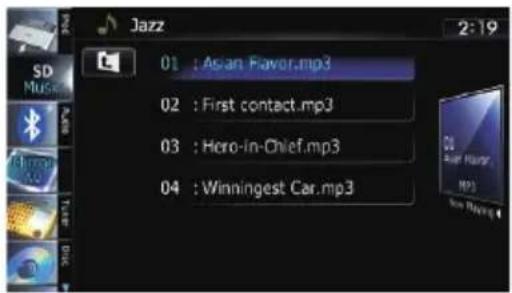
- Fordetails, refertoOperatinglistscreens (e.g. iPodlistscreen) on page 70.
Touching display the content of the upper folder (parent folder). If the upper most folder is listed, cannot be used.
Playingmusicfiles(fromUSBorSD)
⑨Switchestheoperationscreen
Tappingthiskeyswitchesbetweenthescreen tooperatemusicfilesandthescreentooperatevideofiles. Thisouchpanelkeyisavailableonlywhentherearebothaudioandvideo filesintheexternalstoragedevice(USB, SD).
Operatingbyhardware buttons
PressingtheTRKbutton
Youcanskipfilesforwardorbackward.
PressingandholdingtheTRKbutton
Youcanperformfastreverseorfastforward.
Usingadvancedfunctions
- Touch 📧 on the "USB" or "SD" screen.
The "Function" menuappears.

①Changestherepeatrange
Eachtouchof[Repeat]changesthesetting asfollows:
- Media: Repeatsallcompressedaudio filesinthesetectedexternalstoragedevice(USB,SD).
- Track: Repeatsjustthecurrentfile.
- Folder: Repeatsthecurrentfolder.
☐Ifyouskipthefileforwardorbackward when the repeat play range in "Track", therepeatplayrangechangesto "Folder".
②Playsfilesinrandomorder
Randomplayletsyou playbackfilesinrandomorderwithinthecurrentrepeatrange. Eachtouchof[Random]turnsitonoroff.
☐Ifyouturntherandomplayonwhenthe repeat play range is set to "Track", the repeatplayrangechangesto"Folder" automatically.
③Scansfoldersandfiles
Scanplayletsyouhearthefirst10seconds ofeachfile.Scanplayisperformedinthe currentrepeatplayrange.
Eachtouchof[Scan]turnsitonoroff.
Whenyoufindthefileyouwant,touch
[Scan]toturnthescanplayoff.
□Afterallfilesorfoldersscanningarefinished,normal playbackwillbeginagain.
Ifyouturnthescanplayonwhenthere-peat play range is set to "Track", the repeatplayrangechangesto"Folder" automatically.
Playingvideofiles(fromUSBor SD)
Youcanplaythevideofilesstoredintheexternalstoragedevice(USB,SD).
In the following description, the SD memory card and USB memory device are collectively referred to as the "external storage device (USB, SD)". If it indicates the USB memory device only, it is referred to as the "USB storage device".
Startingprocedure
1DisplaytheAVoperationscreen.
- Fordetailsoftheoperations,refertoDis-playingtheAVoperationsscreenonpage70.
2InserttheSDmemorycardintotheSD cardslotorplugtheUSBstoragedevice intotheUSBconnector.
- Fordetails, refertoPlugginginaUSBstoragedeviceonpage19.
- Fordetails, referto/insertingandejectingan SDmemorycardonpage16.
☐Playbackisperformedinorderoffolder numbers.Foldersareskippediftheycontainnoplayablefiles.Iftherearenoplayablefilesinfolder01(rootfolder), playback startsfromfolder02.
3Tap[USB]or[SD]ontheleftedgeof the screen to display the "USB" or "SD" screen.
4Touchthescreentodisplaythetouch panelkeys.
5Usethetouchpanelkeysonthescreen tocontroltheexternalstoragedevice (USB,SD).
- Fordetails, refertoUsingthetouchpanel keys(Video)onthenextpage.
Readingthescreen

Thisunitmaynotachieveoptimumperformancewithsomeexternalstoragedevices.
☐Youcan playback the files on a USB storage device compliant with Mass Storage Class. Ford details about the USB Class, referto them an manuals supplied with the USB storage device.
① Foldernumberindicator
② Filenumberindicator
③ Currentfoldernameindicator
Showsthefoldernamecurrentlyplaying.
④ Filenameindicator
Showsthefilenamecurrentlyplaying.
⑤ Currenttime
⑥ Filetypeindicator
Showsthetypeofaudiofilecurrentlyplaying.
⑦ Playtimeindicator
Showstheelapsedplayingtimewithinthe currentfile.
⑧ Sourceicon
Showswhichsourcehasbeenselected.

Usingthetouchpanelkeys(Video)

①Switchestheoperationscreen
Tappingthiskeyswitchesbetweenthescreen tooperatemusicfilesandthescreentooperatevideofiles. Thisouchpanelkeyisavailableonlywhentherearebothaudioandvideo filesintheexternalstoragedevice(USB,SD).
②Displaysthe"Function"menu
- Fordetails, refertoUsingadvancedfunctionsonthenextpage.
③Recallsequalizercurves
- Fordetails, refertoUsingtheequalizer onpage175.
④ Searchesforadesiredsceneandstarts playbackfromaspecifiedtime
Fordetails, refer to Searching for as specific scene and starting playback from a specified time on then next page.
⑤PlaybackandPause
Touching[▶/■]switchesbetween playback and pause.
⑥Hidesthetouchpanelkeysandinformationofthecurrentvideo
Touching[Hide]showsonlythecurrentvideo.
□Ifyouwanttodisplaythetouchpanel keysandinformationofthecurrent videoagain,touchanywhereontheLCD screen.
⑦Skipsforwardorbackward
Touching[▶▶]skipstothestartofthenext file.Touching[◀◀◀]onceskipstothestartof thecurrentfile.Touchingittwicequicklywill skiptothepreviousfile.
Fastreverseorforward
Touch and hold [I◄◄] or [►►I] to fast reverse orfastforward.
Thereisnosoundonfastreverseorforward.
⑧Selectsafilefromthelist
Youcanselectandplaythetitleyouwantfrom thelist.

- Fordetails, refertoOperatinglistscreens (e.g. iPodlistscreen) on page 70.
Thecontentsofthefolderinwhichthecurrentlyplayingfileislocatedaredisplayed.
Touching 📊 displaysthecontentoftheupper folder(parentfolder).Iftheuppermostfolder islisted, 🔔 cannotbeused.
⑨Stops playback
Searchingforaspecificscene andstarting playbackfroma specifiedtime
Youcansearchforadesiredscenebyspecifyingthetime.
1Touch[Search].
2Touchthekeystoinputthetargetnumberortimeandthentouch[Enter].
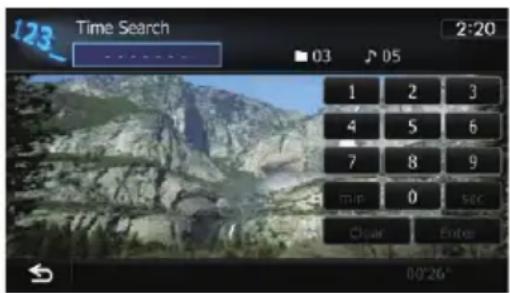
- Toselect5minutes3seconds,touch[5], [min], [3], [sec] and [Enter] in order.
- Toselect71minutes00seconds,touch[7], [1],[min]and[Enter]inorder.
- Toselect100minutes05seconds,touch [1], [0], [0], [5], [sec] and [Enter] in order.
☐Tocancelaninputnumber,touch[Clear]. Tocanceltheinputnumbers,touchand hold[Clear].
Operatingbyhardware buttons
PressingtheTRKbutton
Youcanskipfilesforwardorbackward.
PressingandholdingtheTRKbutton
Youcanperformfastreverseorfastforward.
Usingadvancedfunctions
1Tap[USB]or[SD]ontheleftedgeof the screen to display the "USB" or "SD" screen.
- Fordetailsoftheoperations,refertoDis-playingtheAVoperationscreenonpage70.
2Touchthescreentodisplaythetouch panelkeys.
3Touch

The"Function" menuappears.
□Ifthetouchpanelkeysarenotshown, touchanywhereonthescreentodisplay them.

①Changestherepeatrange
Eachtouchof[Repeat]changesthesetting asfollows:
• Media: Repeatsallvideofilesinthese-lectedexternalstoragedevice(USB, SD).
- File: Repeatsjustthecurrentfile.
- Folder: Repeatsthecurrentfolder.
□Ifyouskipthefileforwardorbackward whentherepeatplayrangein"File",the repeatplayrangechangesto"Folder".
②Changesthescreensizeofvideo
Ifavideofileisplayed,youcanselectthe displaymodebetweennormalandfull screen.
Eachtouchof[VideoOutputSetting] changesthesettingasfollows:
- Normal: Enlargesthedisplaysizewhile maintainingtheaspectratio.
- Full: Display the image full-screen although the aspect ratio may be changed.
UsingtheUSBinterfacecableforiPodenablesyoutoconnectyouriPodtothenavigationsystem.
☐AUSBinterfacecableforiPod(CD-IU51V) (soldseparately)isrequiredforconnection.
Startingprocedure
1DisplaytheAVoperationscreen.
Fordetailsoftheoperations,refertoDis- playingtheAVoperationscreenonpage70.
2ConnectyouriPod.
Thesourcechangesandthen playbackwill start.
- Fordetails, refer to Connecting youri Podon page20.
□IftheiPodisalreadyconnected,tap[iPod] ontheleftedgeofthescreen.
- Fordetails, referto Selectingasource onpage70.
□IfnovideoisoutputwheniPodisselected asAVsource,checkthesettingin"AV1 Input" on the "AV System Settings" menu.
- Fordetails, refertoSettingvideoinput1 (AV1) on page 170.
3Usethetouchpanelkeysonthescreen tocontrolyouriPod.
Fordetailsoftheoperation,refertoUsing thetouchpanelkeysonpage118.
Readingthescreen
Music

Video
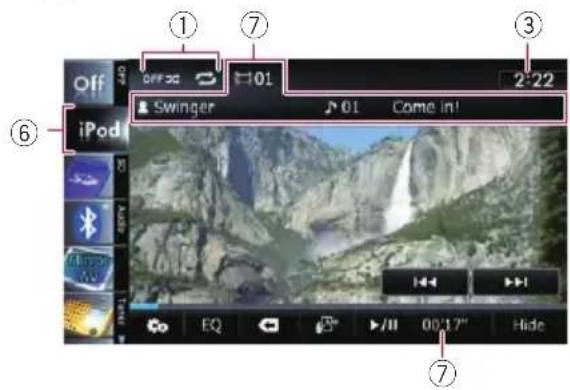
①Playbackconditionindicator
Indicate the current playback condition.
Settingtheshuffleplay
| IndicatorMeaning | |
| Cancelstheshuffleplay. | |
| Playsbacksongsvideosin randomorderwithinthese-lectedlist. | |
| Selectsanalbumrandomly.and thenplaysbackallsongsinthat albuminorder.Theactionswhilethisindicator isdisplayonthevideooperationscreenvarydependingon theconnectediPod. | |
Settingarepeatplayrange
| IndicatorMeaning | |
| Repeatsallsongsorvideosin theselectedlist. | |
| Repeatsjustthecurrentsongor video. | |
②Currentsong(episode)information
• Artistname(podcasttitle)
Showstheartistnamecurrentlyplaying. Whenapodcastisplayed,thepodcast titleisdisplayed(whenavailable).
• Albumtitle(releasedate)
Showsthetitleofthealbumforthe song.Whenapodcastisplayed,there-leasedateisdisplayed(whenavailable).
• Songtitle(episode)
UsinganiPod(iPod)
Showsthetitleofthecurrentsong.
Whenapodcastisplayed, the episode is displayed (when available).
• Chapternumber
Showsthecurrentchapternumberand totalnumberofchapterswhenthefile withchaptersplayed(whenavailable).
- Playtime
Showstheelapsedplayingtimewithin thecurrentsong(episode).
☐ “----” is displayed if there is no corresponding information.
③Currenttime
④Song(episode)information
- Songnumberindicator
Showsthenumberofthesongandthe totalnumberofsongsintheselected list.
- Songtitle(episode)indicator
• Albumartwork
Albumartofthecurrentsongisdis- playedifitisavailable.
⑤Genreindicator
Showsthegenreofthecurrentsong.
⑥Sourceicon
Showswhichsourcehasbeenselected.
⑦Currentvideoinformation
•:Chapternumber
Showsthecurrentchapternumber whenthevideowithchaptersplayed (whenavailable).
• Artistname(podcasttitle)
Showstheartistnamecurrentlyplaying. Whenapodcastisplayed, thepodcast titleisdisplayed (whenavailable).
• Filenumberindicator
Showsthenumberofthefilecurrently playing(whenavailable).
- Filenameindicator
Showsthefilenamecurrentlyplaying (whenavailable).
- Playtimeindicator
Showstheelapsedplayingtimewithin thecurrentfile.
☐ “----” is displayed if there is no corresponding information.
□IfcharactersrecordedontheiPodarenot compatiblewiththisnavigationsystem, theymayturnintogarbledcharacters.

Usingthetouchpanelkeys
Music
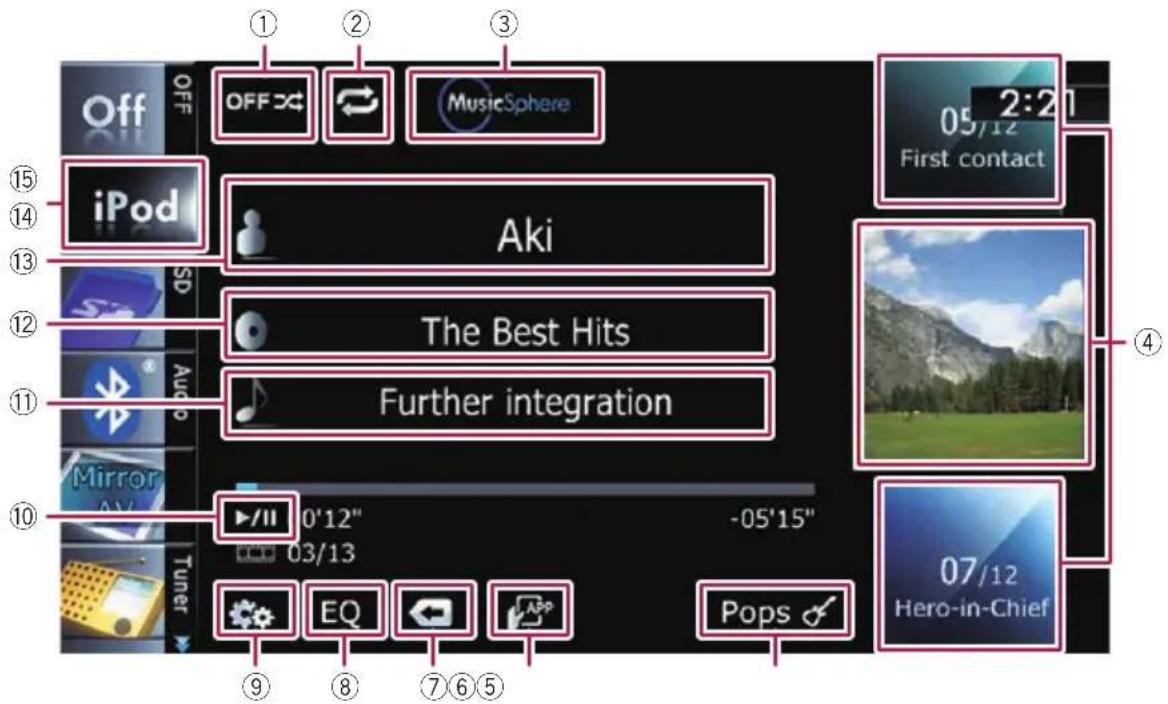
Video

①Setstheshuffleplayformusic
Theshuffleplaysettingcanbechangedby touchingonlyonekey.
Fordetails, refertoSetstheshuffle playformusiconpage123.
②Setsarepeatplayrange
Therepeatplayrangecanbechangedby touchingonlyonekey.
Fordetails, refertoSetsrepeatplayon page122.
③Displaysthe"MusicSphere"screen
TouchingthekeydisplaytheMusicSphere screen, and playlistcreatedwiththePCapplication(MusicSphere) can be played.
Fordetails, refertoPlayingMusic-Sphereonpage122.
④Selectsasongtoplay
Scrollingthekeysupordowndisplayssongs, andtappingasongstartsplayback. Tappingthelowerkeyduringshuffleplayback skipstothenextsong.Tappingtheupperkey onceskiptothestartofthecurrentsong.Tappingitagainwillskiptotheprevious song. Whenthesongwithchaptersplayed,chapter canbeskippedbackandforward.
⑤Displaysthegenrelist
⑥SwitchesthecontrolmodeofiPodfunctions
Touchingthekeyletsyoucontrolthefunctions ofaniPodconnectedtothenavigationsystem fromtheiPod.
- Fordetails, refertoOperatingthefunctions from youriPodonpage121.
⑦Displaysthetopcategorymenu
Touchingthekeydisplaysthetopcategoryfor song playback.
Displaysthepreviouslyselectedlist
If you select the song from the list to play after touching, touching the key display the previous list.
⑧Recallsequalizercurves
- Fordetails, refertoUsingtheequalizer onpage175.
⑨Displaysthe"Function"menu
- Fordetails, refer to Usingadvancedfunctionsonpage122.
⑩PlaybackandPause
Touching[▶/■]switchesbetween playback and pause.
⑪Displaysthesonglist
⑫Displaysthealbumlist
⑬Displaystheartistlist
⑭Switchestheoperationscreen
Tappingthiskeydisplaysthetouchpanelkey ([Video] or [Music]) to switch between the screentoooperatevideofilesandthescreento operatemusicfiles.
Fordetailsoftheoperation,referto Startingthevideoplaybackonthenext page.
☐Thistouchpanelkeyisavailableonly whentherearebothaudioandvideofile inyouriPod.
□IfiPodfifthgenerationisconnected,the followingsettingsareautomatically changedwhentheoperationscreenis switchedtotheonetooperatevideo files.
- "Repeat" is set to "All".
- "Shuffle" is set to "Off".
☐ Touching [Video] or [Music] on the list screensenablesyoutoperformthe equivalentoperation.
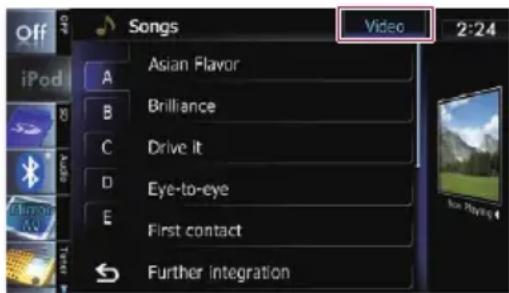
⑮Displaysthetopcategorymenu
Touchingthekeydisplaysthetopcategory menuforsongorvideoplayback.
⑯Skipsbackorforwardtoanothervideo
Touching[▶▶▶]skipstothestartofthenext video.Touching[◀◀◀]onceskipstothestart ofthecurrentvideo.Touchingagainwillskip tothepreviousvideo.Whenthevideowith chaptersplayed,chaptercanbeskippedback andforward.
Fastreverseorforward
Touch and hold [◀◀◀] or [▶▶▶] to fast reverse or fastforward.
If you keep touching [◀◀] or [▶▶] for five seconds, fastreverse/fastforward continues even if you release either of these keys. Tore-sume playback at a desired point, touch [▶/■], [◀◀] or [▶▶].
⑰Hidesthetouchpanelkeysandinformationofthecurrentvideo
Touching[Hide]showsonlythecurrentvideo.
□Ifyouwanttodisplaythetouchpanel keysandinformationofthecurrent videoagain,touchanywhereontheLCD screen.
⑱Displaysthetopcategorymenuforvideo
Touchingthekeydisplaysthetopcategoryfor videoplayback.
Displaysthepreviouslyselectedlist
If you select the video from the list to play after touching 🔒, touching the key displays the previous list.
Operatingbyhardware buttons
PressingtheTRKbutton
Youcanskipsongs, videosorpodcastsforwardorbackward.
Whenthesong,videoorpodcastwithchapter played,youcanskipchapterforwardorbackward.
PressingandholdingtheTRKbutton
Youcanperformfastreverseorfastforward.
Startingthevideoplayback
Thisnavigationsystemcanplayvideoifan iPodwithvideocapabilitiesisconnected.
1Touch[iPod]ontheleftedgeofthe screentodisplaythetouchpanelkeyto switchtoavideosource.
2Tap[Music].

Alistofvideosbycategoryappears.
3Taponeofthecategoriesinthatcontainsthevideoyouwanttoplay.

4Tapyourdesireditemonthelisttonarrowdownthemuntilthevideolistappears.
- Fordetails, referto Narrowingdown nasong orvideowiththelistonthispage.
5Onthevideolist,tapthevideoyou wanttoplay.
Videoplaybackwillstart.
6Touchthescreentodisplaythetouch panelkeys.
Fordetailsoftheoperation,refertoUsing thetouchpanelkeysonpage118.
Narrowingdown nasongor videowiththelist
Tappinganitemonlistallowsyoutosearch forasongorvideoandplayitinyouriPod.
1Displayalistscreen.
→Fordetails, referto Displaysthegenrelist onthepreviouspage.
- Fordetails, referto Displaysthesonglist onthepreviouspage.
Fordetails, referto Displaysthealbum listonthepreviouspage.
→Fordetails,refertoDisplaystheartistlist onthepreviouspage.
■Ifyoutouch 📄,thetopcategorymenuscreen isdisplayed.Tapthecategoryofyourpreference.

2Scrollbydraggingtabsupordownto displaythecharacterthatyouwanttore-fine.
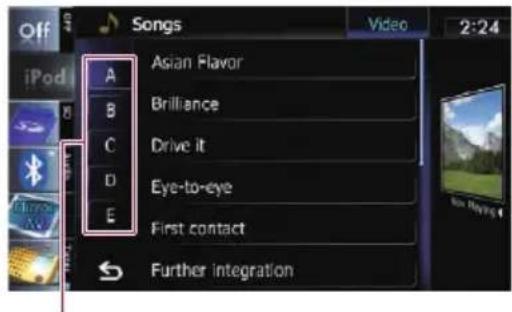
Charactertabs
3Tapthetabtoselectthecharacterand displaythepagewhichincludesapplicable options.
Anarticlelistedbelowandspaceatthebeginningoftheartistnamewillbeignored andthenextcharacterwillbetakenintoaccountforsearching.
- "A" or "a"
- "AN", "An", or "an"
• "THE", "The", or "the"
4Scrollthelistbydraggingitemsupor downtodisplaytheitemyouwanttoselect.
Refinetheitemuntilthesongtitle(episode)is displayedonthelist.
☐Tapping[All]onthelistincludesalloptions inthecurrentlist.Forexample,ifyoutap [All]aftertapping[Artists],youcanpro-ceedtothenextscreenwithallartistsin thelistselected.
□Afteryouselectartists,albums,genres, podcasts,orcomposers,goontotouch andholdoneofthelisttostartplayingthe firstsongintheselectedlistanddisplaythe nexthierarchy.
5Onthesong(episode)orvideolist,tap thesong(episode)orvideoyouwantto play.
■Afteryouselectthesong(episode)orvideo usingthisfunction,touching ◀ displays thelistpreviouslyselected.
Operatingthefunctions fromyouriPod
Youcancontrolthenavigationsystemviathe connectediPod.Whenyouchangethescreen ofthenavigationsystemto"Application Mode",soundisoutputfromthespeakersof yourvehicle.
Inthe"ApplicationMode"screen, the following operations are available from this navigation system.
- PlaybackandPause
- Fastreverseorforward
- Skipforwardorbackward
- Adjustingthevolume
●Touch toswitchthemode.
The "ApplicationMode" screenappears.
Fordetails, referto Switchesthecontrol modeofiPodfunctionsonpage119.
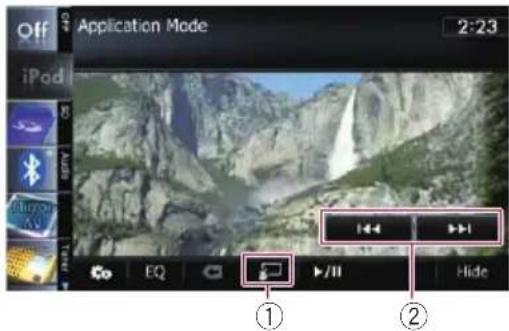
①Switchestothenormalmode.
②OperatestheiPod.
Theoperationsactivatedbytouchingvary dependingontheconnectediPod.
PlayingMusicSphere
YoucanplayplaylistscreatedwiththePCapplication(MusicSphere)usinganexcitinggraphicinterface.
☐PCapplication(MusicSphere)willbeavailableonourwebsite.
Startingprocedure
1Displaythemusicoperationscreenof theiPod.
- Fordetailsoftheoperation,refertoStarting procedureonpage127.
2Touch.

Fordetailsoftheoperations,refertoDis- playsthe"MusicSphere"screenonpage 118.
Readingthescreen

①Categorynameandtotalnumberofsongs
Showsthecategorynameandthetotalnumberofplayablesongsintheplaylistcurrently selected.
②Songtitleindicator
Showssixsongsincludingthefirstsong playedafterselectingtheplaylist.
③Playlistnameindicator
Showsthenameoftheplaylistcurrentlyselected.
④Currenttime
⑤Categoryname
Showsthecategorynameintheplaylist.
Usingthetouchpanelkeys
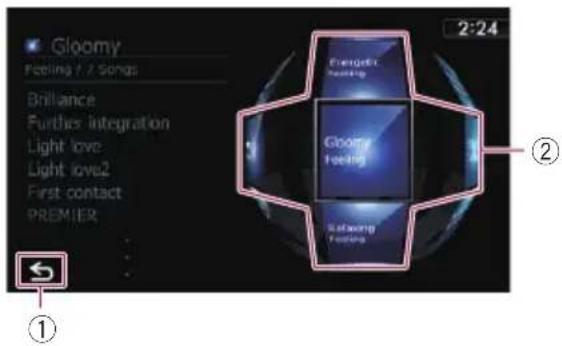
①SwitchestotheAVoperationscreen
②Playstheplaylist
Tappingakeymovestheplaylisttothecenter ofthescreen,andtappingthecenterkey startsplayback.
Tochangetheplaylisttobedisplayed, rotatethespherebydraggingthekeys up,down,left,orright.
Usingadvancedfunctions
- Touchonline "iPod" screen.
The "Function" menuappears.
Thismenuisnotavailablewhenyou changethescreenofthenavigationsystem to"ApplicationMode".
- Fordetails, refer to Operating the functions from youriPodon the previous page.
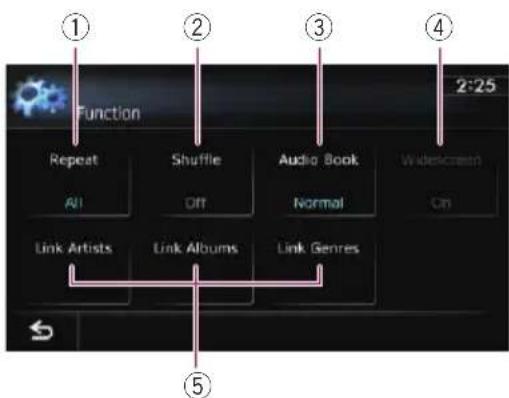
①Setsrepeatplay
Therearetworepeatplaytypesforplayback.
Eachtouchof[Repeat]changesthesetting asfollows:
UsinganiPod(iPod)
- All: Repeatsallsongsorvideosinthe selectedlist.
• One: Repeatsjustthecurrentsongor video.
②Setstheshuffleplayformusic
Thisfunctionshufflessongsoralbumsand playstheminrandomorder.
Eachtouchof[Shuffle]changesthesetting asfollows:
- Off: Doesnotshuffle.
- Songs: Playsback songsor videos in random order within these selected list.
• Albums: Selectsanalbumrandomly, and then plays back all songs in that albumin order.
③Setstheaudiobookplayspeed
While listening to an audiobook on a Pod, playback speed can be changed.
Eachtouchof[AudioBook]changesthe settingasfollows:
• Normal: Playbackinnormalspeed
- Faster:Playbackfasterthannormal speed
- Slower: Playbackslowerthannormal speed
④Playsvideoinwidescreenmode
If the video is compatible with widescreen format, set "Widescreen" to "On" in order to view the video image in the widescreen.
Eachtouchof[Widescreen]changesthe settingasfollows:
- On: Outputstthewide-screenvideofrom aniPod.
- Off: Outputsthenormal-sizedvideo fromaniPod.
☐Displaysizeischangedafteryou change"Widescreen"settingandselect thevideotoplay.
☐ Thissettingisavailableonlyduringthe videooperation.
⑤Playssongsrelatedtothecurrently playingsong
Youcanplaysongsrelatedtothecurrently playingsong,usingofthefollowinglists.
- LinkArtists: Songs related to the currently playing artist will be played in the album order.
- LinkAlbums: Songs related to the currently playing album will be played.
- LinkGenres: Songs related to the currently playing genre will be played in the artist order.
YoucanexperiencePandorabyconnectingan iPodthathasthePandoraapplicationinstalled.
□BesuretoreadUsingApp-basedConnected Contentsbeforeyouperformthisoperation.
- Fordetails, refertoUsingApp-based ConnectedContentsonpage217.
Note:
- CertainfunctionalityofthePandoraserviceis notavailablewhenaccessingtheservice throughthePioneernavigationsystem,including,butnotlimitedto,creatingnewstations,deletingstations,emailingcurrent stations,buyingsongsfromiTunes,viewing additionaltextinformation,logginginto Pandora,andadjustingCellNetworkAudio Quality.
- PandoralInternetradioisamusicservicenot affiliatedwithPioneer.Moreinformationis availableathttp://www.pandora.com.
- AspecificversionofthePandoraiPhoneapplicationisrequiredtobeinstalledonyour iPhoneinordertoenjoyPandoralInternet Radioonthisnavigationsystem. Because the application for the iPhone is not provided by Pioneer, there required version of the application may not yet be available at the time of purchase of the navigation system. Availability, version and update information can be found at http://www.pioneerelectronics.com/pandora
Startingprocedure
1StartupthePandoraapplicationinstalledontheiPod.
□InsomeiPodmodes,selectingasource maystartupaniPodapplication.Ifthemes-sage"Startuptheapplicationfromyour Device."appears,startuptheapplication fromyouriPod.
□Beforestartingup,sign-intoPandorafrom youriPod.
2DisplaytheAVoperationscreen.
Fordetailsoftheoperations,refertoDis- playingtheAVoperationsscreenonpage70.
3ConnectyouriPod.
Thesourcechangesandthen playbackwill start.
For details, refer to Connecting your iPod on page20.
□IftheiPodisalreadyconnected,tap [Pandora]ontheleftedgeofthescreen.
Fordetails, referto Selectingasource on page70.
4Tap[Pandora]ontheleftsideofthe screentodisplay"Pandora"screen.
5Usethetouchpanelkeysonthescreen tocontrolthePandora.
- Fordetails, refer to Using the touch panel keyson page 126.
Readingthescreen
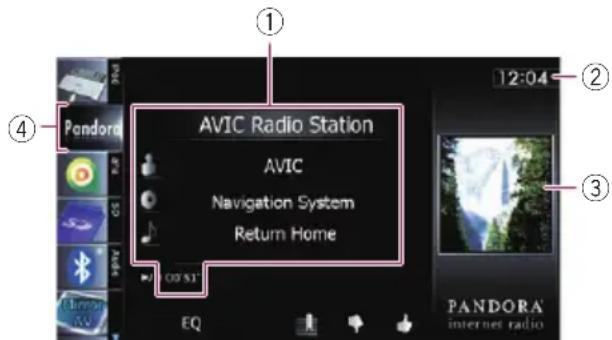
①Currentsonginformation
•Stationnameindicator
ShowsthePandorastationnamethe tuneriscurrentlytunedin.
• Artistname
Showstheartistnamecurrentlyplaying.
• Albumtitle
Showsthetitleofthealbumofthecurrentsong.
• Songtitle
Showsthetitleofthecurrentsong.
- Playtimeindicator
UsingPandora®
Showstheelapsedplayingtimewithin thecurrentsong.
☐ “----” is displayed if there is no corresponding information.
②Currenttime
③Albumartwork
Albumartofthecurrentsongisdisplayedifit isavailable.
④Sourceicon
Showswhichsourcehasbeenselected.
Usingthetouchpanelkeys

①SelectsaPandorastationfromthelist
Touchingthekeydisplaysthelistofyour Pandorastationstoselectoneofthemtoplay.

- Fordetails, refertoOperatinglistscreens (e.g. iPodlistscreen) on page 70.
Scrollthelistbydraggingitemsupordownto displaytheitemyouwanttoselect.
□Touching[QuickMix]playsonlyone songbasedonparticularmusicalcharacteristicsatatimefromshuffledseveralstations.
□Eachtimeyoutouch[List]changesthe sortorder.
Currentorderisindicatedontheupper rightofthescreen.

Youcansorttheitemsinthelistalphabetically.

Youcansorttheitemsinthelistin orderofdatestheitemswerecreated.
②ThumbsUp
Touchingthekeygives"ThumbsUp"tothe songcurrentlyplaying.
③ThumbsDown
Touchingthekeygives"ThumbsDown"tothe songcurrentlyplayingandskiptothenext song.
④Bookmark
Touchingthekeydisplaysthescreenwhich letsyouselecttheartistorsongtoaddbookmarks.
⑤Recallsequalizercurves
- Fordetails,refertoUsingtheequalizer onpage175.
⑥PlaybackandPause
Touching[▶/■]switchesbetween playback and pause.
Operatingbyhardware buttons
PressingtheTRKbutton
Youcanskipthesongforward.

WhenconnectingiPodwiththeAhaRadioinstalled,youcancontrol,view,and/orhearAha Radiocontentfromthisnavigationsystem. YoucanalsodisplayPOInformationfromthe AhaRadioapplicationonthemapscreenand routetothesePOIs.
☐ Fordetailsconcerningoperations, refer to theHelpandTipssectionwithintheAha Radioapplication.
☐AhaRadiostationsmayrequireinitial setuporsign-inbeforethestationcanbe accessed.
□BesuretoreadUsingApp-basedConnected Contentsbeforeyouperformthisoperation.
- Fordetails, refertoUsingApp-based ConnectedContentsonpage217.
Note:
- CertainfunctionalityoftheAhaRadioservice maynotbeavailablewhenaccessingtheservicethroughthePioneernavigationsystem, including,butnotlimitedto,creatingnew Ahastations,deletingAhastations,recording 'shouts'byvoice,adjustingAhaRadioApp settings,loggingintoFacebook,creatingaFacebookaccount,loggingintoTwitter,orcreatingaTwitteraccount.
- AhaRadioisaservicenotaffiliatedwith Pioneer.Moreinformationisavailableat http://www.ahamobile.com.
- AspecificversionoftheAhaRadioapplicationisrequiredtobeinstalledonyouriPhone inordertoenjoyAhaRadiocontentonthisnavigationsystem. Because the application for the iPhone is not provided by Pioneer, there required version of the application may not yet be available at the time of purchase of the navigation system. Availability, version and update information can be found at http://www.pioneerelectronics.com/aharadio
Startingprocedure
1StartuptheAhaRadioapplicationinstalledontheiPod.
□InsomeiPodmodes,selectingasource maystartupaniPodapplication.Iftheme-sage"Startuptheapplicationfromyour
Device."appears,startuptheapplication fromyouriPod.
□Beforestartingup,sign-intoAhaRadio fromyouriPod.
2DisplaytheAVoperationscreen.
→Fordetailsoftheoperations,refertoDis- playingtheAVoperationscreenonpage70.
3ConnectyouriPod.
Thesourcechangesandthen playbackwill start.
For details, refer to Connecting your iPod on page20.
□IftheiPodisalreadyconnected,tap[aha] ontheleftedgeofthescreen.
Fordetails, referto Selectingasourceon page70.
4Tap[aha]ontheleftsideofthescreen todisplaythe"aha"screen.
5Usethetouchpanelkeysonthescreen tocontroltheAhaRadio.
Fordetails, refertoUsingthetouchpanel keysonpage129.
Readingthescreen

①Currentstationinformation
Showswhichsourcehasbeenselected.
- Stationname
ShowsthenameoftheAhaRadiostationthatthenavigationsystemiscurrentlytunedto.
• Detailedinformation
Show the information on the content currently being played.
☐ “----” is displayed if there is no corresponding information.
• Ratinginformation
Showstheratedvalueofthecurrent contentdisplayed(onlywhenandwhere applicable).

②Currenttime
③Contentimage
Displaysanimageofthecurrentcontentif oneisavailable.
④Sourceicon
Showswhichsourcehasbeenselected.
Usingthetouchpanelkeys

①SelectsanAhaRadiostationfromthelist
TouchingthiskeydisplaysthelistofyouravailableAhaRadiostations.TouchthedesiredAhaRadiostationtochangeAhasources.
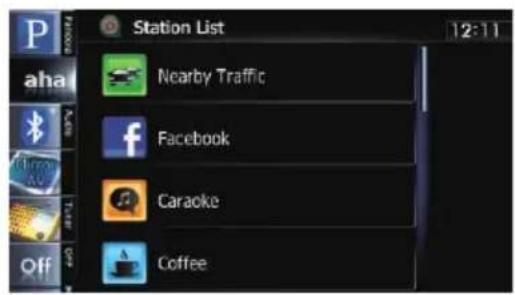
Fordetailsofthelistoperations, referto Operatinglistscreens(e.g.iPodlist screen)onpage70.
Scrollthelistbydraggingitemsupordownto displaytheitemyouwanttoselect.
②Playbackandpause(orstop)
Touch[▶]tostart playback. Touching[■]during playback, pausesor stops playback.
☐Pause(orstop)keyfunctionalitydependsonthecontent.
③Selectscontenttoplay
Scrollingthekeysupordowndisplaysavailablecontentwhiletappingakeystartsplay-back.
④Performsadditionalfunctionsofeachstationorcontentcurrentlyplaying
☐Theiconsdisplayedvarydependingon eachstationorcontent.
| IndicatorMeaning | |
| Touchingthekeydisclosesthe currentcarlocationthrough AhaRadio. | |
| Touchingthekeyretweetsthe selectedtweetswithyourTwitter account. | |
| Touchingthekeyperformsfast reverseofthecurrentcontent for30seconds. | |
| Touchingthekeysendsyouto theLocationconfirmation screentheselectedPOIto searchforthedesiredroute. ➕Forthesubsequentoperations,refertoSettingaroute toyourdestinationonpage 42. | |
| Touchingthekey"likes"current content. | |
| Touchingthekeyunsubscribestheselectedcontent.Theunsub-scribedcontentwillbedeletedfromtheMyFeedsstation. | |
| Touchingthekeyfollowsthecur-rentcontent.Thefollowedcon-tentwillbeaddedtotheMyFeedsstation. | |
⑤Recallsequalizercurves
- Fordetails, refertoUsingtheequalizer onpage175.
⑥Pausesthecontentcurrentlyplayingand showsatextpop-upscreen
☐ “----” is displayed if there is no corresponding information.
Pop-upscreen
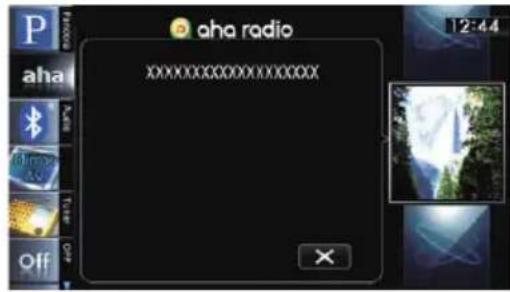
□Touchingcl thepop-upscreen andplaysthecontent.
Functionscoupledwith AhaRadioandthe navigationsystem
Dependingonthestations, functionscoupled withthenavigationsystemareavailable.
DisplayingPOIsobtainedwith AhaRadio
If you select a station with content that in-cludes POI location information, the corresponding PO I cons will appear on themap screen. A maximum of 30 PO I cons are displayed at one time.
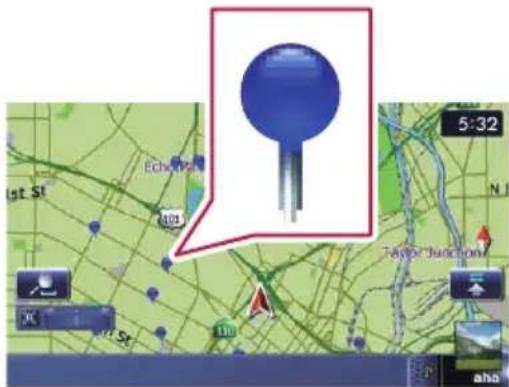
Detailed information can be displayed by placing the scroll cursor over the POlicon.
-
Fordetails, refertoViewinginformation aboutaspecifiedlocationonpage28.
☐ThePOlicsonthemapwillnotdisappearevenwhentheiPodisremoved. Theiconswilldisappearwiththefollowing operations: -
Turningofftheignitionswitch(ACC OFF)
- Initializinguserdata
- UpdatingthedisplayoftheAhaPOI icons
☐AhaPOliconsareupdatedatthefollowing intervals.
- Whenastationwithcontentincluding locationinformationisreselected
- WhenthecontentlistsoftheAhaapplicationareupdated
- Ifthereare30ormorecontentitemsselectedand31stPOlisread
UsingtheBluetoothaudioplayer
YoucancontroltheBluetoothaudioplayer.
BeforeusingtheBluetoothaudioplayer, youneedtoregisterandconnectthedevice tothisnavigationsystem.
Fordetails, refertoRegistering your Bluetooth devices on page 56.
Operationsmayvarydependingonthe kindofaBluetoothaudioplayer.
☐Depending on the Bluetooth audioplayer connected to this navigation system, the available operations with this navigation system are limited to the following two levels:
- A2DPprofile(AdvancedAudioDistributionProfile): Only playing back song on your audioplayer is possible.
- A2DPprofileandAVRCPprofile(Audio/VideoRemoteControlProfile):Playing back,pausing,selectingsongs,etc.,are possible.
☐SincethereareanumberofBluetooth audioplayersavailableonthemarket,operationswithyourBluetoothaudioplayer usingthisnavigationsystemvarygreatlyin range.PleaserefertotheinstructionmanualthatcamewithyourBluetoothaudio playeraswellasthismanualwhileoperatingyourplayeronthisnavigationsystem.
While you are listening to song on your Bluetooth audioplayer, pleaserefrain from operating your cellular phone as much as possible. If you try operating your cellular phone, the signal from your cellular phonemay cause anoise on the song play-back.
Evenifyouswitchtoanothersourcewhile listeningtoasongonyourBluetoothaudio player, the playbackofsongcontinuesto elapse.
☐DependingontheBluetoothaudioplayer youconnectedtothisnavigationsystem, operationsonthisnavigationsystemto controltheplayermaydifferfromthoseexplainedinthismanual.
□Whenyouaretalkingonacellularphone connectedtothisunitviaBluetoothwirelesstechnology,songplaybackfromyour
Bluetoothaudioplayerconnectedtothis unitmaybepaused.
Startingprocedure
1DisplaytheAVoperationscreen.
→Fordetailsoftheoperations,refertoDis- playingtheAVoperationscreenonpage70.
2Tap[Audio]ontheleftedgeofthe screentodisplaythe"Audio"screen.
3Usethetouchpanelkeysonthescreen tocontroltheBluetoothaudioplayer.
Fordetails, refertoUsingthetouchpanel keysonpage133.
Readingthescreen

①Playbackconditionindicator
Indicate the current playback condition if the connected Bluetooth audioplayer features AVRCP1.3.
Playingfilesinrandomorder
| IndicatorMeaning | |
| OFFXX | Doesnotplayfilesinrandom order. |
| ONXX | Playsallaudiofilesinthecurrentrepeatplayrangeinrandomorder. |
Settingarepeatplayrange
| IndicatorMeaning | |
| OFF | Doesnotrepeat. |
| Repeatsjustthecurrentfile. | |
| ALL | Repeatsallaudiofilesinthe Bluetoothaudioplayer. |
②Currentfileinformation
If the connected Bluetooth audioplayer features AVRCP1.3, the following file information will be displayed.
• Artistname
Showstheartistnamecurrentlyplaying (whenavailable).
• Albumtitle
Showsthetitleofthealbumofthecurrentfile(whenavailable).
- Tracktitle
Showsthetitleofthetrackcurrently playing(whenavailable).
- Playtimeindicator
Showstheelapsedplayingtimewithin thecurrentfile.
- Filenumberindicator
Showsthefilenumbercurrentlyplaying (whenavailable).
☐Inthefollowingcases,fileinformation willonlybedisplayedafterafilestarts orresumesplaying:
- YouconnecttheBluetoothaudio playercompatiblewithAVRCP1.3, andoperatetheplayertostartplaying.
- Youselectanotherfilewhenplay-backispaused.
③Currenttime
④Sourceicon
Showswhichsourcehasbeenselected.
⑤Devicenameindicator
⑥Connectionstatusindicator
Show whether the device featuring Bluetooth technology is connected or not.
Usingthetouchpanelkeys
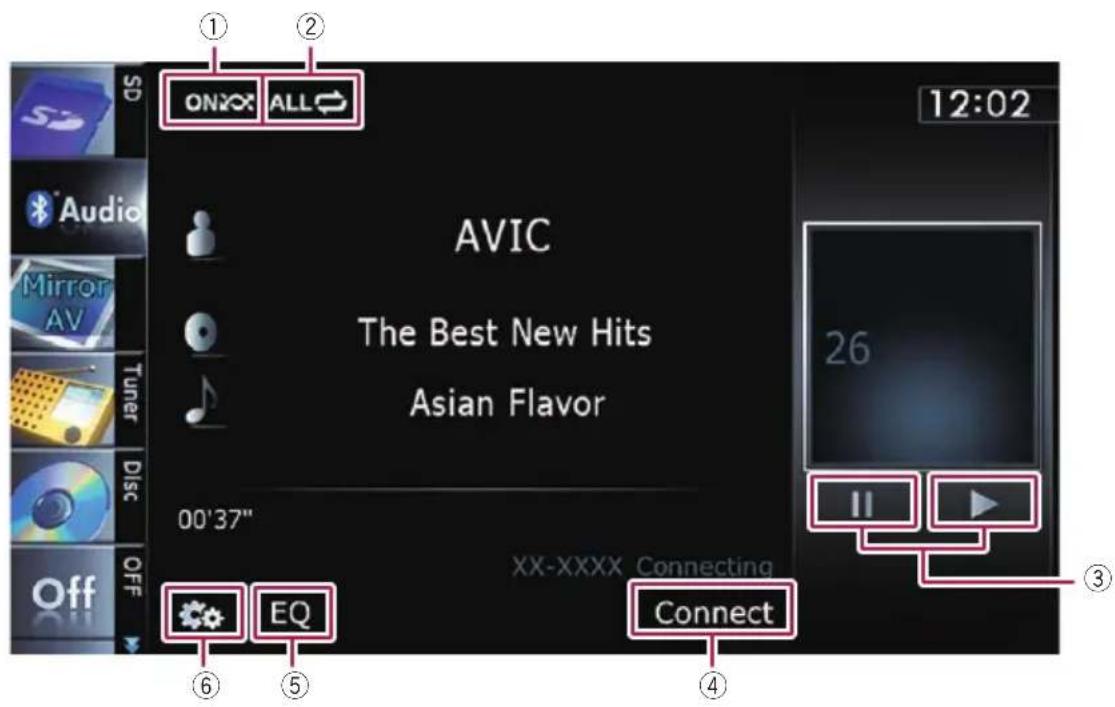
①Playsfilesinrandomorder
Allofthefileswithintherepeatplayrange canbeplayedatrandombytouchingonlyone key.
☐Thisfunctionisavailableonlywhenthe connectedBluetoothaudioplayerfeaturesAVRCP1.3.
Fordetails, referto Playsfilesinrandomorderonthenextpage.
②Setsarepeatplayrange
Therepeatplayrangecanbechangedby touchingonlyonekey.
☐Thisfunctionisavailableonlywhenthe connectedBluetoothaudioplayerfeaturesAVRCP1.3.
Fordetails, referto Changestherepeat rangeonthenextpage.
③PlaybackandPause
Touching [▶] or [■■] switches between play-backandpause.
④ConnectstheBluetoothaudioplayer
Touching[Connect]displaystheconnection standbyscreenandthenavigationsystem waitsfortheBluetoothwirelessconnectionrequest.
⑤Recallsequalizercurves
- Fordetails, refertoUsingtheequalizer onpage175.
⑥Displaysthe"Function"menu
Fordetails, refertoUsingadvancedfunctionsonthenextpage.
Operatingbyhardware buttons
PressingtheTRKbutton
Youcanskipfilesforwardorbackward.
PressingandholdingtheTRKbutton
Youcanperformfastreverseorfastforward.
Usingadvancedfunctions
ThismenuisavailableonlywhentheconnectedBluetoothaudioplayerfeatures AVRCP1.3.
●Touch onthe"Audio"screen.
The "Function" menuappears.

①Changestherepeatrange
Eachtouchof[Repeat]changesthesetting asfollows:
- All: Repeats all audio files in the Bluetooth audioplayer.
- Track: Repeatsjustthecurrentfile.
- Off: Does not repeat.
□Ifyouskipthefileforwardorbackward when the repeat play range in "Track", therepeatplayrangechangesto"All".
②Playsfilesinrandomorder
Randomplayletsyou playbackfilesinrandomorderwithinthecurrentrepeatrange.
Eachtouchof[Random]turnsitonor off.
UsingtheXMtuner
Youcanusethenavigationsystemtocontrol anXMsatellitedigitaltuner, whichissoldseparately.
Fordetailsconcerningoperation, refertothe XMtuner'soperationmanuals. This section provides information on XMoperations with the navigation system which differs from that described in the XMtuner's operation manual.
The following XM satellited digital tuner units cannot be connected:
GEX-P900XM,GEX-P910XM
Startingprocedure
1DisplaytheAVoperationscreen.
- Fordetailsoftheoperations,refertoDis- playingtheAVoperationscreenonpage70.
2Tap[XM]ontheleftedgeofthescreen todisplaythe"XM"screen.
3Usethetouchpanelkeysonthescreen tocontroltheXMtuner.
Fordetails, refertoUsingthetouchpanel keysonpage137.
Readingthescreen
AllCHMode

CategoryMode

Aboutthelogoforchannelname
Onlythelogodatathatiscontainedinthena- gationsystemcanbedisplayedforeach channel.Thelogoofanewlyestablishedchan- nelthatisnotcontainedcannotbedisplayed. Whenalogoisnotavailable,thefollowing substituteiconisdisplayed.
Substituteicon

☐TheiconofeachbroadcaststationiscontainedintheNANDflashmemorybasedonthedataprovidedbyXMSatelliteRadioasofSeptember2010.
□AnychangesmadebyXMSatelliteRadiointhelineuporiconofthebroadcaststationinthefuturemaynotbesupportedbythenavigationsystem,andmaycausetheunittodisplayincorrecticons.
①XMbandindicator
ShowstheXMbandthathasbeenselected.
②CurrentXMstationinformation
Showsthedetailedinformationofthebroad-castchannelcurrentlybeingreceived.
• XMchannelnumber
ShowstheXMchannelnumberthe tuneriscurrentlytunedto.
• XMstationname
ShowstheXMbroadcaststationname
thetuneriscurrentlytunedin.
• Artist(performer)name
Showstheartist(performer)namecurrentlyplaying(whenavailable).
• Songtitle(programname)
UsingtheXMtuner
Showsthetitleofthecurrentsong(program).
☐ “----” is displayed if there is no corresponding information.
③Currenttime
④XMstationinformation
• XMstationnamelogo
•XMchannelnumber
- Presetnumber
Showswhatpresetitemhasbeense- lected.
⑤XMchannelcategory
Showsthecategoryofbroadcastchannel.
⑥XMchannelselectmodeindicator
Showswhatchannelselectmodehasbeen selected.Youcanselectachannelfromall channelsin"AllCHMode",andselecta channelfromselectedcategoryin "CategoryMode".
⑦Sourceicon
Showswhichsourcehasbeenselected.

Usingthetouchpanelkeys
AllCHMode
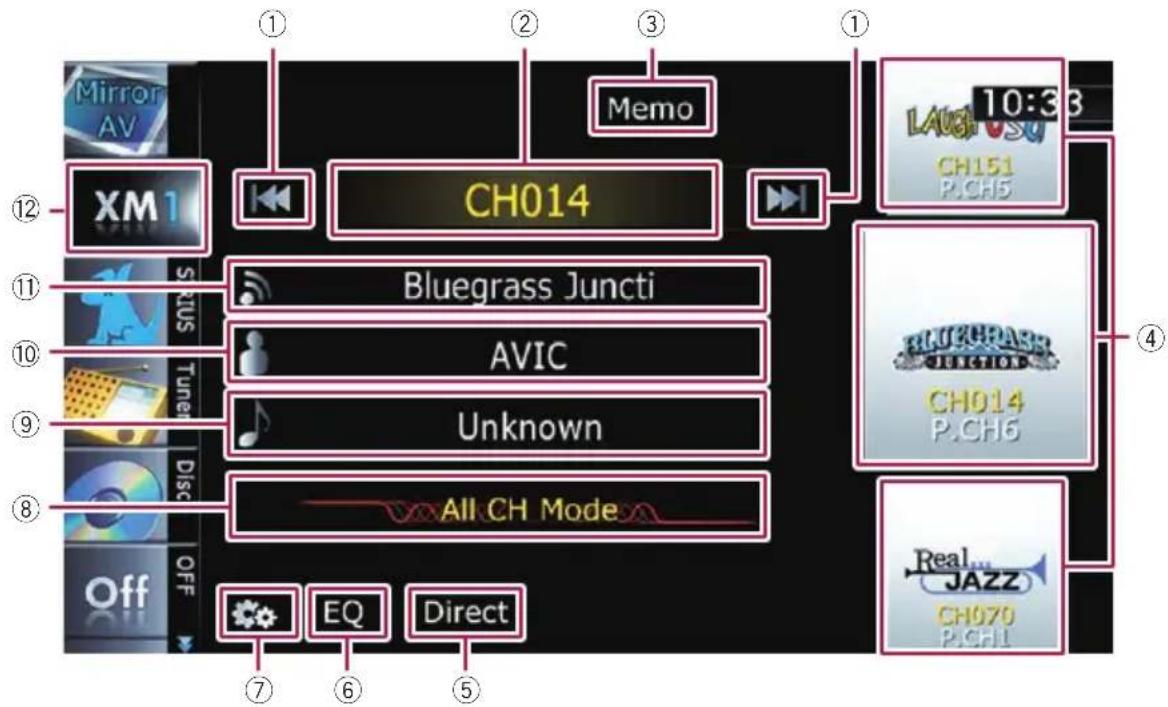
CategoryMode

①Performsmanualtuning
Thechannelsmoveupordownoneatatime.
☐ If you keep touching [I◄◄] or [►►I] you canskipthebroadcastingchannels.
② SwitchesbetweentheAVoperation screenandthepresetlistdisplay
Youcanswitchthescreendisplayaccording toyourpreference.
Fordetailsoftheoperation, referto SwitchingbetweentheAVoperation screenandthelistscreenonpage70.
③Memorizesthecurrentsong
Fordetails, referto Memorizing the song on thenextpage.
④Recallschannelsfromthepreset
Once you have stored broadcast channels, you can easily recall preset channels from memory with atapofakey.
- Fordetails, referto Storing and recalling broadcast stations on then next page.
⑤SelectsanXMchanneldirectly
Fordetails, refertoSelectinganXM channeldirectly on this page.
⑥Recallsequalizercurves
- Fordetails, refertoUsingtheequalizer onpage175.
⑦Displaysthe"Function"menu
- Fordetails, referto Usingadvancedfunctions on page 140.
⑧SwitchestheXMchannelselectmode
Youcanswitchthemodebetweenthetwo methodsforselectingandlistingthechannel.
AllCHMode:
Youcanselectachannelfromallchannels whenyouoperatethisfunction.
CategoryMode:
You can select a channel within an selected category that you operate this function.
⑨Switchestothelistdisplayofsongtitles
- Fordetails, refertoSelectingachannel fromthelistonthenextpage.
⑩Switchestothelistdisplayofartist names
- Fordetails,refertoSelectingachannel fromthelistonthenextpage.
⑪ SwitchestothelistdisplayofXMstation names
- Fordetails, refertoSelectingachannel fromthelistonthenextpage.
⑫SelectsanXMband
Tappingthekeyrepeatedlyswitchesbetween the following XM bands: XM 1, XM 2, or XM3.
☐Thisfunctionisconvenientforpreparing differentpresetlistsforeachband.
⑬Performsmanualtuning
The channels move up on none at a time within a selected category.
☐ If you keep touching [◀◀◀] or [▶▶▶] you canskipthebroadcastingchannels.
⑭Switchesthechannelcategory
Touch [◀] or [▶] to select the desired category.
SelectinganXMchanneldirectly
YoucanselectanXMchanneldirectlybyenteringthedesiredchannelnumber.
1Touch[Direct].
2Touch[0]to[9]toinputthedesired channelnumber.
Tocanceltheinputnumbersonebyone, touch 🔊.Touchingandholdingal ovsyou todeleteallinputnumbers.
3Whiletheinputnumberisdisplayed, touch[Enter].
TheXMchannelthatwasenteredisselected.
4Touch
![PIONEER AVIC-Z130BT - 3Whiletheinputnumberisdisplayed, touch[Enter]. - 1](/content/2026/06/1292122/images/dfc7a21acb937a41725a9ff0c51d53a706967863e7d68e0f38df66cb4953bd2d.jpg)
Youreturntothepreviousdisplay.
DisplayingtheRadioID
If you select CH:000, the RadioIDisdisplayed.
1Touch[Direct].
2Input[000]andthentouch[Enter].
□Ifyouselectanotherchannel,displayofthe RadiolDiscanceled.
3Touch.
![PIONEER AVIC-Z130BT - 2Input[000]andthentouch[Enter]. - 1](/content/2026/06/1292122/images/a3882411aef8181206d42247d7ec7c0c456a35e382e7804aa171e038985b778c.jpg)
Youreturntothepreviousdisplay.
4WaituntiltheRadioIDisdisplayed.
Storingandrecallingbroadcast stations
Withatapofanyofthepresettuningkeys ("P1" to "P6"), you can easily store up to six broadcastchannelsforlaterrecall(alsowith thetapofakey).
1Selectthechannelthatyouwantto storeinmemory.
2Displaythepresetchannellist.
Fordetails, referto Switches between the AV operations screen and the preset list display on page 137.
3Keeptouchingapresettuningkey[P1] to[P6].
Theselectedstation has been stored in memory.
Thenexttimeyoutapthesamepresettuning key "P1" to "P6", the station is recalled from memory.
Upto18stations, sixforeachofthreeXM bandscanbestoredinmemory.
Selectingachannelfromthelist
Thelistcontentcanbeswitchedsoyoucan searchforthesongyouwanttolistentonot onlybythechannelnamebutalsobytheartist nameorsongtitle.
☐Thechannellistshowsallchannelsduring "AllCHMode", and the channels included in theselected category during "CategoryMode".
1Displayalistscreen.
Fordetails, referto Switchestothelist displayofsongtitleson the previous page.
Fordetails, referto Switchestothelist displayofartistnames on the previous page.
Fordetails, referto Switchestothelist displayofXMstationnamesonthepreviouspage.
2Touch[List].
XMchannellistappearsinthedisplay. Eachtouchof[List]changesthescreenasfollows:
CHNameList(Channelname)—SongTitleList(Songtitle)—ArtistNameList(Artistname)
3Tapthedesiredchannelthatyouwant tolistento.

→Fordetails, refer to Operating lists screens (e.g. iPod lists screen) on page 70.
☐ During Category Mode, touch [◀] or [▶] to switch to another category.
Using"MyMix" function
"MyMix" function memorizes song title and artist name of the song currently being received. When the song that matches them memorized song title and artist name is being broadcast on a station other than the one you are listening to, you will be alerted, and you can switch the station to list to that songs.
☐AtrackitselfisNOTdownloaded.ONLYthe songtitleandtheartistnamearememorized.
Memorizingthesong
Thesongtitleandartistnameofthesongyou arelisteningtocanbememorizedto"MyMix".
●Touchandhold[Memo].
Thesongtitleandartistnameofcurrentsong youarelisteningtoarememorized,andaconfirmationmessageappears.
☐ Thesongtitleandartistnameofupto12 songscanbememorized.Tryingtosave morethan12songswillresultinolderones beingoverwritten.
☐Youcannotmemorizethesongtitleorthe artistnamewhen" ---- " isdisplayonthetitleinformation.
☐Thisfunctionisinvalidforthechannel "000".
☐Thememorizedtitlemaynotbedisplayed correctlydependingontheconditions.
☐Youcancustomizethesettingforthememorizedsongslater.
Fordetailsconcerningoperations, refer toSettingthememorizedsongsonthis page.
Whenthememorizedsongisbroadcast
Abeepsounds, and a message is displayed. Touch [Yes] to switch to that station and listen to that track.
□Ifthememorizedsongisnotchecked,or when[Off]isselectedon[Alert]onthe "MemoEdit"screen,noalertwillbeprovided.
- RefertoSettingthememorizedsongson thispage.
□Notificationmaynotbeprovideddependingonthestatusofthenavigationsystem.
□Ifthereisevenaslightdifferencebetween thememorizedtitleandthetitleofthe songbeingbroadcast,nonotificationwill beprovidedeventhoughttheyarethesame song.
Operatingbyhardware buttons
PressingtheTRKbutton
Youcanmovethechannelupordown.
PressingandholdingtheTRKbutton
Youcanmovechannelsupordownbyholding downthebutton.
Usingadvancedfunctions
- Touchonthe"XM"screen.
The "Function" menuappears.

①Setsthememorizedsongs
Settingthememorizedsongs Selectingthesongstoalert
ThelistofsongtitlesmemorizedfortheMyMix Function(MyMixlist)isdisplayed.Youcan changethenotificationsettingwhenthesong isbroadcastagain.Youcanenableordisable notificationforeachsong.
1Touch[MemoEdit].
2Touchthesongtitlethatyouwantto disablenotificationfor.
Thecheckmarkisremoved, and thenotification setting of the song is deactivated.
Changingthealertsetting
Youcanenableordisablealertsforallitemsat thesametime.Thisfunctionisusefulwhen youwanttoturnalertsofftemporarilywithout changingeachmemorizedsong.
1Touch[MemoEdit].
2Touch[Alert].
Eachtouchof[Alert]turnsitonoroff.
Deletingthememorizedsongs
Youcandeleteeachoneofthememorized songsfromthesongtitlelist.
1Touch[MemoEdit].
2Touchandholdthesongyouwantto delete.
☐Todeleteallsongsthatarememorized, touch[DeleteAll].
3Touch[Yes].
![PIONEER AVIC-Z130BT - 3Touch[Yes]. - 1](/content/2026/06/1292122/images/72382558b202de37a6d2076a48695e4c9e20c2c1a128e46d1341d6a25b5620cc.jpg)
Youcanusethenavigationsystemtocontrola PioneerSiriusSatelliteRadiotuner,whichis soldseparately.
Fordetailsconcerningoperation, refertothe SIRIUSTuner'soperationmanuals. This section provides information on SIRIUSoperations with navigationsystem which differs from that described in the SIRIUSTuner'soperation manual.
□WhenyouusetheSiriusConnectuniversal tuner(soldseparately)withthisnavigation system,PioneerSIRIUSBUSINTERFACEis required.Fordetailsconcerningoperation, refertotheowner'smanualofPioneerSIR-IUSBUSINTERFACEandSiriusConnect universaltuner.
Startingprocedure
1DisplaytheAVoperationscreen.
Fordetailsoftheoperations,refertoDis- playingtheAVoperationscreenonpage70.
2Tap[SIRIUS]ontheleftedgeofthe screentodisplaythe"SIRIUS"screen.
3Usethetouchpanelkeysonthescreen tocontroltheSIRIUSTuner.
Fordetails, refertoUsingthetouchpanel keysonthenextpage.
Readingthescreen
AllCHMode
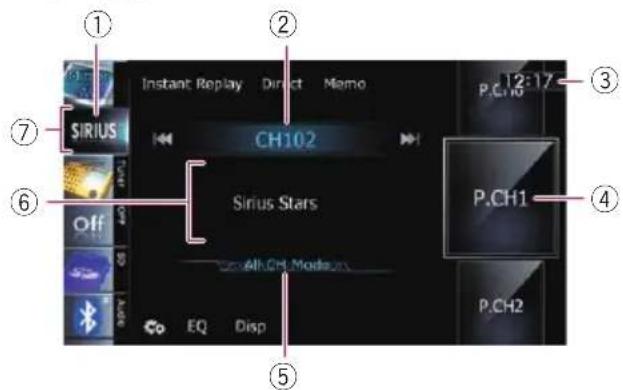
CategoryMode

①SIRIUSbandindicator
ShowstheSIRIUSbandthathasbeense- lected.
②SIRIUSchannelnumberindicator
ShowstheSIRIUSchannelnumberthatthe tuneristunedto.
③Currenttime
④Presetnumberindicator
Showswhatpresetitemhasbeenselected.
⑤SIRIUSchannelselectmodeindicator
Showswhatchannelselectmodehasbeen selected.Youcanselectachannelfromall channelsin"AllCHMode",andselecta channelfromtheselectedcategoryin "CategoryMode".
Fordetailsconcerningoperations, refer toSwitchestheSIRIUSchannelselectmodeonpage143.
⑥Variableinformationarea
Showsvariousinformationaboutthebroadcastchannelcurrentlybeingreceived.
Formoredetailsaboutthedisplayedinformation,refertoSwitchestheSIR-IUSdisplayonpage143.
⑦Sourceicon
Showswhichsourcehasbeenselected.

Usingthetouchpanelkeys
AllCHMode

flowchart
graph TD
    A["Instant Replay"] --> B["SIRIUS"]
    C["Direct"] --> D["CH102"]
    E["Memo"] --> F["Sirius Stars"]
    G["Audio"] --> H["EQ"]
    I["Disp"] --> J["All CH Mode"]
    K["P.CH1"] --> L["P.CH2"]
    M["P.CH10"] --> N["P.CH1"]
    O["①"] --> P["⑪"]
    Q["⑩"] --> R["⑩"]
    S["⑨"] --> T["⑨"]
    U["⑧"] --> V["⑧"]
    W["⑦"] --> X["⑦"]
    Y["⑥"] --> Z["⑥"]
CategoryMode

①SwitchestheSIRIUSInstantreplaymode
For details, refer to Using the "Instant Replay" function on page 144.
②Performsmanualtuning
Thechannelsmoveupordownoneatatime.
☐ If you keep touching [◀◀] or [▶▶] you canskipthebroadcastingchannels.
③SelectsaSIRIUSchanneldirectly
Fordetails, refertoSelectingaSIRIUS channeldirectlyonthenextpage.
④Memorizesthecurrentsong
- Fordetails, refertoMemorizingthesong onthenextpage.
⑤Recallschannelsfromthepreset
Taptorecallthepresetchannel.
Fordetails, refer to Storing and recalling broadcast stations on this page.
⑥SwitchestheSIRIUSdisplay
Eachtouchof[Disp]changesthedisplayinformation.
Channelnumber—Channelname—Channelcategory—Artistname/feature—Song/programtitle—Composer
⑦Recallsequalizercurves
- Fordetails, refertoUsingtheequalizer onpage175.
⑧Displaysthe"Function"menu
- Fordetails, referto Usingadvancedfunctionsonpage145.
⑨SwitchestheSIRIUSchannelselect mode
Youcanswitchthemodebetweenthetwo methodsforselectingandlistingthechannel.
AllCHMode:
Youcanselectachannelfromallchannels whenyouoperatethisfunction.
CategoryMode:
Youcanselectachannelwithinaselectedcategorythatyouoperatethisfunction.
⑩ SwitchesbetweentheAVoperation screenandthepresetlistdisplay
Youcanswitchthescreendisplayaccording toyourpreference.
Fordetailsoftheoperation, referto SwitchingbetweentheAVoperation screenandthelistscreenonpage70.
⑪SelectsaSIRIUSband
Tappingthekeyrepeatedlyswitchesbetween the following SIRIUSbands: SIRIUS1,
SIRIUS2, or SIRIUS3.
☐Thisfunctionisconvenientforpreparing differentpresetlistsforeachband.
⑫Switchesthechannelcategory
Touch [◀] or [▶] to select the desired category.
SelectingaSIRIUSchanneldirectly
YoucanselectaSIRIUSchannel directly by entering the desired channel number.
1Touch[Direct].
2Touch[0]to[9]toinputthedesired channelnumber.
Tocanceltheinputnumbersonebyone, touch 🔊.Touchingandholdingallowsyou todeleteallinputnumbers.
3Whiletheinputnumberisdisplayed, touch[Enter].
TheSIRIUSchannelthatwasenteredselected.
4Touch

Youreturntothepreviousdisplay.
DisplaytheRadioID
If you select CH:000, the RadioIDisdisplayed.
1Touch[Direct].
2Input[000]andthentouch[Enter].
If you select another channel, display of the RadioIDiscanceled.
3Touch

Youreturntothepreviousdisplay.
4WaituntiltheRadioIDisdisplayed.
Storingandrecallingbroadcast stations
Withatapofanyofthepresettuningkeys
("Preset 1" to "Preset 6"), you can easily store uptosixbroadcaststationsforlaterrecall (alsowiththetapofakey).
1Selectthechannelthatyouwantto storeinmemory.
2Displaythepresetchannellist.
Fordetails, referto Switches between the AV operations screen and the preset list display on this page.
3Keeptouchingapresettuningkey [Preset1]to[Preset6].
Theselectedstationhasbeenstoredinmemory.
Thenexttimeyoutapthesamepreset tuning key "Preset 1" to "Preset 6" the station is recalled from memory.
☐Upto18stations, sixforeachofthreeSIR-IUSbandscanbestoredinmemory.
Usingthesongalertfunction
Thesongalertfunctionmemorizesthesong titleandartistnameofthesongcurrently beingreceived.Whenatrackthatmatchesthe memorizedsongtitleandartistnameisbeing broadcastonastationotherthantheoneyou arelisteningto,youwillbealerted,andyou canswitchthestationtolistentothatsong.
☐ThetrackitselfisNOTdownloaded;only thesongtitleandtheartistnamearememorized.
Memorizingthesong
Thesongtitleandartistnameofthesongyou arelisteningtocanbememorized.
●Touchandhold[Memo].
Thesongtitleandartistnameofthesongyou arelisteningtocanbememorized.
Upto10songtitlesandartistnamescanbe memorized.
☐You cannot memorize asongthat does not have song title and artist name information.
☐You cannot memorize the song title or the artist name of channel "000".
☐Thememorizedtitlemaynotbedisplayed correctly.
Whenthememorizedsongisbroadcast
Abeepsounds, andamessage is displayed.
Touch [Jump] to switch to that station, and you can list to that at track. If you touch
[Stay], the channel does not switch.
□Ifthealertforthesongis“Off”orset
"Alert" to "Off", no notification will be provided even when that song is broadcast.
Fordetails, referto Settingthememorized songs on then next page.
□NotificationmaynotbeprovideddependingonthesituationoftheNavigationSystem.
- Fordetails, refertoSelectingthesongs toalertonthenextpage.
Usingthe"InstantReplay"function
The "InstantReplay" function allows you to replay the restored broadcast on Pioneer SIRIUS BUS INTERFACE (if Pioneer SIRIUSBUS INTERFACE capable for this function). As soon as out uneto channel, Pioneer SIRIUSBUS INTERFACE automatically begins storing the broadcast. It can store approximately up to 44 minutes previous (depending on these selected channel and the memory capacity of Pioneer SIRIUSBUS INTERFACE).
1Touch[InstantReplay]ontheSIRIUS screentoactivatethe"InstantReplay" mode.
2Touchkeysfor"InstantReplay".
| Touchpanel keys | Action |
| [◀◀] | Returntothestartofthecurrent songorprogram.Touchingagain willskipbacktotheprevioussong orprogram. |
| [◀◀]andholdFastreverses. | |
| [▶▶] | Forwardsplaytothenextsongor program. |
| [▶▶]andholdFast-forwards. | |
| [▶/■] | Touching[▶/■]switchesbetween playbackandpause. |
During "InstantReplay" mode, each touch of [Disp]changesthedisplayinformation as follows; Timeposition—Channelnumber—Channelname—Channelcategory—Artist name/feature—Song/programtitle—Composer
☐You cannot replay the broadcast prior to the beginning of stored data.
Operatingbyhardware buttons
PressingtheTRKbutton
Youcanmovethechannelupordown.
During "InstantReplay" mode, you can skip the songor program forward or backward.
PressingandholdingtheTRKbutton
Youcanmovechannelsupordownbyholding downthebutton.
During "InstantReplay" mode, you can perform fast reverse or fast forward.
Usingadvancedfunctions
●Touchone"SIRIUS"screen.
The "Function" menuappears.
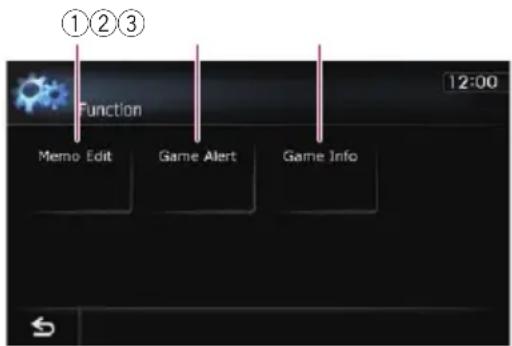
①Setsthememorized songs
②UsestheGameAlertfunction
③DisplaysGameInformation
- Fordetailsofeachfunction, refertosections below with therelativetitles.
Settingthememorizedsongs
Selectingthesongstoalert
Youcanchangethesettingofthealertwhen thetrackisbroadcastagain.Youcanenable ordisablealertforeachsong.
1Touch[MemoEdit].
2Touch[◀Prev]or[Next▶]toselectthe desiredsong.
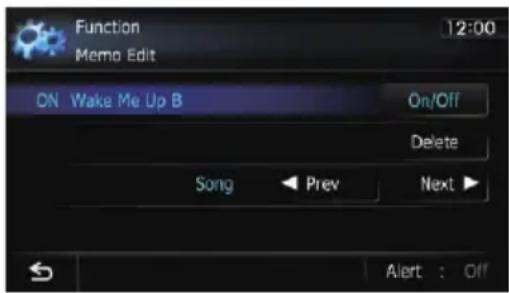
3Touch[On/Off]toturnthesettingon.
Whenthealertforthesongisactivated,[On] appearsatthebeginningoftheselectedtitle.
☐Touch[On/Off]againtoturnthesettingoff.
Changingthealertsetting
Youcanenableordisablealertsforallitemsat thesametime.Thisfunctionisusefulwhen youwanttoturnalertsofftemporarilywithout changingeachmemorizedsong.
1Touch[MemoEdit].
2Touch[Alert].
Eachtouchof[Alert]turnsitonoroff.
Deletingthememorizedsongs
Youcandeleteeachoneofthememorized tracksfromthesongtitlelist.
1Touch[MemoEdit].
2Touch[◀Prev]or[Next▶]toselectthe songtitlethatyouwanttodelete.
3Touch[Delete]whenthesongyou wanttodeleteisdisplayed.
Amessagewillappearaskingyoutoconfirm thedeletion.
4Touch[Yes].
UsingtheGameAlertfunction
SelectingteamsforGameAlert
Thisnavigationsystemcanalertyouwhen gamesinvolvingyourfavoritesportsteamsare abouttostart.Tousethisfunctionyouneedto storetheteamsyouwanttofollowinadvance.
1Touch[GameAlert].
2Touch[◀Prev]or[Next▶]toselectthe league.

3Touch[◀Prev]or[Next▶]toselectthe team.
4Touch[On/Off].
Theteamdisplayedas[On]isthealerttarget. □Whentheselectedteamisexcludedfrom thealerttarget,theteamisdisplayedas [Off].Upto12teamscanbeselected. Ifyouhavealreadyselected12teams, "FULL"isdisplayedandaddingnewentries isnotpossible.Inthiscase,deleteateam andthentryagain.
Changingthealertsetting
Youcanenableordisablethealertforselected items. This function is useful when you want to turn the alert of temporarily without changing these setting of each selected team.
1Touch[GameAlert].
2Touch[Alert].
Eachtouchof[Alert]turnsitonoroff.
Whenagameinvolvingoneofyour favoriteteamsisbroadcast
Amessageisdisplayed.Touch[Jump] to switchthestationtoviewthegameinformation.Ifyoutouch[Stay],thestationdoesnot switch.
☐Alertsmaynotbeavailabledependingon thestatusofthenavigationsystem.
DisplayingGameInformation
Analertwillbedisplayedwhenagamewith theteamyouselectedisabouttostart(oris currentlyunderway).Youcanalsodisplay gameinformationandchangestothebroadcastchannel.
☐TheGameInformationfunctionisavailable when "Alert" is "On" in "Game Alert".
1Touch[GameInfo].
2Touch[Prev]or[Next]toviewthegame scoreinformationthatisregistered.
☐Thegamescorewillbeupdatedautomatically.
☐Touch[TuneTo]toswitchtothechannel thatbroadcaststhedisplayedgame.
□Ifyouhavenotselectedanyteam, "NotSet"isdisplayed.
□When nogamesinvolvingyourfavorite teamsarecurrentlybeingplayed "NOGAME"isdisplayed.
UsingAVinput
Youcandisplaythevideoimageoutputbythe equipmentconnectedtothenavigationsystem.Fordetailsoftheconnectionmethod, refertoInstallationManual.

CAUTION
Forsafetyreasons, videoimages cannot be viewed while your vehicle is in motion. Toview videoimages, you must stop in as a safe place and apply the parking brake.
Readingthescreen

①Currenttime
②Sourceicon
Showswhichsourcehasbeenselected.

UsingAV1
Youcandisplaythevideoimageoutputbythe equipmentconnectedtovideoinput1.
1Touch[AV1Input]onthe"AVSystem Settings"menu.
- Fordetails, refertoSettingvideoinput1 (AV1) on page 170.
2DisplaytheAVoperationscreen.
Fordetailsoftheoperations, refertoDisplayingtheAVoperationscreenonpage70.
3Tap[AV1]ontheleftedgeofthe screen.
The image is displayed on the screen.
4Touchthescreentodisplaythetouch panelkeys.
UsingAV2
Youcandisplaythevideoimageoutputbythe equipmentconnectedtovideoinput2.
1Touch[AV2Input]onthe"AVSystem Settings"menu.
- Fordetails, refertoSettingvideoinput2 (AV2) on page 171.
2DisplaytheAVoperationscreen.
→Fordetailsoftheoperations,refertoDisplayingtheAVoperationscreenonpage70.
3Tap[AV2]ontheleftedgeofthe screen.
The image is displayed on the screen.
4Touchthescreentodisplaythetouch panelkeys.
Usingthetouchpanelkeys

①Recallsequalizercurves
- Fordetails, refertoUsingtheequalizer onpage175.
②Hidesthetouchpanelkeys
Touching[Hide]hidesthetouchpanelkeys. □Ifyouwanttodisplaythetouchpanel keysagain,touchanywhereontheLCD screen.
The term "externalunit" refer to future Pioneer device that are not currently planned for, ortodevice that allow control of basic functions although they are not fully controlled by the navigation system. Two external units can be controlled by this navigation system. Whent two external units are connected, then navigation system allocates them as external unit 1orexternalunit2.
Fordetailsoftheconnectionmethod,referto InstallationManual.
Fordetailsoftheoperation, refertotheexternalunit'soperationmanual. Thissectionprovidesinformationonexternalunitoperations withthenavigationsystemthatdifferfrom thosedescribedintheexternalunit'soperationmanual.
Operationvariesdependingontheexternal unitconnected.(Insomecases,theexternalunitmaynotrespond.)
Startingprocedure
1DisplaytheAVoperationscreen.
Fordetailsoftheoperations,refertoDis- playingtheAVoperationsscreenonpage70.
2Tap[EXT1]or[EXT2]ontheleftedgeof thescreentoselecttheexternalunit.
3Usethetouchpanelkeysonthescreen tocontroltheexternalunit.
Fordetails, refertoUsingthetouchpanel keysonthenextpage.
Readingthescreen

①Sourceicon
Showswhichsourcehasbeenselected.
②Externalunitindicator
Display the information that is sent by connected external units.
③Currenttime
④Auto/Manualmodeindicator
Showsthecurrentmode.
Usingthetouchpanelkeys

①Recallsequalizercurves
Fordetails, refertoUsingtheequalizer onpage175.
②Sendsabandcommand
Touchtosendabandcommandtotheexternalunit.
☐Operationvariesdependingontheexternalunitconnected.(Insomecases, theexternalunitmaynotrespond.)
③Uses[F1]through[F4]tooperatetheexternalunit
The external unit can be operated by transmitting the operating commands set to "F1" through "F4".
☐Theoperatingcommandssetto“F1” through“F4”varydependingontheexternalunit.
☐Somefunctionsmaynotbeuseduntilyoutouchandholdthekey.
④ Switchesbetweenautomaticandmanual function
Youcanturnautomaticandmanualfunction onoroff.
Youcanswitchbetween"Auto"and
"Manual" functionsoftheexternalunitconnected.
Initially, this function is set to "Auto".
☐Operatingcommandssetfor"Auto" and "Manual" operations vary depending on the external unit connected.
⑤ Sends a command [▲], [▼], [◀], or [▶] Touchtooperatetheexternalunit.
☐Operationvariesdependingontheexternalunitconnected.(Insomecases, somefunctionsmaynotbeuseduntilyoutouchandholdthekey.)
⑥ Sends a [1] key to [6] key command The external unit can be operated by transmitting the operating commands set to "1" key through "6" key.
☐Operationvariesdependingontheexternalunitconnected.(Insomecases, somefunctionsmaynotbeuseduntilyoutouchandholdthekey.)
Displayingthescreenfor navigationsettings
1PresstheHOMEbuttontodisplaythe "TopMenu" screen.
2Touch[Settings].
The "SettingsMenu" screenappears.
☐Thiscanalsobeoperatedusingthe"ShortcutMenu"screen.
3Touch[NaviSettings].
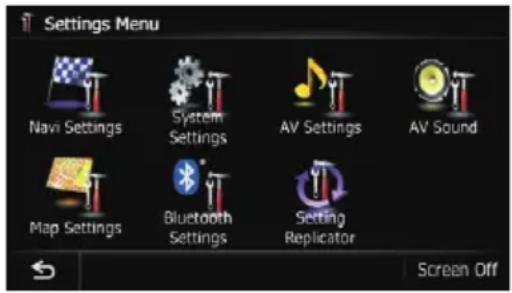
The "NaviSettings" menuappears.
4Touchtheitemthatyouwantto changethesetting.

■Ifyoutouch,the previousscreenre-turns.
Checkingtheconnections ofleads
Checkthatleadsareproperlyconnectedbetweenthenavigationsystemandthevehicle. Pleasealsocheckwhethertheyareconnectedinthecorrectpositions.
1Displaythe"NaviSettings"screen.
- Fordetails, refertoDisplayingthescreenfor navigationsettingsonthispage.
2Touch[ConnectionStatus].
The "ConnectionStatus" screenappears.
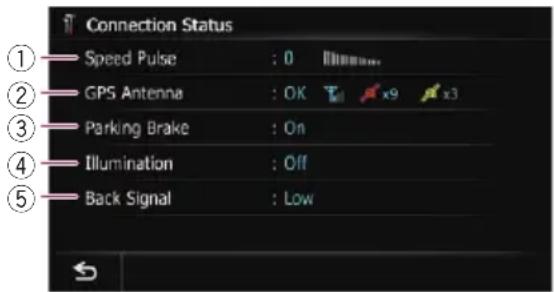
①SpeedPulse
TheSpeedPulsevaluedetectedbythenavigationsystemisshown."0"isshownwhile thevehicleisstationary.
②GPSAntenna
Indicate the connection status of the GPS antenna, thereception sensitivity, and from how many satellites these signal is received.
| Color | Signalcommunication | Usedinpositioning |
| OrangeYesYes | ||
| Yellow | YesNo | |
□WhentheGPSantennaisconnectedto thisnavigationsystem, "OK" is displayed. WhentheGPSantennaisnotconnectedtothisnavigationsystem, "NOK" is displayed.
□ Ifreceptionispoor, pleasechangethe installationpositionoftheGPSantenna.
③ParkingBrake
Whentheparkingbrakeisapplied, "On" is displayed. Whentheparkingbrakeisreleased, "Off" is displayed.
④Illumination
Whentheheadlightsorsmalllampsofavehicleareon, "On" is displayed. Whenthe smalllampsofavehicleareoff, "Off" is displayed. (If the orange/white lead is not connected, "Off" appears.)
⑤BackSignal
Customizingpreferences
When the gear lever is shifted to "R", the signal switches to "High" or "Low". (One of these is displayed depending on the vehicle.)
Checkingsensorlearning statusanddrivingstatus
☐Thenavigationsystemcanautomatically useitssensormemorybasedontheouter dimensionsofthetires.
1Displaythe"NaviSettings"screen.
- Fordetails, refertoDisplayingthescreenfor navigationsettingsonthepreviouspage.
2Touch[3DCalibrationStatus].
The "3DCalibrationStatus" screenappears.

①Speed
Indicatesthespeeddetectedbythenavigationsystem.(Thisindicationmaybedifferentfromtheactualspeedofyourvehicle, sopleasedonotusethisinsteadofthe speedometer.)
②Accelerationordeceleration/Rotational speed
Indicatesaccelerationordecelerationvelocityofyourvehicle.Also,rotationalspeed whenyourvehicleturnstoleftorrightis shown.
③Distance
Indicatesdrivingdistance.
④SpeedPulse
Indicatesthetotalnumberofspeedpulses.
⑤LearningStatus
Indicate the current driving mode.
⑥Inclination
Indicate the degree of slope of the street that you are currently on.
⑦Degreeoflearning
Sensorlearningsituationsfordistance
(Distance), right turn (Right Turn), left turn
(LeftTurn)and3Ddetection(3D)areindicatedbythelengthofbars.
☐ Whentireshavebeenchangedor chainsfitted, turningontheSpeed Pulseallowsthesystemtodetectthe factthatthetirediameterhaschanged, andautomaticallyreplacethevaluefor calculatingdistance.
□Ifaseparatelysoldspeedpulsegenerator(ND-PG1)isconnected,thedistance calculationvaluecannotbereplaced automatically.
Clearingstatus
Youcandeletethelearnedresultsstoredin "Distance", "Speed Pulse" or "Learning Status".
1Touch[Distance]or[SpeedPulse].
The following message appears.

2Touch[Yes].
Clearstheresultsstoredin "Distance" or "SpeedPulse".
3Touch[LearningStatus].
The following message appears.

4Touch[All].
Clearsallleaningresults.
☐Touch[All]forthefollowingcases:
• Afterchangingtheinstallationposition ofthenavigationsystem
• Afterchangingtheinstallationangleof thenavigationsystem
• Aftermovingthenavigationsystemto anothervehicle
■Ifyoutouch[Distance],alllearnedresults
storedin"Distance"arecleared.
Using the fuel consumption function
Inputting the fuel consumption information for calculating the fuel cost
Youcanestimatethefuelcosttoyourdestinationbyenteringthefuelconsumptioninformationinthenavigationsystem.
- Fordetails, refertoSettingaroutetoyour destinationonpage42.
1Displaythe"NaviSettings"screen.
- Fordetails, refertoDisplayingthescreenfor navigationsettingsonpage150.
2Touch[GasMileage].
The "GasMileageSetting" screenappears.
3Enterthefuelconsumptioninformation.

Enterthefollowingitems:
- SurfaceRoadGasMileage: Enterthefuelcostwhenyoudriveonordinaryroads.
•FreewayGasMileage: Enterthefuelcostwhenyoudriveonthe freeway.
•GasPricePerUnit: Enterthefuelunitprice.
•GasUnit: Setthefuelunit.
• Currency: Settheunitofcurrency.
☐Theunitin"SurfaceRoadGasMileage" and "FreewayGasMileage" depend on theonechosenin"GasUnit".
- When "Gas Unit" is set to "Gallon". Enterhowmanymiles(kilometers)you gettoagallon.
- When "Gas Unit" is set to "Liter". Enterhowmuchfuelyouneedtotravel 60miles(100kilometers).
When all the items are entered, inputting the fuel consumption information is complete.
Calculating the fuel consumption
Whenyouenterthefuelinginformationtothe navigationsystem,andexportthedatatoSD memorycards,youcancheckthefuelconsumptioninformationbyusingtheutilityprogramAVICFEEDS,whichisavailable separately,onyourPC.
☐Upto24setsofdatacanbestored.You canalsoexportthedata,asdescribed below.
Customizingpreferences
If the entries reach them a maximum number, anew entry will over writ the oldest one.
These calculations are based only on the information that you provide and not on any data from the vehicle. The fuel mile aged displayed is only a reference value, and does not guarantee the fuel mile aged displayed can be obtained.
1Displaythe"NaviSettings"screen.
- Fordetails, refertoDisplayingthescreenfor navigationsettingsonpage150.
2Touch[GasMileage].
The "GasMileageSetting" screenappears.
3Touch[GasPriceCalculation].

The "GasPriceCalculation" screenappears.
4Enterthefuelconsumptioninformation.
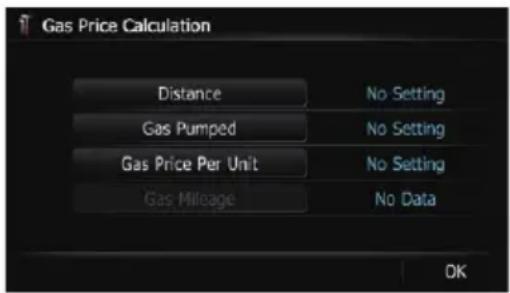
Enterthefollowingitems:
- Distance:
Enterthedistancetraveledsincethepreviousfueling.
☐The distance is entered automatically only when the distance traveled since the previous fueling is recorded.
•GasPumped:
Entertheamountoffuelpumped.
•GasPricePerUnit:
Enterthefuelunitprice.
When all the items are entered, the fuel consumption is displayed next to "Gas Mileage".
5Touch[OK].

The "GasMileageSetting" screenappears.
Exportingthedataoffuelcost information
Exporting the fuel cost datatoan SD memory cardis possible.
☐Thedatastoredinthisnavigationsystem willbeclearedasexportingittotheSD memorycard.
□IfthereispreviousdataintheSDmemory card,thedataisoverwrittenwithnewdata.
1InsertanSDmemorycardintotheSD cardslot.
Fordetailsoftheoperation, referto/insertingandejectinganSDmemorycardon page16.
2Displaythe"NaviSettings"screen.
Fordetails, refertoDisplayingthescreenfor navigationsettingsonpage150.
3Touch[GasMileage].
The "GasMileageSetting" screenappears.
4Touch[Export].

Afteramessageconfirmingwhethertoexport thedataappeared,exportingthedatatothe SDmemorycardstarts.
The "GasMileageSetting" screenappears whenitisdone.
Recordingyourtravelhistory
Activating the tracklogger enables you to record your driving history (called "tracklog" below). You can review the travel history later.
□IfanSDmemorycardisinsertedintothe SDcardslot,thetracklogswillbestoredin theSDmemorycard.
1InsertanSDmemorycardintotheSD cardslot.
Fordetailsoftheoperation, refertoInsertingandejectinganSDmemorycardon page16.
2Displaythe"NaviSettings"screen.
- Fordetails, refertoDisplayingthescreenfor navigationsettingsonpage150.
3Touch[DriveLogSettings].
The "DriveLogSettings" screenappears.
4Touch[DriveLogSettings].
Eachtimeyoutouchthekeychangesthesetting.
- Off(default): You cannot export your track log to the SD memory card.
- On: YoucanstoreyourtracklogtotheSDmemorycard.
☐Whilethesettingis“On”, thenavigation systemcontinuestostorethetracklogsin theinsertedSDmemorycard.
5Touch[Type].
Eachtimeyoutouchthekeychangesthesetting.
- Private(default): Changesthetracklogattributeto"Private".
- Business: Changesthetracklogattributeto"Business".
- Other: Changesthetracklogattributeto "Other".
Usingthedemonstration guidance
Thisisademonstrationfunctionforretail stores. Afterarouteisset, touchingthiskey startsthesimulationofrouteguidance.
1Displaythe"NaviSettings"screen.
- Fordetails, refertoDisplayingthescreenfor navigationsettingsonpage150.
2Touch[DemoMode].
Eachtimeyoutouchthekeychangesthesetting.
- Off(default): The demonstrationguidanceissetoff.
- On: Repeatsthedemonstrationguidance.
3Displaythemapscreen.
Thedemonstrationguidancewillbegin.
Registeringyourhome
Registeringyourhomepositionsavestime andeffort. Also, routestohomepositionscan becalculatedeasilywithasingletouchofthe keyfromthe"DestinationMenu".Theregisteredhomepositioncanalsobemodified later.
Customizingpreferences
1Displaythe"NaviSettings"screen.
- Fordetails, refertoDisplayingthescreenfor navigationsettingsonpage150.
2Touch[SetHome].
The"SetHome" screenappears.
3Touch[Home].

The "SelectSearchmethod" screenappears.
■Ifyoutouch[Phone#],youcanedityour homephonenumber.
□[Phone#]isonlyavailablewhenyouhave alreadyregisteredyourhomephonenumber.
4Searchforalocation.
- Fordetails, referto Chapter 6. Aftersearching for a point, themap of these selected position is displayed.
5Touch[OK].
Thelocationisregistered, and then the "Set Home" screen appears.
6Touch[OK].
Theregistrationiscomplete.
Correcting the current location
Touchthescreentoadjustthecurrentposition anddirectionofthevehicledisplayedonthe map.
1Displaythe"NaviSettings"screen.
Fordetails, refertoDisplayingthescreenfor navigationsettingsonpage150.
2Touch[ModifyCurrentLocation].
3Scrolltothepositionwhereyouwant toset, thentouch[OK].
4Touchthearrowkeyonthescreento setthedirection, thentouch[OK].
Changingtheeco-function setting
Youcanchangetheeco-functionsetting.
1Displaythe"NaviSettings"screen.
- Fordetails, refertoDisplayingthescreenfor navigationsettingsonpage150.
2Touch[EcoSettings].
The "EcoSettings" screenappears.
3Toucheachitem.

EcoScore
- On(default): Displays“EcoScore”.
- Off: Hides“EcoScore”.
Fordetails, referto Checking the eco-friendly driving status on page 32.
EcoDriveLevel
- On(default): Afteryouarrivethedestination, amessage appears and abeepsoundsifthelevel of "EcoDriveLevel" have increased or decreased.
- Off: Nomessageappearsandnosoundbeeps whenthevehiclereachesthedestination.
- Fordetails, refertoDisplayingEcoDrive Levelguidanceonpage33.
RapidStartWarning
Customizingpreferences
- Off(default):
Nomessageappearsandnosoundbeeps whenthevehicleexperiencesasudden start.
• On:
Amessageappearsandasoundbeeps whenthevehicleexperiencesasudden start.
- Fordetails,refertoSuddenstartalerton page33.
ClearEcoRecord
Fuelconsumptiondataarecleared.
4Touch[OK].
Thesettingsarecomplete.
Displayingthescreenfor mapsettings
1PresstheHOMEbuttontodisplaythe "TopMenu" screen.
2Touch[Settings].

The"SettingsMenu"screenappears.
3Touch[MapSettings].

The "MapSettings" screenappears.
4Touchtheitemthatyouwantto changethesetting.

■Ifyoutouch,the previousscreenreturns.
Settingtheauto-zoomdisplay
Thissettingenablesswitchingtoanenlarged maparoundthepointwhereyourvehicleis approachinganintersection,entrance/exitof freewayorajunction.
1Displaythe"MapSettings"screen.
- Fordetails, refertoDisplayingthescreenfor mapsettingsonthispage.
2Touch[DisplayedInfo].
The "DisplayedInformation" screenappears.
3Touch[CloseUpView].
Eachtimeyoutouchthekeychangesthesetting.
- On(default): Switchestoanenlargedmap.
- Off: Doesnotswitchtoanenlargedmap.
Settingthedetailedcitymap
☐The detailed city map and this setting are available for AVIC-Z130BTonly. You can select whether to display the city map when in certain metropolitan areas. ☐The city map is displayed when the map scale is 0.05 mile (50 meters) or less.
Customizingpreferences
1Displaythe"MapSettings"screen.
Fordetails, refertoDisplayingthescreenfor mapsettingsonthepreviouspage.
2Touch[DisplayedInfo].
The "DisplayedInformation" screenappears.
3Touch[CityMap].
Eachtimeyoutouchthekeychangesthesetting.
- On(default):
Automatically switch the city map when inacity map area.
•Off:
Doesnotshowthecitymap.
Even if you switch "City Map" to "On", citymapcannotbedisplayedinareas wherethereisnocitymapdata.
Settingthebarriergraphic forcitymap
☐The detailed city map and this setting are available for AVIC-Z130BT only.
Onthecitymapscreen,youcandisplaya "barriergraphic"patternwherenocitymap dataisavailable.Thispreventsanormalmap ofadifferentscalefrombeingdisplayedatthe sametime,greatlyenhancingtheclarityofthe citymaponscreen.
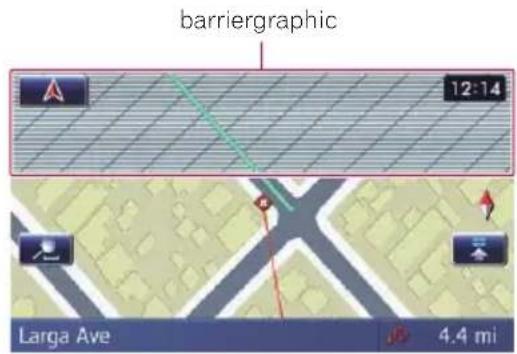
1Displaythe"MapSettings"screen.
Fordetails, refer to Displaying the screen for map settings on the previous page.
2Touch[DisplayedInfo].
The "DisplayedInformation" screenappears.
3Touch[CityMapBarrier].
Eachtimeyoutouchthekeyswitchesbetween "On" and "Off".
- On(default):
Displaysthebarriergraphicforcitymap. Whenthevehiclepositionorcursorenters thebarriergraphicarea, thegraphicdisappearsandanormalmapisdisplayedfull screen.
• Off:
Doesnotdisplaythebarriergraphicforcity map. Whenthevehiclepositionorcursor enterstheareawherenocitymapdatais available,anormalmapisdisplayedfull screen.
Displayingthetraffic notificationicon
Selectswhethertodisplayorhidethetraffic notificationiconsonthemapwhenincidents occuronyourroute.
Fordetails, refer to Checking traffic information manually on page 54.
1Displaythe"MapSettings"screen.
- Fordetails, refertoDisplayingthescreenfor mapsettingsonthepreviouspage.
2Touch[DisplayedInfo].
The "DisplayedInformation" screenappears.
3Touch[ShowTrafficIncident].
Eachtimeyoutouchthekeychangesthesetting.
•View(default):
Displaystheiconsonthemap.
- Hide:
Hidestheiconsonthemap.
![PIONEER AVIC-Z130BT - 3Touch[ShowTrafficIncident]. - 1](/content/2026/06/1292122/images/7dbaa2cef5ca9058aa2c641e7a0a420da9ac2653a8bd1b4154ad7b95152375f9.jpg)
DisplayingtheBluetooth connectionicon
Selectswhethertodisplayorhidetheiconfor currentstatusofthephoneconnectionvia Bluetoothwirelesstechnology.
Bluetoothconnectionicon

1Displaythe"MapSettings"screen.
Fordetails, refertoDisplayingthescreenfor mapsettingsonpage156.
2Touch[DisplayedInfo].
The "DisplayedInformation" screenappears.
3Touch[BluetoothConnected].
Eachtimeyoutouchthekeychangesthesetting.
•View(default): DisplaystheBluetoothconnectioniconon themap.
- Hide: HidestheBluetoothconnectionicononthe map.
Settingthecurrentstreet namedisplay
Selectswhethertodisplayorhidethestreet name(orcityname)thatyourvehicleistravelingalong.
1Displaythe"MapSettings"screen.
- Fordetails, refertoDisplayingthescreenfor mapsettingsonpage156.
2Touch[DisplayedInfo].
The "DisplayedInformation" screenappears.
3Touch [%CurrentStreetName].
Eachtimeyoutouchthekeychangesthesetting.
•View(default): Displaysthestreetname(orcityname)on themap.
- Hide: Hidesthestreetname(orcityname)onthe map.
Settingthedisplayoficons offavoritelocations
Youcanselectwhethertodisplaythe"Favorites"icononthemap.
☐ "Favorites" iconsaredisplayedwhenthe mapscaleis10miles(20kilometers)or less.
- Fordetails, referto Editing the favoritelocationinthelistonpage47.
1Displaythe"MapSettings"screen.
Fordetails, refer to Displaying the screen for mapsettings on page 156.
2Touch[DisplayedInfo].
The "DisplayedInformation" screenappears.
3Touch[FavoritesIcon].
Eachtimeyoutouchthekeychangesthesetting.
- On(default): Displaysthe"Favorites"icononthemap.
-Off: Hidesthe"Favorites"icononthemap.
Displayingthe3Dlandmarks
☐The3Dlandmarksandthissettingare availableforAVIC-Z130BTonly. ☐3Dlandmarkonlyappearswhentheview modeis"3DView"andthemapscaleis setto0.25mile(200m)orlower. Youcanselectwhethertodisplaythe3Dlandmarkonthemap.
Customizingpreferences
1Displaythe"MapSettings"screen.
Fordetails, refertoDisplayingthescreenfor mapsettingsonpage156.
2Touch[DisplayedInfo].
The "DisplayedInformation" screenappears.
3Touch[3DLandMark].
Eachtimeyoutouchthekeychangesthesetting.
- On(default): Displaysthe3Dlandmarkonthemap.
-Off: Hidesthe3Dlandmarkonthemap.
Displayingmaneuvers
Selectswhethertodisplayorhidemaneuvers onthemap.
Maneuvers
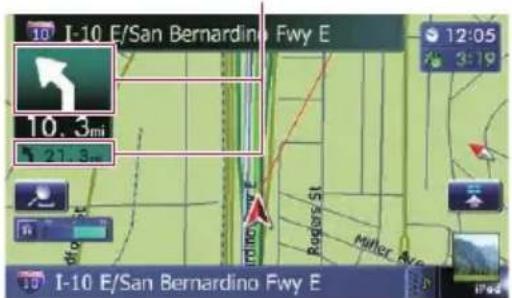
1Displaythe"MapSettings"screen.
Fordetails, refer to Displaying the screen for mapsettings on page 156.
2Touch[DisplayedInfo].
The "DisplayedInformation" screenappears.
3Touch[ShowManeuver].
Eachtimeyoutouchthekeychangesthesetting.
•View(default): Displaysmaneuversonthemap.
- Hide: Hidesmaneuversonthemap.
Displayingthefuel consumptioninformation
SelectswhethertodisplayEco-Meter,indicatingthefuelconsumptioninformation,onthe map.
☐Eco-Meterappearswhen "2DView" or "3DView" isselected.
1Displaythe"MapSettings"screen.
Fordetails, refertoDisplayingthescreenfor mapsettingsonpage156.
2Touch[DisplayedInfo].
The "DisplayedInformation" screenappears.
3Touch[ShowEcoMeter].
Eachtimeyoutouchthekeychangesthesetting.
•View(default): DisplaysEco-Meteronthemap.
- Hide: HidesEco-Meteronthemap.
DisplayingPOlonthemap
Displaysiconsforthesurroundingfacilities (POI)onthemap.
☐POliconsarenotdisplayedwhenthemap scaleis0.75mile(1kilometer)ormore.
DisplayingpreinstalledPOlson themap
☐Youcanselectupto10itemsfromthesubcategoriesordetailedcategories.
1Displaythe"MapSettings"screen.
- Fordetails, refertoDisplayingthescreenfor mapsettingsonpage156.
2Touch[OverlayPOI].
The "OverlayPOI" screenappears.
3Touch[Display]tochangethesettingto "On".

□If you donotwant to display the PO licon on themap, touch [Display] to turn it "Off". (Even if "Display" is turned "Off", the POI selection setting is retained.)
4Touch[POI].
The "OverlayPOI(MainCategory)" screen appears.
5Touchthemaincategoryyouwant.

Alistofsubcategoriesundertheselected maincategoryappears.
☐Categoriesthatarealreadyselectedwill haveabluecheckmark.
6Touchthesubcategorytodisplay.
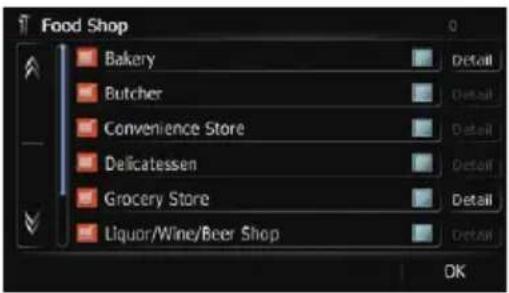
Aredcheckmarkappearsnexttotheselected category.Tocanceltheselection,touchthe entryagain.
If there are detailed categories within the subcategory, [Detail] is active. If you select the subcategory such, all detailed categories within the subcategory is selected and [Detail] becomes inactive.
■ Ifyoutouch[Detail], the detailed categories under the subcategory are displayed. Select a detailed category of your preference and touch [OK].
□Whenonlyafewdetailedcategoriesareselected,abluecheckmarkwillappearnext totheselectedsubcategory.
7Touch[OK].
The"OverlayPOI(MainCategory)"screen returns. Ifyouwanttoselectordeselectotheritems, repeatthesestepsasmanyasnecessary.
8Tofinishtheselection,touch[OK]in the"OverlayPOI(MainCategory)"screen.
DisplayingthecustomizedPOIs
CreatingacustomizedPOlispossibleby usingtheutilityprogramAVICFEEDSwhichis availableseparately,onyourPC.(AVICFEEDS willbeavailableonourwebsite.)Storingthe customizedPOIproperlyandinsertingtheSD memorycardenablesthesystemtodisplay theiconsonthemapscreen.
☐Youcanselectupto10itemsfromthesubcategoriesordetailedcategories.
1InsertanSDmemorycardintotheSD cardslot.
Fordetailsoftheoperation, refertoInsertingandejectinganSDmemorycardon page16.
2Displaythe"MapSettings"screen.
Fordetails, refertoDisplayingthescreenfor mapsettingsonpage156.
3Touch[OverlayPOI].
The "OverlayPOI" screenappears.
Customizingpreferences
4Touch[Display]tochangethesettingto "On".

□If you donotwant to display the PO licon on themap, touch [Display] to turn it "Off". (Even if "Display" is turned "Off", the PO lselection setting is retained.)
5Touch[CustomPOI].
ThelistofPOIcategoriesappears.
6Touchtheitemsyouwanttodisplay.

7Tofinishtheselection,touch[OK].
![PIONEER AVIC-Z130BT - 7Tofinishtheselection,touch[OK]. - 1](/content/2026/06/1292122/images/3f576cc047696825042fbf3183077c6fbc1b5aa713b6d94439cd0f7490203085.jpg)
Changingtheviewmode
Varioustypesofscreendisplayscanbese- lectedfornavigationguidance.
Fordetailsoftheoperation,refertoSwitchingtheviewmodeonpage30.
Settingthemapcolorchange betweendayandnight
Toimprovethevisibilityofthemapduringthe evening,youcansetthetimingforchanging thecombinationofthemapcolor.
1Displaythe"MapSettings"screen.
Fordetails, refertoDisplayingthescreenfor mapsettingspage156.
2Touch[Day/NightDisplay].
Eachtimeyoutouchthekeychangesthesetting.
•Automatic(default): Youcanchangethecolorsofamapbetweendaytimeandnighttimeaccordingto whetherthevehiclelightsareonoroff.
- Day: Themapisalwaysdisplayedwithdaytime colors.
☐Tousethisfunctionwith"Automatic",the orange/whiteleadofthenavigationsystem mustbeconnectedcorrectly.
Changingtheroadcolor
Youcansettheroadcolortobluishorreddish.
1Displaythe"MapSettings"screen.
- Fordetails, refertoDisplayingthescreenfor mapsettingsonpage156.
2Touch[RoadColor].
Eachtimeyoutouchthekeychangesthesetting.
- Blue(default): Changestobluebasedroadcolors.
- Red: Changestoredbasedroadcolors.
Changingthesettingof navigationinterruptionscreen
Youcansetwhethertoautomaticallyswitchto thenavigationscreenfromtheAVscreen whenyourvehicleapproachesaguidance pointsuchasanintersection.
1Displaythe"MapSettings"screen.
- Fordetails, refertoDisplayingthescreenfor mapsettingsonpage156.
Customizingpreferences
2Touch[AVGuideMode].
Eachtimeyoutouchthekeychangesthesetting.
- On(default):
SwitchesfromtheAVoperationscreento themapscreen.
• Off:
Doesnotswitchthescreen.
Thissettingiseffectiveonlywhen"Close
Up View" is set to "On".
Selectingthe"QuickAccess" menu
Selectitemstodisplayonthemapscreen.In thelistdisplayedonscreen,theitemswithred checksaredisplayedonthemapscreen. Touchtheitemyouwanttodisplayandthen touch[OK]whenaredcheckappears.You canselectuptofiveitems.
1Displaythe"MapSettings"screen.
Fordetails, refertoDisplayingthescreenfor mapsettingsonpage156.
2Touch[QuickAccessSelection].
The "QuickAccessSelection" screenappears.
3Touchtheitemthatyouwanttosetin "QuickAccess".
Youcanselectthefollowingitems:
Settingsmarkedwithanasterisk(*)show thatthesearedefaultorfactorysettings.
• :Registration*
Registerinformationonthelocationindicatedbythecursorto"Favorites".
- Fordetails, refertoRegisteringalocation byscrollmodeonpage47.
• VicinitySearch*
FindPOIs(PointsOfInterest)inthevicinity ofthecursor.
- Fordetails, refertoSearchingforanearby POlonpage38.
• OverlayPOI*
Displaysiconsforsurroundingfacilities (POI)onthemap.
- Fordetails, refertoDisplayingPOlonthe maponpage159.
• :Volume*
Displays the "Volume Settings" screen.
Fordetails, refertoSettingtheVolume forGuidanceandPhoneonpage165.
- :Contacts*
Displaysthe"ContactsList"screen.
- Fordetails, refertoCallinganumberin thephonebookonpage62.
• WholeRouteOverview
Displaystheentireroute(currentlyset)with the"RouteOverview"screen.
- Fordetails, refertoDisplayingtheroute overviewonpage43.
- TrafficIconRoute
Displaysalistoftrafficinformationonthe route.
- Fordetails, referto Checking traffic information on therouteonpage52.
- TrafficEvents
Displaysalistoftrafficeventsinformation.
- Fordetails, referto Checking all traffic information on page 51.
• :Day/NightDisplay
SwitchesDay/NightDisplaysetting.
→ Fordetails, refertoSettingthemapcolor change between day and night on the previous page.
• :FavoritesIcon
SwitchesFavoritesIconsetting.
- Fordetails, refertoSettingthedisplayof iconsoffavoritelocationsonpage158.
• :PositionFix
When the vehicle position enters different street parallel to the street, they are traveling, the vehicle position return to the street.
4Tofinishthesetting,touch[OK].

Displayingthescreenfor systemsettings
1PresstheHOMEbuttontodisplaythe "TopMenu" screen.
Customizingpreferences
2Touch[Settings].
The "SettingsMenu" screenappears.
☐Thiscanalsobeoperatedusingthe"ShortcutMenu"screen.
3Touch[SystemSettings].
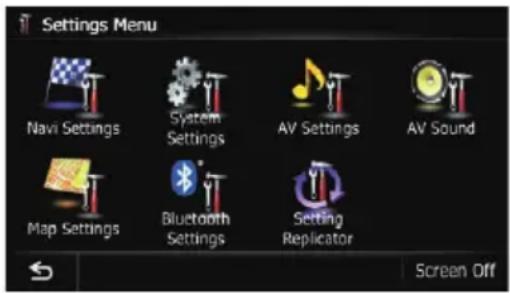
The "SystemSettings" screenappears.
4Touchtheitemthatyouwantto changethesetting.

■Ifyoutouch,the previousscreenreturns.
Customizingtheregionalsettings
1Displaythe"SystemSettings"screen.
- Fordetails, refertoDisplayingthescreenfor systemsettingsonthepreviouspage.
2Touch[RegionalSettings].
The "RegionalSettings" screenappears.
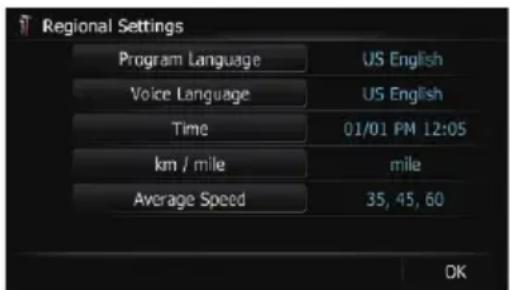
Selectingthelanguage
Youcansetthelanguagesusedontheprogramandvoiceguidance.Eachlanguagecan besetseparately.
1Displaythe"SystemSettings"screen.
- Fordetails, refertoDisplayingthescreenfor systemsettingsonthepreviouspage.
2Touch[RegionalSettings].
The "RegionalSettings" screenappears.
3Touch[ProgramLanguage].
Thelanguagelistisdisplayed.
4Touchthedesiredlanguage.
Afterthelanguageisselected, theprevious screenreturns.
5Touch[VoiceLanguage].
The "Voice Language Selection" screen appears.
6Touchthedesiredlanguage.
Afterthelanguageisselected, theprevious screenreturns.
7Touch[OK]onthe"RegionalSettings" screen.
Amessageconfirmingwhethertorestartthe navigationsystemappears.
8Touch[OK].
Thenavigationsystemrestarts.
Settingthetimedifference
Adjuststhesystem'sclock.Setthetimedifference(+,-)fromthetimeoriginallysetinyour navigationsystem.
1Displaythe"SystemSettings"screen.
- Fordetails, refertoDisplayingthescreenfor systemsettingsonthepreviouspage.
2Touch[RegionalSettings].
The "RegionalSettings" screenappears.
3Touch[Time].
The "TimeSettings" screenappears.
4Tosetthetimedifference,touch[+]or[-].

Thetimedifferencebetweenthetimeoriginallysetinthenavigationsystem(PacificStandardTime)andthecurrentlocationofyourvehicleisshown.Ifnecessary,adjustthetimedifference.Touching [+ ] or [-] changes thetimedifferencedisplayinhalf-hourincrements.
Thetimedifferencecanbesetfrom“-4”to “+9”hours.
5Touch[SummerTime].
Summertimesettingisoffbydefault.Touch [SummerTime]tochangethesettingifyou areinthesummertimeperiod.
6Touch[Timeformat].
Eachtimeyoutouchthekeychangesthesetting.
- 12H(default): Changesthedisplayto12-hourformatwith am/pm.
•24H: Changesthedisplayto24-hourformat.
Changingtheunitbetweenkmandmiles
Thissettingcontrolstheunitofdistanceand speeddisplayedonyournavigationsystem.
1Displaythe"SystemSettings"screen.
- Fordetails, refertoDisplayingthescreenfor systemsettingsonpage162.
2Touch[RegionalSettings].
The "RegionalSettings" screenappears.
3Touch[km/mile].
Amessageconfirmingwhethertochangethe settingappears.
4Touch[Yes].
Eachtimeyoutouchthekeychangesthesetting.
- mile(default):
Showsdistanceinmiles.
•Mile&Yard:
Showsdistanceinmilesandyards.
• km:
Showsdistanceinkilometers.
■Ifyoutouch[No],thesettingiscanceled.
Changingthevirtualspeedofthevehicle
Whencalculatingtheexpectedtimeofarrival andthetraveltimetothedestination,setthe averagespeedforthefreewayorordinary roadsusing[+]and[-].
1Displaythe"SystemSettings"screen.
- Fordetails, refertoDisplayingthescreenfor systemsettingsonpage162.
2Touch[RegionalSettings].
The "RegionalSettings" screenappears.
3Touch[AverageSpeed].
The "AverageSpeedSettings" screenappears.
4Touch[+]or[-]tosetthespeed.

☐Theestimatedtimeofarrivalmaynotbe takenintoaccountotherparametersthan thisspeedvalue.
5Touch[OK].
Thesettingsarecomplete.
Customizingpreferences
SettingtheVolumefor GuidanceandPhone
Thesoundvolumeforthenavigationcanbe set.Youcanseparatelysetthevolumeofthe routeguidanceandthebeepsound.
1Displaythe"SystemSettings"screen.
- Fordetails, refertoDisplayingthescreenfor systemsettingsonpage162.
2Touch[Volume].
The "Volume Settings" screen appears.
3Touch[+]or[-]tosettheirvolume.

Onthisscreen, you can operate the following items.
•Guidance
Thissettingcontrolstheguidancevolume of navigation.
□Whensetto
guidanceisoutput.
Whensetto
noguidanceisoutput.
- PhoneRingtone
Thissettingcontrolstheincomingringtone volume.
- PhoneVoice
Thissettingcontrolstheincomingvoicevolume.
☐ “Phone Ringtone” and “Phone Voice” adjustments are needed only when the cellular phone featuring Bluetooth technology is connected.
☐VolumeoftheAVsourceisadjustedbythe VOL(+/-)buttonorMulti-control.
- Fordetails, referto Checking part names and function on page 12.
- If you touch the key next to "Beep", the setting is changed.
- On(default):
Abeepsounds.
• Off:
Thebeepsoundismuted.
- If you touch the key next to "VR Beep", the settingischanged.
- On(default):
Voicerecognitionbeepisenabled.
• Off:
Voicerecognitionbeepisdisabled.
☐ThisfunctionisavailableforAVIC-Z130BT only.
4Tofinishthesetting,touch[OK].
Changingthepreinstalled splashscreen
Youcanchangethesplashscreentotheother imagespreinstalledinthenavigationsystem.
1Displaythe"SystemSettings"screen.
- Fordetails, refertoDisplayingthescreenfor systemsettingsonpage162.
2Touch[SplashScreen].
The "SelectSplashScreen" screenappears.
3Touchtheimagetouseasthesplash screenfromthelist.
The image is displayed on the theme screen.
4Touch[OK].
Theimageissetasthesplashscreen,andthe
"SystemSettings" screenreturns.
Changingtothesplashscreen storedintheSDmemorycard
Youcanchangethesplashscreentoother imagesstoredintheSDmemorycard.Copy yourchosenimagetotheSDmemorycard, andselecttheimagetoimport.
☐Splashscreenimagesshouldbeusedwith- inthefollowingformats;
- BMPorJPEGfiles
- Allowablehorizontalandverticalsize are2592pixelsx1944pixelsorsmaller
- Allowabledatasizeis6MBorsmaller
Customizingpreferences
☐Propercompatibilitywithallowablefilesis notguaranteed.
Importedoriginalimageswillbestoredin thebuilt-inmemory,buttheabilitytosave theseimagescannotbeguaranteedcompletely.Ifyouroriginalimagedataisdeleted,inserttheSDmemorycardagain andre-importtheoriginalimage.
☐The maximum number of images, including the images in the built-in memory, that can be imported and displayed on the list is 200.
1Createafoldernamed"Pictures"onthe top-mostdirectoryoftheSDmemorycard.
2Storethepicturefilesinthe"Pictures" folder.
3InsertanSDmemorycardintotheSD cardslot.
Fordetailsoftheoperation, referto/insertingandejectinganSDmemorycardon page16.
4Displaythe"SystemSettings"screen.
Fordetails, refer to Displaying the screen for system settings on page 162.
5Touch[SplashScreen].
The "SelectSplashScreen" screenappears.
6Touch[SelectfromSD].
The "SelectSplashScreen" screenappears.
7Touchtheimagetouseasthesplash screenfromthelist.
The image is displayed on the screen.
8Touch[OK].
The image is a set of 35 elements that can be used to create a system and then to create a system.
☐ImagesimportedfromtheSDmemorycard areaddedtotheliston"SelectSplash Screen".
Settingforrearviewcamera
The following two functions are available. The rearviewcamera feature requires a separately sold rearview camera (e.g. ND-BC4). (For details, consult your dealer.)
Rearviewcamera
Thenavigationsystemfeaturesafunctionthat automaticallyswitchestothefull-screen imageoftherearviewcamerainstalledon yourvehicle.WhentheshiftleverisintheRE-VERSE(R)position,thescreenautomatically switchestofull-screenrearviewcamera image.
CameraforRearviewmode
Rearviewcanbedisplayedatalltimes(e.g. whenmonitoringanattachedtrailer,etc.)asa splitscreenwheremapinformationispartially displayed.Pleasebeawarethatwiththissetting,cameraimageisnotresizedtofit,and thataportionofwhatisseenbythecamerais notviewable.
- Fordetails, refertoSettingforrearview cameraonthispage.

CAUTION
Pioneerrecommendstheuseofacamerawhich outputsmirrorreversedimages,otherwisethe screenimagemayappearreversed.
☐Immediatelyverifywhetherthedisplay changestoarearviewcameraimagewhen theshiftleverismovedtoREVERSE(R) fromanotherposition.
☐ Whenthescreenchangestofull-screen rearviewcameraimageduringnormal driving, switchtotheoppositesettingin "Polarity".
1Displaythe"SystemSettings"screen.
- Fordetails, refertoDisplayingthescreenfor systemsettingsonpage162.
2Touch[BackCamera].
The "BackCameraSettings" screenappears.
Customizingpreferences
3Touch[Camera].
Thischangesthesettingto"On".
☐Youcanonlyswitchto"RearView"ifthis settingis"On".
4Touch[Polarity]toselectanappropriate settingforpolarity.
Eachtimeyoutouch[Polarity]switchesbetweenthefollowingpolarity:
- Battery: Whenthepolarityoftheconnectedleadispositivwhiletheshiftlever isintheREVERSE(R)position
• GND: Whenthepolarity of the connected leadisnegativewhiletheshiftleverisin the REVERSE(R) position
Adjustingtheresponse positionsofthetouchpanel (touchpanelcalibration)
If you feel that the touch panel key on the screendeviate from the actual position that respond to your touch, adjust the response position of the touch panel screen.
☐Donotuseasharppointedtoolsuchasa ballpointpenoramechanicalpen,which coulddamagethescreen.
1Displaythe"SystemSettings"screen.
- Fordetails, refertoDisplayingthescreenfor systemsettingsonpage162.
2Touch[ScreenCalibration].
Amessageconfirmingwhethertostartthecalibrationappears.
3Gentlytouchthecenterof+markdis-playedonthescreen.
Thetargetindicatestheorder.
Afteryoutouchallmarks, the adjusted position data is saved.
☐Donotturnofftheenginewhilesavingthe adjustedpositiondata.
■IfyoupresstheMODEbutton, theprevious adjustmentpositionreturns.
- If you press and hold the MODE button, the adjustment is canceled.
Settingtheilluminationcolor
Theilluminationcolorcanbeselectedfrom8 differentcolors. Furthermore, theillumination colorcanbeswitchedbetweenthese8colors inorder.
Selectingthecolorfromthepreset colors
1Displaythe"SystemSettings"screen.
- Fordetails, refertoDisplayingthescreenfor systemsettingsonpage162.
2Touch[IllumiColor].
The "IlluminationColor" screenappears.
3Touchthecoloryouwant.

Availableoptions:
- Coloredkeys:Selectsthedesiredpreset color
- Memory1/Memory2:Colorsregisteredin thememory
Fordetails, referto Creating a user-defined color and storing it to memory on the next page.
- Scan: Shiftsbetweentheeightdefaultcolorsinsequencegradually.
- Eco: The colors change in the order of white, red, amber, yellow, green, and blue asthenumber of points in the "EcoScore" increases.
☐Theilluminationlightsinwhitewhen "Eco Score" is set to "Off" or when no routeisset.
Creatingauser-definedcolorand storingittomemory
Youcancreateauser-definedcolorandsetit astheilluminationcolor.
1Displaythe"SystemSettings"screen.
Fordetails, refertoDisplayingthescreenfor systemsettingsonpage162.
2Touch[IllumiColor].
The "IlluminationColor" screenappears.
3Touch[Custom].
The "IlluminationColor" screenappears.
If[Scan]isset,[Custom]cannotbeselected.
4Touch[+]or[-]toadjustthevaluesfor Red,GreenandBluetocreateafavorite color.

Watchtheilluminationofhardwarekeyswhile adjustingthecolor.
Each time you touch [+] or [-] increases or decrease the value of these selected item. +31 to
+00isdisplayedasthevalueisincreasedor decreased.
□Anentrycannotbestoredwithallofthevaluessetto“+00”.
5Touch[Memory1]or[Memory2]to storetheilluminationcolor.
6Touch[OK]toreturntotheprevious screen.
Checkingtheversioninformation
1Displaythe"SystemSettings"screen.
Fordetails, refertoDisplayingthescreenfor systemsettingsonpage162.
2Touch[ServiceInformation].
The "ServiceInformationScreen" screenappears.
3Checktheversioninformation.

Selectingthevideoforrear display
Youcanchooseeithertoshowthesame imageasthefrontscreenortoshowthese-lectedsourceonthereardisplay.
1DisplaytheAVoperationscreen.
- Fordetailsoftheoperations,refertoDis-playingtheAVoperationscreenonpage70.
2 T a p ontheleftedgeofthescreen.
☐Theappearanceofthiskeychangesaccordingtothecurrentsetting.
While the tuner is receiving an emergency announcement, traffic announcement, or news program, the current setting cannot be changed.
Eachtouchof changesthesettingsasfollows:
- Mirror AV: The video on the front screen of thenavigationunitisoutputtothereardisplay
• DISC: The video and sound of the DVDs are output to there are display - iPod: ThevideoandsoundoftheiPodare outputtothereardisplay
- AV1: The video and sound of AV1 are outputtothereardisplay
- AV2: The video and sound of AV2 are outputtothereardisplay
□When "MirrorAV"isselected, the following restrictions are applied to record display.
— When selecting "Rear View" in the map display, nothing is displayed.
Customizingpreferences
—Allsoundscannotbeoutputforreardisplay.
—Whenplayingbackvideofilesontheexternalstoragedevice(USB,SD),the videoimageisnotoutput.
When "DISC" is selected, the following restriction is applied to are displayed.
—WhenaCDorMP3/WMA/AACdiscis setinthebuilt-inDVDdrive,onlythe soundisoutput.
When "iPod" is selected, the following restriction is applied to record display.
—The video image and soundare output only when the corresponding setting on "AV1 Input" is "iPod".
☐ When "AV1" or "AV2" is selected, the following restrictions are applied to record display.
—The video image and sound are output only when "AV1" or "AV2" has both video and sound.
—The video image and soundare output only when the corresponding setting on "AV1 Input" or "AV2 Input" are "Video".
Adjusting the picture

CAUTION
Forsafetyreasons, you cannot us some of these navigation functions while your vehicle is in motion. To enable these functions, you must stop in as afe place and apply the parking brake. Referto Important Information for the User (as separate manual).
Youcanadjustthepictureforeachsourceand rearviewcamera.
1PressandholdtheMODEbutton.
The "PictureAdjustment" screenappears.
2Touch[+]or[-]toadjustthedesired item.

•Brightness:Adjuststheblackintensity.
- Contrast:Adjuststhecontrast.
•Color:Adjuststhecolorsaturation.
• ColorTemp.: Adjuststhetoneofcolor (whichcolorisemphasized, redorblue).
- Dimmer:Adjuststhebrightnessofdisplay.
Touching[Camera] switchestothepicture adjustmentscreenfortherearviewcamera.
□Touching[Source]whileadjustingtherear viewcameraimagereturnsyoutothepreviousscreen.
☐Theadjustmentsof"Brightness"and "Contrast"arestoredseparatelywhenyour vehicle'sheadlightsareoff(daytime)and whenyourvehicle'sheadlightsareon (nighttime).Theseareswitchedautomaticallydependingonwhetherthevehicle'sheadlightsareonoroff.
☐Theadjustmentsof"Dimmer"isstoredseparatelywhenyourvehicle'sheadlightsare off(daytime)andwhenyourvehicle'sheadlightsareon(nighttime)."Dimmer"is switchedautomaticallyonlywhenthevalue ofnighttimeislowerthanthevalueofdaytime.
☐Youcannotadjust"Color"forthesource withoutavideoandnavigationmapdisplay.
☐The setting contents can be memorized separately for the following screen and the video image.
• Audiosource
Customizingpreferences
— AM/FM/CD/ROM/iPod(Music)/SD (audio)/USB(audio)/Bluetooth audio/XM/SIRIUS/HD Radio/EXT1 (audio),EXT2(audio)/sourceoff screen/menuscreens/others
• Videosource
—AV1andiPod(Video)
—DVD-VandDivX
—SD(Video)andUSB(Video)
— AV2(Video) and EXT1(Video), EXT2(Video)
—Rearviewcameraimage
- Mapscreen
☐Thepictureadjustmentmaynotbeavailablewithsomerearviewcameras.
BecauseoftheLCDscreencharacteristics, youmaynotbeabletoadjustthescreenat lowtemperatures.
3Touch[+]or[-]toadjustthedesired item.
Each touch of [+] or [-] increases or decreases the level of the desired item.
4Touch

Thepreviousscreenreturns.
Displayingthescreenfor AVsystemsettings
1PresstheHOMEbuttontodisplaythe "TopMenu" screen.
2Touch[Settings].

The"SettingsMenu"screenappears.
3Touch[AVSettings].

The "AV System Settings" menu appears.
4Touchtheitemthatyouwantto changethesetting.
AVIC-Z130BT

AVIC-X930BT.AVIC-X9310BT

■Ifyoutouch,the previousscreenreturns.
Settingvideoinput1(AV1)
Youcanswitchthissettingaccordingtothe connectedcomponent.
☐Thissettingappliestomini-jackinput.
1Displaythe"AVSystemSettings" screen.
Fordetails, refertoDisplayingthescreenfor AVsystemsettingsonthispage.
2Touch[AV1Input].
Eachtouchof[AV1Input]changesthesettingasfollows:
Customizingpreferences
- iPod:iPodconnectedwiththeUSBInterfacecableforiPod(CD-IU51V)(soldseparately)
•Video:Externalvideocomponent - Off: Novideocomponentisconnected.
☐Use"AV1Input"whenconnectingCD-RM10(soldseparately)throughtheexternal videocomponent.
Settingvideoinput2(AV2)
Youcanswitchthissettingaccordingtothe connectedcomponent.
☐ ThissettingappliestoRCAinputs (AUDIOINPUTandVIDEOINPUT) on the backofthesystem.
1Displaythe"AVSystemSettings" screen.
- Fordetails, refertoDisplayingthescreenfor AVsystemsettingsonthepreviouspage.
2Touch[AV2Input].
Eachtouchof[AV2Input]changesthesettingasfollows:
- Off: Novideocomponentisconnected.
- EXT:Pioneerexternalunitconnectedwith theRCAvideocable
•Video:Externalvideocomponent
Changingthewidescreenmode
☐Youcanonlyadjust"WideMode"whense-lectinganAVsourcewithvideo.
1Displaythe"AVSystemSettings" screen.
- Fordetails, refertoDisplayingthescreenfor AVsystemsettingsonthepreviouspage.
2Touch[WideMode].
Eachtouchof[WideMode]changesthesettingasfollows:
• Full(full)
A4:3pictureisenlargedinthehorizontal directiononly,enablingyoutoenjoya4:3 TVpicture(normalpicture)withoutany omissions.
- Cinema(cinema)
Apictureisenlargedbythesameproportion as "Full" or "Zoom" in the horizontal directionandbyanintermediateproportion between "Full" and "Zoom" in the vertical direction;idealforacinema-sizedpicture (widescreenpicture)wherecaptionslie outsidetheframe.
- Zoom(zoom)
A4:3pictureisenlargedinthesameproportionbothverticallyandhorizontally; idealforacinema-sizedpicture(wide screenpicture).
- Normal(normal)
A4:3pictureisdisplayednormally, giving younosenseofdisparitysinceitsproportionsarethesameasthatofthenormal picture.
☐ Differentsettingscanbestoredforeach videosource.
☐Thesamesettingisautomaticallyapplied forthefollowinggrouping.
•DVD-VandDivX
•AV1andAV2
- EXT1andEXT2
Whenviewingvideos, select an appropriate widescreenmodethat matches its original aspect ratio to view it comfortably.
Remember that use of this system for commercial or public viewing purposes may constitute an infringement on the author's rights protected by the Copyright Law.
☐Thenavigationmapandtherearviewcamerapictureisalwaysviewedat“Full”.
Settingtherearoutput
Thenavigationsystem'srearoutputcanbe usedforafull-rangespeakerorsubwoofer connection.Ifyouswitch"RearSP"to
"Sub.W", youcanconnectarearspeakerlead directlytoasubwooferwithoutusinganauxiliaryamp.
Initially, thenavigationsystemissetforarear full-rangespeakerconnection("Full").
Customizingpreferences
☐BothrearspeakerleadsoutputandRCA rearoutputareswitchedsimultaneously in thissetting.(Whenyouusetheproduct withoutRCArearoutput,thissettingonly appliestotherearspeakerleads.)
☐“RearSP”canbesetonlywhenthesource isselectedto“Off”.
1Displaythe"AVSystemSettings" screen.
- Fordetails, refertoDisplayingthescreenfor AVsystemsettingspage170.
2Touch[RearSP].
Eachtouchof[RearSP]changesthesettings asfollows:
•Full
When nosubwooferisconnectedtothe rearoutput, select "Full".
- Sub.W
Whenasubwooferisconnectedtotherear output, select"Sub.W".
Switchingthemuting/attenuationtiming
YoucanmutetheAVsourcevolumeorattenu- atetheoutputsignal.
□ Even if this setting is "Off", the navigation systemwillmuteorattenuatetheAV sourcevolumewhenthemutesignalisoutputviaMUTElead.
1Displaythe"AVSystemSettings" screen.
- Fordetails, refertoDisplayingthescreenfor AVsystemsettingspage170.
2Touch[Mute].
Eachtouchof[Mute]changesthesettingsas follows:
AVIC-Z130BT
- Guide/Tel/VR: The volume is muted or attenuated according to the following conditions. —When then navigation output the guidance voice.
—Whenyouuseacellularphonevia Bluetoothtechnology(dialing,talking, incomingcall). —Whenthevoicerecognitionmodeisactivated.
- Tel/VR: The volume is muted or attenuated according to the following conditions. - When you use cellular phone via Bluetooth technology (dialing, talking, incoming call). - Whenthe voicerecognition mode is activated.
- Off: The volumedoesnotchange.
AVIC-X930BT, AVIC-X9310BT
- Guide/Tel: The volume is muted or attenuated according to the following conditions. —When then navigation output the guidance voice. —When you use acellular phone via Bluetooth technology (dialing, talking, incoming call).
- Tel: The volume is muted or attenuated when you use acellular phone via Bluetooth technology (dialing, talking, incoming call).
- Off: Thevolumedoesnotchange.
☐AVsourcevolumereturnstonormalwhen thecorrespondingactionends.
Switchingthemuting/attenuationlevel
Youcanselectthemuting/attenuationlevelof "Mute". Thissettingisalsoeffectivefora mutesignalthathasbeenreceivedfromthe MUTEleadconnectedtothenavigationunit. □ThismenuisnotavailablewhenAVsource is"Off".
1Displaythe"AVSystemSettings" screen.
- Fordetails, refertoDisplayingthescreenfor AVsystemsettingsonpage170.
2Touch[MuteLevel].
Eachtouchof[MuteLevel]changesthesettingsasfollows:
Customizingpreferences
•20dB:Thevolumebecomes1/10.
• 10dB: The volume becomes 1/3.
•All:Thevolumebecomes0.
☐Whenyouselect“All”,noaudioadjustmentsarepossibleduringthesoundis turnedoff.
☐ When you select "20dB" or "10dB", no audioadjustmentsarepossibleduringthe soundisattenuated.
□AVsourcevolumereturnstonormalwhen thecorrespondingactionends.
□Evenwhenamutesignalhasbeenreceived fromMUTEleadconnectedtothenavigationunit, navigationvoiceguidancecannot beattenuatedormuted.
Acquiring/CatalogingiPod musicinformation
☐ThisfunctionisavailableforAVIC-Z130BT only.
If you always set the language other than "US English" on "Voice Language", this setting is unnecessary.
Unless"VRCatalogMode"isturnedoff, this navigationsystemtriestoacquiretheinformationneededtooperateiPodwithvoicecommands.Itmaytakeashortperiodoftimeto transfertheinformation.Changethesetting accordingtoyourusage. Thenavigationsystemstartsacquiring/catalogingmusicinformation(1)whentheiPodis connectedorwhenthesystembootsupwhile theiPodisconnectedand(2)wheniPodisthe selectedanddisplayedAVSource,unless"VR CatalogMode"isturnedoff.
☐Thisfunctionisavailablewhen“Change Control Mode” is set to “Navi”.
□IfyoudonotuseiPod, thissettingisunnecessary.
□Duringtransfer, the followingiPodoperations are not available.
—Settingtheshuffleplayformusic —Displayingthetopcategorymenu
—Switchingtheoperationscreen
☐Oncethecatalogingiscompleted,youcan deactivate"VRCatalogMenu"untilyou updatethecontent/dataoniPod.IfyouupdatetheiPoddata,activate"VRCatalog Menu"againtotransferthemusicinformationandsynchronizethemusicinformationforvoicecommandswiththedataon iPod.
After you select "Off" in "VR Catalog Mode", the system doesn't catalog the data on the iPod. Insuch case, the previously cataloged data are available as voice commands.
Once you start the cataloging process, only afew basic voice commands can be used for iPod until the process has completely finished.
□Ifunreadablecharactersareincludedin thedataonyouriPod, namesortypesmay notbeavailableasvoicecommands.
ImportantNoticeregardingVoice ControlforiPods
VoiceControlforiPodsmaybelimitedifcatalogingofiPodcontentisnotcompleted.CatalogingofiPodcontentonlyoccurswhenthe systemisin"AVSource&Contents"mode and the "iPod" is the selected and "AV Source"screendisplayed.CatalogingofiPod contentwillnotoccurifthesystemisoff,if any other "AV Source & Contents" is selected (asidefromiPod),orithesystemisinany othermode(asidefrom"AVSource&Contents" mode) such as "Destination Menu", "Settings Menu", "Phone Menu" or the map screen.IfyouwishtouseVoiceControlforall iPodcontent,itisrecommendedthatyoufirst connectyouriPod,select"iPod"astheAV source,andkeeptheiPodscreendisplayed untilcatalogingiscompleted.CatalogingofiPodcontentshouldonlytakeafewminutes, andwilldependonthesizeofthecontent storedonyouriPod.Amessagewillbedis-playedwhencatalogingiscomplete.
Customizingpreferences
1Displaythe"AVSystemSettings" screen.
Fordetails, refertoDisplayingthescreenfor AVsystemsettingsonpage170.
2Touch[VRCatalogMenu].
3Touch[On]or[Off]toactivateordeactivate"VRCatalogMode".
■Ifyoutouch[Pause], thecatalogingofiPod stops.
If you want to restart the cataloging of a Pod, touch [Restart].
DisplayingyourDivXVOD registrationcode
InordertoplayDivXVOD(videoondemand) contentonthisnavigationsystem,youfirst needtoregistertheunitwithyourDivXVOD contentprovider.Youdothisbygeneratinga DivXVODregistrationcode,whichyousubmit toyourprovider.
☐Thisfeatureisavailablewhentheselected source is CD, ROM, DivX, or DVD-V.
1Displaythe"AVSystemSettings" screen.
Fordetails, refertoDisplayingthescreenfor AVsystemsettingsonpage170.
2Touch[DivX®VOD].
Thescreenwhereyoucanchoosetodisplaya registrationcodeorderegistrationcodeisdisplayed.
☐lfaregistrationcodehasalreadybeenactivated, it cannot be displayed.
3Touch[RegistrationCode].
Your10-digitregistrationcodeisdisplayed.
□Makeanoteofthecodeasyouwillneedit whenyouregisterwithaDivXVODprovider.
DisplayingyourDivXVOD deregistrationcode
Aregistrationcoderegisteredwithaderegistrationcodecanbedeleted.
Thisfeatureisavailablewhentheselected source is CD, ROM, DivX, or DVD-V.
1Displaythe"AVSystemSettings" screen.
- Fordetails, refertoDisplayingthescreenfor AVsystemsettingspage170.
2Touch[DivX®VOD].
Thescreenwhereyoucanchoosetodisplaya registrationcodeorderegistrationcodeisdisplayed.
☐lfaregistrationcodehasnotbeenactivated,thederegistrationcodeisnotdisplayed.
3Touch[DeregistrationCode].
Your8-digitderegistrationcodeisdisplayed.
☐ Makeanoteofthecodeasyouwillneedit whenyouderegisterwithaDivXVOD provider.
Displayingthescreenfor AVsoundsettings
1PresstheHOMEbuttontodisplaythe "TopMenu" screen.
2Touch[Settings].

The "SettingsMenu" screenappears.
Customizingpreferences
3Touch[AVSound].

The "AV Sound Settings" screen appears.
☐You cannot make adjustments in the following situations:
- AVsourceis"Off".
• Duringmuting/attenuation
4Touchtheitemthatyouwantto changethesetting.

■Ifyoutouch,the previousscreenreturns.
Usingbalanceadjustment
You can select a fader/balancesetting that provides an ideal listening environment in all occupied seats.
1Displaythe"AVSoundSettings" screen.
- Fordetails, refertoDisplayingthescreenfor AVsoundsettingsonthepreviouspage.
2Touch[FAD/BAL].
When "Sub. W" is selected in "Rear SP", [Balance] will be displayed instead of [FAD/BAL] and front/rearspeaker balance cannot be adjusted.
- Fordetails, refertoSettingtherearoutput onpage171.
3 Touch [▲] or [▼] to adjust front/rear speakerbalance.
Each time you touch [▲] or [▼], the front/rear speakerbalancemovestowardsthefrontor therear.
"Front: 15" to "Rear: 15" is displayed as the front/rearspeakerbalancemovesfromfrontto rear.
Set "Front:" and "Rear:" to "0" when using a two-speakersystem.
4 Touch [◀] or [▶] to adjust left/right speakerbalance.
Each time you touch [◀] or [▶], the left/right speakerbalancemovestowardstheleftorthe right.

"Left: 15" to "Right: 15" is displayed as the left/rightspeakerbalancemovesfromleftto right.
Usingtheequalizer
Theequalizerletsyouadjustequalizationto matchvehicleinterioracousticcharacteristics asdesired.
Recallingequalizercurves
Therearesevenstoredequalizercurvesthat youcaneasilyrecallatanytime. Hereisalist oftheequalizercurves:
Equalizercurve
S.Bass(SuperBass)isacurveinwhichonlylow-pitchedsoundisboosted.
Powerfulisacurveinwhichlow-pitchedandhigh-pitchedsoundsareboosted.
Naturalisacurveinwhichlow-pitchedandhigh-pitchedsoundsareslightlyboosted.
Equalizercurve
Vocalisacurveinwhichthemidrange,whichisthe humanvocalrange,isboosted.
Flatisaflatcurveinwhichnothingisboosted.
Custom1 is an adjusted equalizer curve that you create. A separate custom curve can be created for each source.
Custom2isanadjustedequalizercurvethatyoucreate.Ifyouselectthiscurve,theeffectisreflectedallAVsource.
□When"Flat"isselected,nosupplementor correctionismadetothesound.This is useful to check the effect of the equalizer curves by switching alternatively between "Flat" and a set equalizer curve.
☐ You cannot select "Custom1" and "Custom2" when "Auto EQ" is "On".
- Fordetails, refertoUsingtheauto-adjustedequalizeronthenextpage.
1Displaythe"AVSoundSettings" screen.
Fordetails, refer to Displaying the screen for AV sound settings on page 174.
2Touch[EQ].

☐ If Auto EQ has been set to "On", an image correspondingtoachequalizercurveyou selectedappears.

Fordetailsoftheoperations,refertoAdjustingtheequalizercurveautomatically(Auto EQ)onthenextpage.
Customizingtheequalizercurves
You can adjust the currently selected equalizer curvesetting as desired. Adjustments can be made with a 8-band graphicequalizer.
☐Thisfunctionisnotavailablewhen"Auto EQ"is"On".
- Fordetails, refertoUsingtheauto-adjustedequalizeronthenextpage.
Thedifferencebetween"Custom1" and "Custom2"
- A separate "Custom1" curve can be createdforeachsource.Ifyoumakeadjustments when a curve "S.Bass (Super Bass)", "Powerful", "Natural", "Vocal", "Flat", or "Custom1"isselected,theequalizercurve settingswillbememorizedin"Custom1".
- A "Custom2" curve can be created commonly all sources. If you make adjustments when "Custom2" curve is selected, the "Custom2" curve will be updated.
- The "Custom1" curveisappliedtoeachof thesourceselected, butyoucanapplythe samecurvetothefollowingsources.
— AMandFM
— EXT1andEXT2
— AV1 and AV2
— CD, ROM, DVD-V, and DivX
— SDandUSB
☐The different curve can be memorized between iPod and USB.
Customizingpreferences
1Displaythe"AVSoundSettings" screen.
Fordetails, refer to Displaying the screen for AV sound settings on page 174.
2Touch[EQ].
3Touchoneofthekeystoselectacurve thatyouwanttouseasthebasisofcustomizing.
4Touch[Customize].
5Touchthefrequencythatyouwantto adjustthelevel.

6 Touch [▲] or [▼] to adjust the level of theequalizerband.
Each time you touch [▲] or [▼], the level of the equalizer band increases or decreases.
Usingtheauto-adjustedequalizer
Youcansettheauto-adjustedequalizertosuit thevehicle'sacoustics.Tousethisfunction, thevehicle'sacousticsmustbemeasuredin advance.
Fordetailsoftheoperations,refertoAdjustingtheequalizercurveautomatically(Auto EQ)onthispage.
☐Tomanuallyadjusttheequalizercurve,set "AutoEQ"to"Off".
1Displaythe"AVSoundSettings" screen.
- Fordetails, refertoDisplayingthescreenfor AVsoundsettingspage174.
2Touch[EQ].
3Touchthekeynextto"AutoEQ" to turntheauto-adjustedequalizeronoroff.
4Selecttheequalizercurve.
Adjusting the equalizer curve automatically (AutoEQ)
Bymeasuringthevehicle'sacoustics,the equalizercurvecanbeadjustedautomatically tosuittheinteriorofthevehicle.

WARNING
Aloudtone(noise)maybeemittedfromthe speakerswhenmeasuringthevehicle'sacoustics.NeverperformtheAutoEQmeasurement whiledriving.

CAUTION
- ThoroughlychecktheconditionsbeforeperformingAutoEQ, asthespeakersmaybedamagedifthisisperformedunderthefollowing conditions:
—Whenthespeakersareincorrectlyconnected.(Forexample,whenarearspeaker isconnectedasasubwooferoutput.)
—Whenaspeakerisconnectedtoapower ampdeliveringoutputhigherthanthe speaker'smaximuminputpowercapability. - Ifthemicrophoneforacousticalmeasurement(soldseparately)isnotplacedinanappropriatelocation,themeasurementtonemaybecomeloudandmeasurementmaytakea longtime,resultinginbatterydrainage.Be suretoplacethemicrophoneinthespecified location.
BeforeoperatingtheAutoEQfunction
- PerformAutoEQinasquietaplaceaspossible, withthevehicleengineandairconditioningswitchedoff. Also, cutpowertocar phonesorcellularphonesinthevehicle, or removethemfromthevehiclebeforeperformingAutoEQ.Soundsotherthanthe measurementtone(surroundingsounds, enginesound,telephonesringing,etc.) maypreventcorrectmeasurementofthe vehicle'sacoustics.
- BesuretoperformAutoEQusingthemicrophoneforacousticalmeasurement (soldseparately).Usinganothermicrophonemaypreventmeasurement,orresult inincorrectmeasurementofthevehicle's acoustics.
- ToperformAutoEQ, thefrontspeakers mustbeconnected.
- Whenthisnavigationsystemisconnected toapowerampwithinputlevelcontrol, AutoEQmaynotbeabletobeperformedif thepoweramp'sinputlevelissetbelow thestandardlevel.
- Whenthisnavigationsystemisconnected toapowerampwithanLPF,turntheLPF offbeforeperformingAutoEQ.Also,set thecut-offfrequencyforthebuilt-inLPFof anactivesubwoofertothehighestfrequency.
- Thedistancehasbeencalculatedbycomputertoprovidetheoptimumdelaytoensureaccurateresults.Donotchangethis value.
—Thereflectedsoundwithinthevehicleis stronganddelaysoccur.
—TheLPFonactivesubwoofersorexternalampsdelaythelowersounds.
- Ifanerroroccursduringmeasurement,a messageappearsandmeasurementis canceled.Checkthefollowingbeforemeasuringthevehicle'sacoustics.
—Frontspeakers(left/right)
—Rearspeakers(left/right)
—Noise
—Microphoneforacousticalmeasurement(soldseparately)
—Lowbattery
PerformingAutoEQ
AutoEQchangestheaudiosettingsasfollows:
- "Auto EQ" on the "EQ Menu" screen is setto"On".
Fordetails, referto Using the auto-adjusted equalizer on the previous page.
- Thefader/balancesettingsreturntothe centerposition.
- Fordetails, referto Using balance adjustment page 175.
•Theequalizercurveswitchesto"Flat".
Fordetails, referto Using the equalizeron page 175.
- Thefrontandrearspeakerswillautomaticallybeadjustedtoahighpassfilter setting.
☐PrevioussettingsforAutoEQwillbeoverwritten.
☐ForAVIC-Z130BTusers Donotpressthe▲buttontoopenorclose thepanelwhenyouareusingthemicro- phone.
1Stopthevehicleinaplacethatisquiet, closeallthedoors, windowsandsunroof, andthenturntheengineoff.
If the engine is left running, enginenois may prevent correct AutoEQ.
□Ifdrivingrestrictionsaredetectedduring measurement,measurementiscanceled.
2Fixthemicrophoneforacousticalmeasurement(soldseparately)inthecenterof theheadrestofthedriver'sseat, facingforward.
TheAutoEQmaydifferdependingonwhere youplacethemicrophone. Ifdesired, place themicrophoneonthefrontpassengerseat and performAutoEQ.

natural_image
Diagram of a car interior showing steering wheel, steering wheel, and medical device (no text or labels)3TurntheignitionswitchtoONorACC. Ifthevehicle'sairconditionerorheateris turnedon,turnitoff.Noisefromthefaninthe airconditionerorheatermaypreventcorrect AutoEQ.
4TurnofftheAVsource.
Fordetailsoftheoperations,refertoDisplayingtheAVoperationscreenonpage70.
5Setthevideosettingforthereardisplayto"MirrorAV".
- Fordetailsoftheoperations,refertoSelectingthevideoforreardisplayonpage168.
6Displaythe"AVSystemSettings" screen.
- Fordetails, refertoDisplayingthescreenfor AVsystemsettingspage170.
7Touch[AutoEQMeas.].
The "AutoEQMeasurement" screenappears.
8Plugthemicrophoneintothemini-jack connector.
USBandmini-jackconnector

natural_image
Diagram of a medical or electronic device with multiple cables and connectors, no text or symbols presentMicrophoneforacousticalmeasurement(soldseparately)
9Touch[Start].
A10-secondcountdownstarts.
10Exitthevehicleandkeepthedoor closeduntilthecountdownfinishes.
When the countdown is over, a measurement tone (noise) is emitted from the speakers and the AutoEQ measurement begins.
11Waituntilthemeasurementiscompleted.
WhenAutoEQiscompleted, amessageisdisplayed indicating that themeasurement is completed.
□Ifthevehicle'sacousticscannotbemeasuredcorrectly,anerrormessagewillbe displayed.
Themeasurementtimevariesdepending onthetypeofvehicle.
Tostopthemeasurement,touch[Stop].
12Touch[OK].
13Storethemicrophonecarefullyinthe glovecompartmentoranothersafeplace.
Ifthemicrophoneissubjectedtodirectsun-lightforanextendedperiodoftime,highttemperaturesmaycausedistortion,colorchange ormalfunction.
Usingsoniccentercontrol
Soundthatissuitedforthelisteningposition caneasilybecreatedwiththisfunction.
1Displaythe"AVSoundSettings" screen.
- Fordetails, refertoDisplayingthescreenfor AVsoundsettingspage174.
2Touch[SonicCenterControl].
3 Touch [◀] or [▶] to select a listening position.
☐ The larger the value of the range: "Left7" to "Right7" setting, the greater the delay of the speaker output.
Customizingpreferences
☐When "Left"isset, theleftspeakeroutput isdelayed. When "Right"isset, theright speakeroutput isdelayed.
Adjustingloudness
Loudnesscompensatesfordeficienciesinthe low-andhigh-soundrangesatlowvolume.
1Displaythe"AVSoundSettings" screen.
Fordetails, refer to Displaying the screen for AVsoundsettings page 174.
2Touch[Loudness].
Eachtimeyoutouch[Loudness], thelevelis selected in the following order:
Off—Low—Mid—High
Usingsubwooferoutput
Thenavigationsystemisequippedwithasub-wooferoutputmechanism,whichcanbe turnedonoroff.
☐Thisfunctionisnotavailablewhen“Sub Woofer”is“Off”.
1Displaythe"AVSoundSettings" screen.
Fordetails, refer to Displaying the screen for AVsoundsettings page 174.
2Touch[SubWoofer].
3Touch[On].
Thesubwooferoutputisturnedon.

■Ifyoutouch[Off], thesubwooferoutputis turnedoff.
4Touch[Reverse]or[Normal]toselect thephaseofsubwooferoutput.
5Touch[+]or[-]nextto"Level"toadjust theoutputlevel.
“+6” to “-24” is displayed as the level is increased or decreased.
6 Touch [◀] or [▶] next to
"Frequency(Hz)"toselectcut-offfrequency.
Each time you touch [◀] or [▶], cut-off frequencies are selected in the following order:
Only frequencies lower than those in these selected range are output from the subwoofer.
Usingthehighpassfilter
When you cut lowers sounds from the subwoofer output frequency, activate HPF (highpass filter). Only frequencies higher than those in these selected range are output from the frontor rearspeakers.
1Displaythe"AVSoundSettings" screen.
- Fordetails, refer to Displaying the screen for AVsoundsettings page 174.
2Touch[HPF].
Eachtimeyoutouch[HPF]selectscut-offfrequenciesinthefollowingorder:
SLA(sourceleveladjustment)letsyouadjust thevolumelevelofeachsourcetopreventradicalchangesinvolumewhenswitchingbetweensources.
SettingsarebasedontheFMtunervolume level,whichremainsunchanged.
☐Youcannotselect[SLA]whentheFMtuner isselectedastheAVsource.
Customizingpreferences
1 Compare the FM tunervolume level with the level of the source you wish to adjust.
2Displaythe"AVSoundSettings" screen.
- Fordetails, refertoDisplayingthescreenfor AVsoundsettingspage174.
3Touch[SLA].
4Touch[+]or[-]toadjustthesourcevolume.
“+8dB” to “-8dB” is displayed as the source volume is increased or decreased. The following AV sources a reset to the same source level adjustment volume automatically.
•CD,ROM,andDivX
•SDandUSB
•AV1andAV2
-EXT1andEXT2
☐The different source volume level can be set between iPod and USB.
Enhancingbass(BassBooster)
Youcanenhancebasssoundsthatareoften mutedbydrivingnoise.
1Displaythe"AVSoundSettings" screen.
- Fordetails, refertoDisplayingthescreenfor AVsoundsettingspage174.
2Touch[BassBooster].
3Touch[+]or[-]toadjusttherangefrom 0 to 6
Replicatingthesettings
Youcanimportsettingsyouhavemadeonthe utilityprogramAVICFEEDSwhichisavailable separatelytothenavigationsystem.
1UseAVICFEEDStoreplicatethesettingsandstorethemonanSDmemory card.
2InsertanSDmemorycardintotheSD cardslot.
Fordetailsoftheoperation, referto/insertingandejectinganSDmemorycardon page16.
3PresstheHOMEbuttontodisplaythe "TopMenu" screen.
4Touch[Settings].
The "SettingsMenu" screenappears.
5Touch[SettingReplicator].
Amessageconfirmingwhethertoupdatethe settingsappears.
6Touch[Yes].
Updatestarts.
Afterthesettingsareupdated, amessageconfirmingwhethertorestartthenavigationsystemappears.
7Touch[OK].
Thenavigationsystemrestarts.
Turningoffthescreen
ByturningoffthebacklightoftheLCDscreen, youcanturnoffthescreendisplaywithout turningoffthevoiceguidance.
1PresstheHOMEbuttontodisplaythe "TopMenu" screen.
2Touch[Settings].
The"SettingsMenu" screenappears.
3Touch[ScreenOff].
Thescreenisturnedoff.
□Touchanywhereonthescreentoturnit backon.
Operating your navigationsystemwithvoice
ThisfunctionisavailableforAVIC-Z130BT only.
ToEnsureSafeDriving

CAUTION
Foryoursafety, avoid viewing the screen in the voice operation as much as possible while driving.
If you use voice operation, select "USEnglish" or "US English (Samantha):TTS" in "Voice Language" of "Regional Settings". If you select other languages, voice operation will not be available.

Basicsofthevoiceoperation
YourPioneernavigationsystemusesthelatest invoicerecognitiontechnology.Youcanuse voicecommandstoperatemanyofitsfunc- tions.Thischapterdescribeswhereyoucan usevoicecommands,andalsowhatcom- mandsthesystemaccepts. Youcanusevoicecommandstoperatethe followingfunctions:
- Searchingforalocationbyaddress
- SettingtheroutetotheselectedPOI
- Hands-freephoning
- SwitchingtheAVsource
- OperatingtheiPod
ThisfunctionisnotavailablewhilecatalogingofiPodisinprogress.
Flowofthevoiceoperation
Youcanstartthevoiceoperationanytime evenwhenthemapscreenisdisplayedorAV isoperating.(Someoperationsarenotavailable.)Thebasicstepsofthevoiceoperations areasfollows.
1 SwitchthescreentomapscreenorAVoperationscreen.

2 Pressthebutontoactivatevoiceoperations.

3 Speakacommandintothemic microphone afterthebeep. Whenthecommandisrecognized,thenavigationsystemdisplaysnextoptionson thescreen,andpronouncesitinsome cases.

4 Repeatpreviousstepasnecessary.

5 Therequestedoperationwillbecarriedout.
The voice operation may not be operable for a minute after then navigation system has booted up.
Thevoiceoperationwillbeactivated30secondsafterthemapscreenisdisplayed. Ifthe buttondoesnotrespond,display thedisclaimerscreenandthentouch[OK]. Themapscreenisdisplayed.
Startingthevoiceoperation
- Pressthebuttonwhenthemap screenortheAVoperationscreenisdisplayed.
Thevoiceoperationsscreenappears.

Operating your navigationsystem with voice
①Voicehelpmenu:
Displaysalistofcommandsforthevoice operation.
②Voiceoperationconditionindicator:
When isindicated, thenavigationsystemcan recognize your voice commands.
③ ? :
Touchtolistentothebriefoperatinginstruction.
④ × :
Touchtocancelthevoiceoperation.
Youcancancelthevoiceoperationfeature atanytimebysaying "Cancel". Afteryou cancelvoiceoperations, thedisplayreturns tothescreendisplayedbeforethevoiceoperationscreenappeared.
Howtousethevoiceoperation Searchingforalocationbyaddress
In this example, you want to search for a location by address and set it as your destination.
☐Whenthelistofcandidateswithnumber appears,saythenumberthatyouwantto select.
Whenyouselecttheentrynextto"1",say "Number1".
□Iftherearemultipleitemsthatcorrespond tothenameyougave,thelistscreenappears.Inthiscase,touchtheitemyouwant toselectfromthelist.
1PresstheMODEbuttontodisplaythe mapscreenortheAVoperationscreen.
2Pressthe operation

buttontoactivatevoice
Alistofcommandsforthevoiceoperationappears. Afteramessage, thebeepindicates thatthesystemisreadytoacceptyourvoice command. Sayacommandafterthisbeep.
3Say"Ineeddirections".
Amessagepromptingyoutoselectasearch byaddressorbyPOIappears.
4Say"Findanaddress".
Amessagepromptingthenextoperationis given.
5Saythestatenamethatyouwantto settoyourdestination.
6Saythecitynamethatyouwanttoset toyourdestination.
7Saythestreetnamethatyouwantto settoyourdestination.
8Saythehousenumberthatyouwant tosettoyourdestination.
Yournavigationsystemsetstheroutetoyour destination, and themapofyoursurroundings appears.
■ If you say "Just go there", the navigation systemsetstheroutetotherpresentativelocation ofthecityorthestreet.
SearchforPOlinvicinity
In this example, you want to search fora POI and set it as your destination.
☐ Whenthelistofcandidateswithnumber appears,saythenumberthatyouwantto select. Whenyouselecttheentrynextto“1”,say "Number1".
□Iftherearemultipleitemsthatcorrespond tothenameyougave,thelistscreenappears.Inthiscase,touchtheitemyouwant toselectfromthelist.
1PresstheMODEbuttontodisplaythe mapscreenortheAVoperationscreen.
2Pressthe

buttontoactivatevoice
operations.
Alistofcommandsforthevoiceoperationappears. Afteramessage, thebeepindicates thatthesystemisreadytoacceptyourvoice command. Sayacommandafterthisbeep.
3Say"Ineeddirections".
Amessagepromptingyoutoselectasearch byaddressorbyPOIappears.
Operating your navigations system with voice
4Say"Pointofinterest".
ThelistofPOIcategoriesappears.
5Saythecategorythatyouwanttoset toyourdestination.
Thelistofcandidateswithnumberappears.
6Saythenumberthatyouwantto select.
Yournavigationsystemsetstheroutetoyour destination, and themapofyoursurroundings appears.
Callingtheentryonthephonebook
Amethodfordialingtheentrynamed“Nancy” is describedherealongwithanoperationalexample.
1PresstheMODEbuttontodisplaythe mapscreenortheAVoperationscreen.
2Pressthe 📋 buttontoactivatevoice operations.
3Say"CallNancy"tomakeacall.
Amessageconfirmingwhethertodialappears.
4Say"Yes".
Dialingstarts.
OperatingiPodbyvoice
Youcanplaymusicusingvoiceoperationfrom theiPodconnectedtothenavigationsystem.
Tousethecontent/dataontheiPodfor voiceoperation,transferthedatatothis systemfirst.
→Fordetails, refer to Acquiring/Cataloging iPodmusic information on page 173.
ExamplesofvoiceoperationoftheiPodare shownbelow.(Amethodforplayingthealbum titlenamed"Pioneer"isdescribedhere,along withanoperationalexample.)
1PresstheMODEbuttontodisplaythe mapscreenortheAVoperationscreen.
2Pressthe 📋 buttontoactivatevoice operations.
3Say"ChangeSource"todisplaytheAV sourceselectionscreen.
4Say"iPod"ontheselectionscreento switchtheAVsourcetoiPod.
☐Touchingtheitemonthescreenalsoen-ablesyoutoselectthedesiredAVsource.
5Pressthebuttontoactivatevoice operations.
6Say"PlaythealbumPioneer"toplay-backthealbumname"Pioneer".
If the command is recognized properly, playback starts from the first song of "Pioneer".

Operating your navigationsystem with voice
Availablebasicvoicecommands
Thenavigationsystemcanalsorecognizethewordsinthefollowinglist.
□Termswritteninitialicsarevoicecommands.
Basiccommands
Voice commands and operations
Back→Thepreviousscreenreturns.
Cancel→Cancelsthevoiceoperation.
Help→Outputsthebriefoperatinginstructionbyvoice.
Nextpage,Previouspage→Switchesthepage.
Last page, First page → Switches to the last or first page.
VoiceoperationfortheiPod
For
□PlaybackofiPodmoviesisnotavailableusingvoicecommands.
Voicecommandsandoperations
Shuffleplay→Playsallsongsrandomly.
Resume→Resumesthesongorthevideocurrentlyplaying.
Pause→Pausesthesongorthevideocurrentlyplaying.
Nextsong→Playsthenextsong.
Previous song → Plays the previous song or returns to the beginning of the song currently playing.
Play songs → Starts playback from the top of "Songs".
Play artists → Displays the artist list → Say the artist name that you want to play.
Play the artist
Play albums → Displays the album list → Say the album title that you want to play.
Play the album
Play playlists → Displays the playlist → Say the playlist that you want to play.
Play the playlist
Play genres → Displays the genre list → Say the genre that you want to play.
Play the genre
Browse artists Displays the artist list together with sub-screen to continue the voice operation. Say desired voice commands.
Browse the artist
Browse albums → Displays the album list together with sub-screen to continue the voice operation. → Say the desired voice commands.
Browse the album
Operating your navigations system with voice
Voicecommandsandoperations
| Browse playlists → Displays the playlist together with sub-screen to continue the voice operation. → Say the desired voicecommands.Browse the playlist → Displays the song list of the selected playlist together with sub-screen to continuethevoiceoperation.→Saydesiredvoicecommands. |
| Browse genre → Displays the genre list together with sub-screen to continue the voice operation. → Say the desired voicecommands.Browse the genre → Displays the song list of the selected genre list together with sub-screen to con-tinuethevoiceoperation.→Saydesiredvoicecommands. |
| Play more music artist → Plays the songs related to the currently playing artist. |
| Play more music album → Plays the songs related to the currently playing album. |
| Play more music genre → Plays the songs related to the currently playing genre. |
| Next page, Previous page → Displays the previous or next page of the selection list. (*1) |
| First page, Last page → Displays the first or last page of the the selection list. (*1) |
(*1)Voicecommandsareavailableonlywhentheselectionlistisdisplayed.
VoiceoperationforAVsource(otherthaniPod)
AVsourceselection
Voice commands and operations
| Change Source to DISC → Switches the AV source to Disc. |
| Change Source to Tuner → Switches the AV source to Tuner. |
| Change Source to XM Satellite Radio → Switches the AV source to XM. |
| Change Source to SIRIUS Satellite Radio → Switches the AV source to SIRIUS. |
| Change Source to SD → Switches the AV source to SD. |
| Change Source to USB → Switches the AV source to USB. |
| Change Source to iPod → Switches the AV source to iPod. |
| Change Source to Bluetooth Audio → Switches the AV source to Audio (Bluetooth audio). |
Built-inDVDdrive, externalstoragedevice(USB, SD)
Voicecommandsandoperations
| Shuffleplay→Playsallsongsrandomly. |
| Pause→Pausesthetrackorfilecurrentlyplaying. |
| Resume→Resumesthetrackorfilecurrentlyplaying. |
| Nextsong→Playsthenexttrackorfile. |
| Previous song → Plays the previous track or file, or returns to the beginning of the track or file currently playing. |
Operating your navigationsystem with voice
Voicecommandsrelatedtohands-freephoning
☐ You can make a phone call by voice dialing if the cellular phone featuring Bluetooth wireless technology is being pairedwiththenavigationsystem.
☐ For
☐For
Voicecommandsandoperations
| Call → Makes a call to the entry (*2). |
| Call <entry's name> general → Displays the message confirming whether to dial → Say Yes → Dials the general phonenumberoftheentry(*3). |
| Call <entry's name> mobile → Displays the message confirming whether to dial → Say Yes → Dials the cellular phonenumberoftheentry(*3). |
| Call <entry's name> home → Displays the message confirming whether to dial → Say Yes → Dials the home phonenumberoftheentry(*3). |
| Call <entry's name> work → Displays the message confirming whether to dial → Say Yes → Dials the office phone numberoftheentry(*3). |
| Call <entry's name> other → Displays the message confirming whether to dial → Say Yes → Dials the other phone numberoftheentry(*3). |
| Call <phone number> → Displays the message confirming whether to dial → Say Yes → Dials the phone number. |
| Make a call → Say the phone number you want to call → Displays the message confirming whether to dial → Say Yes→Thesystemstartsdialingtothenumber. |
| Make a call → Say the name of entry stored on "Contacts" you want to call → Displays the message confirming whether to dial → Say Yes → The system starts dialing to the number (*2). |
| List outgoing calls → Display the list of recent outgoing calls ("Dialed Calls") to select the number and call (*4). |
| List recent calls → Incoming calls → Display the list of recently received calls ("Received Calls") to select the num-berandcall(*4). |
| List recent calls → Outgoing calls → Display the list of recent outgoing calls ("Dialed Calls") to select the number andcall(*4). |
| List recent incoming calls → Display the list of recently received calls ("Received Calls") to select the number and call(*4). |
| Find the nearest → Displays the category list → Say the category that you want to set to your destination → Displays the list of candidates with number → Show me details for <the number that you want to select> → Call → Dialing starts. |
(*2) If the entry has multiple phonenumber data, selection list may appear. In such case, say the type of phone number.
(*3) If there is no corresponding type on the entry, the system may suggest you other phone numbers of the entry. In suchcase, saythetypeofphonenumber.
(*4)Touchingtheitemonthescreenalsoenablesyoutoselectthedesiredlist.

Operating your navigations system with voice
Tipsforthevoiceoperation
Foryourvoicecommandstobecorrectlyrecognizedandinterpreted,ensurethatconditionsaresuitableforrecognition.
Closethevehiclewindows
Pleasenotethatwindthroughthevehiclewindowormiscellaneousnoisefromoutsidethevehiclecaninterferewithvoiceoperation.
Positionthemicrophonecarefully
Foroptimumpick-up, themicrophones should be fixed data suitable distanced directly in front of the driver.
Pausebeforegivingacommand
Speakingtoosoonmaycausetherecognition tofail.
Pronounceyourcommandscarefully
Speakslowly,deliberately,andclearly.
Settingtheanti-theftfunction
Youcansetapasswordforthenavigationsystem.Iftheback-upleadiscutafterthepasswordisset,thenavigationsystempromptsfor thepasswordatthetimeofnextbootup.
Settingthepassword
1PresstheHOMEbuttontodisplaythe "TopMenu" screen.
2Touch[Settings].
The "SettingsMenu" screenappears.
Thiscanalsobeoperatedusingthe"Short-cutMenu"screen.
3TouchArea1,followedbyArea2,and thentouchandholdArea3.

4Touch[SetPassword].
Thepasswordsettingscreenappears.
☐WhentheAVIC-X930BTorAVIC-X9310BTis beinginstalledandapasswordhasnot beensetup, thepasswordsettingscreenis displayedwhenthefrontpanelisdetached andre-attached.
5Enterthepasswordyouwanttoset.
☐5to16characterscanbeenteredfora password.
6Touch[OK].
7Reenterthepasswordtoconfirmthe setting.
8Touch[OK].
Passwordprotectionisapplied.
■Ifyouwanttochangethepasswordcurrentlyset,enterthecurrentpasswordand thenenterthenewone.
Entering the password
On the password input screen, you must enter the current password. If you enter an incorrect password three times, these screen is locked and operations using touch panel keys are disabled.
1Enterthepassword.
2Touch[OK].
If you enter the correct password, then navigation system will be unlocked.
Deletingthepassword
The current password can be deleted.
1PresstheHOMEbuttontodisplaythe "TopMenu" screen.
2Touch[Settings]onthe"TopMenu".
3TouchArea1,followedbyArea2,and thentouchandholdArea3.
4Touch[Clearpassword].
Thepasswordsettingscreenappears.
5Enterthecurrentpassword.
6Touch[OK].
7Touch[Yes].
Themessagefordeletionappearsandthen thecurrentpasswordisdeleted.
Forgottenpassword
ContactthenearestauthorizedPioneerServiceStation.
Returningthenavigation systemtothedefaultor factorysettings
You can return settings or recorded content to the default factory settings. There are some method to clear user data, and the situations and the cleared content are different for each method. For information regarding the content that is cleared by each method, seethelist presented later.
Method1:Removethevehiclebattery
Thistransformsthesystemintothesame stateaswhenthenavigationsystemisuninstalled.
Method2: Touch[RestoreFactory Settings]
Fordetails, refertoRestoring thedefaultsetting on this page.
Method3: Touch[Clearuserinformation] onthe"SelectItemstoReset" screen
Fordetails, refertoReturning thenavigation system to the initial state on this page.
Method4: Touch[Reset] on the "Select ItemstoReset" screen
→Fordetails, refertoReturningthenavigation system to the initial state on this page.
Restoringthedefaultsetting
Resetsvarioussettingsregisteredtothenavigationsystemandrestoresthemtothedefault orfactorysettings.
☐ Be sure to read "Setting items to be deleted" beforeyouperformthisoperation.
- Fordetails, refertoSettingitemstobe deletedonthenextpage.
1Displaythe"SystemSettings"screen.
Fordetails, refertoDisplayingthescreenfor systemsettingsonpage162.
2Touch[RestoreFactorySettings].
Themessageconfirmingwhethertorestore thesettingsappears.
3Touch[Yes].
Returningthenavigation systemtotheinitialstate
You can return settings or recorded content to the default factory settings.
☐ Be sure to read "Setting items to be deleted" beforeyouperformthisoperation.
- Fordetails, refertoSettingitemstobe deletedonthenextpage.
1 Park your vehicle in as a safe place and apply the parking brake.
2Turntheignitionswitchoffandback on.
Thenavigationsystemrestarts, and the splash screen appears.
3PressandholdtheMODEbuttonand theTRK(◀◀)buttonwhilethesplash screenappears.
☐ForusersofAVIC-Z130BT,presstheMODE buttonandtheTRK(◀)button.
The "SelectItemstoReset" screenappears.
4Touch[Clearuserinformation]or [Reset].

Themessageconfirmingwhethertoerasethe dataappears.
5Touch[Yes].
Therecordedcontentsarecleared.
Settingitemstobedeleted
Theitemstobedeletedvarydependingontheresetmethod. Theitemslistedinthefollowingtablere-turntothedefaultorfactorysettings. Anyitemsnotlistedbelowwillberetained.
—:Thesettingwillberetained.
√: Thesettingwillbeclearedandreturnedtothedefaultorfactorysettings.
Boldindicatesfunctionsorcommandnames.
• Method1: Removethevehiclebattery
- Method2: Touch[RestoreFactorySettings]
• Method 3: Touch [Clear user information] on the "Select Items to Reset" screen
• Method 4: Touch [Reset] on the "Select Items to Reset" screen
| NavigationfunctionsMethod1Method2Method3Method4 | |||||
| Mapfunction | Viewmodeandscalesettingonthemap | — | — | √ | √ |
| Directionofthemap— | — | √ | √ | ||
| Lastcursorpositiononthemapscreen | —√ | √ | √ | ||
| Routesetting | Currentroute√—√√ | ||||
| Guidancestateofthecurrentroute | — | — | √ | √ | |
| Vehiclepositioninformation | — | — | √ | √ | |
| Options | —√ | √ | √ | ||
| Others | Keyboard | —√ | √ | √ | |
| LearntdatausedinLearningRoute | √—√√ | ||||
| Destination | Point registered in Favorites | — | — | √ | — |
| History | — | — | √— | ||
| MapSettings | ViewMode | — | — | √ | √ |
| Othersettings | —√ | √ | √ | ||
| NaviSettings | 3DCalibrationStatus | — | — | — | — |
| Drive Log Settings | — | — | √ | — | |
| DemoMode | √ | √ | √ | √ | |
| SetHome | — | — | √— | ||
| ModifyCurrentLocation | — | — | √ | √ | |
| Othersettings | —√ | √ | √ | ||
| SystemSettings | ProgramLanguage,VoiceLanguage | — | — | √ | √ |
| Time | — | — | √ | √ | |
| BackCamera | √— | — | — | ||
| Othersettings | —√ | √ | √ | ||
| BluetoothSet- tings | Allsettings(*1)—✓ | ✓ | ✓ | ||
| PhoneMenuAllsettings(*1)—✓ | ✓ | ✓ | |||
| OtherfunctionsAnti-theftpassword— | — | — | — | ||
(*1)Allstoreddataof5usersisdeleted.
| AVfunctionsMethod1Method2Method3Method4 | |||||
| Volume√— | — | — | |||
| AVSettings | WideMode,Mute,VRCata-logMenu | √—√√ | |||
| Othersettings√— | — | — | |||
| AV Sound | All settings | √ | — | — | — |
| CD, ROM, DVD-V, DivX.FM.AM, Audio(Bluetooth audio) | All settings (*2) | √ | — | — | — |
| SD, USB | All settings (*2) | √ | — | √ | √ |
| Otherfunctions | Picture Adjustment | √ | — | — | — |
| Tilt | √— | — | — | ||
(*2) All settings including the setting on the "Function" menu are deleted.

Troubleshooting
If you have problems operating your navigation system, referto this section. Themost common problems are listed below, along with likely causes and solutions. If as solution to your problem cannot be found here, contact your dealer or the nearest authorized Pioneerservice facility.
Problemswiththenavigationscreen
| SymptomCauseAction(Reference) | ||
| Thepowerdoesn'tturnon.The navigationsystemdoesn'toperate. | Leadsandconnectorsareincorrectlyconnected. | Confirmoncemorethatallconnectionsare correct. |
| Thefuseisblown.Rectifythereasonforthefuseblowing,then replacethefuse.Beverysuretoinstallacorrectfusewiththesamerating. | ||
| Noiseandotherfactorsarecausing thebuilt-inmicroprocessortooper-ateincorrectly. | Parkyourvehicleinasafeplace,andturnoff theengine.Turntheignitionkeybacktooff (ACCOFF).Thenstarttheengineagain,and turnthepowertothenavigationsystemback on. | |
| Youcannotpositionyourvehicle onthemapwithoutasignificant positioningerror. | TheGPSantennaisinanunsuitable location. | ThequalityofsignalsfromtheGPSsatellites ispoor,causingreducedpositioningaccuracy.ChecktheGPSsignalreceptionandthe positionoftheGPSantennaifnecessary. |
| Obstaclesareblockingsignalsfrom thesatellites. | ThequalityofsignalsfromtheGPSsatellites ispoor,causingreducedpositioningaccuracy.ChecktheGPSsignalreceptionandthe positionoftheGPSantennaifnecessary,or continuedrivinguntilreceptionimproves.Keeptheantennaclean. | |
| Thepositionofsatellitesrelativeto yourvehicleisinadequate. | ThequalityofsignalsfromtheGPSsatellites ispoor,causingreducedpositioningaccuracy.Continuedrivinguntilreceptionimproves. | |
| SignalsfromtheGPSsatelliteshave beenmodifiedtoreduceaccuracy.(GPSsatellitesareoperatedbythe USDepartmentofDefense,andthe USgovernmentreservetherightto distortpositioningdataformilitary reasons.Thismayleadtogreater positioningerrors.) | ThequalityofsignalsfromtheGPSsatellites ispoor,causingreducedpositioningaccuracy.Waituntilreceptionimproves. | |
| Ifavehiclephoneorcellularphone isusedneartheGPSantenna,GPS receptionmaybelosttemporarily. | ThequalityofsignalsfromtheGPSsatellites ispoor,causingreducedpositioningaccuracy.Whenusingacellularphone,keepthe antennaofthecellularphoneawayfromthe GPSantenna. | |
Appendix
SymptomCauseAction(Reference)
| Youcannotpositionyourvehicle onthemapwithoutasignificant positioningerror. | SomethingcoverstheGPSantenna.DonotcovertheGPSantennawithspraypaintorvehiclewax,becausethismayblockthereceptionofGPSsignals.Snowbuildupcanalsodegradethesignals. | |
| Signalsfromthevehicle'sspeed pulsearenotbeingpickedupproperly. | Checkthatthecablesareproperlyconnected.Ifnecessary,consultthedealerthatinstalledthesystem. | |
| Thenavigationsystemmaynotbe mountedsecurelyinyourvehicle. | Checkthatthenavigationsystemissecurelymountedand,ifnecessary,consultthedealerthatinstalledthesystem. | |
| Thenavigationsystemisinstalled withanextremeangleexceeding theinstallationanglelimitations. | Confirmtheinstallationangle.(Thenavigationsystemmustbeinstalledwithintheallowedinstallationangle.Fordetails,refertoInstallationManual.) | |
| IndicationofthepositionofyourvehicleismisalignedafteraU-turnor reversing. | Checkwhetherornotthereversegearsignal inputlead(violet)isconnectedproperly.(The navigationsystemworksproperlywithoutthe leadconnected,butpositioningaccuracywill beadverselyaffected.) | |
| "EcoGraph"isnotavailable.Thenavigationsystemisunableto obtainpastaveragefuelmileage data,so"EcoGraph"cannotbedisplayed. | Driveabout10kmonaroadwithoutobstructions.Thenparkyourvehicleinasafeplace,turnoffthenavigationsystemandturnthe powertothenavigationsystembackon. | |
| Themapcolordoesnotswitch automaticallybetweendaytime andnighttime. | "Day/NightDisplay"issetto "Day". | Check"Day/NightDisplay"settingandmakesure"Automatic"isselected.(Page 161) |
| Theorange/whiteleadisnotconnected. | Checktheconnection. | |
| Thescreenistoobright.Picturequalityadjustmentofthe displayisnotcorrect. | Adjustthepicturequality.(Page169) | |
| Thedisplaysverydim.Thevehicle'slightisturnedON,and "Automatic"isselectedon"Day/NightDisplay". | Readabout"Day/NightDisplay"setting and,ifdesired,select"Day".(Page161) | |
| Picturequalityadjustmentofthe displayisnotcorrect. | Adjustthepicturequality.(Page169) | |
| NosoundsofAVsourceareproduced.Thevolumelevelwillnotrise. | Thevolumelevelislow.Adjustthevolumelevel. | |
| Theattenuatorormuteison.Turntheattenuatorormuteoff. | ||
| Aspeakerleadisdisconnected.Checktheconnection. | ||
| Thevolumeofnavigationguidanceandbeepscannotbeadjusted. | VOL(+/-)buttonorMulti-controlis usedtoadjustthevolume. | Turnthevolumeupordownusing"Volume" onthe"SystemSettings"menu.(Page165) |
| Thepersonontheotherendof thephonecallcannothearthe conversationduetoanecho. | Thevoicefromthepersononthe otherendofthephonecallisoutput fromthespeakersandthenpicked upbythemicrophoneagain,creatinganecho. | Usethefollowingmethodstoreducethe echo:-Lowerthevolumeonthereceiver-Havebothpartiespauseslightlybefore speaking |
SymptomCauseAction(Reference)
| There'snopicture.Theparkingbrakecordisnotconnected. | Connecttheparkingbrakecord,andapply theparkingbrake. | |
| Theparkingbrakeisnotapplied.Connecttheparkingbrakecord,andapply theparkingbrake. | ||
| ThebacklightoftheLCDpanelisturnedoff. | Turnonthebacklight.(Page181) | |
| Reardisplaypicturedisappears.Thesourcediscbeinglistenedtoin thenavigationsystemhasbeen ejected. | Beforeejectingthedisc,switchthesource. Thisproblemmayoccurwhencertainconnectionmethodsareused. | |
| Thereisaproblemwiththereardisplay,forexampleafaultywiringconnection. | Checkthereardisplayanditsconnection. | |
| AnAVsourcethatcannotoutputto thereardisplayisselected. | SelectanappropriateAVsource. | |
| Nothingisdisplayedandthe touchpanelkeyscannotbe used. | Thesettingfortherearviewcamera isincorrect. | Selecttheappropriatesettingfortherear viewcamera. |
| Theshiftleverwasplacedin[R] whentherearviewcamerawasnot connected. | Selectthecorrectpolaritysettingfor"Back Camera".(Page166) | |
| Thereisnoresponsewhenthe touchpanelkeysaretouched,or adifferentkeyresponds. | Thetouchpanelkeysdeviatefrom theactualpositionsthatrespondto yourtouchforsomereason. | Performtouchpanelcalibration.(Page167) |
| Theexternalstoragedevice (USB,SD)cannotbeused. | TheUSBstoragedevicehasbeen removedimmediatelyafterplugging it. | Parkyourvehicleinasafeplace,andturnoff theengine.Turntheignitionkeybacktooff (ACCOFF).Thenstarttheengineagain,and turnthepowertothenavigationsystemback on. |
ProblemsintheAVscreen
| SymptomCauseAction(Reference) | ||
| CDorDVDplaybackisnotpossible. | Thediscisinsertedupsidedown.Insertthediscwiththelabelupward. | |
| Thediscisdirty.Cleanthedisc. | ||
| Thedisciscrackedorotherwisedamaged. | Insertanormal,rounddisc. | |
| Thefilesonthediscareanirregular fileformat. | Checkthefileformat. | |
| Thediscformatcannotbeplayed back. | Replacethedisc. | |
| Theloadeddiscisatypethissystem cannotplay. | Checkwhattypeofdiscitis.(Page208) | |
| Thescreeniscoveredbyacau-tionmessageandthevideocannotbeshown. | Theparkingbrakeleadisnotconnectedorapplied. | Connecttheparkingbrakeleadcorrectly,and applytheparkingbrake. |
| Theparkingbrakeinterlockisactivated. | Parkyourvehicleinasafeplaceandapply theparkingbrake. | |
Appendix
SymptomCauseAction(Reference)
| Novideooutputfromconnected equipment.Novideooutputfromconnected iPod. | "AV1 Input" or "AV2 Input" setting isincorrect. | Correctthesettings.(Page147) |
| TheconnectionoftheUSBinterface cableforiPodisincorrect. | ConnectboththeUSBplugandtheRCA cableside.(lfonlyoneoftheseconnection hasbeenmade,theiPodwillnotworkprop-erly).(Page20) | |
| Theaudioorvideoskips.Thenavigationsystemisnotfirmly secured. | Securethenavigationsystemfirmly. | |
| Nosoundsareproduced.Thevolumelevelwillnotrise. | Cablesarenotconnectedcorrectly.Connectthecablescorrectly. | |
| Thesystemisperformingstill,slow motion,orframe-by-frameplayback withDVD-Video. | Thereisnosoundduringstill,slowmotion,or frame-by-frameplaybackwithDVD-Video. | |
| Thesystemispausedorperforming, fastreverseorforwardduringthe discplayback. | ForthemediaotherthanmusicCD(CD-DA), thereisnosoundonfastreverseorforward. | |
| Theicon © isdisplayed,andoperationisnotpossible. | Theoperationisnotcompatible withthevideoconfiguration. | Thisoperationisnotpossible.(Forexample, theDVDplayingdoesnotfeaturethatangle, audiosystem,subtitlelanguage,etc.) |
| Thepicturestops(pauses)and thenavigationsystemcannotbe operated. | Thereadingofdataisimpossible duringdiscplayback. | Stopplaybackonce,andstartplaybackagain. |
| Thepictureisstretched,within-correctaspectratio. | Theaspectsettingisincorrectfor thedisplay. | Selecttheappropriatesettingforthatimage. (Page171,Page106) |
| Aparentallockmessageisdis-playedandDVDplaybackisnot possible. | Parentallockison.Turnparentallockofforchangethelevel. (Page106) | |
| ParentallockforDVDplayback cannotbecanceled. | Thecodenumberisincorrect.Inputthecorrectcodenumber.(Page106) | |
| Playbackisnotwiththeaudio languageandsubtitlelanguage settingsselectedin“DVD/ DivX®Setup”. | TheDVDplayingdoesnotfeature dialogorsubtitlesinthelanguage selectedin“DVD/DivX®Setup”. | Switchingtoaselectedlanguageisnotpossi-bleifthelanguageselectedin“DVD/DivX® Setup”isnotrecordedonthedisc.(Page 105) |
| Thepictureisextremelyunclear/distortedanddarkduringplay-back. | Thediscefeaturesasignaltoprohibit copying.(Somediscsmayhave this.) | Sincethenavigationsystemiscompatible withthecopyguardanalogcopyprotectsys-tem,thepicturemaysufferfromhorizontal stripesorotherimperfectionswhenadisc withthatkindofprotectionsignalisviewed onsomedisplays.Thisdoesnotmeanthena-vigationsystemismalfunctioning. |
| iPodcannotbeoperated.TheiPodisfrozen.•ReconnecttheiPodwiththeUSBinterface cableforiPod.•UpdatetheiPodsoftwareversion. | ||
| Aerrorhasoccurred.•ReconnecttheiPodwiththeUSBinterface cableforiPod.•Parkyourvehicleinasafeplace.andturn offtheengine.Turntheignitionkeybackto off(ACCOFF).Thenstarttheengineagain, andturnthepowertothenavigationsystem backon.•UpdatetheiPodsoftwareversion. | ||
Appendix
Problemswiththephonescreen
| SymptomCauseAction(Reference) | ||
| Dialingisnotpossiblebecausethetouchpanelkeysfordialingareinactive. | Yourphoneisoutofrangeforservice. | Retryafterre-enteringtherangeforservice. |
| Theconnectionbetweenhecellular phoneandthenavigationsystem cannotbeestablishednow. | Performtheconnectionprocess. | |
Ifthescreenbecomesfrozen...
Parkyourvehicleinasafeplace,andturnoff theengine.Turntheignitionkeybacktooff (ACCOFF).Thenstarttheengineagain,and turnthepowertothenavigationsystemback on.

Appendix
Messagesandhowtoreacttothem
The following messages may be displayed by your navigation system. Referto the table below to identify the problem, thentakethes suggested corrective action.
Thereareoccasionswhenyoumayseeerrormessagesotherthanthoseshownhere.Insucha case,followtheinstructionsgivenonthedisplay.
Messagesfornavigationfunctions
| MessageCauseAction(Reference) | ||
| Route calculation was not possible. | Route calculation has failed because of a malfunction in map data, software, or hardware. | • Changethedestination.• Consult the Pioneer Local dealer if this mes-sage persists. |
| Route calculation not possible:destinationistoo far. | Thedestinationistoo far.Setadestination closertothestartingpoint. | |
| Route calculation not possible:destinationistoo close. | Thedestinationistoo close.Setadestination farther from the starting point. | |
| Route calculation not possible:navigation cannot be provided around destinationor startingpoint. | Thedestination, waypoint(s), or startingpoint are in an area where noroadexists (e.g. amountain) and therout calculation is impossible. | • Setadestination and waypoint (s) on roads.• Reset the destination after you drivethe vehicle to any road. |
| Routetodestination cannot be calculated. | Thedestinationorwaypoint (s) are in an isolated island, etc. without a ferry and therout calculation is impossible. If there is noroad connected to your starting point or destination, this message will appear. | Changethedestination. |
| Failed tomakether outepro-file. | In rare cases, a route calculation error may occur. | • Retry.• Consult the Pioneer Local dealer if this mes-sage persists. |
| Nopicture folder.Savejpeg fileto/Pictures/folder | Cannot load the image because "Pictures" folder is not found in the inserted external storage device. | Use appropriated data and store it correctly. (Page 165) |
| "Pictures" folder exists on the SD memory card but there is no load-abled data in the folder. | Use appropriated data and store it correctly. (Page 165) | |
| DataReader error. Failed to read the data for some reason. | Use appropriated data and store it correctly. (Page 165) | |
| Thefile is corrupt Thedata is damaged or an attempt was made to set an image file that was not made to specifications as the splash screen. | Use appropriated data and store it correctly. (Page 165) | |
Appendix
MessageCauseAction(Reference)
| Connectionfailed.Thecellularphone'sBluetoothwire-lesstechnologyisturnedoff. | Activatethetargetphone'sBluetoothwire-lesstechnology. |
| Thecellularphoneispaired(connected)withanotherdevice. | Cancelthepairing(connection)andretry. |
| Rejectionhasbeenreceivedfrom thecellularphone. | Operatethetargetphoneandaccepttheconnectionrequestfromthenavigationsystem.(Furthermore,checktheconnectionsettings onyourcellularphone.) |
| Thetargetcellularphonecannotbe found. | Checkwhetheryourcellularphoneisactivatedand,whetherthedistancetoyourcellularphoneisnottoofar. |
| Couldnotfindanyavailable phone. | Noavailablephoneexistsinthesur-roundingswhenthesystem searchesforconnectablecellular phonesfeaturingBluetoothwireless technology. |
| Registrationfailed.Thecellularphone'sBluetoothwire-lesstechnologyisturnedoffduring theregistrationstep. | Keepturningthetargetphone'sBluetooth wirelesstechnologyonduringtheregistration. |
| Rejectionbythecellularphonehas received. | Operatethetargetphoneandaccepttheregistrationrequestfromthenavigationsystem.(Furthermore,checktheconnectionsettings onyourcellularphone.) |
| Registrationstephasfailedfor somereason. | Retrytheregistrationandiftheregistration stillfails,tryregisteringusingyourcellular phone. |

Appendix
Messagesforaudiofunctions
WhenproblemsoccurwithAVsource playback, an error message appears on the display. Refer to the table below to identify the problem, the task the suggested corrective action. If the error persists, record the error message and contact your dealer or your nearest Pioneerservice center. The messages in “()” will appear on the rear display.
Built-inDVDdrive
| MessageCauseAction(Reference) | ||
| Readingerror(ERROR-02-XX) | DirtyCleanthedisc. | |
| ScratcheddiscReplacethedisc. | ||
| Thediscisloadedupsidedown.Checkthatthediscisloadedcorrectly. | ||
| Playbackerror.Pleaseremove thedisc. | Thereisanelectricalormechanical error. | •Replacethedisc.•SettheACCtooffandthensetittoon again. |
| Regioncodecannotbe matched(DIFFERENTREGION DISC) | Thediscdoesnothavethesamere-gionnumberasthenavigationsys-tem. | ReplacetheDVD-Videowithonebearingthe correctregionnumber. |
| UnreadablediscThistypeofdisc cannotbeplayed bythenavigationsystem. | Replacethediscwithonethenavigationsys-temcanplay.(Page211,Page228) | |
| Playbackerrorduetoirregu-lartemperature.Pleasere-movethedisc.(THERMAL PROTECTIONINMOTION) | Thetemperatureofthenavigation systemisoutofthenormaloperat-ingrange. | Waituntiltheunit'stemperaturereturnsto withinnormaloperatinglimits. |
| Tracksthatcannotbeplayed backwillbeskipped(FILE SKIPPED) | Filesthatareprotectedbydigital rightsmanagement(DRM). | Theprotectedfilesareskipped. |
| Cannotplaybackalltracks (PROTECTEDDISC) | Allthefilesontheinserteddiscare securedbyDRM. | Replacethedisc. |
| Flashwriteerror.Unableto writetoflashmemory.(CAN NOTSAVEDATA) | TheplaybackhistoryforVODcon-tentscannotbesavedforsomerea-son. | •Retry.•Ifthemessageappearsfrequently,consult yourdealer. |
| Yourdeviceisnotaauthorized toplaythisprotectedDivX video.(YOURDEVICEISNOT AUTHORIZEDTOPLAYTHIS DivXPROTECTEDVIDEO) | Thedevicedoesnotmatchthede-viceregisteredwiththeVODprovi-der.VODcontentcannotbeplayed back. | Checkwhetherthisdevicehasbeenregis-teredwiththeVODprovider. |
| Videoresolutionnotsup-ported.(VIDEORESOLUTION NOTSUPPORTED) | Highdefinition(HD)DivXvideocan-notbeplayed. | Createplayableoneandretry. |
SD/USB/iPod
| MessageCauseAction(Reference) | ||
| Tracksthatcannotbeplayed backwillbeskipped | Filesthatareprotectedbydigital rightsmanagement(DRM). | Theprotectedfilesareskipped. |
| Thistypeoffilecannotbeplayedby thisunit. | Replaceitwiththeplayablefile.(Page211, Page228) | |
Appendix
MessageCauseAction(Reference)
| CannotplaybackalltracksAllthefilesontheinsertedexternal storagedevicearesecuredbyDRM. | Storeplayablefiles. | |
| Allofthefilescannotbeplayedby thisunit. | ||
| USBflashdrivewasdisconnectedfordeviceprotection.DonotconnectthisUSBflash drivetotheunit.Torestart USB,restarttheunit. | TheUSBconnectororUSBcableis short-circuited. | ConfirmthattheUSBconnectororUSB cableisnotcaughtinsomethingordamaged. |
| TheconnectedUSBstoragedevice consumesmorethan1A(maximum allowablecurrent). | DisconnecttheUSBstoragedeviceanddo notuseit.Turntheignitionswitchtooff,then backACCtoonorturntheignitionswitchon andthenconnectthecompliantUSBstorage device. | |
| TheUSBinterfacecableforiPodis short-circuited. | ConfirmthatUSBinterfacecableforiPodor USBcableisnotcaughtinsomethingordamaged. | |
| Authorizationfailure.iPodis notconnected. | TheiPodisnotcompatiblewiththis navigationsystem. | UseaniPodofacompatibleversion. |
| Communicationfailure•DisconnectthecablefromiPod.OnceiPod mainmenuisdisplayed,connectthecable again.•Ifthemessageappearsfrequently,consult yourdealer. | ||

Appendix
Positioningtechnology
PositioningbyGPS
TheGlobalPositioningSystem(GPS)usesa networkofsatellitesorbitingtheEarth.Each ofthesatellites,whichorbitataheightof 68900000feet(21000km),continuallybroad-castsradiosignalsgivingtimeandpositionin-formation.Thisensuresthatsignalsfromat leastthreecanbepickedupfromanyopen areaontheground'ssurface.
The accuracy of the GPS information depends on how good thereception is. When the signals are strong and reception is good, GPS candeterminelatitude, longitude and altitude for accurate positioning in three dimensions. But if signal quality is poor, only two dimensions, latitude and longitude, can be obtained and positioning errors are somewhat greater.
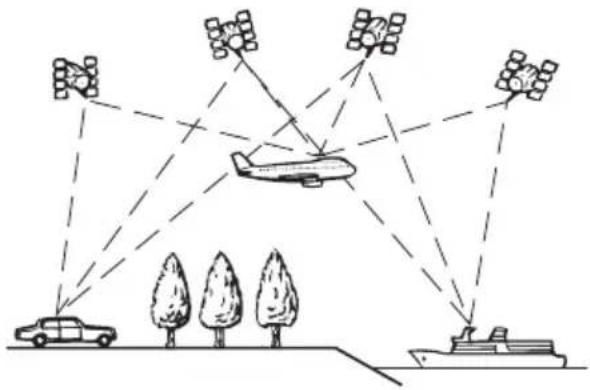
Positioningbydeadreckoning
Thebuilt-insensorinthenavigationsystem alsocalculatesyourposition.Thecurrentlocationismeasuredbydetectingdrivingdistance withthespeedpulse,theturningdirection withthegyrosensorandinclinationofthe roadwiththeGsensor.
Thebuilt-insensorcanevencalculate changesofaltitude,andcorrectthediscrepanciesinthedistancetraveledcausedbydriving alongwindingroadsorupslopes. Ifyouusethisnavigationsystemwithconnectingthespeedpulse,thesystemwillbecome moreaccuratethannoconnectionofspeed
pulse.Soyouconnectthespeedpulsewithout failtogettheaccuracyofpositioning.
☐Thepositionofthespeeddetectioncircuit varydependingonthevehiclemodel. For details, consultyourauthorizedPioneer dealeroraninstallationprofessional.
Sometypesofvehiclesmaynotoutputa
speedsignalwhiledrivingatjustafewkilometersperhour.Insuchacase, thecurrent
locationofyourvehiclemaynotbedis-
playedcorrectlywhileintrafficcongestion
orinaparkinglot.
HowdoGPSanddead reckoningworktogether?
Formaximumaccuracy,yournavigationsystemcontinuallycomparesGPSdatawithyour estimatedpositionascalculatedfromthedata ofbuilt-insensor.However,ifonlythedata fromthebuilt-insensorisavailableforalong period,positioningerrorsaregradually compoundeduntiltheestimatedpositionbecomes unreliable.Forthisreason,wheneverGPSsignalsareavailable,theyarematchedwiththe dataofthebuilt-insensorandusedtocorrect itforimprovedaccuracy.
□Ifyouusechainsonyourwheelsforwinter drivingorputonthesparewheel,errors maysuddenlyincreasebecauseofdifferenceinwheeldiameter.Initializethesensor statusanditmayrecovertheaccuracy to normalcondition.
- Fordetails, referto Clearingstatus on page151.
Appendix
Mapmatching
Asmentioned, thepositioningsystemsused by this navigationsystemaresusceptible to certainerrors. Their calculations may, on occasion, place you initial location on themap where noroadexists. In this situation, the processing system understands that vehicle travel only on roads, and can correctly your position by adjusting it to an rear by road. This is called map matching.

natural_image
Abstract diagram with curved lines and a dotted path, no text or symbols presentWithmapmatching

natural_image
Abstract diagram with curved lines, a play button, and scattered dots (no text or symbols)Withoutmapmatching

Handlinglargeerrors
Positioningerrorsarekepttoaminimumby combiningGPS,deadreckoningandmap matching. However,insomesituations,these functionsmaynotworkproperly,andtheerror maybecomebigger.
WhenpositioningbyGPSis impossible
•GPSpositioningisdisabledifsignalscan-notbereceivedfrommorethanttwoGPS satellites.
- Insomedrivingconditions,signalsfrom GPSsatellitesmaynotreachyourvehicle. Inthiscase,itisimpossibleforthesystem touseGPSpositioning.

natural_image
Illustration of a car entering a tunnel with tire tracks (no text or symbols)Intunnelsoren- closedparking garages
natural_image
Line drawing of a car driving under a covered tunnel structure (no text or symbols)Underelevated roadsorsimilar structures
natural_image
Line drawing of a car parked in front of tall buildings (no text or symbols)Whendriving amonghighbuild- ings

natural_image
Simple line drawing of a car parked under two trees (no text or symbols)Whendrivingthrough adenseforestortall trees
- Ifacarphoneorcellularphoneisused neartheGPSantenna,GPSreceptionmay belosttemporarily.
- DonotcovertheGPSantennawithspray paintorcarwax, because this may block thereception of GPS signals. Snowbuildup can also degrade the signals, so keep the antennacular.
□IfaGPSsignalhasnotbeenreceivedforalongtime,yourvehicle'sactualpositionandthecurrentpositionmarkonthemapmaydivergeconsiderablyormaynotbeupdated.Insuchcase,onceGPSreceptionisrestored,accuracywillberecovered.
Appendix
Conditionslikelytocause noticeablepositioningerrors
Forvariousreasons,suchasthestateofthe roadyouaretravelingonandthereception statusoftheGPSsignal,theactualpositionof yourvehiclemaydifferfromthepositiondisplayonthemapscreen.
- Ifyoumakeaslightturn.

natural_image
Illustration of a car driving on a multi-lane road with a dotted arrow indicating direction (no text or symbols)- Ifthereisaparallelroad.

natural_image
Diagram of a car driving on a multi-lane road with lane markings (no text or symbols)- If there is another road very nearby, such as in the case of an elevated freeway.

natural_image
Illustration of a car driving on an elevated road with a dotted arrow indicating direction (no text or symbols)- Ifyoutakearecentlyopenedroadthatis notonthemap.
natural_image
Diagram of a car driving on a curved road with directional arrows indicating flow (no text or symbols)- Ifyoudriveinzigzags.
natural_image
Illustration of a car driving on a road with motion arrows indicating speed (no text or symbols)- Iftheroadhasaseriesofhairpinbends.
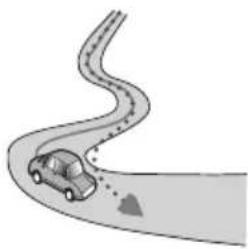
natural_image
Illustration of a car driving on a curved road with motion arrows (no text or symbols)- If there is a loop or similar road configuration.

natural_image
Diagram of a car on a curved ramp with motion arrows indicating speed (no text or symbols)- Ifyoutakeaferry.

natural_image
Illustration of a car being pulled by a boat, with a hand pointing to it (no text or symbols)- If you are driving on a long, straight road or agently curving road.
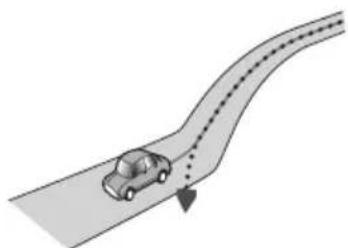
natural_image
Illustration of a car driving on a curved road with dashed lane markings (no text or symbols)Appendix
- If you are on a steep mountain road with many height changes.

natural_image
Illustration of a car driving on a curved road with motion lines and clouds (no text or symbols)- Ifyouenterorexitamulti-storeyparkinglot orsimilarstructureusingaspiralramp.
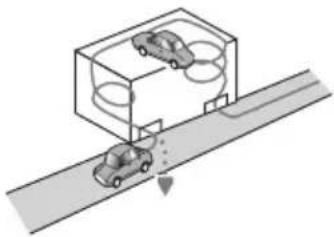
natural_image
Diagram of a car driving on a road with two cars inside a vehicle enclosure (no text or symbols)- If your vehicle is turned on a turntable or similar structure.
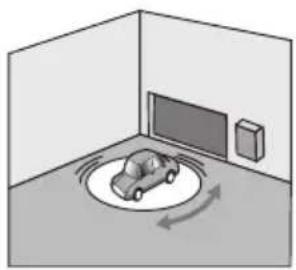
natural_image
Illustration of a car moving in a room with TV and wall-mounted equipment (no text or symbols)- If your vehicle's wheelsspin, such as a gravel road or in snow.

natural_image
Cartoon illustration of a car driving on a road with scattered clouds (no text or symbols)- If you put on chains, or change your tires for ones with different size.
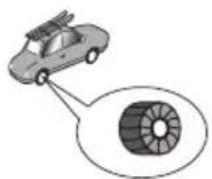
- IftreesorotherobstaclesblocktheGPS signalsforaconsiderableperiod.

- If you drive very slowly, or in a start-and-stop manner, as in a traffic congestion.

natural_image
Illustration of a row of cars on a road (no text or symbols)- If you join the road after driving around a large parking lot.

natural_image
Diagram of a parking lot with lanes, parking areas, and a curved ramp (no text or labels)- When you drive around traffic circle.
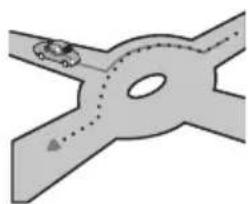
natural_image
Diagram of a road intersection with a car and a dashed lane, no text or symbols present- When starting driving immediately after starting the engine.
Appendix
Routesettinginformation
Routesearchspecifications
Yournavigationsystemsetsaroutetoyour destinationbyapplyingcertainbuilt-inrulesto themapdata.Thissectionprovidessomeusefulinformationabouthowarouteisset.

CAUTION
Whenarouteiscalculated,therouteandvoice guidancefortherouteareautomaticallyset. Also,fordayortimetrafficregulations,onlyinformationabouttrafficregulationsapplicableatthe timewhentheroutewascalculatedisconsidered.One-waystreetsandstreetclosuresmay notbetakenintoconsideration.Forexample,ifa streetisopenduringthemorningonly,butyou arrivelater,itwouldbeagainstthetrafficregulationssoyoucannotdrivealongthesetroute. Whendriving,pleasefollowtheactualtraffic signs.Also,thesystemmaynotknowsometrafficregulations.
- Thecalculatedrouteisoneexampleoftheroutetoyourdestinationdecidedbythenavigationsystemwhiletakingthetypeofstreetsortrafficregulationsintoaccount.Itisnotnecessarilyanoptimumroute.(Insomecases,youmaynotbeabletosethestreetsyouwanttotake.Ifyouneedtotakeacertainstreet,setawaypointonthatstreet.)
- If the destination is too far, there may be instances where there are cannot be set. (If you want to set along distancer out going across several areas, set waypoints along the way.)
- Duringvoiceguidance,turnsandintersectionsfromthefreewayareannounced. However,ifyoupassintersections,turns, andotherguidancepointsinrapidsuccession,somemaydelayornotbeannounced.
- Itispossiblethatguidancemaydirectyou offafreewayandthenbackonagain.
- Insomecases,theroutemayrequireyou totravelintheoppositedirectiontoyour
currentheading.Insuchcases,youarein- structedtoturnaround,sopleaseturn aroundsafelybyfollowingtheactualtraffic rules.
- Insomecases,aroutemaybeginonthe oppositesideofarailwayorriverfromyour actualcurrentlocation.Ifthishappens, drivetowardsyourdestinationforawhile, andtryroutecalculationagain.
- Whenthereisatrafficcongestionahead, a detourroutemaynotbesuggestedifdrivingthroughthetrafficcongestionwould stillbebetterthantakingthedetour.
- Theremaybeinstanceswhenthestarting point,thewaypointandthedestination pointarenotonthehhighlightedroute.
- Thenumberoftrafficcircleexitsdisplayed onthescreenmaydifferfromtheactual numberofroads.
Routehighlighting
- Onceset,therouteishhighlightedinbright coloronthemap.
- Theimmediatevicinityofyourstarting pointanddestinationmaynotbehigh-lighted,andneitherwillareaswithparticularlycomplexroadlayouts.Consequently,theroutemayappeartobecutoffonthe display,butvoiceguidancewillcontinue.
Autoreroutefunction
- If you deviate from the esetroute, the system will re-calculate ether out of that point so that you remain on track to the destination.
- Thisfunctionmaynotworkundercertain conditions.
Handlingandcareofdiscs
Somebasicprecautionsarenecessarywhen handlingyourdiscs.
Appendix
Built-indriveandcare
- Useonlyconventional,fullycirculardiscs. Donotuseshapeddiscs.


- Donotusecracked, chipped, warped, or otherwisedamaged discsastheymaydamagethebuilt-indrive.
- When using discsthatcan beprinted on labelsurfaces, check the instructions and the warning so fthediscs. Depending on the discs, inserting and rejecting may not be possible. Using such discsmay result in damagethisequipment.
- Donottouchtherecordedsurfaceofthe discs.
- Storediscsintheircaseswhennotinuse.
- Avoidleavingdiscsinexcessivelyhotenvir- onmentsincludingunderdirectsunlight.
- Donotattachlabels, writeonorapplychemicalstothesurfaceofthediscs.
- Donotattachcommerciallyavailablelabels orothermaterialstothediscs.
—Thediscsmaywarpmakingthediscun-playable.
—The labels may come off during play-back and preventejection of the discs, which may result in damage to the equipment.
- Tocleanadisc, wipeitwithasoftcloth, movingoutwardfromthecenter.

natural_image
Illustration of a hand pressing down on a circular object with a dashed line indicating the center (no text or symbols present)- Condensationmaytemporarilyimpairthe built-indrive'sperformance.Leaveittoadjusttothewarmertemperatureforabout onehour.Also,wipeanydampdiscswitha softcloth.
- Playbackofdiscsmaynotbepossiblebe- causeofdisccharacteristics,discformat, recordedapplication, playbackenvironment, storageconditionsandsoon.
• Roadshocksmayinterruptdiscplayback. - Read the precautions for discs before using them.
Ambientconditionsforplaying adisc
- Atextremelyhightemperatures,atemperaturecutoutprotectsthisproductbyswitchingitoffautomatically.
- Despiteourcarefuldesignoftheproduct, smallscratchesthatdonotaffectactual operationmayappearonthediscsurface asaresultofmechanicalwear,ambient conditionsforuseorhandlingofthedisc. Thisisnotasignofthemalfunctionofthis product.Considerittobenormalwearand tear.
Playablediscs
DVD-VideoandCD
DVDandCDdiscsthatdisplaythelogos shownbelowgenerallycanbeplayedonthis built-inDVDdrive.
DVD-Video

CD


Appendix
□isavedemarkofDVDFormat/Logo LicensingCorporation.
ItisnotpossibletoplayDVD-Audiodiscs. ThisDVDdrivemaynotbeabletoplayall discsbearingthemarksshownabove.
AVCHDrecordeddiscs
Thisunitisnotcompatiblewithdiscsrecorded inAVCHD(AdvancedVideoCodecHighDefinition)format.DonotinsertAVCHDdiscs.If inserted,thediscmaynotbeejected.
PlayingDualDisc
- DualDiscsaretwo-sideddiscsthathavea recordableCDforaudioononesideanda recordableDVDforvideoontheother.
- PlaybackoftheDVDsideispossiblewith thisnavigationsystem. However, sincethe CDsideofDualDiscsisnotphysicallycompatiblewiththegeneralCDstandard, it may not be possible to play the CDside with this navigation system.
- Frequentloadingandejectingofa DualDiscmayresultinscratchestothe disc.
- Seriousscratchescanleadtoplaybackproblemsonthisnavigationsystem.Insome cases,aDualDiscmaybecomestuckin thedisc-loadingslotandwillnoteject.To preventthis,werecommendyourefrain fromusingDualDiscwiththisnavigation system.
- Pleaserefertothemanufacturerformore detailedinformationaboutDualDiscs.
DolbyDigital
Thisproductwilldown-mixDolbyDigitalsignalsinternallyandthesoundwillbeoutputin stereo.
□ManufacturedunderlicensefromDolby Laboratories."Dolby"andthedouble-D symbolaretrademarksofDolby Laboratories.


Detailedinformationfor playablemedia
Compatibility
Commonnotesaboutdiscompatibility
- Certainfunctionsofthisproductmaynot beavailableforsomediscs.
- Compatibilitywithalldiscsisnotguaranteed.
- ItisnotpossibletoplaybackDVD-ROM/DVD-RAMdiscs.
- Playbackofdiscsmaybecomeimpossible withdirectexposuretosunlight,hightemperatures,ordependingonthestorage conditionsinthevehicle.
DVD-Videodiscs
- DVD-VideodiscsthathaveincompatibleregionnumberscannotbeplayedonthisDVDdrive.Theregionnumberoftheplayer canbefoundonthisproduct'schassis.
DVD-R/DVD-RW/DVD-RDL(Dual Layer)discs
- UnfinalizeddiscswhichhavebeenrecordedwiththeVideoformat(videomode) cannotbeplayedback.
- Discswhichhavebeenrecordedwiththe VideoRecordingformat(VRmode)cannot beplayedback.
- DVD-RDL(DualLayer)discswhichhave beenrecordedwithLayerJumprecording cannotbeplayedback.
- Fordetailedinformationaboutrecording mode,pleasecontactthemanufacturerof media,recorders,orwritingsoftware.
Appendix
CD-R/CD-RWdiscs
- Unfinalizeddiscscannotbeplayedback.
- ItmaynotbepossibletopplaybackCD-R/CD-RWdiscsrecordedonamusicCDrecorderorapersonalcomputerbecauseof disccharacteristics,scratchesordirton thedisc,ordirt,scratchesorcondensation onthelensofthebuilt-indrive.
- Playbackofdiscsrecordedonapersonal computermaynotbepossible,depending ontherecordingdevice,writingsoftware, theirsettings,andotherenvironmentalfactors.
- Pleaserecordwiththecorrectformat.(For details,pleasecontactmanufacturerofmedia,recorders,orwritingsoftware.)
- Titlesandothertextinformationrecorded onaCD-R/CD-RWdiscmaynotbedisplayedbythisproduct(inthecaseofaudio data(CD-DA)).
- Read the precautions with CD-R/CD-RW discs before using them.
Commonnotesabouttheexternal storagedevice(USB,SD)
- Donotleavetheexternalstoragedevice (USB,SD)inanylocationwithhightemperatures.
- Depending on the kind of the external storage device (USB, SD) you use, this navigation system may not recognize the storage device or files may not be played back properly.
- Thetextinformationofsomeaudioand videofilesmaynotbecorrectlydisplayed.
- Fileextensionsmustbeusedproperly.
- Theremaybeaslightdelaywhenstarting playbackoffilesonanexternalstoragedevice(USB,SD)withcomplexfolderhierarchies.
- Operationsmayvarydependingonthe kindofanexternalstoragedevice(USB, SD).
- Itmaynotbepossibletopplaysomemusic filesfromSDorUSBbecauseoffilecharacteristics,fileformat,recordedapplica-
tion, playbackenvironment, storage conditions, and soon.
USBstoragedevicecompatibility
- FordetailsaboutUSBstoragedevicecompatibilitywiththisnavigationsystem, refer toSpecificationsonpage228.
- Protocol:bulk
- You cannot connect a USB storage device to this navigation system via a USB hub.
- PartitionedUSBstoragedeviceisnotcompatiblewiththisnavigationsystem.
- FirmlysecuretheUSBstoragedevicewhen driving.DonotlettheUSBstoragedevice fallontothefloor,whereitmaybecome jammedunderthebrakeorgaspedal.
- Theremaybeaslightdelaywhenstarting playbackofaudiofilesencodedwithimage data.
- SomeUSBstoragedevicesconnectedto thisnavigationsystemmaygeneratenoise ontheradio.
- Donotconnectanythingotherthanthe USBstoragedevice.
ThesequenceofaudiofilesonUSBstoragedevice
ForUSBstoragedevice, thesequence is different from that of USBstoragedevice.
SDmemorycardandSDHCmemorycard
FordetailsaboutSDmemorycardcompatibilitywiththisnavigationsystem,referto Specificationsonpage228.
Handlingguidelinesand supplementalinformation
- This system is not compatible with Multi MediaCard(MMC).
• Copyrightprotectedfilescannotbeplayed back.
Appendix
NotesspecifictoDivXfiles
- OnlyDivXfilesdownloadedfromDivXpartnersitesareguaranteedforproperoperation.UnauthorizedDivXfilesmaynot operateproperly.
- DRMrentalfilescannotbeoperateduntil playingbackisstarted.
- Thenavigationsystemcorrespondstoa DivXfiledisplayofupto1590minutes43 seconds.Searchoperationsbeyondthis timelimitareprohibited.
- DivXVODfile playback requiressupplying the IDcode of this navigationsystem to the DivXVODprovider. Regarding the IDcode, referto Displaying your DivXVOD registration code on page 174.
- PlaysallversionsofDivXvideo(including DivX6)withstandardplaybackofDivX mediafiles.
- FormoredetailsaboutDivX,visitthefollowingsite: http://www.divx.com/
DivXsubtitlefiles
- Srtformatsubtitlefileswiththeextension ".srt" canbeused.
- Onlyonesubtitlefilecanbeusedforeach DivXfile.Multiplesubtitlefilescannotbe associated.
- Subtitlefilesthatarenamedwiththesame characterstringastheDivXfilebeforethe extensionareassociatedwiththeDivXfile. Thecharacterstringsbeforetheextension mustbeexactlythesame. However, ifthere isonlyoneDivXfileandonesubtitlefilein asinglefolder, thefilesareassociatedeven ifthefilenamesarenotthesame.
- Thesubtitlefilemustbestoredinthesame folderastheDivXfile.
- Upto255subtitlefilesmaybeused.Any moresubtitlefileswillnotberecognized.
-
Upto64characterscanbeusedforthe nameofthesubtitlefile,includingtheextension.Ifmorethan64charactersare usedforthefilename,thesubtitlefilemay notberecognized.
-
Thecharactercodeforthesubtitlefile shouldcomplywithISO-8859-1.UsingcharactersotherthanISO-8859-1maycausethe characterstobedisplayedincorrectly.
- Thesubtitlesmaynotbedisplayedcorrectly ifthedisplayedcharactersinthesubtitle fileincludecontrolcode.
- Formaterialsthatuseahightransferrate, thesubtitlesandvideomaynotbecompletely synchronized.
- If multiples subtitles are programmed to display within a very short timeframe, such as 0.1 seconds, the subtitles may not be displayed at the correct time.
Appendix
Mediacompatibilitychart
General
| MediaCD-R/-RW | DVD-R/-RW/-R DL | USBstoragede-vice | SDmemorycard | |
| Filesystem | ISO9660level1, ISO9660level2, RomeoandJoliet | ISO9660level1, ISO9660level2, Romeo,Joliet andUDF1.02 | FAT16/FAT32 | |
| Maximumnumberof folders | 700300 | |||
| Maximumnumberof files | 99935002500 | |||
| PlayablefiletypesMP3,WMA,AAC,DivX | MP3,WMA,AAC,WAV,AVI,WMV, MPEG-4 | |||
| Note: Maximumplaybacktimeofaudiofilestoredintheexternalstoragedevice(USB,SD):7.5h(450minutes) | ||||
MP3compatibility
| MediaCD-R/-RW | DVD-R/-RW/-R DL | USBstoragede-vice | SDmemorycard | |
| Fileextension.mp3 | ||||
| Bitrate8kbpsto320kbps(CBR),VBR | ||||
| Samplingfrequency | 16kHzto48kHz(32kHz,44.1kHz,48kHz foreemphasis) | 8kHzto48kHz | ||
| ID3tagID3tagVer.1.0,1.1,2,2,2.3 ID3tagVer.1.0,1.1,2.2,2,3,2.4 | ||||
| Notes:Ver. 2.x of ID3 tag is given priority when both Ver. 1.x and Ver. 2.x exist.Thenavigationsystemisnotcompatiblewiththefollowing:MP3i(MP3interactive),mp3PRO,m3uplaylist | ||||
Appendix
WMAcompatibility
| MediaCD-R/-RW | DVD-R/-RW/-R DL | USBstoragede-vice | SDmemorycard | |
| Fileextension.wma | ||||
| Bitrate5kbpsto320kbps(CBR),VBR | ||||
| Samplingfrequency8kHzto48kHz | ||||
| Note:Thenavigationsystemisnotcompatiblewiththefollowing:WindowsMediaTMAudio9Professional,Lossless,Voice | ||||
WAVcompatibility
| MediaCD-R/-RW | DVD-R/-RW/-R DL | USBstoragede-vice | SDmemorycard | |
| Fileextension | IMA-ADPCM WAVfilesontheCD-R/-RW,DVD-R/-RW/-R DLcannotbeplayed. | .wav | ||
| FormatLinearPCM(LPCM) | ||||
| Samplingfrequency | LPCM:16kHzto48kHzIMA-ADPCM:22.05kHzand44.1kHz | |||
| Quantizationbits | LPCM:8bitsand16bitsMSADPCM:4bits | |||
| Note: Thesamplingfrequencyshowninthedisplaymayberounded. | ||||
AACcompatibility
| MediaCD-R/-RW | DVD-R/-RW/-R DL | USBstoragede-vice | SDmemorycard | |
| Fileextension.m4a | ||||
| Bitrate8kbpsto320kbps(CBR) | ||||
| Samplingfrequency8kHzto44.1kHz8kHzto48kHz | ||||
| Note:ThenavigationsystemplaysbackAACfilesencodedbyiTunes. | ||||
Appendix
DivXcompatibility
| MediaCD-R/-RW | DVD-R/-RW/-R DL | USBstoragede-vice | SDmemorycard | |
| Fileextension.avi/.divx | DivXfilesontheexternalstoragedevice (USB,SD) cannotbeplayed. | |||
| Profile(DivXversion) | HomeTheaterVer.3.11/Ver.4.x/Ver.5.x/Ver.6.x | |||
| CompatibleaudiocodeMP3,DolbyDigital | ||||
| Bitrate(MP3)8kbpsto320kbps(CBR),VBR | ||||
| Samplingfrequency (MP3) | 16kHzto48kHz(32kHz,44.1kHz,48kHz foreemphasis) | |||
| Maximumimagesize720pixels×576pixels | ||||
| Maximumfilesize4GB | ||||
| Notes:Thenavigationsystemisnotcompatiblewiththefollowing:DivXUltraformat,DivXfileswithoutvideodata,DivXfilesencodedwithLPCM(LinearPCM)audiocodeDepending on the file information composition, such as the number of audio streams, there may be a slight delayinthestartofplaybackondiscs.Ifafilecontainsmorethan4GB,playbackstopsbeforetheend.SomespecialoperationsmaybeprohibitedbecauseofthecompositionofDivXfiles.Files with high transfer rates may not be played back correctly. The standard transfer rate is 4 Mbps for CDs and 10.08MbpsforDVDs. | ||||
Appendix
Videofilescompatibility(USB,SD)
| Fileextension.avi.mp4,.m4v.wmv | |||||
| FormatMPEG-4MPEG-4H.264WMV | |||||
| CompatiblevideocodeMPEG-4MPEG-4H.264WMV | |||||
| Compatibleaudiocodec | LinearPCM (LPCM),IMA-ADPCM MP3 | AACAACWMA | |||
| Recommended videospecifications | Imagesize:QVGA (320pixelsx240 pixels) | Bitrate: 768kbps Framerate: 30fps | Bitrate: 768kbps Framerate: 30fps | Bitrate: 384kbps Framerate: 30fps | Bitrate: 384kbps Framerate: 30fps |
| Maximumbitrate: | Imagesize: WQVGA (400pixelsx240 pixels) | Bitrate:2Mbps Framerate: 30fps | Bitrate:2Mbps Framerate: 30fps | Bitrate:1Mbps Framerate: 30fps | Bitrate: 768kbps Framerate: 30fps |
| Imagesize:VGA (640pixelsx480 pixels) | Bitrate:1Mbps Framerate: 30fps | Bitrate:1Mbps Framerate: 30fps | Bitrate: 576kbps Framerate: 30fps | Bitrate: 576kbps Framerate: 30fps | |
| Maximumfilesize2GB | |||||
| Maximum playbacktime150minutes | |||||
Commonnotes
- Thenavigationsystemmaynotoperatecor-rectly,dependingontheapplicationused toencodeWMAfiles.
- DependingontheversionofWindows Media™ PlayerusedtoencodeWMAfiles, albumnamesandothertextinformation maynotbecorrectlydisplayed.
- Theremaybeaslightdelaywhenstarting playbackofaudiofilesencodedwithimage data.
- Thenavigation system is not compatible with packet written datatransfer.
- Thisnavigationsystemcanrecognizeupto 32characters, beginning with the first character, including extension for the file and folder name. Depending on the display area, then navigation system may try to display them with a reduced font size. However, the maximum number of the character that you can display varies as
cordingtothewidthofeachcharacter,and ofthedisplayarea.
- Folderselectionsequenceorotheroperationsmaybealtered,dependingontheencodingor writingsoftware.
- Regardlessofthelengthofblanksection betweenthesongsoforiginalrecording, compressedaudiodiscsplaywithashort pausebetweenensongs.
Appendix
Exampleofahierarchy
The following figure is an example of the structure in the disc. Then numbers in the figure indicate the order in which foldernumbers are assigned and the order to be played back.
:Folder
File
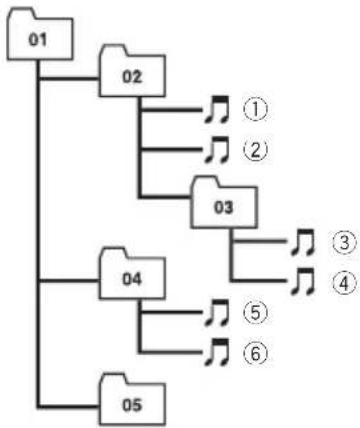
flowchart
graph TD
    01 --> 02
    02 --> 1
    02 --> 2
    02 --> 3
    03 --> 4
    04 --> 5
    04 --> 6
    05 --> 6
    1 --> 3
    2 --> 3
    3 --> 4
    4 --> 5
    5 --> 6
Level 1 L evel 2 L evel 3 L evel 4

Notes
- Thisproductassignsfoldernumbers.Theuser cannotassignfoldernumbers.
- If thereisafolderthatdoesnotcontainany playablefile, thefolderitselfwilldisplayinthe folderlistbutyoucannotcheckanyfilesin thefolder.(Ablanklistwillappear.) Also, thesefolderswillbeskippedwithoutdisplayingthefoldernumber.
Bluetooth

Bluetooth®
Bluetoothisashort-rangewirelessradioconnectivitytechnologythatisdevelopedasa cablereplacementforcellularphones,hand-heldPCsandotherdevices.Bluetoothoperatesin2.4GHzfrequencyrangeandtransmits voiceanddataatspeedsupto1megabitper
second. Bluetooth was launched by as special interest group (SIG) comprising Ericsson Inc., Intel Corp., Nokia Corp., Toshiba and IBM in 1998, and it is currently developed by nearly 2000 companies worldwide.
•TheBluetooth® wordmarkandlogosareregisteredtrademarksownedbyBluetooth SIG, Inc. and any use of such marks by Pioneer Corporation is under license. Other trademarks and tradenames are those of their respective owners.
AbouttheSATRADIO READYLogo

TheSATRADIOREADYlogoindicatesthatthe SatelliteRadioTunerforPioneer(i.e.,XM tunerandSiriussatellitetunerwhicharesold separately)canbecontrolledbythisnavigationsystem.Pleaseinquirewithyourdealeror nearestauthorizedPioneerservicestationregardingthesatelliteradiotunerthatcanbe connectedtothisnavigationsystem.
Note:
Thesystemwillusedirectsatellite-to-receiver broadcastingtechnologytoprovidelisteners intheircarsandathomewithcrystal-clear soundseamlesslyfromcoasttocoast.Satelliteradiowillcreateandpackageover100 channelsofdigital-qualitymusic,news, sports,talkandchildren'sprogramming. "SATRadio",theSATRadiologoandallrelatedmarksaretrademarksofSiriusSatellite Radioinc.,andXMSatelliteRadiolnc.
Appendix
HDRadio™ Technology
•AVIC-Z130BT
HDRadioTechnologymanufacturedunder
licensefromiBiquityDigitalCorporation.
U.S.andForeignPatents.HDRadio™ and
theHD,HDRadio,and“Arc”logosarepro-
prietarytrademarksofiBiquityDigitalCorp.
•AVIC-X930BT,AVIC-X9310BT
HDRadio ^™ , HDRadioReady ^™ and HD RadioReadylogosareproprietarytrade-marksofiBiquityDigitalCorporation.
SDandSDHClogo

SDLogoisatrademarkofSD-3C,LLC.

SDHCLogoisattrademarkofSD-3C,LLC.

microSDLogoisattrademarkofSD-3C,LLC.

microSDHCLogoisattrademarkofSD-3C, LLC.
WMA/WMV
WindowsMediaiseitheraregisteredtrademarkortrademarkofMicrosoftCorporationin theUnitedStatesand/orothercountries.
Thisproductincludestechnologyownedby MicrosoftCorporationandcannotbeused ordistributedwithoutalicensefrom MicrosoftLicensing,Inc.
DivX
DIVX
DivXisacompresseddigitalvideoformatcreatedbytheDivXvideocodefromDivX,Inc. ThisunitcanplayDivXvideofilesrecordedon CD-R/RW/ROMandDVD-R/RW/ROMdiscs. KeepingthesameterminologyasDVDvideo, individualDivXvideofilesarecalled"Titles". Whennamingfiles/titlesonaCD-R/RWora DVD-R/RWdiscprioritoburning,keepinmind thatbydefaulttheywillbeplayedinalphabeticalorder.
☐DivX ^® , DivXCertified ^® and associated logos are trademarksof DivX, Inc. and are used underlicense.
ABOUTDIVXVIDEO:DivX® isadigital videoformatcreatedbyDivX,Inc.ThisisanofficialDivXCertifieddevicethatplaysDivXvideo.Visitwww.divx.comformoreinformationandsoftwaretoolstoconvertyourfilesintoDivXvideo.
ABOUTDIVXVIDEO-ON-DEMAND:This DivXCertified® devicemustberegisteredin ordertoplaypurchasedDivXVideo-on-De-mand(VOD)movies.Toobtainyourregistrationcode,locatheDivXVODsectionin DisplayingyourDivXVODregistrationcode. Go tovod.divx.comformoreinformationonhow tocompleteyourregistration.
Fordetails, refertoDisplaying your DivX VODregistrationcode on page 174.
Appendix
AAC
AACisshortforAdvancedAudioCodingand referstoanaudiocompressiontechnology standardusedwithMPEG-2andMPEG-4.SeveralapplicationscanbeusedtoencodeAAC files, butfileformatsandextensionsdifferdependingontheapplicationwhichisusedto encode.ThisunitplaysbackAACfilesencodedbyiTunes.
Detailedinformation regardingconnectediPod devices

CAUTION
- Pioneeracceptsnoresponsibilityfordatalost fromaniPod, even if that data is lost while using thenavigationsystem. Please backup youriPoddata regularly.
- DonotleavetheiPodindirectsunlightforex-tendedamountsoftime.Extendedexposure todirectsunlightcanresultiniPodmalfunc-tionduetotheresultinghightemperature.
- DonotleavetheiPodinanylocationwith hightemperatures.
- FirmlysecuretheiPodwhendriving.Donot lettheiPodfallontothefloor,whereitmaybe-comejammedunderthebrakeorgaspedal.
Fordetails, refertothei Podmanuals.
iPodandiPhone
Made for

iPod

iPhone
"Made for iPod" and "Made for iPhone" mean that an electronic accessory has been designed to connect specifically to iPod or iPhone, respectively, and has been certified by
thedevelopertomeetAppleperformance standards.
Apple is not responsible for the operation of this device or its compliance with safety and regulatory standards.
Pleasenotethattheuseofthisaccessorywith iPodoriPhonemayaffectwirelessperformance.
iPhone,iPod,iPodclassic,iPodnano,and iPodtoucharetrademarksofAppleInc.,registeredintheU.S.andothercountries.
iTunes
iTunesisattrademarkofAppleInc., registered intheU.S.andothercountries.
UsingApp-based ConnectedContents
IMPORTANT
Requirementstoaccessapp-basedconnected contentservicessuchasPandorainternetradio andAhaRadiouingthePioneernavigationsystem:
- AppleiPhone(firstgeneration), iPhone3G, iPhone3GS, oriPhone4withfirmwareversion 3.0orlater.
- LatestversionofthePioneercompatibleconnectedcontentapplication(s)fortheiPhone, availablefromtheserviceprovider,downloadtoyouriPhonedevice.
- A current account with the contents service provider.
- iPhoneDataPlan. Note: if the Data Plan for your Phonedoes not provide for unlimited data usage, additional charges from your carrier may apply for accessing App-based Connected Contents via 3Gand/or EDGE networks.
- ConnectiontotheInternetvia3G,EDGEor WiFinetwork.
- OptionalPioneeradaptercableconnecting youriPhonetothePioneernavigationsystem.
Appendix
Limitations:
- Accesstoapp-basedconnectedcontentswill dependontheavailabilityofcellularand/or WiFinetworkcoverageforthepurposeofallowingyouriPhonetoconnecttotheInternet.
- ServiceavailabilitymaybegeographicallylimitedtotheU.S.Consulttheconnectedcontentserviceproviderforadditionalinformation.
- AbilityofthePioneernavigationsystemtoaccessconnectedcontentsissubjecttochange withoutnoticeandcouldbeaffectedbyanyof thefollowing:compatibilityissueswithfuture firmwareversionsofiPhone;compatibilityissueswithfutureversionsoftheconnected contentapplication(s)fortheiPhone;changes toordiscontinuationoftheconnectedContentapplication(s)orservicebyitsprovider.
Pandora
PandoraisaregisteredtrademarkofPandora Media,Inc.
AhaRadio
Aha,AhaRadioandtheAhaandAhaRadio logosareeitherthetrademarksortheregisteredtrademarksofHarmanInternationalIndustries,Incorporated.
UsingtheLCDscreencorrectly HandlingtheLCDscreen
- WhentheLCDscreenissubjectedtodirect sunlightforalongperiodoftime, itwillbecomeveryhot, resultinginpossibledamagetotheLCDscreen. Whennotusing thisnavigationsystem, avoidexposingitto directsunlightasmuchaspossible.
- The LCD screens should be used within the temperaturerangesshowninSpecifications.
- DonotusetheLCDscreenattemperatures higherorlowerthantheoperatingtemperaturerange,becausetheLCDscreen
maynotoperatenormallyandcouldbedamaged.
- TheLCDscreenisexposedinordertoincreaseitsvisibilitywithinthevehicle. Pleasedonotpressstronglyonitasthis maydamageit.
- DonotpushtheLCDscreenwithexcessive forceasthismayscratchit.
- NevertouchtheLCDscreenwithanything besidesyourfingerwhenoperatingthe touchpanelfunctions.TheLCDscreencan scratcheasily.
Liquidcrystaldisplay(LCD)screen
- If the LCD screen is near the event of an air conditioner, makes sure that air from the air conditioner is not blowing on it. Heat from the heater may break the LCD screen, and cool air from the cooler may cause moisture to form inside the navigation unit, resulting in possible damage.
- Smallblackdotsorwhitedots(brightdots) mayappearontheLCDscreen.Theseare duetothecharacteristicsoftheLCD screenanddonotindicateamalfunction.
• The LCD screen will be difficult to see if it is exposed to direct sunlight. - When using acellular phone, keep the antenna of the cellular phone away from the LCD screen to prevent disruption of the video in the form of disturbance such as spots or colored stripes.
MaintainingtheLCDscreen
- When removing dust from the LCD screen or cleaning it, first turn the system power off, then wipewith as of t dry cloth.
- When wiping the LCD screen, take care not to scratch the surface. Donot use harshor abrasive chemical cleaners.
Appendix
LED(light-emittingdiode) backlight
Alightemittingdiodeisusedinsidethedis- playtoilluminatetheLCDscreen.
- Atlowtemperatures, using the LED backlight may increase image lag and degrade the image quality because of the characteristics of the LCD screen. Image quality will improve with an increase in temperature.
• The product lifetime of the LED backlight is more than 10000 hours. However, it may decrease if used in high temperatures. - If the LED backlightreachestheendofits product lifetime, the screen will become dimmer and the image will no longer be visible. In that case, please consult your dealer or the nearest authorized Pioneer Service Station.
Appendix
Displayinformation
DestinationMenu

| Page | |
| Address35 | |
| ReturnHome37 | |
| POI | |
| GasStation | |
| Bank | 37 |
| Coffee | |
| Hotel | |
| SpellName37 | |
| NearMe38 | |
| NearDestination38 | |
| AroundCity38 | |
| AVICFEEDS40 | |
| Favorites39,47 | |
| History40,50 | |
| CancelRoute46 | |
| Traffic51 | |
| Coordinates | 40 |
| RouteOverview | 43 |
PhoneMenu
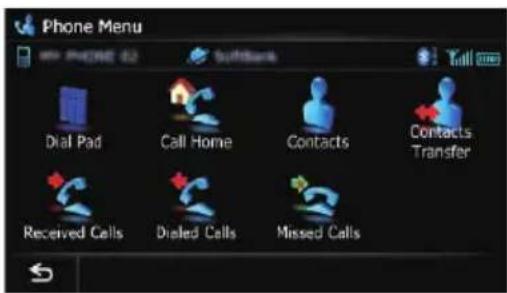
| Page | |
| DialPad61 | |
| CallHome | 62 |
| Contacts | 62 |
| ContactsTransfer | 65 |
| ReceivedCalls | 63 |
| DialedCalls | 63 |
| MissedCalls | 63 |
Appendix
SettingsMenu

| Page | |
| NaviSettings150 | |
| SystemSettings162 | |
| AVSettings170 | |
| AVSound174 | |
| MapSettings156 | |
| BluetoothSettings66 | |
| SettingReplicator181 | |
NaviSettingsmenu

| Page | |
| ConnectionStatus150 | |
| 3DCalibrationStatus151 | |
| GasMileage152 | |
| DriveLogSettings154 | |
| DemoMode154 | |
| SetHome154 | |
| ModifyCurrentLocation155 | |
| EcoSettings | 155 |
Appendix
SystemSettingsmenu

| Page | |
| RegionalSettings | |
| ProgramLanguage,VoiceLanguage | 163 |
| Time163 | |
| km/mile164 | |
| AverageSpeed164 | |
| Volume165 | |
| SplashScreen165 | |
| BackCamera166 | |
| ScreenCalibration167 | |
| IllumiColor167 | |
| ServiceInformation168 | |
| RestoreFactorySettings190 | |
MapSettingsmenu

| Page | |
| DisplayedInfo | |
| CloseUpView156 | |
| CityMap156 | |
| CityMapBarrier157 | |
| ShowTrafficIncident | 157 |
| BluetoothConnected | 158 |
| CurrentStreetName | 158 |
| FavoritesIcon | 158 |
| 3DLandMark | 158 |
| ShowManeuver | 159 |
| ShowEcoMeter159 | |
| QuickAccessSelection | 162 |
| OverlayPOI | 159 |
| ViewMode30 | |
| Day/NightDisplay161 | |
| AV Guide Mode | 161 |
| RoadColor | 161 |
Appendix
BluetoothSettingsmenu

| Page | |
| Connection59 | |
| Registration56 | |
| DeviceName66 | |
| Password66 | |
| BluetoothOn/Off67 | |
| EchoCancel67 | |

| Page | |
| AutoAnswerPreference67 | |
| RefuseAllCalls67 | |
| ClearMemory68 | |
| Firmwareupdate68 | |
AVSystemSettingsmenu
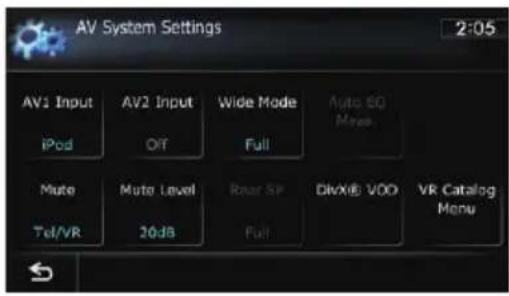
| Page | |
| AV1Input170 | |
| AV2Input171 | |
| WideMode171 | |
| AutoEQMeas. | 177 |
| Mute | 172 |
| MuteLevel | 172 |
| RearSP | 171 |
| DivX®VOD174 | |
| VRCatalogMenu | 173 |
Appendix
AVSoundSettingsmenu
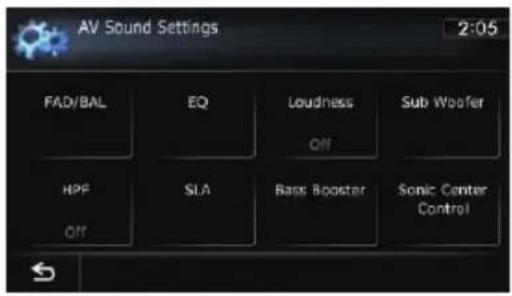
| Page | |
| FAD/BAL(Balance)175 | |
| EQ175 | |
| Loudness180 | |
| SubWoofer180 | |
| HPF180 | |
| SLA180 | |
| BassBooster181 | |
| SonicCenterControl179 | |

Appendix
Glossary
AAC
AACisshortforAdvancedAudioCodingand referstoanaudiocompressiontechnology standardusedwithMPEG-2andMPEG-4.
Aspectratio
Thisisthewidth-to-heighttratioofaTVscreen. Aregulardisplayhasanaspectratioof4:3. Widescreendisplayshaveanaspectratioof 16:9, providingabiggerpictureforexceptional presenceandatmosphere.
Bitrate
Thisexpressesdatavolumepersecond,orbps units(bitspersecond).Thehighertherate, themoreinformationisavailabletoreproduce thesound.Usingthesameencodingmethod (suchasMP3),thehighertherate,thebetter thesound.
Built-insensor
The built-insensorthatenablesthesystemto estimateyourvehicle'sposition.
CD-DA
ThisstandsforageneralmusicCD(commercial-releaseaudioCD).Inthismanual,this wordissometimeusedforadistinctionbetweendataCDs(whichincludedecompressed audiofiles)andgeneralmusicCDs.
Chapter
TitlesofDVD-Videoareinturndividedinto chapterswhicharenumberedinthesame wayasthechaptersofabook.Withdiscsfeaturingchapters,youcanquicklyfindadesired scenewithchaptersearch.
Currentlocation
The present location of your vehicle; your current location is shown on them by a red triangle mark.
Destination
Alocationyouchooseastheendpointofyour journey.
DivX
DivXisapopularmediatechnologycreatedby DivX,Inc.DivXmediafilescontainhighlycompressedvideowithhighvisualqualitythat maintainsarelativelysmallfilesize.DivXfiles canalsoincludeadvancedmediafeatureslike menus, subtitles, and alternateaudiotracks. ManyDivXmediafilesareavailablefordownloadonline, and you can create your own using your personal content and easy-to-use tools from DivX.com.
DivXCertified
DivXCertifiedproductsareofficiallytestedby thecreatorsofDivXandguaranteedtoplayall versionsofDivXvideo,includingDivX6.
Favorites
Afrequentlyvisitedlocation(suchasyour workplaceorarelative'shome)thatyoucan registertoalloweasyrouting.
GPS
GlobalPositioningSystem.Anetworkofsatellitesthatprovidesnavigationsignalsforavarietyofpurposes.
Guidancepoint
These are important landmarks along your route, generally intersections. Then next guidance point along your route is indicated on them by the yellow flag icon.
Homelocation
Yourregisteredhomelocation.
ID3tag
Thisisamethodofembeddingtrack-related informationinanMP3file. Thisembeddedinformationcanincludethetracktitle, theartist'sname, thealbumtitle, themusicgenre, theyearofproduction, commentsandother data. Thecontentscanbefreelyedited using softwarewithID3tageditingfunctions. Althoughthetagsarerestrictedbythenumberofcharacters, theinformationcanbe viewedwhentetrackisplayedback.
Appendix
ISO9660format
ThisistheinternationalstandardfortheformatlogicofDVD/CD-ROMfoldersandfiles. FortheISO9660format,thereareregulations forthefollowingtwolevels:
- Level1:
Thefilenameisin8.3format(thename consistsofuptoeightcharacters,half-byte Englishcapitalletters,half-bytenumerals andthe“_”sign,withafile-extensionof threecharacters).
- Level2:
The filename can have up to 31 characters (including these separation mark “.” and a file extension). Each folder contains less than eighth hierarchies.
- Extendedformats
Joliet:
Filenamescanhaveupto64characters.
Romeo:
Filenamescanhaveupto128characters.
JPEG
ThisstandsforJointPhotographicExperts Group, and is an international still image compression standard.
MP3
MP3isshortforMPEGAudioLayer3.Itisan audiocompressionstandardestablishedbya workinggroup(MPEG)oftheISO(InternationalOrganizationforStandardization).MP3 isabletocompressaudiodatatoabout1/10th thesizeofaconventionaldisc.
MPEG
ThisstandsforMovingPicturesExperts Group, and is an international video image compression standard.
Multi-angle
WithregularTVprograms,althoughmultiple camerasareusedtosimultaneouslyshoot scenes,onlyimagesfromonecameraata timearetransmittedtoyourTV.SomeDVDs featurescenesshotfrommultipleangles,lettingyouchooseyourviewingangleasdesired.
Multi-audio(Multilingualdialog)
Somevideosfeaturedialogrecordedinmultiplelanguagesoraudiorecordedinmultipletracks.Forexample,dialoginuptoeightlanguagescanberecordedonasingleDVD-Video,lettingyouchoosethelanguageasdesired.
Multi-session
Multi-sessionisarecordingmethodthatal-lowsadditionaldatatoberecordedlater. WhenrecordingdataonaCD-ROM,CD-Ror CD-RW,etc.,alldatafrombeginningtoendis treatedasasingleunitorsession.Multi-sessionisamethodofrecordingmorethantwo sessionsinonedisc.
Multi-subtitle
Forexample, subtitlesinupto32languages canberecordedonasingleDVD-Video, letting youchooseasdesired.
Packetwrite
Thisisageneraltermforamethodofwriting individualfilestoaCD-R,etc.wheneverrequired,justasisdonewithfilesonfloppyor harddisks.
Parentallock
SomeDVD-Videodiscswithviolentoradult-orientedscenesfeatureparentallockwhichpreventschildrenfromviewingsuchscenes.With thiskindofdisc,ifyousettheunit'sparental locklevel,playbackofscenesinappropriatefor childrenwillbedisabled,orthesesceneswill beskipped.
Phonebook
Anaddressbookonuser'sphoneiscollectivelyreferredtoas"Phonebook".Depending on the cellular phone, the phonebook maybe called names such as "Contacts", "Business card" or something else.
PointOfInterest(POI)
Anyofarangeoflocationsstoredinthedata, suchasrailwaystations,shops,restaurants, andamusementparks.
Appendix
Regionnumber
DVDplayersandDVDdiscsfeatureregion numbersindicatingtheareainwhichthey werepurchased.PlaybackofaDVDisnotpossibleunlessitfeaturesthesameregionnumberastheDVDplayer.
Routesetting
The process of determining the ideal route to a specific location; routesetting is done automatically by the system when you specify a destination.
Setroute
Theroutemarkedoutbythesystemtoyour destination.Itishhighlightedinbrightcoloron themap.
Title
DVD-Videodiscshaveahighdatacapacity,enablingrecordingofmultiplevideosonasingle disc.If,forexample,onedisccontainsthree separatevideos,theyaredividedintotitle1, title2andtitle3.Thisletssyouenjoytheconvenienceoftitlesearchandotherfunctions.
Tracklog
Yournavigationsystemlogsroutesthatyoual-readypassedthroughifthetrackloggerisactivated. Thisrecordedrouteiscalleda"track log".Itishandywhenyouwanttochecka routetraveledorifreturningalongacomplex route.
VBR
VBRisshortforvariablebitrate.Generally speaking, CBR(constantbitrate)ismore widelyused. But by flexibly adjusting the bit rate according to the need of audiocompression, it is possible to produce compression-priority data.
Voiceguidance
Thegivingofdirectionsbynavigationvoice whileinguidance.
Waypoint
Alocationthatyouchoosetovisitbeforeyour destination;ajourneycanbebuiltupfrom multiplewaypointsandthedestination.
WMA
WMAisshortforWindowsMedia™ Audioand referstoanaudiocompressiontechnology that is developed by Microsoft Corporation. WMAdatacanbeencoded by using Windows MediaPlayversion7orlater.
Appendix
Specifications
General
Ratedpowersource.....14.4VDC
Groundingsystem......Negativetype
Maximumcurrentconsumption
10.0A
Dimensions(W×H×D):
AVIC-Z130BT
AVIC-Z130BT....2.27kg(5.0lbs)
AVIC-X930BT....1.98kg(4.4lbs)
AVIC-X9310BT....1.98kg(4.4lbs)
NANDflashmemory......4GB
Navigation
GPSreceiver:
System.....L1,C/AcodeGPS
SPS(StandardPositioning
Service)
Receptionsystem......32-channelmulti-channel
receptionsystem
Receptionfrequency....1575.42MHz
Sensitivity....-140dBm(typ)
Positionupdatefrequency
Approx.oncepersecond
GPSantenna:
Antenna....Microstripflatantenna/
right-handedhelicalpolari-
zation
Antennacable....3.55m(11ft.7in.)
Dimensions(W×H×D)
33mm×15mm×36mm
(1-1/4in.×4/7in.×
1-3/8in.)
Weight....73.7g(0.2lbs)
Display
Screensize/aspectratio:
AVIC-Z130BT....7inchwide/16:9
AVIC-X930BT....6.1inchwide/16:9
AVIC-X9310BT......6.1inchwide/16:9
Effectivedisplayarea:
AVIC-Z130BT....157mm×83mm
AVIC-X930BT....137mm×72mm
AVIC-X9310BT....137mm×72mm
Pixels....384000(800×480)
Displaymethod......TFTActivematrixdriving
Backlight......LED
Colorsystem....NTSCcompatible
Tolerabletemperaturerange:
Poweron....+14°Fto+140°F
Poweroff....-4°Fto+176°F
Angleadjustment
AVIC-Z130BT....0°to22°
AVIC-X930BT....0°
AVIC-X9310BT....0°
Audio
Maximumpoweroutput.....50W×4
50W× 2ch / 4 +70W×
1ch/2Ω(forsubwoofer)
Continuouspoweroutput..22W×4(50Hzto15kHz,
5%THD,4ΩLOAD,Both
ChannelsDriven)
Load impedance .... 4Ω (4Ω to 8Ω [2Ω for 1ch]
allowable)
Preoutputlevel(max):
AVIC-Z130BT....4.0V
AVIC-X930BT.....2.2V
AVIC-X9310BT.....2.2V
Preoutimpedance:
AVIC-Z130BT....100Ω
AVIC-X930BT....1 kΩ
AVIC-X9310BT....1 kΩ
Equalizer(8-BandGraphicEqualizer):
Frequency.....40Hz/80Hz/200Hz/400Hz/
1kHz/2.5kHz/8kHz/10kHz
Gain....±12dB
Loudnesscontour:
Low....+3.5dB(100Hz), +3dB
(10kHz)
Mid....+10dB(100Hz),+6.5dB
(10kHz)
High....+11dB(100Hz),+11dB
(10kHz)
(volume:-30dB)
HPF:
Frequency.....50Hz/63Hz/80Hz/100Hz/
125Hz
Slope....-12dB/oct
Appendix
Subwoofer:
Frequency....50Hz/63Hz/80Hz/100Hz/125Hz
Slope....-18dB/oct
Gain....-24/+6dB
Phase......Normal/Reverse
Bassboost:
Gain....0dBto+12dB
DVDDrive
System......DVD-Video,CD,MP3,WMA,
AAC, DivXsystem
Usablediscs.....DVD-Video,DVD-R(DL),
DVD-RW, CD-ROM, CD-DA, CD-R/RW
Regionnumber......1
Signalformat:
Samplingfrequency.....44.1kHz/48kHz/96kHz
Numberofquantizationbits
16bit/20bit/24bit:linear
Frequencyresponse.....5Hzto44000Hz(withDVD,
atsamplingfrequency 96kHz)
Signal-to-noiseratio....97dB(1kHz)(IEC-Anetwork)
(CD:96dB(1kHz)(IEC-A network))
Dynamicrange....95dB(1kHz)(CD:94dB
(1kHz)
Distortion....0.008%(1kHz)
Outputlevel:
Video....1.0Vp-p/75Ω(±0.2V)
Audio....1.0V(1kHz,0dB)
Numberofchannels.....2(stereo)
MP3decodingformat......MPEG-1&2AudioLayer3
WMAdecodingformat......Ver.9.0L3
AACdecodingformat......MPEG-4AAC(onlyencoded
byiTunes):
.m4a
DivXdecodingformat......HomeTheaterVer.3.11,
Ver.4.X.Ver.5.X,Ver.6.X:
.avi,divx
USB
USBstandardspec.....USB2.0HighSpeed
Maxcurrentsupply......1A
Filesystem.....FAT16,FAT32
USBclass....Massstorageclass
Decodingformat.....MP3/WMA/AAC/WAVE/
H.264/MPEG4/WMV
SD(AVIC-Z130BT)
SDmemorycard, SDHCmemorycard
Compatiblephysicalformat
Version2.00
Filesystem.....FAT16,FAT32
Decodingformat.....MP3/WMA/AAC/WAVE/
H.264/MPEG4/WMV
SD(AVIC-X930BTandAVIC-X9310BT)
microSDcard, microSDHCcard
Compatiblephysicalformat
Version2.00
Filesystem.....FAT16,FAT32
Decodingformat.....MP3/WMA/AAC/WAVE/
H.264/MPEG4/WMV
Bluetooth
Version......Bluetooth2.0+EDR
Outputpower....+4dBmMax.
(Powerclass2)
FMtuner
AVIC-Z130BT
Frequencyrange.....87.9MHzto107.9MHz
Usable sensitivity ..... 9 dBf (0.8 μV/75 Ω, mono,
S/N:30dB)
Signal-to-noiseratio.....80dB(digitalbroadcasting)
(IEC-Anetwork)
72dB(analogbroadcasting)
(IEC-Anetwork)
Distortion....0.3%(at65dBf,1kHz,
stereo)
0.1%(at65dBf,1kHz,
mono)
Frequencyresponse.....30Hzto15000Hz(±3dB)
Stereoseparation.....45dB(at65dBf,1kHz)
AVIC-X930BT,AVIC-X9310BT
Frequencyrange.....87.9MHzto107.9MHz
Usable sensitivity ..... 9 dBf (0.8 μV/75 Ω, mono,
S/N:30dB)
Signal-to-noiseratio.....72dB(IEC-Anetwork)
Distortion....0.3%(at65dBf,1kHz,
stereo)
0.1%(at65dBf,1kHz,
mono)
Frequencyresponse.....30Hzto15000Hz(±3dB)
Stereoseparation.....45dB(at65dBf,1kHz)
AMtuner
AVIC-Z130BT
Frequencyrange.....530kHzto1710kHz
(10kHz)
Usablesensitivity.....25μV(S/N:20dB)
Appendix
Signal-to-noiseratio.....80dB(digitalbroadcasting)
(IEC-Anetwork)
62dB(analogbroadcasting)
(IEC-Anetwork)
AVIC-X930BT,AVIC-X9310BT
Frequencyrange.....530kHzto1710kHz
(10kHz)
Usablesensitivity.....25μV(S/N:20dB)
Signal-to-noiseratio.....62dB(IEC-Anetwork)
Traffictuner(AVIC-Z130BT)
Ratedpowersource.....13.8VDC
Groundingsystem......Negativetype
Maximumcurrentconsumption
60mA
Dimensions(W×H×D)...68mm×49mm×19mm
(2-5/8in.×1-7/8in.×
3/4in.)
Weight.....180g(0.397lbs)
CEA2006Specifications

Poweroutput.....14WRMS×4Channels
(4Ω and ≤1% THD + N)
S/Nratio....91dBA(reference:1Winto
4Ω)

Note
Specificationsanddesignaresubjecttopossible modificationswithoutnoticeduetoim-
provements.

natural_image
Simple horizontal line with rounded ends and a small black rounded rectangle on the right end (no text or symbols)Register your product at
http://www.pioneerelectronics.com
in Canada http://www.pioneerelectronics.ca
See "Visit our website" page
PIONEERCORPORATION
1-1, Shin-ogura, Saiwai-ku, Kawasaki-shi,
Kanagawa212-0031, JAPAN
PIONEERELECTRONICS(USA)INC.
P.O.Box1540, LongBeach, California90801-1540, U.S.A.
TEL:(800)421-1404
PIONEEREUROPENV
Haven1087, Keetberglaan1, B-9120Melsele, Belgium/Belgique
TEL:(0)3/570.05.11
PIONEERELECTRONICSASIACENTREPTE.LTD.
253AlexandraRoad,#04-01,Singapore159936
TEL:65-6472-7555
PIONEERELECTRONICSAUSTRALIAPTY.LTD.
5ArcoLane,Heatherton,Victoria,3202,Australia
TEL:(03)9586-6300
PIONEERELECTRONICSOFCANADA, INC.
300AllstateParkway, Markham, OntarioL3R0P2, Canada
TEL:1-877-283-5901
TEL:905-479-4411
PIONEERELECTRONICSDEMEXICO,S.A.deC.V.
Blvd.ManuelAvilaCamacho13810piso
Col.LomasdeChapultepec,Mexico,D.F.11000
TEL:55-9178-4270
先鋒股份有限公司
總公司:台北市中山北路二段44號13樓
電話:(02)2521-3588
先鋒電子(香港)有限公司
PublishedbyPioneerCorporation.
Copyright©2011byPioneerCorporation.
Allrightsreserved.


- Contents
- ThankyouforbuyingthisPioneerproduct.
- Important
- Introduction
- Basicoperation
- Howtousethenavigationmenuscreens
- Howtousethemap
- Eco-friendlydrivingfunctions
- Searchingforandselectingallocation
- Afterthelocationisdecided
- Checkingandmodifyingthecurrent route
- Registeringandeditinglocations
- Usingtrafficinformation
- RegisteringandconnectingaBluetooth device
- Usinghands-freephoning
- BasicoperationsoftheAVsource
- Usingtheradio(FM)
- Usingtheradio(AM)
- HDRadio™ reception
- UsingPandora®
- UsingAhaRadio
- UsingtheBluetoothaudioplayer
- UsingtheXMtuner
- UsingtheSIRIUSTuner
- UsingAVinput
- Usingtheexternalunit(EXT1,EXT2)
- Customizingpreferences
- Operating your navigationsystem with voice
- Otherfunctions
- Manualoverview
- Howtousethismanual
- Findingtheoperationprocedurefor whatyouwanttodo
- Finding the operation procedure from amenuname
- Glossary
- Conventionsusedinthismanual
- Termsusedinthismanual
- "Frontdisplay" and "Reardisplay"
- "Videoimage"
- "Externalstoragedevice(USB,SD)"
- "SDmemorycard"
- Noticeregardingvideo viewing
- NoticeregardingDVD-Videoviewing
- NoticeregardingMP3file usage
- iPodcompatibility
- Mapcoverage
- ProtectingtheLCDpanel andscreen
- Notesoninternalmemory
- Beforeeremovingthevehicle battery
- Datasubjecttoerasure
- Checkingpartnamesandfunctions
- AVIC-X930BT, AVIC-X9310BT
- ①button
- ②VOL(+/-)button
- ③HOMEbutton
- ④MODEbutton
- ⑤TRKbutton
- ⑥▲button
- ⑦LCDscreen
- ⑧Disc-loadingslot
- ⑨SDcardslot
- ⑩Multi-control(Volumeknob//MUTE)
- ⑪Frontpanel
- ⑫ Detachbutton
- Protectingyourproductfromtheft
- CAUTION
- Removingthefrontpanel
- 1PressandholdtheDetachbutton,and slideitdown.
- 2Gentlygripthebottomofthefront panelandslowlypullitoutward.
- Attachingthefrontpanel
- 1Slidethefrontpanelallthewayinto thenavigationsystem.
- 2Pushthelowerpartofthefrontpanel untilyouhearaclick.
- AdjustingtheLCDpanelangle
- WARNING
- 1Pressthe▲button.
- 2Touch
- 3Touch.
- Insertingandejectingadisc Insertingadisc(forAVIC-Z130BT)
- 2Touch[Open].
- 3Insertadiscintothedisc-loadingslot.
- Ejectingadisc(forAVIC-Z130BT)
- Insertingadisc(forAVIC-X930BTandAVIC-X9310BT)
- Ejectingadisc(forAVIC-X930BT andAVIC-X9310BT)
- Insertingandejectingan SDmemorycard
- InsertinganSDmemorycard (forAVIC-Z130BT)
- 3InsertanSDmemorycardintotheSD cardslot.
- 4Pressthe▲button.
- EjectinganSDmemorycard (forAVIC-Z130BT)
- 3PressthemiddleoftheSDmemory cardgentlyuntilitclicks.
- 5Pressthe▲button.
- Whenthedatarelatedtomapdatais stored
- InsertinganSDmemorycard(for AVIC-X930BTandAVIC-X9310BT)
- EjectinganSDmemorycard(for AVIC-X930BTandAVIC-X9310BT)
- 1Pressthe▲buttonandthentouch [EjectSD].
- 3EjecttheSDmemorycardwhilethe messageisdisplayed.
- 4Touch[OK].
- Pluggingandunplugginga USBstoragedevice
- PlugginginaUSBstoragedevice
- ●PlugaUSBstoragedeviceintotheUSB andmini-jackconnector.
- UnpluggingaUSBstoragedevice
- ●PullouttheUSBstoragedeviceafter checkingthatnodataisbeingaccessed.
- Connecting and disconnectinganiPod
- ConnectingyouriPod
- DisconnectingyouriPod
- Startupandtermination
- 1Starttheenginetobootupthesystem.
- 2Turnoffthevehicleenginetoterminatethesystem.
- Onfirst-timestartup
- 2Touchthelanguagethatyouwantto useonthescreen.
- 3Touchthelanguagethatyouwantto useforthevoiceguidance.
- Regularstartup
- ● Starttheenginetobootupthesystem.
- Whatyoucandooneach menu
- ① TopMenu
- ShortcutMenu
- ②DestinationMenu
- ③PhoneMenu
- ④AVoperationscreen
- ⑤SettingsMenu
- ⑥Mapscreen
- Selectingtheshortcut
- 1PresstheHOMEbuttonrepeatedlyto displaytheShortcutMenuscreen.
- 3Touchthetabontherightedgeorscroll thebartodisplaytheiconthatyouwant tosettoshortcut.
- 4Touchandholdtheiconthatyouwant toaddtoshortcut.
- 5Movetheicontotheleftsideofthe screen, and thenreleaseit.
- Removingashortcut
- Operatinglistscreens(e.g. POllist)
- ①Screentitle
- ②
- ③
- ④Listeditems
- ⑤Numberofpossiblechoices
- ⑥
- Operatingtheon-screen keyboard
- ②Textbox
- ③Keyboard
- ④
- ⑤Keys
- ⑥Sym., Others, 0-9
- ⑦OK
- ⑧
- Howtoreadthemapscreen
- Meaningofguidanceflags
- Destination
- Waypoint
- Guidancepoint
- Enlargedmapoftheintersection
- Displayduringfreewaydriving
- Typesoftheroadstoredin themapdatabase
- Roadsincludedintherouteguidance
- Roadswithoutturn-by-turn instructions
- Nonroutableroads(pinkcolorroad)
- Operatingthemapscreen Changingthescaleofthemap
- 1Displaythemapscreen.
- 3Touchortochangethemap
- scale.
- Switchingthemaporientation
- onthemapscreen.
- 3Touchortoswitchthevehicle's direction.
- Scrollingthemaptothe positionyouwanttosee
- 2Touchanddragthemapinthedesired directionoscroll.
- Viewinginformationabouta specifiedlocation
- 1Scrollthemapandmovethescrollcur- sortotheiconyouwanttoview.
- 2Touch.
- 3Touchtheitemthatyouwanttocheck thedetailedinformation.
- Usingshortcutmenusonthemap
- ●Whenthemapisdisplayed,touch
- :RouteOptions\*
- Destination\*
- :Registration
- :VicinitySearch
- OverlayPOI
- Volume
- :Contacts
- Close
- Switchingtheviewmode
- 1Displaythe"MapSettings"screen.
- 2Touch[ViewMode].
- 3Touchthetypethatyouwanttoset.
- - StreetView:
- •RearView:
- • EcoGraph:
- Checkingtheeco-friendly drivingstatus
- 3Touch[EcoGraph].
- ①EcoScore
- ②BestScore
- ③Averagefuelmileagecomparisongraph
- • Total
- • :OrdinaryRoad
- • :Freeway
- ④Animalicons
- DisplayingEcoDriveLevel guidance
- Suddenstartalert
- Thebasicflowofcreating yourroute
- Searchingforalocationby address
- Searchingforacitynamefirst
- 1Displaythe"DestinationMenu"screen.
- 2Touch[Address].
- 3Touchthekeynextto"Country"toselectthecountry.
- 4Touchthekeynextto"State"and touchthedesiredstate,province,orterritoryonthelist.
- 5Touch[City].
- 6Enterthecitynameandthentouch [OK].
- 7Touchthedesiredcityname.
- Searchingforandselectingallocation
- Findingthelocationby specifyingthehousenumber
- 8Touchthedesiredhousenumberrange.
- Settinguparoutetoyour home
- 2Touch[ReturnHome].
- SearchingforPointsof Interest(POI)
- SearchingforPOlsbypreset categories
- 2Touch[POI].
- 3Touchthedesiredcategory.
- 4TouchthePOIyouwant.
- SearchingforaPOIdirectly fromthenameofthefacilities
- 3Touch[SpellName].
- 4EnterthePOInameandthentouch [OK].
- 5TouchthePOIyouwant.
- SearchingforanearbyPOI
- 3Touch[NearMe].
- 4Touchthecategoryyouwant.
- SearchingforPOIsaroundthe destination
- 3Touch[NearDestination].
- SearchingforPOIsaroundthecity
- Searchingforandselectingalocation
- 3Touch[AroundCity].
- 4Enterthecitynameandthentouch [OK].
- 5Touchthedesiredcityname.
- 6Touchthecategoryyouwant.
- 7TouchthePOIyouwant.
- Selectingdestinationfrom "Favorites"
- 2Touch[Favorites].
- SearchingforPOIsbyusing thedataontheSDmemory card
- 1StoretheitemintotheSDmemorycard byusingtheAVICFEEDS.
- 2InsertanSDmemorycardintotheSD cardslot.
- 3Displaythe"DestinationMenu"screen.
- 4Touch[AVICFEEDS].
- 5Touchtheitemyouwant.
- 6TouchthePOIyouwant.
- Selectingalocationyou searchedforrecently
- 2Touch[History].
- Searchingforalocationby coordinates
- 2Touch[Coordinates].
- 3Touch[East]or[West],andthenenter thelongitude.
- 4Touch[North]or[South],andthen enterthelatitude.
- 5Touch[OK].
- Settingaroutetoyour destination
- 1Searchforalocation.
- 2Touch[OK].
- 3Touch[OK].
- Displayingmultipleroutes
- 1Touch[MultipleRoute]ontheRoute confirmationscreen.
- Checkingandmodifyingthecurrentroute
- Displayingtherouteoverview
- Modifyingtheroute calculationconditions
- Itemsthatuserscanoperate
- RouteCondition
- AvoidTollRoad
- On:
- AvoidFerry
- Off\*:
- AvoidFreeway
- Timerestrictions
- On\*:
- Off:
- LearningRoute
- Clear:
- Checking the current itinerary
- 1Displaythe"RouteOverview"screen.
- 2Touch[Profile].
- Editingwaypoints
- Addingawaypoint
- 2Touch[Waypoints].
- 3Touch[Add].
- 4Searchforalocation.
- 6Touch[OK]onthe"WaypointsList" screen.
- Deletingawaypoint
- 3Touch[Delete]nexttothewaypoint thatyouwanttodelete.
- 4Touch[OK]onthe"WaypointsList" screen.
- Sortingwaypoints
- 3Touch[Sort].
- 4Touchthewaypointordestination.
- 7Touch[OK].
- Cancelingtherouteguidance
- 2Touch[CancelRoute].
- 3Touch[Yes].
- Storingfavoritelocations
- Registeringalocationby "Favorites"
- 6Touch[OK].
- Registeringalocationbyscroll mode
- 3Touch
- Editingregisteredlocations Editingthefavoritelocationin thelist
- 3Touch nexttothelocationthatyou wanttoedit.
- Registeringandeditinglocations
- ①Name
- ②Phone#
- ③Icon
- ④ModifyLocation
- Editingyourhome
- 3Touchnext othehomelocation.
- 4Touchtheitemthatyouwantto changethesetting.
- ①Phone#
- ②ModifyLocation
- Sortingthefavoritelocations inthelist
- Deletingafavoritelocation fromthelist
- Exporting and importing favoritelocations
- Exportingfavoritelocations
- 1InsertanSDmemorycardintotheSD cardslot.
- 2Displaythe"DestinationMenu"screen.
- 3Touch[Favorites].
- 4Touch
- Importingfavoritelocations
- 4Touch[Favorites].
- 5Touch
- 6Touch[Yes].
- Deletingthedestination historyfromthelist
- 3Touch[Delete].
- 4Selectthelocationyouwanttodelete.
- 5Touch[Delete].
- Checkingalltraffic information
- 2Touch[Traffic].
- 3Touch[TrafficEvents].
- 4Selectanincidentyouwanttoviewin detail.
- Usingtrafficinformation
- 5Touch.
- Checkingtraffic informationontheroute
- 3Touch[TrafficonRoute].
- Howtoreadtraffic informationonthemap
- Viewingthetrafficflow
- 3Touch[TrafficFlow].
- Settinganalternativeroute toavoidtrafficcongestion
- Checkingfortrafficcongestion automatically
- 1Touch[New].
- Checkingtrafficinformation manually
- 1Set[ShowTrafficIncident]to"View".
- 2Displaythemapscreen.
- 3Touchtheiconwhiletheiconisdis- played.
- 4Touch[Diversion]tosearchforanalternativeroute.
- Selectingtraffic informationtodisplay
- 3Touch[TrafficSettings].
- 4Touch[DisplayedTrafficInfo].
- 5Touchthetrafficinformationitemto display.
- SelectingpreferredRDS-TMC serviceprovidermanually
- 3Touch[TMCProviderSelection].
- 4Touchthedesiredserviceprovideron thelist.
- RegisteringandconnectingaBluetoothdevice
- Preparingcommunication devices
- RegisteringyourBluetooth devices
- SearchingfornearbyBluetooth devices
- 1ActivatetheBluetoothwirelestechnologyonyourdevices.
- 2Displaythe"SettingsMenu"screen.
- 3Touch[BluetoothSettings].
- 4Touch[Registration].
- 7Enterthepassword(thedefaultpasswordis"1111")usingtheBluetoothdevice.
- PairingfromyourBluetooth devices
- 5Touch[Registerfrommobilephone].
- 6Registerthenavigationsystemonyour Bluetoothdevice.
- Searchingforaspecified Bluetoothdevice
- 5Touch[Selectspecificdevices].
- 6TouchtheBluetoothdevicenametobe connected.
- 7WaituntilyourBluetoothdeviceappearsinthelist.
- 9Enterthepassword(thedefaultpasswordis"1111")usingtheBluetoothdevice.
- Deletingaregistereddevice
- 1Displaythe"SettingsMenu"screen.
- 2Touch[BluetoothSettings].
- 3Touch[Registration].
- Connectingaregistered Bluetoothdevicemanually
- 1ActivatetheBluetoothwirelestechnologyyourdevices.
- 4Touch[Connection].
- 5Touchthenameofthedevicethatyou wanttoconnect.
- 6Touchtheprofilethatyouwanttoconnect.
- •Audio:
- - Handsfree:
- Settingforpriorityconnecting
- •
- Displayingthephonemenu
- 1PresstheHOMEbuttontodisplaythe "TopMenu" screen.
- 2Touch[Phone].
- Makingaphonecall
- Directdialing
- 1Displaythe"PhoneMenu"screen.
- 2Touch[DialPad].
- 3Touchthenumberkeystoenterthe phonenumber.
- 4Touch[OK]tomakeacall.
- 5Touchtoendthecall.
- Makingacallhomeeasily
- 2Touch[CallHome].
- Callinganumberinthephone book
- Searchingforacontacttocallonthe alphabettabs
- 2Touch[Contacts].
- 3Touchalphabettabs.
- 4Touchthedesirednameonthelist.
- 5Touchthedesiredentryonthelistto makeacall.
- 6Touch
- Callinganumberbysearchingbyname
- 3Touch[Search].
- Usinghands-freephoning
- 4Enterthedesirednameandthentouch [OK].
- 5Touchthedesirednameonthelist.
- 6Touchthedesiredentryonthelistto makeacall.
- Dialingfromthehistory
- 2Touch[ReceivedCalls], [DialedCalls] or [MissedCalls].
- 3Touchanentryonthelist.
- Dialingstarts.
- Dialingafavoritelocation
- 3Touch nexttothelocationthatyou wanttomakeacall.
- 4Touch[Call]tomakeacall.
- Dialingafacility'sphonenumber
- 3SearchforthePOI.
- 4Touchnext tothePOIthatyouwant tocall.
- 5Touch[Call]tomakeacall.
- Dialingfromthemap
- 1Scrollthemap, and placethecursoron anicononthemap.
- 3TouchthePOIyouwant.
- Receivingaphonecall
- Answeringanincomingcall
- 1Toansweranincomingcall,touch
- Transferring the phonebook
- 1Connectthecellularphonethathasthe phonebooktotransfer.
- 2Touch[ContactsTransfer]onthe "PhoneMenu"screen.
- 3Checkthatthefollowingscreenisdis- played, and operate your cellular phoneto transfer the phone book entries.
- 4Touch[No].
- Deletingregisteredcontacts
- 4Touchtheentryyouwanttodelete.
- Changing the phones settings
- Editingthedevicename
- 3Touch[DeviceName].
- 4Touch < todeletethecurrentname, andenterthenewnamebyusingthekeyboard.
- Editingthepassword
- 3Touch[Password].
- StoppingBluetoothwave transmission
- Echocancelingandnoisereduction
- Answeringacallautomatically
- Settingtheautomaticrejection function
- 3Touch[RefuseAllCalls].
- Clearingmemory
- 3Touch[ClearMemory].
- 4Touchthedesiredoption.
- 5Touch[Yes].
- UpdatingtheBluetooth wirelesstechnologysoftware
- 1StoretheupdatedfilesintotheSD memorycard.
- 3Displaythe"SettingsMenu"screen.
- 4Touch[BluetoothSettings].
- 5Touch[Firmwareupdate].
- 6Touch[Firmwareupdate].
- 7Touch[Yes].
- 8Waituntiltheupgradeprocessiscomplete.
- 9Touch[OK].
- Notesforhands-freephoning
- Generalnotes
- Registrationandconnection
- Makingandreceivingcalls
- Thereceivedcallhistoryandthedialed numberhistory
- Phonebooktransfers
- BasicoperationsoftheAVsource
- DisplayingtheAV operationscreen
- Selectingasource
- Operatinglistscreens(e.g. iPodlistscreen)
- SwitchingbetweentheAV operationscreenandthelist screen
- Selectinganitem
- Returningtothepreviousdisplay
- Startingprocedure
- 1DisplaytheAVoperationscreen.
- 2Tap[FM]ontheleftedgeofthescreen todisplaythe"FM"screen.
- 3Usethetouchpanelkeysonthescreen tocontroltheradio.
- Usingthetouchpanelkeys
- ①Performsmanualtuning
- Performsseektuning
- ②Selectsapresetchannel
- ③Recallsequalizercurves
- ④Displaysthe"Function"menu
- ⑤ SwitchesbetweentheAVoperation screenandthepresetlistdisplay
- ⑥SelectsanFMband
- Storingandrecallingbroadcast frequencies
- Operatingbyhardware buttons
- Usingadvancedfunctions
- Storingthestrongestbroadcast frequencies
- 2Touch[BSM].
- 3Touch[Start]tobeginasearch.
- Tuninginstrongsignals
- Usingtheradio(FM)
- 2Tap[AM]ontheleftedgeofthescreen todisplaythe"AM"screen.
- Readingthescreen
- 1Selectafrequencythatyouwantto storeinmemory.
- 2Displaythepresetchannellist.
- 3Keeptouchingapresettuningkey[P1] to[P6].
- PressingtheTRKbutton
- PressingandholdingtheTRKbutton
- Usingtheradio(AM)
- ForAVIC-X930BTandAVIC-X9310BTusers
- HDRadiobroadcasting
- 2Tap[Tuner]ontheleftedgeofthe screentodisplaythe"Tuner"screen.
- ③StoressonginformationontoaniPod\*
- 3Keeptouchingapresettuningkey[Pre-set1]to[Preset6].
- Switchingthedisplay
- Scrollingthedetailedinformation
- Storingsonginformation toaniPod(iTunesTagging)
- 2Touch[Tag].
- 3ConnectyouriPod.
- Switchingtheseekmode
- 2Touch[Seek]toselectthedesiredsetting.
- 2Touch[Local].
- 3Touch[On]toturnlocalseektuningon.
- 4Touch[◀Prev]or[Next▶]tosetthesensitivity.
- Switchingthereceptionmode
- 2Touch[Blending]toswitchthereceptionmode.
- PlayingaudioCDs
- 2Insertthediscyouwanttoplayinto disc-loadingslot.
- 3Usethetouchpanelkeysonthescreen tocontrolthedisc.
- ①Sourceicon
- ②Playbackconditionindicator
- ③Currenttrackinformation
- •:Artistname
- • Albumtitle
- - Tracktitle
- - Playtime
- ④Currenttime
- ⑤Trackinformation
- - Tracknumberindicator
- - Tracktitleindicator
- ①ScanstracksofaCD
- ②Playstracksinrandomorder
- ③Setsarepeatplayrange
- ④Selectsatracktoplay
- ⑤Recallsequalizercurves
- ⑥Displaysthe"Function"menu
- ⑦PlaybackandPause
- ⑧Selectsatrackfromthelist
- ⑨Switchesthemediafiletypeplayed
- - Touchone"CD"screen.
- ①Changestherepeatrange
- ③ScanstracksofaCD
- ④Uses"SoundRetriever"function
- PlayingmusicfilesonROM
- ③Currentfileinformation
- ①Scansfoldersandfiles
- ②Playsfilesinrandomorder
- ④Selectsafiletoplay
- ⑧Selectsafilefromthelist
- ●Touchon the "ROM" screen.
- ③Scansfoldersandfiles
- PlayingaDVD-Video
- ⑧Skipsforwardorbackward
- ⑨Stops playback
- ⑩DisplaystheDVDmenu
- ⑪Resumes playback(Bookmark)
- ⑫Frame-by-frame playback (orslow-motion playback)
- ⑬Fastreverseorforward
- ⑭Skipsthetitleforwardorbackward
- ⑮Performsanoperation(suchasresuming) thatisstoredonthedisc
- ⑯ Searchesforadesiredsceneandstarts playbackfromaspecifiedtime
- ⑰Changestheaudiotrack(Multi-audio)
- ⑱Changesthesubtitle(Multi-subtitle)
- ⑲Changestheviewingangle(Multi-angle)
- Resuming playback(Bookmark)
- - Touch[BookM.].
- Searchingforaspecificscene andstarting playbackfroma specifiedtime
- 1Touch[Search]andthentouch[Title](title),[Chapter](chapter),[Time](time).
- 2Touchthekeystoinputthetargetnumberortimeandthentouch[Enter].
- Fortitles,chapters
- Fortime(timesearch)
- Directnumbersearch
- 1Touch[Search].
- 2Touch[10Key].
- OperatingtheDVDmenu
- 1Touchthescreentodisplaythetouch panelkeys.
- 2Touch[TopMenu]or[Menu]todisplay touchpanelkeystooperatetheDVD menu.
- UsingDVDmenubytouch panelkeys
- Touch [▲], [▼], [◀] or [▶] to select the desiredmenuitem.
- 2Touch[Enter].
- Frame-by-frame playback
- ●Touch[1]▶duringpause.
- Slowmotionplayback
- 1Touchandhold[▶]until isdis-playedduring playback.
- Touch [◀II] or [III▶] to adjust playback speedduringslowmotionplayback.
- ②Selectsaudiooutput
- ③DVDsetupadjustments
- PlayingaDivXvideo
- ⑩Selectsafilefromthelist
- ⑪Frame-by-frame playback (orslow-motion playback)
- ⑫Fastreverseorforward
- ⑬Changesthesubtitle(Multi-subtitle)
- ⑭Changesaudiotracks(Multi-audio)
- ⑮ Searchesforadesiredsceneandstarts playbackfromaspecifiedtime
- ●Touch[11▶]duringpause.
- - Touchandhold[▶]until isdis-playedduring playback.
- Starting playback from a specified time
- ②DVDsetupadjustments
- DVD-VideoorDivXsetup
- DisplayingDVD/DivX®Setup menu
- Settingthetop-priority languages
- Settingtheangleicondisplay
- Settingtheaspectratio
- 1Displaythe"DVD/DivX®Setup"screen.
- 2Touch[TVAspect].
- Settingtheparentallock
- Settingthecodenumberandlevel
- 2Touch[ParentalLevel].
- 3Touch[0]to[9]toinputafour-digit codenumber.
- 4Whiletheinputnumberisdisplayed, touch[Enter].
- 5Touchanyof[1]to[8]toselectthedesiredlevel.
- Settingtheautoplay
- Settingthesubtitlefilefor DivX
- Playingmusicfiles(fromUSBorSD)
- 2InserttheSDmemorycardintotheSD cardslotorplugtheUSBstoragedevice intotheUSBconnector.
- 3Tap[USB]or[SD]ontheleftedgeof the screen to display the "USB" or "SD" screen.
- 4Usethetouchpanelkeysonthescreen tocontroltheexternalstoragedevice (USB,SD).
- - :Foldername
- • Artistname
- ⑤Fileinformation
- Usingthetouchpanelkeys(Music)
- ⑨Switchestheoperationscreen
- Playingvideofiles(fromUSBor SD)
- 4Touchthescreentodisplaythetouch panelkeys.
- 5Usethetouchpanelkeysonthescreen tocontroltheexternalstoragedevice (USB,SD).
- Usingthetouchpanelkeys(Video)
- ①Switchestheoperationscreen
- ②Displaysthe"Function"menu
- ④ Searchesforadesiredsceneandstarts playbackfromaspecifiedtime
- ⑤PlaybackandPause
- ⑥Hidesthetouchpanelkeysandinformationofthecurrentvideo
- ⑦Skipsforwardorbackward
- Fastreverseorforward
- 2ConnectyouriPod.
- 3Usethetouchpanelkeysonthescreen tocontrolyouriPod.
- ①Playbackconditionindicator
- ②Currentsong(episode)information
- • Artistname(podcasttitle)
- • Albumtitle(releasedate)
- • Songtitle(episode)
- UsinganiPod(iPod)
- • Chapternumber
- ③Currenttime
- ④Song(episode)information
- - Songnumberindicator
- - Songtitle(episode)indicator
- • Albumartwork
- ⑤Genreindicator
- ⑥Sourceicon
- ⑦Currentvideoinformation
- •:Chapternumber
- • Filenumberindicator
- - Filenameindicator
- - Playtimeindicator
- ①Setstheshuffleplayformusic
- ④Selectsasongtoplay
- ⑤Displaysthegenrelist
- ⑥SwitchesthecontrolmodeofiPodfunctions
- ⑦Displaysthetopcategorymenu
- Displaysthepreviouslyselectedlist
- ⑧Recallsequalizercurves
- ⑨Displaysthe"Function"menu
- ⑩PlaybackandPause
- ⑪Displaysthesonglist
- ⑫Displaysthealbumlist
- ⑬Displaystheartistlist
- ⑭Switchestheoperationscreen
- ⑮Displaysthetopcategorymenu
- ⑯Skipsbackorforwardtoanothervideo
- ⑰Hidesthetouchpanelkeysandinformationofthecurrentvideo
- Startingthevideoplayback
- 1Touch[iPod]ontheleftedgeofthe screentodisplaythetouchpanelkeyto switchtoavideosource.
- 3Taponeofthecategoriesinthatcontainsthevideoyouwanttoplay.
- 4Tapyourdesireditemonthelisttonarrowdownthemuntilthevideolistappears.
- 5Onthevideolist,tapthevideoyou wanttoplay.
- 6Touchthescreentodisplaythetouch panelkeys.
- Narrowingdown nasongor videowiththelist
- 1Displayalistscreen.
- 3Tapthetabtoselectthecharacterand displaythepagewhichincludesapplicable options.
- 4Scrollthelistbydraggingitemsupor downtodisplaytheitemyouwanttoselect.
- 5Onthesong(episode)orvideolist,tap thesong(episode)orvideoyouwantto play.
- Operatingthefunctions fromyouriPod
- ●Touch toswitchthemode.
- PlayingMusicSphere
- 1Displaythemusicoperationscreenof theiPod.
- ①Categorynameandtotalnumberofsongs
- ②Songtitleindicator
- ③Playlistnameindicator
- ⑤Categoryname
- ①SwitchestotheAVoperationscreen
- ②Playstheplaylist
- - Touchonline "iPod" screen.
- ①Setsrepeatplay
- ②Setstheshuffleplayformusic
- ③Setstheaudiobookplayspeed
- ④Playsvideoinwidescreenmode
- ⑤Playssongsrelatedtothecurrently playingsong
- Note:
- 1StartupthePandoraapplicationinstalledontheiPod.
- 2DisplaytheAVoperationscreen.
- 4Tap[Pandora]ontheleftsideofthe screentodisplay"Pandora"screen.
- 5Usethetouchpanelkeysonthescreen tocontrolthePandora.
- ①Currentsonginformation
- UsingPandora®
- ①SelectsaPandorastationfromthelist
- ②ThumbsUp
- ③ThumbsDown
- ④Bookmark
- ⑥PlaybackandPause
- 1StartuptheAhaRadioapplicationinstalledontheiPod.
- 4Tap[aha]ontheleftsideofthescreen todisplaythe"aha"screen.
- 5Usethetouchpanelkeysonthescreen tocontroltheAhaRadio.
- ①Currentstationinformation
- - Stationname
- • Detailedinformation
- • Ratinginformation
- ②Currenttime
- ③Contentimage
- ④Sourceicon
- ①SelectsanAhaRadiostationfromthelist
- ②Playbackandpause(orstop)
- ③Selectscontenttoplay
- ④Performsadditionalfunctionsofeachstationorcontentcurrentlyplaying
- ⑥Pausesthecontentcurrentlyplayingand showsatextpop-upscreen
- Functionscoupledwith AhaRadioandthe navigationsystem
- DisplayingPOIsobtainedwith AhaRadio
- UsingtheBluetoothaudioplayer
- 2Tap[Audio]ontheleftedgeofthe screentodisplaythe"Audio"screen.
- 3Usethetouchpanelkeysonthescreen tocontroltheBluetoothaudioplayer.
- ②Currentfileinformation
- - Filenumberindicator
- ⑤Devicenameindicator
- ⑥Connectionstatusindicator
- ①Playsfilesinrandomorder
- ②Setsarepeatplayrange
- ③PlaybackandPause
- ④ConnectstheBluetoothaudioplayer
- UsingtheXMtuner
- 2Tap[XM]ontheleftedgeofthescreen todisplaythe"XM"screen.
- 3Usethetouchpanelkeysonthescreen tocontroltheXMtuner.
- Aboutthelogoforchannelname
- ①XMbandindicator
- ②CurrentXMstationinformation
- • XMchannelnumber
- ② SwitchesbetweentheAVoperation screenandthepresetlistdisplay
- AllCHMode:
- CategoryMode:
- SelectinganXMchanneldirectly
- 1Touch[Direct].
- 2Touch[0]to[9]toinputthedesired channelnumber.
- 3Whiletheinputnumberisdisplayed, touch[Enter].
- DisplayingtheRadioID
- 2Input[000]andthentouch[Enter].
- 4WaituntiltheRadioIDisdisplayed.
- Storingandrecallingbroadcast stations
- 1Selectthechannelthatyouwantto storeinmemory.
- Selectingachannelfromthelist
- 2Touch[List].
- 3Tapthedesiredchannelthatyouwant tolistento.
- Using"MyMix" function
- Memorizingthesong
- ●Touchandhold[Memo].
- Whenthememorizedsongisbroadcast
- Settingthememorizedsongs Selectingthesongstoalert
- 1Touch[MemoEdit].
- 2Touchthesongtitlethatyouwantto disablenotificationfor.
- Changingthealertsetting
- 2Touch[Alert].
- Deletingthememorizedsongs
- 2Touchandholdthesongyouwantto delete.
- 2Tap[SIRIUS]ontheleftedgeofthe screentodisplaythe"SIRIUS"screen.
- 3Usethetouchpanelkeysonthescreen tocontroltheSIRIUSTuner.
- SIRIUS2, or SIRIUS3.
- SelectingaSIRIUSchanneldirectly
- DisplaytheRadioID
- 3Keeptouchingapresettuningkey [Preset1]to[Preset6].
- Usingthesongalertfunction
- Usingthe"InstantReplay"function
- 1Touch[InstantReplay]ontheSIRIUS screentoactivatethe"InstantReplay" mode.
- 2Touchkeysfor"InstantReplay".
- ●Touchone"SIRIUS"screen.
- Settingthememorizedsongs
- Selectingthesongstoalert
- 3Touch[On/Off]toturnthesettingon.
- 3Touch[Delete]whenthesongyou wanttodeleteisdisplayed.
- 4Touch[Yes].
- UsingtheGameAlertfunction
- SelectingteamsforGameAlert
- 1Touch[GameAlert].
- 2Touch[◀Prev]or[Next▶]toselectthe league.
- 3Touch[◀Prev]or[Next▶]toselectthe team.
- 4Touch[On/Off].
- Whenagameinvolvingoneofyour favoriteteamsisbroadcast
- DisplayingGameInformation
- 1Touch[GameInfo].
- 2Touch[Prev]or[Next]toviewthegame scoreinformationthatisregistered.
- UsingAVinput
- UsingAV1
- 1Touch[AV1Input]onthe"AVSystem Settings"menu.
- UsingAV2
- 1Touch[AV2Input]onthe"AVSystem Settings"menu.
- 2Tap[EXT1]or[EXT2]ontheleftedgeof thescreentoselecttheexternalunit.
- 3Usethetouchpanelkeysonthescreen tocontroltheexternalunit.
- ①Recallsequalizercurves
- ②Sendsabandcommand
- ③Uses[F1]through[F4]tooperatetheexternalunit
- ④ Switchesbetweenautomaticandmanual function
- ⑤ Sends a command [▲], [▼], [◀], or [▶] Touchtooperatetheexternalunit.
- ⑥ Sends a [1] key to [6] key command The external unit can be operated by transmitting the operating commands set to "1" key through "6" key.
- Displayingthescreenfor navigationsettings
- 3Touch[NaviSettings].
- Checkingtheconnections ofleads
- 2Touch[ConnectionStatus].
- Customizingpreferences
- Checkingsensorlearning statusanddrivingstatus
- 1Displaythe"NaviSettings"screen.
- 2Touch[3DCalibrationStatus].
- ①Speed
- ②Accelerationordeceleration/Rotational speed
- ③Distance
- ④SpeedPulse
- ⑤LearningStatus
- ⑥Inclination
- ⑦Degreeoflearning
- Clearingstatus
- 1Touch[Distance]or[SpeedPulse].
- 2Touch[Yes].
- 3Touch[LearningStatus].
- 4Touch[All].
- Using the fuel consumption function
- Inputting the fuel consumption information for calculating the fuel cost
- 2Touch[GasMileage].
- 3Enterthefuelconsumptioninformation.
- Calculating the fuel consumption
- 3Touch[GasPriceCalculation].
- 4Enterthefuelconsumptioninformation.
- Enterthefollowingitems:
- - Distance:
- •GasPumped:
- •GasPricePerUnit:
- Exportingthedataoffuelcost information
- 2Displaythe"NaviSettings"screen.
- 3Touch[GasMileage].
- 4Touch[Export].
- Recordingyourtravelhistory
- 3Touch[DriveLogSettings].
- 4Touch[DriveLogSettings].
- 5Touch[Type].
- Usingthedemonstration guidance
- 2Touch[DemoMode].
- 3Displaythemapscreen.
- Registeringyourhome
- 2Touch[SetHome].
- 3Touch[Home].
- Correcting the current location
- 2Touch[ModifyCurrentLocation].
- Changingtheeco-function setting
- 2Touch[EcoSettings].
- 3Toucheachitem.
- EcoScore
- EcoDriveLevel
- RapidStartWarning
- ClearEcoRecord
- Displayingthescreenfor mapsettings
- Settingtheauto-zoomdisplay
- 2Touch[DisplayedInfo].
- 3Touch[CloseUpView].
- Settingthedetailedcitymap
- 3Touch[CityMap].
- Settingthebarriergraphic forcitymap
- 3Touch[CityMapBarrier].
- Displayingthetraffic notificationicon
- 3Touch[ShowTrafficIncident].
- DisplayingtheBluetooth connectionicon
- 3Touch[BluetoothConnected].
- Settingthecurrentstreet namedisplay
- 3Touch [%CurrentStreetName].
- Settingthedisplayoficons offavoritelocations
- 3Touch[FavoritesIcon].
- Displayingthe3Dlandmarks
- 3Touch[3DLandMark].
- Displayingmaneuvers
- 3Touch[ShowManeuver].
- Displayingthefuel consumptioninformation
- 3Touch[ShowEcoMeter].
- DisplayingPOlonthemap
- DisplayingpreinstalledPOlson themap
- 2Touch[OverlayPOI].
- 3Touch[Display]tochangethesettingto "On".
- 4Touch[POI].
- 5Touchthemaincategoryyouwant.
- 6Touchthesubcategorytodisplay.
- 8Tofinishtheselection,touch[OK]in the"OverlayPOI(MainCategory)"screen.
- DisplayingthecustomizedPOIs
- 2Displaythe"MapSettings"screen.
- 3Touch[OverlayPOI].
- 4Touch[Display]tochangethesettingto "On".
- 5Touch[CustomPOI].
- 6Touchtheitemsyouwanttodisplay.
- 7Tofinishtheselection,touch[OK].
- Changingtheviewmode
- Settingthemapcolorchange betweendayandnight
- 2Touch[Day/NightDisplay].
- Changingtheroadcolor
- 2Touch[RoadColor].
- Changingthesettingof navigationinterruptionscreen
- 2Touch[AVGuideMode].
- Selectingthe"QuickAccess" menu
- 2Touch[QuickAccessSelection].
- 3Touchtheitemthatyouwanttosetin "QuickAccess".
- Displayingthescreenfor systemsettings
- 2Touch[Settings].
- 3Touch[SystemSettings].
- Customizingtheregionalsettings
- 1Displaythe"SystemSettings"screen.
- 2Touch[RegionalSettings].
- Selectingthelanguage
- 3Touch[ProgramLanguage].
- 4Touchthedesiredlanguage.
- 5Touch[VoiceLanguage].
- 6Touchthedesiredlanguage.
- 7Touch[OK]onthe"RegionalSettings" screen.
- 8Touch[OK].
- Settingthetimedifference
- 3Touch[Time].
- 4Tosetthetimedifference,touch[+]or[-].
- 5Touch[SummerTime].
- 6Touch[Timeformat].
- Changingtheunitbetweenkmandmiles
- 3Touch[km/mile].
- Changingthevirtualspeedofthevehicle
- 3Touch[AverageSpeed].
- 4Touch[+]or[-]tosetthespeed.
- SettingtheVolumefor GuidanceandPhone
- 2Touch[Volume].
- 3Touch[+]or[-]tosettheirvolume.
- •Guidance
- - PhoneRingtone
- - PhoneVoice
- • Off:
- 4Tofinishthesetting,touch[OK].
- Changingthepreinstalled splashscreen
- 2Touch[SplashScreen].
- 3Touchtheimagetouseasthesplash screenfromthelist.
- Changingtothesplashscreen storedintheSDmemorycard
- 1Createafoldernamed"Pictures"onthe top-mostdirectoryoftheSDmemorycard.
- 2Storethepicturefilesinthe"Pictures" folder.
- 4Displaythe"SystemSettings"screen.
- 5Touch[SplashScreen].
- 6Touch[SelectfromSD].
- 7Touchtheimagetouseasthesplash screenfromthelist.
- Settingforrearviewcamera
- Rearviewcamera
- CameraforRearviewmode
- 2Touch[BackCamera].
- 3Touch[Camera].
- 4Touch[Polarity]toselectanappropriate settingforpolarity.
- Adjustingtheresponse positionsofthetouchpanel (touchpanelcalibration)
- 2Touch[ScreenCalibration].
- 3Gentlytouchthecenterof+markdis-playedonthescreen.
- Settingtheilluminationcolor
- Selectingthecolorfromthepreset colors
- 2Touch[IllumiColor].
- 3Touchthecoloryouwant.
- Creatingauser-definedcolorand storingittomemory
- 3Touch[Custom].
- 4Touch[+]or[-]toadjustthevaluesfor Red,GreenandBluetocreateafavorite color.
- 5Touch[Memory1]or[Memory2]to storetheilluminationcolor.
- 6Touch[OK]toreturntotheprevious screen.
- Checkingtheversioninformation
- 2Touch[ServiceInformation].
- 3Checktheversioninformation.
- Selectingthevideoforrear display
- T a p ontheleftedgeofthescreen.
- Adjusting the picture
- 1PressandholdtheMODEbutton.
- 2Touch[+]or[-]toadjustthedesired item.
- • Videosource
- - Mapscreen
- 3Touch[+]or[-]toadjustthedesired item.
- Displayingthescreenfor AVsystemsettings
- 3Touch[AVSettings].
- Settingvideoinput1(AV1)
- 1Displaythe"AVSystemSettings" screen.
- 2Touch[AV1Input].
- Settingvideoinput2(AV2)
- 2Touch[AV2Input].
- Changingthewidescreenmode
- 2Touch[WideMode].
- • Full(full)
- - Cinema(cinema)
- - Zoom(zoom)
- - Normal(normal)
- Settingtherearoutput
- 2Touch[RearSP].
- •Full
- - Sub.W
- Switchingthemuting/attenuationtiming
- 2Touch[Mute].
- AVIC-Z130BT
- Switchingthemuting/attenuationlevel
- 2Touch[MuteLevel].
- Acquiring/CatalogingiPod musicinformation
- ImportantNoticeregardingVoice ControlforiPods
- 2Touch[VRCatalogMenu].
- 3Touch[On]or[Off]toactivateordeactivate"VRCatalogMode".
- DisplayingyourDivXVOD registrationcode
- 2Touch[DivX®VOD].
- 3Touch[RegistrationCode].
- DisplayingyourDivXVOD deregistrationcode
- 3Touch[DeregistrationCode].
- Displayingthescreenfor AVsoundsettings
- 3Touch[AVSound].
- Usingbalanceadjustment
- 1Displaythe"AVSoundSettings" screen.
- 2Touch[FAD/BAL].
- Touch [▲] or [▼] to adjust front/rear speakerbalance.
- Touch [◀] or [▶] to adjust left/right speakerbalance.
- Usingtheequalizer
- Recallingequalizercurves
- Equalizercurve
- 2Touch[EQ].
- Customizingtheequalizercurves
- Thedifferencebetween"Custom1" and "Custom2"
- 3Touchoneofthekeystoselectacurve thatyouwanttouseasthebasisofcustomizing.
- 4Touch[Customize].
- 5Touchthefrequencythatyouwantto adjustthelevel.
- Touch [▲] or [▼] to adjust the level of theequalizerband.
- Usingtheauto-adjustedequalizer
- 3Touchthekeynextto"AutoEQ" to turntheauto-adjustedequalizeronoroff.
- 4Selecttheequalizercurve.
- Adjusting the equalizer curve automatically (AutoEQ)
- BeforeoperatingtheAutoEQfunction
- PerformingAutoEQ
- 1Stopthevehicleinaplacethatisquiet, closeallthedoors, windowsandsunroof, andthenturntheengineoff.
- 2Fixthemicrophoneforacousticalmeasurement(soldseparately)inthecenterof theheadrestofthedriver'sseat, facingforward.
- 4TurnofftheAVsource.
- 5Setthevideosettingforthereardisplayto"MirrorAV".
- 6Displaythe"AVSystemSettings" screen.
- 7Touch[AutoEQMeas.].
- 8Plugthemicrophoneintothemini-jack connector.
- 9Touch[Start].
- 10Exitthevehicleandkeepthedoor closeduntilthecountdownfinishes.
- 11Waituntilthemeasurementiscompleted.
- 12Touch[OK].
- 13Storethemicrophonecarefullyinthe glovecompartmentoranothersafeplace.
- Usingsoniccentercontrol
- 2Touch[SonicCenterControl].
- Touch [◀] or [▶] to select a listening position.
- Adjustingloudness
- 2Touch[Loudness].
- Usingsubwooferoutput
- 2Touch[SubWoofer].
- 3Touch[On].
- 4Touch[Reverse]or[Normal]toselect thephaseofsubwooferoutput.
- 5Touch[+]or[-]nextto"Level"toadjust theoutputlevel.
- Touch [◀] or [▶] next to
- "Frequency(Hz)"toselectcut-offfrequency.
- Usingthehighpassfilter
- 2Touch[HPF].
- Enhancingbass(BassBooster)
- Replicatingthesettings
- Turningoffthescreen
- Operating your navigationsystemwithvoice
- ToEnsureSafeDriving
- Basicsofthevoiceoperation
- Flowofthevoiceoperation
- Startingthevoiceoperation
- Operating your navigationsystem with voice
- Howtousethevoiceoperation Searchingforalocationbyaddress
- 1PresstheMODEbuttontodisplaythe mapscreenortheAVoperationscreen.
- 2Pressthe operation
- buttontoactivatevoice
- 3Say"Ineeddirections".
- 4Say"Findanaddress".
- 5Saythestatenamethatyouwantto settoyourdestination.
- 6Saythecitynamethatyouwanttoset toyourdestination.
- 7Saythestreetnamethatyouwantto settoyourdestination.
- 8Saythehousenumberthatyouwant tosettoyourdestination.
- SearchforPOlinvicinity
- 2Pressthe
- operations.
- Operating your navigations system with voice
- 4Say"Pointofinterest".
- 5Saythecategorythatyouwanttoset toyourdestination.
- 6Saythenumberthatyouwantto select.
- Callingtheentryonthephonebook
- 3Say"CallNancy"tomakeacall.
- 4Say"Yes".
- OperatingiPodbyvoice
- 4Say"iPod"ontheselectionscreento switchtheAVsourcetoiPod.
- 5Pressthebuttontoactivatevoice operations.
- 6Say"PlaythealbumPioneer"toplay-backthealbumname"Pioneer".
- Availablebasicvoicecommands
- Basiccommands
- Voice commands and operations
- VoiceoperationfortheiPod
- Voicecommandsandoperations
- VoiceoperationforAVsource(otherthaniPod)
- AVsourceselection
- Built-inDVDdrive, externalstoragedevice(USB, SD)
- Voicecommandsrelatedtohands-freephoning
- Tipsforthevoiceoperation
- Closethevehiclewindows
- Positionthemicrophonecarefully
- Pausebeforegivingacommand
- Pronounceyourcommandscarefully
- Settingtheanti-theftfunction
- Settingthepassword
- Entering the password
- Deletingthepassword
- Forgottenpassword
- Returningthenavigation systemtothedefaultor factorysettings
- Method1:Removethevehiclebattery
- Method2: Touch[RestoreFactory Settings]
- Method3: Touch[Clearuserinformation] onthe"SelectItemstoReset" screen
- Method4: Touch[Reset] on the "Select ItemstoReset" screen
- Restoringthedefaultsetting
- 2Touch[RestoreFactorySettings].
- Returningthenavigation systemtotheinitialstate
- Park your vehicle in as a safe place and apply the parking brake.
- 2Turntheignitionswitchoffandback on.
- 3PressandholdtheMODEbuttonand theTRK(◀◀)buttonwhilethesplash screenappears.
- 4Touch[Clearuserinformation]or [Reset].
- Settingitemstobedeleted
- Troubleshooting
- Appendix
- Ifthescreenbecomesfrozen...
- Messagesandhowtoreacttothem
- Messagesforaudiofunctions
- Positioningtechnology
- PositioningbyGPS
- Positioningbydeadreckoning
- HowdoGPSanddead reckoningworktogether?
- Mapmatching
- Handlinglargeerrors
- WhenpositioningbyGPSis impossible
- Conditionslikelytocause noticeablepositioningerrors
- Routesettinginformation
- Routesearchspecifications
- Routehighlighting
- Autoreroutefunction
- Handlingandcareofdiscs
- Built-indriveandcare
- Ambientconditionsforplaying adisc
- Playablediscs
- DVD-VideoandCD
- AVCHDrecordeddiscs
- PlayingDualDisc
- DolbyDigital
- Detailedinformationfor playablemedia
- Compatibility
- Commonnotesaboutdiscompatibility
- DVD-Videodiscs
- DVD-R/DVD-RW/DVD-RDL(Dual Layer)discs
- CD-R/CD-RWdiscs
- Commonnotesabouttheexternal storagedevice(USB,SD)
- USBstoragedevicecompatibility
- ThesequenceofaudiofilesonUSBstoragedevice
- SDmemorycardandSDHCmemorycard
- Handlingguidelinesand supplementalinformation
- NotesspecifictoDivXfiles
- DivXsubtitlefiles
- Mediacompatibilitychart
- Commonnotes
- Exampleofahierarchy
- Notes
- Bluetooth
- Bluetooth®
- AbouttheSATRADIO READYLogo
- HDRadio™ Technology
- SDandSDHClogo
- WMA/WMV
- DivX
- AAC
- Detailedinformation regardingconnectediPod devices
- iPodandiPhone
- iTunes
- UsingApp-based ConnectedContents
- Limitations:
- Pandora
- AhaRadio
- UsingtheLCDscreencorrectly HandlingtheLCDscreen
- Liquidcrystaldisplay(LCD)screen
- MaintainingtheLCDscreen
- LED(light-emittingdiode) backlight
- Displayinformation
- DestinationMenu
- PhoneMenu
- Aspectratio
- Bitrate
- Built-insensor
- CD-DA
- Chapter
- Currentlocation
- DivXCertified
- Favorites
- GPS
- Homelocation
- ID3tag
- ISO9660format
- - Level1:
- - Level2:
- - Extendedformats
- JPEG
- MP3
- MPEG
- Multi-angle
- Multi-audio(Multilingualdialog)
- Multi-session
- Multi-subtitle
- Packetwrite
- Parentallock
- Phonebook
- PointOfInterest(POI)
- Regionnumber
- Routesetting
- Setroute
- Title
- Tracklog
- VBR
- Voiceguidance
- WMA
- Specifications
- General
- Navigation
- Display
- Audio
- DVDDrive
- USB
- SD(AVIC-Z130BT)
- SD(AVIC-X930BTandAVIC-X9310BT)
- FMtuner
- AMtuner
- Traffictuner(AVIC-Z130BT)
- CEA2006Specifications
- Note
- PIONEERCORPORATION
Brand : PIONEER
Model : AVIC-Z130BT
Category : GPS Navigator