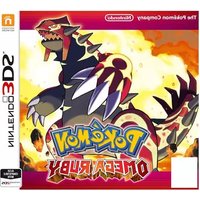
Pokémon Omega Ruby - Game NINTENDO - Free user manual and instructions
Find the device manual for free Pokémon Omega Ruby NINTENDO in PDF.


| Product Type | Video Game |
| Platform | Nintendo 3DS |
| Genre | Role-Playing Game (RPG) |
| Publisher | Nintendo |
| Developer | Game Freak |
| Release Date | November 21, 2014 |
| ESRB Rating | E (Everyone) |
| Number of Players | 1 player (multiplayer features up to 4) |
| Game File Size | Approximately 1.7 GB (digital version) |
| Supported Languages | English, French, German, Spanish, Italian, Japanese, Korean, Chinese |
| Network Features | Local wireless, online trading/battles (Nintendo Network) |
| StreetPass | Supported |
| SpotPass | Supported |
| In-Game Purchases | Optional (Pokémon Bank subscription) |
| Save Data | Automatic and manual save (one save slot) |
| Compatibility | Works with all Nintendo 3DS family systems |
| Release Region | Worldwide (multiple regional variants) |
| Media Type | Nintendo 3DS Game Card or digital download |
| Packaging Contents | Game card, instruction manual (digital), no case included for digital |
| Warranty | Manufacturer defects covered by Nintendo standard warranty |
Frequently Asked Questions - Pokémon Omega Ruby NINTENDO
User questions about Pokémon Omega Ruby NINTENDO
0 question about this device. Answer the ones you know or ask your own.
Ask a new question about this device
Download the instructions for your Game in PDF format for free! Find your manual Pokémon Omega Ruby - NINTENDO and take your electronic device back in hand. On this page are published all the documents necessary for the use of your device. Pokémon Omega Ruby by NINTENDO.
USER MANUAL Pokémon Omega Ruby NINTENDO
5 Note to Parents & Guardians
Getting Started
6 Introduction
7 Saving & Erasing Data
Into a World of Adventure
8 Gameplay
9 Game Screens
10 The Battle Screen
11 Facilities & Buildings
PokéNav Plus
12 What Is the PokéNav Plus?
13 AreaNav
14 DexNav
15 PlayNav & the PSS
16 The PSS Menu
17 PSS Settings
18 Pokémon-Amie
19 Super Training
Contest Spectaculars
20 What Are Contests?
Super-Secret Bases
21 About Super-Secret Bases
About Communications
22 Battle
| 23 | Link Trade |
| 24 | Battle Spot |
| 25 | Wonder Trade |
| 26 | Game Chat |
| 27 | O-Power |
| 28 | Holo Caster |
| 29 | GTS |
| 30 | Game Sync |
| 31 | BuzzNav & Super-Secret Bases |
| 32 | Pokémon Contest Spectaculars! |
| 33 | Other Features |
| 34 | Getting Ready (Local Play) |
| 35 | Getting Ready (Internet) |
| Troubleshooting | |
| 36 | Support Information |
1 Important Information
Please read this manual carefully before using the software. If the software will be used by children, the manual should be read and explained to them by an adult.
Also, before using this software, please select ⚠️ in the HOME Menu and carefully review content in "Health and Safety Information." It contains important information that will help you enjoy this software.
You should also thoroughly read your Operations Manual, including the "Health and Safety Information" section, before using this software.
Please note that except where otherwise stated, "Nintendo 3DS™" refers to all devices in the Nintendo 3DS family, including the Nintendo 3DS, Nintendo 3DS XL, and Nintendo 2DS™.
Important Information
Your Nintendo 3DS system and this software are not designed for use with any unauthorized device or un sad accessory. Such use may be illegal, voids any warranty, and is a breach of your obligations under the User Agreement. Further, such use may lead to injury to yourself or others and may cause performance issues and/or damage to your Nintendo 3DS system and related services. Nintendo (as well as any Nintendo licensee or distributor) is not responsible for any damage or loss caused by the use of such device or unlicensed accessory. Except as authorized, copying of any Nintendo software is illegal and is strictly prohibited by domestic and international intellectual property laws. "Back-up" or "archival" copies are not authorized.
Nintendo respects the intellectual property of others, and we ask Nintendo 3DS software Content Providers to do the same. In accordance with the Digital Millennium Copyright Act in the US, the Electronic Commerce Directive in the EU, and other applicable law, we have adopted a policy of removing, in appropriate circumstances and at our sole discretion, any Nintendo 3DS software that appears to infringe anyone else's intellectual property. If you believe your intellectual property rights are beg infringed, please visit www.nintendo.com/ippolicy to view the full policy and understand your rights.
Inc. / GAME FREAK inc.
Trademarks are property of their respective owners. Nintendo 3DS is a trademark of Nintendo.

This product uses the LC Font by Sharp Corporation. LCFONT, LC Font and the LC logo mark are trademarks of Sharp Corporation.
"QR Code reader" includes software deliverables of Information System Products Co., Ltd. and Institute of Super Compression Technologies, Inc.
QR Code is a registered trademark of DENSO WAVE INCORPORATED.
CTR-P-ECRA-00
2 Before You Start
This game is Pokémon™ Omega Ruby. The story differs slightly in Pokémon Omega Ruby and Pokémon™ Alpha Sapphire, as do the types and likelihood of Pokémon appearing. However, you can use communication features, battle, and trade Pokémon between Pokémon Omega Ruby and Pokémon Alpha Sapphire.
◆ Some of this game's features work together with the time settings on your Nintendo 3DS system. If you change your Nintendo 3DS system or SD Card, or you change the time or calendar settings on your Nintendo 3DS system, you may temporarily lose access to these features.
◆ If you change Nintendo 3DS systems or SD Cards, the data for your Friends and Acquaintances on the PSS (p. 15) will change.
◆ Certain Pokémon and items cannot be transferred between this game and Pokémon X and Pokémon Y.
3 Information-Sharing Precautions
User-generated content, or UGC, is content created by users, such as messages, Mii™ characters, images, photos, video, audio, etc.
Information-Sharing Precautions
The extent of UGC exchange depends on the software.
- Nintendo bears no responsibility whatsoever for any problems that result from the use of the Internet (for example, the sending of content over the Internet, or the sending or receiving of content with others).
4 Online Features
You can do the following things:
● Player Search System
Battle against and trade with other players (p. 15).
- Pokémon-Amie
Play with Pokémon (p. 18).
● Battle Spot
Battle against others around the world (p. 24).
- Wonder Trade
Offer a Pokémon for trade and receive a Pokémon from someone else in the world (p. 25).
● Game Chat
Talk with Friends during trades and battles (p. 26).
- O-Power
Use your energy to bestow mysterious powers on yourself or other players (p. 27).
Holo Caster
Receive notifications (p. 28).
GTS
Search for Pokémon or deposit your own (p. 29).
● Game Sync
Connect to the Pokémon Global Link (p. 30).
Super-Secret Bases Exchange information about Secret Bases (p. 31).
Other Features
Create a profile to use and send messages to other players on the PSS (p. 33).
◆ In order to connect to the Internet, you must complete the Internet settings in your system. Please refer to your Operations Manual for more about setting up an Internet connection.
- Your Global Trade Station (GTS) or Battle Videos data may be erased without warning.
This software supports Nintendo .krølet

NINTENDO NETWORK
Nintendo Network is the name of Nintendo's network service that enables users to enjoy games and other content via the next
Protecting Your Privacy
- To protect your privacy, do not give out personal information, such as last name, phone number, birth date, age, school, e-mail, or home address when communicating with others.
- Friend codes are a part of a system that allows you to play with people you know. If you exchange friend codes with strangers, there is a risk you could share information with
people you do not know or exchange messages that contain offensive language. We therefore recommend that you do not give your friend codes to people you don't know.
Sharing Your Content
This software allows you to share information, such as your Trainer name, Pokémon nicknames, brief written messages, audio messages, and images and videos that you have created through local communication and online services. Note the following when using this software:
- When communicating with others, the information you enter (for example, the names of your in-game characters) may be viewed by many people. Please do not use personal information that could be used to identify you.
- Please do not use another person's name or image without their permission.
- Please do not use offensive language in names or messages.
Children should read this section with a parent or guardian. You can restrict the following functions via Parental Controls.
◆ Access to this game (as well as other games) can also be restricted through the Software Rating item in Parental Controls.
◆ For more information, refer to the Operations Manual.
- Internet Browser Usage You can restrict your child's ability to open the Internet browser.
● Sharing Images / Audio / Video / Long Text Data You can restrict your child's ability to send data as part of their profile, including sending images and photos (p. 33), and disable Game Chat (p. 26).
● Online Interaction You can also restrict your child's ability to use the Internet for communication on the PSS (p. 17).
- StreetPass You can restrict your child's use of StreetPass™ for the BuzzNav and Super-Secret Base (p. 31) features.
● Friend Registration You can restrict your child's ability to interact with Friends registered in the Nintendo 3DS friend list within the PSS (p. 15).

Starting the Game
Begin by selecting your preferred language, and then continue to the title screen. You cannot switch languages, gender, or your Trainer's name after creating a saved-game file, unless you erase the game and start over.

Press on the title screen, and the game will begin. If you have already made a save in-game, you can continue from where you left off by selecting your save on the title menu.

How to Play

Basic Controls
| Move cursor | ◎ / + |
| Ma selection | A |
| Scroll through text | A |
 action action | B |

Character Controls
| Wà | + |
| Run | + + Ⓑ |
| Sneak | ◎ (Push lightly) |
| Examine things | Ⓐ |
| Talk to people | Ⓐ |

Riding Bikes
| Me | + |
| Jump (Acro Bike only) | (+)(Only when pressing left, right, or backward in relation to current direction) |
| Wheelie (Acro Bike only) | (B)(Move using +) |
| Bunny-hop (Acro Bike only) | Hd (Move using +) |
◆ To ride your Bike, select it from the Key Items in your Bag. You can dismount in the same way.

Other Controls
| Open and close the field menu | ✕ |
| Return to view seen | Press ® or tap [IMAGE] |
| Display the not menu | |
| Select an item ehtüm not menu |
◆ If you only have one item registered to your Ready button, you will automatically use it without needing to select an item.

natural_image
Abstract warm-toned image with orange and yellow gradients, no text or symbols visible7 Saving & Erasing Data

Saving Your Game
If you select Save on the field menu (p. 9), you will be able to save your adventure up to that point.
You can only keep one saved-game file.
Extra data saved to your SD Card from both Pokémon Omega Ruby and Pokémon Alpha Sapphire—such as Battle Videos and notices received on your Holo Caster (SpotPass™)—will be saved together under the name "Pokémon ΩR / αS."

Erasing Your Game
If you wish to start again from the beginning, you will first have to erase your saved-game file. When you wish to completely erase your saved data, press + + Ⓑ + Ⓧ simultaneously from the title screen.
Once your saved-game file is erased, it cannot be recovered. All of your Pokémon, items, and settings will be lost. Be very sure you understand the implications before erasing your game.
Notes regarding the downloadable version:
You can copy or move your data to a different SD Card, but you cannot use such data as a backup of your save data.
sliaF gniwSe

If you cannot save your game, you will not be able to return to the title screen. When you see the above screen, press + + Ⓑ + Ⓕ simultaneously, and follow the directions that appear on-screen.
Data can be lost due to user action, such as repeatedly powering off and on the system or removing a Game Card or SD Card while saving. Data loss may also be caused by poor connectivity due to dirt or dust in the system's ports. Please be aware that in these cases data cannot be restored.

natural_image
Abstract warm-toned image with blurred orange and yellow gradients (no text or symbols)Gameplay

natural_image
Game scene with cartoon character on a green island, no visible text or symbolsThis world is inhabited by mysterious creatures known as Pokémon. The appearances and forms of these Pokémon and the habitats they live in are all very different. We humans live together with our Pokémon every single day, but there is still so much that we do not understand about them. Many scholars around the world research them, including Professor Birch of Littleroot Town.
Embarking on Your Adventure
On a beautiful sunny day, you move to Littleroot Town, where Professor Birch has his Pokémon Lab. You dutifully go to greet the professor and find him being attacked by a wild Pokémon. After you save him, the professor awards you a Pokémon of your own. The tale of you and your Pokémon partner is about to begin!
Journey through Hoenn

natural_image
Illustration of a wooden structure with a dome on top, surrounded by green trees and a small vehicle (no text or symbols visible)The expansive Hoenn region is
graced with mountains and seas and all the abundance of nature. This is where you will travel with your Pokémon. As you encounter other people and interact with the natural world, you and your Pokémon will both grow. That is the real purpose of your journey!
Meet Different Pokémon
Register as many Pokémon as you can in your Hoenn Pokédex by encountering and catching many different types of Pokémon. This is one of the big goals to complete on your journey!
Become the Strongest Trainer
It is important for a Pokémon Trainer to improve his or her skills. By battling against wild Pokémon and other Trainers, your Pokémon will gain experience and become stronger. In the Hoenn region, you can challenge Pokémon Gyms to test your strength against that of others. Defeat the powerful Gym Leaders within them, and work hard to become the strongest Trainer you can be!

natural_image
Abstract blurred background with warm orange and yellow tones (no text or symbols)
The Field Menu
If you press Ⓧ while in the field, the screen below will be displayed.
◆ More options will appear on this screen as you progress through your adventure.
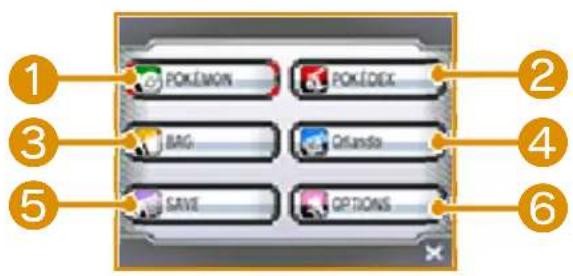
① Pokémon
View information about the Pokémon in your party, change their order, give them items, and more. If your Pokémon learn moves that can be used in the field (like Cut), you may also use them from here.
② Pokédex
Data about the Pokémon you see or capture is recorded in your Pokédex. Here you can check where a Pokémon can be found, listen to its cry, view how it moves, and more.
③ Bag
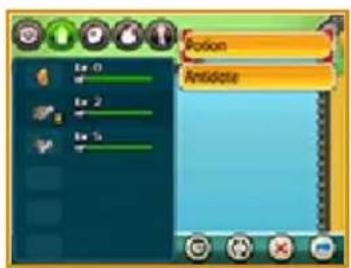
View your items and use them from here. You can also change the order in which your Pockets appear by holding the stylus down on an icon and moving it. You can also change the order of your items within each Pocket by pressing 📷 at the bottom of the screen.
④ Trainer Card
View information about your adventure, and view the Gym Badges you have won. You can zoom and rotate your player character by using Ⓞ.
⑤ Save
Save your progress up to the current point (p. 7).
⑥ Options

Change a variety of settings that affect your game experience. When you have finished making changes, select Confirm.

PokéNav Plus (p. 12)

Touch the corresponding icons on the lower screen to switch between the AreaNav (p. 13), DexNav (p. 14), PlayNav (p. 15), and BuzzNav (p. 12) applications. These features will be added as you progress through your adventure.

natural_image
Abstract warm-toned image with orange and yellow gradients (no text or symbols)Understanding the Battle Screen
When a battle starts, the Pokémon shown on the top left of the Pokémon screen in the field menu will appear first. All of the Pokémon who take part in a battle—and are not fainted—can gain experience points if you win the battle or successfully capture the opposing Pokémon. However, if all of your Pokémon faint, you'll lose the battle, forfeit some of your money, and be returned to either the last Pokémon Center you used or your home.
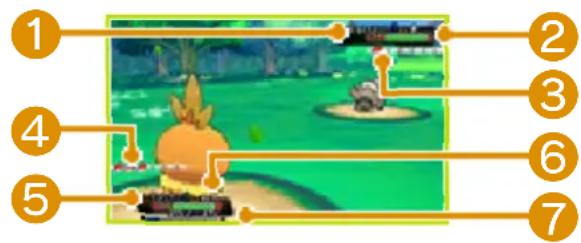
① Name, Gender, and Level of Opposing Pokémon
Wild Pokémon that you have previously captured are marked with beside their names.
② Opposing Pokémon's HP
HP is the measurement of a Pokémon's health. When it reaches 0, the Pokémon faints and can no longer do battle.
③ Number of Opposing Pokémon
4 Number of Your Party Pokémon
⑤ Your Pokémon's HP
⑥ Name, Gender, and Level of Your Pokémon
⑦ Experience Points Gauge
When the gauge is filled up, your Pokémon gains a level.

8 Fight
Direct your Pokémon to use their moves. The number of times you can use a given move is listed as Power Points (PP). When a move's PP reaches 0, it cannot be used again until its PP is restored.
⑨ Bag
Use some of the items in your Bag.
10 Run
Flee from a battle. Attempting to run away does not always succeed, and you cannot run from a battle against another Trainer.
11 Pokémon
Check information about your party Pokémon, and switch them in ad out of battle.

natural_image
Abstract warm-toned image with orange and yellow gradients, no text or symbols visible11 Facilities & Buildings
There are all kinds of different facilities and buildings in the Hoenn region, and many people live here. Take your time as you travel around and talk to many different people. You may learn some very useful information!
Pokémon Centers

natural_image
Illustration of a cartoon-style house with red roof, white walls, and green lawn (no text or symbols)At Pokémon Centers, you can restore your Pokémon to full health, use the PC, and more.
straM ékoP
natural_image
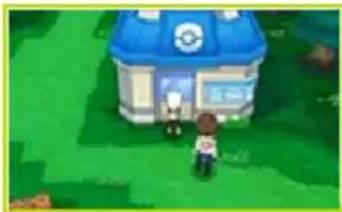
Pixelated illustration of a blue and white toy car with a small figure standing nearby on a green grassy field (no text or symbols)These shops sell many items that will aid you on your adventure.

natural_image
Abstract orange and yellow gradient background with no text or symbols12 What Is the PokéNav Plus?
The PokéNav Plus is a device that will be a great support in your adventure. It can be equipped with four applications: the AreaNav (p. 13), the DexNav (p. 14), the PlayNav (p. 15), and the BuzzNav. It is displayed on the lower screen, and each application can be opened by touching it.
◆ These different applications will become available as you progress through your adventure.

vaNzzuB
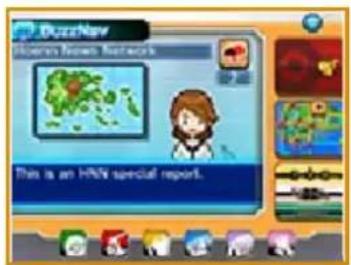
View news about what is happening around the Hoenn region here. By using communication features, you will be able to view news about other players' adventures as well.

natural_image
Abstract blurred image with warm orange and yellow tones, no discernible text or symbolsThe AreaNav shows many different kinds of information. You can also use it to select places to reach using Fly.
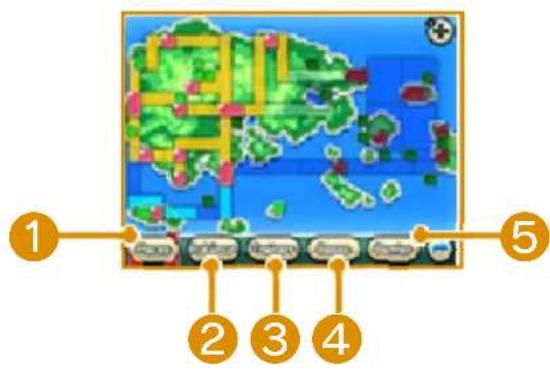
① Places
Move the cursor to view each location's description and check what facilities can be found there.
② Pokémon
Check which Pokémon appear in a given area.
③ Trainers
Check information about Trainers in a given area.
4 Bases
View the Secret Bases located in a given area.
⑤ Berries
Check information about the Berries you have planted in a given area.
The DexNav displays information about the Pokémon that can appear in your present location. If you collect all of the available Pokémon in a given area, you will see an icon appear at the top of the DexNav to show that it is complete.

The icons of any Pokémon you have caught are displayed. If you have only seen a Pokémon but not caught it, you will see its silhouette instead.

Detector Icon
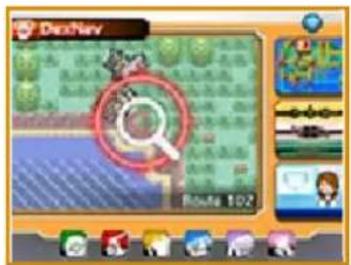
If there are Pokémon nearby, you may see the Detector icon appear on the DexNav. Touch the Detector icon to learn more about these nearby Pokémon.

natural_image
Abstract orange and yellow gradient background with no text or symbolsThe PlayNav's Player Search System (PSS) is a system that helps you find other players who are playing Pokémon Omega Ruby, Pokémon Alpha Sapphire, Pokémon X, or Pokémon Y at the same time and allows you to play together. Local wireless connects you to nearby players, while your Internet connection lets you see players from around the world.
The PSS screen can be displayed on your lower screen during the game.
Touch a player appearing on your PSS screen to see the different ways that you can play with that person.
neercS SS@hT

1 Friends
People registered on your Nintendo 3DS system's friend list appear here. You can also register people who were not previously on your system's friend list or who you do not know in real life. You do this by battling and trading multiple times with someone, until eventually you
are asked if you wish to register that person as a Friend. The ability to register Friends this way can be restricted using Parental Controls (p. 5).
Select a Friend's icon and his or her friend code will be displayed.
② Acquaintances
People who you have not registered on your Nintendo 3DS system's friend list but have traded or battled with at least once are displayed here.
③ Passersby
Any players that do not fit into the above two categories are displayed here.
◆ Up to 100 player icons can be displayed. Touch a player icon and slide to the right or left to display more people on your screen.
④ Changing Connectivity
You can switch between using local wireless and your Internet connection. When you are using local wireless, you will see 📞, and when you are using your Internet connection, you will see 📞.
⑤ PSS Menu (p. 16)
⑥ Status Icon
These icons appear when a person is busy battling or trading, or when a person is seeking a partner to play with.
Battle
Trade
Game Chat
Shout-Out
Birthday
Busy*
*The Busy icon appears when someone is using Battle Spot, the GTS, or Wonder Trade.
⑦ Bag and Other Icons
Touching these small icons will open similar screens from the field menu (p. 9).

natural_image
Abstract warm-toned image with orange and yellow gradients, no text or symbols visibleTouch 📋 on the PSS screen to open the PSS menu.
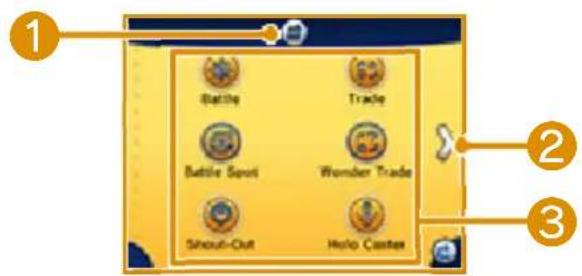
① Return to the PSS Screen
② Move to Next Screen
③ Icons
Battle (p. 22)
Link Trade (p. 23)
Battle Spot (p. 24)
Wonder Trade (p. 25)
Shout-Out (p. 33)
Holo Caster (p. 28)
GTS (p. 29)
Game Sync (p. 30)
O-Power (p. 27)
Favorites List (p. 33)
Profile (p. 33)
PSS Settings (p. 17)
PSS Settings
Communication-Request Settings

You can set whether you would like to play with Friends, Acquaintances, or Passersby. By removing the check mark next to any of these categories, you will no longer communicate with players from that category.
◆ You cannot block communications from one specific or several specific players.
Disable PSS Communication
You can disable all communications for the PSS from here. This will also prevent any data from being exchanged through the PSS for Secret Bases, the BuzzNav, and Mirage spots.
tahC emaG
You can choose whether to enable or disable Game Chat (p. 26).
You can play Pokémon-Amie in the PlayNav application. Pokémon-Amie brings you even closer to your favorite Pokémon. Pick one of the Pokémon from your party, and you can play together whenever you'd like.
If you touch your Pokémon shown in the lower screen during Pokémon-Amie, the following screen will be displayed.

Play

natural_image
Cartoon character with a blue head and orange star on a grassy field, surrounded by small icons (no text or symbols)Play with your chosen Pokémon here. By sliding your stylus across the screen, you can stroke your Pokémon.
① Poké Puffs
Feed hungry Pokémon Poké Puffs! Select a Poké Puff and slide it across the screen with your stylus to where the Pokémon might take a bite—then see what happens!
② Minigames
Play minigames together with your Pokémon. The types of Poké Puffs you receive will vary based on your results.
Making Faces

natural_image
Cartoon character with a blue head and smiling emoji, standing on a green grassy field (no text or symbols)① When your Pokémon is looking at you, 🤨 will appear on the lower screen.
② When you see 🤔, making different faces will launch the Making Faces game.
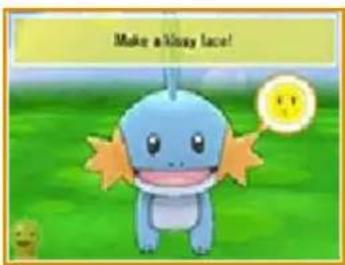
③ Instructions will appear on top of the Touch Screen, along with icons near your Pokémon's face to show what expressions your Pokémon wants to see. Turn toward your Pokémon, and try to make the faces it requests. If your Pokémon is happy with your performance, you will have succeeded.
Making Faces uses your Nintendo 3DS system's inner camera. Please follow these directions to help the camera successfully detect your expressions:
- Play in a well-lit area.
- Keep your Nintendo 3DS system about a foot from your face.
- When tilting your head to the side, hold your Nintendo 3DS level, so it does not tilt.
- Pull your hair away from your face so that your eyebrows are visible.
- If necessary, remove any eyewear to improve facial recognition.
Decorate
You can change the wallpaper and Decorations in your Pokémon-Amie space.
hctiwS
Switch which Pokémon you are playing with in Pokémon-Amie.
Super Training
You can use Super Training in the PlayNav application. Your Pokémon can take part in Super Training, a competitive sport and training game, or Core Training, where your Pokémon can pound away at training bags.
Core Training Screen
After choosing a training bag, touch the screen to make your Pokémon strike the training bag. By working at training bags, your Pokémon can reap a variety of benefits, such as raising its base stats or gaining useful advantages in its next Super-Training Regimen.
If you don't actively touch the screen, your Pokémon will still hit the training bag once per minute.

① Super Training
Play a competitive sports-style training game. Win the game to receive useful items for training and increase the base stats for your Pokémon.
② Choose a Training Bag
Select a training bag for your Pokémon to use.
③ Current Team
Select a Pokémon from your current team to train.
4 Effort-o-Meter
Check the progress of your Pokémon's training on its Effort-o-Meter. Green represents the relative stat levels for a given kind of Pokémon, while yellow shows how much your own Pokémon has improved each of its base stats. The bar on the right shows your Pokémon's overall progress in raising its stats. Fill this bar to the top, and your Pokémon will be a Fully Trained Pokémon!
⑤ Shots
Shows the type of shot your Pokémon will use during Super Training. There are five different shot types.
Super Training Screen
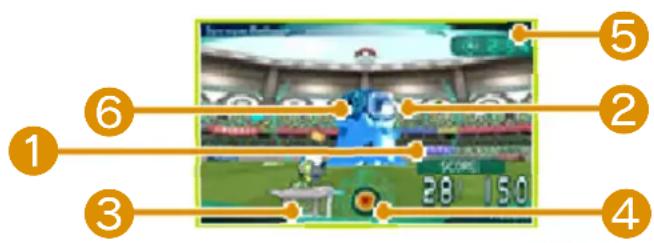
1 Score
Your score increases when you get shots into the goals in front of
Balloon Bots. If you score goals equal to the number on the right, you win the game and your training is complete. If any of the Balloon Bot's shots go into your Pokémon's goal, though, your score drops. You can block opponent's shots by pressing .
② Balloon Bot's Goal
③ Your Pokémon's Goal
④ Energy Meter
Your Pokémon accumulates Energy over time. If you fire a shot when your Pokémon has enough Energy, that shot is a powered-up Energy Shot. Both the colors and special features of Energy Shots differ for different kinds of Pokémon.
5 Timer
When time runs out, your Super-Training Regimen is over!
6
7
6 Sight
Slide your stylus across the screen, and the sight on the top screen will mirror your movements. Touch the screen to release a shot.
⑦ Retire Button
Touch this button twice, and you can exit Super Training immediately.

natural_image
Abstract blurred image with orange and yellow tones, no discernible text or symbolsWhat Are Contests?
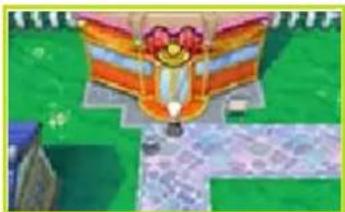
Pokémon Contest Spectaculars (hereafter "contests") measure your Pokémon's appeal, based on conditions like their Coolness or Beauty. There is an Introduction Round, where you show off the Pokémon being entered in the competition, and the Talent Round, where Pokémon vie for the top spot using their moves. Contests are an in-game only event. You can enjoy contests at all of the Contest Halls in the different corners of Hoenn.
natural_image
Top-down view of a colorful, stylized creature with ornate wings and a central figure (no visible text or symbols)
Your Pokéblock Kit
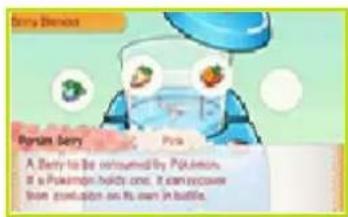
If you have a Pokéblock Kit, you can make Pokéblocks for your Pokémon. Pokéblocks help raise your Pokémon's conditions so that they can perform even better in contests.

Taking Photos
During contests, you can press the camera icon on the lower screen to capture what is happening on the upper screen. You can view the photos you take in this way in the
Contest Hall or via the Nintendo 3DS Camera application on the HOME Menu.

natural_image
Abstract warm-toned image with orange and yellow gradients, no text or symbols visibleAbout Super-Secret Bases
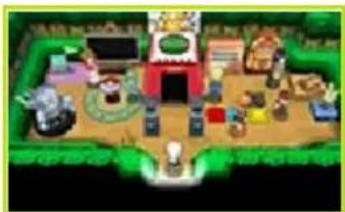
At a certain point in your adventure you will become able to make a Super-Secret Base (also called a "Secret Base"). There are many spots in the Hoenn region where you can make your Secret Base. Start by choosing a location that you like.

natural_image
Pixelated illustration of a person standing on a green grassy path with trees and rocks in the background (no text or symbols)Your Secret Base will also appear in the games of other players with whom you communicate. You can find other characters in Secret Bases.
natural_image
Game scene with character blocks and a central entrance, no visible text or symbols
QR Code Patterns
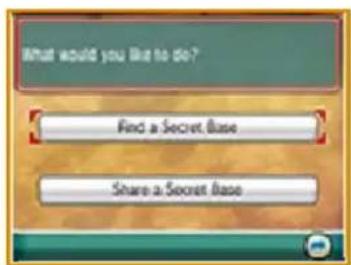
Using QR Code® patterns, you can find the Secret Bases of other players or share your Secret Base with other players.

natural_image
Green QR code pattern with no visible text or symbolsSelect Find a Secret Base in order to read the QR Code for another player's Secret Base. When you do, the outer camera on your Nintendo 3DS system will start up. Capture the QR Code within the square frame that appears on the screen.

Using Share a Secret Base will let you make a QR Code for your Secret Base. Select it, and your QR Code will be displayed. Have other players scan the QR Code directly from this screen, or save it to your SD Card and then share it.
The Find a Secret Base option in a Secret Base uses your system's outer camera. Please observe the following points for better success when reading QR Code patterns:
- Move your system and the QR Code so that you can clearly see the QR Code.
- Make sure that the entire QR Code fits within the frame for the outer camera.
- It will be easier to capture QR Code patterns with sufficient lighting.
- If your system's outer camera is dirty, please clean it with a soft cloth.
• Capture the QR Code in a setting free from reflections from sunlight or other light sources. If there are reflections on the surface, you will not be able to read the QR Code.
- If you print your QR Code on paper, it may not read properly if the paper is folded, bent, or marred in some way. Smooth it out flat and make sure it has no marks on it.

natural_image
Abstract flame pattern with orange and yellow gradients (no text or symbols)You can battle other players using the PSS. Use your Infrared Connection to battle someone right in front of you, use Local Wireless to battle people nearby, or use your Internet connection to battle people far away.
Before you begin, read Getting Ready (Local Play) (p. 34) or Getting Ready (Internet) (p. 35).

Select a Player Icon from the PSS Screen to Battle
Local Wireless (Local Play) 📋 / Online Battles (Internet) 🌐

① Select the opponent you wish to battle. On the next page, select Battle, choose the options then select Confirm, and finally select Yes.

② The challenged player should select Yes and review the battle
format and rules. When both parties are ready, select Battle, Start! After picking your Pokémon for the battle, select Confirm.

Select Battle from the PSS Menu
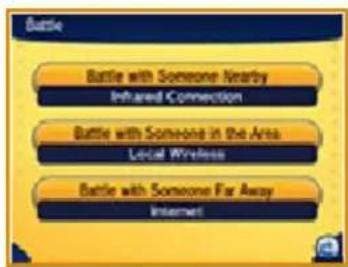
Infrared Connection (Local Play)

Battle with Someone Nearby (Infrared Connection)
① Both parties should select Battle from the PSS menu, then Battle with Someone Nearby. Next, one person must select the battle rules. The other person will confirm the rules, then press Yes.
② Both parties should select Battle, Start! After picking your Pokémon for the battle, select Confirm.
Local Wireless (Local Play)

Battle with Someone in the Area (Local Connection)
① Select Battle from the PSS menu, then Battle with Someone in the Area. Choose the options then select Confirm.
② Select the opponent you wish to
battle from the PSS screen. That player should select Yes. Next, follow the same steps as when using an Infrared Connection.

nretnl(teatnl

Battle with Someone Far Away (Internet)
① Select Battle from the PSS menu, then Battle with Someone Far Away.
② Select the opponent you wish to battle from the PSS screen. The challenged player should select Yes. The process after that is the same as when using the Infrared Connection.
When using Local Play or an Internet connection, you can invite any available Friends and Acquaintances to battle with you.
As you make your way through the game, you will be able to get a Vs. Recorder. Using this Vs. Recorder, you can record some of your battles after they end. Uploaded Battle Videos will be visible via the Internet to any player around the world who has a Vs. Recorder.
You can trade Pokémon with other players using the PSS. Use Infrared Connection to trade with people in front of you, Local Wireless to trade with people in the area, or Internet to trade with people far away. Before you begin, read Getting Ready (Local Play) (p. 34) or Getting Ready (Internet) (p. 35).

Select a Player Icon from the PSS Screen to Trade
Local Wireless (Local Play) 📋 / Internet (Internet) 🌐

① Select the player you wish to trade with. On the next page, select Trade, then Yes.

② The player that you have asked to trade should select Yes. Then both of you must select a Pokémon to put forward for trade and select Show. After checking if
the Pokémon you will trade for is one you want, select Offer.

Select Trade from the PSS Menu

Infrared Connection (Local Play)

Trade with Someone Nearby
① Both parties should select Trade from the PSS menu, then Trade with Someone Nearby.
② Next, select the Pokémon you will offer in trade, and then select Show. When you and your trade partner are satisfied with the offered Pokémon, select Offer to initiate the trade.
Local Wireless (Local Play)

Trade with Someone in the Area
① Select Trade from the PSS menu, then Trade with Someone in the Area.
② Select the player you wish to trade with. That player should select Yes. After that point, the steps are the same as when using the Infrared Connection.

Trade with Someone Far Away
① Select Trade from the PSS menu, then Trade with Someone Far Away.
② Select Yes on the screen that appears. Select the player you wish to trade with. That player should select Yes. The process after that point is the same as when using the Infrared Connection.
When using Local Play or an Internet connection, you can invite any available Friends and Acquaintances to trade with you.

Battle Spot (Internet)

With Battle Spot, you can use your Internet connection to battle people from around the world.
Random Matchup

Free Battle
You can battle with different people from around the world. Your wins and losses will not be recorded.

Rating Battle
The results of your battles will lower or raise your rating. You can check the rankings of players within a certain period on the Pokémon Global Link (PGL) (p. 30). Rankings are decided by your rating, so keep on winning Rating Battles to achieve a high rank.
Online Competition
Online Competitions are carried out using your Internet connection. The rankings from these battle competitions can be viewed on the PGL. Rankings are decided by your rating.
Only players who have registered their Game Sync ID (p. 30) on the PGL can take part in Rating Battles and Online Competitions.
Visit the PGL website to view rankings and battle results, as well as to enter Online Competitions. For more information, visit the PGL website at: www.pokemon-gl.com.
◆ Random Matchup battles will not pit you against players using Pokémon X or Pokémon Y.
◆ Please be aware that service can be suspended without warning.

Wonder Trade (Interne t)

Select one of your own Pokémon to put forth as a trade, and it will be whisked away to be traded with the Pokémon of someone else out in the world. There are no settings with this trade, so the Pokémon you receive in return is a total mystery. Look forward to finding out what you'll get!
If your Friends own Pokémon X, Pokémon Y, Pokémon Omega Ruby, or Pokémon Alpha Sapphire, Game Chat allows you to talk with Friends while battling or trading. Before you begin, read Getting Ready (Local Play) (p. 34) or Getting Ready (Internet) (p. 35).

Game Chat (Local Play) / (Internet)

① From the PSS screen, first choose a Friend and then select Game Chat. If the other party selects Yes, Game Chat will begin.
② Please speak toward your Nintendo 3DS system's microphone.
You can turn Game Chat on or off by selecting Enable Game Chat or Disable Game Chat in the PSS Settings (p. 17).
Store up energy and use it to grant mysterious powers (O-Powers) to yourself and to other players.
O-Powers come with all sorts of different effects—like making Pokémon easier to catch, for example. The energy you use up returns over time.
You can increase the number of O-Powers available as you progress through the game.
Before you begin, please read Getting Ready (Local Play) (p. 34) or Getting Ready (Internet) (p. 35).

Use O-Powers by Selecting the Icon from the PSS Screen
Local Wireless (Local Play) /
)enretnl(teatnl
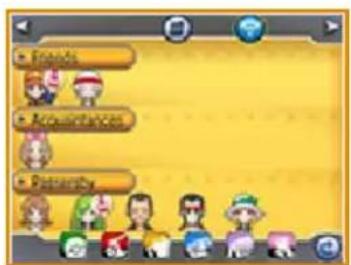
Select the person you want to use an O-Power on from the PSS screen. On the next page, select O-Power. Select the O-Power you want to use on the next screen.

When you have decided which O-Power you would like to use, select Give.

From the PSS screen, you can also receive O-Powers that others are offering to you. A person who is using their O-Power will be surrounded by a glowing light. Select a glowing character, and then select O-Power and finally Receive an O-Power! You will gain the benefits of that O-Power.

Using O-Powers from the PSS Menu
Local Wireless (Local Play) / tenretnl( tenretn
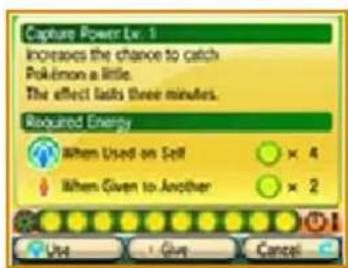
Select O-Power from the PSS menu. When you have decided which
O-Power you would like, select Use or Give.

natural_image
Abstract blurred image with warm orange and yellow tones, no discernible text or symbolsThere are two ways to receive Holo Caster announcements: one is to select Activate SpotPass and the other is to select Search for special announcements.

Notifications
(SpotPass)

By putting your Nintendo 3DS system into Sleep Mode when you aren't playing your game, it will automatically seek out wireless LAN access points that it can connect to in order to receive notifications related to the game.
◆ Any data that you receive via SpotPass will be saved on your SD Card. We recommend that you always keep an SD Card in your system.
Activating SpotPass

Touch Holo Caster on the PSS menu, select Activate SpotPass, and then choose Yes.
◆ To deactivate, touch Holo Caster on the PSS menu, select
Deactivate SpotPass, and then choose Yes.

Special Announcements (Internet)

You can receive special announcements using your Internet connection. Touch Holo Caster on the PSS menu, select Search for Special Announcements, and then touch Yes.

natural_image
Abstract warm-toned image with orange and yellow gradients (no text or symbols)
GTS (Internet)


nomékoP kše
Search for the Pokémon you want among the Pokémon other people are offering on the GTS. When you find a Pokémon that fulfils your desired conditions, select one of your Pokémon that will fulfil the other party's desired conditions and trade them.
Deposit Pokémon
Select a Pokémon to deposit, and specify what kind of Pokémon you would like to receive in return for it. You will then be able to deposit your Pokémon to trade. When a trade partner is found, your Pokémon will be traded. If your Pokémon is not traded, you can take your Pokémon back by selecting Take back.
◆ The nickname of any Pokémon deposited in the GTS will be visible to everyone who accesses the GTS. The name of the person who deposited it (your Trainer
name) and a brief message sent with the Pokémon will also be visible. Please do not enter anything that could make others feel uncomfortable.

natural_image
Abstract blurred image with warm orange and yellow tones, no discernible text or symbols
Game Sync (Interne )t


Game Sync connects your game to the Pokémon Global Link (PGL). The PGL website, operated by The Pokémon Company and its affiliates, connects with Pokémon Omega Ruby and Pokémon Alpha Sapphire (www.pokemon-gl.com).
You can enjoy a variety of content linked to the data uploaded to the PGL server from your game. Check out the records you have achieved during your adventure, receive Medals based on your achievements, use the Poké Miles you've earned in the game to receive items, and more.
You must become a Pokémon Trainer Club member (no registration fee or annual membership fee required) to use the Pokémon Global Link. You can register for the Pokémon Trainer Club at the main page of the PGL website.
◆ The Pokémon Global Link provides additional content to increase your enjoyment of Pokémon Omega Ruby and Pokémon Alpha Sapphire and is
completely optional. It does not affect the progression of the main story in any way.
◆ Using Game Sync uploads a portion of your saved data to the Pokémon Global Link.
You will get an error code saying that the server is too busy if you repeatedly try to use Game Sync. Please wait a few hours between each use of Game Sync.
Error Codes: 090-0200 - 090-0211
If you receive one of these error codes, it means that there are problems with the Pokémon Global Link site or with the server which authenticates codes. For help with these error codes, please go to the Pokémon customer support website at: www.pokemon.com/support.
Other Error Codes
Please refer to the instructions on the screen.
◆ To contact support for the PGL website:
www.pokemon.com/support.
BuzzNav & Super-Secret Bases

BuzzNav, Super-Secret Bases, Mirage Spots (StreetPass) 🎨 / Local Wireless (Local Play) 🎨 / (Internet) 🎨
If you enable StreetPass for this game, you will exchange game data (BuzzNav show data, Secret Bases, Mirage spots) with other players you pass even while your system is in Sleep Mode.
◆ The players you pass must also have StreetPass enabled on their systems for data to be exchanged.
Data will also be exchanged in the same way when using the PSS (Local Play or Internet). When communicating over the Internet with the PSS, you will exchange data with other players from around the world. Before you begin, read Getting Ready (Local Play) (p. 34) and Getting Ready (Internet) (p. 35).
Touch 📁 displayed in the upper-right corner of the BuzzNav screen to load the latest data received.
Using StreetPass

You can select the BuzzNav application from your PokéNav Plus. Touch the icon in the upper-right corner of the BuzzNav screen, and answer Yes when asked if you would like to activate StreetPass.
Deactivating StreetPass
In your System Settings, touch Data Management, and then touch StreetPass Management. Select the Pokémon ΩR / αS icon, and touch Deactivate StreetPass.
When using multiple Pokémon Omega Ruby or Pokémon Alpha Sapphire games:
- Your StreetPass settings are shared between Pokémon Omega Ruby and Pokémon Alpha Sapphire, so if you are playing both games on the same system, the most recent settings you applied will affect both games.
- You will receive data from StreetPass to only one game at a time. It will not be downloaded to both games.
Exchange Data Using Local Play or tenretnl
Data will automatically be transmitted if you answer Yes when asked if you would like to activate StreetPass.
To stop sharing data, please follow the instructions under Disable PSS Communication (p. 17).
Deleting Secret Bases Received srehtO morf
You can remove someone else's Secret Base from your game by selecting Secret Base list in your own base's PC. You can also delete it by selecting Delete Secret Bases from the PC within the base itself.
Pokémon Contest Spectaculars!
You can take part in in-game contests with other nearby players. To get started, first read Getting Ready (Local Play) (p. 34).

Contests (Local Play)

① Talk to the receptionist on the left in a Contest Hall.

② Choose one player in your group to be the leader. The rest of the players should select Join a group.
Before you begin, read Getting Ready (Local Play) (p. 34) and Getting Ready (Internet) (p. 35). You can enter text freely in your Shout-Outs and on your profile.
Remember, don't include any personal information in your Shout-Out. Please check Protecting Your Privacy (p. 4).
Shout-Out (Local Play) 📋 / (Internet) 🌐

Messages will be sent to everyone on the PSS.
◆ Shout-Out messages will not be sent to players who have chosen to disable communications in their PSS settings (p. 17).
Favorites List (Local Play) 📇 / (Internet) 🌐
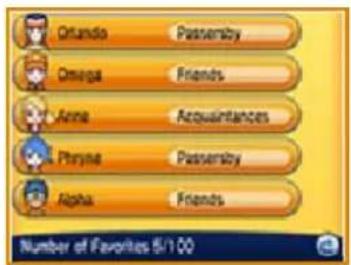
View the profiles of people registered in your Favorites List. You can register up to 100 people. To register someone on your Favorites List, choose a player icon from the PSS screen, then select that person's name on the next screen to appear. On his or her profile screen, select Add to Favorites List.
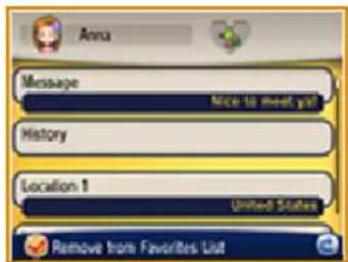
Profile (Local Play) / enretnl
You can edit your profile, which will appear on the PSS, and pick a message that will be seen by everyone on the PSS.
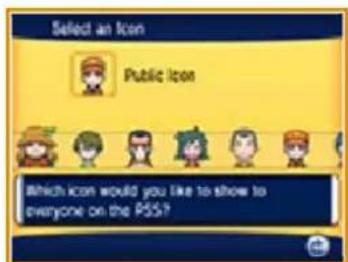
Touch your Trainer name, and you can change the icon that you use on the PSS. You can also use an image or photo saved on your SD Card as your profile image. Please do not use a photo or image that includes personally identifying information or that could make others feel uncomfortable.
◆ Images and photos will be shown
only to Friends registered to your friend list.

natural_image
Abstract blurred image with warm orange and yellow tones, no discernible text or symbols
Getting Ready (Local Play)

With Local Play, you can enjoy battling (p. 22), trading (p. 23), and Game Chat (p. 26) with those nearby, plus share your O-Powers (p. 27), swap BuzzNav stories (p. 31), and share Super-Secret Bases (p. 31), Mirage spots (p. 31), take part in Pokémon Contest Spectaculars together (p. 32), and send Shout-Out messages (p. 33).

You Will Need:
- One Nintendo 3DS system per player (up to 4)
- One Pokémon Omega Ruby, Pokémon Alpha Sapphire, Pokémon X, or Pokémon Y game per player (up to 4)
Please view the relevant page for each feature for more details on how to begin playing.

Getting Ready (Internet)

Use the Internet to enjoy battling (p. 22), trading (p. 23), Battle Spot (p. 24), Wonder Trade (p. 25), and Game Chat (p. 26)! Plus you can share your O-Powers (p. 27), or link up to the GTS (p. 29), use Game Sync (p. 30), enjoy the BuzzNav (p. 31), Super-Secret Bases (p. 31), Mirage spots (p. 31), or just give a Shout-Out (p. 33)!

You Will Need:
- One Nintendo 3DS system per player (up to 4)
- One Pokémon Omega Ruby, Pokémon Alpha Sapphire, Pokémon X, or Pokémon Y game per player (up to 4)
Please view the relevant page for each feature for more details on how to begin playing.
Support Information
dCustomer Service
SUPPORT.NINTENDO.COM
:adaUSA
0073-552-
Latin America/Caribbean:
8707-85



- Getting Started
- Into a World of Adventure
- PokéNav Plus
- Contest Spectaculars
- Super-Secret Bases
- About Communications
- Important Information
- Important Information
- Before You Start
- Information-Sharing Precautions
- Information-Sharing Precautions
- Online Features
- Protecting Your Privacy
- Sharing Your Content
- Starting the Game
- How to Play
- Character Controls
- Riding Bikes
- Other Controls
- Saving & Erasing Data
- Saving Your Game
- Erasing Your Game
- sliaF gniwSe
- Gameplay
- Embarking on Your Adventure
- Journey through Hoenn
- Meet Different Pokémon
- Become the Strongest Trainer
- The Field Menu
- ① Pokémon
- ② Pokédex
- ③ Bag
- ④ Trainer Card
- ⑤ Save
- ⑥ Options
- PokéNav Plus (p. 12)
- Understanding the Battle Screen
- Fight
- ⑨ Bag
- Run
- Pokémon
- Facilities & Buildings
- What Is the PokéNav Plus?
- vaNzzuB
- Friends
- ② Acquaintances
- ③ Passersby
- ④ Changing Connectivity
- ⑤ PSS Menu (p. 16)
- ⑥ Status Icon
- ⑦ Bag and Other Icons
- PSS Settings
- Communication-Request Settings
- Disable PSS Communication
- tahC emaG
- ① Poké Puffs
- ② Minigames
- Making Faces
- Decorate
- hctiwS
- Super Training
- Core Training Screen
- ① Super Training
- What Are Contests?
- Your Pokéblock Kit
- Taking Photos
- About Super-Secret Bases
- QR Code Patterns
- Select a Player Icon from the PSS Screen to Battle
- Select Battle from the PSS Menu
- Select a Player Icon from the PSS Screen to Trade
- Select Trade from the PSS Menu
- Battle Spot (Internet)
- Random Matchup
- Free Battle
- Rating Battle
- Online Competition
- Wonder Trade (Interne t)
- Game Chat (Local Play) / (Internet)
- Using O-Powers from the PSS Menu
- Notifications
- (SpotPass)
- Activating SpotPass
- Special Announcements (Internet)
- GTS (Internet)
- nomékoP kše
- Deposit Pokémon
- Game Sync (Interne )t
- BuzzNav & Super-Secret Bases
- Deactivating StreetPass
- Deleting Secret Bases Received srehtO morf
- Pokémon Contest Spectaculars!
- Contests (Local Play)
- Getting Ready (Local Play)
- You Will Need:
- Getting Ready (Internet)
- Support Information
Brand : NINTENDO
Model : Pokémon Omega Ruby
Category : Game