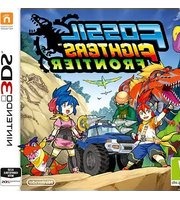
Fossil Fighters Frontier (3DS) - Game NINTENDO - Free user manual and instructions
Find the device manual for free Fossil Fighters Frontier (3DS) NINTENDO in PDF.


| Product Type | Video Game Software |
| Platform | Nintendo 3DS |
| Publisher | Nintendo |
| Genre | Role-Playing / Simulation |
| Release Date | 2015 |
| ESRB Rating | E10+ (Everyone 10+) |
| Game Format | Nintendo 3DS Game Card |
| Dimensions (Cartridge) | 3.5 × 2.1 × 0.3 cm |
| Weight | ~3 g |
| Power Source | Powered by Nintendo 3DS console |
| Save Data | 1 save slot per cartridge; save to cartridge or SD card |
| Number of Players | 1 player |
| Connectivity | Local wireless for multiplayer battles |
| Main Functions | Excavate fossils, revive dinosaurs, train Vivosaurs, battle opponents |
| Maintenance | Keep cartridge clean and dry; avoid exposure to extreme temperatures |
| Safety | Follow Nintendo 3DS health and safety guidelines; take breaks |
| Spare Parts & Repairability | No user-serviceable parts; cartridge is sealed unit |
| Manual Language | English (PDF available) |
Frequently Asked Questions - Fossil Fighters Frontier (3DS) NINTENDO
User questions about Fossil Fighters Frontier (3DS) NINTENDO
0 question about this device. Answer the ones you know or ask your own.
Ask a new question about this device
Download the instructions for your Game in PDF format for free! Find your manual Fossil Fighters Frontier (3DS) - NINTENDO and take your electronic device back in hand. On this page are published all the documents necessary for the use of your device. Fossil Fighters Frontier (3DS) by NINTENDO.
USER MANUAL Fossil Fighters Frontier (3DS) NINTENDO
Fossil Fighters Frontier
1 Important Information
2 Information Sharing
3 Online Features
4 Parental Controls
Basic Information
Introduction
5 What's This Game Like?
6 Controls
7 Starting the Game
8 Saving and Deleting Data
How to Play
9 Exploring Fossil Parks
10 Exploring Dig Sites
11 Fossil Battles
Wireless Communication
12 Team Tournaments
13 Local Matches
14 Multiplayer Digs
15 Online Battles
16 StreetPass Training
Support Information
17 How to Contact Us
1 Important Information
Please read this manual carefully before using this software. If the software is to be used by young children, the manual should be read and explained to them by an adult.
◆ Unless stated otherwise, any references to "Nintendo 3DS" in this manual apply to Nintendo 3DS™ and Nintendo 3DS™ XL systems.
Unless stated otherwise, any references to "Nintendo 3DS" in this manual also apply to Nintendo 2DS™ systems, excluding references to features which make use of 3D visuals. Features which require closing the Nintendo 3DS system can be simulated by using the sleep switch.
IMPORTANT
Important information about your health and safety is available in the Health and Safety Information application on the HOME Menu. You should also thoroughly read the Operations Manual, especially the "Health and Safety Information" section, before using Nintendo 3DS software.
Language Selection
The in-game language depends on the one that is set on the system.
This title supports five different languages: English, German, French, Spanish and Italian.
If your Nintendo 3DS system language is set to one of these, the same language will be displayed in the software. If your Nintendo 3DS system is set to another language, the in-game default language will be English.
For instructions about how to change the system language, please refer to the System Settings electronic manual.
Age Rating Information
For age rating information for this and other software, please consult the relevant website for the age rating system in your region.
PEGI (Europe):
www.pegi.info
USK (Germany):
www.usk.de
Classification Operations Branch (Australia):
www.classification.gov.au
OFLC (New Zealand):
www.classificationoffice.govt.nz
Russia:
This software (including any digit content or documentation you download or use in connection with this software) is licensed by Nintendo only for personal and non-commercial use on your Nintendo 3DS system. Your use of any network services of this software is subject to the Nintendo 3DS Service User Agreement and Privacy Policy, which includes the Nintendo 3DS Code of Conduct.
Unauthorised reproduction or use is prohibited.
This software contains copy protection technology to prevent reproduction and copying of content.
Your Nintendo 3DS system and software are not designed for use with any existing or future unauthorised technical modification of the hardware or software or the use of any unauthorised device in connection with your Nintendo 3DS system.
After the Nintendo 3DS system of any software is updated, any existing or future unauthorised technical modification of the hardware or software of your Nintendo 3DS system, or the use of any unauthorised device in connection with your Nintendo 3DS system, may render your Nintendo 3DS system permanently
unplayable. Content deriving from the unauthorised technical modification of the hardware or software of your Nintendo 3DS system may be removed.
This software, instruction manual and other written materials accompanying the software are protected by domestic and international intellectual property laws.
©2014-2015 Nintendo Co., Ltd./RED
Trademarks are property of their respective owners. Nintendo 3DS is a trademark of Nintendo.
Copyright (C) 1994-2012 Lua.org, PUC-Rio.
Permission is hereby granted, free of charge, to any person obtaining a copy of this software and associated documentation files (the "Software"), to deal in the Software without restriction, including without limitation the rights to use, copy, modify, merge, publish, distribute, sublicense, and/or sell copies of the Software, and to permit persons to whom the Software is furnished to do so, subject to the following conditions:
The above copyright notice and this permission notice shall be included in all copies or substantial portions
of the Software.
THE SOFTWARE IS PROVIDED "AS IS", WITHOUT WARRANTY OF ANY
KIND, EXPRESS OR IMPLIED, INCLUDING BUT NOT LIMITED TO THE WARRANTIES OF MERCHANTABILITY, FITNESS FOR A PARTICULAR PURPOSE AND NONINFRINGEMENT. IN NO EVENT SHALL THE AUTHORS OR COPYRIGHT HOLDERS BE LIABLE FOR ANY CLAIM, DAMAGES OR OTHER LIABILITY, WHETHER IN AN ACTION OF CONTRACT, TORT OR OTHERWISE, ARISING FROM, OUT OF OR IN CONNECTION WITH THE SOFTWARE OR THE USE OR OTHER DEALINGS IN THE SOFTWARE.
Permission is hereby granted, free of charge, to any person obtaining a copy of this software and associated documentation files (the "Software"), to deal in the Software without restriction, including without limitation the rights to use, copy, modify, merge, publish, distribute, sublicense, and/or sell copies of the Software, and to permit persons to whom the Software is furnished to do so, subject to the following conditions:
The above copyright notice and this
permission notice shall be included in all copies or substantial portions of the Software.
THE SOFTWARE IS PROVIDED "AS IS", WITHOUT WARRANTY OF ANY
KIND, EXPRESS OR IMPLIED, INCLUDING BUT NOT LIMITED TO THE WARRANTIES OF MERCHANTABILITY, FITNESS FOR A PARTICULAR PURPOSE AND NONINFRINGEMENT. IN NO EVENT SHALL THE AUTHORS OR COPYRIGHT HOLDERS BE LIABLE FOR ANY CLAIM, DAMAGES OR OTHER LIABILITY, WHETHER IN AN ACTION OF CONTRACT, TORT OR OTHERWISE, ARISING FROM, OUT OF OR IN CONNECTION WITH THE SOFTWARE OR THE USE OR OTHER DEALINGS IN THE SOFTWARE.
CTR-P-AHRD-00
2 Information Sharing
User-generated content, or UGC, is content created by users, such as messages, Mii™ characters, images, photos, video, audio, QR Code™ patterns, etc.
Exchanging UGC
These are general precautions for exchanging UGC with other users. The extent of UGC exchange depends on the software.
- Uploaded content may be seen by other users. It may also be copied, modified and redistributed by third parties.
Once sent, you cannot delete such content or limit its usage, so be careful.
● Any uploaded content may be removed without notice. Nintendo may also remove or hide content which is considered to be unsuitable.
- When uploading content or creating content for upload...
- Do not include any information that can be used to identify you or a third party personally, such as your or a third party's name, email address, address or telephone number.
- Do not include anything which could be damaging or offensive to another person, or make
someone uncomfortable.
- Do not infringe on the rights of others. Do not use content owned by a third party or that displays a third party (photos, images, videos) without their permission.
- Do not include illegal content or any content which aids illegal activity.
- Do not include any content which violates public morality.
3 Online Features
This software allows you to connect to the internet and engage in battles with other players for a spot in the monthly rankings. For details about this functionality, please refer to the relevant section (p. 15).
◆ For information about connecting your Nintendo 3DS system to the internet, refer to the Operations Manual.
This software supports Nintendo Network™.

NINTENDO NETWORK
Nintendo Network is an online service which allows you to play with other players all over the world, download new add-on content and much more!
Online Precautions
- If you post, send or otherwise make available any information or content through wireless communication please make sure not to include any information that can be used to identify you personally, such as your name, email address, your address or your telephone number, as others may be allowed to see such information and content. In particular, when choosing a user name or nickname for your Mii characters, please do not use your real name as others may be able to view your user name and the nicknames of your Mii characters when using wireless communication.
- Friend codes are a part of a system that allows you to establish a friendship with other users, so that you can play, communicate and interact with people you know. If you exchange friend codes with strangers, there is a risk that you could receive information or messages with offensive language or inappropriate content and that strangers may see information about you that you do not want strangers to see. We therefore recommend that you do not give your friend codes to people you don’t know.
- Do not engage in harmful, illegal, offensive or otherwise inappropriate activity that might cause problems for other users. In particular, do not post, send or otherwise make available any information or content that threatens, abuses or harasses other persons, infringes on the rights of others (such as copyrights, portrait rights, privacy rights, rights of publicity or trademarks) or that may make other people feel uncomfortable. In particular, when sending, posting or making available photos, images or videos displaying other people, make sure to obtain their permission beforehand. If inappropriate conduct is reported or confirmed, you may be subject to penalties such as being banned from the Nintendo 3DS Services.
- Please note that Nintendo servers may become temporarily unavailable without prior notice due to maintenance following any problems, and online services for certain software may be discontinued.
4 Parental Controls
You can use the following Parental Controls to restrict certain features of this software.
◆ For more information about Parental Controls, refer to the Operations Manual.
● Online Interaction
Restricts participation in Online
Battles with other players over the
internet (p. 15).
- StreetPass
Restricts StreetPass™ functions, such as vivosaur training and the exchange of greetings (p. 16).
What's This Game Like?

A Fossil Park is a place where you can revive fossils into dinosaurs and have them battle each other. Go explore as a member of the Wardens, guardians of the world's Fossil Parks, and join forces with dinosaurs for exciting battles!
Drive around Dig Sites
Take a Bone Buggy for a spin and search for buried fossils.

Dig Up Fossils
Use your tools to dig up fossils that are buried underground.
Team Up with Vivosaurs and Battle!
Dinosaurs you successfully revive from fossils are called vivosaurs. Your vivosaurs will follow your command and fight for you in battles.
You can also support your vivosaurs in various ways, such as by restoring health or increasing attack power.
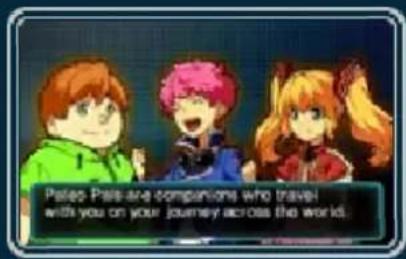
Join Forces with Paleo Pals
This dependable bunch will help you out on digs and during battles. They'll become your fr progress in you
Communication Features
| Local Play | Team up with nearby players to participate in tournaments and battle one another. You can enjoy digging together, too. Each player must have their own game and system. |
| Internet | Battle other players over the internet. |
| StreetPass | Train with vivosaurs you meet via the StreetPass feature. |
Most controls can be performed both by using the buttons and by tapping the Touch Screen.
When digging up fossils, most controls are performed by tapping the Touch Screen.
Basic Controls
Select item

Confirm A
Back Ⓑ
Advance text Ⓐ / Ⓑ
Warden HQ/Branch Office Controls
Move + / Ⓞ
Talk / Examine Ⓐ
Display menu ✗
Display save screen
START
Driving Controls
+ and ◁○→ can be used interchangeably.
| Scan [VZ6A] | |
Steer  | |
Accelerate  | |
 | |
 | |
| [4220] | |
 | |
 | START |
Digging Controls
| Move camera | ○ / A B X Y(These buttons' positions relative to one another indicate which way they will move the camera.) |
| View all | Press and hold L |
| Change angle + | |
| Quit digging | START |
Battle Controls
| Wait Ⓑ | |
| Give up | START |
This software does not support Sleep Mode during wireless communication, even when the Nintendo 3DS system is closed.
7 Starting the Game
Starting a New Game
After the opening sequence, you'll be asked to register a name and gender for your character.
- Your character's name can be changed later.
Continuing a Game
Select your save data. The game will resume from where you left off.

Fossilary
View information about the vivosaurs you collect as you progress in your adventure.
Camera
Take 3D photos using AR Cards.
AR Cards
Using the AR Cards that are included in the package of every system in the Nintendo 3DS family, you can take 3D photos up your system's outer card (Photos cannot be viewed on Nintendo 2DS.)

Please refer to the AR Games™ electronic manual for more information on how to take photos using AR Cards.
Skills
View your vivosaurs performing the skills they have unlocked.

AR Extras
This feature uses special AR Cards made for this game, which will be available at places such as this game's official website. Using these AR Cards, you can receive things like special vivosaurs or Bone Buggies that are not available in the regular game!
To pick up your unlocked AR Extras bonus content, visit the plaza in Fossil Park America.
Perform the following steps while at Fossil Parks to save your progress during your adventure:
- Press Ⓧ.
- Select "Save" (p. 9).
You cannot save while in dig sites.

Deleting Data
There are two ways you can delete save data.
Once deleted, data cannot be recovered, so please be careful.
Start a New Game
Select "New Game" at the title screen to start the game from the beginning. Any existing save data will be deleted.
Delete Data
Press and hold Ⓐ+☒+☒+☒ while launching the game, then select "Delete" to delete all save data.
- Do not turn the power off, reset the system or remove Game Cards/SD Cards while saving. Make sure not to get dirt in the terminals. These actions could result in permanent data loss.
Do not use external accessories or software to modify your save data, as this can lead to an inability to progress or loss of save data. Any modification is permanent, so be careful.
Exploring Fossil Parks
You can talk to people and use various facilities at Fossil Parks.
Menu
Press Ⓧ or tap 📄 to display the menu. Here, you can do things like save your progress and check your next mission.
Various Facilities

Warden HQ (and Branch Offices)
These places act as the central hubs during your adventure.
| The Missionator 4000 | Take on up to three missions at once. |
| The Vivonasium | Train your vivosaurs here (p. 16). |
| World Gates | Use these to move between Fossil Parks. |
Use the Help Desk
The Info Guide at the counter to the left in the lobby can teach you many things about digging and battles!


The Garage
Head out to dig sites from here. You can also customize your Bone Buggy and upgrade its functions here.

| Speed | Your vehicle's maximum speed. |
| Load | Your vehicle's weight limit for loading parts. |
| Sockets | The number of hammers or drills you can equip. |

Fossil Stadiums
These are where Fossil Battle tournaments are held.
| Tourney Counter | Go here to sign up for a tournament. |
| Global MMT (Multi-player Match-making Terminal) | Use this to fight battles via Local Play (p. 12-13) or online (p. 15). |

The Group Garage
Go here to dig with nearby players (p. 14).

Fossil Marts
Buy tools, or challenge the Dig-a-Day Lotto once a day.
There are a lot of fossils buried in the dig sites.
Scan
Press ☐ to scan for fossils using the Fossil Sonar. Get close to a fossil and press ☐ to start digging.

Rogue Vivosaurs
A battle begins when contact is made. If you get attacked while digging, that excavation will fail and the fossil will disappear.


Service Stations
Service Stations are registered as soon as you get close to them. Press Ⓧ to access a Service Station and make use of its various functions.

| Move to Another Station | Warp to another registered Service Station. |
| Change Vivosaurs | Change which vivosaur to use in battle.◆ As you discover rare fossils and unlock more skills, you can change your skills here as well. |
| Refill Support Shots | Replenish your Support Shots (p. 11). |
Digging
Use tools, such as hammers and drills, to excavate fossils. Dig them up without destroying them to succeed.
Ask a Paleo Pal
You can ask your Paleo Pals to dig up fossils that you have already successfully excavated.

Chisels
These tools become available as you progress in your adventure. Drive one in with the hammer to break off big chunks of bedrock all at once.

Revival
There are four different fossil types for each dinosaur. If you successfully excavate one, you can bring that dinosaur back to life as a vivosaur.
Dig up sections that you haven't acquired before to earn new skills and experience points.
| LP(Life Points) | Health |
| Attack | |
| Defense | |
| Speed | |
| Critical (likelihood of getting a critical hit) | |
| Stances |
Try a Challenge Route!
These are special places where rare fossils can be discovered.
They will become available as you progress in your adventure.

How to Advance
Each route has a vicious Fossil Eater out to destroy the target fossil. Get to them as fast as you can before the fossil is destroyed!
Battles take place in dig sites and at Fossil Stadiums. You can fight alone, or as part of a team of up three.
Basic Rules
Attack an opponent with various skills until its LP hits 0 to defeat it. A battle is won when all of your opponents are beaten.

LP will be fully recovered after each battle.

Enter Commands
Select your next skill and target opponent.

Fire Support Shots
Fire Support Shots at just the right time to provide various types of support to your or an ally's vivosaur. Some support shots help improve your attack skills, while others help you resist opponents' attacks or even increase your speed. Use Support Shots well to make sure you come out on top!
Battle Tips

Elemental Types
Vivosaurs come in one of five elemental types. A vivosaur's attacks can become stronger or weaker depending on the elemental type of the opposing vivosaur.
| Strong vs Weak vs | ||
 Fire Water Fire Water |  |  |
 Air FireEa Air FireEa |  |  |
 Earth Air Earth Air |  |  |
 Water Ea Water Ea |  Fire Fire |  |
 | NoneNone | |
NoneNoneNo

Stances
Vivosaurs may change stances when using or being hit by certain skills.
 | StrongReceives less damage. |
 | WeakReceives more damage. |

Boost Skills
The Boost Gauge fills up after certain skills are used. If an attack skill is unleashed that will fill the Boost Gauge, a powerful follow-up attack known Skill will also be delivered

Abilities
Most vivosaurs possess a special power known as an Ability. There are various types of Abilities—for example, some allow a vivosaur to increase its allies' stats simply by being present.

Status Ailments
Some skills inflict status ailments when they connect. Vivosaurs recover from these ailments after a certain amount of time.
| Poison | Damages the target at the end of each turn. |
| Paralyze | Makes the target unable to use some skills. |
| Confuse | May cause the target to make mistakes regarding whom to attack and which skill to use. |
 Scare Scare | Prevents the target from unleashing a skill at times. |
 Dizzy Dizzy | Makes the target take a random stance at the end of each turn. |
 Distract Distract | Raises the probability of the target receiving critical damage. |

Team Tournaments (Local Play) 📋
Participate in Fossil Stadium battle tournaments with players who are nearby, forming teams of up to three players. If you win a tournament, you will receive prizes.
If you only have two players for your team, a Paleo Pal can be used as your final team member.

You Will Need:
• One Nintendo 3DS system per player
• One copy of the software per player
Setup
- Start by visiting the Global MMT in any Fossil Stadium.
- Select "Team Tournament".

If you're making a team...
As the leader, you will recruit team members.
- When the other players' names are displayed, select "Lock".
- Select the tournament you want to join.
- Prep for battle by selecting a
vivosaur, a Bone Buggy, and if necessary, a Paleo Pal.

If you're joining a team...
- Select a leader's name.
- Select a Bone Buggy and a vivosaur.
Tournament Rules

Replenishing Support Shots
Each player chooses individually whether or not to refill Support Shots after each battle.

Giving Up
Team members can give up and exit a battle individually at any time. If the leader gives up, however, the whole team forfeits the battle.

Local Matches (Local Play)
Join up to five nearby players in a three-vs-three matchup.
Paleo Pals can join if you don't have enough players.

You Will Need:
• One Nintendo 3DS system per player
• One copy of the software per player
Setup
- Start by visiting the Global MMT in any Fossil Stadium.
- Select "Local Match".

If you're making a group...
As the leader, you decide when the two teams are set.
- Select a team.
- Once everyone has chosen a team, select "Lock".
◆ Each team needs at least one player.
If you select "Shuffle", players will be automatically divided into teams.
- Select a Bone Buggy and a vivosaur.

If you're joining a group...
- Select a leader's name.
- Select a group.
- Select a Bone Buggy and a vivosaur.
14 Multiplayer Digs

Multiplayer Digs (Local Play)
Visit a dig site with up to two nearby players. If all players cooperate and dig, everyone will acquire the fossil.

You Will Need:
• One Nintendo 3DS system per player
• One copy of the software per player
Setup
Start by going to the Group Garage.

If you opt to depart first...
As the leader, you decide where to dig.
- Select a Bone Buggy and a vivosaur.
- Select a dig site.

If you opt to find players...
As a team member, you can join a existing team.
- Select a leader's name.
- Select a Bone Buggy and a vivosaur.
Joining Together
Bone Buggies can be connected to dig and battle together.
Even if your Bone Buggies are not connected, you can still participate in other players' digs and battles.

Connecting to Others
A special circle will appear around any player who has tapped . Enter the circle to connect to that player.
Tap

to detach at any time.
Returning to the Park
If you are a team member, you can return to the park by yourself if you choose to leave. If you are the leader and you choose to leave, however, the party will be disbanded and everyone will return to the park.

Online Battles (Internet)
Battle other players over the internet and compete in monthly rankings. Wins will earn you class and rating points.
◆ Each player must have their own game, system, and wireless broadband internet access. For more information about this service, visit the website for this game.
Setup
- Start by visiting the Global MMT in any Fossil Stadium.
- Select "Online Battle".

Ranked Battles
You will be automatically matched to a battle opponent.
About Classes
Once you collect enough points, you'll be moved up to the next class. Class rankings reset on the first day of every month—at that time, your total points will be set to the minimum amount required to retain your current class.
Note: worldwide rankings are reset according to UTC+0. This applies to all users regardless of the time zone they live in.

StreetPass Training (StreetPass) 🎨)
If you pass by other systems on which StreetPass has been activated for this software, vivosaur data and greetings will be automatically exchanged. Training with visiting vivosaurs is a fast way to power up your own vivosaurs.
Activating StreetPass
- Go to the Vivonasium at Warden HQ or either branch office, then talk to the trainer.
- Select "StreetPass Training".
- Enter a greeting to send, and then select a vivosaur.
Sending a vivosaur out via StreetPass will not cause you to lose it.

Deactivating StreetPass
To deactivate StreetPass, on the HOME Menu, open the System Settings and select "Data Management", then select "StreetPass Management". Tap the icon for this software title, and then select "Deactivate StreetPass".
You can disable StreetPass
functionality via Parental Controls.
Training
When an opponent is displayed, select the vivosaur you want to train.

Training Tips
• The wider the ranking gap between you and a stronger opponent, the more points (experience) you will receive.
- Select a vivosaur with an elemental advantage to receive bonus points.

About Capacity
If you collect enough vivosaurs via StreetPass to reach full capacity, further collection of vivosaurs via StreetPass will be temporarily suspended. You will be able to collect more vivosaurs via StreetPass once you make room by training with the ones that have already arrived.
Daily Training
Another type of training available at the Vivonasium is Daily Training, which can be selected once a day. Here, you can run a training session of up to 10 battles if you have collected enough vivosaurs.
17 How to Contact Us
For product information, please visit the Nintendo website at:
www.nintendo.com
For technical support and troubleshooting, please refer to the
Operations Manual for your
Nintendo 3DS system or visit:
support.nintendo.com
- FOSSIL FIGHTERS FRONTIER
- BASIC INFORMATION
- INTRODUCTION
- HOW TO PLAY
- WIRELESS COMMUNICATION
- SUPPORT INFORMATION
- 1 IMPORTANT INFORMATION
- IMPORTANT
- LANGUAGE SELECTION
- AGE RATING INFORMATION
- 2 INFORMATION SHARING
- EXCHANGING UGC
- 3 ONLINE FEATURES
- ONLINE PRECAUTIONS
- 4 PARENTAL CONTROLS
- WHAT'S THIS GAME LIKE
- DRIVE AROUND DIG SITES
- DIG UP FOSSILS
- TEAM UP WITH VIVOSAURS AND BATTLE
- JOIN FORCES WITH PALEO PALS
- COMMUNICATION FEATURES
- BASIC CONTROLS
- WARDEN HQ/BRANCH OFFICE CONTROLS
- DRIVING CONTROLS
- DIGGING CONTROLS
- BATTLE CONTROLS
- 7 STARTING THE GAME
- STARTING A NEW GAME
- CONTINUING A GAME
- FOSSILARY
- CAMERA
- AR CARDS
- SKILLS
- AR EXTRAS
- DELETING DATA
- START A NEW GAME
- DELETE DATA
- EXPLORING FOSSIL PARKS
- MENU
- VARIOUS FACILITIES
- WARDEN HQ (AND BRANCH OFFICES)
- USE THE HELP DESK
- THE GARAGE
- FOSSIL STADIUMS
- THE GROUP GARAGE
- FOSSIL MARTS
- SCAN
- ROGUE VIVOSAURS
- SERVICE STATIONS
- DIGGING
- ASK A PALEO PAL
- CHISELS
- REVIVAL
- HOW TO ADVANCE
- BASIC RULES
- ENTER COMMANDS
- FIRE SUPPORT SHOTS
- BATTLE TIPS
- ELEMENTAL TYPES
- STANCES
- BOOST SKILLS
- ABILITIES
- STATUS AILMENTS
- TEAM TOURNAMENTS (LOCAL PLAY) 📋
- YOU WILL NEED
- SETUP
- IF YOU'RE MAKING A TEAM
- IF YOU'RE JOINING A TEAM
- TOURNAMENT RULES
- REPLENISHING SUPPORT SHOTS
- GIVING UP
- LOCAL MATCHES (LOCAL PLAY)
- IF YOU'RE MAKING A GROUP
- IF YOU'RE JOINING A GROUP
- 14 MULTIPLAYER DIGS
- MULTIPLAYER DIGS (LOCAL PLAY)
- JOINING TOGETHER
- CONNECTING TO OTHERS
- RETURNING TO THE PARK
- ONLINE BATTLES (INTERNET)
- RANKED BATTLES
- ABOUT CLASSES
- STREETPASS TRAINING (STREETPASS) 🎨)
- ACTIVATING STREETPASS
- DEACTIVATING STREETPASS
- TRAINING
- TRAINING TIPS
- ABOUT CAPACITY
- DAILY TRAINING
- 17 HOW TO CONTACT US
Brand : NINTENDO
Model : Fossil Fighters Frontier (3DS)
Category : Game