
FCS-1160 - Surveillance Camera LEVELONE - Free user manual and instructions
Find the device manual for free FCS-1160 LEVELONE in PDF.


| Product Type | Surveillance Camera |
| Brand | LevelOne |
| Model | FCS-1160 |
| Image Sensor | 1/4" CMOS |
| Resolution | 1280 x 720 (HD 720p) |
| Lens | Fixed, 3.6 mm, F2.0 |
| Field of View | 60° (horizontal) |
| Night Vision | IR LEDs up to 10 m |
| Power Supply | 12V DC / PoE (IEEE 802.3af) |
| Power Consumption | 5 W (max) |
| Network Interface | 10/100 Ethernet RJ45 |
| Video Compression | H.264, MJPEG |
| Frame Rate | Up to 30 fps at 720p |
| Audio | 1-way (built-in microphone) |
| Operating Temperature | -10°C to 50°C (14°F to 122°F) |
| Dimensions (W x H x D) | 65 x 110 x 45 mm |
| Weight | 150 g |
| Warranty | 2 years |
| Mounting | Wall or ceiling bracket included |
| Protocols | TCP/IP, HTTP, DHCP, DNS, RTSP |
| Security | Password protection, IP filtering |
Frequently Asked Questions - FCS-1160 LEVELONE
User questions about FCS-1160 LEVELONE
0 question about this device. Answer the ones you know or ask your own.
Ask a new question about this device
Download the instructions for your Surveillance Camera in PDF format for free! Find your manual FCS-1160 - LEVELONE and take your electronic device back in hand. On this page are published all the documents necessary for the use of your device. FCS-1160 by LEVELONE.
USER MANUAL FCS-1160 LEVELONE
Running the Application
- Execute the application "LevelOne_IP_Utility.exe".

IP Utility will search for devices based on the selected network interface card (NIC) and network segments it binds to. IP Utility will show a dropdown menu if there are multiple NICs available.

- The default search mode - Basic Search will perform a quick search for available devices in no time, which does not require the input of account/password.
- Using Advanced Search for Detailed Device Properties

- For the purposes of installation, system inspection or trouble-shooting, you may need a glance of device basic audio/video properties without accessing the cameras' firmware one by one, which are available through Advanced Search. However, it would take longer to finish searching. The search result will show as picture below which contains four sections-A, B, C and D:

D Manual Input Bar
- To access the device, simply use the mouse to click on the IP address on the device list. This will initiate the Internet Explorer to allow user to access the device's firmware.
Deutsch
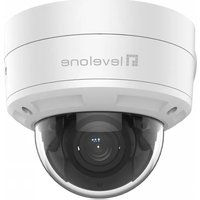



Brand : LEVELONE
Model : FCS-1160
Category : Surveillance Camera