
SPM9800 - Mouse PHILIPS - Free user manual and instructions
Find the device manual for free SPM9800 PHILIPS in PDF.


| Product Type | Wireless Optical Mouse |
| Model | SPM9800 |
| Brand | Philips |
| Dimensions (L x W x H) | 120 x 70 x 40 mm |
| Weight | 100 g (including batteries) |
| Connectivity | 2.4 GHz Wireless via USB Receiver |
| Power Source | 2 x AA Batteries (not included) |
| Battery Life | Up to 12 months (depending on usage) |
| Tracking Technology | Optical Sensor |
| Resolution / DPI | 1200 DPI (fixed) |
| Number of Buttons | 5 (Left, Right, Middle Scroll, Forward, Back) |
| Scroll Wheel | Yes, with tilt function |
| On/Off Switch | Yes, on the bottom |
| Compatible Operating Systems | Windows 10/11, macOS, Chrome OS |
| Wireless Range | Up to 10 m |
| Color | Black |
| Receiver Storage | Built-in compartment under battery cover |
| Maintenance and Cleaning | Wipe with a soft, dry cloth. Do not use liquids. |
| Safety Precautions | Keep away from liquids and extreme temperatures. |
| Spare Parts and Repairability | Not user-serviceable. Contact Philips support for issues. |
| Intended Use | Office and home computing |
Frequently Asked Questions - SPM9800 PHILIPS
User questions about SPM9800 PHILIPS
0 question about this device. Answer the ones you know or ask your own.
Ask a new question about this device
Download the instructions for your Mouse in PDF format for free! Find your manual SPM9800 - PHILIPS and take your electronic device back in hand. On this page are published all the documents necessary for the use of your device. SPM9800 by PHILIPS.
USER MANUAL SPM9800 PHILIPS
Register your product and get support at www.philips.com/welcome
natural_image
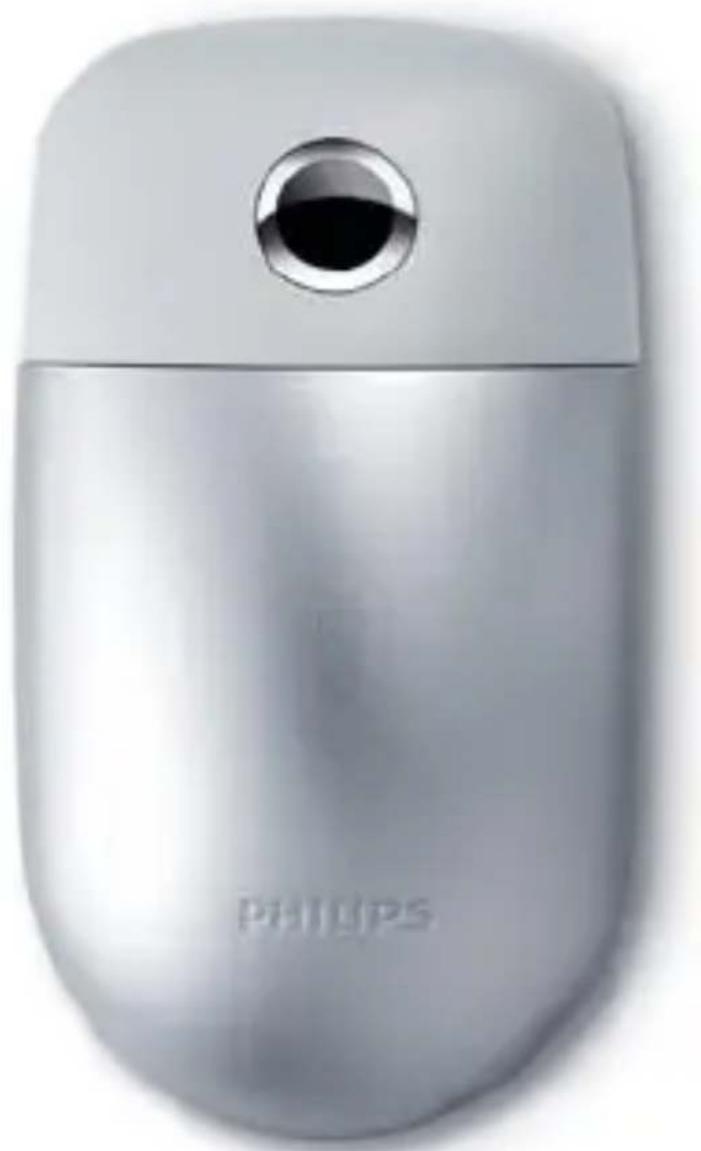
Silver computer mouse with a circular lens and 'PHILIPS' branding on the front face (no other text or symbols visible)Wireless notebook mouse SPM9800
EN User manual
PHILIPS
1
2
3
↑
natural_image
Diagram of a vertical device with directional arrows indicating movement or force (no text or symbols)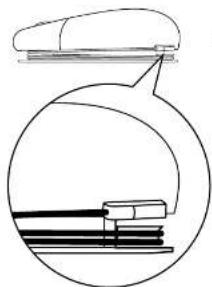
natural_image
Diagram of a mechanical component with a circular inset showing internal layered structure (no text or symbols)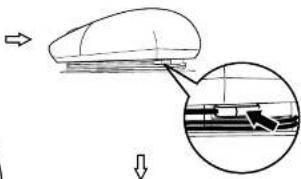
4
→
→
EN
1 Important
Electric-, Magnetic and Electromagnetic Fields (EMF)
- Philips Royal Electronics manufactures and sells many products targeted at consumers, which, like any electronic apparatus, in general have the ability to emit and receive electromagnetic signals.
- One of Philips' leading Business Principles is to take all necessary health and safety measures for our products, to comply with all applicable legal requirements and to stay well within the EMF standards applicable at the time of producing products.
- Philips is committed to develop, produce and market products that cause no adverse health effects.
- Philips confirms that if its products are handled properly for their intended use, they are safe to use according to scientific evidence available today.
- Philips plays an active role in the development of international EMF and safety standards, enabling Philips to anticipate further developments in standardization for early integration in its products.
Your product is designed and manufactured with high quality materials and components, which can be recycled and reused.
When this crossed-out wheeled bin symbol is attached to a product it means that the product is covered by the European Directive 2002/96/EC.
Please inform yourself about the local separate collection system for electrical and electronic products.
Please act according to your local rules and do not dispose of your old products with your normal household waste. Correct disposal of your old product helps to prevent potential negative consequences for the environment and human health.

natural_image
Recycling symbol composed of three chasing arrows forming a triangle (no text or labels)

Your product contains batteries covered by the European Directive 2006/66/EC, which cannot be disposed with normal household waste. Please inform yourself about the local rules on separate collection of batteries because correct disposal helps to prevent negative consequences for the environmental and human health.
Bluetooth Statement
The Bluetooth® word mark and logos are registered trademarks owned by Bluetooth SIG, Inc. and any use of such marks by Philips is under license.

2 System requirements
- Bluetooth® 2.0 or above
- Windows ^ 7, XP, Vista; Mac OS X 10.2.8 and above
• USB port (for recharge only)
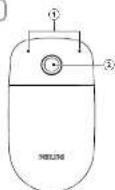
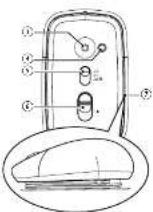
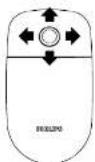
3 Function overview (Fig. 1)
① Left and right click buttons
② 360° TouchControl™ (with battery indicator under it)
③ Laser sensor
④ CONNECT: Connect Bluetooth
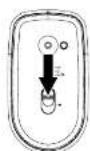
⑤ Mode switch
- OFF: Power off
• Use as a normal mouse
• :Switch on 360° TouchControl™
⑥ Eject switch
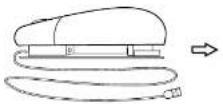
⑦ USB cable (for recharge only)
| Battery status Indicator status | |
| Connecting Slow blinking | |
| Charging (about 8 hours) Blinking | |
| Power low Continuous blinking |
Tip: 1. You can use 4-way scrolling on Windows® XP or Vista. 2. To use the 4-way scrolling on Windows® XP, please download the 4-way scrolling driver from the Philips website: Log onto www.philips.com/welcome and type the product number to search for the relevant driver.
4 Bluetooth connection
Note: Ensure that there is power in the battery.
Connect to PC:
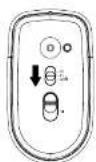
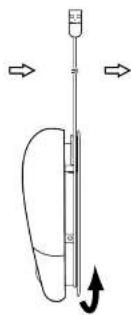
Switch on the mouse (Fig. 2), and then press the 1 CONNECT button.
2 On the notebook, click Control Panel > Bluetooth Devices > Add... Under 3 Add Bluetooth Device Wizard, choose My device is set up and ready to be found and then click Next.
4 Select Philips Bluetooth Mouse, and then click Next.
5 Select Don't use a passkey, and then click Next > Finish. Under 6 Bluetooth Devices, click OK.
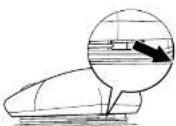
→ Your mouse is connected to you notebook and is ready to use (Fig. 3).
Connect to Mac:
Switch on the mouse (Fig. 2), and press the 1 CONNECT button.
2 On the notebook, click System Preferences > Bluetooth > +.
3 Under Bluetooth Setup Assistant, click Continue.
Select 4 Mouse, and then click Continue.
5 When the device is found, click Continue > Quit.
→ Your mouse is connected to you notebook and is ready to use (Fig. 3).
5 Troubleshooting
- If you use a Bluetooth dongle, ensure that the dongle is installed correctly. After successful installation of the Bluetooth dongle, follow the above steps and re-pair the mouse again.
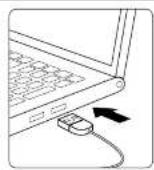
- For recharge, ensure that the USB connector of your mouse is properly plugged into a USB port on your notebook (Fig. 4).
FCC - Notice of compliance
This device complies with Part 15 of the FCC Rules. Operation is subject to the following two conditions:
- this device may not cause harmful interference, and
- this device must accept any interference received,
including interference that may cause undesired operation.
Note:
This equipment has been tested and found to comply with the limits for a Class B digital device, pursuant to part 15 of the FCC Rules. These limits are designed to provide reasonable protection against harmful interference in a residential installation. This equipment generates, uses, and can radiate radio frequency energy and, if not installed and used in accordance with the instruction manual, may cause harmful interference to radio communications. However, there is no guarantee that interference will not occur in a particular installation. If this equipment does cause harmful interference to radio or television reception, which can be determined by turning the equipment off and on, the user is encouraged to try to correct the interference by one or more of the following measures:
• Relocate the receiving antenna.
- Increase the separation between the equipment and receiver.
- Connect the equipment into an outlet on a circuit different from that to which the receiver is connected.
- Consult the dealer or an experienced radio/TV technician for help.
© Royal Philips Electronics N.V. 2009 All rights reserved.
Specifications are subject to change without notice. Trademarks are the property of Koninklijke Philips Electronics N.V. or their respective owners
Printed in China V1.1
Brand : PHILIPS
Model : SPM9800
Category : Mouse