
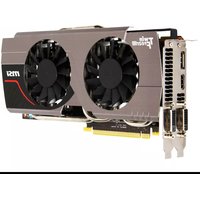
GTX 660 Ti Power Edition - Graphic card MSI - Free user manual and instructions
Find the device manual for free GTX 660 Ti Power Edition MSI in PDF.


| Product Type | Graphics Card |
| Brand | MSI |
| Model | GTX 660 Ti Power Edition |
| GPU Architecture | NVIDIA Kepler |
| CUDA Cores | 1344 |
| Memory | 2GB GDDR5 |
| Memory Interface | 192-bit |
| Core Clock | 915 MHz (Base) / 980 MHz (Boost) |
| Memory Clock | 6008 MHz |
| PCI Express Interface | PCIe 3.0 x16 |
| SLI Support | 2-way and 3-way SLI |
| Display Outputs | 2x DVI, 1x HDMI 1.4a, 1x DisplayPort |
| Maximum Digital Resolution | 2560x1600 (Dual-link DVI) |
| Power Connectors | Two 6-pin PCIe |
| Minimum System Power Supply | 500 W (30 A on +12 V rail) |
| Dimensions (approximate) | 254 mm x 111 mm (dual-slot) |
| Weight (approximate) | 1.0 kg |
| DirectX Support | DirectX 11 |
| Key Technologies | NVIDIA GPU Boost, CUDA, PhysX, 3D Vision, PureVideo HD |
| Operating Systems Supported | Windows 7, Vista, XP (32/64-bit), Linux, FreeBSD |
| Maintenance | Keep clean with compressed air; ensure adequate airflow in case |
| Safety Precautions | Disconnect power before installation; avoid static discharge; do not block vents |
| Repairability | Not user-serviceable; contact MSI support for issues |
Frequently Asked Questions - GTX 660 Ti Power Edition MSI
User questions about GTX 660 Ti Power Edition MSI
0 question about this device. Answer the ones you know or ask your own.
Ask a new question about this device
Download the instructions for your Graphic card in PDF format for free! Find your manual GTX 660 Ti Power Edition - MSI and take your electronic device back in hand. On this page are published all the documents necessary for the use of your device. GTX 660 Ti Power Edition by MSI.
USER MANUAL GTX 660 Ti Power Edition MSI
NVIDIA GeForce GTX 660 Ti
Table of Contents
Introduction 1
About This Guide 1
Minimum System Requirements 2
Unpacking 3
Equipment 3
Hardware Installation 5
Safety Instructions 5
Before You Begin 6
Installing the GeForce Graphics Card 6
Driver Installation 13
Configuring SLI 17
Accessing the NVIDIA Control Panel 17
Enabling / Disabling SLI 18
Configuring HDMI 2.1
Enabling Audio Over HDMI 2.1
Features 23
Compliances 27
Table of Contents
01 INTRODUCTION
Thank you for choosing the NVIDIA® GeForce® GTX 660 Ti graphics card.
Built from the ground up for DirectX 11 tessellation, the GeForce GTX 660 Ti delivers revolutionary geometry performance for the ultimate next generation DX11 gaming experience.
With full support for NVIDIA 3D Vision, the GeForce GTX 660 Ti provides the graphics horsepower and video bandwidth needed to experience games and high definition Blu-ray movies in eye-popping stereoscopic 3D.
About This Guide
This installation guide discusses the installation and operation of the NVIDIA GeForce GTX 660 Ti graphics card.

Note: It is important to register your product in order to receive online and phone support. Consult the registration card included in the retail packaging for more information on registering your product.
Minimum System Requirements
Motherboard
PCI Express® or PCI Express 2.0-compliant motherboard with one dual-width x16 graphics slot. For a 2-way/3-way NVIDIA SLI configuration, you need an SLI-ready motherboard with one dual-width x16 graphics slot for each graphics card.
> System Power Supply
Minimum 500 W or greater system power supply (with a minimum 12 V current rating of 30 A) with two 6-pin PCI Express supplementary power connectors for each graphics card.
For power supply recommendations for SLI configurations, visit www.geforce.com/sli and check the Certified Products section.
> Operating System
• Microsoft Windows 7, 32-bit or 64-bit • Microsoft Windows Vista, 32-bit or 64-bit • Microsoft Windows XP, 32-bit or 64-bit • Linux, 32-bit or 64-bit - FreeBSD x86
> System Memory
2 GB system memory (4 GB recommended)
DVD-ROM drive or internet connection for driver installation
300 MB of available hard disk space
02
UNPACKING
Prior to unpacking your new NVIDIA GeForce GTX 660 Ti graphics card, it is important to make sure you meet all the system requirements listed on page 2 for a smooth installation.
Be sure to inspect each piece of equipment shipped in the packing box. If anything is missing or damaged, contact your reseller.
Equipment
The following equipment and documentation are included in the GeForce GTX 660 Ti graphics card box.

NVIDIA Driver Installation Disc
Contains:
- Windows 7, XP, and Vista (32/64-bit) drivers for the GeForce graphics card. For other operating systems and to keep your drivers current, visit www.nvidia.com/drivers and download the latest drivers. Also includes a digital version of this manual and the driver.

Quick Start Guide
Fast and easy steps to install the GeForce graphics card(s).
WELCOME
Registration Card
Register to gain priority access to online and phone support.
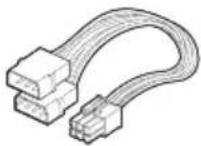
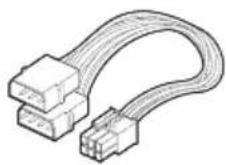
4-to-6 Pin Adapter (Optional)
Use the 4-to-6 pin adapter to convert two 4-pin power supply connectors to one 6-pin connector.
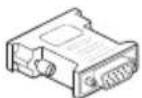
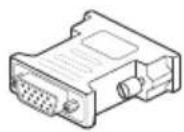
DVI-to-VGA Adapter (Optional)
Use to connect a VGA monitor to the DVI connector or a DVI monitor to the VGA connector.
GeForce GTX 660 Ti Graphics Card
03
HARDWARE INSTALLATION
Installing the NVIDIA GeForce GTX 660 Ti graphics card hardware involves opening up your computer. Follow all of the safety instructions provided here to ensure that there is no damage to you, your computer, or the graphics board.
Safety Instructions
To reduce the risk of fire, electric shock, or injury, always follow basic safety precautions.

Note: All hardware must be installed prior to installation of the drivers.
Remove power from your computer by disconnecting the AC main source before installation. Do not operate this product near water or when your hands or body are wet. Do not place this product on soft surfaces that could block the ventilation slots and cause overheating. Do not place this product near a heating register or radiator. Place this product securely on a stable surface. Serious damage to this product may result if it falls. Do not allow anything to rest on the power cord. Do not place this product where a person can step or trip on the power cord.
Before You Begin
The GeForce GTX 660 Ti graphics card is a PCI Express 3.0 ×16 graphics card. Your computer may already have a graphics card installed in the PCI Express slot. If so, you will need to remove that graphics card and replace it with the GeForce GTX 660 Ti graphics card.
If you do not have a graphics card, this means that your motherboard has on-board graphics (there is a graphics chip installed on your motherboard or integrated in the motherboard chipset). If this is the case, there is no action that needs to be taken before installing your new graphics card.
Installing the GeForce Graphics Card
Because there are so many different computer systems on the market, the procedure to install the GeForce GTX 660 Ti graphics card can vary from system to system. Use the following instructions as a guideline and consult the documentation for your computer system for any further information on your individual system.

Note: It is important that all power to the computer be disconnected before you install the graphics card.
Discharge your body's static electricity by touching a grounded surface before touching the graphics card. A grounded surface is the computer chassis, or some other surface you know to be grounded.
Use the following procedure to install the GeForce GTX 660 Ti graphics card into your computer system.
1. Turn off your computer and monitor and disconnect the power cord. Depending on your computer system, you may need to disconnect the cable going to the back of your system. Mark the cables so you can make sure you reconnect them properly. 2. Open your computer by removing the cover/side panel. Refer to your computer documentation from the original manufacturer for assistance.
3. Remove any existing graphics card (if there is one). Save hardware (such as screws and brackets) to use when installing the NVIDIA graphics card.

Attention: If your system has been running for a period of time prior to opening the panels, it is very important that you wait until the graphics card in your system has cooled before taking the card out of the system. Graphics cards get very hot when they have been operating for any length of time.
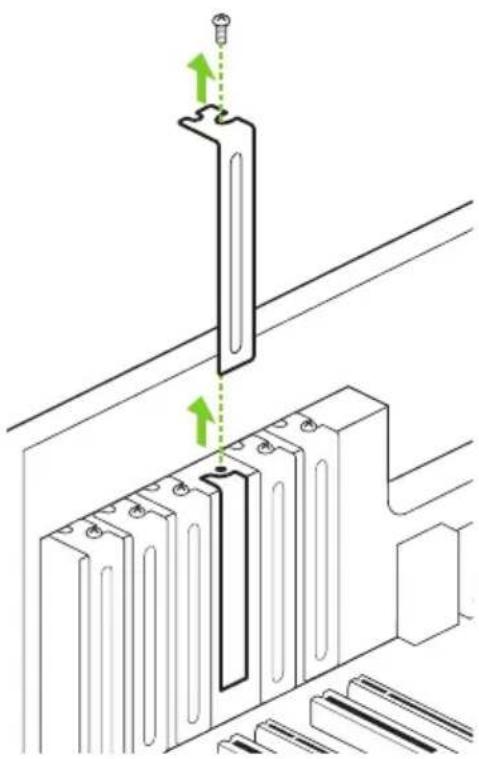
4. Remove the slot cover if you do not have a graphics card installed.

Note: The GeForce GTX 660 Ti card is double-wide, so it will require removing two slot covers.
5. Plug the graphics card into the Primary PCI Express x16 slot on your motherboard. This is often the slot closest to the CPU but may be the second or third slot. Look for the slot labeled ×16. It will likely be the only PCI Express slot with a retention lever on the end of the slot or the one closest to the CPU.
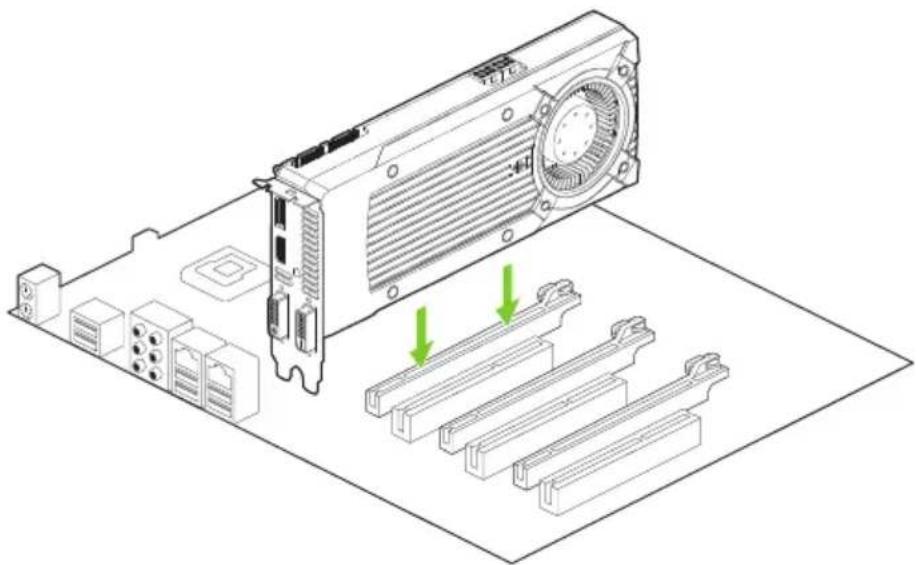

Note: It is recommended that you install the graphics card into the primary PCI Express x16 slot. If you install the graphics card into the secondary slot, your system may not recognize the graphics card and there will be nothing displayed on the monitor.
Also note that on some motherboard SBIOS, the physical location of the primary slot can be configured when there are more than one PCI Express x16 slots.
If you are installing an additional GeForce GTX 660 Ti graphics card for an SLI configuration, continue with step 6 (2-way SLI).

Note: All of the graphics cards in an SLI configuration must be identical.
6. Two GeForce graphics cards (2-way SLI):
a) Install the second GeForce card into the outermost PCI Express x16 slot on the motherboard. b) Connect the two cards together using the dual SLI bridge connector that came with your SLI-ready motherboard.
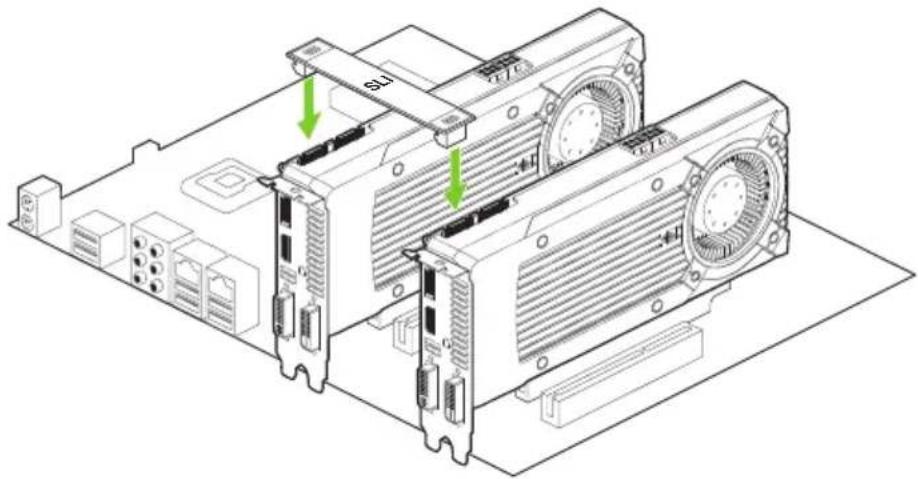
If you are installing a third GeForce GTX 660 Ti graphics card for a 3-way SLI configuration, continue with step 7. Otherwise, go to step 8.
7. Three GeForce graphics cards (3-way SLI):
a) Install the third GeForce card into the center PCI Express x16 slot on the motherboard. b) Connect the three cards together using the dual-wide six connector SLI bridge connector that came with your SLI-ready motherboard.

Note: Make sure that your motherboard supports 3-way SLI before attempting to install 3 identical graphics cards.
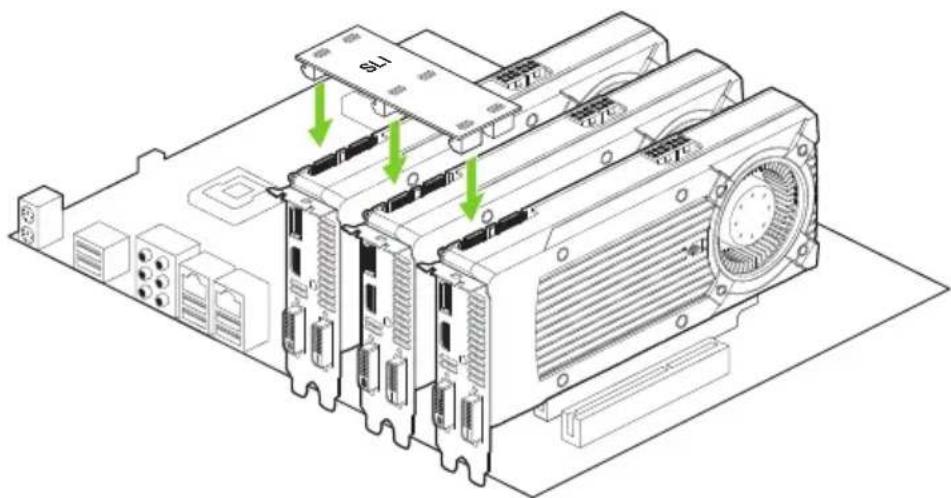
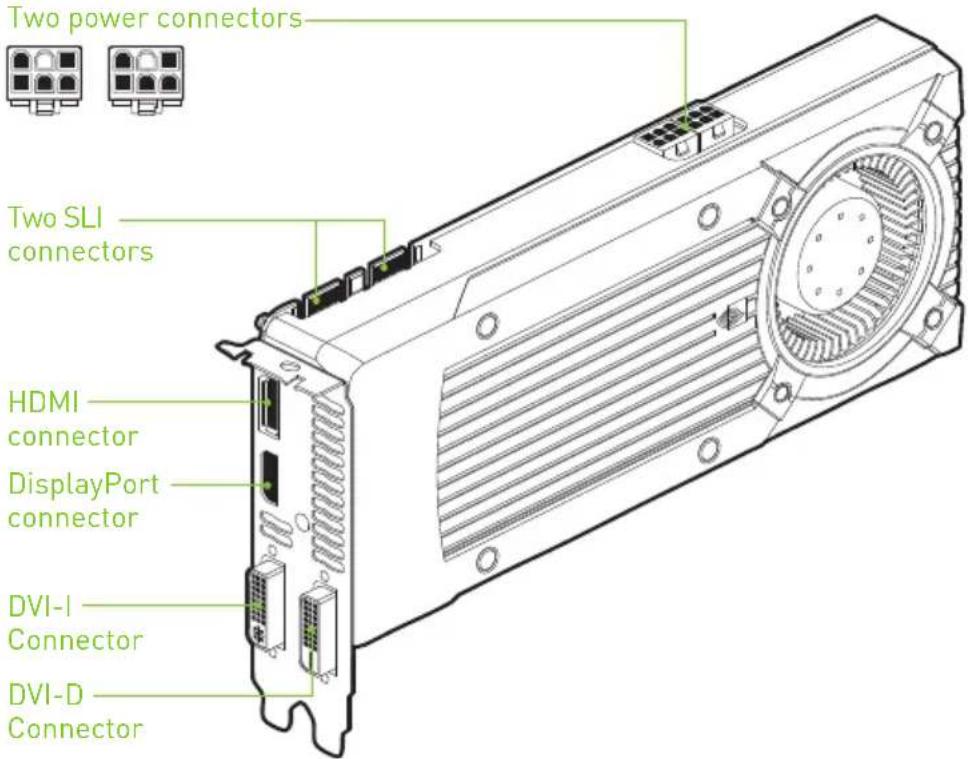
8. Connect a pair of PCI Express 6-pin auxiliary power connectors to the top edge of the GeForce GTX 660 Ti graphics card. Note that the connectors and sockets on the graphics card have a unique shape and connect one way only.
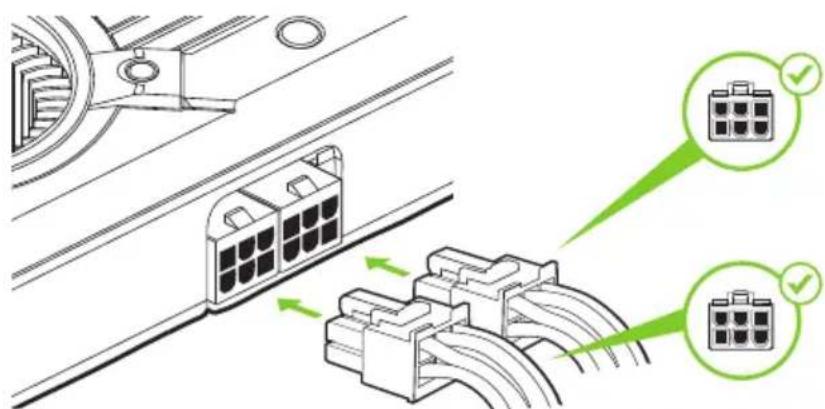
From power supply
If your power supply needs an additional 6-pin power connector, you can use the included 4-to-6 pin adapter. Make sure to connect each 4-pin connector to a separate PSU cable.
9 Reinstall the cover on your computer and reconnect any cables that you removed earlier in the installation.
10 Connect your computer monitor(s) to the GeForce graphics card using the connectors shown. A single GeForce GTX 660 Ti graphics card can support up to four displays in a multi-monitor configuration.
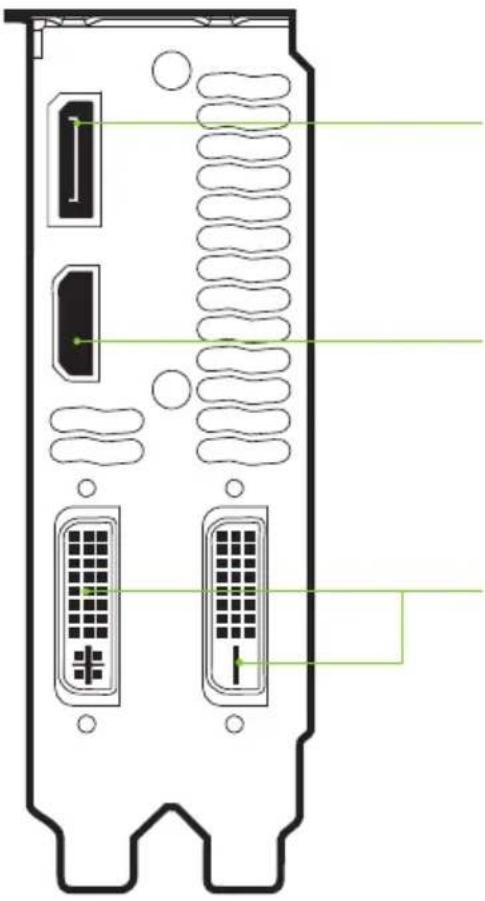
HDMI (High-Definition Multimedia Interface) Connector
Supports output of both video and audio from the PC to a high-definition television.
DisplayPort Connector
Supports single-lane transfer rates over a single cable. The interface is primarily used to connect a video source to a display device such as a computer monitor.
DVI Connectors (DVI-I and DVI-D)
Use this to connect a digital display or, with an adapter, the following:
VGA display using DVI-to-VGA adapter
DVI-to-VGA
Adapter (Optional)
11 Reconnect your power cord to the PC.
03
04 DRIVER INSTALLATION
With the hardware installed, it is now time to install the graphics driver. NVIDIA recommends downloading and installing the most recent drivers available at:
http://www.nvidia.com/drivers.
Use the following procedure to load the graphics drivers.
1. Power up your system. 2. Insert the driver installation disc or double click on the GeForce driver executable file you downloaded from www.nvidia.com/drivers. The NVIDIA Setup program takes over and installs the drivers.
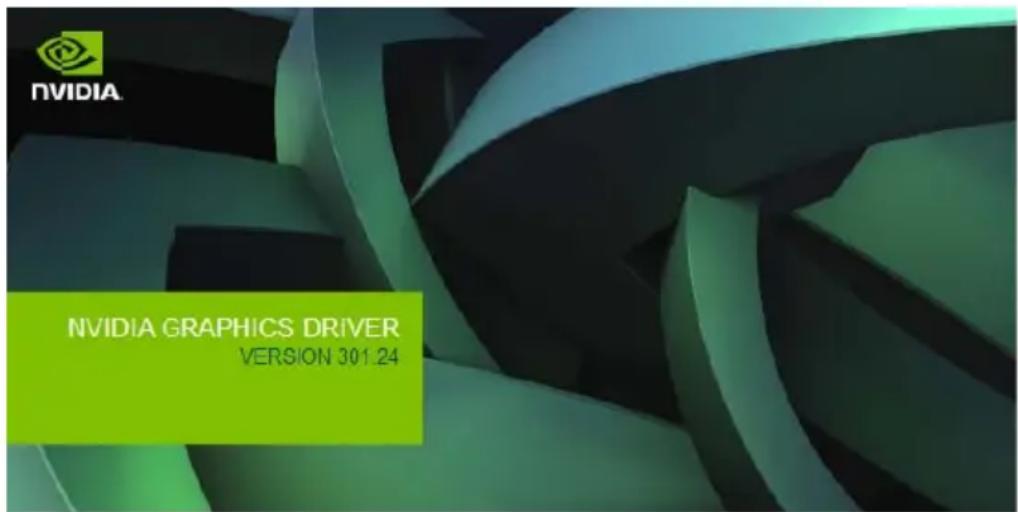
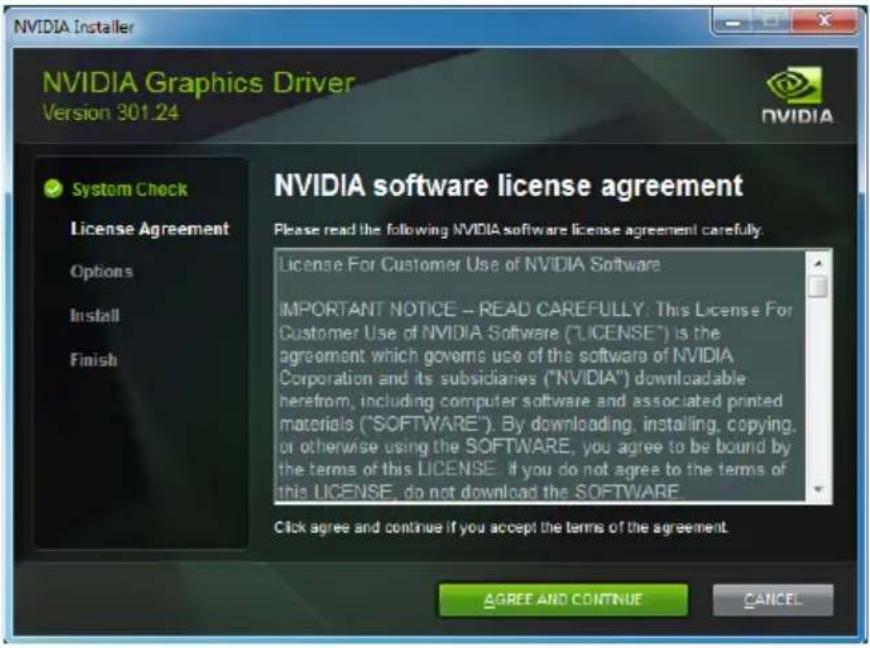
3. Select AGREE AND CONTINUE to continue the installation.
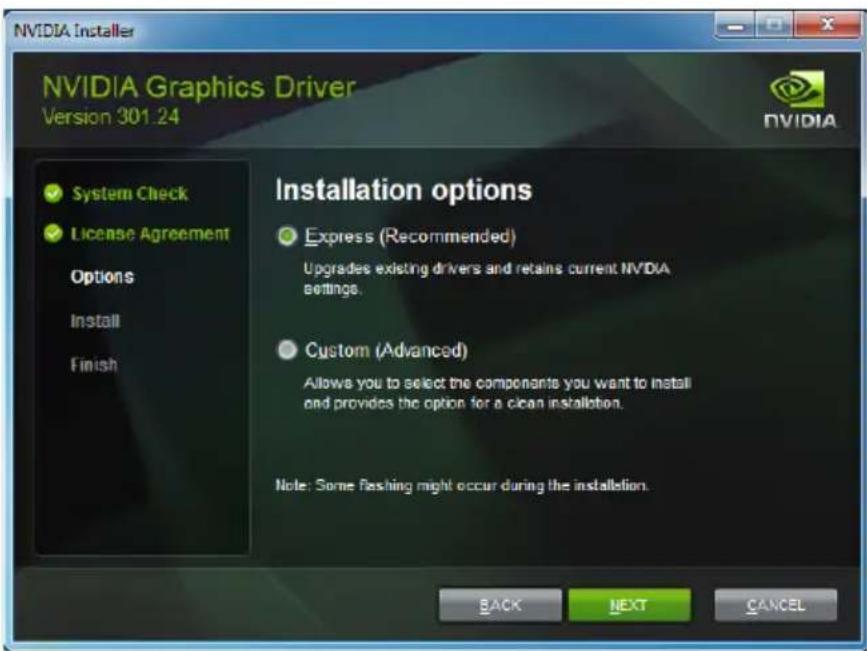
4. Select the Express option and then click NEXT when the Installation Options window displays.

Note: It may take several minutes for the installation to take place. Your screen may go blank for a few seconds one or more times during installation. This is normal. The Install in progress... screen will let you know when the installation is complete.
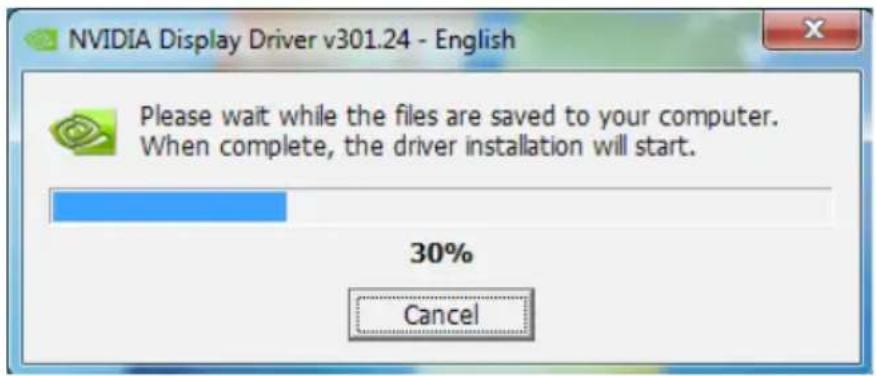
6. Once all the files are copied to your computer, the installation begins.
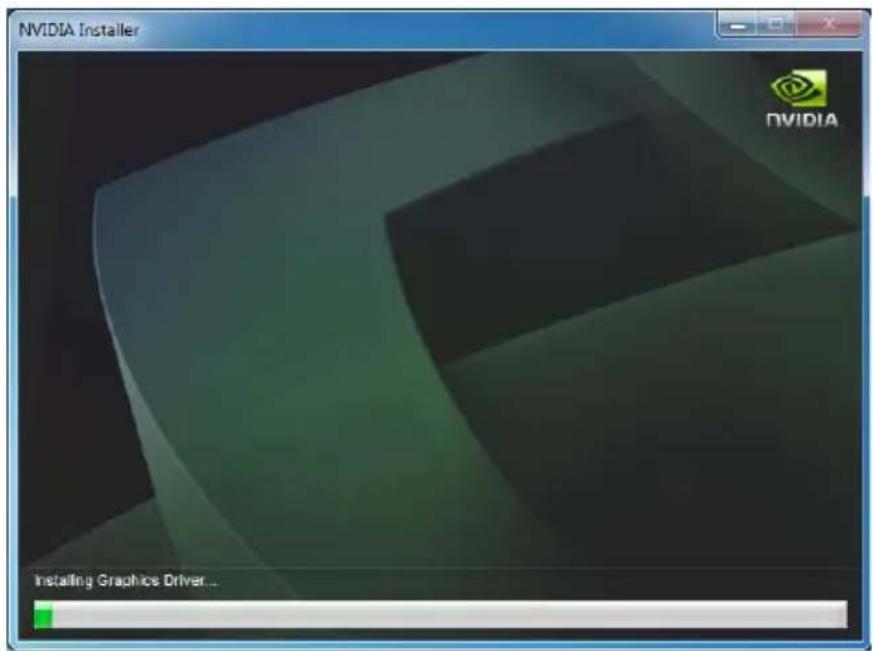
7. Click CLOSE when the install has finished.
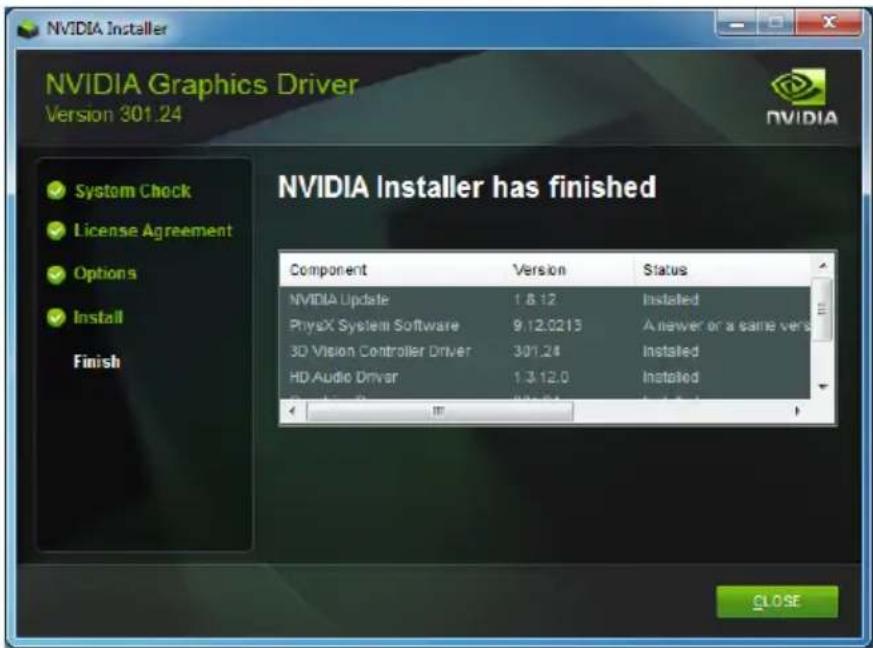

Note: Please visit www.nvidia.com/support to access our 24 x 7 x 365 online support system, where you can submit questions directly to our tech support staff. Questions may only be submitted in English. GeForce customers purchasing NVIDIA-branded products also have access to toll free technical support at 1-800-797-6530 from 8:00 AM - 5:00 PM Pacific Time, M-F. The technical support line is accessible from the U.S. and Canada only.
05 CONFIGURING SLI
SLI is a revolutionary technology developed by NVIDIA that allows you to connect identical GeForce graphics cards together to deliver increased performance.
You can enable SLI by either clicking on the SLI capable system balloon in the system tray or by going to the NVIDIA Control Panel.

Note: You must have an SLI-ready motherboard and 2 or 3 identical SLI-ready GeForce graphics cards installed in your PC in order to enable SLI.
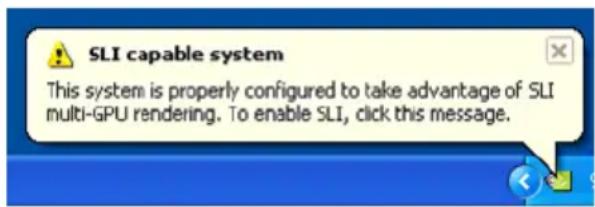
Accessing the NVIDIA Control Panel
1 To access the NVIDIA Control Panel, you can right-click the Windows desktop and select NVIDIA Control Panel from the menu. Other ways to access the NVIDIA Control Panel depend on the operating system.
Windows 7: Go to Start → Control Panel → Hardware and Sound and select the NVIDIA Control Panel icon. Windows XP: Go to Start → Control Panel and select the NVIDIA Control Panel icon.
Windows Vista
- Classic view: Go to Start → Control Panel and select the NVIDIA Control Panel icon.
- Control Panel Home view: Go to Start → Control Panel → Additional Options and select the NVIDIA Control Panel icon.
Enabling / Disabling SLI
2 Once you have the NVIDIA Control Panel open, click on Configure SLI, Surround, PhysX in the left task pane.
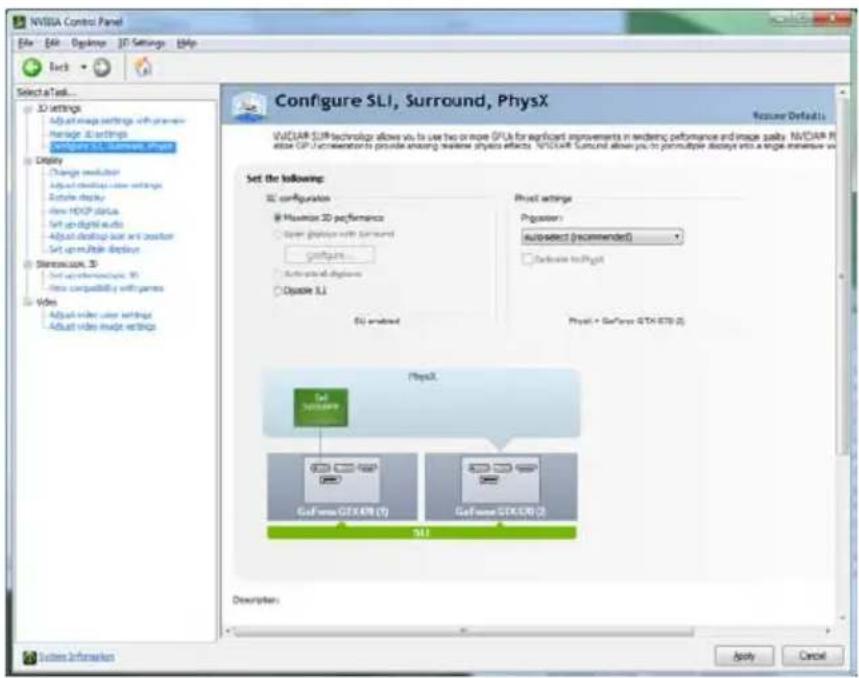
3 Select from the following multi-GPU configurations:
Maximize 3D performance
Select this mode when you want your graphics cards to work together to increase your rendering performance and image quality.
Activate all displays
Activate all displays disables SLI and activates all connected displays (heads).
PhysX settings
PhysX settings switches which GPU runs PhysX and can also dedicate a GPU to PhysX only.
> Disable SLI
Default Selection.
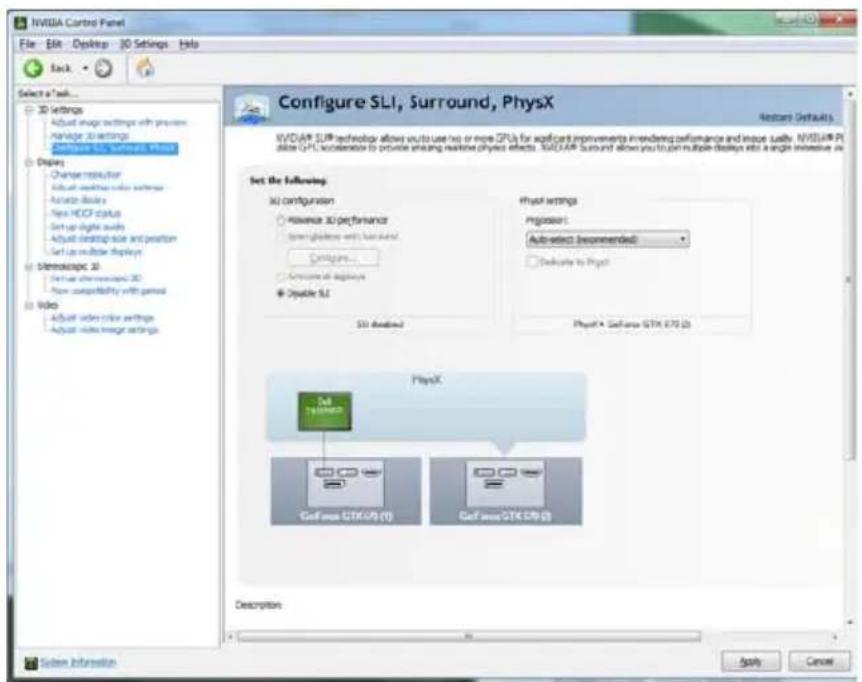
4 Click Apply.
05
06 CONFIGURING HDMI
Connecting your HDTV via HDMI allows you to output both digital audio and video from your graphics card to an HDTV.
Enabling Audio Over HDMI
If you are connecting to your display over HDMI, you may need to set the HDMI output to be your default audio device.
In Windows 7, select Start → Control Panel → Sound.
On the Playback tab, select your HDMI display and select
Set Default.
Congratulations! Your GeForce graphics card(s) is now ready to use!
For detailed instructions on using the NVIDIA Control Panel, consult the Control Panel User's Guide found on your Driver Installation CD.
You can also download the latest Control Panel User's Guide at www.nvidia.com/drivers (select your driver, then click on
Documentation to download the User's Guide).
06
07 FEATURES
NVIDIA GPU Boost: Up until now, GPUs have operated at a fixed clock speed when playing 3D games, even if they have the potential to run faster. GPU Boost intelligently monitors graphics work load and increases the clock speed whenever possible. The result is that the GPU always performs at its peak and you get the highest framerate possible.
Microsoft® DirectX® Support: DirectX GPU with Shader Model support designed for ultra high performance in the new API's key graphics feature, GPU-accelerated tessellation. NVIDIA CUDA™ Technology 1 : CUDA technology unlocks the power of the GPU's processor cores to accelerate the most demanding tasks such as video transcoding, physics simulation, ray tracing, and more, delivering incredible performance improvements over traditional CPUs. NVIDIA PhysX® Technology 2 : GeForce GPU support for NVIDIA PhysX technology, enabling a totally new class of physical gaming interaction for a more dynamic and realistic experience with GeForce. Kepler GPU Architecture: NVIDIA's Kepler GPU architecture has been designed from the ground up not just for maximum performance in the latest DirectX 11 games, but optimal performance per watt. The new SMX streaming multiprocessor is twice as efficient as the prior generation and the new geometry engine draws triangles twice as fast. The result is world class performance and the highest image quality in an elegant and power efficient graphics card. NVIDIA® 3D Vision™ Ready: GeForce GPU support for NVIDIA 3D Vision technology, bringing a fully immersive stereoscopic 3D experience to the PC. A combination of high-tech wireless glasses and advanced software, 3D Vision transforms hundreds of PC games into full stereoscopic 3D. In addition, you can watch 3D movies and 3D digital photographs in eye popping, in crystal-clear quality.
NVIDIA® 3D Vision™ Surround Ready 3 : Expand your games across three displays in full stereoscopic 3D for the ultimate “inside the game” experience with the power of NVIDIA 3D Vision and NVIDIA SLI technologies. NVIDIA® Surround™ also supports triple screen gaming with non-stereo displays.
NVIDIA GigaThread™ Technology: Massively multi-threaded architecture supports thousands of independent, simultaneous threads.
DirectCompute Support: Full support for DirectCompute, Microsoft's GPU computing API.
OpenCL Support: Full support for OpenCL GPU computing API.
32x Anti-aliasing Technology: Lightning fast, high-quality anti-aliasing at up to 32x sample rates obliterates jagged edges.
Two New Anti-aliasing Modes - FXAA and TXAA: Anti-aliasing smoothes out jagged edges but can be demanding on framerates. FXAA is a new antialiasing technology that produces beautiful smooth lines with minimal performance impact. And with Kepler based GPUs, you'll be able to enable FXAA in hundreds of game titles through the NVIDIA Control Panel.
The second mode, TXAA, is an in-game option that combines MSAA, temporal filtering, and post processing for even higher visual fidelity.
NVIDIA Adaptive Vertical Sync: Nothing is more distracting than framerate stuttering and screen tearing. The first tends to occur when framerates are low, the second when framerates are high. Adaptive V-Sync is a smarter way to render frames. At high framerates, V-sync is enabled to eliminate tearing, at low frame rates, it's disabled to minimize stuttering. It gets rid of distractions so you can get on with gaming.
NVIDIA® GeForce® Unified Driver Architecture (UDA): Delivers a proven record of compatibility, reliability, and stability with the widest range of games and applications. NVIDIA ® GeForce® drivers provide the best out-of-box experience for every user and deliver continuous performance and feature updates over the life of NVIDIA GeForce® GPUs.
PCI Express 3.0 Support: Designed for the new PCI Express 3.0 bus architecture offering the highest data transfer speeds for the most bandwidth-hungry games and 3D applications, while maintaining backwards compatibility with existing PCI Express motherboards for the broadest support.
Dual-link DVI Support: Able to drive industry's largest and highest resolution flat-panel displays up to 2560x1600 and with support for High-bandwidth Digital Content Protection (HDCP).
HDMI: Fully integrated support for HDMI 1.4a including GPU accelerated Blu-ray 3D support, xvYCC, deep color, and 7.1 digital surround sound, Dolby TrueHD and DTS-HD. Upgrade your GPU to full 3D capability with NVIDIA 3DTV Play software, enabling 3D gaming, picture viewing and 3D web video streaming. See www.nvidia.com/3dtv for more details.
NVIDIA PureVideo® HD Technology: The combination of high-definition video decode acceleration and post-processing that delivers unprecedented picture clarity, smooth video, accurate color, and precise image scaling for movies and video.
- Hardware Decode Acceleration: Provides ultra-smooth playback of H.264, VC-1, WMV, DivX, MPEG-2 and MPEG-4 HD and SD movies without the need for a dual or quad-core CPU.
- Dual-stream Hardware Acceleration: Supports picture-in-picture content for the ultimate interactive Blu-ray and HD DVD movie experience.
- Dynamic Contrast Enhancement & Color Stretch: Dynamically provides post-processing and optimization of High Definition movies for spectacular picture clarity.
- Dual-link HDCP Capable: Designed to meet the output protection management (HDCP) and security specifications of the Blu-ray Disc format, allowing the playback of encrypted movie content on PCs when connected to HDCP-compliant displays. • Enhanced Error Resilience: Correct errors or losses in broadcast content to ensure crisp, high quality playback.
- Advanced Spatial-Temporal De-Interlacing: Sharpens HD and standard definition interlaced content on progressive displays, delivering a crisp, clear picture that rivals high-end home-theater systems.
- High-Quality Scaling: Enlarges lower resolution movies and videos to HDTV resolutions, while maintaining a clear, clean image. Also provides downscaling of videos, including high-definition, while preserving image detail.
- Inverse Telecine (3:2 & 2:2 Pulldown Correction): Recovers original film images from films-converted-to-video (DVDs, 1080i HD content), providing more accurate movie playback and superior picture quality.
- Bad Edit Correction: When videos are edited, the edits can disrupt the normal 3:2 or 2:2 pulldown cadence. PureVideo uses advanced processing techniques to detect poor edits, recover the original content, and display perfect picture detail frame after frame for smooth, natural looking video.
- Noise Reduction: Improves movie image quality by removing unwanted artifacts.
- Edge Enhancement: Sharpens movie images by providing higher contrast around lines and objects.
- Requires application support for NVIDIA CUDA technology.
- NVIDIA PhysX drivers are required to experience in-game GPU PhysX acceleration. Refer to www.nvidia.com/PhysX for more information.
- NVIDIA 3D Vision Surround technology requires NVIDIA release 256 driver, two or more graphics cards in NVIDIA SLI configuration, NVIDIA 3D Vision glasses and three matching NVIDIA 3D Vision-Ready displays. See www.nvidia.com/3dt_v for more information.
- Blu-ray 3D playback requires the purchase of a compatible software player from CyberLink, ArcSoft, Corel, or Sonic.
- Feature requires supported video software. Features may vary by product.
- Requires other HDCP-compatible components
08 COMPLIANCES
The NVIDIA GeForce GTX 660 Ti graphics card is compliant with the following regulations:
Federal Communications Commission (FCC), Industry Canada (IC), Conformité Européenne (CE), Australian Communications and Media Authority (C-tick), Voluntary Control Council for Interference (VCCI), Bureau of Standards Metrology and Inspection (BSMI), Korean Certification (KC), Underwriters Laboratories (UL, cUL), ISO 9241-307 Visual Display Ergonomics
UNITED STATES
Federal Communications Commission (FCC)

This equipment has been tested and found to comply with the limits for a Class B digital device, pursuant to Part 15 of the FCC Rules. These limits are designed to provide reasonable protection against harmful interference in a residential installation. This equipment generates, uses and can radiate radio frequency energy and, if not
installed and used in accordance with the instructions, may cause harmful interference to radio communications. However, there is no guarantee that interference will not occur in a particular installation.
If this equipment does cause harmful interference to radio or television reception, which can be determined by turning the equipment off and on, the user is encouraged to try to correct the interference by one or more of the following measures:
Reorient or relocate the receiving antenna. Increase the separation between the equipment and receiver. Connect the equipment into an outlet on a circuit different from that to which the receiver is connected. Consult the dealer or an experienced radio/TV technician for help.
CANADA
Industry Canada (IC)
This Class B digital apparatus complies with ICES-003
Operation is subject to the following two conditions: (1) this device may not cause interference, and (2) this device must accept any interference, including interference that may cause undesired operation of the device.
EUROPEAN UNION
European Conformity; Conformité Européenne (CE)

This device complies with the EMC Directive for Class B, I.T.E equipment.
AUSTRALIA & NEW ZEALAND
Australian Communications and Media Authority (C-tick)

N11071
This product meets the applicable EMC requirements for Class B, I.T.E equipment.
JAPAN
Voluntary Control Council for Interference (VCCI)

This is a Class B product based on the standard of the VCCI Council. If this is used near a radio or television receiver in a domestic environment, it may cause radio interference. Install and use the equipment according to the instruction manual.
KOREA
Radio Research Agency (RRA)

KCC-REM-NVA-P2004
B급 기기(가정용 방송통신기기)
Class B Equipment (For Home Use Broadcasting & Communication Equipment)
This equipment is home use (Class B) electromagnetic wave suitability equipment and to be used mainly at home and it can be used in all areas.
TAIWAN COMPLIANCE
Bureau of Standards, Metrology and Inspection (BSMI)

D33088
This device complies with CNS 13438 (2006) Class B
SAFETY
Underwriters Laboratories (UL)

I.T.E. ACCESSORY E204896
Notice
ALL NVIDIA DESIGN SPECIFICATIONS, REFERENCE BOARDS, FILES, DRAWINGS, DIAGNOSTICS, LISTS, AND OTHER DOCUMENTS (TOGETHER AND SEPARATELY, "MATERIALS") ARE BEING PROVIDED "AS IS." NVIDIA MAKES NO WARRANTIES, EXPRESSED, IMPLIED, STATUTORY, OR OTHERWISE WITH RESPECT TO THE MATERIALS, AND EXPRESSLY DISCLAIMS ALL IMPLIED WARRANTIES OF NON-INFRINGEMENT, MERCHANTABILITY, AND FITNESS FOR A PARTICULAR PURPOSE.
Information furnished is believed to be accurate and reliable. However, NVIDIA Corporation assumes no responsibility for the consequences of use of such information or for any infringement of patents or other rights of third parties that may result from its use. No license is granted by implication or otherwise under any patent or patent rights of NVIDIA Corporation. Specifications mentioned in this publication are subject to change without notice. This publication supersedes and replaces all information previously supplied. NVIDIA Corporation products are not authorized for use as critical components in life support devices or systems without express written approval of NVIDIA Corporation.
Trademarks
NVIDIA, the NVIDIA logo, CUDA, GeForce, GigaThread, Lumenex, PureVideo, and PhysX Technology are trademarks or registered trademarks of NVIDIA Corporation. Other company product names may be trademarks of the respective companies with which they are associated.
Copyright
© 2012 NVIDIA Corporation. All rights reserved.


- NVIDIA GEFORCE GTX 660 TI
- TABLE OF CONTENTS
- INTRODUCTION
- UNPACKING
- HARDWARE INSTALLATION
- DRIVER INSTALLATION
- CONFIGURING SLI
- CONFIGURING HDMI
- FEATURES
- COMPLIANCES
- ABOUT THIS GUIDE
- MINIMUM SYSTEM REQUIREMENTS
- MOTHERBOARD
- SYSTEM POWER SUPPLY
- OPERATING SYSTEM
- SYSTEM MEMORY
- EQUIPMENT
- NVIDIA DRIVER INSTALLATION DISC
- CONTAINS
- QUICK START GUIDE
- REGISTRATION CARD
- TO-6 PIN ADAPTER (OPTIONAL)
- DVI-TO-VGA ADAPTER (OPTIONAL)
- GEFORCE GTX 660 TI GRAPHICS CARD
- SAFETY INSTRUCTIONS
- BEFORE YOU BEGIN
- INSTALLING THE GEFORCE GRAPHICS CARD
- HDMI (HIGH-DEFINITION MULTIMEDIA INTERFACE) CONNECTOR
- DISPLAYPORT CONNECTOR
- DVI CONNECTORS (DVI-I AND DVI-D)
- SELECT AGREE AND CONTINUE TO CONTINUE THE INSTALLATION
- SELECT THE EXPRESS OPTION AND THEN CLICK NEXT WHEN THE INSTALLATION OPTIONS WINDOW DISPLAYS
- CLICK CLOSE WHEN THE INSTALL HAS FINISHED
- ACCESSING THE NVIDIA CONTROL PANEL
- WINDOWS VISTA
- ENABLING / DISABLING SLI
- PHYSX SETTINGS
- DISABLE SLI
- ENABLING AUDIO OVER HDMI
- SET DEFAULT
- UNITED STATES
- CANADA
- INDUSTRY CANADA (IC)
- EUROPEAN UNION
- AUSTRALIA & NEW ZEALAND
- JAPAN
- VOLUNTARY CONTROL COUNCIL FOR INTERFERENCE (VCCI)
- KOREA
- RADIO RESEARCH AGENCY (RRA)
- TAIWAN COMPLIANCE
- BUREAU OF STANDARDS, METROLOGY AND INSPECTION (BSMI)
- SAFETY
- UNDERWRITERS LABORATORIES (UL)
- NOTICE
- TRADEMARKS
- COPYRIGHT
Brand : MSI
Model : GTX 660 Ti Power Edition
Category : Graphic card