
FM04FD20B - Flash Memory PHILIPS - Free user manual and instructions
Find the device manual for free FM04FD20B PHILIPS in PDF.


| Brand | Philips |
| Model | FM04FD20B |
| Product Type | USB Flash Drive |
| Storage Capacity | 16 GB |
| Interface | USB 2.0 |
| Read Speed | Up to 10 MB/s |
| Write Speed | Up to 5 MB/s |
| Dimensions (L x W x H) | 57 x 18 x 9 mm |
| Weight | 10 g |
| Operating Temperature | 0°C to 60°C |
| Storage Temperature | -20°C to 70°C |
| Power Supply | Bus-powered via USB |
| Operating Systems | Windows, macOS, Linux |
| LED Indicator | Reading/Writing activity light |
| Write Protection | No |
| Shock Resistant | Yes |
| Warranty | 1 year |
Frequently Asked Questions - FM04FD20B PHILIPS
User questions about FM04FD20B PHILIPS
0 question about this device. Answer the ones you know or ask your own.
Ask a new question about this device
Download the instructions for your Flash Memory in PDF format for free! Find your manual FM04FD20B - PHILIPS and take your electronic device back in hand. On this page are published all the documents necessary for the use of your device. FM04FD20B by PHILIPS.
USER MANUAL FM04FD20B PHILIPS
Register your product and get support at
www.philips.com/welcome
USB Flash Drive
FMXXFD20B/00
EN Vintage edition Click here 2
IT Vintage edition Fare clic qui X
PR Vintage edition Clique aqui X
natural_image
Close-up of a white USB flash drive with blue internal bands and a black strap, no visible text or symbols on the device itself.PHILIPS
1 Important
Note:
This equipment has been tested and found to comply with the limits for a Class B digital device, pursuant to part 15 of the FCC Rules. These limits are designed to provide reasonable protection against harmful interference in a residential installation.
This equipment generates, uses and can radiate radio frequency energy and, if not installed and used in accordance with the instructions, may cause harmful interference to radio communications. However, there is no guarantee that interference will not occur in a particular installation. If this equipment does cause harmful interference to radio or television reception, which can be determined by turning the equipment off and on, the user is encouraged to try to correct the interference by one or more of the following measures:
- Reorient or relocate the receiving antenna.
- Increase the separation between the equipment and receiver.
- Connect the equipment into an outlet on a circuit different from that to which the receiver is connected.
- consult the dealer or an experienced radio/TV technician for help. The shielded interface cable and connectors must be used in order to comply with the limits for digital device pursuant to subpart B of Part 15 of FCC Rules.
Electric-, Magnetic- and Electromagnetic Fields (EMF)
1 Philips Royal Electronics manufactures and sells many products targeted at consumers, which, like any electronic apparatus, in general have the ability to emit and receive electro magnetic signals.
2 One of Philips' leading Business Principles is to take all necessary health and safety measures for our products, to comply with all applicable legal requirements and to stay well within the EMF standards applicable at the time of producing products.
3 Philips is committed to develop, produce and market products that cause no adverse health effects.
4 Philips confirms that if its products are handled properly for their intended use, they are safe to use according to scientific evidence available today.
5 Philips plays an active role in the development of international EMF and safety standards, enabling Philips to anticipate further developments in standardization for early integration in its products.
Note: Keep this detailed user manual for future reference.
Warning
- To prevent fire or shock hazard, do not expose the unit to rain or moisture.
- To avoid electric shock, do not open the cabinet. Refer servicing to qualified personal only.
- Keep away from children. If swallowed, promptly see a doctor.
Note
Data is safe in the following environments: In X-ray security systems at airports and in magnetic fields with strengths not exceeding 3,500 Oe.
For customers in the U.S.A.
Changes or modifications made to this equipment not expressly approved by company may void the FCC authorization to operate this equipment.
Operation is subject to the following two conditions:
1 this device my not cause harmful interference, and
2 this device must accept any interference received, including interference that may cause undesired operation.
Caution
You are cautioned that any changes or modifications not expressly approved in this manual could void your authority to operate this equipment.
For customers in Canada
This Class B digital apparatus complies with Canadian ICES-003. This device complies with Part 15 of the FCC Rules and with RSS-210 of Industry Canada.
For customers in Europe
This product conforms to the following European Directives: 89/336/EEC, 2006/95/EEC (safety directive) and 93/68/ECC (EC Marking Directive). This product complies with EN55022 Class B and EN55024 for use in the following areas; residential, commercial, and light-industrial.
Notes on Use
- The USB flash drive may not function correctly if it is connected to the computer when the computer is started up, restarted, or restored from sleep mode. Always disconnect the USB flash drive from the computer before performing any of these operations.
- Do not place the drive in locations that are:
- extremely hot or cold;
- vibrating;
- exposed to corrosive gases;
- dusty or dirty;
- very humid;
- exposed to direct sunlight.
- Microsoft and Windows are registered trademarks of Microsoft Corporation in the United States and other countries.
• Mac and Macintosh are trademarks of Apple Computer, Inc., registered in the U.S. and other countries.
- Other system names and product names that appear in this manual are registered trademarks or trademarks of their respective owners. Note that the ^TM and ^® symbols are not used in this manual.
• Power consumption in standby mode: < 100 mA.
- Our product warranty is limited only to the USB flash drive itself, when used normally in accordance with these operating instructions and with the accessories that were included with this unit in the specified or recommended system environment. Services provided by the Company, such as user support, are also subject to these restrictions.
- The Company cannot accept liability for damage or loss resulting from the use of this unit, or for any claim from a third party.
- The Company cannot accept any liability for: problems with your computer or other hardware arising from the use of this product; the suitability of this product for specific hardware, software, or peripherals; operating conflicts with other installed software; data loss; or other accidental or unavoidable damage.
- The Company cannot accept any liability for financial damages, lost profits, claims from third parties, etc., arising from the use of the software provided with this unit.
- The software specifications may be subject to change without notice.
Environmental information
Disposal of your old product
Your product is designed and manufactured with high quality materials and components, which can be recycled and reused.
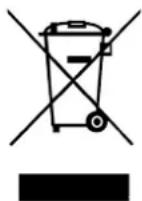
When this crossed-out wheeled bin symbol is attached to a product it means the product is covered by the European Directive 2002/96/EC. Please inform yourself about the local separate collection system for electrical and electronic products.
Please act according to your local rules and do not dispose of your old products with your normal household waste. The correct disposal of your old product will help prevent potential negative consequences for the environment and human health.
Be responsible Respect copyrights
The making of unauthorized copies of copy-protected material, including computer programmes, files, broadcasts and sound recordings, may be an infringement of copyrights and constitute a criminal offence. 186
This equipment should not be used for such purposes.
2 Your USB flash drive
Congratulations on your purchase and welcome to Philips!
To fully benefit from the support that Philips offers, register your product at www.philips.com/welcome.


natural_image
Illustration of a laptop with a USB port inserted, showing the keyboard and mouse (no text or symbols)3 Install
Microsoft® Windows Vista, XP, 2000, ME, MAC OS 9.0 or higher:
- The device driver is installed automatically when the drive is connected to a USB port of the computer. However, with some USB 2.0 cards or boards, you may need to initiate installation manually. In this case, follow the on-screen instructions to search for a suitable driver. Refer to the operating system's Help file if you need any help.
Note
Do not remove USB flash drive from the computer USB port as long as the download process is in progress.
Windows 98SE:
1 Download the device driver at http://www.philips.com/storage.
2 Remove the protective cap from the USB connector and turn it backwards (fig. 1).
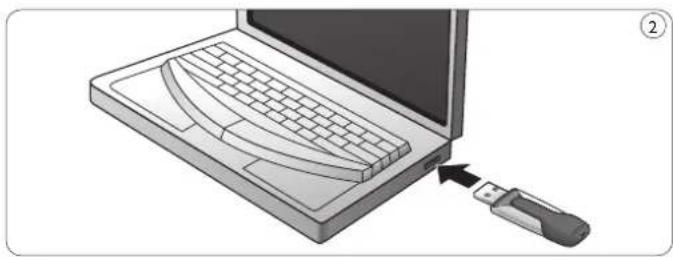
3 Insert the flash drive USB connector into one of the computer's USB ports (fig. 2).
The New Hardware wizard starts and the drive's LED lights up. The light intensity of the LED will gradually increase and then diminish again. This will continue for as long as the drive is connected to the computer.
4 Click the Next button.
5 Click Search for the best driver for your device. Then click the Next button.
Click Specify a location. Then click the Browse button.
6 When the dialog box appears, specify the folder where the installation program is stored.
7 Click the OK button to close the dialog box. Then click the Next button.
8 Click the Next button.
9 Click the Finish button.
Installation of the driver starts.
Once the installation process is complete, a drive icon for the USB flash drive appears in the My Computer window.
10 After confirming that the drive is in standby mode you can remove the drive from the computer's
USB port.
4 Connect
Connecting the USB flash drive to your computer
Note
You can use a USB extension cable or an optional USB hub to connect the USB flash drive to your computer.
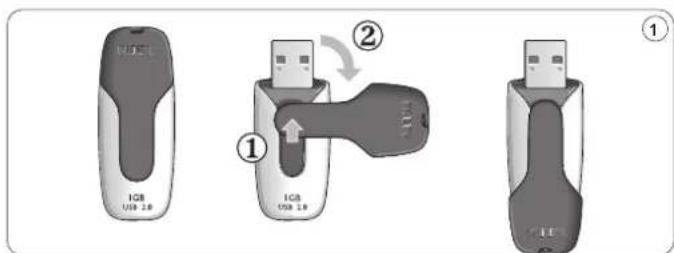
1 Remove the protective cap from the USB connector and turn it backwards (fig. 1).
natural_image
Illustration of a laptop keyboard being inserted into a mouse (no text or symbols)2 Insert the USB flash drive's USB connector into one of the computer's USB ports (fig. 2).
The USB flash drive's LED lights up. The light intensity of the LED will gradually increase and then diminish again. This will continue for as long as the drive is connected to the computer.
5 Enjoy
Operating the USB flash drive
- Once the USB flash drive is connected to the USB port of the computer:
- a software package will automatically start up enabling you to activate various applications. See the software help file for further instructions.
Visit our website www.philips.com/storage for software related questions and software updates.
- the drive icon for the USB flash drive will appear. You can now copy and save data on the drive by dragging files and folders on the drive icon, just like when you copy data to a hard disk, CD-ROM, DVD or floppy disk.
When copying data the LED's light intensity will quickly increase and diminish.
Notes
- Do not remove the USB flash drive from the computer USB port while copying and saving data otherwise the drive will no longer be recognized by your system.
- When operating under Windows the drive name varies, depending on your Windows version.
Disconnecting the USB flash drive from your computer
Windows® 98SE
- After confirming that the USB flash drive is in standby mode you can remove the flash drive from the computer's USB port.
Windows ^® ME and Windows ^® 2000
1 Double-click the Unplug or eject hardware icon in the task bar in the lower right part of the screen.
2 In the window that appears, select the name of the device that is to be removed, then click the STOP button.
3 When the Stop a hardware device screen appears, make sure the correct information is displayed, then click the OK button.
4 When a message appears, indicating that the USB flash drive can be safely removed, remove the USB flash drive from the computer's USB port.
Windows® Vista, XP
1 Double-click the Safely Remove Hardware icon in the task bar in the lower right part of the screen.
2 In the window that appears, select the name of the device that is to be removed, then click the STOP button.
3 When the Stop a hardware device screen appears, make sure the correct information is displayed, then click the OK button.
4 When the message Safe to Remove Hardware appears, remove the the USB flash drive from the computer's USB port.
Mac OS 9.0 and higher
1 Drag the drive icon to the Trash.
2 After confirming that the the USB flash drive is in standby mode, remove the the USB flash drive from the computer's USB port.
6 Technical specifications
Interface
• High-Speed USB 2.0 (backwards compatible with USB 1.1)
Transfer rate
- Read: max. 15MB per second / Write: max. 3MB per second (High-speed USB 2.0 port required to achieve maximum speed)
Compatible OSs
- Microsoft ^ Windows ^ Vista, XP, 2000, ME and 98SE (with driver)
• Mac OS 9.0 or later - Linux 2.4.0 or later
7 Need help?
Online help: www.philips.com/support
For interactive help and frequently asked questions. For software updates and support: www.philips.com/storage.

All rights reserved. Reproduction in whole or in part is prohibited without the prior written consent of the copyright owner.
The information presented in this document does not form part of any quotation or contract, is believed to be accurate and reliable and may be changed without notice. No liability will be accepted by the publisher for any consequence of its use. Publication there of does not convey nor imply any license under patent- or other industrial or intellectual property rights.
June 2007
www.philips.com NMW/RR/RD/2607
CE FC


- Important
- Note:
- Electric-, Magnetic- and Electromagnetic Fields (EMF)
- Warning
- Note
- For customers in the U.S.A.
- Caution
- For customers in Canada
- For customers in Europe
- Notes on Use
- Environmental information
- Be responsible Respect copyrights
- Your USB flash drive
- Install
- Windows 98SE:
- Connect
- Connecting the USB flash drive to your computer
- Enjoy
- Operating the USB flash drive
- Notes
- Disconnecting the USB flash drive from your computer
- Mac OS 9.0 and higher
- Technical specifications
- Interface
- Transfer rate
- Compatible OSs
- Need help?
- Online help: www.philips.com/support
Brand : PHILIPS
Model : FM04FD20B
Category : Flash Memory