
Voice Tracer LFH645 - Voice recorder PHILIPS - Free user manual and instructions
Find the device manual for free Voice Tracer LFH645 PHILIPS in PDF.


| Product Type | Digital Voice Recorder |
| Brand | Philips |
| Model | Voice Tracer LFH645 |
| Dimensions | Approx. 40 x 120 x 15 mm |
| Weight | Approx. 60 g (with batteries) |
| Power Source | 2 AAA batteries (alkaline or rechargeable) |
| Recording Media | Internal memory (2 GB) + microSD card slot (up to 32 GB) |
| Recording Formats | WAV, MP3 |
| Sampling Rate | Up to 48 kHz |
| Bit Rate | Up to 192 kbps |
| Microphone | Built-in stereo microphone |
| Speaker | Built-in speaker |
| Display | OLED display with backlight |
| Interface | USB 2.0 for file transfer |
| Battery Life | Up to 30 hours recording (quality dependent) |
| Key Functions | Voice activation, file management, password protection, repeat playback, A-B repeat |
| Cleaning | Wipe with a soft, dry cloth; avoid moisture |
| Safety | Keep away from magnets and extreme temperatures; do not disassemble |
| Spare Parts | AAA batteries, microSD cards, USB cable |
| Repairability | Non-user-serviceable; contact Philips support |
| General Info | Ideal for meetings, lectures, and interviews |
Frequently Asked Questions - Voice Tracer LFH645 PHILIPS
User questions about Voice Tracer LFH645 PHILIPS
0 question about this device. Answer the ones you know or ask your own.
Ask a new question about this device
Download the instructions for your Voice recorder in PDF format for free! Find your manual Voice Tracer LFH645 - PHILIPS and take your electronic device back in hand. On this page are published all the documents necessary for the use of your device. Voice Tracer LFH645 by PHILIPS.
USER MANUAL Voice Tracer LFH645 PHILIPS
Register your product and get support at
www.philips.com/welcome
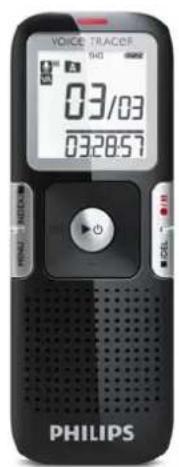
EN User manual
VOICE TRACER
LFH0645
LFH0648
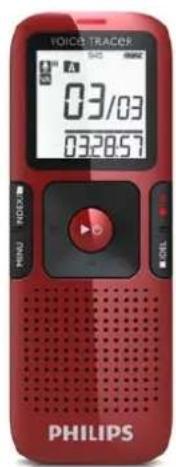
BRIIB2
PHILIPS
Table of contents
| 1 | W e l c o m e 3Product highlights 3 | ||||
| 2 | I m p o r t a n t 4Safety 4Hearing safety 4Disposal of your old product 4 | ||||
| 3 Your Voice Tracer digital recorder 5What's in the box? 5Overview 6 | |||||
| 4 | G e t s t a r t e d 7Insert the battery 7Charge the battery 7Power on/off 8Keypad lock (HOLD function) 8Using the Voice Tracer with a computer 8 | ||||
| 5 | R e c o r dRecord with the built-in microphone 9Record with an external microphone 10Add index marks 10 | ||||
| 6 Playback | 11 |
| Playback of a recording or music file | 11 |
| Playback functions | 11 |
| Repeated playback | 12 |
| 7 Delete | 14 |
| Deleting files and index marks | 14 |
| 8 Customize settings | 15 |
| 9 Update the firmware | 17 |
| 10 Frequently asked questions | 18 |
| 11 Technical data | 19 |
| 9 | |
1 W e l c o m e
Congratulations on your purchase and welcome to Philips! To fully benefit from the support that Philips offers, visit our Website for support information such as user manuals, software downloads, warranty information and more:
www.philips.com
Product highlights
- ClearVoice – for dynamic enhancement of quiet recording passages giving excellent speech intelligibility
- Instant one-touch recording – from power off to recording with a single key press
• Record in the popular MP3 format - Speedily transfer recordings and data via high-speed USB 2.0
• Voice-activated recording for hands-free note taking - USB mass storage ensures maximum compatibility
- Organize recordings quickly and easily with four file folders
2 l m p o r t a n t
Safety
- To avoid a short circuit, do not expose the product to rain or water.
- Do not expose the device to excessive heat caused by heating equipment or direct sunlight.
- Protect the cables from being pinched, particularly at plugs.
- Back up your files. Philips is not responsible for any loss of data.
Hearing safety
Observe the following guidelines when using your headphones:
- Listen at reasonable volumes for reasonable periods of time.
- Be careful not to adjust the volume higher as your hearing adapts.
- Do not turn up the volume so high that you can't hear what's around you.
- You should use caution or temporarily discontinue use in potentially hazardous situations.
- Do not use headphones while operating a motorized vehicle, cycling, or skateboarding, etc. It may create a traffic hazard and is illegal in many areas.
Important (for models supplied with headphones):
Philips guarantees compliance with the maximum sound power of its audio players as determined by relevant regulatory bodies, but only with the original model of provided headphones. If these headphones need replacement, we recommend that you contact your retailer to order a Philips model identical to that of the original.
Disposal of your old product
- Your product is designed and manufactured with high quality materials and components that can be recycled and re-used.
- When this crossed-out wheeled bin symbol is attached to a product, it indicates that the product is covered by the European Directive 2002/96/EC.
- Become informed about your local separate collection system for electrical and electronic products.
- Act according to your local rules and do not dispose of old products with normal household waste. The correct disposal of old products will help prevent potential negative consequences for the environment and human health.
- Batteries (including built-in rechargeable batteries) contain substances that may pollute the environment. All batteries should be disposed of at an official collection point.
3 Your Voice Tracer digital recorder
What's in the box?
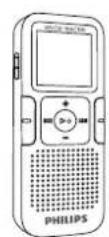
Digital recorder
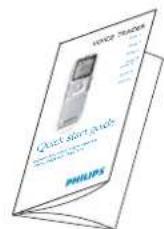
Quick start guide USB cable

1 × AAA battery
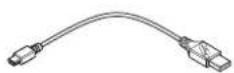
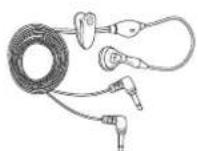
Hands-free headset
Table of contents
Your Voice Tracer digital recorder 5
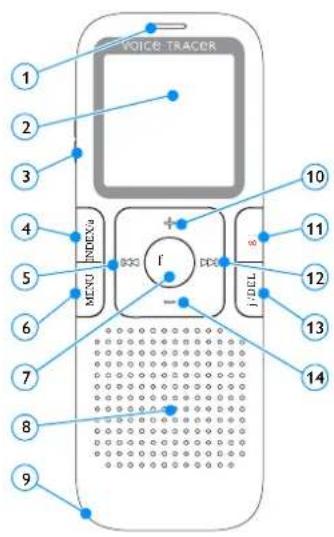
Overview
① Record/play indicator
② Display
③ Hold switch
④ Index, Folder, Repeat (INDEX/a)
⑤ Fast rewind, File selection, Set menu option (h)
⑥ Menu (MENU)
⑦ Power on/off, Play/Pause, Play speed (f)
⑧ Speaker
⑨ Strap hole
⑩ Volume up, Menu item selection (+)
⑪ Record, Pause, Power On (g)
⑫ Fast forward, File selection,
Set menu option (b)
⑬ Stop, Display, Delete (j/DEL)
⑭ Volume down, Menu item selection (−)
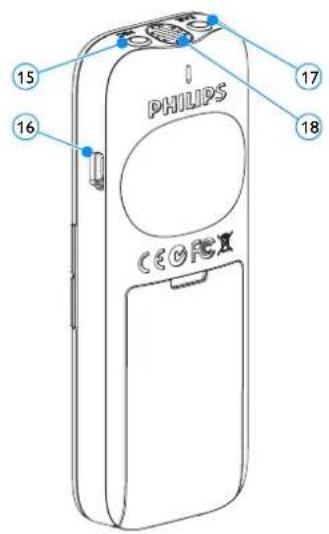
⑮ Microphone jack (MIC)
16 USB socket
⑰ Headphones jack (EAR)
⑱ Integrated microphone
4 Get start ed
Insert the battery
1 Slide open the battery cover.
2 Insert the battery as indicated. Make sure the polarity is correct.
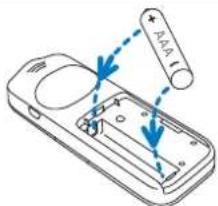
3 Close the cover again.
Notes
- Remove the battery if you will not be using the Voice Tracer for an extended period. The Voice Tracer could be damaged by a leaking battery.
- If the Voice Tracer does not function properly, remove the battery and re-insert it again.
- Stop the Voice Tracer before replacing the battery. Removing the battery while the recorder is in use may corrupt the file.
- When the battery is nearly empty, the battery indicator blinks.
Charge the battery
The rechargeable battery Philips LFH9154 can be charged in the Voice Tracer. When the Voice Tracer is connected to a computer, the rechargeable battery is automatically charged. A complete recharge cycle takes about 2.5 hours.
Notes
• Fully charge the battery before first use.
- The computer must be ON when charging the batteries.
- If the USB port of the computer does not supply enough power capacity, disable the charge function (for details see chapter 8, Customize settings on page 15) and use an external battery charger.
Table of contents
Get started 7
Power on/off
To power on, press the ▶ ⏻ button until the display shows a short animation [ ].
2 To power off, press the ▶ button while the recorder is stopped until the display shows BYE.
Keypad lock (HOLD function)
1 Slide the HOLD switch up into the Hold position to lock the keypad of the recorder.
- The display briefly shows 'On Hold' and turns off.
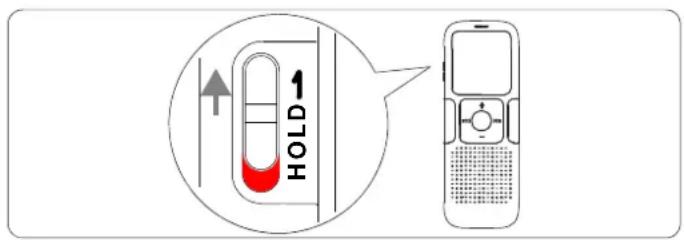
2 Slide the HOLD switch down to the Off position to disengage the keypad lock.
Using the Voice Tracer with a computer
As a USB mass storage device, the Voice Tracer offers a convenient way to save, back up and move files. The Voice Tracer connects to a computer using a USB connection and does not require special software to be installed. The Voice Tracer is automatically displayed as a removable drive.
Notes
- Do not disconnect the Voice Tracer from the computer while files are transferred from or to the recorder. The record / play indicator ① flashes orange, when data is being transferred.
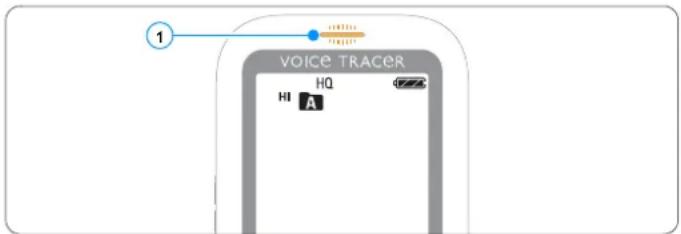
- Do not format the drive of the Voice Tracer on a computer. Formatting on the Voice Tracer uses the correct file system and automatically creates the required folders.
5 R e c o r d
Please note the instructions in this section when you make the first recording with your Voice Tracer!
Record with the built-in microphone
1 Press the INDEX/■ button while the recorder is stopped to select the desired folder.
2 Press the ●/II button to start recording.
• The record / play indicator lights red.
- Point the built-in microphone toward the sound source.
3 To pause recording, press the ●/II button.
- The record / play indicator will blink, and PAUSE will flash on the display.
4 Press the ●/II button again to resume recording.
5 To stop recording, press the ■/DEL button.
Notes
- Set the desired voice activation function and recording mode before starting recording (see chapter 8, Customize settings on page 15 for more information).
- Make a test recording to make sure that the Voice Tracer settings are correct.
- Press and hold ▶ during recording to display the remaining recording time.
- Press ▶▶▶ during recording to create a new file.
- The maximum number of files in each folder is 99, for a total capacity of 396 files (99 files x 4 folders).
- If the recording time exceeds the available capacity or the number of files reaches 396, recording stops and FULL will be displayed. Delete a few recordings or move them to a computer.
- Do not remove the battery when recording is in progress. This can cause the unit to malfunction.
- If you are to start a long recording session, replace the batteries before you begin.
Record with an external microphone
To record with an external microphone, connect the microphone to the microphone jack and follow the same procedure as for the built-in microphone. The built-in microphone is switched off when an external microphone is connected.
Add index marks
Index marks can be used to mark certain points in a recording as points of reference (for example, to mark the start of a new subject of discussion).
1 Press the INDEX/■ button during recording to add an index mark.
• The index number is displayed for one second.

Notes
- The index icon INREKates that the recording contains index marks.
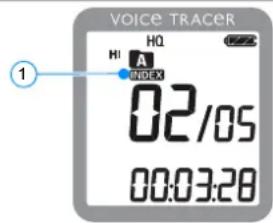
- Up to 32 index marks can be set per file.

Table of contents
6 P l a y b a c k
Playback of a recording
1 Press the INDEX/■ button while the recorder is stopped to select the desired folder.
2 Press the ◀◀◀ or ▶▶◀ button to select the file to play back.
3 Press the ▶ button.
- The playback time will be shown on the display, and the record / play indicator will light green.
4 Adjust the volume using the + and - buttons.
5 To stop playback, press the ■/DEL button.
- The total playback time of the current file will be shown on the display.
6 Press the ▶ button again to continue playback from the previous position.
Notes
When headphones are connected to the headphones jack, the recorder speaker will be switched off.
Playback functions
Selecting a file
1 While the recorder is stopped, press button ▶▶ briefly to jump to the start of the next file.
2 While the recorder is stopped, press button ◀◀◀ briefly to jump to the start of the previous file.
Slow, fast, normal playback
1 Press and hold the ▶ button for one second or longer to switch between normal, slow ▶ and fast ▶ playback ①.
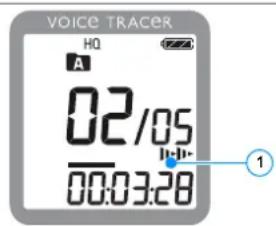
Search
1 Press and hold the ◀◀◀ or ▶▶◀ button during playback to scan backward or forward in the current file at a fast speed.
2 Release the button to resume playback at the selected speed.
Rewinding and forwarding / searching for an index mark
1 Press the ◀◀◀ or ▶▶◀ button during playback to rewind to the beginning of the file being played or forward to the next file. If the file contains index marks, playback starts at the next index mark.
Repeated playback
You can set the Voice Tracer to play files repeatedly.
Repeat a sequence
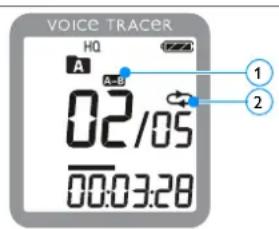
1 To repeat or loop a sequence in a file, press the INDEX/■ button at the chosen start point.
- The symbol A-3 the display flashes and the loop symbol ② appears.
2 Press the INDEX/■ button again at the chosen end point.
• The repeat sequence begins.
3 Press the ■/DEL button to stop playback or press the INDEX/■ button to resume normal playback.
Repeat a file or folder
1 Press and hold the INDEX/■ button for one second or longer during playback to switch between play modes (repeat file or repeat folder).
2 Select the desired playback mode.
| Icon Description | |
| FILE | Repeat a file. |
| FOLDER | Repeat all files in a folder. |
7 D e l e t e
Deleting files and index marks
1 Press the INDEX/■ button while the recorder is stopped to select the desired folder.
2 Press and hold the ■/DEL button for one second or longer.
- DELETE appears on the display.
3 Press the ◀◀◀ or ▶▶◀ button to select a delete option:
| Icon Description | |
| FILE | Delete a single file. |
| FOLDER | Delete all files in a folder. |
| INDEX | Delete all index marks in a file. |
4 Press the ▶ ⏻ button.
5 Press the ◀◀ or ▶▶I button to select the file, the folder or the file containing the index marks to be deleted.
6 Press button ▶ again.
- NO appears.
7 Push button ◀◀ or ▶▶I to select YES.
8 Press the ▶ button to confirm.
Note
The files will be automatically renumbered.
Table of contents
8 Customize settings
You can customize the settings of your Voice Tracer to suit the recording conditions and your personal preferences.
1 Press the MENU butt on while the recorder is stopped.
- The display shows MODE and the current setting for recording mode is flashing.
2 Press the + or - button to navigate the setting icons bar up or down.
3 Press the ◀◀ or ▶▶I button to change the displayed setting. The new setting is automatically accepted (exceptions: the FORMAT and SPLIT functions must be confirmed by pressing the ▶ ⏻ button).
4 Customize settings as required or exit the menu by pressing the MENU button.
| Icon / Display | Option Description |
| SLP | Choose among several recording modes |
| LP | including SHQ, HQ, SP, LP or SLP for a longer recording time. Refer to chapter 11, Technical data on page 19 for details. |
| SP | |
| HQ | |
| SHQ |
| Icon/ Display | Option Description | |
| MIC | HI | Adjust the recording sensitivity to avoid recording background noises and to adjust to the recording environment. |
| LO | ||
| VA | On | Voice-activated recording is a convenience feature for hands-free recording. When voice-activated recording is enabled, recording will start when you begin speaking. When you stop speaking, the recorder will automatically pause recording after three seconds of silence, and resume only when you begin speaking again. |
| Off | ||
| CLVOICE | On | Dynamic emphasis on quiet passages to improve the intelligibility of quiet voices. |
| Off | ||
| BEEP | Yes | The recorder gives sound feedback about button operations or errors. |
| No | ||
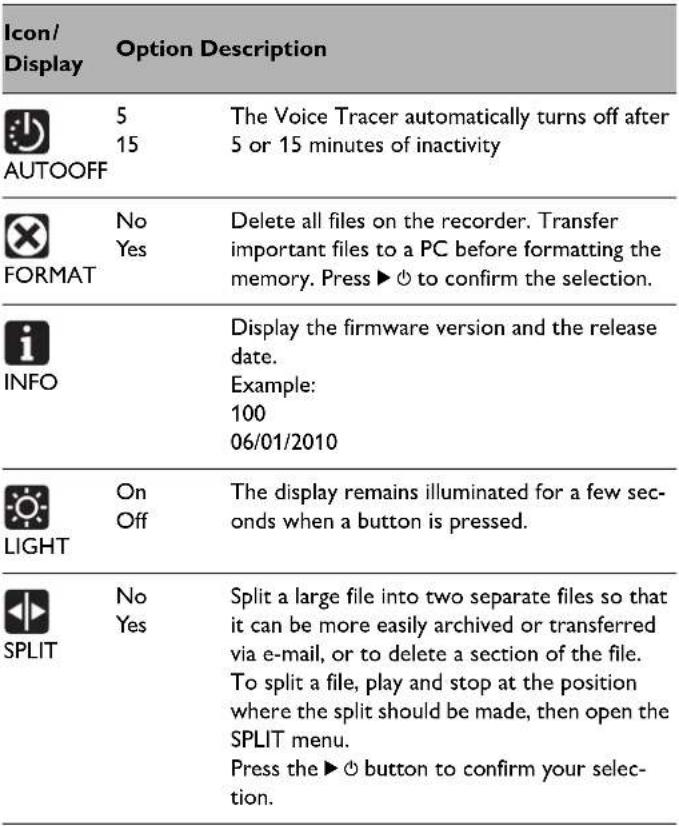 | ||
| Icon/ Display | Option Description | |
| 30 | The auto divide feature automatically records into a new file every 30 or 60 minutes. This makes it much easier to find, edit and archive long recordings such as meetings or lectures. | |
| 60 | ||
| DIVIDE | Off | |
| On | When charging is enabled, the rechargeable battery is automatically charged when the Voice Tracer is connected to a computer. | |
| CHARGE | Off | |
9 Update the firmware
Your Voice Tracer is controlled by an internal program called firmware. As a part of ongoing product maintenance, the firmware is revised and errors are corrected.
It is possible that a newer version (an "update") of the firmware has been issued since you purchased the Voice Tracer. In this case you can easily update your recorder to the latest version.
1 Connect the Voice Tracer to your computer using the supplied USB cable.
2 Download the firmware update for your Voice Tracer from www.philips.com onto your computer.
3 Copy the new firmware file to the root directory of the Voice Tracer.
4 Disconnecting the Voice Tracer from the computer automatically updates the firmware.
Notes
- Please note that the firmware file must be located in the root directory to allow automatic updating.
- The firmware file will be deleted automatically after the update has been carried out. The Voice Tracer will then switch off.
10 Frequently asked questions
The answers to frequently asked questions listed here are intended to solve simple problems with the Voice Tracer. If you have no success please contact your dealer or visit our website:
www.philips.com/support
My Voice Tracer cannot power on.
- The battery is flat or has been inserted incorrectly. Replace the battery with a new one and make sure that it is inserted correctly.
My Voice Tracer does not record anything.
- The Voice Tracer is in HOLD mode. Slide the HOLD switch to the "Off" position.
- The maximum number of recordings may be reached or the recording capacity is full. Delete some recordings or move recordings to an external device.
I cannot hear anything from the speaker.
- The headphones may be plugged in. Remove the headphones.
- The volume is at the lowest setting. Adjust the volume.

Table of contents
My Voice Tracer cannot play recordings.
- The Voice Tracer is in HOLD mode. Slide the HOLD switch to the "Off" position.
- The battery is flat or has been inserted incorrectly. Replace the battery with a new one and make sure that it is inserted correctly.
- Nothing has been recorded yet. Check the number of recordings.
My Voice Tracer cannot stop, pause, play or record.
- The Voice Tracer is in HOLD mode. Slide the HOLD switch to the "Off" position.
I cannot hear anything through the headphones.
- The headphones may not be plugged in properly. Plug in the headphones properly.
- The volume is at the lowest setting. Adjust the volume.
11 Technical data
Connectivity
| Headphones jack 3.5 mm | Impedance: 16 Ω or above |
| Microphone jack 3.5 mm | Impedance: 2.2 kΩ |
| USB High-speed USB 2.0, mini USB port | |
Display
| Type LCD / segment | |
| Screen size | 34.5 mm / 1.4" |
| Backlight white | |
Memory
| Built-in memory capacity 4 GB |
| Built-in memory type NAND Flash |
| Mass storage class compliant yes |
Recording
| Format MPEG1 Layer 3 (MP3) | |
| Microphone built-in high-sensitivity, low-noisemicrophone, mono | |
| Recording modes | SHQ, HQ, SP, LP, SLP (MP3/mono) |
| Bit rate | SHQ: 192 kbits/sHQ: 64 kbits/sSP: 48 kbits/sLP: 32 kbits/sSLP: 8 kbits/s |
| Recording time (approx.) | SLP: 44 daysLP: 11 daysSP: 8 daysHQ: 5,5 daysSHQ: 2 daysdays |
| Sample rate | SHQ: 44.1 kHzHQ: 22 kHzSP/LP/SLP: 16 kHz |

Table of contents
Technical data 19
Speaker
Type built-in dynamic speaker
Diameter 23 mm / 0.9 "
Output power 110 mW
Sound enhancement ClearVoice
Battery
Type AAA/LR03 Alkaline or
Philips AAA NiMH rechargeable battery LFH9154
Number of batteries 1
Rechargeable yes, via USB with Philips NiMH
rechargeable battery LFH9154
Lifetime up to 22hours (in SLP recording mode)
System requirements
Operating system Windows 7/Vista/XP/2000,
Mac OS X, Linux
Interface available USB port
Operating conditions
Temperature 5° – 45°C / 41° – 113°F
Humidity 10% – 90%, non-condensing
Dimensions and weight
Width × height × depth 38 × 105 × 16.4 mm / 1.5 × 4.1 × 0.6"
Weight incl. battery 55 g / 0.12 lb

Table of contents
Digital recorder | Enregistreur numérique | Digitaler Recorder | Цифровой рекордер
Produced by
Philips Austria GmbH,
Speech Processing,
Gutheil-Schoder-Gasse
12, 1102 Vienna, Austria
Philips Speech Processing
North America,
66 Perimeter Center East,
Atlanta, GA 30346
or/ou 281 Hillmount Road,
Markham, ON L6C 2S3
Importator: Philips Romania SRL.
Str. Fabrica de Glucoza Nr. 17,
Bucuresti - 020331
Forgalmazò: Philips
Register your product and get support at
www.philips.com/welcome






1 GB/Go = 1 000 000 000 bytes/octets, available storage capacity will be less | la capacité de stockage disponible sera inférieur | der tatsächlich verfügbare Speicherplatz ist geringer
© 2011 Koninklijke Philips Electronics N.V. All rights reserved. Trademarks are the property of Koninklijke Philips Electronics N.V. or their respective owners.

Specifications subject to change without notice.
Trade marks are the property of Royal Philips Electronics or their respective owners.
© 2011 Royal Philips Electronics. All rights reserved.
Document version 3.0, 2011-02-01.


- VOICE TRACER
- 1 W E L C O M E
- PRODUCT HIGHLIGHTS
- 2 L M P O R T A N T
- SAFETY
- HEARING SAFETY
- OBSERVE THE FOLLOWING GUIDELINES WHEN USING YOUR HEADPHONES
- IMPORTANT (FOR MODELS SUPPLIED WITH HEADPHONES)
- DISPOSAL OF YOUR OLD PRODUCT
- 3 YOUR VOICE TRACER DIGITAL RECORDER
- OVERVIEW
- 4 GET START ED
- INSERT THE BATTERY
- NOTES
- CHARGE THE BATTERY
- POWER ON/OFF
- KEYPAD LOCK (HOLD FUNCTION)
- USING THE VOICE TRACER WITH A COMPUTER
- 5 R E C O R D
- RECORD WITH THE BUILT-IN MICROPHONE
- RECORD WITH AN EXTERNAL MICROPHONE
- ADD INDEX MARKS
- 6 P L A Y B A C K
- PLAYBACK OF A RECORDING
- PLAYBACK FUNCTIONS
- SELECTING A FILE
- SLOW, FAST, NORMAL PLAYBACK
- SEARCH
- REWINDING AND FORWARDING / SEARCHING FOR AN INDEX MARK
- REPEATED PLAYBACK
- REPEAT A SEQUENCE
- REPEAT A FILE OR FOLDER
- 7 D E L E T E
- DELETING FILES AND INDEX MARKS
- NOTE
- 8 CUSTOMIZE SETTINGS
- 9 UPDATE THE FIRMWARE
- 10 FREQUENTLY ASKED QUESTIONS
- MY VOICE TRACER CANNOT POWER ON
- MY VOICE TRACER DOES NOT RECORD ANYTHING
- I CANNOT HEAR ANYTHING FROM THE SPEAKER
- MY VOICE TRACER CANNOT PLAY RECORDINGS
- MY VOICE TRACER CANNOT STOP, PAUSE, PLAY OR RECORD
- I CANNOT HEAR ANYTHING THROUGH THE HEADPHONES
- 11 TECHNICAL DATA
- SPEAKER
- BATTERY
- SYSTEM REQUIREMENTS
- OPERATING CONDITIONS
- DIMENSIONS AND WEIGHT
- DIGITAL RECORDER | ENREGISTREUR NUMÉRIQUE | DIGITALER RECORDER | ЦИФРОВОЙ РЕКОРДЕР
Brand : PHILIPS
Model : Voice Tracer LFH645
Category : Voice recorder