
BTP-06 - Telephone Jablocom - Free user manual and instructions
Find the device manual for free BTP-06 Jablocom in PDF.


| Product Type | Cordless Phone (DECT) |
| Brand | Jablocom |
| Model | BTP-06 |
| Dimensions (Handset) | 165 x 48 x 28 mm |
| Weight (Handset) | 120 g (including battery) |
| Base Station Dimensions | 110 x 90 x 60 mm |
| Power Supply | AC 100-240V, 50/60Hz |
| Battery Type | NiMH rechargeable, 2.4V, 400 mAh |
| Standby Time | Up to 100 hours |
| Talk Time | Up to 10 hours |
| Range (Indoor) | Up to 50 meters |
| Range (Outdoor) | Up to 300 meters |
| Display | 1.5-inch monochrome LCD with backlight |
| Phonebook | Up to 50 entries |
| Caller ID | Supported (with network subscription) |
| Redial | Last 10 numbers |
| Ringer Volume | Adjustable (3 levels + off) |
| Handset Volume | Adjustable (3 levels) |
| Cleaning | Wipe with a soft, dry cloth. Do not use liquids or solvents. |
| Safety | Use only supplied power adapter. Do not expose to water. |
| Spare Parts & Repairability | Battery and charger available as spare parts. Repair by qualified personnel only. |
Frequently Asked Questions - BTP-06 Jablocom
User questions about BTP-06 Jablocom
0 question about this device. Answer the ones you know or ask your own.
Ask a new question about this device
Download the instructions for your Telephone in PDF format for free! Find your manual BTP-06 - Jablocom and take your electronic device back in hand. On this page are published all the documents necessary for the use of your device. BTP-06 by Jablocom.
USER MANUAL BTP-06 Jablocom
natural_image
Line drawing of a mobile phone with keypad and screen (no text or symbols)
natural_image
Abstract icon of concentric arcs with a central dot, resembling a Wi-Fi signal or sensor symbol (no text or labels)User's Guide
INDEX
INDEX 1
- BTP-06 - INTRODUCTION .... 1
1.1 Basic Features .... 1
1.2 Description ...... 2
- STARTING ....3
2.1 Package Contents .... 3
2.2 Assembly and power up 3
2.3 Pairing the BTP-06 with your mobile phone ..... 4
2.4 First use....5
- BTP-06 FUNCTIONS ...... 7
3.1 Calls 8
3.2 Contacts 8
3.3 Call history 10
3.4 Text messages 10
- EXTENDED CONFIGURATION ...... 11
4.1 Set-Up and Configuration via PC ....11
4.2 Speed dial buttons 12
4.3 Advanced call functions ...... 13
4.4 Bluetooth setting.... 13
4.5 Phone Settings 14
4.6 Sound settings 14
4.7 Service.... 14
4.8 Turn On/Off 14
-
TROUBLESHOOTING 15
-
TECHNICAL SPECIFICATION.... 16
6.1 Warranty 16
6.2 Safety Instructions 17
6.3 Disposal Information 18
1. BTP-06 - INTRODUCTION
1.1 BASIC FEATURES
Thank you for purchasing the BTP-06 Bluetooth Desktop Phone (BTP-06).
BTP-06 is Bluetooth device which paired with your mobile phone (mobile phone),
offers a comfortable and very efficient way to operate your mobile phone at the office or at home.
BTP-06 lets you do:
■ Make a phone call
■ Use the handset receiver or speakerphone
■ Synchronize contacts with your mobile phone
■ Fast navigation of your contact list by using QWERTY keyboard
■ Send and Receive text messages
■ Synchronize call history
■ Use free JabloTool software to operate all functions from PC
■ Many other functions...
1.2 DESCRIPTION
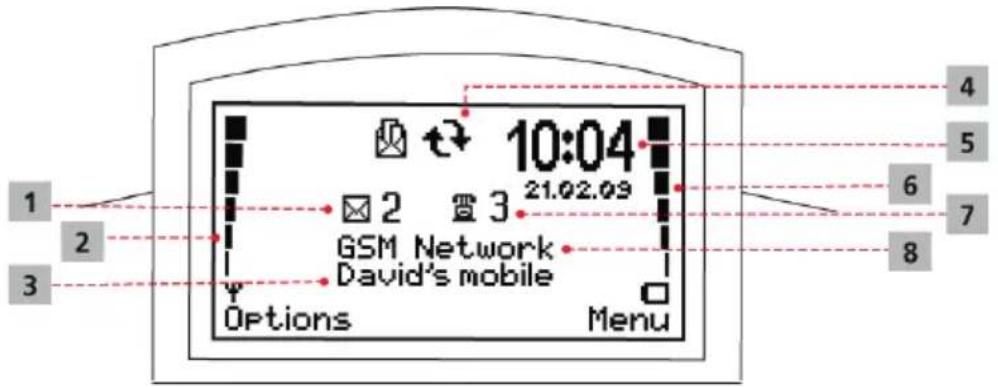
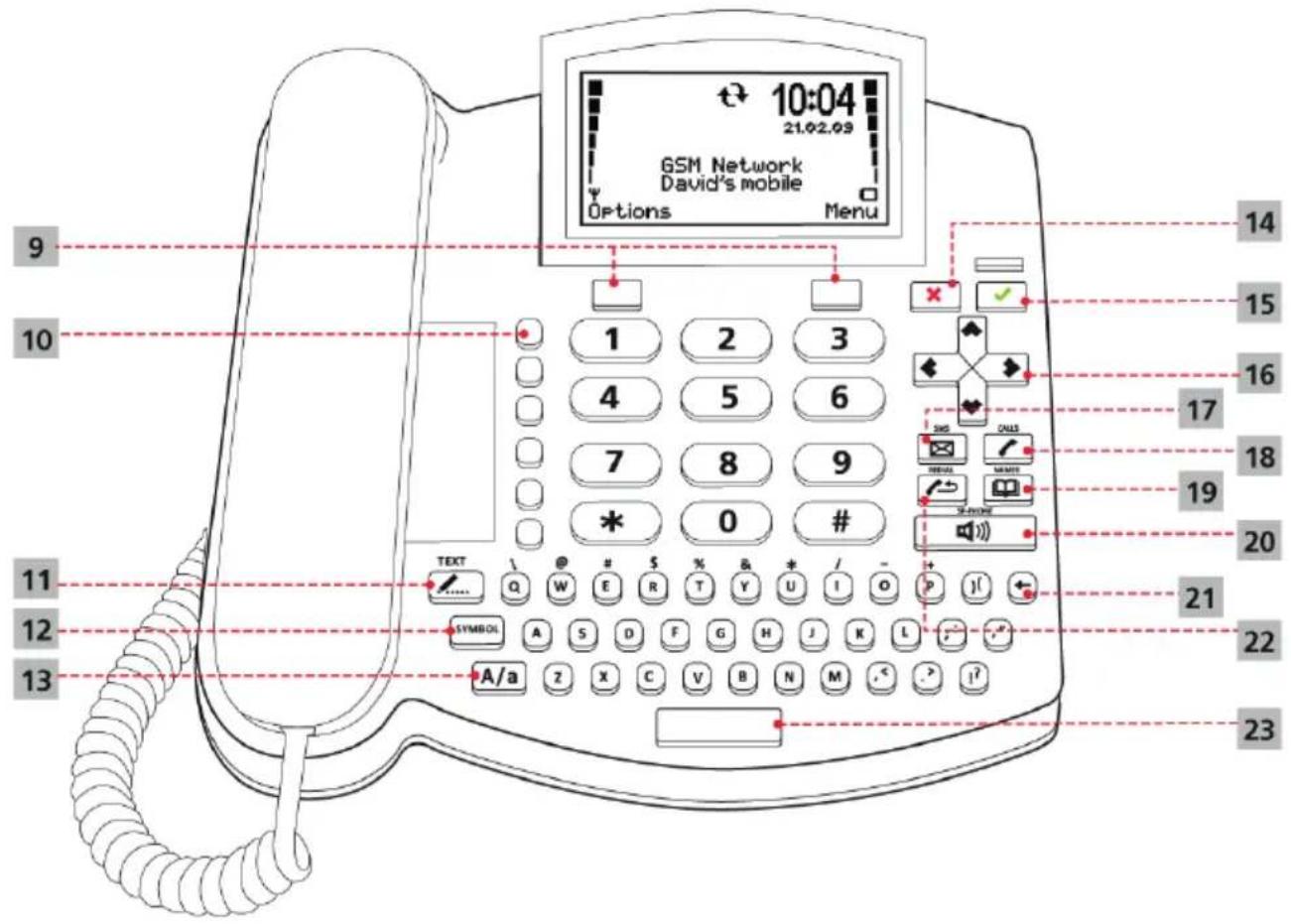
| 1 New text message indicator 13 Shift key (Upper Case/Lower Case) | ||
| 2 Cellular network signal indicator 14 Cancel (ESC) key | ||
| 3 Name of currently paired mobile phone 15 Confirm (OK) key | ||
| 4 Data synchronization in progress 16 Navigation keys | ||
| 5 Time and date 17 Text messages | ||
| 6 Mobile Phone Battery indicator 18 Call history | ||
| 7 Missed call indicator 19 Contacts | ||
| 8 Name of current cellularnetwork 20 Speakerphone | ||
| 9 Context key 21 Backspace | ||
| 10 Speed dial buttons 22 Redial function | ||
| 11 Start text message writing 23 SPACE key | ||
| 12 ALT key to write special characters | ||
2. STARTING
2.1 PACKAGE CONTENTS
■ Unpack the phone and check the package contents.

1 Phone body
2 Phone receiver
3 Connecting cord
4 A/C power adaptor
5 USB cable
6 Installation CD
7 User's guide
2.2 ASSEMBLY AND POWER UP
■ Connect the cord between the receiver and the phone body.

- First connect the power adaptor to the connector at the rear of the phone and then plug the adaptor
■ into the wall socket.

- Choose the desired language and confirm by pushing theSelect button
2.3 PAIRING THE BTP-06 WITH YOUR MOBILE PHONE
The BTP-06 needs to be connected to your mobile phone by a procedure called pairing. This guide will instruct you in this pairing procedure:
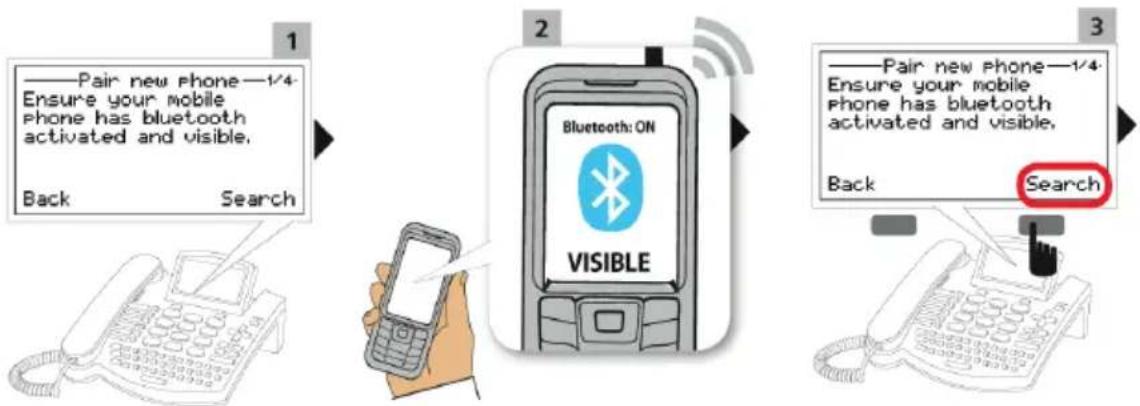
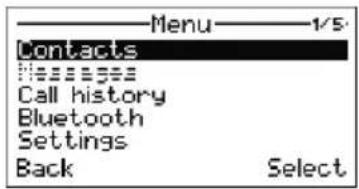
- Once the BTP-06 is powered up for first time (or use Menu > Bluetooth > Add phone) it automatically enters the pairing mode.
- Set your mobile phone to be discoverable for the BTP-06 – please check your mobile phone user guide for detailed instructions. Ensure that the Bluetooth function is activated on your mobile phone and visible to other devices. This usually involves going to a Setup, Connect or Bluetooth menu on your mobile phone and selecting the option to Discover or Add a Bluetooth device.
- Then select theSearch on the BTP-06 and it will find your mobile phone. Please note that you may see also some other Bluetooth devices which are within working range of the BTP-06. Select the mobile phone which you want the BTP-06 to pair with and choice thePair.
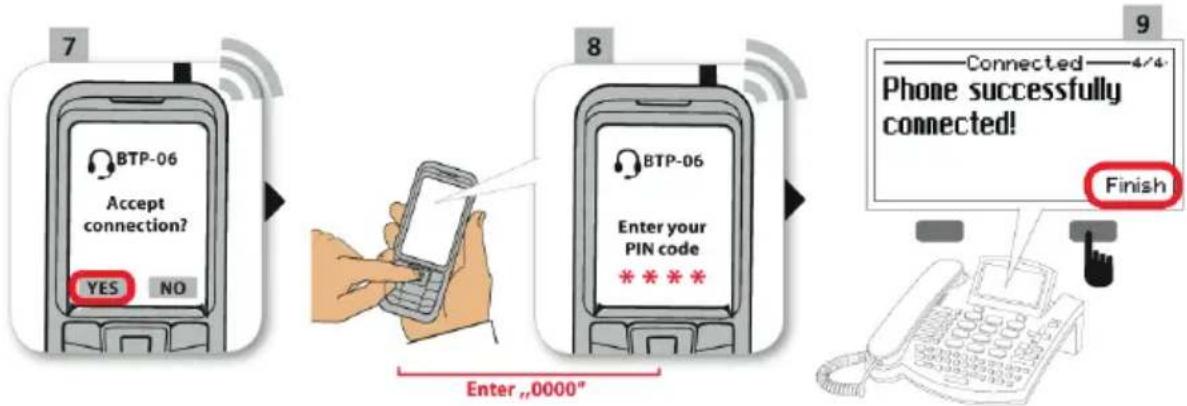
- Accept the PAIRing of your mobile phone by selecting YES or OK on your mobile phone and if the mobile phone asks for a passkey or PIN enter "0000" (4 zeros). Your mobile phone should confirm the finishing of the pairing procedure.
- ConfirmYES if your mobile phone requests to allow the BTP-06 profiles - functions (such as Handsfree, DUN, IrMC, SyncML, PBA etc.).
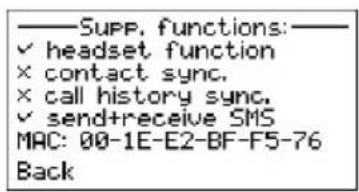
The BTP-06 will warn you about functions which your mobile phone doesn't support via Bluetooth.
flowchart
graph TD
    A["1: Pair new phone—1/4. Ensure your mobile phone has bluetooth activated and visible."] --> B["2: Bluetooth ON"]
    B --> C["3: Pair new phone—1/4. Ensure your mobile phone has bluetooth activated and visible."]
    B --> D["Back Search"]

flowchart
graph LR
    A["7"] --> B["8"]
    B --> C["9"]
    D["Enter, 0000""] --> E["Phone successfully connected!"]
    E --> F["Finish"]
Once you have finished the pairing, you can use the BTP-06 to make calls instead of your mobile phone. If your mobile phone supports contact and call history synchronizati on, it will start automati cally (process indicated by the symbol).

flowchart
graph LR
    A["1"] --> B["2"]
    B --> C["3"]
    C --> D["4"]
    D --> E["5"]
    E --> F["6"]
    F --> G["7"]
    G --> H["8"]
    H --> I["9"]
    I --> J["10"]
    J --> K["11"]
    K --> L["12"]
    L --> M["13"]
    M --> N["14"]
    N --> O["15"]
    O --> P["16"]
    P --> Q["17"]
    Q --> R["18"]
    R --> S["19"]
    S --> T["20"]
    T --> U["21"]
    U --> V["22"]
    V --> W["23"]
    W --> X["24"]
    X --> Y["25"]
    Y --> Z["26"]
    Z --> AA["27"]
    AA --> AB["28"]
    AB --> AC["29"]
    AC --> AD["30"]
    AD --> AE["31"]
    AE --> AF["32"]
    AF --> AG["33"]
    AG --> AH["34"]
    AH --> AI["35"]
    AI --> AJ["36"]
    AJ --> AK["37"]
    AK --> AL["38"]
    AL --> AM["39"]
    AM --> AN["40"]
    AN --> AO["41"]
    AO --> AP["42"]
    AP --> AQ["43"]
    AQ --> AR["44"]
    AR --> AS["45"]
    AS --> AT["46"]
    AT --> AU["47"]
    AU --> AV["48"]
    AV --> AW["49"]
    AW --> AX["50"]
    AX --> AY["51"]
    AY --> AZ["52"]
    AZ --> BA["53"]
    BA --> BB["54"]
    BB --> BC["55"]
    BC --> BD["56"]
    BD --> BE["57"]
    BE --> BF["58"]
    BF --> BG["59"]
    BG --> BH["60"]
    BH --> BI["61"]
    BI --> BJ["62"]
    BJ --> BK["63"]
    BK --> BL["64"]
    BL --> BM["65"]
    BM --> BN["66"]
    BN --> BO["67"]
    BO --> BP["68"]
    BP --> BQ["69"]
    BQ --> BR["70"]
    BR --> BS["71"]
    BS --> BT["72"]
    BT --> BU["73"]
    BU --> BV["74"]
    BV --> BW["75"]
    BW --> BX["76"]
    BX --> BY["77"]
    BY --> BZ["78"]
    BZ --> CA["79"]
    CA --> CB["80"]
    CB --> CC["81"]
    CC --> CD["82"]
    CD --> CE["83"]
    CE --> CF["84"]
    CF --> CG["85"]
    CG --> CH["86"]
    CH --> CI["87"]
    CI --> CJ["88"]
    CJ --> CK["89"]
    CK --> CR["90"]
    CR --> CS["91"]
    CS --> CT["92"]
    CT --> CU["93"]
    CU --> CV["94"]
    CV --> CW["95"]
    CW --> CX["96"]
    CX --> CY["97"]
    CY --> CZ["98"]
    CZ --> DA["99"]
Functions which are not supported by your mobile phone are shown in a small dashed font.

2.4 FIRST USE
Make a call


flowchart
graph TD
    A["1"] --> B["2"]
    B --> C["3"]
    C --> D["4"]
    D --> E["5"]
    E --> F["6"]
    F --> G["7"]
    G --> H["8"]
    H --> I["9"]
    I --> J["10"]
    J --> K["11"]
    K --> L["12"]
    L --> M["13"]
    M --> N["14"]
    N --> O["15"]
    O --> P["16"]
    P --> Q["17"]
    Q --> R["18"]
    R --> S["19"]
    S --> T["20"]
    T --> U["21"]
    U --> V["22"]
    V --> W["23"]
    W --> X["24"]
    X --> Y["25"]
    Y --> Z["26"]
    Z --> AA["27"]
    AA --> AB["28"]
    AB --> AC["29"]
    AC --> AD["30"]
    AD --> AE["31"]
    AE --> AF["32"]
    AF --> AG["33"]
    AG --> AH["34"]
    AH --> AI["35"]
    AI --> AJ["36"]
    AJ --> AK["37"]
    AK --> AL["38"]
    AL --> AM["39"]
    AM --> AN["40"]
    AN --> AO["41"]
    AO --> AP["42"]
    AP --> AQ["43"]
    AQ --> AR["44"]
    AR --> AS["45"]
    AS --> AT["46"]
    AT --> AU["47"]
    AU --> AV["48"]
    AV --> AW["49"]
    AW --> AX["50"]
    AX --> AY["51"]
    AY --> AZ["52"]
    AZ --> BA["53"]
    BA --> BB["54"]
    BB --> BC["55"]
    BC --> BD["56"]
    BD --> BE["57"]
    BE --> BF["58"]
    BF --> BG["59"]
    BG --> BH["60"]
    BH --> BI["61"]
    BI --> BJ["62"]
    BJ --> BK["63"]
    BK --> BL["64"]
    BL --> BM["65"]
    BM --> BN["66"]
    BN --> BO["67"]
    BO --> BP["68"]
    BP --> BQ["69"]
    BQ --> BR["70"]
    BR --> BS["71"]
    BS --> BT["72"]
    BT --> BU["73"]
    BU --> BV["74"]
    BV --> BW["75"]
    BW --> BX["76"]
    BX --> BY["77"]
    BY --> BZ["78"]
    BZ --> CA["79"]
    CA --> CB["80"]
    CB --> CC["81"]
    CC --> CD["82"]
    CD --> CE["83"]
    CE --> CF["84"]
    CF --> CG["85"]
    CG --> CH["86"]
    CH --> CI["87"]
    CI --> CJ["88"]
    CJ --> CK["89"]
    CK --> CR["90"]
    CR --> CS["91"]
    CS --> CT["92"]
    CT --> CU["93"]
    CU --> CV["94"]
    CV --> CW["95"]
    CW --> CX["96"]
    CX --> CY["97"]
    CY --> CZ["98"]
    CZ --> DA["99"]

flowchart
graph TD
    A["Message recipient\nPhone number:\nBack OK"] --> B["0123"]
    B --> C["Message recipient\nPhone number:\n+555238651007.\nBack OK"]
    B --> D["Contacts\nKimmel, Jerry\nKingsley, Peter\nKramer, Stanley\nDetails Select"]
    C --> E["Sending message...\nCancel"]

For international calls sign + press twice.
3. BTP-06 FUNCTIONS
The BTP-06 supports a wide range of BlueTooth profiles:
■ Handsfree profile
■ DUN (Dial-Up networking)
- IrMC and SyncML (support for contacts synchronization)
■ PBA (call list and contacts synchronization)

Please note that some mobile phones may not support all BlueTooth profiles and therefore some of the BTP-06 functions may not be available when paired with your mobile phone.
Please check following table tfor a list of brand specific supported functions.
| Manufacturer Supported mobile phones | Main functions | |||||
| Voice call (HF) | Contacts sync | SMS send | SMS sync | Call log sync | ||
| Apple iPhone, iPhone 3G, iPhone 3GS x x x | ||||||
| BlackBerry 8110 | Pearl, 8310, 8900 Curve, 9000 Bold, 9500 Storm x x x | |||||
| E-ten Glofiish M8 | 00, M700, M600 x | |||||
| HTC | Touch Diamond 2, Touch Diamond, Touch HD, Touch pro, Touch Pro2 x x x | |||||
| Tatoo x | ||||||
| HP IPAQ | 614c, 914c | x x x | ||||
| LG | KP500 | x x | x | |||
| KE970 Shine, BL-20 | x | x | ||||
| Motorola V3 RAZ | R, KRZR K1, SLVR L7 x | x x | ||||
| Nokia | 2700 classic, 5310 XpressMusic, 5610 XpressMusic, 6300i, 6301, 6500 slide, 6500 classic, 6600i slide, 7210 Supernova, 7900 Prism, 2323 classic, 2330 classic, 5000, 3720 classic, 6303 classic, 6700 classic, 5630 Xpress-Music. 6210 Navigator, 6220 classic, 6710 Navigator, 6720 classic, 6730 classic, E52, E72, N78, N79, N85, N86 8MP, N96 | x x | x | x | ||
| 6280, 6288, 3109 classic, 3110 classic, 3500 classic, 5200, 5300 XpressMu-sic, 6085, 6300, 6267, 2630, 2760 | x x | x | ||||
| E50, E61i, E65, N73, N93, N93i, 3250, 6110 Navigator, 6120 classic, 6124 classic, 6290, E51, E63, E66, E71, 5700 XpressMusic, N76, N81, N82, E90 Communicator, N95, N95 8GB | x | x | ||||
| Palm Treo 850 x x x | ||||||
| Sony Ericsson | C510, C702, C902, C903, C905, G502, K660i, K850i, V640, V640i, W508, W595, W705, W890i, W910i, W995, T707, T715, K530i, K550i, K610, K770i, K800i, K810i, S500i, W580i, W610i, W660i, W850i, W880i, Z610i | x x | x x x | |||
| Samsung | GT-S5230 x x x x | |||||
| Omnia x x x | ||||||
| SGH-U900 Soul x x x | ||||||
| B2100 Xplorer, SGH-E250i, SGH-J700V x x | ||||||

GSM phones not supported by BTP-06:
LG KF310
Motorola RAZR 2 V8, A1890
Nokia 5800 XpressMusic, 6310i, 6600
Sony Ericsson W302
Vodafone VF533

The most recent list of supported mobile phones can be found at www.jablocom.com/products/btp.
3.1 CALLS
The BTP-06 supports the basic call functions of your mobile phone:
■ Answer call
■ End call
■ Reject call
■ Dial a number
■ Redial last number
Using the BTP-06 for making and receiving calls is very simple – it can be operated in a similar way as any landline phone – just pick-up the receiver (or use the speakerphone), dial the number or select it from the contacts.
3.2 CONTACTS
There are two types of contacts in the BTP-06:
▶ Synchronized contacts
These contacts are copied from your paired mobile phone. If the mobile phone supports contact synchronization, you'll see all of its contacts in the BTP-06 contact list. They're marked with a mobile phone icon. You cannot add, edit or delete them using the BTP-06: this is only possible using the mobile phone.
▶ Internal contacts
If your mobile phone doesn't support contact synchronization, you won't be able to see any of its contacts in the BTP-06. But there's an internal contact list available for you in BTP-06. You canadd, edit or delete its contacts using the BTP-06 or JabloTool (synchronization with Outlook), but you will not see them in your mobile phone. Internal contacts are marked with a desktop phone icon. This internal list is not enabled for mobile phones supporting contact synchronization (It can be enabled in
Menu > Settings > Service > Internal contact ).
If there's no mobile phone connected to the BTP-06, no contacts are available.


The BTP-06 can store up to 500 contacts for each paired mobile phone and an additional 500 in the internal list.
Each contact includes the following items:
■ First and Last name
■ Up to 3 phone numbers (Mobile, Offi ce and Home number)
■ Ring melody for this contact

▶ Search contacts:
Use the QWERTY keyboard and simply start to type the Last name of the contact you want to find. The BTP-06 will navigate through the contact list as you type.
▶ Browse contact list:
Press the ☐ select Menu > Contacts to browse the contact list. Use the UP and DOWN arrow to move within the list. Use the QWERTY keypad to search the list. Press LEFT context key to open the Options menu for the selected contact.
▶ Call a contact:
Press the √ or use the Call command from the Options menu to call the selected contact.
▶ Write an SMS:
Use the Send SMS command from the Options menu to write an SMS for the selected contact.

▶ View contact details:
Press the RIGHT arrow or use the Details context opti on to see the details of the contact. Please note that the following edit operations are available for internal contacts only.
▶ Add new contact:
Use the Add new... command from the Options menu to add a new contact.
▶ Edit a contact:
Use the Edit command from the Options menu to open contact editor.
▶ Delete a contact:
Press the ← or use the Delete command from the Options menu to delete a selected contact.
Use the Delete all command to delete all contacts.
▶ Synchronization
The BTP-06 automati cally synchronizes the contacts in your mobile phone – when your mobile phone comes within working range of the Bluetooth radio. The BTP-06 starts to update the contacts (contacts are copied from your mobile phone to the internal memory of the BTP-06). This can take some time, depending on the type of synchronizati on your mobile phone supports. The synchronizati on process is indicated by an icon on the LCD.

Please note that the BTP-06 only READS data from your mobile phone's memory. To prevent any possible unwanted changes in your mobile phone, the BTP-06 never writes anything to your mobile phone's memory.
To perserve your mobile phone battery, the automatic synchronizati on will not be run more frequently than once a hour.
If you wish to apply the most recent changes of your mobile phone contacts to the BTP-06, go to the contact list and select
3.3 CALL HISTORY
The BTP-06 stores the calling history. There can be up to 100 calls stored in the memory. If the memory is full, the oldest record of the same type is automatically erased.
The BTP-06 also synchronizes the call history with your mobile phone (if supported by your mobile phone).
Press 📋 to view the complete call history.
If you prefer to see justMissed ( ), Incoming ( → ) or Outgoing ( ) calls then select the Filter .
Additi onal functi ons are available under the Options menu for each call record:
Details - extended information on about the call number, date, time, count
Call - dial the number of selected call record
Send SMS - send a text message to the selected number
Delete - delete this call record from the call history log
Store number - save number in your phonebook
Delete all - deletes all call records from the call history log
3.4 TEXT MESSAGES

Please note that some mobile phones may not support this functi on – please check the table of the functi ons supported by your mobile phone – chapter 3.
▶ Write and send a text message
Press the 📄, located on the upper left hand side of your phone's keyboard to start writing a new message. Write the text and press the Send selecti on key. Enter the recipient's phone number or select the name from the contacts (use 📆). Confirm the recipient's number and then send message by OK.


- Hold for 2 seconds to switch betweenAbc, abc or ABC character options.
- Press to delete previous character.
- Press shortly to display symbols above QWERTY keys.
- Press for 2 seconds to display extended chart of symbols.
Press Insert to place the symbol into text.
Opening an incoming message
Receiving of a new text message is indicated by an acoustic signal, by the flashing of the red indicator light and by the envelope symbol on the LCD.
Press to read the received text message and scroll through
the message by using
Additi onal functi ons are available under the Opti ons menu:

Delete - deletes the current text message Reply - sends a reply to the message sender Forward - forwards the message to another recipient
Call - calls back the message sender
Details - shows detail information about message sender and time
New... - starts a new text message
Store number - saves the message sender's number in your phone book
Delete all - deletes all messages in the current folder
To read previous incoming messages or to send messages, open the Messages menu by pressing select Inbox or Sent.
4. EXTENDED CONFIGURATION
4.1 SET-UP AND CONFIGURATION VIA PC


Do not connect the BTP-06 to the USB on your computer until you have finished installing the JabloTool software from the CD!

The latest version of the installation software can be download at www.jablotool.com/download.
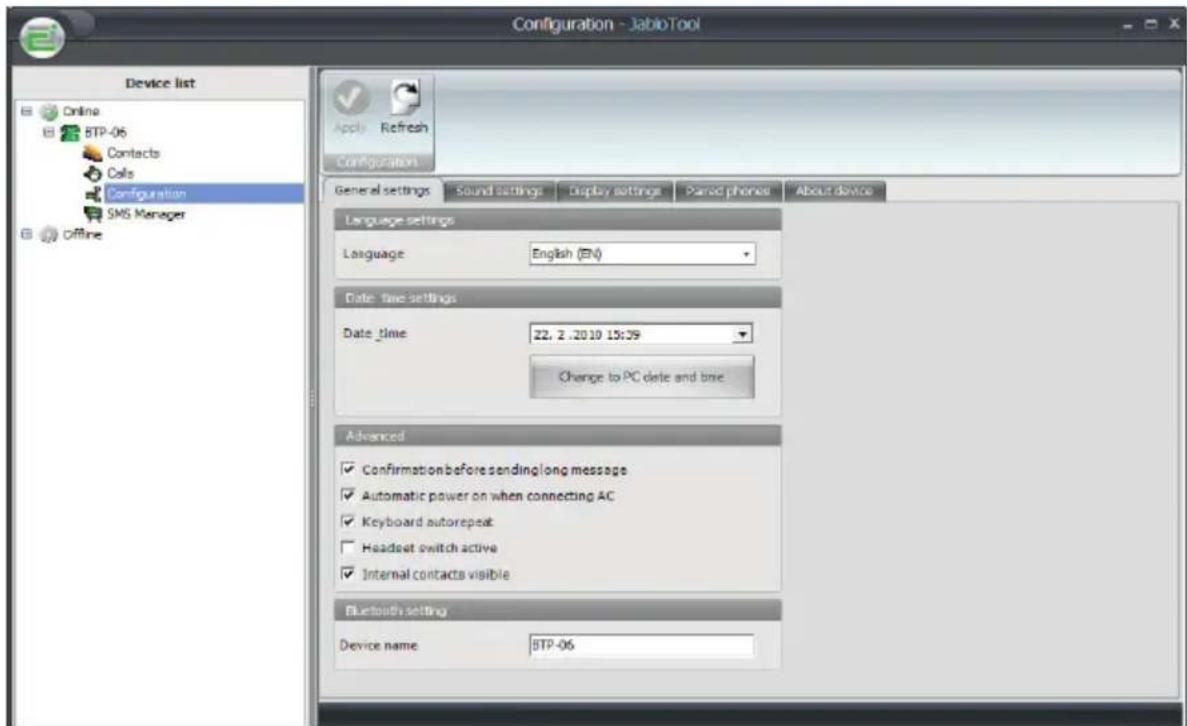
The most convenient way to set-up the BTP-06 and configure its parameters is by a PC and the JabloTool software.
Load the installation CD to your computer, start the "INSTALL.EXE" and follow the program instructions.
1 Insert CD to the PC Instal software from the PC

natural_image
Illustration of hands holding a CD or DVD with a red arrow indicating direction (no text or symbols)2

3 Connect BTP-06 to the PC
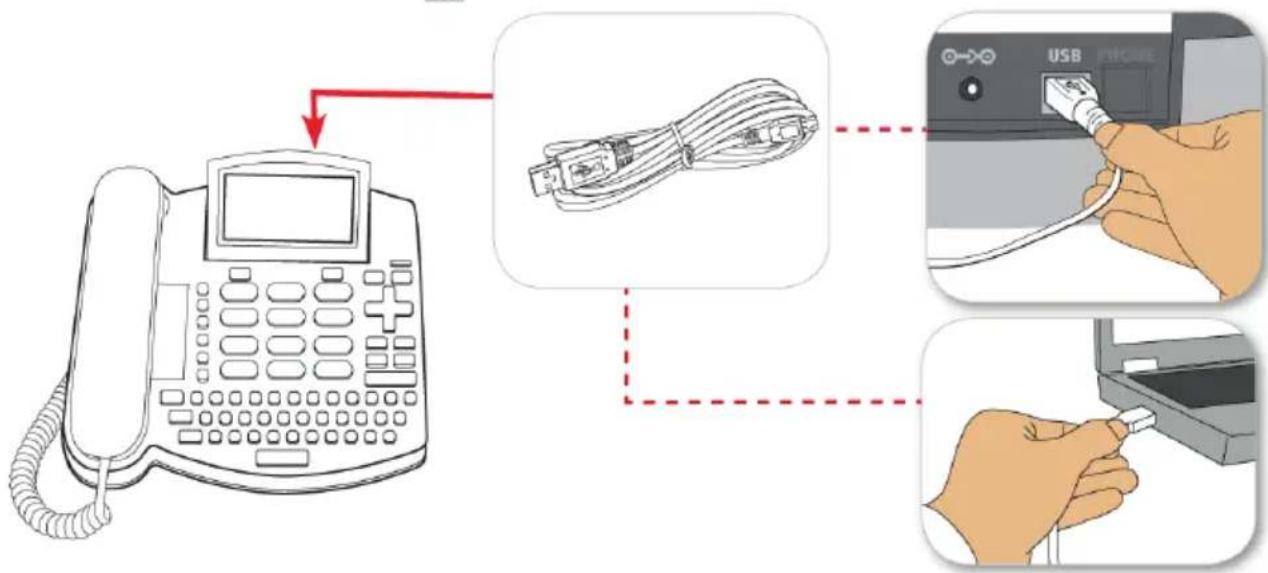
JabloTool provides the most convenient way to set and operate all of the BTP-06 functions and settings. It also has contact synchronization and Microsoft Outlook compatibility.

4.2 SPEED DIAL BUTTONS
There are six butt ons on your BTP-06 that can be used for frequently called numbers or emergency numbers.
▶ Entering a new number
Hold down the selected speed dial butt on for about 2 seconds until the phone number: dialog appears. Enter the phone number and press OK selecti on key.

Connecting a speed dial button with a contact from your phonebook
Find the contact name in your phonebook and press and hold the selected speed dial button for about 2 seconds until you see the confi rmati on on the display.
An additional 6 memories are available when you use dial butt on with the A/a key.
4.3 ADVANCED CALL FUNCTIONS

Some of the advanced call functions will not work properly unless they are supported by your operator.
▶ Call Waiting
The call waiting function indicates an incoming call even when another call is in progress.

Please check first that the call waiting function is activated on your mobile phone – see your mobile phone manual for detailed instructions.
If a new incoming call is indicated, press to answer the waiting call. You can also select Options and Switch function by using the selection key. The first call is put on hold. To switch between the calls press again. Either call can be canceled by ✗
Conference Call
The conference call functi on is a network service that allows up to six people to take part in a conference call.
To arrange a conference call:
■ Establish a call to the first participant.
- To add a new participant into the conference call enter the phone number directly and press or select the contact from the contact list and press the Select selecti on key.
- You may put the first call on hold if you want by pressing the Options selecti on key and then the Hold selecti on key.Select the number of another parti cipant in the call and press.
■ When the new call has been answered, presOptions and Join calls.
■ The messageConference appears on the display.
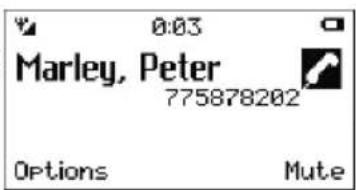
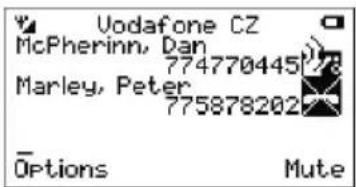

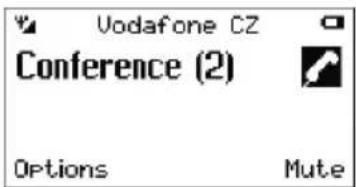
- To add another participant to the conference call, repeat the previous steps. The maximum number of remote parties is 5.
▶ Call Transfer
The call transfer functi on allows you to forward the acti ve call to another phone number.
During the call press the Options selecti on key, and selectHold. Enter the phone number you want to transfer the call to (or select the name from contacts) and press √. As soon as the call is answered, press the Options selecti on key and then selectTransfer . You can hang up once the connecti on is established.
4.4 BLUETOOTH SETTING
To change the Bluetooth setting go to Menu > Bluetooth .
▶ Add phone...
To add a new mobile phone or to repeat the pairing with an already paired mobile phone select this item and follow the detailed instructi on of the wizard on the BTP-06 LCD. For detailed instructi ons see guide in 2.3 Pairing the BTP-06 with your mobile phone chapter.
Paired phones
Shows the list of paired devices and allows you to change the currently active device. Additi onal functi ons (manual synchronizati on, power saving mode acti vati on, frequency of synchronizati on ) are available under
Options.

▶ Device name
Allows the changing of the BTP-06 system name (BTP-06 by default).
Pairing with multi ple mobile phones
The BTP-06 can operate while being paired with up to 3 mobile phones. However only one mobile phone can be actively connected and operate with the BTP-06 at the same time. This allows you to switch quickly between multiple mobile phones.
To pair your BTP-06 with additional mobile phones, select the Menu > Bluetooth > Add phone... and follow the wizard.

If the acti ve mobile phone (with the icon I) is out of working range the BTP-06 will automati cally try to connect with next paired mobile phone.
4.5 PHONE SETTINGS
Date & Time
Select Menu > Settings > Phone settings > Date & time to set the date and time.
Languages
BTP-06 supports up to 20 languages.
Select Menu > Settings > Phone settings > Language to select the language.

Additi onal languages are available with latest fi rmware download – see chapter Firmware update.
LCD Settings
Select Menu > Settings > Phone settings > LCD settings to adjust the display contrast and intensity of the LCD back illumination in STANDBY and ACTIVE modes. Use the UP and DOWN arrows to select the setting and the LEFT and RIGHT arrows to change the value.
4.6 SOUND SETTINGS
User may set the tones and volumes for:
- Call ring
- SMS alert
■ Key tones - Receiver volume
■ Speakerphone volume
4.7 SERVICE
The SERVICE menu allows for special service actions such as
- Get information about the version of hardware and software, IMEI identifier, etc.
■ Run a special service code
■ Reset all internal settings to its factory default values
■ Acti vate the Internal contact list
4.8 TURN ON/OFF
This function turns off the phone. When turned off, the phone cannot make or receive any calls or text messages.

The phone can also be switched off by pressing for more than 3 seconds.
In order to switch the phone back on, press and hold with " The phone is starting... " message appears on the display.
5. TROUBLESHOOTING
| Problem / Error message Solution | |
| I am having pairing problems | You may have deleted the BTP-06 pairing in your mobile. Try to pair both devices again by following the instruction in „ Pair BTP with your mobile“. |
| I hear crackling noiseI lose the connection | BTP-06 is connected to your mobile phone by Bluetooth radio technology. The working range of this short range radio is up to 10 meters (33 feet) and it is sensitive to object between BTP-06 and your mobile phone ( as wall, etc.) which can shorten the working range. |
| I cannot use BTP-06 to listen music from mobile phone | BTP doesn’t support the Bluetooth stereo headset profile (A2DP) for music streaming and cannot be efficiently used for music listening. |
| I cannot use Reject call, call on hold, Redial or Conference call | These features are dependent on the ability of your mobile phone to support a hands-free profile. Even if the hands-free profile is implemented reject call, call hold and conference call are optional features which are not supported by all devices. Please consult your device manual for details.Please note that some features can only be operated from the primary device when paired with multiple mobile phones. |
| I do not have any contact in BTP-06 | Your mobile phone probably does not support any of the Bluetooth profiles necessary to download the contacts from you mobile phone. You still have a chance to upload the contacts into the internal BTP-06 memory via PC |
JABLOCOM periodically releases new versions of the BTP-06 software as well as the JabloTool software - check www.jablocom.com/products/btp. If you discover abnormal behavior, please try to update the BTP-06 firmware to the latest version. To do this, use JabloTool, Configuration, General settings, Update firmware upgrade.
TERMS
1. Bluetooth
is a radio technology that connects devices, such as mobile phones and headsets, without wires or cords over a short distance approx. 33 feet (10 meters). Get more information at www.bluetooth.org.
2. Bluetooth profiles
are the different ways that Bluetooth devices communicate with other devices. Bluetooth phones support either the headset profile, the hands-free profile or both. In order to support a certain profile, a phone manufacturer must implement certain mandatory features within the phone's software.
3. Pairing
creates a unique and encrypted link between two Bluetooth devices and lets them communicate with each other. Bluetooth devices will not work if the devices have not been paired.
4. Passkey or PIN
is a code that you enter on your mobile phone to pair it with your BTP-06. This makes your mobile phone and the BTP-06 recognize each other and automatically work together. For the BTP-06 this code is always “0000” (four zeros).
6. TECHNICAL SPECIFICATION
Dimensions 230 x 220 x 100 mm, weight 900g
Display Illuminated graphical LCD 132 x 65 dots, 82 x 40 mm
Contacts 500 internal - synchronize with PC, additional 500 entires - synchronize with
mobile phone supporting IrMC Sync, SyncML or PBA profiles
SMS memory Memory for 100 records of received and sent messages, enables mobile phones with DUN profile
Call history Memory for 100 records of missed, outgoing and incoming calls
Ringtones 20 built-in ringtones + selected ringtone of the connected mobile phone
Speed dialing 6 memory keys with 12 memories, label for records
Hands-free calling Built-in speaker and microphone
Operating temperature -10°C to +55°C; 25 to 75% humidity
AC power adaptor 100-240 V AC/50 to 60 Hz; 6V/2A DC
SupportedBluetooth profiles HF, DUN, SyncML, IrMC Sync, PBA
Phone support
Mobile phones and PDA with Bluetooth
Range
up to 10 meters typical (free space)
Language
Multilanguage support – additional language sets are available for download EN 60950-1
Health and Safety standard
EN 301489-1, EN301 489-17
EMC
EN 300 328 -V.1.7.1
Radio parameters
6.1 WARRANTY

Hereby, JABLOCOM s.r.o., declares that this BTP-06 Bluetooth Desktop Phone is in compliance with the essential requirements and other relevant provisions of Directive 1999/5/EC.
The original conformity assessment document can be found at the web site www.JABLOCOM.com.
Regulatory information:
This device is only intended for use in the country in which it was sold.
Limited warranty:
Subject to the conditions of this Limited warranty JABLOCOM s.r.o. warrants this product to be free from defects in design, material and workmanship at the time of its original purchase by a customer and for a subsequent minimal warranty period under the national legislation in force. Should your product need warranty service, please return it to the dealer from whom it was purchased.
The defects will be eliminated free of charge by repairing or, at our discretion, replacing it.
Warranty conditions:
If you wish to make a claim under the warranty, please return the Product with all accessories in the original packaging to your dealer. The warranty is valid only if the original receipt issued to the original purchaser by the dealer, specifying the date of purchase and the IMEI/MAC corresponding with the Product, is presented with the Product to be repaired or replaced. Plastic parts, cables or accessories of the Product must not be visibly damaged, the Product must not show marks of the contact with liquid, the warranty seal must not be broken and the fault must be described.
This warranty doesn't cover any failure of the Product due to misuse, including but not limited to use in other than the normal and customary manner, in accordance with instructions for use and maintenance of the Product. Nor does this warranty cover any failure of the product due to accident, modification, adjustment, improper repair or acts of God.
The warranty provided doesn't affect the consumer's statutory rights under applicable national legislation in force, or the consumer's rights against the dealer arising from their sales/purchase contract.
Under no circumstances shall JABLOCOM be responsible for any loss of data or income or any special, incidental, consequential or indirect damages howsoever caused.
As the product is under continuous development, JABLOCOM reserves the right to make changes and improvements to any of the products described in this document without prior notice.
Operations and some features are dependent on the type of mobile phone it cooperate with and some functions may not be supported by some mobile phones.
6.2 SAFETY INSTRUCTIONS
Read these guidelines. Not following them may be dangerous and/or illegal.

You alone are responsible for how you use your device and any consequences of its use. Do not switch the device on wherever use of a wireless device is prohibited or when it may cause interference or danger.
Small Children
Do not leave your device and its accessories within the reach of small children or allow them to play with it. They could hurt themselves or others, or could accidentally damage the device. Your device contains small parts with sharp edges that may cause an injury or which could become detached and create a choking hazard.
Some countries may regulate the security device usage by special laws. Please study the possible law restrictions for certain country before installing the device.

Interference
Your device contains a transmitter and a receiver. When it is ON, it receives and transmits RF energy. Care must be taken when using the device in close proximity to personal medical devices, such as pacemakers and hearing aids. All wireless devices are susceptible to interference, which could affect performance.
We (JABLOCOM) are not responsible for any radio or TV interference caused by unauthorized modifications to this equipment. Such modifications could void the user's authority to operate the equipment.
Your device is designed not to exceed the limits for exposure to radio waves recommended by international guidelines. These guidelines were developed by the independent scientific organization ICNIRP and include safety margins designed to assure the protection of all persons, regardless their age and health.
This equipment generates, uses and can radiate radio frequency energy, and if not installed and used in accordance with the instructions, may cause harmful interference to radio communications. However, there is no guarantee that interference will not occur in a particular installation. If this equipment does cause harmful interference to radio or television reception, which can be determined by turning the equipment off and on, the user is encouraged to try to correct the interference by one or more of the following measures:
- Reorient or relocate the receiving antenna.
- Increase the separation between the equipment and receiver.
- Connect the equipment into an outlet on a circuit different from that to which the receiver is connected.
- Consult the dealer or an experienced radio/TV technician for help.

Pacemakers
Pacemaker manufacturers recommend that a minimum separation of 15 cm to be maintained between a mobile device and a pacemaker to avoid potential interference with the pacemaker. To achieve this use the device body in distance more than 15cm from your pacemaker.
Hearing Aids
People with hearing aids or other cochlear implants may experience interfering noises when using wireless devices or when one is nearby. The level of interference will depend on the type of hearing device and the distance from the interference source, increasing the separation between them may reduce the interference. You may also consult your hearing aid manufacturer to discuss alternatives.
Medical devices
Please consult your doctor and the device manufacturer to determine if operation of your device may interfere with the operation of your medical device.
Hospitals
The device isn't designed to be used in hospitals, clinics or health care facilities without a consultancy with the staff or medical equipment producers. This request is designed to prevent possible interference with sensitive medical equipment

Wireless devices can cause interference in aircraft.

Explosive environments
In locations with potentially explosive atmospheres, obey all posted signs to turn off wireless devices such as your device or other radio equipment.
Areas with potentially explosive atmospheres include fuelling areas, below decks on boats, fuel or chemical transfer or storage facilities, areas where the air contains chemicals or particles, such as grain, dust, or metal powders.

Blasting Caps and Areas
The device isn't recommended to be used in a blasting area or in areas posted turn off "two-way radios" or "electronic devices" to avoid interfering with blasting operations. Observe restrictions, and follow all regulations and rules.

Do not attempt to disassemble your device or its accessories - only qualified personal may install or repair device equipment. If a device or its accessory has been submerged in water, punctured, or subjected to a severe fall, do not use it until you have taken be checked at an authorized service centre.
Always treat your device and its accessories with care and keep it in a clean and dust-free place.
Do not paint your device or its accessories.
Do not expose your device or its accessories to open flames or lit tobacco products.
Do not expose your device or its accessories to liquid, moisture or high humidity.
Do not drop, throw or try to bend your device or its accessories.
Do not use harsh chemicals, cleaning solvents, or aerosols to clean the device or its accessories.
Do not expose your device or its accessories to extreme temperatures, minimum -10 and maximum +55 degrees Celsius.

Battery and Charger Handling & Safety
Use only JABLOCOM approved accessories and batteries. Do not connect incompatible products or accessories. Take care not to touch or allow metal objects, such as coins or key rings, to contact or short-circuit the battery terminals.
Use the battery and power adaptor only for its intended purpose. Never use any adaptor or battery that is damaged.
The device is designed to be powered from the power adaptor. The limited capacity of the backup battery should power the device for approx. 24 hours. Your device may become warm during charging and during normal use.

Remember to make backup copies of all important data.

When connecting to any other device, read its users guide for detailed safety instructions.
6.3 DISPOSAL INFORMATION
Before disposing of the device, render it unusable.
During liquidation of material, it is necessary to adhere to the pertinent national regulations for the disposal of waste.

All used packaging materials are ecological and may be reused or recycled. Please contribute actively to saving the environment and pay special attention to the correct liquidation and reuse of packaging materials.

© Copyright 2010 by JABLOCOM. All rights reserved

Delivery contents:

natural_image
Illustration of five different household appliances and devices on a blue background (no text or symbols)Contact:
JABLOCOM s.r.o., Czech Republic
sales@jablocom.com, www.jablocom.com
- User's Guide
- INDEX
- BTP-06 - INTRODUCTION
- BASIC FEATURES
- BTP-06 lets you do:
- STARTING
- PACKAGE CONTENTS
- ASSEMBLY AND POWER UP
- PAIRING THE BTP-06 WITH YOUR MOBILE PHONE
- FIRST USE
- BTP-06 FUNCTIONS
- CALLS
- CONTACTS
- ▶ Synchronized contacts
- ▶ Internal contacts
- Each contact includes the following items:
- ▶ Search contacts:
- ▶ Browse contact list:
- ▶ Call a contact:
- ▶ Write an SMS:
- ▶ View contact details:
- ▶ Add new contact:
- ▶ Edit a contact:
- ▶ Delete a contact:
- ▶ Synchronization
- CALL HISTORY
- TEXT MESSAGES
- ▶ Write and send a text message
- Opening an incoming message
- EXTENDED CONFIGURATION
- SET-UP AND CONFIGURATION VIA PC
- SPEED DIAL BUTTONS
- ▶ Entering a new number
- Connecting a speed dial button with a contact from your phonebook
- ADVANCED CALL FUNCTIONS
- ▶ Call Waiting
- Conference Call
- To arrange a conference call:
- ▶ Call Transfer
- BLUETOOTH SETTING
- ▶ Add phone...
- Paired phones
- Options.
- ▶ Device name
- PHONE SETTINGS
- Date & Time
- Languages
- LCD Settings
- SOUND SETTINGS
- SERVICE
- TURN ON/OFF
- TROUBLESHOOTING
- TERMS
- Bluetooth
- Bluetooth profiles
- Pairing
- Passkey or PIN
- TECHNICAL SPECIFICATION
- WARRANTY
- Regulatory information:
- Limited warranty:
- Warranty conditions:
- SAFETY INSTRUCTIONS
- Small Children
- Interference
- Pacemakers
- Hearing Aids
- Medical devices
- Hospitals
- Explosive environments
- Blasting Caps and Areas
- DISPOSAL INFORMATION
- Contact:
Brand : Jablocom
Model : BTP-06
Category : Telephone