
MB-108 - Smartphone HYUNDAI - Free user manual and instructions
Find the device manual for free MB-108 HYUNDAI in PDF.


| Product Type | Smartphone |
| Brand | Hyundai |
| Model | MB-108 |
| Dimensions | Approx. 145 x 72 x 9 mm |
| Weight | Approx. 160 g |
| Display | 5.0-inch capacitive touchscreen, 480x854 pixels |
| Processor | Quad-core 1.3 GHz |
| RAM | 1 GB |
| Storage | 8 GB internal, expandable via microSD up to 32 GB |
| Operating System | Android 7.0 Nougat |
| Camera | Rear: 5 MP with flash; Front: 2 MP |
| Battery | Removable Li-Ion 2000 mAh |
| Connectivity | Wi-Fi 802.11 b/g/n, Bluetooth 4.0, GPS, 3G |
| SIM Card | Dual SIM (Mini-SIM) |
| Sensors | Accelerometer, proximity, light |
| Power Supply | 5V 1A charger via micro USB |
| Main Functions | Phone calls, messaging, internet browsing, camera, media player, GPS navigation |
| Care and Cleaning | Wipe with dry cloth; avoid liquids; keep away from magnets and extreme temperatures |
| Safety | Do not disassemble; use only approved chargers; avoid water exposure; keep out of reach of children |
| Spare Parts and Repairability | Battery and back cover replaceable; screen repair by authorized service center |
| General Information | User manual available in multiple languages; rated 8.0/10 by users |
Frequently Asked Questions - MB-108 HYUNDAI
User questions about MB-108 HYUNDAI
0 question about this device. Answer the ones you know or ask your own.
Ask a new question about this device
Download the instructions for your Smartphone in PDF format for free! Find your manual MB-108 - HYUNDAI and take your electronic device back in hand. On this page are published all the documents necessary for the use of your device. MB-108 by HYUNDAI.
USER MANUAL MB-108 HYUNDAI
Before operating this set, please read these instructions carefully.
Unpacking your MB-108 GSM Mobile
In the box are:
• the mobile handset
• a mains power adaptor
• the handset back cover
• a rechargeable battery pack
- this user guide
Keep the packing materials for future use.
Keep your sales receipt - it is your guarantee.
IMPORTANT –Your handset is not supplied with a simcard. The MB-108 GSM will work on all GSM networks. You will need to insert a simcard for the handset to work properly.
Network Services – The MB-108 GSM is approved for use on the GSM900 and GSM1800 networks. Check with your mobile phone service provider to see if you can use the Dualband feature or other Network Services described in this guide. Some networks may not support all language dependent characters and/or services.
Contents
Where to find it.... 3
Symbols on the display 4
Menu Operation 5
Read these notes first.... 5
Installation and setup.... 6
Switching On and Off 8
Making & answering calls.... 9
Using the Phone Book.... 10
Call Log.... 12
SMS text messaging.... 13
Setting.... 15
Alarm clock.... 16
Clock settings.... 16
Sound profiles 16
Phone settings.... 16
Network settings 17
Call settings.... 17
Troubleshooting.... 19
Guarantee and Service information.... 20
Battery Information...... 21
Additional Safety Information.... 21
Where to find it

Symbols on the display

1 - The left soft key in the standby mode is Menu.
2 - The right soft key in the standby mode is SMS.
The Soft keys change to different functions in other modes.

Radio signal level - Shows the signal strength.

Battery level/Charge – Shows battery remaining level or show animation during charging.

Call Divert - On if call divert unconditional is set.

Alarm - On if an alarm is set.

Ringer Off - On if handset's ringer is turned off.

Headset - On when a headset is plugged in.

New SMS - Indicates you have new text messages

Lock - On when the handset's keypad is locked.

Missed Call - On if you have missed Call records.

Mute - On if the handset microphone is muted.
Menu Operation
Menu lists are used for set up operation.
The left and right soft keys are Menu and SMS shortcut in standby.
Press Menu (☐) and the display changes and the soft keys become Select and Back.
Use Up or Down to move up or down menu lists, and Select or Back for the next or previous display.
When writing text, use the # key to switch cases:
Upper case (ABC), Title case (Abc), Lower case (abc) or Numerals (123).
Use Left ,Right, Up or Down to move the cursor, and Clear to delete letters.
Read these notes first
Your phone is an electronic product and should be treated with care to meet any warranty and safety obligations.
- SWITCH ON SAFELY – Don’t switch on when mobile phone usage is prohibited or may cause interference or danger.
- HEARING AID COMPATIBILITY – With the hearing aid set to normal, adjust the phone volume. If this fails to be ok, then to try the hearing aid in the ‘T’ position.
- WATER-RESISTANCE – Keep it dry. The phone is not water-resistant.
- TEMPERATURE RANGE – Operating 0°C to 40°C. Storage -20°C to 60°C.
- CARE & CLEANING - Do not drop or knock the phone excessively, and keep it clean using a damp cloth if
necessary - do not use chemicals, cleaning solvents, or strong detergents.
Installation and setup
Before operating the MB-108 GSM a SIM card must be installed. Keep the SIM card out of small children's reach. The SIM card and its contacts can be damaged easily by scratches or bending, so handle the card carefully.
Install the SIM card and battery
- Switch off the phone, disconnect the power adaptor and remove the battery.
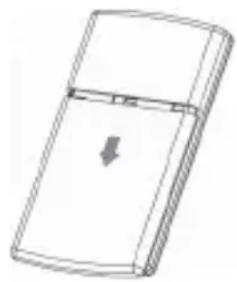
- To remove the back cover and slide the cover down.
- Remove the battery by lifting from the top edge.
- Carefully slide the SIM card into the holder with the gold connectors face down and angled corner bottom right.
- Replace the battery by aligning the gold connectors on the battery with those on the phone, and push the top end of the battery down until it clicks into place.
- Replace the back cover by placing it flat on the back of the handset and sliding up until it clicks into place.
natural_image
Line drawing of a rectangular electronic device with a downward arrow indicating compression or disassembly (no text or symbols)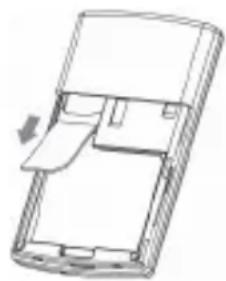
natural_image
Line drawing of a smartphone case with a handle and internal compartments (no text or symbols)
natural_image
Diagram of a device with a rectangular component and an arrow indicating direction (no text or symbols)Charge the battery
Warning! Use only batteries and chargers supplied with or approved for this MB-108. Use of others will invalidate approvals or warranty and may be dangerous.
Do not charge the battery with the back cover removed.
- Connect the charger lead firmly into the socket on the Right side of the handset.
- Plug the charger into an AC mains socket. The battery indicator bar scrolls and "Charging..." is displayed.
- Charging the battery may take up to 5 hours.
- If no “Charging…” is displayed, disconnect the charger, and retry. If charging still fails, contact the helpline.
- The battery is fully charged when the bar stops scrolling. Disconnect the charger from the phone and the AC outlet.
Connect a compatible headset (Optional)
You can use the MB-108 GSM with the headset along. The connector must be a jack plug that inserts in the Power/Headset socket on the right side of the handset.
When connecting a headset, including those approved for used with the MB-108 GSM, pay special attention to volume levels. Read its user guide for detailed safety instructions. Do not connect incompatible products.
When correctly inserted the headset icon will show on the handset display.
Headset / Charging Connector

natural_image
Pure technical line drawing of a mechanical component or assembly (no text or symbols)Plug in power adapter to charge battery.
Plug in headset accessory for headset use.
Switching On and Off
To switch the phone on and off

To switch off, press and hold End Call until the display clears.

To switch back on, press and hold End Call until the display turns on.
Warning! Do not switch on when mobile phone usage is prohibited or it may cause interference or danger.
To lock the handset keypad
When you do nothing for some time the keypad will be locked the display shows On
Or press Menu key(left soft key), Then press “ ” key to lock the keypad when idle mode.
To unlock the keypad press Unlock key(left soft key), Then press“ ” key to unlock.
Note: When the keypad is locked, you can answer, end or reject a call in the normal way. During a call, you can operate the phone as usual. When the keypad is locked, you can dial emergency number like “112”.
Making & Answering calls
To make a call
Ensure the phone is switched on and in service.

Key in the telephone number including area code.
(To add prefix "+" press the "*" key twice quickly)

Press Talk to dial the number on the display.

To end calls press the End Call button.
Last Number Redial

In standby mode, press Talk to see the last 10 numbers & press Up / Down to go to the number

Press Talk to dial the number.
To answer a call

When the phone rings, press Talk to answer it.
Earpiece volume

During a call, press Up / Down to alter the volume. The volume level displays.
To switch to speakerphone

During a call, press Option & Down to go to HandsFree, & Select

To end the call press End Call, or to return to normal handset use, press Option again then select HandsFree Off.
To mute the microphone
During a call, press Option & Down to go to Mute, & then Select the display shows.
To unmute, press Options and select Unmute.
To make a conference call
Conference call is a Network Service that lets up to six parties talk together. (Check with your provider)
- Make a call to the first party.
- Press the Hold button, to put the call on hold.
-
Make a call to the second party.
-
When the new call answers, press Option and select Build MPTY to connect all parties.
(Note: Or press Swap to switch between the two calls.)
Press the End Call button to end the call.
Using the Phone Book
You can store names and phone numbers in the Internal phone book (up to 250) and in the SIM phone book(up to 250).
To access the phonebook
Method1:

In standby mode, press Down.
Method2:
In standby mode, press Menu and Down to go to Phonebook.
Note: ☐Indicates entries in SIM phone book,
Indicates entries in the Internal phone book.
To review the Used Space
To check how many names and numbers are saved:

Select Menu, Phonebook, Storage status to show the phone and SIM memory being used.
To add a new Phone Book entry

Press Down to open the phonebook

Select Select, New & select Save to SIM or Save to phone, then enter the letters for the Name

Press next key and then enter the digits for the Number

Press Save to save the new contact.
To call a stored number

Press Down to open the phonebook Press Up / Down to find the name you want, or key the first letter of the name then Up / Down.

Press Talk to dial the number.
To edit (change) a Phone Book entry

Find the entry to edit, select Option, Edit, then press select to modify the name, press Next to modify the number.

Press Save to save the change(s).
To view the details of a stored number

Find the entry to edit, select Option, Detail
To delete a Phone Book entry

Find the entry to edit, select Options, Delete, Select
To delete all entries from the phone or SIM card
Select Menu, Phonebook, Delete All
Select All in phone or All in SIM, Select Delete all?,
Press Select again to confirm
To copy all entries from the phone or SIM card
Select Menu, Phonebook, Copy all
Select SIM to phone or Phone to SIM
Press Select to confirm the copying
Call Log

Indicates new missed entries in the Call Log. If a call is not answered, “1 Missed Call” displays until Select (to view) or Cancel (to clear) is pressed.
To review the call history entries
Select Menu, then Down to Call History & then Select

Press Up / Down to Incoming Call,Outgoing Call or Missed Call, then press Select to view that list, or select Call Duration to see the last call duration.
Or: (from standby mode)
Simply press Talk to show call log.
Note: When in a list, press Options to see options available.
Details— To view the details for the entry: the number, date and time
Call –To dial to the desired phone number
Edit before call – Free editing before call, press Clear soft button will clear character left of the cursor, press numeric digit keys will insert character left to the cursor.
Send message –To send a message to the desired phone number
Save –To save the entry to the Phone Book
Delete- To delete the entry from the calls list
Delete all –To delete all the entries from call log
SMS text messaging
Send & receive text messages. These are saved in the phone memory (max.100) or on the SIM card(max.50).
Received SMS are stored in the Inbox and the ☑ icon indicates new messages.
To access the SMS Menu

Press SMS to display the options:
New – to write a new message
Inbox – to go to your inbox
Outbox – to go to your outbox
Draftbox – to go to your draft box
Msg Settings – for the SMS settings
Used space – to check phone/SIM SMS memory status
Delete all – to delete all sms
Voice mail – to call to the voice mailbox and set up voice mail number
To write and send a text message
Select Message, SMS, New, as above, to enter text editor.
Write your message using the digit / letter keys.
To send, press Select, Select (Send) to display Number. Enter the full number, including country/area code if needed.
Press Select to display Sending message...
Note: if you Select Send and save This message will send and save in outbox, you can also choose: Save to draft - to save in draftbox without sending
Note: You can send the SMS to selected phonebook number or enter the number you want to send to, then press Select to send it. When send sms to phonebook, in phonebook list press ok key to select or unselect.
Note: If the message send failed, it returns to the SMS editor.
To read your messages
Select SMS, Inbox to display the message list, and use Up / Down to step through them.
Press Select and Up / Down to display the full text, sender's name, received date and time of the message.
Press Options to display:
Reply – reply to the sender of the message Delete – delete the message from the Inbox Forward – send the message to another number Call sender – make a call to the sender
Extract number. – extract the phone number to save
Select the option required and follow the menus.
To review the Outbox, Draftbox or Storage status
Select SMS, and then follow the menus like we do in review inbox.
To delete Messages in Inbox, Outbox or Draftbox
Select SMS, select Delete all
Press Select and Delete all, delete inbox, delete outbox, delete draftbox
Press Select to delete them
To change the SMS message centre settings
Select SMS, Msg Settings to display Message Center – the SMS service number MessageValidity – the SMS network storage time Status Report – to request send delivery reports Reply Path – setting the reply path On/Off
Select the option required and follow the menus.
Message center - Your MB-108 GSM reads the service number from the SIM card. If it has been accidentally changed, you'll need to get the correct number and re-program it.
Setting
Allows you to adjust various settings on the phone, and also to reset them to their factory default values.
Press Menu, then press Down to go to Setting, and Select to display the list of settings available.
Alarm clock
You can set three alarms to alert once only or on selected days. When it sounds, press Cancel to stop it, or Snooze to delay the alarm for another five minutes.
Press Menu, then Down to Tools & Alarm
Select from Alarm 1, Alarm 2 or Alarm 3
Select On or Off – the current selection is ticked If On is selected, set the time & One shot alarm or Weekly alarm where each day can be selected using the OK key.
The ⚙ icon will appear on the display.
Clock settings
Date and Time – to set date and time Date format – to select the date format Time format – to select the time format Clock type – to select the clock type World time – to set the world time.
Sound frofiles
Five sound profiles for quick changes to the phone sounds when in different places. The profile names Standard, Conference, Outdoor, Mute and Customize can be changed and each profile can be personalised to give a different Ring tone, SMS alert tone, Call alert, Ringing volume, Key volume, Alarm tone.
Phone Settings
Language –select the language of the user interface Display Settings
LCD contrast – to set LCD contrast
Back light – to set the duration of backlight after key press
Idle display – to select idle display mode
Security
PIN1 – to set enable/disable of PIN1 entry on each time you switch the phone on, and you can change your current PIN1 to a new one Warning: if you enter an incorrect PIN1 three times the SIM card is blocked, and you must enter the PUK1 number or contact your service provider, to unblock it and set a new PIN1 code
Auto lock keypad— to set keypad lock time 10s,30s,60s or disable
Factory reset – to reset some menu settings to their default values. This requires a password. (Default password =1234)
Network Settings –(some network services may not support)
Call waiting – press Talk to answer 2nd call / hold 1st Call forwarding – to set different incoming call diverts Call barring – to restrict making and receiving calls Network select mode – to select a different network
Call restriction – to set up the blacklist and whitelist number
Call Settings
Auto redial – auto-dial up to 10 redial attempts Anykey answer – press any key to answer a call Send own number – to select send own number states Speed dial – to set/change speed dial to each key
STK
If your SIM card have the STK function, it will show the STK name. you enter this sim card application menu
- Press Menu, then Down to settings & STK
- Press Select to show STK menu
- Press Select to enter STK menu
Troubleshooting
| “Call failed” appears Check dialled number is correct, with full area code | |
| SIM card fitted – only makes emergency call | Some SIM cards are thinner than others. Lightly press the SIM card holder to ensure a proper contact is made. |
| The mobile phone display is blank (screen off) | The phone is switched off. Press Power On/Off for 3 seconds to switch it on again. |
| Calling outside your own country | If you are away from your network provider, your phone may link with another GSM network.Contact your network provider for additional costs incurred using the phone abroad. |
| Can an emergency call be made without a signal or credit? | You cannot make a call if the phone shows no signal.If your display says Limited Service, the phone cannot receive a signal from your network, or has run out of credit, so can only call the emergency number 112.You can call 112 if there is no credit on your phone. |
| How can reception be improved? | If the signal is weak, try another location to make or continue with a call, e.g. move close to the window area. Reception is often poor in elevators, tunnels or underground railways and car parks. |
| Can I suppress / withhold my telephone number? | If you want to withhold your phone telephone number, use the main menu under Call settings/ Send own number. (This network service may not be available) |
| displayed, unit does not respond. | press Unlock key(left soft key), Then press“ ” key to unlock |
| What is the SMS service centre number? | A number for the short message service usually stored in the SIM card by the operator and should not be changed. |
| When do I start to incur call charges? | Charges start when a call is connected or connect to an answering machine. There is no charge for writing or receiving an SMS, only charged when sending an SMS, and won’t be charged for using phone features e.g. alarm clock. |
| Did I successfully send my SMS? | If your SMS is in the SMS Outbox then the message is sent, or you can get delivered note after the SMS is delivered – contact your operator for details. |
Guarantee and Service In formation
The MB-108 GSM is guaranteed for 12 months from the date of purchase on your sales receipt, but does not cover any faults or defects caused by accidents, misuse, fair wear and tear, neglect, lightning, tampering with the equipment, or any attempt at adjustment or repair other than through approved agents.
Please keep your sales receipt, this is your guarantee.
You should also keep the original packing material.
In the unlikely event that you need to send your MB-108 GSM to our Repair Center while it is under guarantee, there may be a handling charge.
While the unit is under Guarantee
- Pack up all of the MB-108 GSM, using the original packing. Remember to include the power adaptor.
- Return the unit to the shop where you bought it, making sure you take your sales receipt.
After the Guarantee has expired
- Follow step 1 and 2 as for repair under Guarantee. Then ...
- Make sure you include your name & address, and cheque or postal order for the repair charge, with the MB-108 GSM.
- Send your MB-108 GSM to the address given.
This does not affect your statutory rights.
Battery in for mation
The rechargeable battery needs several charge and discharge cycles to reach full capacity! When the operating time becomes noticeably shorter than normal, it is time to buy a new battery.
Use only batteries & chargers approved with MB-108 and unplug the charger from wall outlet when not in use. Don't leave the battery connected to a charger for more than 24hr - overcharging may shorten its life. If left unused a charged battery will discharge itself over time.
Temperature extremes affect the battery charge and capacity - try to keep the battery between 15^ C and 25^ .
Use the battery only for its intended purpose.
Never use a damaged charger or battery.
Keep metal objects away from the battery terminals, as short-circuiting them may damage the battery or the connecting object.
Dispose of batteries according to local recycling regulations, not as household waste and not in a fire.
Add itio nal safet y In for mat ion
Operating environment
Follow regulations in force in any area and always switch off your phone whenever it is forbidden to use it, or when it may cause interference or danger, e.g. when driving, on an aircraft, in a petrol station, in a hospital or any other area with warning signs.
Pacemakers
Pacemaker manufacturers recommend keeping at least 20cm between a handheld wireless phone and a pacemaker to avoid potential interference with the pacemaker. This is consistent with independent research by and recommendations of Wireless Technology Research.
If you use a pacemaker, don't carry the phone in a breast pocket, use the ear opposite the pacemaker and if you suspect that interference is taking place, switch off your phone immediately.
Hearing aids
Mobile phones may interfere with some hearing aids. In the event of interference, contact your hearing aid provider.
Other medical devices
Any radio transmitting equipment, including mobile phones, may interfere with inadequately protected medical devices. Consult a physician or the medical device supplier to check if it is shielded adequately from external RF energy.
Placing the unit
Do not place the handset in the area over an air bag or in the air bag deployment area.
Parts of the phone are magnetic and may attract small objects, so check there are no sharp items, particularly by the earpiece.
Do not place credit cards or other magnetic storage media near the phone, because information stored on them may be erased.
Emergency calls
All mobile phones use radio signals and coverage in all areas cannot be guaranteed, so never rely solely upon your mobile phone for essential communications (e.g. medical emergencies).
Emergency calls may not be possible on all wireless phone networks or when certain network services and/or phone features are in use. You may need to turn those features off first before you can make an emergency call. Consult this guide and your network service provider.
To make an emergency call:
Ensure the phone is switched on, is in idle mode and has a signal. Some networks require a valid SIM card is fitted.
Dial the emergency number (e.g. 112) and press Talk.
When making an emergency call, remember to give all the necessary information as accurately as possible. Remember that your wireless phone may be the only means of communication at the scene of an accident - do not cut off the call until given permission to do so.

Waste electrical products must not be disposed of with household waste. This equipment should be taken to your local recycling centre for safe treatment.
We operates a policy of continuous product improvement, and so reserves the right to make changes to the product and functions without notice.
- Unpacking your MB-108 GSM Mobile
- Contents
- Where to find it
- Symbols on the display
- Menu Operation
- Read these notes first
- Installation and setup
- Install the SIM card and battery
- Charge the battery
- Connect a compatible headset (Optional)
- Headset / Charging Connector
- Switching On and Off
- To switch the phone on and off
- To lock the handset keypad
- Making & Answering calls
- To make a call
- Last Number Redial
- To answer a call
- Earpiece volume
- To switch to speakerphone
- To mute the microphone
- To make a conference call
- Using the Phone Book
- To access the phonebook
- To review the Used Space
- To add a new Phone Book entry
- To call a stored number
- To edit (change) a Phone Book entry
- To view the details of a stored number
- To delete a Phone Book entry
- To delete all entries from the phone or SIM card
- To copy all entries from the phone or SIM card
- Call Log
- To review the call history entries
- SMS text messaging
- To access the SMS Menu
- To write and send a text message
- To read your messages
- To review the Outbox, Draftbox or Storage status
- To delete Messages in Inbox, Outbox or Draftbox
- To change the SMS message centre settings
- Setting
- Alarm clock
- Clock settings
- Sound frofiles
- Phone Settings
- Security
- Call Settings
- STK
- Guarantee and Service In formation
- Please keep your sales receipt, this is your guarantee.
- While the unit is under Guarantee
- After the Guarantee has expired
- Battery in for mation
- Add itio nal safet y In for mat ion
- Operating environment
- Pacemakers
- Hearing aids
- Other medical devices
- Placing the unit
- Emergency calls
- To make an emergency call:
Brand : HYUNDAI
Model : MB-108
Category : Smartphone