
Vianect AIR TV - Media player DEVOLO - Free user manual and instructions
Find the device manual for free Vianect AIR TV DEVOLO in PDF.


| Type | Media Player |
| Brand | Devolo |
| Model | Vianect AIR TV |
| Dimensions (approx.) | 100 x 100 x 25 mm |
| Weight (approx.) | 150 g |
| Power Supply | 5V DC, 2A via USB |
| Video Output | HDMI (1080p Full HD) |
| Audio Output | HDMI with stereo audio, optical (optional) |
| Connectivity | Wi-Fi 802.11 b/g/n, Ethernet 10/100, Bluetooth 4.0 |
| Storage | 8 GB internal flash, microSD slot up to 32 GB |
| Main Functions | Streaming media from online services, DLNA, AirPlay, local playback via USB |
| Supported Formats | MP4, AVI, MKV, MOV, MP3, AAC, JPG, PNG |
| Remote Control | Infrared remote included |
| Operating System | Linux-based |
| Maintenance | Clean with a soft, dry cloth. Do not use liquids. |
| Safety | Keep away from moisture and heat sources. Use only supplied power adapter. |
| Spare Parts and Repairability | No user-serviceable parts. Contact Devolo support for repairs. |
Frequently Asked Questions - Vianect AIR TV DEVOLO
User questions about Vianect AIR TV DEVOLO
0 question about this device. Answer the ones you know or ask your own.
Ask a new question about this device
Download the instructions for your Media player in PDF format for free! Find your manual Vianect AIR TV - DEVOLO and take your electronic device back in hand. On this page are published all the documents necessary for the use of your device. Vianect AIR TV by DEVOLO.
USER MANUAL Vianect AIR TV DEVOLO

devolo
devolo Vianect® AIR TV
© 2010 devolo AG Aachen (Germany)
While the information in this manual has been compiled with great care, it may not be deemed an assurance of product characteristics. devolo shall be liable only to the degree specified in the terms of sale and delivery.
The reproduction and distribution of the documentation and software supplied with this product and the use of its contents is subject to written authorization from devolo. We reserve the right to make any alterations that arise as the result of technical development.
Trademarks
HDMI ® , the HDMI Logo and „High-Definition Multimedia Interface“ are registered trademarks of HDMI Licensing LLC in USA and other countries.
Mac ® and Mac OS X ® are registered trademarks of Apple Computer, Inc.
Windows ® and Microsoft ® are registered trademarks of Microsoft, Corp.
Wireless USB TM is registered trademarks of USB-IF, Inc.
devolo, dLAN ® , Vianect ® and the devolo logo are registered trademarks of devolo AG.
All other names mentioned may be trademarks or registered trademarks of their respective owners. Subject to change without notice. No liability for technical errors or omissions.
devolo AG
Charlottenburger Allee 60
52068 Aachen
Germany
www.devolo.com
Aachen, July 2010
Contents
1 Preface 5
2 Introduction 7
2.1 A brief summary of the highlights of the Vianect AIR TV 7
2.2 Sample applications 8
3 Initial use 11
3.1 Package contents 12
3.2 System requirements 12
3.3 Functions 12
3.3.1 Vianect AIR computer adapter 12
3.3.2 Vianect AIR TV station 13
3.4 Setup instructions 13
3.5 Software installation 14
3.5.1 Software for Windows 14
3.5.2 Software for Mac OS X 14
3.6 Connecting the Vianect AIR TV 15
3.7 Restoring the pairing 16
4 Vianect AIR Manager 17
4.1 Calling up the configuration interface 19
5 Vianect AIR TV DisplayLink Manager 23
5.1 Mirror mode 23
5.2 Extended mode 24
5.3 Configuration in Windows 7 25
5.4 Configuration in Windows XP/Vista 28
5.4.1 Configuring mirror mode 28
5.4.2 Configuring extended mode 28
5.5 Configuration in Mac OS X 31
Contents
6 Appendix 33
6.1 Important safety instructions 33
6.2 Disposal of old devices 34
6.3 Warranty conditions 34
1 Preface
The Vianect AIR TV from devolo transmits audio and video content from a computer to a monitor, TV set or projector – without the need for any cables whatsoever, thanks to Wireless USB technology. The installation is as easy as child's play, and with the preconfigured devices, you can set up the connection between your computer and television or projector in no time.
Description of the symbols
Here we briefly describe the meaning of the symbols used in this manual.

Very important note. Failure to observe this note may result in damage.

Important note that should be ob- served.

Additional information, background material and configuration tips for your device.
If you have any further ideas or suggestions related to our products, we would be delighted to hear from you at support@devolo.com!
devolo on the Internet
For detailed information on our products, visit www.devolo.com. The Service centre area not only contains product descriptions and documentation, but also updates of devolo software and your device's firmware.
2 Introduction
With the Vianect AIR TV, devolo presents a simple solution for transmitting multimedia content (in HD quality) from a computer to a big screen such as a flat-screen television or projector. You do not need any cables to do so, as the Vianect AIR TV solution uses Wireless USB technology. Therefore, in no time, your television or projector can be used as a second big screen. This is ideal for sharing photos or videos with friends and family or for presenting them in a professional way.
2.1 A brief summary of the highlights of the Vianect AIR TV
● Wireless transmission of audio and video content from a computer (PC/Mac) to a monitor, TV set or projector.
- Ideal for viewing pictures and videos – at home or at the office.
● Highest HD image quality with 720p support.
● Maximum screen resolution of 1,400 x 1,050 pixels.
● Long range thanks to Wireless USB technology (USB-IF).
● All common connections, such as HDMI and D-Sub RGB (VGA), on the receiver
●Transmission of audio via HDMI or 3.5-mm jack socket
● Software for Windows XP, Windows Vista and Windows 7
● Software for Mac OS X (10.5 or higher)
2.2 Sample applications
Internet on your TV set


Extended mode for work and play: work on the computer while others are watching a movie
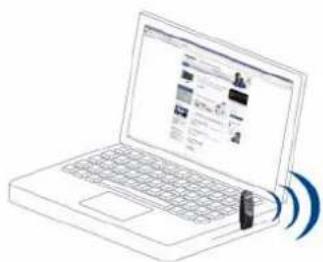

Show presentations on the large screen

10 Introduction
devolo Vianect AIR TV
3 Initial use
This chapter covers everything you need to know to set up your Vianect AIR TV. It will explain connecting the devices and their functions. We will also briefly intro-
duce the included devolo software and then guide you through its installation.

3.1 Package contents
Please ensure that the delivery is complete before beginning with the installation of your Vianect AIR TV.
●devolo Vianect AIR TV consisting of
○devolo Vianect AIR computer adapter and
○devolo Vianect AIR TV station (with adapter)
● Mains adapter, including country-specific adapter
● Hard copy of installation guide
- CD containing software and online documentation
devolo AG reserves the right to change the package contents without prior notice.
3.2 System requirements
● Operating systems: Windows XP (32-bit), Windows Vista Home Premium (32-bit/64-bit), Windows 7 Home Premium (32-bit/64-bit), Mac OS X (10.5 or higher) (Leopard)
●Computer: USB connection
● TV set or projector:
○HDMI connection or
○VGA connection
HDMI cable
VGA cable
3.3 Functions
The Vianect AIR TV enables you to transmit audio and video data wirelessly from a computer to your TV set or projector. The individual components – Vianect AIR computer adapter and Vianect AIR TV station with adapter are preconfigured ("paired") at the factory and are ready to use immediately.

Should you ever lose the preconfiguration ("pairing") of the devices, it can be restored easily. For more information, refer to Chapter 3.7 Restoring the pairing.
3.3.1 Vianect AIR computer adapter
Connections and LEDs of the computer adapter
The computer adapter is used for connection to the desktop or laptop computer. It has a rotating USB connector (depending on the placement of the USB socket on the computer) and an integrated antenna.
The Power LED is illuminated in blue when the computer adapter is ready to operate; it flashes during data transmission.
3.3.2 Vianect AIR TV station
Connections of the station
In addition to the power jack for connection to the mains supply, the station has
Two USB ports
One HDMI socket for connection to a projector or TV set
One VGA socket for connection to a projector or TV set
One 3.5 mm jack socket (audio) for connection to a TV set, projector or stereo system
Connections and LEDs of the TV adapter
The TV adapter is used for the connection to the USB socket of the station. It has a USB connector and an integrated antenna.
The Power LED is illuminated in blue when the TV adapter is ready to operate, i.e. the station is supplied with current. The Power LED flashes during data transmission.
3.4 Setup instructions
You can mount the Vianect AIR TV station on the wall or position it on a level surface. The TV adapter is
always plugged into the USB socket at a 90-degree angle to the station, i.e.
● Wall mounting

- Positioning on level surface


The Vianect AIR TV station can be used in conjunction with a TV adapter (included) only. The slider above the USB sockets is used only to select a USB socket.

To attain optimum data transmission between the TV adapter and computer adapter, both devices should be placed within sight of each other. During initial installation, we also recommend a maximum distance of up to 3 meters.
3.5 Software installation

When installing or uninstalling the devolo software, the computer adapter must not be connected to the computer.
3.5.1 Software for Windows
Use the installation wizard to set up the following software components for using the Vianect AIR TV with the Windows operating system:
The devolo Vianect AIR Manager shows all wireless Vianect AIR TV stations within the possible range.
- You can configure your screen settings using the devolo Vianect AIR TV DisplayLink Manager. To install the software, insert the included CD-ROM in the CD drive of your computer and click Install Vianect AIR TV. If autoplay is installed on your computer, the installation will start automatically. Otherwise, open the folder with the Windows Explorer by right-clicking on Start and selecting Explorer from the context menu. Double-click to start the installation wizard manually.
You can find the installed software applications in the Start ▶ All Programs ▶ devolo program group.
Then, continue with the hardware installation (see 3.6 Connecting the Vianect AIR TV).
3.5.2 Software for Mac OS X
For the devolo Vianect AIR Manager and Vianect AIR TV DisplayLink Manager software for operating the devices in Mac OS (min. Mac OS X 10.5 Leopard), visit the download area of the Vianect AIR TV on our website, www.devolo.com. The included product CD contains a link, Mac OS X Software-Download, which takes you directly there if you have an active Internet connection.
①To install the devolo software, download the corresponding installation packages to your computer:
○Vianect AIR Manager
(drivers for MAC OS X 10.5 Leopard) or
○Vianect AIR Manager
(drivers for MAC OS X 10.6 Snow Leopard)
○ Vianect AIR TV DisplayLink Manager (software for Mac OS X 10.5 and 10.6)
② Open the Vianect AIR Manager installation package by double-clicking. The CD icon for Vianect AIR TV appears on the desktop; double-click this also. A dialogue window opens.
③Then follow the prompts of the installation wizard.

After successful Vianect AIR Manager in the toolbar.
installation, the icon
④Double-click to open the installation package for the Vianect AIR TV DisplayLink Manager (Mac OS X 10.5 and 10.6 software). A dialogue window opens.
⑤Then follow the prompts of the installation wizard.
⑥Finally, continue with the hardware installation (see 3.6 Connecting the Vianect AIR TV).
Uninstalling the software
To uninstall the Vianect AIR Manager software, open the installation package downloaded earlier and select Uninstaller.
To uninstall the Vianect AIR TV DisplayLink Manager software, click the Uninstaller link under Apple Programs.
3.6 Connecting the Vianect AIR TV
In this section, we show you how to connect the individual components of the Vianect AIR TV.
When the devices are connecting for the first time, the screen can flicker or switch on and off briefly. The detection of the computer adapter on the computer is indicated by audio signals.
①Insert the computer adapter into an available USB socket of your computer.
②Plug the TV adapter into the USB socket provided on the station.

Observe the setup instructions listed in the previous section. (see 3.4 Setup instructions)
③ To connect the Vianect AIR TV station to a TV set or projector via HDMI, connect both devices via an HDMI cable; digital image and sound data are transmitted via the HDMI cable simultaneously.
or
④ To connect the Vianect AIR TV station to a TV set or projector via VGA (image transmission), connect both devices via a VGA cable. For sound transmission, connect the 3.5 mm jack sockets of the devices (TV set, projector or stereo system) via a cable with 3.5 mm jack plug.

If the sound transmission does not work automatically after complete and correct installation of the hardware and software, in the sounds and audio devices properties, under Audio select as the default device for sound playback USB PnP Sound device. For more detailed help on verifying the settings, refer to our online FAQs on our website at www.devolo.com.
⑤If you want to connect additional TV sets or projectors, simply repeat steps ② to ④ for each device.
3.7 Restoring the pairing
To again configure the devices, proceed as follows:
①If you have not done so already, install the provided devolo software on your computer. (see Chapter 3.5 Software installation)
②Then insert the computer adapter into an available USB socket of your computer.
③Remove the computer adapter and, in its place, plug the TV adapter into the now available USB socket of your computer. After a few seconds, a message appears stating that the pairing is completed.
4 Vianect AIR Manager
The devolo Vianect AIR Manager monitors all reachable Vianect AIR TV stations and shows their connection status.
After successful installation, call up the program via the devolo Vianect AIR Manager link created on the desktop or by clicking in the Windows toolbar.
The appearance of the icon changes to provide information about the current connection status of the devices:
Connected
The wireless connection to the Vianect AIR TV station exists.

The Vianect AIR computer adapter is switched on.
The computer adapter is switched on and connected to the computer; no wireless connection exists.

The Vianect AIR computer adapter is not plugged in.
The computer adapter is not connected to the computer.

The Vianect AIR computer adapter is switched off.
The computer adapter is without power.

The wireless channel is occupied.
Low connection quality; despite this, a Vianect AIR TV station is connected.

The wireless channel is not available.
No available channel is found.


For more detailed help on this topic, refer to the Help file (see ? of the configuration interface) or the online FAQs on our website www.devolo.com.
4.1 Calling up the configuration interface
After successful installation, call up the program via the devolo Vianect AIR Manager link created on
the desktop or by double-clicking in the Windows toolbar. The following dialogue window opens:

The Host ID defines the connected computer adapter. In addition, all connected Vianect AIR TV stations are displayed with the current connection status.
The corresponding bar graph provides information about the current connection quality of the devices:
● Disabled — The connection between the computer adapter and TV adapter is interrupted.

- Not connected – The computer adapter is not connected to the computer.

● Connected — The wireless connection to the Vianect AIR TV station exists.

● Average connection quality

Good connection quality

● Very good connection quality

- Ideal connection quality

In Advanced settings... you can check the region, channel quality, the current channel and the speed. All values are configured optimally by default and do not need to be changed.
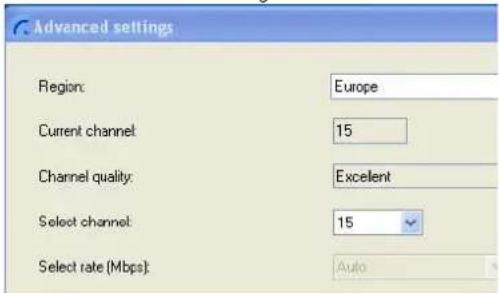
Using the context menu of a displayed Vianect AIR TV station (accessed by right-clicking the respective TV station), you can reach the following functions:

- You can temporarily disable the station (Block remote device), i.e. configure that the computer adapter cannot establish a connection to the TV station.
- Disconnect the station (Disassociate reote device), i.e. remove it from the network; this device is then deleted from the list.

In the event of disconnection, the devices lose the mutual preconfiguration ("pairing"), i.e. if used again, these must be reconfigured first. For more information, refer to Chapter 3.7 Restoring the pairing.
Renaming the Vianect AIR TV station.
Under Properties..., you can define whether you want a status message.

22 Vianect AIR Manager
devolo Vianect AIR TV
5 Vianect AIR TV DisplayLink Manager
The Vianect AIR TV DisplayLink Manager helps you configure the screen settings of your TV set or projector. Depending on the application, select one of the possible working modes:
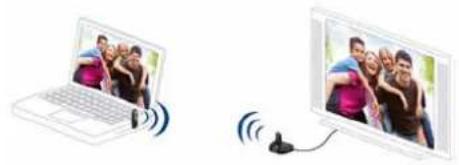
- Mirror mode – Screen content of the computer is reflected exactly to the TV set or projector.
- Extended mode – Television or projector screen serves as screen extension
In the factory defaults, the Vianect AIR TV is set to mirroring.
5.1 Mirror mode
The mirror mode reflects the screen display of the computer identically to the TV set or projector. This setting is particularly useful for applications such as presentations or slide shows. This allows slide content,
images, etc. to be presented conveniently on a larger and higher-resolution screen.
5.2 Extended mode
The extended mode is particularly useful for playing back different content on each screen. In this case, the screen connected via the Vianect AIR TV adapter serves as an expansion or addition to the computer screen. The advantage: individual images positioned next to each other can be "joined together" to create a composite image; this allows you to view multiple applications simultaneously so you can work in them. Extended mode is ideally suited for playing back HD videos (1280 x 720).

The image quality of videos played back directly from the Internet can be optimised using Adobe Flash Player. For detailed information on this topic, refer to the Help file of the Vianect AIR Manager or the online FAQs on our website, www.devolo.com.

5.3 Configuration in Windows 7
Windows 7 supports the connection of external screens by default. Call up the corresponding menu by pressing the Windows and P keys simultaneously.
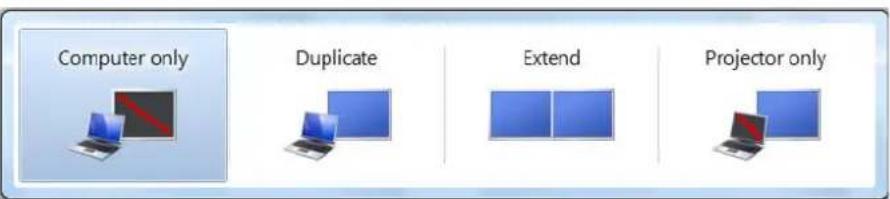
- Select Computer only if you are working via the computer screen exclusively.
- Select Duplicate to configure mirror mode.
- Select Extend to configure extended mode.
- Select Projector only if you work with a connected laptop screen and want to operate the external screen connected via the Vianect AIR TV adapter using the keyboard and mouse of the laptop.
As soon as a connection to the Vianect AIR TV adapter is established, the icon of the Vianect AIR TV DisplayLink Manager 📄 appears in the Windows toolbar. By clicking this icon, you can reach the display settings.
devolo Vianect AIR TV DisplayLink Manager
Check for updates...
Optimize for Video
Advanced...
- Clicking the Check for updates... option takes you automatically to our website at www.devolo.com and notifies you of any software updates.
- Enable the Optimize for video option to attain the best possible image quality for HD videos.
Under Advanced..., you are provided with additional setting options for the screen resolution:
Change the appearance of your displays

This is currently your main display.
Advanced settings
- Display: From the drop-down menu (or by clicking the respective screen icon), select the screen that is connected to the Vianect AIR TV adapter.
● Resolution: Select the desired resolution on the external screen.
●Orientation: Select portrait or landscape format.
● Multiple displays:
○ Configure mirror mode by selecting Duplicate these displays.
○ Configure extended mode by selecting Extend these displays.
To define the external screen as the main screen, select the corresponding device under Display and enable the option Use this screen as main screen.
5.4 Configuration in Windows XP/Vista

During the configuration, the computer screen switches off and on again briefly until the screen resolution has adjusted.
5.4.1 Configuring mirror mode
As soon as a connection to the Vianect AIR TV adapter is established, the icon of the Vianect AIR TV DisplayLink Manager 📄 appears in the Windows toolbar. If you click this icon, you are taken to the display settings.

Select the entry Mirror.
The Screen resolution and Color Quality of the first selected screen are transferred automatically to the screen connected via the Vianect AIR TV adapter.
If the connected screen supports only a lower resolution than the primary screen, it adjusts to the lower resolution. If the connected screen is larger than the first selected one, the displayed content is enclosed in a frame to maintain the aspect ratio.
Enable the option Notebook Monitor Off if you work with closed laptop screen and want to operate the external screen connected via the Vianect AIR TV using the keyboard and mouse of the laptop connected.
5.4.2 Configuring extended mode
As soon as a connection to the Vianect AIR TV adapter is established, the icon of the Vianect AIR TV DisplayLink Manager appears in the Windows toolbar. If you click this icon, you are taken to the display settings.

Select the entry Extend. Using the Extend to option, select the direction in which the image area is to be extended.
Enable the option Notebook Monitor Off if you work with closed laptop screen and want to operate the external screen connected via the Vianect AIR TV using the keyboard and mouse of the laptop connected.

To position the window of an application on the extended image area, minimise the window to approximately half size and drag and drop it to the header bar in the extended area. Then, readjust the desired size of the window.

Any applications that are running, such as movies, should be stopped before moving.
For additional display settings for extended mode, refer to Advanced...
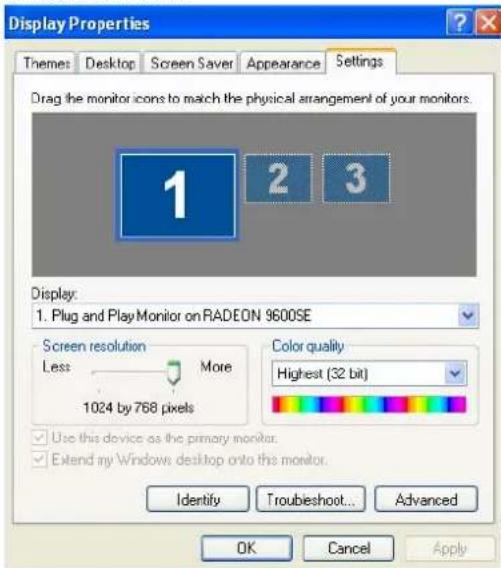
- You can switch the positions of the monitors using drag&drop. If you are not sure which monitor is assigned which number, select Identify. The identification number of each monitor is shown.
- Display: From the drop-down menu (or by clicking the respective screen icon), select the screen that is connected to the Vianect AIR TV adapter.
- If using extended mode, enable the option Extend Windows desktop onto this monitor.
- Configure the desired Screen resolution using the slider.
- In the drop-down menu for Color quality, select the desired colour depth.
To define the monitor connected via the Vianect AIR TV adapter as the primary screen, observe the following settings:
- In the Display drop-down menu, select the monitor connected via the Vianect AIR TV adapter.
- Enable the options Extend Windows desktop on this monitor and Use this device as the primary monitor. Then confirm your settings with OK.

In Windows Vista, optimise the image quality by selecting the colour scheme Aero.
5.5 Configuration in Mac OS X
For the screen settings, navigate to Apple ▷ System Preferences ▷ Monitor.

To configure mirror mode, navigate to Arrangement and enable the option Mirror Displays.
For extended mode, the option Mirror Displays simply remains disabled. The screen icons can be arranged as desired using the mouse, i.e. prioritised.
Using the tabs Display and Color, you can configure additional settings for the screen.
32 Vianect AIR TV DisplayLink Manager
devolo Vianect AIR TV
6 Appendix

For the permitted voltage range for operating the Vianect AIR TV station and the power consumption, refer to the label on the underside of the device.

The CE declaration for this product is included with the product. For additional technical information, refer to the Service Centre at www.devolo.com.
6.1 Important safety instructions
It is essential to have read and understood all safety and operating instructions before the device is used for the first time; these should then be kept safely for future reference.
●The devices must not be opened. There are no user-serviceable parts inside the device.

Do not attempt to service the product yourself; call on qualified technicians for assistance with all service tasks! There is a danger of electric shock!
- Use the devices only in a dry location.
- Do not insert any objects in the openings in the devices.
● To disconnect the Vianect AIR TV station from the power supply grid, pull out the plug.
- Do not expose the devices to direct sunlight.
● Slits and apertures in the case are intended to provide ventilation and must not be blocked or covered.
●The devices must not be set up in close proximity to a radiator.
●The devices should be installed only in locations that ensure adequate ventilation.
- Disconnect the devices from the power supply grid before cleaning. Never use water, paint thinner, benzene, alcohol or other strong cleaning agents when cleaning the devices, as these could damage the case. Only use a slightly moist soft cloth.
●The Vianect AIR TV station should be operated exclusively on a public power supply as described on the rating plate.
In the event of damage, disconnect the Vianect AIR TV station from the mains supply, unplug the computer adapter from the computer and contact your after-sales service. Damage is deemed to have occurred
○if the power cable or plug is damaged
○if the devices are sprayed with liquid or if objects have got inside the devices

○if the devices have been exposed to rain or water
○if the devices do not work, despite the fact that all operating instructions have been followed properly
○if the cases of the devices have been damaged.
6.2 Disposal of old devices
The icon with crossed-out wastebasket on the device means that this adapter is an electrical or electronic device that falls within the scope of application of the German Electrical and Electronic Equipment Act. Since 24 March 2006, these types of devices may no longer be disposed of with household waste. Rather, in Germany, they can be given to a municipal collection point free of charge. Contact your municipal government to find out the address and hours of the nearest collection point.
6.3 Warranty conditions
The devolo AG warranty is given to purchasers of devolo products in addition to the warranty conditions provided by law and in accordance with the following conditions:
1 Warranty coverage
a) The warranty covers the equipment delivered and all its parts. Parts will, at devolo's sole discretion, be replaced or repaired free of charge if, despite proven proper handling and adherence to the operating instructions, these parts became defective due to fabrication and/or material defects. Alternatively, devolo reserves the right to replace the defective product with a comparable product with the same specifications and features. Operating manuals and possibly supplied software are excluded from the warranty.
b) Material and service charges shall be covered by devolo, but not shipping and handling costs involved in transport from the buyer to the service station and/or to devolo.
c) Replaced parts become property of devolo.
d) devolo is authorized to carry out technical changes (e.g. firmware updates) beyond repair and replacement of defective parts in order to bring the equipment up to the current technical state. This does not result in any additional charge for the customer. A legal claim to this service does not exist.
2 W a r r a n t
The warranty period for this devolo product is three years. This period begins at the day of delivery from the devolo dealer. Warranty services carried out by devolo do not result in an extension of the warranty period nor do they initiate a new warranty period. The warranty period for installed replacement parts ends with the warranty period of the device as a whole.
3 W a r r a n t 5 y 0 p p r e o r c a e t d i
a) If defects appear during the warranty period, the warranty claims must be made immediately, at the latest within a period of 7 days.
b) In the case of any externally visible damage arising from transport (e.g. damage to the housing), the person carrying out the transportation and the sender should be informed immediately. On discovery of damage which is not externally visible, the transport company and the sender are to be immediately informed in writing, at the latest within 3 days of delivery.
c) Transport to and from the location where the warranty claim is accepted and/or the repaired device is exchanged, is purchaser's own risk and cost.
d) Warranty claims are only valid if a copy of the original purchase receipt is returned with the device. devolo reserves the right to require the submission of the original purchase receipt.
4 Suspension of the warranty
All warranty claims will be deemed invalid
a) if the label with the serial number has been removed from the device,
b) if the device is damaged or destroyed as a result of acts of nature or by environmental influences (moisture, electric shock, dust, etc.),
c) if the device was stored or operated under conditions not in compliance with the technical specifications,
d) if the damage occurred due to incorrect handling, especially to non-observance of the system description and the operating instructions,
e) if the device was opened, repaired or modified by persons not contracted by devolo,
f) if the device shows any kind of mechanical damage, or
g) if the warranty claim has not been reported in accordance with 3a) or 3b).
If it becomes apparent that the reported malfunction of the device has been caused by unsuitable hardware, software, installation or operation, devolo reserves the right to charge the purchaser for the resulting testing costs.
6 Additional regulations
The above conditions define the complete scope of devolo's legal liability.
a) The warranty gives no entitlement to additional claims, such as any refund in full or in part. Compensation claims, regardless of the legal basis, are excluded. This does not apply if e.g. injury to persons or damage to private property are specifically covered by the product liability law, or in cases of intentional act or culpable negligence.
b) Claims for compensation of lost profits, indirect or consequential detriments, are excluded.
c) devolo is not liable for lost data or retrieval of lost data in cases of slight and ordinary negligence.
d) In the case that the intentional or culpable negligence of devolo employees has caused a loss of data, devolo will be liable for those costs typical to the recovery of data where periodic security data back-ups have been made.
e) The warranty is valid only for the first purchaser and is not transferable.
f) The court of jurisdiction is located in Aachen, Germany in the case that the purchaser is a merchant. If the purchaser does not have a court of jurisdiction in the Federal Republic of Germany or if he moves his domicile out of Germany after conclusion of the contract, devolo's court of jurisdiction applies. This is also applicable if the purchaser's domicile is not known at the time of institution of proceedings.
g) The law of the Federal Republic of Germany is applicable. The UN commercial law does not apply to dealings between devolo and the purchaser.
36 Appendix
devolo Vianect AIR TV
Index
C
Channel quality 20
Closed laptop screen 25, 28, 29
Computer adapter 12
Configuration interface 19
Connection quality 20
Connection status 17
Connections of the computer adapter 12
Connections of the station 13
Connections of the TV adapter 13
D
Disabling a TV station 21
Disconnecting a TV station 21
Disposal of old devices 34
E
Extended mode 24
H
HD video 24
Help file 18
L
LEDs of the computer adapter 12
LEDs of the TV adapter 13
M
Mac OS X 14
Mirror mode 23
0
Online FAQ 18, 24
P
Package contents 12
Pairing (preconfiguration) 12, 21
Positioning on level surface 13
R
Rotating USB connector 12
S
Safety instructions 33
Software download for Mac OS X 14
Software uninstallation (Mac OS X) 15
System requirements 12
W
Wall mounting 13
Warranty 34
Windows 14
Wireless USB technology 7
Index
devolo Vianect AIR TV


- © 2010 DEVOLO AG AACHEN (GERMANY)
- TRADEMARKS
- DEVOLO AG
- CONTENTS
- 6 APPENDIX 33
- 1 PREFACE
- DESCRIPTION OF THE SYMBOLS
- DEVOLO ON THE INTERNET
- 2 INTRODUCTION
- 2.1 A BRIEF SUMMARY OF THE HIGHLIGHTS OF THE VIANECT AIR TV
- 2.2 SAMPLE APPLICATIONS
- 3 INITIAL USE
- 3.1 PACKAGE CONTENTS
- 3.2 SYSTEM REQUIREMENTS
- 3.3 FUNCTIONS
- 3.3.1 VIANECT AIR COMPUTER ADAPTER
- 3.3.2 VIANECT AIR TV STATION
- CONNECTIONS OF THE STATION
- CONNECTIONS AND LEDS OF THE TV ADAPTER
- 3.4 SETUP INSTRUCTIONS
- 3.5 SOFTWARE INSTALLATION
- 3.5.1 SOFTWARE FOR WINDOWS
- 3.5.2 SOFTWARE FOR MAC OS X
- 3.6 CONNECTING THE VIANECT AIR TV
- OBSERVE THE SETUP INSTRUCTIONS LISTED IN THE PREVIOUS SECTION. (SEE 3.4 SETUP INSTRUCTIONS)
- 3.7 RESTORING THE PAIRING
- 4 VIANECT AIR MANAGER
- CONNECTED
- 4.1 CALLING UP THE CONFIGURATION INTERFACE
- 5 VIANECT AIR TV DISPLAYLINK MANAGER
- 5.1 MIRROR MODE
- 5.2 EXTENDED MODE
- 5.3 CONFIGURATION IN WINDOWS 7
- 5.4 CONFIGURATION IN WINDOWS XP/VISTA
- 5.4.1 CONFIGURING MIRROR MODE
- 5.4.2 CONFIGURING EXTENDED MODE
- 5.5 CONFIGURATION IN MAC OS X
- 6 APPENDIX
- 6.1 IMPORTANT SAFETY INSTRUCTIONS
- 6.2 DISPOSAL OF OLD DEVICES
- 6.3 WARRANTY CONDITIONS
- 4 SUSPENSION OF THE WARRANTY
- 6 ADDITIONAL REGULATIONS
- INDEX
- C
- D
- E
- H
- L
- M
- 0
- P
- R
- S
- W
Brand : DEVOLO
Model : Vianect AIR TV
Category : Media player