
Go + Play II - Loudspeaker HARMAN KARDON - Free user manual and instructions
Find the device manual for free Go + Play II HARMAN KARDON in PDF.


| Product Type | Portable Bluetooth Speaker |
| Brand | Harman Kardon |
| Model | Go + Play II |
| Dimensions (W x H x D) | 13.5 x 9.5 x 5.5 inches (approx.) |
| Weight | 2.7 lbs (approx.) |
| Power Source | AC adapter (included) and internal rechargeable battery |
| Battery Life | Up to 8 hours (typical usage) |
| Charging Time | Approximately 3 hours |
| Bluetooth Version | 4.0 or higher |
| Wireless Range | Up to 33 ft (10 m) |
| Audio Inputs | Bluetooth, 3.5mm AUX, USB (for charging devices) |
| Speaker Configuration | Stereo with dual drivers and passive radiator |
| Frequency Response | 60Hz – 20kHz |
| Water Resistance | Not water resistant (avoid moisture) |
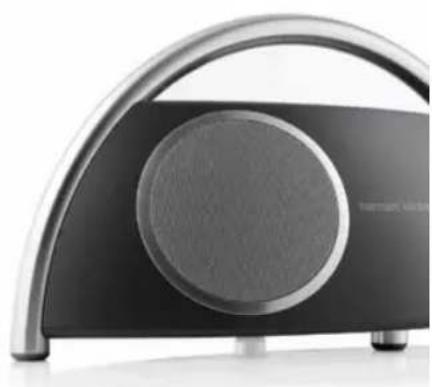
| Handle | Integrated carrying handle |
| Controls | Power, volume, Bluetooth pairing, play/pause, track skip |
| Microphone | Built-in for speakerphone calls |
| Cleaning | Wipe with a soft, dry cloth |
| Safety | Do not expose to liquids or extreme temperatures |
| Spare Parts / Repairability | Not user-serviceable; contact authorized service center |
| Package Includes | Speaker, AC adapter, user manual, warranty card |
Frequently Asked Questions - Go + Play II HARMAN KARDON
User questions about Go + Play II HARMAN KARDON
0 question about this device. Answer the ones you know or ask your own.
Ask a new question about this device
Download the instructions for your Loudspeaker in PDF format for free! Find your manual Go + Play II - HARMAN KARDON and take your electronic device back in hand. On this page are published all the documents necessary for the use of your device. Go + Play II by HARMAN KARDON.
USER MANUAL Go + Play II HARMAN KARDON
Portable hi-fi speaker with iPhone/iPod
Owner's Manual
Made for
iPod iPhone
harman/kardon®
by HARMAN
Important Safety Instructions
- Read these instructions.
- Keep these instructions.
- Heed all warnings.
- Follow all instructions.
- Do not use this apparatus near water.
- Clean only with a dry cloth.
- Do not block any ventilation openings. Install in accordance with the manufacturer's instructions.
- Do not install near any heat sources such as radiators, heat registers, stoves or other apparatus (including amplifiers) that produce heat.
- Do not defeat the safety purpose of the polarized or grounding-type plug. A polarized plug has two blades with one wider than the other. A grounding-type plug has two blades and a third grounding prong. The wide blade or the third prong is provided for your safety. If the provided plug does not fit into your outlet, consult an electrician for replacement of the obsolete outlet.
- Protect the power cord from being walked on or pinched, particularly at plugs, convenience receptacles and the point where they exit from the apparatus.
- Only use attachments/accessories specified by the manufacturer.

-
Use only with the cart, stand, tripod, bracket or table specified by the manufacturer or sold with the apparatus. When a cart is used, use caution when moving the cart apparatus combination to avoid injury from tip-over.
-
Unplug this apparatus during lightning storms or when unused for long periods of time.
-
Refer all servicing to qualified service personnel. Servicing is required when the apparatus has been damaged in any way, such as: when the power supply cord or plug has become damaged, when liquid has been spilled or objects have fallen into the apparatus, when the apparatus has been exposed to rain or moisture, when the apparatus does not operate normally, or the apparatus has been dropped.
-
Do not expose this apparatus to dripping or splashing and ensure that no objects filled with liquids, such as vases, are placed on the apparatus.
-
To completely disconnect this apparatus from the AC mains, disconnect the power supply cord plug from the AC receptacle.
-
The mains plug of the power supply cord shall remain readily operable.
-
Do not expose batteries to excessive heat such as sunshine, fire or the like.
Important Safety Instructions
Regulations
FCC Statement and Warning
This equipment has been tested and found to comply with the limits for a Class B digital device, pursuant to part 15 of the FCC Rules. These limits are designed to provide reasonable protection against harmful interference in a residential installation. This equipment generates, uses and can radiate radio frequency energy and, if not installed and used in accordance with the instructions, may cause harmful interference to radio communications. However, there is no guarantee that interference will not occur in a particular installation. If this equipment does cause harmful interference to radio or television reception, which can be determined by turning the equipment off and on, the user is encouraged to try to correct the interference by one or more of the following measures:
– Reorient or relocate the receiving antenna.
– Increase the separation between the equipment and receiver.
- Connect the equipment into an outlet on a circuit different from that to which the receiver is connected.
— Consult the dealer or an experienced radio/TV technician for help.
MODIFICATIONS NOT EXPRESSLY APPROVED BY THE MANUFACTURER COULD VOID THE USER AUTHORITY TO OPERATE THE EQUIPMENT UNDER FCC RULES.
HARMAN KARDON GO + PLAY II
Welcome
Thank you for purchasing the Harman Kardon Go + Play™ II portable hi-fi speaker for iPhone/iPod. This system has been designed to meet the highest audio-performance standards. The Harman Kardon Go + Play II system will meet all your listening and travel needs, allowing you to immerse yourself in your favorite music wherever you are.
Introduction
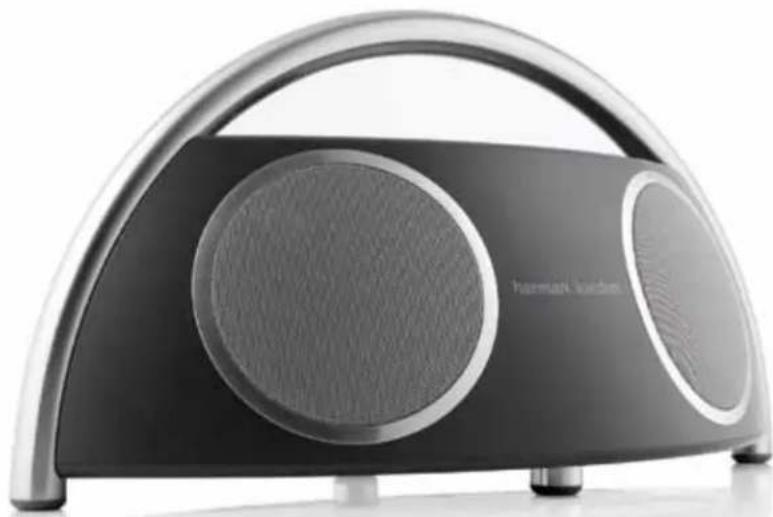
The Harman Kardon Go + Play II portable, high-fidelity docking system for iPhone/iPod performs like a home theater system. With a groundbreaking design that's built for comfort, performance and freedom, the Harman Kardon Go + Play II unit will cradle your iPhone/iPod and surround it with luxurious Harman Kardon sound. Carry the unit by its stainless-steel arch handle to enjoy the ultimate portable soundstage. Connected to your iPhone/iPod, MP3 player or other music source, the system will provide clean, powerful sound while also charging your iPhone/iPod. The RF Smart Remote provides complete control of your music experience. Enjoy the pinnacle of portable audio performance with the Harman Kardon Go + Play II system – it will kick your listening experience into the future.
Special Features
IEQ – Intelligent equalization technology uses the Harman Kardon Go + Play II microprocessor and digital signal processing (DSP) to optimize the system's output, based on battery or power-supply operation.
Bi-amplification – The Harman Kardon Go + Play II unit uses two amplifiers to allow for clean, powerful sound output.
RF remote – Allows for control of the Harman Kardon Go + Play II system from up to 29 feet (nine meters) away.
Welcome
Package Contents
Carefully unpack your Harman Kardon Go + Play II system and identify all components.


HARMAN KARDON
GO + PLAY II
General Setup
- Unpack the Harman Kardon Go + Play II system.
- Place the nest into the docking station.
- IMPORTANT: Turn the adjustable knob in the center of the docking station to support
your specific iPhone/iPod model properly. - Place the iPhone/iPod into the docking station.
- Connect the power supply into the "DC In" jack.
- Plug the adapter into the wall outlet
- If using batteries is preferred, install eight (8) type D batteries into the bottom of the unit.
- Turn on the power switch. The green indicator light will turn on.

Storing Your Smart Remote
The Harman Kardon Go + Play II system is equipped with a storage compartment on the back of the unit. Simply press the top of the compartment to open it and store your remote.
General Setup
Battery Installation
For Harman Kardon Go + Play II System
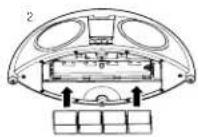
- Unscrew the two battery-compartment cover screws counterclockwise
to the unlocked position; remove the battery-compartment cover. - Place eight (8) fresh D-cell batteries as shown
- Replace the battery compartment cover.
Note: System will not use battery power when using AC power.


DO NOT MIX BATTERY TYPES
DO NOT MIX CHARGED AND PARTIALLY CHARGED BATTERIES.
BATTERIES WILL NOT RECHARGE WHILE IN THE UNIT.
For Harman Kardon Smart Remote
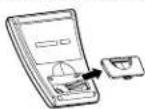


-
Remove battery-compartment cover: 2. Insert a 3-volt 2032 type battery, positive side up.
-
Replace battery-compartment cover
Battery Disposal
Alkaline batteries are considered nonhazardous. Rechargeable batteries (i.e., nickel cadmium, nickel metal-hydride, lithium and lithium-ion) are considered hazardous household materials and may pose an unnecessary health and safety risk.
In the European Union and other locations, it is illegal to dispose of any battery with household trash. All batteries must be disposed of in an environmentally sound manner. Contact your local waste-management officials for information regarding the environmentally sound collection, recycling and disposal of used batteries.
HARMAN KARDON
GO + PLAY II
Remote Functionality
The remote control will work only with compatible iPhone/iPod models. Before proceeding, make sure that the iPod is securely docked to your Harman Kardon Go + Play II. The Music Control Mode is indicated by a blue light, and the iPod Navigation Mode is indicated by an orange light, on the remote control.
![graph TD A["Harman/Kardon"] --> B["Mode Select Buttons: Press to toggle between Music Control Mode and iPod Control Mode"] A --> C["Music Control Mode: Previous audio track should be less than 1 secondly, Rewind Ford or more than 1 second"] --> D["Music Control Mode: Next audio track should be less…](/content/2026/06/1251386/images/abb99c062474dcc7138763835d7bc1e4f5385d04acf41636b3dd25ed411b2296.jpg)
Music Control Mode
To turn the iPod on: Press any button on the remote control to wake up the iPod.
To turn the iPod off: Press and hold the button for two seconds.
To turn the unit on: Press and hold either volume button.
To turn the unit off: Press and hold the button.
To play a track: Press the button.
(Note: If the iPod is at the main menu, pressing the
button will cause the iPod to start playing all of its music.)
To pause a track: Press the button while a song is playing.
To skip to the next track: Press the button.
To skip to the previous track: Press the button
To fast advance a track: Press and hold the button.
To fast reverse a track: Press and hold the button.
To increase volume: Press the button.
To decrease volume: Press the button.
To mute:
To change to the
Pod Navigation Mode:
Press the +and -buttons at the same time.
Press the button.
Remote Functionality
iPod Control Mode
To turn the iPod on: Press any button on the remote control to wake up the iPod.
To turn the iPod off: Press and hold the button for two seconds.
To turn the unit on: Press and hold either volume button.
To turn the unit off: Press and hold the button.
To scroll the iPod cursor up: Press the 📣utton.
To scroll the iPod cursor down: Press the button.
To go to the previous menu: Press the Button.
To select Menu/Track/Feature: Press the button.
To change to the
Music Control Mode: Press the button.
Listening to Music and Watching Videos and Photos from an iPhone/iPod
-
Press the "Power" button located on top of the Harman Kardon Go + Play II system to turn on the unit.
-
To play music: Use the controls on your iPhone/iPod or the Harman Kardon Smart Remote to make selections and control the iPhone/iPod and the Harman Kardon Go + Play II. (Remote-control functionality may vary depending on iPhone/iPod model and firmware version.)
To play videos: Use a standard S-Video cable to connect the Harman Kardon Go + Play II's S-Video output to a compatible video-display device. Make sure that your iPhone/iPod Video and/or Photos functions are set to "On." Use the controls on your iPhone/iPod or the Harman Kardon Smart Remote to make selections and control the iPhone/iPod and the Harman Kardon Go + Play II. (Remote-control functionality may vary depending on iPhone/iPod model and firmware version.)
- Adjust volume using the "+" and "-" volume buttons located on top of the unit or on the Harman Kardon Smart Remote.
HARMAN KARDON
GO + PLAY II
Listening to Music from an Auxiliary Device
- Connect the auxiliary device's output into the "Auxiliary In" jack by using 3.5mm (1/8") auxiliary cable (not included).
- Press the "Power" button located on top of the Harman Kardon Go + Play II system to turn on the unit.
- Control music playback through the auxiliary device.
- Adjust volume using the "+" and "-" volume buttons located on top of the unit or on the Harman Kardon Smart Remote.
Charging Your iPhone/iPod
- Make sure your iPhone/iPod is securely docked in the Harman Kardon Go + Play II unit by using the nest (included).
- Make sure that the Harman Kardon Go + Play II unit is connected to a live electrical outlet. Note: The Harman Kardon Go + Play II system will not charge other devices.
- The Harman Kardon Go + Play II unit will not charge iPhone/iPod while in battery mode.
USB Synchronization and Charging
The Harman Kardon Go + Play II system features a USB synchronization and charge port. This feature allows synchronization of the Go + Play II system, with an iPhone/iPod docked, to iTunes and provides a charge to the iPod even when the Harman Kardon Go + Play II is only under battery power.
- Connect the Harman Kardon Go + Play II USB port to a computer using a USB cable (not included).
- Dock an iPhone/iPod into the Harman Kardon Go + Play II.
- iTunes will synchronize with the iPhone/iPod.
Troubleshooting
Troubleshooting
| Symptom Possible Problem | Solution | Note | |
| Sound Quality | |||
| There is no sound coming from the Harman Kardon Go + Play II unit. | No power to unit. | Make sure that the wall outlet or power strip has power.Mako sure that all switches for outlet/power strip are on and that all switches for the unit are on.If you are not using the AC adapter, make sure that fresh batteries are installed correctly. | Is the LED on? If the LED is not on, power is not getting to your Harman Kardon Go + Play II unit.Try the solutions shown. |
| Sound comes from only one side/channel. | iPhone/iPod or auxiliary cable is not seated properly. | Make sure that the iPhone/iPod is seated all the way into the cocking station.Make sure that the auxiliary cable is seated all the way into the jack.Try resetting the iPhone/iPod. | If you are using a 3.5mm (1/8") auxiliary extension cable, make sure it is a staroo cable. |
| Distortion (static, crackling or hissing sounds). | Audio source or source material may be the problem. | Test the Harman Kardon Co – Play II unit with another source. | Does the distortion occur with specific songs? If so, check the recording or record the source again. |
| Volume level may be too high from auxiliary-device output. | Check the volume of the source and turn it down if necessary. | Some devices will distort the signal if the volume is too high. | |
| EQ setting may be too high. | Check the EQ setting on your iPhone/iPod or source device. | It is recommended that you set the source device EQ to "Flat" or "Off." | |
HARMAN KARDON
GO + PLAY II
Troubleshooting (continued)
| Symptom | Possible Problem | Solution | Note |
| Sound Quality | |||
| Harman Kardon Go + Play II unit emits a loud hum or buzzing noise. | Input cable is not plugged in property. | Check the input cable connection. | |
| Cable may be bad. | Replace the cable. | ||
| Ground loop (an unsuitable connection). | Turn the Harman Kardon Go + Play II unit off and connect it to another wall outlet. | ||
| Speaker system experiences radio frequency interference or picks up a radio-station transmission. | Input cable may be picking up interference. | Purchase a ferrite core and wrap the excess cable around it.A ferrite core can be purchased at your local electronics store. | |
| Symptom | Possible Problem | Solution | Note |
| Charging | |||
| iPhone/iPod will not charge. | No power to unit. | Make sure that your wall outlet or power strip has power. Make sure that all switches for outlet/power strip are on and that all switches for the unit are on. | The Harman Kardon Go + Play II unit will not charge iPhone/iPod while in battery mode. |
| The iPhone/iPod is not making full contact with the docking station. | Make sure that the iPhone/iPod is seated securely into the docking station. | ||
Technical Specifications
Technical Specifications
Model: Harman Kardon Go + Play TM II
Available in: Black
Requirements: iPhone/iPod with docking connector
(not included)
3.5mm (1/8") audio cable for connection
to auxiliary devices (not included)
Optional batteries for unit: 8 type D alkaline batteries
Replacement battery for
RF remote: 3V type 2032 battery
Drivers: Two Ridge and two Atlas ™ transducers
Power: Tweeters: 2 x 15 watts @ 1% THD
Woofers: 2 x 30 watts @ 1% THD
Frequency response: 40Hz - 20kHz
Input sensitivity: 250mV
Dimensions: Length: 20" (500mm)
Width: 9" (230mm)
Height: 9-1/2" (240mm)
Weight: 8.6 lb (3.9kg)
Input impedance: >10k ohms
Signal-to-noise ratio: >85dB
External power supply
Input voltage: 100 - 240V AC
Output voltage: 18VDC @ 3.3A

Harman Corporation, Inc.
Φ2.01.2.14 by person that is not married and let the other house, then person defaults. 4.3.1 Right hand consent or with: This is fixed as a letter will be
Hormes in Rambor, is a trade mark of the man. Hormes are at to deal with, the apparatus, registered on the Lim and 3.05x an all or two in case that is. Hormes in Rambor Co. = Fig. and Abox, are part of the name of Hormes in Rambor's and Itochak as, in any form it.
If there is a time that the time is at 10:30, and the time is at 15:00. The time is at 15:00.
For example, do not find the actual case was set on a net real part for change with our policy.
[1] The first question is a 7-8 and its drug plan on our use, use or help the not liquid mixture, use, stop and stop in order to test if it is intact as you have a good use of the other. In the use of drug and help the can be found from liquid and in usual fluid.

ad Securities - 013820117464
harman/kardon in HARMAN
www.harmarkand.com
- IMPORTANT SAFETY INSTRUCTIONS
- REGULATIONS
- FCC STATEMENT AND WARNING
- HARMAN KARDON GO + PLAY II
- WELCOME
- INTRODUCTION
- SPECIAL FEATURES
- PACKAGE CONTENTS
- HARMAN KARDON
- GO + PLAY II
- GENERAL SETUP
- STORING YOUR SMART REMOTE
- BATTERY INSTALLATION
- FOR HARMAN KARDON GO + PLAY II SYSTEM
- FOR HARMAN KARDON SMART REMOTE
- BATTERY DISPOSAL
- REMOTE FUNCTIONALITY
- MUSIC CONTROL MODE
- IPOD CONTROL MODE
- LISTENING TO MUSIC AND WATCHING VIDEOS AND PHOTOS FROM AN IPHONE/IPOD
- LISTENING TO MUSIC FROM AN AUXILIARY DEVICE
- CHARGING YOUR IPHONE/IPOD
- USB SYNCHRONIZATION AND CHARGING
- TROUBLESHOOTING
- TECHNICAL SPECIFICATIONS
Brand : HARMAN KARDON
Model : Go + Play II
Category : Loudspeaker