
VHUB-MST2HDA - KVM switch Comprehensive - Free user manual and instructions
Find the device manual for free VHUB-MST2HDA Comprehensive in PDF.


| Product Type | USB 3.0 to Dual HDMI Multi-Display Universal Adapter |
| Brand | Comprehensive |
| Model | VHUB-MST2HDA |
| Dimensions (L x W x H) | 3.98 x 2.09 x 0.43 in (101 x 53 x 11 mm) |
| Net Weight | 66 g (2.33 oz) |
| Material | ABS plastic |
| Input Ports | USB-C Male (1x) or USB-A Male (1x) |
| Output Ports | HDMI (2x): 1x 4K@30Hz, 1x 1080p@60Hz |
| Data Transfer Rate | Up to 10.2 Gbps |
| USB Standard | USB 3.0 (USB 3.1 Gen 1) 5 Gbps |
| Power Supply | USB bus powered (from PC/laptop USB-C or USB-A) |
| Power Consumption (Max) | 5W |
| Compatible Operating Systems | Windows 7/8/8.1/10/11, macOS 10.10+, Android 7.1+ |
| Display Modes Supported | Extended (MST) and Mirror (SST) modes |
| Max Resolution (4K Port) | 3840x2160 @ 30Hz |
| Max Resolution (1080p Port) | 1920x1080 @ 60Hz |
| Driver Required | Yes (download from Silicon Motion website) |
| Certifications | FCC, CE, RoHS |
| Warranty | 3 years worry-free warranty |
| Operating Temperature | 0°C to 60°C |
| Storage Humidity | 5% to 90% RH (non-condensing) |
Frequently Asked Questions - VHUB-MST2HDA Comprehensive
User questions about VHUB-MST2HDA Comprehensive
0 question about this device. Answer the ones you know or ask your own.
Ask a new question about this device
Download the instructions for your KVM switch in PDF format for free! Find your manual VHUB-MST2HDA - Comprehensive and take your electronic device back in hand. On this page are published all the documents necessary for the use of your device. VHUB-MST2HDA by Comprehensive.
USER MANUAL VHUB-MST2HDA Comprehensive
natural_image
Black electronic device with USB port, connected via 4K30Hz cable to a USB connector (no text or symbols visible on main body)User Manual
Introduction
The Comprehensive VHUB-MST2HDA is a USB™ 3.0 to Dual HDMI™ Multi-Display Universal Adapter that offers a convenient solution for expanding your display capabilities on MacBook® or Windows® computers. Acting as an external video card, this adapter enables you to connect two additional displays to your computer via the USB™ 3.0 port, providing you with increased screen real estate and boosting your productivity. With one of the HDMI™ ports supporting resolutions up to 4K 30Hz, you can enjoy stunning visual clarity and detail on one of your connected monitors. The other HDMI™ port can output resolutions up to 1080p 60Hz, providing crisp and clear images for your secondary display.
Features
- Dual display output, supporting 1x 4K@30Hz display and 1x 1080p@60Hz display simultaneously.
- Easily adds two extra displays to any supported computer.
• Supports MST functions allowing for extended, mirrored or duplicated screens. - Compatible with USB-C, USB-A, Thunderbolt 3/4, and USB 4 standard ports.
- Multiple Monitors supported, MacOS up to 6x Displays and Windows up to 8x displays (Additional VHUB-MST2HDA required)
• Fast & simple driver installation
• USB Bus powered, no need for additional external power supply. - Allows MacOS to support extended mode or MST. (Independent Screens)
- Compatible with MacOS® & Windows® laptops and Android OS.
• 3 Years Worry-Free Warranty.
Panel Description
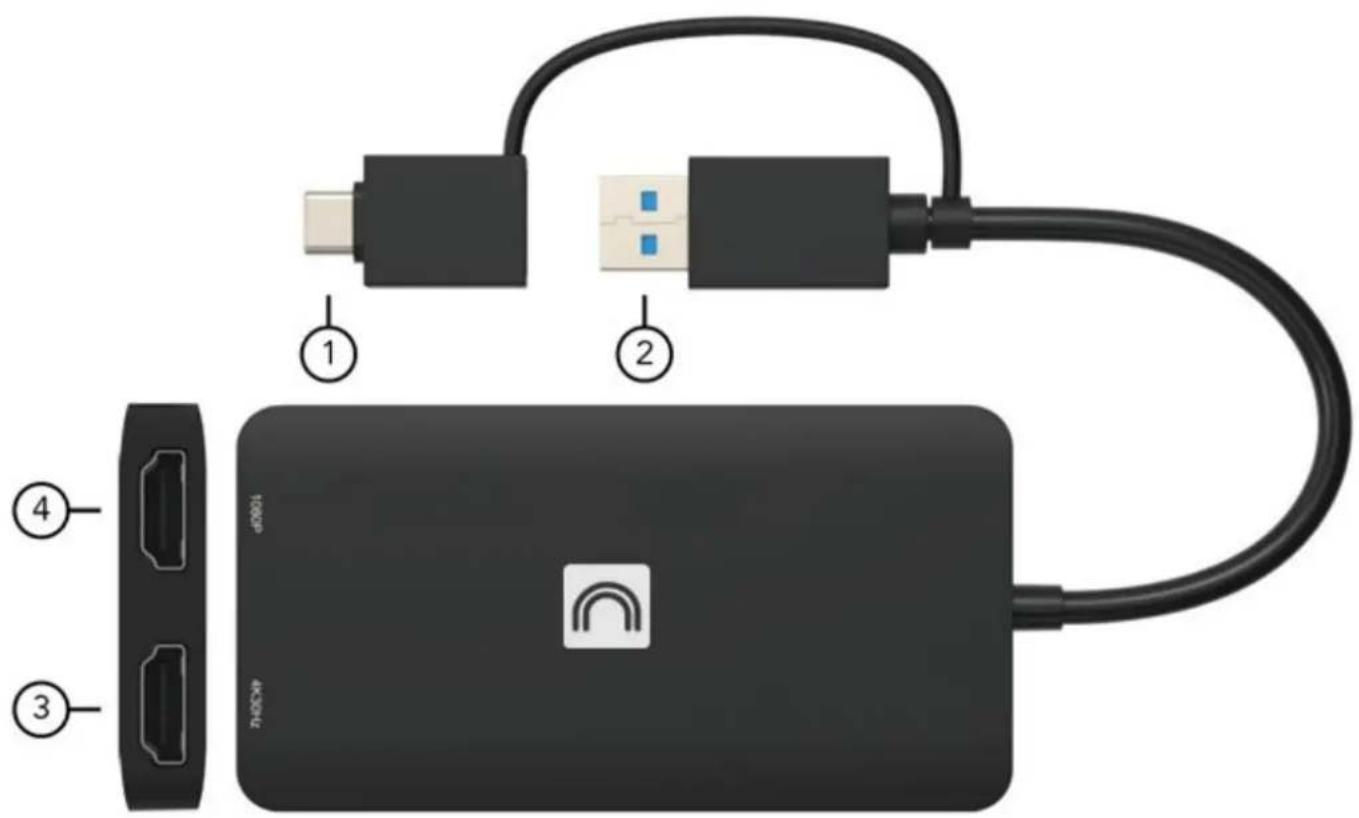
- USB-C Male Adapter: Connect to the USB-C Enable Laptop/Notebook with USB3.0 Data Output
- USB3.0 Port: Connect to the USB 3.0 Data Port of the PC/ Laptop/Notebook/USB 3.0 Hub
- 4K30Hz HDMI: Connect the Original Port to Output Resolution up to 4K@30Hz Max
- 1080p HDMI: Connect the Port to Output Resolution up to 1080p@60Hz Max
System Requirements
To ensure proper installation and operation of this product, please ensure that your system meets the following requirements:
- Windows 7/8/8.1/10 and above or Mac OS 10.10.x and above.
• CPU Processor: Core i5 and above.
• RAM: 4GB and above.
• Monitor: Supports 4K resolution.
Resolutions
| OS/Ports | 2K Port | 4K Port | |
| Windows | Mirror mode | 1920x1080@60Hz | 1920x1080@60Hz |
| Extend mode | 1920x1080@60Hz | 3840x2160@30Hz | |
| Mac OS | Mirror mode | 1920x1080@60Hz | 3840x2160@30Hz |
| Extend mode | 1920x1080@60Hz | 3840x2160@30Hz | |
Driver Installation
1) Enter the website: https://www.siliconmotion.com/downloads/ in your browser.
2) Download the correct driver zip file that supports your operating system as follow:

SiliconMotion
SM76x Driver Download
Windows
| OS Description | Version | Release Date | Release Notes | Download |
| Windows 11, Windows 10 Driver | V2.17 R02 | Sep 29, 2023 | Release Notes | |
| Windows 11, Windows 10 Driver MSI | V2.17 R02 | Sep 29, 2023 | Release Notes | |
| Windows 11, Windows 10, Windows 7, Windows 8.1 Driver | V2.15 R03 | May 9, 2023 | Release Notes |
macOS
| OS Description | Version | Release Notes | Release Date | Download |
| Recommended: InstantView display application with UI: Support macOS 14 Sonoma, 13 Ventura, 12 Monterey, 11 Big Sur and 10.15 Catalina including MacBook AirPro (M1/M2 & Intel powered) | V3.17 R64 | Sep 29, 2023 | Release Notes | |
| Legacy Display Driver for macOS 10.15 Catalina, 10.14 Mojave and 10.13 High Sierra | V2.2.16.0 | Jun 3, 2021 | Release Notes | |
| Legacy Display Driver for macOS 10.10, 10.11 and 10.12 | V2.1.4.0201 | Dec 12, 2019 | Release Notes |
Android
| OS Description | Version | Release Date | Release Notes | Download |
| Android 7.1 and above | V2.17.0.0 | Sep 26, 2023 | Release Notes |
- Unzip the driver file, and double click to open the “.exe” file, and then click the “INSTALL”
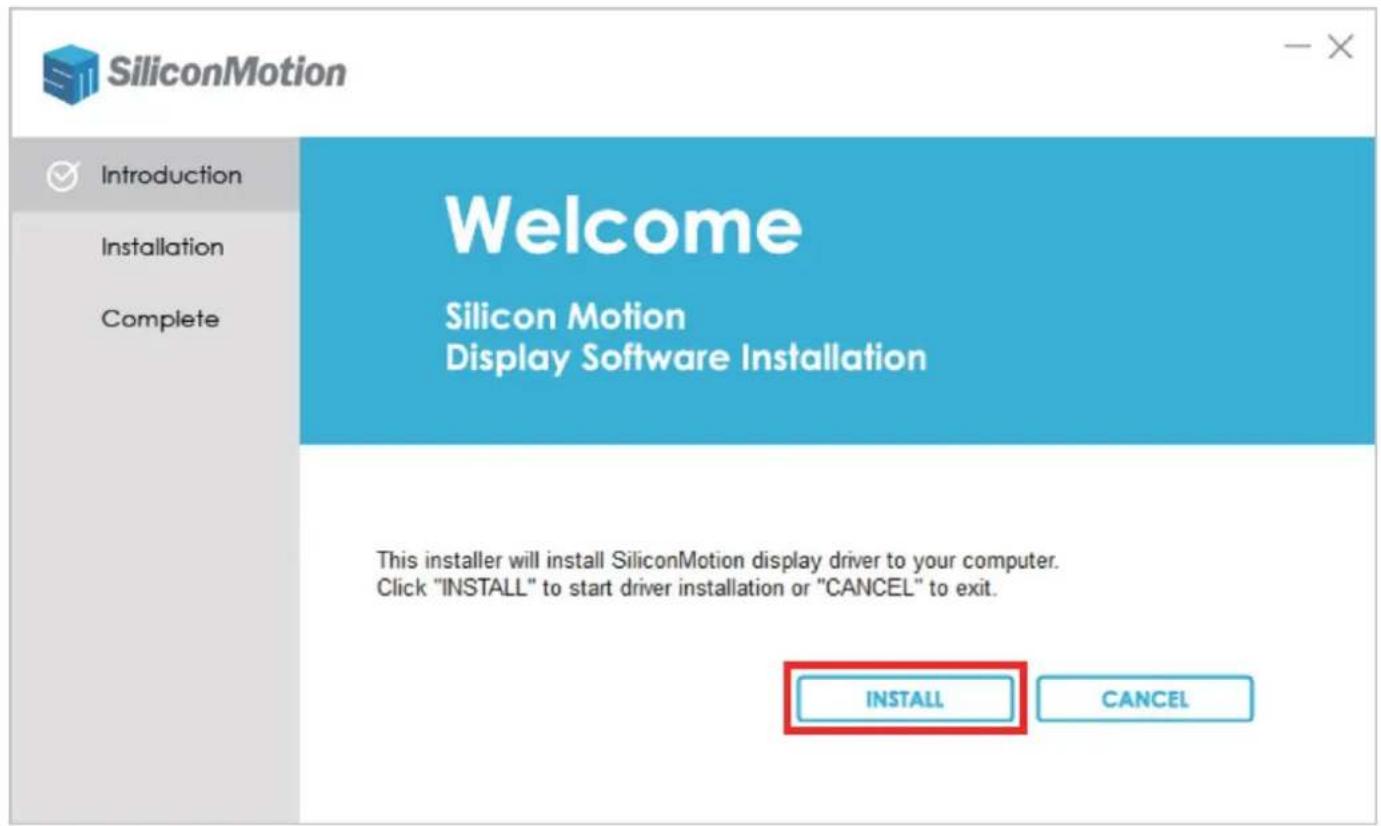
Note: If a security prompt pop-up appears, click "INSTALL"
2. After installation, click "REBOOT" to restart the computer

Display Mode Setting
For Windows
- Right click the blank space on the desktop and select "Display settings"
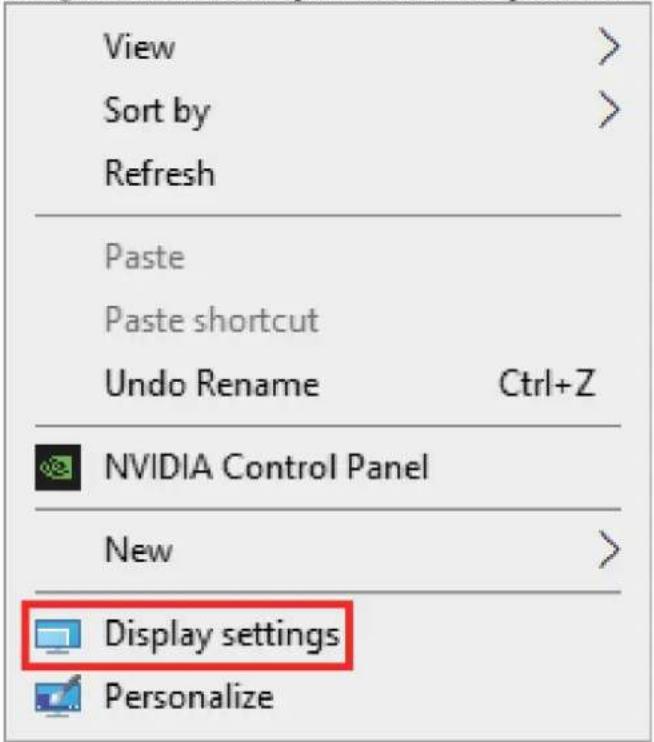
- At the "Display" area, click each of the display icons to set the needed resolution or other setting

- Scroll down to "multi display settings" and select the desired mode in the drop-down list
Settings

Display
Duplicate desktop on 1 and 3
Duplicate desktop on 2 and 3
Extend desktop to this display
Disconnect this display
Advanced display settings
For Mac OS
- Left click the apple icon and select "System Preferences", and click the "Displays"
About This Mac
System Preferences...
App Store...
Recent Items
Force Quit Finder
Sleep
Restart...
Shut Down...
Lock Screen
Log Out SAM...


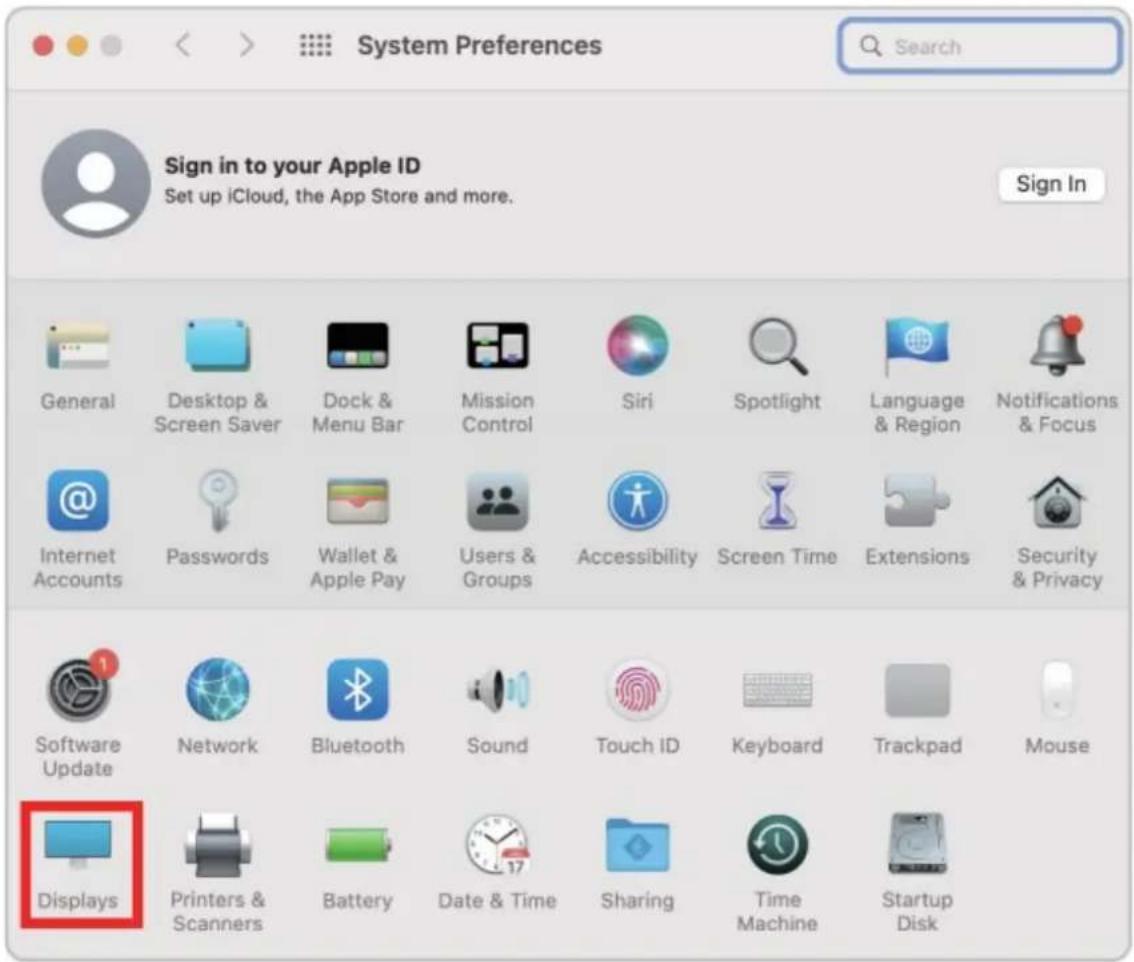
- At the "Display" area, click each of the display icons to set the location or change to the mirror or extend mode

- Click the "Display Setting", and choose each connected display to set correct resolution and mode

Note
- Please note that Mac-based devices do not support rotation mode, but M1/M2 Mac supports clamshell mode while Intel Mac does not.
- To use this adapter, your USB-C™/USB3.0 equipped device must support USB 3.0 data transmission.
- Please be aware that this adapter does not support playback of HDCP-protected content on sites like Netflix and Hulu.
Supported Resolutions
| 1080p Port | 4K30Hz Port | |
| Windows | 1920x1080@60Hz | 3840x2160@30Hz |
| 1680x1050@60Hz | 2560x1440@60Hz | |
| 1600x1200@60Hz | 1920x1080@60Hz | |
| 1600x900@60Hz | 1680x1050@60Hz | |
| 1440x1050@60Hz | 1600x1200@60Hz | |
| 1440x900@60Hz | 1600x900@60Hz | |
| 1280x1024@60Hz | 1440x1050@60Hz | |
| 1280x800@60Hz | 1440x900@60Hz | |
| 1280x720@60Hz | 1280x1024@60Hz | |
| 1152x864@60Hz | 1280x800@60Hz | |
| 1024x768@60Hz | 1280x720@60Hz | |
| 800x600@60Hz | 1152x864@60Hz | |
| 720x480@60Hz | 1024x768@60Hz | |
| 640x480@60Hz | 800x600@60Hz | |
| / | 720x480@60Hz | |
| / | 640x480@60Hz | |
| Mac OS | 1920x1080@60Hz | 3840x2160@30Hz |
| 1920x1080@30Hz | 2560x1440@60Hz | |
| 1600x900@60Hz | 1920x1080@60Hz | |
| 1280x720@60Hz | 1920x1080@30Hz | |
| / | 1600x900@60Hz | |
| / | 1280x720@60Hz |
Specification
| Input Ports | USB-C Male 1x or USB-A Male x1 |
| Output Ports | HDMI x2 |
| Data Transmission Rate Max | 10.2Gbps |
| Data Transmission Standard | USB 3.0 (USB 3.1 GEN 1) 5Gbps |
| Screen Modes Supported | Extended mode (MST), Mirror mode (SST) |
| Compatible OS | Windows 7/8.1/10/11 and aboveMac OS 10.10.x and aboveAndroid 7.1 and above( Android devices only support mirroring mode with resolutions up to 1080P) |
| Operating Temperature | 0°C to 60°C |
| Storage Humidity | 5% to 90% RH non-condensation |
| Power Supply | USB Bus powered from PC or notebook (USB-C/USB-A ports) |
| Power Consumption (Max) | 5W |
| Unit Cert | FCC, CE, RoHS |
| Dimension (LxWxH) | 3.98x 2.09x0.43in (101x53x11mm) |
| Net Weight | 66g |
| Material | ABS |
| User Manual | English Version |
Note: Specifications are subject to change without notice.
Connection Diagram
Mirror Mode & Extend Mode
on both Windows & Mac OS

Package Contents
- VersaHub™ USB-C/A to Dual HDMI Multi-Display 4K Universal Adapter
- User Manual
Troubleshooting Common Issues
Q: My USB 3.0 to HDMI Dual Display Adapter is not working. What should I do?
A: First, please check the following items:
- Ensure that your device's USB port has a current output of 900mA or more. If not, try a different port.
- Check if the correct drivers have been installed on your device.
- Make sure that your HDMI cable and adapter are securely connected to your device.
- Verify that your video source is compatible with the adapter.
- Restart your device and see if this resolves the issue.
Q: My second display flickers when I use the adapter. What could be causing this?
A: This may be caused by one or more of the following:
- Make sure the HDMI cable and adapter are securely connected.
- Try using a different HDMI cable to see if this resolves the issue.
- Check that your device is providing sufficient power to the adapter (900mA or more).
- Verify that your video source is compatible with the adapter.
- Try using a different USB 3.0 port or restarting your device.
Q: The adapter is not displaying video on my second monitor. How can I fix this?
A: Please check the following items:
- Ensure that your HDMI cable and adapter are securely connected.
- Verify that your video source is compatible with the adapter.
- Check the driver version for the adapter, and make sure it is up-to-date.
- Make sure your device is providing sufficient power to the adapter (900mA or more).
- Try using a different USB 3.0 port or restart your device.
Brand : Comprehensive
Model : VHUB-MST2HDA
Category : KVM switch