
Clubman (2011) - Car MINI - Free user manual and instructions
Find the device manual for free Clubman (2011) MINI in PDF.


| Product Type | Car (Mini Clubman 2011) |
| Brand | Mini |
| Model | Clubman (2011) |
| Engine Type | 1.6L 4-cylinder gasoline (typical) |
| Horsepower | 120 hp (typical) |
| Transmission | 6-speed manual or automatic (typical) |
| Drive Type | Front-wheel drive |
| Dimensions (L x W x H) | 3960 mm x 1683 mm x 1428 mm (typical) |
| Wheelbase | 2547 mm (typical) |
| Curb Weight | Approx. 1240 kg (typical) |
| Fuel Tank Capacity | 50 L (typical) |
| Fuel Type | Gasoline |
| Key Features | Split rear barn doors, Club Door, on-board computer, voice activation, Bluetooth hands-free, navigation system |
| Safety Systems | ABS, DSC (Dynamic Stability Control), airbags, alarm system, Park Distance Control (optional) |
| Maintenance Interval | Oil change every 15,000 mi or 2 years; follow MINI Maintenance System |
| Care Instructions | Use approved cleaning products; avoid pressure washers near seals; regular waxing |
| Battery | 12V lead-acid; remote control battery rechargeable via ignition (or replaceable for Comfort Access) |
| Warranty | New Vehicle Limited Warranty, Rust Perforation Limited Warranty, emissions warranties |
| Repair Parts | Use genuine MINI parts; available from MINI dealers |
| Manual Availability | Free PDF download at notice-facile.com |
Frequently Asked Questions - Clubman (2011) MINI
User questions about Clubman (2011) MINI
0 question about this device. Answer the ones you know or ask your own.
Ask a new question about this device
Download the instructions for your Car in PDF format for free! Find your manual Clubman (2011) - MINI and take your electronic device back in hand. On this page are published all the documents necessary for the use of your device. Clubman (2011) by MINI.
USER MANUAL Clubman (2011) MINI
natural_image
City skyline at sunset with dramatic sky reflection, no visible text or symbols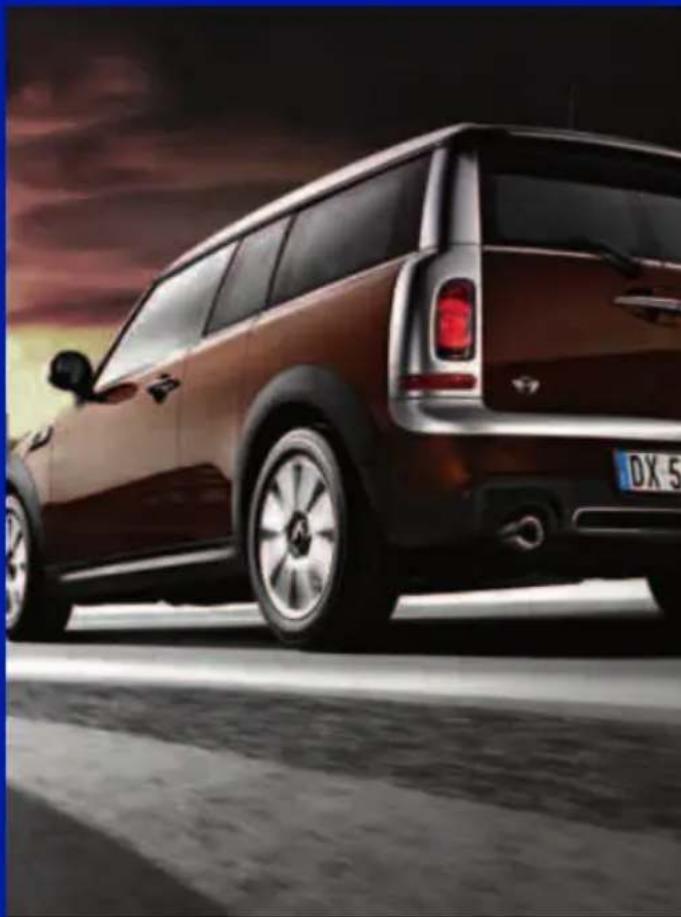
natural_image
Side profile of a dark brown Mini Cooper parked on a road, with visible headlights and license plate (no text or symbols)COOPER COOPER S JOHN COOPER WORKS
Congratulations on your new MINI
This Owner's Manual should be considered a permanent part of this vehicle. It should stay with the vehicle when sold to provide the next owner with important operating, safety and maintenance information.
We wish you an enjoyable driving experience.
Reprinting, including excerpts, only with the
written consent of BMW AG, Munich.
US English II/11, 03 11 500
Printed on environmentally friendly paper,
bleached without chlorine, suitable for recycling.
CONTENTS
The fastest way to find information on a particular topic or item is by using the index, refer to page 238.
Using this Owner's Manual
4 Notes
6 Reporting safety defects
AT A GLANCE
10 Cockpit
16 On-board computer
20 Letters and numbers
21 Voice activation system
CONTROLS
26 Opening and closing
37 Adjustments
43 Transporting children safely
46 Driving
56 Controls overview
68 Technology for driving comfort and safety
81 Lamps
85 Climate
90 Practical interior accessories
DRIVING TIPS
98 Things to remember when driving
NAVIGATION
108 Navigation system
109 Destination entry
118 Route guidance
126 What to do if...
ENTERTAINMENT
130 On/off and tone
132 Radio
140 CD player
142 External devices
COMMUNICATIONS
154 Hands-free device Bluetooth
164 Mobile phone preparation Bluetooth
177 Office
184 MINI Connected
MOBILITY
188 Refueling
190 Wheels and tires
198 Under the hood
202 Maintenance
204 Care
208 Replacing components
219 Giving and receiving assistance
REFERENCE
226 Technical data
230 Short commands for the voice activation system
238 Everything from A to Z
NOTES
USING THIS OWNER'S MANUAL
We have tried to make all the information in this Owner's Manual easy to find. The fastest way to find specific topics is to refer to the detailed index at the back of the manual. If you wish to gain an initial overview of your vehicle, you will find this in the first chapter.
Should you wish to sell your MINI at some time in the future, remember to hand over this Owner's Manual to the new owner; it is an important part of the vehicle.
Additional sources of information
Should you have any other questions, your MINI dealer will be glad to advise you at any time.
You can find more information about the MINI, for example on its technology, on the Internet at www.MINI.com.
SYMBOLS USED

Indicates precautions that must be followed precisely in order to avoid the possibility of personal injury and serious damage to the vehicle.

Indicates information that will assist you in gaining the optimum benefit from your vehicle and enable you to care more effectively for your vehicle.

Refers to measures that can be taken to help protect the environment.
Marks the end of a specific item of information.
* Indicates special equipment, country-specific equipment and optional accessories, as well as equipment and functions not yet available at the time of printing.
"..." Identifies Control Display texts used to select individual functions.
〉...〈 Verbal instructions to use with the voice activation system.
»...« Identifies the answers generated by the voice activation system.
Symbols on vehicle components

Indicates that you should consult the relevant section of this Owner's Manual formation on a particular part or assembly.
THE INDIVIDUAL VEHICLE
The manufacturer of your MINI is the Bayerische Motoren Werke Aktiengesellschaft, BMW AG.
When you ordered your MINI, you chose various items of equipment. This Owner's Manual describes the entire array of options and equipment that the manufacturer of your MINI makes available with a specific model range.
Bear in mind that the manual may contain information on accessories and equipment that you have not specified for your own vehicle. Sections describing options and special equipment are marked by asterisks * to assist you in identifying possible differences between the descriptions in this manual and your own vehicle's equipment.
If your MINI features equipment not described in this Owner's Manual, observe the enclosed Supplementary Owner's Manuals.
STATUS OF THIS OWNER'S MANUAL AT TIME OF PRINTING
The high level of safety and quality of the MINI vehicles is ensured through continuous development. In rare cases, there may be differences between the description and the vehicle.
FOR YOUR SAFETY
Maintenance and repair

Advanced technology, e.g. the use of modern materials and high-performance
electronics, requires specially adapted maintenance and repair methods. Therefore, have the necessary work on your MINI only carried out by a MINI dealer or a workshop that has specially trained personnel working in accordance with the specifications of the MINI manufacturer. If this work is not carried out properly, there is a danger of subsequent damage and related safety hazards.
Parts and accessories

For your own safety, use genuine parts and accessories approved by the manufacturer of the MINI.
When you purchase accessories tested and approved by the manufacturer of the MINI and Original MINI Parts, you simultaneously acquire the assurance that they have been thoroughly tested by the manufacturer of the MINI to ensure optimum performance when installed on your vehicle.
The manufacturer of the MINI warrants these parts to be free from defects in material and workmanship.
The manufacturer of the MINI will not accept any liability for damage resulting from installation of parts and accessories not approved by the manufacturer of the MINI.
The manufacturer of the MINI cannot test every product made by other manufacturers to verify if it can be used on a MINI safely and without risk to either the vehicle, its operation, or its occupants.
Original MINI Parts, MINI Accessories and other products approved by the manufacturer of the MINI, together with professional advice on using these items, are available from all MINI dealers.
Installation and operation of accessories that have not been approved by the manufacturer of your MINI, such as alarms, radios, amplifiers, radar detectors, wheels, suspension components, brake dust shields, telephones, including operation of any mobile phone from within the vehicle without using an externally mounted antenna, or transceiver equipment, for instance, CBs, walkie-talkies, ham radios or similar accessories, may cause extensive damage to the vehicle, compromise its safety, interfere with the vehicle's electrical system or affect the validity of the MINI Limited Warranty. See your MINI dealer for additional information.

Maintenance, replacement, or repair of the emission control devices and systems may be performed by any automotive repair establishment or individual using any certified automotive part.
California Proposition 65 warning
California law requires us to issue the following warning:

Engine exhaust and a wide variety of automobile components and parts,
including components found in the interior furnishings in a vehicle, contain or emit chemicals known to the State of California to cause cancer and birth defects and reproductive harm. In addition, certain fluids contained in vehicles and certain products of component wear contain or emit chemicals known to the State of California to cause cancer and birth defects or other reproductive harm.
Battery posts, terminals and related accessories contain lead and lead compounds. Wash your hands after handling.
Used engine oil contains chemicals that have caused cancer in laboratory animals. Always protect your skin by washing thoroughly with soap and water.
SERVICE AND WARRANTY
We recommend that you read this publication thoroughly.
Your MINI is covered by the following warranties:
▶ New Vehicle Limited Warranty
Rust Perforation Limited Warranty
▶ Federal Emissions System Defect Warranty
▶ Federal Emissions Performance Warranty
California Emission Control System Limited Warranty
Detailed information about these warranties is listed in the Service and Warranty Information Booklet for US models or in the Warranty and Service Guide Booklet for Canadian models.
Your vehicle has been specifically adapted and designed to meet the particular operating conditions and homologation requirements in your country and continental region in order to deliver the full driving pleasure while the vehicle is operated under those conditions. If you wish to operate your vehicle in another country or region, you may be required to adapt your vehicle to meet different prevailing operating conditions and registration requirements. You should also be aware of any applicable warranty limitations or exclusions for such country or region. In such a case, please contact Customer Relations for further information.
Maintenance
Maintain the vehicle regularly to maintain road safety, operational reliability and the New Vehicle Limited Warranty.
Specifications for required maintenance measures:
MINI Maintenance System
Service and Warranty Information Booklet for US models
Warranty and Service Guide Booklet for Canadian models
If the vehicle is not maintained according to these specifications, this could result in serious damage to the vehicle. Such damage is not covered by the MINI New Vehicle Limited Warranty.
REPORTING SAFETY DEFECTS
For US customers
The following applies only to vehicles owned and operated in the US.
If you believe that your vehicle has a defect that could cause a crash or could cause injury or death, you should immediately inform the National Highway Traffic Safety Administration, NHTSA, in addition to notifying MINI of North America, LLC, P.O. Box 1227, Westwood, New Jersey 07675-1227, Telephone 1-800-831-1117.
If NHTSA receives similar complaints, it may open an investigation, and if it finds that a safety defect exists in a group of vehicles, it may order a recall and remedy campaign. However, NHTSA cannot become involved in individual problems between you, your dealer, or MINI of North America, LLC.
To contact NHTSA, you may call the Vehicle Safety Hotline toll-free at 1-888-327-4236 (TTY: 1-800-424-9153); go to http://www.safercar.gov; or write to: Administrator, NHTSA, 400 Seventh Street, SW., Washington, DC 20590. You can also obtain other information about motor vehicle safety from http://www.safercar.gov
For Canadian customers
Canadian customers who wish to report a safety-related defect to Transport Canada, Defect Investigations and Recalls, may telephone the toll-free hotline 1-800-333-0510. You can also obtain other information about motor vehicle safety from http://www.tc.gc.ca/roadsafety
natural_image
Black-and-white photo of silhouetted people walking past a large wall displaying various car-related images (no text or symbols visible)
natural_image
Black-and-white photo of silhouetted people walking through a gallery with framed car images on the wall (no visible text or symbols)WATCH ME.
AT A GLANCE
CONTROLS
DRIVING TIPS
NAVIGATION
ENTERTAINMENT
COMMUNICATIONS
MOBILITY
REFERENCE
COCKPIT
AROUND THE STEERING WHEEL: CONTROLS AND DISPLAYS
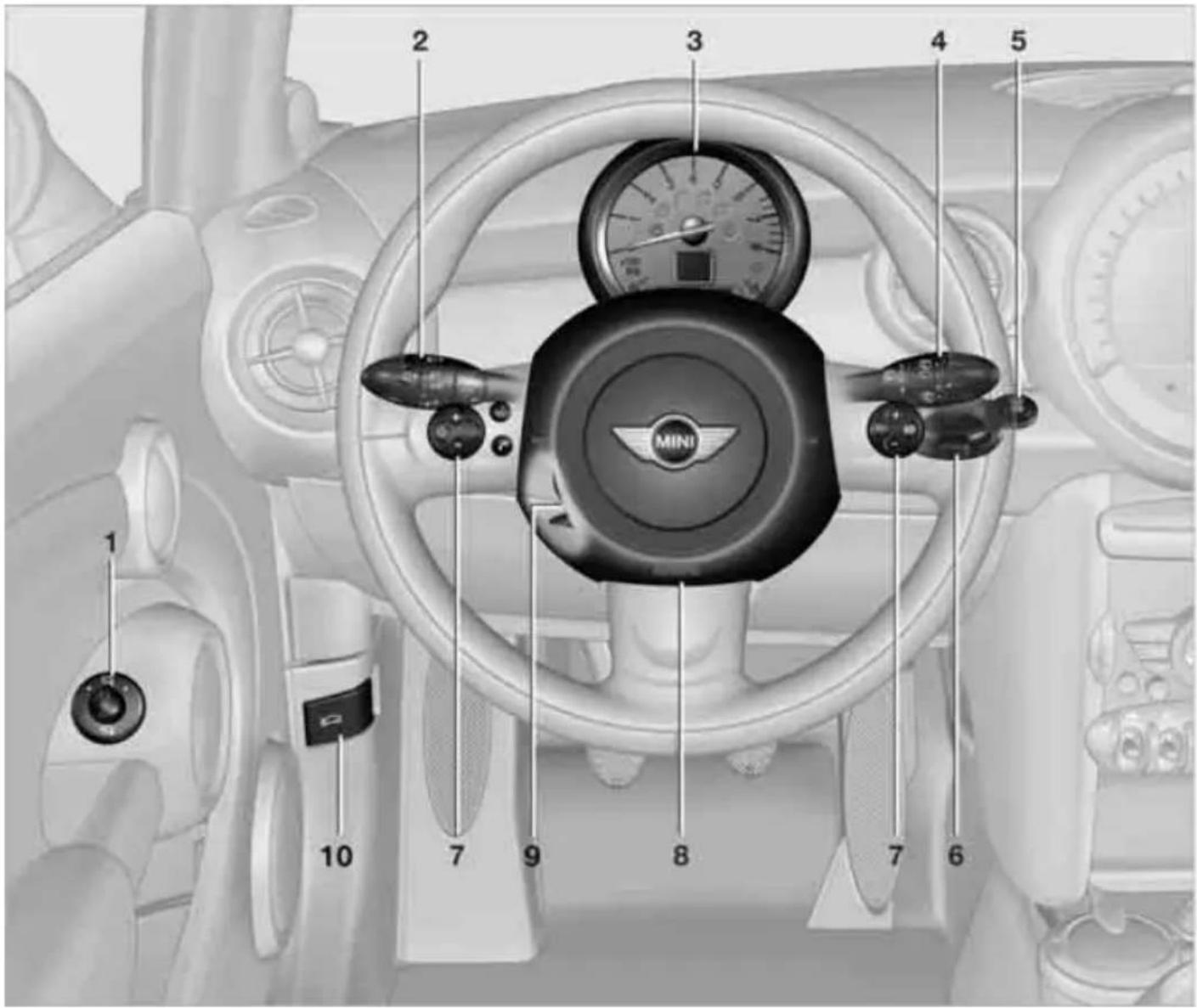
1 Adjusting the exterior mirrors, folding them in and out* 41
2

Parking lamps 81

Low beams 81

Automatic headlamp control* 81 Adaptive Light Control* 82

Turn signals 51

High beams 83
Headlamp flasher 51

Roadside parking lamps* 83

Computer* 57
3 Tachometer 12

Instrument lighting 83
TRIP 0.0 Resetting the trip odometer 56
4

Wiper system 51
5

Switching the ignition on/off and starting/stopping the engine 46
6 Ignition lock 46
7 Buttons
* on steering wheel
Continuing cruise control* 54
RES

Right:
Storing speed and accelerating or decelerating
—
Left:
Increase or reduce volume
1/0
Activating/deactivating cruise control* 54

Telephone*:
Press: accepting and ending a call, starting dialing* of selected phone number and redialing if no phone number is selected
( 1) 2n - 1.
Activating/deactivating voice activation system* 21

Changing the radio station
Selecting a music track

Scrolling through the redial list
8 Horn: the entire surface
9 Adjusting the steering wheel 42
10 Releasing the hood 198
DISPLAYS
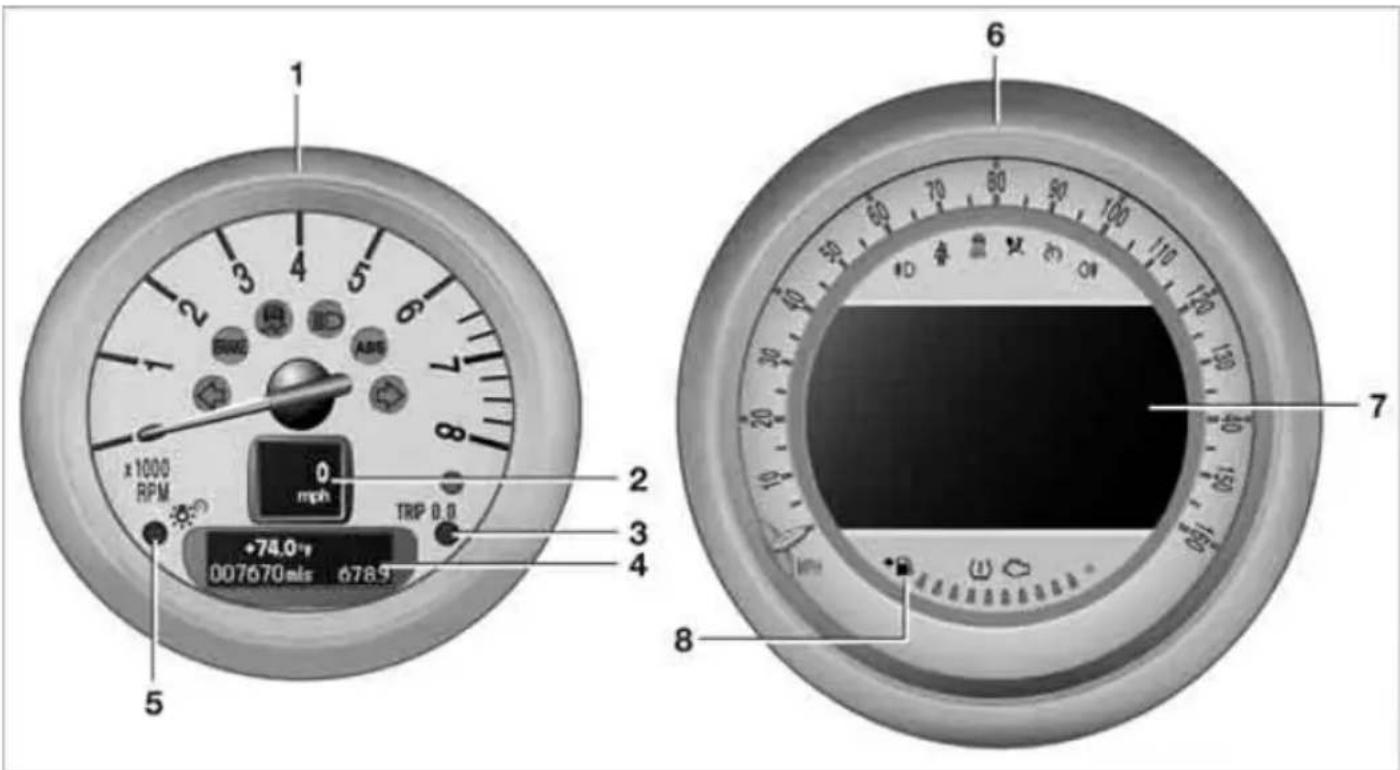
1 Tachometer 56
with indicator and warning lamps 13
2 Display for
Current vehicle speed 56
▶ Indicator and warning lamps 13
3 Resetting the trip odometer 56
4 Display for
Position of automatic transmission 48
▷ Compute* 57
Date of next scheduled service, and remaining distance to be driven 60
▶ Odometer and trip odometer 56
▶ Initializing the Flat Tire Monitor* 72
▶ Resetting the Tire Pressure Monitor* 75
▶ Settings and information 59
Personal Profile settings 26
5 Instrument lighting 83
6 Speedometer
with indicator and warning lamps 13
7 Control Display 17
8 Fuel gauge 56
INDICATOR AND WARNING LAMPS
The concept

Indicator and warning lamps can light up in various combinations and colors in indicator area 1 or 2.
Some lamps are checked for proper functioning and thus come on briefly when the engine is started or the ignition is switched on.
Explanatory text messages
flowchart
graph TD
    A["Washer fluid level low!"] --> B["Vehicle Info"]
    B --> C["Document Icon"]
    B --> D["Car Icon"]
    B --> E["Phone Icon"]
    B --> F["Radio Icon"]
    B --> G["Wheel Icon"]
    B --> H["Motor Icon"]
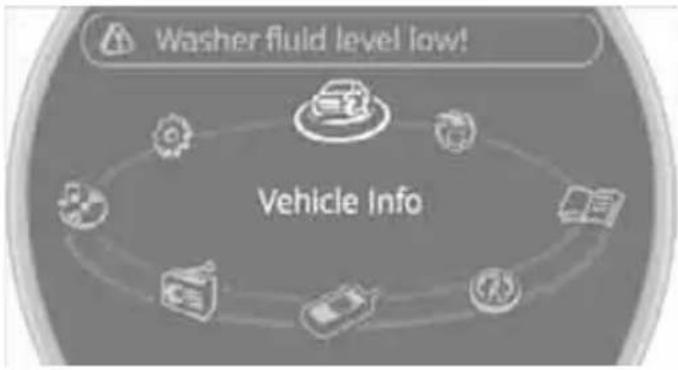
Text messages at the upper edge of the Control Display explain the meaning of the displayed indicator and warning lamps.
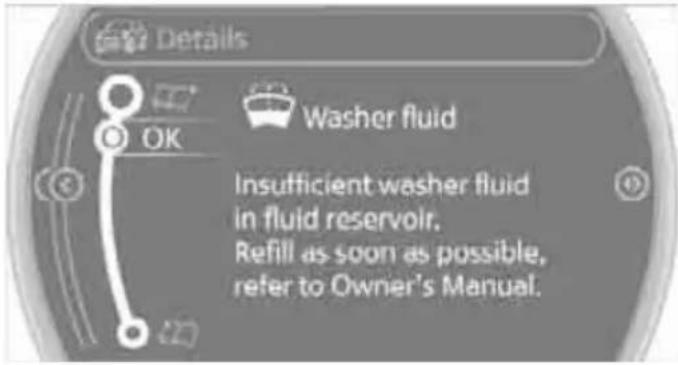
You can call up more information, e.g. on the cause of a malfunction and on how to respond, via Check Control, page 64.
In urgent cases, this information will be shown as soon as the corresponding lamp lights up.
Indicator lamps without text messages
The following indicator lamps in display area 1 indicate certain functions:

High beams/headlamp flasher 83

Fog lamps* 83

Rear fog lamp* 83

Lamp flashes:
DSC or DTC* regulates the drive forces in order to maintain driving stability 69

Parking brake applied 48

Engine malfunction with adverse effect on exhaust emissions 203

Cruise control 54

Turn signals 51

AROUND THE CENTER CONSOLE

1 Microphone for voice activation system* and for telephone in hands-free mode*
2 Indicator/warning lamp* for front passenger airbags 79
3

Reading lamps* 84

Color of ambient lighting* 84

Glass roof, electric* 35

Interior lamps 84
4 Hazard warning flashers
5 Speedometer 12
6 Radio/CD

Changing the radio station or track

Changing the audio source

Selecting waveband
7 Air conditioner or automatic climate control* 85

Temperature

Recirculated-air mode

Air distribution for air conditioner

Air distribution to the windshield*

Air distribution to the upper body area*

Air distribution to the footwell*

Automatic air distribution and flow rate*

Maximum cooling*

Cooling function

Defrosting windows*

Rear window defroster

Windshield heating*

Air flow rate
8 Switches in the center console

Seat heating* 40

Power windows 35

Rear fog lamp 83

Fog lamps* 83

Central locking system, inside 30
9 USB audio interface 143
10 Buttons on the center console

Sport button* 71

Driving stability control systems Dynamic Stability Control DSC 69 Dynamic Traction Control DTC* 70
11 Changing to a different menu on the Control Display
12 MINI joystick 16 Move in four directions, turn or press
13 Accessing the main menu on the Control Display 17
ON-BOARD COMPUTER
The on-board computer integrates the functions of a large number of switches. This allows these functions to be operated from a single central position. The following section provides an
introduction to basic menu navigation. The control of the individual functions is described in connection with the relevant equipment.
CONTROLS

natural_image
Medical illustration showing a surgical procedure with two arrows pointing to a patient's anatomy (no text or labels present)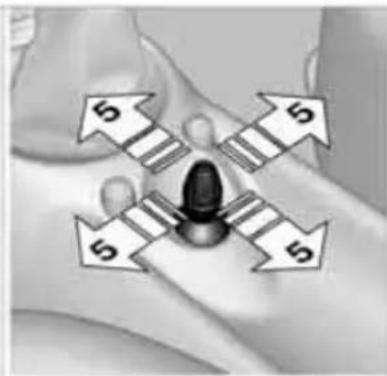
natural_image
Diagram showing four arrows pointing outward from a central object, with no visible text or symbols.
natural_image
Medical illustration showing a hand holding a patient's ear with a bell symbol, no text or labels present
1 Control Display
2 MINI joystick
The MINI joystick can be used to select menu items and to adjust settings:
Move in four directions, arrows 5
Turn, arrow 6
▶ Push, arrow 7
3 Accessing the main menu 17
4 Changing to another menu
Make entries only when traffic and road conditions permit; otherwise, you may endanger vehicle occupants and other road users by being distracted.
OPERATING PRINCIPLE
As of radio readiness, the following message appears on the Control Display:

To hide the message:
Press the MINI joystick.
The main menu is displayed.
The message is automatically hidden after approx. 10 seconds.
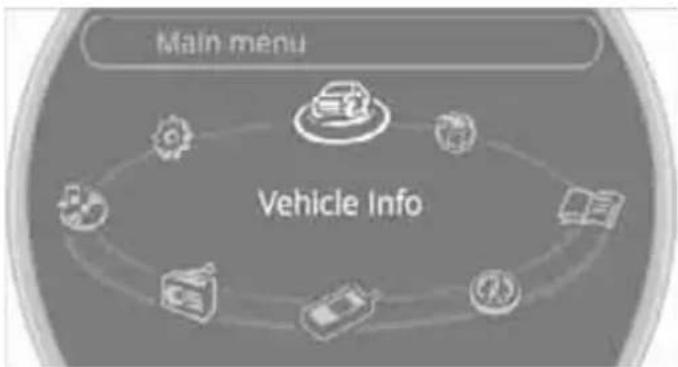
Open the main menu
Press the button.
flowchart
graph TD
    A["Main menu"] --> B["Vehicle Info"]
    B --> C["Info Module"]
    B --> D["Data Collection"]
    B --> E["Reading"]
    B --> F["Information"]
    B --> G["Information & Data"]
    B --> H["Information & Data & Reading"]
All functions of the on-board computer can be accessed via the main menu.
Selecting a menu item
Menu items in white can be selected.
- Turn the MINI joystick until the desired menu item is highlighted.

flowchart
graph TD
    A["Main menu"] --> B["Radio"]
    B --> C["Car"]
    B --> D["Laptop"]
    B --> E["Headphones"]
    B --> F["Laptop"]
    B --> G["Phone"]
    B --> H["Mobile Device"]
- Press the MINI joystick.
A new menu is displayed or the function is executed.
Menu items in the Owner's Manual
In the Owner's Manual, the menu items that should be selected are depicted in quotation marks, e.g. "Settings".
Changing between panels
After selecting a menu item, e.g. "Radio", a new menu is displayed on a panel. The panels can overlap.
Move the MINI joystick to the left or right to switch between the panels.

Arrows pointing left or right indicate that additional panels can be accessed.
Open the Options menu
Move the MINI joystick to the right repeatedly until the "Options" menu is displayed.
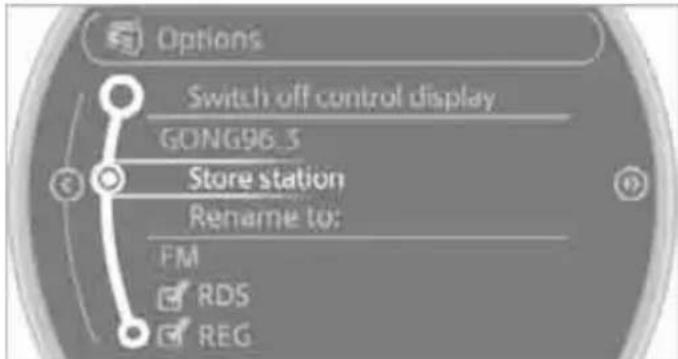
The following is displayed in the "Options" menu:
Screen settings.
▶ Control options for the selected menu.
Adjusting settings
- Select a field.
- Turn the MINI joystick until the desired setting is displayed.
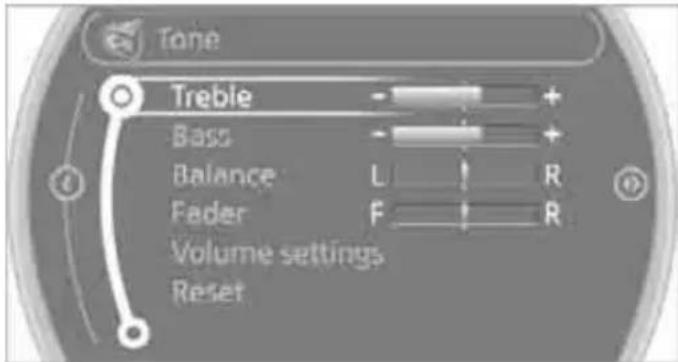
- Press the MINI joystick to confirm the setting.
Activating/deactivating functions
Some menu items are preceded by a check box. It indicates whether the function is activated or deactivated.
Selecting the menu item activates or deactivates the function.
Function is activated.
☐ Function is deactivated.
Example: setting the clock
- Press the button.
The main menu is displayed.
- Turn the MINI joystick until "Settings" is selected, and press the MINI joystick.
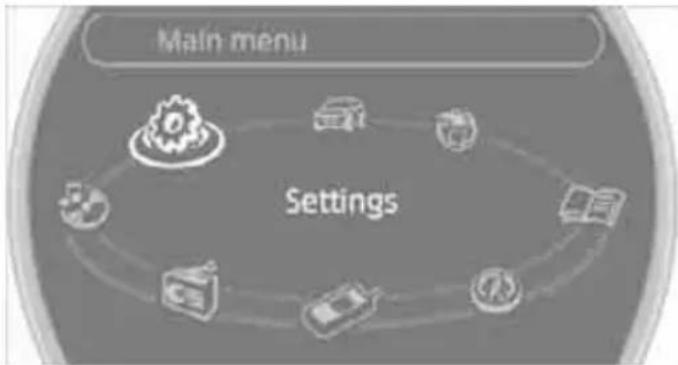
flowchart
graph TD
    A["Main menu"] --> B["Settings"]
    B --> C["Device Icon"]
    B --> D["Tools Icon"]
    B --> E["Document Icon"]
    B --> F["Mobile Phone Icon"]
    B --> G["Smart Speaker Icon"]
- Turn the MINI joystick until "Time/Date" is selected, and press the MINI joystick.

- Turn the MINI joystick until "Time:" is selected, and press the MINI joystick.
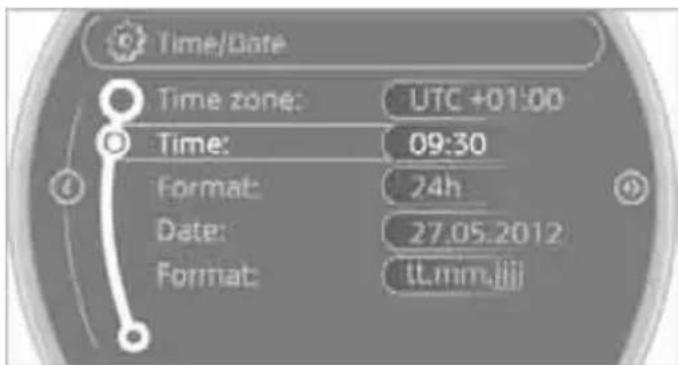
- Turn the MINI joystick to set the hours and press the MINI joystick.
- Turn the MINI joystick to set the minutes and press the MINI joystick.
STATUS INFORMATION
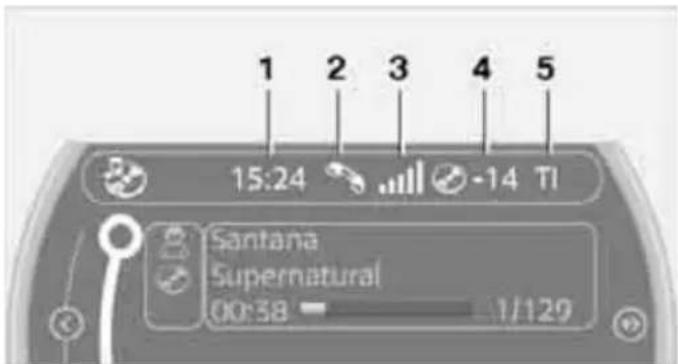
1 Time
2 Telephone status
▶ Incoming, outgoing or missed call
▶ ▲Roaming *active
▷ Text message * received
3 Reception strength of the wireless network, depends on the mobile phone
4 Display for:
Entertainment: Radio, CD, external devices
Telephone:
Name of the mobile phone paired with the vehicle
5 Sound output is switched off or display for traffic bulletins*:
▷ "TI": Traffic bulletins are switched on.
No display:
Traffic bulletins are switched off.
Other displays:
Status information is temporarily hidden during Check Control message displays or entries via the voice activation system*.
SWITCHING CONTROL DISPLAY OFF/ON
- Move the MINI joystick to the right repeatedly until the "Options" menu is displayed.
- "Switch off control display"
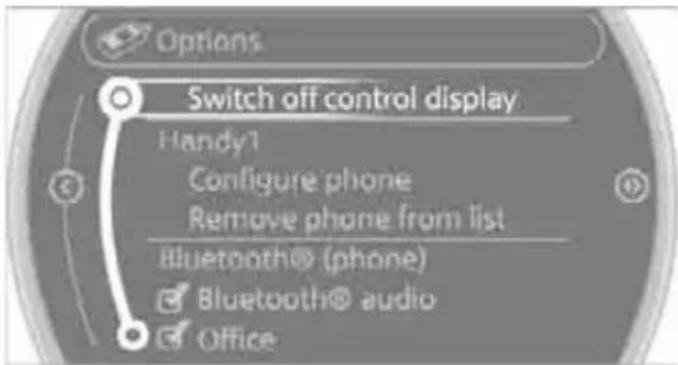
To switch on, press the MINI joystick.
LETTERS AND NUMBERS
ENTERING LETTERS AND NUMBERS
- Turn the MINI joystick: select the letters or numbers.
- Select additional letters or numbers if needed.
- "OK": confirm entry.
Symbol Function
| ← | Press the MINI joystick: delete one letter or number |
| ← | Press and hold the MINI joystick: delete all letters or numbers |
| └ | Enter a blank space |
Switching between letters and numbers
Depending on the menu, you can switch between entering letters and numbers:
Symbol Function
| ABC | Entering letters |
| 1@+ | Entering numbers |
Switching between uppercase and lowercase letters
Depending on the menu, you can switch between entering uppercase letters and lowercase letters:
Symbol Function
| ▲ abc | Move the MINI joystick forward: to switch from uppercase letters to lowercase letters |
| ▲ ABC | Move the MINI joystick forward: to switch from lowercase letters to uppercase letters |
Wordmatch concept during navigation
Entry of names and addresses: the selection is narrowed down every time a letter is entered and letters may be added automatically.
Destination search: the entries are continuously compared to the data stored in the vehicle.
The only letters offered for entering addresses are those for which data are available.
Town/city names can be entered with the spelling used in any of the languages available on the Control Display.
The voice activation system allows you to control operation of various vehicle systems without removing your hands from the steering wheel.
Most menu items on the Control Display can be voiced as commands. It is not necessary to use the MINI joystick.
The voice activation system transforms oral commands into control signals for the selected systems and provides support in the form of instructions or questions.
Prerequisite
Via the on-board computer, select the language in which the voice activation system is operating, so that the spoken commands can be identified. Setting the on-board computer language, page 66.
Symbols in the Owner's Manual

'...' Say the specified commands word for word.
»...« Indicates responses of the voice activation system.
SAYING COMMANDS
Activating voice activation system
- Press the button on the steering wheel.

natural_image
Interior view of a car dashboard with steering wheel and sensor icon (no readable text or symbols)This symbol on the Control Display and an acoustic signal indicate that the voice activation system is ready to receive spoken commands.

flowchart
graph TD
    A["User"] --> B["Gear Icon"]
    B --> C["Documents Icon"]
    C --> D["Software Icon"]
    D --> E["Document Icon"]
    E --> F["Hardware Icon"]
    F --> G["Data Icon"]
    G --> H["Software Icon"]
    H --> I["Settings Icon"]
    style A fill:#f9f,stroke:#333
    style I fill:#ccf,stroke:#333
- Say the command.
The command appears on the Control Display.
This symbol is displayed on the Control Display when you can enter additional commands. If no further commands are possible, continue by operating the item of equipment via the onboard computer.
Terminating or canceling voice activation system
Press the button on the steering wheel or

Cancel
Commands
Most menu items on the Control Display can be voiced as commands.
The commands that are possible depend upon which menu is currently shown on the Control Display.
There are short commands for functions in the main menu.
Some list items, for example telephone book listings*, can also be selected using the voice activation system. Say the list items as they are displayed in the respective list.
Having the possible commands read aloud
Having the possible commands read aloud:

Voice commands<
For example if you have selected "CD" the system will read aloud the possible commands for operating the CD player.
Help for the voice activation system
Calling up Help:

Help<
Additional commands* for Help:
Help with examples<: information about the current operating options and the most important commands for them are announced.
Help with voice activation: information regarding the principles behind the voice activation system is announced.
Using alternative commands
There are often a number of commands to run a function, e.g.:

Radio< or >Radio on<
Calling up functions immediately via short commands
Short commands enable you to perform certain functions immediately, irrespective of which menu item is selected, page 230.
Open the main menu

Main menu<
Example: selecting the track of a CD
- Switch on Entertainment sound output if necessary.
- Press the button on the steering wheel.

- Select the music track, e.g.:
C D track 4<
System says:
Track 4<<
Setting the voice dialog
You can set whether the voice activation system uses the standard dialog or the short version. With the short version of the spoken dialog, the requests and responses of the voice activation system are shortened.
- "Settings"
- "Language/Units"
- "Speech mode:"

- Select a setting:
"Default"
"Short"
NOTES
For voice commands, bear in mind the following:
Do not use the voice activation system to initiate an emergency call. In stressful situations, the voice and vocal pitch can change. This can unnecessarily delay the establishment of a telephone connection.
▶ Pronounce the commands and digits smoothly and at normal volume, avoiding excessive emphases and pauses. The same applies to spelling when entering a destination for navigation.
Always speak the commands in the language of the voice activation system.
When selecting a radio station, use the standard pronunciation of the station name.
Keep the doors, windows and glass roof* closed to prevent interference from outside noise.
Avoid ambient noise in the vehicle while speaking.

natural_image
Close-up of a car steering wheel with illuminated buttons and a logo (no readable text or symbols)
natural_image
Close-up of a checkered car wheel and metal bracket on a plain surface (no text or symbols visible)HANDLE ME.
AT A GLANCE
CONTROLS
DRIVING TIPS
NAVIGATION
ENTERTAINMENT
COMMUNICATIONS
MOBILITY
REFERENCE
OPENING AND CLOSING
KEYS/REMOTE CONTROLS
Buttons for the remote control

1 Opening the liftgate
2 Unlocking
3 Locking
General information
Each remote control contains a rechargeable battery that is recharged when it is in the ignition lock while the car is being driven. You should therefore use each remote control at least twice a year to maintain the charge status. In vehicles equipped with Comfort Access*, the remote control contains a replaceable battery, page 34.
If more than one remote control unit is used, the settings called up and implemented depend on which remote control is recognized when the car is unlocked, refer to Personal Profile, page 26.
In addition, information about service requirements is stored in the remote control, refer to Service data in the remote control, page 202.
New remote controls
Your MINI dealer can supply new remote controls as additional units or as replacements in the event of loss.
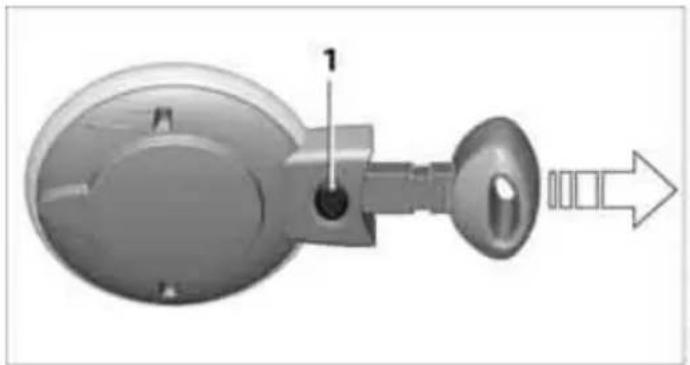
Integrated key
natural_image
Mechanical component diagram showing a knob with a dial and directional arrow (no text or symbols)Press button 1 to release the key.
The integrated key fits the following locks:
Driver's door, page 29
PERSONAL PROFILE
The concept
The functions of your MINI can be set individually. By means of Personal Profiles, most of these settings are stored for the remote control currently in use. When you unlock the car, the remote control is recognized and the settings stored for it are called up and implemented.
This means that your settings will be activated for you, even if in the meantime your car was used by someone else with another remote control and the corresponding settings.
At most three remote controls can be set for three different people. A prerequisite is that each person uses a separate remote control.
Personal Profile settings
For more information on specific settings, refer to the specified pages.
Response of the central locking system when the car is being unlocked 27
▶ Automatic locking of the vehicle 30
▶ Triple turn signal activation 51
▶ Settings for the displays on the on-board computer, in the speedometer and in the tachometer:
12 h/24 h mode of the clock 63
Date format 63
▶ Brightness of the Control Display 67
Language on the Control Display 66
Units of measure for fuel consumption, distance covered/remaining distances and temperature 60
Show visual warning for Park Distance Control PDC* 68
Light settings:
▶ Pathway lighting 81
Daytime running lights 82
▶ Automatic climate control: activating/deactivating the AUTO program, setting the temperature, air volume and air distribution 87
Entertainment:
▶ Tone control 131
Adjusting volume levels 130
CENTRAL LOCKING SYSTEM
The concept
The central locking system is ready for operation whenever the driver's door is closed.
The system simultaneously engages and releases the locks on the following:
Doors
Split Rear Barn Doors
▶ Fuel filler flap
Operating from outside
▶ Via the remote control
Via the door lock*
In cars with Comfort Access*, via the door handles on the driver's and passenger's sides
The anti-theft system is also operated at the same time. It prevents the doors from being unlocked using the lock buttons or door handles. The remote control can also be used to switch on/off the welcome lamps and interior lamps. The alarm system* is also activated or deactivated, page 31.
Operating from inside
Button for central locking system, page 30.
In the event of a sufficiently severe accident, the central locking system unlocks automatically. In addition, the hazard warning flashers and interior lamps come on.
OPENING AND CLOSING: FROM OUTSIDE

Persons or animals in a parked vehicle could lock the doors from the inside. Take the key with you when you leave the vehicle so that the vehicle can be opened from the outside.
Using the remote control
Unlocking
Press the button.
The welcome lamps and interior lamps come on.
Unlocking mode
You can also set which parts of the car are unlocked. The setting is stored for the remote control in use.
1. "Settings"

flowchart
graph TD
    A["Main menu"] --> B["Settings"]
    B --> C["Device Icon"]
    B --> D["Device Icon"]
    B --> E["Device Icon"]
    B --> F["Device Icon"]
    B --> G["Device Icon"]
    B --> H["Device Icon"]
    B --> I["Device Icon"]
-
"Door locks"
-
"Unlock button"

4. Select a menu item:
All doors
Press the button once to unlock the entire vehicle.
"Driver's door only"
Press the button once to unlock only the driver's door and the fuel filler flap*.
Press the button twice to unlock the entire vehicle.
Convenient opening
Hold the button down.
The power windows are opened and the glass roof* is tilted.

Convenient closing is not possible by means of the remote control.
Locking
Press the button.

Do not lock the vehicle from the outside if there is any person inside, because the
vehicle cannot be unlocked from inside without special knowledge.
Setting confirmation signals
To have the vehicle confirm when it has been locked or unlocked.
▶ off
The function is deactivated.
- "Settings"
- "Door locks"
- "Flash when lock/unlock"

4. Press the MINI joystick.
Switching on interior lamps
While the car is locked:
Press the button.
You can also use this function to locate your vehicle in parking garages, etc.
Unlocking the Split Rear Barn Doors
Press the 'button for approx. 1 second and then release it.
When they are opened, the Split Rear Barn Doors swing upward and outward to the rear. Make sure that adequate clearance is available before opening.
To prevent accidentally locking yourself out, do not place the key down in the cargo area. If the Split Rear Barn Doors were locked before opening, they will be locked again after they are closed.
Before and after each trip, check that the Split Rear Barn Doors have not been inadvertently unlocked.
Malfunctions
The remote control may malfunction due to local radio waves. If this occurs, unlock and lock the car at the door lock with the integrated key. If the car can no longer be locked with a remote control, the battery in the remote control is discharged. Use this remote control during an extended drive; this will recharge the battery, page 26.
For US owners only
The transmitter and receiver units comply with part 15 of the FCC/Federal Communications Commission regulations. Operation is governed by the following:
FCC ID:
LX8766S
LX8766E
LX8CAS
Compliance statement:
This device complies with part 15 of the FCC Rules. Operation is subject to the following two conditions:
This device must not cause harmful interference, and
this device must accept any interference received, including interference that may cause undesired operation.

Any unauthorized modifications or changes to these devices could void the authority to operate this equipment.
Using the door lock
natural_image
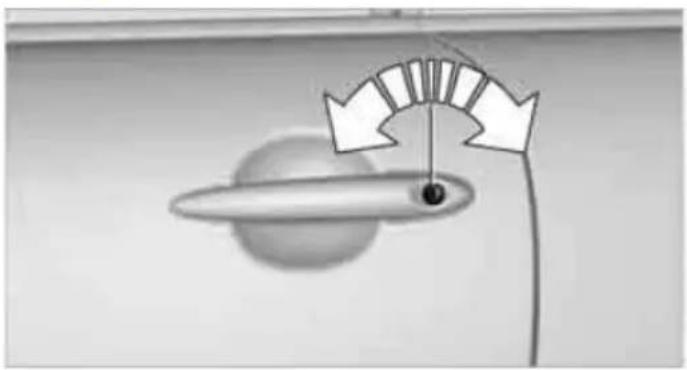
Diagram of a pendulum with a fulcrum and a weight, showing motion direction (no text or symbols)You can set which parts of the car are unlocked, page 27.

When there is no alarm system* or Comfort Access*, only the driver's door is
locked with the door lock.
To lock all doors, the fuel filler flap, and Split Rear Barn Doors together:
With the doors closed, press the interior central locking button, page 30 to lock the vehicle.
Unlocking and opening the driver or passenger door, page 30.
Locking the vehicle.
Lock the driver's door with the integrated key via the door lock, or
press the safety lock button on the passenger's door and close the door from the outside.
Convenient operation
With an alarm system* or Comfort Access*, the windows and glass roof* can be operated via the door lock.
Opening/closing
Hold the key in the position for unlocking or locking.

Watch during the closing process to be sure that no one is injured. Releasing the
key stops the operation.
Manual operation
In the event of an electrical malfunction, the driver's door can be unlocked or locked by turning the integrated key in the door lock to the end positions.
OPENING AND CLOSING: FROM INSIDE
natural_image
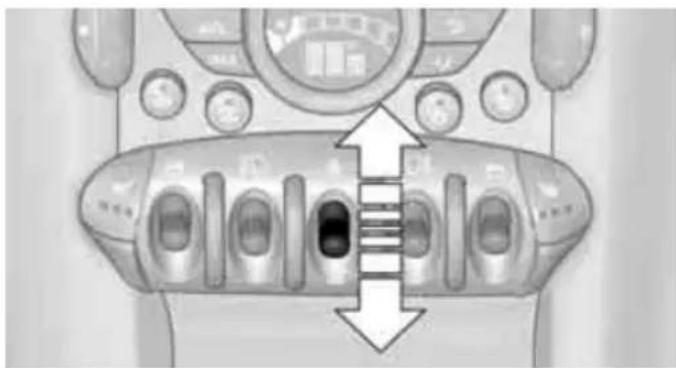
Top-down view of a vehicle's front dashboard and air vent system (no text or symbols visible)The switch locks or unlocks the doors and Split Rear Barn Doors when the doors are closed, but the anti-theft system is not activated. The fuel filler flap remains unlocked*.
Unlocking and opening
Either unlock the doors together using the switch for the central locking system and then pull the door handle above the armrest or
pull on the door handle of either door twice: the first time unlocks the door, the second time opens it.
Locking
▶ Press the switch or
press down the safety lock button of a door. To prevent you from being locked out, the open driver's door cannot be locked using the lock button.

Persons or animals in a parked vehicle could lock the doors from the inside. Take the key with you when you leave the vehicle so that the vehicle can be opened from the outside.
Automatic locking
You can also set the situations in which the car locks. The setting is stored for the remote control in use.
- "Settings"
- "Door locks"
- Select a menu item:
Lock if no door is opened
The central locking system automatically locks the vehicle after a short time if no door has been opened.
"Lock after start. to drive"
The central locking system locks the vehicle as soon as you begin to drive.

CLUB DOOR
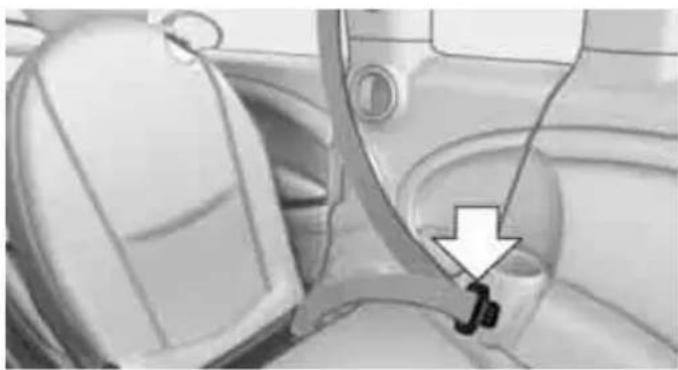
To facilitate entry into the rear seat, insert the seat belt into the belt receptacle, arrow.
natural_image
Interior view of a car seatbelt with a white arrow pointing to a small bracket (no text or symbols visible)Opening
The Club Door can only be opened using the handle on the inside. The right-hand front door must be open when opening the Club Door.

natural_image
Interior view of a vehicle showing seat, dashboard, and engine compartment (no visible text or symbols)Closing
First close the Club Door, followed by the right-hand front door.
SPLIT REAR BARN DOORS

To avoid damage, make sure there is sufficient clearance before opening the Split
Rear Barn Doors.
Opening

In some market-specific versions, the Split Rear Barn Doors cannot be unlocked using the remote control unless the vehicle is unlocked first.
Only drive with the Split Rear Barn Doors fully closed; otherwise, the tail lamps will be obscured and driving safety will be compromised.
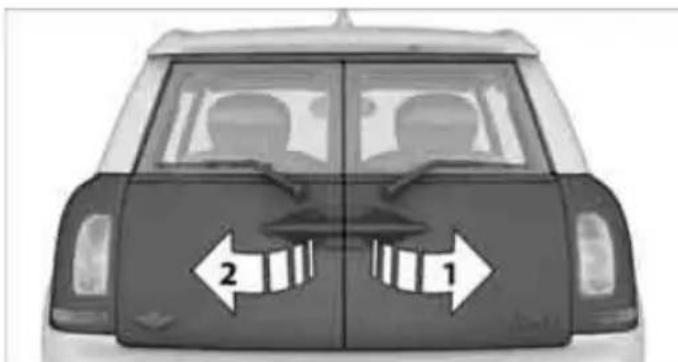
Press and hold the button in the handle or the button of the remote control. The Split Rear Barn Doors are unlocked.
Using the button in the handle, fully open first the right side, arrow 1, and then the left side of the Split Rear Barn Doors, arrow 2.
Press and hold the button in the handle or the

button for the remote control for approx.
1 second. The Split Rear Barn Doors are unlocked.
Using the button in the handle, fully open first the right side, arrow 1, and then the left side of the Split Rear Barn Doors, arrow 2.
Closing

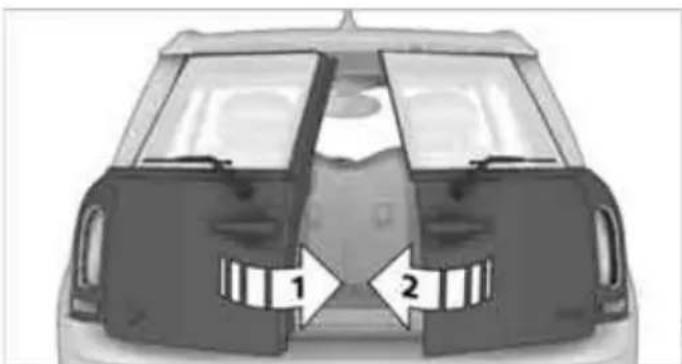
Make sure that the closing path of the Split Rear Barn Doors is clear; otherwise, inju-may occur.
natural_image
Top-down view of a car showing two side panels with arrows labeled 1 and 2 pointing to the front panel (no text or symbols on the car itself)Close the left side, arrow 1, and then the right side of the Split Rear Barn Doors, arrow 2.
ALARM SYSTEM\*
The concept
The alarm system, when activated, reacts if:
A door, the engine compartment lid or the liftgate is opened
There is movement inside the car
The car's inclination changes, for instance if an attempt is made to jack it up and steal the wheels or to raise it prior to towing away
There is an interruption in the power supply from the battery
The alarm system briefly indicates unauthorized entry or tampering by means of:
An acoustic alarm
▶ Switching on the hazard warning flashers
Arming and disarming
Whenever the car is locked or unlocked, the alarm system is armed or disarmed.
Even when the alarm system is armed, you can open the liftgate by means of the button on the remote control.
When you subsequently close the liftgate it is again locked and monitored.

In certain market-specific versions, unlocking via the door lock triggers the
alarm.
Panic mode\*
You can activate the alarm system if you find yourself in a dangerous situation.
Press the button for at least two seconds.
Switching off the alarm:
Press any button.
Switching off an alarm
▶ Unlock the car with the remote control.
Insert the key fully into the ignition lock.
In cars with Comfort Access*, press the button on the door lock.
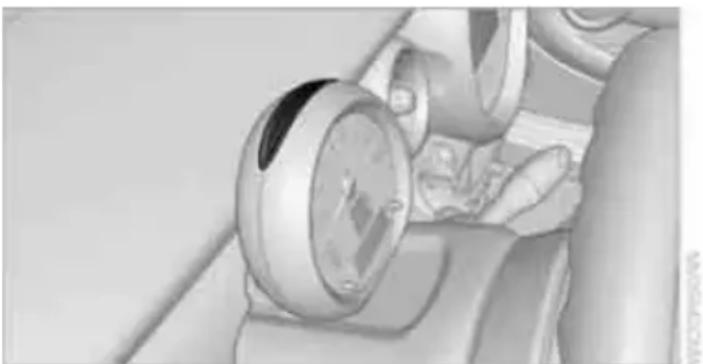
Display on the revolution counter
When the system is armed, all LEDs pulse. After approx. 16 minutes one LED flashes.
natural_image
Close-up of a mechanical component with a circular dial and handle, no visible text or symbols▶ LEDs pulse or LED flashes: system is armed.
One LED flashes at short intervals:
A door, the hood or the liftgate is not properly closed. Even if these are not closed fully, the remaining items are deadlocked and the LEDs pulse after approx. 10 seconds for approx. 16 minutes. Afterwards, one LED flashes.
The interior movement detector is not activated.
▶ LEDs go out after the vehicle is unlocked: No attempt was made to tamper with the car.
▶ LEDs flash after unlocking until the key is inserted in the ignition, but for no longer than approx. 5 minutes: an attempt was made to tamper with the car.
Tilt alarm sensor
The vehicle's inclination is monitored. The alarm is triggered, for instance, if an attempt is made to steal the car's wheels or tow it away.
Interior movement detector
Before the interior movement detector can operate correctly, the windows and glass roof must be closed.
Avoiding false alarms
The tilt alarm sensor and the interior movement detector can be switched off together.
This prevents false alarms, e.g. in the following situations:
In duplex garages
When being transported on car-carrying trains, ferries or trailers
▶ If pets are to remain inside the car
Switching off the tilt alarm sensor and interior movement detector
Press the button on the remote control twice in succession.
▷ Lock the vehicle twice with the integrated key.
LEDs flash in short succession for approx.
2 seconds.
The tilt alarm sensor and the interior movement detector are switched off until the car is next unlocked and locked.
COMFORT ACCESS\*
Comfort Access enables you to enter your vehicle without having to hold the remote control in your hand. All you need to do is wear the remote control close to your body, e.g. in your jacket pocket. The vehicle automatically detects the remote control within the immediate vicinity or in the passenger compartment.
Functional requirements
The vehicle or the Split Rear Barn Doors can only be locked when the vehicle detects that the remote control currently in use is outside of the vehicle.
The vehicle cannot be locked or unlocked again until after approx. 2 seconds.
The engine can only be started when the vehicle detects that the remote control is inside the vehicle.
The doors and Split Rear Barn Doors must be closed to be able to operate the windows and glass roof*.
Comfort Access supports the following functions:
▶ Unlocking/locking the vehicle
▶ Unlocking the Split Rear Barn Doors separately
Starting the engine
Comparison to standard remote controls
Essentially, it makes no difference whether you control the above-mentioned functions using Comfort Access or by pressing the buttons on the remote control for Comfort Access.
Instructions on opening and closing are found starting on page 26.
Special features regarding the use of Comfort Access are described below.
If you notice a brief delay while opening or closing the windows or glass roof, the system is checking whether a remote control is inside the vehicle. Repeat the opening or closing procedure, if necessary.
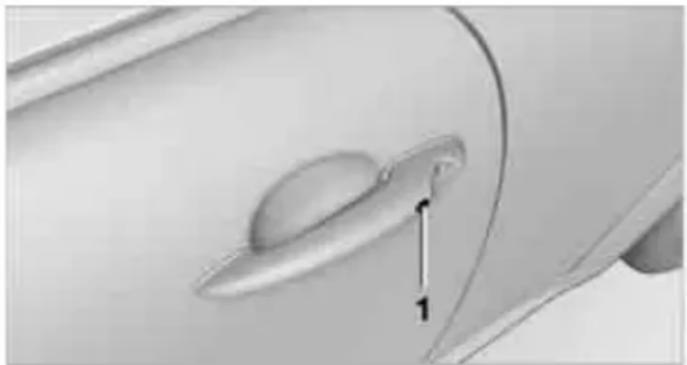
To unlock
natural_image
Close-up of a car door handle with a numbered arrow pointing to the keyhole (no text or symbols visible)Press button 1.
Depending on the setting, refer to Unlocking mode on page 27, only the driver's door or the entire vehicle is unlocked.
Press the button again to lock the vehicle again.
Convenient opening with the remote control, refer to page 28.
Locking
Press button 1.



- COOPER COOPER S JOHN COOPER WORKS
- Congratulations on your new MINI
- CONTENTS
- Using this Owner's Manual
- AT A GLANCE
- CONTROLS
- DRIVING TIPS
- NAVIGATION
- ENTERTAINMENT
- COMMUNICATIONS
- MOBILITY
- REFERENCE
- NOTES
- Additional sources of information
- SYMBOLS USED
- Symbols on vehicle components
- THE INDIVIDUAL VEHICLE
- STATUS OF THIS OWNER'S MANUAL AT TIME OF PRINTING
- FOR YOUR SAFETY
- Maintenance and repair
- Parts and accessories
- California Proposition 65 warning
- SERVICE AND WARRANTY
- Maintenance
- REPORTING SAFETY DEFECTS
- For US customers
- For Canadian customers
- COCKPIT
- AROUND THE STEERING WHEEL: CONTROLS AND DISPLAYS
- Tachometer 12
- 4
- 5
- Ignition lock 46
- Buttons
- DISPLAYS
- INDICATOR AND WARNING LAMPS
- Indicator lamps without text messages
- AROUND THE CENTER CONSOLE
- ON-BOARD COMPUTER
- OPERATING PRINCIPLE
- Open the main menu
- Selecting a menu item
- Menu items in the Owner's Manual
- Changing between panels
- Open the Options menu
- Adjusting settings
- Activating/deactivating functions
- Example: setting the clock
- STATUS INFORMATION
- SWITCHING CONTROL DISPLAY OFF/ON
- LETTERS AND NUMBERS
- ENTERING LETTERS AND NUMBERS
- Switching between letters and numbers
- Switching between uppercase and lowercase letters
- Wordmatch concept during navigation
- Prerequisite
- Symbols in the Owner's Manual
- SAYING COMMANDS
- Activating voice activation system
- Terminating or canceling voice activation system
- Commands
- Having the possible commands read aloud
- Help for the voice activation system
- Using alternative commands
- Calling up functions immediately via short commands
- Example: selecting the track of a CD
- Setting the voice dialog
- OPENING AND CLOSING
- KEYS/REMOTE CONTROLS
- General information
- New remote controls
- PERSONAL PROFILE
- The concept
- Personal Profile settings
- CENTRAL LOCKING SYSTEM
- Operating from outside
- Operating from inside
- OPENING AND CLOSING: FROM OUTSIDE
- Using the remote control
- Unlocking
- Unlocking mode
- "Settings"
- Select a menu item:
- Convenient opening
- Locking
- Setting confirmation signals
- Press the MINI joystick.
- Switching on interior lamps
- Unlocking the Split Rear Barn Doors
- Malfunctions
- For US owners only
- Convenient operation
- Opening/closing
- Manual operation
- OPENING AND CLOSING: FROM INSIDE
- Unlocking and opening
- Automatic locking
- CLUB DOOR
- Opening
- Closing
- SPLIT REAR BARN DOORS
- ALARM SYSTEM\*
- Arming and disarming
- Panic mode\*
- Switching off an alarm
- Display on the revolution counter
- Tilt alarm sensor
- Interior movement detector
- Avoiding false alarms
- Switching off the tilt alarm sensor and interior movement detector
- COMFORT ACCESS\*
- Functional requirements
- Comparison to standard remote controls
- To unlock
Brand : MINI
Model : Clubman (2011)
Category : Car