
PNA-M4320T - GPS Navigator TARGA - Free user manual and instructions
Find the device manual for free PNA-M4320T TARGA in PDF.


| Product Type | GPS Navigator |
| Brand | Targa |
| Model | PNA-M4320T |
| Display | 4.3-inch color display with 65536 colors |
| Processor | Samsung 400 MHz |
| Memory | 64 MB RAM, 2 GB NAND Flash |
| GPS Chipset | Sirf Star III |
| Bluetooth | Class 2, supports HFP and PBAP |
| USB Port | USB 1.1 |
| Operating System | Microsoft Windows CE 5.0 Core Version |
| Audio Formats | MP3, WMA |
| Video Formats | MPEG-1 (480x320), MPEG-4 (320x240), 3GP (352x288), WMV (160x120) |
| Picture Formats | JPEG, BMP |
| Card Reader | SD and MMC cards up to 2 GB |
| Battery | Lithium-Polymer rechargeable |
| Power Adapter | Model KSAA0500100W1UK, input 100-240VAC, output 5VDC, 1.0A |
| Car Charger | Model TCP10050BC or G12PCL-597, input 8-24VDC, output 5VDC, 1.0A |
| Earphones | Supplied models FG-E9033 or IEHS2010 (must be used exclusively) |
| Package Contents | Device, mounting bracket, car mount, stylus, earphones, USB cable, car charger, power adapter, bag, user manual, software DVD |
| Warranty | 36 months from date of purchase |
| Safety | Includes important safety instructions; do not expose to water, extreme temperatures, or magnetic fields |
| Maintenance | Clean with dry cloth only; do not use abrasive liquids |
| Operating Temperature | 5°C to 35°C, max. 85% RH |
Frequently Asked Questions - PNA-M4320T TARGA
User questions about PNA-M4320T TARGA
0 question about this device. Answer the ones you know or ask your own.
Ask a new question about this device
Download the instructions for your GPS Navigator in PDF format for free! Find your manual PNA-M4320T - TARGA and take your electronic device back in hand. On this page are published all the documents necessary for the use of your device. PNA-M4320T by TARGA.
USER MANUAL PNA-M4320T TARGA
User manual and service information
Package contents
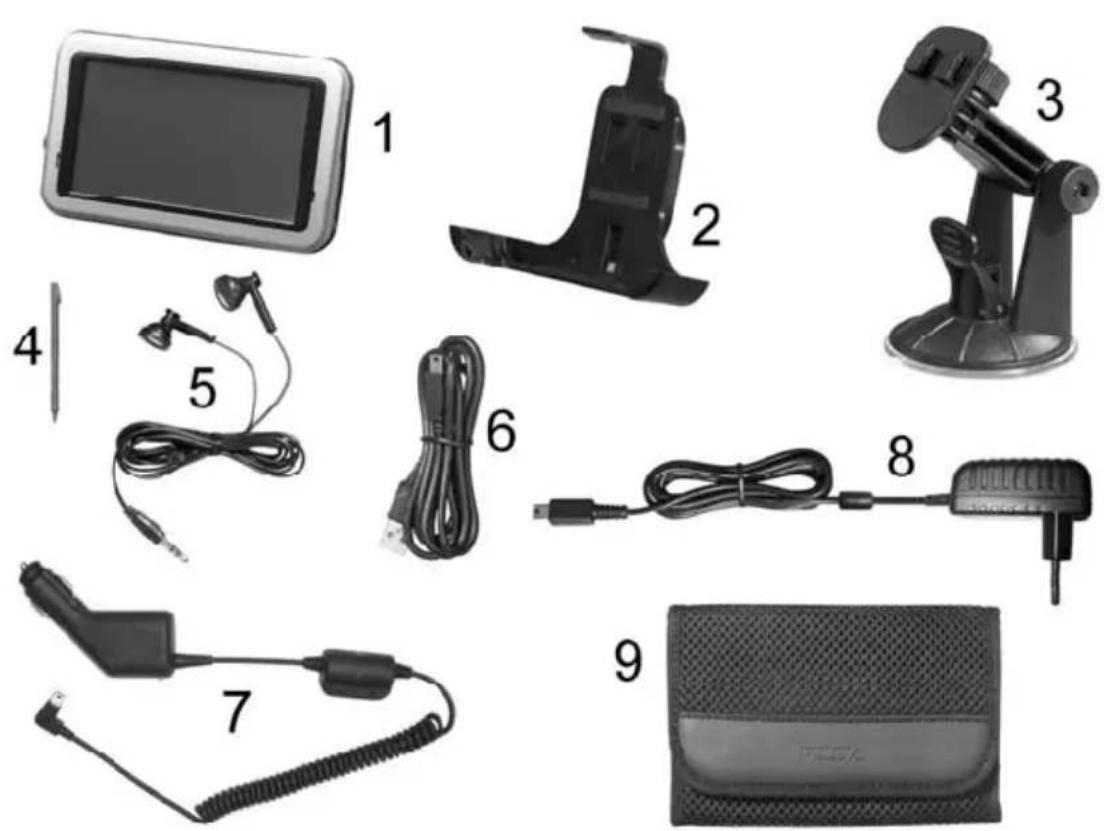
1 Navigation Device PNA-M4320
2 Mounting bracket
3 Car mount
4 Stylus
5 Earphones (the figure is representational)
6 USB cable
7 Car charger cable (the figure is representational)
8 Power adapter (model depends on the local region)
9 Bag (the figure is representational)
10 User's manual (not shown)
11 Software DVD (not illustrated)

The earphones [5], the car charger cable [7] and the power adapter [8] depends on the country/region, therefore your actual model may differ from the illustrations.
Table of Contents
Package contents .... 1
Table of Contents.... 2
Important Safety Instructions.... 6
Operating Environment 6
Power Supply 7
Rechargeable Battery 7
Cables 8
Maintenance and Care....8
Kids 9
Intended Use....9
RF Interface....9
Noise Emission Cautions 10
Conformity 11
Disposal of Old Devices 11
Introduction.... 12
Summary 12
Charging the Battery 14
Recharging in the Car.... 15
Recharging from a Power Outlet 16
Recharging from a Computer 17
Car mount.... 18
Connecting the Headphones.... 20
Connecting an External GPS Antenna.... 21
Inserting a Memory Card ....21
Inserting a Memory Card....21
Removing a Memory Card ....22
Write-Protection....22
Powering the Device On/Off 23
Daily Use 23
Powering Off Completely....24
First-Time Setup....25
The Main Menu....27
Navigation 29
Getting started....29
GPS connection....31
Icons....32
Simultaneous operation ....33
Main menu 34
Map 35
Tracking mode and browsing mode 35
Navigation screen 37
Main features ....38
Choosing and finding locations ....38
Search for an address....38
How to search....39
Searching for and choosing POIs......45
Choosing a location on the map....47
Favourites....48
Navigating 51
Browse map during navigation 52
Menu options 52
Planning a route 56
Settings 60
General Settings....61
Map settings 65
Day / Night Display 66
Route options.... 68
Targa Travel Guide 70
Launching Targa Travel Guide.... 71
Using an Entry as POI 72
Mobile Phone....75
Pairing with a Mobile Phone.... 76
Making a Phone Call 81
Receiving a Phone Call 82
Phone Book 83
Message 85
Call History 86
File Transfer....88
Settings 89
Phone Book 89
Message 91
Call History 92
Hands-free....93
Disconnecting the Bluetooth Link.... 94
Multimedia....95
Music....96
Video 100
Photos 103
Settings....106
Volume 107
Display ....108
Audio Output....110
Programming Memory Presets....111
System Information ....112
Resetting the Device....113
Language 114
Appendix 115
Connecting to a Computer....115
The DVD 117
Installing the Software....118
The User's Manual 119
Map Material 120
Technical Specifications ....121
Details of Guarantee....123
Important Safety Instructions
Before you use this device for the first time, please read the following notes in this manual and heed all warnings, even if you are familiar with handling electronic devices. Keep this manual in a safe place for future reference. If you sell or pass this device on to another person, it is imperative that you also hand over this manual.
Operating Environment
Position the device on a stable, even surface and do not place any objects on the device. The device is not for use in environments with a high temperature or humidity (e.g. bathrooms), and must be kept free of dust. Operating temperature and humidity: 5°C to 35°, max. 85 % RH. When using the navigation device in a vehicle, please install it on the supplied car mount only and make sure that the device sits properly on the car mount. Do not install the car mount (with or without the navigation device) within the operating area of the vehicle's airbag and install the car mount so that the driver's view is not obstructed.
Always make sure that:
☐ there is free circulation of air (do not place the device on shelves, on a thick carpet, on a bed, or anywhere that obstructs the ventilation slots, and leave at least 10 cm clearance on all sides;
☐ no direct heat sources (e.g. heating) can affect the device;
no direct sunlight or bright artificial light reaches the device. When installing the device in a vehicle, make sure that it doesn't become overheated;
☐ contact with sprayed and dripping water and abrasive liquids must be avoided and the device should never be operated near water. It must especially never be immersed (do not place any recipients containing liquids such as beverages, vases, etc. onto or next to the device);
the device is never placed in the immediate vicinity of magnetic fields (e.g. loudspeakers);
- no fire sources (e.g. burning candles) are placed on or near the device;
- no foreign bodies are introduced into the device;
■ the device is not subject to any great temperature changes as this may cause moisture through condensation and short-circuit;
■ the device is not subject to excessive shocks and vibrations. - the supplied earphones (FG-E9033 or IEHS2010) must be used with this navigation device exclusively
Power Supply
Use only the supplied power adapter model KSAA0500100W1UK, the supplied car charger cable Targa TCP10050BC / Targa G12PCL-597 or the supplied USB cable to avoid overheating, deformation of housing, fire, electric shock, explosions and other dangers. Never connect this power adapter, the car charger cable or the USB cable to other devices.
Warning! Notice on Mains Separation.
In order to completely disconnect the power adapter from the mains, the power adapter must be pulled out from the wall outlet. For this reason, the power adapter should be positioned in a way that assures unobstructed access to the power outlet so that the power adapter can be immediately pulled out in an emergency situation. To avoid the danger of fire if the power adapter is not going to be used for a long while (e.g. during holidays), it should always be disconnected from the power socket. Before stormy weather when there is the danger of lightning, disconnect the power adapter from the power supply.
Rechargeable Battery
This device uses a high-end Lithium-Polymer battery. This battery should only be removed or replaced by an authorized service centre. Under very rare conditions, sparks may appear at the contacts causing any explosive and/or inflammable gases to ignite. Therefore we recommend that you do not use the device in dangerous areas such as fuel stations and to power it off.
Cables
Always hold all cables by the plug and never pull on the cable itself. Never hold the power adapter with wet hands as this may cause a short circuit or electric shock. Never place the device, heavy objects or furniture on the cable and take care that the cord does not become trapped, especially at the plug and socket. Never make knots in the cable and do not tie it together with other cords. All cables should be positioned so that nobody can trip over them or be obstructed by them. A damaged power adapter can cause a fire or an electric shock. Inspect the power adapter from time to time. Never use adapter plugs or extension cables that do not comply with the current safety regulations in your country, and do not modify any of the power adapter or cables yourself.
Maintenance and Care
Servicing is required when this device has been damaged in any way, for example, when the power adapter or device housing is damaged, when liquid or objects have entered the device, when the product has been exposed to rain or moisture, when the product does not work normally or if the product has been dropped. If you notice any smoke, unusual noise or strange smells, switch off the device immediately and pull the corresponding charger cable from the power supply. In this case the device should not be used further and should be inspected by authorized service personnel. Please contact qualified personnel when servicing is needed. Never open the housing of the device, or the power adapter. If the housing is opened, your life is in danger due to electric shock. Only use a clean, dry cloth for cleaning. Never use any abrasive liquids. Do not attempt to open the housing of the device otherwise you will void your warranty.
Kids
Electrical appliances do not belong in the hands of children! Do not allow children to play with electrical devices when not under supervision. Children may not be able to comprehend the presence of potential risks. Small parts can represent choking hazards. Keep the packaging away from children to avoid the danger of suffocation.
Intended Use
This is an information technology electronics device. It may only be used for private use, not industrial or commercial purposes. In its default configuration, this product has not been designed for medical, lifesaving, rescue or life-maintaining purposes. Furthermore, the device may not be used in tropical climates. Only connection cables and external devices may be used that comply with safety standards and the electromagnetic compatibility and shielding quality of this device. This device fulfils all that relates to CE Conformity, relevant norms and standards. Any changes to the equipment other than the recommended changes by the manufacturer may lead to the result that these directives are not met any more. Only use accessories recommended by the manufacturer. If you are not using the device within the Republic of Germany, you must observe the regulations and laws in the country of use.
RF Interface
This navigation device features a Bluetooth interface. It enables you to establish a connection to your mobile phone. The built-in FM transmitter has been designed to transfer low-power audio signals to your car radio. Be sure to read and understand the following notes concerning these two RF components:
■ Turn the RF components off when located onboard an aircraft, in a hospital, a surgery area or near electronic medical equipment. The RF signals may interfere with the functionality of sensitive devices.
- Place the device at least 20cm (8 inches) away from pacemakers, as the RF signals may interfere with the functionality of the pacemaker.
- The transmitted RF signals can cause interference with hearing aids.
- Do not place the device with the wireless adapter turned on near flammable gases or in an explosion-sensitive area (e.g. a paint shop), as the transmitted RF signals may cause explosions or fire.
When transmitting wireless data it is possible that unauthorized parties may receive data. Targa GmbH is not liable for any interference caused to RF or TV signals through unauthorized modification to this device. Furthermore, Targa does not assume any liability for replacing any cables or devices that have not been specifically approved by Targa GmbH. The user is solely responsible and liable for troubleshooting any interference caused by unauthorized modification of this device and for replacing appliances.
Noise Emission Cautions

Audio listening with your navigation device at high volume over a long time can harm the user's auditory system. The supplied earphones will guarantee a noise level limitation when used together with the corresponding navigation device only.
- According to international safety regulations the maximum permitted noise level is 100 dB. The supplied earphones with model number FG-E9033 or IEHS2010 comply with these requirements. When using different headphones harmful noise levels may damage the user's hearing.
- Using the earphones at high sound volume can damage your hearing and disturb the surroundings.
■ Under dangerous circumstances (for example when driving a vehicle or when working with machines) the sound may distract your attention or make you unaware of what is happening around you. -
The supplied earphones with model number FG-E9033 or IEHS2010 fully comply with all legal requirements. Audio listening with your navigation device at high volume over a long time can harm the user's auditory system.
-
The supplied earphones (FG-E9033 or IEHS2010) must be used exclusively with this navigation device.
- The supplied earphones will guarantee a noise level limitation when used together with the corresponding navigation device only.
Conformity

This device has been tested and approved for compliance with the basic and other relevant requirements of the EMC Directive 2004/108/EC, the Low-voltage Directive 2006/95/EC and the R&TTE Directive 99/5/EC.
Disposal of Old Devices

If the product is labelled with a struck-out waste bin, it is subject to the European Guideline 2002/96/EC. All electric and electronic devices must be disposed of separately from household waste at established bodies. Avoid damaging the environment and danger to your personal health by disposing of the device properly. For further information about proper disposal, contact your local government, disposal bodies or the shop where you bought the device.
Introduction
Summary
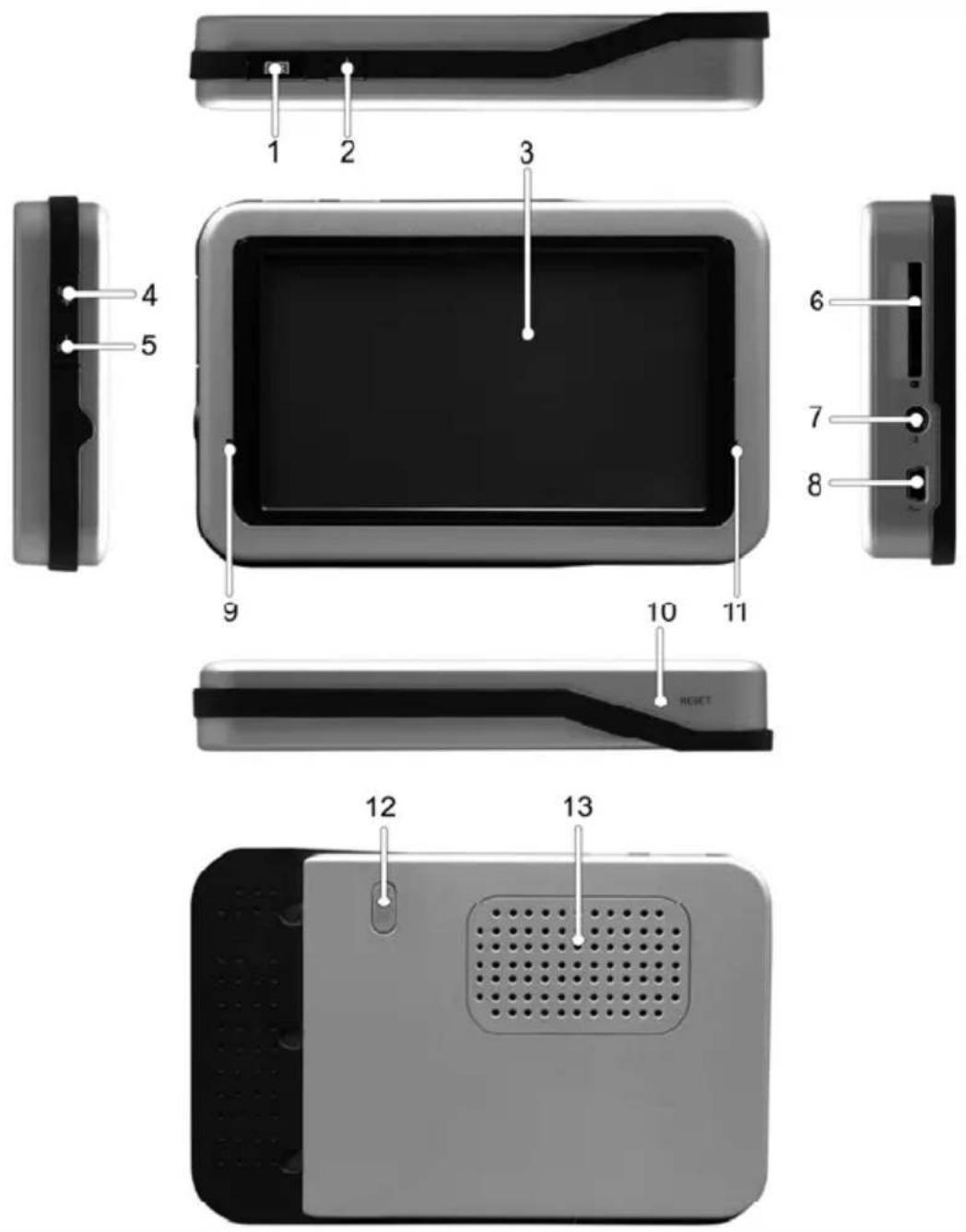
1 Menu button
2 On/Off button
3 Display
4 Increase Volume
5 Reduce Volume
6 Memory card slot
7 Earphones connector
8 Mini-USB and charger connector
9 Indicator
10 Reset button
11 Microphone
12 Connector for external antenna
13 Speaker

By default, the stylus [page 1, item 4] can be found in the bag [page 1, item 10]. It has a loop where you can store the stylus while transporting the device.
Thank you for choosing this high-end Targa product. The navigation device PNA-M4320 enables accurate navigation to your destination and also comfortable hands-free functionality for your mobile phone, as well as the playing of popular audio and video formats (Please also read the Technical Specifications in the Appendix).

Please always bear in mind that the Road Traffic Act always has priority over any instructions output by your navigation device. Do not operate the device while driving.

Please only use the supplied earphones FG-E9033 or IEHS2010 [page 1, item 5] with this navigation device.
The navigation device features a touchscreen and therefore needs no further buttons or controls. You can perform any settings by tapping the corresponding button using your finger or the supplied stylus [page 1, item 4].
Charging the Battery
When the built-in battery is low on power, recharge the battery either in your car using a power outlet, or on a computer by means of the USB cable.
You can continue using the device while recharging it from the car cigarette lighter or a power outlet. When recharging it from a computer the device will be locked and cannot be operated.

The built-in battery won't reach its maximum performance until several complete charging cycles have been performed. This means that the battery should be charged completely and then fully discharged by using the device.
Recharging in the Car
- Plug the Mini-USB connector of the car charger cable [page 1, item 7] into the receptacle [page 12, item 8] of your navigation device.
- Then connect the car charger to a suitable cigarette lighter in your car.
- The charging process starts automatically, and the charger indicator [page 12, item 9] lights blue. When the charging cycle is completed, the status indicator will stop lighting.

natural_image
Exterior view of a rectangular device with a coiled cable and a terminal connector (no text or symbols visible)
You can connect the car charger to a 12V or 24V cigarette lighter.

The car charger design varies according to the region. Therefore the figure may differ from the supplied device.

In order to protect your device from any sudden voltage surges, connect the car charger after you have started your car engine.
Recharging from a Power Outlet
- Plug the Mini-USB connector of the power adapter cable [page 1, item 8] into the receptacle [page 12, item 8] of your navigation device.
- Plug the power adapter into a wall outlet.
- The charging process starts automatically, and the charger indicator [page 12, item 9] lights blue. When the charging cycle is completed, the status indicator will stop lighting.

natural_image
Two electronic devices: a flat-screen tablet and a connected charger with cable (no visible text or symbols)
The power adapter design varies according to the region. Therefore the figure may differ from the supplied power adapter.
Recharging from a Computer
- Plug the Mini-USB connector of the USB cable [page 1, item 6] into the receptacle [page 12, item 8] of your navigation device.
- Next, plug the flat connector of the USB cable into a free USB port on your computer.
- The charging process starts automatically, and the charger indicator [page 12, item 9] lights blue. At the same time, the computer will establish a connection to the built-in memory of the device. This connection is required to modify the software contents (see page 118).

natural_image
Exterior view of a rectangular electronic device with a black screen and a connected USB cable (no text or symbols visible)Car mount
To install the navigation device on its car mount, first install the supplied mounting bracket [page 1, item 2] on the car mount (see figure, arrow 1).
Then press the suction pad of the car mount against the windshield and fix it by turning the lock (see figure, arrow 2).

natural_image
Mechanical assembly diagram showing a clamp device and a mounted device with labeled parts (1 and 2), no text or symbols present.In order to obtain good GPS signal reception the navigation device must be placed so it has an obstacle-free sight to the sky. Choose a suitable location on the car's windshield.

natural_image
Side view of a car dashboard with a mounted GPS monitor and attached sensor device (no visible text or symbols)Once the car mount has been fixed in place you can insert the navigation device into the mounting bracket. Loosen the screws of the car mount to change the navigation device position and then tighten the screws in the chosen position (see figure, arrows 4 and 5).
To loosen the navigation device from the mounting bracket, press the latch on top towards the back of the mounting bracket and remove the device.
To remove the car mount from the windshield, rotate the lock again and then pull from the latch located at the bottom of the suction pad (see figure, arrow 6).


Do not install the car mount (with or without the navigation device) within the operating area of the vehicle's airbag and install the car mount so that the driver's view is not obstructed.
Connecting the Headphones
Plug the supplied earphones FG-E9033 or IEHS2010 [page 1, item 5] into the headphones connector receptacle [page 12, item 7] of your navigation device. Only use the supplied earphones.

Audio listening with your navigation device at high volume over a long time can harm the user's auditory system.
Connecting an External GPS Antenna
If required, you can connect a conventional external GPS antenna to your navigation device. This might be necessary when using the device in a vehicle with a vertical windshield (like a truck or bus) obstructing the sight to the sky. Also, some modern vehicles have a metallised windshield causing a shield effect to the GPS signals. External antennas must feature an SMB connector.
- Remove the protection cover of the antenna connector [page 12, item 12].
- Plug the SMB connector of the external antenna into the receptacle.
- Mount the navigation device onto the mounting bracket of your car mount.
The device will receive the signals from the additional antenna automatically: no further settings are required.
Inserting a Memory Card
The navigation device can read SD and MMC memory cards.
After you insert a memory card the device will detect it automatically and give you access to any music, video and picture files stored on it.
Inserting a Memory Card
- Insert a compatible memory card with the contacts facing forward into the memory card slot [page 12, item 6] of your navigation device. The contacts of the card must be facing to the back. Insert the card carefully until it clicks in place.
- When a memory card has been inserted the icon ■ will appear in the title bar.
Removing a Memory Card
- Gently press onto the inserted memory card to unlock it. The card will protrude a little so that you can get a hold of it and remove it.
- The icon on the title bar of the navigation device will disappear.

Before removing the memory card, close all applications (audio, video and picture playback) otherwise loss of data may occur.

Make sure that the contacts of the memory card are not dirty and do not apply any pressure on the card.
Write-Protection
SD cards have a write-protection tab that you can use to enable and disable the write protection. MMC memory cards do not feature any write-protection tab.
With write protection enabled any data stored on the memory card cannot be deleted, moved nor renamed: it can only be read.

natural_image
Close-up of a black USB flash card with an arrow pointing to it, no visible text or symbols on the chip surface.Write protection disabled

natural_image
Close-up of a black electronic device with a logo and arrow pointing to it (no readable text or symbols beyond branding)Write protection enabled
Powering the Device On/Off
To power the device on for the first time, press and hold the On/Off button [page 12, item 2] for approx. 4 seconds until the device switches on.

On delivery, the battery of your navigation device is not fully charged. Recharge the battery completely. The device can charge the battery also while it's powered off.
Daily Use
To power the device off, press the On/Off button briefly. The navigation device will switch to standby mode.

natural_image
Close-up of a black rectangular device with a 'menu' button and a magnifying glass highlighting the power button (no text or symbols on the device itself)Press briefly
To power it on the next time you only need to press the On/Off button briefly, the device will power on and show the main menu.

The device consumes electricity in the standby mode. Therefore it can discharge the battery when in standby mode over a longer period of time.
Powering Off Completely
To power the navigation device off completely, press and hold the On/Off button for approx. 4 seconds.

natural_image
Close-up of a remote control panel with a power button icon and magnified view of the button (no text or symbols on the panel itself)Press and hold for 4 seconds
The prompt Power Off will appear.

Confirm this prompt to power off the device completely.
- Powers the device off.
- Cancels the process (you are returned to the previous menu)
To power the device on again, press and hold the On/Off button for approx. 4 seconds.
First-Time Setup
When powering the navigation device on for the first time or when powering it back on after switching it completely off, the following status screen with a safety notice will appear:

Upon first-time setup you have to select the desired display language.
- To do so, tap the button


You may also select or modify the language at a later time (see page 114).

When powering the device completely off the previously set display language will remain valid. In this case, tap the following button to start the device:
Accept
Here you select the desired language:

- Tap the buttons and or use the scroll bar on the right to browse the language list until you see the desired language.
- Tap on the entry of your language to select it or tap the button if you don't want to select any language at the moment.
- You are returned to the start screen (see previous page). Then tap the button

to use the device with your language.
The Main Menu
The main menu gives you access to the different functions of your navigation device.

The main menu icons have the following meaning:

Navigation (from page 29)
Navigation and route planning, Navigation option settings and the saving of favourite destinations.

Mobile Phone (from page 75)
Bluetooth connection to a mobile phone and setup of the hands-free mode.
Multimedia (from page 95)
Playback of music, videos and pictures.

Settings (from page 106)
To change and setup basic settings and to customise the device according to your needs.
The title bar contains several icons:
 | On external power | Indicates that the device is powered by the power adapter or the car charger cable. |
 | Battery status | The number of green bars displays the remaining battery capacity. |
 | Hang up | Terminates the current telephone conversation initiated via a Bluetooth connection. |
 | Mute on/off | Tap on this alternating button to toggle the Mute function on or off (available during telephone conversations only). |
 |
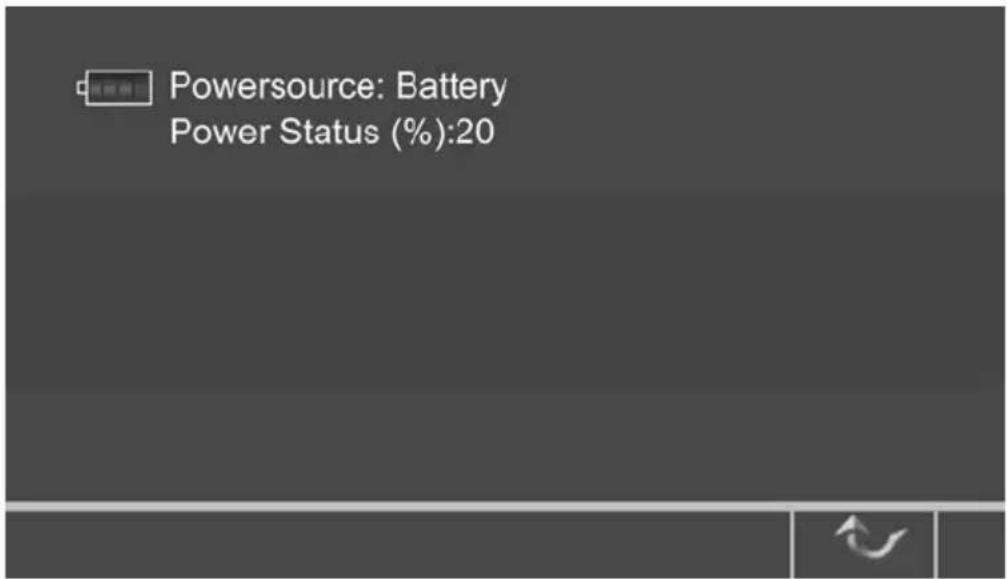
- Tap the icon to display the battery capacity in percent.
- Tap the button to return to the main menu.
Navigation
Getting started
When using your navigation device for the first time, you will be prompted to select a voice type and your current time zone. Next some important safety notes about operating the device will be displayed.
Please choose a voice type first.

You will be prompted to select a voice for the spoken driving instructions. Tap the desired item from the list:

Not all languages support multiple voice types.
If a language is labelled "TTS" on the list, this means "Text To Speech". In this case, the voice can also output the street names.
Setting the time zone

Your PND is able to automatically determine the time through the GPS signal. For this purpose, you need to set your time zone.
- Choose your time zone from the list. It can be changed at a later time (see page 61).
- Press the confirmation icon

Safety precautions

Next, a screen with safety precautions will be shown.
- Read the safety precautions.
- Tap the or button to browse through the displayed text.
- To hide these notes for future start-ups, select Hide at startup.
- Press the forward arrow.

GPS connection
Your PND uses Global Positioning System (GPS) technology for navigation. The device receives signals from a number of GPS satellites in order to determine your current position.
- In order to obtain a first satellite signal, install your navigation system so it has a free sight to the sky. In your car, the preferred location is above the dashboard. (see page 18 - Car mount).
- It may take up to 5 minutes to establish the first connection. Subsequent connections will be faster (30 seconds to 1 minute), but if you have not used the unit for several days or are very far away
from the last location where you used it, it may take up to 5 minutes again to find a strong signal.
Icons
The following icons are used throughout the application:
| Icon | Name | Function |
 | Menu icon Open a menu with various options | |
 | Back icon Go back to the previous screen | |
 | Navigation icon Start navigation | |
 | GPS icon | Availability / strength of GPS signal |
 | Search icon Open a search screen | |
 | Confirmation icon | Apply settings Select/deselect all |
 | Cancel icon Cancel route calculation | |
 | Up One list entry up | |
 | Slider Moves a list | |
 | Down One list entry down | |
Simultaneous operation
During navigation you can access the main menu at any time by tapping the menu button (page 12, item 1). The spoken driving instructions will continue normally.
Next you can launch the music playback (see page 96), establish a Bluetooth link to a mobile phone (see page 75), or adjust parameters such as the audio settings (see page 110).

During navigation, some restrictions apply to the multimedia menu. Only the Audio button will be enabled (see page 99). The option Video and Photo will be available after you exit the current navigation.
To go back to navigation, tap the Navigation button in the main menu. You will be returned to the last selected option window or to the current navigation.
Main menu

The main menu is your central point of access to all functions of your Personal Navigation Device. It allows you to find and set your destination, manage your favourites and control all settings of your device.
On the left hand panel, there are three buttons. Click on one of the buttons to open a set of sub options on the right-hand side of the screen:
- Destination lets you choose your destination – either by searching for an address (see page 38), choosing an entry from the POI directory or a city guide (see page 45), selecting a location from the map (see page 47) or a local service (see page 70).
- Favourites allows you to manage your favourites (like bookmarks, recently visited locations, trips). You can rename, sort or delete them (see page 48).
- Use Settings to configure your Personal Navigation Device to suit your needs. Define general settings (e.g. time, language, system of measurement, see page 60), configure your map (e.g. 2D or 3D mode, day or night mode, map complexity) or load a map of a different region (see page 65), set the route options (e.g. choose to avoid or allow toll roads or ferries or select your mode of transportation; see page 68).
- Tap the Exit button to quit the navigation programme and return to the navigation device main menu.
Map
The map is the core component of your Personal Navigation Device. It is centered on your current location by default, provided you have a GPS connection. You can browse the map, display information about the different locations shown on it and e.g. choose them for routing and navigating.
Tracking mode and browsing mode
The map has two basic states, tracking and browsing.
In the tracking mode, the map follows your actual position (GPS position), displaying information about your geographic position, your speed, etc. The GPS position is indicated through the crosshairs.

As soon as you browse the map, you enter the browsing mode:

- Use a pen or your finger to browse the map. The selected position will be identified by a cursor. To move the currently displayed map portion, tap and hold on any point on the map and drag the stylus or finger in the desired direction.

Clicking on an icon on the map will open an overlay window with information about the selected item.
- To zoom in or out, press the + or - icons. As soon as you press one of the icons, the zoom slider is displayed to enable smooth zooming.
- If you want to return to the tracking mode, press the back icon.
Navigation screen

The navigation screen displays your route (in blue) and your surroundings. The GPS position symbol identifies your current position. The red arrow indicates the direction of your next turn. The upcoming maneuvers is always displayed in the upper left corner – together with the distance to it. When you approach a turn, there will be a voice command at the appropriate time.
On the left side, additional information is displayed, such as estimated arrival time, and the distance to your destination.

Tap on the left to toggle the view: now the elapsed time and distance of the trip are displayed. Tap again to minimise the view to show the next manoeuvre only. Tap again to return to the original display.
For one-way streets, the direction of travel is indicated by a blue arrow. For more information about navigation, see page 51.
Main features
This chapter describes the functions of your Personal Navigation Device in detail. On the following pages you will learn how to
- Find and choose locations (see page 38)
- Navigate to your destination (see page 51)
- Use the route planner (see page 56)
- Configure the application (see page 60)
Choosing and finding locations
This section describes the different ways of finding and choosing locations. You can search for an address, browse Points of Interest (POI) directories and city guides, choose locations on the map, and choose one of your favourites (such as home and work addresses, your bookmarks and recently visited locations).
Search for an address
Use the address search function to find an address. Just enter information about the desired destination, select an entry from the results list and use the address found for different purposes, such as showing it on a map, planning your route or navigating.
- In the main menu, press Destination.
- Press Address.
The Find Address window will be displayed:

- Enter the appropriate data to find your address.
How to search
Your Personal Navigation Device offers a convenient interactive look-ahead search function to prevent misspelling. Only keys that lead to a search result can be pressed – all others are inactive!
- Enter the first two characters.
You will see that the some keys on the keypad turn inactive. You can only choose active keys:
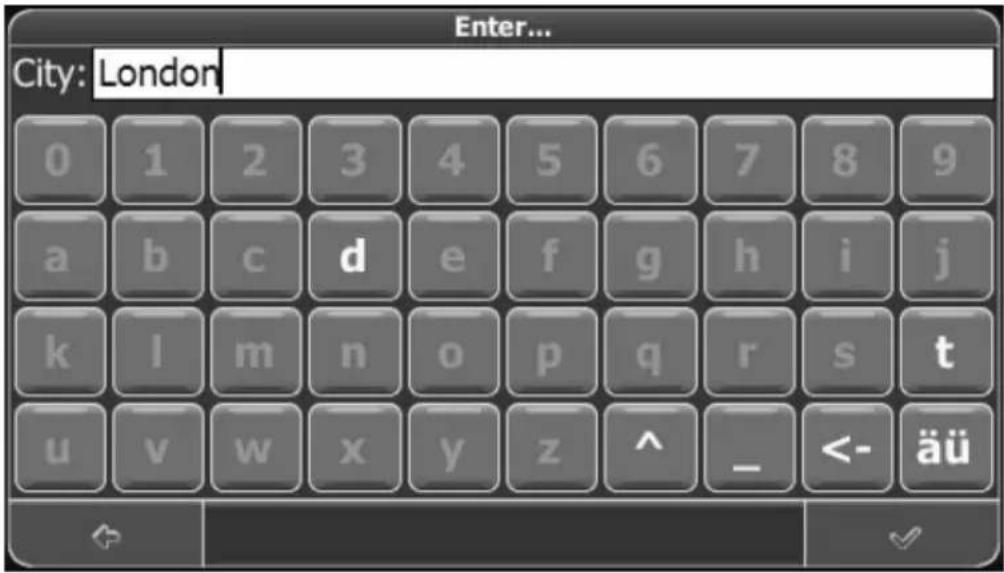
- Enter the second character.
Again, some keys will turn inactive; others will turn active, depending on your choice.
- Keep on entering characters until you have narrowed down the search to only one result.
OR
- Press the search icon (magnifying glass).
A result list will be displayed.
- Choose the appropriate entry from the list.

To toggle between normal and special characters, tap äü, or tap ABC to return. Switch between upper case and lower case by pressing ^.

If at any point you want to go back and delete characters, press the backspace button <- on the screen. To add a space, press the space bar _
If you need to enter an apostrophe (') use the space key instead.
Set the country
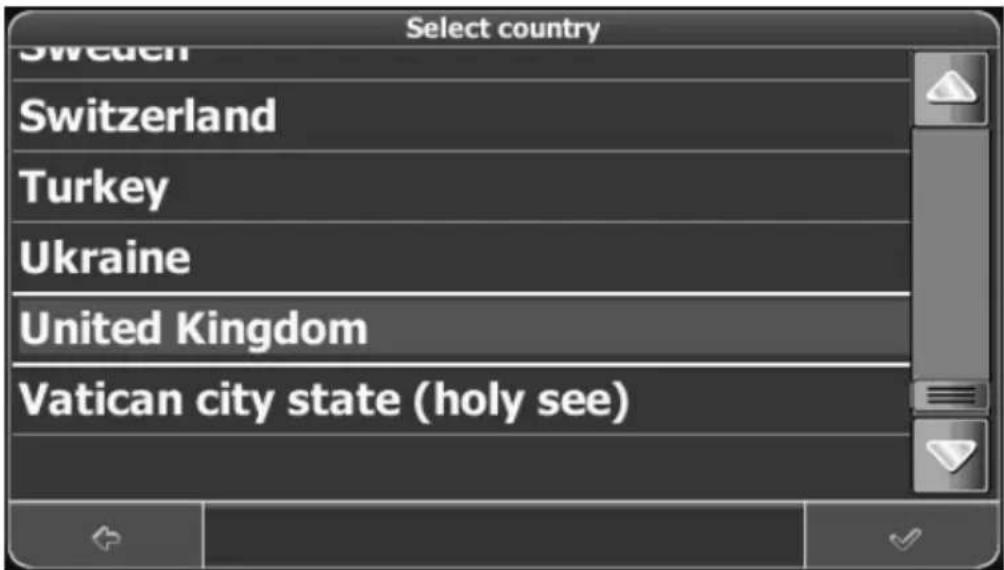
To search for more countries, tap the Up or Down button or use the slider in the right-hand border.
- To select the desired country, choose Country.
- Choose the desired country from the list: tap the desired entry directly or, if you have been using the Up/Down buttons and the slider to choose the country, tap the confirmation button.
The chosen country will appear in the field Country.
Enter a post code
Instead of a city you may enter a post code.
- To enter a post code, press Post Code.
- Enter the post code of the town/city you are looking for.
- Press the search icon (magnifying glass).
A hit list will be displayed.
- Choose the appropriate town/city from the list.
You will return to the Find Address screen. The City and Post Code fields will show the corresponding city/post code.

You can also enter a unique 7-digit post code (e.g. for Great Britain). In this case, you do not need to enter a street name.
Search for the city
- To select a city, press City.
– Search for the city, as described above.
A result list will be displayed.
- Choose the appropriate town/city from the list.
You will return to the Find Address screen. The City field is populated with the name of the chosen town/city.
Search for the street
- To select a street, press Street.
- Search for the street, as described above.
A result list will be displayed.
- Choose the appropriate street from the list.
You will return to the Find Address screen. It will be filled with the data previously entered.
Search for the Street Number
- To select a street number, choose No.
- Enter the street number.
- Tap the confirmation button to confirm your entry.
You will return to the Find Address screen. It contains the information you have just entered.

The street number precision varies on the region. Urban re-planning and building will cause new street numbers to be created that may not appear in the map material yet. If a particular street number is not contained in the map material, the destination will be set to the middle of that street. The following message will inform you about this:
Housenumber not found. Street will be used for destination.
Navigate to the address found
Once you have narrowed down your search to a unique address, you can start navigation.
Press the menu icon to access further options:

- To navigate to the entered location, tap Navigate (see page 51).
- To use the location for planning a route, tap Via (see page 56).
- To save the location as a bookmark, tap Save (see page 48).
- To show the location on the map, tap On Map.
Searching for and choosing POIs
The POI finder allows you to quickly find points of interest like petrol stations and restaurants in a database of millions of POIs. These places can be nearby or at a remote location.

Where? displays the starting point for the search. POIs near that point will be displayed. This is usually your current location. To set a starting point other than your current location, press Where?
- In the main menu, press Destination.
- Press POI Search.
The POI Search screen will be shown:
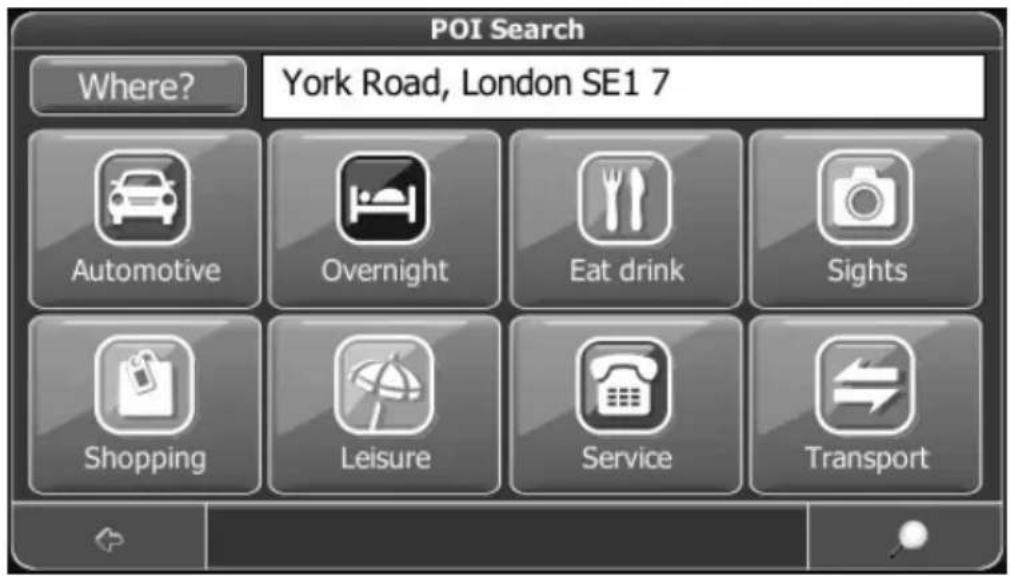
Choosing a POI
- Select the desired POI category.
A menu with subcategories will be shown.
- Select a subcategory (if applicable).
- To return to the previous category, press the back icon.
A list of POIs will be shown.
- Select a POI by clicking on it.
A menu with a set of actions will be displayed:

- To navigate to the POI, tap Navigate (see page 51).
- To use the POI for planning a route, tap Via (see page 56).
- To save the POI as a bookmark, tap Save (see page 48).
- To show the POI on the map, tap On Map.
- To show information about the POI (if available), press Description.
Searching for a POI
- Select the search icon (magnifying glass) to enter a search keyword.
- Enter the search keyword (at least three characters), and press the confirmation icon.
A list of POIs will be shown.
- Select a POI by clicking on it.
A menu with a set of actions will be displayed, as described above.
Choosing a location on the map
An easy way to choose a location is selecting it on the map. Browse your surroundings and choose any street or location to use it for navigation or routing.
- In the main menu, press Destination.
- In the main menu, press Map.
- Point the cursor at any place on the map. The name of a selected location/street will be shown in the info box.

- Press the menu icon.
From the following menu you can choose to be guided to the address, use it for route planning, show it on the map, search for POIs, change the map settings, etc. (see page 51).
Favourites
Use your frequently used or favourite destinations for guidance. You can choose among your bookmarks, recently visited locations, previously saved trips (see page 56), and presets (e.g. your home or work place).
- In the main menu, press Destination.
- In the main menu, press Favourites.
The Favourites menu will show on the screen:

Bookmarks
The bookmarks list contains the destinations you have saved as favourites (from the guides, by choosing it on a map, etc.). This means that you do not need to perform repeated searches for those destinations.
- Press Bookmarks.
The bookmark list will show on the screen:

Use the up and down arrows to scroll up and down in the list.
- Select an item by clicking on it.
A menu with a set of actions will be displayed:
- To navigate to the destination, tap Navigate (see page 51).
- To use the destination for planning a route, tap Via (see page 56).
- To sort the list of locations alphabetically, press Sort.
- To show the location on the map, tap On Map.
- To delete the selected location, press Delete.
- To edit the location, press Rename.
- To delete all location, press Delete all.
Recent
By pressing Recent a list of recently visited or looked-up destinations will be opened.
- Press Recent.
The list of recent locations will show on the screen. Use the up and down arrows to scroll up and down in the list.
- Select an item by clicking on it.
A menu with a set of actions will be displayed, as described above. The available options may vary.
Trips
- To access to your previously saved trips, i.e. routes, press pressing Trips (see page 56 for more information about setting trips).
Presets
You can save your home and street addresses as presets for quick access.
- Press Presets.
- Press Home.
A menu with a set of actions will be displayed:
- To navigate to the location, press Navigate (see page 51).
- To edit the location, press Rename.
- To delete the location, press Delete.
- To show the location on the map, press On Map.
- To use the location for planning a route, press Via (see page 56).
- To delete all locations, press Delete all.

If no home address has been set, you are prompted to do so. You can choose it by searching for an address, through your current GPS position or by choosing a recently visited location.
Proceed similarly with your work address.
Navigating
The powerful navigation capabilities of your Personal Navigation Device guide you along the shortest or quickest route from A to B – with voice commands and in 3D.
This section describes the navigation feature.

See page 35 for information about choosing elements on the map. See page 38 for information about finding and choosing addresses, POIs, and locations inside a guide.
- Choose a location through Destination, and press Navigate in the respective menu.
Your route will be calculated. The navigation screen will be displayed (see page 37).
Browse map during navigation
You can browse the map even while navigating. This way you can easily choose a new destination if you change your mind. However, navigation will not be interrupted – you will be still guided through voice commands. Press the back icon to follow the route on screen again.
Menu options
- To open a set of navigation options during navigation, press the menu icon:
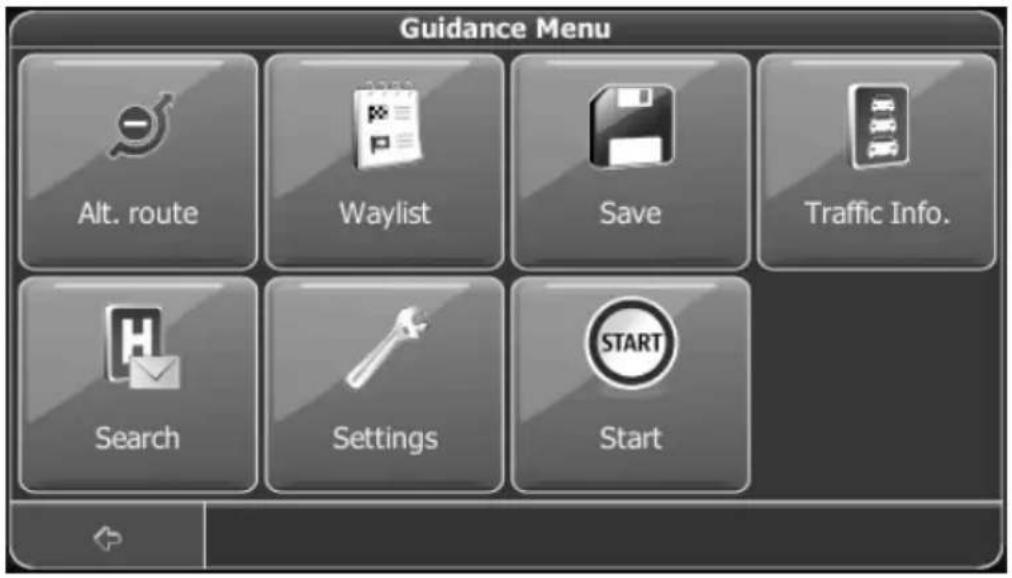
Here you will find the following items:
Alt. route
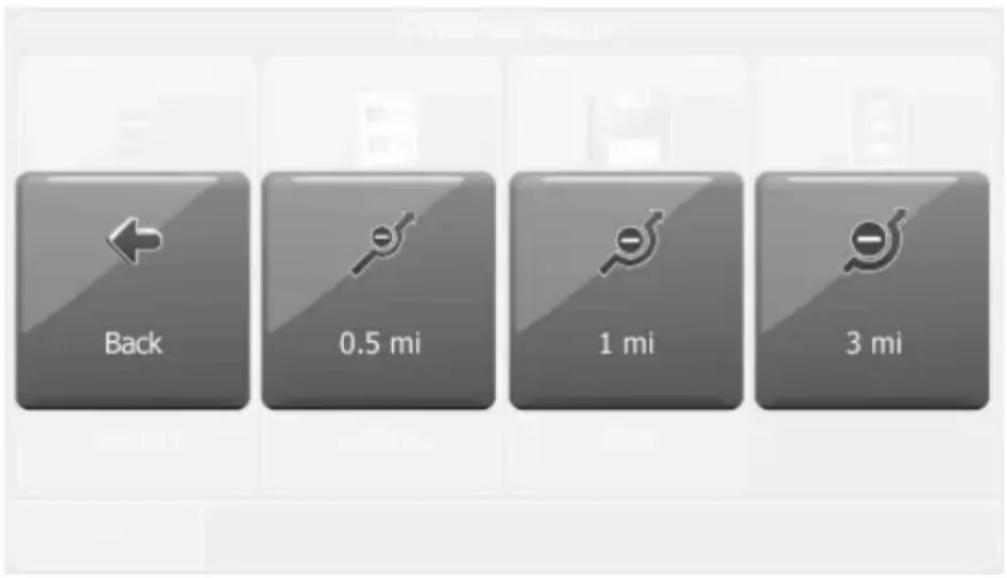
With this option, you can choose to block the calculated route for a given distance (e.g. 0.5 mi) and force an alternative route. Simply tap on the icon which shows the desired distance. Your route will be recalculated, and the previous route will be discarded for the given distance.
List of waypoints
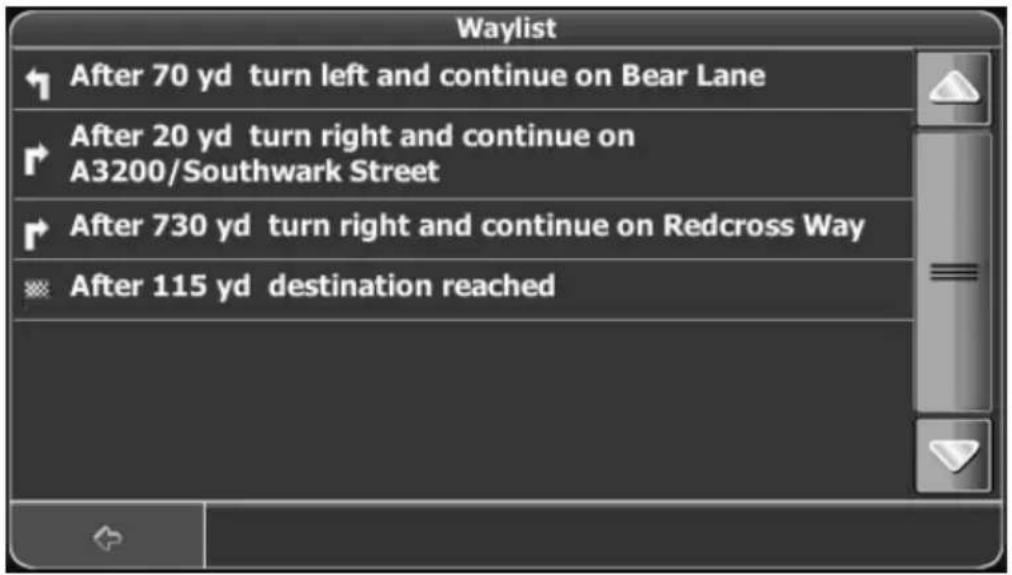
Opens a list of the waypoints (maneuvers) along your route.
You can delete a waypoint by tapping on it. This can be helpful to remove any intermediate stops from your route that you do not want to make.

When deleting a waypoint from your route by tapping on it, the itinerary is recalculated automatically and you will return to the navigation screen.
Save
Save your actual position as a bookmark.
Search
You can redirect your route by choosing a point of interest (POI), like a petrol station. Redirecting means either setting a new destination or adding a new stopover:
Settings
Change the settings of your Personal Navigation Device, as described on page 60
Average speed
You can calculate the average speed for the route segment by tapping the "Start" button. Next the navigation menu will also show the average speed on the left.

On the navigation menu tap the Stop button to close the average speed display. The button Start and Stop alternate according to the current setting.
Planning a route
This section describes the route planning feature. This feature allows you to plan your route in advance, choosing multiple stopovers along your journey.
- In the main menu, tap Favourites.
- In the Favourites menu, tap Trips.
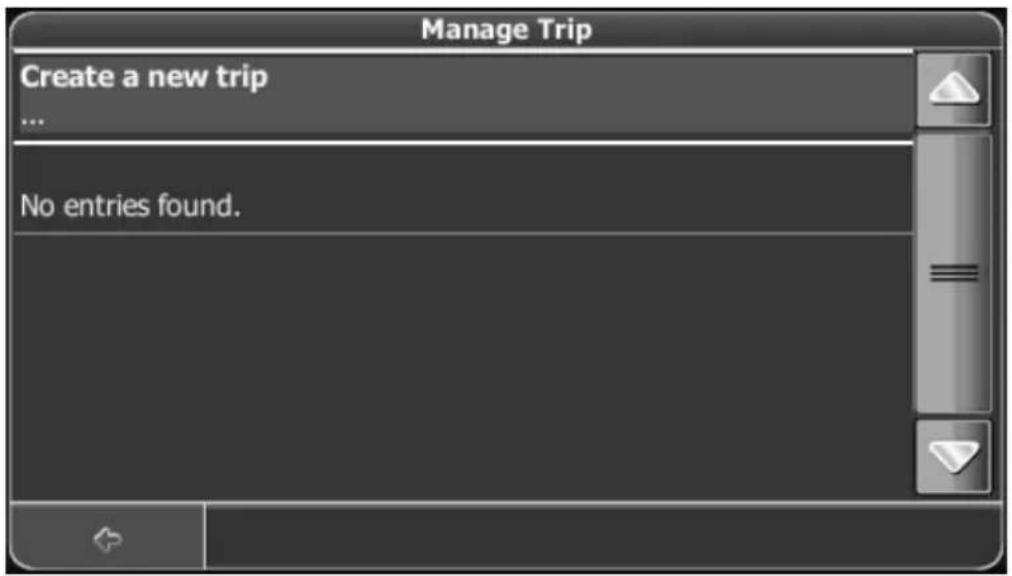

See page 47 for information about choosing elements on the map. See page 38 for information about finding and choosing addresses, POIs, and locations inside a guide.
- Select Create a new trip....
– The Destination List will be displayed:

- To add another stopover, press the + icon.
You will switch to the Choose stopover: screen. You may choose stopovers like your home or work addresses, a bookmark, a point of interest, a recent location or by searching for an address or pinpointing a destination on the map.

Once you have added stopovers (with the + icon) and returned to the Destination List, you have several options:

- With the + icon you can choose additional stopovers.
- To change the order of the stopovers, select a stopover and then use the up and down arrows to move it up/down in the list.
- With the trash icon you can delete a selected stopover.

You can add up to six stopovers.
Once you have chosen your route, you have several options. You reach those options by pressing the menu icon (bottom right-hand corner of the screen).
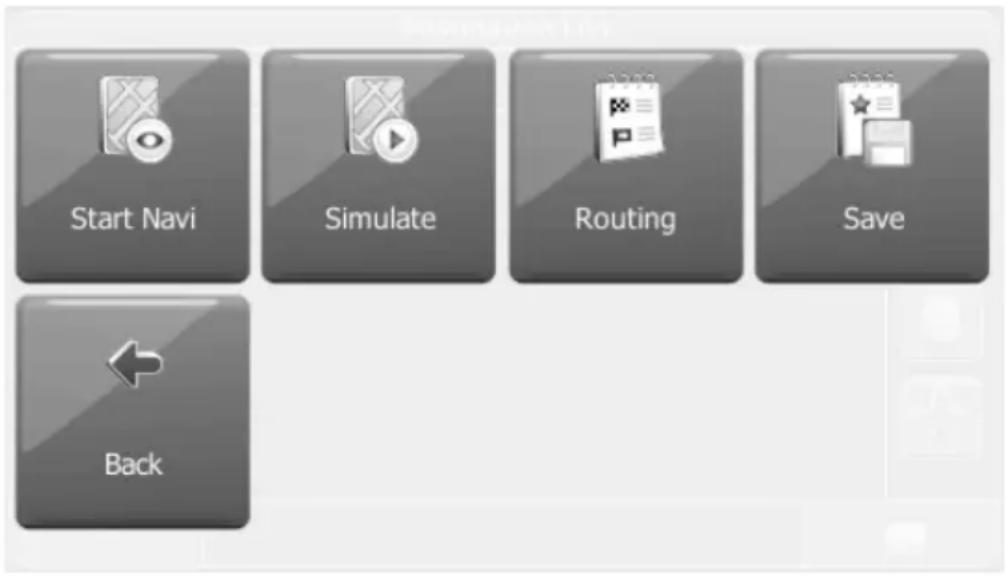
• To simulate the route to come, press Simulate.
- To start guidance, press Start Navi. The display will switch to the navigation map.
- To calculate the route, press Routing. The Route Summary will be displayed. Tap on one of the items in the Route Summary to display the Waylist. From the destination list, you can view the different waypoints on the map. To do this, tap Up or Down to select the desired waypoint and tap Next to toggle to the map view. To delete a waypoint, tap on it.
• To save the route as a favourite trip, press Save as (see page 50).
Settings
You can configure your Personal Navigation Device to suit your needs. When it comes to navigating, you can, for example, choose to avoid or allow toll roads or ferries or select your mode of transportation, like a fast or slow car, a scooter or even your own feet. You can also edit several display settings, such as 2D or 3D mode, day or night mode, map complexity, etc.
- In the main menu, press Settings.

General Settings
- Choose General to change the general settings.
The window with the general settings will be shown:
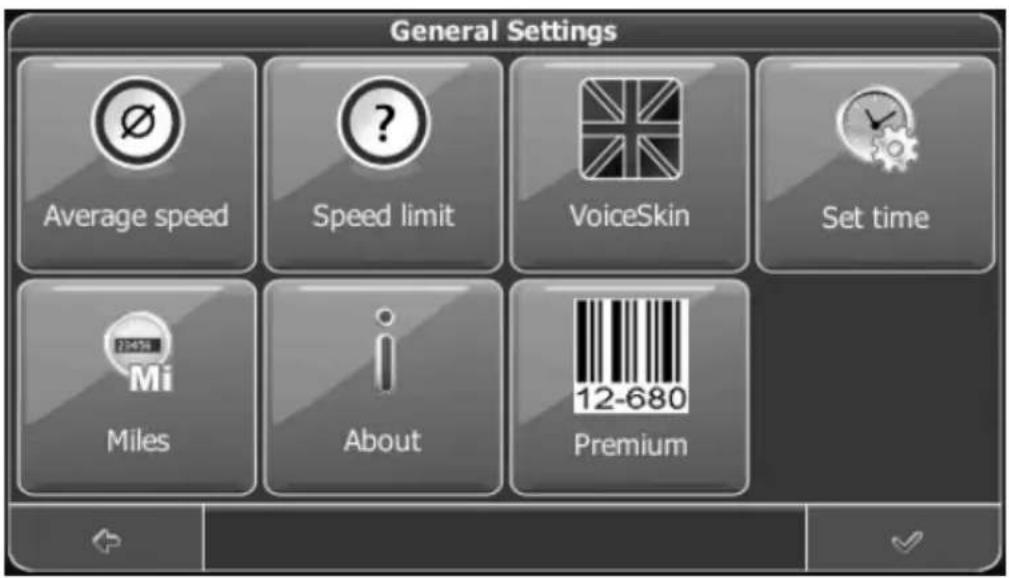
- To select the desired language, choose VoiceSkin. In the following menu select the desired language by tapping the corresponding button.
- To change the time zone, tap Set time. To change the setting, proceed as described on page 30.
- To change the unit of measure, tap Miles or Kilometres. The button will show the currently selected unit of measure.
- To show information about the application, tap About.
- Tap Premium to display a list of optional map contents.
- Average speed lets you determine an average speed. If you exceed the set average speed, an alert will be displayed. To set this, first enable the Average Speed function (see page 55) Select a suggested value by tapping the corresponding button and tap the confirmation button to confirm.

You can also tap the ? button to enter a custom value.
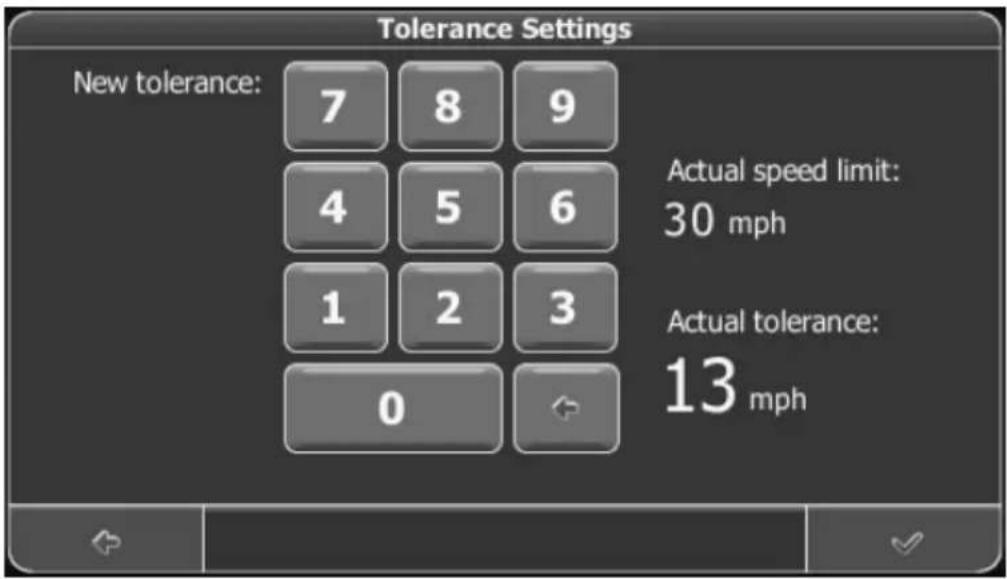
When exceeding the set average speed, the average speed indicator will appear in red.
- Speed limit enables a warning to be output whenever you exceed the current maximum speed limit.

Please note that the current speed limit is directed by the real traffic signs. Traffic signs may be changed from time to time and may vary from the values stored in the map material. You must always respect the Road Traffic Act!

To enable the warning, tap the white checkbox next to the "Enable Warner" option.
If you wish to have an acoustic warning as well as the displayed warning when exceeding a speed limit, tap the checkbox next to the "Warning tone" option also. An enabled setting will be shown by a checkmark.
In order to output the warning only after exceeding a specific tolerance above the speed limit, tap any of the default speed limit buttons or tap “?” to enter a custom value.

Tap the confirmation button to confirm your settings:
Map settings
- Choose Map Settings to change the map settings.
The window with the map settings will be shown:

- To toggle between Night and Day modes, press the corresponding icon. By selecting Automatic, the mode will be chosen depending on the actual time.
- To select a map, press Maps. If you have map data for different regions/cities on your memory card, tap on the name of the current region (e.g. Europe). All available maps on the memory card will be listed. You can choose the desired region by simply tapping on its name.
- To toggle between 2D and 3D modes, press the corresponding icon. During 3D display, the map on the navigation screen will be shown in isometric format: it will be tilted in the driving direction.
- To optimize the map orientation during navigation, press Track Up. To keep the map oriented to the north, press North Up.
- To select which kinds of elements will be displayed on the map, press Info Layers:

- Check the boxes of any category you want to have displayed on the map. Uncheck those that should be hidden.
- To return to the previous screen, press the arrow.
Day / Night Display
To customize the device according to the environmental lighting conditions you can toggle between day and night view or have these display modes set automatically according to the current time.
From the Map Settings menu (see also page 65) select between the options Day, Night and Automatic.

The day mode uses bright and high-contrast colours to obtain a better readability even under direct sunlight.

The night mode uses dark colors in order to avoid any dazzling effects when navigating at night.

Route options
- Choose Route Settings to change the route options.
The window with the route settings will be displayed:

- To switch between the modes just touch the icons. These will toggle so you can quickly see the activated settings.
- You can choose among the following options: Mode of transportation (fast car, slow car, bicycle, bus, motorbike, pedestrian, scooter etc.), fastest or shortest route, allow or avoid toll roads, motorways, and ferries. You can also choose the distance unit (miles/kilometers).

The London Congestion Zone in Central London is regarded as a toll road by your navigation system. Therefore, if you choose to avoid toll roads, you will not be guided through this zone. However, there will be no warning if you enter this zone accidentally.
Once you have chosen your settings, press the confirmation icon to return to the main menu.
Mode of transportation – overview
Fast assumes fast driving on highways.
Slow assumes slower driving.
Bike takes into account bike paths and restricts highways where bikes are prohibited. There will be no voice commands.
Motorbike takes into account motorbike restrictions, where applicable.
Scooter takes into account scooter restrictions, where applicable.
Van takes into account van restrictions, where applicable.
Pedestrian provides true pedestrian routing including full access to one-way streets and pedestrian zones, where possible. There will be no voice commands.

The estimated arrival time calculated during navigation will be calculated taking into account these settings.
Targa Travel Guide
The Targa Travel Guide has been pre-installed on your device.
You can use this Guide to lookup further information about the following locations:
| Algarve | Leipzig | |
| Amsterdam | Lisbon | |
| Barcelona | London | |
| Basle | Madrid | |
| Berlin | Milan | |
| Berne | Majorca | |
| Brussels | Minorca/Formentera | |
| Budapest | Munich | |
| Costa Brava Netherlands | ||
| Costa de la Luz/Andalusia Oslo | ||
| Costa del Sol/Andalusia Paris | ||
| Cote d'Azur Portugal | ||
| Dresden | Prague | |
| Dusseldorf | Provence | |
| Edinburgh | Rome | |
| Florence | Salzburg | |
| Frankfurt/M. | Stockholm | |
| Graz | Strasburg | |
| Hamburg | Stuttgart | |
| Hanover | Southern | England |
| Ibiza | Tenerife | |
| Innsbruck | Tuscany | |
| Cologne | Venice | |
| Copenhagen | Vienna | |
| Lanzarote | Zurich |
Launching Targa Travel Guide
Targa Travel Guide can be found on the main menu under Ziel „Loc. Services”.
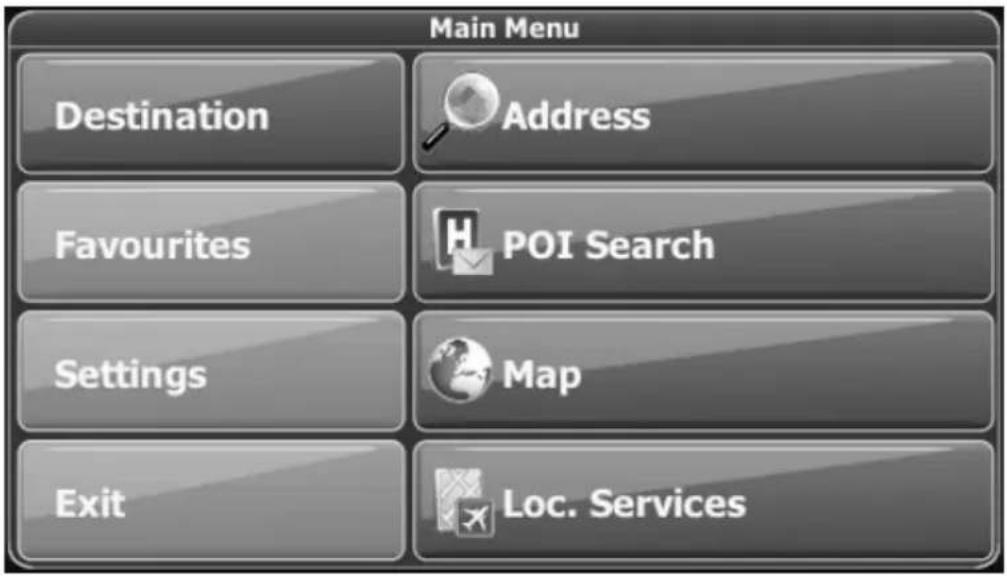
Here you can find the Guides that have been installed onto your device.

Tap the line Targa Travel Guide Europe to open the Guide. Tap the search function (magnifying glass) to perform a keyword search through all installed guides.
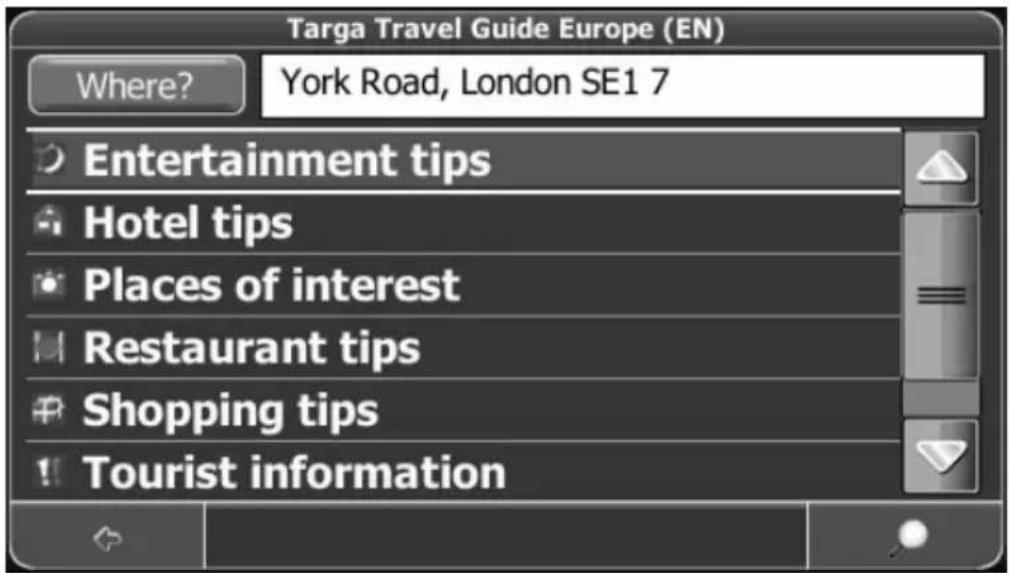
Searching for an entry is made analogue to the POI search. A description can be found on page 45.

Where? Shows the starting point of the search. All entries near to this point will be displayed. By default, this point will be the present GPS position. To select a different position as the starting point, tap Where?.
Using an Entry as POI
- Select the desired category.
- To return to the previous selection, tap the Back icon.
A list of entries will appear.
- Select the desired entry.
A menu offering different actions will appear.
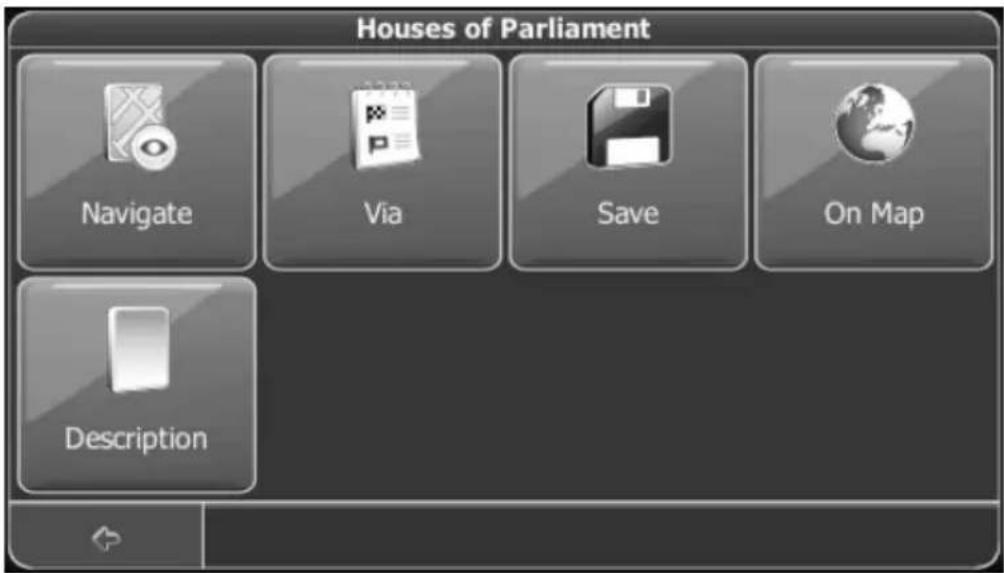
- To navigate to the entry, tap Navigate (see page 51).
- To use the entry for planning a route, tap Via (see page 56).
- To save the entry as a bookmark, tap Save (see page 48).
- To show the entry on the map, tap On Map.
- To show information about the entry, press Description.
Description
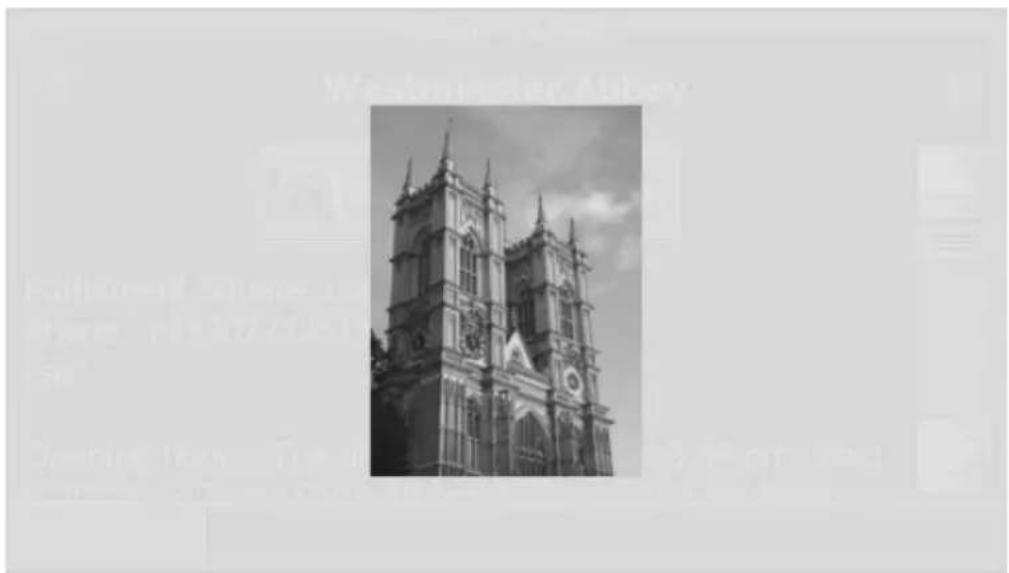
This will show information about the entry. Tap the "Up" or "Down" button or drag the slider to view the entire article. If there is a picture available for the current entry, the button Camera photography will be shown. Tap the button to view the picture. Tap on the picture to return to the entry description.

natural_image
Black-and-white exterior view of a Gothic cathedral with twin spires and ornate windows (no visible text or signage)Mobile Phone
This menu allows you to enable the Bluetooth component of your navigation device. Bluetooth is a wireless technology allowing you to transfer data between devices that are close to each other. The Bluetooth interface of the navigation devices automatically uses the required profiles. The linked mobile phone must support the same profiles for the corresponding application to work.
Here are two examples for profiles:
HFP (Hands-Free Profiles)
HFP is a connection to a mobile phone that allows you to use the navigation device as a hands-free set. You can initiate a call from your navigation device and use the built-in speaker and microphone to make the phone call.
PBAP (Phonebook Access Profile)
PBAP enables the navigation device to access the phone book of the linked mobile phone. This lets you transfer the phone book onto your navigation device.

It is possible that your mobile phone will not support all functions of your navigation device.
To establish a connection to a mobile phone for the first time the devices must be paired.
When transferring data it is likely that the data has to be written onto the inserted memory card. Make sure that the write protection of the card is disabled (see page 22).
On the following pages you'll learn how to pair the device with a mobile phone.
Pairing with a Mobile Phone

Make sure that both device are placed next to each other in order to guarantee a strong wireless signal.
If necessary, please read the User's Manual of your mobile phone to find out how to enable the pairing mode of your mobile phone.
- From the main menu, tap the Mobile Phone icon to open the Bluetooth menu.

- Then tap the Settings button.

- To launch a first search, tap the Search Phone button.
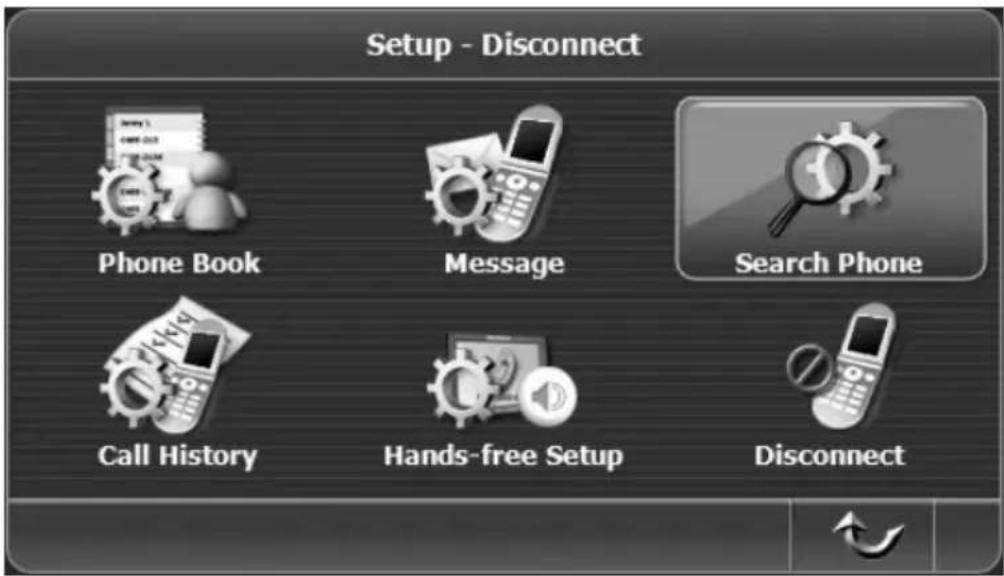
The navigation device will alert you that the other party must be ready for pairing and visible at this stage.
- Enable the Bluetooth component on the other device if not done already and confirm the search by tapping the Search button.

- The navigation device will start searching for compatible Bluetooth devices.
If required, you can cancel the search by tapping X.

Once the search has finished, a list with all found devices is displayed.
- Tap on the name of the device that corresponds to the desired mobile phone.
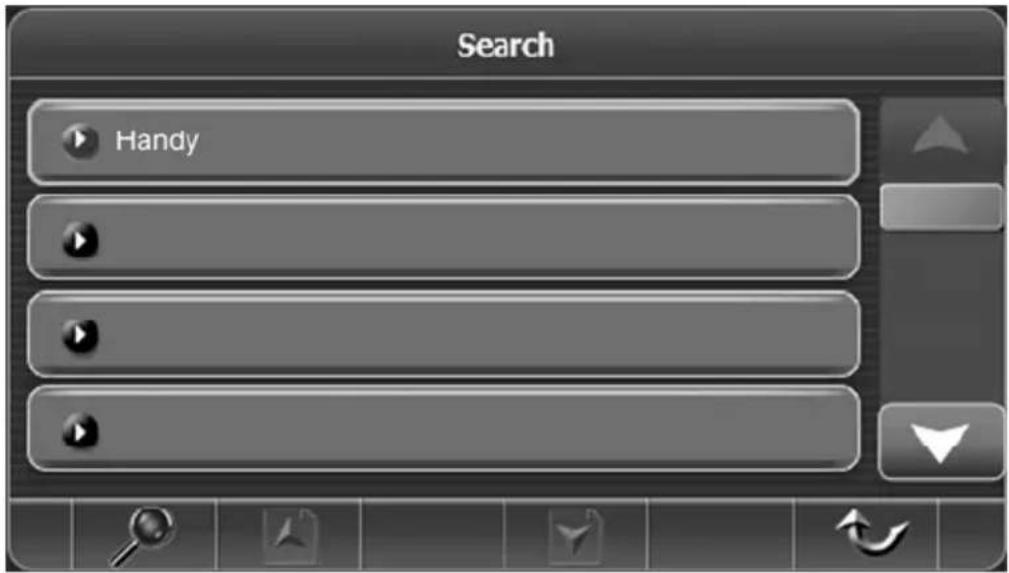

The displayed name is often the model number of the mobile phone. However, you can also assign a different name to your mobile phone.
In the next step the navigation device will start the pairing process and send a key to the selected mobile phone. You must also type this key on the mobile phone keypad when prompted.
- To start this process tap the Pair button.
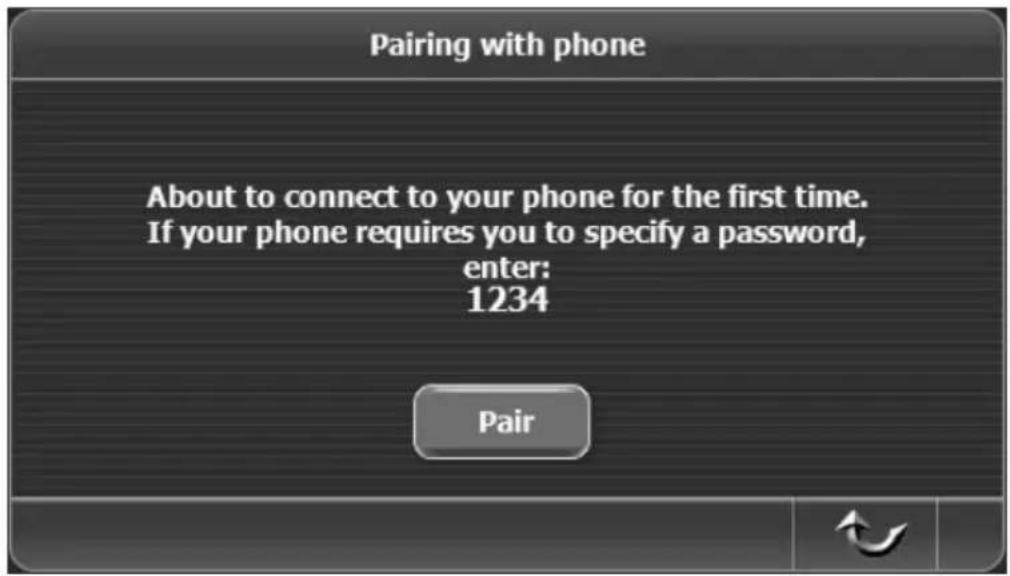

The key of the navigation device is the fixed key 1234. Follow the instructions on the display of your mobile phone to enter the key.
The navigation device starts the pairing process.

After you have entered the key on your mobile phone, the pairing is finished. The navigation device will suggest that you allow the automatic connection to your mobile phone.
- Confirm the message by tapping OK.
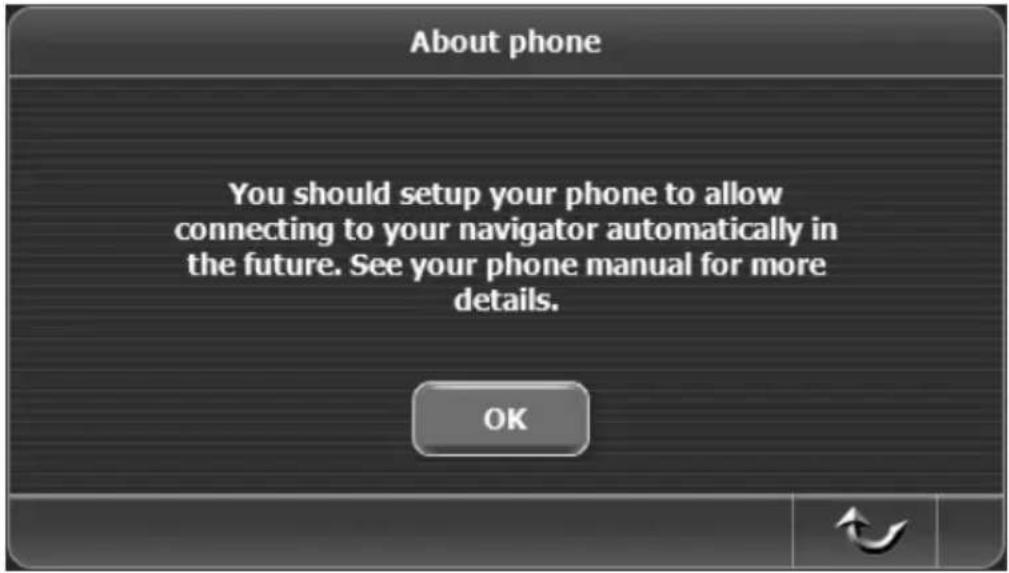

The automatic connection allows an immediate link as soon as both devices receive each other. This means that in the future you will not need to confirm any more connection between the devices.
Normally after connecting, a corresponding prompt will appear on the mobile phone. Please consult the technical documentation of your mobile phone on how to allow an automatic re-connection.
After the pairing you will return to the Mobile Phone menu.

It is also possible to pair multiple mobile phones with your navigation device. To do so, simply repeat the above steps with another phone.
However, it is only possible to establish a connection to one mobile phone at the same time.
Making a Phone Call
After you have paired the devices successfully (see page 76), you can use your navigation device as a hands-free set for your mobile phone. This lets you place a call directly from the navigation device, even if your mobile phone is stored in your bag.
- From the Mobile Phone menu, tap the Dial Pad button. The numeric keypad will be displayed.
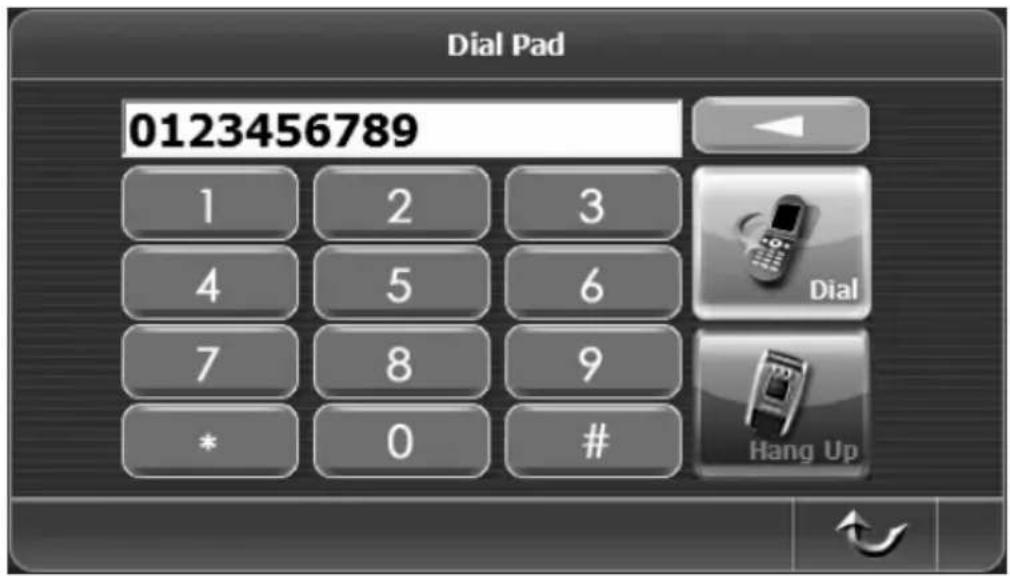
- To dial a telephone number, use the displayed keypad. Tap the button to erase any mistyped digit.
- Dial Starts a conversation.

— Hang Up Ends the conversation.

Use the 📋 button to quit the menu at any time, even during a call. The conversation continues and can be finished by tapping on the title bar.
Receiving a Phone Call
After you have paired the devices successfully (see page 76), you can use your navigation device to receive incoming calls on your mobile phone.
As soon as a call is received, the following screen appears:

Tap on any of the following buttons to accept or reject the call:
Accepts the call.
Rejects the call.


To exit the menu tap ↻ . The call will still be signalised.

If the other party transmits their caller ID, their telephone number will be displayed. Furthermore, if this number is stored in the phone book, the corresponding name will also appear.
Phone Book
The Phone Book lets you synchronise all telephone numbers between your mobile phone and the navigation device.
- To do this, from the Mobile Phone menu, tap the Phone Book button.
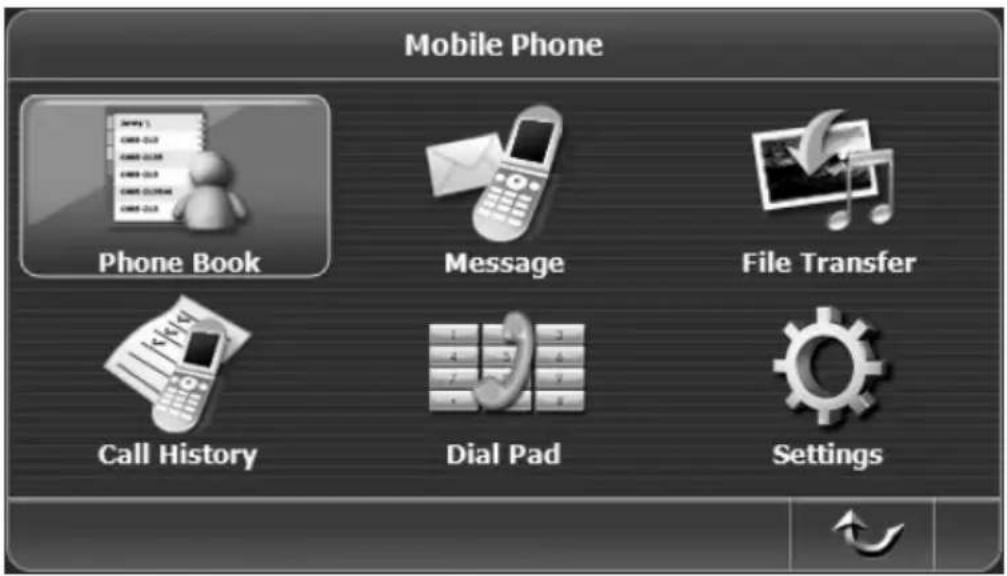
The Phone Book list will appear.


Not all mobile phones support the transfer of the phone book. If you are not sure whether your mobile phone supports this feature or not, please read its User's Manual or try it out.
The following buttons are available for the Phone Book function:
 | Refresh | Transfers the phone book of the mobile phone for the first time or synchronises it in the future. |
 | UpDown | Toggles to the next/previous page. |
 | Num | Displays the numeric keypad to dial manually (see page 81). |
 | Back | Returns to the Mobile Phone menu. |
 | Up arrow | |
 | Scroll bar | Toggles to the next/previous entry. |
 | ||
 | Down arrow |
- To start the call from the phone book, tap the corresponding entry.
- If this entry is a business card with multiple phone numbers, a submenu will appear where you can select the desired number by tapping on it.
Message
If the paired mobile phone supports data transfer, you can read any SMS messages on your navigation device.

Not all mobile phones support the transfer of SMS messages of the mobile phone. If you are not sure whether your mobile phone supports this feature or not, please read its User's Manual or try it out.
- Tap the Message button.
- A list with all available SMS messages will appear.

- Tap on message to read its contents.
- The following buttons are also available:

Refresh Updates the list.

Up
Down

Toggles to the next/previous page.
Returns to the Mobile Phone menu.

natural_image
Gray rectangular button with white directional arrows (no text or symbols)Up arrow
Scroll bar
Down arrow
Toggles to the next/previous entry.
Call History
Under Call History you will find a list of all made and rejected calls.

It is possible that your mobile phone does not support this function.
- From the Mobile Phone menu, tap the Call History button.
- A call list will appear:

The icons next to the phone numbers have the following meaning:
An incoming call

An outgoing call

A missed call

You can also make a call by tapping on a number from the list.
The following buttons are available for the Call History function:

Refresh
Updates the calls list.
Up
Toggles to the next/previous page.

Down

Num
Displays the numeric keypad to dial manually (see page 81).

Back
Returns to the Mobile Phone menu.

Up arrow

Scroll bar
Toggles to the next/previous entry.

Down arrow

File Transfer
When using the file transfer your navigation device can show the folder structure of your mobile phone. You can browse through the internal memory of the phone as well as the memory of a storage card inserted into the phone (if any).

It is possible that your mobile phone does not support this function.
To store files on the navigation device proceeding from your mobile phone you must insert a suitable memory card (see page 21).
- From the Mobile Phone menu, tap the File Transfer button.
- The File Manager will appear:
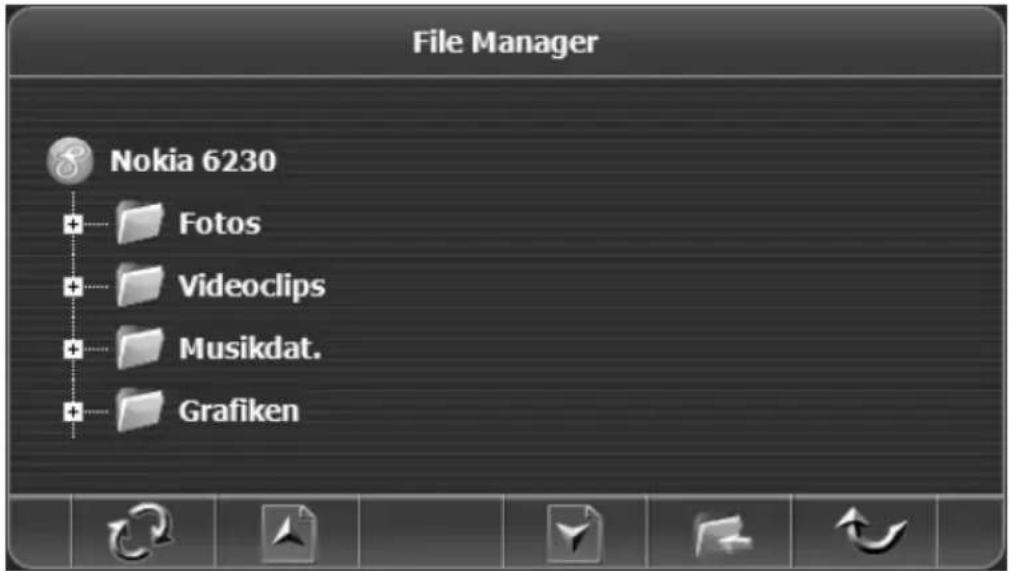
- To open a folder, tap the plus sign next to it.
- To close a folder, tap the minus sign next to it.
– Highlight a file by tapping on it.
The following buttons are available in File Manager:
 | Refresh | Updates the folder list. |
 | Up | Toggles to the next/previous page. |
 | Down | |
 | Transfer | Saves the highlighted file to the navigation device's memory card. |
 | Back | Returns to the Mobile Phone menu. |

Depending on the file size and the wireless link quality, the transfer may take several minutes.
Settings
Under Settings you can customize the Bluetooth functions to your needs.
Phone Book
- From the Mobile Phone menu, tap Settings.
- From the Settings menu, tap Phone Book.
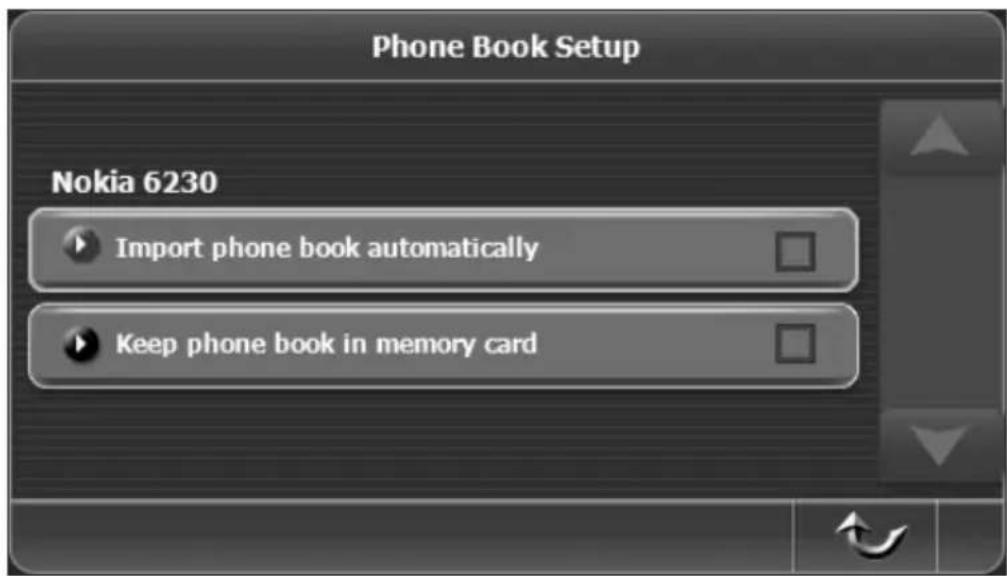
- Tap to place a checkmark in the checkbox next to the desired option to enable it.
The following options are available:
Import phone book automatically
The phone book will be transferred each time a connection to a mobile phone is established.
Keep phone book in memory card
Imports the phone book of the linked mobile phone and saves it to the inserted memory card. Therefore it is not necessary to transfer the phone book on each connection.
- To exit the menu tap immediately.
The selected options are applied
Message
- From the Mobile Phone menu, tap Settings.
- From the Settings menu, tap Message.

- Tap to place a checkmark in the checkbox next to the desired option to enable it.
The following options are available:
Import message automatically
The messages will be transferred each time a connection to a mobile phone is established.
Popup incoming message automatically
Generates a message window as soon as a message is received.
Keep messages in memory card
Imports the messages of the linked mobile phone and saves them to the inserted memory card. Therefore it is not necessary to transfer the messages again every time.
- To exit the menu tap 📊. The selected options are applied immediately.
Call History
- From the Mobile Phone menu, tap Settings.
- From the Settings menu, tap Call History.

- Tap to place a checkmark in the checkbox next to the desired option to enable it.
The following options are available:
Import call history automatically
The call list will be transferred each time a connection to a mobile phone is established.
Keep call history in memory card
Imports the call list of the linked mobile phone and saves it to the inserted memory card. Therefore it is not necessary to transfer the list on each connection.
- To exit the menu tap 📄. The selected options are applied immediately.
Hands-free
- From the Mobile Phone menu, tap Settings.
- From the Settings menu, tap Hands-free Setup.

- Tap to place a checkmark in the checkbox beside the option Hands-free startup automatically to enable it.
For automatic startup, the navigation device will toggle to hands-free mode automatically as soon as a paired mobile phone is detected within its wireless range.

Please note that for the automatic startup to work, the automatic re-connection must also be enabled (see page 80).
- To exit the menu tap 🤒. The selected options are applied immediately.
Disconnecting the Bluetooth Link
It is possible to close an existing connection at any time.
- From the main menu, tap the Mobile Phone icon to open the Bluetooth menu.
- Then tap the Settings button.

- Next tap the Disconnect button.

Multimedia
From this menu you can playback audio, video and picture files. You can provide the corresponding files on a memory card or the built-in flash memory.
To write contents onto a memory card, first insert the memory card into a suitable card reader. Windows ® should show the memory card as a "Removable Disk" in My Computer and you can transfer the desired files by using the usual copy procedure. If necessary, read the documentation accompanying your computer or the connected card reader.
Then insert the memory card into the card reader [page 12, item 6].
or
Connect the navigation device to a computer in order to obtain access to the flash memory. For more information, read the information starting from page 115.
- From the main menu, tap the Multimedia button.

- On the following pages you'll learn how to use the applications Audio, Video and Photo.
Music
Music playback is supported for the common formats MP3 and WMA.
- If you haven't already done so, from the main menu, tap the Multimedia button.
- From the Multimedia menu, tap the Audio button.

- A file list consisting of the contents of the inserted memory card or flash memory will appear.

- Browse the folder structure and tap on the desired file to highlight it. The corresponding entry will be highlighted.
The following buttons are available:
 | Parent folder | Toggles to the next upper folder. The topmost folder is the root folder of the device. |
 | Folder | A folder that can be opened by tapping on it. |
 | Play | Starts playback of the highlighted title and opens the Music Player. |
 | Up Down | Toggles to the next/previous page. |
 | Delete | Deletes the highlighted title (must be confirmed in the next step). |
 | Back | Returns to the Multimedia menu. |
 | Up arrowScroll barDown arrow | Toggles to the next/previous entry. |
As soon as playback of an audio file starts, the Music Player window will appear:

The following buttons are available in Music Player:
 | Previous Title | Toggles to the previous title. |
 | Next Title | Toggles to the next title. |
 | Play | Tap this toggle button to pause or resume playback. |
 | Pause | |
 | Playlist | Returns to file selection and playback stops. |
 | Repeat off | Tap on this alternating button to enable or disable the title repeat function. |
 | Repeat on | |
 | Back | Returns to the file selection. |

If necessary, you can adjust the volume by using the lateral buttons Vol+ [page 12, item 4] and Vol- [page 12, item 5].
During music playback you can access the main menu at any time by tapping the menu button (page 12 item 1).
Next you can launch the navigation (see from page 34), establish a Bluetooth link to a mobile phone (see from page 75) or adjust parameters such as the audio settings (see from page 110).
To return to the Music Player display, proceed as follows:
- Go to main menu and tap the Multimedia button.
- Tap the Audio button. The buttons Video and Photo are greyed-out during music playback.

- The Music Player appears (see previous page).
Video
Video playback supports the MPG1, MPG4, 3GP and WMV formats. (See also the Technical Specifications for more information about supported resolutions.)
- If you haven't already done so, from the main menu, tap the Multimedia button.
- From the Multimedia menu, tap the Video button.
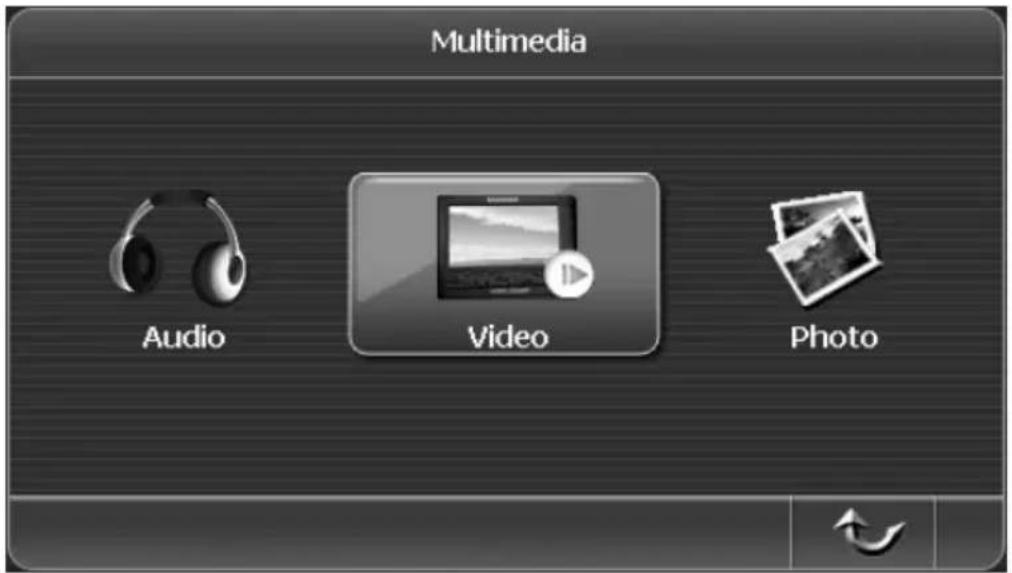
- A file list consisting of the contents of the inserted memory card or flash memory will appear.

- Browse the folder structure and tap on the desired file to highlight it. The corresponding entry will be highlighted.
The following buttons are available:
 | Parent folder | Toggles to the next upper folder. The topmost folder is the memory card selection or the internal memory. |
 | Folder | A folder that can be opened by tapping on it. |
 | Play | Starts playback of the highlighted video file and opens the Video Player. |
 | Up | Toggles to the next/previous page. |
 | Down | |
 | Delete | Deletes the highlighted file (must be confirmed in the next step). |
 | Back | Returns to the Multimedia menu. |
 | Up arrow | |
 | Scroll bar | Toggles to the next/previous entry. |
 | Down arrow | |
 |
As soon as playback of an video file starts, the Video Player window will appear:
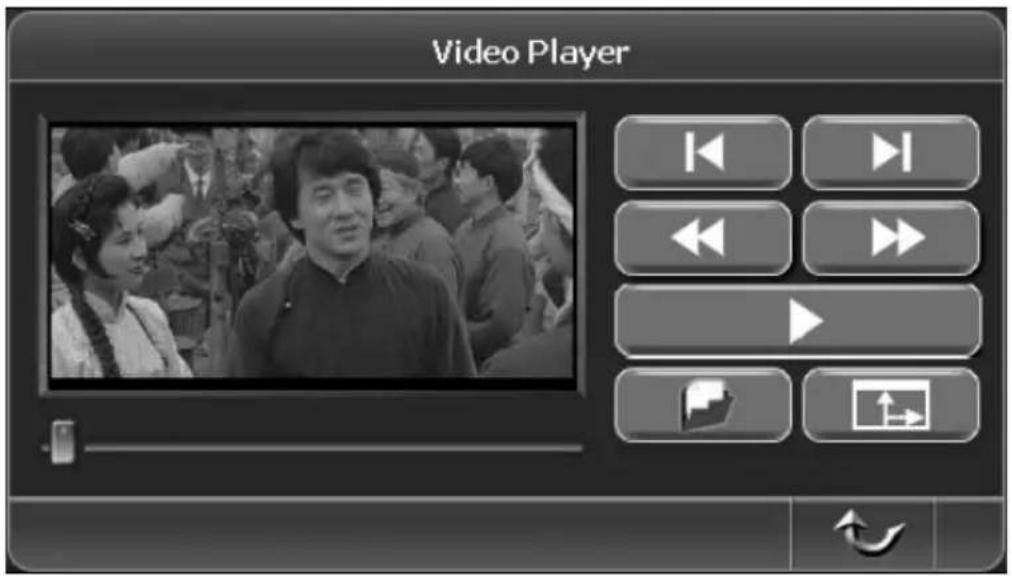
The following buttons are available in Video Player:
 | Previous Title | Toggles to the previous video file. |
 | Next Title | Toggles to the next video file. |
 | Fast Rewind | Skips backward for approx. 15 seconds |
 | Fast Forward | Skips forward for approx. 15 seconds |
 | Play | Tap this alternating button to pause or resume playback. |
 | Pause | |
 | Playlist | Returns to file selection and playback stops. |
 | Full-screen | Enlarges the view to full screen (tap on the playback window to return). |
 | Back | Returns to the file selection. |
Photos
Photo Album supports the formats BMP and JPG.
- If you haven't already done so, from the main menu, tap the Multimedia button.
- From the Multimedia menu, tap the Photo button.

- A file list consisting of the contents of the inserted memory card will appear.

- Browse the folder structure and tap on the desired picture to highlight it. The selected picture will be highlighted with green a border.
The following buttons are available:
 | Parent folder | Toggles to the next upper folder. The topmost folder is the root folder of the memory card. |
 | Folder | A folder that can be opened by tapping on it. |
 | Picture playback | Starts picture playback of the highlighted picture and opens the Photo View. |
 | Slide Show | Plays all pictures in a full-screen sequence of approx. 5 seconds each (tap on the playback window to return). |
 | Up | Toggles to the next/previous page. |
 | Down | |
 | Delete | Deletes the highlighted file (must be confirmed in the next step). |
 | Back | Returns to the Multimedia menu. |
 | Up arrow | |
 | ||
 | Scroll bar | Toggles to the next/previous entry. |
 | Down arrow |
As soon as playback of a picture file is selected the Photo Viewer window will appear:

The following buttons are available in Photo Viewer:
 | Previous picture | Toggles to the previous picture. |
 | Next picture | Toggles to the next picture. |
 | Rotate anti-clockwise | Tap any of these buttons to rotate the displayed picture by 90 degrees. |
 | Rotate clockwise | |
 | Full-screen | Enlarges the view to full screen (tap on the playback window to return). |
 | Delete | Deletes the displayed picture (must be confirmed in the next step). |
 | Back | Returns to the file selection. |
Settings
In this menu you can perform different presets to customize the device to your individual needs.
- From the main menu, tap the Settings button.
- The Settings menu will appear:
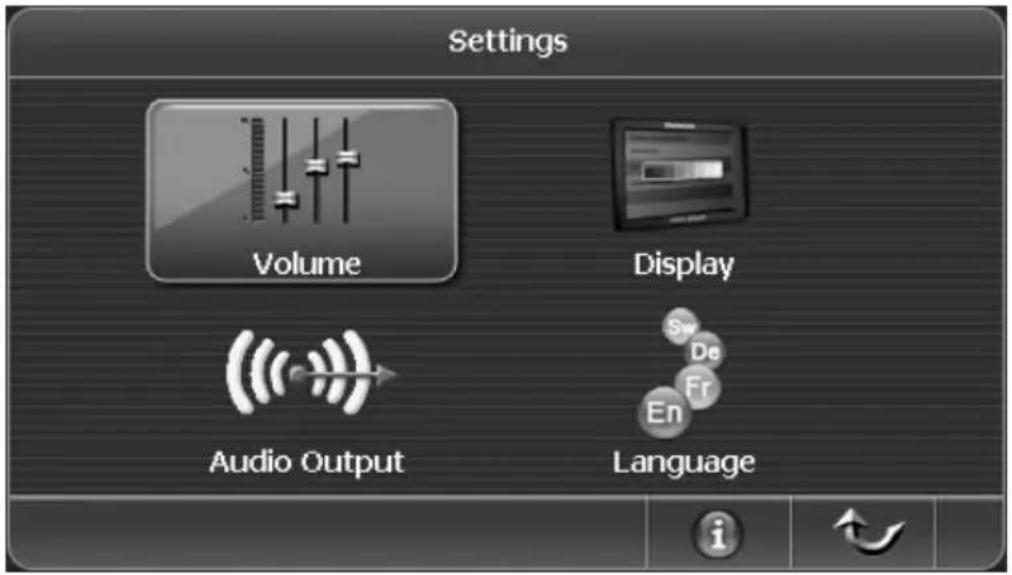
For more information on the different menu items, see the following pages.
Volume
Here you can set the default volume for your navigation device. This setting will remain valid even after powering the device fully off.
- From the Settings menu, tap the Volume button.

The buttons in this menu have the following meaning:
 | Reduce audio volume | Tap this button to reduce the sound volume by approx. 10%. |
 | Increase audio volume | Tap this button to increase the sound volume by approx. 10%. |
 | Set volume | You can set the desired volume directly by tapping on a segment in the volume display. |
 | Sound enabled | Tap on this alternating button to enable or disable the sound output. |
 | Mute | |
 | Back | Returns to the Settings menu. |

You can also adjust the volume by using the buttons located on the device housing (page 12, items 4 and 5).
Display
In this menu you can adjust the display brightness according to your needs. For instance, in a bright environment it is convenient to increase the display brightness.
You can also re-calibrate the display if you feel that the device doesn't respond properly to the stylus input.
These settings will remain valid even after powering the device fully off.
- From the Settings menu, tap the Display button.

The buttons in this menu have the following meaning:
 | Reduce brightness | Tap this button to reduce the brightness by approx. 10%. |
 | Increase brightness | Tap this button to increase the brightness by approx. 10%. |
 | Set brightness | You can set the desired brightness directly by tapping on a segment in the brightness display. |
 | Back | Returns to the Settings menu. |
Tap the Calibration button to start calibrating the display:
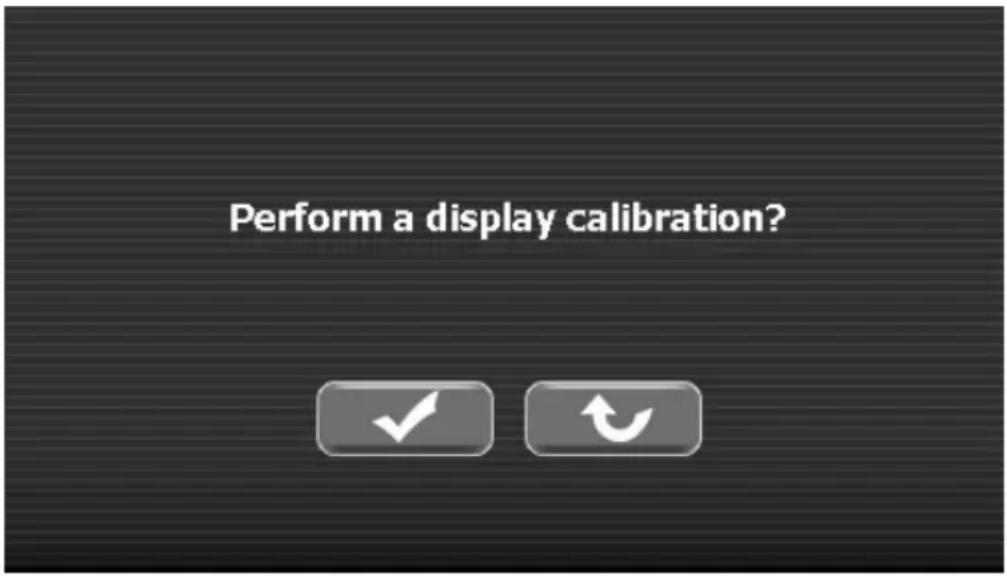
Confirm this prompt to start calibrating.

Starts calibration

Cancels calibration without any changes
In the next windows tap five times onto the centre of the different targets by using the stylus (page 1, item 4).

Follow the instructions until calibration is finished.
Audio Output
You can use the built-in FM transmitter to output the sound on your car radio. The signal quality depends on the car design and the model of the car radio receiver. In some cars some noise can be heard or the reception is interfered with or impossible.
- From the Settings menu, tap the Audio Output button.

The buttons in this menu have the following meaning:
 | Reduce frequency | Tap this button multiple times to reduce the frequency by 0.1 MHz each (hold the button to reduce the frequency in 1-MHz steps). |
 | Increase frequency | Tap this button multiple times to increase the frequency by 0.1 MHz each (hold the button to increase the frequency in 1-MHz steps). |
| 87.50 MHz | Memory preset | Tap on any of the four buttons to tune-in to a previously saved frequency. |
 | On | Tap on this alternating button to enable or disable the FM transmitter. |
 | Off | |
 | Back | Returns to the Settings menu. |
Programming Memory Presets
- Tap the buttons Reduce Frequency or Increase Frequency to select the frequency that you want to save.
- Tap and hold any of the four memory presets for approx. 2 seconds.
- The existing frequency stored in the memory preset will be overwritten and replaced by the new value.
System Information
Here you can look-up information on the software version, the serial number and the memory.
- On the Settings menu tap the button to display the system information.

The icons in this list have the following meaning:
Software version

Serial number

Available space in the internal flash memory

Total capacity of the inserted memory card / free capacity on the inserted memory card
- Tap the button to return to the Settings menu.
Resetting the Device
From the system information display (see the previous page) you can reset the device to its factory-default configuration. The Bluetooth pairing settings and all personal data stored in the internal memory will be kept. All other parameters will be reset.
- On the Settings menu tap the ⓘ button to display the system information.

- Tap the icon to start resetting the device: a safety prompt will appear:

Confirm this prompt to reset the device.
- Resets the device
- Cancels the process without performing any changes (you are returned to the system information display)
After resetting the device, the start screen will appear:


Please note that the display language will be reset too. To change the language, proceed as for the first setup described from page 25.
Language
This menu allows you to select a different display language.
To set the display language, proceed as described for the first-time setup starting from page 25.
Appendix
Connecting to a Computer
You can connect the navigation device to a computer in order to obtain access to the built-in flash memory.
To do this, your computer must run under Windows ® 2000/XP or Windows Vista ® and have a free USB port (USB 1.1 or USB 2.0).

As soon as a connection to the computer is established, the button operation on the device will be locked.
- Power the device on. To do so, use the On/Off button (page 12, item 2).
- Plug the Mini-USB connector of the USB cable (page 1, item 6) into the receptacle (page 12, item 8) of your navigation device.
- Next, plug the other connector of the USB cable into a free USB port on your powered-on computer.
The navigation device will restart. As soon as it has initialised, the message PC <-> PNA will appear and the device will be locked. - The operating system will detect the flash memory of the navigation device as a removable media and will show it under My Computer.
A drive letter will be assigned to the flash memory depending on the computer configuration (see the figure on the following page).
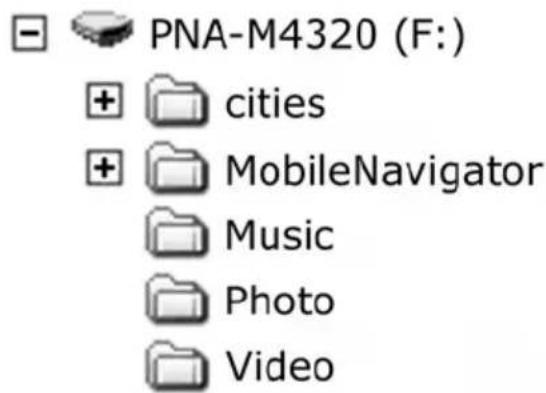
Figure: Drive in My Computer
| cities | ! Maps for navigation |
| MobileNavigator | ! Program files for navigation |
| Music | To save any music files. |
| Photo | To save any picture files |
| Video | To save any video files |
Use the typical copy functions of your computer's operating system to copy, move, delete or rename data in the flash memory. Please note that the flash memory capacity is limited to 2 GB and that most of it is already occupied by the navigations software application.

Do not change the names and contents of the folders cities and MobileNavigator. These folders contain essential data for the proper functioning of the device.
Separate the navigation device from your computer by removing the USB cable between them. The device will restart.
The DVD
By using the supplied DVD you can install any maps as well as read the detailed User's Manual for the navigation software. To do this, insert the DVD into your DVD drive. The following menu should appear automatically:
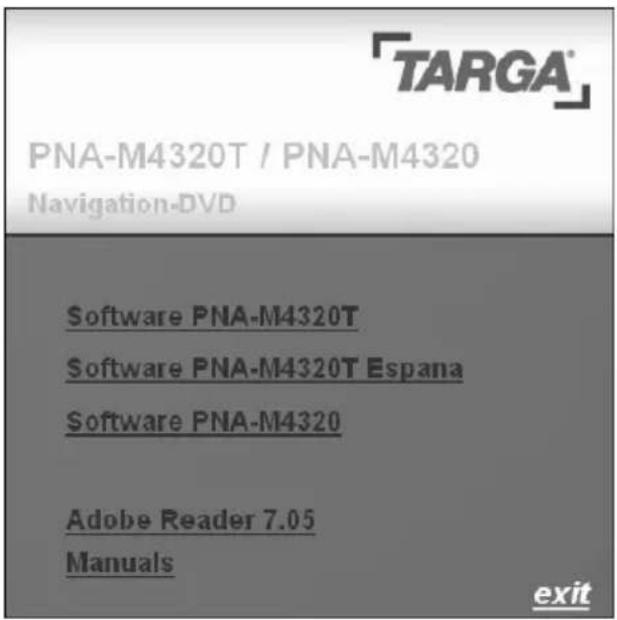

If the autorun function is disabled on your computer, you can launch the setup manually by double-clicking the file "setup.exe" on the DVD.
Installing the Software
Before you can install the software on your navigation device you must connect it to the computer via the USB cable (page 1, item 6).
For more information about connecting to a computer, please see page 115.
- Click oSoftware PNA-M4320 and select the desired language:

- Click OK.
- Continue following the wizard by clicking Next >.
- The software will now search for a memory card or for the navigation device. In this step, removable disk drives such as card readers may be found. After a drive has been found the following message will appear:

Click the Yes button if the displayed drive corresponds to your navigation device.

If your computer features one or more card readers with inserted storage cards, these will also be found. In this case, click No.
- The setup process begins automatically. This process may take a few minutes. A progress bar will inform you of the status of the setup.
- As soon as the installation process is complete a dialog box Finished will appear. Next click the Finish button.
- The DVD main menu will appear. Click Exit to close it. The process has finished.
The User's Manual
To be able to read the navigation software User's Manual you will need Adobe Acrobat Reader®. If you haven't installed this free programme yet, you will have to install it now.
- To do so, click Adobe Reader 7.05.
- Next select the programme setup in your language by clicking the corresponding flag.
- Follow the on-screen instructions.
After Adobe Acrobat Reader ® has been installed or if it was already installed on your computer, click the button Manuals and select the User's Manual in your preferred language by clicking on the corresponding entry. The User's Manual will open in Adobe Acrobat Reader ® .
Map Material
Map material is supplied for the following countries:
| Albania Moldavia | |
| Andorra Monaco | |
| Belarus Montenegro | |
| Belgium Netherlands | |
| Bosnia and Herzegovina Norway | |
| Bulgaria Austria | |
| Denmark Poland | |
| Germany Portugal | |
| Estonia Romania | |
| Finland San Marino | |
| France Sweden | |
| Gibraltar Switzerland | |
| Greece Serbia | |
| Ireland Slovakia | |
| Isle of Man Slovenia | |
| Italy | Spain |
| Croatia (local name: Hrvatska) | Czech Republic |
| Latvia | Turkey |
| Liechtenstein | Ukraine |
| Lithuania Hungary | |
| Luxembourg | Vatican City |
| Macedonia, the former Yugoslav Republic of | United Kingdom |
Technical Specifications
| Navigation Device | |
| Model PNA-M4320 | |
| Processor | Samsung 400 MHz processor |
| Memory | 64MB RAM, 2GB NAND Flash drive |
| Card reader | SD and MMC cards up to 2GB |
| Operating System Microsoft Windows® CE 5.0 Core Version | |
| Colour display | 4.3-inch colour display with 65536 colours |
| GPS Chipset | Sirf Star III |
| Bluetooth Class 2 | |
| USB port USB 1.1 | |
| Audio formats MP3, WMA | |
| Picture formats | JPEG, BMP |
| Video formats | |
| MPEG-1: | Max. resolution: 480x320 at 29 fps |
| MPEG-2: not supported | |
| MPEG-4: | Max. resolution: 320x240 at 30 fps |
| 3GP: | Max. resolution: 352x288 at 60 fps |
| WMV (V9): | Max. resolution: 160x120 at 29 fps |
| Max. output voltage for headphones | 40 mV |
Technical Specifications (continued)
Power adapter
Model Targa KSAA0500100W1UK
| Input | 100-240VAC, 50/60Hz, 0.14A |
| Output 5VDC, 1.0A max. |
Car charger
Model Targa TCP10050BC
| Input 8~24VDC, 0.9A |
| Output 5VDC, 1.0A max. |
| Fuse T2AL / 250V |
Model Targa G12PCL-597
| Input | 10~30 VDC, 0.7 A |
| Output 5VDC, 1.0A max. |
Earphones
| Model FG-E9033 | |
| Nominal voltage 51.5 mV | |
| Impedance | 32 Ohms +/- 15% at 1 kHz |
| Model IEHS2010 | |
| Nominal voltage 160.7 mV | |
| Impedance | 32 Ohms +/- 15% at 1 kHz |
Details of Guarantee
36 month warranty from date of purchase

Ireland 1191515
Important warranty information

Dear Customer,
Thank you for purchasing a TARGA product.
Please carefully read through the enclosed documentation or online help before putting your Targa product into service. If you have a problem, which can't be solved in this way, please contact our hotline.
If the problem cannot be solved over the phone, you will be given a reference number (RMA), which you should enclose together with a copy of the proof of purchase. After you have packaged the unit safe for transport and in plain packaging, please send it for warranty processing, with the RMA noted on the outside of the package, to the address given to you by our hotline employee. After receiving the unit we will correct the manufacturing and material defect free of charge.
Up-to-date information and answers to the most frequently asked questions are available on the internet from:
www.targa-online.com
This guarantee is valid in the Ireland.
Your statutory guarantees from the seller are in addition to this warranty and are not limited by it.

Hotline number: 01-2421583
(Please have your serial number to hand!)
Manufacturer: TARGA GmbH, Postfach 2244,
D-59482 Soest
www.targa-online.com
MAT-No: 1382620
TARGA GmbH
Lange Wende 41
D-59494 Soest
Germany
- Package contents
- Table of Contents
- Package contents .... 1
- Table of Contents.... 2
- Important Safety Instructions.... 6
- Introduction.... 12
- The Main Menu....27
- Navigation 29
- Multimedia....95
- Settings....106
- Appendix 115
- Important Safety Instructions
- Operating Environment
- Always make sure that:
- Power Supply
- Rechargeable Battery
- Cables
- Maintenance and Care
- Kids
- Intended Use
- RF Interface
- Noise Emission Cautions
- Conformity
- Disposal of Old Devices
- Introduction
- Charging the Battery
- Recharging in the Car
- Recharging from a Power Outlet
- Recharging from a Computer
- Car mount
- Connecting the Headphones
- Connecting an External GPS Antenna
- Inserting a Memory Card
- Removing a Memory Card
- Write-Protection
- Powering the Device On/Off
- Daily Use
- Powering Off Completely
- First-Time Setup
- The Main Menu
- Navigation
- Getting started
- Safety precautions
- GPS connection
- Icons
- Simultaneous operation
- Main menu
- Map
- Tracking mode and browsing mode
- Navigation screen
- Main features
- Choosing and finding locations
- Search for an address
- How to search
- Set the country
- Enter a post code
- Search for the city
- Search for the street
- Search for the Street Number
- Navigate to the address found
- Searching for and choosing POIs
- Choosing a POI
- Searching for a POI
- Choosing a location on the map
- Favourites
- Bookmarks
- Recent
- Trips
- Presets
- Navigating
- Browse map during navigation
- Menu options
- List of waypoints
- Save
- Search
- Settings
- Average speed
- Planning a route
- General Settings
- Map settings
- Day / Night Display
- Route options
- Mode of transportation – overview
- Targa Travel Guide
- Launching Targa Travel Guide
- Using an Entry as POI
- Description
- Mobile Phone
- Pairing with a Mobile Phone
- Making a Phone Call
- Receiving a Phone Call
- Phone Book
- Message
- Call History
- File Transfer
- Import phone book automatically
- Keep phone book in memory card
- Import message automatically
- Popup incoming message automatically
- Keep messages in memory card
- Import call history automatically
- Keep call history in memory card
- Hands-free
- Disconnecting the Bluetooth Link
- Multimedia
- Music
- Video
- Photos
- Volume
- Display
- Audio Output
- Programming Memory Presets
- System Information
- Resetting the Device
- Language
- Appendix
- Connecting to a Computer
- The DVD
- Installing the Software
- The User's Manual
- Map Material
- Technical Specifications (continued)
- Details of Guarantee
- month warranty from date of purchase
- Important warranty information
Brand : TARGA
Model : PNA-M4320T
Category : GPS Navigator