
SD2010 - DVD player TOSHIBA - Free user manual and instructions
Find the device manual for free SD2010 TOSHIBA in PDF.


| Product Type | DVD Player |
| Model | SD2010 |
| Brand | Toshiba |
| Dimensions (W x H x D) | 430 x 43 x 209 mm (16.9 x 1.7 x 8.2 inches) |
| Net Weight | 1.48 kg (3.26 lb) |
| Power Supply | 110-240 V AC, 50/60 Hz |
| Power Consumption | 12 W (standby < 1 W) |
| Signal System | PAL / NTSC / Multi |
| Laser Type | Semiconductor laser (657/790 nm) |
| Playable Discs | DVD Video, DVD±R/RW, DVD±R DL, CD, CD-R/RW, Video CD, SVCD, MP3, JPEG, DivX, Kodak Picture CD |
| Video Outputs | Composite (CVBS), SCART, Component (Y, Pb, Pr) |
| Audio Outputs | Analog stereo (L/R), Coaxial digital, SCART audio |
| USB Port | Front USB for MP3, JPEG, DivX playback (FAT12/16/32) |
| Progressive Scan | Supported (P-Scan) via Component output |
| MP3 Converter | Converts Audio CD tracks to MP3 on USB device |
| Parental Control | Rating levels 1-8 with password protection |
| Tray Lock | Lockable via setup (code 2006) |
| Region Code | Check rear panel; compatible with region-coded discs |
| Cleaning | Use microfiber cloth; wipe disc from center to edge. Do not use solvents or cleaning CDs. |
| Safety | Do not open cabinet; laser radiation; refer servicing to qualified personnel. |
| Spare Parts & Repairability | No user-serviceable parts; contact authorized Toshiba service center for repairs. |
Frequently Asked Questions - SD2010 TOSHIBA
User questions about SD2010 TOSHIBA
0 question about this device. Answer the ones you know or ask your own.
Ask a new question about this device
Download the instructions for your DVD player in PDF format for free! Find your manual SD2010 - TOSHIBA and take your electronic device back in hand. On this page are published all the documents necessary for the use of your device. SD2010 by TOSHIBA.
USER MANUAL SD2010 TOSHIBA
natural_image
Front view of a TOSHIBA DVD player interface (no text or symbols on the device body)SAFETY PRECAUTIONS
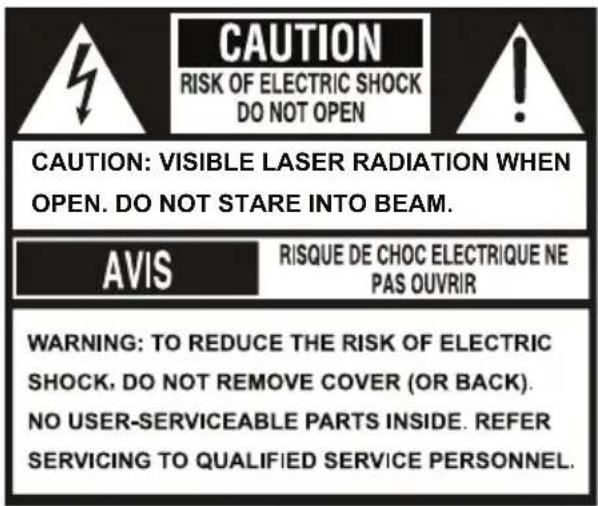

This symbol is intended to alert the user of the presence of uninsulated 'dangerous voltage' within the product's enclosure that may be of sufficient magnitude to constitute a risk of electric shock to people.

the exclamation point within an equilateral triangle is intended to alert the user to the presence of important operating and maintenance (servicing) instructions in the literature accompanying the appliance.

he symbol for CLASS II (Double Insulation)
WARNING:
TO REDUCE THE RISK OF FIRE OR ELECTRIC SHOCK, DO NOT EXPOSE THIS APPLIANCE TO RAIN OR MOISTURE. DANGEROUS HIGH VOLTAGES ARE PRESENT INSIDE THE ENCLOSURE. DO NOT OPEN THE CABINET. REFER SERVICING TO QUALIFIED PERSONNEL ONLY.
CAUTION:
PLEASE READ AND OBSERVE ALL WARNINGS AND INSTRUCTIONS GIVEN IN THIS OWNER'S MANUAL AND THOSE MARKED ON THE UNIT. RETAIN THIS BOOKLET FOR FUTURE REFERENCE.
CAUTION:
USE OF ANY CONTROLS, ADJUSTMENTS, OR PROCEDURES OTHER THAN THOSE SPECIFIED HEREIN MAY RESULT IN HAZARDOUS RADIATION EXPOSURE.
Changes or modifications made to this equipment, not expressly approved by Toshiba, or parties authorized by Toshiba, could void the user's authority to operate the equipment.
IMPORTANT SAFETY INSTRUCTIONS
This unit has been designed and manufactured to assure personal safety. Improper use can result in electric shock or fire hazard. The safeguards incorporated in this unit will protect you if you observe the following procedures for installation, use and servicing. This unit is fully transistorized and does not contain any parts that can be repaired by the user. DO NOT REMOVE THE CABINET COVER, OR YOU MAY BE EXPOSED TO DANGEROUS VOLTAGE. REFER SERVICING TO QUALIFIED SERVICE PERSONNEL ONLY.
- Read these instructions.
- Keep these instructions.
- Read all warnings.
- Follow all instructions.
- Do not use this appliance near water.
- Clean only with dry cloth.
- Do not block any ventilation openings. Install in accordance with the manufacturer's instructions.
- Do not install near any heat sources such as radiators, heat registers, stoves, or other apparatus (including amplifiers) that produce heat.
-
Protect the power cord from being walked on or pinched particularly at plugs, convenience receptacles, and the point where they exit from the apparatus.
-
Only use attachments/accessories specified by the manufacturer.
-
Use only with the cart, stand, tripod, bracket, or table specified by the manufacturer, or sold with the apparatus. When a cart is used, use caution when moving the cart/apparatus combination to avoid injury from tip-over.
-
Unplug this apparatus during lightning storms or when unused for long periods of time.
-
Refer all servicing to qualified service personnel. Servicing is required when the apparatus has been damaged in any way, such as power-supply cord or plug is damaged, liquid has been spilled or objects have fallen into the apparatus, the apparatus has been exposed to rain or moisture, does not operate normally, or has been dropped.
-
Do not overload wall outlets; extension cords, or integral convenience receptacles as this can result in a risk of fire or electric shock.
-
Apparatus shall not be exposed to dripping or splashing and no objects filled with liquids, such as vases, shall be placed on the apparatus.
-
Keep your fingers well clear of the disc tray as it is closing. Neglecting to do so may cause serious personal injury.
-
Do not place a heavy object on or step on the apparatus. The object may fall, causing serious personal injury and serious damage to the apparatus.

- Do not use a cracked, deformed, or repaired disc. These discs are easily broken and may cause serious personal injury and apparatus malfunction.
- If the apparatus should smoke or smell, immediately disconnect the power cord from the wall outlet. Wait until the smoke or smell stops, then ask your dealer for a check and repair. Neglecting to do so may cause fire.
- While it is thundering, do not touch the connecting cables or the apparatus.
SOME DOS AND DON'TS ON THE SAFE USE OF EQUIPMENT
This equipment has been designed and manufactured to meet international safety standards but, like any electrical equipment, care must be taken if you are to obtain the best results and safety is to be assured. So, please read the points below for your own safety. They are of a general nature, intended to help you with all your electronic consumer products and some points may not apply to the goods you have just purchased.
DO read the operating instructions before you attempt to use the equipment.
DO ensure that all electrical connections (including the mains plug, extension leads and inter-connections between the pieces of equipment) are properly made and in accordance with the manufacturer's instructions. Switch off and withdraw the mains plug before making or changing connections.
DO consult your dealer if you are ever in doubt about the installation, operation or safety of your equipment.
DO be careful with glass panels or doors on equipment.
DON'T remove any fixed cover as this may expose dangerous voltages.
DON'T obstruct the ventilation openings of the equipment with items such as newspapers, tablecloths, curtains, etc. Overheating will cause damage and shorten the life of the equipment.
DON'T allow electrical equipment to be exposed to dripping or splashing, or objects filled with liquids, such as vases, to be placed on the equipment.
DON'T place hot objects or naked flame sources such as lighted candles or nightlights on, or close to equipment. High temperatures can melt plastic and lead to fires.
DON'T use makeshift stands and NEVER fix legs with wood screws - to ensure complete safety always fit the manufacturer's approved stand or legs with the fixings provided according to the instructions.
DON'T listen to headphones at high volume, as such use can permanently damage your hearing.
DON'T leave equipment switched on when it is unattended unless it is specifically stated that it is designed for unattended operation or has a stand-by mode. Switch off using the switch on the equipment and make sure that your family know how to do this. Special arrangements may need to be made for infirm or handicapped people.
DON'T continue to operate the equipment if you are in any doubt about it working normally, or if it is damaged in any way - switch off, withdraw the mains plug and consult your dealer.
ABOVE ALL
-NEVER let anyone especially children push anything into holes, slots or any other opening in the case - this could result in a fatal electrical shock;
-NEVER guess or take chances with electrical equipment of any kind
-it is better to be safe than sorry!
CAUTION:
This Digital Video Disc Player employs a Laser System.
To ensure proper use of this product, please read this owner's manual carefully and retain for future reference. Should the unit require maintenance, contact an authorized service location.
Use of controls or adjustments or performance of procedures other than those specified herein may result in hazardous radiation exposure.
To prevent direct exposure to laser beam, do not try to open the enclosure. Visible and invisible laser radiation when open and interlocks defeated.
DO NOT STARE INTO BEAM.
CAUTION: These servicing instructions are for use by qualified service personnel only. To reduce the risk of electric shock do not perform any servicing other than that contained in the operating instructions unless you are qualified to do so.
Be aware that this equipment is still powered when in standby mode. To disconnect this equipment completely from the mains power, pull out the power plug from the wall outlet.
Environmental Information
All unnecessary packaging has been omitted. The packaging has been made easy to separate into three materials; cardboard (box), polystyrene foam (buffer) and polyethylene (bags, protective foam sheet).
Your DVD player consists of materials which can be recycled and reused if disassembled by a specialised company. Please observe the local regulations regarding the disposal of packaging materials, exhausted batteries and old equipment.
LASER
Type Semiconductor laser InGaAlP(DVD) AlGaAs(CD)
Wave length 657 nm(DVD) 790 nm(CD)
Output Power 5.5 mW(DVD) 7.0 mW(VCD/CD)
Beam divergence 60 degrees
Where the MAINS plug or an appliance coupler is used as the disconnect device, the disconnect device shall remain readily operable.
In the spaces provided below, record the Model and Serial No. located on the rear panel of your DVD video player. Model No. Serial No.
Retain this information for future reference.

WARNING: RISK OF ELECTRIC SHOCK!

Never attempt to service this product yourself.
Opening and removing the covers may expose you to dangerous voltage or other hazards. Failure to follow this WARNING may result in death or serious injury. Refer all servicing not specified in this manual to a Toshiba Authorized Service Center.
Setup
Finding a suitable location
-Place the set on a flat, hard and stable surface.
-Do not place the set on a carpet.
-Do not position the set on top of other equipment that might heat it up (e.g., receiver or amplifier).
-Do not put anything under the set (e.g.CDs, magazines).
-Install this unit near the AC outlet and where the AC power plug can be reached easily.
Space for ventilation
-Place the apparatus in a location with adequate ventilation to prevent internal heat build up. Allow at least 10 cm (4.0") clearance from the rear and the top of the set and 5 cm (2.0") from the left and right to prevent overheating.

Avoid high temperatures, moisture, water and dust
-Apparatus shall not be exposed to dripping or splashing.
-Do not place any sources of danger on the apparatus (e.g., liquid filled objects, lighted candles).
Cleaning discs
Some problems occur because the disc inside the system is dirty (frozen picture, sound disruptions, picture distortions). To avoid these problems, discs should be cleaned on a regular basis.
To clean a disc, use a micro fibre cleaning cloth and wipe the disc from the center to the edge in a straight line. Do not touch the playback side of the disc.

natural_image
Hand pressing a circular component on a baseplate (no text or symbols visible)
natural_image
Illustration of a hand holding a CD or DVD disc, no text or symbols presentCAUTION!
Do not use solvents such as benzene, thinner, commercially available cleaners, or anti-static sprays intended for analog discs. Since the optical unit (laser) of the DVD system operates at a higher power than regular DVD or CD players, cleaning CDs intended for DVD or CD players may damage the optical unit (laser). Therefore, refrain from using a cleaning CD.
Moisture Condensation
Moisture condensation damages the DVD player. Please read the following carefully. Moisture condensation occurs, for example, when you pour a cold drink into a glass on a warm day. Drops of water form on the outside of the glass. In the same way, moisture may condense on the optical pick-up lens inside this unit, one of the most crucial internal parts of the DVD player.
If you use the DVD player in such a situation, it may damage discs and internal parts. Remove the disc, connect the power cord of the DVD player to the wall outlet, turn on the DVD player, and leave it for two or three hours. After two or three hours, the DVD player will have warmed up and evaporated any moisture. Keep the DVD player connected to the wall outlet and moisture condensation will seldom occur.
Region Codes
This DVD player is designed to support the Region Management System. Check the regional code number on the disc package. If the number does not match the player's region number (see table on page 5), the player may be unable to playback the disc.
Tips:
-It may not be possible to play CD-R/RW, DVD #R/RW, or DVD#R DL in all cases due to the type of disc or condition of the recording. -If you are having trouble playing a certain disc, remove the disc and try a different one. Improperly formatted disc will not play on this DVD Player.
| Region | Discs that can be played | |
| U.S.A. and Canada regions |  |  |
| U.K., Europe regions and Japan |  |  |
| Asia Pacific, Taiwan, Korea |  |  |
| Australia, New Zealand, Latin America |  |  |
| Russia and India regions |  |  |
| China, Calcos Islands, Walls and Futuna Islands |  |  |
This item incorporates copy protection technology that is protected by U.S. patents and other intellectual property rights of Rovi Corporation. Reverse engineering and disassembly are prohibited.
Notes on copyright
The unauthorized recording, use, distribution, or revision of television programs, videotapes, DVDs and other materials, is prohibited under the Copyright Laws of the United States and other countries, and may subject you to civil and/or criminal liability.
DivX® is a registered trademark of DivX, Inc., and is used under license.
Manufactured under license from Dolby Laboratories, Dolby and the double-D symbol are trademarks of Dolby Laboratories.
Manufactured under license under U.S. Patent #: 5,451,942 & other U.S. and worldwide patents issued & pending. DTS and the Symbol are registered trademarks and DTS Digital Out and the DTS logos are trademarks of DTS, Inc. Product includes software. © DTS, Inc. All Rights Reserved.
EU Conformity Statement
CE
"This product is marked with "CE" and complies therefore with the applicable harmonized European standards listed under the Low Voltage Directive 2006/95/EC and the EMC Directive 2004/108/EC."
Responsible for CE-marking is TOSHIBA INFORMATION SYSTEMS (U.K.) LTD, Toshiba Court, Weybridge Business Park, Addlestone Road, Weybridge,Surrey, KT15 2UL, United Kingdom.

Following information is only for EU-member States:
The use of the symbol indicates that this product may not be treated as household waste. By ensuring this product is disposed of correctly, you will help prevent potential negative consequences for the environment and human health, which could otherwise be caused by inappropriate waste handling of this product. For more detailed information about recycling of this product, please contact your local city office, your household waste disposal service or the shop where you purchased the product.

Following information is only valid EU-member States:
Disposal of batteries and/or accumulators
The crossed out wheeled dust bin symbol indicates that batteries and/or accumulators must be collected and disposed of separately from household waste.
If the battery or accumulator contains more than the specified values of lead (Pb), mercury (Hg), and/or cadmium (Cd) defined in the Battery Directive (2006/66/EC), then the chemical symbols for lead (Pb), mercury (Hg) and/or cadmium (Cd) will appear below the crossed out wheeled dust bin symbol.
By participating in separate collection of batteries, you will help to assure the proper disposal of products and batteries and thus help to prevent potential negative consequences for the environment and human health.
For more detailed information about the collection and recycling programmes available in your country, please contact your local city office or the shop where you purchased the product.
In conformity with the EEE Regulation
Table of Contents
Introduction
| SAFETY PRECAUTIONS | 1 | |
| IMPORTANT SAFETY INSTRUCTIONS | 1-3 | |
| Setup | 4 | |
| Cleaning discs | 4 | |
| Moisture Condensation | 4 | |
| Region Codes | 4-5 | |
| Table of Contents | 6 | |
Connections
| Connecting to television | 7 | |
| Connecting to a Stereo System | 8 | |
| Connecting to a Digital AV Receiver | 8 | |
| Connecting the power cord | 9 |
Product Overview
| Front and Rear panels | 10 |
| Remote Control | 11 |
Getting Started
| Inserting Batteries | 12 | |
| Finding your viewing channel | 12 | |
| Setting up Progressive Scan feature | 12-13 | |
| Setting the language | 13 | |
Playback from Disc
| Playable discs | 13-14 |
Playback Feature
| Starting disc playback | 14 | |
| Basic playback control | 14-15 | |
| Operations for video playback (DVD/VCD/SVCD) | 15 | |
| Selecting various repeat functions | 15-16 | |
| Viewing the disc playback Information | 16 | |
| Special DVD Features | 16 | |
| Special VCD and SVCD Features | 16-17 | |
| Playing a DivX Disc | 17 | |
| Playing MP3/JPEG/Kodak picture CD | 17-18 | |
| MP3 Converter | 18-19 | |
| Playing USB Flash Memory | 19 | |
DVD Menu Options
| Using the Language setup menu | 19-20 |
| Using the Video setup menu | 20-21 |
| Using the Audio setup menu | 21-22 |
| Using the Rating setup menu | 22 |
| Using the Misc (Miscellaneous) setup menu | 23 |
| Tray Lock | 23 |
Others
| Specifications | 24 | |
| Troubleshooting | 25-26 | |
| Glossary | 27 |
Connecting to television
IMPORTANT!
- You only need to make one video connection from the following options, depending on the capabilities of your television.
- Connect the DVD player directly to the television.
Using SCART socket

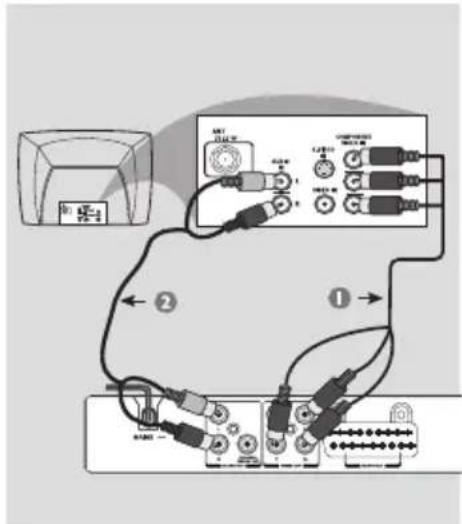
① Use the scart cable to connect the DVD SCART OUT to the corresponding scart input socket on the TV (cable not supplied).
If your DVD player will not be connected to a Stereo System or AV Receiver to hear better sound, scart is enough for both audio and video connections.
Using Composite Video Jack(CVBS)

Use the composite video cable (yellow) to connect the DVD player's VIDEO (CVBS) jack to the video input jack (or labelled as A/V in, Video In or Composite) on the TV (cable not supplied).
To hear the sound of this DVD player through your TV, use the audio cables (white/red) to connect AUDIO OUT (L/R) jacks of the DVD player to corresponding AUDIO IN jacks on the TV (cable not supplied).
Using Component Video Jacks(Y, PB, PR)
IMPORTANT!
-The progressive scan video quality is only possible when using Y, PB, PR and a progressive scan TV is required.
Use the component video cables (green/blue/red) to connect the DVD player's Y, Pb, Pr jacks to the corresponding Component video input jacks (or labelled as Y, Pb, Pr) on the TV (cable not supplied).
② Use the audio cables (white/red) to connect AUDIO OUT (L/R) jacks of the DVD player to the corresponding AUDIO IN jacks on the TV (cable not supplied).
③ Proceed to page 12 for detailed Progressive Scan set up.
Helpful hint: Before making or changing any connections, make sure that all the devices are disconnected from the power outlet.
Connecting to a Stereo System
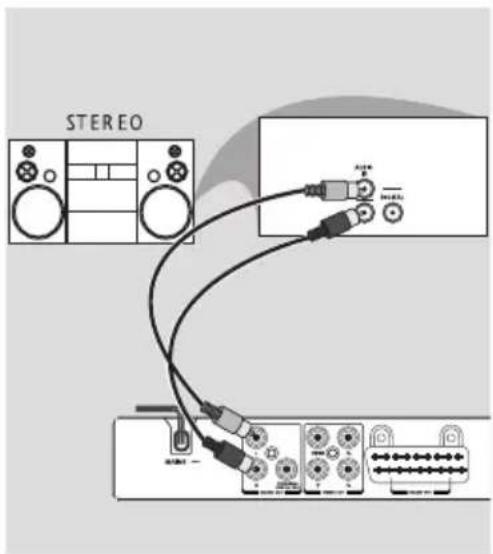
Stereo System with Left/Right Audio In Jacks
① Select one of the video connections (CVBS VIDEO IN, SCART IN or COMPONENT VIDEO IN) depending on the options available on your TV.
② Use the audio cables (white/red) to connect AUDIO OUT (L/R) jacks of the DVD Player to the corresponding AUDIO IN jacks on the stereo system (cable not supplied).
Connecting to a Digital AV Receiver

Receiver has a PCM, Dolby Digital or MPEG decoder
① Select one of the video connections (CVBS VIDEO IN, SCART IN or COMPONENT VIDEO IN) depending on the options available on your TV.
2 Connect the COAXIAL jack of the DVD player to the corresponding Digital Audio In jack on your Receiver (cable not supplied).
3 Set the DVD Player's Digital Output to PCM or All depending on the capabilities of your Receiver (see page 21 {Digital Output}).
Tip:
-If the audio format of the Digital Output does not match the capabilities of your receiver, the receiver will produce a strong, distorted sound or no sound at all.
Connecting the power cord

After everything is connected properly, plug in the AC power cord to the power outlet.
Never make or change any connections with the power switched on.
Front and Rear panels
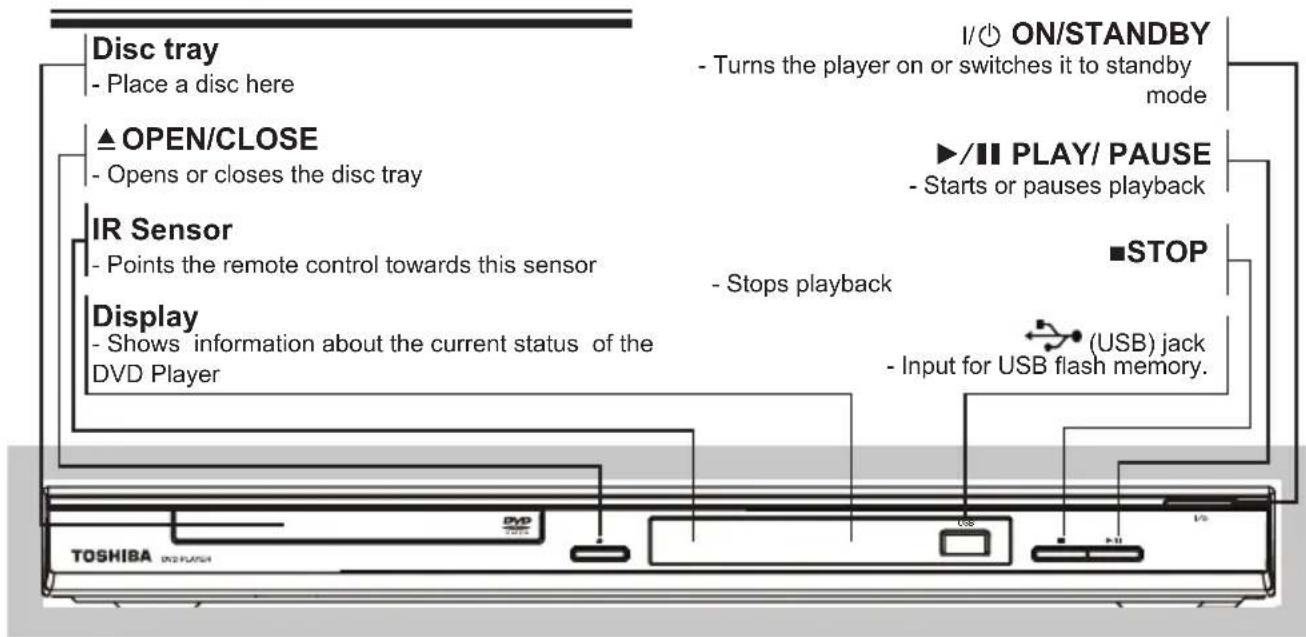

DVD display
The indicators vary depending on the kinds of disc you play.

Multifunctional indicator (indicates operating status or messages, etc.)
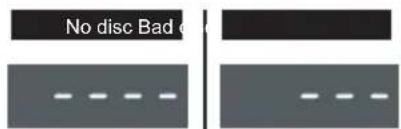
●"----" may also appear in other situation.
DVD video disc
•During playback: Example

The elapsed time will be displayed.
VIDEO CD Aud
•During playback: Example

The elapsed time will be displayed.
CD
- During playback: Example
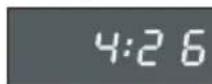
The elapsed time will be displayed.
Power Off Load

Open



Remote Control
See the page in [ ] for details.
![[16] DISPLAY -Displays information on TV screen during playback [14]OPEN/CLOSE -Open/close the disc tray [15, 16, 22]Number Buttons -Selects numbered items in a menu -Press to enter track/chapter/title numbers or password directly [15]+10 button -Press to enter number greater than 9 -Press +10 button repeatedly to select 10,20,30...etc [15, 16]MENU -Enters or exits the disc menu -Switches on or off the Playback Control (PBC) mode (for VCD 2.0 / SVCD only) [13]OK -Acknowledge menu selection [17]RETURN -To go back to previous menu [16, 18]TITLE -Show title menu -Press to view a page of 9 thumbnail images during JPEG playback [15]F.R & F.F -Do a forward/reverse search [14, 16, 17]PREV & NEXT -Skip to previous / next chapter /track [15]REPEAT -Selects various repeat mode [16]A-B -Repeats playback from point A to B on a disc [15]SLOW -Do a slow forward [15]CLEAR -Delete the mistyped entries or cancel some functions REMOTE SIGNAL EMITTER [12] -Point remote control to the sensor on the front panel ON / STANDBY[ 12, 14 ] -To switch the DVD player to ON or standby mode T - SEARCH[ 16 ] -Start playback from a designated point SETUP[ 12, 19 ] -Enters or exits the system setup menu ◀ ▶ ▲ ▼ [ 15, 17, 18 ] -Cursor buttons for moving to the left / right / up / down -To rotate the JPEG picture during playback STEP -Play video frame by frame PLAY/PAUSE▶[ 14, 15 ] -Starts or pauses playback STOP ■[ 15 ] -Stops play SUBTITLE[ 16 ] -To access subtitle language ANGLE[ 16 ] -Switch the camera angle during playback AUDIO[ 16 ] -Selects an audio setting (DVD) or an audio channel (VCD) ZOOM[ 15, 18 ] -Enlarge a picture on the TV RANDOM [ 17 ] -Toggles between Normal and Random playback PROG[ 15 ] -To program playback or cancel the program playback USB[ 19 ] -To call up the DISC/USB mode selection menu.](/content/2026/06/1241741/images/08f7ece1fc232cf8c69e083e5acf27583c5c31c99a1073033b44a8744e7a4813.jpg)
Inserting Batteries

natural_image
Line drawing of a flatboard with a handle and arrow indicating rotation (no text or symbols)① Open the battery compartment.
② Insert two batteries type R03 or AAA, following the indications (+ / - ) inside the compartment.
3 Close the cover.
CAUTION:
- Never throw batteries into a fire.
- The batteries shall not be exposed to excessive heat such as sunshine, fire or the like.
Note:
- Be sure to use AAA size batteries.
- Dispose of batteries in a designated disposal area.
- Batteries should always be disposed of with the environment in mind. Always dispose of batteries in accordance with applicable laws and regulations.
-
If the remote control does not operate correctly, or if the operating range becomes reduced, replace batteries with new ones.
-
When necessary to replace batteries in the remote control, always replace both batteries with new ones. Never mix battery types or use new and used batteries in combination.
- Always remove batteries from remote control if they are dead or if the remote control is not to be used for an extended period of time. This will prevent battery acid from leaking into the battery compartment.
Using the Remote Control to Operate the System

① Aim the Remote Control directly at the remote sensor (IR) on the front panel.
② Do not put any objects between the Remote Control and DVD Player while operating the DVD Player.
Finding your viewing channel
1 Press I/ON/STANDBY on the DVD player to turn it on.
② Turn on the TV and set it to the correct Video-In channel. You should see the blue DVD background screen.
→Usually these channels are between the lowest and highest channels and may be called FRONT, A/V IN or VIDEO. See your TV's manual for more details.
→Or, you may go to channel 1 on your TV, then press the Channel down button repeatedly until you see the Video In channel.
→Or, the TV remote control may have a button that chooses different video modes.
3 If you are using external equipment, (such as audio system or receiver), turn it on and select the appropriate input source for the DVD player output. Refer to the equipment user's manual for detail.
Setting up Progressive Scan feature
(For Progressive Scan TV only)
The progressive scan display twice the number of frames per seconds than interlaced scanning (ordinary normal TV system). With nearly double the number of lines, progressive scan offers higher picture resolution and quality.
Before you start...
-Ensure that you have connected this DVD player to a progressive scan TV using the Y, PB, PR connection (see page 7).
-Ensure that you have completed the basic installation and set up.
① Turn on your TV and select the video input connected to the DVD player (refer to your TV user manual).
② Press ⏻ON/STANDBY on the remote control to turn on the DVD player.
→The blue DVD background screen will appear on the TV.
③ Press SETUP.
4 Press ▲/▼ to select { Video }, then press ▶.

5 Press ▲/▼ to select { Video Out }, then press ▶.
6 Select { P- Scan }, then press OK to confirm.
→The menu will appear on the TV.
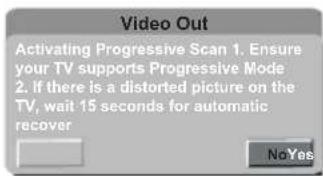
7 Press ◀ to highlight { Yes } and press OK to confirm. → The reconfirmation menu will appear on the TV.

8 Press ◀ to highlight { Yes } and press OK to confirm.
→ The setup is now completed and you can start enjoying the high quality picture.
To deactivate Progressive Scan manually:
① Wait for 15 seconds for the auto recovery.
OR
1 Press OPEN/CLOSE ▲ on the DVD player to open the disc tray.
② Press number button '1' on the remote control for a few seconds.
→The DVD background screen appears.
Tip:
-There are some progressive scan TVs and High-Definition TVs that are not fully compatible with this unit, resulting in the unnatural picture when playing back a DVD VIDEO disc in the progressive scan mode. In such a case, turn off the progressive scan feature on both the DVD player and your TV.
Setting the language
Choose your desired On-Screen Display(OSD)language where available.
On-Screen Display (OSD) Language
The On-screen language for the system setup menu will remain as you set it, regardless of various disc languages.

1 Press SETUP.
2 Press ▲/▼ to select { Language }.
3 Press ▶ to highlight { OSD language }, then press ▶.
4 Press ▲/▼ to select a language and press OK to confirm.
Subtitle, DivX Subtitle, Audio and DVD Menu language
You can choose your own preferred language or soundtrack from Subtitle, DivX Subtitle, Audio and DVD Menu languages. If the language selected is not available on the disc, the disc's default language will be used instead.
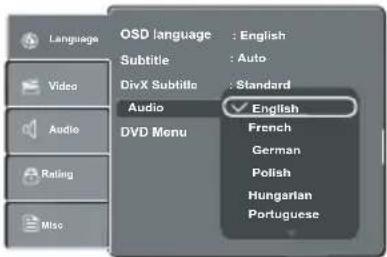
1 Press SETUP.
② Press ▲/▼ to select { Language }, then press ▶.
3 Press ▲/▼ to highlight one of the options below, then press ▶.
{ Subtitle }
Select this to change the subtitle language.
{ DivX Subtitle }
Select this to change the DivX subtitle language. {Audio}
Select this to change the disc soundtrack language. { DVD Menu }
Select this to change the language of the disc menu.
4 Use ▲/▼ to select a language and press OK to confirm.
5 Repeat steps 3 - 4 for other language settings.
IMPORTANT!
- DVD discs and players are designed with regional restrictions. Before playing a disc, make sure the disc is for the same zone as your player.
- If 'appears on the TV screen when a button is pressed, it means the function is not available on the current disc or at the current time.
playable discs
Using this DVD player, you can playback on the following discs. Some of these discs may be incompatible.
DVD Video disc(Digital Versatile Disc)
DVD±R/RW (DVD Recordable / Rewritable), DVD±R DL (Dual layer) of DVD Video format or Audio/Video formats (e.g., MP3, JPEG and DivX® files).
CD-R (CD-Recordable)
Audio/Video formats (e.g., MP3, JPEG and DivX ® files).
CD-RW (CD-Rewritable)
Audio/Video formats (e.g., MP3, JPEG and DivX ® files).
Audio CD (Compact Disc
Digital Audio)
Video CD
(Formats 1.0, 1.1, 2.0)





Super Video CD

MP3-Disc

DVD is a trademark of DVD Format/Logo Licensing Corporation.
Because of problems and errors that can occur during the creation of DVD and CD software and/or the manufacture of DVD and CD discs, Toshiba cannot assure that this DVD player will successfully play every disc bearing the DVD and CD logos. If you happen to experience any difficulty playing a DVD and/or CD disc on this DVD player, please contact Toshiba Customer Service.
This DVD player requires discs/recordings to meet certain technical standards in order to achieve optimal playback quality. There are many different types of recordable disc formats (including CD-R containing MP3 files). Not all recordable discs will operate or produce optimal playback quality. The technical criteria set forth in this owner's manual are meant only as a guide. Use of CD-RW for MP3 files is not recommended.
You must obtain any required permission from copyright owners to download or use copyrighted content. Toshiba cannot and does not grant such permission.
Tip:
- MPEG Layer-3 audio coding technology licensed from Fraunhofer IIS and Thomson.
Supported Formats
MP3 tracks
-The file extensions have to be '.mp3'.
-ISO format.
-Maximum 8 characters display for folder name.
-Maximum 15 characters display for file name.
-Supported sampling frequencies & corresponding bit-rates;
32kHz, 64-320 kbps
44.1kHz, 48kHz 80-320 kbps
JPEG/Pictures
-The file extensions have to be '.JPG' or '.JPEG'.
-JPEG/ISO format.
-Maximum of 5760×3840 resolution can be supported.
-Maximum file size: 5 Mbytes.
-Maximum of 500 files and 200 folders are supported.
-When the number of files(or folders) reaches the maximum limit, the rest of the files(or folders) cannot be displayed.
-It can only display DCF-standard still pictures or JPEG pictures such as TIFF.
DivX®
-The file extensions have to be '.DIVX', '.XVID' or '.AVI'.
-DivXD8X1, 4.x, 5.x and 6.0.
-Q-pel accurate motion compensation.
Global Motion Compensation (GMC) playback.
-DivX® Certified to play DivX® video, including premium content.
-ABOUT DIVX VIDEO:
DivX ® is a digital video format created by DivX, Inc. This is an official DivX Certified device that plays DivX video. Visit www.divx.com for more information and software tools to convert your files into DivX video. -ABOUT DIVX VIDEO-ON-DEMAND:
This DivX Certified ® device must be registered in order to play DivX Video-on-Demand (VOD) content. To generate the registration code, locate the DivX VOD section in the device setup menu. Go to vod.divx.com with this code to complete the registration process and learn more about DivX VOD. Tips:
– Maximum 100 sessions for CD and 10 multi border for DVD are supported.
- For DVD-R and DVD-RW multi border, only finalized disc can be supported.
- For DVD+R and DVD+RW multi border, both finalized and unfinalized disc cannot be supported.
Starting disc playback
1 Turn on the TV and select the video input connected to the DVD player.
② Press ⏻ON/STANDBY to turn on the DVD player.
③ Press OPEN/CLOSE to open the disc tray.
4 Place a disc onto the disc tray with the label facing up, then press OPEN/CLOSE.
→For double-sided discs, load the side which you want to play facing up.
5 Playback may start automatically. If not, press PLAY/PAUSE ▶II
→If a disc menu appears on the TV, see page 15 'Using the disc menu'.
→If the parental control was activated for the inserted disc, you have to enter your four-digit password, see page 22.
→For more playback features, see pages 14 - 19.
Tips:
- Do not overturn the DVD player while disc loading, playing or ejecting.
- Do not close the disc tray manually if the power is switched off.
Basic playback control
Unless otherwise stated, all operations described are based on Remote Control use.
Pausing playback
① During playback, press PLAY/PAUSE ▶ pause playback and display a still picture.
→Sound will be muted.
② To resume normal playback, press PLAY/PAUSE again.
Skipping chapter/track
- Press PREV / NEXT to go to the previous or next chapter/track during playback.
→When PREV pressed after the 5 seconds of playback, playback will start from the beginning of the current chapter/track. If you press the button within the 5 seconds, playback will start from the
Helpful hint: Some discs cannot be played on this DVD player due to the configuration and characteristics of the disc, or due to the condition of recording and authorizing software.
beginning of the preceding chapter/track.
- Press DISPLAY to display the disc
information for title/chapter/track.
- Use Number buttons to enter valid chapter / track number directly. For the track/chapter numbers which are greater than "9", use "+10" button. Each press increases the number by 10. Then press the second digit of track/Chapter number.
→The playback skips to the selected chapter / track. Tip:
- For VCD 2.0 / SVCD discs, accessing tracks using number buttons is not possible if the PBC mode is turned on.
Stopping playback
① During playback, press STOP ■.
- The DVD player memorises the stopped point. Press PLAY/ PAUSE ▶ resume playback from the location where you stopped playback. - If you press STOP ■ again, the DVD player will cancel the resume function.
Tips:
- Screen saver will start automatically if the disc playback is stopped for about 2 minutes.
- The player will automatically switch to Power Standby mode if you do not press any buttons for about 22 minutes after the disc has stopped playing.
Program playback
During playback, press PROG, then the OSD will appear as below:
For VCD:

For DVD:

1 Use the ▲/▼ and OK button to select your desired title/chapter/track in the list.
② When you have finished programming, press ▶ to move the cursor to the 'Play', then press the OK button or directly press PLAY/PAUSE ▶ button to start the program playback.
③ Press CLEAR or select 'Clear' to delete one by one from last chosen track / title /chapter or select 'Clear All' to clear all the programmed tracks/titles/chapters.
4 Press STOP twice to cancel program playback.
Operations for video playback (DVD/VCD/SVCD)
Using the disc menu
Depending on the disc, a menu may appear on the TV screen once you load in the disc.
To select a playback feature or item
- Use ◀/▶/▲/▼ or number buttons on the remote control, then press OK to start playback.
To access or remove the menu.
- Press MENU on the remote control.
Zooming In
This function allows you to enlarge the picture on the TV screen and to pan through the enlarged picture.
During playback, press ZOOM repeatedly to display the picture with different scales.
- Use ◀/▶/▲/▼ to pan through the enlarged picture.
- Playback will continue.
2 Press ZOOM repeatedly to return to the original size.
Slow Motion
① Press SLOW during playback to select the required speed: 1/2, 1/4, 1/8 (forward only).
→Sound will be muted.
2 To return to normal speed, press PLAY/ PAUSE▶II.
Forward/ Reverse Searching
You can fast forward or fast reverse a disc during playback and select a desired search speed.
During playback, press F.R/ F.F to select the required speed: X2, X8, X30, X100(backward or forward).
→Sound will be muted (DVD/VCD/SVCD/MP3) or intermittent (CD).
② To return to normal speed, press PLAY / PAUSE ▶.II
Selecting various repeat functions
Repeat play mode
The repeat play options vary depending on the disc type.
1 While playing a disc, press REPEAT repeatedly to choose a repeat option.
For DVD
-Repeat Chapter (currently playing chapter)
-Repeat Title (currently playing title)
-Off (cancel)
For Video CD, Audio CD
-Repeat Single (currently playing track)
-Repeat All (entire disc)
-Off (cancel)
For MP3, JPEG
-Repeat Single (currently playing file)
-Repeat All (current folder)
-Off (cancel)
Tip:
-For VCD2.0/SVCD discs, repeat playback is not possible if the PBC mode is turned on.
Repeating a section within a title/track
You can repeat the playback of a specific segment within a title or track. To do this, you must mark the start and end of the segment you want.
1 While playing a disc, press A - B at your chosen starting point.
② Press A - B again at your chosen end point.
→ The section will now repeat continuously.
③ To exit the sequence, press A - B.
Viewing the disc playback Information
You can view the disc information (such as current title/chapter/track number, total playing time or remaining time on the disc) without interrupting the disc playback.
During playback, press DISPLAY repeatedly on the remote control.
→The available disc information appears on the TV screen with the following sequence.
| DVD Video | (DVD) | ||
| Time | |||
| Time 00 | :03:33/01:24:46 | (DVD) | |
Title
| Title 1/1 | (DVD) |
Chapter
| Chapter 2/8 | (DVD) |
Audio
| Audio 1/1 | 5.1Ch Eng | (DVD) |
Subtitle
| Subtitle | 1/8 | Eng | (DVD) |
Angle
| Angle 1/4 | (DVD) |
| VCD2.0 | (VCD) | |
| Time | ||
| Time | 00:03:33/00:05:00 | (VCD) |
Track
| Track 3/24 | (VCD PBC OFF) |
| OR |
Time
| Time | 00:03:33/00:05:00 | (VCD PBC ON) |
| PBC On | (VCD PBC ON) |
| DivX 3.11 | (DivX®) |
Time
| Time | 00:01:33/02:05:00 | (DivX®) |
Track
| Track 1/2 | (DivX®) |
| Audio | |
| Audio 1/1 MP3 2 Ch | (DivX®) |
| Subtitle | |
| Subtitle Off | (DivX®) |
Title/Chapter/Track/Time selection
1 Press T-SEARCH, then press ▲/▼ to select {Time}, {Title}, {Chapter} or {Track}.
For VCD :
| PBC OFF | |
| Track | --- |
| Time | ---- (desired time of the current track) |
| Disc Time | ---- (desired time of the disc) |
For DVD:
| Title | --- | |
| Chapter | --- | |
| Time | --:--:-- | (desired time of the disc) |
② Use the number buttons (0-9) to input a valid number or time("0" cannot be input as the first number). (This function only apply to DVD/VCD/CD/SVCD.)
③ Press OK to confirm.
→The playback skips to the selected title/chapter/track/time.
Angle
- When {Angle} information appears on the screen, press ANGLE button on the remote control repeatedly to switch between different angles.
→Playback will go to the selected angle.
Special DVD Features
Playing a Title
1 Press TITLE.
→The disc title menu appears on the TV screen.
② Use ◀/▶/▲/▼ or number buttons (0-9) to select a play option.
3 Press OK to confirm.
Changing the Audio Language
For DVD :
Press AUDIO repeatedly to select different audio languages.
Changing the Audio Channel
For VCD :
- Press AUDIO to select the available audio channels provided by the disc (Left, Right, Mix, Stereo).
Subtitles
- Press SUBTITLE repeatedly to select different subtitle languages.
Special VCD and SVCD Features
For VCD with Playback Control (PBC) feature (version 2.0 only)
- Press MENU to toggle between 'PBC On' and 'PBC Off'.
→If you select 'PBC On', the disc menu (if available) will appear on the TV.
→Use the number buttons (0-9) to select a play option.
- Press PREV | ◀◀ / NEXT ▶▶ to go to the previous or next track.
→When PREV is pressed after the 5 seconds of playback, playback will start from the beginning of the current track. If you press the button within the 5 seconds, playback will start from the beginning of the preceding track.
●During playback, pressing RETURN will return to the menu screen (if PBC is on).
If you want to skip the index menu and playback directly from the beginning.
- Press MENU on the remote control to turn the PBC off.
Playing a DivX® Disc
This DVD player supports the DivX ® movie playback that you download from your computer onto a CD-R/RW or DVD±R/RW (see pages 13-14 for more information).
1 Load a DivX ® disc.
The data disc menu appears on the TV screen.
② Press ▲/▼ to select the folder and press OK to open the folder.
3 Press ▲/▼ to select a file.
4 Press OK to confirm.
- Press SUBTITLE on the remote control will turn on or off the subtitle.
- If multilingual subtitles are embedded on the DivX® disc, pressing SUBTITLE will change the subtitle language during playback.
Tips:
- Subtitle files with the following filename extensions (.srt, .smi, .sub, .ssa, .txt, .ass) are supported but do not appear on the file navigation menu.
- The subtitle filename (.sub) has to be saved under the same filename as the movie (.avi) in the same folder.
[For example, Folder A: abc.avi and abc.sub]
Playing MP3/JPEG/ Kodak picture CD
IMPORTANT!
You have to turn on your TV and set to the correct Video In channel. (See page 12, 'Finding your viewing channel').
General Operation
1 Load a disc.
→The disc reading time may exceed 30 seconds due to the complexity of the directory/file configuration.
→The data disc menu and ID3 (MP3) information (including at least title, singer and album) appears on the TV screen.
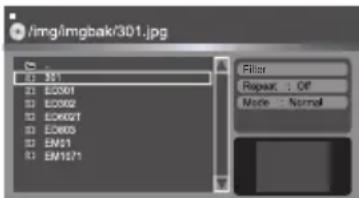
② Press ▲ / ▼ to select the folder and press OK to open the folder.
3 Press ▲ / ▼ to select a track/file.
4 Press OK to confirm.
Tips:
- If you highlight on a jpeg file, a preview will appear.
- During MP3 playback, the LED will display the elapsed time of the current playback.
- During JPEG playback, the LED will display the file number.
Playback Selection
During playback, you can;
- Press PREV I:NEXT to select the previous/next track/file in the current folder.
- Press PLAY/PAUSE ▶ repeatedly to pause/resume playback.
For MP3
- Within the first 5 seconds, press PREVI◀◀ to go back to the previous track.
●After the first 5 seconds of playback, press PREV to go back to the beginning of current track. - During playback, press ◀◀ /▶▶ to access fast forward or fast reverse with the required speed: X2, X8, X30, X100.
Play modes for DivX® /MP3/Audio CD/JPEG
You are able to modify the play modes through the toolkit which appears on the right of below picture on the screen. Press ◀ / ▶ to navigate between the windows and ▲ / ▼ buttons to select files/ tracks or play mode items. Then press OK . Please refer to below steps to playback files /tracks in the Program View list:
1 Select Edit Mode in the toolkit then press OK to start edit mode.
2 Select a file/track or more files/tracks you want in the original view list.
3 Select Add To Program in the toolkit then press OK. '√' will disappear from screen. It means that the files/tracks you have selected already added into the Program View list.
④ Select Program View in the toolkit then press OK to open the file/track in the Program View list that you already selected in step ②.
5 Press PLAY / PAUSE ▶ to playback all files/tracks in the Program View list.
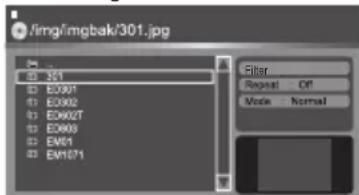
The Toolkit has the following play mode items:
- Filter (Audio/Photo/Video): Sets file filters (Filter is not applicable to Audio CD.)
- Repeat (Off/Single/ All):
Off: Resumes normal playback
Single: Repeats the current track/file.
All: Repeats all files on the current folder or all tracks on the disc.
● Mode(Normal/Random)
This mode can also be toggled by using RANDOM button.
Normal: Resumes normal playback
Random: Playbacks track/file in random order.
→During MP3/CD-DA/JPEG /DivX® files playback; - If Repeat All (or Repeat Off) and Random are selected, all the tracks will be played randomly and endlessly.
- If Repeat Single is selected, Random cannot be
selected and vice versa..
- Edit Mode: Program operation works only when Edit Mode is selected. After finished storing the files/tracks you want into the Program View list, select "Edit Mode" again and press OK to release edit mode.
- Program View: To view tracks/files in the Program View list. It is disabled if the Program View list is empty.
- Add To Program: Add files/tracks to the Program View list. It is disabled if Edit Mode is not selected. (The maximum number of files/tracks can be added is 30.)
- Browser View: To view files/tracks in the Original View list.
- Clear Program: Delete the files/tracks in the Program View list.
→Select a file/track or more you want to delete in stop mode.' √' will appear besides the deleted file/ track. Select Clear Program and then press OK . It is disabled if Edit mode is not selected.
Preview ( JPEG)
During playback, press TITLE to view a page of 9 thumbnail images.
- Use ▲ / ▼ / ◀ / ▶ to select an image.
Press OK to view the selected image in full-screen and subsequent images will be displayed one after another automatically. See page 21 for JPEG Interval setting.
- Press PREV | NEXT to view the previous or next thumbnail screen.
Zoom picture ( JPEG)
● During playback, press ZOOM repeatedly to display the picture with different scales.
- Use ▲ / ▼ / ◀ / ▶ to view the zoomed picture.
Rotate picture (JPEG)
- During playback, press ▲ / ▼ / ◀/ ▶ to rotate the picture on the TV screen.
▲ / ▼ : flip the picture vertically by 180°
◀: rotate the picture anti-clockwise by 90°
▶: rotate the picture clockwise by 90°
Tip:
- It may not be possible to play certain MP3/JPEG disc due to the configuration and characteristics of the disc or condition of the recording.
MP3 Converter
MP3 converter helps you to convert the tracks in Audio CD to MP3 into an USB device.
When playing a CD disc, make sure there is an USB device properly connected to the player.

SACD, CD-G, DTS CDs and Copy-protected CDs cannot be converted to MP3.
Some copy-controlled CDs cannot be converted to MP3.
Use ▲ / ▼ / ◀ / ▶ in remote control to select "Convert" button on the screen, then press OK. The play state changes to STOP, and there will be toolkit for MP3 converter which appears on the right of below picture on the screen. You are able to convert CDA to MP3 through the toolkit. Press ◀ / ▶ to navigate between the windows and ▲ / ▼ buttons to select tracks or convert mode items, then press OK.
1 Select Destination in the toolkit then press OK. Then there will appear a list of devices, select a USB device which you want to convert MP3 to and then press OK. It will take a few seconds to identify the USB device.
② Select a track or more tracks you want to convert in the original view list. '√' will appear in front of the track(s) for your selection.
3 The second item of the toolkit is "Select all" if no tracks have been selected or "Unselect all" if you have choose one or more tracks. Select "Select all" in the toolkit then press OK to select all tracks to convert .Select "Unselect all" to clear all the tracks you have chosen and then press OK, '√' will disappear from screen. It means that the tracks you have selected already been removed from the converting list.
4 Select Speed in the toolkit then press OK to choose the converting speed.
5 Select Quality in the toolkit then press OK to select the quality of the converted MP3.
⑥ Select Create ID3 in the toolkit then press OK to create or not to create ID3 with the converted MP3. It can be selected only if the CD with CD TEXT in it.
7 Select "Converting start" then press OK to start the converting.
- In "Convert" mode, you can use ▲ / ▼ / ◀ / ▶ in remote control to select "Contents" to return to normal play mode toolkit to select tracks for playback (see page 17). You cannot select "Contents" when "Converting start" is in progress.
Speed (Normal/High)
Normal: Convert the track in a speed of playing it and player will play the track which is being converted while converting;
High: For High speed it will not play the converting track but it converts faster.
Quality (Best/High/Medium/Low)
Best: The converted MP3(s) with the biggest transfer bit rate and the biggest size.
High: The converted MP3(s) with the bigger transfer bit rate and the bigger size.
Medium: The converted MP3(s) with the normal transfer bit rate and the normal size.
Low: The converted MP3(s) with the smallest transfer bit rate and the smallest size.
Create ID3 (On/Off)
On: Create ID3 with the converted MP3.
Off: Does not create ID3 with the converted MP3.
Tips:
-The player can only support up to 500 files or 198 folders. If there are more than 500 files or 198 folders total in disc and USB as a result of this converting, converting will be stopped and a message "Too many files or folders in device!" will appear on the screen.
(The total number of files in the CD which user would like
Playback Feature/DVD Menu Options
to convert and the number of files which already stored in the USB should be less than 500 files.)
- You can find the converted MP3 files in the folder named "CONVERT" in the USB device;
For every converting, a new sub directory by the name between "000" to "196" will be created. Software will search for an empty slot between "000" to "196" to create the new folder.
If there are other folders in disc or USB, it will be smaller than 196.
- During the converting process, do not pull out the USB flash memory.
- The connection may not be available depending on the type of your USB flash drive.
Playing USB Flash Memory
You can play or view the data files (JPEG, DivX ® and MP3) in the USB flash memory. However, editing or copying the data file is not possible.

flowchart
graph TD
    A["USB"] --> B["Device 1"]
    A --> C["Device 2"]
1 Plug the USB flash memory directly to the USB jack on the front of this unit.
② Press USB on the remote control to call up the DISC/USB mode selection menu.
③ Use ▲ / ▼ to select "USB", then press OK to access the data in the drive.
4 Use ▲ / ▼ to select a desired file and press OK to start playback.
- It only supports FAT format (FAT 12/16/32). It does not support NTFS.
● The maximum USB flash memory capacity supported is according to FAT32 file system specification. It cannot playback files whose file size exceed the FAT 32 file system specification.
- For more playback information, see 'Playing MP3/ JPEG/Kodak picture CD' for details.
5 Press STOP ■ to stop playback.
6 Press USB on the remote control, then select DISC by using OK button to exit from the menu and switch to disc mode.
→ You can remove the USB flash memory now. Tips:
- The unit can only support up to a maximum of 200 folders and 500 files.
- When connecting USB jack, use USB flash memory only.
- Copy-protected files are not playable.
- The connection may not be available depending on the type of your USB flash memory.
Helpful hint: Press ◀ to go back to previous menu item. Press SETUP to exit the menu item.
This DVD Player setup is carried out via the TV, enabling you to customise the DVD player to suit your particular requirement.
Using the Language setup menu
1 Press SETUP on the remote control.
→ The system setup menu appears.

② Press ▲ / ▼ to select {Language}, then press ▶.
3 Press ▲ / ▼ to select an item, then press ▶ to access.
Example: { OSD language }
→The options for the selected item appears.
→If the selection in the menu is greyed out, that means the feature is not available or not possible to change at the current state.
4 Use ▲/▼ to select a setting and press OK to confirm.
Example: { English }
→The setting is selected and setup is completed.
5 To exit, press SETUP.
OSD Language
This menu contains various language options for the language displayed on the screen.
Subtitle/Audio/DVD Menu
These menus contain various language options for Subtitle, Audio and DVD Menu which may be recorded on the DVD.
Tips:
-Some DVD video discs may be set to display subtitles in a different language other than your selection. A prior subtitle language may be programmed on the disc.
-Some DVD video discs allow you to change subtitle selections only via the disc menu. If this is the case, press the MENU button and choose the appropriate subtitle language from the selection on the disc menu.
-Some DVD video discs may not be played in a different audio language that you selected. A prior language may be programmed on the disc.
-Some DVD discs may not include your pre-selected language. In this case, the DVD player automatically displays disc menus consistent with the disc's initial language setting.
DivX® Subtitle
If your DivX ® files include a subtitle file (see page 17 for the supported file formats), you may select a supported DivX ® subtitle language by region.
In 'Language', press ▲/▼ to se { DivX Subtitle }, then press ▶.
{ Standard }
Albanian, Danish, Dutch, English, Finnish, French, Gaelic, German, Italian, Kurdish (Latin), Norwegian, Portuguese, Spanish, Swedish and Turkish.
{ Central European }
Albanian, Croat, Czech, Dutch, English,
German, Hungarian, Irish, Polish, Romanian, Slovak, Slovene and Sorbian.
{Cyrillic}
Bulgarian, Belorussian, English, Macedonian, Moldavian, Russian, Serbian and Ukrainian. { Greek }
English and Modern Greek only. { Hebrew }
English and Modern Hebrew only.
② Use ▲/▼ to select a setting and press OK to confirm.
Using the Video setup menu
① Press SETUP on the remote control. →The system setup menu appears.
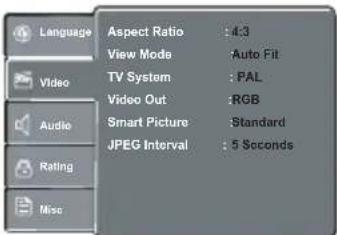
2 Press ▲ / ▼ to select { Video }, then press ▶
3 Press ▲ / ▼ to select an item, then press ▶ to access.
Example: { Video Out }
→The options for the selected item appears.
→If the selection in the menu is greyed out, that means the feature is not available or not possible to change at the current state.
4 Use ▲ / ▼ to select a setting and press OK to confirm.
Example: { P-Scan }
→The setting is selected and setup is completed.
5 To exit, press SETUP.
Aspect Ratio
The picture shape can be adjusted to fit your TV and the format must be available on the playback disc. Otherwise, the TV display will not affect the picture during playback.
In 'Video', press ▲ / ▼ to select {Aspect Ratio}, then press ▶.
{4:3}
Select this if you have a normal TV. A 'wide-screen' source display with black bars on the top and bottom will be displayed on the TV screen.
{16:9}
Select this for wide-screen TV (frame ratio 16:9).
② Use ▲ / ▼ to select a setting and press OK to confirm.
View Mode
Use view mode to scale an image that fits to the TV screen's width and height.
In 'Video', press ▲ / ▼ to select {View Mode}, then press ▶.
{Fill}
Fill the screen with decoded image.
{ Original }
Display image as its original size.
{ Height Fit }
Fit the screen height with image height.
{Width Fit}
Fit the screen width with image width.
{ Auto Fit }
Automatically display the decoded image on screen at a suitable size.
{Pan Scan}
Automatically display decoded image on full screen without distortion.
② Use ▲ / ▼ to select a setting and press OK to confirm.
Tip:
-Depending on the type of disc, you may not be able to view the mode as selected.
TV System
The video standard of the DVD player output can be selected from "NTSC", "PAL" or "Multi".
{ NTSC }: Select if your TV system is NTSC.
{PAL}: Select if your TV system is PAL.
{ Multi }: The DVD video player automatically identifies PAL or NTSC video system of a disc. Connect a multisystem TV (PAL/NTSC compatible) to view a picture.
A playback picture may be distorted when detected a signal change between PAL and NTSC on the disc.
For the case of Progressive mode, your multisystem TV must be able to support 525p and 625p.
- With the disc tray opened, you can also press number button "3" to switch between "NTSC" and "PAL".
Video Out
The video output of the DVD player can be selected as "Component", "RGB" or "P-Scan".
In 'Video', press ▲ / ▼ to select { Video Out }, then press ▶.
{ Component }
Select this for composite video or component video connection.
{ RGB }
Select this for Scart connection.
{ P-Scan }
Select this when you connect your DVD player to your TV, which has component video inputs that supports progressive scan.
② Use ▲ / ▼ to select a setting and press OK to confirm.
- If the progressive scan feature is activated but the connected TV does not support progressive scan, press number button "1" with the disc tray opened to set the video output of the DVD player to "Component".
Smart Picture
This DVD player provides four predefined sets of picture color settings.
In 'Video', press ▲ / ▼ to select {Smart Picture}, then press ▶.
{ Standard }
Select this for a preset standard picture setting.
{ Vivid }
Select this to make the picture brighter. { Cool }
Select this to make the picture softer. { Personal }
Select this to personalize your picture color by adjusting the brightness, contrast, tint and color (saturation).
② Use ▲ / ▼ to select a setting and press OK to confirm.
3 If you select { Personal }, then proceed to steps 4\~7.
→The setup menu appears.

4 Press ▲ / ▼ to highlight one of the following options.
Brightness
Increase the value to brighten the picture or vice versa. Choose zero (0) for average setting.
Contrast
Increase the value to sharpen the picture or vice versa. Choose zero (0) to balance the contrast.
Tint
Increase the value to darken the picture or vice versa. Choose zero (0) for average setting.
Color
Increase the value to enhance the colour in your picture or vice versa. Choose zero (0) to balance the colour.
5 Press ◀ / ▶ to adjust the setting that best suits your personal preference.
6 Repeat steps 4\~5 to adjust your picture preference.
7 Press ▲ / ▼ to select 'Close' and press OK to confirm.
JPEG Interval
You can continuously playback all JPEG files automatically. Set "JPEG Interval" to "5 Seconds", "10 Seconds" or "15 Seconds".
In 'Video', press ▲ / ▼ to select { JPEG Interval }, then press ▶. { Off }
Plays back one file at a time. { 5 Seconds }
Plays back images in the form of a slide show at 5 seconds intervals. { 10 Seconds }
Plays back images in the form of a slide show at 10 seconds intervals { 15 Seconds }
Plays back images in the form of a slide show at 15 seconds intervals
② Use ▲ / ▼ to select a setting and press OK to confirm.
Using the Audio setup menu
1 Press SETUP on the remote control.
→The system setup menu appears.

2 Press ▲ / ▼ to select { Audio }, then press ▶.
3 Press ▲ / ▼ to select an item, then press ▶ to access.
Example: { Night Mode }
→The options for the selected item appears. →If the selection in the menu is greyed out, that means the feature is not available or not possible to change at the current state.
4 Use ▲ / ▼ to select a setting and press OK to confirm.
Example: { On } →The setting is selected and setup is completed.
5 To exit, press SETUP.
Digital Output
Select this if you connect to a multichannel decoder/receiver.
In 'Audio', press ▲ / ▼ to select { Digital Output }, then press ▶.
{ Off }
To deactivate the digital audio output. For example, if you use the AUDIO OUT jacks to connect to a TV or stereo system.
{PCM}
Select this if the connected device is not capable of decoding multichannel audio. The DVD player will convert the Dolby Digital signal to PCM (Pulse Code Modulation).
{All}
Select this if the connected device has a built-in multichannel decoder that supports one of the multichannel audio format (Dolby Digital, DTS).
② Use ▲ / ▼ to select a setting and press OK to confirm.
Tip:
-When playing MPEG, MP3 and set Digital Output to {All}, the player will output PCM signals.
Night Mode
This mode optimizes playback of sound at low volume. High volume outputs will be softened and low volume outputs are brought upward to an audible level.
In 'Audio', press ▲ / ▼ to select {Night Mode}, then press ▶.
{ Off }
Turns off night mode feature. Select this to enjoy the surround sound with its full dynamic range.
{ On }
Select this to set low volume output. This feature is only available for movie discs with Dolby Digital mode.
Helpful hint: Press ◀ to go back to previous menu item. Press SETUP to exit the menu item.
② Use ▲ / ▼ to select a setting and press OK to confirm.
Down Sampling
You can enable and disable the digital signal for better sound output quality.
In 'Audio', press ▲ / ▼ to select { Down Sampling }, then press ▶.
{ Off }
If your amplifier / decoder is compatible with 96 KHz PCM, select "Off". Sound is sampled at 96 KHz. On }
If your amplifier / decoder is not compatible with 96 KHz PCM, select "On". Sound recorded at 96 KHz is down sampled to 48 KHz.
② Use ▲ / ▼ to select a setting and press OK to confirm.
Tip:
- When playing back disc with copyright protection, the sound will be down sampled to 48 KHz even when you select Down Sampling off.
3D Effects
To obtain expansive virtual surround sound effects from two speakers, set 3D Effects to on. This enhancement sounds only output from the Analogue AUDIO OUT (L / R) jacks of the DVD player.
In 'Audio', press ▲ / ▼ to select { 3D Effects }, then press ▶.You can set to { Off } or { On }.
② Use ▲ / ▼ to select a setting and press OK to confirm.
Tip:
- Only effective in playback of a DVD Video disc with Dolby Digital 5.1 bitstream.
Using the Rating setup menu
1 Press SETUP on the remote control.
→The system setup menu appears.

② Press ▲ / ▼ to select {Rating}, then press ▶.
3 Press ▲ / ▼ to select an item, then press ▶ to access.
Example: { Parental control }
→The options for the selected item appears.
→If the selection in the menu is greyed out, that means the feature is not available or not possible to change at the current state.
4 Use ▲ / ▼ to select a setting and press OK to confirm.
Example: { 8. Adult }
→The setting is selected and setup is completed.
5 To exit, press SETUP.
Rating Level settings
Depending on the DVD, you may be asked to change the parental level while playing the disc. The rating levels are from 1 to 8 and are country dependent. You can prohibit the playing of certain
discs that are not suitable for your children, or have certain discs played with alternative scenes.
In 'Rating', press ▲ / ▼ to select {Parental control}, then press ▶.
② Use the number buttons to enter the four-digit password, then press OK.(See 'Changing the Password' on this page.)
③ Press OK again to list the parental level. { 1.Kid Safe }
Suitable for children.
{2.G}
General Audience; recommended as acceptable for viewers of all ages.
{3.PG}
Parental Guidance suggested.
{4.PG-13}
Unsuitable for children under 13.
{5.PG-R}
Parental Guidance Recommended.
{6.R}
Restricted; under 17 requires accompanying parent or adult guardian.
{7. NC-17}
No one under 17 admitted.
{8. Adult}
DVD softwares of any grades (adult/general/children) can be played back. Should be viewed only by adults due to graphic sexual material, violence or language.
4 Use ▲ / ▼ to select a rating level and press OK to confirm.
→Select { 8.Adult } to disable parental level and allow all discs to play.
●DVDs that are rated higher than the level you selected will not play unless you enter your four-digit password.
Tips:
-This feature will not limit viewing if the disc manufacturer did not code the disc.
-VCD, SVCD, CD have no level indication, so parental control has no effect on these type of discs. This also applies to most illegal DVDs.
-Some DVDs are not coded with a rating though the movie rating may be printed on the disc cover. The rating level feature does not prohibit play of such discs.
Changing the Password
You need to enter your four-digit password to play a prohibited disc or if prompted for a password.
In 'Rating', press ▲ / ▼ to select {Set Password}, then press OK.
→You will be prompted to enter your four-digit password.
Enter Password
② Use the number buttons (0-9) to enter the four-digit password, then press OK.
→When doing this for the first time, enter the default password '0000'.
- If you forget your old four-digit password, enter the default password '0000'.
③ Press OK again to enter the new four-digit password.
→The new four-digit password will now take effect.
Enter New Password
4 Press OK to confirm.
Helpful hint: Press ◀ to go back to previous menu item. Press SETUP to exit the menu item.
Using the Misc (Miscellaneous) setup menu
① Press SETUP on the remote control.
→ The system setup menu appears.

② Press ▲ / ▼ to select { Misc }, then press ▶
③ Press ▲ / ▼ to select an item, then press OK to access.
Example: { Use Default Settings }
→The options for the selected item appears.
→If the selection in the menu is greyed out, that means the feature is not available or not possible to change at the current state.
4 Use ◀/▶ to select a setting and press OK to confirm.
Example: { No }
→The setting is selected and setup is completed.
5 To exit, press SETUP.
Restoring to original settings
Setting the { Use Default Settings } function will reset all options and your personal settings to the factory defaults, except your password and rating level.
In 'Misc', press ▲ / ▼ to select { Use Default Settings }, then press OK.
→The menu will appear.

{Yes}
Select this to reset to factory default settings.
{ No }
Select this to close the menu.
② Use ◀/▶ to select a setting and press OK to confirm.
③ To exit, press SETUP.
DivX® Registration
DivX ® registration code allows you to rent and purchase movies using the DivX ® VOD service from the internet.
For more information, visit website: www.divx.com/vod.
In 'Misc', press ▲/▼ to select { DivX Registration }, then press OK.
→The registration code will appear.
② Use the registration code to rent or purchase the movies from DivX® VOD.
Registration service at www.divx.com/vod.
→Follow the instructions and download the movie from your computer onto a CD-R/RW or DVD±R/RW for playback on this DVD player.
Tips:
- All the downloaded movies from DivX® Registration can only be played back on this DVD player.
- Time search feature is available during DivX® movie playback.
DivX® Deregistration
DivX ® deregistration code is used for deregistering the DVD player from the DivX ® VOD service through the DivX ® website.
For more information, visit website: www.divx.com/vod.
About how to obtain DivX ® deregistration code and DivX ® registration code, pls see below:
The "DivX Registration" should be selectable and the "DivX Deregistration" is grayed out before the DVD player is registered. You can select "DivX Registration" and press OK on remote control to get the 10-character DivX VOD Registration Code and register the DVD player at http://www.divx.com/vod;
② The "DivX Registration" is grayed out and the "DivX Deregistration" is selectable when the DVD player is registered for the first time. You can select "DivX Deregistration" to get the 8-character deregistration code, then deregister the DVD player at http://www.divx.com/vod;
Both "DivX Registration" and "DivX Deregistration" are selectable when the DVD player is deregistered (not the first time registered or not registered). You can select "DivX Registration" to get the 10-character DivX VOD Registration on Code or select "Div X Deregistration" to get the 8-character deregistration code, then use the code to register/deregister the DVD player at http://www.divx.com/vod.
Tray Lock
Press SETUP button, then press the number button "2006" in sequence to lock the tray.
● All functionality of the player and playback remain the same except for the OPEN/CLOSE button.
- After the tray is locked, "Tray Lock Is On" will appear on the screen when OPEN/CLOSE is pressed.
- To unlock the tray, just follow the same procedure as above.
DVD Player/Outputs/Supplied Accessories
DVD Player
| Power supply 110 V - 240 V AC, 50/60 Hz | |
| Power Consumption 12W ( standby :<1W ) | |
| Net weight 1.48 kg | |
| External dimensions 430 X 43 X 209 mm (W/H/D) | |
| Signal System PAL, NTSC | |
| Laser Semiconductor laser, wavelength 657/790 nm | |
| Frequency range DVD linear sound : | 48 kHz sampling 4 Hz to 22 kHz96 kHz sampling 4 Hz to 44 kHz |
| Signal-to-noise ratio More than 90 dB | |
| Audio dynamic range More than 80 dB | |
| Harmonic distortion Less than -65 dB | |
| Wow and flutter | Below measurable level [less than ± 0.001 % ( W.PEAK )] |
| Operating conditions Temperature : 5 | °C to 35°C Operation status :Horizontal |
Outputs
| Video output 1.0 V (p-p), 75 Ω, pin jack x 1 | |
| Video output (SCART) | 1.0 V (p-p), 75 Ω, SCART socket x 1 |
| Component video output (Y) 1.0 V (p-p), 75 Ω, pin jack x 1(P B)/(P R) 700 mV (p-p), 75 Ω, pin jack x 2 | |
| Audio output (SCART) | 2.0 V (rms), 10K Ω, SCART socket x 1 |
| Audio output (COAXIAL DIGITAL) | 0.5 V (p-p), 75 Ω, pin jack x 1 |
| Audio output (ANALOG) | 2.0 V (rms), 10K Ω, pin jacks (L/R) x 1 |
Supplied Accessories
| Remote control(SE-R0335) |  |
| Batteries(AAA) |  |
●The model complies with the above specifications.
●Designs and specifications are subject to change without notice.
●This model may not be compatible with features and /or specifications that may be added in the future.
WARNING
Under no circumstances should you try to repair the DVD player yourself, as this will invalidate the warranty. Do not open the DVD player as there is a risk of electric shock.
If a fault occurs, first check the points listed below before taking the DVD player for repair. If you are unable to remedy a problem by following these guides, consult your dealer or TOSHIBA for help.
| Problem | Solution |
| No power | -Check if the AC power cord is properly connected.-Press the I/⏻ON/STANDBY on the front of the DVD player to turn on the power. |
| No picture | -Refer to your TV's manual for correct Video In channel selection. Change the TV channel until you see the DVD screen.-Check if the TV is switched on.-If the progressive scan feature is activated but the connected TV does not support progressive signals or the cables are not connected accordingly. See pages 12-13 for proper progressive scan set up or deactivate the progressive scan feature as follow:1) Press OPEN/CLOSE on the DVD Player.2) When the disc tray is opened, press number button '1' on the remote control for a few seconds. |
| Distorted picture | -Sometimes a small amount of picture distortion may appear depending on the disc being played back. This is not a malfunction. |
| Picture clipped | -May be caused by View Mode Setting (see page 20). Set to Original for normal viewing. |
| Completely distorted picture or black /white picture with DVD. | -Connect DVD Player directly to the TV.-Make sure the disc is compatible with the DVD player.-Ensure that the DVD Player's setting is set to match that of the disc and your TV. |
| No sound / distorted sound | -Adjust the volume.-Check that the speakers are connected correctly. |
| No audio at digital output | -Check the digital connections.-Check if your receiver can decode MPEG-2 or DTS and if not, please make sure the digital output is set to PCM.-Check if the audio format of the selected audio language matches your receiver capabilities. |
| No sound and picture | -Check that the cable is connected to the correct device (See Connecting to television). |
| Disc cannot be played | -The DVD±R/RW must be finalized and in Video mode format.-Ensure the disc label is facing up.-Check if the disc is defective by trying another disc.-Wrong region code. |
| Picture freezes momentarily during playback | -Check the disc for fingerprint/scratches and clean with a soft cloth wiping from centre to edge. |
| No return to start-up screen when disc is removed | -Reset the unit by switching the player off, then on again. |
| The player does not respond to the Remote Control | -Aim the Remote Control directly at the sensor on the front of the player.-Reduce the distance to the player.-Replace the batteries in Remote Control.-Re-insert the batteries with their polarities(+/- signs)as indicated. |
| Buttons do not work | -To completely reset the player, unplug the AC cord from AC outlet for 5-10 seconds. |
Problem
Player does not respond to some operating commands during playback.
DVD Player cannot read CDs /DVDs
Menu items cannot be selected
Unable to select Progressive Scan on/off
Solution
-Operations may not be permitted by the disc. Refer to the instructions of the disc jacket.
-Use a commonly available cleaning CD/DVD to clean the lens before sending the DVD Player for repair.
-Press STOP twice before selecting system setup menu.
-Depending on the disc availability, some menu items cannot be selected.
-Ensure that the output of the Video Out signal is switch to P-Scan/Component.
Analogue audio:
An electrical signal that directly represents sound. In contrast, digital audio can also be an electrical signal, but is an indirect representation of sound. See also Digital audio.
Aspect ratio:
The width of a TV screen relative to it is height. Conventional TVs are 4:3 (i.e., the screen is almost square). Widescreen models are 16:9 (the screen is almost twice as wide as its height)
AUDIO OUT jacks:
Jacks on the back of the DVD System that send audio to another system (TV, Stereo, etc.)
Bit rate:
The amount of data used to hold a given length of music; measured in kilobits per seconds, or kbps. Or, the speed at which you record. Generally, the higher the bit rate, or the higher the recording speed, the better the sound quality. However, higher bit rates use more space on a disc.
Chapter:
Just as a book is split up into several chapters, a title on a DVD disc is usually divided into chapters. See also Title.
Digital audio:
An indirect representation of sound using numbers. During recording, the sound is measured at discrete intervals (44, 100 times a second for CD audio) by an analogue-to-digital converter, generating a stream of numbers. On playback, a digital-to-analogue converter generates an analogue signal based on these numbers. See also Sampling frequency and Analogue audio.
Disc menu:
A screen display prepared for allowing of selection of images, sound, subtitle, multi-angles etc. recorded on the DVD.
DivX®:
DivX® is a codec (compression/de-compression) that can compress images to a very small amount of data.
Dolby® Digital:
A system developed by Dolby Laboratories that compresses digital sound. It works with stereo (2ch) or multi-channel audio.
DTS®:
(Digital Theater System)
DTS is a Multi-channel surround sound system, but it is different from Dolby Digital. DTS format was developed by Digital Theater Systems, Inc.
JPEG:
(Joint Photographic Experts Group)
JPEG is a method of compressing still image files. You can copy JPEG files on CD-RW / R or DVD±R / RW discs from a computer and play back the files on this unit.
MP3:
(MPEG Audio Layer 3)
MP3 is a method of compressing files. You can copy MP3 files on CD-RW / R or DVD±R / RW discs from a computer and play back the files on this unit.
Multichannel:
DVD is specified to have each sound track constitute one sound field. Multi-channel refers to a structure of sound tracks having three or more channels.
Parental control:
A function of the DVD to limit playback of the disc by the age of the users according to the limitation level in each country. The limitation varies from disc to disc; when it is activated, playback will be prohibited if the software's level is higher than the user-set level.
PBC (Video CD only):
(Playback Control)
This function enables you to play back interactive software using a menu screen. See also Title.
Progressive scan:
It displays all the horizontal lines of a picture at one time, as a signal frame. This system can convert the interlaced video from DVD into progressive format for connection to a progressive display. It dramatically increases the vertical resolution.
PCM:
(Pulse Code Modulation)
PCM is a format that converts audio into digital data. It is mainly used for Audio CDs and DAT. This unit can play back sounds as realistic as possible by converting even compressed Dolby Digital and MPEG audio to PCM.
Region code:
Regions associate discs and players with particular areas of the world. This unit will only play back discs that have compatible region codes. You can find the region code of your unit by looking on the rear panel. Some discs are compatible with more than one region (or all regions).
Sampling frequency:
The rate at which sound is measured by a specified interval to turn it into digital audio data. The number of samples in one second is defined as the sampling frequency. The higher the rate is, the better the possible sound quality.
Title:
(DVD)
A collection of chapters on a DVD. See also chapter.
(Video CD)
The contents of a Video CD. When playing back a Video CD with the PBC function, the title menu will appear automatically.
Track:
Audio CDs and Video CDs use tracks to divide the contents of a disc. The DVD equivalent is called a chapter. See also Chapter.


- SAFETY PRECAUTIONS
- WARNING:
- CAUTION:
- IMPORTANT SAFETY INSTRUCTIONS
- SOME DOS AND DON'TS ON THE SAFE USE OF EQUIPMENT
- ABOVE ALL
- DO NOT STARE INTO BEAM.
- Environmental Information
- LASER
- WARNING: RISK OF ELECTRIC SHOCK!
- Setup
- Finding a suitable location
- Space for ventilation
- Avoid high temperatures, moisture, water and dust
- Cleaning discs
- CAUTION!
- Moisture Condensation
- Region Codes
- Notes on copyright
- CE
- Following information is only for EU-member States:
- Following information is only valid EU-member States:
- Disposal of batteries and/or accumulators
- Connecting to television
- IMPORTANT!
- Connecting to a Stereo System
- Stereo System with Left/Right Audio In Jacks
- Connecting to a Digital AV Receiver
- Receiver has a PCM, Dolby Digital or MPEG decoder
- Connecting the power cord
- DVD display
- DVD video disc
- VIDEO CD Aud
- CD
- Power Off Load
- Open
- Remote Control
- Inserting Batteries
- Note:
- Finding your viewing channel
- Setting up Progressive Scan feature
- (For Progressive Scan TV only)
- To deactivate Progressive Scan manually:
- OR
- Setting the language
- On-Screen Display (OSD) Language
- Subtitle, DivX Subtitle, Audio and DVD Menu language
- playable discs
- Supported Formats
- MP3 tracks
- JPEG/Pictures
- DivX®
- Starting disc playback
- Basic playback control
- Pausing playback
- Skipping chapter/track
- Stopping playback
- Program playback
- Operations for video playback (DVD/VCD/SVCD)
- Using the disc menu
- Zooming In
- Slow Motion
- Forward/ Reverse Searching
- Selecting various repeat functions
- Repeat play mode
- For DVD
- For Video CD, Audio CD
- For MP3, JPEG
- Repeating a section within a title/track
- Viewing the disc playback Information
- Title/Chapter/Track/Time selection
- Angle
- Special DVD Features
- Playing a Title
- Changing the Audio Language
- Subtitles
- Special VCD and SVCD Features
- Playing a DivX® Disc
- Playing MP3/JPEG/ Kodak picture CD
- General Operation
- Playback Selection
- Play modes for DivX® /MP3/Audio CD/JPEG
- Preview ( JPEG)
- Zoom picture ( JPEG)
- Rotate picture (JPEG)
- MP3 Converter
- Speed (Normal/High)
- Quality (Best/High/Medium/Low)
- Create ID3 (On/Off)
- Playback Feature/DVD Menu Options
- Playing USB Flash Memory
- Using the Language setup menu
- OSD Language
- Subtitle/Audio/DVD Menu
- DivX® Subtitle
- Using the Video setup menu
- Aspect Ratio
- View Mode
- TV System
- Video Out
- Smart Picture
- Brightness
- Contrast
- Tint
- Color
- JPEG Interval
- Using the Audio setup menu
- Example: { Night Mode }
- Digital Output
- { Off }
- {PCM}
- {All}
- Tip:
- Night Mode
- { On }
- Down Sampling
- 3D Effects
- Using the Rating setup menu
- Rating Level settings
- Changing the Password
- Enter Password
- Enter New Password
- Using the Misc (Miscellaneous) setup menu
- Restoring to original settings
- DivX® Registration
- DivX® Deregistration
- Tray Lock
- DVD Player/Outputs/Supplied Accessories
- WARNING
- Problem
- Solution
- Analogue audio:
- Aspect ratio:
- AUDIO OUT jacks:
- Bit rate:
- Chapter:
- Digital audio:
- Disc menu:
- DivX®:
- Dolby® Digital:
- DTS®:
- (Digital Theater System)
- JPEG:
- (Joint Photographic Experts Group)
- MP3:
- (MPEG Audio Layer 3)
- Multichannel:
- Parental control:
- PBC (Video CD only):
- (Playback Control)
- Progressive scan:
- PCM:
- (Pulse Code Modulation)
- Region code:
- Sampling frequency:
- Title:
- (DVD)
- (Video CD)
- Track:
Brand : TOSHIBA
Model : SD2010
Category : DVD player