
WK-7600 - Keyboard CASIO - Free user manual and instructions
Find the device manual for free WK-7600 CASIO in PDF.


| Product Type | Digital Keyboard |
| Model | WK-7600 |
| Keyboard | 76 standard-size keys |
| Touch Response | Yes (selectable sensitivity) |
| Polyphony | 64 notes (max) |
| Tones | 800 built-in plus user tones |
| Rhythms | 260 built-in plus user rhythms |
| Effects | Reverb (10 types), Chorus (5 types), DSP (100 presets), user DSP |
| Song Sequencer | 16 tracks, real-time recording, step input, editing |
| Audio Recording | Yes (WAV format) |
| Arpeggiator | 150 types |
| Auto Accompaniment | Yes (with chord fingering modes) |
| Metronome | Yes (beat 0, 2-6, tempo 30-255) |
| Transpose | Yes (-12 to +12 semitones) |
| Octave Shift | Yes (per part) |
| Pitch Bend Wheel | Yes |
| Connectors | USB, SD card slot, sustain pedal, line out (R/L), audio in, mic in, headphones, INST IN |
| Power Supply | AC adaptor AD-A12150LW or 6 D-size batteries |
| Power Consumption | Approx. 12 W (AC adaptor) |
| Battery Life | Approx. 4 hours with alkaline batteries |
| Dimensions (approx.) | 1200 x 400 x 150 mm (47.2 x 15.7 x 5.9 in) |
| Weight (approx.) | 12.5 kg (27.6 lb) without batteries |
| Included Accessories | Music stand, power cord, AC adaptor (depending on region) |
| Maintenance | Wipe with soft dry cloth; avoid solvents; remove batteries if not in use |
| Safety Precautions | Read separate safety sheet; keep away from children under 3; do not disassemble |
Frequently Asked Questions - WK-7600 CASIO
User questions about WK-7600 CASIO
0 question about this device. Answer the ones you know or ask your own.
Ask a new question about this device
Download the instructions for your Keyboard in PDF format for free! Find your manual WK-7600 - CASIO and take your electronic device back in hand. On this page are published all the documents necessary for the use of your device. WK-7600 by CASIO.
USER MANUAL WK-7600 CASIO
Please keep all information for future reference.
Safety Precautions
Before trying to use the keyboard, be sure to read the separate "Safety Precautions".
NOTICE
This equipment has been tested and found to comply with the limits for a Class B digital device, pursuant to Part 15 of the FCC Rules. These limits are designed to provide reasonable protection against harmful interference in a residential installation. This equipment generates, uses and can radiate radio frequency energy and, if not installed and used in accordance with the instructions, may cause harmful interference to radio communications. However, there is no guarantee that interference will not occur in a particular installation. If this equipment does cause harmful interference to radio or television reception, which can be determined by turning the equipment off and on, the user is encouraged to try to correct the interference by one or more of the following measures:
- Reorient or relocate the receiving antenna.
- Increase the separation between the equipment and receiver.
- Connect the equipment into an outlet on a circuit different from that to which the receiver is connected.
- Consult the dealer or an experienced radio/TV technician for help.
FCC WARNING
Changes or modifications not expressly approved by the party responsible for compliance could void the user's authority to operate the equipment.
Declaration of Conformity
Model Number: CTK-7200/WK-7600
Trade Name: CASIO COMPUTER CO., LTD.
Responsible party: CASIO AMERICA, INC.
Address: 570 MT. PLEASANT AVENUE, DOVER, NEW JERSEY 07801
Telephone number: 973-361-5400
This device complies with Part 15 of the FCC Rules, Operation is subject to the following two conditions:
(1) This device may not cause harmful interference, and (2) this device must accept any interference received, including interference that may cause undesired operation.
Important!
Please note the following important information before using this product.
- Before using the optional AC Adaptor to power the unit, be sure to check the AC Adaptor for any damage first. Carefully check the power cord for breakage, cuts, exposed wire and other serious damage. Never let children use an AC adaptor that is seriously damaged.
- Never attempt to recharge batteries.
- Do not use rechargeable batteries.
- Never mix old batteries with new ones.
- Use recommended batteries or equivalent types.
- Always make sure that positive (+) and negative (−) poles are facing correctly as indicated near the battery compartment.
- Replace batteries as soon as possible after any sign they are getting weak.
- Do not short-circuit the battery terminals.
- The product is not intended for children under 3 years.
- Use only a CASIO AD-A12150LW adaptor.
• The AC adaptor is not a toy. - Be sure to disconnect the AC adaptor before cleaning the product.

This mark applies in EU countries only.

Manufacturer:
CASIO COMPUTER CO., LTD.
6-2, Hon-machi 1-chome, Shibuya-ku, Tokyo 151-8543, Japan
Responsible within the European Union:
CASIO EUROPE GmbH
- Any reproduction of the contents of this manual, either in part or its entirety, is prohibited. Except for your own, personal use, any other use of the contents of this manual without the consent of CASIO is prohibited under copyright laws.
- IN NO EVENT SHALL CASIO BE LIABLE FOR ANY DAMAGES WHATSOEVER (INCLUDING, WITHOUT LIMITATION, DAMAGES FOR LOSS OF PROFITS, BUSINESS INTERRUPTION, LOSS OF INFORMATION) ARISING OUT OF THE USE OF OR INABILITY TO USE THIS MANUAL OR PRODUCT, EVEN IF CASIO HAS BEEN ADVISED OF THE POSSIBILITY OF SUCH DAMAGES.
● The contents of this manual are subject to change without notice. - The actual appearance of the product may be different from that shown in the illustrations in this User's Guide.
● Company and product names used in this manual may be registered trademarks of others.
General Guide ...... E-4
Reading the Display ...... E-6
Modes..... E-7
Menus.... E-7
▲ Precautions while "Please Wait" is displayed.... E-7
Saving Settings..... E-8
Returning the Digital Keyboard to Its
Factory Default Settings E-8
Getting Ready to Play ...... E-9
Preparing the Music Stand E-9
Power Supply E-9
Connections...... E-11
Connecting Headphones.... E-11
Connecting a Pedal E-11
Outputting Digital Keyboard Sound to
Audio Equipment or an Amplifier E-11
Outputting Input from an External Device or a
Microphone through the Digital Keyboard's
Speakers E-12
Bundled and Optional Accessories.... E-12
Selecting and
Playing a Tone ...... E-13
To turn on Digital Keyboard power.... E-13
Listening to Demo Tunes.... E-14
Selecting a Tone.... E-14
Layering and Splitting Tones ...... E-15
Raising and Lowering Keyboard Tuning
(Transpose) E-18
Using Octave Shift..... E-18
Using the Metronome ...... E-19
Using the Pitch Bend Wheel.... E-20
Applying Vibrato to Notes ...... E-20
Selecting a Temperament and
Fine Tuning Its Scale.... E-21
Playing Arpeggio Phrases Automatically
(Arpeggiator).... E-23
Using Auto Accompaniment ... E-24
Playing an Auto Accompaniment.... E-24
Selecting a Chord Fingering Mode ...... E-26
Modifying Auto Accompaniment Patterns...... E-27
Using One-Touch Presets E-27
Using Auto Harmonize.... E-28
Applying Effects to a Sound.... E-29
Configuration of Effects E-29
Selecting an Effect.... E-31
Creating a User DSP E-33
Using the Mixer ......E-36
Mixer Overview.... E-36
Mixer Operation E-37
Mixer Parameter Settings ...... E-41
Using the Tone Editor...... E-44
Tone Creation Overview.... E-44
Creating a User Tone ...... E-46
Tone Parameter Settings..... E-48
Using Drawbar Organ Tones ... E-50
Playing with a Drawbar Organ Tone.... E-50
Editing Drawbar Organ Tones ...... E-52
Music Presets..... E-54
Using Music Presets.... E-54
Creating a User Preset..... E-58
Editing a Chord Progression.... E-62
Saving Keyboard Setups to Registration Memory ......E-66
To save a setup to registration memory ...... E-67
To recall a setup from registration memory ...... E-67
Using the Song Sequencer ..... E-68
Starting One-touch Recording (EASY REC) ..... E-68
What you can do with the song sequencer..... E-70
Recording Individual Tracks ...... E-72
Re-recording Part of a Song
(Punch-in Recording)...... E-76
Using Panel Record to Rewrite Song
Header Settings..... E-78
Playing a Recorded Song.... E-79
Editing a Song E-81
Editing a Track.... E-85
Editing Events.... E-87
Directly Inputting Note Events (Step Input) ..... E-100
Using the
Pattern Sequencer...... E-102
About the Pattern Sequencer ...... E-102
Creating a User Rhythm E-103
Creating a User Rhythm by Combining
Exiting Rhythm Parts (Easy Edit) ...... E-112
Editing Individual Events (Event Editor) ...... E-113
Configuring Instrument Part Playback
Settings (Part Parameters) E-116
Instrument Part Operations ...... E-118
Accompaniment Pattern and
Rhythm Operations.... E-120
Recording and
Playing Audio...... E-121
Audio Recording and Playback Functions...... E-121
Audio Recording and Playback Precautions ..... E-121
Performing Audio Recording ...... E-122
Playing Back Audio.... E-126
Using the Function Menu...... E-130
Using the Function Menu.... E-130
Function Menu Settings..... E-131
Using a Memory Card...... E-136
Loading and Removing a Memory Card..... E-137
Entering the Card Mode ...... E-137
Formatting a Memory Card.... E-137
Saving Digital Keyboard Data to a
Memory Card.... E-138
Loading Data from a Memory Card ...... E-140
To delete a file from a memory card.... E-141
To rename a file on a memory card.... E-141
Playing a Music File from a Memory Card..... E-142
Connecting to a Computer .... E-145
Minimum Computer System Requirements..... E-145
Storing and Loading Digital Keyboard
Memory Data E-146
Using Rhythm (Auto Accompaniment) Data
from another Model ...... E-146
Importing Data from Various Storage Media ..... E-147
Reference..... E-148
Error Messages ...... E-148
Troubleshooting..... E-150
Specifications E-152
Operating Precautions.... E-154
DSP Effect List E-155
Fingering Guide..... E-160
Supported Input Characters ...... E-160
Assigning a MIDI Channel to Each Part ...... E-161
Parameter List E-162
Chord Example List ...... E-163
MIDI Implementation Chart
- Illustrations in this User's Guide show the WK-7600.
- There is a button number reference at the back of this manual. You can tear it out and refer to the button numbers as required.
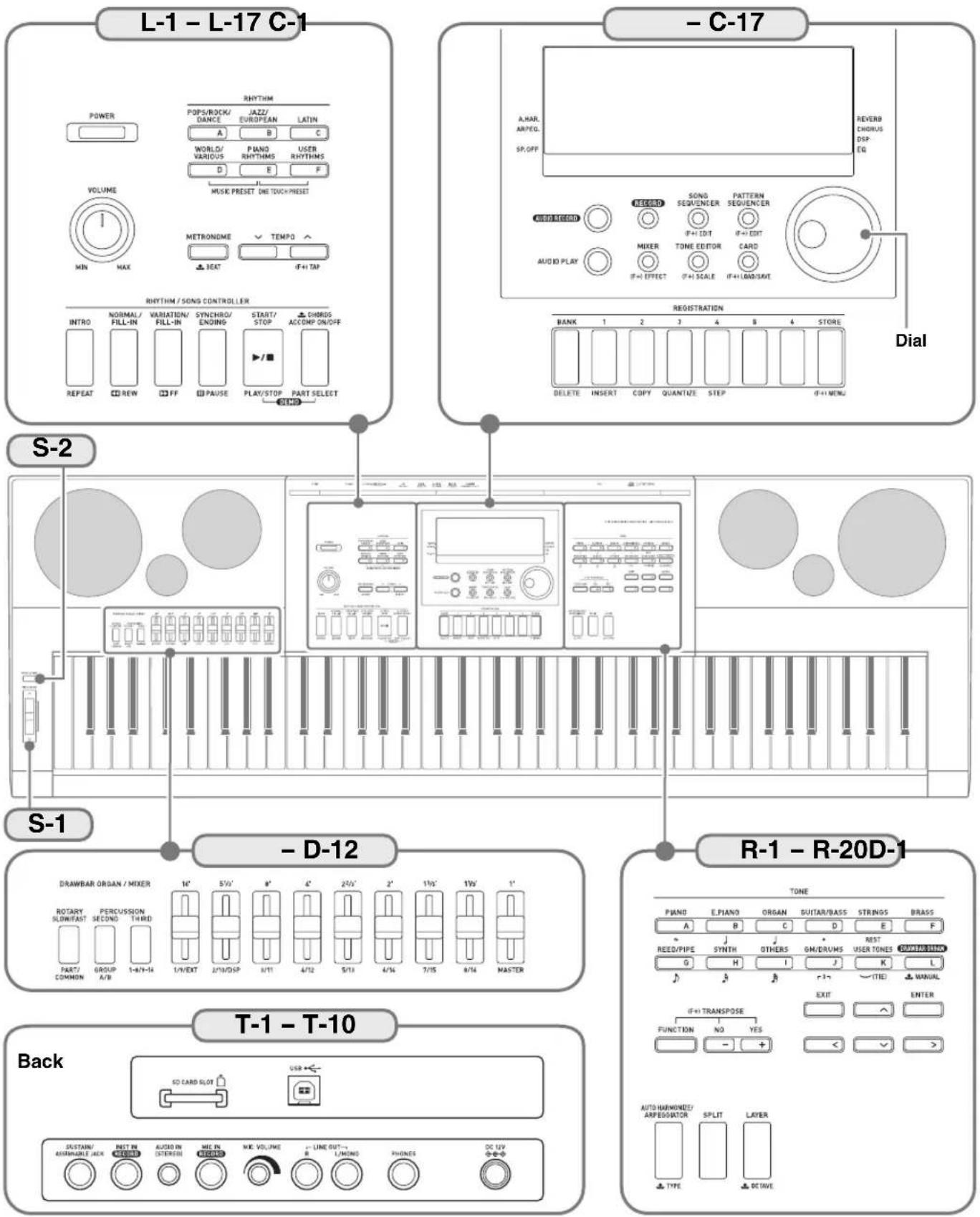
- In this manual, the term "Digital Keyboard" refers to the CTK-7200/WK-7600.
- This manual uses the numbers and names below to refer to buttons and controllers.
• The following explains the meanings of the (F+) and ↓ symbols that appear on the product console and with the key names below.
(F+) : Indicates a function that is enabled by holding down the R-13 (FUNCTION) button when pressing a button. For example, SONG SEQUENCER, (F+) EDIT means that the EDIT function is enabled by depressing the R-13 (FUNCTION) button.
↓: Indicates a function that is enabled by holding down the button for some time. For example, METRONOME, BEAT ↓ means that the BEAT function is enabled by holding down the button for some time.
L-1 POWER button.... 13
L-2 VOLUME knob....13
RHYTHM buttons
L-3 [A] POPS/ROCK/DANCE button ..... 14, 24
L-4 [B] JAZZ/EUROPEAN button ..... 24
L-5 [C] LATIN button ..... 08'24
L-6 [D] WORLD/VARIOUS, MUSIC PRESET button ..... 24, 54
L-7 [E] PIANO RHYTHMS, ONE TOUCH PRESET button ..... 24, 27, 54
L-8 [F] USER RHYTHMS button ..... 24, 27
L-9 METRONOME, BEAT button ..... 19
L-10 TEMPO √ button ..... 19
L-11 TEMPO ∧, (F+)TAP button.... 19
RHYTHM/SONG CONTROLLER buttons
L-12 INTRO, REPEAT button..... 27, 80, 142
L-13 NORMAL/FILL-IN, ◀REW button ..... 14, 27, 79, 142
L-14 VARIATION/FILL-IN, ▶FF button ..... 14, 27, 79, 142
L-15 SYNCHRO/ENDING, PAUSE button ..... 24, 27, 79, 142
L-16 START/STOP, PLAY/STOP, DEMO button ..... 14, 24, 79, 142
L-17 ACCOMP ON/OFF, ↓CHORDS, PART SELECT, DEMO button.... 14, 24, 26, 143
C-1 Display....6
C-2 AUDIO RECORD button 123
C-3 RECORD button....68, 72, 73
C-4 SONG SEQUENCER, (F+)EDIT button ..... 7, 72, 81
C-5 PATTERN SEQUENCER, (F+)EDIT button ..... 102
C-6 AUDIO PLAY button 126
C-7 MIXER, (F+) EFFECT button ..... 31, 37
C-8 TONE EDITOR, (F+)SCALE button ..... 21, 46
C-9 CARD, (F+)LOAD/SAVE button ..... 7, 137, 138, 140 Dial ..... 6, 14, 24
REGISTRATION buttons
C-10 BANK, DELETE button ..... 63, 66, 92, 99
C-11 1, INSERT button ..... 63, 66, 94, 100
C-12 2, COPY button....66, 94
C-13 3, QUANTIZE button ..... 66, 95
C-14 4, STEP button ..... 64, 66, 100
C-15 5 button....66
C-16 6 button....66
C-17 STORE, (F+)MENU button ..... 7, 66
TONE buttons
R-1 [A] PIANO, button ..... 14, 63, 94
R-2 [B] E.PIANO, ↓ button 14, 63, 94
R-3 [C] ORGAN, button 14, 63, 94, 95
R-4 [D] GUITAR/BASS, • button ..... 14, 63, 94
R-5 [E] STRINGS, REST button ..... 14, 100
R-6 [F] BRASS button.... 14, 63, 94, 95
R-7 [G] REED/PIPE, ♪ button.... 14, 63, 94, 95
R-8 [H] SYNTH, 🌐 button ..... 14, 63, 94, 95
R-9 [I] OTHERS, 🎩 button....14, 94, 95
R-10 [J] GM/DRUMS, -3 button ..... 14, 94, 95
R-11 [K] USER TONES, ∼(TIE) button ..... 14, 46
R-12 [L] DRAWBAR ORGAN, ↓ MANUAL button.... 50
R-13 FUNCTION button 130
R-14 NO/−, YES/+, (F+)TRANSPOSE buttons ..... 6, 14, 18, 24
R-15 EXIT button
R-16 ENTER button
R-17 <, ∧, ∨, > buttons ..... 7
R-18 AUTO HARMONIZE/ARPEGGIATOR, TYPE button 23, 28
R-19 SPLIT button.... 16
R-20 LAYER, ⏻OCTAVE button ..... 16, 18
D-1 ROTARY SLOW/FAST, PART/COMMON button ..... 51
D-2 PERCUSSION SECOND, GROUP A/B button ..... 51
D-3 PERCUSSION THIRD, 1-8/9-16 button ..... 51
D-4 16', 1/9/EXT slider....51
D-5 5 1/3', 2/10/DSP slider ..... 51
D-6 8', 3/11 slider....51
D-7 4', 4/12 slider....51
D-8 2 ^2/_3 , 5/13 slider ..... 51
D-9 2', 6/14 slider....51
D-10 1 3/5', 7/15 slider ..... 51
D-11 1 ^1/_3 , 8/16 slider ..... 51
D-12 1', MASTER slider ..... 51
S-1 PITCH BEND wheel 20
S-2 MODULATION button..... 20
T-1 SD CARD SLOT.... 136
T-2 USB jack....145
T-3 SUSTAIN/ASSIGNABLE JACK....11
T-4 INST IN jack ..... 12
T-5 AUDIO IN jack 12
T-6 MIC IN jack....12
T-7 MIC VOLUME knob ..... 12
T-8 LINE OUT R, L/MONO jacks ..... 11
T-9 PHONES jack ..... 11
T-10 DC 12V jack .... 9
Reading the Display
This section explains the contents of the Digital Keyboard's display screen.
![ETONE] ---A:001 StreoGrPiano [RHYTHM] ---A:001 ElectroPop RHYTHM SPLIT LAYER ACCOMP NORMAL REGISTRATION DARK TEMP MEMURE BEAT 120 006-3 dim 7 ① ② ③ ④ ⑤ ⑥](/content/2026/06/1239013/images/9d6d3623795a7c0a826f73d3e6bf3cff97524c71add608803ff06cb56264702e.jpg)
① Detailed information area
This area displays a variety of information while the Digital Keyboard is being used. Use this area to confirm proper operation when changing values, when selecting a menu item, and when performing other operations.
② Level meter area
This level meter shows the volume level of the notes that are sounded when you play something on the keyboard or when Auto Accompaniment is played. There are a total of 32 parts, 16 each in Group A and Group B. The A indicator will be displayed in the lower left corner while Group A parts are being indicated by the level meter, while the B indicator will be displayed in the lower left corner while Group B parts are being indicated. For details about parts, see "How Parts are Organized" (page E-36).
③ Indicator areas
The indicator area shows such information as the current mode (page E-7), the status of settings, the status of Auto Accompaniment, and other information.
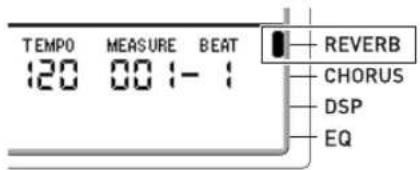
There are two types of indicators: text type indicators such as RHYTHM, and pointer (☐) type indicators. In the case of pointer type indicators, a setting or status is indicated by the location of the ☐ next to fixed text along the sides of the display. For example, the location of the pointer (☐) on the right side of the display in the sample below indicates REVERB.
④ Registration bank area
This area shows the number of the currently selected registration bank (page E-66).
⑤ Chord area
This area shows the chord being played when Auto Accompaniment (page E-24) or music preset (page E-54) is being used. It also can display fraction chords by showing the chord root (C, G, etc.) and type (m, 7th, etc.).
⑥ Tempo, measure, beat area
Tempo is shown as the current setting value, as beats per minute. Auto Accompaniment, the metronome (page E-19), and other playback is performed at the tempo shown here. The MEASURE and BEAT values are counted up as Auto Accompaniment, the metronome, or other playback progresses.
Currently Selected Item Indication
The item that is currently selected on a display screen is indicated by thick brackets (【 】) and by a large dot (●). The currently selected item is the one that is affected by the R-14 (-, +) buttons or dial operations.

On this screen, "RHYTHM" is selected because it is enclosed by thick brackets. This indicates that the rhythm setting can be changed.
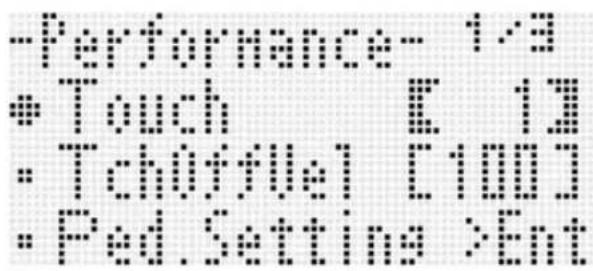
On this screen, "Touch" is selected because the ● is next to it. This indicates that the value to the right of "Touch", which is enclosed in thick brackets, can be changed.
Modes
Your Digital Keyboard has three modes: a rhythm mode, a card mode, and a song sequencer mode. The currently selected mode is shown as an indicator on the display.

flowchart
graph TD
    A["Card mode"] -->|C-9 (CARD) or R-15 (EXIT) button| B["Rhythm mode"]
    B -->|C-4 (SONG SEQUENCER) or R-15 (EXIT) button| C["Song sequencer mode"]
    C -->|C-9 (CARD) button| A
• R h y t h m m o d e (RHYTHM indicator displayed)
Under its initial factory default settings, the Digital Keyboard enters the rhythm mode whenever it is turned on. The rhythm mode is the base mode, and it is the mode you should enter when you want to play on the keyboard or use Auto Accompaniment.
- Card mode (CARD indicator displayed)
Enter the card mode when you want to perform memory card operations. See "Using a Memory Card" (page E-136) for more information.
- In the rhythm mode, pressing the C-9 (CARD) button will enter the card mode.
- In the card mode, pressing the C-9 (CARD) button or the R-15 (EXIT) button will return to the rhythm mode.
- Song sequencer mode (SEQUENCER indicator displayed)
Enter the sequencer mode when you want to record performances using the keyboard and Auto Accompaniment, or to play back song data. For details, see "Using the Song Sequencer" (page E-68).
- In the rhythm mode, pressing the C-4 (SONG SEQUENCER) button will enter the song sequencer mode.
- In the song sequencer mode, pressing the C-4 (SONG SEQUENCER) button or the R-15 (EXIT) button will return to the rhythm mode.

IMPORTANT!
• After entering any mode besides the rhythm mode and performing the operations you want, be sure to return to the rhythm mode.
- Unless otherwise specifically noted, all of the operations described in this user's guide are performed in the rhythm mode.
Menus
You can use the same operations to display mode and function specific menus. To display a menu, hold down the R-13 (FUNCTION) button as you press the C-17 (MENU) button. For example, the "Performance" menu shown below will appear if you perform the above operation while in the rhythm mode. This menu provides instant access to performance functions.

- The currently selected item is the one with the ● next to it. You can use the R-17 (∧, ∨) buttons to move the ● up and down. You also can use the R-17 (<, >) buttons to scroll between menu pages.
- To exit a displayed menu, press the R-15 (EXIT) button. You may need to press the R-15 (EXIT) button more than once in some cases.
- The menu items and operations for specific modes and functions are described in each section of this user's guide.
⚠ Precautions while “Please Wait” is displayed
Never try to perform any operation, or insert or remove a memory card while the message "Please Wait" is on the display. Wait until the message disappears.
- "Please Wait" indicates that the Digital Keyboard is performing a data save operation. Turning off the Digital Keyboard or removing the memory card can cause Digital Keyboard data to be deleted or become corrupted. It also can cause the Digital Keyboard to fail to turn on when the L-1 (POWER) button is pressed.
- If this happens, refer to "Troubleshooting" (page E-150).
Saving Settings
Your Digital Keyboard is equipped with a song sequencer and other features that you can use to store data you create. This stored data is retained even when the Digital Keyboard is turned off. ^4
However, the tone, rhythm, and other settings you configure on the Digital Keyboard's console normally are returned to their initial power on defaults whenever you turn off power. You can configure the Digital Keyboard so it remembers its latest setup or to apply a predetermined default setup each time you turn it on. For details, see "AutoResume (Auto Resume)" (page E-134) and "Default (Default Settings)" (page E-134).
*The following data and settings are always retained even when power is turned off.
- Registration setup data (page E-66)
- Song sequencer data (page E-68)
- User rhythm data (page E-103)
- User preset data (page E-58)
- User tone data (page E-44)
- User drawbar organ tone data (page E-50)
- User DSP data (page E-33)
– LCD Contrast setting (page E-133)
– Auto Resume setting (page E-134)
Returning the Digital Keyboard to Its Factory Default Settings
You can delete all data in keyboard memory and return all keyboard parameters to their initial factory default settings. For details, see "To initialize all data and settings (or parameter settings only)" (page E-135).
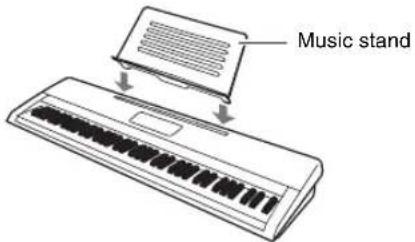
Preparing the Music Stand
Power Supply
Prepare a household power outlet or batteries.

IMPORTANT!
- Be sure to comply with the separate “Safety Precautions”. Incorrect use of this product creates the risk of electric shock and fire.
• Always make sure that the product is turned off before plugging in or unplugging the AC adaptor, or before loading or removing batteries.
Using a Household Power Outlet
Make sure that you use only the AC adaptor (JEITA Standard, with unified polarity plug) specified for this product. Use of a different type of AC adaptor can cause malfunction.
Specified AC Adaptor: AD-A12150LW
Use the supplied power cord to connect the AC adaptor as shown in the illustration below.


IMPORTANT!
- The shape of the power cord plug and household power outlet receptacle differ according to country and geographical area. The illustration shows just one example of the shapes that are available.
- The AC adaptor will become warm to the touch after very long use. This is normal and does not indicate malfunction.
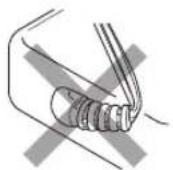
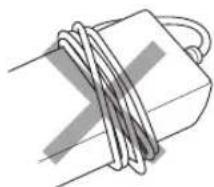
- To prevent breaking of the wire, take care to avoid putting any type of load on the power cord.
No bending! No winding!
natural_image
Simple line drawing of a coiled cable or wire wrapped around a rectangular block (no text or symbols)- Never insert metal, pencils, or any other objects into the product's DC 12V jack. Doing so creates the risk of accident.
Using Batteries
You can use six D-size batteries for power.
- Use alkaline or zinc-carbon batteries. Never use oxyride or any other nickel based batteries.
- Open the battery cover on the bottom of the Digital Keyboard.

- Load six D-size batteries into the battery compartment.
- Make sure the positive Ⓐ and negative ⭕ ends of the batteries are facing as shown in the illustration.

- Insert the tabs of the battery cover into the holes on the side of the battery compartment, and close the cover.

■Low Battery Indication
The following shows the approximate battery life.
4 hours* on alkaline batteries
*The above values are standard battery life at normal temperature, with the volume at medium setting. Temperature extremes or playing at very loud volume settings can shorten battery life.
The indicators shown below start to flash to let you know when battery power is low. Replace the batteries with new ones.

Connecting Headphones
Using headphones cuts off output from the built-in speakers, which means you can practice playing even late at night without disturbing others.
- Be sure to turn down the volume level before connecting headphones.


NOTE
• Headphones do not come with the Digital Keyboard.
- Use commercially available headphones.

IMPORTANT!
- Do not listen to very high volume output over headphones for long periods. Doing so creates the risk of hearing damage.
- If you are using headphones that require an adaptor plug, make sure you do not leave the adaptor plugged in when removing the headphones.
Connecting a Pedal
Connecting an optionally available pedal let's you perform pedal operations that add more versatility to your keyboard play. For information about the types of effects that can be applied by pressing the pedal, see "Ped.Setting (Pedal Setting)" (page E-131).

Outputting Digital Keyboard Sound to Audio Equipment or an Amplifier
You can connect audio equipment or a music amplifier to the Digital Keyboard and then play through external speakers for more powerful volume and better sound quality.

IMPORTANT!
- Whenever connecting a device to the Digital Keyboard, first use the L-2 (VOLUME) knob to set the volume to a low level. After connecting, you can adjust the volume to the level you want.
- Whenever you connect any device to the Digital Keyboard, be sure to read the user documentation that comes with the device.
flowchart
graph TD
    A["Line OUT R/L/MONO"] --> B["Standard plug"]
    B --> C["Guitar amplifier Keyboard amplifier, etc. ②"]
    B --> D["Audio amplifier AUX IN jack, etc. ①"]
    A --> E["Pin plug"]
    E --> F["LEFT (White)"]
    E --> G(RIGHT (Red)]
Outputting Keyboard Notes to Audio Equipment ①
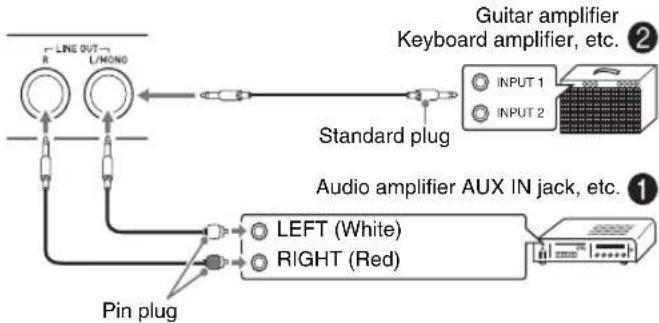
Use commercially available connecting cords to connect the external audio equipment to the Digital Keyboard's T-8 (LINE OUT) jacks as shown in Figure 1. LINE OUT R jack output is right channel sound, while LINE OUT L/MONO jack output is left channel sound. It is up to you to purchase connecting cords like the ones shown in the illustration for connection of audio equipment. Normally in this configuration you must set the audio equipment's input selector to the setting that specifies the terminal (such as AUX IN) to which the Digital Keyboard is connected. Use the L-2 (VOLUME) knob to adjust the volume level.
Outputting Keyboard Notes to a Musical Instrument Amplifier ②
Use a commercially available connecting cord to connect the amplifier to either of the Digital Keyboard's T-8 (LINE OUT) jacks as shown in Figure ②. LINE OUT R jack output is right channel sound, while LINE OUT L/MONO jack output is left channel sound. Connecting to the LINE OUT L/MONO jack only outputs a mixture of both channels. It is up to you to purchase a connecting cord like the one shown in the illustration for connection of the amplifier. Use the L-2 (VOLUME) knob to adjust the volume level.
Outputting Input from an External Device or a Microphone through the Digital Keyboard's Speakers
You can use the Digital Keyboard's speakers to output sound from a CD player, another digital keyboard, or other external device, or from a microphone.

IMPORTANT!
- Whenever connecting something to the Digital Keyboard, first use the L-2 (VOLUME) knob to set the volume to a low level. After connecting, you can adjust the volume to the level you want.
- Whenever you connect any device to the Digital Keyboard, be sure to read the user documentation that comes with the device.

NOTE
- Digital Keyboard built-in effects (reverb, chorus, DSP) are not applied to input from the T-5 (AUDIO IN) jack. Input is output directly, and is affected by the Digital Keyboard's build-in amplifier and L-2 (VOLUME) knob.
- Digital Keyboard built-in effects (reverb, chorus, DSP) are applied to input from the T-4 (INST IN) and T-6 (MIC IN) jacks. You also can use the Mixer to adjust how effects are applied, the speaker stereo pan position, and other parameters.
For details, see "Applying Effects to a Sound" (page E-29) and "Using the Mixer" (page E-36).
Output of External Device Input that is Not Affected by the Digital Keyboard's Effects
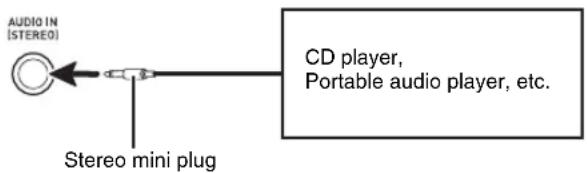
Use a commercially available connecting cord to connect the external device to the Digital Keyboard's T-5 (AUDIO IN) jack. The connecting cord should have a stereo mini plug on one end and a plug that is compatible with the external device you are connecting to on the other end. Adjust volume using the Digital Keyboard's L-2 (VOLUME) knob.
Output of External Device Input that is Affected by the Digital Keyboard's Effects
Use a commercially available connecting cord to connect the external device to the Digital Keyboard's T-4 (INST IN) jack. The connecting cord should have a standard plug (monaural) on one end and a plug that is compatible with the external device you are connecting to on the other end. Adjust volume using the Digital Keyboard's L-2 (VOLUME) knob.
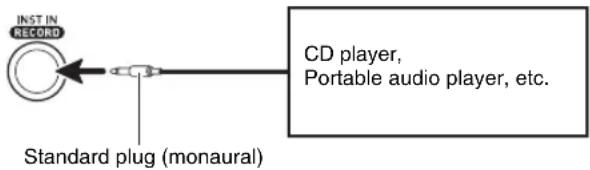
Outputting Sound with a Microphone
You can connect a dynamic microphone (only) to the Digital Keyboard for output thorough the Digital Keyboard's speakers.

- You can adjust the volume level of microphone input with the T-7 (MIC VOLUME) knob. Microphone volume control is independent of overall keyboard volume.

IMPORTANT!
- Before connecting a microphone, make sure that the Digital Keyboard and microphone are turned off.
- Before connecting a microphone, set both the L-2 (VOLUME) and T-7 (MIC VOLUME) knobs to low levels. Adjust volume settings to appropriate levels after connecting the microphone.
Bundled and Optional Accessories
Use of unauthorized accessories creates the risk of fire, electric shock, and personal injury.

NOTE
- You can get information about accessories that are sold separately for this product from the CASIO catalog available from your retailer, and from the CASIO website at the following URL.
http://world.casio.com/
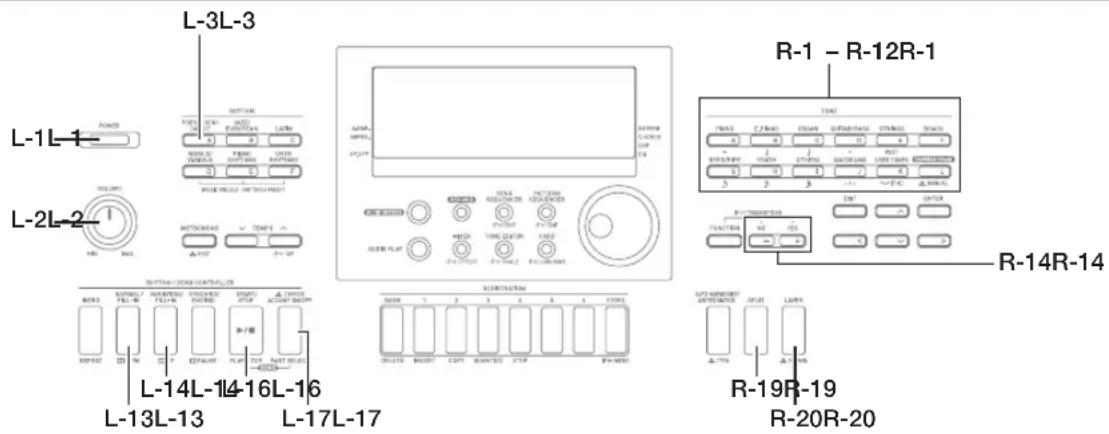
To turn on Digital Keyboard power
- Rotate the L-2 (VOLUME) knob towards MIN to set the volume to a low level.
-
Referring to "Connections" (page E-11), connect headphones, amplifier, or other device.
-
Use the L-1 (POWER) button to turn on power.
- The Digital Keyboard display screen will appear as shown below, which indicates that it is ready to play with a piano tone (using initial power on default settings).
![ETONEI --A:001 strongPiano [BEYTHM] --A:001 ELECTROPOP A 1 2 3 4 5 6 7 8 9 10 11 12 13 14 15 16 BRYTOM REGISTRATION TEMPO MEASURE BEAT BANK 1 120 00 1- 1](/content/2026/06/1239013/images/080ca4039597f25f7d51792bca66172b69a6100901620dd8e6af216a392564f2.jpg)
- To turn off the Digital Keyboard, press the L-1 (POWER) button again.
IMPORTANT!
- If you press the L-1 (POWER) button only lightly, the display will light up momentarily but power will not turn on. This does not indicate malfunction. Press the L-1 (POWER) button firmly and completely to turn on power.
- Under its initial configuration, the Digital Keyboard will return to its default settings whenever you turn it off. You can change the initial configuration to have the Digital Keyboard remember its latest setup or to apply a predetermined setup each time you turn it on. For details, see “AutoResume (Auto Resume)” (page E-134) and “Default (Default Settings)” (page E-134).
- The message “Please Wait” will remain on the display while a data save operation is in progress. Do not perform any other operation while it is displayed. Turning off the Digital Keyboard or removing the memory card can cause Digital Keyboard data to be deleted or become corrupted. It also can cause the Digital Keyboard to fail to turn on when the L-1 (POWER) button is pressed. If this happens, refer to “Troubleshooting” (page E-150).
Auto Power Off
This Digital Keyboard is designed to turn off automatically to avoid wasting power after no operation is performed for a preset amount of time. The Auto Power Off trigger time is six minutes under battery power and four hours under AC adaptor power.
- Auto Power Off is enabled while “on” is selected for “AutoPower (Auto Power Off)” (page E-134). The initial default setting is “on”. To disable Auto Power Off, select “oFF” for “AutoPower” (Auto Power Off).
- You also can use the procedure below to temporarily suspend Auto Power Off while it is enabled.
■To disable Auto Power Off
- While the Digital Keyboard is turned on, press the L-1 (POWER) button to turn it off.
- While holding down the L-3 ([A] POPS/ROCK/DANCE) button, press the L-1 (POWER) button to turn on the Digital Keyboard.

• Auto Power Off will be disabled at this time.

NOTE
- Turning off the keyboard after performing the above steps will re-enable Auto Power Off.
Listening to Demo Tunes
- While holding down the L-17 (ACCOMP ON/OFF) button, press the L-16 (PLAY/STOP) button.

• This starts demo tune play.
- The Digital Keyboard has a total of five demo tunes. You also can use the R-14 (-, +) buttons to select a demo tune.
- Pressing the L-14 (▶FF) button performs fast forward play of the demo tune, while the L-13 (◀REW) button performs fast backward play. Holding down the L-13
(◀◀REW) button until playback reaches the beginning of the current song will stop playback there. Normal playback will resume when you release the L-13
(◀◀REW) button. Holding down the L-14 (▶▶FF) button continues fast forward playback, even after the end of a song is reached.
- You can play along on the keyboard with demo tune play. Note, however, that you cannot change the tone assigned to the keyboard. Only the key operations described above are supported during demo tune playback.
- To stop demo tune playback, press the L-16 (PLAY/STOP) button.
Selecting a Tone
The tones of this Digital Keyboard are divided among groups, each of which corresponds to one of the 12 TONE buttons. You can specify a tone by its group and its tone number. Use the following procedure to select a single tone that is applied across the entire keyboard.
To select a tone
- Refer to the separate "Appendix" to look up the group and the number of the tone you want to select.
- Check to make sure that the SPLIT and LAYER indicators are not on the display.
- If they are displayed, press the R-19 (SPLIT) button and/or R-20 (LAYER) button to clear both indicators from the display.
- Use buttons R-1 ([A] PIANO) through R-11 ([K] USER TONES) to select a tone group.

- The R-11 ([K] USER TONES) button selects the user tone group. For details, see "Using the Tone Editor" (page E-44).
-
The R-12 ([L] DRAWBAR ORGAN) button selects the drawbar organ tone group. See "Using Drawbar Organ Tones" (page E-50) for more information.
-
Use the dial to scroll through the tone numbers until the one you want is displayed.
Example: Group [C], Number 004

5. Now you can play on the keyboard using the tone you selected.

NOTE
- You also can use the R-14 (-, +) buttons to select a tone. Holding down either button will scroll through tone numbers at high speed. Pressing both of the R-14 (-, +) buttons at the same time will select tone 001 in the currently selected group.
Layering and Splitting Tones
You can configure the keyboard to play two different tones at the same time (Layer) or to play different tones in the left and right ranges (Split). You can even use Layer and Split in combination with each other and play three different tones at the same time.
The UPPER 1 part is used alone when playing an individual tone on the keyboard. When layering two tones, the UPPER 1 part and UPPER 2 parts are used. When splitting the keyboard between two tones, the low range of the keyboard plays the LOWER part.
• One tone across the entire keyboard (page E-14)
This configuration uses the UPPER 1 part only (Layer: Off, Split: Off).

natural_image
A standard piano keyboard with no text or symbols visibleUPPER 1
- Two layered tones across the entire keyboard (page E-16)
This configuration uses the UPPER 1 part and UPPER 2 part (Layer: On, Split: Off).

natural_image
A standard black piano keyboard with no visible text or symbols on the keysUPPER 1
UPPER 2
- Two tones, one for the left range and one for the right range of the keyboard (page E-17)
This configuration uses the UPPER 1 part and LOWER part (Layer: Off, Split: On).

natural_image
Pure horizontal bar pattern of piano keys without any text or symbolsLOWER UPPER 1
- Three tones, two layered tones for the right range and one tone for the left range of the keyboard (page E-17) This configuration uses the UPPER 1 part, UPPER 2 part, and LOWER part (Layer: On, Split: On).

natural_image
Pure musical notation lines without any text, numbers, or symbols| LOWER | UPPER 1 |
| UPPER 2 |

NOTE
- You can configure the settings described below to adjust each part when using multiple tones in layer and split configurations.
| To adjust this setting for each part: | Go here for more information: |
| Octave shift Using Octave Shift(page E-18) | |
| Volume balance Using the Mixer (page E-36) | |
| Stereo position, effect (reverb, chorus) levels, and other detailed settings | |

To layer two tones To split the keyboard between two tones
- Refer to the separate "Appendix" to look up the group(s) and numbers of the two tones (UPPER 1 part tone and UPPER 2 part tone) you want to use.
- Check to make sure that the SPLIT and LAYER indicators are not on the display.
- If they are displayed, press the R-19 (SPLIT) button and/or R-20 (LAYER) button to clear both indicators from the display. When neither indicator is displayed, the tone you select will become the UPPER 1 part tone.
- Use the TONE buttons and dial to select the UPPER 1 part tone.
- Press the R-20 (LAYER) button.
- This causes the LAYER indicator to appear on the display. This indicates that the tone you select will become the UPPER 2 part tone.
- Use the TONE buttons and dial to select the UPPER 2 part tone.
- Play something on the keyboard to check how the tones sound layered together.
-
To cancel tone layering, press the R-20 (LAYER) button again so the LAYER indicator disappears from the display.
-
Refer to the separate "Appendix" to look up the group(s) and numbers of the tones (UPPER 1 part tone and LOWER part tone) you want to use.
- Check to make sure that the SPLIT and LAYER indicators are not on the display.
- If they are displayed, press the R-19 (SPLIT) button and/or R-20 (LAYER) button to clear both indicators from the display. When neither indicator is displayed, the tone you select will become the UPPER 1 part tone.
- Use the TONE buttons and dial to select the UPPER 1 part tone.
- Press the R-19 (SPLIT) button.
- This causes the SPLIT indicator to appear on the display. This indicates that the tone you select will become the LOWER part tone.
- Use the TONE buttons and dial to select the LOWER part tone.
- Play something on the left and right sides of the keyboard to confirm that the tones are assigned properly.
- You also can specify the keyboard split point, which is the location where the keyboard splits between the left range and right range. For details, see "To specify the keyboard split point" (page E-17).
- To cancel keyboard split, press the R-19 (SPLIT) button so the SPLIT indicator disappears from the display.
To specify the keyboard split point
- While holding down the R-19 (SPLIT) button, press the keyboard key that you want to be the leftmost key in the right side (UPPER 1 part) range.

- The name of the key you press will appear on the display as the new split point key name.
-
You also can use the R-14 (-, +) buttons to change the displayed split point key name.
-
When you are finished, release the R-19 (SPLIT) button.
NOTE
- The initial default split point is at key F #3.
- During Auto Accompaniment play (page E-24), the keyboard to the left of the split point becomes the chord keyboard.
To use layer and split together
- Perform steps 1 through 6 of the procedure under "To layer two tones" (page E-16).
- Refer to the separate "Appendix" to look up the group and the number of the tone you want to assign to for the LOWER part.
- Press the R-19 (SPLIT) button.
- This causes the SPLIT indicator to appear on the display. This indicates that the tone you select will become the LOWER part tone.
- Use the TONE buttons and dial to select the LOWER part tone.
- Play something on the left and right sides of the keyboard to confirm that the tones are assigned properly.
- The right keyboard area plays the UPPER 1 and UPPER 2 tones in a layered configuration, while the left keyboard area plays the LOWER tone.
- To cancel keyboard split, press the R-19 (SPLIT) button so the SPLIT indicator disappears from the display.
- To cancel tone layering, press the R-20 (LAYER) button again so the LAYER indicator disappears from the display.
Raising and Lowering Keyboard Tuning (Transpose)
The transpose feature lets you raise or lower the overall tuning of the keyboard in semitone steps. You can use this feature to adjust keyboard tuning to a key that better matches a vocalist, another musical instrument, etc.
1. While holding down the R-13 (FUNCTION) button, press one of the R-14 (-, +) buttons.

- This displays the transpose screen shown below.

2. While holding down the R-13 (FUNCTION) button, use the dial or the R-14 (-, +) buttons to change the setting value.
- You can change the tuning of the keyboard within the range of -12 to 00 to +12.
3. Press the R-13 (FUNCTION) button.
• This exits the transpose screen.

NOTE
- Setting a transposed value other than 00 will cause the TRANSPOSE indicator to appear on the display.
- The current transpose setting is applied to the notes of all parts (UPPER 1, UPPER 2, LOWER, Auto Accompaniment, etc.) played on the keyboard. The MIDI out note number when a keyboard key is pressed is also shifted in accordance with the transpose setting.
Using Octave Shift
You can use octave shift to individually change the octave of the UPPER 1, UPPER 2, and LOWER parts. You can use octave shift to raise or lower the octave of a song, to assign different octaves to the left side and right side keyboards while the keyboard is split, or to play two notes in different octaves while the keyboard is layered.
1. Hold down the R-20 (OCTAVE) button until the octave shift screen shown below appears on the display.
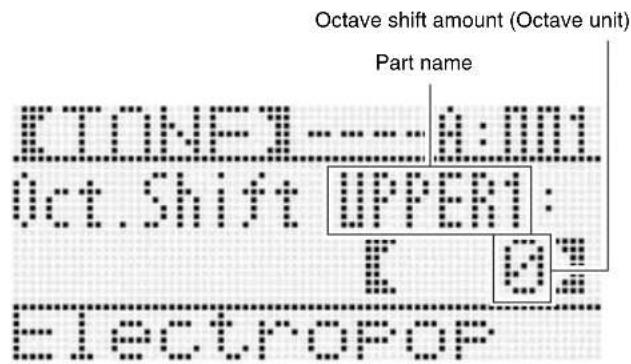
- This indicates you can change the UPPER 1 part octave.
2. Use the dial or R-14 (-, +) buttons to specify the octave shift amount.
- You can shift the octave within the range of -2 to 0 to +2.
3. If you want to change the octave of the UPPER 2 part, press the R-20 (OCTAVE) button.
- This will cause "UPPER 2" to appear on the display, indicating that you can change the UPPER 2 part octave. Perform the same operation as in step 2 to specify the octave shift amount.
4. If you want to change the octave of the LOWER part, press the R-20 (OCTAVE) button.
- This will cause "LOWER" to appear on the display, indicating that you can change the LOWER part octave. Perform the same operation as in step 2 to specify the octave shift amount.
5. Press the R-20 (OCTAVE) button or the R-15 (EXIT) button.
• This exits the octave shift screen.
Using the Metronome
1. Press the L-9 (METRONOME) button.

• This will start the metronome.
- The display will show the tempo along with a count of the measures and beats since you started the metronome.

2. Press the L-9 (METRONOME) button again to stop the metronome.
To change the beats per measure
1. Hold down the L-9 (BEAT) button until the metronome beat screen shown below appears on the display.


2. Use the dial or R-14 (-, +) buttons to select a beat setting.
- You can select 0, or a value within the range of 2 to 6. Specifying 0 for this setting will cause each beat to be indicated by the same sound (no chime at the beginning of each measure).
3. Press the L-9 (BEAT) or R-15 (EXIT) button.
• This exits the metronome beat screen.
To change the tempo setting
There are two different methods you can use to change the tempo setting: using the TEMPO buttons or tapping a beat with a button.
■To change the tempo using the TEMPO buttons
1. Press the L-10 (TEMPO ∨) (slower) or L-11 (TEMPO ∧) (faster) button.

• This displays the tempo screen shown below.

- If you do not perform any operation for a few seconds, the display will return to previous screen automatically.
2. Use the L-10 (TEMPO ∨) and L-11 (TEMPO ∧) buttons to change the tempo (beats per minute).
- Holding down either button will scroll the setting values at high speed.
- You can specify a tempo value in the range of 30 to 255.
3. Press the R-15 (EXIT) button.
• This exits the tempo screen.
■To adjust the tempo by tapping a beat
1. While holding down the R-13 (FUNCTION) button, tap the L-11 (TAP) button four times at the speed (tempo) you want to set.
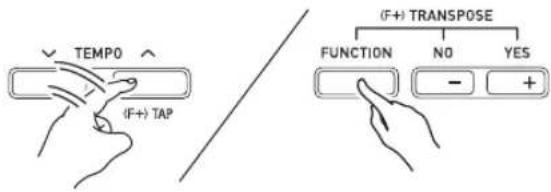
- The first tap of the L-11 (TAP) button will cause the display shown below to appear.

- The tempo setting will change in accordance with your tapping speed as soon as you tap the fourth time.
- The setting will be canceled if you release the R-13 (FUNCTION) button before tapping the L-11 (TAP) button four times.
2. After setting the tempo by tapping, you then can use the procedure under "To change the tempo using the TEMPO buttons" (page E-19) to make fine adjustments.
Using the Pitch Bend Wheel
The PITCH BEND wheel (S-1) lets you change the pitch of notes you are playing by rotating the wheel forward or back. Rotating the wheel away from you raises the pitch, while rotating it towards you lowers it. Releasing the wheel causes the pitch of the notes to return to normal automatically.


IMPORTANT!
- Do not have the pitch bend wheel rotated as you turn on the keyboard.

NOTE
- You also can change the range of the pitch bend wheel (bend range) globally or for a specific part. For details, see "BendRange (Bend Range)" (page E-132) and "Part Parameters" (page E-43).
Applying Vibrato to Notes
You can apply vibrato to notes you play on the keyboard (all UPPER 1, UPPER 2, LOWER part notes) by hand. Vibrato is applied to notes while the S-2 (MODULATION) button is depressed. Releasing the button stops application of vibrato (under initial default settings).

NOTE
- Instead of vibrato, you can assign a different DSP effect to the S-2 (MODULATION) button, if you want. For details, see information about the following parameters in "DSP Parameter Settings" (page E-35) and "Tone Parameter Settings" (page E-48).
- Mod Button (Modulation Button Assign)
- Mod Button On Value (Modulation Button On Value)
- Mod Button Off Value (Modulation Button Off Value)
Selecting a Temperament and Fine Tuning Its Scale
Use the scale function to select one of the 17 preset temperaments (tunings) for the built-in sound source. You also can fine tune each note of a scale (from C to B) in one-cent units. After selecting one of the preset temperaments, you can edit it to suit your particular needs. You also can specify whether the current scale settings (temperament setting and fine tuning adjustment) should be applied to Auto Accompaniment (Accomp Scale).

NOTE
- The settings you configure with the scale function are retained even when the Digital Keyboard is turned off.
To select a preset scale
- While holding down the R-13 (FUNCTION) button, press the C-8 (SCALE) button to display the scale screen, with the ● located at "Preset".
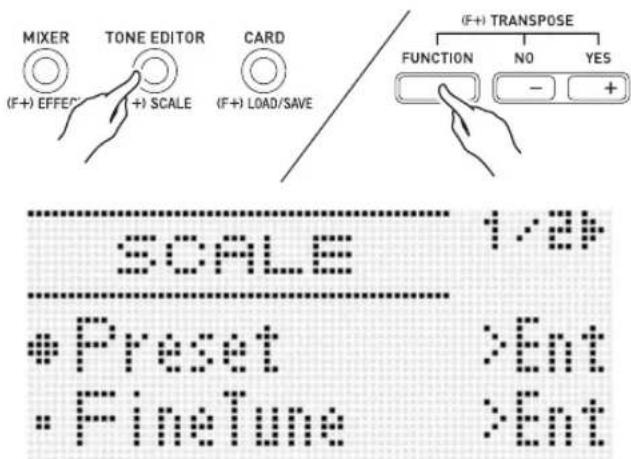
- Press the R-16 (ENTER) button.
- This displays a preset temperament selection screen like the one shown below.
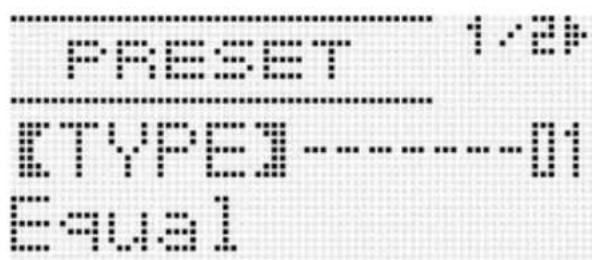
-
Use the dial or the R-14 (-, +) buttons to select a temperament.
-
Selecting a temperament other than 01: Equal will cause the SCALE indicator to appear on the display
- The following shows the temperament numbers and names that appear on the display.
| Number | Screen Name Preset | Temperament |
| 01 | Equal Equal temperament | |
| 02 | Pure Major Just major intonation | |
| 03 | Pure Minor Just minor intonation | |
| 04 | Pythagorean Pythagorean system | |
| 05 | Kirnberger 3 Kirnberger III | |
| 06 | Werckmeister Werckmeister | 1-3 (III) |
| 07 | Mean-Tone Mean tone | |
| 08 | Rast Rast | |
| 09 | Bayati | Bayati |
| 10 | Hijaz | Hijaz |
| 11 | Saba | Saba |
| 12 | Dashti | Dashti |
| 13 | Chahargah | Chahargah |
| 14 | Segah | Segah |
| 15 | Gurjari Todi | Gurjari Todi |
| 16 | Chandrakauns | Chandrakauns |
| 17 | Charukeshi | Charukeshi |
- Perform the following steps to specify the root note of a temperament.
(1) Press the R-17 ( > ) button.
• This displays root note setting screen.

(2) Use the dial or the R-14 (-, +) buttons to change the root note (C to B).
- You can also use the keyboard to specify the root note.
5. When you are finished, press the R-15 (EXIT) button twice.
- This will return to the screen that was displayed before you displayed the scale screen.

NOTE
- The root note setting you specify here is retained, even if you later change to a different preset temperament.
Fine Tuning a Scale
- If required, perform the procedure under "To select a preset scale" (page E-21) to select a preset temperament.
- While holding down the R-13 (FUNCTION) button, press the C-8 (SCALE) button to display the scale screen.

- Use the R-17 (V) button to move the ● to "FineTune" and then press the R-16 (ENTER) button.
- This displays the scale fine tuning screen like the one shown below.
![FINE TUNE • Note E C • Can [ 000 ]](/content/2026/06/1239013/images/c06329f9390d9082f049bdc0729e2015a0331143cd4e786453bf2df74451ebfa.jpg)
- You can adjust the tuning of each individual note in the scale.
(1) Use the R-17 (∧) button to move the ● to "Note", and then use the dial or R-14 (−, +) buttons to select the name of the note you want to fine tune.
- You can also press a keyboard key to specify a note.
(2) Use the R-17 (V) button to move the ● to "Cent", and then use the dial or R-14 (-, +) buttons to fine tune the selected note. You can fine tune a note within the range of -99 through +99 cents.
- Adjusting all of the notes in the scale to 0 changes the selected tuning to equal temperament. The SCALE indicator will be on the display when any note in the scale has a value other than 0.
- When you are finished making adjustments, press the R-15 (EXIT) button twice.
- This will return to the screen that was displayed before you displayed the scale screen.
Specifying whether the Current Scale Settings Should be Applied to Auto Accompaniment (Accomp Scale)
- While holding down the R-13 (FUNCTION) button, press the C-8 (SCALE) button to display the scale screen.
- Use the R-17 (>) button to move the ● to "AcmpScale".

- Use the dial or the R-14 (-, +) buttons to change the setting value.
| To do this: Select this setting: | |
| Not apply scale settings to Auto Accompaniment | oFF |
| Apply scale settings to Auto Accompaniment | on |
- When the setting is the way you want, press the R-15 (EXIT) button.
- This will return to the screen that was displayed before you displayed the scale screen.
NOTE
- The above scale on/off setting affects the Auto Accompaniment bass part and Chord 1 through Chord 5 parts (A11 through A16). You also can turn scales settings on or off for each individual part using the Part Parameter (page E-43) "Scale (Part Scale Enable)" setting.
Playing Arpeggio Phrases Automatically (Arpeggiator)
With the arpeggiator, you can play various arpeggios and other phrases automatically by simply pressing keys on the keyboard. You can select from a number of different arpeggiator options, including playing arpeggios from a chord, playing various phrases automatically, and more.
1. Hold down the R-18 (AUTO HARMONIZE/ARPEGGIATOR) button until the type selection screen shown below appears on the display.


Type number Type name
2. Use the dial or R-14 (-, +) buttons to select the arpeggiator type you want to use.
- You can select one of the arpeggiator types (013 through 162). Refer to the separate "Appendix" for detailed information about supported arpeggiator types.
- When selecting the arpeggiator type, you can assign the recommended tone for the currently displayed type as the keyboard tone, by holding down the R-18 (AUTO HARMONIZE/ARPEGGIATOR) button until a pointer indicator starts to flash on the display next to ARPEG.

- For information about type number 001 through 012, see "Using Auto Harmonize" (page E-28).
3. Press the R-15 (EXIT) button.
• This exits the type selection screen.
4. Press the R-18 (AUTO HARMONIZE/ARPEGGIATOR) button.
- This causes a pointer indicator to appear on the display next to ARPEG.

5. Configure arpeggiator settings as required.
- The settings you can configure are described in the table below. For information about how to configure settings, see "To change the setting of a function menu item" (page E-130).
| For information about this setting: Go here: | |
| Whether arpeggio should be played while keyboard keys are depressed or after the keys are released | ArpegHold (Arpeggiator Hold) (page E-132) |
| The number of times arpeggio is played within one beat | ArpegSpeed (Arpeggiator Speed) (page E-132) |
| When the keyboard is split between two tones, whether arpeggio should be played when UPPER keyboard or LOWER keyboard keys are pressed | ArpegPart (Arpeggiator Part) (page E-132) |
6. On the keyboard, play a chord or a single note.
- Arpeggio is played in accordance with the currently selected arpeggiator type and the note(s) you play.
7. To turn off the arpeggiator, press the R-18 (AUTO HARMONIZE/ARPEGGIATOR) button again.
- This causes the pointer indicator next to ARPEG. to disappear from the display.

With Auto Accompaniment, simply select the accompaniment rhythm you want and the matching accompaniment (drums, guitar, etc.) will play automatically when you play a chord with your left hand. It's like having your own personal backup group along with you wherever you go.
This Digital Keyboard has 260 built-in Auto Accompaniment patterns, which are divided into five groups. You can edit built-in rhythms to create your own original rhythms (called "user rhythms"), which you can save in a sixth group. For more information, see the separate "Appendix".
Playing an Auto Accompaniment
- Refer to the separate "Appendix" to look up the group and the number of the rhythm you want to use.
- Use the buttons from L-3 ([A] POPS/ROCK/DANCE) to L-8 ([F] USER RHYTHMS) to select a rhythm group.
- The L-8 ([F] USER RHYTHMS) button is for the user rhythm group. For details, see "Using the Pattern Sequencer" (page E-102).
- Use the dial to scroll through the rhythm numbers until the one you want is displayed.
Example: Group B, Number 005
![LTONE]----A:001 StreoGr Piano RHYTHM---B:005 Swins Rhythm name Group Number](/content/2026/06/1239013/images/007829371c5f2d5c1c49374301dce188426efd7126fe2152ab1bb53103994af4.jpg)
- You can also use the R-14 (-, +) buttons to select a rhythm number. Holding down either button will scroll through rhythm numbers at high speed. Pressing both of the R-14 (-, +) buttons at the same time will select 001 in the currently selected group.
- Use the L-10 (TEMPO ∨) and L-11 (TEMPO ∧) buttons to adjust the tempo setting.
- Press the L-17 (ACCOMP ON/OFF) button so the ACCOMP indicator is on the display.
• Each press of the button toggles accompaniment between on (ACCOMP indicator displayed) and off (indicator not displayed).
- All accompaniment instrument parts sound while accompaniment is on (ACCOMP indicator displayed), while only percussion instrument parts (drums, etc.) sound while accompaniment is off (indicator not displayed).
6. Press the L-15 (SYNCHRO/ENDING) button.
- This enters synchro standby (Auto Accompaniment waiting for you to play a chord), with the NORMAL indicator flashing on the display. The flashing NORMAL indicator means that the normal Auto Accompaniment pattern is standing by.
7. You also can use the buttons described below to change to intro or variation pattern standby.
| To enter synchro standby for this pattern: | Press this button: | Display Indicator: |
| Intro L-12 (INTRO) INTRO | flashing | |
| Variation L-14 (VARIATION/FILL-IN) | VARIATIONflashing |
For details about intro and variation patterns, see "Modifying Auto Accompaniment Patterns" (page E-27).
8. Play the chord you want on the chord keyboard (left keyboard keys).
- Auto Accompaniment will start playing when you play the chord. - To start percussion part play without playing a chord, press the L-16 (START/STOP) button.
Example: To play a C chord

- The chord root and type that corresponds to the keys you press appear in the chord area of the display.
9. Play other chords with your left hand as you play the melody with your right hand.
- You can use "CASIO Chord" or other simplified chord fingering modes to play chords. For details, see "Selecting a Chord Fingering Mode" in the following section. - You can use the L-13 (NORMAL/FILL-IN) and L-14 (VARIATION/FILL-IN) buttons to modify accompaniment patterns. For details, see "Modifying Auto Accompaniment Patterns" (page E-27).
10. When you are finished, press the L-16 (START/STOP) button again to stop Auto Accompaniment.
- Pressing the L-15 (SYNCHRO/ENDING) button instead of the L-16 (START/STOP) button will play an ending pattern before stopping Auto Accompaniment play. For details about ending patterns, see "Modifying Auto Accompaniment Patterns" (page E-27).
NOTE
- You can use the following procedure to adjust the volume level of the Auto Accompaniment, without affecting the volume of Digital Keyboard output. For details, see "AccompVol. (Auto Accompaniment Volume)" (page E-133).
- You can change the size of the chord keyboard by using the split feature to move the split point (page E-17). The keyboard keys to the left of the split point make up the chord keyboard.
Selecting a Chord Fingering Mode
While Auto Accompaniment is playing, you use the chord keyboard to specify the chord root and type. The area of the keyboard to the left of the split point (page E-17) is the chord keyboard. The illustration below shows the chord keyboard range under WK-7600 initial default settings.

You can select from among the following five chord fingering modes.
1: Fingered 1
2: Fingered 2
3: Fingered 3
4: CASIO Chord
5: Full Range
To select a chord fingering mode
- Hold down the L-17 (ACCOMP ON/OFF) button until the chord fingering mode selection screen shown below appears on the display.

- Use the dial or R-14 (-, +) buttons to select a chord fingering mode.
- Press the L-17 (ACCOMP ON/OFF) button or the R-15 (EXIT) button.
- This exits the chord fingering mode selection screen.
■Fingered 1, 2, 3
With these three chord fingering modes, you play chords on the chord keyboard using their normal chord fingerings. Some chord forms are abbreviated, and can be fingered with one or two keys. For information about the types of chords you can finger and their fingerings, see the "Fingering Guide" (page E-160).
Fingered 1: Play the component notes of the chord on the keyboard.
Fingered 2: Unlike Fingered 1, 6th input is not possible with this mode.
Fingered 3: Unlike Fingered 1, this mode allows input of fraction chords with the lowest keyboard note as the bass note.
■CASIO Chord
With "CASIO Chord", you can use simplified fingerings to play the four types of chords described below.
| Chord Type Example | |
| Major ChordsPress one key, whose note corresponds to the chord name.• To play C Major, press any C key in the chord keyboard. The octave of the note does not matter. | C (C Major)NoteJname  |
| Minor ChordsPress the chord keyboard key that corresponds to the major chord, while also pressing one other chord keyboard key to the right. | Cm (C minor) |
| Seventh ChordsPress the chord keyboard key that corresponds to the major chord, while also pressing two other chord keyboard keys to the right. | C7 (C seventh) |
| Minor Seventh ChordsPress the chord keyboard key that corresponds to the major chord, while also pressing three other chord keyboard keys to the right. | Cm7 (C minor seventh)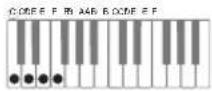 |
When pressing more than one chord keyboard key, it makes no difference whether the additional keys are white or black.
■Full Range Chord
With this chord fingering mode, you can use the full range of the keyboard to play chords and the melody. For information about the types of chords you can finger and their fingerings, see the "Fingering Guide" (page E-160).
Modifying Auto Accompaniment Patterns
There are six different Auto Accompaniment patterns, shown below. You can switch between patterns during accompaniment play and even modify patterns. Use buttons L-12 through L-15 to select the pattern you want.
*1 Press at the beginning of a song. Accompaniment play proceeds with the normal pattern after the intro pattern is complete. Pressing the L-14 (VARIATION/FILL-IN) button before pressing this button will proceed with the variation pattern after the intro pattern is complete.
*2 Press while a normal pattern is playing to insert a fill-in pattern.
*3 Press while a variation pattern is playing to insert a fill-in variation pattern.
*4 Press at the end of a song. This will play an ending pattern and then stop Auto Accompaniment.
Using One-Touch Presets
One-Touch Preset gives you one-touch access to tone and tempo settings that go well with the currently selected Auto Accompaniment rhythm pattern.
To perform using a one-touch preset
- If rhythm is playing, press the L-16 (START/STOP) button to stop it.
- Select the rhythm (excluding user rhythms) you want to use.
- While holding down the L-7 ([E] PIANO RHYTHMS) button, press the L-8 ([F] USER RHYTHMS) button.
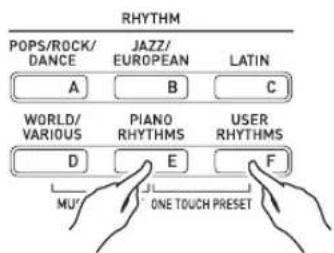
- Settings for the following items are configured appropriately for the rhythm you selected in step 2.
- Tones for the UPPER 1, UPPER 2, and LOWER parts
- Octave shift for the UPPER 1, UPPER 2, and LOWER parts
– Layer and split on/off - Accompaniment on/off
- Reverb on/off and type
- Chorus type
- Auto harmonize or Arpeggiator on/off and type
- Tempo
- Also, the NORMAL indicator flashes on the display to indicate that the normal Auto Accompaniment pattern is standing by.
4. Start playing something on the keyboard.
- Perform the procedure starting from step 7 under "Playing an Auto Accompaniment" (page E-24).
NOTE
- One-Touch Presets are not supported for user rhythms (F:001 through F:100).
- You can recall one-touch preset settings even if a rhythm is already playing when you perform step 3 of the above procedure. In this case, rhythm play will continue without going into synchro standby.
Using Auto Harmonize
Auto harmonize lets you add harmony to melody notes you play with your right hand. You can select any one of 12 Auto harmonize settings.
To play using auto harmonize
- Hold down the R-18 (AUTO HARMONIZE/ARPEGGIATOR) button until the type selection screen shown below appears on the display.

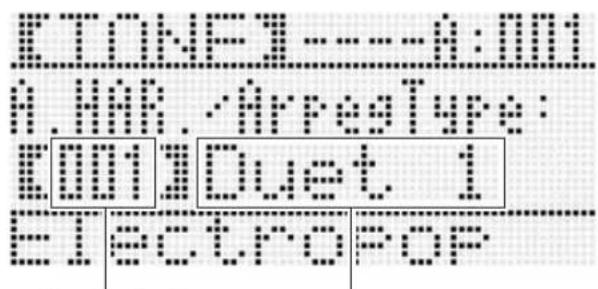
Type number Type name
2. Use the dial or R-14 (-, +) buttons to select the auto harmonize type you want to use.
- You can select one of the type numbers (001 through 012) described in the table below.
| Type Number | Type Name | Description |
| 001 Duet 1 | Adds close (separated by two to four degrees) one-note harmony below the melody note. | |
| 002 Duet 2 | Adds open (separated by more than 4 to 6 degrees) 1-note harmony below the melody note. | |
| 003 Country Adds country style harmony. | ||
| 004 Octave | Adds the note from the next lower octave. | |
| 005 5th | Adds the fifth | degree note. |
| 006 3WayOpen | Adds 2-note open harmony, for a total of three notes. | |
| 007 3WayClos | Adds 2-note close harmony, for a total of three notes. | |
| 008 Strings | Adds harmony that is optimal for strings. | |
| Type Number | Type Name | Description |
| 009 4WayOpen | Adds 3-note open harmony, for a total of four notes. | |
| 010 4WayClos | Adds 3-note close harmony, for a total of four notes. | |
| 011 Block Adds block chord notes. | ||
| 012 Big Band Adds big band style harmony. | ||
- For information about type numbers greater than 012, see "Playing Arpeggio Phrases Automatically (Arpeggiator)" (page E-23).
- Press the R-15 (EXIT) button.
• This exits the type selection screen.
- Press the R-18 (AUTO HARMONIZE/ARPEGGIATOR) button.
- This causes a pointer indicator to appear on the display next to A.HAR.

- Play chords and the melody on the keyboard.
- Harmony will be added to your melody notes based on the chords you play.
- To turn off auto harmonize, press the R-18 (AUTO HARMONIZE/ARPEGGIATOR) button again.
- This causes the pointer indicator next to A.HAR. to disappear.
You can apply a variety of different acoustic effects to the sounds produced by the Digital Keyboard. The built-in effects include a wide variety of variations that give you access to a selection of general digital effects.

NOTE
- The Digital Keyboard also lets you apply effects to input from the T-4 (INST IN) jack and T-6 (MIC IN) jack.
Configuration of Effects
The following shows how Digital Keyboard effects are configured.

NOTE
- Items such as "Reverb Send" that are indicated by the symbol → are all mixer settings. For details, see "Using the Mixer" (page E-36).
- Chorus and DSP cannot be used at the same time.
■Chorus Effect Mode Configuration
The chorus effect mode is enabled while “Chorus” is selected for the “Chorus/DSP” effect parameter. Chorus and reverb can be used in the chorus effect mode.

flowchart
graph TD
    A["Tone Generator"] --> B["Part Volume/Pan"]
    B --> C["Reverb Send"]
    B --> D["Chorus Send"]
    C --> E["+"]
    D --> E
    E --> F["Master Volume/Pan"]
    F --> G["Output"]
    H["External Input"] --> I["Noise Gate"]
    H --> J["Auto Level Control"]
    H --> K["Volume/Pan"]
    L["Mic In"] --> H
    M["Inst In"] --> H
    N["Reverb Send"] --> O["Chorus Send"]
    P["Reverb"] --> Q["Chorus"]
    Q --> E
    style A fill:#f9f,stroke:#333
    style H fill:#ccf,stroke:#333
    style L fill:#cfc,stroke:#333
- For information about "Chorus/DSP", see "Selecting an Effect" (page E-31).
■DSP Effect Mode Configuration
The DSP effect mode is enabled while "DSP" is selected for the "Chorus/DSP" effect parameter. DSP and reverb can be used in the DSP effect mode.

flowchart
graph TD
    A["Tone Generator"] --> B["Part Volume/Pan"]
    B --> C["Reverb Send"]
    C --> D["Master Volume/Pan"]
    D --> E["Output"]
    F["External Input"] --> G["Noise Gate"]
    F --> H["Auto Level Control"]
    F --> I["Volume/Pan"]
    I --> J["DSP Volume/Pan"]
    J --> K["DSP"]
    K --> L["DSP Reverb Send"]
    L --> M["DSP"]
    M --> N["DSP"]
    N --> O["DSP"]
    O --> P["DSP"]
    P --> Q["DSP"]
    Q --> R["DSP"]
    R --> S["DSP"]
    S --> T["DSP"]
    T --> U["DSP"]
    U --> V["DSP"]
    V --> W["DSP"]
    W --> X["DSP"]
    X --> Y["DSP"]
    Y --> Z["DSP"]
    Z --> AA["DSP"]
    AA --> AB["DSP"]
    AB --> AC["DSP"]
    AC --> AD["DSP"]
    AD --> AE["DSP"]
    AE --> AF["DSP"]
    AF --> AG["DSP"]
    AG --> AH["DSP"]
    AH --> AI["DSP"]
    AI --> AJ["DSP"]
    AJ --> AK["DSP"]
    AK --> AL["DSP"]
    AL --> AM["DSP"]
    AM --> AN["DSP"]
    AN --> AO["DSP"]
    AO --> AP["DSP"]
    AP --> AQ["DSP"]
    AQ --> AR["DSP"]
    AR --> AS["DSP"]
    AS --> AT["DSP"]
    AT --> AU["DSP"]
    AU --> AV["DSP"]
    AV --> AW["DSP"]
    AW --> AX["DSP"]
    AX --> AY["DSP"]
    AY --> AZ["DSP"]
    AZ --> BA["DSP"]
    BA --> BB["DSP"]
    BB --> BC["DSP"]
    BC --> BD["DSP"]
    BD --> BE["DSP"]
    BE --> BF["DSP"]
    BF --> BG["DSP"]
    BG --> BH["DSP"]
    BH --> BI["DSP"]
    BI --> BJ["DSP"]
    BJ --> BK["DSP"]
    BK --> BL["DSP"]
    BL --> BM["DSP"]
    BM --> BN["DSP"]
    BN --> BO["DSP"]
    BO --> BP["DSP"]
    BP --> BQ["DSP"]
    BQ --> BR["DSP"]
    BR --> BS["DSP"]
    BS --> BT["DSP"]
    BT --> BU["DSP"]
    BU --> BV["DSP"]
    BV --> BW["DSP"]
    BW --> BX["DSP"]
    BX --> BY["DSP"]
    BY --> BZ["DSP"]
    BZ --> CA["DSP"]
    CA --> CB["DSP"]
    CB --> CC["DSP"]
    CC --> CD["DSP"]
    CD --> CE["DSP"]
    CE --> CF["DSP"]
    CF --> CG["DSP"]
    CG --> CH["DSP"]
    CH --> CI["DSP"]
    CI --> CJ["DSP"]
    CJ --> CK["DSP"]
- Reverb
This type of effect simulates acoustic spaces. There are 10 different reverb effects, including room and hall.
- Chorus
This type of effect increases the depth of notes and applies vibrato to notes. There are five different chorus effects.
• DSP
This type of effect is inserted between the sound source and output. There are a total of 100 different DSP effects, including distortion and modulation. You also can transfer DSP effects from a computer or create DSP data on the Digital Keyboard, and store up to 100 user DSP effects in Digital Keyboard memory. For details, see "Creating a User DSP" (page E-33) and "Connecting to a Computer" (page E-145).

Selecting an Effect
Effects are divided among different types (reverb, chorus, DSP), so first you need to use the procedure below to select an effect type.
To add reverb to sounds
- While holding down the R-13 (FUNCTION) button, press the C-7 (EFFECT) button.

- This displays the effect setting screen shown below.

-
Use the dial or R-14 (-, +) buttons to select the reverb type you want to use.
-
Refer to the separate "Appendix" for information about supported reverb types.
-
To turn off reverb, select "oFF" here.
-
Press the C-7 (EFFECT) button or the R-15 (EXIT) button.
• This exits the effect setting screen.
NOTE
- A pointer indicator is displayed next to REVERB when anything other than "oFF" is selected for the reverb type. The pointer indicator is not displayed next to REVERB when "oFF" is selected.
- You can use Reverb Send to adjust how reverb is applied to the tone of each keyboard or Auto Accompaniment part. For details, see "Using the Mixer" (page E-36).
To add the chorus effect to sounds
- While holding down the R-13 (FUNCTION) button, press the C-7 (EFFECT) button to display the effect setting screen.
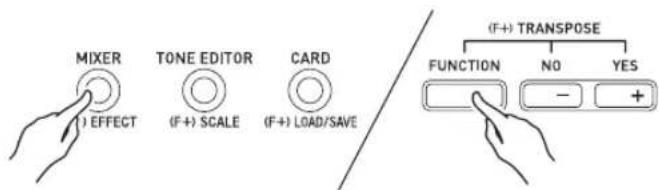

-
If you want, use the R-17 (∧, ∨) buttons to move the thick brackets ([ ]) to the "DSP Disable" setting, and then use the R-14 (−, +) buttons to change the setting to "on".
-
For more information about this setting, see the "Important!" note below.
-
If you turning on the "DSP Disable" setting, you should skip steps 3 and 4 below.
-
Use the R-17 ( , V) buttons to move the thick brackets ([ ]) to the "Chorus/DSP" setting.
- Use the R-14 (-, +) buttons to select "Chorus".
- This enters the chorus effect mode, which enables the use of the chorus effect.
- Use the R-17 (∧, ∨) buttons to move the thick brackets ([ ]) to the "Chorus" setting.
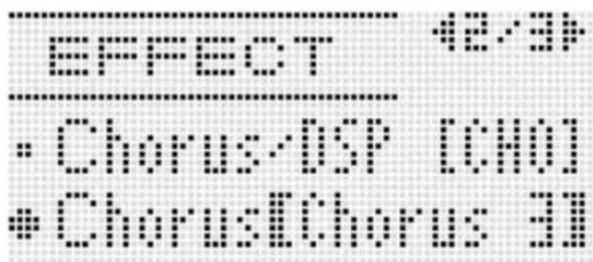
- Use the dial or R-14 (-, +) buttons to select the chorus type you want to use.
- Refer to the separate "Appendix" for information about supported chorus types.
- Press the C-7 (EFFECT) button or the R-15 (EXIT) button.
• This exits the effect setting screen.
- Use the mixer to adjust the chorus send of the part to which you want to apply chorus.
- You can use "Cho.Send" (Part Chorus Send, page E-43) to adjust how chorus is applied to the tone of each keyboard or Auto Accompaniment part. The initial default setting is 0 for the chorus send of all parts, so change the settings to a chorus send value greater than 0 for all parts to which you want to apply the chorus effect. For details, see "Using the Mixer" (page E-36).

IMPORTANT!
- Selecting a tone with DSP causes the “Chorus/DSP” setting to change automatically to the “DSP” (DSP effect mode), so the chorus effect will not be available. If you want the chorus effect always to be available, change the “DSP Disable” setting to “on”. This will keep the Digital Keyboard in the chorus effect mode.

NOTE
- A pointer indicator is displayed next to CHORUS when "Chorus" is selected for the "Chorus/DSP" setting. The pointer indicator is not displayed next to CHORUS when "oFF" is selected for the chorus type or when "DSP" is selected for the "Chorus/DSP" setting.
- Selecting "Chorus" for the "Chorus/DSP" setting will cause the "DSP Line" (Part DSP Line, page E-43) setting for all parts to be changed to "oFF".
To use a DSP
- While holding down the R-13 (FUNCTION) button, press the C-7 (EFFECT) button to display the effect setting screen.

- Check to make sure that the "DSP Disable" setting is "oFF". If it is "on", change it to "oFF".
-
Use the R-17 (∧, ∨) buttons to move the thick brackets ([ ]) to "Chorus/DSP".
-
Use the R-14 (-, +) buttons to select "DSP".
- This enters the DSP effect mode, which enables the use of the DSP effect.
4. Use the R-17 ( , ) buttons to move the thick brackets ([ ]) to the "DSP" setting.
- This causes the number and name of the currently selected preset DSP to appear within the thick brackets (【】) on the display.
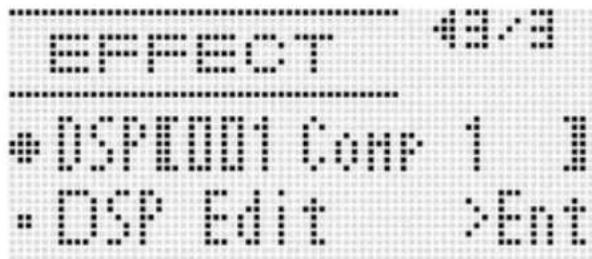
5. Use the dial or R-14 (-, +) buttons to select the preset DSP you want to use.
- DSPs with the leading numbers 001 through 100 (and "ton") are preset DSPs. See "Preset DSP List" (page E-155) for information about preset DSP numbers and names.
- DSP types with the leading numbers 101 through 200 are user DSPs. For details, see "Creating a User DSP" (page E-33).
6. Press the C-7 (EFFECT) button or the R-15 (EXIT) button.
• This exits the effect setting screen.
NOTE
- A pointer indicator is displayed next to DSP when "DSP" is selected for the "Chorus/DSP" setting.
• Maximum polyphony is reduced by a maximum of two notes when playing on the keyboard while a DSP is in use. - You also can adjust how a DSP is applied (DSP output enabled/disabled, DSP output volume, DSP output pan, etc.) For details, see "Using the Mixer" (page E-36).
Creating a User DSP
You can create a user DSP by editing one of the built-in preset DSPs.
User DSP Numbers
DSP areas numbered 101 through 200 are for storage of user DSPs. You can have up to 100 user DSPs stored in memory at one time. To recall a stored user DSP, use the same procedure you use to recall a preset DSP. See "To use a DSP" (page E-32) for more information.
To create and save a user DSP
- Referring to the "DSP Type List" (page E-156), select the DSP type you want to edit in order to create your user DSP.
- Use the R-17 (V) button to move the ● to "DSP Edit".
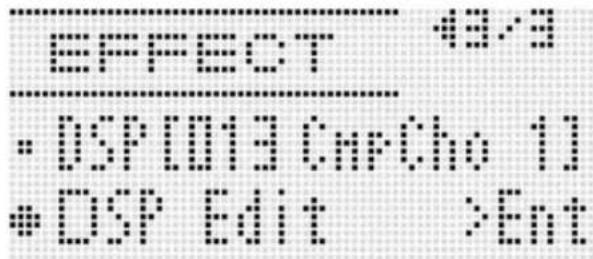
3. Press the R-16 (ENTER) button.
- This displays page one of the DSP editor screen. Use this screen to select the DSP type.
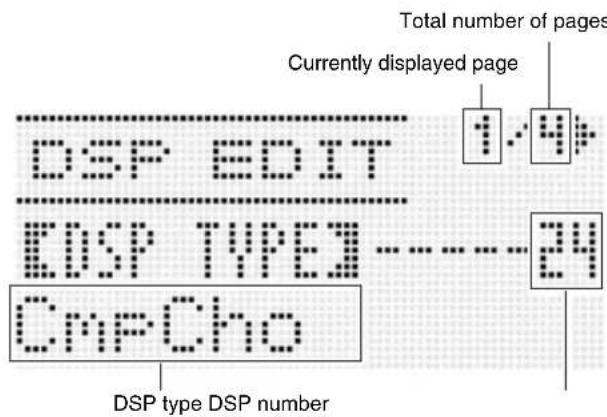
- You can use the R-17 (<, >) buttons to scroll between pages.
-
Use the dial or R-14 (-, +) buttons to select a DSP type.
-
Use the R-17 ( , ) buttons to move the ● to the parameter you want to change.
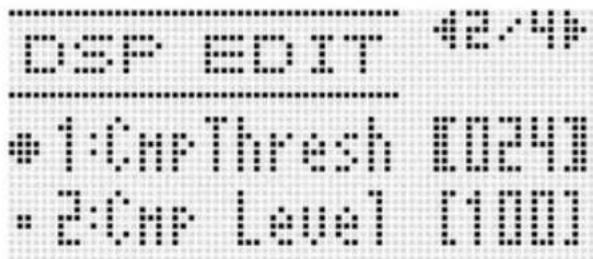
- For information about the operation and the setting range of each parameter, see "DSP Parameter Settings" (page E-35).
-
Use the dial or R-14 (-, +) buttons to change the setting value.
-
Pressing the R-14 (-, +) buttons at the same time returns a parameter to its initial default setting.
-
Changing the DSP parameter while a note is being output from the Digital Keyboard may cause noise to be generated. This does not indicate malfunction.
-
Repeat steps 5 and 6 as required to configure other parameters.
-
Press the R-15 (EXIT) button.
- This displays the confirmation screen shown below.

To cancel the editor operation without saving the edited results, press the R-14 (NO) button.
- Press the R-14 (YES) button.
- This displays a screen for specifying the destination user DSP number and DSP name.
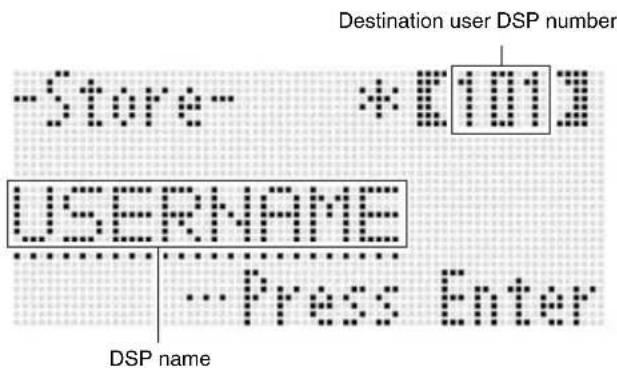
-
Use the dial or R-14 (−, +) buttons to select the destination user DSP number you want.
-
Use the R-17 (<, >) buttons to move the cursor to the name character position you want to change, and then use the dial or R-14 (-, +) buttons to select the character you want.
-
See "Supported Input Characters" (page E-160) for information about the characters you can input for the name.
-
To input a space, press both of the R-14 (-, +) buttons at the same time.
-
After everything is the way you want, press the R-16 (ENTER) button.
- A message (Replace?) will appear on the display to confirm whether you want to replace the existing data with the new data. Press the R-14 (YES) button to replace the existing data with the new data.

IMPORTANT!
- The message "Please Wait" will remain on the display while a data save operation is in progress. Do not perform any other operation while it is displayed. Turning off the Digital Keyboard or removing the memory card can cause Digital Keyboard data to be deleted or become corrupted. It also can cause the Digital Keyboard to fail to turn on when the L-1 (POWER) button is pressed. If this happens, refer to "Troubleshooting" (page E-150).
DSP Parameter Settings
The table below shows the parameters that can be configured on the DSP editor screen. The settings marked with an asterisk (*) in the "Setting Range" column are initial defaults.
| Parameter Name Description Setting Range | ||
| Parameters 1 through 8 The number of parameters and settings available for each parameter depends on the DSP type. For details, see “DSP Parameter List” (page E-157). | - | |
| DSP RevSend(DSP Reverb Send) | Specifies how much of the post-DSP sound should be sent to reverb. 0 - | 40 * - 127 |
| Mod Button*1(Modulation Button Assign) | Specifies the function assigned to the S-2 (MODULATION) button when “DSP” is selected for the “Mod Setting” tone parameter (page E-49). Specifying a value from 1 through 8 assigns the corresponding DSP parameter (1 through 8). Nothing is assigned to the button when “oFF” is selected for this parameter. | oFF*, 1 - 8*2 |
| Mod Button On Value*1(Modulation Button On Value) | Specifies how the function currently assigned to the S-2(MODULATION) button works while the button is depressed. | *3 |
| Mod Button Off Value*1(Modulation Button Off Value) | Specifies how the function currently assigned to the S-2(MODULATION) button works while the button is released. | *3 |
| Rot Button*4(Rotary Button Assign) | Specifies the function assigned to the D-1 (ROTARY SLOW/FAST) button. Specifying a value from 1 through 8 assigns the corresponding DSP parameter (1 through 8). Nothing is assigned to the button when “oFF” is selected for this parameter. | oFF*, 1 - 8*2 |
| Rot Button On Value*4(Rotary Button On Value) | Specifies how the function currently assigned to the D-1 (ROTARY SLOW/FAST) button works while the button is lit. | *5 |
| Rot Button Off Value*4(Rotary Button Off Value) | Specifies how the function currently assigned to the D-1 (ROTARY SLOW/FAST) button works while the button is unlit. | *5 |
*1 Included in the "Mod Button" group. To change the settings of these parameters, move the ● to "Mod Button" and then press the R-16 (ENTER) button. Next, use the R-17 (∧, ∨) buttons to move the ● to the parameter whose setting you want to change.
*2 Setting range depends on the selected DSP type.
*3 Depends on the selected DSP type and the "Mod Button" setting.
*4 Included in the "Rot Button" group. To change the settings of these parameters, move the ● to "Rot Button" and then press the R-16 (ENTER) button. Next, use the R-17 (∧, ∨) buttons to move the ● to the parameter whose setting you want to change.
*5 Depends on the selected DSP type and the "Rot Button" setting.

Mixer Overview
The sound source of this Digital Keyboard is capable of sounding up to 32 individual parts simultaneously. Each part can be controlled individually, and each part can be configured to sound a different musical instrument. Different tones can be assigned to each part when using layer and split to sound multiple tones at the same time, and to sound multiple instruments at the same time with Auto Accompaniment.
The mixer can be used to assign such tones and to configure other settings for each part, and to configure global effect settings applied to all parts. The mixer provides you with the means to make fine adjustments to a wide variety of settings, from note generation to note output.
How Parts are Organized
This Digital Keyboard has a total of 32 parts: A01 through A16, and B01 through B16. Each part has a specific purpose. Use the table below as a reference to determine the purpose of each part when using the mixer to configure the settings of a part.
| This part: | Is used for this: | Go here for more information: |
| A01 Manual play UPPER 1 part “Layering and SplittingTones” (page E-15) | ||
| A02 Manual play UPPER 2 part | ||
| A03 Manual play LOWER part | ||
| A04 Auto harmonize tone | “Using Auto Harmonize”(page E-28) | |
| A05 UPPER 1 part *1 | “Using the Song Sequencer” (page E-68) | |
| A06 UPPER 2 part *2 | ||
| A07 LOWER part *3 | ||
| A08 Metronome sound | “Using the Metronome”(page E-19) | |
| This part: | Is used for this: | Go here for more information: |
| A09 | Auto Accompaniment percussion part | “Using Auto Accompaniment” (page E-24) |
| A10 | Auto Accompaniment drums part | |
| A11 | Auto Accompaniment bass part | |
| A12 to A16 | Auto Accompaniment Chord 1 part through Chord 5 part | |
| B01 to B16 | Song sequencer track B01 through B16, tracks 1 through 16 during playback of a MIDI file from a memory card, CH1 through CH16 during MIDI receive | “Using the Song Sequencer” (page E-68), “Playing a Music File from a Memory Card” (page E-142), “Connecting to a Computer” (page E-145) |
*1 UPPER 1 part recorded to the song sequencer system track.
*2 UPPER 2 part recorded to the song sequencer system track.
*3 LOWER part recorded to the song sequencer system track.
Mixer Operation
To change mixer parameters
1. Press the C-7 (MIXER) button.
• This causes the mixer screen to appear.
Currently selected setting
(MASTER, DSP, EXT(M/I), or A01 to A16/B01 to B16)
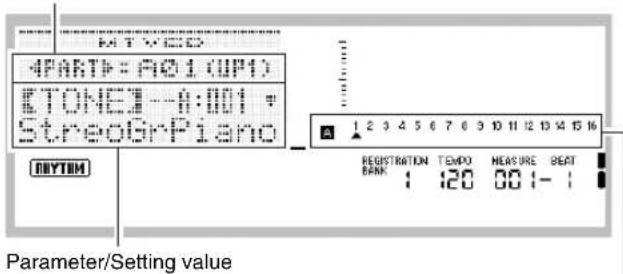
Currently selected setting part (when currently selected setting is A01 to A16/B01 to B16)
2. Use the R-17 (<, >) buttons to select the mixer parameter you want to change.
- You can select master (MASTER), effect (DSP), microphone/instrument input (EXT(M/I)), or a part (A01 through A16, B01 through B16). The currently selected setting is shown in the line two of the display.
- While a part is selected, you can toggle between Group A and Group B by pressing both of the R-17 (<, >) buttons at the same time.
3. Use the R-17 (∧, ∨) buttons to move the thick brackets ([ ]) to the parameter you want to change.
- The parameters that can be configured depend on the currently selected setting. For details, refer to the sections shown in the table below.
| When this setting is selected: | These parameters can be configured: |
| MASTER MASTER Parameters(page E-41) | |
| EXT(M/I) MIC/INST Parameters (ExternalMIC IN/INST IN()page E-42) | |
| DSP DSP Parameters (page E-41) | |
| A01 to A16/B01 to B16 Part Parameters (page E-43) | |
- When you move the thick brackets (【 】) to one of the setting values of a part parameter, all of the part parameter values of the Group (A or B) to which the part belongs are indicated by level meter black boxes.
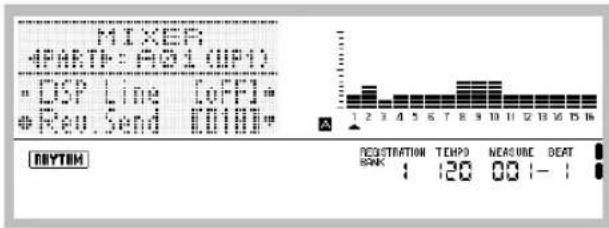
4. Use the dial or R-14 (-, +) buttons to change the setting value.
- Pressing the R-14 (-, +) buttons at the same time returns a parameter to its initial default setting.
- You also can change the settings of parameters using the D-1 (PART/COMMON), D-2 (GROUP A/B), and D-3 (1-8/9-16) buttons, and sliders D-4 (1/9/EXT) to D-12 (MASTER). For more information, see "Using the Sliders to Change Parameter Settings" (page E-38).
- While the "Part" (part on/off) setting of a part parameter is being configured, pressing both of the R-14 (-, +) buttons at the same time will change the setting to "Sol" (Solo). For details, see "Part Parameters" (page E-43).
5. Repeat steps 2 through 4 as required to configure other parameters.
6. To exit the mixer, press the C-7 (MIXER) button or the R-15 (EXIT) button.
• This exits the mixer screen.
NOTE
- While master (MASTER), effect (DSP) or microphone/instrument input (EXT(M/I)) is selected in step 2 above for setting, you also can perform normal keyboard play (play using layer, split, and Auto Accompaniment).
- While an individual part (A01 through A16, B01 through B16) is selected in step 2 above for setting, pressing a keyboard key will sound only notes of the selected part. All other types of performance operations (layer, split, Auto Accompaniment, etc.) are disabled.
Using the Sliders to Change Parameter Settings
While the mixer screen is displayed, use sliders D-4 (1/9/EXT) to D-12 (MASTER) to change the displayed parameter settings. The D-1 (PART/COMMON), D-2 (GROUP A/B) and D-3 (1-8/9-16) buttons are used to specify the parts that correspond to sliders D-4 (1/9/EXT) to D-11 (8/16).

D-1 D-2 D-3 D-4 D-5 D-6 D-7 D-8D-9 D-10 D-11 D-12
The following describes the operation of these buttons and sliders while the mixer screen is displayed.
●D-1 (PART/COMMON) button:
Each press toggles the mixer screen between master parameter settings (MASTER) and the settings of one of the part (A01 through A16, B01 through B16) parameters.
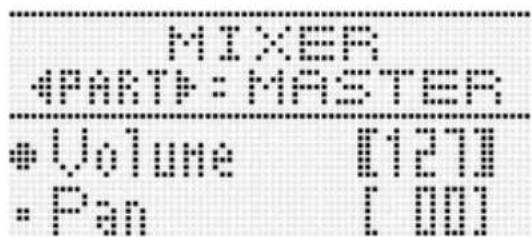

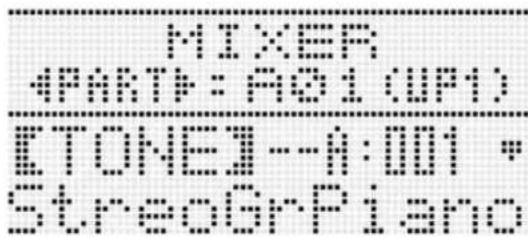
●D-2 (GROUP A/B) button:
Each press toggles the part parameter setting screen between one of the parts in group A (A01 through A16) and one of the parts in group B (B01 through B16).
![MIXED 4PART: PBC LOD " Part [Lond] " Volume [10000] A 1 2 3 4 5 6 7 8 9 10 11 12 13 14 15 16 REGISTRATION TEMPO MEASURE BEAT BANK 1 120 00 1-1 DRYTHM](/content/2026/06/1239013/images/a900b6fc1f713555f41ed1f6885c35910d9f95c7c50664b9836dff678cc374bc.jpg)


●D-3 (1-8/9-16) button:
Each press toggles the parts that correspond to parameter operations by sliders D-4 (1/9/EXT) to D-11 (8/16) between A01 through A08 (or B01 through B08) and A09 through A16 (or B09 through B16).
![MIXES 4PART: AOS (LOW) • Part [ 01]# • Volume [089]# BYTOM REGSTRATION TEMPO MEASURE SEAT SINK 1 120 00 1-1](/content/2026/06/1239013/images/47d869ffb59ccc57202919f609db5b84650850871483ae281c584e3ef399874a.jpg)


bar
| Time | Value | | :--- | :--- | | 1 | 120 | | 2 | 120 | | 3 | 120 | | 4 | 120 | | 5 | 120 | | 6 | 120 | | 7 | 120 | | 8 | 120 | | 9 | 120 | | 10 | 120 | | 11 | 120 | | 12 | 120 | | 13 | 120 | | 14 | 120 | | 15 | 120 | | 16 | 120 |●Sliders D-4 (1/9/EXT) through D-11 (8/16):
Allow configuration of the following parameter settings in accordance with the currently displayed mixer setting.
| When this setting screen is displayed: | These parameter settings can be configured: |
| MASTER Parameters(page E-41),MIC/INST Parameters(External MIC IN/INST IN() (page E-42),DSP Parameters(page E-41) | Slider D-4 (1/9/EXT):MIC/INST parameters*Slider D-5 (2/10/DSP):DSP parameters*Sliders D-6 (3/11) to D-11 (8/16):Parameters of part assigned to each slider* |
| Part Parameters(page E-43) | Sliders D-4 (1/9/EXT) toD-11 (8/16):Parameters of part assigned to each slider* |
*Operating a slider whose setting does not correspond to anything on the currently displayed setting screen will automatically switch to the setting screen that corresponds to the slider. For example, if you operate slider D-4 (1/9/EXT) while the master parameter setting screen is displayed, the display will automatically switch to the MIC/INST parameter setting screen.
●Slider D-12 (MASTER):
Changes the master parameter setting. Operating this slider while any screen other than the master parameter setting screen is displayed will automatically switch to the master parameter setting screen.
■Setting Operation Example: To adjust the volume of parts A01 through A16
-
While the mixer setting screen is displayed, use the R-17 (<, >) buttons to select one of the parts (A01 through A08).
-
Use the R-17 (∧, ∨) buttons to move the ● to "Volume".
- This enables modification of the part volume setting.
![MIXED 40% = 100% (1) = Part [lon] Volume [lon]](/content/2026/06/1239013/images/c63b9f5d9c79097de04df44719d6007fdd5e1bc3d8c690ed856d9f32d9dc8bd6.jpg)
3. Use sliders D-4 (1/9/EXT) to D-11 (8/16) to adjust the volume of each part (A01 through A08).
- As you move a slider to change a part volume, the setting is reflected in the value inside the thick brackets (【】) and on the level meter.

- Next, to adjust the volumes of parts A09 through A16, press the D-3 (1-8/9-16) button.
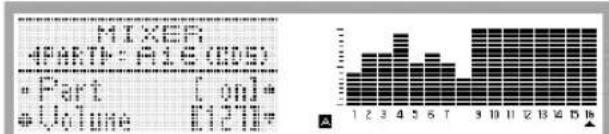
- Use sliders D-4 (1/9/EXT) to D-11 (8/16) to adjust the volume of each part (A09 through A16).

bar
| Category | Value | |---|---| | 1 | 10 | | 2 | 15 | | 3 | 20 | | 4 | 25 | | 5 | 18 | | 6 | 16 | | 7 | 14 | | 8 | 22 | | 9 | 28 | | 10 | 30 | | 11 | 26 | | 12 | 24 | | 13 | 27 | | 14 | 32 | | 15 | 35 | | 16 | 20 |To initialize all mixer parameters To change the information displayed by the

NOTE
- For details about how initial default settings are configured when you perform the following procedure, see "Parameter List" (page E-162).
- While the mixer screen is displayed, hold down the R-13 (FUNCTION) button as you press the C-17 (MENU) button.
- This displays the mixer menu screen with the ● next to "Initialize".
![-Hiver Hone #Initialize :Ent :Display [parand]](/content/2026/06/1239013/images/dc3fd4af074cf9a6ccbe09b22c0ef860318bb609a7781ef6128c9fad28bf0367.jpg)
- Press the R-16 (ENTER) button.
- In response to the "Sure?" message that appears, press the R-14 (YES) button to initialize all mixer parameters or the R-14 (NO) button to cancel.
level meter while configuring part parameter settings
- While the mixer screen is displayed, hold down the R-13 (FUNCTION) button as you press the C-17 (MENU) button.
• This displays the mixer menu. - Use the R-17 (V) button to move the ● to "Display" and then press the R-16 (ENTER) button.
- Use the dial or R-14 (-, +) buttons to change the setting.
| To select display of this information: | Select this setting: |
| Part parameter setting values Param | |
| Volume level Meter |
- After the setting is the way you want, press the R-15 (EXIT) button to exit the menu.
Mixer Parameter Settings
The tables below show the parameters that can be configured on the mixer screen.
The settings marked with an asterisk (*) in the "Setting Range" column are initial defaults.
MASTER Parameters
MASTER parameters include items for adjusting the volume level, pan position, and other settings that are applied globally to all parts.
| Parameter Name Description Setting Range | ||
| Volume (Master Volume) | Specifies the maximum volume level of Digital Keyboard output. The level set here is the maximum level that can be set with the L-2 (VOLUME) knob. | 0 to 127* |
| Pan (Master Pan) | Specifies the stereo pan position of all sound output by the Digital Keyboard. 0 indicates the center, while a smaller values shifts to the left and a larger value shifts to the right. | -64 to 0* to +63 |
DSP Parameters
DSP parameters include DSP-related settings that are applied globally to all parts.

IMPORTANT!
- DSP parameter setting cannot be changed while “on” is selected for the “DSP Disable” effect setting. See “To add the chorus effect to sounds” (page E-31) for information about “DSP Disable”. If you want to change DSP parameter settings, change the “DSP Disable” setting to “oFF”.
| Parameter Name Description Setting Range | ||
| Cho/DSP(Chorus/DSP) | Specifies whether the Digital Keyboard's sound source should go through the chorus or DSP.* ^1 This setting item is linked to the “Chorus/DSP”* ^2 item on the effect setting screen. The settings below cannot be configured whenever this parameter is “Chorus”. | Chorus*, DSP |
| Part(DSP Output Enable) | Specifies if a note should be output (on) or not output (oFF) after it passes through the DSP. | oFF, on* |
| Volume(DSP Output Volume) | Specifies the post-DSP volume level.* ^1 | 0 to 127* |
| Pan(DSP Output Pan) | Specifies the post-DSP send stereo pan position. 0 indicates the center, while a smaller values shifts to the left and a larger value shifts to the right. | -64 to 0* to +63 |
| Rev.Send(DSP Output Reverb Send) | Specifies how much reverb is applied to the post-DSP send note. 0 to 40 | * to 127 |
*1 See the block diagram under "Configuration of Effects" (page E-29).
*2 See "To add the chorus effect to sounds" (page E-31) and "To use a DSP" (page E-32).
MIC/INST Parameters (External MIC IN/INST IN
MIC/INST parameters include settings related to the T-4 (INST IN) and T-6 (MIC IN) terminals.
| Parameter Name Description Setting Range | ||
| Part(Mic/Inst Enable) | Specifies if sound input should be output (on) or not output (oFF). oFF, on | * |
| Volume(Mic/Inst Volume)*1 | Specifies the volume level of sound input. 0 to 80 | * to 127 |
| Pan(Mic/Inst Pan) | Specifies the stereo pan position of sound input. 0 indicates the center, while a smaller values shifts to the left and a larger value shifts to the right. | -64 to 0* to +63 |
| DSP Line(Mic/Inst DSP Line) | Specifies whether DSP should be applied to sound input. oFF | *, on |
| Rev.Send(Mic/Inst Reverb Send) | Specifies how much reverb is applied to sound input. 0 to 40 | * to 127 |
| Cho.Send(Mic/Inst Chorus Send) | Specifies how much chorus effect is applied to sound input. 0 | * to 127 |
| N.Thresh(Mic/Inst Noise Gate Threshold)*1 | Cuts low-volume input sounds, which decreases noise. Allows a signal to pass through if it is above the set threshold (gate open). Does not allow a signal to pass if it is below the threshold (gate closed). | 0 to 20* to 127 |
| N.Release(Mic/Inst Noise Gate Release)*1 | Specifies the amount of time for the gate to go from open to fully closed when an input sound signal falls below the threshold value specified by “N.Thresh”.Setting 0 will abruptly cut off the sound, while a larger value will cause the gate to close more slowly. | 0 to 64* to 127 |
| Auto Level(Mic/Inst Auto Level Control)*1 | Automatically controls the input signal level. Selecting “oFF” disables this feature, while a larger value applies a greater degree of control. | oFF*, 1 to 3 |
*1 See the block diagram under "Configuration of Effects" (page E-29).
Part Parameters
Part parameters include setting items that can be adjusted for parts A01 through A16 and B01 through B16.
| Parameter Name Description Setting Range | ||
| TONE(Part Tone) | Specifies a tone for each part. When configuring this parameter, you can use the buttons R-1 ([A] PIANO) through R-12 ([L] DRAWBAR ORGAN) to select a tone group. | A:001 to L:100 |
| Part(Part On/Off) | Specifies if the notes of a particular part should be output (on) or not output (oFF).When a part is turned on, the part number is displayed along the bottom of the level meter. Part numbers are not displayed for parts that are turned off.When playing back a MIDI file or song sequencer song, a “Sol” (Solo) option can be specified to play a specific part only. To switch to “Sol”, press both R-14 (−, +) buttons at the same time. | oFF, on* |
| Volume(Part Volume) | Specifies the volume level of each part. 0 to 127 | * |
| Pan(Part Pan) | Specifies the stereo pan position of each part. 0 indicates the center, while a smaller values shifts to the left and a larger value shifts to the right. | -64 to 0* to +63 |
| CoarseTune(Part Coarse Tune) | Specifies, in semitone steps, the pitch of the notes of each part. -24 to 0 | * to +24 |
| FineTune(Part Fine Tune) | Specifies, in cent steps, the pitch of the notes of each part. -99 to 0 | * to +99 |
| BendRange(Part Bend Range) | Specifies the bend range of each part. 0 to 2 | * to 24 |
| DSP Line(Part DSP Line) | Specifies whether DSP should be applied to each part. Changing this setting from “oFF” to “on” automatically switches the “Chorus/DSP” setting (page E-41) to “DSP”. | oFF*, on |
| Rev.Send(Part Reverb Send) | Specifies how much reverb is applied to each part.No reverb is applied at all when this setting is 0, while maximum reverb is applied when it is 127. | 0 to 40* to 127 |
| Cho.Send(Part Chorus Send) | Specifies how much chorus is applied to each part.No chorus is applied at all when this setting is 0, while maximum chorus is applied when it is 127. | 0* to 127 |
| Scale(Part Scale Enable) | Specifies whether scale (page E-21) settings should be applied (on) or should not be applied (oFF). Equal temperament is applied to parts when this setting is “oFF”. | oFF, on* |

You can create a user tone by editing one of the built-in preset tones.

NOTE
• This section covers editing of preset tone groups A through J.
- For information about editing group L (drawbar organ) tones, see "Editing Drawbar Organ Tones" (page E-52).
Tone Creation Overview
The preset tones built into this Digital Keyboard consist of a number of parameters. To create a user tone, you first recall a preset tone (A:001 to J:128) and then modify its parameters to change it to your own original tone.
Note that drum set sounds (J:129 to J:146) cannot be used as the basis of a user tone.
The illustration nearby shows the parameters that make up the preset tones, and what each parameter does. As can be seen in the illustration, parameters can be divided into four groups, each of which is described in detail below.
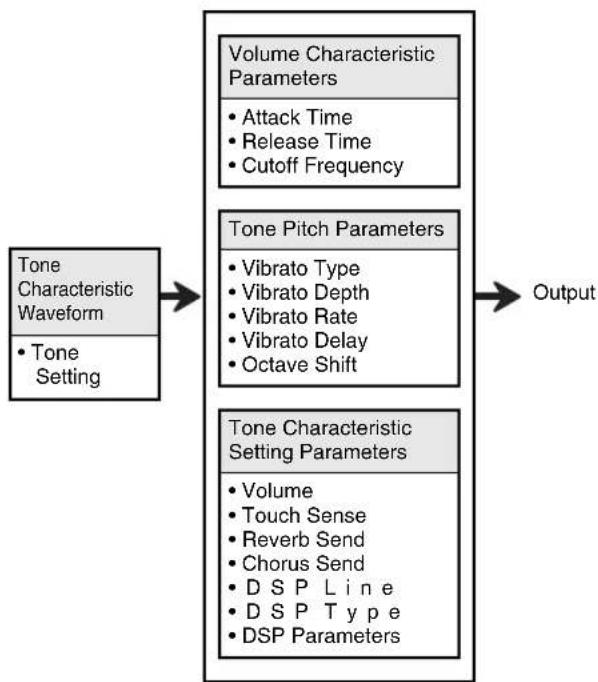
flowchart
graph LR
    A["Tone Characteristic Waveform<br>• Tone Setting"] --> B["Volume Characteristic Parameters<br>• Attack Time<br>• Release Time<br>• Cutoff Frequency"]
    B --> C["Tone Pitch Parameters<br>• Vibrato Type<br>• Vibrato Depth<br>• Vibrato Rate<br>• Vibrato Delay<br>• Octave Shift"]
    C --> D["Tone Characteristic Setting Parameters<br>• Volume<br>• Touch Sense<br>• Reverb Send<br>• Chorus Send<br>• DSP Line<br>• DSP Type<br>• DSP Parameters"]
    D --> E["Output"]
(1) Tone Characteristic Waveform
• Tone Setting
Specifies which of the preset tones should be used as the original tone.
(2) Volume Characteristic Parameters
These parameters control how the tone changes over time, from when the keyboard key is pressed until the tone decays. You can specify changes in volume and sound characteristics.
- Attack time
This is the rate or time it takes for the tone to reach its highest volume level. You can specify a fast rate, where the tone reaches its highest volume level immediately, a slow rate where it gradually rises, or something in between.
- Release time
This is the rate or time it takes for the tone volume to fall to zero after a keyboard key is released. You can specify a release that ranges from a sudden fall to zero, to one that gradually falls to zero.

A : Attack time
R : Release time
- Cutoff Frequency
The cutoff frequency is a parameter for adjusting timbre by cutting any frequency that is higher than a specific frequency. A larger cutoff frequency produces a brighter (harder) timbre, while a smaller frequency produces a darker (softer) timbre.

area
| Level | Frequency | |-------|---------| | Low | 0 | | Mid | 0.5 | | High | 0 |(3) Tone Pitch Parameters
• Vibrato Type, Vibrato Delay, Vibrato Rate, Vibrato Depth
These parameters adjust the vibrato effect, which causes periodic changes in the tone.
- Octave Shift
This parameter controls the octave of all tones.
(4) Tone Characteristic Setting Parameters
• Volume
This parameter controls the overall volume of the tone.
- Touch Sense
This parameter controls changes in volume and timbre in accordance with the relative amount of pressure applied to the keyboard keys. You can specify more volume for stronger pressure and less volume or a lighter pressure, or you can specify the same volume regardless of how much pressure is applied to the keys.
- Reverb Send, Chorus Send, DSP Line, DSP Type, DSP Parameters
These parameters control the effects applied to tones.
Creating a User Tone
User Tone Numbers
Tone areas numbered K:001 through K:100 are for storage of user tones. You can have up to 100 user tones stored in memory at one time. You can recall a stored user tone by pressing the R-11 ([K] USER TONES) button. See "To select a tone" (page E-14).
To create and save a user tone
1. Select the tone you want to edit in order to create your user tone.
- Select the tone you want to edit from group A through J (preset tones) or group K (user tones).
- The parameters you can edit for group L (drawbar organ) tones are different from those that you can edit for group A through K tones. See “Editing Drawbar Organ Tones” (page E-52) for more information.
2. Press the C-8 (TONE EDITOR) button.
• This displays the tone editor screen.
![TONE EDIT AttackTime ReleasTime Parameter name Current setting Total number of pages Currently displayed page 1 9 000 000 Currently selected parameter (Enclosed by thick brackets [ ])](/content/2026/06/1239013/images/6b499108bac486df33cacaff164093f2b532a1b005f7402442c813d5faca88ea.jpg)
- You can use the R-17 (<,>) buttons to scroll between pages.
3. Use the R-17 (∧, ∨) buttons to move the ● to the parameter you want to change.
- For information about the operation and the setting range of each parameter, see "Tone Parameter Settings" (page E-48).
- Use the dial or R-14 (-, +) buttons to change the setting value.
- Pressing the R-14 (-, +) buttons at the same time returns a parameter to its initial default setting.
-
Repeat steps 3 and 4 as required to configure other parameters.
-
To save a rhythm after you edit it, hold down the R-13 (FUNCTION) button as you press the C-17 (MENU) button.
• This displays the tone editor menu.
- Press the R-16 (ENTER) button.
- This displays a screen for specifying the destination user tone number and tone name.
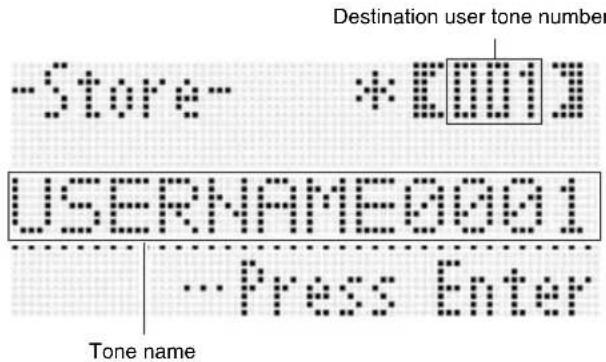
-
Use the dial or R-14 (-, +) buttons to select the destination user tone number you want.
-
Use the R-17 (<, >) buttons to move the cursor to the name character position you want to change, and then use the dial or R-14 (-, +) buttons to select the character you want.
-
See "Supported Input Characters" (page E-160) for information about the characters you can input for the name.
-
To input a space, press both of the R-14 (-, +) buttons at the same time.
-
After everything is the way you want, press the R-16 (ENTER) button.
- A message (Replace?) will appear on the display to confirm whether you want to replace the existing data with the new data. Press the R-14 (YES) button to replace the existing data with the new data.

IMPORTANT!
- The message “Please Wait” will remain on the display while a data save operation is in progress. Do not perform any other operation while it is displayed. Turning off the Digital Keyboard or removing the memory card can cause Digital Keyboard data to be deleted or become corrupted. It also can cause the Digital Keyboard to fail to turn on when the L-1 (POWER) button is pressed. If this happens, refer to “Troubleshooting” (page E-150).

NOTE
- Pressing the R-15 (EXIT) button in place of step 6 displays the confirmation screen shown below. Pressing the R-14 (YES) button at this time will display the tone save screen in step 7.

To cancel the editor operation without saving the edited results, press the R-14 (NO) button.
Tone Parameter Settings
The table below shows the parameters that can be configured on the tone editor screen. For information about each parameter, also refer to "Tone Creation Overview" (page E-44).
The settings marked with an asterisk (*) in the "Setting Range" column are initial defaults.
| Parameter Name Description Setting Range | |||
| AttackTime(Attack Time) | Specifies the time until a note starts to sound after a key is pressed. -64 to 0 | * to +63 | |
| ReleasTime(Release Time) | Specifies the time a note continues to sound after a key is released. -64 to 0 | * to +63 | |
| CutOff(Cutoff Frequency) | Adjusts timbre by attenuating note components that are higher than a certain frequency. A larger value produces a brighter, harder sound, while a lower value produces a mellower, softer sound. | -64 to 0* to +63 | |
| Vib.Type(Vibrato Type) | Specifies the vibrato type (vibrato waveform). Sin | *, Tri, Saw, Sqr | |
| Setting D | Description Waveform | ||
| Sin Sine wave | |||
| Tri | Triangle wave | ||
| Saw | Sawtooth wave | ||
| Sqr | Square wave | ||
| Vib.Depth(Vibrato Depth) | Specifies how much vibrato is applied to a note. -64 to 0 | * to +63 | |
| Vib.Rate(Vibrato Rate) | Specifies the speed of the vibrato applied to a note. -64 to 0 | * to +63 | |
| Vib.Delay(Vibrato Delay) | Specifies how much time elapses until vibrato starts. -64 to 0 | * to +63 | |
| Oct.Shift(Octave Shift) | Shifts the pitch upwards or downwards in octave steps. -2 to 0 | * to +2 | |
| Volume(Volume) | Specifies the volume level of all tones. A larger value sets a higher volume level. | 0 to 127* | |
| TouchSense(Touch Sense) | Specifies how much the volume changes in accordance with the relative amount of pressure applied to keyboard keys. A larger positive value results more change in volume in accordance with key pressure. A larger negative values results in less change in volume in accordance with key pressure. Key pressure does not affect volume when a value of 0 is set. | -64 to 0 to +63* | |
| Rev.Send(Reverb Send) | Specifies how much reverb is applied for each tone. 0 to 40 | * to 127 | |
| Cho.Send(Chorus Send) | Specifies how much chorus is applied for each tone. 0 | * to 127 | |
| DSP On Off(DSP On/Off) | Specifies whether DSP should be applied (on) or not applied (oFF) to notes. The following four settings become enabled when “on” is selected for this setting. | oFF*, on | |
| DSP Specifies the DSP to be applied to tones using DSP numbers (001 to 100: Preset DSPs; 101 to 200: User DSPs). Selecting “ton” applies the initial preset DSP of each tone. | ton*, 001 to 200 | ||
| DSP Type(DSP Type) | Shows the DSP type number corresponding to the above DSP value that is set automatically as the initial default setting.*1 You can modify the initial default setting and select a different DSP type. | 01 to 46*1 | |
| DSP Parameters 1 through 8 | Shows up to eight parameters for “DSP Type”. *2 *2 | ||
| DSP RevSend (DSP Reverb Send) | Adjusts how much reverb is applied to the post-DSP note. 0 to 40 | * to 127 | |
| Mod Setting (Modulation Setting) | Assigns either vibrato or DSP to the S-2 (MODULATION) button. | Vib*, DSP | |
| Mod Depth (Modulation Depth) | When vibrato is assigned to the S-2 (MODULATION) button, specifies the depth of vibrato applied to a tone while the button is depressed. | 0 to 127 (Default setting depends on the tone.) | |
| Mod Button *3 (Modulation Button Assign) | Specifies the function assigned to the S-2 (MODULATION) button when “DSP” is selected for the “Mod Setting”. Specifying a value from 1 through 8 assigns the corresponding DSP parameter (1 through 8). Nothing is assigned to the button when “oFF” is selected for this parameter. | oFF*, 1 to 8*4 | |
| Mod Button On Value *3 (Modulation Button On Value) | Specifies how the function currently assigned to the S-2 (MODULATION) button works while the button is depressed. | *5 | |
| Mod Button Off Value *3 (Modulation Button Off Value) | Specifies how the function currently assigned to the S-2 (MODULATION) button works while the button is released. | *5 | |
| Rot Button *6 (Rotary Button Assign) | Specifies the function assigned to the D-1 (ROTARY SLOW/FAST) button. Specifying a value from 1 through 8 assigns the corresponding DSP parameter (1 through 8). Nothing is assigned to the button when “oFF” is selected for this parameter. | oFF*, 1 to 8*4 | |
| Rot Button On Value *6 (Rotary Button On Value) | Specifies how the function currently assigned to the D-1 (ROTARY SLOW/FAST) button works while the button is lit. | *7 | |
| Rot Button Off Value *6 (Rotary Button Off Value) | Specifies how the function currently assigned to the D-1 (ROTARY SLOW/FAST) button works while the button is unlit. | *7 | |
*1 See "Preset DSP List" (page E-155) for information about the DSP types of each preset DSP.
*2 The number of DSP parameters, their content, and their setting ranges depend on the DSP type. For details, see "DSP Type List" (page E-156) and "DSP Parameter List" (page E-157).
*3 Included in the "Mod Button" group. To change the settings of these parameters, move the ● to "Mod Button" and then press the R-16 (ENTER) button. Next, use the R-17 (∧, ∨) buttons to move the ● to the parameter whose setting you want to change.
*4 Setting range depends on the selected DSP type.
*5 Depends on the selected DSP type and the "Mod Button" setting.
*6 Included in the "Rot Button" group. To change the settings of these parameters, move the ● to "Rot Button" and then press the R-16 (ENTER) button. Next, use the R-17 (∧, ∨) buttons to move the ● to the parameter whose setting you want to change.
*7 Depends on the selected DSP type and the "Rot Button" setting.

Your Digital Keyboard comes with drawbar organ tones built in that you can use for mixing waveform ratios, just like a drawbar organ. The nine sliders, which correspond to drawbars, can be used to change harmonic overtone level settings and to create sounds by adding percussion and click sounds in real time as you play. A button is also provided to switch the rotary effect between fast and slow.
You also can edit parameters that are unique to drawbar organ tones to create and store your own original user drawbar organ tones.
■About the drawbars
The nine sliders from D-4 (16') through D-12 (1') perform the role of the drawbars of a drawbar organ. Each slider is assigned a harmonic overtone from 16' through 1'*.

D-4 D-5 D-6 D-7 D-8 D-9 D-10 D-11 D-12
*The prime symbol (') following a value such as 16' represents a "length" in feet.
Playing with a Drawbar Organ Tone
To select and play with a drawbar organ tone
1. Refer to the separate "Appendix" to look up the number of the drawbar organ tone you want.
2. Press the R-12 ([L] DRAWBAR ORGAN) button to select the drawbar organ tone group.
- This displays the screen of one of the drawbar organ tones. The level meter shows the harmonic overtone levels for the foot "lengths" preset for the currently selected drawbar organ tone.
Foot "length" harmonic overtone levels (16' to 1')
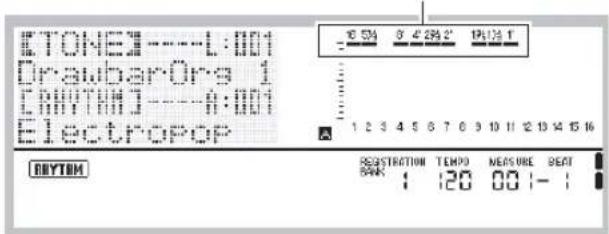
3. Use the dial or the R-14 (-, +) buttons to change the number and select the tone you want.
- Selecting a tone changes the tone number and tone name on the display, and also changes the level meter to reflect the harmonic overtone levels for the selected tone.
- Tone numbers L:051 through L:100 are user drawbar organ tones. See "Editing Drawbar Organ Tones" (page E-52) for more information.
4. Now you can play on the keyboard using the tone you selected.
- You can adjust the harmonic overtone levels of drawbar organ tones in real time as you play. See "Adjusting a Drawbar Organ Tone in Real Time" (page E-51) for more information.
Adjusting a Drawbar Organ Tone in Real Time
Use the sliders and buttons to adjust drawbar organ tones in real time.
| To do this: Do this: | |
| Adjust tone harmonic overtone levels | Shift sliders D-4 (16') through D-12 (1') upwards and downwards.Shifting one of the sliders upwards or downwards changes the harmonic overtone of the corresponding foot “length” from its current level (the level preset for the tone).*1You also can configure the level meter so it indicates the harmonic overtone level of each slider position. For more information, see “To configure the level meter to show the harmonic overtone level of each slider position” (page E-51). |
| Add or remove percussion sound with 2nd overtone and 3rd overtone pitch to a tone | Use the D-2 (PERCUSSION SECOND) and D-3 (PERCUSSION THIRD) buttons.Each press toggles the button between lit and unlit.The corresponding overtone percussion is being applied to notes while a button is lit, and not being applied while it is unlit. |
| Switch the rotary effect speed (rotation speed)*2 | Press the D-1 (ROTARY SLOW/FAST) button.Each press toggles the button between lit and unlit.Rotary speed is fast while the button is lit and slow when it is unlit. |
*1 Adjustment to one of nine levels, from 0 to 8, is supported. Each level is indicated by the level meter as shown below.
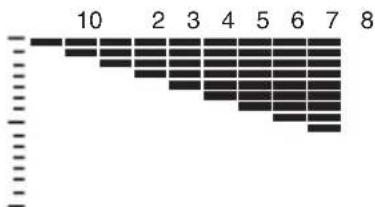
bar
| Value | |---| | 10 | | 2 | | 3 | | 4 | | 5 | | 6 | | 7 | | 8 |*2 This operation is supported only when DSP is being used as the effect and the DSP type is "Rotary". For details about effects, see "Applying Effects to a Sound" (page E-29). For details about DSP types, see "DSP Effect List" (page E-155).
To configure the level meter to show the harmonic overtone level of each slider position
-
Perform steps 1 through 3 of the procedure under "To select and play with a drawbar organ tone" (page E-50).
-
The level meter shows the harmonic overtone levels for the foot "lengths" preset for the currently selected drawbar organ tone.
-
You also could skip this step and start from step 2 of this procedure, if you want.
-
Hold down the R-12 (MANUAL) button until the foot "length" values (16' through 1') along the top of the level meter flash twice. You can release the button at this time.
- This will cause the level meter to indicate the current positions of sliders D-4 (16') through D-12 (1'), and apply applicable harmonic overtone levels to the current tone.

-
Shift sliders D-4 (16') through D-12 (1') upwards and downwards.
-
When you do, the displayed harmonic overtone levels will change accordingly in the level meter.
- Now you can play on the keyboard using the level-adjusted tone.
Editing Drawbar Organ Tones
User Drawbar Organ Tone Numbers
Tone areas numbered L:051 through L:100 are for storage of user drawbar organ tones. You can have up to 50 user drawbar organ tones stored in memory at one time. You can recall a user drawbar organ tone by pressing the R-12 ([L] DRAWBAR ORGAN) button and then using the dial or the R-14 (−, +) buttons to specify the tone number you want. After recalling a user drawbar organ tone, you can perform the same operations as those supported for preset drawbar organ tones. For more information, see “To select and play with a drawbar organ tone” (page E-50).
To edit a drawbar organ tone and store it
1. Select the drawbar organ tone you want to edit.
- Perform the procedure under "To select and play with a drawbar organ tone" (page E-50).
- At this point, you can perform operations with sliders D-4 (16') through D-12 (1'), and the D-2 (PERCUSSION SECOND) and D-3 (PERCUSSION THIRD) buttons before starting the tone editing operation. For details about using the sliders and buttons, see "Adjusting a Drawbar Organ Tone in Real Time" (page E-51) and "To configure the level meter to show the harmonic overtone level of each slider position" (page E-51).
2. Press the C-8 (TONE EDITOR) button.

- This displays the drawbar editor screen.
![DRAPUBAR Feet 16' [ III ] Feet5 1/3' [ III ] 1234567891011236516 REGISTRATION TEMPO HEASURE BEAT BARK 1 120 00 1- 1](/content/2026/06/1239013/images/4a3f69d6f8928bc889e385dfc4b72353ed62f9e40d47a3a3f54d12c35b2562e2.jpg)
- You can use the R-17 (<,>) buttons to scroll between pages.
3. Use the R-17 ( , V) buttons to move the ● to the parameter you want to change.
- For information about the operation and the setting range of each parameter, see "Drawbar Organ Tone Parameter Settings" (page E-53).
4. Use the dial or the R-14 (-, +) buttons to change the setting value.
- Pressing the R-14 (-, +) buttons at the same time returns a parameter to its initial default setting.
- Repeat steps 3 and 4 as required to configure other parameters.
- To store a rhythm after you edit it, hold down the R-13 (FUNCTION) button as you press the C-17 (MENU) button.
- This displays the drawbar edit menu.
- Press the R-16 (ENTER) button.
- This displays a screen for specifying the destination user drawbar organ tone number and tone name.
- Use the dial or the R-14 (−, +) buttons to select the destination user drawbar organ tone number you want.
- Use the R-17 (<, >) buttons to move the cursor to the name character position you want to change, and then use the dial or R-14 (-, +) buttons to select the character you want.
- For details about the characters you can input, see "Supported Input Characters" (page E-160).
- To input a space, press both of the R-14 (-, +) buttons at the same time.
- Press the R-16 (ENTER) button.
- A message (Replace?) will appear asking if you want to overwrite the data currently in the destination with the new data. Press the R-14 (YES) button to overwrite.

IMPORTANT!
- The message “Please Wait” will remain on the display while a data save operation is in progress. Do not perform any other operation while it is displayed. Turning off the Digital Keyboard or removing the memory card can cause Digital Keyboard data to be deleted or become corrupted. It also can cause the Digital Keyboard to fail to turn on when the L-1 (POWER) button is pressed. If this happens, refer to “Troubleshooting” (page E-150).
Drawbar Organ Tone Parameter Settings
The table below shows the parameters that can be configured on the drawbar editor screen. The settings marked with an asterisk (*) in the "Setting Range" column are initial defaults.
| Parameter Name Setting | Setting Range | |
| Ft16' to Ft1'(Drawbar 16' to Drawbar 1') | Adjusts a tone's foot "length" harmonic overtone levels (16' to 1'). | 0* to 8 |
| Perc. 2nd(2nd Overtone Percussion) | When "on", a percussion sound with 2nd harmonic (2nd) or 3rd harmonic (3rd) pitch is applied to notes.*1 | oFF*, on |
| Perc. 3rd(3rd Overtone Percussion) | oFF*, on | |
| Perc.Decay(Percussion Decay Time) | Specifies the decay time of percussion sound. A larger value specifies a longer decay time. | 000* to 127 |
| On Click(Key On Click) | When "on", a click is sounded when a note starts to sound. | oFF*, on |
| Off Click(Key Off Click) | When "on", a click sound is added when a keyboard key is released. | oFF*, on |
| Type(Wave Type) | "Sin" (Sine) is a waveform that does not include noise, while "Vin"(Vintage) is a waveform that includes characteristic noise of an electric organ. | Sin*, Vin |
| Vib.Rate(Vibrato Rate) | Specifies the speed of the vibrato applied to a note. | 000 to 64* to 127 |
| Vib.Depth(Vibrato Depth) | Specifies how much vibrato is applied to a note. | 000* to 127 |
| DSP On Off to Rot Button Off Value | For information about these parameters, see the items starting from "DSP On Off (DSP On/Off)" under "Tone Parameter Settings" (pages E-48 through E-49). | |
*1 Makes sustained tones more lively. A percussion sound is sounded at its strongest immediately after a keyboard key is pressed, and then gradually decays in accordance with the "Perc.Decay" setting. Though keeping keyboard keys depressed will continue to sound organ notes, only the percussion sound decays.
NOTE
- While the drawbar edit screen is displayed, you can change the parameters of drawbar 16' through 1' using sliders D-4 (16') through D-12 (1').
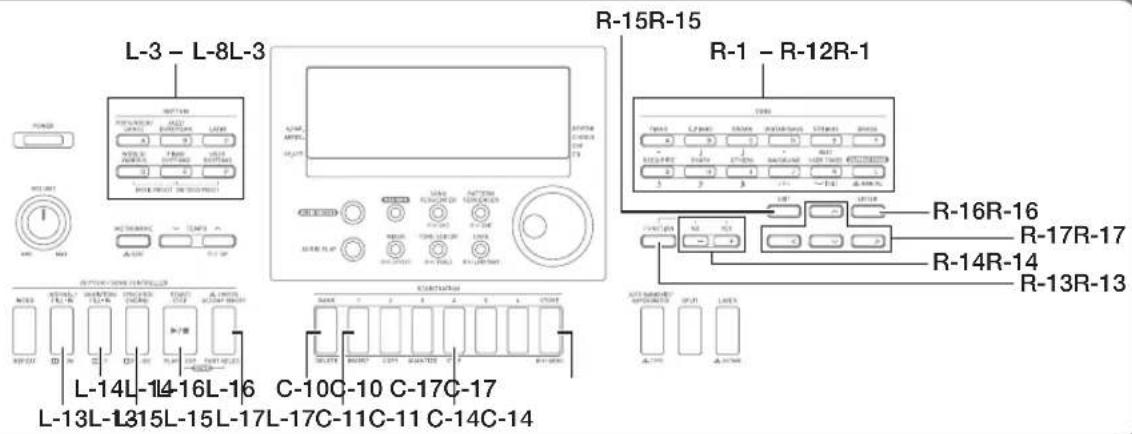
Using Music Presets
Music presets provide one-touch access to Auto
Accompaniment, tone, reverb, and other settings that are configured in accordance with preset chord progressions. A total of 305 presets let you easily configure the keyboard for a wide variety of different musical styles. Chord progressions include both short loops of a few measures that are great for improvisation, as well as progressions for entire songs. Chord progressions are also fun just to listen to.
In addition to built-in presets, you can create your own original music presets (user presets). You can record chord progressions up to 999 measures long, which provides plenty of versatility for long songs.
Music presets are divided among six groups, each of which corresponds to one of the RHYTHM buttons from [A] through [F]. Groups [A] through [E] are built-in preset groups, while Group [F] is the user preset group.
To perform using a music preset
- Refer to the separate "Appendix" to find the music preset you want to use, and note its group and number.
- While holding down the L-6 ([D] WORLD/VARIOUS) button, press the L-7 ([E] PIANO RHYTHMS) button.

- This displays the music preset screen like the one shown below.
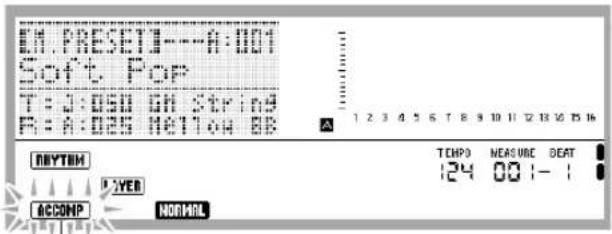
Flashing
- The ACCOMP indicator will be flashing on the display. This indicates that play with a preset chord progression is enabled.
-
Depending on the music preset you selected, the NORMAL, LAYER, or other indicators may also be flashing or displayed.
-
Use the buttons from L-3 ([A] POPS/ROCK/DANCE) to L-8 ([F] USER RHYTHMS) to select a music preset group.

- The L-8 ([F] USER RHYTHMS) button is for the user preset group. For details, see "Creating a User Preset" (page E-58).
- Use the dial or R-14 (-, +) buttons to scroll through the music preset numbers until the one you want is displayed.
- Tone, rhythm, and other settings will be configured in accordance with the music preset you selected. For details about the settings that are configured by a music preset, see "Music Preset Settings" (page E-56).
- What you should do to start your performance depends on the music preset you selected as described below.
When the NORMAL, INTRO, or VARIATION indicator is flashing on the display:
→The flashing indicator means that the Digital Keyboard is in synchro standby. Press a key in the chord keyboard to the left of the split point (page E-17). This will start Auto Accompaniment play along with the chord progression.
When the NORMAL, INTRO, or VARIATION indicator is not flashing on the display:
→ Press the L-16 (START/STOP) button. This will start Auto Accompaniment play along with the chord progression.
-
Play the melody along with the Auto Accompaniment.
-
The preset chord progression repeats the same pattern. The number of measures in the progression depends on the music preset that is selected. Shorter progressions are made up of two to four measures, while longer are 30 to 40 measures long. For some chord progressions, a fill-in pattern will be inserted automatically at the end of a progression pattern.
-
You can change to a different music preset while Auto Accompaniment play is in progress, or after stopping your performance in step 7, below. Perform steps 3 and 4 of this procedure to change to another music preset. If you change to a different music preset while playing, the change will be executed after playback reaches the end of the measure you are in when you make the change.
-
To stop playing, press the L-15 (SYNCHRO/ ENDING) button or the L-16 (START/STOP) button.
- The ACCOMP indicator continues to flash on the display even after you stop playing. Pressing the L-16 (START/STOP) button at this time will restart Auto Accompaniment play.
- Press the R-15 (EXIT) button to exit the music preset screen.
- You also can press the R-15 (EXIT) button while Auto Accompaniment play is in progress. In this case, play will stop and the music preset screen will be exited as soon as you press the R-15 (EXIT) button.
NOTE
- Instead of using the preset chord progression, you also can use the chord keyboard (page E-26) to play Auto Accompaniment chords, and you also can play with the rhythm only. For details, see “To change music preset Auto Accompaniment settings” (page E-57).
- During play using a music preset, you can change tone, rhythm, tempo, mixer, effect, and other settings.
Music Preset Settings
The settings listed in the table below are recalled when a music preset is selected.
- Except for the chord progression, all of the settings can be modified after a music preset is selected. Refer to the information noted in the "Go here for more information" column of the table for details about modifying a particular setting.
- Selecting a different music preset or exiting the music preset screen clears any modifications you make in the currently selected preset. If you want to retain modified settings for later use, you can save them as a user preset. For details, see “Creating a User Preset” (page E-58).
| Setting Go here for more information | |
| Tones for the UPPER 1, UPPER 2, and LOWER parts | Layering and Splitting Tones (page E-15) |
| Layer on/off, split on/off | |
| Octave shift for the UPPER 1, UPPER 2, and LOWER parts | Using Octave Shift (page E-18) |
| Reverb on/off and type To add reverb to sounds (page E-31) | |
| Auto harmonize tones Using the Mixer (page E-36), Part Parameters (page E-43) | |
| Volume of the UPPER 1, UPPER 2, LOWER, and auto harmonize parts | |
| Part on/off | |
| Auto harmonize or arpeggiator on/off and type | Using Auto Harmonize (page E-28), Playing Arpeggio Phrases Automatically (Arpeggiator) (page E-23) |
| Arpeggiator hold, arpeggiator speed, arpeggiator part Function Menu Settings (page E-131) | |
| Rhythm To change the rhythm while using a music preset (page E-57) | |
| Synchro start type (normal, intro, variation) Playing an Auto Accompaniment (page E-24) | |
| Tempo To change the tempo setting (page E-19) | |
| Chord progression – | |

NOTE
- If you change to a different music preset while a music preset is playing, changes in rhythm and tempo will be executed after the measure you are in when you make the change is complete.
- Though you cannot modify the chord progression of a music preset, you can modify the preset chord progression and save it as a user preset. For details, see "Creating a User Preset" (page E-58).
To change music preset Auto Accompaniment settings
While the music preset screen is displayed, you can use the L-17 (ACCOMP ON/OFF) button to change Auto Accompaniment settings.

• Each press of the L-17 (ACCOMP ON/OFF) button cycles through settings as shown below.
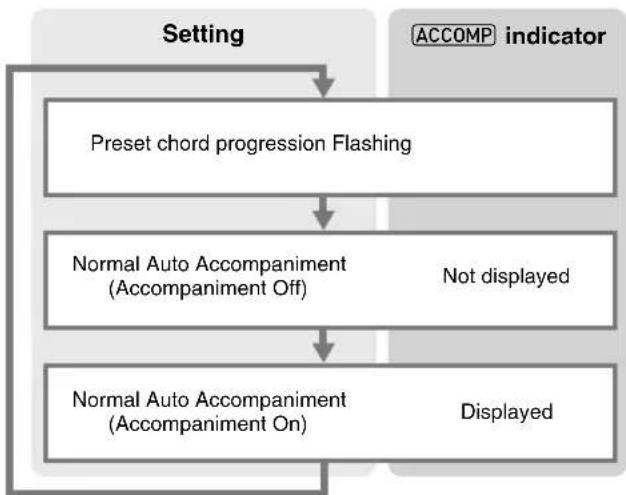
flowchart
graph TD
    A["Preset chord progression Flashing"] --> B["Normal Auto Accompaniment (Accompaniment Off)"]
    B --> C["Normal Auto Accompaniment (Accompaniment On)"]
    C --> D["Not displayed"]
    D --> E["Displayed"]
    style A fill:#f9f,stroke:#333
    style B fill:#ccf,stroke:#333
    style C fill:#cfc,stroke:#333
    style D fill:#fcc,stroke:#333
    style E fill:#ffc,stroke:#333
- When a preset chord progression or accompaniment off is selected, the keyboard can be used for melody play. When accompaniment on is selected, the left side range of the keyboard is the chord keyboard, and the right side range is the melody keyboard.
To change the rhythm while using a music preset
While the music preset screen is displayed, buttons L-3 ([A] POPS/ROCK/DANCE) to L-8 ([F] USER RHYTHMS) function as music preset group select buttons. Because of this, you need to perform the procedure below to change the rhythm.
1. Press the R-17 (V) button twice.
- This displays a rhythm selection screen like the one shown below.

-
Use the buttons from L-3 ([A] POPS/ROCK/DANCE) to L-8 ([F] USER RHYTHMS) to select a rhythm group.
-
Use the dial or R-14 (-, +) buttons to scroll through the rhythm numbers until the one you want is displayed.
-
After selecting the rhythm you want, press the R-15 (EXIT) button or press the R-17 (∧) button twice.
• This exits the rhythm selection screen.
NOTE
- Pressing a button from R-1 ([A] PIANO) through R-12 ([L] DRAWBAR ORGAN) while a music preset is in use will display the tone selection screen. While the tone selection screen is displayed, pressing the R-17 (V) button once will change to the rhythm selection screen shown in the procedure above.
Creating a User Preset
User Preset Numbers
Preset areas numbered F:001 through F:100 are for storage of user presets. You can have up to 100 user presets stored in memory at one time. You can recall a stored user preset after pressing the L-8 ([F] USER RHYTHMS) button. See "To perform using a music preset" (page E-54) for more information.
To create and save a user preset
- Perform steps 1 through 4 under "To perform using a music preset" (page E-54) and select the music preset you want to edit in order to create your user music preset.
- Configure tone and other settings referring to "Music Preset Settings" (page E-56).
- While holding down the R-13 (FUNCTION) button, press the C-17 (MENU) button.
- This displays the MP (music preset) editor screen like the one shown below.

- Pressing the R-16 (ENTER) button here will change to a screen for editing the chord progression. See "Editing a Chord Progression" (page E-62) for more information.
- Use the R-17 ( , ) buttons to move the ● to "Parameter" and then press the R-16 (ENTER) button.
• This displays the parameter menu.
![-Parameter: 1.2# - Syndrome Normal - Intro: [ ] [ ] - Ending: [ ] [ ]](/content/2026/06/1239013/images/88869088576abbcb2c703ff62fc9a7b4508fe54ee6e3f6851ea23b01bbacd367.jpg)
- You can change each of the parameters on the parameter menu as required.
(1) Use the R-17 ( , V, <, >) buttons to move the ● to the parameter you want to change.
(2) Use the dial or the R-14 (-, +) buttons to change the setting value.
- Pressing the R-14 (-, +) buttons at the same time returns a parameter to its initial default setting.
- The following explains the meanings and setting ranges of the on-screen items. The settings marked with an asterisk (*) in the "Setting Range" column are initial defaults.
| Item name Description | Setting Range | |
| Synchro (Synchro type) | Specifies the Auto Accompaniment synchro start standby type. | oFF, Normal*, Variation, Intro |
| IntroChd (Intro chord) | Specifies the chords of the Auto Accompaniment intro pattern. | C* - B, Cm - Bm |
| EndingChd (Ending chord) | Specifies the chords of the Auto Accompaniment ending pattern. | C* - B, Cm - Bm |
| AutoFill (Auto fill in) | Specifies whether a fill in should be inserted (on) or not inserted (oFF) at the end of the chord progression. | on*, oFF |
| Timing (Timing set) | Specifies the chord change timing during playback for recorded chords. For information about differences in playback for each setting value, see “Timing Setting and Chord Progression Playback” (page E-60). | Normal*, Half, Double, 3/4, 3/2 |
(3) Repeat steps (1) and (2) as required.
(4) After the settings are the way you want, press the R-15 (EXIT) button.
• This returns to the MP editor screen.
6. Use the R-17 (V) button to move the ● to "Store" and then press the R-16 (ENTER) button.
- This displays a screen for specifying the destination user preset number and name.
Save destination user preset number
![-Store- [0001] Soft Pop Press Enter User preset name](/content/2026/06/1239013/images/692b523ae496775366b14d126f834e960cbdab9d099b34f59ecce53de2ed3f58.jpg)
- Use the dial or R-14 (−, +) buttons to select the destination user preset number you want.
-
Use the R-17 (<, >) buttons to move the cursor to the name character position you want to change, and then use the dial or R-14 (-, +) buttons to select the character you want.
-
For details about the characters you can input, see "Supported Input Characters" (page E-160).
-
To input a space, press both of the R-14 (-, +) buttons at the same time.
-
After everything is the way you want, press the R-16 (ENTER) button.
• This saves the data.
- If the user preset number where you are saving the data already has data saved to it, a message (Replace?) will appear on the display to confirm whether you want to replace the existing data with the new data. Press the R-14 (YES) button to replace the existing data with the new data.

IMPORTANT!
- The message "Please Wait" will remain on the display while a data save operation is in progress. Do not perform any other operation while it is displayed. Turning off the Digital Keyboard or removing the memory card can cause Digital Keyboard data to be deleted or become corrupted. It also can cause the Digital Keyboard to fail to turn on when the L-1 (POWER) button is pressed. If this happens, refer to "Troubleshooting" (page E-150).
NOTE
- Pressing the R-15 (EXIT) button in place of step 6 displays the confirmation screen shown below. Pressing the R-14 (YES) button at this time will display the user preset save screen in step 6.

To cancel the editor operation without saving the edited results, press the R-14 (NO) button.
To clear user preset data
- While holding down the R-13 (FUNCTION) button, press the C-17 (MENU) button to display the MP (music preset) editor screen.
- Use the R-17 (V) button to move the ● to "Clear" and then press the R-16 (ENTER) button.
- This displays a screen for specifying the number of the user preset you want to clear.
- Use the dial or R-14 (-, +) buttons to specify the number of the user preset you want to clear.
- Press the R-16 (ENTER) button.
- In response to the "Sure?" message that appears, press the R-14 (YES) button to clear or the R-14 (NO) button to cancel.
Timing Setting and Chord Progression Playback
This section explains how chord progressions are played in accordance with the "Timing" (Timing set) settings in step 5 under "To create and save a user preset" (page E-58). Note that this setting affects playback only. It does not change the chord progression data.
- Normal
Plays chords at the same timing as the recording.
• Half
Plays chords measure-by-measure at a timing that is half that of the recording.
Example:
| Measure | 1 | 2 | 3 | 4 | ||||||||||||
| Beat | 1 | 2 | 3 | 4 | 1 | 2 | 3 | 4 | 1 | 2 | 3 | 4 | 1 | 2 | 3 | 4 |
| Chord progression | Dm A7 | Dm G7 | C EM7 | Am C7 | ||||||||||||
The following shows what happens when the "Half" setting is used to play back a user preset that was created based on a music preset whose rhythm is a 4/4 time.
Half Playback when a 4/4 time rhythm is assigned to the user preset
| Measure | 1 | 2 | 3 | 4 | ||||||||||||
| Beat | 1 | 2 | 3 | 4 | 1 | 2 | 3 | 4 | 1 | 2 | 3 | 4 | 1 | 2 | 3 | 4 |
| Chord progression | Dm A7 | Dm G7 | C EM7 | Am C7 | ||||||||||||
Half Playback when a 2/4 time rhythm is assigned to the user preset
| Measure | 1 | 32 | 4 | ||||
| Beat | 1 2 | 1 | 2 | 1 2 | 1 | 2 | |
| Chord progression | Dm A7 | C EM7Dm | G7 Am C7 | ||||
- Double
Plays chords measure-by-measure at a timing that is double that of the recording.
Playing back a chord progression like that shown for "Half" above while "Double" is specified results in the progression shown below.
Double Playback when a 4/4 time rhythm is assigned to the user preset
| Measure | 1 | 2 | 3 | 4 | ||||||||||||
| Beat | 1 | 2 | 3 | 4 | 1 | 2 | 3 | 4 | 1 | 2 | 3 | 4 | 1 | 2 | 3 | 4 |
| Chord progression | Dm | Dm | C | Am | ||||||||||||
Double Playback when an 8/4 time rhythm is assigned to the user preset
| Measure | 1 | 2 | 3 | |||||||||||||||
| Beat | 1 | 2 | 3 | 4 | 5 | 6 | 7 | 8 | 1 | 2 | 3 | 4 | 5 | 6 | 7 | 8 | 1 | 2 |
| Chord progression | Dm | A7 | Dm | G7 | C | |||||||||||||
• 3/4
Plays chords measure-by-measure at a timing that is 3/4 times that of the recording. This setting is best for use with a 6/8 time rhythm.
Playing back a chord progression like that shown for "Half" above while "3/4" is specified results in the progression shown below.
3/4 Playback when a 4/4 time rhythm is assigned to the user preset
| Measure | 1 | 2 | 3 | 4 | ||||||||||||
| Beat | 1 | 2 | 3 | 4 | 1 | 2 | 3 | 4 | 1 | 2 | 3 | 4 | 1 | 2 | 3 | 4 |
| Chord progression | Dm A7 | Dm G7 | C EM7 | Am C7 | ||||||||||||
3/4 Playback when a 6/8 time rhythm is assigned to the user preset
| Measure | 1 | 2 | 3 | 4 | ||||||||||||||||
| Beat | 1 | 2 | 3 | 4 | 5 | 6 | 1 | 2 | 3 | 4 | 5 | 6 | 1 | 2 | 3 | 4 | 5 | 6 | 1 | 2 |
| Chord progression | Dm A7 Dm G7 C EM7 Am | |||||||||||||||||||
• 3/2
Plays chords measure-by-measure at a timing that is 3/2 times that of the recording. This setting is best for use with a 6/4 time rhythm.
Playing back a chord progression like that shown for "Half" above while "3/2" is specified results in the progression shown below.
3/2 Playback when a 4/4 time rhythm is assigned to the user preset
| Measure | 1 | 2 | 3 | 4 | ||||||||||||
| Beat | 1 | 2 | 3 | 4 | 1 | 2 | 3 | 4 | 1 | 2 | 3 | 4 | 1 | 2 | 3 | 4 |
| Chord progression | Dm A7 | Dm G7 | C EM7 | Am C7 | ||||||||||||
3/2 Playback when a 6/4 time rhythm is assigned to the user preset
| Measure | 1 | 2 | 3 | 4 | ||||||||||||||||
| Beat | 1 | 2 | 3 | 4 | 5 | 6 | 1 | 2 | 3 | 4 | 5 | 6 | 1 | 2 | 3 | 4 | 5 | 6 | 1 | 2 |
| Chord progression | Dm A7 Dm G7 C EM7 Am | |||||||||||||||||||

NOTE
- When "Double" or "3/2" is selected, chord timing is shifted to a later timing. Any chords that do not fit within a measure are not played.
Music Presets
You can modify the preset chord progression and save it as a user preset, or you can create a new chord progression from scratch and save it.
Chord Progression Editing Flow
- Perform steps 1 through 4 under "To perform using a music preset" (page E-54) and select the music preset you want to edit in order to create your user music preset.
- Configure tone and other settings referring to "Music Preset Settings" (page E-56).
- While holding down the R-13 (FUNCTION) button, press the C-17 (MENU) button.
- This displays the MP (music preset) editor screen like the one shown below with the ● next to "Chord Edit".
- Press the R-16 (ENTER) button.
- This displays the chord editor screen shown below. You can use this screen to directly edit the individual chord data items of a chord progression.
Data being edited
Data type name at cursor position
Cursor Data before and after data being edited
-
Perform the following chord progression editing operations.
-
Change an existing chord ("To modify recorded chord data", page E-63)
- Delete an existing chord ("To delete recorded chord data", page E-63)
- Insert a new chord ("To insert a new chord", page E-63)
- Delete all existing chords ("Initialize", under "To perform menu operations", page E-65)
- Input a series of chords ("To perform step input of chords", page E-64)
- Key shift all existing chords ("Key Shift", under "To perform menu operations", page E-65)
- Insert another music preset chord progression following the chord progression data of the preset being edited ("AppendChord", under "To perform menu operations", page E-65)
- Delete existing chords in a specific measure ("Delete Measure", under "To perform menu operations", page E-65)
-
Insert blank measures at a specific location ("Insert Measure", under "To perform menu operations", page E-65)
-
After editing is complete, press the R-15 (EXIT) button.
- This returns to the MP editor screen.
- Perform steps 4 through 9 under "To create and save a user preset" (page E-58).
- Steps 4 and 5 can be skipped if they are not necessary.
To modify recorded chord data
- Perform steps 1 through 4 of the procedure under "Chord Progression Editing Flow" on page E-62.
- Use the R-17 ( , ) buttons to move the cursor to the chord you want to edit.
- You can use the L-14 (▶▶FF) and L-13 (◀◀REW) buttons to move the cursor by measure-by-measure.
- Use the R-17 (<, >) buttons to move the cursor, and then use the dial or R-14 (-, +) buttons to change the value at the cursor position.
- The cursor flashes during a value change operation.

- A "tick" is a time unit that is shorter than one beat. With music preset data, 12 ticks equal one beat. This means that you can specify a tick value in the range of 00 to 11. A tick value of 12 advances to the next beat. In the case of 4/4 time, a quarter note (♩) is 12 ticks and an eighth note (♪) is 6 ticks.

- To apply the changed value, press the R-16 (ENTER) button.
• This causes the cursor to stop flashing.

IMPORTANT!
- You cannot change the timing (Measure:Beat:Tick) of the first chord of the user preset data.
To delete recorded chord data
- Perform steps 1 through 4 of the procedure under "Chord Progression Editing Flow" on page E-62.
- Use the R-17 ( , ) buttons to move the cursor to the chord you want to delete.
- Press the C-10 (DELETE) button.
- The chord at the current cursor position will be deleted as soon as you press the C-10 (DELETE) button.

IMPORTANT!
- You cannot delete the first chord of the user preset data.
To insert a new chord
- Perform steps 1 through 4 of the procedure under "Chord Progression Editing Flow" on page E-62.
-
Use the R-17 (∧, ∨) buttons to move the cursor to the chord that comes immediately before the position where you want to insert a chord.
-
Press the C-11 (INSERT) button.
• This displays a screen like the one shown below.

4. Specify the location of the new chord insert as a number of beats after the current cursor position.
| To specify this number of beats after the current cursor position: | Press this button: |
| 4 beats R-1 (o) | |
| 2 beats R-2 (j) | |
| 1 beat R-3 (j) | |
| 1/2 beat R-7 (j) | |
| 1/4 beat R-8 (j) |
- Except for the R-8 (♪) button, pressing the R-4 (•) button after you press any one of the above buttons will increase number of beats by 1.5.
- Pressing the R-10 (r-3-) button after you press any one of the above buttons will change the number of beats by 2/3.
- The R-9 (.) and R-11 (—(TIE)) buttons are disabled during this step.
5. Press the R-16 (ENTER) button.
- This inserts the chord and causes the cursor to appear at the "ROOT" position of the inserted chord data. The initial default root setting is C.
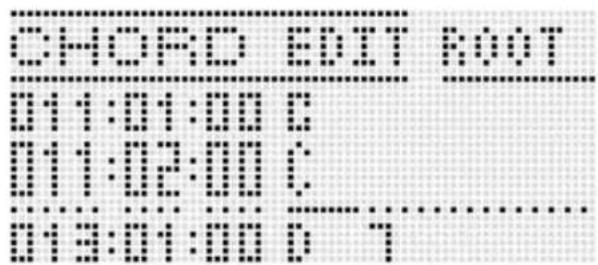
6. Use the dial or the R-14 (-, +) buttons to specify the root.
7. Use the R-17 (>) button to move the cursor to "TYPE" position, and then use the dial or R-14 (-, +) buttons to configure the type setting.
- When the cursor is located at "ROOT" or "TYPE", you can use the chord keyboard to specify the chord root or type.
8. To apply the chord data, press the R-16 (ENTER) button.
• This causes the cursor to stop flashing.
To perform step input of chords
1. Perform steps 1 through 4 of the procedure under "Chord Progression Editing Flow" on page E-62.
2. Press the C-14 (STEP) button.
- This will display a step screen like the one shown below.

3. Use the L-14 (▶▶FF) and L-13 (◀◀REW) buttons to move the cursor to the location from which you want to perform step input.
- The cursor will move in one-measure steps.
4. Specify the length of the chord you want to input.
- For information about how to do this, see the table in step 4 under "To insert an event" (page E-94).
- The R-9 (♪) button is disabled during this step. Also note that you cannot specify a dotted 16th note.
5. Press the keyboard keys that correspond to the chord you want to input.
- Press keyboard keys in accordance with the current chord fingering mode. For details, see "Selecting a Chord Fingering Mode" (page E-26).
- The chord is input as soon as you press the keyboard key, and the cursor will move by the length you specified in step 4 to the next measure:beat:tick. From there you can input the next chord, if you want.
IMPORTANT!
- You cannot input more than 999 measures here.
6. Repeat steps 4 and 5 to input the chords you want.
- If you want to input a series of chords of the same length, skip step 4 and perform step 5 only.
7. When you are finished with step input, press the R-15 (EXIT) button twice.
To perform menu operations
- Perform steps 1 through 4 of the procedure under "Chord Progression Editing Flow" on page E-62.
- While holding down the R-13 (FUNCTION) button, press the C-17 (MENU) button.
- This displays a screen like the one shown below.
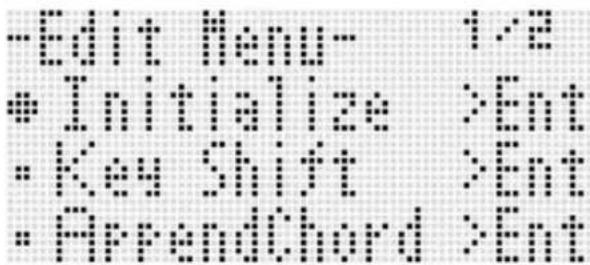
- Execute the desired menu operation.
| To do this: Do this: | |
| Delete all existing chords (Initialize) ^1 | Use the R-17 ( , ) buttons to move the ● to “Initialize” and then press the R-16 (ENTER) button. |
| Key shift all existing chords (Key Shift) | 1. Use the R-17 ( , ) buttons to move the ● to “Key Shift” and then press the R-16 (ENTER) button.2. Use the dial or R-14 (-, +) buttons to specify how much you want to shift the key. • You can specify a value from -5 to +6.3. Press the R-16 (ENTER) button. |
| Insert another music preset chord progression following the chord progression data of the preset being edited (AppendChord) ^2 | 1. Use the R-17 ( , ) buttons to move the ● to “AppendChord” and then press the R-16 (ENTER) button.2. Use the dial or R-14 (-, +) buttons to scroll through the music preset numbers until the one you want is displayed, and then press the R-16 (ENTER) button. |
| Delete existing chords in a specific measure (Delete Measure) ^3 | 1. Use the R-17 ( , ) buttons to move the ● to “DeleteMeas.” and then press the R-16 (ENTER) button.2. Use the dial or R-14 (-, +) buttons to specify the start measure of the delete operation.3. Press the R-17 ( ) button to move the thick brackets ([ ]) to “Size”.4. Use the dial or R-14 (-, +) buttons to specify the number of measures you want to delete.5. After everything is the way you want, press the R-16 (ENTER) button. |
| Insert blank measures at a specific location (Insert Measure) ^2 | 1. Use the R-17 ( , ) buttons to move the ● to “InsertMeas.” and then press the R-16 (ENTER) button.2. Use the dial or R-14 (-, +) buttons to specify the start measure of the insert operation.3. Press the R-17 ( ) button to move the thick brackets ([ ]) to “Size”.4. Use the dial or R-14 (-, +) buttons to specify the number of measures you want to insert.5. After everything is the way you want, press the R-16 (ENTER) button. |
*1 Deletes all existing chords, and replaces it with four measures of data with a C-chord at the first beat of the first measure (user preset initial data).
*2 You will not be able to execute this operation if the number of measures specified exceeds 999.
*3 You cannot delete all measures. If you specify range that includes all of the measures, the first measure will remain without being deleted.
- In response to the "Sure?" message that appears, press the R-14 (YES) button to execute the operation you performed in step 4 or the R-14 (NO) button to cancel.
- Pressing the R-14 (YES) button starts the process. The message "Please Wait" will remain on the display if the process takes time to perform. Do not perform any operation while this message is on the display.

Registration memory lets you store Digital Keyboard setups (tone, rhythm, etc.) for instant recall whenever you need them.

NOTE
- For information about items that can be part of a registration setup, see "Parameter List" (page E-162).
- When recalling a registration setup, you can recall only the setting items related to accompaniments, or only the setting items related to scales. For more information, see "RegFltAcmp (Registration Filter: Accompaniment)" (page E-132) and "RegFltScal (Registration Filter: Scale)" (page E-132).
You can have up to 96 setups in registration memory at one time. The C-10 (BANK) and C-11 (1) to C-16 (6) buttons are used for selecting bank and area.
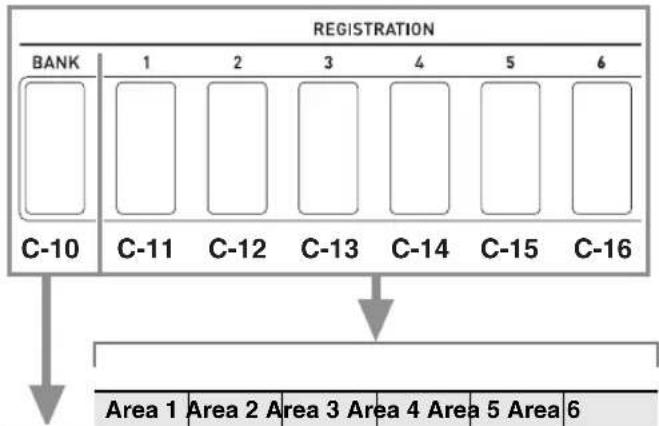
flowchart
graph TD
    A["BANK"] --> B["C-10"]
    B --> C["1"]
    C --> D["C-11"]
    D --> E["2"]
    E --> F["C-12"]
    F --> G["3"]
    G --> H["C-13"]
    H --> I["4"]
    I --> J["C-14"]
    J --> K["5"]
    K --> L["C-15"]
    L --> M["6"]
    M --> N["Area 1"]
    N --> O["Area 2"]
    O --> P["Area 3"]
    P --> Q["Area 4"]
    Q --> R["Area 5"]
    R --> S["Area 6"]
| Bank 1 | Setup1-1 | Setup1-2 | Setup1-3 | Setup1-4 | Setup1-5 | Setup1-6 |
| Bank 2 | Setup2-1 | Setup2-2 | Setup2-3 | Setup2-4 | Setup2-5 | Setup2-6 |
| • | • | • | • | • | • | • |
| • | • | • | • | • | • | • |
| Bank 16 | Setup16-1 | Setup16-2 | Setup16-3 | Setup16-4 | Setup16-5 | Setup16-6 |
• Each press of the C-10 (BANK) button cycles through the bank numbers, from 1 to 16.
- Pressing a button from C-11 (1) to C-16 (6) selects the corresponding area in the currently selected bank.
■Registration Save Example
This example saves the data shown in the table below to the following setups in Bank 1.
- Initial melody setup saved to Setup 1-1.
• Second melody setup saved to Setup 1-2.
• Third melody setup saved to Setup 1-3.
| Setup 1-1 | Setup 1-2 | Setup 1-3 | |
| Tone Number | E:016 | H:001 | A:001 |
| Rhythm Number | A:015 | E:013 | A:044 |
| Tempo | 080 | 140 | 089 |
To save a setup to registration memory
- Configure the tone, rhythm, and other settings you want to include in the setup.
- Press the C-10 (BANK) button to select the bank you want.
• Each press of the C-10 (BANK) button cycles through the bank numbers.
![TONEF ----A:0001 BANK: [2] Bolero A 1 2 3 4 5 6 REGISTRATION BANK 2 Bank 2 selected](/content/2026/06/1239013/images/adbbfd509ebddce0b100aa0e928d8a0fbec4be4aa77f6e2675112fd4ab768e94.jpg)
- While the "BANK" screen is displayed after pressing the C-10 (BANK) button, use the dial or R-14 (-, +) buttons to select the bank you want.
-
If you do not perform any operation for a few seconds, the display will return to previous screen automatically.
-
While holding down the C-17 (STORE) button, press a button from C-11 (1) to C-16 (6) to select an area.
-
This will save the settings you configured in step 1 into the applicable setup.
- If there is anything already stored in the setup, it will be replaced (deleted) with the new setup.


IMPORTANT!
- The message “Please Wait” will remain on the display while a data save operation is in progress. Do not perform any other operation while it is displayed. Turning off the Digital Keyboard or removing the memory card can cause Digital Keyboard data to be deleted or become corrupted. It also can cause the Digital Keyboard to fail to turn on when the L-1 (POWER) button is pressed. If this happens, refer to “Troubleshooting” (page E-150).
To recall a setup from registration memory
- Press the C-10 (BANK) button to select the bank that contains the setup you want to recall.
- Use buttons C-11 (1) to C-16 (6) to select the area that contains the setup you want to recall.
- This will recall the registration memory setup and automatically configure the Digital Keyboard settings accordingly.

Setup 6-1 recalled
NOTE
- Notes currently being sounded by the keyboard may stop if you recall a setup that causes a change in octave shift (page E-18). To keep this from happening, either select a setup that does not cause a change in the octave shift setting, or hold down the pedal (which will cause notes currently being played to be sustained).
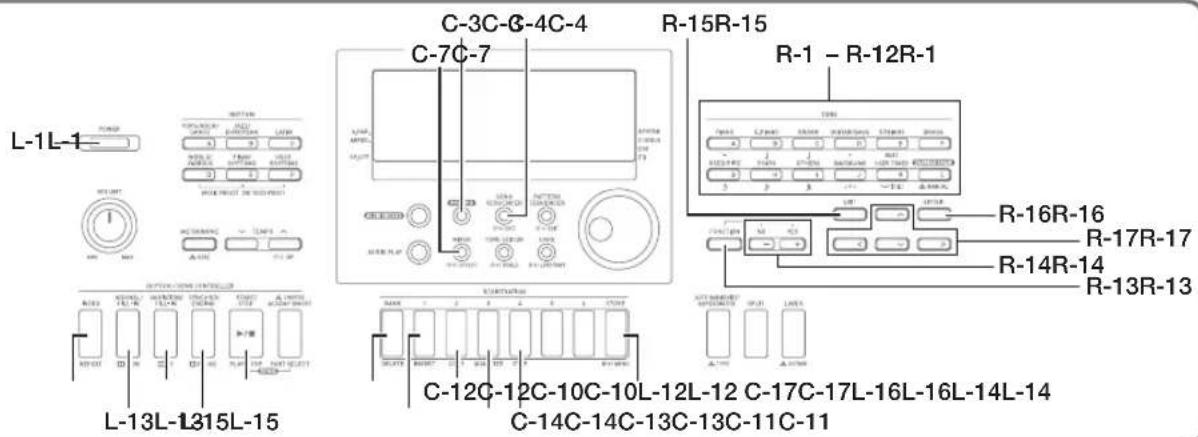
You can use the song sequencer to record keyboard play (including Auto Accompaniment), or to record individual parts (multi-track recording) and combine them into a final song. After recording data, you can edit each individual note (event). You can have up to five recorded songs (approximately 30,000 notes total) stored in memory at the same time.

IMPORTANT!
- The message "Please Wait" will remain on the display while a data save operation is in progress. Do not perform any other operation while it is displayed. Turning off the Digital Keyboard or removing the memory card can cause Digital Keyboard data to be deleted or become corrupted. It also can cause the Digital Keyboard to fail to turn on when the L-1 (POWER) button is pressed. If this happens, refer to "Troubleshooting" (page E-150).
Starting One-touch Recording (EASY REC)
EASY REC lets you start recording of keyboard play with a single button operation.

NOTE
- EASY REC is a function of the song sequencer. For details on using the song sequencer, see "What you can do with the song sequencer" (page E-70).
- EASY REC can be used to record keyboard play that uses a music preset (page E-54). For details, see "To use EASY REC to record a performance using a music preset" (page E-70).
To use EASY REC to record
1. Configure Digital Keyboard settings for your performance.
- Configure the following settings: tone and rhythm selection, tempo, layer and split, synchro standby (when using Auto Accompaniment), mixer, etc. For details about settings that can be configured, see "Recording Start" under "System Track and Track 01 through 16 Common Recording Content" (page E-71) and "System Track Recording Content" (page E-71).
- Performing step 2 below enters record standby. After that, recording will start whenever you play something on the keyboard. After step 2, take care that you do not accidentally press a keyboard key and unintentionally start recording.
2. Press the C-3 (RECORD) button.

- The button will start flashing and the EASY REC screen shown below will appear on the display.
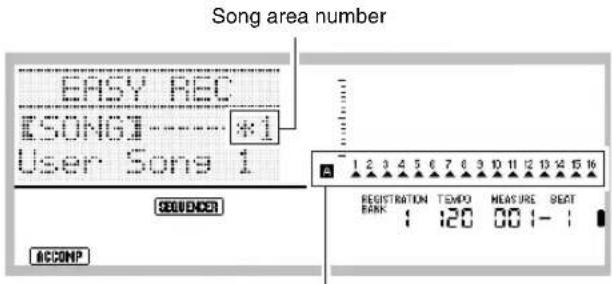
Arrows (▲) will indicate all the parts in Group A. This indicates the Digital Keyboard is currently in system track (page E-70) record standby.
- An asterisk (*) next to a song area number indicates that there is already data recorded in that area. Selecting a song area that already contains recorded data and starting a new recording will cause the existing system track data to be deleted.
3. Perform the following steps to configure beat and other settings.
(1) While holding down the R-13 (FUNCTION) button, press the C-17 (MENU) button. This will display a menu like the one shown below, with the ● next to "Beat" (beat).

(2) Use the dial or R-14 (−, +) buttons to configure the beat setting. You can specify a beat setting of 2/4 to 8/4, 2/8 to 16/8.
(3) Use the R-17 (V) button to move the ● to "Metronome" and then use the R-14 (-, +) buttons to turn the metronome on or off. Turning on the metronome causes it to sound a count during recording, but not during playback.
(4) Use the R-17 (V) button to move the ● to "Precount" and then use the R-14 (−, +) buttons to turn the precount on or off. Turing on the precount inserts a one-measure count before the start of recording when you press the L-16 (START/STOP) button in step 4. (5) Press the R-15 (EXIT) button to exit the menu.
4. Start playing something on the keyboard.
- Recording starts automatically when you perform any one of the following operations. - Playing on the keyboard - Pressing the L-12 (INTRO), L-13 (NORMAL/FILL-IN), or L-14 (VARIATION/FILL-IN) button - Pressing the L-16 (START/STOP) button. To input one or more rests before starting recording, press the L-16 (START/STOP) button to start recording, and then start keyboard play at the point you want.
- Starting recording will cause the C-3 (RECORD) button to change from flashing to lit. During recording, the display will show the current measure (MEASURE) and beat (BEAT). - PITCH BEND wheel (S-1) and pedal operations are also recorded. - When recording reaches a point where there is less than 100 notes of remaining memory capacity, the current measure (MEASURE) and beat (BEAT) values will start flashing.
5. To stop recording, press the L-16 (START/STOP) button.
• After recording stops, the initial song sequencer mode screen appears on the display.

- At this time you can press the L-16 (START/STOP) button to replay what you have just recorded. For details about playing back recorded content, see "Playing a Recorded Song" (page E-79).
6. To exit the song sequencer, press the C-4 (SONG SEQUENCER) button or the R-15 (EXIT) button.
To use EASY REC to record a performance using a music preset
-
Perform steps 1 through 4 under "To perform using a music preset" (page E-54).
-
Press the C-3 (RECORD) button.

- The button will start flashing and the EASY REC screen will appear on the display.
- Start to play something using a music preset. For details, see "To perform using a music preset" (page E-54).
- This will start recording, along with Auto Accompaniment in accordance with the preset chord progression.
- Starting recording will cause the C-3 (RECORD) button to change from flashing to lit. During recording, the display will show the current measure (MEASURE) and beat (BEAT).
- To stop recording, press the L-16 (START/STOP) button.
• After recording stops, the initial song sequencer mode screen appears on the display.
- At this time you can press the L-16 (START/STOP) button to replay what you have just recorded. For details about playing back recorded content, see "Playing a Recorded Song" (page E-79).
- To exit the song sequencer, press the C-4 (SONG SEQUENCER) button or the R-15 (EXIT) button.
What you can do with the song sequencer
The simplest use of the song sequencer is to record a performance as you play it. For details, see "To use EASY REC to record" (page E-68). Virtually everything you play on the keyboard can be recorded by the song sequencer.
You also can use the song sequencer to perform multi-track recording of 17 different tracks and assemble them into a final song. For example, you can first record a piano track, followed by a bass track, then a guitar track or tracks that feature other musical instruments.
Songs, tracks, and parts
A single song can be made up of up to 17 tracks. The 17 tracks are broken down as shown in the table below.
| Song | Track | Part Number | Part Contents |
| System Track | A04 | Auto Accompaniment (Auto harmonize tone) | |
| A05 Keyboard (UPPER 1 part) | |||
| A06 Keyboard (UPPER 2 part) | |||
| A07 Keyboard (LOWER part) | |||
| A09 | Auto Accompaniment (Percussion part) | ||
| A10 | Auto Accompaniment (Drums part) | ||
| A11 | Auto Accompaniment (Bass part) | ||
| A12 | Auto Accompaniment (Chord 1 part) | ||
| A13 | Auto Accompaniment (Chord 2 part) | ||
| A14 | Auto Accompaniment (Chord 3 part) | ||
| A15 | Auto Accompaniment (Chord 4 part) | ||
| A16 | Auto Accompaniment (Chord 5 part) | ||
| Track 01 | B01 | Keyboard (B01 part) | |
| Track 16 | B16 | Keyboard (B16 part) | |
- The Digital Keyboard uses multiple parts simultaneously to sound Auto Accompaniment, a keyboard layer tone, and keyboard split tone at the same time. The system track is used to record the notes of these parts in a single location.
- Tracks 01 through 16 each correspond to a single musical instrument part. Each track is used to record the notes of each individual part.
- The parts shown in the table above correspond to mixer parts. For details, see "Using the Mixer" (page E-36).
- Part B10 is a drum sound only part.
System Track and Track 01 through 16 Common Recording Content
■Recording Start
- Beat setting
• Rhythms selection - Tempo setting
- Scale setting
• The mixer settings below
- All part parameters from A04 through A07 and B01 through B16 (Excluding part on/off)
- Part parameters from A09 through A16: part on/off, coarse tune, fine tune, scale enable, DSP line
- DSP parameters: volume, pan, reverb send
- Effect settings
- Accomp volume
■During Recording
- Keyboard play
- Pitch bender operations
- Pedal operations
• The button operations below
S-2 (MODULATION), D-1 (ROTARY SLOW/FAST),
D-2 (PERCUSSION SECOND),
D-3 (PERCUSSION THIRD)
• D-4 (16') through D-12 (1') slider operations
System Track Recording Content
■Recording Start
- Tones for the UPPER 1, UPPER 2, and LOWER parts
- Layer and split on/off
- Split point setting
- Octave shift for the UPPER 1, UPPER 2, and LOWER parts
- The function menu item settings below (page E-131) – Arpeggiator hold, arpeggiator speed, arpeggiator part
• Auto harmonize or arpeggiator on/off and type
• Synchro standby (Normal, Variation, Intro)
• Music preset (Only when using EASY REC.)
■During Recording
• Rhythms selection
- Tempo setting
- All of the items under "Recording Start" above, except for the function menu item settings and split point setting
- Chord play using the chord keyboard
- The rhythm controller operations below L-12 (INTRO), L-13 (NORMAL/FILL-IN), L-14 (VARIATION/FILL-IN), and L-15 (SYNCHRO/ ENDING) button operations
- Settings recalled from registration memory
- Settings recalled using One Touch Preset
NOTE
- Due to the way song parts are configured, settings configured by a recalled registration are applied to different numbered parts than they were assigned to when the setup was saved, as shown below.
| Parts when registration setup is saved | Parts when registration is recalled for song recording |
| UPPER 1 part (A01) UPPER 1 | part (A05) |
| UPPER 2 part (A02) UPPER 2 | part (A06) |
| LOWER part (A03) LOWER part (A07) | |
| Auto Harmonize tone part (A04) | Auto Harmonize tone part (A04) |
For details about the configuration of song parts, see "Songs, tracks, and parts" (page E-70).
- The moment you call up a registration setup or One Touch Preset while recording, the setting information registered with the registration setup or One Touch Preset is recorded to the system track. The registration setup or One Touch Preset itself is not recorded.
Track 01 through 16 Recording Content
■Recording Start
• Part tone selection for the track
■During Recording
- Part tone selection for the track
• The mixer settings below
- All part parameters from B01 through B16 (except part on/off)
Panel Settings and Header Settings
Before starting recording with the song sequencer, you need to select the tone and rhythm, and also configure other settings such as tempo, mixer settings, etc. These are called "panel settings" because they are configured using the Digital Keyboard's control panel. When you start recording, panel settings are stored in the header of the song. Settings in the header of a song are called "header settings".
- The "Recording Start" settings under "System Track and Track 01 through 16 Common Recording Content" (page E-71), "System Track Recording Content" (page E-71) and "Track 01 through 16 Recording Content" (page E-71) are stored as header settings.
- Only header settings can be changed after song recording is complete. For details, see "Using Panel Record to Rewrite Song Header Settings" (page E-78).
Recording Individual Tracks
This section explains how to record to the system track and how to record to Tracks 01 through 16. For details about track configuration and what is recorded to each track, see "What you can do with the song sequencer" (page E-70).
To record a performance to the system track
1. Press the C-4 (SONG SEQUENCER) button to enter the song sequencer mode.

Song area number

- An asterisk (*) next to a song area number indicates that there is already data recorded in that area.
- A in the level meter indicates that the system track is currently selected, while B indicates that another track (01 through 16) is selected. In the case of B, a pointer (▲) indicates which track is selected.
- A black box ( ) in the level meter above a track number indicates that there is already data recorded in that track.
2. Use the dial or R-14 (-, +) buttons to select a song area number.
- Selecting a song area that already contains recorded data will immediately recall the header settings of the song (page E-71).
3. Press the C-3 (RECORD) button.

- The button will start to flash and the Digital Keyboard will enter record standby, which means recording will start whenever you play something on the keyboard. Up to step 7, take care that you do not accidentally press a keyboard key and unintentionally start recording.
4. Use the R-17 (<, >) buttons to select the system track.
- If the system track already contains recorded data, starting recording in step 7 below will cause the current system track data to be deleted.
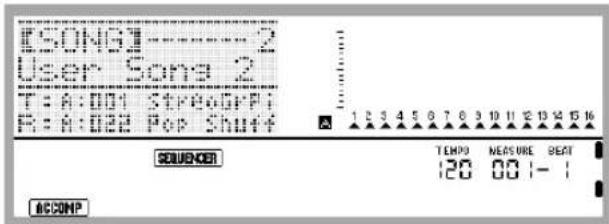
5. Configure panel settings as required for your performance.
- Configure the following settings: tone and rhythm selection, tempo, layer and split, synchro standby (when using Auto Accompaniment), mixer, etc. For details about settings that can be configured, see "Recording Start" under "System Track and Track 01 through 16 Common Recording Content" (page E-71) and "System Track Recording Content" (page E-71). For information about mixer settings, see "Mixer Settings in the Song Sequencer Mode" (page E-76).
6. Perform the following steps to configure beat and other settings.
(1) While holding down the R-13 (FUNCTION) button, press the C-17 (MENU) button. This will display a menu like the one shown below, with the ● next to "Beat" (beat).

(2) Use the dial or R-14 (−, +) buttons to configure the beat setting.
You can specify a beat setting of 2/4 to 8/4, 2/8 to 16/8.
(3) Use the R-17 (V) button to move the ● to "Metronome" and then use the R-14 (-, +) buttons to turn the metronome on or off.
Turning on the metronome causes it to sound a count during recording, but not during playback.
(4) Use the R-17 (V) button to move the ● to "Precount" and then use the R-14 (−, +) buttons to turn the precount on or off.
Turing on the precount inserts a one-measure count before the start of recording when you press the L-16 (START/STOP) button in step 7.
(5) Press the R-15 (EXIT) button to exit the menu.

NOTE
- Page 2 of the menu screen has a "RecType" setting, but this setting cannot be used when recording a performance to the system track.
7. Start playing something on the keyboard.
- Recording starts automatically when you perform any one of the following operations.
- Playing on the keyboard
- Pressing the L-12 (INTRO), L-13 (NORMAL/FILL-IN), or L-14 (VARIATION/FILL-IN) button
- Pressing the L-16 (START/STOP) button. To input one or more rests before starting recording, press the L-16 (START/STOP) button to start recording, and then start keyboard play at the point you want.
- Starting recording will cause the C-3 (RECORD) button to change from flashing to lit. During recording, the display will show the current measure (MEASURE) and beat (BEAT).
- PITCH BEND wheel (S-1) and pedal operations are also recorded.
- When recording reaches a point where there is less than 100 notes of remaining memory capacity, the current measure (MEASURE) and beat (BEAT) values will start flashing.
8. To stop recording, press the L-16 (START/STOP) button.
- At this time you can press the L-16 (START/STOP) button to replay what you have just recorded. For details about playing back recorded content, see "Playing a Recorded Song" (page E-79).
9. To exit the song sequencer, press the C-4 (SONG SEQUENCER) button or the R-15 (EXIT) button.
To record to Tracks 01 through 16
1. Press the C-4 (SONG SEQUENCER) button to enter the song sequencer mode.

Song area number
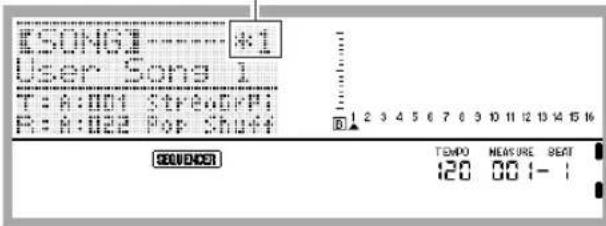
- An asterisk (*) next to a song area number indicates that there is already data recorded in that area.
- A in the level meter indicates that the system track is currently selected, while B indicates that another track (01 through 16) is selected. In the case of B, which track is selected is indicated by the position of a pointer (▲).
- A black box ( ) in the level meter above a track number indicates that there is already data recorded in that track.
2. Use the dial or R-14 (-, +) buttons to select a song area number.
- Selecting a song area that already contains recorded data will immediately recall the header settings of the song (page E-71).
3. Press the C-3 (RECORD) button.

- The button will start to flash and the Digital Keyboard will enter record standby, which means recording will start whenever you play something on the keyboard. Up to step 7, take care that you do not accidentally press a keyboard key and unintentionally start recording.
4. Use the R-17 (<, >) buttons to select a track (Track 01 through Track 16).

5. Configure panel settings as required for your performance.
- Configure the following settings: tone selection, tempo, mixer settings, etc. For details about settings that can be configured, see "Recording Start" under "System Track and Track 01 through 16 Common Recording Content"* (page E-71) and "Track 01 through 16 Recording Content" (page E-71). For information about mixer settings, see "Mixer Settings in the Song Sequencer Mode" (page E-76).
*Excluding rhythm selection and accomp volume.
6. Perform the following steps to configure beat and other settings.
(1) While holding down the R-13 (FUNCTION) button, press the C-17 (MENU) button. This will display a menu like the one shown below, with the ● next to "Beat" (beat).
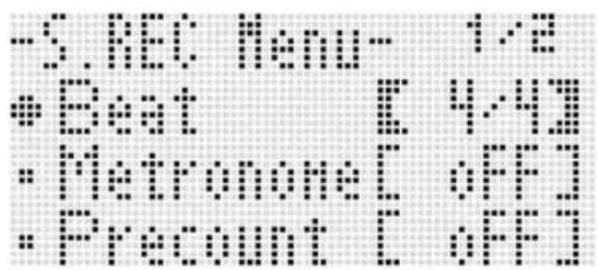
(2) Use the dial or R-14 (-, +) buttons to configure the beat setting. You can specify a beat setting of 2/4 to 8/4, 2/8 to 16/8.
(3) Use the R-17 (V) button to move the ● to "Metronome" and then use the R-14 (-, +) buttons to turn the metronome on or off. Turning on the metronome causes it to count a count during recording, but not during playback.
(4) Use the R-17 (V) button to move the ● to "Precount" and then use the R-14 (-, +) buttons to turn the precount on or off. Turing on the precount inserts a one-measure count before the start of recording when you press the L-16 (START/STOP) button in step 7.
(5) Use the R-17 (V) button to move the ● to "RecType", and then use the R-14 (−, +) buttons to select "REPL" or "OVDB".
| When you want to perform this type of recording: | Select this RecType option: |
| Delete any data currently existing in the track being recorded to and start a new recording. | REPL (Replace) |
| Overdub any data currently existing in the track being recorded to with the new recording. | OVDB (Overdub) |
(6) Press the R-15 (EXIT) button to exit the menu.
7. Start playing something on the keyboard.
- This will start recording and cause the C-3 (RECORD) button to change from flashing to lit. During recording, the display will show the current measure (MEASURE) and beat (BEAT).
- To input one or more rests before starting recording, press the L-16 (START/STOP) button to start recording, and then start keyboard play at the point you want.
- PITCH BEND wheel (S-1) and pedal operations are also recorded.
- When recording reaches a point where there is less than 100 notes of remaining memory capacity, the current measure (MEASURE) and beat (BEAT) values will start flashing.
8. To stop recording, press the L-16 (START/STOP) button.
- At this time you can press the L-16 (START/STOP) button to replay what you have just recorded. For details about playing back recorded content, see "Playing a Recorded Song" (page E-79).
9. To exit the song sequencer, press the C-4 (SONG SEQUENCER) button or the R-15 (EXIT) button.
To clear the content of a single track immediately after recording it
- While the song sequencer mode initial screen is on the display after track recording is complete, hold down the R-13 (FUNCTION) button as you press the C-17 (MENU) button.
- This displays the song sequencer menu with the ● located at "ClearTrack".

- Press the R-16 (ENTER) button.
- This causes the "Clear Track" screen to appear. At this time the target track for the clear operation is the one you just recorded.
- Press the R-16 (ENTER) button.
- This will cause the confirmation message "Sure?" to appear.
- Press the R-14 (YES) button to clear the track data or the R-14 (NO) button to cancel.
NOTE
- For information on how to select a particular track and clear its content, see "To clear a single track" (page E-85).
To clear a single song immediately after recording it
- While the song sequencer mode initial screen is on the display after track recording is complete, hold down the R-13 (FUNCTION) button as you press the C-17 (MENU) button.
• This displays the song sequencer menu.
- Use the R-17 (∧, ∨) buttons to move the ● to "ClearSong" and then press the R-16 (ENTER) button.
- This causes the "Clear Song" screen to appear. At this time the target song for the clear operation is the one you just recorded.
- Press the R-16 (ENTER) button.
- This will cause the confirmation message "Sure?" to appear.
- Press the R-14 (YES) button to clear the track data or the R-14 (NO) button to cancel.
NOTE
- For information on how to select a particular song and clear its content, see "To clear a song" (page E-82).
Mixer Settings in the Song Sequencer Mode
You can access the mixer during playback, playback standby, or record standby (C-3 (RECORD) button flashing), or while recording is in progress (C-3 (RECORD) button lit). Press the C-7 (MIXER) button to display the mixer screen. To return to the song sequencer mode screen, press the C-7 (MIXER) button again or press the R-15 (EXIT) button.
The table below shows how mixer parts correspond to song sequencer parts.
| Mixer Song Sequencer | |
| Parts A04 to A07, A09 to A16 System Track | |
| Parts B01 to B16 Tracks 01 through | 16 |
Supported Mixer Operations during Playback or Playback Standby
All mixer settings can be configured during playback or playback standby, subject to the following precautions.
- If you want to change mixer settings during playback standby, change them after selecting the song you want to play back. If you change mixer settings and then change the song selection, the header settings of the newly selected song will be recalled and mixer settings will be changed accordingly.
- The only mixer settings you can change during playback standby are those that are included in the song header of the currently selected song. If mixer settings were changed part way through when recording the song, the later recorded mixer settings will supersede any settings you make during playback standby.
Supported Mixer Operations during Record Standby
The mixer settings for the parts shown below (excluding part on/off) are supported, depending on the track being recorded to. Settings are recorded to the header settings (page E-71), the same way settings are stored when recording is started.
| System Track Tracks 01 through 16 | |
| A05 (UPPER 1), A06 (UPPER 2), A07 (LOWER), A04 (Auto harmonize) parts | Parts corresponding to each track (B01 through B16) |
Supported Mixer Operations During Recording
Mixer settings cannot be configured during recording to the system track.
Configuration of mixer settings (except for part on/off) is supported for a part (B01 through B16) that corresponds to a track when recording to any track from 01 through 16 shown. Any change in a mixer setting on the mixer screen is recorded as soon as it is made.
For details about mixer functions and operations, see "Using the Mixer" (page E-36).
Re-recording Part of a Song (Punch-in Recording)
You can re-record parts of a song you previously recorded in order to correct errors, etc. Simply enter the record standby mode and play back the previously recorded song (punch-in playback) and then play the new notes when playback reaches the location of the part you want to change.
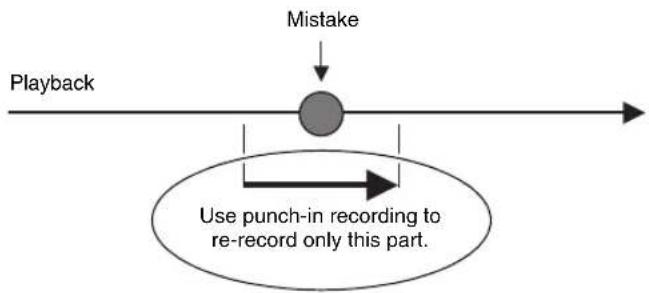
flowchart
graph TD
    A["Playback"] --> B["Mistake"]
    B --> C["Use punch-in recording to re-record only this part."]
To start re-recording from a particular location during playback (Manual Punch-in)
- Press the C-4 (SONG SEQUENCER) button to enter the song sequencer mode.
- Use the dial or the R-14 (-, +) buttons to select a song area number.
- Press the C-3 (RECORD) button to enter record standby.
• This causes the button to start flashing. -
Use the R-17 (<,>) buttons to select the track you want to partially re-record.
-
Hold down the C-3 (RECORD) button until the punch-in/punch-out screen shown below appears.
![FUNCH IN/OUT Mole [Manual]](/content/2026/06/1239013/images/4f0b2f416c6123fd5f75cc57f59713f7b40f3af53c4878cb6a7d182dabc8fe64.jpg)
6. Press the L-16 (START/STOP) button.
• This starts punch-in playback.
- The following operations are supported during punch-in playback. They help you move to the re-recording start point quickly and easily.
| To do this: Do this: | |
| Fast Forward | Hold down the L-14 (▶FF) button. |
| Fast Backward | Hold down the L-13 (◀REW) button. |
| Pause Press the L-15 (PAUSE) button. | |
| Restart paused playback. | Press the L-15 (PAUSE) button. |
7. When playback reaches the point from which you want to start re-recording, start playing something on the keyboard.
- Punch-in recording starts the moment you start to play something on the keyboard.
- Any one of the following also will start punch-in recording: a pedal or pitch bender operation; changing the tone setting; changing the rhythm, or tempo setting*.
*System track only
- To start punch-in recording without making any change in the notes played or the settings used, press the C-3 (RECORD) button.
- Starting recording will cause the C-3 (RECORD) button to light.
NOTE
- If you want to delete all of the data in the track following the section you just re-recorded with punch-in recording, press the C-3 (RECORD) button in place of the L-16 (START/STOP) button in step 8.
- If you want to cancel punch-in recording and retain the original track data, hold down the C-3 (RECORD) button until it becomes unlit.
8. To stop recording, press the L-16 (START/STOP) button.
- This will end punch-in recording and cause the C-3 (RECORD) button to become unlit.
- Any previously recorded data in the track that comes after the point you stopped punch-in recording will remain in the track.
To specify the punch-in recording range before starting (Auto Punch-in)
1. Play the song and determine what part of what track you want to re-record.
- For details about play back, see "Playing a Recorded Song" (page E-79). - You can specify a specific measure, beat, and tick* for the start point and the end point of the range to be re-recorded. Normally, it is probably best to specify the start of a measure or beat as the start point and end point. If you want to specify specific ticks, you can display the track to be re-recorded on the event editor screen and determine the desired location there. For details about event editing, see "Editing Events" (page E-87).
*For details about ticks, see "Reading Event Data" (page E-88).
2. Press the C-3 (RECORD) button to enter record standby.
• This causes the button to start flashing.
3. Use the R-17 (<,>) buttons to select the track you want to partially re-record.
4. Hold down the C-3 (RECORD) button until the punch-in/punch-out screen appears. You can release the button at that time.
5. Use the dial or the R-14 (-, +) buttons to select "Auto" for the "Mode" setting.
- This displays a range specification screen like the one shown below.

- Use the R-17 (<, >) buttons to move the cursor, use the dial or the R-14 (-, +) buttons to change the value at the cursor position, and then press the R-16 (ENTER) button.
- If you have already specified a range using the locator screen (page E-80), you can copy that range to this screen by holding down the L-12 (REPEAT) button.
![PUNCH IN/OUT : Mode [ auto ] #2:01:00 - 08:00:00](/content/2026/06/1239013/images/f80f04b8c9d15df0324524eee6fb9e2bc73efb493e8300cc5f93011816bf2ab3.jpg)
Recording start point Recording end point
-
After specifying the recording start point and end point, press the L-16 (START/STOP) button.
-
This starts punch-in playback. You can perform fast forward and fast backward operations during punch-in playback using the operations described in step 6 under "To start re-recording from a particular location during playback (Manual Punch-in)" (page E-76).
-
You can start punch-in playback from one measure prior to the current recording start point by pressing the L-12 (REPEAT) button which causes the [REPEAT] indicator to appear on the display.
-
When playback reaches the re-record point you specified, start playing something on the keyboard.
-
Punch-in recording will start automatically when playback reaches the record start point you specified. The C-3 (RECORD) button will light when recording starts.
- Recording stops and punch-in recording is exited automatically when the record end point you specified is reached. At this time the C-3 (RECORD) button will become unlit.
- If you want to stop recording before the record end point you specified is reached, press the L-16 (START/STOP) button. Any previously recorded data in the track that comes after the point you stopped punch-in recording will remain in the track.
- When "EOT" (End of Track) is selected for the recording start point, the start point for punch-in recording is the end of the track.
- When "OFF" is selected for the recording end point, punch-in recording will not stop automatically because no end point is specified. To stop punch-in recording in this case, press the L-16 (START/STOP) button.
Using Panel Record to Rewrite Song Header Settings
The header of each song contains "header settings", which are settings that were in effect on the Digital Keyboard when recording was performed. You can use a "panel record" operation to rewrite a song's header settings with the Digital Keyboard's current setup.
The following items are header settings that can be rewritten using the panel record operation.
- Rhythm selection
- Tempo setting
- Scale setting
- The mixer settings below
– All part parameters from A04 through A07 and B01 through B16 (Excluding part on/off)
- Part parameters from A09 through A16: part on/off, coarse tune, fine tune, scale enable, DSP line
- DSP parameters: volume, pan, reverb send
- Effect settings
- Accomp volume
• UPPER 1 part tone, UPPER 2 part tone, and LOWER part tone selections
To perform a panel record operation
- Press the C-4 (SONG SEQUENCER) button to enter the song sequencer mode.

- Use the dial or R-14 (-, +) buttons to select a song area number.
-
Configure panel settings so they reflect the settings you want to write as the header settings.
-
You can configure the following settings: mixer settings, tempo, system track rhythm, track tone selection, etc.
-
To change the system track UPPER 1, UPPER 2, and LOWER part tones or mixer settings, use the mixer to change the settings of parts A05 (UPPER 1), A06 (UPPER 2), and A07 (LOWER).
-
After all of the panels settings are the way you want, hold the R-13 (FUNCTION) button as you press the C-17 (MENU) button.
• This displays the song sequencer menu.
- Use the R-17 (V) button to move the ● to "PanelRecord".
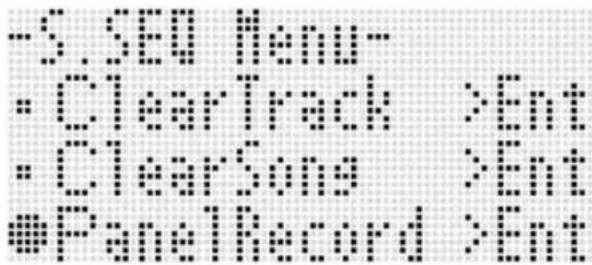
-
Press the R-16 (ENTER) button.
-
In response to the "Sure?" message that appears, press the R-14 (YES) button to execute the panel record operation or the R-14 (NO) button to cancel.
Playing a Recorded Song
This section explains how to perform the following operations on songs recorded in the song sequencer mode.
- Play a song.
- Fast forward, fast backward, pause, unpause.
- Play a specific part in a song.
- Repeat play a specific section of a song.
- Assign a name to a song.
- Delete a song.
To play a recorded song
- Press the C-4 (SONG SEQUENCER) button to enter the song sequencer mode.

- Use the dial or R-14 (-, +) buttons to select a song area number.
- Configure mixer settings, tempo, and other panel settings you want to use for playback.
- To change the system track UPPER 1, UPPER 2, and LOWER part tones or mixer settings, use the mixer to change the settings of parts A05 (UPPER 1), A06 (UPPER 2), and A07 (LOWER).
- The above settings are not required if you want to play the song as it was recorded.
- Press the L-16 (START/STOP) button.
- This starts playback. The following operations are supported during playback.
| To do this: Do this: | |
| Fast forward | Hold down the L-14 (▶▶FF) button. |
| Fast backward | Hold down the L-13 (◀◀REW) button. |
| Pause Press the L-15 (PAUSE) button. | |
| Restart paused playback | Press the L-15 (PAUSE) button. |
| Perform repeat playback | Perform steps 3 through 5 under “To repeat play a specific section of a song” (page E-144). |
- Even while playback is paused, you can still perform fast forward playback by holding down the L-14 (▶▶FF) button or fast backward playback by holding down the L-13 (◀◀REW). Releasing either button goes back into pause.
- While playback is in progress or playback standby, you can use the R-17 (<, >) buttons to select the track you want. Playing keyboard keys sounds the parts that correspond to the currently selected track (A04 to A07 for the system track).
- Playback stops automatically when it reaches the end of a song. To stop playback part way through, press the L-16 (START/STOP) button.
To play back a particular part alone To repeat play a specific phrase
- Press the C-4 (SONG SEQUENCER) button to enter the song sequencer mode.
- Use the dial or R-14 (-, +) buttons to select a song area number.
- Press the C-7 (MIXER) button to display the mixer screen.
- Use the R-17 (<, >) buttons to select the part you want to play (A04 through A16, B01 through B16).
- For example, to play only the melody that was recorded using the UPPER 1 part and recorded into the system track, select part A05. For details about the content of each part, see "How Parts are Organized" (page E-36).
- Use the R-17 ( , V) buttons to move the thick brackets ([ ]) to "Part".
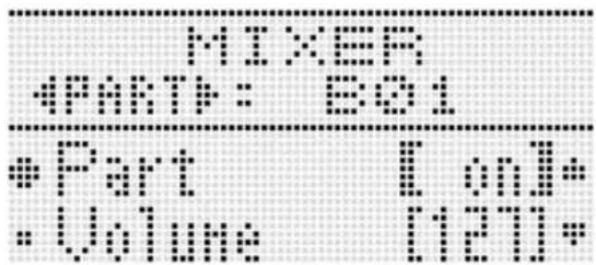
- Press the R-14 (-, +) buttons at the same time.
- This causes the setting to change to "Sol" (Solo).
- Press the L-16 (START/STOP) button.
• This starts playback only of the part you selected in step 4.
- Playback stops automatically when it reaches the end of a song. To stop playback part way through, press the L-16 (START/STOP) button.
- Hold down the L-12 (REPEAT) button until the locator screen shown below appears on the display.
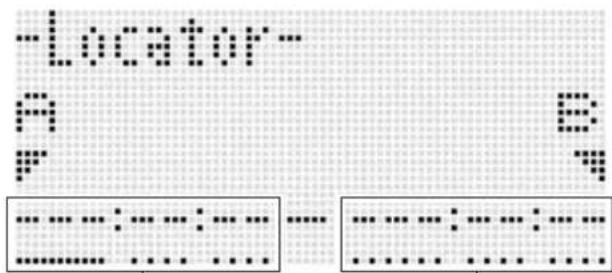
Start point input area End point input area
- Specify a measure as the start point of the phrase to be repeat played.
(1) Press the R-14 (+) button.
This will input "001:01:00" into the start point input area (A), and cause the cursor to start to flash.
(2) Use the dial or R-14 (-, +) buttons to specify the start measure number.
- Specify a measure as the end point of the phrase to be repeat played.
(1) Press the R-17 ( > ) three times to move the cursor to the end point input area.
Press the R-14 (+) button.
The end point input area (B) initially shows the measure that is one measure after the start point.
(2) Use the dial or R-14 (-, +) buttons to specify the end measure number.
- Press the R-16 (ENTER) button.
• This causes the cursor to stop flashing.
- Press the R-15 (EXIT) button to exit the locator screen.
- Perform the following steps to start phrase repeat play.
(1) Press the L-12 (REPEAT) button.
This causes the REPEAT indicator to appear on the display.
(2) Press the L-16 (START/STOP) button.
The specified phrase plays back in a loop.
7. To stop playback, press the L-16 (START/STOP) button.

NOTE
- Pressing the R-15 (EXIT) button without pressing the R-16 (ENTER) button in step 4 above will cancel the phrase setting operation and close the locator screen.
- The start point and end point specified on the locator screen by the above operation will be displayed as the initial default values when you display the screen of editing the next event.
- "To delete all events in a specific range of a track" (page E-93)
- "To copy the events within a specific range to a desired location" (page E-94)
- "To quantize all note events within specific range of a track" (page E-96)
- "To delete all pitch bender events within a specific range of a track" (page E-97)
This lets you repeat play and check the phrase so you can perform the above operation to edit it.
Editing a Song
The following operations are supported during song editing.
- Deleting a specific song or all songs
- Copying a song from one area to another
- Deleting specific measures from a song
- Inserting blank measures into a song
- Extracting system track recorded content to track 04 through 07 or 09 through 16
- Renaming songs
To start a song editor operation
-
Press the C-4 (SONG SEQUENCER) button to enter the song sequencer mode.
-
While holding down the R-13 (FUNCTION) button, press the C-4 (EDIT) button to display the edit menu.

- Use the R-17 (V) button to move the ● to "Song Edit" and then press the R-16 (ENTER) button.
- This displays the song editor menu shown below.

To clear a song
-
Perform the procedure under "To start a song editor operation" on page E-81 to display the song editor menu, with the ● located at "Clear".
-
Press the R-16 (ENTER) button.
- This displays the "Clear Song" screen.
- Use the dial or R-14 (-, +) buttons to specify the song area number you want to clear.
- An asterisk (*) next to a song area number indicates that there is already data recorded in that area.

- You can select "All" here to clear all songs.
-
Press the R-16 (ENTER) button.
-
In response to the "Sure?" message that appears, press the R-14 (YES) button to clear or the R-14 (NO) button to cancel.
To copy a song from one area to another
-
Perform the procedure under "To start a song editor operation" on page E-81 to display the song editor menu.
-
Use the R-17 (∧, ∨) buttons to move the ● to "Copy" and then press the R-16 (ENTER) button.
- This displays the "Copy Song" screen. At this time the thick brackets (【】) will be located at the "Copy" setting.
-
Use the dial or R-14 (-, +) buttons to specify the song area number you want to copy from.
-
Press the R-17 (V) button to move the thick brackets ([ ]) to "To".

- An asterisk (*) next to a song area number indicates that there is already data recorded in that area.
-
Use the dial or R-14 (−, +) buttons to specify the song area number you want to copy to.
-
Press the R-16 (ENTER) button.
- If the copy destination song area does not contain recorded data, the copy operation is performed immediately.
- If the copy destination song area already contains recorded data, the confirmation message shown below appears asking if you want to overwrite the existing data.

Press the R-14 (YES) button to perform the copy operation and overwrite the existing song or the R-14 (NO) button to cancel.
To delete one or more measures from a song To insert blank measures into a song
- Perform the procedure under "To start a song editor operation" on page E-81 to display the song editor menu.
- Use the R-17 (∧, ∨) buttons to move the ● to "DeleteMeas." and then press the R-16 (ENTER) button.
- This causes "Delete Measure" screen to appear. At this time the thick brackets (【 】) will be located at the "Measure" setting.
- Use the dial or R-14 (-, +) buttons to specify the song measure you want to delete.
- Press the R-17 (V) button to move the thick brackets ([ ]) to "Size".

- Use the dial or R-14 (-, +) buttons to specify the number of measures you want to delete.
- After everything is the way you want, press the R-16 (ENTER) button.
-
In response to the "Sure?" message that appears, press the R-14 (YES) button to delete or the R-14 (NO) button to cancel.
-
Perform the procedure under "To start a song editor operation" on page E-81 to display the song editor menu.
- Use the R-17 (∧, ∨) buttons to move the ● to "InsertMeas." and then press the R-16 (ENTER) button.
- This causes "Insert Measure" screen to appear. At this time the thick brackets (【 】) will be located at the "Measure" setting.
- Use the dial or R-14 (-, +) buttons to specify the song measure number from which you want the insert to start.
- Press the R-17 (V) button to move the thick brackets ([ ]) to "Size".
- Use the dial or R-14 (-, +) buttons to specify the number of measures you want to insert.
- For example, specifying 002 for "Measure" and 003 for "Size" will insert three blank measures in front of song measure 2.
- After everything is the way you want, press the R-16 (ENTER) button.
- In response to the "Sure?" message that appears, press the R-14 (YES) button to insert or the R-14 (NO) button to cancel.
To extract system track recorded content to track 04 through 07 or 09 through 16
As explained in detail under "Songs, tracks, and parts" (page E-70), the system track is an individual track, while the keyboard play and Auto Accompaniment data are recorded individually to multiple parts (A04 through A07, A09 through A16). The data of these parts is extracted to Tracks 04 through 07 and 09 through 16, with one part corresponding individually to one track of data. This makes it easy to edit each accompaniment part individually.

flowchart
graph LR
    A["System Track"] --> B["A04"]
    A --> C["A05"]
    A --> D["A06"]
    A --> E["A07"]
    A --> F["A09"]
    A --> G["A10"]
    A --> H["A11"]
    A --> I["A12"]
    A --> J["A13"]
    A --> K["A14"]
    A --> L["A15"]
    A --> M["A16"]
    B --> N["B04"]
    C --> O["B05"]
    D --> P["B06"]
    E --> Q["B07"]
    F --> R["B09"]
    G --> S["B10"]
    H --> T["B11"]
    I --> U["B12"]
    J --> V["B13"]
    K --> W["B14"]
    L --> X["B15"]
    M --> Y["B16"]

IMPORTANT!
- Performing this operation will delete all data currently recorded in the system track, except for rotary effect speed ON/OFF data and tempo data.
-
Performing this operation deletes all data currently recorded in Tracks 04 through 07 and 09 through 16, and overwrites it with the data in the system track.
-
Perform the procedure under "To start a song editor operation" on page E-81 to display the song editor menu.
-
Use the R-17 (∧, ∨) buttons to move the ● to "Extract" and then press the R-16 (ENTER) button.
- This displays an "Extract" screen like the one shown below.
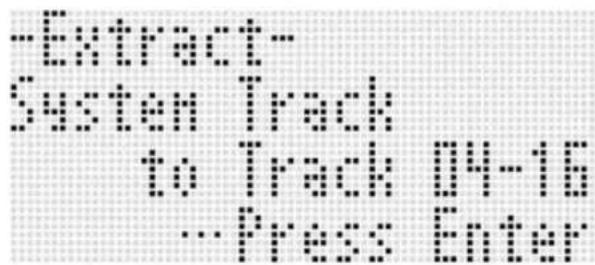
-
Press the R-16 (ENTER) button.
-
In response to the "Sure?" message that appears, press the R-14 (YES) button to start extraction or the R-14 (NO) button to cancel.
To rename a song
- Perform the procedure under "To start a song editor operation" on page E-81 to display the song editor menu.
- Use the R-17 (V) button to move the ● to "Rename" and then press the R-16 (ENTER) button.
- This displays the "Rename" screen.
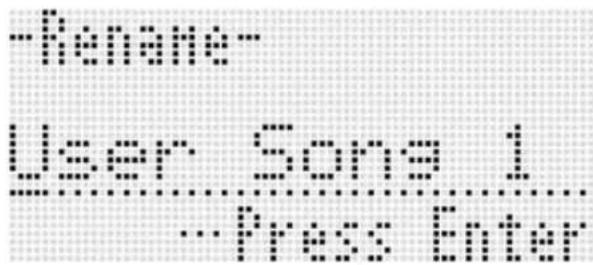
-
Use the R-17 (<, >) buttons to move the cursor to the name character position you want to change, and then use the dial or R-14 (-, +) buttons to select the character you want.
-
See "Supported Input Characters" (page E-160) for information about the characters you can input for the name.
-
To input a space, press both of the R-14 (-, +) buttons at the same time.
-
After everything is the way you want, press the R-16 (ENTER) button.
- In response to the "Sure?" message that appears, press the R-14 (YES) button to rename the song or the R-14 (NO) button to cancel.
Editing a Track
The following operations are supported during track (system track, Tracks 01 through 16) editing.
- Clearing a single track
- Copying one track to another track (Tracks 01 through 16 only)
- Combining two tracks into a single track (Tracks 01 through 16 only)
To start a track editor operation
- Press the C-4 (SONG SEQUENCER) button to enter the song sequencer mode.
- While holding down the R-13 (FUNCTION) button, press the C-4 (EDIT) button to display the edit menu.
- Use the R-17 (∧, ∨) buttons to move the ● to "TrackEdit" and then press the R-16 (ENTER) button.
- This displays the track editor menu shown below.

To clear a single track
-
Perform the procedure under "To start a track editor operation" on page E-85 to display the track editor menu.
-
Press the R-16 (ENTER) button.
- This causes the "Clear Track" screen to appear.

-
Use the dial or R-17 (<, >) buttons to specify the track you want to clear.
-
A black box ( ) above a track number in the level meter indicates that there is already data recorded in that track.
-
You also can select a track using the dial or R-14 (-, +) buttons.
-
Press the R-16 (ENTER) button.
-
In response to the "Sure?" message that appears, press the R-14 (YES) button to clear or the R-14 (NO) button to cancel.
To copy one track to another track (Tracks 01 through 16 only)
- Perform the procedure under "To start a track editor operation" on page E-85 to display the track editor menu.
- Use the R-17 (∧, ∨) buttons to move the ● to "Copy" and then press the R-16 (ENTER) button.
- This causes the "Copy Track" screen to appear. At this time the thick brackets (【 】) will be located at the "Copy" setting.
- Use the dial or R-14 (-, +) buttons to specify the track number you want to copy from.
- Press the R-17 (V) button to move the thick brackets ([ ]) to "To".
- An asterisk (*) next to a track number indicates that there is already data recorded in that track.
- Use the dial or R-14 (−, +) buttons to specify the track number you want to copy to.
-
After everything is the way you want, press the R-16 (ENTER) button.
-
If the copy destination track does not contain recorded data, the copy operation is performed immediately.
- If the copy destination track already contains recorded data, the confirmation message shown below appears asking if you want to overwrite the existing data.

Press the R-14 (YES) button to perform the copy operation and overwrite the existing track or the R-14 (NO) button to cancel.
To combine two tracks into a single track (Tracks 01 through 16 only)
- In the song sequencer mode, use the R-17 (<, >) buttons to select the lower numbered track of those you want to combine.
- As an example, we will combine Track 03 and Track 05 into Track 06. Here, select Track 03.
- Perform steps 2 and 3 of the procedure under "To start a track editor operation" on page E-85 to display the track editor menu.
- Use the R-17 (V) button to move the ● to "Merge" and then press the R-16 (ENTER) button.
- This displays a "Merge Track" screen like the one shown below. At this time the thick brackets (【 】) will be located at setting ®.
![-Herge Track- +: [03] +* [04] +* [04] -Press Enter](/content/2026/06/1239013/images/66f0a3d6264bb54579c48d17ce03c44f58ae6f3f749bc7c476ca76fd270ae563.jpg)
Ⓐ: One of the tracks to be combined (The track you selected in step 1 is the initial default selection).
⑧: Other track to be combined.
©: Destination track of combined tracks.
-
Use the dial or R-14 (−, +) buttons to specify 05 (Track 05) for Ⓑ.
-
Changing the value of Ⓑ also causes the Ⓐ value to change.
- Press an R-17 (> or V) button to move the thick brackets ([ ]) to ©.
- Use the dial or R-14 (−, +) buttons to specify 06 (Track 06) for Ⓐ.
7. After everything is the way you want, press the R-16 (ENTER) button.
- If the destination track does not contain recorded data, combination of the tracks starts immediately.
- If the destination track already contains recorded data, the confirmation message shown below appears asking if you want to overwrite the existing data.
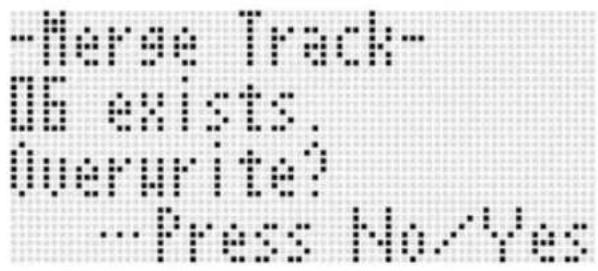
Press the R-14 (YES) button to perform the process and overwrite the existing track or the R-14 (NO) button to cancel.
NOTE
- Performing the above procedure does not clear the contents of the two source tracks. If you no longer need the content of a track, you can clear it using the procedure under "To clear a single track" (page E-85).
Editing Events
The song sequencer records all Digital Keyboard operations you perform while playing as "events", which are the smallest unit of data that makes up a song. Playing a single note on the keyboard, for example, stores the following events: note start measure, beat, and track, note pitch, note length, and note intensity.
The following operations are supported during event editing.
- Deleting events
- Inserting events
- Copying events within a specific range to a desired location
- Quantizing* note events
- Deleting pitch bender events
- Adjusting note event velocity values
- Adjusting note event gate time values
- Selecting the type of events that appear on the Event Editor screen (View Select)
- Inserting or deleting beat events
- Directly inputting note events (step input)
*Quantize is an operation that automatically adjusts the note-on timing of a note event to match a reference note.
To start an event editor operation
-
Press the C-4 (SONG SEQUENCER) button to enter the song sequencer mode.
-
While holding down the R-13 (FUNCTION) button, press the C-4 (EDIT) button to display the edit menu.
-
Press the R-16 (ENTER) button.
- This displays the event editor screen shown below.
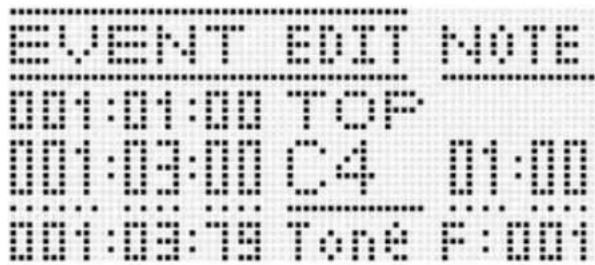
- For information about how to use the event editor screen, see "Event Types and Screen Content" (page E-88).
- While holding down the R-13 (FUNCTION) button, press the C-17 (MENU) button.
- This displays the event editor menu shown below.

- Next, select the menu item that corresponds to the type of operation you want to perform. Details about each operation are provided in the procedures of this section.
Event Types and Screen Content
The event editor screen displays the individual events that make up a song as values and characters as shown in the sample screen below.
Event being edited (selected event) (Center of screen)

The event editor screen shows three events at one time. The event in the middle line is the selected event. You can change the value where the solid-line cursor is located. A broken line under a setting value indicates that the cursor can be moved to that value.
■Reading Event Data
Here we will use two types of event displays to explain how to read event data.
• Example 1: Note event
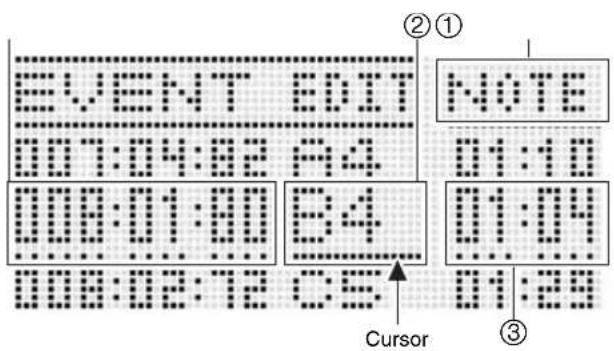
• Example 2: Pitch bender event

The following explains the meaning of each screen position.
| Number | Description |
| 1 | For all event types, indicates the even location (timing) in the following format: measure:beat:tick. A “tick” is a time unit that is shorter than one beat. Song sequencer data uses 96 ticks per beat (for 2/4 to 8/4) or 48 ticks per beat (for 2/8 to 16/8). |
| 2 | For almost all events, this position shows an abbreviation indicating the event type. “Bend” in display example (2) stands for “pitch bender event”. Note events (display example (1)) and chord events are different in that this position shows the event parameter (note name for a note event, root for a chord event) setting value. For information about what is displayed at this position and the corresponding event type, see the “Event Data List” (page E-89). |
| 3 | This position shows parameter setting values that corresponds to the event type. When an event has multiple parameters, use the R-17 (<,>) buttons to move the cursor, which will scroll the display between the parameters. The name of the parameter at the current cursor position will be displayed in position 4. |
| 4 | This position indicates where the cursor is currently located as “MEAS.” (measure), “BEAT” (beat), or “TICK” (tick). |
■Event Data List
The following table shows the event types that correspond to the abbreviations that appear on the display, as well as the parameters of each event type and setting ranges.
- “② display” and “④ display” in the table headings correspond to the ②, ④ screen positions under “Reading Event Data” (page E-88).
- “② display during insert” in the table headings indicates the event type name enclosed in thick brackets (【 】) when step 3 of insert event procedure under “To insert an event” (page E-94).
System Track and Track 01 to 16 Common Events
| Event Type | 2 display during insert | 4 display Parameter Name Setting Range | |||
| 2 display Event Name | |||||
| TOP (song start point) - - - (Not editable) | |||||
| *1 | Note [Note] | NOTE Note name C- - C0 - G9 | *2 | ||
| GATE Gate time 00:00 - 99:95 | |||||
| VEL Velocity | 001 - 127 | ||||
| Bend | Pitch Bender | [Bend] | VALU | Pitch Bender | -8192 - 0000 - +8191 |
| Mod | Modulation *3 | [Modulat] | VALU | Modulation | 000 - 127 |
| ModB | Modulation Button | [ModBttn] | VALU | Button On/Off | on, oFF |
| RotB | Rotary Slow/Fast Button | [RotBttn] | VALU | Button On/Off | on, oFF |
| END | (song end point) | - - - (Not editable) | |||
*1 A note event is not displayed as the event name at position ②, but rather as the note name (C4, etc.).
*2 "C-" on the display indicates C-1 (one octave below C0).
*3 This event can be added only with the operation under "To insert an event" (page E-94). It applies vibrato.
Track 01 to 16 Events
| Event Type | 2 display during insert | 4 display Parameter Name Setting Range | |||
| 2 display Event Name | |||||
| TONE | Part Tone | 【Tone】 | VALU | Tone Number | A:001 - L:100 |
| Sus | Part Sustain Pedal | 【Sustain】 | VALU | Part Sustain Pedal | 000 - 127 |
| Sost | Part Sostenuto Pedal | 【Sostenu】 | VALU | Part Sostenuto Pedal | 000 - 127 |
| Soft | Part Soft Pedal | 【Soft】 | VALU | Part Soft Pedal | 000 - 127 |
| Vol | Part Volume | 【Volume】 | VALU | Part Volume | 000 - 127 |
| Pan | Part Pan | 【Pan】 | VALU | Part Pan | -64 - 00 - +63 |
| CTun | Part Coarse Tune | 【CrsTune】 | VALU | Part Coarse Tune | -24 - 00 - +24 |
| FTun | Part Fine Tune | 【FinTune】 | VALU | Part Fine Tune | -99 - 00 - +99 |
| BndR | Part Bend Range | 【BendRng】 | VALU | Part Bend Range | 00 - 24 |
| RSnd | Part Reverb Send | 【RevSend】 | VALU | Part Reverb Send | 000 - 127 |
| CSnd | Part Chorus Send | 【ChoSend】 | VALU | Part Chorus Send | 000 - 127 |
| SclE | Part Scale Enable | 【ScaleEn】 | VALU | Part Scale Enable | on, oFF |
| DspL | Part DSP Line | 【DspLine】 | VALU | Part DSP Line | on, oFF |
| Exp Part | Expression *4 | 【Express】 | VALU | Part Expression | 000 - 127 |
| OrgB | Drawbar Organ Drawbar | 【OrgnBar】 | Ft. | Feet | 16, 5 13 , 8, 4, 2 23 , 2, 1 35 , 1 13 , 1 |
| VALU | Level | 0 - 8 | |||
| OrgP | Drawbar Organ Percussion | 【OrgnPrc】 | TYP | Type | 2nd, 3rd |
| VALU | On/Off | on, oFF | |||
*4 This event can be added only with the operation under "To insert an event" (page E-94). It changes the volume.
System Track Events
| Event Type | 2 display during insert | 4 display Parameter Name Setting Range | |||
| 2 display Event Name | |||||
| TnU1 | UPPER 1 Tone | 【Tone_U1】 | VALU | Tone Number | A:001 - L:100 |
| TnU2 | UPPER 2 Tone | 【Tone_U2】 | VALU | Tone Number | A:001 - L:100 |
| TnLo | LOWER Tone | 【Tone_Lo】 | VALU | Tone Number | A:001 - L:100 |
| TnHm | Auto Harmonize Tone | 【Tone_Hm】 | VALU | Tone Number | A:001 - L:100 |
| *1 | Chord【Chord】 | ROOT Root C - B | |||
| TYPE | Chord type | *2 | |||
| CVEL Chord velocity 000 - 127 | |||||
| RHY | Rhythm | 【Rhythm】 | VALU | Rhythm Number | A:001 - F:100 |
| Rctl | Rhythm Controller | 【RhyCtrl】 | VALU | Rhythm controller | *3 |
| APrt | Accompaniment Part On/Off | 【AcmpPrt】 | PART | Part | PREC, DRUM, BASS, CHD1 - CHD5 |
| VALU | On/Off | on, oFF | |||
| Layr | Layer On/Off | 【Layer】 | VALU | Layer On/Off | on, oFF |
| Shift | Octave Shift | 【OctShift】 | PART | Part | HARM, UPP1, UPP2, LOWR |
| VALU | Octave Shift | -2 - 0 - +2 | |||
| Split | Split On/Off | 【Split】 | VALU | Split On/Off | on, oFF |
| TMPO | Tempo | 【Tempo】 | VALU | Tempo | 30 - 255 |
| SplP | Split Point | 【SplitPt】 | VALU | Split Point | C-- C0 - G9*4 |
| HmAp | Auto Harmonize/ Arpeggiator | 【HarmArp】VALU | Auto Harmonize/ Arpeggiator | oFF, 001 - 162 | |
| ApHd | Arpeggiator Hold | 【ArpHold】 | VALU | Arpeggiator Hold | on, oFF |
| ApSp | Arpeggiator Speed | 【ArpSpd】 | VALU | Arpeggiator Speed | 1, 2, 2S, 3, 4, 4S, 6, 8 |
| ApPt | Arpeggiator Part | 【ArpPart】 | VALU | Arpeggiator Part | U12, U1, U2, Low |
| Revb | Reverb | 【Reverb】 | VALU | Reverb | oFF, 01 - 10 |
| Chrs | Chorus | 【Chorus】 | VALU | Chorus | 1 - 5 |
| DSP | DSP | 【DSP】 | VALU | DSP | ton, 001 - 200 |
| Scal | Scale | 【Scale】 | NOTE | Key | C - B |
| Cent | Cent -99 - 00 | +99 | |||
| Sus | Part Sustain Pedal | 【Sustain】 | PART | Part | HARM, UPP1, UPP2, LOWR |
| VALU | Part Sustain Pedal | 000 - 127 | |||
| Sost Part | Sostenuto Pedal【Sostenu】 | PART | Part | HARM, UPP1, UPP2, LOWR | |
| VALU | Part Sostenuto Pedal | 000 - 127 | |||
| Soft Part | Soft Pedal 【Soft】 | PART | Part | HARM, UPP1, UPP2, LOWR | |
| VALU Part Soft Pedal 000 - 127 | |||||
| Vol | Part Volume | 【Volume】 | PART | Part | HARM, UPP1, UPP2, LOWR |
| VALU | Part Volume 000 - | 127 | |||
| Pan | Part Pan | 【Pan】 | PART | Part | HARM, UPP1, UPP2, LOWR |
| VALU | Part Pan | -64 - 00 - +63 | |||
| CTun | Part Coarse Tune | 【CrsTune】 | PART | Part | HARM, UPP1, UPP2, LOWR |
| VALU Part Coarse Tune -24 - 00 | +24 | ||||
| Event Type | 2 display during insert | 4 display | Parameter Name | Setting Range | |
| 2 display Event Name | |||||
| FTun Part | Fine Tune [FinTune] | PART Part | HARM, UPP1, UPP2, LOWR | ||
| VALU Part Fine Tune -99 - 00 - +99 | |||||
| BndR Part | Bend Range [BendRng] | PART Part | HARM, UPP1, UPP2, LOWR | ||
| VALU Part Bend Range 00 - 24 | |||||
| RSnd Part | Reverb Send [RevSend] | PART Part | HARM, UPP1, UPP2, LOWR | ||
| VALU Part Reverb Send 000 - 127 | |||||
| CSnd Part | Chorus Send [ChoSend] | PART Part | HARM, UPP1, UPP2, LOWR | ||
| VALU Part Chorus Send 000 - 127 | |||||
| DspL Part | DSP Line [DspLine] | PART Part | HARM, UPP1, UPP2, LOWR | ||
| VALU | Part DSP Line | on, oFF | |||
| AVol Accomp Volume *5 | 【AcmpVol】 | VALU | Accomp volume | 000 - 127 | |
| AScl Accomp Scale *6 | 【AcmpScl】 | VALU | Accomp Scale | on, oFF | |
| OrgB | Drawbar Organ Drawbar | 【OrgnBar】 | PART Part | HARM, UPP1, UPP2, LOWR | |
| Ft. | Feet | 16, 5 13 , 8, 4, 2 23 , 2, 1 35 , 1 13 , 1 | |||
| VALU | Level | 0 - 8 | |||
| OrgP | Drawbar Organ Percussion | 【OrgnPrc】 | PART Part | HARM, UPP1, UPP2, LOWR | |
| TYP | Type 2nd, 3rd | ||||
| VALU | On/Off | on, oFF | |||
*1 A chord event is not displayed as the event name at position ②, but rather as the chord root (C, etc.)
*2 See "Fingering Guide" on (page E-160).
*3 Intro: intro pattern, norml: normal pattern, Vari: variation pattern, nFLOn: normal fill-in on, nFloF: normal fill-in off, vFLOn: variation fill-in on, vFloF: variation fill-in off, Endin: ending pattern.
*4 "C-" on the display indicates C-1 (one octave below C0).
*5 This setting corresponds to the function menu "AccompVol." item (page E-133).
*6 For details, see "Specifying whether the Current Scale Settings Should be Applied to Auto Accompaniment (Accomp Scale)" (page E-22).
To select a track for editing
- Perform steps 1 to 3 of the procedure under "To start an event editor operation" on page E-87 to display the event editor screen.
- While holding down the R-13 (FUNCTION) button, use the R-17 (<, >) buttons to select the track you want to edit.
To play back a song from the event editor screen (Quick Play)
- Perform steps 1 to 3 of the procedure under "To start an event editor operation" on page E-87 to display the event editor screen.
- Press the L-16 (START/STOP) button.
- This starts playback of the song being edited from the first measure where the cursor is currently located.
- Playback stops automatically when it reaches the end of a song. To stop playback part way through, press the L-16 (START/STOP) button.
To select the types of events that appear on the Event Editor screen (View Select)
- Perform the procedure under "To start an event editor operation" on page E-87.
- Use R-17 (>) button to display page three of the event editor menu, with the ● located at "ViewSelect".
- Press the R-16 (ENTER) button.
- This displays the "View Select" screen.
![-lien Select- 1/3 +Note E on2 :Pitchend [on] +Pall [on]](/content/2026/06/1239013/images/859b52664f04780bcea4559291484840c0ff462a988af71f2db9680d234b4be2.jpg)
- Use the R-17 (∧, ∨) buttons to move the ● between the setting items, and the dial or R-14 (−, +) buttons to toggle the currently selected setting between “on” (shown) and “oFF” (hidden).
- The table below shows the event that corresponds to each setting item.
| Setting Item Corresponding Event | |
| Note Note event | |
| PitchBend Pitch Bend event | |
| Pedal Sustain, soft, sostenuto events | |
| Rhythm Rhythm event | |
| Chord Chord event | |
| Tempo Tempo event | |
| Tone Tone event | |
| Mixer Mixer event (excluding Tone event) | |
| Others All other events besides those above. | |
- For information about each event, see "Event Types and Screen Content" (page E-88).
- Press the R-15 (EXIT) button to apply the settings and exit the "View Select" screen.
To edit an existing event
- Display the event editor screen of the track that includes the event you want to edit.
- See "To select a track for editing" (page E-91).
- Use the R-17 ( , V) buttons to move the cursor to the event you want to edit.
- You can use the L-14 (▶▶FF) and L-13 (◀◀REW) buttons to move the cursor by measure-by-measure.
-
Use the R-17 (<, >) buttons to move the cursor, and then use the dial or R-14 (-, +) buttons to change the value at the cursor position.
-
The cursor flashes during a value change operation.
-
During note event recording, you can change the pitch of a note by pressing a keyboard key. If the cursor is located at the "VEL" position, the velocity value will change at the same time as the note pitch.
-
To apply the changed value, press the R-16 (ENTER) button.
• This causes the cursor to stop flashing.
To delete an individual event
- Display the event editor screen of the track that includes the events you want to delete.
- See "To select a track for editing" (page E-91).
- Use the R-17 ( , V) buttons to move the cursor to the event you want to delete.
- Press the C-10 (DELETE) button.
- The event at the current cursor position will be deleted as soon as you press the C-10 (DELETE) button.
To delete all events in a track
- Display the event editor screen of the track that includes the events you want to delete.
- See "To select a track for editing" (page E-91).
-
While holding down the R-13 (FUNCTION) button, press the C-17 (MENU) button to display the event editor menu.
-
Use the R-17 (∧, ∨) buttons to move the ● to "Delete" and then press the R-16 (ENTER) button.
- This displays the "Delete" screen.

-
Use the dial or R-14 (-, +) buttons to change the setting in the thick brackets ([ ]) to "All", and then press the R-16 (ENTER) button.
-
In response to the "Sure?" message that appears, press the R-14 (YES) button to delete or the R-14 (NO) button to cancel.
To delete all events in a specific range of a track
- Display the event editor screen of the track that includes the events you want to delete.
- See "To select a track for editing" (page E-91).
- If required, you can perform a song playback operation at this time to check the range you want to select for deletion.
- See "To play back a song from the event editor screen (Quick Play)" (page E-92).
-
While holding down the R-13 (FUNCTION) button, press the C-17 (MENU) button to display the event editor menu.
-
Use the R-17 (∧, ∨) buttons to move the ● to "Delete" and then press the R-16 (ENTER) button.
- This displays the "Delete" screen.
- Use the dial or R-14 (-, +) buttons to change the setting in the thick brackets ([ ]) to "Locator".
- This displays a range specification screen like the one shown below. - If you have already specified a range using the locator screen (page E-80), that range will be displayed on the range specification screen.

- Use the R-17 (<, >) buttons to move the cursor, and then use the dial or R-14 (-, +) buttons to change the value at the cursor position.
- The event located at the timing specified by the range end point will not be deleted.
-
After everything is the way you want, press the R-16 (ENTER) button.
-
In response to the "Sure?" message that appears, press the R-14 (YES) button to delete or the R-14 (NO) button to cancel.
To insert an event
- Display the event editor screen of the track where you want to insert the event.
- See "To select a track for editing" (page E-91).
- Use the R-17 (∧, ∨) buttons to move the cursor to the position where you want to insert an event.
- The new event will be inserted at the same timing as the event where the cursor is located. You can fine tune the timing after inserting the new event.
- Press the C-11 (INSERT) button.
- This inserts the event at the specified location and displays a screen like the one shown below.
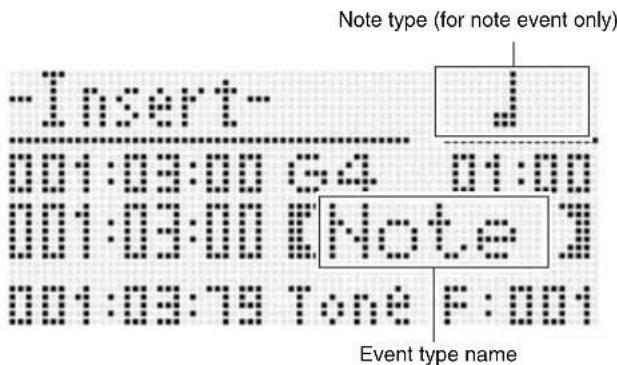
-
Use the dial or R-14 (-, +) buttons to select an event type.
-
For information about events that can be specified, see "Event Types and Screen Content" (page E-88).
- When a note event is specified as the event type, specify the note type (note length) using the buttons shown in the table below. You specify the pitch of the note in step 6 of this procedure.
| To specify this type of note: | Press this button: |
| Whole R-1 (o) | |
| Half R-2 (o) | |
| Quarter R-3 (j) | |
| Eighth R-7 (j) | |
| Sixteenth R-8 (j) | |
| Thirty-second R-9 (j) | |
| Dotted* | R-4 (•) |
| Triplet* | R-10 (-3-) |
*For dotted notes and triplets, first select the note and then add the dot or triplet. To specify a dotted quarter note, for example, press the R-3 (J) button and then the R-4 (•) button.
- After everything is the way you want, press the R-16 (ENTER) button.
• This inserts the specified event.

-
Adjust the settings of the event as desired.
-
Use the R-17 (<, >) buttons to move the cursor, and then use the dial or R-14 (−, +) buttons to change the value at the cursor position. The cursor flashes during a value change operation.
-
For information about data types and setting value ranges for events that can be edited, see "Event Types and Screen Content" (page E-88).
-
To apply the event data, press the R-16 (ENTER) button.
• This causes the cursor to stop flashing.
NOTE
- You also can perform the operation in step 3 by moving the ● to "Insert" on the event editor menu and then pressing the R-16 (ENTER) button.
To copy the events within a specific range to a desired location
- Display the event editor screen of the track that contains the events you want to copy.
- See "To select a track for editing" (page E-91).
- If required, you can perform a song playback operation to check the range you want to select for copying and the copy location.
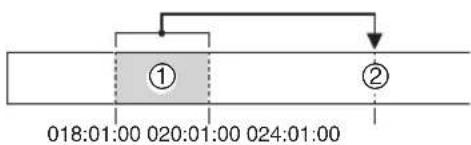
flowchart
graph TD
    A["①"] --> B["②"]
    style A fill:#f9f,stroke:#333
    style B fill:#ccf,stroke:#333
- See "To play back a song from the event editor screen (Quick Play)" (page E-92).
3. Press the C-12 (COPY) button.
- This displays the "Copy" screen.
- If you have already specified a range using the locator screen (page E-80), that range will be displayed on the range specification screen.

① Copy source range (start point - end point)
- Use the R-17 (<, >) buttons to move the cursor, and then use the dial or R-14 (-, +) buttons to change the value at the cursor position.
- After everything is the way you want, press the R-16 (ENTER) button.
- In response to the "Sure?" message that appears, press the R-14 (YES) button to copy or the R-14 (NO) button to cancel.
- Pressing the R-14 (YES) button executes the copy operation. The message "Complete" appears and the display returns to the "Copy" screen after the copy is complete.
- At this time, the “② Copy destination point” value on the locator screen moves forward by the length specified by “① Copy source range”.

If you want to continue by copying the same copy source range to another location, repeat steps 5 and 6 again.
- To return to the event editor screen, press the R-15 (EXIT) button.
To quantize an individual note event
- Display the event editor screen of the track that includes the event you want to quantize.
- See "To select a track for editing" (page E-91).
-
Use the R-17 ( , V) buttons to move the cursor to the event you want to quantize.
-
Press the C-13 (QUANTIZE) button.
- This displays the "Quantize" screen.
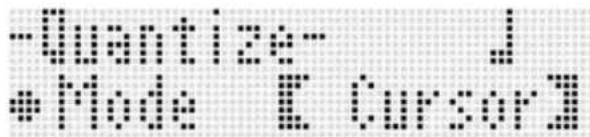
- Use the dial or R-14 (-, +) buttons to change the setting in the thick brackets ([ ]) to "Cursor".
- Specify the note you want to use as the quantize reference note.
| To specify this type of note: | Press this button: |
| Quarter R-3 (♪) | |
| Eighth R-7 (♪) | |
| Sixteenth R-8 (♪) | |
| Thirty-second R-9 (♪) | |
| Triplet* | R-10 (r-3-¬) |
*For a triplet, first select the note and then add the triplet. To specify a triplet made up of quarter notes, for example, press the R-3 (♩) button and then the R-10 (¬3¬) button.
- After everything is the way you want, press the R-16 (ENTER) button.
- This performs quantization and returns to the event editor screen.
To quantize all note events in a track
- Display the event editor screen of the track you want to quantize.
- See "To select a track for editing" (page E-91).
- Press the C-13 (QUANTIZE) button.
- This displays the "Quantize" screen.
-
Use the dial or R-14 (-, +) buttons to change the setting in the thick brackets ([ ]) to "All".
-
Perform step 5 under "To quantize an individual note event" (page E-95).
-
Press the L-16 (START/STOP) button when you want to play back with quantization applied.
- Note that the actual data still has not been changed yet.
-
Press the R-16 (ENTER) button.
-
In response to the "Sure?" message that appears, press the R-14 (YES) button to quantize or the R-14 (NO) button to cancel.
To quantize all note events within specific range of a track
- Display the event editor screen of the track that includes the events you want to quantize.
- See "To select a track for editing" (page E-91).
- If required, you can perform a song playback operation at this time to check the range you want to select for quanitization.
- See "To play back a song from the event editor screen (Quick Play)" (page E-92).
- Press the C-13 (QUANTIZE) button.
- This displays the "Quantize" screen.
- Use the dial or R-14 (-, +) buttons to change the setting in the thick brackets ([ ]) to "Locator".
- This displays a range specification screen like the one shown below. - If you have already specified a range using the locator screen (page E-80), that range will be displayed on the range specification screen.

Range start point Range end point
-
Use the R-17 (<, >) buttons to move the cursor, and then use the dial or R-14 (-, +) buttons to change the value at the cursor position.
-
Perform step 5 under "To quantize an individual note event" (page E-95).
-
Press the L-16 (START/STOP) button when you want to play back with quantization applied.
- Note that the actual data still has not been changed yet.
-
After everything is the way you want, press the R-16 (ENTER) button.
-
In response to the "Sure?" message that appears, press the R-14 (YES) button to quantize or the R-14 (NO) button to cancel.
Deleting Pitch Bender Events
You can use the procedures in this section to delete all pitch bender events from a track or from a specific range in a track.

NOTE
- To delete individual pitch bender events, perform the operation under "To delete an individual event" (page E-92).
- After deleting the pitch bender events in one track from Track 01 through Track 16, you can overdub new pitch bender (PITCH BEND wheel (S-1)) operations for that track. To do so, use the procedure under "To record to Tracks 01 through 16" (page E-73), and select "OVDB" (Overdub) for the "RecType" setting in step 6-(5).
- Since "OVDB" cannot be selected for "RecType" when recording to the system track, you will not be able to overdub pitch bender operations after deleting pitch bender events from the system track. You can use the procedure under "To insert an event" (page E-94) to insert pitch bender events.
■To delete all pitch bender events in a track
- Display the event editor screen of the track whose pitch bender events you want to delete.
- See "To select a track for editing" (page E-91).
-
While holding down the R-13 (FUNCTION) button, press the C-17 (MENU) button to display the event editor menu.
-
Use the R-17 ( , ) buttons to move the ● to "DeleteBender" and then press the R-16 (ENTER) button.
- This causes "Delete Bender" screen to appear.

-
Use the dial or R-14 (-, +) buttons to change the setting in the thick brackets ([ ]) to "ALL", and then press the R-16 (ENTER) button.
-
In response to the "Sure?" message that appears, press the R-14 (YES) button to delete or the R-14 (NO) button to cancel.
■To delete all pitch bender events within a specific range of a track
- Display the event editor screen of the track whose pitch bender events you want to delete.
- See "To select a track for editing" (page E-91).
- If required, you can perform a song playback operation at this time to check the range you want to select for deletion.
- See "To play back a song from the event editor screen (Quick Play)" (page E-92).
-
While holding down the R-13 (FUNCTION) button, press the C-17 (MENU) button to display the event editor menu.
-
Use the R-17 ( , ) buttons to move the ● to "DeleteBender" and then press the R-16 (ENTER) button.
- This causes "Delete Bender" screen to appear.
- Use the dial or R-14 (-, +) buttons to change the setting in the thick brackets ([ ]) to "Locator".
- This displays a range specification screen like the one shown below. - If you have already specified a range using the locator screen (page E-80), that range will be displayed on the range specification screen.

-
Use the R-17 (<, >) buttons to move the cursor, and then use the dial or R-14 (-, +) buttons to change the value at the cursor position.
-
After everything is the way you want, press the R-16 (ENTER) button.
-
In response to the "Sure?" message that appears, press the R-14 (YES) button to delete or the R-14 (NO) button to cancel.
To adjust the velocity value of a note event
1. Display the event editor screen of the track you want to edit.
- See "To select a track for editing" (page E-91).
2. Depending on the type of adjustment you want make, perform one of the operations below.
| To adjust this: Do this: | |
| Individual note event On the | event editor screen,move the cursor to the note event you want to adjust and then advance to step 3. |
| All note events in a track Advance to step 3. | |
| Note events within a specific range in a track | Advance to step 3. |
3. While holding down the R-13 (FUNCTION) button, press the C-17 (MENU) button to display the event editor menu.
4. Use the R-17 ( , ) buttons to move the ● to "VelocityMod." and then press the R-16 (ENTER) button.
- This displays the "Velocity Modify" screen.
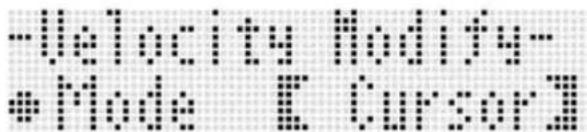
5. Use the dial or R-14 (-, +) buttons to change the mode indicated in the thick brackets ([ ]).
| To adjust this: Select this mode: | |
| Individual note event Cursor | |
| All note events in a track All | |
| Note events within a specific range in a track | Locator |
- While the "Locator" mode is selected, use the R-17 (<, >) buttons, the dial, or the R-14 (−, +) buttons to specify the range whose note event velocity value you want to adjust.
6. Press the R-16 (ENTER) button.
- This will display the setting screen like the one shown below.
![-Velocity Hysty- ##F# :Rate :Offset E:OFFS [0000]:J E:0000 E:0000](/content/2026/06/1239013/images/4b8febd8b422862f97591df172e9aa972b6308f08b25213dfc7571b749075ce5.jpg)
- The following explains the meanings and setting ranges of the on-screen items. The settings marked with an asterisk (*) in the "Setting Range" column are initial defaults.
| Item name Description Setting Range | ||
| Fix(Fixed value) | Specifies a fixed value as the velocity value.Select “oFF” for this setting to adjust based on the current velocity value of each note event. | oFF^* , 001 to 127 |
| Rate(Velocity Rate) | These settings are enabled only when the “oFF” is selected for the “Fix” setting. They change the velocity value of each note event according to the mathematical expression (decimal parts cut off) shown below. 1 is used when the value produced by the expression is less than 1, and 127 is used when it is greater than 127.(Current velocity) × (Rate setting) + (Offset setting) | 000% to 100%* to 200% |
| Offset(Velocity Offset) | -126 to 000* to +126 | |
7. To change the setting to the desired value, press the R-16 (ENTER) button.
8. In response to the "Sure?" message that appears, press the R-14 (YES) button to execute the adjustment or the R-14 (NO) button to cancel.
To adjust the gate time value of a note event
-
Perform steps 1 through 5 under "To adjust the velocity value of a note event" (page E-98). In step 4, select "GatetimeMod." instead of "VelocityMod.".
-
Press the R-16 (ENTER) button.
- This will display the setting screen like the one shown below.
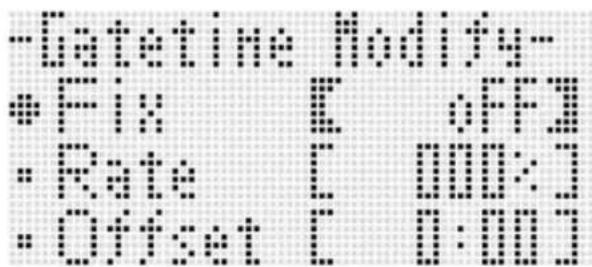
- The following explains the meanings and setting ranges of the on-screen items. The settings marked with an asterisk (*) in the "Setting Range" column are initial defaults.
| Item name Description Setting Range | ||
| Fix(Fixed value) | Specifies a fixed value as the time gate value. 99:95 stands for quarter note 99 beats, 95 ticks.Select “oFF” for this setting to adjust based on the current gate time value of each note event. | oFF*,00:00 to 99:95 |
| Rate(Gate Time Rate) | These settings are enabled only when the “oFF” is selected for the “Fix” setting. They change the gate time value of each note event according to the mathematical expression (decimal parts cut off) shown below. 00:00 is used when the value produced by the expression is less than 00:00, and 99:95 is used when it is greater than 99:95.(Current gate time) × (Rate setting) + (Offset setting) | 000% to 100%* to 200% |
| Offset(Gate Time Offset) | -9:95 to 0:00* to +9:95 | |
- To change the setting to the desired value, press the R-16 (ENTER) button.
- In response to the "Sure?" message that appears, press the R-14 (YES) button to execute the adjustment or the R-14 (NO) button to cancel.
To delete a beat event
- Perform the procedure under "To start an event editor operation" (page E-87) to display the event editor menu.
- Use the R-17 (V) button to move the ● to "Beat" and then press the R-16 (ENTER) button.
- This displays the "Beat" screen.

- Use the R-17 (∧, ∨) buttons to move the cursor to the beat event you want to delete.
- Press the C-10 (DELETE) button.
- The event at the current cursor position will be deleted as soon as you press the C-10 (DELETE) button.
To insert a beat event
- Perform steps 1 and 2 under "To delete a beat event" (page E-99).
- Move the cursor to the beat event that comes immediately before the location where you want to insert a new beat event.
- Press the C-11 (INSERT) button.
- This will insert a new beat event into the next measure after the cursor position you selected in step 2, which does not contain a beat event. If, for example, there are beat events already in measures 16 and 17, selecting the beat event in measure 16 with the cursor and pressing the C-11 (INSERT) button will insert a new beat event into measure 18.
- Change the beat event measure and beat as required.
- Use the R-17 (<, >) buttons to move the cursor, and then use the dial or R-14 (−, +) buttons to change the value at the cursor position. The cursor flashes during a value change operation. Pressing the R-16 (ENTER) button applies the setting and causes the cursor to stop flashing.
- To return to the event editor screen, press the R-15 (EXIT) button.
Directly Inputting Note Events (Step Input)
Step input is an event editor function. You can use step input to specify the length and pitch of each individual note (note event). In the system track, you also can perform step input of Auto Accompaniment chords (chord events) as well.

NOTE
- Performing step input into a track that already contains recorded data will not delete the existing data. This means you can use step input to add to existing recorded data.
To perform step input
- Display the event editor screen of the track where you want to perform step input.
- See "To select a track for editing" (page E-91).
- Press the C-14 (STEP) button.
- This will display a step screen like the one shown below. The cursor is always flashing during step input.

- Configure step input settings.
(1) While holding down the R-13 (FUNCTION) button, press the C-17 (MENU) button.
This displays the input menu shown below. (When the system track is selected.)
![-Input: Hewr ●Gatebata [100]:# ●Velvital [100] ●SasTrack [note]](/content/2026/06/1239013/images/d76eaf42daf68eb0ba424907a39ac85389d1c8886be8695c6551978603863683.jpg)
(2) Use the R-17 (∧, ∨) buttons to move the ● to the setting item you want to change.
(3) Use the dial or R-14 (-, +) buttons to change the setting value.
For information about the meanings and setting ranges of the on-screen items, see "Input Menu Setting Items" (page E-101).
(4) Press the R-15 (EXIT) button to exit the menu.
- Use the L-14 (▶▶FF) and L-13 (◀◀REW) buttons to move the cursor to the location from which you want to perform step input.
- The cursor will move in one-measure steps.
5. Use buttons R-1 (.) to R-4 (•) and buttons R-7 (.) to R-10 (r3-) to specify the length of the note you want to input.
- For information about how to specify note lengths, see step 4 under "To insert an event" (page E-94).
- You can perform the following operations during step input to insert ties and rests.
| To do this: Perform this operation: | |
| Tie the note at the current cursor position with the note event immediately before it | 1. At the current cursor position, specify the length of the note you want to tie with the immediately preceding note event.2. Press the R-11 (—(TIEI) button.This adds the length of the note you specified in step 1 to the length of the note immediately preceding it. At this time, the cursor will move forward by the timing of the added amount.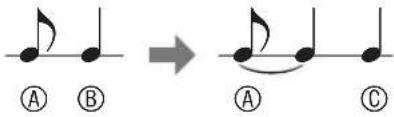 A Preceding note eventB Current cursor positionC Cursor position after process A Preceding note eventB Current cursor positionC Cursor position after process |
| Insert a rest before the current cursor position | 1. At the current cursor position, specify a note that is the same length as the rest you want to insert.2. Press the R-5 (REST) button.The cursor will move forward by the length of the note you specified in step 1. B Current cursor positionC Cursor position after process B Current cursor positionC Cursor position after process |
6. Press the keyboard key that corresponds to the note you want to input.
- The note is input as soon as you press the keyboard key, and the cursor will move by the length you specified in step 5 to the next measure:beat:tick. From there you can input the next note, if you want.
7. Repeat steps 5 and 6 to input the notes you want.
- If you want to input a series of notes of the same length, skip step 5 and perform step 6 only.
8. After inputting all of the notes you want, press the R-15 (EXIT) or R-17 (∧, ∨) button.
• This returns to the event editor screen.
Input Menu Setting Items
Pressing the C-17 (MENU) button while holding down the R-13 (FUNCTION) button during step input will display the input menu. The following explains the meanings and setting ranges of the input menu items. The settings marked with an asterisk (*) in the "Setting Range" column are initial defaults.
| Item name Description Setting Range | ||
| GateRate (Gate Rate) | Specifies the gate rate as a percentage of the actually input gate length for the length (gate length) of the note event that was specified using buttons R-1 (o) through R-4 (•) and R-7 (♪) through R-10 (-3-). Specifying a GateRate of 080% and inputting a quarter note (96 ticks), for example, will result in a GATE setting of 00:76 (96 ×0.8 = 76.8, cut off to 76). | 001% to 080%* to 100% |
| Velocity (Velocity) | Specifies the velocity value of an input note event or chord event. Specifying “KeyOn” inputs a velocity value in accordance with applied key pressure. | KeyOn, 001 to 100* to 127 |
| SysTrack (System Track) | Selects either note event input or chord event input when inputting to the system track. | note*, Chord |

About the Pattern Sequencer
You can use the pattern sequencer to create accompaniment patterns that sound while using the Digital Keyboard's Auto Accompaniment function and store them as user rhythms.
Rhythms, Accompaniment Patterns, and Instrument Parts
Each of the Digital Keyboard's rhythms provides six different accompaniment patterns named INTRO, NORMAL, NORMAL FILL-IN, VARIATION, VARIATION FILL-IN, and ENDING. Each accompaniment pattern can be made up of eight instrument parts (drums, percussion, bass, and chord 1 through chord 5). The overall configuration of a single rhythm is as shown below.
Rhythm
| INTRO NORMAL NORMAL FILL-IN | ||
| Drums Drums Drums | ||
| Percussion Percussion Percussion | ||
| Bass Bass Bass | ||
| Chord 1 to Chord 5 | Chord 1 to Chord 5 Chord 1 to Chord 5 | |
| VARIATION | VARIATION FILL-IN | ENDING |
| Drums Drums Drums | ||
| Percussion Percussion Percussion | ||
| Bass Bass Bass | ||
| Chord 1 to Chord 5 | Chord 1 to Chord 5 Chord 1 to Chord 5 |
The pattern sequencer is a function that allows editing and creation of the various accompaniment patterns that make up a single rhythm, part-by-part. You can record each part of all of the accompaniment patterns from scratch to create a completely original new rhythm. You also can partially edit an existing rhythm (by, for example, editing only one of the parts of an accompaniment pattern) or simply modify its mixer settings if you want.
Recordable Data
You can use the pattern sequencer to record keyboard play (note data), PITCH BEND wheel (S-1) operations, and S-2 (MODULATION) button operations.
Instrument Part Editing and Rec Areas
As a general rule, pattern sequencer editing operations are performed on an instrument part basis. The pattern sequencer maintains special memory areas called "rec areas" for each instrument part during rhythm editing. These areas are used when recording keyboard notes.
When editing with the pattern sequencer, there may be previously existing rhythm data remaining for some of the instrument parts, which will make it impossible to use the rec areas. The status of an instrument part that still contains previously existing rhythm data is "Fix Data".
You can use the pattern sequencer screen to check whether the currently selected instrument part is in the rec area or if it is "Fix Data".
You can display the pattern sequencer screen by pressing the C-5 (PATTERN SEQUENCER) button. This will display the pattern sequencer editing screen for the currently selected rhythm (preset rhythm or previously stored user rhythm). The initial screen shows the drum part of the NORMAL accompaniment pattern of the rhythm being edited. Note "Fix Data" in the lower left corner. This is the current status of the currently displayed instrument part.

The following describes each of the different instrument part statuses that appear in the lower left corner of the screen.
| When this is displayed: | It means this: |
| Fix Data (Fixed Data) | Instrument part data from a preset rhythm or user rhythm. The only settings that can be edited for an instrument part with this status are mixer settings. Real-time recording of keyboard notes and event editing are not allowed. |
| Recorded Data (Recorded Data) | Instrument part is being edited using a rec area, and recorded data is contained in the rec area. Mixer settings, real-time recording of keyboard notes, and event editing are allowed for an instrument part with this status. |
| Empty (No data) | Instrument part is being edited using a rec area, but there is no recorded data in the rec area (rec area empty). Mixer settings, real-time recording of keyboard notes, and event editing are allowed for an instrument part with this status. |
User Rhythm Numbers
Rhythm areas numbered F:001 through F:100 are for storage of user rhythms. You can have up to 100 user rhythms stored in memory at one time. You can recall a stored user rhythm by pressing the L-8 ([F] USER RHYTHMS) button. See "Playing an Auto Accompaniment" (page E-24) for more information.
Creating a User Rhythm
This section explains the various methods you can use to create user rhythms.
■Editing One or More Parts of an Existing Rhythm
With this procedure, you edit an existing preset rhythm or previously stored user rhythm to create a new rhythm. With this method, you can select and edit (or record anew) specific parts of an existing accompaniment pattern and store the result.
The following is the general flow for this method.

flowchart
graph TD
    A["Check the content of the rhythm you will edit and determine how (what part of what accompaniment pattern*) you will edit it."] --> B["Use the rec menu to configure settings related to accompaniment pattern recording."]
    B --> C["Display the instrument part for the accompaniment pattern you want to edit and then configure the desired mixer settings and record keyboard notes."]
    C --> D["After editing is complete, store the rhythm as a user rhythm."]
*You cannot edit the INTRO or ENDING of an accompaniment pattern of an existing rhythm.
For full details about this procedure, see "To rehearse before editing an existing rhythm" (page E-104) and "To edit an existing rhythm" (page E-107).
■Replacing the Accompaniment Patterns of an Existing Rhythm with New Recordings
With this procedure, you re-record one or more of the accompaniment patterns of an existing preset rhythm or previously stored user rhythm to create a new rhythm. In this case, you clear all of the rec areas included in an accompaniment pattern and then create new recordings of each part of the accompaniment pattern. Use this method, for example, when you want to create only a new INTRO accompaniment pattern for an existing rhythm. The following is the general flow for this method.
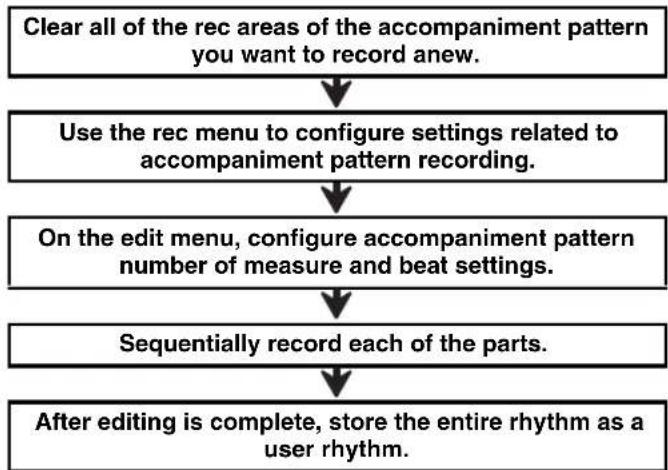
flowchart
graph TD
    A["Clear all of the rec areas of the accompaniment pattern you want to record anew."] --> B["Use the rec menu to configure settings related to accompaniment pattern recording."]
    B --> C["On the edit menu, configure accompaniment pattern number of measure and beat settings."]
    C --> D["Sequentially record each of the parts."]
    D --> E["After editing is complete, store the entire rhythm as a user rhythm."]
For full details about this procedure, see "To create a new accompaniment pattern" (page E-109).
■Newly Recording All Accompaniment Patterns of a Rhythm
With this procedure, you create a new rhythm from scratch, without using an existing rhythm. The following is the general flow for this method.

flowchart
graph TD
    A["Clear all of the rec areas included in the currently selected rhythm."] --> B["Use the rec menu to configure settings related to accompaniment pattern recording."]
    B --> C["On the edit menu, configure accompaniment pattern number of measure and beat settings."]
    C --> D["Sequentially record each of the parts of each accompaniment pattern."]
    D --> E["After editing is complete, store the rhythm as a user rhythm."]
For full details about this procedure, see "To create a new rhythm from scratch" (page E-111).
To rehearse before editing an existing rhythm
- Select the rhythm you want to edit in order to create your user rhythm.
- Press the C-5 (PATTERN SEQUENCER) button.
• This displays the pattern sequencer screen.
Currently selected instrument part

Currently selected instrument part status See "Instrument Part Editing and Rec Areas" (page E-102).
- Use buttons L-12 (INTRO) through L-15 (SYNCHRO/ENDING) to select the accompaniment pattern you want to play. If you want to play the INTRO accompaniment pattern, for example, press the L-12 (INTRO) button.
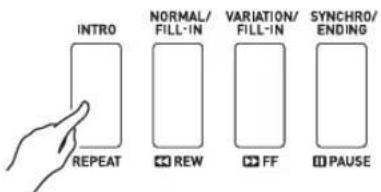
• Each press of the L-13 (NORMAL/FILL-IN) button toggles between NORMAL and NORMAL FILL-IN, and each press of the L-14 (VARIATION/FILL-IN) button toggles between VARIATION and VARIATION FILL-IN.
- The indicator for the currently selected accompaniment pattern will flash on the display.
| Selecting this accompaniment pattern: | Causes this indicator to flash: |
| INTRO INTRO | |
| NORMAL NORMAL | |
| NORMAL FILL-IN NORMAL FILL-IN | |
| VARIATION VARIATION | |
| VARIATION FILL-IN FILL-IN VARIATION | |
| ENDING ENDING |
-
Press the L-16 (START/STOP) button.
-
The specified accompaniment pattern plays back in a loop. To sound bass and chord notes, play a chord on the chord keyboard.
• Each press of the L-16 (START/STOP) button during the following operation starts or stops playback. -
If you want to hear the notes of a particular instrument part played alone, perform the following steps.
(1) Use the R-17 (<, >) buttons to select the instrument part you want to hear played alone.
- The name of the instrument part you select will appear on the display.
| Selecting this instrument part: | Causes this name to appear on the display: |
| Percussion PERC | |
| Drums DRUM | |
| Bass BASS | |
| Chord 1 to Chord 5 CHORD1 to CHORD5 | |
(2) Press the C-7 (MIXER) button and then press the R-17 (V) button to move the ● to "Part".
(3) Press the R-14 (-, +) buttons at the same time.
- This changes the "Part" setting to "Sol", which indicates that the selected instrument part will be sounded alone (solo).

- To return all parts to their original (non-solo) status, press the R-14 (-, +) buttons at the same time or press either of the R-17 (<, >) buttons.
- Repeat steps 3 through 5 as required to determine which accompaniment patterns you want to edit and which parts you want to re-record.
- If you want to proceed directly into the editing operation from this point, perform the procedure under "To edit an existing rhythm" (page E-107). If you do, you can either allow the accompaniment pattern to continue to play, or you can stop playback by pressing the L-16 (START/STOP) button.
- To exit this procedure without going directly into the editing operation, press the C-5 (PATTERN SEQUENCER) button.
- If the accompaniment pattern is playing when you press the C-5 (PATTERN SEQUENCER) button, playback will stop, the display will exit the pattern sequencer screen, and the screen that was displayed in step 1 of this procedure will appear.
To configure pattern rec settings (Rec Menu)
1. While the pattern sequencer screen is displayed, press the C-3 (RECORD) button.
- The button will start to flash and the Digital Keyboard will enter record standby.
2. While holding down the R-13 (FUNCTION) button, press the C-17 (MENU) button.
- This displays a rec menu screen like the one shown below.
![-Fe: Henn - 1.2# *Quant E:FF: *Precount [ 10] *Playoffd [ 10]](/content/2026/06/1239013/images/469f3626cc44de4605b10e7819d0346408a5f33cd3854aaecbb6821389275211.jpg)
3. Use the R-17 (∧, ∨) buttons to select one of the items described in the table below and then use the dial or R-14 (−, +) buttons to change the setting.
- The settings marked with an asterisk (*) in the "Setting Range" column are initial defaults.
| Display: Item name | Description | Setting Range |
| Quantize: Quantize | Specify either recording of notes in the timing they are played on the keyboard (oFF) or automatic alignment of notes with a base note (setting other than oFF).Selecting a value specifies the length of each note. “4” specifies quarter notes, while a “T” setting specifies triplets. | oFF*, 4, 8, 8T, 16, 16T |
| Precount: Pre-count | Specifies whether a precount should sound before recording starts after the L-16 (START/ STOP) button is pressed in record standby. Selecting “1” sounds a one-measure precount, while “2” sounds a two-measure precount.Selecting “oFF” turns off the precount, so recording starts as soon as the L-16 (START/STOP) button or a keyboard key is pressed. | oFF, 1°, 2 |
| Display: Item name | Description | Setting Range |
| PlayChord: Playback Chords | Starting recording of an accompaniment pattern starts repeat playback of all the parts of the pattern, except for the part being recorded. During such repeat playback, you can use this setting to specify the chord type to be used for playback by bass and chord parts. Available settings are “C” (C major), “C7” (C 7th), and “Cm” (C minor). Selecting “oFF” turns off bass and chord part notes. | oFF, C*, C7, Cm |
| Metronome: Metronome | Specifies whether the metronome should sound (on) or not sound (oFF) during recording. | oFF*, on |
4. Press the R-15 (EXIT) button to exit the rec menu.
• This returns to the pattern sequencer screen.
5. Press the C-3 (RECORD) button.
- This exits record standby, which will cause the button to change from lit to unlit.
To edit an existing rhythm
- Perform steps 1 through 6 under "To rehearse before editing an existing rhythm" (page E-104).
- Perform the procedure under "To configure pattern rec settings (Rec Menu)" (page E-106).
- This step is not necessary if you want to perform operations using initial default settings or if you want to use previous settings without changing them.
- Press the L-13 (NORMAL/FILL-IN) or L-14 (VARIATION/FILL-IN) button to select the accompaniment pattern you want to edit.
- You cannot edit the INTRO or ENDING accompaniment pattern of an existing rhythm. If you want to create a new accompaniment pattern (INTRO, ENDING, etc.) from this point, see "To create a new accompaniment pattern" (page E-109) or "To create a new rhythm from scratch" (page E-111).
- Use the R-17 (<, >) buttons to select the instrument part you want to edit.
Currently selected instrument part

Currently selected instrument part status See "Instrument Part Editing and Rec Areas" (page E-102).
- Configure mixer settings for the selected instrument part. You can skip this step if you do not want to configure mixer settings.
- Here you can press the L-16 (START/STOP) button to start playback of the accompaniment pattern and configure mixer settings as you monitor the effects of the settings on the notes being played.
(1) Press the C-7 (MIXER) button to display the mixer screen.

(2) Use the R-17 ( , ) buttons to select one of the items described in the table below and then use the dial or R-14 (−, +) buttons to change the setting.
| Display: Item name | Setting | Setting Range |
| TONE: Part tone | Specifies the instrument part tone. | *1 |
| Part: Part On/Off | Toggles an instrument between sounding (on) and not sounding (oFF).*2 | oFF, on |
| Volume: Part Volume | Specifies the instrument part volume. | 000 to 127 |
| Pan: Part Pan | Specifies whether the sound of the part can be heard from the left side or right side. | -64 to 00 to +63*3 |
| Rev.Send: Part Reverb Send | Specifies the level of reverb (page E-31) applied to the instrument part. | 000 to 127 |
| Cho.Send: Part Chorus Send | Specifies the level of chorus (page E-31) applied to the instrument part. | 000 to 127 |
*1 You can select any preset tone except for the drawbar organ and user tones. Only drum set sounds (tone numbers J:129 through J:146) can be selected for drum parts and percussion parts. Drum set sounds cannot be selected for the bass and the Chord 1 through Chord 5 parts.
*2 You can temporarily sound the notes of individual parts, if you want. For details, see step 5 under "To rehearse before editing an existing rhythm" (page E-104).
*3 A smaller value shifts the pan position to the left while a larger value shifts to the right. A value of zero specifies center.
(3) To exit the mixer, press the C-7 (MIXER) button or the R-15 (EXIT) button.
• This returns to the pattern sequencer screen.
6. If you want to record notes you play on the keyboard in real time, perform the following steps.
- The operation you can perform here depends on the status (page E-103) of the currently selected part, as described below.
| For this status: | You can perform this operation: |
| Fix Data Perform | step (2) of the procedure below to record new notes to replace the instrument parts in the rec areas. |
| Recorded Data P | perform step (2) of the procedure below to over-record additional notes while retaining note data previously recorded for instrument part. |
| Empty Record all | new notes (because the rec areas are empty). |
(1) Press the C-3 (RECORD) button.
- The button will start to flash and the Digital Keyboard will enter record standby.

- You can press the C-3 (RECORD) button again here to exit record standby (button goes from lit to unlit).
(2) To start recording while the C-3 (RECORD) button flashing, press the L-16 (START/STOP) button.
- This causes the button to change from flashing to lit.

- If accompaniment pattern playback is stopped, accompaniment pattern repeat playback (excluding the instrument part being recorded) starts. Measure and beat values in the lower right corner of the display will count up along with playback until the end of the accompaniment pattern is reached. Then playback will restart from 001:1.
(3) Checking the timing (beat and measure) of the playback of other parts, perform keyboard, PITCH BEND (S-1) wheel, and S-2 (MODULATION) button operations as required.
- The operations you perform are recorded. What you record is played back when recording loops back to the measure and beat where you recorded a keyboard, pitch bend or modulation operation.
- To delete specific recorded notes, hold down the C-10 (DELETE) button. When playback reaches the note you want to delete, press the keyboard that corresponds to the note to be deleted. Holding down the C-10 (DELETE) button along with one or more keyboard keys while playback is being performed will delete all of the notes that correspond to the keyboard keys as they played while the button and keys are held down.
- Until you perform step (4) below, you can layer keyboard notes and delete recorded notes as many times as you like.
(4) To stop recording, press the C-3 (RECORD) button.
- This stops accompaniment pattern playback and causes the button to go from lit to unlit. The instrument part status will become "Recorded Data".

7. If required, perform the procedure under "To edit events with the pattern sequencer" (page E-115).
- You can make fine corrections to the notes you played on the keyboard and add new notes, if you want. For details, see "Editing Individual Events (Event Editor)" (page E-113).
- Repeat steps 4 through 7 for all of the parts you want to edit.
- It is recommended that you save the rhythm as a user rhythm each time you finish editing each accompaniment pattern. For details about how to do this, see "To store an edited or newly created rhythm" (page E-111).
-
Repeat steps 3 through 8 to edit all of the rhythm's accompaniment patterns you want.
-
After completing all of the editing you want, adjust the tempo of the rhythm as desired.
- The tempo you set here becomes the initial default tempo of the accompaniment pattern.
- For details about how to save the final version of the rhythm as a user rhythm, see "To store an edited or newly created rhythm" (page E-111).
To create a new accompaniment pattern
- Press the C-5 (PATTERN SEQUENCER) button.
- This displays the pattern sequencer screen. For details about screen contents, see step 2 under "To rehearse before editing an existing rhythm" (page E-104).
- Perform the procedure under "To clear all instrument part rec areas included in an accompaniment pattern" (page E-120).
- Select the accompaniment pattern you want to record anew and then perform the clear operation.
- Perform the procedure under "To configure pattern rec settings (Rec Menu)" (page E-106).
- This step is not necessary if you want to perform operations using initial default settings or if you want to use previous settings without changing them.
- Configure the accompaniment pattern number of measure and beat settings.
(1) While holding down the R-13 (FUNCTION) button, press the C-5 (EDIT) button to display the edit menu.

(2) Use the R-17 ( , V) buttons to move the ● to "ElementEdit" and then press the R-16 (ENTER) button.
- This displays the "ElementEdit" screen.
(3) Use the R-17 ( , ) buttons to select one of the items described in the table below and then use the dial or R-14 (−, +) buttons to change the setting.
| Display: Item name | Setting Range |
| Measure: Number of measures | INTRO, ENDING: 01 to 16NORMAL, VARIATION: 01 to 16NORMAL FILL-IN, VARIATIONFILL-IN: 01 to 02 |
| Beat: Beat 2/4 to 4/4 | to 8/4, 2/8 to 16/8 |
(4) Press the R-15 (EXIT) button twice to exit the edit menu.
- Use the R-17 (<, >) buttons to select the instrument part you want to record.

Currently selected instrument part status (page E-102)
- Configure mixer settings for the selected instrument part. You can skip this step if you do not want to configure mixer settings.
- For details about mixer setting operations, see step 5 under "To edit an existing rhythm" (page E-107).
- Configure part parameter settings for the selected instrument part. You can skip this step if you do not want to configure part parameter settings.
- You also will be able to configure part parameter settings after recording, if you want. If you want to perform PITCH BEND (S-1) wheel operations while recording, it is a good idea to configure the bend range beforehand. - For details, see "Configuring Instrument Part Playback Settings (Part Parameters)" (page E-116).
- If you want to record notes you play on the keyboard in real time, perform the following steps.
(1) Press the C-3 (RECORD) button.
- The button will start to flash and the Digital Keyboard will enter record standby.

- You can press the C-3 (RECORD) button again here to exit record standby (button goes from lit to unlit).
(2) To start recording while the C-3 (RECORD) button flashing, press the L-16 (START/STOP) button.
- The button will change from flashing to lit, and the display will show an up-count of measures and beats. The count will re-start from 001:1 when the final beat of the number of measures you specified in step 4 is reached.

(3) Checking the timing (beat and measure) of the playback, perform keyboard, PITCH BEND (S-1) wheel, and S-2 (MODULATION) button operations as required.
- The operations you perform are recorded. What you record is played back when recording loops back to the measure and beat where you recorded a keyboard, pitch bend or modulation operation.
- To delete specific recorded notes, hold down the C-10 (DELETE) button. When playback reaches the note you want to delete, press the keyboard that corresponds to the note to be deleted. Holding down the C-10 (DELETE) button along with one or more keyboard keys while playback is being performed will delete all of the notes that correspond to the keyboard keys that are played while the button and keys are held down.
- Until you perform step (4) below, you can layer keyboard notes and delete recorded notes as many times as you like.
(4) To stop recording, press the C-3 (RECORD) button.
- This stops accompaniment pattern playback and causes the button to go from lit to unlit. The instrument part status will become "Recorded Data".
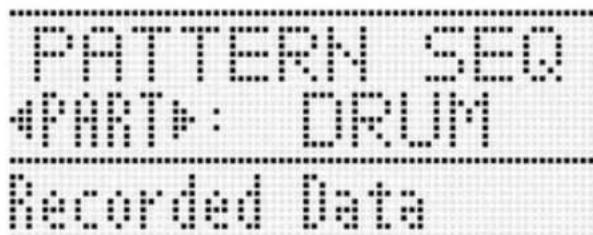
- If required, perform the procedure under "To edit events with the pattern sequencer" (page E-115).
- You can make fine corrections to the notes you played on the keyboard and add new notes, if you want. For details, see "Editing Individual Events (Event Editor)" (page E-113).
-
Repeat steps 5 through 9 for all of the parts you want to record.
-
After completing all of the editing you want, adjust the tempo of the rhythm as desired.
- The tempo you set here becomes the initial default tempo of the accompaniment pattern.
- For details about how to save the final version of the rhythm as a user rhythm, see "To store an edited or newly created rhythm" (page E-111).
To create a new rhythm from scratch
1. Press the C-5 (PATTERN SEQUENCER) button.
- This displays the pattern sequencer screen. For details about screen contents, see step 2 under "To rehearse before editing an existing rhythm" (page E-104).
-
Perform the procedure under "To clear all rec areas included in the currently selected rhythm" (page E-120).
-
Perform the procedure under "To configure pattern rec settings (Rec Menu)" (page E-106).
- This step is not necessary if you want to perform operations using initial default settings or if you want to use previous settings without changing them.
-
Use buttons L-12 (INTRO) through L-15 (SYNCHRO/ENDING) to select the accompaniment pattern you want to create anew.
-
Perform steps 4 and 10 under "To create a new accompaniment pattern" (page E-109).
-
Repeat steps 4 through 5 to create all of the accompaniment patterns you want.
-
After completing all of the operations you want, adjust the tempo of the rhythm as desired.
- The tempo you set here becomes the initial default tempo of the accompaniment pattern.
- For details about how to save the final version of the rhythm as a user rhythm, see "To store an edited or newly created rhythm" below.
To store an edited or newly created rhythm
- While the pattern sequencer screen is on the display after rhythm editing or creation is complete, hold down the R-13 (FUNCTION) button as you press the C-17 (MENU) button.
- This displays the pattern sequencer menu screen.
- The ● should be next to "Store", so press the R-16 (ENTER) button.
- This displays a screen for specifying the destination user rhythm number and rhythm name.
Destination user rhythm number

Rhythm name
-
Use the dial or the R-14 (-, +) buttons to select the destination user rhythm number you want.
-
Use the R-17 (<, >) buttons to move the cursor to the name character position you want to change, and then use the dial or R-14 (-, +) buttons to select the character you want.
-
For details about the characters you can input, see "Supported Input Characters" (page E-160).
-
To input a space, press both of the R-14 (-, +) buttons at the same time.
-
Press the R-16 (ENTER) button.
• This stores the data.
- If the user rhythm number where you are storing the data already has data stored to it, a message (Replace?) will appear on the display to confirm whether you want to overwrite the existing data with the new data. Press the R-14 (YES) button to overwrite.
IMPORTANT!
- The message “Please Wait” will remain on the display while a data save operation is in progress. Do not perform any other operation while it is displayed. Turning off the Digital Keyboard or removing the memory card can cause Digital Keyboard data to be deleted or become corrupted. It also can cause the Digital Keyboard to fail to turn on when the L-1 (POWER) button is pressed. If this happens, refer to “Troubleshooting” (page E-150).

NOTE
- Pressing the R-15 (EXIT) button in place of the operation in step 1 displays the confirmation screen shown below. Pressing the R-14 (YES) button at this time will display the user rhythm store screen in step 2.
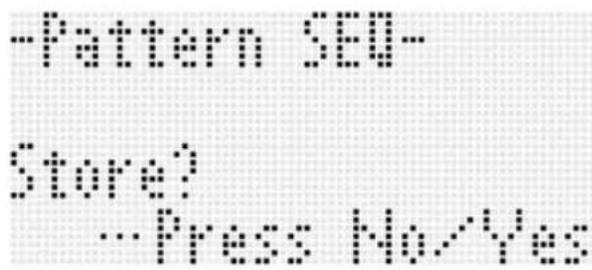
To cancel the editor operation without saving the edited results, press the R-14 (NO) button.
To clear user rhythm data
- Press the C-5 (PATTERN SEQUENCER) button to display the pattern sequencer screen.
- While holding down the R-13 (FUNCTION) button, press the C-17 (MENU) button.
- This displays the pattern sequencer menu screen.
- Use the R-17 (V) button to move the ● to "Clear" and then press the R-16 (ENTER) button.
- This displays a screen for specifying the number of the rhythm you want to clear.
- Use the dial or the R-14 (-, +) buttons to select the user rhythm number you want to clear.
- Press the R-16 (ENTER) button.
- In response to the "Sure?" message that appears, press the R-14 (YES) button to clear or the R-14 (NO) button to cancel.

IMPORTANT!
- The message “Please Wait” will remain on the display while a data save operation is in progress. Do not perform any other operation while it is displayed. Turning off the Digital Keyboard or removing the memory card can cause Digital Keyboard data to be deleted or become corrupted. It also can cause the Digital Keyboard to fail to turn on when the L-1 (POWER) button is pressed. If this happens, refer to “Troubleshooting” (page E-150).
Creating a User Rhythm by Combining Exiting Rhythm Parts (Easy Edit)
You can combine instrument parts from different rhythms (preset or user) to create a new user rhythm. You also can use the mixer settings of each part to change the tone and adjust volume.
To edit an existing rhythm with Easy Edit
- Select the rhythm you want to edit in order to create your user rhythm.
- Press the C-5 (PATTERN SEQUENCER) button to display the pattern sequencer screen.
- While holding down the R-13 (FUNCTION) button, press the C-5 (EDIT) button to display the edit menu.

- The ● should be next to "EasyEdit", so press the R-16 (ENTER) button.
- This displays the EASY EDIT screen shown below.

Rhythm number and rhythm name assigned to the instrument part of the accompaniment pattern being edited (Default: Number and name selected in step 1)
-
Use buttons L-12 (INTRO) through L-15 (SYNCHRO/ENDING) to select the accompaniment pattern you want to edit.
-
Use the R-17 (<, >) buttons to select the instrument part you want to edit.
- Edit the selected accompaniment pattern instrument part as desired.
- While performing the procedure below, you can press the L-16 (START/STOP) button and perform repeat playback of only the accompaniment pattern you are editing. Each press of the L-16 (START/STOP) button starts or stops playback.
(1) While 【RHYTHM】 is displayed on the EASY EDIT screen, specify the number of the rhythm you want to assign to the instrument part of the selected accompaniment pattern. Settings are configured using the same procedures as those for rhythm selection. Perform steps 1, 2, and 3 under “Playing an Auto Accompaniment” (page E-24). Specifying rhythm number F:101 at this time makes it possible to assign the rhythm data currently being edited with the pattern sequencer.
(2) Configure the mixer settings of the selected accompaniment pattern instrument part as desired.
- For details about mixer setting operations, see step 5 under "To edit an existing rhythm" (page E-107).

IMPORTANT!
- Performing rhythm assignment in step (1) above also will automatically change mixer settings to the initial defaults for the assigned rhythm. Because of this, changing the rhythm after configuring mixer settings in step (2) will cause the configured mixer settings to be cleared.
-
When INTRO or ENDING is selected as the accompaniment pattern, the same rhythm is assigned to all eight instrument parts. Because of this, performing rhythm assignment in step (1) for an INTRO or ENDING will change the rhythm of all instrument parts at one time.
-
Repeat steps 5 through 7 to edit other accompaniment patterns and instrument parts.
- After editing is complete, adjust the tempo of the rhythm as desired.
- The tempo you set here becomes the initial default tempo.
- For details about how to save the final version of the rhythm as a user rhythm, see "To store an edited or newly created rhythm" (page E-111).
Editing Individual Events (Event Editor)
The pattern sequencer records the keyboard, pitch bender, and modulation operations recorded for each instrument part as “events”. Playing a note on the keyboard, for example, stores the following as events: note start measure, beat, and track, note pitch, note length, and note intensity.
The following editing operations are supported for individual events.
- Deleting events
- Inserting events
- Copying events within a specific range to a desired location
- Quantizing ^ note events
- Deleting pitch bender events
- Adjusting note event velocity values
- Adjusting note event gate time values
- Selecting the type of events that appear on the Event Editor screen (View Select)
- Directly inputting note events (step input)
*Quantize is an operation that automatically adjusts the note on timing of a note event to match a reference note.

IMPORTANT!
- You can perform event editing on an instrument part whose status (page E-103) is “Recorded Data” or “Empty”. You cannot configure part parameters for an instrument part whose status is “Fix Data”.
- Though you cannot perform event editing directly on an instrument part whose status is "Fix Data", you can copy such an instrument part to a rec area and edit the copied data. For details about the copy operation, see "To copy preset or user rhythm instrument part data to a rec area" (page E-119).
Event Editor Screen Contents
The event editor screen shows the individual events recorded to an instrument part as shown in the sample screen below.
Event being edited (selected event)
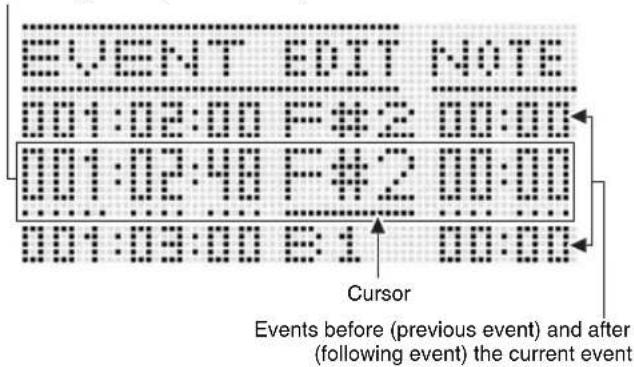
- The event editor screen shows three events at one time. The event in the middle line is the selected event. You can change the value where the solid-line cursor is located. A broken line under a setting value indicates that the cursor can be moved to that value.
- The values in the format "001:01:00" at the beginning of the event indicate the recording location (timing) of the event as measure:beat:tick. A "tick" is a time unit that is shorter than one beat. Pattern sequencer data uses 96 ticks per beat (for 2/4 to 8/4) or 48 ticks per beat (for 2/8 to 16/8).
Pattern sequencer records three types of events: notes (keyboard play), pitch bender operations, and modulation operations. These events are represented on the screen as described below.
Notes
The note name is indicated to the right of the event location information, followed by the gate time (note length), and velocity (note speed) parameters. ① shows an abbreviation of the parameter name where the cursor is currently located.

flowchart
graph TD
    A["EVENT EDIT"] --> B["NOTE"]
    C["001:02:00 F#2"] --> D["00:00"]
    E["001:02:40 F#2"] --> F["00:00"]
    G["001:03:00 E1"] --> H["00:00"]
    I["①"] --> J["4VEL"]
    K["Gate time (GATE)"] --> L["10T"]
    M["Velocity (VEL)Note name (NOTE)"] --> N["050"]
    O["078"] --> P["078"]
●Pitch bender, modulation
"Bend" (pitch bender even) or "Mod" (modulation event) is indicated to the right of the event location information, followed by parameter value. "VALU" is displayed at ① when the cursor is located at a parameter value.
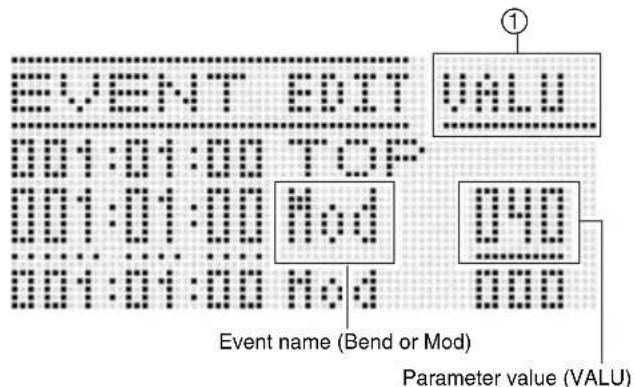
■Settings
| Event Parameters Setting | Range | |
| Note | Note name C- to C0 to G9 * | |
| Gate time 00:00 to 99:95 | ||
| Velocity 001 to 127 | ||
| Pitch Bender Pitch Bender -8192 to 0000 to +8191 | ||
| Modulation Modulation 000 to 127 | ||
* When "C-" is displayed, it indicates C-1 (one octave below C0).
To edit events with the pattern sequencer
1. On the pattern sequencer screen, select the "Recorded Data" or "Empty" status instrument part whose events you want to edit.
- You can perform event editing on one of the following types of parts.
- A "Recorded Data" or "Empty" status part that you are currently editing using the procedure under "To edit an existing rhythm" (page E-107)
- A "Recorded Data" or "Empty" status part that you are currently editing using the procedure under "To create a new rhythm from scratch" (page E-111)
- An "Empty" status part that has undergone one of the procedures under "To clear all rec areas included in the currently selected rhythm" (page E-120), "To clear a rec area of an instrument part" (page E-118), or "To clear all instrument part rec areas included in an accompaniment pattern" (page E-120)
- A "Recorded Data" status part that has undergone the procedure under "To copy preset or user rhythm instrument part data to a rec area" (page E-119)
2. While holding down the R-13 (FUNCTION) button, press the C-5 (EDIT) button to display the edit menu.
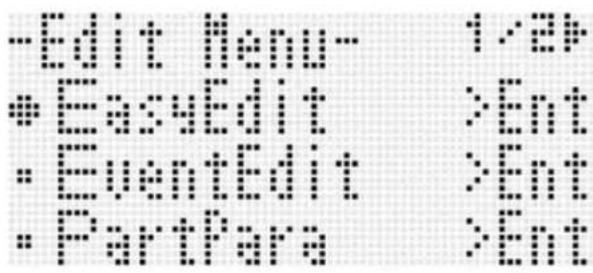
3. Use the R-17 (∧, ∨) buttons to move the ● to "EventEdit" and then press the R-16 (ENTER) button.
- This displays the event editor screen shown below. For information about display contents, see "Event Editor Screen Contents" (page E-114).
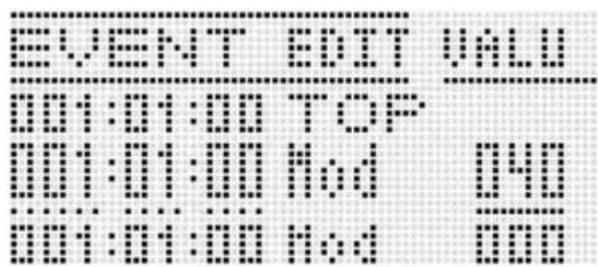
- Perform the following operations.
| To do this: | Perform this procedure, starting from step 2: |
| Change the settings of already recorded event data | “To edit an existing event” (page E-92) |
| Delete an individual event “To delete an individual event” (page E-92) | |
| Delete all events in a track “To delete all events in a track” (page E-93) | |
| Delete all events within a specific range of the part being edited | “To delete all events in a specific range of a track” (page E-93) |
| Insert events “To insert an event” (page E-94) | |
| Copy events within a specific range to a desired location | “To copy the events within a specific range to a desired location” (page E-94) |
| Quantize an individual note event | “To quantize an individual note event” (page E-95) |
| Quantize all note events in the part being edited | “To quantize all note events in a track” (page E-96) |
| Quantize all note events in a specific range of the part being edited | “To quantize all note events within specific range of a track” (page E-96) |
| Delete pitch bender events “Deleting Pitch Bender Events” (page E-97) | |
| Step input of note events “To perform step input” (page E-100)*1 | |
| Batch adjust the velocity (intensity) of note events included in the part being edited | “To adjust the velocity value of a note event” (page E-98) |
| Batch adjust the gate time (length) of note events included in the part being edited | “To adjust the gate time value of a note event” (page E-99) |
| Select the types of events that appear on the event editor screen | “To select the types of events that appear on the Event Editor screen (View Select)” (page E-92)*2 |
*1 The "SysTrack" item on the input menu is not a pattern sequencer event editor item.
*2 There are three view select setting items: Note, PitchBend, and Modulation.
Configuring Instrument Part Playback Settings (Part Parameters)
The settings in this section control how instruments parts you are currently editing or creating are sounding when played back as Auto Accompaniment after being saved as a user rhythm. These settings are configured using the "PartPara" (Part Parameter) item on the edit menu.

IMPORTANT!
- You can configure part parameters for an instrument part whose status (page E-103) is "Recorded Data" or "Empty". You cannot configure part parameters for an instrument part whose status is "Fix Data".
To configure pattern sequencer part parameters
- On the pattern sequencer screen, select the "Recorded Data" or "Empty" status instrument part whose part parameters you want to configure.
- While holding down the R-13 (FUNCTION) button, press the C-5 (EDIT) button to display the edit menu.
- Use the R-17 (∧, ∨) buttons to move the ● to "PartPara" and then press the R-16 (ENTER) button.
- This displays the "Part Para" screen.

-
Use the R-17 ( , ) buttons to select one of the items described in the table below and then use the dial or R-14 (−, +) buttons to change the setting.
-
For details about each setting item, see "Pattern Sequencer Part Parameters" (page E-117).
- You can configure only bend range settings for drum and percussion parts.
| Display: Item name Setting | Range |
| Table: Chord conversion table 01 to | 19 |
| BreakPoint: Break Point C to B | |
| Invert: Inversion oFF, on, 7th | |
| Retrigger: Retrigger oFF, on | |
| BendRange: Bend Range 00 to 12 |
- After configuring the settings you want, press the R-15 (EXIT) button twice.
- This returns to the pattern sequencer screen.
Pattern Sequencer Part Parameters
■Table (Chord conversion table)
Recording of each accompaniment pattern is normally performed using C major (root of C, major type). * When playing an Auto Accompaniment, you can use a root other than C and a chord type other than major, if you want. This is accomplished by using a "chord conversion table" to convert the C major recorded data to another root and/or chord type. Regardless of what root or chord type you specify, the currently selected chord table is used to make corrections to suit the instrument parts and the type of music being played in order to ensure musically natural accompaniment.
* Depending on the rec menu "PlayChord" setting. For details, see "To configure pattern rec settings (Rec Menu)" (page E-106).
With this parameter, you can select from among the 19 types of chord conversion tables listed below.
| Number | Table Name | Accompaniment Pattern | Parts Description |
| 01 | Bass Basic | *1 | Bass Normally used for a bass part. |
| 02 | Bass f-root | *1 | Bass Variation of number 01. Always makes the first note the root note when changing chords. |
| 03 | Bass 7th | *1 | Bass Used for a bass part recorded with a 7th chord. |
| 04 | Bass 7th f-root | *1 | Bass Variation of number 03. Always makes the first note the root note when changing chords. |
| 05 | Chord Basic | *1 | Chord Normally used for a chord part. |
| 06 | Chord Var2 | *1 | Chord Used for a chord part that has a tension chord. |
| 07 | Chord Var3 | *1 | Chord When a 7th chord is specified while playing, the 5th note is converted to a 7th note. In the case of C7, for example, G becomes Bb. |
| 08 | Chord Var4 | *1 | Chord Variation of number 05 (Chord Basic). |
| 09 | Chord 7th | *1 | Chord Used for a chord part recorded with a 7th chord. |
| 10 | Chord Minor | *1 | Chord Used for a chord part recorded with a minor chord. |
| 11 | Phrase | *1 | Chord Used for the chord part to which a phrase (such as a major scale) was recorded. |
| 12 | Chord Minor | *1 | Bass Used for a bass part recorded with a minor chord. |
| 13 | Chord Minor f-root | *1 | Bass Variation of number 12. Always makes the first note the root note when changing chords. |
| 14 | Penta Phrase | *1 | Chord Used for a chord part recorded with a pentatonic scale phrase. |
| 15 | Intro n-minor | *2 | Bass/chord When a minor chord is specified while playing, converts to a natural minor. |
| 16 | Intro m-minor | *2 | Bass/chord When a minor chord is specified while playing, converts to a melodic minor (ascending). |
| 17 | Intro h-minor | *2 | Bass/chord When a minor chord is specified while playing, converts to a harmonic minor. |
| 18 | Intro no Change | *2 | Bass/chord Recording of original as-is, with no minor/major conversion in accordance with chord specified while playing. |
| 19 | Intro dorian | *2 | Bass/chord When a minor chord is specified while playing, converts to a dorian scale. |
*1 For NORMAL, NORMAL FILL-IN, VARIATION, VARIATION FILL-IN
*2 For INTRO and ENDING
■BreakPoint (Break Point)
This parameter specifies the key, from C to B, that is the point at which Auto Accompaniment bass and chord notes drop one octave.
For example when F is specified as the break point, a C major chord recorded as C3E3G3 (CEG) becomes D3F#3A3 (DF#A raised one note each) when D is fingered on the chord keyboard, E3G#3B3 (EG#B raised one note each) when E is fingered, and F2A2C3 (FAC dropped one octave) when F is fingered.
■Invert (Inversion)
This parameter specifies whether or not chords during Auto Accompaniment play should mirror inverted forms of the original chord (EGC and GCE for CEG).
For example, let's say that the original recorded C major chord is CEG and an F chord is fingered on the chord keyboard. If "oFF" is selected for this setting, the chord will be directly converted to FAC. If "on" (or "7th") is selected, the chord will be converted to CFA, which is the inverted form that is nearest to CEG. The transition of chord notes during playback when "on" (or "7th") is selected is smaller, so accompaniment sounds more natural.
Note that you should select "7th" in place of "on" only if "C7" was specified for the "PlayChord" setting when recording the accompaniment pattern and if you selected "09 (Chord 7th)" for the chord conversion table.
*“PlayChord” is a rec menu setting. For details, see “To configure pattern rec settings (Rec Menu)” (page E-106).

NOTE
- When selecting "on" (or "7th") for this setting, make sure that you select "C" for the "BreakPoint" (Break Point) setting.
■Retrigger (Retrigger)
This parameter specifies how accompaniment pattern play is affected by a chord change that occurs part way through a pattern.
When "on" is selected, the pattern "retriggers," which causes the currently playing note to change to the corresponding note of the newly fingered chord. When "oFF" is selected, a chord change causes the currently sounding note to be cut off, and the next note of the pattern of the newly fingered chord to be played.
■BendRange (Bend Range)
This parameter specifies the bend range for pitch bender operation in semitone steps
Instrument Part Operations
To clear a rec area of an instrument part
-
While the pattern sequencer screen is displayed, use buttons L-12 (INTRO) through L-15 (SYNCHRO/ENDING) to select the accompaniment pattern you want.
-
The rec areas of the instrument parts included in the accompaniment pattern you select here are the ones that can be cleared by this procedure.
-
If you select an INTRO or ENDING, the following steps can be performed only when all parts are in rec areas ("Recorded Data" or "Empty" part status).
-
While holding down the R-13 (FUNCTION) button, press the C-5 (EDIT) button to display the edit menu.
-
Use the R-17 (∧, ∨) buttons to move the ● to "PartEdit" and then press the R-16 (ENTER) button.
- This displays the "Part Edit" screen.
- The ● should be next to "Clear", so press the R-16 (ENTER) button.
- This displays the "Clear Part" screen.

-
Use the R-17 (<, >) buttons to specify the instrument part you want to clear from the rec area then press the R-16 (ENTER) button.
-
In response to the "Sure?" message that appears, press the R-14 (YES) button to clear or the R-14 (NO) button to cancel.
- Pressing the R-14 (YES) button changes the status of the instrument part you specified in step 5 to "Empty".
To copy preset or user rhythm instrument part data to a rec area

IMPORTANT!
• This procedure copies note events only.
- You will not be able to perform this procedure if an INTRO or ENDING is selected as the accompaniment pattern.
- When a percussion part or drum part is specified as the copy destination instrument part, you can specify a percussion part or drum part as the copy source. When a bass part or a chord part (chord 1 through chord 5) is specified as the copy destination, you can specify a bass part or a chord part (chord 1 through chord 5) as the copy source. No other part combinations are allowed.
- While the pattern sequencer screen is displayed, use the L-13 (NORMAL/FILL-IN) or L-14 (VARIATION/FILL-IN) button to select an accompaniment pattern, and the R-17 (<, >) buttons to select an instrument part.
- The rec area of the accompaniment pattern/instrument part included in the accompaniment pattern is the copy destinations.
-
While holding down the R-13 (FUNCTION) button, press the C-5 (EDIT) button to display the edit menu.
-
Use the R-17 (∧, ∨) buttons to move the ● to "PartEdit" and then press the R-16 (ENTER) button.
- This displays the "Part Edit" screen.
- Use the R-17 (V) button to move the ● to "Copy" and then press the R-16 (ENTER) button.
- This displays the "Part Copy" screen.
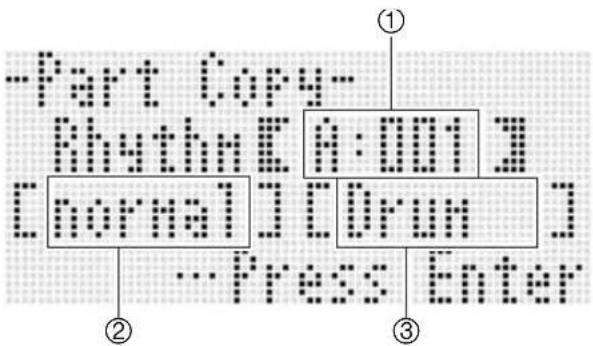
- Specify a rhythm number, accompaniment pattern, and instrument part as the copy destination.
- Use the R-17 (∧, ∨, <, >) buttons to select one of the items described in the table below and then use the dial or R-14 (−, +) buttons to change the setting.
| Display: Item name Setting Range | |
| 1 Copy source rhythm number | A:001 to F:100 |
| 2 Copy source accompaniment pattern | normal (NORMAL), nrmFil (NORMAL FILL-IN), Variat (VARIATION), VarFil (VARIATION FILL-IN) |
| 3 Copy source part Percus | (Percussion), Drum (Drums), Bass (Bass), Chord1 to Chord5 (Chord 1 to Chord 5) |
-
After the settings are the way you want, press the R-16 (ENTER) button.
-
In response to the "Sure?" message that appears, press the R-14 (YES) button to copy or the R-14 (NO) button to cancel.
- The copied instrument part status will become "Recorded Data".
Accompaniment Pattern and Rhythm Operations
To clear all instrument part rec areas included in an accompaniment pattern
-
While the pattern sequencer screen is displayed, hold down the R-13 (FUNCTION) button and press the C-5 (EDIT) button to display the edit menu.
-
Use the R-17 (∧, ∨) buttons to move the ● to "ElementEdit" and then press the R-16 (ENTER) button.
- This displays the "ElementEdit" screen.
- The ● should be next to "Clear", so press the R-16 (ENTER) button.
- This displays the "Clear Element" screen.
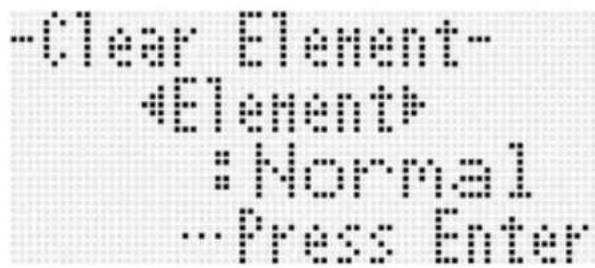
-
Use the R-17 (<, >) buttons to specify the accompaniment pattern you want to clear and then press the R-16 (ENTER) button.
-
In response to the "Sure?" message that appears, press the R-14 (YES) button to clear or the R-14 (NO) button to cancel.
- Pressing the R-14 (YES) button changes the status of all the instrument parts of the accompaniment pattern you specified in step 4 to "Empty".
To configure the accompaniment pattern number of measure and beat settings

IMPORTANT!
- This procedure can be performed only when the status of all of the instrument parts of the accompaniment pattern is "Empty".
-
While the pattern sequencer screen is displayed, hold down the R-13 (FUNCTION) button and press the C-5 (EDIT) button to display the edit menu.
-
Use the R-17 (∧, ∨) buttons to move the ● to "ElementEdit" and then press the R-16 (ENTER) button.
- This displays the "ElementEdit" screen.
- Use the R-17 ( , ) buttons to select one of the items described in the table below and then use the dial or R-14 (−, +) buttons to change the setting.
| Display: Item name Setting Range | |
| Measure:Number of measures | INTRO, ENDING: 01 to 16NORMAL, VARIATION: 01 to 16NORMAL FILL-IN, VARIATIONFILL-IN: 01 to 02 |
| Beat: Beat 2/4 to 4/4 to 8 | /4, 2/8 to 16/8 |
- After the settings are the way you want, press the R-15 (EXIT) button twice to return to the pattern sequencer screen.
To clear all rec areas included in the currently selected rhythm
-
While the pattern sequencer screen is displayed, hold down the R-13 (FUNCTION) button and press the C-5 (EDIT) button to display the edit menu.
-
Use the R-17 (∧, ∨) buttons to move the ● to "AllEdit" and then press the R-16 (ENTER) button.
- This displays the "All Edit" screen.
-
The ● should be next to "Clear", so press the R-16 (ENTER) button.
-
In response to the "Sure?" message that appears, press the R-14 (YES) button to clear or the R-14 (NO) button to cancel.
- Pressing the R-14 (YES) button changes the status of all the instrument parts of all the accompaniment patterns to "Empty".
All of the sound output by the Digital Keyboard can be recorded as audio files on a memory card. The maximum recording time for a single audio file is approximately 13 minutes. Up to 20 audio files (actual number of files depends on card capacity) can be recorded on a single memory card.

IMPORTANT!
- To perform the operations described in this section, you will need to obtain a commercially available SD memory card or SDHC memory card with a capacity between 2GB and 32GB (page E-136).
- The audio recording operation performs memory card delete and write operations simultaneously. Because of this, you may not be able to record correctly on certain types of memory cards. If you experience recording problems, try changing the file number of the recording or try using a different memory card.
Audio Recording and Playback Functions
Audio Recording
With audio recording, you can record sound output by the Digital Keyboard as digital sampling data. Recordings are stored on the memory card as an audio file.
■Recording of Keyboard Play and Song Playback
The following can be recorded as-is.
• Rhythm mode keyboard play
You can record a keyboard performance that uses layer and split, as well as Auto Accompaniment and music preset. Registration setup recall, effect operations, and mixer operations are also supported during recording.
- Song sequencer song playback
A song recorded with the song sequencer can be recorded to a memory card file as it is played back. Most Digital Keyboard operations that are supported during song playback are also supported during recording to a memory card file.
■Recording of Sound Input from an External Device
Sound input from an external device connected to the Digital Keyboard's T-6 (MIC IN) jack or T-4 (INST IN) jack is recorded along with notes played on the Digital Keyboard and sound that is played back on the Digital Keyboard. For details about the routes used for output of sound from this Digital Keyboard's built-in sound source and output of sound from an external sound source, see the block diagram under "Configuration of Effects" (page E-29).

NOTE
- Input from the Digital Keyboard's T-5 (AUDIO IN) jack is not recorded.
Audio Playback
This Digital Keyboard supports playback of audio files recorded by it, as well as audio files that you converted on a computer to a format supported by the Digital Keyboard. * You also can play along on the keyboard during playback.
*Special application software (Data Manager) is required in order to convert audio files. For details, see "Storing and Loading Digital Keyboard Memory Data" (page E-146).
Saving Audio Files on a Computer
You can use the special application software (Data Manager) to access audio files on a memory card from your computer. You can store audio files to a computer local disk and use your computer to convert audio files to a format that can be played back by the Digital Keyboard. For details, see "Storing and Loading Digital Keyboard Memory Data" (page E-146).
Audio Recording and Playback Precautions
Limitations during Recording and Playback
The following operations are not possible during audio recording and playback.
- User rhythm editing (page E-103)
- User tone editing (page E-46)
- User drawbar organ tone editing (page E-52)
- User DSP data editing (page E-33)
- User preset editing (page E-58)
- Song sequencer recording and editing (page E-68)
- Registration setup save (page E-66)
• Card mode operations (page E-137)
Some other operations other than those listed above may also be disabled.
Memory Card Precautions
- Do not touch a memory card loaded in the Digital Keyboard while recording or playback is in progress. This can cause operational problems due to electrostatic charge and creates the risk of making the card unusable. Before touching the loaded memory card, first stop any ongoing recording or playback operation.
- Formatting a memory card on the Digital Keyboard will reserve space for audio recording, which will reduce the total capacity of the memory card. The amount of the reduction depends on the maximum number of audio recordings that you specified when formatting the memory card (page E-137). Using a computer to open a memory card that has been formatted on the Digital Keyboard will show this reduced capacity, even if there are no files on the card. This is normal and does not indicate malfunction of the memory card.
Performing Audio Recording
Modes that Support Audio Recording
You can record keyboard play while in the rhythm mode or song sequencer mode.
- Recording is actually performed in the audio record mode, but you can switch between the rhythm mode screen and song sequencer mode screen from the audio record mode screen. A RHYTHM or SEQUENCER indicator on the display indicates whether the rhythm mode screen or song sequencer mode screen is selected.
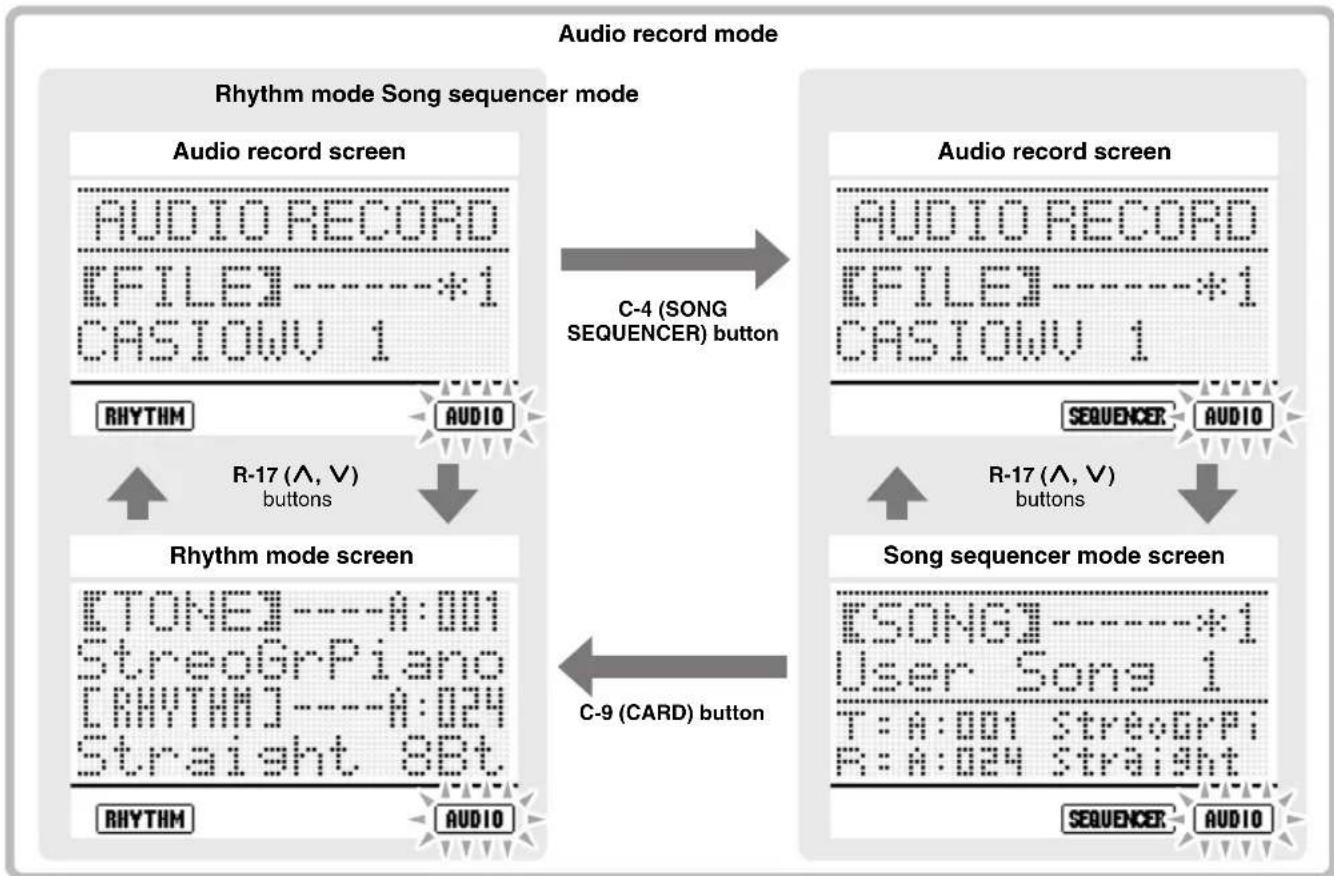
flowchart
graph TD
    A["Audio record screen"] --> B["Rhythm mode Seng sequencer mode"]
    B --> C["Audio sequence screen"]
    C --> D["Audio sequence screen"]
    D --> E["Audio sequence screen"]
    style A fill:#f9f,stroke:#333
    style B fill:#ccf,stroke:#333
    style C fill:#cfc,stroke:#333
    style D fill:#fcc,stroke:#333
    linkStyle 0 stroke:#000,stroke-width:2px
    linkStyle 1 stroke:#000,stroke-width:2px
    linkStyle 2 stroke:#000,stroke-width:2px
    linkStyle 3 stroke:#000,stroke-width:2px
    linkStyle 4 stroke:#000,stroke-width:2px
    linkStyle 5 stroke:#000,stroke-width:2px
    linkStyle 6 stroke:#000,stroke-width:2px
    linkStyle 7 stroke:#000,stroke-width:2px
    linkStyle 8 stroke:#000,stroke-width:2px
    linkStyle 9 stroke:#000,stroke-width:2px
    linkStyle 10 stroke:#000,stroke-width:2px
    linkStyle 11 stroke:#000,stroke-width:2px
    linkStyle 12 stroke:#000,stroke-width:2px
    linkStyle 13 stroke:#000,stroke-width:2px
    linkStyle 14 stroke:#000,stroke-width:2px
    linkStyle 15 stroke:#000,stroke-width:2px
    linkStyle 16 stroke:#000,stroke-width:2px
    linkStyle 17 stroke:#000,stroke-width:2px
    linkStyle 18 stroke:#000,stroke-width:2px
    linkStyle 19 stroke:#000,stroke-width:2px
    linkStyle 20 stroke:#000,stroke-width:2px
    linkStyle 21 stroke:#000,stroke-width:2px
    linkStyle 22 stroke:#000,stroke-width:2px
    linkStyle 23 stroke:#000,stroke-width:2px
    linkStyle 24 stroke:#000,stroke-width:2px
    linkStyle 25 stroke:#000,stroke-width:2px
    linkStyle 26 stroke:#000,stroke-width:2px
    linkStyle 27 stroke:#000,stroke-width:2px
    linkStyle 28 stroke:#000,stroke-width:2px
    linkStyle 29 stroke:#000,stroke-width:2px
    linkStyle 30 stroke:#000,stroke-width:2px
    linkStyle 31 stroke:#000,stroke-width:2px
    linkStyle 32 stroke:#000,stroke-width:2px
    linkStyle 33 stroke:#000,stroke-width:2px
    linkStyle 34 stroke:#000,stroke-width:2px
    linkStyle 35 stroke:#000,stroke-width:2px
    linkStyle 36 stroke:#000,stroke-width:2px
    linkStyle 37 stroke:#000,stroke-width:2px
    linkStyle 38 stroke:#000,stroke-width:2px
    linkStyle 39 stroke:#000,stroke-width:2px
    linkStyle 40 stroke:#000,stroke-width:2px
    linkStyle 41 stroke:#000,stroke-width:2px
    linkStyle 42 stroke:#000,stroke-width:2px
    linkStyle 43 stroke:#000,stroke-width:2px
    linkStyle 44 stroke:#000,stroke-width:2px
    linkStyle 45 stroke:#000,stroke-width:2px
    linkStyle 46 stroke:#000,stroke-width:2px
    linkStyle 47 stroke:#000,stroke-width:2px
    linkStyle 48 stroke:#000,stroke-width:2px
    linkStyle 49 stroke:#000,stroke-width:2px
    linkStyle 50 stroke:#000,stroke-width:2px
    linkStyle 51 stroke:#000,stroke-width:2px
    linkStyle 52 stroke:#000,stroke-width:2px
    linkStyle 53 stroke:#000,stroke-width:2px
    linkStyle 54 stroke:#000,stroke-width:2px
    linkStyle 55 stroke:#ff9,stroke-width:2px
    linkStyle 56 stroke:#ff9,stroke-width:2px
    linkStyle 57 stroke:#ff9,stroke-width:2px
    linkStyle 58 stroke:#ff9,stroke-width:2px
    linkStyle 59 stroke:#ff9,stroke-width:2px
    linkStyle 60 stroke:#ff9,stroke-width:2px
    linkStyle 61 stroke:#ff9,stroke-width:2px
    linkStyle 62 stroke:#ff9,stroke-width:2px
    linkStyle 63 stroke:#ff9,stroke-width:2px
    linkStyle 64 stroke:#ff9,stroke-width:2px
    linkStyle 65 stroke:#ff9,stroke-width:2px
    linkStyle 66 stroke:#ff9,stroke-width:2px
    linkStyle 67 stroke:#ff9,stroke-width:2px
    linkStyle 68 stroke:#ff9,stroke-width:2px
    linkStyle 69 stroke:#ff9,stroke-width:2px
    linkStyle 70 stroke:#ff9,stroke-width:2px
    linkStyle 71 stroke:#ff9,stroke-width:2px
    linkStyle 72 stroke:#ff9,stroke-width:2px
    linkStyle 73 stroke:#ff9,stroke-width:2px
    linkStyle 74 stroke:#ff9,stroke-width:2px
    linkStyle 75 stroke:#ff9,stroke-width:2px
    linkStyle 76 stroke:#ff9,stroke-width:2px
    linkStyle 77 stroke:#ff9,stroke-width:2px
    linkStyle 78 stroke:#ff9,stroke-width:2px
    linkStyle 79 stroke:#ff9,stroke-width:2px
    linkStyle 80 stroke:#ff9,stroke-width:2px
- Normally the audio record screen is displayed in the audio record mode, but you can switch to the rhythm mode screen or song sequencer mode screen temporarily when you need to perform operations there. Use the R-17 (A, V) buttons to switch between the audio record screen and the rhythm mode screen or sequencer mode screen.
- You can use the C-9 (CARD) and C-4 (SONG SEQUENCER) buttons to switch between the rhythm mode screen and song sequencer mode screen while in the audio record mode.
For details about navigating between modes and how to switch between screens, see "Navigating between Modes and Screens during Recording Standby and Recording" (page E-125).

To get ready for audio recording To record play in the rhythm mode
- Referring to "Audio Recording" (page E-121), determine what type of performance you want to record.
- If you plan to use a microphone, CD player or some other external device as a sound source during recording, turn off both the external device and the Digital Keyboard and then connect them.
- For details about connections, see "Outputting Input from an External Device or a Microphone through the Digital Keyboard's Speakers" (page E-12).
- Turn on the keyboard.
- On the Digital Keyboard, format a memory card.
- For details, see "Formatting a Memory Card" (page E-137).
- Press the R-15 (EXIT) button to return to the rhythm mode from the card mode.
- If you have a memory card that you previous formatted on the Digital Keyboard, skip steps 4 and 5, and simply insert the card into the card slot (T-1). For details, see "Loading and Removing a Memory Card" (page E-137).
This completes preparation for recording. Next, perform the "To record play in the rhythm mode" below or the "To record play in the song sequencer mode" procedure (page E-125).
- Perform the procedure under "To get ready for audio recording" (page E-123).
• This enters the rhythm mode. - Select a tone and rhythm, and configure other settings for the song you plan to record.
- Press the C-2 (AUDIO RECORD) button.

- This cause the AUDIO indicator to flash, which indicates the audio record mode.
- The C-2 (AUDIO RECORD) button will also start flashing, which indicates audio record standby.
- The audio record screen like the one shown below will appear on the display.
Audio file number
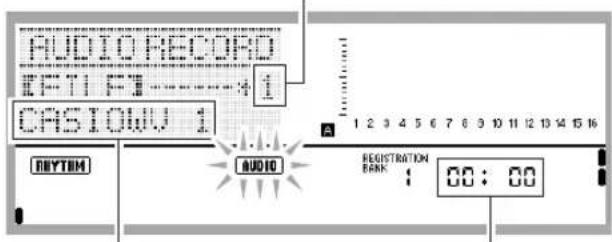
Audio file name Time counter (minutes:seconds)
- The time counter shows how much time (minutes:seconds) has elapsed since the start of recording. You also can switch display contents to show the tempo, measure, and beat, if you want as described below.
- If there is an asterisk (*) in front of the audio file number, it means the file already includes recorded data. Starting recording while a file that already contains recorded data is selected will cause the old data to be overwritten by the new recording.
4. If required, perform the steps below to switch from the time counter screen to the tempo, measure, beat screen. If you want to leave the time counter displayed, go straight to step 5.
(1) While holding down the R-13 (FUNCTION) button, press the C-17 (MENU) button.
This displays a screen like the one shown below.
![-Display- [Recording Time] [Measure Beat]](/content/2026/06/1239013/images/cf2562a60cc33199ca1d50e303b8d3c3abc4e1509c1a785cbb7d1e3f60a8f551.jpg)
(2) Use the R-17 (V) button to move the thick brackets ([ ]) to "Measure Beat" and then press the R-15 (EXIT) button.
This switches from the time counter to the tempo, measure, beat screen.
To return to the time counter screen, the R-17 (∧) button in step (2) to move the thick brackets ([ ]) to
"Recording Time" and then press the R-15 (EXIT) button.
5. Use the dial or the R-14 (-, +) buttons to select an audio file number.
6. To start recording, press the C-2 (AUDIO RECORD) button.
- If the file number you selected in step 5 does not have an asterisk (*) next to it, the C-2 (AUDIO RECORD) button will change from flashing to lit and recording will start. Start to play what you want.

- If you selected a file number with an asterisk (*) in front of it in step 5, a file overwrite confirmation screen like the one shown below will appear.

If you do not want to overwrite the file, press the R-14 (NO) button. This will return to step 5 of this procedure where you can select a different audio file number.
If you do want to overwrite the file, press the R-14 (YES) button. Recording will start and the C-2 (AUDIO
RECORD) button will change from flashing to lit. Start to play what you want.
7. To quit recording, press the C-2 (AUDIO RECORD) button again.
- This will cause the button to change from lit to unlit and end recording.
- The AUDIO indicator will stop flashing on the display to indicate the audio play mode.
- Pressing the L-16 (PLAY/STOP) button here will stop recording and start playback of the audio file. For details about audio file playback, see "Playing Back Audio" (page E-126).
- To exit the audio play mode, press the C-6 (AUDIO PLAY) button.
NOTE
- During audio record standby, you can exit the audio record mode by pressing the R-15 (EXIT) button.
- If you switch from the time counter to tempo, measure, beat in step 4 of the procedure above, the count up operation will begin when song (when in the song sequencer mode) or rhythm (when in the rhythm mode) playback is started.
- The time counter (or tempo, measure, beat display) will start to flash when there are 30 seconds of remaining recording time. Recording will stop automatically when the end of remaining recording time is reached.
To record play using a music preset
- Perform the procedure under "To get ready for audio recording" (page E-123).
• This enters the rhythm mode.
- Perform steps 1 through 4 under "To perform using a music preset" (page E-54).
- This enters music preset record standby.
-
Perform steps 3 through 6 under "To record play in the rhythm mode" (page E-123) to start recording.
-
Perform steps 5 through 7 under "To perform using a music preset" (page E-54).
-
To quit recording, press the C-2 (AUDIO RECORD) button.
To record play in the song sequencer mode
- Perform the procedure under "To get ready for audio recording" (page E-123).
• This enters the rhythm mode.
- Perform steps 1 through 3 under "To play a recorded song" (page E-79) to prepare for song playback.
• This enters the song sequencer mode.
-
Perform steps 3 through 6 under "To record play in the rhythm mode" (page E-123) to start recording.
-
Press the L-16 (START/STOP) button to start song playback.
-
To quit recording, press the C-2 (AUDIO RECORD) button.
Navigating between Modes and Screens during Recording Standby and Recording
You can use the operations in this section to navigate between modes and screens while recording.
■ Rhythm Mode Operations (RHYTHM indicator displayed)
Operations in the Rhythm Mode
- You can use the R-17 (A, V) buttons to switch between the audio record screen and the rhythm mode screen.
- While the audio record screen is displayed, press the C-9 (CARD) button to display the rhythm mode screen.
Displaying the Song Sequencer Mode Screen from the Rhythm Mode Screen
- While the audio record screen or rhythm mode screen is displayed, press the C-4 (SONG SEQUENCER) button to display the song sequencer mode screen. This will cause the RHYTHM indicator to disappear from the display and the SEQUENCER indicator to appear.
■ Song Sequencer Mode Operations (SEQUENCER indicator displayed)
Operations in the Song Sequencer Mode
- You can use the R-17 (A, V) buttons to switch between the audio record screen and the song sequencer mode screen.
- While the song sequencer mode screen is displayed, press the C-4 (SONG SEQUENCER) button to display the audio record screen.
Displaying the Rhythm Mode Screen from the Song Sequencer Mode Screen
- While the audio record screen or song sequencer mode screen is displayed, press the C-9 (CARD) button to display the rhythm mode screen. This will cause the SEQUENCER indicator to disappear from the display and the RHYTHM indicator to appear.
- While the audio record screen or rhythm mode screen is displayed, press the C-4 (SONG SEQUENCER) button to display the rhythm mode screen. This will cause the SEQUENCER indicator to disappear from the display and the RHYTHM indicator to appear. The screen content does not change at this time.
Playing Back Audio

NOTE
- You can start audio playback operations from the rhythm mode or the song sequencer mode. You cannot start from the card mode.
- You can perform normal keyboard play along with audio playback, and you can use layer and split. The procedures for selecting UPPER 1, UPPER 2, and LOWER parts are the same as the ones used in the rhythm mode. For details, see "Selecting a Tone" (page E-14) and "Layering and Splitting Tones" (page E-15).
• Maximum polyphony is reduced by a maximum of two notes during audio playback. - Rhythm play and song sequencer song playback cannot be performed during audio playback standby and audio playback.
- The time counter displayed during audio playback does not exactly match the time counter displayed during recording.
Supported Audio Playback Files
This Digital Keyboard supports playback of audio files recorded by it, as well as audio files that you converted on a computer to a format supported by the Digital Keyboard.
* Special application software (Data Manager) is required in order to convert audio files. For details, see "Storing and Loading Digital Keyboard Memory Data" (page E-146).
To play back a recorded audio file
1. Press the C-6 (AUDIO PLAY) button.
- This causes the AUDIO indicator to appear and the other mode indicator (RHYTHM or SEQUENCER) to disappear from the display, which indicates the audio play mode.
- The L-16 (PLAY/STOP) button will flash, which indicates audio playback standby.

- The audio playback screen shown below will be on the display.
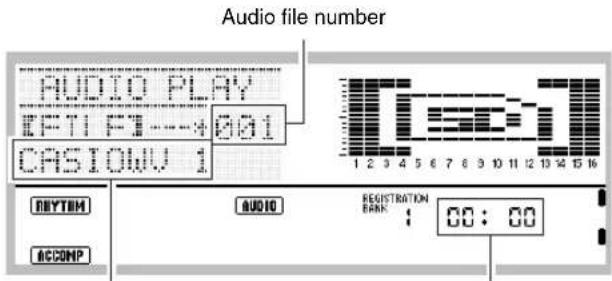
Audio file name Time counter (minutes:seconds)
- If there is an asterisk (*) in front of the audio file number, it means the file already includes recorded data.
2. Use the dial or the R-14 (-, +) buttons to select one the audio file numbers that has an asterisk (\*) in front of it.
3. Configure the following setting as required.
| To do this: Do this: | |
| Start playback from any location(minutes : seconds) | Use the L-14 (▶FF) and L-13(◀◀REW) buttons to change the time counter reading to the location(hours:minutes) from which you want to start playback. |
| Center cancel* | Press the L-17 (PART SELECT) button. |
*For details, see "About center cancel" (page E-127).
4. Press the L-16 (PLAY/STOP) button.
- This will start playback of the audio file and cause the L-16 (PLAY/STOP) button to change from flashing to lit. The time counter also will start counting up.
- The following operations are supported during playback.
| To perform this operation: | Do this: |
| Fast forward | Hold down the L-14 (▶▶FF) button or rotate the dial to the right.* |
| Fast backward | Hold down the L-13 (◀◀REW) button or rotate the dial to the left.* |
| Pause Press the L-15 (PAUSE) button. | |
| Restart paused playback | Press the L-15 (PAUSE) button. |
| Lower playback volume | Press the R-14 (−) button, which will display a volume setting screen. Rotating the dial to the left while this screen is displayed also will lower playback volume. |
| Raise playback volume | Press the R-14 (+) button, which will display a volume setting screen. Rotating the dial to the right while this screen is displayed also will raise playback volume. |
| Center cancel Press | the L-17 (PART SELECT) button. |
*Dial operation is supported only while the audio play screen is displayed.
- Playback stops automatically when it reaches the end of a song. To stop playback part way through, press the L-16 (PLAY/STOP) button.
5. To exit the audio play mode, press the C-6 (AUDIO PLAY) button.
- This returns to the mode screen (rhythm mode or song sequencer mode) that was displayed before you performed step 1 of this procedure.
NOTE
- During audio record standby, you can exit the audio play mode by pressing the R-15 (EXIT) button.
- During the above operation, you can press the C-6 (AUDIO PLAY) button to exit the audio play mode.
■About center cancel
Center cancel can be used to cut out the vocal part (which is normally located in the center of the stereo field) from an audio file stored to a memory card from your computer. How successful center cancel is in cutting out the audio depends on the audio file you are playing back.
Each press of the L-17 (PART SELECT) button toggles between center cancel and normal (no center cancel) playback. The current setting can be determined by checking the graphic formed inside the level indicator as shown below.
| Status Playback standby | Playback in progress | |
| Normal | ||
| Center cancel | ||
NOTE
- When the MIC/INST parameter (page E-42) "Pan" setting is "0" (initial default value), center cancel is applied to all sound recorded from an external device connected to the T-6 (MIC IN) jack or the T-4 (INST IN) jack.
To repeat play a specific phrase To rename an audio file
- Perform steps 1 through 4 under "To play back a recorded audio file" (page E-126) to start playback.
- When playback reaches the location you want to specify as the repeat start point, press the L-12 (REPEAT) button.
- This will display a screen like the one shown below, which shows the start point you specified (minutes:seconds) and the flashing [REPEAT] indicator.

- When playback reaches the location you want to specify as the repeat end point, press the L-12 (REPEAT) button again.
- This will immediately return to the start point you specified in step 2 and start repeat playback. At this time a screen like the one shown below showing the end point you specified (minutes:seconds) will be displayed first. After a few seconds, the display will change to the original audio play screen.

- The REPEAT indicator will be on the display while repeat playback is in progress.
-
The operations you can perform during repeat playback are the same as those that are supported during normal playback. For details, see step 4 under "To play back a recorded audio file" (page E-126).
-
To cancel repeat playback, first press the L-16 (PLAY/STOP) button to stop it. Next, press the L-12 (REPEAT) button.
- This causes the REPEAT indicator to disappear from the display.
- Press the C-6 (AUDIO PLAY) button to enter the audio play mode.
- Use the dial or the R-14 (-, +) buttons to display the audio file number of the file you want to rename.
- While holding down the R-13 (FUNCTION) button, press the C-17 (MENU) to display the audio play menu.

- The ● should be next to "Rename", so press the R-16 (ENTER) button.
- This displays the "Rename" screen.
-
Use the R-17 (<, >) buttons to move the cursor to the name character position you want to change, and then use the dial or R-14 (-, +) buttons to select the character you want.
-
For details about the characters you can input, see "Supported Input Characters" (page E-160).
-
To input a space, press both of the R-14 (-, +) buttons at the same time.
-
Press the R-16 (ENTER) button.
-
In response to the "Sure?" message that appears, press the R-14 (YES) button to change the name or the R-14 (NO) button to cancel and return to the audio play screen.
- Pressing the R-15 (EXIT) button without pressing the R-14 button will return to the screen in step 5 of this procedure.
To clear the data of an audio file or delete an audio file
- Press the C-6 (AUDIO PLAY) button to enter the audio play mode.
- Use the dial or the R-14 (-, +) buttons to display the audio file you want to clear or delete.
- To clear the audio data in a file, display the number of the file. File numbers run from 001 up to the maximum number of audio recordings that you specified when formatting the memory card (page E-137). In this case, the file itself will not be deleted.
- To delete a file, display an audio file other than those described above (audio file saved to the memory card using Data Manager*).
*For details, see "Storing and Loading Digital Keyboard Memory Data" (page E-146).
- While holding down the R-13 (FUNCTION) button, press the C-17 (MENU) button to display the audio play menu.
- Use the R-17 (V) button to move the ● to "Clear" (or "Delete") and then press the R-16 (ENTER) button.
- In response to the confirmation message that appears, press the R-14 (YES) button to perform the applicable operation or the R-14 (NO) button to cancel.
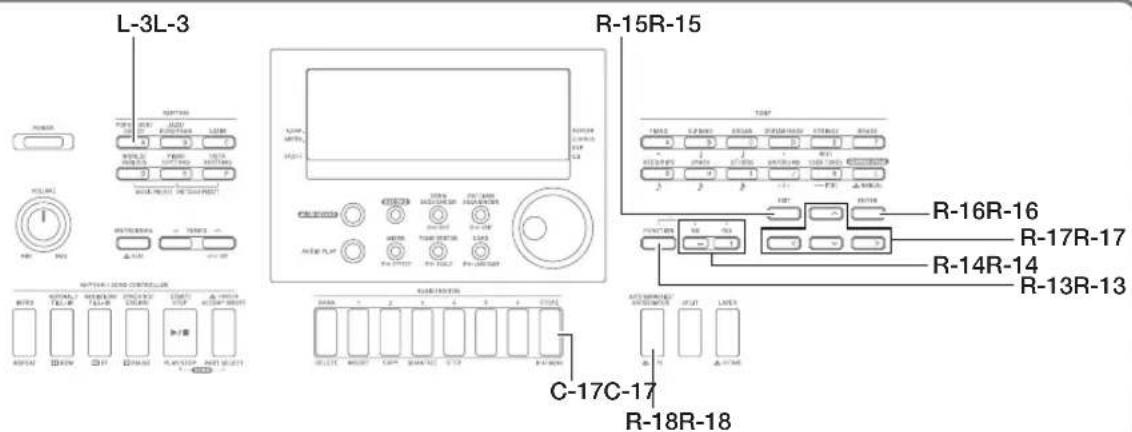
The function menu includes settings that normally need to be accessed relatively infrequently, such as overall tuning, equalizer, touch response, local control on/off, etc. It also includes some memory card operations (format, etc.).
Using the Function Menu
This section explains function menu operations. For details about specific function menu items, see "Function Menu Settings" (page E-131).
To change the setting of a function menu item
1. Press the R-13 (FUNCTION) button.

- This displays the function menu like the one shown below.

-
To adjust the "Tune" (Tuning) and "EQ" (Equalizer) settings, use the R-17 ( , ) buttons to move the ● to the setting you want to adjust, use the dial or the R-14 (-, +) buttons to change the setting. The currently selected setting will also be indicated by thick brackets ([ ]).
-
Pressing the R-14 (-, +) buttons at the same time returns the setting to its initial default.
-
Changing the tuning value does not affect audio playback (page E-126).
-
The setting items from "Performance" and below are groups that include multiple setting items. Use the following procedure to change the settings of the items in each group.
(1) Use the R-17 ( , V) buttons to move the ● to the desired group name and then press the R-16 (ENTER) button.
• This displays the items included within the group.

Example: Performance group
(2) Use the R-17 ( , V, <, >) buttons to move the ● to the setting you want to change.
(3) Use the dial or the R-14 (-, +) buttons to change the setting value.
- Pressing the R-14 (-, +) buttons at the same time returns an item to its initial default setting.
(4) To return to the function menu, press the R-15 (EXIT) button.
4. To exit the function menu, press the R-13 (FUNCTION) button or R-15 (EXIT) button.

IMPORTANT!
- Note that all function menu settings you configure are returned to their initial defaults whenever you turn off the Digital Keyboard. You can configure the Digital Keyboard so it remembers its latest settings or to apply predetermined default settings each time you turn it on. For details, see "AutoResume (Auto Resume)" (page E-134) and "Default (Default Settings)" (page E-134).
- Some function menu settings also can be saved to registration memory. For details, see "Saving Keyboard Setups to Registration Memory" (page E-66).
Function Menu Settings
This section explains the meaning of each function menu setting item, and provides information about setting ranges and initial default values.
- For each item, the initial default setting is indicated by an asterisk (*).
Tune (Tuning)
Fine tunes the overall keyboard tuning in 0.1 Hz steps. A4=415.5 - 440.0* - 465.9 Hz

NOTE
- Changing the tuning value does not affect audio playback (page E-126).
EQ (Equalizer)
One of five presets can be selected to change the overall frequency characteristics of the sound.
oFF ^* : Equalizer off
Soft : Suppressed high tones for a softer sound
Bright : Enhanced high tones for a brighter sound
B. Boost : Enhanced low tones (Bass Boost)
Powerful : Enhanced volume
![-Function- 1/3 • Tune [440.0Hz] • EQ ■Powerful" • Performance >Ent 1 2 3 4 5 6 7 8 9 10 11 12 13 14 15 16 TENPO MEASURE BEST REVERD 120 00:1-1 CHORUS DSP EQ Lights](/content/2026/06/1239013/images/0c71f2b2908dba5592012e09d01c5844ad15d7109fcef7737980b719015e8363.jpg)
Performance (Performance/Accompaniment) Group

NOTE
- You can directly display this group screen without going through the function menu. While the initial power on screen is displayed, hold down the R-13 (FUNCTION) button as you press the C-17 (MENU) button.

Touch (Touch Response)
Select one of the settings below to specify the relationship between key pressure and note volume.
oFF : Constant note volume regardless of keyboard pressure
1° : Normal
2: Strong sound even with light pressure
TchOffVel (Touch Off Velocity)
Specifies the velocity value setting when the Touch setting is off.
000 - 100* - 127
Ped.Setting (Pedal Setting)
■Ped.Assign (Pedal Assign)
Specifies the operation of the pedal connected to T-3 (SUSTAIN/ASSIGNABLE JACK).
SUS ^® : Sustain pedal
SSt : Sostenuto pedal
SFt : Soft pedal
rHy : Rhythm start/stop switch
■Upper1, Upper2, Lower, A.HAR.
These settings specially on* (effect applied) or oFF (effect not applied) for the UPPER 1, UPPER 2, LOWER, and Auto Harmonize parts for the operation currently assigned to the pedal.
Upper1 : UPPER 1
Upper2 : UPPER 2
Lower : LOWER
A.HAR.: Auto Harmonize
- When the Pedal Assign setting is "rHy", the on/off settings of these parts are disabled, and the pedal functions as a rhythm start/stop switch.
BendRange (Bend Range)
Specifies the range of pitch change that occurs when the PITCH BEND wheel (S-1) is rotated.
00 - 02 ^* - 24 semitones
ArpegHold (Arpeggiator Hold)
Specifies the how arpeggio is played in accordance with pressed keyboard keys when the arpeggiator (page E-23) is being used.
oFF: Arpeggio played while the keys of a chord are depressed on the keyboard
on : Arpeggio played after keyboard keys are released

NOTE
- When "on" is selected for this setting, you can turn off arpeggio play pressing the R-18 (AUTO HARMONIZE/ARPEGGIATOR) button to disable the arpeggiator, or you can change this setting to "oFF".
ArpegSpeed (Arpeggiator Speed)
Specifies how many times notes or chords should sound within one beat for arpeggio phrases played by the arpeggiator (page E-23).
1, 2, 2S, 3, 4 ^* , 4S, 6, 8
The setting value indicates the number of times within one beat. Selecting an option that is only a value will sound the note that number of times within one beat. Selecting "4", for example, will play with the rhythm ♩♪♪♪♪.
Selecting an option that includes the letter "S" will play a shuffle. 2S plays and 4S plays.

NOTE
- The availability of the settings for this item depends on the arpeggiator type. Refer to the separate "Appendix" for details.
ArpegPart (Arpeggiator Part)
Specifies whether arpeggiator play with the tone of any part should be used for the UPPER part keyboard or LOWER part keyboard when the arpeggiator (page E-23) is used while the keyboard is used while Layer and/or Split is turned on (page E-15).
U12*: UPPER part keyboard, Upper 1 and Upper 2 tones played.
U1 : UPPER part keyboard, Upper 1 tone played.
U2 : UPPER part keyboard, Upper 2 tone played.
Low : LOWER part keyboard, Lower tone played.
- If "U2" is selected, arpeggios are played when Layer is on (page E-16).
- If "Low" is selected, arpeggios are played when Split is on (page E-16).
RegFltAcmp (Registration Filter: Accompaniment)
Specifies if accompaniment settings are recalled (oFF*) when a registration setup (page E-66) is recalled, or if accompaniment settings are not recalled (on).
RegFltScal (Registration Filter: Scale)
Specifies if scale settings are recalled (oFF) when a registration setup (page E-66) is recalled, or if scale settings are not recalled (on ^* ).
Play/CardUtil (Playback, Card Utility) Group

NOTE
- You can directly display this group screen without going through the function menu. While in the card mode (page E-137), hold down the R-13 (FUNCTION) button as you press the C-17 (MENU) button.
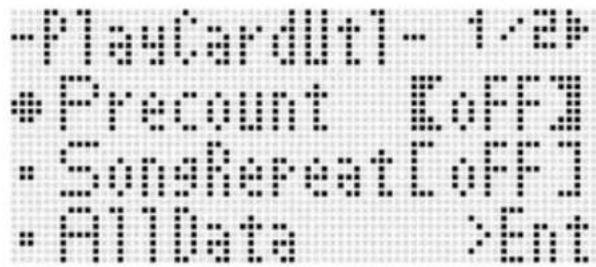
PreCount (Song Pre-count Sound)
Specifies if a pre-count should sound (on) when playback of a song file is started in the card mode (page E-137) or if a pre-count should not sound (oFF ^* ).
SongRepeat (Song Repeat Play)
Specifies if a single song file should be repeat played (on) during playback in the card mode (page E-137) or if a song file should not be repeat played (oFF ^* ).
AllData (All Data)
You can batch save all user data in Digital Keyboard memory to a memory card, or load all user data from a memory card to Digital Keyboard memory.
See "To batch save all Digital Keyboard data to a memory card" (page E-139) and "To batch load all Digital Keyboard memory data from a memory card" (page E-140) for more information.
CardFormat (Card Format)
See "Formatting a Memory Card" (page E-137).
FileDelete (File Delete)
See "To delete a file from a memory card" (page E-141).
FileRename (File Rename)
See "To rename a file on a memory card" (page E-141).
Volume (Volume) Group


NOTE
- For details about "parts" mentioned here, see "How Parts are Organized" (page E-36).
AccompVol. (Auto Accompaniment Volume)
Adjusts the Auto Accompaniment volume level (master volume of parts A09 through A16). This setting does not affect the keyboard volume level (parts A01 through A03). 000 - 115 ^* - 127
SongVol. (Song Volume)
Adjusts the master volume of song file playback in the card mode (page E-137). This setting does not affect the keyboard volume level (parts A01 through A03) or Auto Accompaniment volume level (parts A09 through A16). 000 - 127*
MetroVol. (Metronome Volume)
Adjusts the metronome volume. This setting is linked with the A08 part volume (part volume) that can be adjusted with the mixer (page E-36). 000 - 100 ^+ - 127
AudioVol. (Audio Volume)
Adjusts volume when playing back an audio file with audio playback (page E-121). 000 - 127 ^+
MIDI Group
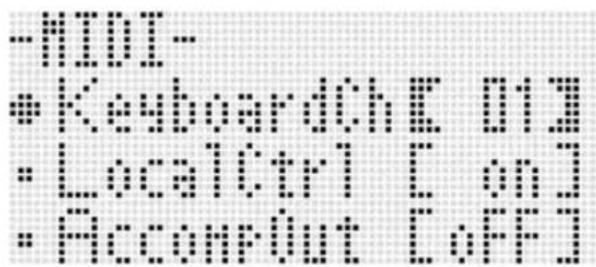
KeyboardCh (Keyboard Channel)
Selects the channel for sending keyboard play MIDI data to an external device (keyboard channel). 01 ^* - 16
LocalCtrl (Local Control)
Specifies whether pressing a key sounds the internal sound source (on*) or whether the keyboard and internal sound source should be disconnected (oFF).
AccompOut (Accompaniment MIDI Out)
Specifies if Auto Accompaniment MIDI data should be sent to an external device (on) or not sent to an external device (oFF ^* ).
General (Other) Group

Speaker (Speaker ON/OFF)
Turns speaker output on or off.
Select "on" to enable output from the Digital Keyboard's speakers or "oFF" to disable speaker output. Output continues to be performed from the T-9 (PHONES) and T-8 (LINE OUT) jacks even when "oFF" is selected for this setting. A pointer indicator is displayed next to SP.OFF when "oFF" is selected for this item.
Contrast (LCD Contrast)
Adjusts display contrast. 01 - 09 ^* - 17
AutoPower (Auto Power Off)
Specifies if Auto Power Off (page E-13) is enabled (on") or disabled (oFF). Even when "on" is selected for this setting, you can temporarily disable Auto Power Off by holding down the L-3 ([A] POPS/ROCK/DANCE) button as you press the L-1 (POWER) button to turn on power.
AutoResume (Auto Resume)
Specifies whether the Digital Keyboard should remember its setup when turned off and restore it the next time it is turned on.
oFF*: Restores power on defaults when power is turned on.
on : Remembers setup when power is turned off and restores it when power is turned back on.

NOTE
- For information about the setting items that are restored when Auto Resume is enabled, see "Parameter List" (page E-162).
- Initially, power on default settings are the same as the factory default settings. You also can use the procedure below to specify other power on default settings to suit your needs.
Default (Default Settings)
You can use this setting item to do the following.
- Rewrite the power on default settings with the Digital Keyboard's current setup (registering default settings).
- Return the power on default settings to the factory default settings (clearing default settings).
■To register or clear default settings
- Press the R-13 (FUNCTION) button to display the function menu.
- Use the R-17 (>, V) buttons to move the ● to "General" and then press the R-16 (ENTER) button.
- Use the R-17 (∧, ∨) buttons to move the ● to "Default" and then press the R-16 (ENTER) button.
- This displays the default setting screen like the one shown below.

- Use the R-17 (∧, ∨) buttons to select the operation you want.
| To do this: | Move the ● here: |
| Return the power on default settings to the factory default settings (clearing default settings). | Clear |
| Rewrite the power on default settings with the Digital Keyboard's current setup (registering default settings). | Store |
- For information about the setting items that are registered as default settings, see "Parameter List" (page E-162).
5. After everything is the way you want, press the R-16 (ENTER) button.
- The message "Complete" appears and the display returns to the screen before you pressed the R-16 (ENTER) button in step 3.
6. To exit the function menu, press the R-13 (FUNCTION) button.

NOTE
- If you want the default settings to be restored whenever power is turned on, select "oFF" for the "AutoResume" setting (page E-134).
Initialize (Initialize)
This item can be used to initialize all data and settings, or parameter settings only.

NOTE
- For information about what settings are initialized when "Parameter" is selected for initialization in step 4 of the procedure below, see "Parameter List" (page E-162).
■ To initialize all data and settings (or parameter settings only)
- Press the R-13 (FUNCTION) button to display the function menu.
- Use the R-17 (>, V) buttons to move the ● to "General" and then press the R-16 (ENTER) button.
- Use the R-17 (>, V) buttons to move the ● to "Initialize" and then press the R-16 (ENTER) button.
- This displays the initialize screen like the one shown below.
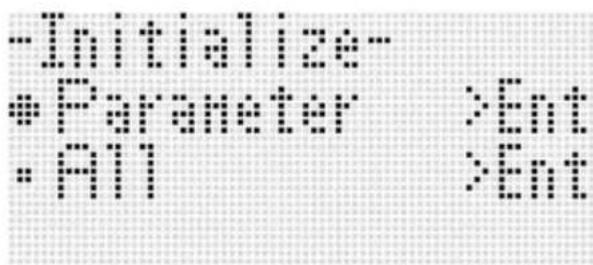
-
Use the R-17 ( , V) buttons to select either "All" (all settings) or "Parameter" (parameter settings only).
-
To execute initialization, press the R-16 (ENTER) button.

You can save Digital Keyboard user area data to a memory card and load data from a memory card to Digital Keyboard memory. You also can play music files (MIDI files) stored on a memory card on the Digital Keyboard.

IMPORTANT!
- Use a memory card that satisfies the conditions below.
Format: SDHC or SD
Capacity: 2GB to 32GB
Use of any memory cards other than those defined above is not supported.
• SDHC Logo is a trademark of SD-3C, LLC.

Supported Data Types
■Data that can be saved to and exported from a memory card
| Data Type | Description(File Name Extension) |
| User rhythm data(page E-103) | Auto Accompaniment data edited with this Digital Keyboard (AC7) |
| User tone data(page E-44) | Tone data edited with this Digital Keyboard (TN7) |
| User drawbar organ tone data(page E-52) | Drawbar organ tone data edited with this Digital Keyboard (DB7) |
| User DSP data(page E-33) | DSP data edited with this Digital Keyboard (DS7) |
| User preset data(page E-58) | Music preset data edited on this Digital Keyboard (MPS) |
| Song sequencer data(page E-68) | Song data edited with this Digital Keyboard (CMS, MID*) |
| Registration data(page E-66) | This Digital Keyboard's panel settings (RM7) |
| All data All the above data (AL7) | |
*Save only.
- For information about saving and importing individual data items, see "Saving Digital Keyboard Data to a Memory Card" (page E-138) and "Loading Data from a Memory Card" (page E-140).
- For details about saving and loading all data, see "To batch save all Digital Keyboard data to a memory card" (page E-139) and "To batch load all Digital Keyboard memory data from a memory card" (page E-140).
■Data that can be directly played back from a memory card
| Data Type | Description(File Name Extension) |
| Song files(page E-142) | SMF format 0 or 1 MIDI files (MID) |
Card and Card Slot Precautions
- Be sure to observe the precautions provided in the documentation that comes with the memory card.
- Memory cards have a write-protect switch. Use it when you want to protect the data on the card from accidental deletion.
-
Avoid using a memory card under the following conditions. Such conditions can corrupt data stored on the memory card.
-
Areas subjected to high temperature, high humidity, or corrosive gas.
- Areas subjected to strong electrostatic charge and digital noise.
- Never touch the contacts of a memory card when loading it or removing it from the Digital Keyboard.
- The message "Please Wait" will remain on the display while a data save operation is in progress. Do not perform any other operation while it is displayed.
Turning off the Digital Keyboard or removing the memory card can cause Digital Keyboard data to be deleted or become corrupted. It also can cause the Digital Keyboard to fail to turn on when the L-1 (POWER) button is pressed. If this happens, refer to "Troubleshooting" (page E-150).
- Never insert anything besides a memory card into the card slot. Doing so creates the risk of malfunction.
- Electrostatic charge from your fingers or the memory card to the card slot can cause malfunction of the Digital Keyboard. If this happens, turn the Digital Keyboard off and then back on again.
- A memory card can become quite warm after very long use in the card slot. This is normal and does not indicate malfunction.
Loading and Removing a Memory Card

IMPORTANT!
- A memory card must be positioned correctly when being loaded into the Digital Keyboard. Trying to force an improperly oriented memory card into the slot can damage the memory card and the slot.
- With the top of the memory card facing upwards (so you can see it), carefully insert it into the Digital Keyboard's SD card slot (T-1) until stops with a click.

- To remove the memory card first press it into the slot further.
- This will cause the memory card to disengage and eject partially. Pull the memory card the rest of the way out of the slot.
Entering the Card Mode
Enter the card mode when you want to perform memory card operations.
- While in the rhythm mode (page E-7) press the C-9 (CARD) button to enter the card mode.

This will cause the RHYTHM indicator to disappear from the display and the CARD indicator to appear.

If the message "No Card" appears on the display, it means there is no memory card in the card slot. For details about what appears on the display while a card is loaded, see "Playing a Music File from a Memory Card" (page E-142).
- To exit the card mode, press the C-9 (CARD) button again. This will cause the CARD indicator to disappear from the display and the RHYTHM indicator to appear.
Formatting a Memory Card

IMPORTANT!
- Format a memory card before using it for the first time.
- Before formatting a memory card, make sure it does not have any valuable data stored on it.
-
The memory card format operation performed by this Digital Keyboard is a “quick format”. If you want to completely delete all of the data on the memory card, format it on your computer or some other device.
-
Insert the memory card you want to format into the Digital Keyboard's card slot.
- Make sure the memory card is write-enabled. Check the position of the card's write-protect switch to ensure it is not in the write-protect position.
-
Press the C-9 (CARD) button to enter the card mode.
-
While holding down the R-13 (FUNCTION) button, press the C-17 (MENU) button.
- This displays the function menu "Play/CardUtl" screen.
- Use the R-17 ( , ) buttons to move the ● to "CardFormat".

- Press the R-16 (ENTER) button.
- This will display a value indicating the maximum number of audio recordings that can be recorded.
-
Use the dial or R-14 (-, +) buttons to specify the number of audio recordings you want to format the card for.
-
You can format a 2GB card for up to 14 songs. A 4GB to 32GB card can be formatted for up to 20 songs.
- An audio recording area of approximately 128MB is reserved on the memory card for each song.
- The minimum number of audio recordings you can specify is 0 (which specifies the card will not be used for storage of audio recordings).
-
The higher the number of audio recordings you specify here, the longer it will take to format the card.
-
Press the R-14 (YES) button to format the memory card or the R-14 (NO) button to cancel.
-
The message "Please Wait" will remain on the display while the format operation is being performed. Do not perform any Digital Keyboard operation while this message is on the display. "Complete" appears on the display after formatting is complete.
- Formatting may take as long as a few minutes to complete.
Saving Digital Keyboard Data to a Memory Card
To save Digital Keyboard data to a memory card
- Insert the memory card into the card slot.
-
If the Digital Keyboard is in the card mode, press the C-9 (CARD) button to exit the card mode.
-
Depending on the type of data you want to save to the memory card, perform one of the steps shown below.
- All setup registration banks are saved as a batch. Other data is saved in area (data item) units.
| To save this type of data: | Do this: |
| One user rhythm | 1. Press the L-8 ([F] USER RHYTHMS) button.2. Use the dial or R-14 (−, +) buttons to specify the user rhythm number. |
| One user tone | 1. Press the R-11 ([K] USER TONES) button.2. Use the dial or R-14 (−, +) buttons to specify the user tone number. |
| One user drawbar organ tone | 1. Press the R-12 ([L] DRAWBAR ORGAN) button.2. Use the dial or R-14 (−, +) buttons to specify the user drawbar organ tone number (L:051 through L:100). |
| One user DSP 1. | Perform steps 1 through 4 under “To use a DSP” (page E-32).2. Use the dial or R-14 (−, +) buttons to specify the user DSP number (101 through 200). |
| One user preset 1. | While holding down the L-6 ([D] WORLD/ VARIOUS) button, press the L-7 ([E] PIANO RHYTHMS) button to display the music preset screen.2. Press the L-8 ([F] USER RHYTHMS) button.3. Use the dial or R-14 (−, +) buttons to specify the user preset number. |
| One song sequencer song | 1. Press the C-4 (SONG SEQUENCER) button to enter the song sequencer mode.2. Use the dial or R-14 (−, +) buttons to specify the song number. |
| All registration banks | Press the C-10 (BANK) button to display the registration bank selection screen. |
- While holding down the R-13 (FUNCTION) button, press the C-9 (LOAD/SAVE) button.
- This causes an "Xxxx Load" *1 screen like the one shown below to appear. The sample screen below shows the screen that appears from the rhythm screen.

5. Press the R-17 (V) button to change to the "Xxxx Save"\*1 screen.

- To save a song sequencer song in SMF format, press the R-17 (V) button one more time here to display the "Seq SmfSave" screen. You can switch between the "Xxxx Load", "Seq Save", and "Seq SmfSave" screens using the R-17 (A, V) buttons.
6. Enter the file name to assign to the data when it is stored.
Change the initial default file name "USERNAME.xxx"*2 as described below.
(1) Use the R-17 (<, >) buttons to move the cursor to the character you want to change.
(2) Use the dial or the R-14 (-, +) buttons to change the character.
• The characters you can select are shown below.
| 0 | 1 | 2 | 3 | 4 | 5 | 6 | 7 | 8 | 9 |
| A | B | C | D | E | F | G | H | I | J |
| K | L | M | N | O | P | Q | R | S | T |
| U | V | W | X | Y | Z | $ | & | _ | ' |
| ( | ) | - | ^ | { | } | @ | ~ | ` |
7. After everything is the way you want, press the R-16 (ENTER) button.
8. In response to the "Sure?" message that appears, press the R-14 (YES) button to save or the R-14 (NO) button to cancel.
*1 The "Xxxx" part of the file name depends the type of data you are saving.
*2 The "xxx" part of the file name is a file name extension that depends the type of data you are saving.
NOTE
- Performing the above procedure to write a song sequencer song to an SMF format file will save the data as SMF Format 0 (16 channel) data. System track data A01 through A16 are saved respectively to SMF 01CH through 16CH, while song tracks 01 through 16 are saved respectively to SMF 01CH through 16CH. Note that the save operation gives priority to the data of tracks 01 through 16. If there is data in any of the tracks 01 through 16 and "on" is selected for the "Part" (part on/off) setting of a track that contains data, the system track data (A01 through A16) for the same numbered track data will not be saved. Also, the note events of tracks that are turned off using the mixer are not saved.
To batch save all Digital Keyboard data to a memory card
-
Press the C-9 (CARD) button to enter the card mode.
-
While holding down the R-13 (FUNCTION) button, press the C-17 (MENU) button.
- This displays the function menu "Play/CardUrl" screen.
-
Use the R-17 ( , ) buttons to move the ● to "AllData" and then press the R-16 (ENTER) button.
-
When the "All Load" screen appears, use the R-17 (V) button to change to the "All Save" screen.

- The remainder of the steps are the same as those from step 6 under "To save Digital Keyboard data to a memory card" (page E-138).
■Memory card Data Storage
The above procedure stores Digital Keyboard data in a folder named MUSICDAT on the memory card.
- The MUSICDAT folder is created automatically when you format the memory card on the Digital Keyboard (page E-137).
- Note that files not in the MUSICDAT folder cannot be loaded, deleted, or renamed by this Digital Keyboard. You also will not be able to load or delete any file stored in any subfolder inside the MUSICDAT folder.
Loading Data from a Memory Card

IMPORTANT!
- Make sure that all of the data you want to load is in the MUSICDAT folder on the memory card.
To load data to Digital Keyboard memory from a memory card
- Insert the memory card into the card slot.
- If the Digital Keyboard is in the card mode, press the C-9 (CARD) button to exit the card mode.
- Referring to the table in step 3 of the procedure under "To save Digital Keyboard data to a memory card" (page E-138), perform the procedure required for the type of data you want to load from the card.
- All setup registration banks are loaded as a batch. Other data is loaded in area (data item) units.
- While holding down the R-13 (FUNCTION) button, press the C-9 (LOAD/SAVE) button.
- This causes an "Xxxx Load" screen like the one shown below to appear. The sample screen below shows the screen that appears from the rhythm screen.

- Use the dial or R-14 (−, +) buttons to display the file you want to import.
-
Press the R-16 (ENTER) button.
-
In response to the "Sure?" message that appears, press the R-14 (YES) button to load or the R-14 (NO) button to cancel.
*The "Xxxx" part of the file name depends the type of data on the memory card.
To batch load all Digital Keyboard memory data from a memory card
- Press the C-9 (CARD) button to enter the card mode.
- While holding down the R-13 (FUNCTION) button, press the C-17 (MENU) button.
- This displays the function menu "Play/CardUrl" screen.
-
Use the R-17 (∧, ∨) buttons to move the ● to "AllData" and then press the R-16 (ENTER) button.
-
This displays the "All Load" screen.
- The remainder of the steps are the same as those from step 5 under "To load data to Digital Keyboard memory from a memory card" (page E-140).
To delete a file from a memory card
- Insert the memory card into the card slot.
- Press the C-9 (CARD) button to enter the card mode.
- While holding down the R-13 (FUNCTION) button, press the C-17 (MENU) button.
- This displays the function menu "Play/CardUrl" screen.
- Use the R-17 ( , ) buttons to move the ● to "FileDelete" and then press the R-16 (ENTER) button.
- This displays a screen for specifying the file to be deleted.
![-Delete: ....[0013] BEAT ....MID Press Enter](/content/2026/06/1239013/images/82af1850f531c0448e861c385ef38d47c72c303675464cb0d3d0f98ac70ee381.jpg)
- Use the dial or R-14 (−, +) buttons to display the file you want to delete.
- Press the R-16 (ENTER) button.
- In response to the "Sure?" message that appears, press the R-14 (YES) button to delete or the R-14 (NO) button to cancel.
- Pressing the R-14 (YES) button displays the message "Please Wait" (indicating the operation is in progress). Do not perform any operation while this message is on the display. "Complete" appears on the display after the operation is complete.
To rename a file on a memory card
- Insert the memory card into the card slot.
- Press the C-9 (CARD) button to enter the card mode.
- While holding down the R-13 (FUNCTION) button, press the C-17 (MENU) button.
-
This displays the function menu "Play/CardUrl" screen.
-
Use the R-17 (>, V) buttons to move the ● to "FileRename" and then press the R-16 (ENTER) button. • This displays a screen for specifying the file to be renamed.
- Use the dial or R-14 (−, +) buttons to display the file you want to rename.
- Use the R-17 (<, >) buttons to move the cursor to the name character position you want to change, and then use the dial or R-14 (-, +) buttons to select the character you want.
- After the name is the way you want, press the R-16 (ENTER) button.
- In response to the "Sure?" message that appears, press the R-14 (YES) button to rename the file or the R-14 (NO) button to cancel.
- Pressing the R-14 (YES) button displays the message "Please Wait" (indicating the operation is in progress). Do not perform any operation while this message is on the display. "Complete" appears on the display after the operation is complete.

Playing a Music File from a Memory Card
You can use the Digital Keyboard to play music files you saved to a memory card with your computer.

IMPORTANT!
• Supported music files are SMF format 0 or 1 MIDI files (MID).
- Playback of audio files (WAV, MP3, etc.) is not supported.
- Data Manager computer software (page E-146) can be used to convert WAV format files to a format that can be played back by the Digital Keyboard. For details, refer to the Data Manager user's guide.

NOTE
- At the same time playback starts, the transpose setting (page E-18) will change to 00 and the local control setting (page E-133) will change to "on".
To play a music file from a memory card
1. Format the memory card on the Digital Keyboard (page E-137).
- This will cause a folder named MUSICDAT to be automatically created in the memory card root directory.
2. Use your computer to copy the music file you want to play to the MUSICDAT folder that was created in step 1.
- See the "Important!" note above for information about supported file types.
3. Insert the memory card into the card slot.
4. Press the C-9 (CARD) button to enter the card mode.
5. Use the dial or R-14 (-, +) buttons to select the music file you want to play.
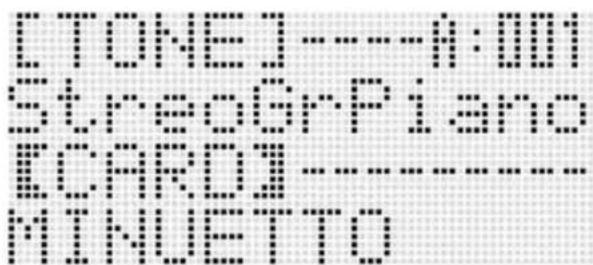
6. To start playback, press the L-16 (PLAY/STOP) button.
- To perform a fast forward operation, hold down the L-14 (▶FF) button. The measure number in the lower right corner of the display scrolls at high speed while the L-14 (▶FF) is depressed. Releasing the button immediately resumes normal playback from that point.
- To perform a fast backward operation, hold down the L-13 (◀◀REW) button. Sound is muted and the measure number in the lower right corner of the display scrolls at high speed while the L-13 (◀◀REW) is depressed. Releasing the button immediately resumes normal playback from the beginning of the measure whose number is displayed.
- Pressing the L-15 (PAUSE) button pauses playback. Press again to resume playback.
7. To stop playback, press the L-16 (PLAY/STOP) button.
Turning Off One Hand Part and Playing the Other Hand Part on the Keyboard (Part Off)
When playing a music file of a piano piece that has the left hand and the right hand parts recorded in separate MIDI channels, you can turn off playback of one of the parts and play it on the keyboard along with playback of the other part.
-
Enter the card mode and select the MIDI file you want to play.
-
Press the L-17 (PART SELECT) button.
- This displays a "Part Select" screen like the one shown below, with the ● next to "Part L".

-
Use the R-17 ( , ) buttons to move the ● between “Part L” (left-hand part) and “Part R” (right-hand part), and the dial or R-14 (−, +) buttons to turn the currently selected part on or off.
-
Use the R-17 (V) button to move the ● to "SelectCh" and then press the R-16 (ENTER) button.
• This causes the screen shown below to appear.

-
Use the R-17 (∧, ∨) buttons to move the ● between “Part L” (left-hand part) and “Part R” (right-hand part), and the dial or R-14 (−, +) buttons to specify the MIDI channel for currently selected part.
-
Press the L-17 (PART SELECT) button to exit the part on/off screen.
-
To start playback, press the L-16 (PLAY/STOP) button.
• This starts playback of the part you turned on in step 3.
- To stop playback, press the L-16 (PLAY/STOP) button.
NOTE
- The part on/off setting reverts to the initial default (both parts on) whenever you select a different music file.
Playing on the Keyboard Along with Playback of a Music File on a memory card
You can perform the following operations and play on the keyboard along with playback of a music file on a memory card.
- Select UPPER 1 part, UPPER 2 part, and LOWER part tones.
- Specify layer, split on/off, and the split point
The procedures for performing these operations are the same as those performed in the rhythm mode. For details about the operation, see “Layering and Splitting Tones” (page E-15).
You also can use the procedure below to easily assign the same tone as the right-hand part or left-hand part of the music file to the keyboard (UPPER 1 part tone) for manual play.
■To assign the same tone as the right-hand part or left-hand part of the music file to the keyboard
- Perform the procedure under "Turning Off One Hand Part and Playing the Other Hand Part on the Keyboard (Part Off)" (page E-143) to turn off the part you want to play on the keyboard.
- This step is not required if you want to play along on the keyboard while playing back both hand parts.
-
While holding down the L-7 ([E] PIANO RHYTHMS) button, press the L-8 ([F] USER RHYTHMS) button.
-
This assigns the tone of the part that is turned off to the UPPER 1 part.
-
If both parts are on or off, the right-hand part of the music file is assigned to the UPPER 1 part.
-
This starts playback of the music file. Play the part you want on the keyboard.
To repeat play a specific section of a song
- Enter the card mode and select the MIDI file you want to play.
- Press the L-16 (PLAY/STOP) button to start playback.
- When playback reaches the measure you want to specify as the repeat start point, press the L-12 (REPEAT) button.
- The REPEAT indicator will be flashing on the display.
-
When playback reaches the measure you want to specify as the repeat end point, press the L-12 (REPEAT) button.
-
The REPEAT indicator will stop flashing and repeat playback of the measures within the range you specified in steps 3 and 4 will start.
- The repeat range is from the beginning of the measure you specified in step 3 to the end of the measure you specified in step 4.
-
If you do not specify an end point, the end of the song will be the end point.
-
To stop playback, press the L-16 (PLAY/STOP) button.
-
Pressing the L-16 (PLAY/STOP) button again will restart repeat playback using the same start and end points.
- The repeat range is cleared when you select a different music file.
To change the playback tempo
See "To change the tempo setting" (page E-19).
To adjust playback volume in accordance with keyboard play volume
See "SongVol. (Song Volume)" (page E-133). For information about how to configure settings, see "To change the setting of a function menu item" (page E-130).
To sound a pre-count at the start of playback
See "PreCount (Song Pre-count Sound)" (page E-132). For information about how to configure settings, see "To change the setting of a function menu item" (page E-130).

Connecting to a Computer
You can connect the Digital Keyboard to a computer and exchange MIDI data between them. You can send play data from the Digital Keyboard to music software running on your computer, or you can send MIDI data from your computer to the Digital Keyboard for playback.
Minimum Computer System Requirements
The following shows the minimum computer system requirements for sending and receiving MIDI data. Check to make sure that your computer complies with these requirements before connecting the Digital Keyboard to it.
- Operating System
Windows ^® XP (SP2 or later) ^*1
Windows Vista® *2
Windows® 7 *3
Windows® 8 *4
Windows® 8.1 *5
Mac OS ^® X (10.3.9, 10.4.11, 10.5.X, 10.6.X, 10.7.X, 10.8.X, 10.9.X)
*1: Windows XP Home Edition Windows XP Professional (32-bit)
*2: Windows Vista (32-bit)
*3: Windows 7 (32-bit, 64-bit)
*4: Windows 8 (32-bit, 64-bit)
*5: Windows 8.1 (32-bit, 64-bit)
• USB port

IMPORTANT!
- Never connect to a computer that does not conform to the above requirements. Doing so can cause problems with your computer.
Connecting the Digital Keyboard to Your Computer

IMPORTANT!
- Make sure you follow the steps of the procedure below exactly. Connecting incorrectly can make data send and receive impossible.
1. Turn off the Digital Keyboard and then start up your computer.
- Do not start up the music software on your computer yet!
- After starting up your computer, use a commercially available USB cable to connect it to the Digital Keyboard.
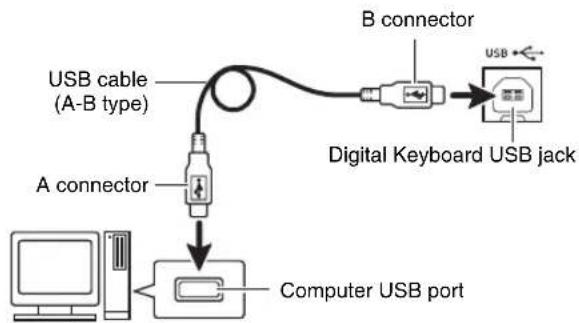
flowchart
graph TD
    A["Computer USB port"] --> B["A connector"]
    B --> C["USB cable (A-B type)"]
    C --> D["B connector"]
    D --> E["Digital Keyboard USB jack"]
3. Turn on the Digital Keyboard.
- If this is the first time you are connecting the Digital Keyboard to your computer, the driver software required to send and receive data will be installed on your computer automatically.
4. Start up your computer's music software.
5. Configure the music software settings to select one of the following as the MIDI device.
CASIO USB-MIDI : For Windows 8.1, Windows 8, Windows 7, Windows Vista, Mac OS X
USB Audio Device : For Windows XP
- For information about how to select the MIDI device, see the user documentation that comes with the music software you are using.

IMPORTANT!
- Be sure to turn on the Digital Keyboard first before starting up your computer's music software.

NOTE
- Once you are able to connect successfully for the first time, there is no problem with leaving the USB cable connected when you turn off your computer and/or Digital Keyboard.
- You can alter the Digital Keyboard's MIDI setup by changing the MIDI data send channel or other settings. For details, see "MIDI Group" under "Function Menu Settings" (page E-131).
- For information about the relationship between each Digital Keyboard part (page E-36) and the MIDI IN and MIDI OUT channels, see "Assigning a MIDI Channel to Each Part" (page E-161).
• This Digital Keyboard conforms to General MIDI Level 1 (GM). - For detailed specifications and connections that apply to MIDI data send and receive by this Digital Keyboard, see the latest support information provided by the website at the following URL.
http://world.casio.com/
Storing and Loading Digital Keyboard Memory Data
You can transfer song sequencer songs, user rhythms, and other data in Digital Keyboard memory to a computer for storage. You also can load Auto Accompaniment data you download from the CASIO website to the Digital Keyboard, which greatly expands the Auto Accompaniment patterns available to you. A special Data Manager application is required in order to transfer data to and from the Digital Keyboard.
Data Types Supported for Data Transfer Downloading Data Manager
The same types of data that you can store to or recall from a memory card (page E-136) can be transferred to and from the Digital Keyboard.
To download Data Manager
- Go to the CASIO WORLDWIDE site at the following URL.
http://world.casio.com/ - At the site, select a geographic area or country.
-
After accessing the area site, navigate to the minimum computer system requirements for Data Manager for this product.
-
You should be able to find a link to Data Manager information on the product introduction page of this product. If you cannot find such a link, use the search form of the area site where you are located to enter the model name of this product and search for it.
-
Note that site contents are subject to change without notice.
-
Check if your computer system complies with the minimum requirements for Data Manager.
-
Download Data Manager and its user's guide to your computer.
-
Follow the procedure in the user's guide that you downloaded in step 5 to install and use Data Manager.
Using Rhythm (Auto Accompaniment) Data from another Model
You can use the procedures in this section to import and use rhythm data from another model.
Rhythm Data Compatibility
NOTE
- You may experience some abnormalities when trying to play back rhythm data created for another model.
- Note that some of the models described below are available only in certain geographic locations.
① Models whose rhythm data is compatible with the Digital Keyboard
Rhythm data (filename extension: ac7) of the models below can be imported to the Digital Keyboard and used as-is.
Conversely, rhythm data from this Digital Keyboard can be used on these models.
| AP-6/620 |
| AT-3/5 |
| CDP-200R/220R |
| CTK-4000/4200/5000/5000SK/5300/6000/6200/6300/7000/7200/7300 |
| PX-330 |
| WK-200/210/220/225/330/500/6500/6600/7500/7600 |
② Models whose rhythm data can be used as-is on the Digital Keyboard
Rhythm data (filename extensions: z00 and ckf) of the models below can be imported to the Digital Keyboard and used as-is. Rhythm data for these models can be downloaded from the CASIO MUSIC SITE (http://music.casio.com/).
| CTK-671/691/900 |
| PX-410R/575R |
| WK-3000/3200/3300/3500/3700/3800/8000 |
Rhythm data from this Digital Keyboard cannot be used on these models.
③ Models whose rhythm data can be used on the Digital Keyboard following conversion
Rhythm data (filename extensions: cpt and ept) can be imported to the Digital Keyboard and used after it is converted with Rhythm Converter to compatible data (described in ② above). Rhythm Converter can be downloaded from the CASIO MUSIC SITE
(http://music.casio.com/).
| CTK-731/738/811 |
| WK-1800 |
Rhythm data from this Digital Keyboard cannot be used on these models.
Importing and Transferring Rhythm Data from Other Models
You can transfer rhythm data from other models by loading it from a memory card, or by using Data Manager to transfer the data from a computer to Digital Keyboard memory. For information about actual operations, see "Importing Data from Various Storage Media" (page E-147).

NOTE
- Note that rhythm data from some models needs to be converted before it can be used on this Digital Keyboard. For more information, see “Rhythm Data Compatibility” (page E-146).
Importing Data from Various Storage Media
The procedure you need to use to import or transfer rhythm data to Digital Keyboard memory depends on the media (computer local disk, memory card) where the data is currently stored. This section explains each of the required procedures.
- For details about Data Manager, see "Storing and Loading Digital Keyboard Memory Data" (page E-146).
- For information about the types of memory cards supported by the Digital Keyboard, see “Using a Memory Card” (page E-136).
To load rhythm data into Digital Keyboard memory
Perform one of the procedures below, depending on the type of data you want to load.
| If the data is on this type of media: | Do this: |
| Computer local disk | Perform the procedure under “To download Data Manager” (page E-146).For details about how to transfer data from the computer to the Digital Keyboard, see the user documentation that comes with Data Manager.Or:Copy the data from your computer’s local disk to the MUSICDAT folder on a 2GB to 32GB capacity memory card that has been formatted on the Digital Keyboard.Perform the procedure under “To load data to Digital Keyboard memory from a memory card” (page E-140). |
| 2GB to 32GB capacity memory card | Depending on the location of the data on the memory card, perform either of the following operations.If the data is in the MUSICDAT folder on the memory card, advance directly to step 2 of this procedure.If the data is not in the MUSICDAT folder on the memory card, move it to the MUSICDAT folder. If there is no MUSICDAT folder on the memory card, create a new folder in the memory card’s root directory and name it MUSICDAT. Next, move the data to the folder.Perform the procedure under “To load data to Digital Keyboard memory from a memory card” (page E-140). |
| Unsupported memory card(capacity less than 2GB, etc.) | Copy the data on the memory card to the computer’s local disk.Copy the data in step 1 from the computer’s local disk to the MUSICDAT folder of a memory card (2GB to 32GB card) that was formatted on the Digital Keyboard.Perform the procedure under “To load data to Digital Keyboard memory from a memory card” (page E-140).Or:Copy the data on the memory card to the computer’s local disk.Perform the procedure under “To download Data Manager” (page E-146).For details about how to transfer data from the computer to the Digital Keyboard, see the user documentation that comes with Data Manager. |
Error Messages
| Display Message | Cause Required Action | |
| Format 1. The current memory card format is not compatible with this Digital Keyboard.2. The memory card capacity is greater than 32GB.3. You are trying to use an SDXC card. 3. SDXC cards4. There is something wrong with the memory card. 4. | 1. Format the memory card on the Digital Keyboard (page E-137).2. Use a memory card with a capacity between 2GB and 32GB.not supported. Use an SD or SDHCMemory card.Use a different memory card. | |
| Card Full There is not enough room available on the memory card. | Delete some of the files on the memory card to make room for new data (page E-141), or use a different card. | |
| Card R/W Memory card data is corrupted. Use a different memory card. | ||
| No Card 1. The memory card is not loaded correctly in the Digital Keyboard's card slot.2. The memory card was removed while some operation was in progress. | 1. Correctly load the memory card into the card slot.2. Do not remove the memory card while any operation is in progress. | |
| No Data 1. You tried to save a Digital Keyboard user area (user rhythm, user rhythm song, etc.) that does not contain any data to the memory card.2. You are attempting to play back an audio file that does not contain any data. | 1. Select a user area that contains data.2. Select an audio file whose number has an asterisk (*) next to it, which indicates that it contains recorded data. | |
| No File 1. There is no MUSICDAT folder (page E-140) on the memory card.2. There is no loadable or playable data in the MUSICDAT folder. | 1. Create a MUSICDAT folder on the memory card or format the memory card on the Digital Keyboard (page E-137).2. Move the file you want to load or play into the memory card's MUSICDAT folder. | |
| Not SMF0/1 | You are attempting to play back SMF Format 2 file. | This Digital Keyboard supports playback of SMF Format 0 or Format 1 only. |
| Protect | The memory card is write-protected. | Use the memory card's write protect switch to enable writing. |
| Read Only | A read-only file with the same name you are trying to use is already stored on the memory card. | · Use a different name to save the new file.· Remove the read-only attribute from the existing file and overwrite it with the new file.· Use a different memory card. |
| Size Over | 1. The data on the memory card is too big to play.2. The data you are trying to load is too large. | 1. This Digital Keyboard supports playback of song data files with a maximum size of about 320KB.2. The following is the approximate maximum data sizes (per data item) when loading data into Digital Keyboard memory.User rhythm: 32KBSong sequencer song: 159KBUser preset: 8KBA total of approximately 128KB of user presets (total of all 100 user presets) can be loaded. |
| Wrong Data | 1. The memory card data is corrupted.2. The memory card contains data that is not supported by this Digital Keyboard. | Use a different memory card. |
| Meas. Limit You tried to perform an operation during song sequencer song editing or user music preset editing that would cause the number of measures in the song or chord progression to exceed 999. | Make sure your edits do not cause the number of measures to exceed the 999-measure limit. | |
| Memory Full 1. There is not enough memory capacity required for pattern sequencer operations. | 1. To record new data of some part of some accompaniment pattern, clear another part and/or another accompaniment patterns. If you want to use Easy Edit, select a different rhythm from the one that was selected when the error message appeared. | |
| 2. Remaining memory capacity became too low during music preset editing. | ||
| 3. There is not enough memory capacity required for song sequencer operations. | ||
| File Name When renaming a file on a memory card, attempting to specify a file name that is already used. | Use a different name. | |
| Card Size Memory card capacity is not enough for audio recording and playback. | Use a memory card with a capacity at least 2GB. | |
| Write Error! Writing to internal storage memory failed. Try again. | ||
Troubleshooting
| Symptom Action | |
| Included Accessories | |
| I can't find something that should be included with the product. | Carefully check inside all of the packing materials. |
| Power Requirements | |
| Power will not turn on. | Check the AC adaptor or make sure that the batteries are facing correctly (page E-9).Replace the batteries with new ones or switch over to AC adaptor power (page E-9).You may have tried to perform some operation while the “Please Wait” message was displayed, which caused an internal problem. If other measures do not correct this problem, perform the operation below to turn on power.Warning!The following operation will delete all Digital Keyboard data and return all settings to their initial factory defaults.While holding down the R-2 ([B] E.PIANO) and R-5 ([E] STRINGS) buttons, press the L-1 (POWER) button to turn on power. |
| The display lights up momentarily but power does not turn on when I press the L-1 (POWER) button. | Press the L-1 (POWER) button firmly and completely to turn on power. |
| The Digital Keyboard outputs a loud sound and then suddenly powers down. | Replace the batteries with new ones or switch over to AC adaptor power (page E-9). |
| The Digital Keyboard suddenly powers down after a few minutes. | This happens when Auto Power Off (page E-13) is triggered. |
| Display | |
| The display keeps going out or is flashing. | Replace the batteries with new ones or switch over to AC adaptor power (page E-9). |
| Screen contents are visible only from straight ahead. | This is due to production limitations. It does not indicate malfunction. |
| Sound | |
| Nothing happens when I press any keyboard key. | Adjust the volume setting (page E-13).Check if something is plugged into the T-9 (PHONES) jack on the back of the Digital Keyboard.Turn power off and then back on to initialize all keyboard settings (page E-13). |
| Nothing happens or notes do not play normally when I play on the left side of the keyboard. | Press the L-17 (ACCOMP ON/OFF) button to disable chord input with chord keyboard (page E-24). |
| Nothing happens when I start an Auto Accompaniment. | With rhythms E:030 to E:039, nothing will sound until you play a chord on the keyboard. Try playing a chord (page E-26).Check and adjust the accompaniment volume setting (page E-133).If there is no user rhythm stored in memory, Auto Accompaniment will not start when you press the L-16 (START/STOP) button while a rhythm in the range of F:001 to F:100 is selected (page E-24).Turn power off and then back on to initialize all Digital Keyboard settings (page E-13). |
| The metronome does not sound. Check and adjust the metronome volume setting (page E-133).Turn power off and then back on to initialize all Digital Keyboard settings (page E-13). | |
| Notes keep sounding, without stopping. | Turn power off and then back on to initialize all Digital Keyboard settings (page E-13).Replace the batteries with new ones or switch over to AC adaptor power (page E-9). |
| Some notes are cut off while they are playing. | Notes are cut off whenever the number of notes being sounded exceeds the maximum polyphony value of 64 (21 to 32 for some tones). This does not indicate malfunction. |
| The volume or tone setting I configured has changed. | Adjust the volume setting (page E-13).Turn power off and then back on to initialize all Digital Keyboard settings (page E-13).Replace the batteries with new ones or switch over to AC adaptor power (page E-9). |
| Output volume does not change even though I change my keyboard pressure. | Change the Touch Response setting (page E-131).Turn power off and then back on to initialize all Digital Keyboard settings (page E-13). |
| In certain keyboard ranges, the volume and tone quality sound are slightly different from those in other keyboard ranges. | This is due to system limitations. It does not indicate malfunction. |
| With some tones, octaves do not change at the far ends of the keyboard. | This is due to system limitations. It does not indicate malfunction. |
| The pitch of the notes does not match other accompanying instruments or sounds strange when played along with other instruments. | When theTRANSPOSEindicator is displayed, it means that the transpose setting (page E-18) has been used to change the pitch of the keyboard. Return the transpose setting to 00.When theSCALEindicator is displayed, it means that the scale setting (page E-21) has been used to change the Digital Keyboard's initial default setting. Use the procedure under “To select a preset scale” (page E-21) to change to the “Equal” preset scale.Turn power off and then back on to initialize all Digital Keyboard settings (page E-13). |
| The reverb of notes seems to change suddenly. | Check and adjust the reverb setting (page E-31).Turn power off and then back on to initialize all Digital Keyboard settings (page E-13). |
| Operation | |
| Tone, rhythm, and other settings revert to their initial defaults whenever you turn on the Digital Keyboard. | The Digital Keyboard may be configured to restore default settings (factory default settings or settings registered by you) when power is turned on. If you want the Digital Keyboard to remember its last setup and restore it the next time it is turned on, select “on” for the Auto Resume setting (page E-134). |
| Computer Connection | |
| I can't exchange data between the Digital Keyboard and a computer. | Check to make sure that the USB cable is connected to the Digital Keyboard and computer, and that the device is selected correctly with your computer's music software settings (page E-145).Turn off the Digital Keyboard and then exit the music software on your computer. Next, turn the Digital Keyboard back on and then restart the music software on your computer. |
Specifications
| Models CTK-7200/WK-7600 | |
| Keyboard CTK-7200: 61 standard-size keys | |
| Touch Response 2 types, Off | WK-7600: 76 standard-size keys |
| Maximum Polyphony 64 notes (32 for certain tones, 21 for drawbar organ tones) | |
| Tones | |
| Built-in Tones 820 | |
| User Tones Up to 100 (Tone Editor), up to 50 (Drawbar Edit) | |
| Functions Layer, Split | |
| Drawbar Organ | |
| Drawbars 9 sliders (16', 5 | ^1/3 , 8', 4', 2^2/3 , 2', 1^3/5 , 1^1/3 , 1') |
| Percussion Second/Third | |
| Click On/Off | |
| Rotary Effect Fast/Slow | |
| Reverb 1 to 10, Off | |
| Chorus 1 to 5 | |
| DSP | |
| Preset DSP 100 | |
| User DSP Up to 100 | |
| Metronome | |
| Beats per Measure | 0, 2 to 6 |
| Tempo Range | 30 to 255 |
| Auto Accompaniment | |
| Built-in Rhythms | 260 |
| User Rhythms | Up to 100 (Pattern Sequencer) |
| Demo Songs | 5 songs |
| Registration | 96 (6 setups × 16 banks) |
| Song Sequencer | Real-time recording, playback |
| Punch-in recording | |
| Keyboard Play | 5 songs, 17 tracks |
| Memory Capacity | Approximately 30,000 notes (total for 5 songs) |
| Audio Recording and Playback Functions | |
| Requirement | An SD or SDHC memory card, 2GB to 32GB |
| Recording | Recording of keyboard play, song sequencer song playback, sound input from MIC IN jack and INST IN jackUp to 20 audio files (maximum recording time: approximately 13 minutes for a single audio file) |
| Playback | Up to 999 files (including files used for recording) |
| Mixer | 32 parts (A01-A16/B01-B16)Master parameters, DSP parameters, Part parameters, MIC/INST parameters |
| Other Functions | |
| Transpose | ±1 octaves (-12 to +12 semitones) |
| Octave Shift | UPPER 1/UPPER 2/LOWER ±2 octaves |
| Tuning | A4 = 415.5 - 440.0 - 465.9 Hz |
| Scale Tuning | Scale Fine Tune, Preset Scales |
| Music Preset 305 built-in, plus 100 user presets | |
| One Touch Preset | 260 |
| Auto Harmonize | 12 types |
| Arpeggiator 150 types | |
| Equalizer | 5 presets |
| MIDI 16 multi-timbre received, GM | Level 1 standard |
| Pitch Bend Wheel | |
| Pitch Bend Range 0 to 24 semitones | |
| Memory Cards | |
| Supported Memory Cards SD or Functions SMF playback, file storage, file recall, file delete, card format | SDHC memory cards, 2GB to 32GB |
| Inputs/Outputs | |
| USB jack TYPE B | |
| Sustain/Assignable jack Standard jack (sustain, sostenuto, soft, start/stop) | |
| Phones jack Stereo standard jack | |
| Line Out R, L/MONO jacks Standard jack × 2 | Output Impedance: 2.3kΩ, Output Voltage: 1.5V (RMS) MAX |
| Audio In jack Stereo mini jack | Input Impedance: 9kΩ, Input Sensitivity: 200mV |
| Inst In Jack Standard jack | Input Impedance: 9kΩ, Input Sensitivity: 200mV |
| Mic In jack Standard jack (connect a dynamic microphone only) | Input Impedance: 3kΩ, Input Sensitivity: 10mV |
| Power Jack 12V DC | |
| Power Supply 2-way | |
| Batteries | 6 D-size zinc-carbon batteries or alkaline batteries |
| Battery Life Approximately 4 hours continuous operation on alkaline batteries | |
| AC Adaptor | AD-A12150LW |
| Auto Power Off | Approximately 6 minutes after last key operation during battery use, approximately 4 hours after last key operation during AC adaptor use. Auto Power Off can be disabled. |
| Speakers | 12 cm × 2 + 3 cm × 2 (Output: 7.0W + 7.0W) |
| Power Consumption | 12V --- 18W |
| Dimensions | CTK-7200: 94.8 × 38.4 × 12.2 cm (37 3/8 × 15 1/8 × 4 13/16 inch)WK-7600: 116.1 × 38.5 × 14.7 cm (45 3/4 × 15 3/16 × 5 13/16 inch) |
| Weight | CTK-7200: Approximately 6.7kg (14.8 lbs) (without batteries)WK-7600: Approximately 8.3kg (18.3 lbs) (without batteries) |
- Design and specifications are subject to change without notice.
Operating Precautions
Be sure to read and observe the following operating precautions.
■Location
Avoid the following locations for this product.
- Areas exposed to direct sunlight and high humidity
- Areas subjected to temperature extremes
- Near a radio, TV, video deck, or tuner
The above devices will not cause malfunction of the product, but the product can cause interference in the audio or video of a nearby device.
■User Maintenance
- Never use benzine, alcohol, thinner, or other chemical agents to clean the product.
- To clean the product or its keyboard, wipe with a soft cloth moistened in a weak solution of water and a mild neutral detergent. Wring all excess moisture from the cloth before wiping.
■Included and Optional Accessories
Use only accessories that are specified for use with this product. Use of unauthorized accessories creates the risk of fire, electric shock, and personal injury.
■AC Adaptor Handling Precautions
- Use a power outlet that is easily accessible so you can unplug the AC adaptor when a malfunction occurs or whenever else you need to do so.
- The AC adaptor is intended for indoor use only. Do not use it where it might be exposed to splashing or moisture. Do not place any container, such as a flower vase, that contains liquid on the AC adaptor.
- Store the AC adaptor in a dry place.
- Use the AC adaptor in an open, well-ventilated area.
- Never cover the AC adaptor with newspaper, a table cloth, a curtain, or any other similar item.
- Unplug the AC adaptor from the power outlet if you do not plan to use the product for a long time.
- Never try to repair the AC adaptor or modify it in any way.
• AC adaptor operating environment
Temperature: 0 to 40°C
Humidity: 10% to 90% RH
• Output polarity: ◇-●-⊕
■Weld Lines
Lines may be visible on the exterior of the product. These are "weld lines" that result from the plastic molding process. They are not cracks or scratches.
■Musical Instrument Etiquette
Always be aware of others around you whenever using this product. Be especially careful when playing late at night to keep the volume at levels that do not disturb others. Other steps you can take when playing late at night are closing windows and using headphones.
DSP Effect List
Preset DSP List
The table below shows the preset DSPs that can be selected by the procedure under "To use a DSP" (page E-32).
- The "Number" column shows DSP numbers, while the "Screen Name" shows the DSP name that appears on the display.
- The DSPs of this Digital Keyboard consist of the 46 "types" shown in the "DSP Type List" (page E-156). A preset DSP is a variation that is derived from one of these 46 types.
| Number Screen Name Type Number | |
| 001 Comp 1 02 | |
| 002 Comp 2 02 | |
| 003 Enhance1 04 | |
| 004 Enhance2 04 | |
| 005 Phaser 1 07 | |
| 006 Phaser 2 07 | |
| 007 Phaser 3 07 | |
| 008 Chorus 1 09 | |
| 009 Chorus 2 09 | |
| 010 Chorus 3 09 | |
| 011 Chorus 4 09 | |
| 012 Chorus 5 09 | |
| 013 CmpCho 1 24 | |
| 014 CmpCho 2 24 | |
| 015 RefCho 41 | |
| 016 Flanger1 08 | |
| 017 Flanger2 08 | |
| 018 Flanger3 08 | |
| 019 Flanger4 08 | |
| 020 CmpFln 25 | |
| 021 Delay 1 10 | |
| 022 Delay 2 10 | |
| 023 Delay 3 10 | |
| 024 Delay 4 10 | |
| 025 Delay 5 10 | |
| 026 Reflect1 11 | |
| 027 Reflect2 11 | |
| 028 Reflect3 11 | |
| 029 CmpRef 26 | |
| 030 ChoRef 1 | 36 |
| 031 ChoRef 2 | 36 |
| 032 ChoRef 3 | 36 |
| 033 FlnRef 1 | 38 |
| 034 FlnRef 2 | 38 |
| 035 FlnRef 3 | 38 |
| 036 Tremolo 6 | |
| 037 CmpTrm 27 | |
| 038 TrmRef 46 | |
| 039 TrmCho 1 44 | |
| 040 TrmCho 2 44 | |
| 041 TrmFln 1 45 | |
| 042 TrmFln 2 45 | |
| 043 TrmDst 1 | 43 |
| 044 TrmDst 2 | 43 |
| 045 AutoPan | 05 |
| 046 CmpPan 28 | |
| 047 ChoPan 1 | 37 |
| 048 ChoPan 2 | 37 |
| 049 FlnPan 1 39 | |
| 050 FlnPan 2 39 |
| Number | Screen Name Type | Number |
| 051 RefPan 1 | 42 | |
| 052 RefPan 2 | 42 | |
| 053 Rotary 1 | 12 | |
| 054 Rotary 2 | 12 | |
| 055 Rotary 3 | 12 | |
| 056 Rotary 4 | 12 | |
| 057 Rotary 5 | 12 | |
| 058 Wah 1 | 01 | |
| 059 Wah 2 | 01 | |
| 060 Wah 3 | 01 | |
| 061 Wah 4 | 01 | |
| 062 CmpWah | 22 | |
| 063 WahCho 1 | 17 | |
| 064 WahCho 2 | 17 | |
| 065 WahFin 1 | 18 | |
| 066 WahFin 2 | 18 | |
| 067 WahDst 1 | 16 | |
| 068 WahDst 2 | 16 | |
| 069 WahTrm 1 | 20 | |
| 070 WahTrm 2 | 20 | |
| 071 WahPan 1 | 21 | |
| 072 WahPan 2 | 21 | |
| 073 WahRef 1 19 | ||
| 074 WahRef 2 | 19 | |
| 075 WahCmp 1 | 15 | |
| 076 WahCmp 2 | 15 | |
| 077 Dist 1 | 03 | |
| 078 Dist 2 | 03 | |
| 079 Dist 3 | 03 | |
| 080 DstCmp | 30 | |
| 081 CmpDst | 23 | |
| 082 DstTrm 1 34 | ||
| 083 DstTrm 2 | 34 | |
| 084 DstPan 1 35 | ||
| 085 DstPan 2 | 35 | |
| 086 DstCho 1 | 31 | |
| 087 DstCho 2 | 31 | |
| 088 DstFIn 1 32 | ||
| 089 DstFIn 2 | 32 | |
| 090 DstFIn 3 32 | ||
| 091 DstWah 1 | 29 | |
| 092 DstWah 2 | 29 | |
| 093 DstWah 3 | 29 | |
| 094 DstWah 4 | 29 | |
| 095 DstRef | 33 | |
| 096 RefDst | 40 | |
| 097 Lo-Fi | 14 | |
| 098 RingMod1 | 13 | |
| 099 RingMod2 | 13 | |
| 100 RingMod3 | 13 |
DSP Type List
All of the Digital Keyboard's preset DSPs belong to one of the DSP types shown in the table below. When creating a user DSP (page E-33) or when using the tone editor (page E-44) to edit the DSP applied to a tone, you need to select one of the DSP types in the table.
- Type numbers 01 through 14 are single type DSPs, while numbers 15 through 46 are dual type DSPs. A single type DSP is one with a single structure, while a dual type is a combination of two single type DSPs.
- The name of a dual DSP is formed by its two constituent single DSP names, in the order that they are applied. For example, type 15 named "Wah-Compressor" connects in line to "Wah" and "Compressor", in that sequence.
| Type Number DSP Type Name Screen | Name | |
| 01 Wah Wah | ||
| 02 Compressor Comp | ||
| 03 Distortion Dist | ||
| 04 Enhancer Enhance | ||
| 05 AutoPan AutoPan | ||
| 06 Tremolo Tremolo | ||
| 07 Phaser Phaser | ||
| 08 Flanger Flanger | ||
| 09 Chorus | Chorus | |
| 10 Delay | Delay | |
| 11 Reflection | Reflect | |
| 12 Rotary | Rotary | |
| 13 RingModulator | RingMod | |
| 14 Lo-Fi | Lo-Fi | |
| 15 Wah-Compressor | WahCmp | |
| 16 Wah-Distortion | WahDst | |
| 17 Wah-Chorus | WahCho | |
| 18 Wah-Flanger | WahFIn | |
| 19 Wah-Reflection | WahRef | |
| 20 Wah-Tremolo | WahTrm | |
| 21 Wah-AutoPan | WahPan | |
| 22 | Compressor-Wah | CmpWah |
| 23 Compressor-Distortion | CmpDst | |
| Type Number DSP Type Name Screen Name | ||
| 24 Compressor-Chorus | CmpCho | |
| 25 Compressor-Flanger | CmpFln | |
| 26 Compressor-Reflection | CmpRef | |
| 27 Compressor-Tremolo | CmpTrm | |
| 28 Compressor-AutoPan | CmpPan | |
| 29 Distortion-Wah | DstWah | |
| 30 Distortion-Compressor | DstCmp | |
| 31 Distortion-Chorus | DstCho | |
| 32 Distortion-Flanger | DstFln | |
| 33 Distortion-Reflection | DstRef | |
| 34 Distortion-Tremolo DstTrm | ||
| 35 Distortion-AutoPan | DstPan | |
| 36 Chorus-Reflection | ChoRef | |
| 37 Chorus-AutoPan ChoPan | ||
| 38 Flanger-Reflection | FlnRef | |
| 39 Flanger-AutoPan | FlnPan | |
| 40 Reflection-Distortion | RefDst | |
| 41 Reflection-Chorus | RefCho | |
| 42 Reflection-AutoPan RefPan | ||
| 43 Tremolo-Distortion | TrmDst | |
| 44 Tremolo-Chorus | TrmCho | |
| 45 Tremolo-Flanger TrmFln | ||
| 46 Tremolo-Reflection | TrmRef | |
- For details about parameters that can be configured with each DSP type, refer to the sections shown in the table below.
| For information about this DSP type: Go here: | |
| Single type (Type numbers 01 through 14) Single Type DSP Parameters (page E-157) | |
| Dual type (Type numbers 15 through 46) Dual Type DSP Parameters (page E-159) | |
DSP Parameter List
■Single Type DSP Parameters
01: Wah
This is a "wah" effect that can automatically affect the frequency using an LFO.
Parameters and Value Ranges:
1 : Resonance (0 to 127)
Adjusts the strength of resonance.
2: Manual (0 to 127)
Adjusts the wah filter reference frequency.
3 :LFO Rate (0 to 127)
Adjusts the LFO rate.
4 :LFO Depth (0 to 127)
Adjusts the LFO depth.
5 :LFO Waveform (off, sin, tri, random)
Selects the LFO waveform.
02: Compressor
Compresses the input signal, which can have the effect of suppressing level variation and make it possible to sustain dampened sounds longer.
Parameters and Value Ranges:
1 :Attack (0 to 127)
Adjusts the attack amount of the input signal. A smaller value causes prompt compressor operation, which suppresses the attack of the input signal. A larger values delays compressor operation, which causes the attack of the input signal to be output as-is.
2 : Release (0 to 127)
Adjusts the time from the point the input signal drops below a certain level until the compression operation is stopped. When an attack feeling is desired (no compression at the onset of sound), set this parameter to as low a value as possible. To have compression applied at all times, set a high value.
3 :Level (0 to 127)
Adjusts the output level.
4 : Threshold (0 to 127)
Adjusts the volume level at which the compression operation starts.
03: Distortion
Digital distortion that applies an overtone to the input signal and distorts it.
Parameters and Value Ranges:
1 :Gain (0 to 127)
Adjusts the input signal gain.
2 :Level (0 to 127)
Adjusts the output level.
04: Enhancer
Phase shifts low-range sounds and high-range sounds of the input signal to enhance the signal's profile.
Parameters and Value Ranges:
1: Low Frequency (0 to 127)
Adjusts the low range enhancer frequency.
2:Low Phase (0 to 127)
Adjusts the phase shift amount of the low-range enhancer.
3 : High Frequency (0 to 127)
Adjusts the high range enhancer frequency.
4 :High Phase (0 to 127)
Adjusts the phase shift amount of the high-range enhancer.
05: Auto Pan
Performs continual left-right panning of the input signal using an LFO.
Parameters and Value Ranges:
1 :LFO Rate (0 to 127)
Adjusts the panning rate.
2:LFO Depth (0 to 127)
Adjusts the panning depth.
3 :LFO Waveform (sin, tri)
Selects the LFO waveform.
06: Tremolo
Adjusts the volume of the input signal using an LFO.
Parameters and Value Ranges:
1 :LFO Rate (0 to 127)
Adjusts the tremolo rate.
2 :LFO Depth (0 to 127)
Adjusts the tremolo depth.
3 :LFO Waveform (sin, tri)
Selects the LFO waveform.
07: Phaser
Produces a distinctive pulsating, broad sound by using an LFO to change the phase of the input signal and then mixes it with the original input signal.
Parameters and Value Ranges:
1 : Resonance (0 to 127)
Adjusts the strength of the resonance.
2 :LFO Rate (0 to 127)
Adjusts the LFO rate.
3 :LFO Depth (0 to 127)
Adjusts the LFO depth.
4 :LFO Waveform (sin, tri, random)
Selects the LFO waveform.
08: Flanger
Applies wildly pulsating and metallic reverberation to sounds. LFO waveform is selectable.
Parameters and Value Ranges:
1 : LFO Rate (0 to 127) Adjusts the LFO rate.
2 : LFO Depth (0 to 127) Adjusts the LFO depth.
3 :LFO Waveform (sin, tri, random) Selects the LFO waveform.
4 : Feedback (0 to 127) Adjusts the strength of feedback.
09: Chorus
Gives sounds depth and breadth. Chorus type is selectable.
Parameters and Value Ranges:
1 : LFO Rate (0 to 127) Adjusts the LFO rate.
2 : LFO Depth (0 to 127) Adjusts the LFO depth.
3 :LFO Waveform (sin, tri) Selects the LFO waveform.
4 : Feedback (0 to 127) Adjusts the strength of feedback
5 :Type (mono, stereo, tri) Selects the chorus type.
10: Delay
Delays the input signal and feeds it back to create a repeating effect and give sounds more breadth.
Parameters and Value Ranges:
1 : Delay Time (0 to 127) Adjusts the delay time.
2 : Feedback (0 to 127) Adjusts the repeat of the delay.
3 :Ratio Lch (0 to 127) Adjusts the delay time of the left channel. This value is a ratio of the value specified for Delay Time.
4 :Ratio Rch (0 to 127) Adjusts the delay time of the right channel. This value is a ratio of the value specified for Delay Time.
5 :Wet Level (0, 1, 2, 3, 4, 5) Adjusts the level of the delay sound.
6 :Type (1, 2) Selects the delay type. 1 :Delay repeat determined by Delay Time. 2 :Delay repeat determined by Delay Time and Ratio L/R.
Important!
When adjusting the delay time and type, certain settings can result in a switching sound in the delay.
11: Reflection
An effector that extracts early reflections from reverb. Applies acoustic presence to sounds.
Parameters and Value Ranges:
1 :Type (1, 2, 3, 4, 5, 6, 7, 8) Selects from among the eight available reflection patterns.
2 : Feedback (0 to 127) Adjusts the repeat of the reflected sound.
12: Rotary
This is a rotary speaker simulator.
Parameters and Value Ranges:
1 : Overdrive Gain (0, 1, 2, 3) Adjusts overdrive gain. 2 : Overdrive Level (0 to 127) Adjusts the overdrive output level.
3 : Speed (Slow, Fast) Switches the speed mode between fast and slow.
4 : Brake (Rotate, Stop) Stops speaker rotation.
5 : Fall Acceleration (0 to 127) Adjusts acceleration when the speed mode is switched from fast to slow.
6 :Rise Acceleration (0 to 127) Adjusts acceleration when the speed mode is switched from slow to fast.
7 : Slow Rate (0 to 127) Adjusts the speaker rotation speed in the slow speed mode.
8 : Fast Rate (0 to 127) Adjusts the speaker rotation speed in the fast speed mode.
13: Ring Modulator
Multiplies the input signal with an internal oscillator signal to create a metallic sound.
Parameters and Value Ranges:
1 :OSC Frequency (0 to 127) Sets the reference frequency of the internal oscillator.
2 : LFO Rate (0 to 127) Adjusts the LFO rate.
3 : LFO Depth (0 to 127) Adjusts the LFO depth.
4 :Type (1, 2, 3) 1 :Outputs the ring modulated signal only. 2 :Outputs the ring modulated signal and the input signal. 3 :Outputs a signal with a chorus effect applied to 2 (ring modulated signal and input signal).
14: Lo-Fi
Applies various types of noise to the input signal to reproduce a retro Lo-Fi sound.
Includes wow and flutter for rotational fluctuation like that in tapes and records, a Noise 1 generator that generates continual FM radio type, and a Noise 2 generator that generates record play types scratch noise.
Parameters and Value Ranges:
1 : Wow and Flutter Rate (0 to 127) Adjusts the wow and flutter rate.
2 : Wow and Flutter Depth (0 to 127) Adjusts the wow and flutter depth.
3 :Noise1 Level (0, 1, 2, 3, 4, 5) Adjusts the level of Noise Generator 1.
4 :Noise2 Level (0, 1, 2, 3, 4, 5) Adjusts the level of Noise Generator 2.
5: Noise2 Density (0, 1, 2, 3, 4, 5) Adjusts the frequency of Noise Generator 2.
6 :Bit (0, 1, 2, 3) Distorts the sound. A larger number produces greater distortion.
Important!
Raising the noise level while a note is not sounding will cause noise to sound, even if there is no input signal.
■Dual Type DSP Parameters
Dual type DSPs are configured by combining two different single type DSPs. Use the procedure below to determine what parameters that can be configured for each dual type DSP, and the operation, and setting ranges of dual type DSPs.
Example: Type number 29: Distortion-Wah
-
The DSP type name has two parts: a left side part and a right side part.
Distortion-Wah → "Distortion" and "Wah" -
Find out what parameters you can configure by looking up the left side part of a dual type DSP in the "Type Name" column of the table below.
| Type Name Configurable Parameters | |
| Wah LFO Waveform | LFO RateLFO Depth |
| Distortion Gain | Level |
| Chorus LFO Waveform | LFO RateLFO Depth |
| Flanger LFO Waveform | LFO RateLFO Depth |
| Reflection Feedback | |
| Compressor Threshold | Level |
| Auto Pan LFO Waveform | LFO RateLFO Depth |
| Tremolo LFO Waveform | LFO RateLFO Depth |
- Find the same type names in the table under "Single Type DSP Parameters" on pages E-157 through E-159, and note the operation and setting ranges of the items that are the same as those shown in the "Configurable Parameters" column of the above table.
- In our “Distortion-Wah” example, the left side part of the name is “Distortion” so we can see in the above table that “Gain” and “Level” parameters can be configured. You can find out about the operations and setting ranges of “Gain” and “Level” by referring to “03: Distortion” on page E-157.
- Next, repeat steps 2 and 3 above for the right side part of the dual type DSP parameter name.
- The parameter numbers that appear on the parameter setting screen start from 1, and the number is incremented for each successive parameter. The parameter numbers of our “Distortion-Wah” example would be as shown below.
1 : Gain
2 :Level
3 : L F O W a v e f o r m
4 : L F O R a t e
5 :LFO Depth
Fingering Guide
Fingered 1, Fingered 2 Chords
| C |  |
| Cm | 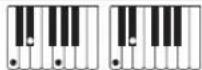 |
| Cdim | 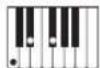 |
| Caug *3 |  |
| Csus4 *3 |  |
| Csus2 *3 |  |
| C7 |  |
| Cm7 *3 | 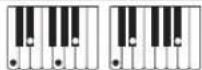 |
| CM7 |  |
| Cm7b5 *3 |  |
| C7b5 *3 | 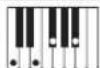 |
| C7sus4 |  |
| Cadd9 |  |
| Cmadd9 |  |
| CmM7 |  |
| Cdim7 *3 |  |
| C69 *3 |  |
| C6 *1 *3 | 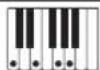 |
| Cm6 *2 *3 | 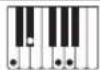 |
*1 With Fingered 2, interpreted as Am7.
*2 With Fingered 2, interpreted as Am75.
*3 Inverted form not supported in some cases.
Fingered 3, Full Range Chords
In addition to the chords that can be fingered with Fingered 1 and Fingered 2, the following chords also are recognized.
| ^\#C · · · · · ^bC · ^bC | ^\#mC | · |
| · · ^bmC | ^b7C |

NOTE
- With Fingered 3, the lowest note fingered is interpreted as the base note. Inverted forms are not supported.
- With Full Range Chord, when the lowest note fingered is a certain distance from the neighboring note, the chord is interpreted as a fraction chord.
- Unlike Fingered 1, 2, and 3, Full Range Chord requires pressing of at least three keys to form a chord.
Supported Input Characters
| ! | " | # | $ | % | & | ' | ( | ) | |
| * | + | , | - | . | / | 0 | 1 | 2 | 3 |
| 4 | 5 | 6 | 7 | 8 | 9 | : | ; | < | = |
| > | ? | @ | A | B | C | D | E | F | G |
| H | I | J | K | L | M | N | O | P | Q |
| R | S | T | U | V | W | X | Y | Z | [ |
| \ | ] | ^ | _ | ` | a | b | c | d | e |
| f | g | h | i | j | k | l | m | n | o |
| p | q | r | s | t | u | v | w | x | y |
| z | { | | | } | ~ | |||||
Assigning a MIDI Channel to Each Part
The following shows the relationship between MIDI IN and MIDI OUT channels and each part.
| This part: | MIDI Channel | Part name | |
| IN OUT | |||
| A01 -- | 01 | * | Upper1 |
| A02 -- 02 | Upper2 | ||
| A03 -- 03 | Lower | ||
| A04 -- 04 | Harmo. | ||
| A05 -- 05 | System | Upper1 | |
| A06 -- 06 | System | Upper2 | |
| A07 -- 07 | System | Lower | |
| A08 -- - | Metronome | ||
| A09 -- 09 | Perc. | ||
| A10 -- 10 | Drum | ||
| A11 -- 11 | Bass | ||
| A12 -- 12 | Chord1 | ||
| A13 -- 13 | Chord2 | ||
| A14 -- 14 | Chord3 | ||
| A15 -- 15 | Chord4 | ||
| A16 -- 16 | Chord5 | ||
| This part: | MIDI Channel | Part name | |
| IN OUT | |||
| B01 01 | 01 | SEQUENCER TRACK/MIDI 01 | |
| B02 02 | 02 | SEQUENCER TRACK/MIDI 02 | |
| B03 03 | 03 | SEQUENCER TRACK/MIDI 03 | |
| B04 04 | 04 | SEQUENCER TRACK/MIDI 04 | |
| B05 05 | 05 | SEQUENCER TRACK/MIDI 05 | |
| B06 06 | 06 | SEQUENCER TRACK/MIDI 06 | |
| B07 07 | 07 | SEQUENCER TRACK/MIDI 07 | |
| B08 08 | 08 | SEQUENCER TRACK/MIDI 08 | |
| B09 09 | 09 | SEQUENCER TRACK/MIDI 09 | |
| B10 10 | 10 | SEQUENCER TRACK/MIDI 10 | |
| B11 11 | 11 | SEQUENCER TRACK/MIDI 11 | |
| B12 12 | 12 | SEQUENCER TRACK/MIDI 12 | |
| B13 13 | 13 | SEQUENCER TRACK/MIDI 13 | |
| B14 14 | 14 | SEQUENCER TRACK/MIDI 14 | |
| B15 15 | 15 | SEQUENCER TRACK/MIDI 15 | |
| B16 16 | 16 | SEQUENCER TRACK/MIDI 16 | |
* The A01 part MIDI OUT channel depends on the keyboard channel setting. For details, see "KeyboardCh (Keyboard Channel)" (page E-133).
NOTE
- For details about parts, see "How Parts are Organized" (page E-36).
Parameter List
| To check this setting item: | Refer to this column in the table below: |
| Setting items that are always saved when power is turned off | 1 |
| Setting items stored in registration memory (page E-66) | 2 |
| When “on” is selected for the “AutoResume (Auto Resume)” setting (page E-134), setting items that are restored to those in effect the last time power was turned off | 3 |
| Items that are stored as “Default (Default Settings)” (page E-134) | |
| Settings items initialized by the “To initialize all mixer parameters” operation (page E-40) | 4 |
| Setting items initialized when “Parameter” (parameter settings only) is selected by “Initialize (Initialize)” (page E-135) | 5 |
| Setting Item | 1 | 2 | 3 | 4 | 5 | |
| User Memory Items | ||||||
| User rhythms, user tones, user drawbar organ tones, user DSPs, user presets | ○ | |||||
| Registration ○ | ||||||
| Function Menu Item | ||||||
| Tuning ○ ○ | ||||||
| Equalizer ○○ | ||||||
| Touch Response ○ ○ ○ | ||||||
| Touch Off Velocity ○○○ | ||||||
| Pedal Assign ○ ○ ○ | ||||||
| Bend Range*1 | ○ | ○ | ||||
| Arpeggiator Hold ○ ○ ○ | ||||||
| Arpeggiator Speed ○○○ | ||||||
| Arpeggiator Part ○ ○ ○ | ||||||
| Registration Filter (Accompaniment/Scale) | ○ | |||||
| Song Pre-count Sound ○ ○ | ||||||
| Song Repeat Play ○○ | ||||||
| Auto Accompaniment Volume ○ | *2 | ○ | ○ | |||
| Song Volume ○○ | ||||||
| Metronome Volume | ○ | ○ | ○ | |||
| Audio Volume | ○○ | |||||
| Keyboard Channel | ○ | ○ | ||||
| Local Control | ○ | |||||
| Accompaniment MIDI Out | ○ | |||||
| Speaker ON/OFF | ○○ | |||||
| LCD Contrast | ○ | |||||
| Auto Power Off | ○○ | |||||
| Auto Resume | ○ | |||||
| Other Items | ||||||
| Tone Number*1 | ○ | ○ | ○ | ○ | ||
| Rhythm Number | ○*2 | ○ | ○ | |||
| Music Preset Number | ○ | |||||
| Transpose | ○○○ | |||||
| Split On/Off | ○ | ○ | ○ | |||
| Split Point | ○○○ | |||||
| Layer On/Off | ○ | ○ | ○ | |||
| Octave Shift*3 | ○○○ | |||||
| Accompaniment On/Off | ○*2 | ○ | ○ | |||
| Chord Fingering Mode | ○*2 | ○ | ○ | |||
| Auto Harmonize On/Off/Type | ○ | ○ | ○ | |||
| Metronome Beat | ○○ | |||||
| DSP Disable | ○ | |||||
| Setting Item | 1 | 2 | 3 | 4 | 5 | |
| Reverb (On, Off, Type) | ○○ | ○ | ||||
| Chorus Type | ○ | ○ | ○ | |||
| DSP Type | ○○ | ○ | ||||
| Tempo | ○*2 | ○ | ○ | |||
| Synchro Standby | ○*2 | ○ | ○ | |||
| Scale Preset Number | ○ | ○ | ||||
| Scale Root | ○○ | |||||
| Scale Fine Tuning | ○*4 | ○ | ○ | |||
| Accompaniment Scale | ○*4 | ○○ | ○ | |||
| Accompaniment Part On/Off | ○*2 | ○ | ||||
| Mode (Rhythm/Card) Selection Status | ○ | |||||
| Card Song number | ○ | |||||
| Left-hand Part Select | ○ | |||||
| Right-hand Part Select | ○ | |||||
| Registration Bank Number | ○○ | |||||
| Rhythm Category Number | ○ | ○ | ||||
| Tone Category Number | ○○ | |||||
| Music Preset Category Number | ○ | |||||
| Mixer Settings for Part A01 through A04 | ||||||
| Part On/Off*1 | ○ | ○ | ○ | |||
| Part Volume*1 | ○○ | ○○ | ||||
| Part Pan*1 | ○ | ○ | ○ | ○ | ||
| Part Coarse Tuning*1 | ○○ | ○○ | ||||
| Part Fine Tuning*1 | ○ | ○ | ○ | ○ | ||
| Part Bend Range*1 | ○○ | ○○ | ||||
| Part DSP Line On/Off*1 | ○ | ○ | ○ | ○ | ||
| Part Reverb Send*1 | ○○ | ○○ | ||||
| Part Chorus Send*1 | ○ | ○ | ○ | ○ | ||
| Part Scale Enable*1 | ○○ | ○ | ||||
| Mixer Settings for Master, DSP and MIC/INST, and for Parts A05 through A16, and Parts B01 through B16 | ○ | |||||
*1 Configured for each of the following parts: A01 through A04 (UPPER 1, UPPER 2, LOWER, Auto Harmonize).
*2 Not recalled when "on" is selected for "RegFltAcmp" (page E-132).
*3 Configured for each of the following parts: A01 through A03 (UPPER 1, UPPER 2, LOWER).
*4 Not recalled when "on" is selected for "RegFltScal" (page E-132).
Chord Example List
| RootChordType | C | C^2/(D^b) | D | (D^b)/E^2 | E | F | F^2/(G^b) | G | (G^b)/A^b | A | (A^b)/B^b | B |
| M | ||||||||||||
| m | ||||||||||||
| dim | ||||||||||||
| aug | ||||||||||||
| sus4 | ||||||||||||
| sus2 | ||||||||||||
| 7 | ||||||||||||
| m7 | ||||||||||||
| M7 | ||||||||||||
| m7^5 | ||||||||||||
| 7^5 | ||||||||||||
| 7sus4 | ||||||||||||
| add9 | ||||||||||||
| madd9 | ||||||||||||
| mM7 | ||||||||||||
| dim7 | ||||||||||||
| 69 | ||||||||||||
| 6 | ||||||||||||
| m6 |
- Since the chord input range is limited, this model may not support some of the chords shown above.

flowchart
graph TD
    A["16.5V"] --> B["8"]
    C["27V"] --> D["2"]
    E["4/12"] --> F["3"]
    G["5/13"] --> H["4"]
    I["6/14"] --> J["5"]
    K["7/15"] --> L["7"]
    M["9/16"] --> N["8"]
    O["10-10"] --> P["9"]
    Q["11-11"] --> R["10"]
    S["12-12"] --> T["11"]
    U["D-4"] --> V["D-5"]
    W["D-6"] --> X["D-7"]
    Y["D-8"] --> Z["D-9"]
    AA["D-10"] --> AB["D-10"]
    AC["D-11"] --> AD["D-11"]
    AE["D-12"] --> AF["D-12"]

CTK-7200 / WK-7600
Models: CTK-7200/WK-7600 Version : 1.0
MIDI Implementation Chart
| Function Transmitted | Recognized Remarks | |||
| Basic Channel | Default Changed | 1 - 161 - 16 | 1 - 161 - 16 | |
| Mode | Default Messages Altered | Mode 3X***** | Mode 3X***** | |
| Note Number | 0 - 127***** | 0 - 1270 - 127 *1True voice | ||
| Velocity | Note ON Note OFF | O 9nH v = 1 - 127X 9nH v = 0 | O 9nH v = 1 - 127X 9nH v = 0, 8nH V =** | **: no relation |
| After Touch | Key's Ch's | X X | X O | |
| Pitch Bender | O | O | ||
| Control Change | 0, 3216, 387101116 - 19646667 | OO *2OOXX *2O *3O *3O *3 | O (MSB only)OO *2OO *2OO *2OOO | Bank selectModulationData entry LSB, MSB VolumePan ExpressionHold 1SostenutoSoft pedal |
| 70 - 90 | O *2 | O *2 | ||
| 91 | O | O | Reverb send | |
| 93 | O | O | Chorus send | |
| 98, 99 | O *2 | O *2 | NRPN LSB, MSB | |
| 100, 101 | O *2 | O *2 | RPN LSB, MSB | |
| Program Change :True # | O 0 - 127 | O 0 - 127 | ||
| System Exclusive | O *2 | O *2 | ||
| System Common : Song Pos : Song Sel : Tune | X | X | ||
| X | X | |||
| X | X | |||
| System Real Time : Clock : Commands | O | X | ||
| O | X | |||
| Aux Messages : All sound off : Reset all controller : Local ON/OFF : All notes OFF : Active Sense : Reset | X | O | ||
| O | O | |||
| X | X | |||
| O | O | |||
| X | X | |||
| Remarks | *1: Depends on tone.*2: For details, see MIDI Implementation at http://world.casio.com/.*3: In accordance with pedal effect setting. | |||
Mode 1 : OMNI ON, POLY Mode 2 : OMNI ON, MONO O : Yes Mode 3 : OMNI OFF, POLY Mode 4 : OMNI OFF, MONO X : No

This recycle mark indicates that the packaging conforms to the environmental protection legislation in Germany.
CASIO®

- Safety Precautions
- NOTICE
- FCC WARNING
- Declaration of Conformity
- Important!
- General Guide ...... E-4
- Getting Ready to Play ...... E-9
- Connections...... E-11
- Selecting and
- Playing a Tone ...... E-13
- Using Auto Accompaniment ... E-24
- Applying Effects to a Sound.... E-29
- Using the Mixer ......E-36
- Using the Tone Editor...... E-44
- Using Drawbar Organ Tones ... E-50
- Music Presets..... E-54
- Saving Keyboard Setups to Registration Memory ......E-66
- Using the Song Sequencer ..... E-68
- Using the
- Pattern Sequencer...... E-102
- Recording and
- Playing Audio...... E-121
- Using the Function Menu...... E-130
- Using a Memory Card...... E-136
- Connecting to a Computer .... E-145
- Reference..... E-148
- MIDI Implementation Chart
- RHYTHM buttons
- RHYTHM/SONG CONTROLLER buttons
- REGISTRATION buttons
- TONE buttons
- Reading the Display
- ① Detailed information area
- ② Level meter area
- ③ Indicator areas
- ④ Registration bank area
- ⑤ Chord area
- ⑥ Tempo, measure, beat area
- Currently Selected Item Indication
- Modes
- Menus
- ⚠ Precautions while “Please Wait” is displayed
- Saving Settings
- Returning the Digital Keyboard to Its Factory Default Settings
- Preparing the Music Stand
- Power Supply
- Using a Household Power Outlet
- Specified AC Adaptor: AD-A12150LW
- Using Batteries
- Connecting Headphones
- NOTE
- Connecting a Pedal
- Outputting Digital Keyboard Sound to Audio Equipment or an Amplifier
- Outputting Keyboard Notes to Audio Equipment ①
- Outputting Keyboard Notes to a Musical Instrument Amplifier ②
- Outputting Input from an External Device or a Microphone through the Digital Keyboard's Speakers
- Output of External Device Input that is Not Affected by the Digital Keyboard's Effects
- Output of External Device Input that is Affected by the Digital Keyboard's Effects
- Outputting Sound with a Microphone
- Bundled and Optional Accessories
- To turn on Digital Keyboard power
- Auto Power Off
- ■To disable Auto Power Off
- Listening to Demo Tunes
- Selecting a Tone
- To select a tone
- # # #(TIE) # MANUAL
- Now you can play on the keyboard using the tone you selected.
- Layering and Splitting Tones
- UPPER 1
- UPPER 2
- LOWER UPPER 1
- To layer two tones To split the keyboard between two tones
- To specify the keyboard split point
- To use layer and split together
- Raising and Lowering Keyboard Tuning (Transpose)
- While holding down the R-13 (FUNCTION) button, press one of the R-14 (-, +) buttons.
- While holding down the R-13 (FUNCTION) button, use the dial or the R-14 (-, +) buttons to change the setting value.
- Press the R-13 (FUNCTION) button.
- Using Octave Shift
- Hold down the R-20 (OCTAVE) button until the octave shift screen shown below appears on the display.
- Use the dial or R-14 (-, +) buttons to specify the octave shift amount.
- If you want to change the octave of the UPPER 2 part, press the R-20 (OCTAVE) button.
- If you want to change the octave of the LOWER part, press the R-20 (OCTAVE) button.
- Press the R-20 (OCTAVE) button or the R-15 (EXIT) button.
- Using the Metronome
- Press the L-9 (METRONOME) button.
- Press the L-9 (METRONOME) button again to stop the metronome.
- To change the beats per measure
- Hold down the L-9 (BEAT) button until the metronome beat screen shown below appears on the display.
- Use the dial or R-14 (-, +) buttons to select a beat setting.
- Press the L-9 (BEAT) or R-15 (EXIT) button.
- To change the tempo setting
- ■To change the tempo using the TEMPO buttons
- Press the L-10 (TEMPO ∨) (slower) or L-11 (TEMPO ∧) (faster) button.
- Use the L-10 (TEMPO ∨) and L-11 (TEMPO ∧) buttons to change the tempo (beats per minute).
- Press the R-15 (EXIT) button.
- ■To adjust the tempo by tapping a beat
- While holding down the R-13 (FUNCTION) button, tap the L-11 (TAP) button four times at the speed (tempo) you want to set.
- After setting the tempo by tapping, you then can use the procedure under "To change the tempo using the TEMPO buttons" (page E-19) to make fine adjustments.
- Using the Pitch Bend Wheel
- Applying Vibrato to Notes
- Selecting a Temperament and Fine Tuning Its Scale
- To select a preset scale
- When you are finished, press the R-15 (EXIT) button twice.
- Fine Tuning a Scale
- Specifying whether the Current Scale Settings Should be Applied to Auto Accompaniment (Accomp Scale)
- Playing Arpeggio Phrases Automatically (Arpeggiator)
- Hold down the R-18 (AUTO HARMONIZE/ARPEGGIATOR) button until the type selection screen shown below appears on the display.
- Use the dial or R-14 (-, +) buttons to select the arpeggiator type you want to use.
- Press the R-18 (AUTO HARMONIZE/ARPEGGIATOR) button.
- Configure arpeggiator settings as required.
- On the keyboard, play a chord or a single note.
- To turn off the arpeggiator, press the R-18 (AUTO HARMONIZE/ARPEGGIATOR) button again.
- Playing an Auto Accompaniment
- Press the L-15 (SYNCHRO/ENDING) button.
- You also can use the buttons described below to change to intro or variation pattern standby.
- Play the chord you want on the chord keyboard (left keyboard keys).
- Play other chords with your left hand as you play the melody with your right hand.
- When you are finished, press the L-16 (START/STOP) button again to stop Auto Accompaniment.
- Selecting a Chord Fingering Mode
- To select a chord fingering mode
- ■Fingered 1, 2, 3
- ■CASIO Chord
- ■Full Range Chord
- Modifying Auto Accompaniment Patterns
- Using One-Touch Presets
- To perform using a one-touch preset
- Start playing something on the keyboard.
- Using Auto Harmonize
- To play using auto harmonize
- Configuration of Effects
- ■Chorus Effect Mode Configuration
- ■DSP Effect Mode Configuration
- - Reverb
- - Chorus
- • DSP
- Selecting an Effect
- To add reverb to sounds
- To add the chorus effect to sounds
- To use a DSP
- Use the R-17 ( , ) buttons to move the thick brackets ([ ]) to the "DSP" setting.
- Use the dial or R-14 (-, +) buttons to select the preset DSP you want to use.
- Press the C-7 (EFFECT) button or the R-15 (EXIT) button.
- Creating a User DSP
- User DSP Numbers
- To create and save a user DSP
- Press the R-16 (ENTER) button.
- DSP Parameter Settings
- Mixer Overview
- How Parts are Organized
- Mixer Operation
- To change mixer parameters
- Press the C-7 (MIXER) button.
- Use the R-17 (<, >) buttons to select the mixer parameter you want to change.
- Use the R-17 (∧, ∨) buttons to move the thick brackets ([ ]) to the parameter you want to change.
- Use the dial or R-14 (-, +) buttons to change the setting value.
- Repeat steps 2 through 4 as required to configure other parameters.
- To exit the mixer, press the C-7 (MIXER) button or the R-15 (EXIT) button.
- Using the Sliders to Change Parameter Settings
- ●D-1 (PART/COMMON) button:
- ●D-2 (GROUP A/B) button:
- ●D-3 (1-8/9-16) button:
- ●Sliders D-4 (1/9/EXT) through D-11 (8/16):
- ●Slider D-12 (MASTER):
- ■Setting Operation Example: To adjust the volume of parts A01 through A16
- Volume [lon]
- Use sliders D-4 (1/9/EXT) to D-11 (8/16) to adjust the volume of each part (A01 through A08).
- To initialize all mixer parameters To change the information displayed by the
- level meter while configuring part parameter settings
- Mixer Parameter Settings
- MASTER Parameters
- DSP Parameters
- Tone Creation Overview
- Tone Characteristic Waveform
- • Tone Setting
- Volume Characteristic Parameters
- - Attack time
- - Release time
- - Cutoff Frequency
- Tone Pitch Parameters
- - Octave Shift
- Tone Characteristic Setting Parameters
- - Touch Sense
- - Reverb Send, Chorus Send, DSP Line, DSP Type, DSP Parameters
- Creating a User Tone
- User Tone Numbers
- To create and save a user tone
- Select the tone you want to edit in order to create your user tone.
- Press the C-8 (TONE EDITOR) button.
- Use the R-17 (∧, ∨) buttons to move the ● to the parameter you want to change.
- Tone Parameter Settings
- ■About the drawbars
- Playing with a Drawbar Organ Tone
- To select and play with a drawbar organ tone
- Refer to the separate "Appendix" to look up the number of the drawbar organ tone you want.
- Press the R-12 ([L] DRAWBAR ORGAN) button to select the drawbar organ tone group.
- Use the dial or the R-14 (-, +) buttons to change the number and select the tone you want.
- Now you can play on the keyboard using the tone you selected.
- Adjusting a Drawbar Organ Tone in Real Time
- To configure the level meter to show the harmonic overtone level of each slider position
- Editing Drawbar Organ Tones
- User Drawbar Organ Tone Numbers
- To edit a drawbar organ tone and store it
- Select the drawbar organ tone you want to edit.
- Use the R-17 ( , V) buttons to move the ● to the parameter you want to change.
- Use the dial or the R-14 (-, +) buttons to change the setting value.
- Drawbar Organ Tone Parameter Settings
- Using Music Presets
- To perform using a music preset
- Music Preset Settings
- To change music preset Auto Accompaniment settings
- To change the rhythm while using a music preset
- Press the R-17 (V) button twice.
- Creating a User Preset
- User Preset Numbers
- To create and save a user preset
- Check Edit :Ent
- Use the R-17 (V) button to move the ● to "Store" and then press the R-16 (ENTER) button.
- To clear user preset data
- Timing Setting and Chord Progression Playback
- - Normal
- • Half
- - Double
- Music Presets
- Chord Progression Editing Flow
- To modify recorded chord data
- To delete recorded chord data
- To insert a new chord
- Specify the location of the new chord insert as a number of beats after the current cursor position.
- Press the R-16 (ENTER) button.
- Use the dial or the R-14 (-, +) buttons to specify the root.
- Use the R-17 (>) button to move the cursor to "TYPE" position, and then use the dial or R-14 (-, +) buttons to configure the type setting.
- To apply the chord data, press the R-16 (ENTER) button.
- To perform step input of chords
- Perform steps 1 through 4 of the procedure under "Chord Progression Editing Flow" on page E-62.
- Press the C-14 (STEP) button.
- Use the L-14 (▶▶FF) and L-13 (◀◀REW) buttons to move the cursor to the location from which you want to perform step input.
- Specify the length of the chord you want to input.
- Press the keyboard keys that correspond to the chord you want to input.
- Repeat steps 4 and 5 to input the chords you want.
- When you are finished with step input, press the R-15 (EXIT) button twice.
- To perform menu operations
- ■Registration Save Example
- To save a setup to registration memory
- To recall a setup from registration memory
- Starting One-touch Recording (EASY REC)
- To use EASY REC to record
- Configure Digital Keyboard settings for your performance.
- Press the C-3 (RECORD) button.
- Perform the following steps to configure beat and other settings.
- To stop recording, press the L-16 (START/STOP) button.
- To exit the song sequencer, press the C-4 (SONG SEQUENCER) button or the R-15 (EXIT) button.
- To use EASY REC to record a performance using a music preset
- What you can do with the song sequencer
- Songs, tracks, and parts
- System Track and Track 01 through 16 Common Recording Content
- ■Recording Start
- ■During Recording
- System Track Recording Content
- Track 01 through 16 Recording Content
- Panel Settings and Header Settings
- Recording Individual Tracks
- To record a performance to the system track
- Press the C-4 (SONG SEQUENCER) button to enter the song sequencer mode.
- Use the dial or R-14 (-, +) buttons to select a song area number.
- Press the C-3 (RECORD) button.
- Use the R-17 (<, >) buttons to select the system track.
- Configure panel settings as required for your performance.
- Perform the following steps to configure beat and other settings.
- Start playing something on the keyboard.
- To stop recording, press the L-16 (START/STOP) button.
- To exit the song sequencer, press the C-4 (SONG SEQUENCER) button or the R-15 (EXIT) button.
- To record to Tracks 01 through 16
- Use the R-17 (<, >) buttons to select a track (Track 01 through Track 16).
- To clear the content of a single track immediately after recording it
- To clear a single song immediately after recording it
- Mixer Settings in the Song Sequencer Mode
- Supported Mixer Operations during Playback or Playback Standby
- Supported Mixer Operations during Record Standby
- Supported Mixer Operations During Recording
- Re-recording Part of a Song (Punch-in Recording)
- To start re-recording from a particular location during playback (Manual Punch-in)
- Press the L-16 (START/STOP) button.
- When playback reaches the point from which you want to start re-recording, start playing something on the keyboard.
- To specify the punch-in recording range before starting (Auto Punch-in)
- Play the song and determine what part of what track you want to re-record.
- Press the C-3 (RECORD) button to enter record standby.
- Use the R-17 (<,>) buttons to select the track you want to partially re-record.
- Hold down the C-3 (RECORD) button until the punch-in/punch-out screen appears. You can release the button at that time.
- Use the dial or the R-14 (-, +) buttons to select "Auto" for the "Mode" setting.
- Using Panel Record to Rewrite Song Header Settings
- To perform a panel record operation
- Playing a Recorded Song
- To play a recorded song
- To play back a particular part alone To repeat play a specific phrase
- To stop playback, press the L-16 (START/STOP) button.
- Editing a Song
- To start a song editor operation
- To clear a song
- To copy a song from one area to another
- To delete one or more measures from a song To insert blank measures into a song
- To extract system track recorded content to track 04 through 07 or 09 through 16
- To rename a song
- Editing a Track
- To start a track editor operation
- To clear a single track
- To copy one track to another track (Tracks 01 through 16 only)
- To combine two tracks into a single track (Tracks 01 through 16 only)
- After everything is the way you want, press the R-16 (ENTER) button.
- exists
- Editing Events
- To start an event editor operation
- Event Types and Screen Content
- ■Reading Event Data
- ■Event Data List
- To select a track for editing
- To play back a song from the event editor screen (Quick Play)
- To select the types of events that appear on the Event Editor screen (View Select)
- To edit an existing event
- To delete an individual event
- To delete all events in a track
- To delete all events in a specific range of a track
- To insert an event
- To copy the events within a specific range to a desired location
- Press the C-12 (COPY) button.
- To quantize an individual note event
- To quantize all note events in a track
- To quantize all note events within specific range of a track
- Node Elevator 3
- Deleting Pitch Bender Events
- ■To delete all pitch bender events in a track
- Mode
- To adjust the velocity value of a note event
- Display the event editor screen of the track you want to edit.
- Depending on the type of adjustment you want make, perform one of the operations below.
- While holding down the R-13 (FUNCTION) button, press the C-17 (MENU) button to display the event editor menu.
- Use the R-17 ( , ) buttons to move the ● to "VelocityMod." and then press the R-16 (ENTER) button.
- Use the dial or R-14 (-, +) buttons to change the mode indicated in the thick brackets ([ ]).
- Press the R-16 (ENTER) button.
- To change the setting to the desired value, press the R-16 (ENTER) button.
- In response to the "Sure?" message that appears, press the R-14 (YES) button to execute the adjustment or the R-14 (NO) button to cancel.
- To adjust the gate time value of a note event
- To delete a beat event
- To insert a beat event
- Directly Inputting Note Events (Step Input)
- To perform step input
- Use buttons R-1 (.) to R-4 (•) and buttons R-7 (.) to R-10 (r3-) to specify the length of the note you want to input.
- Press the keyboard key that corresponds to the note you want to input.
- Repeat steps 5 and 6 to input the notes you want.
- After inputting all of the notes you want, press the R-15 (EXIT) or R-17 (∧, ∨) button.
- Input Menu Setting Items
- About the Pattern Sequencer
- Rhythms, Accompaniment Patterns, and Instrument Parts
- Recordable Data
- Instrument Part Editing and Rec Areas
- User Rhythm Numbers
- Creating a User Rhythm
- ■Editing One or More Parts of an Existing Rhythm
- ■Replacing the Accompaniment Patterns of an Existing Rhythm with New Recordings
- ■Newly Recording All Accompaniment Patterns of a Rhythm
- To rehearse before editing an existing rhythm
- To configure pattern rec settings (Rec Menu)
- While the pattern sequencer screen is displayed, press the C-3 (RECORD) button.
- While holding down the R-13 (FUNCTION) button, press the C-17 (MENU) button.
- Use the R-17 (∧, ∨) buttons to select one of the items described in the table below and then use the dial or R-14 (−, +) buttons to change the setting.
- Press the R-15 (EXIT) button to exit the rec menu.
- Press the C-3 (RECORD) button.
- To edit an existing rhythm
- If you want to record notes you play on the keyboard in real time, perform the following steps.
- If required, perform the procedure under "To edit events with the pattern sequencer" (page E-115).
- To create a new accompaniment pattern
- To create a new rhythm from scratch
- Press the C-5 (PATTERN SEQUENCER) button.
- To store an edited or newly created rhythm
- To clear user rhythm data
- Creating a User Rhythm by Combining Exiting Rhythm Parts (Easy Edit)
- To edit an existing rhythm with Easy Edit
- Editing Individual Events (Event Editor)
- Event Editor Screen Contents
- Notes
- ●Pitch bender, modulation
- To edit events with the pattern sequencer
- On the pattern sequencer screen, select the "Recorded Data" or "Empty" status instrument part whose events you want to edit.
- While holding down the R-13 (FUNCTION) button, press the C-5 (EDIT) button to display the edit menu.
- Use the R-17 (∧, ∨) buttons to move the ● to "EventEdit" and then press the R-16 (ENTER) button.
- Configuring Instrument Part Playback Settings (Part Parameters)
- To configure pattern sequencer part parameters
- Pattern Sequencer Part Parameters
- ■Table (Chord conversion table)
- ■BreakPoint (Break Point)
- ■Invert (Inversion)
- ■Retrigger (Retrigger)
- ■BendRange (Bend Range)
- Instrument Part Operations
- To clear a rec area of an instrument part
- To copy preset or user rhythm instrument part data to a rec area
- Accompaniment Pattern and Rhythm Operations
- To configure the accompaniment pattern number of measure and beat settings
- To clear all rec areas included in the currently selected rhythm
- Audio Recording and Playback Functions
- Audio Recording
- ■Recording of Keyboard Play and Song Playback
- ■Recording of Sound Input from an External Device
- Audio Playback
- Saving Audio Files on a Computer
- Audio Recording and Playback Precautions
- Limitations during Recording and Playback
- Memory Card Precautions
- Performing Audio Recording
- Modes that Support Audio Recording
- To get ready for audio recording To record play in the rhythm mode
- If required, perform the steps below to switch from the time counter screen to the tempo, measure, beat screen. If you want to leave the time counter displayed, go straight to step 5.
- Use the dial or the R-14 (-, +) buttons to select an audio file number.
- To start recording, press the C-2 (AUDIO RECORD) button.
- To quit recording, press the C-2 (AUDIO RECORD) button again.
- To record play using a music preset
- To record play in the song sequencer mode
- Navigating between Modes and Screens during Recording Standby and Recording
- ■ Rhythm Mode Operations (RHYTHM indicator displayed)
- Operations in the Rhythm Mode
- Displaying the Song Sequencer Mode Screen from the Rhythm Mode Screen
- ■ Song Sequencer Mode Operations (SEQUENCER indicator displayed)
- Operations in the Song Sequencer Mode
- Displaying the Rhythm Mode Screen from the Song Sequencer Mode Screen
- Playing Back Audio
- Supported Audio Playback Files
- To play back a recorded audio file
- Press the C-6 (AUDIO PLAY) button.
- Use the dial or the R-14 (-, +) buttons to select one the audio file numbers that has an asterisk (\*) in front of it.
- Configure the following setting as required.
- Press the L-16 (PLAY/STOP) button.
- To exit the audio play mode, press the C-6 (AUDIO PLAY) button.
- ■About center cancel
- To repeat play a specific phrase To rename an audio file
- To clear the data of an audio file or delete an audio file
- Using the Function Menu
- To change the setting of a function menu item
- Press the R-13 (FUNCTION) button.
- To exit the function menu, press the R-13 (FUNCTION) button or R-15 (EXIT) button.
- Function Menu Settings
- Tune (Tuning)
- EQ (Equalizer)
- Performance (Performance/Accompaniment) Group
- Touch (Touch Response)
- TchOffVel (Touch Off Velocity)
- Ped.Setting (Pedal Setting)
- ■Ped.Assign (Pedal Assign)
- ■Upper1, Upper2, Lower, A.HAR.
- BendRange (Bend Range)
- ArpegHold (Arpeggiator Hold)
- ArpegSpeed (Arpeggiator Speed)
- ArpegPart (Arpeggiator Part)
- RegFltAcmp (Registration Filter: Accompaniment)
- RegFltScal (Registration Filter: Scale)
- Play/CardUtil (Playback, Card Utility) Group
- PreCount (Song Pre-count Sound)
- SongRepeat (Song Repeat Play)
- AllData (All Data)
- CardFormat (Card Format)
- FileDelete (File Delete)
- FileRename (File Rename)
- Volume (Volume) Group
- AccompVol. (Auto Accompaniment Volume)
- SongVol. (Song Volume)
- MetroVol. (Metronome Volume)
- AudioVol. (Audio Volume)
- MIDI Group
- KeyboardCh (Keyboard Channel)
- LocalCtrl (Local Control)
- AccompOut (Accompaniment MIDI Out)
- General (Other) Group
- Speaker (Speaker ON/OFF)
- Contrast (LCD Contrast)
- AutoPower (Auto Power Off)
- AutoResume (Auto Resume)
- Default (Default Settings)
- ■To register or clear default settings
- Clear :Ent
- After everything is the way you want, press the R-16 (ENTER) button.
- To exit the function menu, press the R-13 (FUNCTION) button.
- Initialize (Initialize)
- Supported Data Types
- Card and Card Slot Precautions
- Loading and Removing a Memory Card
- Entering the Card Mode
- Formatting a Memory Card
- Saving Digital Keyboard Data to a Memory Card
- To save Digital Keyboard data to a memory card
- Press the R-17 (V) button to change to the "Xxxx Save"\*1 screen.
- Enter the file name to assign to the data when it is stored.
- In response to the "Sure?" message that appears, press the R-14 (YES) button to save or the R-14 (NO) button to cancel.
- To batch save all Digital Keyboard data to a memory card
- ■Memory card Data Storage
- Loading Data from a Memory Card
- To load data to Digital Keyboard memory from a memory card
- To batch load all Digital Keyboard memory data from a memory card
- To delete a file from a memory card
- To rename a file on a memory card
- Playing a Music File from a Memory Card
- To play a music file from a memory card
- Format the memory card on the Digital Keyboard (page E-137).
- Use your computer to copy the music file you want to play to the MUSICDAT folder that was created in step 1.
- Insert the memory card into the card slot.
- Press the C-9 (CARD) button to enter the card mode.
- Use the dial or R-14 (-, +) buttons to select the music file you want to play.
- To start playback, press the L-16 (PLAY/STOP) button.
- To stop playback, press the L-16 (PLAY/STOP) button.
- Turning Off One Hand Part and Playing the Other Hand Part on the Keyboard (Part Off)
- Playing on the Keyboard Along with Playback of a Music File on a memory card
- ■To assign the same tone as the right-hand part or left-hand part of the music file to the keyboard
- To repeat play a specific section of a song
- To change the playback tempo
- To adjust playback volume in accordance with keyboard play volume
- To sound a pre-count at the start of playback
- Connecting to a Computer
- Minimum Computer System Requirements
- - Operating System
- Connecting the Digital Keyboard to Your Computer
- Turn off the Digital Keyboard and then start up your computer.
- Turn on the Digital Keyboard.
- Start up your computer's music software.
- Configure the music software settings to select one of the following as the MIDI device.
- Storing and Loading Digital Keyboard Memory Data
- Data Types Supported for Data Transfer Downloading Data Manager
- To download Data Manager
- Using Rhythm (Auto Accompaniment) Data from another Model
- Rhythm Data Compatibility
- Importing and Transferring Rhythm Data from Other Models
- Importing Data from Various Storage Media
- To load rhythm data into Digital Keyboard memory
- Operating Precautions
- ■Location
- ■User Maintenance
- ■Included and Optional Accessories
- ■AC Adaptor Handling Precautions
- ■Weld Lines
- ■Musical Instrument Etiquette
- DSP Effect List
- Preset DSP List
- DSP Type List
- DSP Parameter List
- ■Single Type DSP Parameters
- 01: Wah
- Parameters and Value Ranges:
- 02: Compressor
- 03: Distortion
- 04: Enhancer
- 05: Auto Pan
- 06: Tremolo
- 07: Phaser
- 08: Flanger
- 09: Chorus
- 10: Delay
- 11: Reflection
- 12: Rotary
- 13: Ring Modulator
- 14: Lo-Fi
- ■Dual Type DSP Parameters
- Fingering Guide
- Fingered 3, Full Range Chords
- Assigning a MIDI Channel to Each Part
- CTK-7200 / WK-7600
Brand : CASIO
Model : WK-7600
Category : Keyboard