
SNP6000 - Wireless pointer PHILIPS - Free user manual and instructions
Find the device manual for free SNP6000 PHILIPS in PDF.


| Product Type | Wireless Presenter with Air Mouse |
| Brand | Philips |
| Model | SNP6000 |
| Connectivity | 2.4 GHz via USB Nano Dongle |
| Battery Type | 2 x AAA (not included) |
| Laser Type | Red Laser |
| Laser Wavelength | 645 - 660 nm |
| Laser Power | < 1 mW (Class 2) |
| Control Buttons | Play/Pause, Blank Screen, Previous Slide, Next Slide, Laser |
| Mode Switch | Presenter / Air Mouse |
| LED Indicator | Blinks on successful communication |
| Operating Range | Up to 30 m (typical) |
| Compatibility | Windows, macOS |
| Dimensions (approx.) | 120 x 40 x 22 mm |
| Weight (with batteries) | Approx. 50 g |
| Storage | Nano Dongle stored inside device |
| Regulatory | FCC Part 15, IEC 60825-1, EN 60825-1 |
| Disposal | Compliant with WEEE and Battery Directives |
| Cleaning | Wipe with a soft, dry cloth |
Frequently Asked Questions - SNP6000 PHILIPS
User questions about SNP6000 PHILIPS
0 question about this device. Answer the ones you know or ask your own.
Ask a new question about this device
Download the instructions for your Wireless pointer in PDF format for free! Find your manual SNP6000 - PHILIPS and take your electronic device back in hand. On this page are published all the documents necessary for the use of your device. SNP6000 by PHILIPS.
USER MANUAL SNP6000 PHILIPS
Register your product and get support at
www.philips.com/welcome

natural_image
Exterior view of a silver remote control device with black scroll and control buttons (no visible text or symbols)EN User manual
Presenter
SNP6000
1

2

natural_image
Technical line drawing of a handheld device with four sequential steps showing internal components and directional arrows (no text or symbols)3

natural_image
Technical line drawing of two mechanical components with internal compartments and mounting holes (no text or symbols)4

natural_image
Line drawing of a remote control device with internal components and a handle (no text or symbols)Federal Communication Commission Interference Statement
This equipment has been tested and found to comply with the limits for a Class B digital device, pursuant to Part 15 of the FCC Rules.
These limits are designed to provide reasonable protection against harmful interference in a residential installation.
This equipment generates, uses and can radiate radio frequency energy and, if not installed and used in accordance with the instructions, may cause harmful interference to radio communications. However, there is no guarantee that interference will not occur in a particular installation. If this equipment does cause harmful interference to radio or television reception, which can be determined by turning the equipment off and on, the user is encouraged to try to correct the interference by one of the following measures:
to confi rm successful numbering
- Reorient or relocate the receiving antenna.
- Increase the separation between the equipment and receiver.
- Connect the equipment into an outlet on a circuit different from that to which the receiver is connected.
- Consult the dealer or an experienced radio/TV technician for help.
FCC Caution: Any changes or modifications not expressly approved by the party responsible for compliance could void the user's authority to operate this equipment.
This device complies with Part 15 of the FCC Rules. Operation is subject to the following two conditions: (1) This device may not cause harmful interference, and (2) this device must accept any interference received, including interference that may cause undesired operation.
IMPORTANT NOTE: FCC Radiation Exposure Statement:
This equipment complies with FCC radiation exposure limits set forth for an uncontrolled environment. This transmitter must not be co-located or operating in conjunction with any other antenna or transmitter.

Wavelength : 645 - 660nm
Maximum Power < 1mW
IEC 60825-1:1993 + A1:1997 + A2:2001
EN 60825-1:1994 + A2:2001 + A1:2002




CAUTION
RISK OF EXPLOSION IF BATTERY IS REPLACED
BY AN INCORRECT TYPE.
DISPOSE OF USED BATTERIES ACCORDING TO THE
INSTRUCTIONS
Complies with
IDA Standards
DB100486
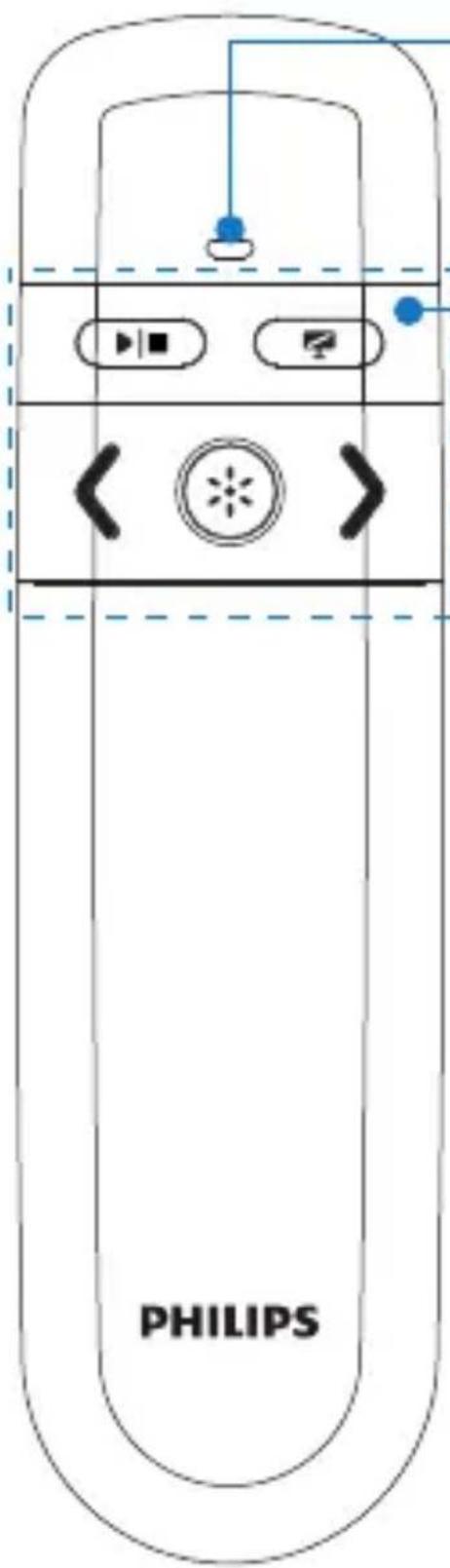
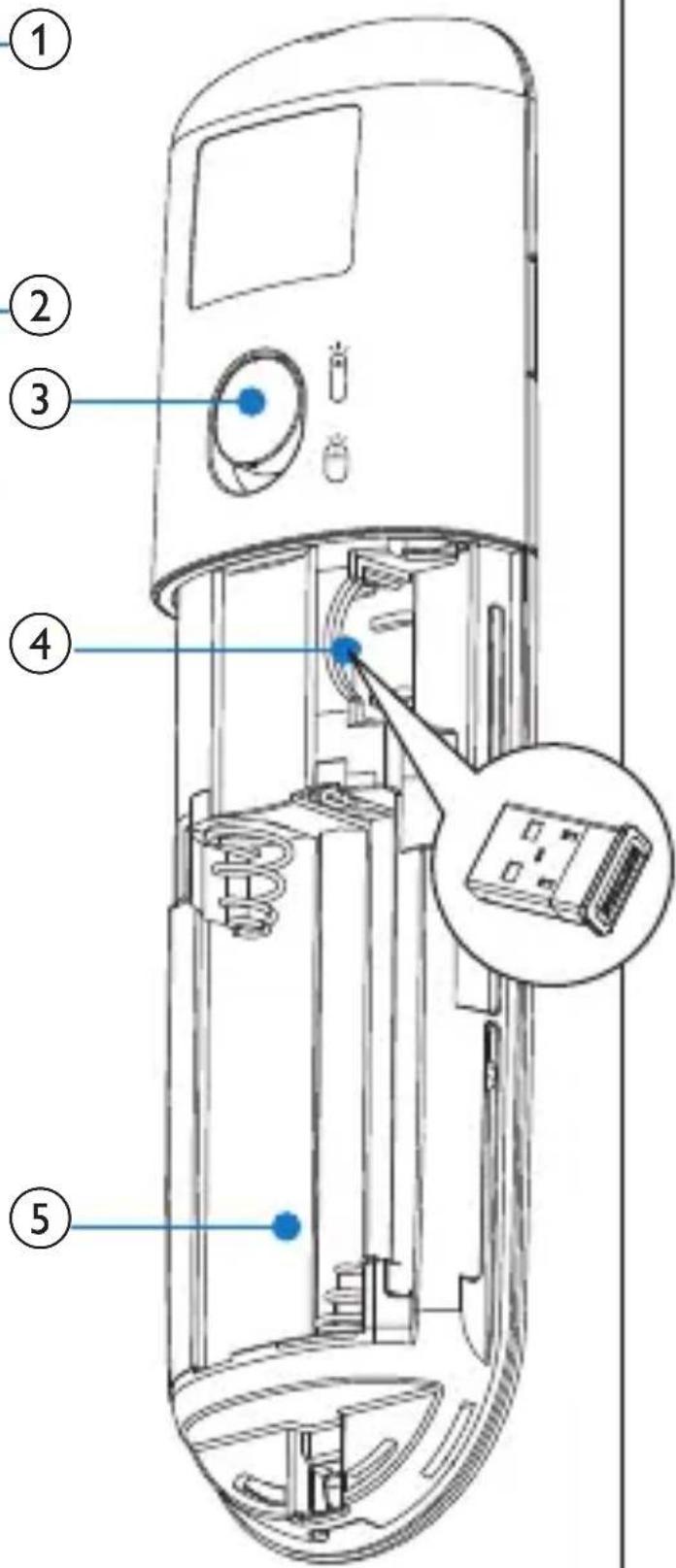
1 Overview of the product (Fig. 1)
① LED indicator
② Control buttons;
| Button | Presenter | Air mouse |
| ▶|■ | Play/Stop Click to open the fi le | |
| Blank screen No function | ||
| < | Previous slide Left mouse click | |
| > | Next slide Right mouse click | |
| ※ | Laser pointer Laser pointer | |
③ Mode switch (☐: Presenter; ☑: Air mouse)
④ Nano Dongle
⑤ Battery compartment
2 Switch on the product
Caution
- Keep the Nano Dongle out of reach of children.
1 Open the battery compartment.
2 Insert 2 AAA batteries with correct polarity (+/-) as indicated (Fig. 2).
3 Take out the Nano Dongle (Fig. 3).
4 Close the battery compartment.
5 To use the product as a presenter, switch to
- To use the product as an air mouse, switch to ⏻.
3 Get started
1 Ensure that your notebook is switched on and active.
2 Ensure that your floating presenter is switched on.
3 Plug the Nano Dongle into a USB host on your notebook.
Auto-connection starts.
The LED blinks upon every successful communication between the floating presenter and the Nano Dongle.

Tip
- Upon the first installation on Mac, Keyboard Set Assistant may appear and prompt that the keyboard cannot be identified. Click Continue to finish the installation, and then the floating presenter works accordingly.
• After use, insert the Nano Dongle into your floating presenter for storage (Fig. 4).
4 Troubleshooting
| Problem | Solution |
| No transmission. | Ensure that you use the product within effective range. |
| Light on your product blinks 3 times. | Replace batteries on the product. |
| Light on your product does not blink. | 1. Ensure that the product is switched on.2. Replace batteries on the product. |
| The mouse does not work. | Ensure that you switch on the mouse mode. |
5 Disposal of your old product
Your product is designed and manufactured with high quality materials and components, which can be recycled and reused.
When this crossed-out wheeled bin symbol is attached to a product it means that the product is covered by the European Directive 2002/96/EC.
Please inform yourself about the local separate collection system for electrical and electronic products.
Please act according to your local rules and do not dispose of your old products with your normal household waste. Correct disposal of your old product helps to prevent potential negative consequences for the environment and human health.
Your product contains batteries covered by the European Directive 2006/66/EC, which cannot be disposed with normal household waste. Please inform yourself about the local rules on separate collection of batteries because correct disposal helps to prevent negative consequences for the environmental and human health.

© 2010 Koninklijke Philips Electronics N.V. All rights reserved.
Specifications are subject to change without notice. Trademarks are the property of Koninklijke Philips Electronics N.V. or their respective owners.
UM_V3.1

100% recycled paper
100% papier recyclé
Brand : PHILIPS
Model : SNP6000
Category : Wireless pointer