
ST121UTPEU - Splitter StarTech.com - Free user manual and instructions
Find the device manual for free ST121UTPEU StarTech.com in PDF.


| Type of Product | VGA over Cat5 Video Extender |
| Brand | StarTech.com |
| Model | ST121UTPEU |
| Dimensions (LxWxH) | 60.0 mm x 83.0 mm x 20.0 mm |
| Weight | 181 g |
| Power Adapter | 9 VDC, 600 mA, center positive |
| Connectors (Local Unit) | 1x DE-15 VGA male, 1x DE-15 VGA female, 1x RJ45 Ethernet female, 1x Power connector |
| Connectors (Remote Unit) | 2x DE-15 VGA female, 1x RJ45 Ethernet female, 1x Power connector |
| Maximum Distance | 150 m (500 ft) @ 1024x768 resolution |
| Maximum Video Resolution | 1440x900 @ 50 m (150 ft) |
| LED Indicators | 1x Power, 1x Activity (per unit) |
| Signal Equalizer | Adjustable on Remote Unit for image quality |
| Mounting | Optional bracket (ST121MOUNT) for wall mounting |
| Warranty | 2 years |
| Package Contents | 1x Local Unit, 1x Remote Unit, 2x Power Adapters, 1x Mounting Bracket Kit, 1x Instruction Manual |
| System Requirements | VGA source and display, Cat5 UTP cable, available AC outlets |
| Driver Installation | Not required |
| Compliance | FCC Class B |
Frequently Asked Questions - ST121UTPEU StarTech.com
User questions about ST121UTPEU StarTech.com
0 question about this device. Answer the ones you know or ask your own.
Ask a new question about this device
Download the instructions for your Splitter in PDF format for free! Find your manual ST121UTPEU - StarTech.com and take your electronic device back in hand. On this page are published all the documents necessary for the use of your device. ST121UTPEU by StarTech.com.
USER MANUAL ST121UTPEU StarTech.com
VGA over Cat5 Video Extender (ST121 Series)
ST121UTP / ST121UTPGB / ST121UTPEU
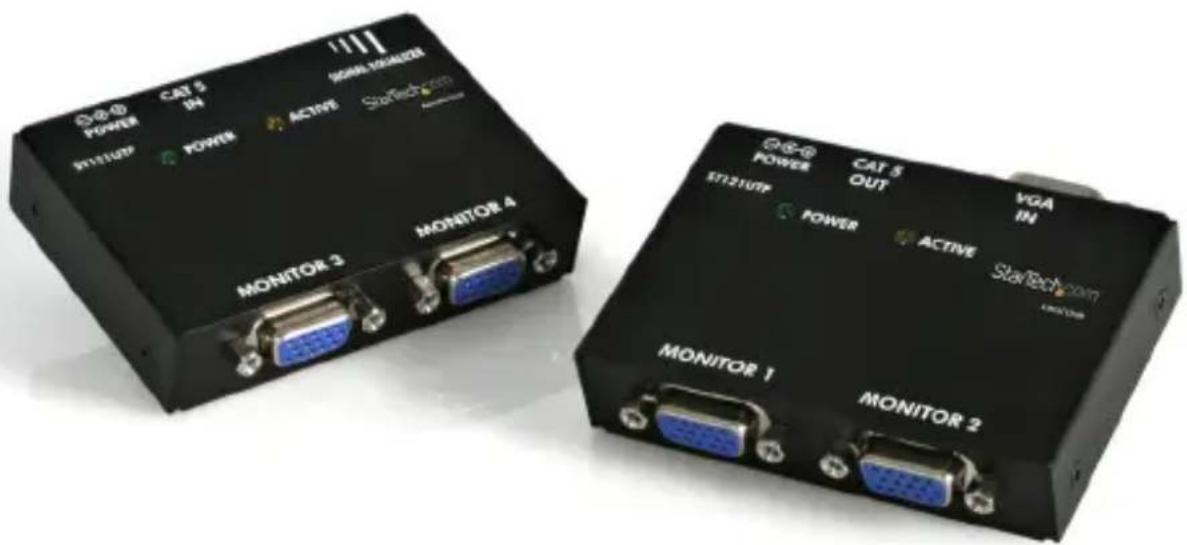
*actual product may vary from photos
FCC Compliance Statement
This equipment has been tested and found to comply with the limits for a Class B digital device, pursuant to part 15 of the FCC Rules. These limits are designed to provide reasonable protection against harmful interference in a residential installation. This equipment generates, uses and can radiate radio frequency energy and, if not installed and used in accordance with the instructions, may cause harmful interference to radio communications. However, there is no guarantee that interference will not occur in a particular installation. If this equipment does cause harmful interference to radio or television reception, which can be determined by turning the equipment off and on, the user is encouraged to try to correct the interference by one or more of the following measures:
- Reorient or relocate the receiving antenna.
- Increase the separation between the equipment and receiver.
- Connect the equipment into an outlet on a circuit different from that to which the receiver is connected.
- Consult the dealer or an experienced radio/TV technician for help.
Use of Trademarks, Registered Trademarks, and other Protected Names and Symbols
This manual may make reference to trademarks, registered trademarks, and other protected names and/or symbols of third-party companies not related in any way to StarTech.com. Where they occur these references are for illustrative purposes only and do not represent an endorsement of a product or service by StarTech.com, or an endorsement of the product(s) to which this manual applies by the third-party company in question. Regardless of any direct acknowledgement elsewhere in the body of this document, StarTech.com hereby acknowledges that all trademarks, registered trademarks, service marks, and other protected names and/or symbols contained in this manual and related documents are the property of their respective holders.
Table of Contents
Introduction ....1
Packaging Contents....1
System requirements....2
Installation....1
Hardware Installation....1
Local Unit....2
Remote Unit....2
Driver Installation 4
Warranty Information 8
Introduction
Packaging Contents
• 1 x VGA Video Extender Local Unit
• 1 x VGA Video Extender Remote Unit
• 1 x Mounting Bracket Kit
- 2 x Power Adapters
• 1 x Instruction Manual
System Requirements
• VGA enabled video source and display
• Available AC electrical outlet at local and remote locations
• VGA male/female cable to connect video source to extender
• VGA male/male cable(s) to connect display devices to extender
Installation
Hardware Installation
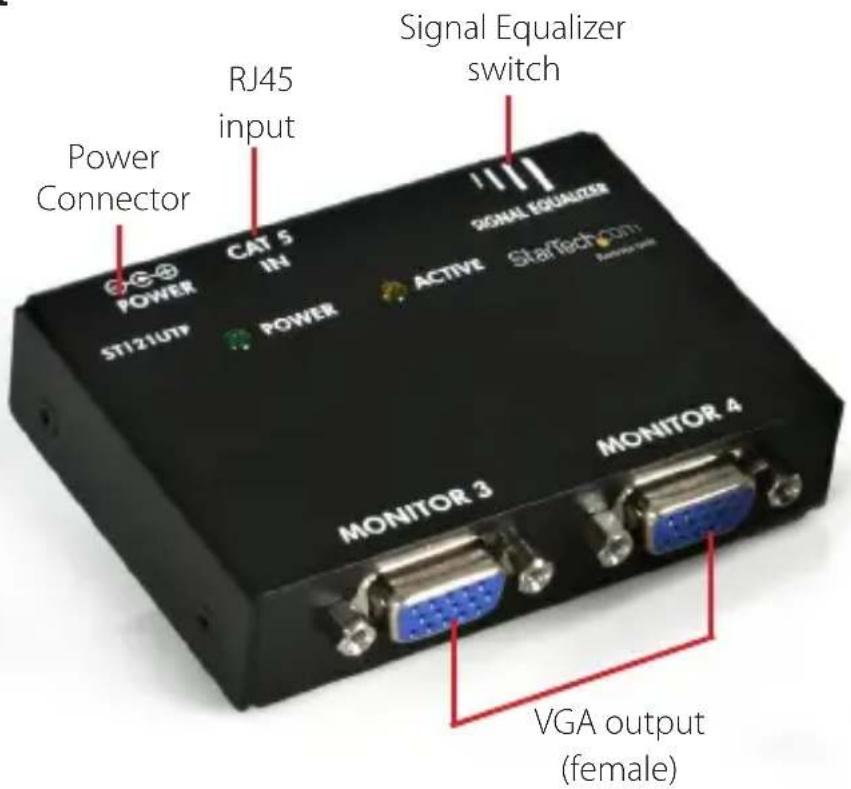
This product is composed of two different units: the Local Unit and the Remote Unit. The Local Unit takes the output from a VGA signal source (usually a computer) and transmits it to the Remote Unit over Category 5 Ethernet cable. The remote displays (monitor, projector, etc) connect to the Remote Unit using standard VGA connections and displays the image from the local computer onto the remote displays.
Local Unit

Remote Unit
Preparing Your Site
- Determine where the local video source (i.e. computer) will be located and set up the device.
- Determine where the remote display will be located and place/mount the display appropriately.
- If you are using surface cabling, ensure you have enough Cat5 unshielded twisted pair (UTP) Ethernet cabling to connect the Local Unit to the Remote Unit's location, and that each end is terminated with a RJ45 Ethernet connector. The cabling should not go through any networking equipment (i.e. router, switch).
OR
If you are using premise cabling, ensure that the Cat5 unshielded twisted pair (UTP) Ethernet Cabling between the Local Unit and the Remote Unit has been properly terminated in a wall outlet in each location and there is a patch cable long enough to connect the Remote Unit and the Local Unit to their respective outlets. The cabling should not go through any networking equipment (i.e. router, switch).
Installing the Local Unit
- Place the Local Unit near the local (source) computer.
- Switch off the computer and disconnect any existing VGA cables.
- If desired, connect the VGA cable from the local computer display(s) to the "Monitor" ports on the Local Unit. This will enable you to see video locally while an image is transmitted to the remote display. You may choose to connect up to two local displays, one for each "Monitor" port. Both outputs display the same image.
- Connect a male-to-female DE-15 VGA cable (not provided) to the VGA Output on the local computer. Connect the opposite end to the VGA IN port on the Local Unit.
- Connect the Cat5 cable connection to the "CAT5 OUT" on the Local Unit.
- Connect the Power Adapter (provided) into an appropriate power source and plug the opposite end into the power connector on the Local Unit. The POWER LED will light up.
Installing the Remote Unit
-
Connect the Remote Unit to the Cat5 cable connection from the Local Unit, to the "CAT5 IN" port.
-
Connect the VGA cable from the remote display(s) to the opposite side of the Remote Unit, marked "Monitor". You may choose to have either one or two displays at the remote location connected to the Remote Unit. Both outputs display the same image.
-
Connect the Power Adapter (provided) into an appropriate power source and plug the opposite end into the power connector on the Remote Unit. The POWER LED will light up.
CAUTION: The Category 5 Ethernet cables that connect the Local and Remote Units carry electrical current and should not be plugged in to other devices, as they may cause damage. We strongly recommend marking the Ethernet cables you are using with this product at both locations for easy identification.
OPTIONAL: with the optional mounting brackets (StarTech.com ID: ST121MOUNT), any ST121 series Remote Unit can be securely mounted to a wall or other surface.

Completing the Installation
-
Switch on the local computer and local display(s) (if used).
-
Switch on the display(s) at the remote location.
-
Verify that the remote display is properly displaying the image from the local computer connected to the Local Unit.
-
Use the Signal Equalizer to improve the image on the remote display(s) based on the approximate length of Ethernet cable between the Local and Remote Units.
Driver Installation
No driver installation is required for this video extender as it is an external hardware only solution, invisible to the computer system.
Troubleshooting
The following section provides troubleshooting help. The solutions are arranged in the order they should be attempted in most situations. If you continue to have difficulties after attempting the solutions in this section, please contact StarTech.com technical support.
Symptom: The remote displays are black or display a "no signal" message.
Cause: The Remote Unit is not receiving a signal from the Local Unit.
Remedy:
- Check that the display is receiving power and that all cables are connected.
- Check that the display is connected to the Remote Unit.
Symptom: The remote displays do not display an image when the local computer wakes up from Standby Mode.
Remedy: Power the remote displays OFF and ON again.
Symptom: One or more remote displays is distorted, noisy, or displays a "signal error" or similar error message.
Cause: The screen resolution and/or refresh rate on the local computer may be set too high for the capabilities of the remote display.
Remedy:
- Adjust the local computer to a lower resolution and refresh rate until the remote display shows an image.
- Gradually increase the resolution and refresh rate on the local computer until the remote displays ceases to display an image.
- Return the resolution and refresh rate on the local computer to the highest resolution and refresh rate setting that displayed an image on the remote display.
- Adjust the Signal Equalizer on the Remote Unit for best performance.
NOTE: If you are still unable to see an image at the remote location after trying the above solutions, it is recommended that you verify the Ethernet cable installation to the remote display before calling technical support. This can be used using a standard cable tester. If you do not have a cable tester, contact a local computer service or wiring professional.
Wiring Diagram
Pin Wire Color Pair
1 White/Orage 2
2 Orange 2
3 White/Green 3
4 Blue 1
5 White/Blue 1
6 Green 3
7 White/Brown 4
8 Brown 4

Specifications
| Connectors (Local) | 1 x DE-15 VGA male1 x DE-15 VGA female1 x RJ45 Ethernet female1 x Power Connector |
| Connectors (Remote) | 2 x DE-15 VGA female1 x RJ45 Ethernet female1 x Power Connector |
| LEDs (per unit) 1 x Power, 1 x Activity | |
| Maximum Cable Distance 150m (500 ft) @ 1024x768 | |
| Maximum Video Resolution 1440x900 @ 50m (150 ft) | |
| Power Adapter 9VDC, 600mA, center positive | |
| Dimensions (LxWxH) 60.0mm x 83.0mm x 20.0mm | |
| Weight 181g | |
Technical Support
StarTech.com's lifetime technical support is an integral part of our commitment to provide industry-leading solutions. If you ever need help with your product, visit www.startech.com/support and access our comprehensive selection of online tools, documentation, and downloads.
For the latest drivers/software, please visit www.startech.com/downloads
Warranty Information
This product is backed by a two year warranty.
In addition, StarTech.com warrants its products against defects in materials and workmanship for the periods noted, following the initial date of purchase. During this period, the products may be returned for repair, or replacement with equivalent products at our discretion. The warranty covers parts and labor costs only. StarTech.com does not warrant its products from defects or damages arising from misuse, abuse, alteration, or normal wear and tear.
Limitation of Liability
In no event shall the liability of StarTech.com Ltd. and StarTech.com USA LLP (or their officers, directors, employees or agents) for any damages (whether direct or indirect, special, punitive, incidental, consequential, or otherwise), loss of profits, loss of business, or any pecuniary loss, arising out of or related to the use of the product exceed the actual price paid for the product. Some states do not allow the exclusion or limitation of incidental or consequential damages. If such laws apply, the limitations or exclusions contained in this statement may not apply to you.
Hard-to-find made easy. At StarTech.com, that isn't a slogan. It's a promise.
StarTech.com is your one-stop source for every connectivity part you need. From the latest technology to legacy products — and all the parts that bridge the old and new — we can help you find the parts that connect your solutions.
We make it easy to locate the parts, and we quickly deliver them wherever they need to go. Just talk to one of our tech advisors or visit our website. You'll be connected to the products you need in no time.
Visit www.startech.com for complete information on all StarTech.com products and to access exclusive resources and time-saving tools.
StarTech.com is an ISO 9001 Registered manufacturer of connectivity and technology parts. StarTech.com was founded in 1985 and has operations in the United States, Canada, the United Kingdom and Taiwan servicing a worldwide market.

- VGA over Cat5 Video Extender (ST121 Series)
- FCC Compliance Statement
- Use of Trademarks, Registered Trademarks, and other Protected Names and Symbols
- Table of Contents
- Introduction ....1
- Installation....1
- Warranty Information 8
- Introduction
- Packaging Contents
- System Requirements
- Installation
- Hardware Installation
- Local Unit
- Remote Unit
- Preparing Your Site
- OR
- Installing the Local Unit
- Installing the Remote Unit
- Completing the Installation
- Driver Installation
- Troubleshooting
- Remedy:
- Wiring Diagram
- Pin Wire Color Pair
- Specifications
- Technical Support
- Warranty Information
- Limitation of Liability
Brand : StarTech.com
Model : ST121UTPEU
Category : Splitter