
DR20KB - DVD player TOSHIBA - Free user manual and instructions
Find the device manual for free DR20KB TOSHIBA in PDF.


| Product Type | DVD Player / Recorder |
| Dimensions (W x H x D) | 420 x 59 x 357 mm |
| Weight | 3.2 kg |
| Power Supply | 220–240 V ~, 50 Hz |
| Power Consumption | 26 W (standby 0.74 W) |
| Disc Compatibility | DVD-Video, DVD-RW/-R, DVD+RW/+R, CD, Video CD, MP3, JPEG, DivX |
| Recording Formats | Video mode (DVD-RW/-R), VR mode (DVD-RW), +VR mode (DVD+RW/+R) |
| Maximum Recording Time | 480 minutes (12 cm disc) |
| Video Outputs | HDMI, Component (Y Pb Pr), SCART (AV1), Composite via SCART |
| Audio Outputs | Digital coaxial, Analog stereo (RCA), SCART (AV1) |
| Inputs | SCART (AV2), Composite/S-Video/Audio (AV3 front), DV (IEEE 1394 front) |
| Tuner | DVB-T and Analogue (PAL I) |
| Progressive Scan | Yes (576p/480p via Component or HDMI) |
| HDMI Resolution | 576p, 720p, 1080i, 1080p |
| Audio Decoding | Dolby Digital, DTS, MPEG, PCM |
| Recording Features | Timer recording (12 programs), One-touch timer, DV dubbing, Auto chapter |
| Playback Features | Quick search, Repeat/Random, Slide show, Subtitle, Multi-angle |
| Editing Features | Title delete, Chapter mark add/delete, Title divide/combine (VR mode), Playlist (VR mode) |
| Remote Control | Included (2 x R6 batteries) |
| Laser Safety | Class 1, invisible laser radiation when open |
| Operating Temperature | 5 °C to 40 °C |
| Operating Humidity | Less than 80 % (no condensation) |
Frequently Asked Questions - DR20KB TOSHIBA
User questions about DR20KB TOSHIBA
0 question about this device. Answer the ones you know or ask your own.
Ask a new question about this device
Download the instructions for your DVD player in PDF format for free! Find your manual DR20KB - TOSHIBA and take your electronic device back in hand. On this page are published all the documents necessary for the use of your device. DR20KB by TOSHIBA.
USER MANUAL DR20KB TOSHIBA
Carefully read the Model No. and Serial No. located at the back of the unit and enter the information below. Retain this information for future reference.
Model No. ____ Serial No. ____
Introduction
Precautions
WARNING:
TO REDUCE THE RISK OF FIRE OR ELECTRIC SHOCK, DO NOT EXPOSE THIS APPLIANCE TO RAIN OR MOISTURE.

CAUTION
RISK OF ELECTRIC SHOCK DO NOT OPEN

CAUTION:
TO REDUCE THE RISK OF ELECTRIC SHOCK, DO NOT REMOVE COVER (OR BACK). NO USER SERVICEABLE PARTS INSIDE. REFER SERVICING TO QUALIFIED SERVICE PERSONNEL.
The important note is located on the rear of the cabinet.

The lightning flash with arrowhead symbol, within an equilateral triangle, is intended to alert the user to the presence of uninsulated “dangerous voltage” within the product’s enclosure that may be of sufficient magnitude to constitute a risk of electric shock to persons.

The exclamation point within an equilateral triangle is intended to alert the user to the presence of important operating and maintenance (servicing) instructions in the literature accompanying the appliance.

The symbol for CLASS II (Double Insulation)
Laser Safety
This unit employs a laser. Only qualified service personnel should remove the cover or attempt to service this unit, due to the possibility of eye injury.
CAUTION: USE OF CONTROLS OR ADJUSTMENTS OR PERFORMANCE OF PROCEDURES OTHER THAN THOSE SPECIFIED HEREIN MAY RESULT IN HAZARDOUS RADIATION EXPOSURE.
CAUTION: VISIBLE AND INVISIBLE LASER RADIATION WHEN OPEN AND INTERLOCK DEFEATED. DO NOT STARE INTO BEAM.
LOCATION: INSIDE, NEAR THE DECK MECHANISM.
Power Supply
The power supply is connected and the unit is live when the mains cable is plugged into a 220 - 240 V\~, 50 Hz AC outlet. To operate the unit, press [I/∅ ON/STANDBY].
WARNING: LIVE PARTS INSIDE.
DO NOT REMOVE ANY SCREWS.
Caution
- Do not attempt to open the cabinet. There are no parts inside you can service. Refer all servicing to qualified service personnel.
- Slots and openings in the cabinet at the sides and underneath are provided for ventilation. To ensure reliable operation and to protect the unit from overheating, these openings must not be blocked or covered. Avoid installation in enclosed spaces such as bookcases unless suitable ventilation is provided.
- Keep the unit away from radiators and other heat sources.
- Avoid use near strong magnetic fields.
-
Do not push objects of any kind into the unit through the cabinet slots or openings as they could touch electrically live parts or short circuit parts resulting in a fire or electric shock.
-
To prevent fire or shock hazard, do not expose this apparatus to dripping or splashing, no objects filled with liquids, such as vases, should be placed on the apparatus.
- Do not stand the unit vertically. Use the unit in a horizontal (flat) position only.
- Before attempting to operate the unit, make sure that the timer recording mode is off.
- This product is in Stand-by mode when turned off while the mains cable is connected. The front panel display will not light up. This is a Power Saving Mode (ECO) for standby.
- Do not place any combustible objects on the device (candles, etc.).
- Before moving the unit, be sure to remove any media and unplug the mains cable from the AC outlet.
- Disconnect the mains plug to shut off the unit, if you suspect a fault has developed, or if it will not be used for an extended period.
- The mains plug shall remain readily operable.
- Read the instruction manual, and QSG to ensure correct and safe installation and interconnection of the unit in multimedia systems.
- Keep a distance of 20 cm around the ventilation openings of the apparatus.
A NOTE ABOUT RECYCLING
This product's packaging materials are recyclable and can be reused. Please dispose of any materials in accordance with your local recycling regulations.
This product consists of materials which can be recycled and reused if disassembled by a specialised company.
Following information is only for EU-member states: The use of the symbol indicates that this product may not be treated as household waste. By ensuring this product is disposed of correctly, you will help prevent potential negative consequences for the environment and human health, which could otherwise be caused by
inappropriate waste handling of this product. For more detailed information about recycling of this product, please contact your local city office, your household waste disposal service or the shop where you purchased the product.

Following information is only valid EU-member States: Disposal of batteries and/or accumulators
The crossed out wheeled dust bin symbol indicates that batteries and/or accumulators must be collected and disposed of separately from household waste. If the battery or accumulator contains more than the specified values of lead (Pb), mercury (Hg), and/or cadmium (Cd) defined in the Battery Directive (2006/66/EC), then the chemical symbols for lead (Pb), mercury (Hg) and/or cadmium (Cd) will appear below the crossed out wheeled dust bin symbol. By participating in separate collection of batteries, you will help to assure the proper disposal of products and batteries and thus help to prevent potential negative
consequences for the environment and human health. For more detailed information about the collection and recycling programmes available in your country, please contact your local city office or the shop where you purchased the product.
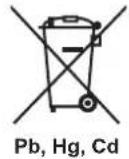
Make your contribution to the environment!!!
- Exhausted batteries do not belong in the dustbin.
- You can dispose of them at a collection point for exhausted batteries or special waste.
- Contact your council for details.
Do not place the unit on the furniture that is capable of being tilted by a child and an adult leaning, pulling, standing or climbing on it. A falling unit can cause serious injury or even death.

Connection to Power
Before Switching on make sure that the voltage of your electricity supply is the same as that indicated on the rating plate.
Mains Cord
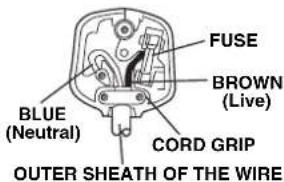
This appliance may be fitted with a non-rewireable plug. If it is necessary to change the fuse in a nonrewireable plug the fuse cover must be refitted. Do not use the plug if the fuse cover is lost or damaged. If a replacement fuse cover cannot be found, the plug must be changed with another carrying the same value fuse.
It is important that the colour of the replacement fuse cover corresponds with the rating marking on the base of the plug. If the plug has to be changed because it is not suitable for your socket, or becomes damaged, it should be cut off and an appropriate plug fitted following the wiring instructions below. The plug removed must be disposed of safely as insertion into a 13A socket is likely to cause an electrical hazard.
For your own safety read the following instructions carefully before attempting to connect this unit to mains. The wires in this mains lead are coloured in accordance with the following code:
BLUE=NEUTRAL, BROWN=LIVE
Important
As the colours of the wires in the mains lead of this appliance may not correspond with the coloured markings identifying the terminals in your plug, proceed as follows:
The wire which is coloured blue must be connected to the terminal which is marked with the letter N or coloured black. The wire which is coloured brown must be connected to the terminal which is marked with the letter L or coloured red. No connection is to be made to the earth terminal of the plug If a 13 Amp (BS 1363) Plug is used, a 5 Amp Fuse must be fitted, or if any other type of Plug is used a 3 or 5 Amp Fuse must be fitted, either in the Plug or Adaptor, or on the Distribution Board.
Mains Supply: 220 - 240 V\~ 50 Hz - AC only
Do not make any connection to the larger pin marked with the letter "E" or by the symbol or coloured green or green and yellow.
Installation Location
For safety and optimum performance of this unit:
• Install the unit in a horizontal and stable position.
- Keep the unit away from electronic equipment such as an amplifier, TV, etc. to prevent warping, damage, fire and malfunction.
- Do not place anything directly on top of the unit.
- Shield the unit from direct sunlight and keep away from sources of intense heat. Avoid dusty or humid locations. Avoid locations with insufficient ventilation for suitable heat dissipation. Do not block the ventilation holes on the sides of the unit. Avoid locations subject to strong vibration or strong magnetic fields.
Avoid the Hazards of Electrical Shock and Fire
- Do not handle the mains cable with wet hands.
- Do not pull on the mains cable to disconnect it from the AC outlet. Grasp it by the plug.
- If, by accident, water is spilled on the unit, unplug the mains cable immediately and take the unit to an authorised service centre for servicing.
Moisture Condensation Warning
Moisture condensation may occur inside the unit when it is moved from a cold place to a warm place, after heating a cold room, or under conditions of high humidity. Do not use the unit for at least 2 hours to allow the inside to dry.
About Copyright
Unauthorised copying, broadcasting, public performance and lending of discs are prohibited. This product incorporates copyright protection technology that is protected by U.S. patents and other intellectual property rights. Use of this copyright protection technology must be authorised by Macrovision, and is intended for home and other limited viewing uses only unless otherwise authorised by Macrovision. Reverse engineering or disassembly is prohibited.
Notice for the Progressive Scan Outputs
Consumers should note that not all high definition television sets are fully compatible with this product and may cause artifacts to be displayed in the picture. In case of picture problems with 480 or 576 progressive scan output, it is recommended that the user switch the connection to the 'standard definition' output. If there are questions regarding your TV set compatibility with this 480p or 576p DVD recorder, please contact our customer service centre.

Manufactured under license from Dolby Laboratories. Dolby and the double-D symbol are trademarks of Dolby Laboratories.
"Dolby® Digital Recording enables consumers to record high-quality video with stereo sound on recordable DVD discs. The technology, when utilised instead of PCM recording, also saves recordable disc space, allowing for higher video resolution or extended recording time on each DVD. DVDs created using Dolby Digital Recording will play back on all DVD-Video players."
Note: This is true when the players are compatible with actual recordable DVD discs.

Manufactured under license under U.S. Patent #: 5,451,942 & other U.S. and worldwide patents issued & pending. DTS and the Symbol are registered trademarks and DTS Digital Out and the DTS logos are trademarks of DTS, Inc. Product includes software.
© DTS, Inc. All Rights Reserved.

HDMI, the HDMI Logo, and High-Definition Multimedia Interface are trademarks or registered trademarks of HDMI Licensing LLC in the United States and other countries.

DivX®, DivX Certified®, and associated logos are registered trademarks of DivX, Inc. and are used under license.

DVB is a registered trademark of the DVB Project
MPEG Layer-3 audio coding technology licensed from Fraunhofer IIS and Thomson.
THIS PRODUCT IS LICENSED UNDER THE MPEG-4 VISUAL PATENT PORTFOLIO LICENSE FOR THE PERSONAL AND NON-COMMERCIAL USE OF A CONSUMER FOR (i) ENCODING VIDEO IN COMPLIANCE WITH THE MPEG-4 VISUAL STANDARD ("MPEG-4 VIDEO") AND/OR (ii) DECODING MPEG-4 VIDEO THAT WAS ENCODED BY A CONSUMER ENGAGED IN A PERSONAL AND NON-COMMERCIAL ACTIVITY AND/OR WAS OBTAINED FROM A VIDEO PROVIDER LICENSED BY MPEG LA TO PROVIDE MPEG-4 VIDEO. NO LICENSE IS GRANTED OR SHALL BE IMPLIED FOR ANY OTHER USE. ADDITIONAL INFORMATION INCLUDING THAT RELATING TO PROMOTIONAL, INTERNAL AND COMMERCIAL USES AND LICENSING MAY BE OBTAINED FROM MPEG LA, L. L. C. SEE HTTP://WWW.MPEGLA.COM
Maintenance
CLEANING THE UNIT
Use a soft cloth slightly moistened with a mild detergent solution. Do not use solutions containing alcohol, spirits, ammonia or abrasives.
CLEANING DISCS
If a disc becomes dirty, clean it with a cleaning cloth. Wipe the disc from the centre out. Do not wipe in a circular motion. Do not use solvents such as benzine, thinners, commercially available cleaners, detergent, abrasive cleaning agents or antistatic spray intended for analogue records.
DISC HANDLING
Handle the discs so that fingerprints and dust do not adhere to the disc surfaces.
Always store the disc in its protective case when it is not in use.
SERVICING
If the unit becomes inoperative, do not try to correct the problem by yourself. There are no user serviceable parts inside. Turn the unit off, unplug the mains cable, and consult your dealer or an authorised service centre.
CLEANING THE DISC LENS
If the unit does not perform correctly even though you have referred to "Troubleshooting" and the relevant sections in the Owner's Manual, the laser optical pickup unit may be dirty. Consult your dealer or an authorised service centre for inspection and cleaning of the laser optical pickup unit.
EU Conformity Statement
CE
"This product is marked with "CE" and complies therefore with the applicable harmonized European standards listed under the Low Voltage Directive 2006/95/EC, the EMC Directive 2004/108/EC and ErP Directive 2009/125/EC(2005/32/EC)."
Responsible for CE-marking is TOSHIBA INFORMATION SYSTEMS (U.K.) LTD, Toshiba Court, Weybridge Business Park, Addlestone Road, Weybridge, Surrey, KT15 2UL, United Kingdom
4
EN
Accessories Supplied
- Remote control with 2 R6 (1.5 V) batteries
- RF cable
- Owner's Manual
- Quick Setup Guide
- Helpline Sheet
Features
The following features are available with this unit.
Recording
• Recording up to 12 programmes
• One-touch timer recording: [→ Page 31]
• Left channel stereo recording
• Automatic chapter mark setting: [→ Page 30]
• Automatic Playlist making (VR mode DVD-RW discs only)
• P D C : [→ Page 33]
- Automatic finalising (video mode DVD-RW/-R, DVD+R discs only): [→ Page 40]
- Automatic title menu making (video, +VR mode only): [→ Page 40]
• DV dubbing: [→ Pages 38-39]
Playback
• Theatre surround sound: [→ Page 18]
- Quick search: [→ Pages 49-50]
- Playback from Original or a Playlist (VR mode DVD-RW discs only): [→ Page 41]
• Virtual Surround System: [→ Page 52]
- Chasing playback during recording and simultaneous playback and recording (VR mode DVD-RW discs only): [→ Page 47]
- Playing back MP3 / JPEG / DivX® files: [→ Pages 42-44]
Editing
- Adding or deleting chapter marks at once (video mode DVD-RW discs only): [→ Page 56]
- Adding or deleting chapter marks manually: [→Page 56]
- Creating titles to a Playlist (VR mode DVD-RW discs only): [→ Page 58]
- Deleting titles: [→ Page 54]
- Deleting a scene of a title (VR mode DVD-RW discs only): [→Page 59]
- Editing title name: [→ Page 55]
- Combining titles (VR mode DVD-RW discs only): [→ Page 58]
- Dividing titles (VR mode DVD-RW, DVD+RW discs only): [→Page 57]
- Protecting titles (VR mode DVD-RW discs only): [→ Page 57]
- Hiding chapters (+VR mode only): [→ Page 57]
Compatibility
- Playing back discs recorded in video mode in any regular DVD player: [→ Page 40]
Others
- Progressive scan system: [→ Pages 16, 66]
- HDMI (High-Definition Multimedia Interface): [→ Pages 17, 67]
Table of Contents
Introduction ...... 2
Precautions 2
Features 5
Guide to the Owner's Manual....7
Functional Overview.... 10
Installing Batteries in the Remote Control.... 12
Guide to On-Screen Displays.... 12
Front Panel Display Guide.... 15
Connections 16
Connecting to a TV.... 16
Connecting to External Equipment.... 18
Digital Audio for Better Sound Quality.... 18
Basic Setup / TV View Operation .... 19
Initial Setting.... 19
Channel Setting....19
TV View Operation 22
Recording....27
Information on DVD Recording.... 27
Formatting a Disc 29
Selecting the Audio Mode 30
Basic Recording and One-touch Timer Recording (OTR) 31
Timer Recording.... 32
Timer Recording (EPG).... 35
Series Link Timer Recording 36
Satellite Link 36
Settings for External Equipment.... 37
Information on DV Dubbing 38
DVC to DVD Dubbing 39
Setting a Disc to Protect.... 40
Finalising Discs 40
Playback.... 41
Basic Playback 41
PBC Function for Video CDs.... 45
Special Playback 45
Search 49
Repeat / Random / Programme Playback / Slide Show ... 50
Selecting the Format of Audio and Video....51
Editing 53
Guide to a Title List 53
Editing Discs 54
Function Setup 60
General Setting 62
Others 69
Troubleshooting....69
Troubleshooting for Error Messages 72
Language Code 74
Specifications....75

natural_image
Pure geometric lines and symbols without any text, numbers, or labels
natural_image
Pure geometric diagram with intersecting lines and circles, no text or symbols presentGuide to the Owner's Manual
Symbols Used in the Owner's Manual
To show what recording mode or media type applies to each function, the following symbols appear at the beginning of each operating item.
Symbol Description
| DVD-V | Available to DVD-videos |
| Video DVD-RW | Available to DVD-RW discs in video mode |
| VR DVD-RW | Available to DVD-RW discs in VR mode |
| DVD-R | Available to DVD-R discs in video mode |
| DVD+RW | Available to DVD+RW discs |
| DVD+R | Available to DVD+R discs |
| CD | Available to audio CDs |
| VCD | Available to video CDs |
| MP3 | Available to CD-RW/-R discs with MP3 files |
| JPEG | Available to CD-RW/-R discs with JPEG files |
| DivX® | Available to DVD-RW/-R, DVD+RW/+R and CD-RW/-R discs with DivX®files |
Symbols for Tuner Setting and Recording
The following is the description for the symbols for tuner setting used in this manual.
ANALOG : Settings only for the analogue mode
DVB : Settings only for the DVB mode
| Discs for Recording / Playing | ||||||
| Disc Type DVD-RW DVD-R DVD+RW DVD+R | ||||||
| Logo | DVD RW | DVD R 4.7 | RW DVD+ReWritable | RW DVD+R | ||
| Format | Can be formatted in VR or video mode | Automatically formatted in video mode | Automatically formatted in +VR mode | Automatically formatted in +VR mode | ||
| Icon Maximum Record Time | Video Mode VR Mode | DVD-R 480 min (12 cm) 144 min (8 cm) | DVD+RW 480 min (12 cm) 144 min (8 cm) | DVD+R 480 min (12 cm) 144 min (8 cm) | ||
| Video DVD-RW 480 min (12 cm) 144 min (8 cm) | VR DVD-RW 480 min (12 cm) 144 min (8 cm) | |||||
| Recordable/Playable Versions | 1x-6x Ver. 1.1/1.2 Ver. 1.1/1.2 CPRM compatible | 1x-16x Ver. 2.0/2.1 | 1x-4x 1x-16x | |||
| Compatibility | Playable on most DVD players. Finalisation necessary. (Title menu will be created) | Playable only on VR mode compatible unit. Finalisation recommended. | Playable on most DVD players. Finalisation necessary. (Title menu will be created) | Playable on DVD+RW compatible players. Finalisation recommended. (Title menu will be created) | Playable on most DVD players. Finalisation recommended. (Title menu will be created) | |
| Available Features | Recording Features | |||||
| Record TV Programmes | ✓ | ✓ | ✓ | |||
| Reuse by Deleting the Current Contents | ✓ | ✓ | ✓ | |||
| Record 16:9 Size Pictures | ✓ | ✓ | ✓ | |||
| Record Copy-once Programmes | ✓* | |||||
| Create Chapters at Fixed Intervals (auto chapter) | ✓ | ✓ | ✓ | |||
| Editing Features | Playlist Original | |||||
| Scene Delete | ✓ | ✓ | ||||
| Edit Title Name | ✓ | ✓ | ✓ | ✓ | ✓ | |
| Create Chapters Wherever You Like (chapter mark) | ✓ | ✓ | ✓ | |||
| Divide a Title | ✓ | ✓ | ||||
| Combine Titles | ✓ | |||||
| Hide Chapters | ✓ | |||||
| Delete a Title | ✓ | ✓ | ✓ | ✓ | ✓ | |
| Create a Playlist | ✓ | |||||
| Protect a Title | ✓ | |||||
√: Available
* CPRM compatible disc only.
Grey: Not available
DVD players with a capable of playing DVD-RW recorded in VR mode.


Discs for Playing
| Disc Type | DVD-VIDEO | CD-DA | Video CD | CD-RW | CD-R | |||
| Logo |  |  |  | VIDEO CD |  |  |  |  |
| Icon | DVD-V | CD | VCD | CD | CD | |||
Files for Playing
| Type of title | MP3 | JPEG | DivX |
| Icon |  |  |  |
| Media | CD-RW/-R | CD-RW/-R | CD-RW/-RDVD-RW/-RDVD+RW/+R |
DVD is a trademark of DVD Format/Logo Licensing Corporation.
- ABOUT DIVX VIDEO: DivX® is a digital video format created by DivX, Inc. This is an official DivX Certified device that plays DivX video. Visit www.divx.com for more information and software tools to convert your files into DivX video.
- ABOUT DIVX VIDEO-ON-DEMAND: This DivX Certified® device must be registered in order to play DivX Video-on-Demand (VOD) content. To generate the registration code, locate the DivX VOD section in the device setup menu. Go to vod.divx.com with this code to complete the registration process and learn more about DivX VOD.
- DivX Certified ^ to play DivX ^ video, including premium content.
- Media containing the DivX® files with the DivX® GMC (Global Motion Compensation) playback feature, which is DivX® supplemental function, cannot be played back on this unit.
Unplayable Discs
The following discs will not play back on this unit.
- CD-ROM
- Compact Disc-Interactive (CD-I)
• Video Single Disc (VSD)
• DVD-ROM - DVD-audio
- Unfinalised disc
• DVD or CD contains Windows Media™ Audio files
• DVD-RW/-R recorded in non compatible recording format - Blu-ray Disc
- HD DVD
On the following disc, the sound may not be heard.
- Super audio CD - Only the sound on the CD layer can be heard. The sound on the high-density super audio CD layer cannot be heard.
Colour Systems
This unit uses the PAL system. However, it is also possible to play back DVDs using other colour systems, such as NTSC.
Region Codes
This unit has been designed to play DVD with region 2. If these region symbols do not appear on your DVD, you cannot play back the DVD in this unit. The number inside the globe refers to region of the world.


Following discs are recommended for good recording quality and are proven to be compatible with this unit. However, depending on the media condition the unit may not read the disc properly.
Verbatim DVD+R 8x, DVD+RW 4x, DVD-R 8x, DVD-RW 2x JVC DVD-RW 4x
Maxell DVD+R 4x/8x/16x, DVD-R 8x/16x
SONY DVD+R 4x/8x/16x, DVD+RW 4x
TDK DVD+R 4x/8x/16x
Performance of any other discs are not guaranteed.
- Toshiba is not liable for any damage or loss caused directly or indirectly by the malfunction of this unit, including, without limitation, any one of the following
- Failure to record contents intended to be recorded by the consumer.
- Failure to edit contents as intended by the consumer.
- When a DVD-RW/-R, DVD+RW/+R disc created on this unit is used (e.g., insertion, playback, recording or editing) in another DVD player, recorder or personal computer drive.
- When a DVD-RW/-R, DVD+RW/+R disc that is used in the manner described in the immediately preceding bullet point is used again in this unit.
- When a DVD-RW/-R, DVD+RW/+R disc that was recorded in another DVD recorder, or in a personal computer drive is used in this unit.
- Some functions may not work with personal computer discs.
• Discs recorded in this unit may not operate as expected on other DVD players, recorders or personal computer drives.
Because of problems and errors that can occur during the creation of DVD and CD software and/or the manufacture of DVD and CD discs, Toshiba cannot guarantee that product will play every feature of every DVD bearing the DVD logo and/or every CD bearing the CD logo. As one of the creators of DVD technology, Toshiba DVD players are manufactured using the highest standards of quality, and as a result, such incompatibilities are rare.
Functional Overview
Front Panel
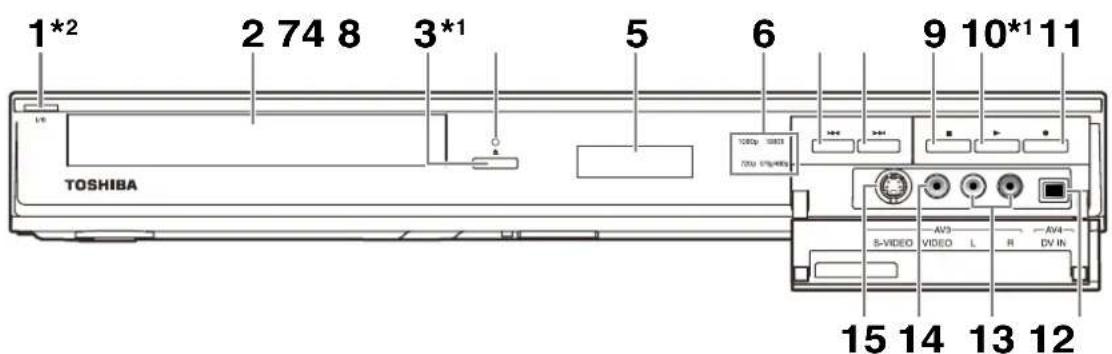
(*1) You can also turn on the unit by pressing these buttons.
(*2) Press to turn on the unit, or to turn the unit into the standby mode. (To completely shut down the unit, you must unplug the AC power cord.)
1 I/ON/STANDBY button* 2
9 ■ STOP button
2 Disc tray
10▶PLAY button* 1
3 ▲OPEN/CLOSE button* 1
11 ●REC button
4 Infrared sensor window
12 DV IN jack (AV4)
5 Display ("Off" in standby)
13 AUDIO input jacks (AV3)
6 HDMI indicator
14 VIDEO input jack (AV3)
7 SKIP button
15 S-VIDEO input jack (AV3)
8 ▶▶|SKIP button
Button names described in the Owner's Manual
The instructions in this manual are described mainly with the operations using the remote control. Some operations can be carried out using the buttons on the front panel.
Rear Panel
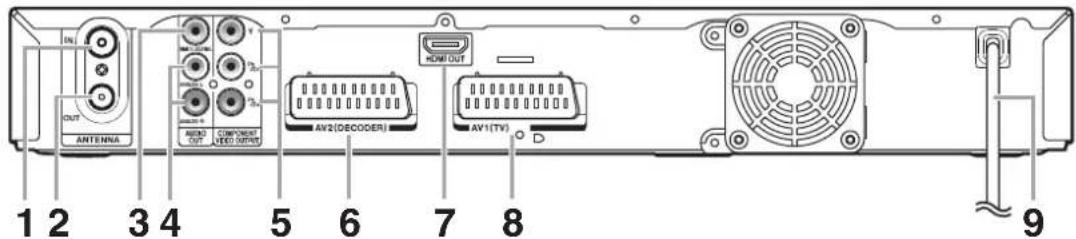
1 ANTENNA IN
6 AV2 (DECODER) socket
2 ANTENNA OUT
7 HDMI OUT jack
3 AUDIO OUT (DIGITAL COAXIAL) jack
8 AV1 (TV) socket
4 AUDIO OUT (ANALOG L/R) jacks
9 Mains cable
5 COMPONENT VIDEO OUTPUT jacks
Note
- Do not touch the inner pins of the jacks on the rear panel. Electrostatic discharge may cause permanent damage to the unit.
- After turning off the unit, leave the mains cable plugged for about one minute. Otherwise it may cause data loss or the unit may not work properly.
- This unit does not have an RF modulator.

Remote Control
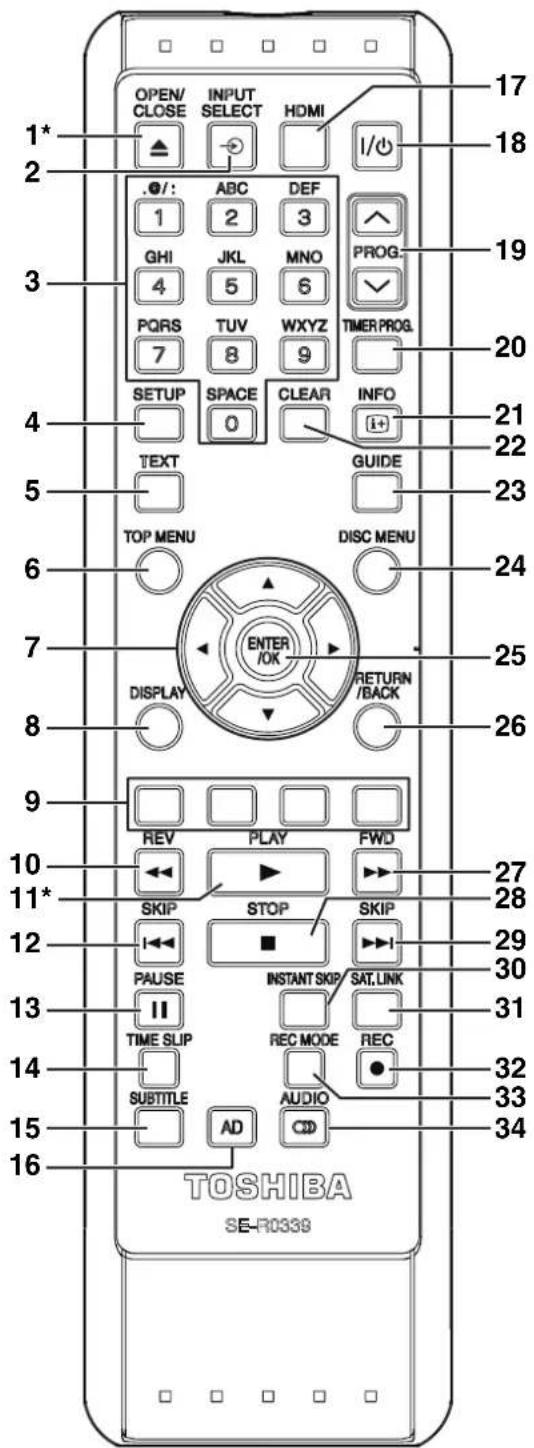
(*) The unit can also be turned on by pressing these buttons.
1 OPEN/CLOSE ▲ button*
2 INPUT SELECT ➕ button
3 Number buttons
4 SETUP button
5 TEXT button
6 TOP MENU button
7 Direction ▲/▼/◄/► buttons
8 DISPLAY button
9 RED/GREEN/YELLOW/BLUE button
10 REV ◀ button
11 PLAY ▶ button*
12 SKIP ◀◀ button
13 PAUSE II button
14 TIME SLIP button
15 SUBTITLE button
16 AD (Audio Description) button
17 HDMI button
18 I/ON/STANDBY button
19 PROG. ∧ / ∨ buttons
20 TIMER PROG. button
21 INFO ⓘ+ button
22 CLEAR button
23 GUIDE button
24 DISC MENU button
25 ENTER/OK button
26 RETURN/BACK button
27 FWD ▶ button
28 STOP ■ button
29 SKIP ▶▶ button
30 INSTANT SKIP button
31 SAT.LINK button
32 REC ● button
33 REC MODE button
34 AUDIO 🎨 button
Button names described in the Owner's Manual
The instructions in this manual are described mainly with the operations using the remote control. Some operations can be carried out using the buttons on the front panel.
Installing Batteries in the Remote Control
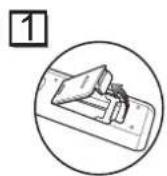
Install 2 R6 (1.5 V) batteries (supplied) into the remote control, carefully match with the polarity indicated inside the battery compartment.
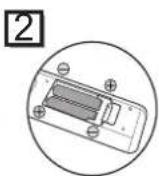

Caution
- Incorrect use of batteries can result in hazards such as leakage and bursting.
- Do not mix new and old batteries together.
- Do not use different kinds of batteries together.
- Make sure that the plus (+) and minus (−) ends of each battery match the indications inside the battery compartment.
- Remove batteries if the equipment will not be used for a month or more.
- When disposing used batteries, please comply with governmental regulations or the public instructions for environmental protection that apply in your country or area.
- Do not recharge, short-circuit, heat, burn or disassemble batteries.
About the Remote Control
- Make sure there is no obstacle between the remote control and the remote control sensor on the unit.
- Use within the operating range and angle as shown.
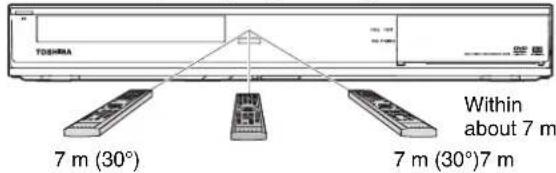
• The maximum operable range as follows:
Line of sight: approximately 7 m
Either side of centre: approximately 7 m within 30 degrees
- Remote control operation may become unreliable if the remote control sensor of the unit is being exposed by the strong sunlight or fluorescent light.
- Remote controls for different devices can interfere with each other. Be careful when using remote controls for other equipment located close to the unit.
- Replace the batteries when the operating range of the remote control reduces.
Guide to On-Screen Displays
DISPLAY Menu
With a disc inserted into the unit, press [DISPLAY] to display the on-screen display. The on-screen display shows information about what is recorded on the disc.
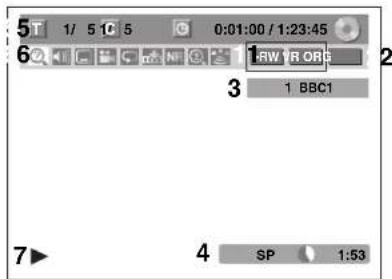
This is an example screen for explanation. Displayed items vary depending on the actual mode.
1 Indicates a disc type and format mode.
2 Indicates a type of titles for VR mode DVD-RW disc.
3 Indicates a channel number, station name (analogue channel only) or selected external input mode.
4 Indicates a recording mode and possible recording time left.
5 Indicates a title number, chapter number, elapsed time and total of disc playback.
6 Each icon means:
7 Indicates an operation status.
Note
- For some descriptions on this manual, only one disc type is indicated as an example.
Press [DISPLAY] repeatedly while the display menu is displayed to display the following information.
</h1>
<p>Title name information</p>
<p><img alt="" src="images/1f7cd3365440c308d82ee6cf8ac5c53401b8426fa9f06461dca825c2d85bfb28.jpg" /></p>
<details>
<summary>text_image</summary>
Title Name
My Title
</details>
<p>(only when DVD+RW/+R, VR mode DVD-RW or unfinalised video mode DVD-RW/-R disc is in playback)</p>
<p>File name information</p>
<p><img alt="" src="images/cfdd1389f890fb2cfe509c35b3c2c637ffcb1d26273bf27f36e51dc6c8b0854a.jpg" /></p>
<details>
<summary>text_image</summary>
File Name
My File
</details>
<p>(only when MP3/JPEG/DivX® files is in playback)</p>
<h1 id="mp3-tag-information"><MP3 Tag Information></h1>
<p>(only when MP3 file is in playback)</p>
<p>Title name information</p>
<p><img alt="" src="images/a74ec979ab0383b7da071e358c05652da3beb6eb7dec9026cff3b70006115908.jpg" /></p>
<details>
<summary>text_image</summary>
Title Name
</details>
<p>Artist name information</p>
<p><img alt="" src="images/478e48a78557b69073e41c1881f501540742ae6e5f059b005105cec0ba120910.jpg" /></p>
<details>
<summary>text_image</summary>
Artist Name
</details>
<p>Album name information</p>
<p><img alt="" src="images/805c28f74343f822deeb4b3d5220a1df199b11eb49cf713f1bf75cc08364a951.jpg" /></p>
<details>
<summary>text_image</summary>
Album Name
</details>
<h1 id="hdmi-information"><HDMI Information></h1>
<p><img alt="" src="images/1ac9c122ddafafb8938c90a74d0af1550876439d3e1cf3f28c2800b111135d61.jpg" /></p>
<details>
<summary>text_image</summary>
Video Info. : 1180p /22CbCr
Audio Info. : 33litstream
</details>
<p>(only for the images output through the HDMI output)</p>
<p>1 Indicates the resolution of the HDMI output image.</p>
<p>2 Indicates the HDMI video format.</p>
<p>3 Indicates the HDMI audio format.</p>
<p>- “--” will be displayed, when it does not have any information.</p>
<h1 id="info-menu">INFO Menu</h1>
<h1 id="dvb">DVB</h1>
<p>Press [INFO i+] while viewing a DVB programme to display the programme information.</p>
<p><img alt="" src="images/88fb828f4102afc412a627cd91f3442f18644f2964e18cf46cbbf34154e7e5b2.jpg" /></p>
<details>
<summary>text_image</summary>
13 Channel 4+1
English
11:53 Mon
NOW: Castle
Stereo AD Sub Entertainment 27 min left
NEXT: Burning Questions 12:20 – 12:25
</details>
<h1 id="1-audio-language">1 Audio language</h1>
<p>2 Channel number</p>
<p>3 Channel name</p>
<p>4 Current time and day</p>
<p>5 Next programme information</p>
<p>6 Current programme information</p>
<p>The window will automatically exit after 4 seconds, or press [RETURN/BACK] to exit.</p>
<p>While the window appears, press [INFO i+] again to display more information. Press [RETURN/BACK] to exit.</p>
<h1 id="main-menu">Main Menu</h1>
<p>Press [SETUP] to display the main menu. Then use [▲ / ▼] to select a menu and press [ENTER/OK] to display the sub menu.</p>
<p>Press [RETURN/BACK] to return to previous screen.</p>
<p><img alt="" src="images/dbd175d09c2e2cc5d76c0c1cb35986475f5668b803003b4a5063b1861dc41ad5.jpg" /></p>
<details>
<summary>text_image</summary>
Setup
General Setting
Timer Programming
Title List
DVD Menu
DISC Playback Mode
</details>
<p>- 5 is displayed when a disc with CD-DA/VCD/MP3/JPEG is inserted.</p>
<h1 id="1-general-setting">1 General Setting</h1>
<p><img alt="" src="images/c47b751c185b36134e63f8c83b77032a18f0a89df9a142b810ffac9f37bfdb53.jpg" /></p>
<details>
<summary>text_image</summary>
General Setting
Playback
Display
Video
Recording
Clock
Channel
DivX
HDMI
DVB Setting
Reset All
Parental Lock
Audio Out
Disc Menu Language
Audio Language
Subtitle Language
Angle Icon
Still Mode
TV System
</details>
<p>1 Playback: [→ Page 63] <br />
2 Display: [→ Page 65] <br />
3 Video: [→ Page 66] <br />
4 Recording: [→ Pages 29-31, 37, 40] <br />
5 Clock: [→ Page 66] <br />
6 Channel: [→ Pages 19-25] <br />
7 DivX: [→ Pages 43, 67] <br />
8 HDMI: [→ Page 67] <br />
9 DVB Setting: [→ Page 68] <br />
10 Reset All: [→ Page 68]</p>
<h1 id="dvb-setting">DVB Setting</h1>
<p><img alt="" src="images/494577627f196f3952eb8396c85b7b35bfdd72bbb2541c79d1cf8de39c0ce45f.jpg" /></p>
<details>
<summary>text_image</summary>
General Setting
Playback
Display
Video
Recording
Clock
Channel
DIVX
HDMI
DVB Setting
Reset All
Adult Lock
Language
About
1
2
3
</details>
<p>1 Adult Lock: [→ Page 68] <br />
2 L a n g u a g e : [→Page 68] <br />
3 About: [→ Page 68]</p>
<h1 id="②-timer-programming">② Timer Programming</h1>
<p>To programme a timer recording. [→ Page 32]</p>
<h1 id="③-title-list">③ Title List</h1>
<p>To call up the title list. [→ Page 53]</p>
<h1 id="4-dvd-menu">4 DVD Menu</h1>
<p><img alt="" src="images/734282c6c192401c3590980b0ca8d9e318e3e00bf6baaedc5c8da11657df9013.jpg" /></p>
<details>
<summary>text_image</summary>
DVD Menu
Format
Finalise
Disc Protect OFF QN
Delete All Playlists
</details>
<p>1 Format (DVD-RW, DVD+RW only): <br />
[→Pages 29, 30] <br />
2 Finalise: [→ Page 40] <br />
3 Disc Protect (VR mode DVD-RW, DVD+RW/+R disc only): [→Page 40] <br />
4 Delete All Playlists (VR mode DVD-RW disc only): [→ Page 59]</p>
<h1 id="5-disc-playback-mode">5 DISC Playback Mode</h1>
<p>Audio CD / video CD</p>
<p><img alt="" src="images/79b4f54570cf0f4ed74a9ce8a52c64c98b6a15c0029e9b1db3f42203dc11bf03.jpg" /></p>
<details>
<summary>text_image</summary>
DISC Playback Mode
1
2
Programme Play
3
PBC (Video CD only)
</details>
<p>1 Random Play: [→ Page 50] <br />
2 Programme Play: [→ Page 51] <br />
3 PBC (Video CD only): [→ Page 45]</p>
<p>CD-RW/-R with MP3 / JPEG files</p>
<p><img alt="" src="images/f76dd3b451cb094cd97c8b10308205ca93a95742527948cd885ad3b7d570ac64.jpg" /></p>
<details>
<summary>text_image</summary>
DISC Playback Mode
Music
Photo
Random Play
Slide Show
</details>
<p>4 Music (MP3 files): [→ Page 50] <br />
5 Photo (JPEG files): [→ Pages 50, 51] <br />
6 Slide Show: [→ Page 51]</p>
<h1 id="front-panel-display-guide">Front Panel Display Guide</h1>
<p><img alt="" src="images/c3a2a132e880cf02fc38a90675a06358c0c52e7302f57dbb9ae88d9a21f137d5.jpg" /></p>
<details>
<summary>text_image</summary>
1
DTV
2
T
C
3
-0:0:0:0:0:0
4
</details>
<h1 id="1-dtv-indicator">1 DTV indicator</h1>
<p>DTV: Appears when the channel is in digital mode.</p>
<h1 id="2-title-track-and-chapter-number">2 Title / Track and Chapter number</h1>
<p>T : Title / track number <br />
C : Chapter number</p>
<h1 id="3-current-status-of-the-unit">3 Current status of the unit</h1>
<p>II: Appears when a disc playback is paused. Appears during step by step playback.</p>
<p>▶: Appears when playing back a disc. <br />
II▶: Appears during slow forward / reverse playback. <br />
: Appears when the timer programming or One-touch Timer Recording (OTR) is set and operating.
Appears when the unit goes into the satellite link standby or recording mode.
Flashes when satellite recording was not executed because of some error. <br />
●: Appears during recording.
Flashes when recording being paused.</p>
<p>: Appears when a disc is in this unit.</p>
<h1 id="4-displays-the-following">4 Displays the following</h1>
<ul>
<li>Playing back time </li>
<li>Current title / chapter / track / file number <br />
• Recording time / remaining time </li>
<li>Clock </li>
<li>Channel number <br />
• One-touch Timer Recording (OTR) remaining time </li>
<li>Selected HDMI video resolution</li>
</ul>
<h1 id="note-3">Note</h1>
<p>- Except when satellite recording is in standby, front panel display stays off while the unit is in power off / timer-standby mode.</p>
<p>This is a new Power Save (ECO) feature.</p>
<h1 id="display-messages">Display Messages</h1>
<p><img alt="" src="images/ad7109a8bb8c9cb9635ef7f2aef8f56dd47d2c6d32caa94e66fd19b936708bf1.jpg" /></p>
<p><img alt="" src="images/b8cd86248a6d8202962c9a0e2788ff53f535a0efef55a3503822a64f620c73b9.jpg" /></p>
<p><img alt="" src="images/e793fb492a591fcad0752fbd41036a7c53cce3c04ef6ee4e21c2d595bb8569dd.jpg" /></p>
<p><img alt="" src="images/e78df42886ea76bf2e4f76d3a42ac8800ea7766c7b2417d4b4e8de1d8a89fd34.jpg" /></p>
<p><img alt="" src="images/dc395dba4a9e3634e40470a292f4dd1bf8253c93da36c7f0ada8cde862382d7e.jpg" /></p>
<p><img alt="" src="images/76e7f247b56f27de392bf9d133672a27b363e35b5e7f4292be5b1e6a754ba80b.jpg" /></p>
<p>The disc tray is opening.</p>
<p>The PBC function of the video CD is activated.</p>
<p>The disc tray is closing.</p>
<p>A disc is loading.</p>
<p>Data is being recorded on a disc.</p>
<p>Appears when the satellite link recording is in standby.</p>
<p><img alt="" src="images/8be641ce9dc42f6a2c5f37ed89c41744cc9d021c886ae6b2572303e7bba9fb0a.jpg" /></p>
<p><img alt="" src="images/ee79fffdf29a58b3ca0c8ba9eea54f9ecb4ac0bb217b4b371c35aca8b7893162.jpg" /></p>
<p><img alt="" src="images/6b81f96574a5994ddd4fb897b3fd30e75caec01299e01ea1ce7b2d9b3c359f50.jpg" /></p>
<p><img alt="" src="images/960d2ae9fbe7af67b41795f230b1f21ef375e2905947994f0b235f423a2b837e.jpg" /></p>
<p><img alt="" src="images/f96338f041deace1a007c67cc955c0bfc527811b754075c57eaad9b0c0a1d292.jpg" /></p>
<p>Appears when HDMI video resolution (480p) is selected.</p>
<p>Appears when HDMI video resolution (576p) is selected.</p>
<p>Appears when HDMI video resolution (720p) is selected.</p>
<p>Appears when HDMI video resolution (1080i) is selected.</p>
<p>Appears when HDMI video resolution (1080p) is selected.</p>
<h1 id="connections">Connections</h1>
<h1 id="connecting-to-a-tv">Connecting to a TV</h1>
<p>Connect the unit to a TV after considering the capabilities of your existing equipment.</p>
<p>Before installation, unplug your TV and this unit <br />
<img alt="" src="images/9d36eb75a6734d2ae1c087ce8ec2e3d6c8a7a5a4b030e6a285ca0daf4aeda703.jpg" /></p>
<details>
<summary>flowchart</summary>
<pre><code class="language-mermaid">graph TD
A["Cable Signal"] --> B["or"]
B --> C["RF cable (not supplied)"]
C --> D["RF cable (supplied)"]
D --> E["ToAerial jack"]
F["Antenna"] --> G["Computer"]
</code></pre>
</details>
<p>1 Connect the antenna or cable to the ANTENNA IN jack of this unit. <br />
2 Connect the ANTENNA OUT jack of this unit to the Aerial jack of your TV.</p>
<p>Using the Scart socket <br />
<img alt="" src="images/691a22bf54e36a1dbeb441c61191b615af7f913f9569625e5f776f0a96276cfb.jpg" /></p>
<details>
<summary>flowchart</summary>
<pre><code class="language-mermaid">graph TD
A["Audio/video cable (not supplied)"] --> B["Scart/RCA cable (not supplied)"]
B --> C["Scart cable (not supplied)"]
C --> D["Scart adaptor (not supplied)"]
D --> E["SCart"]
style A fill:#f9f,stroke:#333
style B fill:#ccf,stroke:#333
style C fill:#cfc,stroke:#333
style D fill:#fcc,stroke:#333
style E fill:#ffc,stroke:#333
</code></pre>
</details>
<p>Connect AV1 (TV) Scart socket of this unit to the Scart socket of your TV.</p>
<h1 id="note-4">Note</h1>
<ul>
<li>If your TV does not have a Scart socket, use a Scart/RCA cable to connect. </li>
<li>Connect this unit directly to the TV. If the AV cables are connected to a VCR, pictures may be distorted due to the copy protection system.</li>
</ul>
<p>- When changing the "Video Out" setting ("SCART (RGB)", "Component (Interlace)" or "Component (Progressive)"), connect to the corresponding jack on the TV. If the setting is changed, for example, to "Component (Interlace)" or "Component (Progressive)" while the scart cable is connected to the TV, a distorted video signal may be output.</p>
<h1 id="using-the-component-video-output-jacks-and-the-audio-out-analog-lr-jacks">Using the COMPONENT VIDEO OUTPUT Jacks and the AUDIO OUT (ANALOG L/R) Jacks</h1>
<p>If your TV has component video input jacks, use a component video cable (to connect the COMPONENT VIDEO OUTPUT jacks) and an audio cable (to connect the AUDIO OUT (ANALOG L/R) jacks).</p>
<p>When using this type of connection, "Video Out" setting should be set to "Component (Progressive)" or "Component (Interlace)". Refer to "Video Out" on page 66.</p>
<p>- Component connection provides the better quality picture.</p>
<p><img alt="" src="images/6f9be95e26a4f4a6c9df8d6762581d393d20b186d164e0708ad4aa831bb18d36.jpg" /></p>
<details>
<summary>flowchart</summary>
<pre><code class="language-mermaid">graph TD
A["Audio IN"] --> B["Computer"]
C["Component video IN"] --> B
B --> D["1"]
B --> E["2"]
D --> F["Output"]
E --> G["Output"]
style A fill:#f9f,stroke:#333
style C fill:#f9f,stroke:#333
style B fill:#ccf,stroke:#333
style D fill:#cff,stroke:#333
style E fill:#cff,stroke:#333
style F fill:#ffc,stroke:#333
style G fill:#ffc,stroke:#333
</code></pre>
</details>
<p>1 Connect the COMPONENT VIDEO OUTPUT jacks of this unit to the component video input jacks of your TV. <br />
2 Connect the AUDIO OUT (ANALOG L/R) jacks of this unit to the analogue audio input jacks of your TV.</p>
<p>- After you have made the connections, set the "Video Out" setting. (See page 66.)</p>
<h1 id="selecting-progressive-scan-576p480p-or-interlaced-576i480i-playback">Selecting Progressive Scan (576p/480p or Interlaced 576i/480i) Playback</h1>
<ul>
<li>If your TV is compatible with progressive scanning (576p/480p), connect the TV to the COMPONENT VIDEO OUTPUT jacks of this unit and set "Video Out" setting to "Component (Progressive)" in "Setup" menu. (See page 66.) Next, set your TV to the progressive scan mode. </li>
<li>If your TV is not compatible with progressive scan, set "Video Out" setting to "Component (Interlace)". </li>
<li>Use a commercially available adaptor if the video input jacks of your TVs or monitors are the BNC type. </li>
<li>Only component and HDMI connections are compatible with the Progressive Scan.</li>
</ul>
<h1 id="using-an-hdmi-compatible-port">Using an HDMI Compatible Port</h1>
<h1 id="hdmi-connection">[HDMI CONNECTION]</h1>
<ul>
<li>HDMI outputs the video / audio signals without converting to analogue signals. </li>
<li>No audio connections is required. </li>
<li>Use the HDMI cable (commercially available) for connection. </li>
<li>Connect the HDMI output jack of this unit to the HDMI input jack of TV.</li>
</ul>
<p><img alt="" src="images/9afccad406bd54aa6c07d90d36c85352cddb126b4feb170eea2186c11486f147.jpg" /></p>
<details>
<summary>text_image</summary>
HDMI cable (not supplied)
this unit
To HDMI
Input jack
HDMI OUT
HDMI IN
TV
</details>
<h1 id="selecting-hdmi-video-resolution">Selecting HDMI video resolution</h1>
<p>Press [HDMI] to select the HDMI video resolution. The video resolution changes as follows every time [HDMI] is pressed. 576p (PAL) / 480p (NTSC) → 720p → 1080i → 1080p (An HDMI video resolution that is not supported by the display device will be skipped.)</p>
<p>Actual Output Modes by Media </p>
<table><tr><td colspan="2">Audio recording format of the disc</td><td>Dolby Digital / DTS / MPEG setting of this unit</td><td>Actual output</td></tr><tr><td rowspan="8">DVD-video</td><td rowspan="2">Dolby Digital</td><td>PCM 2 channel PCM</td><td></td></tr><tr><td>Stream Dolby Digital</td><td></td></tr><tr><td rowspan="2">LPCM</td><td>PCM</td><td rowspan="2">2 channel PCM</td></tr><tr><td>Stream</td></tr><tr><td rowspan="2"> DTS^3 </td><td>ON DTS</td><td>#</td></tr><tr><td>OFF</td><td>-</td></tr><tr><td rowspan="2">MPEG</td><td>PCM 2 channel PCM</td><td></td></tr><tr><td>Stream MPEG</td><td></td></tr><tr><td rowspan="6">DivX®</td><td rowspan="2">Dolby Digital</td><td>PCM 2 channel PCM</td><td></td></tr><tr><td>Stream Dolby Digital</td><td></td></tr><tr><td rowspan="2">MP3</td><td>PCM</td><td rowspan="2">2 channel PCM</td></tr><tr><td>Stream</td></tr><tr><td rowspan="2">MP2</td><td>PCM 2 channel PCM</td><td></td></tr><tr><td>Stream MPEG</td><td></td></tr></table>
<p>For audio CD, video CD and MP3 files, 2 channel PCM will be output regardless of the "Dolby Digital" setting. If the connected device is not compatible with HDMI BITSTREAM, audio will be output as PCM even if you select "Stream" in "Dolby Digital" setting. (See page 64.)</p>
<h1 id="copyright-protection-system">Copyright protection system</h1>
<p>To play back the digital video images of a DVD via an HDMI connection, it is necessary that both the player and the display device (or an AV amplifier) support a copyright protection system called HDCP (high-bandwidth digital content protection system). HDCP is copy protection technology that comprises data encryption and authentication of the connected AV device. This unit supports HDCP. Please read the operating instructions of your display device (or AV amplifier) for more information.</p>
<p>* HDMI: High Definition Multimedia Interface</p>
<h1 id="note-5">Note</h1>
<ul>
<li>Because HDMI is an evolving technology, it is possible that some devices with an HDMI input may not operate properly with this unit. </li>
<li>When using an HDCP-incompatible display device, the image will not be viewed properly. </li>
<li>Among the devices that support HDMI, some devices can control other devices via the HDMI connector; this unit can be controlled by another device via the HDMI connector. </li>
<li>The audio signals from the HDMI connector (including the sampling frequency, the number of channels and bit length) may be limited by the device that is connected. </li>
<li>Among the monitors that support HDMI, some do not support audio output (for example, projectors). In connections with device such as this unit, audio signals are not output from the HDMI output connector. </li>
<li>When this unit's HDMI connector is connected to a DVI-D compatible monitor (HDCP compatible) with an HDMI-DVI conversion cable, the signals are output in digital RGB. </li>
<li>If the connected equipment is not compatible with HDMI BITSTREAM, DTS sound will not be output. </li>
<li>When the power failure occurs, or when you unplug the unit, some problems in the HDMI setting might occur. Please check and set the HDMI setting again.</li>
</ul>
<h1 id="connecting-to-external-equipment">Connecting to External Equipment</h1>
<p>This unit has four input terminals. Press [INPUT SELECT ⊖] repeatedly to select the external input mode, then press [PROG. ∧ / ∨] repeatedly to select AV1, AV2, AV3 or DV(AV4). Be sure that all the units are switched off before making connections.</p>
<p>Recording from a DVD player, Satellite Box or other Audio-Video equipment with a Scart output socket (AV2) <br />
<img alt="" src="images/36bb0dc5084826b67d892f5e3eff84e8ebabb104f225574a7e96a5356bd26d7a.jpg" /></p>
<details>
<summary>text_image</summary>
AV output jack
(Scart)
Scart cable (not supplied)
AV2 (DECODER)
</details>
<h1 id="note-6">Note</h1>
<ul>
<li>When you record a TV programme from a Satellite Box / decoder, you must connect a Scart cable to AV2 (DECODER). (See page 36.) </li>
<li>The signal from the external device will be output automatically when the TV is connected to AV1 and the external device is connected to AV2 using a Scart cable with its power on. (However, it will not be output when this unit's power is turned off.)</li>
</ul>
<p>If you want to monitor this unit's signal, press [DISPLAY] or turn the external device off. (The signal from this unit can only be monitored during playback.)</p>
<p>If you want to monitor the signal from other input, press [DISPLAY], then press [INPUT SELECT ⬤] to select the desired external input mode, then select the desired input channel using [PROG. ∧ / ∨].</p>
<h1 id="recording-from-a-camcorder-or-other-audio-video-equipment-with-no-scart-output-socket-av3dvav4">Recording from a camcorder or other Audio-Video equipment with no Scart output socket (AV3/DV(AV4))</h1>
<p>Connect to AUDIO input jacks on the front panel using an RCA audio cable. If no S-VIDEO input jack is available, connect to VIDEO input jack on the front panel using an RCA video cable. Change the setup when using S-VIDEO input jack. (See page 37.)</p>
<p>When connecting a DV-camcorder, use DV input jack of DV(AV4) (Front).</p>
<p>AV3/DV(AV4) (Front) <br />
<img alt="" src="images/c02a316f1d6eb067f6ac98e23a313aa5b7c303796af2912670531039c0821b0d.jpg" /></p>
<details>
<summary>text_image</summary>
100p 100V
100p 250p
S-Video
cable
(not supplied)
or
S-VIDEO
OUT
VIDEO OUT
AV3
Audio
OUT
AV4
DV OUT
AV4
Video cable
(not supplied)
Audio cable
(not supplied)
DV cable
(4-pin)
(not supplied)
</details>
<h1 id="note-7">Note</h1>
<p>- When connecting an external device of monaural output to this unit, use AUDIO L jack of AV3.</p>
<p>Digital Audio for Better Sound Quality <br />
<img alt="" src="images/0ddc7eccf032db5a5f868327b56c7585593113af3c7516241c1b41e551a87de5.jpg" /></p>
<details>
<summary>text_image</summary>
Dolby Digital decoder,
DTS decoder or
MPEG decoder, etc.
Digital audio
input jack
COAXIAL
Coaxial cable
(not supplied)
DIGITAL COAXIAL
</details>
<h1 id="the-connections-illustrated-above-are-optional-for-better-sound">The connections illustrated above are optional for better sound</h1>
<p>For clear digital sound quality, use the AUDIO OUT (DIGITAL COAXIAL) jack to connect your digital audio equipment.</p>
<p>If the audio format of the digital output does not match the capabilities of your receiver, the receiver will produce a strong, distorted sound or no sound at all.</p>
<h1 id="connecting-a-dolby-digital-decoder-dts-decoder-or-mpeg-decoder">Connecting a Dolby Digital™ decoder, DTS decoder or MPEG decoder</h1>
<ul>
<li>Connecting multi-channel Dolby Digital decoder allows you to enjoy the Multi-channel Dolby Digital surround system as well as DTS decoder, Multi-channel surround system. </li>
<li>After connecting to a Dolby Digital decoder, set "Dolby Digital" to "Stream" in "Audio Out" menu. (See page 64.) </li>
<li>After connecting to a DTS decoder, set "DTS" to "ON" in "Audio Out" menu. (See page 64.) </li>
<li>After connecting to a MPEG decoder, set "MPEG" to "Stream" in "Audio Out" menu. (See page 64.)</li>
</ul>
<h1 id="connecting-to-an-md-deck-or-dat-deck">Connecting to an MD deck or DAT deck</h1>
<ul>
<li>The audio source recorded in Dolby Digital Multi-channel surround format cannot be recorded using an MD or DAT deck as a digital sound. </li>
<li>If not connected to a Dolby Digital decoder, set "Dolby Digital" to "PCM" in "Audio Out" menu. Playing back a DVD using incorrect settings may generate noise distortion and damage speakers. </li>
<li>Set "Dolby Digital" and "MPEG" to "PCM" and set "DTS" to "OFF" in "Audio Out" menu for connecting to an MD or DAT deck. </li>
<li>You can use AUDIO OUT (ANALOG L/R) jacks for the connection of your audio system.</li>
</ul>
<h1 id="basic-setup-tv-view-operation">Basic Setup / TV View Operation</h1>
<h1 id="initial-setting">Initial Setting</h1>
<p>When you turn on this unit for the first time, you need to follow these steps.</p>
<p>1 Press [I/ON/STANDBY].</p>
<p>2Turn the TV on. Select the input to which the unit is connected.</p>
<p>3Select your desired tuning type according to your area using [▲ / ▼], then press [ENTER/OK].</p>
<p><img alt="" src="images/109e836286199e7a9faf41fcb54d067dba1d5699f84fd9f4a46a2eca8284e2fa.jpg" /></p>
<p>The unit will start getting channels available in your area.</p>
<h1 id="digital-tuning">Digital tuning:</h1>
<p>Only the DVB channels receivable in your area are automatically scanned and memorised.</p>
<p>Digital & Analog tuning:</p>
<p>Both analogue and DVB channels receivable in your area are scanned and memorised automatically.</p>
<h1 id="analog-tuning">Analog tuning:</h1>
<p>Only the analogue channels receivable in your area are automatically scanned and memorised.</p>
<p>- If no channel has been memorised, the antenna confirmation display will appear. Press [ENTER/OK] to start auto scanning again or press [RETURN/BACK] to cancel the initial settings.</p>
<p>4 After finishing channel setting, "Clock Setting" will appear.</p>
<p><img alt="" src="images/c1a8a4ace0c9b297da7ab802136e6236357219f452233395c57ed05ed8ef3a93.jpg" /></p>
<p>• The current date and time will appear automatically.</p>
<p>- If the current date and time are correct, press [RETURN/BACK] to exit, if they are incorrect, press [ENTER/OK] and follow to "1 Clock Setting" on page 66.</p>
<h1 id="note-8">Note</h1>
<p>- After "Initial Setting", if you need to unplug the mains cable, make sure to turn off the power first and leave it in standby mode for at least 1 minute before attempting to unplug. Otherwise, it may cause data loss.</p>
<p>If you want to set each item of "Initial Setting" again, you can set them at "General Setting".</p>
<ul>
<li>Refer to "Auto Tuning (DVB & ANALOG)" on this page. </li>
<li>Refer to "Auto Tuning (ANALOG)" on page 20. </li>
<li>Refer to "Auto Tuning (DVB)" on page 21. </li>
<li>Refer to "Clock" on page 66.</li>
</ul>
<p>Also you can customize the memorised channel at "General Setting".</p>
<p>Refer to following pages for details.</p>
<ul>
<li>Refer to "Manual Tuning (ANALOG)" on page 20. </li>
<li>Refer to "Manual Tuning (DVB)" on page 21. </li>
<li>Refer to "Skip a Preset Channel" on page 21. <br />
• Refer to "Move" on page 21.</li>
</ul>
<h1 id="selecting-the-tv-aspect-ratio">Selecting the TV Aspect Ratio</h1>
<p>Use this feature to adjust the aspect ratio of the video source which is different from your TV's ratio to fit your TV monitor without distorting the picture.</p>
<p>1In stop mode, press [SETUP]. Select "General Setting" using [▲ / ▼], then press [ENTER/OK].</p>
<p>2 Select "Video" using [▲ / ▼], then press [ENTER/OK]. <br />
3 Select "TV Aspect" using [▲ / ▼], then press [ENTER/OK].</p>
<p><img alt="" src="images/11a976d06d85b3acc68e9d554c906e13fecc0ea90060306a5161440ca4a09c98.jpg" /></p>
<p>4 Select the desired option using [▲ / ▼], then press [ENTER/OK].</p>
<p><img alt="" src="images/48bcd69f7ec7cd4120e1e302d377e4fbe80009fae889256e597af11f220ae483.jpg" /></p>
<h1 id="5press-setup-to-exit">5Press [SETUP] to exit.</h1>
<h1 id="note-9">Note</h1>
<p>If you have a standard TV:</p>
<ul>
<li>Select "4:3 Letter Box" for a full width picture with black bars at the top and bottom. </li>
<li>Select "4:3 Pan & Scan" for a full height picture with both sides trimmed.</li>
</ul>
<p>If you have a wide screen TV:</p>
<p>- Select "16:9 Wide".</p>
<h1 id="channel-setting">Channel Setting</h1>
<p>You can return this unit or edit the channel setting with following methods.</p>
<h1 id="auto-tuning-dvb-analog">Auto Tuning (DVB & ANALOG)</h1>
<h1 id="dvb-analog">DVB ANALOG</h1>
<p>Programme the tuner to scan both analogue and DVB channels you can receive in your area.</p>
<p>1In stop mode, press [SETUP]. Select "General Setting" using [▲ / ▼], then press [ENTER/OK].
"General Setting" menu will appear. <br />
2 Select "Channel" using [▲ / ▼], then press [ENTER/OK].</p>
<h1 id="3select-auto-tuning-dvb-analog-using-then-press-enterok">3Select "Auto Tuning (DVB & ANALOG)" using [▲ / ▼], then press [ENTER/OK].</h1>
<p>The unit will start storing channels available in your area.</p>
<p><img alt="" src="images/e6c62aa82a53898a144c389b9de75bbacc88eb130d01aba066f62d8ee0fb46a6.jpg" /></p>
<details>
<summary>text_image</summary>
General Setting
Playback
Display
Video
Recording
Clock
Channel
DivX
HDMI
DVB Setting
Reset All
Auto Tuning (DVB & ANALOG)
DVB Channel Setup
ANALOG Channel Setup
</details>
<p>Wait for several minutes to finish channel storing.</p>
<h1 id="4press-setup-to-exit">4Press [SETUP] to exit.</h1>
<p>You can select only the channels memorised in this unit by using [PROG. ∧ / ∨].</p>
<h1 id="to-cancel-auto-tuning">To cancel auto tuning</h1>
<p>Press [SETUP] during scanning.</p>
<h1 id="note-10">Note</h1>
<ul>
<li>The number of TV channels you can get is different depends on your local area. </li>
<li>If the auto tuning is cancelled during scanning, some channels not yet tuned may not be received.</li>
</ul>
<h1 id="auto-tuning-analog">Auto Tuning (ANALOG)</h1>
<h1 id="analog">ANALOG</h1>
<p>Programme the tuner to scan only the analogue channels you can receive in your area.</p>
<p>1In stop mode, press [SETUP]. Select "General Setting" using [▲ / ▼], then press [ENTER/OK]. <br />
2 Select "Channel" using [▲ / ▼], then press [ENTER/OK]. <br />
3 Select "ANALOG Channel Setup" using [▲ / ▼], then press [ENTER/OK]. <br />
4 Select "Auto Tuning" using [▲ / ▼], then press [ENTER/OK].</p>
<p>The unit will start storing channels available in your area.</p>
<p><img alt="" src="images/d0f5310357f016198b4581b4501c7f9edfd9ba7955c9d3353c43339c4239a60d.jpg" /></p>
<p>Wait for several minutes to finish channel storing.</p>
<h1 id="5press-setup-to-exit-2">5Press [SETUP] to exit.</h1>
<p>You can select only the channels memorised in this unit by using [PROG. ∧ / ∨].</p>
<h1 id="to-cancel-auto-tuning-2">To cancel auto tuning</h1>
<p>Press [SETUP] during scanning.</p>
<h1 id="note-11">Note</h1>
<ul>
<li>The number of TV channels you can get is different depends on your local area. </li>
<li>If the auto tuning is cancelled during scanning, some channels not yet tuned may not be received. </li>
<li>Sorting of TV channels from 1 to 6 will be performed automatically as follows. <br />
1: BBC1 2: BBC2 3: ITV <br />
4: CH4 5: CH5 6: SKY NEWS</li>
</ul>
<p>- If you are using a satellite receiver, or a cable box, turn it on and select SKY NEWS before commencing tuning. If the SKY NEWS channel is not available to you, choose another channel that you can recognise easily, and move this reception to preset 6 after the automatic tuning has finished. Instructions on page 21 explain how to move channels.</p>
<h1 id="manual-tuning-analog">Manual Tuning (ANALOG)</h1>
<h1 id="analog-2">ANALOG</h1>
<p>You can preset an analogue channel manually and individually.</p>
<p>1In stop mode, press [SETUP]. Select "General Setting" using [▲ / ▼], then press [ENTER/OK]. <br />
2 Select "Channel" using [▲ / ▼], then press [ENTER/OK]. <br />
3 Select "ANALOG Channel Setup" using [▲ / ▼], then press [ENTER/OK]. <br />
4 Select "Manual Tuning" using [▲ / ▼], then press [ENTER/OK]. <br />
5 Select "Position" using [▲ / ▼], then press [▶].</p>
<p><img alt="" src="images/4f1c594e2312a64d29dadb1f2b5466218cbf898d6fe2f702e8b5598b210c04b8.jpg" /></p>
<p>6Select the position number you want to use using [the Number buttons] or [▲ / ▼], then press [◀].</p>
<p>- You can select position number 1-99.
- With [the Number buttons], press "0" first to enter a single digit number.</p>
<p>7 Select "Channel" using [▲ / ▼], then press [▶].</p>
<p>8 Press [▲ / ▼] to start scanning.</p>
<ul>
<li>The tuner will begin to search up or down automatically. When a channel is found, the unit will stop searching and the picture will appear on the TV screen.</li>
<li>You can select a desired channel number using [the Number buttons]. Refer to the following Channel Plan table and press the three digits to select the channel number. (To select channel 4, press [0] first and then press [0] and [4]. Or press [4] and then “— 4” appears and wait for 2 seconds.) </li>
<li>If desired channel is found, press [◀].</li>
</ul>
<table><tr><td colspan="2">Channel Plan</td></tr><tr><td colspan="2">CH Indication TV Channel</td></tr><tr><td colspan="2">1 – 10 IRA - IRJ, GAP</td></tr><tr><td colspan="2">21 – 69 E21 – E69</td></tr><tr><td>74 – 78</td><td>X, Y, Z, Z+1, Z+2</td></tr><tr><td>80 – 99, 100</td><td>S1 – S20, GAP</td></tr><tr><td>121 – 141</td><td>S21 – S41</td></tr></table>
<p>This unit can receive the Hyper and Oscar frequency bands.</p>
<ul>
<li>If you want to decode scrambled signals, select "Decoder" using [▲ / ▼], then press [▶]. Select "ON" using [▲ / ▼], then press [◀]. </li>
<li>If "Skip" is set to "ON", select "Skip" using [▲ / ▼], then press [▶]. Select "OFF" using [▲ / ▼], then press [◀].</li>
<li>To store another channel, repeat steps 5 to 8.</li>
</ul>
<p>9 Press [SETUP] to exit.</p>
<h1 id="skip-a-preset-channel">Skip a Preset Channel</h1>
<h1 id="analog-3">ANALOG</h1>
<p>You can set the unit to skip channels. You can no longer receive or watch when you access channels using [PROG. ∧ / ∨].</p>
<p>1 Follow steps 1 to 4 in "Manual Tuning (ANALOG)" on page 20. <br />
2 Select "Position" using [▲ / ▼], then press [▶]. <br />
3Select the position number using
[the Number buttons] or [▲ / ▼], then press [◀]. <br />
4 Select "Skip" using [▲ / ▼], then press [▶]. <br />
5 Select "ON" using [▲ / ▼], then press [◀].
• To skip another channel, repeat steps 2 to 5.</p>
<p>6Press [SETUP] to exit.</p>
<h1 id="move">Move</h1>
<h1 id="analog-4">ANALOG</h1>
<p>You can replace two channels.</p>
<p>1In stop mode, press [SETUP]. Select "General Setting" using [▲ / ▼], then press [ENTER/OK]. <br />
2 Select "Channel" using [▲ / ▼], then press [ENTER/OK]. <br />
3 Select "ANALOG Channel Setup" using [▲ / ▼], then press [ENTER/OK]. <br />
4 Select "Move" using [▲ / ▼], then press [ENTER/OK].</p>
<p>5Select the position number to change the channel using [▲ / ▼], then press [ENTER/OK]. You cannot select a position number where “---” appears next to the number, because “Skip” is set to “ON” for that position number.</p>
<p>6Move the channel to another position number using [▲ / ▼], then press [ENTER/OK].
• To move another channel, repeat steps 5 to 6.</p>
<p>7Press [SETUP] to exit.</p>
<h1 id="auto-tuning-dvb">Auto Tuning (DVB)</h1>
<h1 id="dvb-2">DVB</h1>
<p>You can programme the tuner to scan only the DVB channels that you can receive in your area.</p>
<p>1In stop mode, press [SETUP]. Select "General Setting" using [▲ / ▼], then press [ENTER/OK]. <br />
2 Select "Channel" using [▲ / ▼], then press [ENTER/OK]. <br />
3 Select "DVB Channel Setup" using [▲ / ▼], then press [ENTER/OK]. <br />
4 Select "Auto Tuning" using [▲ / ▼], then press [ENTER/OK].</p>
<p>The unit will start storing channels available in your area.</p>
<p><img alt="" src="images/a6213fbdb51c324d28f454c2c3b37b6e8851bde08fd79d0ae7a30d2fe791b0be.jpg" /></p>
<p>The tuner scans and memorises all the active DVB channels (TV / Radio) in your area.</p>
<p><img alt="" src="images/321b2a3c4feaeba4d065736bc7a27281379f59f7eb2e8d7e01aa089015fd10be.jpg" /></p>
<details>
<summary>text_image</summary>
Channel Search
S.No. TV Channel
14 E4
13 More4
32 Film4+1
28 ITV4
75 CITV
34 SETANTA SPORT
S.No. Radio Channel
102 Teletext Cars
729 RadioMusicShop
728 Heart
Channel 69 UHF 858000KHz/8M
Progress 100%
OK Exit RETURN Back
</details>
<h1 id="5-press-enterok-to-exit">5 Press [ENTER/OK] to exit.</h1>
<p>• After auto tuning is completed, the lowest memorised DVB channels appears on the screen. <br />
- You can use [PROG. ∧ / ∨] to change the DVB channels.</p>
<h1 id="note-12">Note</h1>
<p>- If you press [RETURN/BACK] or [SETUP] during the scanning, auto tuning will be cancelled.</p>
<h1 id="manual-tuning-dvb">Manual Tuning (DVB)</h1>
<h1 id="dvb-3">DVB</h1>
<p>You can preset a DVB channel manually and individually.</p>
<p>1 Follow steps 1 to 3 in "Auto Tuning (DVB)" on this page.</p>
<p>2 Select "Manual Tuning" using [▲ / ▼], then press [ENTER/OK].</p>
<p>3Select your desired position number using [▲ / ▼], then press [ENTER/OK].</p>
<h1 id="channel-auto">Channel Auto</h1>
<ul>
<li>The tuner will begin to search up or down automatically. When a DVB channel is found, the unit will stop searching. </li>
<li>When "Auto" is selected, the unit will search for the channels which have not been stored in channels memory.</li>
</ul>
<p>4Press [SETUP] to activate the setting.</p>
<h1 id="service-update">Service Update</h1>
<h1 id="dvb-4">DVB</h1>
<p>This unit has "Service Update" function which searches and stores newly available digital channels automatically at 8:00. If a new channel is found, a message will appear on the screen when you turn on the DVB channel at first time after storing a new channel. Press any button to clear the message.</p>
<h1 id="tv-view-operation">TV View Operation</h1>
<p>The following operations are available while viewing TV channels through this unit's tuner.</p>
<h1 id="select-a-channel">Select a Channel</h1>
<h1 id="dvb-analog-2">DVB ANALOG</h1>
<p>To switch DVB, analogue and external input (AV1/AV2/AV3/DV(AV4)) mode.</p>
<p>Press [INPUT SELECT ⬤] repeatedly to select DVB, analogue or external input mode.</p>
<p>The mode changes as follows:</p>
<p><img alt="" src="images/8f53742e7c8610ce8bcffd3989ae524669df2cbc4da645a150a1f7d19a314760.jpg" /></p>
<p>You can select external input mode (AV1/AV2/AV3/DV(AV4)) by pressing [PROG. ∧ / ∨] repeatedly.</p>
<p>The mode changes as follows:</p>
<p><img alt="" src="images/0629685084695bf1aa23c428da8dddb8fdd6519d4620994cc90e2dbc44511dbe.jpg" /></p>
<details>
<summary>flowchart</summary>
<pre><code class="language-mermaid">graph LR
A["AV1"] <--> B["AV2"]
B <--> C["AV3"]
C --> D["AV4"]
D --> E["External input mode (with [PROG. ∧/∨"] buttons)]
</code></pre>
</details>
<p>You can select a channel using [PROG. ∧ / ∨] or directly enter the channel using [the Number buttons].</p>
<h1 id="notes-on-using-the-number-buttons">Notes on using [the Number buttons]:</h1>
<p>- For one or two-digit number channels, the channels will be identified for 2 seconds after you press the channel number. You can only select channels 1\~899 (Digital) or 1\~99 (Analogue).</p>
<p>If you cannot get a "Station Name" of Analogue channel, it is not indicated with a channel number.</p>
<h1 id="selecting-the-audio-mode">Selecting the Audio Mode</h1>
<h1 id="analog-5">ANALOG</h1>
<p>You can switch between TV audio modes by pressing [AUDIO OD]. Each mode is indicated on the TV screen.</p>
<p>Audio mode during reception of analogue bilingual broadcasts: </p>
<table><tr><td colspan="2">Mode Audio output</td><td>Display on the TV screen</td></tr><tr><td colspan="2">Main Main audio from both speakers Main</td><td></td></tr><tr><td colspan="2">Sub Sub audio from both speakers Sub</td><td></td></tr><tr><td>Main / Sub</td><td>• Main audio from the left speaker • Sub audio from the right speaker</td><td>Main/Sub</td></tr></table>
<p>- If the programme does not have more than one sound track, [AUDIO O)] is not effective.</p>
<h1 id="quick-select">Quick Select</h1>
<h1 id="dvb-5">DVB</h1>
<p>With "Quick Select" menu, you can select your favourite DVB channel quickly. Refer to "Edit Group Lists" on page 23.</p>
<h1 id="1-press-enterok-while-watching-a-dvb-channel">1 Press [ENTER/OK] while watching a DVB channel.</h1>
<p>- "Quick Select" menu will appear.</p>
<p><img alt="" src="images/4f3f0a324b8646fd0ab4dc4e9ac27f2af7f49a51651e8a97480ba6432a863a9c.jpg" /></p>
<details>
<summary>text_image</summary>
Quick Select
Group: All
S.No. Channel Name
2 Channel4
3 ITV2
4 ITV3
13 Channel4+1
19 More4
28 ITV4
29 E4
OK View RETURN Exit
</details>
<h1 id="2-press-to-select-your-favourite-group-list-all-group-1-group-8">2 Press [◀ / ▶] to select your favourite group list. ("All", "Group 1" - "Group 8")</h1>
<ul>
<li>"All" shows a list of all the memorised DVB channels. </li>
<li>If the favourite group does not have any channels, the group will be skipped.</li>
</ul>
<h1 id="3-select-the-dvb-channel-using-then-press-enterok">3 Select the DVB channel using [▲ / ▼], then press [ENTER/OK].</h1>
<h1 id="4-press-returnback-to-exit">4 Press [RETURN/BACK] to exit.</h1>
<h1 id="edit-channels">Edit Channels</h1>
<h1 id="dvb-6">DVB</h1>
<p>With "Edit Channels" menu, you can sort all the memorised DVB channels into the group lists ("Quick Select") or set the viewer limitation ("Adult Lock"), etc.</p>
<p>1In stop mode, press [SETUP]. Select "General Setting" using [▲ / ▼], then press [ENTER/OK].</p>
<p>2 Select "Channel" using [▲ / ▼], then press [ENTER/OK]. <br />
3 Select "DVB Channel Setup" using [▲ / ▼], then press [ENTER/OK]. <br />
4 Select "Edit Channels" using [▲ / ▼], then press [ENTER/OK].</p>
<p>- "Edit Channels" menu will appear.</p>
<p><img alt="" src="images/daee6fd274e9d24a81e2fcb8bdcbe2f688ca9b23c92cd5772ba9cdd04233b600.jpg" /></p>
<details>
<summary>text_image</summary>
Edit Channels
S.No. Channel Name Fav. Skip Lock Del.
5 Five 2
England Crystal Palac 594000kHz/8M
Re Name Skip Lock Delete
OK Move RETURN Exit
Add To Fav. Del. Fav.
</details>
<p>1 Channel number <br />
2 Channel name <br />
3 Channel setting</p>
<p>1 to 8: The number of the favourite group list</p>
<p>: Skip Channels <br />
☐ : Adult Lock <br />
⊗: Delete Channels</p>
<p>4 Channel information <br />
5 Operation Guide</p>
<p>5 Press [RETURN/BACK] to exit.</p>
<h1 id="edit-group-lists">Edit Group Lists</h1>
<h1 id="dvb-7">DVB</h1>
<p>You can sort each DVB channel into 8 different favourite group lists ("Group 1" - "Group 8"). With "Quick Select" menu, you can select your favourite DVB channel quickly. Refer to "Quick Select" on page 22.</p>
<p>1 Follow steps 1 to 4 in "Edit Channels" on this page. <br />
2Select the DVB channel you want to add to the favourite group list using [▲ / ▼], then select the number of the favourite group list you want to add using [the Number buttons] ([1] - [8]).</p>
<p><img alt="" src="images/c2c0553201513371092011f9a44bc5102835858d85d1a5f97e5bae4de541e9e9.jpg" /></p>
<details>
<summary>text_image</summary>
Edit Channels
S.No. Channel Name Fav. Skip Lock Del.
5 Five 2
England Crystal Palac 594000kHz/8M
○ Re Name ○ Skip ○ Lock ○ Delete
OK Move RETURN Exit
1..8 Add To Fav. Del. Fav.
</details>
<p>• The number you selected will appear. <br />
- Press [0] to cancel from the favourite group list.</p>
<p>3 Press [RETURN/BACK] to exit.</p>
<h1 id="skip-channels">Skip Channels</h1>
<h1 id="dvb-8">DVB</h1>
<p>You can set the unit to skip the unwanted DVB channels when you use [PROG. ∧ / ∨].</p>
<p>1 Follow steps 1 to 4 in "Edit Channels" on this page. <br />
2Select the DVB channel you want to skip using [▲/▼], then press [GREEN].</p>
<p><img alt="" src="images/8956571816747a41b30e1df4e36d20a78d8f819d4ca86409e3c5cb7e46e78668.jpg" /></p>
<details>
<summary>text_image</summary>
Edit Channels
S.No. Channel Name Fav. Skip Lock Del.
5 Five
England Crystal Palac 594000kHz/8M
Re Name Skip Lock Delete
OK Move RETURN Exit
1..3 Add To Fav. Del. Fav.
</details>
<ul>
<li>“” will appear. </li>
<li>Press [GREEN] to cancel. "☐" will disappear.</li>
</ul>
<p>3 Press [RETURN/BACK] to exit.</p>
<h1 id="adult-lock">Adult Lock</h1>
<h1 id="dvb-9">DVB</h1>
<p>You can set the unit to limit the access to the DVB channels.</p>
<p>1 Follow steps 1 to 4 in "Edit Channels" on page 23.</p>
<p>2Select the DVB channel you want to limit the access using [▲ / ▼], then press [YELLOW].</p>
<p><img alt="" src="images/1bcafa129e67f2c0eb7f689510f9f2b3528325f72802e8b40b68c68fbef5d194.jpg" /></p>
<details>
<summary>text_image</summary>
Edit Channels
S.No. Channel Name Fav. Skip Lock Del.
5 Five
England Crystal Palac 594000kHz/8M
Re Name Skip Lock Delete
OK Move RETURN Exit
1.8 Add To Fav. Del. Fav.
</details>
<p>- "will appear.</p>
<p>- Press [YELLOW] to cancel. " " will disappear.</p>
<p>3 Press [RETURN/BACK] to exit.</p>
<p>- Once you turn off the unit, Pincode will be required to view the locked channels.</p>
<p>- To set the Pincode, refer to "1 Adult Lock (Default: OFF)" on page 68.</p>
<h1 id="note-13">Note</h1>
<p>- You need to set the Pincode first to activate the "Adult Lock" in "DVB Setting". After you set a Pincode, you have to turn off the power and then turn it on again to activate the setting.</p>
<h1 id="delete-channels">Delete Channels</h1>
<h1 id="dvb-10">DVB</h1>
<p>You can delete the DVB channels from the memorised DVB channels.</p>
<p>1 Follow steps 1 to 4 in "Edit Channels" on page 23.</p>
<p>2Select the DVB channel you want to delete using [▲ / ▼], then press [BLUE].</p>
<p><img alt="" src="images/6b62eb5a3a9af60564fc29f2c0dd1692a70f38eaadd9d752879c360fd06d5342.jpg" /></p>
<details>
<summary>text_image</summary>
Edit Channels
S.No. Channel Name Fav. Skip Lock Del.
5 Five
England Crystal Palac 594000kHz/8M
Re Name Skip Lock Delete
OK Move RETURN Exit
1.3 Add To Fav. Del. Fav.
</details>
<p>- "will appear.</p>
<p>- Press [BLUE] to cancel. " " will disappear.</p>
<p>3 Press [RETURN/BACK] to exit.</p>
<p>- The channel has been deleted from the "Edit Channels" menu.</p>
<h1 id="channel-move">Channel Move</h1>
<h1 id="dvb-11">DVB</h1>
<p>You can change the order of the DVB channels when you use [PROG. ∧ / ∨].</p>
<p>1 Follow steps 1 to 4 in "Edit Channels" on page 23.</p>
<p>2Select the DVB channel you want to change the position using [▲ / ▼], then press [ENTER/OK]. Pop up window will appear.</p>
<p>3Select the channel you want to replace with using [▲ / ▼], then press [ENTER/OK].</p>
<p><img alt="" src="images/750b86da9539687f6bf4a5d92ac79a288f9fdba0ed93e4570a748a29b3e185dc.jpg" /></p>
<details>
<summary>text_image</summary>
S.No. Channel Name
5 Five
16 QVC
17 UKTV GOLD
23 bid tv
26 price - droplock Delete
26 UKTV STYLE
34 E4+1
Fav. Skip Lock Del.
594000kHz/8M
Exit
Fav. Del. Fav.
</details>
<p>• The channel will be replaced.</p>
<p>4 Press [RETURN/BACK] to exit.</p>
<h1 id="edit-channel-names">Edit Channel Names</h1>
<h1 id="dvb-12">DVB</h1>
<p>You can edit the DVB channel names as you want.</p>
<p>1 Follow steps 1 to 4 in "Edit Channels" on page 23.</p>
<p>2Select the DVB channel you want to edit the name using [▲ / ▼], then press [RED].</p>
<p>- Name editing display will appear.</p>
<p><img alt="" src="images/82bda2ca5df7934a83029477704f843215e5c10b67f06f2c5e43968fd5129c27.jpg" /></p>
<details>
<summary>text_image</summary>
A to Z
@_
@$# ABC DEF
1 2 3
GHI JKL MNO
4 5 6
PQRS TUV WXYZ
7 8 9 Lock Delete
SPACE
0
0-9 a-z INS DEL
Fav. Skip Lock Del.
iac 594000kHz/8M
Receive RETURN Exit
Add To Fav. Del. Fav.
</details>
<p>3 Edit the name using [the Number buttons].</p>
<ul>
<li>Press [the Number buttons] repeatedly until the desired letter appears. </li>
<li>Press [◀/▶] to move the cursor left or right. </li>
<li>Press [RED] to select alphabet or numbers. </li>
<li>Press [GREEN] to select capital or small letters. </li>
<li>Press [YELLOW] to move the letter on the cursor to the right. </li>
<li>Press [BLUE] to delete the letter on the cursor, and move the cursor to the left.</li>
</ul>
<p>4 After completion, press [ENTER/OK].</p>
<p>5 Press [RETURN/BACK] to exit.</p>
<h1 id="note-14">Note</h1>
<p>- You can enter up to 19 letters.</p>
<h1 id="signal-information">Signal Information</h1>
<h1 id="dvb-13">DVB</h1>
<p>You can check the detailed information of the current DVB channel.</p>
<p>1 Follow steps 1 to 3 in "Auto Tuning (DVB)" on page 21. <br />
2 Select "Signal Information" using [▲ / ▼], then press [ENTER/OK]. <br />
• "Signal Information" display will appear.</p>
<p><img alt="" src="images/23701fb5640de2bbbe8fc2827d41eeae8912e1ea14d69dca1b85c091b21f6ece.jpg" /></p>
<details>
<summary>text_image</summary>
Signal Information
5 Five
Hannington England
Frequency 594000KHz A.PID 6018
Bandwidth 8M V.PID 6017
20:00 - 20:58 The Property List; Perfect Villa
20:58 - 21:00 Five News at 9
Signal 51%
Quality 77%
RETURN Back
</details>
<h1 id="3-press-returnback-to-exit">3 Press [RETURN/BACK] to exit.</h1>
<ul>
<li>"Signal Information" is not available for analogue channel and external input (AV1/AV2/AV3/DV(AV4)). </li>
<li>"Signal Information" is also not available while the Pincode input field for locked DVB channel is displayed.</li>
</ul>
<h1 id="digital-teletext-reception">Digital Teletext Reception</h1>
<h1 id="dvb-14">DVB</h1>
<p>Many broadcasters provide a DVB Teletext service in the form of a dedicated Teletext channel. This Digital service includes high quality text and graphics along with advanced navigation options.</p>
<p>1Press [TEXT] to display Teletext screen. <br />
- Teletext for the TV channel will be displayed. <br />
2Use [RED] / [GREEN] / [YELLOW] / [BLUE] to follow the instructions on screen. <br />
3Press [TEXT] to switch the Teletext display off.</p>
<h1 id="note-15">Note</h1>
<p>• This unit supports MHEG5 data service. <br />
- This unit does not support MHP data service. <br />
- If you display the Teletext screen during the recording, the Teletext screen will be recorded. In addition, you cannot use [the Number buttons] for changing Teletext pages. Use [▲ / ▼ / ◀ / ▶] and [ENTER/OK] to change the Teletext pages. <br />
- Teletext will not be displayed when "Subtitle" is set to "ON".</p>
<h1 id="multi-audio">Multi Audio</h1>
<h1 id="dvb-15">DVB</h1>
<p>Many DVB channels transmit Multi Audio information along with their DVB channels. You can select the desired audio mode and audio language.</p>
<p>1While viewing a DVB programme, press [AUDIO ☐].</p>
<p><img alt="" src="images/673a96b77eaf72eef1e4003e323ea920ff2757dbf7c1f13f88720fb94f7a9a01.jpg" /></p>
<details>
<summary>text_image</summary>
Multi Audio
English
French
Spanish
</details>
<p>2 Select "Stereo", "Left" or "Right" using [◀/▶].</p>
<p>3Select your desired audio language using [▲/▼].</p>
<p>- The available audio language varies depending on the DVB programmes.</p>
<p>4 Press [ENTER/OK] to activate the settings.</p>
<h1 id="note-16">Note</h1>
<p>- If the programme is changed, the audio language will be switched back to the default language you set in the "DVB Setting". Refer to "② Language" on page 68.</p>
<h1 id="subtitle">Subtitle</h1>
<h1 id="dvb-16">DVB</h1>
<p>Many DVB channels transmit Subtitle information along with their DVB channels. You can retrieve and display it on the TV screen.</p>
<p>1While viewing a DVB programme, press [SUBTITLE].</p>
<p>- If the programme has no subtitle information, "No Information." will appear.</p>
<p><img alt="" src="images/ce68ead0748befcb285253070041bed87c32ee8b85d26bfbf6968492cd64896c.jpg" /></p>
<details>
<summary>text_image</summary>
Subtitle
English
French
</details>
<p>2 Select "ON" or "OFF" using [◀/▶].</p>
<p>3Select your desired subtitle language using [▲/▼].</p>
<p>- The available subtitle language varies depending on the DVB programmes.</p>
<p>4 Press [ENTER/OK] to activate the settings.</p>
<h1 id="note-17">Note</h1>
<p>- If the programme is changed, the subtitle language will be switched back to the default language you set in the "DVB Setting". Refer to "② Language" on page 68. If the default subtitle language is not available on the new programme, no subtitle will be displayed.</p>
<h1 id="audio-description">Audio Description</h1>
<h1 id="dvb-17">DVB</h1>
<p>You can receive "Audio Description" service via DVB channels and listen to it as a sub-audio. It is possible to adjust the AD level separately from the volume of the TV programme using [AD] button.</p>
<p>1 While viewing a DVB programme, press [AD].</p>
<p><img alt="" src="images/a8682fd621070f5aa1419b3b0666d3e6de5151aeae5084e67ee45bce24687e65.jpg" /></p>
<details>
<summary>text_image</summary>
Audio Description ON
AD Level 50
OK / RETURN Exit
</details>
<p>2Select "ON" or "OFF" using [AD].</p>
<p>3 Select your desired AD Level using [◀/▶].</p>
<p>• The AD Level can be set to 0 through 100. (Default: 80)</p>
<p>4 Press [ENTER/OK] to activate the settings.</p>
<h1 id="note-18">Note</h1>
<p>- Even if you exit from "Audio Description" or the unit is turned into Power OFF / STANDBY mode after you changed the AD Level, this unit keeps the setting.</p>
<h1 id="epg-electronic-programme-guide">EPG (Electronic Programme Guide)</h1>
<h1 id="dvb-18">DVB</h1>
<p>Electronic programme guide (EPG) gives you a list of the DVB programmes and detailed information about the programmes. To call up EPG while viewing DVB/analogue channel or external input (AV1/AV2/AV3/DV(AV4)), press [GUIDE]. You can also call up EPG by following steps.</p>
<p>1In stop mode, press [SETUP]. Select "Timer Programming" using [▲ / ▼], then press [ENTER/OK].</p>
<p>2 Select "EPG" using [▲ / ▼], then press [ENTER/OK].</p>
<p>- Select the channel and TV programme using [▲/▼/◄/►].</p>
<p>- Press [ENTER/OK] or [BLUE] to go to "Timer Programming" menu after you select the TV programme using [▲ / ▼ / ◀ / ▶]. Refer to "Timer Recording (EPG)" on page 35.</p>
<p>e.g.) Weekly Mode</p>
<p><img alt="" src="images/b7b2c6c16288152ce929f8e6fc82a9f83923728bb3696b2d4df4f381f28c56ec.jpg" /></p>
<details>
<summary>text_image</summary>
EPG [Weekly Mode]
13:38 Mon 17/05
14:05-14:35 Style Her Famous
Mon Tue Wed Thu Fri Sat Sun Mon
Mon 17/05 13:30 14:00 14:30 15:00
ITV1 Heartbeat Club Reps
ITV2 The jeremy Kyle Show; The jeremy Kyle
ITV3 artbeat Kavanagh QC
Channel 4+1 ... 4 The Enforcer
More4 r No Deal ER Hill Stre
ITV4 The Champions The Professionals T
E4 The Simp Style Her F Joan of Arcadia
Daily Weekly Series Timer
OK Watch Ret Util Exit Info
24Hrs
</details>
<p>1 EPG menu mode</p>
<p>2 Programme you select now</p>
<p>3 Channel name</p>
<p>4 Time / Date</p>
<p>5 Programme name</p>
<p>6 Programmes set for the timer recording</p>
<p>s : Programmes set for the series link timer recording <br />
② : Once only timer recording</p>
<ul>
<li>Press [RETURN/BACK] to exit. </li>
<li>Press [RED] to display "Daily Mode". </li>
<li>Press [GREEN] to display "Weekly Mode". </li>
<li>Press [YELLOW] to see all series episodes linked to the selected programme. </li>
<li>For the series link timer recording, refer to "Series Link Timer Recording" on page 36. </li>
<li>Press [◀◀ / ▶▶] to move to the previous or the next day. </li>
<li>Press [INFO i+] to display "Service Information".</li>
</ul>
<p><img alt="" src="images/51159b397100950557c32313177518b97f75ea0b8ca413279b088a476dad3bec.jpg" /></p>
<details>
<summary>text_image</summary>
Service Information 14:52 Mon 17/05
14:35 - 15:30 John of Arcadia
Language: English
Parental Rating: 0
Brand New Series - Game Theory;
Adam becomes jealous of Joan's and Roger; will see
A dark side of Lucy;
And Helen Questions her commitment to Catholicism.
RETURN Back
</details>
<p>1 Language displayed on the screen <br />
2 Parental Rating <br />
3 Information about the programme</p>
<h1 id="note-19">Note</h1>
<p>- EPG cannot be displayed during recording.</p>
<h1 id="recording-2">Recording</h1>
<h1 id="information-on-dvd-recording">Information on DVD Recording</h1>
<h1 id="type-of-discs">Type of Discs</h1>
<p>This unit can record on DVD-RW/-R discs and DVD+RW/+R discs.</p>
<p>DVD-R/+R discs allow you to record programmes only once, and the recorded contents can be erased although the space left on the disc does not change.</p>
<p>DVD-RW/+RW discs allow you to record programmes repeatedly, and the recorded contents can be erased.</p>
<p>There are 3 recording formats: VR mode, video mode and +VR mode. VR and video modes are available for DVD-RW discs while as only video mode is available for DVD-R discs. +VR mode is available for DVD+RW/+R discs.</p>
<p>Video mode is the same recording format as used on the pre-recorded DVD-videos you purchase in local shops. You can play back the discs recorded in this format in most of the DVD players. You will need to finalise such discs (see page 40) before playing them back in other DVD players. Unless finalised, you can record additional materials or edit discs recorded in video mode with this unit. VR (Video Recording) mode is a basic recording format for DVD-RW discs.</p>
<p>VR mode offers advanced editing, and you can record and edit material repeatedly, however it is playable only on VR mode compatible unit. Finalisation is recommended before playing them back in other unit.</p>
<p>+VR mode is a recording format for DVD+RW/+R disc. +VR mode offers basic editing, and it is playable in most DVD players. Finalisation is recommended before playing them back in other unit.</p>
<h1 id="recording-mode">Recording Mode</h1>
<p>You can select a recording mode from 5 options.</p>
<p>The recording time will vary depending on the recording mode you select as follows.</p>
<table><tr><td rowspan="2">Recording mode</td><td colspan="2">Recording time</td><td rowspan="2">Video / Sound Quality</td></tr><tr><td>12 cm 8 cm</td><td></td></tr><tr><td colspan="3">XP 60 min 18 min</td><td>☆☆☆☆☆</td></tr><tr><td colspan="3">SP 120 min 36 min</td><td>☆☆☆☆</td></tr><tr><td colspan="3">LP 240 min 72 min</td><td>☆☆☆</td></tr><tr><td colspan="3">EP 360 min 108 min</td><td>☆☆</td></tr><tr><td>SLP</td><td colspan="2">480 min 144 min</td><td>☆</td></tr></table>
<p>- This table is intended for a standard new single-sided 12cm / 8cm disc. The recording times are estimates and actual recording time may differ.</p>
<p>- The audio and video quality becomes poorer as the recording time gets longer.</p>
<h1 id="restrictions-on-recording">Restrictions on Recording</h1>
<p>You cannot record copy-protected video using this unit. Copy-protected video includes DVD-videos and some satellite broadcasts.</p>
<p>If copy-protected material is detected, recording will pause or stop automatically and an error message appears on the screen.</p>
<p>You can only record "Copy-once only" video using a DVD-RW disc in VR mode with Content Protection for Recordable Media (CPRM).</p>
<p>When recording a TV broadcast or an external input, you can display copy control information on the screen.</p>
<p>CPRM is a scrambling copy protection system for the protection of "copy-once" broadcast programmes.</p>
<p>This unit is CPRM compatible, which means that you can record copy-once broadcast programmes, but you cannot then make a copy of those recordings. CPRM recordings can only be played back on DVD players that are specifically compatible with CPRM.</p>
<h1 id="information-on-copy-control">Information on Copy Control</h1>
<p>Some satellite broadcasts include copy-protected information. If you want to record them, refer to the following.</p>
<table><tr><td colspan="2">Media type / format</td><td>Copy-free</td><td>Copy-once</td><td>Copy-prohibited</td></tr><tr><td rowspan="2"></td><td>ver. 1.1 / ver. 1.2</td><td>☆</td><td>—</td><td>—</td></tr><tr><td>ver. 1.1 / ver. 1.2 CPRM compatible</td><td>☆</td><td>☆</td><td>—</td></tr><tr><td rowspan="2"></td><td>ver. 1.1 / ver. 1.2</td><td>☆</td><td>—</td><td>—</td></tr><tr><td>ver. 1.1 / ver. 1.2 CPRM compatible</td><td>☆</td><td>—</td><td>—</td></tr><tr><td></td><td>ver. 2.0 / ver. 2.1</td><td>☆</td><td>—</td><td>—</td></tr><tr><td></td><td></td><td>☆</td><td>—</td><td>—</td></tr><tr><td></td><td></td><td>☆</td><td>—</td><td>—</td></tr></table>
<p>☆ : Recordable</p>
<p>— : Not recordable</p>
<h1 id="note-20">Note</h1>
<ul>
<li>This unit cannot record on CD-RW/-R discs. </li>
<li>Discs recorded on a personal computer or a DVD or CD recorder may not be played back if the disc is damaged or dirty or if there is condensation on the recorder's lens. </li>
<li>If you record a disc using a personal computer, even if it is recorded in a compatible format, it may not be played back or dubbed because of the settings of the application software used to create the disc. (Check with the software publisher for more detailed information.) <br />
• Discs recorded in video mode on this unit cannot record additional information using other DVD recorders. </li>
<li>Since recording is performed using the Variable Bit Rate (VBR) method, the actual remaining time for recording may be a little shorter than the remaining time displayed on the OSD, depending on the picture you are recording.</li>
</ul>
<h1 id="making-discs-playable-in-other-dvd-players-finalise">Making Discs Playable in Other DVD Players (Finalise)</h1>
<p>After recording, you must finalise the disc to play it back in other players. (See page 40.) You cannot finalise discs in other DVD recorders.</p>
<table><tr><td rowspan="2">Disc Type</td><td rowspan="2">DVD-R</td><td colspan="2">DVD-RW</td><td rowspan="2" colspan="2">DVD+RW DVD+R</td></tr><tr><td>Video Mode VR</td><td>Mode</td></tr><tr><td colspan="6">After finalising</td></tr><tr><td>Automatic Title menu making</td><td>√</td><td>√</td><td></td><td>√</td><td>√</td></tr><tr><td>Undo finalising (See page 40.)</td><td></td><td>√</td><td>√</td><td></td><td></td></tr><tr><td>Additional recording or editing (See page 40.)</td><td></td><td>√(undo finalise)</td><td>√(undo finalise)</td><td>√</td><td></td></tr></table>
<p>√: Available Grey: Not available</p>
<h1 id="maximum-recordable-numbers-of-title-chapters">Maximum Recordable Numbers of Title / Chapters</h1>
<p>VR mode DVD:</p>
<p>99 titles per each Playlist and Original</p>
<p>999 chapters per each Playlist and Original</p>
<p>Video mode DVD:</p>
<p>99 titles per disc</p>
<p>99 chapters per title</p>
<p>+VR mode DVD:</p>
<p>49 titles per discs</p>
<p>254 chapters per disc</p>
<p>99 chapters per title</p>
<h1 id="formatting-a-disc">Formatting a Disc</h1>
<h1 id="choosing-the-recording-format-of-a-blank-dvd-rw-disc">Choosing the Recording Format of a Blank DVD-RW Disc</h1>
<h1 id="video-dvd-rw-vr-dvd-rw">Video DVD-RW VR DVD-RW</h1>
<p>When inserting a brand-new DVD-RW/+RW disc, the unit automatically starts to initialise the disc. DVD+RW disc will always be formatted in +VR mode, and DVD-RW disc will be formatted either video or VR mode according to the recording format mode setting of the unit. Before inserting a brand-new DVD-RW disc, you need to set the recording format to the desired mode. You can also manually format a DVD-RW disc once it has been used.</p>
<p>1In stop mode, press [SETUP].</p>
<p>2 Select "DVD Menu" using [▲ / ▼], then press [ENTER/OK].</p>
<p>3 Select "Format" using [▲ / ▼], then press [ENTER/OK].</p>
<p>4 Select "Format Mode" using [▲ / ▼], then press [ENTER/OK].</p>
<p>5Select "Video mode" or "VR mode" using [▲ / ▼], then press [ENTER/OK].</p>
<p><img alt="" src="images/0d4f34f156994ca98708f43c8891fe43c97cefad0b40db4cac53f620c00d40c2.jpg" /></p>
<details>
<summary>text_image</summary>
Format Mode
Video mode
VR mode
Video mode
DVD Player Compatibility mode.
VR mode
Editing possibility mode.
</details>
<p>6Press [SETUP] to exit.</p>
<p>7Insert a blank disc.</p>
<p>Formatting will start.</p>
<p>8Formatting is complete.</p>
<p>"100%" is indicated.</p>
<h1 id="note-21">Note</h1>
<p>- The recording format setting is effective only for DVD-RW discs. You cannot change the recording format for a DVD-R disc and DVD+RW/+R disc.</p>
<p>- You cannot mix two formats on one DVD-RW disc.</p>
<p>- If you insert a disc that has been formatted before, the recording format is not changed if you select another format in the "Setup" menu only. To reformat a disc (change disc format type), refer to "Reformatting a Disc Manually" on page 30.</p>
<h1 id="make-recording-compatible">Make Recording Compatible</h1>
<h1 id="dvdrw-dvdr">DVD+RW DVD+R</h1>
<p>Use this feature to make the unfinalised +VR mode discs recorded on other unit recordable on this unit. When you make an additional recording on this unit with "Make Recording Compatible" set to "ON", the title list is automatically converted to this unit's style.</p>
<p>1In stop mode, press [SETUP]. Select "General Setting" using [▲ / ▼], then press [ENTER/OK].</p>
<p>2 Select "Recording" using [▲ / ▼], then press [ENTER/OK].</p>
<p>3Select "Make Recording Compatible" using [▲ / ▼], then press [ENTER/OK].</p>
<p>4 Select "ON" or "OFF" using [▲ / ▼], then press [ENTER/OK].</p>
<p><img alt="" src="images/ee2a76612f07fe0bc56840b758d50da99e54defed4d5c295a4c723a1a013858c.jpg" /></p>
<p>ON: Title list will be replaced when you make additional recordings to the discs recorded by other units.</p>
<p>OFF: Prohibiting additional record to the disc that has a title list created by other units.</p>
<p>5Press [SETUP] to exit.</p>
<h1 id="setting-aspect-ratio-for-video-mode-recording">Setting Aspect Ratio for Video Mode Recording</h1>
<h1 id="video-dvd-rw-dvd-r">Video DVD-RW DVD-R</h1>
<p>You can set aspect ratio for video mode recording.</p>
<p>1In stop mode, press [SETUP]. Select "General Setting" using [▲ / ▼], then press [ENTER/OK].</p>
<p>2 Select "Recording" using [▲ / ▼], then press [ENTER/OK].</p>
<p>3Select "Aspect Ratio (Video mode)" using [▲ / ▼], then press [ENTER/OK].</p>
<p>4 Select your desired setting using [▲ / ▼], then press [ENTER/OK].</p>
<p><img alt="" src="images/651d72280c42b5e16f4215585fe037de9469751b4f4e9146ba3fbcc703daad90.jpg" /></p>
<p>Auto: It will be recorded with whichever the ratio that the programme you started to record is broadcasted with.</p>
<p>4:3 : Recorded with the aspect ratio of 4:3.</p>
<p>16:9 : Recorded with the aspect ratio of 16:9.</p>
<p>5Press [SETUP] to exit.</p>
<h1 id="note-22">Note</h1>
<p>- For VR mode DVD-RW disc, the image will be recorded in whichever the ratio that the programme you record is broadcasted with, regardless of the "Aspect Ratio (Video mode)" setting.</p>
<p>- For DVD+RW/+R disc, the image will always be recorded in aspect ratio of 4:3.</p>
<h1 id="setting-auto-chapter">Setting Auto Chapter</h1>
<p><img alt="" src="images/3ee74af0b542cdca7aa1fcecdaf2c194613376c4646c23a49e08a5426dd698ae.jpg" /></p>
<p>The unit inserts a chapter mark periodically (every 15 minutes by default) during recording. Using the Auto Chapter menu, you can set this function off or change the time period.</p>
<p>1In stop mode, press [SETUP]. Select "General Setting" using [▲ / ▼], then press [ENTER/OK].</p>
<p>2 Select "Recording" using [▲ / ▼], then press [ENTER/OK]. <br />
3 Select "Auto Chapter" using [▲ / ▼], then press [ENTER/OK]. <br />
4If you want to set "Auto Chapter" off, select "OFF" using [▲ / ▼], then press [ENTER/OK].</p>
<p><img alt="" src="images/b2e54a5622706facae78494144e57ca9542e714afbed34869a55c8b69f389268.jpg" /></p>
<p>If you want to change the time period for "Auto Chapter", select the required time period using [▲ / ▼], then press [ENTER/OK].</p>
<p>5Press [SETUP] to exit.</p>
<h1 id="note-23">Note</h1>
<ul>
<li>The interval for auto chapter may be up to 2 minutes different from the time option you set. </li>
<li>While recording, no more chapter mark will be added after coming up to the maximum chapter mark number.</li>
</ul>
<h1 id="reformatting-a-disc-manually">Reformatting a Disc Manually</h1>
<p><img alt="" src="images/544c6f3035ce66f1fc87c0eaf941d9220857b68d74a06baf0f7ccc2684b91a20.jpg" /></p>
<p>If you use a DVD-RW/+RW disc, you can format the disc by performing "Format". You can format DVD-RW disc for either video mode recording or VR mode recording. DVD+RW disc can be formatted in order to erase all content of the disc.</p>
<h1 id="note-24">Note</h1>
<ul>
<li>When you reformat the disc, the contents of the disc are erased. </li>
<li>Make sure that the recording format is set to the desired mode. (Refer steps 1 to 6 in "Choosing the Recording Format of a Blank DVD-RW Disc" on page 29.)</li>
</ul>
<p>Insert a recordable disc.</p>
<p>1In stop mode, press [SETUP].</p>
<p>2 Select "DVD Menu" using [▲ / ▼], then press [ENTER/OK]. <br />
3 Select "Format" using [▲ / ▼], then press [ENTER/OK].</p>
<p>4 Select "Start" using [▲ / ▼], then press [ENTER/OK]. <br />
For DVD+RW, use [▲ / ▼] to select "Yes", then press [ENTER/OK]. <br />
A pop up window will appear and prompt you to confirm.</p>
<p>5 Select "Yes" using [▲ / ▼], then press [ENTER/OK].</p>
<p>e.g.) VR mode DVD-RW</p>
<p><img alt="" src="images/9bbec87f5e23dc89dafc1e2a9aa89533dc49c629f81fdf654322457e019af3c6.jpg" /></p>
<p>Formatting will start.</p>
<p>If you want to cancel formatting, select "No".</p>
<p>6Formatting is complete.</p>
<h1 id="note-25">Note</h1>
<p>- It is not possible to use a disc formatted with another DVD recorder. The disc needs to be reformatted with this unit. But this unit may not be able to reformat some discs that are not previously formatted by this unit (e.g. DVD disc formatted by PC or another recorder).</p>
<h1 id="selecting-the-audio-mode-2">Selecting the Audio Mode</h1>
<p>This unit can receive bilingual broadcasts.</p>
<p>You can switch between modes by pressing [AUDIO O>>]. Each mode is indicated on the TV. When you record a DVB channel, only output sound channel will be recorded.</p>
<h1 id="setting-external-input-audio">Setting External Input Audio</h1>
<p><img alt="" src="images/75779c37ffe67906fbab792f8b7a1cd5c36312c3ec7a83d4ded4b592318c05b0.jpg" /></p>
<p>When the external input audio is a bilingual broadcast, you can choose "Stereo" or "Bilingual" to record on a DVD. This setting is only for recording external input (AV1/AV2/AV3).</p>
<p>1In stop mode, press [SETUP]. Select "General Setting" using [▲ / ▼], then press [ENTER/OK]. <br />
2 Select "Recording" using [▲ / ▼], then press [ENTER/OK]. <br />
3 Select "External Input Audio" using [▲ / ▼], then press [ENTER/OK]. <br />
4 Select "Stereo" or "Bilingual" using [▲ / ▼], then press [ENTER/OK].</p>
<p><img alt="" src="images/4c9ec2eba443f68c3aa8bfefefc1e2c7a77972d58ed6b87b18e19466376559e5.jpg" /></p>
<p>5Press [SETUP] to exit.</p>
<h1 id="note-26">Note</h1>
<ul>
<li>If you select "Stereo": <br />
The audio will be recorded as "stereo audio". </li>
<li>If you select "Bilingual": <br />
The audio will be recorded as "bilingual audio". (See "Setting Bilingual Recording Audio" on page 31 for more detail.)</li>
</ul>
<h1 id="setting-bilingual-recording-audio">Setting Bilingual Recording Audio</h1>
<p><img alt="" src="images/33e921cc5f5d46ca0c039bbaf705520f69fd36407df95fd8dd61e18c104f577f.jpg" /></p>
<p>You can select either "Main" or "Sub" audio to record a bilingual broadcast in video mode or +VR mode.</p>
<p>This setting is only for recording analogue channel.</p>
<p>1In stop mode, press [SETUP]. Select "General Setting" using [▲ / ▼], then press [ENTER/OK]. <br />
2 Select "Recording" using [▲ / ▼], then press [ENTER/OK]. <br />
3Select "Bilingual Recording Audio" using [▲ / ▼], then press [ENTER/OK]. <br />
4 Select "Main" or "Sub" using [▲ / ▼], then press [ENTER/OK].</p>
<p><img alt="" src="images/e821d0e12f2cc9a4454a1e31e62439ab1019accea635cbe51617855977fd4e4f.jpg" /></p>
<h1 id="5press-setup-to-exit-3">5Press [SETUP] to exit.</h1>
<h1 id="note-27">Note</h1>
<p>- If you want to record onto a VR mode disc, both "Main" and "Sub" will be recorded regardless of your setting here. And when you play back, you can choose either audio format or a combination of both as your playback audio.</p>
<h1 id="recording-audio-select-xp">Recording Audio Select (XP)</h1>
<p><img alt="" src="images/a4391972a77b78dcc66cf9d85a19b0c7678c0174f087ef1cd9d703d65d5274f9.jpg" /></p>
<p>You can enjoy high quality sound recording. This function works only when the recording mode is set at XP.</p>
<p>1In stop mode, press [SETUP]. Select "General Setting" using [▲ / ▼], then press [ENTER/OK]. <br />
2 Select "Recording" using [▲ / ▼], then press [ENTER/OK]. <br />
3Select "Recording Audio Select (XP)" using [▲ / ▼], then press [ENTER/OK]. <br />
4 Select "PCM" or "Dolby Digital" using [▲ / ▼], then press [ENTER/OK].</p>
<p><img alt="" src="images/bd9c918f7cbd6c42c1e4b74da0a1d75426ce3203d4417faf0272ef44af452bea.jpg" /></p>
<p>PCM: Records PCM audio for the best quality sound.</p>
<p>Dolby Digital: Records Dolby Digital audio for good quality sound.</p>
<h1 id="5press-setup-to-exit-4">5Press [SETUP] to exit.</h1>
<h1 id="note-28">Note</h1>
<ul>
<li>"PCM" stands for Pulse Code Modulation. It changes analogue sound to digital sound without compressing audio data. </li>
<li>When the recording mode is set at other than XP, the unit records "Dolby Digital" audio automatically even if you selected "PCM".</li>
</ul>
<h1 id="basic-recording-and-one-touch-timer-recording-otr">Basic Recording and One-touch Timer Recording (OTR)</h1>
<p><img alt="" src="images/4d092785de2fe1a8c1d3a4186fa7f166443138a01bc6ef740e51c0d04e706ce5.jpg" /></p>
<p><img alt="" src="images/9c2626f280a680b3522a85845d4d1121eadbb3ab452a6c5fdb3eefcd66cfb467.jpg" /></p>
<p>Follow the steps below to record a TV programme.</p>
<p>1 Press [I/ON/STANDBY] to turn on the unit. Turn on the TV and be sure to select the input to which the unit is connected. <br />
2 Press [OPEN/CLOSE ▲] to open the disc tray. <br />
3Place the disc on the disc tray with its label facing up. Be sure to align the disc with the disc tray guide.</p>
<p><img alt="" src="images/ecb23fd0de8f1cc02a943b4b941ee996107c9a39b09d4f2c56cdf9a6926daee3.jpg" /></p>
<details>
<summary>text_image</summary>
Disc tray guide
</details>
<p>4 Press [OPEN/CLOSE ▲] to close the disc tray. <br />
5Select the recording mode using [REC MODE]. (See page 27.) <br />
6 Press [INPUT SELECT ⊙] to select DVB, analogue or external input mode, then select the desired channel to record using [PROG. ∧ / ∨] or [the Number buttons]. <br />
7Basic Recording:</p>
<p>Press [REC ●] to start recording.</p>
<p>The “●” mark will be displayed on the TV screen briefly.</p>
<p>To pause the recording, press [PAUSE II]. Press [PAUSE II] or [REC ●] again to restart the recording.</p>
<h1 id="one-touch-timer-recording-otr">One-touch Timer Recording (OTR):</h1>
<p>This is a simple way to set the recording time in blocks of 30 minutes. Check that the disc you are recording onto has enough space remaining for the time you set.</p>
<p>Press [REC ●] repeatedly until the desired recording time (30 minutes to 8 hours) appears on the TV screen.</p>
<p>One-touch Timer Recording will start.</p>
<p><img alt="" src="images/c07e742eb0f5cd73e748061a02a4a7b1b5379e202cced49bfaf951f6db89dba9.jpg" /></p>
<details>
<summary>flowchart</summary>
<pre><code class="language-mermaid">graph TD
A["0:30"] --> B["1:00"]
B --> C["7:30"]
C --> D["8:00"]
D --> A
style A fill:#f9f,stroke:#333
style B fill:#f9f,stroke:#333
style C fill:#f9f,stroke:#333
style D fill:#f9f,stroke:#333
</code></pre>
</details>
<ul>
<li>When the unit reaches the specified time, it will be turned off automatically. </li>
<li>To change the recording length during One-touch Timer Recording, press [REC ●] repeatedly until the desired length appears. <br />
• To cancel One-touch Timer Recording within the specified time, press [STOP ■].</li>
</ul>
<h1 id="8-press-stop-to-stop-the-recording">8 Press [STOP ■] to stop the recording.</h1>
<p>This operation may take a few moments to complete.</p>
<h1 id="note-29">Note</h1>
<ul>
<li>You can change the channel while in the REC pause mode. </li>
<li>Recording continues until the disc is full or you stop the recording. </li>
<li>If the clock is not set, the date and time of title names will be 01/01/09 and 00:00. </li>
<li>You cannot change the recording mode in the REC or REC pause mode. </li>
<li>Even if the broadcasting you are recording is in the SECAM system, this unit automatically converts it to the PAL system when recording. </li>
<li>Up to 99 titles can be recorded on the DVD-RW/-R discs. </li>
<li>Up to 49 titles can be recorded on the DVD+RW/+R discs. </li>
<li>NTSC recording is prohibited in this unit. </li>
<li>The remaining recording time will appear on the TV screen during One-touch Timer Recording. Press [DISPLAY] to see it on the TV screen. </li>
<li>The remaining recording time will be displayed on the front panel display during One-touch Timer Recording. </li>
<li>Unlike the timer recording, you can perform the following operations during One-touch Timer Recording. </li>
<li>Turn off the power. (One-touch timer recording will be cancelled.) </li>
<li>Use [REC ●] or [STOP ■] on the remote control. </li>
<li>You cannot use the pause function during One-touch Timer Recording. </li>
<li>The unit will be turned off automatically under the following conditions. </li>
<li>No space remains on the disc. </li>
<li>If a power failure occurs.</li>
</ul>
<h1 id="timer-recording">Timer Recording</h1>
<p>DVB ANALOG</p>
<p><img alt="" src="images/07194e79e70737036d5650c6f44140370a02cde97e78328b78e850cd3752c9aa.jpg" /></p>
<p>You can set the unit to record up to 12 programmes, up to a month in advance. Daily or weekly programme recordings are also available.</p>
<p>- Be sure to set the clock before entering a timer programming.</p>
<h1 id="insert-a-recordable-disc">Insert a recordable disc.</h1>
<h1 id="1in-stop-mode-press-timer-prog">1In stop mode, press [TIMER PROG.].</h1>
<p>"Timer Programming" list will appear.</p>
<h1 id="2-select-new-programme-using-then-press-enterok">2 Select "New Programme" using [▲ / ▼], then press [ENTER/OK].</h1>
<p><img alt="" src="images/2b6c97a2820d3e4822a397e5a88da782bd41d6df8b2c956f000d53374a0b251d.jpg" /></p>
<details>
<summary>text_image</summary>
Timer Programming
MON 17/05:00
Date Start End CH STTL
20/05 7:00 9:00 DVB 18
21/05 9:00 9:30 DVB 190
New Programme
1/1
</details>
<p>- If there are 6 programmes or more, use [SKIP ◀◀/▶▶] to turn the page.</p>
<h1 id="3-enter-the-date-using-then-press">3 Enter the date using [▲ / ▼], then press [▶].</h1>
<p>Each time you press [▼] at the current date, the timer recording date will change as follows.</p>
<p>e.g., 1st January</p>
<p><img alt="" src="images/b07032042e9cbbc19971b0e9e9b3ce7d6f15ade469a4371feb58219a7fd6f254.jpg" /></p>
<details>
<summary>flowchart</summary>
<pre><code class="language-mermaid">graph TD
A["01/01"] --> B["Daily"]
B --> C["M-F (Mon.-Fri.)"]
C --> D["W-SAT"]
D --> E["W-FRI"]
E --> F["W-SUN"]
F --> G["31/01"]
</code></pre>
</details>
<p><img alt="" src="images/1d8db5711888db41ab5929b64c23b3cba14e8d89ed280c3e1d5db102a4fb0548.jpg" /></p>
<details>
<summary>text_image</summary>
Timer Programming
0:00 MON 17/05
Date Start End
20/05 --:--
CH Mode STTL
DVB 10 SP OFF
SP 2:00
1/1
</details>
<p>- Analogue channel is indicated as "ATV".</p>
<h1 id="4-enter-the-time-to-start-and-to-end-using-then-press">4 Enter the time to start and to end using [▲ / ▼], then press [▶].</h1>
<p>5Select the digital (DVB) / analogue (ATV) mode or external input (AV1/AV2/AV3) using [▲ / ▼], then press [▶].</p>
<p>6Select the channel number to record using [▲ / ▼], then press [▶].</p>
<p>7 Select the recording mode using [▲ / ▼], then press [▶].</p>
<p>Refer to "Recording Mode" on page 27.</p>
<p>8For DVB channel recording:</p>
<p>Select "STTL" to "ON" or "OFF" using [▲ / ▼]. If you set "STTL" to "ON", subtitle will be recorded too.</p>
<p>- When analogue channel is selected, "PDC" will be displayed instead of "STTL".</p>
<p>For analogue channel recording:</p>
<p>Select "PDC" to "ON" or "OFF" using [▲ / ▼].</p>
<p>Refer to "PDC (Programme Delivery Control)" on this page.</p>
<p>- When DVB channel is selected, "STTL" will be displayed instead of "PDC".</p>
<p>9 Press [ENTER/OK] when all information required is entered.</p>
<p>Your programme setting is stored.</p>
<p>• To set another programme, repeat steps2 to 9.</p>
<p>• To exit, press [TIMER PROG.].</p>
<p>- When 2 or more programmes are overlapped, "Timer programme overlapped" appears, and the overlapped programme will be displayed in blue. To correct the timer programme, refer to "Checking, Cancelling or Correcting the Timer Programming Information" on page 34.</p>
<p>10 Press [I/ON/STANDBY] to set a timer programming.</p>
<p><img alt="" src="images/02d8d027fe6f6a9ae38984b766942197a28cb62b30798ab5d8ea5f622fcb453c.jpg" /></p>
<details>
<summary>text_image</summary>
Timer Programming
0:00 MON 17/05
Date Start End CH STTL
20/05 7:00 9:00 DVB 18
21/05 9:00 9:30 DVB 190
22/05 17:00 18:00 1 BBC1
New Programme
1/1
</details>
<p>Front panel display stays off while the unit is in the standby mode.</p>
<h1 id="note-30">Note</h1>
<ul>
<li>If you have not set the clock, the clock setting window will appear instead of the Timer Programming list. Continue from "Clock Setting" on page 66 before programming the timer. </li>
<li>Use [◀/▶] to move the cursor to the left and the right in the entry screen for the timer programming. </li>
<li>Cancel the timer-standby mode by pressing [I/∅ ON/STANDBY] before operation. When finished operating, press [I/∅ ON/STANDBY] to resume the timer-standby mode.</li>
</ul>
<h1 id="pdc-programme-delivery-control">PDC (Programme Delivery Control)</h1>
<p>The Programme Delivery Control (PDC) assures that the TV programmes you have programmed for timer recording are recorded exactly from beginning to end, even if the actual broadcasting time differs from the scheduled time due to a delayed start or extension of the programme duration. Furthermore, if a programme is interrupted, the recording will also be interrupted automatically and resumed when the programme starts again.</p>
<p>If the PDC signal drops out because the broadcast signal is weak, or if a broadcasting station does not transmit a regular PDC signal, the timer recording is performed in normal mode (without PDC) even if it was programmed for PDC. If the starting time of the PDC timer recording is between 0:00 and 3:59 on a given day, the PDC function will operate from 20:00 on the previous day to 4:00 on the next day. If the starting time of the PDC timer recording is between 4:00 and 23:59 on a given day, the PDC function will operate from 0:00 on the given day to 4:00 on the next day. This means that if the relevant programme is broadcasted within this period, it is recorded correctly. If the timer is not programmed correctly, the incorrect timer setting stays in effect unless you cancel it. To cancel an incorrect timer setting, refer to "Checking, Cancelling or Correcting the Timer Programming Information" on pages 34.</p>
<h1 id="note-31">Note</h1>
<ul>
<li>This feature is only available for analogue channels. </li>
<li>If DVB channels have been stored in this unit, you cannot select PDC on.</li>
</ul>
<h1 id="checking-cancelling-or-correcting-the-timer-programming-information">Checking, Cancelling or Correcting the Timer Programming Information</h1>
<h1 id="1-press-ionstandby-to-cancel-the-timer-standby-mode">1 Press [I/ON/STANDBY] to cancel the timer-standby mode.</h1>
<h1 id="2press-timer-prog">2Press [TIMER PROG.].</h1>
<p>"Timer Programming" list will appear.</p>
<h1 id="3a-to-delete-the-timer-programme">3A) To delete the timer programme:</h1>
<p>1) Select the programme you want to delete using [▲ / ▼], then press [ENTER/OK]. <br />
2) Select "Delete" using [▲ / ▼], then press [ENTER/OK].
Confirmation window will appear. <br />
3) Select "Yes" using [▲ / ▼], then press [ENTER/OK].</p>
<h1 id="b-to-correct-the-timer-programme">B) To correct the timer programme:</h1>
<p>1) Select the programme you want to correct using [▲ / ▼], then press [ENTER/OK]. <br />
2) Select "Programme Change" using [▲ / ▼], then press [ENTER/OK]. <br />
3) Correct the timer programme by using [▲ / ▼ / ◀ / ▶], then press [ENTER/OK].</p>
<h1 id="4press-timer-prog-to-exit">4Press [TIMER PROG.] to exit.</h1>
<h1 id="5-press-ionstandby-to-return-to-the-timer-standby-mode">5 Press [I/ON/STANDBY] to return to the timer-standby mode.</h1>
<h1 id="to-check-the-timer-programming-in-progress">To check the timer programming in progress</h1>
<h1 id="press-timer-prog">Press [TIMER PROG.].</h1>
<h1 id="note-32">Note</h1>
<ul>
<li>If a timer recording is proceeding, that programme is highlighted in red. In such a case, you cannot select any other programmes. </li>
<li>If you delete or correct one of the series link timer recording programmes, all related programmes will be deleted or corrected. </li>
<li>For EPG timer recording, you can only correct the "Mode" and "STTL".</li>
</ul>
<h1 id="stop-the-timer-recording-in-progress">Stop the Timer Recording in Progress</h1>
<h1 id="on-the-front-panel">On the front panel:</h1>
<h1 id="press-stop">Press [■STOP].</h1>
<h1 id="on-the-remote-control">On the remote control:</h1>
<p>1 Press [STOP ■]. <br />
2 Select "Yes" using [▲ / ▼], then press [ENTER/OK].</p>
<h1 id="if-the-timer-programming-did-not-complete-correctly">If the Timer Programming did not Complete Correctly</h1>
<p>The error number appears on "Timer Programming" list.</p>
<p><img alt="" src="images/9a6b4249658f8c6be554a190225c27b51647e0cc41bea3cfffcb43e9d7fdc2b1.jpg" /></p>
<details>
<summary>text_image</summary>
Timer Programming
10:00 MON 17/05
Date Start End CH STTL
E40 17/05 7:00 9:00 188C1 PDC
New Programme
1/1
</details>
<p>The error programme will be displayed in grey with an error number.</p>
<p>The error numbers indicate: </p>
<table><tr><td>E1-E22, E37-E39</td><td>Recording error</td></tr><tr><td colspan="2">E23-E24 Unrecordable disc</td></tr><tr><td colspan="2">E25/E51 • Copy prohibited programme• Cannot record because of the NTSC / PAL-60 signal is received.</td></tr><tr><td colspan="2">E26-E28 Copy prohibited programme</td></tr><tr><td>E29 Disc protected</td><td></td></tr><tr><td>E30 Disc full</td><td></td></tr><tr><td colspan="2">E31 Already recorded 99 titles (video mode)</td></tr><tr><td colspan="2">E32 Already recorded 99 titles (VR mode)</td></tr><tr><td colspan="2">E33 Already recorded 999 chapters</td></tr><tr><td colspan="2">E34 No space for Control Information</td></tr><tr><td colspan="2">E35 PCA (Power Calibration Area) full</td></tr><tr><td colspan="2">E36 Already finalised video format disc</td></tr><tr><td colspan="2">E40 • There are some unrecorded parts due to the overlapped timer programmes.• Recording did not start at the start time.</td></tr><tr><td>E41 Power failure</td><td></td></tr><tr><td>E42 No disc</td><td></td></tr><tr><td colspan="2">E43 Already 49 titles recorded (+VR mode)</td></tr><tr><td colspan="2">E44 Already 254 chapters recorded (+VR mode)</td></tr><tr><td colspan="2">E45 Copy prohibited programme</td></tr><tr><td colspan="2">E46 It is impossible to record additionally on a disc recorded by other units when setting “Make Recording Compatible” to “OFF”. (+VR mode)</td></tr></table>
<ul>
<li>The error programme will be deleted once you check the error in the programme list, or once you cancel the timer-standby mode and re-enter it.</li>
</ul>
<h1 id="notes-for-the-timer-recording">Notes for the Timer Recording</h1>
<ul>
<li>If there is a power failure or the unit is unplugged for more than 30 seconds, the clock setting and all timer settings will be lost. </li>
<li>If there is no disc or an unrecordable disc in the tray (finalised DVD-RW/-R, finalised DVD+R, a fully recorded disc, etc.), the DVD on the front panel display will flash and the timer recording will not occur. Insert a recordable disc. </li>
<li>After all timer recordings have completed, if you want to play back or eject the recorded disc, press [I/O ON/STANDBY], and then press [PLAY ▶] or [OPEN/CLOSE ▲]. </li>
<li>You cannot make any DVD operation during DVD timer recording. </li>
<li>Timer recording whose recording time exceeds 12 hours cannot be made. </li>
<li>When 2 or more programmes are overlapped, "Timer programme overlapped" appears, and the overlapped programme will be displayed in blue. To correct the timer programme refer to "Checking, Cancelling or Correcting the Timer Programming Information" on page 34. </li>
<li>If the Start time is earlier and the End time is later than the current time, the recording will start immediately after you press [I/O ON/STANDBY].</li>
</ul>
<h1 id="priority-of-overlapped-settings">Priority of overlapped settings</h1>
<p>The unit records programmes according to priority if the timer programmes overlap.</p>
<h1 id="if-the-starting-time-is-same">If the starting time is same:</h1>
<p>• The timer programming set first (PROG. 1) has priority.</p>
<p><img alt="" src="images/5b7eee55db308753f9f1b1df46dcb8df33be044993c62dd43e95abbe5efe3ae2.jpg" /></p>
<details>
<summary>text_image</summary>
PROG. 1
PROG. 2
Actual
recording
PROG. 1
PROG. 2
The first 2 minutes (at the longest) will be cut off.
</details>
<p>PROG. 2
recording will start
after PROG. 1
recording is
completed.</p>
<h1 id="when-the-starting-time-and-the-ending-time-for-each-programmes-are-different">When the starting time and the ending time for each programmes are different:</h1>
<p>- A programme that has earlier start time has priority.</p>
<p><img alt="" src="images/562a795a4e9e22b54b5b3ab3917e3514d144d6534e90a536ed856663ec235d8f.jpg" /></p>
<details>
<summary>bar</summary>
| Process | Value |
|---|---|
| PROG. 1 | 0 |
| PROG. 2 | 0 |
| PROG. 3 | 0 |
| Actual recording | 0 |
PROG. 1: PRG. 3: PROG. 2
The first 2 minutes (at the longest) will be cut off.
</details>
<h1 id="if-the-recording-time-is-partially-overlapped">If the recording time is partially overlapped:</h1>
<p>- The timer programming with the earlier start time (PROG. 2) has priority. PROG. 1 will start after PROG. 2 recording is complete.</p>
<p><img alt="" src="images/944f3ae452cb19e54f17608205a9d85db102f03ace1fc481fe1ea995428a3a95.jpg" /></p>
<details>
<summary>text_image</summary>
PROG. 1
PROG. 2
Actual recording
PROG. 2
PROG. 1
The first 2 minutes (at the longest) will be cut off.
</details>
<h1 id="if-the-recording-time-entirely-overlaps">If the recording time entirely overlaps:</h1>
<p>- The shorter timer programming (PROG. 1) is not recorded.</p>
<p><img alt="" src="images/bf1286947e392fb69bc4784d3232f0b08c1e1d5c3d67a07de39efa0b5208e851.jpg" /></p>
<details>
<summary>text_image</summary>
PROG. 1
PROG. 2
Actual
recording
PROG. 2
</details>
<h1 id="note-for-dvd-recording">Note for DVD recording</h1>
<p>- If the recording time of two programmes are overlapped, or the End time of a programme and the Start time of another is same, the first 2 minutes (at the longest) of the subsequent programme will be cut off.</p>
<h1 id="if-the-end-time-of-the-programme-currently-being-recorded-and-the-start-time-of-the-subsequent-programme-are-same">If the End time of the programme currently being recorded and the Start time of the subsequent programme are same:</h1>
<p>- If PROG. 1 is a DVD recorded programme, the beginning of the PROG. 2 may be cut off.</p>
<p><img alt="" src="images/f765bcf78cc8fda2098eb3f9f0c43a18ebc95decc338b8e7910bd77d8e05be30.jpg" /></p>
<details>
<summary>text_image</summary>
PROG. 1
PROG. 2
Actual recording
PROG. 1
PROG. 2
The first 2 minutes (at the longest) will be cut off.
</details>
<p>* If the cut off time exceeds 3 minutes, the error number "E40" will appear in "Timer Programming" list.</p>
<h1 id="timer-recording-epg">Timer Recording (EPG)</h1>
<p>DVB</p>
<p><img alt="" src="images/336da452b1b2820e7034af288a15f49042bf5365cfbfe73aba0d6b9e48fb11e8.jpg" /></p>
<p>With EPG system, you can programme DVB channel recording much easier. You can only choose one programme and enter the selection.</p>
<p>Refer to "EPG (Electronic Programme Guide)" on page 26.</p>
<h1 id="1-while-viewing-a-dvb-programme-press-guide">1 While viewing a DVB programme, press [GUIDE].</h1>
<p>- List of DVB programmes will be displayed.</p>
<p>e.g.) Daily Mode</p>
<p><img alt="" src="images/a7fea248be6190dc93d316902f80948cca599a6415730675daa6290542786727.jpg" /></p>
<details>
<summary>text_image</summary>
EPG [Daily Mode] 13:38 Mon 17/05
13:35-14:05 The Simple Life
Mon 17/05
ITV1
ITV2
ITV3
Channel 4+1
More4
ITV4
E4
Daily Weekly Series Timer
OK Watch REUkN Exit Info
24Hrs
</details>
<ul>
<li>Press [RED] to display "Daily Mode". </li>
<li>Press [GREEN] to display "Weekly Mode".</li>
</ul>
<h1 id="2select-a-desired-programme-using">2Select a desired programme using</h1>
<p>[▲ / ▼ / ◀ / ▶], then press [ENTER/OK] or [BLUE].</p>
<p>3 Set "Mode" and "STTL" using [▲ / ▼ / ◀ / ▶], then press [ENTER/OK]. <br />
4 Press [I/ON/STANDBY] to go to the timer-standby mode.</p>
<h1 id="note-33">Note</h1>
<ul>
<li>EPG timer recording will stop if the broadcaster sends the EPG programme end or if you press [■ STOP] on the front panel or press [STOP ■] on the remote control, then select "Yes" using [▲ / ▼], then press [ENTER/OK]. </li>
<li>If you select a programme that is broadcasting in progress, "Watch" is indicated next to OK. When you press [ENTER/OK], you can watch the selected programme. </li>
<li>If you select a programme that is not broadcasted yet, "Timer" is indicated next to OK. When you press [ENTER/OK], you can set "Timer Recording".</li>
</ul>
<h1 id="series-link-timer-recording">Series Link Timer Recording</h1>
<p><img alt="" src="images/a5def86f80f5857b1b3a05b72e7156446ff384c3fab6ebb0e647c9085825b0b3.jpg" /></p>
<p>With the EPG system, when you set a TV programme into the timer recording, you can also set for future episodes of that series to be recorded. It is also possible to set for the broadcaster to recommend related programmes to you.</p>
<h1 id="1while-viewing-a-dvb-programme-press-guide">1While viewing a DVB programme, press [GUIDE].</h1>
<p>• List of DVB programmes will be displayed.</p>
<h1 id="2select-a-desired-programme-using-then-press-yellow">2Select a desired programme using [▲ / ▼ / ◀ / ▶], then press [YELLOW].</h1>
<p>- Other series of the TV programme and recommended programme related to the TV programme will be displayed in "Series List".</p>
<h1 id="3-press-blue-or-enterok">3 Press [BLUE] or [ENTER/OK].</h1>
<ul>
<li>Press [BLUE] to set the programme only once for Timer Recording. </li>
<li>Press [ENTER/OK] to set all the series for the Series List Timer Recording.</li>
</ul>
<p><img alt="" src="images/08b5c45bb8b5071ac6e0e91de0ccf15a348a9753bc84ed4a6ea33ed6d472af5f.jpg" /></p>
<details>
<summary>text_image</summary>
Series List 13:12 Mon 17/05
S.No. Date/Time Channel Event Name
80 17/05 19:00 - 20:00 BBC NEWS News 24 Tonight
80 18/05 19:00 - 20:00 BBC NEWS News 24 Tonight
80 19/05 19:00 - 20:00 BBC NEWS News 24 Tonight
80 20/05 19:00 - 20:00 BBC NEWS News 24 Tonight
80 21/05 19:00 - 20:00 BBC NEWS News 24 Tonight
● Single Timer
OK Series Timer RETURN Back 1+ Info
</details>
<ul>
<li>Use the scroll bar using [▲ / ▼], then press [INFO i+] to see more detailed information of the selected programme. </li>
<li>If the programmes in "Series List" are already set for timer recording, "S will be displayed. </li>
<li>“” refers to recommended programme related to the TV programme.</li>
</ul>
<h1 id="4-set-mode-and-sttl-using-then-press-enterok">4 Set "Mode" and "STTL" using [▲ / ▼ / ◀ / ▶], then press [ENTER/OK].</h1>
<p>- In "Timer Programming" list, "\$ will be displayed for the Series Link Timer Recording programmes.</p>
<p><img alt="" src="images/9d21e611ed3bb916fc69d0e91dcd4e6c249008678ad748244e7796ce4dbf1b9e.jpg" /></p>
<details>
<summary>text_image</summary>
Timer Programming
The Sharon Osbourne Show
SP (1:00) 12:00 MON17/05
Date Start End CH STTL
24/05 12:01 13:01 DVB 10 ✓
New Programme
1/1
</details>
<h1 id="5-press-ionstandby-to-go-to-the-timer-standby-mode">5 Press [I/ON/STANDBY] to go to the timer-standby mode.</h1>
<h1 id="note-34">Note</h1>
<ul>
<li>If you delete or correct a series link timer recording programme, all programmes related to the programme will be deleted or corrected. </li>
<li>[YELLOW] is available only when the selected programme has the series link tag. </li>
<li>Series Link Timer Recording always starts from the first available date. If you want to record on specific dates only of the series, please use normal Timer Recording.</li>
</ul>
<h1 id="recording-split-programmes">Recording split programmes</h1>
<p>Some TV programmes are split into 2 or more parts. With EPG system, when you set the first part of the split TV programme for the timer recording, whole parts will be set to the timer programme automatically.</p>
<h1 id="alternate-instance-recording">Alternate instance recording</h1>
<p>If a timer programming you set overlaps, this unit will search for same TV programme broadcasted in different time, and if this unit finds the programme, you will be asked whether to record the programme in different time instead.</p>
<h1 id="satellite-link">Satellite Link</h1>
<p>You can set the unit to start recording whenever it detects the video scart control from the external tuner.</p>
<h1 id="preparing-for-the-satellite-link-timer-recording">Preparing for the satellite link timer recording:</h1>
<h1 id="preparation-of-the-external-tuner">[Preparation of the external tuner]</h1>
<ul>
<li>The external tuner should be equipped with some kind of timer function. Using timer function of the tuner, set it to be turned on when it comes to the time you want to start recording, and off when it comes to the time you want to finish recording. (Refer to the tuner's manual on how to set the timer.) </li>
<li>Make sure to turn off the external tuner when you finish setting.</li>
</ul>
<h1 id="preparation-of-this-unit">[Preparation of this unit]</h1>
<p>- Make sure to select the desired recording mode beforehand.</p>
<p><img alt="" src="images/486cb65e5a56e8108c9882861a9338ae272a2054af7d12620d9bcadc5167379a.jpg" /></p>
<details>
<summary>text_image</summary>
External tuner
(not supplied)
Scart cable (not supplied)
</details>
<h1 id="1select-the-recording-mode-using-rec-mode">1Select the recording mode using [REC MODE].</h1>
<h1 id="2press-satlink">2Press [SAT.LINK].</h1>
<p>- "Sat" will appear on the front panel display and the unit goes into the satellite link standby mode.</p>
<p><img alt="" src="images/cd94d98d06ed375100cf1d02032f82ace1c218bd18483e3ebdfe8c09775d0ae2.jpg" /></p>
<h1 id="to-cancel-the-satellite-link-function-in-the-satellite-link-standby-mode">To cancel the satellite link function in the satellite link standby mode:</h1>
<p>Press [I/∅ ON/STANDBY] or [SAT.LINK] to turn on the unit.</p>
<h1 id="to-cancel-the-satellite-link-function-while-the-satellite-link-recording-is-in-progress">To cancel the satellite link function while the satellite link recording is in progress:</h1>
<h1 id="on-the-front-panel-2">On the front panel</h1>
<h1 id="press-stop-2">Press [■ STOP]</h1>
<h1 id="on-the-remote-control-2">On the remote control</h1>
<p>1 Press [STOP ■]. <br />
2 Select "Yes" using [▲ / ▼], then press [ENTER/OK].</p>
<h1 id="note-35">Note</h1>
<ul>
<li>If you have not set the clock, the clock setting window will appear and follow to "1 Clock Setting" on page 66. </li>
<li>You cannot set the End time for the satellite link timer recording on this unit. <br />
• [SAT.LINK] does not work under the following circumstances:</li>
</ul>
<p>- Setup menus are displayed.</p>
<p>- "Timer Programming" menu is displayed.</p>
<p>- Title list or any file list is displayed.</p>
<p>- During playback of DVD</p>
<p>- During recording or dubbing of DVD.</p>
<ul>
<li>Recording picture will be distorted if the copy protection signal is being detected during satellite link timer recording. </li>
<li>When a regular timer recording and the satellite link timer recording are overlapped, the examples are given below.</li>
</ul>
<table><tr><td></td><td>Example 1</td></tr><tr><td>Timer RecordingSatellite Link</td><td></td></tr><tr><td>Actual Recording</td><td></td></tr></table>
<table><tr><td></td><td>Example 2</td></tr><tr><td>Timer RecordingSatellite Link</td><td></td></tr><tr><td>Actual Recording</td><td></td></tr></table>
<table><tr><td></td><td>Example 3</td></tr><tr><td>Timer RecordingSatellite Link</td><td></td></tr><tr><td>Actual Recording</td><td></td></tr></table>
<h1 id="settings-for-external-equipment">Settings for External Equipment</h1>
<h1 id="connection-to-an-external-equipment">Connection to an External Equipment</h1>
<p><img alt="" src="images/709b2855a0a8e25739a3899e21b2835a994b49742033038af8df655a7b5e4ebd.jpg" /></p>
<p><img alt="" src="images/b0eb80a59c27d8f6671bc4e290d3323067a61ffc0141b108dca1db03d54b1f6f.jpg" /></p>
<p><img alt="" src="images/83f232418fcffb842f26aacc2aa04d47307aa5aa37a5ae41100bcab9e5390411.jpg" /></p>
<p>Connect the external equipment using either the input jacks, AV1, AV2 (Rear) or AV3 (Front). However, for AV3 jacks, you have to select S-VIDEO input or VIDEO input jacks depending on the connected devices.</p>
<p>Use a commercially available S-Video or Video cable and an Audio cable for this connection.</p>
<p>1In stop mode, press [SETUP]. Select "General Setting" using [▲ / ▼], then press [ENTER/OK].</p>
<p>2 Select "Video" using [▲ / ▼], then press [ENTER/OK]. <br />
3 Select "Select Video" using [▲ / ▼], then press [ENTER/OK].</p>
<h1 id="4select-the-input-jack-type-to-be-used-using-then-press-enterok">4Select the input jack type to be used using [▲ / ▼], then press [ENTER/OK].</h1>
<p><img alt="" src="images/071c148f33209c0b3ce1aa44d9196c2345f4b4187ba1a8d3ebe33b0e37ab819a.jpg" /></p>
<details>
<summary>text_image</summary>
General Setting
Playback
Display
Video
Recording
Clock
Channel
DivX
HDMI
DVB Setting
Reset All
TV Aspect
Select Video
Select Video - AV3(Front)
Video In
S-Video In
</details>
<ul>
<li>If you want to use VIDEO input jack (Composite), select "Video In". </li>
<li>If you want to use S-VIDEO input jack, select "S-Video In".</li>
</ul>
<h1 id="5press-setup-to-exit-5">5Press [SETUP] to exit.</h1>
<h1 id="video-colour-system">Video Colour System</h1>
<p>When you record from external equipment, you can set the format Auto, PAL or SECAM.</p>
<p>1In stop mode, press [SETUP]. Select "General Setting" using [▲ / ▼], then press [ENTER/OK].</p>
<p>2 Select "Recording" using [▲ / ▼], then press [ENTER/OK]. <br />
3 Select "Video Colour System" using [▲ / ▼], then press [ENTER/OK]. <br />
4 Select "Auto", "PAL" or "SECAM" using [▲ / ▼], then press [ENTER/OK].</p>
<p><img alt="" src="images/9dbef7971c945d2e999ac2515e31025a2b1c23f6280d543cbc79d20298e779fc.jpg" /></p>
<details>
<summary>text_image</summary>
General Setting
Playback
Display
Video
Recording
Clock
Channel
DivX
HDMI
DVB Setting
Reset All
Auto Chapter
Recording Audio Select (XP)
Video Colour System
Auto
PAL
SECAM
Video Colour System
</details>
<p>Auto: The video colour system will be set automatically according to the recording material.</p>
<p>PAL: The video colour system will be set to PAL.</p>
<p>SECAM: The video colour system will be set to SECAM.</p>
<h1 id="5press-setup-to-exit-6">5Press [SETUP] to exit.</h1>
<h1 id="note-36">Note</h1>
<p>- During recording, when a signal other than PAL or SECAM is detected, an error message appears on the screen and recording will be paused. Recording will be resumed when a PAL or SECAM signal is detected.</p>
<h1 id="recording-from-external-equipment">Recording from External Equipment</h1>
<p><img alt="" src="images/814aa548bbf26c0d700164770e49e00c81d43681e8ba49bb28dc56e943a7d89a.jpg" /></p>
<p>Before recording from external equipment, see page 18 for connection instructions.</p>
<p>1Turn on the TV and be sure to select the input to which the unit is connected. <br />
2 Press [OPEN/CLOSE ▲] to open the disc tray, then place the disc to record on.
Press [OPEN/CLOSE ▲] again to close the disc tray. <br />
3Select the input terminal to which the external equipment is connected (AV1, AV2 or AV3). Press [INPUT SELECT ⊙] repeatedly to select the external input mode, then press [PROG. ∧ / ∨] repeatedly to select AV1, AV2 or AV3. <br />
4Select a recording mode using [REC MODE]. Refer to "Recording Mode" on page 27. <br />
5 Press [● REC] on the unit to start recording. <br />
6 Press the [PLAY▶] button on the external equipment. <br />
7 Press [■ STOP] on the unit to stop recording.</p>
<h1 id="note-37">Note</h1>
<ul>
<li>During recording, recording will be paused when a signal other than PAL or SECAM is detected. (See "Video Colour System" on page 37 for details.) </li>
<li>The signal from the external device will be output automatically when the TV is connected to AV1 and the external device is connected to AV2 using a Scart cable with its power on. (However, it will not be output when this unit's power is turned off.)
If you want to monitor this unit's signal, press [DISPLAY] or turn the external device off. (The signal from this unit can only be monitored during playback.)
If you want to monitor the signal from other input, press [DISPLAY], then press [INPUT SELECT ⊙] to select the desired external input mode, then select the desired input channel using [PROG. ∧ / ∨].</li>
</ul>
<h1 id="information-on-dv-dubbing">Information on DV Dubbing</h1>
<p>This function helps you to dub the contents in the DVC (digital video camcorder) to DVD easily.</p>
<p>You can control basic operations of the DVC from the remote control of this unit if the DVC is in video mode.</p>
<h1 id="guide-to-dv-and-on-screen-display">Guide to DV and On-Screen Display</h1>
<p>1Connect your DVC to the DV input jack on the front panel using a DV cable. (Use the DV cable that has 4-pin input jack and is compliance with the IEEE 1394 standards.) <br />
2 Press [INPUT SELECT ⬤] repeatedly to select the external input channel, then press [PROG. ∧ / ∨] repeatedly to select DV(AV4).</p>
<p>3Press [DISPLAY] to display the DVC information on the screen.</p>
<p>When the DVC is in video mode...</p>
<p><img alt="" src="images/054c447af7839b09125f3356d10ca35c7a743edca341d7f4d0463805a83c7e43.jpg" /></p>
<details>
<summary>text_image</summary>
1/ 1 C 1/ 1
Control DVD
DV Audio Stereo1
Start Rec
-RW VR ORG
DV
AB-1234
0:12:34
SP 2:00
2
3
4
</details>
<p>When the DVC is in camera mode...</p>
<p><img alt="" src="images/fb01e7bd96e9c5f66ac75f1362b27875c6ab90f4017b6e6942990f622c78f504.jpg" /></p>
<details>
<summary>text_image</summary>
T 1/ 1 C 1/ 1
-RW VR ORG
DV
AB-1234
0:12:34
SP 2:00
7 6
</details>
<p>The menu changes according to the mode of DVC.
Switch the mode on the DVC to video mode for the dubbing information.</p>
<p>The following instructions are described with the operations using the remote control of this unit.</p>
<h1 id="1-d-v-i-c-o-n">1 D V i c o n</h1>
<h1 id="2-indicator-of-active-device">2 Indicator of active device</h1>
<ul>
<li>With "Control" highlighted, press [ENTER/OK] to display the available devices to control with the remote control of this unit. Select the device you want to operate using [▲ / ▼], then press [ENTER/OK]. </li>
<li>Select "DVD" to control this unit with the remote control of this unit. </li>
<li>Select "DVC" to control your DVC with the remote control of this unit.</li>
</ul>
<h1 id="3-recording-audio-mode">3 Recording audio mode</h1>
<ul>
<li>"DV Audio" can be changed. With "DV Audio" selected, press [ENTER/OK] to display "DV Audio" menu. Select the audio you want to output using [▲ / ▼], then press [ENTER/OK]. </li>
<li>Select "Stereo1" to dub the stereo sound. </li>
<li>Select "Stereo2" to dub the sound that was added after the recording. </li>
<li>Select "Mix" to dub the stereo1 and stereo2.</li>
</ul>
<h1 id="4-command-menu">4 Command menu</h1>
<p>- "Start Rec" or "Pause Rec" will appear.</p>
<h1 id="5-external-input-channel">5 External input channel</h1>
<h1 id="6-product-name-of-your-dvc">6 Product name of your DVC</h1>
<p>- If the unit cannot recognise the input signal from the DVC or if it is the unknown product, "No Device" or "****" will appear instead.</p>
<h1 id="7-status-of-the-current-operation-and-the-time-counter">7 Status of the current operation and the time counter</h1>
<p>Each icon means (Available icons may vary depending on the DVC):</p>
<p>DVC is in stop mode. <br />
DVC is in playback mode. <br />
II DVC is in pause mode. <br />
DVC is fast forwarding. (standard speed) <br />
DVC is fast forwarding. (faster than above) <br />
▶▶▶▶ DVC is fast forwarding. (faster than above) <br />
DVC is slow forwarding. (standard speed) <br />
DVC is slow forwarding. (faster than above) <br />
DVC is slow forwarding. (faster than above) <br />
DVC is fast forwarding. (in stop mode) <br />
DVC is fast reversing. (in stop mode) <br />
DVC is fast reversing. (standard speed) <br />
DVC is fast reversing. (faster than above) <br />
DVC is fast reversing. (faster than above) <br />
DVC is in slow reverse playback. <br />
DVC is in recording. <br />
II DVC is in recording pause mode.</p>
<p>Please also read the operating instructions of your DVC for more information.</p>
<h1 id="dvc-to-dvd-dubbing">DVC to DVD Dubbing</h1>
<p><img alt="" src="images/e0354dc7b7781ea66de0a0cff1ae6f417a81d8182fd396d868134748d5207ded.jpg" /></p>
<p>Before recording from DVC, see page 18 for connection instructions.</p>
<p>Preparing for DV dubbing (DVC to DVD):</p>
<ul>
<li>Insert a recordable DVD. </li>
<li>Make sure your DVC is in video mode.</li>
</ul>
<p>1 Press [INPUT SELECT ⬤] repeatedly to select the external input channel, then press [PROG. ∧ / ∨] repeatedly to select DV(AV4).</p>
<p><img alt="" src="images/a36de725511fcc38d69b3b8999c02cb60c96c6e942c78fbc3867b589f8f13727.jpg" /></p>
<details>
<summary>text_image</summary>
DV
AB-1234
0:00:00
</details>
<p>2 Press [REC MODE] to select a recording mode. (See page 27.)</p>
<p>3Press [DISPLAY].</p>
<p>4 With "Control" highlighted, press [ENTER/OK] to display the available devices to control with the remote control of this unit. Select "DVC" using [▲ / ▼], then press [ENTER/OK].</p>
<p>e.g.) DVC to DVD dubbing</p>
<p><img alt="" src="images/1987b02ac5b1ce92055804bd9f544e56d3fbaf44c17d8fec2973eb7bb16b3159.jpg" /></p>
<details>
<summary>text_image</summary>
T 1/1 C 1/1
Control DVD DV
DV Audio Stereo1 AB-1234
Start Rec 0:00:00
SP 2:00
</details>
<p>Now you can operate your DVC with the remote control of this unit.</p>
<p>5 Press [PLAY ▶] to start playing back the DVC, and find where you want to start dubbing. Press [STOP ■] when it comes to the desired start point. <br />
6 Select "Start Rec" using [▲ / ▼], then press [ENTER/OK].</p>
<p>The dubbing will start.</p>
<h1 id="to-stop-dubbing">To stop dubbing:</h1>
<p>1) Select "Control" using [▲ / ▼], then press [ENTER/OK]. <br />
2) Select "DVD" using [▲ / ▼], then press [ENTER/OK]. <br />
3) Press [STOP ■].</p>
<h1 id="note-38">Note</h1>
<ul>
<li>The unit does not send out the output signal to DVC. </li>
<li>For the proper operation, connect DVC to the unit directly. Do not connect this unit and DVC via any other unit. </li>
<li>Do not connect more than one DVC. </li>
<li>The unit can only accept DVC. Other DV device such as cable/satellite box or D-VHS recorder cannot be recognised. </li>
<li>If no video signal is detected from the DVC during DVC to DVD dubbing, the recording will be paused and “●” will flash on the TV screen. The recording will resume when the unit detects the video signal again. </li>
<li>When the DVC is in camera mode, refer to "Guide to DV and On-Screen Display" on page 38. </li>
<li>Date / time and cassette memory data will not be recorded. </li>
<li>Pictures with a copy-guard signal cannot be recorded. </li>
<li>A DV terminal is a terminal that can use the transmission mode conforming to the IEEE 1394 standards called "Fire Wire". It serves as the interface that connects the PC and peripheral device such as "i.LINK" (registered trademark of SONY). It enables digital dubbing between DV devices with little degradation.</li>
</ul>
<h1 id="setting-a-disc-to-protect">Setting a Disc to Protect</h1>
<h1 id="vr-dvd-rw-dvdrw-dvdr">VR DVD-RW DVD+RW DVD+R</h1>
<p>To prevent accidental over-recording, editing or erasing of recordings, you can protect them using "Setup" menu.</p>
<p>Insert a recordable disc.</p>
<p>1In stop mode, press [SETUP].</p>
<p>2 Select "DVD Menu" using [▲ / ▼], then press [ENTER/OK]. <br />
3 Select "Disc Protect OFF → ON" using [▲ / ▼], then press [ENTER/OK]. <br />
4 Select "Yes" using [▲ / ▼], then press [ENTER/OK]. <br />
The disc is protected.</p>
<p>5Press [SETUP] to exit.</p>
<h1 id="note-39">Note</h1>
<ul>
<li>The Disc Protect setting is available only when a disc recorded in VR or +VR mode is inserted. </li>
<li>You can select only "Disc Protect ON OFF" when a protected disc is inserted.</li>
</ul>
<p>To cancel the disc protect:</p>
<p>- Select "Disc Protect ON OFF" at step 3, then select "Yes".</p>
<p>- If you insert a disc protected with this unit, "Disc Protect ON → OFF" will appear instead of "OFF → ON".</p>
<h1 id="finalising-discs">Finalising Discs</h1>
<h1 id="video-dvd-rw-vr-dvd-rw-dvd-r-dvd-rwrw-dvd-rrr">Video DVD-RW VR DVD-RW DVD-R DVD-RWRW DVD-RR+R</h1>
<p>You will need to finalise discs to play them back in other units. Finalising may take from several minutes up to an hour. A shorter recording period on the disc will require a longer time period for finalisation. Do not unplug the mains cable during finalisation.</p>
<p>Insert a recordable disc before finalising.</p>
<p>1In stop mode, press [SETUP].</p>
<p>2 Select "DVD Menu" using [▲ / ▼], then press [ENTER/OK]. <br />
3 Select "Finalise" using [▲ / ▼], then press [ENTER/OK]. <br />
4 Select "Yes" using [▲ / ▼], then press [ENTER/OK].</p>
<p><img alt="" src="images/d253e2d8021b74a1f4d195bf72250a51dcd3d05aadeb36751550d0c4b8405cdc.jpg" /><br />
Finalising will start.</p>
<p>To cancel finalising (DVD-RW disc only):</p>
<p>At step 4, press [STOP ■]. Select "Yes" using [▲ / ▼], then press [ENTER/OK]. Finalising is cancelled and the unit switches to stop mode.</p>
<p><img alt="" src="images/3fd12797fcc0941c6c266a7d6232727d3d193f54bddf574b7662a4840871c1a8.jpg" /></p>
<details>
<summary>text_image</summary>
Do you want to cancel?
Yes
No
Finalising 10%
</details>
<p>If “☑” appears when [STOP ■] is pressed, you cannot cancel finalising because the finalising has already reached at a critical point in its process.</p>
<p>If "No" is selected and [ENTER/OK] or [RETURN/BACK] is pressed, finalising is continued.</p>
<p>You cannot cancel finalising a DVD-R and DVD+RW/+R disc once it has started.</p>
<h1 id="5finalising-is-complete">5Finalising is complete.</h1>
<h1 id="note-40">Note</h1>
<ul>
<li>Finalising a disc in video mode and +VR mode automatically creates a Title menu. </li>
<li>After you finalise the DVD+RW disc, you can call up the title list by pressing [TOP MENU], or you can call up the Title menu by pressing [DISC MENU]. </li>
<li>Even after DVD+RW disc is finalised, you can still record or edit. After you finalise DVD-RW/-R or DVD+R disc, you cannot edit or record anything else on that disc. </li>
<li>To release the finalisation of the disc, select "Undo Finalise" at step 3. <br />
• To release the finalisation of the DVD+RW disc, make an additional recording to the disc. </li>
<li>For DVD+RW disc, if you have added or deleted chapters, or made chapters hidden, you must finalise the disc before being able to see those effects on other units. To play back discs other than DVD+RW disc in other DVD players, you will need to finalise. </li>
<li>If you insert a DVD-RW disc finalised with this unit, "Undo Finalise" will appear instead of "Finalise". </li>
<li>DO NOT power off during finalising. This may result in a malfunction.</li>
</ul>
<h1 id="auto-finalise">Auto Finalise</h1>
<h1 id="video-dvd-rw-dvd-r-dvdr">Video DVD-RW DVD-R DVD+R</h1>
<p>You can finalise discs automatically when the disc space runs out if you set this in "Setup" menu.</p>
<p>1In stop mode, press [SETUP]. Select "General Setting" using [▲ / ▼], then press [ENTER/OK]. <br />
2 Select "Recording" using [▲ / ▼], then press [ENTER/OK]. <br />
3 Select "Auto Finalise" using [▲ / ▼], then press [ENTER/OK]. <br />
4 Select "ON" using [▲ / ▼], then press [ENTER/OK].</p>
<p><img alt="" src="images/e0c212d74cb5727190475698e9188fc0d9b730bf927897dbd18ecd46f6620201.jpg" /></p>
<p>5Press [SETUP] to exit.</p>
<h1 id="note-41">Note</h1>
<p>- Auto finalise function is not available for discs formatted in VR mode or a DVD+RW disc.</p>
<h1 id="playback-2">Playback</h1>
<h1 id="basic-playback">Basic Playback</h1>
<h1 id="note-for-dvd-playback">Note for DVD Playback</h1>
<p>The contents of an DVD are generally divided into titles. Titles are further subdivided into chapters depend on Auto Chapter setting (See page 30).</p>
<p>Start Rec. Stop Rec./Start Rec. Stop Rec.</p>
<p><img alt="" src="images/e72d66509bad01f287e4440956ba3be38b40452ae9de834f24bb8f9051236a25.jpg" /></p>
<details>
<summary>flowchart</summary>
<pre><code class="language-mermaid">graph LR
A["Plant Growth"] --> B["Chapter 1: Flower"]
C["Butter Growth"] --> D["Chapter 2: Butterfly"]
E["Seedling Plant"] --> F["Chapter 1: Seedling"]
G["Seedling Plant"] --> H["Chapter 2: Seedling"]
I["Seedling Plant"] --> J["Chapter 3: Seedling"]
</code></pre>
</details>
<h1 id="playing-back-a-dvd-rw-dvd-r-dvdrw-dvdr-disc">Playing Back a DVD-RW / DVD-R / DVD+RW / DVD+R Disc</h1>
<p>Video
DVD-RW
VR
DVD-RW
DVD-R
DVD+RW
DVD+R</p>
<p>1 Press [I/ON/STANDBY] to turn on the unit. Turn on the TV and be sure to select the input to which the unit is connected. <br />
2 Press [OPEN/CLOSE ▲] to open the disc tray. <br />
3Place the disc on the disc tray with its label facing up. Be sure to align the disc with the disc tray guide.</p>
<p><img alt="" src="images/92125c575ffa709bbaabd75eaa62286a803e8355a741e5afd9061e52c189ef1a.jpg" /></p>
<details>
<summary>text_image</summary>
Disc tray guide
</details>
<p>4 Press [OPEN/CLOSE ▲] to close the disc tray.</p>
<p>5 Press [TOP MENU] to display the Title list.
You can switch between the "Original" and "Playlist" in the VR mode DVD-RW disc using [DISC MENU].</p>
<p>6 Select the desired title using [▲ / ▼ / ◀ / ▶], then press [ENTER/OK].
Pop up window will appear.</p>
<p>7 Select "Play From Start" using [▲ / ▼], then press [ENTER/OK].
Playback will start.</p>
<h1 id="8-press-stop-to-stop-playback">8 Press [STOP ■] to stop playback.</h1>
<p>To eject the disc, press [OPEN/CLOSE ▲] to open the disc tray, then remove the disc. Press [OPEN/CLOSE ▲] to close the disc tray before turning off the unit.</p>
<h1 id="note-42">Note</h1>
<ul>
<li>For DVD-R (video mode), DVD-RW (video mode) and DVD+R discs that are already finalised, a Title menu will be displayed instead of thumbnails. </li>
<li>After you finalise the DVD+RW, you can call up the Title list by pressing [TOP MENU], or you can call up the title menu by pressing [DISC MENU]. </li>
<li>You can resume playback from where you stopped playing back the disc (Resume playback).
See page 45 for details. </li>
<li>You can also start playback by pressing [PLAY ▶] instead of [ENTER/OK] at steps 6 and 7. <br />
• Some discs may start playback automatically.</li>
</ul>
<h1 id="playing-back-a-dvd-v-video-cd-without-pbc-function">Playing Back a DVD-V / Video CD (without PBC Function)</h1>
<p>DVD-V VCD</p>
<p>1 Follow steps 1 to 4 in "Playing Back a DVD-RW / DVD-R / DVD+RW / DVD+R Disc" on this page. <br />
2 Press [PLAY▶] to start playback. <br />
Playback will start. <br />
If you play back a DVD-video, a disc menu may appear. See page 44 for details. <br />
3 Press [STOP ■] to stop playback.</p>
<h1 id="note-43">Note</h1>
<ul>
<li>Some discs may start playback automatically. </li>
<li>For playing back a video CD with PBC function, see page 45.</li>
</ul>
<h1 id="playing-back-an-audio-cd-or-a-disc-with-mp3-jpeg-divx-files">Playing Back an Audio CD or a Disc with MP3 / JPEG / DivX® Files</h1>
<p><img alt="" src="images/82a1075eab265b7f4fe0fcbf382671f00343c9dec2c11ade31fafdd2286ebd87.jpg" /></p>
<p>1 Follow steps 1 to 4 in "Playing Back a DVD-RW / DVD-R / DVD+RW / DVD+R Disc" on page 41.</p>
<p>2If you want to play back an audio CD or a disc with a single file type (e.g., a disc containing MP3 files only), skip to step 4.</p>
<p>If you want to play back a disc with mixed file types, proceed to step 3.</p>
<p>3 Select the desired file type using [▲ / ▼], then press [ENTER/OK].</p>
<p>If you want to change the media type, press [◀]. Select the desired media type using [▲ / ▼], then press [ENTER/OK]. (You can also access the media type selection screen from the "Title List" in the "Setup" menu in stop mode.)</p>
<ul>
<li>Video Files: The DivX® File List will appear. <br />
• Music: The MP3 File List will appear. <br />
• Photo: The JPEG File List will appear.</li>
</ul>
<p>4 Press [▲ / ▼] to select the desired track / file or folder, then press [ENTER/OK].</p>
<p>e.g.) Photo (JPEG) files</p>
<p><img alt="" src="images/6121baeee63ebe0ec7d79a8ae3fefd53aeff6d3b82e6b7a71c8dcc50acc5931a.jpg" /></p>
<details>
<summary>text_image</summary>
File List
DISC NAME
A
B
JPEG file1
JPEG file2
JPEG file3
JPEG file4
JPEG file5
JPEG file6
1/2
</details>
<p>If a track / file is selected:</p>
<p>Playback will start.</p>
<p>If a folder is selected:</p>
<p>The files in the folder will appear.</p>
<p>Press [▲ / ▼] to select the file or folder you want, then press [ENTER/OK].</p>
<ul>
<li>You can also call up the file type selection screen by following the steps below;
In stop mode, press [SETUP]. Select "Title List" using [▲ / ▼], then press [ENTER/OK]. Select the media type using [▲ / ▼], then press [ENTER/OK]. </li>
<li>To exit the File List, press [TOP MENU] or press [STOP ■]. <br />
• To resume the File List, press [TOP MENU]. </li>
<li>Press [PLAY ▶], [ENTER/OK] or [▶] to move to any lower folders. </li>
<li>Press [◀] to move back to the folder above.</li>
</ul>
<p>Note for audio CD tracks and MP3 / JPEG files:</p>
<ul>
<li>Folders are shown with the icon.</li>
<li>Audio CD tracks are shown by </li>
<li>MP3 files are shown with the icon.
Playback will start from the selected track and continue with each one after. </li>
<li>JPEG files are shown with the icon. </li>
<li>The unit can recognise up to 255 folders and up to 99 tracks / 999 files. </li>
<li>Letters of a file / folder name overflowing the given space will be displayed as “...”. </li>
<li>Unplayable folders and tracks / files may be displayed depending on the recording conditions. </li>
<li>For MP3 file recorded in Variable Bit Rate (VBR), the unit may not display the actual elapsed time. </li>
<li>If there are no files in the folder, "No Files" is displayed. </li>
<li>High resolution or large-size JPEG files take a few moments to be displayed. </li>
<li>It is not possible to play back progressive JPEGs (JPEG files saved in progressive format) on this unit. </li>
<li>It is not possible to play back JPEG files of 12 MB or more.</li>
</ul>
<p>It is recommended that files to be played back in this unit are recorded under the following specifications:</p>
<p>[MP3]</p>
<p>• Sampling frequency : 44.1 kHz or 48 kHz <br />
• Constant Bit Rate : 112 kbps to 320 kbps</p>
<p>[JPEG] Size of picture</p>
<p>• Upper limit : 6,300 x 5,100 dots <br />
- Lower limit : 32 x 32 dots <br />
• Capacity limit : less than 12 MB</p>
<h1 id="note-44">Note</h1>
<ul>
<li>Files with extensions other than ".mp3 (MP3)" or ".jpg / .jpeg (JPEG)" will not be listed in the File List. </li>
<li>Some folders or tracks listed in the File List may be unplayable due to their recording status. <br />
• The File List displays only up to 8 folders and file names.</li>
</ul>
<h1 id="notes-on-jpeg">Notes on JPEG:</h1>
<p>After file is displayed for 5 seconds or 10 seconds (set in the "Slide Show" on page 51), the display moves to the next file. During JPEG playback, press [▶] or [◀] to rotate a picture 90 degrees clockwise or counterclockwise respectively. (Not available when the display menu appears.)</p>
<h1 id="divx-subtitle">DivX® Subtitle</h1>
<p>The subtitle created by the user can be displayed during DivX® playback.</p>
<p>1 After the DivX © file is selected, "Subtitle List" will appear.</p>
<p>2Select the desired extension of the subtitle file you want to display using [▲ / ▼], then press [ENTER/OK]. DivX® with the subtitle starts playback. The subtitle cannot be displayed when the setting is "OFF".</p>
<p>- If there is more than one extension, the extension selection will appear in "Subtitle List".</p>
<h1 id="note-45">Note</h1>
<ul>
<li>"DivX Subtitle" must be activated in the DivX® menu. (Refer to "DivX Subtitle" on page 67.) </li>
<li>Playback file and the subtitle file must have the same name. </li>
<li>Playback file and the subtitle file must locate in the same folder. </li>
<li>Only the subtitle files with the following extensions are supported; .smi (.SMI), .srt (.SRT), .sub (.SUB), .ass (.ASS), .ssa (.SSA), .txt (.TXT). (.sub (.SUB) and .txt (.TXT) files may not be recognised.) </li>
<li>The subtitles that exceed the playback time of the DivX® file will not be displayed.</li>
</ul>
<h1 id="divx-vod">DivX® VOD</h1>
<h1 id="divx">DivX</h1>
<p>This unit allows you to play back the files purchased or rented from DivX® Video-On-Demand (VOD) services. The files are available on the Internet. When you purchase or rent DivX® VOD files on the Internet, you will be asked to enter a registration code and a deactivation code. This menu items provide you with the both codes.</p>
<p>1Press [SETUP].</p>
<p>2 Select "General Setting" using [▲ / ▼], then press [ENTER/OK]. <br />
3 Select "DivX" using [▲ / ▼], then press [ENTER/OK]. <br />
4 Select "DivX® VOD" using [▲ / ▼], then press [ENTER/OK].</p>
<p><img alt="" src="images/74841a1cf6eac476e7215fd35722d955a15e1c50f8348e8e3c32f721ef470582.jpg" /></p>
<p>DivX® VOD selection screen will appear.</p>
<p>5Select "Registration Code" or "Deactivation Code" using [▲ / ▼], then press [ENTER/OK].</p>
<p><img alt="" src="images/30e4df82cde2a1360dfbc0c79223512beb19bb04d80b60baaf66e39730c395d9.jpg" /></p>
<p>Your registration code or deactivation code will appear.
e.g.) Registration Code</p>
<p><img alt="" src="images/d22de8e29fa1fc5ebde61093ec4848f81d585c55b80de0669873f49f804b3b4d.jpg" /></p>
<details>
<summary>text_image</summary>
DivX®VOD
Your registration code is:
* * * * * * * *
To learn more visit
www.dlvx.com/vod
</details>
<h1 id="to-deactivate-this-unit">To deactivate this unit:</h1>
<p>You can register 6 devices (1PC and 5 devices) for an account of DivX®. If you want to use more than 6 devices, you must deactivate unnecessary one. If you want to deactivate this unit, please follow the steps below.
At step 5, select "Deactivation" using [▲ / ▼], then press [ENTER/OK]. Confirmation screen will appear. Select "Yes" using [▲ / ▼], then press [ENTER/OK].</p>
<p>This unit is deactivated.</p>
<p>You can get the new registration code and deactivation code.</p>
<p>You will be asked to enter the new codes when you download a DivX® VOD file next time.</p>
<h1 id="note-46">Note</h1>
<ul>
<li>You must first download the file from the Internet and play it back on this unit before you are able to get another code. </li>
<li>Once you play back the DivX® VOD file, you will not be able to select "Registration Code" and "Deactivation Code" unless you deactivate the unit. </li>
<li>You must follow this step every time you purchase or rent a DivX® VOD file from the Internet for a deactivated unit.</li>
</ul>
<p>It is recommended that files to be played back in this unit are recorded under the following specifications:</p>
<p>[DivX®]</p>
<p>• Official DivX® Certified product <br />
- Playable Codec of AVI files : DivX ^® 3.x, DivX ^® 4.x, DivX ^® 5.x, DivX ^® 6.x <br />
• Maximum size of image : 720 x 480 @30 fps
720 x 576 @25 fps <br />
- Sampling frequency of audio : 16 kHz - 48 kHz
- Audio type : MPEG1 audio layer 3 (MP3), MPEG1 audio layer 2, Dolby Digital</p>
<p>Hint for the purchased or rental official DivX® Certified product</p>
<ul>
<li>When you purchased or rental a DivX ^ file through the official site of DivX ^ video which is called DivX ^ Video-On-Demand (VOD) services, a registration code is required every time you get the new file from the DivX ^ VOD services. Refer to "DivX ^ VOD" on this page. </li>
<li>Some DivX® VOD files are restricted with the limited playable times (you cannot play them back beyond the limit). If your DivX® VOD file has such limit, the playback confirmation screen will appear.</li>
</ul>
<p>Use [◀/▶] to select "Yes" if you want to play back the file, or to select "No" if you do not want to play it back. Then press [ENTER/OK] to confirm the selection.</p>
<p>- You cannot play back the DivX® VOD files of which rental period has been expired. In such case, press [TOP MENU] and select other files that can be played back.</p>
<p><img alt="" src="images/8ce204705474f95faa00f5512dd822b17cc3ee6ba15ad58777098542502ff6aa.jpg" /></p>
<details>
<summary>text_image</summary>
Rental Expired
This rental is expired.
Please push 'TOP MENU'.
</details>
<h1 id="note-for-divx">Note for DivX®</h1>
<ul>
<li>D i v%s a codec (compression/decompression) that can compress images to a very small amount of data. The software can compress video data from almost any sources to the size that can be sent on the Internet without compromising visual quality of the images. </li>
<li>
<p>For discs, a file with an extension of ".avi" and ".divx" can be played back as a DivX ^® file.</p>
</li>
<li>
<p>Files whose extension other than ".avi" and ".divx" will not be listed on the DivX® menu. However, unplayable groups or tracks may be displayed, depending on the recording conditions. </p>
</li>
<li>Even if the file has an extension of either ".avi" and ".divx", this unit cannot play it back if it is recorded in the format other than DivX ^20 . </li>
<li>Folders are known as Groups; files are known as tracks. </li>
<li>A symbol of is shown on the top of the file name. </li>
<li>A maximum of 255 folders or 999 files may be recognised in one disc. </li>
<li>Up to 8 hierarchies can be recognised in one folder. Files in the 9th or deeper hierarchies cannot be played back. </li>
<li>If the track extends beyond the scope of screen, a down arrow “appears, indicating that the user can view another part on the next page. The current page number and the number of total pages are shown on the right of the down arrow “ </li>
<li>Letters of a file / folder name overflowing the given space will be displayed as “...”. </li>
<li>You can play back the disc recorded in multi-session. </li>
<li>It may take awhile for audio and images to be output after you inserted a disc and pressed [PLAY▶]. </li>
<li>When playing back the files recorded in high bit rates, the images can be interrupted in some occasions. </li>
<li>Although DivX® logo has been obtained for this unit, it may not be able to play back some data, depending on the characteristics, bit rates, or audio format settings, etc. </li>
<li>Use the software recognised by the DivX, Inc. when you make DivX® files. </li>
<li>A D i ∅ file whose file size exceeds 2 GB cannot be played back. </li>
<li>If you try to play back the DivX® file that has the screen resolution, audio format and frame rate (over 30 fps) which this unit does not support, an error message will appear. </li>
<li>If a large-sized DivX® file is selected, it may take awhile to start the playback (over 20 seconds sometimes). </li>
<li>If DivX® files written on CD discs cannot be played back, rewrite them on a DVD disc and try to play back. </li>
<li>For more information for DivX®, please visit http://www.divx.com. </li>
<li>You cannot play back the DivX® VOD files obtained with different registration codes on this unit. Press [TOP MENU] and select other files that can be played back. </li>
<li>This unit does not support the DivX ^ file with UDF format.</li>
</ul>
<p><img alt="" src="images/f6ef2babda3fb282ee2b6c83569b86e28b98f2cd7b0a15c570967816c2a73969.jpg" /></p>
<details>
<summary>text_image</summary>
Authorization Error
This player is not authorized to
play this video.
Please push 'TOP MENU'.
</details>
<h1 id="playing-back-discs-using-the-disc-menu">Playing Back Discs Using the Disc Menu</h1>
<h1 id="dvd-v">DVD-V</h1>
<p>A DVD contains a disc menu, which lists the contents and enables you to customise playback. The menu may offer choices for subtitle languages, special features, and chapter selection. Usually this information appears automatically when you start playback, but sometimes you need to press [DISC MENU] to display the menu.</p>
<h1 id="1press-disc-menu">1Press [DISC MENU].</h1>
<p>If the feature is not available, "may appear on the TV screen. The displayed disc menu, which will vary among discs, and may be same with the Title menu.</p>
<h1 id="2-select-an-item-using-then-press-enterok">2 Select an item using [▲ / ▼ / ◀ / ▶], then press [ENTER/OK].</h1>
<p>Repeat this step until all the features you want are set up or to start playing back the disc from the menu. The following operation is available.</p>
<p>[the Number buttons]:</p>
<p>Selects a numbered menu option (available on certain discs).</p>
<h1 id="3press-disc-menu-to-exit-the-disc-menu">3Press [DISC MENU] to exit the disc menu.</h1>
<h1 id="note-47">Note</h1>
<p>- Menus vary among discs. Refer to the information accompanying the disc for details.</p>
<h1 id="playing-back-a-disc-using-the-title-menu">Playing Back a Disc Using the Title Menu</h1>
<h1 id="dvd-v-2">DVD-V</h1>
<h1 id="video-dvd-rw">Video DVD-RW</h1>
<h1 id="dvd-r">DVD-R</h1>
<h1 id="dvdbrdwr">DVDBRDWR</h1>
<h1 id="ovidardr">OVIDARD+R</h1>
<p>Some DVDs have a Title menu, which lists the titles available on the DVD. You can start playing back such discs at a specific title.</p>
<p>On this unit, if you finalise video mode or +VR mode discs, a Title Menu will be created automatically.</p>
<h1 id="1press-top-menu">1Press [TOP MENU].</h1>
<p>The Title Menu will appear.</p>
<p>- For some discs, the Title Menu appears automatically. If the feature is not available, "may appear on the TV screen.</p>
<h1 id="2-select-a-desired-item-using-then-press-enterok">2 Select a desired item using [▲ / ▼ / ◀ / ▶], then press [ENTER/OK].</h1>
<p>The disc will start playing back at the title you selected.</p>
<p>The following operations are available.</p>
<p>[TOP MENU] button:</p>
<p>Displays the DVD "Title Menu" which will vary between discs.</p>
<p>[▲ / ▼ / ◀ / ▶] buttons:</p>
<p>Move the cursor from item to item on the screen.</p>
<p>[ENTER/OK] button:</p>
<p>Selects the currently highlighted menu option.</p>
<p>[the Number buttons]:</p>
<p>Selects a numbered menu option (available on certain discs).</p>
<h1 id="3press-top-menu-to-exit">3Press [TOP MENU] to exit.</h1>
<h1 id="note-48">Note</h1>
<ul>
<li>[TOP MENU] will not be available for some DVDs. </li>
<li>Menus vary among discs. Refer to the information accompanying the disc for details. </li>
<li>For DVD+RW discs finalised on this unit, press <br />
[DISC MENU] to display the Title Menu.</li>
</ul>
<h1 id="pbc-function-for-video-cds">PBC Function for Video CDs</h1>
<p><img alt="" src="images/96dcaf389dcb14cdfaeee9e808029f75eb6936cff92bdda0b5a0e477052223c2.jpg" /></p>
<p>This unit conforms to ver.1.1 and ver.2.0 of the video CD standard playback control (PBC) function. This enables you to play back interactive software using menu screens. Refer to the information accompanying the video CD.</p>
<p>Ver.1.1 (without PBC function): You can still enjoy playback of pictures and music from the CD.</p>
<p>Ver.2.0 (with PBC function): "Pbc" will appear on the screen and display when playing back a video CD with the PBC function.</p>
<h1 id="note-49">Note</h1>
<ul>
<li>When playing back video CDs with the PBC function, "Pbc" is displayed instead of the playing back time and current track indications on the front panel display. </li>
<li>Some operations cannot be performed unless the function is cancelled either automatically or intentionally by you. </li>
<li>Operations are not available when the PBC function is set to "ON". In that case, it is indicated by the following symbol in this manual:</li>
</ul>
<p><img alt="" src="images/7ba88431befefe7011c13e9eff43780dd3169d69aad8a0a31081275af3029b20.jpg" /></p>
<h1 id="playing-back-a-video-cd-using-the-title-menu">Playing Back a Video CD Using the Title Menu</h1>
<p><img alt="" src="images/10e10fa033acf3bb237587bfb37438f0eebc4f66f860ff221b67d89248fa5e81.jpg" /></p>
<p>1 When playing back a video CD with the PBC function, the Title Menu will appear automatically.</p>
<p>2 Press [the Number buttons] to select the desired title.</p>
<p>Playback will start at the selected title.</p>
<p>3 Press [RETURN/BACK] to go back to the Title menu.</p>
<h1 id="note-50">Note</h1>
<p>- While the On-Screen Display appears, you cannot perform steps 2 and 3.</p>
<h1 id="cancelling-and-recalling-the-pbc-function">Cancelling and Recalling the PBC Function</h1>
<p><img alt="" src="images/1b55d4f7d88453dca69c29e34ec511df6c79946e7a877f7ff20210b77efb0f53.jpg" /></p>
<p>Insert a video CD.</p>
<p>1In stop mode, press [SETUP].</p>
<p>2 Select "DISC Playback Mode" using [▲ / ▼], then press [ENTER/OK]. <br />
3 Select "PBC (Video CD only)" using [▲ / ▼], then press [ENTER/OK].</p>
<p><img alt="" src="images/80a0a5308d707aa7fdcf7e466869cd6045bdf0e6f7e66cd823d3c1b6bc63bef4.jpg" /></p>
<p>4 Select "OFF" using [▲ / ▼], then press [ENTER/OK].</p>
<p>5Press [SETUP] to exit.</p>
<p>To recall the PBC function, select "ON" at step 4 above.</p>
<h1 id="note-51">Note</h1>
<p>- The default setting of "PBC (Video CD only)" is "ON".</p>
<h1 id="special-playback">Special Playback</h1>
<h1 id="resume-playback">Resume Playback</h1>
<p><img alt="" src="images/915330e982b994ce764adb1a15b5ac8c0bc01d23df3f6988665d75084545eddb.jpg" /></p>
<details>
<summary>text_image</summary>
DVD-V
Video
VR
DVD-RW
DVD-R
DVD-RW
DVD+R
CD-CD
VCD
MP3
JPEG DivDivX
(PBC OFF)
</details>
<p>You can resume playback from the point where you stopped it before.</p>
<p>1 During playback, press [STOP ■]. <br />
The resume message will appear.</p>
<p>2 Press [PLAY▶].</p>
<p>In a few seconds, playback will resume from the point at which you stopped it before. Even if you turn off the unit, you can resume playback at the same point after turning back on the unit.</p>
<p>To cancel the resume playback and start playing back the disc from the beginning:</p>
<p>Press [STOP ■] while playback is stopped.</p>
<h1 id="note-52">Note</h1>
<ul>
<li>You can set only one resume point per disc. </li>
<li>For video CDs, if you turn PBC on using "Setup" menu, the resume function is cancelled. </li>
<li>For MP3 and JPEG files, playback will resume from the beginning of the track at which playback was stopped.</li>
</ul>
<h1 id="fast-forward-fast-reverse">Fast Forward / Fast Reverse</h1>
<p><img alt="" src="images/bcb2c910b5bfc6db6c604357e2193df4455d098f650d7d2db96fb17ac54ad507.jpg" /></p>
<p><img alt="" src="images/a69dedd9b7d697acfff142cd504e0665ff108bac65a41c8c521608d6f6d28204.jpg" /></p>
<h1 id="1-during-playback-press-fwd-or-rev">1 During playback, press [FWD▶▶] or [REV◀◀].</h1>
<p>Each time you press [FWD ▶▶] or [REV ◀◀], the approximate speed will change as follows.
Fast forward or fast reverse playback across titles (for DVDs) or tracks / files (for video CD / MP3 / DivX®) is not possible.</p>
<p><img alt="" src="images/7d72c8fbac2d38a9c6ca27464e2d77894eba2bad3311c0847bee9d53dc6ee908.jpg" /></p>
<details>
<summary>text_image</summary>
FWD
40x
REV
20x
FWD
5x
REV
FWD
Normal
speed
playback
FWD
2x
REV
20x
FWD
40x
REV
</details>
<ul>
<li>For audio CDs and MP3 files approximate speed is fixed at 8x with sound. </li>
<li>For video CDs, approximate forward / reverse speeds are 2x, 8x and 16x. </li>
<li>For D files, approximate forward speeds are 2x, 20x and 40x, and approximate reverse speeds are 5x, 20x and 40x. </li>
<li>To return to playback at normal speed, press [PLAY ▶]. </li>
<li>Picture quality of DivX® files in fast reverse is lower than that in fast forward. </li>
<li>For some®Dles, Fast forward/Fast reverse may not function.</li>
</ul>
<h1 id="note-53">Note</h1>
<p>- Forward / reverse speeds are indicated with icons as follows. Forward (Approx. Speed):</p>
<p><img alt="" src="images/2d266117a2e9f37ceab4d9176d30d9722da10e86f832d2c4e9262583e9bd09d3.jpg" /></p>
<p>Reverse (Approx. Speed):</p>
<p><img alt="" src="images/f8dc8835d3591b03a5faaa70d71674f1c6fa7d267fc197b1e3a0b1c64b507baf.jpg" /></p>
<h1 id="skipping-tv-commercials-during-playback">Skipping TV Commercials during Playback</h1>
<p><img alt="" src="images/41f9825192f0f6fe29d178bdf276a62526112d8a026cfbc29b9af34f41cf790b.jpg" /></p>
<p><img alt="" src="images/a71d35c41f4f51e4cfc30c9bc1387e47fcf77ae03b6fe29dc90515450a11b85c.jpg" /></p>
<p>To enjoy recorded programmes without any interruptions, press [INSTANT SKIP].</p>
<h1 id="1-during-playback-press-instant-skip">1 During playback, press [INSTANT SKIP].</h1>
<p>Normal playback will start 30-second advanced point from the point at which you press [INSTANT SKIP].</p>
<p>Each time you press [INSTANT SKIP], the start point will move another 30 seconds forward and playback resume automatically.</p>
<p>You can press [INSTANT SKIP] up to 6 times (180 seconds).</p>
<h1 id="pause">Pause</h1>
<p><img alt="" src="images/d4440dff28d9848996aeb2ccd29fff8bf1f3c5a566375b87e5c3e165f76d26a1.jpg" /></p>
<details>
<summary>text_image</summary>
DVD-V
Video
VR
DVD-RW
DVD-R
DVD+R
CD VCD
MP3 JPEAPEG
DivX
</details>
<h1 id="1-during-playback-press-pause-ii">1 During playback, press [PAUSE II].</h1>
<p>Playback will pause with the sound muted.</p>
<h1 id="2-press-play-to-resume-playback">2 Press [PLAY▶] to resume playback.</h1>
<p>46 EN</p>
<h1 id="step-by-step-playback">Step by Step Playback</h1>
<p><img alt="" src="images/54322213d54a4812f39dba37166c2c870e0c343a09da36bce001fba932610436.jpg" /></p>
<p><img alt="" src="images/81f2f9e9a3f6a50c9ba7395b4230ccc4c1a242f4e6e17e166ca4cbc477aa2c82.jpg" /></p>
<h1 id="1-during-playback-press-pause-ii-2">1 During playback, press [PAUSE II].</h1>
<h1 id="2-press-skip-repeatedly">2 Press [SKIP ◀◀◀ / ▶▶▶] repeatedly.</h1>
<p>Each time you press [SKIP ▶▶], playback will go forward one frame (or step) at a time with the sound muted.
To go backward one frame (or step), press [SKIP ◀◀].</p>
<p>Press and hold [SKIP ▶▶] to continue going forward. To continue going backward, press and hold [SKIP ◀◀].</p>
<h1 id="3-press-play-to-resume-playback">3 Press [PLAY▶] to resume playback.</h1>
<h1 id="note-54">Note</h1>
<p>- Only step by step forward is available when playing back video CDs and media with DivX® files.</p>
<h1 id="slow-forward-slow-reverse-playback">Slow Forward / Slow Reverse Playback</h1>
<p><img alt="" src="images/17e8ae64b7b5a25dce26e0a24bf5927c495bf52d0c7e8297244b7288d7b8172d.jpg" /></p>
<p><img alt="" src="images/77e285c2f309ab54fc5f9f958ddb37a2d60ecfb8c0c66a963eab7f7ee5654c84.jpg" /></p>
<h1 id="1-during-playback-press-pause-ii-then-press-fwd-or-rev">1 During playback, press [PAUSE II], then press [FWD ▶▶] or [REV ◀◀].</h1>
<p>Each time you press [FWD▶▶] or [REV◀◀], the approximate speed changes as follows.
(The sound will remain muted.)</p>
<p><img alt="" src="images/f6d174545b8c5f5f24ee2fcf2f99e83a1b7bacc2fdfa16c2648158ba85ef1037.jpg" /></p>
<details>
<summary>text_image</summary>
FWD
1/4x REV 1/8x FWD
REV 1/6x FWD
REV 1/6x FWD
REV 1/6x FWD
REV 1/8x FWD
REV 1/3x
</details>
<p>To return to normal playback, press [PLAY▶].</p>
<h1 id="note-55">Note</h1>
<p>- Forward / reverse speeds are indicated with icons as follows. Forward (Approx. Speed):</p>
<p><img alt="" src="images/978d17413671a0a130e7af008f59482ec98eda17f0e95e930f1201086e330b1d.jpg" /></p>
<details>
<summary>text_image</summary>
1/16x: ▶
1/8x: ▶↔
1/3x: ▶↔
Reverse (Approx. Speed):
1/16x: ▶◀
1/8x: ▶◀◀
1/4x: ▶◀◀◀
</details>
<ul>
<li>For some ©Diles, Slow forward may not function. </li>
<li>Only slow forward is available when playing back video CDs and media with DivX® files.</li>
</ul>
<h1 id="zoom">Zoom</h1>
<p><img alt="" src="images/d7976ff055e7e4ae8447e70c088cf297706e5f4c725cf1ff78507ae1d17e1545.jpg" /></p>
<details>
<summary>text_image</summary>
DVD-V
Video
DVD-RW
VR
DVD-RW
DVD-R
DVD+RW
DVD+R
VCBCD
JPEG
DivDivX*
</details>
<p>1 During playback, press [DISPLAY] to bring up the display menu.</p>
<p>2 Select the 🔒 icon using [◀ / ▶] to display the selection menu.</p>
<p><img alt="" src="images/11168a8c90df09621c40d12a732b0dec20d7b0f424530868106fa0afad798132.jpg" /></p>
<details>
<summary>text_image</summary>
1/ 5 1:5
0:01:00 / 1:23:45
DVD Video
x 1.2
x 1.5
x 2.0
</details>
<p>Four options are available, "x1.0", "x1.2", "x1.5" and "x2.0". These are displayed excluding the current zoom rate.</p>
<p>3Select the desired zoom factor to zoom using [▲ / ▼], then press [ENTER/OK].</p>
<p>The zoom area is displayed.</p>
<p>4Select the desired zoom position using [▲ / ▼ / ◀ / ▶], then press [ENTER/OK].</p>
<p>Zoom playback will start.</p>
<h1 id="note-56">Note</h1>
<ul>
<li>To cancel the zoom function, select "x1.0" using [▲ / ▼], then press [ENTER/OK]. </li>
<li>If selecting a smaller factor than that currently selected, the zoom area is not displayed. </li>
<li>You cannot slide the zoomed picture on some JPEG files.</li>
</ul>
<h1 id="marker-setup">Marker Setup</h1>
<p><img alt="" src="images/e2721b884d6d745e2e3ce455d5e02e25b6d7783b147d4f717d64a895cc3901bd.jpg" /></p>
<details>
<summary>text_image</summary>
DVD-V
Video
DVD-RW
VR
DVD-RW
DVD-R
DVD+RW
DVD+R
CD
VCD
(PBC OFF)
</details>
<p>You can assign a specific point on a disc to return later.</p>
<p>1 During playback, press [DISPLAY] to bring up the display menu.</p>
<p>If the display menu is already shown, skip to step 2.</p>
<p>2 Select the 📄 icon using [◀ / ▶] to display the marker list.</p>
<p>e.g.) DVD-video</p>
<p><img alt="" src="images/7ad725e0ca4c1ba8b46cff9e362aa748caea7068e44a837d4c7b5962ed556096.jpg" /></p>
<details>
<summary>text_image</summary>
T 1/ 5 1C 5 0:01:00 / 1:23:45
DVD Video
----.
---.
---.
---.
---.
---.
---.
</details>
<p>3 Select the desired marker number using [▲ / ▼]. When the disc reaches the desired point, press [ENTER/OK].</p>
<p>The title (track) number and the time are displayed.</p>
<p>4To return to the marker, select the desired marker number using [▲ / ▼], then press [ENTER/OK].</p>
<h1 id="note-57">Note</h1>
<p>• To clear a marker, select the marker number you want to clear, then press [CLEAR]. <br />
- You can mark up to 6 points. <br />
- All markers are erased when you perform the following operations. <br />
- Opening the disc tray <br />
- Turning off the power <br />
- Making additional recording on the disc (DVD only) <br />
- Editing any title (DVD only) <br />
- Changing the mode between Original and Playlist. (VR mode DVD-RW disc only) <br />
- Marker setting is not available when you play back the video CD with PBC function.</p>
<h1 id="chasing-playback-during-recording">Chasing Playback during Recording</h1>
<p><img alt="" src="images/058806c29d53f91c95bc5953a23250c3c629a69cca103e2e62c0cadaaf568a48.jpg" /></p>
<p>You can play back a title being recorded from the beginning while recording continues. This function works from 1 minute after the start of the recording. Make sure to use a DVD-RW disc in VR mode, and the recording mode is set to LP, EP or SLP.</p>
<p>1 Press [PLAY▶] during recording.</p>
<p>Playback will start from the beginning of the programme that you are currently recording.</p>
<p>Screen for the current playback:</p>
<p><img alt="" src="images/cfe503ed7cbf481bf5110c7d4097df3f10b8fce99613d86b82ffb3c0121f95fe.jpg" /></p>
<details>
<summary>text_image</summary>
T 1/5 C 1/5 S 0:01:00 / 1:23:45
Q -R/W VR QRG
LP 1:01
</details>
<p>If you play the fast forward playback and the playback reaches the scene recorded 1 minute before, the forwarding playback will automatically return to the normal playback.</p>
<p>2 To stop the playback, press [STOP ■] once.</p>
<p>The resume message will appear.</p>
<p>Screen for the current recording:</p>
<p><img alt="" src="images/d1ebbf44a968fb0dc773b21ac35e7462d2b4d4104bf1ee1047cf0fac26f5efbb.jpg" /></p>
<details>
<summary>text_image</summary>
T 1/5 C 1/5 0:01:00 / 1:23:45
Q 1 2 3 4 5 6 7 8 9 10 11 12 13 14 15 16 17 18 19 20 21 22 23 24 25 26 27 28 29 30 31 32 33 34 35 36 37 38 39 40 41 42 43 44 45 46 47 48 49 50 51 52 53 54 55 56 57 58 59 60 61 62 63 64 65 66 67 68 69 70 71 72 73 74 75 76 77 78 79 80
R/W VR ORG
1 BBC1
Resume ON LP 1:01
</details>
<p>To stop recording, press [STOP ■] again.</p>
<p>To cancel the resume, press [STOP ■] again.</p>
<h1 id="using-the-time-slip-button">Using the [TIME SLIP] button</h1>
<p>With [TIME SLIP], even if you leave your couch while you are watching TV through this unit, you can come back and watch rest of the programme from right where you left at any convenient time with just one button. Please make sure to put VR mode DVD-RW disc, and set the recording mode to LP, EP or SLP.</p>
<p>1While viewing a TV broadcast via this unit, press [TIME SLIP].</p>
<p>This unit start to record the TV broadcast.</p>
<p>2Press [TIME SLIP] again.</p>
<p>Playback will start from where you first press [TIME SLIP] while recording continues.</p>
<p>- While viewing the recorded content, you can pause and resume the playback by pressing [TIME SLIP].</p>
<p>3 To stop the recording, press [STOP ■] twice.</p>
<h1 id="note-58">Note</h1>
<ul>
<li>Playback image may freeze momentarily using this function. However this does not affect the recording. </li>
<li>The 2x fast forward playback is not available. </li>
<li>[REC ●] is not available during this function. </li>
<li>You must cancel this function first by pressing [STOP ■] once. Then you can use [REC ●] to use OTR (one-touch timer recording) function or change recording time for the OTR. </li>
<li>"Wait for a moment." will be displayed on the screen if you press [PLAY▶] before 1 minute of recording. </li>
<li>This function is available only when you are recording on a DVD-RW disc in VR mode, with the recording mode LP, EP or SLP. </li>
<li>Use DVD-RW disc capable of 2x or 4x speed recording.</li>
</ul>
<h1 id="simultaneous-playback-and-recording">Simultaneous Playback and Recording</h1>
<p><img alt="" src="images/d551d979cba55efe0715023880f0b788108372ac2bd600757cdf8bb3d3644209.jpg" /></p>
<p>You can also play back a recorded title during current recording or the Timer Recording on the same disc.</p>
<p>1 During recording, press [DISPLAY].</p>
<p><img alt="" src="images/1859e0c698353ee5480f213bc6155dcd774cc55699789c06378c44b2d179f8a9.jpg" /></p>
<details>
<summary>text_image</summary>
1/ 5 0:01:00 / 1:23:45
-RW R OR
1 BBC1
</details>
<p>2 Select @ icon using [◀/▶], then press [ENTER/OK].</p>
<p>The title number next to ■ will be highlighted.</p>
<p>Title:</p>
<p>Enter a desired title number to search using [▲ / ▼] or [the Number buttons], then press [ENTER/OK]. Selected title playback will start.</p>
<p>Chapter:</p>
<p>To move to C for chapter, press [▶].</p>
<p>Enter a desired chapter number to search using [▲ / ▼] or [the Number buttons], then press [ENTER/OK]. Selected chapter playback will start.</p>
<p>If you play the currently recording programme and the playback reaches the scene recorded 1 minute before, the forwarding playback will automatically return to the normal playback.</p>
<p>3 Press [STOP ■] once to stop playback.</p>
<p>The resume message will appear.</p>
<p><img alt="" src="images/12c5159f253fabd52500d8afe5c5da8294dbe40eb3b4c1343b9ad3ebcfd40203.jpg" /></p>
<details>
<summary>text_image</summary>
1/ 5 1A 5 0:01:00 / 1:23:45
-RW ROR
1 BBC1
Resume ON LP 1:01
</details>
<p>To stop recording, press [STOP ■] again.</p>
<p>To cancel the resume, press [STOP ■] again.</p>
<h1 id="note-59">Note</h1>
<ul>
<li>Playback image may freeze momentarily using this function. However this does not affect the recording. <br />
• The 2x fast forward playback is not available. </li>
<li>This function is available only when you are recording on a DVD-RW disc in VR mode, with the recording mode LP, EP or SLP. </li>
<li>Only the titles (chapters) in the Original can be selected. You cannot select titles from the title list. </li>
<li>When you stop the playback after the Timer recording is completed, the unit will be switched to the timer-standby mode if another programme has been set (refer to "Notes for the Timer Recording" on page 35). </li>
<li>Use DVD-RW disc capable of 2x or 4x speed recording.</li>
</ul>
<h1 id="search">Search</h1>
<h1 id="title-chapter-search">Title / Chapter Search</h1>
<p><img alt="" src="images/81809604669fb4c44245c9355ad1fb8047e7c6ff17081a562fe3d66c68d8092d.jpg" /></p>
<p><img alt="" src="images/c20c1890bcf56887314d2121969e53e66ba73ac9eddaf1ece162f4232d6fce4d.jpg" /></p>
<p>Using [SKIP |◀◀ / ▶▶▶] buttons</p>
<p>1 During playback, press [SKIP ▶▶] to skip the current title or chapter and move to the next.</p>
<p>The unit moves to the next title or chapter one after another.</p>
<p>To go back to the previous title or chapter, press [SKIP ◀◀] twice in quick successions.</p>
<p>Using the [DISPLAY] button</p>
<p>1 During playback, press [DISPLAY] to bring up the display menu.</p>
<p>2 Select the @ icon using [◀ / ▶], then press [ENTER/OK].</p>
<p>T for the title number is highlighted.</p>
<h1 id="title-search">Title Search</h1>
<p>3Enter the desired title number to search for using [▲ / ▼] or [the Number buttons], then press [ENTER/OK].</p>
<p>Title search will start.</p>
<h1 id="note-60">Note</h1>
<p>- Total number of chapters and playback time of the selected title are also displayed.</p>
<h1 id="chapter-search">Chapter Search</h1>
<p>3 Press [◀/▶] to highlight the number displayed in the right side of the ☐on.</p>
<p>4Enter the desired chapter number to search for using [▲ / ▼] or [the Number buttons], then press [ENTER/OK].</p>
<p>Chapter search will start.</p>
<h1 id="note-61">Note</h1>
<p>- The title number and playback time of the selected chapter are also displayed.</p>
<h1 id="track-search">Track Search</h1>
<p><img alt="" src="images/b602448ef00bd20f937b8b20779644530bc6b6d66a62a26d14a301c27e813359.jpg" /><br />
(PBC OFF)</p>
<p>Using [SKIP |◀◀ / ▶▶] buttons</p>
<p>1 During playback, press [SKIP ▶▶] to skip the current track and move to the next.
The unit moves to the next track one after another.
To go back to the previous track, press [SKIP ◀◀] twice in quick successions. The unit moves backward one track at a time.</p>
<p>Using the [DISPLAY] button</p>
<p>1 During playback, press [DISPLAY] to bring up the display menu.</p>
<p>If the display menu is already shown, skip to step 2.</p>
<p>2 Select the @ icon using [◀ / ▶], then press [ENTER/OK].</p>
<p>T for the track number is highlighted.</p>
<p>3Enter the desired track number to search for using [▲ / ▼] or [the Number buttons], then press [ENTER/OK].</p>
<p>Track search will start.</p>
<h1 id="note-62">Note</h1>
<ul>
<li>For video CDs, you can perform the track search function in stop mode without turning PBC off manually. </li>
<li>During Random playback or Programme playback, you cannot search the desired track.</li>
</ul>
<h1 id="direct-search">Direct Search</h1>
<p><img alt="" src="images/41858c26aba03d920d9f2b52e3abe1bd079e05a45477ebc173bb007d177dc8af.jpg" /></p>
<p>You can search the desired track directly.</p>
<p>Using [the Number buttons]</p>
<p>1 During playback, if the display menu is not displayed, press [the Number buttons] to enter the desired track number.</p>
<h1 id="note-63">Note</h1>
<p>- During Random playback or Programme playback, you cannot search the desired track directly.</p>
<h1 id="time-search">Time Search</h1>
<p><img alt="" src="images/04689f44e94c2b06b2c608622375866090f93ec192982ba210f22a24b4f20af7.jpg" /></p>
<details>
<summary>text_image</summary>
DVD-V DVD-RW
DVD-RW
DVD-R DVD-RW
DVD+R CD CD
VCD
DivX*
(PBC OFF)
</details>
<p>1 During playback, press [DISPLAY] to bring up the display menu.</p>
<p>If the display menu is already shown, skip to step 2.</p>
<p>2 Select the 🔒 icon using [◀/▶], then press [ENTER/OK].</p>
<p>T for the title or track number is highlighted.</p>
<p>3 Press [◀/▶] to highlight Ⓤ.</p>
<p>4Enter the desired time to search for using [▲ / ▼] or [the Number buttons], then press [ENTER/OK].</p>
<p>Time search will start.</p>
<h1 id="note-64">Note</h1>
<ul>
<li>During Random playback or Programme playback, you cannot search the desired time. </li>
<li>The title number and chapter number of the setting time are also displayed. </li>
<li>Time search function is available only in the same track or title.</li>
</ul>
<h1 id="repeat-random-programme-playback-slide-show">Repeat / Random / Programme Playback / Slide Show</h1>
<h1 id="repeat-playback">Repeat Playback</h1>
<p><img alt="" src="images/35b24889f5497dfbb6cc05b4802188372311a90be7ff8d5e64c099767314d350.jpg" /></p>
<details>
<summary>text_image</summary>
DVD-V
DVD-RW
VR
DVD-RW
DVD-R
DVD+RDWR
DVD+R
CD
YCD
MP3
JPEG
DivX
(PBC OFF)
</details>
<p>1 During playback, press [DISPLAY] to bring up the display menu.</p>
<p>If the display menu is already shown, skip to step 2.</p>
<p>2 Select the 🔔 icon using [◀/▶] to display the selection menu.</p>
<p>3Select the desired option to repeat using [▲ / ▼], then press [ENTER/OK].</p>
<p>The selected repeat playback will start. The following operations are available.</p>
<p>Title:
The current title will be played back repeatedly.
(DVD only)</p>
<p>Chapter:
The current chapter will be played back repeatedly.
(DVD only)</p>
<p>All:
The current disc will be played back repeatedly.
(DVD-RW (VR mode), audio CD, video CD, MP3, JPEG and DivX ^® only)</p>
<h1 id="a-b">A-B:</h1>
<p>The A-B point will be played back repeatedly.
(DVD, audio CD, video CD and DivX® only)
When pressing [ENTER/OK] while A-B is highlighted,
A-B repeat is set.</p>
<ul>
<li>Press [ENTER/OK] again to decide the starting point (A). </li>
<li>Press [ENTER/OK] after setting point (A) to select the ending point (B).</li>
</ul>
<h1 id="track">Track:</h1>
<p>The current track will be played back repeatedly. (audio CD, video CD, MP3, JPEG and DivX® only)</p>
<h1 id="group">Group:</h1>
<p>The current group will be played back repeatedly. (MP3, JPEG and DivX® only)</p>
<h1 id="note-65">Note</h1>
<ul>
<li>To cancel the repeat playback, select "OFF" at step 3. The repeat setting is also cancelled when you stop playback. </li>
<li>You can only set A-B repeat playback within the current title (for DVDs) or current track (for Audio CDs, video CDs and discs with DivX®files). </li>
<li>You cannot select "Group" during the random playback of MP3 and JPEG files. </li>
<li>Chapter / Track repeat will be cancelled whenever a Chapter / Track is skipped forward or backward. </li>
<li>For some DivX ^ files, A-B Repeat playback may not function. </li>
<li>For video CDs with PBC function, repeat playback does not work while the PBC function is on.</li>
</ul>
<h1 id="random-playback">Random Playback</h1>
<p><img alt="" src="images/ffbfcb975fee8e0e937dc842bde54c0ed0eb41ae7457c8d188673cdfdb887039.jpg" /></p>
<p>You can use this function to play back a disc randomly instead of in the recorded order.</p>
<p>1In stop mode, press [SETUP].</p>
<p>2 Select "DISC Playback Mode" using [▲ / ▼], then press [ENTER/OK].</p>
<p>"DISC Playback Mode" menu will appear.</p>
<p>3Audio CD / video CD:</p>
<p>Select "Random Play" using [▲ / ▼], then press [ENTER/OK].</p>
<p>MP3 files:</p>
<p>Select "Music" using [▲ / ▼], then press [ENTER/OK] twice.</p>
<p>JPEG files:</p>
<p>Select "Photo" using [▲ / ▼], then press [ENTER/OK], and select "Random Play" using [▲ / ▼], then press [ENTER/OK].</p>
<p>Random playback will start.</p>
<h1 id="note-66">Note</h1>
<ul>
<li>To cancel random playback, press [STOP ■] twice during random playback. "OFF" appears on the screen. </li>
<li>For video CDs with PBC function, the PBC setting will be switched to off automatically when you start random playback. </li>
<li>During random playback, if you forward the track to the end, the playback speed of the next track will be normal. </li>
<li>During random playback, you cannot use the search function except for the search with [SKIP I◄◄ / ►►I]. By pressing [SKIP I◄◄], you can return only to the beginning of the current track.</li>
</ul>
<h1 id="programme-playback">Programme Playback</h1>
<p><img alt="" src="images/90b064ee317ac062937c1605aa6277a28198e7d5bf2bddfac21ba4bc9bdc7e19.jpg" /></p>
<p>You can programme the disc to play back in your desired order.</p>
<p>1 Follow steps 1 to 2 in "Random Playback" on page 50. <br />
2 Select "Programme Play" using [▲ / ▼], then press [ENTER/OK]. <br />
3 Select the desired track using [▲ / ▼], then press [ENTER/OK] or [▶].</p>
<p><img alt="" src="images/dc2c94f17b3cb226c47c84ebaf4c9834fbead048659947e5d18d94e12eca4064.jpg" /></p>
<details>
<summary>text_image</summary>
DISC Playback Mode
Programme Play
Total 0:00:00
</details>
<p>4 Press [PLAY▶] to start programme playback.</p>
<h1 id="note-67">Note</h1>
<p>• To erase tracks you selected, press [CLEAR]. <br />
- You can make up to 50 track settings. <br />
- To cancel programme playback, press [STOP ■] twice during programme playback. "OFF" appears on the screen. <br />
- You may also select the desired track using [the Number buttons] at step 3. <br />
- For video CDs with PBC function, the PBC setting will be switched to off automatically when you start programme playback. <br />
- During programme playback, if you forward the track to the end, the playback speed of the next track will be normal. <br />
- During programme playback, you cannot use the search function except for the search with [SKIP ◀◀◀ / ▶▶▶].</p>
<h1 id="slide-show">Slide Show</h1>
<p><img alt="" src="images/51f368e5d22dd6c1d0208c434fce305b3af6e1217709bc96ff0d2f7057553f0f.jpg" /></p>
<p>You can select the display time between 5 seconds and 10 seconds.</p>
<p>1 Follow steps 1 to 2 in "Random Playback" on page 50. <br />
2 Select "Photo" using [▲ / ▼], then press [ENTER/OK]. <br />
3 Select "Slide Show" using [▲ / ▼], then press [ENTER/OK]. <br />
4 Select the display time using [▲ / ▼], then press [ENTER/OK]. <br />
5Press [SETUP] to exit.</p>
<h1 id="note-68">Note</h1>
<p>• Large-size JPEG files take a few moments to be displayed.</p>
<h1 id="selecting-the-format-of-audio-and-video">Selecting the Format of Audio and Video</h1>
<p>You can select the format of audio and video to suit the content of the disc you are playing back.</p>
<h1 id="switching-subtitles">Switching Subtitles</h1>
<p><img alt="" src="images/ffd1f91f417e66165eeca4be3ecb01abb096d8431dc225bb141cd1967879de8e.jpg" /></p>
<p>Many DVD-videos have subtitles in one or more languages. The available languages are usually printed on the disc case. You can switch subtitle languages at any time during playback.</p>
<p>1 During playback, press [DISPLAY] to bring up the display menu.</p>
<p>Or press [SUBTITLE] during playback and follow from step 3.</p>
<p>2 Select the □ icon using [◀/▶] to display the selection menu.</p>
<p>3Select the desired subtitle language using [▲ / ▼], then press [ENTER/OK].</p>
<p>Subtitles are displayed in the selected language. If you select "OFF", subtitles will disappear.</p>
<h1 id="note-69">Note</h1>
<ul>
<li>With some discs it is only possible to change the subtitle language from the disc menu. Press [TOP MENU] or [DISC MENU] to display the disc menu. </li>
<li>If a 4-digit language code appears in the subtitle menu at step 3, refer to the "Language Code" on page 74. </li>
<li>For media with DivX ^ files, the screen only displays the number of subtitle languages.</li>
</ul>
<h1 id="switching-audio-soundtrack">Switching Audio Soundtrack</h1>
<p><img alt="" src="images/5f101a9c0d56271d6df5e99ac61b6e948c4d575bdf492661818e9796bfd841e1.jpg" /></p>
<p>When playing back a DVD-videos recorded with two or more soundtracks (often in different languages), you can switch among them during playback.</p>
<p>When playing back the titles in VR mode DVD-RW discs recorded with bilingual audio, you can switch to main audio (L), sub audio (R) or a combination of both (L / R).</p>
<p>When playing back audio CDs or video CDs, you can switch among the left, the right channel and stereo.</p>
<p>1 During playback, press [DISPLAY] to bring up the display menu.</p>
<p>If the display menu is already shown, skip to step 2. Or press [AUDIO O] during playback and follow from step 3.</p>
<p>2 Select the 📁 icon using [◀/▶] to display the selection menu.</p>
<h1 id="3select-a-desired-audio-soundtrack-or-audio-channel-using-then-press-enterok">3Select a desired audio soundtrack or audio channel using [▲ / ▼], then press [ENTER/OK].</h1>
<p>With a DVD-video, VR mode DVD-RW, or DivX files: Audio soundtrack will switch.</p>
<p>Example:</p>
<p>English → Spanish → French</p>
<p>If the title contains both main and sub audio, you can further select L (main), R (sub), L/R (mixed of main and sub).</p>
<p>With an audio CD or video CD:</p>
<p>The Audio channel will switch.</p>
<p>Example:</p>
<p>L/R → L → R</p>
<h1 id="note-70">Note</h1>
<ul>
<li>For some discs, it is only possible to change the soundtrack from the disc menu. Press [TOP MENU] or [DISC MENU] to display the disc menu. </li>
<li>When outputting the audio signal from the AUDIO OUT (DIGITAL COAXIAL) or when connected to the Dolby Digital Stream compatible TV with an HDMI cable, you cannot switch to the main audio (L) or sub audio (R) when playing back a title in VR mode DVD-RW with "Dolby Digital" set to "Stream". If you want to switch the audio, set "Stream" to "PCM". (See page 64.)</li>
</ul>
<h1 id="switching-virtual-surround-system">Switching Virtual Surround System</h1>
<p><img alt="" src="images/9216493e2528869c4e098cc119ad292c969212902b1e0696743e144fc1177801.jpg" /></p>
<p><img alt="" src="images/8a281a4647640fd12a4dda16abc1dd15697e249a6d43a50f0b3e38dff6ee558b.jpg" /></p>
<p>You can enjoy stereophonic virtual space through your existing 2 channel stereo system.</p>
<h1 id="1-during-playback-press-display-to-bring-up-the-display-menu">1 During playback, press [DISPLAY] to bring up the display menu.</h1>
<p>If the display menu is already shown, skip to step 2.</p>
<h1 id="2-select-the-icon-using-to-display-the-selection-menu">2 Select the 🤨 icon using [◀ / ▶] to display the selection menu.</h1>
<p>Virtual Surround menu will appear.</p>
<h1 id="3select-off-type-1-or-type-2-using-then-press-enterok">3Select "OFF", "Type 1" or "Type 2" using [▲ / ▼], then press [ENTER/OK].</h1>
<p>e.g.) DVD-video</p>
<p><img alt="" src="images/aff7a0157c7b2424deb8bcf90beaf6b4e42915aa4df0b37ecca5ed86766a69bf.jpg" /></p>
<details>
<summary>text_image</summary>
OFF
Type 1
Type 2
</details>
<p>OFF: No effect</p>
<p>Type 1: Natural effect</p>
<p>Type 2: Emphasised effect</p>
<h1 id="note-71">Note</h1>
<ul>
<li>Select Virtual Surround to "OFF" in case the sound is distorted. </li>
<li>The setting will be kept "OFF" when the unit is turned off.</li>
</ul>
<h1 id="switching-camera-angles">Switching Camera Angles</h1>
<p><img alt="" src="images/17c069dbbdf4bcdcd12b389e683e4164bfb0dec4b17c8e3df65b8c8d9a3deba1.jpg" /></p>
<p>Some DVD-videos feature scenes shot from two or more angles. The disc case is usually marked with an angle icon if the disc has multi-angle scenes.</p>
<h1 id="1-during-playback-press-display-to-bring-up-the-display-menu-2">1 During playback, press [DISPLAY] to bring up the display menu.</h1>
<p>The angle icon appears when a switching camera angle is available. (Available only when the angle icon appears in bottom right on the TV screen.)</p>
<h1 id="2-select-the-icon-using-then-press-enterok">2 Select the 📄 icon using [◀ / ▶], then press [ENTER/OK].</h1>
<p>The angle will switch each time you press [ENTER/OK].</p>
<h1 id="note-72">Note</h1>
<ul>
<li>If the Angle Icon setting is "OFF" in "Setup" menu, the icon will appear only when the disc is played back and the Display menu appears. (See page 64.) </li>
<li>Even when the icon is not displayed, you can select the angle if the currently played back title has at least two multi-angle scenes.</li>
</ul>
<h1 id="reducing-block-noise">Reducing Block Noise</h1>
<p><img alt="" src="images/e6005f5a7f0701196e1bf2aa3e49d56a4d14a14467c22939390833ec5f677f40.jpg" /></p>
<p><img alt="" src="images/159d2257a7ac69ae448159c1e4f09d3cc5e56f5fb44efbad3eafa1bd0c3f7c4f.jpg" /></p>
<h1 id="1-during-playback-press-display-to-bring-up-the-display-menu-3">1 During playback, press [DISPLAY] to bring up the display menu.</h1>
<h1 id="2-select-the-nr-icon-using-to-display-the-selection-menu">2 Select the NR icon using [◀/▶] to display the selection menu.</h1>
<p>Noise Reduction menu will appear.</p>
<h1 id="3-select-the-desired-option-using-then-press-enterok">3 Select the desired option using [▲ / ▼], then press [ENTER/OK].</h1>
<p>This function reduces noise in the playback picture. When playing back discs recorded in long time modes such as EP or SLP, select "Type 1" or "Type 2".</p>
<p>"Type 2" is more effective.</p>
<p>When playing back discs with a little noise, such as DVD-videos, select "OFF".</p>
<h1 id="editing-2">Editing</h1>
<h1 id="guide-to-a-title-list">Guide to a Title List</h1>
<p>Title list allows you to check the titles recorded on the disc easily. You can choose a title to play back from this list and easily edit the titles as you prefer.</p>
<p>Press [TOP MENU]. <br />
<img alt="" src="images/85f720d2fa87ac39dbe1e3649bc39abc864bc6649030faa946c3c9be243ef2df.jpg" /></p>
<details>
<summary>text_image</summary>
4
5
6
Title List
ABCDE
12:00 (2:00:00) 17/05/10 1 LP
1
2
3
4
5
6
1 / 2
3
2
1
3
</details>
<p><img alt="" src="images/ed9b3caf9b956d259db73dba614d9633d9ec4f4b716a65a2815b265288a12ba4.jpg" /></p>
<details>
<summary>text_image</summary>
Edit
Scene Delete
Edit Title Name
Chapter Mark
Protect
17/05/10 18:00 22 SP
0:00:59
10 11 9 7 8
</details>
<p>1 Title list: List of titles recorded on the disc. Each title is indicated by its index picture. Index picture for the selected title can be seen in motion. Following icons may be displayed on the index picture. <br />
2 : Indicating the title is protected.
The protect icon, which appears when the title has been protected. (Original titles only) <br />
3 Arrow: Indicating there is a previous / next page. <br />
4 Title list icon, which indicates a type of the displayed title list.</p>
<p>: VR (Original) mode <br />
: VR (Playlist) mode <br />
: +VR mode <br />
:Video mode</p>
<p>5 Title name.</p>
<p>6 Title information, which displays recorded time, length of the title, date / month / year, recorded CH, and the recording mode. <br />
7 Submenu: Submenus for the selected menu are displayed here. <br />
8 Title name (editable): If you do not name the title, the recorded date, time, channel, and the recording mode are displayed here. <br />
9 Progress bar: Indicating the progress of the playback. <br />
10 Preview window: Preview of the selected title is displayed here. <br />
11 Playback status: Indicating the current playback status of the selected title.</p>
<p>Press [RETURN/BACK] to exit the title list.</p>
<h1 id="editing-discs">Editing Discs</h1>
<p>You will find editing discs is easy. This unit offers convenient edit functions.</p>
<p>You can edit the following from a title list.</p>
<ul>
<li>Assigning a name to a title </li>
<li>Dividing a title </li>
<li>Combining titles </li>
<li>Adding titles to a Playlist </li>
<li>Setting or releasing the title protection </li>
<li>Adding or deleting chapter marks </li>
<li>Deleting titles or parts of titles</li>
</ul>
<p>(Possible editing functions depend on the recording format and editing method.)</p>
<h1 id="original-and-playlist-vr-mode">Original and Playlist (VR mode)</h1>
<p>For VR mode DVD-RW disc, you can edit the recordings in Playlist without changing the original recordings. Playlist does not take up much disc space.</p>
<h1 id="what-original-or-playlist-is-for">What "Original" or "Playlist" is for?</h1>
<p>There are 2 types for the title list: Original and Playlist</p>
<ul>
<li>Original content refers to what's actually recorded on the VR mode DVD-RW disc. </li>
<li>Playlist content refers to the edited version of the VR mode DVD-RW disc; how the Original content is to be played.</li>
</ul>
<h1 id="finalising-a-disc">Finalising a Disc</h1>
<ul>
<li>This will allow a disc that is recorded on this unit to be played back on a different DVD player — without finalisation it will not be playable on another player. </li>
<li>After finalising a DVD-RW/-R or DVD+R disc, you cannot edit any information that is on that disc. </li>
<li>If you have recorded in DVD+RW disc, then editing is still permitted after finalising.</li>
</ul>
<p>Using these editing functions to modify copyrighted content for any purpose other than your private viewing may be prohibited under the Copyright Laws of the United States and other countries, and may subject you to civil and criminal liability.</p>
<h1 id="note-73">Note</h1>
<ul>
<li>A Playlist is not available for DVD-R or video mode DVD-RW and DVD+RW/+R discs. </li>
<li>It is not possible to edit a disc recorded in another video system other than PAL, such as NTSC.</li>
</ul>
<h1 id="deleting-titles">Deleting Titles</h1>
<p>Video DVD-RW VR DVD-RW DVD-R DVD+RW DVD+R</p>
<p>You can delete titles you do not want to keep.</p>
<p>When an Original is deleted from VR mode DVD-RW disc, the recordable disc space will increase. Even when a Playlist is deleted, the original of the Playlist will remains, and recordable disc space will not increase.</p>
<p>Recordable disc space of video mode DVD-RW and DVD+RW disc will increase when the last title on the title list is deleted. However, deleting the title will not change recordable disc space for DVD-R and DVD+R disc.</p>
<p>In finalised DVD-R, video mode DVD-RW or DVD+R discs, you cannot select the title list because it cannot be edited once finalised.</p>
<h1 id="note-74">Note</h1>
<p>- It is not possible to retrieve deleted titles.</p>
<h1 id="1in-stop-mode-press-top-menu">1In stop mode, press [TOP MENU].</h1>
<p>"Title List" will appear.</p>
<p>For VR mode DVD-RW disc, press [DISC MENU] to switch between "Original" and "Playlist".</p>
<p>2 Select the desired title with [▲ / ▼ / ◀ / ▶], then press [ENTER/OK].</p>
<p>Pop up window will appear.</p>
<p>3 Select "Title Delete" using [▲ / ▼], then press [ENTER/OK].</p>
<p>e.g.)VR mode DVD-RW Original</p>
<p><img alt="" src="images/36f6bff030edc0dd46c9dba61a5896315f037d78c4af4bbda674bca7cdfc919b.jpg" /></p>
<p>4 Select "Yes" using [▲ / ▼], then press [ENTER/OK].</p>
<p><img alt="" src="images/3965068855f34a0264a6b365d58d5c8c78c960b490ab50224a061f26f26e5c23.jpg" /></p>
<p>Final confirmation message will appear. Select "Yes" using [▲ / ▼], and then press [ENTER/OK]. Title is deleted.</p>
<p>5 Press [STOP ■] to exit.</p>
<p>Writing onto the disc starts.</p>
<p>It may take awhile to write the data on a disc.</p>
<h1 id="note-75">Note</h1>
<ul>
<li>If you delete the title in DVD+RW disc, deleted title will be displayed as "Empty". </li>
<li>You cannot overwrite on the "Empty".</li>
</ul>
<h1 id="editing-title-name">Editing Title Name</h1>
<p><img alt="" src="images/13850343e6c316ffd799848de3e4442a38e60a19f2a575916cb80a599e4a3356.jpg" /></p>
<p>You can edit the title names from this menu.</p>
<p>The title names you edit will appear on the title list.</p>
<h1 id="1in-stop-mode-press-top-menu-2">1In stop mode, press [TOP MENU].</h1>
<p>Title List will appear.</p>
<p>For VR mode DVD-RW disc, press [DISC MENU] to switch between "Original" and "Playlist".</p>
<p>2 Select the desired title with [▲ / ▼ / ◀ / ▶], then press [ENTER/OK].</p>
<p>Pop up window will appear.</p>
<p>3 Select "Edit" with [▲ / ▼], then press [ENTER/OK].</p>
<p>Edit menu will appear.</p>
<p>4 Select "Edit Title Name" using [▲ / ▼], then press [ENTER/OK].</p>
<p>A window for entering the title name will appear.</p>
<p>5To enter the title name, refer to "Guide to Editing Title Names" on this page.</p>
<p><img alt="" src="images/37eeae1ce537314e2d8b2ed1d6bacf52e704896f4a276021dfd30cf459ea7b1f.jpg" /></p>
<details>
<summary>text_image</summary>
Edit -Edit Title Name
1
A B C
a b c
1 2 3
@ ! ?
17/05/10 18:00 22 SP
0:00:59
</details>
<p>When you finish entering the title name, press [ENTER/OK].</p>
<p>6 Select "Yes" using [▲ / ▼], then press [ENTER/OK].</p>
<p>The name you edited becomes the title.</p>
<p>7 Press [RETURN/BACK] repeatedly to exit.</p>
<p>Writing onto the disc starts.</p>
<p>It may take awhile to write the data on a disc.</p>
<h1 id="guide-to-editing-title-names">Guide to Editing Title Names</h1>
<p>Step 1 : Select the desired character set using [▲ / ▼], then press [ENTER/OK].</p>
<p>Step 2: Using the list below as a guide, press [the Number buttons] repeatedly until the desired letter appears.</p>
<table><tr><td>SelectPress</td><td>ABC</td><td>abc</td><td>123</td><td>@ ! ?</td></tr><tr><td>0</td><td></td><td></td><td>0</td><td></td></tr><tr><td>1</td><td>-</td><td>-</td><td>1</td><td>! " # $ % & ' ()* + , - . / : ; <=>? @ [ ] ^ _ { | }</td></tr><tr><td>2</td><td>ABC</td><td>abc</td><td>2</td><td>-</td></tr><tr><td>3</td><td>DEF</td><td>def</td><td>3</td><td>-</td></tr><tr><td>4</td><td>GHI</td><td>ghi</td><td>4</td><td>-</td></tr><tr><td>5</td><td>JKL</td><td>jkl</td><td>5</td><td>-</td></tr><tr><td>6</td><td>MNO</td><td>mno</td><td>6</td><td>-</td></tr><tr><td>7</td><td>PQRS</td><td>pqrs</td><td>7</td><td>-</td></tr><tr><td>8</td><td>TUV</td><td>tuv</td><td>8</td><td>-</td></tr><tr><td>9</td><td>WXYZ</td><td>wxyz</td><td>9</td><td>-</td></tr></table>
<p>- Characters set will be changed to the "@!?" automatically if you press [1] after you selected the "ABC" or "abc" mode.</p>
<h1 id="note-76">Note</h1>
<ul>
<li>To delete letters, press [CLEAR] repeatedly. Press and hold [CLEAR] to delete all letters. </li>
<li>Press [◀ / ▶] to move the cursor to the left or right. </li>
<li>You can enter up to 30 letters. </li>
<li>Unrecognisable characters will be replaced with asterisks (*). If you delete them, adjoining characters may change to asterisks (*) or other.</li>
</ul>
<h1 id="adding-or-deleting-chapter-markers-manually">Adding or Deleting Chapter Markers Manually</h1>
<h1 id="vr-dvd-rw-dvdrw-dvdvbr">VR DVD-RW DVD+RW DVDVB+R</h1>
<p>You can add chapter marks to a title. After a title is marked with chapters, you can use the chapter search feature. You can set a chapter mark anywhere you want.</p>
<p>1 Follow the steps 1 to 3 in "Editing Title Name" on page 55. <br />
2 Select "Chapter Mark" using [▲ / ▼], then press [ENTER/OK]. <br />
3 Use [SKIP ◀◀/▶▶], [REV ◀◀], [FWD ▶▶], [PLAY ▶] and [PAUSE ▶] to find where you want to create a new chapter mark.
Or, use [SKIP ◀◀/▶▶] to find a chapter mark that you want to delete.</p>
<p>4Select "Add" or "Delete" accordingly using [▲ / ▼], then press [ENTER/OK].
You cannot delete the first chapter of a title.</p>
<p>5 Select "Yes" using [▲ / ▼], then press [ENTER/OK].</p>
<p>Adding a chapter mark:
If you select "Add" at step 4, a new chapter mark is created at the point you specified.</p>
<p>Deleting a chapter mark:
If you select "Delete" at step 4, the chapter mark you selected is deleted.</p>
<p>6 Press [RETURN/BACK] repeatedly to exit.
Writing onto the disc starts.
It may take awhile to write the data on a disc.</p>
<h1 id="note-77">Note</h1>
<p>• Maximum numbers of chapter for each media:
VR mode DVD : 999 chapters per entire Playlist and Original
+VR mode DVD : 254 chapters per disc, 99 chapters per title</p>
<p>Besides the mentioned above, the number of chapters may be different according to the recording time.</p>
<ul>
<li>You may not be able to add chapter marks depending on the duration of the title or the number of chapters. </li>
<li>Remaining time of the disc may decrease when adding chapter marks or increase when clearing chapter marks depending on the recording time or edited contents.</li>
</ul>
<h1 id="adding-or-deleting-chapter-marks-at-once-for-video-mode-dvd-rw-disc">Adding or Deleting Chapter Marks at once for Video Mode DVD-RW disc</h1>
<h1 id="video-dvd-rw-2">Video DVD-RW</h1>
<p>For titles in video mode DVD-RW disc, you can set or edit chapter at every selected time interval at once. You can also clear all the chapter marks at once.
You can only specify the interval of chapter marks that last for more than 5 minutes.</p>
<p>1 Follow the steps 1 to 3 in "Editing Title Name" on page 55. <br />
2 Select "Chapter Mark" using [▲ / ▼], then press [ENTER/OK]. <br />
3 Select the desired interval using [▲ / ▼], then press [ENTER/OK]. <br />
4 Select "Yes" using [▲ / ▼], then press [ENTER/OK]. <br />
Chapter marks are added.
If you select "OFF" at step 3, all the chapter marks are erased.</p>
<p>5 Press [RETURN/BACK] repeatedly to exit.
Writing onto the disc starts.
It may take awhile to write the data on a disc.</p>
<h1 id="note-78">Note</h1>
<ul>
<li>You cannot select the chapter mark the title of which is less than 5 minutes. </li>
<li>You cannot select a chapter mark interval that exceeds the length of a title. </li>
<li>The length of chapters may slightly deviate from the one specified at the step 3. </li>
<li>A chapter mark may be delayed depending on the recording content. <br />
• Maximum number of chapter for video mode DVD is 99 chapters per disc and title.</li>
</ul>
<p><img alt="" src="images/74dbd5d9e1a67619a1aee6c56f3b926cb8fd412185c2602759927d8aabbabb6b.jpg" /></p>
<p><img alt="" src="images/891bb5b00746d8a2571d3df1f6a40142beb22719d5a399b7eb04817cc5033b2c.jpg" /></p>
<p><img alt="" src="images/f2feb8e63c73b7d5b194addf6af578598170841e56aa9d88dbeee28d528d19cb.jpg" /></p>
<p><img alt="" src="images/9cb076f898ee714db0b454ea1d794dffea41258d6782ba6936a1bbe3a0f011da.jpg" /></p>
<p><img alt="" src="images/4fce6e2a7680def77227674ba06a99ae136061922a185c5ac43ab2647dd4bf5f.jpg" /></p>
<p><img alt="" src="images/1f848e34c7af9848c6c4ed4e7818b13633bcf29cb8816a3c2c0b14a36c6fc28a.jpg" /></p>
<details>
<summary>natural_image</summary>
Pure geometric diagram with intersecting lines and circles, no text or symbols present
</details>
<h1 id="hiding-chapters">Hiding Chapters</h1>
<h1 id="dvdrw-dvdr-2">DVD+RW DVD+R</h1>
<p>You can hide chapters from the title list.</p>
<p>Hidden chapters are skipped during playback.</p>
<p>1 Follow the steps 1 to 3 in "Editing Title Name" on page 55. <br />
2 Select "Hide Chapter" using [▲ / ▼], then press [ENTER/OK]. <br />
3 Use [SKIP ◀◀/▶▶], [PLAY ▶] and [PAUSE Ⅲ] to decide the chapter to be hidden. <br />
4 Select "Hidden" using [▲ / ▼], then press [ENTER/OK]. <br />
5 Press [RETURN/BACK] repeatedly to exit. <br />
Writing onto the disc starts. <br />
It may take awhile to write the data on a disc. <br />
If you want hidden chapters to be "Visible", select the chapter to be shown. Then use [▲ / ▼] to select "Visible" at the step 4 above. <br />
Data will be written onto the disc momentarily.</p>
<h1 id="note-79">Note</h1>
<ul>
<li>"Hidden" will be displayed in the preview window while previewing the hidden chapter. </li>
<li>When you make all chapters in the title "Hidden", "Hidden" is displayed in a thumbnail of the title list.</li>
</ul>
<h1 id="protecting-titles">Protecting Titles</h1>
<p><img alt="" src="images/50a183a30286d6190470ebd12e851626e180f1c3114da30c6b034a292c483f75.jpg" /></p>
<p>To prevent the accidental editing or erasing of the titles, you can protect them in the Original menu.</p>
<p>1 Follow the steps 1 to 3 in "Editing Title Name" on page 55. <br />
2 Select "Protect" using [▲ / ▼], then press [ENTER/OK]. <br />
3 Press [ENTER/OK] again. <br />
Writing onto the disc starts. <br />
It may take awhile to write the data on a disc. <br />
- If the title is already protected, "ON → OFF" will appear instead. Press [ENTER/OK], to release the title from protection. <br />
• The protected title will be marked with icon.</p>
<p>4 Press [RETURN/BACK] repeatedly to exit.</p>
<p>Writing onto the disc starts.
It may take awhile to write the data on a disc.</p>
<p>To protect a whole disc
(VR mode DVD-RW and DVD+RW/+R discs only):</p>
<p>Select "Disc Protect OFF → ON" from "DVD Menu", then select "Yes". Refer to "Setting a Disc to Protect" on page 40.</p>
<h1 id="dividing-a-title">Dividing a Title</h1>
<h1 id="vr-dvd-rw-dvdrw">VR DVD-RW DVD+RW</h1>
<p>Playlist</p>
<p>You can divide a title into two new titles.</p>
<p>1 Follow steps 1 to 3 in "Editing Title Name" on page 55. <br />
2 Use [SKIP ◀◀/▶▶], [REV ◀◀], [FWD ▶▶], [PLAY ▶] and [PAUSE ▶] to find where you want to divide the title. <br />
3 Select "Title Dividing" using [▲ / ▼], then press [ENTER/OK]. <br />
4 Select "Yes" using [▲ / ▼], then press [ENTER/OK]. <br />
The title is divided into two new titles with the same title names. <br />
For DVD+RW : Writing onto the disc starts. It may take awhile to write the data on a disc. <br />
For VR mode DVD-RW disc <br />
: Proceed to step 5.</p>
<p>5 Press [RETURN/BACK] to exit.</p>
<p>Writing onto the disc starts.</p>
<p>It may take awhile to write the data on a disc.</p>
<h1 id="note-80">Note</h1>
<p>- You cannot divide a title of the disc when the number of recording titles reaches the maximum of 99 (-RW) or 49 (+RW), or the number of recording chapters reaches the maximum of 999 (-RW) or 254 (+RW).</p>
<h1 id="combining-titles">Combining Titles</h1>
<p><img alt="" src="images/0c033a3e8c1f1e3d1c25857f9cc63943a86421f18011905da4ddb1682c9e3d1d.jpg" /></p>
<p>You can combine two titles into a single title.</p>
<p>1 Follow steps 1 to 3 in "Editing Title Name" on page 55. <br />
2 Select "Title Combining" using [▲ / ▼], then press [ENTER/OK].</p>
<p>3Select another title to combine using [▲ / ▼ / ◀ / ▶], then press [ENTER/OK].</p>
<p>4 Select "Yes" using [▲ / ▼], then press [ENTER/OK].</p>
<p>The two titles will combine into a single title.</p>
<p><img alt="" src="images/77d82e054de6de0eaff5060f1e7ae7ba4407777a89cacaa31a201c0119de9cc5.jpg" /></p>
<details>
<summary>flowchart</summary>
<pre><code class="language-mermaid">graph TD
A["Edit - Title Cardbrang"] --> B["1/20/00 12:30 1 LP"]
B --> C["12:00 (0:30:00) 12/05/10 1 LP"]
C --> D["1+2"]
D --> E["Combine selected files?\nYes\nNo"]
</code></pre>
</details>
<p>5 Press [RETURN/BACK] to exit.</p>
<p>Writing onto the disc starts.
It may take awhile to write the data on a disc.</p>
<h1 id="note-81">Note</h1>
<ul>
<li>You cannot select the same title twice and combine it into a single title. </li>
<li>If either one of the two original titles is deleted, the combined new title is also deleted.</li>
</ul>
<h1 id="adding-titles-to-a-playlist">Adding Titles to a Playlist</h1>
<p><img alt="" src="images/d67c2670d925b72529e5e2af50e311afd816ba217e63a9e1df34757b8292ec28.jpg" /></p>
<p>For VR mode DVD-RW disc, you can add a title to the Playlist as you want.</p>
<p>1 Follow the steps 1 to 2 in "Deleting Titles" on page 54. <br />
2 Select "Add To Playlist" using [▲ / ▼], then press [ENTER/OK].</p>
<p><img alt="" src="images/adf723f0a4f7a1d544b32c08703519a8119ab1b843f20f442d0ad139e87d0c22.jpg" /></p>
<p>3 Select "Yes" using [▲ / ▼], then press [ENTER/OK].</p>
<p>The title is added to Playlist.</p>
<p>4 Press [RETURN/BACK] to exit.</p>
<p>Writing onto the disc starts.
It may take awhile to write the data on a disc.</p>
<h1 id="note-82">Note</h1>
<ul>
<li>To delete a title from the Playlist, refer to "Deleting Titles" on page 54. </li>
<li>When the number of the Playlist reaches its maximum (refer to page 28), or when the number of the total chapter marks of the Playlists reaches 999 (only for VR mode DVD-RW), "Add To Playlist" cannot be selected.</li>
</ul>
<h1 id="deleting-all-playlists">Deleting All Playlists</h1>
<p><img alt="" src="images/d970ecf0461d31c3d398db6ddb074d1da3c3aa3c24e0e335679168653fa848ab.jpg" /></p>
<p>All Playlists can be deleted if it is no longer needed.</p>
<p>1Press [SETUP].</p>
<p>2 Select "DVD Menu" using [▲ / ▼], then press [ENTER/OK]. <br />
3 Select "Delete All Playlists" using [▲ / ▼], then press [ENTER/OK].</p>
<p><img alt="" src="images/d4da311f80ae1c76b849e05149ca31edfaa775b4309c340f1a618f10b341338b.jpg" /></p>
<p>4 Select "Yes" using [▲ / ▼], then press [ENTER/OK].</p>
<p><img alt="" src="images/41be9d52d01077cb1ef52c73bbfdac5cc978c068f0fccc21df7b85868746d920.jpg" /></p>
<p>"Are you sure?" will appear. Select "Yes" using [▲ / ▼], and then press [ENTER/OK].<br />
Playlist is deleted.</p>
<p>Writing onto the disc starts.
It may take awhile to write the data on a disc.</p>
<h1 id="note-83">Note</h1>
<p>- Deleting a Playlist will not increase the available recording time on the disc.</p>
<h1 id="deleting-parts-of-titles">Deleting Parts of Titles</h1>
<p><img alt="" src="images/a6bc6c0be67ca29365d2d45fb8d3882ba21d406d67bf0b7ac0e284c7b32923bc.jpg" /></p>
<p>You can delete a specific part of a title.
Even when a title is deleted from the Playlist, the original title will remain as it is.
The available recording time on the disc will not increase.</p>
<p>1 Follow the steps 1 to 3 in "Editing Title Name" on page 55. <br />
2 Select "Scene Delete" using [▲ / ▼], then press [ENTER/OK]. <br />
3 Use [SKIP ◀◀/▶▶], [REV ◀◀], [FWD ▶▶], [PLAY ▶] and [PAUSE ▶] to find the start point, then press [ENTER/OK].</p>
<p>Then use [SKIP ◀◀/▶▶], [REV ◀◀], [FWD ▶▶], [PLAY ▶] and [PAUSE II] again to move to the end point, and press [ENTER/OK].</p>
<p>The cursor will move to "Preview".
The bar at the bottom of the screen indicates the total and the elapsed time of the title, and the area selected for deletion is indicated in red.
You can check the preview by pressing [ENTER/OK].
• Before and after 5 seconds of the deleted point will be playback for preview.</p>
<p>4 Select "Delete" using [▲ / ▼], then press [ENTER/OK]. <br />
5 Select "Yes" using [▲ / ▼], then press [ENTER/OK].
"Are you sure?" will appear. Select "Yes" using [▲ / ▼], and then press [ENTER/OK].
The part of the title is deleted. <br />
6 Press [RETURN/BACK] repeatedly to exit.
Writing onto the disc starts.
It may take awhile to write the data on a disc.</p>
<h1 id="note-84">Note</h1>
<ul>
<li>You cannot select "Scene Delete" if the number of chapter marks in the Original or Playlist is 999. (Depends on the content, there is a case that you cannot select "Scene Delete" before the number of chapter marks reaches 999.) </li>
<li>The recordable disc space will not increase after deleting parts of titles on a Playlist. </li>
<li>When a scene is deleted from an Original, the related title on the Playlist will also be deleted automatically.</li>
</ul>
<h1 id="function-setup">Function Setup</h1>
<p>The following table is the contents which you can set and the default settings.</p>
<p>Refer to the following table for useful operation.</p>
<table><tr><td colspan="4">Setup Items (highlight is the default) Contents</td><td colspan="2"></td></tr><tr><td rowspan="25">General Setting</td><td colspan="2">Playback Parental Lock ➕ Page 63</td><td>OFFlevel 1 to 8</td><td colspan="2">Set the parental level for DVD disc playback.</td></tr><tr><td rowspan="5">Audio Out ➕ Pages 63-64</td><td>Dynamic Range Control</td><td>ONOFF</td><td colspan="2">Compressing the range of sound volume.</td></tr><tr><td>PCM</td><td>48kHz96kHz</td><td colspan="2">Set whether the sound recorded in 96kHz will be down sampled to 48kHz.</td></tr><tr><td>Dolby Digital</td><td>PCM Set whether to convert Stream</td><td colspan="2">Dolby Digital into PCM or to outputDolby Digital signals.</td></tr><tr><td>MPEG</td><td>PCMStream</td><td colspan="2">Set whether to convert MPEG into PCM or to outputMPEG signals.</td></tr><tr><td>DTS</td><td>ONOFF</td><td colspan="2">Set whether DTS signal is output or not.</td></tr><tr><td colspan="2">Disc Menu Language ➕ Page 64</td><td>EnglishOther</td><td colspan="2">Set the language for Disc Menu.</td></tr><tr><td colspan="2">Audio Language ➕ Page 64</td><td>OriginalEnglishOther</td><td colspan="2">Set the language for audio.</td></tr><tr><td colspan="2">Subtitle Language ➕ Page 64</td><td>OFFEnglishOther</td><td colspan="2">Set the language for subtitles.</td></tr><tr><td colspan="2">Angle Icon ➕ Page 64</td><td>ONOFF</td><td colspan="2">Set whether or not to display the angle icon.</td></tr><tr><td colspan="2">Still Mode ➕ Page 65</td><td>AutoFieldFrame</td><td colspan="2">Set the type of still image in pausing playback.</td></tr><tr><td colspan="2">TV System ➕ Page 65</td><td>PALAuto</td><td colspan="2">Set the TV system.</td></tr><tr><td rowspan="2">Display</td><td>Screen Saver ➕ Page 65</td><td>OFF1 minute5 minutes10 minutes15 minutes</td><td colspan="2">Set the idling time before the screen saver starts.</td></tr><tr><td>FL Dimmer ➕ Page 65</td><td>BrightDark</td><td colspan="2">Set the brightness of the front panel display.</td></tr><tr><td colspan="2">Video TV Aspect ➕ Page 66</td><td>4:3 Letter Box4:3 Pan & Scan16:9 Wide</td><td colspan="2">Set a picture size according to aspect ratio of your TV.</td></tr><tr><td colspan="2">Select Video ➕ Page 37</td><td>Video InS-Video In</td><td colspan="2">Set the video input type to match the external input.</td></tr><tr><td colspan="2">Video Out ➕ Page 66</td><td>SCART (RGB)Component (Progressive)Component (Interlace)</td><td colspan="2">Sets the video output mode.</td></tr><tr><td colspan="2">Recording Auto Chapter ➕ Page 30</td><td>OFF5 minutes10 minutes15 minutes30 minutes60 minutes</td><td colspan="2">Insert chapter marks periodically.</td></tr><tr><td colspan="2">Recording Audio Select (XP) ➕ Page 31</td><td>PCM Set the recording audio Dolby Digital</td><td colspan="2">type. (Only when the recording mode is set to "XP".)</td></tr><tr><td colspan="2">Auto Finalise ➕ Page 40</td><td>ON Set the unit to finalise the OFF</td><td colspan="2">disc automatically.</td></tr><tr><td colspan="2">Aspect Ratio (Video mode) ➕ Page 29</td><td>Auto4:316:9</td><td colspan="2">Set a aspect ratio for video mode recording.</td></tr><tr><td colspan="2">Make Recording Compatible ➕ Page 29</td><td>ON Set to prohibiting addition OFF</td><td colspan="2">al recording (OFF) or to replace the title list after recording (ON).</td></tr><tr><td colspan="2">Bilingual Recording Audio ➕ Page 31</td><td>MainSub</td><td colspan="2">Set the audio type for recording.</td></tr><tr><td colspan="2">External Input Audio ➕ Page 30</td><td>StereoBilingual</td><td colspan="2">Set the external input audio type for recording.</td></tr><tr><td colspan="2">Video Colour System ➕ Page 37</td><td>AutoPALSECAM</td><td colspan="2">Set the video colour system to "PAL" or "SECAM" automatically.Set the video colour system to "PAL".Set the video colour system to "SECAM".</td></tr><tr><td colspan="2">Setup</td><td colspan="2">Items (highlight is the default)</td><td></td><td>Contents</td></tr><tr><td rowspan="14">General Setting</td><td colspan="2">Clock Clock Setting ➕ Page 66</td><td></td><td colspan="2">Set the clock manually.</td></tr><tr><td colspan="2">Auto Clock Setting ➕ Page 67</td><td>ON OFF</td><td colspan="2">Set the clock automatically.</td></tr><tr><td colspan="2">Channel Auto Tuning (DVB & ANALOG) ➕ Page 19</td><td></td><td colspan="2">Tune the DVB and analogue channels automatically.</td></tr><tr><td rowspan="4">DVB Channel Setup</td><td>Edit Channels ➕ Page 23</td><td></td><td colspan="2">Lock the DVB channels, edit the favourite lists.</td></tr><tr><td>Auto Tuning ➕ Page 21</td><td></td><td colspan="2">Tune the DVB channels automatically.</td></tr><tr><td>Manual Tuning ➕ Page 21</td><td></td><td colspan="2">Tune the DVB channels manually.</td></tr><tr><td>Signal Information ➕ Page 25</td><td></td><td colspan="2">Display the detailed information of the current DVB channel.</td></tr><tr><td rowspan="3">ANALOG Channel Setup</td><td>Auto Tuning ➕ Page 20</td><td></td><td colspan="2">Tune the analogue channels automatically.</td></tr><tr><td>Manual Tuning ➕ Page 20</td><td></td><td colspan="2">Tune the analogue channels manually.</td></tr><tr><td>Move ➕ Page 21</td><td></td><td colspan="2">Move the analogue channels to different position.</td></tr><tr><td colspan="2" rowspan="3">DivX DivX® VOD ➕ Page 43</td><td>Registration Code</td><td colspan="2">This menu item provides you with the DivX® VOD registration code. The DivX® registration code is required when downloading the DivX® VOD files from the Internet. To learn more about DivX® VOD, visit www.divx.com/vod.</td></tr><tr><td>Deactivation Code This menu</td><td colspan="2">item provides you with the DivX® VOD deactivation code. The DivX® deactivation code is required when re-downloading the DivX® VOD files from the Internet after deactivating. To learn more about DivX® VOD, visit www.divx.com/vod.</td></tr><tr><td>Deactivation Yes This menu No</td><td colspan="2">deactivates this unit and provides you with new registration code and deactivation code in order to download the DivX® VOD files from the Internet.</td></tr><tr><td colspan="2">DivX Subtitle ➕ Page 67</td><td>OFF English French Spanish German Italian Swedish Dutch Russian1 Russian2 Hungarian Polish Czech Hebrew</td><td colspan="2">Set the language for DivX® Subtitle.</td></tr><tr><td rowspan="4">HDMI</td><td colspan="2">Format ➕ Page 67</td><td>RGB YCbCr</td><td colspan="2">Set the colour space for the HDMI output.</td></tr><tr><td colspan="2">HDMI Audio ➕ Page 67</td><td>ON OFF</td><td colspan="2">Set whether to output the HDMI audio signal or not.</td></tr><tr><td colspan="2">RGB Range ➕ Page 67</td><td>Normal Enhanced</td><td colspan="2">Set the black-white contrast level for HDMI RGB output.</td></tr><tr><td colspan="2">HDMI CEC ➕ Page 67</td><td>ON Set whether to utilise the OFF</td><td colspan="2">HDMI-CEC function. The HDMI-CEC function allows all components connected via an HDMI cable to act in conjunction with this unit.</td></tr><tr><td colspan="4">Setup Items (highlight is the default) Contents</td><td></td><td></td></tr><tr><td rowspan="16">General Setting</td><td colspan="3" rowspan="14">DVB Setting Adult Lock ➕ Page 68</td><td rowspan="14">ON Set the Adult Lock and change Pincode.OFF</td><td rowspan="14"></td></tr><tr></tr><tr></tr><tr></tr><tr></tr><tr></tr><tr></tr><tr></tr><tr></tr><tr></tr><tr></tr><tr></tr><tr></tr><tr></tr><tr><td colspan="3">About ➕ Page 68</td><td></td><td>Check the current DVB system software version of the unit.</td></tr><tr><td colspan="3">Reset All ➕ Page 68</td><td></td><td>Set to the default setting.</td></tr></table>
<h1 id="note-85">Note</h1>
<ul>
<li>Your change to each settings stays on even when the power is switched off. </li>
<li>An item which is not currently available is greyed in the settings.</li>
</ul>
<h1 id="general-setting">General Setting</h1>
<h1 id="common-procedures">Common Procedures</h1>
<p>1In stop mode, press [SETUP].</p>
<p>2 Select "General Setting" using [▲ / ▼], then press [ENTER/OK]. <br />
3 Select a desired setup using [▲ / ▼], then press [ENTER/OK].</p>
<p><img alt="" src="images/94a878b91198325d7c598fe73c31ef02dcb3de13c9c8f75499f83155b710fa7e.jpg" /></p>
<details>
<summary>text_image</summary>
General Setting
Playback
Display
Video
Recording
Clock
Channel
DivX
HDMI
DVB Setting
Reset All
</details>
<p>4 Select a desired item using [▲ / ▼], then press [ENTER/OK].</p>
<p>e.g.) Playback setup</p>
<p><img alt="" src="images/4a7d2656a9d570d034761821f993b14c3490a7c8ad51afeac087851f158bd5c8.jpg" /></p>
<details>
<summary>text_image</summary>
General Setting
Playback
Display
Video
Recording
Clock
Channel
DivX
HDMI
DVB Setting
Reset All
Parental Lock
Audio Out
Disc Menu Language
Audio Language
Subtitle Language
Angle Icon
Still Mode
TV System
</details>
<p>5 Select a desired setting using [▲ / ▼], then press [ENTER/OK].</p>
<p>e.g.) Parental Lock item</p>
<p><img alt="" src="images/23631074eb9625745b0a7457c0d649d230152be4146efea67167021163e41143.jpg" /></p>
<details>
<summary>text_image</summary>
General Setting
Playback
Display
Video
Recording
Clock
Channel
DivX
HDMI
DVB Setting
Reset All
Parental Lock
OFF
8
7
6
5
4
3
2
1
</details>
<p>Your setting is activated.</p>
<p>6When you finish the setting, press [SETUP] to exit.</p>
<p>To return to the previous screen</p>
<p>Press [RETURN/BACK].</p>
<h1 id="playback-3">Playback</h1>
<p>Setup → General Setting → Playback</p>
<p><img alt="" src="images/e8731b6b6f9d6139289ed8cb239d9cc229f100240271c60e1fd038e165e4b361.jpg" /></p>
<details>
<summary>text_image</summary>
1
2
3
4
5
6
7
8
Parental Lock
Audio Out
Disc Menu Language
Audio Language
Subtitle Language
Angle Icon
Still Mode
TV System
</details>
<h1 id="1-parental-lock-default-off">1 Parental Lock (Default: OFF)</h1>
<p>Set "Parental Lock" level.</p>
<p>Change "Parental Lock" level using [▲ / ▼], then press [ENTER/OK].</p>
<p>Proceed to either of the following steps.</p>
<p><img alt="" src="images/19e0536234b4c05e8c6a59c93a21d372f26f285ceda6bc0457e26527541f72ce.jpg" /></p>
<h1 id="parental-level">Parental level</h1>
<p>OFF : All parental locks are cancelled.</p>
<p>8 : DVD software of any grade (adult / general / children) can be played back.</p>
<p>7 to 2 : Only DVD software intended for general use and children can be played back.</p>
<p>1 : Only DVD software intended for children can be played back.</p>
<h1 id="note-86">Note</h1>
<ul>
<li>"Parental Lock" function may not be available on some discs. </li>
<li>It may be difficult to determine if some DVDs support the parental lock function. Be sure to confirm that "Parental Lock" function operates in the way that you have set. </li>
<li>Record the password in case you forget it.</li>
</ul>
<h1 id="a-password-is-not-yet-set">A password is not yet set</h1>
<p>1 Select "Yes" using [▲ / ▼], then press [ENTER/OK].</p>
<p><img alt="" src="images/84bf6f33cb1d0c720809de05e412cff5ca8c52691163d2b710cd40a439a2087f.jpg" /></p>
<p>2Enter a new password using [the Number buttons], then press [ENTER/OK].</p>
<p><img alt="" src="images/19b14e33d0d7badd18151df2ed950e765397d5366af0289282cce0ad9f037720.jpg" /></p>
<p>Your setting is activated.
If you select "No", press [SETUP] to exit.</p>
<h1 id="a-password-is-already-set">A password is already set</h1>
<p>1 Enter the current password using [the Number buttons].</p>
<p><img alt="" src="images/af4118800c86bf73320f88e206032f963fd7275db582c2753b90a63d703d0b09.jpg" /></p>
<p>2-A Select "No" using [▲ / ▼], then press [ENTER/OK].</p>
<p><img alt="" src="images/6a7b4c296153a364704285506675d33137789db2edba12032668a0d4123a983a.jpg" /></p>
<p>"Parental Lock" level is activated.</p>
<p>2-B Select "Yes" using [▲ / ▼], then press [ENTER/OK].</p>
<p><img alt="" src="images/17234b892b3c1c7775931a3997fd874165c47755f07185efc53205ded6ee92f6.jpg" /></p>
<p>Enter a new password using [the Number buttons], then press [ENTER/OK].</p>
<p><img alt="" src="images/669f4af3d126956f0da502a3701262103db3583b6b8021a12e11b5807385bc77.jpg" /></p>
<p>Your setting is activated.
(You can change both password and "Parental Lock" level.)</p>
<h1 id="note-87">Note</h1>
<ul>
<li>Press [CLEAR] to erase numbers entered incorrectly. </li>
<li>If you forget your password or you want to clear all settings in "Parental Lock", enter [4], [7], [3], [7] using [the Number buttons] at the option window. Your password is cleared and parental levels are set to "OFF".</li>
</ul>
<h1 id="2-audio-out">2 Audio Out</h1>
<p>Choose the appropriate audio setting for your external device.</p>
<p>It will only affect a disc playback.</p>
<p><img alt="" src="images/f0df9ecb35f6e39979ac5ad21133cf75ae36a7ff127edf72092c89703410581b.jpg" /></p>
<h1 id="dynamic-range-control-default-on">Dynamic Range Control (Default: ON)</h1>
<p>Set to "ON" to make the dynamic range narrower.</p>
<p><img alt="" src="images/1643eca9af6afb2d07ce39acfc464be473b79bb1d575c18ed7510409366ce90b.jpg" /></p>
<p>"Dynamic Range Control" function is effective only with analogue audio connection.</p>
<h1 id="note-88">Note</h1>
<p>- "Dynamic Range Control" function is available only on discs recorded in the Dolby Digital format.</p>
<h1 id="pcm-sampling-default-48khz">PCM sampling (Default: 48kHz)</h1>
<p><img alt="" src="images/4b5f2f49866fc1385f0806a1e39b3d56af5e68436c632064ae556227f5f98296.jpg" /></p>
<p>48kHz : If your amplifier / decoder is NOT compatible with 96 kHz PCM, select "48kHz". Sound recorded at 96 kHz is down sampled to 48 kHz.</p>
<p>96kHz : If your amplifier / decoder is compatible with 96 kHz PCM, select "96kHz". Sound is sampled at 96 kHz.</p>
<h1 id="note-89">Note</h1>
<p>When playing back a disc with copyright protection:</p>
<p>- Even if you select "96kHz", the sound is down sampled to 48 kHz.</p>
<h1 id="dolby-digital-conversion-default-stream">Dolby Digital conversion (Default: Stream)</h1>
<p><img alt="" src="images/d8c3075d3b5d96014f27642677c013db36a52d2adad4ce82f7ec1b55d40b40cf.jpg" /></p>
<p>PCM : Converts the Dolby Digital into PCM (2 channel).</p>
<p>If your amplifier / decoder is NOT compatible with Dolby Digital, set to "PCM".</p>
<p>Stream : Outputs Dolby Digital signals.</p>
<p>If your amplifier / decoder is compatible with Dolby Digital, set to "Stream".</p>
<h1 id="note-90">Note</h1>
<p>When playing back a DVD-RW disc recorded in VR mode:</p>
<p>- If the audio source on a disc is in Dolby Digital format, set "Dolby Digital" to "PCM" so that you can switch to main audio (L), sub audio (R), or a combination of both (L / R) using your amplifier / decoder.</p>
<h1 id="settings-for-mpeg-default-pcm">Settings for MPEG (Default: PCM)</h1>
<p><img alt="" src="images/fa8fe6d3e8d6bb61faa9d63ecbdf0aa7587b873ff27485e689410f26c05739cf.jpg" /></p>
<p>PCM : Converts MPEG into PCM.</p>
<p>If your amplifier / decoder is NOT compatible with MPEG, set to "PCM".</p>
<p>Stream : Outputs MPEG Audio signals.</p>
<p>If your amplifier / decoder is compatible with MPEG, set to "Stream".</p>
<h1 id="settings-for-dts-default-on">Settings for DTS (Default: ON)</h1>
<p><img alt="" src="images/c2dddf677e776a46a27106dfed137724e135047d54c6090440a6a0584834a4df.jpg" /></p>
<p>ON : Outputs DTS signals.</p>
<p>If your amplifier / decoder is compatible with DTS®, set to "ON".</p>
<p>OFF: No DTS signal is output.</p>
<p>If your amplifier / decoder is NOT compatible with DTS®, set to "OFF".</p>
<h1 id="3-disc-menu-language-default-english">3 Disc Menu Language (Default: English)</h1>
<p>Set "Disc Menu Language".</p>
<p><img alt="" src="images/c98b7b1cfb94d852bc51b2a97001f1bdc28a3a22a60e5406fc691edf9e4e2790.jpg" /></p>
<h1 id="4-audio-language-default-original">4 Audio Language (Default: Original)</h1>
<p>Set "Audio Language".</p>
<p><img alt="" src="images/2da616216b18242ab3f3c1ae220a1d060167282a380cb10fe42bfbcbd1ee0c18.jpg" /></p>
<h1 id="note-91">Note</h1>
<ul>
<li>If "Original" is selected, the audio language is the default of the inserted disc. </li>
<li>"Audio Language" setting may not be available for some discs.</li>
</ul>
<h1 id="5-subtitle-language-default-off">5 Subtitle Language (Default: OFF)</h1>
<p>Set "Subtitle Language".</p>
<p><img alt="" src="images/9117dd67a87029a7ee0d3d311b1d7aae01f183443123c7a64bb9c40cc06fccd4.jpg" /></p>
<p>If "Other" is selected, enter the appropriate 4-digit code using [the Number buttons].</p>
<p>Refer to "Language Code" on page 74.</p>
<p><img alt="" src="images/564bc19ad6029e55803315d2a8404bed658b7395a859adb7e6a455191c8c6fd1.jpg" /></p>
<h1 id="when-you-finish-entering-the-code-press-enterok">When you finish entering the code, press [ENTER/OK].</h1>
<h1 id="note-92">Note</h1>
<ul>
<li>You can also change or switch off the subtitles on a DVD from the disc menu if it is available. </li>
<li>Press [CLEAR] or [◀] to erase numbers entered incorrectly. </li>
<li>You can only select the languages supported by the inserted disc.</li>
</ul>
<h1 id="6-angle-icon-default-on">6 Angle Icon (Default: ON)</h1>
<p>Set to "ON" to show the angle icon during the playback.</p>
<p><img alt="" src="images/11a187c11783c84ed70a60b5d4e698e706f7f3374015c750ae414d8a46f35064.jpg" /></p>
<h1 id="7-still-mode-default-auto">7 Still Mode (Default: Auto)</h1>
<p><img alt="" src="images/f80223665ab41ec6f7fb2ed66f275b28b423d1210772484eda53a7312e978742.jpg" /></p>
<p>Auto : Automatically select the best resolution setting ("Frame" or "Field") based on the data characteristics of the pictures.</p>
<p>Field : Select "Field" when the pictures are still unstable even if "Auto" is selected. "Field" stabilises the pictures, although the picture quality may become coarse due to the limited amount of data.</p>
<p>Frame : Select "Frame" to display relatively motionless pictures in higher resolution. "Frame" improves the picture quality, although it may unstabilise the pictures due to simultaneous output of two Field data.</p>
<h1 id="note-93">Note</h1>
<p>- An individual picture on TV screen is called as Frame, which consists of two separate images called as Field. Some pictures may be blurred at the "Auto" setting in still mode due to their data characteristics.</p>
<h1 id="8-tv-system-default-pal">8 TV System (Default: PAL)</h1>
<p><img alt="" src="images/6878575788ffa9ebde2f28656b53c9dfce0e1fd74d3d3f01b2251d2915acebb8.jpg" /></p>
<p>PAL : Outputs a modified PAL signal for viewing discs recorded with the NTSC system on a PAL system TV.</p>
<p>Auto : Changes the video system (PAL / NTSC) automatically according to the format of the inserted disc.</p>
<h1 id="note-94">Note</h1>
<ul>
<li>With discs recorded using the PAL system, a PAL signal is output for viewing on a PAL system TV. <br />
• Discs recorded with the PAL system cannot be viewed on an NTSC system TV. </li>
<li>With discs recorded using the NTSC system, an NTSC signal is output for viewing on an NTSC or Multi system TV. </li>
<li>With discs recorded using the NTSC system, select PAL to view on a PAL system TV.</li>
</ul>
<h1 id="display">Display</h1>
<p>Setup → General Setting → Display</p>
<p><img alt="" src="images/9e7cc10e14042ecee889bfb13055bb421ca80cee8367e09088cb4bc12e25f110.jpg" /></p>
<h1 id="1-screen-saver-default-10-minutes">1 Screen Saver (Default: 10 minutes)</h1>
<p>Set the screen saver time delay.</p>
<p><img alt="" src="images/8e6a013cebfd4539f228863ba231763ddee8caa9ade1f1f6b014f3f3a7414b97.jpg" /></p>
<h1 id="2-fl-dimmer-default-bright">2 FL Dimmer (Default: Bright)</h1>
<p>Set the front panel display brightness.</p>
<p><img alt="" src="images/5bc4e1946ab2bffb135fe8b1c6de1acdfbb9446129de35628172b364b0fb2235.jpg" /></p>
<h1 id="note-95">Note</h1>
<p>- The display will not light up when the unit is in standby mode. This is a Power Saving mode (ECO) for standby.</p>
<h1 id="video">Video</h1>
<p>Setup → General Setting → Video</p>
<p><img alt="" src="images/5f6f222431a0f0ad12c3347b666201d1ec5b62645f063752535e9eac5ac03ed7.jpg" /></p>
<h1 id="1-tv-aspect-default-169-wide">1 TV Aspect (Default: 16:9 Wide)</h1>
<p>Use this feature to adjust the aspect ratio of the video source which is different from your TV's ratio to fit your TV monitor without distorting the picture.</p>
<p><img alt="" src="images/b3651537e1948eb73767c22594e30599505228b3efccb153aa96a1896cbe3ba4.jpg" /></p>
<h1 id="if-you-have-a-standard-tv">If you have a standard TV:</h1>
<p>Select "4:3 Letter Box", so that black bars appear on the top and bottom of the TV screen when playing back a wide-screen picture. Select "4:3 Pan & Scan" for a full height picture with both sides trimmed when playing back wide-screen picture.</p>
<h1 id="if-you-have-a-widescreen-tv">If you have a widescreen TV:</h1>
<p>Select "16:9 Wide".</p>
<p>For 2, refer to page 37.</p>
<h1 id="3-video-out-default-scart-rgb">3 Video Out (Default: SCART (RGB))</h1>
<p>This unit is compatible with the Progressive Scan System. The feature provides you with the higher definition images than the traditional output system does. You can enjoy Progressive Scan image by using HDMI OUT or COMPONENT VIDEO OUTPUT. To utilise the Progressive Scan system through the COMPONENT VIDEO OUTPUT, you must set video output mode in "Setup" menu by following the steps. "SCART (RGB)" is selected as the default.</p>
<p>- When you set "Video Out" setting, you need a Scart cable or an HDMI cable to output from this unit with component video cable.</p>
<h1 id="1-select-the-desired-setting-using-then-press-enterok">1 Select the desired setting using [▲ / ▼], then press [ENTER/OK].</h1>
<p><img alt="" src="images/ccfbef393ad15f4542a95e7d37540b3a922be73336938f5289407b852ecbcf19.jpg" /></p>
<ul>
<li>If your TV is compatible with progressive scanning (576p/480p), connect the TV to the COMPONENT VIDEO OUTPUT jacks of this unit and select "Component (Progressive)" and set your TV to the progressive scan mode. </li>
<li>If your TV is not compatible with progressive scan, select "Component (Interlace)" for component connection, or select "SCART (RGB)" for Scart cable connection. <br />
• Refer to page 16 for more details.</li>
</ul>
<p>Only if you select the "Component (Progressive)", proceed to step 2. If you select "Component (Interlace)" or "SCART (RGB)", your setting is activated.</p>
<h1 id="2-select-yes-using-then-press-enterok">2 Select "Yes" using [◀ / ▶], then press [ENTER/OK].</h1>
<p>Final confirmation window will appear.</p>
<h1 id="3-select-yes-using-then-press-enterok-within-15-seconds">3 Select "Yes" using [▲ / ▼], then press [ENTER/OK] within 15 seconds.</h1>
<p><img alt="" src="images/bf0f2349c46f9fcf8cf52d7d9b6a5f7846adac9022ccecc25434ceaf2aace548.jpg" /></p>
<p>Your setting is activated.</p>
<h1 id="note-96">Note</h1>
<p>- When changing "Video Out" setting ("SCART (RGB)", "Component (Progressive)" or "Component (Interlace)"), connect to the corresponding jack on the TV. If the setting is changed, for example, to "SCART (RGB)" while the COMPONENT VIDEO OUTPUT jacks are used to connect to the TV, a distorted video signal may be output.</p>
<h1 id="clock">Clock</h1>
<p>Setup → General Setting → Clock</p>
<p><img alt="" src="images/e31d801825ac9c38e5e8035e1b333664a2a5bcabcca4874fcbc5bd4b8d8912d7.jpg" /></p>
<h1 id="note-97">Note</h1>
<p>- If DVB channels are memorised, "Clock Setting" cannot be changed.</p>
<h1 id="1-clock-setting">1 Clock Setting</h1>
<p><img alt="" src="images/903d58c0e69ec6d788de710356d390b25e612711705dc4c2975b988bdf7079d6.jpg" /></p>
<p>Default date will appear.</p>
<h1 id="1enter-the-date-day-month-year-using">1Enter the date (day / month / year) using [▲/▼].</h1>
<p>Press [▶] to move the cursor to the next field. If you want to go back to the previous field, press [◀].</p>
<h1 id="2-enter-the-time-hours-minutes-using-then-press-enterok">2 Enter the time (hours / minutes) using [▲ / ▼], then press [ENTER/OK].</h1>
<p>The clock will start.</p>
<p>- Although seconds are not displayed, they will be counted from zero.</p>
<h1 id="note-98">Note</h1>
<ul>
<li>Your clock setting will be lost if either there is a power failure or the unit is unplugged for more than 30 seconds. </li>
<li>The clock is not displayed in standby mode because the unit will return to a new Power Saving mode (ECO) with the display off.</li>
</ul>
<h1 id="2-auto-clock-setting-default-on">2 Auto Clock Setting (Default: ON)</h1>
<p>This unit receives time signals from the analogue / DVB channels, and set the clock automatically. Set the channel tuning before setting Auto Clock.</p>
<p><img alt="" src="images/3c6c81d99cf3b071a7d668b1b34493ec56b4f1a2b68d5a12cf0fabe81d45a624.jpg" /></p>
<p>1 Select "ON" using [▲ / ▼], then press [ENTER/OK].</p>
<p>2Press [SETUP] to exit.</p>
<p>3 Press [I/ON/STANDBY] to turn the unit off.</p>
<p>• The Auto clock function is activated. <br />
- This unit will search for the time every time when the power is turned off. <br />
- Leave the unit off for about 10 seconds to give it time to set the clock.</p>
<h1 id="note-99">Note</h1>
<ul>
<li>If you want to cancel "Auto Clock Setting", select "OFF" using [▲ / ▼], and then press [ENTER/OK] at step 1. </li>
<li>The clock may set itself automatically after you connect the antenna cable to the unit and plug in the mains cable. In this case, the current time will appear on the front panel display. </li>
<li>If there are only analogue channels memorised in this unit: </li>
<li>The channel assigned to "analogue / 4Ch" must receive the PDC signal in order to set the clock automatically. </li>
<li>The unit will correct the current time by receiving PDC broadcasts whenever the power is turned off.</li>
<li>Between 23:00 and 1:00, the Auto Clock function will not operate even when the power is turned off. </li>
<li>The clock cannot be set automatically if you cannot receive a channel in your area that carries a time signal. In this case, set the clock manually. </li>
<li>The unit will also correct the current time automatically at 8:00 and 1:10 if the unit is in standby mode or if you are watching DVB channel.</li>
</ul>
<h1 id="divx-2">DivX®</h1>
<p>Setup → General Setting → DivX</p>
<p><img alt="" src="images/d939d23e7267345ff8c4f702c9da01d568771c16e2cbf9828cc880c1afd22088.jpg" /></p>
<h1 id="1-divx-vod">1 DivX® VOD</h1>
<p>Provides DivX® VOD registration code and deactivation code.</p>
<p>Refer to page 43 for more details.</p>
<h1 id="2-divx-subtitle-default-off">2 DivX Subtitle (Default: OFF)</h1>
<p>Set the DivX ^ subtitle.</p>
<p><img alt="" src="images/d2479c5b8dccd792b8848112639989d18af8667f5b1d5d4894560f75a93657e7.jpg" /></p>
<h1 id="hdmi">HDMI</h1>
<p>Setup → General Setting → HDMI</p>
<p>- Make sure that the HDMI cable is connected and the TV input is set to HDMI.</p>
<p><img alt="" src="images/3fe38a4f6e3fa7fa7be0f13500f2f45c4404488a1cd5eaf42b228346e48a7a77.jpg" /></p>
<h1 id="1-format-default-rgb">1 Format (Default: RGB)</h1>
<p>You can select the colour space for HDMI output.</p>
<p>Set the appropriate colour space for your display device.</p>
<p>- When the connected device is not compatible with the Y/Cb/Cr, HDMI signal is output as RGB regardless of the setting.</p>
<p><img alt="" src="images/aee00b4a8e29fd723582087823e33505ef909b538582dffc3697e0f75874874f.jpg" /></p>
<h1 id="2-hdmi-audio-default-on">2 HDMI Audio (Default: ON)</h1>
<p>If you do not want to output the audio through HDMI (when you digitally output the audio through the AUDIO OUT (DIGITAL COAXIAL) jack to your audio system, etc.), you can set the HDMI audio output off.</p>
<p>- Set to "OFF" when the HDMI sound is not required.</p>
<p><img alt="" src="images/17ce2336866dc9b754eb414883e5186e0504dfb35489ae09fe029e55d5da529c.jpg" /></p>
<h1 id="3-rgb-range-default-normal">3 RGB Range (Default: Normal)</h1>
<p>You can adjust the RGB range to make the dark areas of the HDMI images brighter.</p>
<p>- Select "Enhanced" if the black-white contrast is not clear.</p>
<p>• This setting is effective only for HDMI RGB output.</p>
<p><img alt="" src="images/250499484ff80536382e06803e95665a4324e349afcf9364602d36041e4b453d.jpg" /></p>
<h1 id="4-hdmi-cec-default-off">4 HDMI CEC (Default: OFF)</h1>
<p>You can control all HDMI-CEC compatible components connected via an HDMI cable by simple button operations of the remote control of this unit. In order to enable the function, you need to set "HDMI CEC" to "ON".</p>
<p>Select a setting using [▲ / ▼], then press [ENTER/OK].</p>
<p><img alt="" src="images/f9fe38a544d579dc9a47b486d6289cc021a0bc18d79182ac91c577c47af0b274.jpg" /></p>
<p>Your setting is activated.</p>
<h1 id="functions-available-for-the-hdmi-cec">Functions available for the HDMI-CEC</h1>
<h1 id="one-touch-play">One touch play</h1>
<p>When the operations with following buttons of the remote control of this unit are performed, the TV will automatically be turned on and switched to the appropriate input channel.</p>
<p>Buttons for one touch play:</p>
<p>[TIMER PROG.], [SETUP], [PROG. ∧ / ∨]</p>
<p>[the Number buttons], [INPUT SELECT ⊙]</p>
<p>-When a disc is inserted in the unit</p>
<p>[PLAY▶], [TOP MENU], [DISC MENU]</p>
<h1 id="system-information">System information</h1>
<h1 id="power-off">Power off:</h1>
<p>When you turn the TV off, this unit and all equipment connected via an HDMI cable will automatically be turned off except during recording on the unit.</p>
<h1 id="receiving-operational-signal-from-tvs-remote-control">Receiving operational signal from TV's remote control:</h1>
<p>You can operate this unit with TV's remote control. Check your TV owner's manual for details.</p>
<h1 id="note-100">Note</h1>
<ul>
<li>This function may not work properly depending on the connected TV. </li>
<li>The available operation may differ depending on the TV's remote control you use. </li>
<li>For the one touch play, [DISC MENU] may not work depending on the disc in this unit. </li>
<li>Other components must be compatible with HDMI-CEC in order to use this function.</li>
</ul>
<h1 id="dvb-setting-2">DVB Setting</h1>
<p>Setup → General Setting → DVB Setting
You can make settings of the digital tuner from the DVB Setting.</p>
<p><img alt="" src="images/e5ab6176c4da8f6a711e2b7db4a5cef8271f4ce5c81d1ac02d3d816562f957be.jpg" /></p>
<h1 id="1-adult-lock-default-off">1 Adult Lock (Default: OFF)</h1>
<h1 id="dvb-19">DVB</h1>
<p>You can set "Adult Lock" to "ON" or "OFF" and also change Pincode.</p>
<p>1 Select "ON" or "OFF" using [▲ / ▼], then press [ENTER/OK].</p>
<p><img alt="" src="images/ee62718a764603427fea78421872d895a046caaf5bd0c7f907d0307ec4d6a1f0.jpg" /></p>
<h1 id="2to-set-adult-lock-to-on">2To set "Adult Lock" to "ON":</h1>
<p>1) Enter your desired Pincode using [the Number buttons], then press [ENTER/OK]. <br />
2) For confirmation, enter the Pincode again using [the Number buttons] then press [ENTER/OK]</p>
<h1 id="to-set-adult-lock-to-off">To set "Adult Lock" to "OFF":</h1>
<p>Enter the Pincode using [the Number buttons].</p>
<p>- While entering the Pincode, use [◀] or [CLEAR] to clear the numbers once entered.</p>
<h1 id="note-101">Note</h1>
<ul>
<li>Once "Adult Lock" has been set to "ON", Pincode will be required in order to view the locked channels or make the timer recording of them, and when you try to execute the "Auto Tuning" for DVB or "Edit Channels". </li>
<li>If you forget the Pincode, press [4], [7], [3], [7] to cancel the Pincode.</li>
</ul>
<h1 id="2-language">2 Language</h1>
<h1 id="dvb-20">DVB</h1>
<p><img alt="" src="images/16c3c2982f7ae6614112e5d485c7bedbb3b3d2b3d03e8dd7bb9e0d2eb6c7e52b.jpg" /></p>
<p>Audio : Set the Audio language.</p>
<p>Subtitle : Set the Subtitle language.</p>
<p>Data Service : Set the Digital Teletext language.</p>
<h1 id="note-102">Note</h1>
<ul>
<li>The Audio and Subtitle setting may not be available for some broadcast. </li>
<li>To change the audio language, refer to "Multi Audio" on page 25. </li>
<li>To display the subtitle or choose the subtitle language, refer to "Subtitle" on page 25.</li>
</ul>
<h1 id="3-about">3 About</h1>
<h1 id="dvb-21">DVB</h1>
<p>You can check the current DVB system software version of this unit.</p>
<h1 id="reset-all">Reset All</h1>
<p>Setup → General Setting → Reset All</p>
<p>Select "Yes" using [▲/▼], then press [ENTER/OK].</p>
<p><img alt="" src="images/62882db122ba253f7fb03ea0acf9e33e37bad408996b961e2e802088f1cd9459.jpg" /></p>
<p>"Are you sure?" will appear. Select "Yes" using [▲ / ▼], and then press [ENTER/OK].</p>
<h1 id="note-103">Note</h1>
<ul>
<li>The settings listed below will remain unchanged even after resetting to the factory default. </li>
<li>Clock setting </li>
<li>Channel setting </li>
<li>Parental lock setting </li>
<li>D i v⊗XOD code </li>
<li>Timer programmes </li>
<li>DVB setting</li>
</ul>
<h1 id="others-2">Others</h1>
<h1 id="troubleshooting">Troubleshooting</h1>
<p>Before requesting service for this unit, check the table below for a possible cause of the problem you are experiencing. Some simple checks or a minor adjustment on your part may eliminate the problem and restore proper operation.</p>
<table><tr><td colspan="2">Symptom Remedy</td><td></td></tr><tr><td rowspan="2">POWER</td><td colspan="2">The power does not turn on. • Check that the AC power cord is connected securely.• Batteries of the remote control are weak.</td></tr><tr><td>The unit turns on automatically without any operation.</td><td>• The unit turns on automatically 2 seconds before the timer recording.</td></tr><tr><td rowspan="11">GENERAL</td><td colspan="2">The unit does not function. • “” or error message appears if the operation is prohibited.• Batteries of the remote control are weak or exhausted.</td></tr><tr><td>No picture, sound or menu appears on the screen.</td><td>• Check if the connections are made securely and correctly.• Check if the cables are damaged.• Check if a correct external input channel is selected on your TV. (See page 18.)• Check if you have completed “Channel” setting. (See pages 19-21.)</td></tr><tr><td>“Clock” setting and “Channel” setting cannot be performed.</td><td>• If a recording is in progress, these operations cannot be performed.</td></tr><tr><td>The unit does not operate properly.</td><td>• Moisture has condensed inside the unit. Remove the disc and leave the unit turned on for about 2 hours until the moisture evaporates. (See page 3.)</td></tr><tr><td>The clock display does not appear on the front panel display.</td><td>• Check that the AC power cord is connected securely.(In case of power failure) Check the breaker and “Clock” setting.When the unit is in standby mode, front panel display is off because Power Saving mode is applied to this product.</td></tr><tr><td>When you forget the password for parental lock.</td><td>• Please cancel the password and the set level. (See page 63.)</td></tr><tr><td>DV signal cannot be input.</td><td>• Before connection, turn on the power supplies for both this unit and the DVC, and make sure that these units have stopped.• Only a “DVC-SD” signal can be input from the DVC to this unit. Other types of signals are not supported.• Do not connect any device other than the DVC. Even if a recorder or PC with another DV terminal is connected, the DV function will not operate.• If the DVC is not recognised after connection, turn off the power supply for the unit and re-connect the DVC.</td></tr><tr><td>The DVC cannot be operated with this unit.</td><td>• Signal input or DVC operation from this unit may be disabled depending on the type of DVC.• If a DVC signal cannot be input, use an external input (AV2/AV3) for analogue connection via audio/video cables. Use Scart adaptor for connecting to AV2.• DVC control may be disabled depending on the type of DVC, even in a mode other than camera mode. In this case, switch to DVD control and execute the normal recording procedure while operating the DVC.</td></tr><tr><td>Certain functions of the DVC cannot operate.</td><td>• Some functions may not operate depending on the type of DVC. For example, if the DVC does not support slow playback mode, the slow playback function is disabled.• With DV(AV4), the disc display menu does not appear unless disc playback is executed.</td></tr><tr><td>DV audio signal cannot be switched.</td><td>• For recording with the DVC, the recording audio signal can be set to 12 bits or 16 bits. However, when 16-bit recording mode is selected, audio signal cannot be switched. To record an audio signal, set it to 12 bits.</td></tr><tr><td>No image from HDMI connection.</td><td>• Check the HDMI connection. (Check the status of the HDMI related indications.)• Check whether the connected monitor device or other device supports HDCP. (This unit will not output a video signal unless the other device supports HDCP.)• Check the setting of HDMI.• Check whether the output format of this unit (HDMI FORMAT) matches the supported input format of other connected device.• If the unit is connected to the unauthorised display device with an HDMI cable, the audio and video signals may not be output when playing back a commercial DVD-video.</td></tr><tr><td rowspan="5">CHANNEL</td><td>TV channels cannot be changed.</td><td>·Check if the connections are made securely and correctly.·Check if the cables are damaged.·Try “Channel” setting by following the steps on pages 19-21.</td></tr><tr><td>Some settings are lost even though you followed the procedure correctly.</td><td>·If you unplug the AC mains cable while the warning message, “Saving settings. Please wait.”, is displayed, some settings may be lost. Do not unplug the AC mains cable while the message is displayed (It will take about 1 minute.).</td></tr><tr><td>Only specific channels do not appear.</td><td>·The channels may be set to be skipped. (See pages 21, 23.)</td></tr><tr><td>Though auto tuning was completed, you cannot watch the DVB and analogue channels.</td><td rowspan="2">·Confirm whether an antenna cable is connected correctly and try to tune again. (See pages 19-25.)·If you move the unit to a different area, you will need to perform auto tuning again.</td></tr><tr><td>The TV channel which you have been able to watch before has disappeared and “No signal” is displayed.</td></tr><tr><td rowspan="6">RECORDING</td><td>The image from the external device cannot be displayed.</td><td>·Try pressing [INPUT SELECT Ⓧ] repeatedly to select the external input channel, then press [PROG. ∧ / ∨] repeatedly to select your desired channel.·Turn on all connected devices.·Check if the connections are made securely and correctly.</td></tr><tr><td>Recording is impossible.</td><td>·This unit cannot record programmes that contain copy protection signal. This is not a malfunction.·The space of the recording media may be used up. Try deleting unnecessary titles, or exchange it with the recordable media.·The maximum number of titles or chapters has exceeded. Delete the unnecessary titles to make enough space or insert a new recordable media.·Check if the disc is CPRM compatible. Copy-once programmes can only be copied onto the disc which is CPRM compatible.·Check if the disc is protected or finalised. Undo the protection or the finalisation.·DVD-RW once formatted in other unit cannot be recorded in this unit unless formatted in this unit.·Check if the connections are made securely and correctly.</td></tr><tr><td>Timer recording cannot be performed.</td><td>·The internal clock of the unit may have been stopped due to a power failure that lasted for more than 30 seconds. Reset the clock. (See page 66.)</td></tr><tr><td>“Repairing” appears on the TV screen.[REpairing][REpairing][REpairing][REpairing][REpairing][REpairing][REpairing][REpairing][REpairing][REpairing][REpairing][REpairing][REpairing][REpairing][REpairing][REpairing][REpairing][REpairing][REpairing][REpairing][REpairing][REpairing][REpairing][REpairing][REpairing][REpairing]</td><td>·If there is a power failure or unplugging during recording, finalising, formatting or editing (even after “Repairing” disappears), a repairing process will begin automatically just after turning the unit on again.·It may take several minutes up to about several hours.</td></tr><tr><td>In a case you intend to cancel the repairing process.[Do you want to cancel a repairing process? When selecting “Yes”, the disc may not be usable. Yes No[Repairing][REpairing][REpairing][REpairing][REpairing][REpairing][REpairing][REpairing][REpairing][REpairing][REpairing][REpairing][REpairing][REpairing][REpairing][REpairing][REpairing][REpairing][REpairing][REpairing][REpairing][REpairing][REpairing][REpairing][REpairing][Rearings][REpairings][REpairings][REpairings][REpairings][REpairings][REpairings][REpairings][REpairings][REpairings][REpairings][REpairings][REpairings][REpairings][REpairings][REpairings][REpairings][REpairings][REpairings][REpairings][REpairings][REpairings][REpairings][REpairings][REpairings][REpairings][REairings][REairings][REairings][REairings][REairings][REairings][REairings][REairings][REairings][REairings][REairings][REairings][REairings][REairings][REairings][REairings][REairings][REairings][REairings][REairings][REairings][REairings][REairings][REairings][REairings][REairsings][REairsings][REairsings][REairsings][REairsings][REairsings][REairsings][REairsings][REairsings][REairsings][REairsings][REairsings][REairsings][REairsings][REairsings][REairsings][REairsings][REairsings][REairsings][REairsings][REairsings][REairsings][REairsings][REairsings][REairsings][REairings][REairsings][REairsings][REairsings][REairsings][REairsings][REairsings][REairsings][REairsings][REairsings][REairsings][REairsings][REairsings][REairsings][REairsings][REairsings][REairsings][REairsings][REairsings][REairsings][REairsings][REairsings][REairsings][REairsings][REairings][REairings][REairings][REairings][REairings][REairings][REairings][REairings][REairings][REairings][REairings][REairings][REairings][REairings][REairings][REairings][REairings][REairings][REairings][REairings][REairings][REairings][REairings][REairings][REairlings][REairings][REairings][REairings][REairings][REairings][REairings][REairings][REairings][REairings][REairings][REairings][REairings][REairings][REairings][REairings][REairings][REairings][REairings][REairings][REairings][REairings][REairings][REairings][REairings][REAIRings][REairings][REairings][REairings][REairings][REairings][REairings][REairings][REairings][REairings][REairings][REairings][REairings][REairings][REairings][REairings][REairings][REairings][REairings][REairings][REairings][REairings][REairings][REairings][REairings][REAirings][REairings][REairings][REairings][REairings][REairings][REairings][REairings][REairings][REairings][REairings][REairings][REairings][REairings][REairings][REairings][REairings][REairings][REairings][REairings][REairings][REairings][REairings][REairings][REairings][RE airings][REairings][REairings][REairings][REairings][REairings][REairings][REairings][REairings][REairings][REairings][REairings][REairings][REairings][REairings][REairings][REairings][REairings][REairings][REairings][REairings][REairings][REairings][REairings][REairings][RE Airings][REairings][REairings][REairings][REairings][REairings][REairings][REairings][REairings][REairings][REairings][REairings][REairings][REairings][REairings][REairings][REairings][REairings][REairings][REairings][REairings][REairings][REairings][REairings][REairings][RE AIRings][REairings][REairings][REairings][REairings][REairings][REairings][REairings][REairings][REairings][REairings][REairings][REairings][REairings][REairings][REairings][REairings][REairings][REairings][REairings][REairings][REairings][REairings][REairings][REairings][REaires][REaires][REaires][REaires][REaires][REaires][REaires][REaires][REaires][REaires][REaires][REaires][REaires][REaires][REaires][REaires][REaires][REaires][REaires][REaires][REaires][REaires][REaires][REaires][REaires][REaires][REaires][REaires][REaires][REaires][REaires][REaires][REaires][REaires]</td><td rowspan="2">·“may remain on screen for the maximum of 20 seconds even after it reached 100%. This is not a malfunction.</td></tr><tr><td>The indication“[REASERS]100%Writing to Discdoes not disappear.</td></tr><tr><td rowspan="10">PLAYBACK</td><td>TV aspect ratio does not match your TV screen.</td><td>Check "TV Aspect" setting. (See page 66.)A different aspect ratio will be used when the aspect ratio specified by the disc is not supported by this unit.</td></tr><tr><td>Playback picture is distorted.Colour of the picture is abnormal.</td><td>During fast forward or fast reverse, playback picture may be distorted. This is not a malfunction.Connect to TV directly. When you connect this unit with the television via VCR or other devices, the picture may be distorted due to the copy-protection signal.Check if the cables are damaged.Keep the equipment which may cause electrical disturbances, such as a cellular phone, away.</td></tr><tr><td>There is no sound, or no subtitle. • Turn on all connected devices.</td><td>Check if the external input channel is set correctly.Check if the connections are made securely and correctly.If using the HDMI connection, sound is not output when "HDMI Audio" is set to "OFF".Check the RCA audio cable connection. If you are using HDMI-DVI conversion cable, you must connect the RCA audio cable, too.If using the HDMI connection, check whether the output format of this unit (HDMI FORMAT) matches the supported input format of other connected device.</td></tr><tr><td>Playback does not start from the beginning.</td><td>Resume function may be activated. Refer to page 45 to cancel the resume point.</td></tr><tr><td>Playback cannot be performed. • Check if the playable disc is inserted.</td><td>Check if the disc is loaded correctly with the labelled side facing up.Discs made on other devices or on personal computers cannot be played back on this unit unless it is finalised on the device.Even if it is finalised, the performance of those discs are not guaranteed on this unit.The disc may be dirty or flawed. Clean the disc.Check if all the connections are made correctly.Check "Parental Lock" setting. (See page 63.)Playback of DVD is prohibited from 2 minutes before the programmed start time of a timer recording when the recording media is DVD.</td></tr><tr><td colspan="2">There is no sound, or no subtitle. • Check if all the connections are made correctly.Check if the "Audio Out" is set correctly. (See pages 63-64.)There is a possibility that the selected subtitle language is not supported by the disc.</td></tr><tr><td>Digital audio setting cannot be changed to main audio (L), sub audio (R) or combination of both.</td><td>If the audio source is in the Dolby Digital format, set "Dolby Digital" setting to "PCM" in "Playback" menu. (available only for DVD) (See page 64.)</td></tr><tr><td>Audio language or the subtitle language of the DVD cannot be changed.</td><td>Multilingual subtitles are not supported by the disc.Some audio languages or the subtitle languages can be changed only from the disc menu. Please refer to the disc's manual.</td></tr><tr><td>Angles cannot be changed.</td><td>Even though the multi-angle feature is supported by the disc, that does not mean all the scenes are shot from multi-angles. Changing angles is available only for those scenes shot from the multi-angle.</td></tr><tr><td>The disc cannot be played back on other player even though it is finalised properly.</td><td>Some DVD players do not play back the disc made on other recorder. Refer to the manual of the unit.</td></tr><tr><td rowspan="3">EDITING</td><td>Titles cannot be edited or deleted.</td><td>The titles or the disc itself may be protected. Cancel the protection by following the steps on page 57 for title protection and page 40 for disc protection.The titles in the DVD+R/-R cannot be edited or deleted if they are finalised. If it is DVD-RW, undo the finalisation by following the steps on page 40.</td></tr><tr><td>The capacity of the disc doesn't increase even if the recorded programme is deleted.</td><td>With DVD+RW and video mode DVD-RW, the disc space will increase only when the last title is deleted. With DVD-R/+R, deleting a title will not increase the disc space.</td></tr><tr><td colspan="2">Dubbing cannot be executed. • Check if the disc is compatible for recording. (See page 27.)</td></tr><tr><td>REMOTE CONTROL</td><td>The remote control does not function.</td><td>No batteries in the remote control or the batteries may be weak. Replace the batteries.Make sure there is no obstacle between the remote control and the unit.Try getting closer to the unit. (See page 12.)If above solutions do not solve the problem, please call an Authorised Service Centre.</td></tr></table>
<p>Troubleshooting for Error Messages </p>
<table><tr><td colspan="2">Error message Cause Solution</td><td></td></tr><tr><td>Disc Error— Please eject the disc. —Playback feature may not be available on this disc.</td><td>An unplayable disc is inserted in the unit.The disc is upside down.</td><td>Insert a standard disc. (See pages 8-9.)Insert the disc with the labelled side facing up.</td></tr><tr><td>Region Error— Please eject the disc. —Playback is not authorized in your region.</td><td>Playback is not authorised in the region of the DVD-video that you inserted in the unit.</td><td>Insert a DVD-video with region codes 2 or ALL.</td></tr><tr><td>Parental Lock OnThe current selected parental level prohibits playback.</td><td>The current selected parental level in “Setup” menu prohibits playback.</td><td>Check the “Parental Lock” setting.(See page 63.)</td></tr><tr><td>Recording ErrorThis programme is not allowed to be recorded.</td><td>The recording function encountered a copy prohibited programme.Original source is in NTSC system.</td><td>You cannot record copy prohibited programmes.</td></tr><tr><td>Recording ErrorThis programme is not recordable in video mode.</td><td>You are trying to record a copy-once programme onto a DVD-RW disc in video mode.</td><td>Set “Format Mode” to “VR mode”.(See page 29.)</td></tr><tr><td>Recording ErrorCan not record on this disc.</td><td>You are trying to record onto a disc that is unrecordable, or the disc status does not satisfy recording requirements.The disc is dirty.The disc is damaged.You are trying to record onto a VR mode DVD-RW disc which contained recordings from another recorder.</td><td>Insert a recordable disc, and ensure the disc status satisfies the recording requirements. (See page 27.)Clean the disc with a cleaning cloth.Replace the disc.Disc may need formatting.</td></tr><tr><td>Recording ErrorCannot record. Disc not CPRM comp.</td><td>You are trying to record a copy-once programme onto a DVD disc that is not compatible with CPRM.</td><td>Insert a ver. 1.1 or ver. 1.2 DVD-RW disc(compatible with CPRM.)</td></tr><tr><td>Recording ErrorThis disc is protected and not recordable.</td><td>You are trying to record onto the VR mode DVD-RW, DVD+RW / +R disc that is set as protected in “Setup” Menu.</td><td>Remove the disc protect setting in “DVD Menu” menu. (See page 40.)</td></tr><tr><td>Recording ErrorDisc is full.(No area for new recording)</td><td>You are trying to record onto the VR mode DVD-RW disc that has no space for recording.</td><td>Insert a recordable disc with enough recording space.Delete unnecessary original titles.(See page 54.)</td></tr><tr><td>Recording ErrorYou cannot record more than 99 titles on one disc.(The maximum is 99)</td><td>You are trying to record onto the DVD-RW / -R disc on which the number of recorded titles has reached the maximum (99).</td><td>Delete unnecessary original titles.(See page 54.)</td></tr><tr><td>Recording ErrorYou cannot record more than 999 chapters on one disc.(The maximum is 999)</td><td>You are trying to record onto the VR mode DVD-RW disc on which the number of recorded chapters has reached the maximum (999).</td><td>Delete unnecessary chapter mark from an Original list. (See page 56.)</td></tr><tr><td>Recording ErrorYou cannot record more than 49 titles on one disc.(The maximum is 49)</td><td>You are trying to record onto the DVD+RW/+R disc on which the number of recording titles comes up to the maximum (49).</td><td>Delete unnecessary titles.(See page 54.)</td></tr><tr><td>Recording ErrorYou cannot record more than 254 chapters on one disc.(The maximum is 254)</td><td>·You are trying to record onto the DVD+RW disc on which the number of recording chapters comes up to the maximum (254).</td><td>·Delete unnecessary chapter marks.(See page 56.)</td></tr><tr><td>Recording ErrorYou cannot record on this disc as Control Information is full.</td><td>·This disc has no space to write Control Information when recording or deleting contents.·When editing has been repeatedly performed, the control information area may become full even though the recording area has enough space.</td><td>·Delete unnecessary original titles.(See page 54.)</td></tr><tr><td>Recording ErrorYou cannot record on this disc as Power Calibration Area is full.</td><td>·When recordings are performed repeatedly onto an unstable disc, this area may become full.·Every time you insert a disc for recording, part of the disc's working area will be used. If you repeat this frequently, it will be used up quicker and you may not be able to record maximum number of titles for the disc.</td><td>·Insert a new disc.</td></tr><tr><td>Recording ErrorThis disc is already finalised.</td><td>·You are trying to record onto a disc that is already finalised.</td><td>·Release the finalising for the disc.(See page 40.)</td></tr><tr><td>Recording ErrorThe disc has no recording compatibility.Set “Make Recording Compatible” to “ON” to convert the disc.</td><td>·You are trying to record onto the unfinalised +VR mode discs recorded on other unit.</td><td>·Set “Make Recording Compatible” to “ON” to rewrite the menu, after that you will record to disc. (See page 29.)</td></tr></table>
<p>* If you are still having trouble with the unit after checking all the Troubleshooting points, write down the error code and the error description and consult your dealer.</p>
<p>Language Code </p>
<table><tr><td colspan="2">Language Code</td><td colspan="2">Language Code</td><td colspan="2">Language Code</td><td colspan="2">Language Code</td></tr><tr><td colspan="2">Abkhazian 4748</td><td>French</td><td>5264</td><td colspan="2">Lithuanian 5866</td><td>Sindhi</td><td>6550</td></tr><tr><td colspan="2">Afar 4747</td><td colspan="2">Frisian 5271</td><td>Macedonian</td><td>5957</td><td>Singhalese</td><td>6555</td></tr><tr><td colspan="2">Afrikaans 4752</td><td colspan="2">Galician 5358</td><td colspan="2">Malagasy 5953</td><td>Siswat</td><td>6565</td></tr><tr><td colspan="2">Albanian 6563</td><td>Georgian</td><td>5747</td><td>Malay</td><td>5965</td><td>Slovak 6557</td><td></td></tr><tr><td colspan="2">Amharic 4759</td><td>German</td><td>5051</td><td>Malayalam</td><td>5958</td><td>Slovenian</td><td>6558</td></tr><tr><td colspan="2">Arabic 4764</td><td>Greek</td><td>5158</td><td>Maltese</td><td>5966</td><td>Somali</td><td>6561</td></tr><tr><td colspan="2">Armenian 5471</td><td>Greenlandic</td><td>5758</td><td>Maori</td><td>5955</td><td>Spanish</td><td>5165</td></tr><tr><td colspan="2">Assamese 4765</td><td colspan="2">Guarani 5360</td><td colspan="2">Marathi 5964</td><td>Sundanese</td><td>6567</td></tr><tr><td colspan="2">Aymara 4771</td><td>Gujarati</td><td>5367</td><td>Moldavian</td><td>5961</td><td>Swahili</td><td>6569</td></tr><tr><td colspan="2">Azerbaijani 4772</td><td>Hausa</td><td>5447</td><td>Mongolian</td><td>5960</td><td>Swedish</td><td>6568</td></tr><tr><td colspan="2">Bashkir 4847</td><td>Hebrew</td><td>5569</td><td>Nauru</td><td>6047</td><td>Tagalog</td><td>6658</td></tr><tr><td colspan="2">Basque 5167</td><td>Hindi</td><td>5455</td><td colspan="2">Nepali 6051</td><td>Tajik</td><td>6653</td></tr><tr><td colspan="2">Bengali;Bangla 4860</td><td>Hungarian</td><td>5467</td><td>Norwegian</td><td>6061</td><td>Tamil</td><td>6647</td></tr><tr><td colspan="2">Bhutani 5072</td><td>Icelandic</td><td>5565</td><td colspan="2">Occitan 6149</td><td>Tatar</td><td>6666</td></tr><tr><td colspan="2">Bihari 4854</td><td colspan="2">Indonesian 5560</td><td>Oriya</td><td>6164</td><td>Telugu 6651</td><td></td></tr><tr><td colspan="2">Bislama 4855</td><td colspan="2">Interlingua 5547</td><td>Oromo (Afan)</td><td>6159</td><td>Thai</td><td>6654</td></tr><tr><td colspan="2">Breton 4864</td><td colspan="2">Interlingue 5551</td><td colspan="2">Panjabi 6247</td><td>Tibetan 4861</td><td></td></tr><tr><td>Bulgarian</td><td>4853</td><td>Inupiak</td><td>5557</td><td>Pashto; Pushto</td><td>6265</td><td>Tigrinya</td><td>6655</td></tr><tr><td>Burmese</td><td>5971</td><td>Irish</td><td>5347</td><td colspan="2">Persian 5247</td><td>Tonga</td><td>6661</td></tr><tr><td>Byelorussian</td><td>4851</td><td>Italian</td><td>5566</td><td>Polish</td><td>6258</td><td>Tsonga 6665</td><td></td></tr><tr><td>Cambodian</td><td>5759</td><td>Japanese</td><td>5647</td><td>Portuguese</td><td>6266</td><td>Turkish</td><td>6664</td></tr><tr><td>Catalan</td><td>4947</td><td>Javanese</td><td>5669</td><td>Quechua</td><td>6367</td><td>Turkmen</td><td>6657</td></tr><tr><td colspan="2">Chinese 7254</td><td>Kannada</td><td>5760</td><td>Rhaeto-Romance</td><td>6459</td><td>Twi</td><td>6669</td></tr><tr><td>Corsican</td><td>4961</td><td colspan="2">Kashmiri 5765</td><td>Romanian</td><td>6461</td><td>Ukrainian</td><td>6757</td></tr><tr><td>Croatian</td><td>5464</td><td colspan="2">Kazakh 5757</td><td>Russian</td><td>6467</td><td>Urdu</td><td>6764</td></tr><tr><td colspan="2">Czech 4965</td><td>Kinyarwanda</td><td>6469</td><td>Samoan</td><td>6559</td><td>Uzbek 6772</td><td></td></tr><tr><td>Danish</td><td>5047</td><td>Kirghiz</td><td>5771</td><td>Sangho</td><td>6553</td><td>Vietnamese</td><td>6855</td></tr><tr><td>Dutch</td><td>6058</td><td>Kirundi</td><td>6460</td><td>Sanskrit</td><td>6547</td><td>Volapuk</td><td>6861</td></tr><tr><td>English</td><td>5160</td><td>Korean</td><td>5761</td><td>Scots Gaelic</td><td>5350</td><td>Welsh</td><td>4971</td></tr><tr><td>Esperanto</td><td>5161</td><td colspan="2">Kurdish 5767</td><td>Serbian</td><td>6564</td><td>Wolof 6961</td><td></td></tr><tr><td colspan="2">Estonian 5166</td><td>Laothian</td><td>5861</td><td>Serbo-Croatian</td><td>6554</td><td>Xhosa 7054</td><td></td></tr><tr><td>Faroese</td><td>5261</td><td>Latin</td><td>5847</td><td colspan="2">Sesotho 6566</td><td>Yiddish</td><td>5655</td></tr><tr><td>Fiji</td><td>5256</td><td>Latvian; Lettish</td><td>5868</td><td>Setswana</td><td>6660</td><td>Yoruba</td><td>7161</td></tr><tr><td>Finnish</td><td>5255</td><td>Lingala</td><td>5860</td><td>Shona</td><td>6560</td><td>Zulu</td><td>7267</td></tr></table>
<p>Specifications </p>
<table><tr><td colspan="2">General</td></tr><tr><td>Power requirements 220–240 V ± 10 %, 50 Hz ± 0.5 %</td><td>~</td></tr><tr><td>Power consumption 26 W</td><td></td></tr><tr><td>Power consumption (standby) 0.74 W</td><td></td></tr><tr><td>Weight 3.2 kg</td><td></td></tr><tr><td>Dimensions (width x height x depth) 420 x 59 x 357 mm</td><td></td></tr><tr><td>Operating temperature 5°C to 40°C</td><td></td></tr><tr><td>Operating humidity Less than 80 % (no condensation)</td><td></td></tr><tr><td>TV system PAL-I</td><td></td></tr></table>
<table><tr><td colspan="2">Recording</td></tr><tr><td>Recording format</td><td>Video Recording (VR) format (DVD-RW only), video format (DVD-RW, DVD-R), +VR format (DVD+RW, DVD+R)</td></tr><tr><td>Recordable discs</td><td>DVD-ReWritable, DVD-Recordable, DVD+ReWritable, DVD+Recordable</td></tr><tr><td>Video recording format</td><td></td></tr><tr><td>Sampling frequency</td><td>13.5 MHz</td></tr><tr><td>Compression format</td><td>MPEG</td></tr><tr><td>Audio recording format</td><td></td></tr><tr><td>Sampling frequency</td><td>48 kHz</td></tr><tr><td>Compression format</td><td>Dolby Digital</td></tr></table>
<table><tr><td colspan="2">Tuner</td></tr><tr><td>Receivable channels</td><td>IRA - E69 (For analogue channels)E21 - E69 (For DVB-T channels)</td></tr></table>
<table><tr><td colspan="2">Input/Output</td></tr><tr><td colspan="2">Front Panel : (AV3/AV4)</td></tr><tr><td>Video inputInput level</td><td>One RCA connector1 Vp-p (75 Ω)</td></tr><tr><td>S-video inputInput level</td><td>One Mini DIN 4-pin jackY (luminance) 1 Vp-p (75 Ω)C (colour) 300 mVp-p (75 Ω)</td></tr><tr><td>Audio inputInput level</td><td>Two RCA connectors2 Vrms (input impedance: more than 10 kΩ)</td></tr><tr><td>DV inputDV 4-pin jack</td><td>IEEE 1394</td></tr><tr><td colspan="2">Rear Panel :</td></tr><tr><td>VHF/UHF antenna input/output terminal</td><td>VHF/UHF set 75 Ω</td></tr><tr><td>Audio input /outputInput /output level</td><td>Two 21-pin scart sockets (AV1, AV2)2 Vrms (input impedance: more than 10 kΩ / output impedance: less than 1 kΩ)</td></tr><tr><td>Video input /outputInput /output level</td><td>Two 21-pin scart sockets (AV1, AV2)1 Vp-p (75 Ω) each</td></tr><tr><td>Component video outputOutput level</td><td>Three RCA connectorsY: 1.0 Vp-p (75 Ω) P_B/C_B , P_R/C_R : 0.7 Vp-p (75 Ω) each</td></tr><tr><td>Audio outputOutput level</td><td>Two RCA connectors2 Vrms (output impedance: 680 Ω)</td></tr><tr><td>Digital audio outputOutput level</td><td>One Coaxial pin jack500 mVp-p (75 Ω)</td></tr><tr><td>HDMI output</td><td>HDMI jack</td></tr></table>
<h1 id="note-104">Note</h1>
<p>The specifications and design of this product are subject to change without notice.</p>
<p><img alt="" src="images/a29df38b82fe8ae61df0794676944ef040ef59f4c70762d9c96f6025d51dd7a6.jpg" /></p>
<p>E7TE0BD EN. book Page 76 Friday, March 5, 2010 5:08 PM</p>
<p><img alt="" src="images/5a4a6d9a87636624d78869b735da96e75c435605ba935c67e7d8e26e4e780a2c.jpg" /></p>
<details>
<summary>natural_image</summary>
Pure geometric diagram with intersecting lines and circular shapes, no text or symbols present
</details>
<p><img alt="" src="images/621a74bddbb3f616d104d54548a2473dfebb4feefe3b4bcd0fd347d880692db6.jpg" /></p>
<p><img alt="" src="images/61e7cc1c792511842a550b9ef666b151d15ec19f11d60ab8c2f90974497f984c.jpg" /></p>
<h1 id="toshiba-2">TOSHIBA</h1>
<p>Printed in China</p>
<p>1VMN29393 / E7TE0BD ★★★★★</p>
<p><img alt="" src="images/2d3acb7108de455defe3f56418bbf2350afc54d3436d1b5b15ade99edaf41000.jpg" /></p>
<p><img alt="" src="images/4cb0e5d2bbebbaa2dc75bf271d0311396cc8a535c168c6c858a4ffafa862008a.jpg" /></p>
<details>
<summary>text_image</summary>
Printed
</details>
<p><img alt="" src="images/98758368fdd2291c5f72a2e1faa0d84a6c967c59f543c92bd8551cb5430ef635.jpg" /></p>
<details>
<summary>natural_image</summary>
Pure geometric lines and symbols without any text, numbers, or labels
</details>


- Introduction
- Precautions
- WARNING:
- CAUTION
- CAUTION:
- Laser Safety
- Power Supply
- A NOTE ABOUT RECYCLING
- Following information is only valid EU-member States: Disposal of batteries and/or accumulators
- Make your contribution to the environment!!!
- Connection to Power
- Mains Cord
- Important
- Installation Location
- Avoid the Hazards of Electrical Shock and Fire
- Moisture Condensation Warning
- About Copyright
- Notice for the Progressive Scan Outputs
- Maintenance
- CLEANING THE UNIT
- CLEANING DISCS
- DISC HANDLING
- SERVICING
- CLEANING THE DISC LENS
- EU Conformity Statement
- CE
- Accessories Supplied
- Features
- Recording
- Playback
- Editing
- Compatibility
- Others
- Table of Contents
- Introduction ...... 2
- Connections 16
- Basic Setup / TV View Operation .... 19
- Recording....27
- Playback.... 41
- Editing 53
- Function Setup 60
- Others 69
- Guide to the Owner's Manual
- Symbols Used in the Owner's Manual
- Symbols for Tuner Setting and Recording
- Unplayable Discs
- Colour Systems
- Region Codes
- Functional Overview
- Note
- Installing Batteries in the Remote Control
- About the Remote Control
- Guide to On-Screen Displays
- DISPLAY Menu
- </h1> <p>Title name information</p> <p><img alt="" src="images/1f7cd3365440c308d82ee6cf8ac5c53401b8426fa9f06461dca825c2d85bfb28.jpg" /></p> <details> <summary>text_image</summary> Title Name My Title </details> <p>(only when DVD+RW/+R, VR mode DVD-RW or unfinalised video mode DVD-RW/-R disc is in playback)</p> <p>File name information</p> <p><img alt="" src="images/cfdd1389f890fb2cfe509c35b3c2c637ffcb1d26273bf27f36e51dc6c8b0854a.jpg" /></p> <details> <summary>text_image</summary> File Name My File </details> <p>(only when MP3/JPEG/DivX® files is in playback)</p> <h1 id="mp3-tag-information"><MP3 Tag Information></h1> <p>(only when MP3 file is in playback)</p> <p>Title name information</p> <p><img alt="" src="images/a74ec979ab0383b7da071e358c05652da3beb6eb7dec9026cff3b70006115908.jpg" /></p> <details> <summary>text_image</summary> Title Name </details> <p>Artist name information</p> <p><img alt="" src="images/478e48a78557b69073e41c1881f501540742ae6e5f059b005105cec0ba120910.jpg" /></p> <details> <summary>text_image</summary> Artist Name </details> <p>Album name information</p> <p><img alt="" src="images/805c28f74343f822deeb4b3d5220a1df199b11eb49cf713f1bf75cc08364a951.jpg" /></p> <details> <summary>text_image</summary> Album Name </details> <h1 id="hdmi-information"><HDMI Information></h1> <p><img alt="" src="images/1ac9c122ddafafb8938c90a74d0af1550876439d3e1cf3f28c2800b111135d61.jpg" /></p> <details> <summary>text_image</summary> Video Info. : 1180p /22CbCr Audio Info. : 33litstream </details> <p>(only for the images output through the HDMI output)</p> <p>1 Indicates the resolution of the HDMI output image.</p> <p>2 Indicates the HDMI video format.</p> <p>3 Indicates the HDMI audio format.</p> <p>- “--” will be displayed, when it does not have any information.</p> <h1 id="info-menu">INFO Menu</h1> <h1 id="dvb">DVB</h1> <p>Press [INFO i+] while viewing a DVB programme to display the programme information.</p> <p><img alt="" src="images/88fb828f4102afc412a627cd91f3442f18644f2964e18cf46cbbf34154e7e5b2.jpg" /></p> <details> <summary>text_image</summary> 13 Channel 4+1 English 11:53 Mon NOW: Castle Stereo AD Sub Entertainment 27 min left NEXT: Burning Questions 12:20 – 12:25 </details> <h1 id="1-audio-language">1 Audio language</h1> <p>2 Channel number</p> <p>3 Channel name</p> <p>4 Current time and day</p> <p>5 Next programme information</p> <p>6 Current programme information</p> <p>The window will automatically exit after 4 seconds, or press [RETURN/BACK] to exit.</p> <p>While the window appears, press [INFO i+] again to display more information. Press [RETURN/BACK] to exit.</p> <h1 id="main-menu">Main Menu</h1> <p>Press [SETUP] to display the main menu. Then use [▲ / ▼] to select a menu and press [ENTER/OK] to display the sub menu.</p> <p>Press [RETURN/BACK] to return to previous screen.</p> <p><img alt="" src="images/dbd175d09c2e2cc5d76c0c1cb35986475f5668b803003b4a5063b1861dc41ad5.jpg" /></p> <details> <summary>text_image</summary> Setup General Setting Timer Programming Title List DVD Menu DISC Playback Mode </details> <p>- 5 is displayed when a disc with CD-DA/VCD/MP3/JPEG is inserted.</p> <h1 id="1-general-setting">1 General Setting</h1> <p><img alt="" src="images/c47b751c185b36134e63f8c83b77032a18f0a89df9a142b810ffac9f37bfdb53.jpg" /></p> <details> <summary>text_image</summary> General Setting Playback Display Video Recording Clock Channel DivX HDMI DVB Setting Reset All Parental Lock Audio Out Disc Menu Language Audio Language Subtitle Language Angle Icon Still Mode TV System </details> <p>1 Playback: [→ Page 63] <br /> 2 Display: [→ Page 65] <br /> 3 Video: [→ Page 66] <br /> 4 Recording: [→ Pages 29-31, 37, 40] <br /> 5 Clock: [→ Page 66] <br /> 6 Channel: [→ Pages 19-25] <br /> 7 DivX: [→ Pages 43, 67] <br /> 8 HDMI: [→ Page 67] <br /> 9 DVB Setting: [→ Page 68] <br /> 10 Reset All: [→ Page 68]</p> <h1 id="dvb-setting">DVB Setting</h1> <p><img alt="" src="images/494577627f196f3952eb8396c85b7b35bfdd72bbb2541c79d1cf8de39c0ce45f.jpg" /></p> <details> <summary>text_image</summary> General Setting Playback Display Video Recording Clock Channel DIVX HDMI DVB Setting Reset All Adult Lock Language About 1 2 3 </details> <p>1 Adult Lock: [→ Page 68] <br /> 2 L a n g u a g e : [→Page 68] <br /> 3 About: [→ Page 68]</p> <h1 id="②-timer-programming">② Timer Programming</h1> <p>To programme a timer recording. [→ Page 32]</p> <h1 id="③-title-list">③ Title List</h1> <p>To call up the title list. [→ Page 53]</p> <h1 id="4-dvd-menu">4 DVD Menu</h1> <p><img alt="" src="images/734282c6c192401c3590980b0ca8d9e318e3e00bf6baaedc5c8da11657df9013.jpg" /></p> <details> <summary>text_image</summary> DVD Menu Format Finalise Disc Protect OFF QN Delete All Playlists </details> <p>1 Format (DVD-RW, DVD+RW only): <br /> [→Pages 29, 30] <br /> 2 Finalise: [→ Page 40] <br /> 3 Disc Protect (VR mode DVD-RW, DVD+RW/+R disc only): [→Page 40] <br /> 4 Delete All Playlists (VR mode DVD-RW disc only): [→ Page 59]</p> <h1 id="5-disc-playback-mode">5 DISC Playback Mode</h1> <p>Audio CD / video CD</p> <p><img alt="" src="images/79b4f54570cf0f4ed74a9ce8a52c64c98b6a15c0029e9b1db3f42203dc11bf03.jpg" /></p> <details> <summary>text_image</summary> DISC Playback Mode 1 2 Programme Play 3 PBC (Video CD only) </details> <p>1 Random Play: [→ Page 50] <br /> 2 Programme Play: [→ Page 51] <br /> 3 PBC (Video CD only): [→ Page 45]</p> <p>CD-RW/-R with MP3 / JPEG files</p> <p><img alt="" src="images/f76dd3b451cb094cd97c8b10308205ca93a95742527948cd885ad3b7d570ac64.jpg" /></p> <details> <summary>text_image</summary> DISC Playback Mode Music Photo Random Play Slide Show </details> <p>4 Music (MP3 files): [→ Page 50] <br /> 5 Photo (JPEG files): [→ Pages 50, 51] <br /> 6 Slide Show: [→ Page 51]</p> <h1 id="front-panel-display-guide">Front Panel Display Guide</h1> <p><img alt="" src="images/c3a2a132e880cf02fc38a90675a06358c0c52e7302f57dbb9ae88d9a21f137d5.jpg" /></p> <details> <summary>text_image</summary> 1 DTV 2 T C 3 -0:0:0:0:0:0 4 </details> <h1 id="1-dtv-indicator">1 DTV indicator</h1> <p>DTV: Appears when the channel is in digital mode.</p> <h1 id="2-title-track-and-chapter-number">2 Title / Track and Chapter number</h1> <p>T : Title / track number <br /> C : Chapter number</p> <h1 id="3-current-status-of-the-unit">3 Current status of the unit</h1> <p>II: Appears when a disc playback is paused. Appears during step by step playback.</p> <p>▶: Appears when playing back a disc. <br /> II▶: Appears during slow forward / reverse playback. <br /> : Appears when the timer programming or One-touch Timer Recording (OTR) is set and operating. Appears when the unit goes into the satellite link standby or recording mode. Flashes when satellite recording was not executed because of some error. <br /> ●: Appears during recording. Flashes when recording being paused.</p> <p>: Appears when a disc is in this unit.</p> <h1 id="4-displays-the-following">4 Displays the following</h1> <ul> <li>Playing back time </li> <li>Current title / chapter / track / file number <br /> • Recording time / remaining time </li> <li>Clock </li> <li>Channel number <br /> • One-touch Timer Recording (OTR) remaining time </li> <li>Selected HDMI video resolution</li> </ul> <h1 id="note-3">Note</h1> <p>- Except when satellite recording is in standby, front panel display stays off while the unit is in power off / timer-standby mode.</p> <p>This is a new Power Save (ECO) feature.</p> <h1 id="display-messages">Display Messages</h1> <p><img alt="" src="images/ad7109a8bb8c9cb9635ef7f2aef8f56dd47d2c6d32caa94e66fd19b936708bf1.jpg" /></p> <p><img alt="" src="images/b8cd86248a6d8202962c9a0e2788ff53f535a0efef55a3503822a64f620c73b9.jpg" /></p> <p><img alt="" src="images/e793fb492a591fcad0752fbd41036a7c53cce3c04ef6ee4e21c2d595bb8569dd.jpg" /></p> <p><img alt="" src="images/e78df42886ea76bf2e4f76d3a42ac8800ea7766c7b2417d4b4e8de1d8a89fd34.jpg" /></p> <p><img alt="" src="images/dc395dba4a9e3634e40470a292f4dd1bf8253c93da36c7f0ada8cde862382d7e.jpg" /></p> <p><img alt="" src="images/76e7f247b56f27de392bf9d133672a27b363e35b5e7f4292be5b1e6a754ba80b.jpg" /></p> <p>The disc tray is opening.</p> <p>The PBC function of the video CD is activated.</p> <p>The disc tray is closing.</p> <p>A disc is loading.</p> <p>Data is being recorded on a disc.</p> <p>Appears when the satellite link recording is in standby.</p> <p><img alt="" src="images/8be641ce9dc42f6a2c5f37ed89c41744cc9d021c886ae6b2572303e7bba9fb0a.jpg" /></p> <p><img alt="" src="images/ee79fffdf29a58b3ca0c8ba9eea54f9ecb4ac0bb217b4b371c35aca8b7893162.jpg" /></p> <p><img alt="" src="images/6b81f96574a5994ddd4fb897b3fd30e75caec01299e01ea1ce7b2d9b3c359f50.jpg" /></p> <p><img alt="" src="images/960d2ae9fbe7af67b41795f230b1f21ef375e2905947994f0b235f423a2b837e.jpg" /></p> <p><img alt="" src="images/f96338f041deace1a007c67cc955c0bfc527811b754075c57eaad9b0c0a1d292.jpg" /></p> <p>Appears when HDMI video resolution (480p) is selected.</p> <p>Appears when HDMI video resolution (576p) is selected.</p> <p>Appears when HDMI video resolution (720p) is selected.</p> <p>Appears when HDMI video resolution (1080i) is selected.</p> <p>Appears when HDMI video resolution (1080p) is selected.</p> <h1 id="connections">Connections</h1> <h1 id="connecting-to-a-tv">Connecting to a TV</h1> <p>Connect the unit to a TV after considering the capabilities of your existing equipment.</p> <p>Before installation, unplug your TV and this unit <br /> <img alt="" src="images/9d36eb75a6734d2ae1c087ce8ec2e3d6c8a7a5a4b030e6a285ca0daf4aeda703.jpg" /></p> <details> <summary>flowchart</summary> <pre><code class="language-mermaid">graph TD A["Cable Signal"] --> B["or"] B --> C["RF cable (not supplied)"] C --> D["RF cable (supplied)"] D --> E["ToAerial jack"] F["Antenna"] --> G["Computer"] </code></pre> </details> <p>1 Connect the antenna or cable to the ANTENNA IN jack of this unit. <br /> 2 Connect the ANTENNA OUT jack of this unit to the Aerial jack of your TV.</p> <p>Using the Scart socket <br /> <img alt="" src="images/691a22bf54e36a1dbeb441c61191b615af7f913f9569625e5f776f0a96276cfb.jpg" /></p> <details> <summary>flowchart</summary> <pre><code class="language-mermaid">graph TD A["Audio/video cable (not supplied)"] --> B["Scart/RCA cable (not supplied)"] B --> C["Scart cable (not supplied)"] C --> D["Scart adaptor (not supplied)"] D --> E["SCart"] style A fill:#f9f,stroke:#333 style B fill:#ccf,stroke:#333 style C fill:#cfc,stroke:#333 style D fill:#fcc,stroke:#333 style E fill:#ffc,stroke:#333 </code></pre> </details> <p>Connect AV1 (TV) Scart socket of this unit to the Scart socket of your TV.</p> <h1 id="note-4">Note</h1> <ul> <li>If your TV does not have a Scart socket, use a Scart/RCA cable to connect. </li> <li>Connect this unit directly to the TV. If the AV cables are connected to a VCR, pictures may be distorted due to the copy protection system.</li> </ul> <p>- When changing the "Video Out" setting ("SCART (RGB)", "Component (Interlace)" or "Component (Progressive)"), connect to the corresponding jack on the TV. If the setting is changed, for example, to "Component (Interlace)" or "Component (Progressive)" while the scart cable is connected to the TV, a distorted video signal may be output.</p> <h1 id="using-the-component-video-output-jacks-and-the-audio-out-analog-lr-jacks">Using the COMPONENT VIDEO OUTPUT Jacks and the AUDIO OUT (ANALOG L/R) Jacks</h1> <p>If your TV has component video input jacks, use a component video cable (to connect the COMPONENT VIDEO OUTPUT jacks) and an audio cable (to connect the AUDIO OUT (ANALOG L/R) jacks).</p> <p>When using this type of connection, "Video Out" setting should be set to "Component (Progressive)" or "Component (Interlace)". Refer to "Video Out" on page 66.</p> <p>- Component connection provides the better quality picture.</p> <p><img alt="" src="images/6f9be95e26a4f4a6c9df8d6762581d393d20b186d164e0708ad4aa831bb18d36.jpg" /></p> <details> <summary>flowchart</summary> <pre><code class="language-mermaid">graph TD A["Audio IN"] --> B["Computer"] C["Component video IN"] --> B B --> D["1"] B --> E["2"] D --> F["Output"] E --> G["Output"] style A fill:#f9f,stroke:#333 style C fill:#f9f,stroke:#333 style B fill:#ccf,stroke:#333 style D fill:#cff,stroke:#333 style E fill:#cff,stroke:#333 style F fill:#ffc,stroke:#333 style G fill:#ffc,stroke:#333 </code></pre> </details> <p>1 Connect the COMPONENT VIDEO OUTPUT jacks of this unit to the component video input jacks of your TV. <br /> 2 Connect the AUDIO OUT (ANALOG L/R) jacks of this unit to the analogue audio input jacks of your TV.</p> <p>- After you have made the connections, set the "Video Out" setting. (See page 66.)</p> <h1 id="selecting-progressive-scan-576p480p-or-interlaced-576i480i-playback">Selecting Progressive Scan (576p/480p or Interlaced 576i/480i) Playback</h1> <ul> <li>If your TV is compatible with progressive scanning (576p/480p), connect the TV to the COMPONENT VIDEO OUTPUT jacks of this unit and set "Video Out" setting to "Component (Progressive)" in "Setup" menu. (See page 66.) Next, set your TV to the progressive scan mode. </li> <li>If your TV is not compatible with progressive scan, set "Video Out" setting to "Component (Interlace)". </li> <li>Use a commercially available adaptor if the video input jacks of your TVs or monitors are the BNC type. </li> <li>Only component and HDMI connections are compatible with the Progressive Scan.</li> </ul> <h1 id="using-an-hdmi-compatible-port">Using an HDMI Compatible Port</h1> <h1 id="hdmi-connection">[HDMI CONNECTION]</h1> <ul> <li>HDMI outputs the video / audio signals without converting to analogue signals. </li> <li>No audio connections is required. </li> <li>Use the HDMI cable (commercially available) for connection. </li> <li>Connect the HDMI output jack of this unit to the HDMI input jack of TV.</li> </ul> <p><img alt="" src="images/9afccad406bd54aa6c07d90d36c85352cddb126b4feb170eea2186c11486f147.jpg" /></p> <details> <summary>text_image</summary> HDMI cable (not supplied) this unit To HDMI Input jack HDMI OUT HDMI IN TV </details> <h1 id="selecting-hdmi-video-resolution">Selecting HDMI video resolution</h1> <p>Press [HDMI] to select the HDMI video resolution. The video resolution changes as follows every time [HDMI] is pressed. 576p (PAL) / 480p (NTSC) → 720p → 1080i → 1080p (An HDMI video resolution that is not supported by the display device will be skipped.)</p> <p>Actual Output Modes by Media </p> <table><tr><td colspan="2">Audio recording format of the disc</td><td>Dolby Digital / DTS / MPEG setting of this unit</td><td>Actual output</td></tr><tr><td rowspan="8">DVD-video</td><td rowspan="2">Dolby Digital</td><td>PCM 2 channel PCM</td><td></td></tr><tr><td>Stream Dolby Digital</td><td></td></tr><tr><td rowspan="2">LPCM</td><td>PCM</td><td rowspan="2">2 channel PCM</td></tr><tr><td>Stream</td></tr><tr><td rowspan="2"> DTS3 </td><td>ON DTS</td><td>#</td></tr><tr><td>OFF</td><td>-</td></tr><tr><td rowspan="2">MPEG</td><td>PCM 2 channel PCM</td><td></td></tr><tr><td>Stream MPEG</td><td></td></tr><tr><td rowspan="6">DivX®</td><td rowspan="2">Dolby Digital</td><td>PCM 2 channel PCM</td><td></td></tr><tr><td>Stream Dolby Digital</td><td></td></tr><tr><td rowspan="2">MP3</td><td>PCM</td><td rowspan="2">2 channel PCM</td></tr><tr><td>Stream</td></tr><tr><td rowspan="2">MP2</td><td>PCM 2 channel PCM</td><td></td></tr><tr><td>Stream MPEG</td><td></td></tr></table> <p>For audio CD, video CD and MP3 files, 2 channel PCM will be output regardless of the "Dolby Digital" setting. If the connected device is not compatible with HDMI BITSTREAM, audio will be output as PCM even if you select "Stream" in "Dolby Digital" setting. (See page 64.)</p> <h1 id="copyright-protection-system">Copyright protection system</h1> <p>To play back the digital video images of a DVD via an HDMI connection, it is necessary that both the player and the display device (or an AV amplifier) support a copyright protection system called HDCP (high-bandwidth digital content protection system). HDCP is copy protection technology that comprises data encryption and authentication of the connected AV device. This unit supports HDCP. Please read the operating instructions of your display device (or AV amplifier) for more information.</p> <p>* HDMI: High Definition Multimedia Interface</p> <h1 id="note-5">Note</h1> <ul> <li>Because HDMI is an evolving technology, it is possible that some devices with an HDMI input may not operate properly with this unit. </li> <li>When using an HDCP-incompatible display device, the image will not be viewed properly. </li> <li>Among the devices that support HDMI, some devices can control other devices via the HDMI connector; this unit can be controlled by another device via the HDMI connector. </li> <li>The audio signals from the HDMI connector (including the sampling frequency, the number of channels and bit length) may be limited by the device that is connected. </li> <li>Among the monitors that support HDMI, some do not support audio output (for example, projectors). In connections with device such as this unit, audio signals are not output from the HDMI output connector. </li> <li>When this unit's HDMI connector is connected to a DVI-D compatible monitor (HDCP compatible) with an HDMI-DVI conversion cable, the signals are output in digital RGB. </li> <li>If the connected equipment is not compatible with HDMI BITSTREAM, DTS sound will not be output. </li> <li>When the power failure occurs, or when you unplug the unit, some problems in the HDMI setting might occur. Please check and set the HDMI setting again.</li> </ul> <h1 id="connecting-to-external-equipment">Connecting to External Equipment</h1> <p>This unit has four input terminals. Press [INPUT SELECT ⊖] repeatedly to select the external input mode, then press [PROG. ∧ / ∨] repeatedly to select AV1, AV2, AV3 or DV(AV4). Be sure that all the units are switched off before making connections.</p> <p>Recording from a DVD player, Satellite Box or other Audio-Video equipment with a Scart output socket (AV2) <br /> <img alt="" src="images/36bb0dc5084826b67d892f5e3eff84e8ebabb104f225574a7e96a5356bd26d7a.jpg" /></p> <details> <summary>text_image</summary> AV output jack (Scart) Scart cable (not supplied) AV2 (DECODER) </details> <h1 id="note-6">Note</h1> <ul> <li>When you record a TV programme from a Satellite Box / decoder, you must connect a Scart cable to AV2 (DECODER). (See page 36.) </li> <li>The signal from the external device will be output automatically when the TV is connected to AV1 and the external device is connected to AV2 using a Scart cable with its power on. (However, it will not be output when this unit's power is turned off.)</li> </ul> <p>If you want to monitor this unit's signal, press [DISPLAY] or turn the external device off. (The signal from this unit can only be monitored during playback.)</p> <p>If you want to monitor the signal from other input, press [DISPLAY], then press [INPUT SELECT ⬤] to select the desired external input mode, then select the desired input channel using [PROG. ∧ / ∨].</p> <h1 id="recording-from-a-camcorder-or-other-audio-video-equipment-with-no-scart-output-socket-av3dvav4">Recording from a camcorder or other Audio-Video equipment with no Scart output socket (AV3/DV(AV4))</h1> <p>Connect to AUDIO input jacks on the front panel using an RCA audio cable. If no S-VIDEO input jack is available, connect to VIDEO input jack on the front panel using an RCA video cable. Change the setup when using S-VIDEO input jack. (See page 37.)</p> <p>When connecting a DV-camcorder, use DV input jack of DV(AV4) (Front).</p> <p>AV3/DV(AV4) (Front) <br /> <img alt="" src="images/c02a316f1d6eb067f6ac98e23a313aa5b7c303796af2912670531039c0821b0d.jpg" /></p> <details> <summary>text_image</summary> 100p 100V 100p 250p S-Video cable (not supplied) or S-VIDEO OUT VIDEO OUT AV3 Audio OUT AV4 DV OUT AV4 Video cable (not supplied) Audio cable (not supplied) DV cable (4-pin) (not supplied) </details> <h1 id="note-7">Note</h1> <p>- When connecting an external device of monaural output to this unit, use AUDIO L jack of AV3.</p> <p>Digital Audio for Better Sound Quality <br /> <img alt="" src="images/0ddc7eccf032db5a5f868327b56c7585593113af3c7516241c1b41e551a87de5.jpg" /></p> <details> <summary>text_image</summary> Dolby Digital decoder, DTS decoder or MPEG decoder, etc. Digital audio input jack COAXIAL Coaxial cable (not supplied) DIGITAL COAXIAL </details> <h1 id="the-connections-illustrated-above-are-optional-for-better-sound">The connections illustrated above are optional for better sound</h1> <p>For clear digital sound quality, use the AUDIO OUT (DIGITAL COAXIAL) jack to connect your digital audio equipment.</p> <p>If the audio format of the digital output does not match the capabilities of your receiver, the receiver will produce a strong, distorted sound or no sound at all.</p> <h1 id="connecting-a-dolby-digital-decoder-dts-decoder-or-mpeg-decoder">Connecting a Dolby Digital™ decoder, DTS decoder or MPEG decoder</h1> <ul> <li>Connecting multi-channel Dolby Digital decoder allows you to enjoy the Multi-channel Dolby Digital surround system as well as DTS decoder, Multi-channel surround system. </li> <li>After connecting to a Dolby Digital decoder, set "Dolby Digital" to "Stream" in "Audio Out" menu. (See page 64.) </li> <li>After connecting to a DTS decoder, set "DTS" to "ON" in "Audio Out" menu. (See page 64.) </li> <li>After connecting to a MPEG decoder, set "MPEG" to "Stream" in "Audio Out" menu. (See page 64.)</li> </ul> <h1 id="connecting-to-an-md-deck-or-dat-deck">Connecting to an MD deck or DAT deck</h1> <ul> <li>The audio source recorded in Dolby Digital Multi-channel surround format cannot be recorded using an MD or DAT deck as a digital sound. </li> <li>If not connected to a Dolby Digital decoder, set "Dolby Digital" to "PCM" in "Audio Out" menu. Playing back a DVD using incorrect settings may generate noise distortion and damage speakers. </li> <li>Set "Dolby Digital" and "MPEG" to "PCM" and set "DTS" to "OFF" in "Audio Out" menu for connecting to an MD or DAT deck. </li> <li>You can use AUDIO OUT (ANALOG L/R) jacks for the connection of your audio system.</li> </ul> <h1 id="basic-setup-tv-view-operation">Basic Setup / TV View Operation</h1> <h1 id="initial-setting">Initial Setting</h1> <p>When you turn on this unit for the first time, you need to follow these steps.</p> <p>1 Press [I/ON/STANDBY].</p> <p>2Turn the TV on. Select the input to which the unit is connected.</p> <p>3Select your desired tuning type according to your area using [▲ / ▼], then press [ENTER/OK].</p> <p><img alt="" src="images/109e836286199e7a9faf41fcb54d067dba1d5699f84fd9f4a46a2eca8284e2fa.jpg" /></p> <p>The unit will start getting channels available in your area.</p> <h1 id="digital-tuning">Digital tuning:</h1> <p>Only the DVB channels receivable in your area are automatically scanned and memorised.</p> <p>Digital & Analog tuning:</p> <p>Both analogue and DVB channels receivable in your area are scanned and memorised automatically.</p> <h1 id="analog-tuning">Analog tuning:</h1> <p>Only the analogue channels receivable in your area are automatically scanned and memorised.</p> <p>- If no channel has been memorised, the antenna confirmation display will appear. Press [ENTER/OK] to start auto scanning again or press [RETURN/BACK] to cancel the initial settings.</p> <p>4 After finishing channel setting, "Clock Setting" will appear.</p> <p><img alt="" src="images/c1a8a4ace0c9b297da7ab802136e6236357219f452233395c57ed05ed8ef3a93.jpg" /></p> <p>• The current date and time will appear automatically.</p> <p>- If the current date and time are correct, press [RETURN/BACK] to exit, if they are incorrect, press [ENTER/OK] and follow to "1 Clock Setting" on page 66.</p> <h1 id="note-8">Note</h1> <p>- After "Initial Setting", if you need to unplug the mains cable, make sure to turn off the power first and leave it in standby mode for at least 1 minute before attempting to unplug. Otherwise, it may cause data loss.</p> <p>If you want to set each item of "Initial Setting" again, you can set them at "General Setting".</p> <ul> <li>Refer to "Auto Tuning (DVB & ANALOG)" on this page. </li> <li>Refer to "Auto Tuning (ANALOG)" on page 20. </li> <li>Refer to "Auto Tuning (DVB)" on page 21. </li> <li>Refer to "Clock" on page 66.</li> </ul> <p>Also you can customize the memorised channel at "General Setting".</p> <p>Refer to following pages for details.</p> <ul> <li>Refer to "Manual Tuning (ANALOG)" on page 20. </li> <li>Refer to "Manual Tuning (DVB)" on page 21. </li> <li>Refer to "Skip a Preset Channel" on page 21. <br /> • Refer to "Move" on page 21.</li> </ul> <h1 id="selecting-the-tv-aspect-ratio">Selecting the TV Aspect Ratio</h1> <p>Use this feature to adjust the aspect ratio of the video source which is different from your TV's ratio to fit your TV monitor without distorting the picture.</p> <p>1In stop mode, press [SETUP]. Select "General Setting" using [▲ / ▼], then press [ENTER/OK].</p> <p>2 Select "Video" using [▲ / ▼], then press [ENTER/OK]. <br /> 3 Select "TV Aspect" using [▲ / ▼], then press [ENTER/OK].</p> <p><img alt="" src="images/11a976d06d85b3acc68e9d554c906e13fecc0ea90060306a5161440ca4a09c98.jpg" /></p> <p>4 Select the desired option using [▲ / ▼], then press [ENTER/OK].</p> <p><img alt="" src="images/48bcd69f7ec7cd4120e1e302d377e4fbe80009fae889256e597af11f220ae483.jpg" /></p> <h1 id="5press-setup-to-exit">5Press [SETUP] to exit.</h1> <h1 id="note-9">Note</h1> <p>If you have a standard TV:</p> <ul> <li>Select "4:3 Letter Box" for a full width picture with black bars at the top and bottom. </li> <li>Select "4:3 Pan & Scan" for a full height picture with both sides trimmed.</li> </ul> <p>If you have a wide screen TV:</p> <p>- Select "16:9 Wide".</p> <h1 id="channel-setting">Channel Setting</h1> <p>You can return this unit or edit the channel setting with following methods.</p> <h1 id="auto-tuning-dvb-analog">Auto Tuning (DVB & ANALOG)</h1> <h1 id="dvb-analog">DVB ANALOG</h1> <p>Programme the tuner to scan both analogue and DVB channels you can receive in your area.</p> <p>1In stop mode, press [SETUP]. Select "General Setting" using [▲ / ▼], then press [ENTER/OK]. "General Setting" menu will appear. <br /> 2 Select "Channel" using [▲ / ▼], then press [ENTER/OK].</p> <h1 id="3select-auto-tuning-dvb-analog-using-then-press-enterok">3Select "Auto Tuning (DVB & ANALOG)" using [▲ / ▼], then press [ENTER/OK].</h1> <p>The unit will start storing channels available in your area.</p> <p><img alt="" src="images/e6c62aa82a53898a144c389b9de75bbacc88eb130d01aba066f62d8ee0fb46a6.jpg" /></p> <details> <summary>text_image</summary> General Setting Playback Display Video Recording Clock Channel DivX HDMI DVB Setting Reset All Auto Tuning (DVB & ANALOG) DVB Channel Setup ANALOG Channel Setup </details> <p>Wait for several minutes to finish channel storing.</p> <h1 id="4press-setup-to-exit">4Press [SETUP] to exit.</h1> <p>You can select only the channels memorised in this unit by using [PROG. ∧ / ∨].</p> <h1 id="to-cancel-auto-tuning">To cancel auto tuning</h1> <p>Press [SETUP] during scanning.</p> <h1 id="note-10">Note</h1> <ul> <li>The number of TV channels you can get is different depends on your local area. </li> <li>If the auto tuning is cancelled during scanning, some channels not yet tuned may not be received.</li> </ul> <h1 id="auto-tuning-analog">Auto Tuning (ANALOG)</h1> <h1 id="analog">ANALOG</h1> <p>Programme the tuner to scan only the analogue channels you can receive in your area.</p> <p>1In stop mode, press [SETUP]. Select "General Setting" using [▲ / ▼], then press [ENTER/OK]. <br /> 2 Select "Channel" using [▲ / ▼], then press [ENTER/OK]. <br /> 3 Select "ANALOG Channel Setup" using [▲ / ▼], then press [ENTER/OK]. <br /> 4 Select "Auto Tuning" using [▲ / ▼], then press [ENTER/OK].</p> <p>The unit will start storing channels available in your area.</p> <p><img alt="" src="images/d0f5310357f016198b4581b4501c7f9edfd9ba7955c9d3353c43339c4239a60d.jpg" /></p> <p>Wait for several minutes to finish channel storing.</p> <h1 id="5press-setup-to-exit-2">5Press [SETUP] to exit.</h1> <p>You can select only the channels memorised in this unit by using [PROG. ∧ / ∨].</p> <h1 id="to-cancel-auto-tuning-2">To cancel auto tuning</h1> <p>Press [SETUP] during scanning.</p> <h1 id="note-11">Note</h1> <ul> <li>The number of TV channels you can get is different depends on your local area. </li> <li>If the auto tuning is cancelled during scanning, some channels not yet tuned may not be received. </li> <li>Sorting of TV channels from 1 to 6 will be performed automatically as follows. <br /> 1: BBC1 2: BBC2 3: ITV <br /> 4: CH4 5: CH5 6: SKY NEWS</li> </ul> <p>- If you are using a satellite receiver, or a cable box, turn it on and select SKY NEWS before commencing tuning. If the SKY NEWS channel is not available to you, choose another channel that you can recognise easily, and move this reception to preset 6 after the automatic tuning has finished. Instructions on page 21 explain how to move channels.</p> <h1 id="manual-tuning-analog">Manual Tuning (ANALOG)</h1> <h1 id="analog-2">ANALOG</h1> <p>You can preset an analogue channel manually and individually.</p> <p>1In stop mode, press [SETUP]. Select "General Setting" using [▲ / ▼], then press [ENTER/OK]. <br /> 2 Select "Channel" using [▲ / ▼], then press [ENTER/OK]. <br /> 3 Select "ANALOG Channel Setup" using [▲ / ▼], then press [ENTER/OK]. <br /> 4 Select "Manual Tuning" using [▲ / ▼], then press [ENTER/OK]. <br /> 5 Select "Position" using [▲ / ▼], then press [▶].</p> <p><img alt="" src="images/4f1c594e2312a64d29dadb1f2b5466218cbf898d6fe2f702e8b5598b210c04b8.jpg" /></p> <p>6Select the position number you want to use using [the Number buttons] or [▲ / ▼], then press [◀].</p> <p>- You can select position number 1-99. - With [the Number buttons], press "0" first to enter a single digit number.</p> <p>7 Select "Channel" using [▲ / ▼], then press [▶].</p> <p>8 Press [▲ / ▼] to start scanning.</p> <ul> <li>The tuner will begin to search up or down automatically. When a channel is found, the unit will stop searching and the picture will appear on the TV screen.</li> <li>You can select a desired channel number using [the Number buttons]. Refer to the following Channel Plan table and press the three digits to select the channel number. (To select channel 4, press [0] first and then press [0] and [4]. Or press [4] and then “— 4” appears and wait for 2 seconds.) </li> <li>If desired channel is found, press [◀].</li> </ul> <table><tr><td colspan="2">Channel Plan</td></tr><tr><td colspan="2">CH Indication TV Channel</td></tr><tr><td colspan="2">1 – 10 IRA - IRJ, GAP</td></tr><tr><td colspan="2">21 – 69 E21 – E69</td></tr><tr><td>74 – 78</td><td>X, Y, Z, Z+1, Z+2</td></tr><tr><td>80 – 99, 100</td><td>S1 – S20, GAP</td></tr><tr><td>121 – 141</td><td>S21 – S41</td></tr></table> <p>This unit can receive the Hyper and Oscar frequency bands.</p> <ul> <li>If you want to decode scrambled signals, select "Decoder" using [▲ / ▼], then press [▶]. Select "ON" using [▲ / ▼], then press [◀]. </li> <li>If "Skip" is set to "ON", select "Skip" using [▲ / ▼], then press [▶]. Select "OFF" using [▲ / ▼], then press [◀].</li> <li>To store another channel, repeat steps 5 to 8.</li> </ul> <p>9 Press [SETUP] to exit.</p> <h1 id="skip-a-preset-channel">Skip a Preset Channel</h1> <h1 id="analog-3">ANALOG</h1> <p>You can set the unit to skip channels. You can no longer receive or watch when you access channels using [PROG. ∧ / ∨].</p> <p>1 Follow steps 1 to 4 in "Manual Tuning (ANALOG)" on page 20. <br /> 2 Select "Position" using [▲ / ▼], then press [▶]. <br /> 3Select the position number using [the Number buttons] or [▲ / ▼], then press [◀]. <br /> 4 Select "Skip" using [▲ / ▼], then press [▶]. <br /> 5 Select "ON" using [▲ / ▼], then press [◀]. • To skip another channel, repeat steps 2 to 5.</p> <p>6Press [SETUP] to exit.</p> <h1 id="move">Move</h1> <h1 id="analog-4">ANALOG</h1> <p>You can replace two channels.</p> <p>1In stop mode, press [SETUP]. Select "General Setting" using [▲ / ▼], then press [ENTER/OK]. <br /> 2 Select "Channel" using [▲ / ▼], then press [ENTER/OK]. <br /> 3 Select "ANALOG Channel Setup" using [▲ / ▼], then press [ENTER/OK]. <br /> 4 Select "Move" using [▲ / ▼], then press [ENTER/OK].</p> <p>5Select the position number to change the channel using [▲ / ▼], then press [ENTER/OK]. You cannot select a position number where “---” appears next to the number, because “Skip” is set to “ON” for that position number.</p> <p>6Move the channel to another position number using [▲ / ▼], then press [ENTER/OK]. • To move another channel, repeat steps 5 to 6.</p> <p>7Press [SETUP] to exit.</p> <h1 id="auto-tuning-dvb">Auto Tuning (DVB)</h1> <h1 id="dvb-2">DVB</h1> <p>You can programme the tuner to scan only the DVB channels that you can receive in your area.</p> <p>1In stop mode, press [SETUP]. Select "General Setting" using [▲ / ▼], then press [ENTER/OK]. <br /> 2 Select "Channel" using [▲ / ▼], then press [ENTER/OK]. <br /> 3 Select "DVB Channel Setup" using [▲ / ▼], then press [ENTER/OK]. <br /> 4 Select "Auto Tuning" using [▲ / ▼], then press [ENTER/OK].</p> <p>The unit will start storing channels available in your area.</p> <p><img alt="" src="images/a6213fbdb51c324d28f454c2c3b37b6e8851bde08fd79d0ae7a30d2fe791b0be.jpg" /></p> <p>The tuner scans and memorises all the active DVB channels (TV / Radio) in your area.</p> <p><img alt="" src="images/321b2a3c4feaeba4d065736bc7a27281379f59f7eb2e8d7e01aa089015fd10be.jpg" /></p> <details> <summary>text_image</summary> Channel Search S.No. TV Channel 14 E4 13 More4 32 Film4+1 28 ITV4 75 CITV 34 SETANTA SPORT S.No. Radio Channel 102 Teletext Cars 729 RadioMusicShop 728 Heart Channel 69 UHF 858000KHz/8M Progress 100% OK Exit RETURN Back </details> <h1 id="5-press-enterok-to-exit">5 Press [ENTER/OK] to exit.</h1> <p>• After auto tuning is completed, the lowest memorised DVB channels appears on the screen. <br /> - You can use [PROG. ∧ / ∨] to change the DVB channels.</p> <h1 id="note-12">Note</h1> <p>- If you press [RETURN/BACK] or [SETUP] during the scanning, auto tuning will be cancelled.</p> <h1 id="manual-tuning-dvb">Manual Tuning (DVB)</h1> <h1 id="dvb-3">DVB</h1> <p>You can preset a DVB channel manually and individually.</p> <p>1 Follow steps 1 to 3 in "Auto Tuning (DVB)" on this page.</p> <p>2 Select "Manual Tuning" using [▲ / ▼], then press [ENTER/OK].</p> <p>3Select your desired position number using [▲ / ▼], then press [ENTER/OK].</p> <h1 id="channel-auto">Channel Auto</h1> <ul> <li>The tuner will begin to search up or down automatically. When a DVB channel is found, the unit will stop searching. </li> <li>When "Auto" is selected, the unit will search for the channels which have not been stored in channels memory.</li> </ul> <p>4Press [SETUP] to activate the setting.</p> <h1 id="service-update">Service Update</h1> <h1 id="dvb-4">DVB</h1> <p>This unit has "Service Update" function which searches and stores newly available digital channels automatically at 8:00. If a new channel is found, a message will appear on the screen when you turn on the DVB channel at first time after storing a new channel. Press any button to clear the message.</p> <h1 id="tv-view-operation">TV View Operation</h1> <p>The following operations are available while viewing TV channels through this unit's tuner.</p> <h1 id="select-a-channel">Select a Channel</h1> <h1 id="dvb-analog-2">DVB ANALOG</h1> <p>To switch DVB, analogue and external input (AV1/AV2/AV3/DV(AV4)) mode.</p> <p>Press [INPUT SELECT ⬤] repeatedly to select DVB, analogue or external input mode.</p> <p>The mode changes as follows:</p> <p><img alt="" src="images/8f53742e7c8610ce8bcffd3989ae524669df2cbc4da645a150a1f7d19a314760.jpg" /></p> <p>You can select external input mode (AV1/AV2/AV3/DV(AV4)) by pressing [PROG. ∧ / ∨] repeatedly.</p> <p>The mode changes as follows:</p> <p><img alt="" src="images/0629685084695bf1aa23c428da8dddb8fdd6519d4620994cc90e2dbc44511dbe.jpg" /></p> <details> <summary>flowchart</summary> <pre><code class="language-mermaid">graph LR A["AV1"] <--> B["AV2"] B <--> C["AV3"] C --> D["AV4"] D --> E["External input mode (with [PROG. ∧/∨"] buttons)] </code></pre> </details> <p>You can select a channel using [PROG. ∧ / ∨] or directly enter the channel using [the Number buttons].</p> <h1 id="notes-on-using-the-number-buttons">Notes on using [the Number buttons]:</h1> <p>- For one or two-digit number channels, the channels will be identified for 2 seconds after you press the channel number. You can only select channels 1\~899 (Digital) or 1\~99 (Analogue).</p> <p>If you cannot get a "Station Name" of Analogue channel, it is not indicated with a channel number.</p> <h1 id="selecting-the-audio-mode">Selecting the Audio Mode</h1> <h1 id="analog-5">ANALOG</h1> <p>You can switch between TV audio modes by pressing [AUDIO OD]. Each mode is indicated on the TV screen.</p> <p>Audio mode during reception of analogue bilingual broadcasts: </p> <table><tr><td colspan="2">Mode Audio output</td><td>Display on the TV screen</td></tr><tr><td colspan="2">Main Main audio from both speakers Main</td><td></td></tr><tr><td colspan="2">Sub Sub audio from both speakers Sub</td><td></td></tr><tr><td>Main / Sub</td><td>• Main audio from the left speaker • Sub audio from the right speaker</td><td>Main/Sub</td></tr></table> <p>- If the programme does not have more than one sound track, [AUDIO O)] is not effective.</p> <h1 id="quick-select">Quick Select</h1> <h1 id="dvb-5">DVB</h1> <p>With "Quick Select" menu, you can select your favourite DVB channel quickly. Refer to "Edit Group Lists" on page 23.</p> <h1 id="1-press-enterok-while-watching-a-dvb-channel">1 Press [ENTER/OK] while watching a DVB channel.</h1> <p>- "Quick Select" menu will appear.</p> <p><img alt="" src="images/4f3f0a324b8646fd0ab4dc4e9ac27f2af7f49a51651e8a97480ba6432a863a9c.jpg" /></p> <details> <summary>text_image</summary> Quick Select Group: All S.No. Channel Name 2 Channel4 3 ITV2 4 ITV3 13 Channel4+1 19 More4 28 ITV4 29 E4 OK View RETURN Exit </details> <h1 id="2-press-to-select-your-favourite-group-list-all-group-1-group-8">2 Press [◀ / ▶] to select your favourite group list. ("All", "Group 1" - "Group 8")</h1> <ul> <li>"All" shows a list of all the memorised DVB channels. </li> <li>If the favourite group does not have any channels, the group will be skipped.</li> </ul> <h1 id="3-select-the-dvb-channel-using-then-press-enterok">3 Select the DVB channel using [▲ / ▼], then press [ENTER/OK].</h1> <h1 id="4-press-returnback-to-exit">4 Press [RETURN/BACK] to exit.</h1> <h1 id="edit-channels">Edit Channels</h1> <h1 id="dvb-6">DVB</h1> <p>With "Edit Channels" menu, you can sort all the memorised DVB channels into the group lists ("Quick Select") or set the viewer limitation ("Adult Lock"), etc.</p> <p>1In stop mode, press [SETUP]. Select "General Setting" using [▲ / ▼], then press [ENTER/OK].</p> <p>2 Select "Channel" using [▲ / ▼], then press [ENTER/OK]. <br /> 3 Select "DVB Channel Setup" using [▲ / ▼], then press [ENTER/OK]. <br /> 4 Select "Edit Channels" using [▲ / ▼], then press [ENTER/OK].</p> <p>- "Edit Channels" menu will appear.</p> <p><img alt="" src="images/daee6fd274e9d24a81e2fcb8bdcbe2f688ca9b23c92cd5772ba9cdd04233b600.jpg" /></p> <details> <summary>text_image</summary> Edit Channels S.No. Channel Name Fav. Skip Lock Del. 5 Five 2 England Crystal Palac 594000kHz/8M Re Name Skip Lock Delete OK Move RETURN Exit Add To Fav. Del. Fav. </details> <p>1 Channel number <br /> 2 Channel name <br /> 3 Channel setting</p> <p>1 to 8: The number of the favourite group list</p> <p>: Skip Channels <br /> ☐ : Adult Lock <br /> ⊗: Delete Channels</p> <p>4 Channel information <br /> 5 Operation Guide</p> <p>5 Press [RETURN/BACK] to exit.</p> <h1 id="edit-group-lists">Edit Group Lists</h1> <h1 id="dvb-7">DVB</h1> <p>You can sort each DVB channel into 8 different favourite group lists ("Group 1" - "Group 8"). With "Quick Select" menu, you can select your favourite DVB channel quickly. Refer to "Quick Select" on page 22.</p> <p>1 Follow steps 1 to 4 in "Edit Channels" on this page. <br /> 2Select the DVB channel you want to add to the favourite group list using [▲ / ▼], then select the number of the favourite group list you want to add using [the Number buttons] ([1] - [8]).</p> <p><img alt="" src="images/c2c0553201513371092011f9a44bc5102835858d85d1a5f97e5bae4de541e9e9.jpg" /></p> <details> <summary>text_image</summary> Edit Channels S.No. Channel Name Fav. Skip Lock Del. 5 Five 2 England Crystal Palac 594000kHz/8M ○ Re Name ○ Skip ○ Lock ○ Delete OK Move RETURN Exit 1..8 Add To Fav. Del. Fav. </details> <p>• The number you selected will appear. <br /> - Press [0] to cancel from the favourite group list.</p> <p>3 Press [RETURN/BACK] to exit.</p> <h1 id="skip-channels">Skip Channels</h1> <h1 id="dvb-8">DVB</h1> <p>You can set the unit to skip the unwanted DVB channels when you use [PROG. ∧ / ∨].</p> <p>1 Follow steps 1 to 4 in "Edit Channels" on this page. <br /> 2Select the DVB channel you want to skip using [▲/▼], then press [GREEN].</p> <p><img alt="" src="images/8956571816747a41b30e1df4e36d20a78d8f819d4ca86409e3c5cb7e46e78668.jpg" /></p> <details> <summary>text_image</summary> Edit Channels S.No. Channel Name Fav. Skip Lock Del. 5 Five England Crystal Palac 594000kHz/8M Re Name Skip Lock Delete OK Move RETURN Exit 1..3 Add To Fav. Del. Fav. </details> <ul> <li>“” will appear. </li> <li>Press [GREEN] to cancel. "☐" will disappear.</li> </ul> <p>3 Press [RETURN/BACK] to exit.</p> <h1 id="adult-lock">Adult Lock</h1> <h1 id="dvb-9">DVB</h1> <p>You can set the unit to limit the access to the DVB channels.</p> <p>1 Follow steps 1 to 4 in "Edit Channels" on page 23.</p> <p>2Select the DVB channel you want to limit the access using [▲ / ▼], then press [YELLOW].</p> <p><img alt="" src="images/1bcafa129e67f2c0eb7f689510f9f2b3528325f72802e8b40b68c68fbef5d194.jpg" /></p> <details> <summary>text_image</summary> Edit Channels S.No. Channel Name Fav. Skip Lock Del. 5 Five England Crystal Palac 594000kHz/8M Re Name Skip Lock Delete OK Move RETURN Exit 1.8 Add To Fav. Del. Fav. </details> <p>- "will appear.</p> <p>- Press [YELLOW] to cancel. " " will disappear.</p> <p>3 Press [RETURN/BACK] to exit.</p> <p>- Once you turn off the unit, Pincode will be required to view the locked channels.</p> <p>- To set the Pincode, refer to "1 Adult Lock (Default: OFF)" on page 68.</p> <h1 id="note-13">Note</h1> <p>- You need to set the Pincode first to activate the "Adult Lock" in "DVB Setting". After you set a Pincode, you have to turn off the power and then turn it on again to activate the setting.</p> <h1 id="delete-channels">Delete Channels</h1> <h1 id="dvb-10">DVB</h1> <p>You can delete the DVB channels from the memorised DVB channels.</p> <p>1 Follow steps 1 to 4 in "Edit Channels" on page 23.</p> <p>2Select the DVB channel you want to delete using [▲ / ▼], then press [BLUE].</p> <p><img alt="" src="images/6b62eb5a3a9af60564fc29f2c0dd1692a70f38eaadd9d752879c360fd06d5342.jpg" /></p> <details> <summary>text_image</summary> Edit Channels S.No. Channel Name Fav. Skip Lock Del. 5 Five England Crystal Palac 594000kHz/8M Re Name Skip Lock Delete OK Move RETURN Exit 1.3 Add To Fav. Del. Fav. </details> <p>- "will appear.</p> <p>- Press [BLUE] to cancel. " " will disappear.</p> <p>3 Press [RETURN/BACK] to exit.</p> <p>- The channel has been deleted from the "Edit Channels" menu.</p> <h1 id="channel-move">Channel Move</h1> <h1 id="dvb-11">DVB</h1> <p>You can change the order of the DVB channels when you use [PROG. ∧ / ∨].</p> <p>1 Follow steps 1 to 4 in "Edit Channels" on page 23.</p> <p>2Select the DVB channel you want to change the position using [▲ / ▼], then press [ENTER/OK]. Pop up window will appear.</p> <p>3Select the channel you want to replace with using [▲ / ▼], then press [ENTER/OK].</p> <p><img alt="" src="images/750b86da9539687f6bf4a5d92ac79a288f9fdba0ed93e4570a748a29b3e185dc.jpg" /></p> <details> <summary>text_image</summary> S.No. Channel Name 5 Five 16 QVC 17 UKTV GOLD 23 bid tv 26 price - droplock Delete 26 UKTV STYLE 34 E4+1 Fav. Skip Lock Del. 594000kHz/8M Exit Fav. Del. Fav. </details> <p>• The channel will be replaced.</p> <p>4 Press [RETURN/BACK] to exit.</p> <h1 id="edit-channel-names">Edit Channel Names</h1> <h1 id="dvb-12">DVB</h1> <p>You can edit the DVB channel names as you want.</p> <p>1 Follow steps 1 to 4 in "Edit Channels" on page 23.</p> <p>2Select the DVB channel you want to edit the name using [▲ / ▼], then press [RED].</p> <p>- Name editing display will appear.</p> <p><img alt="" src="images/82bda2ca5df7934a83029477704f843215e5c10b67f06f2c5e43968fd5129c27.jpg" /></p> <details> <summary>text_image</summary> A to Z @_ @$# ABC DEF 1 2 3 GHI JKL MNO 4 5 6 PQRS TUV WXYZ 7 8 9 Lock Delete SPACE 0 0-9 a-z INS DEL Fav. Skip Lock Del. iac 594000kHz/8M Receive RETURN Exit Add To Fav. Del. Fav. </details> <p>3 Edit the name using [the Number buttons].</p> <ul> <li>Press [the Number buttons] repeatedly until the desired letter appears. </li> <li>Press [◀/▶] to move the cursor left or right. </li> <li>Press [RED] to select alphabet or numbers. </li> <li>Press [GREEN] to select capital or small letters. </li> <li>Press [YELLOW] to move the letter on the cursor to the right. </li> <li>Press [BLUE] to delete the letter on the cursor, and move the cursor to the left.</li> </ul> <p>4 After completion, press [ENTER/OK].</p> <p>5 Press [RETURN/BACK] to exit.</p> <h1 id="note-14">Note</h1> <p>- You can enter up to 19 letters.</p> <h1 id="signal-information">Signal Information</h1> <h1 id="dvb-13">DVB</h1> <p>You can check the detailed information of the current DVB channel.</p> <p>1 Follow steps 1 to 3 in "Auto Tuning (DVB)" on page 21. <br /> 2 Select "Signal Information" using [▲ / ▼], then press [ENTER/OK]. <br /> • "Signal Information" display will appear.</p> <p><img alt="" src="images/23701fb5640de2bbbe8fc2827d41eeae8912e1ea14d69dca1b85c091b21f6ece.jpg" /></p> <details> <summary>text_image</summary> Signal Information 5 Five Hannington England Frequency 594000KHz A.PID 6018 Bandwidth 8M V.PID 6017 20:00 - 20:58 The Property List; Perfect Villa 20:58 - 21:00 Five News at 9 Signal 51% Quality 77% RETURN Back </details> <h1 id="3-press-returnback-to-exit">3 Press [RETURN/BACK] to exit.</h1> <ul> <li>"Signal Information" is not available for analogue channel and external input (AV1/AV2/AV3/DV(AV4)). </li> <li>"Signal Information" is also not available while the Pincode input field for locked DVB channel is displayed.</li> </ul> <h1 id="digital-teletext-reception">Digital Teletext Reception</h1> <h1 id="dvb-14">DVB</h1> <p>Many broadcasters provide a DVB Teletext service in the form of a dedicated Teletext channel. This Digital service includes high quality text and graphics along with advanced navigation options.</p> <p>1Press [TEXT] to display Teletext screen. <br /> - Teletext for the TV channel will be displayed. <br /> 2Use [RED] / [GREEN] / [YELLOW] / [BLUE] to follow the instructions on screen. <br /> 3Press [TEXT] to switch the Teletext display off.</p> <h1 id="note-15">Note</h1> <p>• This unit supports MHEG5 data service. <br /> - This unit does not support MHP data service. <br /> - If you display the Teletext screen during the recording, the Teletext screen will be recorded. In addition, you cannot use [the Number buttons] for changing Teletext pages. Use [▲ / ▼ / ◀ / ▶] and [ENTER/OK] to change the Teletext pages. <br /> - Teletext will not be displayed when "Subtitle" is set to "ON".</p> <h1 id="multi-audio">Multi Audio</h1> <h1 id="dvb-15">DVB</h1> <p>Many DVB channels transmit Multi Audio information along with their DVB channels. You can select the desired audio mode and audio language.</p> <p>1While viewing a DVB programme, press [AUDIO ☐].</p> <p><img alt="" src="images/673a96b77eaf72eef1e4003e323ea920ff2757dbf7c1f13f88720fb94f7a9a01.jpg" /></p> <details> <summary>text_image</summary> Multi Audio English French Spanish </details> <p>2 Select "Stereo", "Left" or "Right" using [◀/▶].</p> <p>3Select your desired audio language using [▲/▼].</p> <p>- The available audio language varies depending on the DVB programmes.</p> <p>4 Press [ENTER/OK] to activate the settings.</p> <h1 id="note-16">Note</h1> <p>- If the programme is changed, the audio language will be switched back to the default language you set in the "DVB Setting". Refer to "② Language" on page 68.</p> <h1 id="subtitle">Subtitle</h1> <h1 id="dvb-16">DVB</h1> <p>Many DVB channels transmit Subtitle information along with their DVB channels. You can retrieve and display it on the TV screen.</p> <p>1While viewing a DVB programme, press [SUBTITLE].</p> <p>- If the programme has no subtitle information, "No Information." will appear.</p> <p><img alt="" src="images/ce68ead0748befcb285253070041bed87c32ee8b85d26bfbf6968492cd64896c.jpg" /></p> <details> <summary>text_image</summary> Subtitle English French </details> <p>2 Select "ON" or "OFF" using [◀/▶].</p> <p>3Select your desired subtitle language using [▲/▼].</p> <p>- The available subtitle language varies depending on the DVB programmes.</p> <p>4 Press [ENTER/OK] to activate the settings.</p> <h1 id="note-17">Note</h1> <p>- If the programme is changed, the subtitle language will be switched back to the default language you set in the "DVB Setting". Refer to "② Language" on page 68. If the default subtitle language is not available on the new programme, no subtitle will be displayed.</p> <h1 id="audio-description">Audio Description</h1> <h1 id="dvb-17">DVB</h1> <p>You can receive "Audio Description" service via DVB channels and listen to it as a sub-audio. It is possible to adjust the AD level separately from the volume of the TV programme using [AD] button.</p> <p>1 While viewing a DVB programme, press [AD].</p> <p><img alt="" src="images/a8682fd621070f5aa1419b3b0666d3e6de5151aeae5084e67ee45bce24687e65.jpg" /></p> <details> <summary>text_image</summary> Audio Description ON AD Level 50 OK / RETURN Exit </details> <p>2Select "ON" or "OFF" using [AD].</p> <p>3 Select your desired AD Level using [◀/▶].</p> <p>• The AD Level can be set to 0 through 100. (Default: 80)</p> <p>4 Press [ENTER/OK] to activate the settings.</p> <h1 id="note-18">Note</h1> <p>- Even if you exit from "Audio Description" or the unit is turned into Power OFF / STANDBY mode after you changed the AD Level, this unit keeps the setting.</p> <h1 id="epg-electronic-programme-guide">EPG (Electronic Programme Guide)</h1> <h1 id="dvb-18">DVB</h1> <p>Electronic programme guide (EPG) gives you a list of the DVB programmes and detailed information about the programmes. To call up EPG while viewing DVB/analogue channel or external input (AV1/AV2/AV3/DV(AV4)), press [GUIDE]. You can also call up EPG by following steps.</p> <p>1In stop mode, press [SETUP]. Select "Timer Programming" using [▲ / ▼], then press [ENTER/OK].</p> <p>2 Select "EPG" using [▲ / ▼], then press [ENTER/OK].</p> <p>- Select the channel and TV programme using [▲/▼/◄/►].</p> <p>- Press [ENTER/OK] or [BLUE] to go to "Timer Programming" menu after you select the TV programme using [▲ / ▼ / ◀ / ▶]. Refer to "Timer Recording (EPG)" on page 35.</p> <p>e.g.) Weekly Mode</p> <p><img alt="" src="images/b7b2c6c16288152ce929f8e6fc82a9f83923728bb3696b2d4df4f381f28c56ec.jpg" /></p> <details> <summary>text_image</summary> EPG [Weekly Mode] 13:38 Mon 17/05 14:05-14:35 Style Her Famous Mon Tue Wed Thu Fri Sat Sun Mon Mon 17/05 13:30 14:00 14:30 15:00 ITV1 Heartbeat Club Reps ITV2 The jeremy Kyle Show; The jeremy Kyle ITV3 artbeat Kavanagh QC Channel 4+1 ... 4 The Enforcer More4 r No Deal ER Hill Stre ITV4 The Champions The Professionals T E4 The Simp Style Her F Joan of Arcadia Daily Weekly Series Timer OK Watch Ret Util Exit Info 24Hrs </details> <p>1 EPG menu mode</p> <p>2 Programme you select now</p> <p>3 Channel name</p> <p>4 Time / Date</p> <p>5 Programme name</p> <p>6 Programmes set for the timer recording</p> <p>s : Programmes set for the series link timer recording <br /> ② : Once only timer recording</p> <ul> <li>Press [RETURN/BACK] to exit. </li> <li>Press [RED] to display "Daily Mode". </li> <li>Press [GREEN] to display "Weekly Mode". </li> <li>Press [YELLOW] to see all series episodes linked to the selected programme. </li> <li>For the series link timer recording, refer to "Series Link Timer Recording" on page 36. </li> <li>Press [◀◀ / ▶▶] to move to the previous or the next day. </li> <li>Press [INFO i+] to display "Service Information".</li> </ul> <p><img alt="" src="images/51159b397100950557c32313177518b97f75ea0b8ca413279b088a476dad3bec.jpg" /></p> <details> <summary>text_image</summary> Service Information 14:52 Mon 17/05 14:35 - 15:30 John of Arcadia Language: English Parental Rating: 0 Brand New Series - Game Theory; Adam becomes jealous of Joan's and Roger; will see A dark side of Lucy; And Helen Questions her commitment to Catholicism. RETURN Back </details> <p>1 Language displayed on the screen <br /> 2 Parental Rating <br /> 3 Information about the programme</p> <h1 id="note-19">Note</h1> <p>- EPG cannot be displayed during recording.</p> <h1 id="recording-2">Recording</h1> <h1 id="information-on-dvd-recording">Information on DVD Recording</h1> <h1 id="type-of-discs">Type of Discs</h1> <p>This unit can record on DVD-RW/-R discs and DVD+RW/+R discs.</p> <p>DVD-R/+R discs allow you to record programmes only once, and the recorded contents can be erased although the space left on the disc does not change.</p> <p>DVD-RW/+RW discs allow you to record programmes repeatedly, and the recorded contents can be erased.</p> <p>There are 3 recording formats: VR mode, video mode and +VR mode. VR and video modes are available for DVD-RW discs while as only video mode is available for DVD-R discs. +VR mode is available for DVD+RW/+R discs.</p> <p>Video mode is the same recording format as used on the pre-recorded DVD-videos you purchase in local shops. You can play back the discs recorded in this format in most of the DVD players. You will need to finalise such discs (see page 40) before playing them back in other DVD players. Unless finalised, you can record additional materials or edit discs recorded in video mode with this unit. VR (Video Recording) mode is a basic recording format for DVD-RW discs.</p> <p>VR mode offers advanced editing, and you can record and edit material repeatedly, however it is playable only on VR mode compatible unit. Finalisation is recommended before playing them back in other unit.</p> <p>+VR mode is a recording format for DVD+RW/+R disc. +VR mode offers basic editing, and it is playable in most DVD players. Finalisation is recommended before playing them back in other unit.</p> <h1 id="recording-mode">Recording Mode</h1> <p>You can select a recording mode from 5 options.</p> <p>The recording time will vary depending on the recording mode you select as follows.</p> <table><tr><td rowspan="2">Recording mode</td><td colspan="2">Recording time</td><td rowspan="2">Video / Sound Quality</td></tr><tr><td>12 cm 8 cm</td><td></td></tr><tr><td colspan="3">XP 60 min 18 min</td><td>☆☆☆☆☆</td></tr><tr><td colspan="3">SP 120 min 36 min</td><td>☆☆☆☆</td></tr><tr><td colspan="3">LP 240 min 72 min</td><td>☆☆☆</td></tr><tr><td colspan="3">EP 360 min 108 min</td><td>☆☆</td></tr><tr><td>SLP</td><td colspan="2">480 min 144 min</td><td>☆</td></tr></table> <p>- This table is intended for a standard new single-sided 12cm / 8cm disc. The recording times are estimates and actual recording time may differ.</p> <p>- The audio and video quality becomes poorer as the recording time gets longer.</p> <h1 id="restrictions-on-recording">Restrictions on Recording</h1> <p>You cannot record copy-protected video using this unit. Copy-protected video includes DVD-videos and some satellite broadcasts.</p> <p>If copy-protected material is detected, recording will pause or stop automatically and an error message appears on the screen.</p> <p>You can only record "Copy-once only" video using a DVD-RW disc in VR mode with Content Protection for Recordable Media (CPRM).</p> <p>When recording a TV broadcast or an external input, you can display copy control information on the screen.</p> <p>CPRM is a scrambling copy protection system for the protection of "copy-once" broadcast programmes.</p> <p>This unit is CPRM compatible, which means that you can record copy-once broadcast programmes, but you cannot then make a copy of those recordings. CPRM recordings can only be played back on DVD players that are specifically compatible with CPRM.</p> <h1 id="information-on-copy-control">Information on Copy Control</h1> <p>Some satellite broadcasts include copy-protected information. If you want to record them, refer to the following.</p> <table><tr><td colspan="2">Media type / format</td><td>Copy-free</td><td>Copy-once</td><td>Copy-prohibited</td></tr><tr><td rowspan="2"></td><td>ver. 1.1 / ver. 1.2</td><td>☆</td><td>—</td><td>—</td></tr><tr><td>ver. 1.1 / ver. 1.2 CPRM compatible</td><td>☆</td><td>☆</td><td>—</td></tr><tr><td rowspan="2"></td><td>ver. 1.1 / ver. 1.2</td><td>☆</td><td>—</td><td>—</td></tr><tr><td>ver. 1.1 / ver. 1.2 CPRM compatible</td><td>☆</td><td>—</td><td>—</td></tr><tr><td></td><td>ver. 2.0 / ver. 2.1</td><td>☆</td><td>—</td><td>—</td></tr><tr><td></td><td></td><td>☆</td><td>—</td><td>—</td></tr><tr><td></td><td></td><td>☆</td><td>—</td><td>—</td></tr></table> <p>☆ : Recordable</p> <p>— : Not recordable</p> <h1 id="note-20">Note</h1> <ul> <li>This unit cannot record on CD-RW/-R discs. </li> <li>Discs recorded on a personal computer or a DVD or CD recorder may not be played back if the disc is damaged or dirty or if there is condensation on the recorder's lens. </li> <li>If you record a disc using a personal computer, even if it is recorded in a compatible format, it may not be played back or dubbed because of the settings of the application software used to create the disc. (Check with the software publisher for more detailed information.) <br /> • Discs recorded in video mode on this unit cannot record additional information using other DVD recorders. </li> <li>Since recording is performed using the Variable Bit Rate (VBR) method, the actual remaining time for recording may be a little shorter than the remaining time displayed on the OSD, depending on the picture you are recording.</li> </ul> <h1 id="making-discs-playable-in-other-dvd-players-finalise">Making Discs Playable in Other DVD Players (Finalise)</h1> <p>After recording, you must finalise the disc to play it back in other players. (See page 40.) You cannot finalise discs in other DVD recorders.</p> <table><tr><td rowspan="2">Disc Type</td><td rowspan="2">DVD-R</td><td colspan="2">DVD-RW</td><td rowspan="2" colspan="2">DVD+RW DVD+R</td></tr><tr><td>Video Mode VR</td><td>Mode</td></tr><tr><td colspan="6">After finalising</td></tr><tr><td>Automatic Title menu making</td><td>√</td><td>√</td><td></td><td>√</td><td>√</td></tr><tr><td>Undo finalising (See page 40.)</td><td></td><td>√</td><td>√</td><td></td><td></td></tr><tr><td>Additional recording or editing (See page 40.)</td><td></td><td>√(undo finalise)</td><td>√(undo finalise)</td><td>√</td><td></td></tr></table> <p>√: Available Grey: Not available</p> <h1 id="maximum-recordable-numbers-of-title-chapters">Maximum Recordable Numbers of Title / Chapters</h1> <p>VR mode DVD:</p> <p>99 titles per each Playlist and Original</p> <p>999 chapters per each Playlist and Original</p> <p>Video mode DVD:</p> <p>99 titles per disc</p> <p>99 chapters per title</p> <p>+VR mode DVD:</p> <p>49 titles per discs</p> <p>254 chapters per disc</p> <p>99 chapters per title</p> <h1 id="formatting-a-disc">Formatting a Disc</h1> <h1 id="choosing-the-recording-format-of-a-blank-dvd-rw-disc">Choosing the Recording Format of a Blank DVD-RW Disc</h1> <h1 id="video-dvd-rw-vr-dvd-rw">Video DVD-RW VR DVD-RW</h1> <p>When inserting a brand-new DVD-RW/+RW disc, the unit automatically starts to initialise the disc. DVD+RW disc will always be formatted in +VR mode, and DVD-RW disc will be formatted either video or VR mode according to the recording format mode setting of the unit. Before inserting a brand-new DVD-RW disc, you need to set the recording format to the desired mode. You can also manually format a DVD-RW disc once it has been used.</p> <p>1In stop mode, press [SETUP].</p> <p>2 Select "DVD Menu" using [▲ / ▼], then press [ENTER/OK].</p> <p>3 Select "Format" using [▲ / ▼], then press [ENTER/OK].</p> <p>4 Select "Format Mode" using [▲ / ▼], then press [ENTER/OK].</p> <p>5Select "Video mode" or "VR mode" using [▲ / ▼], then press [ENTER/OK].</p> <p><img alt="" src="images/0d4f34f156994ca98708f43c8891fe43c97cefad0b40db4cac53f620c00d40c2.jpg" /></p> <details> <summary>text_image</summary> Format Mode Video mode VR mode Video mode DVD Player Compatibility mode. VR mode Editing possibility mode. </details> <p>6Press [SETUP] to exit.</p> <p>7Insert a blank disc.</p> <p>Formatting will start.</p> <p>8Formatting is complete.</p> <p>"100%" is indicated.</p> <h1 id="note-21">Note</h1> <p>- The recording format setting is effective only for DVD-RW discs. You cannot change the recording format for a DVD-R disc and DVD+RW/+R disc.</p> <p>- You cannot mix two formats on one DVD-RW disc.</p> <p>- If you insert a disc that has been formatted before, the recording format is not changed if you select another format in the "Setup" menu only. To reformat a disc (change disc format type), refer to "Reformatting a Disc Manually" on page 30.</p> <h1 id="make-recording-compatible">Make Recording Compatible</h1> <h1 id="dvdrw-dvdr">DVD+RW DVD+R</h1> <p>Use this feature to make the unfinalised +VR mode discs recorded on other unit recordable on this unit. When you make an additional recording on this unit with "Make Recording Compatible" set to "ON", the title list is automatically converted to this unit's style.</p> <p>1In stop mode, press [SETUP]. Select "General Setting" using [▲ / ▼], then press [ENTER/OK].</p> <p>2 Select "Recording" using [▲ / ▼], then press [ENTER/OK].</p> <p>3Select "Make Recording Compatible" using [▲ / ▼], then press [ENTER/OK].</p> <p>4 Select "ON" or "OFF" using [▲ / ▼], then press [ENTER/OK].</p> <p><img alt="" src="images/ee2a76612f07fe0bc56840b758d50da99e54defed4d5c295a4c723a1a013858c.jpg" /></p> <p>ON: Title list will be replaced when you make additional recordings to the discs recorded by other units.</p> <p>OFF: Prohibiting additional record to the disc that has a title list created by other units.</p> <p>5Press [SETUP] to exit.</p> <h1 id="setting-aspect-ratio-for-video-mode-recording">Setting Aspect Ratio for Video Mode Recording</h1> <h1 id="video-dvd-rw-dvd-r">Video DVD-RW DVD-R</h1> <p>You can set aspect ratio for video mode recording.</p> <p>1In stop mode, press [SETUP]. Select "General Setting" using [▲ / ▼], then press [ENTER/OK].</p> <p>2 Select "Recording" using [▲ / ▼], then press [ENTER/OK].</p> <p>3Select "Aspect Ratio (Video mode)" using [▲ / ▼], then press [ENTER/OK].</p> <p>4 Select your desired setting using [▲ / ▼], then press [ENTER/OK].</p> <p><img alt="" src="images/651d72280c42b5e16f4215585fe037de9469751b4f4e9146ba3fbcc703daad90.jpg" /></p> <p>Auto: It will be recorded with whichever the ratio that the programme you started to record is broadcasted with.</p> <p>4:3 : Recorded with the aspect ratio of 4:3.</p> <p>16:9 : Recorded with the aspect ratio of 16:9.</p> <p>5Press [SETUP] to exit.</p> <h1 id="note-22">Note</h1> <p>- For VR mode DVD-RW disc, the image will be recorded in whichever the ratio that the programme you record is broadcasted with, regardless of the "Aspect Ratio (Video mode)" setting.</p> <p>- For DVD+RW/+R disc, the image will always be recorded in aspect ratio of 4:3.</p> <h1 id="setting-auto-chapter">Setting Auto Chapter</h1> <p><img alt="" src="images/3ee74af0b542cdca7aa1fcecdaf2c194613376c4646c23a49e08a5426dd698ae.jpg" /></p> <p>The unit inserts a chapter mark periodically (every 15 minutes by default) during recording. Using the Auto Chapter menu, you can set this function off or change the time period.</p> <p>1In stop mode, press [SETUP]. Select "General Setting" using [▲ / ▼], then press [ENTER/OK].</p> <p>2 Select "Recording" using [▲ / ▼], then press [ENTER/OK]. <br /> 3 Select "Auto Chapter" using [▲ / ▼], then press [ENTER/OK]. <br /> 4If you want to set "Auto Chapter" off, select "OFF" using [▲ / ▼], then press [ENTER/OK].</p> <p><img alt="" src="images/b2e54a5622706facae78494144e57ca9542e714afbed34869a55c8b69f389268.jpg" /></p> <p>If you want to change the time period for "Auto Chapter", select the required time period using [▲ / ▼], then press [ENTER/OK].</p> <p>5Press [SETUP] to exit.</p> <h1 id="note-23">Note</h1> <ul> <li>The interval for auto chapter may be up to 2 minutes different from the time option you set. </li> <li>While recording, no more chapter mark will be added after coming up to the maximum chapter mark number.</li> </ul> <h1 id="reformatting-a-disc-manually">Reformatting a Disc Manually</h1> <p><img alt="" src="images/544c6f3035ce66f1fc87c0eaf941d9220857b68d74a06baf0f7ccc2684b91a20.jpg" /></p> <p>If you use a DVD-RW/+RW disc, you can format the disc by performing "Format". You can format DVD-RW disc for either video mode recording or VR mode recording. DVD+RW disc can be formatted in order to erase all content of the disc.</p> <h1 id="note-24">Note</h1> <ul> <li>When you reformat the disc, the contents of the disc are erased. </li> <li>Make sure that the recording format is set to the desired mode. (Refer steps 1 to 6 in "Choosing the Recording Format of a Blank DVD-RW Disc" on page 29.)</li> </ul> <p>Insert a recordable disc.</p> <p>1In stop mode, press [SETUP].</p> <p>2 Select "DVD Menu" using [▲ / ▼], then press [ENTER/OK]. <br /> 3 Select "Format" using [▲ / ▼], then press [ENTER/OK].</p> <p>4 Select "Start" using [▲ / ▼], then press [ENTER/OK]. <br /> For DVD+RW, use [▲ / ▼] to select "Yes", then press [ENTER/OK]. <br /> A pop up window will appear and prompt you to confirm.</p> <p>5 Select "Yes" using [▲ / ▼], then press [ENTER/OK].</p> <p>e.g.) VR mode DVD-RW</p> <p><img alt="" src="images/9bbec87f5e23dc89dafc1e2a9aa89533dc49c629f81fdf654322457e019af3c6.jpg" /></p> <p>Formatting will start.</p> <p>If you want to cancel formatting, select "No".</p> <p>6Formatting is complete.</p> <h1 id="note-25">Note</h1> <p>- It is not possible to use a disc formatted with another DVD recorder. The disc needs to be reformatted with this unit. But this unit may not be able to reformat some discs that are not previously formatted by this unit (e.g. DVD disc formatted by PC or another recorder).</p> <h1 id="selecting-the-audio-mode-2">Selecting the Audio Mode</h1> <p>This unit can receive bilingual broadcasts.</p> <p>You can switch between modes by pressing [AUDIO O>>]. Each mode is indicated on the TV. When you record a DVB channel, only output sound channel will be recorded.</p> <h1 id="setting-external-input-audio">Setting External Input Audio</h1> <p><img alt="" src="images/75779c37ffe67906fbab792f8b7a1cd5c36312c3ec7a83d4ded4b592318c05b0.jpg" /></p> <p>When the external input audio is a bilingual broadcast, you can choose "Stereo" or "Bilingual" to record on a DVD. This setting is only for recording external input (AV1/AV2/AV3).</p> <p>1In stop mode, press [SETUP]. Select "General Setting" using [▲ / ▼], then press [ENTER/OK]. <br /> 2 Select "Recording" using [▲ / ▼], then press [ENTER/OK]. <br /> 3 Select "External Input Audio" using [▲ / ▼], then press [ENTER/OK]. <br /> 4 Select "Stereo" or "Bilingual" using [▲ / ▼], then press [ENTER/OK].</p> <p><img alt="" src="images/4c9ec2eba443f68c3aa8bfefefc1e2c7a77972d58ed6b87b18e19466376559e5.jpg" /></p> <p>5Press [SETUP] to exit.</p> <h1 id="note-26">Note</h1> <ul> <li>If you select "Stereo": <br /> The audio will be recorded as "stereo audio". </li> <li>If you select "Bilingual": <br /> The audio will be recorded as "bilingual audio". (See "Setting Bilingual Recording Audio" on page 31 for more detail.)</li> </ul> <h1 id="setting-bilingual-recording-audio">Setting Bilingual Recording Audio</h1> <p><img alt="" src="images/33e921cc5f5d46ca0c039bbaf705520f69fd36407df95fd8dd61e18c104f577f.jpg" /></p> <p>You can select either "Main" or "Sub" audio to record a bilingual broadcast in video mode or +VR mode.</p> <p>This setting is only for recording analogue channel.</p> <p>1In stop mode, press [SETUP]. Select "General Setting" using [▲ / ▼], then press [ENTER/OK]. <br /> 2 Select "Recording" using [▲ / ▼], then press [ENTER/OK]. <br /> 3Select "Bilingual Recording Audio" using [▲ / ▼], then press [ENTER/OK]. <br /> 4 Select "Main" or "Sub" using [▲ / ▼], then press [ENTER/OK].</p> <p><img alt="" src="images/e821d0e12f2cc9a4454a1e31e62439ab1019accea635cbe51617855977fd4e4f.jpg" /></p> <h1 id="5press-setup-to-exit-3">5Press [SETUP] to exit.</h1> <h1 id="note-27">Note</h1> <p>- If you want to record onto a VR mode disc, both "Main" and "Sub" will be recorded regardless of your setting here. And when you play back, you can choose either audio format or a combination of both as your playback audio.</p> <h1 id="recording-audio-select-xp">Recording Audio Select (XP)</h1> <p><img alt="" src="images/a4391972a77b78dcc66cf9d85a19b0c7678c0174f087ef1cd9d703d65d5274f9.jpg" /></p> <p>You can enjoy high quality sound recording. This function works only when the recording mode is set at XP.</p> <p>1In stop mode, press [SETUP]. Select "General Setting" using [▲ / ▼], then press [ENTER/OK]. <br /> 2 Select "Recording" using [▲ / ▼], then press [ENTER/OK]. <br /> 3Select "Recording Audio Select (XP)" using [▲ / ▼], then press [ENTER/OK]. <br /> 4 Select "PCM" or "Dolby Digital" using [▲ / ▼], then press [ENTER/OK].</p> <p><img alt="" src="images/bd9c918f7cbd6c42c1e4b74da0a1d75426ce3203d4417faf0272ef44af452bea.jpg" /></p> <p>PCM: Records PCM audio for the best quality sound.</p> <p>Dolby Digital: Records Dolby Digital audio for good quality sound.</p> <h1 id="5press-setup-to-exit-4">5Press [SETUP] to exit.</h1> <h1 id="note-28">Note</h1> <ul> <li>"PCM" stands for Pulse Code Modulation. It changes analogue sound to digital sound without compressing audio data. </li> <li>When the recording mode is set at other than XP, the unit records "Dolby Digital" audio automatically even if you selected "PCM".</li> </ul> <h1 id="basic-recording-and-one-touch-timer-recording-otr">Basic Recording and One-touch Timer Recording (OTR)</h1> <p><img alt="" src="images/4d092785de2fe1a8c1d3a4186fa7f166443138a01bc6ef740e51c0d04e706ce5.jpg" /></p> <p><img alt="" src="images/9c2626f280a680b3522a85845d4d1121eadbb3ab452a6c5fdb3eefcd66cfb467.jpg" /></p> <p>Follow the steps below to record a TV programme.</p> <p>1 Press [I/ON/STANDBY] to turn on the unit. Turn on the TV and be sure to select the input to which the unit is connected. <br /> 2 Press [OPEN/CLOSE ▲] to open the disc tray. <br /> 3Place the disc on the disc tray with its label facing up. Be sure to align the disc with the disc tray guide.</p> <p><img alt="" src="images/ecb23fd0de8f1cc02a943b4b941ee996107c9a39b09d4f2c56cdf9a6926daee3.jpg" /></p> <details> <summary>text_image</summary> Disc tray guide </details> <p>4 Press [OPEN/CLOSE ▲] to close the disc tray. <br /> 5Select the recording mode using [REC MODE]. (See page 27.) <br /> 6 Press [INPUT SELECT ⊙] to select DVB, analogue or external input mode, then select the desired channel to record using [PROG. ∧ / ∨] or [the Number buttons]. <br /> 7Basic Recording:</p> <p>Press [REC ●] to start recording.</p> <p>The “●” mark will be displayed on the TV screen briefly.</p> <p>To pause the recording, press [PAUSE II]. Press [PAUSE II] or [REC ●] again to restart the recording.</p> <h1 id="one-touch-timer-recording-otr">One-touch Timer Recording (OTR):</h1> <p>This is a simple way to set the recording time in blocks of 30 minutes. Check that the disc you are recording onto has enough space remaining for the time you set.</p> <p>Press [REC ●] repeatedly until the desired recording time (30 minutes to 8 hours) appears on the TV screen.</p> <p>One-touch Timer Recording will start.</p> <p><img alt="" src="images/c07e742eb0f5cd73e748061a02a4a7b1b5379e202cced49bfaf951f6db89dba9.jpg" /></p> <details> <summary>flowchart</summary> <pre><code class="language-mermaid">graph TD A["0:30"] --> B["1:00"] B --> C["7:30"] C --> D["8:00"] D --> A style A fill:#f9f,stroke:#333 style B fill:#f9f,stroke:#333 style C fill:#f9f,stroke:#333 style D fill:#f9f,stroke:#333 </code></pre> </details> <ul> <li>When the unit reaches the specified time, it will be turned off automatically. </li> <li>To change the recording length during One-touch Timer Recording, press [REC ●] repeatedly until the desired length appears. <br /> • To cancel One-touch Timer Recording within the specified time, press [STOP ■].</li> </ul> <h1 id="8-press-stop-to-stop-the-recording">8 Press [STOP ■] to stop the recording.</h1> <p>This operation may take a few moments to complete.</p> <h1 id="note-29">Note</h1> <ul> <li>You can change the channel while in the REC pause mode. </li> <li>Recording continues until the disc is full or you stop the recording. </li> <li>If the clock is not set, the date and time of title names will be 01/01/09 and 00:00. </li> <li>You cannot change the recording mode in the REC or REC pause mode. </li> <li>Even if the broadcasting you are recording is in the SECAM system, this unit automatically converts it to the PAL system when recording. </li> <li>Up to 99 titles can be recorded on the DVD-RW/-R discs. </li> <li>Up to 49 titles can be recorded on the DVD+RW/+R discs. </li> <li>NTSC recording is prohibited in this unit. </li> <li>The remaining recording time will appear on the TV screen during One-touch Timer Recording. Press [DISPLAY] to see it on the TV screen. </li> <li>The remaining recording time will be displayed on the front panel display during One-touch Timer Recording. </li> <li>Unlike the timer recording, you can perform the following operations during One-touch Timer Recording. </li> <li>Turn off the power. (One-touch timer recording will be cancelled.) </li> <li>Use [REC ●] or [STOP ■] on the remote control. </li> <li>You cannot use the pause function during One-touch Timer Recording. </li> <li>The unit will be turned off automatically under the following conditions. </li> <li>No space remains on the disc. </li> <li>If a power failure occurs.</li> </ul> <h1 id="timer-recording">Timer Recording</h1> <p>DVB ANALOG</p> <p><img alt="" src="images/07194e79e70737036d5650c6f44140370a02cde97e78328b78e850cd3752c9aa.jpg" /></p> <p>You can set the unit to record up to 12 programmes, up to a month in advance. Daily or weekly programme recordings are also available.</p> <p>- Be sure to set the clock before entering a timer programming.</p> <h1 id="insert-a-recordable-disc">Insert a recordable disc.</h1> <h1 id="1in-stop-mode-press-timer-prog">1In stop mode, press [TIMER PROG.].</h1> <p>"Timer Programming" list will appear.</p> <h1 id="2-select-new-programme-using-then-press-enterok">2 Select "New Programme" using [▲ / ▼], then press [ENTER/OK].</h1> <p><img alt="" src="images/2b6c97a2820d3e4822a397e5a88da782bd41d6df8b2c956f000d53374a0b251d.jpg" /></p> <details> <summary>text_image</summary> Timer Programming MON 17/05:00 Date Start End CH STTL 20/05 7:00 9:00 DVB 18 21/05 9:00 9:30 DVB 190 New Programme 1/1 </details> <p>- If there are 6 programmes or more, use [SKIP ◀◀/▶▶] to turn the page.</p> <h1 id="3-enter-the-date-using-then-press">3 Enter the date using [▲ / ▼], then press [▶].</h1> <p>Each time you press [▼] at the current date, the timer recording date will change as follows.</p> <p>e.g., 1st January</p> <p><img alt="" src="images/b07032042e9cbbc19971b0e9e9b3ce7d6f15ade469a4371feb58219a7fd6f254.jpg" /></p> <details> <summary>flowchart</summary> <pre><code class="language-mermaid">graph TD A["01/01"] --> B["Daily"] B --> C["M-F (Mon.-Fri.)"] C --> D["W-SAT"] D --> E["W-FRI"] E --> F["W-SUN"] F --> G["31/01"] </code></pre> </details> <p><img alt="" src="images/1d8db5711888db41ab5929b64c23b3cba14e8d89ed280c3e1d5db102a4fb0548.jpg" /></p> <details> <summary>text_image</summary> Timer Programming 0:00 MON 17/05 Date Start End 20/05 --:-- CH Mode STTL DVB 10 SP OFF SP 2:00 1/1 </details> <p>- Analogue channel is indicated as "ATV".</p> <h1 id="4-enter-the-time-to-start-and-to-end-using-then-press">4 Enter the time to start and to end using [▲ / ▼], then press [▶].</h1> <p>5Select the digital (DVB) / analogue (ATV) mode or external input (AV1/AV2/AV3) using [▲ / ▼], then press [▶].</p> <p>6Select the channel number to record using [▲ / ▼], then press [▶].</p> <p>7 Select the recording mode using [▲ / ▼], then press [▶].</p> <p>Refer to "Recording Mode" on page 27.</p> <p>8For DVB channel recording:</p> <p>Select "STTL" to "ON" or "OFF" using [▲ / ▼]. If you set "STTL" to "ON", subtitle will be recorded too.</p> <p>- When analogue channel is selected, "PDC" will be displayed instead of "STTL".</p> <p>For analogue channel recording:</p> <p>Select "PDC" to "ON" or "OFF" using [▲ / ▼].</p> <p>Refer to "PDC (Programme Delivery Control)" on this page.</p> <p>- When DVB channel is selected, "STTL" will be displayed instead of "PDC".</p> <p>9 Press [ENTER/OK] when all information required is entered.</p> <p>Your programme setting is stored.</p> <p>• To set another programme, repeat steps2 to 9.</p> <p>• To exit, press [TIMER PROG.].</p> <p>- When 2 or more programmes are overlapped, "Timer programme overlapped" appears, and the overlapped programme will be displayed in blue. To correct the timer programme, refer to "Checking, Cancelling or Correcting the Timer Programming Information" on page 34.</p> <p>10 Press [I/ON/STANDBY] to set a timer programming.</p> <p><img alt="" src="images/02d8d027fe6f6a9ae38984b766942197a28cb62b30798ab5d8ea5f622fcb453c.jpg" /></p> <details> <summary>text_image</summary> Timer Programming 0:00 MON 17/05 Date Start End CH STTL 20/05 7:00 9:00 DVB 18 21/05 9:00 9:30 DVB 190 22/05 17:00 18:00 1 BBC1 New Programme 1/1 </details> <p>Front panel display stays off while the unit is in the standby mode.</p> <h1 id="note-30">Note</h1> <ul> <li>If you have not set the clock, the clock setting window will appear instead of the Timer Programming list. Continue from "Clock Setting" on page 66 before programming the timer. </li> <li>Use [◀/▶] to move the cursor to the left and the right in the entry screen for the timer programming. </li> <li>Cancel the timer-standby mode by pressing [I/∅ ON/STANDBY] before operation. When finished operating, press [I/∅ ON/STANDBY] to resume the timer-standby mode.</li> </ul> <h1 id="pdc-programme-delivery-control">PDC (Programme Delivery Control)</h1> <p>The Programme Delivery Control (PDC) assures that the TV programmes you have programmed for timer recording are recorded exactly from beginning to end, even if the actual broadcasting time differs from the scheduled time due to a delayed start or extension of the programme duration. Furthermore, if a programme is interrupted, the recording will also be interrupted automatically and resumed when the programme starts again.</p> <p>If the PDC signal drops out because the broadcast signal is weak, or if a broadcasting station does not transmit a regular PDC signal, the timer recording is performed in normal mode (without PDC) even if it was programmed for PDC. If the starting time of the PDC timer recording is between 0:00 and 3:59 on a given day, the PDC function will operate from 20:00 on the previous day to 4:00 on the next day. If the starting time of the PDC timer recording is between 4:00 and 23:59 on a given day, the PDC function will operate from 0:00 on the given day to 4:00 on the next day. This means that if the relevant programme is broadcasted within this period, it is recorded correctly. If the timer is not programmed correctly, the incorrect timer setting stays in effect unless you cancel it. To cancel an incorrect timer setting, refer to "Checking, Cancelling or Correcting the Timer Programming Information" on pages 34.</p> <h1 id="note-31">Note</h1> <ul> <li>This feature is only available for analogue channels. </li> <li>If DVB channels have been stored in this unit, you cannot select PDC on.</li> </ul> <h1 id="checking-cancelling-or-correcting-the-timer-programming-information">Checking, Cancelling or Correcting the Timer Programming Information</h1> <h1 id="1-press-ionstandby-to-cancel-the-timer-standby-mode">1 Press [I/ON/STANDBY] to cancel the timer-standby mode.</h1> <h1 id="2press-timer-prog">2Press [TIMER PROG.].</h1> <p>"Timer Programming" list will appear.</p> <h1 id="3a-to-delete-the-timer-programme">3A) To delete the timer programme:</h1> <p>1) Select the programme you want to delete using [▲ / ▼], then press [ENTER/OK]. <br /> 2) Select "Delete" using [▲ / ▼], then press [ENTER/OK]. Confirmation window will appear. <br /> 3) Select "Yes" using [▲ / ▼], then press [ENTER/OK].</p> <h1 id="b-to-correct-the-timer-programme">B) To correct the timer programme:</h1> <p>1) Select the programme you want to correct using [▲ / ▼], then press [ENTER/OK]. <br /> 2) Select "Programme Change" using [▲ / ▼], then press [ENTER/OK]. <br /> 3) Correct the timer programme by using [▲ / ▼ / ◀ / ▶], then press [ENTER/OK].</p> <h1 id="4press-timer-prog-to-exit">4Press [TIMER PROG.] to exit.</h1> <h1 id="5-press-ionstandby-to-return-to-the-timer-standby-mode">5 Press [I/ON/STANDBY] to return to the timer-standby mode.</h1> <h1 id="to-check-the-timer-programming-in-progress">To check the timer programming in progress</h1> <h1 id="press-timer-prog">Press [TIMER PROG.].</h1> <h1 id="note-32">Note</h1> <ul> <li>If a timer recording is proceeding, that programme is highlighted in red. In such a case, you cannot select any other programmes. </li> <li>If you delete or correct one of the series link timer recording programmes, all related programmes will be deleted or corrected. </li> <li>For EPG timer recording, you can only correct the "Mode" and "STTL".</li> </ul> <h1 id="stop-the-timer-recording-in-progress">Stop the Timer Recording in Progress</h1> <h1 id="on-the-front-panel">On the front panel:</h1> <h1 id="press-stop">Press [■STOP].</h1> <h1 id="on-the-remote-control">On the remote control:</h1> <p>1 Press [STOP ■]. <br /> 2 Select "Yes" using [▲ / ▼], then press [ENTER/OK].</p> <h1 id="if-the-timer-programming-did-not-complete-correctly">If the Timer Programming did not Complete Correctly</h1> <p>The error number appears on "Timer Programming" list.</p> <p><img alt="" src="images/9a6b4249658f8c6be554a190225c27b51647e0cc41bea3cfffcb43e9d7fdc2b1.jpg" /></p> <details> <summary>text_image</summary> Timer Programming 10:00 MON 17/05 Date Start End CH STTL E40 17/05 7:00 9:00 188C1 PDC New Programme 1/1 </details> <p>The error programme will be displayed in grey with an error number.</p> <p>The error numbers indicate: </p> <table><tr><td>E1-E22, E37-E39</td><td>Recording error</td></tr><tr><td colspan="2">E23-E24 Unrecordable disc</td></tr><tr><td colspan="2">E25/E51 • Copy prohibited programme• Cannot record because of the NTSC / PAL-60 signal is received.</td></tr><tr><td colspan="2">E26-E28 Copy prohibited programme</td></tr><tr><td>E29 Disc protected</td><td></td></tr><tr><td>E30 Disc full</td><td></td></tr><tr><td colspan="2">E31 Already recorded 99 titles (video mode)</td></tr><tr><td colspan="2">E32 Already recorded 99 titles (VR mode)</td></tr><tr><td colspan="2">E33 Already recorded 999 chapters</td></tr><tr><td colspan="2">E34 No space for Control Information</td></tr><tr><td colspan="2">E35 PCA (Power Calibration Area) full</td></tr><tr><td colspan="2">E36 Already finalised video format disc</td></tr><tr><td colspan="2">E40 • There are some unrecorded parts due to the overlapped timer programmes.• Recording did not start at the start time.</td></tr><tr><td>E41 Power failure</td><td></td></tr><tr><td>E42 No disc</td><td></td></tr><tr><td colspan="2">E43 Already 49 titles recorded (+VR mode)</td></tr><tr><td colspan="2">E44 Already 254 chapters recorded (+VR mode)</td></tr><tr><td colspan="2">E45 Copy prohibited programme</td></tr><tr><td colspan="2">E46 It is impossible to record additionally on a disc recorded by other units when setting “Make Recording Compatible” to “OFF”. (+VR mode)</td></tr></table> <ul> <li>The error programme will be deleted once you check the error in the programme list, or once you cancel the timer-standby mode and re-enter it.</li> </ul> <h1 id="notes-for-the-timer-recording">Notes for the Timer Recording</h1> <ul> <li>If there is a power failure or the unit is unplugged for more than 30 seconds, the clock setting and all timer settings will be lost. </li> <li>If there is no disc or an unrecordable disc in the tray (finalised DVD-RW/-R, finalised DVD+R, a fully recorded disc, etc.), the DVD on the front panel display will flash and the timer recording will not occur. Insert a recordable disc. </li> <li>After all timer recordings have completed, if you want to play back or eject the recorded disc, press [I/O ON/STANDBY], and then press [PLAY ▶] or [OPEN/CLOSE ▲]. </li> <li>You cannot make any DVD operation during DVD timer recording. </li> <li>Timer recording whose recording time exceeds 12 hours cannot be made. </li> <li>When 2 or more programmes are overlapped, "Timer programme overlapped" appears, and the overlapped programme will be displayed in blue. To correct the timer programme refer to "Checking, Cancelling or Correcting the Timer Programming Information" on page 34. </li> <li>If the Start time is earlier and the End time is later than the current time, the recording will start immediately after you press [I/O ON/STANDBY].</li> </ul> <h1 id="priority-of-overlapped-settings">Priority of overlapped settings</h1> <p>The unit records programmes according to priority if the timer programmes overlap.</p> <h1 id="if-the-starting-time-is-same">If the starting time is same:</h1> <p>• The timer programming set first (PROG. 1) has priority.</p> <p><img alt="" src="images/5b7eee55db308753f9f1b1df46dcb8df33be044993c62dd43e95abbe5efe3ae2.jpg" /></p> <details> <summary>text_image</summary> PROG. 1 PROG. 2 Actual recording PROG. 1 PROG. 2 The first 2 minutes (at the longest) will be cut off. </details> <p>PROG. 2 recording will start after PROG. 1 recording is completed.</p> <h1 id="when-the-starting-time-and-the-ending-time-for-each-programmes-are-different">When the starting time and the ending time for each programmes are different:</h1> <p>- A programme that has earlier start time has priority.</p> <p><img alt="" src="images/562a795a4e9e22b54b5b3ab3917e3514d144d6534e90a536ed856663ec235d8f.jpg" /></p> <details> <summary>bar</summary> | Process | Value | |---|---| | PROG. 1 | 0 | | PROG. 2 | 0 | | PROG. 3 | 0 | | Actual recording | 0 | PROG. 1: PRG. 3: PROG. 2 The first 2 minutes (at the longest) will be cut off. </details> <h1 id="if-the-recording-time-is-partially-overlapped">If the recording time is partially overlapped:</h1> <p>- The timer programming with the earlier start time (PROG. 2) has priority. PROG. 1 will start after PROG. 2 recording is complete.</p> <p><img alt="" src="images/944f3ae452cb19e54f17608205a9d85db102f03ace1fc481fe1ea995428a3a95.jpg" /></p> <details> <summary>text_image</summary> PROG. 1 PROG. 2 Actual recording PROG. 2 PROG. 1 The first 2 minutes (at the longest) will be cut off. </details> <h1 id="if-the-recording-time-entirely-overlaps">If the recording time entirely overlaps:</h1> <p>- The shorter timer programming (PROG. 1) is not recorded.</p> <p><img alt="" src="images/bf1286947e392fb69bc4784d3232f0b08c1e1d5c3d67a07de39efa0b5208e851.jpg" /></p> <details> <summary>text_image</summary> PROG. 1 PROG. 2 Actual recording PROG. 2 </details> <h1 id="note-for-dvd-recording">Note for DVD recording</h1> <p>- If the recording time of two programmes are overlapped, or the End time of a programme and the Start time of another is same, the first 2 minutes (at the longest) of the subsequent programme will be cut off.</p> <h1 id="if-the-end-time-of-the-programme-currently-being-recorded-and-the-start-time-of-the-subsequent-programme-are-same">If the End time of the programme currently being recorded and the Start time of the subsequent programme are same:</h1> <p>- If PROG. 1 is a DVD recorded programme, the beginning of the PROG. 2 may be cut off.</p> <p><img alt="" src="images/f765bcf78cc8fda2098eb3f9f0c43a18ebc95decc338b8e7910bd77d8e05be30.jpg" /></p> <details> <summary>text_image</summary> PROG. 1 PROG. 2 Actual recording PROG. 1 PROG. 2 The first 2 minutes (at the longest) will be cut off. </details> <p>* If the cut off time exceeds 3 minutes, the error number "E40" will appear in "Timer Programming" list.</p> <h1 id="timer-recording-epg">Timer Recording (EPG)</h1> <p>DVB</p> <p><img alt="" src="images/336da452b1b2820e7034af288a15f49042bf5365cfbfe73aba0d6b9e48fb11e8.jpg" /></p> <p>With EPG system, you can programme DVB channel recording much easier. You can only choose one programme and enter the selection.</p> <p>Refer to "EPG (Electronic Programme Guide)" on page 26.</p> <h1 id="1-while-viewing-a-dvb-programme-press-guide">1 While viewing a DVB programme, press [GUIDE].</h1> <p>- List of DVB programmes will be displayed.</p> <p>e.g.) Daily Mode</p> <p><img alt="" src="images/a7fea248be6190dc93d316902f80948cca599a6415730675daa6290542786727.jpg" /></p> <details> <summary>text_image</summary> EPG [Daily Mode] 13:38 Mon 17/05 13:35-14:05 The Simple Life Mon 17/05 ITV1 ITV2 ITV3 Channel 4+1 More4 ITV4 E4 Daily Weekly Series Timer OK Watch REUkN Exit Info 24Hrs </details> <ul> <li>Press [RED] to display "Daily Mode". </li> <li>Press [GREEN] to display "Weekly Mode".</li> </ul> <h1 id="2select-a-desired-programme-using">2Select a desired programme using</h1> <p>[▲ / ▼ / ◀ / ▶], then press [ENTER/OK] or [BLUE].</p> <p>3 Set "Mode" and "STTL" using [▲ / ▼ / ◀ / ▶], then press [ENTER/OK]. <br /> 4 Press [I/ON/STANDBY] to go to the timer-standby mode.</p> <h1 id="note-33">Note</h1> <ul> <li>EPG timer recording will stop if the broadcaster sends the EPG programme end or if you press [■ STOP] on the front panel or press [STOP ■] on the remote control, then select "Yes" using [▲ / ▼], then press [ENTER/OK]. </li> <li>If you select a programme that is broadcasting in progress, "Watch" is indicated next to OK. When you press [ENTER/OK], you can watch the selected programme. </li> <li>If you select a programme that is not broadcasted yet, "Timer" is indicated next to OK. When you press [ENTER/OK], you can set "Timer Recording".</li> </ul> <h1 id="series-link-timer-recording">Series Link Timer Recording</h1> <p><img alt="" src="images/a5def86f80f5857b1b3a05b72e7156446ff384c3fab6ebb0e647c9085825b0b3.jpg" /></p> <p>With the EPG system, when you set a TV programme into the timer recording, you can also set for future episodes of that series to be recorded. It is also possible to set for the broadcaster to recommend related programmes to you.</p> <h1 id="1while-viewing-a-dvb-programme-press-guide">1While viewing a DVB programme, press [GUIDE].</h1> <p>• List of DVB programmes will be displayed.</p> <h1 id="2select-a-desired-programme-using-then-press-yellow">2Select a desired programme using [▲ / ▼ / ◀ / ▶], then press [YELLOW].</h1> <p>- Other series of the TV programme and recommended programme related to the TV programme will be displayed in "Series List".</p> <h1 id="3-press-blue-or-enterok">3 Press [BLUE] or [ENTER/OK].</h1> <ul> <li>Press [BLUE] to set the programme only once for Timer Recording. </li> <li>Press [ENTER/OK] to set all the series for the Series List Timer Recording.</li> </ul> <p><img alt="" src="images/08b5c45bb8b5071ac6e0e91de0ccf15a348a9753bc84ed4a6ea33ed6d472af5f.jpg" /></p> <details> <summary>text_image</summary> Series List 13:12 Mon 17/05 S.No. Date/Time Channel Event Name 80 17/05 19:00 - 20:00 BBC NEWS News 24 Tonight 80 18/05 19:00 - 20:00 BBC NEWS News 24 Tonight 80 19/05 19:00 - 20:00 BBC NEWS News 24 Tonight 80 20/05 19:00 - 20:00 BBC NEWS News 24 Tonight 80 21/05 19:00 - 20:00 BBC NEWS News 24 Tonight ● Single Timer OK Series Timer RETURN Back 1+ Info </details> <ul> <li>Use the scroll bar using [▲ / ▼], then press [INFO i+] to see more detailed information of the selected programme. </li> <li>If the programmes in "Series List" are already set for timer recording, "S will be displayed. </li> <li>“” refers to recommended programme related to the TV programme.</li> </ul> <h1 id="4-set-mode-and-sttl-using-then-press-enterok">4 Set "Mode" and "STTL" using [▲ / ▼ / ◀ / ▶], then press [ENTER/OK].</h1> <p>- In "Timer Programming" list, "\$ will be displayed for the Series Link Timer Recording programmes.</p> <p><img alt="" src="images/9d21e611ed3bb916fc69d0e91dcd4e6c249008678ad748244e7796ce4dbf1b9e.jpg" /></p> <details> <summary>text_image</summary> Timer Programming The Sharon Osbourne Show SP (1:00) 12:00 MON17/05 Date Start End CH STTL 24/05 12:01 13:01 DVB 10 ✓ New Programme 1/1 </details> <h1 id="5-press-ionstandby-to-go-to-the-timer-standby-mode">5 Press [I/ON/STANDBY] to go to the timer-standby mode.</h1> <h1 id="note-34">Note</h1> <ul> <li>If you delete or correct a series link timer recording programme, all programmes related to the programme will be deleted or corrected. </li> <li>[YELLOW] is available only when the selected programme has the series link tag. </li> <li>Series Link Timer Recording always starts from the first available date. If you want to record on specific dates only of the series, please use normal Timer Recording.</li> </ul> <h1 id="recording-split-programmes">Recording split programmes</h1> <p>Some TV programmes are split into 2 or more parts. With EPG system, when you set the first part of the split TV programme for the timer recording, whole parts will be set to the timer programme automatically.</p> <h1 id="alternate-instance-recording">Alternate instance recording</h1> <p>If a timer programming you set overlaps, this unit will search for same TV programme broadcasted in different time, and if this unit finds the programme, you will be asked whether to record the programme in different time instead.</p> <h1 id="satellite-link">Satellite Link</h1> <p>You can set the unit to start recording whenever it detects the video scart control from the external tuner.</p> <h1 id="preparing-for-the-satellite-link-timer-recording">Preparing for the satellite link timer recording:</h1> <h1 id="preparation-of-the-external-tuner">[Preparation of the external tuner]</h1> <ul> <li>The external tuner should be equipped with some kind of timer function. Using timer function of the tuner, set it to be turned on when it comes to the time you want to start recording, and off when it comes to the time you want to finish recording. (Refer to the tuner's manual on how to set the timer.) </li> <li>Make sure to turn off the external tuner when you finish setting.</li> </ul> <h1 id="preparation-of-this-unit">[Preparation of this unit]</h1> <p>- Make sure to select the desired recording mode beforehand.</p> <p><img alt="" src="images/486cb65e5a56e8108c9882861a9338ae272a2054af7d12620d9bcadc5167379a.jpg" /></p> <details> <summary>text_image</summary> External tuner (not supplied) Scart cable (not supplied) </details> <h1 id="1select-the-recording-mode-using-rec-mode">1Select the recording mode using [REC MODE].</h1> <h1 id="2press-satlink">2Press [SAT.LINK].</h1> <p>- "Sat" will appear on the front panel display and the unit goes into the satellite link standby mode.</p> <p><img alt="" src="images/cd94d98d06ed375100cf1d02032f82ace1c218bd18483e3ebdfe8c09775d0ae2.jpg" /></p> <h1 id="to-cancel-the-satellite-link-function-in-the-satellite-link-standby-mode">To cancel the satellite link function in the satellite link standby mode:</h1> <p>Press [I/∅ ON/STANDBY] or [SAT.LINK] to turn on the unit.</p> <h1 id="to-cancel-the-satellite-link-function-while-the-satellite-link-recording-is-in-progress">To cancel the satellite link function while the satellite link recording is in progress:</h1> <h1 id="on-the-front-panel-2">On the front panel</h1> <h1 id="press-stop-2">Press [■ STOP]</h1> <h1 id="on-the-remote-control-2">On the remote control</h1> <p>1 Press [STOP ■]. <br /> 2 Select "Yes" using [▲ / ▼], then press [ENTER/OK].</p> <h1 id="note-35">Note</h1> <ul> <li>If you have not set the clock, the clock setting window will appear and follow to "1 Clock Setting" on page 66. </li> <li>You cannot set the End time for the satellite link timer recording on this unit. <br /> • [SAT.LINK] does not work under the following circumstances:</li> </ul> <p>- Setup menus are displayed.</p> <p>- "Timer Programming" menu is displayed.</p> <p>- Title list or any file list is displayed.</p> <p>- During playback of DVD</p> <p>- During recording or dubbing of DVD.</p> <ul> <li>Recording picture will be distorted if the copy protection signal is being detected during satellite link timer recording. </li> <li>When a regular timer recording and the satellite link timer recording are overlapped, the examples are given below.</li> </ul> <table><tr><td></td><td>Example 1</td></tr><tr><td>Timer RecordingSatellite Link</td><td></td></tr><tr><td>Actual Recording</td><td></td></tr></table> <table><tr><td></td><td>Example 2</td></tr><tr><td>Timer RecordingSatellite Link</td><td></td></tr><tr><td>Actual Recording</td><td></td></tr></table> <table><tr><td></td><td>Example 3</td></tr><tr><td>Timer RecordingSatellite Link</td><td></td></tr><tr><td>Actual Recording</td><td></td></tr></table> <h1 id="settings-for-external-equipment">Settings for External Equipment</h1> <h1 id="connection-to-an-external-equipment">Connection to an External Equipment</h1> <p><img alt="" src="images/709b2855a0a8e25739a3899e21b2835a994b49742033038af8df655a7b5e4ebd.jpg" /></p> <p><img alt="" src="images/b0eb80a59c27d8f6671bc4e290d3323067a61ffc0141b108dca1db03d54b1f6f.jpg" /></p> <p><img alt="" src="images/83f232418fcffb842f26aacc2aa04d47307aa5aa37a5ae41100bcab9e5390411.jpg" /></p> <p>Connect the external equipment using either the input jacks, AV1, AV2 (Rear) or AV3 (Front). However, for AV3 jacks, you have to select S-VIDEO input or VIDEO input jacks depending on the connected devices.</p> <p>Use a commercially available S-Video or Video cable and an Audio cable for this connection.</p> <p>1In stop mode, press [SETUP]. Select "General Setting" using [▲ / ▼], then press [ENTER/OK].</p> <p>2 Select "Video" using [▲ / ▼], then press [ENTER/OK]. <br /> 3 Select "Select Video" using [▲ / ▼], then press [ENTER/OK].</p> <h1 id="4select-the-input-jack-type-to-be-used-using-then-press-enterok">4Select the input jack type to be used using [▲ / ▼], then press [ENTER/OK].</h1> <p><img alt="" src="images/071c148f33209c0b3ce1aa44d9196c2345f4b4187ba1a8d3ebe33b0e37ab819a.jpg" /></p> <details> <summary>text_image</summary> General Setting Playback Display Video Recording Clock Channel DivX HDMI DVB Setting Reset All TV Aspect Select Video Select Video - AV3(Front) Video In S-Video In </details> <ul> <li>If you want to use VIDEO input jack (Composite), select "Video In". </li> <li>If you want to use S-VIDEO input jack, select "S-Video In".</li> </ul> <h1 id="5press-setup-to-exit-5">5Press [SETUP] to exit.</h1> <h1 id="video-colour-system">Video Colour System</h1> <p>When you record from external equipment, you can set the format Auto, PAL or SECAM.</p> <p>1In stop mode, press [SETUP]. Select "General Setting" using [▲ / ▼], then press [ENTER/OK].</p> <p>2 Select "Recording" using [▲ / ▼], then press [ENTER/OK]. <br /> 3 Select "Video Colour System" using [▲ / ▼], then press [ENTER/OK]. <br /> 4 Select "Auto", "PAL" or "SECAM" using [▲ / ▼], then press [ENTER/OK].</p> <p><img alt="" src="images/9dbef7971c945d2e999ac2515e31025a2b1c23f6280d543cbc79d20298e779fc.jpg" /></p> <details> <summary>text_image</summary> General Setting Playback Display Video Recording Clock Channel DivX HDMI DVB Setting Reset All Auto Chapter Recording Audio Select (XP) Video Colour System Auto PAL SECAM Video Colour System </details> <p>Auto: The video colour system will be set automatically according to the recording material.</p> <p>PAL: The video colour system will be set to PAL.</p> <p>SECAM: The video colour system will be set to SECAM.</p> <h1 id="5press-setup-to-exit-6">5Press [SETUP] to exit.</h1> <h1 id="note-36">Note</h1> <p>- During recording, when a signal other than PAL or SECAM is detected, an error message appears on the screen and recording will be paused. Recording will be resumed when a PAL or SECAM signal is detected.</p> <h1 id="recording-from-external-equipment">Recording from External Equipment</h1> <p><img alt="" src="images/814aa548bbf26c0d700164770e49e00c81d43681e8ba49bb28dc56e943a7d89a.jpg" /></p> <p>Before recording from external equipment, see page 18 for connection instructions.</p> <p>1Turn on the TV and be sure to select the input to which the unit is connected. <br /> 2 Press [OPEN/CLOSE ▲] to open the disc tray, then place the disc to record on. Press [OPEN/CLOSE ▲] again to close the disc tray. <br /> 3Select the input terminal to which the external equipment is connected (AV1, AV2 or AV3). Press [INPUT SELECT ⊙] repeatedly to select the external input mode, then press [PROG. ∧ / ∨] repeatedly to select AV1, AV2 or AV3. <br /> 4Select a recording mode using [REC MODE]. Refer to "Recording Mode" on page 27. <br /> 5 Press [● REC] on the unit to start recording. <br /> 6 Press the [PLAY▶] button on the external equipment. <br /> 7 Press [■ STOP] on the unit to stop recording.</p> <h1 id="note-37">Note</h1> <ul> <li>During recording, recording will be paused when a signal other than PAL or SECAM is detected. (See "Video Colour System" on page 37 for details.) </li> <li>The signal from the external device will be output automatically when the TV is connected to AV1 and the external device is connected to AV2 using a Scart cable with its power on. (However, it will not be output when this unit's power is turned off.) If you want to monitor this unit's signal, press [DISPLAY] or turn the external device off. (The signal from this unit can only be monitored during playback.) If you want to monitor the signal from other input, press [DISPLAY], then press [INPUT SELECT ⊙] to select the desired external input mode, then select the desired input channel using [PROG. ∧ / ∨].</li> </ul> <h1 id="information-on-dv-dubbing">Information on DV Dubbing</h1> <p>This function helps you to dub the contents in the DVC (digital video camcorder) to DVD easily.</p> <p>You can control basic operations of the DVC from the remote control of this unit if the DVC is in video mode.</p> <h1 id="guide-to-dv-and-on-screen-display">Guide to DV and On-Screen Display</h1> <p>1Connect your DVC to the DV input jack on the front panel using a DV cable. (Use the DV cable that has 4-pin input jack and is compliance with the IEEE 1394 standards.) <br /> 2 Press [INPUT SELECT ⬤] repeatedly to select the external input channel, then press [PROG. ∧ / ∨] repeatedly to select DV(AV4).</p> <p>3Press [DISPLAY] to display the DVC information on the screen.</p> <p>When the DVC is in video mode...</p> <p><img alt="" src="images/054c447af7839b09125f3356d10ca35c7a743edca341d7f4d0463805a83c7e43.jpg" /></p> <details> <summary>text_image</summary> 1/ 1 C 1/ 1 Control DVD DV Audio Stereo1 Start Rec -RW VR ORG DV AB-1234 0:12:34 SP 2:00 2 3 4 </details> <p>When the DVC is in camera mode...</p> <p><img alt="" src="images/fb01e7bd96e9c5f66ac75f1362b27875c6ab90f4017b6e6942990f622c78f504.jpg" /></p> <details> <summary>text_image</summary> T 1/ 1 C 1/ 1 -RW VR ORG DV AB-1234 0:12:34 SP 2:00 7 6 </details> <p>The menu changes according to the mode of DVC. Switch the mode on the DVC to video mode for the dubbing information.</p> <p>The following instructions are described with the operations using the remote control of this unit.</p> <h1 id="1-d-v-i-c-o-n">1 D V i c o n</h1> <h1 id="2-indicator-of-active-device">2 Indicator of active device</h1> <ul> <li>With "Control" highlighted, press [ENTER/OK] to display the available devices to control with the remote control of this unit. Select the device you want to operate using [▲ / ▼], then press [ENTER/OK]. </li> <li>Select "DVD" to control this unit with the remote control of this unit. </li> <li>Select "DVC" to control your DVC with the remote control of this unit.</li> </ul> <h1 id="3-recording-audio-mode">3 Recording audio mode</h1> <ul> <li>"DV Audio" can be changed. With "DV Audio" selected, press [ENTER/OK] to display "DV Audio" menu. Select the audio you want to output using [▲ / ▼], then press [ENTER/OK]. </li> <li>Select "Stereo1" to dub the stereo sound. </li> <li>Select "Stereo2" to dub the sound that was added after the recording. </li> <li>Select "Mix" to dub the stereo1 and stereo2.</li> </ul> <h1 id="4-command-menu">4 Command menu</h1> <p>- "Start Rec" or "Pause Rec" will appear.</p> <h1 id="5-external-input-channel">5 External input channel</h1> <h1 id="6-product-name-of-your-dvc">6 Product name of your DVC</h1> <p>- If the unit cannot recognise the input signal from the DVC or if it is the unknown product, "No Device" or "****" will appear instead.</p> <h1 id="7-status-of-the-current-operation-and-the-time-counter">7 Status of the current operation and the time counter</h1> <p>Each icon means (Available icons may vary depending on the DVC):</p> <p>DVC is in stop mode. <br /> DVC is in playback mode. <br /> II DVC is in pause mode. <br /> DVC is fast forwarding. (standard speed) <br /> DVC is fast forwarding. (faster than above) <br /> ▶▶▶▶ DVC is fast forwarding. (faster than above) <br /> DVC is slow forwarding. (standard speed) <br /> DVC is slow forwarding. (faster than above) <br /> DVC is slow forwarding. (faster than above) <br /> DVC is fast forwarding. (in stop mode) <br /> DVC is fast reversing. (in stop mode) <br /> DVC is fast reversing. (standard speed) <br /> DVC is fast reversing. (faster than above) <br /> DVC is fast reversing. (faster than above) <br /> DVC is in slow reverse playback. <br /> DVC is in recording. <br /> II DVC is in recording pause mode.</p> <p>Please also read the operating instructions of your DVC for more information.</p> <h1 id="dvc-to-dvd-dubbing">DVC to DVD Dubbing</h1> <p><img alt="" src="images/e0354dc7b7781ea66de0a0cff1ae6f417a81d8182fd396d868134748d5207ded.jpg" /></p> <p>Before recording from DVC, see page 18 for connection instructions.</p> <p>Preparing for DV dubbing (DVC to DVD):</p> <ul> <li>Insert a recordable DVD. </li> <li>Make sure your DVC is in video mode.</li> </ul> <p>1 Press [INPUT SELECT ⬤] repeatedly to select the external input channel, then press [PROG. ∧ / ∨] repeatedly to select DV(AV4).</p> <p><img alt="" src="images/a36de725511fcc38d69b3b8999c02cb60c96c6e942c78fbc3867b589f8f13727.jpg" /></p> <details> <summary>text_image</summary> DV AB-1234 0:00:00 </details> <p>2 Press [REC MODE] to select a recording mode. (See page 27.)</p> <p>3Press [DISPLAY].</p> <p>4 With "Control" highlighted, press [ENTER/OK] to display the available devices to control with the remote control of this unit. Select "DVC" using [▲ / ▼], then press [ENTER/OK].</p> <p>e.g.) DVC to DVD dubbing</p> <p><img alt="" src="images/1987b02ac5b1ce92055804bd9f544e56d3fbaf44c17d8fec2973eb7bb16b3159.jpg" /></p> <details> <summary>text_image</summary> T 1/1 C 1/1 Control DVD DV DV Audio Stereo1 AB-1234 Start Rec 0:00:00 SP 2:00 </details> <p>Now you can operate your DVC with the remote control of this unit.</p> <p>5 Press [PLAY ▶] to start playing back the DVC, and find where you want to start dubbing. Press [STOP ■] when it comes to the desired start point. <br /> 6 Select "Start Rec" using [▲ / ▼], then press [ENTER/OK].</p> <p>The dubbing will start.</p> <h1 id="to-stop-dubbing">To stop dubbing:</h1> <p>1) Select "Control" using [▲ / ▼], then press [ENTER/OK]. <br /> 2) Select "DVD" using [▲ / ▼], then press [ENTER/OK]. <br /> 3) Press [STOP ■].</p> <h1 id="note-38">Note</h1> <ul> <li>The unit does not send out the output signal to DVC. </li> <li>For the proper operation, connect DVC to the unit directly. Do not connect this unit and DVC via any other unit. </li> <li>Do not connect more than one DVC. </li> <li>The unit can only accept DVC. Other DV device such as cable/satellite box or D-VHS recorder cannot be recognised. </li> <li>If no video signal is detected from the DVC during DVC to DVD dubbing, the recording will be paused and “●” will flash on the TV screen. The recording will resume when the unit detects the video signal again. </li> <li>When the DVC is in camera mode, refer to "Guide to DV and On-Screen Display" on page 38. </li> <li>Date / time and cassette memory data will not be recorded. </li> <li>Pictures with a copy-guard signal cannot be recorded. </li> <li>A DV terminal is a terminal that can use the transmission mode conforming to the IEEE 1394 standards called "Fire Wire". It serves as the interface that connects the PC and peripheral device such as "i.LINK" (registered trademark of SONY). It enables digital dubbing between DV devices with little degradation.</li> </ul> <h1 id="setting-a-disc-to-protect">Setting a Disc to Protect</h1> <h1 id="vr-dvd-rw-dvdrw-dvdr">VR DVD-RW DVD+RW DVD+R</h1> <p>To prevent accidental over-recording, editing or erasing of recordings, you can protect them using "Setup" menu.</p> <p>Insert a recordable disc.</p> <p>1In stop mode, press [SETUP].</p> <p>2 Select "DVD Menu" using [▲ / ▼], then press [ENTER/OK]. <br /> 3 Select "Disc Protect OFF → ON" using [▲ / ▼], then press [ENTER/OK]. <br /> 4 Select "Yes" using [▲ / ▼], then press [ENTER/OK]. <br /> The disc is protected.</p> <p>5Press [SETUP] to exit.</p> <h1 id="note-39">Note</h1> <ul> <li>The Disc Protect setting is available only when a disc recorded in VR or +VR mode is inserted. </li> <li>You can select only "Disc Protect ON → OFF" when a protected disc is inserted.</li> </ul> <p>To cancel the disc protect:</p> <p>- Select "Disc Protect ON → OFF" at step 3, then select "Yes".</p> <p>- If you insert a disc protected with this unit, "Disc Protect ON → OFF" will appear instead of "OFF → ON".</p> <h1 id="finalising-discs">Finalising Discs</h1> <h1 id="video-dvd-rw-vr-dvd-rw-dvd-r-dvd-rwrw-dvd-rrr">Video DVD-RW VR DVD-RW DVD-R DVD-RWRW DVD-RR+R</h1> <p>You will need to finalise discs to play them back in other units. Finalising may take from several minutes up to an hour. A shorter recording period on the disc will require a longer time period for finalisation. Do not unplug the mains cable during finalisation.</p> <p>Insert a recordable disc before finalising.</p> <p>1In stop mode, press [SETUP].</p> <p>2 Select "DVD Menu" using [▲ / ▼], then press [ENTER/OK]. <br /> 3 Select "Finalise" using [▲ / ▼], then press [ENTER/OK]. <br /> 4 Select "Yes" using [▲ / ▼], then press [ENTER/OK].</p> <p><img alt="" src="images/d253e2d8021b74a1f4d195bf72250a51dcd3d05aadeb36751550d0c4b8405cdc.jpg" /><br /> Finalising will start.</p> <p>To cancel finalising (DVD-RW disc only):</p> <p>At step 4, press [STOP ■]. Select "Yes" using [▲ / ▼], then press [ENTER/OK]. Finalising is cancelled and the unit switches to stop mode.</p> <p><img alt="" src="images/3fd12797fcc0941c6c266a7d6232727d3d193f54bddf574b7662a4840871c1a8.jpg" /></p> <details> <summary>text_image</summary> Do you want to cancel? Yes No Finalising 10% </details> <p>If “☑” appears when [STOP ■] is pressed, you cannot cancel finalising because the finalising has already reached at a critical point in its process.</p> <p>If "No" is selected and [ENTER/OK] or [RETURN/BACK] is pressed, finalising is continued.</p> <p>You cannot cancel finalising a DVD-R and DVD+RW/+R disc once it has started.</p> <h1 id="5finalising-is-complete">5Finalising is complete.</h1> <h1 id="note-40">Note</h1> <ul> <li>Finalising a disc in video mode and +VR mode automatically creates a Title menu. </li> <li>After you finalise the DVD+RW disc, you can call up the title list by pressing [TOP MENU], or you can call up the Title menu by pressing [DISC MENU]. </li> <li>Even after DVD+RW disc is finalised, you can still record or edit. After you finalise DVD-RW/-R or DVD+R disc, you cannot edit or record anything else on that disc. </li> <li>To release the finalisation of the disc, select "Undo Finalise" at step 3. <br /> • To release the finalisation of the DVD+RW disc, make an additional recording to the disc. </li> <li>For DVD+RW disc, if you have added or deleted chapters, or made chapters hidden, you must finalise the disc before being able to see those effects on other units. To play back discs other than DVD+RW disc in other DVD players, you will need to finalise. </li> <li>If you insert a DVD-RW disc finalised with this unit, "Undo Finalise" will appear instead of "Finalise". </li> <li>DO NOT power off during finalising. This may result in a malfunction.</li> </ul> <h1 id="auto-finalise">Auto Finalise</h1> <h1 id="video-dvd-rw-dvd-r-dvdr">Video DVD-RW DVD-R DVD+R</h1> <p>You can finalise discs automatically when the disc space runs out if you set this in "Setup" menu.</p> <p>1In stop mode, press [SETUP]. Select "General Setting" using [▲ / ▼], then press [ENTER/OK]. <br /> 2 Select "Recording" using [▲ / ▼], then press [ENTER/OK]. <br /> 3 Select "Auto Finalise" using [▲ / ▼], then press [ENTER/OK]. <br /> 4 Select "ON" using [▲ / ▼], then press [ENTER/OK].</p> <p><img alt="" src="images/e0c212d74cb5727190475698e9188fc0d9b730bf927897dbd18ecd46f6620201.jpg" /></p> <p>5Press [SETUP] to exit.</p> <h1 id="note-41">Note</h1> <p>- Auto finalise function is not available for discs formatted in VR mode or a DVD+RW disc.</p> <h1 id="playback-2">Playback</h1> <h1 id="basic-playback">Basic Playback</h1> <h1 id="note-for-dvd-playback">Note for DVD Playback</h1> <p>The contents of an DVD are generally divided into titles. Titles are further subdivided into chapters depend on Auto Chapter setting (See page 30).</p> <p>Start Rec. Stop Rec./Start Rec. Stop Rec.</p> <p><img alt="" src="images/e72d66509bad01f287e4440956ba3be38b40452ae9de834f24bb8f9051236a25.jpg" /></p> <details> <summary>flowchart</summary> <pre><code class="language-mermaid">graph LR A["Plant Growth"] --> B["Chapter 1: Flower"] C["Butter Growth"] --> D["Chapter 2: Butterfly"] E["Seedling Plant"] --> F["Chapter 1: Seedling"] G["Seedling Plant"] --> H["Chapter 2: Seedling"] I["Seedling Plant"] --> J["Chapter 3: Seedling"] </code></pre> </details> <h1 id="playing-back-a-dvd-rw-dvd-r-dvdrw-dvdr-disc">Playing Back a DVD-RW / DVD-R / DVD+RW / DVD+R Disc</h1> <p>Video DVD-RW VR DVD-RW DVD-R DVD+RW DVD+R</p> <p>1 Press [I/ON/STANDBY] to turn on the unit. Turn on the TV and be sure to select the input to which the unit is connected. <br /> 2 Press [OPEN/CLOSE ▲] to open the disc tray. <br /> 3Place the disc on the disc tray with its label facing up. Be sure to align the disc with the disc tray guide.</p> <p><img alt="" src="images/92125c575ffa709bbaabd75eaa62286a803e8355a741e5afd9061e52c189ef1a.jpg" /></p> <details> <summary>text_image</summary> Disc tray guide </details> <p>4 Press [OPEN/CLOSE ▲] to close the disc tray.</p> <p>5 Press [TOP MENU] to display the Title list. You can switch between the "Original" and "Playlist" in the VR mode DVD-RW disc using [DISC MENU].</p> <p>6 Select the desired title using [▲ / ▼ / ◀ / ▶], then press [ENTER/OK]. Pop up window will appear.</p> <p>7 Select "Play From Start" using [▲ / ▼], then press [ENTER/OK]. Playback will start.</p> <h1 id="8-press-stop-to-stop-playback">8 Press [STOP ■] to stop playback.</h1> <p>To eject the disc, press [OPEN/CLOSE ▲] to open the disc tray, then remove the disc. Press [OPEN/CLOSE ▲] to close the disc tray before turning off the unit.</p> <h1 id="note-42">Note</h1> <ul> <li>For DVD-R (video mode), DVD-RW (video mode) and DVD+R discs that are already finalised, a Title menu will be displayed instead of thumbnails. </li> <li>After you finalise the DVD+RW, you can call up the Title list by pressing [TOP MENU], or you can call up the title menu by pressing [DISC MENU]. </li> <li>You can resume playback from where you stopped playing back the disc (Resume playback). See page 45 for details. </li> <li>You can also start playback by pressing [PLAY ▶] instead of [ENTER/OK] at steps 6 and 7. <br /> • Some discs may start playback automatically.</li> </ul> <h1 id="playing-back-a-dvd-v-video-cd-without-pbc-function">Playing Back a DVD-V / Video CD (without PBC Function)</h1> <p>DVD-V VCD</p> <p>1 Follow steps 1 to 4 in "Playing Back a DVD-RW / DVD-R / DVD+RW / DVD+R Disc" on this page. <br /> 2 Press [PLAY▶] to start playback. <br /> Playback will start. <br /> If you play back a DVD-video, a disc menu may appear. See page 44 for details. <br /> 3 Press [STOP ■] to stop playback.</p> <h1 id="note-43">Note</h1> <ul> <li>Some discs may start playback automatically. </li> <li>For playing back a video CD with PBC function, see page 45.</li> </ul> <h1 id="playing-back-an-audio-cd-or-a-disc-with-mp3-jpeg-divx-files">Playing Back an Audio CD or a Disc with MP3 / JPEG / DivX® Files</h1> <p><img alt="" src="images/82a1075eab265b7f4fe0fcbf382671f00343c9dec2c11ade31fafdd2286ebd87.jpg" /></p> <p>1 Follow steps 1 to 4 in "Playing Back a DVD-RW / DVD-R / DVD+RW / DVD+R Disc" on page 41.</p> <p>2If you want to play back an audio CD or a disc with a single file type (e.g., a disc containing MP3 files only), skip to step 4.</p> <p>If you want to play back a disc with mixed file types, proceed to step 3.</p> <p>3 Select the desired file type using [▲ / ▼], then press [ENTER/OK].</p> <p>If you want to change the media type, press [◀]. Select the desired media type using [▲ / ▼], then press [ENTER/OK]. (You can also access the media type selection screen from the "Title List" in the "Setup" menu in stop mode.)</p> <ul> <li>Video Files: The DivX® File List will appear. <br /> • Music: The MP3 File List will appear. <br /> • Photo: The JPEG File List will appear.</li> </ul> <p>4 Press [▲ / ▼] to select the desired track / file or folder, then press [ENTER/OK].</p> <p>e.g.) Photo (JPEG) files</p> <p><img alt="" src="images/6121baeee63ebe0ec7d79a8ae3fefd53aeff6d3b82e6b7a71c8dcc50acc5931a.jpg" /></p> <details> <summary>text_image</summary> File List DISC NAME A B JPEG file1 JPEG file2 JPEG file3 JPEG file4 JPEG file5 JPEG file6 1/2 </details> <p>If a track / file is selected:</p> <p>Playback will start.</p> <p>If a folder is selected:</p> <p>The files in the folder will appear.</p> <p>Press [▲ / ▼] to select the file or folder you want, then press [ENTER/OK].</p> <ul> <li>You can also call up the file type selection screen by following the steps below; In stop mode, press [SETUP]. Select "Title List" using [▲ / ▼], then press [ENTER/OK]. Select the media type using [▲ / ▼], then press [ENTER/OK]. </li> <li>To exit the File List, press [TOP MENU] or press [STOP ■]. <br /> • To resume the File List, press [TOP MENU]. </li> <li>Press [PLAY ▶], [ENTER/OK] or [▶] to move to any lower folders. </li> <li>Press [◀] to move back to the folder above.</li> </ul> <p>Note for audio CD tracks and MP3 / JPEG files:</p> <ul> <li>Folders are shown with the icon.</li> <li>Audio CD tracks are shown by </li> <li>MP3 files are shown with the icon. Playback will start from the selected track and continue with each one after. </li> <li>JPEG files are shown with the icon. </li> <li>The unit can recognise up to 255 folders and up to 99 tracks / 999 files. </li> <li>Letters of a file / folder name overflowing the given space will be displayed as “...”. </li> <li>Unplayable folders and tracks / files may be displayed depending on the recording conditions. </li> <li>For MP3 file recorded in Variable Bit Rate (VBR), the unit may not display the actual elapsed time. </li> <li>If there are no files in the folder, "No Files" is displayed. </li> <li>High resolution or large-size JPEG files take a few moments to be displayed. </li> <li>It is not possible to play back progressive JPEGs (JPEG files saved in progressive format) on this unit. </li> <li>It is not possible to play back JPEG files of 12 MB or more.</li> </ul> <p>It is recommended that files to be played back in this unit are recorded under the following specifications:</p> <p>[MP3]</p> <p>• Sampling frequency : 44.1 kHz or 48 kHz <br /> • Constant Bit Rate : 112 kbps to 320 kbps</p> <p>[JPEG] Size of picture</p> <p>• Upper limit : 6,300 x 5,100 dots <br /> - Lower limit : 32 x 32 dots <br /> • Capacity limit : less than 12 MB</p> <h1 id="note-44">Note</h1> <ul> <li>Files with extensions other than ".mp3 (MP3)" or ".jpg / .jpeg (JPEG)" will not be listed in the File List. </li> <li>Some folders or tracks listed in the File List may be unplayable due to their recording status. <br /> • The File List displays only up to 8 folders and file names.</li> </ul> <h1 id="notes-on-jpeg">Notes on JPEG:</h1> <p>After file is displayed for 5 seconds or 10 seconds (set in the "Slide Show" on page 51), the display moves to the next file. During JPEG playback, press [▶] or [◀] to rotate a picture 90 degrees clockwise or counterclockwise respectively. (Not available when the display menu appears.)</p> <h1 id="divx-subtitle">DivX® Subtitle</h1> <p>The subtitle created by the user can be displayed during DivX® playback.</p> <p>1 After the DivX © file is selected, "Subtitle List" will appear.</p> <p>2Select the desired extension of the subtitle file you want to display using [▲ / ▼], then press [ENTER/OK]. DivX® with the subtitle starts playback. The subtitle cannot be displayed when the setting is "OFF".</p> <p>- If there is more than one extension, the extension selection will appear in "Subtitle List".</p> <h1 id="note-45">Note</h1> <ul> <li>"DivX Subtitle" must be activated in the DivX® menu. (Refer to "DivX Subtitle" on page 67.) </li> <li>Playback file and the subtitle file must have the same name. </li> <li>Playback file and the subtitle file must locate in the same folder. </li> <li>Only the subtitle files with the following extensions are supported; .smi (.SMI), .srt (.SRT), .sub (.SUB), .ass (.ASS), .ssa (.SSA), .txt (.TXT). (.sub (.SUB) and .txt (.TXT) files may not be recognised.) </li> <li>The subtitles that exceed the playback time of the DivX® file will not be displayed.</li> </ul> <h1 id="divx-vod">DivX® VOD</h1> <h1 id="divx">DivX</h1> <p>This unit allows you to play back the files purchased or rented from DivX® Video-On-Demand (VOD) services. The files are available on the Internet. When you purchase or rent DivX® VOD files on the Internet, you will be asked to enter a registration code and a deactivation code. This menu items provide you with the both codes.</p> <p>1Press [SETUP].</p> <p>2 Select "General Setting" using [▲ / ▼], then press [ENTER/OK]. <br /> 3 Select "DivX" using [▲ / ▼], then press [ENTER/OK]. <br /> 4 Select "DivX® VOD" using [▲ / ▼], then press [ENTER/OK].</p> <p><img alt="" src="images/74841a1cf6eac476e7215fd35722d955a15e1c50f8348e8e3c32f721ef470582.jpg" /></p> <p>DivX® VOD selection screen will appear.</p> <p>5Select "Registration Code" or "Deactivation Code" using [▲ / ▼], then press [ENTER/OK].</p> <p><img alt="" src="images/30e4df82cde2a1360dfbc0c79223512beb19bb04d80b60baaf66e39730c395d9.jpg" /></p> <p>Your registration code or deactivation code will appear. e.g.) Registration Code</p> <p><img alt="" src="images/d22de8e29fa1fc5ebde61093ec4848f81d585c55b80de0669873f49f804b3b4d.jpg" /></p> <details> <summary>text_image</summary> DivX®VOD Your registration code is: * * * * * * * * To learn more visit www.dlvx.com/vod </details> <h1 id="to-deactivate-this-unit">To deactivate this unit:</h1> <p>You can register 6 devices (1PC and 5 devices) for an account of DivX®. If you want to use more than 6 devices, you must deactivate unnecessary one. If you want to deactivate this unit, please follow the steps below. At step 5, select "Deactivation" using [▲ / ▼], then press [ENTER/OK]. Confirmation screen will appear. Select "Yes" using [▲ / ▼], then press [ENTER/OK].</p> <p>This unit is deactivated.</p> <p>You can get the new registration code and deactivation code.</p> <p>You will be asked to enter the new codes when you download a DivX® VOD file next time.</p> <h1 id="note-46">Note</h1> <ul> <li>You must first download the file from the Internet and play it back on this unit before you are able to get another code. </li> <li>Once you play back the DivX® VOD file, you will not be able to select "Registration Code" and "Deactivation Code" unless you deactivate the unit. </li> <li>You must follow this step every time you purchase or rent a DivX® VOD file from the Internet for a deactivated unit.</li> </ul> <p>It is recommended that files to be played back in this unit are recorded under the following specifications:</p> <p>[DivX®]</p> <p>• Official DivX® Certified product <br /> - Playable Codec of AVI files : DivX ® 3.x, DivX ® 4.x, DivX ® 5.x, DivX ® 6.x <br /> • Maximum size of image : 720 x 480 @30 fps 720 x 576 @25 fps <br /> - Sampling frequency of audio : 16 kHz - 48 kHz - Audio type : MPEG1 audio layer 3 (MP3), MPEG1 audio layer 2, Dolby Digital</p> <p>Hint for the purchased or rental official DivX® Certified product</p> <ul> <li>When you purchased or rental a DivX ^ file through the official site of DivX ^ video which is called DivX ^ Video-On-Demand (VOD) services, a registration code is required every time you get the new file from the DivX ^ VOD services. Refer to "DivX ^ VOD" on this page. </li> <li>Some DivX® VOD files are restricted with the limited playable times (you cannot play them back beyond the limit). If your DivX® VOD file has such limit, the playback confirmation screen will appear.</li> </ul> <p>Use [◀/▶] to select "Yes" if you want to play back the file, or to select "No" if you do not want to play it back. Then press [ENTER/OK] to confirm the selection.</p> <p>- You cannot play back the DivX® VOD files of which rental period has been expired. In such case, press [TOP MENU] and select other files that can be played back.</p> <p><img alt="" src="images/8ce204705474f95faa00f5512dd822b17cc3ee6ba15ad58777098542502ff6aa.jpg" /></p> <details> <summary>text_image</summary> Rental Expired This rental is expired. Please push 'TOP MENU'. </details> <h1 id="note-for-divx">Note for DivX®</h1> <ul> <li>D i v%s a codec (compression/decompression) that can compress images to a very small amount of data. The software can compress video data from almost any sources to the size that can be sent on the Internet without compromising visual quality of the images. </li> <li> <p>For discs, a file with an extension of ".avi" and ".divx" can be played back as a DivX ® file.</p> </li> <li> <p>Files whose extension other than ".avi" and ".divx" will not be listed on the DivX® menu. However, unplayable groups or tracks may be displayed, depending on the recording conditions. </p> </li> <li>Even if the file has an extension of either ".avi" and ".divx", this unit cannot play it back if it is recorded in the format other than DivX 20 . </li> <li>Folders are known as Groups; files are known as tracks. </li> <li>A symbol of is shown on the top of the file name. </li> <li>A maximum of 255 folders or 999 files may be recognised in one disc. </li> <li>Up to 8 hierarchies can be recognised in one folder. Files in the 9th or deeper hierarchies cannot be played back. </li> <li>If the track extends beyond the scope of screen, a down arrow “appears, indicating that the user can view another part on the next page. The current page number and the number of total pages are shown on the right of the down arrow “ </li> <li>Letters of a file / folder name overflowing the given space will be displayed as “...”. </li> <li>You can play back the disc recorded in multi-session. </li> <li>It may take awhile for audio and images to be output after you inserted a disc and pressed [PLAY▶]. </li> <li>When playing back the files recorded in high bit rates, the images can be interrupted in some occasions. </li> <li>Although DivX® logo has been obtained for this unit, it may not be able to play back some data, depending on the characteristics, bit rates, or audio format settings, etc. </li> <li>Use the software recognised by the DivX, Inc. when you make DivX® files. </li> <li>A D i ∅ file whose file size exceeds 2 GB cannot be played back. </li> <li>If you try to play back the DivX® file that has the screen resolution, audio format and frame rate (over 30 fps) which this unit does not support, an error message will appear. </li> <li>If a large-sized DivX® file is selected, it may take awhile to start the playback (over 20 seconds sometimes). </li> <li>If DivX® files written on CD discs cannot be played back, rewrite them on a DVD disc and try to play back. </li> <li>For more information for DivX®, please visit http://www.divx.com. </li> <li>You cannot play back the DivX® VOD files obtained with different registration codes on this unit. Press [TOP MENU] and select other files that can be played back. </li> <li>This unit does not support the DivX ^ file with UDF format.</li> </ul> <p><img alt="" src="images/f6ef2babda3fb282ee2b6c83569b86e28b98f2cd7b0a15c570967816c2a73969.jpg" /></p> <details> <summary>text_image</summary> Authorization Error This player is not authorized to play this video. Please push 'TOP MENU'. </details> <h1 id="playing-back-discs-using-the-disc-menu">Playing Back Discs Using the Disc Menu</h1> <h1 id="dvd-v">DVD-V</h1> <p>A DVD contains a disc menu, which lists the contents and enables you to customise playback. The menu may offer choices for subtitle languages, special features, and chapter selection. Usually this information appears automatically when you start playback, but sometimes you need to press [DISC MENU] to display the menu.</p> <h1 id="1press-disc-menu">1Press [DISC MENU].</h1> <p>If the feature is not available, "may appear on the TV screen. The displayed disc menu, which will vary among discs, and may be same with the Title menu.</p> <h1 id="2-select-an-item-using-then-press-enterok">2 Select an item using [▲ / ▼ / ◀ / ▶], then press [ENTER/OK].</h1> <p>Repeat this step until all the features you want are set up or to start playing back the disc from the menu. The following operation is available.</p> <p>[the Number buttons]:</p> <p>Selects a numbered menu option (available on certain discs).</p> <h1 id="3press-disc-menu-to-exit-the-disc-menu">3Press [DISC MENU] to exit the disc menu.</h1> <h1 id="note-47">Note</h1> <p>- Menus vary among discs. Refer to the information accompanying the disc for details.</p> <h1 id="playing-back-a-disc-using-the-title-menu">Playing Back a Disc Using the Title Menu</h1> <h1 id="dvd-v-2">DVD-V</h1> <h1 id="video-dvd-rw">Video DVD-RW</h1> <h1 id="dvd-r">DVD-R</h1> <h1 id="dvdbrdwr">DVDBRDWR</h1> <h1 id="ovidardr">OVIDARD+R</h1> <p>Some DVDs have a Title menu, which lists the titles available on the DVD. You can start playing back such discs at a specific title.</p> <p>On this unit, if you finalise video mode or +VR mode discs, a Title Menu will be created automatically.</p> <h1 id="1press-top-menu">1Press [TOP MENU].</h1> <p>The Title Menu will appear.</p> <p>- For some discs, the Title Menu appears automatically. If the feature is not available, "may appear on the TV screen.</p> <h1 id="2-select-a-desired-item-using-then-press-enterok">2 Select a desired item using [▲ / ▼ / ◀ / ▶], then press [ENTER/OK].</h1> <p>The disc will start playing back at the title you selected.</p> <p>The following operations are available.</p> <p>[TOP MENU] button:</p> <p>Displays the DVD "Title Menu" which will vary between discs.</p> <p>[▲ / ▼ / ◀ / ▶] buttons:</p> <p>Move the cursor from item to item on the screen.</p> <p>[ENTER/OK] button:</p> <p>Selects the currently highlighted menu option.</p> <p>[the Number buttons]:</p> <p>Selects a numbered menu option (available on certain discs).</p> <h1 id="3press-top-menu-to-exit">3Press [TOP MENU] to exit.</h1> <h1 id="note-48">Note</h1> <ul> <li>[TOP MENU] will not be available for some DVDs. </li> <li>Menus vary among discs. Refer to the information accompanying the disc for details. </li> <li>For DVD+RW discs finalised on this unit, press <br /> [DISC MENU] to display the Title Menu.</li> </ul> <h1 id="pbc-function-for-video-cds">PBC Function for Video CDs</h1> <p><img alt="" src="images/96dcaf389dcb14cdfaeee9e808029f75eb6936cff92bdda0b5a0e477052223c2.jpg" /></p> <p>This unit conforms to ver.1.1 and ver.2.0 of the video CD standard playback control (PBC) function. This enables you to play back interactive software using menu screens. Refer to the information accompanying the video CD.</p> <p>Ver.1.1 (without PBC function): You can still enjoy playback of pictures and music from the CD.</p> <p>Ver.2.0 (with PBC function): "Pbc" will appear on the screen and display when playing back a video CD with the PBC function.</p> <h1 id="note-49">Note</h1> <ul> <li>When playing back video CDs with the PBC function, "Pbc" is displayed instead of the playing back time and current track indications on the front panel display. </li> <li>Some operations cannot be performed unless the function is cancelled either automatically or intentionally by you. </li> <li>Operations are not available when the PBC function is set to "ON". In that case, it is indicated by the following symbol in this manual:</li> </ul> <p><img alt="" src="images/7ba88431befefe7011c13e9eff43780dd3169d69aad8a0a31081275af3029b20.jpg" /></p> <h1 id="playing-back-a-video-cd-using-the-title-menu">Playing Back a Video CD Using the Title Menu</h1> <p><img alt="" src="images/10e10fa033acf3bb237587bfb37438f0eebc4f66f860ff221b67d89248fa5e81.jpg" /></p> <p>1 When playing back a video CD with the PBC function, the Title Menu will appear automatically.</p> <p>2 Press [the Number buttons] to select the desired title.</p> <p>Playback will start at the selected title.</p> <p>3 Press [RETURN/BACK] to go back to the Title menu.</p> <h1 id="note-50">Note</h1> <p>- While the On-Screen Display appears, you cannot perform steps 2 and 3.</p> <h1 id="cancelling-and-recalling-the-pbc-function">Cancelling and Recalling the PBC Function</h1> <p><img alt="" src="images/1b55d4f7d88453dca69c29e34ec511df6c79946e7a877f7ff20210b77efb0f53.jpg" /></p> <p>Insert a video CD.</p> <p>1In stop mode, press [SETUP].</p> <p>2 Select "DISC Playback Mode" using [▲ / ▼], then press [ENTER/OK]. <br /> 3 Select "PBC (Video CD only)" using [▲ / ▼], then press [ENTER/OK].</p> <p><img alt="" src="images/80a0a5308d707aa7fdcf7e466869cd6045bdf0e6f7e66cd823d3c1b6bc63bef4.jpg" /></p> <p>4 Select "OFF" using [▲ / ▼], then press [ENTER/OK].</p> <p>5Press [SETUP] to exit.</p> <p>To recall the PBC function, select "ON" at step 4 above.</p> <h1 id="note-51">Note</h1> <p>- The default setting of "PBC (Video CD only)" is "ON".</p> <h1 id="special-playback">Special Playback</h1> <h1 id="resume-playback">Resume Playback</h1> <p><img alt="" src="images/915330e982b994ce764adb1a15b5ac8c0bc01d23df3f6988665d75084545eddb.jpg" /></p> <details> <summary>text_image</summary> DVD-V Video VR DVD-RW DVD-R DVD-RW DVD+R CD-CD VCD MP3 JPEG DivDivX (PBC OFF) </details> <p>You can resume playback from the point where you stopped it before.</p> <p>1 During playback, press [STOP ■]. <br /> The resume message will appear.</p> <p>2 Press [PLAY▶].</p> <p>In a few seconds, playback will resume from the point at which you stopped it before. Even if you turn off the unit, you can resume playback at the same point after turning back on the unit.</p> <p>To cancel the resume playback and start playing back the disc from the beginning:</p> <p>Press [STOP ■] while playback is stopped.</p> <h1 id="note-52">Note</h1> <ul> <li>You can set only one resume point per disc. </li> <li>For video CDs, if you turn PBC on using "Setup" menu, the resume function is cancelled. </li> <li>For MP3 and JPEG files, playback will resume from the beginning of the track at which playback was stopped.</li> </ul> <h1 id="fast-forward-fast-reverse">Fast Forward / Fast Reverse</h1> <p><img alt="" src="images/bcb2c910b5bfc6db6c604357e2193df4455d098f650d7d2db96fb17ac54ad507.jpg" /></p> <p><img alt="" src="images/a69dedd9b7d697acfff142cd504e0665ff108bac65a41c8c521608d6f6d28204.jpg" /></p> <h1 id="1-during-playback-press-fwd-or-rev">1 During playback, press [FWD▶▶] or [REV◀◀].</h1> <p>Each time you press [FWD ▶▶] or [REV ◀◀], the approximate speed will change as follows. Fast forward or fast reverse playback across titles (for DVDs) or tracks / files (for video CD / MP3 / DivX®) is not possible.</p> <p><img alt="" src="images/7d72c8fbac2d38a9c6ca27464e2d77894eba2bad3311c0847bee9d53dc6ee908.jpg" /></p> <details> <summary>text_image</summary> FWD 40x REV 20x FWD 5x REV FWD Normal speed playback FWD 2x REV 20x FWD 40x REV </details> <ul> <li>For audio CDs and MP3 files approximate speed is fixed at 8x with sound. </li> <li>For video CDs, approximate forward / reverse speeds are 2x, 8x and 16x. </li> <li>For D files, approximate forward speeds are 2x, 20x and 40x, and approximate reverse speeds are 5x, 20x and 40x. </li> <li>To return to playback at normal speed, press [PLAY ▶]. </li> <li>Picture quality of DivX® files in fast reverse is lower than that in fast forward. </li> <li>For some®Dles, Fast forward/Fast reverse may not function.</li> </ul> <h1 id="note-53">Note</h1> <p>- Forward / reverse speeds are indicated with icons as follows. Forward (Approx. Speed):</p> <p><img alt="" src="images/2d266117a2e9f37ceab4d9176d30d9722da10e86f832d2c4e9262583e9bd09d3.jpg" /></p> <p>Reverse (Approx. Speed):</p> <p><img alt="" src="images/f8dc8835d3591b03a5faaa70d71674f1c6fa7d267fc197b1e3a0b1c64b507baf.jpg" /></p> <h1 id="skipping-tv-commercials-during-playback">Skipping TV Commercials during Playback</h1> <p><img alt="" src="images/41f9825192f0f6fe29d178bdf276a62526112d8a026cfbc29b9af34f41cf790b.jpg" /></p> <p><img alt="" src="images/a71d35c41f4f51e4cfc30c9bc1387e47fcf77ae03b6fe29dc90515450a11b85c.jpg" /></p> <p>To enjoy recorded programmes without any interruptions, press [INSTANT SKIP].</p> <h1 id="1-during-playback-press-instant-skip">1 During playback, press [INSTANT SKIP].</h1> <p>Normal playback will start 30-second advanced point from the point at which you press [INSTANT SKIP].</p> <p>Each time you press [INSTANT SKIP], the start point will move another 30 seconds forward and playback resume automatically.</p> <p>You can press [INSTANT SKIP] up to 6 times (180 seconds).</p> <h1 id="pause">Pause</h1> <p><img alt="" src="images/d4440dff28d9848996aeb2ccd29fff8bf1f3c5a566375b87e5c3e165f76d26a1.jpg" /></p> <details> <summary>text_image</summary> DVD-V Video VR DVD-RW DVD-R DVD+R CD VCD MP3 JPEAPEG DivX </details> <h1 id="1-during-playback-press-pause-ii">1 During playback, press [PAUSE II].</h1> <p>Playback will pause with the sound muted.</p> <h1 id="2-press-play-to-resume-playback">2 Press [PLAY▶] to resume playback.</h1> <p>46 EN</p> <h1 id="step-by-step-playback">Step by Step Playback</h1> <p><img alt="" src="images/54322213d54a4812f39dba37166c2c870e0c343a09da36bce001fba932610436.jpg" /></p> <p><img alt="" src="images/81f2f9e9a3f6a50c9ba7395b4230ccc4c1a242f4e6e17e166ca4cbc477aa2c82.jpg" /></p> <h1 id="1-during-playback-press-pause-ii-2">1 During playback, press [PAUSE II].</h1> <h1 id="2-press-skip-repeatedly">2 Press [SKIP ◀◀◀ / ▶▶▶] repeatedly.</h1> <p>Each time you press [SKIP ▶▶], playback will go forward one frame (or step) at a time with the sound muted. To go backward one frame (or step), press [SKIP ◀◀].</p> <p>Press and hold [SKIP ▶▶] to continue going forward. To continue going backward, press and hold [SKIP ◀◀].</p> <h1 id="3-press-play-to-resume-playback">3 Press [PLAY▶] to resume playback.</h1> <h1 id="note-54">Note</h1> <p>- Only step by step forward is available when playing back video CDs and media with DivX® files.</p> <h1 id="slow-forward-slow-reverse-playback">Slow Forward / Slow Reverse Playback</h1> <p><img alt="" src="images/17e8ae64b7b5a25dce26e0a24bf5927c495bf52d0c7e8297244b7288d7b8172d.jpg" /></p> <p><img alt="" src="images/77e285c2f309ab54fc5f9f958ddb37a2d60ecfb8c0c66a963eab7f7ee5654c84.jpg" /></p> <h1 id="1-during-playback-press-pause-ii-then-press-fwd-or-rev">1 During playback, press [PAUSE II], then press [FWD ▶▶] or [REV ◀◀].</h1> <p>Each time you press [FWD▶▶] or [REV◀◀], the approximate speed changes as follows. (The sound will remain muted.)</p> <p><img alt="" src="images/f6d174545b8c5f5f24ee2fcf2f99e83a1b7bacc2fdfa16c2648158ba85ef1037.jpg" /></p> <details> <summary>text_image</summary> FWD 1/4x REV 1/8x FWD REV 1/6x FWD REV 1/6x FWD REV 1/6x FWD REV 1/8x FWD REV 1/3x </details> <p>To return to normal playback, press [PLAY▶].</p> <h1 id="note-55">Note</h1> <p>- Forward / reverse speeds are indicated with icons as follows. Forward (Approx. Speed):</p> <p><img alt="" src="images/978d17413671a0a130e7af008f59482ec98eda17f0e95e930f1201086e330b1d.jpg" /></p> <details> <summary>text_image</summary> 1/16x: ▶ 1/8x: ▶↔ 1/3x: ▶↔ Reverse (Approx. Speed): 1/16x: ▶◀ 1/8x: ▶◀◀ 1/4x: ▶◀◀◀ </details> <ul> <li>For some ©Diles, Slow forward may not function. </li> <li>Only slow forward is available when playing back video CDs and media with DivX® files.</li> </ul> <h1 id="zoom">Zoom</h1> <p><img alt="" src="images/d7976ff055e7e4ae8447e70c088cf297706e5f4c725cf1ff78507ae1d17e1545.jpg" /></p> <details> <summary>text_image</summary> DVD-V Video DVD-RW VR DVD-RW DVD-R DVD+RW DVD+R VCBCD JPEG DivDivX* </details> <p>1 During playback, press [DISPLAY] to bring up the display menu.</p> <p>2 Select the 🔒 icon using [◀ / ▶] to display the selection menu.</p> <p><img alt="" src="images/11168a8c90df09621c40d12a732b0dec20d7b0f424530868106fa0afad798132.jpg" /></p> <details> <summary>text_image</summary> 1/ 5 1:5 0:01:00 / 1:23:45 DVD Video x 1.2 x 1.5 x 2.0 </details> <p>Four options are available, "x1.0", "x1.2", "x1.5" and "x2.0". These are displayed excluding the current zoom rate.</p> <p>3Select the desired zoom factor to zoom using [▲ / ▼], then press [ENTER/OK].</p> <p>The zoom area is displayed.</p> <p>4Select the desired zoom position using [▲ / ▼ / ◀ / ▶], then press [ENTER/OK].</p> <p>Zoom playback will start.</p> <h1 id="note-56">Note</h1> <ul> <li>To cancel the zoom function, select "x1.0" using [▲ / ▼], then press [ENTER/OK]. </li> <li>If selecting a smaller factor than that currently selected, the zoom area is not displayed. </li> <li>You cannot slide the zoomed picture on some JPEG files.</li> </ul> <h1 id="marker-setup">Marker Setup</h1> <p><img alt="" src="images/e2721b884d6d745e2e3ce455d5e02e25b6d7783b147d4f717d64a895cc3901bd.jpg" /></p> <details> <summary>text_image</summary> DVD-V Video DVD-RW VR DVD-RW DVD-R DVD+RW DVD+R CD VCD (PBC OFF) </details> <p>You can assign a specific point on a disc to return later.</p> <p>1 During playback, press [DISPLAY] to bring up the display menu.</p> <p>If the display menu is already shown, skip to step 2.</p> <p>2 Select the 📄 icon using [◀ / ▶] to display the marker list.</p> <p>e.g.) DVD-video</p> <p><img alt="" src="images/7ad725e0ca4c1ba8b46cff9e362aa748caea7068e44a837d4c7b5962ed556096.jpg" /></p> <details> <summary>text_image</summary> T 1/ 5 1C 5 0:01:00 / 1:23:45 DVD Video ----. ---. ---. ---. ---. ---. ---. </details> <p>3 Select the desired marker number using [▲ / ▼]. When the disc reaches the desired point, press [ENTER/OK].</p> <p>The title (track) number and the time are displayed.</p> <p>4To return to the marker, select the desired marker number using [▲ / ▼], then press [ENTER/OK].</p> <h1 id="note-57">Note</h1> <p>• To clear a marker, select the marker number you want to clear, then press [CLEAR]. <br /> - You can mark up to 6 points. <br /> - All markers are erased when you perform the following operations. <br /> - Opening the disc tray <br /> - Turning off the power <br /> - Making additional recording on the disc (DVD only) <br /> - Editing any title (DVD only) <br /> - Changing the mode between Original and Playlist. (VR mode DVD-RW disc only) <br /> - Marker setting is not available when you play back the video CD with PBC function.</p> <h1 id="chasing-playback-during-recording">Chasing Playback during Recording</h1> <p><img alt="" src="images/058806c29d53f91c95bc5953a23250c3c629a69cca103e2e62c0cadaaf568a48.jpg" /></p> <p>You can play back a title being recorded from the beginning while recording continues. This function works from 1 minute after the start of the recording. Make sure to use a DVD-RW disc in VR mode, and the recording mode is set to LP, EP or SLP.</p> <p>1 Press [PLAY▶] during recording.</p> <p>Playback will start from the beginning of the programme that you are currently recording.</p> <p>Screen for the current playback:</p> <p><img alt="" src="images/cfe503ed7cbf481bf5110c7d4097df3f10b8fce99613d86b82ffb3c0121f95fe.jpg" /></p> <details> <summary>text_image</summary> T 1/5 C 1/5 S 0:01:00 / 1:23:45 Q -R/W VR QRG LP 1:01 </details> <p>If you play the fast forward playback and the playback reaches the scene recorded 1 minute before, the forwarding playback will automatically return to the normal playback.</p> <p>2 To stop the playback, press [STOP ■] once.</p> <p>The resume message will appear.</p> <p>Screen for the current recording:</p> <p><img alt="" src="images/d1ebbf44a968fb0dc773b21ac35e7462d2b4d4104bf1ee1047cf0fac26f5efbb.jpg" /></p> <details> <summary>text_image</summary> T 1/5 C 1/5 0:01:00 / 1:23:45 Q 1 2 3 4 5 6 7 8 9 10 11 12 13 14 15 16 17 18 19 20 21 22 23 24 25 26 27 28 29 30 31 32 33 34 35 36 37 38 39 40 41 42 43 44 45 46 47 48 49 50 51 52 53 54 55 56 57 58 59 60 61 62 63 64 65 66 67 68 69 70 71 72 73 74 75 76 77 78 79 80 R/W VR ORG 1 BBC1 Resume ON LP 1:01 </details> <p>To stop recording, press [STOP ■] again.</p> <p>To cancel the resume, press [STOP ■] again.</p> <h1 id="using-the-time-slip-button">Using the [TIME SLIP] button</h1> <p>With [TIME SLIP], even if you leave your couch while you are watching TV through this unit, you can come back and watch rest of the programme from right where you left at any convenient time with just one button. Please make sure to put VR mode DVD-RW disc, and set the recording mode to LP, EP or SLP.</p> <p>1While viewing a TV broadcast via this unit, press [TIME SLIP].</p> <p>This unit start to record the TV broadcast.</p> <p>2Press [TIME SLIP] again.</p> <p>Playback will start from where you first press [TIME SLIP] while recording continues.</p> <p>- While viewing the recorded content, you can pause and resume the playback by pressing [TIME SLIP].</p> <p>3 To stop the recording, press [STOP ■] twice.</p> <h1 id="note-58">Note</h1> <ul> <li>Playback image may freeze momentarily using this function. However this does not affect the recording. </li> <li>The 2x fast forward playback is not available. </li> <li>[REC ●] is not available during this function. </li> <li>You must cancel this function first by pressing [STOP ■] once. Then you can use [REC ●] to use OTR (one-touch timer recording) function or change recording time for the OTR. </li> <li>"Wait for a moment." will be displayed on the screen if you press [PLAY▶] before 1 minute of recording. </li> <li>This function is available only when you are recording on a DVD-RW disc in VR mode, with the recording mode LP, EP or SLP. </li> <li>Use DVD-RW disc capable of 2x or 4x speed recording.</li> </ul> <h1 id="simultaneous-playback-and-recording">Simultaneous Playback and Recording</h1> <p><img alt="" src="images/d551d979cba55efe0715023880f0b788108372ac2bd600757cdf8bb3d3644209.jpg" /></p> <p>You can also play back a recorded title during current recording or the Timer Recording on the same disc.</p> <p>1 During recording, press [DISPLAY].</p> <p><img alt="" src="images/1859e0c698353ee5480f213bc6155dcd774cc55699789c06378c44b2d179f8a9.jpg" /></p> <details> <summary>text_image</summary> 1/ 5 0:01:00 / 1:23:45 -RW R OR 1 BBC1 </details> <p>2 Select @ icon using [◀/▶], then press [ENTER/OK].</p> <p>The title number next to ■ will be highlighted.</p> <p>Title:</p> <p>Enter a desired title number to search using [▲ / ▼] or [the Number buttons], then press [ENTER/OK]. Selected title playback will start.</p> <p>Chapter:</p> <p>To move to C for chapter, press [▶].</p> <p>Enter a desired chapter number to search using [▲ / ▼] or [the Number buttons], then press [ENTER/OK]. Selected chapter playback will start.</p> <p>If you play the currently recording programme and the playback reaches the scene recorded 1 minute before, the forwarding playback will automatically return to the normal playback.</p> <p>3 Press [STOP ■] once to stop playback.</p> <p>The resume message will appear.</p> <p><img alt="" src="images/12c5159f253fabd52500d8afe5c5da8294dbe40eb3b4c1343b9ad3ebcfd40203.jpg" /></p> <details> <summary>text_image</summary> 1/ 5 1A 5 0:01:00 / 1:23:45 -RW ROR 1 BBC1 Resume ON LP 1:01 </details> <p>To stop recording, press [STOP ■] again.</p> <p>To cancel the resume, press [STOP ■] again.</p> <h1 id="note-59">Note</h1> <ul> <li>Playback image may freeze momentarily using this function. However this does not affect the recording. <br /> • The 2x fast forward playback is not available. </li> <li>This function is available only when you are recording on a DVD-RW disc in VR mode, with the recording mode LP, EP or SLP. </li> <li>Only the titles (chapters) in the Original can be selected. You cannot select titles from the title list. </li> <li>When you stop the playback after the Timer recording is completed, the unit will be switched to the timer-standby mode if another programme has been set (refer to "Notes for the Timer Recording" on page 35). </li> <li>Use DVD-RW disc capable of 2x or 4x speed recording.</li> </ul> <h1 id="search">Search</h1> <h1 id="title-chapter-search">Title / Chapter Search</h1> <p><img alt="" src="images/81809604669fb4c44245c9355ad1fb8047e7c6ff17081a562fe3d66c68d8092d.jpg" /></p> <p><img alt="" src="images/c20c1890bcf56887314d2121969e53e66ba73ac9eddaf1ece162f4232d6fce4d.jpg" /></p> <p>Using [SKIP |◀◀ / ▶▶▶] buttons</p> <p>1 During playback, press [SKIP ▶▶] to skip the current title or chapter and move to the next.</p> <p>The unit moves to the next title or chapter one after another.</p> <p>To go back to the previous title or chapter, press [SKIP ◀◀] twice in quick successions.</p> <p>Using the [DISPLAY] button</p> <p>1 During playback, press [DISPLAY] to bring up the display menu.</p> <p>2 Select the @ icon using [◀ / ▶], then press [ENTER/OK].</p> <p>T for the title number is highlighted.</p> <h1 id="title-search">Title Search</h1> <p>3Enter the desired title number to search for using [▲ / ▼] or [the Number buttons], then press [ENTER/OK].</p> <p>Title search will start.</p> <h1 id="note-60">Note</h1> <p>- Total number of chapters and playback time of the selected title are also displayed.</p> <h1 id="chapter-search">Chapter Search</h1> <p>3 Press [◀/▶] to highlight the number displayed in the right side of the ☐on.</p> <p>4Enter the desired chapter number to search for using [▲ / ▼] or [the Number buttons], then press [ENTER/OK].</p> <p>Chapter search will start.</p> <h1 id="note-61">Note</h1> <p>- The title number and playback time of the selected chapter are also displayed.</p> <h1 id="track-search">Track Search</h1> <p><img alt="" src="images/b602448ef00bd20f937b8b20779644530bc6b6d66a62a26d14a301c27e813359.jpg" /><br /> (PBC OFF)</p> <p>Using [SKIP |◀◀ / ▶▶] buttons</p> <p>1 During playback, press [SKIP ▶▶] to skip the current track and move to the next. The unit moves to the next track one after another. To go back to the previous track, press [SKIP ◀◀] twice in quick successions. The unit moves backward one track at a time.</p> <p>Using the [DISPLAY] button</p> <p>1 During playback, press [DISPLAY] to bring up the display menu.</p> <p>If the display menu is already shown, skip to step 2.</p> <p>2 Select the @ icon using [◀ / ▶], then press [ENTER/OK].</p> <p>T for the track number is highlighted.</p> <p>3Enter the desired track number to search for using [▲ / ▼] or [the Number buttons], then press [ENTER/OK].</p> <p>Track search will start.</p> <h1 id="note-62">Note</h1> <ul> <li>For video CDs, you can perform the track search function in stop mode without turning PBC off manually. </li> <li>During Random playback or Programme playback, you cannot search the desired track.</li> </ul> <h1 id="direct-search">Direct Search</h1> <p><img alt="" src="images/41858c26aba03d920d9f2b52e3abe1bd079e05a45477ebc173bb007d177dc8af.jpg" /></p> <p>You can search the desired track directly.</p> <p>Using [the Number buttons]</p> <p>1 During playback, if the display menu is not displayed, press [the Number buttons] to enter the desired track number.</p> <h1 id="note-63">Note</h1> <p>- During Random playback or Programme playback, you cannot search the desired track directly.</p> <h1 id="time-search">Time Search</h1> <p><img alt="" src="images/04689f44e94c2b06b2c608622375866090f93ec192982ba210f22a24b4f20af7.jpg" /></p> <details> <summary>text_image</summary> DVD-V DVD-RW DVD-RW DVD-R DVD-RW DVD+R CD CD VCD DivX* (PBC OFF) </details> <p>1 During playback, press [DISPLAY] to bring up the display menu.</p> <p>If the display menu is already shown, skip to step 2.</p> <p>2 Select the 🔒 icon using [◀/▶], then press [ENTER/OK].</p> <p>T for the title or track number is highlighted.</p> <p>3 Press [◀/▶] to highlight Ⓤ.</p> <p>4Enter the desired time to search for using [▲ / ▼] or [the Number buttons], then press [ENTER/OK].</p> <p>Time search will start.</p> <h1 id="note-64">Note</h1> <ul> <li>During Random playback or Programme playback, you cannot search the desired time. </li> <li>The title number and chapter number of the setting time are also displayed. </li> <li>Time search function is available only in the same track or title.</li> </ul> <h1 id="repeat-random-programme-playback-slide-show">Repeat / Random / Programme Playback / Slide Show</h1> <h1 id="repeat-playback">Repeat Playback</h1> <p><img alt="" src="images/35b24889f5497dfbb6cc05b4802188372311a90be7ff8d5e64c099767314d350.jpg" /></p> <details> <summary>text_image</summary> DVD-V DVD-RW VR DVD-RW DVD-R DVD+RDWR DVD+R CD YCD MP3 JPEG DivX (PBC OFF) </details> <p>1 During playback, press [DISPLAY] to bring up the display menu.</p> <p>If the display menu is already shown, skip to step 2.</p> <p>2 Select the 🔔 icon using [◀/▶] to display the selection menu.</p> <p>3Select the desired option to repeat using [▲ / ▼], then press [ENTER/OK].</p> <p>The selected repeat playback will start. The following operations are available.</p> <p>Title: The current title will be played back repeatedly. (DVD only)</p> <p>Chapter: The current chapter will be played back repeatedly. (DVD only)</p> <p>All: The current disc will be played back repeatedly. (DVD-RW (VR mode), audio CD, video CD, MP3, JPEG and DivX ® only)</p> <h1 id="a-b">A-B:</h1> <p>The A-B point will be played back repeatedly. (DVD, audio CD, video CD and DivX® only) When pressing [ENTER/OK] while A-B is highlighted, A-B repeat is set.</p> <ul> <li>Press [ENTER/OK] again to decide the starting point (A). </li> <li>Press [ENTER/OK] after setting point (A) to select the ending point (B).</li> </ul> <h1 id="track">Track:</h1> <p>The current track will be played back repeatedly. (audio CD, video CD, MP3, JPEG and DivX® only)</p> <h1 id="group">Group:</h1> <p>The current group will be played back repeatedly. (MP3, JPEG and DivX® only)</p> <h1 id="note-65">Note</h1> <ul> <li>To cancel the repeat playback, select "OFF" at step 3. The repeat setting is also cancelled when you stop playback. </li> <li>You can only set A-B repeat playback within the current title (for DVDs) or current track (for Audio CDs, video CDs and discs with DivX®files). </li> <li>You cannot select "Group" during the random playback of MP3 and JPEG files. </li> <li>Chapter / Track repeat will be cancelled whenever a Chapter / Track is skipped forward or backward. </li> <li>For some DivX ^ files, A-B Repeat playback may not function. </li> <li>For video CDs with PBC function, repeat playback does not work while the PBC function is on.</li> </ul> <h1 id="random-playback">Random Playback</h1> <p><img alt="" src="images/ffbfcb975fee8e0e937dc842bde54c0ed0eb41ae7457c8d188673cdfdb887039.jpg" /></p> <p>You can use this function to play back a disc randomly instead of in the recorded order.</p> <p>1In stop mode, press [SETUP].</p> <p>2 Select "DISC Playback Mode" using [▲ / ▼], then press [ENTER/OK].</p> <p>"DISC Playback Mode" menu will appear.</p> <p>3Audio CD / video CD:</p> <p>Select "Random Play" using [▲ / ▼], then press [ENTER/OK].</p> <p>MP3 files:</p> <p>Select "Music" using [▲ / ▼], then press [ENTER/OK] twice.</p> <p>JPEG files:</p> <p>Select "Photo" using [▲ / ▼], then press [ENTER/OK], and select "Random Play" using [▲ / ▼], then press [ENTER/OK].</p> <p>Random playback will start.</p> <h1 id="note-66">Note</h1> <ul> <li>To cancel random playback, press [STOP ■] twice during random playback. "OFF" appears on the screen. </li> <li>For video CDs with PBC function, the PBC setting will be switched to off automatically when you start random playback. </li> <li>During random playback, if you forward the track to the end, the playback speed of the next track will be normal. </li> <li>During random playback, you cannot use the search function except for the search with [SKIP I◄◄ / ►►I]. By pressing [SKIP I◄◄], you can return only to the beginning of the current track.</li> </ul> <h1 id="programme-playback">Programme Playback</h1> <p><img alt="" src="images/90b064ee317ac062937c1605aa6277a28198e7d5bf2bddfac21ba4bc9bdc7e19.jpg" /></p> <p>You can programme the disc to play back in your desired order.</p> <p>1 Follow steps 1 to 2 in "Random Playback" on page 50. <br /> 2 Select "Programme Play" using [▲ / ▼], then press [ENTER/OK]. <br /> 3 Select the desired track using [▲ / ▼], then press [ENTER/OK] or [▶].</p> <p><img alt="" src="images/dc2c94f17b3cb226c47c84ebaf4c9834fbead048659947e5d18d94e12eca4064.jpg" /></p> <details> <summary>text_image</summary> DISC Playback Mode Programme Play Total 0:00:00 </details> <p>4 Press [PLAY▶] to start programme playback.</p> <h1 id="note-67">Note</h1> <p>• To erase tracks you selected, press [CLEAR]. <br /> - You can make up to 50 track settings. <br /> - To cancel programme playback, press [STOP ■] twice during programme playback. "OFF" appears on the screen. <br /> - You may also select the desired track using [the Number buttons] at step 3. <br /> - For video CDs with PBC function, the PBC setting will be switched to off automatically when you start programme playback. <br /> - During programme playback, if you forward the track to the end, the playback speed of the next track will be normal. <br /> - During programme playback, you cannot use the search function except for the search with [SKIP ◀◀◀ / ▶▶▶].</p> <h1 id="slide-show">Slide Show</h1> <p><img alt="" src="images/51f368e5d22dd6c1d0208c434fce305b3af6e1217709bc96ff0d2f7057553f0f.jpg" /></p> <p>You can select the display time between 5 seconds and 10 seconds.</p> <p>1 Follow steps 1 to 2 in "Random Playback" on page 50. <br /> 2 Select "Photo" using [▲ / ▼], then press [ENTER/OK]. <br /> 3 Select "Slide Show" using [▲ / ▼], then press [ENTER/OK]. <br /> 4 Select the display time using [▲ / ▼], then press [ENTER/OK]. <br /> 5Press [SETUP] to exit.</p> <h1 id="note-68">Note</h1> <p>• Large-size JPEG files take a few moments to be displayed.</p> <h1 id="selecting-the-format-of-audio-and-video">Selecting the Format of Audio and Video</h1> <p>You can select the format of audio and video to suit the content of the disc you are playing back.</p> <h1 id="switching-subtitles">Switching Subtitles</h1> <p><img alt="" src="images/ffd1f91f417e66165eeca4be3ecb01abb096d8431dc225bb141cd1967879de8e.jpg" /></p> <p>Many DVD-videos have subtitles in one or more languages. The available languages are usually printed on the disc case. You can switch subtitle languages at any time during playback.</p> <p>1 During playback, press [DISPLAY] to bring up the display menu.</p> <p>Or press [SUBTITLE] during playback and follow from step 3.</p> <p>2 Select the □ icon using [◀/▶] to display the selection menu.</p> <p>3Select the desired subtitle language using [▲ / ▼], then press [ENTER/OK].</p> <p>Subtitles are displayed in the selected language. If you select "OFF", subtitles will disappear.</p> <h1 id="note-69">Note</h1> <ul> <li>With some discs it is only possible to change the subtitle language from the disc menu. Press [TOP MENU] or [DISC MENU] to display the disc menu. </li> <li>If a 4-digit language code appears in the subtitle menu at step 3, refer to the "Language Code" on page 74. </li> <li>For media with DivX ^ files, the screen only displays the number of subtitle languages.</li> </ul> <h1 id="switching-audio-soundtrack">Switching Audio Soundtrack</h1> <p><img alt="" src="images/5f101a9c0d56271d6df5e99ac61b6e948c4d575bdf492661818e9796bfd841e1.jpg" /></p> <p>When playing back a DVD-videos recorded with two or more soundtracks (often in different languages), you can switch among them during playback.</p> <p>When playing back the titles in VR mode DVD-RW discs recorded with bilingual audio, you can switch to main audio (L), sub audio (R) or a combination of both (L / R).</p> <p>When playing back audio CDs or video CDs, you can switch among the left, the right channel and stereo.</p> <p>1 During playback, press [DISPLAY] to bring up the display menu.</p> <p>If the display menu is already shown, skip to step 2. Or press [AUDIO O] during playback and follow from step 3.</p> <p>2 Select the 📁 icon using [◀/▶] to display the selection menu.</p> <h1 id="3select-a-desired-audio-soundtrack-or-audio-channel-using-then-press-enterok">3Select a desired audio soundtrack or audio channel using [▲ / ▼], then press [ENTER/OK].</h1> <p>With a DVD-video, VR mode DVD-RW, or DivX files: Audio soundtrack will switch.</p> <p>Example:</p> <p>English → Spanish → French</p> <p>If the title contains both main and sub audio, you can further select L (main), R (sub), L/R (mixed of main and sub).</p> <p>With an audio CD or video CD:</p> <p>The Audio channel will switch.</p> <p>Example:</p> <p>L/R → L → R</p> <h1 id="note-70">Note</h1> <ul> <li>For some discs, it is only possible to change the soundtrack from the disc menu. Press [TOP MENU] or [DISC MENU] to display the disc menu. </li> <li>When outputting the audio signal from the AUDIO OUT (DIGITAL COAXIAL) or when connected to the Dolby Digital Stream compatible TV with an HDMI cable, you cannot switch to the main audio (L) or sub audio (R) when playing back a title in VR mode DVD-RW with "Dolby Digital" set to "Stream". If you want to switch the audio, set "Stream" to "PCM". (See page 64.)</li> </ul> <h1 id="switching-virtual-surround-system">Switching Virtual Surround System</h1> <p><img alt="" src="images/9216493e2528869c4e098cc119ad292c969212902b1e0696743e144fc1177801.jpg" /></p> <p><img alt="" src="images/8a281a4647640fd12a4dda16abc1dd15697e249a6d43a50f0b3e38dff6ee558b.jpg" /></p> <p>You can enjoy stereophonic virtual space through your existing 2 channel stereo system.</p> <h1 id="1-during-playback-press-display-to-bring-up-the-display-menu">1 During playback, press [DISPLAY] to bring up the display menu.</h1> <p>If the display menu is already shown, skip to step 2.</p> <h1 id="2-select-the-icon-using-to-display-the-selection-menu">2 Select the 🤨 icon using [◀ / ▶] to display the selection menu.</h1> <p>Virtual Surround menu will appear.</p> <h1 id="3select-off-type-1-or-type-2-using-then-press-enterok">3Select "OFF", "Type 1" or "Type 2" using [▲ / ▼], then press [ENTER/OK].</h1> <p>e.g.) DVD-video</p> <p><img alt="" src="images/aff7a0157c7b2424deb8bcf90beaf6b4e42915aa4df0b37ecca5ed86766a69bf.jpg" /></p> <details> <summary>text_image</summary> OFF Type 1 Type 2 </details> <p>OFF: No effect</p> <p>Type 1: Natural effect</p> <p>Type 2: Emphasised effect</p> <h1 id="note-71">Note</h1> <ul> <li>Select Virtual Surround to "OFF" in case the sound is distorted. </li> <li>The setting will be kept "OFF" when the unit is turned off.</li> </ul> <h1 id="switching-camera-angles">Switching Camera Angles</h1> <p><img alt="" src="images/17c069dbbdf4bcdcd12b389e683e4164bfb0dec4b17c8e3df65b8c8d9a3deba1.jpg" /></p> <p>Some DVD-videos feature scenes shot from two or more angles. The disc case is usually marked with an angle icon if the disc has multi-angle scenes.</p> <h1 id="1-during-playback-press-display-to-bring-up-the-display-menu-2">1 During playback, press [DISPLAY] to bring up the display menu.</h1> <p>The angle icon appears when a switching camera angle is available. (Available only when the angle icon appears in bottom right on the TV screen.)</p> <h1 id="2-select-the-icon-using-then-press-enterok">2 Select the 📄 icon using [◀ / ▶], then press [ENTER/OK].</h1> <p>The angle will switch each time you press [ENTER/OK].</p> <h1 id="note-72">Note</h1> <ul> <li>If the Angle Icon setting is "OFF" in "Setup" menu, the icon will appear only when the disc is played back and the Display menu appears. (See page 64.) </li> <li>Even when the icon is not displayed, you can select the angle if the currently played back title has at least two multi-angle scenes.</li> </ul> <h1 id="reducing-block-noise">Reducing Block Noise</h1> <p><img alt="" src="images/e6005f5a7f0701196e1bf2aa3e49d56a4d14a14467c22939390833ec5f677f40.jpg" /></p> <p><img alt="" src="images/159d2257a7ac69ae448159c1e4f09d3cc5e56f5fb44efbad3eafa1bd0c3f7c4f.jpg" /></p> <h1 id="1-during-playback-press-display-to-bring-up-the-display-menu-3">1 During playback, press [DISPLAY] to bring up the display menu.</h1> <h1 id="2-select-the-nr-icon-using-to-display-the-selection-menu">2 Select the NR icon using [◀/▶] to display the selection menu.</h1> <p>Noise Reduction menu will appear.</p> <h1 id="3-select-the-desired-option-using-then-press-enterok">3 Select the desired option using [▲ / ▼], then press [ENTER/OK].</h1> <p>This function reduces noise in the playback picture. When playing back discs recorded in long time modes such as EP or SLP, select "Type 1" or "Type 2".</p> <p>"Type 2" is more effective.</p> <p>When playing back discs with a little noise, such as DVD-videos, select "OFF".</p> <h1 id="editing-2">Editing</h1> <h1 id="guide-to-a-title-list">Guide to a Title List</h1> <p>Title list allows you to check the titles recorded on the disc easily. You can choose a title to play back from this list and easily edit the titles as you prefer.</p> <p>Press [TOP MENU]. <br /> <img alt="" src="images/85f720d2fa87ac39dbe1e3649bc39abc864bc6649030faa946c3c9be243ef2df.jpg" /></p> <details> <summary>text_image</summary> 4 5 6 Title List ABCDE 12:00 (2:00:00) 17/05/10 1 LP 1 2 3 4 5 6 1 / 2 3 2 1 3 </details> <p><img alt="" src="images/ed9b3caf9b956d259db73dba614d9633d9ec4f4b716a65a2815b265288a12ba4.jpg" /></p> <details> <summary>text_image</summary> Edit Scene Delete Edit Title Name Chapter Mark Protect 17/05/10 18:00 22 SP 0:00:59 10 11 9 7 8 </details> <p>1 Title list: List of titles recorded on the disc. Each title is indicated by its index picture. Index picture for the selected title can be seen in motion. Following icons may be displayed on the index picture. <br /> 2 : Indicating the title is protected. The protect icon, which appears when the title has been protected. (Original titles only) <br /> 3 Arrow: Indicating there is a previous / next page. <br /> 4 Title list icon, which indicates a type of the displayed title list.</p> <p>: VR (Original) mode <br /> : VR (Playlist) mode <br /> : +VR mode <br /> :Video mode</p> <p>5 Title name.</p> <p>6 Title information, which displays recorded time, length of the title, date / month / year, recorded CH, and the recording mode. <br /> 7 Submenu: Submenus for the selected menu are displayed here. <br /> 8 Title name (editable): If you do not name the title, the recorded date, time, channel, and the recording mode are displayed here. <br /> 9 Progress bar: Indicating the progress of the playback. <br /> 10 Preview window: Preview of the selected title is displayed here. <br /> 11 Playback status: Indicating the current playback status of the selected title.</p> <p>Press [RETURN/BACK] to exit the title list.</p> <h1 id="editing-discs">Editing Discs</h1> <p>You will find editing discs is easy. This unit offers convenient edit functions.</p> <p>You can edit the following from a title list.</p> <ul> <li>Assigning a name to a title </li> <li>Dividing a title </li> <li>Combining titles </li> <li>Adding titles to a Playlist </li> <li>Setting or releasing the title protection </li> <li>Adding or deleting chapter marks </li> <li>Deleting titles or parts of titles</li> </ul> <p>(Possible editing functions depend on the recording format and editing method.)</p> <h1 id="original-and-playlist-vr-mode">Original and Playlist (VR mode)</h1> <p>For VR mode DVD-RW disc, you can edit the recordings in Playlist without changing the original recordings. Playlist does not take up much disc space.</p> <h1 id="what-original-or-playlist-is-for">What "Original" or "Playlist" is for?</h1> <p>There are 2 types for the title list: Original and Playlist</p> <ul> <li>Original content refers to what's actually recorded on the VR mode DVD-RW disc. </li> <li>Playlist content refers to the edited version of the VR mode DVD-RW disc; how the Original content is to be played.</li> </ul> <h1 id="finalising-a-disc">Finalising a Disc</h1> <ul> <li>This will allow a disc that is recorded on this unit to be played back on a different DVD player — without finalisation it will not be playable on another player. </li> <li>After finalising a DVD-RW/-R or DVD+R disc, you cannot edit any information that is on that disc. </li> <li>If you have recorded in DVD+RW disc, then editing is still permitted after finalising.</li> </ul> <p>Using these editing functions to modify copyrighted content for any purpose other than your private viewing may be prohibited under the Copyright Laws of the United States and other countries, and may subject you to civil and criminal liability.</p> <h1 id="note-73">Note</h1> <ul> <li>A Playlist is not available for DVD-R or video mode DVD-RW and DVD+RW/+R discs. </li> <li>It is not possible to edit a disc recorded in another video system other than PAL, such as NTSC.</li> </ul> <h1 id="deleting-titles">Deleting Titles</h1> <p>Video DVD-RW VR DVD-RW DVD-R DVD+RW DVD+R</p> <p>You can delete titles you do not want to keep.</p> <p>When an Original is deleted from VR mode DVD-RW disc, the recordable disc space will increase. Even when a Playlist is deleted, the original of the Playlist will remains, and recordable disc space will not increase.</p> <p>Recordable disc space of video mode DVD-RW and DVD+RW disc will increase when the last title on the title list is deleted. However, deleting the title will not change recordable disc space for DVD-R and DVD+R disc.</p> <p>In finalised DVD-R, video mode DVD-RW or DVD+R discs, you cannot select the title list because it cannot be edited once finalised.</p> <h1 id="note-74">Note</h1> <p>- It is not possible to retrieve deleted titles.</p> <h1 id="1in-stop-mode-press-top-menu">1In stop mode, press [TOP MENU].</h1> <p>"Title List" will appear.</p> <p>For VR mode DVD-RW disc, press [DISC MENU] to switch between "Original" and "Playlist".</p> <p>2 Select the desired title with [▲ / ▼ / ◀ / ▶], then press [ENTER/OK].</p> <p>Pop up window will appear.</p> <p>3 Select "Title Delete" using [▲ / ▼], then press [ENTER/OK].</p> <p>e.g.)VR mode DVD-RW Original</p> <p><img alt="" src="images/36f6bff030edc0dd46c9dba61a5896315f037d78c4af4bbda674bca7cdfc919b.jpg" /></p> <p>4 Select "Yes" using [▲ / ▼], then press [ENTER/OK].</p> <p><img alt="" src="images/3965068855f34a0264a6b365d58d5c8c78c960b490ab50224a061f26f26e5c23.jpg" /></p> <p>Final confirmation message will appear. Select "Yes" using [▲ / ▼], and then press [ENTER/OK]. Title is deleted.</p> <p>5 Press [STOP ■] to exit.</p> <p>Writing onto the disc starts.</p> <p>It may take awhile to write the data on a disc.</p> <h1 id="note-75">Note</h1> <ul> <li>If you delete the title in DVD+RW disc, deleted title will be displayed as "Empty". </li> <li>You cannot overwrite on the "Empty".</li> </ul> <h1 id="editing-title-name">Editing Title Name</h1> <p><img alt="" src="images/13850343e6c316ffd799848de3e4442a38e60a19f2a575916cb80a599e4a3356.jpg" /></p> <p>You can edit the title names from this menu.</p> <p>The title names you edit will appear on the title list.</p> <h1 id="1in-stop-mode-press-top-menu-2">1In stop mode, press [TOP MENU].</h1> <p>Title List will appear.</p> <p>For VR mode DVD-RW disc, press [DISC MENU] to switch between "Original" and "Playlist".</p> <p>2 Select the desired title with [▲ / ▼ / ◀ / ▶], then press [ENTER/OK].</p> <p>Pop up window will appear.</p> <p>3 Select "Edit" with [▲ / ▼], then press [ENTER/OK].</p> <p>Edit menu will appear.</p> <p>4 Select "Edit Title Name" using [▲ / ▼], then press [ENTER/OK].</p> <p>A window for entering the title name will appear.</p> <p>5To enter the title name, refer to "Guide to Editing Title Names" on this page.</p> <p><img alt="" src="images/37eeae1ce537314e2d8b2ed1d6bacf52e704896f4a276021dfd30cf459ea7b1f.jpg" /></p> <details> <summary>text_image</summary> Edit -Edit Title Name 1 A B C a b c 1 2 3 @ ! ? 17/05/10 18:00 22 SP 0:00:59 </details> <p>When you finish entering the title name, press [ENTER/OK].</p> <p>6 Select "Yes" using [▲ / ▼], then press [ENTER/OK].</p> <p>The name you edited becomes the title.</p> <p>7 Press [RETURN/BACK] repeatedly to exit.</p> <p>Writing onto the disc starts.</p> <p>It may take awhile to write the data on a disc.</p> <h1 id="guide-to-editing-title-names">Guide to Editing Title Names</h1> <p>Step 1 : Select the desired character set using [▲ / ▼], then press [ENTER/OK].</p> <p>Step 2: Using the list below as a guide, press [the Number buttons] repeatedly until the desired letter appears.</p> <table><tr><td>SelectPress</td><td>ABC</td><td>abc</td><td>123</td><td>@ ! ?</td></tr><tr><td>0</td><td></td><td></td><td>0</td><td></td></tr><tr><td>1</td><td>-</td><td>-</td><td>1</td><td>! " # $ % & ' ()* + , - . / : ; <=>? @ [ ] ^ _ { | }</td></tr><tr><td>2</td><td>ABC</td><td>abc</td><td>2</td><td>-</td></tr><tr><td>3</td><td>DEF</td><td>def</td><td>3</td><td>-</td></tr><tr><td>4</td><td>GHI</td><td>ghi</td><td>4</td><td>-</td></tr><tr><td>5</td><td>JKL</td><td>jkl</td><td>5</td><td>-</td></tr><tr><td>6</td><td>MNO</td><td>mno</td><td>6</td><td>-</td></tr><tr><td>7</td><td>PQRS</td><td>pqrs</td><td>7</td><td>-</td></tr><tr><td>8</td><td>TUV</td><td>tuv</td><td>8</td><td>-</td></tr><tr><td>9</td><td>WXYZ</td><td>wxyz</td><td>9</td><td>-</td></tr></table> <p>- Characters set will be changed to the "@!?" automatically if you press [1] after you selected the "ABC" or "abc" mode.</p> <h1 id="note-76">Note</h1> <ul> <li>To delete letters, press [CLEAR] repeatedly. Press and hold [CLEAR] to delete all letters. </li> <li>Press [◀ / ▶] to move the cursor to the left or right. </li> <li>You can enter up to 30 letters. </li> <li>Unrecognisable characters will be replaced with asterisks (*). If you delete them, adjoining characters may change to asterisks (*) or other.</li> </ul> <h1 id="adding-or-deleting-chapter-markers-manually">Adding or Deleting Chapter Markers Manually</h1> <h1 id="vr-dvd-rw-dvdrw-dvdvbr">VR DVD-RW DVD+RW DVDVB+R</h1> <p>You can add chapter marks to a title. After a title is marked with chapters, you can use the chapter search feature. You can set a chapter mark anywhere you want.</p> <p>1 Follow the steps 1 to 3 in "Editing Title Name" on page 55. <br /> 2 Select "Chapter Mark" using [▲ / ▼], then press [ENTER/OK]. <br /> 3 Use [SKIP ◀◀/▶▶], [REV ◀◀], [FWD ▶▶], [PLAY ▶] and [PAUSE ▶] to find where you want to create a new chapter mark. Or, use [SKIP ◀◀/▶▶] to find a chapter mark that you want to delete.</p> <p>4Select "Add" or "Delete" accordingly using [▲ / ▼], then press [ENTER/OK]. You cannot delete the first chapter of a title.</p> <p>5 Select "Yes" using [▲ / ▼], then press [ENTER/OK].</p> <p>Adding a chapter mark: If you select "Add" at step 4, a new chapter mark is created at the point you specified.</p> <p>Deleting a chapter mark: If you select "Delete" at step 4, the chapter mark you selected is deleted.</p> <p>6 Press [RETURN/BACK] repeatedly to exit. Writing onto the disc starts. It may take awhile to write the data on a disc.</p> <h1 id="note-77">Note</h1> <p>• Maximum numbers of chapter for each media: VR mode DVD : 999 chapters per entire Playlist and Original +VR mode DVD : 254 chapters per disc, 99 chapters per title</p> <p>Besides the mentioned above, the number of chapters may be different according to the recording time.</p> <ul> <li>You may not be able to add chapter marks depending on the duration of the title or the number of chapters. </li> <li>Remaining time of the disc may decrease when adding chapter marks or increase when clearing chapter marks depending on the recording time or edited contents.</li> </ul> <h1 id="adding-or-deleting-chapter-marks-at-once-for-video-mode-dvd-rw-disc">Adding or Deleting Chapter Marks at once for Video Mode DVD-RW disc</h1> <h1 id="video-dvd-rw-2">Video DVD-RW</h1> <p>For titles in video mode DVD-RW disc, you can set or edit chapter at every selected time interval at once. You can also clear all the chapter marks at once. You can only specify the interval of chapter marks that last for more than 5 minutes.</p> <p>1 Follow the steps 1 to 3 in "Editing Title Name" on page 55. <br /> 2 Select "Chapter Mark" using [▲ / ▼], then press [ENTER/OK]. <br /> 3 Select the desired interval using [▲ / ▼], then press [ENTER/OK]. <br /> 4 Select "Yes" using [▲ / ▼], then press [ENTER/OK]. <br /> Chapter marks are added. If you select "OFF" at step 3, all the chapter marks are erased.</p> <p>5 Press [RETURN/BACK] repeatedly to exit. Writing onto the disc starts. It may take awhile to write the data on a disc.</p> <h1 id="note-78">Note</h1> <ul> <li>You cannot select the chapter mark the title of which is less than 5 minutes. </li> <li>You cannot select a chapter mark interval that exceeds the length of a title. </li> <li>The length of chapters may slightly deviate from the one specified at the step 3. </li> <li>A chapter mark may be delayed depending on the recording content. <br /> • Maximum number of chapter for video mode DVD is 99 chapters per disc and title.</li> </ul> <p><img alt="" src="images/74dbd5d9e1a67619a1aee6c56f3b926cb8fd412185c2602759927d8aabbabb6b.jpg" /></p> <p><img alt="" src="images/891bb5b00746d8a2571d3df1f6a40142beb22719d5a399b7eb04817cc5033b2c.jpg" /></p> <p><img alt="" src="images/f2feb8e63c73b7d5b194addf6af578598170841e56aa9d88dbeee28d528d19cb.jpg" /></p> <p><img alt="" src="images/9cb076f898ee714db0b454ea1d794dffea41258d6782ba6936a1bbe3a0f011da.jpg" /></p> <p><img alt="" src="images/4fce6e2a7680def77227674ba06a99ae136061922a185c5ac43ab2647dd4bf5f.jpg" /></p> <p><img alt="" src="images/1f848e34c7af9848c6c4ed4e7818b13633bcf29cb8816a3c2c0b14a36c6fc28a.jpg" /></p> <details> <summary>natural_image</summary> Pure geometric diagram with intersecting lines and circles, no text or symbols present </details> <h1 id="hiding-chapters">Hiding Chapters</h1> <h1 id="dvdrw-dvdr-2">DVD+RW DVD+R</h1> <p>You can hide chapters from the title list.</p> <p>Hidden chapters are skipped during playback.</p> <p>1 Follow the steps 1 to 3 in "Editing Title Name" on page 55. <br /> 2 Select "Hide Chapter" using [▲ / ▼], then press [ENTER/OK]. <br /> 3 Use [SKIP ◀◀/▶▶], [PLAY ▶] and [PAUSE Ⅲ] to decide the chapter to be hidden. <br /> 4 Select "Hidden" using [▲ / ▼], then press [ENTER/OK]. <br /> 5 Press [RETURN/BACK] repeatedly to exit. <br /> Writing onto the disc starts. <br /> It may take awhile to write the data on a disc. <br /> If you want hidden chapters to be "Visible", select the chapter to be shown. Then use [▲ / ▼] to select "Visible" at the step 4 above. <br /> Data will be written onto the disc momentarily.</p> <h1 id="note-79">Note</h1> <ul> <li>"Hidden" will be displayed in the preview window while previewing the hidden chapter. </li> <li>When you make all chapters in the title "Hidden", "Hidden" is displayed in a thumbnail of the title list.</li> </ul> <h1 id="protecting-titles">Protecting Titles</h1> <p><img alt="" src="images/50a183a30286d6190470ebd12e851626e180f1c3114da30c6b034a292c483f75.jpg" /></p> <p>To prevent the accidental editing or erasing of the titles, you can protect them in the Original menu.</p> <p>1 Follow the steps 1 to 3 in "Editing Title Name" on page 55. <br /> 2 Select "Protect" using [▲ / ▼], then press [ENTER/OK]. <br /> 3 Press [ENTER/OK] again. <br /> Writing onto the disc starts. <br /> It may take awhile to write the data on a disc. <br /> - If the title is already protected, "ON → OFF" will appear instead. Press [ENTER/OK], to release the title from protection. <br /> • The protected title will be marked with icon.</p> <p>4 Press [RETURN/BACK] repeatedly to exit.</p> <p>Writing onto the disc starts. It may take awhile to write the data on a disc.</p> <p>To protect a whole disc (VR mode DVD-RW and DVD+RW/+R discs only):</p> <p>Select "Disc Protect OFF → ON" from "DVD Menu", then select "Yes". Refer to "Setting a Disc to Protect" on page 40.</p> <h1 id="dividing-a-title">Dividing a Title</h1> <h1 id="vr-dvd-rw-dvdrw">VR DVD-RW DVD+RW</h1> <p>Playlist</p> <p>You can divide a title into two new titles.</p> <p>1 Follow steps 1 to 3 in "Editing Title Name" on page 55. <br /> 2 Use [SKIP ◀◀/▶▶], [REV ◀◀], [FWD ▶▶], [PLAY ▶] and [PAUSE ▶] to find where you want to divide the title. <br /> 3 Select "Title Dividing" using [▲ / ▼], then press [ENTER/OK]. <br /> 4 Select "Yes" using [▲ / ▼], then press [ENTER/OK]. <br /> The title is divided into two new titles with the same title names. <br /> For DVD+RW : Writing onto the disc starts. It may take awhile to write the data on a disc. <br /> For VR mode DVD-RW disc <br /> : Proceed to step 5.</p> <p>5 Press [RETURN/BACK] to exit.</p> <p>Writing onto the disc starts.</p> <p>It may take awhile to write the data on a disc.</p> <h1 id="note-80">Note</h1> <p>- You cannot divide a title of the disc when the number of recording titles reaches the maximum of 99 (-RW) or 49 (+RW), or the number of recording chapters reaches the maximum of 999 (-RW) or 254 (+RW).</p> <h1 id="combining-titles">Combining Titles</h1> <p><img alt="" src="images/0c033a3e8c1f1e3d1c25857f9cc63943a86421f18011905da4ddb1682c9e3d1d.jpg" /></p> <p>You can combine two titles into a single title.</p> <p>1 Follow steps 1 to 3 in "Editing Title Name" on page 55. <br /> 2 Select "Title Combining" using [▲ / ▼], then press [ENTER/OK].</p> <p>3Select another title to combine using [▲ / ▼ / ◀ / ▶], then press [ENTER/OK].</p> <p>4 Select "Yes" using [▲ / ▼], then press [ENTER/OK].</p> <p>The two titles will combine into a single title.</p> <p><img alt="" src="images/77d82e054de6de0eaff5060f1e7ae7ba4407777a89cacaa31a201c0119de9cc5.jpg" /></p> <details> <summary>flowchart</summary> <pre><code class="language-mermaid">graph TD A["Edit - Title Cardbrang"] --> B["1/20/00 12:30 1 LP"] B --> C["12:00 (0:30:00) 12/05/10 1 LP"] C --> D["1+2"] D --> E["Combine selected files?\nYes\nNo"] </code></pre> </details> <p>5 Press [RETURN/BACK] to exit.</p> <p>Writing onto the disc starts. It may take awhile to write the data on a disc.</p> <h1 id="note-81">Note</h1> <ul> <li>You cannot select the same title twice and combine it into a single title. </li> <li>If either one of the two original titles is deleted, the combined new title is also deleted.</li> </ul> <h1 id="adding-titles-to-a-playlist">Adding Titles to a Playlist</h1> <p><img alt="" src="images/d67c2670d925b72529e5e2af50e311afd816ba217e63a9e1df34757b8292ec28.jpg" /></p> <p>For VR mode DVD-RW disc, you can add a title to the Playlist as you want.</p> <p>1 Follow the steps 1 to 2 in "Deleting Titles" on page 54. <br /> 2 Select "Add To Playlist" using [▲ / ▼], then press [ENTER/OK].</p> <p><img alt="" src="images/adf723f0a4f7a1d544b32c08703519a8119ab1b843f20f442d0ad139e87d0c22.jpg" /></p> <p>3 Select "Yes" using [▲ / ▼], then press [ENTER/OK].</p> <p>The title is added to Playlist.</p> <p>4 Press [RETURN/BACK] to exit.</p> <p>Writing onto the disc starts. It may take awhile to write the data on a disc.</p> <h1 id="note-82">Note</h1> <ul> <li>To delete a title from the Playlist, refer to "Deleting Titles" on page 54. </li> <li>When the number of the Playlist reaches its maximum (refer to page 28), or when the number of the total chapter marks of the Playlists reaches 999 (only for VR mode DVD-RW), "Add To Playlist" cannot be selected.</li> </ul> <h1 id="deleting-all-playlists">Deleting All Playlists</h1> <p><img alt="" src="images/d970ecf0461d31c3d398db6ddb074d1da3c3aa3c24e0e335679168653fa848ab.jpg" /></p> <p>All Playlists can be deleted if it is no longer needed.</p> <p>1Press [SETUP].</p> <p>2 Select "DVD Menu" using [▲ / ▼], then press [ENTER/OK]. <br /> 3 Select "Delete All Playlists" using [▲ / ▼], then press [ENTER/OK].</p> <p><img alt="" src="images/d4da311f80ae1c76b849e05149ca31edfaa775b4309c340f1a618f10b341338b.jpg" /></p> <p>4 Select "Yes" using [▲ / ▼], then press [ENTER/OK].</p> <p><img alt="" src="images/41be9d52d01077cb1ef52c73bbfdac5cc978c068f0fccc21df7b85868746d920.jpg" /></p> <p>"Are you sure?" will appear. Select "Yes" using [▲ / ▼], and then press [ENTER/OK].<br /> Playlist is deleted.</p> <p>Writing onto the disc starts. It may take awhile to write the data on a disc.</p> <h1 id="note-83">Note</h1> <p>- Deleting a Playlist will not increase the available recording time on the disc.</p> <h1 id="deleting-parts-of-titles">Deleting Parts of Titles</h1> <p><img alt="" src="images/a6bc6c0be67ca29365d2d45fb8d3882ba21d406d67bf0b7ac0e284c7b32923bc.jpg" /></p> <p>You can delete a specific part of a title. Even when a title is deleted from the Playlist, the original title will remain as it is. The available recording time on the disc will not increase.</p> <p>1 Follow the steps 1 to 3 in "Editing Title Name" on page 55. <br /> 2 Select "Scene Delete" using [▲ / ▼], then press [ENTER/OK]. <br /> 3 Use [SKIP ◀◀/▶▶], [REV ◀◀], [FWD ▶▶], [PLAY ▶] and [PAUSE ▶] to find the start point, then press [ENTER/OK].</p> <p>Then use [SKIP ◀◀/▶▶], [REV ◀◀], [FWD ▶▶], [PLAY ▶] and [PAUSE II] again to move to the end point, and press [ENTER/OK].</p> <p>The cursor will move to "Preview". The bar at the bottom of the screen indicates the total and the elapsed time of the title, and the area selected for deletion is indicated in red. You can check the preview by pressing [ENTER/OK]. • Before and after 5 seconds of the deleted point will be playback for preview.</p> <p>4 Select "Delete" using [▲ / ▼], then press [ENTER/OK]. <br /> 5 Select "Yes" using [▲ / ▼], then press [ENTER/OK]. "Are you sure?" will appear. Select "Yes" using [▲ / ▼], and then press [ENTER/OK]. The part of the title is deleted. <br /> 6 Press [RETURN/BACK] repeatedly to exit. Writing onto the disc starts. It may take awhile to write the data on a disc.</p> <h1 id="note-84">Note</h1> <ul> <li>You cannot select "Scene Delete" if the number of chapter marks in the Original or Playlist is 999. (Depends on the content, there is a case that you cannot select "Scene Delete" before the number of chapter marks reaches 999.) </li> <li>The recordable disc space will not increase after deleting parts of titles on a Playlist. </li> <li>When a scene is deleted from an Original, the related title on the Playlist will also be deleted automatically.</li> </ul> <h1 id="function-setup">Function Setup</h1> <p>The following table is the contents which you can set and the default settings.</p> <p>Refer to the following table for useful operation.</p> <table><tr><td colspan="4">Setup Items (highlight is the default) Contents</td><td colspan="2"></td></tr><tr><td rowspan="25">General Setting</td><td colspan="2">Playback Parental Lock ➕ Page 63</td><td>OFFlevel 1 to 8</td><td colspan="2">Set the parental level for DVD disc playback.</td></tr><tr><td rowspan="5">Audio Out ➕ Pages 63-64</td><td>Dynamic Range Control</td><td>ONOFF</td><td colspan="2">Compressing the range of sound volume.</td></tr><tr><td>PCM</td><td>48kHz96kHz</td><td colspan="2">Set whether the sound recorded in 96kHz will be down sampled to 48kHz.</td></tr><tr><td>Dolby Digital</td><td>PCM Set whether to convert Stream</td><td colspan="2">Dolby Digital into PCM or to outputDolby Digital signals.</td></tr><tr><td>MPEG</td><td>PCMStream</td><td colspan="2">Set whether to convert MPEG into PCM or to outputMPEG signals.</td></tr><tr><td>DTS</td><td>ONOFF</td><td colspan="2">Set whether DTS signal is output or not.</td></tr><tr><td colspan="2">Disc Menu Language ➕ Page 64</td><td>EnglishOther</td><td colspan="2">Set the language for Disc Menu.</td></tr><tr><td colspan="2">Audio Language ➕ Page 64</td><td>OriginalEnglishOther</td><td colspan="2">Set the language for audio.</td></tr><tr><td colspan="2">Subtitle Language ➕ Page 64</td><td>OFFEnglishOther</td><td colspan="2">Set the language for subtitles.</td></tr><tr><td colspan="2">Angle Icon ➕ Page 64</td><td>ONOFF</td><td colspan="2">Set whether or not to display the angle icon.</td></tr><tr><td colspan="2">Still Mode ➕ Page 65</td><td>AutoFieldFrame</td><td colspan="2">Set the type of still image in pausing playback.</td></tr><tr><td colspan="2">TV System ➕ Page 65</td><td>PALAuto</td><td colspan="2">Set the TV system.</td></tr><tr><td rowspan="2">Display</td><td>Screen Saver ➕ Page 65</td><td>OFF1 minute5 minutes10 minutes15 minutes</td><td colspan="2">Set the idling time before the screen saver starts.</td></tr><tr><td>FL Dimmer ➕ Page 65</td><td>BrightDark</td><td colspan="2">Set the brightness of the front panel display.</td></tr><tr><td colspan="2">Video TV Aspect ➕ Page 66</td><td>4:3 Letter Box4:3 Pan & Scan16:9 Wide</td><td colspan="2">Set a picture size according to aspect ratio of your TV.</td></tr><tr><td colspan="2">Select Video ➕ Page 37</td><td>Video InS-Video In</td><td colspan="2">Set the video input type to match the external input.</td></tr><tr><td colspan="2">Video Out ➕ Page 66</td><td>SCART (RGB)Component (Progressive)Component (Interlace)</td><td colspan="2">Sets the video output mode.</td></tr><tr><td colspan="2">Recording Auto Chapter ➕ Page 30</td><td>OFF5 minutes10 minutes15 minutes30 minutes60 minutes</td><td colspan="2">Insert chapter marks periodically.</td></tr><tr><td colspan="2">Recording Audio Select (XP) ➕ Page 31</td><td>PCM Set the recording audio Dolby Digital</td><td colspan="2">type. (Only when the recording mode is set to "XP".)</td></tr><tr><td colspan="2">Auto Finalise ➕ Page 40</td><td>ON Set the unit to finalise the OFF</td><td colspan="2">disc automatically.</td></tr><tr><td colspan="2">Aspect Ratio (Video mode) ➕ Page 29</td><td>Auto4:316:9</td><td colspan="2">Set a aspect ratio for video mode recording.</td></tr><tr><td colspan="2">Make Recording Compatible ➕ Page 29</td><td>ON Set to prohibiting addition OFF</td><td colspan="2">al recording (OFF) or to replace the title list after recording (ON).</td></tr><tr><td colspan="2">Bilingual Recording Audio ➕ Page 31</td><td>MainSub</td><td colspan="2">Set the audio type for recording.</td></tr><tr><td colspan="2">External Input Audio ➕ Page 30</td><td>StereoBilingual</td><td colspan="2">Set the external input audio type for recording.</td></tr><tr><td colspan="2">Video Colour System ➕ Page 37</td><td>AutoPALSECAM</td><td colspan="2">Set the video colour system to "PAL" or "SECAM" automatically.Set the video colour system to "PAL".Set the video colour system to "SECAM".</td></tr><tr><td colspan="2">Setup</td><td colspan="2">Items (highlight is the default)</td><td></td><td>Contents</td></tr><tr><td rowspan="14">General Setting</td><td colspan="2">Clock Clock Setting ➕ Page 66</td><td></td><td colspan="2">Set the clock manually.</td></tr><tr><td colspan="2">Auto Clock Setting ➕ Page 67</td><td>ON OFF</td><td colspan="2">Set the clock automatically.</td></tr><tr><td colspan="2">Channel Auto Tuning (DVB & ANALOG) ➕ Page 19</td><td></td><td colspan="2">Tune the DVB and analogue channels automatically.</td></tr><tr><td rowspan="4">DVB Channel Setup</td><td>Edit Channels ➕ Page 23</td><td></td><td colspan="2">Lock the DVB channels, edit the favourite lists.</td></tr><tr><td>Auto Tuning ➕ Page 21</td><td></td><td colspan="2">Tune the DVB channels automatically.</td></tr><tr><td>Manual Tuning ➕ Page 21</td><td></td><td colspan="2">Tune the DVB channels manually.</td></tr><tr><td>Signal Information ➕ Page 25</td><td></td><td colspan="2">Display the detailed information of the current DVB channel.</td></tr><tr><td rowspan="3">ANALOG Channel Setup</td><td>Auto Tuning ➕ Page 20</td><td></td><td colspan="2">Tune the analogue channels automatically.</td></tr><tr><td>Manual Tuning ➕ Page 20</td><td></td><td colspan="2">Tune the analogue channels manually.</td></tr><tr><td>Move ➕ Page 21</td><td></td><td colspan="2">Move the analogue channels to different position.</td></tr><tr><td colspan="2" rowspan="3">DivX DivX® VOD ➕ Page 43</td><td>Registration Code</td><td colspan="2">This menu item provides you with the DivX® VOD registration code. The DivX® registration code is required when downloading the DivX® VOD files from the Internet. To learn more about DivX® VOD, visit www.divx.com/vod.</td></tr><tr><td>Deactivation Code This menu</td><td colspan="2">item provides you with the DivX® VOD deactivation code. The DivX® deactivation code is required when re-downloading the DivX® VOD files from the Internet after deactivating. To learn more about DivX® VOD, visit www.divx.com/vod.</td></tr><tr><td>Deactivation Yes This menu No</td><td colspan="2">deactivates this unit and provides you with new registration code and deactivation code in order to download the DivX® VOD files from the Internet.</td></tr><tr><td colspan="2">DivX Subtitle ➕ Page 67</td><td>OFF English French Spanish German Italian Swedish Dutch Russian1 Russian2 Hungarian Polish Czech Hebrew</td><td colspan="2">Set the language for DivX® Subtitle.</td></tr><tr><td rowspan="4">HDMI</td><td colspan="2">Format ➕ Page 67</td><td>RGB YCbCr</td><td colspan="2">Set the colour space for the HDMI output.</td></tr><tr><td colspan="2">HDMI Audio ➕ Page 67</td><td>ON OFF</td><td colspan="2">Set whether to output the HDMI audio signal or not.</td></tr><tr><td colspan="2">RGB Range ➕ Page 67</td><td>Normal Enhanced</td><td colspan="2">Set the black-white contrast level for HDMI RGB output.</td></tr><tr><td colspan="2">HDMI CEC ➕ Page 67</td><td>ON Set whether to utilise the OFF</td><td colspan="2">HDMI-CEC function. The HDMI-CEC function allows all components connected via an HDMI cable to act in conjunction with this unit.</td></tr><tr><td colspan="4">Setup Items (highlight is the default) Contents</td><td></td><td></td></tr><tr><td rowspan="16">General Setting</td><td colspan="3" rowspan="14">DVB Setting Adult Lock ➕ Page 68</td><td rowspan="14">ON Set the Adult Lock and change Pincode.OFF</td><td rowspan="14"></td></tr><tr></tr><tr></tr><tr></tr><tr></tr><tr></tr><tr></tr><tr></tr><tr></tr><tr></tr><tr></tr><tr></tr><tr></tr><tr></tr><tr><td colspan="3">About ➕ Page 68</td><td></td><td>Check the current DVB system software version of the unit.</td></tr><tr><td colspan="3">Reset All ➕ Page 68</td><td></td><td>Set to the default setting.</td></tr></table> <h1 id="note-85">Note</h1> <ul> <li>Your change to each settings stays on even when the power is switched off. </li> <li>An item which is not currently available is greyed in the settings.</li> </ul> <h1 id="general-setting">General Setting</h1> <h1 id="common-procedures">Common Procedures</h1> <p>1In stop mode, press [SETUP].</p> <p>2 Select "General Setting" using [▲ / ▼], then press [ENTER/OK]. <br /> 3 Select a desired setup using [▲ / ▼], then press [ENTER/OK].</p> <p><img alt="" src="images/94a878b91198325d7c598fe73c31ef02dcb3de13c9c8f75499f83155b710fa7e.jpg" /></p> <details> <summary>text_image</summary> General Setting Playback Display Video Recording Clock Channel DivX HDMI DVB Setting Reset All </details> <p>4 Select a desired item using [▲ / ▼], then press [ENTER/OK].</p> <p>e.g.) Playback setup</p> <p><img alt="" src="images/4a7d2656a9d570d034761821f993b14c3490a7c8ad51afeac087851f158bd5c8.jpg" /></p> <details> <summary>text_image</summary> General Setting Playback Display Video Recording Clock Channel DivX HDMI DVB Setting Reset All Parental Lock Audio Out Disc Menu Language Audio Language Subtitle Language Angle Icon Still Mode TV System </details> <p>5 Select a desired setting using [▲ / ▼], then press [ENTER/OK].</p> <p>e.g.) Parental Lock item</p> <p><img alt="" src="images/23631074eb9625745b0a7457c0d649d230152be4146efea67167021163e41143.jpg" /></p> <details> <summary>text_image</summary> General Setting Playback Display Video Recording Clock Channel DivX HDMI DVB Setting Reset All Parental Lock OFF 8 7 6 5 4 3 2 1 </details> <p>Your setting is activated.</p> <p>6When you finish the setting, press [SETUP] to exit.</p> <p>To return to the previous screen</p> <p>Press [RETURN/BACK].</p> <h1 id="playback-3">Playback</h1> <p>Setup → General Setting → Playback</p> <p><img alt="" src="images/e8731b6b6f9d6139289ed8cb239d9cc229f100240271c60e1fd038e165e4b361.jpg" /></p> <details> <summary>text_image</summary> 1 2 3 4 5 6 7 8 Parental Lock Audio Out Disc Menu Language Audio Language Subtitle Language Angle Icon Still Mode TV System </details> <h1 id="1-parental-lock-default-off">1 Parental Lock (Default: OFF)</h1> <p>Set "Parental Lock" level.</p> <p>Change "Parental Lock" level using [▲ / ▼], then press [ENTER/OK].</p> <p>Proceed to either of the following steps.</p> <p><img alt="" src="images/19e0536234b4c05e8c6a59c93a21d372f26f285ceda6bc0457e26527541f72ce.jpg" /></p> <h1 id="parental-level">Parental level</h1> <p>OFF : All parental locks are cancelled.</p> <p>8 : DVD software of any grade (adult / general / children) can be played back.</p> <p>7 to 2 : Only DVD software intended for general use and children can be played back.</p> <p>1 : Only DVD software intended for children can be played back.</p> <h1 id="note-86">Note</h1> <ul> <li>"Parental Lock" function may not be available on some discs. </li> <li>It may be difficult to determine if some DVDs support the parental lock function. Be sure to confirm that "Parental Lock" function operates in the way that you have set. </li> <li>Record the password in case you forget it.</li> </ul> <h1 id="a-password-is-not-yet-set">A password is not yet set</h1> <p>1 Select "Yes" using [▲ / ▼], then press [ENTER/OK].</p> <p><img alt="" src="images/84bf6f33cb1d0c720809de05e412cff5ca8c52691163d2b710cd40a439a2087f.jpg" /></p> <p>2Enter a new password using [the Number buttons], then press [ENTER/OK].</p> <p><img alt="" src="images/19b14e33d0d7badd18151df2ed950e765397d5366af0289282cce0ad9f037720.jpg" /></p> <p>Your setting is activated. If you select "No", press [SETUP] to exit.</p> <h1 id="a-password-is-already-set">A password is already set</h1> <p>1 Enter the current password using [the Number buttons].</p> <p><img alt="" src="images/af4118800c86bf73320f88e206032f963fd7275db582c2753b90a63d703d0b09.jpg" /></p> <p>2-A Select "No" using [▲ / ▼], then press [ENTER/OK].</p> <p><img alt="" src="images/6a7b4c296153a364704285506675d33137789db2edba12032668a0d4123a983a.jpg" /></p> <p>"Parental Lock" level is activated.</p> <p>2-B Select "Yes" using [▲ / ▼], then press [ENTER/OK].</p> <p><img alt="" src="images/17234b892b3c1c7775931a3997fd874165c47755f07185efc53205ded6ee92f6.jpg" /></p> <p>Enter a new password using [the Number buttons], then press [ENTER/OK].</p> <p><img alt="" src="images/669f4af3d126956f0da502a3701262103db3583b6b8021a12e11b5807385bc77.jpg" /></p> <p>Your setting is activated. (You can change both password and "Parental Lock" level.)</p> <h1 id="note-87">Note</h1> <ul> <li>Press [CLEAR] to erase numbers entered incorrectly. </li> <li>If you forget your password or you want to clear all settings in "Parental Lock", enter [4], [7], [3], [7] using [the Number buttons] at the option window. Your password is cleared and parental levels are set to "OFF".</li> </ul> <h1 id="2-audio-out">2 Audio Out</h1> <p>Choose the appropriate audio setting for your external device.</p> <p>It will only affect a disc playback.</p> <p><img alt="" src="images/f0df9ecb35f6e39979ac5ad21133cf75ae36a7ff127edf72092c89703410581b.jpg" /></p> <h1 id="dynamic-range-control-default-on">Dynamic Range Control (Default: ON)</h1> <p>Set to "ON" to make the dynamic range narrower.</p> <p><img alt="" src="images/1643eca9af6afb2d07ce39acfc464be473b79bb1d575c18ed7510409366ce90b.jpg" /></p> <p>"Dynamic Range Control" function is effective only with analogue audio connection.</p> <h1 id="note-88">Note</h1> <p>- "Dynamic Range Control" function is available only on discs recorded in the Dolby Digital format.</p> <h1 id="pcm-sampling-default-48khz">PCM sampling (Default: 48kHz)</h1> <p><img alt="" src="images/4b5f2f49866fc1385f0806a1e39b3d56af5e68436c632064ae556227f5f98296.jpg" /></p> <p>48kHz : If your amplifier / decoder is NOT compatible with 96 kHz PCM, select "48kHz". Sound recorded at 96 kHz is down sampled to 48 kHz.</p> <p>96kHz : If your amplifier / decoder is compatible with 96 kHz PCM, select "96kHz". Sound is sampled at 96 kHz.</p> <h1 id="note-89">Note</h1> <p>When playing back a disc with copyright protection:</p> <p>- Even if you select "96kHz", the sound is down sampled to 48 kHz.</p> <h1 id="dolby-digital-conversion-default-stream">Dolby Digital conversion (Default: Stream)</h1> <p><img alt="" src="images/d8c3075d3b5d96014f27642677c013db36a52d2adad4ce82f7ec1b55d40b40cf.jpg" /></p> <p>PCM : Converts the Dolby Digital into PCM (2 channel).</p> <p>If your amplifier / decoder is NOT compatible with Dolby Digital, set to "PCM".</p> <p>Stream : Outputs Dolby Digital signals.</p> <p>If your amplifier / decoder is compatible with Dolby Digital, set to "Stream".</p> <h1 id="note-90">Note</h1> <p>When playing back a DVD-RW disc recorded in VR mode:</p> <p>- If the audio source on a disc is in Dolby Digital format, set "Dolby Digital" to "PCM" so that you can switch to main audio (L), sub audio (R), or a combination of both (L / R) using your amplifier / decoder.</p> <h1 id="settings-for-mpeg-default-pcm">Settings for MPEG (Default: PCM)</h1> <p><img alt="" src="images/fa8fe6d3e8d6bb61faa9d63ecbdf0aa7587b873ff27485e689410f26c05739cf.jpg" /></p> <p>PCM : Converts MPEG into PCM.</p> <p>If your amplifier / decoder is NOT compatible with MPEG, set to "PCM".</p> <p>Stream : Outputs MPEG Audio signals.</p> <p>If your amplifier / decoder is compatible with MPEG, set to "Stream".</p> <h1 id="settings-for-dts-default-on">Settings for DTS (Default: ON)</h1> <p><img alt="" src="images/c2dddf677e776a46a27106dfed137724e135047d54c6090440a6a0584834a4df.jpg" /></p> <p>ON : Outputs DTS signals.</p> <p>If your amplifier / decoder is compatible with DTS®, set to "ON".</p> <p>OFF: No DTS signal is output.</p> <p>If your amplifier / decoder is NOT compatible with DTS®, set to "OFF".</p> <h1 id="3-disc-menu-language-default-english">3 Disc Menu Language (Default: English)</h1> <p>Set "Disc Menu Language".</p> <p><img alt="" src="images/c98b7b1cfb94d852bc51b2a97001f1bdc28a3a22a60e5406fc691edf9e4e2790.jpg" /></p> <h1 id="4-audio-language-default-original">4 Audio Language (Default: Original)</h1> <p>Set "Audio Language".</p> <p><img alt="" src="images/2da616216b18242ab3f3c1ae220a1d060167282a380cb10fe42bfbcbd1ee0c18.jpg" /></p> <h1 id="note-91">Note</h1> <ul> <li>If "Original" is selected, the audio language is the default of the inserted disc. </li> <li>"Audio Language" setting may not be available for some discs.</li> </ul> <h1 id="5-subtitle-language-default-off">5 Subtitle Language (Default: OFF)</h1> <p>Set "Subtitle Language".</p> <p><img alt="" src="images/9117dd67a87029a7ee0d3d311b1d7aae01f183443123c7a64bb9c40cc06fccd4.jpg" /></p> <p>If "Other" is selected, enter the appropriate 4-digit code using [the Number buttons].</p> <p>Refer to "Language Code" on page 74.</p> <p><img alt="" src="images/564bc19ad6029e55803315d2a8404bed658b7395a859adb7e6a455191c8c6fd1.jpg" /></p> <h1 id="when-you-finish-entering-the-code-press-enterok">When you finish entering the code, press [ENTER/OK].</h1> <h1 id="note-92">Note</h1> <ul> <li>You can also change or switch off the subtitles on a DVD from the disc menu if it is available. </li> <li>Press [CLEAR] or [◀] to erase numbers entered incorrectly. </li> <li>You can only select the languages supported by the inserted disc.</li> </ul> <h1 id="6-angle-icon-default-on">6 Angle Icon (Default: ON)</h1> <p>Set to "ON" to show the angle icon during the playback.</p> <p><img alt="" src="images/11a187c11783c84ed70a60b5d4e698e706f7f3374015c750ae414d8a46f35064.jpg" /></p> <h1 id="7-still-mode-default-auto">7 Still Mode (Default: Auto)</h1> <p><img alt="" src="images/f80223665ab41ec6f7fb2ed66f275b28b423d1210772484eda53a7312e978742.jpg" /></p> <p>Auto : Automatically select the best resolution setting ("Frame" or "Field") based on the data characteristics of the pictures.</p> <p>Field : Select "Field" when the pictures are still unstable even if "Auto" is selected. "Field" stabilises the pictures, although the picture quality may become coarse due to the limited amount of data.</p> <p>Frame : Select "Frame" to display relatively motionless pictures in higher resolution. "Frame" improves the picture quality, although it may unstabilise the pictures due to simultaneous output of two Field data.</p> <h1 id="note-93">Note</h1> <p>- An individual picture on TV screen is called as Frame, which consists of two separate images called as Field. Some pictures may be blurred at the "Auto" setting in still mode due to their data characteristics.</p> <h1 id="8-tv-system-default-pal">8 TV System (Default: PAL)</h1> <p><img alt="" src="images/6878575788ffa9ebde2f28656b53c9dfce0e1fd74d3d3f01b2251d2915acebb8.jpg" /></p> <p>PAL : Outputs a modified PAL signal for viewing discs recorded with the NTSC system on a PAL system TV.</p> <p>Auto : Changes the video system (PAL / NTSC) automatically according to the format of the inserted disc.</p> <h1 id="note-94">Note</h1> <ul> <li>With discs recorded using the PAL system, a PAL signal is output for viewing on a PAL system TV. <br /> • Discs recorded with the PAL system cannot be viewed on an NTSC system TV. </li> <li>With discs recorded using the NTSC system, an NTSC signal is output for viewing on an NTSC or Multi system TV. </li> <li>With discs recorded using the NTSC system, select PAL to view on a PAL system TV.</li> </ul> <h1 id="display">Display</h1> <p>Setup → General Setting → Display</p> <p><img alt="" src="images/9e7cc10e14042ecee889bfb13055bb421ca80cee8367e09088cb4bc12e25f110.jpg" /></p> <h1 id="1-screen-saver-default-10-minutes">1 Screen Saver (Default: 10 minutes)</h1> <p>Set the screen saver time delay.</p> <p><img alt="" src="images/8e6a013cebfd4539f228863ba231763ddee8caa9ade1f1f6b014f3f3a7414b97.jpg" /></p> <h1 id="2-fl-dimmer-default-bright">2 FL Dimmer (Default: Bright)</h1> <p>Set the front panel display brightness.</p> <p><img alt="" src="images/5bc4e1946ab2bffb135fe8b1c6de1acdfbb9446129de35628172b364b0fb2235.jpg" /></p> <h1 id="note-95">Note</h1> <p>- The display will not light up when the unit is in standby mode. This is a Power Saving mode (ECO) for standby.</p> <h1 id="video">Video</h1> <p>Setup → General Setting → Video</p> <p><img alt="" src="images/5f6f222431a0f0ad12c3347b666201d1ec5b62645f063752535e9eac5ac03ed7.jpg" /></p> <h1 id="1-tv-aspect-default-169-wide">1 TV Aspect (Default: 16:9 Wide)</h1> <p>Use this feature to adjust the aspect ratio of the video source which is different from your TV's ratio to fit your TV monitor without distorting the picture.</p> <p><img alt="" src="images/b3651537e1948eb73767c22594e30599505228b3efccb153aa96a1896cbe3ba4.jpg" /></p> <h1 id="if-you-have-a-standard-tv">If you have a standard TV:</h1> <p>Select "4:3 Letter Box", so that black bars appear on the top and bottom of the TV screen when playing back a wide-screen picture. Select "4:3 Pan & Scan" for a full height picture with both sides trimmed when playing back wide-screen picture.</p> <h1 id="if-you-have-a-widescreen-tv">If you have a widescreen TV:</h1> <p>Select "16:9 Wide".</p> <p>For 2, refer to page 37.</p> <h1 id="3-video-out-default-scart-rgb">3 Video Out (Default: SCART (RGB))</h1> <p>This unit is compatible with the Progressive Scan System. The feature provides you with the higher definition images than the traditional output system does. You can enjoy Progressive Scan image by using HDMI OUT or COMPONENT VIDEO OUTPUT. To utilise the Progressive Scan system through the COMPONENT VIDEO OUTPUT, you must set video output mode in "Setup" menu by following the steps. "SCART (RGB)" is selected as the default.</p> <p>- When you set "Video Out" setting, you need a Scart cable or an HDMI cable to output from this unit with component video cable.</p> <h1 id="1-select-the-desired-setting-using-then-press-enterok">1 Select the desired setting using [▲ / ▼], then press [ENTER/OK].</h1> <p><img alt="" src="images/ccfbef393ad15f4542a95e7d37540b3a922be73336938f5289407b852ecbcf19.jpg" /></p> <ul> <li>If your TV is compatible with progressive scanning (576p/480p), connect the TV to the COMPONENT VIDEO OUTPUT jacks of this unit and select "Component (Progressive)" and set your TV to the progressive scan mode. </li> <li>If your TV is not compatible with progressive scan, select "Component (Interlace)" for component connection, or select "SCART (RGB)" for Scart cable connection. <br /> • Refer to page 16 for more details.</li> </ul> <p>Only if you select the "Component (Progressive)", proceed to step 2. If you select "Component (Interlace)" or "SCART (RGB)", your setting is activated.</p> <h1 id="2-select-yes-using-then-press-enterok">2 Select "Yes" using [◀ / ▶], then press [ENTER/OK].</h1> <p>Final confirmation window will appear.</p> <h1 id="3-select-yes-using-then-press-enterok-within-15-seconds">3 Select "Yes" using [▲ / ▼], then press [ENTER/OK] within 15 seconds.</h1> <p><img alt="" src="images/bf0f2349c46f9fcf8cf52d7d9b6a5f7846adac9022ccecc25434ceaf2aace548.jpg" /></p> <p>Your setting is activated.</p> <h1 id="note-96">Note</h1> <p>- When changing "Video Out" setting ("SCART (RGB)", "Component (Progressive)" or "Component (Interlace)"), connect to the corresponding jack on the TV. If the setting is changed, for example, to "SCART (RGB)" while the COMPONENT VIDEO OUTPUT jacks are used to connect to the TV, a distorted video signal may be output.</p> <h1 id="clock">Clock</h1> <p>Setup → General Setting → Clock</p> <p><img alt="" src="images/e31d801825ac9c38e5e8035e1b333664a2a5bcabcca4874fcbc5bd4b8d8912d7.jpg" /></p> <h1 id="note-97">Note</h1> <p>- If DVB channels are memorised, "Clock Setting" cannot be changed.</p> <h1 id="1-clock-setting">1 Clock Setting</h1> <p><img alt="" src="images/903d58c0e69ec6d788de710356d390b25e612711705dc4c2975b988bdf7079d6.jpg" /></p> <p>Default date will appear.</p> <h1 id="1enter-the-date-day-month-year-using">1Enter the date (day / month / year) using [▲/▼].</h1> <p>Press [▶] to move the cursor to the next field. If you want to go back to the previous field, press [◀].</p> <h1 id="2-enter-the-time-hours-minutes-using-then-press-enterok">2 Enter the time (hours / minutes) using [▲ / ▼], then press [ENTER/OK].</h1> <p>The clock will start.</p> <p>- Although seconds are not displayed, they will be counted from zero.</p> <h1 id="note-98">Note</h1> <ul> <li>Your clock setting will be lost if either there is a power failure or the unit is unplugged for more than 30 seconds. </li> <li>The clock is not displayed in standby mode because the unit will return to a new Power Saving mode (ECO) with the display off.</li> </ul> <h1 id="2-auto-clock-setting-default-on">2 Auto Clock Setting (Default: ON)</h1> <p>This unit receives time signals from the analogue / DVB channels, and set the clock automatically. Set the channel tuning before setting Auto Clock.</p> <p><img alt="" src="images/3c6c81d99cf3b071a7d668b1b34493ec56b4f1a2b68d5a12cf0fabe81d45a624.jpg" /></p> <p>1 Select "ON" using [▲ / ▼], then press [ENTER/OK].</p> <p>2Press [SETUP] to exit.</p> <p>3 Press [I/ON/STANDBY] to turn the unit off.</p> <p>• The Auto clock function is activated. <br /> - This unit will search for the time every time when the power is turned off. <br /> - Leave the unit off for about 10 seconds to give it time to set the clock.</p> <h1 id="note-99">Note</h1> <ul> <li>If you want to cancel "Auto Clock Setting", select "OFF" using [▲ / ▼], and then press [ENTER/OK] at step 1. </li> <li>The clock may set itself automatically after you connect the antenna cable to the unit and plug in the mains cable. In this case, the current time will appear on the front panel display. </li> <li>If there are only analogue channels memorised in this unit: </li> <li>The channel assigned to "analogue / 4Ch" must receive the PDC signal in order to set the clock automatically. </li> <li>The unit will correct the current time by receiving PDC broadcasts whenever the power is turned off.</li> <li>Between 23:00 and 1:00, the Auto Clock function will not operate even when the power is turned off. </li> <li>The clock cannot be set automatically if you cannot receive a channel in your area that carries a time signal. In this case, set the clock manually. </li> <li>The unit will also correct the current time automatically at 8:00 and 1:10 if the unit is in standby mode or if you are watching DVB channel.</li> </ul> <h1 id="divx-2">DivX®</h1> <p>Setup → General Setting → DivX</p> <p><img alt="" src="images/d939d23e7267345ff8c4f702c9da01d568771c16e2cbf9828cc880c1afd22088.jpg" /></p> <h1 id="1-divx-vod">1 DivX® VOD</h1> <p>Provides DivX® VOD registration code and deactivation code.</p> <p>Refer to page 43 for more details.</p> <h1 id="2-divx-subtitle-default-off">2 DivX Subtitle (Default: OFF)</h1> <p>Set the DivX ° subtitle.</p> <p><img alt="" src="images/d2479c5b8dccd792b8848112639989d18af8667f5b1d5d4894560f75a93657e7.jpg" /></p> <h1 id="hdmi">HDMI</h1> <p>Setup → General Setting → HDMI</p> <p>- Make sure that the HDMI cable is connected and the TV input is set to HDMI.</p> <p><img alt="" src="images/3fe38a4f6e3fa7fa7be0f13500f2f45c4404488a1cd5eaf42b228346e48a7a77.jpg" /></p> <h1 id="1-format-default-rgb">1 Format (Default: RGB)</h1> <p>You can select the colour space for HDMI output.</p> <p>Set the appropriate colour space for your display device.</p> <p>- When the connected device is not compatible with the Y/Cb/Cr, HDMI signal is output as RGB regardless of the setting.</p> <p><img alt="" src="images/aee00b4a8e29fd723582087823e33505ef909b538582dffc3697e0f75874874f.jpg" /></p> <h1 id="2-hdmi-audio-default-on">2 HDMI Audio (Default: ON)</h1> <p>If you do not want to output the audio through HDMI (when you digitally output the audio through the AUDIO OUT (DIGITAL COAXIAL) jack to your audio system, etc.), you can set the HDMI audio output off.</p> <p>- Set to "OFF" when the HDMI sound is not required.</p> <p><img alt="" src="images/17ce2336866dc9b754eb414883e5186e0504dfb35489ae09fe029e55d5da529c.jpg" /></p> <h1 id="3-rgb-range-default-normal">3 RGB Range (Default: Normal)</h1> <p>You can adjust the RGB range to make the dark areas of the HDMI images brighter.</p> <p>- Select "Enhanced" if the black-white contrast is not clear.</p> <p>• This setting is effective only for HDMI RGB output.</p> <p><img alt="" src="images/250499484ff80536382e06803e95665a4324e349afcf9364602d36041e4b453d.jpg" /></p> <h1 id="4-hdmi-cec-default-off">4 HDMI CEC (Default: OFF)</h1> <p>You can control all HDMI-CEC compatible components connected via an HDMI cable by simple button operations of the remote control of this unit. In order to enable the function, you need to set "HDMI CEC" to "ON".</p> <p>Select a setting using [▲ / ▼], then press [ENTER/OK].</p> <p><img alt="" src="images/f9fe38a544d579dc9a47b486d6289cc021a0bc18d79182ac91c577c47af0b274.jpg" /></p> <p>Your setting is activated.</p> <h1 id="functions-available-for-the-hdmi-cec">Functions available for the HDMI-CEC</h1> <h1 id="one-touch-play">One touch play</h1> <p>When the operations with following buttons of the remote control of this unit are performed, the TV will automatically be turned on and switched to the appropriate input channel.</p> <p>Buttons for one touch play:</p> <p>[TIMER PROG.], [SETUP], [PROG. ∧ / ∨]</p> <p>[the Number buttons], [INPUT SELECT ⊙]</p> <p>-When a disc is inserted in the unit</p> <p>[PLAY▶], [TOP MENU], [DISC MENU]</p> <h1 id="system-information">System information</h1> <h1 id="power-off">Power off:</h1> <p>When you turn the TV off, this unit and all equipment connected via an HDMI cable will automatically be turned off except during recording on the unit.</p> <h1 id="receiving-operational-signal-from-tvs-remote-control">Receiving operational signal from TV's remote control:</h1> <p>You can operate this unit with TV's remote control. Check your TV owner's manual for details.</p> <h1 id="note-100">Note</h1> <ul> <li>This function may not work properly depending on the connected TV. </li> <li>The available operation may differ depending on the TV's remote control you use. </li> <li>For the one touch play, [DISC MENU] may not work depending on the disc in this unit. </li> <li>Other components must be compatible with HDMI-CEC in order to use this function.</li> </ul> <h1 id="dvb-setting-2">DVB Setting</h1> <p>Setup → General Setting → DVB Setting You can make settings of the digital tuner from the DVB Setting.</p> <p><img alt="" src="images/e5ab6176c4da8f6a711e2b7db4a5cef8271f4ce5c81d1ac02d3d816562f957be.jpg" /></p> <h1 id="1-adult-lock-default-off">1 Adult Lock (Default: OFF)</h1> <h1 id="dvb-19">DVB</h1> <p>You can set "Adult Lock" to "ON" or "OFF" and also change Pincode.</p> <p>1 Select "ON" or "OFF" using [▲ / ▼], then press [ENTER/OK].</p> <p><img alt="" src="images/ee62718a764603427fea78421872d895a046caaf5bd0c7f907d0307ec4d6a1f0.jpg" /></p> <h1 id="2to-set-adult-lock-to-on">2To set "Adult Lock" to "ON":</h1> <p>1) Enter your desired Pincode using [the Number buttons], then press [ENTER/OK]. <br /> 2) For confirmation, enter the Pincode again using [the Number buttons] then press [ENTER/OK]</p> <h1 id="to-set-adult-lock-to-off">To set "Adult Lock" to "OFF":</h1> <p>Enter the Pincode using [the Number buttons].</p> <p>- While entering the Pincode, use [◀] or [CLEAR] to clear the numbers once entered.</p> <h1 id="note-101">Note</h1> <ul> <li>Once "Adult Lock" has been set to "ON", Pincode will be required in order to view the locked channels or make the timer recording of them, and when you try to execute the "Auto Tuning" for DVB or "Edit Channels". </li> <li>If you forget the Pincode, press [4], [7], [3], [7] to cancel the Pincode.</li> </ul> <h1 id="2-language">2 Language</h1> <h1 id="dvb-20">DVB</h1> <p><img alt="" src="images/16c3c2982f7ae6614112e5d485c7bedbb3b3d2b3d03e8dd7bb9e0d2eb6c7e52b.jpg" /></p> <p>Audio : Set the Audio language.</p> <p>Subtitle : Set the Subtitle language.</p> <p>Data Service : Set the Digital Teletext language.</p> <h1 id="note-102">Note</h1> <ul> <li>The Audio and Subtitle setting may not be available for some broadcast. </li> <li>To change the audio language, refer to "Multi Audio" on page 25. </li> <li>To display the subtitle or choose the subtitle language, refer to "Subtitle" on page 25.</li> </ul> <h1 id="3-about">3 About</h1> <h1 id="dvb-21">DVB</h1> <p>You can check the current DVB system software version of this unit.</p> <h1 id="reset-all">Reset All</h1> <p>Setup → General Setting → Reset All</p> <p>Select "Yes" using [▲/▼], then press [ENTER/OK].</p> <p><img alt="" src="images/62882db122ba253f7fb03ea0acf9e33e37bad408996b961e2e802088f1cd9459.jpg" /></p> <p>"Are you sure?" will appear. Select "Yes" using [▲ / ▼], and then press [ENTER/OK].</p> <h1 id="note-103">Note</h1> <ul> <li>The settings listed below will remain unchanged even after resetting to the factory default. </li> <li>Clock setting </li> <li>Channel setting </li> <li>Parental lock setting </li> <li>D i v⊗XOD code </li> <li>Timer programmes </li> <li>DVB setting</li> </ul> <h1 id="others-2">Others</h1> <h1 id="troubleshooting">Troubleshooting</h1> <p>Before requesting service for this unit, check the table below for a possible cause of the problem you are experiencing. Some simple checks or a minor adjustment on your part may eliminate the problem and restore proper operation.</p> <table><tr><td colspan="2">Symptom Remedy</td><td></td></tr><tr><td rowspan="2">POWER</td><td colspan="2">The power does not turn on. • Check that the AC power cord is connected securely.• Batteries of the remote control are weak.</td></tr><tr><td>The unit turns on automatically without any operation.</td><td>• The unit turns on automatically 2 seconds before the timer recording.</td></tr><tr><td rowspan="11">GENERAL</td><td colspan="2">The unit does not function. • “” or error message appears if the operation is prohibited.• Batteries of the remote control are weak or exhausted.</td></tr><tr><td>No picture, sound or menu appears on the screen.</td><td>• Check if the connections are made securely and correctly.• Check if the cables are damaged.• Check if a correct external input channel is selected on your TV. (See page 18.)• Check if you have completed “Channel” setting. (See pages 19-21.)</td></tr><tr><td>“Clock” setting and “Channel” setting cannot be performed.</td><td>• If a recording is in progress, these operations cannot be performed.</td></tr><tr><td>The unit does not operate properly.</td><td>• Moisture has condensed inside the unit. Remove the disc and leave the unit turned on for about 2 hours until the moisture evaporates. (See page 3.)</td></tr><tr><td>The clock display does not appear on the front panel display.</td><td>• Check that the AC power cord is connected securely.(In case of power failure) Check the breaker and “Clock” setting.When the unit is in standby mode, front panel display is off because Power Saving mode is applied to this product.</td></tr><tr><td>When you forget the password for parental lock.</td><td>• Please cancel the password and the set level. (See page 63.)</td></tr><tr><td>DV signal cannot be input.</td><td>• Before connection, turn on the power supplies for both this unit and the DVC, and make sure that these units have stopped.• Only a “DVC-SD” signal can be input from the DVC to this unit. Other types of signals are not supported.• Do not connect any device other than the DVC. Even if a recorder or PC with another DV terminal is connected, the DV function will not operate.• If the DVC is not recognised after connection, turn off the power supply for the unit and re-connect the DVC.</td></tr><tr><td>The DVC cannot be operated with this unit.</td><td>• Signal input or DVC operation from this unit may be disabled depending on the type of DVC.• If a DVC signal cannot be input, use an external input (AV2/AV3) for analogue connection via audio/video cables. Use Scart adaptor for connecting to AV2.• DVC control may be disabled depending on the type of DVC, even in a mode other than camera mode. In this case, switch to DVD control and execute the normal recording procedure while operating the DVC.</td></tr><tr><td>Certain functions of the DVC cannot operate.</td><td>• Some functions may not operate depending on the type of DVC. For example, if the DVC does not support slow playback mode, the slow playback function is disabled.• With DV(AV4), the disc display menu does not appear unless disc playback is executed.</td></tr><tr><td>DV audio signal cannot be switched.</td><td>• For recording with the DVC, the recording audio signal can be set to 12 bits or 16 bits. However, when 16-bit recording mode is selected, audio signal cannot be switched. To record an audio signal, set it to 12 bits.</td></tr><tr><td>No image from HDMI connection.</td><td>• Check the HDMI connection. (Check the status of the HDMI related indications.)• Check whether the connected monitor device or other device supports HDCP. (This unit will not output a video signal unless the other device supports HDCP.)• Check the setting of HDMI.• Check whether the output format of this unit (HDMI FORMAT) matches the supported input format of other connected device.• If the unit is connected to the unauthorised display device with an HDMI cable, the audio and video signals may not be output when playing back a commercial DVD-video.</td></tr><tr><td rowspan="5">CHANNEL</td><td>TV channels cannot be changed.</td><td>·Check if the connections are made securely and correctly.·Check if the cables are damaged.·Try “Channel” setting by following the steps on pages 19-21.</td></tr><tr><td>Some settings are lost even though you followed the procedure correctly.</td><td>·If you unplug the AC mains cable while the warning message, “Saving settings. Please wait.”, is displayed, some settings may be lost. Do not unplug the AC mains cable while the message is displayed (It will take about 1 minute.).</td></tr><tr><td>Only specific channels do not appear.</td><td>·The channels may be set to be skipped. (See pages 21, 23.)</td></tr><tr><td>Though auto tuning was completed, you cannot watch the DVB and analogue channels.</td><td rowspan="2">·Confirm whether an antenna cable is connected correctly and try to tune again. (See pages 19-25.)·If you move the unit to a different area, you will need to perform auto tuning again.</td></tr><tr><td>The TV channel which you have been able to watch before has disappeared and “No signal” is displayed.</td></tr><tr><td rowspan="6">RECORDING</td><td>The image from the external device cannot be displayed.</td><td>·Try pressing [INPUT SELECT Ⓧ] repeatedly to select the external input channel, then press [PROG. ∧ / ∨] repeatedly to select your desired channel.·Turn on all connected devices.·Check if the connections are made securely and correctly.</td></tr><tr><td>Recording is impossible.</td><td>·This unit cannot record programmes that contain copy protection signal. This is not a malfunction.·The space of the recording media may be used up. Try deleting unnecessary titles, or exchange it with the recordable media.·The maximum number of titles or chapters has exceeded. Delete the unnecessary titles to make enough space or insert a new recordable media.·Check if the disc is CPRM compatible. Copy-once programmes can only be copied onto the disc which is CPRM compatible.·Check if the disc is protected or finalised. Undo the protection or the finalisation.·DVD-RW once formatted in other unit cannot be recorded in this unit unless formatted in this unit.·Check if the connections are made securely and correctly.</td></tr><tr><td>Timer recording cannot be performed.</td><td>·The internal clock of the unit may have been stopped due to a power failure that lasted for more than 30 seconds. Reset the clock. (See page 66.)</td></tr><tr><td>“Repairing” appears on the TV screen.[REpairing][REpairing][REpairing][REpairing][REpairing][REpairing][REpairing][REpairing][REpairing][REpairing][REpairing][REpairing][REpairing][REpairing][REpairing][REpairing][REpairing][REpairing][REpairing][REpairing][REpairing][REpairing][REpairing][REpairing][REpairing][REpairing]</td><td>·If there is a power failure or unplugging during recording, finalising, formatting or editing (even after “Repairing” disappears), a repairing process will begin automatically just after turning the unit on again.·It may take several minutes up to about several hours.</td></tr><tr><td>In a case you intend to cancel the repairing process.[Do you want to cancel a repairing process? When selecting “Yes”, the disc may not be usable. Yes No[Repairing][REpairing][REpairing][REpairing][REpairing][REpairing][REpairing][REpairing][REpairing][REpairing][REpairing][REpairing][REpairing][REpairing][REpairing][REpairing][REpairing][REpairing][REpairing][REpairing][REpairing][REpairing][REpairing][REpairing][REpairing][Rearings][REpairings][REpairings][REpairings][REpairings][REpairings][REpairings][REpairings][REpairings][REpairings][REpairings][REpairings][REpairings][REpairings][REpairings][REpairings][REpairings][REpairings][REpairings][REpairings][REpairings][REpairings][REpairings][REpairings][REpairings][REpairings][REairings][REairings][REairings][REairings][REairings][REairings][REairings][REairings][REairings][REairings][REairings][REairings][REairings][REairings][REairings][REairings][REairings][REairings][REairings][REairings][REairings][REairings][REairings][REairings][REairings][REairsings][REairsings][REairsings][REairsings][REairsings][REairsings][REairsings][REairsings][REairsings][REairsings][REairsings][REairsings][REairsings][REairsings][REairsings][REairsings][REairsings][REairsings][REairsings][REairsings][REairsings][REairsings][REairsings][REairsings][REairsings][REairings][REairsings][REairsings][REairsings][REairsings][REairsings][REairsings][REairsings][REairsings][REairsings][REairsings][REairsings][REairsings][REairsings][REairsings][REairsings][REairsings][REairsings][REairsings][REairsings][REairsings][REairsings][REairsings][REairsings][REairings][REairings][REairings][REairings][REairings][REairings][REairings][REairings][REairings][REairings][REairings][REairings][REairings][REairings][REairings][REairings][REairings][REairings][REairings][REairings][REairings][REairings][REairings][REairings][REairlings][REairings][REairings][REairings][REairings][REairings][REairings][REairings][REairings][REairings][REairings][REairings][REairings][REairings][REairings][REairings][REairings][REairings][REairings][REairings][REairings][REairings][REairings][REairings][REairings][REAIRings][REairings][REairings][REairings][REairings][REairings][REairings][REairings][REairings][REairings][REairings][REairings][REairings][REairings][REairings][REairings][REairings][REairings][REairings][REairings][REairings][REairings][REairings][REairings][REairings][REAirings][REairings][REairings][REairings][REairings][REairings][REairings][REairings][REairings][REairings][REairings][REairings][REairings][REairings][REairings][REairings][REairings][REairings][REairings][REairings][REairings][REairings][REairings][REairings][REairings][RE airings][REairings][REairings][REairings][REairings][REairings][REairings][REairings][REairings][REairings][REairings][REairings][REairings][REairings][REairings][REairings][REairings][REairings][REairings][REairings][REairings][REairings][REairings][REairings][REairings][RE Airings][REairings][REairings][REairings][REairings][REairings][REairings][REairings][REairings][REairings][REairings][REairings][REairings][REairings][REairings][REairings][REairings][REairings][REairings][REairings][REairings][REairings][REairings][REairings][REairings][RE AIRings][REairings][REairings][REairings][REairings][REairings][REairings][REairings][REairings][REairings][REairings][REairings][REairings][REairings][REairings][REairings][REairings][REairings][REairings][REairings][REairings][REairings][REairings][REairings][REairings][REaires][REaires][REaires][REaires][REaires][REaires][REaires][REaires][REaires][REaires][REaires][REaires][REaires][REaires][REaires][REaires][REaires][REaires][REaires][REaires][REaires][REaires][REaires][REaires][REaires][REaires][REaires][REaires][REaires][REaires][REaires][REaires][REaires][REaires]</td><td rowspan="2">·“may remain on screen for the maximum of 20 seconds even after it reached 100%. This is not a malfunction.</td></tr><tr><td>The indication“[REASERS]100%Writing to Discdoes not disappear.</td></tr><tr><td rowspan="10">PLAYBACK</td><td>TV aspect ratio does not match your TV screen.</td><td>Check "TV Aspect" setting. (See page 66.)A different aspect ratio will be used when the aspect ratio specified by the disc is not supported by this unit.</td></tr><tr><td>Playback picture is distorted.Colour of the picture is abnormal.</td><td>During fast forward or fast reverse, playback picture may be distorted. This is not a malfunction.Connect to TV directly. When you connect this unit with the television via VCR or other devices, the picture may be distorted due to the copy-protection signal.Check if the cables are damaged.Keep the equipment which may cause electrical disturbances, such as a cellular phone, away.</td></tr><tr><td>There is no sound, or no subtitle. • Turn on all connected devices.</td><td>Check if the external input channel is set correctly.Check if the connections are made securely and correctly.If using the HDMI connection, sound is not output when "HDMI Audio" is set to "OFF".Check the RCA audio cable connection. If you are using HDMI-DVI conversion cable, you must connect the RCA audio cable, too.If using the HDMI connection, check whether the output format of this unit (HDMI FORMAT) matches the supported input format of other connected device.</td></tr><tr><td>Playback does not start from the beginning.</td><td>Resume function may be activated. Refer to page 45 to cancel the resume point.</td></tr><tr><td>Playback cannot be performed. • Check if the playable disc is inserted.</td><td>Check if the disc is loaded correctly with the labelled side facing up.Discs made on other devices or on personal computers cannot be played back on this unit unless it is finalised on the device.Even if it is finalised, the performance of those discs are not guaranteed on this unit.The disc may be dirty or flawed. Clean the disc.Check if all the connections are made correctly.Check "Parental Lock" setting. (See page 63.)Playback of DVD is prohibited from 2 minutes before the programmed start time of a timer recording when the recording media is DVD.</td></tr><tr><td colspan="2">There is no sound, or no subtitle. • Check if all the connections are made correctly.Check if the "Audio Out" is set correctly. (See pages 63-64.)There is a possibility that the selected subtitle language is not supported by the disc.</td></tr><tr><td>Digital audio setting cannot be changed to main audio (L), sub audio (R) or combination of both.</td><td>If the audio source is in the Dolby Digital format, set "Dolby Digital" setting to "PCM" in "Playback" menu. (available only for DVD) (See page 64.)</td></tr><tr><td>Audio language or the subtitle language of the DVD cannot be changed.</td><td>Multilingual subtitles are not supported by the disc.Some audio languages or the subtitle languages can be changed only from the disc menu. Please refer to the disc's manual.</td></tr><tr><td>Angles cannot be changed.</td><td>Even though the multi-angle feature is supported by the disc, that does not mean all the scenes are shot from multi-angles. Changing angles is available only for those scenes shot from the multi-angle.</td></tr><tr><td>The disc cannot be played back on other player even though it is finalised properly.</td><td>Some DVD players do not play back the disc made on other recorder. Refer to the manual of the unit.</td></tr><tr><td rowspan="3">EDITING</td><td>Titles cannot be edited or deleted.</td><td>The titles or the disc itself may be protected. Cancel the protection by following the steps on page 57 for title protection and page 40 for disc protection.The titles in the DVD+R/-R cannot be edited or deleted if they are finalised. If it is DVD-RW, undo the finalisation by following the steps on page 40.</td></tr><tr><td>The capacity of the disc doesn't increase even if the recorded programme is deleted.</td><td>With DVD+RW and video mode DVD-RW, the disc space will increase only when the last title is deleted. With DVD-R/+R, deleting a title will not increase the disc space.</td></tr><tr><td colspan="2">Dubbing cannot be executed. • Check if the disc is compatible for recording. (See page 27.)</td></tr><tr><td>REMOTE CONTROL</td><td>The remote control does not function.</td><td>No batteries in the remote control or the batteries may be weak. Replace the batteries.Make sure there is no obstacle between the remote control and the unit.Try getting closer to the unit. (See page 12.)If above solutions do not solve the problem, please call an Authorised Service Centre.</td></tr></table> <p>Troubleshooting for Error Messages </p> <table><tr><td colspan="2">Error message Cause Solution</td><td></td></tr><tr><td>Disc Error— Please eject the disc. —Playback feature may not be available on this disc.</td><td>An unplayable disc is inserted in the unit.The disc is upside down.</td><td>Insert a standard disc. (See pages 8-9.)Insert the disc with the labelled side facing up.</td></tr><tr><td>Region Error— Please eject the disc. —Playback is not authorized in your region.</td><td>Playback is not authorised in the region of the DVD-video that you inserted in the unit.</td><td>Insert a DVD-video with region codes 2 or ALL.</td></tr><tr><td>Parental Lock OnThe current selected parental level prohibits playback.</td><td>The current selected parental level in “Setup” menu prohibits playback.</td><td>Check the “Parental Lock” setting.(See page 63.)</td></tr><tr><td>Recording ErrorThis programme is not allowed to be recorded.</td><td>The recording function encountered a copy prohibited programme.Original source is in NTSC system.</td><td>You cannot record copy prohibited programmes.</td></tr><tr><td>Recording ErrorThis programme is not recordable in video mode.</td><td>You are trying to record a copy-once programme onto a DVD-RW disc in video mode.</td><td>Set “Format Mode” to “VR mode”.(See page 29.)</td></tr><tr><td>Recording ErrorCan not record on this disc.</td><td>You are trying to record onto a disc that is unrecordable, or the disc status does not satisfy recording requirements.The disc is dirty.The disc is damaged.You are trying to record onto a VR mode DVD-RW disc which contained recordings from another recorder.</td><td>Insert a recordable disc, and ensure the disc status satisfies the recording requirements. (See page 27.)Clean the disc with a cleaning cloth.Replace the disc.Disc may need formatting.</td></tr><tr><td>Recording ErrorCannot record. Disc not CPRM comp.</td><td>You are trying to record a copy-once programme onto a DVD disc that is not compatible with CPRM.</td><td>Insert a ver. 1.1 or ver. 1.2 DVD-RW disc(compatible with CPRM.)</td></tr><tr><td>Recording ErrorThis disc is protected and not recordable.</td><td>You are trying to record onto the VR mode DVD-RW, DVD+RW / +R disc that is set as protected in “Setup” Menu.</td><td>Remove the disc protect setting in “DVD Menu” menu. (See page 40.)</td></tr><tr><td>Recording ErrorDisc is full.(No area for new recording)</td><td>You are trying to record onto the VR mode DVD-RW disc that has no space for recording.</td><td>Insert a recordable disc with enough recording space.Delete unnecessary original titles.(See page 54.)</td></tr><tr><td>Recording ErrorYou cannot record more than 99 titles on one disc.(The maximum is 99)</td><td>You are trying to record onto the DVD-RW / -R disc on which the number of recorded titles has reached the maximum (99).</td><td>Delete unnecessary original titles.(See page 54.)</td></tr><tr><td>Recording ErrorYou cannot record more than 999 chapters on one disc.(The maximum is 999)</td><td>You are trying to record onto the VR mode DVD-RW disc on which the number of recorded chapters has reached the maximum (999).</td><td>Delete unnecessary chapter mark from an Original list. (See page 56.)</td></tr><tr><td>Recording ErrorYou cannot record more than 49 titles on one disc.(The maximum is 49)</td><td>You are trying to record onto the DVD+RW/+R disc on which the number of recording titles comes up to the maximum (49).</td><td>Delete unnecessary titles.(See page 54.)</td></tr><tr><td>Recording ErrorYou cannot record more than 254 chapters on one disc.(The maximum is 254)</td><td>·You are trying to record onto the DVD+RW disc on which the number of recording chapters comes up to the maximum (254).</td><td>·Delete unnecessary chapter marks.(See page 56.)</td></tr><tr><td>Recording ErrorYou cannot record on this disc as Control Information is full.</td><td>·This disc has no space to write Control Information when recording or deleting contents.·When editing has been repeatedly performed, the control information area may become full even though the recording area has enough space.</td><td>·Delete unnecessary original titles.(See page 54.)</td></tr><tr><td>Recording ErrorYou cannot record on this disc as Power Calibration Area is full.</td><td>·When recordings are performed repeatedly onto an unstable disc, this area may become full.·Every time you insert a disc for recording, part of the disc's working area will be used. If you repeat this frequently, it will be used up quicker and you may not be able to record maximum number of titles for the disc.</td><td>·Insert a new disc.</td></tr><tr><td>Recording ErrorThis disc is already finalised.</td><td>·You are trying to record onto a disc that is already finalised.</td><td>·Release the finalising for the disc.(See page 40.)</td></tr><tr><td>Recording ErrorThe disc has no recording compatibility.Set “Make Recording Compatible” to “ON” to convert the disc.</td><td>·You are trying to record onto the unfinalised +VR mode discs recorded on other unit.</td><td>·Set “Make Recording Compatible” to “ON” to rewrite the menu, after that you will record to disc. (See page 29.)</td></tr></table> <p>* If you are still having trouble with the unit after checking all the Troubleshooting points, write down the error code and the error description and consult your dealer.</p> <p>Language Code </p> <table><tr><td colspan="2">Language Code</td><td colspan="2">Language Code</td><td colspan="2">Language Code</td><td colspan="2">Language Code</td></tr><tr><td colspan="2">Abkhazian 4748</td><td>French</td><td>5264</td><td colspan="2">Lithuanian 5866</td><td>Sindhi</td><td>6550</td></tr><tr><td colspan="2">Afar 4747</td><td colspan="2">Frisian 5271</td><td>Macedonian</td><td>5957</td><td>Singhalese</td><td>6555</td></tr><tr><td colspan="2">Afrikaans 4752</td><td colspan="2">Galician 5358</td><td colspan="2">Malagasy 5953</td><td>Siswat</td><td>6565</td></tr><tr><td colspan="2">Albanian 6563</td><td>Georgian</td><td>5747</td><td>Malay</td><td>5965</td><td>Slovak 6557</td><td></td></tr><tr><td colspan="2">Amharic 4759</td><td>German</td><td>5051</td><td>Malayalam</td><td>5958</td><td>Slovenian</td><td>6558</td></tr><tr><td colspan="2">Arabic 4764</td><td>Greek</td><td>5158</td><td>Maltese</td><td>5966</td><td>Somali</td><td>6561</td></tr><tr><td colspan="2">Armenian 5471</td><td>Greenlandic</td><td>5758</td><td>Maori</td><td>5955</td><td>Spanish</td><td>5165</td></tr><tr><td colspan="2">Assamese 4765</td><td colspan="2">Guarani 5360</td><td colspan="2">Marathi 5964</td><td>Sundanese</td><td>6567</td></tr><tr><td colspan="2">Aymara 4771</td><td>Gujarati</td><td>5367</td><td>Moldavian</td><td>5961</td><td>Swahili</td><td>6569</td></tr><tr><td colspan="2">Azerbaijani 4772</td><td>Hausa</td><td>5447</td><td>Mongolian</td><td>5960</td><td>Swedish</td><td>6568</td></tr><tr><td colspan="2">Bashkir 4847</td><td>Hebrew</td><td>5569</td><td>Nauru</td><td>6047</td><td>Tagalog</td><td>6658</td></tr><tr><td colspan="2">Basque 5167</td><td>Hindi</td><td>5455</td><td colspan="2">Nepali 6051</td><td>Tajik</td><td>6653</td></tr><tr><td colspan="2">Bengali;Bangla 4860</td><td>Hungarian</td><td>5467</td><td>Norwegian</td><td>6061</td><td>Tamil</td><td>6647</td></tr><tr><td colspan="2">Bhutani 5072</td><td>Icelandic</td><td>5565</td><td colspan="2">Occitan 6149</td><td>Tatar</td><td>6666</td></tr><tr><td colspan="2">Bihari 4854</td><td colspan="2">Indonesian 5560</td><td>Oriya</td><td>6164</td><td>Telugu 6651</td><td></td></tr><tr><td colspan="2">Bislama 4855</td><td colspan="2">Interlingua 5547</td><td>Oromo (Afan)</td><td>6159</td><td>Thai</td><td>6654</td></tr><tr><td colspan="2">Breton 4864</td><td colspan="2">Interlingue 5551</td><td colspan="2">Panjabi 6247</td><td>Tibetan 4861</td><td></td></tr><tr><td>Bulgarian</td><td>4853</td><td>Inupiak</td><td>5557</td><td>Pashto; Pushto</td><td>6265</td><td>Tigrinya</td><td>6655</td></tr><tr><td>Burmese</td><td>5971</td><td>Irish</td><td>5347</td><td colspan="2">Persian 5247</td><td>Tonga</td><td>6661</td></tr><tr><td>Byelorussian</td><td>4851</td><td>Italian</td><td>5566</td><td>Polish</td><td>6258</td><td>Tsonga 6665</td><td></td></tr><tr><td>Cambodian</td><td>5759</td><td>Japanese</td><td>5647</td><td>Portuguese</td><td>6266</td><td>Turkish</td><td>6664</td></tr><tr><td>Catalan</td><td>4947</td><td>Javanese</td><td>5669</td><td>Quechua</td><td>6367</td><td>Turkmen</td><td>6657</td></tr><tr><td colspan="2">Chinese 7254</td><td>Kannada</td><td>5760</td><td>Rhaeto-Romance</td><td>6459</td><td>Twi</td><td>6669</td></tr><tr><td>Corsican</td><td>4961</td><td colspan="2">Kashmiri 5765</td><td>Romanian</td><td>6461</td><td>Ukrainian</td><td>6757</td></tr><tr><td>Croatian</td><td>5464</td><td colspan="2">Kazakh 5757</td><td>Russian</td><td>6467</td><td>Urdu</td><td>6764</td></tr><tr><td colspan="2">Czech 4965</td><td>Kinyarwanda</td><td>6469</td><td>Samoan</td><td>6559</td><td>Uzbek 6772</td><td></td></tr><tr><td>Danish</td><td>5047</td><td>Kirghiz</td><td>5771</td><td>Sangho</td><td>6553</td><td>Vietnamese</td><td>6855</td></tr><tr><td>Dutch</td><td>6058</td><td>Kirundi</td><td>6460</td><td>Sanskrit</td><td>6547</td><td>Volapuk</td><td>6861</td></tr><tr><td>English</td><td>5160</td><td>Korean</td><td>5761</td><td>Scots Gaelic</td><td>5350</td><td>Welsh</td><td>4971</td></tr><tr><td>Esperanto</td><td>5161</td><td colspan="2">Kurdish 5767</td><td>Serbian</td><td>6564</td><td>Wolof 6961</td><td></td></tr><tr><td colspan="2">Estonian 5166</td><td>Laothian</td><td>5861</td><td>Serbo-Croatian</td><td>6554</td><td>Xhosa 7054</td><td></td></tr><tr><td>Faroese</td><td>5261</td><td>Latin</td><td>5847</td><td colspan="2">Sesotho 6566</td><td>Yiddish</td><td>5655</td></tr><tr><td>Fiji</td><td>5256</td><td>Latvian; Lettish</td><td>5868</td><td>Setswana</td><td>6660</td><td>Yoruba</td><td>7161</td></tr><tr><td>Finnish</td><td>5255</td><td>Lingala</td><td>5860</td><td>Shona</td><td>6560</td><td>Zulu</td><td>7267</td></tr></table> <p>Specifications </p> <table><tr><td colspan="2">General</td></tr><tr><td>Power requirements 220–240 V ± 10 %, 50 Hz ± 0.5 %</td><td>~</td></tr><tr><td>Power consumption 26 W</td><td></td></tr><tr><td>Power consumption (standby) 0.74 W</td><td></td></tr><tr><td>Weight 3.2 kg</td><td></td></tr><tr><td>Dimensions (width x height x depth) 420 x 59 x 357 mm</td><td></td></tr><tr><td>Operating temperature 5°C to 40°C</td><td></td></tr><tr><td>Operating humidity Less than 80 % (no condensation)</td><td></td></tr><tr><td>TV system PAL-I</td><td></td></tr></table> <table><tr><td colspan="2">Recording</td></tr><tr><td>Recording format</td><td>Video Recording (VR) format (DVD-RW only), video format (DVD-RW, DVD-R), +VR format (DVD+RW, DVD+R)</td></tr><tr><td>Recordable discs</td><td>DVD-ReWritable, DVD-Recordable, DVD+ReWritable, DVD+Recordable</td></tr><tr><td>Video recording format</td><td></td></tr><tr><td>Sampling frequency</td><td>13.5 MHz</td></tr><tr><td>Compression format</td><td>MPEG</td></tr><tr><td>Audio recording format</td><td></td></tr><tr><td>Sampling frequency</td><td>48 kHz</td></tr><tr><td>Compression format</td><td>Dolby Digital</td></tr></table> <table><tr><td colspan="2">Tuner</td></tr><tr><td>Receivable channels</td><td>IRA - E69 (For analogue channels)E21 - E69 (For DVB-T channels)</td></tr></table> <table><tr><td colspan="2">Input/Output</td></tr><tr><td colspan="2">Front Panel : (AV3/AV4)</td></tr><tr><td>Video inputInput level</td><td>One RCA connector1 Vp-p (75 Ω)</td></tr><tr><td>S-video inputInput level</td><td>One Mini DIN 4-pin jackY (luminance) 1 Vp-p (75 Ω)C (colour) 300 mVp-p (75 Ω)</td></tr><tr><td>Audio inputInput level</td><td>Two RCA connectors2 Vrms (input impedance: more than 10 kΩ)</td></tr><tr><td>DV inputDV 4-pin jack</td><td>IEEE 1394</td></tr><tr><td colspan="2">Rear Panel :</td></tr><tr><td>VHF/UHF antenna input/output terminal</td><td>VHF/UHF set 75 Ω</td></tr><tr><td>Audio input /outputInput /output level</td><td>Two 21-pin scart sockets (AV1, AV2)2 Vrms (input impedance: more than 10 kΩ / output impedance: less than 1 kΩ)</td></tr><tr><td>Video input /outputInput /output level</td><td>Two 21-pin scart sockets (AV1, AV2)1 Vp-p (75 Ω) each</td></tr><tr><td>Component video outputOutput level</td><td>Three RCA connectorsY: 1.0 Vp-p (75 Ω) P_B/C_B , P_R/C_R : 0.7 Vp-p (75 Ω) each</td></tr><tr><td>Audio outputOutput level</td><td>Two RCA connectors2 Vrms (output impedance: 680 Ω)</td></tr><tr><td>Digital audio outputOutput level</td><td>One Coaxial pin jack500 mVp-p (75 Ω)</td></tr><tr><td>HDMI output</td><td>HDMI jack</td></tr></table> <h1 id="note-104">Note</h1> <p>The specifications and design of this product are subject to change without notice.</p> <p><img alt="" src="images/a29df38b82fe8ae61df0794676944ef040ef59f4c70762d9c96f6025d51dd7a6.jpg" /></p> <p>E7TE0BD EN. book Page 76 Friday, March 5, 2010 5:08 PM</p> <p><img alt="" src="images/5a4a6d9a87636624d78869b735da96e75c435605ba935c67e7d8e26e4e780a2c.jpg" /></p> <details> <summary>natural_image</summary> Pure geometric diagram with intersecting lines and circular shapes, no text or symbols present </details> <p><img alt="" src="images/621a74bddbb3f616d104d54548a2473dfebb4feefe3b4bcd0fd347d880692db6.jpg" /></p> <p><img alt="" src="images/61e7cc1c792511842a550b9ef666b151d15ec19f11d60ab8c2f90974497f984c.jpg" /></p> <h1 id="toshiba-2">TOSHIBA</h1> <p>Printed in China</p> <p>1VMN29393 / E7TE0BD ★★★★★</p> <p><img alt="" src="images/2d3acb7108de455defe3f56418bbf2350afc54d3436d1b5b15ade99edaf41000.jpg" /></p> <p><img alt="" src="images/4cb0e5d2bbebbaa2dc75bf271d0311396cc8a535c168c6c858a4ffafa862008a.jpg" /></p> <details> <summary>text_image</summary> Printed </details> <p><img alt="" src="images/98758368fdd2291c5f72a2e1faa0d84a6c967c59f543c92bd8551cb5430ef635.jpg" /></p> <details> <summary>natural_image</summary> Pure geometric lines and symbols without any text, numbers, or labels </details>
Brand : TOSHIBA
Model : DR20KB
Category : DVD player