
BDS 775 - Home Theater System HARMAN KARDON - Free user manual and instructions
Find the device manual for free BDS 775 HARMAN KARDON in PDF.


| Product Type | Home Theater System (Blu-ray Disc Receiver) |
| Model | BDS 775 |
| Power Output | 65W per channel (20Hz–20kHz, <1% THD, 6 ohms), multichannel up to 5.1 |
| Dimensions (HxWxD) | 3-1/8" x 15-3/4" x 11-1/4" (80mm x 400mm x 285mm) |
| Weight | 7.9 lb (3.6 kg) |
| Power Consumption | 120W max (standby <1W) |
| Power Supply | AC 110–240V, 50/60Hz |
| Disc Compatibility | BD-Video, DVD-Video, DVD±R/RW, CDDA, CD-R/RW (8cm and 12cm) |
| Audio Decoding | Dolby Digital, Dolby Digital Plus, Dolby TrueHD, DTS, DTS-HD Master Audio, PCM, MP3 (32–320 kbps) |
| Video Features | HDMI with 3D and 30/36-bit Deep Color, 1080p upscaling |
| Tuner | FM with RDS (87.5–108 MHz) |
| Network Connectivity | Ethernet (10/100), Bluetooth, DLNA, BD-Live |
| Streaming Services | Pandora (US only), Picasa, YouTube (region dependent) |
| USB Port | Front USB for iPod/iPhone/iPad and USB mass storage (MP3, WMA, JPEG) |
| Audio Inputs | 3 HDMI, 1 component video, 2 optical, 1 coaxial, 2 analog (RCA) |
| Audio Outputs | HDMI (with ARC), subwoofer pre-out, headphone (3.5mm), speaker terminals (color-coded) |
| Remote Control | IR remote with programmable/learning functions, channel punch-through |
| Speaker Configuration | 2.0, 2.1, 3.1, or 5.1 (selectable in settings) |
| Auto Calibration | EzSet/EQ via supplied microphone (automatic speaker setup) |
| Surround Sound Modes | Dolby PLII Movie/Music, Dolby Virtual Speaker, Stereo, Harman Headphone |
| Cleaning | Wipe with soft dry cloth; use mild soapy water if needed; never use solvents |
| Safety | Ensure proper ventilation; do not block fan vents; use correct line voltage |
| Supplied Accessories | Remote control, FM antenna, AC power cord, EzSet/EQ microphone, owner's manual |
| Service | Refer to Harman Kardon customer service or qualified service personnel |
Frequently Asked Questions - BDS 775 HARMAN KARDON
User questions about BDS 775 HARMAN KARDON
0 question about this device. Answer the ones you know or ask your own.
Ask a new question about this device
Download the instructions for your Home Theater System in PDF format for free! Find your manual BDS 775 - HARMAN KARDON and take your electronic device back in hand. On this page are published all the documents necessary for the use of your device. BDS 775 by HARMAN KARDON.
USER MANUAL BDS 775 HARMAN KARDON
BDS 275/BDS 575/ BDS 277/BDS 577
Blu-ray Disc™ receiver
Owner's Manual

harman/kardon®
by HARMAN
Your BDS receiver is designed to be compatible with region management information that is encoded on most Blu-ray Disc recordings and DVD recordings. Your receiver will only play discs that contain region coding for the area where your receiver was shipped and intended for sale:
Area Where Sold
Blu-ray Disc Region Code
DVD Region Code
| USA, Canada | ||
| Europe, Middle East | ||
| Korea, S.E. Asia | ||
| Mexico, Latin America | ||
| Australia, New Zealand | ||
| Russia, India | ||
| China |
For example, BDS receivers shipped to and sold in the USA will only play Blu-ray Discs that contain region code A and DVD discs that contain region code 1.
INTRODUCTION 3
VERIFY LINE VOLTAGE BEFORE USING 3
UNPACKING 3
INSTALLATION LOCATION 3
CLEANING 3
MOVING THE RECEIVER 3
SUPPLIED ACCESSORIES 3
RECEIVER FRONT-PANEL CONTROLS 4
RECEIVER REAR-PANEL CONNECTIONS 6
REMOTE CONTROL FUNCTIONS 8
CONNECTIONS 10
PREPARING THE REMOTE CONTROL 13
SETTING UP THE RECEIVER 15
USING THE RECEIVER 20
USING THE DISC PLAYER 22
PLAYING STREAMING MEDIA VIA YOUR HOME NETWORK 23
LISTENING TO YOUR iPOD/iPHONE/iPAD 24
LISTENING TO FM RADIO 24
LISTENING TO AUDIO SOURCES 25
LISTENING TO MEDIA VIA AIRPLAY 25
PLAYING FILES FROM USB DEVICES AND DATA DISCS 25
USING PLAYLISTS 27
TROUBLESHOOTING 28
AUX COMPONENT REMOTE-CONTROL CODE LIST 29
SPECIFICATIONS 37
Introduction
Please register your product on our Web site at www.harmankardon.com.
Note: You'll need the product's serial number. At the same time, you can choose to be notified about our new products and/or special promotions.
Thank You for Choosing Harman KardonProducts!
In the years since Harman Kardon engineers invented the high-fidelity receiver, we have taken to heart this philosophy: Bringing the joy of home entertainment to as many people as possible, adding performance and ease-of-use features that enhance the experience. The BDS series of home entertainment systems offers a complete home entertainment solution with a wealth of listening and viewing options in one sleek receiver.
To get the maximum enjoyment from your new BDS receiver we urge you to read this manual thoroughly and refer back to it as you become more familiar with your new receiver's features and their operation.
If you have any questions about this product, its installation or its operation, please contact your retailer or custom installer, or visit our Web site at www.harmankardon.com.
Verify Line Voltage Before Using
Your BDS receiver has been designed for use with 110 - 240-volt, 50Hz/60Hz AC current and includes a detachable IEC power cable intended for use in the region where the receiver is sold.
Connection to a line voltage other than that for which the unit is intended can create a safety and fire hazard and may damage the unit. If you have any questions about the voltage requirements for your specific model or about the line voltage in your area, contact your dealer before plugging the unit into a wall outlet.
Unpacking
The carton and shipping materials used to protect your new receiver during shipment were specially designed to cushion it from shock and vibration. We suggest that you save the carton and packing materials for use in shipping if you move or if the unit ever needs repair.
To minimize the size of the carton in storage, you may wish to flatten it. You can do it by carefully slitting the tape seams on the carton's bottom and collapsing it. You can store cardboard inserts in the same manner. Packing materials that cannot be collapsed should be saved along with the carton in a plastic bag.
If you do not wish to save the packaging materials, please note that the carton and other sections of the shipping-protection materials are recyclable. Please respect the environment and discard those materials at a local recycling center.
Remove the protective plastic film from the front-panel lens. Leaving the film in place will affect the performance of your remote control.
Installation Location
- To ensure proper operation and to avoid the potential for safety hazards, place the unit on a firm and level surface. When placing the unit on a shelf, be certain that the shelf and any mounting hardware can support the weight of the product.
- Provide proper space both above and below the unit for ventilation. If this product will be installed in a cabinet or other enclosed area, make certain that there is sufficient air movement within the area. Under some circumstances, a fan may be required.
- Do not place the unit directly on a carpeted surface.
- Avoid installation in extremely hot or cold locations or in an area that is exposed to direct sunlight or heating equipment.
- Avoid moist or humid locations.
- Do not obstruct the fan vents on the rear panel or the ventilation slots on the top and sides of the unit or place objects directly over or next to them.
-
Do not place the receiver directly on top of a product that generates excessive heat.
-
Due to the heat generated by the receiver there is the remote possibility that the rubber padding on the bottom of the unit's feet may leave marks on certain wood or wood-veneer materials. Use caution when placing the unit on soft woods or other materials that heat or heavy objects may damage. Some surface finishes may be particularly sensitive to absorbing such marks, due to a variety of factors beyond Harman Kardon control, including the nature of the finish, cleaning materials used, normal heat and vibration caused by the use of the product, or other factors. Your warranty will not cover this type of damage to furniture, so exercise caution in choosing an installation location for the component and in performing normal maintenance practices.
- Your new Harman Kardon Blu-ray Disc™ receiver requires a broadband Internet connection for streaming capability and BD-Live™ interactivity.
Cleaning
When the receiver gets dirty, wipe it with a clean, soft, dry cloth. If necessary, and only after unplugging the AC power cord, wipe it with a soft cloth dampened with mild soapy water, then a fresh cloth with clean water. Wipe it dry immediately with a dry cloth. NEVER use benzene, aerosol cleaners, thinner, alcohol or any other volatile cleaning agent. Do not use abrasive cleaners, as they may damage the finish of metal parts. Avoid spraying insecticide near the unit.
Moving the Receiver
Before moving the receiver, disconnect any interconnection cords to other components, and disconnect the unit from its AC outlet.
Supplied Accessories
If any of these items are missing, please contact Harman Kardon Customer Service via www.harmankardon.com.

BDS Receiver Front-Panel Controls
Receiver Front-Panel Controls

BDS Receiver Front-Panel Controls
Eject button (appears only when a disc has been inserted): Touch this button to eject a disc from the BDS receiver's built-in disc player. Before touching this button, make sure no objects are blocking the disc-slot opening. NOTE: If you do not remove the ejected disc within 90 seconds, it will automatically re-load back into the disc player for protection.
Disc slot: Insert a compatible disc into the slot. The BDS receiver's disc player will accept 5-inch (12cm) and 3-inch (8cm) discs.
Information display: Various messages appear on this display in response to commands and in order to show the audio/video that is playing, the BDS receiver's settings or other aspects of the BDS receiver's status as described throughout this manual.
On/Standby indicator: This LED surrounds the Volume control. When the BDS receiver is plugged into AC power and its rear-panel Main Power switch is in the On position, the LED turns amber to indicate that the receiver is in Standby mode (ready to be turned on). When you turn the BDS receiver on the LED turns white.
Headphone jack: Insert the 1/8-inch (3.5mm) stereo mini connector from a set of headphones into this jack. NOTE: When a plug is inserted into the Headphone jack, the BDS receiver's speaker outputs automatically mute; the HDMI audio output remains active.
USB port: You can use the USB port to play audio files from an Apple iOS ® device connected to the port, and to play MP3 and WMA audio files from a USB device inserted into the port. Insert the connector or device into the USB port oriented so it fits all the way into the port. You may insert or remove the connector or device at any time - there is no installation or ejection procedure.
You can also use the USB port to perform firmware upgrades. If an upgrade for the BDS operating system is released in the future, you will be able to download it to the BDS receiver using this port. Complete instructions will be provided at that time.
IMPORTANT: Do not connect a PC or other USB host/controller to this port, or you may damage both the BDS receiver and the other device. HDD is not supported.
Volume control/Power button:
- Press the disc to toggle the receiver between the On and Standby modes. NOTE: If the receiver goes for 30 minutes without receiving an audio signal or a user command, it will automatically enter the standby mode to conserve electrical power.
- Rotate the disc to change the volume. The volume level will appear on the front-panel Information display and the on-screen display.
IMPORTANT: Do not turn the receiver's Volume control up to or past the point where the audio from the speakers becomes distorted. Doing so can damage the speakers.
BDS Receiver Rear-Panel Connections
Receiver Rear-Panel Connections

BDS Receiver\ Rear-Panel\ Connections
NOTE: See the Connections section, on page 10, for detailed information about making connections.
Main Power switch: This mechanical switch turns the BDS receiver's power supply on or off. After you have made and verified all connections (see the Connections section, on page 10), set this switch to the "On" position. During normal use you will usually leave this switch set to On; it cannot be turned on or off using the remote control. To conserve energy when you're not going to be using the receiver for an extended period of time, set this switch to "Off."
Fan vents: These vents are used by the receiver's fan to cool the unit. Maintain a clearance of at least three inches (75mm) from the nearest surface to avoid overheating the unit. It is normal for the fan to remain off at most normal volume levels. An automatic temperature sensor turns the fan on only when it is needed.
IMPORTANT NOTE: Never block the fan vents. Doing so could allow the BDS receiver to overheat to dangerous levels.
Speaker connectors: Use the speaker wires supplied with the speakers to connect the satellite and center speakers to the proper terminals.
- BDS 575 and BDS 577 receivers (shown) have connections for five speakers: front left, front right, surround left, surround right and center.
- BDS 275 and BDS 277 receivers (not shown) have connections for two speakers: front left and front right.
See Connections, on page 10, for more information.
Subwoofer Trigger connector: This connector provides 12V DC whenever the receiver is on. It can be used to turn on and off other devices such as a powered subwoofer.
Remote IR Input connector: When the IR sensor on the front panel is blocked (such as when the receiver is installed inside a cabinet), connect an optional IR receiver to the Remote IR Input connector.
Coaxial Digital Input connector: Connect the coaxial digital output of an audio-only source component here. The signal may be a Dolby® Digital bitstream, a DTS® bitstream or a standard PCM digital-audio bitstream.
NOTE: Use only one type of digital connection for each source component.
Subwoofer Output connector: Use a mono RCA audio cable to connect this jack to a powered subwoofer's line-level input or LFE jack. See Connecting a Powered Subwoofer, on page 10, for more details about making connections.
Analog Audio Input connectors: Use these connectors to connect to an audio-only source devices (such as a tape deck). Do not connect a turntable to these connectors without a phono preamp.
FM Antenna connector: Connect the supplied FM antenna to this terminal.
Optical Digital Input connectors: Connect the optical digital output of an audio-only source component here. The signal may be a Dolby Digital bitstream, a DTS bitstream or a standard PCM digital-audio bitstream.
NOTE: Use only one type of digital connection for each source component.
Network connector: Use a Cat. 5 or Cat. 5E cable (not supplied) to connect the BDS receiver's Network connector to your home network to enjoy streaming content and content from DLNA®-compatible devices that are joined to the network. See Connect to Your Home Network, on page 12, for more information.
HDMI® Monitor Out connector: Connect the BDS receiver's HDMI output to your TV's HDMI input. Since the HDMI cable transmits both video and audio to the TV, we recommend that you set the BDS receiver's HDMI audio output to Off in the receiver's Audio menu to take full advantage of your BDS receiver's superior audio performance. If your TV is 3D capable you can watch 3D content in 3D either from the BDS receiver's built-in disc player or from other 3D-capable source devices connected to the BDS receiver's HDMI Input connectors (see below).
The receiver's HDMI Monitor Out connection also contains an Audio Return Channel that carries a digital audio signal from your TV or video display back to the receiver. It allows you to listen to HDMI devices that are connected directly to your TV (such as an Internet connection) without making an additional connection from the device to the BDS receiver.
HDMI Input connectors: You can connect up to three additional source devices that have HDMI connectors to the BDS receiver. The HDMI connection transmits digital audio and video signals between devices, so you do not have to make any additional audio connections for devices you connect via an HDMI connector. The BDS receiver will pass 3D video signals from 3D capable HDMI source devices to the TV via the HDMI Monitor Out connector. See Connecting Your HDMI Source Devices, on page 11, for more information.
NOTE: If you have an Apple TV, connect its HDMI output to the BDS receiver's HDMI 3 input. When HDMI 3 is the selected source you can use the BDS remote to control various Apple TV functions. See Controlling an Apple TV, on page 15 for more information.
Component Video Input connector: If you have a video source device that has a component video connector (and does not have an HDMI connector), use the component video connector. You will also need to make an audio connection from the device to one of the BDS receiver's audio input connectors. See Connections, on page 10, for more information.
AC Power connector: After you have made and verified all other connections, plug the supplied AC power cord into this input and into an unswitched AC outlet.
Remote Control Functions

Power button: Pressing this button toggles the BDS receiver between the On and Standby modes. NOTE: If the receiver goes for 30 minutes without receiving an audio signal or a user command, it will automatically enter the standby mode to conserve electrical power.
TV Power button: After you program the remote control, pressing this button turns the TV's power on and off. See Programming the Remote Control, on page 13.
Eject button: Press this button to eject a disc from the BDS receiver's built-in disc player. Before pressing this button, make sure no objects are blocking the disc slot opening.
Source buttons: Press one of these buttons to select a source device. This action will also turn on the BDS receiver from the Standby mode.
- The first press of the USB button switches the BDS receiver to the last-used USB port source (USB or iPod). Each successive press cycles between the two sources.
- The first press of the Aux button switches the BDS receiver to the last-used of the following sources: Coaxial Digital, Optical Digital 1, Optical Digital 2, Analog Audio I, Analog Audio 2, HDMI ARC. Each successive press advances the BDS receiver through those sources.
Pressing the Aux button also places the remote into the auxiliary-component control mode, enabling the remote to use any pre-programmed and/or learned functions. See Listening to Audio Sources, on page 25, for more information.
NOTE: You must use the Home menu to select Bluetooth and network-based sources (DLNA, YouTube ™ , Pandora ® and Picasa ™ ). See Using the Receiver, on page 20, for more information.
Pop-Up button: Pressing this button while playing a Blu-ray Disc recording or DVD displays its disc menu. NOTE: This feature is disc-dependent. Not all DVDs have pop-up menus. If a DVD has no pop-up menu, pressing the Pop-Up button may display the disc menu, depending on how the disc's menu system was authored.
Display button: When you are playing Blu-ray Disc and DVD recordings, pressing this button activates a bar display containing information about the currently-playing disc or program. When you are playing a video or photo slideshow from an inserted USB device, pressing this button displays the Status bar. The button does not function when the BDS receiver is playing material from an iOS device, an auxiliary source or the radio.
Channel +/- buttons: When Radio or Pandora the source selected on the remote control, the Channel +/- buttons select the next higher or lower preset station.
Volume +/- buttons: Press these buttons to increase or decrease the volume of the BDS receiver's speaker outputs. NOTE: The Volume +/- buttons do not change the volume of the HDMI audio output.
IMPORTANT: Do not turn the Volume buttons up to or past the point where the audio from the speakers becomes distorted. Doing so can damage the speakers.
Mute button: Press this button to mute the sound from the BDS receiver's speaker outputs. Press the button again to un-mute the sound. NOTE: The Mute button does not mute the HDMI audio output.
Top Menu button: Displays the top menu of the Blu-ray Disc recording or DVD that is playing. NOTE: This feature is disc-dependent. Not all DVDs have top menus. If the DVD has no top menu, pressing the Top Menu button may display the disc menu, depending on how the disc's menu system was authored. See Using the Disc Player, on page 22, for details.
Surround button: Pressing this button cycles through all of the surround-sound modes that are available for the active program. Each press of the Surround button will change to the next mode in line. A pop-up display will appear, showing the modes as you cycle through them. NOTE: Not all surround modes will be available for all programs. See Surround-Sound Modes, on page 21, for more information.
Transport Control buttons: These buttons control the BDS receiver's built-in Blu-ray Disc player, iOS and USB devices and streaming sources. When the remote is in the Aux component control mode, they can control functions of the auxiliary component.
Replay button: Press this button to replay the previous 10 seconds of media playing on Blu-ray, CD, USB and data disc.
Repeat button: When the BDS receiver is playing a Blu-ray Disc recording pressing this button cycles through the following repeat modes: Chapter, Title, Off. When the BDS receiver is playing a DVD, pressing this button cycles through the following repeat modes: Chapter, Title, All, Off. When the BDS receiver is playing a CD or listening to media stored on an iPod or USB device, this button cycles through the following repeat modes: Track, All, Off.
Home button: Pressing this button returns the on-screen display to the Home screen from whatever screen is active when the button is pressed.
Back button: Pressing this button exits the current on-screen menu and displays the previous screen.
OK button: Press this button to select the highlighted item on the on-screen menu.
Cursor buttons: Use these buttons to navigate through items on the on-screen menu.
Keypad button: Press this button to display a 10-keypad for entering letters and numbers, such as for network setup, disc track/chapter search, etc.
Options button: Pressing this button displays any available options for the item that is active at the time the button is pressed. When listening to an Aux source, pressing the Options button lets you adjust the audio delay to eliminate "lip sync" errors between the sound and picture when watching video programs with sound playing through one of the receiver's rear-panel audio inputs. See Listening to Audio Sources, on page 25, for details.
Program (Red) button: Press this button to create a programmed playback list for the currently-playing disc. See Programmed Play, on page 23, for more information.
Zoom (Blue) button: Press the Zoom button to zoom in on or recede from a video image or slide. Use the Navigation buttons to zoom in on different sections of the image. NOTE: This function is disc-dependent for Blu-ray Disc recordings and DVDs. Not all discs can be zoomed in on.
Bookmark (Green) button: Press this button to activate the Bookmark function. See Bookmark Function, on page 23, for more information.
Thumbnail (Yellow) button: Press this button while playing a photo slide show to display thumbnail images of all photos in the slide show.
Red, Green, Yellow and Blue buttons: When the BDS receiver is playing a Blu-ray Disc recording, these buttons can activate features and menus that may vary from disc to disc. Refer to the menu instructions for each particular disc for more information. NOTE: These Blu-ray Disc functions may override the Bookmark, Thumbnail, Program and Zoom functions.
Connections
CAUTION: Before making any connections to the BDS receiver, ensure that the receiver's AC cord is unplugged from the receiver and the AC outlet. Making speaker connections with the receiver plugged in and turned on could damage the speakers.
Your BDS receiver has color-coded speaker terminals:
BDS 275/BDS 277
| white: left channel (+) |
| red: right channel (+) |
| black: (-) on both channels |
BDS 575/BDS 577
| white: front left (+) |
| red: front right (+) |
| blue: surround left (+) |
| gray: surround right (+) |
| green: center (+) |
| black: (-) on all channels |
Be sure to connect each speaker identically: (+) on the speaker to (+) on the receiver or amplifier, and (−) on the speaker to (−) on the receiver or amplifier. Miswiring one or more speakers results in thin sound, weak bass and a poor stereo image.
CAUTION: Make sure the (+) and (−) bare wires do not touch each other or any metal object on the receiver's rear panel. Touching wires can cause a short circuit that can damage your receiver or amplifier.
Connecting the Speakers

* Used only with BDS 575/BDS 577 receivers
Connecting the Receiver Terminals

A. Unscrew Cap B. Insert Bare Wire C. Tighten Cap
Connecting a Powered Subwoofer
Use a mono RCA audio cable to connect the BDS receiver's Subwoofer Output connector to your powered subwoofer; consult your subwoofer's user manual for information about making connections to your subwoofer.

IMPORTANT: Do not plug the subwoofer's AC power cord into an AC outlet at this time.
Connecting the FM Antenna
Connect the supplied antenna to the FM Antenna connector, as shown in the illustration below. Fully extend the antenna wire and move it to different positions until you get the best reception of your favorite stations.

Connecting a TV or Video Display
Use the supplied HDMI cable to connect the BDS receiver's HDMI output to your TV/video display's HDMI input. The BDS receiver is HDMI with 3D and 30/36-bit Deep Color.
NOTE: If you have devices (such as an Internet modem) already connected directly to your TV, you can feed their sound to the BDS receiver via the HDMI Monitor Out connector's Audio Return Channel, and they will not require additional connections to the receiver.

NOTE: The HDMI connection will deliver both video and audio to your TV or video display. We suggest disabling your TV or video display's audio system to take full advantage of your BDS receiver's superior audio reproduction.
Connecting Your HDMI Source Devices
If you have any source devices with HDMI connectors, using them will provide the best possible video and audio performance quality. Since the HDMI cable carries both digital video and digital audio signals, you do not have to make any additional audio connections for devices you connect via an HDMI cable.

Connecting Your Component Video Source Device
If you have a video source device that has a component video connector (and does not have an HDMI connector), using the component video connector will provide superior video performance. You will also need to make an audio connection from the device to one of the receiver's analog or digital audio input connectors.

Connecting Your Optical Digital Audio Source Devices
If up to two of your non-HDMI source devices have optical digital outputs, connect them to the receiver's optical digital audio connectors. NOTE: Make only one type of digital connection (HDMI, optical or coaxial) from each device.

Connecting Your Coaxial Digital Audio Source Device
If one of your non-HDMI source devices has a coaxial digital output, connect it to the receiver's Coaxial Digital Input connector. NOTE: Make only one type of digital connection (HDMI, optical or coaxial) from each device.

Connecting Your Analog Audio Source Devices
Use the receiver's Aux In connectors for up to two source devices that don't have HDMI or digital audio connectors.

Connecting to Your Home
Use a Cat. 5/5E network cable (not supplied) to connect the BDS receiver's Network connector directly to your home network router, network switch, network modem or Ethernet network wall jack that has Internet access. See General Settings: Network, on page 17, for information about joining the BDS receiver with your home network.
![graph TD A["Client"] -->|Cat. 5/5E (not supplied)| B["Network Modem"] B --> C["To Internet"] C --> D["Global Map"] style A fill:#f9f,stroke:#333 style B fill:#ccf,stroke:#333 style C fill:#cfc,stroke:#333 style D fill:#fcc,stroke:#333](/content/2026/06/1236465/images/bc117af0f4c942a4f70e0f3ec79a7b5516db133234e358f9790c2137c8da7325.jpg)
Connect the Subwoofer Trigger Output
If your system has equipment that can be controlled by a DC trigger signal, connect it to the receiver's Subwoofer Trigger connector with a mono 1/8-inch (3.5mm) mini-plug interconnect cable (not supplied). The receiver will supply a 12V DC (100mA) trigger signal at this connection whenever it is powered on.

Connect the Remote IR Input
The BDS receiver is equipped with a Remote IR Input connector that lets you remotely control the receiver when you place it inside a cabinet or in a location that is out of the line of sight of the remote control. Connect an external IR receiver, such as the optional Harman Kardon HE 1000, to the receiver's Remote IR Input connector.

Connecting the AC Power
The BDS receiver comes with a detachable AC power cord. This type of cord makes it easier for you to install and connect all other system wiring to the receiver's rear panel. NOTES:
- The power requirement for the BDS receiver is 110V – 240V AC, 50/60Hz, 120W (BDS 575/BDS 577) or 90W (BDS 275/BDS 277). Connecting to a power source other than the ones listed may damage the receiver or cause abnormal operation.
- Before connecting the AC power cord to a wall outlet, confirm that you have correctly made all of the speaker connections, video connections and audio-component connections.
Connect the female end of the receiver's detachable power cord to the receiver's AC Power connector. Plug the other end into a working, unswitched AC outlet.

Set the receiver's Main Power switch to the "On" position. The receiver's On/Standby indicator will turn amber, indicating that the receiver is in the Standby mode.
Preparing the Remote Control
Installing the Batteries
Your receiver's remote control uses three AAA batteries (supplied). Insert the batteries as shown in the illustration, making sure to observe the correct polarity.

Using the Remote
When using the remote, remember to aim it toward the receiver's front panel. Make sure that no objects, such as furniture, block the remote's view of the receiver. Bright lights, fluorescent lights, and plasma-video displays may interfere with the function of the remote.
- The remote has a range of about 20 feet (6.1m), depending on the lighting conditions.
- You can use the remote at an angle of up to 30° to either side of the BDS receiver.
If the remote seems to operate intermittently, or if pressing a button on the remote does not cause one of the input buttons to light up, make sure that the batteries are inserted correctly. If the remote still operates intermittently, replace all three batteries with new ones.
Programming the Remote Control
In addition to controlling the BDS receiver, you can program the unit's remote to control one auxiliary (Aux) component. The remote is also capable of learning codes directly from other remotes. This ability allows you to combine learned commands with programmed codes, making the remote capable of controlling more than one Aux component. Typical Aux components would be your TV, a satellite receiver or a cable receiver. The remote will control the Aux component(s) only when the Aux source button has been pressed. Pressing any other source button will put the remote back into the normal BDS receiver control mode.
To Program the Remote to Control an Aux Component:
- Look up the set-up codes for the component type (for example, TV or cable box) and its brand in the Aux Component Remote-Control Code List, starting on page 29.
- Turn on your auxiliary component.
- Press and hold the Aux button for three seconds, and then release it.
NOTE: The remote will remain in the programming mode for 20 seconds; you must perform Step 4 within that time period.
BDS Preparing the Remote Control
- Aim the remote towards the component you just turned on and enter a set-up code number from Step 1, above. Use the Program (Red) button for the first digit; the Bookmark (Green) button for the second digital; the Thumbnail (Yellow) button for the third digit; and the Zoom (Blue) button for the last digit. If the code to be entered is "0" you do not need to press the corresponding button; for numbers "1" and above, press the button that number of times. When you have entered all four digits, press the OK button – the component should now turn off.
- Test the BDS remote control for your device using the Power Off/On, Channel Up and Down, FF, REW, Stop, Pause, Play, Skip Forward and Skip Back buttons. If any of the buttons do not perform correctly, repeat the process from Step 1 using the next set-up code number from the list for that manufacturer.
- If the remote control operates correctly in Step 5, press the Aux button once again to store the set-up code number. To confirm that the code has been saved, the LED indicator will blink three times.
Auto Search Method
If you have tried all of the four digit set-up code numbers listed for your device and it still did not turn off, you should use the following Auto Search Method.
- Turn on the device you would like the BDS remote to control, either manually or with its own remote control.
- Press and hold down the Aux device button for three seconds; the BDS remote will enter set-up mode. NOTE: The remote will remain in the programming mode for 20 seconds; you must perform Step 3 within that time.
- Select the region you are located in and the type of device that you are programming: For a US TV, do not press any of Program (Red), Bookmark (Green), Thumbnail (Yellow) or Zoom (Blue) buttons.
- For an EU TV, press the Program (Red) button one (1) time.
- For an HDTV, press the Program (Red) button two (2) times.
- For a US cable tuner, press the Program (Red) button three (3) times.
- For an EU cable tuner, press the Program (Red) button four (4) times.
- For a US satellite tuner, press the Program (Red) button five (5) times.
-
For an EU satellite tuner, press the Program (Red) button six (6) times.
-
Point the BDS remote control toward the device and press the Cursor Up button; each button press sends a "Power" signal for one set-up code number. Continuing to press the Cursor Up button will produce a quick scanning of the set-up code numbers. Release the Cursor Up button as soon as the device turns off. If you go past the correct set-up code number, you can return to it by pressing the Cursor Down button, one code number at a time, until the device turns back on.
- Test that the BDS remote control works for your device by pressing the Power Off/On, Channel Up and Down, FF, REW, Stop, Pause, Play, Skip Forward and Skip Back buttons. If any of the buttons do not perform as expected, repeat the set-up from Step 3.
- If the BDS remote control is operating correctly at Step 4, press the Aux Button once again to store the set-up code number. To confirm that the code has been saved, the LED indicator will blink three times.
Programming Individual Button Codes on the Remote:
You can program codes from other component remotes onto the BDS remote's buttons that are shown shaded in the following illustration:

- Press and simultaneously hold down the Aux and the Program (Red) buttons on the BDS remote control for at least three seconds. The remote's Aux button will blink once.
- Place the BDS receiver remote and the remote from which you want it to learn codes head-to-head about 1 inch (2.5cm) apart, with their IR transmitter windows facing one other.
- Press the button on the BDS remote to which you want to teach a command. (The remote will remain in the learning mode for 20 seconds after the button is pushed.)
- Press the button on the other remote that you want to "teach" to the BDS remote. When the IR code has been received and stored, the Aux button's LED will flash three times, and the BDS receiver remote will remain in the learning mode, ready to learn another code. If no IR code is received within 20 seconds, the Aux LED will flash rapidly several times, and the remote will exit the learning mode.
- Repeat Step 3 and Step 4 for each command you want to teach the BDS receiver remote. NOTE: If the Aux button's LED goes out at any time, you will need to begin again from Step 2. until it blinks three times.
- Press the Aux button once, or wait for 20 seconds to cancel learning program mode. NOTE: Any previously stored set-pp code will be erased when program mode is activated.
Channel Control "Punch Through" Commands
After programming the remote to control an auxiliary (Aux) component, you can also program it to control the Aux component's channel up/down and transport functions (Play, Pause, etc.) even when the remote is not in the Aux control mode. For example, if the remote is programmed to operate your TV in the Aux control mode, you can also have the TV's channel +/- functions "punch through" and operate even when the remote is in the Disc, Radio or USB control modes, for example. (NOTE: When this feature is active, TV or satellite channel +/- functions will override any existing channel controls set to that mode.)
- Press and hold the source button for the main device the remote will be operating. The button will light up, go dark and then light up again. Release the button.
- Select the type of punch-through programming.
a) For "punch-through" channel control, press the Channel + button.
b) For "punch-through" transport control, press the Play button.
- Press the Aux button. The original source button will flash to confirm operation.
You can repeat Step 1 – Step 3 for any of the remote's source buttons (Disc, Radio, etc.).
NOTE: "Punch-through" channel and transport commands will override the existing commands for those buttons in the source modes you program.
To undo "punch-through" programming, follow the same steps as above, but press the same source button in Step 1 and Step 3.
Erasing a Learned Code and Restoring the Original Button Code
- Press and simultaneously hold down the Aux and Bookmark (Green) buttons on the BDS remote control for at least three seconds. The BDS remote will enter the learning mode after the Aux button LED turns on.
- Press and release the remote control button that you want to erase. The Aux button's LED will flash three times.
- To erase other buttons, press the selected buttons.
- To exit the erase mode, press Aux button.
Resetting the Remote to Factory Default Condition
- Press and simultaneously hold down the Aux and Thumbnail (Yellow) buttons on the BDS remote control for at least three seconds.
- The Aux LED will flash three times and exit learn-erase mode. Note: By erasing all learned codes, all of the BDS remote buttons will return to their original functions.
Controlling an Apple TV
If you have connected an Apple TV to the BDS receiver's HDMI 3 input, you can also use the BDS remote to control an Apple TV that is streaming audio and video files stored on your home network, or accessing media from an Internet service such as Netflix, as shown in the illustration below.

Select any other input source to return the BDS remote to its normal operation.
Using the Remote After it is Programmed
Pressing the remote's Aux Input button will put the remote into the auxiliary-control mode, and it will control the auxiliary component(s) via the codes you have programmed into it.
To switch the remote back to the BDS receiver-control mode from the auxiliary-control mode, press any of the other Input buttons or the Home button.
Setting Up the Receiver
NOTE: The menu screens shown in this manual are for illustrative purposes and may differ somewhat from the actual displays.
To set up your BDS receiver, you will use the remote to navigate through all of the on-screen menus and to make selections from them.
- Use the Cursor Up/Down buttons to navigate through the menu list. When an item is highlighted, a blue border will appear around it.
- To select a highlighted item, press the OK button. The screen will change depending on your selection.
• To return to the previous screen, press the Previous button.
Initial Setup
When you turn your BDS receiver on for the first time, the on-screen menu will display the Initial Setup screen. The first screen lets you set the language you want the BDS receiver to use.

After you set the language, press the OK button and the Initial Setup introduction screen will appear.

BDS Setting Up the Receiver
Press the OK button and the TV-resolution screen will appear.

After selecting your TV's highest resolution, press the OK button, and the TV aspect-ratio screen will appear. Note: If you are unsure of your display's highest resolution, select "Auto" and the BDS receiver will select the optimal resolution for you.

After selecting the aspect ratio that best fits your TV, press the OK button and the Initial Setup speaker package screen will appear.

This setting enables processing in the BDS receiver that will maximize your system's audio performance. If you are using a Harman Kardon speaker package with your BDS receiver, select its model number from the list. If you're not using a Harman Kardon speaker package, select "Other."
Press the OK button to save your settings and then press it again to exit the Initial Setup screens.
Settings Menu
Press the "Home" button on the remote control to select the Home Menu. From here you can choose a number of audio and video sources, and access the Settings menu that lets you set up the receiver's various functions. To access the Settings menu, scroll down through the Home Menu's various options using the Cursor Down button until you reach the Settings menu.

Use the remote's Cursor Left/Right buttons to move from one menu to another, use the Cursor Up/Down buttons to navigate through the lists that appear on the various screens, and use the OK button to select highlighted items. Press the Back button at any time to return to the previous screen.
General Settings

System: The System option allows you to set the following system features:
Front Panel Brightness: This option sets the brightness of the BDS receiver's information Display, from Off/Auto Dim to 100%.
One Touch Play: When this option is set to "On," pressing the Play button on the BDS receiver when a Blu-ray Disc or DVD is inserted will automatically turn on a connected TV and switch it to the input where the BDS receiver is connected. NOTE: The TV must support HDMI CEC (Consumer Electronics Control).
System Standby: When this option is set to "On," putting a connected TV into Standby mode will automatically place the connected BDS receiver into standby mode. NOTE: The TV must support HDMI CEC (Consumer Electronics Control).
System Upgrade: Select this option when you want to install a firmware upgrade for your BDS receiver that you've downloaded from a Harman Kardon Web site or other Harman Kardon source. Such an upgrade can be performed via a USB thumb drive, the Internet (through the BDS receiver's Network connection) or via a CD-ROM disc.
NOTE: We recommend using a USB thumb drive or the Internet connection whenever possible, as upgrading via a CD-ROM disc takes several times longer.
Initial Setup: This option activates the receiver's Initial Setup process (see Initial Setup, on page 15).
BD-Live Storage: When you select the BD-Live features from a disc's menu, you may be able to download additional content or other information via the Internet (through the BDS receiver's Network connection) and onto a memory device inserted into the receiver's USB port. This option lets you see how much space is available on the memory device, and lets you delete previously-stored BD-Live content from the device. (See BD-Live Interactivity, on page 23, for more details.)
Restore Defaults: This option restores the receiver to its factory-default setting values. NOTE: This procedure deletes all preset FM station settings and restores the parental-control password back to the factory default of 0000.
Language: This setting lets you set the Player Language for the Blu-ray Disc or DVD player and the Disc Menus, the preferred audio language, and the preferred subtitle language. NOTE: If the selected language is not available on the particular disc being played, use the disc's menu to set the language from those available on the disc.
Playback: The Playback option allows you to set the following disc playback features:
Show Angle Icon: This option lets you select whether or not the angle icon will automatically be displayed when a disc with multiple camera angles is played.
Auto Play: This option lets you select whether discs will automatically begin playing when they are inserted into the BDS receiver's disc player.
Show PIP Icon: This option lets you select whether or not the picture-in-picture (PIP) icon will be displayed automatically when a Blu-ray Disc recording with PIP content is played.
Secondary Audio Icon: This option lets you select whether or not the Secondary Audio Icon will automatically be displayed when a Blu-ray Disc recording with secondary audio content is played.
Disc Resume: This option lets you select whether or not a disc that has been ejected while playing will resume play from that location when it is re-inserted into the receiver's disc player.
DivX® VOD DRM: This option displays your receiver's DivX Video-On-Demand Digital Rights Management registration information.
Parental Control: This option lets you set the receiver's parental-control password and the level of parental control you want active. Use the pop-up alphanumeric keypad to enter a new or existing password. NOTE: The default password is 0000.
Bluetooth: The BDS receiver will automatically enter and remain in the Bluetooth pairing mode until you pair it with a Bluetooth device, which can then stream audio content to the BDS receiver. When you want to pair the BDS receiver with a different Bluetooth device, use this setting to force the BDS receiver back into the Bluetooth pairing mode so you can pair it with the new device.
Network: This option allows you to set the following network features:
Information: This displays your network's IP, Subnet Mask, Gateway and DNS addresses.
Connection Test: This option tests for a working network connection to the BDS receiver.
IP Setting: This option lets you enter your network settings, either automatically or manually. Unless your network administrator instructs you otherwise, you should use the Auto option.
BD-Live Connection: This option lets you set the receiver's BD-Live connection preferences. "Always Allow" allows downloading of BD-Live content whenever a disc with BD-Live content is played. "Limit" allows downloading only if the disc is officially BD-Live certified. "Prohibited" does not allow any BD-Live access.
Proxy Setting: "Disabled" bypasses any Proxy Host and Proxy Port settings and prevents their selection. "Enabled" allows you to select and set the proxy host and proxy port if your network requires a proxy setting. This option is for advanced users only and, in most cases, should be left set to "Disabled."
Display Settings

TV: This option allows you to set the following display parameters:
Aspect Ratio: This option lets you select how you want 4:3 programs displayed on a 16:9 TV, or 16:9 programs displayed on a 4:3 TV. "16:9 Full" stretches 4:3 material to fill a 16:9 TV screen. "16:9 Normal" displays 4:3 material on a 16:9 TV with black boxes on either side of the picture, preserving the program's original visual composition without distortion. "4:3 Pan & Scan" zooms in on widescreen material to fill a 4:3 screen. "4:3 Letterbox" displays 16:9 material with black bars above and below the picture, preserving the program's original visual composition without distortion.
Resolution: This option lets you select your TV's highest resolution. "Auto" automatically selects the best resolution for your TV or flat-screen display.
Color Space: This option lets you match the BDS receiver's video output to the color space of the connected TV or video display. Check the documentation for your TV or video display to determine the color space it uses.
Film Mode: If your TV can handle a 1080p 24Hz signal (if it has 1080 resolution and a video-refresh rate that is a whole-number multiple of 24), set Film Mode to "On" to get maximum resolution from Blu-ray disc content mastered at 24 frames per second. If your display cannot handle a 1080p/24Hz signal, set this option to "Off," and the BDS receiver will upconvert 24-frame-per-second film material to the standard video 30Hz refresh rate.
HDMI Deep Color: This option allows you to adjust the resolution of color output to your TV. If your TV accepts Deep Color, this option allows your TV to display an enhanced color palette.
- On: The BDS receiver outputs 36-bit Deep Color if your TV supports it. If your TV does not support 36-bit Deep Color, the receiver will output 30-bit color.
- Off: The BDS receiver does not output Deep Color (color resolution remains at 24 bits).
TV Standard: This option allows you to set the BDS receiver to match your area's television standard. Select NTSC for the USA or PAL for Europe. Select "Auto" to allow the receiver to match the standard of the connected TV automatically.
NOTE: If you use the "Auto" setting, the receiver may skip the first two seconds of PAL DivX content while it switches to the PAL mode. To avoid this, use the PAL setting.
HDMI 3D: This option lets you determine how the BDS receiver will handle HDMI 3D content. If you have connected the receiver to a 3D capable TV, select "Auto" to allow the receiver to play 3D content in 3D automatically. If you have connected the receiver to a TV that is not 3D capable, select "Off" to play 3D content in 2D.
Video Processing: This option allows you to set the BDS receiver's internal video processing.
Video Mode: This setting lets you select a preset video-processing option to optimize the picture for the current program by adjusting the brightness, contrast, color and sharpness:
• Standard: Neutral control settings.
• Vivid: For video games.
• Cinema: For movies and many television broadcasts.
- Custom: This option lets you adjust the picture settings manually. The Brightness, Saturation (color saturation), Hue, Contrast, Sharpness and CTI settings appear as sliders. The default setting for each adjustment is 0. Use the Cursor Left/Right buttons to change each setting's value.
Audio Settings

Tone Controls: This option lets you increase or decrease the amount of bass (low frequencies) and treble (high frequencies) in the sound. The adjustment ranges from -10dB to +10dB, in 1dB increments.
Audio Output: This option lets you set the following items:
HDMI Audio Out: In addition to digital video signals, the BDS receiver's HDMI connection also carries digital audio signals.
- PCM: This option outputs a two-channel downmix derived from the program's native audio format via the HDMI output.
- Off: This option turns off the receiver's HDMI audio output. We recommend setting this option to "Off," so you can take full advantage of the superior audio capability of your BDS receiver.
Dynamic Range Control: This setting makes the loud and quiet parts of a movie or music sound closer to the same volume (a process known as compression). Compression lets you turn up the volume so you can hear the quiet parts without the loud parts disturbing other people. NOTE: This feature works only with Dolby Digital programs that have been specially encoded. Three settings are available:
- Off: Never applies compression. Use this setting when the volume may be as loud as you desire.
- On: Always applies compression. Use this setting when you want the volume to be as quiet as possible without making it difficult to hear spoken dialogue.
- Auto: Applies compression based on information encoded within the Dolby Digital bitstream. The receiver will selectively apply compression only during the most dynamic parts of the soundtrack.
Component Audio Input: This setting lets you associate one of the BDS receiver's audio input connections (Coaxial In, Optical In 1, Optical In 2, Aux In 1, Aux In 2) with the Component Video Input. The audio connection you designate here will be active whenever the Component input is selected.
Speaker Settings: This option allows you to set up the receiver to work properly with your loudspeakers. There are three settings:
EzSet/EQ: This option makes the supplied EzSet/EQ microphone automatically detect the capabilities of each connected loudspeaker, and optimize the BDS receiver's performance for your speakers. This will provide excellent results in most installations.
Manual Configuration: This option lets you manually configure the BDS receiver to work with your speakers. Select this option if you wish to set up the receiver for your speakers manually or if you are unable to run EzSet/EQ calibration.
With both options, the first step is to select the configuration of your speaker system:
- 2.0: This configuration consists of left and right main speakers but no subwoofer. Selecting this configuration sends all of the bass to the left and right speakers, so be sure that they are full-range and can handle deep bass.
• 2.1: This configuration consists of left and right main speakers, plus a subwoofer. - 3.1: This configuration consists of front left, center and front right speakers, plus a subwoofer. (This option is only available on BDS 575 and BDS 577 receivers.)
- 5.1: This configuration consists of front left, front right, center, surround left and surround right speakers, plus a subwoofer. (This option is only available on BDS 575 and BDS 577 receivers.)
Speaker Package: This setting enables processing in the BDS receiver that will maximize your system's audio performance. If you are using one of the listed Harman Kardon speaker packages with your BDS receiver, select its model number from the list. If you're not using one of the listed Harman Kardon speaker packages, select "Other."
EZ Set/EQ: The BDS receiver's EZSet/EQ™ system uses the supplied EzSet/EQ microphone to perform this important step automatically. Before beginning, be sure you have correctly connected your speakers to the BDS receiver. IMPORTANT: Press the remote's "Disc" input button before performing the EZ Set/EQ procedure. The EZ Set/EQ procedure is only available when the Disc input is selected.
- Plug the supplied EzSet/EQ microphone into the BDS receiver's Headphone connector.

- Place the microphone at ear height in your main listening position.
- Select Continue in the EzSet/EQ (Automatic Setup) box that appears.

BDS Setting Up the Receiver
- Remain silent while the test noise plays through the speakers. As the test noise circulates among the speakers the screen will show which speaker is being tested.

- When the testing process is completed, the "Testing..." message on the screen will change to "All test done!"
- Press the Back button to exit the EzSet/EQ test procedure.
NOTE: If the test fails, the "Testing..." message on the screen will change to "Test failed, please make sure all speakers are connected correctly and the room is quiet then try again." Press the Back button, make sure all speakers are correctly connected and perform the test again from Step 6. Make sure that the room remains quiet during the test.
Manual Configuration: After you select your speaker system's configuration, the speaker setup screen will appear:

Setting the speaker distances:
- The front left and front right speakers will be highlighted. Press the OK button. The Level and Distance selection screen will appear.

- Press the Cursor Down button to highlight Distance, and press the OK button. The Distance adjustment bars will appear.

- Measure the distance from the listening position to each of your system's speakers, including the subwoofer. Write down the distances.
- Use the Cursor Left and Right buttons to adjust the "L" bar until it shows the distance you measured to the front left speaker (the arrowheads indicate which speaker is being adjusted).
- Press the Cursor Down button to highlight the "R" bar. Use the Cursor Left and Right buttons to adjust the bar until it shows the distance you measured to the front right speaker.
- Press the Back button twice to return to the speaker setup screen (the front left and front right speakers will still be highlighted).
- Press the Cursor Down button. The subwoofer will be highlighted. Press the OK button. The Level and Distance screen will appear.
- Repeat Steps 2 - 7 for the center speaker, surround speakers and subwoofer.
- When you have entered the distances to all of your system's speakers, press the Back button repeatedly to return to the Home Menu screen.
NOTE: Leave all the speaker levels set at "0" for now. You will be able to adjust the individual speaker levels once your system is set up and you're playing music or films. See Adjusting Individual Speaker Volumes, on page 20.
Information Menu

The Information menu will display the receiver's software/firmware version number and the receiver's factory-assigned network MAC address. This screen is for information only and has no user adjustments.
Using the Receiver
NOTE: Before using your new BDS receiver, be sure to set the speaker distances, as explained in Audio Settings: Speaker Settings, on page 18.
Home Menu
Press the Home button to display the Home Menu screen:

The available sources are listed on the left.
If a disc has been inserted into the receiver's built-in disc slot, it will appear on the list as either "CDDA" (CD), "DVD Video" (DVD) or "Blu-ray Disc." If you have connected an iOS device to the receiver's USB port it will appear on the list as "iPod." If you have inserted a USB device into the receiver's USB port, it will appear on the list as "USB."
NOTE: Digital and analog audio sources connected to the receiver's rear-panel digital and line inputs will not appear on the list but can be selected using the remote's "Aux" Input button (see Listening to Audio Sources, on page 25).
To select a source from the list, use the Cursor Up/Down buttons to highlight the desired source, then press the OK button to select it. You can also select a source directly by pressing its Input button on the remote.

To use the Playlist function, see Using Playlists, on page 27.
Adjusting Individual Speaker Volumes
You can adjust the volumes of the system's individual speakers while you're listening to music.
- Press the Home button and use the Cursor and OK buttons to select Settings. The Settings menu will appear.
- Select the Audio Settings option. The Audio Settings menu will appear.
- Select Speaker Settings, then select Manual Configuration, and then select your system's speaker configuration. After you select your system's configuration, the speaker setup screen will appear.

- The front left and front right speakers will be highlighted. To adjust either of them, press the OK button. To adjust a different speaker, use the cursor buttons to highlight it, and press the OK button. The Level and Distance selection screen will appear.

- Make sure that Level is highlighted, and press the OK button. The Volume adjustment bars will appear.

-
Select the speaker you want to adjust, and use the left and right arrow buttons to adjust its volume. You can vary the volume from +10dB to -10dB, in 1dB increments.
-
Press the Back button twice to return to the speaker setup screen (the front left and front right speakers will still be highlighted). To adjust the volume of a different speaker, use the cursor buttons to highlight it and press the OK button. Repeat Steps 5 – 6 for that speaker.
- When you are finished adjusting the volumes of all of your system's speakers, press the Back button repeatedly to return to the Home Menu screen.
Notes on Setting Speaker Volumes in 5.1-Channel Systems:
While setting your system's individual speaker volume levels is ultimately up to your personal taste, here are some ideas you may find helpful:
- For films and video-music programs, your overall goal should be to create an enveloping, realistic sound field that draws you into the film or music program without drawing your attention away from the action on the screen.
- For multichannel music recordings, some music producers will create a sound field that places the musicians all around you; others will create a sound field that places the musicians in front of you, with more subtle ambience in the surround speakers (as you would experience in a concert hall).
- In most 5.1-channel films, the surround channels are not intended to be as loud or as active as the front channels. Adjusting the surround speakers so they are always as loud as the front channels could make dialogue difficult to understand and will make some sound effects sound unrealistically loud.
Notes on Setting Subwoofer Volume:
- Sometimes the ideal subwoofer volume setting for music is too loud for films, while the ideal setting for films is too quiet for music. When setting the subwoofer volume, listen to both music and films with strong bass content and find a “middle ground” volume level that works for both.
- If your subwoofer always seems too loud or too quiet, you may want to place it in a different location. Placing the subwoofer in a corner will always tend to increase its bass output, while placing it away from any walls or corners will always tend to lessen its bass output.
IMPORTANT: Do not turn the receiver's volume up to or past the point where the audio from the speakers becomes distorted. Doing so can damage the speakers.
Surround-Sound Modes
Your BDS receiver can decode and play audio programs in these native audio formats:
- Dolby Digital
• Dolby Digital Plus - Dolby TrueHD
• DTS Digital
• DTS-HDHigh Resolution Audio
• DTS-HD Master Audio - PCM
- MP3: 32kbps – 320kbps bitrates, including variable bitrate encoding
The audio formats available for any particular program depend on the program and on how you have configured your BDS receiver in the Audio Settings menu:
Available Audio Formats
| 2.0- and 2.1- Channel Setup Configuration | 3.1-Channel Setup Configuration | 5.1-Channel Setup Configuration | |
| 2.1-Channel Programs | Dolby Virtual Speaker Wide (default)/Dolby Virtual Speaker Reference/Stereo | Dolby PLII Movie (default)/Dolby PLII Music/Dolby Virtual Speaker Wide/Dolby Virtual Speaker Reference/Stereo | Dolby PLII Movie (default)/Dolby PLII Music/Dolby Virtual Speaker Wide/Dolby Virtual Speaker Reference/Stereo |
| 3.1-Channel Programs | Dolby Virtual Speaker Wide (default)/Dolby Virtual Speaker Reference/Stereo | Original (default)/ Dolby Virtual Speaker Wide/Dolby Virtual Speaker Reference | Original (default)/ Dolby PLII Movie/ Dolby PLII Music/ Dolby Virtual Speaker Wide/Dolby Virtual Speaker Reference/Stereo |
| 4.1-/5.1-/6.1- Channel Programs | Dolby Virtual Speaker Wide (default)/Dolby Virtual Speaker Reference/Stereo | Dolby Virtual Speaker Wide (default)/Dolby Virtual Speaker Reference/Stereo | Original (default)/ Dolby Virtual Speaker Wide/Dolby Virtual Speaker Reference |
To switch between the available surround-sound modes for the program currently playing, press the Surround button. Each press of the Surround button will change to the next available mode in line. A pop-up display will appear on the TV, showing the modes as you cycle through them.
Listening Through Headphones
Your BDS receiver's headphone connection accepts a standard 1/8-inch (3.5mm) stereo headphone plug. When you insert the headphone plug into the connector, the receiver's speaker outputs will mute; the HDMI audio output will not mute.
When headphones are connected to the receiver's Headphone jack, pressing the remote's Surround button cycles between these two modes:
- HARMAN headphone, which virtualizes a multichannel surround soundtrack down to two channels. This mode retains the soundtrack's original directional cues, allowing you to enjoy an enveloping surround-sound experience on any ordinary pair of stereo headphones.
- Headphone Bypass, which downmixes surround-sound programs into normal stereo. This mode does not retain any multichannel directional cues that may be in the original surround-sound program.
Using the Disc Player
Disc Handling Precautions
- To keep the disc clean, handle the disc by its edge. Do not touch the surface.

- Do not stick paper or tape on the disc. If there is glue (or a similar substance) on the disc, remove the substance completely before using the disc.
- Do not expose the disc to direct sunlight or heat sources such as hot air ducts or leave it in a car parked in direct sunlight, as there can be a considerable rise in temperature inside the car.
• After playing, store the disc in its case. - Do not write on the label side with a ball-point pen or other sharp writing utensils.
- Be careful not to drop or bend the disc.
Disc Cleaning Precautions
- Before playing, clean the disc with a cleaning cloth. Wipe the disc from the center out.
- Do not use solvents such as benzine, thinner, commercially available cleaners or anti-static spray intended for vinyl LPs.
Regional Coding
Your BDS receiver is designed to be compatible with region management information that is encoded on most Blu-ray Disc recordings and DVD recordings. If there is a region code on a disc other than the one your BDS receiver is designed for, it will not play in your BDS receiver.
See the sidebar box on page 2 for complete information about your receiver's region coding.
Copyright
Audio-visual material may consist of copyrighted works that must not be recorded without the permission of the owner of the copyright. Please refer to relevant laws covering copyright protection.
Copy Protection
Your BDS receiver is in compliance with HDCP (High-Definition Copy Protection), and a video display connected via the HDMI output must also be HDCP-compliant.
The BDS receiver supports Rovi copy protection. On Blu-ray Disc recordings and DVD discs that include a copy-protection code, if the contents of the disc are copied using a VCR, the copy-protection code prevents the videotape copy from playing normally.
Supported Disc Formats
The BDS receiver can play the following types of discs (5"/12cm, and 3"/8cm size):
- DVD-Video
- DVD+R/+RW
- DVD-R/-RW
• CDDA (CD digital audio) - CD-R/RW
• BD-Video (single-layer or double-layer)
NOTE: The compatibility and performance of dual-layer discs is not guaranteed.
Supported Media Codecs
The BDS receiver can play media recorded in the following audio/video codecs:
- MPEG 1, Layer 1
- MPEG 2, Layer 2
- MPEG 2, Layer 3
H.264 - VC-1
• MP3 (from CD-R/RW, DVD+R/+RW, BD-R/RE and USB)
• JPEG (from CD-R/RW, DVD+R/+RW, BD-R/RE and USB)
• DivX 3.x/4.x/5.x (from CD-R/RW, DVD+R/+RW and USB)
NOTE: Due to differences in the formats of certain discs, some discs may include a mix of features, some of which are not compatible with the disc player. Similarly, although Blu-ray Disc recordings and DVDs are capable of a wide range of features, not every disc includes every capability of its system. For example, although the BDS receiver is compatible with multi-angle discs, the multi-angle feature is possible only when the disc is specially encoded for multiple-angle play. To make certain that a specific feature or soundtrack option is available, please check the options noted on the disc jacket.
The playback capability of recordable discs may vary due to variations in the quality of the disc and the recorder used to create the disc.
Loading and Playing a Disc
Hold the disc horizontally when loading it, and insert it gently into the Disc slot. The disc loading mechanism will take the disc and slide it into the unit.
- Do not load more than one disc into the Disc slot.
- Do not load the disc upside down.
After loading a disc into the player, press the Play button to begin playback.
Use the Play, Pause, Stop, Prev/Step, Next/Step, Search Forward/Slow and Search Reverse/Slow buttons to control disc playback. See Remote Control Functions, on page 8, for more information about the functions of these buttons.
Playback Features
Repeat: When you are playing a Blu-ray Disc recording or DVD, pressing the Repeat button cycles through the following repeat modes: Chapter, Title, All, Off. When you are playing a CD, this button cycles through the following repeat modes: Track, All, Off.
A-B Repeat: When playing a Blu-ray Disc recording, or DVD, holding the Repeat button for more than three seconds places the player into the A-B repeat mode. The next short press of the Repeat button sets the "A" repeat point; the second short press sets the "B" repeat point and begins repeating the section of the disc between the two points. Pressing the Back button while the player is in the A-B repeat mode takes the player out of that mode. Note: This feature is disc-dependent. Not all Blu-ray Disc recordings support A-B repeat.
Options: Pressing the Options button displays any available options for the currently-playing disc. Blu-ray Disc options include title, chapter, time display, audio options, angle options, subtitle options, Find, Adjust Lip Sync, Advance and Replay. DVD options include title, chapter, time display, playback modes, audio options, angle options, Find, Adjust Lip Sync, Advance and Replay. Audio CD options include track selection, time display, playback modes, bitrate, instant search and instant replay.
Find option: Selecting the Find option during disc playback activates the search function, allowing you to jump to a specific location on the disc. You can find a location by title, chapter or time. See Top Menu Button (on page 23) for more information. NOTE: Not all discs allow searching by title. On these discs, use the disc menu to change titles.
Lip Sync option: This option lets you resynchronize the audio and video signals from a Blu-ray Disc recording or DVD to eliminate a "lip sync" problem. Lip-sync issues can occur when the video portion of a signal undergoes additional processing in the video display. Use the Left/Right Cursor buttons to delay the audio by up to 250ms until it is synchronized with the video. Press the Back button when you're finished. NOTE: This setting will be available only when a Blu-ray Disc or DVD has been inserted into the BDS receiver's disc drive.
Display button: When playing Blu-ray Disc recordings and DVDs, pressing the Display button toggles the information bar on and off.
![graph LR A["Playback Mode"] --> B["1/1 English Dolby Digital"] B --> C["Audio Mode"] D["Disc Type & Encoding"] --> E["MPEG 1 / 1 00:32"] E --> F["Current Chapter"] F --> G["Current Title"] G --> H["Time Display"] H --> I["Find" Indicators](/content/2026/06/1236465/images/7a414b4092b05309825aa01906d627dacad13b47d04153c554212696b1a6b9bd.jpg)
Top Menu button: Pressing this button displays the top menu for the Blu-ray Disc recording or DVD that is currently playing. NOTE: This feature is disc-dependent. Not all DVDs have top menus. If the DVD has no top menu, pressing the Top Menu button may display the disc menu, depending on how the disc's menu system was authored.
Pop-Up button: Pressing this button while playing a Blu-ray Disc recording displays the pop-up menu. (DVDs will display the disc menu.) Note: If the Blu-ray Disc recording does not support a pop-up menu, the disc menu will be displayed.
Bookmark function: The bookmark function lets you mark up to 12 locations on the disc currently playing. Press the Bookmark button to mark the current location on the disc. To clear a bookmarked location, press the Back button. To play the disc from one of your selected bookmark locations, hold the Bookmark button to display the bookmark list. Use the Navigation left/right buttons to select the desired bookmark, and press the OK button to play the disc from that location. NOTE: The bookmark function is disc-dependent. Not all discs allow bookmark operation.
Programmed play: This option lets you create a programmed playlist for a disc. The program function works for CDs, DVDs and some Blu-ray Disc recordings (not all Blu-ray Disc recordings allow programmed play).
- Press the Program button. The Program screen will appear.

- Press the OK button and use the Navigation Up/Down buttons to select the title on the disc (Blu-ray Disc/DVD) or track (CD) for your first program entry.
- Press the right Navigation button and use the Navigation Up/Down buttons to select the chapter for your first program entry (Blu-ray Disc/DVD only).
- Repeat Steps 2 - 3 for every entry in your programmed list.
- When you're finished programming your list, press the Play button to play the list. Press the Next/Previous buttons to skip to the next or previous programmed item. NOTE: Pressing a number button during programmed play exits the programmed play mode and skips to the selected chapter or track.
The programmed list will remain active until the list has completed playing. Pressing the Stop button twice or ejecting the disc deletes the programmed list.
BD-Live Interactivity
BD-Live interactivity is available on select Blu-ray Disc recordings. When you select the BD-Live features from a disc's menu, you may be able to download additional content or other information via the Internet (through the Network connection).
If you have difficulty accessing the Internet while using a BD-Live disc, press the Settings button and navigate to the Network Setup menu. Select "Test Connection." If the BDS receiver is able to access the Internet, then the computer server the BD-Live disc is trying to access may be at fault. Check the disc jacket for more information or contact the content provider. If the "Test Connection" function fails, contact your Internet service provider (ISP) to obtain the correct settings for the BDS receiver's IP Configuration menu. If the problem persists, contact your ISP for further assistance.
Playing Music CDs
When the BDS receiver is playing a music CD, the top bar shows the current playback-mode icon, the type of disc, the track currently playing, the number of total tracks on the disc and the time display.

Playing Streaming Media via Your Home Network
Your BDS receiver lets you access media on other devices connected to your home network and enjoy media from on-line streaming services.

NOTE: The Pandora, Picasa and YouTube services are not available in all regions. Refer to the table below. If the service is not available in your region it will not appear on the OSD input list shown above. (Refer to the list on page 2 to find your Blu-ray/DVD region):
Blu-ray/DVD region
| Service | A/1 | A/2 | A/3 | A/4 | B/2 | B/4 | C/5 | C/6 | |||
| Pandora | Yes | No | No | No | No | No | No | No | No | ||
| Picasa | Yes | Yes | Yes | Yes | Yes | Yes | Yes | Yes | No | ||
| YouTube | Yes | Yes | Yes | Yes | Yes | Yes | Yes | Yes | No |
Digital Living Network Alliance (DLNA) is a file sharing protocol that creates a bridge between the BDS receiver and other devices on the same network that contain audio and video media. DLNA is supported by PCs that support Windows Media Player, Windows Media Center or Intel Media Server file sharing. Apple computers can also share files via DLNA using Harman Music Manager software, which can be downloaded without charge from www.harmankardon.com. (Third-party software that enables DLNA file-sharing also is available.)
DLNA lets you watch a movie from your PC on your large-format TV via the BDS receiver, or play an MP3 or WMA audio file stored on your smart phone through the BDS system. You can also surf the Internet to enjoy material from a number of Cloud-based services.
Before you can access files located on other devices via DLNA, each device must first give permission to share files with the BDS receiver. To give file sharing permission on a PC with Windows Media Player:
- Open Windows Media Player.
- Open the Library menu and select Media Sharing. The Media Sharing window will appear.
- Check the "Share My Media" box. An icon for the BDS receiver will appear in the window.
- Select the BDS icon, select "Allow," then select "OK."
The computer's WMA and MP3 media should now be available to the BDS receiver. To share media on other types of computers, operating systems or media software, check the instructions for the computer, operating system or media player.
To determine which of your network devices allow DLNA media sharing, simply scroll through the BDS receiver's Home Menu and select DLNA; the various network devices will be listed below the main title. Simply click on a device and if it allows file sharing, its file structure will be displayed, allowing you to find the available media.
NOTE: Your BDS receiver is compatible with MP3 and WMA media; no other types of media can be played.
Bluetooth connectivity lets you stream audio wirelessly from a device that has been paired with the BDS receiver.
- After you have paired the BDS receiver with a Bluetooth device, you can select "Bluetooth" as the active source from the Home Menu.
- If at any time you begin playing media on a paired Bluetooth device the audio stream will automatically break in (the OSD will display a "Bluetooth activated" message) and interrupt the source that is currently playing through the BDS receiver.
With both of the above methods, the Bluetooth screen will appear on the OSD.

Use the remote's Transport Control buttons to control playback.
To terminate Bluetooth streaming and return to the previously playing source, press the remote's Stop button at any time while the Bluetooth screen is displayed.
Playing Media from YouTube. YouTube is an Internet-based service that lets you share videos with friends, family and the world.
Displaying Media from Picasa. Google's Picasa is a Cloud-based subscription service that lets you organize, edit and share your digital images via the Internet and view them on your TV. NOTE: Before you can view content from Picasa you first must set up an account with the service.
Playing Music from Pandora. Available only on BDS receivers sold in the United States, Pandora is a free, personalized Internet radio service that lets you access a wide cross section of musical styles and tastes. NOTE: Before you can stream audio from Pandora you first must set up an account with the service.
Listening to Your iPod/iPhone/iPad
Use your Apple cable (not supplied) to connect your iOS-compatible mobile device to the BDS receiver's front-panel USB port. The iPod icon will appear on the Home Menu. Highlight the "iPod" icon and press the OK button. The BDS receiver's on-screen display (OSD) will show iPod Now Playing screen.

NOTE: The BDS receiver will not play video content stored on an iPod, iPhone or iPad.
In addition to playing content from an iOS-compatible device, buttons on the receiver's remote control will control a number of the iPod/iPhone/iPad functions, as shown on the Now Playing screen.
Pressing the Home button will switch the OSD to the Home screen while you continue to hear the iPod/iPhone/iPad content through your BDS receiver. Pressing the Repeat button will cycle the connected device between Repeat Song, Repeat All, Repeat Off.
Listening to FM Radio
Press the Radio button on the remote control or, if the Home screen is displayed on the OSD, highlight "Radio" and press the OK button. The Radio Now Playing screen will appear on the OSD and the BDS receiver's information display will show the currently tuned-in FM frequency; the bottom line of the display will show the RDS information for the currently tuned station (if available).

In addition to playing the radio through the receiver, pressing the Radio button places the remote in the radio-control mode, as shown on the Now Playing screen.
Pressing the Home button will switch the OSD to the Home screen while the radio continues to be heard through the BDS receiver. To display the Radio Now Playing screen again, press the Back button.
Listening to Audio Sources
Press the Aux button on the remote control. The receiver will switch to the audio input that was selected last. Subsequent presses of the Aux button will advance through the audio inputs in the following order: Coax In, Optical In 1, Optical In 2, Aux In 1, Aux In 2 and HDMI ARC (Audio Return Channel). The Aux Input Now Playing screen will appear on the TV or flat-panel display.

In addition to playing the Aux source through the receiver, pressing the Aux button places the remote in the Aux-control mode. If you programmed the remote to control an auxiliary component (either by entering in a code number or teaching commands to the remote), the remote will now operate according to that programming mode. (See Programming the Remote Control, on page 13.)
Lip sync delay: When playing an Aux source, audio and video processing circuitry may create a slight delay between the picture and sound. Pressing the Options button lets you adjust the audio delay to eliminate "lip sync" errors that may occur between the sound and picture in video programs with sound playing through one of the receiver's rear-panel audio inputs. Use the Cursor Up/Down buttons to increase or decrease the audio delay until the perceived lip-sync errors disappear and the sound and picture are properly synchronized. The amount of audio delay is shown on the receiver's front-panel Information display.
Listening to Media via AirPlay (BDS 277/BDS 577 only)
If you have connected a BDS 277 or BDS 577 receiver to a network router that has Wi-Fi® capability, you can wirelessly stream audio to it via AirPlay from compatible Apple devices with iOS 4.2 or newer that are joined on the same network, and from computers that have iTunes 10.1 or newer that are joined on the same network. See Connect to Your Home Network, on page 12 for information about connecting to your network, and General Settings: Network, on page 17 for information about joining your network.
To initiate AirPlay streaming to the BDS receiver:
- To initiate AirPlay streaming from a computer with iTunes, launch iTunes, click on the AirPlay button that appears at the bottom of the computer's iTunes window, and select "HK BDS" in the pop-up list that appears.

- To initiate AirPlay streaming from an iPod, iPhone or iPad device, tap the AirPlay button on the device's screen and select "HK BDS" in the speaker-selection list that appears.
The AirPlay audio stream will break in (the OSD will display an “AirPlay activated” message) and interrupt the source that is currently playing through the BDS receiver. The AirPlay screen will appear on the OSD.

Use the remote's Transport Control buttons to control playback.
To terminate AirPlay streaming and return to the previously playing source, press the remote's Stop button at any time while the AirPlay screen is displayed.
Playing Files from USB Devices and Data Discs
Your BDS receiver can play MP3 (up to 320kbps bitrate) audio files, display JPEG photos and show MPEG 1 (layer 1), MPEG 2 (layers 2 and 3), and DivX home theater profile audio/video files stored on a USB device or a CD/DVD data disc.
IMPORTANT: Only media in the FAT32 file system are compatible with your BDS receiver.
To access files on a device inserted into the receiver's USB port, press the Home button and select USB from the source list on the screen.

Regardless of the device's file structure, the screen will first show three individual folders named "Photo," "Music," "Video" and "AVCHD (high-definition video files from AVCHD camcorders)." Select the type of media you want to play from these three folders.

The screen will then show the device's file structure. Selecting a folder will show all files of the selected type of media in the folder. If there are files of the selected type in the device's root directory, they will also be shown.
To move up one directory level, press the Cursor Left button or select the arrow.
Viewing Photos
In the top directory, select "Photo." Select a folder containing photo files and highlight a photo file in the folder. A thumbnail of the highlighted photo will appear on the right of the screen.

Use these remote buttons while viewing photos:
Play button: Press this button to begin a slide show that displays the photos in the current folder or directory level (starting with the highlighted JPEG) for 15 seconds in the order they appear in the folder.
Pause button: Press this button to freeze the current photo on the screen. Press the Play button to resume the slide show.
Stop button: Press to end the slide show and return to the directory.
Next/Step and Previous/Step buttons: Press these buttons to skip to the next or previous photo file in the slide show or directory.
Cursor Up button: Pressing this button while a photo is displayed rotates the photo 180°. Pressing this button while the directory list is displayed highlights the previous item in the directory.
Cursor Down button: Pressing this button while a photo is displayed shows a mirror-image reflection of the photo. Pressing this button while the directory list is displayed highlights the next item in the directory.
Cursor Left button: Pressing this button while a photo is displayed rotates the photo 90° counterclockwise. Pressing this button while the directory list is displayed jumps to the next higher directory level.
Cursor Right button: Pressing this button while a photo is displayed rotates the photo 90° clockwise.
Options button: Pressing this button while a photo is displayed shows the Options menu, which gives you the following options:
- File: Select a file to view.
- Play Mode: View files in their normal order, in random order (until you press the Stop button) or in shuffle order (displays each image in the folder one time in random order, then returns to the directory).
- Slide Show: Select the amount of time you want each slide to be displayed: 5 seconds, 15 seconds or 30 seconds.
• Transition: Select from various types of image-to-image transitions.
Pressing the Options button when a directory is displayed shows the Playlist Options box. See Using Playlists, on page 27, for more information.
Thumbnail (Yellow) button: Pressing this button while playing a slide show displays thumbnail images of all photos in the slide show. Use the Cursor and OK buttons to highlight and select images to view.

Zoom (Blue) button: Pressing this button during a slide show freezes an image and zooms in 2x size. Additional presses of the button change the zoom to 3x, 4x, 1/2x, 1/3x and 1/4x size.
Playing Music Files
In the top directory, select "Music." Select a folder containing music files and highlight a music file in the folder. Information about the highlighted file will appear on the right of the screen.

Selecting a music file plays the file. If there are other music files in the folder that follow the selected file, the receiver will play them in the order they appear on the on-screen display. The following screen will appear while music files play:

If a selected MP3 file has an album cover-art ID3 tag, the art will be displayed on the screen.
Use the remote's Transport Control buttons to control music-file playback. See Remote Control Functions, on page 8, for more information about the functions of these buttons.
When the BDS receiver is playing music files from a USB device or CD data disc, the Repeat and Options functions are slightly different from when they are playing Blu-ray Disc recordings, DVDs and music CDs:
Repeat button: Pressing this button cycles through the following repeat modes: 1 (song), All (folder), Off. The active repeat mode is indicated in the screen's top bar.
Options button: Pressing this button displays any available options for the song currently playing:
- File: Select a song to play.
- Time: Display the track's elapsed time or the track's time remaining.
- Play Mode: Plays songs in their normal order, in random order (until you press the Stop button) or in shuffle order (plays each song in the folder one time in random order, then returns to the directory).
• Bitrate: Shows the bitrate of the song currently playing. - Advance: Performs a rapid, audible search forward through the song.
- Replay: Each press of the OK button jumps back ten seconds during play.
• Find: Lets you advance to a precise time in the track.
While playing music files from a USB device or data CD, you can also view photos that are on the same media. Press the Home button while the music file is playing, navigate to a folder containing photo files, and select a photo file to begin a slide show.
Playing Videos
In the top directory, select the folder labeled "Video," or the folder labeled "AVCHD." Select a folder containing video files and highlight a video file in the active folder.

The video will automatically play. If there are other video files in the folder, the BDS receiver will play each one in the order they appear on the on-screen menu.
Use the remote's Transport Control buttons to control video file playback. See Remote Control Functions, on page 8, for more information about the functions of these buttons.
When the BDS receiver is playing video files from a USB device or CD data disc, the Repeat and Options functions are slightly different from playing Blu-ray Disc recordings and DVDs:
Repeat button: Pressing this button cycles through the following repeat modes: 1 (current video), All (folder), Off.
Options button: Pressing this button displays any available options for the video that is currently playing File, Title, Chapter, Time, Play Mode, Audio, Subtitle, Code Page, Bitrate, Advance, Replay, Adjust Lip Sync and Find.
Using Playlists
Because USB devices and CD data discs can contain large numbers of playable files, you can create a playlist for each that will make it easier for you to access selected files.
To Create a Playlist:
NOTE: The procedure is the same for a CD data disc playlist and a USB playlist.
- Press the Home button. The Home menu will appear.
- Select CD data disc or USB. The Photo, Music and Video folders will appear.
- Select the type of file you want to create the playlist for. You can create a playlist for each type of file.
- As you search through the directory structure, when you see a file you want to include in the playlist for that file type, highlight it and press the Options button. The playlist options box will appear.
- To add the item to the playlist, select "Add to playlist."
- Repeat Steps 4 - 5 for all items you want to add to the playlist.
To create a playlist for a different file type, repeat Steps 1 – 6, but in Step 3, select a different file type.
To Play a Playlist:
- Press the Home button. The Home menu will appear.
- Select Playlist. The Photo/Music/Video screen will appear.
- Select the file type of the playlist you want to play. The playlist will open.
- Select the first item in the playlist and press the Play button. The playlist will play.
To repeat the playlist, press the Repeat button. You can repeat one item ("1") or the entire playlist ("All").
Troubleshooting
If your BDS receiver isn't performing the way you think it should, check to see if the problem is covered in this section before calling your Harman Kardon dealer.
Problem Solution
| The receiver won't power up (the On/Standby indicator is not lit): | Check that the receiver's Power cord is properly plugged into the receiver's AC Power connector.Check that the Power cord is plugged into a working AC outlet. If the outlet is controlled by a switch, make sure the switch is set in the "On" position.Check that the receiver's Main Power switch (located on the rear panel) is in the "On" position. |
| Sound plays through the speakers, but there is no TV picture: | Check the HDMI connection between the receiver and the TV.Check the HDMI connection or Component Video connection between the source device and the BDS receiver.Check that the TV is turned on and is set to the proper input source.Unplug the HDMI cable from the TV and plug it back in again. |
| There is a constant hum in the sound: | Check that all input cables are plugged all the way into their connectors.Check that all cables are at least 10 ft (3.3m) from fluorescent lights.Check that all cable connectors are clean. If necessary, wipe them with a cloth slightly moistened with alcohol. |
| Streaming service (Pandora, Picasa or YouTube) does not appear on the Home Menu. | See the table on page 23 to confirm that the streaming service is available in your region. If the service is not available it will not appear on the Home Menu. |
| Cannot connect to a streaming service that appears on the Home Menu | Confirm that the BDS receiver is joined in your home network. See General Settings: Network, on page 17 for information about performing a connection test. |
| Cannot stream media from other networked devices via DLNA | Make sure the networked devices have given permission to share media. See Digital Living Network Alliance (DLNA), on page 23 for more information. |
| The disc does not play: | Check that the disc is inserted correctly (label side up).Check that the disc is the correct type: BD-Video (single-layer or double-layer), DVD-Video, DVD+R/+RW, DVD-R/-RW, CDDA (CD digital audio), CD-R/RW. Other disc types will not play.Check that the disc surface is clean and not scratched. |
| There is noise or other interference in the picture while playing a Blu-ray Disc recording or DVD: | Check that the disc surface is clean and not scratched. |
| The sound and picture are out of sync when playing to an Aux source: | Press the Options button and perform the Lip Sync adjustment to bring the sound and picture into synchronization. |
| Cannot tune in radio stations: | Check that the FM antenna is correctly connected.Adjust the antenna's position. If necessary, use a powered FM antenna or an outdoor FM antenna. |
| The receiver does not respond to remote-control commands: | Replace all three remote-control batteries with fresh ones, and make sure that they are installed with the correct polarity.Hold the remote closer to the receiver.Check that the receiver's remote sensor is in the line of sight of the remote control. |
| The remote does not control programmed components (TV or video): | Check that you have pressed the remote's Aux button before trying to operate the component.Re-program and/or re-teach the component's commands into the remote. |
| The ∅ symbol appears on the screen when you press a remote-control button: | The selected function is not permitted at the time the button is pressed. |
| The receiver does not respond to commands, or it behaves in an erratic way: | Unplug the receiver's Power cord from the AC outlet, wait 30 seconds, then plug it back in. |
You can find additional troubleshooting information in the FAQs link on the Support page at www.harmankardon.com.
Aux Component Remote-Control Code List TV/DVR
Manufacturer Code Numbers
| a MaRk 0132 0122 1088 1105 | |||||
| aCeR 0143 1167 | |||||
| aDMIRaL 0192 1105 1088 1023 | |||||
| aDVeNT 0151 | |||||
| alwa 0027 1110 | |||||
| akal 0053 | 1093 | 1089 | 1056 | 1053 | |
| 1042 | 1022 | 1020 | 1011 | ||
| akaL 0160 0123 | |||||
| akURa 1020 | |||||
| aLBa 1040 1020 | |||||
| aMpRO 0164 | |||||
| aNAM 0122 0112 0109 0106 0045 | |||||
| aNsONIC 1049 | 1144 1145 1146 1147 | ||||
| 1148 | |||||
| aOC 0128 | 0123 0122 0037 0146 | ||||
| 0150 | |||||
| apex 0154 2014 2016 | |||||
| aRC eN CleL | 1059 1056 1024 1019 1017 | ||||
| aRCaM 1017 | |||||
| aRIsTONa | 1086 | 1060 | 1048 | 1047 1033 | |
| 1025 | 1023 | 1022 | |||
| asa | 1201 1096 1088 1023 1012 | ||||
| aUDIOVOx | 0012 0155 | ||||
| aUTOVOx | 1088 1044 1025 | ||||
| BaNg & OLufseN | 1088 | ||||
| BaRCO | 1202 | ||||
| BasICLINE | 1020 | ||||
| BaUR | 1102 1077 1076 1075 | ||||
| BekO | 1022 | ||||
| BeNQ | 0166 0170 1165 | ||||
| BLaUpUNKT | 0084 1077 1076 1075 1011 | ||||
| BLU:seNs | 0174 | 0178 | 0185 | 1098 | 1109 |
| 1112 | 1120 | 1138 | 1170 | 1175 | |
| BLUe sky | 1144 | 1148 | 1149 | 1150 | 1151 |
| 1152 | 1153 | 1154 | 1155 | 1156 | |
| 1157 | 1158 | ||||
| BRaNDTeLECTRONIQUe | 1059 1056 1024 1019 1017 | ||||
| BRION Vega | 1203 1088 1023 | ||||
| BROCKSONIC | 0206 0205 0072 | ||||
Manufacturer Code Numbers
| BRUNs | 1088 1023 | ||||
| BUsH | 1092 1043 1040 1020 1010 | ||||
| BUsH(Uk) | 1044 | ||||
| CaNDLe | 0128 0123 | ||||
| CapeHaRT | 0059 | ||||
| CeLLO | 1178 1182 | ||||
| CeNTURION | 0171 0123 | ||||
| CeNTURy | 1088 1023 | ||||
| CeTRONIC | 0045 | ||||
| Cge | 1105 | ||||
| CIHaN | 1032 | ||||
| CITIZeN | 0132 0128 0123 0045 | ||||
| CLassIC | 0045 | ||||
| COBy | 0104 | ||||
| COMTeL | 1032 | ||||
| CONCeRTO | 0128 | ||||
| CONTeC | 0045 1010 | ||||
| CONTINeNTaL eDlsON | 1059 1056 1024 1019 1017 | ||||
| CORaNDO | 0172 | ||||
| CORONaDO | 0132 | ||||
| CRalg 0159 0158 0157 0045 | |||||
| CROsLey | 1088 1023 | ||||
| CROWN | 0132 0045 | ||||
| CURTIs MaTHes 0128 0123 0132 0080 0082 | |||||
| CxC | 0045 | ||||
| DaewO | 0132 | 0128 | 0127 | 0119 | 0116 |
| 0114 | 0111 | 0108 | 0106 | 0105 | |
| 0102 | 0087 | 0045 | 1022 | ||
| DaNsal | 1022 | ||||
| DayTRON | 0132 0128 | ||||
| DeCCa 1091 1032 | |||||
| DeCCa(Uk) | 1038 | ||||
| DegRaaf | 1015 | ||||
| DeLL 0075 | |||||
| DgM | 1190 | ||||
| DIBOss | 0186 | ||||
| Dlg LINk | 0200 | ||||
TV/DVR
Manufacturer Code Numbers
| DlgIfUsION 1184 | |||||
| DlgITRex 1192 | |||||
| DlsH NeTwORk 0188 2012 | |||||
| DlxI 1022 | |||||
| DORIC 1029 | |||||
| DUMONT 1201 1199 1096 1088 1023 | |||||
| DUMONT-fINLUx 1044 1012 | |||||
| DyNasTy 0045 | |||||
| DyNaTeCH 0063 | |||||
| DyNaTRON 1022 1020 | |||||
| DyNex 0014 0083 0107 0189 | |||||
| eLBe | 1211 1105 1095 | ||||
| eLCIT | 1032 1023 | ||||
| eLeCTROgRapH | 0064 | ||||
| eLeCTROHOMe | 0132 0115 | ||||
| eLeMeNT | 0048 0113 | ||||
| eMeRsON | 0205 | 0162 | 0159 | 0158 | 0157 |
| 0139 | 0132 | 0128 | 0123 | 0045 | |
| 0126 | 1195 | 1088 | 1023 | ||
| eMOTION 1189 | |||||
| epsON | 0074 | ||||
| eRRes | 1033 1022 | ||||
| feNNeR | 1022 | ||||
| feRgUsON 1197 | 1196 | 1099 | 1077 | 1076 | |
| 1075 | 1062 | 1047 | 1024 | 1001 | |
| fIDeLITY | 1047 | ||||
| fIDeLITY(Uk) | 1099 | ||||
| fINHeR | 1204 | ||||
| fINLaNDla | 1018 | ||||
| fINLUx | 1201 | 1199 1096 | 1088 1044 | ||
| 1012 | |||||
| fIRsT LINe | 1157 | 1159 | 1160 | 1161 | 1163 |
| 1164 | 1166 | 1168 | 1169 | ||
| flsHeR | 1088 1043 1023 | ||||
| fORgesTONe | 1099 1047 | ||||
| FORMeNTI | 1088 | ||||
| FORMeNTI-pHOeNix | 1088 | ||||
| fUJITsU | 1195 0041 0042 0249 0250 | ||||
| fUNal | 0045 0195 1195 | ||||
| fUTUREteCH | 0045 | ||||
Manufacturer Code Numbers
| gaTeway | 0198 0199 | ||||
| gBC | 1043 | ||||
| ge | 0163 | 0159 | 0145 | 0133 | 0128 |
| 0123 | 0121 | 0087 | 0029 | ||
| geC(Uk) | 1061 | ||||
| gOODMaNs | 1043 1022 1010 1036 1041 | ||||
| gOReNJe 1124 1034 | |||||
| gRaNaDa | 1104 | 1033 1029 1022 1018 | |||
| 1010 | |||||
| gRaNaDa(Uk) | 1043 | ||||
| gRUNDlg 0193 | 0203 | 1200 | 1096 1077 | ||
| 1076 | 1075 | 1011 | |||
| gVa 0131 | |||||
| HaleR | 0135 0213 1028 | ||||
| HaLL MaRk | 0128 | ||||
| HaNNspRee | 1185 | ||||
| HaNseaTIC | 1043 1022 1020 1010 | ||||
| HaRMan kaRDON | 0201 | ||||
| HIfIVOx | 1080 | 1059 1056 1024 1019 | |||
| 1017 | |||||
| HINaRI 1195 1043 1020 1010 | |||||
| HlseNse | 0137 0140 0216 | ||||
| HITaCHI | 0147 | 0144 | 0132 | 0128 | 0123 |
| 1206 | 1101 | 1094 | 1093 | 1085 | |
| 1082 | 1080 | 1069 | 1066 | 1061 | |
| 1059 | 1058 | 1056 | 1055 | 1043 | |
| 1035 | 1026 | 1024 | 1018 | 1015 | |
| 1012 | 1010 | ||||
| Hp | 0076 0218 | ||||
| HUMax 0217 | 1030 | ||||
| HypeR | 1206 | ||||
| HypeRION | 0073 | ||||
| HyTek | 0016 | ||||
| HyUNDal 0220 0236 | |||||
| IkasU | 1212 | ||||
| ILO 0009 0056 | |||||
| INfINITy 0148 | |||||
| INkeL 0120 | |||||
| INNO HIT | 1068 | ||||
| INslgNla | 0099 0107 | ||||
| INTeRfUNk | 1104 | 1088 | 1056 | 1033 1024 | |
| 1023 | 1022 | 1020 | |||
TV/DVR
Manufacturer Code Numbers
| INTeRVIsION 1121 | 1119 | 1118 | 1117 | 1116 | |
| 1115 | 1114 | 1113 | 1111 | ||
| Isls 1186 | |||||
| ITT 1100 1092 1046 1040 | |||||
| ITT-NOkla 1100 1092 1058 1040 | |||||
| JBL 0148 | |||||
| JCpeNNy 0145 0132 0128 0123 0115 | |||||
| JeNseN 0019 | |||||
| JeT pOINT 1208 | |||||
| JOHN Lewis 1193 | |||||
| JVC 0134 | 0087 | 0079 | 1092 | 1056 | |
| 1053 | 1047 | 1043 | 1010 | ||
| kaRCHer 1068 1012 | |||||
| kaTHReIN 1124 1034 | |||||
| kawasHO 0173 | |||||
| keC 0045 | |||||
| keNMarK 1183 | |||||
| keNNeDy 1025 | |||||
| keNwOOD 0204 0123 | |||||
| kLegg | 0066 | ||||
| kLH 0006 | |||||
| kMC | 0132 | ||||
| kNelsseL | 1105 | ||||
| kNOLLsysTeMs | 0224 | ||||
| kOgaN | 1180 | ||||
| kONka | 0225 | ||||
| kRlesLeR | 1060 | 1048 | 1047 | 1033 1025 | |
| 1023 | 1022 | ||||
| kTV 0162 0132 0123 0045 | |||||
| LeVeL | 1191 | ||||
| Lg(gOLDsTaR) 0132 | 0128 | 0122 | 0110 | 0101 | |
| 0002 | 0013 | 0086 | 1022 | 1073 | |
| 2004 | |||||
| LINsaR | 1187 | ||||
| LLOyTRON | 0173 0172 | ||||
| LODgeNeT | 0069 | ||||
| LOewe | 0227 1027 | ||||
| LOewe OpTa | 1088 1023 1022 1020 | ||||
| LOglk | 0069 1099 1091 1047 1038 | ||||
| LUMa | 1022 | ||||
Manufacturer Code Numbers
| LUxMaN | 0128 | ||||
| LUxOR | 1058 | ||||
| Lxl 0148 0145 0077 | |||||
| M eLeCTRONIC | 1201 | ||||
| MagNaDyNe | 1088 1023 | ||||
| MagNasONIC | 0015 | ||||
| MagNaVOx | 0148 | 0145 | 0132 | 0128 | 0123 |
| 0030 | 0040 | 0088 | 0138 | 2007 | |
| 2008 | 2009 | 2010 | 2011 | ||
| MaNesTH 1022 | |||||
| MaRaNTZ 0148 0123 0115 1022 | |||||
| MaReLLI | 1088 | ||||
| MaRk | 1022 | ||||
| MaRks & speNCeR | 1182 | ||||
| MaTsUI | 0148 | 1091 | 1043 | 1040 | 1038 |
| 1020 | 1001 | ||||
| MaxeNT | 0199 | ||||
| MeDION | 1031 | ||||
| MeMORex 0128 0069 | |||||
| MeTZ | 0084 | 1088 | 1077 | 1076 | 1075 |
| 1023 | 1011 | ||||
| Mga | 0128 | 0123 | 0115 | ||
| MINeRVa | 0084 | 1200 | 1096 | 1077 | 1076 |
| 1075 | 1011 | ||||
| MINTek | 0065 | ||||
| Mlsakl | 0195 | ||||
| MITsUBIsHI | 0168 | 0167 | 0160 | 0128 | 0123 |
| 0115 | 0077 | 1124 | 1092 | 1091 | |
| 1090 | 1089 | 1083 | 1082 | 1079 | |
| 1077 | 1076 | 1075 | 1057 | 1050 | |
| 1046 | 1043 | 1039 | 1038 | 1034 | |
| 1029 | 1023 | 1022 | 1020 | 1013 | |
| 1011 | 1010 | 1007 | |||
| MOTOROLa | 2005 | ||||
| MTC | 0176 | 0175 | |||
| MURpHy | 1021 | ||||
| NaTIONaL 0182 | 0181 | 0180 | 0179 | 0177 | |
| 0148 | 1018 | ||||
| NeC | 0125 | 0123 | 0121 | 0115 | 0010 |
| 1043 | 1010 | ||||
| NeCkeRMaNN | 1102 | 1088 | 1078 | 1023 | |
| NeON | 1182 | ||||
| Nikel | 0045 | ||||
TV/DVR
Manufacturer Code Numbers
| NOBLex 1204 1205 | |||||
| NOKla 1100 1092 1046 1040 | |||||
| NORDMeNDe 1094 | 1093 | 1080 | 1069 | 1059 | |
| 1056 | 1053 | 1024 | 1019 | 1017 | |
| 1009 | |||||
| Okl 1045 1049 1081 1087 1097 | |||||
| OLeVla 0007 | |||||
| ONkINg 0045 | |||||
| ONwa 0045 | |||||
| OpTOMa 0229 | |||||
| OpTONICa 0077 | |||||
| ORION 0211 | 0210 | 0209 | 0208 | 0207 | |
| 0230 | 1210 | 1209 | 1091 | 1040 | |
| 1038 | |||||
| OTTO VeRsaND 1207 | 1102 | 1092 | 1078 | 1077 | |
| 1076 | 1075 | 1043 | 1022 | 1020 | |
| 1010 | |||||
| paNasONIC 0169 | 0148 | 0087 | 0061 | 1137 | |
| 1136 | 1135 | 1134 | 1133 | 1132 | |
| 1131 | 1130 | 1129 | 1128 | 1002 | |
| 1004 | |||||
| pATHe’ MaRCONI | 1059 1056 | 1024 1019 1017 | |||
| pHILCO | 0148 | 0132 | 0128 | 0123 | 0115 |
| 0045 | 1105 | 1088 | 1023 | ||
| pHILips | 0148 | 0145 | 0132 | 0128 | 0123 |
| 0036 | 0035 | 0034 | 0033 | 0089 | |
| 1108 | 1107 | 1104 | 1100 | 1099 | |
| 1095 | 1088 | 1086 | 1084 | 1078 | |
| 1071 | 1070 | 1068 | 1067 | 1061 | |
| 1060 | 1054 | 1048 | 1047 | 1046 | |
| 1033 | 1032 | 1027 | 1025 | 1023 | |
| 1022 | 1020 | 1014 | 1008 | 1176 | |
| 1177 | 1179 | 1181 | 1213 | ||
| pIONeeR 0128 | 0123 | 0024 | 1069 1056 | ||
| 1024 | 1022 | 1020 | |||
| pOLaROID 0003 0004 0005 | 0006 0043 | ||||
| pORTLaND | 0132 0128 0231 | ||||
| pROLINe | 1209 1020 | ||||
| pROsCaN | 0133 | ||||
| pROTeCH | 1022 | ||||
| pROTON | 0165 | 0132 0128 0122 0059 | |||
| 0008 | |||||
| QUasaR | 0087 0032 | ||||
| QUeLLe 1200 | 1096 | 1077 | 1076 | 1075 | |
| 1044 | 1038 | 1022 | 1020 | 1012 | |
| 1011 | |||||
| RaDIO sHaCk | 0197 | 0196 0180 0132 0128 | |||
| 0045 | |||||
Manufacturer Code Numbers
| RaDIOLa 1078 | 1060 | 1048 | 1047 1033 | ||
| 1025 | 1023 | 1022 | |||
| RaDIOMaReLLI | 1088 | 1083 1082 | 1029 1023 | ||
| 1022 | |||||
| RBM(Uk) 1044 | |||||
| RCa | 0163 | 0161 | 0145 | 0133 | 0128 |
| 0123 | 0115 | 0089 | 0188 | 2001 | |
| 2012 | |||||
| ReaLIsTIC 0196 0167 0045 | |||||
| ReDiffUsION | 1083 1082 1029 | ||||
| Rex | 1198 1025 1022 | ||||
| RfT | 1127 | 1126 1125 | 1124 1123 | ||
| 1122 | |||||
| RTf | 1023 | ||||
| RUNCO | 0153 0152 0044 0046 | ||||
| saa | 0183 | ||||
| saBa | 1094 | 1093 | 1088 | 1080 | 1069 |
| 1059 | 1056 | 1024 | 1023 | 1019 | |
| 1017 | 1009 | ||||
| saLORa 1058 1018 | |||||
| saMpO | 0128 0123 0059 | ||||
| saMsUNg 0226 | 0145 | 0132 | 0128 | 0124 | |
| 0022 | 0020 | 1226 | 1208 | 1205 | |
| 1204 | 1068 | 1022 | 2003 | ||
| saNyO | 0054 | 0026 | 0091 | 1092 | 1091 |
| 1043 | 1038 | 1023 | 1012 | 1010 | |
| sBR | 1086 | 1084 | 1061 1047 | 1046 | |
| 1033 | 1022 | ||||
| sCepTRe | 0232 | ||||
| sCHNelDeR 1196 | 1086 | 1078 | 1060 | 1048 | |
| 1047 | 1033 | 1025 | 1023 | 1022 | |
| sCOTT | 0132 0128 0045 1195 | ||||
| seaRs | 0145 0132 0128 | ||||
| seLeCO | 0078 | 1199 1198 | 1105 1025 | ||
| 1022 | |||||
| sHaRp | 0132 | 0128 | 0077 | 0062 0092 | |
| 1207 | 1043 | 1010 | |||
| sHeRwOOD | 0067 | ||||
| sleMeNs | 0084 | 1077 | 1076 1075 | 1015 | |
| 1011 | 1010 | ||||
| slgNaTURE | 0069 | ||||
| sINgeR | 1105 1088 1023 | ||||
| sINUDyNe 1209 1210 | |||||
| sOLe | 0068 0233 | ||||
TV/DVR
Manufacturer Code Numbers
| sONy 0212 | 0194 | 0136 | 0130 | 0117 | |
| 0031 | 0028 | 0060 | 0093 | 1106 | |
| 1103 | 1102 | 1091 | 1065 | 1064 | |
| 1062 | 1043 | 1038 | 1016 | 1010 | |
| 1006 | 1172 | 1173 | 1174 | ||
| sOUND waVe 1020 | |||||
| sOUNDeslgN 0128 0045 | |||||
| speCTRICON 0122 | |||||
| sss 0045 | |||||
| sTeRN 1198 1025 1022 | |||||
| sUNkal 1210 | |||||
| sUpeRsCaN 0195 | |||||
| sUpRaTeCH 1139 1140 1141 1142 1143 | |||||
| syLVaNla 0148 | 0145 | 0128 | 0123 | 0025 | |
| 0057 | 0094 | 0098 | 0142 | ||
| syMpHONIC | 0184 0195 | ||||
| TaNDBeRg | 1080 1056 1023 | ||||
| TaNDy | 0077 | ||||
| TaTUNg | 0063 2018 | ||||
| TCL | 0234 | ||||
| TeaC | 0095 0244 | ||||
| TeCHNICs | 0181 | ||||
| TeCHwOOD | 0128 | ||||
| TekNIka | 0132 | 0128 | 0123 0115 0069 | ||
| 0045 | 1195 | ||||
| TeLefUNkeN | 1069 1059 | 1056 1024 | |||
| TeLeReNT | 0069 | ||||
| TeNsal | 1022 | ||||
| TeRa | 0156 | ||||
| THOMsON | 0191 | 0190 | 1094 | 1093 | 1082 |
| 1080 | 1074 | 1072 | 1069 | 1059 | |
| 1056 | 1053 | 1044 | 1040 | 1024 | |
| 1019 | 1017 | 1009 | 1005 | 1003 | |
| THORN | 1099 1047 | ||||
| THORN-feRgUsON | 1196 | 1197 | 1201 | 1103 1102 | |
| 1099 | 1047 | 1024 | |||
| TIVO | 0051 | 0052 1051 | 1052 2207 | ||
| 2204 | |||||
| TMk | 0128 | ||||
| TOsHIBa | 0202 | 0129 | 0063 | 0058 | 0096 |
| 0103 | 1105 | 1096 | 1092 | 1063 | |
| 1044 | 1043 | 1042 | 1037 | 1010 | |
| 1001 | 1162 | ||||
Manufacturer Code Numbers
| TOTeVisION | 0132 | |
| TRIsTaR | 1099 | |
| TRIUMpH | 1199 1044 | |
| TRUTeCH | 0055 | |
| UHeR | 1044 | |
| ULTRaVOx | 1088 1023 | |
| UNIVeRsUM 1201 | 1102 1077 1076 1075 | |
| 1012 | ||
| VIDeO CONCepTs | 0160 | |
| VIDeOCON | 1188 | |
| VIDIkRON | 0235 0253 | |
| VIDTeCH | 0128 | |
| VIEWSONIC | 0011 0038 0047 0254 0255 | |
| VIORe | 0245 0237 | |
| VIsTRON | 1194 | |
| VIsUaL INNOVaTIONS | 1183 | |
| VITO | 0070 | |
| VIZIO | 0001 0002 0049 0050 0246 | |
| VOxsON | 1088 1023 | |
| waRDs 0148 0132 0128 0069 | ||
| waTsON | 1077 1076 1075 | |
| wega | 1088 1043 1010 | |
| wega COLOR | 1023 | |
| weLTBLICK | 1022 | |
| wesTINGHOUse | 0017 0018 0023 0060 0100 | |
| 1022 | ||
| wINBOOK | 0071 | |
| wINTeRNITZ | 1206 | |
| yaMaHa | 0128 0123 0238 0239 | |
| yORk | 0128 | |
| yUpITeRU | 0045 | |
| ZANUssl | 1198 1025 1022 | |
| ZeNITH | 0090 0069 0240 2002 2006 | |
| 2019 | ||
| ZONDa | 0122 | |
CABLE BOX
Manufacturer Code Numbers
| aBC 3011 3001 | ||
| aLLegRO 3111 | ||
| aMeRICasT 3212 | ||
| aMINO 3015 4031 | ||
| aRCHeR 3112 | ||
| BeLCOR 3113 | ||
| BT CaBLe 4007 | ||
| CaBLe sTaR 3113 3033 | ||
| CaBLeTIMe 4016 4012 4011 4008 | ||
| ClsCO 3016 3021 4032 4033 | ||
| CITIZeN | 3111 | |
| CLyDe CaBLe VisION | 4017 | |
| COLOUR VOICe 3090 3085 | ||
| COMCasT | 3007 | 3040 3054 4014 4015 |
| 4040 | ||
| DeCasT CaNaL | 4010 | |
| DlgI LINk 3114 | ||
| eagLe | 3186 | |
| easTeRN 3070 3066 | ||
| eLeCTRICORD | 3039 | |
| eMeRsON | 3112 | |
| fILMNeT | 4020 4018 | |
| fOxTeL | 4019 | |
| fRaNCe TeLeCOM | 4021 4013 | |
| geC 4017 | ||
| geNeRaL INsTRUMeNT | 3054 4040 | |
| fOCUs 3116 | ||
| fOxTeL | 3043 | |
| g.l | 3097 3096 3017 3011 3001 | |
| gC eLeTRONICs | 3113 | |
| geMINI | 3060 3032 | |
| geNeRaL 3210 | ||
| geNeRaL INsTRUMeNT | 3210 3054 | |
| GOODMIND | 3112 | |
| HaNLIN | 3208 | 3175 3117 3101 3100 |
| 3099 | 3056 | |
| HITaCHI | 3188 3001 | |
| JasCO 3111 | ||
Manufacturer Code Numbers
| JeRROLD 3210 | 3188 | 3162 | 3097 | 3096 | |
| 3073 | 3017 | 3011 | 3002 | 3001 | |
| 4022 | 4001 | ||||
| LINsay | 3118 | ||||
| MaCOM | 3191 | ||||
| MagNaVOx | 3068 | 3019 | 3017 | ||
| MOTOROLa 3022 | 3023 | 3021 | 3031 | 4034 | |
| 4035 | 4036 | 4038 | |||
| MOVle TIMe | 3039 | 3035 | |||
| NsC | 3190 | 3035 | |||
| Oak | 3220 | 3197 | |||
| paCe | 3179 | ||||
| paNasONIC | 3214 | 3189 | 3177 | 3176 | 3053 |
| paNTHeR 3114 | |||||
| pHILips | 3090 | 3085 | 3020 | 3019 | 3013 |
| 4023 | |||||
| plONeeR | 3216 | 3215 | 3209 | 3171 | 3119 |
| 3041 | 3001 | 4002 | |||
| pOpULaR MeCHaNIC | 3116 | ||||
| pReLUDe 3120 | |||||
| pRIMesTaR | 3162 | ||||
| QUesT 3037 | 4041 | ||||
| RaDIOsHaCk | 3213 | 3112 | 3111 | ||
| RCa 3214 | 3053 | ||||
| ReCOTON | 3116 | ||||
| RegaL | 3208 | 3101 | 3100 | 3099 | 3056 |
| ReMBRaNt | 3032 | ||||
| sageM | 4028 | ||||
| saMsUNg | 3003 | 3186 | 3072 | 4024 | 4003 |
| 4002 | |||||
| saTBoxx | 4004 | ||||
| sCleNTflc | 3222 | 3221 | 3203 | 3183 | 3038 |
| aTLaNTa | 4026 | 4025 | 4006 | 4005 | 4039 |
| seaM | 3121 | ||||
| slgNaTURc | 3188 | 3001 | |||
| spRUCeR | 3189 | 3177 | 3081 | 3053 | |
| sTaRCOM | 3163 | 3011 | 3002 | ||
| sTaRgaTe | 3120 | ||||
| TaNDy | 3024 | ||||
| TeLeCapaTION 3028 | |||||
| TeLeseRVICe | 4011 | ||||
| TexsCaN 3036 |
CABLE BOX
Manufacturer Code Numbers
| TfC 3122 | |
| TIMeLess 3123 | |
| TIVO 3029 3030 4029 4030 | |
| TOCOM 3205 3170 | |
| TUDI 4027 | |
| UNITeD CaBLe 3011 4001 | |
| UNIVeRsaL 3113 3042 3039 3034 3033 | |
| VIDeOway 3211 3124 | |
| VIEWSTaR 3190 | 3089 3086 3053 3025 |
| 3019 | |
| VisIOpass 4009 | |
| wesTMINsTeR CaBLe | 4007 |
| ZeNITH 3219 3211 3125 3065 | |
| ZeNTek 3116 | |
SATELLITE TUNERS
Manufacturer Code Numbers
| alwa 6141 | ||||
| akal 6033 | ||||
| aLBa | 6111 6001 | |||
| aLpHasTaR | 5172 | |||
| aLpHasTaR DBs | 5150 | |||
| aLpHasTaR DsR | 5142 | |||
| aMsTRaD 6132 | ||||
| aNkaRO | 6121 | |||
| asTRO | 6183 | 6182 | 6181 | 6180 6179 |
| 6178 | 6177 | 6176 | ||
| BaRCOM | 6121 | |||
| BIRDView | 5125 | |||
| BLaUpUNkT | 6090 6038 | |||
| BUsH | 6106 6048 | |||
| BUsH(Uk) | 6053 | |||
| CaNaL | 5078 6013 | |||
| CaNaL DlgITaL | 6013 | |||
| CaNaL pLUs (CaNaL+) | 6013 | |||
| CHaNNeL MasTeR | 5061 5025 | 5021 5020 | ||
| CHapaRRaL | 5151 5016 5015 | |||
| CITOH | 5060 | |||
Manufacturer Code Numbers
| DIReCTV | 50096005 | 5010 5014 6002 6003 | |||
| DlsH NeTwORk | 5064 | ||||
| DRake | 5181 5113 5018 5017 5013 | ||||
| Dx aNTeNNa | 5183 | 5079 5052 5031 | |||
| eCHOsTaR | 5185515350086025 | 5184515250386028 | 517850975040 | 517750956047 | 516350646021 |
| eLeCTRO HOMe | 5092 | ||||
| feRgUsON | 61246063 | 61116053 | 61066052 | 60676048 | 60646045 |
| fINLUx | 6010 6009 | ||||
| fOxTeL | 5076 6016 | ||||
| fTe | 6080 | ||||
| fUBa | 6121 6047 6014 | ||||
| fUJITsU | 5034 5029 | 5024 | |||
| gOLDeNINTeRsTaR | 6020 | ||||
| gOODMaNs | 6111 | ||||
| gRUNDlg | 50746015 | 6090 6067 6053 6038 | |||
| HITaCHI 5155 5004 6111 6106 | |||||
| HOUsTONTRaCkeR | 5163 | ||||
| HUgHes | 5189 5137 5005 5006 | ||||
| HUMax | 5072 6007 | ||||
| ITT | 6067 | ||||
| ITT-NOkla | 6067 | ||||
| JaNleL | 5066 | ||||
| JeRROLD | 5184 5168 5154 | ||||
| kaTHReIN | 5110 6090 6080 6033 6001 | ||||
| kCpl 5080 6037 | |||||
| kOsMOs | 6080 | ||||
| kyOTO gMI aTLaN | 6143 | ||||
| LegeND | 5153 | ||||
| LeMON | 6174 | ||||
| LOewe | 6175 | ||||
| LOReNZeN | 6174 6165 6164 6163 6161 | ||||
| MaCOM | 5071 5070 5069 5065 5017 | ||||
| MagNaVOx | 5173 5161 | ||||
| MaRaNTZ | 6033 | ||||
| MaspRO | 6106 6053 | ||||
SATELLITE TUNERS
Manufacturer Code Numbers
| MeMORex 5153 | |||||
| MeTZ 6090 | |||||
| MINeRVa 6090 | |||||
| MITsUBIsHI 5007 6090 | |||||
| MOTOROLa 5012 5019 | |||||
| MULTIsTaR 6080 | |||||
| NeC 6073 6046 6036 6030 | |||||
| NeTa p562 6140 | |||||
| NexTwaVe 5123 | |||||
| NOKla 6067 | |||||
| NORsaT | 5073 6046 | ||||
| OpTIMUs | 5166 | ||||
| OTTO VeRsaND | 6090 | ||||
| paCe | 5187 | 5028 | 5043 | 5082 | 6124 |
| 6067 | 6064 | 6063 | 6053 | 6048 | |
| 6017 | 6039 | ||||
| paCe Mss seRles | 6067 | ||||
| paNasONIC 5169 | 5066 5157 5053 6124 | ||||
| 6031 | |||||
| paNsaT | 5120 | ||||
| peRsONaL CaBLe | 5118 | ||||
| pHILips | 5075 | 6124 | 6121 6053 6033 | ||
| 6032 | 6019 | ||||
| pICO | 5107 | ||||
| pReMleRe | 5057 6008 | ||||
| pReslDeNT | 5104 5081 | ||||
| pRIMesTaR 5175 5168 5154 5112 5002 | |||||
| QUaDRaL | 6173 | 6172 | 6171 | 6170 6169 | |
| 6168 | 6167 | 6166 | |||
| QUeLLle | 6090 | ||||
| RaDIOLa | 6053 | ||||
| RaDlx | 6047 | ||||
| RCa 5190 | 5165 | 5139 | 5001 | 5158 | |
| 5058 | 5067 | 6035 | |||
| ReaLIsTIC | 5180 5049 | ||||
| saMsUNg | 5142 | 5022 | 5026 | 5045 | 6132 |
| 6127 | 6080 | 6034 | |||
| saT | 6127 | ||||
| saTeLLITe seRVICe | 5088 5035 | ||||
| sCleNTIfIC aTLaNTa | 5039 5056 | ||||
Manufacturer Code Numbers
| sCHNelDeR 6053 | |||||
| sleMeNs | 6090 6038 | ||||
| sky | 5043 5044 6006 6017 | 6018 | |||
| sky MasTeR | 6133 | ||||
| skyLaB | 6121 | ||||
| sONy 5105 5062 5041 6029 | |||||
| sTaR CHOICe DBs | 5159 | ||||
| sTaRCasT 5047 | |||||
| sUpeR gUIDe | 5123 5027 | ||||
| TeCHNisaT 6047 | |||||
| TeeCOM | 5109 | 5093 5091 | 5090 5033 | ||
| 5030 | |||||
| TeLeCOM | 6041 | ||||
| TeLefUNkeN | 6083 | ||||
| THORN-feRgUsON | 6067 | 6064 | 6048 | 6063 6053 | |
| 6052 | 6045 | 6023 | |||
| TOPfleLD | 5063 6011 | ||||
| TOsHIBa | 5023 5162 | 5161 | 5160 | 5126 | |
| 5180 | 5179 | 5166 | 5103 | ||
| 5083 | 5081 | 5055 | 5054 | ||
| 5050 | 5049 | 5048 | 5032 | ||
| VlasaT | 5077 6012 | ||||
| VORTeC | 6142 6132 | ||||
| wlsl | 6127 | 6047 6026 | 6027 6022 | ||
| 6004 | |||||
| ZeHNDeR | 6127 6080 | ||||
| ZeNITH | 5188 | 5119 | 5094 | 5087 5085 | |
| 5084 | 5059 | 6044 | |||
Specifications
BDS 577, BDS 575, BDS 277 and BDS 275 Receivers
Audio Section
| Continuous average power, stereo model: | 65 watts per channel, 20Hz – 20kHz, @ <1.0% THD, both channels driven into 6 ohms |
| Multichannel power (BDS 575/BDS 577 only): 65 watts per channel, 20Hz – 20kHz, @ <1.0% THD, into 6 ohms | |
| Input sensitivity/Impedance (line Inputs): 250mV/46k ohms | |
| Signal-to-noise ratio (IHF-A): -90dB | |
| Frequency response @ 1W (±0.5dB): 20Hz – 20kHz | |
FM Tuner Section
| Frequency range: 87.5MHz – 108.0MHz (US and EU) |
| Usable sensitivity IHF: >14dBf |
| Signal-to-noise ratio (mono/stereo): -60dB/-55dB |
| Distortion (mono/stereo): 0.3%/0.5% |
| Stereo separation: -45dB @ 1kHz |
| Image rejection: -70dB |
| IF rejection: -80dB |
Disc Player Section
| Supported disc formats: 5-Inch (12cm) or 3-Inch (8cm) BD-Video (single-layer or double-layer), DVD-Video, DVD+R/+RW, DVD-R/-RW, CDDA (CD digital audio), CD-R/RW discs | |
| Region code (BD/DVD):Area where sold: | |
| USA, Canada: A/1 | |
| Europe, Middle East: | B/2 |
| Korea, S. E. Asia: | A/3 |
| Mexico, Latin America: | A/4 |
| Australia, New Zealand: | B/4 |
| Russia, India: | C/5 |
| China: | C/6 |
| Audio formats: | Dolby Digital, Dolby Digital Plus, Dolby TrueHD, DTS Digital, DTS-HD High Resolution Audio, DTS-HD Master Audio, PCM, MP3: 32kbps - 320kbps bitrates, including variable-bitrate encoding |
| Still-Image formats: | JPEG, GIF and PNG |
| Video signal system: | NTSC (USA) or PAL (EU) |
| Frequency response: | 20Hz - 20kHz ±0.5dB |
| Signal-to-noise ratio: | -90dB (A-weighted) |
| Dynamic range: | 90dB (16-bit) |
| THD @ 1kHz (DVD/CD): | 0.1% |
| Wow & flutter: | Below measurable limits |
| Video Section | |
| Television format: | NTSC or PAL (selectable) |
| HDMI version: | with 3D and 30/36-bit Deep Color |
| General | |
| Power requirement: | 110 - 240V AC, 50/60Hz |
| Power consumption: | 120W maximum (BDS 575/BDS 577), 90W maximum (BDS 275/BDS 277); <1W standby |
| Dimensions (H x W x D): 3-1/8" x 15-3/4" x 11-1/4" (400mm x 80mm x 285mm) | |
| Weight: | BDS 275 - 7.7 lb (3.5kg); BDS 277/BDS 575/BDS 577 - 7.9 lb (3.6kg) |
Depth measurement does not include terminal connections. Height measurement includes feet and chassis.
HARMAN
HARMAN International Industries, Incorporated 8500 Balboa Boulevard, Northridge, CA 91329 USA 516.255.4545 (USA only)
Made In P.R.C.
© 2012 HARMAN International Industries, Incorporated. All rights reserved.
Harman Kardon is a trademark of HARMAN International Industries, Incorporated, registered in the United States and/or other countries. EzSet/EQ is a trademark of HARMAN International Industries, Incorporated. Blu-ray Disc and BD-Live are trademarks of the Blu-ray Disc Association. The Bluetooth word mark and logo are registered trademarks and are owned by the Bluetooth SIG, Inc., and any use of such marks by HARMAN International Industries, Incorporated, is under license. DivX: ABOUT DIVX VIDEO: DivX® is a digital video format created by DivX, LLC, a subsidiary of Rovi Corporation. This is an official DivX Certified® device that plays DivX video. Visit divx.com for more information and software tools to convert your files into DivX video. ABOUT DIVX® VIDEO-ON-DEMAND: This DivX Certified® device must be registered in order to play purchased DivX Video-on-Demand (VOD) movies. To obtain your registration code, locate the DivX VOD section in your device setup menu. Go to vod.divx.com for more information on how to complete your registration. DivX®, DivX Certified® and associated logos are trademarks of Rovi Corporation or Its subsidiaries and are used under license. DivX Certified® to play DivX® video up to HD 1080p, including premium content. DLNA®, the DLNA Logo and DLNA CERTIFIED® are trademarks, service marks, or certification marks of the Digital Living Network Alliance. DOLBY DIGITAL PLUS TRUE-HD. Manufactured under license from Dolby Laboratories. Dolby and the double-D symbol are registered trademarks of Dolby Laboratories. DTS DIGITAL SURROUND. Manufactured under license under U.S. Patent # s: 5,956,674; 5,974,380; 6,487,535 & other U.S. and worldwide patents issued & pending. DTS, the Symbol and DTS and the Symbol together are registered trademarks, and DTS Digital Surround and the DTS logos are trademarks, of DTS, Inc. Product includes software. © DTS, Inc. All Rights Reserved. HDMI, the HDMI logo, and High-Definition Multimedia Interface are registered trademarks of HDMI Licensing LLC in the United States and other countries. iPhone, iPod and iPad are trademarks of Apple Inc., registered in the U.S. and other countries. iPod, iPhone and
iPad not included. "Made for iPod," "Made for iPhone," and "Made for iPad" mean that an electronic accessory has been designed to connect specifically to iPod, iPhone, or iPad, respectively, and has been certified by the developer to meet Apple performance standards. Apple is not responsible for the operation of this device or its compliance with safety and regulatory standards. Please note that the use of this accessory with iPod, iPhone, or iPad may affect wireless performance. Java, Java Powered and the Java Steaming Coffee Cup logo are trademarks or registered trademarks of Sun Microsystems, Inc., or its subsidiaries in the United States and other countries. Microsoft, Windows and Windows Media are registered trademarks of Microsoft Corporation in the United States and/or other countries.
Pandora is a registered trademark of Pandora Media, Inc.
Picasa is a trademark of Google, Inc.
WMA (Windows Media Audio) is a proprietary file format developed by Microsoft. This item incorporates copy-protection technology that is protected by U.S. patents and other intellectual-property rights of Rovi Corporation. Reverse engineering and disassembly are prohibited.
YouTube is a trademark of Google, Inc.
Part No. HKP4816, Rev. A

harm
USIU

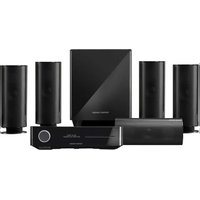

- BDS 275/BDS 575/ BDS 277/BDS 577
- INTRODUCTION
- THANK YOU FOR CHOOSING HARMAN KARDONPRODUCTS
- VERIFY LINE VOLTAGE BEFORE USING
- UNPACKING
- INSTALLATION LOCATION
- CLEANING
- MOVING THE RECEIVER
- SUPPLIED ACCESSORIES
- BDS RECEIVER FRONT-PANEL CONTROLS
- RECEIVER FRONT-PANEL CONTROLS
- VOLUME CONTROL/POWER BUTTON
- BDS RECEIVER REAR-PANEL CONNECTIONS
- BDS RECEIVER\ REAR-PANEL\ CONNECTIONS
- CONNECTIONS
- CONNECTING A POWERED SUBWOOFER
- CONNECTING THE FM ANTENNA
- CONNECTING A TV OR VIDEO DISPLAY
- CONNECTING YOUR HDMI SOURCE DEVICES
- CONNECTING YOUR COMPONENT VIDEO SOURCE DEVICE
- CONNECTING YOUR OPTICAL DIGITAL AUDIO SOURCE DEVICES
- CONNECTING YOUR COAXIAL DIGITAL AUDIO SOURCE DEVICE
- CONNECTING YOUR ANALOG AUDIO SOURCE DEVICES
- CONNECTING TO YOUR HOME
- CONNECT THE SUBWOOFER TRIGGER OUTPUT
- CONNECT THE REMOTE IR INPUT
- CONNECTING THE AC POWER
- PREPARING THE REMOTE CONTROL
- INSTALLING THE BATTERIES
- USING THE REMOTE
- PROGRAMMING THE REMOTE CONTROL
- TO PROGRAM THE REMOTE TO CONTROL AN AUX COMPONENT
- BDS PREPARING THE REMOTE CONTROL
- AUTO SEARCH METHOD
- PROGRAMMING INDIVIDUAL BUTTON CODES ON THE REMOTE
- CHANNEL CONTROL "PUNCH THROUGH" COMMANDS
- ERASING A LEARNED CODE AND RESTORING THE ORIGINAL BUTTON CODE
- RESETTING THE REMOTE TO FACTORY DEFAULT CONDITION
- CONTROLLING AN APPLE TV
- USING THE REMOTE AFTER IT IS PROGRAMMED
- SETTING UP THE RECEIVER
- INITIAL SETUP
- BDS SETTING UP THE RECEIVER
- SETTINGS MENU
- GENERAL SETTINGS
- DISPLAY SETTINGS
- AUDIO SETTINGS
- INFORMATION MENU
- USING THE RECEIVER
- HOME MENU
- ADJUSTING INDIVIDUAL SPEAKER VOLUMES
- NOTES ON SETTING SPEAKER VOLUMES IN 5.1-CHANNEL SYSTEMS
- NOTES ON SETTING SUBWOOFER VOLUME
- IMPORTANT: DO NOT TURN THE RECEIVER'S VOLUME UP TO OR PAST THE POINT WHERE THE AUDIO FROM THE SPEAKERS BECOMES DISTORTED. DOING SO CAN DAMAGE THE SPEAKERS
- SURROUND-SOUND MODES
- LISTENING THROUGH HEADPHONES
- USING THE DISC PLAYER
- DISC HANDLING PRECAUTIONS
- DISC CLEANING PRECAUTIONS
- REGIONAL CODING
- COPYRIGHT
- COPY PROTECTION
- SUPPORTED DISC FORMATS
- SUPPORTED MEDIA CODECS
- LOADING AND PLAYING A DISC
- PLAYBACK FEATURES
- BD-LIVE INTERACTIVITY
- PLAYING MUSIC CDS
- PLAYING STREAMING MEDIA VIA YOUR HOME NETWORK
- LISTENING TO YOUR IPOD/IPHONE/IPAD
- LISTENING TO FM RADIO
- LISTENING TO AUDIO SOURCES
- LISTENING TO MEDIA VIA AIRPLAY (BDS 277/BDS 577 ONLY)
- TO INITIATE AIRPLAY STREAMING TO THE BDS RECEIVER
- PLAYING FILES FROM USB DEVICES AND DATA DISCS
- IMPORTANT: ONLY MEDIA IN THE FAT32 FILE SYSTEM ARE COMPATIBLE WITH YOUR BDS RECEIVER
- VIEWING PHOTOS
- PLAYING MUSIC FILES
- PLAYING VIDEOS
- USING PLAYLISTS
- TO CREATE A PLAYLIST
- TO PLAY A PLAYLIST
- TROUBLESHOOTING
- AUX COMPONENT REMOTE-CONTROL CODE LIST TV/DVR
- SPECIFICATIONS
- BDS 577, BDS 575, BDS 277 AND BDS 275 RECEIVERS
- HARMAN
Brand : HARMAN KARDON
Model : BDS 775
Category : Home Theater System