W10 PRO - Tablet Hip Street - Free user manual and instructions
Find the device manual for free W10 PRO Hip Street in PDF.


| Product Type | Tablet |
| Model | W10 PRO |
| Brand | Hip Street |
| Operating System | Windows 8.1 |
| Display | Touch screen (10.1 inches estimated) |
| Processor | Intel Atom (typical for this model) |
| RAM | 2 GB (typical) |
| Storage | 32 GB (typical) |
| Battery | Lithium-ion, 3.7 V, 7900 mAh, 29.2 Wh |
| Camera | Built-in camera with preinstalled app |
| Wireless Connectivity | Wi-Fi (802.11 b/g/n) |
| Keyboard | Detachable keyboard case (Polyurethane material) |
| Gestures | Tap, swipe, pinch, zoom, drag, slide to close apps |
| Cleaning | Dry cloth only; do not use liquid cleansers |
| Safety | Do not disassemble, expose to heat/moisture, or drop |
| Battery Disposal | Do not dispose in household waste; recycle per local regulations |
| Certifications | FCC Part 15, Industry Canada RSS |
| Support | North America: 1-888-456-2426, Email: support@hipstreet.com |
| Manual Language | English (PDF available for download) |
| Warranty | Refer to manufacturer's website |
Frequently Asked Questions - W10 PRO Hip Street
User questions about W10 PRO Hip Street
0 question about this device. Answer the ones you know or ask your own.
Ask a new question about this device
Download the instructions for your Tablet in PDF format for free! Find your manual W10 PRO - Hip Street and take your electronic device back in hand. On this page are published all the documents necessary for the use of your device. W10 PRO by Hip Street.
USER MANUAL W10 PRO Hip Street
Thank you for purchasing a Hipstreet product and we hope you enjoy using it.
Please visit our website at www.hipstreet.com
IMPORTANT SAFETY PRECAUTIONS
• Always follow these basic safety precautions when using the unit. This will reduce the risk of product damage and personal injury.
- Do not disassemble, repair or modify the unit by yourself. Refer servicing to qualified personnel.
- Do not dispose of the unit in extreme heat to avoid explosion.
- Keep the unit away from direct sunlight or heat source.
- Do not expose the unit to rain or moisture to avoid any malfunction.
- Do not use the unit in a rather dry environment to avoid static.
- Never apply heavy impact on the unit like dropping it or placing it on a magnet.
- Clean only with a dry cloth. Make sure the unit is turned off before cleaning. Do not use liquid cleanser.
GETTING STARTED
Device Layout:

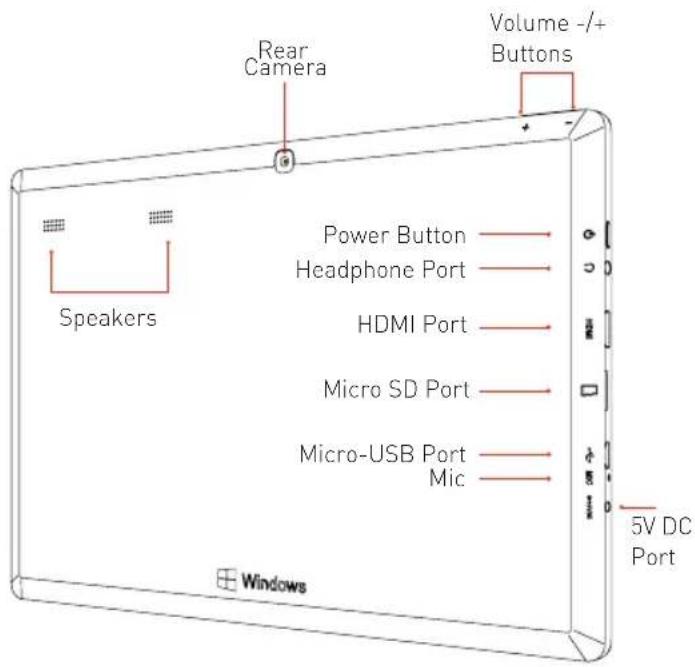
GETTING STARTED
*Case material is of Polyurethane
Keyboard Layout:

natural_image
Line drawing of a laptop with a keyboard and open lid, showing internal components (no text or symbols)
natural_image
Line drawing of a laptop with keyboard and open tray (no text or symbols)
natural_image
Line drawing of a laptop keyboard and open notebook with a paper case, no text or symbols present
natural_image
Line drawing of a laptop with a folded paper airplane and a numbered label (4) on the side, no text or symbols present.OVERVIEW
Start screen:
The Start screen is the first thing you see when you login to Windows. It is the main (home) area where you can access apps, check real-time information, and search for files. This interface is optimized for touch screens. You can get to the Start screen by pressing the Windows button on the tablet, or tapping the Start icon in Charms Bar.

natural_image
Icon showing a hand cursor clicking a button on a Windows screen (no text or symbols)OVERVIEW
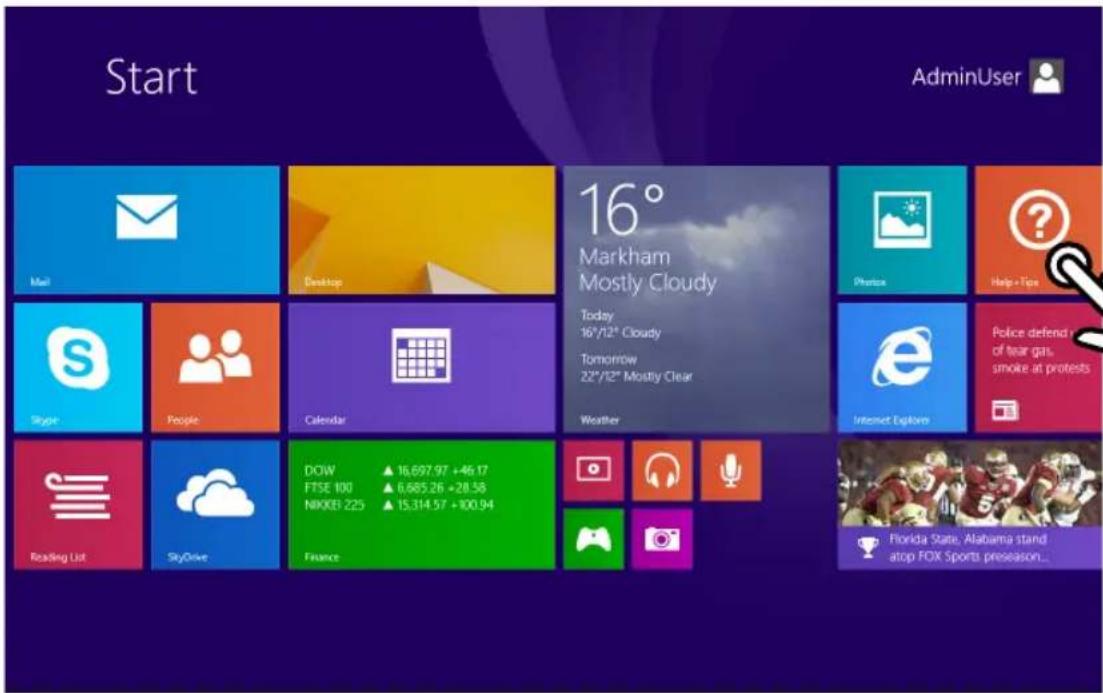
Each tile on the Start screen is a shortcut to an app, web site or anything else you find important. To open an app, simply tap the associated tile.
OVERVIEW

To open an app that is not pinned to the Start screen, swipe up from the middle of screen to open application view, and then tap the icon.
OVERVIEW


OVERVIEW

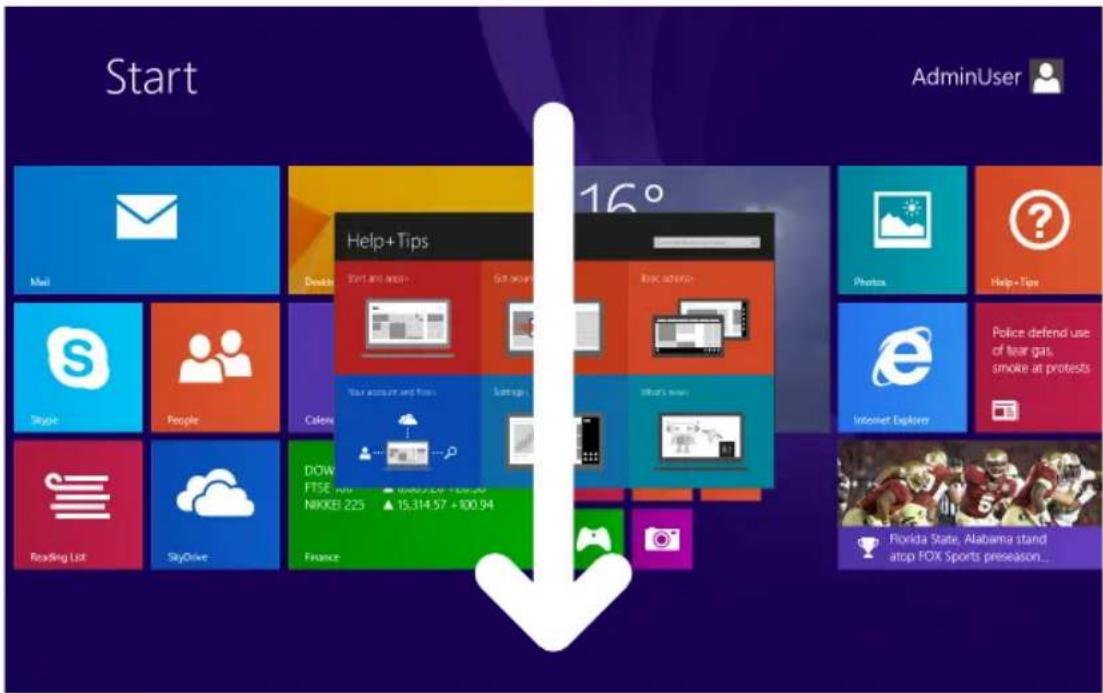
To close an app, swipe Down from the Top of the screen.
OVERVIEW
OVERVIEW
You can personalize this screen by pinning your favorite Windows apps, and arranging them any way you want.
- To pin an app on the Start screen, touch and hold an app in application view, then tap Pin to Start at bottom-left corner of the screen.
- A new tile will be created on the Start screen associated with the app you just selected.
3 (a+b). You can hold a tile and drag it anywhere on the Start screen.
OVERVIEW

OVERVIEW

2
OVERVIEW

3(a)
OVERVIEW

3(b)
OVERVIEW
Charms Bar:
The Charms Bar lets you perform searches, access settings, share files, and so on. You can open the Charms Bar by swiping Left from the Right side of the screen.

OVERVIEW
SEARCH:
You can search through anything on your Windows operating system.
SHARE:
Lets you share things with other people, such as photos, and documents.
START:
Take you back to the Start screen.
DEVICES:
You can view and manage wireless devices.
SETTINGS:
Quick access to common system settings (volume, brightness, internet connection).
GESTURES
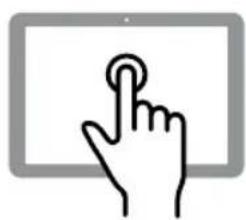
Your Windows Tablet supports the use of touch gestures, and here are the basic actions you can do using the touch screen.
natural_image
Illustration of a hand pressing a button on a tablet screen (no text or symbols)Open/Make Selections from an app: Tap
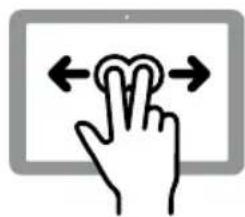
Zoom out: Move 2 fingers farther apart
natural_image
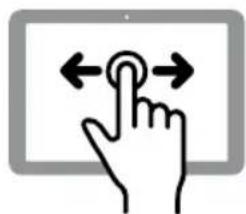
Hand icon pointing at a finger with bidirectional arrows, no text or symbols presentScroll through items: Swipe left or right

natural_image
Illustration of a hand pressing a button on a tablet screen with an arrow (no text or symbols)Switch between apps: Swipe right from the left side of the screen

natural_image
Hand icon pointing at a finger with bidirectional arrows on a tablet screen (no text or symbols)Move an object: Touch & hold, then drag

natural_image
Illustration of a hand pressing a finger with two arrows indicating finger movement (no text or symbols)Zoom in: Move 2 fingers closer together
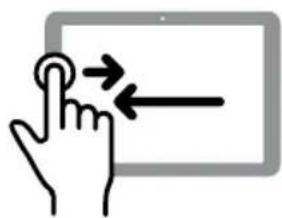
natural_image
Hand icon pointing at a screen with arrows indicating left and right movement (no text or symbols)View between apps: Swipe right, then left from the left side of the screen

natural_image
Hand pressing a finger on a tablet screen with a downward arrow (no text or symbols)Close an app: Slide down from the top edge of the screen
WI-Fi SET-UP
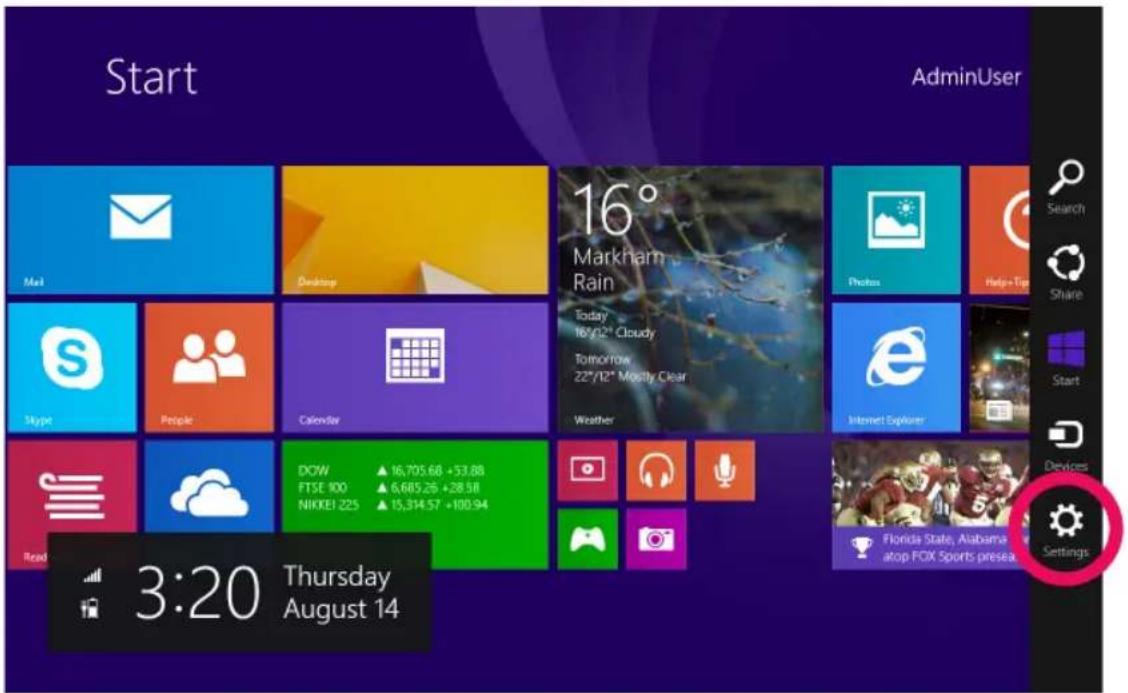
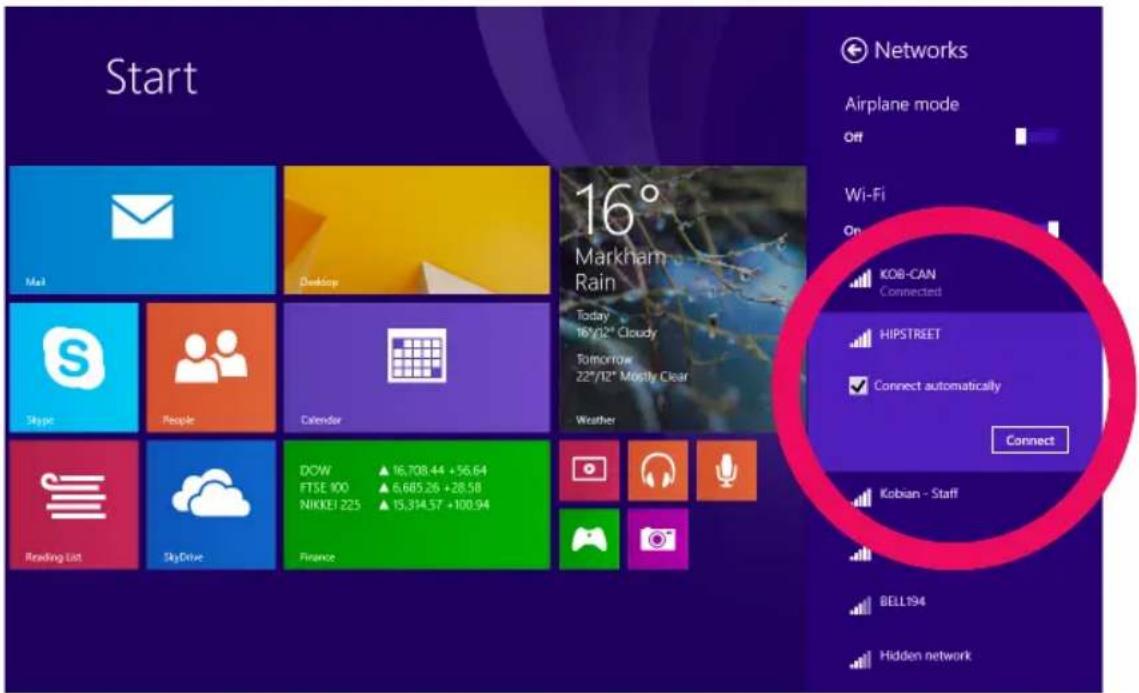
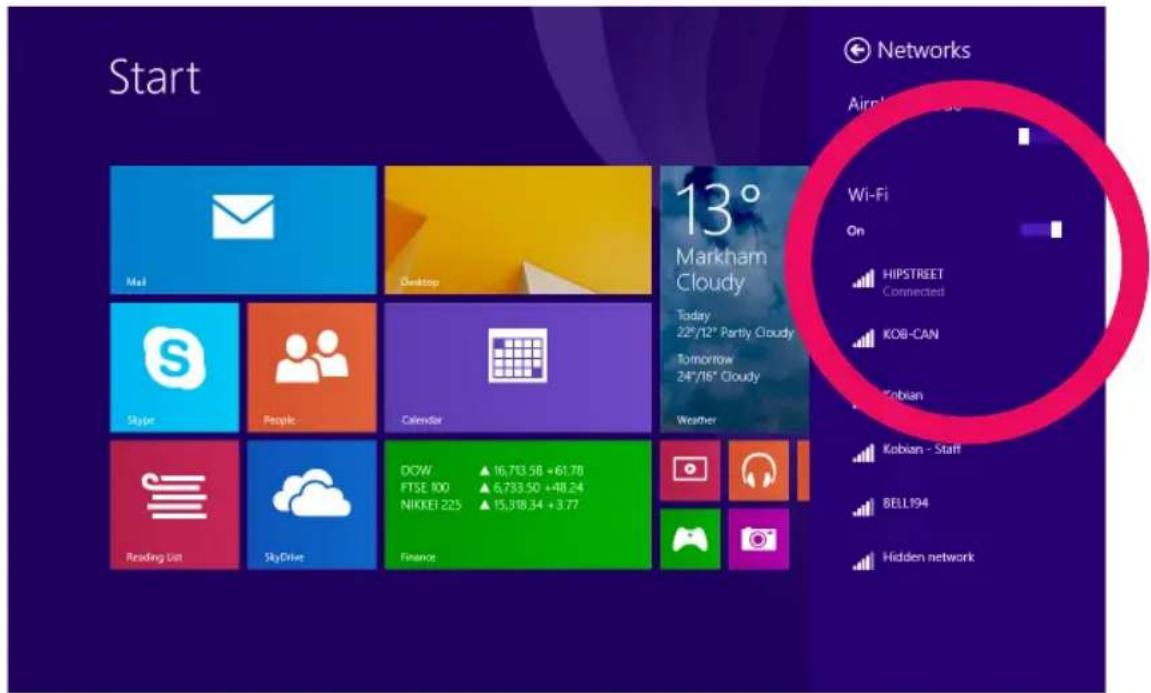
Your Windows Tablet provides a simple interface for connecting to wireless internet. You can easily connect to any wireless routers as long as you know the Wireless Name (SSID) and password of the network you're connecting to.
- Tap the Settings in Charms Bar.
- Tap the network icon.
- Select your wireless network from the list, and then tap Connect.
WI-FI SET-UP
WI-Fi SET-UP

WI-FI SETUP
WI-Fi SET-UP

WI-FI SETUP

WI-Fi SET-UP
CAMERA
Your Windows Tablet comes with a built-in camera with the app preinstalled and ready to use. To open the camera app, tap the associated tile on the Start screen.

CAMERA

natural_image
Portrait of a smiling woman with long dark hair, hand on chin, with a large upward arrow and two video camera icons in the corner (no text or symbols on main subject)To open the camera option, swipe up from the bottom of the screen.
CAMERA

WINDOWS STORE
The Windows Store is the place where you can download apps for your Windows Tablet.
You will need a Microsoft account to use this service. Please refer to Windows Help and Support for more detail.
WINDOWS STORE
Tap the Store tile on the Start screen, then browse and install your favorite apps.

MORE HELP
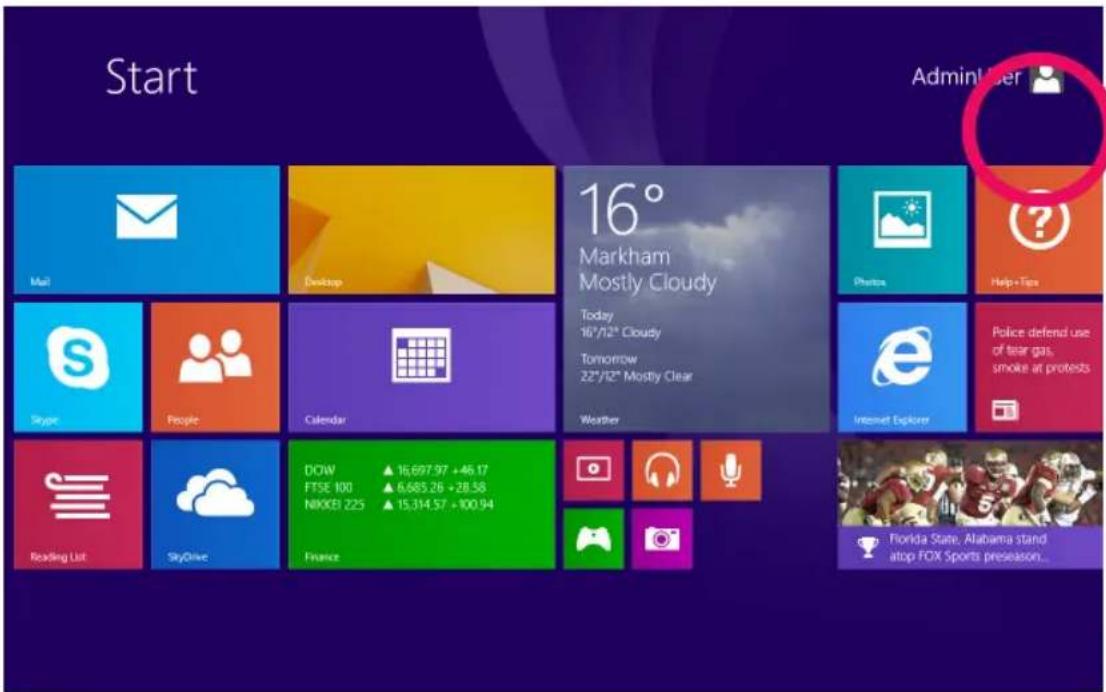
For more instructions on how to use Windows 8.1, open the Help+Tips app from the Start screen.
MORE HELP

FCC WARNING
This device complies with part 15 of the FCC Rules. Operation is subject to the following two conditions: (1) This device may not cause harmful interference, and (2) this device must accept any interference received, including interference that may cause undesired operation.
NOTE 1: This equipment has been tested and found to comply with the limits for a Class C digital device, pursuant to part 15 of the FCC Rules. These limits are designed to provide reasonable protection against harmful interference in a residential installation. This equipment generates, uses and can radiate radio frequency energy and, if not installed and used in accordance with the instructions, may cause harmful interference to radio communications. However, there is no guarantee that interference will not occur in a particular installation. If this equipment does cause harmful interference to radio or television reception, which can be determined by turning the equipment off and on, the user is encouraged to try to correct the interference by one or more of the following measures:
- Reorient or relocate the receiving antenna.
- Increase the separation between the equipment and receiver.
- Connect the equipment into an outlet on a circuit different from that to which the receiver is connected.
- Consult the dealer or an experienced radio/TV technician for help.
NOTE 2: Any changes or modifications to this unit not expressly approved by the party responsible for compliance could void the user's authority to operate the equipment.
This device complies with Industry Canada license-exempt RSS standard(s). Operation is subject to the following two conditions: (1) this device may not cause interference, and (2) this device must accept any interference, including interference that may cause undesired operation of the device.
Under Industry Canada regulations, this radio transmitter may only operate using an antenna of a type and maximum (or lesser) gain approved for the transmitter by Industry Canada. To reduce potential radio interference to other users, the antenna type and its gain should be so chosen that the equivalent isotropically radiated power (e.i.r.p.) is not more than that necessary for successful communication.
This device complies with Canadian ICES-003 and RSS-210
PRODUCT AND BATTERY DISPOSAL
This product contains a built-in lithium battery and should not be disposed of in normal household waste. The battery in this device is not intended to be removed by the individual or end user. For disposal and recycling, please contact your local waste management authorities.
The recycling and processing of electronic waste will make a significant contribution towards helping protect the environment.
The cell within this product uses Lithium Ion technology.
The cell within this product uses Lithium Ion technology. The cell has a voltage rating of 3.7 V and a capacity of 7900mAh, with an energy rating of 29.2Wh (Watt hours)
Warning: To reduce the risk of fire and burns; do not disassemble, crush, puncture, short external contacts, or dispose of in fire or water.
CONTACT US
If you encounter any difficulties with this product, please visit our website at www.hipstreet.com and review our support section or call us. Our representatives are ready to help you with any questions about your product. We can guide you through connections, first-time use, or any of the features. Just give us a call or send us an email.
North America 1-888-456-2426
UK 0800-051-8330
Netherlands 0800-404-0006
Germany 0800-180-7686
Monday through Friday: 8:30am - 5:00pm
Email: support@hipstreet.com
We want you to start enjoying your product right away!

natural_image
Pure grayscale gradient background with no text, symbols, or identifiable objects
Brand : Hip Street
Model : W10 PRO
Category : Tablet