
PT4500-TMW - Teleprompter Ikan - Free user manual and instructions
Find the device manual for free PT4500-TMW Ikan in PDF.


| Type | Professional Teleprompter |
| Brand | Ikan |
| Model | PT4500-TMW |
| Screen Size | 15 inches (4:3 and 16:9 widescreen) |
| Monitor Configuration | One 15" 4:3 monitor for teleprompter, one 15" 16:9 widescreen SDI talent monitor |
| Input Ports | HDMI, VGA, BNC (component/composite) |
| Power Input | 12-24V DC via power adapter |
| Supported Video Signals | 1080p, 1080i, 720p, 480p, 576p/i, and various PC resolutions up to 1920x1200 |
| Flip Function | Horizontal and/or vertical mirroring via menu-assignable button |
| Tally Light | Yes (pinout diagram provided) |
| Included Accessories | Teleprompter base, hood frame, silicone hood with canvas shroud, counterweight, risers (tall, medium, DSLR), hex keys, camera screws, glass, monitors, power adapter, Prompter Pro4 software |
| Assembly | Requires assembly following included step-by-step instructions |
| Compatibility | Works with DSLR, camcorders, and professional cameras |
| Software Included | Digital copy of Prompter Pro4 |
| Warranty | 1 year free service for manufacturing defects |
| Optional Accessories | Replacement glass (PT4500-G), additional monitors (M15W, PT15-SDI-V2), rolling hard case (PT-CASE-V2), hard case for talent monitor (PT-CASE-15TM) |
| Support Email | support@ikancorp.com |
| Website | www.ikancorp.com |
Frequently Asked Questions - PT4500-TMW Ikan
User questions about PT4500-TMW Ikan
0 question about this device. Answer the ones you know or ask your own.
Ask a new question about this device
Download the instructions for your Teleprompter in PDF format for free! Find your manual PT4500-TMW - Ikan and take your electronic device back in hand. On this page are published all the documents necessary for the use of your device. PT4500-TMW by Ikan.
USER MANUAL PT4500-TMW Ikan
High Bright 15" Tally Teleprompter w/ 15" Widescreen SDI Talent Monitor

What's Included
□ 1x Teleprompter Base
□ 1x Hood Frame
□ 1x Silicone Hood w/ Canvas Shroud
□ 1x Counterweight
□ 1x Tall Riser
□ 1x Medium Riser
□ 1x DSLR Riser
□ 2x L-Shaped Hex Keys
□ 2x 1/4-20 Camera Screws
□ 1x 15 in. 4:3 Monitor
□ 1x 15 in. SDI 16:9 Widescreen Monitor
□ 1x Power Adapter
□ 1x 70/30 15 in. Glass
□ 1x Digital Copy of Prompter Pro4
Teleprompter Assembly Setup
Step 1
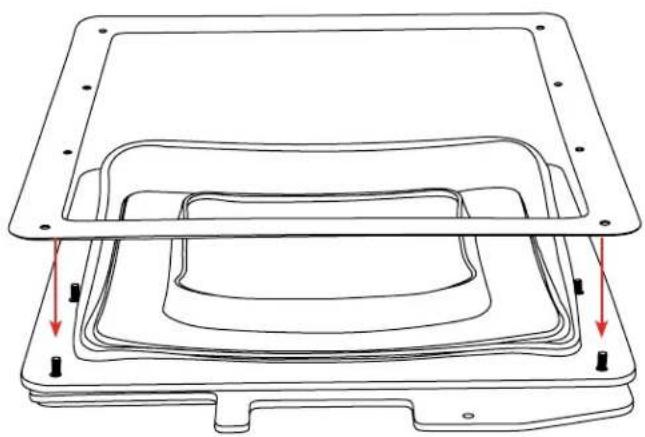
Place the teleprompter glass frame on a flat surface and remove the four screws as shown.
Step 2
Align and attach the teleprompter hood with the 8 screw pegs from the teleprompter frame.

natural_image
Technical line drawing of a rectangular electronic component with mounting holes and mounting points (no text or symbols)
natural_image
Line drawing of a rectangular electronic component with concentric layers and mounting holes (no text or symbols)Step 3
The metal frame is directional. Make sure the thicker side is on top and the slimmer side is on the bottom.
Step 4
Put the washers on before tightening the screws. The washers and 4 additional screws are inside a bag on the bottom foam.
natural_image
Technical line drawing of a mechanical component with layered internal structure and mounting holes (no text or symbols)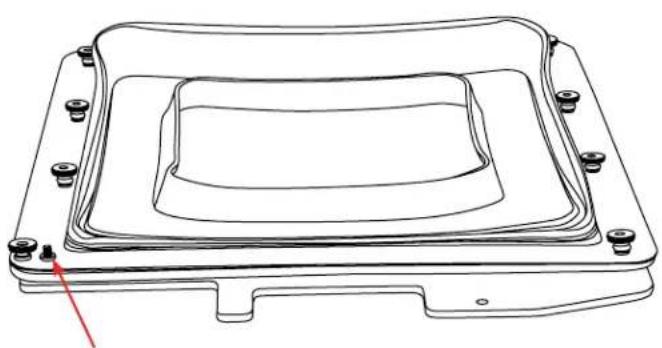
natural_image
Technical line drawing of a mechanical component with mounting holes and layered structure (no text or symbols)Step 5
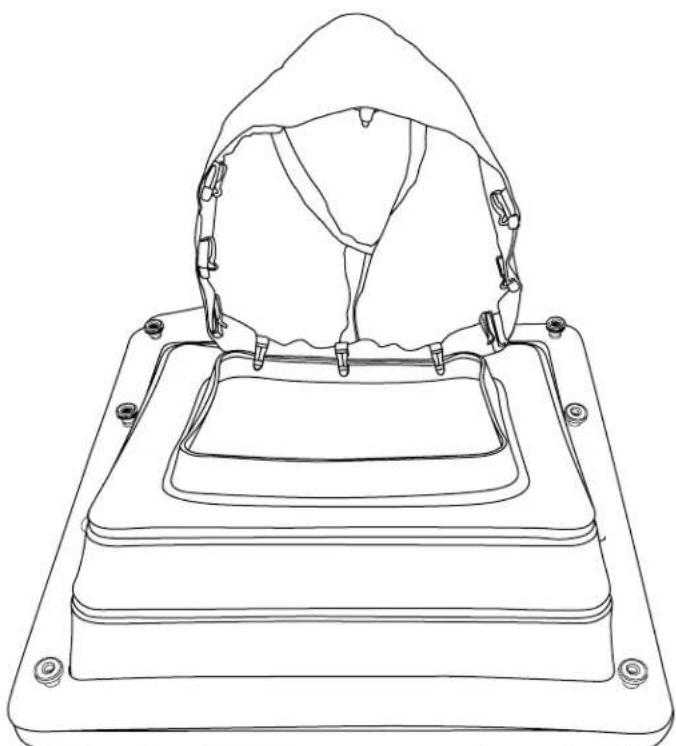
Extend the teleprompter hood open and attach teleprompter boot using the clips. It is suggested to align the seam with the bottom of the teleprompter hood.
natural_image
Line drawing of a mechanical device with a dome-shaped component and mounting base (no text or symbols)Step 6
Removethe monitor mounts from the teleprompter base using the included larger 4mm hex key to loosen from the 15mm rods.

natural_image
Technical line drawing of a mechanical assembly with red directional arrows indicating motion or force (no text or symbols present)Step 7
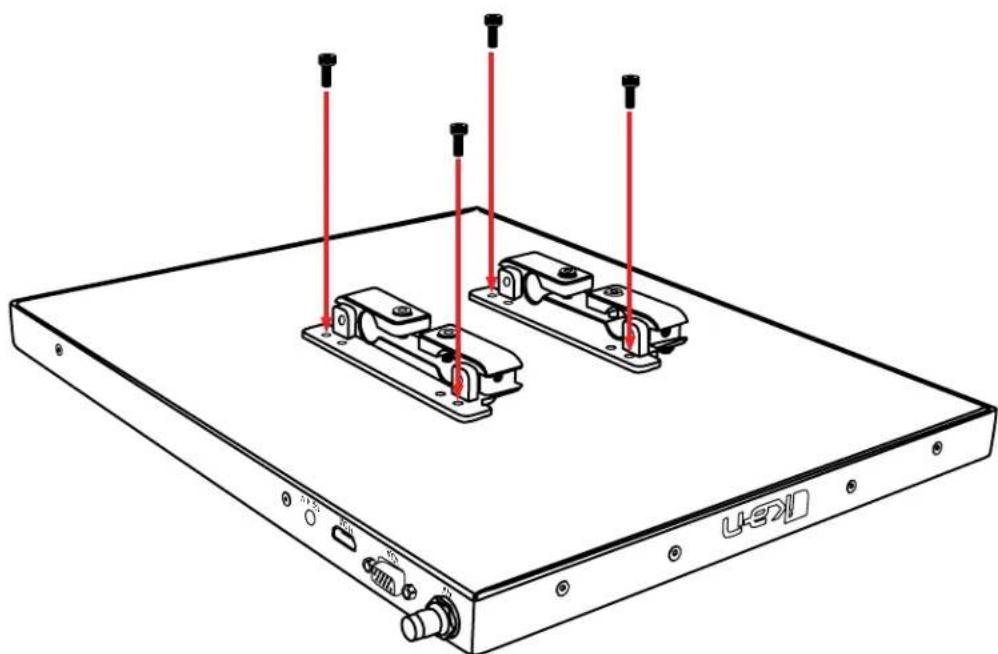
Attach the monitor mounts on the back of the monitor's VESA compatible threads using the 4 included screws and provided 2mm hex key.
natural_image
Technical line drawing of a device chassis with mounting brackets and red vertical rods (no text or symbols)Step 8
After the monitor mounts are attached, adjust the 15mm rods to accommodate the monitor. Leave about 1 inch of room for the teleprompter bracket. Make sure the 15mm rods go through both set of monitor mounts. Please ensure that all screws are properly tightened after inserting the monitor. *SAFETY NOTE* Make sure to leave at least 2 inches of the rods inside the teleprompter base.
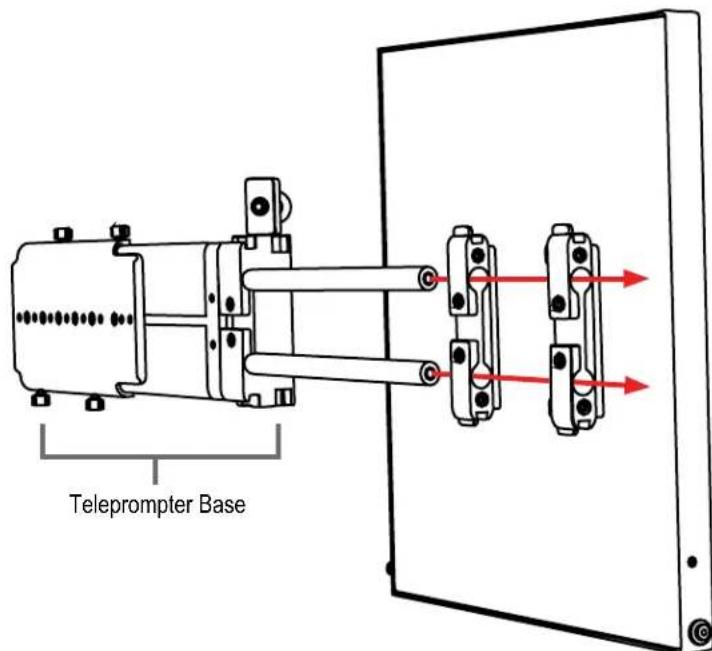
Step 9
While sliding the teleprompter bracket into the slot of the teleprompter base pull on the red knob to allow the bracket to fully slide in.
Step 10
Oncethe bracket is in place, tighten the side screw to lock in place. Double check and make sure all the screws are tightened with the included hex keys.

natural_image
Technical line drawing of a mechanical assembly with red arrows indicating motion or force (no text or symbols present)
natural_image
Technical line drawing of a mechanical assembly with no visible text or symbolsStep 11 (optional)
Should the teleprompter be too front heavy, you can attach the included counter weight on the back of the teleprompter base.
Foam Case
To make your teleprompter more portable, we packed it in a reusable, high-quality foam. The shape and size of the foam was designed to fit into Ikan's PT-CASE-V2.

natural_image
Stacked cardboard and plastic medical equipment boxes, no visible text or symbols** DO NOT THROW AWAY FOAM CASE**
Monitor Ports

BNC- Component Input
VGA– Video Graphics Array DE15 Connection
HDMI– High-Definition Multimedia Interface Input Connection
Power Port - 12-24v Input

HDMI– Switch HDMI input
VGA– Switch to VGA input
AV – Switch to composite BNCinput
Flip - Toggle image flip
(Canbe set to horizontal, vertical, or both via menu)
UpArrow - Toggle up to adjust setting
Menu – Access to monitor settings
Down Arrow – Toggle down to adjust setting
Monitor Menu Settings
Video Config
Contrast (White Level)
Brightness (Black Level)
Tint (Chroma Hue)
Chroma (Chroma Saturation)
Sharpness (Detail)
RGBSetup - Manually configure RGB
Return
System Config
Menu Duration – Set duration of how long menu stays on screen
Video Ratio – Set screen aspect ratio 16:9 or 4:3 (4:3 is native resolution, 16:9 will create black bars)
Flip-H – Assign toggle button to flip image horizontally
Flip-V – Assign toggle button to flip image vertically
Reset - Factory reset
Return
PC Setup (Only available for VGA)
H-Position – Adjust horizontal position
V-Position – Adjust vertical position
Auto – Monitor automatically adjust position
Return
Exit
How to set-up FLIP button feature:
- Press MENUbutton
- Navigate to SYSTEM CONFIG.
- Navigate to FLIP-V or FLIP-H
- Change FLIP-V and/or FLIP-H to "ON"
- Exit MENU
- The FLIP button should now be activated and can be pressed to mirror the image Horizontally or Vertically
- When FLIP-H is ON, the image will flip Horizontally
- When FLIP-Vis ON, the image will flip Vertically
- If both are ON, the FLIPbutton will toggle both Horizontal and Vertical flip
Watch our VIDEO TUTORIAL on how to assemble Ikan Professional Teleprompters:
ikancorp.com/15-in-videos/

Optional Accessories
PT4500-G Replacement Glass for both PT4500-SDI-V2
M15W 15" High Bright Widescreen Talent Monitor (for PT4500-SDI-V2)
PT15-SDI-V2 15" High Bright 4:3 Monitor (for PT4500-SDI-V2)
PT-CASE-V2 Rolling Hard Case for PT4500-SDI-V2 Teleprompter
PT-CASE-15TM Hard Case for 15" Talent Monitor
Supported Video Signals
SDI & HDMI:
1080p @ 50, 25, 59.94, 60, 23.976, 24, 29.97, 30 Hz
1080i @ 50, 59.94, 60 Hz
720p @ 50, 59.94, 60 Hz
480p @ 59.94 Hz
576p @ 50, 59.94 Hz
576i @ 50 Hz
1920x1200 @ 60 Hz
1600 x 1200 @ 60 Hz
1400x1050 @ 60 Hz
1280x1024 @60 Hz
1280x960 @ 60 Hz
1360x768 @ 60 Hz
1280x768 @ 60 Hz
1024x768 @60 Hz
800x600 @ 60 Hz
640x480 @ 60 Hz
Learn More
More dynamic information at official website: www.ikancorp.com
Support
Contact email: support@ikancorp.com
CONDITIONS OF WARRANTY SERVICE
- Free service for one year from the day of purchase if the problem is caused by manufacturing errors.
- The components and maintenance service fee will be charged if the warranty period is expired.
Free Service will not be Provided in the Following Situations:(*Even if the product is still within the warranty period.)
- Damage caused by abuse or misuse, dismantling, or changes to the product not made by the company.
- Damage caused by natural disaster, abnormal voltage, and environmental factors, etc.
©2024 Ikan International. All rights reserved.
Pinout Diagram for Tally Light
Tally Light Pinout:
Tally Pin Layout Diagram

Learn More
More dynamic information at official website :www.ikancorp.com
Support
Contact email: support@ikancorp.com
©2024 Ikan International. All rights reserved.


- What's Included
- Teleprompter Assembly Setup
- Step 1
- Step 2
- Step 3
- Step 4
- Step 5
- Step 6
- Step 7
- Step 8
- Step 9
- Step 10
- Step 11 (optional)
- Foam Case
- Monitor Ports
- Monitor Menu Settings
- How to set-up FLIP button feature:
- Watch our VIDEO TUTORIAL on how to assemble Ikan Professional Teleprompters:
- Optional Accessories
- Supported Video Signals
- SDI & HDMI:
- Learn More
- Support
- CONDITIONS OF WARRANTY SERVICE
- Pinout Diagram for Tally Light
- Tally Light Pinout:
Brand : Ikan
Model : PT4500-TMW
Category : Teleprompter