Dirty Delay - Audio software Metric Halo - Free user manual and instructions
Find the device manual for free Dirty Delay Metric Halo in PDF.


| Product Type | Audio Plugin (AU, VST2, VST3, AAX) |
| Brand | Metric Halo |
| Model | Dirty Delay |
| Category | Time Delay Effect (Audio Software) |
| Version | 4.0.2 (User's Guide Revision) |
| Format Support | AAX (Native only), Audio Unit, VST2, VST3 |
| System Requirements (Mac) | Intel-based Mac, Mac OS X 10.6.8 or newer, Pro Tools 10+ or any AU/VST DAW |
| System Requirements (Windows) | PC running Windows 7 or newer, Pro Tools 10+ or any VST DAW |
| License | PACE iLok account (computer or iLok key) |
| Key Features | Independent delay path with variable time, tempo sync, tap tempo, delay filter (2-band EQ), character modeling (8 models), feedback with crossfeed, wet/dry mix, output gain |
| Filter Types | Peaking/Parametric, Low Cut, High Cut, Low Shelf, High Shelf, Bandpass |
| Character Models | None, Valve, Soft Sat, Transformer 1, Transformer 2, Tube DI, Tube EQ, Tube Soft Sat, Tube Symmetrical Clipper |
| Delay Time Control | Manual (ms), Tempo Sync (host), Tap Tempo, Note Length (whole to 1/64, triplet/dotted) |
| Feedback Control | Amount (0-100%), Phase Invert |
| Crossfeed (Stereo) | Left and right crossfeed percentages |
| Wet/Dry Mix | 0-100% |
| Output Gain | ±24 dB |
| UI Customization | Color themes, knob types, gradients, graph visibility, UI size (80-200%) |
| Preset Management | Factory and user presets, save/rename/delete, import/export, audition on select |
| A/B Snapshots | Store and recall parameter snapshots, blend between them (MIDI-mappable) |
| Undo/Redo | Built-in plug-in undo/redo |
| Metering | Output level with Peak, Peak Hold, RMS, VU (SpectraFoo technology) |
| Safety | Warning: Feedback can exceed unity gain; monitor Filter, Character Gain, Feedback, Crossfeed to avoid clipping |
Frequently Asked Questions - Dirty Delay Metric Halo
User questions about Dirty Delay Metric Halo
0 question about this device. Answer the ones you know or ask your own.
Ask a new question about this device
Download the instructions for your Audio software in PDF format for free! Find your manual Dirty Delay - Metric Halo and take your electronic device back in hand. On this page are published all the documents necessary for the use of your device. Dirty Delay by Metric Halo.
USER MANUAL Dirty Delay Metric Halo
METRIC HALO
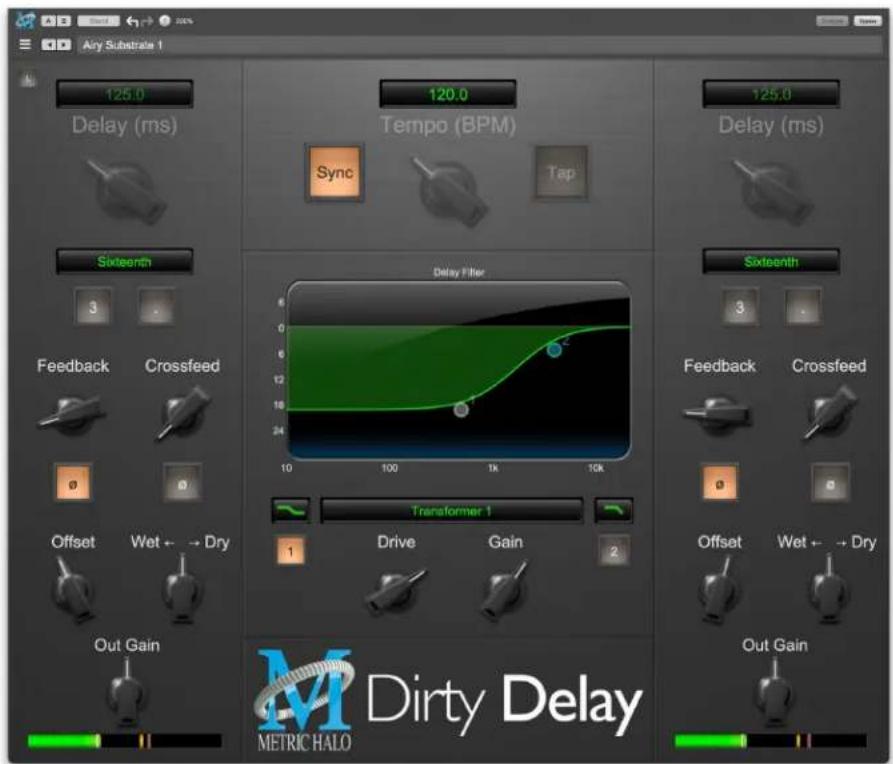
Dirty Delay User's Guide
Dirty Delay Users Guide
Metric Halo
Revision: 4.0.2
Publication date April 22, 2024
Copyright © 2024 Metric Halo. MH Production Bundle, MH ChannelStrip, MH Character, MH Dirty Delay, MH HaloVerb, MH Multiband Dynamics, MH Multiband Expander, MH Precision DeEsser, MH Sonic EQ, MH SuperGate and MH TransientControl are our trademarks. All other trademarks are the property of their respective owners.
Table of Contents
- Introduction ...... 5
- System Requirements 6
- Installation 7
Mac 7
Windows 15
Update Notification (all platforms) 21
- Plug-In Header Bars 22
Plug-In Header: Top Row 23
Metric Halo Header Icon 23
Plug-in Snapshot Registers: A/B 29
Snapshot Blend 30
Plug-in Undo/Redo 31
Help Button 31
Graph Visible Selector 31
UI Size Selector 31
Compare Button 32
Soft Bypass 32
Plug-In Header: Preset Row 33
Plug-in Hamburger menu 33
Preset Step-Through Buttons 34
Preset Name/selector menu: 34
- Operation 35
Link Control 35
Control Knob 35
Toggle Button 36
Tempo Tap 36
Note Length 36
Radio Button 36
Delay Filter 37
Filter Type 38
Character Model Menu 39
Output Level Meter 39
- Processing 40
A Detailed Description 40
Filter 40
Character 41
Tempo Control 41
Delay 42
Offset 42
Feedback Path 42
Crossfeed 42
Wet/Dry Control 43
Output Gain 43
A. Key Commands 44
B. Service and Support 45
List of Figures
3.1. MH Production Bundle Installer 15
3.2. Welcome Dialog 15
3.3. License Agreement 16
3.4.Custom Setup 17
3.5. Ready to Install 18
3.6. Final installer verification and permission to execute 19
3.7. Installation in Progress 20
3.8. Installation Complete 21
3.9. Plug-in Update Alert 21
4.1. MH Plug-in header (default setting: eq and dynamics graph display closed) 22
4.2. Preferences tab (example shown is SuperGate with sidechain filter graph closed) 23
4.3. Plug-in control pane tabs 23
4.4. standard plug-in UI Preferences 24
4.5. About tab (ChannelStrip shown) 26
4.6. Current Release Notes example 27
4.7. Update tab with new version release notes header(text from update release notes omitted from above for brevity) 28
4.8. Plug-in Header: Snapshot Registers: A/B 29
4.9. Plug-in Header: Snapshot Blend 30
4.10. Plug-in Header: Undo/Redo 31
4.11.Help Button 31
4.12. Graphs Closed 31
4.13. Graphs Open 31
4.14. UI Size Selector 31
4.15. Compare Button (inactive) 32
4.16. Compare Button (active) 32
4.17. Soft Bypass Button (not bypassed - plug-in is processing) 32
4.18. Soft Bypass Button (bypassed - plug-in is not processing) 32
4.19.MIOConsole3d ChannelStrip header 32
4.20.Preset Step-Through Buttons 34
4.21. Plug-in Header: Preset selector menu (ChannelStrip shown) 34
4.22. Preset selector menu: Audition on select 34
5.1. Link Off (default state) & Link Controls On 35
5.2. Control Knob 35
5.3. Toggle Button (Off & On) 36
5.4. Note Length Selector and Popup Menu 36
5.5. Triplet & Dotted Note length modifiers 36
5.6.Peaking/Parametric 38
5.7.Low Cut 38
5.8. High Cut 38
5.9.Low Shelf 38
5.10. High Shelf 38
5.11.Bandpass 38
5.12. Character Popup Menu 39
5.13. Dirty Delay Output Level Meter 39
6.1. Signal Flow 40
6.2. Character Drive and Gain controls 41
6.3. Triplet and Dotted Note Length modifier buttons 42
6.4. Phase Inversion Button - On (at left) & Off (at right) 42
1. Introduction
Dirty Delay is a plug-in for digital audio workstations which provides time delay effects for adding depth and ambience to your recordings. The plug-in includes support for setting the time delay in terms of tempo and note lengths. It also allows you to add filtering, distortion characteristics and feedback to the delay path for cool musical effects.
Features include:
- Independent Delay Path with Variable Time Controls
- Shelf and Cut Filters
• Character Processing on the Feedback
WARNING!: Dirty Delay functions as a "feedback" delay. There are gain elements within the delay path that allow you to increase signal levels above unity gain. This can lead to signal accumulation at the output, which can lead to clipping and extremely loud sounds coming through your speakers! You must remain aware of the gain elements that could cause these undesired effects and be prepared to act accordingly if you encounter extreme feedback events.
The particular parameters to watch closely are the Filter (particularly when set above the line), Character Gain, Feedback and Crossfeed. Turn these down to tame feedback. Also be aware that when you automate these parameters, playback through the complete automated sequence might provide the desired control over feedback levels for the song. However, stopping playback at particular points in the automated sequence where these parameters are high may lead to feedback. A quick solution is to mute your speakers, pull down the offending parameters, or jump to a silent section and start the transport.
2. System Requirements
- Pro Tools™ (Mac): Pro Tools 10 or higher running on a Macintosh computer. This software supports Native operation ONLY! Due to limitations in memory resource allocation, Dirty Delay is not supported in AAX DSP.
- Pro Tools™ (Windows): Pro Tools 10 or higher running on a Windows computer. This software supports Native operation ONLY! Due to limitations in memory resource allocation, Dirty Delay is not supported in AAX DSP.
- Native (Mac): Any Mac DAW that supports Audio Unit or VST plug-ins.
- Native (Windows): Any Windows DAW that supports VST plug-ins.
• Mac: Any Intel-based Mac running Mac OS X 10.6.8 or newer - Windows: Any Windows PC running Windows 7 or newer
- A PACE iLok.com account. You can install your license on your computer or on an iLok key. Please note that one license authorizes the software on any platform.
3. Installation
For both Mac and Windows, there is a single standard installer for the Production Bundle that allows you to decide which plug-ins to install to your computer, depending on what individual plug-in licenses you own and what formats you use.
IMPORTANT: Please make sure you have your license installed and available before you first launch your host after running the installer. Otherwise, you will receive a message on launch that the software is not licensed, asking you to "Buy" or "Quit". There are some hosts that will not rescan for your plug-ins on the next launch after the license is installed, and some hosts do not provide a user menu preference to rescan.
Mac
Please note— The following graphics show installation on a macOS 12 system; the process may be slightly different in other versions of the OS, but the basic concepts are the same. Small details such as file sizes shown may vary with subsequent releases.
- Double-click the "MH Production Bundle.pkg" application

MHProductionBundleInstaller_v4.0.2.157.pkg
- The first window requests permission for the installer program to scan for the presence of earlier versions of Metric Halo plug-ins. Clicking "Cancel" will quit the installer. Click "Allow" to proceed:
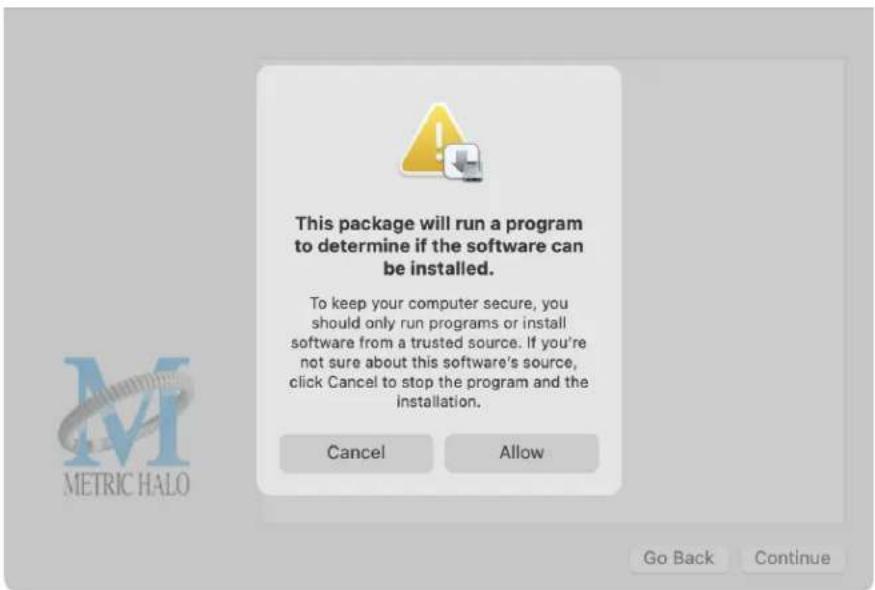
Click "Allow" to proceed...
- The installer dialog will appear, detailing the plug-in formats and system requirements to be installed:

Click "Continue"...
- Now you will see the Metric Halo License Agreement:
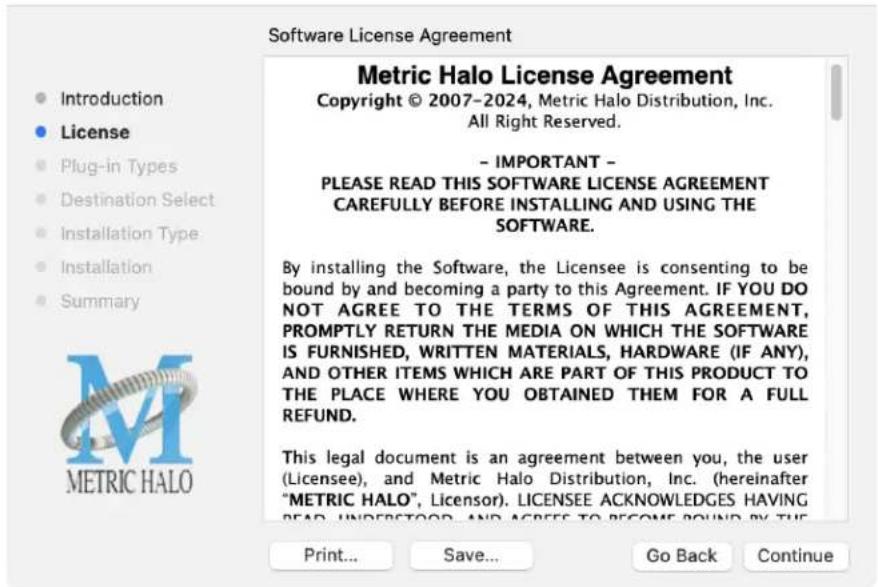
After you have read it, click "Continue"...
- Next, click "Agree" to accept the License Agreement:
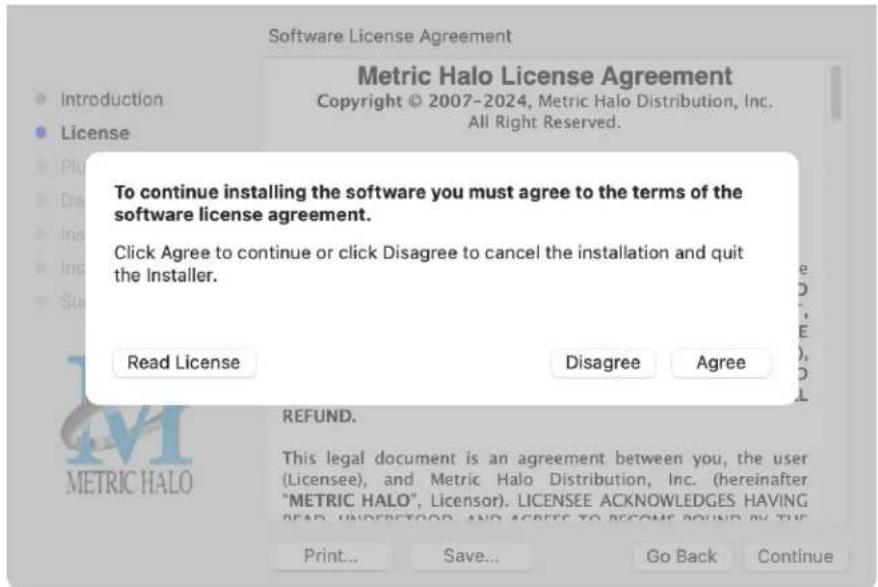
- The Choose Plug-in Types selector window defaults to no plug-ins selected, so that you may choose just the plug-in formats you wish to install. Checking All Plug-In Types will install Audio Unit, VST2, VST3 and AAX plug-ins to their respective folders in the root Library directory:
• AU to /Library/Audio/Plug-Ins/Components
• VST 2 to /Library/Audio/Plug-Ins/VST
• VST 3 to /Library/Audio/Plug-Ins/VST3
- AAX to /Library/Application Support/Avid/Audio/Plug-Ins
Selecting any one or more specific plug-in types will install or upgrade only those formats, leaving older plug-ins in unselected format types untouched.
Your plug-in format selection will be saved as a preference and pre-set automatically for future Metric Halo family plug-in installations on this computer. Of course you may change your selections at that time.
Choose Plug-in Types to Install
Introduction
License
Plug-in Types
Destination Select
Installation Type
- Installation
Summary

METRIC HALO
The plug-ins are available for AAX (Pro Tools), AU (Audio Units), VST 2, and VST 3. Please select the plugin types you wish to install below:
All Plug-In types
AAX
AU
VST 3
VST 2
Go Back
Continue
- Important note for Pro Tools users
Version 4 of the AAX plugins will install alongside v3, so both will remain available in your system. There are two reasons for this:
- The v4 plug-ins are currently Native only and do not provide DSP executables for HDX/Carbon DSP chips.
- At the request of many Pro Tools users, we have made changes to the AAX v4 plug-ins to provide finer and more consistent behavior of EQ parameters when controlled by EuCon control surfaces and Pro Tools automation.
In some specific workflow cases, these changes have the potential to affect automation playback of older sessions, so the safe route would be to keep older automated sessions running on v3, and using v4 for new sessions.
For specifics on these changes, please see the latest release notes within the v4 plug-in UI by clicking on the Metric Halo logo in the upper left corner of the plug-in window.
Existing sessions will recall with the v3 instances for both Native/DSP, and you can continue to add new instances of the v3 plugins (for example, if you want to be able to use DSP versions for tracking).
You can add v4 instances as you wish to take advantage of the new features and new plug-ins.
You can switch v3 instances to v4, and your settings will be preserved.
If you load sessions with v3 instances, but only have v4 installed, Pro Tools will automatically migrate the instances to v4 Native with the parameter settings intact.
- "Select a Destination" lets you install the plugs for all users (if you are logged in as an admin), only your user, or to another volume entirely.

We recommend that you use the standard installation location unless you have a specific reason not to.
- The "Custom Install" selector window defaults to no plug-ins selected, so that you may choose exactly the plug-ins you wish to install.
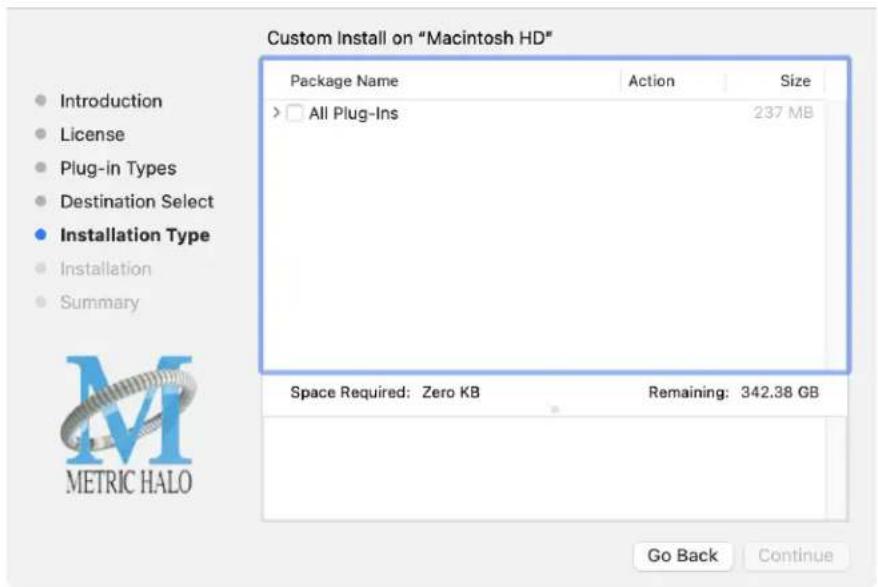
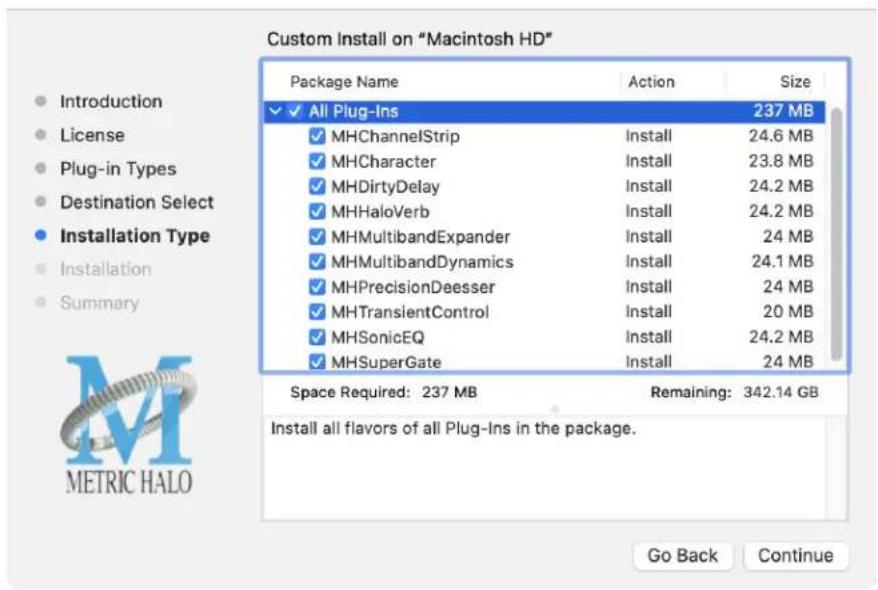
Clicking the disclosure triangle opens the selection list of the individual plug-ins. Make your selections and click "Continue" to proceed.
- The final confirmation window displays the total size of the selected installation. Hit "Install" to proceed.
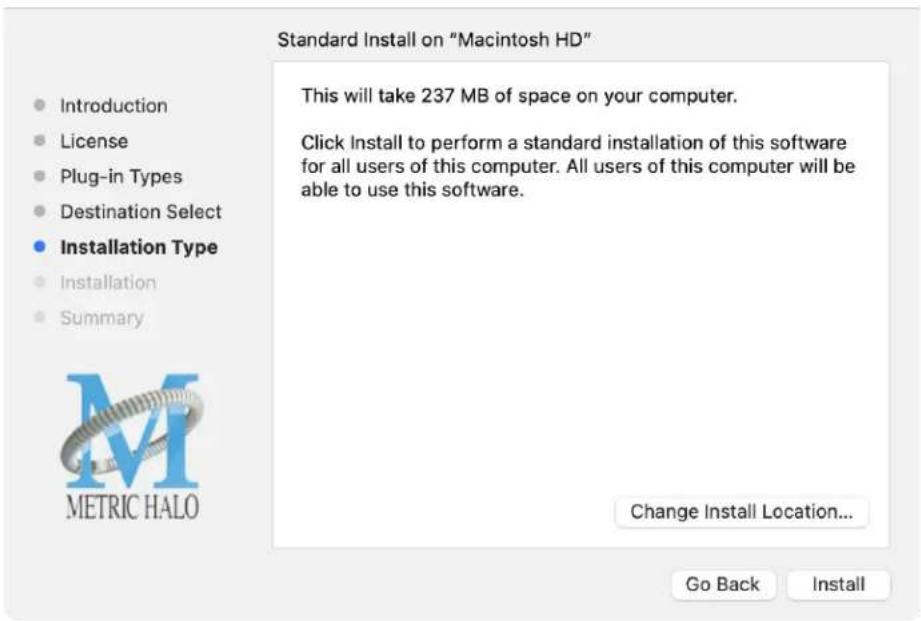
- If present, Touch ID/Face ID will execute the installation once it recognizes your biometrics:

Otherwise, enter your login password as usual and click "Install Software".
- Once the installer has finished, you'll see this dialog:
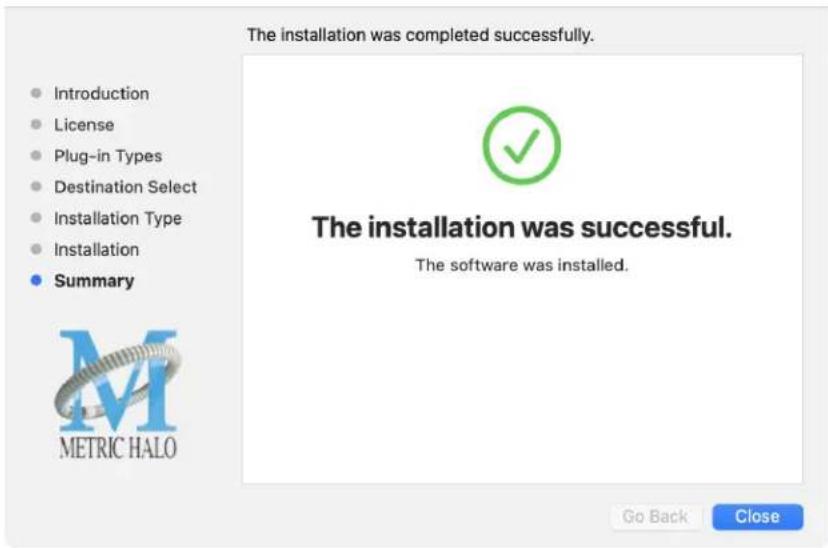
If you do not see the "Installation Successful" message, contact MH Support.
- The final step is to go to https://www.ilok.com/ and ensure you are up to date with the latest version of the iLok License Manager. Use the iLok License Manager to install the software license to your iLok key or directly to your computer.
That's it! Enjoy using Metric Halo plug-ins!
Windows
Please note – The following graphics show installation on an Windows 10 system; the process may be slightly different in other versions of the OS, but the basic concepts are the same. Small details such as file sizes shown may vary with subsequent releases.
- Double-click the "MHProductionBundleInstaller_v4.x.x.xxx" application
MH Production Bundle Installer
• The installer dialog will appear:

Welcome Dialog
Click "Next" to proceed.
- Read the Metric Halo License Agreement:

License Agreement
After you have read it, click next to "I accept the terms of the License Agreement" and click "Next".
- Custom Setup Options
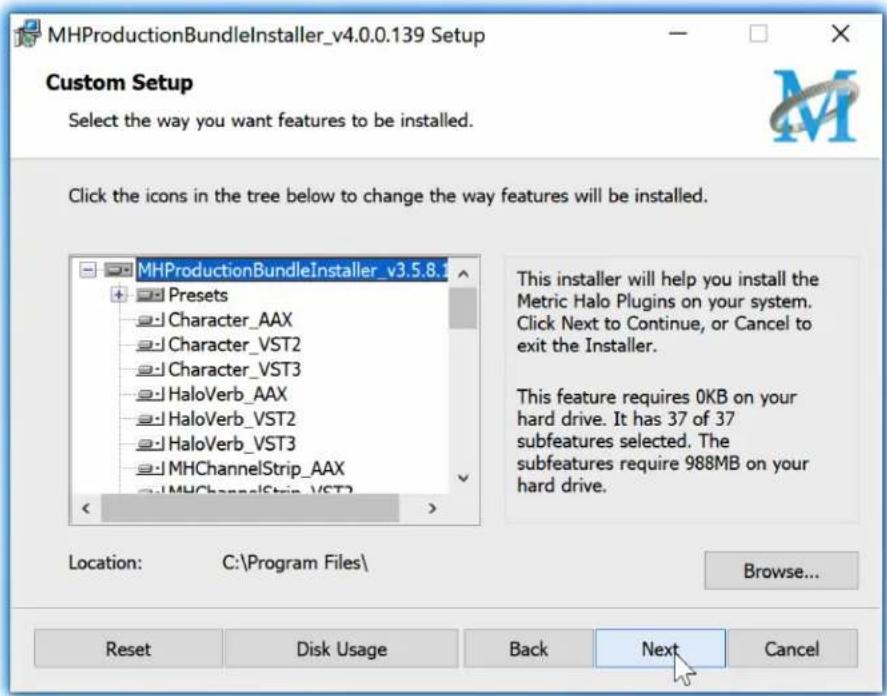
Custom Setup
The Windows installer Custom Setup page allows you to refine the features to be installed and their location.
By default, the full bundle with VST2, VST3 and AAX will be selected for installation to the C:\Program Files\ folder. Click Browse to change the installation target folder.
We recommend that you use the file path that will allow your host software to recognize the plugins. See your host software documentation.
When you have made your selections, click "Next" to continue.
- The next page is a confirmation to continue, offering a last chance to go back and review your selections from the previous window:

Ready to Install
Click "Back" to return to the Setup page, "Cancel" to cancel the installation, or click "Next" to continue.
- A final dialog before executing the installation process is a security confirmation, providing a verification of the location of the installer executable and information regarding the publisher of the installer package and its contents:

Final installer verification and permission to execute
Clicking "Show Details" and digging through the ensuing submenus will reveal signing credentials and other data for confirming the legitimacy of the installer executable.
Click "Yes" to proceed with the installation.
- The Setup Wizard will install and register the files:
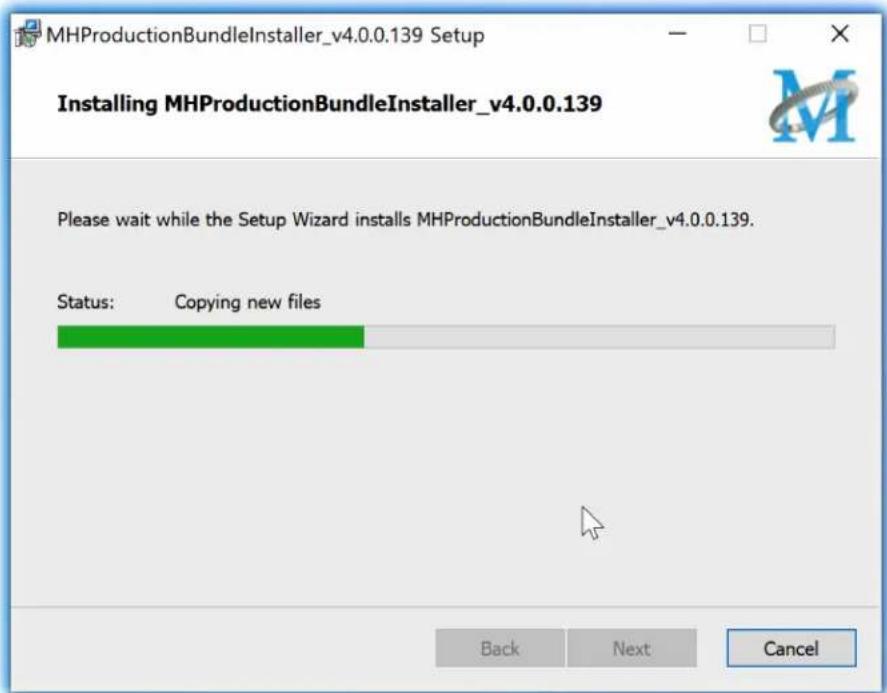
Installation in Progress
- Once the installer has finished, you will see this dialog:

Installation Complete
If you do not see this installation "Completed" dialog, contact MH Support.
- The final step is to go to https://www.ilok.com/ and ensure you are up to date with the latest version of the iLok License Manager. Use the iLok License Manager to install the software license to your iLok key or directly to your computer.
That's it! Enjoy using the Metric Halo Production Bundle!
Update Notification (all platforms)
All Metric Halo Production Bundle plug-ins will automatically check for newer version availability (if your computer is connected to the internet).

Plug-in Update Alert
If a new version is found, the Metric Halo icon in the plug-in header bar will sport a lovely red dot. Click on the dotted icon and check the Update Notification tab for release notes and download instructions.
4. Plug-In Header Bars
All Metric Halo family plug-ins display the MH control bar directly above the processor control UI. This control bar is very helpful for organizing your MH presets, as it allows you to organize and access all your presets across all supported plug-in formats on Mac, Windows and our hardware DSP via MIOConsole3d.
It is especially useful in that, regardless of platform, it provides a straightforward, powerful and consistent processing workflow wherever you might be working.
With the constant evolution of computer capabilities opening the door to new production techniques and music delivery formats, the differences between DAW software workflows have become ever more diverse. Many of the major DAWs provide their own plug-in headers within every plug-in instance window, providing their own feature set catering specifically to their internal workflow.
Conversely, other equally popular DAWs provide no added feature support for plug-ins (such as plug-in parameter Undo/Redo), opting instead to insert plugs as a straight processing block.
The MH family plug-in header bar bridges that gap by offering the most asked for plug-in functions in a simple GUI, making all of our plug-ins functions and their presets available to every user on every platform.
The plug-in header bar has two rows of controls, with the Metric Halo logo icon at the top row left.
The top row handles plug-in operations, including update notification and download, access to MH online resources, GUI preferences, tooltip help, A/B parameter snapshots, snapshot Blend, plug-in Undo/Redo, Compare and soft Bypass.

MH Plug-in header (default setting: eq and dynamics graph display closed)
The lower row (with the 'hamburger' menu icon at the left) is all about preset management.
The menu includes organizational and preset import/export features for sharing saved preset files with the outside world, and restoring presets from early days MIO and MH plug-in versions.
Plug-In Header: Top Row

Metric Halo Header Icon
Clicking the MH icon expands the entire plug-in window to the right and opens a multi-function control sidebar with the Preferences tab in focus:
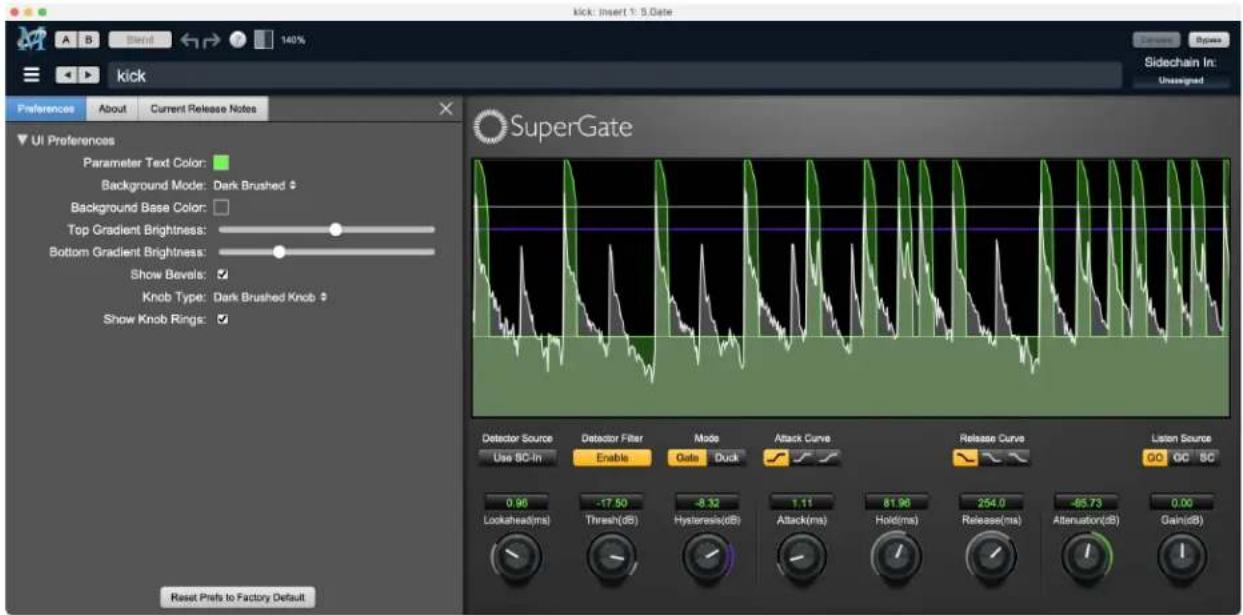
Preferences tab (example shown is SuperGate with sidechain filter graph closed)
This sidebar has context-sensitive tabs across the top for GUI Preferences (shown above), About, and Current Release Notes.

Plug-in control pane tabs
When updates are available for download from Metric Halo, the MH icon will sport a blatant red dot (shown in the header map at the top of this page) and an Update tab is added to the sidebar. These tabs are dynamic by design, and additional tabs may appear as new content becomes available.
To close the sidebar, click the MH icon again, or the "X" at the right edge of the tab bar.
Preferences tab
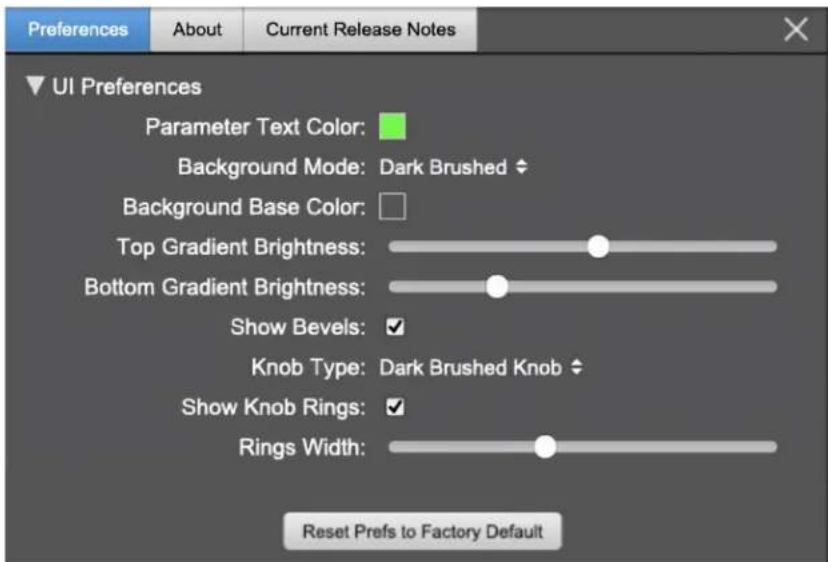
standard plug-in UI Preferences
The Preferences tab provides controls to modify the color scheme of text and graphical elements.
Initially added in response to requests from users with various visual impairments, in practice the ability to match the color of the plug-in to the mixer strip where it resides makes for a nice improvement in workflow.
Shown above are the basic parameter controls used by the majority of Production Bundle plug-ins.
More complex processors, such as ChannelStrip with multiband EQ and dynamics graph grids, will have additional preferences to further customize those UI elements. Processors with simpler graphics will have fewer UI preference controls.
UI parameter changes are live, so you can see changes to the plug-in graphics as you make them. This includes colors, gradients, graphic element show/hide, knob types and bevels.
Clicking color selection swatches opens the standard OS color pickers window with the eyedropper tool for sampling any color visible on your display.
UI Preferences functions are listed on the next page.
Note: The color scheme you set will be saved to the computer and automatically applied to the next instance of that plug-in type of whatever native format, even on another DAW.
You can always revert to the factory default settings by clicking the Reset Prefs to Factory Default button at the bottom of the Preferences pane.
Complete Plug-in Preferences List
The following is a list of all the preferences available across all of the plug-ins. They don't all apply to every plug-in, but you can refer here to find the documentation for the prefs that that are displayed in the actual plug-in.
- UI Preferences
- Parameter Text Color: sets the text color of all click-to-enter numeric readouts.
- Background Mode: selects the background type and texture.
Brushed background modes place an uncolored textured metal graphic behind the control elements. Color and Gradient controls will not affect the Light and Dark Brushed backgrounds.
- Light Brushed: a light brushed metallic facing with mild gradient lighting (the "vintage" Production Bundle faceplate).
- Dark Brushed: a dark neutral brushed metal facing with a stronger gradient and lighting effect
- Flat Color: select the background color with the Background Base Color picker.
- Gradient Color: select the background color with the Background Base Color picker and adjust Top Gradient Brightness and Bottom Gradient Brightness to taste
-
Grad w/Hits: same as Gradient Color with two mild rack light sources from above and one centered below
-
Background Base Color: when in color background modes, sets the background color
- Top Gradient Brightness: when in gradient background modes, sets the top gradient brightness
- Bottom Gradient Brightness: when in gradient background modes, sets the bottom gradient brightness
- Show Bevels: show/hide shaded edge and processor section separator bevels
- Knob Type: select from six "physical" knob types, or no knob at all
- Show Knob Rings: show/hide the colored rings surrounding parameter knobs
- Rings Width: widen/narrow the colored rings surrounding parameter knobs
- Show Band Swatches: show/hide the color swatches above each EQ band enable switch (used to set the color of each EQ band)
- Swatch Alpha: opacity control for the band color swatch buttons (does not affect Band Color selection)
- Show Graph Grids: show/hide the numeric grids in dynamics and EQ graph displays
- Graph Grid Color: set the color of the numeric grids in dynamics and EQ graph displays
- Graphs Background Color: set the background color of the dynamics and EQ graph displays
- Fill EQ Curves: shades the area of deviation of each eq band from 0dB reference (makes it easier to see the effect of each filter band amongst multiple active filters)
• EQ Colors
- Overall EQ Curve Color: sets the color of the aggregate EQ energy curve (the total sum effect of all active bands)
- Band 1 Color: sets the color of filter band 1 UI elements
- Band 2 Color: sets the color of filter band 2
- Band 3 Color: sets the color of filter band 3
- Band 4 Color: sets the color of filter band 4
- Band 5 Color: sets the color of filter band 5
- Band 6 Color: sets the color of filter band 6
- Sidechain EQ Colors
- Gate EQ Color: sets the color of Gate Sidechain filter band
- Comp EQ Color: sets the color of Comp Sidechain filter band
About tab
![Preferences About METRIC HALO ChannelStrip v.4.0.0.137 Metric Halo Website Metric Halo Tech Support Metric Halo FAQs ChannelStrip Product Page ChannelStrip Users Guide [PDF] Reveal Plug In File... Copyright © 2001-2024, Metric Halo. All rights reserved. Built: Feb 27 2024](/content/2026/06/1230284/images/98f26490d26a337a189b6e5af40158696ca69915fe2a2a7c1b12fd02e54dce74.jpg)
About tab (ChannelStrip shown)
The About tab reveals the current plug-in version information and provides convenient web links to product info, support pages and the current manual on the Metric Halo main website.
Clicking the “...Users Guide [PDF]” link will open and display the plug-in manual version in your default web browser.
Reveal Plug-In File... will open the folder containing the current plug-in file, with the plug-in file itself selected. Very handy for troubleshooting on the fly.
Current Release Notes

Current Release Notes example
Current Release Notes lists a synopsis of major changes (a snippet of which is shown above), with feature and bugfix revisions for the most recent software releases listed below.
Please note that on Windows, the release notes will not be displayed in the pane, and a link to the release notes will be displayed instead. You can click the link to view the release notes using your current default web browser.
Update notification tab
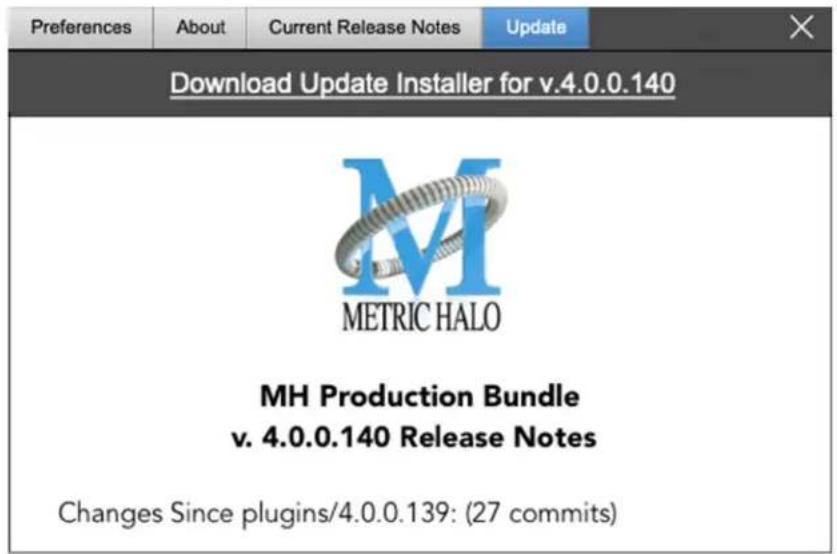
Update tab with new version release notes header (text from update release notes omitted from above for brevity)
The Update tab will contain a link to download the new installer package in the header at the top of the pane.
Below the download link header, you will see new version information with a synopsis of the of major changes included in the update, and bugfix revisions for the most recent software releases listed further below. As with the Current Release Notes tab, Windows users will see a link to view the release notes using your current default web browser.
Click the Installer link to download, unzip and run the installer manually, preferably when your audio software is inactive so it can properly scan the new versions at launch.
Plug-in Snapshot Registers: A/B

Plug-in Header: Snapshot Registers: A/B
The A and B buttons control the A and B state registers. The A/B registers are used to store modified parameter snapshots in addition to the original saved preset called up by Compare.
The Blend function can be used to smoothly morph between the parameters set in the A and B registers, and Blend is a mappable parameter so it can be operated with external MIDI control. Details of the A/B Snapshot Blend feature follow on the next page.
For each of the A and B buttons the visual display tells you the state of the register:
• Light Grey means the register is empty
• Dark Grey means it has settings, but is unselected
- Blue means it has settings and is selected
You can perform the following actions:
- Clicking on an empty register takes a snapshot of the current settings and saves them to the register.
- Clicking on an unselected filled register copies the register parameters to the current active plugin settings.
- Clicking on a selected register toggles to the other register; this lets you toggle between the register settings without having to move the mouse
- Changing settings when a register is selected will update the settings in the register to reflect the change.
Snapshot Blend
The Blend button allows you to interpolate (or morph) between the parameter snapshots stored in the A and B registers. It becomes active when both A and B have a parameter set stored.
Blend is a MIDI-mappable parameter so it can be operated in realtime with external MIDI control and/or automated in the DAW. This allows you to automate a transition from the A → B register, the B → A register or any setting between the two.

Plug-in Header: Snapshot Blend
The Blend button's visual display tells you the state of the register:
• Light Grey means it is empty
- Dark Grey means it has settings, but is unselected
- Blue means it has settings and is selected
Click on Blend to popup the blend control. Slide all the way to the left to apply the settings in the A register. Slide all the way to the right to apply the settings in the B register. Intermediate settings for blend will give you intermediate settings for any parameter that is different in register A and B. The blend control does not change the state of Bypass.
Note that the Blend is not a parallel processing mode where two instances of the processor are running the A and B settings and the output is a parallel blend of the two settings. Rather, Blend interpolates the parameter settings of the two registers to one instance of the processor. You can see the parameter controls move between A and B settings as you slide the Blend control.
The A/B and Blend settings are stored and recalled as part of the plug-in state, but are not saved as individual presets in the preset bar.
While you can use the blend with arbitrary A and B settings we find it works best when you craft the settings in the two registers in such a way as they are related to each other. Specifically, if an indexed (stepped) parameter is different between the two settings, the interpolated value will snap to one of the indexes between the two settings, which can be jarring.
It is best if the parameters that you blend are smooth parameters (e.g. gains, frequencies) and make sure the indexed parameters (enables, modes, band types) are set the same for both registers.
The easiest way to do this is to load the same setting into both registers and then tweak the settings of one of the registers.
This works especially well if you make one of the registers be the basic settings with all the gains or thresholds flattened out so that you can smoothly interpolate between a setting and effectively bypassed - we have found that this allows you to zero in a perfect configuration between too much and too little.
Plug-in Undo/Redo
All the plug-ins provide support for undo/redo from the plug-in header bar.

Plug-in Header: Undo/Redo
The left and right curved arrows represent Undo (Left) and Redo (Right). These arrows are grey when there is nothing to Undo or Redo.
The arrows are white when it is possible to Undo (Left) or Redo (Right). Clicking the left arrow when it is white will undo the last action you made in the plug-in. When you undo something that change is placed on the redo stack, and the Redo button will turn white.
Clicking the Redo button (when it is white) will restore the state that the last Undo changed.
If the Redo button is white and you make a change in the plug-in, the Redo button will go grey as the redo buffer will be cleared.
Help Button

Help Button
This button toggles the tooltip display. When enabled, tooltips will be shown when the mouse hovers over a control. When the tooltip display is disabled, you may still see tooltips by holding down the ? key and hovering over a control.
Graph Visible Selector

Graphs Closed

Graphs Open
This button toggles visibility of various response graphs. This button allows you to maximize screen real-estate while still providing details on the processing when they are needed. Not all MH family plug-ins will have this button, and on some plug-ins the button will have three panes. Clicking the button will step through the available views, with hidden panes shown darker in the button graphic.
UI Size Selector
140%
UI Size Selector
This pull-down menu lets you set the plug-in UI size to taste.
The last selected setting for a plug-in processor will be applied to the next new instance you create of that same plug-in. For example, if you open an instance of ChannelStrip and set it to 80%, the next instance of ChannelStrip you create will also open at 80%.
Compare Button
Compare
Compare Button (inactive)
Compare
Compare Button (active)
To use the compare button, a preset must first be loaded. The compare button will be lit up when the current settings differ from the selected preset. If you click this button while it is lit, the preset settings will be restored, but you can still return to the changes you made by clicking on the button again. It is important to note that any changes you make to activate the compare light are always for comparison to the last loaded preset.
Soft Bypass
Bypass
Soft Bypass Button (not bypassed - plug-in is processing)
Bypass
Soft Bypass Button (bypassed - plug-in is not processing)
When glowing yellow, this button will maintain the time delay through the channel and will continue to show metering, but will cleanly disable the processing.
For MH 3d hardware users: A note regarding plug-in Sidechains
In host-based DAWs, the mechanism for routing signals to plug-in sidechain inputs is handled within the DAW itself in a separate routing UI from the plug-in.
In MIOConsole3d, plug-ins which support external sidechain inputs are assigned from within the plug-in UI (as shown below).

MIOConsole3d ChannelStrip header
In MIOConsole3d, sidechain inputs may be routed from any input or bus available in the system, except for the Main bus. These routes are naturally going to be different from what would be assigned in a DAW session.
For this reason, external sidechain assignments are the one parameter which can not translate between a host-based DAW preset and the same preset opened within MIOConsole3d.
Plug-In Header: Preset Row

"Hamburger" menu: Preset operations
Plug-in Hamburger menu
The preset and parameter functions within the hamburger menu break down as follows:
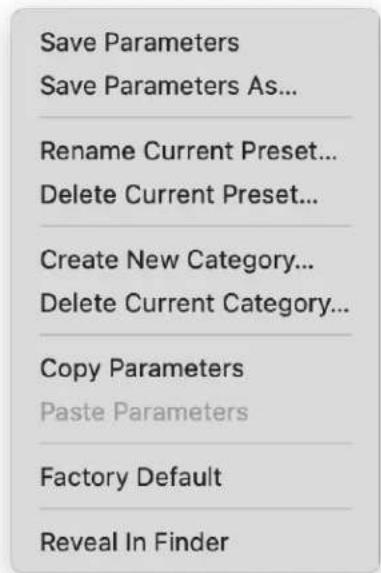
- Save Parameters saves the current plug-in parameters to the current preset.
- Save Parameters As... opens a dialog box where you can name and choose a category to save your current plug-in settings.
- Rename Current Preset... lets you rename the current preset.
- Delete Current Preset... deletes the current preset.
- Create New Category... lets you create a new preset category for the current plug-in type.
- Delete Current Category... deletes the current preset category.
- Copy Parameters copies the current parameter set so you can paste them to another instance of the same type plug-in.
- Paste Parameters pastes the copied parameters. Note that pasting a parameter set over an existing named preset will change the preset name field to: [No Preset].
- Factory Default loads the factory default settings for this plug-in.
- Reveal In Finder opens the folder in which the current preset is saved.
Preset Step-Through Buttons

Preset Step-Through Buttons
These buttons step through Factory and User Presets in succession, as they are listed in the Preset Selector window. The left arrow chooses the previous preset. The right arrow chooses the next preset.
Preset Name/selector menu:
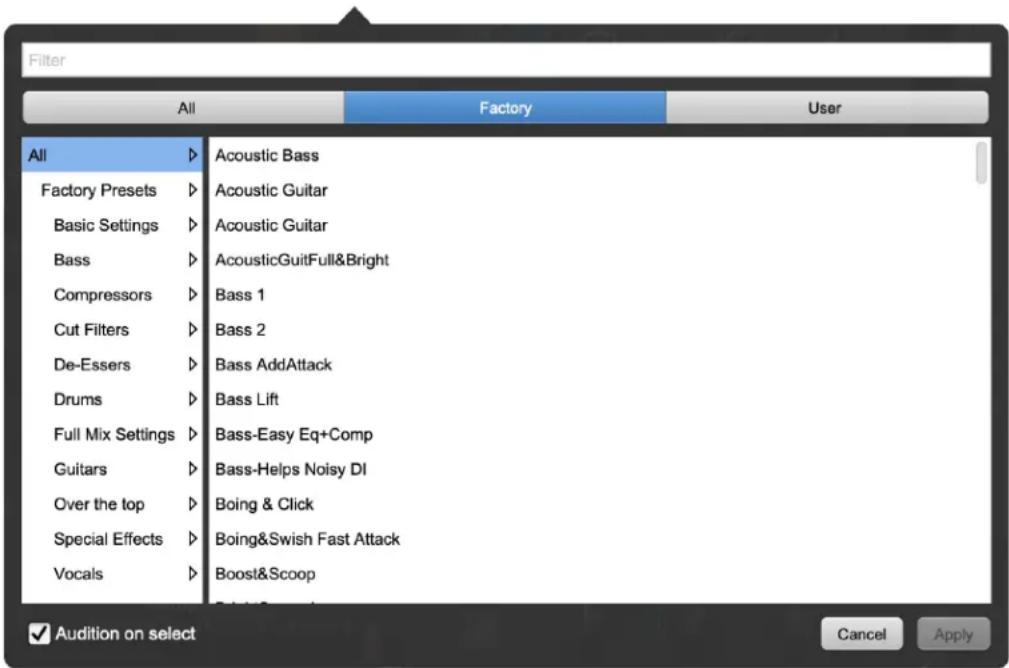
Plug-in Header: Preset selector menu (ChannelStrip shown)
The Preset selector will open to show all the available preset categories, and the presets within those categories.

Preset selector menu: Audition on select
With "Audition on select" enabled at the bottom of the window, selecting a preset will temporarily load those parameters so you can hear the effect on the audio you are playing, without actually committing to the preset.
Click Cancel to revert to your previous settings and close the selector window.
Hit Apply to commit the new preset parameters and close the preset selector window.
5. Operation
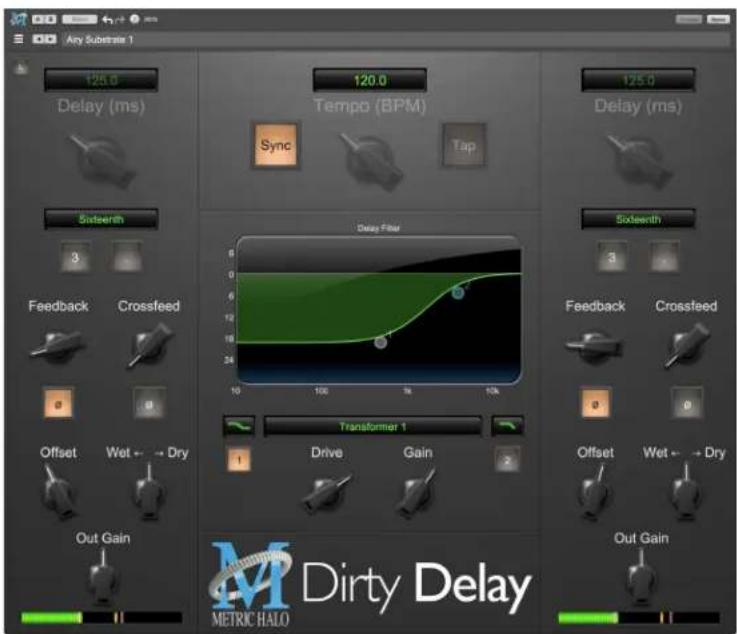
The Dirty Delay user interface uses several control elements to operate the plugin. These elements are:
Link Control
The Link Controls button at the upper left corner of the Dirty Delay UI toggles stereo linking of the left and right channel parameters.
Link Off (default state) & Link Controls On
When engaged, any changes made to the left channel control knobs will also change the right channel's knobs, maintaining any pre-existing offset. Changing the right channel's knobs directly will change only for the right channel in order to adjust the desired offset with respect to the left channel knobs.
Control Knob
Control Knobs are used to control various parameters.
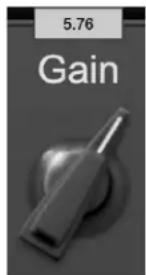
Control Knob
Some control knobs sweep from a minimum to maximum value, from left to right. Others are centered by default and can sweep left or right to subtract or add value respectively, or to set the parameter as a percentage.
You can change the value of each knob in a number of different ways. Click and drag the knob to change the value continuously. Dragging up or to the right will increase the value, while dragging down or to the left will decrease the value.
If you hold the Mac Option key or Window Alt key when you click, the knob will reset to its default value. You may also double-click a knob to reset it.
Click on the number (readout) of the knob, or right-click or control-click on the knob itself to display a text entry field that allows you to type in a number directly (shown above). The pop-up will remain active until you dismiss it by clicking somewhere else or hitting Return, Enter, Tab, Mac Command +., Windows Alt key or ESC keys. Hit Return or Enter to confirm the value and dismiss the pop-up.
Hit the Tab key to confirm the value and display and entry field for the next control. Shift + Tab will display the entry field for the previous control.
Hit the Mac Command + ., Windows Control + . or ESC (Escape) to dismiss the pop-up and cancel the change.
Toggle Button

Toggle Button (Off & On)
Toggle buttons are simple on/off switches. They light up when they are on and are dark when they are off. Toggle the state of the button by clicking on it. The button shown is used to enable Tempo Sync within Dirty Delay.
Tempo Tap

The Tempo Tap Pad allows you to set the delay time in BPM with successive mouse clicks. Tap in quarter-note beats to set the Tempo.
Note Length

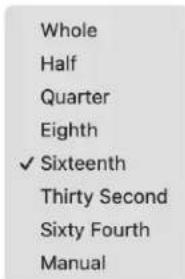
Note Length Selector and Popup Menu
The Note Length selector (above left) opens the pop-up menu (above right) to select the note value of the delay with respect to the tempo.
Standard musical note values are available, as well as Manual mode. When set to a musical note, the correct delay time is set automatically and the associated delay knob will be grayed out.
When set to Manual, you can set the delay time using the delay knob. Manual Delay is a full manual mode which overrides all Tempo control of the delay, including Sync and Tap.
Radio Button


Triplet & Dotted Note length modifiers
The buttons used to modify the delay note values with triplet or dotted note time are "radio buttons".
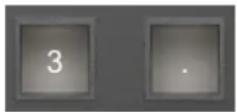
Radio buttons are like toggle buttons, except that they simultaneously disable another parameter when enabled. In the case of triplet and dotted note length modifiers, you can select triplet, dotted or neither, but not both.
Delay Filter
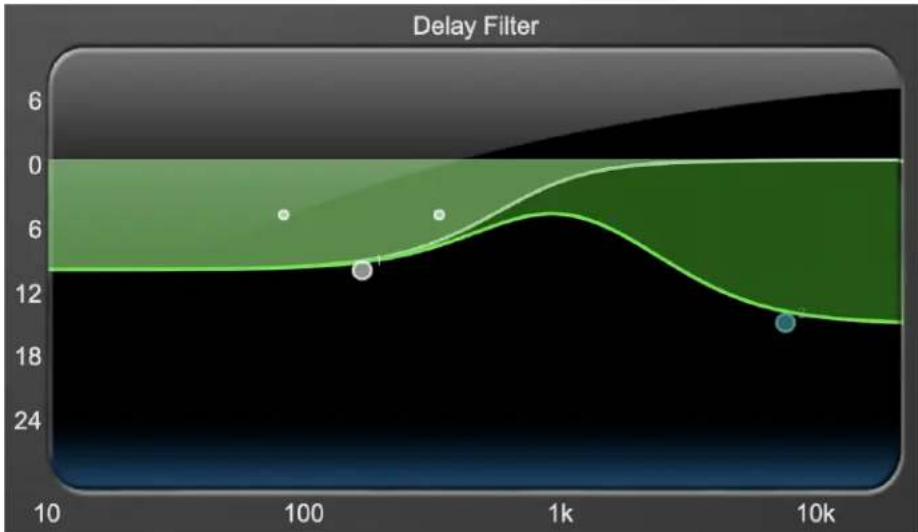
This section allows detailed control over the 2-band EQ applied to the delayed signal.
- The horizontal axis provides frequency calibration in Hertz (Hz).
- The vertical axis provides level calibration in decibels (dBr).
- The heavy green line indicates the relative change in level at each frequency that is created by the combined effects of all the active bands in the equalizer.
Each EQ band is represented by a numbered, colored dot in the transfer function.
The band that is currently being edited will be displayed along with the overall response curve. If the associated band is a parametric filter there will also be two smaller colored dots that can be used to control the bandwidth of the filter.
Clicking on a large colored dot and dragging it will allow you to adjust the frequency and gain of the associated band.
Mac Command-click, Windows Control-click or double click the dot to toggle the band enable.
Mac Option-click or Windows Alt-click the dot to adjust the bandwidth (drag right to increase, and left to decrease bandwidth).
Mac Command+Option-click or Windows Control+Alt-click the dot to switch the band filter type. Click and drag the smaller dots associated with a larger dot to adjust the filter bandwidth.
To dismiss the filter curve, click anywhere in the black area of the transfer function. This will deselect the filter point, and the only trace displayed will be the green master curve.
Filter Type
Each filter band has a filter type control that allows you to choose the shape of the filter applied by that band. Each band provides 6 different types of filter shapes:

Peaking/Parametric
Peaking/Parametric – a second order bell-shaped parametric boost/cut filter. Boost/cut has a range of ± 24 dB. When the boost is greater than +15 dB the filter gains a resonant quality. The center frequency of the filter can be any frequency between 20 Hz and 20 kHz. The bandwidth of the filter is continuously variable between 0.1 octaves and 2.5 octaves.
Low Cut
Low Cut - a 12 dB/octave low cut filter with a -3dB point that is continuously adjustable between 20Hz and 20kHz .

High Cut
High Cut - a 12 dB/octave high cut filter with a -3dB point that is continuously adjustable between 20 Hz and 20kHz .

Low Shelf
Low Shelf – a shelving filter that applies boost/cut to low frequencies. Boost/cut is limited to +12 dB/-24dB. The bandwidth controls the dip/peak that is added at the end of the transition band.

High Shelf
High Shelf – a shelving filter that applies boost/cut to high frequencies. Boost/cut is limited to +12 dB/-24dB. The bandwidth controls the dip/peak that is added at the end of the transition band.

Bandpass
Bandpass – a bandpass filter with 6dB per octave skirt on the high and low ends of the pass band. The width of the pass band can be adjusted between 0.1 octaves and 2.5 octaves and the center of the pass band is continuously adjustable between 20 Hz and 20 kHz.
You can select from these types via three different methods. Each time you click on the Filter Type control, the band will switch to the next type in the list (and wrap to the beginning when you hit the end of the list). If you click and hold the mouse button, a pop-up menu listing all of the types will appear after about 1/4 of a second. You can select the type directly from this pop-up menu. If you want to access the menu without having to wait, hold down the Mac ^ (Control) key when you click or right-click (Mac/Win).
Character Model Menu

Character Popup Menu
This pop-up menu selects the Character model applied to the delayed signal. There are 8 models available, which are detailed in the Processing chapter. The pop-up style menus can also be stepped through using the mouse scroll wheel.
Output Level Meter
Dirty Delay Output Level Meter
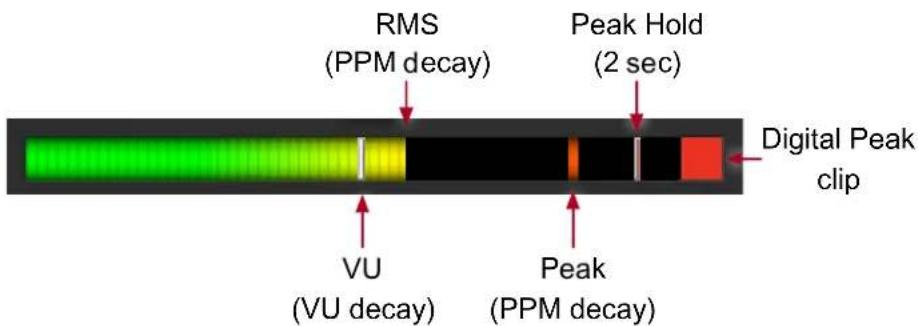
For the main output stage of Dirty Delay we have provided meters driven with SpectraFoo™ metering technology. These meters show digital Peak, Peak Hold, RMS level and VU level.
Both the Peak and RMS level are represented with fast PPM ballistics.
The instantaneous Peak level is represented by the floating colored pip. Peak Hold is 2 seconds, indicated as a red floating marker pip.
The RMS level is the solid colored bar which transitions from green at "safe" high-headroom levels to yellow at -18dBFS, then to orange and finally red approaching -6dBFS.
The VU meter is the white floating marker pip showing IEEE standard 300 ms RMS average level.
The output section clip lights activate if there is an over in the output stage or in any of the processing section input stages. It is reset by clicking on the meter.
A Note About Clipping Indicators:
The clip lights do not mean that the plug-in is clipping; it means that the audio level in the DSP is currently over 0 dBFS. If you do not lower the signal level you run a chance of actually clipping the input of another processor or D/A converter.
6. Processing
A Detailed Description
In this chapter we'll discuss what each processing block does and how the controls work.
![graph TD subgraph "Mono" A["Input"] --> B["+"] B --> C["CharacterFeed Delay"] C --> D["Offset"] D --> E["Wet/Dry Control"] E --> F["Output Gain"] F --> G["Output"] end subgraph "Stereo" H["Input"] --> I["+"] I --> J["Filter"] J --> K["Character"] K --> L["Delay"] L --> M["Offset"] M --> N["Wet/Dry C…](/content/2026/06/1230284/images/193b12fe399b884330f06a0dbfe0085dabeb35552e7e7413ed7da10136167052.jpg)
The block diagram above illustrates the overall signal path through Dirty Delay for both the mono and stereo versions. The diagram does not indicate the metering blocks.
Now lets examine the various processing blocks indicated in the diagram and elaborate on additional control elements built around them.
Filter
The filter block provides frequency shaping to a copy of the input signal prior to being delayed. The available controls allow you to set the frequency and level of the variable pre-filters of the delay. Using these controls allows you to tailor desired frequencies with up to +6 dB of boost to -24 dB of cut. See the Delay Filter section in the Operation section for detailed information.
Character
The Character block follows the filter, and applies low order harmonics to the signal being delayed. Each Model represents a digital "copy" of an analog device; some models are made from measuring a device with different combinations of settings. The most effective way to utilize Character is to listen to how each model affects your sound rather than relying on the name alone.
- None: No modeling is applied.
- Valve: A tube-based EQ input stage.
- Soft Sat: Tube-based EQ with saturation.
- Transformer 1 Applies the harmonic distortion signature of a transformer-coupled input.
- Transformer 2: A variation of the "Transformer 1" model.
- Tube DI: Mastering quality tube DI.
- Tube EQ: Mastering quality EQ.
- Tube Soft Sat: Mastering quality EQ with saturation.
- Tube Symmetrical Clipper: Mastering quality EQ
While most of the models can be applied to all types of material, particularly after judicious filtering, overuse of the saturation models can lead to undesired effects.

Character Drive and Gain controls
The Drive control applies ±24 dB of gain to the signal before it goes to the modeling section. This allows you attenuate the signal for a subtle effect, or boost to get a more dramatic effect.
As gain is changed before the modeling stage, the inverse gain is applied after. For example, if you set the Drive control to +6 dB, the gain is boosted 6 dB before the model and cut by 6 dB after. This allows you to "push" the modeling section with no increase in output level. You may also hit the model with less signal by setting the Drive control to a negative value without loss of overall volume.
You may still experience in increase in signal level when using positive Drive gain with some models; you can use the Gain control to correct this.
Tempo Control
This block generates the reference tempo for metrical time delays. Depending on the setting of the controls in the UI, this may generate the tempo from data provided by the host, by the rate of taps on the tap button or directly from the Tempo knob if the tempo is set manually.
With Sync toggled on, the base tempo automatically locks to the tempo set in your host. Toggle Sync off to manually enter the delay in ms on a per channel basis (stereo), or to tap tempo.
Click the tap button successively at the desired rhythm to set the tempo. When Sync is engaged, the Tap button will be disabled.
Delay
The Note Length sets the resolution of the delay time. The values are defined in note duration (Whole, Half, Quarter, etc.) with respect to the tempo grid.
Triplet and Dotted Note Length modifier buttons
Any note value can be modified to repeat in the form of triplets or dotted notes by engaging these buttons.
Offset
The offset block adjusts when you hear the delayed signal relative to the total feedback delay.
The time offset controlled by this block is adjusted with the Offset Knob in the UI. The Offset knob allows you to make fine adjustments to the groove of the delayed audio.
Turning the knob to the left will make the delays arrive earlier, and turning to the right will make the delays arrive later.
The range of the Offset knob is defined by the delay time. You can adjust the offset in each direction by up to half of the delay time.
Feedback Path
The Feedback path takes the output of the delay line and sums with the input.
The Feedback knob sets how much of the delayed signal is fed back into the delay path. Higher settings will generate more repeats, and can eventually cause the output to clip over time as the repeated signals accumulate.
The Feedback phase invert button causes the feedback to be inverted when it is engaged; every time the signal goes around the feedback loop the polarity will be inverted.

Phase Inversion Button - On (at left) & Off (at right)
Dedicated Phase Invert Buttons are available for both the Feedback and Crossfeed controls.
Crossfeed
The crossfeed controls are only available when using Dirty Delay as a stereo plug-in.
The left crossfeed control sets how much of the left channel delay feedback is fed into the right channel as a percentage, and vice versa for the right crossfeed control.
Wet/Dry Control
The Wet/Dry control sets the mix between the delay (wet) and original (dry) signals as a percentage.
Setting this control to 0 (full dry) lets no delayed sound through.
Setting this control to 100 (full wet) lets only delayed sound pass; you would want to use this setting when inserting Dirty Delay on an aux bus. If you are inserting Dirty Delay directly on an input or bus, use this control to balance the original audio and delay.
Output Gain
The Out Gain control allows you to vary the final output level of Dirty Delay by ±24dB .
A. Key Commands
There are several key commands used as modifiers combined with mouse actions:
| Command Mac Key Sequence Windows Key Sequence | |
| Show tooltips Hold ? down Hold ? down |
Table A.1. Tooltip Control
| Command Mac Key Sequence Windows Key Sequence | ||
| Fine control ⌘ (Command)-click and drag Control-click and drag | ||
| Reset to default value | (Option)-click or double-click | Alt-click or double-click |
Table A.2. Control Knob Modifiers
| Command Mac Key Sequence Windows Key Sequence | ||
| Confirm & dismiss numeric pop-up | return, enter return, enter | |
| Confirm & move to next entry tab | tab | |
| Confirm & move to previous entry | -tab (Shift + tab) | -tab (Shift + tab) |
| Dismiss numeric pop-up & cancel change | ※ . (Command + .), ESC Control. (Control + .), ESC | |
Table A.3. Numeric Field Modifiers
| Command Mac Key Sequence Windows Key Sequence | |
| Reset Clip √ (Option)-click the meter Alt-click the meter |
Table A.4. Meters
| Command Mac Key Sequence Windows Key Sequence | ||
| Toggle band enable | ⌘ (Command)-click or double-click frequency dot | Control-click or double-click frequency dot |
| Adjust bandwidth (click then drag) | (Option)-click frequency dot | Alt-click frequency dot |
| Change filter type | ⌘ (Command + Option)-click frequency dot | Control+Alt-click frequency dot |
| Access EQ TF settings | (Control) or right-click graph | Right-click graph |
Table A.5. EQ Transfer Functions
| Command Mac Key Sequence Windows Key Sequence | ||
| Popup Parameter Menu | ^⌘ (Control + Option + Command)-click | Alt + Control+Windows-click |
| Show Automation Breakpoint | ^⌘ (Control + Command)-click | Control + Windows-click |
| Set Parameter to Default Value | (Option)-click or double-click | Alt-click or double-click |
| Set Parameter to Minimum Value | ^ (Control + Option)-click | Control + Alt-click |
Table A.6. Pro Tools Key Commands
B. Service and Support
Metric Halo takes great pride in the reputation for customer service and support that we have built. If you have any problems, questions, or suggestions please get in touch with us at:
- https://mhsecure.com/support
• support@mhsecure.com
• (727) 725-9555
Please keep us informed about your successes and projects. We love to hear from you!
- DIRTY DELAY USER'S GUIDE
- DIRTY DELAY USERS GUIDE
- TABLE OF CONTENTS
- LIST OF FIGURES
- INTRODUCTION
- SYSTEM REQUIREMENTS
- INSTALLATION
- MAC
- CHOOSE PLUG-IN TYPES TO INSTALL
- IMPORTANT NOTE FOR PRO TOOLS USERS
- WINDOWS
- INSTALLATION COMPLETE
- UPDATE NOTIFICATION (ALL PLATFORMS)
- PLUG-IN HEADER BARS
- METRIC HALO HEADER ICON
- PREFERENCES TAB
- COMPLETE PLUG-IN PREFERENCES LIST
- UI PREFERENCES
- EQ COLORS
- SIDECHAIN EQ COLORS
- ABOUT TAB
- CURRENT RELEASE NOTES
- UPDATE NOTIFICATION TAB
- PLUG-IN SNAPSHOT REGISTERS: A/B
- SNAPSHOT BLEND
- PLUG-IN UNDO/REDO
- HELP BUTTON
- GRAPH VISIBLE SELECTOR
- UI SIZE SELECTOR
- COMPARE BUTTON
- SOFT BYPASS
- FOR MH 3D HARDWARE USERS: A NOTE REGARDING PLUG-IN SIDECHAINS
- MIOCONSOLE3D CHANNELSTRIP HEADER
- PLUG-IN HEADER: PRESET ROW
- PLUG-IN HAMBURGER MENU
- PRESET STEP-THROUGH BUTTONS
- PRESET NAME/SELECTOR MENU
- OPERATION
- LINK CONTROL
- CONTROL KNOB
- TOGGLE BUTTON
- TEMPO TAP
- NOTE LENGTH
- RADIO BUTTON
- DELAY FILTER
- FILTER TYPE
- CHARACTER MODEL MENU
- OUTPUT LEVEL METER
- A NOTE ABOUT CLIPPING INDICATORS
- PROCESSING
- A DETAILED DESCRIPTION
- FILTER
- CHARACTER
- TEMPO CONTROL
- DELAY
- OFFSET
- FEEDBACK PATH
- CROSSFEED
- WET/DRY CONTROL
- OUTPUT GAIN
- KEY COMMANDS
- SERVICE AND SUPPORT
Brand : Metric Halo
Model : Dirty Delay
Category : Audio software