
LED-FA038i2 - Tracking NEC - Free user manual and instructions
Find the device manual for free LED-FA038i2 NEC in PDF.


| Product Type | Indoor LED Display Module |
| Model | LED-FA038i2 |
| Pixel Pitch | 3.80 mm |
| Resolution per Module | 160 x 90 pixels |
| Brightness | 800 cd/m² |
| Contrast Ratio | 5000:1 |
| Power Consumption (all white, 100% brightness) | 120 W |
| Weight | 8.8 kg |
| Dimensions (W x H x D) | 608 x 342 x 49 mm |
| IP Rating | Front IP20 / Rear IP20 |
| Maintenance | Front access |
| Signal Interface | 1 x RJ-45 input, 1 x RJ-45 output |
| Power Supply | 100 V AC to 240 V AC, 50/60 Hz |
| Viewing Angle | Up 70°, Down 70°, Left 80°, Right 80° |
| Operating Temperature | -20 to 40°C |
| Storage Temperature | -20 to 45°C |
| Gamma Correction | 1.0 to 4.0 (default 2.8) |
| Color Temperature | 3000 K to 9500 K (default 6500 K) |
| Brightness Adjustment | 0 to 100% (256 steps) |
| Lamp Break-in | 3 hours at 20% brightness before normal use |
Frequently Asked Questions - LED-FA038i2 NEC
User questions about LED-FA038i2 NEC
0 question about this device. Answer the ones you know or ask your own.
Ask a new question about this device
Download the instructions for your Tracking in PDF format for free! Find your manual LED-FA038i2 - NEC and take your electronic device back in hand. On this page are published all the documents necessary for the use of your device. LED-FA038i2 by NEC.
USER MANUAL LED-FA038i2 NEC
Installation and Maintenance manual
LED Module/LED Display
[Models for indoor use]
LED-FA009i2
LED-FA015i2
LED-FA019i2
LED-FA012i2
LED-FA025i2
LED-FA031i2
LED-FA038i2
LED-FA012i2-SB
LED-FA015i2-SB
LED-FE009i2
LED-FE012i2
LED-FE015i2
LED-FE019i2
LED-FE025i2
LED-FE031i2
LED-FE038i2
LED-FE012i2-E
LED-FE015i2-E
LED-FE019i2-E
LED Display Kit
[Models for indoor use]
LED-FA012i2-110
LED-FA019i2-110
LED-FA015i2-137
LED-FA009i2-165
LED-FA019i2-165
LED-FA012i2-220
LED-FA025i2-220
LED-FA038i2-220
LED-FE012i2-110
LED-FE019i2-110
LED-FE015i2-137
LED-FE009i2-165
LED-FE019i2-165
LED-FE012i2-220
LED-FE025i2-220
LED-FE038i2-220
LED-FE012i2-E11
LED-FE019i2-E11
LED-FE015i2-E13
LED-FE019i2-E16
LED-FE012i2-E22
LED Display Kit
[Models for indoor use]
LED-FA012i2-11N
LED-FA019i2-11N
LED-FA015i2-13N
LED-FA009i2-16N
LED-FA019i2-16N
LED-FA012i2-22N
LED-FA025i2-22N
LED-FA038i2-22N
LED-FE012i2-11N
LED-FE019i2-11N
LED-FE015i2-13N
LED-FA009i2-16N
LED-FE019i2-16N
LED-FE012i2-22N
LED-FE025i2-22N
LED-FE038i2-22N
LED-FE012i2-EFN
LED-FE019i2-EHN
LED-FE015i2-EFN
LED-FE019i2-EFN
LED-FE012i2-EUN
MODEL: LED-FA009i2, LED-FA012i2, LED-FA015i2, LED-FA019i2, LED-FA025i2, LED-FA031i2, LED-FA038i2
LED-FE009i2, LED-FE012i2, LED-FE015i2, LED-FE019i2, LED-FE025i2, LED-FE031i2, LED-FE038i2
Important Information......English-1
Parts Name ....English-5
Model name list....English-8
Contents....English-9
Installation Example ......English-16
- Installation location.... 16
- Handle 18
- Mark the positions of the anchor points on the wall 18
- Make the holes at the anchor positions 20
- Preparing mounting bar 21
- Install the mounting bars.... 22
- Install the power bar.... 24
- Install the cabinet hanger pins to the back of the cabinets.... 26
- Install the cabinets 28
- Assembly diagrams ...... 34
11.Installation without a frame set.... 37
12.Wiring 38 - Installing the pixel card.... 58
Screen Configuration....English-60
Image Setting ....English-71
Cleaning ....English-81
Maintenance....English-82
Troubleshooting ....English-87
- Display problems....87
- Adjusting the colors on a part of the screen....88
- State monitoring using the software....94
- Redundancy setting method 99
Specifications (FA series)......English-117
Specifications (FE series) ...... English-121
Diagram ......English-127
NOTE: (1) The contents of this manual may not be reprinted in part or whole without permission.
(2) The contents of this manual are subject to change without notice.
(3) Great care has been taken in the preparation of this manual; however, should you notice any questionable points, errors or omissions, please contact us.
(4) The image shown in this manual is indicative only. If there is inconsistency between the image and the actual product, the actual product shall govern.
(5) Notwithstanding articles (3) and (4), we will not be responsible for any claims on loss of profit or other matters deemed to result from using this device.
The company names and product names mentioned in this manual are trademarks or registered trademarks of respective companies.
Safety Precautions and Maintenance
FOR OPTIMUM PERFORMANCE, PLEASE NOTE
THE FOLLOWING WHEN SETTING UP AND
USING THE LED DISPLAY SYSTEM:
About the Symbols
To ensure safe and proper use of the product, this manual uses a number of symbols to prevent injury to you and others as well as damage to property. The symbols and their meanings are described below. Be sure to understand them thoroughly before reading this manual.
 WARNING WARNING | Failing to heed this symbol and handling the product incorrectly could result in accidents leading to major injury or death. |
 CAUTION CAUTION | Failing to heed this symbol and handling the product incorrectly could result in personal injury or damage to surrounding property. |
Examples of symbols
 | △ Indicates a warning or caution.This symbol indicates you should be careful of electric shocks. |
 | ⊗ Indicates a prohibited action.This symbol indicates something that must be prohibited. |
 | ● Indicates a mandatory action.This symbol indicates that the power cord should be unplugged from the power outlet. |
- Be sure to read the following before using the product to use it correctly and safely.

WARNING

Do not apply vibrations or shocks to the product.

Do not install the product to unstable locations or locations subject to vibrations.

Always ask a technician to perform the installation.

Do not connect the cables with wet hands. Otherwise, it may cause an injury or an electrical shock.

Do not repair or modify the product yourself. Otherwise, it may cause an injury, a fire or an electrical shock.

In case of thunder, do not touch the power cord. Otherwise, it may cause an electrical shock.

Connect the product to the correct voltage. If the product is connected to a voltage other than the specified voltage, it may lead to a fire or an electrical shock.

In case of a malfunction (nothing is displayed on the screen, etc.) or if smoke, abnormal heat, or a strange sound or odor is generated, turn the power off and immediately ask a technician or your retailer for repair.

Install the product so that the vents are not obstructed.

Make sure there are enough people available to ensure safety (at least two people) when installing or moving the product. Otherwise, it may lead to an injury.

Be sure to ground the product. If the product is not grounded, there is a risk of electrical shock in case a malfunction occurs.

In case foreign matter has entered into the product, immediately disconnect the power supply and stop using the product.

After the installation, if a problem such as loose screws occurs, immediately ask a technician or your retailer for repair.

Do not put objects into the product. Otherwise, it may cause a fire or an electrical shock.

In case the product is in contact with water or another liquid, immediately disconnect the power supply and stop using the product. If you continue using the product in that state, it may lead to a malfunction, a fire, or an electrical shock.

When using the power connector (WAGO), do not use it outdoors or in a humid environment. Otherwise, it may cause a fire or an electrical shock.

CAUTION

When connecting the power cord to the product's AC IN terminal, make sure the connector is fully and firmly inserted.

Do not damage the power cord. Do not put heavy objects on it, place it near heaters, pull it with excessive strength, or apply a strong force on it while it is bent. A damaged power cord may cause a fire or an electrical shock.

Do not install the product in narrow places where heat tends to build up.

Do not use the product in an environment with low heat dissipation. Otherwise, it may cause a malfunction.

The RJ-45 port of the product is for use with the product only. Do not connect it to a network. Connecting this port to a network that may receive over-voltage current may cause damage to the product or an electrical shock.

Do not use the product in a vehicle or another means of transportation.

Do not place the product under direct sunlight or near heaters.

This product is designed to be used indoors. Do not use it outdoors. Otherwise, it may cause a malfunction.
Do not use or store the product in the following places.
- Near heaters
- Places with lots of humidity or dust, or places subject to oily smoke
- Places where water or oil may splash
- Places with lots of corrosive gases, such as near hot springs
- Places where the product may freeze
- Do not place the product on its side, face down, or upside down.
- Places with lots of vibrations

If you will not be using the product for a long time, disconnect it from the power distributor for safety purposes.

Disconnect the power supply when performing the maintenance.

Install the product in accordance with the local laws and regulations.

Use ESD gloves when handling Pixel cards to prevent static electricity from the human body and contamination due to finger oils, perspiration salts, flaking skin, and/or other forms of human excretory secretions. The LED modules and their electrical components are sensitive to biological agents and exposure to such risks degradation of materials and performance.

Eliminate any static electricity from your body before touching the Pixel cards by touching an aluminum sash, a door knob, or some other metal object.
This product can only be serviced in the country where it was purchased.
Recommended Use & Maintenance
About the LED lamps

The surface of the pixel card is vulnerable to shocks, so do not press or hit the surface.

LED lamps are sensitive to static electricity and surge voltage, which may damage their components and decrease their reliability.
Take measures against static electricity during the installation. Do not touch the LED display areas.

When you install the product or when you use it for the first time after leaving it unused for a long time, follow the instructions below.
The LED lamps may absorb and hold moisture during the LED module installation or if not used for a long time. Therefore, in such cases, the brightness must be increased gradually during a break-in period before setting the normal brightness.
If the LED lamps are lit with 100% brightness while moisture is retained, the temperature will rise very quickly and the water inside the lamps will evaporate and expand. This will cause the encapsulating resin to expand, which may lead to separation of the boundary surface inside the LED lamps. This separation can cause the LED lamps not to light up properly.
Lamp break-in
Configure the brightness settings as shown below with a video displayed on the LED module.
After a break-in period of approximately 3 hours, the LED module can be used under normal conditions.

line
| Time since start-up | Full white | Video content | | ------------------- | ---------- | ------------- | | Brightness value | 20% | | | Normal operation | 70% | 50% | | 80% | 60% | 49% |About the Pixel card

The surface of the pixel card is easily scratched, so handle it with care so as not to push or rub it with a hard object. Be careful not to stain the surface of the pixel card with your fingers. If the surface of the pixel card becomes dirty, wipe it gently with a dry cloth. Also, use a clean cloth and avoid using the same cloth repeatedly.

FA series
| Name Description | ||
| Interface connectors Input and output connectors for the signal and AC power. | ||
| 12 Signal input/output (master) | To input the signal from the LED controller or the previous LED module.When a signal is input into 1, the signal is output from 2.When a signal is input into 2, the signal is output from 1. | |
| 34 Signal input/output (slave) | To input signal from LED controller or previous LED module.When a signal is input to 3, the signal is output from 4.When a signal is input to 4, the signal is output from 3.Used to duplicate the image display. | |
| 56 Power input (output) | When AC power is input into 5, AC power is output from 6.When AC power is input into 6, AC power is output from 5.Do not input AC power into both 5 and 6. | |
| 7 Status lamp (red) | Lights up when power is on. | |
| 8 Status lamp (blue) | Blinks when images are displayed using signals from the slave. | |
| 9 Status lamp (green) | Flashes at intervals of about 1 second when displaying images with signals from the master.Flashes at intervals of approximately 4 seconds when neither master nor slave signal is input. | |
| 10 Test button | Used to display the test patterns. The displayed pattern changes each time the test button is pressed.The signal from the LED controller must be interrupted to display a test pattern. | |
| 11 Handle | Use the handles when carrying and installing the cabinet. | |
| 12 Guide pin | Used to align the cabinets when installing them on top of each other. | |
FE series
| Name Description | ||
| Interface connectors Input and output connectors for the signal and AC power. | ||
| 12 Signal input/output | To input the signal from the LED controller or the previous LED module.When a signal is input into 1, the signal is output from 2.When a signal is input into 2, the signal is output from 1. | |
| 34 Power input (output) | When AC power is input into 3, AC power is output from 4.When AC power is input into 4, AC power is output from 3.Do not input AC power into both 3 and 4. | |
| 5 Status lamp (red) | Lights up when power is on. | |
| 6 Status lamp (blue) | Not functioning with this device. | |
| 7 Status lamp (green) | Flashes at intervals of approximately 4 seconds when no signal is input.Flashes at intervals of about 1 second when a signal is being input. | |
| 8 Test button | Used to display the test patterns. The displayed pattern changes each time the test button is pressed.The signal from the LED controller must be interrupted to display a test pattern. | |
| 9 Handle | Use the handles when carrying and installing the cabinet. | |
| 10 Guide pin | Used to align the cabinets when installing them on top of each other. | |
There are three types of cabinets.
(1) When using other than the top (Type A)
The connectors are equipped on the top and bottom sides. There are guide pins on the top.
FA series FE series
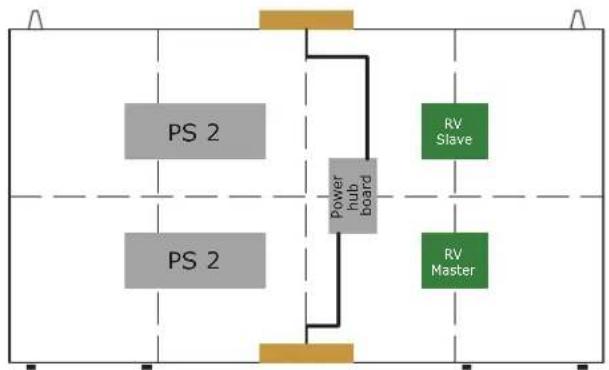
flowchart
graph TD
    A["Power hub board"] --> B["PS 2"]
    A --> C["PS 2"]
    A --> D["RV Slave"]
    A --> E["RV Master"]

flowchart
graph TD
    A["Power unit"] --> B["Power hub board"]
    B --> C["Receiving card"]
(2) When used at the top (Type B)
There are no connectors on the top side. There are no guide pins.
FA series FE series

flowchart
graph TD
    A["PS 2"] --> B["Power hub board"]
    C["PS 2"] --> B
    D["RV Slave"] --> B
    E["RV Master"] --> B
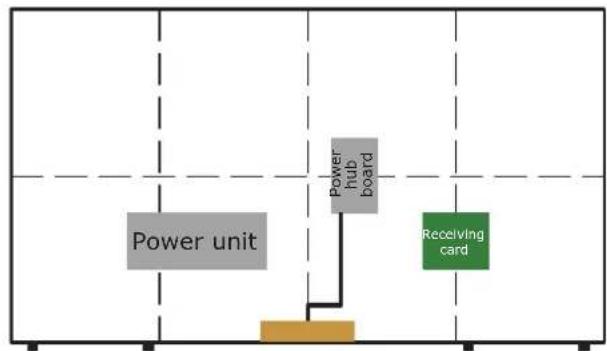
flowchart
graph TD
    A["Power unit"] --> B["Power hub board"]
    B --> C["Receiving card"]
(3) When connecting a LAN cable from the middle (Type A')
There is a hole for LAN cable connection on the rear.
FA series FE series
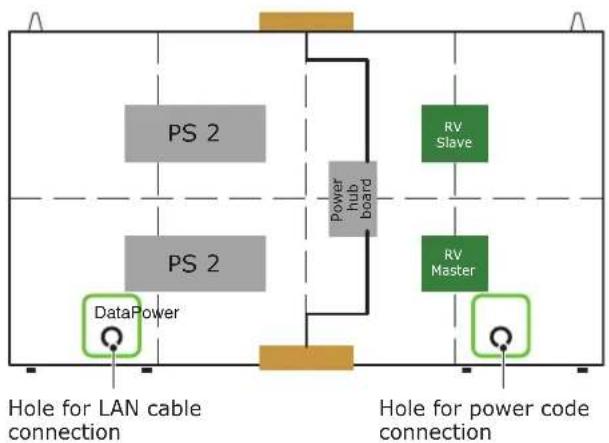
flowchart
graph TD
    A["Data Power"] --> B["Power hub board"]
    C["PS 2"] --> B
    D["PS 2"] --> B
    E["RV Slave"] --> B
    F["RV Master"] --> B
    B --> G["Hole for LAN cable connection"]
    B --> H["Hole for power code connection"]
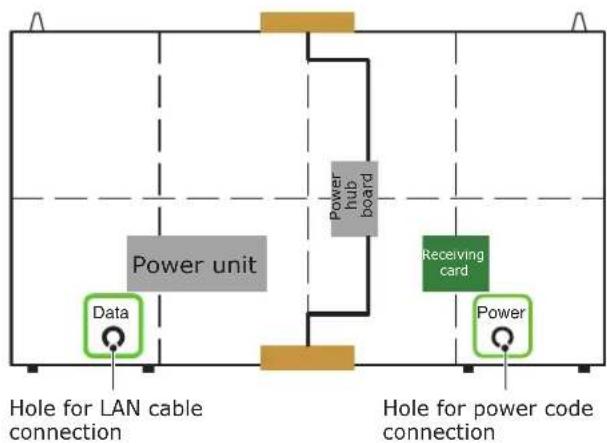
flowchart
graph TD
    A["Power unit"] --> B["Power hub board"]
    B --> C["Receiving card"]
    C --> D["Data Point"]
    style A fill:#f9f,stroke:#333
    style B fill:#ccf,stroke:#333
    style C fill:#cfc,stroke:#333
    style D fill:#fcc,stroke:#333
    note1["Hole for LAN cable connection"]
    note2["Hole for power code connection"]
    note1 -.-> A
    note2 -.-> C
| 4 X 4 frame set LED-FA012i2-110 | /LED-FA012i2-11N |
| LED-FE012i2-110/LED-FE012i2-11N, | |
| LED-FA019i2-110/LED-FA019i2-11N | |
| LED-FE019i2-110/LED-FE019i2-11N, | |
| LED-FE012i2-E11/LED-FE012i2-EFN, | |
| LED-FE019i2-E11/LED-FE019i2-EHN | |
| 5 X 5 frame set LED-FA015i2-137 | /LED-FA015i2-13N |
| LED-FE015i2-137/LED-FE015i2-13N, | |
| LED-FE015i2-E13/LED-FE015i2-EFN | |
| 6 X 6 frame set (0.9mm pitch) LED | /LED-FA009i2-165/LED-FA009i2-16N |
| LED-FE009i2-165/LED-FA009i2-16N | |
| 6 X 6 frame set (1.9mm pitch) LED | /LED-FA019i2-165/LED-FA019i2-16N |
| LED-FE019i2-165/LED-FE019i2-16N, | |
| LED-FE019i2-E16/LED-FE019i2-EFN | |
| 8 X 8 frame set (1.2mm pitch) LED | /LED-FA012i2-220/LED-FA012i2-22N |
| LED-FE012i2-220/LED-FE012i2-22N, | |
| LED-FE012i2-E22/LED-FE012i2-EUN | |
| 8 X 8 frame set (2.5mm pitch) LED | /LED-FA025i2-220/LED-FA025i2-22N |
| LED-FE025i2-220/LED-FE025i2-22N | |
| 8 X 8 frame set (3.8mm pitch) LED | /LED-FA038i2-220/LED-FA038i2-22N |
| LED-FE038i2-220/LED-FE038i2-22N |
| No. | Parts Specifications | Quantity | ||||
| 4 x 4 frame set | 5 x 5 frame set | 6 x 6 frame set (0.9 mm pitch) | 6 x 6 frame set (1.9 mm pitch) | |||
| Pixel card pitch 1.2, 1.5, 1.9, 3.8 | 152 x 171 mm 128 200 288 | 288 |  | |||
| Pixel card pitch 2.5 | 152 x 342 mm - - - - |  | ||||
| Cabinet 608 x 342 mm 16 | 25 36 36 | |||||
| Cabinet hanger pin Head diameter 15mm, thickness 5 mm, M8 external dental pattern, axis length 17 mm, stainless steel color | 35 (30+5*1) | 45 (40+5*1) | 75 (70+5*1) | 75 (70+5*1) |  | |
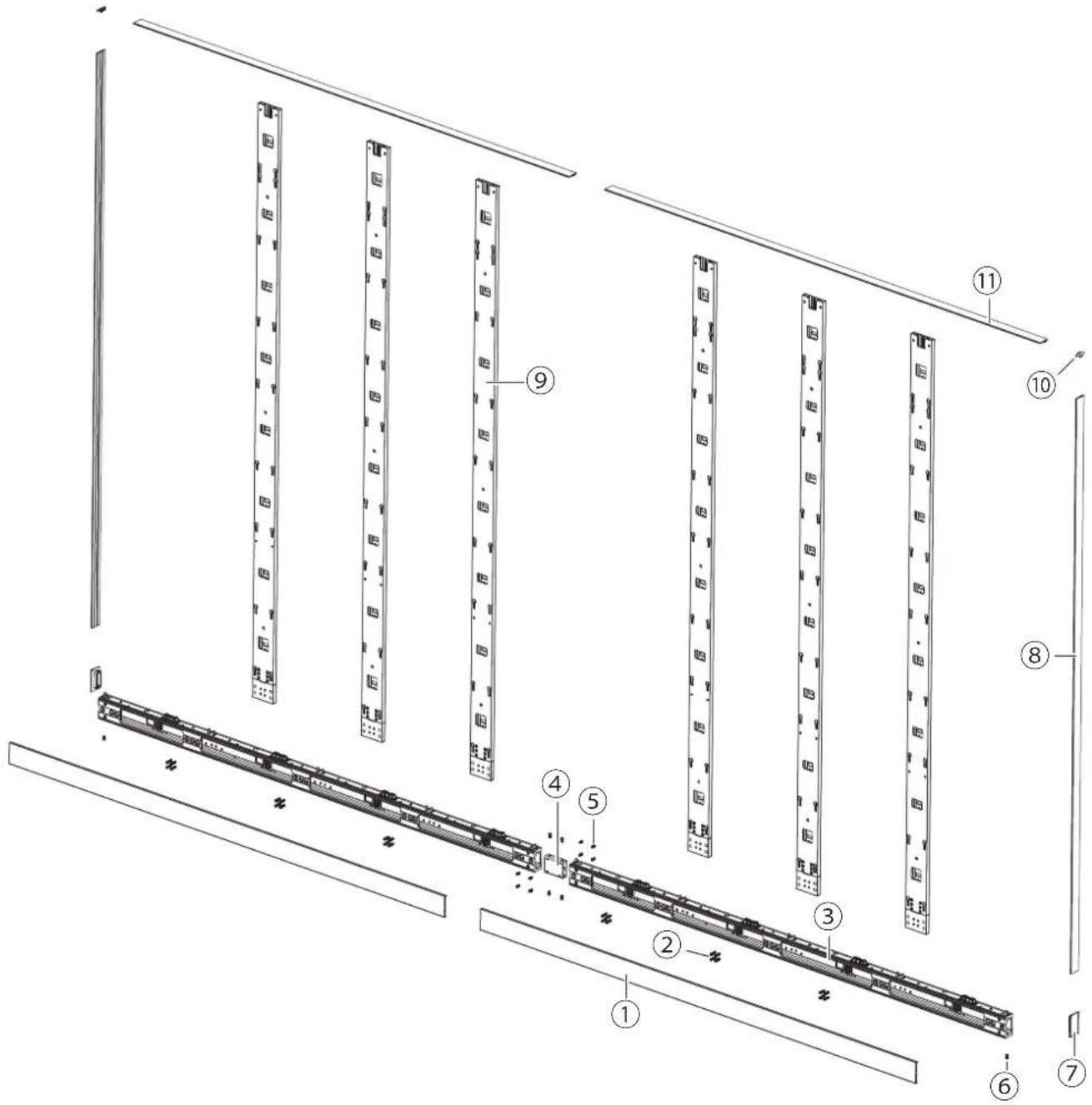
| 1 | Power bar cover plate 1 1 1 | 1 | ||||
| 2 | Power bar screw (M8×20) | Hexagon socket head screw | 17 (12+5*1) | 21 (16+5*1) | 25 (20+5*1) |  |
| 3 | Power bar 1 1 1 1 | |||||
| 4 | Power bar connecting part | - - - | - | |||
| 5 | Screw for Power bar connecting | - - - | - | |||
| 6 | Screw for corner frame bottom (M6×12) | Hexagon socket head screw | 7 (2+5*1) | 7 (2+5*1) | 7 (2+5*1) | 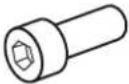 |
| 7 | Corner frame bottom (left, right) | 2 2 2 | 2 | 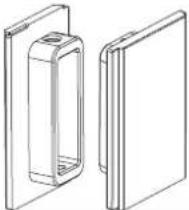 | ||
| 8 | Overframe (left, right) 2 2 2 | 2 | ||||
*1: Spare parts
| No. | Parts Specifications | Quantity | ||||
| 4 x 4 frame set | 5 x 5 frame set | 6 x 6 frame set (0.9 mm pitch) | 6 x 6 frame set (1.9 mm pitch) | |||
| 9 Mounting bar 3 4 5 5 | ||||||
| Washer 17 | (12+5*1) | 25 (20+5*1) | 35 (30+5*1) | 35 (30+5*1) | ||
| 10 Corner frame top(left, right) | 2 2 2 | 2 | ||||
| 11 Overframe (top) 1 1 1 1 | ||||||
| Slot nut 15 | (10+5*1) | 17 (12+5*1) | 17 (12+5*1) | 17 (12+5*1) | ||
| Screw for overframe(M4×4) | Hexagon socket head screw | 8 (3+5*1) | 9 (4+5*1) | 9 (4+5*1) | 9 (4+5*1) | |
| Screw for overframe(M4×8) | Hexagon socket head screw | 12 (7+5*1) | 13 (8+5*1) | 13 (8+5*1) | 13 (8+5*1) | |
| Screw for cabinet(to Power bar)(M8×16) | Hexagon socket head screw | 13 (8+5*1) | 15 (10+5*1) | 17 (12+5*1) | 17 (12+5*1) | |
| Adjustment plate 10 12 14 | 14 | |||||
| Screw for Adjustment plates (M8×25) | Hexagon socket head screw | 45 (40+5*1) | 53 (48+5*1) | 61 (56+5*1) | 61 (56+5*1) | |
| Screw for connecting cabinets (M8×25) | 53 (48+5*1) | 85 (80+5*1) | 125 (120+5*1) | 125 (120+5*1) | ||
| LAN cable for the LED modules (FA series) | 120 mm 12 20 18 30 | |||||
| 135 mm 12 20 18 30 | ||||||
| 1 m - - - - | ||||||
| LAN cable for the LED modules (FE series) | 120 mm 12 20 18 30 | |||||
| 1 m | - - - - | - | ||||
| Alignment bar 2 2 2 2 | ||||||
| USB flash memory 1 1 1 1 | ||||||
| Safety Manual 1 1 1 1 | ||||||
| LED controller*2(FA series) | Novastar MCTRL660 PRO | 2 2 - | 2 | |||
| Novastar MCTRL4K | - - 4 | - | ||||
| LED controller*2(FE series) | Novastar MCTRL660 PRO | 1 1 - | 1 | |||
| Novastar MCTRL4K | - - 2 | - | ||||
*1: Spare parts
*2: Kit model only (except for LED-FA012i2-11N, LED-FA019i2-11N, LED-FA015i2-13N, LED-FA009i2-16N, LED-FA019i2-16N, LED-FA012i2-22N, LED-FA025i2-22N, LED-FA038i2-22N, LED-FE012i2-11N, LED-FE019i2-11N, LED-FE015i2-13N, LED-FA009i2-16N, LED-FE019i2-16N, LED-FE012i2-22N, LED-FE025i2-22N, LED-FE038i2-22N, LED-FE012i2-EFN, LED-FE019i2-EHN, LED-FE015i2-EFN, LED-FE019i2-EFN, LED-FE012i2-EUN)
| No. | Parts Specifications | Quantity | ||||
| 4 x 4 frame set | 5 x 5 frame set | 6 x 6 frame set (0.9 mm pitch) | 6 x 6 frame set (1.9 mm pitch) | |||
| LAN cable between LED controller and module*2 (FA series) | 20000 mm 8 10 36 12 | |||||
| 24000 mm - - - - | ||||||
| LAN cable between LED controller and module*2 (FA series) | 20000 mm | 4 5 18 6 | ||||
| 24000 mm - - - - | ||||||
| Power cord for the LED controller*2 (FA series) | 2 2 2 2 | |||||
| Power cord for the LED controller*2 (FE series) | 1 1 2 1 | |||||
| Power cord*3 | *3 | *3 | *3 | *3 | ||
*1: Spare parts
*2: Kit model only (except for LED-FA012i2-11N, LED-FA019i2-11N, LED-FA015i2-13N, LED-FA009i2-16N, LED-FA019i2-16N, LED-FA012i2-22N, LED-FA025i2-22N, LED-FA038i2-22N, LED-FE012i2-11N, LED-FE019i2-11N, LED-FE015i2-13N, LED-FA009i2-16N, LED-FE019i2-16N, LED-FE012i2-22N, LED-FE025i2-22N, LED-FE038i2-22N, LED-FE012i2-EFN, LED-FE019i2-EHN, LED-FE015i2-EFN, LED-FE019i2-EFN, LED-FE012i2-EUN)
*3: Can be ordered by optional
Four different wall-mount frames can be used depending on the system size. Ask your retailer for more details.
For other configurations, the number of contents will vary. Please contact your retailer for more information.
| No. | Parts Specifications | Quantity | |||
| 8 x 8 frame set(1.2 mm pitch) | 8 x 8 frame set(2.5 mm pitch) | 8 x 8 frame set(3.8 mm pitch) | |||
| Pixel cardpitch 1.2, 1.5, 1.9, 3.8 | 152 x 171 mm 512 - 512 |  | |||
| Pixel cardpitch 2.5 | 152 x 342 mm - 256 - |  | |||
| Cabinet 608 x 342 mm 64 | 64 64 | ||||
| Cabinet hanger pin Head | diameter 15mm,thickness 5 mm,M8 external dental pattern,axis length 17 mm,stainless steel color | 113(108+5*1) | 113(108+5*1) | 113(108+5*1) | |
| 1 | Power bar cover plate 2 2 2 | ||||
| 2 | Power bar screw(M8×20) | Hexagon socket head screw | 29(24+5*1) | 29(24+5*1) | 29(24+5*1) |
| 3 | Power bar 2 2 2 | ||||
| 4 | Power bar connecting part | 1 1 1 | |||
| 5 | Screw for Power bar connecting | 17(12+5*1) | 17(12+5*1) | 17(12+5*1) | |
| 6 | Screw for corner frame bottom(M6×12) | Hexagon socket head screw | 7(2+5*1) | 7(2+5*1) | 7(2+5*1) |
| 7 | Corner frame bottom(left, right) | 2 2 2 | 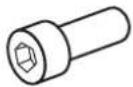 | ||
| 8 | Overframe (left, right) 2 2 2 | ||||
| 9 | Mounting bar 6 6 6 | ||||
*1: Spare parts
| No. | Parts Specifications | Quantity | |||
| 8 x 8 frame set(1.2 mm pitch) | 8 x 8 frame set(2.5 mm pitch) | 8 x 8 frame set(3.8 mm pitch) | |||
| Washer 53 | (48+5^*1) | 53 (48+5^*1) | 53 (48+5^*1) | ||
| 10 | Corner frame top(left, right) | 2 2 2 | |||
| 11 | Overframe (top) 2 2 2 | ||||
| Slot nut 21 | (16+5^*1) | 21 (16+5^*1) | 21 (16+5^*1) | ||
| Screw for overframe(M4×4) | Hexagon socket head screw | 9 (4+5^*1) | 9 (4+5^*1) | 9 (4+5^*1) | |
| Screw for overframe(M4×8) | Hexagon socket head screw | 17 (12+5^*1) | 17 (12+5^*1) | 17 (12+5^*1) | |
| Screw for cabinet(to Power bar)(M8×16) | Hexagon socket head screw | 21 (16+5^*1) | 21 (16+5^*1) | 21 (16+5^*1) | |
| Adjustment plate 18 18 18 | |||||
| Screw for Adjustment plates(M8×25) | Hexagon socket head screw | 77 (72+5^*1) | 77 (72+5^*1) | 77 (72+5^*1) | |
| Screw for connecting cabinets(M8×25) | 229 (224+5^*1) | 229 (224+5^*1) | 229 (224+5^*1) | ||
| LAN cable for the LED modules (FA series) | 120 mm | 48 56 56 | |||
| 135 mm | 48 56 56 | ||||
| 1 m - 8 8 | |||||
| LAN cable for the LED modules (FE series) | 120 mm | 48 56 56 | |||
| 1 m | - 4 4 | ||||
| Alignment bar 2 2 2 | |||||
| USB flash memory 1 1 1 | |||||
| Safety Manual 1 1 1 | |||||
| LED controller*2(FA series) | Novastar MCTRL660 PRO - | 2 2 | |||
| Novastar MCTRL4K 2 - - | |||||
| LED controller*2(FE series) | Novastar MCTRL660 PRO - | 1 1 | |||
| Novastar MCTRL4K 1 - - | |||||
*1: Spare parts
*2: Kit model only (except for LED-FA012i2-11N, LED-FA019i2-11N, LED-FA015i2-13N, LED-FA009i2-16N, LED-FA019i2-16N, LED-FA012i2-22N, LED-FA025i2-22N, LED-FA038i2-22N, LED-FE012i2-11N, LED-FE019i2-11N, LED-FE015i2-13N, LED-FA009i2-16N, LED-FE019i2-16N, LED-FE012i2-22N, LED-FE025i2-22N, LED-FE038i2-22N, LED-FE012i2-EFN, LED-FE019i2-EHN, LED-FE015i2-EFN, LED-FE019i2-EFN, LED-FE012i2-EUN)
| No. | Parts Specifications | Quantity | |||
| 8 x 8 frame set (1.2 mm pitch) | 8 x 8 frame set (2.5 mm pitch) | 8 x 8 frame set (3.8 mm pitch) | |||
| LAN cable between LED controller and module*2 (FA series) | 20000 mm 16 8 8 | ||||
| 24000 mm 16 -- | |||||
| LAN cable between LED controller and module*2 (FA series) | 20000 mm 8 4 4 | ||||
| 24000 mm 8 -- | |||||
| Power cord for the LED controller*2 (FA series) | 2 2 2 | ||||
| Power cord for the LED controller*2 (FE series) | 1 1 1 | ||||
| Power cord*3 | *3 | *3 | *3 | ||
*1: Spare parts
*2: Kit model only (except for LED-FA012i2-11N, LED-FA019i2-11N, LED-FA015i2-13N, LED-FA009i2-16N, LED-FA019i2-16N, LED-FA012i2-22N, LED-FA025i2-22N, LED-FA038i2-22N, LED-FE012i2-11N, LED-FE019i2-11N, LED-FE015i2-13N, LED-FA009i2-16N, LED-FE019i2-16N, LED-FE012i2-22N, LED-FE025i2-22N, LED-FE038i2-22N, LED-FE012i2-EFN, LED-FE019i2-EHN, LED-FE015i2-EFN, LED-FE019i2-EFN, LED-FE012i2-EUN)
*3: Can be ordered by optional
Four different wall-mount frames can be used depending on the system size. Ask your retailer for more details. For other configurations, the number of contents will vary. Please contact your retailer for more information.
8 x 8 frame set
1. Installation location
Before the installation, be sure to review the following safety precautions to ensure proper and safe installation.

CAUTION
- Ask a technician to perform the installation.
- Make sure the product is moved and installed by enough people to ensure safety.
- Make sure that the beams or the other structures to which the product is installed have enough strength to support the weight of the product, and make sure that the product is securely fixed.
- Do not install directly the product to a surface that has not enough strength.
- When installing the product in an environment with much dust or dirt, be careful to prevent such material from adhering to the connectors on the hub board and pixel card.
Adhesion of dust or dirt to the connectors may cause poor contact, leading to abnormalities of video display.
- When installing the product in a narrow place (in a wall, etc.), leave enough gaps around the LED screens to prevent an increase in the temperature.
Make sure to use the product lower than the normal operating temperature.
The top of the LED module should always be installed so that the temperature is below 40^ C.
Pay particular attention to the installation environment (heat from the external environment, direct sunlight, heat generated by the number of displays) in order to facilitate cooling of the LED modules. If cooling is not sufficient, take measures, such as increasing the distance from the walls or installing a forced-air cooling system.
Ask a technician or your retailer for more details.
There is an example for setting.
In wall setting
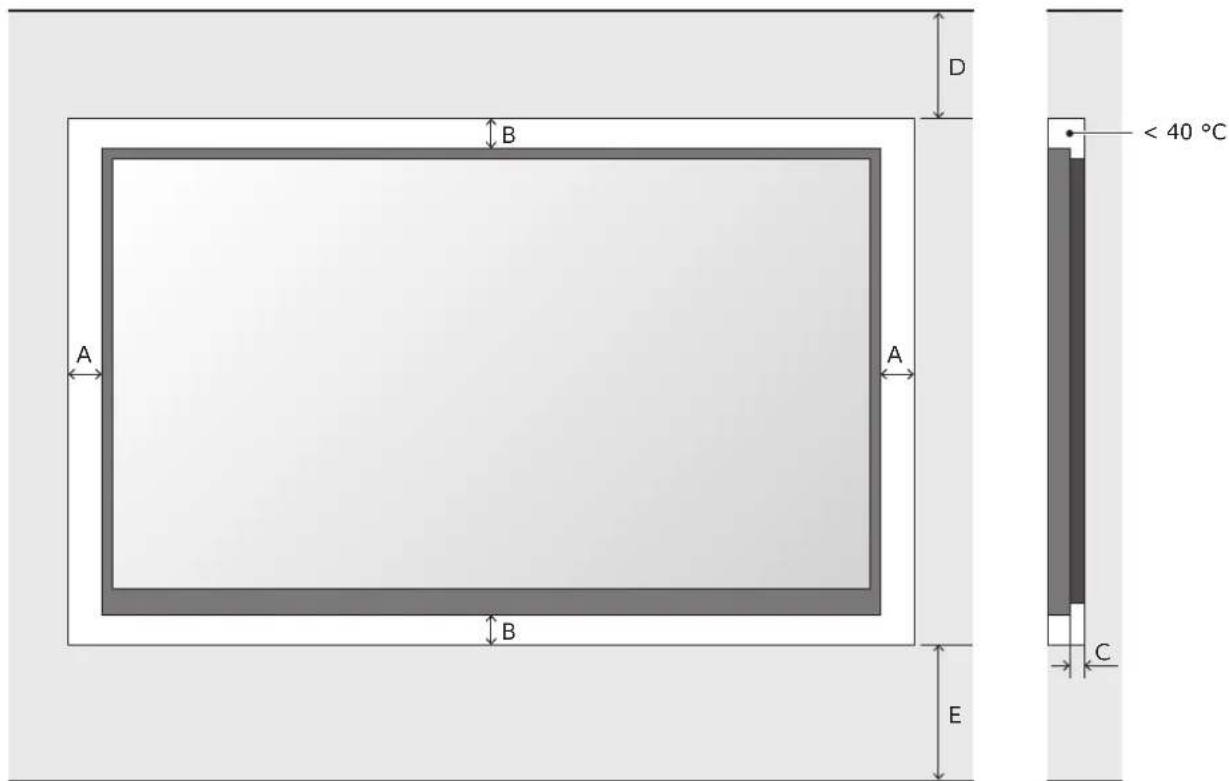
| A B C | ||
| min. distance to sides | min. distance to top and bottom min. distance between wall and system | |
| 60 mm 60 mm | 20 mm | |
| D | E |
| Recommended distance to ceiling | Recommended distance to floor |
| 500 mm* 500 mm* |
*: Depending on the temperature condition.
Wall mounting setting
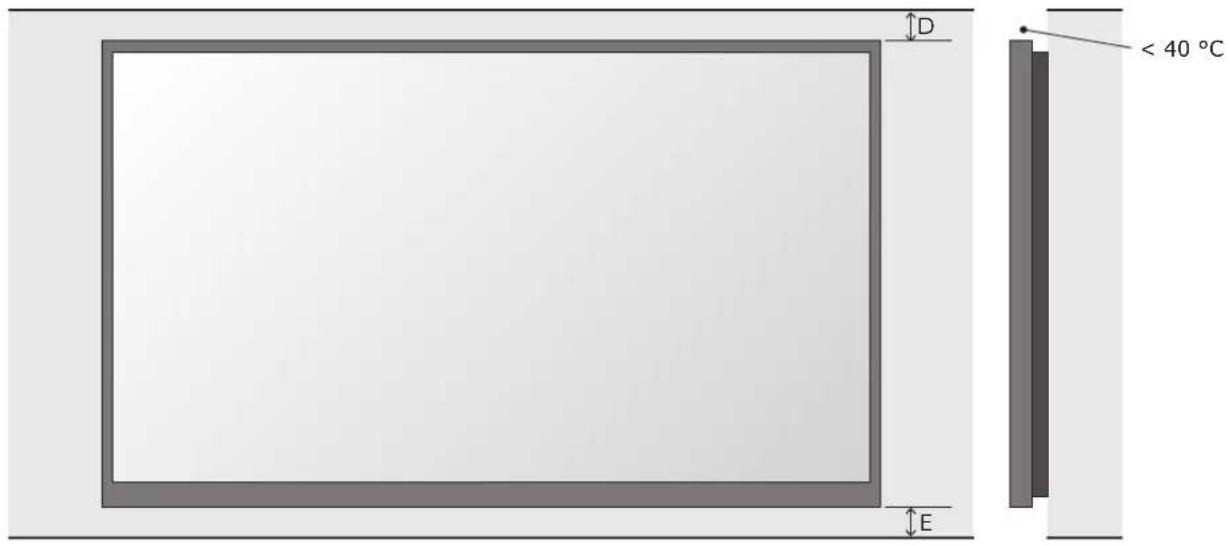
| D | E |
| Recommended distance to ceiling | Recommended distance to floor |
| 500 mm* 500 mm* |
*: Depending on the temperature condition.
If the distances are lower than these value, the cooling might not sufficient. Take measures, such as increasing the distance from the walls or installing a forced-air cooling system.
2. Handle
Use the handles when carrying and installing the cabinet.
Put the handles in their original positions after the installation work has been completed.

natural_image
Technical line drawing of a mechanical or electrical component with no visible text, numbers, or symbols.When carrying or installing the cabinet, pull out the handles on both sides.

natural_image
Technical line drawing of a mechanical assembly with mounting holes and internal components (no text or symbols)Put the handles back after the work has been completed.
3. Mark the positions of the anchor points on the wall
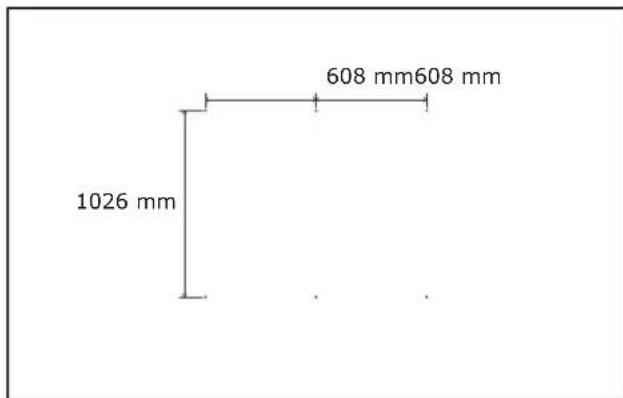
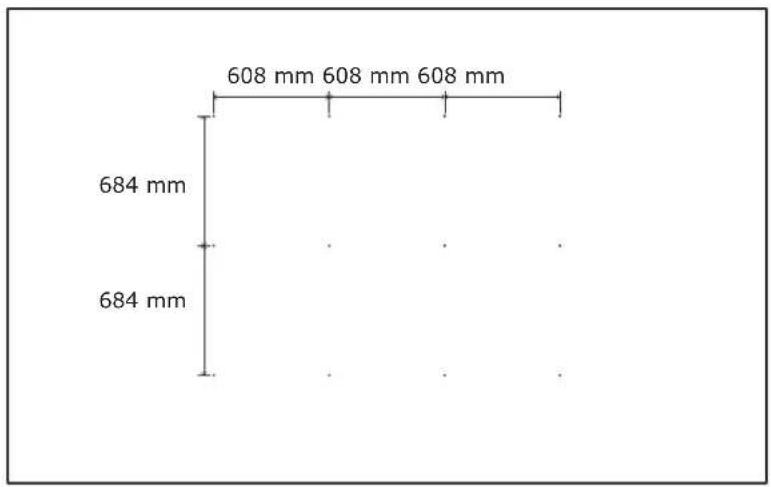
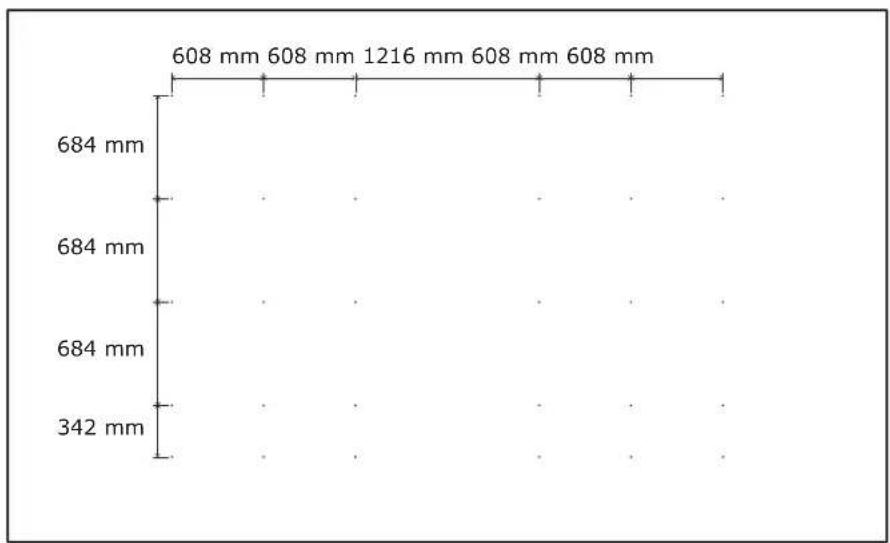
- Mark the positions of the holes you will make for the anchor points (refer to the figures below and the "Anchor points number and positions" table on the next page).
- Before making the holes, check the verticality of the marks using a spirit level or a laser line level. (We recommend using a laser line level is recommended for accuracy.)
Anchor points positions: 4 x 4 frame set
Anchor points positions: 5 x 5 frame set
Anchor points positions: 6 x 6 frame set

Anchor points positions: 8 x 8 frame set
scatter
| Measurement | Value | |---|---| | 608 mm | 608 mm | | 608 mm | 1216 mm | | 608 mm | 608 mm | | 608 mm | 608 mm | | 684 mm | | | 684 mm | | | 684 mm | | | 684 mm | | | 342 mm | | | . . . . . . . . . . . . . . . . . . . . . . . . . . . . . . . . . . . . . . . . . . . . . . . . . . . . . . . . . . . . . . . . . . . . . . . . . . . . . | 684 mm | | 684 mm | | | 684 mm | | | 684 mm | | | 342 mm | |Anchor points number and positions
| Frame set 4×4 | 5×5 6×6 8×8 | |||
| Anchor points (horizontal x vertical) | 3×2 4×3 5×3 6×5 | |||
| Horizontal distance | 608 mm 608 mm | 608 mm Distance center: | 1216 mmOthers: 608 equally | |
| Vertical distance 1 | 026 mm 684 mm | equally Distance | top row - middle row: 1026 mmDistance middle row - bottom row: 684 mm | Distance Bottom row: 342 mm,others 684 mmequally |
| Anchor size ∅10 | mm ∅10 mm ∅ | 10 mm ∅10 mm | ||
4. Make the holes at the anchor positions
- Make holes at the anchor positions using a suitable tool.
- Use screw anchors/anchor plugs as required.
- Remove the dust or dirt, and wipe off any drilling chips and dust.
5. Preparing mounting bar
Attaching mounting bar connector
Insert the mounting bar connector and tighten it securely with 6 screws (M6 x 14).
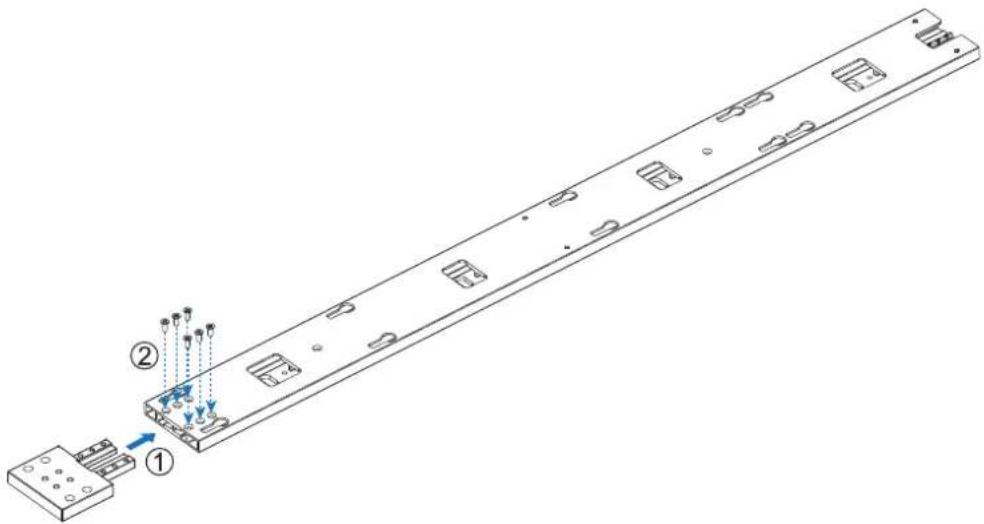
Removing mounting bar connector
Remove the 6 screws (M6 x 14) holding the mounting bar connector, and pull out the mounting bar connector.
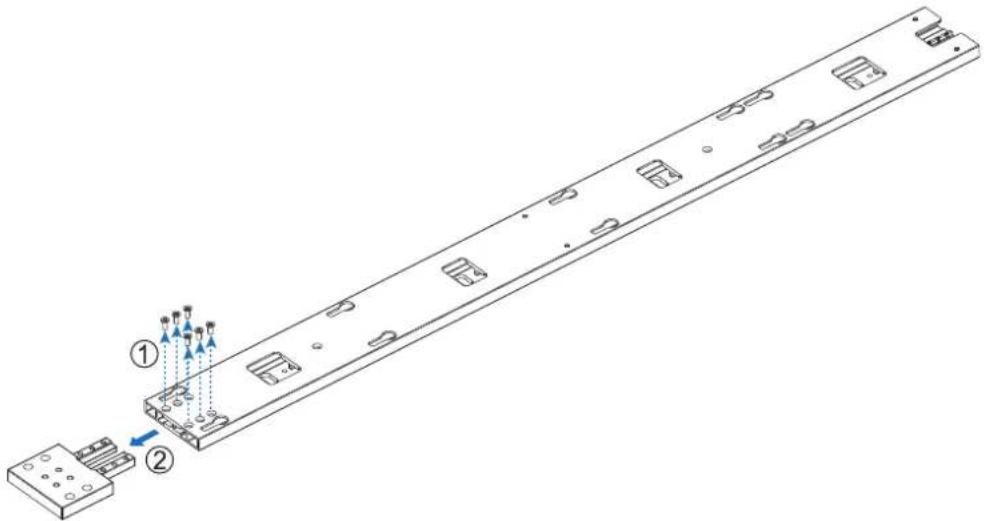
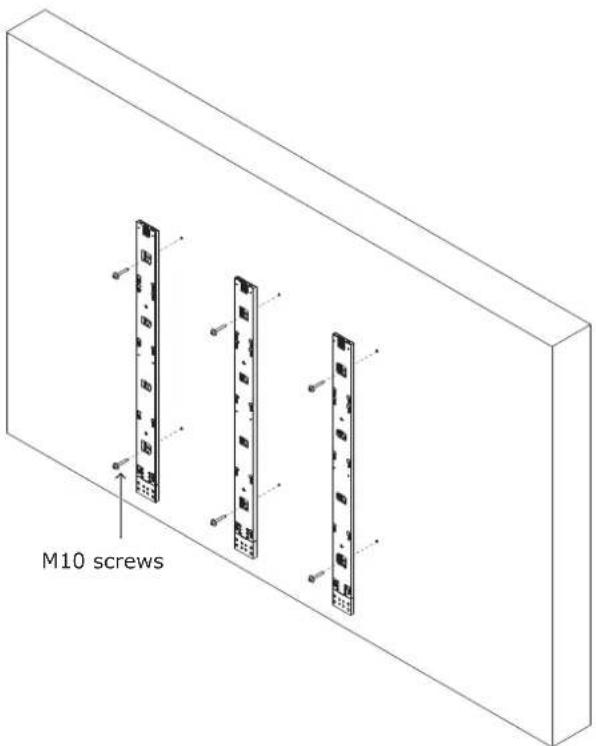
6. Install the mounting bars
(1) Install the mounting bars on the anchor points on the wall.
(2) Check the distance between the mounting bars using the alignment bars.
4 x 4 frame set
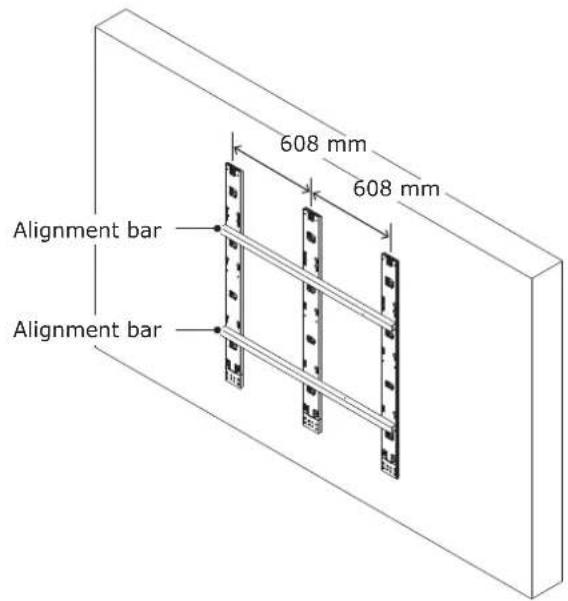
5 x 5 frame set
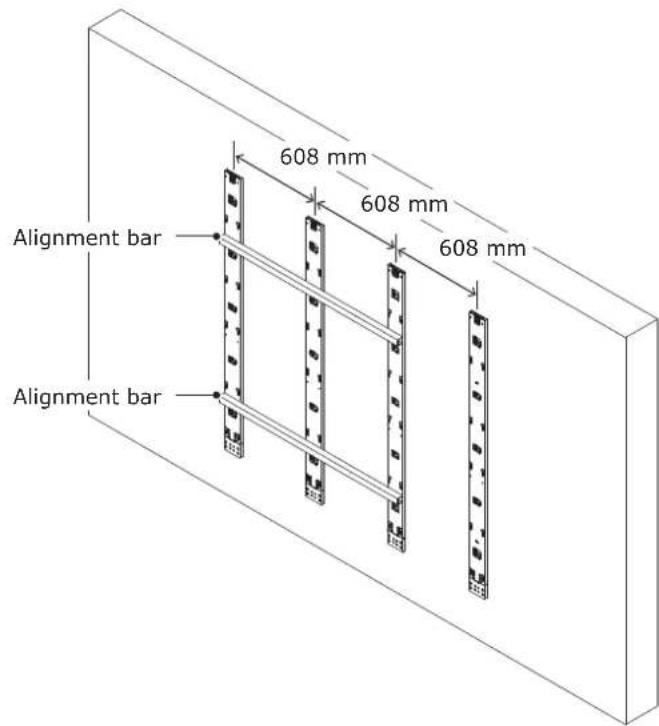
6 x 6 frame set

8 x 8 frame set
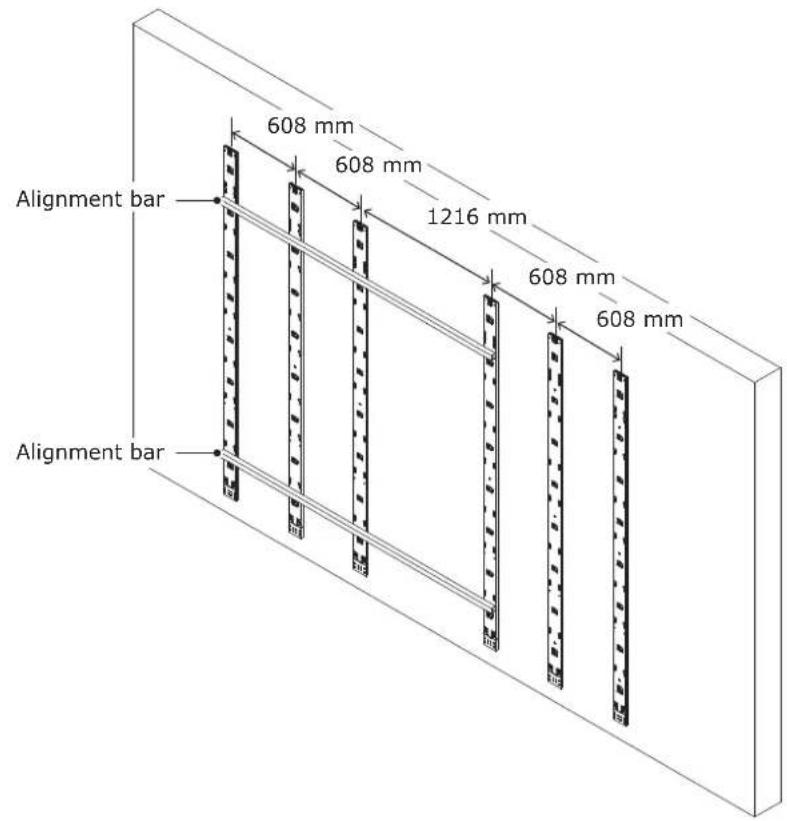
(3) Check the evenness using a spirit level or a laser line level and the alignment bars together. Adjust the positions if required.
Wall mounted: Mounting bar installation (4 x 4 frame set)
7. Install the power bar
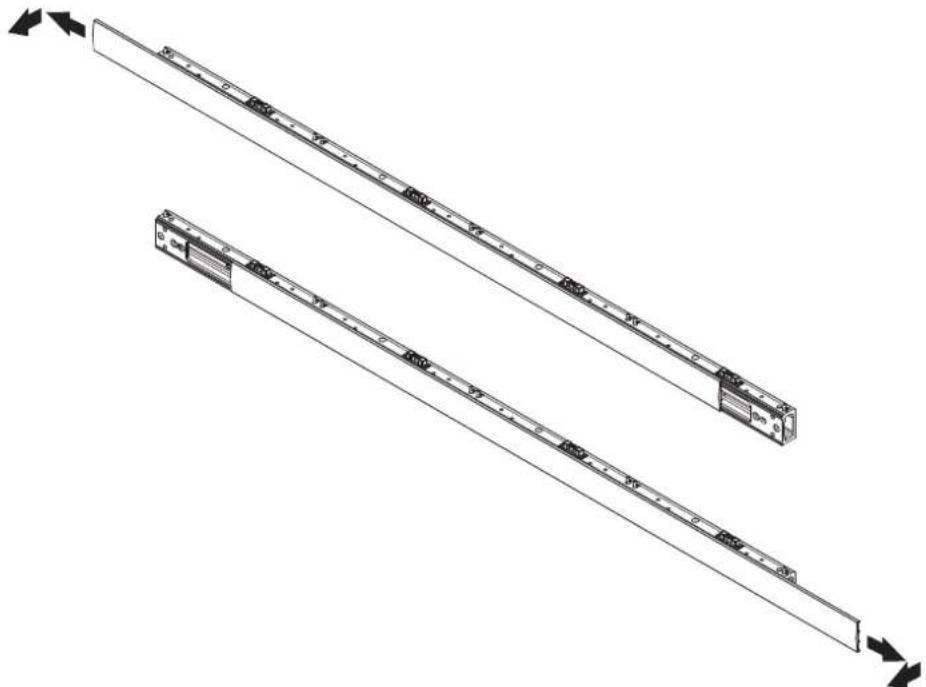
Remove the power bar cover and install the power bar using Power bar screw (M8) screws.
How to remove the power bar cover
Sliding the power bar cover for removing. Power bar cover can slide left or right.
natural_image
Technical line drawing of two parallel mechanical components with mounting holes and housing (no text or symbols)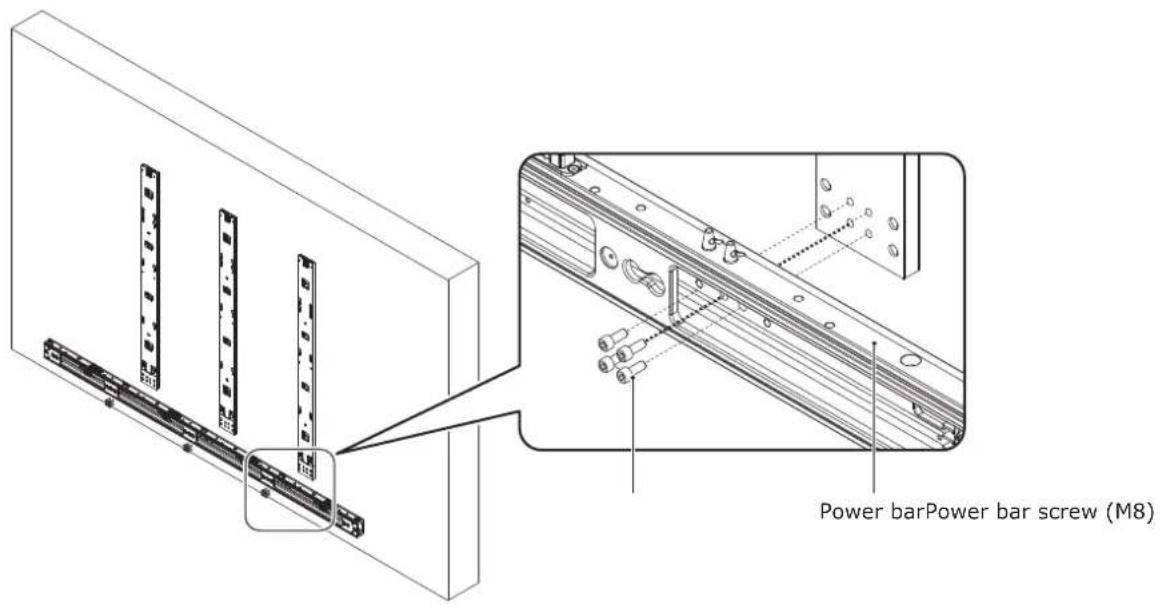
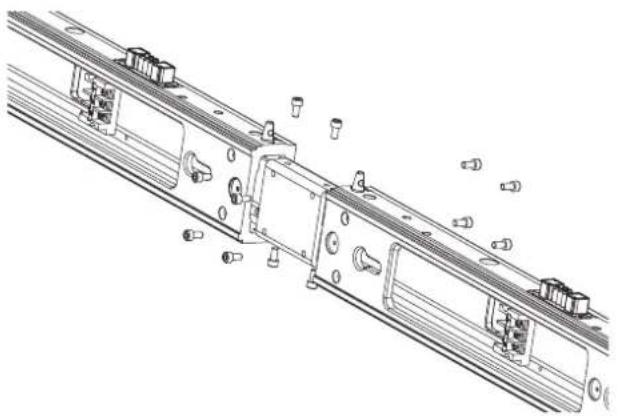
When using the 8 x 8 frame set, use the power bar connecting part to install the power bar.
natural_image
Technical line drawing of a mechanical assembly with exploded view (no text or symbols)8. Install the cabinet hanger pins to the back of the cabinets
The following drawings indicate where Hangar pins are required. Insert the Hangar pins until the pitch of the screws is no longer visible.
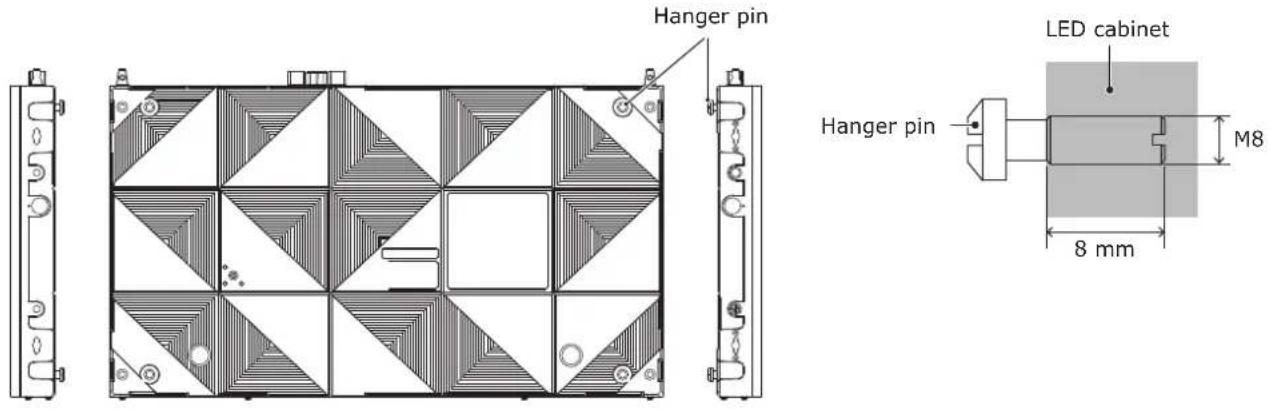
Cabinet hanger pins installation position
4 x 4 frame set 5 x 5 frame set

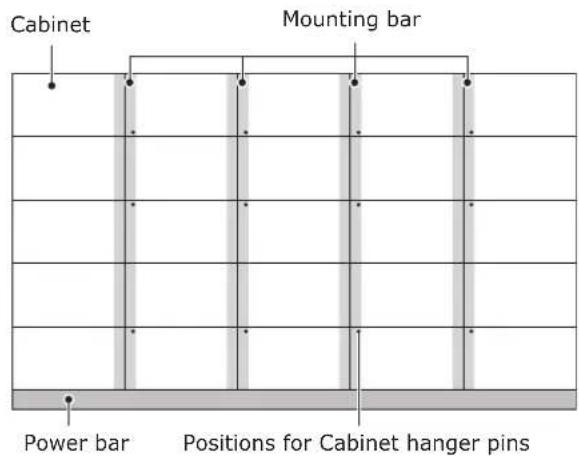
6 x 6 frame set

8 x 8 frame set

9. Install the cabinets
Hook the hanger pins, which have been inserted into the cabinets, into the holes on the mounting bars starting from the lowest row.
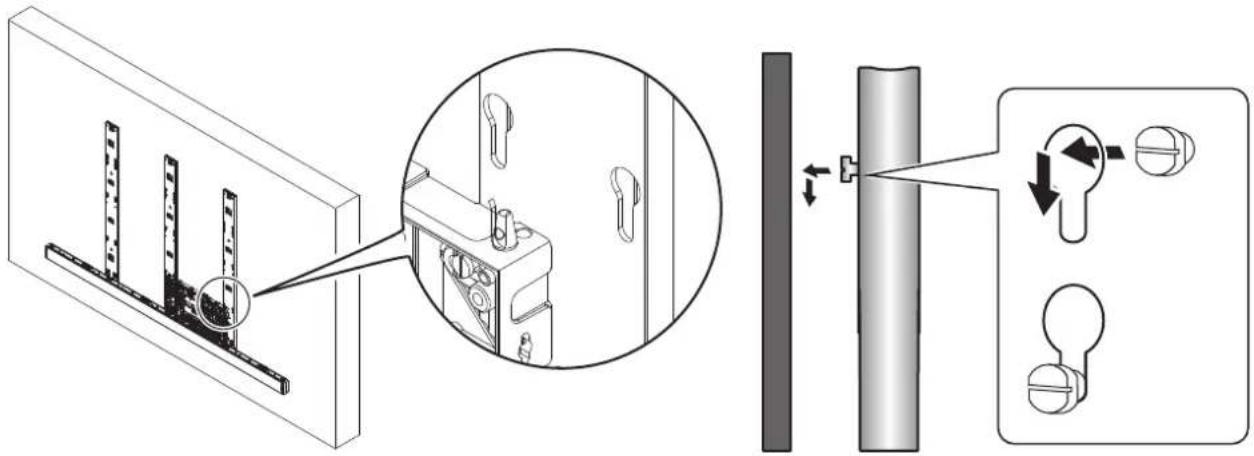
Fix temporarily the cabinets of the first row to the power bar.
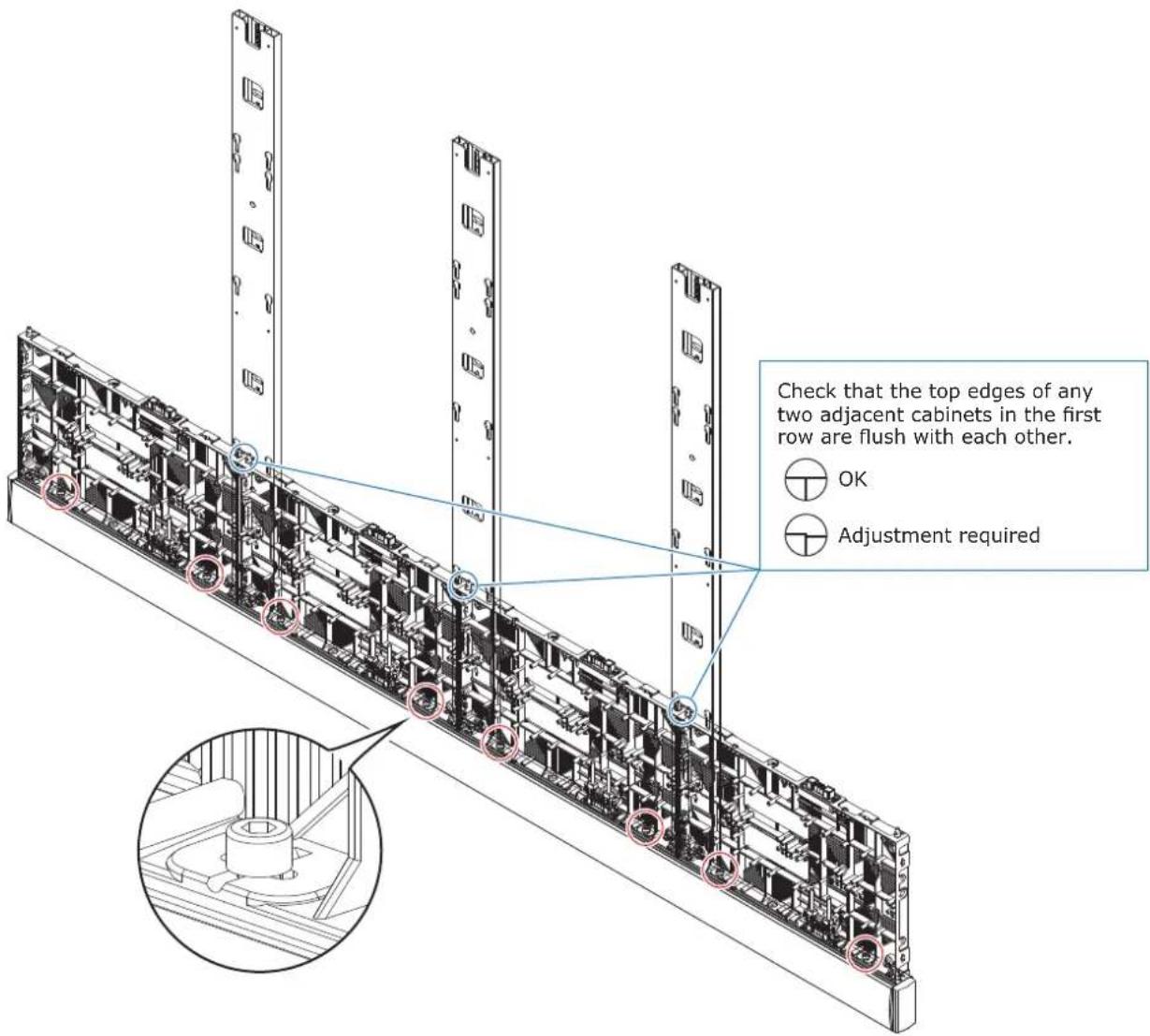
Hook the hanger pins of the cabinets of the second row to the mounting bars.
Secure the LED cabinets together using screws for connecting cabinets. Do not tighten the screws completely.
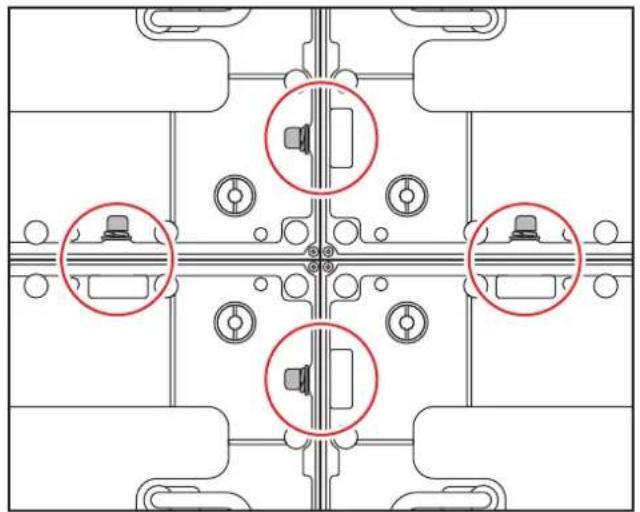
natural_image
Top-down diagram of a mechanical or electrical component layout with four circular annotations highlighting specific components (no text or symbols present)After you have installed two rows of cabinets, align the surfaces of the cabinets using the Adjustment plates.
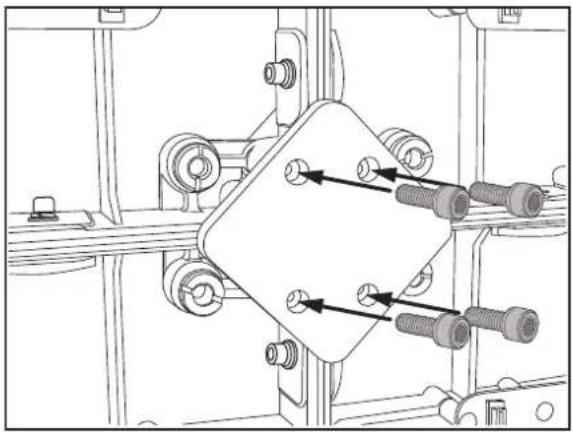
natural_image
Technical line drawing of a mechanical assembly with bolts and brackets (no text or symbols)Adjust the position of the cabinet by turning the vertical alignment screw and the back in the center of the vertical alignment screw (cabinet hanger pin) with a flathead screwdriver.
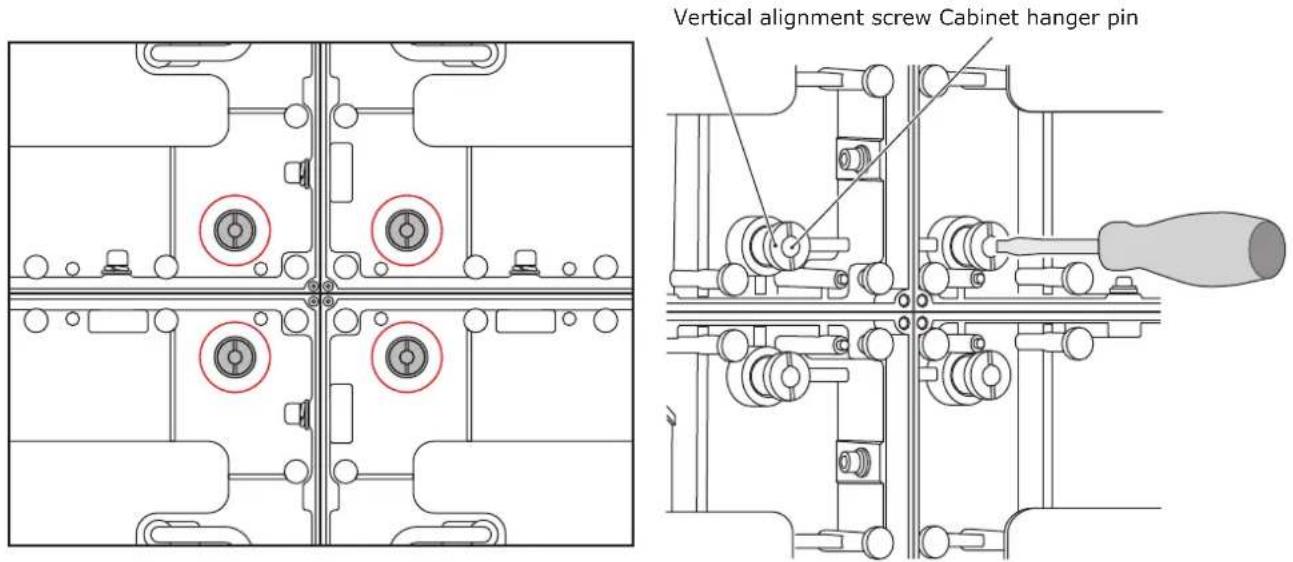
When the cabinets' surfaces are aligned, securely tighten the cabinets of the first row to the power bar, the cabinets of the first row together, as well as the cabinets of the first row with the cabinets of the second row.
Remove the Adjustment plates after the screws have been tightened.
Follow the same procedure to install the next row of cabinets and align their surfaces.
Connect the power cord and the LAN cable from the opening at the back of the power bar.
How to connect the power cord (FA series)

| A External power input |
| B Terminal in Power bar |
| C1 Ethernet port main data |
| C2 Ethernet port backup data |
| D1 Data cable main |
| D2 Data cable backup |
Connect the D1 main data cable to the left LAN port (C1 Ethernet port main data) and the D2 backup data cable to the right LAN port (C2 LAN Ethernet port backup data) of the power bar.
How to connect the power cord (FE series)
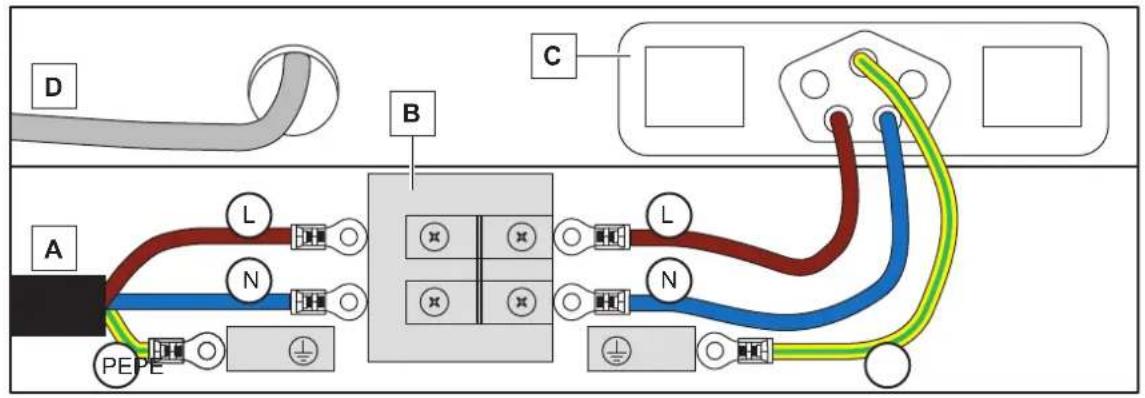
| A External power input |
| B Terminal in Power bar |
| C Power supply socket in Power bar |
| D Data cable |

WARNING
Pay attention to the wire colors of the power cord when connecting the cord. If the cables are not connected correctly, it may lead to a fire or an electrical shock.
Blue (N)
Brown (L)
Yellow green (Ground)

CAUTION:
When attaching two cables with one screw, place the ring terminals of the cables back to back.

Install the power bar cover.
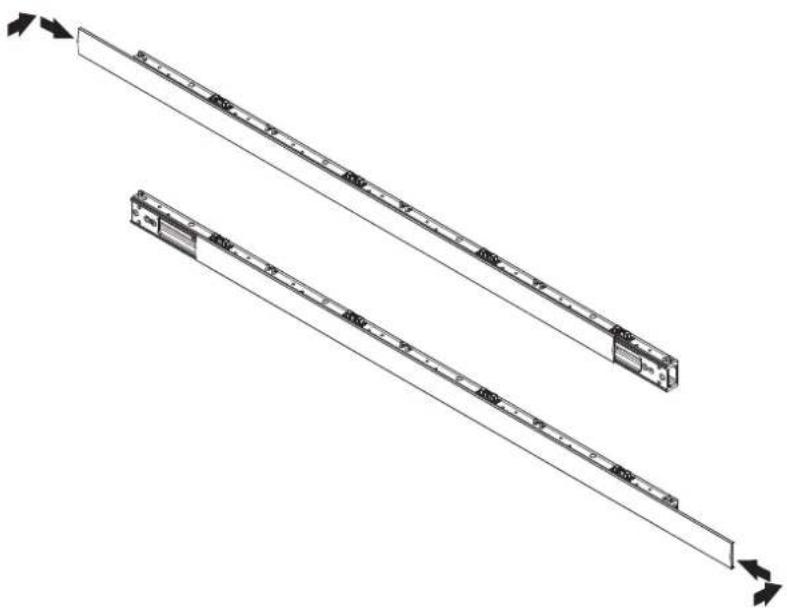
natural_image
Technical line drawing of two parallel mechanical components with directional arrows indicating movement (no text or symbols)Insert the slot nut into the overframe and align it with the marking line and fix them with screw for overframe screws.
Use overframe screws (M4 x 4) for the right side and overframe screws (M4 x 8) for the rest.

Install the corner parts to the corner frame top and install it on the top of the cabinets.
Slot nut installation locations
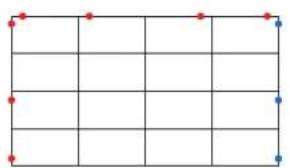
natural_image
Grid pattern with red and blue dots at intersections (no text or symbols)4 x 4 frame set
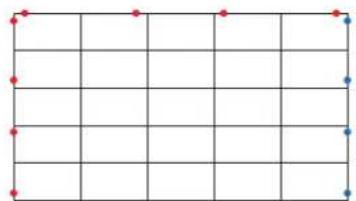
natural_image
Grid pattern with red and blue dots at intersections (no text or symbols)5 x 5 frame set
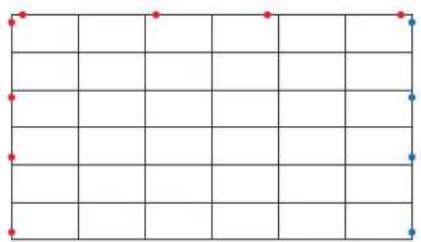
natural_image
Grid layout with red and blue dots at intersections (no text or symbols)6 x 6 frame set

natural_image
Grid pattern with red and blue dots at intersections (no text or symbols)8 x 8 frame set
Screw for overframe M4×4
Screw for overframe M4×8
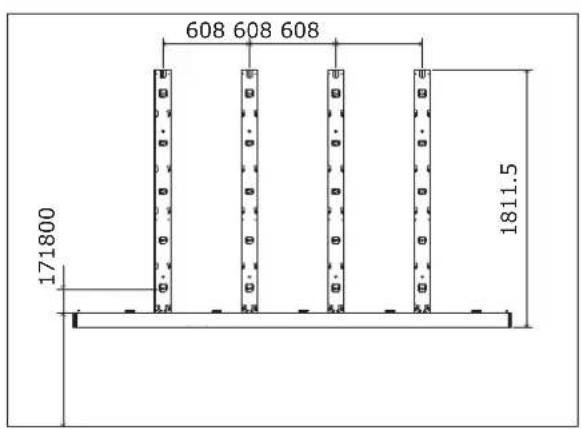
10. Assembly diagrams
4 x 4 frame set


other
| Dimension | Value | |---|---| | Top Left | 2444 | | Top Right | 2432 | | Bottom Left | 1368 | | Bottom Right | 1475.5 | | Bottom Right | 698.5 | | Bottom Left | 800 | The top left contains 'BBBB' and the bottom left contains 'AAAA'. The bottom right contains 'AAAA'.
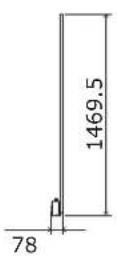
5 x 5 frame set

other
| Dimension | Value | |---|---| | Top Width | 3052 | | Bottom Width | 698.5 | | Left Side (Width) | 1710 | | Middle Side (Width) | 1817.5 | | Right Side (Width) | 3040 | | Bottom Edge (Width) | 800 | | Middle Edge (Width) | A | | Top Edge (Width) | B | | Bottom Edge (Width) | A | | Middle Edge (Width) | A | | Top Edge (Width) | B | | Bottom Edge (Width) | A | | Left Side (Width) | A | | Middle Side (Width) | A | | Top Edge (Width) | B | | Bottom Edge (Width) | A | | Left Side (Width) | A | | Middle Side (Width) | A | | Top Edge (Width) | B | | Bottom Edge (Width) | A | | Left Side (Width) | A | | Middle Side (Width) | A | | Top Edge (Width) | B | | Bottom Edge (Width) | A | | Left Side | A | | Middle Side (Width) | A | | Top Edge (Width) | B | | Bottom Edge (Width) | A | | Left Side (Width) | A | | Middle Side (Width) | A | | Top Edge (Width) | B | | Bottom Edge (Width) | A | | Left Side (Width) | A | | Middle Side (Width) | A | | Top Edge (Width) | B | | Bottom Edge (Width) at the bottom edge of the grid.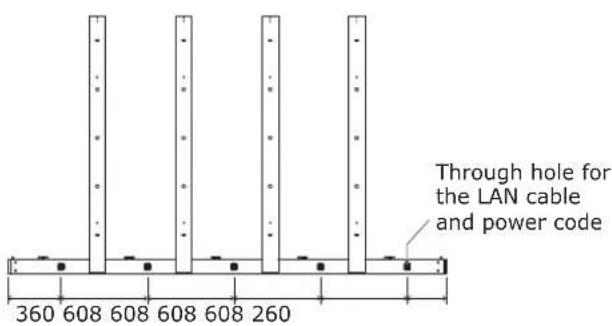

6 x 6 frame set (1.9 mm pitch)

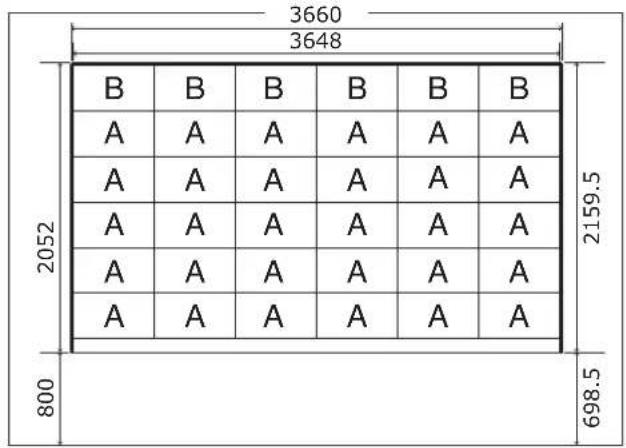
other
| Dimension | Top Width | Bottom Width | | :--- | :--- | :--- | | Top Width | 3660 | 3648 | | Bottom Width | 698.5 | 2159.5 | | Center Height | 2052 | 2159.5 | | Total Height | 2052 | 2159.5 |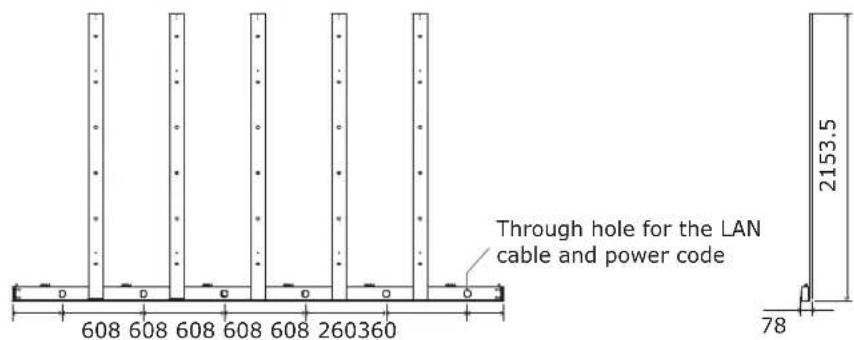
6 x 6 frame set (0.9 mm pitch)
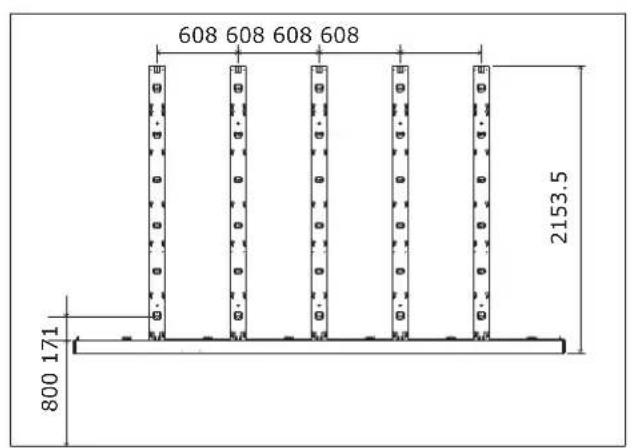
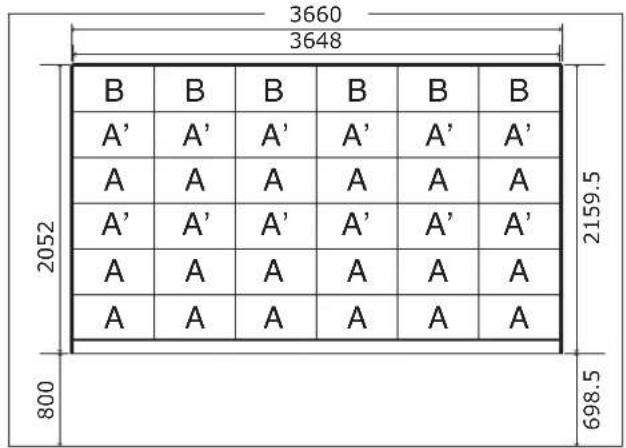
other
| Dimension | Top Width | Bottom Width | | :--- | :--- | :--- | | Top Width | 3660 | 3648 | | Bottom Width | 2159.5 | 698.5 | | Center Width | 2052 | 800 | The chart displays a grid layout with 'A' and 'B' labels indicating specific positions within the grid. The values are explicitly labeled at the top and bottom edges.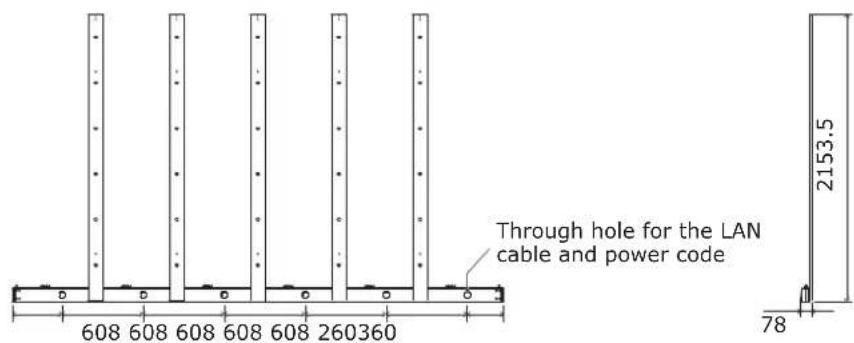
8 x 8 frame set (2.5 mm pitch, 3.8 mm pitch)
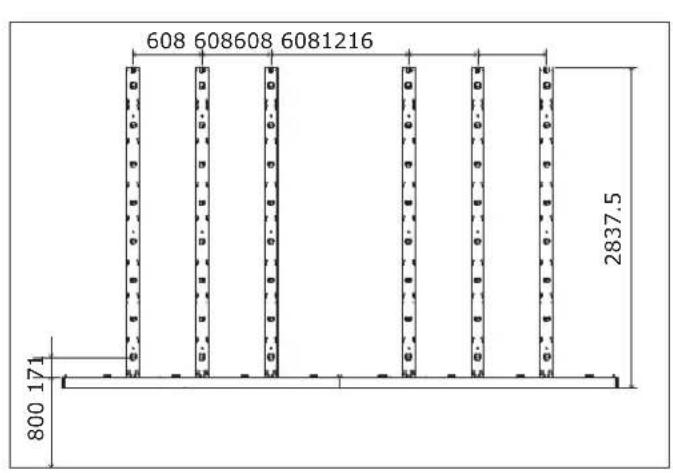
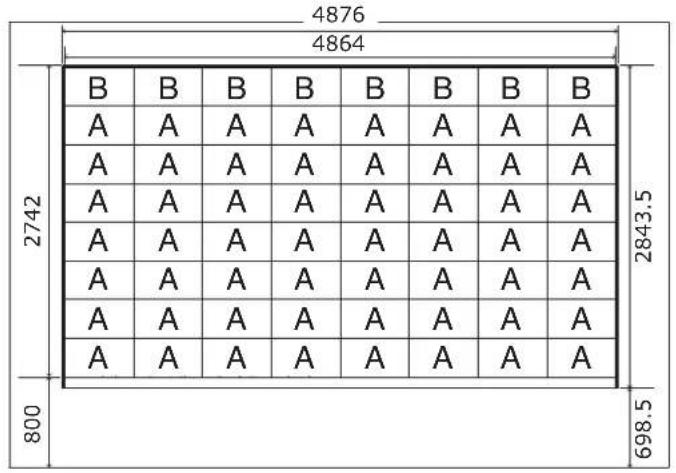
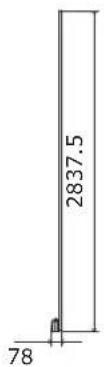
other
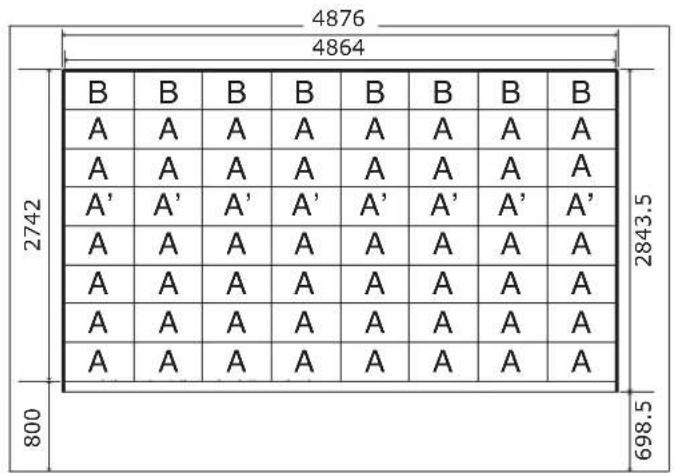
| Row | Column | Value | |---|---|---| | 1 | A | A | | 1 | B | A | | 1 | A | A | | 1 | A | A | | 1 | B | B | | 1 | A | A | | 1 | A | A | | 1 | A | A | | 1 | A | A | | 1 | A | A | | 1 | A | A | | 2 | A | A | | 2 | B | B | | 2 | A | A | | 2 | A | A | | 2 | B | B | | 2 | A | A | | 2 | A | A | | 2 | A | A | | 2 | A | A | | 2 | A | A | | 2 | A | A | | 2 | A | A | | 3 | A | A | | 3 | B | B | | 3 | A | A | | 3 | A | A | | 3 | B | B | | 3 | A | A | | 3 | A | A | | 3 | A | A | | 3 | A | A | | 3 | A | A | | 3 | A | A | | 3 | A | A | | 4 | A | A | | 4 | B | B | | 4 | A | A | | 4 | A | A | | 4 | B | B | | 4 | A | A | | 4 | A | A | | 4 | A | A | | 4 | A | A | | 4 | A | A | | 4 | A | A | | 4 | A | A | | 5 | A | A | | 5 | B | B | | 5 | A | A | | 5 | A | A | | 5 | B | B | | 5 | A | A | | 5 | A | A | | 5 | A | A | | 5 | A | A | | 5 | A | A | | 5 | A | A | | 5 | A | A | | 6 | A | A | | 6 | B | B | | 6 | A | A | | 6 | A | A | | 6 | B | B | | 6 | A | A | | 6 | A | A | | 6 | A | A | | 6 | A | A | | 6 | A | A | | 6 | A | A | | 6 | A | A | | 7 | A | A | | 7 | B | B | | 7 | A | A | | 7 | A | A | | 7 | B | B | | 7 | A | A | | 7 | A | A | | 7 | A | A | | 7 | A | A | | 7 | A | A | | 7 | A | A | | 7 | A | A | | 800 - Row: Total Width = 800; Row: Row: Column: Total Length = 2843.5; Row: Row: Column: Total Length = 698.5.
8 x 8 frame set (1.2 mm pitch)
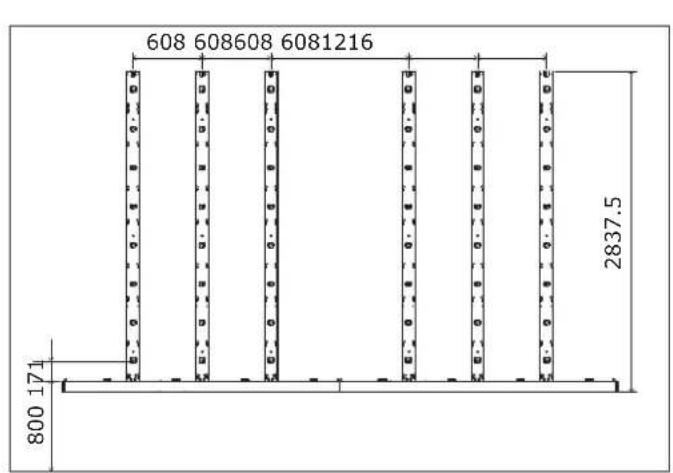
other
| Position | A | B | |---|---|---| | Top Left | A | A | | Top Right | A | A | | Bottom Left | A' | A' | | Bottom Right | A' | A' | | Bottom Center | A | A | | Bottom Right | A' | A' | | Bottom Left | A | A | | Bottom Right | A | A | | Bottom Center | A | A | | Bottom Right | A' | A' | | Bottom Left | A | A | | Bottom Right | A | A | | Bottom Center | A | A | | Bottom Right | A' | A' | | Bottom Left | A | A | | Bottom Right | A | A | | Bottom Right | A' | A' | | Bottom Center | A | A | | Bottom Right | A' | A' | | Bottom Left | A | A | | Bottom Right | A | A | | Bottom Center | A | A | | Bottom Right | A' | A' | | Bottom Left | A | A | | Bottom Right | A | A | | Bottom Right | A' | A' | | Bottom Center | A | A | | Bottom Right | A' | A' | | Bottom Right | A' | A' | | Bottom Left | A | A | | Bottom Right | A | A | | Bottom Center | A | A | | Bottom Right | A' | A' | | Bottom Center | A | A | | Bottom Right | A' | A' | | Bottom Left | A | A | | Bottom Right | A | A | | Bottom Center | A | A | | Bottom Right | A' | A' | | Bottom Center | A | A | | Bottom Right | A' | A' | | Bottom Left | A | A | | Bottom Right | A | A | | Bottom Center | A | A | | Bottom Right | A' | A' | | Bottom Left | A | A | | Bottom Right | A | A | | Bottom Center | A | A | | Bottom Right | A' | A' | | Bottom Center | A | A | | Bottom Right | A' | A' | | Bottom Left | A | A | | Bottom Right | A | A | | Bottom Center | A | A | | Bottom Right |A' |A' A' to B' A' to B' A' to B' A' to B' A' to B' A' to B' A' to B' A' to B' A' to B' A' to B' A' to B' A' to B' A' to B' A' to B' A' to B' A' to B' A' to B' A' to B' A' to B' A' to B' A' to C A' to C A' to C A' to C A' to C A' to C A' to C A' to C A' to C A' to C A' to C A' to C A' to C A' to C A' to C A' to C A' to C A' to C A' to C A' to C A' to C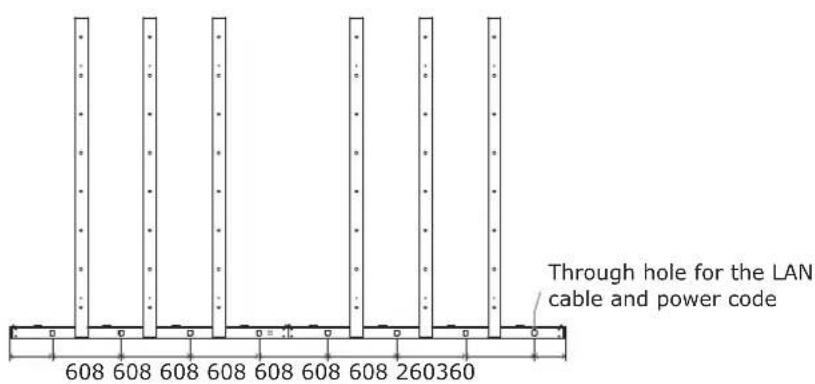

11. Installation without a frame set
A recommended example of installation when using the brackets is shown below. Please prepare the bracket by yourself. Ask a technician or your retailer for the installation procedure when not using the brackets.
Install the brackets to the frame as shown in the figure below.
Use screws with a length adapted to the cabinet thickness (30 mm). Use also brackets with a sufficient thickness to hold the screws.

For installation, please refer to the "9. Install the cabinets".
12. Wiring
(1) Maximum number of signal connections
The maximum number of connections per LAN cable is shown below.
| Product name Maximum number of connections | Product name Maximum number of connections |
| LED-FA009i2 2 modules LED-FE009i2 2 modules | |
| LED-FA012i2 5 modules LED-FE012i2 5 modules | |
| LED-FA012i2-SB 5 modules LED-FE015i2 7 modules | |
| LED-FA015i2 7 modules LED-FE019i2 10 modules | |
| LED-FA015i2-SB 7 modules LED-FE025i2 20 modules | |
| LED-FA019i2 10 modules LED-FE031i2 30 modules | |
| LED-FA025i2 20 modules LED-FE038i2 40 modules | |
| LED-FA031i2 30 modules LED-FE012i2-E 5 modules | |
| LED-FA038i2 40 modules LED-FE015i2-E 7 modules | |
| LED-FE019i2-E 10 modules |

CAUTION
The maximum number of connections may differ depending on the connected LED controller. Therefore, check the specifications of the LED controller you are using.
Ask a technician or your retailer for more details.
(2) Maximum number of power connections

CAUTION
Exceeding the maximum capacity may generate smoke or cause a fire.
Check the voltage used and do not exceed the connection limits shown below.
Except Taiwan, Korea and India:
| Product name 100 | - 120 V AC 200 - 240 V AC | |
| LED-FA009i2 10 modules 18 modules | ||
| LED-FA012i2 13 modules 25 modules | ||
| LED-FA012i2-SB 13 modules 25 modules | ||
| LED-FA015i2 13 modules 25 modules | ||
| LED-FA015i2-SB 13 modules 25 modules | ||
| LED-FA019i2 13 modules 25 modules | ||
| LED-FA025i2 13 modules 25 modules | ||
| LED-FA031i2 13 modules 25 modules | ||
| LED-FA038i2 13 modules 25 modules | ||
| Product name 100 | - 120 V AC 200 - 240 V AC | |
| LED-FE009i2 10 modules 18 modules | ||
| LED-FE012i2 13 modules 25 modules | ||
| LED-FE015i2 13 modules 25 modules | ||
| LED-FE019i2 13 modules 25 modules | ||
| LED-FE025i2 13 modules 25 modules | ||
| LED-FE031i2 13 modules 25 modules | ||
| LED-FE038i2 13 modules 25 modules | ||
| LED-FE012i2-E 13 modules | 25 modules | |
| LED-FE015i2-E 13 modules | 25 modules | |
| LED-FE019i2-E 13 modules | 25 modules | |
For Taiwan, Korea and India:
| Product name 100 - 120 V AC 200 - 240 V AC | |
| LED-FA009i2 10 modules 18 modules | |
| LED-FA012i2 10 modules 20 modules | |
| LED-FA012i2-SB 10 modules 20 modules | |
| LED-FA015i2 10 modules 20 modules | |
| LED-FA015i2-SB 10 modules 20 modules | |
| LED-FA019i2 10 modules 20 modules | |
| LED-FA025i2 10 modules 20 modules | |
| LED-FA031i2 10 modules 20 modules | |
| LED-FA038i2 10 modules 20 modules | |
| LED-FA009i2 8 modules 14 modules |
| Product name 100 | - 120 V AC 200 - 240 V AC | |
| LED-FE009i2 10 modules 18 modules | ||
| LED-FE012i2 10 modules 20 modules | ||
| LED-FE015i2 10 modules 20 modules | ||
| LED-FE019i2 10 modules 20 modules | ||
| LED-FE025i2 10 modules 20 modules | ||
| LED-FE031i2 10 modules 20 modules | ||
| LED-FE038i2 10 modules 20 modules | ||
| LED-FE009i2 8 modules 14 modules | ||
| LED-FE012i2-E 10 modules 20 modules | ||
| LED-FE015i2-E 10 modules 20 modules | ||
| LED-FE019i2-E 10 modules 20 modules | ||
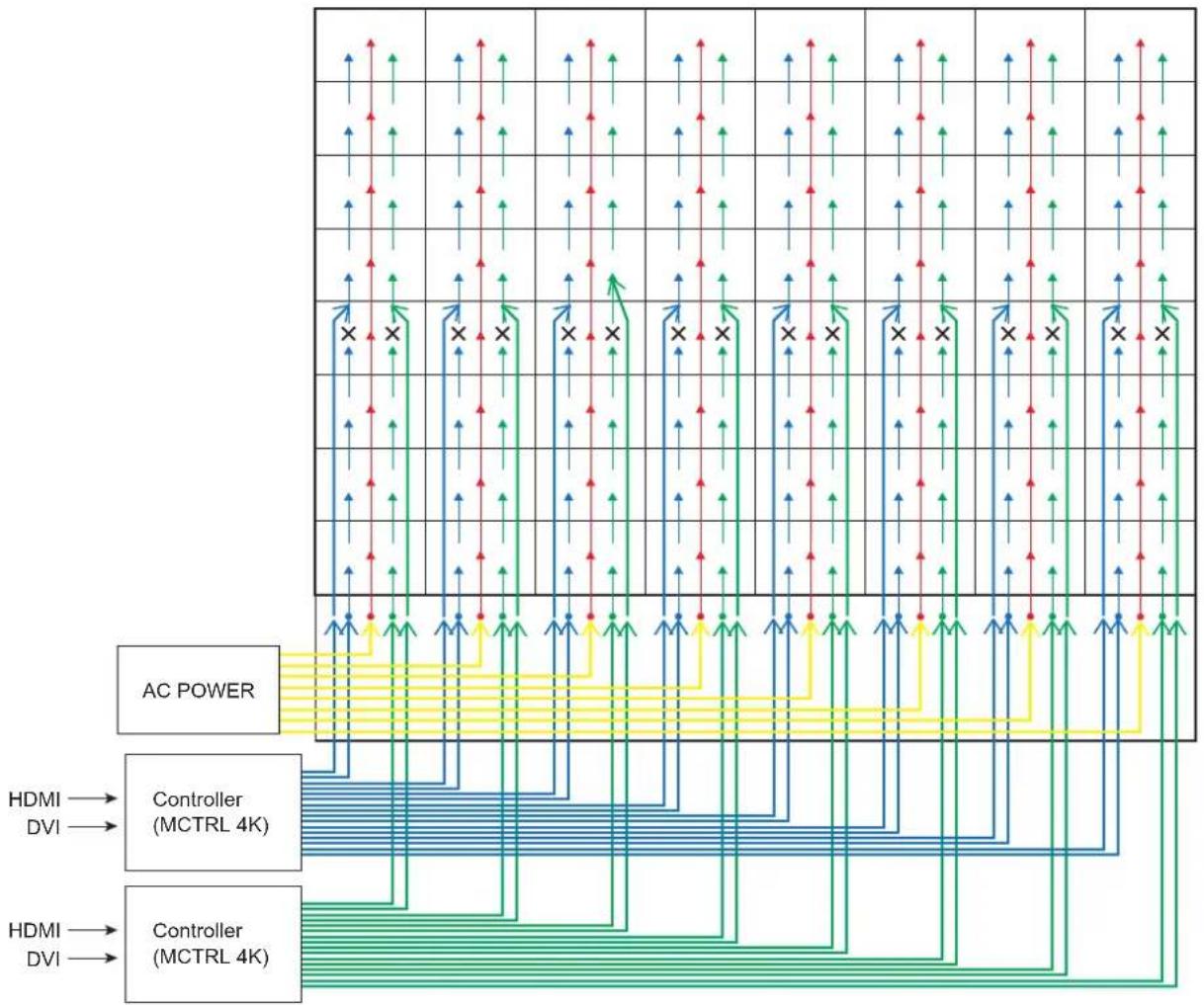
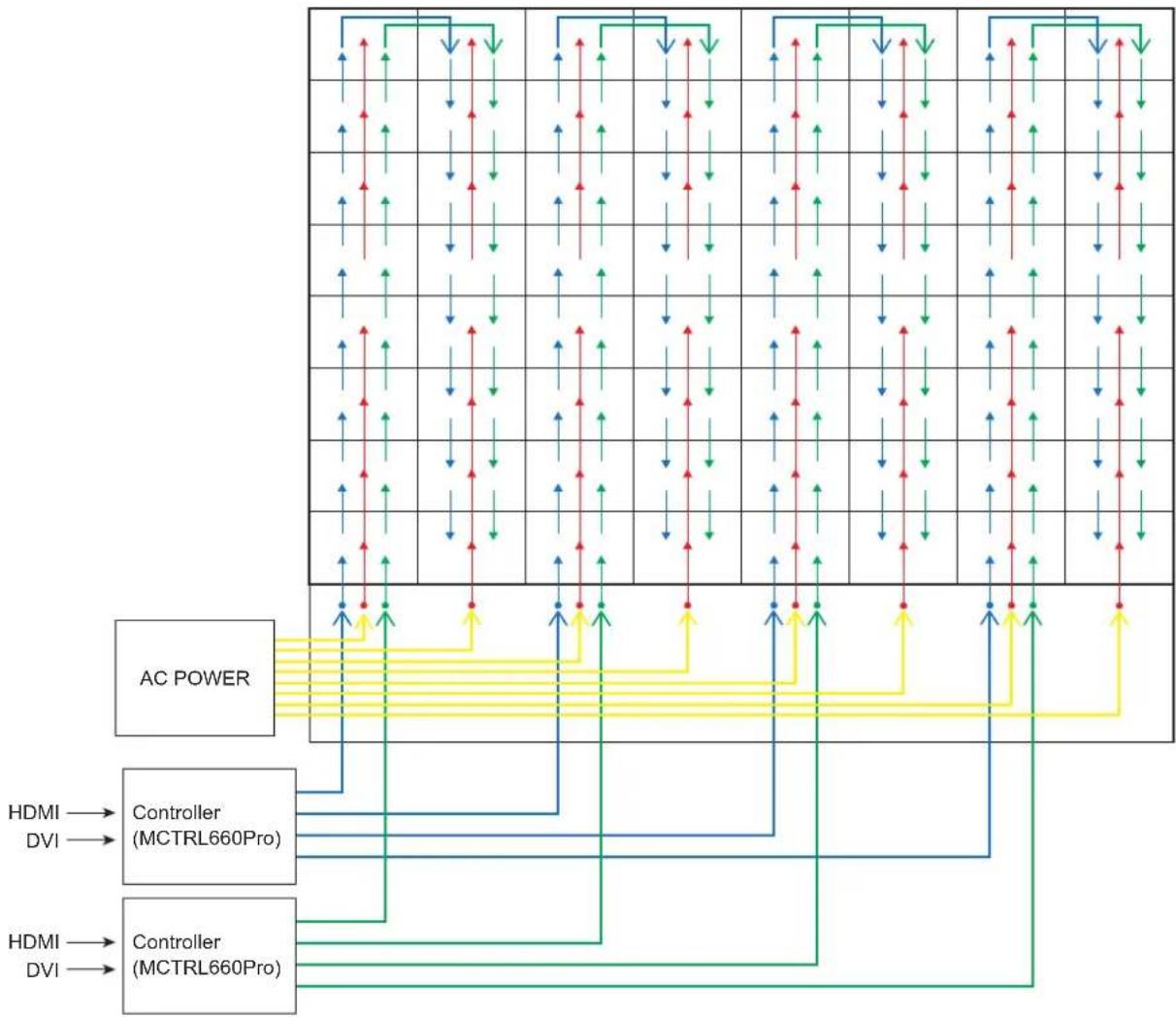
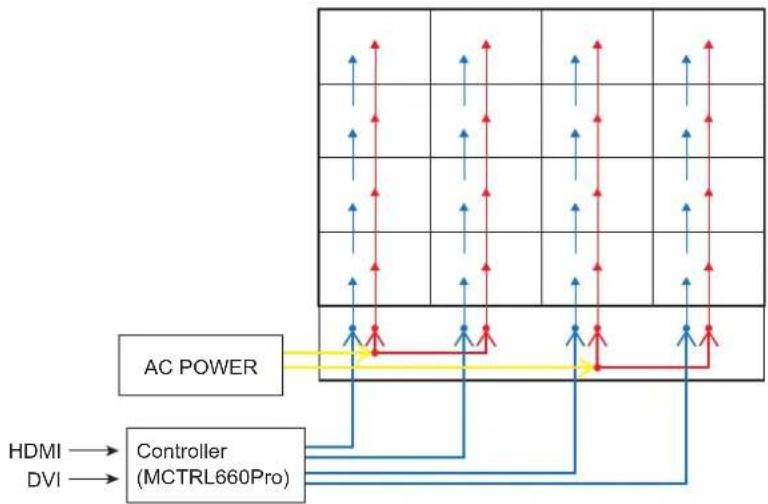
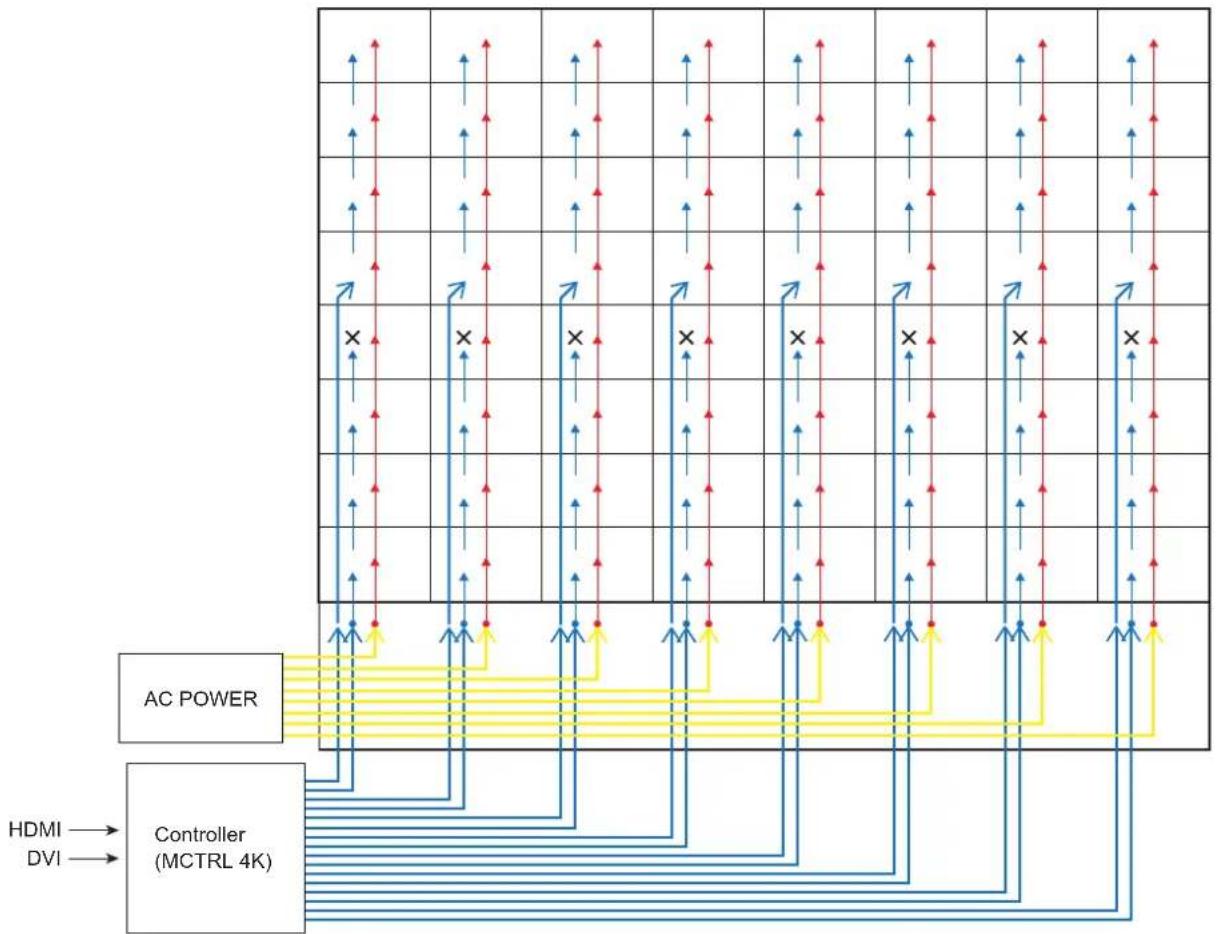
(3) Connection when using a wall-mount frame
This connection is an example of connection when using the maximum capacity.
The power cable corresponding to the yellow part needs to be prepared by the customer.
Please connect considering the capacity of the switchboard and the inrush current specification.
FA series
4 x 4 frame set
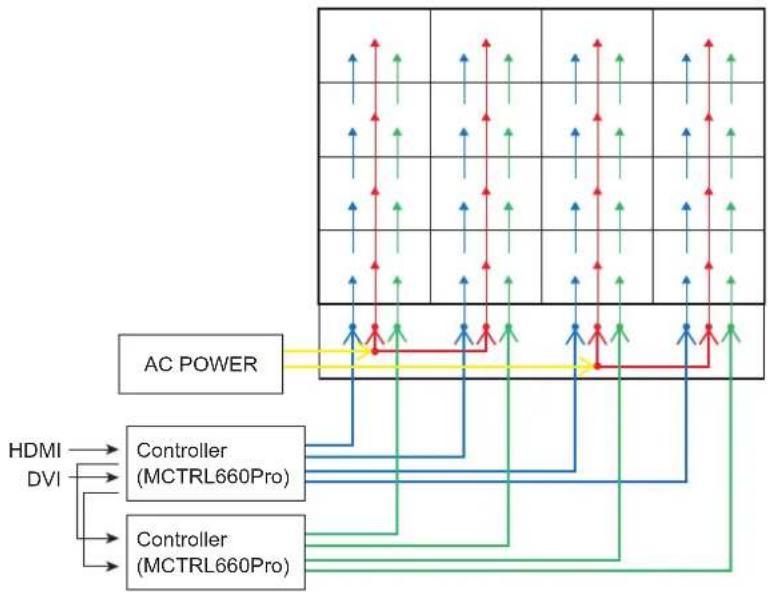
flowchart
graph TD
    A["HDMI"] --> B["Controller (MCTRL660Pro)"]
    C["DVI"] --> B
    D["Controller (MCTRL660Pro)"] --> B
    B --> E["AC POWER"]
    style A fill:#f9f,stroke:#333
    style C fill:#f9f,stroke:#333
    style D fill:#f9f,stroke:#333
    style E fill:#ccf,stroke:#333
| 4×4 frame set AC 100V AC 200V | |||
| Number of power system | 2 | 2 | |
| Current rating per 1 mod | dule | 1.5 A 0.8 A | |
| per power system | 12.0 A 6.4 A | ||
| per frame set | 24.0 A 12.8 A | ||
| Inrush current per 1 mod | dule | 100 A 200 A | |
| 25°C Cold start | per power system | 800 A 1600 A | |
| Pulse width: 3ms | per frame set | 1600 A 3200 A | |
5 x 5 frame set

flowchart
graph TD
    A["HDMI"] --> B["Controller (MCTRL660Pro)"]
    C["DVI"] --> B
    B --> D["Controller (MCTRL660Pro)"]
    D --> E["AC POWER"]
    style A fill:#f9f,stroke:#333
    style C fill:#f9f,stroke:#333
    style D fill:#ccf,stroke:#333
    style E fill:#cff,stroke:#333
| 5×5 frame set AC 100V AC 200V | |||
| Number of power system | 3 | 3 | |
| Current rating per 1 mod | dule 1.5 A 0.8 A | ||
| per power system 7.5 A (1 System)15.0 A (2 Systems) | 4.0 A (1 System)8.0 A (2 Systems) | ||
| per frame set 37.5 A 20.0 A | |||
| Inrush current per 1 mod25°C Cold startPulse width: 3ms | dule 100 A 200 A | ||
| per power system 500 A (1 System)1000 A (2 Systems) | 1000 A (1 System)2000 A (2 Systems) | ||
| per frame set 2500 A 5000 A | |||
6 x 6 frame set (0.9 mm pitch)

flowchart
graph TD
    A["AC POWER"] --> B["Controller (MCTRL660Pro)"]
    A --> C["Controller (MCTRL660Pro)"]
    A --> D["Controller (MCTRL660Pro)"]
    A --> E["Controller (MCTRL660Pro)"]
    B --> F["HDMI"]
    B --> G["DVI"]
    C --> H["HDMI"]
    C --> I["DVI"]
    D --> J["HDMI"]
    D --> K["DVI"]
    E --> L["HDMI"]
    E --> M["DVI"]
    style A fill:#f9f,stroke:#333
    style B fill:#bbf,stroke:#333
    style C fill:#bbf,stroke:#333
    style D fill:#bbf,stroke:#333
    style E fill:#bbf,stroke:#333
    style F fill:#dfd,stroke:#333
    style G fill:#dfd,stroke:#333
    style H fill:#dfd,stroke:#333
    style I fill:#dfd,stroke:#333
    style J fill:#dfd,stroke:#333
    style K fill:#dfd,stroke:#333
| 6×6 frame set (0.9 mm pitch) AC 100V AC 200V | |||
| Number of power system | 3 | 3 | |
| Current rating per 1 mo | dule 2.0 A 1.1 A | ||
| per power system 24.0 A | 13.2 A | ||
| per frame set 72.0 A 39.6 A | |||
| Inrush current per 1 mo | dule 100 A 200 A | ||
| 25°C Cold start | per power system 1200 A | 2400 A | |
| Pulse width: 3ms | per frame set 3600 A 7200 A | ||
6 x 6 frame set (1.9 mm pitch)
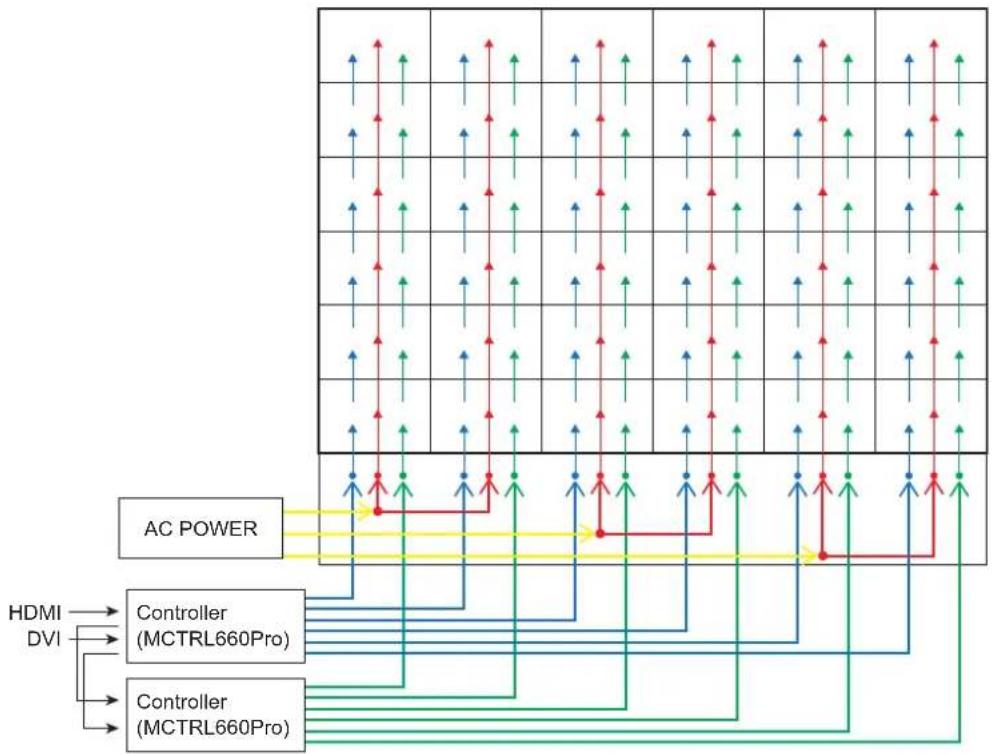
flowchart
graph TD
    A["HDMI"] --> B["Controller (MCTRL660Pro)"]
    C["DVI"] --> B
    D["Controller (MCTRL660Pro)"] --> B
    B --> E["AC POWER"]
    E --> F["Output"]
    style A fill:#f9f,stroke:#333
    style C fill:#f9f,stroke:#333
    style D fill:#f9f,stroke:#333
    style B fill:#bbf,stroke:#333
    style E fill:#bbf,stroke:#333
    style F fill:#dfd,stroke:#333
| 6×6 frame set (1.9 mm pitch) AC 100V AC 200V | |||
| Number of power system | 3 | 3 | |
| Current rating per 1 mod | dule 1.5 A 0.8 A | ||
| per power system 18.0 A | 9.6 A | ||
| per frame set 54.0 A 28.8 A | |||
| Inrush current per 1 mod | dule 100 A 200 A | ||
| 25°C Cold start | per power system 1200 A | 2400 A | |
| Pulse width: 3ms | per frame set 3600 A 7200 A | ||
8 x 8 frame set (1.2 mm pitch)
flowchart
graph TD
    A["AC POWER"] --> B["Controller (MCTRL 4K)"]
    B --> C["HDMI → DVI"]
    C --> D["Controller (MCTRL 4K)"]
    D --> E["HDMI → DVI"]
    E --> F["Controller (MCTRL 4K)"]
    F --> G["HDMI → DVI"]
    G --> H["Controller (MCTRL 4K)"]
    H --> I["HDMI → DVI"]
    I --> J["Controller (MCTRL 4K)"]
    J --> K["HDMI → DVI"]
    K --> L["Controller (MCTRL 4K)"]
    L --> M["HDMI → DVI"]
    M --> N["Controller (MCTRL 4K)"]
    N --> O["HDMI → DVI"]
    O --> P["Controller (MCTRL 4K)"]
    P --> Q["HDMI → DVI"]
    Q --> R["Controller (MCTRL 4K)"]
    R --> S["HDMI → DVI"]
    S --> T["Controller (MCTRL 4K)"]
    T --> U["HDMI → DVI"]
    U --> V["Controller (MCTRL 4K)"]
    V --> W["HDMI → DVI"]
    W --> X["Controller (MCTRL 4K)"]
    X --> Y["HDMI → DVI"]
    Y --> Z["Controller (MCTRL 4K)"]
    Z --> AA["HDMI → DVI"]
    AA --> AB["Controller (MCTRL 4K)"]
    AB --> AC["HDMI → DVI"]
    AC --> AD["Controller (MCTRL 4K)"]
    AD --> AE["HDMI → DVI"]
    AE --> AF["Controller (MCTRL 4K)"]
    AF --> AG["HDMI → DVI"]
    AG --> AH["Controller (MCTRL 4K)"]
    AH --> AI["HDMI → DVI"]
    AI --> AJ["Controller (MCTRL 4K)"]
    AJ --> AK["HDMI → DVI"]
    AK --> AL["Controller (MCTRL 4K)"]
    AL --> AM["HDMI → DVI"]
    AM --> AN["Controller (MCTRL 4K)"]
    AN --> AO["HDMI → DVI"]
    AO --> AP["Controller (MCTRL 4K)"]
    AP --> AQ["HDMI → DVI"]
    AQ --> AR["Controller (MCTRL 4K)"]
    AR --> AS["HDMI → DVI"]
    AS --> AT["Controller (MCTRL 4K)"]
    AT --> AU["HDMI → DVI"]
    AU --> AV["Controller (MCTRL 4K)"]
    AV --> AW["HDMI → DVI"]
    AW --> AX["Controller (MCTRL 4K)"]
    AX --> AY["HDMI → DVI"]
    AY --> AZ["Controller (MCTRL 4K)"]
    AZ --> BA["HDMI → DVI"]
    BA --> BB["Controller (MCTRL 4K)"]
    BB --> BC["HDMI → DVI"]
    BC --> BD["Controller (MCTRL 4K)"]
    BD --> BE["HDMI → DVI"]
    BE --> BF["Controller (MCTRL 4K)"]
    BF --> BG["HDMI → DVI"]
    BG --> BH["Controller (MCTRL 4K)"]
    BH --> BI["HDMI → DVI"]
    BI --> BJ["Controller (MCTRL 4K)"]
    BJ --> BK["HDMI → DVI"]
    BK --> BL["Controller (MCTRL 4K)"]
    BL --> BM["HDMI → DVI"]
    BM --> BN["Controller (MCTRL 4K)"]
    BN --> BO["HDMI → DVI"]
    BO --> BP["Controller (MCTRL 4K)"]
    BP --> BQ["HDMI → DVI"]
    BQ --> BR["Controller (MCTRL 4K)"]
    BR --> BS["HDMI → DVI"]
    BS --> BT["Controller (MCTRL 4K)"]
    BT --> BU["HDMI → DVI"]
    BU --> BV["Controller (MCTRL 4K)"]
    BV --> BW["HDMI → DVI"]
    BW --> BX["Controller (MCTRL 4K)"]
    BX --> BY["HDMI → DVI"]
    BY --> BZ["Controller (MCTRL 4K)"]
| 8×8 frame set (1.2 mm pitch) AC 100V AC 200V | |||
| Number of power system | 8 | 8 | |
| Current rating per 1 mod | dule 1.5 A 0.8 A | ||
| per power system 12.0 A | 6.4 A | ||
| per frame set 96.0 A 51.2 A | |||
| Inrush current per 1 mod | dule 100 A 200 A | ||
| 25°C Cold start | per power system 800 A | 1600 A | |
| Pulse width: 3ms | per frame set 6400 A | 12800 A | |
8 x 8 frame set (2.5 mm pitch, 3.8 mm pitch)
flowchart
graph TD
    A["AC POWER"] --> B["HDMI → Controller (MCTRL660Pro)"]
    A --> C["HDMI → Controller (MCTRL660Pro)"]
    B --> D["Output"]
    C --> E["Output"]
    style A fill:#f9f,stroke:#333
    style B fill:#bbf,stroke:#333
    style C fill:#bbf,stroke:#333
    style D fill:#dfd,stroke:#333
    style E fill:#dfd,stroke:#333
| 8×8 frame set (2.5 mm pitch, 3.8 mm pitch) AC | 100V AC 200V | ||
| Number of power system | 8 | 8 | |
| Current rating per 1 mo | dule 1.5 A 0.8 A | ||
| per power system 12.0 A | 6.4 A | ||
| per frame set 96.0 A 51.2 A | |||
| Inrush current per 1 mo | dule 100 A 200 A | ||
| 25°C Cold start | per power system 800 A | 1600 A | |
| Pulse width: 3ms | per frame set 6400 A | 12800 A | |
FE series
4 x 4 frame set
flowchart
graph TD
    A["AC POWER"] --> B["HDMI"]
    A --> C["DVI"]
    B --> D["Controller (MCTRL660Pro)"]
    C --> D
    D --> E["Output"]
    style A fill:#f9f,stroke:#333
    style B fill:#bbf,stroke:#333
    style C fill:#bbf,stroke:#333
    style D fill:#dfd,stroke:#333
    style E fill:#dfd,stroke:#333
| 4×4 frame set AC 100V AC 200V | |||
| Number of power system | 2 | 2 | |
| Current rating per 1 mod | dule | 1.5 A 0.8 A | |
| per power system | 12.0 A 6.4 A | ||
| per frame set | 24.0 A 12.8 A | ||
| Inrush current per 1 mod | dule | 50 A 100 A | |
| 25°C Cold start | per power system | 400 A 800 A | |
| Pulse width: 3ms | per frame set | 800 A 1600 A | |
5 x 5 frame set

flowchart
graph TD
    A["AC POWER"] --> B["HDMI"]
    A --> C["DVI"]
    B --> D["Controller (MCTRL660Pro)"]
    C --> D
    D --> E["Output"]
    style A fill:#f9f,stroke:#333
    style B fill:#bbf,stroke:#333
    style C fill:#bbf,stroke:#333
    style D fill:#dfd,stroke:#333
    style E fill:#dfd,stroke:#333
| 5×5 frame set AC 100V AC 200V | |||
| Number of power system | 3 | 3 | |
| Current rating per 1 mod | dule 1.5 A 0.8 A | ||
| per power system 7.5 A (1 System)15.0 A (2 Systems) | 4.0 A (1 System)8.0 A (2 Systems) | ||
| per frame set 37.5 A 20.0 A | |||
| Inrush current per 1 mod25°C Cold startPulse width: 3ms | dule 50 A 100 A | ||
| per power system 250 A (1 System)500 A (2 Systems) | 500 A (1 System)1000 A (2 Systems) | ||
| per frame set 1250 A 2500 A | |||
6 x 6 frame set (0.9 mm pitch)

flowchart
graph TD
    A["AC POWER"] --> B["HDMI → Controller (MCTRL 4K)"]
    A --> C["DVI → Controller (MCTRL 4K)"]
    B --> D["Blue arrows indicate direction of AC power"]
    C --> E["Green arrows indicate direction of AC power"]
    D --> F["Red arrows indicate direction of AC power"]
    E --> G["Red arrows indicate direction of AC power"]
    style A fill:#f9f,stroke:#333
    style B fill:#bbf,stroke:#333
    style C fill:#bbf,stroke:#333
    style D fill:#dfd,stroke:#333
    style E fill:#dfd,stroke:#333
    style F fill:#dfd,stroke:#333
    style G fill:#dfd,stroke:#333
| 6×6 frame set (0.9 mm pitch) AC 100V AC 200V | |||
| Number of power system | 3 | 3 | |
| Current rating per 1 mod | dule 2.0 A 1.1 A | ||
| per power system 24.0 A | 13.2 A | ||
| per frame set 72.0 A 39.6 A | |||
| Inrush current per 1 mod | dule 50 A 100 A | ||
| 25°C Cold start | per power system 600 A | 1200 A | |
| Pulse width: 3ms | per frame set 1800 A 3600 A | ||
6 x 6 frame set (1.9 mm pitch)

flowchart
graph TD
    A["AC POWER"] --> B["HDMI"]
    A --> C["DVI"]
    B --> D["Controller (MCTRL660Pro)"]
    C --> D
    D --> E["Output"]
    style A fill:#f9f,stroke:#333
    style B fill:#bbf,stroke:#333
    style C fill:#bbf,stroke:#333
    style D fill:#dfd,stroke:#333
    style E fill:#dfd,stroke:#333
| 6×6 frame set (1.9 mm pitch) AC 100V AC 200V | |||
| Number of power system | 3 | 3 | |
| Current rating per 1 mo | dule 1.5 A 0.8 A | ||
| per power system 18.0 A | 9.6 A | ||
| per frame set 54.0 A 28.8 A | |||
| Inrush current per 1 mo | dule 50 A 100 A | ||
| 25°C Cold start | per power system 600 A | 1200 A | |
| Pulse width: 3ms | per frame set 1800 A | 3600 A | |
8 x 8 frame set (1.2 mm pitch)
flowchart
graph TD
    A["Controller (MCTRL 4K)"] --> B["AC POWER"]
    B --> C["HDMI →"]
    B --> D["DVI →"]
    C --> E["Red Arrow 1"]
    C --> F["Red Arrow 2"]
    C --> G["Blue Arrow 3"]
    D --> H["Blue Arrow 4"]
    E --> I["Red Arrow 5"]
    F --> J["Blue Arrow 6"]
    G --> K["Red Arrow 7"]
    H --> L["Red Arrow 8"]
    I --> M["Blue Arrow 9"]
    J --> N["Red Arrow 10"]
    K --> O["Blue Arrow 11"]
    L --> P["Red Arrow 12"]
    M --> Q["Blue Arrow 13"]
    N --> R["Red Arrow 14"]
    O --> S["Blue Arrow 15"]
| 8×8 frame set (1.2 mm pitch) AC 100V AC 200V | |||
| Number of power system | 8 | 4 | |
| Current rating per 1 mod | dule 1.5 A 0.8 A | ||
| per power system 12.0 A | 6.4 A | ||
| per frame set 96.0 A 51.2 A | |||
| Inrush current per 1 mod | dule 50 A 100 A | ||
| 25°C Cold start | per power system 400 A | 800 A | |
| Pulse width: 3ms | per frame set 3200 A | 6400 A | |
8 x 8 frame set (2.5 mm pitch, 3.8 mm pitch)

flowchart
graph TD
    A["AC POWER"] --> B["MCTRL660Pro"]
    C["HDMI"] --> B
    D["DVI"] --> B
    B --> E["Channel 1"]
    B --> F["Channel 2"]
    B --> G["Channel 3"]
    B --> H["Channel 4"]
    B --> I["Channel 5"]
    B --> J["Channel 6"]
    B --> K["Channel 7"]
    B --> L["Channel 8"]
    B --> M["Channel 9"]
    B --> N["Channel 10"]
    B --> O["Channel 11"]
    B --> P["Channel 12"]
    B --> Q["Channel 13"]
    B --> R["Channel 14"]
    B --> S["Channel 15"]
    B --> T["Channel 16"]
    B --> U["Channel 17"]
    B --> V["Channel 18"]
    B --> W["Channel 19"]
    B --> X["Channel 20"]
    B --> Y["Channel 21"]
    B --> Z["Channel 22"]
    B --> AA["Channel 23"]
    B --> AB["Channel 24"]
    B --> AC["Channel 25"]
    B --> AD["Channel 26"]
    B --> AE["Channel 27"]
    B --> AF["Channel 28"]
    B --> AG["Channel 29"]
    B --> AH["Channel 30"]
    B --> AI["Channel 31"]
    B --> AJ["Channel 32"]
    B --> AK["Channel 33"]
    B --> AL["Channel 34"]
    B --> AM["Channel 35"]
    B --> AN["Channel 36"]
    B --> AO["Channel 37"]
    B --> AP["Channel 38"]
    B --> AQ["Channel 39"]
    B --> AR["Channel 40"]
    B --> AS["Channel 41"]
    B --> AT["Channel 42"]
    B --> AU["Channel 43"]
    B --> AV["Channel 44"]
    B --> AW["Channel 45"]
    B --> AX["Channel 46"]
    B --> AY["Channel 47"]
    B --> AZ["Channel 48"]
    B --> BA["Channel 49"]
    B --> BB["Channel 50"]
    B --> BC["Channel 51"]
    B --> BD["Channel 52"]
    B --> BE["Channel 53"]
    B --> BF["Channel 54"]
    B --> BG["Channel 55"]
    B --> BH["Channel 56"]
    B --> BI["Channel 57"]
    B --> BJ["Channel 58"]
    B --> BK["Channel 59"]
    B --> BL["Channel 60"]
    B --> BM["Channel 61"]
    B --> BN["Channel 62"]
    B --> BO["Channel 63"]
    B --> BP["Channel 64"]
    B --> BQ["Channel 65"]
    B --> BR["Channel 66"]
    B --> BS["Channel 67"]
    B --> BT["Channel 68"]
    B --> BU["Channel 69"]
    B --> BV["Channel 70"]
    B --> BW["Channel 71"]
    B --> BX["Channel 72"]
    B --> BY["Channel 73"]
    B --> BZ["Channel 74"]
    B --> CA["Channel 75"]
    B --> CB["Channel 76"]
    B --> CC["Channel 77"]
    B --> CD["Channel 78"]
    B --> CE["Channel 79"]
    B --> CF["Channel 80"]
| 8×8 frame set (2.5 mm pitch, 3.8 mm pitch) AC | 100V AC 200V | ||
| Number of power system | 8 | 4 | |
| Current rating per 1 mod | dule 1.5 A 0.8 A | ||
| per power system 12.0 A | 6.4 A | ||
| per frame set 96.0 A 51.2 A | |||
| Inrush current per 1 mod | dule 50 A 100 A | ||
| 25°C Cold start | per power system 400 A | 800 A | |
| Pulse width: 3ms | per frame set 3200 A | 6400 A | |
Backside hole cabinet
There are holes on the back of the cabinet for passing signal cables and power cords.
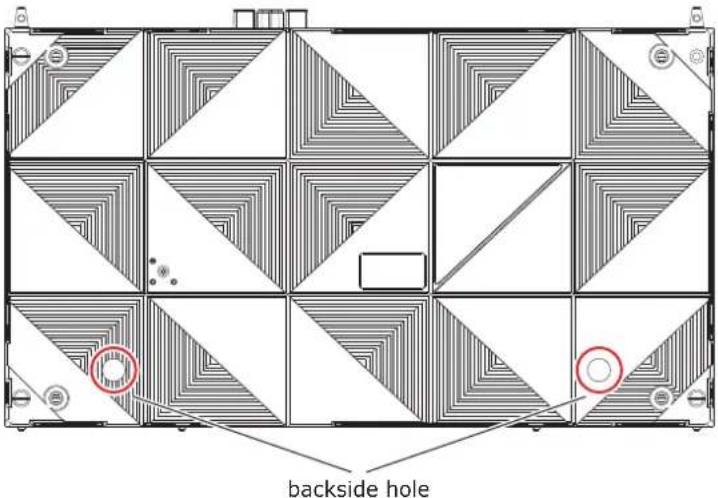
If the hole is not drilled, place a flathead screwdriver from inside the cabinet at the edge of the round recess and tap it lightly with a hammer to make a hole.
Cables for backside hole cabinet
Power cord
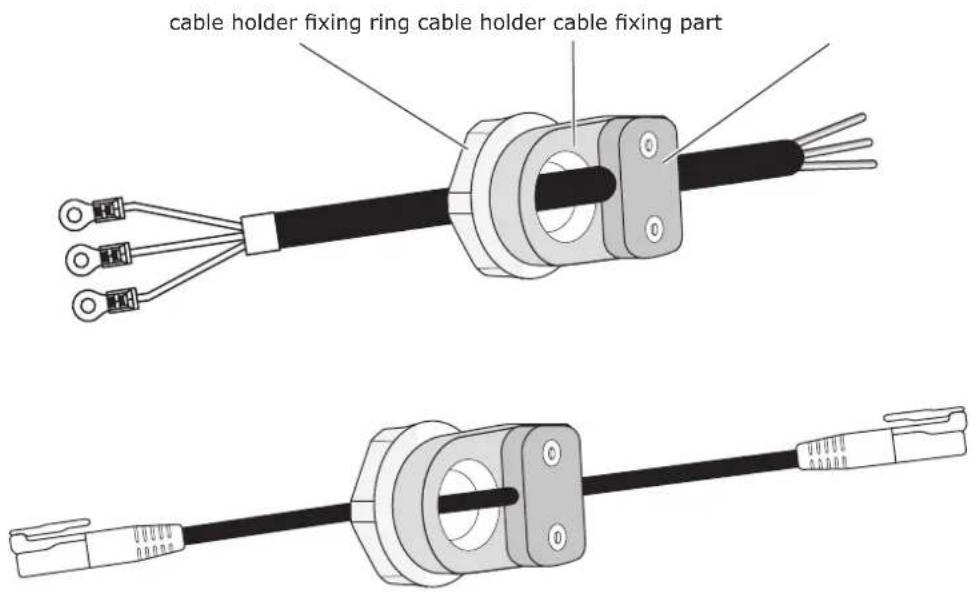
Remove the cable holder fixing ring attached to the LAN cable or power cord.
Remove the cable fixing part and move the cable holder to the end of the cable.
Attach the cable holder to the backside hole of the cabinet and attach the cable holder fixing ring from the outside of the cabinet.
Insert the cables.
Pinch the cable with the cable fixing part and attach it to the cable holder.

LAN cable power cord
[Info] For fixing the cable
Attache the buckle by screw.
Through the fastening tie lap and fix the cable to use fastening tie lap.
![NEC LED-FA038i2 - [Info] For fixing the cable - 1](/content/2026/06/1230097/images/6090b17a5ce159768863d68f2448fff00c57d680567e520e046ea06513ba77d9.jpg)
natural_image
Technical line drawing of a mechanical assembly with components like bolts, screws, and a screwdriver (no text or labels)Connect the Power cable using WAGO.
Precautions on use of the power connector (WAGO)
When using the power cord connector (WAGO's product, WFR Series (WAGO 221), Models WFR-2 and WFR-3), respect the following precautions.
WAGO 221
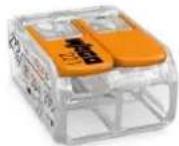
* Visiting WAGO's homepage for more details is recommended.

WARNING
• Always use the connector indoors (in a location not affected by moisture).
- Use the connector by respecting the installation precautions. If the connector is not used correctly, it may lead to a fire or an electrical shock.
Installation precautions
- Wire sheath peeling

CAUTION
Be sure to peel off the wire sheath over the specified length.

CAUTION
Do not use the connector with the core wires being sinuous.


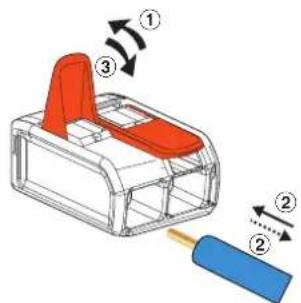
Lever operation is necessary even for connection of a solid core wire.
- Wire sizes
Wire sizes compatible with the power connector (WAGO) are as follows.
Solid core: 1.6 to 2.0 mm
IV 7-stranded core: 2.0 to 3.5 mm ^2
Flexible stranded core: 2.0 to 3.5 mm 2
- When reconnecting a wire once disconnected, cut off the wire end and newly peel off the sheath.

CAUTION
- When reconnecting a wire once disconnected, cut off the wire end and newly peel off the sheath.
- If the disconnected wire is reconnected without this processing, it may heat up and burn out.
Newly peel off the sheath. End of disconnected wire: More or less damaged.

How to connect the power cord
(1) Raise the lever. (2) Insert the wire. (3) Return the lever to its
previous position.

natural_image
3D diagram of a connector with red and yellow parts, showing a yellow strip extending from a yellow cable (no text or symbols)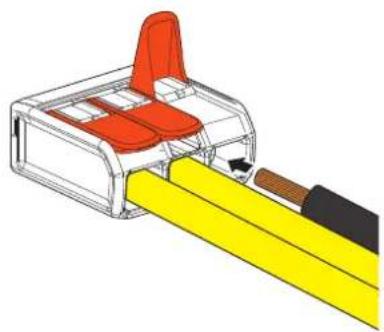
natural_image
3D diagram of a device with red seat and yellow connector, no text or symbols present
natural_image
Diagram of a connector with red and yellow components, showing a pin or connector assembly (no text or symbols)
CAUTION
Insufficient insertion may cause poor electricity conduction and heat generation.
Power code connection checking
- Perform checking for correct and proper connection.
Lightly pull on the wires one by one to check that they will not be pulled out.
Check visually

natural_image
3D diagram of a device with red and blue components, showing a blue arrow pointing to a component (no text or symbols)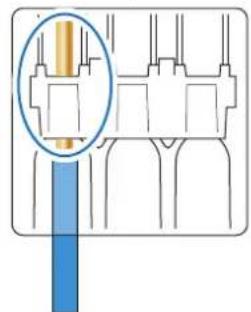
natural_image
Pure mechanical component diagram without any text, numbers, or symbols
WARNING
Pay attention to the wire colors of the power cord when connecting the cord. If the cables are not connected correctly, it may lead to a fire or an electrical shock.
Blue (N)
Brown (L)
Yellow green (Ground)
(4) LAN cable connection
Connect the LAN cables for the signal between the LED modules. Use the through holes to pass the cables between the modules.
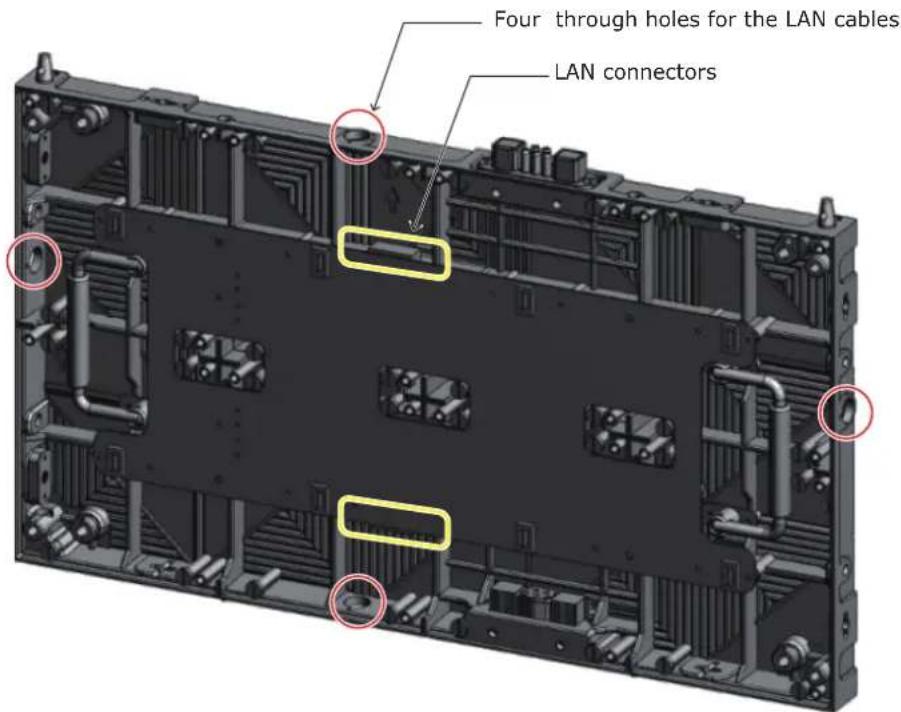
[Connection example] Connecting from bottom to top using multiple ports
FA series
Connect the master connectors of the interface connectors to the master connectors, and the slave connectors to the slave connectors.

FE series
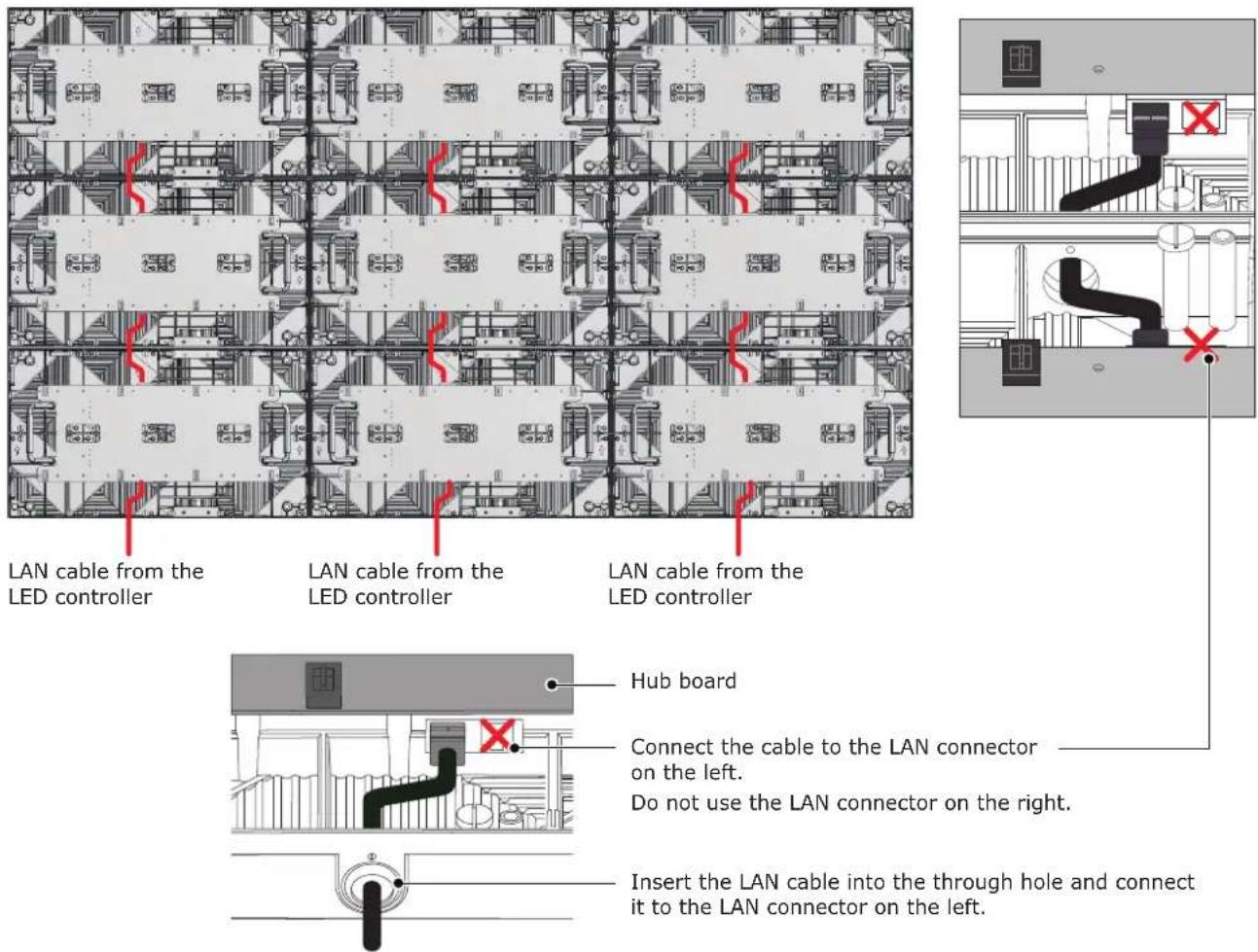
13. Installing the pixel card

CAUTION
- The pixel cards contain powerful magnets. If magnetic cards come close to the pixel cards, the data contained within may be damaged. Therefore, do not carry any magnetic card when installing the pixel cards.
- When installing the pixel cards, pay attention not to damage them against the pixel cards already installed or other objects. Otherwise, the video may not be displayed properly.
• Take measures against static electricity when installing the pixel card. Do not touch the LED display areas and the back of the pixel card. - Check that the power supply to the LED modules is cut before starting the work.
- Before installing or removing pixel cards, please ensure the wall has been powered off for 1 or 2 hours. Otherwise the thermal expansion of pixel cards increases the risk of damaging them during removal or insertion.
- If installation is not successful, please use the maintenance tool. (see English-82)
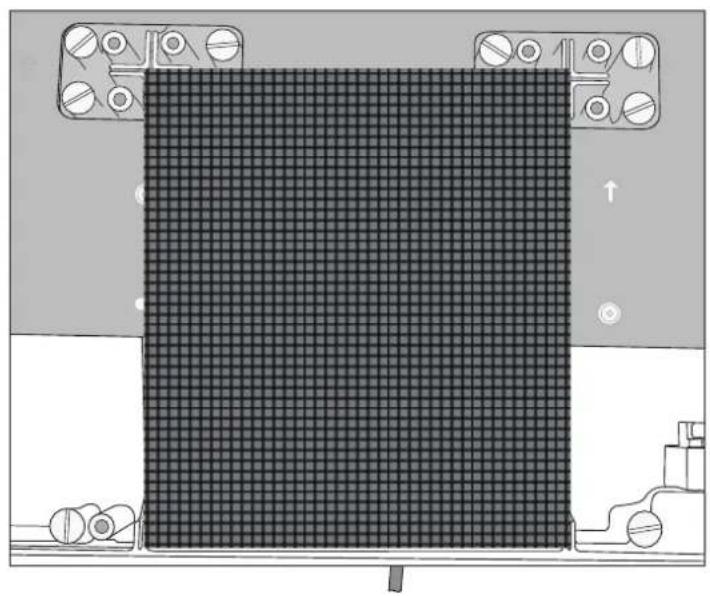
The arrows (↑) at the back of the pixel cards indicate the upper side.
Install the pixel card into the cabinet with the four guide holes of the pixel card aligned with the four guide pins of the cabinet (four pins for each pixel card). The pixel card is secured by the 4 magnets on each pixel card.
Insert into the guide holes

natural_image
Diagram of a semiconductor device with grid pattern and surrounding components (no text or symbols)Check that all the connections are completed, and then turn on the LED modules and the LED controller.

flowchart
graph TD
    A["Power distributor"] --> B["LED controller"]
    B --> C["Computer"]
    B --> D["Video signalControl signal"]
    B --> E["Grid of sensors"]
    style A fill:#f9f,stroke:#333
    style B fill:#ccf,stroke:#333
    style C fill:#cfc,stroke:#333
    style D fill:#fcc,stroke:#333
    style E fill:#ffc,stroke:#333

WARNING
Pay attention to the wire colors of the power cord when connecting the cord. If the cables are not connected correctly, it may lead to a fire or an electrical shock.
Blue (N)
Brown (L)
Yellow green (Ground)

CAUTION
When using LAN cables of 60 m to 100 m in length, the product may not operate correctly depending on the quality of the cables. In such a case, it is recommended to use optical-fiber cables. Ask a technician or your retailer for more details.
Preparingfor using NovaLCT software
Perform the setting using the NovaLCT control software by Novastar.
Connect the supplied USB memory to the computer. Start NovaLCT*.exe.
After it has started, install it following the software instructions.
The NovaLCT preparation is complete.

CAUTION
For NovaLCT*.exe, be sure to use the file contained in the supplied USB drive.
Using a NovaLCT*.exe file different than the one in the supplied USB drive may lead to malfunction.
Log in with the administrator privileges.
Display the login screen as follows: User(U) → Advanced Synchronous System UserLogin(A).
Enter the password ("admin" by default) to log in with the administrator privileges.
To change the password, go to User(U) → Change Password(U) with the administrator privileges.

CAUTION
Do not forget the new password after it has been changed.
Enter the screen configuration menu
(1) Click "Screen Configuration" (a).
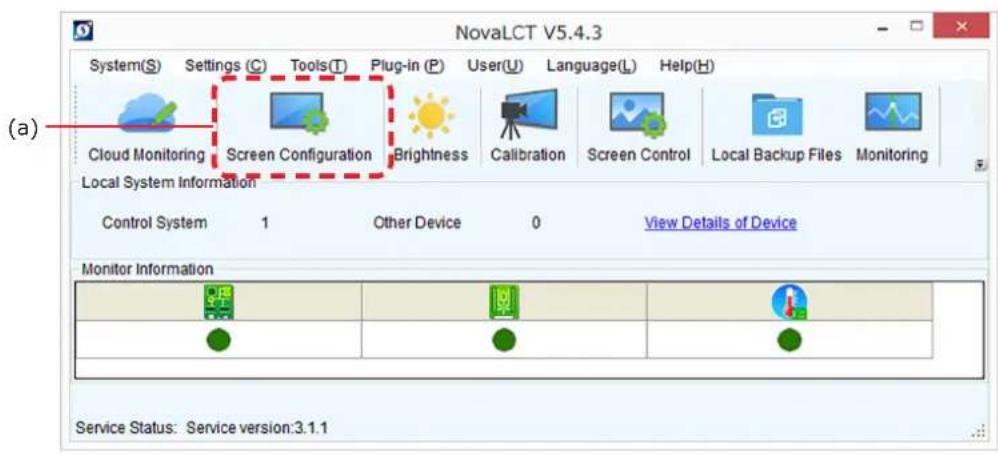
(2) Check the port in "Select Communication Port", and then click the "Next" button (b).

(b)
Module connection settings
Start NovaLCT and log in with the administrator privileges.
In the Screen Configuration screen that is displayed, select the "Screen Connection" tab (a).
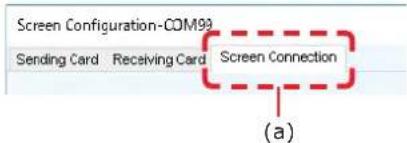

CAUTION
Do not change the settings in the "Receiving Card" tab. Otherwise, the video may not be displayed properly.
Select "Standard Screen" under "Screen Type" (b).
The settings in "Sending Card Number" (c) and "Ethernet Port No." (d) vary depending on the connected LED controller.

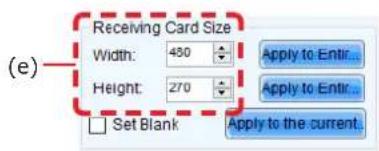
Enter the value in the table below under "Receiving Card Size" (e).
| Product name | LED-FA009i2LED-FE009i2 | LED-FA012i2LED-FA012i2-SBLED-FE012i2LEDFE012i2-E | LED-FA015i2LED-FA015i2-SBLED-FE015i2LED-FE015i2-E | LED-FA019i2LED-FE019i2LED-FE019i2-E |
| Pixel pitch 0.9 mm | 1.2 mm 1.5 mm | 1.9 mm | ||
| Number of displayed pixels (resolution/module) | Width 640Height 360 | Width 480Height 270 | Width 384Height 216 | Width 320Height 180 |
| Product name | LED-FA025i2LED-FE025i2 | LED-FA031i2LED-FE031i2 | LED-FA038i2LED-FE038i2 |
| Pixel pitch 2.5 mm | 3.1 mm 3.8 mm | ||
| Number of displayed pixels (resolution/module) | Width 240Height 135 | Width 192Height 108 | Width 160Height 90 |
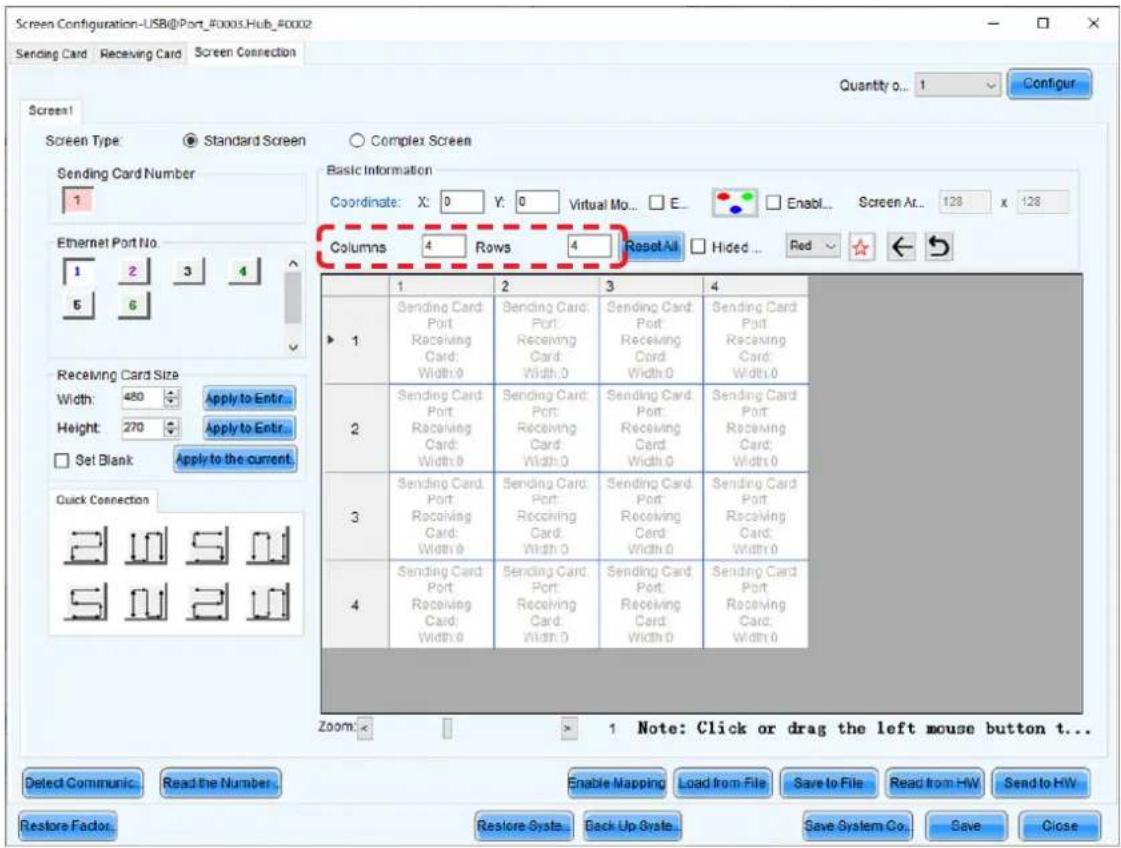
[Columns/Rows] Enter the number of installed screens under "Columns/Rows" (f) (the number of vertically installed screens in Columns, and the number of horizontally installed screens in Rows).
[Configuration example]
The setting values are given for the following example where 16 are installed in a 4 (columns) x 4 (rows) configuration connecting from bottom to top using multiple ports.
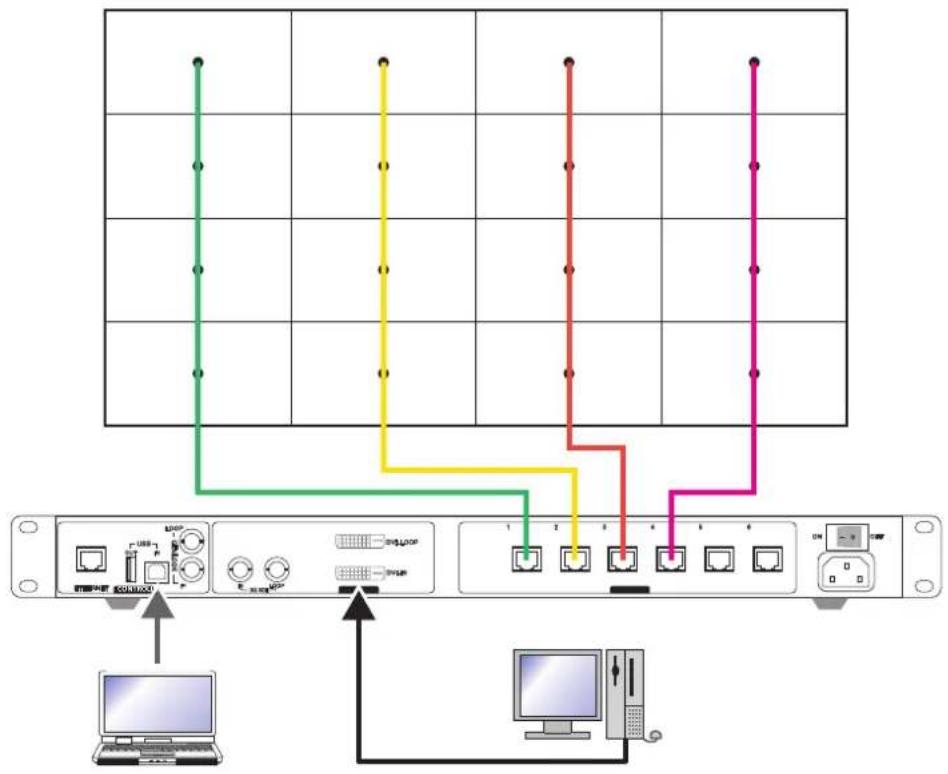
flowchart
graph TD
    A["Port 1"] --> B["Port 2"]
    B --> C["Port 3"]
    C --> D["Port 4"]
    D --> E["Port 5"]
    E --> F["Port 6"]
    F --> G["Port 7"]
    G --> H["Port 8"]
    H --> I["Port 9"]
    I --> J["Port 10"]
    J --> K["Port 11"]
    K --> L["Port 12"]
    L --> M["Port 13"]
    M --> N["Port 14"]
    N --> O["Port 15"]
    O --> P["Port 16"]
    P --> Q["Port 17"]
    Q --> R["Port 18"]
    R --> S["Port 19"]
    S --> T["Port 20"]
    T --> U["Port 21"]
    U --> V["Port 22"]
    V --> W["Port 23"]
    W --> X["Port 24"]
    X --> Y["Port 25"]
    Y --> Z["Port 26"]
    Z --> AA["Port 27"]
    AA --> AB["Port 28"]
    AB --> AC["Port 29"]
    AC --> AD["Port 30"]
(1) With a pixel pitch of 1.25 mm, enter Width=480 and Height=270 under "Receiver Card Size" (e). Do not use the buttons located next to the values.
(2) Since the configuration is 4 (columns) x 4 (rows), enter Columns=4 and Rows=4. A 4 (columns) x 4 (rows) screen configuration is displayed.
(3) If multiple LED controllers are used, select the number of the connected LED controllers. Since only one controller is used in this example, it is not necessary to set "Sending Card Number" (c).
(4) Configure the connection.
The system is connected to port 1 of the LED controller.
Select "1" (port 1) under "Ethernet Port No." (d).
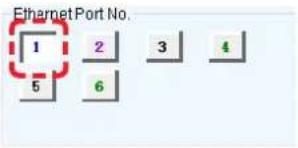
Select the cabinet at the bottom left with the mouse, and then select the other cabinets up to the top cabinet.
Then select Port2 and select the cabinets from the bottom to the top as you did for Port1.
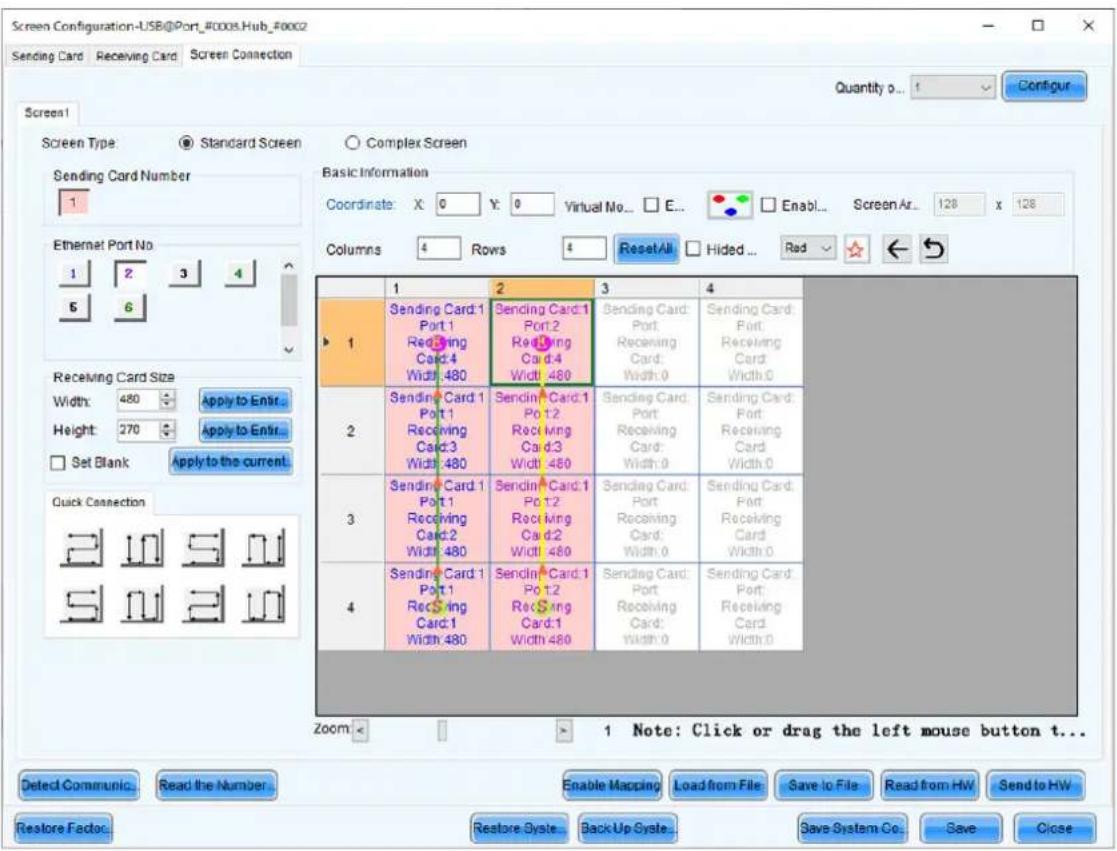
Follow the same procedure for Port3 and Port4.

(5) Save the settings.
(a) Click the "Send to HW" button (h). When the dialog box indicating that the process finished successfully is displayed, click OK.
(b) Check that the image is correctly displayed, and then click the "Save" button (i). When the screen indicating that the process finished successfully is displayed, click OK.
The setting of the screen configuration is complete. Click the "Close" button (j) to close the Screen Configuration screen.
Receiving card settings
(1) The Screen Configuration screen is displayed. Select the "Receiving Card" tab (a).
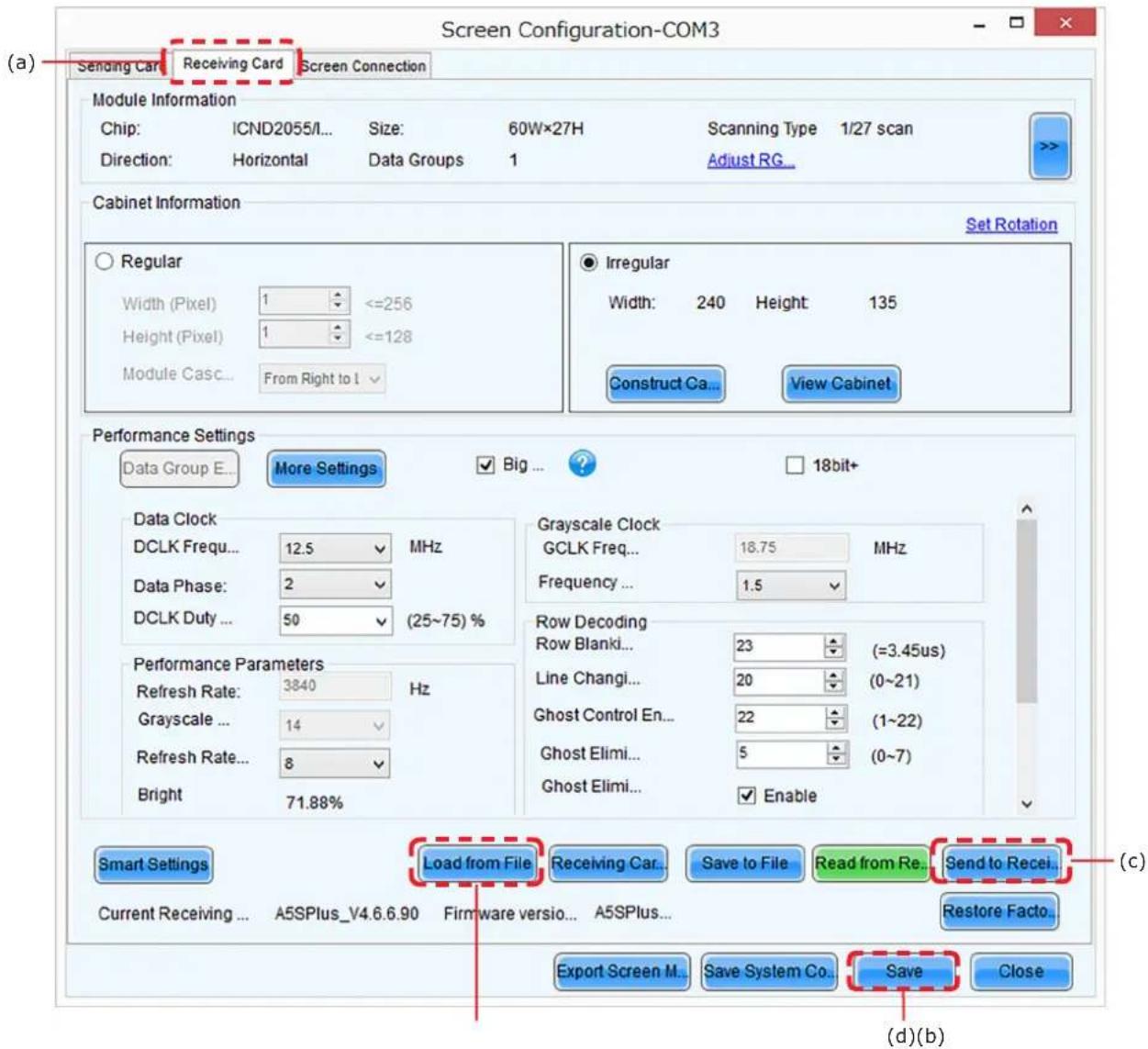
(2) Click "Load from File" (b).
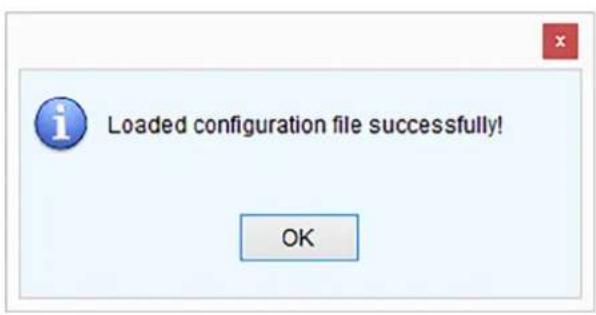
(3) Select the configuration file (rcfgx file) you want to load to the receiving card. A screen like the following appears when the loading process is complete.
(4) Click "Send to Receiving Card" (c).
(5) Click "Save" (d). Loading of the configuration file is complete.
Update the Calibration Data
(1) Login as Advanced User.
(2) Click the "Calibration" button (a). Start calibration menu.

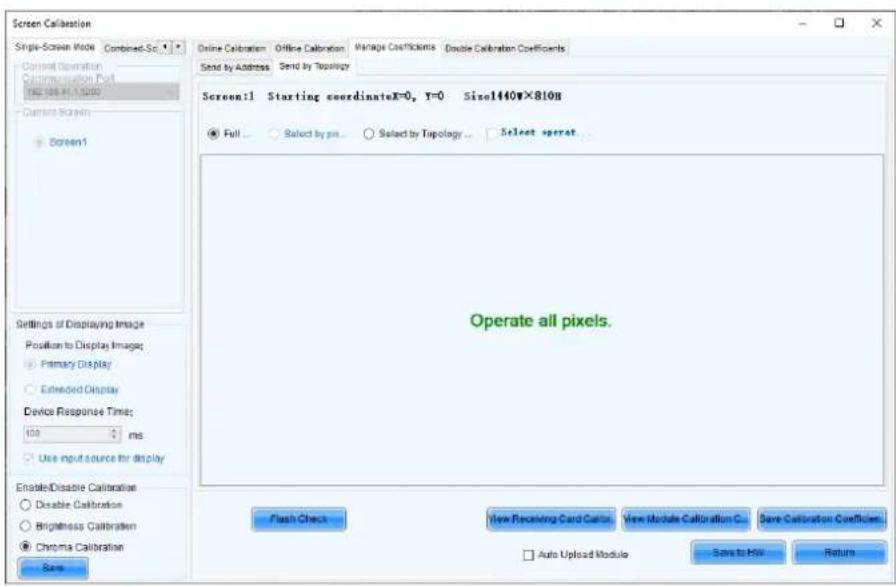
(3) Select the "Screen1" radio button.
(4) Click on the "Manage Coefficients" tab (b).

(5) Click on "Module Flash".
Result: The module flash options will appear.
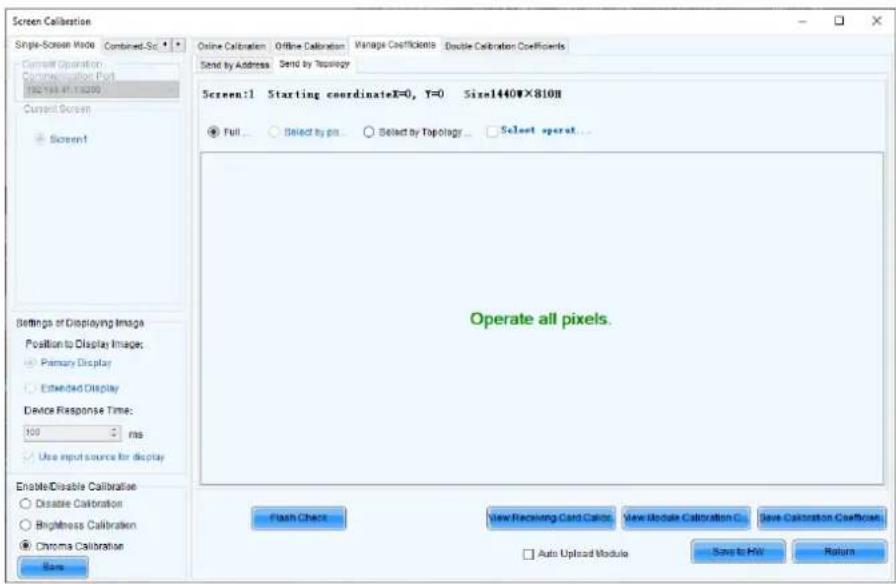
Select whether you want the entire screen or individual modules.
Full screen: Select this option when installing.
Module Flash (Select by Topology or list): Select this option when replacing pixel cards, etc.
If "Line calibration" or "Adjusting the colors on a part of the screen" has been performed on the area set for Module Flash, please perform it again after Module Flash.
(6) Click the "View Module Calibration Coefficients" button.
Result: Pop-up message opens.

(7) Click "Save Calibration Coefficients to Receiving Card".
The pop-up message, that the data has been successfully stored to the Receiving cards, will appear. Result: The screen with the exchanged Pixel cards should look calibrated now.
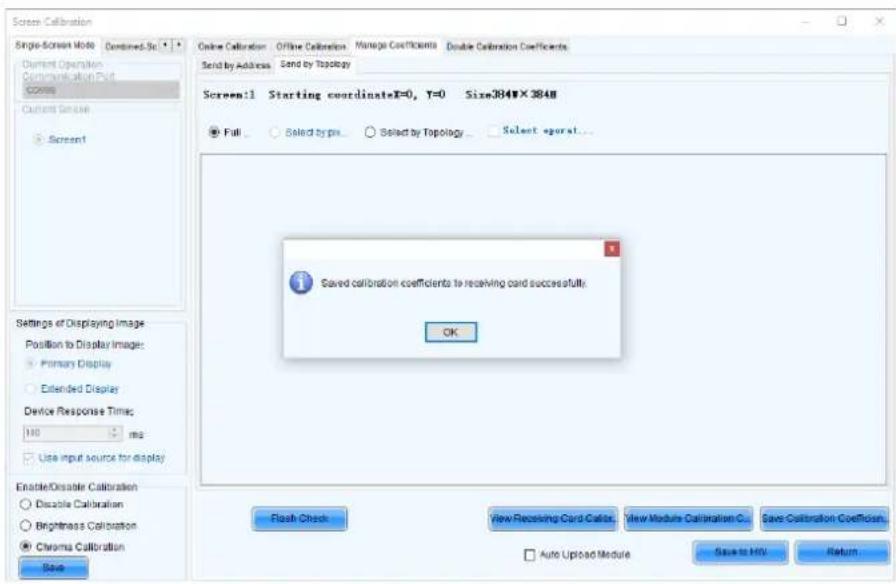
(8) Click on "Save to HW" button and go back to main window by clicking "X" button.
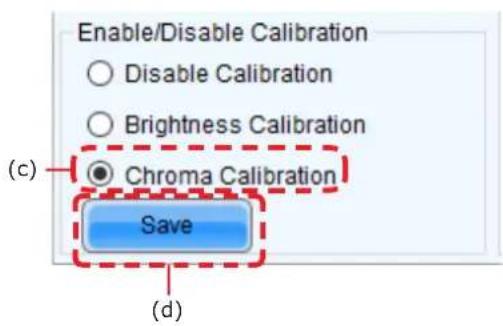
(9) Check the calibration-state in the bottom left corner of Screen Calibration window: Enable/Disable Calibration.

(10) If calibration-setting "Disable Calibration" is chosen, switch to "Chroma Calibration" (c) to enable calibration and click on the "Save" button (d).
Result: While switching you will already see calibration effect.
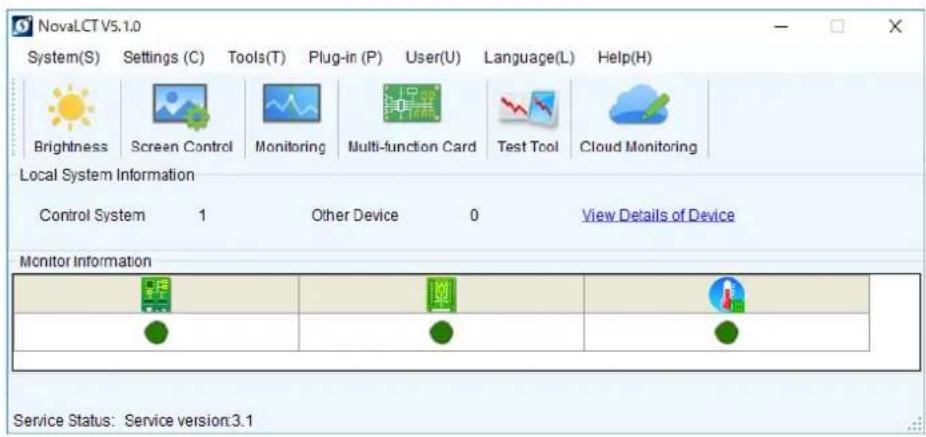
(11) Close Screen Calibration windows by clicking on the "X".
Result: The Screen Calibration has been finished for both screens.
You can adjust the brightness, the gamma correction value, and the color temperature.
Click "Brightness" on the top screen to display the following window.

(e)
English - 71
Click "Advanced Settings" (M) (a) to expand the setting screen.
(1) Brightness
Set the brightness of the screen using the slider (b).
Increasing the value increases the brightness.
(2) Gamma correction
Set the gamma correction value using the slider (c).
Increasing the value makes the dark parts of the screen darker.
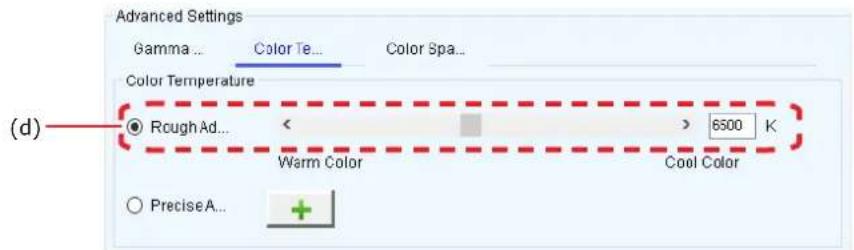
(3) Color temperature
Set the color temperature using the slider (d).
Increasing the value makes the colors more bluish, while reducing the value makes the colors more reddish.
When the setting is complete, click the "Save to HW" button to save the settings.
Line calibration
(1) Log in with the administrator privileges (English-61).
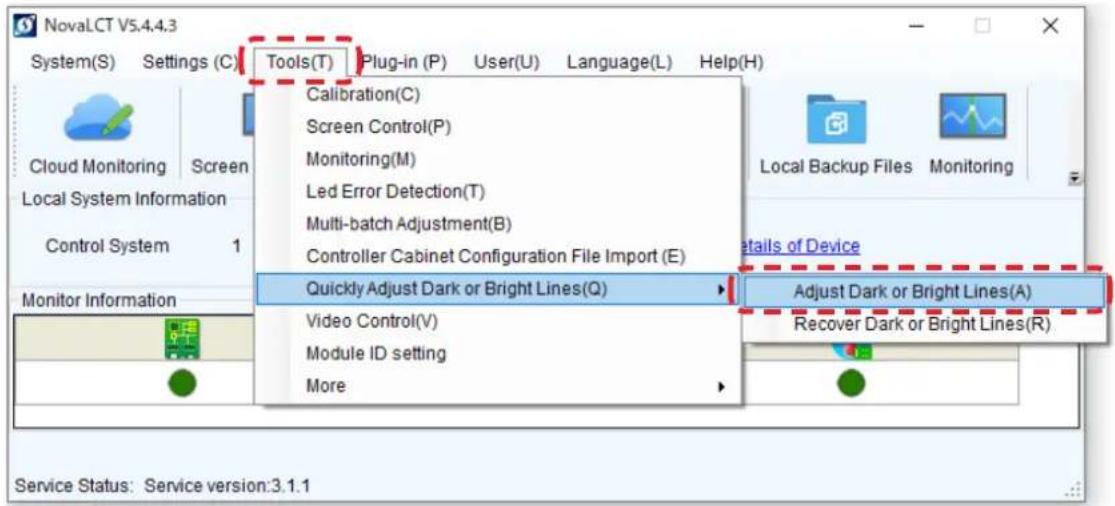
(2) On the tabs at the top of the window, click Tools > Quickly Adjust Dark or Bright Lines > Adjust Dark or Bright Lines
(3) Click the "Quickly Adjust (New)" button on the right of the window that pops up.

(4) A screen like the figure below is displayed. Press the Shift + E keys. The gray window moves to the LED modules.
![Scan Brightness Adjustment Mode Cati Row Row Column Class Deselect Class Show Show_Calibration Show...Screen Dis Window Color Screen Brightness (A)(B)(C)(D)(E)(F)(G)(H)(I)(J)(K) (AB=0) Screen1 SHIFT+F1 Show Fiji-side prompts SHIFT+E] Extended ModelCopy Mode SHIFT+H] Show Fiji-side windows No Video Source (The sending card does not need a video source) Show to HIV](/content/2026/06/1230097/images/65b16dfdd8de00c4cc6d1043ec7f52e0fdb562e5221eede566150978823f04b1.jpg)
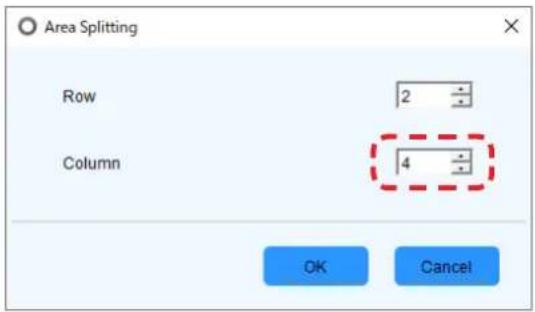
(5) Click "Module Mode" on the top left of the screen.

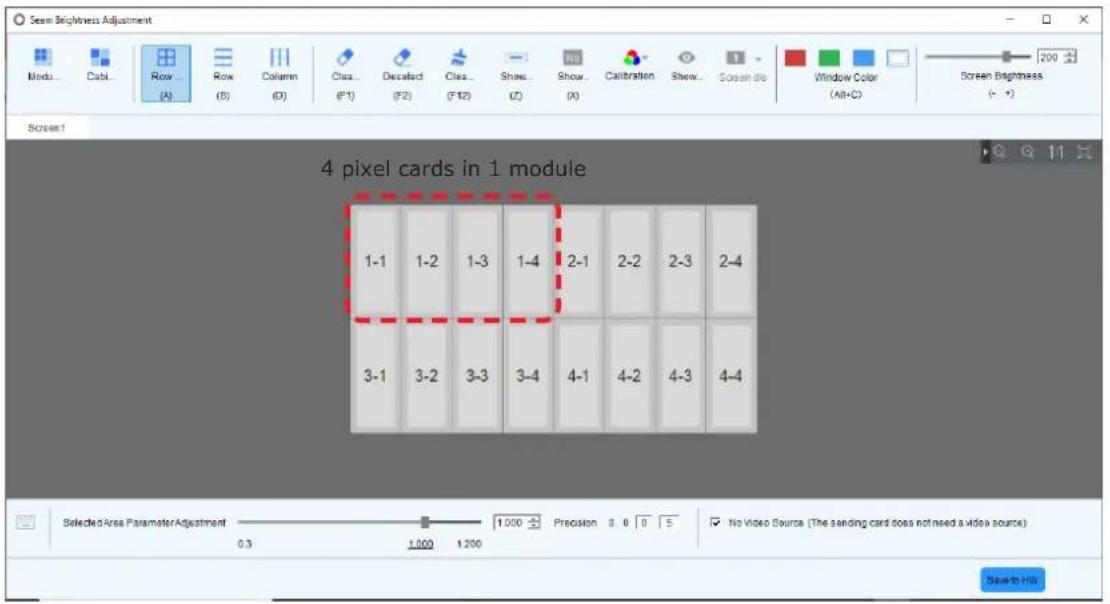
Enter the number of pixel cards inside one module on the screen that pops up, and then click "OK". LED-FA009i2, LED-FA012i2, LED-FA012i2-SB, LED-FA015i2, LED-FA015i2-SB, LED-FA019i2, LED-FA031i2, LED-FA038i2 LED-FE009i2, LED-FE012i2, LED-FE015i2, LED-FE019i2, LED-FE031i2, LED-FE038i2, LEDFE012i2-E, LED-FE015i2-E, LED-FE019i2-E
LED-FA025i2, LED-FE025i2

Lines separating each pixel card are displayed.
LED-FA009i2, LED-FA012i2, LED-FA012i2-SB, LED-FA015i2, LED-FA015i2-SB, LED-FA019i2, LED-FA031i2, LED-FA038i2
LED-FE009i2, LED-FE012i2, LED-FE015i2, LED-FE019i2, LED-FE031i2, LED-FE038i2, LEDFE012i2-E, LED-FE015i2-E, LED-FE019i2-E

LED-FA025i2, LED-FE025i2
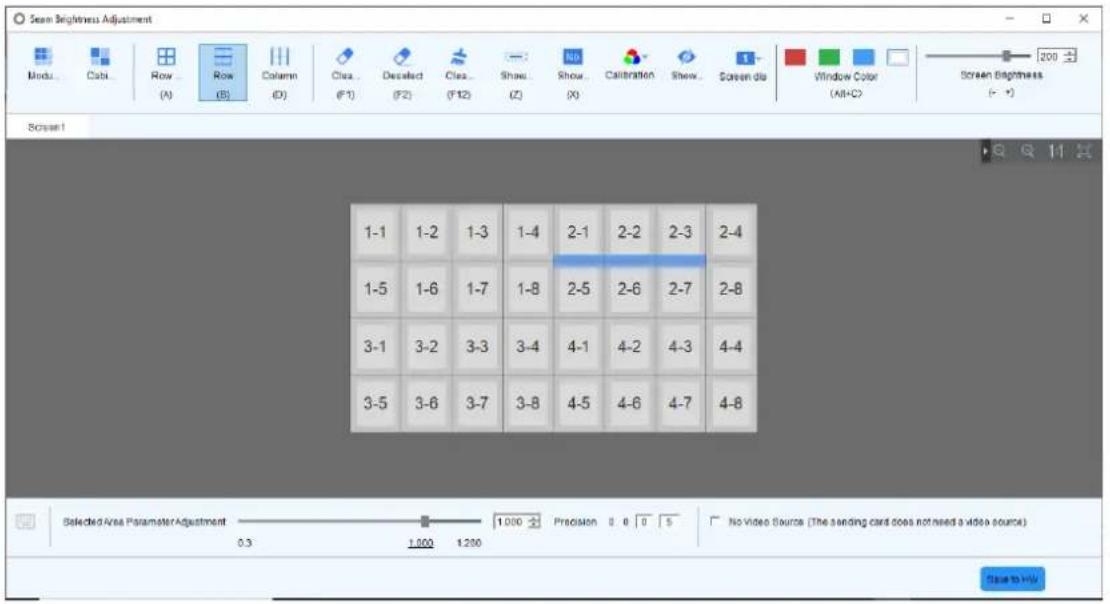
(6) Specify the border between the pixel cards for which you want to perform line calibration by clicking on it or specifying a range. You may also adjust multiple locations at the same time.
LED-FA009i2, LED-FA012i2, LED-FA012i2-SB, LED-FA015i2, LED-FA015i2-SB, LED-FA019i2, LED-FA031i2, LED-FA038i2
LED-FE009i2, LED-FE012i2, LED-FE015i2, LED-FE019i2, LED-FE031i2, LED-FE038i2, LEDFE012i2-E, LED-FE015i2-E, LED-FE019i2-E
LED-FA025i2, LED-FE025i2
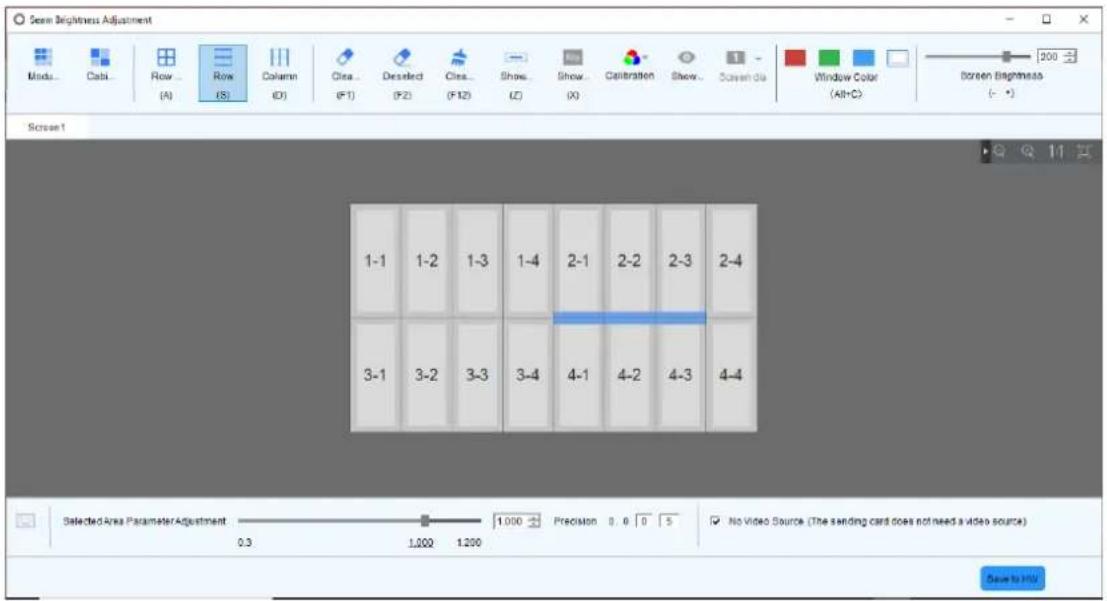
< Tool icons used to select the adjustment range >

Clear effects: Resets the line calibration in the selected range.

Deselect: Deselects the range currently selected.

Clear all effects: Resets line calibration for all locations.
The selected adjustment range is also displayed on the LED modules.
LED-FA009i2, LED-FA012i2, LED-FA012i2-SB, LED-FA015i2, LED-FA015i2-SB, LED-FA019i2, LED-FA031i2, LED-FA038i2
LED-FE009i2, LED-FE012i2, LED-FE015i2, LED-FE019i2, LED-FE031i2, LED-FE038i2, LEDFE012i2-E, LED-FE015i2-E, LED-FE019i2-E
![[SHIFT+F1]ShowHide prompts [SHIFT+E] Extended Mode/Copy Mode [SHIFT+H] ShowHide windows 1-1 1-2 1-3 1-4 2-1 2-2 2-3 2-4 1-5 1-6 1-7 1-8 2-5 2-6 2-7 2-8 3-1 3-2 3-3 3-4 4-1 4-2 4-3 4-4 3-5 3-6 3-7 3-8 4-5 4-6 4-7 4-8](/content/2026/06/1230097/images/89a41e499172b459276ac34b5a5b32b6a2ae10046c8051ed1f594299587b1841.jpg)
LED-FA025i2, LED-FE025i2
![[SHIFT+F1]:ShowHide prompts [SHIFT+E]Extended Mode/Copy Mode [SHIFT+H]:ShowHide windows 1-1 1-2 1-3 1-4 2-1 2-2 2-3 2-4 5 2.5 2.5 3 3-1 3-2 3-3 3-4 4-1 4-2 4-3 4-4](/content/2026/06/1230097/images/7fa95892feffdcf10be6f1ebe0bc465feafc23143aedcdbce4af8ba4134e72bb.jpg)
(7) Click the upward and downward arrows next to the input box at the bottom of the window to adjust the brightness of the selected locations.
LED-FA009i2, LED-FA012i2, LED-FA012i2-SB, LED-FA015i2, LED-FA015i2-SB, LED-FA019i2, LED-FA031i2, LED-FA038i2
LED-FE009i2, LED-FE012i2, LED-FE015i2, LED-FE019i2, LED-FE031i2, LED-FE038i2, LEDFE012i2-E, LED-FE015i2-E, LED-FE019i2-E
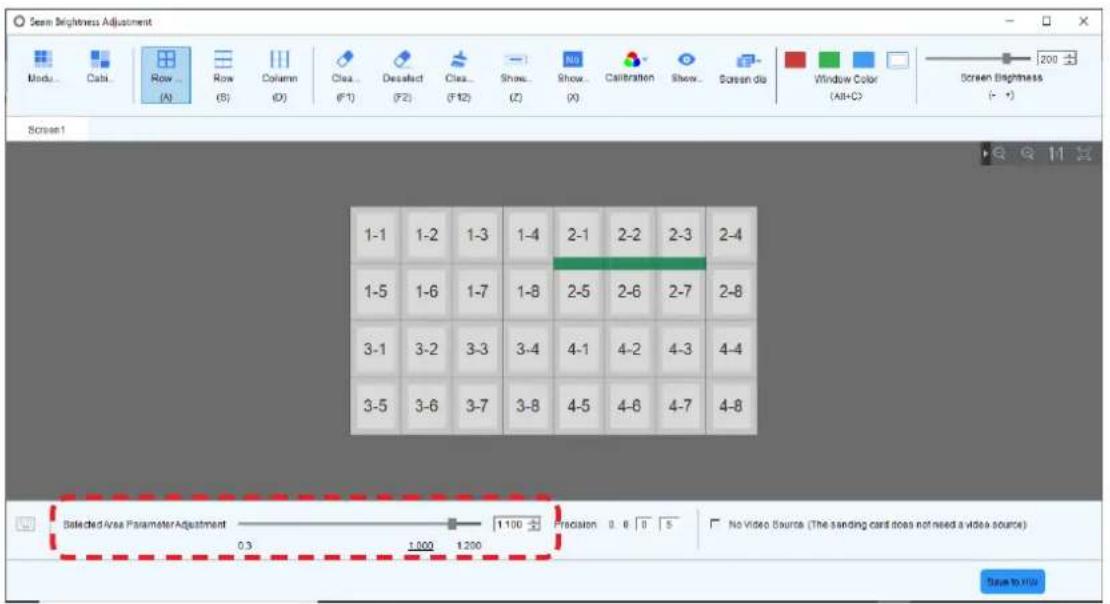
Upward arrow: Increases the brightness (makes the dark lines less noticeable)
Downward arrow: Decreases the brightness (makes the bright lines less noticeable)
LED-FA025i2, LED-FE025i2

Upward arrow: Increases the brightness (makes the dark lines less noticeable)
Downward arrow: Decreases the brightness (makes the bright lines less noticeable)
(8) If you want to adjust other locations, click "Deselect" and specify again a range for the adjustment. When the adjustment is complete, click "Save to HW" at the bottom of the screen.
LED-FA009i2, LED-FA012i2, LED-FA012i2-SB, LED-FA015i2, LED-FA015i2-SB, LED-FA019i2, LED-FA031i2, LED-FA038i2
LED-FE009i2, LED-FE012i2, LED-FE015i2, LED-FE019i2, LED-FE031i2, LED-FE038i2, LEDFE012i2-E, LED-FE015i2-E, LED-FE019i2-E
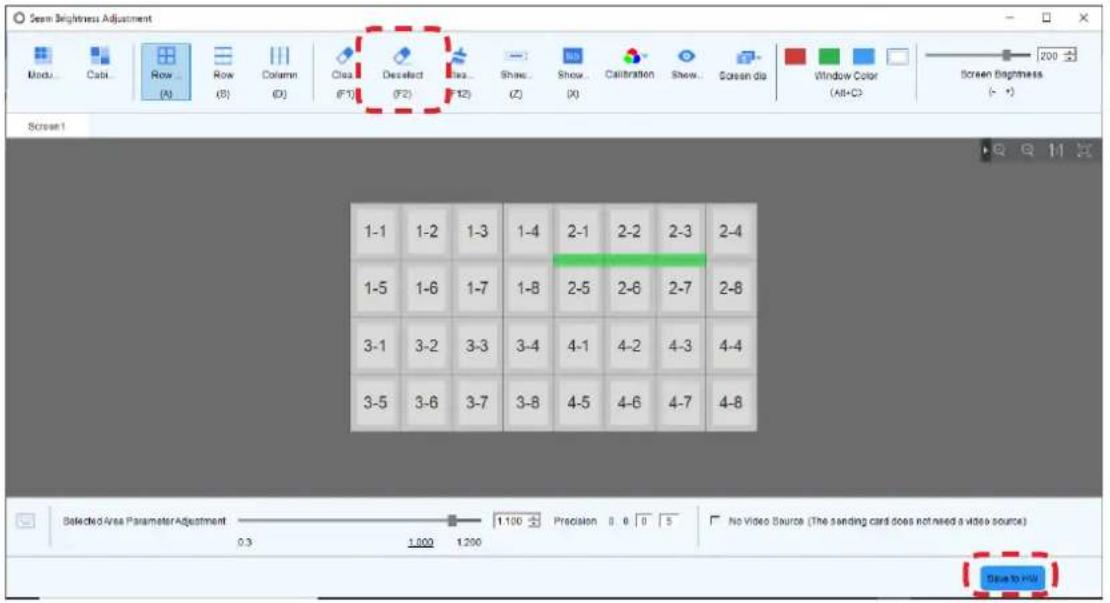
LED-FA025i2, LED-FE025i2
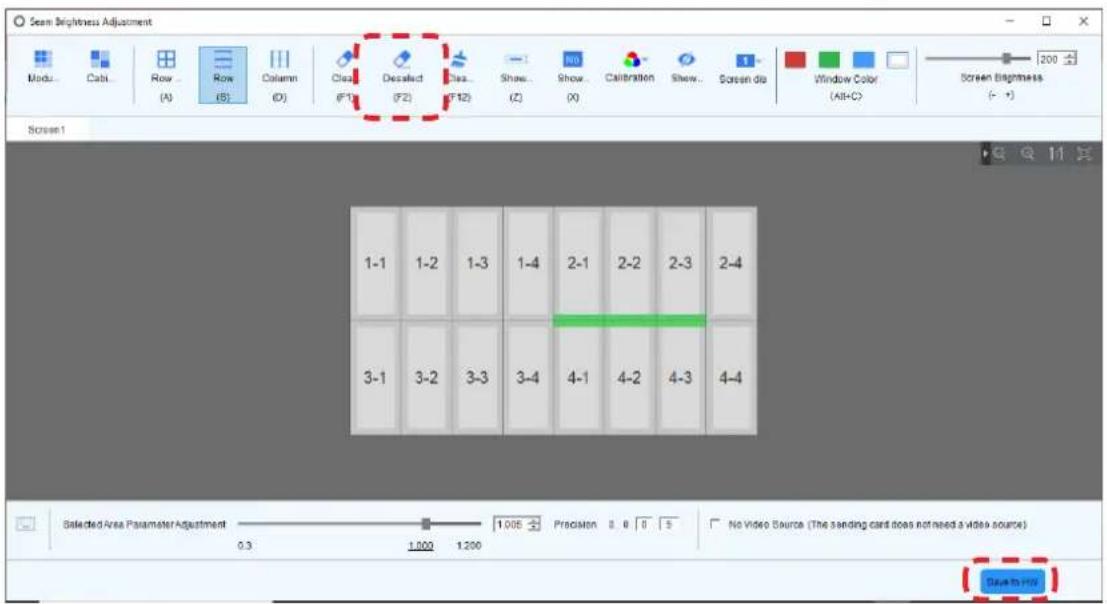
Click "Yes" on the screen that pops up.
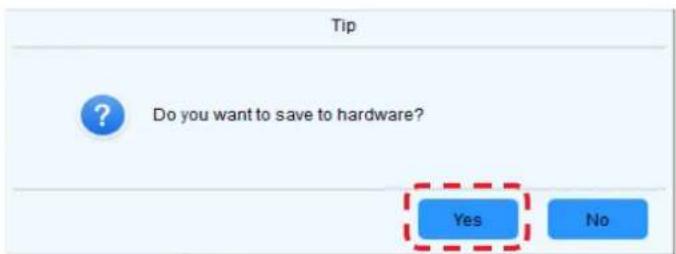
(9) The adjustment is complete when the following screen is displayed. Click "Close" to finish.
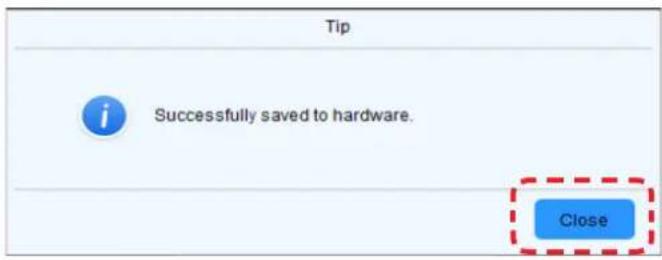
The screen brightness may decrease if dust or another foreign material is adhering to the surface of the pixel card.
The magnet used to install the pixel cards also attracts magnetic metal particles, such as iron powder.
Therefore, magnetic metal particles may adhere to areas near the magnet of the pixel card and the brightness homogeneity of the screen may decrease.
Cleaning should be performed regularly depending on the installation environment.
Required tools (example).

natural_image
Illustration of a paintbrush with a handle and bristles (no text or symbols)Soft brush
(animal hair brush to prevent static electricity)

Soft cloth
(that does not generate static electricity)

natural_image
Line drawing of a portable air gun connected to a cylindrical tank with a pressure gauge (no text or symbols)Air blower (compressor)
Cleaning method
a) Turn the LED displays off.
b) Use the soft brush to remove any dirt on the LED lamps and the masks. If these parts are very dirty, use the air blower to remove the dirt.
c) Use the soft cloth to remove the dirt on the screen surface.
d) Repeat the steps (b) and (c) to remove all the dirt.

CAUTION
- Do not use water or any other liquid.
- Do not use a stiff brush.
- Pay attention not to damage the LED lamps when using the soft brush, the air blower, or the soft cloth.

CAUTION
- Disconnect the power supply to the LED modules when performing the maintenance.
- Before installing or removing pixel cards, please ensure the wall has been powered off for 1 or 2 hours. Otherwise the thermal expansion of pixel cards increases the risk of damaging them during removal or insertion.
- Use the correct screwdriver for the shape of the screws when removing (loosening) or setting (tightening) the screws.
Pay attention not to drop the screws and the other parts you have removed.
Pay attention not to lose the removed screws since they will be reused.
Removing a pixel card
Remove the pixel card using the maintenance tool.

- Turn on the power switch.
- Press the start button and the device will starts.
- Put the maintenance tool flat onto the surface of the pixel card which you want to take off, make sure the device is tightly sucked with the pixel card.
- Pull out the maintenance tool and pixel card vertically.

natural_image
Technical line drawing of a wall-mounted device mounted on a panel (no text or symbols)
natural_image
Diagram of a mechanical device mounted on a wall, showing a lever and directional arrow (no text or symbols)
CAUTION:
- Check that the battery of the maintenance tool is fully charged before starting the work. Pixel card falls if the battery runs out. Hold the pixel card with your hand to support in case it falls.
- Do not turn the maintenance tool off until you hold the pixel card. Otherwise, the pixel card may fall and break.
Removing and installing the hub board
(1) Removing the hub board
(a) Disconnect the LAN cable from the hub board
(b) Remove the 16 screws securing the hub board with a Phillips screwdriver (No. 1).
(c) Since the hub board is connected to the power unit with pins and connectors, remove it by raising this part, as well as the part with the positioning holes. The status board and the hub board are connected with a cable.
Pay attention not to pull the hub board.
(d) Disconnect the cable from the hub board, and then remove the hub board.
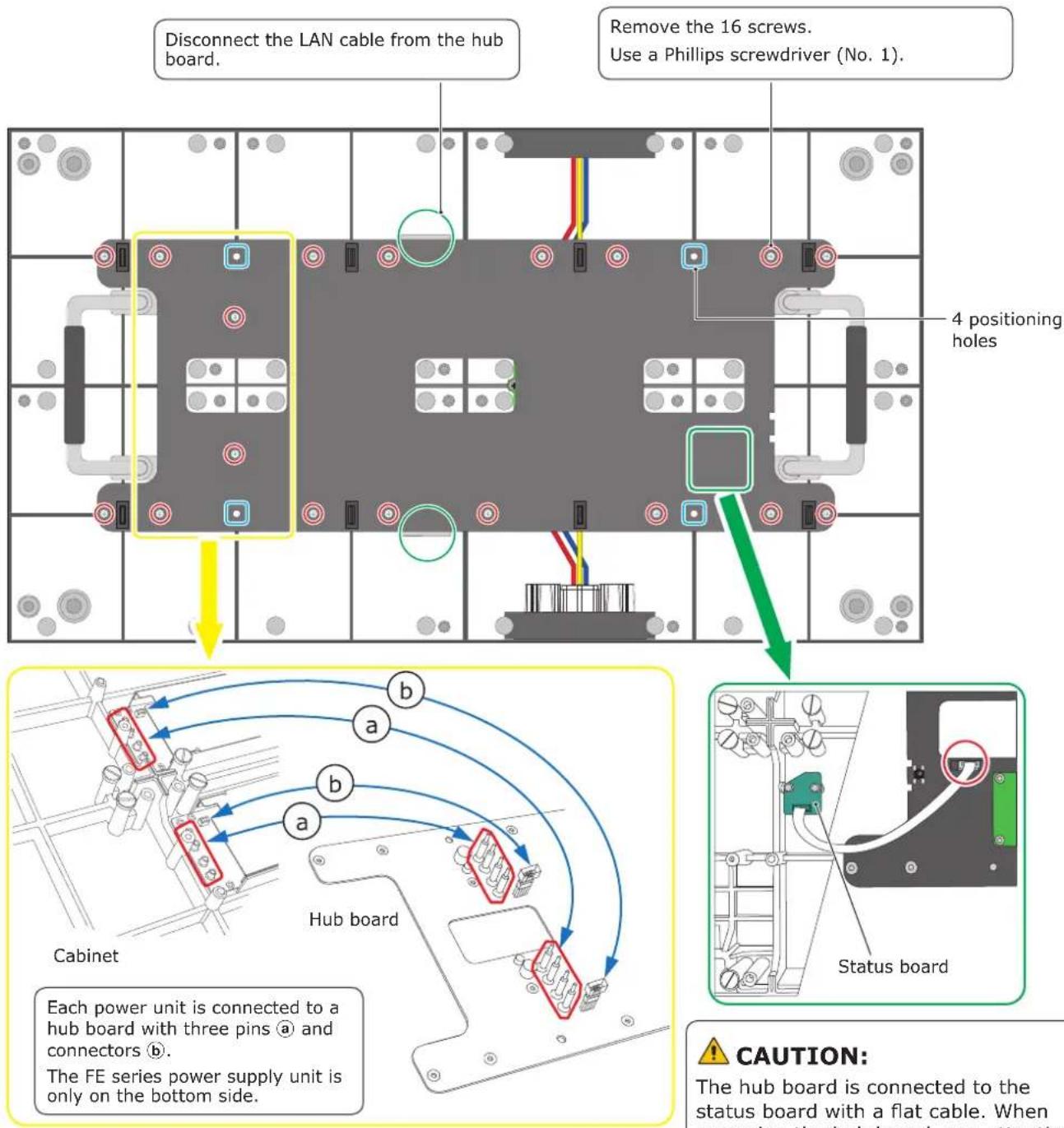

CAUTION:
The hub board is connected to the status board with a flat cable. When removing the hub board, pay attention not to pull and damage the cable.
Disconnect the connector on the hub board, and then remove the hub board.
(2) Installing the hub board
Install the hub board into the cabinet following the procedure below.
(a) Connect the status board to the hub board using the cable.
(b) Install the hub board into the cabinet. Install it with the power unit pins and connectors aligned. Insert the pins and connectors completely and check that the hub board is securely attached and not bent.
(c) Tighten the 18 screws. Use a tightening torque of 3 ± 0.5 kgf·cm.
(d) Connect the LAN cable.
Replacing the power unit
The power unit dissipates heat through the cabinet. Apply some thermal paste on the back of the power unit to be replaced. Ask your retailer for more details on the types of thermal paste.
(a) Remove the hub board following the “(1) Removing the hub board” procedure on the previous page.
(b) Remove the four screws, and then remove the power hub board.
(c) Remove the two screws securing the power unit, and then replace the power unit.
(d) Install the power hub board, the protective sheet, and the hub board.
(e) Install the hub board following the "(2) Installing the hub board" procedure on the previous page.

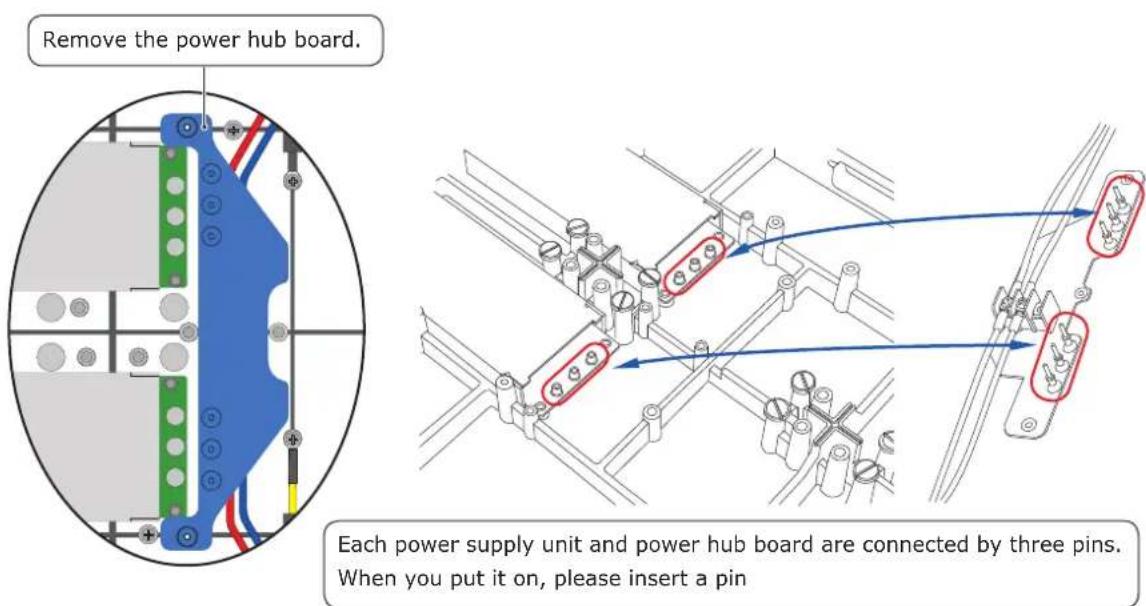

The FE series power supply unit is only on the bottom side.
Replacing the receiving card
Remove the receiving card from the hub board.
Remove the four screws securing the receiving card, and then remove the receiving card from the hub board.
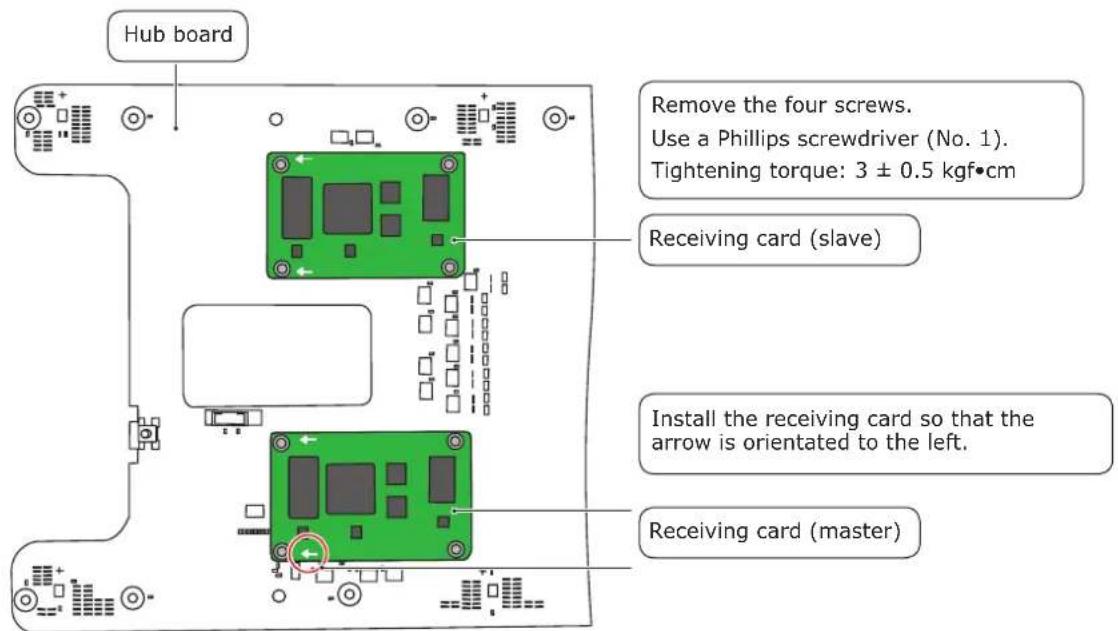
The FE series receiving card is (master) only.
- Display problems
| Problem Solution | |
| Nothing is displayed on all the LED modules. | Check that power is being supplied to the LED modules. |
| Check that the LED controller is turned on. | |
| Check that a video signal is being input to the LED controller. | |
| Check that a LAN cable is correctly connected between the LED controller and the LED module. | |
| Check that the brightness is not set to 0% (= not lit). | |
| Nothing is displayed on one LED module. | Check that a LAN cable is correctly connected between the LED controller and the LED module. |
| The receiving card inside the LED module may be broken.→ Check the status of the LED module by following the procedure in the next section "2 State monitoring using the software". | |
| The power unit inside the LED module may be broken.→ Check the status of the LED module by following the procedure in the next section "2 State monitoring using the software". | |
| No image is displayed on one pixel card. | Check that the contacts of the pixel card are correct (contacts of the hub board). |
| The pixel card may be broken. Replace it with a spare pixel card. | |
| Control (communication) is not possible. | Check that the communication cable is correctly connected between the computer and the LED controller. |
| Check that the LED controller is turned on. | |
| If the communication cable is a USB cable, check that the device driver runs correctly. | |
| The colors differ on one pixel card. | Perform the "Adjusting the colors on a part of the screen" procedure. Select the adjustment range using "Select by Pixel Area" described in (5)-2. |
| I want to adjust the color tone of the entire screen. | Perform the "Adjusting the colors on a part of the screen" procedure. Select the adjustment range using "Screen" described in (5)-1. |
| Bright lines or dark lines are visible between the pixel cards or between the modules. | Perform the "Line calibration" procedure. |
2. Adjusting the colors on a part of the screen
(1) Log in with the administrator privileges (English-61).
(2) Click "Calibration" (a). Start calibration menu.


(3) Check that "Chroma Calibration" (b) is selected and click the "Manage Coefficients" tab (c).

(4) Set "Extended Display" (d) under "Setting of Displaying Image", and then click "Adjust coefficients" (e).
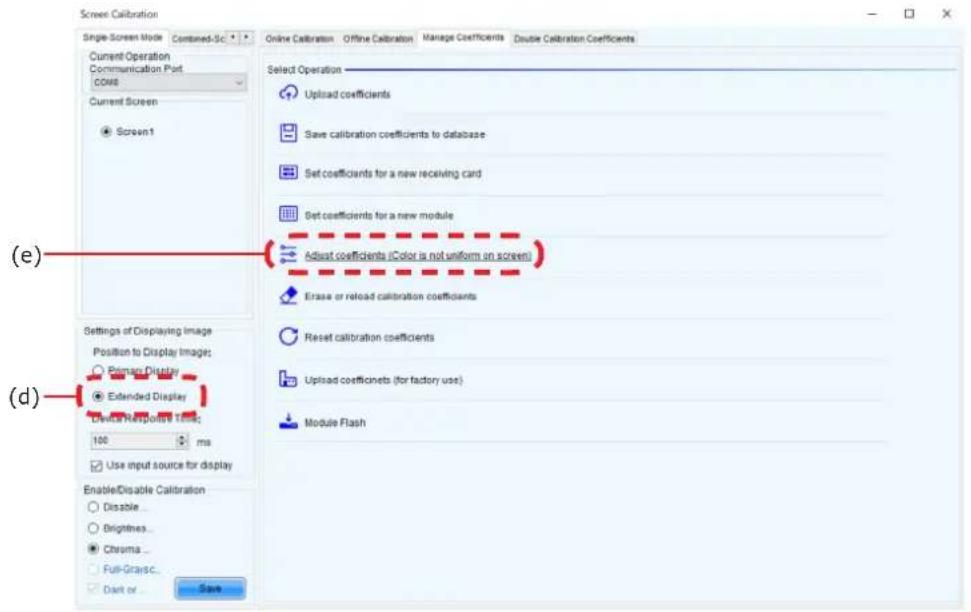
(5) Select the range specification method from the three available methods depending on the calibration range. After setting the range, click "Next" to display the "Adjust Coefficients" screen.
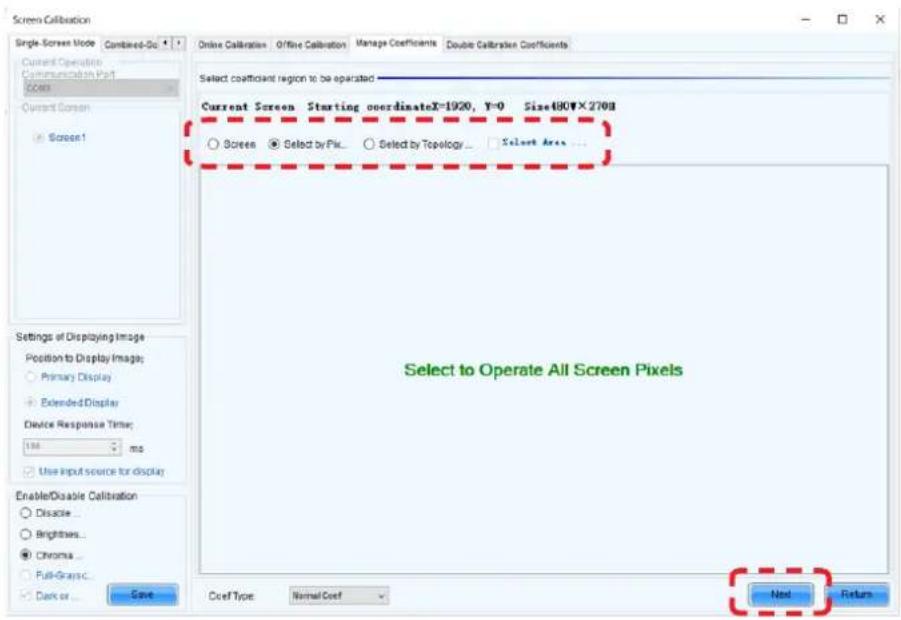
(5)-1
Screen: Adjust the entire frame set.
The calibration settings reading starts after "Next" is clicked. A fair amount of time is required to read the data.
The "Adjust Coefficients" screen is displayed when the data has been read.
(5)-2
Select by Pixel Area: Adjust by pixels.

The screen used to specify the adjustment range is displayed.
Column Number: The position (pixel) on the horizontal axis of the starting point (top left) of the selection range
Row Number: The position (pixel) on the vertical axis of the starting point (top left) of the selection range
Width: The horizontal distance from the points specified with "Column Number" and "Row Number"
Height: The vertical distance from the points specified with "Column Number" and "Row Number"
For reference: When specifying one pixel card
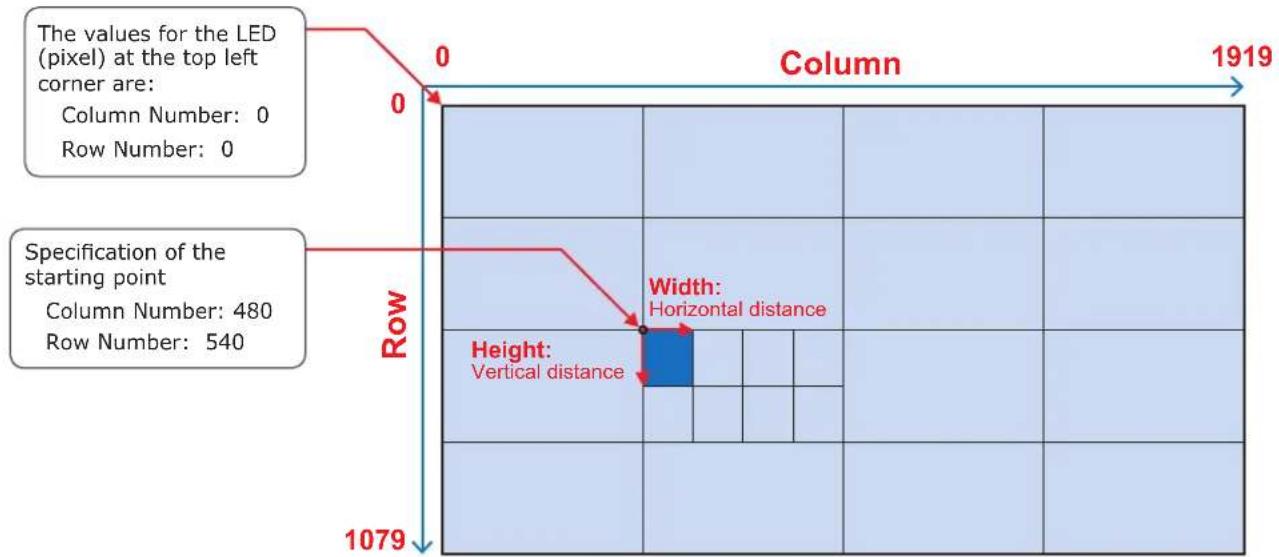
| Product name | LED-FA009i2LED-FE009i2 | LED-FA012i2LED-FA012i2-SBLED-FE012i2LED-FE012i2-E | LED-FA015i2LED-FA015i2-SBLED-FE015i2LED-FE015i2-E | LED-FA019i2LED-FE019i2LED-FE019i2-E |
| Pixel pitch 0.9 mm | 1.2 mm 1.5 mm | 1.9 mm | ||
| Number of displayed pixels (resolution/module) | Width 640Height 360 | Width 480Height 270 | Width 384Height 216 | Width 320Height 180 |
| Number of displayed pixels (resolution/pixel card) | Width 160Height 180 | Width 120Height 135 | Width 96Height 108 | Width 80Height 90 |
| Product name | LED-FA025i2LED-FE025i2 | LED-FA031i2LED-FE031i2 | LED-FA038i2LED-FE038i2 |
| Pixel pitch 2.5 mm | 3.1 mm 3.8 mm | ||
| Number of displayed pixels (resolution/module) | Width 240Height 135 | Width 192Height 108 | Width 160Height 90 |
| Number of displayed pixels (resolution/pixel card) | Width 60Height 135 | Width 48Height 90 | Width 40Height 45 |
Check that "Adjust Its Own Effect" is selected and click "Next" to start the calibration settings reading process.
The "Adjust Coefficients" screen is displayed when the data has been read.

(5)-3
Select by Topology or List: Adjust multiple modules
A screen with the display configuration is displayed. Specify the range of the modules you want to adjust.
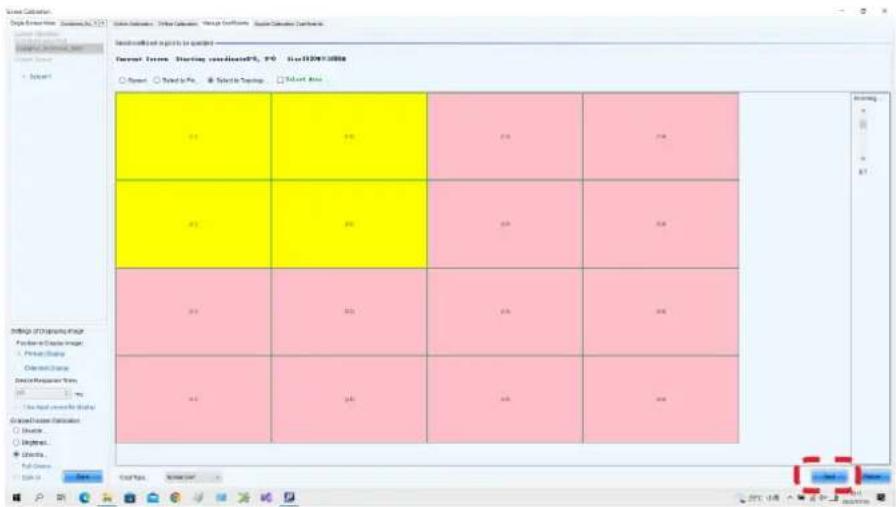
The calibration settings reading starts after "Next" is clicked.
The "Adjust Coefficients" screen is displayed when the data has been read.
(6) Adjust Coefficients screen
Click "Advanced Adjustment".

(7) Adjust the "Color adjustment of red, green and blue" parameters, and then adjust the "Color matching of red, green and blue" parameters.
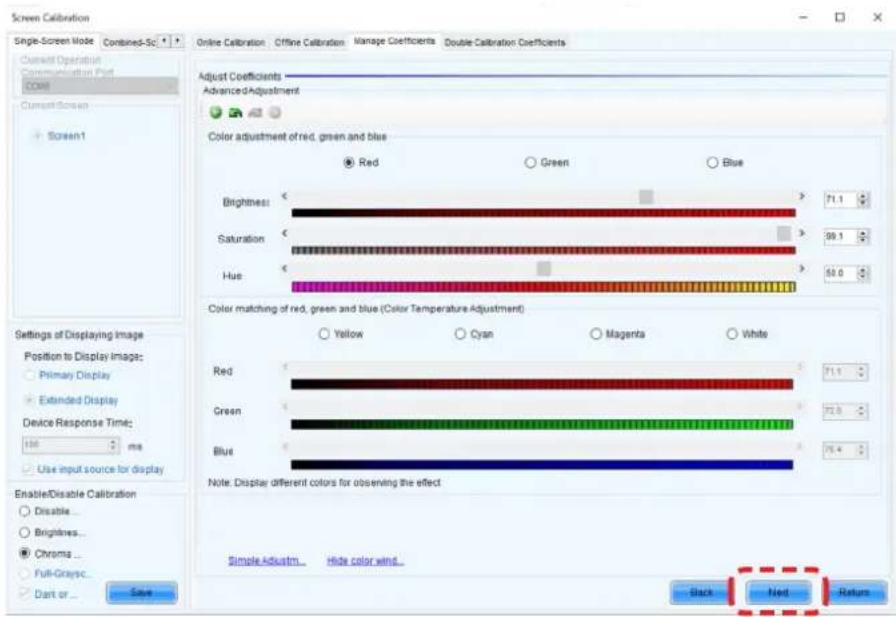
Click "Next" after you have finished the adjustment.
(8) Click "Save" to save the calibration settings you have adjusted.
(9) Click "Finish" to complete the procedure.

Note
To return the calibration adjustment values to their default setting, perform the "Update the Calibration Data" procedure (English-68).
3. State monitoring using the software
In case of a problem, you will be able to determine the location where it occurred by monitoring the state of the system.
3-1 Display under normal conditions
The display is green under normal conditions.

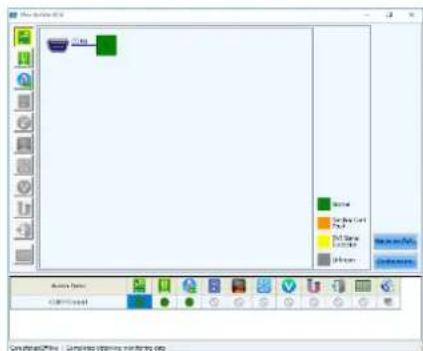
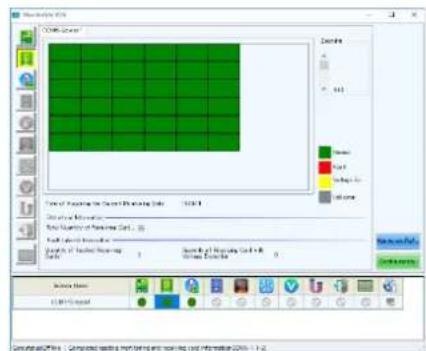

State of the LED controller State of the LED modules Temperature of the LED modules
3-2 Display under abnormal conditions
(1) Problem with the input signal to the LED controller
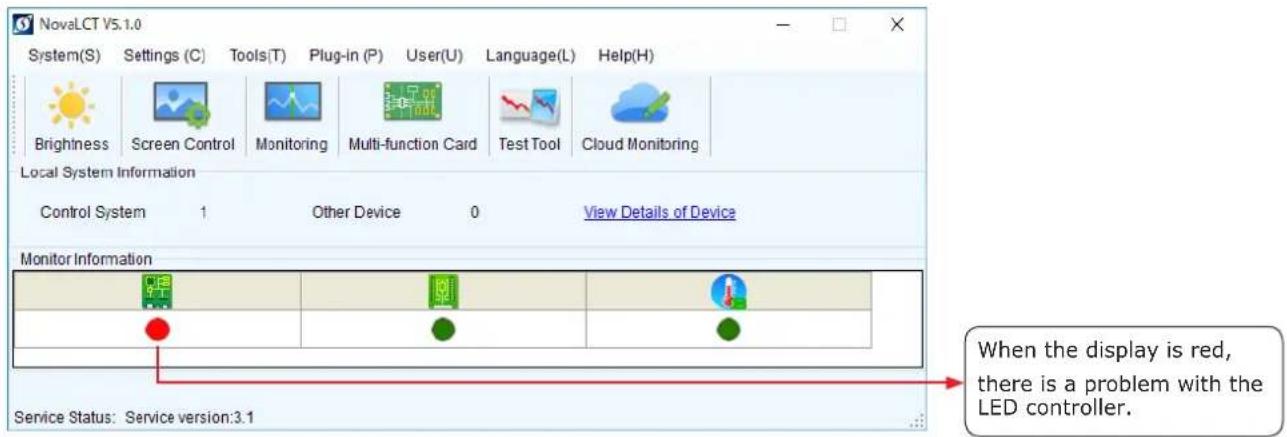
To display more details, click "Monitoring", and then click "Sending card" on the screen that is displayed.

(2) Problem with the LED modules
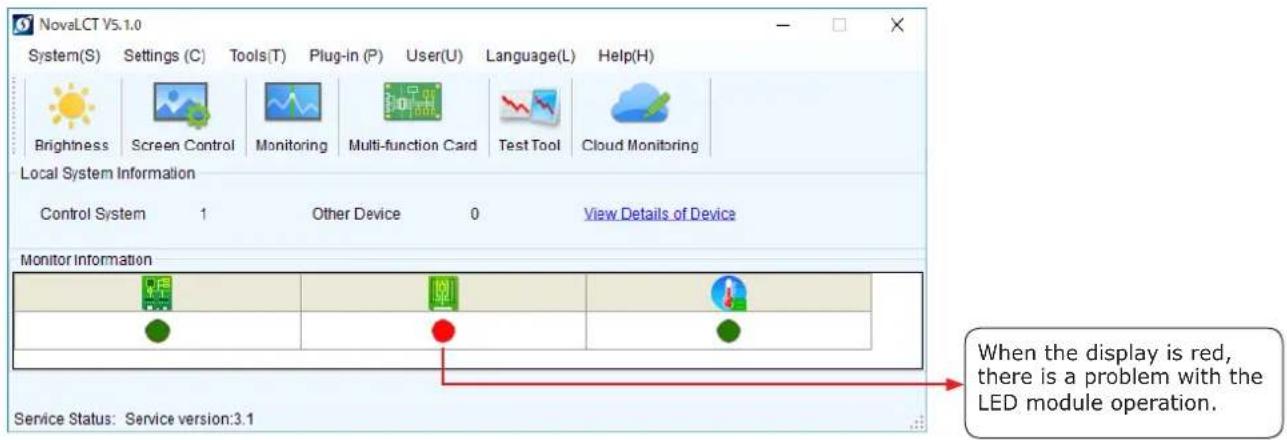
To display more details, click "Monitoring", and then click "Receiving card" on the screen that is displayed.
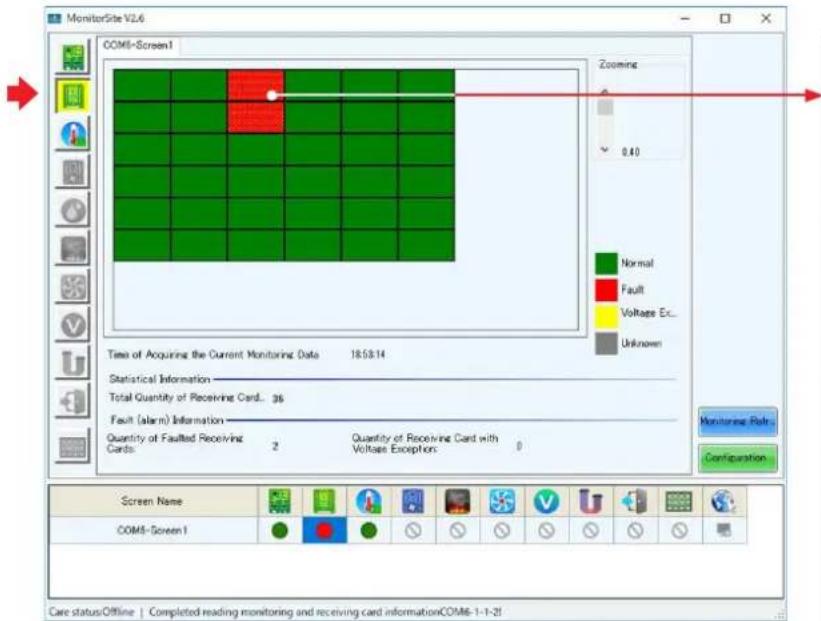
In the example shown on the left, the following problems must be considered.
- Signal loss between the screen of the 3rd row 3rd column and the screen of the 2nd row 3rd column
→ Check the internal LAN cable. - Problem with both power units of the screen of the 2nd row 3rd column → Check the rear indicator (red) to see if it is lit.

If it is not lit, the power unit is probably broken. (Replacing the power unit)
- Problem with the receiving card of the screen of the 2nd row 3rd column
→ Check that the receiving card is securely connected. If there are no connection problems, the receiving card may malfunction. (Replacing the receiving card)
(3) Problem with the internal temperature of the LED modules
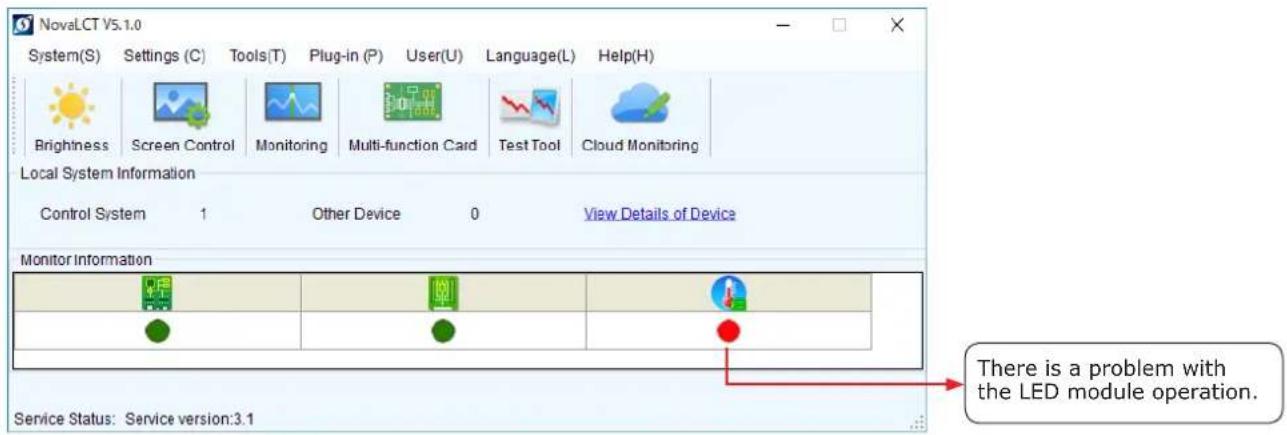
To display more details, click "Monitoring", and then click "Temperature" on the screen that is displayed.
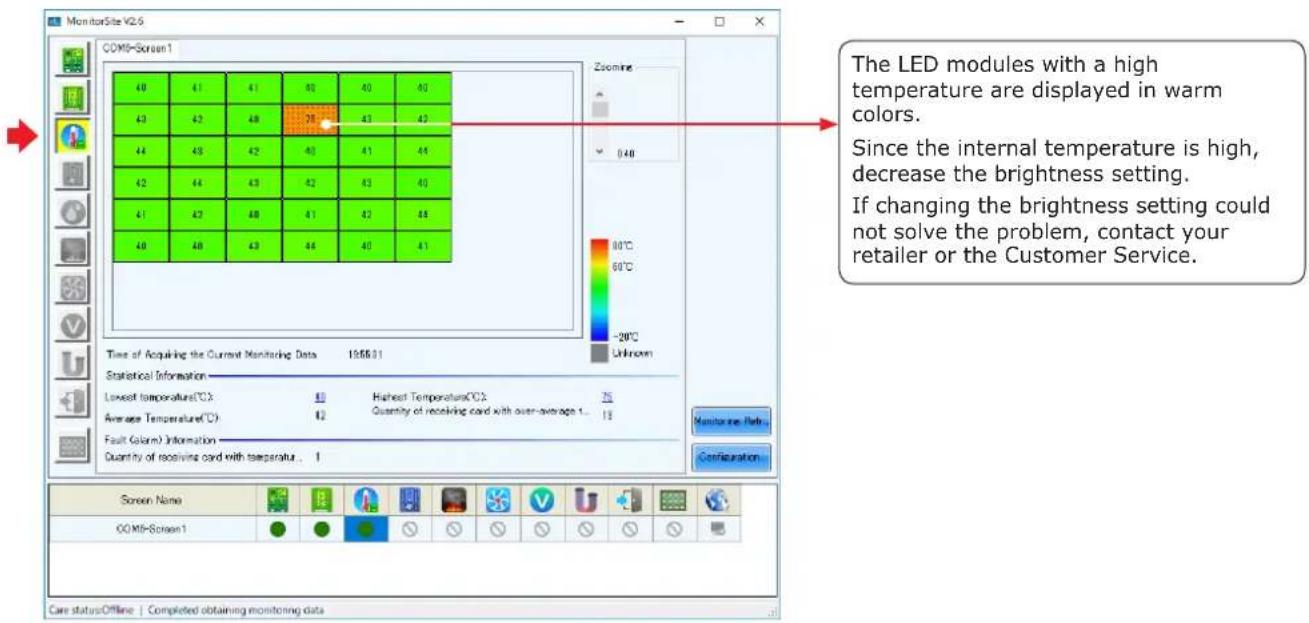
(4) Communication problem

4. Redundancy setting method
4.1 Configuring the settings with two LED controllers connected to the PC using LAN cables
Connect the LED controllers and the LED modules with LAN cables.
Terminate the Backup system connection at the RJ-45 connector located top left on the last module in the daisy chain connection.
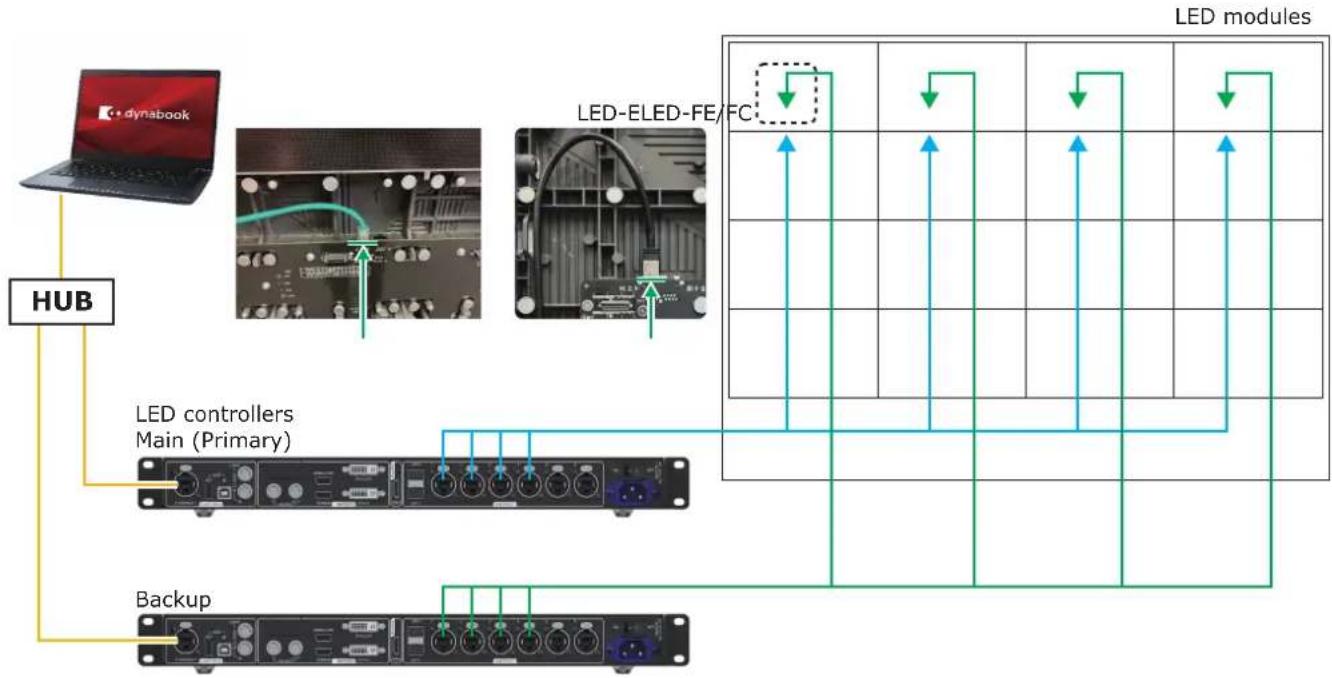
flowchart
graph TD
    A["HUB"] --> B["LED controllers Main (Primary)"]
    B --> C["LED-ELED-FE/FC"]
    C --> D["LED modules"]
    D --> E["Backup"]
    style A fill:#FFD700,stroke:#333
    style B fill:#F0F8C4,stroke:#333
    style C fill:#66B2FF,stroke:#333
    style D fill:#90EE90,stroke:#333
    style E fill:#FFF,stroke:#333
* For the MCTRL 4K LED controller, the way to make connections is similar to this example.
Start the control software NovaLCT and log in with the administrator privileges.
Display the login screen as follows: User(U) -> Advanced Synchronous System UserLogin(A). Enter the password ("admin") to log in with the administrator privileges.
Click "Screen Configuration".

| Communication Port | Device Type | Number of Devices | SN |
| 172.1.0.10.5200 | MCTRL4K | 1 | 002CF7010000_ |
| 172.1.0.11.5200 | MCTRL4K | 1 | 002CFD01000_ |
Check the port in "Select Communication Port", select the Main (Primary) and Backup system LED controllers by their IP address, and then click "Next".
Configure the settings for the Main (Primary) controller and Backup controller separately.

Main (Primary) Backup


On the Main (Primary) side
Click the "Restore Factory Settings" button for initialization.
After initialization, configure the settings for "Select Input Source" and "Source Configuration".
If the factory setting is correctly configured and the device connection is the same as when the factory setting was configured, check the settings without performing initialization.
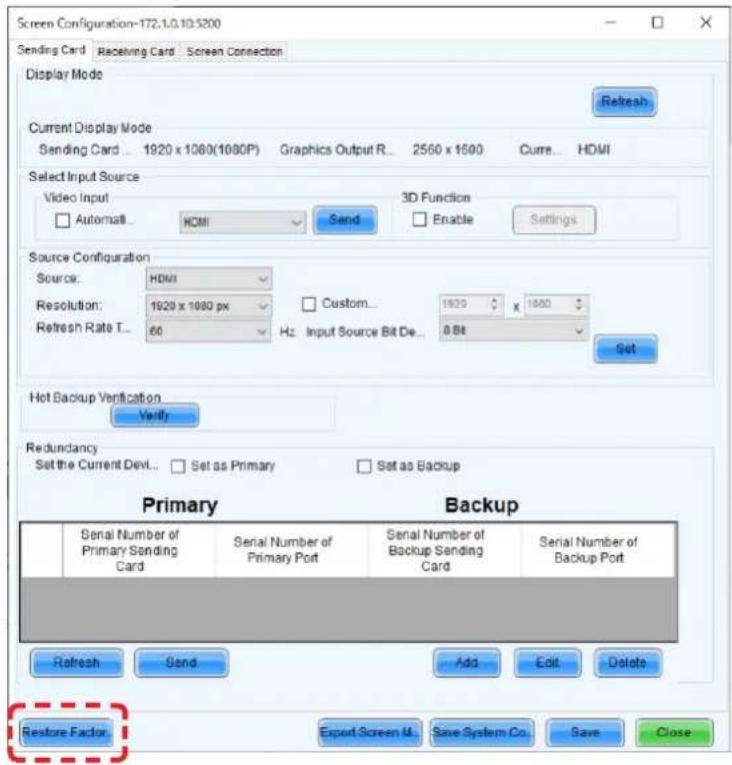
Main (Primary)
Select the Screen Connection tab.
Select/enter the value for "Screen Type", "Receiving Card Size", "Columns" and "Rows", and use "Ethernet Port No." and the screen configuration section to configure the connection.
* For details of the configuration procedure, refer to the User's Manual.
Next, select the Sending Card tab.
Go to "Redundancy", select the checkbox for "Set as Primary" and click "Save".
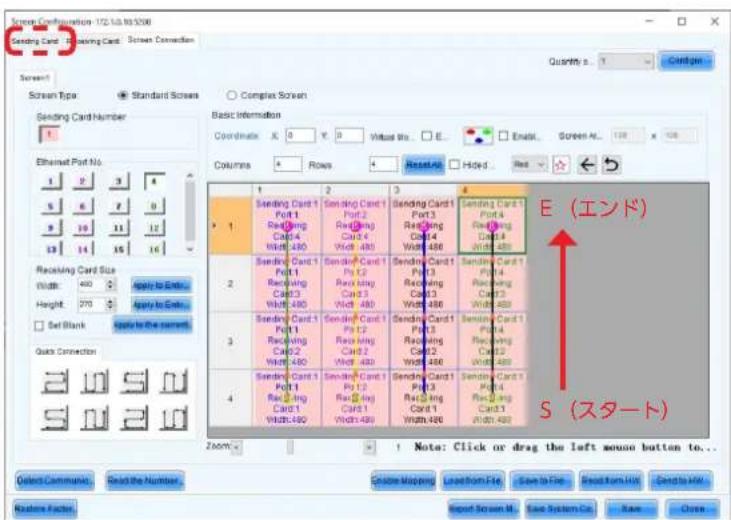

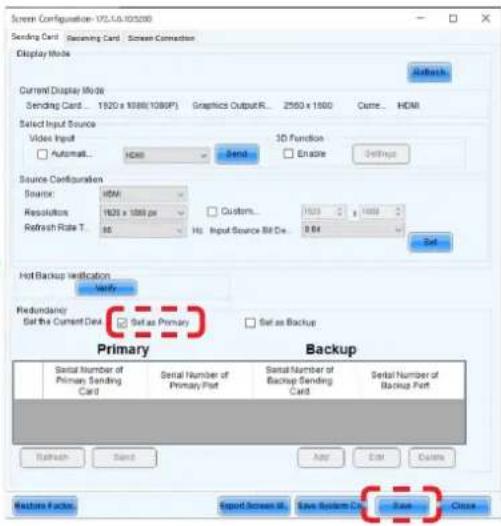
On the Backup side
Click the "Restore Factory Settings" button for initialization.
After initialization, configure the settings for "Select Input Source" and "Source Configuration".
If the factory setting is correctly configured and the device connection is the same as when the factory setting was configured, check the settings without performing initialization.
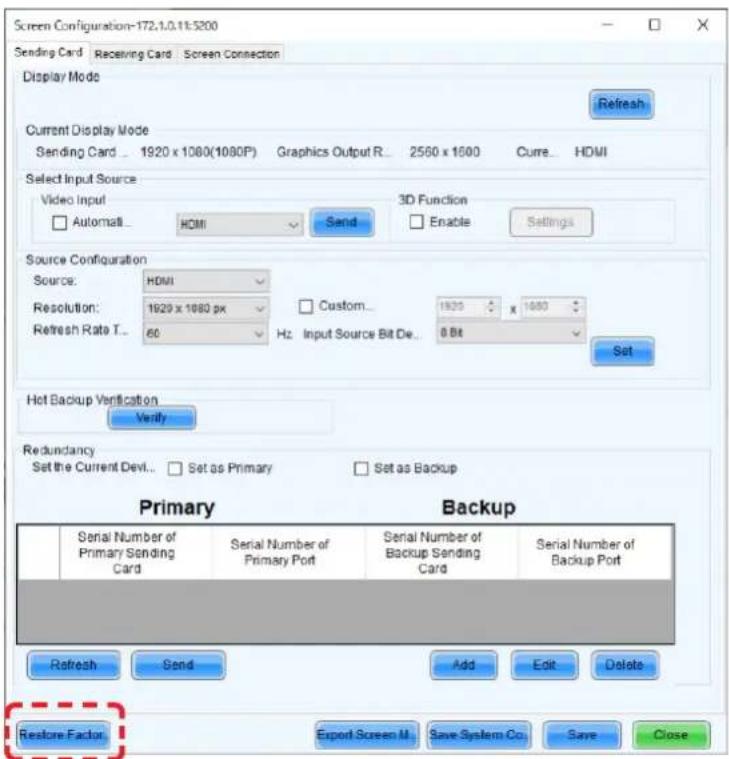
Backup
Select the Screen Connection tab.
Configure the connection in the same way as for Main (Primary).
* The direction of connection is the same as for Main (Primary).
Next, select the Sending Card tab.
Go to "Redundancy", select the checkbox for "Set as Backup" and click "Save".
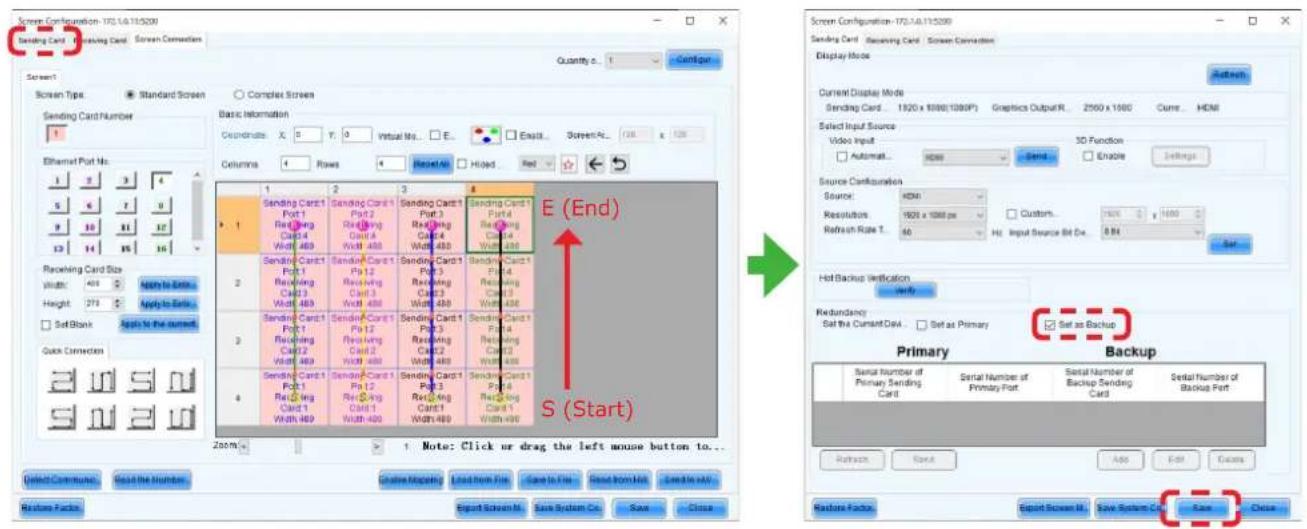
Check the current brightness setting.
Click the "Brightness" button.
In the Brightness Adjustment screen, set the desired brightness value and click the "Save to HW" button.
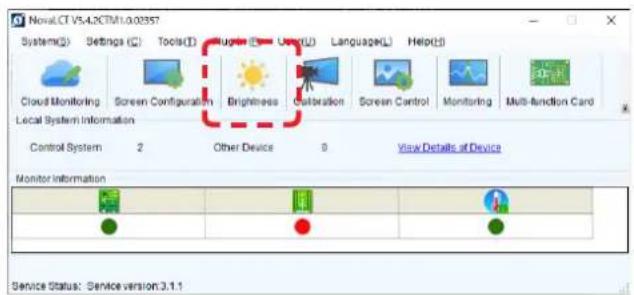

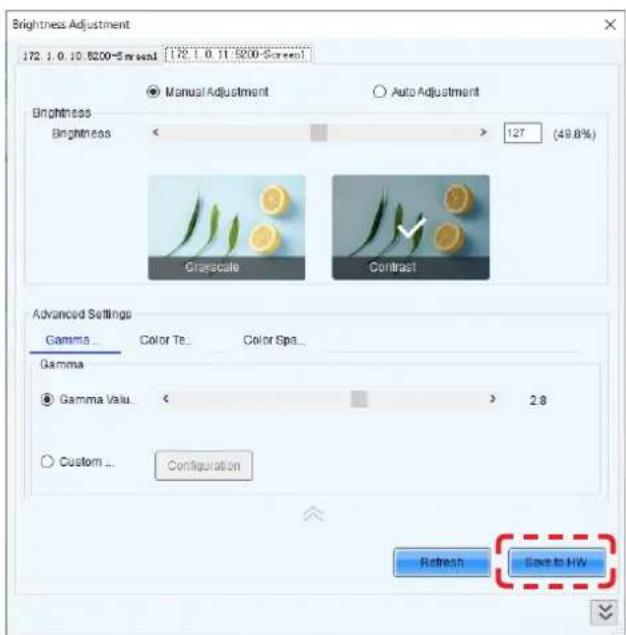
The monitoring screens appear like below.
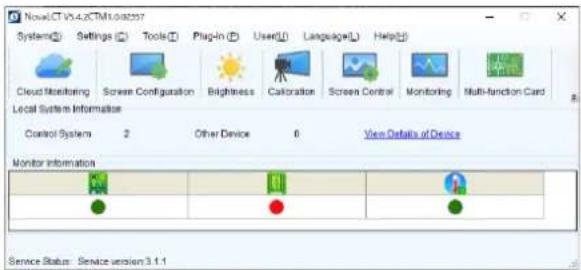
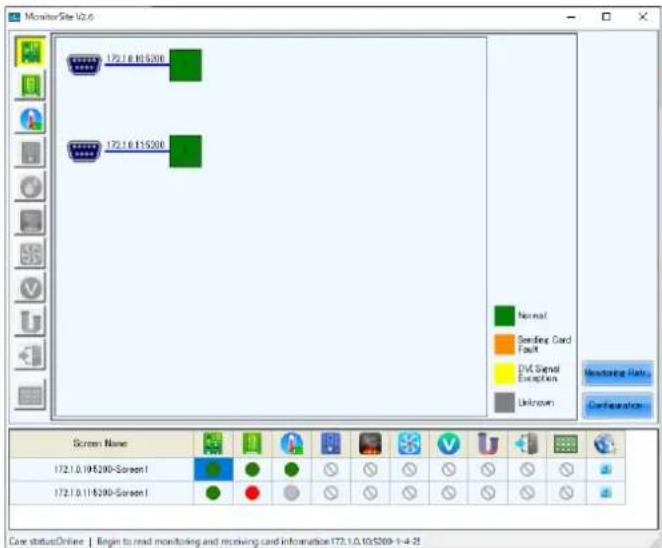

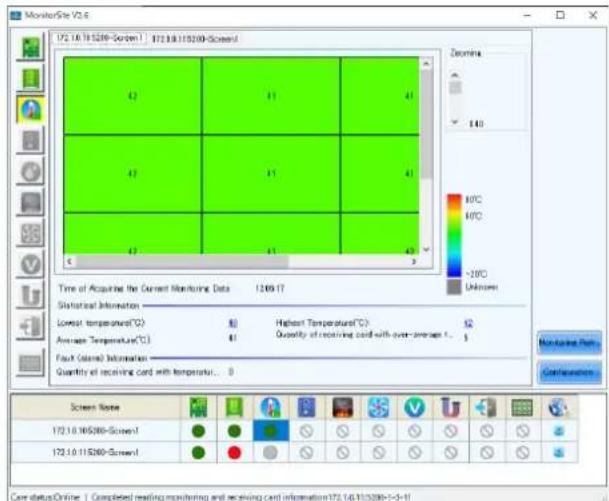
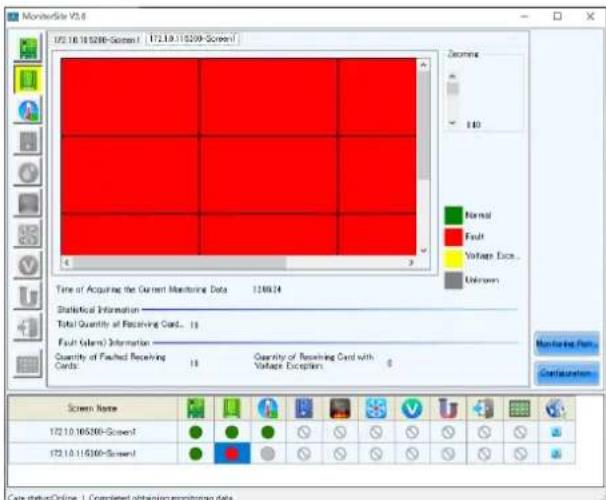
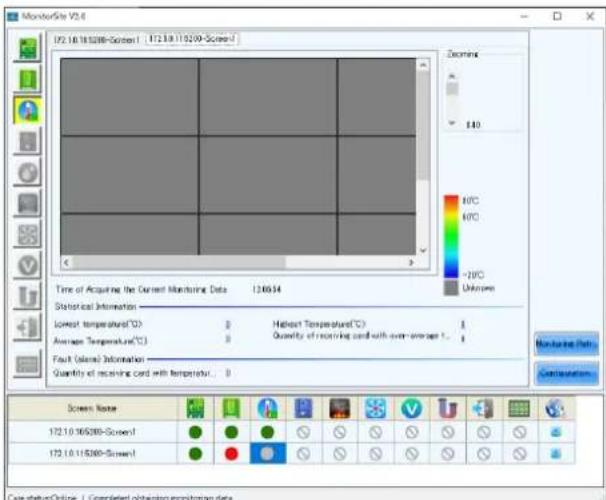
Note: On the monitoring screen, the LED modules configured as "Backup" are displayed in red color (this is not an indication of a fault).
If a fault occurs on modules configured as "Main (Primary)", "Backup" modules are displayed in green color, which is an indication of normal state.
"Main (Primary)" modules are operating normally
Main (Primary) Backup

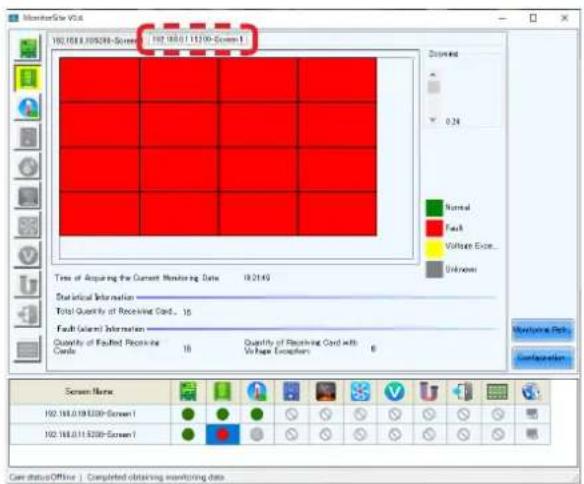
Modules connected to port 1 are operating as "Backup".
Main (Primary) Backup
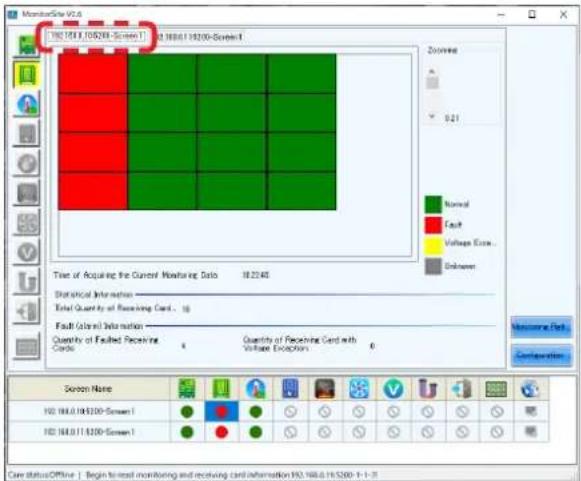

In the start-up screen of NovaLCT, the status indicator circle for "Monitor Information" receiving card becomes red in color.
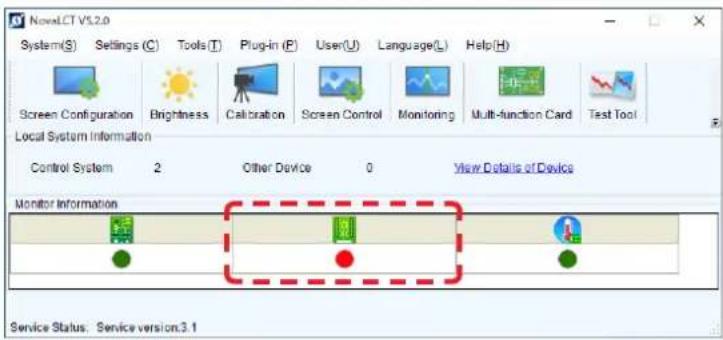
In the case of MCTRL 4K, the display of the LED controllers is as follows.
(This example display is for the case of connection using four Ethernet cables.)
Upper: Backup
Lower: Main (Primary)
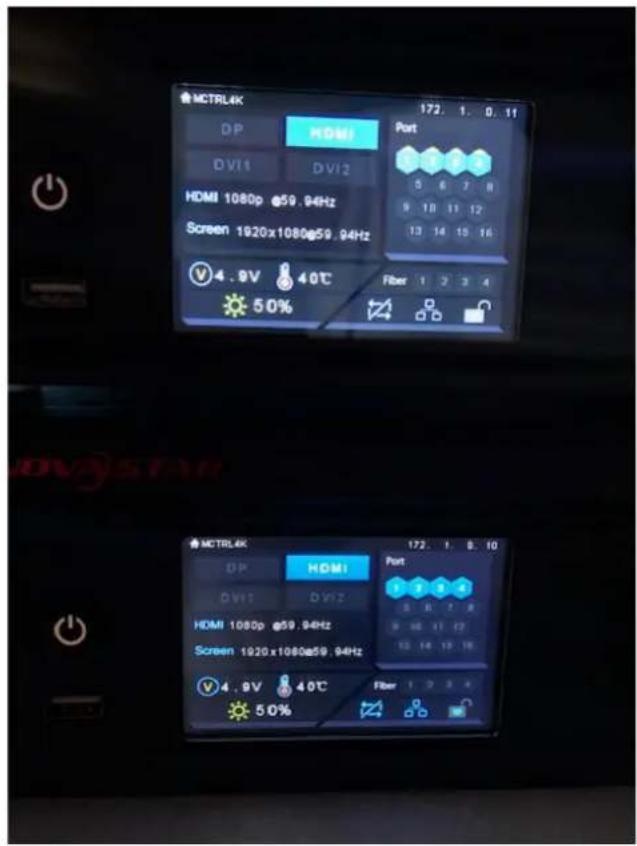
4.2 Configuring the settings with two LED controllers connected to the PC using USB cables
Connect the LED controllers and the LED modules with LAN cables.
Terminate the Backup system connection at the RJ-45 connector located top left on the last module in the daisy chain connection.
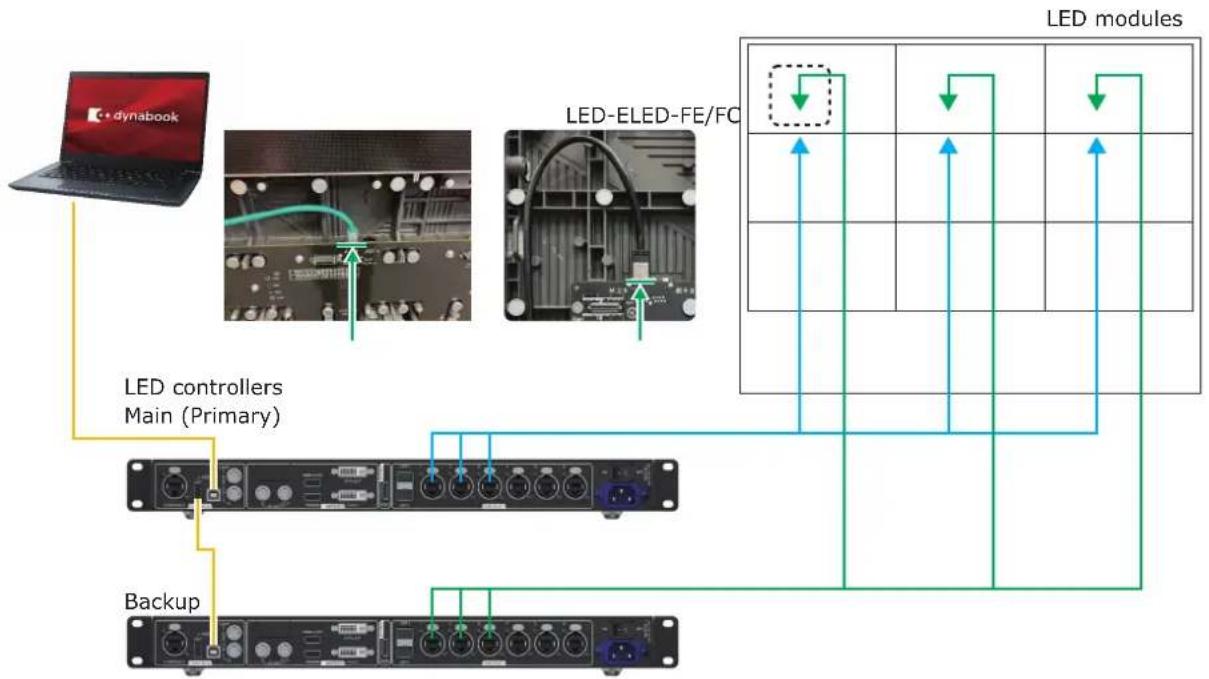
flowchart
graph TD
    A["Laptop"] --> B["LED controllers Main (Primary)"]
    B --> C["Server Rack"]
    C --> D["Backup"]
    D --> E["LED modules"]
    style A fill:#f9f,stroke:#333
    style B fill:#ccf,stroke:#333
    style C fill:#cfc,stroke:#333
    style D fill:#fcc,stroke:#333
    style E fill:#ffc,stroke:#333
* For the MCTRL 4K LED controller, the way to make connections is similar to this example.
Start the control software NovaLCT and log in with the administrator privileges.
Display the login screen as follows: User(U) -> Advanced Synchronous System UserLogin(A). Enter the password ("admin") to log in with the administrator privileges.
Click "Screen Configuration".

Select the port in "Select Communication Port", and then click "Next".
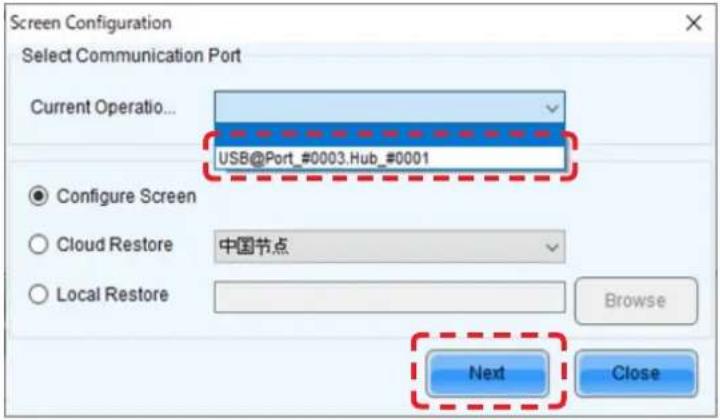
In the Screen Configuration screen that is displayed, select the "Sending Card" tab.
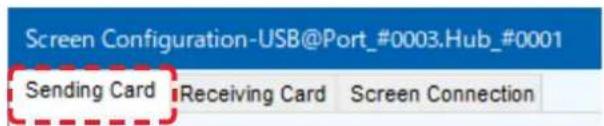
Click the "Restore Factory Settings" button for initialization.
After initialization, configure the settings for "Select Input Source" and "Source Configuration".
If the factory setting is correctly configured and the device connection is the same as when the factory setting was configured, check the settings without performing initialization.

Select the Screen Connection tab.
Select/enter the value for "Screen Type", "Receiving Card Size", "Columns" and "Rows", and use "Ethernet Port No." and the screen configuration section to configure the connection.
* For details of the configuration procedure, refer to the User's Manual.

Notes on the setting operation:
Perform these setting procedures prior to the redundancy settings configuration.
Make sure that the value of "Quantity of Screens" is 1.
(To change a different value to 1, click the Configur" button.)
It is not necessary to configure the settings for Sending Card 2.
When the settings configuration is complete, click the "Send to HW" button.
Select the Sending Card tab and click "Add".
The Redundancy Settings screen is displayed.
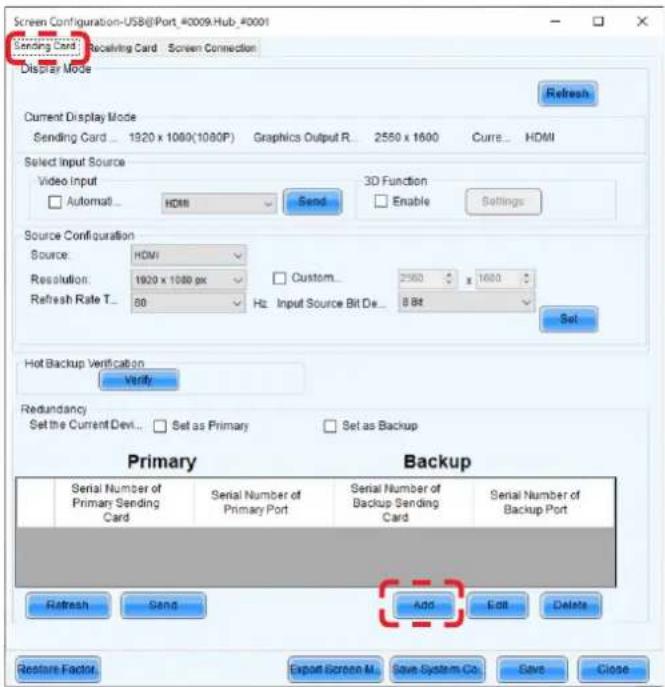

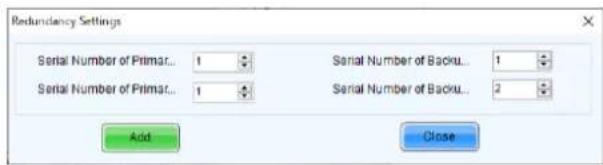
In the Redundancy Settings screen, set the Port number of the Backup side LED controller (Sending Card) that matches the Port number of the Primary side LED controller (Sending Card).
After entering the value, click the "Add" button.
In the LED configuration example (English-99), the settings are as follows.
| Serial Number of Primary Sending Card : 1 |
| Serial Number of Primary Port : 1 |
| Serial Number of Backup Sending Card : 2 |
| Serial Number of Backup Port : 1 |
| Serial Number of Primary Sending Card : 1 |
| Serial Number of Primary Port : 2 |
| Serial Number of Backup Sending Card : 2 |
| Serial Number of Backup Port : 2 |
| Serial Number of Primary Sending Card : 1 |
| Serial Number of Primary Port : 3 |
| Serial Number of Backup Sending Card : 2 |
| Serial Number of Backup Port : 3 |

When the settings configuration is complete, the Sending Card tab appears like below.
Click the "Send" button.
Click the "Save" button.
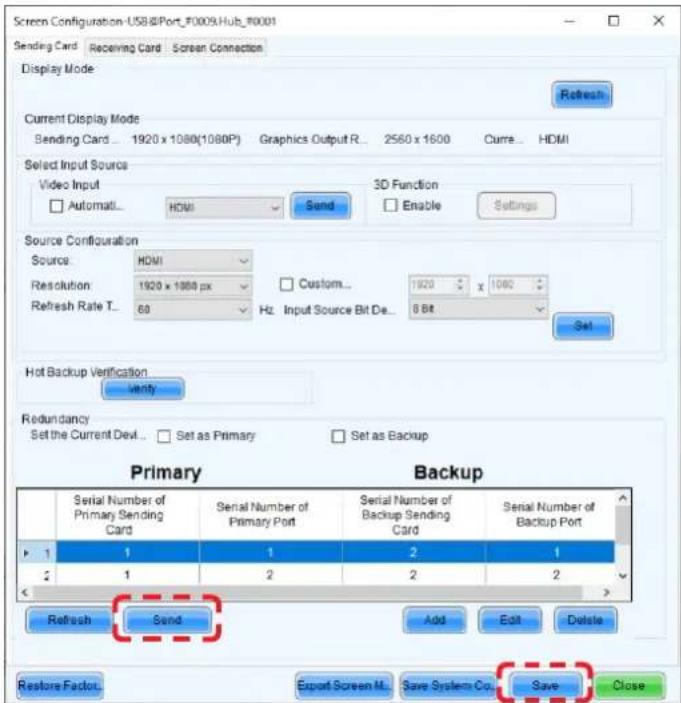
Check the current brightness setting.
Click the "Brightness" button.
In the Brightness Adjustment screen, set the desired brightness value and click the "Save to HW" button.
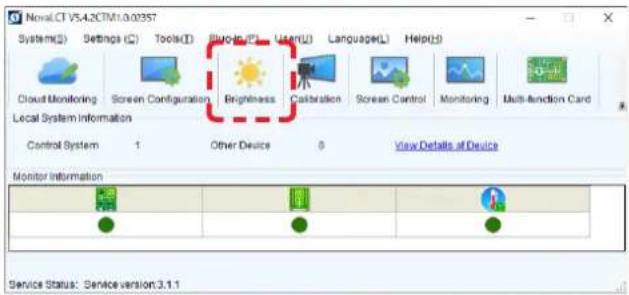
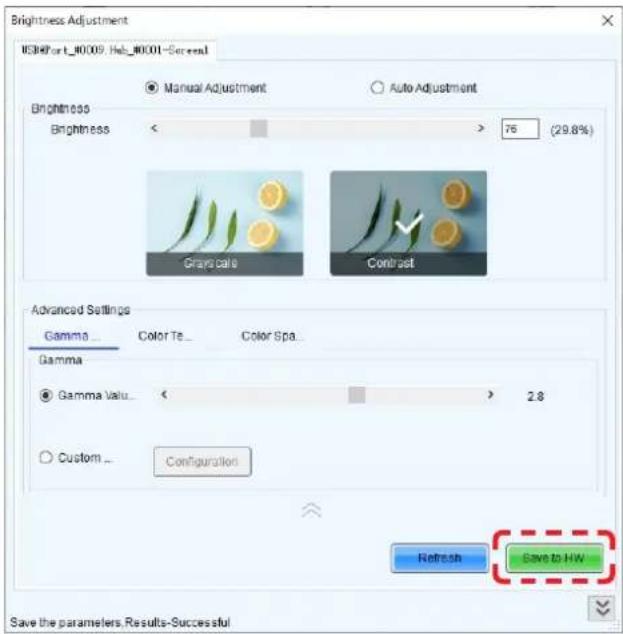
The monitoring screens appear like below.


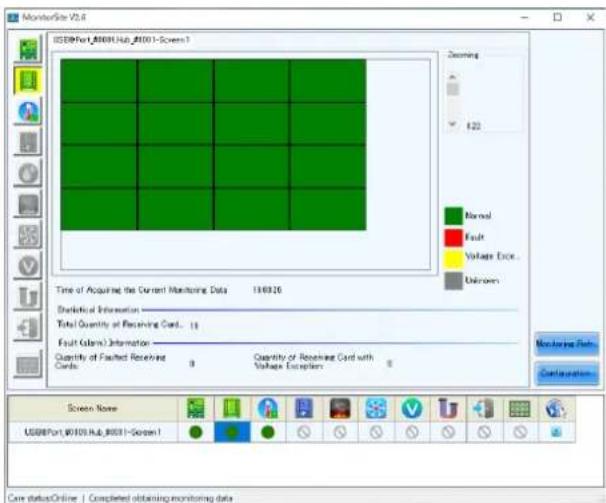

In the case of MCTRL 4K, the display of the LED controllers is as follows.
(This example display is for the case of connection using four Ethernet cables.)
Upper: Backup
Lower: Main (Primary)
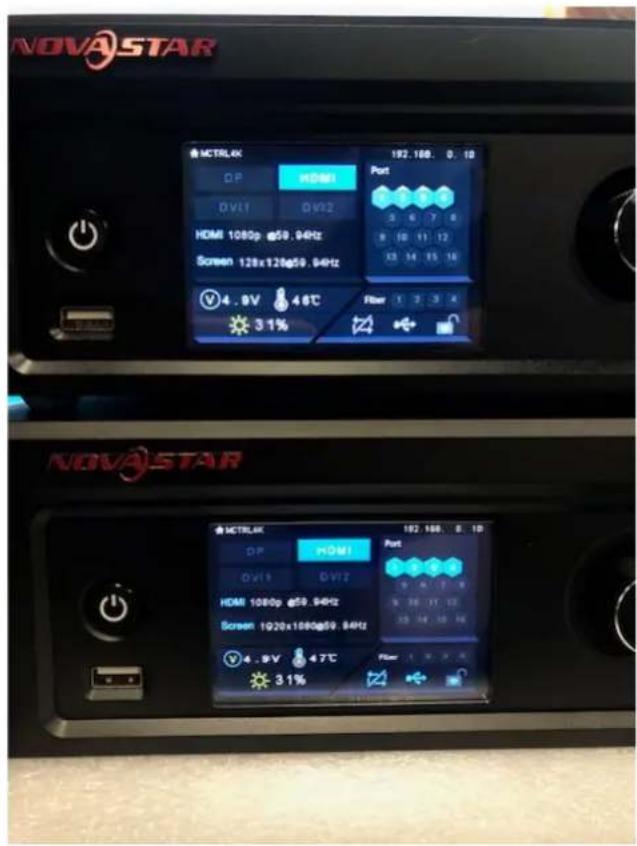
4.3 Configuring the settings with one LED controller connected to the PC using a USB cable
Connect the LED controllers and the LED modules with LAN cables.
Terminate the Backup system connection at the RJ-45 connector located top left on the last module in the daisy chain connection.
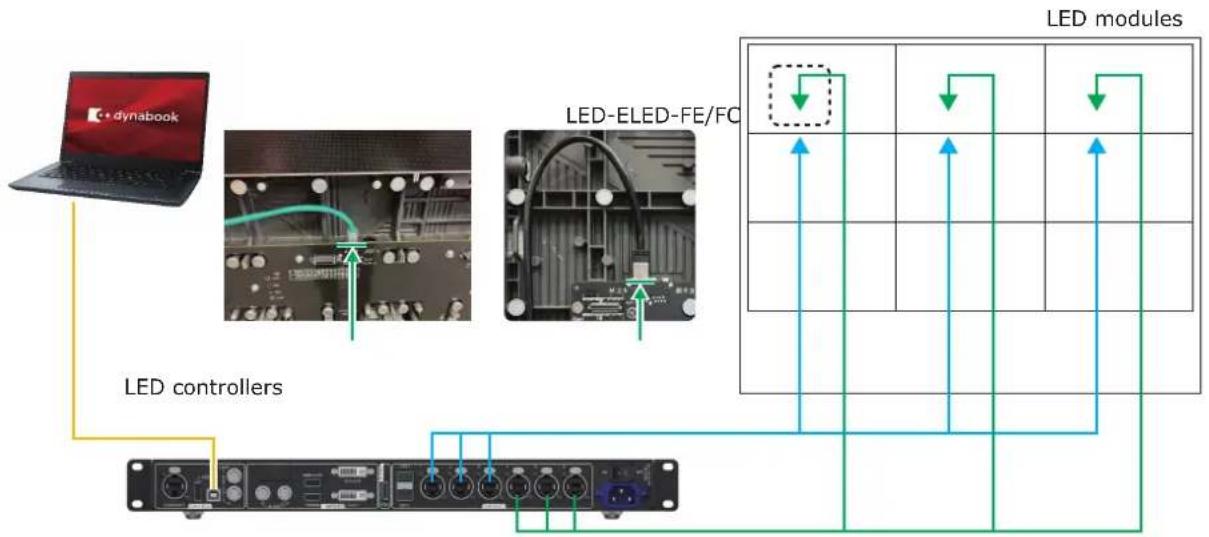
flowchart
graph TD
    A["Laptop"] --> B["LED controllers"]
    B --> C["LED ELED-FE/FC"]
    C --> D["LED modules"]
    D --> E["Output 1"]
    D --> F["Output 2"]
    D --> G["Output 3"]
    D --> H["Output 4"]
* For the MCTRL 4K LED controller, the way to make connections is similar to this example.
Start the control software NovaLCT and log in with the administrator privileges.
Display the login screen as follows: User(U) -> Advanced Synchronous System UserLogin(A). Enter the password ("admin") to log in with the administrator privileges.
Click "Screen Configuration".

Select the port in "Select Communication Port", and then click "Next".

Click the "Restore Factory Settings" button for initialization.
After initialization, configure the settings for "Select Input Source" and "Source Configuration".
If the factory setting is correctly configured and the device connection is the same as when the factory setting was configured, check the settings without performing initialization.
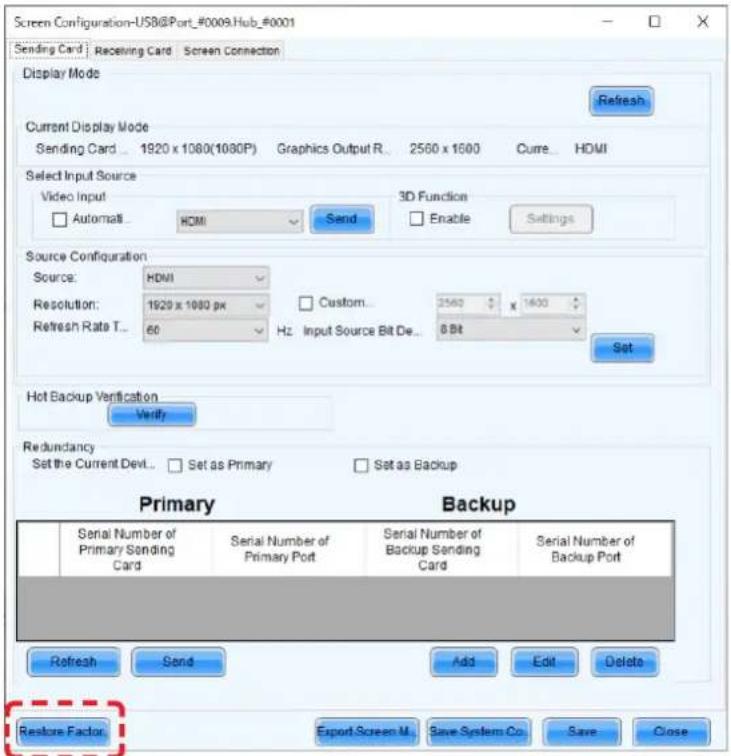
Select the Screen Connection tab.
Select/enter the value for "Screen Type", "Receiving Card Size", "Columns" and "Rows", and use "Ethernet Port No." and the screen configuration section to configure the connection.
* For details of the configuration procedure, refer to the User's Manual.
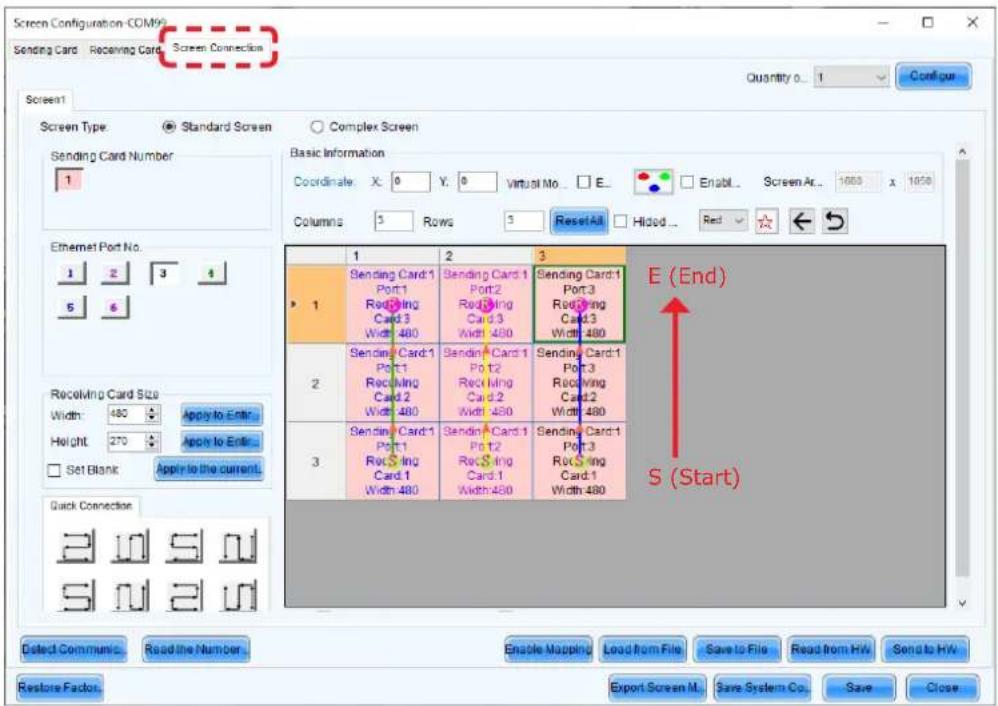
Notes on the setting operation:
Perform these setting procedures prior to the redundancy settings configuration.
Make sure that the value of "Quantity of Screens" is 1.
(To change a different value to 1, click the Configur" button.)
It is not necessary to configure the settings for Sending Card 2.
When the settings configuration is complete, click the "Send to HW" button.
Select the Sending Card tab and click "Add".
The Redundancy Settings screen is displayed.
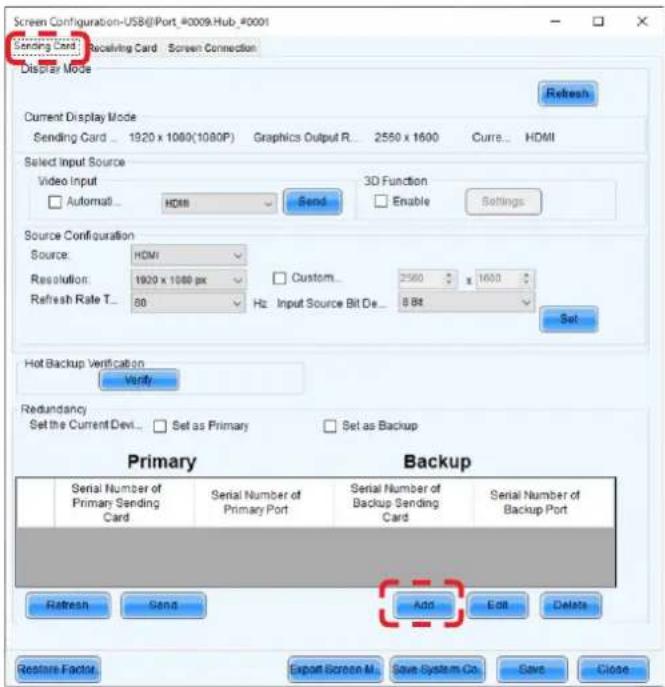


In the Redundancy Settings screen, set the Port to use on the LED controller.
In the LED configuration example (English-112), the settings are as follows. After entering the value, click the "Add" button.
Serial Number of Primary Sending Card : 1 Serial Number of Primary Port : 1 Serial Number of Backup Sending Card : 1 Serial Number of Backup Port : 4
Serial Number of Primary Sending Card : 1 Serial Number of Primary Port : 2 Serial Number of Backup Sending Card : 1 Serial Number of Backup Port : 5
Serial Number of Primary Sending Card : 1 Serial Number of Primary Port : 3 Serial Number of Backup Sending Card : 1 Serial Number of Backup Port : 6

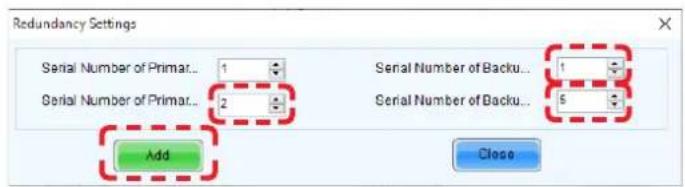
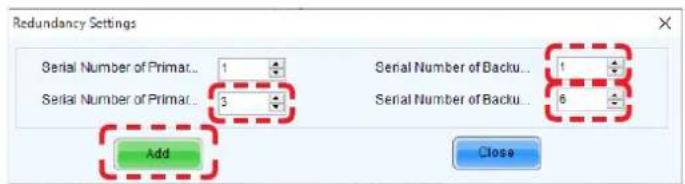
When the settings configuration is complete, the Sending Card tab appears like below.
Click the "Send" button.
Click the "Save" button.
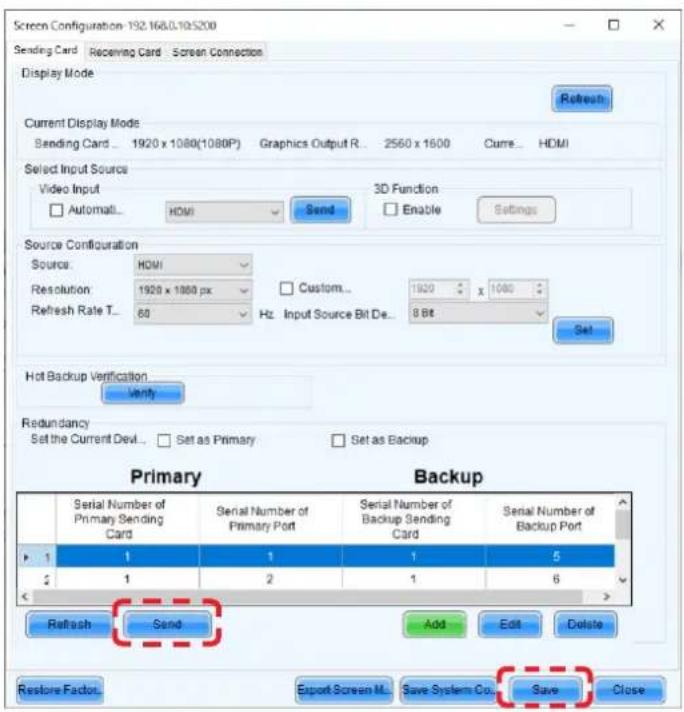
Check the current brightness setting.
Click the "Brightness" button.
In the Brightness Adjustment screen, set the desired brightness value and click the "Save to HW" button.
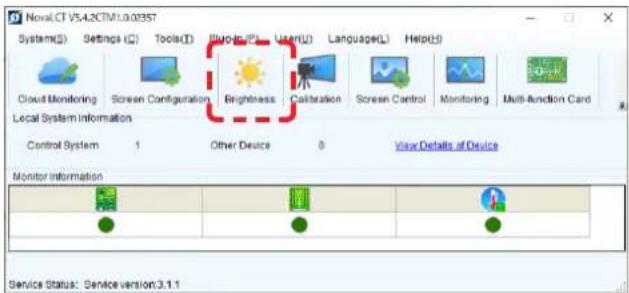
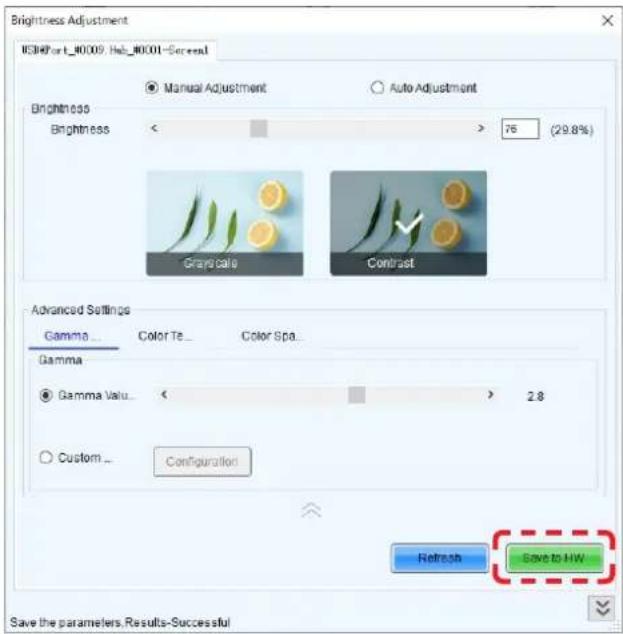
The monitoring screens appear like below.
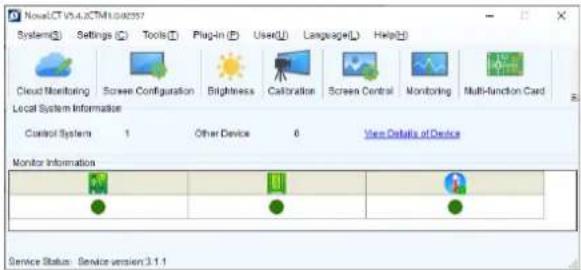
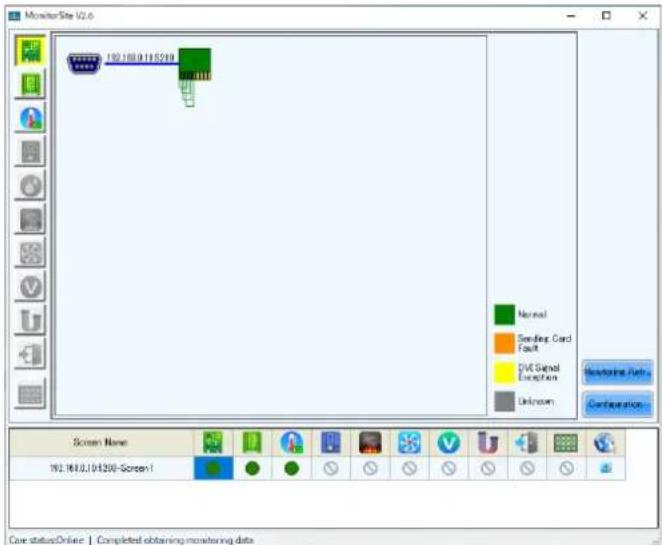


Specifications (FA series)
Models for indoor use
| LED-FA012i2 | LED-FA015i2 | LED-FA019i2 | LED- | FA025i2 | LED-FA | FA031i2 | LED-FA0 | 38i2 | ||
| LED configuration 3in1 SMD | ||||||||||
| Pixel pitch 1.27 mm 1.58 mm 1.90 mm 2.53 mm | 3.17 mm 3.80 mm | |||||||||
| Number of displayed pixels (resolution/module) | 480×270 38 | 4×216 320×180 | 240×135 192 | ×108 160×90 | ||||||
| Brightness 800 cd/m | 2 | 1200 cd/m2 | ||||||||
| Contrast ratio 5000:1 7000:1 | ||||||||||
| Brightness adjustment range 0 to 100% (256 increments) | ||||||||||
| Gamma correction 1.0 to 4.0 (default setting: 2.8) | ||||||||||
| Color temperature 3000 K to 9500 K (default setting: 6500 K) | ||||||||||
| Viewing angle Up 85°, Down 85°, Left 85°, Right 85° Up 70°, Down 70°, Left 80°, Right 80° | ||||||||||
| Signal interface S | signal input | 1×RJ-45 | ||||||||
| Signal output | 1×RJ-45 | |||||||||
| Power supply | 100 V AC to 240 V AC, 50 Hz/60 Hz | |||||||||
| Power consumption (all white, 100% brightness) | 125 W | 120 W | ||||||||
| IP rating | Front IP20 / Rear IP20 | |||||||||
| Maintenance | Front | |||||||||
| Dimensions | 608×342×49 mm | |||||||||
| Weight | 8.8 kg | |||||||||
| Operating environment | Temperature | -20 to 40°C | ||||||||
| Humidity | 10% to 80% (without condensation) | |||||||||
| Altitude | No more than 5000 m | |||||||||
| Storage environment | Temperature | -20 to 45°C | ||||||||
| Humidity | 10% to 85% (without condensation) | |||||||||
Specifications are subject to change without notice.
Models for indoor use
| LED-FA012i2-SB LED-FA015i2-SB LED-FA009i2 | |||
| LED configuration 3in1 SMD Super Black 4in1 SMD (IMD) | |||
| Pixel pitch 1.27 mm 1.58 mm 0.95 mm | |||
| Number of displayed pixels (resolution/module) | 480×270 384×216 640×360 | ||
| Brightness 400 cd/m | 2 | 600 cd/m2 | |
| Contrast ratio 5000:1 | |||
| Brightness adjustment range 0 to 100% (256 increments) | |||
| Gamma correction 1.0 to 4.0 (default setting: 2.8) | |||
| Color temperature 3000 K to 9500 K (default setting: 6500 K) | |||
| Viewing angle Up 70°, Down 70°, Left 70°, Right 70° | |||
| Signal interface Signal input | 1×RJ-45 | ||
| Power supply | 100 V AC to 240 V AC, 50 Hz/60 Hz | ||
| Power consumption (all white, 100% brightness) | 125 W | 150 W | |
| IP rating | Front IP20 / Rear IP20 | ||
| Maintenance | Front | ||
| Dimensions | 608×342×49 mm | ||
| Weight | 8.8 kg | ||
| Operating environment | Temperature | -20 to 40°C | |
| Humidity | 10% to 80% (without condensation) | ||
| Altitude | No more than 5000 m | ||
| Storage environment | Temperature | -20 to 45°C | |
| Humidity | 10% to 85% (without condensation) | ||
Specifications are subject to change without notice.
| LED-FA012i2-110LED-FA012i2-11N | LED-FA019i2-110LED-FA019i2-11N | LED-FA015i2-137LED-FA015i2-13N | LED-FA009i2-165LED-FA009i2-16N | LED-FA019i2-165LED-FA019i2-16N | ||
| Module configuration LED-FA012i2 | 4×4 | LED-FA019i24×4 | LED-FA015i25×5 | LED-FA009i26×6 | LED-FA019i26×6 | |
| LED configuration 3in1 SMD 4in1 SMD (IMD) 3in1 SMD | ||||||
| Pixel pitch 1.27 mm 1.90 mm 1.58 mm 0.95 mm 1.90 mm | ||||||
| Number of displayed pixels(resolution/module) | 1920×1080 1280×720 1920×1080 3840×2160 1920×1080 | |||||
| Brightness 800 cd/m | 2 | 600 cd/m2 | 800 cd/m2 | |||
| Contrast ratio 5000:1 | ||||||
| Brightness adjustment range 0 to 100% (256 increments) | ||||||
| Gamma correction 1.0 to 4.0 (default setting: 2.8) | ||||||
| Color temperature 3000 K to 9500 K (default setting: 6500 K) | ||||||
| Viewing angle Up 85°, Down 85°, Left 85°, Right 85° | Up 70°, Down 70°,Left 70°, Right 70° | Up 85°, Down 85°,Left 85°, Right 85° | ||||
| Signal interface | Signal input | 1×RJ-45 | ||||
| Signal output | 1×RJ-45 | |||||
| Power supply | 100 V AC to 240 V AC, 50 Hz/60 Hz | |||||
| Power consumption(all white, 100% brightness) | 2000 W | 2000 W | 3125 W | 5400 W | 4500 W | |
| IP rating | Front IP20 / Rear IP20 | |||||
| Maintenance | Front | |||||
| Dimensions | 2444×1475.5×78 mm | 2444×1475.5×78 mm | 3052×1817.5×78 mm | 3660×2159.5×78 mm | 3660×2159.5×78 mm | |
| Weight | 182 kg | 182 kg | 279 kg | 390.8 kg | 390.8 kg | |
| Operating environment | Temperature | -20 to 40°C | ||||
| Humidity | 10% to 80% (without condensation) | |||||
| Altitude | No more than 5000 m | |||||
| Storage environment | Temperature | -20 to 45°C | ||||
| Humidity | 10% to 85% (without condensation) | |||||
Specifications are subject to change without notice.
| LED-FA012i2-220LED-FA012i2-22N | LED-FA025i2-220LED-FA025i2-22N | LED-FA038i2-220LED-FA038i2-22N | ||
| Module configuration LED-FA012i2 | 8×8 | LED-FA025i28×8 | LED-FA038i28×8 | |
| LED configuration 3in1 SMD | ||||
| Pixel pitch 1.27 mm 2.53 mm 3.80 mm | ||||
| Number of displayed pixels (resolution/module) | 3840×2160 1920×1080 1280×720 | |||
| Brightness 800 cd/m | 2 | |||
| Contrast ratio 5000:1 | ||||
| Brightness adjustment range 0 to 100% (256 increments) | ||||
| Gamma correction 1.0 to 4.0 (default setting: 2.8) | ||||
| Color temperature 3000 K to 9500 K (default setting: 6500 K) | ||||
| Viewing angle Up 85°, Down 85°, Left 85°, Right 85° | ||||
| Signal interface Signal input 1×RJ-45 | ||||
| Signal output 1×RJ-45 | ||||
| Power supply | 100 V AC to 240 V AC, 50 Hz/60 Hz | |||
| Power consumption (all white, 100% brightness) | 8000 W | 7680 W | 7680 W | |
| IP rating | Front IP20 / Rear IP20 | |||
| Maintenance | Front | |||
| Dimensions | 4876×2843.5×78 mm | 4876×2843.5×78 mm | 4876×2843.5×78 mm | |
| Weight | 659.2 kg | 659.2 kg | 659.2 kg | |
| Operating environment | Temperature | -20 to 40°C | ||
| Humidity | 10% to 80% (without condensation) | |||
| Altitude | No more than 5000 m | |||
| Storage environment | Temperature | -20 to 45°C | ||
| Humidity | 10% to 85% (without condensation) | |||
Specifications are subject to change without notice.
Specifications (FE series)
Models for indoor use
| LED-FE012i2 | LED-FE015i2 | LED-FE019i2 | LED-FE025i2 | LED-FE031i2 | LED-FE038i2 | ||
| LED configuration 3in1 SMD | |||||||
| Pixel pitch 1.27 mm 1.58 mm 1.90 mm 2.53 mm | 3.17 mm 3.80 mm | ||||||
| Number of displayed pixels (resolution/module) | 480×270 38 | 4×216 320×180 | 240×135 192 | ×108 160×90 | |||
| Brightness 700 cd/m | 2 | 1000 cd/m2 | |||||
| Contrast ratio 4000:1 5000:1 | |||||||
| Brightness adjustment range 0 to 100% (256 increments) | |||||||
| Gamma correction 1.0 to 4.0 (default setting: 2.8) | |||||||
| Color temperature 3000 K to 9500 K (default setting: 6500 K) | |||||||
| Viewing angle Up 80°, Down 80°, Left 80°, Right 80° Up 70°, Down 70°, Left 80°, Right 80° | |||||||
| Signal interface S | signal input 1×RJ-45 | ||||||
| Signal output | 1×RJ-45 | ||||||
| Power supply | 100 V AC to 240 V AC, 50 Hz/60 Hz | ||||||
| Power consumption (all white, 100% brightness) | 125 W | 120 W | |||||
| IP rating | Front IP20 / Rear IP20 | ||||||
| Maintenance | Front | ||||||
| Dimensions | 608×342×49 mm | ||||||
| Weight | 8.8 kg | ||||||
| Operating environment | Temperature | -20 to 40°C | |||||
| Humidity | 10% to 80% (without condensation) | ||||||
| Altitude | No more than 5000 m | ||||||
| Storage environment | Temperature | -20 to 45°C | |||||
| Humidity | 10% to 85% (without condensation) | ||||||
Specifications are subject to change without notice.
Models for indoor use
| LED-FE009i2 | ||
| LED configuration 4in1 SMD (IMD) | ||
| Pixel pitch 0.95 mm | ||
| Number of displayed pixels (resolution/module) | 640×360 | |
| Brightness 600 cd/m | 2 | |
| Contrast ratio 5000:1 | ||
| Brightness adjustment range 0 to 100% (256 increments) | ||
| Gamma correction 1.0 to 4.0 (default setting: 2.8) | ||
| Color temperature 3000 K to 9500 K (default setting: 6500 K) | ||
| Viewing angle Up 70°, Down 70°, Left 70°, Right 70° | ||
| Signal interface Signal input 1×RJ-45 | ||
| Signal output 1×RJ-45 | ||
| Power supply 100 V AC to 240 V AC, 50 Hz/60 Hz | ||
| Power consumption (all white, 100% brightness) | 150 W | |
| IP rating Front IP20 / Rear IP20 | ||
| Maintenance Front | ||
| Dimensions 608×342×49 mm | ||
| Weight | 8.8 kg | |
| Operating environment | Temperature | -20 to 40°C |
| Humidity | 10% to 80% (without condensation) | |
| Altitude | No more than 5000 m | |
| Storage environment | Temperature | -20 to 45°C |
| Humidity | 10% to 85% (without condensation) | |
Specifications are subject to change without notice.
Models for indoor use
| LED-FE012i2-E | LED-FE015i2-E | LED-FE019i2-E | ||
| LED configuration 3in1 SMD | ||||
| Pixel pitch 1.27 mm 1.58 mm 1.90 mm | ||||
| Number of displayed pixels (resolution/module) | 480×270 384 | ×216 320×180 | ||
| Brightness 600 cd/m | 2 | |||
| Contrast ratio 4000:1 | ||||
| Brightness adjustment range 0 to 100% (256 increments) | ||||
| Gamma correction 1.0 to 4.0 (default setting: 2.8) | ||||
| Color temperature 3000 K to 9500 K (default setting: 6500 K) | ||||
| Viewing angle Up 80°, Down 80°, Left 80°, Right 80° | ||||
| Signal interface Signal input 1×RJ-45 | ||||
| Signal output 1×RJ-45 | ||||
| Power supply 100 V AC to 240 V AC, 50 Hz/60 Hz | ||||
| Power consumption (all white, 100% brightness) | 125 W | |||
| IP rating | Front IP20 / Rear IP20 | |||
| Maintenance | Front | |||
| Dimensions | 608×342×49 mm | |||
| Weight | 8.8 kg | |||
| Operating environment | Temperature | -20 to 40°C | ||
| Humidity | 10% to 80% (without condensation) | |||
| Altitude | No more than 5000 m | |||
| Storage environment | Temperature | -20 to 45°C | ||
| Humidity | 10% to 85% (without condensation) | |||
Specifications are subject to change without notice.
| LED-FE012i2-110/LED-FE012i2-11N | LED-FE019i2-110/LED-FE019i2-11N | LED-FE015i2-137/LED-FE015i2-13N | LED-FE009i2-165/LED-FA009i2-16N | LED-FE019i2-165/LED-FE019i2-16N | ||
| Module configuration LED-FE012i2 | 4×4 | LED-FE019i24×4 | LED-FE015i25×5 | LED-FE009i26×6 | LED-FE019i26×6 | |
| LED configuration 3in1 SMD 4in1 SMD (IMD) 3in1 SMD | ||||||
| Pixel pitch 1.27 mm 1.90 mm 1.58 mm 0.95 mm 1.90 mm | ||||||
| Number of displayed pixels (resolution/module) | 1920 × 1080 1280 × 720 1920 × | 1080 3840 × 2160 | 1920 × 1080 | |||
| Brightness 700 cd/m | 2 | 600 cd/m2 | 700 cd/m2 | |||
| Contrast ratio 4000:1 5000:1 4000:1 | ||||||
| Brightness adjustment range 0 to 100% (256 increments) | ||||||
| Gamma correction 1.0 to 4.0 (default setting: 2.8) | ||||||
| Color temperature 3000 K to 9500 K (default setting: 6500 K) | ||||||
| Viewing angle Up 80°, Down 80°, Left 80°, Right 80° | Up 70°, Down 70°, Left 70°, Right 70° | Up 80°, Down 80°, Left 80°, Right 80° | ||||
| Signal interface | Signal input | 1×RJ-45 | ||||
| Signal output | 1×RJ-45 | |||||
| Power supply | 100 V AC to 240 V AC, 50 Hz/60 Hz | |||||
| Power consumption (all white, 100% brightness) | 2000 W | 2000 W | 3125 W | 5400 W | 4500 W | |
| IP rating | Front IP20 / Rear IP20 | |||||
| Maintenance | Front | |||||
| Dimensions | 2444×1475.5×78 mm | 2444×1475.5×78 mm | 3052×1817.5×78 mm | 3660×2159.5×78 mm | 3660×2159.5×78 mm | |
| Weight | 182 kg | 182 kg | 279 kg | 390.8 kg | 390.8 kg | |
| Operating environment | Temperature | -20 to 40°C | ||||
| Humidity | 10% to 80% (without condensation) | |||||
| Altitude | No more than 5000 m | |||||
| Storage environment | Temperature | -20 to 45°C | ||||
| Humidity | 10% to 85% (without condensation) | |||||
Specifications are subject to change without notice.
| LED-FE012i2-220/LED-FE012i2-22N | LED-FE025i2-220/LED-FE025i2-22N | LED-FE038i2-220/LED-FE038i2-22N | ||
| Module configuration LED-FE012i2 | 8×8 | LED-FE025i28×8 | LED-FE038i28×8 | |
| LED configuration 3in1 SMD | ||||
| Pixel pitch 1.27 mm 2.53 mm 3.80 | mm | |||
| Number of displayed pixels (resolution/module) | 3840 × 2160 1920 × 1080 1280 × 720 | |||
| Brightness 700 cd/m | 2 | 1000 cd/m2 | ||
| Contrast ratio 4000:1 5000:1 | ||||
| Brightness adjustment range 0 to | 100% (256 increments) | |||
| Gamma correction 1.0 to 4.0 (default setting: 2.8) | ||||
| Color temperature 3000 K to 9500 | K (default setting: 6500 K) | |||
| Viewing angle | Up 80°, Down 80°, Left 80°, Right 80° | Up 70°, Down 70°, Left 80°, Right 80° | ||
| Signal interface Signal input 1×RJ-45 | ||||
| Signal output 1×RJ-45 | ||||
| Power supply | 100 V AC to 240 V AC, 50 Hz/60 Hz | |||
| Power consumption (all white, 100% brightness) | 8000 W | 7680 W | 7680 W | |
| IP rating | Front IP20 / Rear IP20 | |||
| Maintenance | Front | |||
| Dimensions | 4876×2843.5×78 mm | 4876×2843.5×78 mm | 4876×2843.5×78 mm | |
| Weight | 659.2 kg | 659.2 kg | 659.2 kg | |
| Operating environment | Temperature | -20 to 40°C | ||
| Humidity | 10% to 80% (without condensation) | |||
| Altitude | No more than 5000 m | |||
| Storage environment | Temperature | -20 to 45°C | ||
| Humidity | 10% to 85% (without condensation) | |||
Specifications are subject to change without notice.
| LED-FE012i2-E11/LED-FE012i2-EFN | LED-FE019i2-E11/LED-FE019i2-EHN | LED-FE015i2-E13/LED-FE015i2-EFN | LED-FE019i2-E16/LED-FE019i2-EFN | LED-FE012i2-E22/LED-FE012i2-EUN | ||
| Module configuration LED-FE012i2 | E4×4 | LED-FE019i2-E4×4 | LED-FE015i2-E5×5 | LED-FE019i2-E6×6 | LED-FE012i2-E8×8 | |
| LED configuration 3in1 SMD | ||||||
| Pixel pitch 1.27 mm 1.90 mm 1.58 | mm 1.90 mm 1.27 mm | |||||
| Number of displayed pixels(resolution/module) | 1920 × 1080 1280 × 720 1920 × | 1080 1920 × 1080 | 3840 × 2160 | |||
| Brightness 600 cd/m | 2 | |||||
| Contrast ratio 4000:1 | ||||||
| Brightness adjustment range 0 to | 100% (256 increments) | |||||
| Gamma correction 1.0 to 4.0 (default setting: 2.8) | ||||||
| Color temperature 3000 K to 9500 | K (default setting: 6500 K) | |||||
| Viewing angle Up 80°, Down 80°, | Left 80°, Right 80° | |||||
| Signal interface Signal input 1×RJ-45 | ||||||
| Signal output 1×RJ-45 | ||||||
| Power supply | 100 V AC to 240 V AC, 50 Hz/60 Hz | |||||
| Power consumption (all white,100% brightness) | 2000 W | 2000 W | 3125 W | 4500 W | 8000 W | |
| IP rating | Front IP20 / Rear IP20 | |||||
| Maintenance | Front | |||||
| Dimensions | 2444×1475.5×78 mm | 2444×1475.5×78 mm | 3052×1817.5×78 mm | 3660×2159.5×78 mm | 4876×2843.5×78 mm | |
| Weight | 182 kg | 182 kg | 279 kg | 390.8 kg | 659.2 kg | |
| Operating environment | Temperature | -20 to 40°C | ||||
| Humidity | 10% to 80% (without condensation) | |||||
| Altitude | No more than 5000 m | |||||
| Storage environment | Temperature | -20 to 45°C | ||||
| Humidity | 10% to 85% (without condensation) | |||||
Specifications are subject to change without notice.
LED-FA009i2, LED-FA012i2, LED-FA012i2-SB, LED-FA015i2, LED-FA015i2-SB, LED-FA019i2, LED-FA031i2, LED-FA038i2 LED-FE009i2, LED-FE012i2, LED-FE015i2, LED-FE019i2, LED-FE031i2, LED-FE038i2, LEDFE012i2-E, LED-FE015i2-E, LED-FE019i2-E

natural_image
Pure electrical circuit lines without any symbols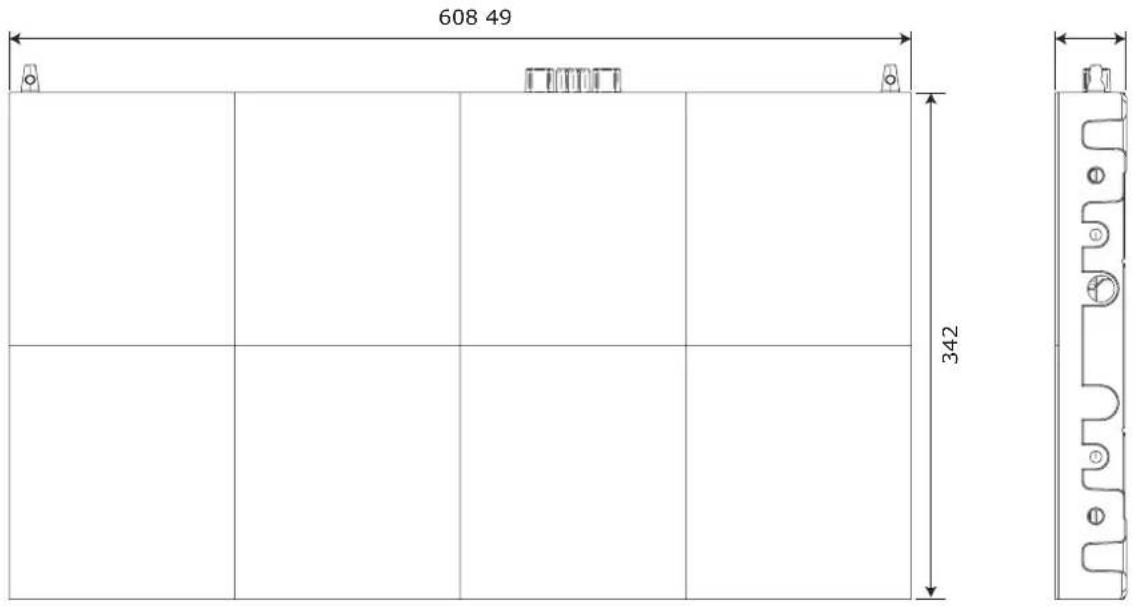
Rear
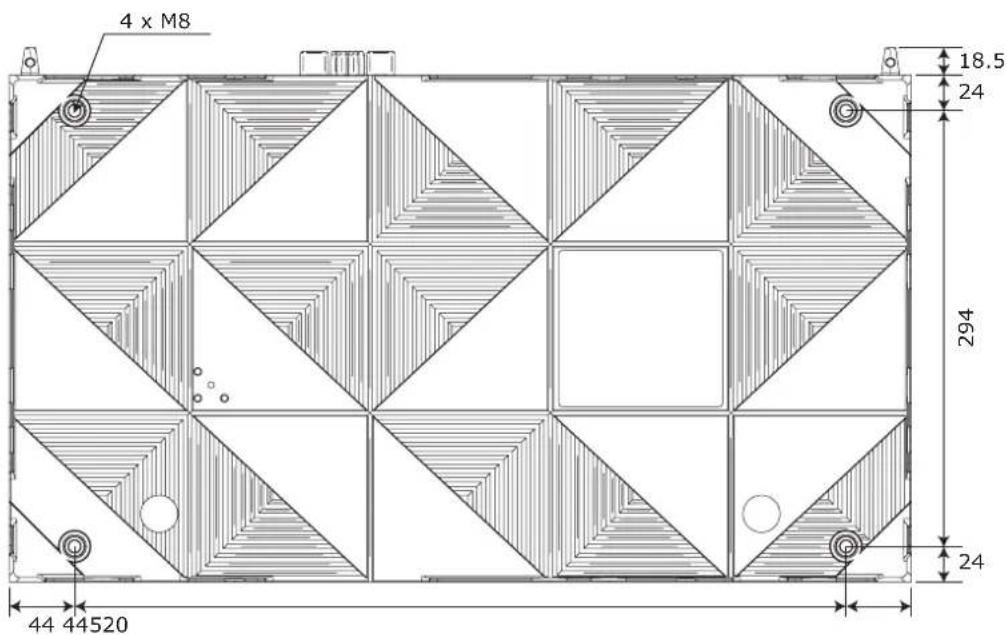
(Unit: mm)
LED-FA025i2, LED-FE025i2
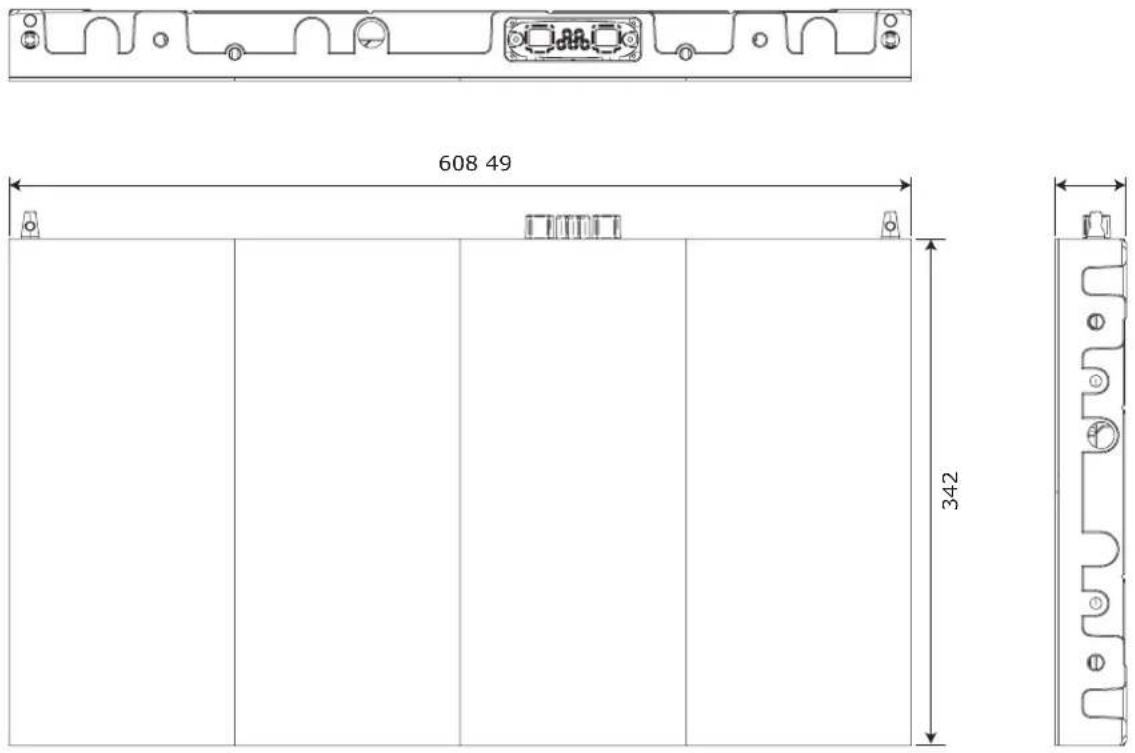
Rear
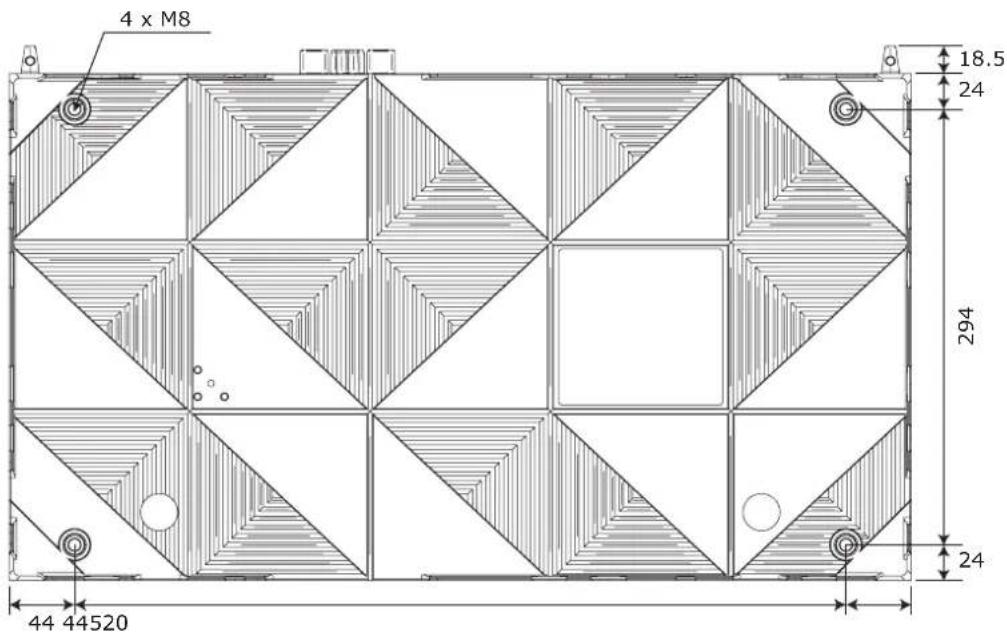
(Unit: mm)
Adjustment plate

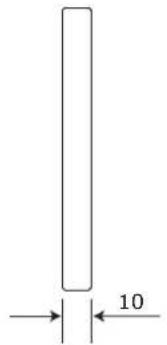
(Unit: mm)


- Installation and Maintenance manual
- Important Information......English-1
- Parts Name ....English-5
- Model name list....English-8
- Contents....English-9
- Installation Example ......English-16
- Screen Configuration....English-60
- Image Setting ....English-71
- Cleaning ....English-81
- Maintenance....English-82
- Troubleshooting ....English-87
- Specifications (FA series)......English-117
- Specifications (FE series) ...... English-121
- Diagram ......English-127
- Safety Precautions and Maintenance
- About the Symbols
- WARNING
- CAUTION
- Recommended Use & Maintenance
- About the LED lamps
- Lamp break-in
- About the Pixel card
- When using other than the top (Type A)
- When used at the top (Type B)
- When connecting a LAN cable from the middle (Type A')
- Installation location
- Handle
- Mark the positions of the anchor points on the wall
- Make the holes at the anchor positions
- Preparing mounting bar
- Attaching mounting bar connector
- Removing mounting bar connector
- Install the mounting bars
- Install the power bar
- How to remove the power bar cover
- Install the cabinet hanger pins to the back of the cabinets
- Install the cabinets
- How to connect the power cord (FA series)
- How to connect the power cord (FE series)
- CAUTION:
- Assembly diagrams
- Installation without a frame set
- Wiring
- Maximum number of signal connections
- Maximum number of power connections
- Connection when using a wall-mount frame
- FA series
- FE series
- Backside hole cabinet
- Cables for backside hole cabinet
- [Info] For fixing the cable
- Precautions on use of the power connector (WAGO)
- Installation precautions
- How to connect the power cord
- Power code connection checking
- LAN cable connection
- Installing the pixel card
- Preparingfor using NovaLCT software
- Enter the screen configuration menu
- Module connection settings
- Configure the connection.
- Receiving card settings
- Update the Calibration Data
- Click on "Module Flash".
- Click the "View Module Calibration Coefficients" button.
- Line calibration
- Cleaning method
- Removing a pixel card
- Removing and installing the hub board
- Removing the hub board
- Installing the hub board
- Replacing the power unit
- Replacing the receiving card
- Adjusting the colors on a part of the screen
- Select by Topology or List: Adjust multiple modules
- Note
- State monitoring using the software
- 3-1 Display under normal conditions
- 3-2 Display under abnormal conditions
- Problem with the input signal to the LED controller
- Problem with the LED modules
- Problem with the internal temperature of the LED modules
- Redundancy setting method
- Configuring the settings with two LED controllers connected to the PC using LAN cables
- On the Main (Primary) side
- On the Backup side
- Backup
- Configuring the settings with two LED controllers connected to the PC using USB cables
- Configuring the settings with one LED controller connected to the PC using a USB cable
- Specifications (FA series)
- Specifications (FE series)
Brand : NEC
Model : LED-FA038i2
Category : Tracking