
Redbox RB-DS2R - Audio Equipment Sonifex - Free user manual and instructions
Find the device manual for free Redbox RB-DS2R Sonifex in PDF.


| Product Type | Remote Switch Panel for RB-DS2 Stereo Delay Synchroniser |
| Dimensions (Raw) | 28 cm (W) x 10.8 cm (D) x 4.2 cm (H) (1U half-rack) |
| Weight (Net) | 1.0 kg |
| Power Supply | Powered via connection to RB-DS2 (12V DC) |
| Main Functions | Remote control of delay presets, bypass, and time zone selection for RB-DS2 |
| Controls | Multiple push-buttons for preset selection and bypass, with LED indicators |
| Connections | DB9 serial connector for connection to RB-DS2 |
| Construction | Steel chassis with anodised aluminium front panel |
| Mounting | Desk or rack-mount using optional RB-RK1 kit |
| Maintenance | Clean with a soft dry cloth; do not use solvents |
| Safety | No user-serviceable parts; disconnect power before cleaning; ensure proper earthing |
| Spare Parts & Repairability | Contact Sonifex for service and parts; product must be returned for repair |
| General Information | Designed and manufactured in the UK by Sonifex Ltd; part of the Redbox series |
Frequently Asked Questions - Redbox RB-DS2R Sonifex
User questions about Redbox RB-DS2R Sonifex
0 question about this device. Answer the ones you know or ask your own.
Ask a new question about this device
Download the instructions for your Audio Equipment in PDF format for free! Find your manual Redbox RB-DS2R - Sonifex and take your electronic device back in hand. On this page are published all the documents necessary for the use of your device. Redbox RB-DS2R by Sonifex.
USER MANUAL Redbox RB-DS2R Sonifex
RB-ADDA Combined A/D and D/A Converter (24 bit, 96kHz Capable) (1U)
RB-ADDA2 Combined A/D and D/A Converter (24 bit, 192kHz Capable) (1U)
RB-SC1 Sample Rate Converter (24 bit, 96kHz Capable)
RB-SC2 Dual Sample Rate Converter (24 bit, 192kHz Capable)
RB-DAC1 Digital to Analogue Converter
RB-SP1 Digital Splitter & Combiner
RB-SYA Analogue Video Sync Board For RB-SC2 (PAL, NTSC, SECAM)
RB-SYD Digital Video Sync Board For RB-SC2 (HD-SDI, SD-SDI)
RB-SYE AES/EBU Sync Board For RB-TGHD(B or X)
RB-SYW Word Clock Sync Board
RB-DS2 Stereo Delay Synchroniser & Time-Zone Delay (1U)
Manufacturers of audio & video
products for radio & TV broadcasters
SONIFEX
Redbox Handbook 1
For the latest Sonifex handbook information please visit the Sonifex website at www.sonifex.co.uk
This handbook is for use with the following product:
Redbox User Handbook No 1
Stock Code: 30-335
Artwork: AW10838
Revision 3.06, March 2020
©Sonifex Ltd, 2020
All Rights Reserved
Sonifex Ltd, 61, Station Road, Irthlingborough,
Northants, NN9 5QE, England.
Tel: +44 (0)1933 650 700
Fax: +44 (0)1933 650 726
Email: sales@sonifex.co.uk
Website: https://www.sonifex.co.uk
Information in this document is subject to change without notice and does not represent a commitment on the part of the vendor. Sonifex Ltd shall not be liable for any loss or damage whatsoever arising from the use of information or any error contained in this manual.
No part of this manual may be reproduced or transmitted in any form or by any means, electronic or mechanical, including photocopying, recording, information storage and retrieval systems, for any purpose other than the purchaser's personal use, without the express written permission of Sonifex Ltd. Unless otherwise noted, all names of companies, products and persons contained herein are part of a completely fictitious adaptation and are designed solely to document the use of Sonifex product.
Made in the UK by SONIFEX
Contents
Contents
Product Warranty - 2 Year Extended ii
Sonifex Warranty & Liability Terms & Conditions ii
-
Definitions ii
-
Warranty ii
Unpacking Your Product iii
Repairs & Returns iv
CE Conformity iv
Safety & Installation of Mains Operated Equipment iv
Voltage Setting Checks iv
Fuse Rating iv
Power Cable & Connection iv
WEEE Directive v
Atmosphere/Environment v
Fitting Redboxes v
1 RB-ADDA Combined A/D and D/A Converter 1
Introduction 1
System Block Diagram 2
Front Panel Indicators 2
Rear Panel Connections and Operation 2
Technical Specifications RB-ADDA 6
2 RB-ADDA2 Combined A/D and D/A Converter 24bit 192kHz 7
Introduction 7
System Block Diagram 9
Front Panel Controls & Indicators 9
Rear Panel Connections and Operation 10
Serial Port Control 12
Serial Interface Commands and Responses 12
Upgrading Firmware 14
Technical Specifications RB-ADDA2 14
3 RB-SC1 Sample Rate Converter 16
Introduction 16
System Block Diagram 16
Front Panel Indicators 17
Rear Panel Connections and Operation 17
Technical Specifications RB-SC1 19
4 RB-SC2 Dual Sample Rate Converter 21
Introduction 21
Installing the Optional Video Sync Boards 23
Opening the RB-SC2 23
System Block Diagram 24
Front Panel Controls & Indicators 25
Rear Panel Connections and Operation 26
Serial Port Control 27
Serial Interface Commands and Responses 27
Upgrading Firmware 28
Technical Specification RB-SC2 29
5 RB-DAC1 Digital to Analogue Converter 30
Introduction 30
System Block Diagram 30
Front Panel Indicators & Controls 31
Rear Panel Connections and Operation 31
Technical Specifications RB-DAC1 33
6 RB-SP1 Digital Splitter & Combiner 34
Introduction 34
System Block Diagram 34
Front Panel Indicators & Controls 35
Rear Panel Connections and Operation 36
Technical Specifications RB-SP1 38
7 Redbox - Synchronisation Add-On Boards 39
Introduction 39
RB-SYA Analogue Video Sync Board 39
RB-SYD Digital Video Sync Board 39
RB-SYE Sync Board 40
RB-SYW Sync Board 40
8 RB-DS2 Stereo Delay Synchroniser & Time Zone Delay 41
Introduction 41
Extended Mode using Compact Flash TM 42
System Block Diagram 43
Front Panel Controls 43
Rear Panel Connections and Operation 44
The Default Screen 46
The Main Menu 46
Serial Port Control 51
Serial Interface Commands and Responses 51
Upgrading Firmware 53
Technical Specifications RB-DS2 53
Opening the RB-DS2 to Add a Compact Flash Card 54
Contents
9 RB-DS2R Remote Switch Panel For RB-DS2 58 Introduction 58
Technical Specification For RB-DS2R 59
10 RB-PD2 Stereo Profanity Delay 60
Introduction 60
System Block Diagram 61
Quickstart Guide 62
Front Panel Controls 64
Rear Panel Connections 66
The Default Screen 68
The Main Menu 68
Review Mode 74
Serial Port Control 75
Serial Interface Commands and Responses 75
Upgrading Firmware 78
Technical Specification RB-PD2 79
11 RB-DD4 4 Channel Digital Audio Delay 80
Front Panel Controls and Indicators 81
Delay Button Modes 83
Rear Panel Controls & Connectors 84
Rear Panel DIP Switches 84
RB-DD4 Inputs 86
RB-DD4 Outputs 87
Serial Port Control 87
Serial Interface Commands and Responses 87
SCi for the RB-DD4 91
Status Page 91
Unit Setup Page 92
Miscellaneous Page 93
Updating the Firmware 93
Technical Specification For RB-DD4 94
12 RB-AEC Acoustic Echo Canceller 96
Introduction 96
Category 96
Product Function 96
Typical Applications 96
Features 96
Operation of the RB-AEC 97
Front Panel Controls and Indicators 99
Rear Panel Connections and Controls 99
Inputs 99
Outputs 99
Mains Power 101
Applications 102
How to Remove Delayed Presenter's Audio From Their
Earpiece 102
The Problem: 102
The Solution: 102
How to Remove Delayed Caller Audio From
The Telephone Line 103
The Problem: 103
The Solution: 103
Calibration 104
Webserver & Unit Discovery 104
Home Page 105
Far End and Near End Input Type 105
Adaption Status 105
Network Page 108
Network Settings 108
Device Info Page 109
Update Page 110
Technical Specification For RB-AEC 111
Figures
Figures
Fig A: RB-RK1Small Redbox Front Rack-mount Kit. v
Fig B: RB-RK2 Small Redbox Rear Rack-mount Kit. vi
Fig C: RB-RK3 Large Redbox Rear Rack-mount Kit. vi
Fig 1-1: RB-ADDA Front Panel 1
Fig 1-2: RB-ADDA System Block Diagram 2
Fig 1-3: RB-ADDA Rear Panel 2
Fig 1-4: RB-ADDA Full Scale dB Settings 4
Fig 1-5: RB-ADDA Status Select Switches 4
Fig 1-6: RB-ADDA Frequency and Sync Rotary Switch 5
Fig 2-1: RB-ADDA2 Front Panel 7
Fig 2-2: RB-ADDA2 System Block Diagram 9
Fig 2-3: SYNC Button & LEDs 9
Fig 2-4: A/D SOURCE Select Button & LEDs 9
Fig 2-5: FREQUENCY Set Button & LEDs 9
Fig 2-6: CS DATA Button & LEDs 10
Fig 2-7: BITS Button & LEDs 10
Fig 2-8: D/A SOURCE Select Button & LEDs 10
Fig 2-9: RB-ADDA2 Rear Panel 10
Fig 3-1: RB-SC1 Front Panel 16
Fig 3-2: RB-SC1 System Block Diagram 16
Fig 3-3: RB-SC1 Rear Panel 17
Fig 3-4: RB-SC1 Status Switches 18
Fig 3-5: RB-SC1 Frequency and Sync Rotary Switch Settings 19
Fig 4-1: RB-SC2 Front Panel 21
Fig 4-2: RB-SC2 X-Lock Sync Mode 22
Fig 4-3: RB-SC2 Optional Video Sync Installation 23
Fig 4-4: RB-SC2 System Block Diagram 24
Fig 4-5: FREQUENCY Set Button & LEDs 25
Fig 4-6: CS DATA Button & LEDs 25
Fig 4-7: INPUT 1 & INPUT2 Source Select Button & LEDs 25
Fig 4-8: SYNC Button & LEDs 25
Fig 4-9: RB-SC2 Rear Panel 26
Fig 4-10: Serial Port Default Settings 27
Fig 4-11: Serial Interface Commands and Responses 28
Fig 5-1: RB-DAC1 Front Panel 30
Fig 5-2: RB-DAC1 System Block Diagram 30
Fig 5-3: RB-DAC1 Front Panel 31
Fig 5-4: RB-DAC1 Rear Panel 31
Fig 5-5: RB-DAC1 Full Scale Digits and De-emphasis Settings Switches 32
Fig 6-1: RB-SP1 Front Panel 34
Fig 6-2: RB-SP1 System Block Diagram 34
Fig 6-3: RB-SP1 Front Panel 35
Fig 6-4: RB-SP1 Type and Mode Flow Diagrams 36
Fig 6-5: RB-SP1 Rear Panel 36
Fig 6-6: RB-SP1 Mode Select Dip Switches 37
Fig 7-1: RB-SYA Analogue Video Sync Board For RB-SC2 (PAL, NTSC, SECAM) 39
Fig 7-2: RB-SYD Digital Video Sync Board For RB-SC2 (HD-SDI, SD-SDI) 39
Fig 7-3: RB-SYE Sync Board 40
Fig 7-4: RB-SYW Sync Board 40
Fig 8-1: RB-DS2 Front Panel 41
Fig 8-2: RB-DS2 System Block Diagram 43
Fig 8-3: Front Panel CONTROL 43
Fig 8-4: RB-DS2 Rear Panel 44
Fig 8-5: The Default Screen 46
Fig 8-6: The Main Menu 46
Fig 8-7: Maximum Delays in Normal Mode (Using On-Board Memory Only) 55
Fig 8-8: Maximum Delays in Extended FAT Mode with 1 GB Compact Flash™ Memory Card Installed 56
Fig 8-9: Maximum Delays in Extended RAW Mode with 16 GB Compact Flash™ Memory Card Installed. 57
Fig 9-1: RB-DS2R Front Panel 58
Fig 9-2: RB-DS2R Rear Panel 58
Fig 10-1: RB-PD2 Front Panel 60
Fig 10-2: RB-PD2 System Block Diagram 61
Fig 10-3: RB-PD2 Rotary Control Operation 64
Fig 10-4: RB-PD2 Front Panel Buttons 65
Fig 10-5: RB-PD2 Rear Panel 66
Fig 10-6: The Default Screen 68
Fig 10-7: The Main Menu Screen 68
Fig 10-8: The Record Screen 71
Fig 11-1: RB-DD4 Front Panel 80
Fig 11-2: RB-DD4 Block Diagram 81
Fig 11-3: Front Panel Controls and Indicators 81
Figures
Fig 11-4: DELAY Button 82
Fig 11-5: CHANNEL SELECT Button 82
Fig 11-6: INPUTS 1 & 2 Button 82
Fig 11-7: MONITOR SELECT Button 82
Fig 11-8: Headphone Output & Level Controls 83
Fig 11-9: Reset Button 83
Fig 11-10: Minimum delay values (at 0 frames) due to inherent delay at different input to output sample rates within the unit, measured in ms 84
Fig 11-11: RB-DD4 Rear Panel DIPSwitch Block 84
Fig 11-12: RB-DD4 Rear Panel 84
Fig 11-13: Serial Port Default Settings 87
Fig 11-14: Status Page 91
Fig 11-15: Unit Setup Page 92
Fig 11-16: Miscellaneous Page 93
Fig 12-1: The RB-AEC Acoustic Echo Canceller 96
Fig 12-2: The RB-AEC Operational Block Diagram 97
Fig 12-3: The RB-AEC Functional Block Diagram 98
Fig 12-4: The RB-AEC Front Panel 99
Fig 12-5: The RB-AEC Rear Panel 100
Fig 12-6: The RB-AEC Sonifex Service Discovery Tool 104
Fig 12-7: The RB-AEC Webserver Interface - Home 105
Fig 12-8: The RB-AEC Webserver Interface - Configuration 106
Fig 12-9: The RB-AEC Webserver Interface - Network 108
Fig 12-10: The RB-AEC Webserver Interface - Device Info 109
Fig 12-11: The RB-AEC Webserver Interface - Update 110
SONIFEX
Register Online for an Extended 2 Year Warranty
As standard, Sonifex products are supplied with a 1 year back to base warranty.
If you register the product online, you can increase your product warranty to 2 years and we can also keep you informed of any product design improvements or modifications.
Product: ____ Serial No: ____
To register your product, please go online to www.sonifex.co.uk/register
Warranty
Product Warranty - 2 Year Extended
As standard, Sonifex products are supplied with a 1 year back to base warranty. In order to register the date of purchase and so that we can keep you informed of any product design improvements or modifications, it is important to complete the warranty registration online. Additionally, if you register the product on the Sonifex website, you can increase your product warranty to 2 years. Go to the Sonifex website at: https://www.sonifex.co.uk/technical/register/index.asp to apply for your 2 year warranty.
Note: For your own records the product serial number is recorded on the CE certification page of this handbook.
Sonifex Warranty & Liability Terms & Conditions
1. Definitions
'the Company' means Sonifex Ltd and where relevant includes companies within the same group of companies as Sonifex Limited.
'the Goods' means the goods or any part thereof supplied by the Company and where relevant includes: work carried out by the Company on items supplied by the Purchaser; services supplied by the Company; and software supplied by the Company.
'the Purchaser' means the person or organisation who buys or has agreed to buy the Goods.
'the Price' means the Price of the Goods and any other charges incurred by the Company in the supply of the Goods.
'the Warranty Term' is the length of the product warranty which is usually 12 months from the date of despatch; except when the product has been registered at the Sonifex website when the Warranty Term is 24 months from the date of despatch.
'the Contract' means the quotation, these Conditions of Sale and any other document incorporated in a contract between the Company and the Purchaser.
This is the entire Contract between the parties relating to the subject matter hereof and may not be changed or terminated except in writing in accordance with the provisions of this Contract. A reference to the consent, acknowledgement, authority or agreement of the Company means in writing and only by a director of the Company.
2. Warranty
a. The Company agrees to repair or (at its discretion) replace Goods which are found to be defective (fair wear and tear excepted) and which are returned to the Company within the Warranty Term provided that each of the following are satisfied:
i. notification of any defect is given to the Company immediately upon its becoming apparent to the Purchaser;
ii. the Goods have only been operated under normal operating conditions and have only been subject to normal use (and in particular the Goods must have been correctly connected and must not have been subject to high voltage or to ionising radiation and must not have been used contrary to the Company's technical recommendations);
iii. the Goods are returned to the Company's premises at the Purchaser's expense;
iv. any Goods or parts of Goods replaced shall become the property of the Company;
v. no work whatsoever (other than normal and proper maintenance) has been carried out to the Goods or any part of the Goods without the Company's prior written consent;
Warranty
vi. the defect has not arisen from a design made, furnished or specified by the Purchaser;
vii. the Goods have been assembled or incorporated into other goods only in accordance with any instructions issued by the Company;
viii. the defect has not arisen from a design modified by the Purchaser;
ix. the defect has not arisen from an item manufactured by a person other than the Company. In respect of any item manufactured by a person other than the Company, the Purchaser shall only be entitled to the benefit of any warranty or guarantee provided by such manufacturer to the Company.
b. In respect of computer software supplied by the Company the Company does not warrant that the use of the software will be uninterrupted or error free.
c. The Company accepts liability:
(i) for death or personal injury to the extent that it results from the negligence of the Company, its employees (whilst in the course of their employment) or its agents (in the course of the agency);
(ii) for any breach by the Company of any statutory undertaking as to title, quiet possession and freedom from encumbrance.
d. Subject to conditions (a) and (c) from the time of despatch of the Goods from the Company's premises the Purchaser shall be responsible for any defect in the Goods or loss, damage, nuisance or interference whatsoever consequential economic or otherwise or wastage of material resulting from or caused by or to the Goods. In particular the Company shall not be liable for any loss of profits or other economic losses. The Company accordingly excludes all liability for the same.
e. At the request and expense of the Purchaser the Company will test the Goods to ascertain performance levels and provide a report of the results of that test. The report will be accurate at the time of the test, to the best of the belief and knowledge of the Company, and the Company accepts no liability in respect of its accuracy beyond that set out in Condition (a).
f. Subject to Condition (e) no representation, condition, warranty or other term, express or implied (by statute or otherwise) is given by the Company that the Goods are of any particular quality or standard or will enable the Purchaser to attain any particular performance or result, or will be suitable for any particular purpose or use under specific conditions or will provide any particular capacity, notwithstanding that the requirement for such performance, result or capacity or that such particular purpose or conditions may have been known (or ought to have been known) to the Company, its employees or agents.
g. (i) To the extent that the Company is held legally liable to the Purchaser for any single breach of contract, tort, representation or other act or default, the Company's liability for the same shall not exceed the price of the Goods.
(ii) The restriction of liability in Condition (g)(i) shall not apply to any liability accepted by the Seller in Condition (c).
h. Where the Goods are sold under a consumer transaction (as defined by the Consumer Transactions (Restrictions on Statements) Order 1976) the statutory rights of the Purchaser are not affected by these Conditions of Sale.
Unpacking Your Product
Each product is shipped in protective packaging and should be inspected for damage before use. If there is any transit damage take pictures of the product packaging and notify the carrier immediately with all the relevant
CE Conformity
details of the shipment. Packing materials should be kept for inspection and also for if the product needs to be returned.
The product is shipped with the following equipment so please check to ensure that you have all of the items below. If anything is missing, please contact the supplier of your equipment immediately.
Item
Quantity
Product unit 1
IEC mains lead fitted with moulded mains plug 1
Handbook and warranty card 1
If you require a different power lead, please let us know when ordering the product.
Repairs & Returns
Please contact Sonifex or your supplier if you have any problems with your Sonifex product. Email technical.support@sonifex.co.uk for the repair/ upgrade/returns procedure, or for support & questions regarding the product operation.
CE Conformity
The products in this manual comply with the essential requirements of the relevant European health, safety and environmental protection legislation.
The technical justification file for this product is available at Sonifex Ltd.
The declaration of conformity can be found at: https://www.sonifex.co.uk/declarations
Safety & Installation of Mains Operated Equipment
There are no user serviceable parts inside the equipment. If you should ever need to look inside the unit, always disconnect the mains supply before removing the equipment covers. The cover is connected to earth by means of the fixing screws. It is essential to maintain this earth/ground connection to ensure a safe operating environment and provide electromagnetic shielding.
Voltage Setting Checks
Ensure that the machine operating voltage is correct for your mains power supply by checking the box in which your product was supplied. The voltage is shown on the box label. The available voltage settings are 115V, or 230V. Please note that all products are either switchable between 115V and 230V, or have a universal power supply.
Fuse Rating
The product is supplied with a single fuse in the live conducting path of the mains power input. For reasons of safety it is important that the correct rating and type of fuse is used. Incorrectly rated fuses could present a possible fire hazard, under equipment fault conditions. The active fuse is fitted on the outside rear panel of the unit.
Power Cable & Connection
An IEC power connector is supplied with the product which has a moulded plug attached.
The mains plug or IEC power connector is used as the disconnect device. The mains plug and IEC power connector shall remain readily operable to disconnect the apparatus in case of a fault or emergency.
The mains lead is automatically configured for the country that the product is being sent to, from one of:
Territory Voltage IEC Lead Type Image
| UK & Middle East 230V UK 3 pin to IEC lead | [WASO] | |
| Europe 230V | European Schuko round 2 pin to IEC lead | |
| USA, Canada and South America | 115V 3 flat pin to IEC lead | |
| Australia & New Zealand | 230V Australasian 3 flat pin to IEC lead | |
Connect the equipment in accordance with the connection details and before applying power to the unit, check that the machine has the correct operating voltage for your mains power supply.
This apparatus is of a class I construction. It must be connected to a mains socket outlet with a protective earthing connection.
Important note: If there is an earth/ground terminal on the rear panel of the product then it must be connected to Earth.
WEEE Directive

The Waste Electrical and Electronic Equipment (WEEE) Directive was agreed on 13 February 2003, along with the related Directive 2002/95/EC on Restrictions of the use of certain Hazardous Substances in electrical and electronic
equipment (RoHS). The Waste Electrical and Electronic Equipment Directive (WEEE) aims to minimise the impacts of electrical and electronic equipment on the environment during their life times and when they become waste. All products manufactured by Sonifex Ltd have the WEEE directive label placed on the case. Sonifex Ltd will be happy to give you information about local organisations that can reprocess the product when it reaches its "end of use", or alternatively all products that have reached "end of use" can be returned to Sonifex and will be reprocessed correctly free of charge.
Atmosphere/Environment
This apparatus should be installed in an area that is not subject to excessive temperature variation (<0°C, >50°C), moisture, dust or vibration.
This apparatus shall not be exposed to dripping or splashing, and no objects filled with water, such as vases shall be placed on the apparatus.
Fitting Redboxes
Redboxes can be fixed to the underside of a desk, or other surfaces using 4.2mm holes in the sides and fixed with 2 x M4 screws or 2 x No. 6 countersink wood screws.


Fig A: RB-RK1Small Redbox Front Rack-mount Kit.
Safety & Installation
They can also be rack-mounted, with either the front, or rear of the Redbox positioned at the front of the rack (Note: this product is front rack-mounted as standard):
Front Mounting Redboxes: For rack mounting smaller (28cm) units the optional RB-RK1 (Red) or RB-RK1B (Black) kit can be used (which include 4 off M6 panel fixing screws).
Rear Mounting a Redbox: For rear panel mounting you can use either the RB-RK2 (in this case), or RB-RK3, depending on the size of your Redbox.
RK2

Fig B: RB-RK2 Small Redbox Rear Rock-mount Kit.
RK3

Fig C: RB-RK3 Large Redbox Rear Rack-mount Kit.
vi
1 RB-ADDA Combined A/D and D/A Converter
Introduction

Fig 1-1: RB-ADDA Front Panel
Using 24 bit, 96kHz capable devices, the RB-ADDA A/D and D/A Converter is a 1U rack-mount which produces an AES/EBU or S/PDIF level digital audio output from a balanced XLR or unbalanced phono stereo audio input. The unit also produces a stereo balanced XLR or unbalanced phono output from an incoming AES/EBU or S/PDIF digital input signal.
The unit operates in four modes:

Master Mode - In this mode the unit receives an analogue audio signal, which is digitised and formatted for digital serial transmission (IEC958). The necessary clock signals
are generated internally from an on board master clock at a selectable rate (32kHz, 44.1kHz, 48kHz, 64kHz, 88.1kHz or 96kHz).
Slave Mode - In this mode the unit automatically detects the presence of a digital audio sync signal, if present at the digital input, and synchronises the digital output to it. If no sync is present, no output will be generated.
Auto Mode - Here the unit synchronises to the digital audio sync signal if present at the digital input and uses the internal master clock only if no sync input signal is detected. In this case, the internal master clock is used at the selected sample rate.
Auto Lock Mode - This operates like the auto mode. The difference is that if the sync input signal is lost, the unit will revert to an internal master clock rate as near as possible to the last sync signal received.
When operating in sync modes, the front panel power LED flashes whenever the unit is not synchronised to the incoming digital signal, or when the unit is being calibrated. The RB-ADDA should be calibrated once it has been powered up for more than 10 minutes.
The analogue inputs have left and right level controls using pre-set potentiometers and DIP switches allowing a signal range from +9dBu to +27dBu. The analogue outputs have an output level control, allowing full-scale settings selectable from +12dBu, +18dBu or +24dBu. There are factory-set internal level controls for the analogue outputs allowing gain adjustment of ±1dB.
There are buttons to select either the AES/EBU or S/PDIF input or output for the D/A and A/D sections respectively. The output bit depth can be selected from 16, 20 or 24 bits. Inputs of a different bit depth to the output are dithered using a psychoacoustic noise filter.
For the digital output, there is a switch available to define the content of the channel status bits embedded within the digital audio stream. The channel status bits can be set to either Professional or Consumer Mode.
1 Digital Audio Converters - RB- ADDA
System Block Diagram
![graph TD A["Digital Input"] --> B["Digital Source Select"] B --> C["AES Receiver"] C --> D["DAC"] D --> E["L Professional Balanced R"] D --> F["L Consumer Unbalanced R"] C --> G["Recovered Clock"] G --> H["Master Clock Generator"] H --> I["Frequency Select"] J["Analog Input"] --> K["Analog Input Sel…](/content/2026/06/1229934/images/7103a308b3e65a555cbe51c8d115c965ba54ea1ed8a8a32aa92f4807b69f61e2.jpg)
Fig 1-2: RB-ADDA System Block Diagram
Front Panel Indicators
The LED on the front panel is normally red to indicate that power is present on the unit. However, it also has a secondary role to indicate the status of the digital inputs
Fast flashing between red and amber – indicates a loss of digital input signal or that the unit is being calibrated.
Rear Panel Connections and Operation
RB-ADDA Inputs
XLR Analogue Inputs (Left and Right)
The XLR 3 pin sockets used for the left and right channel inputs are electronically balanced and have an impedance of greater than 10kΩ bridging. Each XLR has the following connections:

Fig 1-3: RB-ADDA Rear Panel
Digital Select Button Digital Select Button
Pin 1: Screen.
Pin 2: Phase.
Pin 3: Non-phase.
RCA Phono Inputs (Left and Right)
The two left and right RCA inputs are unbalanced and have an impedance of greater than 20kΩ.
Input Level Adjustment
The input gain can be individually adjusted for left and right channels by DIP Switches and through pre-set potentiometers accessible on the rear panel. For full scale dB settings refer to Fig 1-4.
Individual preset pots give a further ± 3dBu to give a total gain range of +9dBu to +27dBu for full-scale digits. The consumer input on the phono connector has a further 10dBU gain incorporated to give a total gain range of -1dBu to +17dBu for full-scale digits.
AES/EBU Inputs
The digital input XLR 3 pin socket has an impedance of 110 Ω. It has the following connections:
Pin 1: Screen
Pin 2: Phase
Pin 3: Non-phase
The signals on this connector should meet the IEC 60968 specification
S/PDIF Inputs
The S/PDIF digital phono inputs have an impedance of 75Ω.
RB-ADDA Outputs
Analogue Outputs (Left and Right)
The XLR 3 pin output plug connectors are electronically balanced with an output impedance of less than 50Ω. They have the following connections:
Pin 1: Screen.
Pin 2: Phase.
Pin 3: Non-phase.
RCA Phono Outputs (Left and Right)
These RCA (phono) outputs are unbalanced and have an output impedance of less than 75Ω .
Output Level Adjustment
The output gain can be individually adjusted for left and right channels through the rear panel by DIP Switches. Each output gain can be set for a signal of full-scale digits in the digital domain to give +12, +18 or +24dBu output on the XLR connectors (see Fig 1-4). The consumer output on the phono connector has a further 10dbU attenuation incorporated.
AES/EBU Output
The digital output XLR 3 pin socket has an impedance of 110Ω. It has the following connections:
Pin 1: Screen
Pin 2: Phase
Pin 3: Non-phase
The signals on this connector will comply with the IEC 60968 specification
S/PDIF Output
The digital output S/PDIF phono output has an impedance of 75Ω.
Rear Panel Controls
Full Scale dB Settings
The full-scale dB settings can be set for signals of +12, +18, +24 dBu to give full-scale digits in the digital domain.
| Analogue (A/D) Input Full Scale Setting (dBu) | Switch 1 Switch 2 |
| +12 OFF OFF | |
| +18 ON OFF | |
| +24 ON ON |
1 Digital Audio Converters - RB- ADDA
| Analogue (D/A)Output Full ScaleSetting (dBu) | Switch 3 Switch 4 |
| +12 OFF OFF | |
| +18 ON OFF | |
| +24 ON ON |
Fig 1-4: RB-ADDA Full Scale dB Settings
Status Select Switches
These switches are used to determine the status or content of the digital signals. The type of information encoded in the channel status bits of a digital audio signal can be professional or consumer and is determined by switch 1.
If de-emphasis is selected (switch 2) the RB-ADDA will decode 50/15 µ s emphasis when indicated by certain channel status bits in the incoming digital audio data.
The sample size for the analogue to digital conversion can be set to 24, 20 or 16 bits (switch 3 & 4). When the signal is truncated from 24 bits, a psycho-acoustic filter is applied to maintain optimum signal quality. These settings are summarised by the table in Fig 1-5, which is also shown on the top panel of the unit.
| Status Bits | ||
| 1 ON | Professional 16 20 24 | |
| 1 | OFF | Consumer |
| 2 | ON | De-emphasis On |
| 2 OFF | De-emphasis Off | |
Fig 1-5: RB-ADDA Status Select Switches
Digital Select Buttons
These buttons are used to switch the digital connection between the AES/EBU XLR connector (button out) and the S/PDIF phono connector (button in) for the digital input and the digital output.
Analogue Select Button
This button is used to switch the Analogue input between the balanced XLR connector (button out) and the unbalanced phono connector (button in).
Frequency and Sync Mode Rotary Switch
This rotary switch is used to select the Synchronisation Mode and to select the frequency of the digital output when using the on-board clock generator. There are 4 modes of operation: - Master Mode, Auto Sync Mode, Auto Lock Sync Mode & Slave Mode.
In Master Sync Mode, switch positions 0 – 5, the digital output sample rate is simply set by, and locked to, the internal on-board clock generator. No sync signal is used or required.
In Auto Sync Mode, switch positions 6–B, the digital output sample rate follows the digital input. When the digital input signal is not present the output sample rate will be set by, and locked to, the internal on-board clock generator at a frequency determined by the switch position.
In Auto-Lock Sync Mode, switch position C, No output will be generated until lock is achieved with a digital input signal. The digital output sample rate now follows the digital input. If the digital input signal is removed then the output sample rate will be set by, and locked to, the internal on-board clock generator at the closest frequency available to the previous digital input.
In Slave Sync Mode, switch position D, the digital output sample rate follows the digital input. When the digital input signal is not present the digital output is turned off.
The following table, also printed on the top of the unit, summarises the above settings and shows the sample rate generated by the internal clock generator in master and auto sync modes.
| Frequencies and Sync Modes | ||
| Rotary Switch Number | Mode Sample Frequency (kHz) | |
| 0 Master 32 | ||
| 1 Master 44.1 | ||
| 2 Master 48 | ||
| 3 Master 64 | ||
| 4 Master 88.2 | ||
| 5 Master 96 | ||
| 6 Auto 32 | ||
| 7 Auto 44.1 | ||
| 8 Auto 48 | ||
| 9 Auto 64 | ||
| A Auto 88.2 | ||
| B Auto 96 | ||
| C Auto Lock - | ||
| D Slave - | ||
Fig 1-6: RB-ADDA Frequency and Sync Rotary Switch
Test/Calibration Mode
For optimum performance of the RB-ADDA, the unit should be calibrated when it has been powered up for approximately 10-15 minutes. The circuitry and chipsets contained in the unit will warm up during this time and the performance will deteriorate unless calibrated (the noise floor and dynamic range will be 1-2dB down on their best). The calibration cycle calibrates the gain and the zero reference of the A/D converter.
To calibrate the RB-ADDA, set the rotary FREQUENCIES AND SYNC MODES switch to position "F". The power LED on the front panel will flash quickly for 2 – 3 seconds and will illuminate fully when the unit is calibrated. Once calibration is complete, reset the rotary switch to the position that you require.
1 Digital Audio Converters - RB- ADDA
Technical Specifications RB-ADDA
A/D Connections
Analogue Inputs: 2 x XLR 3 pin (balanced) (L & R) 2 x RCA phono (unbalanced) (L & R)
Digital Outputs: 1 x AES/EBU XLR 3 pin plug 1 x S/PDIF RCA phono socket
A/D Audio Specification
Maximum Input Level: +27dBu (balanced inputs)
Maximum Input Level: +17dBu (unbalanced inputs)
Input Impedance: >10kΩ bridging (balanced inputs)
Input Impedance: >20kΩ (unbalanced inputs)
Input Levels: Switchable +24dBu/+18dBu/+12dBu for FSD
Gain Range: Adjustable 3dB loss to 3dB gain (L and R adjust)
Signal to Noise: Better than -109dbFS (RMS A-weighted at 24bit)
Dynamic Range: >110dB
Distortion and Noise: >96dB THD + N at 1kHz
D/A Connections
Digital Inputs: 1 x AES/EBU XLR 3 pin female 1 x S/PDIF RCA phono
Analogue Outputs: 2 x XLR 3 pin male (balanced) (L & R) 2 x RCA phono (unbalanced) (L & R)
D/A Audio Specification
Max Output Level: +24dBu (balanced outputs)
Max Output Level: +14dBu (unbalanced outputs)
Output Impedance: < 50Ω (balanced outputs)
Output Impedance: <75Ω (unbalanced outputs)
Dynamic Range: >100dB
Gain Range: Selectable 12dBu, 18dBu or 24dBu output level, ref FSD
Other Connections
Mains Input: Filtered IEC, 110-120V, or 220-240V switchable, 10W max
Fuse Rating: Anti-surge fuse 100mA 20 x 5mm (230VAC) Anti-surge fuse 250mA 20 x 5mm (115VAC)
Operational Controls
Analogue Input Select: XLR or phono, via push-switch
Bit Depth: 16, 20 or 24 bits via DIP switch
Digital Output Select: AES/EBU or S/PDIF, via push-switch
Modes & Frequencies: 16 way rotary DIP switch
Digital Input Select: AES/EBU or S/PDIF, via push-switch
Channel Status Bits: Set to consumer or professional mode via DIP switch
Equipment Type
RB-ADDA Combined A/D and D/A converter

Physical Specifications
Dimensions (Raw) 48cm (W) x 10.8cm (D) x 4.2cm (H) (1U) 19" (W) x 4.3" (D) x 1.7" (H) (1U)
Dimensions (Boxed) 58.5cm (W) x 22.5cm (D) x 7cm (H) 23" (W) x 8.9" (D) x 2.8" (H)
Weight Nett: 1.6kg Gross: 2.2kg Nett: 3.5lbs Gross: 4.8lbs
2 RB-ADDA2 Combined A/D and D/A Converter 24bit 192kHz

Fig 2-1: RB-ADDA2 Front Panel

The RB-ADDA2 A/D and D/A converter is a 1U rack-mount which produces an AES/EBU, S/PDIF or TOSlink optical level digital audio output from a balanced XLR or unbalanced phono stereo audio input. It also produces a stereo balanced XLR or unbalanced phono output from an incoming AES/EBU, S/PDIF or TOSlink optical digital input signal.
The RB-ADDA2 is a high performance, enhanced version of the RB-ADDA providing the following additional features:
- It supports higher sample frequency rates up to and including 176.4kHz and 192kHz.
- It has additional independent AES/EBU and Word Clock synchronising inputs, so that the A/D and D/A sections can operate independently, with the digital outputs synchronised to an external master reference clock.
- It has TOSlink optical digital audio input and output.
- It has front panel push-button switches for all the main settings. The buttons are arranged in sets, where pressing the button advances the current selection and LED indicator.
- A serial RS232 port is included so that the RB-ADDA2 settings can be controlled remotely. The front panel LED indicators alter automatically when using RS232 commands.
The A/D SOURCE push-button is used to select from either the balanced or unbalanced stereo analogue inputs and this push-button also defines the input level for full scale digits at one of +12dBFS, +18dBFS or +24dBFS. These values can then be fine-tuned by using rear-panel pre-set potentiometers which give another ±3dB of gain adjustment, allowing a signal range from +9dBu to +27dBu. The RCA phono inputs have a further 10dB nominal gain incorporated to give a total signal range of -1dBu to +17dBu for full-scale digits.
For the digital output, there are three push-button switches to select the sample frequency, bit depth and status bit modes. The FREQUENCY button allows selection of the master sample frequency from one of 32kHz, 44.1kHz, 48kHz, 88.2kHz, 96kHz, 176.4kHz or 192kHz. The BITS button sets the output bit depth as one of 16, 20 or 24 bits, and the CS DATA button defines the content of the channel status bits embedded within the digital
2 Digital Audio Converters - RB-ADDA2
audio stream. The channel status can be forced to either Professional Mode (PRO), Consumer Mode (CON) or to follow the mode of the input (FOLLOW).
The SYNC button is used to select the synchronisation input, from Word Clock, AES/EBU or the D/A input, and also the synchronisation mode of the digital output. The A/D section of the RB-ADDA2 operates in four selectable modes:
Master Mode
In this mode the unit receives an analogue audio signal, which is digitised and formatted for digital serial transmission (IEC958). The necessary clock signals are generated internally from an on board master clock at a selectable rate (32kHz, 44.1kHz, 48kHz, 88.2kHz, 96kHz, 176.4kHz or 192kHz).
Slave Mode
In this mode the unit is synchronised to an external source, using the digital audio sync or D/A input signal from which the clock signals are stripped, or to the TTL level Word Clock. The FREQUENCY LED will indicate the synchronised sample frequency and if no sync is present, no output will be generated.
Auto Mode
Here, the unit is synchronised to an external source, using the digital audio sync or D/A input signal from which the clock signals are stripped, or to the TTL level Word Clock. If no sync signal is present the unit runs from the onboard master clock at a rate selected by the front panel control (32kHz, 44.1kHz, 48kHz, 88.2kHz, 96kHz, 176.4kHz or 192kHz).
Auto Lock Mode
This operates like the auto mode except that if no sync signal is present the unit will run at the closest master clock rate to the last locked incoming signal. The FREQUENCY LED will indicate the synchronised sample frequency.
When operating in sync modes, the SYNC button flashes whenever the unit is not synchronised to the incoming digital signal.
The D/A section has one SOURCE push-button which is used to select the digital input source from AES/EBU, S/PDIF or TOSlink optical and which also sets the analogue output level to be generated for full scale digits, from either +12dBFS, +18dBFS or +24dBFS. The RCA phono outputs have a further 10dB nominal attenuation to reduce the signal to that expected by consumer equipment. There are factory-set internal level controls for fine tuning the analogue output gain adjustment. If no digital audio source is present, the D/A SOURCE button flashes.
The RB-ADDA2 automatically decodes 50/15 µ s emphasis if this is indicated by certain channel status bits in the incoming digital audio data. In both A/D and D/A sections, audio is sent to all of the outputs simultaneously. A red LED indicates when power to the RB-ADDA2 is on.
System Block Diagram
![graph LR A["Digital Input"] --> B["Optical"] A --> C["AES/EBU"] A --> D["S/PDIF"] E["Sync Input"] --> F["AES/EBU"] E --> G["Word Clock"] E --> H["Rec"] I["Professional Balanced"] --> J["L"] K["Analogue Input"] --> L["R"] M["Consumer Unbalanced"] --> N["L"] O["Analogue Input Select"] --> P["Gain"] Q[…](/content/2026/06/1229934/images/33a853bfc18f1727b7eca5b06ed8cc616200b3f52caa2e445a67537497449707.jpg)
Fig 2-2: RB-ADDA2 System Block Diagram
Front Panel Controls & Indicators
The LED on the front panel is normally red to indicate that power is present on the unit.
SYNC Button & LEDs
This button will select one of the 4 operating modes for the RB-ADDA2
Analogue to Digital conversion. 3 modes use an external sync and this button is also used to select the external sync
source that generates the sampling frequency used. The Mode button will flash when the external sync signal selected is not present.
A/D SOURCE Select Button & LEDs
This button will select between the balanced and unbalanced analogue audio inputs for the RB-ADDA2. Analogue to Digital conversion. The signal level corresponding to full-scale digits can be set to +12, +18 or +24dBu.
FREQUENCY Set Button & LEDs
When the button is not illuminated it will select the internal master frequency that is used in Master Mode and in Auto Mode when no sync signal is present.
At other times, when the button is illuminated, the LEDs will show the actual sampling frequency of the incoming sync source. To view the Master Frequency press the button once to enter the setting mode. Any further button presses will advance the set frequency.

Fig 2-4: A/D SOURCE Select Button & LEDs
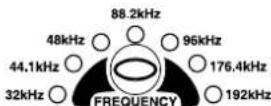
Fig 2-5: FREQUENCY Set Button & LEDs
2 Digital Audio Converters - RB-ADDA2
CS DATA Button & LEDs
This button will select the type of channel status bits to be embedded in the digital audio output – either professional or consumer. The channel status type can be set directly or can follow the digital audio input source.
BITS Button & LEDs
This button sets the bit depth of the RB-ADDA2 Analogue to Digital conversion to 16, 20 or 14 bits. The bit depth is reflected in the appropriate channel status bits in the digital output stream.
D/A SOURCE Select Button & LEDs
This button will select the digital audio input source for the RB-ADDA2 Digital to Analogue conversion and will also set the level of the output signal corresponding to full-scale digits to +12, +18 or +24dBu. The D/A SOURCE select button will flash if the digital audio source selected is not present.
Reset Button
In the unlikely event that the RB-ADDA2 unit fails to respond, press the reset button to reboot the unit (see Fig 2-1 for location).
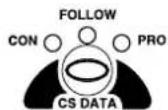
Fig 2-6: CS DATA Button & LEDs

Fig 2-7: BITS Button & LEDs

Fig 2-8: D/A SOURCE Select Button & LEDs
Rear Panel Connections and Operation

Fig 2-9: RB-ADDA2 Rear Panel
RB-ADDA2 Inputs
XLR Analogue Inputs (Left and Right)
The XLR 3 pin sockets used for the left and right channel inputs are electronically balanced and have an impedance of greater than 10kΩ bridging. Each XLR has the following connections:
Pin 1: Screen.
Pin 2: Phase.
Pin 3: Non-phase.
RCA Phono Inputs (Left and Right)
The two left and right RCA inputs are unbalanced and have an impedance of greater than 20kΩ.
Input Level Adjustment
The input gain is set for both left and right channels by using the A/D SOURCE Select Button (Fig 2-4). Pre-set potentiometers, accessible on the rear panel, give a further ±3dBu to give a total signal range of +9dBu to +27dBu for full-scale digits.
The RCA Phono Inputs have a further 10dBu nominal gain incorporated to give a total signal range of -1dBu to +17dBu for full-scale digits.
AES/EBU Input
The digital input XLR 3 pin socket has an impedance of 110Ω. It has the following connections:
Pin 1: Screen
Pin 2: Phase
Pin 3: Non-phase
The signals on this connector should meet the IEC 60968 specification
S/PDIF Input
The S/PDIF digital phono input have an impedance of 75Ω.
Optical Input
The digital audio optical input meets the TOSLink specification used by most professional & consumer equipment.
AES/EBU Sync Input
The digital input XLR 3 pin socket has an impedance of 110 Ω. It has the following connections:
Pin 1: Screen
Pin 2: Phase
Pin 3: Non-phase
The signals on this connector should meet the IEC 60968 specification.
Word Clock Input
The Word Clock input is designed to receive a distributed clock running at the actual sampling frequency. The signal can be differential, or single ended, TTL level.
RB-ADDA2 Outputs
Analogue Outputs (Left and Right)
The XLR 3 pin output plug connectors are electronically balanced with an output impedance of less than 50Ω. They have the following connections: Pin 1: Screen.
Pin 2: Phase.
Pin 3: Non-phase.
RCA Phono Outputs (Left and Right)
These RCA (phono) outputs are unbalanced and have an output impedance of less than 75Ω.
Output Level Adjustment
The output gain can be individually adjusted for left and right channels through the front panel by the D/A SOURCE Select button (Fig 2-8). Each output gain can be set for a signal of full-scale digits in the digital domain to give +12, +18 or +24dBu output on the XLR connectors. The RCA phono outputs have a further 10dBu nominal attenuation incorporated.
AES/EBU Output
The digital output XLR 3 pin socket has an impedance of 110Ω. It has the following connections:
2 Digital Audio Converters - RB-ADDA2
Pin 1: Screen
Pin 2: Phase
Pin 3: Non-phase
The signals on this connector will comply with the IEC 60968 specification
S/PDIF Output
The digital output S/PDIF phono output has an impedance of 75Ω.
Optical Output
The digital audio optical output meets the TOSLink specification used by most professional & consumer equipment.
Serial Port Control
The Serial Port allows the RB-ADDA2 to be controlled and updated from a PC via a pin-to-pin serial cable, using the Sonifex Serial Control Interface (SCI) software. This software is available as a free download from the Sonifex website at www.sonifex.co.uk/sci.
Default Settings for the Serial Port
Baud Rate: 19200
Data Bits: 8
Stop Bits: 1
| Parity: | Even |
| Handshaking: | XON/XOFF |
Serial Interface Commands and Responses
Most of the commands follow the same structure: a 3 letter command followed by a colon, followed by a parameter (if any) and terminated by Carriage Return with optional Line Feed. A Line Feed character may be sent but it will be ignored by the RB-ADDA2. Commands are not case sensitive and all parameters are in hex.
Responses are CR & LF terminated.
After the RB-ADDA2 has been powered-up, an initialisation string is sent "Initialising ADDA2".
Following are the commands and the expected responses:
Command Description Response
| ADB:nn - Set ADC Bit Size - ACK: |
| nn=00 - 16 Bits |
| nn=01 - 20 Bits |
| nn=02 - 24 Bits |
| ADC:nn - Set ADC Channel Status Type - ACK: |
| nn=00 - Send Consumer CS Data |
| nn=01 - Follow Sync Input (or use last set) |
| nn=02 - Send Professional CS Data |
| ADF:nn - Set ADC Channel Status Type - ACK: nn=00 - Select 32kHz Master Clock Sample Rate nn=01 - Select 44kHz Master Clock Sample Rate nn=02 - Select 48kHz Master Clock Sample Rate nn=03 - Select 88kHz Master Clock Sample Rate nn=04 - Select 96kHz Master Clock Sample Rate nn=05 - Select 176kHz Master Clock Sample Rate nn=06 - Select 192kHz Master Clock Sample Rate |
| ADM:nn - Set ADC Mode & Select Sync Source - ACK: |
| nn=00 - Master Mode |
| nn=04 - Auto Mode |
| nn=08 - Auto Lock Mode |
| nn=10 - Slave Mode |
| For last three modes add |
| nn=01 - Select External AES Sync input as sync source |
| nn=02 - Select DA Stage input as sync source |
| nn=03 - Select Word Clock input as sync source |
| ADS:nn - Set ADC Source & Full Scale Input Level | - ACK: |
| nn=00 - Select Balanced XLR Inputs | |
| nn=04 - Select Unbalanced Phono Inputs | |
| And add |
Digital Audio Converters - RB-ADDA2
nn=01 - +12dBu represents Full Scale Digits (+2 for unbalanced)
nn=02 - +18dBu represents Full Scale Digits (+8 for unbalanced)
nn=03 - +24dBu represents Full Scale Digits (+14 for unbalanced)
Bnn: - Baud Rate - ACK: (at old rate)
nn=11 (115200)
nn=57 (57600)
nn=38 (38400)
nn=19 (19200)
nn=96 (9600)
DAS:nn - Set DAC Source & Full Scale Output Level - ACK:
nn=04 - Select AES Digital Audio Input
nn=08 - Select SPDIF Digital Audio Input
nn=10 - Select Optical Digital Audio Input
And add-
nn=01 - Full Scale Digits Sends +12dBu Out (+2 for unbalanced)
nn=02 - Full Scale Digits Sends +18dBu Out (+8 for unbalanced)
nn=03 - Full Scale Digits Sends +24dBu Out (+14 for unbalanced)
DWN: - Download new code -OK: then erasing message
Then send S-records followed by
S-record terminator to
force programming of flash memory and reboot
FPS: - Request Front Panel Settings - FPS:aa_bb_cc_dd_ee_ff
Where aa = value from ADC Mode as ADM: above
bb = value from ADC Source as ADS: above
cc = value from ADC Frequency as ADF: above
dd = value from ADC Bits as ADB: above
ee = value from ADC CS Data Select as ADC: above
ff = value from DAC Source as DAS: above
LOC: - Lock Front Panel - ACK:
MEM: - Memory Dump
- Memory, then 10 lines
Madd:data
Where add is memory address starting at 060(hex)
and data is 16 bytes of data, each byte shown as 2 hex digits
| MFn: - Limit Front Panel Frequency Selection - ACK: | |
| Where n=0 for No Limit | |
| n=1 for 48kHz Limit & | |
| n=2 for 96kHz Limit |
REG: - Register Dump
- Registers, then 4 lines of 8 x Rrr:dd
Where rr is register number and dd is value shown as
2 hex digits
| SER: | - Serial Number request | - SER:012345 |
| SRQ: | - Status Request | - STA:aa_dd_ss |
| Where aa = ADC Status | ||
| dd = DAC Status | ||
| ss = Internal Status | ||
| STK: - Stack Dump - STK: aaaa, then 6 lines Sadd:data |
| Where aaaa= current Stack Pointer, |
| add is memory address starting at 0800(hex) |
| and data is 16 bytes of data, each byte shown as |
| 2 hex digits |
| UNL: | - Unlock Front Panel | - ACK: |
| UID: | - Unit ID Request | - UID:ADDA2 |
VER: - Firmware Version Request - VER:1.23 or BOOT:1.23
Error messages
The following error messages can be returned for illegal commands
Err:01 - return if Command Not Found
Err:02 - return if Missing Parameter
Err:04 - return if Parameter out of range
2 Digital Audio Converters - RB-ADDA2
Upgrading Firmware
Occasionally, it may be necessary to upgrade the firmware on the RB-ADDA2 to add new functionality and fix software bugs. New firmware updates will be made available from time to time on the Sonifex website. Visit www.sonifex.co.uk for details.
The firmware is upgraded using the Serial Control Interface - SCI. This PC software downloads the new firmware and initiates the upgrade process. To upgrade the firmware, select the required firmware file in the SCI upgrade firmware section. The RB-ADDA2 will automatically reboot and enter the bootstrap mode prior to the transfer of the firmware file. The SCI software downloads the firmware to internal memory, and then erases the current firmware before programming the update. When the firmware is complete, the unit reboots with the new firmware.
Please note: Firmware files can take several minutes to transfer to the RB-ADDA2 at lower baud rates. To speed up the process, select a higher baud rate prior to transferring the new firmware.
Technical Specifications RB-ADDA2
A/D Connections
Analogue Inputs: 2 x XLR 3 pin (balanced) (L & R) 2 x RCA phono (unbalanced) (L & R)
Digital Outputs: 1 x AES/EBU XLR 3 pin plug 1 x S/PDIF RCA phono socket 1 x TOSLink optical output
Sync Inputs: 1 x AES/EBU XLR 3 pin female 1 x Word Clock BNC
A/D Audio Specification
Maximum Input Level: +27dBu (balanced inputs)
Maximum Input Level: +17dBu (unbalanced inputs)
Input Impedance: >10kΩ bridging (balanced inputs)
Input Impedance: >20kΩ (unbalanced inputs)
Input Levels: Switchable +24dBu/+18dBu/+12dBu for FSD (on bal inputs)
Gain Range: Adjustable 3dB loss to 3dB gain (L and R adjust)
Signal to Noise: Better than -113dbFS (RMS A-weighted at 24bit)*
Dynamic Range: Better than -110dB*
Distortion and Noise: Better than -100dB THD + N at 1kHz* Cross-talk: Better than -112dB (20Hz to 20kHz)*
* Measured using balanced inputs
A/D Operational Controls
Analogue Input Source: Balanced XLRs or unbalanced phonos, via A/D SOURCE push-button
Analogue Input Level for FSD: +12dBFS, +18dBFS or +24dBFS, via A/D SOURCE push-button
Analogue Input Level: +9dBu to +27dBu via rear-panel
Digital Audio Converters - RB-ADDA2
Adjust: +3dB via pre-set pots
Sample Frequency Rates: 32kHz, 44.1kHz, 48kHz, 88.2kHz, 96kHz, 176.4kHz or 192kHz, via FREQUENCY push-button
Bit Depth: 16, 20 or 24 bits, via BITS push-button
Channel Status Bits: Consumer mode, professional mode or follow input, via CS DATA push-button
Sync Input Select: AES/EBU, Word Clock or D/A input, via SYNC push-button
Sync Mode Select: Master, slave, auto, auto lock, via SYNC push-button
D/A Connections
Digital Inputs: 1 x AES/EBU XLR 3 pin female
1 x S/PDIF RCA phono
1 x TOSLink optical input
Analogue Outputs: 2 x XLR 3 pin male (balanced) (L & R) 2 x RCA phono (unbalanced) (L & R)
D/A Audio Specification
Max Output Level: +24dBu (balanced outputs)
Max Output Level: +14dBu (unbalanced outputs)
Output Impedance: <50Ω (balanced outputs)
Output Impedance: <75Ω (unbalanced outputs)
Gain Range: Selectable 12dBu, 18dBu or 24dBu output level, ref FSD (on balanced inputs)
Signal to Noise: Better than -106dB (RMS A-weighted at 24 bit)*
Dynamic Range: Better than-100dB*
Distortion and Noise: Better than -85dB THD +N at 1kHz*
Cross-talk: Better than -112dB (20Hz to 20kHz)*
* Measured at balanced outputs
Other Connections
Mains Input: Universal filtered IEC, continuously rated 85-264VAC @47-63Hz, max 10W
Fuse Rating: Anti-surge fuse 1A 20 x 5mm
Serial Port: RS232 9 Pin D-type socket
D/A Operational Controls
Digital Input Select: AES/EBU, S/PDIF or TOSlink optical, via D/A SOURCE push-button
Analogue Output Selectable +12dBu, +18dBu or +24dBu output level, ref
Level for FSD: FSD, via D/A SOURCE push-button
Equipment Type
RB-ADDA2

Combined A/D and D/A converter, 24 bit 192kHz
Physical Specifications
Dimensions (Raw) 48cm (W) x 15.8cm (D*) x 4.2cm (H) (1U) 19" (W) x 6.2" (D*) x 1.7" (H) (1U)
Dimensions (Boxed) 59cm (W) x 27.4cm (D*) x 10.8cm (H) 23.2" (W) x 10.8" (D*) x 4.3" (H)
Weight Nett: 1.6kg Gross: 2.3kg
Nett: 3.5lbs Gross: 5lbs
* Note that this product is deeper than standard Redboxes.
3 Digital Audio Converters - RB-SC1
3 RB-SC1 Sample Rate Converter
Introduction


Fig 3-1: RB-SC1 Front Panel
The RB-SC1 Sample Rate Converter standardises the sample rate of a digital audio signal to one of 32kHz, 44.1kHz, 48kHz or 96kHz, or to a synchronising input, selectable from AES/EBU, S/PDIF or TTL Word Clock.
System Block Diagram
If synchronising to an external signal there are several modes causing different actions in case of loss of the synchronising signal.
There are also switches available to define the content of the channel status bits embedded within the digital audio stream.
![graph LR A["SPDIF"] --> B["Digital Source Select"] B --> C["AES Receiver"] C --> D["Sample Rate Converter"] D --> E["AES Transmitter"] E --> F["Digital Send Select"] F --> G["Digital Output"] H["Word Clock"] --> I["Digital Sync Select"] I --> J["Clock"] J --> K["AES Receiver"] K --> L["Conversion Cl…](/content/2026/06/1229934/images/c7ad258e8ce53d21d336d8e994f25294e8702b20ecbc322abc715b7c14e695db.jpg)
Fig 3-2: RB-SC1 System Block Diagram
Front Panel Indicators
Front Panel LED
The LED on the front panel is normally red to indicate that power is present on the unit. However, it also has a secondary role to indicate the status of the digital inputs
Fast flashing between red and amber – indicates a loss of digital input signal.
Slow flashing between red and amber - when not in master mode this indicates the absence of a synchronising input.
Rear Panel Connections and Operation

Fig 3-3: RB-SC1 Rear Panel
Inputs and Outputs
AES/EBU Inputs
The digital source and digital sync XLR 3 pin sockets both have an impedance of 110Ω. They have the following connections:
Pin 1: Screen
Pin 2: Phase
Pin 3: Non-phase
The signals on these connectors should meet the IEC 60968 specification
S/PDIF Inputs
The digital source and digital sync S/PDIF phono inputs both have an impedance of 75Ω.
Word Clock Input
The BNC TTL word clock input has an impedance of 50Ω.
AES/EBU Output
The digital output XLR 3 pin socket has an impedance of 110Ω. It has the following connections:
Pin 1: Screen
Pin 2: Phase
Pin 3: Non-phase
The signals on this connector will comply with the IEC 60968 specification
S/PDIF Output
The digital output S/PDIF phono output has an impedance of 75Ω.
Rear Panel Controls
Status Select Switches
These switches are used to determine the content of the channel status bits embedded within the digital audio stream (switches 1 and 2) and to select the source for the digital sync signal from either digital audio input or TTL word clock (switch 3).
3 Digital Audio Converters - RB-SC1
The channel status bits will be forced to Professional Mode for the highest 3 sample rates as they are not supported by consumer mode. For the lowest three rate these status bits can be either set to follow the input signal type (switch 1 off) or can be forced to either professional or consumer mode (switch 1 on and switch 2 either off or on). These settings are summarised in Fig 3-4 and are also on top of the unit.
| Status Select Switch Settings | ||
| 1 On Force channel status type to... | ||
| 1 Off Follow input | ||
| 2 On Professional output | ||
| 2 Off Consumer output | ||
| 3 On Digital sync | ||
| 3 Off Word-clock sync | ||
Fig 3-4: RB-SC1 Status Switches
Digital Input Select Buttons
These buttons are used to switch the digital connection between the AES/EBU XLR connector (button out) and the S/PDIF phono connector (button in) for the digital source, the digital sync input and the digital output
Frequency and Sync Mode Rotary Switch
This rotary switch is used to select the synchronisation mode and to select the frequency of the digital output when using the on-board clock generator. There are 4 modes of operation :- Master mode, Auto Sync Mode, Auto Lock Sync Mode & Slave Mode.
In Master sync mode, switch positions 0 – 5, the digital output sample rate is simply set by, and locked to, the internal on-board clock generator. No sync signal is used or required.
In Auto sync mode, switch positions 6–B, the digital output sample rate follows the sync input. When the sync signal is not present the output sample rate will be set by, and locked to, the internal on-board clock generator at a frequency determined by the switch position.
In Auto-Lock sync mode, switch position C, no output will be generated until lock is achieved with a sync signal. The digital output sample rate now follows the sync input. If the sync signal is removed then the output sample rate will be set by, and locked to, the internal on-board clock generator at the closest frequency available to the previous sync input.
In Slave sync mode, switch position D, the digital output sample rate follows the sync input. When the sync signal is not present the digital output is turned off.
Fig 3-5, also printed on the top of the unit, summarises the rotary switch settings and shows the sample rate generated by the internal clock generator in master and auto sync modes.
| Frequencies and Sync Modes | ||
| Rotary Switch Number | Mode Sample Frequency (kHz) | |
| 0 Master 32 | ||
| 1 Master 44.1 | ||
| 2 Master 48 | ||
| 3 Master 96 | ||
| 4 Master 96 | ||
| 5 Master 96 | ||
| 6 Auto 32 | ||
| 7 Auto 44.1 | ||
| 8 Auto 48 | ||
| 9 Auto 96 | ||
| A Auto 96 | ||
| B Auto 96 | ||
| C Auto Lock - | ||
| D Slave - | ||
Fig 3-5: RB-SC1 Frequency and Sync Rotary Switch Settings
Technical Specifications RB-SC1
Audio Specification
Dynamic Range: 120dB
Distortion & Noise: -114dB THD + N at 1kHz, ref 0dB FS
Sample Freq Range: 30kHz - 100kHz
Bit Depth: Up to and including 24 bits.
Connections and Controls
Audio Inputs: 1 x AES/EBU XLR 3 pin female 1 x S/PDIF RCA phono female (Input button select between AES/EBU and S PDIF)
Sync Inputs: 1 x AES/EBU XLR 3 pin female
1 x S/PDIF RCA phono female
1 x TTL BNC female
(Input button select between AES/EBU and
S/PDIF, and DIP switch select between TTL and either of the other two)
Outputs: 1 x AES/EBU XLR 3 pin male
1 x S/PDIF RCA phono female
(Output button select between AES/EBU and S/PDIF);
Mains Input: Filtered IEC, continuously rated 85-264VAC @47-63Hz, max 10W
Fuse Rating: Anti-surge fuse 1A 20 x 5mm
Operational Modes: Master mode, auto sync mode, auto lock mode and slave mode, set via rotary switch
Status bits: Forced to consumer mode, professional mode, or set to follow input
3 Digital Audio Converters - RB-SC1
Equipment Type
RB-SC1 Sample rate converter

Physical Specifications
Dimensions (Raw) 28cm (W) x 10.8cm (D) x 4.2cm (H) (1U) 11" (W) x 4.3" (D) x 1.7" (H) (1U)
Dimensions (Boxed) 36cm (W) x 20.5cm (D) x 6cm (H) 14.2" (W) x 8" (D) x 2.4" (H)
Weight Nett: 1.0kg Gross: 1.4kg Nett: 2.2lbs Gross: 3.1lbs
4 RB-SC2 Dual Sample Rate Converter
Introduction
Frequency Button and LEDs Input 1 Button and LEDs Sync Button and LEDs

Fig 4-1: RB-SC2 Front Panel

The RB-SC2 sample rate converter is a 1U rack-mount which produces AES/EBU, S/PDIF and TOSlink optical level digital audio outputs from a balanced AES/EBU, S/PDIF and TOSlink optical level digital audio inputs. The sample rate of the outputs can be set by an internal clock or from various external synchronizer sources.
The RB-SC2 is a high performance, enhanced version of the RB-SC1 providing the following additional features:
- It supports higher sample frequency rates up to and including 176.4kHz and 192kHz.
- It has 2 independent sample rate converter circuits that use a common clock source to set the output sample rate.
- It has 2 optional video synchronising boards. These set the output sample rate to 48kHz that is synchronised to either an analogue video signal or SDI digital video signal (HD or SD).
- A special X-Lock mode allows the unit to function as a full bi-directional sample rate converter.
-
It has TOSlink optical digital audio inputs and outputs.
-
It has front panel push-button switches for all the main settings. The buttons are arranged in sets, where pressing the button advances the current selection and LED indicator.
- A serial RS232 port is included so that the RB-SC2 settings can be controlled remotely. The front panel LED indicators alter automatically when using RS232 commands.
For the digital outputs, there are three push-button switches to select the sample frequency (FREQUENCY), channel status bit type (CSDATA), and sync source and mode of operation (SYNC).
The FREQUENCY button allows selection of the master sample frequency from one of 32kHz, 44.1kHz, 48kHz, 88.2kHz, 96kHz, 176.4kHz or 192kHz. The CS DATA button defines the content of the channel status bits embedded within the digital audio stream, and can be forced to either Professional Mode (PRO), Consumer Mode (CON) or to follow the mode of the input (FOLLOW).
The SYNC button is used to select the synchronisation input, from the AES/EBU sync input, the Wordclock input or, for X-Lock, the other digital input.
4 Digital Audio Converters - RB-SC2
The X-Lock synchronisation allows the unit to act as a bi-directional sample rate converter with the output of sample rate converter 1 syncing the input of sample rate converter 2 and vice versa so that they follow each other. The application for the X-Lock mode is so that the RB-SC2 can be inserted between 2 digital devices which run at different sample rates, such as a PC recorder and a digital player. Using the RB-SC2 in X-Lock mode ensures that the 2 devices remain synchronised at all times regardless of the sample rate of the 2 devices.
The SYNC button will also select the operating mode of the unit as described below. If an optional video sync board is fitted then 2 sync LEDs light together to show the active video sync.
Master Mode
In this mode the unit receives a digital audio signal, which is passed to the sample rate converter and then re-formatted for the digital serial transmitter (IEC958). The sample rate converter clock signal is generated internally from an on board master clock at a selectable rate (32kHz, 44.1kHz, 48kHz, 88.2kHz, 96kHz, 176.4kHz or 192kHz).
Slave Mode
In this mode the unit is synchronised to an external source, using the digital audio sync, or to the TTL level Word Clock. The FREQUENCY LED will indicate the synchronised sample frequency and if no sync is present, no output will be generated.
Auto Mode
Here, the unit is synchronised to an external source, using the digital audio sync, or to the TTL level Word Clock. If no sync signal is present the unit runs from the onboard master clock at a rate selected by the front panel control (32kHz, 44.1kHz, 48kHz, 88.2kHz, 96kHz, 176.4kHz or 192kHz).
Auto Lock Mode
This operates like the auto mode except that if no sync signal is present the unit will run at the closest master clock rate to the last locked incoming signal. The FREQUENCY LED will indicate the synchronised sample frequency.
When operating in sync modes, the SYNC button flashes whenever the unit is not synchronised to the incoming sync signal.
![graph LR A["Sample Rate 1"] --> B["X-Lock Sync Mode"] B --> C["RX TX SRC"] B --> D["Clock Recovery"] D --> E["Clock Sync"] E --> F["Clock Recovery"] F --> G["RXTK SRC"] H["Sample Rate 2"] --> B I["Sample Rate 1"] --> B](/content/2026/06/1229934/images/a2c4b58a8d22e91f8114edbd8f6d0d0347a979d1369ee86c2273f6f0ef40261f.jpg)
Fig 4-2: RB-SC2 X-Lock Sync Mode
There are 2 further push-button switches (INPUT1 & INPUT2) that are used to select the input connector used for each of the 2 sample rate converter circuits. These switches select between AES/EBU, S/PDIF and TOSLink optical connectors.
A red LED indicates when power to the RB-SC2 is on.
Installing the Optional Video Sync Boards
There are 2 optional video sync boards which can be used to synchronise the outputs of the RB-SC2 to a 48kHz sample rate:
RB-SYA - The Analogue video sync board will accept a composite signal of NTSC (525), PAL (625) & SECAM (625) signals covered by SMPTE-170-M (NTSC) and ITU-R BT.470-6 (PAL & SECAM).
RB-SYD - The Digital video sync board will accept 270Mbps SD-SDI and HD-SDI signals covered by SMPTE-259-M-C (SD) and SMPTE-292M (HD).
Opening the RB-SC2
Warning: The power must be switched off at the supply or the power lead must be disconnected before attempting to open the unit. Removal of the cover can expose dangerous voltages.
- Remove the 4 screws in the corners of the rear panel.
- Remove the 4 screws on the top and bottom panels which hold the rear panel in place (2 on the top and 2 on the bottom).
- Remove the screw on the front panel underneath the CS DATA button.
- Slide the rear panel and main PCB backwards out of the metal chassis giving you internal access.
- Remove the rubber grommet/bung on the rear panel which covers the hole for the video sync connector.
- Remove the 2 screws from the bottom of the sync card pillars and, making sure to keep the plastic washers in place at the bottom of the pillars, fit the 20 way pin header into the 20 way connector on the RB-SC2 motherboard.
- Underneath the board, insert the 2 screws to fix the board in place. To put the unit back together, slide the PCB back into the chassis and refit the screws in reverse order.
The RB-SC2 will auto-sense the video cards on powering up and the relevant option will be available using the SYNC button (see page 25).
Follow these instructions to fit either of the sync boards.
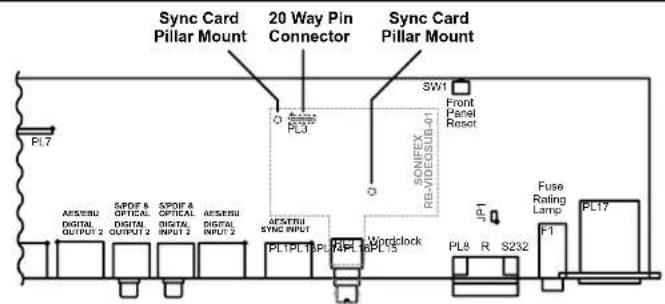
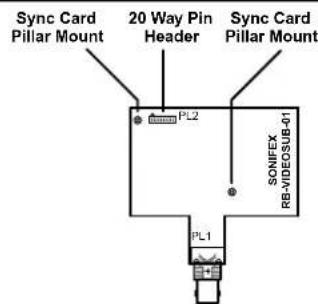
Fig 4-3: RB-SC2 Optional Video Sync Installation
4 Digital Audio Converters - RB-SC2
System Block Diagram
![graph TD A["Digital Input 1"] --> B["Optical"] A --> C["AES/EBU"] A --> D["S/PDIF"] B --> E["Digital Source Select"] C --> E D --> E E --> F["AES Receiver"] F --> G["Sample Rate Converter"] G --> H["AES Transmitter"] H --> I["Digital Output 1"] I --> J["Optical"] I --> K["AES/EBU"] I --> L["S/PDIF"]…](/content/2026/06/1229934/images/f2c242c67a2199c9fe47fc5d00aff05866bab6211da0833aa4743f0960c335bc.jpg)
Fig 4-4: RB-SC2 System Block Diagram
Front Panel Controls & Indicators
The LED on the front panel is normally red to indicate that power is present on the unit.
FREQUENCY Set Button & LEDs
When the button is not illuminated it will select the internal master frequency that is used in Master Mode and in Auto Mode when no sync signal is present. At other times, when the button is illuminated, the LEDs will show the actual sampling frequency of the incoming sync source. To view the Master Frequency press the button once to enter the setting mode. Any further button presses will advance the set frequency.
CS DATA Button & LEDs
This button will select the type of channel status bits to be embedded in the digital audio output – either professional or consumer. The channel status type can be set directly or can follow the digital audio input source.
INPUT1 & INPUT2 Source Select Button & LEDs
This button will select between the balanced AES/EBU, unbalanced S/PDIF and optical digital audio inputs for the RB-SC2 sample rate conversion.
The input buttons will flash when no suitable source is available on the selected connector.

Fig 4-5: FREQUENCY Set Button & LEDs

Fig 4-6: CS DATA Button & LEDs
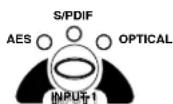

Fig 4-7: INPUT 1 & INPUT2 Source Select Button & LEDs
SYNC Button & LEDs
This button will select one of the 4 operating modes for the RB-SC2 sample rate conversion (master, auto, auto & lock or slave). 3 modes use an external sync and this button is also used to select the external sync source that generates the sampling frequency used, from one of AES/EBU, wordclock, x-lock or optionally analogue video or digital video (if sync card is fitted). The Sync button will flash when the external sync signal selected is not present.
Reset Button
In the unlikely event that the RB-SC2 unit fails to respond, press the reset button to reboot the unit (see Fig 1 for location).

Fig 4-8: SYNC Button & LEDs
4 Digital Audio Converters - RB-SC2
Rear Panel Connections and Operation

Fig 4-9: RB-SC2 Rear Panel
RB-SC2 Inputs
AES/EBU Inputs
The digital input XLR 3 pin socket has an impedance of 110Ω. It has the following connections:
Pin 1: Screen
Pin 2: Phase
Pin 3: Non-phase
The signals on this connector should meet the IEC 60968 specification
S/PDIF Inputs
The S/PDIF digital phono input have an impedance of 75Ω.
Optical Inputs
The digital audio optical input meets the TOSLink specification used by most professional & consumer equipment.
AES/EBU Sync Input
The digital input XLR 3 pin socket has an impedance of 110Ω. It has the
following connections:
Pin 1: Screen
Pin 2: Phase
Pin 3: Non-phase
The signals on this connector should meet the IEC 60968 specification
Word Clock Input
The S/PDIF digital phono input have an impedance of 75Ω.
RB-SC2 Outputs
AES/EBU Outputs
The digital output XLR 3 pin socket has an impedance of 110Ω. It has the following connections:
Pin 1: Screen.
Pin 2: Phase.
Pin 3: Non-phase.
The signals on this connector will comply with the IEC 60968 specification
S/PDIF Outputs
The digital output S/PDIF phono output has an impedance of 75Ω.
Optical Outputs
The digital audio optical output meets the TOSLink specification used by most professional & consumer equipment.
The outputs will have a unweighted dynamic range of at least 138dB and a THD+N noise of or better than -137dB. The data at the outputs will be presented as 24 bit wide.
Serial Port Control
The Serial Port allows the RB-SC2 to be controlled and updated from a PC via a pin-to-pin serial cable, using the Sonifex Serial Control Interface (SCI) software. This software is available as a free download from the Sonifex website at www.sonifex.co.uk/sci.
Default Settings for the Serial Port
Baud Rate: 19200
Data Bits: 8
Stop Bits: 1
| Parity: | Even |
| Handshaking: | XON/XOFF |
Fig 4-10: Serial Port Default Settings
Serial Interface Commands and Responses
Most of the commands follow the same structure: a 3 letter command followed by a colon, followed by a parameter (if any) and terminated by Carriage Return with optional Line Feed. A Line Feed character may be sent
but it will be ignored by the RB-SC2. Commands are not case sensitive and all parameters are in hex.
Responses are CR & LF terminated.
After the delay synchroniser has been powered-up, an initialisation string is sent "Initialising SC2".
Following are the commands and the expected responses:
Command Description Response
| Bnn: - Baud Rate - ACK: (at old rate) |
| nn=11 (115200) |
| nn=57 (57600) |
| nn=38 (38400) |
| nn=19 (19200) |
| nn=96 (9600) |
| CSD:nn - Set Channel Status Type - ACK: nn=00 - Send Consumer CS Data nn=01 - Follow Input (or use last set) nn=02 - Send Professional CS Data |
| DWN: - Download new code -OK: then erasing message Then send S-records followed by S-record terminator to force programming of flash memory and reboot |
| FPL: - Request Front Panel Limits | - FPL:a_b |
| Where a = Lock Status (0= unlocked, 1=locked) | |
| b = Master Frequency Limit (0=no limit, 1=48kHz, 2=96kHz) |
| FPS: - Request Front Panel Settings - FPS:aa_bb_cc_dd_ee_ff |
| Where aa = value of Sync Mode as MOD: below |
| bb = value of Master Frequency as FRQ: below |
| cc = value of Sync Frequency as FRQ: below |
| dd = value of CS Data as CSD: above |
| ee = value of Input 1 Source Select as SS1: below |
| ff = value of Input 2 Source Select as SS2: below |
4 Digital Audio Converters - RB-SC2
FRQ:nn - Set Master Clock Frequency - ACK:
nn=00 - Select 32kHz Master Clock Sample Rate
nn=01 - Select 44kHz Master Clock Sample Rate
nn=02 - Select 48kHz Master Clock Sample Rate
nn=03 - Select 88kHz Master Clock Sample Rate
nn=04 - Select 96kHz Master Clock Sample Rate
nn=05 - Select 176kHz Master Clock Sample Rate
nn=06 - Select 192kHz Master Clock Sample Rate
LOC: - Lock Front Panel - ACK:
MEM: - Memory Dump - Memory, then 10 lines
Madd:data
Where add is memory address starting at 060(hex)
and data is 16 bytes of data, each byte shown as
2 hex digits
MFQ:nn - Limit Front Panel Frequency Selection - ACK: Where nn=0 for No Limit nn=1 for 48kHz Limit & nn=2 for 96kHz Limit
MOD:nn - Set Mode & Select Sync Source - ACK:
nn=00 - Master Mode
nn=08 - Auto Mode
nn=10 - Auto Lock Mode
nn=20 - Slave Mode
For last three modes add
nn=01 - Select External AES Sync input as sync source
nn=02 - Select Word Clock input as sync source
nn=03 - Select Other Digital input as sync source (X-Lock)
nn=04 - Select Optional Video input as sync source
REG: - Register Dump - Registers, then 4 lines of 8 x Rrr:dd Where rr is register number and dd is value shown as 2 hex digits
SER: - Serial Number request - SER:012345
SRQ: - Status Request - STA:aa_bb_ss
Where aa = SRC 1 Status
bb = SRC 2 Status
ss = Sync Status
SS1:nn - Select Channel 1 Digital Audio Source -ACK:
nn=00 for AES/EBU
nn=01 for S/PDIF &
nn=02 for Optical
SS2:nn - Select Channel 2 Digital Audio Source -ACK: nn=00 for AES/EBU nn=01 for S/PDIF & nn=02 for Optical
STK: - Stack Dump - STK: aaaa, then 6 lines Sadd:data
Where aaaa= current Stack Pointer,
add is memory address starting at 0800(hex)
and data is 16 bytes of data, each byte shown as
2 hex digits
UNL: - Unlock Front Panel - ACK:
UID: - Unit ID Request - UID:SC2
VER: - Firmware Version Request - VER:1.23 or BOOT:1.23
Fig 4-11: Serial Interface Commands and Responses
Error messages
The following error messages can be returned for illegal commands
Err:01 - return if Command Not Found Err:02 - return if Missing Parameter Err:04 - return if Parameter out of range
Upgrading Firmware
Occasionally, it may be necessary to upgrade the firmware on the RB-SC2 to add new functionality and fix software bugs. New firmware updates will be made available from time to time on the Sonifex website. Visit www.sonifex.co.uk for details.
The firmware is upgraded using the Serial Control Interface - SCI. This PC software downloads the new firmware and initiates the upgrade process. To upgrade the firmware, select the required firmware file in the SCI upgrade firmware section. The RB-SC2 will automatically reboot and enter the bootstrap mode prior to the transfer of the firmware file. The SCI software
downloads the firmware to internal memory, and then erases the current firmware before programming the update. When the firmware is complete, the unit reboots with the new firmware.
Please note: Firmware files can take several minutes to transfer to the RB-SC2 at lower baud rates. To speed up the process, select a higher baud rate prior to transferring the new firmware.
Technical Specification RB-SC2
Audio Specification
Dynamic Range: 138dB typical A-Weighted.
Distortion & Noise: -134dB THD + N at 1kHz, ref 0 dBFS
Sample Freq Range: 32kHz - 196kHz
Input Sample Width: Up to and including 24 Bits.
Output Sample Width: 24 Bits.
Connections
Digital Inputs: 2 x AES/EBU XLR 3 pin female
2 x S/PDIF RCA phono
2 x TOSLink optical input
Digital Outputs: 2 x AES/EBU XLR 3 pin plug
2 x S/PDIF RCA phono socket
2 x TOSLink optical output
Sync Inputs: 1 x AES/EBU XLR 3 pin female
1 x Word Clock BNC
1 x Video Input (optional)
Video Sync Specs: The RB-SYD Digital video sync board will accept
270Mbps SD-SDI and HD-SDI signals covered by
SMPTE-259-M-C (SD) and SMPTE-292M (HD).
The RB-SYA Analogue video sync board will
accept a composite signal of NTSC (525), PAL
(625) & SECAM (625) signals covered by
SMPTE-170-M (NTSC) and ITU-R BT.470-6
(PAL & SECAM).
Operational Controls
Master Frequency Select: 32, 44.1, 48, 88.2, 96, 176.4 or 192kHz via FREQUENCY push-button
Channel Status Bits: Consumer mode, professional mode or follow input, via CS DATA push-button
Digital Input Select: AES/EBU, S/PDIF or TOSlink optical, via INPUT1 or INPUT2 push-buttons
Sync Input Select: AES/EBU, Word Clock, X-Lock or Video, via SYNC push-button
Sync Mode Select: Master, slave, auto or auto lock, via SYNC push-button
Other Connections
Mains Input: Universal filtered IEC, continuously rated 85-264VAC @47-63Hz, max 10W
Serial Port: RS232 9 Pin D-type socket
Equipment Type
RB-SC2
24 bit 192kHz

Dual Stereo Sample Rate Converter,
Physical Specifications
Dimensions (Raw) 48cm (W) x 10.8cm (D*) x 4.2cm (H) (1U) 19" (W) x 4.3" (D*) x 1.7" (H) (1U)
Dimensions (Boxed) 59cm (W) x 27.5cm (D) x 11cm (H) 23.2" (W) x 10.8" (D) x 4.3" (H)
Weight
Nett: 1.4kg Gross: 2.0kg
Nett: 3.1lbs Gross: 4.4lbs
Accessories
| RB-SYA & SECAM) | Analogue video sync board (NTSC, PAL |
| RB-SYD | Digital video sync board (SD-SDI & HD-SDI) |
| RB-RK3 | 1U Rear panel rack kit for large Redboxes |
5 Digital Audio Converters - RB-DAC1
5 RB-DAC1 Digital to Analogue Converter
Introduction

Fig 5-1: RB-DAC1 Front Panel

Using 24 bit, 192kHz capable devices, the RB-DAC1 Digital to Analogue Converter is a 1U rack-mount which produces a stereo balanced XLR or unbalanced phono output from an incoming AES/EBU or S/PDIF digital input signal. There is also a headphone output for monitoring purposes.
The analogue outputs have an output level control, allowing full-scale settings selectable from +12dBu, +18dBu or +24dBu. De-emphasis on the output can be enabled via dipswitch.
There is a button to select either the AES/EBU or S/PDIF input for the D/A converter, which is located on the rear panel.
When operating, the front panel power LED flashes whenever the unit is not synchronised to the incoming digital signal.
System Block Diagram
![graph LR A["Digital Input"] --> B["Digital Source Selector"] B --> C["AES Receiver"] C --> D["DAC"] D --> E["Volume Control\nStereo Headphone Output"] D --> F["Professional Output"] D --> G["Consumer Output"] H["S/PDIF"] --> B](/content/2026/06/1229934/images/66bfd3894cf8ef9f701cd45e69fe4ba04fa2f87cc5c9749bb77a0879a63d3fa3.jpg)
Fig 5-2: RB-DAC1 System Block Diagram
Front Panel Indicators & Controls
Sync & Power Indicator Headphone Output Volume Control

Fig 5-3: RB-DAC1 Front Panel
Sync & Power Indicator
The LED on the front panel is normally red to indicate that power is present on the unit. However, it also has a secondary role to indicate the status of the digital inputs:
Flashing between red and amber – indicates a loss of a valid digital input signal.
Headphone Output
The output available on the front panel through a 1/4 " stereo jack socket, is designed to drive 150 mW into 32Ω to 600Ω professional headphones.
Volume Control
The headphone output has its own volume control, which is independent of the level adjustment for the main outputs, and has a maximum output level of +20dBu.
Rear Panel Connections and Operation

Fig 5-4: RB-DAC1 Rear Panel
5 Digital Audio Converters - RB-DAC1
RB-DAC1 Inputs
AES/EBU Input
The digital input XLR 3 pin socket has an impedance of 110Ω. It has the following connections:
Pin 1: Screen
Pin 2: Phase
Pin 3: Non-phase
The signals on this connector should meet the IEC 60968 specification
S/PDIF Input
The S/PDIF digital phono input has an impedance of 75Ω.
RB-DAC1 Outputs
Analogue Outputs (Left and Right)
The XLR 3 pin output plug connectors are electronically balanced with an output impedance of less than 50Ω. They have the following connections:
Pin 1: Screen.
Pin 2: Phase.
Pin 3: Non-phase.
RCA Phono Outputs (Left and Right)
These RCA (phono) outputs are unbalanced and have an output impedance of less than 75Ω.
Rear Panel Controls
| Full Scale dB Settings | |||
| Switch Number + | 12 +18 +24 | ||
| 1 OFF ON ON | |||
| 2 OFF OFF ON | |||
| Emphasis Settings | |||
| 3 ON De-emphasis On | |||
| 3 OFF De-emphasis Off | |||
| 4 Reserved | |||
Fig 5-5: RB-DAC1 Full Scale Digits and De-emphasis Settings Switches
Output Level Adjustment
The output gain can be adjusted by DIP Switches on the rear panel. The output gain can be set for a signal of full-scale digits in the digital domain to give +12, +18 or +24dBu output on the XLR connectors. The consumer output on the phono connector has a further 8½dBu attenuation incorporated.
De-emphasis Switch
If de-emphasis is selected (switch 3) the RB-DAC1 will decode 50/15 µ s emphasis when indicated by certain channel status bits in the incoming digital audio data.
Digital Select Button
This button is used to switch the digital input from the AES/EBU XLR connector (button out) to the S/PDIF phono connector (button in).
Technical Specifications RB-DAC1
Connections
Digital Inputs: 1 x AES/EBU XLR 3 pin female 1 x S/PDIF RCA phono
Analogue Outputs: 2 x XLR 3 pin male (balanced) (L & R) 2 x RCA phono (unbalanced) (L & R)
Headphone Output: 1 x ¼" (6.35mm) A/B gauge 3-pole stereo jack socket
Mains Input: Filtered IEC, 110-120V, or 220-240V switchable, fused 18W max
Fuse Rating: Anti-surge fuse 100mA 20 x 5mm (230VAC) Anti-surge fuse 250mA 20 x 5mm (115VAC)
| Audio Specification | Balanced Output | Unbalanced Output | Headphone Output |
| Maximum Output Level: | +24dBu +15.5dBu +20dBu (ref. | <0.01% THD) | |
| Output Impedance: | <50Ω <75Ω Drives 150mW | into 32Ω to 600Ω professional headphones |
Dynamic Range: 115dB 115dB 100dB
| Gain Range: | Selectable12dBu, 18dBuor 24dBuoutput level,ref FSD | Selectable3.5dBu,9.5dBu or15.5dBu outputlevel, ref FSD | -80dBu (volume0%) to+20dBu (volume100%)ref FSD |
| Distortion & Noise: | <0.005%THD+N @1kHz,ref +8dBu | <0.005%THD+N @1kHz,ref -6dBV | <0.005%THD+N @1kHz,ref +8dBu |
Sample Freq. Range: 32kHz - 192kHz
Operational Controls
Digital Input Select: AES/EBU or S/PDIF, via push-switch
Gain Select: Selectable 12dBu, 18dBu or 24dBu output level, ref. FSD
De-emphasis
On/Off: Dipswitch
Equipment Type
RB-DAC1 Digital to Analogue Converter
Physical Specifications
Dimensions (Raw): 48cm (W) x 10.8cm (D) x 4.2cm (H) (1U) 19" (W) x 4.3" (D) x 1.7" (H) (1U)
Dimensions (Boxed): 58.5cm (W) x 22.5cm (D) x 7cm (H) 23" (W) x 8.9" (D) x 2.8" (H)
Weight: Nett: 1.4kg Gross: 2.0kg Nett: 3.1lbs Gross: 4.4lbs
6 Digital Audio Converters - RB-SP1
6 RB-SP1 Digital Splitter & Combiner
Introduction

Fig 6-1: RB-SP1 Front Panel
The RB-SP1 Digital Splitter & Combiner is used to interface various double sampling pieces of equipment. Some older equipment uses 2 AES/EBU connectors for double sampling with each connector carrying an audio signal at a normal
frame rate, whilst other equipment has a single connector using twice the frame rate. The RB-SP1 can interface between them, either combining the signals from 2 XLR's into 1, or splitting the signal from 1 XLR into 2.
The RB-SP1 can also be used for interfacing stereo and mono signals to digital mixing desks by splitting the left and right signals of a stereo XLR to two separate XLR's, and vice versa by combining them.
Additionally, a sample rate converter on the second digital input can be used to convert the sample rate of the secondary input to that of the primary input. The RB-SP1 can handle sample rates up to 96kHz and sample sizes of 16, 20 and 24 bit.
There are two types of operation: Split 96, and Stereo/Mono. These each have three different switch modes: Split, Bypass and Combine.
Both inputs and outputs can be selected as either AES/EBU or S/PDIF with the resultant digital level following the switch selection.
System Block Diagram
![graph LR A["Digital Input 1"] --> B["Digital Input Select"] C["Digital Input 2"] --> D["Receiver"] B --> E["Receiver & SRC"] D --> E E --> F["Router"] F --> G["Transmitter"] G --> H["Digital Output Select"] H --> I["Digital Output 1"] H --> J["Digital Output 2"] style A fill:#f9f,stroke:#333 style C…](/content/2026/06/1229934/images/2b09eea366edf1544d09d0b3d789e53ddef5a84d9a0fa8c33298afab9bf33bb2.jpg)
Fig 6-2: RB-SP1 System Block Diagram
Front Panel Indicators & Controls

Fig 6-3: RB-SP1 Front Panel
Front Panel LED's
There are four LED indicators situated on the front of the unit. The red LED on the far left of the front panel is to indicate that power is present on the unit.
The three LED's grouped together on the right hand side have two roles, see Fig 6-3. The first is to indicate the synchronisation frequencies of the incoming digital signals, and the second is to flash when a signal has been lost. These indicators are labelled individually to show the current sync frequencies.
Type & Mode Switches
The Type and Mode switches are on the front panel – see Fig 6-3. The Type switch sets the unit into either the Split 96 or Stereo/Mono style of operation. The Mode switch sets the unit into Split, Bypass or Combine mode.
See Figure 6-4 for diagrammatic explanations of the different types and modes available.
Split 96 – This is a method that allows older equipment to handle 48kHz double sampled (96kHz) digital signals. To do this, Split 96 uses two digital signals running at 48kHz, where both sub-frames of a single 48kHz stream are used to carry information about a mono signal, with the resultant signal of both 48kHz streams being equivalent to a stereo 96kHz signal. The unit will also perform the same function for 88.2kHz stereo and 44.1kHz double sampled signals.
- In Split Mode a single stereo 96kHz signal is received into input 1 which is then output as two separate 48kHz signals. Output 1 will contain just left channel data and output 2 will contain just right channel data. If the signal from the input disappears then both Outputs will be muted.
- In Combine Mode two 48kHz double sampled input signals are combined to create a single 96kHz signal on output one. If either input 1 or 2 are lost then the output will be muted. In this mode output 2 will always be muted.
Stereo/Mono - This allows a digital stereo signal to be separated into two mono digital signals and vice-versa.
- In Split Mode a single stereo digital signal is routed to two digital outputs. Output 1 will contain the original left channel data on its left output and a muted signal on its right output. Output 2 will contain the original right data on its left output and a muted signal on its right output. This mode can be altered by the dipswitch settings, to a channel swap mode or a dual mono mode. These are described in more detail in the Rear Panel Controls section below.
- In Combine Mode two mono signals are combined to create a single stereo signal. Output 1 will contain the input 1 left channel data on its left channel and input 2 left channel data on its right channel. This mode can be altered by a dipswitch setting, as with the split mode. Where either the left or right channel data of input 2 is output on the right channel data of the output. If the two signals are of different sample rates, a sample rate converter can be switched in place to convert the sample rate of input channel 2 to that of input channel 1. In the Stereo/Mono Combine mode, output 2 is always muted.
Bypass Mode – In Bypass mode, input 1 is routed to output 1 and input 2 is routed to output 2. Input 1 is used as the master clock input. If input 2 is at a different sample rate to input 1 then input 2 is sample rate converted to match input 1. If the signal from input 2 is lost then output 2 will be muted. However, if the signal from input 1 is lost then both outputs will be muted and will only return once a signal is present on input 1.
6 Digital Audio Converters - RB-SP1
Note that when the unit is operating in Bypass Mode the Type switch is ignored.
Split 96
Split
96kHz

Combine
48kHz double sampled
48kHz double sampled

Bypass
Sample Rate 1
Sample Rate 2

Stereo/Mono
Split
Any Sample Rate
![graph TD A["I/P 1"] --> B["O/P 1"] A --> C["O/P 2"] B --> D["Mute"] C --> E["Mute R"] D --> F["Dipswitch 3 Off"] E --> G["Dipswitch 3 On"] F --> H["L"] G --> I["R"] style A fill:#f9f,stroke:#333 style B fill:#ccf,stroke:#333 style C fill:#ccf,stroke:#333 style D fill:#cfc,stroke:#333 style E fill:#c…](/content/2026/06/1229934/images/36b5336b52810924e84c4041f1e78f84031e327430964d0ff33cf10252275772.jpg)
Combine
![graph TD A["Sample Rate 1"] --> B["L"] B --> C["I/P 1"] C --> D["X"] D --> E["R"] E --> F["I/P 2"] F --> G["X"] G --> H["I/P 2"] H --> I["SRC"] I --> J["O/P 1"] J --> K["L"] K --> L["R"] L --> M["Sample Rate 1"] N["Sample Rate 2"] --> O["X"] O --> P["R"] P --> Q["I/P 2"] Q --> R["X"] R --> S["I/P 2"…](/content/2026/06/1229934/images/dbaa3ff85e98a101d4916ea4d62b680e73fc988f7c43efc6046afa2ae7612ba1.jpg)
Fig 6-4: RB-SP1 Type and Mode Flow Diagrams
Rear Panel Connections and Operation

Fig 6-5: RB-SP1 Rear Panel
Inputs and Outputs
AES/EBU Inputs
The digital source XLR 3 pin sockets have an impedance of 110Ω. They have the following connections and meet the IEC 60968 specification:
Pin 1: Screen
Pin 2: Phase
Pin 3: Non-phase
S/PDIF Inputs
The digital source RCA phono inputs both have an impedance of 75Ω.
AES/EBU Outputs
The digital output XLR 3 pin plugs have an impedance of 110Ω. They have the following connections and meet the IEC 60968 specification:
Pin 1: Screen
Pin 2: Phase
Pin 3: Non-phase
S/PDIF Outputs
The digital output S/PDIF phono outputs have an impedance of 75Ω.
Rear Panel Controls
Digital Input & Output Select Buttons
These buttons are used to switch the digital connection between the AES/EBU XLR connector (button out) and the S/PDIF phono connector (button in) for the digital source and digital output.
Mode Select Dip Switches
| RB-SP1 Mode Select Settings | ||
| 1 ON | Input | 1 Channel B = Output 2 Channel B in Stereo/Mono Split Mode |
| 1 OFF | Input | 1 Channel B = Output 2 Channel A in Stereo/Mono Split Mode |
| 2 ON | SRC Enabled | |
| 2 OFF | SRC Disabled | |
| 3 ON | Dual Mono in Stereo/Mono Split Mode | |
| 3 OFF | Single Mono in Stereo/Mono Split Mode | |
| 4 Reserved | ||
Fig 6-6: RB-SP1 Mode Select Dip Switches
Altering the Stereo/Mono Split/Combine Mode – In Split mode With switch 1 off, channel A (Left) and B (Right) on the input are transferred to channel A (Left) of outputs 1 and 2 respectively. With switch 1 on, channel A (Left) on the input is transferred to channel A (Left) on output 1 and channel B (Right) on the input is transferred to channel B (Right) of output 2. With switch 3 on (switch 1 is ignored), channel A (Left) is transferred to both channels on output 1 and channel B (Right) on the input is transferred to both channels on output 2.
In Combine mode with switch 1 off, channel A (Left) on input 1 is transferred to channel A (Left) of output 1, and channel A (Left) on input 2 is transferred to channel B (Right) of output 1. With switch 1 on channel A (Left) on input 1 is transferred to channel A (Left) of output 1, and channel B (Right) on input 2 is transferred to channel B (Right) of output 1.
6 Digital Audio Converters - RB-SP1
Switching on the Sample Rate Converter - Switch 2 is used to turn the sample rate converter on, or off and can be used in all modes. When there are two inputs connected to the unit which are at different sample rates or which need to be synchronised, then the sample rate converter should be switched on. If it is not, then you may suffer from missed samples and bit errors affecting the signal output. If the sample rates of the incoming signals are always going to be the same and are synchronised, then switch the sample rate converter off, as leaving it on will worsen the output signal (signal jitter will increase).
Technical Specifications RB-SP1
Audio Specifications
| Input Impedance: 110Ω ± 20% balanced (AES/EBU) |
| Input Impedance: 75Ω ±5% unbalanced (S/PDIF) |
| Output Impedance: 110Ω ± 20% balanced (AES/EBU) |
| Output Impedance: 75Ω ±5% unbalanced (S/PDIF) |
| Signal Level 3V/10V peak to peak min/max (AES/EBU) |
| 0.5V ±20% peak to peak (S/PDIF) |
| Sample Freq Range: 30-100kHz (i.e. including 32kHz, 44.1kHz, 48kHz, 64kHz, 88.2kHz and 96kHz) |
Connections
| Audio Inputs: 2 x AES/EBU XLR 3 pin female2 x S/PDIF RCA phono female(Input button select between AES/EBU andS/PDIF) |
| Audio Outputs: 2 x AES/EBU XLR 3 pin male2 x S/PDIF RCA phono female(Output button selects between AES/EBU andS/PDIF) |
Mains Input: Filtered IEC, continuously rated 85-264VAC @ 47-63Hz max 10W
Fuse Rating: Anti-surge fuse 1A 20 x 5mm
Equipment Type
| RB-SP1 | Digital splitter & combiner |

Physical Specifications
| Dimensions (Raw) 48cm (W) x 10.8cm (D) x 4.2cm (H) (1U) |
| 19" (W) x 4.3" (D) x 1.7" (H) (1U) |
| Dimensions (Boxed) 58.5cm (W) x 22.5cm (D) x 7cm (H) |
| 23" (W) x 8.9" (D) x 2.8" (H) |
Weight Nett: 1.6kg Gross: 2.2kg Nett: 3.5lbs Gross: 4.8lbs
7 Redbox - Synchronisation Add-On Boards
Introduction
There are two optional video sync boards which can be used to synchronise the outputs of the RB-SC2 to a 48kHz sample rate: the RB-SYA and the RB-SYD. There are four optional video sync boards which can be used to synchronise the outputs of the RB-TGHD(B & X): the RB-SYA, RB-SYD, RB-SYE and the RB-SYW.
RB-SYA Analogue Video Sync Board
The Analogue video sync board will accept a composite signal of NTSC (525), PAL (625) & SECAM (625) signals covered by SMPTE-170-M (NTSC) and ITU-R BT.470-6 (PAL & SECAM
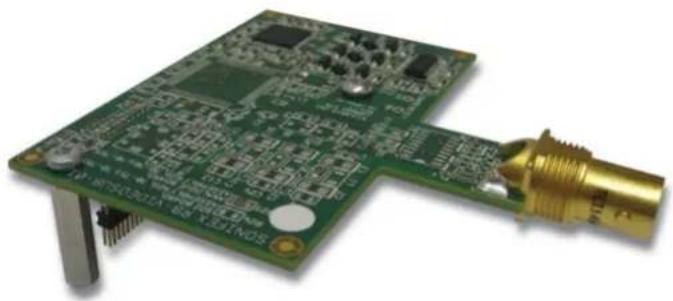
Fig 7-1: RB-SYA Analogue Video Sync Board For RB-SC2 (PAL, NTSC, SECAM)
RB-SYD Digital Video Sync Board
The Digital video sync board will accept 270Mbps SD-SDI and HD-SDI signals covered by SMPTE-259-M-C (SD) and SMPTE-292M (HD).

Fig 7-2: RB-SYD Digital Video Sync Board For RB-SC2 (HD-SDI, SD-SDI)
7 Synchronisation Add-On-Boards
RB-SYE Sync Board
The AES/EBU sync board will accept a digital audio input signal with a sample frequency between 32kHz and 192 kHz. When using the RB-SYE sync board, the Channel Status information that is encoded in the input data signal is copied to all digital output channels on the RB-TGHD.

Fig 7-3: RB-SYE Sync Board
RB-SYW Sync Board
The Audio Clock sync board will accept a distributed clock running at the desired sample frequency between 32 kHz and 192 kHz. The signal can be differential or single ended TTL level.

Fig 7-4: RB-SYW Sync Board
8 RB-DS2 Stereo Delay Synchroniser & Time Zone Delay
Introduction

Fig 8-1: RB-DS2 Front Panel
The RB-DS2 is a stereo audio delay synchroniser used for resynchronising audio to video following delay processes such as standards conversion, transmission delay, logo insertion, video aspect ratio conversion and network delays. It can be used for fixed installations to correct a permanent audio delay, or on an intermittent basis to provide occasional correction, for example for live links. Accepting digital audio signals up to 96kHz, 24 bit, the sonic quality of the RB-DS2 is superb and silent switching is used to provide the smoothest, cleanest audio delay available.
The RB-DS2 has both balanced analogue and AES/EBU digital audio inputs and outputs on 3 pin XLR connectors. It can act as a combined A/D and D/A unit meaning that analogue inputs can be delayed and output as AES/EBU and vice-versa. It is a stereo delay, but can also be used as a dual mono delay to process each audio path separately, or as a mono delay using the left inputs and outputs.
As standard the RB-DS2 can provide up to 10.5 seconds of delay at 96kHz sampling, 24 bit (42 secs at 48kHz, 16 bit). An internal Compact Flash™ expansion allows up to 16GB of memory to be accessed providing delay times of over 24 hours, for example, to delay a programme output across different time-zones, or to shift a broadcast programme by 1 hour for a satellite rebroadcast. Delay times can be selected in samples, fields, frames, milliseconds, metres and, with the Compact Flash™ expansion, in hh:mm:ss. Frame and field definitions can be for PAL (25 frame) or NTSC (30 frame) signals.
A front panel blue vacuum fluorescent display with rotary controller is used for selecting the various settings of the delay, which include the source (analogue or digital), channels, sample rate, sample bit width, format (PAL or NTSC), delay units and the delay itself. Additionally, input peak digits can be selected from +12dBu, +18dBu and +24dBu for FSD and two left and right pre-set potentiometers on the rear panel allow the input gain range to be altered by ±3dB around the selected peak digits.
The analogue output gain range can be altered from -6dBu to +24dBu output level, ref FSD.
Both analogue and digital outputs can be separately muted and a front panel Bypass button disengages electro-mechanical relays to divert both analogue and digital inputs to their outputs. This is also disengaged automatically when a power-fail occurs.
All of the settings in the unit can be saved to one of 8 configuration settings. These Configs can be viewed, edited, saved and loaded, and also remotely loaded by using one of the 8 GPI contacts, meaning that any setting, such as delay time or Bypass, can be altered instantaneously using a GPI signal. Alternatively, 6 of the GPI/O ports can be configured to provide delay synchronous signalling where an input is delayed by the current delay before driving a corresponding output. The RB-DS2 also has an RS232 serial port for remotely controlling the unit. The front
panel controls can be locked-out for situations where remote control is being used to run the unit, or where physical security is required.
Extended Mode using Compact Flash™
Extended mode allows the delay synchroniser to provide audio delays in excess of 24 hours so that the unit can act as a broadcast time-zone delay. The memory card slot is internally mounted and currently supports Compact Flash™ cards up to 16Gbytes - see page 54 for information on opening the RB-DS2 to insert a CF card. To operate correctly, the flashcard must support PIO Mode 4, or higher, such as the SanDisk Standard CF cards. There are 2 extended modes, FAT and RAW.
Extended FAT Mode
This mode supports cards up to 2Gbytes in size and the delay synchroniser uses the DOS format with a 16bit FAT. If a Compact Flash™ memory card is installed in the internal card slot, the status of the card will be indicated in the lower right side of the display. If the card is not formatted, or the format is corrupted, the display will show "NOFMT" indicating that the card cannot be written to until it has been formatted (see System Menu: Memory Card for details on formatting the card). When the card is correctly formatted, the capacity is shown in Mbytes. The delay synchroniser generates a file on the Compact Flash™ memory card, prior to starting the delay process, which effectively reserves all the space available and provides for the largest possible delay. If the Compact Flash™ memory card was removed and placed in a PC card reader, the file, named "RB-DS2.WAV", would play using any utility that's supports Broadcast Wave Format - PCM files.
Extended RAW Mode
This mode supports cards up to 16Gbytes in size and the delay synchroniser can use the full card capacity for the delay. The card does not require formatting in this mode as no filing system is created, and the contents will not be available to read in a PC card reader. This means that maximum delays for cards up to 2Gbytes will be slightly larger when using this mode compared to Extended FAT mode.
Note: Extended Mode can only be used for mono and stereo CHANNELS settings, not for dual mono signals.
System Block Diagram
![graph TD A["AES/EBU"] --> B["Digital Bypass Control"] C["Digital Input"] --> B B --> D["AES Receiver"] D --> E["Recovered Clock"] E --> F["Master Clock Generator"] F --> G["Source select & Delay Control"] G --> H["AES Transmitter"] H --> I["Digital Bypass Control"] I --> J["AES/EBU"] K["AES/EBU"] --…](/content/2026/06/1229934/images/d6d0e89e2d92e018fa7b816fb71a94d994d41fe9dba81e36d7f76fc0452dc950.jpg)
Fig 8-2: RB-DS2 System Block Diagram
Front Panel Controls
All of the RB-DS2's configurations can be accessed with the single front panel mounted rotary control in conjunction with the vacuum fluorescent display.
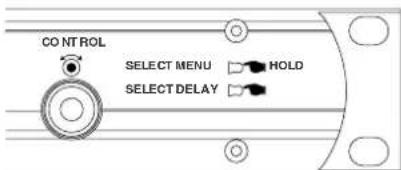
Fig 8-3: Front Panel CONTROL
Setting the Delay
To adjust the delay, lightly press the rotary CONTROL to enable the delay select mode. A solid line will appear under the selected digit. To change the selected digit, turn the rotary control. When configured for dual mono operation, the selection highlight will move between left and right channel delay values. Once the required digit is highlighted, press the rotary control to switch to delay edit mode. The highlight under the selected digit will begin to flash indicating that delay edit mode is enabled. The value of the selected digit can be changed, by turning the rotary control. When the selected digit is set to the required value, press the rotary control again to return to the delay select mode. A different digit can now be selected.
If no further digit is selected, delay select mode will be disabled and the selection highlight will disappear after 2.5 seconds.
Changes to the delay are implemented dynamically. If the selected delay value exceeds the amount of audio data that has been stored, the analogue and digital outputs will be muted until the required delay has been acquired. The audio will then be presented at the outputs. In extended mode, where the memory card installed in the internal Compact Flash™ Storage Card Slot is used, delay periods can be in excess of 1 hour. During acquisition of long delays in extended mode, a progress bar is displayed to give an indication of when the audio output will start. The size of the progress bar decreases as the delay is acquired.
The delay value that can be set cannot exceed the maximum delay for the selected mode. For example, for an analogue input sampled at 96kHz, 24bit, using 25fps, the maximum delay in frames for normal mode is 268 (see figures 4, 5 and 6 for maximum delay values).
Selecting The Main Menu
The RB-DS2's configuration options are accessed from the main system menu. To access the main system menu, press and hold the rotary
CONTROL for at least 1.5 seconds. The menu structure is arranged in a multi-tiered format with several menu items providing access to sub-menus. To select a menu item, turn the rotary control until the required item is highlighted, then press the rotary control to select the item. Each configuration is shown as a list of available options. The currently selected option will be shown with a tick along side it. The last item shown in each menu is ▶CLOSE. Selecting close exits the system menu and returns to the main display. In each sub-menu, the penultimate item shown is ◀BACK. Selecting back displays the previous menu.
Bypassing The Delay
The Bypass button enables the delay bypass mode, which internally connects the inputs to outputs in both the analogue and digital domains. The Bypass button is illuminated when the delay bypass mode is enabled. When power is removed from the unit, the bypass mode is automatically enabled.
System Reset
A single LED on the left side of the front panel indicates that power is applied to the unit. The system reset button is accessible through the small aperture to the right of the power LED.
Rear Panel Connections and Operation

Fig 8-4: RB-DS2 Rear Panel
XLR Analogue Inputs (Left and Right)
The XLR 3 pin sockets used for the left and right channel analogue inputs are electronically balanced and have an impedance greater than 10kΩ bridging. Each XLR has the following connections:
Pin 1: Screen
Pin 2: Phase
Pin 3: Non-phase
Analogue Input Adjustment
The Input Peak Digits setting (see System Menu: Volume) sets the analogue input gain for full-scale digits in the digital domain. The preset potentiometers next to the analogue inputs allow an additional adjustment of this value by ±3dB.
AES/EBU Input
The digital input XLR 3 pin socket has an impedance of 110Ω. It has the following connections:
Pin 1: Screen
Pin 2: Phase
Pin 3: Non-phase
The signals on this connector should meet the IEC 60968 specification.
XLR Analogue Outputs (Left and Right)
The XLR 3 pin output plugs are electronically balanced with an output impedance of less than 50Ω. They have the following connections:
Pin 1: Screen
Pin 2: Phase
Pin 3: Non-phase
AES/EBU Output
The digital output XLR 3 pin plug has an impedance of 110Ω. It has the following connections:
Pin 1: Screen
Pin 2: Phase
Pin 3: Non-phase
The signals on this connector comply with the IEC 60968 specification.
Remote Inputs and Outputs
The 15-way 'D' type socket connector presents 8 active low inputs and 6 open collector outputs. The inputs are used to remotely select one of 8 configuration setups (see System Menu: Setups) when the Remote Loading function is enabled. When the Remote Loading function is disabled, input and outputs 1-6 can be configured to provide delayed GPI/O (see System Menu: Remotes). The connector has the following connections:
Pin 1: Active low input 1
Pin 2: Active low input 2
Pin 3: Active low input 3
Pin 4: Active low input 4
Pin 5: Active low input 5
Pin 6: Active low input 6
Pin 7: Active low input 7
Pin 8: Active low input 8
Pin 9: Signal ground
Pin10: Open collector output 1
Pin11: Open collector output 2
Pin12: Open collector output 3
Pin13: Open collector output 4
Pin14: Open collector output 5
Pin15: Open collector output 6
RS232
The 9-way 'D' type socket connector allows direct connection to a serial port on a PC via a pin-to-pin cable. See the section on Serial Port Control for details of this interface. It has the following connections:
Pin 1: n/c
Pin 2: Transmit data (TxD)
Pin 3: Receive data (RxD)
Pin 4: n/c
Pin 5: Ground
Pin 7: Clear To Send (CTS)
Pin 8: Request To Send (RTS)
Pin 9: n/c
The Default Screen
The default screen (Fig 8-5) shows the current selections for audio source, sample rate, delay units and delay. In stereo mode, the delay is common to both left and right channels. In dual mono mode, the delay for the left and right channels is shown separately as each channel is delayed individually. Also shown on the main screen is the mute status of the analogue and digital outputs and the currently selected frame rate and sample size. All of the Audio Delay Synchronisers' settings are configured from the main system menu with the exception of the actual delay. The delay is adjusted directly from the main screen following the instructions on page 43.

Fig 8-5: The Default Screen
The Main Menu
To access the main menu, press and hold the rotary CONTROL knob and follow the instructions on page 44.

Fig 8-6: The Main Menu
Mode
This option selects which memory is used for the audio delay process. From the main system menu select MODE. The available options are NORMAL, EXTENDED CF (FAT) and EXTENDED CF (RAW). Changing the mode will force the analogue and digital audio outputs to be muted as the current delay duration is reset and the delay is acquired on the new media. See figures 8-7, 8-8 and 8-9 for the maximum delays in each mode.
- Normal – This mode selects the internal RAM to be used for the delay process. The size of the internal memory used is 8232960 bytes.
- Extended CF (FAT) – This mode selects the Compact Flash™ memory card loaded in the internal memory card slot. This mode supports Compact Flash™ cards up to 2Gbytes and uses a PC readable filing system. If this Extended mode is selected with no Compact Flash™ memory installed, a message box will be displayed and the audio output will not be interrupted.
- Extended CF (RAW) – This mode selects the Compact Flash™ memory card loaded in the internal memory card slot. This mode supports Compact Flash™ cards up to 16Gbytes. If this Extended mode is selected with no Compact Flash™ memory installed, a message box will be displayed and the audio output will not be Interrupted. The default mode is Normal.
Source
This option selects which input is used for the audio delay process. From the main system menu select SOURCE. The available options are ANALOGUE, ANALOGUE SYNC and DIGITAL. The delayed audio appears at both the analogue and digital outputs regardless of the input source selected.
- Analogue – This selects the audio at the analogue inputs as the source for the delay. The input is sampled and delayed using the selected sample rate generated from an internal master clock. The digital input is not used.
- Analogue Sync – This selects the audio at the analogue inputs as the source for the delay. The input is synchronised to the digital audio sync signal at the digital input and the analogue and digital audio outputs will be muted until a valid sync signal is detected. Once a valid sync signal has been received and the delay process starts, any subsequent loss of sync signal will force the unit to revert to an internally generated master clock rate as near as possible to the last sync signal received.
- Digital – This selects the audio at the digital input as the source for the delay. With no digital signal applied, the analogue and digital audio outputs will be muted. Once a valid digital input is received, the unit locks to this signal and the delay process starts. Any change of sample rate on the digital input signal will force the unit to stop the delay and mute the
analogue and digital outputs. The delay will then restart once the new sample rate has been validated. If the digital input signal is removed and a change in sample rate is not detected, the unit will automatically revert to an internally generated master clock to maintain the current delay, and the source of the delay will change to the analogue inputs. When a valid digital input signal is restored, the source for the delay returns to the digital inputs.
The default source is analogue.
Channels
This option selects how the left and right channels are used. From the main system menu select CHANNELS. The available options are MONO, DUAL MONO and STEREO. Changing the channels selection will mute the analogue and digital outputs while the delay is acquired with the new setting.
- Mono – The left channels only are used for the mono signal and the right channels are muted. This mode doubles the delay durations available, compared to stereo and dual mono settings.
- Dual Mono – This allows the delay on the left and right channels to be independently set. All other configuration options are common to both the left and right channels.
- Stereo – The selected delay applies to both the left and right channels.
The default channel configuration is stereo.
Sample Rate
This option selects the sample rate used when the input source is set to Analogue. From the main system menu select SAMPLE RATE. The available options are 32KHZ, 44.1KHZ, 48KHZ, 64KHZ, 88.2KHZ and 96KHZ. Changing the sample rate will mute the analogue and digital outputs while the delay is acquired with the new setting. The default sample rate is 48kHz.
This option selects the sample size used in the analogue to digital and digital to analogue conversion. From the main system menu select SAMPLE WIDTH. The available options are 16BIT and 24BIT. Changing the sample width will mute the analogue and digital outputs while the delay is acquired with the new setting. The default sample width is 24bits.
Format
This option is used to set the number of frames per second that apply when setting the delay in units of either Fields or Frames. From the main system menu select FORMAT. The available options are 25 FRAMES PER SEC, 24 FRAMES PER SEC, 30 FRAMES PER SEC and 30 DROP FRAME.
- 25, 24 and 30 Frames Per Second – Selects the required frame rate. When using Fields as the selected delay units, there are 2 Fields to 1 Frame, so the Fields per second equivalents of these settings are 50, 48 and 60 respectively.
- 30 Drop Frame – This refers to an actual frame rate of 29.97 frames per second.
The default format is 25 frames per second.
Delay Units
This option selects the units for the delay. From the main system menu select DELAY UNITS. The available options are SAMPLES, FIELDS, FRAMES, TIME and METRES.
- Samples – This refers to the number of 16bit or 24bit samples.
- Fields – This uses the Format option to determine the actual number of Fields/second.
- Frames – This uses the Format option to determine the number of Frames/second.
- Time – In Normal mode, the time units are milliseconds. In Extended Using CF mode, the time units are hours, minutes and seconds.
- Metres – This allows for the delay of sound travelling the selected number of metres (calculated as the speed of sound at 20 degrees C,
343.371 m/sec). The delay is set in units of 10 metres and is only available in Normal mode.
The default delay units are samples.
Volume
This selection shows the Volume sub-menu. The sub-menu items are INPUT PK DIGITS, OUTPUT GAIN, ANALOGUE MUTE and DIGITAL MUTE.
Input Peak Digits
This option sets the full-scale dB input amplitude that will give full-scale digits in the digital domain i.e the absolute maximum analogue input level that can be put into the unit before digital limiting will occur.
From the volume sub-menu select INPUT PK DIGITS. The available options are +12 dB, +18 dB and +24 dB. The default value for input peak digits is +12dB.
Output Gain
This option is directly related to the Input Peak Digits; it sets the full scale digits on the output of the unit. It can be used to apply gain to the input signal provided that the input peak digits are set lower than 24 dBu or attenuation if required.
For an illustration of how the values relate please see the table below:
| Input Peak Digits (dBu) Output Gain (dBu) Effective Gain (dBu) | ||
| 12 6 -6 | ||
| 12 12 0 (unity gain) | ||
| 12 18 6 | ||
From the volume sub-menu select OUTPUT GAIN. The available gain settings are from -6 dB to +24 dB in 1 dB increments. The default value for output gain is +12dB.
Analogue Mute
This option mutes the analogue audio output. From the volume sub-menu select ANALOGUE MUTE. The available options are OFF and ON. By default, the analogue mute is off.
Digital Mute
This option mutes the digital audio output. From the volume sub-menu select DIGITAL MUTE. The available options are OFF and ON. By default, the digital mute is off.
Setups
This selection shows the Setups sub-menu. The sub-menu items are VIEW, LOAD, SAVE and REMOTE LOADING. Setups provide an easy way of saving and recalling configurations settings. There are 8 available setups and each one includes the following parameters:
Mode (normal or extended),
Source (analogue, analogue sync or digital),
Channels (mono, dual mono or stereo),
Sample rate (32kHz, 44.1kHz, 48kHz, 64 kHz, 88.2kHz or 96kHz),
Sample width (16bit or 24bit),
Format (24fps, 25fps, 30fps or 30 drop frame),
Delay units (samples, fields, frames, time or metres),
Delay,
Input peak digits (+12dB, +18dB or +24dB),
Output gain (-6dB to +24dB),
Analogue mute,
Digital mute,
Bypass.
View
This selection lists the configuration settings of the selected setup. From the setups sub-menu select VIEW followed by the required setup number. The details of the selected setup are shown as a list.
Load
This selection loads the selected setup. From the setups sub-menu select LOAD followed by the required setup number. The analogue and digital audio outputs will be muted whilst the new configuration is loaded.
Save
This selection allows the current configuration settings to be saved. From the setups sub-menu select SAVE followed by the required setup number. All of the current settings will be saved to the selected setup, which can then be loaded at a later time.
Remote Loading
When remote loading is enabled, each setup can be loaded automatically by connecting the ground pin (pin 9) to pins 1 to 8 on the 15-way D-Type remote socket on the rear panel. Connecting pin 1 to ground selects setup 1, pin 2 selects setup 2, etc. From the setups sub-menu select REMOTE LOADING. The available options are DISABLED and ENABLED. By default, remote loading is disabled.
Remotes
This selection shows the Remotes sub-menu. The sub-menu items are DELAYED REMOTE 1 to DELAYED REMOTE 6. Each item allows the corresponding remote to act as a delayed input to output using the current delay. From the remotes sub-menu select the required remote number and then select DISABLED or ENABLED. The remote inputs are on pins 1-6 on the rear panel mounted 15-way D-type connector, and the corresponding remote outputs are on pins 10-15. The remote inputs are activated by connecting the required input pin to pin 9, the ground pin. Then, after the current delay period has elapsed, the corresponding open collector output will be asserted (active low). A total of 30 delayed remote input events (15 assert/de-assert pairs) can be queued. If there are 30 events already queued, any further remote input events will be ignored.
Please note: The remote loading option in the Setup sub-menu must be disabled for the delayed remotes to work. The original remote functions for outputs 1 and 2 are still enabled by default. These are as follows:
Remote output 1 is a power fail indicator – the remote is always asserted whilst power is applied to the unit.
Remote output 2 is a bypass indicator – the remote is asserted when the bypass function is inactive.
If the Delayed Remote function is enabled on remotes 1 or 2, the default function on that remote is automatically disabled.
Memory Card
This selection shows the Memory Card sub-menu. The sub-menu items are DETAILS and FORMAT CARD. An internally mounted Compact Flash™ memory card slot accepts memory cards up to 2Gbytes in Extended FAT mode and 16Gbytes in Extended RAW mode. A memory card is only used in the Extended Modes.
Details
This selection shows details of the installed memory. From the memory card sub-menu select DETAILS. The information shown is the model number, the capacity and the amount of space available for use by the delay process.
Format Card
This selection formats the memory card using the DOS format with a 16-bit FAT when in Extended FAT mode. When Extended RAW mode is selected, the memory card is deleted and the read and write positions on the card are reset. From the memory card sub-menu select FORMAT. When Format Card is selected, the system menu is exited and the main screen is shown. A message box is then displayed indicating that the memory card is being formatted.
Please note: Formatting will delete all PC readable files on the memory card in Extended FAT mode.
Control Lock
This option allows the front panel bypass and rotary controls to be disabled. From the main system menu select CONTROL LOCK. The available options are OFF and ON. Access to the system menu is still enabled when the control lock is on to allow the lock to be removed. When the control lock is enabled, a small key icon is displayed in the upper right side of the main screen display. By default, the control lock is off.
System
This selection shows the System sub-menu. The sub-menu items are BAUD RATE and INFORMATION.
Baud Rate
This selection allows the baud rate of the serial port to be set. From the system sub-menu select BAUD RATE. The available options are 9600, 19200, 38400, 57600 and 115200. The default baud rate is 19200.
Information
This selection shows product and software version information. From the system sub-menu select INFORMATION.
The Product Id is set to RB-DS2. This is used to identify the unit when using a PC and the Redbox control software.
The Serial Number is factory set. Always quote this number in any correspondence with Sonifex technical support.
The Bootstrap Version Number is the revision of the software that boots the system and controls the firmware upgrade process. This software is installed at the factory and can only be upgraded by Sonifex.
The Version Number is the revision of the main software. This software can be upgraded. For the latest software updates, check the Sonifex website at www.sonifex.co.uk
The Display Version Number is the revision of the software that is running on the display PCB.
Serial Port Control
The Serial Port allows the RB-DS2 to be controlled and updated from a PC via a pin-to-pin serial cable, using the Sonifex Serial Control Interface (SCI) software. This software is available as a free download from the Sonifex website at www.sonifex.co.uk/sci.
Default Settings for the Serial Port
Baud Rate: 19200
Data Bits: 8
Stop Bits: 1
| Parity: | Even |
| Handshaking: | None |
Serial Interface Commands and Responses
Most of the commands follow the same structure: a 3 letter command followed by a colon, followed by a parameter (if any) and terminated by Carriage Return with optional Line Feed. A Line Feed character may be sent but it will be ignored by the RB-DS2. Commands are not case sensitive.
Responses will be CR & LF terminated.
After the delay synchroniser has been powered-up, an initialisation string is sent "Initialising DS2".
Following are the commands and the expected responses:
Command Description Response
| Bnn: **Set baud rate where ACK: or NAK: (at old rate) |
| nn = 11 (115200 baud) |
| nn = 57 (57600 baud) |
| nn = 38 (38400 baud) |
| nn = 19 (19200 baud) |
| nn = 96 (9600 baud) |
BPD: Bypass disable ACK: or NAK:
BPE: Bypass enable ACK: or NAK:
| BSV: **Bootstrap version request where BSV:Vn.n |
| n.n = bootstrap version |
| DLY:c,n Set delay where c = 0 (left/stereo channel) c = 1 (right channel) n = delay | ACK: or NAK: |
| DWN: **Download firmware new firmware installed when (ACK: indicates download can start) 'S-Record' terminator received | ACK: or NAK: |
| FMC: | Format memory card | ACK: or NAK: |
| LCS:n | Load configuration setup where n = setup number (1-8) | ACK: or NAK: |
LOC: Enable control lock ACK: or NAK:
| MCD: | Request memory card details where MCD:x,y,z or NAK: |
| x = model number | |
| y = capacity | |
| z = size for delay | |
| SAM:n | Set analogue mute where | ACK: or NAK: |
| n = 0 (off) | ||
| n = 1 (on) |
Command Description Response
| SCH:n Set channels where ACK: or NAK: |
| n = 0 (mono) |
| n = 1 (dual mono) |
| n = 2 (stereo) |
| SDM:n Set digital mute where ACK: or NAK: |
| n = 0 (off) |
| n = 1 (on) |
| SDU:n Set delay units where ACK: or NAK: |
| n = 0 (samples) |
| n = 1 (fields) |
| n = 2 (frames) |
| n = 3 (time) |
| SER: **Serial number request where SER:nnnnnnnnnnnnn = serial number |
| SFM:n Set format where ACK: or NAK: |
| n = 0 (25 frames per second) |
| n = 1 (24 frames per second) |
| n = 2 (30 frames per second) |
| n = 3 (30 drop frame) |
| SIP:n Set input peak digits where ACK: or NAK: |
| n = 0 (+12dB) |
| n = 1 (+18dB) |
| n = 2 (+24dB) |
| SMD:n | Set mode where | ACK: or NAK: |
| n = 0 (normal mode) | ||
| n = 1 (extended FAT mode) | ||
| n = 2 (extended RAW mode) | ||
| SOG:n Set output gain where | ACK: or NAK: |
| n = 0 (-6dB) | |
| n = 1 (-5dB) | |
| n = 2 (-4dB) | |
| n = 3 (-3dB) | |
| n = 4 (-2dB) | |
| n = 5 (-1dB) | |
| n = 6 (-0dB) | |
| n = 7 (+1dB) |
| n = 8 (+2dB) |
| n = 9 (+3dB) |
| n = 10 (+4dB) |
| n = 11 (+5dB) |
| n = 12 (+6dB) |
| n = 13 (+7dB) |
| n = 14 (+8dB) |
| n = 15 (+9dB) |
| n = 16 (+10dB) |
| n = 17 (+11dB) |
| n = 18 (+12dB) |
| n = 19 (+13dB) |
| n = 20 (+14dB) |
| n = 21 (+15dB) |
| n = 22 (+16dB) |
| n = 23 (+17dB) |
| n = 24 (+18dB) |
| n = 25 (+19dB) |
| n = 26 (+20dB) |
| n = 27 (+21dB) |
| n = 28 (+22dB) |
| n = 29 (+23dB) |
| n = 30 (+24dB) |
| SRL:n | Set remote setup loading where | ACK: or NAK: |
| n = 0 (off) | ||
| n = 1 (on) |
| SRQ: Status request where i = bypass statusJ = left/stereo delayk = right delayl = control lock statusm = analogue mute statusn = channel settingo = digital mute statusp = delay units settingq = format settingr = input volume settings = mode settingt = output volume settingu = remote loading setting | ACK: or NAK: |
Command Description Response
v = source setting
w = system date ddmmyy
x = sample rate setting
y = system time hhmmss
z = sample width setting
SSC:n Set source where ACK: or NAK: n = 0 (analogue) n = 1 (analogue sync) n = 2 (digital)
SSD:ddmmyy Set system date where ACK: or NAK: dd = day (1-31) mm = month (1-12) yy = year (00-99)
SSR:n Set sample rate where ACK: or NAK: n = 0 (32kHz) n = 1 (44.1kHz) n = 2 (48kHz) n = 3 (64kHz) n = 4 (88.2kHz) n = 5 (96kHz)
SST:hhmmss Set system time where ACK: or NAK: hh = hours (0-23) mm = minutes (0-59) ss = seconds (0-59)
SSW:n Set sample width where ACK: or NAK: n = 0 (16bit) n = 1 (24bit)
UID: **Unit ID request UID:DS2
UNL: Disable control lock ACK: or NAK:
VER: Version request where VER:Vy.yyy,Vzzzz y.yyy = firmware version zzzz = display version
** Supported in Bootstrap mode
Upgrading Firmware
Occasionally, it may be necessary to upgrade the firmware on the delay synchroniser to add new functionality and fix software bugs. New firmware updates will be made available from time to time on the Sonifex website. Visit www.sonifex.co.uk for details.
The firmware is upgraded using the Serial Control Interface - SCI. This PC software downloads the new firmware and initiates the upgrade process. To upgrade the firmware, select the required firmware file in the SCI upgrade firmware section. The delay synchroniser will automatically reboot and enter the bootstrap mode prior to the transfer of the firmware file. The SCI software downloads the firmware to internal memory, and then erases the current firmware before programming the update. When the firmware is complete, the unit reboots with the new firmware.
Please note: Firmware files can take several minutes to transfer to the delay synchroniser at lower baud rates. To speed up the process, select a higher baud rate prior to transferring the new firmware.
Technical Specifications RB-DS2
Audio Specification
| Maximum Input Level: | +27dBu |
| Input Impedance: | >10kΩ bridging |
| Input Levels: | +24dBu / +18dBu / +12dBu for FSD |
| Gain Range: | Adjustable 3dB loss to 3dB gain (L & R adjust) |
| Signal to Noise: at 24bit) | Better than -101dBFS (RMS A-weighted |
| Dynamic Range: | >110dB |
| Distortion & Noise: | >96dB THD + N at 1kHz |
| Maximum Output Level: | +24dBu |
| Output Impedance: | <50Ω |
Channels: Stereo, Dual Mono or Mono
Format (Fields & Frames): 25, 24 or 30 frames per second or 30 drop frame
Delay Units: Samples, Fields, Frames or Time (msecs or hh:mm:ss
in ext. mode) & Metres (normal mode only)
Minimum Delays: 30 samples at 32kHz, 44.1kHz and 48kHz
20 samples at 64kHz, 88.2kHz, 96kHz
Maximum Delays: See Figures 8-7, 8-8 and 8-9.
Analogue/Digital Connections
Analogue Inputs: 2 x XLR 3 pin female (balanced) (L & R)
Analogue Outputs: 2 x XLR 3 pin male (balanced) (L & R)
Digital Inputs: 1 x AES/EBU XLR 3 pin female
Digital Outputs: 1 x AES/EBU XLR 3 pin male
Additional Connections
Mains Input: IEC Power Plug, 100-240 VAC, 47-63Hz, fused 60W peak, 30W average
Fuse Rating: Anti-surge fuse 2A 20 x 5mm
Serial Communications Port: 9-way D-type socket
Remote Input/Output Port: 15-way D-type socket
Memory Expansion: Internal Compact Flash™ storage card slot
Operational Controls
Display: Vacuum fluorescent display
System Navigation: Rotary selector with integral push-switch
Audio Bypass: Via push-switch
Equipment Type:
RB-DS2: PK2 Stereo Delay Synchroniser & Time-Zone Delay

Physical Specifications
Dimensions (Raw) 48cm (W) x 15.8cm (D *) x 4.2cm (H) (1U) 19" (W) x 6.2" (D*) x 1.7" (H) (1U)
Dimensions (Boxed) 59cm (W) x 27.4cm (D*) x 10.8cm (H) 23.2" (W) x 10.8" (D*) x 4.3" (H)
Weight Nett: 1.6kg Gross: 2.2kg Nett: 3.5lbs Gross: 4.8lbs
* Note that this product is deeper than standard Redboxes.
Opening the RB-DS2 to Add a Compact Flash Card Warning: The power must be switched off at the supply and the power lead disconnected before opening the unit. Removal of the cover can expose dangerous voltages.
- Remove the 4 screws in the corners of the rear panel.
- Remove the 4 screws on the top and bottom panels which hold the rear panel in place (2 on the top and 2 on the bottom).
- Remove the screw on the front panel immediately to the left of the Bypass button.
The rear panel and main PCB will slide backwards out of the metal chassis giving you access to the Compact Flash slot. To put the unit back together, slide the PCB back into the chassis and refit the screws in reverse order.
| ON-BOARD | 32 kHz 44.1 kHz 48 kHz | ||||||
| 16 bit 24 bit 16 bit 24 bit | |||||||
| Samples 2058240 1029120 2058240 1029120 | |||||||
| Fields 25fps 3216 1608 2333 1166 2144 1072 | |||||||
| 24fps 3087 1543 2240 1120 2058 1029 | |||||||
| 30fps 3859 1929 2800 1400 2572 1286 | |||||||
| 30df 3855 1927 2797 1398 2570 1285 | |||||||
| Frames 25fps 1608 804 1166 583 1072 536 | |||||||
| 24fps 1543 771 1120 560 1029 514 | |||||||
| 30fps 1929 964 1400 700 1286 643 | |||||||
| 30df 1927 963 1398 699 1285 642 | |||||||
| Time (ms) 64320 32160 46672 23336 42880 21440 | |||||||
| Metres 22080 11040 16020 8010 14720 7360 | |||||||
| ON-BOARD | 64 kHz 88.2 kHz 96 kHz | ||||||
| 16 bit 24 bit 16 bit 24 bit | |||||||
| Samples 2058240 1029120 2058240 1029120 | |||||||
| Fields 25fps 1608 804 1166 583 1072 536 | |||||||
| 24fps 1543 771 1120 560 1029 514 | |||||||
| 30fps 1929 964 1400 700 1286 643 | |||||||
| 30df 1927 963 1398 699 1285 642 | |||||||
| Frames 25fps 804 402 583 291 536 268 | |||||||
| 24fps 771 385 560 280 514 257 | |||||||
| 30fps 964 482 700 350 643 321 | |||||||
| 30df 963 481 699 349 642 321 | |||||||
| Time (ms) 32160 16080 23336 11668 21440 10720 | |||||||
| Metres 11040 5520 8010 4000 7360 3680 | |||||||
Fig 8-7: Maximum Delays in Normal Mode (Using On-Board Memory Only)
Note: 1. The delays shown are for a stereo, or dual mono, signal.
2. The delay times shown can be doubled for a mono signal.
Fig 8-8: Maximum Delays in Extended FAT Mode with 1 GB Compact Flash™ Memory Card Installed
Note: 1. A maximum of 2GB can be installed using Extended FAT mode.
2. In Extended Mode, the Metres selection is disabled.
3. The delays shown are for a stereo signal; in Extended Mode dual mono operation is not available.
4. The delay times shown can be doubled for a mono signal.
5. To operate correctly, the flashcard must support PIO Mode 4, or higher, such as the SanDisk Standard CF cards.
| 16GB | 32 kHz 44.1 kHz 48 kHz | ||||||
| 16 bit 24 bit 16 bit 24 bit | |||||||
| Samples 40000 | 000000 2000000000 40 | 0000000 2000000000 | 4000000000 2000000000 | ||||
| Fields 25fps | 6250000 | 3125000 4535147 2267 | 573 4166666 2083333 | ||||
| 24fps | 6000000 | 3000000 4353741 2176 | 870 4000000 2000000 | ||||
| 30fps | 7500000 | 3750000 5442176 2721 | 1088 5000000 2500000 | ||||
| 30df | 7492506 | 3746253 5436739 2718 | 369 4995004 2497502 | ||||
| Frames | 25fps | 3125000 | 1562500 2267573 1133 | 786 2083333 1041666 | |||
| 24fps | 3000000 | 1500000 2176870 1088 | 435 2000000 1000000 | ||||
| 30fps | 3750000 | 1875000 2721088 1360 | 544 2500000 1250000 | ||||
| 30df | 3746253 | 1873126 2718369 1359 | 184 2497502 1248751 | ||||
| Time (hh:mm:ss) | 34:43:20 | 17:21:40 25:11:42 12:35 | 5:51 23:08:53 11:34:26 | ||||
| 16GB | 64 kHz 88.2 kHz 96 kHz | ||||||
| 16 bit 24 bit 16 bit 24 bit | |||||||
| Samples | 4000000000 | 2000000000 400000000 | 00 2000000000 400000000 | 000 2000000000 | |||
| Fields 25fps 31 | 25000 1562500 22675 | 73 1133786 2083333 10 | 41666 | ||||
| 24fps | 3000000 1500000 2176 | 870 1088435 2000000 | 1000000 | ||||
| 30fps | 3750000 1875000 2721 | 088 1360544 2500000 | 1250000 | ||||
| 30df 3 | 746253 1873126 27183 | 69 1359184 2497502 | 1248751 | ||||
| Frames | 25fps | 1562500 781250 11337 | 86 566893 1041666 520 | 833 | |||
| 24fps | 1500000 750000 10884 | 35 544217 1000000 500 | 000 | ||||
| 30fps | 1875000 937500 13605 | 44 680272 1250000 625 | 000 | ||||
| 30df 1 | 873126 936563 135918 | 4 679592 1248751 624 | 375 | ||||
| Time (hh:mm:ss) | 17:21:40 | 08:40:50 12:35:51 06:1 | 7:55 11:34:26 05:47:13 | ||||
Fig 8-9: Maximum Delays In Extended RAW Mode with 16 GB Compact Flash™ Memory Card Installed.
Note: 1. A maximum of 16GB can be installed using Extended RAW mode.
2. In Extended Mode, the Metres selection is disabled.
3. The delays shown are for a stereo signal; in Extended Mode dual mono operation is not available.
4. The delay times shown can be doubled for a mono signal.
5. To operate correctly, the flashcard must support PIO Mode 4, or higher, such as the SanDisk Standard CF cards.
9 Synchronisers & Delays - RB-DS2R
The RB-DS2R is a remote panel for controlling up to 4 separate RB-DS2 units from a single 1U 19" rack-mount panel.
The unit has 4 rotary switches, each with 8 available selections numbered 0 to 7, used for selecting the delay time in frames. On the rear of the unit are
4 x 15-way D-type connectors used for connecting directly to the remote input of 4 x RB-DS2 units. The RB-DS2R is a passive unit, i.e. there is no power supply.

Fig 9-2: RB-DS2R Rear Panel
Technical Specification For RB-DS2R
Rear Panel Connections
Remote I/O Port: 4 x 15-way 'D'-type socket, 8 GPI outputs
Front Panel Controls
Selector Switches: 4 x 8 way rotary selectors
Equipment Type
RB-DS2R: Remote switch panel for 4 x RB-DS2

Physical Specification
Dimensions (Raw): 48cm (W) x 10.8cm (D) x 4.2cm (H) (1U)
Fig 10-1: RB-PD2 Front Panel
The RB-PD2 is a stereo audio profanity delay used for live broadcast programs to prevent unwanted or obscene material from being transmitted. It features an automatic audio stretch algorithm that allows between 2 and 55 (*) seconds of delay to be built up live whilst "on air", whilst maintaining the correct pitch. Higher delay durations are available at lower sample rates and the speed at which the algorithm builds and exits the delay is also adjustable. The delay can also be acquired whilst playing a pre-selected audio file on a Compact Flash™ memory card. When the program is complete, the audio stretch algorithm seamlessly reduces the delay to zero.
The RB-PD2 has both balanced analogue and AES/EBU digital audio inputs and outputs on 3 pin XLR connectors and provides sample rates up to 48kHz at 24 bit. It can act as a combined A/D and D/A unit meaning that analogue inputs can be output as AES/EBU or vice-versa.
The delay can be initiated by pressing the BUILD DELAY button on the front panel. A front panel display shows the delay amount being built-up, up to the amount initially selected.
There are several ways to make sure that any unwanted material is removed from the audio at the outputs. A COUGH function, activated from a dedicated front panel button, allows locally generated sounds being presented at the inputs, such as the presenter coughing or equipment switching noises, to be discarded.
(*at 32kHz 16bit)
The DUMP function, which is also activated from a front panel button, has 2 different modes. The first DUMP mode removes a section of audio that has already been buffered, by a pre-selected amount. The second DUMP mode plays a pre-selected audio file on the Compact Flash™ memory card. When the file has finished playing, the delay is then equal to the duration of the file. The DUMP button can be used multiple times to use up the built-up delay and once used, the unit automatically starts to rebuild the original delay time. As a last resort, all the buffered audio can be discarded by pressing and holding the DUMP button which activates the DROP function.
At the end of a radio show when you want to broadcast live, the delay can be ramped down by pressing the front panel EXIT DELAY button.
A dedicated record mode allows audio presented at either the analogue or digital inputs to be recorded to a linear WAV file on a Compact Flash™ memory card. Additionally, the card format used is PC readable, allowing pre-recorded linear WAV files to be transferred easily from a PC or other such device.
A front panel blue vacuum fluorescent display with rotary controller is used for selecting the various settings of the profanity delay, which include the start delay and dump modes, safe delay build/exit speed, period, source (analogue or digital), sample rate and sample bit width as well as the required delay time. The current delay value, in seconds, is permanently displayed as is the current status of the unit. Additionally, input peak digits can be selected from +12dBu, +18dBu and +24dBu for FSD and two left and right pre-set
potentiometers on the rear panel allow the input gain range to be altered by ±3dB around the selected peak digits.
The analogue output gain range can be altered in software from -6dBu to +24dBu output level, ref FSD. Both analogue and digital outputs can be separately muted and a front panel Bypass button disengages electro-mechanical relays to divert both analogue and digital inputs to their outputs. This is also disengaged automatically when a power-fail occurs.
The RB-PD2 features a remote port supplying 8 inputs and 6 outputs, all of which are freely assignable. The inputs can be used to trigger any of the unit's functions such as build delay, activate cough or enter record mode and start a new recording. The outputs can provide external signalling to indicate when certain events have occurred such as the delay reaching the required value or
System Block Diagram
the outputs being muted. From V1.06 firmware onwards, the RB-PD2 can delay remote inputs 1-6 to the remote outputs 1-6, so that remote control commands can also be synchronised with the same delay as the RB-PD2.
Because playback from a Compact Flash™ card can be triggered remotely, the RB-PD2 can also be used at transmitter sites to play an emergency audio file via GPI in the event of silence detection.
The front panel controls can be locked out for situations where remote control is being used to run the unit, or where physical security is required.
Important Note
Certain newer Compact Flash (CF) cards can cause the RB-PD2 to reboot, reset or 'hang-up'. This can be resolved by repowering the unit with the CF card already inserted.
![graph TD A["AES/EBU"] --> B["Digital Bypass Control"] B --> C["AES Receiver"] C --> D["AES Transmitter"] D --> E["Digital Bypass Control"] E --> F["AES/EBU"] G["Compact Flash Card Interface"] --> C H["Master Clock Generator"] --> I["Clock Select"] I --> J["Source Select & Automatic Audio Stretch Del…](/content/2026/06/1229934/images/ccfdfa020b0b7e1889e8342ba0de86156a154bd20119ad8018df2d525db0bcc7.jpg)
Fig 10-2: RB-PD2 System Block Diagram
10 Synchronisers & Delays - RB-PD2
Quickstart Guide
This quick start guide briefly explains the steps required to get the RB-PD2 up and running if you just want to get the unit on-air quickly.
There are 2 different methods of operation for using the RB-PD2. The first is to use the Audio Stretch algorithms to build up a delay time which can then be 'dumped' in audio segment lengths that you define. The second is to Play a File from a Compact Flash card which can be inserted into the slot in the front panel.
For both methods, there are 2 menu options that need to be set prior to operating the delay: Start Mode and Dump Mode. Start Mode defines how the RB-PD2 initially builds up the delay period and the Dump Mode defines what happens when the DUMP/DROP button is pressed. Other options such as audio source and sample rate are not discussed here as they do not affect the operation of the unit.
To change options in the main menu, use the SELECT MENU rotary control to the right of the front panel; press and hold it for 1.5 seconds to enter the menu, turn the control to highlight the required menu item and press to select it.
The last item shown in each menu is >CLOSE. Selecting close exits the system menu and returns to the main display. In each sub-menu, the penultimate item shown is <BACK. Selecting <BACK displays the previous menu.
Using the Audio Stretch Method of Operation
- [MAIN MENU > DELAY OPTIONS > START MODE > BUILD DELAY]. Select the delay START MODE as BUILD DELAY. BUILD DELAY start mode uses an audio stretch algorithm to gradually increase the delay from zero to the selected duration.
- [MAIN MENU > DELAY OPTIONS > BUILD/EXIT SPEED]. The BUILD/EXIT SPEED sets the rate at which the audio is altered by the audio stretch
algorithm. There are 16 speeds available and each setting shows the approximate time required to build 10 seconds of delay.
- [MAIN MENU > DELAY OPTIONS > SAFE PERIOD]. The SAFE PERIOD is a delay threshold that you can set to define when it is safe for you to use the DUMP/DROP button. When the current delay is less than the SAFE PERIOD, the "SECS" label on the main screen flashes. The Safe Period can be set from 1 to 10 seconds in units of 0.1 seconds.
- [MAIN MENU > DUMP MODE > DUMP BUFFER]. Select the DUMP MODE which defines what happens when you press the DUMP/DROP button. The DUMP BUFFER mode discards the most recently buffered section of audio when the dump button is pressed so select this.
- [MAIN MENU > DUMP MODE > BUFFER LENGTH]. Further down the same DUMP MODE menu, select the BUFFER LENGTH. This option selects the length of audio dumped from the delay when the DUMP/DROP button is pressed. It can be set from 1 to 10 seconds in units of 0.1 seconds.
- If you now select CLOSE and exit out of the menu, you can select the delay for the Build Delay Start Mode. The Delay Time is set from the main screen. Briefly press and then turn the SELECT DELAY rotary control to select a total delay value. Press again to set the value.
The RB-PD2 is now setup for use.
- To initiate the delay at the start of a programme, press the BUILD DELAY button. The delay between audio at the inputs and outputs will increase at the selected build speed until the selected delay is acquired. Whilst acquiring the delay, the delay time will flash when it is less than the SAFE PERIOD value. Once the delay has been acquired, it will remain constant.
-
To discard a section of unwanted audio (of a duration defined by the BUFFER LENGTH) that has already been internally buffered (e.g. a telephone caller swearing), press the DUMP/DROP button. The presenter should continue with the programme regardless of the dump mode currently selected to avoid periods of silence being output.
-
To discard a section of unwanted audio that is about to be presented to the audio inputs (i.e. the presenter coughing), press and hold the COUGH button for the duration of the unwanted noise. The current delay will count down whilst the button is held.
- To discard ALL of the buffered audio and mute the audio outputs, press and hold the DUMP/DROP button to initiate the DROP function. The audio outputs will remain muted until the button is released. At this point, if the unit was exiting the delay prior to the drop function, the delay will remain at zero. Otherwise BUILD DELAY mode will be initiated.
- At the end of a programme, press the EXIT DELAY button to begin ramping the delay to zero.
Using the Play File Method of Operation
- [MAIN MENU > DELAY OPTIONS > START MODE> PLAY FILE]. Select the delay START MODE as PLAY FILE. This start mode plays an audio file (linear PCM) stored on a Compact Flash™ memory card inserted in the front panel card slot.
- [MAIN MENU > DELAY OPTIONS > START MODE > SELECT PLAY FILE]. The SELECT PLAY FILE option is used to choose the pre-recorded .wav file (stored on the CF card) which will be played out when the delay is first being built up. Note that the sample rate and bit depth of the RB-PD2 output must be the same as the recording on the CF card (see page 71: Sample Rate & Sample Width). Also, you can make a recording directly on the RB-PD2 (see page 71: Record).
- [MAIN MENU > DUMP MODE > PLAY FILE]. Select the DUMP MODE which defines what happens when you press the DUMP/DROP button. The PLAY FILE mode plays the audio file selected by the SELECT PLAY FILE option below.
-
[MAIN MENU > DUMP MODE > SELECT PLAY FILE]. The SELECT PLAY FILE option selects the audio file to be played when the Play File dump mode is selected. Select the required dump Play File from the list of available files.
-
Select CLOSE and exit out of the menu
The RB-PD2 is now setup for use.
- To initiate the delay at the start of a programme, press the BUILD DELAY button and begin your radio programme immediately. When the BUILD DELAY button is pressed, the selected audio file is played and the unit immediately begins to buffer the audio presented at the inputs. When the file has finished playing, the output of the RB-PD2 reverts to the buffered audio and the length of the delay is equal to the duration of the audio file.
- To discard a section of unwanted audio that has already been internally buffered (e.g. a telephone caller swearing), press the DUMP/DROP button. When the DUMP/DROP button is pressed, all the internally buffered audio is discarded, the selected audio file is played and the unit immediately begins to buffer the audio presented at the inputs. When the file has finished playing, the output of the RB-PD2 reverts to the buffered audio and the length of the delay is equal to the duration of the audio file. The presenter should continue with the programme regardless of the dump mode currently selected to avoid periods of silence being output.
- To discard a section of unwanted audio that is about to be presented to the audio inputs (i.e. the presenter coughing), press and hold the COUGH button for the duration of the unwanted noise. The current delay will count down whilst the button is held. And once released, the delay will be built up again using the audio stretch method.
- To discard ALL of the buffered audio and mute the audio outputs, press and hold the DUMP/DROP button to initiate the DROP function. The audio outputs will remain muted until the button is released. At this point, if the unit was exiting the delay prior to the drop function, the delay will remain at zero. Otherwise the delay will be built up again using the audio stretch method.
- At the end of a programme, press the EXIT DELAY button to begin ramping the delay to zero.
10 Synchronisers & Delays - RB-PD2
Front Panel Controls
All of the RB-PD2's configurations can be accessed with the single front panel mounted rotary control in conjunction with the vacuum fluorescent display.
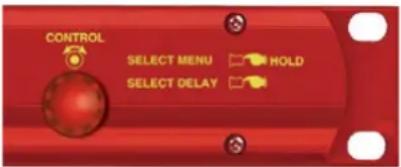
Fig 10-3: RB-PD2 Rotary Control Operation
Setting the Delay
The target delay of the RB-PD2 is dependent on the selected Start Mode. There are 2 start modes; Build Delay and Play File.
Build Delay Mode
In Build Delay mode, the delay will be acquired using the automatic audio stretch algorithm until the target delay has been built up. The rate at which the delay is built up depends on the current audio stretch algorithm speed setting.
To adjust the delay, lightly press the rotary control to enable the delay edit mode. The decimal point on the selected delay value on the left hand side of the main screen will flash to indicate that delay edit mode has been entered. The value of the delay can now be changed by turning the rotary control. Once the required delay value has been set, press the rotary control again to return to normal operation. The delay edit mode is automatically cancelled if no change is made to the delay within a period of 2.5 seconds.
If the current delay is not zero, i.e. a certain amount of delay has already built up, changes to the delay are implemented dynamically. For example, if the current delay is 7.0 seconds and a new delay of 5.5 seconds is selected, the delay will automatically decrease to the new value and the status line will show "DECREASING DELAY".
Play File Mode
In Play File mode, an audio file stored on a Compact Flash ™ memory card is played whilst simultaneously buffering the audio at the selected audio input source. Once the audio file has finished playing, the buffered audio is output and the delay is set to the duration of the file just played.
In this start mode, the selected delay value on the left hand side of the main screen shows the length of the selected start play file. The selected delay cannot be edited until the start file has finished playing.
The BUILD DELAY Button
The BUILD DELAY button activates the build delay mode when the audio stretch algorithm starts to silently build up audio delay. This mode can only be entered if the unit is at zero delay or in exit delay mode. The audio stretch algorithm builds the delay based on the current build/exit speed (the Delay Build/Exit Speed – see page 69).
The actual operation will depend on the current delay and the currently selected start mode. If the current delay is zero, the delay will build using the selected start mode. However, if the current delay is greater than zero i.e. some delay has already been acquired, the automatic audio stretch algorithm is activated to build the delay to the selected value.
The BUILD DELAY button is illuminated red whilst the delay is being acquired and the status line on the display will show either "PLAYING DELAY START FILE" or "BUILDING DELAY" depending on which build mode is active. Once the delay reaches the pre-selected value, the BUILD DELAY button is illuminated green and the status line shows "DELAY OK".
The EXIT DELAY Button
The EXIT DELAY button activates the exit delay mode when the audio delay is reduced to zero. The delay ramps down at the rate specified by the current build/exit speed (the Delay Build/Exit Speed – see page 69).

Fig 10-4: RB-PD2 Front Panel Buttons
This mode can only be activated if the unit is currently in build delay mode or is at the currently selected delay (shown via the status line on the display).
The EXIT DELAY button is illuminated red whilst the delay is being reduced and the status line will show "EXITING DELAY". Once the delay has been reduced to zero, the EXIT DELAY button will illuminate green for 1.5 seconds and the status line on the display will show "ZERO DELAY".
The COUGH Button
The COUGH button activates the cough function which allows unwanted audio that is about to be presented to the audio inputs to be discarded. The cough function is only active whilst the COUGH button is pressed.
The COUGH button is illuminated red and the status line on the display will show "COUGH ACTIVE". The current delay shown on the display will count down whilst the button is pressed. If the COUGH button continues to be pressed and the current delay counts down to 0, the audio outputs will be muted until the COUGH button is released.
When the unwanted noise has passed, the COUGH button can be released and the status line will indicate the current state. If the exit delay mode was active prior to the cough function, the status line will show "EXITING DELAY" unless the delay has reached 0, in which case the status line will show "ZERO DELAY". Otherwise the build delay mode will re-engage and status line will show "BUILDING DELAY".
The Audio BYPASS Button
The BYPASS button enables the delay bypass mode, which internally connects the inputs to outputs in both the analogue and digital domains. The BYPASS button is illuminated red when the delay bypass mode is enabled and the analogue and digital icons on the display will change to . When power is removed from the unit, the bypass mode is automatically enabled.
The DUMP/DROP Button
Pressing the DUMP/DROP button activates the currently selected dump mode. The dump mode can be initiated at any time provided the current delay is not at 0. The button is illuminated red and the status line displays "DUMP ACTIVE". With the dump buffer mode selected, a pre-selected length (the Dump Buffer Length - see page 70) of most recent audio data is discarded from the internal audio buffer each time the dump button is pressed. If the current delay is less than the dump buffer length, the delay is set to 0. When the dump buffer function has completed, the delay will automatically start to build unless the exit delay mode was active prior to the dump being activated.
When the dump mode is set to play file, all the buffered audio is discarded and the selected audio file on the Compact Flash™ memory card is played. Audio is immediately buffered to create a new delay which will be equal to the duration of the audio file being played. When the file has finished playing the status display will show "DELAY OK".
10 Synchronisers & Delays - RB-PD2
Pressing and holding the DUMP/DROP button for 0.8 seconds, activates the DROP function. All of the currently acquired delay is discarded, the audio outputs are muted and the status display will show "DROP ACTIVE". When the DUMP/DROP button is released, its illumination is turned off, the audio outputs are un-muted and the status line indicates the current mode. If the exit delay mode was active prior to the drop function, the status line will show "ZERO DELAY". Otherwise the build delay mode will re-engage and status line will show "BUILDING DELAY".
System Reset
A single LED on the left side of the front panel indicates that power is applied. The system reset button is accessible through the small aperture to the right of the power LED.
Selecting the Main Menu
The RB-PD2's configuration options are accessed from the main system menu. To access the main system menu, press and hold the rotary control for at least 1.5 seconds. The menu structure is arranged in a multi-tiered format with several menu items providing access to sub-menus. To select a menu item, turn the rotary control until the required item is highlighted, then press the rotary control to select the item. Each configuration is shown as a list of available options. The currently selected option will be shown with a tick along side it. The last item shown in each menu is >CLOSE. Selecting close exits the system menu and returns to the main display. In each sub-menu, the penultimate item shown is <BACK. Selecting back displays the previous menu.
Rear Panel Connections

Fig 10-5: RB-PD2 Rear Panel
XLR Analogue Inputs (Left and Right)
The XLR 3 pin sockets used for the left and right channel analogue inputs are electronically balanced and have an impedance greater than 10kΩ bridging. Each XLR has the following connections:
Pin 1: Screen
Pin 2: Phase
Pin 3: Non-phase
Analogue Input Adjustment
The Input Peak Digits setting (see System Menu: Volume) sets the analogue input gain for full-scale digits in the digital domain. The preset potentiometers next to the analogue inputs allow an additional adjustment of this value by ±3dB.
AES/EBU Input
The digital input XLR 3 pin socket has an impedance of 110Ω. It has the following connections:
Pin 1: Screen
Pin 2: Phase
Pin 3: Non-phase
The signals on this connector should meet the IEC 60968 specification.
XLR Analogue Outputs (Left and Right)
The XLR 3 pin output plugs are electronically balanced with an output impedance of less
than 50Ω. They have the following connections:
Pin 1: Screen
Pin 2: Phase
Pin 3: Non-phase
AES/EBU Output
The digital output XLR 3 pin plug has an impedance of 110Ω. It has the following connections:
Pin 1: Screen
Pin 2: Phase
Pin 3: Non-phase
The signals on this connector comply with the IEC 60968 specification.
Remote Inputs and Outputs
The 15-way 'D' type socket connector presents 8 active low inputs and 6 open collector outputs which can be programmed to your requirements. The inputs are used to remotely activate a pre-assigned function and the outputs provide an indication that a pre-assigned state is currently active (see System Menu: Remotes).
The remote outputs 1-6 can also be optionally be made to follow the inputs 1-6 with the current programme delay inserted between actuation on the input and actuation on the output. This can be useful for timed events that need to account for the delay built up by the RB-PD2.
It has the following connections:
Pin 1: Active low input 1
Pin 2: Active low input 2
Pin 3: Active low input 3
Pin 4: Active low input 4
Pin 5: Active low input 5
Pin 6: Active low input 6
Pin 7: Active low input 7
Pin 8: Active low input 8
Pin 9: Signal ground
Pin10: Open collector output 1
Pin11: Open collector output 2
Pin12: Open collector output 3
Pin13: Open collector output 4
Pin14: Open collector output 5
Pin15: Open collector output 6
10 Synchronisers & Delays - RB-PD2
RS232
The 9-way 'D' type socket connector allows direct connection to a serial port on a PC via a pin-to-pin cable. See the section on Serial Port Control for details of this interface. It has the following connections:
Pin 1: N/C
Pin 2: Transmit data (TxD)
Pin 3: Receive data (RxD)
Pin 4: N/C
Pin 5: Ground
Pin 6: N/C
Pin 7: Clear To Send (CTS)
Pin 8: Request To Send (RTS)
Pin 9: N/C
The Default Screen

Fig 10-6: The Default Screen
The default screen shows the current selections for audio source, sample rate and sample bit width in the top left of the screen. The selected delay value is shown on the left while the current delay is shown in larger characters on the right. The "SECS" label shown next to the current delay will flash if the current delay is below the SAFE PERIOD.
The current status of the unit is displayed on the status line at the bottom of the screen. Also shown on the main screen is the mute status of the analogue and digital outputs, and the status of the Compact Flash™ memory card, if fitted. When a memory card is fitted, a small memory card
symbol will appear above the analogue and digital audio output status icons. A tick next to the memory card symbol indicates the card is ready for use, whereas a cross indicates that there is an error.
All of the RB-PD2's settings are configured from the main system menu with the exception of the selected delay. The delay is adjusted directly from the main screen following the instructions on page 64.
The Main Menu

Fig 10-7: The Main Menu Screen
To access the main menu, press and hold the rotary control knob for 1.5 seconds. Instructions for navigating the menu structure are on page 66.
The available menu and sub menu items are described below together with the associated configuration options.
SYSTEM MODE
This selection shows the SYSTEM MODE sub-menu. The sub-menu items are NORMAL MODE and REVIEW MODE.
Normal Mode
This option selects the normal profanity delay operating mode of the unit. This is the default mode.
Review Mode
This option selects the review mode. This mode allows constant live monitoring of an audio feed, with the ability to repeat sections of audio by increasing the delay by a preconfigured step. See the Review Mode section for details.
DELAY OPTIONS
This selection shows the DELAY OPTIONS sub-menu. The sub-menu items are START MODE, BUILD/EXIT SPEED and SAFE PERIOD.
START MODE
This option defines how the delay is built-up. From the DELAY OPTIONS sub-menu select START MODE. The available options are BUILD DELAY, PLAY FILE and SELECT PLAY FILE.
- Build Delay – With this option selected, the delay is built up using the automatic audio stretch algorithm. The length of the delay is selected via the main screen.
- Play File – With this option selected, the delay is built up whilst playing a pre-selected audio file on a Compact Flash™ memory card. The length of the delay will be equal to the duration of the selected audio file.
- Select Play File – This option selects the audio file to be played when the Play File start mode is selected. It shows all available audio files on the Compact Flash™ memory card which match the current audio configuration settings (sample rate and sample width). If the card has sub-directories defined, these are also shown. To select a file, turn the rotary control and then press when the required file is highlighted. To
move to a sub-directory, press the rotary control with the highlight over the required directory name. Whilst viewing a sub-directory, the top item in the list is UP which, when selected, returns to the parent directory.
The default start mode is Build Delay.
BUILD/EXIT SPEED
This option selects the rate at which the audio stretch algorithm builds and exits the delay. There are 16 speed settings and each is shown with the approximate time required to build/exit a 10 second delay. These settings are 5mins 30secs, 5mins 00secs, 4mins 30secs, 4mins 00secs, 3mins 30secs, 3mins 00secs, 2mins 30secs, 2mins 20secs, 2mins 10secs, 2mins 00secs, 1min 50secs, 1min 40secs, 1min 30secs, 1min 20secs, 1min 10secs and 1min 00secs. When building from zero delay, the audio stretch algorithm is designed to start at a slow speed and increase to the configured speed. This helps to avoid sudden tempo changes. Likewise, when exiting the delay and as the current delay approaches zero, the speed is decreased. Consequently, the times shown for each speed setting will be slightly less for subsequent 10 seconds periods. For example, if the delay is set to 20 seconds, and the speed selected is 3mins 00secs, the first 10 seconds of delay will be acquired in the time specified, while the remaining 10 seconds will take slightly less time. The build/exit speed can only be changed when the current delay is zero. The default build/exit speed is 2mins 30secs.
SAFE PERIOD
This option selects the safe period duration, i.e., amount of delay that needs to be built up before the DUMP button can be used without muting the outputs. To edit the safe period, turn the rotary control until the highlight is over the safe period value. Press the rotary control to enter edit mode. The highlight changes to a flashing line under the current value. Now turn the rotary control to select a new safe period between 1 and 10 seconds in units of 0.1 seconds. When the required value is shown, press the rotary control again to leave edit mode. Now turn the rotary control to select either OK which saves the new value, or CANCEL which discards the changes.
10 Synchronisers & Delays - RB-PD2
The “SECS” label on the right hand side of the main screen, next to the current delay value, flashes when the current delay is less than the safe period. If the safe period is set to the same duration as the dump length, it provides a quick visual indication of when the dump can be used without the outputs muting, as would be the case if the dump period is longer than the current delay.
The default safe period is 2.0 seconds.
DUMP MODE
This option selects the mode of operation when the DUMP button is pressed. From the main system menu select DUMP MODE. The available options are DUMP BUFFER, PLAY FILE, BUFFER LENGTH and SELECT PLAY FILE.
- Dump Buffer – This option discards a pre-selected amount of audio from the internal delay buffer. For example, if the current delay is 10 seconds and the dump buffer length is 4 seconds, when the dump is activated, the position at which the audio at the selected input is stored in the internal memory buffer is moved back by 4 seconds. This effectively overwrites the last four seconds of audio and the delay will be reduced to 6 seconds. The audio stretch algorithm will automatically activate after the dump to return the delay to the selected duration.
- Play File – This option plays a pre-selected audio file on a Compact Flash™ memory card and discards all of the currently buffered audio. Delay acquisition begins again immediately and the new delay length is equal to the duration of the file played.
- Buffer Length – This option selects the dump buffer length when the Dump Mode is set to Dump Buffer. To edit the buffer length, turn the rotary control until the highlight is over the dump buffer value. Press the rotary control to enter edit mode. The highlight changes to a flashing line under the current value. Now turn the rotary control to select a new dump buffer length between 1 and 10 seconds in units of 0.1 seconds. When the required value is shown, press the rotary control again to leave
edit mode. Now turn the rotary control to select either OK which saves the new value, or CANCEL which discards the changes.
- Select Play File – This option selects the audio file to be played when the Play File dump mode is selected. It shows all available audio files on the Compact Flash™ memory card which match the current audio configuration settings (sample rate and sample width). If the card has subdirectories defined, these are also shown. To select a file, turn the rotary control and then press when the required file is highlighted. To move to a sub-directory, press the rotary control with the highlight over the required directory name. Whilst viewing a sub-directory, the top item in the list is UP which, when selected, returns to the parent directory.
- The default dump mode is dump buffer with a buffer length of 2.0 seconds.
SOURCE
This option selects which input is used for the audio delay process. From the main system menu select SOURCE. The available options are ANALOGUE, ANALOGUE SYNC and DIGITAL. The delayed audio appears at both the analogue and digital outputs regardless of the input source selected.
- Analogue – This selects the audio at the analogue inputs as the source for the delay. The input is sampled and delayed using the selected sample rate generated from an internal master clock. The digital input is not used.
- Analogue Sync – This selects the audio at the analogue inputs as the source for the delay. The input is synchronized to the digital audio sync signal at the digital input and the analogue and digital audio outputs will be muted until a valid sync signal is detected. Once a valid sync signal has been received, audio will appear at the outputs and the delay can then be started. Any subsequent loss of sync signal will force the unit to revert to an internally generated master clock rate as near as possible to the last sync signal received.
- Digital – This selects the audio at the digital input as the source for the delay. With no digital signal applied, the analogue and digital audio outputs will be muted. Once a valid digital input is received, the unit locks
to this signal and audio will appear at the outputs. The analogue inputs are not used.
• The default source is analogue.
SAMPLE RATE
This option selects the sample rate used when the input source is set to Analogue. From the main system menu select SAMPLE RATE. The available options are 32kHz, 44.1kHz and 48kHz. The sample rate can only be changed when the current delay is zero. The default sample rate is 48kHz.
SAMPLE WIDTH
This option selects the sample size used in the analogue to digital and digital to analogue conversion. From the main system menu select SAMPLE WIDTH. The available options are 16BIT and 24BIT. The sample width can only be changed when the current delay is zero. The default sample width is 24bits.
RECORD
This selection shows the Record sub-menu which allows you to make a recording onto a CF card. Note that pre-recorded .wav files can also be played by selecting DUMP MODE>Select Play File.
The sub-menu items are NEW RECORDING, SOURCE, SAMPLE RATE, SAMPLE WIDTH and INITIALS.
New Recording

Fig 10-8: The Record Screen
This option enters the record screen provided a valid Compact Flash™ memory card is inserted in the front panel Compact Flash™ memory card slot. An error message will be displayed if no memory card is present, or a new record audio file cannot be initialized, or the maximum number of recordings already exists in the current directory, or insufficient space exists.
The record screen shows the filename that the audio will be recorded to as well as the record parameters that are currently set. The PPM display at the top of the record screen gives a visual indication of the audio levels for the selected source with the line on the scale indicating the 0dB point. In record mode, the DUMP/DROP button doubles as a control for the record process. To start recording, press the button once. The button illuminates, the record pause icon is cleared and the recording starts with the on-screen duration indicating the length of the recording. To stop the recording, press the DUMP/DROP button again. The new audio file is saved, the record mode is exited and the main default screen is displayed.
To exit the record screen prior to starting record, press and hold the rotary control for 1.5 seconds. Position the highlight over EXIT RECORD and press the rotary control.
Source
This option selects which input is used for the record process. From the record sub-menu select SOURCE. The available options are ANALOGUE, ANALOGUE SYNC and DIGITAL.
The analogue and digital outputs are muted whilst in record mode.
- Analogue – This selects the audio at the analogue inputs as the source for recording. The input is sampled using the selected record sample rate generated from an internal master clock. The digital input is not used.
- Analogue Sync – This selects the audio at the analogue inputs as the source for recording. The input is synchronized to the digital audio sync signal at the digital input.
10 Synchronisers & Delays - RB-PD2
- Digital – This selects the audio at the digital input as the source for recording. The analogue inputs are not used. The default record source is analogue.
Sample Rate
This option selects the sample rate used for recording when the input source is set to Analogue. From the record sub-menu select SAMPLE RATE. The available options are 32kHz, 44.1kHz and 48kHz. The default record sample rate is 48kHz.
Sample Width
This option selects the sample size used for recording in the analogue to digital conversion. From the record sub-menu select SAMPLE WIDTH. The available options are 16BIT and 24BIT. The default record sample width is 24bits.
Initials
This option sets the first 4 characters of the record filename that is automatically generated when entering record. The filename consists of these 4 characters followed by a 4 digit number which automatically increments as new recordings are made. The file extension for all recordings is "WAV". For example, with the initials set to "RECD", the first record filename will be "RECD0001.WAV".
To set the initials, turn the rotary control to highlight a character and then press the rotary control to enter edit mode. The highlight changes to a flashing line under the selected character. Now turn the rotary control to select a new character in that position. When the required character is shown, press and turn the rotary control to select a new edit position. When the required changes have been made, select either OK to save the new initials, or CANCEL to discard the changes. The default initials are "RECD".
VOLUME
This selection shows the Volume sub-menu where you can set input and output gains and also mute the outputs. The sub-menu items are INPUT PK DIGITS, OUTPUT GAIN, ANALOGUE MUTE and DIGITAL MUTE.
Input Peak Digits
This option sets the full-scale dB input amplitude that will give full-scale digits in the digital domain. From the VOLUME sub-menu select INPUT PK DIGITS. The available options are +12 dB, +18 dB and +24 dB. The default value for input peak digits is +12dB.
Output Gain
This option sets the gain of the analogue output stage. From the VOLUME sub-menu select OUTPUT GAIN. The available gain settings are from -6 dB to +24 dB in 1 dB increments. The default value for output gain is +12dB.
Analogue Mute
This option mutes the analogue audio output. From the VOLUME sub-menu select ANALOGUE MUTE. The available options are OFF and ON and by default, the analogue mute is off. This option can be remotely controlled.
Digital Mute
This option mutes the digital audio output. From the VOLUME sub-menu select DIGITAL MUTE. The available options are OFF and ON and by default, the digital mute is off. This option can be remotely controlled.
MEMORY CARD
This selection shows the Memory Card sub-menu. The sub-menu items are DETAILS, FILE DELETE and FORMAT CARD. A Compact Flash™ memory card slot, accessible from the front panel, accepts memory cards up to 2Gbytes.
Details
This selection shows details of the memory card currently inserted into the Compact Flash™ memory card slot. From the MEMORY CARD sub-menu
select DETAILS. The information shown is the model number and the size of the card in Mbytes.
File Delete
This option allows any of the files on the Compact Flash™ memory card to be deleted. From the memory card sub-menu select FILE DELETE. The files and sub-directories on the Compact Flash™ memory card are shown in a list with the sub-directories at the top. Turn and press the rotary control to highlight and select the file to delete. A confirmation message box will be displayed; select OK to delete the file or select CANCEL to return to the list. To move to a sub-directory, press the rotary control with the highlight over the required directory name. Whilst viewing a sub-directory, the top item in the list is UP which, when selected, returns to the parent directory.
Format Card
This formats the CF card using a 16-bit FAT DOS format. From the MEMORY CARD sub-menu select FORMAT. When Format Card is selected, the system menu is exited, the main screen is shown & a message box is indicates that the memory card is being formatted.
Please note: Formatting will delete all files and directories on the memory card.
REMOTES
This selection shows the Remotes sub-menu and allows you to configure the remote inputs and outputs to control the RB-PD2 externally. The sub-menu items are VIEW SETTINGS, CONFIGURE INPUTS and CONFIGURE OUTPUTS.
View Settings
This selection lists the current settings for the 8 remote inputs and the 6 remote outputs. From the REMOTES sub-menu select VIEW SETTINGS.
Configure Inputs
This selection sets the function that will be activated by the corresponding remote input. From the REMOTES sub-menu select CONFIGURE INPUTS
followed by the required input number. A list is shown displaying all the possible functions that can be activated by the remote input with the default being NO ACTION:
NO ACTION
BUILD DELAY
EXIT DELAY
BUILD/EXIT DELAY (toggles the mode between build and exit delay)
ACTIVATE DUMP
ACTIVATE DROP
ACTIVATE COUGH
START RECORDING
MUTE OUTPUTS (both analogue and digital) and
ACTIVATE BYPASS
DELAY TO OUTPUT.
The options for remote input 7 and 8 remain unchanged.
If a remote input is set to "Delay To Output", the corresponding remote output in the remote output configuration options (Main Menu->Remotes->Configure Outputs->Output 1-6) is inaccessible and a message box is displayed stating that this remote output is controlled by the corresponding input.
For remote inputs that are configured as "Delay To Output", an active remote input (shorted to 0V) produces an active open collector output on the corresponding remote output after the current delay time period has elapsed. The open collector output is de-activated after the current delay period when the remote input is deactivated.
Configure Outputs
This selection sets the remote output signalling options for the corresponding remote output. From the REMOTES sub-menu select CONFIGURE OUTPUTS followed by the required output number. Each remote output can signal when a certain function or state has been
10 Synchronisers & Delays - RB-PD2
activated. A list is shown displaying all the possible states that can be signalled
by the remote output, with the default being NO ACTION:
NO ACTION
ZERO DELAY
BUILDING DELAY
DELAY SAFE (current delay is greater than safe period)
DELAY OK
EXITING DELAY
DUMP ACTIVE
DROP ACTIVE
COUGH ACTIVE
RECORD ACTIVE
OUTPUTS MUTED and
BYPASS ACTIVE.
CONTROL LOCK
This option allows the front panel bypass and rotary controls to be disabled. From the main system menu select CONTROL LOCK. The available options are OFF and ON. Access to the system menu is still enabled when the control lock is on to allow the lock to be removed. When the control lock is enabled, a small key icon is displayed in the upper right side of the main screen display. By default, the control lock is off.
SYSTEM
This selection shows the System sub-menu. The sub-menu items are BAUD RATE and INFORMATION.
Baud Rate
This selection allows the baud rate of the serial port to be set. From the SYSTEM sub-menu select BAUD RATE. The available options are 9600, 19200, 38400, 57600 and 115200. The default baud rate is 19200.
Information
This selection shows product and software version information. From the SYSTEM sub-menu select INFORMATION.
The Product Id is set to RB-PD2. This is used to identify the unit when using a PC and the Sonifex SCi control software.
The Serial Number is factory set. Always quote this number in any correspondence with Sonifex technical support.
The Bootstrap Version Number is the revision of the software that boots the system and controls the firmware upgrade process. This software is installed at the factory and can only be upgraded by Sonifex.
The Version Number is the revision of the main software. This software can be upgraded. For the latest software updates, check the Sonifex website at www.sonifex.co.uk
The Display Version Number is the software revision running on the display PCB.
Review Mode
Review mode changes the functionality of the unit. It allows live monitoring of an audio input with the ability to repeat sections of audio by increasing the delay immediately by a preconfigured step. The delay can be increased multiple times until either the maximum possible delay is reached or no further delays increases by the preconfigured step are possible. Review mode is enabled via: [MAIN MENU > SYSTEM MODE > REVIEW MODE].
The default screen shows the selected step size in seconds on the left hand side of the display and the current delay in a larger font on the right hand side. The current status is shown at the bottom of the display, and shows "MONITORING LIVE" when the output is not delayed, and "REVIEW ACTIVE" when the delay is active.
The step size is changed directly from the main screen. Briefly press the rotary control to enable the step edit mode. The decimal point on the
current step value on the left hand side of the screen will flash to indicate that step edit mode has been entered. The value of the step can now be changed by turning the rotary control. Once the required value has been set, press the rotary control again to return to normal operation. The step edit mode is automatically cancelled if no change is made to the step within a period of 2.5 seconds.
Pressing the DUMP button increases the delay by the current step size. When the delay is active, the EXIT DELAY button illumination is turned off, and the DUMP button illumination is turned on. When no more delay increases are available at the current step size, the DUMP button will flash. The maximum delays for the indicated sample rates are shown below:
32 kHz sample rate - 55.2 seconds for 16 bit, 27.6 seconds for 24 bit
44.1 kHz sample rate - 40.0 seconds for 16 bit, 20.0 seconds for 24 bit
48 kHz sample rate - 36.8 seconds for 16 bit, 18.4 seconds for 24 bit
To return to live monitoring, press the exit delay button. The DUMP button illumination is turned off and the EXIT button illumination is turned on.
The current delay can be temporarily bypassed by pressing the BYPASS button. This allows the live audio to be temporarily monitored while the delay is still active. Both the DUMP and EXIT DELAY buttons are still active while the bypass is active.
The BUILD DELAY and COUGH buttons are disabled when the review mode is selected and the menu options DELAY OPTIONS, DUMP MODE, SOURCE, RECORD, MEMORY CARD and REMOTES are omitted as they do not apply. The source selection is pre-set to Analogue in review mode.
Serial Port Control
The Serial Port allows the RB-PD2 to be controlled and updated from a PC using the Sonifex Serial Control Interface (SCI) software. This software is available as a free download from the Sonifex website at www.sonifex.co.uk/sci.
Default Settings for the Serial Port
Baud Rate: 19200
Data Bits: 8
Stop Bits: 1
Parity: Even
Handshaking: None
Serial Interface Commands and Responses
Most of the commands follow the same structure: a 3 letter command followed by a colon, followed by a parameter (if any) and terminated by Carriage Return with optional Line Feed. A Line Feed character may be sent but it will be ignored by the RB-PD2. Commands are not case sensitive.
Responses will be CR & LF terminated.
After the profanity delay has been powered-up, an initialisation string is sent
"Initialising PD2".
Following are the commands and the expected responses:
Command Description Response
| Bnn: **Set baud rate where: ACK: or NAK: (at old rate) |
| nn = 11 (115200 baud) |
| nn = 57 (57600 baud) |
| nn = 38 (38400 baud) |
| nn = 19 (19200 baud) |
| nn = 96 (9600 baud) |
| BPD: | Bypass disable | ACK: or NAK: |
| BPE: | Bypass enable | ACK: or NAK: |
| BSV: | **Bootstrap version requestwhere n.n = bootstrap version | BSV:Vn.n |
CST: Cough start
ACK: or NAK:
10 Synchronisers & Delays - RB-PD2
CSP: Cough stop ACK: or NAK:
DLB: Build delay ACK: or NAK:
DLC: Clear delay immediately to zero ACK:
DLE: Exit delay ACK: or NAK:
DLF:c Delete file on Compact ACK: or NAK:
Flash™ memory card where:
c = "\path\filename"
(c="filename" for files in root directory)
DLY:n Set required delay where: ACK: or NAK:
n = delay in milliseconds (100ms resolution)
DRO: Drop start ACK: or NAK:
DRS: Drop stop ACK: or NAK:
| DSP:n | Set delay build/exit speed where: | ACK: or NAK: |
| n = 0 (5mins 30secs) | ||
| n = 1 (5mins 00secs) | ||
| n = 2 (4mins 30secs) | ||
| n = 3 (4mins 00secs) | ||
| n = 4 (3mins 30secs) | ||
| n = 5 (3mins 00secs) | ||
| n = 6 (2mins 30secs) | ||
| n = 7 (2mins 20secs) | ||
| n = 8 (2mins 10secs) | ||
| n = 9 (2mins 00secs) | ||
| n = 10 (1min 50secs) | ||
| n = 11 (1min 40secs) | ||
| n = 12 (1min 30secs) | ||
| n = 13 (1min 20secs) | ||
| n = 14 (1min 10secs) | ||
| n = 15 (1min 00secs) |
DST: Dump start ACK: or NAK:
| DWN: | **Download firmware. | ACK: or NAK: |
| New firmware installed | ||
| when 'S-Record' | (ACK: indicates download | |
| terminator received | can start) | |
FMC: Format memory card ACK: or NAK:
GDL:c Get directory list where: GDL:z
c = "\path" for base directory
of list (c="\" for root directory)
z = comma separated list of directories
| GFL:n_c Get file list where: n = 1 (list wav files) n = 2 (list wav files with same settings as current configuration) n = 3 (list all files) c = "\path" for base directory of list (c="\" for root directory) z = comma separated list of files | GFL:z |
LOC: Enable control lock ACK: or NAK:
MCD: Request memory card
details where: MCD:y,z or NAK:
y = model number
z = capacity in MBytes
NRC: Initialise new recording ACK: or NAK:
| REC:n | Record control where: | ACK: or NAK: |
| n = 1 (start) | ||
| n = 0 (stop) |
RIN:c Set record initials where: ACK: or NAK: c = 4 character initials
| RSC:n | Set record source where: | ACK: or NAK: |
| n = 0 (analogue) | ||
| n = 1 (analogue sync) | ||
| n = 2 (digital) |
| RSR:n | Set record sample rate where: | ACK: or NAK: |
| n = 0 (32 kHz) | ||
| n = 1 (44.1 kHz) | ||
| n = 2 (48 kHz) |
| RSW:n | Set record sample width where: | ACK: or NAK: |
| n = 0 (16 bit) | ||
| n = 1 (24 bit) |
| SAM:n | Set analogue mute where: | ACK: or NAK: |
| n = 0 (off) | ||
| n = 1 (on) |
SDB:n Set dump buffer length where: ACK: or NAK:
n = dump length in milliseconds
(100ms resolution)
SDF:c Set dump play file where: ACK: or NAK:z
c = "\path\filename" (c="\filename" for files
in root directory)
z = error message
SER: **Serial number request where: SER:z
z = serial number (6 digits)
SDM:n Set digital mute where: ACK: or NAK:
n = 0 (off)
n = 1 (on)
SIP:n Set input peak digits where: ACK: or NAK:
n = 0 (+12dB)
n = 1 (+18dB)
n = 2 (+24dB)
SMD:n Set dump mode where: ACK: or NAK:
n = 0 (dump buffer)
n = 1 (play file)
SMS:n Set start delay mode where: ACK: or NAK:z
n = 0 (build using audio stretch algorithm)
n = 1 (play file)
z = error message
SOG:n Set output gain where: ACK: or NAK:
n = 0 (-6dB)
n = 1 (-5dB)
n = 2 (-4dB)
n = 3 (-3dB)
n = 4 (-2dB)
n = 5 (-1dB)
n = 6 (-0dB)
n = 7 (+1dB)
n = 8 (+2dB)
n = 9 (+3dB)
n = 10 (+4dB)
n = 11 (+5dB)
n = 12 (+6dB)
n = 13 (+7dB)
n = 14 (+8dB)
n = 15 (+9dB)
n = 16 (+10dB)
n = 17 (+11dB)
n = 18 (+12dB)
n = 19 (+13dB)
n = 20 (+14dB)
n = 21 (+15dB)
n = 22 (+16dB)
n = 23 (+17dB)
n = 24 (+18dB)
n = 25 (+19dB)
n = 26 (+20dB)
n = 27 (+21dB)
n = 28 (+22dB)
n = 29 (+23dB)
n = 30 (+24dB)
SRI:i_n Set function for remote
input where: ACK: or NAK:
i = remote input id (0-7)
n = 0 (no action)
n = 1 (build delay)
n = 2 (exit delay)
n = 3 (activate dump)
n = 4 (activate drop)
n = 5 (activate cough)
n = 6 (start new recording)
n = 7 (mute all audio outputs)
n = 8 (activate audio bypass)
SRO:o_n Set function signal for remote
output where:
o = remote output id (0-5)
n = 0 (no action)
n = 1 (delay is at zero)
n = 2 (delay building)
n = 3 (delay is greater than safe period)
n = 4 (delay is at selected value)
n = 5 (delay exiting)
n = 6 (dump active)
n = 7 (drop active)
n = 8 (cough active)
ACK: or NAK:
10 Synchronisers & Delays - RB-PD2
n = 9 (record active)
n = 10 (audio outputs muted)
n = 11 (audio bypass active)

SRQ:n Status request where: STA:e_f_g_h_i_j_k_l_m_n
e = unit status (8 hex digits) _o_p_q_r_s_t_u_v_w_x_y_z
f = current delay (8 hex digits)
g = selected delay (8 hex digits)
h = start mode setting
i = start play filename
j = safe period setting
k = dump mode setting
l = dump buffer length setting
m = dump play filename
n = source setting
o = sample rate setting
p = sample width setting
q = record source setting
r = record sample rate setting
s = record sample width setting
t = input peak digits setting
u = output gain setting
v = analogue mute status
w = digital mute status
x = bypass status
y = control lock status
z = delay build/exit speed setting
SSC:n Set source where: ACK: or NAK:
n = 0 (analogue)
n = 1 (analogue sync)
n = 2 (digital)
SSF:c Set delay start play file where: ACK: or NAK:z
c = "\path\filename"
(c="\filename" for files in root directory)
z = error message
SSP:n Set safe period length where: ACK: or NAK:
n = dump length in
milliseconds (100ms resolution)
SSR:n Set sample rate where: ACK: or NAK: n = 0 (32 kHz)
n = 1 (44.1 kHz)
n = 2 (48 kHz)
SSW:n Set sample width where: ACK: or NAK:
n = 0 (16bit)
n = 1 (24bit)
UID: **Unit ID request UID:PD2
UNL: Disable control lock ACK: or NAK:
VER: Version request where
y.yyy = firmware version
zzzz = display version
VER:Vy.yyy,Vzzzz
VRS: Request remote VRS:m_n_o_p_q_r_s_t_u_v
settings where:
m = remote input 1 setting
n = remote input 2 setting
o = remote input 3 setting
p = remote input 4 setting
q = remote input 5 setting
r = remote input 6 setting
s = remote input 7 setting
t = remote input 8 setting
u = remote output 1 setting
v = remote output 2 setting
w = remote output 3 setting
x = remote output 4 setting
y = remote output 5 setting
z = remote output 6 setting
** Supported in Bootstrap mode
Upgrading Firmware
Occasionally, it may be necessary to upgrade the firmware on the RB-PD2 to add new functionality and fix software bugs. New firmware updates will be made available from time to time on the Sonifex website. Visit www.sonifex.co.uk for details.
The firmware is upgraded using the Serial Control Interface - SCI. This PC software downloads the new firmware and initiates the upgrade process. To upgrade the firmware, select the required firmware file in the SCI upgrade
firmware section. The RB-PD2 will automatically reboot and enter the bootstrap mode prior to the transfer of the firmware file. The SCI software downloads the firmware to internal memory, and then erases the current firmware before programming the update. When the firmware is complete, the unit reboots with the new firmware.
Please note: Firmware files can take several minutes to transfer to the RB-PD2 at lower baud rates. To speed up the process, select a higher baud rate prior to transferring the new firmware.
Technical Specification RB-PD2
| Audio Specification | ||
| Maximum Input Level: +27dBu | ||
| Input Impedance: >10kΩ bridging | ||
| Analogue & Digital | ||
| Input Levels: Selectable +12dBu, +18dBu, +24dBu for FSD | ||
| Analogue Pre-set Input | ||
| Gain Range: Adjustable 3dB loss to 3dB gain (L & R adjust) | ||
| Signal to Noise: Better than -101dBFS (RMS A-weighted at 24bit) | ||
| Dynamic Range: >110dB | ||
| Distortion & Noise: >96dB THD + N at 1kHz | ||
| Maximum Output Level: +24dBu | ||
| Output Impedance: <50Ω | ||
| Dynamic Range: >100dB | ||
| Analogue Output Selectable -6dBu to +24dBu output level, Gain Range: ref FSD | ||
| Sampling Frequency: Selectable 32kHz, 44.1kHz, 48kHz | ||
| Sample Width: Selectable 16bit or 24bit | ||
| Channels: Stereo | ||
| Minimum Delay Duration:2 seconds | ||
| Maximum Delay Duration: | ||
| 16 bit | 24 bit | |
| 32kHz: | 55.1 secs | 27.5 secs |
| 44.1kHz: | 40.0 secs | 20.0 secs |
| 48kHz: | 36.8 secs | 18.4 secs |
| Rear Panel Connections | ||
| Analogue Inputs: | 2 x XLR 3 pin female (balanced) (L & R) | |
| Analogue Outputs: | 2 x XLR 3 pin male (balanced) (L & R) | |
| Digital Inputs: | 1 x AES/EBU XLR 3 pin female | |
| Digital Outputs: | 1 x AES/EBU XLR 3 pin male | |
| Remote I/O Port: | 15-way 'D'-type plug, 8 GPI inputs, 6 GPI outputs | |
| Serial Comms Port: | 9-way 'D'-type plug | |
| Mains Input: | Filtered IEC, continuously rated 100-240 VAC, 47-63Hz, fused, 60W peak, 30W average | |
| Fuse Rating: | Anti-surge fuse 2A 20 x 5mm | |
Front Panel Controls
| Display: | Vacuum fluorescent display |
| Direct Control | Build Delay, Exit Delay, Cough, Bypass & Dump |
| Push-Buttons: | |
| System Navigation: | Rotary selector with integral push-switch |
| Removable Audio | Compact FlashTM memory card port |
| Storage Device: | (supporting up to 2GB) |
Equipment Type:
| RB-PD2: | RK3 | Stereo Profanity Delay |
Physical Specification
| Dimensions (Raw): 48cm (W) x 15.8cm (D*) x 4.3cm (H) (1U) | |
| 19" (W) x 6.2" (D*) x 1.7" (H) (1U) | |
| Dimensions (Boxed): | 59cm (W) x 27.4cm (D*) x 10.8cm (H) |
| 23.2" (W) x 10.8" (D*) x 4.3" (H) | |
| Weight: | Nett: 1.7kg Gross: 2.3kg |
| Nett: 3.7lbs Gross: 5lbs | |
| * Note that this product is deeper than standard Redboxes | |
The RB-DD4 4 channel digital audio delay allows you to delay 4 mono channels of audio independently or together. Each channel delay is user selectable from multiples of common video frame rates, or a user defined value set via the serial interface. The unit is perfect for synchronizing audio to video which has been delayed by processing latency.
Using a front panel button, you can select which channel needs to be delayed. There is also an 'ALL' option which allows the selected delay to be applied to all channels. Then using another front panel button you can select the length of one frame of delay and the multiple of frames to delay by.
The connectivity is incredibly flexible, allowing three different types of connection to each input and output including AES/EBU, S/PDIF and TOSLink. All three different types of output can be used simultaneously. There is a monitor socket on the front panel which allows you to listen to each mono channel, by front panel selection. Pairs of channels can be monitored (1 & 2 or 3 & 4) using a rear panel stereo option. There is also an option to attenuate the monitor by 12dB selectable by rear panel DIPswitch. Audio presence is detected and displayed for each channel around the INPUTS 1 & 2 and INPUTS 3 & 4 buttons.
The flexibility continues with many audio synchronization options. The digital audio output can be synchronized to either input, an additional AES/EBU reference input, a TTL wordclock BNC input or an analogue/SDI video feed if used with an additional RB-SYA or RB-SYD board. Also the output
can be synchronized to an on-board master clock, with a selectable frame rate. There are warning indicators on the front panel for loss of lock on both inputs and for the selected external synchronization. Selectable synchronization modes are as follows:
Master Mode
In this mode the digital output sample rate is simply set by, and locked to, the internal on-board clock generator. No sync signal is used or required.
Auto Sync Mode
In this mode the digital output sample rate follows the selected sync input. When the sync signal is not present the output sample rate will be set by, and locked to, the internal on-board clock generator at the selected output frequency.
Auto Lock Mode
In this mode no output will be generated until lock is achieved with a sync signal. The digital output sample rate now follows the sync input. If the sync signal is removed then the output sample rate will be set by, and locked to, the internal on-board clock generator at the closest frequency available to the previous sync input.
Slave Mode
In this mode the digital output sample rate follows the sync input. When the sync signal is not present the digital output is turned off.
A powerful feature of the RB-DD4 is that by using the Sonifex SCi serial software, the unit can be programmed for different delay durations, levels and switching functions so that you can program the unit for your specific application. A rear panel DIPswitch configures the unit to be controlled serially. Contact Sonifex for further information if you have a particular requirement that isn't catered for by the RB-DD4 as standard.
The RB-DD4 has been designed to have a passive signal path through the main input, so if power to the unit fails, signal inputs 1 & 2 are routed to outputs 1 & 2 and signal inputs 3 & 4 are routed to outputs 3 & 4. This is essential for applications such as installation at transmitter sites, where a power failure to the unit should not prevent the audio input signal from being output to the transmitter. Please note that this is not true for the TOSLink outputs which are muted.
![graph TD A["Digital Input 1"] --> B["Digital Source Select"] B --> C["RX SRC"] C --> D["DSP"] D --> E["TX"] E --> F["Digital Output 1"] A --> G["S/PDIF"] A --> H["AES"] A --> I["Optical"] A --> J["Freq Select"] J --> K["Master Clock Generation"] K --> L["AES RX"] L --> M["Clock Select"] M --> N["Wor…](/content/2026/06/1229934/images/cfd7a638b19dcc4756add293630404172464b4aebdad24056de4e1b739865990.jpg)
Fig 11-2: RB-DD4 Block Diagram
Front Panel Controls and Indicators
The LED in the front panel is normally red to indicate power to the unit.

Fig 11-3: Front Panel Controls and Indicators
DELAY Unit & Quantity Select and Indicators
This button allows you to select the length of a delay unit and the multiple, which when multiplied together give the total delay length.
To set the Delay Unit, press and hold the DELAY button. A single given LED is lit to indicate which unit has been selected. Pressing the button moves the selection in a clockwise direction.
To set the multiple/quantity of units to delay, press and hold the DELAY button again. The LEDS around the button indicate the chosen delay multiple and the total multiple is found by summing the indicated numbers. Pressing the button increments the multiple by one. (See page 83 for more info on Delay Button Modes).

Fig 11-6: INPUTS 1 & 2 Button
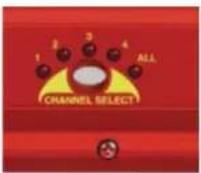
Fig 11-5: CHANNEL SELECT Button
Channel Select
This button selects and indicates the currently selected input channel. There is an option for each individual channel and an option for all channels. As each different channel is selected, the currently selected delay multiple for that channel is displayed on the DELAY button LEDs. Any change of the multiple or delay unit length is applied to the currently selected channel, or

Fig 11-7: MONITOR SELECT Button
all of them if the ALL option is selected. Pressing the button moves the selection in a clockwise direction.
INPUT 1 & 2 Source Select, Indicators & Input Presence LEDs
This button allows you to select which input source you would like to use for the selected channel. The three LEDs above the button illustrate which source is selected. The button itself is illuminated when the input is locked.
The bicolour LEDs, marked '1' and '2', show input presence and give an indication of the input level using the AES digital standard with the following colours:
- INF lt; - 5 2 dBFS = OFF - 5 2 dBFS lt; - 3 dBFS = GREEN - 3 dBFS lt; 0 dBFS = ORANGE
INPUT 3 & 4 Source Select, Indicators & Input Presence LEDs
The operation of this button is identical to above.
MONITOR SELECT button
Press the MONITOR SELECT button to choose an output to monitor in the headphones. For monitor selection the button illuminates read and the LEDS around the button display in red which channel has been selected.
The button also displays external signal status. If the selected synchronisation source is unlocked, the button flashes green and red.

Fig 11-8: Headphone Output & Level Controls
Headphone Output
The front panel headphone output is a 1/4 " (6.35mm) stereo jack socket capable of delivering over 80mW into 32Ω - 600Ω professional headphones at full volume. Higher impedance headphones may be used at reduced levels. Lower impedance headphones should not be used.
If the output sounds bad or disturbed at any time, use the monitor attenuation DIPSwitch 10 to reduce the headphone output to an acceptable level - this will depend on the impedance of the headphones that you are using.
LEVEL Control
The front panel LEVEL control is a potentiometer that adjusts the level of the monitor output and provides a gain range of -70dB to +12dB.
Reset Button
In the unlikely event that the RB-DD4 unit fails to respond, press the reset button to reboot the unit (see Fig 1-9 for location).

Fig 11-9: Reset Button
Delay Button Modes
The Delay button operates in two different modes:
Delay Unit Select Mode
To select the delay unit press and hold the delay button for two seconds and then release. The button turns green. Momentary pressing of the
button moves the Delay Unit selection in a clockwise direction. There are eight different options for the delay unit with each number corresponding to a frame per second value with the delay unit length being the reciprocal of this value. The available choices (in frames per second) are:
23.98, 24, 25, 29.97, 30, 50, 59.94 & 60
Once the delay unit length has been chosen, press and hold the button for two seconds to return to Delay Multiple mode.
Delay Multiple Mode
This is the default mode for this button and is used to select the quantity, or multiple, of units to delay by. Press this button to increment the multiple value from 1 unit to 19. The quantity is displayed as the sum of the LEDs around the button. The following explains how the LEDs display the number:
| Led Number | |||||||
| Multiple 1 2 | 3 4 5 10 | U D | |||||
| Minimum Off | Off Off | Off Off Off Off | |||||
| 1 On Off | Off Off | Off Off Off | |||||
| 2 Off On | Off Off | Off Off Off | |||||
| 3 Off Off | On Off | Off Off Off | |||||
| 4 Off Off | Off On | Off Off Off | |||||
| 5 Off Off | Off Off | On Off Off | |||||
| 6 On Off | Off Off | On Off Off | |||||
| 7 Off On | Off Off | On Off Off | |||||
| 8 Off Off | On Off | On Off Off | |||||
| 9 Off Off | Off On | On Off Off | |||||
| 10 Off Off | Off Off | Off On Off | |||||
| 11 On Off | Off Off | Off On Off | |||||
| 12 Off On | Off Off | Off On Off | |||||
| 13 Off Off | On Off | Off On Off | |||||
| 14 Off Off | Off On | Off On Off | |||||
| 15 Off Off | Off Off | On On Off | |||||
| 16 On Off | Off Off | On On Off | |||||
When all the LEDs are OFF, the channel uses the minimum delay which is dependant on the input sample and output sample rates.
| Input Samplerate (Hz) | ||||||||
| 32k 44 | 4.1k 48k | 88.2k 9 | 6k 176.4 | 4k 192k | ||||
| Output Samplerate (Hz) | 32k | 4.594 msec | 3.680 msec | 3.484 msec | 2.472 msec | 2.374 msec | 1.869 msec | 1.819 msec |
| 44.1k | 4.247 msec | 3.333 msec | 3.137 msec | 2.125 msec | 2.027 msec | 1.522 msec | 1.473 msec | |
| 48k | 4.172 msec | 3.259 msec | 3.063 msec | 2.051 msec | 1.953 msec | 1.447 msec | 1.398 msec | |
| 88.2k | 3.788 msec | 2.875 msec | 2.678 msec | 1.667 msec | 1.569 msec | 1.063 msec | 1.014 msec | |
| 96k | 3.751 msec | 2.837 msec | 2.641 msec | 1.629 msec | 1.531 msec | 1.025 msec | 0.976 msec | |
| 176.4k | 3.559 msec | 2.645 msec | 2.449 msec | 1.437 msec | 1.339 msec | 0.833 msec | 0.784 msec | |
| 192k | 3.540 msec | 2.626 msec | 2.430 msec | 1.419 msec | 1.320 msec | 0.815 msec | 0.766 msec | |
Fig 11-10: Minimum delay values (at 0 frames) due to inherent delay at different input to output sample rates within the unit, measured in ms
Rear Panel Controls & Connectors
Rear Panel DIP Switches

The SETTINGS DIPSwitch block on the rear panel is used to configure the RM-DD4:
Fig 11-11: RB-DD4 Rear Panel DIPSwitch Block
Master Mode Sample Rate Selection (DIP Switches 1-3)
These DIP Switches allow you select which sample rate the output is set to when the unit is synchronised to the Master Mode:
| Sample Rate (kHz) DIPSwitch 1 DIPSwitch 2 DIPSwitch 3 | |||
| 32 OFF OFF OFF | |||
| 44.1 ON | OFF OFF | ||
| 48 OFF | ON | OFF | |
| 88.2 ON | ON | OFF | |
| 96 OFF OFF | ON | ||
| 176.4 | ON | OFF | ON |
| 192 OFF | ON | ON | |

Fig 11-12: RB-DD4 Rear Panel
Synchronisation Source Selection (DIP Switches 4-6)
These DIP Switches allow you select which input sync source is used to synchronise the unit:
| Synchronisation Source | DIPSwitch 4 DIPSwitch 5 DIPSwitch 6 | ||
| Input 1 & 2 OFF OFF OFF | |||
| Input 3 & 4 ON OFF OFF | |||
| AES/EBU Sync Input OFF | ON OFF | ||
| Word Clock Input ON ON | OFF | ||
| Video Sub Board OFF OFF | ON | ||
Synchronisation Mode Selection (DIP Switches 7-8)
These DIP Switches allow you select the active sync mode:
| Synchronisation Mode | DIPSwitch 7 DIPSwitch 8 | |
| Master Mode OFF OFF | ||
| Auto Sync Mode ON | OFF | |
| Auto Lock Mode | OFF | ON |
| Slave Mode | ON | ON |
Stereo/Mono Operation of the Headphone Monitor (DIPSwitch 9) This defines whether the monitor operates as a stereo pair or as mono channels 1 & 2.
| Mode | DIPSwitch 9 | Description |
| Stereo | ON | Also when ON, the headphone monitor outputs a stereo signal made up of either Input 1 & 2 or Input 3 & 4. |
| Mono | OFF | In Mono Mode the selected signal is sent to left and right earpieces of the headphone output. |
Monitor Attenuation (DIPSwitch 10)
This defines whether the monitor signal is attenuated by 12dB. This is useful if you're using low impedance headphones which are too loud in everyday use.
| Mode | DIPSwitch 10 | Description |
| Attenuated | ON | When ON, the monitor signal is attenuated. |
| Unattenuated | OFF | When OFF, the monitor signal is unaffected. |
Serial Mode (DIPSwitch 11)
This defines whether the unit is in serial mode. In serial mode the unit is controlled by the serial port, not by its DIPSwitch settings. For example for use with the Sonifex SCi software.
| Mode | DIPSwitch 11 | Description |
| Serial Control | ON | When ON, the unit is in serial mode. |
| DIPSwitch Control | OFF | When OFF, the unit is in normal operation. |
Boot Mode (DIPSwitch 12)
With this DIPSwitch ON, the unit powers up into 'Boot Mode'. In this mode, the firmware in the unit can be upgraded using the SCi software. Note that this would be useful if a firmware update to the unit was interrupted, or corrupted which left the unit in an inoperable condition.
| Mode | DIPSwitch 12 | Description |
| Boot Mode | ON | When ON, the unit is in Boot Mode. |
| Normal Operation OFF | When OFF, the unit is operates normally. | |
The digital input XLR 3 pin socket has an impedance of 110Ω. It has the following connections:
Pin 1: Screen
Pin 2: Phase
Pin 3: Non-phase
The signals on this connector should meet the IEC 60968 specification
S/PDIF Inputs
The S/PDIF digital phono input have an impedance of 75Ω.
Optical Inputs
The digital audio optical input meets the TOSLink specification used by most professional & consumer equipment.
AES/EBU Sync Input
The digital input XLR 3 pin socket has an impedance of 110Ω. It has the following connections:
Pin 1: Screen
Pin 2: Phase
Pin 3: Non-phase
The signals on this connector should meet the IEC 60968 specification
Word Clock Input
The wordclock TTL BNC input has an impedance of 75Ω.
Video Sync Input
The optional video sync input is presented as a 75Ω BNC connector. See page viii for more information on the video sync boards available.
Serial RS232 Connector
The 9-way 'D' type socket connector carries a standard RS232 interface and allows direct connection to a serial port on a PC via a pin-to-pin cable. The pin assignments are as follows:
Pin 2: Transmit data
Pin 3: Receive data
Pin 5: Ground
All other pins are unused.
Remotes Connector
The remotes connector is a 15-way 'D' type socket that is currently reserved for future development. Displayed below are the pin connections and a description of what is available:
Pin 1 – Relay 1 Normally Open
Pin 2 – Relay 1 Normally Closed
Pin 3 – Relay 2 Normally Open
Pin 4 – Relay 2 Normally Closed
Pin 5 – Make to Digital Ground Input
Pin 6 – Internal Open Collector to Digital Ground Output
Pin 7 – Make to Digital Ground Input
Pin 8 – Digital Ground
Pin 9 – Relay 1 Common
Pin 10 – Make to Digital Ground Input
Pin 11 – Relay 2 Common
Pin 12 - 5 V Supply Maximum 200 mA
Pin 13 – Internal Open Collector to Digital Ground Output
Pin 14 – Make to Digital Ground Input
Pin 15 – Internal Open Collector to Digital Ground Output
RB-DD4 Outputs
AES/EBU Outputs
The digital output XLR 3 pin socket has an impedance of 110Ω. It has the following connections:
Pin 1: Screen.
Pin 2: Phase.
Pin 3: Non-phase.
The signals on this connector will comply with the IEC 60968 specification.
S/PDIF Outputs
The digital output S/PDIF phono output has an impedance of 75Ω.
Optical Outputs
The digital audio optical output meets the TOSLink specification used by most professional & consumer equipment.
The outputs have an unweighted dynamic range of at least 138dB and a THD+N noise of or better than -137dB. The data at the outputs is presented as 24 bit wide.
Serial Port Control
The Serial Port allows the RB-DD4 to be controlled and updated from a PC via a pin-to-pin serial cable, using the Sonifex Serial Control Interface (SCI) software. This software is available as a free download from the Sonifex website at www.sonifex.co.uk/sci.
Default Settings for the Serial Port
Baud Rate: 19200
Data Bits: 8
Stop Bits: 1
| Parity: | Even |
| Handshaking: | XON/XOFF |
Fig 11-13: Serial Port Default Settings
Serial Interface Commands and Responses
Most of the commands follow the same structure: a 3 letter command followed by a colon, followed by a parameter (if any) and terminated by Carriage Return with optional Line Feed. A Line Feed character may be sent but it will be ignored by the RB-DD4. Commands are not case sensitive.
Responses are CR & LF terminated.
After the RB-DD4 has been powered-up, an initialisation string is sent "Initialising DD4".
Following are the commands and the expected responses:
| Command | Description | Response |
Bnn: Baudrate Change -ACK:
nn is the new baudrate value where:
nn = 11 = 115200kbps
nn = 57 = 57600kbps
nn = 38 = 38400kbps
nn = 19 = 19200kbps
nn = 96 = 9600kbps
CHN:nn Channel Select -ACK:
Where nn represents the channel which is selected
where:
00 = Input 1
01 = Input 2
02 = Input 3
03 = Input 4
04 = All Inputs
DLY: Delay Setup a_b_cc_dddddd -ACK:
a: Channel to apply delay to where
0 = Input 1
1 = Input 2
2 = Input 3
3 = Input4
4 = All Inputs
b: Chosen delay Unit where
0 = Samples
1 = Milliseconds
2 = Fields
3 = Frames
4 = Lines
cc: Choose video standard where
00 = 625/29.97i
01 = 525/25i
02 = 720/60p
03 = 720/59.94p
04 = 720/50p
05 = 720/30p
06 = 720/29.97p
07 = 720/25p
08 = 720/24p
| Command | Description | Response |
09 = 720/23.98p
0A = 1035/60i
OB = 1035/59.94i
0C = 1080/60i
0D = 1080/59.94i
OE = 1080/50i
OF = 1080/30p
10 = 1080/29.97p
11 = 1080/25p
12 = 1080/24p
13 = 1080/23.98p
14 = 1080/30pSF
15 = 1080/29.97pSF
16 = 1080/25pSF
17 = 1080/24pSF
18 = 1080/23.98pSF
19 = 1080/60p
1A = 1080/59.94p
1B = 1080/50p
dddddd: Number of samples in hex
DWN: Download firmware -ACK:
Initiates a firmware upgrade
FPS: Front panel and unit status
-FPS:aa bb cc dd ee ff gg hh ii jj kkkkkk llllll mmmmmm nnnnnn
000000
aa: Input 1 & 2 source selection
bb: Input 3 & 4 source selection
where 00 = AES, 01 = SPDIF, 02 = TOSLINK
cc: Sync mode selection
where 00 = Master, 01 = Auto, 02 = Auto lock, 03 = Slave
mode
dd: Serial Flag indication
where 00: Serial Mode Off, 01 = Serial mode On
ee: Frequency
where 00 = 32k,01 = 44.1k,02 = 48k,03 = 88.2k,04 =
96k,05 =176.4k,06 = 192k
ff: Monitor Channel
where 00 = OUTPUT1,01 = OUTPUT2, 02 = OUTPUT3,
| Command | Description | Response |
| 03 = OUTPUT4 | ||
| gg: Sync From | ||
| where 00 = Input 1, 01 = Input 2, 02 = AES Sync, 03 = Word Clock, 04 = Video Sync | ||
| hh: Rear dip switch settings | ||
| where hh is a hex value built from the sum of all applicable from: | ||
| 01: Stereo Monitor | ||
| 02: Monitor Attenuation | ||
| ii: Current video standard and delay unit | ||
| where ii is a hex value built from the sum of: | ||
| If in standard mode, Interval | ||
| 60 = 23.98 | ||
| 61 = 24.0 | ||
| 62 = 25.0 | ||
| 63 = 29.97 | ||
| 64 = 30.0 | ||
| 65 = 50.0 | ||
| 66 = 59.94 | ||
| 67 = 60.0 | ||
| If in Serial Mode, Video standard | ||
| 00 = 625/29.97i | ||
| 01 = 525/25i | ||
| 02 = 720/60p | ||
| 03 = 720/59.94p | ||
| 04 = 720/50p | ||
| 05 = 720/30p | ||
| 06 = 720/29.97p | ||
| 07 = 720/25p | ||
| 08 = 720/24p | ||
| 09 = 720/23.98p | ||
| 0A = 1035/60i | ||
| 0B = 1035/59.94i | ||
| 0C = 1080/60i | ||
| 0D = 1080/59.94i | ||
| 0E = 1080/50i | ||
| 0F = 1080/30p | ||
| 10 = 1080/29.97p | ||
| 11 = 1080/25p | ||
| Command | Description | Response |
| 12 = 1080/24p | ||
| 13 = 1080/23.98p | ||
| 14 = 1080/30pSF | ||
| 15 = 1080/29.97pSF | ||
| 16 = 1080/25pSF | ||
| 17 = 1080/24pSF | ||
| 18 = 1080/23.98pSF | ||
| 19 = 1080/60p | ||
| 1A = 1080/59.94p | ||
| 1B = 1080/50p | ||
| Delay unit | ||
| 00 = Samples | ||
| 20 = Milliseconds | ||
| 40 = Fields | ||
| 60 = Frames | ||
| 80 = Lines | ||
| jj: Current channel | ||
| where 00 = Input1, 01 = Input 2, 02 = Input 3, 03 = Input 4 and 04 = All inputs | ||
| kkkkkk: Current delay on Input1 | ||
| where kkkkkk is the number of samples in hex. If most significant bit is set, User Defined mode is selected. | ||
| llllll: Current delay on Input2 | ||
| where llllll is the number of samples in hex. If most significant bit is set, User Defined mode is selected. | ||
| mmmmmm: Current delay on Input3 | ||
| where mmmmmm is the number of samples in hex. | ||
| If most significant bit is set, User Defined mode is selected | ||
| nnnnnn: Current delay on Input4 | ||
| where nnnnnn is the number of samples in hex. If most significant bit is set, User Defined mode is selected. | ||
| oooooo: Current all input delay | ||
| where oooooo is the number of samples in hex. | ||
| If most significant bit is set, User Defined mode is selected. | ||
| Command | Description | Response |
| FRQ:nn Output samplerate selection -ACK: | ||
| nn selects which samplerate is selected for the output where: | ||
| 00 = 32k | ||
| 01 = 44.1k | ||
| 02 = 48k | ||
| 03 = 88.2k | ||
| 04 = 96k | ||
| 05 = 176.4k | ||
| 06 = 192k | ||
MAT:nn Monitor attenuation -ACK:
| nn selects between the two modes |
| 00 = No attenuation |
| 01 = 12 dB of attenuation |
| MOD:nn Sync mode selection -ACK: |
| nn selects the synchronization mode where: |
| 00 = Master mode |
| 01 = Auto mode |
| 02 = Auto Lock mode |
| 03 = Slave |
| MON:nn Select Monitor Channel -ACK: |
| nn selects which channel is monitored where |
| 00 = Output 1 |
| 01 = Output 2 |
| 02 = Output 3 |
| 03 = Output 4 |
| MOS:nn Mono or stereo selection -ACK: |
| nn selects between the two options where: |
| 00 = Mono mode |
| 01 = Stereo mode |
SRQ: Status Request
| aa: Input1 Lock status |
| bb: Input2 Lock status |
| where 01 = locked and 00 = unlocked |
| cc: Sync Flash |
| where 01 = Flashing and 00 = Not flashing |
| Command | Description | Response |
| dd: Presencewhere dd is a hex value built from the sum of: | ||
| 01 = Green On Input 1 | ||
| 02 = Green On Input 2 | ||
| 04 = Green On Input 3 | ||
| 08 = Green On Input 4 | ||
| 10 = Red On Input 1 | ||
| 20 = Red On Input 2 | ||
| 40 = Red On Input 3 | ||
| 80 = Red On Input 4 | ||
| SSx:nn Source select -ACK:x selects which input is being changed where:1 = Input 1 & 22 = Input 3 & 4nn selects which source is used for that particularinput where:00 = AES01 = SPDIF02 = Optical | ||
| SYS:nn Sync source select -ACK:nn selects which sync source is used where:00 = Input 1 & 201 = Input 3 & 402 = AES03 = Wordlock04 = Video | ||
| UID: Unit id -UID:RB-DD4 | ||
| VER: Version number -VER:x.xxx,y.yyyWhere x.xxx is the firmware version and y.yyy id the frontpanel firmware version number | ||
-SRQ:aa_bb_cc_dd_eeee_ffff Error Messages
| The following error messages can be returned for illegal commandsErr:01-Return if command not foundErr:02-Return if missing parameterErr:04-Return if parameter out of range |
SCi is the free of charge remote control software available from the Sonifex website.
SCi allows the user to control the RB-DD4 remotely. The interface has three tabs including a Status page, a Unit Setup page and a Miscellaneous option page. The status of the connection, serial number and firmware versions are always visible at the bottom of the interface.
Status Page

Fig 11-14: Status Page
This page displays the current status of the unit. Each set of inputs has an indicator panel which displays:
Presence Level: The current audio status is displayed as it is on the front panel. (Please refer to page 82).
Delay on Input Labels: Displays the delay applied to each input channel
Locked LED: If the input is locked, this LED is lit.
Source Label: The source which is currently being used is displayed here.
Synchronization options are displayed in the sync indicator panel:
Mode: This displays the selected sync mode.
Source: This displays the selected sync source. This is disabled in Master mode.
Sample Rate: This displays the current output sample rate.
Sync Source Locked Led: If the synchronization source is locked this led will be lit.
The serial mode LED indicates whether the unit is in serial mode.
All the current delay information is displayed in lower panel.
Fig 11-15: Unit Setup Page
The control page is where the user will set up their unit. For ease of use, the options have been split into four sections which the user visits in numbered steps:
1. Select Input Sources
Select which source you would like to use for both the Input 1 and input 2 from the drop down boxes labelled "INPUT 1/2 is" and "INPUT 3/4 is" respectively.
2. Select Synchronization Options
Select which sync mode to use from the first drop down box, labelled "Sync mode is". If "MASTER" is chosen, then simply select your output sample rate from the drop down box labelled "where sample rate is". If "AUTO", "AUTOLOCK" or "SLAVE" are selected, then a new drop down box labelled "from" will appear which allows the user to select the synchronization source.
3. Delay Setup
Select all appropriate options from the drop down boxes and then type the delay value you require in the Delay edit box. Press the "Apply" to confirm this delay. Please note that changing the frame rate can affect the total allowed delay. The memory usage bar indicates how much of the allotted memory has been used for each channel. The maximum delay achievable is 8 seconds per channel at 32kHz.
4. Select Special Options
Select which output is monitored by using the drop down box labelled "Monitor output is".
There are two tick options that can be selected. Select each one by clicking on the check box so that it displays a tick. The options are:
- Stereo features enabled
• Attenuate monitor output by 12dB
If serial mode is selected, all the controls are enabled. The controls are disabled if serial mode is switched off.
Fig 11-16: Miscellaneous Page
This page is used for the connecting and disconnecting SCi to the unit and updating the firmware. Any special modes are also selected from here.
Updating the Firmware
The RB-DD4 firmware will at times be updated to add new features or correct any possible issues that may arise. Check for updates at:
https://www.sonifex.co.uk/technical/software/
To update the firmware click on the button labeled "Update Firmware" and then select the downloaded firmware file. Firmware files for the RB-DD4 always have an ".dwn" extension. A progress bar appears in SCi, indicating how much of the file has been uploaded to the unit.
When the unit switches to update mode, the front panel display LEDs are all extinguished. The left program LED is then used to display the status of the upload:
Uploading The Code: The LED begins to flash amber to confirm the unit is receiving the new firmware to RAM.
Copying Code To Flash Memory: The LED is solid amber while the unit checks the integrity of the file and copies the file from RAM to flash.
Successful Update: The LED turns green for two seconds and the unit automatically resets and begins to run the new code.
Unsuccessful Update: The LED turns red for two seconds and the unit returns to running the last code.
Distortion and Noise: <-137dB THD + N at 1kHz, ref 0dB FS
Input & Output 110Ω ±20% AES/EBU balanced I/O
Impedances: 75Ω ±5% S/PDIF unbalanced I/O
75Ω ±5% TOSlink unbalanced I/O
50Ω BNC TTL word clock input
Signal Level: Balanced: 3V/10V peak to peak min/max
Unbalanced: Min 0.5V±20% peak to peak
Sample Frequencies: 32, 44.1, 48, 88.2, 96, 176.4 or 192kHz
Bit Depth: Up to and including 24 bit
Front Panel Operational Controls & Indicators
Digital Input Select: AES/EBU, S/PDIF or TOSlink optical
via INPUTS 1 & 2 or INPUTS 3 & 4 push-buttons
Delay Control: Delay time selection system via front panel push button
Monitor Volume
Control Range: -70dB to +12dB gain
Indicators: Input presence indicators via bicolour LEDs around each push button
Rear Panel Operational Controls
Master Select: 32, 44.1, 48, 88.2, 96, 176.4 or 192kHz
frequency via rear panel DIP Switches
Sync Source Select: INPUTS 1 & 2, INPUTS 3 & 4, AES Sync, Word
Clock or optional Video Sync Board
Video Sync via rear panel DIP switches
| Sync Mode Select: Master, Auto Sync, Auto Lock, Slave via rear panel DIP Switches |
| Stereo Features: DIP Switches | Stereo monitor outputs via rear panel |
| Monitor Attenuation: 12dB Monitor attenuation via rear panel DIP Switches |
| Serial Mode: | Enter serial control mode via rear panel |
| DIP Switches |
| Boot Mode: | Boot up base code or firmware via rear panel |
| DIP Switches |
Connections
| Digital Inputs: | 2 x AES/EBU XLR 3 pin female |
2 x S/PDIF RCA phono
2 x TOSLink optical input
| Digital Outputs: | 2 x AES/EBU XLR 3 pin plug |
2 x S/PDIF RCA phono socket
2 x TOSLink optical output
| Sync Inputs: | 1 x AES/EBU XLR 3 pin female |
1 x Word Clock BNC
1 x Video Input (optional)
| Remote I/O Port: | 15 way D-type socket |
| Serial Port: | RS232, 9 Way D-Type socket |
Mains Input: Universal filtered IEC, continuously rated
85-264VAC@47-63Hz, max 10W
Fuse Rating: Anti-surge fuse 2A 20 x5mm
Equipment Type
RB-DD4: 4 Channel Digital Audio Delay Synchroniser
Physical Specifications
Dimensions 48cm (W) x 10.8cm (D*) x 4.2cm (H) (1U) (Raw): 19" (W) x 4.3" (D*) x 1.7" (H) (1U)
Dimensions 53cm (W) x 25.5cm (D) x 6cm (H) (Boxed): 21" (W) x 10" (D) x 2.4" (H)
Weight: Nett: 1.4kg Gross: 2.0kg Nett: 3.1lb Gross: 4.4lb
Accessories
RB-SYA: Analogue video sync board (NTSC, PAL & SECAM)
RB-SYD: Digital video sync board (SD-SDI & HD-SDI)
RB-RK3: 1U Rear panel rack kit for large Redboxes
* Note that this product is deeper than standard Redboxes
12 Synchronisers & Delays - RB-AEC
12 RB-AEC Acoustic Echo Canceller
Introduction

Fig 12-1: The RB-AEC Acoustic Echo Canceller
Category
Synchronisers, Delays & Silence Detectors.
Product Function
Remove acoustic echo in a presenter's earpiece caused by microphones picking up audio from loudspeakers in delay.
Typical Applications
In a TV production environment where presenters are fed a signal which has some form of acoustic delay or echo. Any situation where adaptive echo cancellation is required.
Features
The RB-AEC 1U rack-mount is an acoustic echo canceller primarily designed for the benefit of studio personnel for television and radio. When a studio presenter's microphone signal is played out through a monitor speaker in the control room, it can be picked up by the control room microphone(s) and returned to the presenter's earpiece as an undesirable echo.
In circumstances where green screen video processing is taking place, the delay can be greater than 200ms. Additionally, the dimensions, occupancy and distance between mouth and microphone can further influence the echo. The RB-AEC is used to remove the entire control room monitor speaker output from the presenter's feed by adapting to the environment
in which the control room microphones are placed. Although acoustic echo cancellation is more commonly implemented in telephony systems, the Sonifex RB-AEC is designed to produce broadcast quality cancellation.
Much like during a conference call configuration between two rooms, each room has a microphone and speaker to conduct a conversation. When an occupant of one room speaks, it takes a certain length of time before it is received in the second room. Without a suitable solution this 'delayed' signal can then be captured by the microphone in the second room and returned back to the first room as an echo.
In the particular example of TV production, as well as the processing/transmission delay, sound reflections from the control room monitor speaker into the control room microphone(s) cause the studio earpiece to suffer further delay. The sound reflections in the control room vary with the contents of the room including any personnel present. Also, different frequencies produce varying reflections across various types of surfaces and magnitudes within the room. For a 15m distance between speaker and microphone the delay is as much as 40ms. The DSP solution offered by the RB-AEC can dynamically compensate for varying configurations.
Operation of the RB-AEC
The post-processed transmission output program from the studio (A) is sent to the RB-AEC as an analogue or digital audio signal (the stereo input is auto-sensing) which acts as a mix-minus to the input signal (B) from the Control Room. The RB-AEC removes the unwanted acoustic echoes so that the audio sent to the presenter's earpiece (C) is free of echoes and reflection artefacts.
The RB-AEC is a high performance, reliable single channel acoustic echo canceller designed to be a transparent addition to an existing studio environment.
The canceller will auto-detect analogue and digital inputs with sample rates up to 192kHz. Digital output is available when using a digital input and its sample rate is set to the rate detected at the input.
The settings for the RB-AEC are adjusted using the onboard webserver interface.
![graph TD subgraph Before A["Studio"] --> B["Monitor/ Earpiece"] B --> C["Micro"] C --> D["Approx 200ms Delay"] D --> E["Monitor"] E --> F["TB Mic"] F --> G["Control Room/ Gallery"] G --> H["Speaker Output"] H --> I["Speaker Output"] I --> J["Speaker Output"] end subgraph After K["Studio"] --> L["Mon…](/content/2026/06/1229934/images/915a2cf5a960eae3a759e4dc7ee9c561c9e6346128dd5da4216ef79d32e0b292.jpg)
Fig 12-2: The RB-AEC
Operational Block Diagram
12 Synchronisers & Delays - RB-AEC
![graph LR A["ANA/AES Input"] --> B["ADC DSP DAC"] C["ANA/AES Input"] --> B B --> D["ADC DSP DAC"] E["ENA/AES Input"] --> F["ADC DSP DAC"] G["ENA/AES Input"] --> H["ADC DSP DAC"] I["ENA/AES Input"] --> J["ADC DSP DAC"] K["ENA/AES Input"] --> L["ADC DSP DAC"] M["ENA/AES Input"] --> N["ADC DSP DAC"] O["…](/content/2026/06/1229934/images/40b9ed26e4153ed5f79f9b58a72b3b30bf95c174992bab9092b1fc0fa9d6a7cb.jpg)
Fig 12-3: The RB-AEC Functional Block Diagram
Front Panel Controls and Indicators

Fig 12-4: The RB-AEC Front Panel
Power LED
The POWER LED illuminates whilst internal power is present within the unit. If this indicator is not on, the most likely reason is simply the absence of mains power, but under fault conditions it may also indicate a ruptured mains fuse or a problem with the internal power supply module.
Reset Button
In the unlikely event that the unit fails to respond, press and hold the reset button for 3 seconds to reboot the unit
Rear Panel Connections and Controls
Inputs
Far End Input
An XLR 3 pin socket is used for the FAR END input channel and it can take an analogue or AES/EBU digital feed. The input will automatically detect whether the source is analogue or digital. It is electronically balanced, with the following connections:
| Pin | 1: | Screen. |
| Pin | 2: | Phase. |
Pin 3: Non-phase.
The source of this XLR input must be from the audio feed that is the source of the echo. This is used by the cancelling algorithm to calculate what to
remove from the near end.
Near End Input
An XLR 3 pin socket is used for the NEAR END input channel and it can take an analogue or AES/EBU digital feed. The input will automatically detect whether the source is analogue or digital. It is electronically balanced, with the following connections:
| Pin | 1: | Screen. |
| Pin | 2: | Phase. |
Pin 3: Non-phase.
The source of this XLR input must be from the audio feed that is contaminated with the echo. It is from this feed, that the cancelling algorithm will be subtracting it's echo estimation to produce an echo free result.
Outputs
Analogue Outputs 1 & 2
The analogue outputs consist of two XLR male connectors professionally balanced with following connections:
| Pin | 1: | Screen. |
| Pin | 2: | Phase. |
Pin 3: Non-phase.
12 Synchronisers & Delays - RB-AEC

Fig 12-5: The RB-AEC Rear Panel
Both channels contain the same signal. When using analogue as the input type, only analogue outputs are enabled.
Digital Output
The digital output is connected using a male XLR connector on the rear panel. This XLR 3 pin plug has an impedance of 110Ω with the following connections:
| Pin | 1: | Screen. |
| Pin | 2: | Phase. |
Pin 3: Non-phase.
When using analogue as the input type, this output is disabled.
General Note About Inputs & Outputs
The analogue and digital outputs will both be present when digital inputs are used. The digital output is disabled when an analogue input is used because it detects the clock from the digital input to detect the input/output sample rate. However, it is possible to use different analogue and digital input configurations for the Near End and Far End inputs.
Settings DIPSwitch
Unit Settings are configured using a 4 way DIPSwitch:
| Settings DIPSwitch | |
| 1 Far end digital input termination. ON = Terminated, OFF = Unterminated | |
| 2 Near end digital input termination. ON = Terminated, OFF = Unterminated | |
| 3 ON = Bootstrap mode, OFF = Normal mode | |
| 4 ON = Disable cancellation (Bypass), OFF = Enable cancellation |
Input Termination
110Ω input termination for the AES/EBU digital inputs are controlled by the settings of DIP Switches 1 and 2, as follows:
SW1: When set to ON, Far end digital input is terminated with 110Ω.
SW2: When set to ON, Near end digital input is terminated with 110Ω.
Bootstrap Mode
To enable bootstrap mode, power the unit off, switch DIPSwitch 3 to ON and power up the unit. The RB-AEC can now be programmed with new firmware.
Warning: This removes the main firmware from the unit and should not be necessary unless the unit has been loaded with incorrect or corrupt firmware. Once in Bootstrap Mode you will need to load main firmware into the device using a standalone application. Contact Sonifex for more information.
Bypass Cancellation
To test whether the product is effective in your application, you can configure it and then toggle DIPSwitch 4 to listen to the effect with (OFF) and bypassed without (ON) cancellation.
GPIO Connector
This a 9 way D-type socket with the following connection details:
| GPIO Pin | |||
| Pin No Signal I/O Description | |||
| Pin 1 GPO | 1 O General purpose output 1 - Power good | ||
| Pin 2 GPO | 2 O General purpose output 2 | ||
| Pin 3 GPO | 3 O General purpose output 3 | ||
| Pin 4 GPI1 | I General purpose input 1 - Mute input detect | ||
| Pin 5 GPI2 | I General purpose input 2 | ||
| Pin 6 GPI3 | I General purpose input 3 | ||
| Pin 7 12VDC - 50mA fused +12V power supply | |||
| Pin 8 DGN | D - Ground return for external circuits | ||
| Pin 9 DGN | D - Ground return for external circuits | ||
Power Good
Pin 1 shows a power fail condition. This open collector output is normally HIGH. Should a power failure occur, this level will go low (DGND).
Mute Input Detect
Setting the mute input detect pin 4 to DGND 0V will disable adaption.
This may prevent the canceller from becoming unstable when the input is muted.
Ethernet Port
The Ethernet port is connected using a standard RJ-45 connector on the rear of the panel. It is a 10/100Mbps link. The unit can be controlled
remotely over the Ethernet connection using the built-in webserver. By default the unit is configured for dynamic addressing using DHCP and Auto-IP. If a static IP address is required then this must be configured through the webserver.
The connections for the RJ45 connector are as follows:
| Ethernet Connector (RJ-45) | |
| Pin No. Function | |
| Pin 1 Transmit data (+) | |
| Pin 2 Transmit data (-) | |
| Pin 3 Receive data (+) | |
| Pin 4 No connection | |
| Pin 5 No connection | |
| Pin 6 Receive data (-) | |
| Pin 7 No connection | |
| Pin 8 No connection |
Mains Power
Power is applied via a standard three-pin IEC male socket. Mains voltages between 85V and 264V AC and frequencies between 47 and 63Hz are accepted without adjustment.
A 2A, 5 x 20mm SB fuse is used. The Earth pin MUST be connected to ensure safety.
12 Synchronisers & Delays - RB-AEC
Applications
How to Remove Delayed Presenter's Audio From Their Earpiece
The Problem:
Microphone audio from the presenter(s) is played aloud in the control room/gallery, where a live microphone allows the director to talk to the presenter(s) via their earpiece(s). This live microphone also inadvertently picks up the presenter's microphone audio and feeds it back to them in delay, causing a disconcerting self-echo in their earpiece.
The Solution:
- Connect the director's microphone signal (at line level) to the RB-AEC near-end input.
- Connect the gallery monitor signal (at line level, containing the presenter's microphone audio) to the RB-AEC far-end input.
- Connect the RB-AEC output(s) to the presenter's earpiece(s). Turn on the RB-AEC.
- Allow the presenter(s) to talk for 1 minute without the director using their microphone (though it must still be active). The RB-AEC will learn the environment and the echo will gradually disappear from the presenter's earpiece(s). The coefficients are stored and loaded on power-up. This process will not need repeating unless the environment changes.
![graph TD A["Control Room/Gallery"] -->|Amp| B["Studio"] B -->|To Presenter's Earpiece| C["SonIFEX"] C -->|Line Level| D["Radio Station"] D -->|Line Level| E["Antenna"] E --> F["Monitor"] F --> G["Antenna"] G --> H["Antenna"] H --> I["Antenna"] I --> J["Antenna"] J --> K["Antenna"] K --> L["Antenna"]…](/content/2026/06/1229934/images/e6a4dd0aa14a922cb4187a2ff6af312d32366422fb8a268483e121390c067eca.jpg)
How to Remove Delayed Caller Audio From The Telephone Line
The Problem:
Caller audio from the telephone hybrid is played aloud in the TV studio, where live microphones are fitted to presenters and guests (boundary microphones may also be present). These live microphones also inadvertently pick up the caller's audio and feed it back to them in delay, causing an undesirable self-echo.
The Solution:
- Connect the mixed studio microphones signal (at line level) to the RB-AEC near-end input.
- Connect the TBU output to the RB-AEC far-end input.
- Connect the RB-AEC output(s) to the hybrid's input (in line mode). Turn on the RB-AEC.
- Make a test call and allow the caller to talk for 1 minute, their voice played aloud through the studio monitor and being picked up by all studio microphones (which should be in-position and active but not being used). The RB-AEC will learn the environment and the echo will gradually disappear from the phone line. The coefficients are stored and loaded on power-up. This process will not need repeating unless the environment changes.
![graph TD A["TV Studio"] -->|Amp| B["Ang"] B --> C["Sonifex"] C --> D["Telephone Line"] D --> E["Sound Studio"] E --> F["Line Level Line Level"] F --> G["Antenna/Instrument"] style A fill:#f9f,stroke:#333 style E fill:#ccf,stroke:#333 style C fill:#cfc,stroke:#333 style F fill:#fcc,stroke:#333](/content/2026/06/1229934/images/2c83b92b6e481fc835449f22123695eafaabcaec4b0d1eb5bc210a0080248502.jpg)
12 Synchronisers & Delays - RB-AEC
Calibration
When using the RB-AEC for the first time, the unit must first be calibrated to suit the environment in which it will be used. Using the webserver, select the 'Config' tab.
- Select the desired sample rate.
- Measure the distance between the speaker and microphone in centimetres. Halve this number and enter it here. Example: For a distance of 100cm, enter 50. Otherwise leave this value at zero.
- Tick the box labelled 'Load Saved Coefficients on Startup'. This will ensure that any saved coefficients are used next time the unit is switched on.
- Set the presenter's(Far End) silence detect threshold. Levels below this value will disable the canceller.
- You also have the option of enabling the noise gate, setting the threshold and changing the release time.
- Submit your settings
- For calibration, ensure the control room is silent and speak into the presenter's microphone while monitoring using the presenter's earpiece for around one minute or until the echo has subsided to a satisfactory level.
- Save your coefficient values so they can be used as a starting point for next time the RB-AEC is used.
Webserver & Unit Discovery
The RB-AEC uses the Zeroconf networking methodology to allow the unit to be a "plug and play" device. Just simply connect it to the network and use it. The unit is assigned an IP address using a DHCP server, or a self-assigned address using AUTOIP when one isn't available. The RB-AEC can also use Bonjour discovery on a network.
Once the RB-AEC has been connected to the network, it will try to obtain an IP address from a DHCP server on the network. If none is found then the unit will use Auto-IP to assign itself an IP address.
There is no direct method for you to determine exactly which IP address has been assigned to the unit. However, using a Bonjour discovery application or browser plug-in, the unit can be discovered and connected to with relative ease.

Fig 12-6: The RB-AEC Sonifex Service Discovery Tool
The Sonifex device can be detected using the Sonifex Discovery Tool and the device's webserver may be launched.
Bonjour is available as standard on MAC OS and as plug-in for Internet Explorer for the 'Bonjour for Windows' download. You can also use the discovery application provided by Sonifex and available for download on the Sonifex website www.sonifex.co.uk
Running The Webserver
Use Google Chrome or Mozilla Firefox browsers and simply type in the RB-AEC IP address.
Home Page
Welcome to the RB-AEC1 webserver interface.
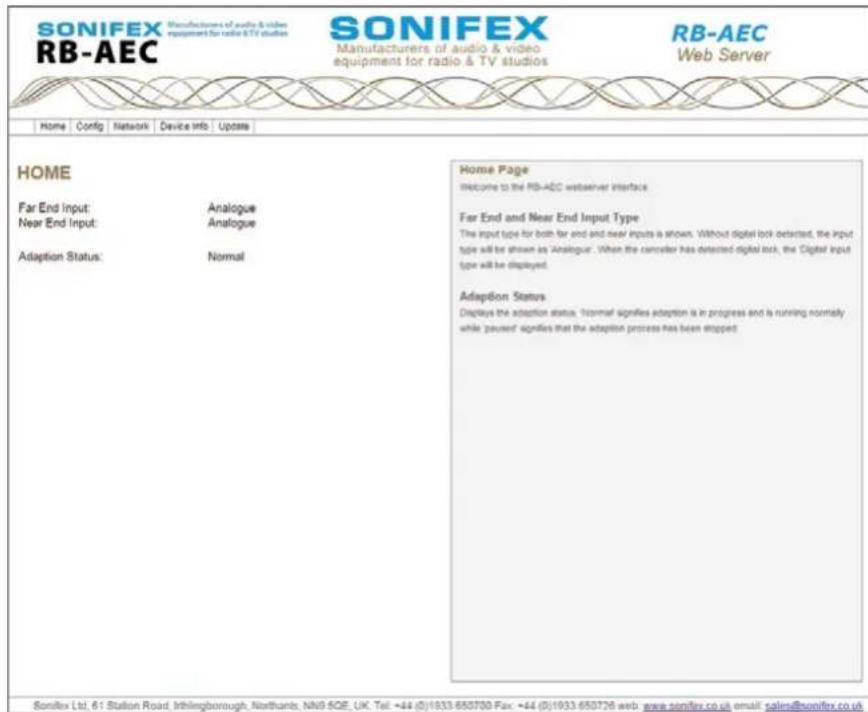
Fig 12-7: The RB-AEC Webserver Interface - Home
Synchronisers & Delays - RB-AEC 12
The input type for both far end and near inputs is shown. Without an AES/EBU digital lock detected, the input type will be shown as 'Analogue'. When the unit has detected digital lock, the 'Digital' input type will be displayed
The input type for both far end and near inputs is shown. Without digital lock detected, the input type will be shown as 'Analogue'. When the canceller has detected digital lock, the 'Digital' input type will be displayed.
Far End and Near End Input Type The input type for both far end and near inputs is shown. Without digital lock detected, the input type will be shown as 'Analogue'. When the canceller has detected digital lock, the 'Digital' input type will be displayed.
Adaption Status
Displays the adaption status. 'Normal' signifies adaption is in progress and is running normally while 'paused' signifies that the adaption process has been stopped.
12 Synchronisers & Delays - RB-AEC
Configuration Page
This page shows the configuration options for the RB-AEC.
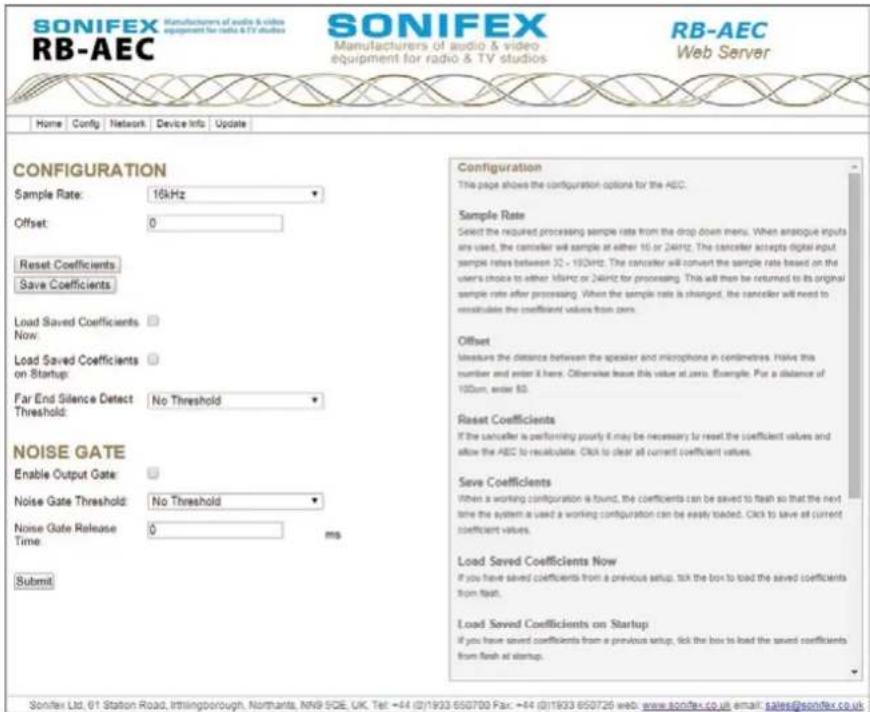
Fig 12-8: The RB-AEC Webserver Interface - Configuration
Sample Rate
Select the required processing sample rate from the drop down menu. When analogue inputs are used, the canceller will sample at either 16 or 24kHz. The canceller accepts digital input sample rates between 32 - 192kHz. The canceller will convert the sample rate based on the user's choice to either 16kHz or 24kHz for processing. This will then be returned to its original sample rate after processing. When the sample rate is changed, the canceller will need to recalculate the coefficient values from zero.
Offset
Measure the distance between the speaker and microphone in centimetres. Halve this number and enter it here. Otherwise leave this value at zero. Example: For a distance of 100cm, enter 50.
Reset Coefficients
If the canceller is performing poorly it may be necessary to reset the coefficient values and allow the AEC to recalculate. Click to clear all current coefficient values.
Save Coefficients
When a working configuration is found, the coefficients can be saved to flash so that the next time the system is used a working configuration can be easily loaded. Click to save all current coefficient values.
Load Saved Coefficients Now
If you have saved coefficients from a previous setup, tick the box to load the saved coefficients from flash.
Load Saved Coefficients on Startup
If you have saved coefficients from a previous setup, tick the box to load the saved coefficients from flash at startup.
Far End Silence Detect Threshold:
This value sets the threshold at which the adaption process is paused during periods where no-one is speaking at the far end. Select a threshold from the drop down list. -6dBFS will set the threshold to half of the maximum value, while 'No Threshold' will allow the adaption to continue all the time.
Enable Noise Gate:
When enabled, the noise gate will lower the output level based on the threshold set below.
Noise Gate Threshold:
This threshold sets the point at which the noise gate is enabled or disabled.
Noise Gate Release Time:
After the noise gate has been triggered, a length of time can be set before the gate can be released. This helps prevent the gate from being activated during speech. Set a time in milliseconds between 0 and 500.
12 Synchronisers & Delays - RB-AEC
Network Page
Displays the Hostname, Static IP Address, Static subnet mask, Gateway IP address, and whether DHCP and Auto IP are enabled.

Fig 12-9: The RB-AEC Webserver Interface - Network
Network Settings
Host Name
Enter the host name used by Bonjour. The Host name can be up to 63 alphanumeric characters in length, and can include hyphens (-). If a conflict occurs on the network this value may be overwritten.
Static IP Address
Enter the static IP address that you wish to assign to this unit. This IP address will be used if Dynamic addressing is disabled.
The default static IP address is 192.168.0.100
Static Subnet Mask
Enter the subnet mask of the network you wish to connect to.
The default subnet mask is 255.255.255.0
Gateway IP Address
Enter the gateway IP address of your router.
The default gateway is 192.168.0.1
Dynamic Addressing
Enable dynamic addressing to allow the unit to acquire it's IP address automatically from a DHCP server or using AUTOIP. Disable dynamic addressing to use the static IP address entered on this page.
To transfer the new network settings to the connected RB-AEC, press the Submit button. This may require a restart by Internet Explorer
Device Info Page
This page shows general information about the connected RB-AEC.

Fig 12-10: The RB-AEC Webserver Interface - Device Info
12 Synchronisers & Delays - RB-AEC
Update Page
To update the RB-AEC firmware, download the latest file from the Sonifex website, select Choose File to find it and click Update to load it into the RB-AEC.

Fig 12-11: The RB-AEC Webserver Interface - Update
Update
The version of firmware currently running on this unit is V1.0.6.
To find out if there is new firmware for this unit, check the Sonifex website. If an update is available, download the latest version and save the file to your computer. Browse your computer to locate and select the file, and press the update button. Once the update has started, this page will update automatically.
The file must be named according to the following convention "RB-AEC" followed by any version or other info then a ".DWN" suffix - e.g "RB-AEC v1_02 special release.dwn"
Technical Specification For RB-AEC
Audio Specification
| Audio Input 1 x mono analogue or AES/EBU digital on XLR (Near End/Program): 3-pin female (autoselecting) |
| Audio Input 1 x mono analogue or AES/EBU digital on (Far End/ From XLR 3-pin female (autoselecting) Control Room): |
| Max Level +18dBu (analogue) (0dB Input Gain): 0dBFS (digita |
CMRR: >60dB typical
| Input Impedance: 20kΩ (analogue) 110Ω (digital with termination switchable) |
AES/EBU Input: 32kHz to 192kHz
| Audio Outputs 2 x mono analogue on XLR 3-pin male (Analogue): |
| Audio Outputs 1 x stereo digital AES/EBU on XLR 3-pin male (AES/EBU): |
| Maximum Output +18dBu (analogue)/Level: 0dBFS (digital) |
Output Impedance: <50Ω (analogue)/110Ω (digital)
| AES/EBU Output Selectable 32kHz - 192kHzSample Rates: |
| Distortion: fs = 16kHz, THD+N<0.01%, 8dBu, 20Hz-8kHz,unity gain, 8kHz BWfs = 24kHz, THD+N<0.01%, 8dBu, 20Hz-12kHz,unity gain, 12kHz BW |
Noise: -84dB RMS, unity gain ref +8dBu output
| Frequency Response: | 20Hz-9.5kHz +0/-0.5dB |
| Rejection Ratio (Input to Output): | Typically 35dB on complex waveforms, reference peak level of 0dB |
| Remote I/O Port: | 9 way D-type socket |
Ethernet Port: 1 x RJ45 with status LEDs
| Mains Input: | Filtered IEC, continuously rated 85264VAC @ 47-63Hz, 10W max |
Fuse Rating: Anti-surge fuse 1A 20 x 5mm
Controls
| Configuration: | 1 x Ethernet port, webserver |
| 1 x rear panel 4-way DIPSwitch | |
| Reset: | 1 x front panel recessed button |
Equipment Type
| RB-AEC: | Acoustic echo canceller |
Physical Specification
| Dimensions (Raw): | 48cm (W) x 10.8cm (D) x 4.2cm (H)(1U) |
| 19" (W) x 4.3" (D) x 1.7" (H) (1U) |
| Dimensions (Boxed): | 58.5cm (W) x 22.5cm (D) x 7cm (H) |
| 23" (W) x 8.9" (D) x 2.8" (H) |
Weight: Nett: 1.5kg Gross: 2.0kg
| Nett: 3.3lbs Gross: 4.4lbs |
SONIFEX
www.sonifex.co.uk
t:+44 (0)1933 650 700
f:+44 (0)1933 650 726
sales@sonifex.co.uk
- REDBOX HANDBOOK 1
- FOR THE LATEST SONIFEX HANDBOOK INFORMATION PLEASE VISIT THE SONIFEX WEBSITE AT WWW.SONIFEX.CO.UK
- CONTENTS
- FIGURES
- SONIFEX
- REGISTER ONLINE FOR AN EXTENDED 2 YEAR WARRANTY
- WARRANTY
- PRODUCT WARRANTY - 2 YEAR EXTENDED
- SONIFEX WARRANTY & LIABILITY TERMS & CONDITIONS
- DEFINITIONS
- UNPACKING YOUR PRODUCT
- CE CONFORMITY
- ITEM
- QUANTITY
- REPAIRS & RETURNS
- SAFETY & INSTALLATION OF MAINS OPERATED EQUIPMENT
- VOLTAGE SETTING CHECKS
- FUSE RATING
- POWER CABLE & CONNECTION
- WEEE DIRECTIVE
- ATMOSPHERE/ENVIRONMENT
- FITTING REDBOXES
- SAFETY & INSTALLATION
- 1 RB-ADDA COMBINED A/D AND D/A CONVERTER
- 1 DIGITAL AUDIO CONVERTERS - RB- ADDA
- FRONT PANEL INDICATORS
- REAR PANEL CONNECTIONS AND OPERATION
- RB-ADDA INPUTS
- XLR ANALOGUE INPUTS (LEFT AND RIGHT)
- RCA PHONO INPUTS (LEFT AND RIGHT)
- INPUT LEVEL ADJUSTMENT
- AES/EBU INPUTS
- S/PDIF INPUTS
- RB-ADDA OUTPUTS
- ANALOGUE OUTPUTS (LEFT AND RIGHT)
- RCA PHONO OUTPUTS (LEFT AND RIGHT)
- OUTPUT LEVEL ADJUSTMENT
- AES/EBU OUTPUT
- S/PDIF OUTPUT
- REAR PANEL CONTROLS
- FULL SCALE DB SETTINGS
- STATUS SELECT SWITCHES
- DIGITAL SELECT BUTTONS
- ANALOGUE SELECT BUTTON
- FREQUENCY AND SYNC MODE ROTARY SWITCH
- TEST/CALIBRATION MODE
- TECHNICAL SPECIFICATIONS RB-ADDA
- A/D CONNECTIONS
- A/D AUDIO SPECIFICATION
- D/A CONNECTIONS
- D/A AUDIO SPECIFICATION
- OTHER CONNECTIONS
- OPERATIONAL CONTROLS
- EQUIPMENT TYPE
- PHYSICAL SPECIFICATIONS
- 2 RB-ADDA2 COMBINED A/D AND D/A CONVERTER 24BIT 192KHZ
- 2 DIGITAL AUDIO CONVERTERS - RB-ADDA2
- MASTER MODE
- SLAVE MODE
- AUTO MODE
- AUTO LOCK MODE
- SYSTEM BLOCK DIAGRAM
- FRONT PANEL CONTROLS & INDICATORS
- SYNC BUTTON & LEDS
- A/D SOURCE SELECT BUTTON & LEDS
- FREQUENCY SET BUTTON & LEDS
- CS DATA BUTTON & LEDS
- BITS BUTTON & LEDS
- D/A SOURCE SELECT BUTTON & LEDS
- RESET BUTTON
- RB-ADDA2 INPUTS
- AES/EBU INPUT
- S/PDIF INPUT
- OPTICAL INPUT
- AES/EBU SYNC INPUT
- WORD CLOCK INPUT
- RB-ADDA2 OUTPUTS
- OPTICAL OUTPUT
- SERIAL PORT CONTROL
- SERIAL INTERFACE COMMANDS AND RESPONSES
- DIGITAL AUDIO CONVERTERS - RB-ADDA2
- ERROR MESSAGES
- UPGRADING FIRMWARE
- TECHNICAL SPECIFICATIONS RB-ADDA2
- A/D OPERATIONAL CONTROLS
- D/A OPERATIONAL CONTROLS
- 3 DIGITAL AUDIO CONVERTERS - RB-SC1
- 3 RB-SC1 SAMPLE RATE CONVERTER
- FRONT PANEL LED
- INPUTS AND OUTPUTS
- DIGITAL INPUT SELECT BUTTONS
- TECHNICAL SPECIFICATIONS RB-SC1
- AUDIO SPECIFICATION
- CONNECTIONS AND CONTROLS
- 4 RB-SC2 DUAL SAMPLE RATE CONVERTER
- INTRODUCTION
- 4 DIGITAL AUDIO CONVERTERS - RB-SC2
- INSTALLING THE OPTIONAL VIDEO SYNC BOARDS
- OPENING THE RB-SC2
- INPUT1 & INPUT2 SOURCE SELECT BUTTON & LEDS
- RB-SC2 INPUTS
- OPTICAL INPUTS
- RB-SC2 OUTPUTS
- AES/EBU OUTPUTS
- S/PDIF OUTPUTS
- OPTICAL OUTPUTS
- TECHNICAL SPECIFICATION RB-SC2
- CONNECTIONS
- 5 DIGITAL AUDIO CONVERTERS - RB-DAC1
- 5 RB-DAC1 DIGITAL TO ANALOGUE CONVERTER
- FRONT PANEL INDICATORS & CONTROLS
- SYNC & POWER INDICATOR
- HEADPHONE OUTPUT
- VOLUME CONTROL
- RB-DAC1 INPUTS
- RB-DAC1 OUTPUTS
- DE-EMPHASIS SWITCH
- DIGITAL SELECT BUTTON
- TECHNICAL SPECIFICATIONS RB-DAC1
- 6 DIGITAL AUDIO CONVERTERS - RB-SP1
- 6 RB-SP1 DIGITAL SPLITTER & COMBINER
- FRONT PANEL LED'S
- TYPE & MODE SWITCHES
- SPLIT 96
- BYPASS
- STEREO/MONO
- DIGITAL INPUT & OUTPUT SELECT BUTTONS
- TECHNICAL SPECIFICATIONS RB-SP1
- 7 REDBOX - SYNCHRONISATION ADD-ON BOARDS
- RB-SYA ANALOGUE VIDEO SYNC BOARD
- RB-SYD DIGITAL VIDEO SYNC BOARD
- 7 SYNCHRONISATION ADD-ON-BOARDS
- RB-SYE SYNC BOARD
- RB-SYW SYNC BOARD
- 8 RB-DS2 STEREO DELAY SYNCHRONISER & TIME ZONE DELAY
- EXTENDED MODE USING COMPACT FLASH™
- EXTENDED FAT MODE
- EXTENDED RAW MODE
- FRONT PANEL CONTROLS
- SETTING THE DELAY
- SELECTING THE MAIN MENU
- BYPASSING THE DELAY
- SYSTEM RESET
- ANALOGUE INPUT ADJUSTMENT
- XLR ANALOGUE OUTPUTS (LEFT AND RIGHT)
- REMOTE INPUTS AND OUTPUTS
- RS232
- THE DEFAULT SCREEN
- THE MAIN MENU
- MODE
- SOURCE
- CHANNELS
- SAMPLE RATE
- FORMAT
- DELAY UNITS
- VOLUME
- INPUT PEAK DIGITS
- OUTPUT GAIN
- ANALOGUE MUTE
- DIGITAL MUTE
- SETUPS
- VIEW
- LOAD
- SAVE
- REMOTE LOADING
- REMOTES
- MEMORY CARD
- DETAILS
- FORMAT CARD
- CONTROL LOCK
- SYSTEM
- BAUD RATE
- INFORMATION
- TECHNICAL SPECIFICATIONS RB-DS2
- ANALOGUE/DIGITAL CONNECTIONS
- ADDITIONAL CONNECTIONS
- OPENING THE RB-DS2 TO ADD A COMPACT FLASH CARD WARNING: THE POWER MUST BE SWITCHED OFF AT THE SUPPLY AND THE POWER LEAD DISCONNECTED BEFORE OPENING THE UNIT. REMOVAL OF THE COVER CAN EXPOSE DANGEROUS VOLTAGES
- 9 SYNCHRONISERS & DELAYS - RB-DS2R
- TECHNICAL SPECIFICATION FOR RB-DS2R
- REAR PANEL CONNECTIONS
- PHYSICAL SPECIFICATION
- IMPORTANT NOTE
- 10 SYNCHRONISERS & DELAYS - RB-PD2
- QUICKSTART GUIDE
- USING THE AUDIO STRETCH METHOD OF OPERATION
- THE RB-PD2 IS NOW SETUP FOR USE
- USING THE PLAY FILE METHOD OF OPERATION
- BUILD DELAY MODE
- PLAY FILE MODE
- THE BUILD DELAY BUTTON
- THE EXIT DELAY BUTTON
- THE COUGH BUTTON
- THE AUDIO BYPASS BUTTON
- THE DUMP/DROP BUTTON
- SYSTEM MODE
- NORMAL MODE
- REVIEW MODE
- DELAY OPTIONS
- START MODE
- BUILD/EXIT SPEED
- SAFE PERIOD
- DUMP MODE
- SAMPLE WIDTH
- RECORD
- NEW RECORDING
- INITIALS
- FILE DELETE
- VIEW SETTINGS
- CONFIGURE INPUTS
- CONFIGURE OUTPUTS
- AUTO SYNC MODE
- FRONT PANEL CONTROLS AND INDICATORS
- DELAY UNIT & QUANTITY SELECT AND INDICATORS
- CHANNEL SELECT
- INPUT 1 & 2 SOURCE SELECT, INDICATORS & INPUT PRESENCE LEDS
- INPUT 3 & 4 SOURCE SELECT, INDICATORS & INPUT PRESENCE LEDS
- MONITOR SELECT BUTTON
- LEVEL CONTROL
- DELAY BUTTON MODES
- DELAY UNIT SELECT MODE
- DELAY MULTIPLE MODE
- REAR PANEL CONTROLS & CONNECTORS
- MASTER MODE SAMPLE RATE SELECTION (DIP SWITCHES 1-3)
- SYNCHRONISATION SOURCE SELECTION (DIP SWITCHES 4-6)
- SYNCHRONISATION MODE SELECTION (DIP SWITCHES 7-8)
- MONITOR ATTENUATION (DIPSWITCH 10)
- SERIAL MODE (DIPSWITCH 11)
- BOOT MODE (DIPSWITCH 12)
- VIDEO SYNC INPUT
- SERIAL RS232 CONNECTOR
- REMOTES CONNECTOR
- RB-DD4 OUTPUTS
- SYNCHRONIZATION OPTIONS ARE DISPLAYED IN THE SYNC INDICATOR PANEL
- SELECT INPUT SOURCES
- SELECT SYNCHRONIZATION OPTIONS
- DELAY SETUP
- SELECT SPECIAL OPTIONS
- UPDATING THE FIRMWARE
- FRONT PANEL OPERATIONAL CONTROLS & INDICATORS
- REAR PANEL OPERATIONAL CONTROLS
- ACCESSORIES
- 12 SYNCHRONISERS & DELAYS - RB-AEC
- 12 RB-AEC ACOUSTIC ECHO CANCELLER
- CATEGORY
- PRODUCT FUNCTION
- TYPICAL APPLICATIONS
- FEATURES
- OPERATION OF THE RB-AEC
- POWER LED
- REAR PANEL CONNECTIONS AND CONTROLS
- INPUTS
- FAR END INPUT
- NEAR END INPUT
- OUTPUTS
- ANALOGUE OUTPUTS 1 & 2
- DIGITAL OUTPUT
- GENERAL NOTE ABOUT INPUTS & OUTPUTS
- SETTINGS DIPSWITCH
- INPUT TERMINATION
- BOOTSTRAP MODE
- BYPASS CANCELLATION
- GPIO CONNECTOR
- POWER GOOD
- MUTE INPUT DETECT
- ETHERNET PORT
- MAINS POWER
- APPLICATIONS
- HOW TO REMOVE DELAYED PRESENTER'S AUDIO FROM THEIR EARPIECE
- THE PROBLEM
- THE SOLUTION
- HOW TO REMOVE DELAYED CALLER AUDIO FROM THE TELEPHONE LINE
- CALIBRATION
- WEBSERVER & UNIT DISCOVERY
- RUNNING THE WEBSERVER
- HOME PAGE
- SYNCHRONISERS & DELAYS - RB-AEC 12
- ADAPTION STATUS
- CONFIGURATION PAGE
- OFFSET
- RESET COEFFICIENTS
- SAVE COEFFICIENTS
- LOAD SAVED COEFFICIENTS NOW
- LOAD SAVED COEFFICIENTS ON STARTUP
- FAR END SILENCE DETECT THRESHOLD
- ENABLE NOISE GATE
- NOISE GATE THRESHOLD
- NOISE GATE RELEASE TIME
- NETWORK PAGE
- NETWORK SETTINGS
- HOST NAME
- STATIC IP ADDRESS
- STATIC SUBNET MASK
- GATEWAY IP ADDRESS
- DYNAMIC ADDRESSING
- DEVICE INFO PAGE
- UPDATE PAGE
- UPDATE
- TECHNICAL SPECIFICATION FOR RB-AEC
Brand : Sonifex
Model : Redbox RB-DS2R
Category : Audio Equipment