
HDR-UHD-16×16 - Video switch Smart-AVI - Free user manual and instructions
Find the device manual for free HDR-UHD-16×16 Smart-AVI in PDF.


| Product Type | 16x16 HDMI Matrix Switcher |
| Brand | Smart-AVI |
| Model | HDR-UHD-16×16 |
| Video Inputs | 16 x HDMI (19-pin female) |
| Video Outputs | 16 x HDMI (19-pin female) |
| Maximum Video Resolution | 3840x2160 @ 60 Hz (4K UHD) |
| Video Bandwidth | 18 Gbps |
| Audio Inputs | 16 x 3.5mm stereo (female) |
| Audio Outputs | 16 x 3.5mm stereo (female) |
| Control Interfaces | Front panel, RS-232, TCP/IP (RJ-45) |
| EDID Management | Yes |
| HDCP Compliance | HDCP 2.2 |
| Power Supply | 110-240 VAC, 50/60 Hz, 100W |
| Power Consumption | 100W |
| Dimensions (W x H x D) | 17" x 7 1/8" x 15" |
| Weight | 24.45 lbs (11.1 kg) |
| Operating Temperature | 0°C to +40°C |
| Storage Humidity | 20% to 90% (non-condensing) |
| Seamless Switching | Yes (seamless transitions) |
| Warranty | 1 year limited |
| Included Accessories | 2 power cords, user manual |
| Made in | USA |
Frequently Asked Questions - HDR-UHD-16×16 Smart-AVI
User questions about HDR-UHD-16×16 Smart-AVI
0 question about this device. Answer the ones you know or ask your own.
Ask a new question about this device
Download the instructions for your Video switch in PDF format for free! Find your manual HDR-UHD-16×16 - Smart-AVI and take your electronic device back in hand. On this page are published all the documents necessary for the use of your device. HDR-UHD-16×16 by Smart-AVI.
USER MANUAL HDR-UHD-16×16 Smart-AVI
Designed and Manufactured in the USA
Smart-AM
1-800-284-2131
www.smartavi.com
OVERVIEW
TECHNICAL SPECIFICATIONS 3
WHAT'S IN THE BOX? 3
FRONT AND BACK 3
INTRODUCTION 4
FEATURES 4
APPLICATION 4
INSTALLATION 5
FRONT PANEL CONTROL 6
HDR16-16 HDR APPLICATION GUIDE 6-12
TROUBLESHOOTING 13
TECHNICAL SUPPORT 13
LIMITED WARRANTY STATEMENT 14
TECHNICAL SPECIFICATIONS
VIDEO
| Video Amplifier Bandwidth 18 Gbps | |
| Input Video Signal Video (TMDS) | 0.4~1.0Vpp |
| Input DDC Signal 5 volts | |
| Compliances HDMI 2.0, HDCP 2.2 | |
| Input Resolutions 3840 x 2160 @ 24 Hz / 25 Hz / 30 Hz / 50 Hz / 60 Hz | |
| Output Resolutions 3840 x 2160 @ 24 Hz / 25 Hz / 30 Hz / 50 Hz / 60 Hz; 1080p @ 60 Hz | |
| Video Type HDMI 2.0 | |
| Input Interface (16) HDMI 19-pin (female) | |
| Output Interface (16) HDMI 19-pin (female) | |
AUDIO
| Format Stereo | |
| Input Interface (16) 3.5mm (female) | |
| Output Interface (16) 3.5mm (female) | |
CONTROL
| Front Panel Tacticle Switches | |
| RS-232 DB9 connector, Baud Rate 9600 | |
| TCP/IP | RJ-45, UDP telnet |
OTHER
| Power Supply | 50/60Hz, 110-240 VAC |
| Consumption | 100W |
| Dimensions | 17” W x 7 1/8” H x 15” D |
| Weight 24.45 lbs | |
| Operating Temperature | 0°C~+40°C |
| Storage Humidity 20%~90% |
WHAT'S IN THE BOX?
| PART NO. | Q-TY | DESCRIPTION |
| HDR16-16-S | 1 | 16x16 4K/60Hz Matrix Switch |
| CCPWR06 | 2 | Power supply cord |
| 1 | User Manual |
FRONT AND BACK
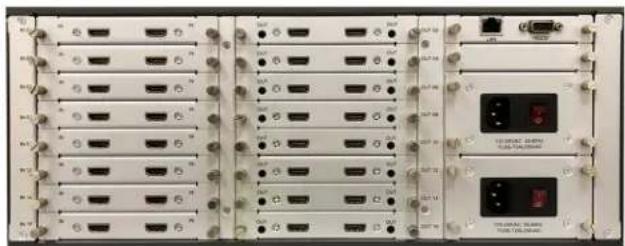
natural_image
Front view of a network equipment rack with multiple ports and connectors (no visible text or labels)HDR16-16 Back Panel

HDR16-16 Front Panel
INTRODUCTION
HDR16-16 is a high-performance seamless UHD matrix switcher that comes in multiple different configurations. The unit can be configured in many different options to best suit your needs. For example, the HDR16-16 comes in many different configurations with the lowest configuration available is 2x2 and configurations increase in increments of two for both inputs and outputs for a maximum of 16x16. The configuration option 2x2 refers to the number of inputs and outputs the unit has, so a 4x16 would be 4 inputs and 16 outputs. For example, some example configurations would be 2x4, 4x2, 4x4, 4x6, 6x6 and so on.
FEATURES
• HDMI video output resolution up to 3840x2160@60Hz
- Seamless transitions
- Matrix configurations
• EDID management
- Front panel, RS232, and TCP/IP control
- HDMI Digital Audio
APPLICATION
• Corporate or Educational Presentations
• Airport Installations
- Wall Displays
- Digital Signage
- Dealer Rooms
- Control Rooms
- Shopping Centers
- Security
- Point-of-Sale Retail
- Entertainment Venues
• Corporate Lobbies
- Restaurants
INSTALLATION
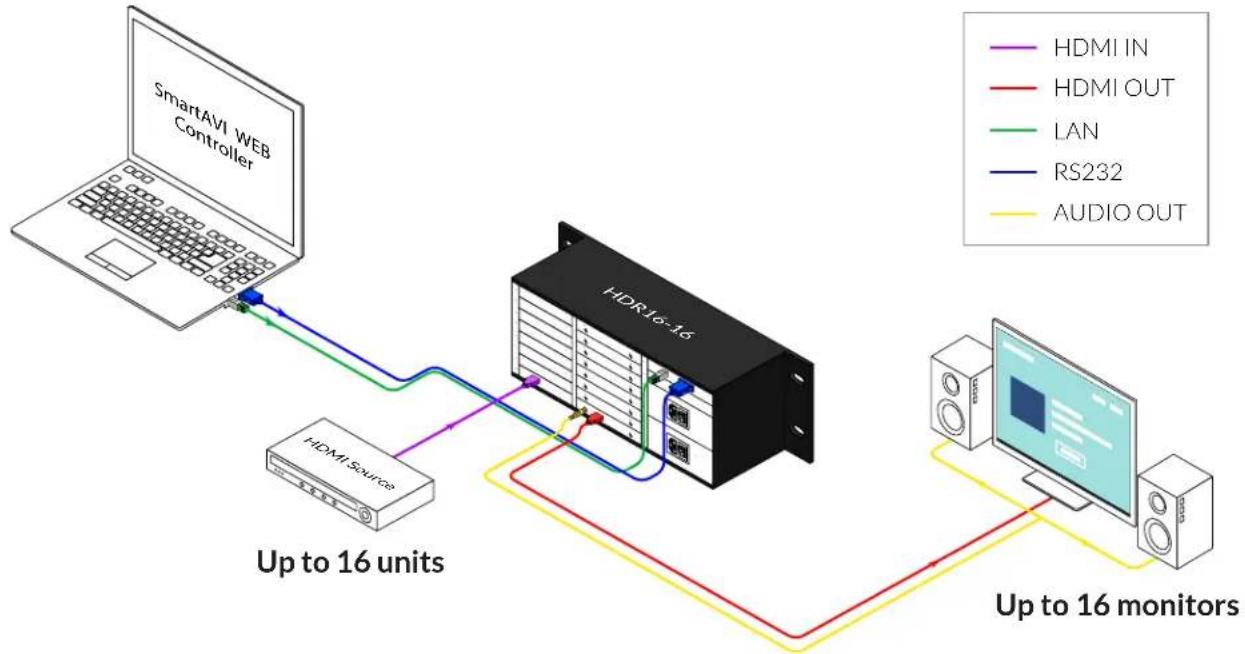
- Position HDR16-16 conveniently and keep it unplugged.
- Connect displays to the HDR16-16's ports marked OUT and power on the displays.
- Connect any video source to the HDR16-16's ports marked IN.
- Optionally connect an RS-232 cable from a PC to the RS-232 port on the HDR16-16 for additional control.
- Optionally connect an Ethernet cable to the HDR16-16 for additional control.
- Plug in the power cord and power on the HDR16-16 then wait a few seconds for the unit to initialize.
flowchart
graph TD
    A["SmartAVI WEB Controller"] -->|Up to 16 units| B["HDMI Source"]
    B --> C["HDX-16"]
    C --> D["Up to 16 monitors"]
    D --> E["HDMI OUT"]
    E --> C
    C --> F["LAN"]
    F --> C
    C --> G["RS232"]
    G --> C
    C --> H["AUDIO OUT"]
FRONT PANEL CONTROL
- Press buttons OUTPUT n + INPUT m + TAKE in this order to switch matrix input n and output m.
- Press button LOCK to lock or unlock front buttons. When locked, the LOCK LED will light up.
- Press buttons ALL + INPUT m + TAKE in this order to switch all of the outputs to the specified input m.
- Press button SAVE + OUTPUT n + TAKE in this order to save the current “scene” as scene n. The matrix can save up to 8 scenes using the front panel.
- Press button RECALL + OUTPUT n + TAKE to load saved scene n.
- Press button CLEAR to clear anything currently inputted if you wish to start over.
HDR16-16 HDR APPLICATION GUIDE
CONNECTING WITH THE SOFTWARE
Upon launching the HDR16-16 HDR application, you will be prompted to sign in. On the first boot-up, the default username and password will be provided. The user can add additional users with or without administrative privileges by clicking the Users tab.
Note: Default username and password are Administrator and 12345.
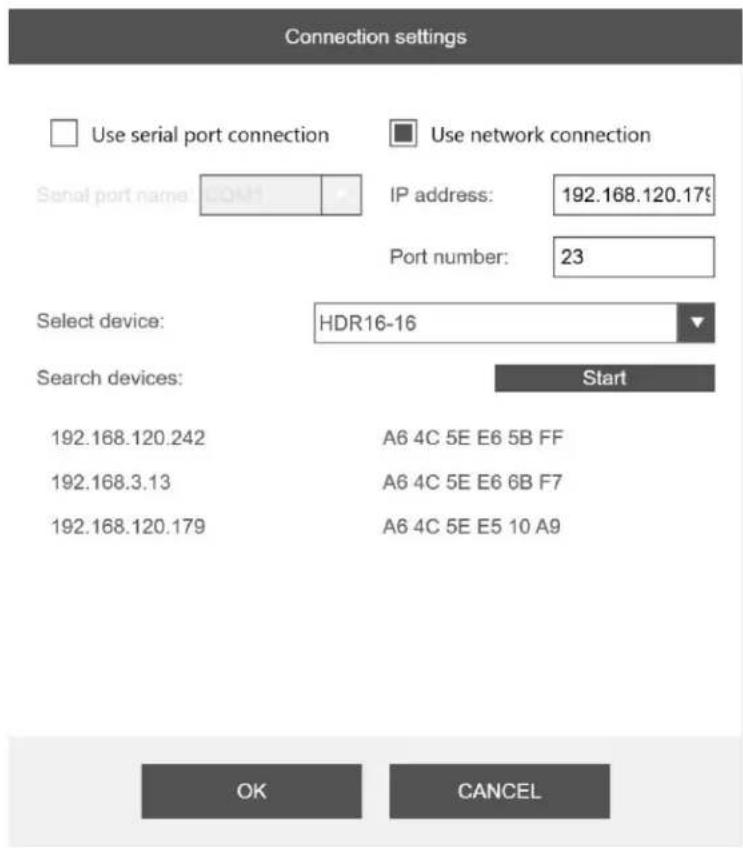
After logging in, you will be prompted to establish a connection. First, start by selecting what method you want to connect to the HDR16-16 with.
- Using network connection: Start by clicking the Start button. The application will begin searching your network for any devices that are connected and will then list all of the available devices. If multiple devices are listed and you are unsure of which device is the HDR16-16, you can download and use SAVI Finder to view the device names as well as edit device information. Select your device from the list then click the OK button.
-
Using RS232 connection: Select the correct serial port responsible for your HDR16-16 and then click the OK button. If you are unsure how to find the correct serial port do the following steps.
-
On your computer click the start button.
- Type "Device Manager" into the search bar. A window should open listing the various components and devices connected to your computer.
- Find the list item called Ports (COM & LPT) and click on the arrow next to it. The name of the adapter should appear and its COM port.
HDR 16-16 HDR APPLICATION GUIDE (CONTINUED)

HDR 16-16 HDR APPLICATION GUIDE (CONTINUED)
NAVIGATING THE APPLICATION
Connections and Connect. To manage the existing connections, click the CONNECTIONS button found in the top left of the screen. You can then either connect or remove any existing connections. To create a new connection, click the CONNECT button and repeat the steps you did when you first setup the application.
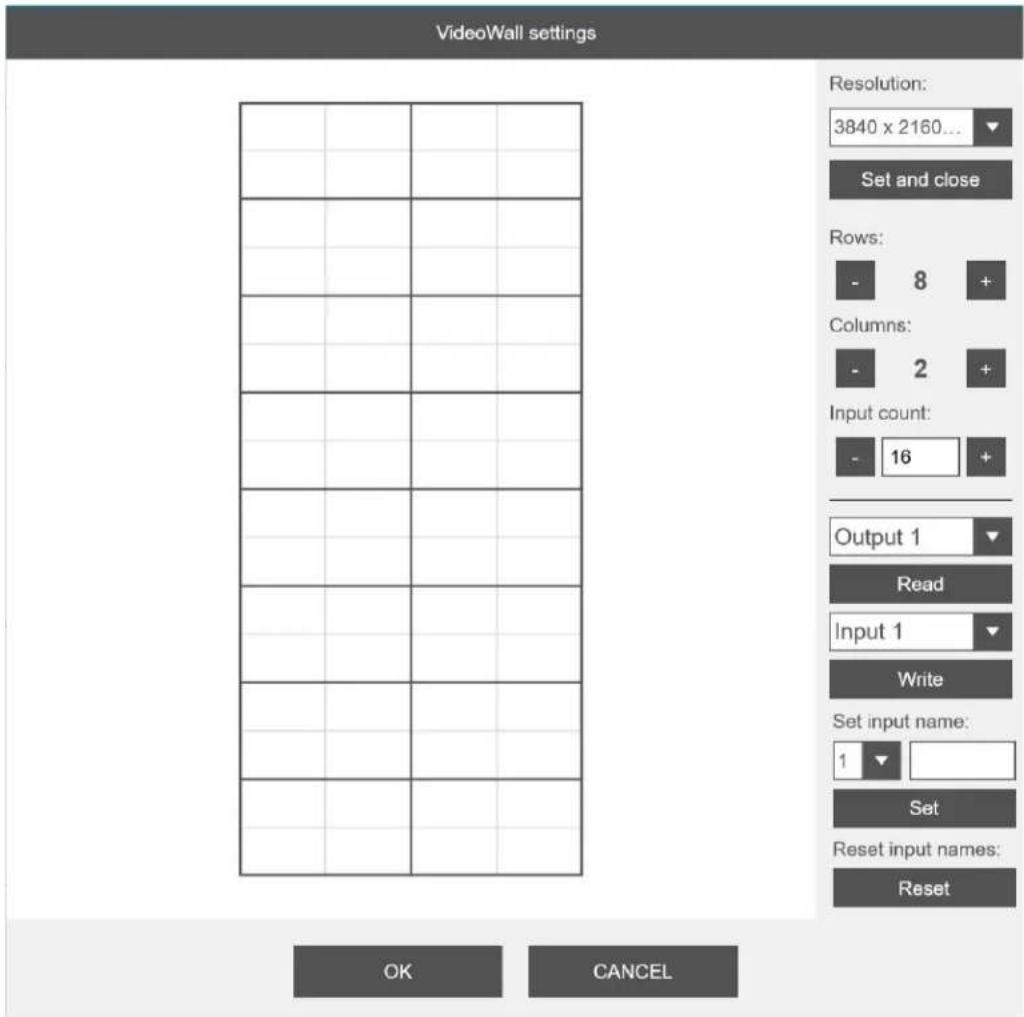
Settings. Clicking on the SETTINGS button will bring up a menu that allows you to change the HDR16-16's output resolution, matrix layout, read and write EDID, or change an input's name. To read and write EDIDs, start by selecting an output from the dropdown menu then click Read. Once the application is finished reading the EDID select an input from the dropdown menu then click Write.

HDR 16-16 HDR APPLICATION GUIDE (CONTINUED)
Users. To create a new user, click the USERS button then fill in the "User name" and "User password" fields and if you would like to make this user an administrator click the checkbox. Then click the Add button and the user will now appear in the list to the right.
HDR 16-16 HDR APPLICATION GUIDE (CONTINUED)

If you want to edit an existing user, click on the user from the list and then edit any credentials you wish to change. Once finished click the Save button then confirm that you want to make the changes.

HDR 16-16 HDR APPLICATION GUIDE (CONTINUED)
Scheduler. Clicking on the SCHEDULER button will bring up the Scheduler window that allows the user to set date specific schedules for saved layouts to automatically set up. Please note that because of this, the user is required to register layouts in the general page of the software first before the scheduler can be used.

Close all. Click the CLOSE ALL button to remove all of the existing Stitched sets.
HDR16-16 HDR APPLICATION GUIDE (CONTINUED)
MATRIX CONTROL USING HDR16-16
Controlling the Matrix functionality of the HDR16-16 using this application remains consistent regardless of the connection type or configuration. Once the connection is established, the user can manage inputs and outputs seamlessly.

The orange box displays all the active connections. The blue highlighted tab indicates the device currently being controlled.
On the left side, indicated by the red box, are inputs 1-16. The user can drag these input boxes to assign them to the desired outputs.
The green box shows all the available outputs, with the current input assigned to each output displayed in the top left corner.
TROUBLESHOOTING
No Power
- Make sure that the power adapter is securely connected to the power connector of the unit.
- Check the output voltage of the power supply and make sure that the voltage value is around 12VDC.
- Replace the power supply.
No Video
- Check if all the video cables are connected properly.
- Connect the computer directly to the monitor to verify that your monitor and computer are functioning properly.
- Restart the computers.
Keyboard is not working
- Check if the keyboard is properly connected to the unit.
- Check if the USB cables connecting the unit and the computers are properly connected.
- Try connecting the USB on the computer to a different port.
- Make sure that the keyboard works when directly connected to the computer.
- Replace the keyboard.
Mouse is not working
- Check if the mouse is properly connected to the unit.
- Try connecting the USB on the computer to a different port.
- Make sure that the mouse works when directly connected to the computer.
- Replace the mouse.
No Audio
- Check if all the audio cables are connected properly.
- Connect the speakers directly to the computer to verify that the speakers and the computer audio are functioning properly.
- Check the audio settings of the computer and verify that the audio output is through the speakers.
TECHNICAL SUPPORT
For product inquiries, warranty questions, or technical questions, please contact info@smartavi.com.
LIMITED WARRANTY STATEMENT
A. Extent of limited warranty
SmartAVI, Inc. warrants to the end-user customers that the SmartAVI product specified above will be free from defects in materials and workmanship for the duration of 1 year, which duration begins on the date of purchase by the customer. Customer is responsible for maintaining proof of date of purchase.
SmartAVI limited warranty covers only those defects which arise as a result of normal use of the product, and do not apply to any:
a. Improper or inadequate maintenance or modifications
b. Operations outside product specifications
c. Mechanical abuse and exposure to severe conditions
If SmartAVI receives, during applicable warranty period, a notice of defect, SmartAVI will at its discretion replace or repair defective product. If SmartAVI is unable to replace or repair defective product covered by the SmartAVI warranty within reasonable period of time, SmartAVI shall refund the cost of the product.
SmartAVI shall have no obligation to repair, replace or refund unit until customer returns defective product to SmartAVI.
Any replacement product could be new or like new, provided that it has functionality at least equal to that of the product being replaced.
SmartAVI limited warranty is valid in any country where the covered product is distributed by SmartAVI.
B. Limitations of warranty
To the extant allowed by local law, neither SmartAVI nor its third party suppliers make any other warranty or condition of any kind whether expressed or implied with respect to the SmartAVI product, and specifically disclaim implied warranties or conditions of merchantability, satisfactory quality, and fitness for a particular purpose.
C. Limitations of liability
To the extent allowed by local law the remedies provided in this warranty statement are the customers sole and exclusive remedies.
To the extant allowed by local law, except for the obligations specifically set forth in this warranty statement, in no event will SmartAVI or its third party suppliers be liable for direct, indirect, special, incidental, or consequential damages whether based on contract, tort or any other legal theory and whether advised of the possibility of such damages.
D. Local law
To the extent that this warranty statement is inconsistent with local law, this warranty statement shall be considered modified to be consistent with such law.
Smart-AMI
SMART AUDIO VIDEO INNOVATION
NOTICE
The information contained in this document is subject to change without notice. SmartAVI makes no warranty of any kind with regard to this material, including but not limited to, implied warranties of merchantability and fitness for particular purpose. SmartAVI will not be liable for errors contained herein or for incidental or consequential damages in connection with the furnishing, performance or use of this material. No part of this document may be photocopied, reproduced, or translated into another language without prior written consent from SmartAVI, Inc.
20240506

Designed and Manufactured in the USA
Tel: (888) 994-7427 • (702) 800-0005
2917 E Alexander Rd.
North Las Vegas, NV 89030
www.smartavi.com
- Smart-AM
- OVERVIEW
- TECHNICAL SPECIFICATIONS
- WHAT'S IN THE BOX?
- FRONT AND BACK
- INTRODUCTION
- FEATURES
- APPLICATION
- INSTALLATION
- FRONT PANEL CONTROL
- HDR16-16 HDR APPLICATION GUIDE
- CONNECTING WITH THE SOFTWARE
- HDR 16-16 HDR APPLICATION GUIDE (CONTINUED)
- NAVIGATING THE APPLICATION
- HDR16-16 HDR APPLICATION GUIDE (CONTINUED)
- MATRIX CONTROL USING HDR16-16
- TROUBLESHOOTING
- No Power
- No Video
- Keyboard is not working
- Mouse is not working
- No Audio
- TECHNICAL SUPPORT
- LIMITED WARRANTY STATEMENT
- Extent of limited warranty
- Limitations of warranty
- Limitations of liability
- Local law
- Smart-AMI
- SMART AUDIO VIDEO INNOVATION
- NOTICE
- Designed and Manufactured in the USA
Brand : Smart-AVI
Model : HDR-UHD-16×16
Category : Video switch