Proximity:EQ+ - Audio software Sonible - Free user manual and instructions
Find the device manual for free Proximity:EQ+ Sonible in PDF.


| Product Type | Audio Plugin (Equalizer) |
| Brand | Sonible |
| Model | Proximity:EQ+ |
| Category | Audio Software |
| Supported Formats | VST2, VST3, AAX, Audio Unit (AU) |
| Operating Systems | Windows 7/8 (32/64 bit), macOS 10.7+ |
| Minimum CPU | Intel Core Duo i5 |
| Minimum RAM | 2 GB |
| Authorization Methods | Machine-based (2 computers) or iLok (USB dongle) |
| Demo Period | Limited trial (check website for duration) |
| Filter Types | Low cut, high cut, low shelving, high shelving, bell, proximity |
| Proximity Filter Bands | Bands 3, 4, 5 (up to 3 bands) |
| Total Filter Bands | 8 |
| Interactive Equalizer | Yes, with drag-and-drop control |
| Preset Management | Save/load presets (.spr files) |
| A/B Comparison | Yes |
| Blindflug Mode | Yes (hides EQ curve) |
| Master Gain | -20 dB to +20 dB |
| Proximity Global Parameter | Yes (adjust direct/reverb ratio) |
| Strength Parameter | Controls separation strength (0-100%) |
| Smoothing Parameter | Controls smoothing of proximity signal (0-100%) |
| Resizable UI | Yes, via bottom-right triangle |
| Output Meters | Yes |
| Precision Mode | Selectable gain zoom (6, 12, 24 dB) |
| Preset Folder (Windows) | My Documents\sonible\proximityEQ |
| Preset Folder (macOS) | ~/Library/Audio/Presets/sonible/proximityEQ |
Frequently Asked Questions - Proximity:EQ+ Sonible
User questions about Proximity:EQ+ Sonible
0 question about this device. Answer the ones you know or ask your own.
Ask a new question about this device
Download the instructions for your Audio software in PDF format for free! Find your manual Proximity:EQ+ - Sonible and take your electronic device back in hand. On this page are published all the documents necessary for the use of your device. Proximity:EQ+ by Sonible.
USER MANUAL Proximity:EQ+ Sonible
contents
welcome to proximity:EQ ^+ 3
install 4
authorization 5
updates 6
stay up to date
user interface 7
an overview
user interface 8
menu bar
user interface 9
parameter section
user interface 10
filter types
user interface 11
proximity filter
user interface 12
interactive equalizer section
user interface 13
master section

natural_image
Simple icon of a ruler inside a blue circular frame (no text or symbols)welcome to proximity:€Q+
Meet the EQ plug-in that effortlessly edits the spaciousness of your audio sources. Whether it's music or speech – the proximity:EQ ^+ gets you closer to premium sound.
It's a rare occasion when you actually manage to put on tape the perfect mix you've had spinning around in your head. We've all been there: you're entering postproduction with high hopes, only to realize that the sound of your first few seconds of recording takes you right back to your old rehearsal room in the basement. It's to fix this problem that we developed the proximity: EQ^+ . Thanks to its adjustable settings for direct sound and reverberation, this plug-in lets you retrospectively shape the room's acoustics, any way you can imagine. This intuitive tool lets you turn fuzzy recordings into crisp statements, diplomatically put an overambitious singer in the back, or give that muffled bass the kick it needs.
Thanks to its ability to separate reverberation and direct sound particles, the proximity:EQ plug-in lets you amplify or silence certain parts of your room acoustics – depending on your vision of the perfect sound in postproduction.
install
Minimal requirements
CPU
Intel Core Duo i5
RAM
2GB
Operating systems
Windows 7 (32/64 bit) Windows 8 (32/64 bit)
Mac OSX 10.7 and newer

You will need admin rights to successfully install the plug-in.
Windows
To start the installation process, extract the downloaded zip-file sonible_proximityeq_win.zip on your hard disk.
To install proximity:EQ+ on your system, please run the installation file proximityeq_installer.exe.
The installer will now guide you through the necessary steps to install proximity:EQ+ as a 32 and/or 64 bit plug-in on your computer.
During installation, you can select which version(s) of proximity:EQ+ should be installed. You can also select custom installation folders for your VST2 plug-ins or simply use the default folders provided by the installer.

The VST3 and AAX version of the plugin will automatically be installed to the default folders for the respective format.
VST3 (on a 64 bit operating system):
..\Program Files\Common Files\VST3\ ..\Program Files(x86)\Common Files\V
AAX (on a 64 bit operating system)
..\Program Files\Common Files\Avid\Audio Plug-Ins ..\Program Files(x86)\Common Files\Avid\Audio Plug-Ins
After the installation has been completed, proximity:EQ+ will be available as a new plug-in in your favorite DAW.
Mac OSX
To start the installation process, please open the downloaded disk image sonible_proximityeq_mac.dmg.
This will mount the image and open a finder window showing the content of the installation package.
To install proximity:EQ+ on your system, please run the installation file proximityeq_installer.mpkg.
The installer will now guide you through the necessary steps to install proximity:EQ+ on your computer.

proximity:EQ ^+ will automatically be installed at the default locations for audio plug-ins:
Audio Unit
/Library/Audio/Plug-Ins/Components/proximityeq.component
VST
/Library/Audio/Plug-Ins/VST/proximityeq.vst
If you need to change the location of the plug-in, please drag the corresponding file(s) manually to the designated folder after the installation has finished.
When opening your favorite DAW, proximity:EQ+ should now be listed as a new plug-in.
authorization
Licensing system
You can select between two licensing systems: machine-based or iLok (USB dongle).
By creating a user account on www.sonible.com and registering your products – if they are not already visible in your Dashboard, you can manage your plug-in activations.
Machine-based
Each license key allows you to install proximity:EQ+ on two computers with unique system IDs. These system IDs are computed during license activation.
The same license can be used by multiple users, but each user has to individually unlock the full version of proximity:EQ+ under their account.
In case a system-ID is changed (e.g. replacement of the hard drive), you can revoke/activate the plug-in next to the respective system-ID in the Dashboard of your sonible user account.
iLok
If you want to transfer one activation to your iLok, just make sure the plug-in is registered in your sonible user account. Click on the button „transfer to iLok“ next to the plug-in in your Dashboard and follow the instructions.
Note: 1st gen iLok dongles and the iLok Cloud are currently not supported.
Unlocking
If you purchased a license for proximity:EQ ^+ online, you receive your license key via email.
Machine-based unlocking
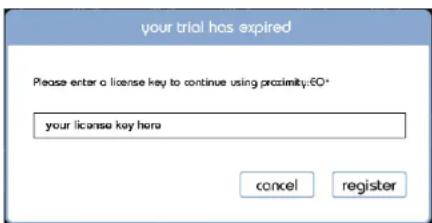
When opening proximity:EQ ^+ for the first time, a notification window will be displayed asking you to unlock proximity:EQ ^+ with a valid license key.
- Please make sure that your computer is connected to the internet before starting the registration process.
- Enter your license key and click „register“. The plug-in will now communicate with our server to check if the license is valid. If it is - enjoy! :)
iLok
If you transferred your license to an iLok, simply attach the iLok to your computer. The plug-in will automatically be registered - enjoy!
If you didn't receive the email within minutes please check your junk folder first before getting in contact with our (support@sonible.com).
Trial version
To run proximity:EQ ^+ in demo-mode, simply click "try" and you can use proximity:EQ ^+ a couple of days without any limitations. (Please refer to our website to find out more about the current demo period of proximity:EQ ^- )
When the demo period is over, you need to purchase a full license to continue to use the plug-in.

updates
stay up to date
If a new release of the plug-in is available you'll get a notification at the bottom right of the plug-in window. By clicking on the red label you'll be forwarded to a website where you can download the latest version of proximity:EQ+.
To install the latest version of proximity:EQ+, simply follow the installation instructions given in this manual. A reactivation of the plug-in is not necessary.


user interface
an overview
interactive equalizer
Use this section to interactively control the filter curves. All parameters (center frequency, quality and gain) can be adjusted freely.
menu bar
In this section you can find all control buttons helping you to improve your workflow.

line
| Frequency | Amplitude | | --------- | --------- | | 40.0 Hz | 0.7 | | 70.0 Hz | 0.7 | | 904 Hz | 0.7 | | 546 Hz | 1.8 | | 3685 Hz | 1.2 | | 4815 Hz | 2.4 | | 5000 Hz | 0.7 | | 13000 Hz | 0.7 |parameter section
The parameter section offers a complete overview of all filter settings.
master section
This section provides some plug-in information and global control parameters
user interface
menu bar

undo & redo With these arrows you can perform an undo or redo action. In this step, the latest parameter changes will be undone or redone.
A/B By clicking on the A/B-button, you can switch between two different states of the plug-in. In each state, all parameter changes are saved. If you save the current state (preset handling), only the active state (A or B) will be saved.
copy The "copy"-button will copy the parameter settings of the active state to the other one.
preset handling To save a preset (all parameter values), just click the floppy disk icon. The dialog will ask you to choose a filename and press "save". Loading a saved preset is done by choosing an option of the dropdown. The dropdown is refreshed each time you use it. If you want to delete a preset or change its name, go to the preset folder with your local file explorer. In this way, you can easily share your presets among different workstations.
All presets are saved with the file extension ".spr" to the following paths:
OSX: \~/Library/Audio/Presets/sonible/proximityEQ Windows: My Documents\sonible\proximityEQ
blind:flug A nice little feature of proximity:EQ+ is its "blind:flug" mode. This mode replaces the interactive equalizer display with an "old school" view, where all parameters have to be adjusted using rotary encoders. The lack of visual feedback may sometimes help to focus on your ears...
bypass This button can be used to bypass all processing of proximity:EQ+.
This interval bypass may be helpful when the bypass function offered by your host leads to glitches or sync-problems with other tracks.
user interface
parameter section

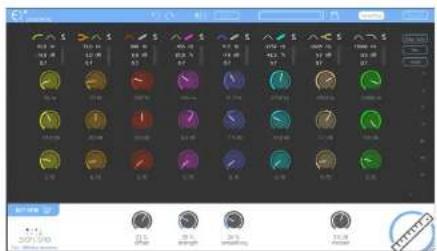
The parameter section shows eight filter bands and their related parameters.
When hovering over the parameter section of a band, the band is highlighted with the color of the related filter curve inside the interactive EQ display.
precision mode
Using the small dropdown on the top left, you are able to change the gain zooming factor (y-axis) of your interactive equalizer window between 24, 12 or 6 dB.
clear solo
This button deletes all active solos of all bands.
flat
The „flat“-button resets all filter gains to 0 dB. All other filter parameters are retained.
reset
The „reset“-button resets all parameters of the plug-in to their default values.
user interface
filter types
filter selection
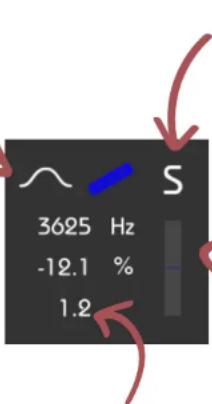
With a click on the filter symbol (cut, shelving, peq, proximity) the filter type of each band can be selected.
With another click on the selected filter symbol, the filter band can be enabled or disabled.
A click on the proximity filter will transform the current band to a proximity band (see next page).
changing values
All filter parameters can be changed by dragging the respective value up and down with your mouse. In addition, a double click will allow you to edit the value with your keyboard.
These values can also be changed using the thumb control in the interactive equalizer section (see chapter "proximity:EQ - interactive equalizer section").
solo mode
To quickly analyze certain frequency ranges, each filter band can be „soloed“ by clicking on the small „s“-button next to the filter types.
small effect meter
The small effect meters for each band indicate how much signal energy is affected by the applied filter curve.
filter types

low cut

high cut

low shelve

high shelve

bell

proximity
user interface
proximity filter
Bands 3, 4 and 5 of the proximity:EQ+ can be used as so-called "proximity filters". Based on different analysis methods, a proximity filter is able to separate a signal into direct sound and reverb.
You can interact with a proximity band as with any "normal" filter (gain, quality and center frequency), but the bell function shown in the gui acts as a weighting function and not as a classical EQ curve.
using a proximity filter
- Click the proximity symbol to transform the selected filter band into a proximity band. Please note that the gain label will immediately change from "dB" to "%".
- Once the gain of an active proximity band is changed, a second sum curve (white) will appear inside the interactive equalizer display.
While the blue sum curve shows the sum of all "normal" EQ bands, the white curve shows the mixing relation of direct sound and reverb across the whole spectrum.
- If you now modify the gain of the band, the filter will not change the spectral balance of the track, but adapt the relation of direct sound and reverb within the selected frequency region.
- positive gain values boost the direct sound of the track (0% < gain < 100%)
- negative gain values augment the natural reverb of the recording (-100% < gain < 0%)

natural_image
Abstract diagram with overlapping blue and purple curves on a dark grid background, no text or symbols present.user interface
interactive equalizer section

area
| x | y1 | y2 | | ---- | ------ | ------ | | 30 | 0 | 0 | | 100 | 0 | 0 | | 200 | 12 | 0 | | 500 | 12 | 0 | | 1k | 0 | 0 | | 2k | -12 | -16 | | 5k | 12 | -16 | | 10k | 0 | 0 |
output meter These meters show the output gain level.
The interactive equalizer display of proximity:EQ+ allows for a very intuitive and quick control of all parameters of a filter band.
You can simply drag and drop the thumbs related to each filter and immediately see (and hear) the resulting curve.
There are also three complementary key combinations for enhanced parameter control:
- alt+click+drag
→ change quality of the filter
-shift+click+drag
→ lock the center frequency, only change gain
•double-click
→ reset filter band
In addition, it is also possible to change the quality of a filter using the scroll wheel of your mouse hovering over an active thumb.

precision mode To zoom the y-axis (gain values), select the appropriate range in the dropdown on the top left.
user interface
master section

This section provides some proximity specific parameters, the master gain slider and some plug-in information.
| proximity | The proximity parameter allows you to globally adjust the relation of direct sound (>0%) and diffuse signal components (<0%). | master | master gain of the plug-in between -20 dB and +20 dB |
| strength | The strength parameter controls the separation strength between direct and diffuse parts of the audio signal:- Lower values (<50%) lead to a wider transition range between different signal parts (direct and diffuse) and may sound more natural.- Higher values (>50%) result in a harder separation and can be used to get more distinct results. | resizing | In the bottom right corner, you see a triangle that enables you to resize the plug-in. The next time you open the plug-in, the size will be restored. |
| smoothing | Apply a smoothing to the proximity signal:- Low values (<50%) may be used to reduce the amount of smoothing during computation.- High values (>50%) increase the amount of smoothing during computation and may lead to a more natural sound but less distinct results. |
Mac OS is a registered trademark of Apple Inc., registered in the U.S. and other countries. Windows is a registered trademark of Microsoft Corporation in the United States and/or other countries. Intel is a registered trademark of Intel Corporation in the United States and other countries. All other product or company names are trademarks or registered trademarks of their respective holders. Use of them does not imply any affiliation with or endorsement by them.
All specifications are subject to change without notice.
©2020, sonible GmbH. All rights reserved. Engineered & designed by sonible in Austria.

www.sonible.com/proximity:EQ+
sonible GmbH
Haydngasse 10/1
8010 Graz
Austria
phone: +43 316 912288
contact@sonible.com
All specifications are subject to change without notice.
©2020, sonible GmbH. All rights reserved.
Engineered & designed by sonible in Austria.
- contents
- welcome to proximity:€Q+
- install
- Minimal requirements
- Windows
- Mac OSX
- Audio Unit
- VST
- authorization
- Licensing system
- Machine-based
- iLok
- Unlocking
- Machine-based unlocking
- Trial version
- updates
- user interface
- interactive equalizer
- menu bar
- parameter section
- master section
- precision mode
- clear solo
- flat
- reset
- filter selection
- changing values
- solo mode
- small effect meter
- filter types
- using a proximity filter
Brand : Sonible
Model : Proximity:EQ+
Category : Audio software