
CL120R - Telephone COLBOR - Free user manual and instructions
Find the device manual for free CL120R COLBOR in PDF.


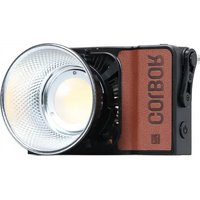
| Type | Bi-Color + RGB Video Light |
| Model | CL120R |
| Color Temperature Range | 2700K-6500K (±200K) |
| CRI / TLCI | 96+ / 98+ |
| TM-30-18 (Rf/Rg) | Rf:95±2 / Rg:102±2 |
| SSI (D32 / D56) | 85 / 75 |
| Beam Angle (no reflector) | ≈∠120° |
| Maximum Power Consumption | 136W |
| COB Output Power (C/W / R/G/B) | 120W / 60W (constant power) |
| Input | DC 48V=2.5A via 3-pin XLR |
| Body Material | Aluminum Alloy + ABS |
| Dimensions (L×W×H) | 240×128×219 mm (9.4"×5"×8.6") |
| Weight | 1.6 kg (3.52 lbs) |
| Operating Temperature | -10 to 40°C |
| Mount | Bowens Mount |
| Lighting Modes | CCT, HSI, EFF-CCT, EFF-HSI (13 effects) |
| Fan Modes | Smart, Quiet, Performance |
| Wireless Control | APP (COLBOR STUDIO) & Remote Control (option) |
| Battery Compatibility | V-Mount battery via NATO rail and VM3 (optional) |
| Umbrella Hole | Yes, with locking screw |
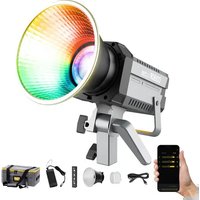
| Accessories Included | Reflector (Bowens Mount) BSR70, 3m Plum Tail Cable, Power Adapter with Wire Lanyard, COB Cover, Warranty Card |
Frequently Asked Questions - CL120R COLBOR
User questions about CL120R COLBOR
0 question about this device. Answer the ones you know or ask your own.
Ask a new question about this device
Download the instructions for your Telephone in PDF format for free! Find your manual CL120R - COLBOR and take your electronic device back in hand. On this page are published all the documents necessary for the use of your device. CL120R by COLBOR.
USER MANUAL CL120R COLBOR
natural_image
Line drawing of a Colibor anti-impedance camera with attached cable (no text or symbols on the device itself)CL120R Video Light User Manual
Thank you for choosing COLBOR product. Please read this manual carefully before use and follow all instructions mentioned herein.
Caring For Your COLBOR Product
- Keep corrosive chemicals, liquids and heat source away from the product to prevent mechanics damage.
• The product is not waterproof. - Do not leave the product unattended while in use. Keep out of reach of children.
- Do not handle with wet hands. Do not touch the hot COB surface.
- Please do not block the ventilation and do not look at the light directly when it is on.
- Do not attempt to disassemble or modify the product. Doing so voids warranty.
- Please have the product checked or repaired by authorized technicians if any malfunctions happened.
- Disconnect from the power supply when it is not in use.
- Do not cover, inverted COB and radiator for high temperature, do not cover, inverted, do not touch the lamp holder and radiator vent with your hands when the product in use.
- Do not use any power adapter of other products to avoid the lamp malfunction.
- Malfunction may be caused by dropping, impact of external force.
- Failure to follow all the instructions may result in mechanics damage.
• Our company reserves the right of final interpretation of the product. - Product design and specifications are subject to change without prior notice.
Power Connection
- You must use the power adapter that comes with the product rather than other adapters to avoid damaging the lamp. The positive and negative connections of the power adapter interface (DC OUT) and the lamp power interface (DCIN) are shown below:
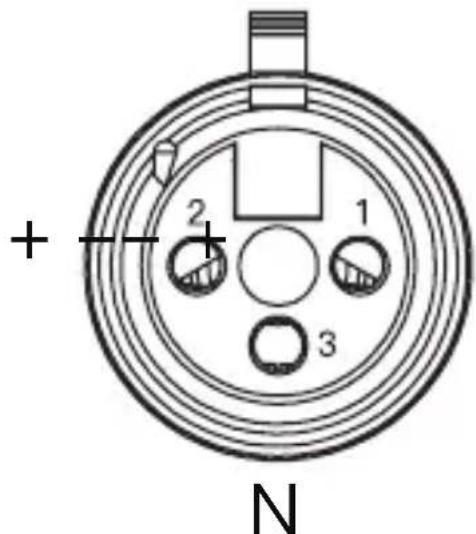

Product Instructions


① LED Display Screen
② EFF Mode Button
③ EFF Rate Option Button
④ Mode Button
⑤ Settings Menu Button
⑥ Left Knob/Option Adjustment Knob
⑦ Right Knob/Parameter Adjustment Knob
⑧ DC 48V Power Port
⑨ Power Button
⑩ Bowens Mount Lock
⑪ Light Source
⑫ Lamp Angle Adjustment Locking Grip
⑬ Lamp Holder
⑭ Air Outlet
⑮ NATO Rail
⑯ Air Inlet
⑰ Lamp Handle
⑱ Umbrella Hole
⑲ Umbrella Hole Screw
⑳ Lamp Holder Screw
Light Installation
1. Removal of lamp cap protection cover
Hold the COB cover with the Bowens Mount tenon and rotate it in the direction of the arrow.
★Note: Be sure to remove cob protective cover and cob protective film before use.
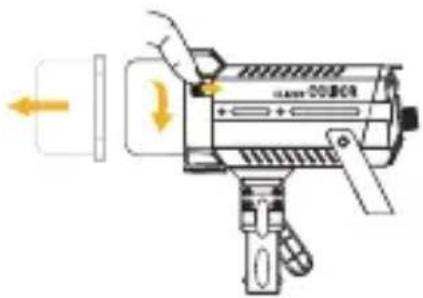
2. Installation and removal of reflector
Installation of reflector: Align the reflector with the groove around the lamp head and clip it in, turn the reflector in the direction of the arrow, and the reflector installation will be completed after the top rod rebounds.
Removal of reflector: Please follow the instructions below.

natural_image
Illustration of a megaphone with sound waves and no visible text or symbols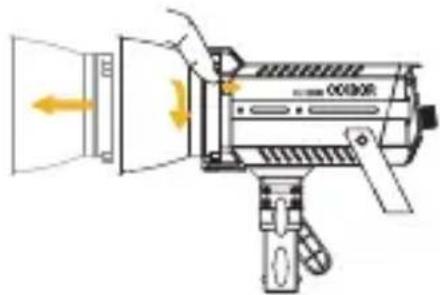
natural_image
Diagram of a megaphone emitting sound waves from a speaker (no text or symbols present)3. Installation of light
Rotate the lamp holder screw until the inner wall is not shielded and put the product on the top of the lamp holder to tighten the bracket screw for fixation. Adjust the lamp body irradiation angle and tighten the lamp holder angle grip.

Screw out, the inner wall of the bracket without any shelter
Halfway the screw out
The screw is not out at all
4. Install the soft light umbrella
Insert the handle of the soft light umbrella into the umbrella hole and tighten the screw to lock.
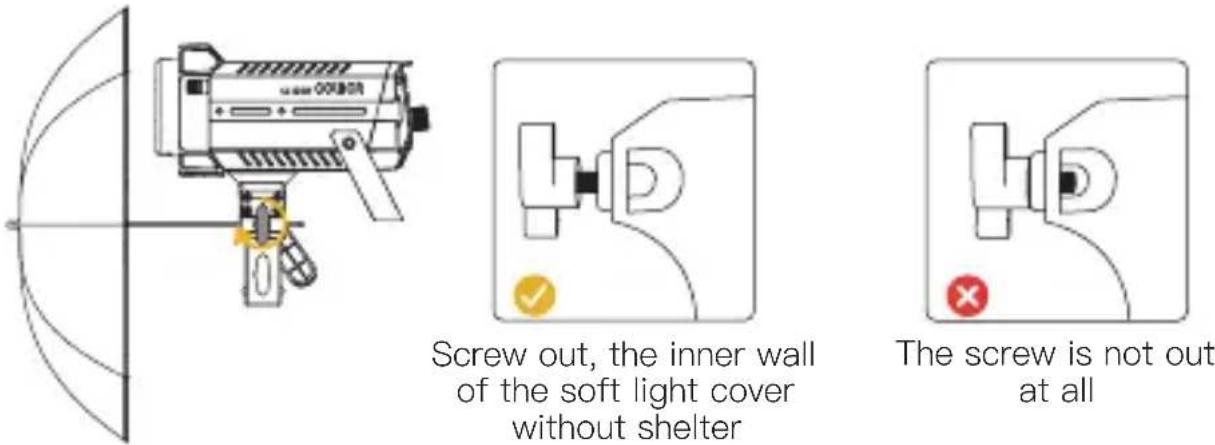
Screw out, the inner wall of the soft light cover without shelter
The screw is not out at all
5. Power Supply
(1) Power cord adapter fixation
Pass the attached wire rope through the snap ring of the power adapter and hang it on the stand.
(2) AC power supply
Connect the power adapter, aim the pin at the DC power interface of the lamp body, and then power on after the cable is well-placed.
(3) Power cord storage
When pulling out the power cord of the lamp body, firstly press the spring beside the connector to unlock it. Do not pull out the wire forcefully without unlocking it.
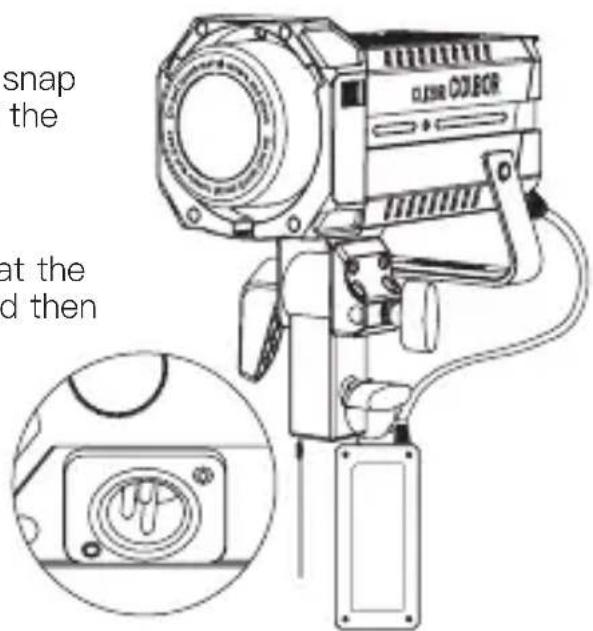
(4) Power with V-port battery
Attach the V-mount battery to the lamp with the NATO expansion bar and VM3 (optional), then connect the D-tap to XLR power cord, and power on the lamp.

Note:
* For one 14.8V battery powering, the maximum brightness is 50% of full power.
Operation Instructions
- Remove the COB protective cover before powering the light.
- Power On: After confirming that the power connection is finished, press the switch to “-”, and the screen will display the brand and product module. (Default mode: CCT)
- Power Off: Press the switch to "o" to turn it off.
1. Status Icon Description
![① ② ③ ④ (·) S A R [A] RESP. SHARP LANG. EN Product INFO.](/content/2026/06/1229249/images/876ba57a9dff953c76e2f6a68b5fbe217f31b42f24d9e06ca8bb0faab58217bb.jpg)
| 1 APP Connection Status Icon | |
 | After selecting wireless connection in Settings menu, the icon will be displayed dynamically. |
 | The icon is always on to indicate successful pairing with mobile APP.The icon disappears to indicate mobile APP pairing failure, or the product is unpaired. |
| 2 Fan Status Icon | |
 | Smart Mode. The product will adjust the fan speed according to the internal detected temperature to ensure that it is in optimal working condition. |
 | Quiet Mode. The fan keeps running at low speed for minimum noise, and overheating protection will be activated if the product temperature is higher than the alarm value. |
| [BT32] | Performance Mode. Fan runs at the highest speed to ensure heat dissipation. |
| 3 Group Status Icon | |
 | None grouping status. The product defaults to the factory status, and will not be affected by other groups. |
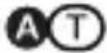 | A stands for Group A. There are fifteen groups (A~O). T stands for Tx. |
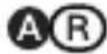 | A stands for Group A. There are fifteen groups (A~O). R stands for Rx. |
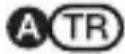 | A stands for Group A. There are fifteen groups (A~O). TR stands for TxRx. |
| 4 Product Overheated Alarm Icon | |
| [8] | If the icon flashes, it means that the internal temperature of the product is too high, and cooling measures need to be taken. If the icon disappears, it means that the operation is normal. |
2. CCT Mode (Short press Mode Button to switch CCT Mode and HSI Mode. \* Default: CCT Mode)

Option Adjustment Knob

Rotate the Knob counterclockwise to adjust options: color temperature, brightness, G/M Balance.
Parameter Adjustment Knob/Parameter Preset

Rotate the knob counterclockwise to adjust parameter of color temperature, brightness and G/M Balance:
Brightness (DIM): 0%\~100%
Color temperature: 2700-6500K
G/M Balance: Green10\~1-0-Magenta1\~10

Short press the knob to quickly switch the preset parameter of color temperature, brightness and G/M Balance:
Preset brightness: 0%、25%、50%、75%、100%
Preset color temperature: 2700K、3200K、4000K、5600K、6500K
G/M Balance: Short press return to zero.
3. HSI Mode (Short press Mode Button to switch)

Option Adjustment Knob
Rotate the Knob counterclockwise to adjust options:HUE - SAT - INT
Parameter Adjustment Knob/Parameter Preset
Rotate the knob counterclockwise to adjust parameters of HUE, SAT, and INT:
SAT :0%\~100%
HUE 0°\~359°
INT 0%\~100%
Short press the knob to quickly switch the preset parameter of HUE, SAT, and INT:
HUE: 0^/60^/120^/180^/240^/300^
SAT: 0%/25%/50%/75%/100%
INT: 0%/25%/50%/75%/100%
4. EFF-CCT Mode (Short press EFF Button)
\*Default: EFF-CCT Mode
Light Effect Mode (EFF) Button
EFF
Light Effect Frequency (RATE) Button
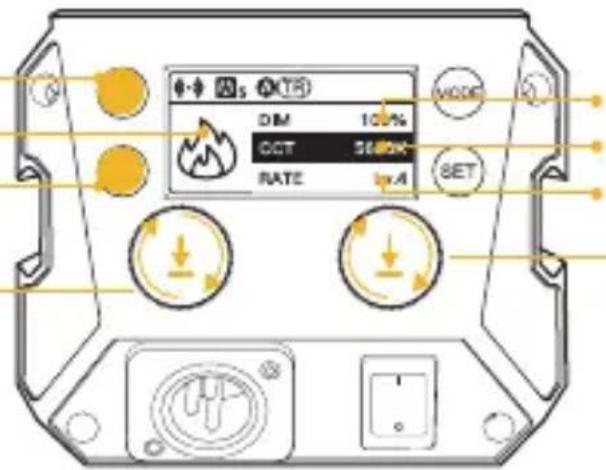
Brightness
Color Temperature
Rate
Option Adjustment Knob
Rotate the Knob counterclockwise to adjust options: brightness, color temperature.
Short press to switch to EFF-HSI Mode
Parameter Adjustment Knob/Parameter Preset
Rotate the knob counterclockwise to adjust parameters.
Color temperature: 2700\~6500K
Brightness: 0%\~100%
Color temperature: 2700K/3200K/4300K/5600K/6500K
Brightness: 0%/25%/50%/75%/100%
Light Effect Mode (EFF) Button
Press to switch light effect: Fire → Spark → CCT Chase → Pulsing → Beacon → TV → Party → Explosion → Faulty Bulb → Welding → Strobe → Lightning → SOS.
5. EFF-HSI Mode (Short press EFF Button then press the left knob to switch to EFF-HSI Mode.)
Light Effect Mode (EFF) Button
EFF
Light Effect Frequency (RATE) Button
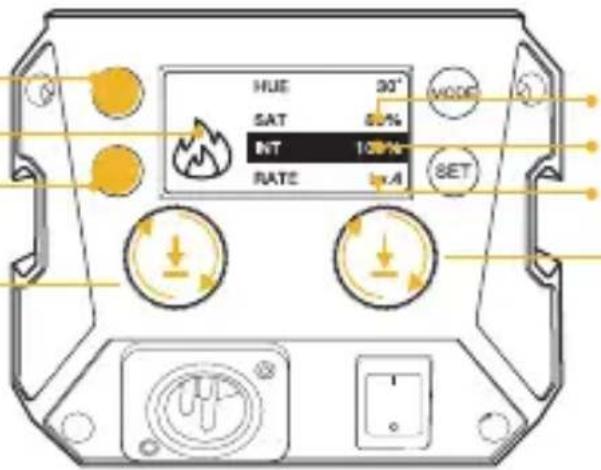
Brightness
Color Temperature
Rate
Option Adjustment Knob
Rotate the Knob counterclockwise to adjust options: brightness, color temperature.
Short press to switch to EFF-CCT Mode
Parameter Adjustment Knob/Parameter Preset
Rotate the knob counterclockwise to adjust parameters.
HUE: 0^ 359^
SAT : 0%\~100%
INT : 0%\~100%
Short press the knob to quickly switch the preset parameter.
HUE: 0°/60°/120°/180°/240°/300°
SAT: 0%/25%/50%/75%/100%
INT: 0%/25%/50%/75%/100%
Light Effect Frequency (RATE) Button
Short press to switch the frequency varies effect, Lv.1\~Lv.5+ RANDOM.
Short press to switch the effect according to different special effects. Some are color, some are speed, and some are strength.
| EFF |  Fire Fire | CCTMode | CCT: 1000K~10000K DIM: 0%~100% Rate: Lv1~5 |
| HSI Mode | HUE: 0° ~359° SAT: 0%~100% INT: 0%~100% RATE: Lv1~5 | ||
 Spark Spark | CCT Mode | CCT: 2700K~6500K +RANDOM DIM: 0%~100%+ RANDOM RATE: Lv1~5+ RANDOM | |
| HSI Mode | HUE: 0° ~359° +RANDOM SAT: 0%~100%+RANDOM INT: 0%~100%+RANDOM RATE: Lv1~5+RANDOM | ||
 CCT Chase CCT Chase | CCT Mode | CCT: LOCK DIM: 0%~100% +RANDOM RATE: Lv1~5 | |
| HSI Mode | HUE: LOCK SAT: 0%~100%+RANDOM INT: 0%~100%+RANDOM RATE: Lv1~5 | ||
 Pulsing Pulsing | CCT Mode | CCT: 2700K~6500K DIM: 0%~100% RATE: Lv1~5 | |
| HSI Mode | HUE: 0° ~359° SAT: 0%~100% INT: 0%~100% RATE: Lv1~5 | ||
 Beacon Beacon | / | TYPE: Red and white, blue and white, red and blue DIM: 0%~100% RATE: Lv1~5 | |
 TV TV | CCT Mode | CCT: 2700K~6500K+RANDOM DIM: 0%~100%+RANDOM RATE: Lv1~5+RANDOM | |
| HSI Mode | HUE: 0° ~359° +RANDOM SAT: 0%~100%+RANDOM INT: 0%~100%+RANDOM RATE: Lv1~5+RANDOM | ||
 Party Party | CCT Mode | CCT: 1000K~10000K+RANDOM Dim: 0%~100%+RANDOM Rate: Lv1~5+RANDOM | |
| HSI Mode | Hue: 0° ~359° +RANDOM SAT: 0%~100%+RANDOM INT: 0%~100%+RANDOM Rate: Lv1~5+RANDOM | ||
 Explosion Explosion | CCT Mode | CCT: 1000K~10000K+RANDOM Dim: 0%~100%+RANDOM Rate: Lv1~5+RANDOM | |
| HSI Mode | Hue: 0° ~359° +RANDOM SAT: 0%~100%+RANDOM INT: 0%~100%+RANDOM Rate: Lv1~5+RANDOM | ||
| EFF |  Faulty Bulb Faulty Bulb | CCTMode | CCT: 2700K~6500KDIM: 0%~100%RATE: Lv1~5 |
| HSIMode | HUE: 0° ~359°SAT: 0%~100%INT: 0%~100%RATE: Lv1~5 | ||
 Welding Welding | CCTMode | CCT: 2700K~6500KDIM: 0%~100%RATE: Lv1~5 | |
| HSIMode | HUE: 0° ~359°SAT: 0%~100%INT: 0%~100%RATE: Lv1~5 | ||
| [2264]Strobe | CCTMode | CCT: 2700K~6500K+RANDOMDIM: 0%~100%+RANDOMRATE: Lv1~5 | |
| HSIMode | HUE: 0° ~359° +RANDOMSAT: 0%~100%+RANDOMINT: 0%~100%+RANDOMRATE: Lv1~5 | ||
 Lightning Lightning | CCTMode | CCT: 2700K~6500KDIM: 0%~100%RATE: Lv1~5 | |
| HSIMode | HUE: 0° ~359°SAT: 0%~100%INT: 0%~100%RATE: Lv1~5 | ||
| [25K5]S.O.S | CCTMode | CCT: 2700K~6500KDIM: 0%~100%RATE:LOCK | |
| HSIMode | HUE: 0° ~359°SAT: 0%~100%INT: 0%~100%RATE:LOCK |
4. Setting
- Short press the SET bottom to enter settings menu.
- Roll the Brightness Control Wheel to choose settings.
- Press the setting bottom to adjust the corresponding setting(Short press the setting bottom to adjust the wireless connection mode).
| Settings Options | ||
 | Wireless Connection | APP/Remote Control/GroupShort press the right knob to switch the paring mode (One mode for each time)APP/Remote Mode:Long press the SET button for pairing.Group Mode:Rotate the right knob to choose the group set(NULL/A~O *default NULL) and communication (TX/RX/TXRX *default :TXRX). |
| Fan Mode | SMART/ QUIET/ PERFORMANEC SMART: The product will detect the current internal temperature to adjust the fan speed by itself.QUIET: The fan will run at up to 50% output.PERFORMANEC: Fan runs at the highest speed to ensure heat dissipation. | |
 | Group NULL/ A~O (NULL by default) | |
| Communication | TX/ RX/ TXRX (TX by default) | |
| Curve | LINEAR, L.CURVE, E.CURVE, S.CURVE. | |
 | Response | SHARP/ SMOOTH (SMOOTH by default) |
| Initial brightness setting | Default Brightness: The brightness set before power off.Short press the SET button then rotate the right knob to adjust the brightness.Short press the right knob to switch the brightness between default, 0%, 25%, 50%, 75%, 100% | |
| Language | EN/ CN | |

Product INFO.
Short press the setting botton to enter the production information interface. Press the setting botton again to go back to settings menu.
① Hardware Version ② Firmware
Version ③ Protocol Version
④ MAC Address
5. APP Connection & Light Control
Scan the QR code, or search "COLBOR STUDIO" in app store to download the app for light control.

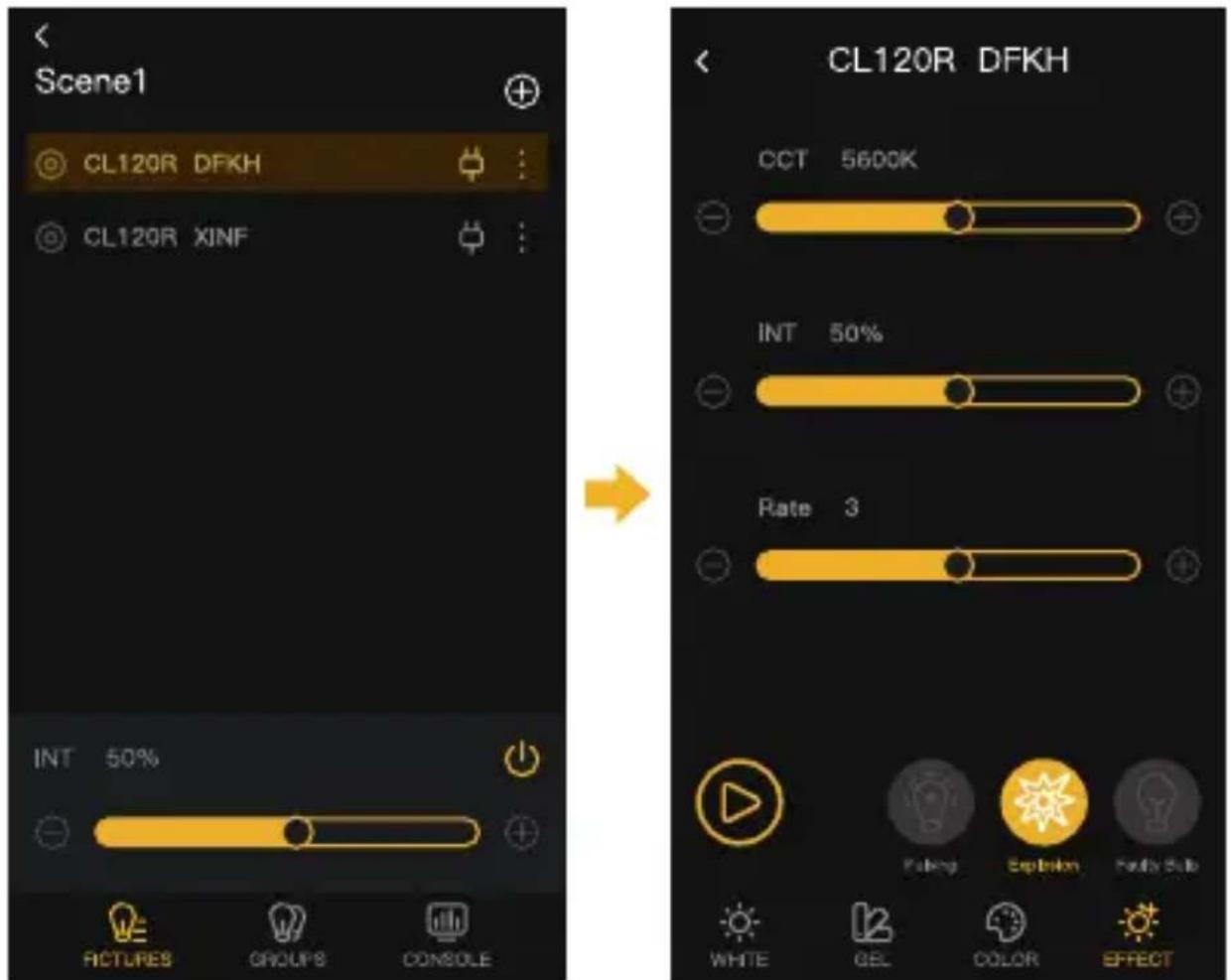
CL120R Pairing:
- Press the setting button and enter the pairing mode. Short press the setting button to choose "APP", then long press the setting button for 3 seconds for pairing.


- Open the APP and click the “+” on the upper right, then click the scene one and click the + on the upper right. Showing CL120R means successfully pairing.

- Click the CL120R for control.
CL220R Group Control:
- After successfully pairing the CL220R, click the group then click the “+” on the top right. Choose the light for grouping and click the confirm bottom. Showing Group One means successfully grouping.


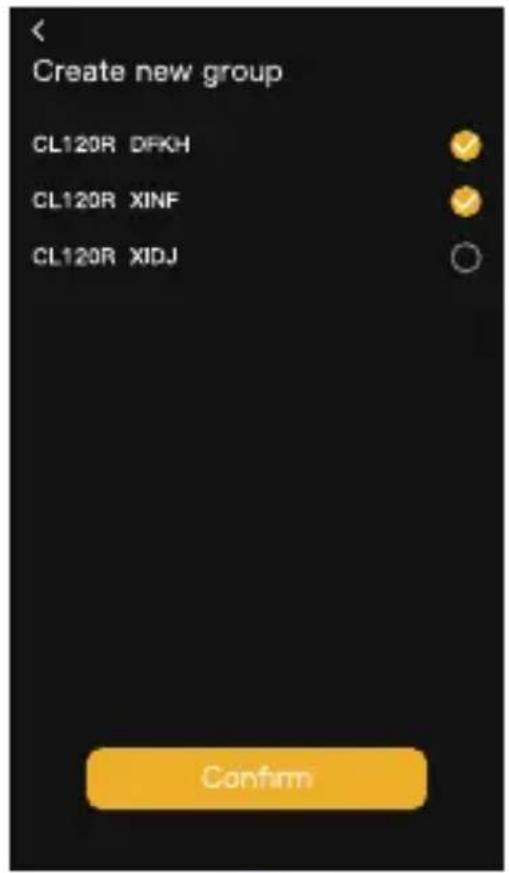
- Click the group for lighting control.


natural_image
Line drawing of a COIBOR industrial sensor device with three circular components and mounting brackets (no text or symbols)
natural_image
Technical line drawing of a mechanical component with two internal channels and circular buttons (no text or symbols)* Equipped with a NATO extension bar and an NQD quick-release device, the lights can be grouped together.
Specifications
| Type | Bi-Color + RGB |
| Color Temperature Range | 2700K-6500K (±200K) |
| CRI/TLCI | 96+/98+ |
| TM-30-18 | Rf:95±2/Rg:102±2 |
| SSI | 85(D32)/75(D56) |
| Illumination | See the Form 1 Below |
| Beam Angle | No Reflector ≈∠ 120° |
| Power | 136W (Max) |
| COB Output Power | C/W:120W R/G/B: 60W*Constant Power Output |
| Input | DC 48V=2.5A 3 Pin XLR |
| Body Material | Aluminum Alloy+ABS |
| Size (L*W*H) | 240*128*219mm (9.4"*5"*8.6") |
| Weight | 1.6kg(3.52lbs) |
| Op. Temp. | -10~40°C |
Package List
natural_image
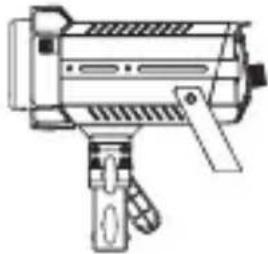
Line drawing of a mechanical device with no visible text or symbolsCL120R Video Light x1
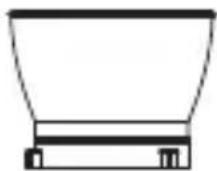
Reflector (Bowens Mount) BSR70 x1 (not included in CL120R Lite)

Carrying Bag x1 (not included in CL120R Lite)

natural_image
Pure diagram of a coiled tube with two ends, no text or symbols present3m Plum Tail Cable x1

natural_image
Simple line drawing of a handheld device with three leads and a circular top (no text or symbols)Power Adapter (with Wire Lanyard) x1
Warranty Card x1

NB3.58(Optional)
x1

COB Cover x1
Power adapters may vary according to sales region.
Form 1
Illumination
| CCT | Distance | Light Base | BSR70 Reflector | BSR70 +Soft Cover | BHSR70 Reflector | BHSR70 +Soft Cover |
| 2700K | 1m | 3560 | 4380 | 3030 | 5250 | 3510 |
| 3m | 518 | 634 | 422 | 692 | 474 | |
| 5m | 246 | 278 | 188 | 305 | 210 | |
| 3200K | 1m | 3740 | 4610 | 3170 | 5530 | 3680 |
| 3m | 542 | 668 | 442 | 728 | 497 | |
| 5m | 257 | 292 | 196 | 321 | 219 | |
| 4300K | 1m | 3980 | 4920 | 3360 | 5920 | 3950 |
| 3m | 580 | 713 | 470 | 778 | 527 | |
| 5m | 274 | 311 | 207 | 342 | 233 | |
| 5600K | 1m | 4160 | 5120 | 3460 | 6190 | 4090 |
| 3m | 581 | 741 | 488 | 814 | 548 | |
| 5m | 283 | 324 | 215 | 357 | 210 | |
| 6500K | 1m | 4220 | 5250 | 3550 | 6320 | 4180 |
| 3m | 675 | 750 | 496 | 832 | 557 | |
| 5m | 290 | 328 | 219 | 364 | 209 |
| CCT | Distance | BHR15 Reflector | BHR45 Reflector | CF-200G Fresnel | |
| 40^ 12^ | |||||
| 2700K | 1m | 24900 | 14000 | 12400 | 23500 |
| 3m | 2630 | 1420 | 1370 | 2400 | |
| 5m | 1050 | 577 | 580 | 992 | |
| 3200K | 1m | 26400 | 14800 | 13100 | 24900 |
| 3m | 2780 | 1500 | 1450 | 2550 | |
| 5m | 110 | 608 | 611 | 1050 | |
| 4300K | 1m | 28400 | 15800 | 14100 | 26800 |
| 3m | 2990 | 1610 | 1550 | 2740 | |
| 5m | 1190 | 650 | 655 | 1130 | |
| 5600K | 1m | 29900 | 16600 | 14800 | 28200 |
| 3m | 3140 | 1680 | 1620 | 2880 | |
| 5m | 1250 | 680 | 686 | 1190 | |
| 6500K | 1m | 30700 | 17700 | 15100 | 28900 |
| 3m | 3220 | 1720 | 1660 | 2960 | |
| 5m | 1050 | 696 | 703 | 1220 | |
The data is given from testing in a laboratory.
WARRANTY
Warranty Period
Thank you for purchasing COLBOR products.
- Customers are entitled to free replacement or repair service in case of quality defect(s) found in the product under normal use within 30 days upon receipt of the product.
- Original COLBOR products are entitled to 12-month limited warranty service. The warranty period begins on the date of purchase of brand new, unused products by the first end-user.
Within the warranty period, if product defect or failure is attributable to material defection or technological problem, the defective product or defective part will be repaired or replaced without charge (service and materials fee).
Warranty Exclusions and Limitations
- Faults resulted from inappropriate use of a product without following its operation specification
- Artificial damage, e.g. crash, squeeze, scratch, soaking, exposing to rain or damp
- Modifications to a product by its user or a third party without prior written consent of COLBOR, e.g. replacement of element or circuit, label alteration
- The code on product is inconsistent with that of warranty certificate, or the code on the product or warranty certificate is altered or torn off
- All consumable accessory attached to a product, like cable, cover
- Faults as a result of force majeure, such as fire, flood, lightning, etc.
Warranty Claim Procedure
- If failure or any problem occurs to your product after purchase, please contact a local agent for assistance, or you can always contact COLBOR's customer service through email.
- Please retain your sales receipt and warranty certificate as proof of purchase. If any of these documents is missing, only sales return or chargeable service will be provided.
- If the COLBOR product is out of the warranty coverage, the service and the parts cost will be charged.
Guangzhou Zhiying Technology Co., Ltd
Room 2401, 24 / F, South Tower, Lisheng Plaza, No. 68 Huadi Avenue, Liwan District, Guangzhou, China, 510000
support@colborlight.com
www.colborlight.com

- CL120R Video Light User Manual
- Caring For Your COLBOR Product
- Power Connection
- Product Instructions
- Light Installation
- Removal of lamp cap protection cover
- Installation and removal of reflector
- Installation of light
- Install the soft light umbrella
- Power Supply
- Power with V-port battery
- Note:
- Operation Instructions
- Status Icon Description
- CCT Mode (Short press Mode Button to switch CCT Mode and HSI Mode. \* Default: CCT Mode)
- Option Adjustment Knob
- Parameter Adjustment Knob/Parameter Preset
- HSI Mode (Short press Mode Button to switch)
- EFF-CCT Mode (Short press EFF Button)
- \*Default: EFF-CCT Mode
- Light Effect Mode (EFF) Button
- EFF-HSI Mode (Short press EFF Button then press the left knob to switch to EFF-HSI Mode.)
- Light Effect Frequency (RATE) Button
- Setting
- APP Connection & Light Control
- CL120R Pairing:
- CL220R Group Control:
- Package List
- WARRANTY
- Warranty Period
- Warranty Exclusions and Limitations
- Warranty Claim Procedure
- Guangzhou Zhiying Technology Co., Ltd
Brand : COLBOR
Model : CL120R
Category : Telephone