
AFM-20DSP-LE - Audio Matrix Kramer - Free user manual and instructions
Find the device manual for free AFM-20DSP-LE Kramer in PDF.


| Product Type | 20-Port Audio Matrix Switcher with DSP |
| Model | AFM-20DSP-LE |
| Brand | Kramer |
| Analog Ports | 20 balanced mono audio on 3-pin terminal blocks (configurable as inputs or outputs via preset I/O configurations: 16x4, 14x6, 12x8, 10x10, 8x12, 6x14, 4x16) |
| DSP Processing | Multi-channel digital sound processing per input and output (expander, HPF, AFS, compressor, EQ, delay, gain, limiter, LPF) |
| Control Interfaces | Ethernet (RJ-45), RS-232 (3-pin terminal block), mini USB, embedded webpages, Protocol 3000 |
| Supported Web Browsers | Windows 7/10 (Chrome), macOS (Chrome) |
| Front Panel LEDs | Status, 20 port status (green/white/blue/red/orange) |
| Presets | Up to 10 global system presets per I/O configuration + 10 mixer snapshot presets |
| Phantom Power | 48 V DC, selectable per input (mic in) |
| Frequency Response | 20 Hz - 20 kHz (±1 dB) |
| Signal-to-Noise Ratio | >100 dB at unity gain (unweighted) |
| THD+N | <0.01% at unity gain |
| Crosstalk | <-85 dB |
| Power Consumption | 31.5 VA |
| Power Supply | 100-240 V AC, 50/60 Hz |
| Operating Temperature | 0° to +40°C (32° to 104°F) |
| Storage Temperature | -40° to +70°C (-40° to 158°F) |
| Humidity | 10% to 90% RHL non-condensing |
| Dimensions (W x D x H) | 43.6 cm x 23.7 cm x 4.4 cm (17.2" x 9.3" x 1.7") |
| Weight (net) | 1.6 kg (3.5 lbs) |
| Shipping Weight | 2.7 kg (5.9 lbs) approx. |
| Enclosure | 19" 1U rack mount (including rack ears), aluminum |
| Safety Compliance | CE, RoHS, WEEE |
| Included Accessories | Power cord, rack ears |
| Maintenance | Clean with a dry cloth; no user-serviceable parts inside; firmware upgrade via Ethernet |
| Spare Parts / Repair | Contact authorized Kramer service center; power cord available as spare |
Frequently Asked Questions - AFM-20DSP-LE Kramer
User questions about AFM-20DSP-LE Kramer
0 question about this device. Answer the ones you know or ask your own.
Ask a new question about this device
Download the instructions for your Audio Matrix in PDF format for free! Find your manual AFM-20DSP-LE - Kramer and take your electronic device back in hand. On this page are published all the documents necessary for the use of your device. AFM-20DSP-LE by Kramer.
USER MANUAL AFM-20DSP-LE Kramer
AFM-20DSP, AFM-20DSP-LE 20-Port Audio Matrix


Contents
Introduction 1
Getting Started 1
Overview 2
Typical Applications 4
Defining AFM-20DSP and AFM-20DSP-LE 5
AFM-20DSP and AFM-20DSP-LE Front Panels 5
AFM-20DSP and AFM-20DSP-LE Rear Panels 6
Mounting AFM-20DSP / AFM-20DSP-LE 7
Connecting the 20-Port Audio Matrix 8
Connecting AFM-20DSP 8
Connecting AFM-20DSP-LE 10
Connecting to AFM-20DSP / AFM-20DSP-LE via RS-232 11
Operating and Controlling AFM-20DSP/AFM-20DSP-LE 12
Operating via Ethernet 12
Using Embedded Webpages 15
Browsing the AFM-20DSP Webpages 16
Using the Top Status Bar 18
Viewing the Matrix Area 20
Processing Audio Signals
Selecting Output Signals to Route to Amplifier Outputs 22
Linking Analog Inputs and Outputs 23
Processing a Signal 24
Routing Inputs to Outputs 37
Mixing Audio Signals 41
Defining Audio Settings
Defining Video Settings 46
Restarting and Resetting the Device 47
Defining Settings
Importing/Exporting Global Settings 49
Setting Access Security 49
Defining Communication Settings 52
Performing Firmware Upgrade 54
Setting Date and Time 55
Configuring Device Automation 56
Viewing Device Information 58
Upgrading Firmware 59
Technical Specifications 60
AFM-20DSP Technical Specs 60
AFM-20DSP-LE Technical Specs 61
Default Communication Parameters 63
Default EDID 63
Protocol 3000
Understanding Protocol 3000 65
Protocol 3000 Commands 66
Result and Error Codes 83
Introduction
Welcome to Kramer Electronics! Since 1981, Kramer Electronics has been providing a world of unique, creative, and affordable solutions to the vast range of problems that confront the video, audio, presentation, and broadcasting professional on a daily basis. In recent years, we have redesigned and upgraded most of our line, making the best even better!
Getting Started
We recommend that you:
- Unpack the equipment carefully and save the original box and packaging materials for possible future shipment.
- Review the contents of this user manual.

Go to www.kramerav.com/downloads/AFM-20DSP or www.kramerav.com/downloads/AFM-20DSP-LE to check for up-to-date user manuals, application programs, and to check if firmware upgrades are available (where appropriate).
Achieving the Best Performance
- Use only good quality connection cables (we recommend Kramer high-performance, high-resolution cables) to avoid interference, deterioration in signal quality due to poor matching, and elevated noise levels (often associated with low quality cables).
- Do not secure the cables in tight bundles or roll the slack into tight coils.
- Avoid interference from neighboring electrical appliances that may adversely influence signal quality.
- Position your Kramer AFM-20DSP / AFM-20DSP-LE away from moisture, excessive sunlight and dust.
Safety Instructions

Caution:
- This equipment is to be used only inside a building. It may only be connected to other equipment that is installed inside a building.
- For products with relay terminals and GPI\O ports, please refer to the permitted rating for an external connection, located next to the terminal or in the User Manual.
- There are no operator serviceable parts inside the unit.

Warning:
- Use only the power cord that is supplied with the unit.
- Disconnect the power and unplug the unit from the wall before installing.
- Do not open the unit. High voltages can cause electrical shock! Servicing by qualified personnel only.
- To ensure continuous risk protection, replace fuses only according to the rating specified on the product label which located on the bottom of the unit.
Recycling Kramer Products
The Waste Electrical and Electronic Equipment (WEEE) Directive 2002/96/EC aims to reduce the amount of WEEE sent for disposal to landfill or incineration by requiring it to be collected and recycled. To comply with the WEEE Directive, Kramer Electronics has made arrangements with the European Advanced Recycling Network (EARN) and will cover any costs of treatment, recycling and recovery of waste Kramer Electronics branded equipment on arrival at the EARN facility. For details of Kramer's recycling arrangements in your particular country go to our recycling pages at www.kramerav.com/support/recycling.
Overview
Congratulations on purchasing your Kramer AFM-20DSP / AFM-20DSP-LE 20-Port Audio Matrix.
AFM-20DSP is a high-performance, professional audio matrix switcher with 20 analog ports that can be configured as inputs or outputs according to preset I/O configurations. AFM-20DSP includes multi-channel DSP, built-in 2x60W@8Ω and 1x120W@70V / 100V power amplifier, 4x4 Dante interface, HDMI™ embedding and de-embedding, and S/PDIF. The comprehensive and user-friendly graphic interface makes configuring every detail of your audio system intuitive and easy.
AFM-20DSP-LE is a high-performance, professional audio matrix switcher with 20 analog ports that can be configured as inputs or outputs according to preset I/O configurations. AFM-20DSP-LE includes multi-channel DSP and a comprehensive and user-friendly graphic interface that makes configuring every detail of your audio system intuitive and easy.
The following table shows the functionality of each device:
| Device Name | Maestro | Flex I/O | Dante | HDMI | Amp | S/PDIF |
| AFM-20DSP | Yes | Yes | Yes | Yes | Yes | Yes |
| AFM-20DSP-LE | Yes | Yes | No | No | No | No |

Most of the information included in this user manual is relevant to both AFM-20DSP and to AFM-20DSP-LE. Sections referring to Dante, HDMI, S/PDIF and amplifier ports (in the embedded web pages and Protocol 3000 sections) are not relevant to AFM-20DSP-LE.
Unless specified otherwise, AFM-20DSP is used throughout this user manual to refer to both devices.
AFM-20DSP and AFM-20DSP-LE provide exceptional quality, advanced and user-friendly operation, and flexible control.
Exceptional Quality
- High-Performance, Professional Audio Matrix Switcher – Professional, studio grade signal conversion technology, including the latest generation 32-bit advanced Digital Analog Converter architecture to achieve excellent dynamic performance and improved tolerance to clock jitter. Maintains the quality of the original audio signal with selectable sampling rates up to 96kHz. Flat frequency response, unmatched sonic performance, excellent signal to noise ratio, and extraordinarily low distortion levels.
- Multi-Channel Processing – Provides DSP (Digital Sound Processing) that enables simultaneous processing of all input and output signals.
- Programmable – Supports up to 10 global presets per I/O configuration plus 10 mixer snapshot presets.
- Audio De-embedding for AFM-20DSP only – De-embeds the audio signal from the HDMI input for routing to any of the outputs or for routing to the loop output.
Advanced and User-friendly Operation
- Intuitive and Comprehensive Configuration and Control – Via a powerful, user-friendly graphic interface, set volume (gain and attenuation) and DSP per input, execute routing, select line in, mic in, phantom power or line out on each port, configure master level and more.
- Convenient Control – Via the user-friendly embedded webpages and RS-232 serial controller, control signal routing, independent volume.
- Easy, Cost-Effective Maintenance – LED indicators for main power, line in/out, mic in, clipping (power amp, Dante sync, and HDMI for AFM-20DSP only), enable easy local maintenance and troubleshooting. Local firmware upgrade via the USB type-A port ensures lasting, field-proven deployment.
- Built-in Power Amplifier for AFM-20DSP only – 2x60W @ 8Ω and 1x120W @ 70V / 100V power amplifier.
- Easy Installation – 19" enclosure for rack mounting a unit in a 1U rack space with included rack ears and universal 100-240V AC power connection.
- Firmware Upgrade – Ethernet-based, via software upgrade tool.
Flexible Connectivity
- Wide Range of I/O Formats:
- AFM-20DSP: 20 analog ports, 4x4 Dante interface, HDMI input and output, and S/PDIF input and output.
- AFM-20DSP-LE: 20 analog ports.
• Maximum Flexibility:
- AFM-20DSP: use the default 12x8 I/O matrix configuration or select one of the preset analog I/O configurations.
Route any input to any output, even between different formats (for example, route an analog input to an S/PDIF output); control volume and DSP per port; route any of the ports to the power amplifier.
- AFM-20DSP-LE: use the default 12 x8 I/O matrix configuration or select one of the preset analog I/O configurations.
Typical Applications
AFM-20DSP is ideal for the following typical applications:
• Conference rooms and auditoriums.
- Houses of worship.
• Large corporate connectivity systems.
Controlling your AFM-20DSP
Control your AFM-20DSP by RS-232 serial commands transmitted by a touch screen system, PC, or other serial controller and via the Ethernet using built-in user-friendly webpages.
Defining AFM-20DSP and AFM-20DSP-LE
This section defines AFM-20DSP and AFM-20DSP-LE.
AFM-20DSP and AFM-20DSP-LE Front Panels

flowchart
graph LR
    A["20-Port Audio Matrix"] --> B["STATUS"]
    B --> C["PORTS"]
    C --> D["DANTE"]
    D --> E["HOME"]
    E --> F["SIPDIF"]
    F --> G["AMPLIFIER"]
    style A fill:#f9f,stroke:#333
    style B fill:#ccf,stroke:#333
    style C fill:#cfc,stroke:#333
    style D fill:#fcc,stroke:#333
    style E fill:#cff,stroke:#333
    style F fill:#ffc,stroke:#333
    style G fill:#cfc,stroke:#333
Figure 1: AFM-20DSP Front Panel

Figure 2: AFM-20DSP-LE Front Panel
| # | Feature | Function | |
| 1 | STATUS LED | Indicates system status:Almost 3 cycles of red/blue/off/green LEDs flashing in sequence for about 30 seconds when system is starting up, and the application has not been launched yet. Flashing green when application is initializing.Green when system is ready for operation. | |
| 2 | PORTS LEDs (1 to 20) | Indicate port status:Green when an input signal is present, and the port is defined as line in.White when defined as line out.Blue when defined as mic in. Red when in clipping state. Orange when in limiting state. Off when there is no signal on the input. | |
| 3 | IN OUT DANTE ^TM LEDs (1 to 4) | Indicate Dante signal status:Green when a signal is detected.Red when clipping occurs. Orange when in Limiting state. Off when no signal is detected. | |
| 4 | HDMI ^TM LEDs | EMBED | Lights green when an analog audio signal is associated with the HDMI OUT signal. Otherwise remains OFF. |
| DE-EMBED | Lights green when the HDMI IN audio signal is present. Otherwise remains OFF. | ||
| 5 | IN OUT S/PDIF LEDs | Indicate S/PDIF status:Green when a signal is detected. Off when no signal is detected.If a signal is detected only on one channel, either left only or right only, the status LED lights green. | |
| 6 | CH 1(L)/CH 2(R) AMPLIFIER LEDs | Indicate amplifier signal status:Green when a signal is detected.Off when no signal is detected.In the webpage, Ch1 and CH2 are referred to as AMP 1 and AMP 2, respectively. | |
AFM-20DSP and AFM-20DSP-LE Rear Panels

Figure 3: AFM-20DSP Rear Panel

Figure 4: AFM-20DSP-LE Rear Panel
| # | Feature | Function |
| 7 | PORTS 3-pinTerminal BlockConnectors (1 to 20) | Interchangeable balanced mono audio ports. Connect to an audio source or acceptor in one of 7 selectable I/O configurations: 16x4, 14x6, 12x8, 10x10, 8x12, 6x14, 4x16Each port can be defined as line in, mic in, mic + 48V in, or line out. |
| 8 | HDMI ^TM IN Connector | Connect to an HDMI source for de-embedding the audio signal (the video signal is passed through to the output). |
| 9 | HDMI ^TM OUTConnector | Connect to an HDMI acceptor for embedding an audio signal from the matrix. |
| 10 | S/PDIF OUT RCAContector | Connect to a digital stereo audio acceptor. |
| 11 | S/PDIF IN RCAContector | Connect to a digital stereo audio source. |
| 12 | SPEAKER OUT | Outputs two selected audio signals in two channels.For Lo-Z: connect stereo output to Lo-Z speakers: L+ and L- to the left speaker; R+R- to the right speaker.For Hi-Z (70V or 100V): connect Hi-Z and COM to mono Hi-Z speakers. |
| 13 | Dante PoE RJ-45 Port | Connect to Dante audio via the network. Provides 4 Tx channels and 4 Rx channels.By default, DHCP is enabled. |
| 14 | RS-232 3-pin TerminalBlock Connector | Connect to a PC/serial controller to control the device. |
| 15 | ETHERNET RJ-45Connector | Connect to a PC via a LAN to control the device and for firmware upgrade. |
| 16 | Mini USB Connector | Connect to your PC to control the device. |
| 17 | RESET RecessedButton | Press and hold for about 5 seconds to reset the configuration to its default parameters. |
| 18 | Mains PowerConnector and Fuse | Plug in the power cord. |
| 19 | POWER IlluminatedPower Switch | Turn the device on and off. |
Mounting AFM-20DSP / AFM-20DSP-LE
This section provides instructions for mounting AFM-20DSP / AFM-20DSP-LE. Before installing, verify that the environment is within the recommended range:

- Operation temperature – 0° to 40°C (32 to 104°F).
- Storage temperature -40^ to +70^ (-40 to +158^ ).
- Humidity – 10% to 90%, RHL non-condensing.

Caution:
- Mount AFM-20DSP / AFM-20DSP-LE before connecting any cables or power.

Warning:
- Ensure that the environment (e.g., maximum ambient temperature & air flow) is compatible for the device.
- Avoid uneven mechanical loading.
- Appropriate consideration of equipment nameplate ratings should be used for avoiding overloading of the circuits.
- Reliable earthing of rack-mounted equipment should be maintained.
To mount the AFM-20DSP in a rack
Attach both rack ears by removing the screws from each side of the machine and replacing those screws through the rack ears or place the machine on a table.
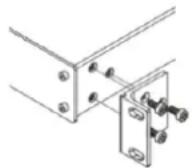

For more information go to www.kramerav.com/downloads/AFM-20DSP
Connecting the 20-Port Audio Matrix
This section describes how to connect the AFM-20DSP and AFM-20DSP-LE devices.
Connecting AFM-20DSP

Always switch off the power to each device before connecting it to your AFM-20DSP. After connecting your AFM-20DSP, connect its power and then switch on the power to each device.

flowchart
graph TD
    A["Microphone"] --> B["Audio"]
    C["Microphone"] --> D["Audio"]
    E["VP-444"] --> F["Audio"]
    G["Blu-ray Player"] --> H["Audio"]
    I["4 Inputs 4 Outputs"] --> J["Audio"]
    K["Laptop"] --> L["Audio"]
    M["Laptop"] --> N["Eth"]
    O["TAVOR 6-O Powered Speakers"] --> P["Audio"]
    Q["MP3 Player"] --> R["Power Amplifier with Speakers"]
    S["HDMI"] --> T["Display"]
    U["Audio Receiver"] --> V["Audio Receiver"]
    W["Blu-ray Player"] --> X["Audio Receiver"]
    Y["HDMI"] --> Z["Display"]
    AA["Audio Receiver"] --> AB["Audio Receiver"]
    AC["Spreader OUT"] --> AD["Spreader Out"]
    AE["DiDontv"] --> AF["DiDontv"]
    AG["Yarden 6-O Speakers"] --> AH["Audio"]
    AI["Giulil 8-C Speakers"] --> AJ["Audio"]
    AK["Lo-Z setup: Connect L+ and L- to left speaker; R+ and R- to right speaker."] --> AL["Hi-Z setup: Connect Hi-Z and COM on the device to (+) and (-) on the speaker, respectively."]
Figure 5: Connecting to the AFM-20DSP Rear Panel
To connect AFM-20DSP as illustrated in the example in Figure 5:
- Connect the following audio sources to the PORT balanced mono 3-pin terminal block connectors ⑦ port I/O is set to 12x8 in this example):
■ Microphones to ports 1 to 9.
- The audio output of the Kramer VP-444 scaler to port 10.
- An MP3 player to ports 11 and 12.
-
Connect the PORT balanced mono 3-pin terminal block connectors (7port I/O is set to 12x8 in this example) to the following audio acceptors:
-
Ports 13 and 14 to powered speakers (for example, Kramer Tavor 6-O).
- Port 15 to a power amplifier with speakers.
-
Ports 16 to 20 to audio receivers
-
Connect the HDMI connectors as follows:
-
A source (for example, a Blu-ray player) to HDMI IN .⑧
-
HDMI OUT to an acceptor (for example, a display).
-
Connect the S/PDIF digital audio ports as follows:
-
A source (for example, a Blu-ray player to S/PDIF IN . ^11 )
-
S/PDIF OUT to an acceptor (for example, an audio receiver).
-
Connect the SPEAKER OUT Hi-Z OUT or Lo-Z OUT 4-pin terminal block connector ⑫ as follows:
-
For Hi-Z connection: connect Hi-Z and COM terminal blocks to the + and - terminals of a mono speaker (for example, the Galil 8-C ceiling speakers, daisy chained).
The speakers either output the left side (L+, L-) of the audio input or the stereo input reduced to a mono signal (see Defining Audio Settings on page 45). -
For Lo-Z connection: connect the L+ and L- connectors to the left-side speaker (for example, Yarden 6-O) and the R+ and R- connectors to the right-side.
-
Connect the Dante RJ-45 port ⑪ up to 4Tx and for Rx audio channels via the network.
-
Connect the RS-232 3-pin terminal block connector to the RS-232 port on a controller (for example, a laptop) to control the AFM-20DSP.
-
Connect the ETHERNET RJ-45 port ⑮ to the Ethernet to control the AFM-20DSP and use for firmware upgrade.
-
Connect the mini USB connector ⑯ to a control device (for example, a laptop) to control the AFM-20DSP.
-
Connect the power cord to the AFM-20DSP mains socket ⑱ and to the mains electricity (not shown in Figure 5).
Connecting AFM-20DSP-LE

Always switch off the power to each device before connecting it to your AFM-20DSP-LE. After connecting your AFM-20DSP-LE, connect its power and then switch on the power to each device.

flowchart
graph TD
    A["Microphone"] --> B["Audio"]
    C["Microphone"] --> D["Audio"]
    E["LP-444"] --> F["Audio"]
    G["Laptop"] --> H["Eth"]
    I["MP3 Player"] --> J["Audio"]
    K["TAVOR 6-O Powered Speakers"] --> L["Audio"]
    M["Power Amplifier with Speakers"] --> N["Audio"]
    O["Audio Receiver"] --> P["Audio"]
    Q["Audio Receiver"] --> R["Audio"]
    S["RT-222 USB"] --> T["ETHLENET"]
    U["Laptop"] --> V["Eth"]
    W["LP-444"] --> X["Audio"]
    Y["MP3 Player"] --> Z["Audio"]
    AA["Power Amplifier with Speakers"] --> AB["Audio"]
    AC["Audio Receiver"] --> AD["Audio"]
    AE["Audio Receiver"] --> AF["Audio"]
Figure 6: Connecting to the AFM-20DSP-LE Rear Panel
To connect AFM-20DSP-LE as illustrated in the example in Figure 6:
- Connect the following audio sources to the PORT balanced mono 3-pin terminal block connectors ⑦ port I/O is set to 12x8 in this example):
■ Microphones to ports 1 to 9.
The audio output of the Kramer VP-444 scaler to port 10.
■ An MP3 player to ports 11 and 12.
-
Connect the PORT balanced mono 3-pin terminal block connectors ⑦port I/O is set to 12x8 in this example) to the following audio acceptors:
-
Ports 13 and 14 to powered speakers (for example, Kramer Tavor 6-O).
- Port 15 to a power amplifier with speakers.
-
Ports 16 to 20 to audio receivers.
-
Connect the RS-232 3-pin terminal block connector 16 the RS-232 port on a controller (for example, a laptop) to control the AFM-20DSP-LE.
-
Connect the ETHERNET RJ-45 port ⑮ to the Ethernet to control the AFM-20DSP-LE and use for firmware upgrade.
-
Connect the mini USB connector ⑯ to a control device (for example, a laptop) to control the AFM-20DSP-LE.
-
Connect the power cord to the AFM-20DSP-LE mains socket ⑱ and to the mains electricity (not shown in Figure 6).
Connecting to AFM-20DSP / AFM-20DSP-LE via RS-232
You can connect to the AFM-20DSP via an RS-232 connection ⑬ using, for example, a PC.
The AFM-20DSP features an RS-232 3-pin terminal block connector allowing the RS-232 to control the AFM-20DSP.
Connect the RS-232 terminal block on the rear panel of the AFM-20DSP to a PC/controller, as follows:
From the RS-232 9-pin D-sub serial port connect:
- Pin 2 to the TX pin on the AFM-20DSP RS-232 terminal block
- Pin 3 to the RX pin on the AFM-20DSP RS-232 terminal block
- Pin 5 to the G pin on the AFM-20DSP RS-232 terminal block
RS-232 Device AFM-20DSP
AFM-20DSP-LE


Operating and Controlling AFM-20DSP/AFM-20DSP-LE
AFM-20DSP/AFM-20DSP-LE can be monitored via the front panel LEDs (see AFM-20DSP and AFM-20DSP-LE Front Panels on page 5) and controlled via the:
- Embedded webpages(see Using Embedded Webpages on page 15).
- Protocol commands (see Protocol 3000 Commands on page 66).
Operating via Ethernet
You can connect to the AFM-20DSP via Ethernet using either of the following methods:
- Directly to the PC using a crossover cable (see Connecting the Ethernet Port Directly to a PC on page 12).
- Via a network hub, switch, or router, using a straight-through cable (see Connecting the Ethernet Port via a Network Hub or Switch on page 14).

To connect via a router and your IT system is based on IPv6, speak to your IT department for specific installation instructions.
Connecting the Ethernet Port Directly to a PC
You can connect the Ethernet port of the AFM-20DSP directly to the Ethernet port on your PC using a crossover cable with RJ-45 connectors.

This type of connection is recommended for identifying the AFM-20DSP with the factory configured default IP address.
After connecting the AFM-20DSP to the Ethernet port, configure your PC as follows:
- Click Start > Control Panel > Network and Sharing Center.
- Click Change Adapter Settings.
- Highlight the network adapter you want to use to connect to the device and click Change settings of this connection.
The Local Area Connection Properties window for the selected network adapter appears.

Figure 7: Local Area Connection Properties Window
- Highlight either Internet Protocol Version 6 (TCP/IPv6) or Internet Protocol Version 4 (TCP/IPv4) depending on the requirements of your IT system.
- Click Properties.
The Internet Protocol Properties window relevant to your IT system appears as shown in Figure 8 or Figure 9.

Figure 8: Internet Protocol Version 4 Properties Window

Figure 9: Internet Protocol Version 6 Properties Window
- Select Use the following IP Address for static IP addressing and fill in the details as shown in Figure 10.
For TCP/IPv4 you can use any IP address in the range 192.168.1.1 to 192.168.1.255 (excluding 192.168.1.39) that is provided by your IT department.

Figure 10: Internet Protocol Properties Window
-
Click OK.
-
Click Close.
Connecting the Ethernet Port via a Network Hub or Switch
You can connect the Ethernet port of the AFM-20DSP to the Ethernet port on a network hub or using a straight-through cable with RJ-45 connectors.
Configuring the Ethernet Port
You can set the Ethernet parameters via the embedded webpages.
Using Embedded Webpages
The AFM-20DSP can be operated remotely using the embedded webpages. The webpages are accessed using a Web browser and an Ethernet connection (see Browsing the AFM-20DSP Webpages on page 16).
Before attempting to connect:
• Perform the procedures in Operating via Ethernet on page 12.
- Ensure that your browser is supported.
The following operating systems and Web browsers are supported:
| Operating Systems | Versions |
| Windows 7 | Chrome |
| Windows 10 | Chrome |
| Mac | Chrome |

Some features might not be supported by some cellphone operating systems.
The AFM-20DSP webpage enables performing the following functions:
• Using the Top Status Bar on page 18.
• Processing Audio Signals on page 22.
- Routing Inputs to Outputs on page 37.
• Mixing Audio Signals on page 41.
• Defining Audio Settings on page 45.
• Defining Video Settings on page 46.
- Restarting and Resetting the Device on page 47.
- Defining Settings on page 49.
• Defining Communication Settings on page 52.
• Performing Firmware Upgrade on page 54.
• Setting Date and Time on page 55.
- Configuring Device Automation on page 56.
• Viewing Device Information on page 58.

Some of the same tasks can be carried out via DSP, Matrix and Mixer pages, for your convenience. For example, you can link analog input and output pairs through any of these 3 pages.
Browsing the AFM-20DSP Webpages
To browse the AFM-20DSP webpages:
- Open your Internet browser.
- Type the IP Address of the device in the Address bar of your browser. For example, the default IP Address:

-
The authentication page appears.
-
Enter the Username and Password (Admin/Admin, by-default):

Figure 11: Embedded Webpages Authentication
5. Click Sign in.
The Main webpage appears.

Figure 12: AFM-20DSP Main Page with Navigation List on Left
6. Click the arrow to hide the navigation list.

flowchart
graph TD
    subgraph Analog Inputs
        A1["IN 1"] --> A2["Exp"]
        A2 --> A3["HPF"]
        A3 --> A4["AFS"]
        A4 --> A5["Comp"]
        A5 --> A6["EQ"]
        A6 --> A7["Delay"]
        A7 --> A8["Gain"]
    end
    subgraph Digital Inputs
        B1["DANTE 1"] --> B2["Exp"]
        B2 --> B3["HPF"]
        B3 --> B4["Comp"]
        B4 --> B5["EQ"]
        B5 --> B6["Gain"]
    end
    subgraph Digital Outputs
        C1["Delay"]
        C2["HPF"]
        C3["EQ"]
        C4["LPF"]
        C5["Limit"]
        C6["OUT 13"]
        C7["Delay"]
        C8["HPF"]
        C9["EQ"]
        C10["LPF"]
        C11["Limit"]
        C12["OUT 14"]
        C13["Delay"]
        C14["HPF"]
        C15["EQ"]
        C16["LPF"]
        C17["Limit"]
        C18["OUT 15"]
        C19["Delay"]
        C20["HPF"]
        C21["EQ"]
        C22["LPF"]
        C23["Limit"]
        C24["OUT 16"]
        C25["Delay"]
        C26["HPF"]
        C27["EQ"]
        C28["LPF"]
        C29["Limit"]
        C30["OUT 17"]
        C31["Delay"]
        C32["HPF"]
        C33["EQ"]
        C34["LPF"]
        C35["Limit"]
        C36["OUT 18"]
        C37["Delay"]
        C38["HPF"]
        C39["EQ"]
        C40["LPF"]
        C41["Limit"]
        C42["OUT 19"]
        C43["Delay"]
        C44["HPF"]
        C45["EQ"]
        C46["LPF"]
        C47["Limit"]
        C48["OUT 20"]
    end
    A1 --> B1
    B1 --> B2
    B2 --> B3
    B3 --> B4
    B4 --> B5
    B5 --> B6
    B6 --> B7
    B7 --> B8
    B8 --> B9
    B9 --> B10
    B10 --> B11
    B11 --> B12
    B12 --> B13
    B13 --> B14
    B14 --> B15
    B15 --> B16
    B16 --> B17
    B17 --> B18
    B18 --> B19
    B19 --> B20
    B20 --> B21
    B21 --> B22
    B22 --> B23
    B23 --> B24
    B24 --> B25
    B25 --> B26
    B26 --> B27
    B27 --> B28
    B28 --> B29
    B29 --> B30
    B30 --> B31
    B31 --> B32
    B32 --> B33
    B33 --> B34
    B34 --> B35
    B35 --> B36
    B36 --> B37
    B37 --> B38
    B38 --> B39
    B39 --> B40
    B40 --> B41
    B41 --> B42
    B42 --> B43
    B43 --> B44
    B44 --> B45
    B45 --> B46
    B46 --> B47
    B47 --> B48
    B48 --> B49
    B49 --> B50
    B50 --> B51
    B51 --> B52
    B52 --> B53
    B53 --> B54
    B54 --> B55
    B55 --> B56
    B56 --> B57
    B57 --> B58
    B58 --> B59
    B59 --> B60
    B60 --> B61
    B61 --> B62
    B62 --> B63
    B63 --> B64
    B64 --> B65
    B65 --> B66
    B66 --> B67
    B67 --> B68
    B68 --> B69
    B69 --> B70
    style Analog Inputs fill:#f9f,stroke:#333,stroke-width:2px
    style Digital Inputs fill:#ccf,stroke:#333,stroke-width:2px
Figure 13: Main Page – Navigation List Hidden
7. Click the desired item in the navigation pane to set and control the device.
Using the Top Status Bar
Use the top status bar to perform the following functions:
• Viewing/Changing Current Analog I/O Configuration and Preset Name on page 19.
• Changing Security Settings on page 19.
- Entering/exiting full-screen display view by clicking the display-view icon ( / )
Viewing/Changing Current Analog I/O Configuration and Preset Name
The center of the menu bar in every webpage shows the analog I/O setup, the preset name and the status of the setup.
The indication light displays:
- Green if the current preset unmodified.
- Yellow if the current preset has been modified.

Figure 14: Analog and/or Preset Status Unmodified

Figure 15: Analog and/or Preset Status modified
To save a modified preset (yellow indication light):
- Click the preset status area. The A/V settings page appears (see Figure 54).
- Follow the instructions in Defining Audio Settings on page 45.
Changing Security Settings
You can easily disable or enable the webpages security using the lock icon. When security is disabled, you do not need to enter a password to access the webpages. When security is enabled, you do. For information about the default login credentials, see Default Communication Parameters on page 63. For information about changing the default login credentials, see Setting Access Security on page 49.
To disable security settings:
- Click the lock icon (☐) indicating that security is enabled. The following message appears:

Figure 16: Disabling Security Message
- Type the current password (Admin, by default).
- Click Save.
Security is disabled.
To enable security settings:
- Click the security disabled icon ( ).
Viewing the Matrix Area
The matrix area in the DSP page shows the inputs that are currently routed to the outputs.

flowchart
graph TD
    subgraph Analog Inputs
        A1["IN 1"] --> A2["Exp"] --> A3["HPF"] --> A4["AFS"] --> A5["Comp"] --> A6["EQ"] --> A7["Delay"] --> A8["Gain"]
        A2 --> A9["IN 2"] --> A10["Exp"] --> A11["HPF"] --> A12["AFS"] --> A13["Comp"] --> A14["EQ"] --> A15["Delay"] --> A16["Gain"]
        A3 --> A4["IN 3"] --> A5["Exp"] --> A6["HPF"] --> A7["AFS"] --> A8["Comp"] --> A9["EQ"] --> A10["Delay"] --> A11["Gain"]
        A4 --> A10 --> A11 --> A12["Exp"] --> A13["HPF"] --> A14["Comp"] --> A15["EQ"] --> A16["Delay"] --> A17["Gain"]
        A5 --> A12 --> A13 --> A14["Comp"] --> A15["EQ"] --> A16["Delay"] --> A17["Gain"]
        A6 --> A14 --> A15["Comp"] --> A16["EQ"] --> A17["Delay"] --> A18["Gain"]
        A7 --> A15 --> A16["Comp"] --> A17["EQ"] --> A18["Delay"] --> A19["Gain"]
        A8 --> A16 --> A17["Comp"] --> A18["EQ"] --> A19["Delay"] --> A20["Gain"]
        A9 --> A17 --> A18["Comp"] --> A19["EQ"] --> A20["Delay"] --> A21["Gain"]
        B0["IN 4"] --> B1["Exp"] --> B2["HPF"] --> B3["AFS"] --> B4["Comp"] --> B5["EQ"] --> B6["Delay"] --> B7["Gain"]
        B1 --> B2["Exp"] --> B3["HPF"] --> B4["Comp"] --> B5["EQ"] --> B6["Delay"] --> B7["Gain"]
        B2 --> B3["Exp"] --> B4["HPF"] --> B5["Comp"] --> B6["EQ"] --> B7["Delay"] --> B8["Gain"]
        B3 --> B4["Exp"] --> B5["HPF"] --> B6["Comp"] --> B7["EQ"] --> B8["Delay"] --> B9["Gain"]
        B4 --> B5["Exp"] --> B6["HPF"] --> B7["Comp"] --> B8["EQ"] --> B9["Delay"] --> B10["Gain"]
        B5 --> B6["Exp"] --> B7["HPF"] --> B8["Comp"] --> B9["EQ"] --> B10["Delay"] --> B11["Gain"]
        B6 --> B7["Exp"] --> B8["HPF"] --> B9["Comp"] --> B10["EQ"] --> B11["Delay"] --> B12["Gain"]
    end

    subgraph Analog Outputs
        C0["Delay"] --> C1["NPF"] --> C2["EQ"] --> C3["LPF"] --> C4["Lift"] --> C5["OUT 13"]
        C6["Delay"] --> C7["NPF"] --> C8["EQ"] --> C9["LPF"] --> C10["Lift"] --> C11["OUT 14"]
        C7 -.-> C8
        C9 -.-> C9
        C10 -.-> C9
        C11 -.-> C9
        C12 -.-> C9
        C13 -.-> C9
        C14 -.-> C9
        C15 -.-> C9
        C16 -.-> C9
        C17 -.-> C9
        C18 -.-> C9
        C19 -.-> C9
        C20 -.-> C9
        C21 -.-> C9
        C22 -.-> C9
        C23 -.-> C9
        C24 -.-> C9
        C25 -.-> C9
        C26 -.-> C9
        C27 -.-> C9
        C28 -.-> C9
        C29 -.-> C9
        C30 -.-> C9
        C31 -.-> C9
        C32 -.-> C9
        C33 -.-> C9
        C34 -.-> C9
        C35 -.-> C9
        C36 -.-> C9
        C37 -.-> C9
        C38 -.-> C9
        C39 -.-> C9
        C40 -.-> C9
        C41 -.-> C9
        C42 -.-> C9
        C43 -.-> C9
        C44 -.-> C9
        C45 -.-> C9
        C46 -.-> C9
        C47 -.-> C9
        C48 -.-> C9
        C49 -.-> C9
        C50 -.-> C9
        C51 -.-> C9
        C52 -.-> C9
        C53 -.-> C9
        C54 -.-> C9
        C55 -.-> C9
        C56 -.-> C9
        C57 -.-> C9
        C58 -.-> C9
        C59 -.-> C9
        C60 -.-> C9
        C61 -.-> C9
        C62 -.-> C9
        C63 -.-> C9
        C64 -.-> C9
        C65 -.-> C9
        C66 -.-> C9
        C67 -.-> C9
        C68 -.-> C9
        C69 -.-> C9
        C70 -.-> DANTE_1["DANTE 1 Exp HPF Comp EQ Gain"]
        DANTE_2["DANTE 2 Exp HPF Comp EQ Gain"]
        DANTE_3["DANTE 3 Exp HPF Comp EQ Gain"]
    end

    subgraph Digital Inputs
        E["DANTE 1 Exp HPF Comp EQ Gain"]
        E["DANTE 2 Exp HPF Comp EQ Gain"]
        E["DANTE 3 Exp HPF Comp EQ Gain"]
    end

    subgraph Digital Outputs
        F["DANTE 1 Exp HPF Comp EQ Gain"]
        F["DANTE 2 Exp HPF Comp EQ Gain"]
        F["DANTE 3 Exp HPF Comp EQ Gain"]
    end

    G fill:#f9f,stroke:#333,stroke-width:2px
Figure 17: DSP Page – Matrix Area
Clicking an IN or OUT button or a module, highlights the routing path.

flowchart
graph TD
    subgraph Inputs
        A1["Input 1"] --> B1["Exp"]
        A2["Input 2"] --> B2["Exp"]
        A3["Input 3"] --> B3["Exp"]
        A4["Input 4"] --> B4["Exp"]
        A5["Input 5"] --> B5["Exp"]
        A6["Input 6"] --> B6["Exp"]
        A7["Input 7"] --> B7["Exp"]
        A8["Input 8"] --> B8["Exp"]
        A9["Input 9"] --> B9["Exp"]
        A10["Input 10"] --> B10["Exp"]
        A11["Input 11"] --> B11["Exp"]
        A12["Input 12"] --> B12["Exp"]
    end

    subgraph Outputs
        C1["Input 4"] --> D1["PS"]
        C2["Input 5"] --> D2["PS"]
        C3["Input 6"] --> D3["PS"]
        C4["Input 7"] --> D4["PS"]
        C5["Input 8"] --> D5["PS"]
        C6["Input 9"] --> D6["PS"]
        C7["Input 10"] --> D7["PS"]
        C8["Input 11"] --> D8["PS"]
        C9["Input 12"] --> D9["PS"]

    end

    subgraph Analog Inputs
        E1["IN 1"] --> F1["Exp"]
        E2["In 2"] --> F2["Exp"]
        E3["In 3"] --> F3["Exp"]
        E4["In 4"] --> F4["Exp"]
        E5["In 5"] --> F5["Exp"]
        E6["In 6"] --> F6["Exp"]
        E7["In 7"] --> F7["Exp"]
        E8["In 8"] --> F8["Exp"]
        E9["In 9"] --> F9["Exp"]
        E10["In 10"] --> F10["Exp"]
        E11["In 11"] --> F11["Exp"]
    end

    subgraph Analog Outputs
        G1["Delay"] --> H1["HPF"]
        H2["Delay"] --> I1["EQ"]
        I2["Delay"] --> J1["Delay"]
        J2["Delay"] --> K1["Delay"]
        K2["Delay"] --> L1["Delay"]
        L1["Delay"] --> M1["Delay"]
        M1["Delay"] --> N1["Delay"]
        N1["Delay"] --> O1["Delay"]
        O1["Delay"] --> P1["Delay"]
        P1["Delay"] --> Q1["Delay"]
        Q1["Delay"] --> R1["Delay"]
        R1["Delay"] --> S1["Delay"]
        S1["Delay"] --> T1["Delay"]
        T1["Delay"] --> U1["Delay"]
        U1["Delay"] --> V1["Delay"]
        V1["Delay"] --> W1["Delay"]
    end

    style Inputs fill:#f9f,stroke:#333
    style Outputs fill:#ccf,stroke:#333
Figure 18: Matrix Area – Routing Path
When opening the processing view, the sliders of the Inputs routed to the outputs appear.
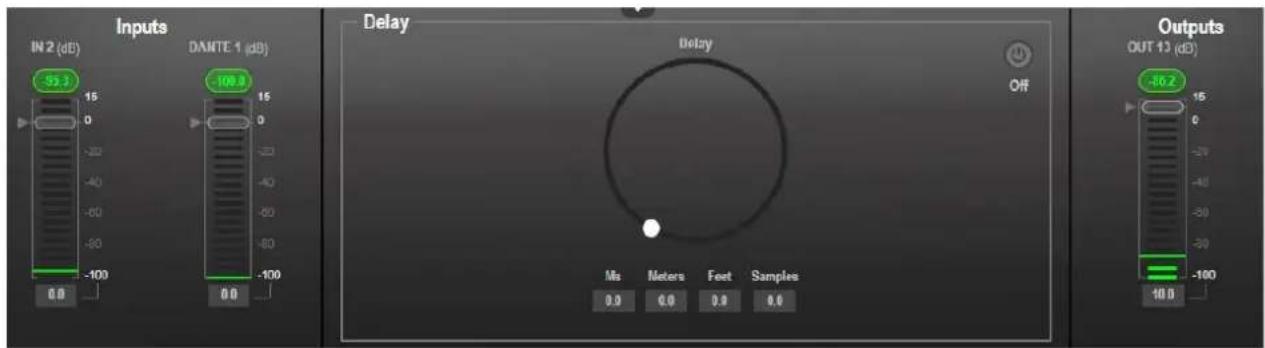
Figure 19: Processing View – Inputs Routed to Outputs
Processing Audio Signals
Use the DSP page to process the input and output signals and present an overall view of your session, including analog and digital in-out connections (in the Matrix area), using pre-matrix and post-matrix modules.
In general:
- Click the Matrix area to enter the Matrix page (see Routing Inputs to Outputs on page 37).
- Click an input, output or any module to open its process view and configure that item.
The DSP page enables performing the following functions:
- Selecting Output Signals to Route to Amplifier on page 22.
- Linking Analog Inputs and Outputs on page 23.
• Processing a Signal on page 24.
Selecting Output Signals to Route to Amplifier Outputs
Select the audio outputs to duplicate and output to the amplified speakers ⑫
To duplicate the audio outputs to the amplifier:
- In the Navigation pane, click DSP. The DSP (Main) page appears.
- Click the Duplicate to Amplifier Output 1 drop-down box and select an output (for example, OUT 19).
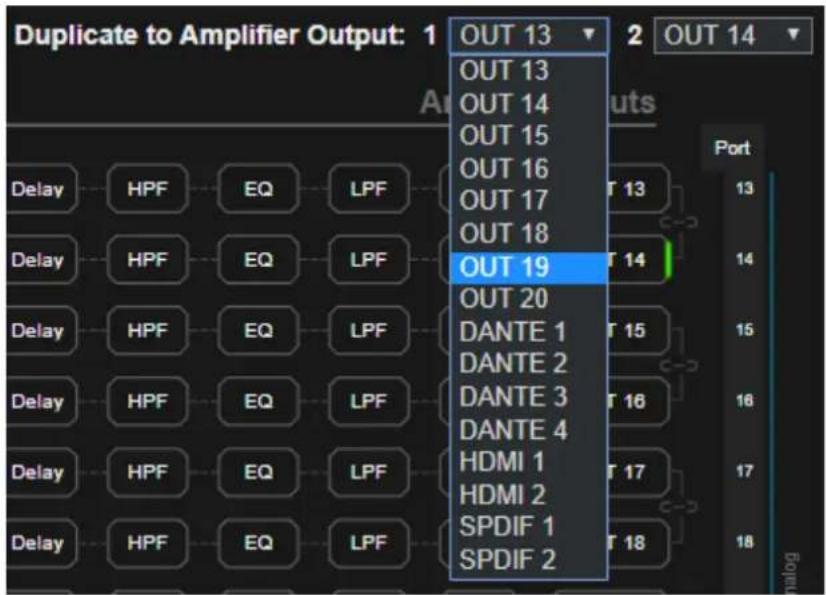
Figure 20: DSP Page – Selecting Left Amplifier Output Signal
- Click the Output 2 drop-down box and select an output (for example, OUT 20).
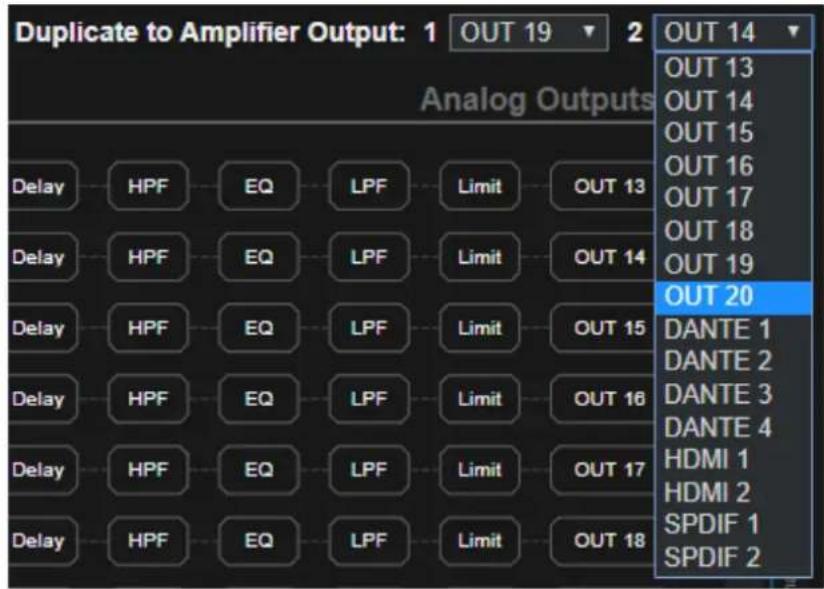
Figure 21: DSP Page – Selecting Right Output Amplifier Output Signal
OUT 19 outputs to the left side of the amplified speaker and OUT 20 outputs to the right side of the amplified speaker as indicated in green on the left and the right sides of output 19 and output 20.
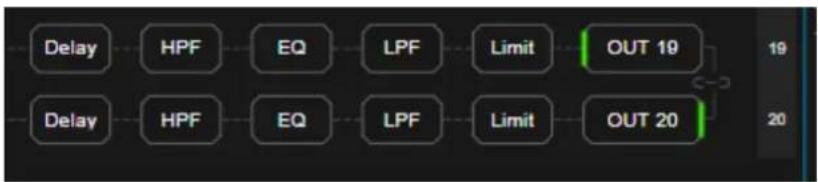
flowchart
graph LR
    A["Delay"] --> B["HPF"]
    B --> C["EQ"]
    C --> D["LPF"]
    D --> E["Limit"]
    E --> F["OUT 19"]
    G["Delay"] --> H["HPF"]
    H --> I["EQ"]
    I --> J["LPF"]
    J --> K["Limit"]
    K --> L["OUT 20"]
    M["19"] --> N
    O["20"] --> P
Figure 22: DSP Page – Selected Left and Right Amplifier Outputs
Linking Analog Inputs and Outputs
Analog inputs and outputs can be linked in predefined pairs to balance stereo analog sources and acceptors. When linked, signal chain modules are set for both channels simultaneously.
To link an analog audio pair:
- In the Navigation pane, click DSP. The DSP (Main) page appears.

You can also link audio analog audio pairs via the Matrix page, and Mixer page.
- Click the link on the side of the ports (IN 7 and IN 8 in this example).


Figure 23: DSP Page – Linking Analog Audio Ports
The selected inputs are linked.
Processing a Signal
Access processing view by clicking an input / output button or a filtering tool in the DSP session view. Use processing view to configure the selected audio signal.
Different port types have different processing modules.
In general:
- Toggle the (off) / (on, button to enable/disable a processing module. The module is enabled while it is set to On and disabled when set to Off.
- In the processing view, the module appears at the center and input/output volume sliders appear to the left/right (for further information, see Input / Output Channels Operation on page 25).
- Adjust configuration knob by clicking and holding the mouse then moving it up or down, or enter the parameter value below the knob and press Enter on your keyboard to apply.
- Reset a configuration knob to its default parameter value, by clicking the mouse within the knob area while pressing Ctrl on your keyboard.
- The parameter value always appears below the knob or slider.
- A selected input or output button appears with a white rim.
- A selected processing tool button appears with a distinctive color.
- An enabled processing tool button appears with a distinctively colored rim.
Processing modules enable performing the following functions:
- Adjusting Analog Input Parameters on page 26.
- Adjusting Digital Input Parameters on page 27.
• Post-Matrix Signal Processing on page 34.
• Using Expander Module on page 27.
• Using HPF (High Pass Filter) Module on page 28.
• Using AFS (Auto Feedback Suppression) Module on page 30.
• Using Compression Module on page 31.
• Using Equalizer Module on page 32.
• Using Gain Module on page 33.
• Using Post Matrix Equalizer Module on page 35.
• Using LPF (Low Pass Filter) on page 35.
• Using Limit Module on page 36.
Input / Output Channels Operation
This section describes the function of the input and output sliders (the examples in this section, showing the inputs, apply also to outputs).
Level Measurement Indicators:
The audio signal enters the digital system at a certain level and is measured in dBFS units (dB relative to full scale, the maximum value).
- Maximum level indicator – shows the highest registered level (in RMS) and can change only if a higher level is detected. Click the indicator to reset to the current maximum value.
- 0dBFS – refers to the maximum signal level that can enter the system. signal levels higher than the system limit are clipped.
- Current maximum level indicator – displays the current maximum level and holds it until a higher value is detected.

Figure 24: Level Measurement Indicators
Gain/Attenuation Fader
- Maximum level – 15dB is the maximum gain.
- Unity gain – when volume fader is set to 0dB, the input level is not changed.
- Volume fader – slide to increase or decrease the audio level.
- Minimum level – -100dB is the maximum attenuation.
- Current fader position – shows the current position of the fader. You can also type the desired volume level into this box and press Enter on your PC.
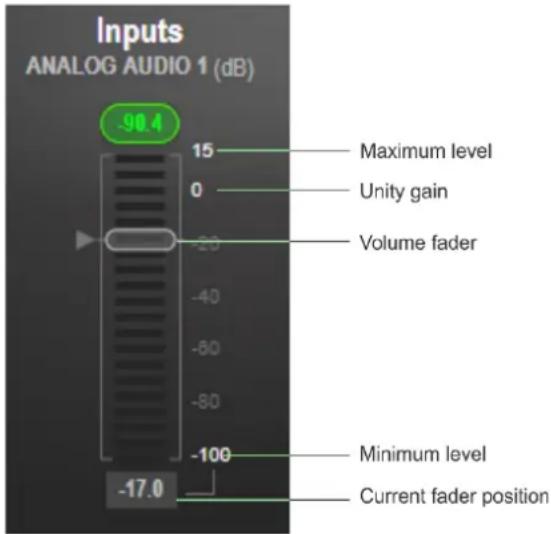
Figure 25: Channel Fader
Pre-Matrix Signal Processing
This section describes the input pre-matrix signal processing of the input audio signal. The input fader always appears to the left.
Adjusting Analog Input Parameters
See Input / Output Channels Operation on page 25 to understand the function of the slider. IN 1 is used as an example in this section.
To adjust analog input parameters:
-
In the Navigation pane, click DSP. The DSP (Main) page appears.
-
Click IN 1.
The IN 1 processing page appears.

Figure 26: Processing View – Processing Analog Audio Input
- Perform the following actions:
■ Move the fader to adjust the audio input level.
- Select Pre or Post to set the signal volume before and after using the pre-matrix modules.
- Toggle M / M to mute / unmute the input audio, respectively.
- Click to inverse polarity (used for troubleshooting).
- Click to select audio line in.
- Click 🔒 to select dynamic microphone and 48V to select condenser microphone (the title IN changes to MIC).
Analog input parameters are adjusted.
Adjusting Digital Input Parameters
Digital (Dante, HDMI and S/PDIF) input signal settings are identical. Dante is used as an example in this section.
See Input / Output Channels Operation on page 25 to understand the function of the slider.
To adjust the Dante input parameters:
-
In the Navigation pane, click DSP. The DSP (Main) page appears.
-
Click DANTE.
The Dante input processing page appears.

Figure 27: Processing View – Processing Digital Input
- Perform the following actions:
- Move the volume fader to set the Dante audio input level (both sliders are identical).
- Select Pre or Post to set the signal volume before and after using the pre-matrix modules.
- Toggle M / M to mute / unmute the input audio, respectively.
- Click to inverse polarity (used for troubleshooting).
Digital audio parameters are adjusted.
Using Expander Module
Use the Expander module to increase the difference in loudness between the quieter and louder sounds, so that the quiet sounds (usually background noises) become quieter while the loud sounds become louder. The levels of audio signals that fall below the set threshold level are reduced.
To adjust the expander module:
-
In the Navigation pane, click DSP. The DSP (Main) page opens.
-
Click Exp.
The button turns light blue and the Expander module page appears.


Figure 28: Processing View – Expander Module
-
Define the following:
-
Threshold – Decreases the volume of audio signals that are below the threshold level.
- Attack Time – Sets the response speed of the expander to signal levels above the threshold.
-
Release – Sets the response speed of the expander to signal levels below the threshold.
-
Open the Ratio drop-down box to set the extent to which the volume is decreased. The higher the ratio the more the audio level below the threshold is lowered.

The Expansion (dB) indicates the amount of expansion in a dB scale.
Expander settings are adjusted.
Using HPF (High Pass Filter) Module
A High Pass Filter passes signals that are higher than a certain cut-off frequency. Frequencies under the cut-off frequency are attenuated. Use the HPF module to cut off low frequencies and let higher frequencies pass.
To adjust the HPF:
- In the Navigation pane, click DSP. The DSP (Main) page appears.
- Click HPF. The button turns light orange and the High Pass Filter module page appears. The left side shows the input volume slider.


Figure 29: Processing View – HPF Module
-
Set the cut-off frequency.
-
Select the HPF low-cut algorithm type (or select None):
- Bessel – A linear filter with maximum linear phase response. It is often used in audio crossover systems.
- Link R (Linkwitz-Riley) – An Infinite Impulse Response (IIR) filter used in audio crossovers. Consists of a parallel combination of low-pass and high-pass. The filters are usually designed by cascading two Butterworth filters, each of which has a -3dB gain at the cut-off frequency. The resulting Link-R filter has a -6dB gain at the cut-off frequency.
- Butter (Butterworth) – Designed to have a frequency response as flat as possible in the passband.
- Select the HPF slope (24, 18, 12 or 6dB/Oct) – set the filter drop-off per octave from the filter frequency.
HPF parameters are adjusted.
Using AFS (Auto Feedback Suppression) Module
Use the Auto Feedback Suppression module to eliminate microphone feedback (applies to analog inputs 1 to 4).

We recommend using analog inputs 1 to 4 for microphones to eliminate audio feedback.
To adjust the AFS module:
- In the Navigation pane, click DSP. The DSP (Main) page appears.
- Click AFS.
The button turns turquoise and the AFS module page appears.
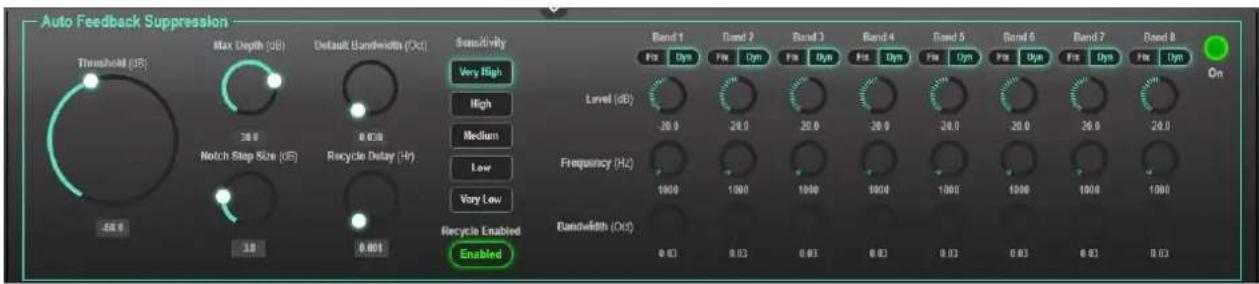
Figure 30: Processing View – AFS Module
- Click the Off button 🧑 The AFS module turns on .
- Set each of the 8 bands to dynamic (Dyn) or fixed (Fix), depending on the application.

Figure 31: AFS Module – Selecting Input Fixed or Dynamic AFS Band Values
-
Define the following:
-
Threshold (dB) – Sets the AFS activation threshold for feedback suppression.
- Max Depth (dB) – Sets how deep the cut per band.
- Notch Step Size – Sets the decrease in dB steps until reaching Max depth.
- Default Bandwidth (Oct) – Sets the width of the notch.
-
Recycle Delay – Sets time period [Hours] until the filters are reused.
-
Select the sensitivity from Very High to Very Low.
- Toggle Recycle Enabled / Disabled to enable / disable the filters.

Figure 32: AFS Module – Defining AFS Parameters
AFS parameters are adjusted.
Using Compression Module
Use the Compressor module to reduce the signal dynamic range which is the difference between the loudest and quieter sounds (for example, the difference between a scream and a whisper), making the sound seem more natural.
To adjust the compressor settings:
- In the Navigation pane, click DSP. The DSP (Main) page appears.
- Click Comp.
The button turns blue and the Compressor module pane appears.
- Click the Off button . The Comp module turns on .


Figure 33: Processing View – Compressor Module
4. Set the following:
- Threshold – The level that the signal needs to rise above in order for the compressor to begin working. If a signal is too low or does not cross the threshold, the compressor allows the signal to pass through unchanged.
- Attack Time – The response speed of the compression to signal levels above the threshold.
-
Release – The response speed of the compressor to signal levels above the threshold.
-
Open the Ratio drop-down box to set the extent to which the gain is decreased.
- Set the gain to compensate for the attenuation caused by compression.
The Comp settings are adjusted.
Using Equalizer Module
Use the Equalizer module to change the balance of different frequency components in the audio signal.
To adjust the equalizer:
- In the Navigation pane, click DSP. The DSP (Main) page appears.
- Click EQ.
The button turns orange and the Equalizer processing page appears.
- Click the Off button on The Equalizer module turns on .


Figure 34: Processing View – Equalizer Module
-
Perform the following actions for each of the 4 bands:
-
Click BYPASS to ignore a band.
■ Adjust the band Frequency (Hz). - Set Bandwidth (Oct) to set the range of frequencies around the selected frequency.
■ Set the bandwidth audio Level (dB).
Equalizer settings are adjusted.
Using Delay Module
Set the delay to accommodate the audio to the listeners distance from the speakers. Delay time tool converts the delay in ms to meters, feet and samples.
To adjust the delay:
- In the Navigation pane, click DSP. The DSP (Main) page appears.
- Click Delay.
The button turns green and the Equalizer processing page appears.
- Click the Off button on The Delay module turns on


Figure 35: Processing View – Delay Module
- Set the delay.
Delay setting is adjusted.
Using Gain Module
- In the Navigation pane, click DSP. The DSP (Main) page appears.
- Click Gain.
The button turns violet and the Gain processing page appears.
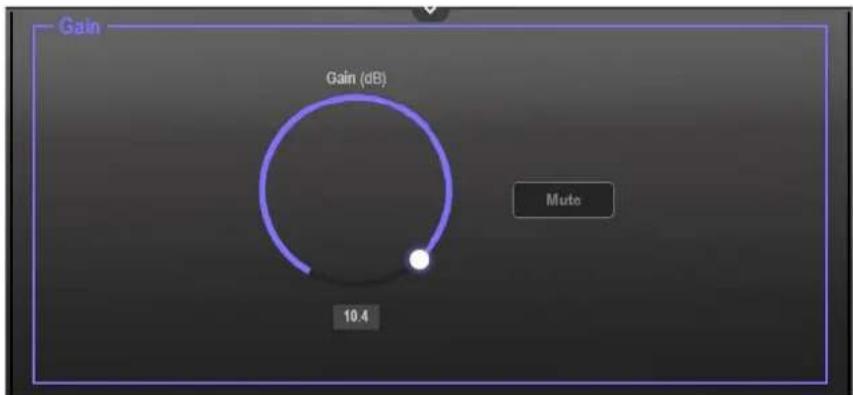
Figure 36: Processing View – Gain Module
-
Perform the following actions:
-
Set gain.
- Click Mute if required.
Gain is adjusted.
Post-Matrix Signal Processing
AFM-20DSP enables performing post-matrix signal processing to outputs, including:
• Using Delay Module on page 33.
• Using HPF (High Pass Filter) Module on page 28.
• Using Post Matrix Equalizer Moduleon page 35.
• Using LPF (Low Pass Filter) on page 35.
• Using Limit Module on page 36.
Setting Audio Output Parameters
Analog, Dante, HDMI and S/PDIF output signal settings are identical. Dante is used as an example in this section.
See Input / Output Channels Operation on page 25 to understand the function of the slider.
To adjust the audio outputs:
- In the Navigation pane, click DSP. The DSP (Main) page appears.
- Click Dante.
The Dante processing page appears.
![Inputs DANTE DANTE [dB] 100.0 15 0 -30 -40 -60 -80 -100 -3.0 Outputs DANTE (dB) 100.0 15 0 -20 -40 -60 -80 -100 -3.0](/content/2026/06/1229125/images/67710a01c1b1bad921b1cfac7a551dbf7d7ea70c75d1049793328c1717fde120.jpg)
Figure 37: Processing View – Processing Digital Input
-
Perform the following actions:
-
Move the volume fader to set the output audio level (both sliders are identical).
- Toggle M / M to mute / unmute the output audio, respectively.
- Click to inverse polarity (used for troubleshooting).
Audio outputs are adjusted.
Using Post Matrix Equalizer Module
Use the Equalizer module to change the balance of different frequency components in the audio signal.
To adjust the equalizer:
- In the Navigation pane, click DSP. The DSP (Main) page appears.
- Click EQ.
The button turns orange and the Equalizer processing page appears.
- Click the Off button on The Equalizer module turns on .


Figure 38: Processing View – Processing Output Equalizer
-
Perform the following actions for each of the 8 bands:
-
Click BYPASS to ignore that band.
- Set the band frequency (Hz).
■ Set the audio level (dB). - Set the bandwidth (Oct).
Equalizer settings are adjusted.
Using LPF (Low Pass Filter)
Use the LPF tool to cut off high frequencies and let lower frequencies pass.
To adjust the LPF:
- In the Navigation pane, click DSP. The DSP (Main) page appears.
- Click LPF. The button turns peach and the Low Pass Filter processing page appears. The left side shows the input volume slider.


Figure 39: Processing View – Processing Output LPF
- Set the frequency.
- Select LPF type (Bessel, Link R, Butter or None).
- Select LPF slope (24, 18, 12 or 6dB/Oct).
Frequency settings are adjusted.
Using Limit Module
Use the Limiter tool to limit the signal level to the specified threshold, reducing the gain above the threshold. A limiter can boost the volume of a certain sound.
To adjust the limiter:
- In the Navigation pane, click DSP. The DSP (Main) page appears.
-
Click Limit. The button turns purple and the Limiter processing page appears. The right side shows the output volume slider.
-
Click the Off button .The Limiter module turns on .


Figure 40: Processing View – Limiter Module
-
Set the Threshold. Note the Gain Reduction meter as you change the threshold.
-
Set the Release time to set the response speed of the limiter to signal levels above the threshold.
Limiter settings are adjusted.
Routing Inputs to Outputs
Click a cross-point to connect any inputs to any of the outputs via the Matrix page; set the connection volume, link analog input and output pairs and select the outputs to the amplifier.

AFM-20DSP-LE Matrix page includes only analog inputs and outputs.
AFM-20DSP enables performing the following functions:
• Connecting Inputs to Outputs on page 37.
- Setting Cross-Point Volume on page 39.
• Linking Analog Pairs on page 40.
• Setting Amplifier Outputs on page 40.
Connecting Inputs to Outputs
To route an input or several inputs to an output:
- In the Navigation pane, click Matrix. The Matrix page appears.

Figure 41: Matrix Page
- Click an in-out cross-point (for example, IN 2 input and OUT 14 output). The black cross-point turns green.

Figure 42: Matrix Page – In-Out Cross-Point
- Click any other cross-points (one input to output/s or several inputs to output/s).

Figure 43: Matrix Page – Multiple Input-Output Cross-Point
Selected inputs are routed to selected outputs.

You can also select an audio signal generator for testing.
Setting Cross-Point Volume
Set the cross-point volume separately for each in-out connection.
To set the cross-point volume:
- In the Navigation pane, click Matrix. The Matrix page appears.
- Click the volume area (0dB, by default).
The volume window appears.

gauge
| Input - DANTE 3 | Output - OUT 14 | | --------------- | --------------- | | Volume (dB) | 15 |Figure 44: Matrix Page – Setting Cross-Point Volume
- Set the cross-point volume (using the knob or entering the value and pressing Enter on your keyboard). The cross-point volume is set and appears at the cross-point.

Figure 45: Cross-Point Volume Value
Linking Analog Pairs
To link analog input or output pairs, see Linking Analog Inputs and Outputs on page 23.
Setting Amplifier Outputs
The amplifier left and right outputs can be set via the Matrix page (as well as via the DSP page, see Selecting Output Signals to Route to Amplifier on page 22).
To set amplifier outputs:
- In the Navigation pane, click Matrix. The Matrix page appears.
- Click AMP (on the lower right side of the page). The AMP page appears, displaying all the available outputs.

- Select an output to route to Amp 1 (amplifier left side) and to Amp 2 (amplifier right side). the button lights green.

Figure 47: Selecting Outputs to Amplifier
Amplifier outputs are defined.
Mixing Audio Signals
Mix the audio signals and store/recall mixing snapshots via the Mixer page.
AFM-20DSP enables performing the following tasks:
• Defining Input and Output Parameters on page 41.
• Defining Snapshots on page 42.
Defining Input and Output Parameters
Set audio parameters for each input and output.
To set input/output parameters:
- In the Navigation pane, click Mixer. The Mixer page appears.

flowchart
graph TD
    subgraph_AFM-20DSP_Controller["AFM-20DSP Controller"]
        A["Snapshots"] --> B["Default"]
        B --> C["Snapshot 1"]
        C --> D["Snapshot 2"]
        D --> E["Snapshot 3"]
        E --> F["Snapshot 4"]
        F --> G["Snapshot 5"]
        G --> H["Snapshot 6"]
        H --> I["Snapshot 7"]
        I --> J["Snapshot 8"]
        J --> K["Snapshot 9"]
        K --> L["Store"]
        L --> M["Prev"]
        M --> N["Next"]
        N --> O["Clear"]
        O --> P["Last"]
    end

    subgraph_Analog_Inputs["Analog Inputs"]
        Q["MIC 1"] --> R["Pre: Post: 75.0, 15, 0, -20, -40, -60, -80, -100, 0.0"]
        S["IN 2"] --> T["Pre: Post: IN 2, 95.3, 15, 0, -20, -40, -60, -80, -100, 0.0"]
        U["IN 3"] --> V["Pre: Post: IN 3, 95.8, 15, 0, -20, -40, -60, -80, -100, 0.0"]
        W["IN 4"] --> X["Pre: Post: IN 4, 95.8, 15, 0, -20, -40, -60, -80, -100, 10.0"]
        Y["IN 5"] --> Z["Pre: Post: IN 5, 95.2, 15, 0, -20, -40, -60, -80, -100, 0.0"]
        AA["IN 6"] --> AB["Pre: Post: IN 6, 94.7, 15, 0, -20, -40, -60, -80, -100, 0.0"]
        AC["IN 7"] --> AD["Pre: Post: IN 7, 95.8, 15, 0, -20, -40, -60, -80, -100, 0.0"]
    end

    subgraph_Analog_Outputs["Analog Outputs"]
        AE["OUT 13"] --> AF["OUT 14"] --> AG["OUT 15"] --> AH["OUT 16"] --> AI["AMP 1"] --> AJ["AMP 2"]
    end

    style AF fill:#f9f9f9,stroke:#333
    style AJ fill:#f9f9f9,stroke:#333
    style AE fill:#e6f7ff,stroke:#333
    style AG fill:#e6f7ff,stroke:#333
    style AH fill:#e6f7ff,stroke:#333
    style AI fill:#e6f7ff,stroke:#333
    style AE fill:#e6f7ff,stroke:#333
    style AJ fill:#e6f7ff,stroke:#333
Figure 48: Mixer Page

An input/output frame with a white rim indicates that this input/output is currently connected to an output/input, respectively.
- Use the slider or enter the desired value and press Enter (on your PC) to set the volume.
View the current gain and the input/output name (see Input / Output Channels Operation on page 25).
3. Set the following:
■ Select Pre or Post to set the signal volume before and after using the modules
- Toggle M / M to mute / unmute the input audio, respectively.
- Click to inverse polarity (used for troubleshooting).
For analog audio inputs only:
- Click to select audio line in.
- Click 📋 to select dynamic microphone and 📄 to select condenser microphone (the title changes from IN to MIC).
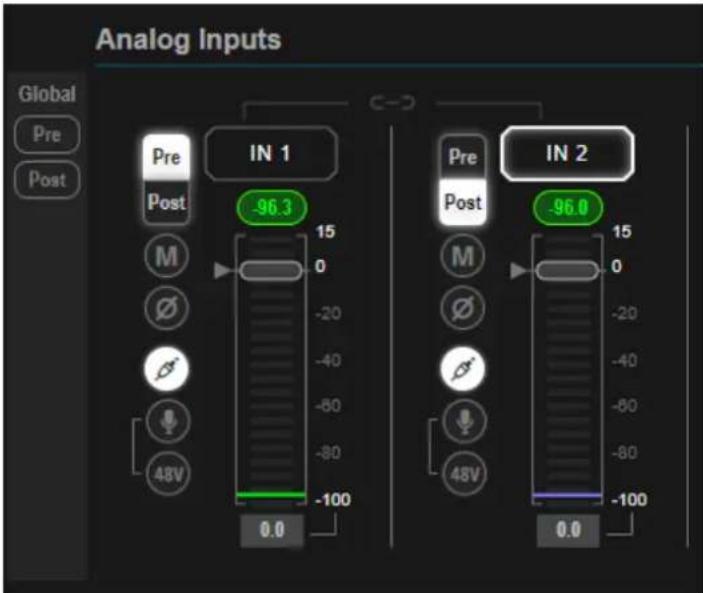
Figure 49: Mixer Page – Analog Audio Settings
Audio parameters are defined.
Defining Snapshots
Store a snapshot (inputs, outputs and amplifier) to store the current configuration state, recall a snapshot, set to default or clear a snapshot.
Storing Snapshots
To store a snapshot:
- In the Navigation pane, click Mixer. The Mixer page appears.
- Set input and output mixers.

When the parameters change, the Default button turns yellow. Click Default to restore default settings.

Figure 50: Mixer Page – Snapshots
3. Click Store.

Figure 51: Mixer Page – Storing Snapshots
4. Click a Snapshot button (for example, Snapshot 1).

Figure 52: Mixer Page – Selecting a Snapshot
The current configuration is stored to Snapshot 1.
Clearing Snapshots
To clear a snapshot configuration:
- In the Navigation pane, click Mixer. The Mixer page appears.
- Click Clear. Snapshot buttons turn blue.

Figure 53: Mixer Page – Clearing a Snapshot
- Select the snapshot to be cleared. The snapshot cleared returns to its default values.
Loading Snapshots
To load a snapshot:
- In the Navigation pane, click Mixer. The Mixer page appears.
-
Do any of the following to load the desired snapshot:
-
Click Snapshot (1 to 9).
- Click Next to load the next snapshot configuration.
- Click Prev to load the previous snapshot configuration.
- Click Last to load the latest configured snapshot (clicking Last again goes to the previously configured snapshot and so on).
The selected snapshot is loaded.
Defining Audio Settings
Set the AFM-20DSP analog audio I/O configuration, system presets and amplifier settings using the A/V Settings page.

Amplifier settings are only relevant to AFM-20DSP.
To define audio settings:
- In the Navigation pane, click A/V Settings. The A/V Settings page appears.

Figure 54: A/V Settings Page
- In the I/O Config drop-down box, select analog input x output configuration and click Set.
- In the System Preset drop-down box, select a preset and click Load or Save as. The current preset is loaded or saved.

System Preset does not include I/O configuration
-
Define amplifier parameters:
-
Click Hi-Z/Lo-Z,
Click 100V/70V - Click Left Only or Stereo Down Mix when Hi-Z is selected.
Audio settings are defined.
Defining Video Settings
Set the AFM-20DSP HDMI input and output labels, Force RGB and/or Force 2LPCM, and video pattern (if required), using the Video tab in the A/V Settings page.
To define video settings:
- In the Navigation pane, click A/V Settings. The A/V Settings page appears.

Figure 55: Video Settings Page
- Select Video tab.
- Enter HDMI input and output labels then click Set.
- For HDMI input, check/uncheck Force RGB and/or Force 2LPCM.
- If required, select a video pattern from the drop-down box.
Video settings are defined.
Restarting and Resetting the Device
Restart the AFM-20DSP or reset it to its factory default parameters using the Settings page.
Restarting the Device
To restart the device:
- In the Navigation pane, click Settings. The Settings page appears.
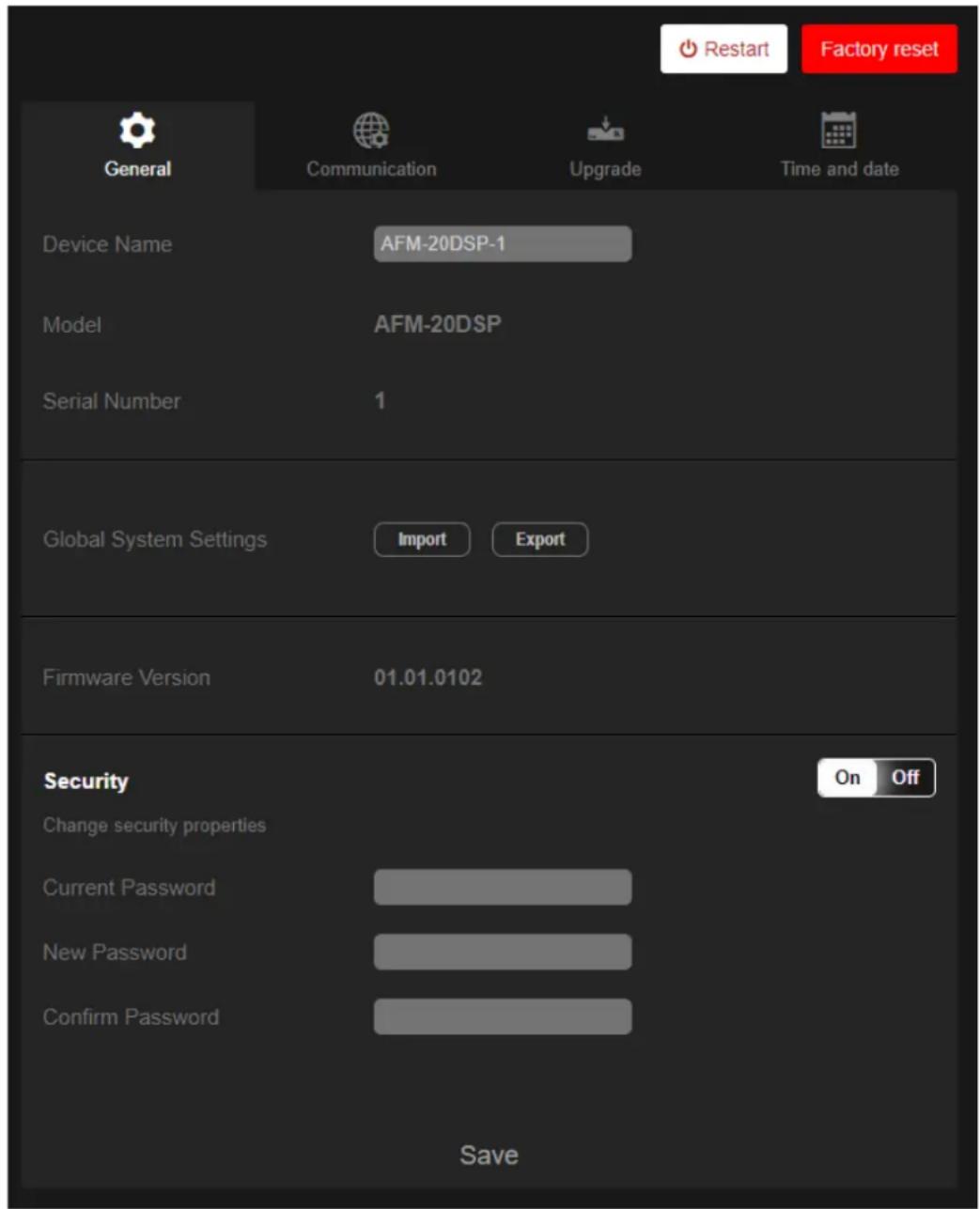
Figure 56: Settings Page
- Click Restart. The device restarts immediately.
Wait for the device to reload after device restart. There is no message before restarting.
Resetting the Device
To reset the device to its default parameters:
- In the Navigation pane, click Settings. The Settings page appears.
- Click Factory reset. The following message appears:
Would you like to factory reset?

All the settings will be restored to defaults. After this action, current WEB session may be disconnected.
Do you want to continue?
No
Yes
Figure 57: Settings Page – Factory Reset Message
- Click Yes.
The device resets to its factory default parameters.
Defining Settings
Change the device name, view the model and serial number and firmware version using the General tab in the Settings page, which also enables:
- Importing/Exporting Global Settings on page 49.
- Setting Access Security on page 49.
Importing/Exporting Global Settings
You can export a Global Settings file to a different AFM-20DSP device or Import a file to your device.
To import/export global settings:
- In the Navigation pane, click Settings. The General Settings tab appears.
- In the General tab, in the Global System Settings area:
- Click Import to import a file: select the system setting “.bin” file from the Open window and click Open.
The imported system settings file is uploaded onto the device.
- Click Export to export a file: the current system setting “.bin” file is downloaded onto your PC and can be exported to other devices.
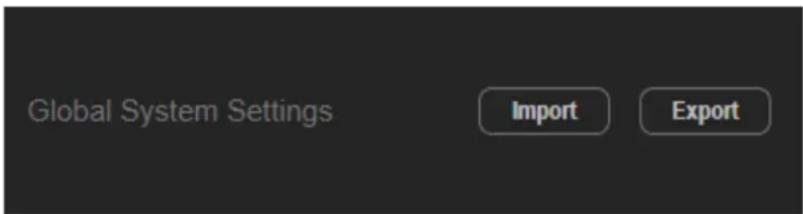
Figure 58: General Settings Tab – Importing / Exporting Global Settings
Global system settings are imported/exported.
Setting Access Security
By default, the webpages are secured and require access permission (user name and password are both: Admin).
AFM-20DSP enables performing the following security actions:
• Disabling Security on page 50.
• Enabling Security on page 51.
• Changing the Password on page 51.
Disabling Security
To disable security:
- In the Navigation pane, click Settings. The General Settings tab appears, displaying the Security area.

Figure 59: General Settings Tab – Security
- Click Off. The following message appears.
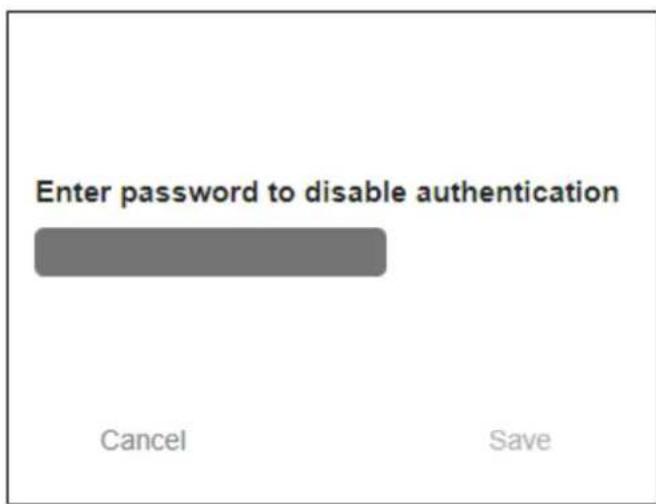
Figure 60: General Settings Tab – Security Message
- Enter the current password and click Save.
Security is disabled. The security-disabled icon appears (☐)
Enabling Security
To enable security:
- In the Navigation pane, click Settings. The General Settings tab appears, displaying the Security area.

Figure 61: General Settings Tab – Enabling Security
- Click On. The full security page appears (see Figure 59).
Security is enabled. The security-enabled icon appears ().
Changing the Password
To change the password:
- In the Navigation pane, click Settings. The Settings page appears, displaying the Security area (see Figure 59).
- Enable security (if disabled).
- Enter current password and new password as required.
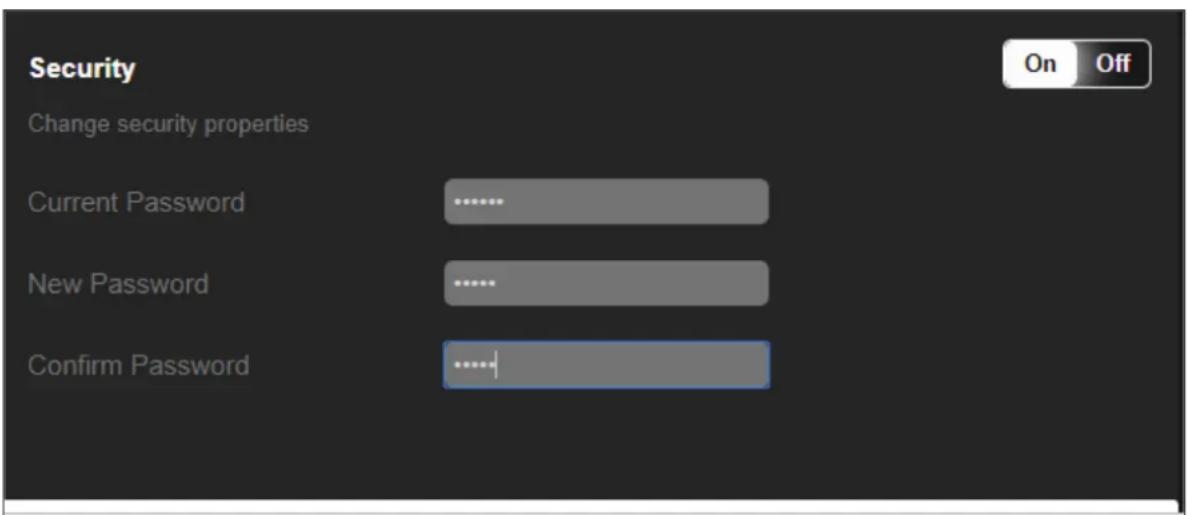
Figure 62: General Settings Tab – Changing the Password
- Click the lower white bar. The following message appears.
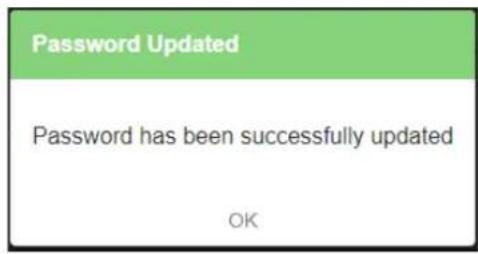
Figure 63: General Settings Tab – Password Updated Message
- Click OK.
The password has changed.
Defining Communication Settings
Set the AFM-20DSP communication parameters, including the IP Address, Mask, gateway and so on using the Communication tab in the Settings page.
AFM-20DSP enables performing the following functions:
• Changing Ethernet Settings on page 52.
- Setting Parameters when DHCP is On on page 53.
Changing Ethernet Settings
To change the Ethernet settings:
- In the Navigation pane, click Settings. The General tab in the Settings page appears.
- Select the Communication tab:

Figure 64: Settings Page – Communication Tab
- If DHCP is set to Off, change any of the parameters (IP Address, Mask and/or Gateway).
- If required, change the TCP port number.
- Click Save. the following message appears.

Figure 65: Communication Settings Tab – Communication Error Message

After changing the IP address, reload the webpage with the new IP address.
If DHCP is On, reload the webpage with the new IP address (see below).
Ethernet settings have changed.
Setting Parameters when DHCP is On
To set parameters when DHCP is set to On:
- In the Navigation pane, click Settings. The General tab in the Settings page appears
- Select the Communication tab.
- Take note of the Device Name in the General tab (you will need it when reloading the page).
- Set DHCP to ON.
- Click Save.
- Type the device name in the address bar of your browser to reload the page. You can read the new IP address from the Communication Settings page.
Parameters are set.
Performing Firmware Upgrade
Perform AFM-20DSP firmware upgrade using the Upgrade tab in the Settings page.
To perform firmware upgrade:
- In the Navigation pane, click Settings. The General tab in the Settings page appears.
- Select the Upgrade tab.

Figure 66: Upgrade Settings Tab – Upgrading the Firmware
- Click Upgrade and select the new firmware file.
The following message appears:

Figure 67: Upgrade Settings Tab – Firmware Upgrade Message
- Click Yes.
Wait for completion of the upgrade process:

flowchart
graph LR
    A["1<br>UPLOADING FILE"] --> B["2<br>UPDATING FIRMWARE"]
    B --> C["3<br>RESTARTING DEVICE"]
Figure 68: Upgrade Settings Tab – Firmware Upgrade Process
- Wait for the device to restart.
Firmware upgrade is complete.
Setting Date and Time
Set the AFM-20DSP date and time using the Time and date tab in the Settings page.
To set the time and date:
- In the Navigation pane, click Settings. The General tab in the Settings page appears.
- Select the Time and date tab.

Figure 69: Settings Page – Time and Date Tab
- Set Device Date and click OK.

Figure 70: Time and Date Settings Tab – Setting Device Date
4. Select the Time Zone from the drop-down box:

Figure 71: Time and Date Settings Tab – Selecting Time Zone
5. Click Save.
-
If required, use time server (disables setting device date):
-
Click YES next to use Time Server (NTP).
- Enter time server address.
■ View server status.

Click Save to save any changes you make.
Date and time are set.
Configuring Device Automation
Access Kramer Maestro V1.5 room automation via AFM-20DSP. Maestro is a powerful tool that enables you to configure single-trigger room element automation scenarios without the need for complicated programming. To use room automation, you need to define triggers that, upon an event, will execute scripts which include a sequence of actions (commands, which can appear in different scenarios) that will be carried out via any defined ports.
Download the Kramer Maestro User Manual from the Kramer web site at www.kramerav.com/downloads/AFM-20DSP to learn how to use Kramer Maestro.

Note that all the ports, actions and triggers that are relevant to AFM-20DSP are included in the Kramer Maestro, as well as ports, actions and triggers that are relevant to other Kramer devices.

The Panel tab in the Automation page is currently unavailable.
To access Kramer Maestro:
- In the Navigation pane, click Automation. The Maestro page appears.

Figure 72: Automation Page
- Configure the ports, actions, scripts and triggers as described in the Kramer Maestro User Manual.
Once the triggers are defined, the trigger activates the scripts configured in the automation page. For example, when using the Scheduling trigger, you can activate a series of actions following a preset schedule.
Viewing Device Information
In the Navigation pane, click About to view the AFM-20DSP webpage version and Kramer Electronics Ltd details.

Figure 73: About Page
Upgrading Firmware
Use the Kramer K-UPLOAD software to upgrade the firmware via the Ethernet port only (set connection method to Ethernet).

When upgrading the firmware, select either TCP port or UDP port.
The latest version of K-UPLOAD and installation instructions can be downloaded from our website at: www.kramerav.com/support/product_downloads.asp.

Note that in order to use the micro USB port, you need to install the Kramer USB driver, available at: www.kramerav.com/support/product_downloads.asp.
Technical Specifications
AFM-20DSP Technical Specs
| Inputs/Outputs | 20 Balanced Mono Audio | On 3-pin terminal blocks |
| Inputs | 1 HDMI | On a female HDMI connector |
| 1 S/PDIF | On an RCA connector | |
| Outputs | 1 HDMI | On a female HDMI connector |
| 1 S/PDIF | On an RCA connector | |
| 120W Amplifier | On a 4-pin large terminal block | |
| Ports | Dante | On an RJ-45 female connector |
| Mini USB | On a female mini USB connector | |
| RS-232 | On a 3-pin terminal block connector | |
| Ethernet | On an RJ-45 female connector | |
| Line/Mic Level Input | Impedance Unbalanced Impedance Balanced Impedance Microphone | 7.6kΩ3.8kΩ3.8kΩ |
| Nominal level Unbalanced Nominal level Balanced | 0dBV (0.77Vrms)+6.8dBu (1.54Vrms) | |
| Maximum level (Balanced) | +8dBu (2Vrms) | |
| Sensitivity Unbalanced Sensitivity Balanced | Full power @ 0dBV (0.77Vrms)Full power @ +6dBu (1.54Vrms) | |
| Phantom Power | 48 VDC on/off per input | |
| Line Level Output | Impedance Unbalanced Impedance Balanced | 50Ω50Ω |
| Frequency Response | 20Hz - 20kHz @ +/-1dB | |
| S/N Ratio: | >100 dB, 20Hz - 20kHz, at unity gain(unweighted) | |
| Audio THD + Noise: | <0.01%, 20 Hz - 20 kHz, at unity gain | |
| Crosstalk | <-85 dB, 20Hz to 20kHz | |
| Amplifier | Class | D |
| Input Sensitivity | Attains full power @ 0.3V (-10dBV) | |
| Output Power | 2 x 60W @ 4Ω or 8Ω1 x 120W @70V or 100V | |
| Maximum Voltage Gain | 26dB SE / 32dB BTL | |
| Dynamic Range | 119dB | |
| Frequency Response | 20Hz to 20kHz @ +/-1dB | |
| S/N Ratio | 80dB: 10dBV; 20 Hz: 20 kHz | |
| Audio THD + Noise | THD+N (1kHz @ 1W) 0.003 % | |
| Audio 2ndHarmonic | 0.08% @ 75W RMS @ 4Ω 6.67kHz | |
| Crosstalk | <-85 dB, 20Hz to 20kHz | |
| Total System Efficiency | 89% | |
| Video | Max Bandwidth | 10.2Gbps (3.4Gbps per graphic channel) |
| Max Resolution | 4K UHD @60Hz (4:2:0) 24bpp resolution | |
| Compliance | HDMI and HDCP 1.4 | |
| User Interface | Front Panel LEDs | 1 status, 20 analog audio ports, 4 Dante I/O,HDMI embed, HDMI de-embed, 2 S/PDIFI/O, and 2 amplifier channels |
| Control RS-232 | Baud Rate | 115200 |
| Supported Web Browsers | Windows 7 | Chrome |
| Windows 10 | ||
| MAC 10.11 | ||
| Power | Consumption | 190VA |
| Source | 100-240V AC 50/60Hz | |
| Environmental Conditions | Operating Temperature | 0° to +40°C (32° to 104°F) |
| Storage Temperature | -40° to +70°C (-40° to 158°F) | |
| Humidity | 10% to 90%, RHL non-condensing | |
| Regulatory Compliance | Safety | CE |
| Environmental | RoHs, WEEE | |
| Enclosure | Size | 19" 1U |
| Type | Aluminum | |
| Cooling | Fans | |
| General | Net Dimensions (W, D, H) | 43.6cm x 23.7cm x 4.4cm(17.2" x 9.3" x 1.7") |
| Shipping Dimensions (W, D, H) | 52.5cm x 33cm x 10.7cm(20.7" x 13" x 4.2") | |
| Net Weight | 1.6kg (3.5lbs) | |
| Shipping Weight | 2.7kg (5.9lbs) approx. | |
| Accessories | Included | Power cord |
| Specifications are subject to change without notice at www.kramerav.com | ||
AFM-20DSP-LE Technical Specs
| Inputs/Outputs | 20 Balanced Mono Audio | On 3-pin terminal blocks |
| Ports | Mini USB | On a female mini USB connector |
| RS-232 | On a 3-pin terminal block connector | |
| Ethernet | On an RJ-45 female connector | |
| Line/Mic Level Input | Impedance Unbalanced | 7.6kΩ |
| Impedance Balanced | 3.8kΩ | |
| Impedance Microphone | 3.8kΩ | |
| Nominal level Unbalanced | 0dBV (0.77Vrms) | |
| Nominal level Balanced | +6.8dBu (1.54Vrms) | |
| Maximum level (Balanced) | +8dBu (2Vrms) | |
| Sensitivity Unbalanced | Full power @ 0dBV (0.77Vrms) | |
| Sensitivity Balanced | Full power @ +6dBu (1.54Vrms) | |
| Phantom Power | 48 VDC on/off per input | |
| Line Level Output | Impedance Unbalanced | 50Ω |
| Impedance Balanced | 50Ω | |
| Frequency Response | 20Hz - 20kHz @ +/-1dB | |
| S/N Ratio | >100 dB, 20Hz - 20kHz, at unity gain (unweighted) | |
| Audio THD + Noise | <0.01%, 20 Hz - 20 kHz, at unity gain | |
| Crosstalk | <-85 dB, 20Hz to 20kHz | |
| User Interface | Front Panel LEDs | 1 status, 20 analog audio ports, 4 Dante I/O, HDMI embed, HDMI de-embed, 2 S/PDIF I/O, and 2 amplifier channels |
| Control RS-232 | Baud Rate | 115200 |
| Supported Web Browsers | Windows 7 | Chrome |
| Windows 10 | ||
| MAC 10.11 | ||
| Power | Consumption | 31.5VA |
| Source | 100-240V AC 50/60Hz | |
| Environmental Conditions | Operating Temperature | 0° to +40°C (32° to 104°F) |
| Storage Temperature | -40° to +70°C (-40° to 158°F) | |
| Humidity | 10% to 90%, RHL non-condensing | |
| Regulatory Compliance | Safety | CE |
| Environmental | RoHs, WEEE | |
| Enclosure | Size | 19" 1U |
| Type | Aluminum | |
| Cooling | Fans | |
| General | Net Dimensions (W, D, H) | 43.6cm x 23.7cm x 4.4cm(17.2" x 9.3" x 1.7") |
| Shipping Dimensions (W, D, H) | 52.5cm x 33cm x 10.7cm(20.7" x 13" x 4.2") | |
| Net Weight | 1.6kg (3.5lbs) | |
| Shipping Weight | 2.7kg (5.9lbs) approx. | |
| Accessories | Included | Power cord |
| Specifications are subject to change without notice at www.kramerav.com | ||
Default Communication Parameters
RS-232 Control / Protocol 3000
| Baud Rate: | 115,200 | Parity: | None |
| Data Bits: | 8 | Command Format: | ASCII |
| Stop Bits: | 1 | ||
| Example: (adjust the amplified audio from analog audio 1 to -10dB): #x-aud-lvl out.amplified_audio.1.audio.1,-10 | |||
Default Ethernet Parameters
| IP Address: | 192.168.1.39 | UDP Port #: | 50000 |
| Subnet mask: | 255.255.0.0 | TCP Port #: | 5000 |
| Gateway: | 192.168.0.1 | Security User/Password | Admin/Admin |
Factory Reset
| Recessed Button | Press and hold for 5 seconds to reset the configuration to its default parameters. |
| Protocol 3000: | “#factory” command. |
| Web Pages: | In the Settings page, click Reset. |
Default EDID
Monitor
Model name..... AFM-20DSP
Manufacturer..... KMR
Plug and Play ID..... KMR1200
Serial number...... 295-883450100
Manufacture date...... 2014, ISO week 255
Filter driver...... None
EDID revision...... 1.3
Input signal type...... Digital
Color bit depth...... Undefined
Display type..... Monochrome/grayscale
Screen size.... 520 x 320 mm (24.0 in)
Power management...... Standby, Suspend, Active off/sleep
Extension blocs..... 1 (CEA-EXT)
DDC/Cl..... n/a
Color characteristics
Default color space..... Non-sRGB
Display gamma.... 2.20
Red chromaticity..... Rx 0.674 - Ry 0.319
Green chromaticity..... Gx 0.188 - Gy 0.706
Blue chromaticity..... Bx 0.148 - By 0.064
White point (default).... Wx 0.313 - Wy 0.329
Additional descriptors... None
Timing characteristics
Horizontal scan range.... 30-83kHz
Vertical scan range..... 56-76Hz
Video bandwidth..... 170MHz
CVT standard...... Not supported
GTF standard...... Not supported
Additional descriptors... None
Preferred timing..... Yes
Native/preferred timing.. 1280x720p at 60Hz (16:10)
Modeline..... "1280x720" 74.250 1280 1390 1430 1650 720 725 730 750 +hsync +vsync
Standard timings supported
720 x 400p at 70Hz - IBM VGA
720 x 400p at 88Hz - IBM XGA2
640 x 480p at 60Hz - IBM VGA
640 x 480p at 67Hz - Apple Mac II
640 x 480p at 72Hz - VESA
640 x 480p at 75Hz - VESA
800 x 600p at 56Hz - VESA
800 x 600p at 60Hz - VESA
800 x 600p at 72Hz - VESA
800 x 600p at 75Hz - VESA
832 x 624p at 75Hz - Apple Mac II
1024 x 768i at 87Hz - IBM
1024 x 768p at 60Hz - VESA
1024 x 768p at 70Hz - VESA
1024 x 768p at 75Hz - VESA
1280 x 1024p at 75Hz - VESA
1152 x 870p at 75Hz - Apple Mac II
1280 x 1024p at 75Hz - VESA STD
1280 x 1024p at 85Hz - VESA STD
1600 x 1200p at 60Hz - VESA STD
1024 x 768p at 85Hz - VESA STD
800 x 600p at 85Hz - VESA STD
640 x 480p at 85Hz - VESA STD
1152 x 864p at 70Hz - VESA STD
1280 x 960p at 60Hz - VESA STD
EIA/CEA-861 Information
Revision number...... 3
IT underscan...... Supported
Basic audio..... Supported
YCbCr 4:4:4...... Not supported
YCbCr 4:2:2...... Not supported
Native formats..... 1
Detailed timing #1..... 1920x1080p at 60Hz (16:10)
Modeline..... "1920x1080" 148.500 1920 2008 2052 2200 1080 1084 1089 1125 +hsync +vsync
Detailed timing #2..... 1920x1080i at 60Hz (16:10)
Modeline...... "1920x1080" 74.250 1920 2008 2052 2200 1080 1084 1094 1124 interlace +hsync +vsync
Detailed timing #3..... 1280x720p at 60Hz (16:10)
Modeline..... "1280x720" 74.250 1280 1390 1430 1650 720 725 730 750 +hsync +vsync
Detailed timing #4..... 720x480p at 60Hz (16:10)
Modeline..... "720x480" 27.000 720 736 798 858 480 489 495 525 -hsync -vsync
CE audio data (formats supported)
LPCM 2-channel, 16/20/24 bit depths at 32/44/48 kHz
CE video identifiers (VICs) - timing/formats supported
1920 x 1080p at 60Hz - HDTV (16:9, 1:1)
1920 x 1080i at 60Hz - HDTV (16:9, 1:1)
1280 x 720p at 60Hz - HDTV (16:9, 1:1) [Native]
720 x 480p at 60Hz - EDTV (16:9, 32:27)
720 x 480p at 60Hz - EDTV (4:3, 8:9)
720 x 480i at 60Hz - Doublescan (16:9, 32:27)
720 x 576i at 50Hz - Doublescan (16:9, 64:45)
640 x 480p at 60Hz - Default (4:3, 1:1)
NB: NTSC refresh rate = (Hz*1000)/1001
CE vendor specific data (VSDB)
IEEE registration number. 0x000C03
CEC physical address..... 1.0.0.0
Maximum TMDS clock..... 165MHz
CE speaker allocation data
Channel configuration.... 2.0
Front left/right..... Yes
Front LFE...... No
Front center...... No
Rear left/right..... No
Rear center...... No
Front left/right center.. No
Rear left/right center... No
Rear LFE...... No
Report information
Date generated.... 03/04/2017
Software revision..... 2.90.0.1020
Data source...... File
Operating system...... 6.1.7601.2.Service Pack 1
Raw data
00,FF,FF,FF,FF,FF,FF,00,2D,B2,00,12,01,01,01,01,FF,18,01,03,80,34,20,78,E2,B3,25,AC,51,30,B4,26,
10,50,54,FF,FF,80,81,8F,81,99,A9,40,61,59,45,59,31,59,71,4A,81,40,01,1D,00,72,51,D0,1E,20,6E,28,
55,00,07,44,21,00,00,1E,00,00,00,FF,00,32,39,35,2D,38,38,33,34,35,30,31,30,30,00,00,00,FC,00,56.
53,2D,38,38,55,54,0A,20,20,20,20,20,00,00,00,FD,00,38,4C,1E,53,11,00,0A,20,20,20,20,20,20,01,E6,
02,03,1B,C1,23,09,07,07,48,10,05,84,03,02,07,16,01,65,03,0C,00,10,00,83,01,00,00,02,3A,80,18,71,
38,2D,40,58,2C,45,00,07,44,21,00,00,1E,01,1D,80,18,71,1C,16,20,58,2C,25,00,07,44,21,00,00,9E,01.
1D,00,72,51,D0,1E,20,6E,28,55,00,07,44,21,00,00,1E,8C,0A,D0,8A,20,E0,2D,10,10,3E,96,00,07,44,21,
00,00.18,00,00,00,00,00,00,00,00,00,00,00,00,00,00,00,00,00,00,00,00,00,00,00,00,77
Protocol 3000
Kramer devices can be operated using Kramer Protocol 3000 commands sent via serial or Ethernet ports.
Understanding Protocol 3000
Protocol 3000 commands are a sequence of ASCII letters, structured according to the following.
- Command format:
| Prefix | Command Name | Constant (Space) | Parameter(s) | Suffix |
| # | Command | _ | Parameter |
- Feedback format:
| Prefix | Device ID | Constant | Command Name | Parameter(s) | Suffix |
| ~ | nn | @ | Command | Parameter |
- Command parameters – Multiple parameters must be separated by a comma (,). In addition, multiple parameters can be grouped as a single parameter using brackets ([ and ]).
- Command chain separator character – Multiple commands can be chained in the same string. Each command is delimited by a pipe character (|).
- Parameters attributes – Parameters may contain multiple attributes. Attributes are indicated with pointy brackets (<...>) and must be separated by a period (.).
The command framing varies according to how you interface with the VS-88UT. The following figure displays how the # command is framed using terminal communication software (such as Hercules):

Protocol 3000 Commands
| Function | Description | Syntax | Parameters/Attributes | Example |
| # | Protocol handshaking.1 Validates the Protocol 3000 connection and gets the machine number.Step-in master products use this command to identify the availability of a device. | COMMAND#FEEDBACK~nn@_0XLF> | # | |
| AUD-MONO-MODE | Set HI-Z mono selection.1 These commands are active only when the state is HI-Z, otherwise an error is returned.To set, the MonoMode parameter must be used. | COMMAND#AUD-MONO-MODE_MonoModeFEEDBACK~nn@AUD-MONO-MODE_MonoModeLF> | MonoMode - The mono output mode0 - output is "stereo mix to mono" - both left and right mix to one channel1 - output is "left to mono" - duplicate left channel information to the right and play both | Set the output to mix to mono:#AUD-MONO-MODE_ |
| AUD-MONO-MODE? | Get HI-Z mono selection.1 These commands are active only when the state is HI-Z, otherwise an error is returned.To set, the MonoMode parameter must be used. | COMMAND#AUD-MONO-MODE?FEEDBACK~nn@AUD-MONO-MODE_MonoModeLF> | MonoMode - The mono output mode0 - output is "stereo mix to mono" - both left and right mix to one channel1 - output is "left to mono" - duplicate left channel information to the right and play both | Get the output to mix to mono:#AUD-MONO-MODE_ |
| AV-SW-TIMEOUT | Set auto switching timeout. | COMMAND#AV-SW-TIMEOUT_action,time_outFEEDBACK~nn@AV-SW-TIMEOUT_action,time_outLF> | action-4 - Disable 5V on video output if no input signal detected.time_out - Timeout in seconds 30 - 60000 | Set the auto switching timeout to 5 seconds in the event of 5V disable when no input signal is detected:#AV-SW-TIMEOUT_4,5 |
| AV-SW-TIMEOUT? | Get auto switching timeout. | COMMAND#AV-SW-TIMEOUT_actionFEEDBACK~nn@AV-SW-TIMEOUT_action,time_outLF> | action-4 - Disable 5V on video output if no input signal detectedtime_out - Timeout in seconds 30 - 60000 | Get the Disable 5V on video output if no input signal detected timeout:#AV-SW-TIMEOUT_4 |
| BUILD-DATE? | Get device build date. | COMMAND#BUILD-DATE?FEEDBACK~nn@BUILD-DATE_date,timeLF> | date - Format: YYYY/MM/DD whereYYYY = YearMM = MonthDD = Daytime - Format: hh:mm:ss wherehh = hoursmm = minutess = seconds | Get the device build date:#BUILD-DATE? |
| CPEDID | Copy EDID data from the output to the input EEPROM.1 Destination bitmap size depends on device properties (for 64 inputs it is a 64 bit word).Example: bitmap 0x0013 means inputs 1,2 and 5 are loaded with the new EDID.In certain products Safe_mode is an optional parameter.See the HELP command for its availability. | COMMAND#CPEDID_src_type,src_id,dst_type,daat_bltmapor#CPEDID_src_type,src_id,dst_type,dest_bitmap,safe_modeFEEDBACK~nn@CPEDID_src_stg,src_id,dst_type,daat_bitmapLF>~nn@CPEDID_src_stg,arc_id,st_type,daat_bitmap,safe_modeCRLF> | src_type - EDID source type (usually output)0 - Input1 - Output2 - Default EDID3 - Custom EDIDsrc_id - Number of chosen source stage0 - Default EDID source1 - Output 1dst_type - EDID destination type (usually input)0 - Input1 - Output2 - Default EDID3 - Custom EDIDdest_bitmap - Bitmap representing destination IDs. Format: XXXX...X, where X is hex digit. The binary form of every hex digit represents corresponding destinations.0 - indicates that EDID data is not copied to this destination.1 - indicates that EDID data is copied to this destination.safe_mode -0 - device accepts the EDID as is without trying to adjust1 - device tries to adjust the EDID (default value if no parameter is sent) | Copy the EDID data from the Output (EDID source) to the Input:#CPEDID_1,1,0,0x1Copy the EDID data from the default EDID source to the Input:#CPEDID_2,0,0,0x1 |
| DISPLAY? | Get output HPD status. | COMMAND#DISPLAY?out_idFEEDBACK~nn@DISPLAY_out_id,statusLF> | out_id - Output number1 - HDMI outputstatus - HPD status according to signal validation0 - Signal or sink is not valid1 - Signal or sink is valid2 - Sink and EDID is valid | Get the output HPD status of Output 1:#DISPLAY? |
| DSP-ACTION | Set DSP parameter. | Internal - for web only. | ||
| DSP-ACTION? | Get DSP parameter. | Internal - for web only. | ||
| DSP-METER-REGISTER | Register DSP meters. | Internal - for web only. | ||
| DSP-METER-UNREGISTER | Unregister DSP meters. | Internal - for web only. | ||
| EDID-AUDIO | Set audio capabilities for EDID. | COMMAND#EDID-AUDIO input_id, audio formationsFEEDBACK~nn@EDID-AUDIO input_id, audio format | input_id - 1Audio_format - Audio block added to EDID:0 - Auto1 - LPCM 2CH2 - LPCM 6CH3 - LPCM 8CH4 - Bitstream5 - HD | Set HDMI IN audio capabilities for EDID (LPCM 6CH):#EDID-AUDIO, / |
| EDID-AUDIO? | Get audio capabilities for EDID. | COMMAND#EDID-AUDIO input_idFEEDBACK~nn@EDID-AUDIO input id, audio format | input_id - 1Audio_format - Audio block added to EDID:0 - Auto1 - LPCM 2CH2 - LPCM 6CH3 - LPCM 8CH4 - Bitstream5 - HD | Get HDMI IN 1 audio capabilities for EDID:#EDID-AUDIO?, |
| EDID-CS | Set EDID color space.1 Set command might change the current EDID. | COMMAND#EDID-CS input id, ColSpaceFEEDBACK~nn@EDID-CS input id, ColSpace | input_id - 1ColSpace - Color space0 - RGB4 - auto | Set HDMI IN 1 EDID color space to RGB (enabled):#EDID-CS, 0 |
| EDID-CS? | Get EDID color space.1 Get command might change the current EDID. | COMMAND#EDID-CS input idFEEDBACK~nn@EDID-CS input id, ColSpace | input_id - 1ColSpace - Color space0 - RGB4 - auto | Get EDID color space:#EDID-CS? |
| ETH-PORT | Set Ethernet port protocol.1 If the port number you enter is already in use, an error is returned.The port number must be within the following range: 0-(2^16-1). | COMMAND#ETH-PORT portType, ETHPortFEEDBACK~nn@ETH-PORT portType, ETHPort | portType - TCP/UDPETHPort - TCP/UDP port number(0 - 65535) | Set the Ethernet port protocol for TCP to port 12457:#ETH-PORT, 1245 |
| ETH-PORT? | Get Ethernet port protocol. | COMMAND#ETH-PORT portTypeFEEDBACK~nn@ETH-PORT portType, ETHPort | portType - TCP/UDP0 - TCP1 - UDPETHPort - TCP / UDP port number (0 - 65535) | Get the Ethernet port protocol for UDP:#ETH-PORT? |
| FACTORY | Reset device to factory default configuration.1 This command deletes all user data from the device. The deletion can take some time.Your device may require powering off and powering on for the changes to take effect. | COMMAND#FACTORYFEEDBACK~nn@FACTORY OR | Feature_Id - Feature ID1 - Maestro2 - Room ControllerIr State - IR Interface0 - Disabled1 - Enabled | Reset the device to factory default configuration:#FACTORY |
| FEATURE-LIST? | Get feature state according to the feature ID. | COMMAND#FEATURE-LIST feature idFEEDBACK~nn@FEATURE-LIST feature_id, ir_state | stage - Input/Output0 - Input1 - Outputstage_id - Number of chosen stage for the input stage1 - HDMI INFor the output stage1 - HDMI OUTstatus - Signal encryption status - valid values On/Off0 - HDCP Off1 - HDCP On | Get the room controller feature state (for the room controller 1):#FEATURE-LIST? |
| HDCP-STAT? | Get HDCP signal status.1 Output stage (1) - get the HDCP signal status of the sink device connected to the specified output.Input stage (0) - get the HDCP signal status of the source device connected to the specified input. | COMMAND#HDCP-STAT stage, stage_idFEEDBACK~nn@HDCP-STAT stage, stage_id, status | stage - Input/Output0 - Input1 - Outputstage_id - Number of chosen stage for the input stage1 - HDMI INFor the output stage1 - HDMI OUTstatus - Signal encryption status - valid values On/Off0 - HDCP Off1 - HDCP On | Get the output HDCP-STATUS of HDMI IN:#HDCP-STAT? |
| HELP | Get command list or help for specific command. | COMMAND#HELPcommand_nameFEEDBACK1. Multi-line:~nn@Device command, command.>To get help for command use: HELP (COMMAND_NAME)<LF>description<LRUSAGE:usage | command - Name of a specific command | Get the command list:#HELPTo get help for AV-SW-TIMEOUT:HELP_AV-SW-TIMEOUT |
| LOGIN | Set protocol permission.1 For devices that support security, LOGIN allows the user to run commands with an End User or Administrator permission level.When the permission system is enabled, LOGIN enables running commands with the User or Administrator permission levelWhen set. login must be performed upon each connectionThe permission system works only if security is enabled with the "SECUR" command.It is not mandatory to enable the permission system in order to use the deviceIn each device, some connections allow logging in to different levels. Some do not work with security at all.Connection may logout after timeout. | COMMAND#LOGIN_login_level,passwordFEEDBACK~nn@LOGIN_login_level,password_okor~nn@LOGIN_ERR_004(if bad password entered) | login_level – Level of permissions required (User or Admin)password – Predefined password (by PASS command). Default password is an empty string | Set the protocol permission level to Admin (when the password defined in the PASS command is 33333):#LOGIN_admin,33333 |
| LOGIN? | Get current protocol permission level.1 For devices that support security, LOGIN allows the user to run commands with an End User or Administrator permission level.In each device, some connections allow logging in to different levels. Some do not work with security at all.Connection may logout after timeout.The permission system works only if security is enabled with the "SECUR" command. | COMMAND#LOGIN?_FEEDBACK~nn@LOGIN_login_level | login_level – Level of permissions required (User or Admin) | Get current protocol permission level:#LOGIN? |
| LOGOUT | Cancel current permission level.1 Logs out from End User or Administrator permission levels to Not Secure. | COMMAND#LOGOUTFEEDBACK~nn@LOGOUT_OR | Line_num – Optional, default line_num is 10 | #LOGOUT |
| LOG-TAIL? | Get the last "n" lines of message logs.1 Used for advanced troubleshooting. Helps find error root causes and gets details not displayed in the error code number. | COMMAND#LOG-TAIL?_line_nurFEEDBACKGet:~nn@LOG-TAILnnLine content #1Line content #2Etc... | Line_num – Optional, default line_num is 10 | Get the last "2" lines of message logs:#LOG-TAIL?_2 |
| MODEL? | Get device model.1 This command identifies equipment connected to AFM-20DSP and notifies of identity changes to the connected equipment. The Matrix saves this data in memory to answer REMOTE-INFO requests. | COMMAND#MODEL?FEEDBACK~nn@MODEL_model_name | model_name – String of up to 19 printable ASCII chars | Get the device model:#MODEL?_ |
| NAME | Set machine (DNS) name. i The machine name is not the same as the model name. The machine name is used to identify a specific machine or a network in use (with DNS feature on). | COMMAND #NAME_machine_nameFEEDBACK ~nn@NAME_machine_name | machine_name - String of up to 15 alpha-numeric chars (can include hyphen, not at the beginning or end) | Set the DNS name of the device to room-442: #NAME_reon-442 |
| NAME? | Get machine (DNS) name. i The machine name is not the same as the model name. The machine name is used to identify a specific machine or a network in use (with DNS feature on). | COMMAND #NAME?_FEEDBACK ~nn@NAME_machine_name | machine_name - String of up to 15 alpha-numeric chars (can include hyphen, not at the beginning or end) | Get the DNS name of the device: #NAME?_ |
| NAME-RST | Reset machine (DNS) name to factory default. i Factory default of machine (DNS) name is "KRAMER_" + 4 last digits of device serial number. | COMMAND #NAME-RSTFEEDBACK ~nn@NAME-RST_OK | Reset the machine name (S/N last digits are 0102): #NAME-RST_KRAMER_0102 | |
| NET-CONFIG | Set a network configuration. i Parameters, [DNS1] and [DNS2] are optional. i For Backward compatibility, the id parameter can be omitted. In this case, the Network ID, by default, is 0, which is the Ethernet control port. i If the gateway address is not compliant to the subnet mask used for the host IP, the command will return an error. Subnet and gateway compliancy specified by RFC950. | COMMAND #NET-CONFIG_id,ip,net_mask,gateway,[DNS1],[DNS2]FEEDBACK ~nn@NET-CONFIG_id,ip,net_mask,gateway | id - Network ID-the device network interface (if there are more than one). Counting is 0 based, meaning the control port is '0', additional ports are 1,2,3,... ip - Network IP net_mask - Network mask gateway - Network gateway | Set the device network parameters to IP address 192.168.113.10, net mask 255.255.0.0, and gateway 192.168.0.1: #NET-CONFIG_0,192.168.1 13.10,255.255.0.0,192.1 68.0.1 |
| NET-CONFIG? | Get a network configuration. | COMMAND #NET-CONFIG?idFEEDBACK ~nn@NET-CONFIG_id,ip,net_mask,gateway | id - Network ID-the device network interface (if there are more than one). Counting is 0 based, meaning the control port is '0', additional ports are 1,2,3,... ip - Network IP net_mask - Network mask gateway - Network gateway | Get network configuration: #NET-CONFIG?id |
| NET-DHCP | Set DHCP mode.1 Only 1 is relevant for the mode value. To disable DHCP, the user must configure a static IP address for the device.Connecting Ethernet to devices with DHCP may take more time in some networks.To connect with a randomly assigned IP by DHCP, specify the device DNS name (if available) using the NAME command. You can also get an assigned IP by direct connection to USB or RS-232 protocol port, if available.For proper settings consult your network administrator.1 For Backward compatibility, the id parameter can be omitted. In this case, the Network ID, by default, is 0, which is the Ethernet control port. | COMMAND#NET-DHCP_id,modeFEEDBACK~nn@NET-DHCP_id,xodeLF> | id - 0mode -1 - Try to use DHCP. (If unavailable, use the IP address set by the factory or the NRC-IP command). | Enable DHCP mode for port 1, if available:#NET-DHCP_1,1 |
| NET-DHCP? | Get DHCP mode.1 For Backward compatibility, the id parameter can be omitted. In this case, the Network ID, by default, is 0, which is the Ethernet control port. | COMMAND#NET-DHCP?idFEEDBACK~nn@NET-DHCP_id,xodeLF> | id - 0mode -0 - Do not use DHCP. Use the IP set by the factory or using the NET-IP or NET-CONFIG command.1 - Try to use DHCP. If unavailable, use the IP set by the factory or using the NET-IP or NET-CONFIG command. | Get DHCP mode for port 1:#NET-DHCP?_1 |
| NET-DNS? | Get DNS name server. | N/A | ||
| NET-GATE | Set gateway IP.1 A network gateway connects the device via another network and maybe over the Internet. Be careful of security issues. For proper settings consult your network administrator. | COMMAND#NET-GATE_ip_addressFEEDBACK~nn@NET-GATE_ip_addressLF> | ip_address - Format: xxx.xxx.xxx.xxx | Set the gateway IP address to 192.168.0.1:#NET-GATE_192.168.300.001 |
| NET-GATE? | Get gateway IP.1 A network gateway connects the device via another network and maybe over the Internet. Be aware of security problems. | COMMAND#NET-GATE?_FEEDBACK~nn@NET-GATE_ip_addressLF> | ip_address - Format: xxx.xxx.xxx.xxx | Get the gateway IP address:#NET-GATE?_ |
| NET-IP | Set IP address.1 For proper settings consult your network administrator. | COMMAND#NET-IP_ip_addressFEEDBACK~nn@NET-IP_ip_addressLF> | ip_address - Format: xxx.xxx.xxx.xxx | Set the IP address to 192.168.1.39:#NET-IP_192.168.001.039 |
| NET-IP? | Get IP address. | COMMAND#NET-IP?_FEEDBACK~nn@NET-IP_ip_addressLF> | ip_address - Format: xxx.xxx.xxx.xxx | Get the IP address:#NET-IP?_ |
| NET-MAC? | Get MAC address.1 For backward compatibility, the id parameter can be omitted. In this case, the Network ID, by default, is 0, which is the Ethernet control port. | COMMAND#NET-MAC?idFEEDBACK~nn@NET-MAC_id,mac_addressLF> | id - Network ID-the device network interface (if there are more than one). Counting is 0 based, meaning the control port is '0', additional ports are 1,2,3,...mac_address - Unique MAC address. Format: XX-XX-XX-XX-XX-XX where X is hex digit | #NET-MAC?_io |
| NET-MASK | Set subnet mask.1 For proper settings consult your network administrator. | COMMAND#NET-MASK_net_maskFEEDBACK~nn@NET-MASK_net_maskLF> | net_mask - Format: xxx.xxx.xxx.xxx | Set the subnet mask to 255.255.0.0:#NET-MASK_255.255.300.600 |
| NET-MASK? | Get subnet mask. | COMMAND#NET-MASK?_FEEDBACK~nn@NET-MASK_net_maskLF> | net_mask - Format: xxx.xxx.xxx.xxx | Get the subnet mask:#NET-MASK? |
| PASS | Set password for login level.1 The default password is an empty string. | COMMAND#PASS_login_level,passwordFEEDBACK~nn@PASS_login_level,password | login_level – Level of login to set (End User or Administrator).password – Password for the login_level. Up to 15 printable ASCII chars | Set the password for the Admin protocol permission level to 33333:#PASS_Admin,33333 |
| PASS? | Get password for login level.1 The default password is an empty string. | COMMAND#PASS?_login_levelFEEDBACK~nn@PASS_login_level,password | login_level – Level of login to set (End User or Administrator).password – Password for the login_level. Up to 15 printable ASCII chars | Get the password for the Admin protocol permission level:#PASS?_Admin |
| PORTS-LIST? | Get the port list of this machine.1 The response is returned in one line and terminated with<CR>.The response format lists port IDs separated by commas.This is an Extended Protocol 3000 command. | COMMAND#PORTS-LIST?_<REEDBACK~nn@PORTS-LIST,[<port_type>.<port_index>,..,]<LRF> | The following attributes comprise the port ID:▪-○IN○OUT▪-○HDMI○ANALOG_AUDIO○AMPLIFIED_AUDIO○SPDIF○MIC○DANTE▪– The port number as printed on the front or rear panel | Get the ports list:#PORTS-LIST?_<CR> |
| PROT-VER? | Get device protocol version. | COMMAND#PROT-VER?_<REEDBACK~nn@PROT-VER_3000:version<CR><LF> | version – XX.XX where X is a decimal digit | Get the device protocol version:#PROT-VER?_<CR> |
| RESET | Reset device.1 To avoid locking the port due to a USB bug in Windows, disconnect USB connections immediately after running this command.If the port was locked, disconnect and reconnect the cable to reopen the port. | COMMAND#RESET<REEDBACK~nn@RESET_OK<CR><LF> | Reset the device:#RESET<CR> | |
| SECUR | Start/stop security.1 The permission system works only if security is enabled with the “SECUR” command. | COMMAND#SECUR_security_mode<REEDBACK~nn@SECUR_security_mode<CR><LF> | security_mode – 0 – OFF (disables security) 1 – ON (enables security) | Enable the permission system:#SECUR_0<CR> |
| SECUR? | Get current security state.1 The permission system works only if security is enabled with the “SECUR” command. | COMMAND#SECUR?_<REEDBACK~nn@SECUR_security_mode<CR><LF> | security_mode – 0 – OFF (disables security) 1 – ON (enables security) | Get current security state:#SECUR?_<CR> |
| SIGNAL? | Get input signal status. | COMMAND#SIGNAL?_inp_id<REEDBACK~nn@SIGNAL_inp_id,status<CR><LF> | inp_id – Input number 1 – HDMIstatus – Signal status according to signal validation: 0 – Off 1 – On | Get the input signal lock status of IN 1:#SIGNAL?_1<CR> |
| SIGNALS-LIST? | Get signal ID list of this machine.1 The response is returned in one line and terminated with<CR>.The response format lists signal IDs separated by commas.This is an Extended Protocol 3000 command. | COMMAND#SIGNALS-LIST?_<REEDBACK~nn@SIGNALS-LIST,[<port_type>.<port_index>.<signal_type>.<index>,..,]<CR><LF> | The following attributes comprise the signal ID:▪-○IN○OUT▪-○HDMI○ANALOG_AUDIO○AMPLIFIED_AUDIO○SPDIF○MIC○DANTE▪– The port number as printed on the front or rear panel▪-○AUDIO○VIDEO▪– Indicates a specific channel number when there are multiple channels of the same type | Get signal ID list:#SIGNALS-LIST?_<CR> |
| SN? | Get device serial number. | COMMAND#SN?_<REEDBACK~nn@SN_serial_number<CR><LF> | serial_number – 14 decimal digits. factory assigned | Get the device serial number:#SN?_<CR> |
| TIME? | Get device time and date.1 The year must be 4 digits.The device does not validate the day of week from the date.Time format - 24 hours.Date format - Day, Month, Year. | COMMAND#TIME?_FEEDBACK~nn@TIME_day_of_week, date, timeLF> | day_of_week – One of {SUN,MON,TUE,WED THU,FRI,SAT} date – Format: YYYY/MM/DD where YYYY = Year MM = Month DD = Daytime – Format: hh:mm:ss where hh = hours mm = minutes ss = seconds | Get device time and date:#TIME?<CR> |
| TIME-LOC? | Get local time offset from UTC/GMT.1 If the time server is configured, device time calculates by adding UTC_off to UTC time (that it got from the time server) + 1 hour if daylight savings time is in effect.TIME command sets the device time without considering these settings. | COMMAND#TIME-LOC?_FEEDBACK~nn@TIME-LOC_UTC_off, DayLight-LF> | UTC_off – Offset of device time from UTC/GMT (without daylight time correction)DayLight –0 – no daylight saving time1 – daylight saving time | Get local time offset from UTC/GMT:#TIME-LOC?<CR> |
| TIME-SRV? | Get time server.1 This command is needed for setting UDP timeout for the current client list. | COMMAND#TIME-SRV?_FEEDBACK~nn@TIME-SRV_mode, time_server_ip, links_server_Sync_Hour, server_statusLF> | mode – On/Off0 – Off1 – Ontime_server_ip – Time server IP addresstime_server_Sync_Hour – Hour in day for time server syncserver_status –0 – Off1 – On | Get time server:#TIME-SRV?<CR> |
| UPGRADE | Perform firmware upgrade.1 Not necessary for some devices.Firmware usually uploads to a device via a command like LDFW.Reset the device to complete the process. | COMMAND#UPGRADEFEEDBACK~nn@UPGRADE_OKLF> | Perform firmware upgrade:#UPGRADE<CR> | |
| VERSION? | Get firmware version number. | COMMAND#VERSION?_FEEDBACK~nn@VERSION_firmware_version<CR><LF> | firmware_version – XX.XX.XXXX where the digit groups are: major.minor.build version | Get the device firmware version number:#VERSION?_<CR> |
| X-5V? | Get 5V state of a port. | COMMAND#X-5V?_FEEDBACK~nn@X-AUD-HI-Z_FEEDBACK~nn@X-AUD-HI-Z | The following attributes comprise the signal ID:•_o OUT•_o HDMI•_1 mode – OFF/ON, (not case sensitive) | Get the 5V state of HDMI 1:#X-5V?_OUT, HDMI 1 |
| X-AUD-HI-Z | Set Hi-Z state.1 This is an Extended Protocol 3000 command.1 Active only when state is high. Ignore everything else. | COMMAND#X-AUD-HI-Z_FEEDBACK~nn@X-AUD-HI-Z_FEEDBACK~nn@X-AUD-HI-Z | The following attributes comprise the signal ID:•_o OUT•_o AMPLIFIED_AUDIO•_1•_o 0– Off○ 1– On•_o 0–70v○ 1–100v | Set the line level output to Hi-Z and 70V:#X-AUD-HI-Z_OUT.AMPLIFIED_AUDIO.1, -, o |
| X-AUD-HI-Z? | Get Hi-Z/Lo-Z configuration.1 This is an Extended Protocol 3000 command. | COMMAND# X-AUD-HI-Z?_FEEDBACK~nn@X-AUD-HI-Z_FEEDBACK~nn@X-AUD-HI-Z | The following attributes comprise the signal ID:•_o OUT•_o AMPLIFIED_AUDIO•_1•_o 0– Off○ 1– On•_o 0–70v○ 1–100v | Get the line level output to Hi-Z and 70V:#X-AUD-HI-Z_OUT.AMPLIFIED_AUDIO.1 |
| X-AUD-LVL | Set audio level of a specific signal.1 This is an Extended Protocol 3000 command. | COMMAND#X-AUD-LVL,.,audio_levelFEEDBACK~nn@X-AUD-LVL,.,audio_level | The following attributes comprise the signal ID:-○ IN○ OUT○ ANALOG_AUDIO○ AMPLIFIED_AUDIO○ SPDIF○ DANTE○ MIC- The port number as printed on the front or rear panel-○ AUDIO- Indicates a specific channel number when there are multiple channels of the same typeaudio_level - Audio level in dB (range between -60 to +30) depending of the ability of the product.++ (increase current value by 0.5dB)-- (decrease current value by 0.5dB) | Set the audio level of analog audio specific signal to 10:#X-AUD-LVL_N.ANALOG_AUDIO=0.5AUDIO.1,10 |
| X-AUD-LVL? | Get audio level of a specific signal.1 This is an Extended Protocol 3000 command. | COMMAND#X-AUD-LVL?,,audio_levelFEEDBACK~nn@X-AUD-LVL,.,audio_level | The following attributes comprise the signal ID:-○ IN○ OUT○ ANALOG_AUDIO○ AMPLIFIED_AUDIO○ SPDIF○ DANTE○ MIC- The port number as printed on the front or rear panel-○ AUDIO- Indicates a specific channel number when there are multiple channels of the same typeaudio_level - Audio level in dB (range between -60 to +30) depending of the able of the product | Get the audio level of a specific signal:#X-AUD-LVL?OUT.ANALOG_AUDIO.1AUDIO.1 |
| X-AUD-LVL-RANGE? | Get the range of audio level in the product.1 This is an Extended Protocol 3000 command. | COMMAND#X-AUD-LVL-RANGE?,,audio_levelFEEDBACK~nn@X-AUD-LVL-RANGE,.,audio_level | The following attributes comprise the analog output_id:-○ IN○ OUT○ ANALOG_AUDIO○ AMPLIFIED_AUDIO○ SPDIF○ DANTE○ MIC- The port number as printed on the front or rear panel-○ AUDIO- Indicates a specific channel number when there are multiple channels of the same type | get the analog output 3 audio level range:#X-AUD-LVL-RANGE?OUT.ANALOG_AUDIO.3AUDIO. |
| X-GROUP | Create/update group.1 This is an Extended Protocol 3000 command. | Internal - for web only. | ||
| X-GROUP? | Create/update group.1 This is an Extended Protocol 3000 command. | Internal - for web only. | ||
| X-GROUP-RM | Remove a group or all groups.1 This command is designed to enable pattern on any signal. commonly pattern makes sense for video, but on some products audio pattern is also supported. In the future, data pattern will be also supported to generate some data on RS232 lines.This is an Extended Protocol 3000 command. | Internal - for web only. | ||
| X-LABEL | Set the port label.This is an Extended Protocol 3000 command. | COMMAND#X-LABEL,.<direction_type>.<port_type>.<port_index>.label_text<CR>FEEDBACK~nn@X-LABEL,.<direction_type>.<port_type>.<port_index,label_text<CR><LF> | The following attributes comprise the signal ID:▪-○IN○OUT▪-○HDMI○ANALOG_AUDIO○AMPLIFIED_AUDIO○SPDIF○DANTE○MIC▪- The port number as printed on the front or rear panel▪-○AUDIO▪- Enter label text | Set the analog input label to Port1:#X-LABEL_IN.ANALOG_AUDIO.O..AUDIO,Port1 |
| X-LABEL? | Get the port label.This is an Extended Protocol 3000 command. | COMMAND#X-LABEL?,<direction_type>.<port_type>.<port_index>.<signal_type>.<index><CR>FEEDBACK~nn@X-LABEL?,<direction_type>.<port_type>.<label_text><CR><LF> | The following attributes comprise the signal ID:▪-○IN○OUT▪-○HDMI○ANALOG_AUDIO○AMPLIFIED_AUDIO○SPDIF○MIC▪- The port number as printed on the front or rear panel▪-○AUDIO▪- Indicates a specific channel number when there are multiple channels of the same type▪- Enter label text | Get the analog input:#X-LABEL?,IN.ANALOG_AUDIO.O..AUDIO.1 |
| X-LINK-GROUP | SET LINK-MODE feature:Get linked signals groups info, this is a way to define group of signals for which any action made on one of them will be applied to all the members of the group.† This is an Extended Protocol 3000 command. | COMMAND#X-GROUP,.<direction_type>.<group_type>.<group_index>.linked_state<CR>FEEDBACK~nn@X-GROUP,.<direction_type>.<group_type>.<group_index>.linked_status<CR><LF> | The following attributes comprise the group ID (all Caps - case sensitive):▪-○IN○OUT▪-○ANALOG_AUDIO▪- The group index (1,3,5,7,9,11,13,15,17 or 19)○Linked_state-OFF/ON (not case sensitive) | Set the selected id of selectable ports groups of all available groupsSet the link for group 7 (analog inputs 7 and 8) to off:#X-LINK-GROUP_IN.ANALOG_AUDIO.7,OFF |
| X-LINK-GROUP? | GET LINK-MODE feature:Get linked signals groups info, this is a way to define group of signals for which any action made on one of them will be applied to all the members of the group.† This is an Extended Protocol 3000 command.Used essentially by the web command. | COMMAND#X-GROUP?,<direction_type>.<group_type>.<group_index><CR>FEEDBACK~nn@X-GROUP,.<direction_type>.<group_type>.<group_index>.state<CR><LF> | The following attributes comprise the group ID (all Caps - case sensitive):▪-○IN○OUT▪-○ANALOG_AUDIO▪- The group index (1,3,5,7,9,11,13,15,17 or 19)Linked_state-OFF/ON (not case sensitive) | Get the groups link status:#X-LINK-GROUP_IN.ANALOG_AUDIO.1 |
| X-LINK-GROUPS-LIST? | LINK-MODE feature:Get linked signals groups info, this is a way to define group of signals for which any action made on one of them will be applied to all member of the group.The LINK mode of a group is defined using the command: X-LINK-GROUP† This is an Extended Protocol 3000 command.Used essentially by the web | COMMAND#X-LINK-GROUPS-LIST?<CR>FEEDBACK~nn@X-POE_[[group_id,is linked,[signal_id,...,signal_id]]<CR><LF> | group_id- The following attributes comprise the port ID:▪-○IN○OUT▪-○AUDIO▪- The port number as printed on the front or rear panel▪- OFF/ON (not case sensitive)signal_id- also includes:▪-○ANALOG_AUDIO▪-1▪state-OFF/ON (not case sensitive) | Get the PoE state for all ports:#X-LINK-GROUPS-LIST?<CR> |
| X-MIC-TYPE | Set microphone type.1 This is an Extended Protocol 3000 command. | COMMAND#X-MIC-TYPE,.,mic_type<CR>FEEDBACK~nn@X-MIC-TYPE,.,mic_type<CR> | The following attributes comprise the port ID:▪-○ IN▪-○ MIC▪- The port number as printed on the front or rear panel and according to IO Config. 1 (Mic 1) to 16 (Mic 16)mic_type - Dynamic/Condenser (not case sensitive) | Set MIC 3 type to condenser:#X-MIC-TYPE_IN.MIC.3,condenser |
| X-MIC-TYPE? | Get microphone type.1 This is an Extended Protocol 3000 command. | COMMAND#X-MIC-TYPE,.,mic_type<CR>FEEDBACK~nn@X-MIC-TYPE,.,mic_type<CR> | The following attributes comprise the port ID:▪-○ IN▪-○ MIC▪- The port number as printed on the front or rear panel and according to IO Config. 1 (Mic 1) to 16 (Mic 3)mic_type - Dynamic/Condenser (not case sensitive) | Get MIC 3 type:#X-MIC-TYPE?_IN.MIC.3 |
| X-MIX-LVL | Set DSP matrix cross-point MIX level in dB.1 This is an Extended Protocol 3000 command. | COMMAND#X-MIX-LVL_OUT,.,incdxdx,IN,.,dBFEEDBACK~nn@X-MIX-LVL_OUT,.,incdxdx,IN,.,dBFEEDBACK~nn@X-MIX-LVL_OUT,.,incdxdx,IN,.,dBFEEDBACK~nn@X-MIX-LVL_OUT,.,incdxdx,IN,.,dBFEEDBACK~nn@X-MIX-LVL_OUT,.,incdxdx,IN,.,dBFEEDBACK~nn@X-MIX-LVL_OUT,. ,index,IN,.,dBFEEDBACK~nn@X-MIX-LVL_OUT,.,incdxdx,IN,.,dBFEEDBACK~nn@X-MIX-LVL_OUT,.,incdxdx,IN,.,dBFEEDBACK~nn@X-MIX-LVL_OUT,.,incdxdx,IN,.,dBFEEDBACK~nn@X-MIX-LVL_OUT,.,incdxdx,IN,.,dBFEEDBack | The following attributes comprise the primary signal ID (suffix 1) and follower signal ID (suffix 2 or greater):▪- IN○ IN○ OUT▪-○ HDMI○ ANALOG_AUDIO○ AMPLIFIED_AUDIO○ DANTE○ SPDIF○ MIC▪- The port number as printed on the front or rear panel▪-○ AUDIO▪- Indicates a specific channel number when there are multiple channels of the same type | Set analog audio 13 and Dante 1 cross-point level to -25.2dB:#X-MIX-LVL_OUT.ANALOG_AUDIO.13.AUDIO.1,IN.DANTER.1.AUETO.1,-25.2 |
| X-MIX-LVL? | Get DSP matrix cross-point MIX level in dB.1 This is an Extended Protocol 3000 command. | COMMAND#X-MIX-LVL?OUT,.,incdxdx,IN,.,dBFEEDBACK~nn@X-MIX-LVL_OUT,.,incdxdx,IN,.,dBFEEDBACK~nn@X-MIX-LVL_OUT,.,incdxdx,IN,.,dBFEEDBACK~nn@X-MIX-LVL_OUT,.,incdxdx,IN,.,dBFEEDBACK~nn@X-MIX-LVL_OUT,.,incdxdx,In,.,dBFEEDBACK~nn@X-MIX-LVL_OUT,.,incdxdx,In,.,dBFEEDBACK~nn@X-MIX-LVL_OUT,.,incdxdx,In,.,dBFEEDBACK~nn@X-MIX-LVL_OUT,.,incdxdx,In,.,dBFEEDBACK~nn@X-MIX-LVL_OUT,.,incdxdx,In,.,dBFEEDBACK~NN@X-MIX-MUTE_OUT,.,incdxdx,In,.,dBFEEDBACK~NN@X-MIX-MUTE_OUT,.,incdxdx,In,.,dBFEEDBACK~NN@X-MIX-MUTE_OUT,.,incdxdx,In,.,dBFEEDBACK~NN@X-MIX-MUTE_OUT,.,incdxdx,In,.,dBFEEDBACK~NN@X-MIX-MUTE_OUT,.,incdxdx,d,cr,cr,cr,cr,cr,cr,cr,cr,cr,cr,cr,cr,cr,cr,cr,cr,cr,cr,cr,cr,cr,cr,cr,cr,cr,cr,cr,cr,cr,cr,cr,cr,cr,cr,cr,cr,cr,cr,cr,cr,cr,cr,cr,cr,cr,cr,cr,cr,cr,cr, | The following attributes comprise the primary signal ID (suffix 1) and follower signal ID (suffix 2 or greater):▪- IN○ IN○ OUT▪-○ HDMI○ ANALOG_AUDIO○ AMPLIFIED_AUDIO○ DANTE○ SPDIF○ MIC▪- The port number as printed on the front or rear panel▪-○ AUDIO▪- Indicates a specific channel number when there are multiple channels of the same type | Get analog audio 13 and Dante 1 cross-point level:#X-MIX-LVL?OUT.ANALOG_AUDIO.13.AUDIO.1,IN.DANTER.1.AUETO.1 |
| X-MIX-MUTE | Set DSP matrix cross-point mute state.1 This is an Extended Protocol 3000 command. | COMMAND#X-MIX-MUTE_OUT,.,incdxdx,IN,.,dBFEEDBACK~nn@X-MIX-MUTE_OUT,.,incdxdx,In,.,dBFEEDBACK~nn@X-MIX-MUTE_OUT,.,incdxdx,In,.,dBFEEDBACK~nn@X-MIX-MUTE_OUT,.,incdxdx,In,.,dBFEEDBACK~nn@X-MIX-MUTE_OUT,.,incdxdx,In,.,dBFEEDBACK~nn@X-MIX-MUTE_OUT,.,incdxdx,In,.,dBFEEDBACK~NN@X-MIX-MUTE_OUT,.,incdxdx,In,.,dBFEEDBACK~NN@X-MIX-MUTE_OUT,.,incdxdx,In,.,dBFEEDBACK~NN@X-MIX-MUTE_OUT,.,incdxdx,In,.,dBFEEDBACK~NN@X-MIX-MUTE_OUT.,incdxdx,In,.,dBFEEDBACK~NN@X-MIX-MUTE_OUT.,incdxdx,In,.,dBFEEDBACK~NN@X-MIX-MUTE_OUT.,incdxdx,In,.,dBFEEDBACK~NN@X-MIX-MUTE_OUT.,incdxdx,In,.,dBFEEDBACK~NN@X-MIX-MUTE_OUT.,incdxdx,In,.,dBFEEDBack | The following attributes comprise the primary signal ID (suffix 1) and follower signal ID (suffix 2 or greater):▪- IN○ IN○ OUT▪-○ HDMI○ ANALOG_AUDIO○ AMPLIFIED_AUDIO○ DANTE○ SPDIF○ MIC▪- The port number as printed on the front or rear panel▪-○ AUDIO▪- Indicates a specific channel number when there are multiple channels of the same type | Mute analog audio 13 and Dante 1 cross-point:#X-MIX-MUTE_OUT.ANALOG_AUDIO.13.AUETO.1,IN.DANTER.1.AUETO.1,OR |
| Function | Description | Syntax | Parameters/Attributes | Example | |
| X-MIX-MUTE? | Get DSP matrix cross-point mute state.1 This is an Extended Protocol 3000 command. | COMMAND#X-MIX-MUTE?,OUT..,IN..FEEDBACK~nn@X-MIX-MUTE.,OUT..,IN..FEEDBACK,.NN..FEEDBACK~nn@X-MICE-TYPE..FEEDBACK~nn@X-MUTE..FEEDBACK~nn@X-MUTE..FEEDBACK~nn@X-MUTE..FEEDBACK~nn@X-MUTE..FEEDBACK~nn@X-MUTE..FEEDBACK~nn@X-MUTE..FEEDBACK~nn@X-MUTE..FEEDBACK~nn@X-MUTE..FEEDBACK~nn@X-MUTE..FEEDBACK~nn@X-MUTE..FEEDBACK~nn@X-MOTE..FEEDBACK~nn@X-MOTE..FEEDBACK~nn@X-MOTE..FEEDBACK~nn@X-MOTE..FEEDBACK~nn@X-MOTE..FEEDBACK~nn@X-MOTE..FEEDBACK~nn@X-MOTE..FEEDBACK~nn@X-MOTE..FEEDBACK~nn@X-MOTE..FEEDBACK~nn@X-MOTE..FEEDBACK~nn@X-MUTE..FEEDBACK~nn@X-MUTE..FEEDBACK~nn@X-MUTE..FEEDBACK~nn@X-MUTE..FEEDBACK~nn@X-MUTE..FEEDBACK~nn@X-MUTE..FEEDBACK~nn@X-MUTE..FEEDBACK~nn@X-MUTE..FEEDBACK~nn@X-MUTE..FEEDBACK~nn@X-MTE..FEEDBACK~nn@X-MTE..FEEDBACK~nn@X-MTE..FEEDBACK~nn@X-MTE..FEEDBACK~nn@X-MTE..FEEDBACK~nn@X-MTE..FEEDBACK~nn@X-MTE..FEEDBACK~nn@X-MTE..FEEDBACK~nn@X-MTE..FEEDBACK~nn@X-MTE..FEEDBACK~nn@X-MTEE..FEEDBACK~nn@X-MTE..FEEDBACK~nn@X-MTE..FEEDBACK~nn@X-MTE..FEEDBACK~nn@X-MTE..FEEDBACK~nn@X-MTE..FEEDBACK~nn@X-MTE..FEEDBACK~nn@X-MTE..FEEDBACK~nn@X-MTE..FEEDBACK~nn@X-MTE..FEEDBACK~nn@X-MTTE..FEEDBACK~nn@X-MTE..FEEDBACK~nn@X-MTE..FEEDBACK~nn@X-MTE..FEEDBACK~nn@X-MTE..FEEDBACK~nn@X-MTE..FEEDBACK~nn@X-MTE..FEEDBACK~nn@X-MTE..FEEDBACK~nn@X-MTE..FEEDBACK~nn@X-MTE..FEEDBACK~nn@X-MAE..FEEDBACK~nn@X-MTE..FEEDBACK~nn@X-MTE..FEEDBACK~nn@X-MTE..FEEDBACK~nn@X-MTE..FEEDBACK~nn@X-MTE..FEEDBACK~nn@X-MTE..FEEDBACK~nn@X-MTE..FEEDBACK~nn@X-MTE..FEEDBACK~nn@X-MTE..FEEDBACK~nn@X-MME..FEEDBACK~nn@X-MTE..FEEDBACK~nn@X-MTE..FEEDBACK~nn@X-MTE..FEEDBACK~nn@X-MTE..FEEDBACK~nn@X-MTE..FEEDBACK~nn@X-MTE..FEEDBACK~nn@X-MTE..FEEDBACK~nn@X-MTE..FEEDBACK~nn@X-MTE..FEEDBACK~nn@X-MMTE..FEEDBACK~nn@X-MTE..FEEDBACK~nn@X-MTE..FEEDBACK~nn@X-MTE..FEEDBACK~nn@X-MTE..FEEDBACK~nn@X-MTE..FEEDBACK~nn@X-MTE..FEEDBACK~nn@X-MTE..FEEDBACK~nn@X-MTE..FEEDBACK~nn@X-MTE..FEEDBACK~nn@X-BATE..FEEDBACK~nn@X-BATE..FEEDBACK~nn@X-BATE..FEEDBACK~nn@X-BATE..FEEDBACK~nn@X-BATE..FEEDBACK~nn@X-BATE..FEEDBACK~nn@X-BATE..FEEDBACK~nn@X-BATE..FEEDBACK~nn@X-BATE..FEEDBACK~nn@X-BATE..FEEDBACK~nn@X-BATIE..FEEDBACK~nn@X-BATIE..FEEDBACK~nn@X-BATIE..FEEDBACK~nn@X-BATIE..FEEDBACK~nn@X-BATIE..FEEDBACK~nn@X-BATIE..FEEDBACK~nn@X-BATIE..FEEDBACK~nn@X-BATIE..FEEDBACK~nn@X-BATIE..FEEDBACK~nn@X-BATIE ..FEEDBACK~nn@X-BATIE..FEEDBACK~nn@X-BATIE..FEEDBACK~nn@X-BATIE..FEEDBACK~nn@X-BATIE..FEEDBACK~nn@X-BATIE..FEEDBACK~nn@X-BATIE..FEEDBACK~nn@X-BATIE..FEEDBACK~nn@X-BATIE..FEEDBACK~nn@X-BATIE.. FEEDBACK~nn@X-BATIE..FEEDBACK~nn@X-BATIE..FEEDBACK~nn@X-BATIE..FEEDBACK~nn@X-BATIE..FEEDBACK~nn@X-BATIE..FEEDBACK~nn@X-BATIE..FEEDBACK~nn@X-BATIE..FEEDBACK~nn@X-BATIE..FEEDBACK~nn@X-BATIE..FEESBC~NNNINADENDECK~NNNINADENDECK~NNNINADENDECK~NNNINADENDECK~NNNINADENDECK~NNNINADENDECK~NNNINADENDECK~NNNINADENDECK~NNNINADENDECK~NNNINADENDECK~NNNINADENDECK~NNNINADENDECK~NNNINADENDECK~NNN INADENDECK~NNNINADENDECK~NNNINADENDECK~NNNINADENDECK~NNNINADENDECK~NNNINADENDECK~NNNINADENDECK~NNNINADENDECK~NNNINADENDECK~NNNINADENDECK~NNNINADENDECK~NNNINADENDECK~NNNINADENDEK~NNNINADENDECK~NNNINADENDECK~NNNINADENDECK~NNNINADENDECK~NNNINADENDECK~NNNINADENDECK~NNNINADENDECK~NNNINADENDECK~NNNINADENDECK~NNNINADENDECK~NNNINADENDECK~NNNINADENDECK~NNNITMIDIC~NNNINADENDECK~NNNINADENDECK~NNNINADENDECK~NNNINADENDECK~NNNINADENDECK~NNNINADENDECK~NNNINADENDECK~NNNINADENDECK~NNNINADENDECK~NNNINADENDECK~NNNINADENDECK~NNNINADENDECK~NNNINTMIDIC~NNNINADENDECK~NNNINADENDECK~NNNINADENDECK~NNNINADENDECK~NNNINADENDECK~NNNINADENDECK~NNNINADENDECK~NNNINADENDECK~NNNINADENDECK~NNNINADENDECK~NNNINADENDECK~NNNINADENDECK ~NNNINADENDECK~NNNINADENDECK~NNNINADENDECK~NNNINADENDECK~NNNINADENDECK~NNNINADENDECK~NNNINADENDECK~NNNINADENDECK~NNNINADENDECK~NNNINADENDECK~NNNINADENDECK~NNNINADENDECK~NNNINDAIIDIC~NNNINADENDECK~NNNINADENDECK~NNNINADENDECK~NNNINADENDECK~NNNINADENDECK~NNNINADENDECK~NNNINADENDECK~NNNINADENDECK~NNNINADENDECK~NNNINADENDECK~NNNINADENDECK~NNNINADENDECK~NINAMIDIC~NNNINADENDECK~NNNINADENDECK~NNNINADENDECK~NNNINADENDECK~NNNINADENDECK~NNNINADENDECK~NNNINADENDECK~NNNINADENDECK~NNNINADENDECK~NNNINADENDECK~NNNINADENDECK~NNNINADENDECK~NONAIDIC~NNNINADENDECK~NNNINADENDECK~NNNINADENDECK~NNNINADENDECK~NNNINADENDECK~NNNINADENDECK~NNNINADENDECK~NNNINADENDECK~NNNINADENDECK~NNNINADENDECK~NNNINADENDECK~NNNINADENDECK~NOVIAIDIC~NNNINADENDECK~NNNINADENDECK~NNNINADENDECK~NNNINADENDECK~NNNINADENDECK~NNNINADENDECK~NNNINADENDECK~NNNINADENDECK~NNNINADENDECK~NNNINADENDECK~NNNINADENDECK~NNNINADENDECK~NAIDIC~NNNINADENDECK~NNNINADENDECK~NNNINADENDECK~NNNINADENDECK~NNNINADENDECK~NNNINADENDECK~NNNINADENDECK~NNNINADENDECK~NNNINADENDECK~NNNINADENDECK~NNNINADENDECK~NNNINADENDECK~NGNINADENDECK~NNNINADENDECK~NNNINADENDECK~NNNINADENDECK~NNNINADENDECK~NNNINADENDECK~NNNINADENDECK~NNNINADENDECK~NNNINADENDECK~NNNINADENDECK~NNNINADENDECK~NNNINADENDECK~NNNINADENTHECK~NNNINADENDECK~NNNINADENDECK~NNNINADENDECK~NNNINADENDECK~NNNINADENDECK~NNNINADENDECK~NNNINADENDECK~NNNINADENDECK~NNNINADENDECK~NNNINADENDECK~NNNINADENDECK~NNNINADENDECK~NN NINADENDECK~NNNINADENDECK~NNNINADENDECK~NNNINADENDECK~NNNINADENDECK~NNNINADENDECK~NNNINADENDECK~NNNINADENDECK~NNNINADENDECK~NNNINADENDECK~NNNINADENDECK~NNNINADENDECK~NNNINADEN DECK~NNNINADENDECK~NNNINADENDECK~NNNINADENDECK~NNNINADENDECK~NNNINADENDECK~NNNINADENDECK~NNNINADENDECK~NNNINADENDECK~NNNINADENDECK~NNNINADENDECK~NNNINADENDECK~NNNINADENDECK~NNSINATIALY~NNSINATIALY~NNSINATIALY~NNSINATIALY~NNSINATIALY~NNSINATIALY~NNSINATIALY~NNSINATIALY~NNSINATIALY~NNSINATIALY~NNSINATIALY~NNSINATIALY~NNSINATIALY~NNSINATIALY~NNSINATIALY~ANNNINADENDECK~NNNINADENDECK~NNNINADENDECK~NNNINADENDECK~NNNINADENDECK~NNNINADENDECK~NNNINADENDECK~NNNINADENDECK~NNNINADENDECK~NNNINADENDECK~NNNINADENDECK~NNNINADENDECK~NNNINAD ENDECK~NNNINADENDECK~NNNINADENDECK~NNNINADENDECK~NNNINADENDECK~NNNINADENDECK~NNNINADENDECK~NNNINADENDECK~NNNINADENDECK~NNNINADENDECK~NNNINADENDECK~NNNINADENDECK~NNNINADENDECK~ NNNINADENDECK~NNNINADENDECK~NNNINADENDECK~NNNINADENDECK~NNNINADENDECK~NNNINADENDECK~NNNINADENDECK~NNNINADENDECK~NNNINADENDECK~NNNINADENDECK~NNNINADENDECK~NNNINADENDECK~NNNINADENAIDIC~NNNINADENDECK~NNNINADENDECK~NNNINADENDECK~NNNINADENDECK~NNNINADENDECK~NNNINADENDECK~NNNINADENDECK~NNNINADENDECK~NNNINADENDECK~NNNINADENDECK~NNNINADENDECK~NNNINADENDECK~ NNN INADENDECK~NNN INADENDECK~NNN INADENDECK~NNN INADENDECK~NNN INADENDECK~NNN INADENDECK~NNN INADENDECK~NNN INADENDECK~NNN INADENDECK~NNN INADENDECK~NNN INADENDECK~NNN INADENDECK~NNN INADENDECK~NNN INAD ENDECK~NNN INADENDECK~NNN INADENDECK~NNN INADENDECK~NNN INADENDECK~NNN INADENDECK~NNN INADENDECK~NNN INADENDECK~NNN INADENDECK~NNN INADENDECK~NNN INADENDECK~NNN INADENDECK~NNN INADENDECK~ NNN INADENDECK~NNN INADENDECK~NNN INADENDECK~NNN INADENDECK~NNN INADENDECK~NNN INADENDECK~NNN INADENDECK~NNN INADENDECK~NNN INADENDECK~NNN INADENDECK~NNN INADENDECK~NNN INADENDEK~NNN INADENDEK~NNN INADENDEK~NNN INADENDEK~NNN INADENDEK~NNN INADENDEK~NNN INADENDEK~NNN INADENDEK~NNN INADENDEK~NNN INADENDEK~NNN INADENDEK~NNN INADENDEK~NNN INADENDEK~NNNINADENDEK~NNNINADENDEK~NNNINADENDEK~NNNINADENDEK~NNNINADENDEK~NNNINADENDEK~NNNINADENDEK~NNNINADENDEK~NNNINADENDEK~NNNINADENDEK~NNNINADENDEK~NNNINADENDEK~NNNINADENDE K~NNNINADENDEK~NNNINADENDEK~NNNINADENDEK~NNNINADENDEK~NNNINADENDEK~NNNINADENDEK~NNNINADENDEK~NNNINADENDEK~NNNINADENDEK~NNNINADENDEK~NNNINADENDEK~NNNINADENDEK~NNN INADENDEK~NNN INADENDEK~NNN INADENDEK~NNN INADENDEK~NNN INADENDEK~NNN INADENDEK~NNN INADENDEK~NNN INADENDEK~NNN INADENDEK~NNN INADENDEK~NNN INADENDEK~NNN INADENDE K~NNN INADENDEK~NNN INADENDEK~NNN INADENDEK~NNN INADENDEK~NNN INADENDEK~NNN INADENDEK~NNN INADENDEK~NNN INADENDEK~NNN INADENDEK~NNN INADENDEK~NNN INADENDEK~NNN INADENDEK~NNN inADENDEK~NNN inADENDEK~NNN inADENDEK~NNN inADENDEK~NNN inADENDEK~NNN inADENDEK~NNN inADENDEK~NNN inADENDEK~NNN inADENDEK~NNN inADENDEK~NNN inADENDEK~NNN inADENDEK~NNN inADENDE K~NNN INADENDEK~NNN INADENDEK~NNN INADENDEK~NNN INADENDEK~NNN INADENDEK~NNN INADENDEK~NNN INADENDEK~NNN INADENDEK~NNN INADENDEK~NNN INADENDEK~NNN INADENDEK~NNN INADENDE K~NNNINADENDEK~NNNINADENDEK~NNNINADENDEK~NNNINADENDEK~NNNINADENDEK~NNNINADENDEK~NNNINADENDEK~NNNINADENDEK~NNNINADENDEK~NNNINADENDEK~NNNINADENDEK~NNNINADENDE K~NNN INADENDEK~NNN INADENDEK~NNN INADENDEK~NNN INADENDEK~NNN INADENDEK~NNN INADENDEK~NNN INADENDEK~NNN INADENDEK~NNN INADENDEK~NNN INADENDEK~NNN INADENDEK~NNN INADENDE | The following attributes comprise the primary signal ID (suffix 1) and the following attributes comprise the primary signal ID (suffix 1) and the following attributes comprise the primary signal ID (suffix 1) and the following attributes comprise the primary signal ID (suffix 1) and the following attributes comprise the primary signal ID (suffix 1) and the following attributes comprise the primary signal ID ( suffix 1 ) and the following attributes comprise the primary signal ID ( suffix 1 ) and the following attributes comprise the primary signal ID ( suffix 1 ) and the following attributes comprise the primary signal ID ( suffix 1 ) and the following attributes comprise the primary signal ID ( suffix 1 ) and the following attributes comprise the primary signal ID ( suffix 1 ) and the following attributes comprise the primary signal ID ( suffix 1 ) and the following attributes comprise the primary signal ID ( suffix 1 ) and t the following attributes comprise the primary signal ID ( suffix 1 ) and the following attributes comprise the primary signal ID ( suffix 1 ) and the following attributes comprise the primary signal ID ( suffix 1 ) and the following attributes comprise the primary signal ID ( suffix 1 ) and the following attributes comprise the primary signal ID ( suffix 1 ) and the following attributes comprise the primary signal ID ( suffix 1 ) and the following attributes comprise the primary signal ID ( suffix 1 ) and the remaining attributes comprise the primary signal ID ( suffix 1 ) and the remaining attributes comprise the primary signal ID ( suffix 1 ) and the remaining attributes comprise the primary signal ID ( suffix 1 ) and the remaining attributes comprise the primary signal ID ( suffix 1 ) and the remaining attributes comprise the primary signal ID ( suffix 1 ) and the remaining attributes comprise the primary signal ID ( suffix 1 ) and the remaining attributes comprise the primary signal ID ( suffix 1 ) and the remaining attributes | Get analog audio 13 and Dante 1 cross-point mute state: #X-MIX-MUTE_OUT.ANDENDO AUDIO.13.AUDIO.1,IN.DANTE.1.AUDIO.1,ON | |
| Function | Description | Syntax | Parameters/Attributes | Example | |
| X-PATTERN | Set a pattern on the selected output.1 This is an Extended Protocol 3000 command. | COMMAND#X-PATTERN,.<direction_type>.<port_type>.<port_index>.<signal_type>.<index>,pattern_id<CR>FEEDBACK~nn@X-PATTERN,.<direction_type>.<port_type>.<port_index>.<signal_type>.<index>,pattern_id<CR><LF> | The following attributes comprise the signal ID:▪-○IN○OUT▪-○HDMI▪- The port number as printed on the front or rear panel▪-○VIDEO▪- Indicates a specific channel number when there are multiple channels of the same typePattern_id -pattern ID○0 : none○1 : Black screen○2 Blue screen○3 : White screen○4 : Four blue squares○5 : Vertical RGB colors bar○6 : H grey scale○7 : Split Bar○8 : BW-12 (Vertical mixed bar BW)○9 : Cross chess B&W○10 : Black squares chess○11 : V grey scale split bar | Set the pattern on analog audio 13 to pattern 2 (blue screen): #X-PATTERN_OUT.HDMI.1.VIDEO AUDIO.1,2 | |
| X-PATTERN? | Get the pattern on a selected output.1 This is an Extended Protocol 3000 command. | COMMAND#X-PATTERN,.<direction_type>.<port_type>.<port_index>.<signal_type>.<index><CR>FEEDBACK~nn@X-PATTERN,.<direction_type>.<port_type>.<port_index>.<signal_type>.<index>,pattern_id<CR><LF> | The following attributes comprise the signal ID:▪-○IN○OUT▪-○HDMI▪- The port number as printed on the front or rear panel▪-○VIDEO▪- Indicates a specific channel number when there are multiple channels of the same typePattern_id -pattern ID○0 :none○1 : Black screen○2 Blue screen○3 : White screen○4 : Four blue squares○5 : Vertical RGB colors bar○6 : H grey scale○7 : Split Bar○8 : BW-12 (Vertical mixed bar BW)○9 : Cross chess B&W○10 : Black squares chess○11 : V grey scale split bar | Get the pattern on HDMI output:#X-PATTERN?_OUT.HDMI.1.VIDEO.1 | |
| X-PATTERN-LIST? | Get the pattern list of a selected output.1 This is an Extended Protocol 3000 command. | COMMAND#X-PATTERN-LIST?,<direction_type>.<port_type>.<port_index>.<signal_type>.<index><CR>FEEDBACK~nn@X-PATTERN-LIST,.<direction_type>.<port_type>.<port_index>.<signal_type>.<index>,pattern_list<CR><LP> | The following attributes comprise the signal ID (case sensitive):▪-○IN○OUT▪-○HDMI▪- The port number as printed on the front or rear panel▪-○VIDEO▪- Indicates a specific channel number when there are multiple channels of the same typePattern_id -pattern ID○0 :none○1 : Black screen○2 Blue screen○3 : White screen○4 : Four blue squares○5 : Vertical RGB colors bar○6 : H grey scale○7 : Split Bar○8 : BW-12 (vertical mixed bar BW)○9 : Cross chess B&W○10 : Black squares chess○11 : V grey scale split bar | Get the pattern list for analog audio 14:#X-PATTERN-LIST_OUT.ANALOG_AUDIO.1.4.AUDIO.1 | |
| X-PORT-SELECT | Select ID from selectable ports group.1User may query group names using command: #X-PORT-SELECT-LIST?1This command is designed to be used by machines and not by users. This command is used for feature auto-discovery mechanism.1This is an Extended Protocol 3000 command. | COMMAND#X-PORT-SELECT_group_name,selected_idFEEDBACK~nn@X-PORT-SELECT_group_name,selected_id,[option_id:[direction_type].,,,,.,.,.,.,.,.,.,.,.,.,.,.,.,.,.,.,.,.,.,.,.,.,.,.,.,.,.,.,.,.,.,.,.,.,.,.,.,.,.,.,.,.,.,.,.,.,.,.,.,.,.,.,.,.,.,.,.,.,.,.,.,.,.,.,.,.,.,.,.,.,.,.,.,.,.,.,.,.,.,.,.,.,.,.,.,.,.,.,.,.,.,.,.,.,.,.,.,.,.,.,,.,.,.,.,.,.,.,.,.,.,.,.,.,.,.,.,.,.,.,.,.,.,.,.,.,.,.,.,.,.,.,.,.,.,.,.,.,.,.,.,.,.,.,.,.,.,.,.,.,.,.,.,.,.,.,.,.,.,.,.,.,.,.,.,.,.,.,.,.,.,.,.,.,.,.,.,.,.,.,.,.,.,.,.,.,.,.,.,.,.,.,.,.,.,.,.,.,.,.,%,.,.,.,.,.,.,.,.,.,.,.,.,.,.,.,.,.,.,.,.,.,.,.,.,.,.,.,.,.,.,.,.,.,.,.,.,.,.,.,.,.,.,.,.,.,.,.,.,.,.,.,.,.,.,.,.,.,.,.,.,.,.,.,.,.,.,.,.,.,.,.,.,.,.,.,.,.,.,.,.,.,.,.,.,.,.,.,.,.,.,.,.,.,.,.,.,.,.,.,,..,.,.,.,.,.,.,.,.,.,.,.,.,.,.,.,.,.,.,.,.,.,.,.,.,.,.,.,.,.,.,.,.,.,.,.,.,.,.,.,.,.,.,.,.,.,.,.,.,.,.,.,.,.,.,.,.,.,.,.,.,.,.,.,.,.,.,.,.,.,.,.,.,.,.,.,.,.,.,.,.,.,.,.,.,.,.,.,.,.,.,.,.,.,.,.,.,.,.,.., , , , , , , , , , , , , , , , , , , , , , , , , , , , , , , , , , , , , , , , , , , , , , , , , , , , , , , , , , , , , , , , , , , , , , , , , , , , , , , , , , , , , , , , , , , , , , , , , , , , , | , , , , , , , , , , , , , , , , , , , , , , , , , , , , , , , , , , , , , , , , , , , , , , , , , , , , , , , , , , , , , , , , , , , , , , , , , , , , , , , , , , , , , , , , , , , , , , , , , , , | group_name - These are predefined groups names, related to a specific product.selected_id - Currently selected option ID.option_id - Each option has an ID. Only one option may be selected at the same time.When a specific option is selected, all related port-id members become selected and all port-id members from other, unselected options, become unselected.The following attributes comprise the port ID:-○IN○OUT○ANALOG_AUDIO○MIC- The port number as printed on the front or rear panel- the selected group ID | Select ID 0 from selectable ports group:#X-PORT-SELECT_ANALOG_AUDIO<0.1,0 | |
| X-PORT-SELECT? | Get selected ID of selectable ports group.1User may query group names using command: #X-PORT-SELECT-LIST?.This command is designed to be used by machines and not by users. This command is used for feature auto-discovery mechanism.This is an Extended Protocol 3000 command. | COMMAND#X-PORT-SELECT?_group_nameFEEDBACK~nn@X-PORT-SELECT_group_name,selected_id,[option_id:[direction_type].,,,,,,,,,,,,,,,,,,,,,,,,,,,,,,,,,,,,,,,,,,,,,,,,,,,,,,,,,,,,,,,,,,,,,,,,,,,,,,,,,,,,,,,,,,,,,,,,,,,,,,,,,,,,,,,,,,,,,,,,,,,,,,,,,,,,,,,,,,,,,,,,,,,,,,,,,,,,,,,,,,,,,,,,,,,,,,,,,,,,,,,,,,,,,,,,,,,,,,,,, , , , , , , , , , , , , , , , , , , , , , , , , , , , , , , , , , , , , , , , , , , , , , , , , , , , , , , , , , , , , , , , , , , , , , , , , , , , , , , , , , , , , , , , , , , , , , , , , , , | | group_name - These are predefined groups names, related to a specific product.selected_id - Currently selected option ID.option_id - Each option has an ID. Only one option may be selected at the same time.When a specific option is selected, all related port-id members become selected and all port-id members from other, unselected options, become unselected.The following attributes comprise the port ID:-○IN○OUT○ANALOG_AUDIO○MIC- The port number as printed on the front orrear panel- the selected group ID | Get selected ID of ports group:#X-PORT-SELECT_ANALOG_AUDIO<0.1 | |
| X-PORT-SELECT-LIST? | Get selected id of selectable ports groups of all available groups.1User may query group names using command: #X-PORT-SELECT-LIST?.This is an Extended Protocol 3000 command. | COMMAND#X-PORT-SELECT-LIST?_FEEDBACK~nn@X-PORT-SELECT-LIST?_,[group_name,selected_id,[option id:[direction_type].,,,,,,,,,,,,,,,,,,,,,,,,,,,,,,,,,,,,,,,,,,,,,,,,,,,,,,,,,,,,,,,,,,,,,,,,,,,,,,,,,,,,,,,,,,,,,,,,,,,,,,,,,,,,,,,,,,,,,,,,,,,,,,,,,,,,,,,,,,,,,,,,,,,,,,,,,,,,,,,,,,,,,,,,,,,,,,,,,,,,,,,,,,,,,,, , , , | | The following attributes comprise the port ID:-○IN○OUT○ANALOG_AUDIO○MIC- The port number as printed on the front or rear panel | Get the selected id of selectable ports groups of all available groups:#X-PORT-SELECT-LIST? | |
| X-PRST-CURR? | Get the current preset loaded per type.To get the list of preset types existing in your product use the command:X-PRST-TYPES?This is an Extended Protocol 3000 command. | COMMAND#X-PRST-CURR?_preset_typeFEEDBACK~nn@X-ROUTE_,...,[preset_id:name:lock_state] | preset_type -○I/O Config -IOCONFIG○System Preset -IOCONFIG.SYSTEM○Snapshot -IOCONFIG.SYSTEM.MIXER-reset index-reset index- (name) - the name of the preset in URL encode format-ONOFF | Get current mixer preset:X-PRST-CURR?_IOCONFIG.SYSTEM.MIXER-01@X-PRST-CURRToConfig.SYSTEM.MIXER,[2:Snapshot%201:OFF] | |
| X-PRST-LOCK | Set LOCK state of a preset per type.1 this is an extended preset command using preset type as first parameter. This is used essentially when we have different types of Presets inside the same system.To get the list of preset types existing in your product use the command:X-PRST-TYPES?This is an Extended Protocol 3000 command. | COMMAND#X-PRST-LOCK_preset_type,preset_id,lock_stateFEEDBACK~nn@X-ROUTE,[preset_id:name:lock_state] | ·preset_type-○I/O Config - IOCONFIG○System Preset -IOCONFIG.SYSTEM○Snapshot -IOCONFIG.SYSTEM.MIXER·-preset index·-○ON○OFF | lock mixer preset 9:X-PRST-LOCK_IOCONFIG.SYSTEM.MIXER,9~018X-PRST-CURRIOConfig.SYSTEM.MIXER,12:Snapshot%201:OFF | |
| X-PRST-LOCK? | Get LOCK state of a preset per type.1 this is an extended preset command using preset type as first parameter. This is used essentially when we have different types of Presets inside the same system.To get the list of preset types existing in your product use the command:X-PRST-TYPES?This is an Extended Protocol 3000 command. | COMMAND#X-PRST-LOCK?,preset_type,preset_id,lock_stateFEEDBACK~nn@X-ROUTE,[preset_id:name:lock_state] | ·preset_type-○I/O Config - IOCONFIG○System Preset -IOCONFIG.SYSTEM○Snapshot -IOCONFIG.SYSTEM.MIXER·-preset index·-○ON○OFF | Get lock mixer preset 9 status:X-PRST-LOCK?_IOCONFIG.SYSTEM.MIXER,9~018X-PRST-CURRIOConfig.SYSTEM.MIXER,12:Snapshot%201:OFF | |
| X-PRST-LST? | Get the preset list of a specific preset type.1 this is an extended preset command using preset type as first parameter. This is used essentially when we have different types of Presets inside the same system.To get the list of preset types existing in your product use the command:X-PRST-TYPES?This is an Extended Protocol 3000 command. | COMMAND#X-PRST-LST?,preset_typeFEEDBACK~nn@X-PRST-LST,[preset_id:name:lock_state] | ·preset_type-○I/O Config - IOCONFIG○System Preset -IOCONFIG.SYSTEM○Snapshot -IOCONFIG.SYSTEM.MIXER·-the name of the preset·-○ON○OFF | Get the IO configuration list:X-PRST-LST?_IOCONFIG[[1:4x16:ON],[2:6x14:ON],[3:8x12:ON],[4:10x10:ON],[5:12x8:ON],[6:14x6:ON],[7:16x4:ON]] | |
| X-PRST-NAME | Set the name of a preset per type.1 this is an extended preset command using preset type as first parameter. This is used essentially when we have different types of Presets inside the same system.To get the list of preset types existing in your product use the command:X-PRST-TYPES?This is an Extended Protocol 3000 command. | COMMAND#X-PRST-NAME_preset_type,preset_id,nameFEEDBACK~nn@X-PRST-NAME_preset_type,preset_id,name | ·preset_type-○I/O Config - IOCONFIG○System Preset -IOCONFIG.SYSTEM○Snapshot -IOCONFIG.SYSTEM.MIXER·preset_id-preset index·name-the name of the preset in URL encode format (no spaces) | Set the name of a preset (per type):X-PRST-NAME_IOCONFIG.SYSTEM.MIXER,9,ROOM1 | |
| X-PRST-NAME? | Get the name of a preset per type.1 this is an extended preset command using preset type as first parameter. This is used essentially when we have different types of Presets inside the same system.To get the list of preset types existing in your product use the command:X-PRST-TYPES?This is an Extended Protocol 3000 command. | COMMAND#X-PRST-NAME?_preset_type,preset_id,nameFEEDBACK~nn@X-PRST-NAME_preset_type,preset_id,nameLF> | ·preset_type-○I/O Config - IOCONFIG○System Preset -IOCONFIG.SYSTEM○Snapshot -IOCONFIG.SYSTEM.MIXER·preset_id - preset index•name - the name of the preset in URL encode format | Get the name of a preset (per type):X-PRST-NAME?_IOCONFIG.SYSTEM.MIXER,9~01%X-PRST-NAME?_IOConfig.SYSTEM.MIXER,9,Room1 | |
| X-PRST-RCL | Recall saved preset list per type.1 this is an extended preset command using preset type as first parameter. This is used essentially when we have different types of Presets inside the same system.To get the list of preset types existing in your product use the command:X-PRST-TYPES?This is an Extended Protocol 3000 command. | COMMAND#X-PRST-RCL_preset_type,preset_idFEEDBACK~nn@X-PRST-RCL_preset_type,preset_idLF> | ·preset_type-○I/O Config - IOCONFIG○System Preset -IOCONFIG.SYSTEM○Snapshot -IOCONFIG.SYSTEM.MIXER·preset_id - preset index | Recall mixer preset 8:X-PRST-RCL?_IOCONFIG.SYSTEM.MIXER,8 | |
| X-PRST-RCL-LAST | Recall LAST preset per type, this command just retrieves the last preset loaded from the history of preset activity and RECALLs it.1 this is an extended preset command using preset type as first parameter. This is used essentially when we have different types of Presets inside the same system.To get the list of preset types existing in your product use the command:X-PRST-TYPES?This is an Extended Protocol 3000 command. | COMMAND#X-PRST-RCL-LAST_preset_typeFEEDBACK~nn@X-PRST-RCL-LAST_preset_type,preset_idLF> | ·preset_type-○I/O Config - IOCONFIG○System Preset -IOCONFIG.SYSTEM○Snapshot -IOCONFIG.SYSTEM.MIXER·preset_id - preset index | Recall the last mixer preset:X-PRST-RCL-LAST_IOCONFIG.SYSTEM.MIXER | |
| X-PRST-RCL-NEXT | Recall NEXT preset per type, this command increments by one the current preset id loaded and loads it. If the index is the highest, recall will fail.1 this is an extended preset command using preset type as first parameter. This is used essentially when we have different types of Presets inside the same system.To get the list of preset types existing in your product use the command:X-PRST-TYPES?This is an Extended Protocol 3000 command. | COMMAND#X-PRST-RCL-NEXT_preset_typeFEEDBACK~nn@X-PRST-RCL-NEXT_preset_type,prasst_idLF> | ·preset_type-○I/O Config - IOCONFIG○System Preset -IOCONFIG.SYSTEM○Snapshot -IOCONFIG.SYSTEM.MIXER·preset_id - preset index | Recall next mixer preset:X-PRST-RCL-NEXT_IOCONFIG.SYSTEM.MIXER | |
| X-PRST-RCL-PREV | Recall previous preset per type, this command increments by one the current preset id loaded and loads it. If the index is the lowest, recall will fail.1 this is an extended preset command using preset type as first parameter. This is used essentially when we have different types of Presets inside the same system.To get the list of preset types existing in your product use the command:X-PRST-TYPES?This is an Extended Protocol 3000 command. | COMMAND#X-PRST-RCL-PREV_preset_typeFEEDBACK~nn@X-PRST-RCL-PREV_preset_type,preset_idLF> | •preset_type-○I/O Config - IOCONFIG○System Preset - IOCONFIG.SYSTEM○Snapshot - IOCONFIG.SYSTEM.MIXER•preset_id - preset index | Recall previous mixer preset: X-PRST-RCL-PREV_IOCONFIG.SYSTEM.MIXER | |
| X-PRST-RESET | Reset preset per type1 this is an extended preset command using preset type as first parameter. This is used essentially when we have different types of Presets inside the same system.To get the list of preset types existing in your product use the command:X-PRST-TYPES?This is an Extended Protocol 3000 command. | COMMAND#X-PRST-RESET_preset_type,preset_idFEEDBACK~nn@X-PRST-RESET_preset_type,preset_idLF> | •preset_type-○I/O Config - IOCONFIG○System Presel - IOCONFIG.SYSTEM○Snapshot - IOCONFIG.SYSTEM.MIXER•preset_id - preset index | Reset mixer preset 9:X-PRST-RESET_IOCONFIG.SYSTEM.MIXER,9 | |
| X-PRST-SAVED? | Get SAVED status for a preset type. This flag indicates to the WEB if a change have been made since the last RECALL and has not been saved.1 this is an extended preset command using preset type as first parameter. This is used essentially when we have different types of Presets inside the same system.To get the list of preset types existing in your product use the command:X-PRST-TYPES?This is an Extended Protocol 3000 command. | COMMAND#X-PRST-SAVED?_preset_typeFEEDBACK~nn@X-PRST-SAVED_preset_type,saved_statusLF> | •preset_type-○I/O Config - IOCONFIG○System Preset - IOCONFIG.SYSTEM○Snapshot - IOCONFIG.SYSTEM.MIXER•Saved_status - preset index○0 - False (not saved)○1 - True (saved) | Get saved status of mixer preset:X-SAVED?_IOCONFIG.SYSTEM.MIXER | |
| X-PRST-STO | Store current changes into a preset (per type).1 this is an extended preset command using preset type as first parameter. This is used essentially when we have different types of Presets inside the same system.To get the list of preset types existing in your product use the command:X-PRST-TYPES?This is an Extended Protocol 3000 command. | COMMAND#X-PRST-STO_preset_type,preset_idFEEDBACK~nn@X-PRST-STO_preset_type,saved_statusLF> | •preset_type-○I/O Config - IOCONFIG○System Preset - IOCONFIG.SYSTEM○Snapshot - IOCONFIG.SYSTEM.MIXER•preset_id - preset index | Store changes into mixer preset 9:X-PRST-STO_IOCONFIG.SYSTEM.MIXER,9 | |
| X-PRST-TYPES? | Get the types of presets that the system supports and their hierarchy. | COMMAND#X-PRST-TYPES?._FEEDBACK~nn@X-PRST-TYPES_preset_type | ·preset_type-○ IOCONFIG – used for I/O configuration setup presets:○ 1: 4x16○ 2 6x14○ 3: 8x12○ 4: 10x10○ 5: 12x8○ 6: 14x6○ 7: 16x4○ IOCONFIG.SYSTEM – used for system preset per IOConfig, we have 10 preset banks per IOConfig setup, Preset #1 is the default system preset for this setup and is READ ONLY.Preset #2 is used for the first user system preset, Preset #3 for the second etc.○ IOCONFIG.SYSTEM.MIXER – used for a Mixer snapshot of a specific system preset per IOConfig. There are 10 MIXER snapshots per System presets in each IOConfig setup, Snapshot #1 is the default MIXER snapshot and is READ ONLY.Snapshot #2 is used for the first user Mixer snapshot, Snapshot #3 for the second etc. | Get preset types:X-PRST-TYPES?._ | |
| X-SIGNAL-PIPE | Set a pipe between Two outputs. This is when we want to “tee” a signal to another output.Used essentially into AFM-20DSP to output audio signal to AMPLIFIED outputs.1This is an Extended Protocol 3000 command. | Internal – for web only. | |||
| X-SIGNAL-PIPE? | Get a pipe configuration for an output port. This is when we want to “tee” a signal to another output.Used essentially into AFM-20DSP to output audio signal to AMPLIFIED outputs.1This is an Extended Protocol 3000 command. | Internal – for web only. | |||
Result and Error Codes
Syntax
In case of an error, the device responds with an error message. The error message syntax:
- \~NN@ERR XXX
– when general error, no specific command - \~NN@CMD ERR XXX
– for specific command - NN – machine number of device, default = 01
- XXX – error code
Error Codes
| Error Name | Error Code | Description |
| P3K_NO_ERROR | 0 | No error |
| ERR_PROTOCOL_SYNTAX | 1 | Protocol syntax |
| ERR_COMMAND_NOT_AVAILABLE | 2 | Command not available |
| ERR_PARAMETER_OUT_OF_RANGE | 3 | Parameter out of range |
| ERR_UNAUTHORIZED_ACCESS | 4 | Unauthorized access |
| ERR_INTERNAL_FW_ERROR | 5 | Internal FW error |
| ERR_BUSY | 6 | Protocol busy |
| ERR_WRONG_CRC | 7 | Wrong CRC |
| ERR_TIMEDOUT | 8 | Timeout |
| ERR_RESERVED | 9 | (Reserved) |
| ERR_FW_NOT_ENOUGH_SPACE | 10 | Not enough space for data (firmware, FPGA...) |
| ERR_FS_NOT_ENOUGH_SPACE | 11 | Not enough space – file system |
| ERR_FS_FILE_NOT_EXISTS | 12 | File does not exist |
| ERR_FS_FILE_CANT_CREATED | 13 | File can't be created |
| ERR_FS_FILE_CANT_OPEN | 14 | File can't open |
| ERR_FEATURE_NOT_SUPPORTED | 15 | Feature is not supported |
| ERR_RESERVED_2 | 16 | (Reserved) |
| ERR_RESERVED_3 | 17 | (Reserved) |
| ERR_RESERVED_4 | 18 | (Reserved) |
| ERR_RESERVED_5 | 19 | (Reserved) |
| ERR_RESERVED_6 | 20 | (Reserved) |
| ERR_PACKET_CRC | 21 | Packet CRC error |
| ERR_PACKET_MISSED | 22 | Packet number isn't expected (missing packet) |
| ERR_PACKET_SIZE | 23 | Packet size is wrong |
| ERR_RESERVED_7 | 24 | (Reserved) |
| ERR_RESERVED_8 | 25 | (Reserved) |
| ERR_RESERVED_9 | 26 | (Reserved) |
| ERR_RESERVED_10 | 27 | (Reserved) |
| ERR_RESERVED_11 | 28 | (Reserved) |
| ERR_RESERVED_12 | 29 | (Reserved) |
| ERR_EDID_CORRUPTED | 30 | EDID corrupted |
| ERR_NON_LISTED | 31 | Device specific errors |
| ERR_SAME_CRC | 32 | File has the same CRC – not changed |
| ERR_WRONG_MODE | 33 | Wrong operation mode |
| ERR_NOT_CONFIGURED | 34 | Device/chip was not initialized |
The warranty obligations of Kramer Electronics Inc. ("Kramer Electronics") for this product are limited to the terms set forth below:
What is Covered
This limited warranty covers defects in materials and workmanship in this product.
What is Not Covered
This limited warranty does not cover any damage, deterioration or malfunction resulting from any alteration, modification, improper or unreasonable use or maintenance, misuse, abuse, accident, neglect, exposure to excess moisture, fire, improper packing and shipping (such claims must be presented to the carrier), lightning, power surges, or other acts of nature. This limited warranty does not cover any damage, deterioration or malfunction resulting from the installation or removal of this product from any installation, any unauthorized tampering with this product. Any repairs attempted by anyone unauthorized by Kramer Electronics to make such repairs, or any other cause which does not relate directly to a defect in materials and/or workmanship of this product. This limited warranty does not cover cartons, equipment enclosures, cables or accessories used in conjunction with this product. Without limiting any other exclusion herein, Kramer Electronics does not warrant that the product covered hereby, including, without limitation, the technology and/or integrated circuit(s) included in the product, will not become obsolete or that such items are or will remain compatible with any other product or technology with which the product may be used.
How Long this Coverage Lasts
The standard limited warranty for Kramer products is seven (7) years from the date of original purchase, with the following exceptions:
- All Kramer VIA hardware products are covered by a standard three (3) year warranty for the VIA hardware and a standard three (3) year warranty for firmware and software updates; all Kramer VIA accessories, adapters, tags, and dongles are covered by a standard one (1) year warranty.
- Kramer fiber optic cables, adapter-size fiber optic extenders, pluggable optical modules, active cables, cable retractors, ring mounted adapters, portable power chargers, Kramer speakers, and Kramer touch panels are all covered by a standard one (1) year warranty.
- All Kramer Cobra products, all Kramer Calibre products, all Kramer Minicom digital signage products, all HighSecLabs products, all streaming, and all wireless products are covered by a standard three (3) year warranty.
- All Sierra Video MultiViewers are covered by a standard five (5) year warranty.
- Sierra switchers & control panels are covered by a standard seven (7) year warranty (excluding power supplies and fans that are covered for three (3) years).
- K-Touch software is covered by a standard one (1) year warranty for software updates.
- All Kramer passive cables are covered by a ten (10) year warranty.
Who is Covered
Only the original purchaser of this product is covered under this limited warranty. This limited warranty is not transferable to subsequent purchasers or owners of this product.
What Kramer Electronics Will Do
Kramer Electronics will, at its sole option, provide one of the following three remedies to whatever extent it shall deem necessary to satisfy a proper claim under this limited warranty:
- Elect to repair or facilitate the repair of any defective parts within a reasonable period of time, free of any charge for the necessary parts and labor to complete the repair and restore this product to its proper operating condition. Kramer Electronics will also pay the shipping costs necessary to return this product once the repair is complete.
- Replace this product with a direct replacement or with a similar product deemed by Kramer Electronics to perform substantially the same function as the original product. If a direct or similar replacement product is supplied, the original product's end warranty date remains unchanged and is transferred to the replacement product.
- Issue a refund of the original purchase price less depreciation to be determined based on the age of the product at the time remedy is sought under this limited warranty.
What Kramer Electronics Will Not Do Under This Limited Warranty
If this product is returned to Kramer Electronics or the authorized dealer from which it was purchased or any other party authorized to repair Kramer Electronics products, this product must be insured during shipment, with the insurance and shipping charges prepaid by you. If this product is returned uninsured, you assume all risks of loss or damage during shipment. Kramer Electronics will not be responsible for any costs related to the removal or re-installation of this product from or into any installation. Kramer Electronics will not be responsible for any costs related to any setting up this product, any adjustment of user controls or any programming required for a specific installation of this product.
How to Obtain a Remedy Under This Limited Warranty
To obtain a remedy under this limited warranty, you must contact either the authorized Kramer Electronics reseller from whom you purchased this product or the Kramer Electronics office nearest you. For a list of authorized Kramer Electronics resellers and/or Kramer Electronics authorized service providers, visit our web site at www.kramerav.com or contact the Kramer Electronics office nearest you.
In order to pursue any remedy under this limited warranty, you must possess an original, dated receipt as proof of purchase from an authorized Kramer Electronics reseller. If this product is returned under this limited warranty, a return authorization number, obtained from Kramer Electronics, will be required (RMA number). You may also be directed to an authorized reseller or a person authorized by Kramer Electronics to repair the product. If it is decided that this product should be returned directly to Kramer Electronics, this product should be properly packed, preferably in the original carton, for shipping. Cartons not bearing a return authorization number will be refused.
Limitation of Liability
THE MAXIMUM LIABILITY OF KRAMER ELECTRONICS UNDER THIS LIMITED WARRANTY SHALL NOT EXCEED THE ACTUAL PURCHASE PRICE PAID FOR THE PRODUCT. TO THE MAXIMUM EXTENT PERMITTED BY LAW, KRAMER ELECTRONICS IS NOT RESPONSIBLE FOR DIRECT, SPECIAL, INCIDENTAL OR CONSEQUENTIAL DAMAGES RESULTING FROM ANY BREACH OF WARRANTY OR CONDITION, OR UNDER ANY OTHER LEGAL THEORY. Some countries, districts or states do not allow the exclusion or limitation of relief, special, incidental, consequential or indirect damages, or the limitation of liability to specified amounts, so the above limitations or exclusions may not apply to you.
Exclusive Remedy
TO THE MAXIMUM EXTENT PERMITTED BY LAW, THIS LIMITED WARRANTY AND THE REMEDIES SET FORTH ABOVE ARE EXCLUSIVE AND IN LIEU OF ALL OTHER WARRANTIES, REMEDIES AND CONDITIONS, WHETHER ORAL OR WRITTEN, EXPRESS OR IMPLIED. TO THE MAXIMUM EXTENT PERMITTED BY LAW, KRAMER ELECTRONICS SPECIFICALLY DISCLAIMS ANY AND ALL IMPLIED WARRANTIES, INCLUDING, WITHOUT LIMITATION, WARRANTIES OF MERCHANTABILITY AND FITNESS FOR A PARTICULAR PURPOSE. IF KRAMER ELECTRONICS CANNOT LAWFULLY DISCLAIM OR EXCLUDE IMPLIED WARRANTIES UNDER APPLICABLE LAW, THEN ALL IMPLIED WARRANTIES COVERING THIS PRODUCT, INCLUDING WARRANTIES OF MERCHANTABILITY AND FITNESS FOR A PARTICULAR PURPOSE, SHALL APPLY TO THIS PRODUCT AS PROVIDED UNDER APPLICABLE LAW.
IF ANY PRODUCT TO WHICH THIS LIMITED WARRANTY APPLIES IS A "CONSUMER PRODUCT" UNDER THE MAGNUSON-MOSS WARRANTY ACT (15 U.S.C.A. §2301, ET SEQ.) OR OTHER APPLICABLE LAW, THE FOREGOING DISCLAIMER OF IMPLIED WARRANTIES SHALL NOT APPLY TO YOU, AND ALL IMPLIED WARRANTIES ON THIS PRODUCT, INCLUDING WARRANTIES OF MERCHANTABILITY AND FITNESS FOR THE PARTICULAR PURPOSE, SHALL APPLY AS PROVIDED UNDER APPLICABLE LAW.
Other Conditions
This limited warranty gives you specific legal rights, and you may have other rights which vary from country to country or state to state.
This limited warranty is void if (i) the label bearing the serial number of this product has been removed or defaced, (ii) the product is not distributed by Kramer Electronics or (iii) this product is not purchased from an authorized Kramer Electronics reseller. If you are unsure whether a reseller is an authorized Kramer Electronics reseller, visit our web site at www.kramerav.com or contact a Kramer Electronics office from the list at the end of this document.
Your rights under this limited warranty are not diminished if you do not complete and return the product registration form or complete and submit the online product registration form. Kramer Electronics thanks you for purchasing a Kramer Electronics product. We hope it will give you years of satisfaction.




P/N:

2900-301204
Rev:


SAFETY WARNING
Disconnect the unit from the power supply before opening and servicing
For the latest information on our products and a list of Kramer distributors, visit our Web site where updates to this user manual may be found.
We welcome your questions, comments, and feedback.
The terms HDMI, HDMI High-Definition Multimedia Interface, and the HDMI Logo are trademarks or registered trademarks of HDMI Licensing Administrator, Inc. All brand names, product names, and trademarks are the property of their respective owners.
- AFM-20DSP, AFM-20DSP-LE 20-Port Audio Matrix
- Contents
- Introduction 1
- Defining AFM-20DSP and AFM-20DSP-LE 5
- Mounting AFM-20DSP / AFM-20DSP-LE 7
- Connecting the 20-Port Audio Matrix 8
- Operating and Controlling AFM-20DSP/AFM-20DSP-LE 12
- Using Embedded Webpages 15
- Processing Audio Signals
- Defining Audio Settings
- Defining Video Settings 46
- Restarting and Resetting the Device 47
- Defining Settings
- Viewing Device Information 58
- Upgrading Firmware 59
- Technical Specifications 60
- Protocol 3000
- Introduction
- Getting Started
- Achieving the Best Performance
- Safety Instructions
- Caution:
- Warning:
- Recycling Kramer Products
- Overview
- Exceptional Quality
- Advanced and User-friendly Operation
- Flexible Connectivity
- Typical Applications
- Controlling your AFM-20DSP
- Defining AFM-20DSP and AFM-20DSP-LE
- AFM-20DSP and AFM-20DSP-LE Rear Panels
- Mounting AFM-20DSP / AFM-20DSP-LE
- To mount the AFM-20DSP in a rack
- Connecting the 20-Port Audio Matrix
- Connecting AFM-20DSP
- To connect AFM-20DSP as illustrated in the example in Figure 5:
- Connecting AFM-20DSP-LE
- To connect AFM-20DSP-LE as illustrated in the example in Figure 6:
- Connecting to AFM-20DSP / AFM-20DSP-LE via RS-232
- Operating and Controlling AFM-20DSP/AFM-20DSP-LE
- Operating via Ethernet
- Connecting the Ethernet Port Directly to a PC
- Connecting the Ethernet Port via a Network Hub or Switch
- Configuring the Ethernet Port
- Using Embedded Webpages
- Browsing the AFM-20DSP Webpages
- Click Sign in.
- Click the arrow to hide the navigation list.
- Click the desired item in the navigation pane to set and control the device.
- Using the Top Status Bar
- Viewing/Changing Current Analog I/O Configuration and Preset Name
- To save a modified preset (yellow indication light):
- Changing Security Settings
- To disable security settings:
- To enable security settings:
- Viewing the Matrix Area
- Selecting Output Signals to Route to Amplifier Outputs
- Linking Analog Inputs and Outputs
- To link an analog audio pair:
- Processing a Signal
- In general:
- Input / Output Channels Operation
- Level Measurement Indicators:
- Gain/Attenuation Fader
- Pre-Matrix Signal Processing
- Adjusting Analog Input Parameters
- To adjust analog input parameters:
- Adjusting Digital Input Parameters
- To adjust the Dante input parameters:
- Using Expander Module
- To adjust the expander module:
- Using HPF (High Pass Filter) Module
- To adjust the HPF:
- Using AFS (Auto Feedback Suppression) Module
- To adjust the AFS module:
- Using Compression Module
- To adjust the compressor settings:
- Set the following:
- Using Equalizer Module
- To adjust the equalizer:
- Using Delay Module
- To adjust the delay:
- Using Gain Module
- Post-Matrix Signal Processing
- Setting Audio Output Parameters
- To adjust the audio outputs:
- Using Post Matrix Equalizer Module
- Using LPF (Low Pass Filter)
- To adjust the LPF:
- Using Limit Module
- To adjust the limiter:
- Routing Inputs to Outputs
- Connecting Inputs to Outputs
- Setting Cross-Point Volume
- To set the cross-point volume:
- Linking Analog Pairs
- Setting Amplifier Outputs
- To set amplifier outputs:
- Mixing Audio Signals
- Defining Input and Output Parameters
- To set input/output parameters:
- Set the following:
- Defining Snapshots
- Storing Snapshots
- To store a snapshot:
- Click Store.
- Click a Snapshot button (for example, Snapshot 1).
- Clearing Snapshots
- To clear a snapshot configuration:
- Loading Snapshots
- To load a snapshot:
- To define audio settings:
- Defining Video Settings
- To define video settings:
- Restarting and Resetting the Device
- Restarting the Device
- Resetting the Device
- Would you like to factory reset?
- Importing/Exporting Global Settings
- To import/export global settings:
- Setting Access Security
- Disabling Security
- To disable security:
- Enabling Security
- To enable security:
- Changing the Password
- To change the password:
- Defining Communication Settings
- Changing Ethernet Settings
- Setting Parameters when DHCP is On
- Performing Firmware Upgrade
- Setting Date and Time
- To set the time and date:
- Select the Time Zone from the drop-down box:
- Click Save.
- Configuring Device Automation
- To access Kramer Maestro:
- Viewing Device Information
- Upgrading Firmware
- Technical Specifications
- Default Communication Parameters
- Default EDID
- Understanding Protocol 3000
- Result and Error Codes
- Syntax
- What is Covered
- What is Not Covered
- How Long this Coverage Lasts
- Who is Covered
- What Kramer Electronics Will Do
- What Kramer Electronics Will Not Do Under This Limited Warranty
- How to Obtain a Remedy Under This Limited Warranty
- Limitation of Liability
- Exclusive Remedy
- Other Conditions
Brand : Kramer
Model : AFM-20DSP-LE
Category : Audio Matrix