
VP-506 - Audio/Video Kramer - Free user manual and instructions
Find the device manual for free VP-506 Kramer in PDF.


| Product Type | DVI/UXGA Scan Converter |
| Brand | Kramer |
| Model | VP-506 |
| Category | Audio/Video |
| Input | 1 x DVI-I (compatible with DVI-D, VGA, YPbPr) |
| Output | 1 x Composite Video (RCA, 1Vpp/75Ω) |
| Supported Input Resolutions | Up to WUXGA (1920x1200) and 1080p @60Hz |
| Video Standards | PAL or NTSC (selectable) |
| Power Supply | External 5V DC adapter (included) |
| Power Consumption | 5V DC, 540mA |
| Dimensions (W x D x H) | 12cm x 7.5cm x 2.5cm (4.7" x 2.95" x 0.98") |
| Weight | 0.3kg (0.67lbs) approx |
| Controls | Front panel buttons (MENU, ENTER, +, -, FREEZE, OS/US) and On-Screen Display (OSD) |
| Memory | 4 memory locations for saving and recalling setups |
| Key Features | Scan conversion, ProcAmp (contrast, brightness, saturation, sharpness, phase), flicker reduction, freeze, overscan/underscan, test patterns (9 built-in) |
| Included Accessories | Power supply (5V DC), 4 rubber feet, quick start sheet |
| Operating Temperature | 0° to +40°C (32° to 104°F) |
| Storage Temperature | -40° to +70°C (-40° to 158°F) |
| Humidity | 10% to 90%, non-condensing |
| Safety | Disconnect power before installing; no operator-serviceable parts; indoor use only |
| Maintenance | No user maintenance required; servicing only by authorized Kramer personnel |
| Warranty | 7-year limited warranty (subject to terms) |
Frequently Asked Questions - VP-506 Kramer
User questions about VP-506 Kramer
0 question about this device. Answer the ones you know or ask your own.
Ask a new question about this device
Download the instructions for your Audio/Video in PDF format for free! Find your manual VP-506 - Kramer and take your electronic device back in hand. On this page are published all the documents necessary for the use of your device. VP-506 by Kramer.
USER MANUAL VP-506 Kramer
This guide helps you install and use your product for the first time. For more detailed information, go to http://www.kramerav.com/manual/VP-506 to download the latest manual or scan the QR code on the left.
Step 1: Check what's in the box

VP-506 DVI/UXGA Scan Converter
1 Power supply (5V DC)
4 Rubber feet

1 Quick Start sheet

natural_image
Illustration of a cardboard box with a yellow interior and a small logo on the front face (no text or symbols)Step 2: Install the VP-506
Mount the machine in a rack (using the RK-1 rack adapter) or place on a table.
Step 3: Connect the inputs and outputs
Always switch off the power on each device before connecting it to your VP-506.

Always use Kramer high-performance cables for connecting AV equipment to the VP-506.
Step 4: Connect the power
Connect the 5V DC power adapter to the VP-506 and plug the adapter into the mains electricity.

Step 5: Operate the VP-506
Set the parameters using the OSD and the front panel buttons.
INPUT FORMAT PICTURE SETUP OUTPUT SETUP ADVANCED OSD SETUP INFORMATION

Contents
1 Introduction 1
2 Getting Started 2
2.1 Achieving the Best Performance 2
2.2 Safety Instructions 3
2.3 Recycling Kramer Products 3
3 Overview 4
3.1 Defining the VP-506 DVI/UXGA Scan Converter 5
4 Connecting the VP-506 6
5 Operating the VP-506 7
5.1 Using the Quick-Set Buttons 7
5.2 Adjusting the Display via the Menu Buttons 8
5.3 Using the Menu 8
5.4 Using Test Patterns 9
5.5 Saving and Recalling 10
5.6 Supported Input Resolutions 11
6 Technical Specifications 13
Figures
Figure 1: VP-506 DVI/UXGA Scan Converter 5
Figure 2: Connecting the VP-506 DVI/UXGA Scan Converter 6
Figure 3: Overscanned and Underscanned images 8
Figure 4: Test Pattern Number 1 10
1 Introduction
Welcome to Kramer Electronics! Since 1981, Kramer Electronics has been providing a world of unique, creative, and affordable solutions to the vast range of problems that confront video, audio, presentation, and broadcasting professionals on a daily basis. In recent years, we have redesigned and upgraded most of our line, making the best even better!
Our 1,000-plus different models now appear in 14 groups that are clearly defined by function: GROUP 1: Distribution Amplifiers; GROUP 2: Switchers and Routers; GROUP 3: Control Systems; GROUP 4: Format/Standards Converters; GROUP 5: Range Extenders and Repeaters; GROUP 6: Specialty AV Products; GROUP 7: Scan Converters and Scalers; GROUP 8: Cables and Connectors; GROUP 9: Room Connectivity; GROUP 10: Accessories and Rack Adapters; GROUP 11: Sierra Video Products; GROUP 12: Digital Signage; GROUP 13: Audio; and GROUP 14: Collaboration.
Congratulations on purchasing your Kramer VP-506 DVI/UXGA Scan Converter, which is ideal for the following typical applications:
• Multimedia, board rooms, and video conferencing
- Any application where high-quality conversion of DVI data signals to video signals is required
2 Getting Started
We recommend that you:
- Unpack the equipment carefully and save the original box and packaging materials for possible future shipment
- Review the contents of this user manual

Go to http://www.kramerav.com/downloads/VP-506 to check for up-to-date user manuals, application programs, and to check if firmware upgrades are available (where appropriate).
2.1 Achieving the Best Performance
To achieve the best performance:
- Use only good quality connection cables (we recommend Kramer high-performance, high-resolution cables) to avoid interference, deterioration in signal quality due to poor matching, and elevated noise levels (often associated with low quality cables)
- Do not secure the cables in tight bundles or roll the slack into tight coils
- Avoid interference from neighboring electrical appliances that may adversely influence signal quality
- Position your Kramer VP-506 away from moisture, excessive sunlight and dust

This equipment is to be used only inside a building. It may only be connected to other equipment that is installed inside a building.
2.2 Safety Instructions

Caution: There are no operator serviceable parts inside the unit
Warning: Use only the Kramer Electronics power supply that is provided with the unit
Warning: Disconnect the power and unplug the unit from the wall before installing
2.3 Recycling Kramer Products
The Waste Electrical and Electronic Equipment (WEEE) Directive 2002/96/EC aims to reduce the amount of WEEE sent for disposal to landfill or incineration by requiring it to be collected and recycled. To comply with the WEEE Directive, Kramer Electronics has made arrangements with the European Advanced Recycling Network (EARN) and will cover any costs of treatment, recycling and recovery of waste Kramer Electronics branded equipment on arrival at the EARN facility. For details of Kramer's recycling arrangements in your particular country go to our recycling pages at http://www.kramerelectronics.com/support/recycling/.
3 Overview
The Kramer VP-506 is a high-quality scan converter for down-scaling computer graphics (VGA up to UXGA) to PAL or NTSC video. It supports VGA up to UXGA, as well as the HD resolutions: 480p, 576p, 720p and 1080p.
The VP-506 features:
- User-friendly front panel buttons for easy control of ProcAmp functions, flicker-reduction, image optimization, one-touch freezing, overscanning and underscanning
- Memory locations to save and recall up to four setups, including picture setup, input setup and output setup, zoom and advanced features Brightness, contrast, saturation and flicker filter.
• High-quality composite video - Selectable video standard (PAL or NTSC)
• An external 5V DC source
3.1 Defining the VP-506 DVI/UXGA Scan Converter
This section defines the VP-506.


Figure 1: VP-506 DVI/UXGA Scan Converter
| # | Feature | Function |
| 1 | OS LED | Lights when the image is overscannedThe displayed image, when set correctly, is larger than the screen |
| 2 | FREEZE LED | Lights when the FREEZE button is pressed |
| 3 | MENU Button | Press to enter/escape the on-screen display (OSD) menu. Press together with the – button to reset to PAL output |
| 4 | ENTER / PAL OUT Button | In OSD, press to choose the highlighted menu item. Press together with the + button to reset to NTSC output |
| 5 | - / FREEZE/ NTSC OUT Button | In OSD, press to move backward through the list or to decrement the parameter value. When not in OSD, press to freeze the display |
| 6 | + / OS/US Button | Press + to scroll up the menu; press OS/US to toggle between overscan and underscan |
| 7 | PROG USB Connector | Connects to a computer for upgrading the firmware |
| 8 | DVI IN Connector | Connects to the computer graphics source |
| 9 | CV OUT RCA Connector | Connects to the composite video acceptor |
| 10 | 5V DC | +5V DC connector for powering the unit |
4 Connecting the VP-506

Always switch off the power to each device before connecting it to your VP-506. After connecting your VP-506, connect its power and then switch on the power to each device.
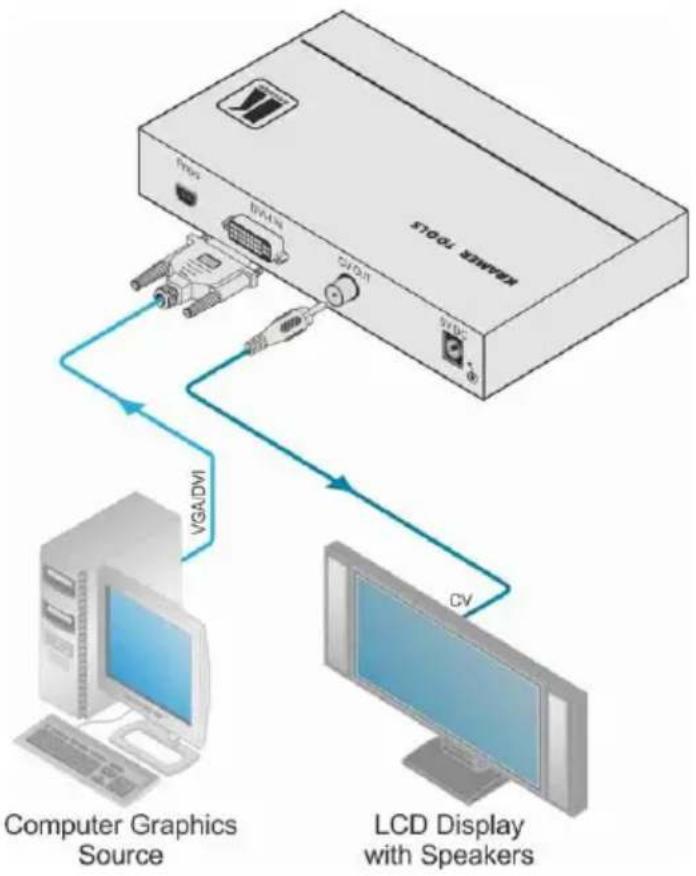
To connect your VP-506 as the example in Figure 2 illustrates, do the following:
- Connect a DVI or VGA source to the DVI-I IN connector (for example, a PC graphics card).
- Connect the CV OUT RCA connector to the CV acceptor (for example, an LCD display with speakers).
- Connect the 5V DC power adapter to the power socket and connect the adapter to the mains electricity.
- Adjust the scan converter features if required (see Section 5.3).
flowchart
graph TD
    A["Computer Graphics Source"] -->|VG/ADM| B["LCD Display with Speakers"]
    B -->|CV| C["SIM Turk Device"]
    C --> D["Computer Graphics Source"]
Figure 2: Connecting the VP-506 DVI/UXGA Scan Converter
5 Operating the VP-506
You can operate your VP-506 via the front panel buttons, which are dual-purpose buttons (except for the MENU button) that function as:
- Quick-set buttons: FREEZE and OS/US; or
- Menu buttons: MENU, ENTER, – and +
This section describes how to:
• Use the quick set buttons (see Section 5.1)
• Use the set of menu buttons (see Section 5.2)
• Use the Menu screen (see Section 5.3)
• Use the test patterns (see Section 5.4)
• Save and recall (see Section 5.5)
5.1 Using the Quick-Set Buttons
The following sub-sections describe the VP-506 quick set buttons.
5.1.1 Using the FREEZE Button
Press the FREEZE button to freeze the picture on the screen. The frozen picture is displayed regardless of the signal on the input to the unit. This allows you, for example, to change the programs on the PC, and set up the next image.
By pressing the FREEZE button again, the frozen image will be replaced by the most current image on the input to the unit.
5.1.2 Using the OS/US Button
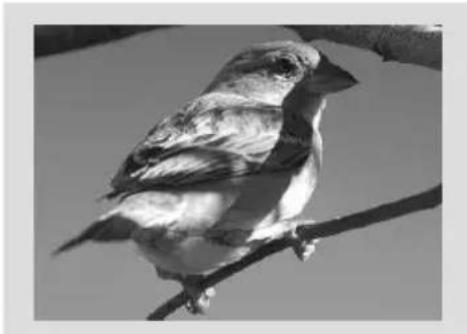
Press the OS/US button to toggle between overscan and underscan:
- Overscan generally has no border and the displayed image is usually larger than the screen
This makes the data bigger and easier to read with the possibility of having some of it run off the edge of the screen.
- Underscan (sometimes know as compress mode) generally leaves a border around the image
The image appears reduced in size with a margin around it so that none of the data gets lost.

natural_image
Black-and-white photo of a small bird perched on a branch, showing detailed feather texture and beak (no text or symbols)Overscan
natural_image
Black-and-white photo of a bird perched on a branch (no text or symbols visible)Underscan
Figure 3: Overscanned and Underscanned images
5.2 Adjusting the Display via the Menu Buttons
The menu buttons (MENU, ENTER, - and +) let you adjust the screen settings. Use the menu buttons as follows:
- Press the MENU button to display the menu on the screen
Pressing the MENU button disables the quick-set buttons (FREEZE and OS/US) - Press the MENU button again each time you want to return to the previous menu level or exit the menu
- Press the + or - buttons to move up or down the menu respectively
- Press ENTER to accept changes
• Before exiting the menu, you can save settings (see Section 5.5.1)
5.3 Using the Menu
Using the main menu, you can adjust the screen display (screen adjustments apply to both CV and Y/C displays). After pressing the MENU button (quick-set buttons are disabled), the main Menu appears on the screen. Use the menu buttons to scroll through the menu and make the required adjustments. The following table defines the menu items.
The menu times-out after 20 seconds of inactivity.
| Item | Selections | Parameter | Default |
| INPUT FORMAT | DVI / PC / YPBPR | DVI | |
| PICTURE SETUP | CONTRAST | 0-255 | 128 |
| BRIGHTNESS | 0-255 | 128 | |
| SATURATION | 0-255 | 128 | |
| SHARPNESS | 0-255 | 128 | |
| PHASE | 0-31 | 16 | |
| OUTPUT SETUP | H-POSITION | -50 to +50 | 0 |
| V-POSITION | -29 to +29 (depends on timing mode) | 0 | |
| SIZE | 100%, 90%, 95%, 105%, 110%, 115% | 100% | |
| ADVANCED | TEST_PATTERN | OFF,WHITE,CROSS,CROSS HATCH,COLOR BAR, GRAY SCALE,WHITE WINDOW, RED, GREEN, BLUE | OFF |
| NO_INPUT | WHITE,CROSS,CROSS HATCH,COLOR BAR, GRAY SCALE,WHITE WINDOW, RED, GREEN, BLUE | BLUE | |
| SAVE | 0-3 | 0 | |
| RECALL | 0-3 | 0 | |
| FACTORY_RESET | |||
| OSD SETUP | OSD_HPOSITION | 0-100 | 15 |
| OSD_VPOSITION | 0-100 | 5 | |
| OSD_TIMEOUT | 0-100 | 15 | |
| OSD_TRANSPARENCY | 0-15 | 15 | |
| INFORMATION | SOURCE | DVI or PC or YPbPr | |
| TIMING | Shows input resolution (e.g.1024X768@60) | ||
| OUTPUT | NTSC or PAL | ||
| VERSION | Shows firmware version (e.g. V1.01) |
5.4 Using Test Patterns
The Advanced menu lets you select Test Patterns and Save and Recall setups.
The VP-506 stores nine test patterns. From the Advanced menu, you can select a test pattern (from 1 to 7) to show on screen. Figure 4 shows test pattern number 1.

natural_image
Abstract grayscale gradient with a grid pattern and horizontal bands (no text or symbols)Figure 4: Test Pattern Number 1
You can also set a test pattern to appear on the screen when there is no input connected to the VP-506. To do so, enter the Advanced menu, select No Input and set a test pattern number. This test pattern will appear when there is no input connected. For example, set No Input to 1 if you want test pattern 1 (as in Figure 4) to appear when there is no input connected to the unit.
5.5 Saving and Recalling
The VP-506 lets you save and recall up to four setups (from 0 to 3).
The Save mode stores all the menu settings in one of the Save setup numbers.
The Save mode saves the Picture setup, the TV Output setup, the VGA Input Setup, the Zoom setup, and the advanced setup (test patterns)
Saving Through the Advanced Menu
To save setup 1, for example:
-
Adjust the Picture Setup, the VGA Input Setup, the TV Output Setup, the Zoom and panning, and the No Input number.
-
In the Advanced menu, select Save and set to number 1.
-
Press ENTER.
The setup is saved.

When disconnecting the unit, the setup that was saved last is stored and reappears when reconnecting the unit.
Consider the following sequence, for example:
• A certain setup is saved to 1
• A different setup is saved to 2
- Setup 1 is recalled
• The unit is disconnected
• The unit is reconnected
- Setup 2 appears (since it was saved last)
5.5.1 Saving When Exiting the Menu
Whenever a change in the setup is performed, you are prompted to save the changes, be it recalling a different setup, or changing the Zoom mode:
The Save Setting item does not timeout, it remains until No or Yes is selected.
- Select No to cancel setup changes
- Select Yes to save setup changes.
Changes are saved to the setup number currently appearing next to the Save item
Note that your setup is saved to one of the 4 setups and overwrites the previous setup associated with this setup number.
5.5.2 Recalling a Setup
To recall a setup select Recall from the advanced menu and select the setup number you want to recall.
5.6 Supported Input Resolutions
The following table lists all supported input resolutions.
| Resolution/Refresh Rate | DVI-I INPUT | |
| PC (RGB) | DVI | |
| 480i/576i (NTSC/PAL) | No | No |
| 480p/576p | No | No |
| 720p @60/50 | No | No |
| 1080i @60/50 | No | No |
| 1080p @60/50 | No | No |
| 1080p @24/25/30 | No | No |
| 480p-RGB | Yes | Yes |
| 576p-RGB | Yes | Yes |
| 720p @60/50-RGB | Yes | Yes |
| 1080i @60/50-RGB | No | Yes |
| 1080p @60/50-RGB | Yes | Yes |
| 1080p @24/25/30-RGB | No | Yes |
| VGA @60/67/72/75/85 | Yes | Yes |
| XGA @60/70/75 | Yes | Yes |
| SXGA @60/75 | Yes | Yes |
| 1600X900 @60 | Yes | Yes |
| UXGA @60 (1600X1200) | Yes | Yes |
| WXGA @60 (1280x800) | Yes | Yes |
| WXGA+ @60 (1440x900) | Yes | Yes |
| WXGA @60 (1366x768) | Yes | Yes |
| SXGA+ @60 (1400x1050) | Yes | Yes |
| WSXGA @60 (1680x1050) | Yes | Yes |
| WUXGA @60 (1920x1200) | Yes | Yes |
6 Technical Specifications
| INPUT: | 1 x DVI-I (DVI-D, VGA, YPbPr) on a 24-pin Molex connector |
| OUTPUT: | 1 composite video 1Vpp/75Ω on an RCA connector |
| INPUT RESOLUTIONS: | Up to WUXGA/1080p |
| CONTROLS: | Front panel and OSD: ProcAmp video controls, freeze, underscan /overscan, 8 color bars |
| POWER CONSUMPTION: | 5V DC, 540mA |
| OPERATING TEMPERATURE: | 0° to +40°C (32° to 104°F) |
| STORAGE TEMPERATURE: | -40° to +70°C (-40° to 158°F) |
| HUMIDITY: | 10% to 90%, RHL non-condensing |
| DIMENSIONS: | 12cm x 7.5cm x 2.5cm (4.7" x 2.95" x 0.98") W, D, H |
| WEIGHT: | 0.3kg (0.67lbs) approx |
| INCLUDED ACCESSORIES: | Power supply, mounting bracket |
| OPTIONS: | RK-1 19" rack adapter |
| Specifications are subject to change without notice at http://www.kramerelectronics.com | |
LIMITED WARRANTY
The warranty obligations of Kramer Electronics for this product are limited to the terms set forth below:
What is Covered
This limited warranty covers defects in materials and workmanship in this product.
What is Not Covered
This limited warranty does not cover any damage, deterioration or malfunction resulting from any alteration, modification, improper or unreasonable use or maintenance, misuse, abuse, accident, neglect, exposure to excess moisture, fire, improper packing and shipping (such claims must be presented to the carrier), lightning, power surges, or other acts of nature. This limited warranty does not cover any damage, deterioration or malfunction resulting from the installation or removal of this product from any installation, any unauthorized tampering with this product, any repairs attempted by anyone unauthorized by Kramer Electronics to make such repairs, or any other cause which does not relate directly to a defect in materials and/or workmanship of this product. This limited warranty does not cover cartons, equipment enclosures, cables or accessories used in conjunction with this product.
Without limiting any other exclusion herein, Kramer Electronics does not warrant that the product covered hereby, including, without limitation, the technology and/or integrated circuit(s) included in the product, will not become obsolete or that such items are or will remain compatible with any other product or technology with which the product may be used.
How Long Does this Coverage Last
Seven years as of this printing; please check our Web site for the most current and accurate warranty information.
Who is Covered
Only the original purchaser of this product is covered under this limited warranty. This limited warranty is not transferable to subsequent purchasers or owners of this product.
What Kramer Electronics will do
Kramer Electronics will, at its sole option, provide one of the following three remedies to whatever extent it shall deem necessary to satisfy a proper claim under this limited warranty:
-
Elect to repair or facilitate the repair of any defective parts within a reasonable period of time, free of any charge for the necessary parts and labor to complete the repair and restore this product to its proper operating condition. Kramer Electronics will also pay the shipping costs necessary to return this product once the repair is complete.
-
Replace this product with a direct replacement or with a similar product deemed by Kramer Electronics to perform substantially the same function as the original product.
-
Issue a refund of the original purchase price less depreciation to be determined based on the age of the product at the time remedy is sought under this limited warranty.
What Kramer Electronics will not do Under This Limited Warranty
If this product is returned to Kramer Electronics or the authorized dealer from which it was purchased or any other party authorized to repair Kramer Electronics products, this product must be insured during shipment, with the insurance and shipping charges prepaid by you. If this product is returned uninsured, you assume all risks of loss or damage during shipment. Kramer Electronics will not be responsible for any costs related to the removal or re-installation of this product from or into any installation. Kramer Electronics will not be responsible for any costs related to any setting up this product, any adjustment of user controls or any programming required for a specific installation of this product.
How to Obtain a Remedy under this Limited Warranty
To obtain a remedy under this limited warranty, you must contact either the authorized Kramer Electronics reseller from whom you purchased this product or the Kramer Electronics office nearest you. For a list of authorized Kramer Electronics resellers and/or Kramer Electronics authorized service providers, please visit our web site at www.kramerelectronics.com or contact the Kramer Electronics office nearest you.
In order to pursue any remedy under this limited warranty, you must possess an original, dated receipt as proof of purchase from an authorized Kramer Electronics reseller. If this product is returned under this limited warranty, a return authorization number, obtained from Kramer Electronics, will be required. You may also be directed to an authorized reseller or a person authorized by Kramer Electronics to repair the product.
If it is decided that this product should be returned directly to Kramer Electronics, this product should be properly packed, preferably in the original carton, for shipping. Cartons not bearing a return authorization number will be refused.
Limitation on Liability
THE MAXIMUM LIABILITY OF KRAMER ELECTRONICS UNDER THIS LIMITED WARRANTY SHALL NOT EXCEED THE ACTUAL PURCHASE PRICE PAID FOR THE PRODUCT. TO THE MAXIMUM EXTENT PERMITTED BY LAW, KRAMER ELECTRONICS IS NOT RESPONSIBLE FOR DIRECT, SPECIAL, INCIDENTAL OR CONSEQUENTIAL DAMAGES RESULTING FROM ANY BREACH OF WARRANTY OR CONDITION, OR UNDER ANY OTHER LEGAL THEORY. Some countries, districts or states do not allow the exclusion or limitation of relief, special, incidental, consequential or indirect damages, or the limitation of liability to specified amounts, so the above limitations or exclusions may not apply to you.
Exclusive Remedy
TO THE MAXIMUM EXTENT PERMITTED BY LAW, THIS LIMITED WARRANTY AND THE REMEDIES SET FORTH ABOVE ARE EXCLUSIVE AND IN LIEU OF ALL OTHER WARRANTIES, REMEDIES AND CONDITIONS, WHETHER ORAL OR WRITTEN, EXPRESS OR IMPLIED. TO THE MAXIMUM EXTENT PERMITTED BY LAW, KRAMER ELECTRONICS SPECIFICALLY DISCLAIMS ANY AND ALL IMPLIED WARRANTIES, INCLUDING, WITHOUT LIMITATION, WARRANTIES OF MERCHANTABILITY AND FITNESS FOR A PARTICULAR PURPOSE. IF KRAMER ELECTRONICS CANNOT LAWFULLY DISCLAIM OR EXCLUDE IMPLIED WARRANTIES UNDER APPLICABLE LAW, THEN ALL IMPLIED WARRANTIES COVERING THIS PRODUCT, INCLUDING WARRANTIES OF MERCHANTABILITY AND FITNESS FOR A PARTICULAR PURPOSE, SHALL APPLY TO THIS PRODUCT AS PROVIDED UNDER APPLICABLE LAW.
IF ANY PRODUCT TO WHICH THIS LIMITED WARRANTY APPLIES IS A 'CONSUMER PRODUCT' UNDER THE MAGNUSON-MOSS WARRANTY ACT (15 U.S.C.A. §2301, ET SEQ.) OR OTHER APPLICABLE LAW, THE FOREGOING DISCLAIMER OF IMPLIED WARRANTIES SHALL NOT APPLY TO YOU, AND ALL IMPLIED WARRANTIES ON THIS PRODUCT, INCLUDING WARRANTIES OF MERCHANTABILITY AND FITNESS FOR THE PARTICULAR PURPOSE, SHALL APPLY AS PROVIDED UNDER APPLICABLE LAW.
Other Conditions
This limited warranty gives you specific legal rights, and you may have other rights which vary from country to country or state to state.
This limited warranty is void if (i) the label bearing the serial number of this product has been removed or defaced, (ii) the product is not distributed by Kramer Electronics or (iii) this product is not purchased from an authorized Kramer Electronics reseller. If you are unsure whether a reseller is an authorized Kramer Electronics reseller, please visit our Web site at www.kramerelectronics.com or contact a Kramer Electronics office from the list at the end of this document.
Your rights under this limited warranty are not diminished if you do not complete and return the product registration form or complete and submit the online product registration form. Kramer Electronics thanks you for purchasing a Kramer Electronics product. We hope it will give you years of satisfaction.

For the latest information on our products and a list of Kramer distributors, visit our Web site where updates to this user manual may be found.
We welcome your questions, comments, and feedback.
Web site: www.kramerelectronics.com
E-mail: info@kramerel.com





SAFETY WARNING
Disconnect the unit from the power supply before opening and servicing
P/N:

2900-300098

Rev: 7
- Step 1: Check what's in the box
- Step 2: Install the VP-506
- Step 3: Connect the inputs and outputs
- Step 4: Connect the power
- Step 5: Operate the VP-506
- Contents
- Introduction 1
- Getting Started 2
- Overview 4
- Connecting the VP-506 6
- Operating the VP-506 7
- Technical Specifications 13
- Figures
- Introduction
- Getting Started
- Achieving the Best Performance
- Safety Instructions
- Recycling Kramer Products
- Overview
- The VP-506 features:
- Defining the VP-506 DVI/UXGA Scan Converter
- Connecting the VP-506
- Operating the VP-506
- Using the Quick-Set Buttons
- Using the FREEZE Button
- Using the OS/US Button
- Adjusting the Display via the Menu Buttons
- Using the Menu
- Using Test Patterns
- Saving and Recalling
- Saving Through the Advanced Menu
- Saving When Exiting the Menu
- Recalling a Setup
- Supported Input Resolutions
- Technical Specifications
- LIMITED WARRANTY
- What is Covered
- What is Not Covered
- How Long Does this Coverage Last
- Who is Covered
- What Kramer Electronics will do
- What Kramer Electronics will not do Under This Limited Warranty
- How to Obtain a Remedy under this Limited Warranty
- Limitation on Liability
- Exclusive Remedy
- Other Conditions
- SAFETY WARNING
Brand : Kramer
Model : VP-506
Category : Audio/Video